RSS
 

Posts Tagged ‘REVIEW’

Review – The ThinkTank Photo Airport Roller Derby Bag

24 Jul

For those who know me, they know that I have a slight obsession with camera bags. There are just so many varieties; roller bags, backpacks, shoulder bags, etc., so it gets a little hard to get bored of them!
IMG_4880

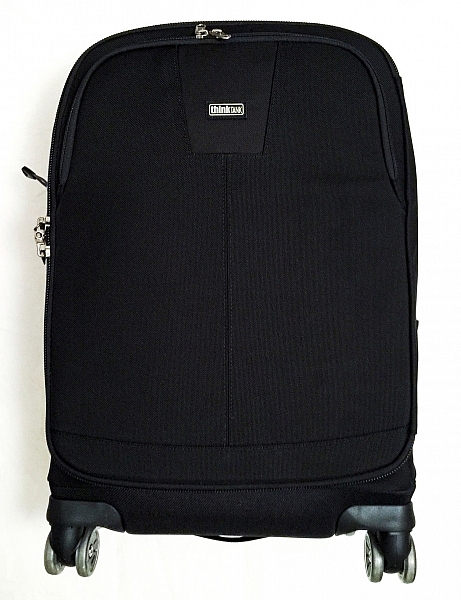
Recently though, I’ve been using a ThinkTank Photo Roller Derby bag as my everyday roller. Now, using a roller bag may not be ideal for everyone. But for people like me who need to transport a lot of kit, they are lifesavers! This isn’t the only roller bag I have, though. I also have a ThinkTank Airport Security V2.0 which is absolutely fantastic, too.

But why did I jump to a slightly smaller bag? The answer to that is simple: the ThinkTank Photo Airport Roller Derby bag has four wheels, whereas the Airport Security only has two. This doesn’t seem like a big deal, but it makes moving the bag around that much easier.

So before we begin the review, let’s take a look at the Roller Derby’s features as from the ThinkTank website:

OVERVIEW

Materials: Exterior

  • 3D air mesh
  • 3-ply bonded nylon thread
  • Polyurethane coating
  • 1680D ballistic nylon
  • 420D velocity nylon
  • Durable water-repellant (DWR) coating
  • YKK® RC Fuse (abrasion-resistant) zippers
  • Custom-designed, replaceable wheels with sealed steel bearings
  • Rubberized laminate reinforcement

Materials: Interior

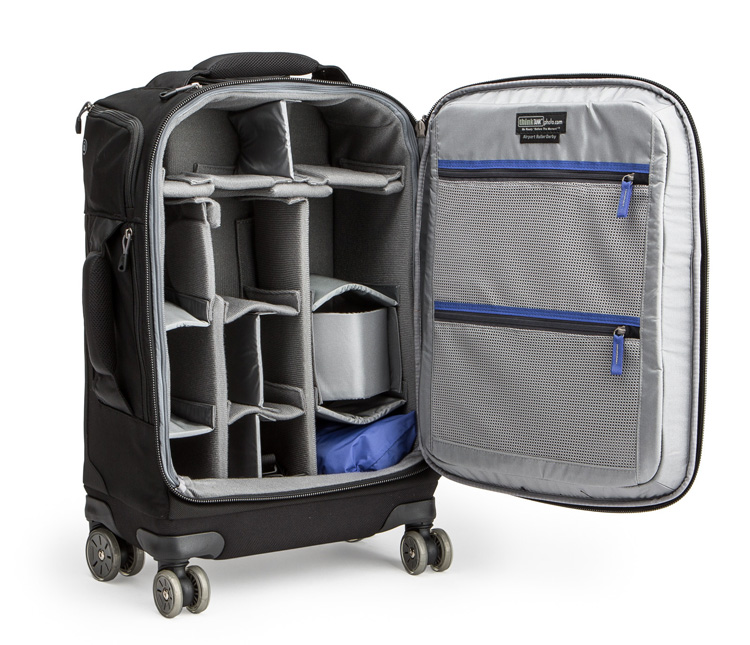
airport-roller-derby-5-750

Image courtesy ThinkTank

  • 210D silver-toned nylon
  • Polyurethane backed velex liner & dividers
  • 2x polyurethane coated nylon 210T seam-sealed rain cover
  • Closed cell foam & PE board reinforced dividers
  • Belly-O mesh pockets
  • 3-ply bonded nylon thread

Specifications:

  • Internal Dimensions: 12.6” W x 18.5” H x 5.5–7.5” D (32 × 47 × 14–19 cm)
  • Exterior Dimensions: 14” W x 22” H x 9.0” D (35.6 × 55.9 × 22.9 cm)
  • Tablet Compartment: 10.5” W x 10.3” H x 0.6” D (26.7 x 26.1 x 1.5 cm)
  • Laptop Compartment: 10.5” W x 14.5” H x 1.0” D (26.7 x 36.8 x 2.5 cm)
  • Weight: 9.5–11.5 lbs (4.3–5.2 kg) depending on accessories used.

Additional Features:
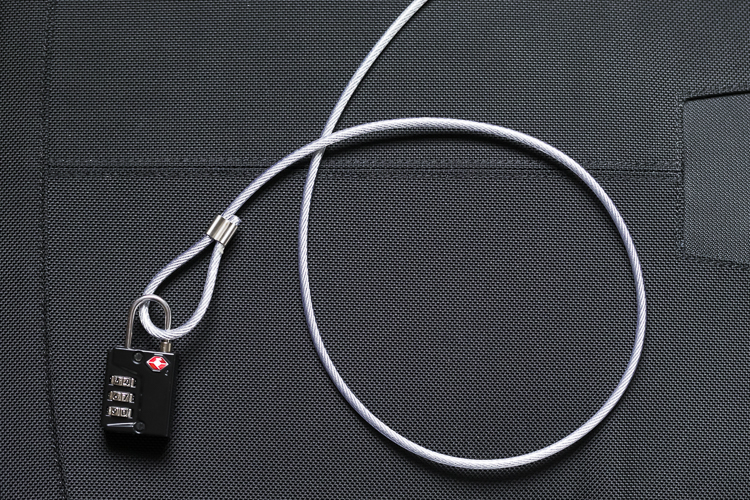
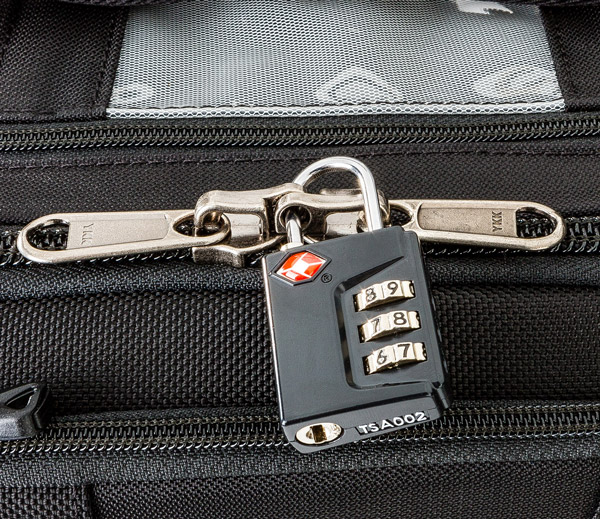
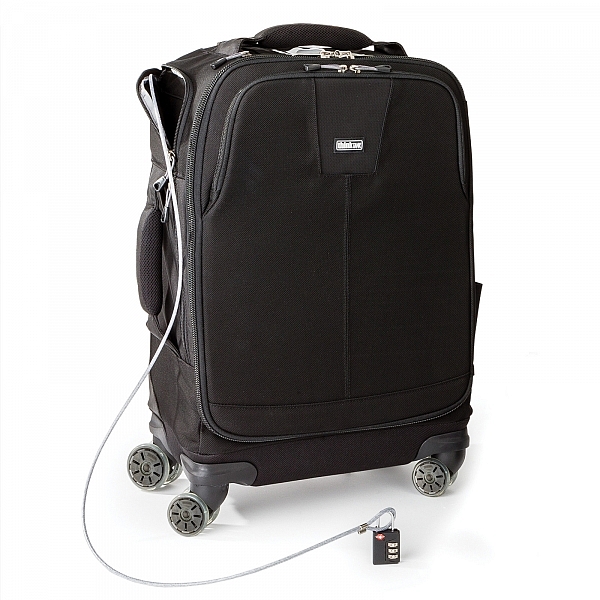
Cable Lock

  • Lock & cable to secure lockable zippers and tether the bag
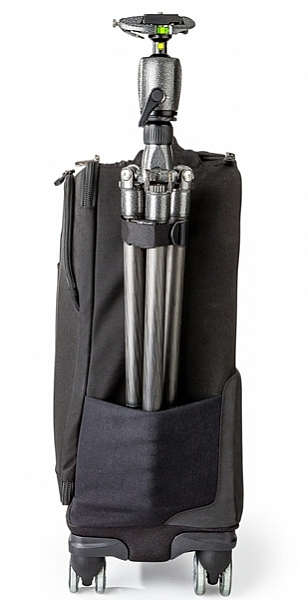
  • airport-roller-derby-9-6003-ways to roll: upright at your side, back wheel tilt, or side wheel tilt
  • Seam-sealed rain cover included
  • Bottom handle for easy over head lifting
  • Tripod mount and water bottle pocket on side
  • 2-position locking handle extends to 39–42” for better ergonomics when pushing
  • Interior zippered pockets for batteries, CF cards, filters and accessories
  • Top zippered pocket for wallet or cell phone
  • Rapid access side pocket for travel essentials
  • Reinforced back panel for increased durability
  • User replaceable wheels
  • Seam sealed rain cover included
Image courtesy ThinkTank

Image courtesy ThinkTank

BUILD QUALITY

If you have used ThinkTank products in the past, you are most likely already familiar with the overall quality of their products. The ThinkTank Photo Airport Roller Derby bag is no exception. I have been using this bag almost everyday for the last eight weeks. It has been dragged through mud, wet grass, over gravel, been pulled in and out of my car, and been shoved around on public transport. Through all of this, not once have I had any issues with any of the wheels (they just keep going, no matter what!), and most importantly, my equipment has come out of it completely unharmed.

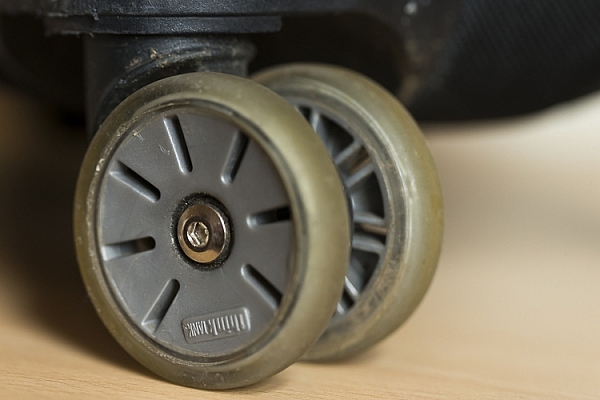
Wheel:wear.2

Wheels showing wear but mostly just scratches.

It’s been dragged a bit over concrete and other hard surfaces, and other than a few little scuff marks on its exterior, it’s perfectly fine and shows no sign of giving up any time soon. The telescopic handle feels more sturdy than the one on my other roller, and is easily pulled up and down for use. Most bags’ weakness appears first with the zippers; especially if you’re packing a lot of kit into the bag. However, the zippers used on this bag are no different to that of any other ThinkTank product. The zippers are easily opened and closed no matter how much equipment is packed in. In fact, I’ve yet to see any of the zippers across all my bags (yes, I have a few!) even begin to show any sign of strain.
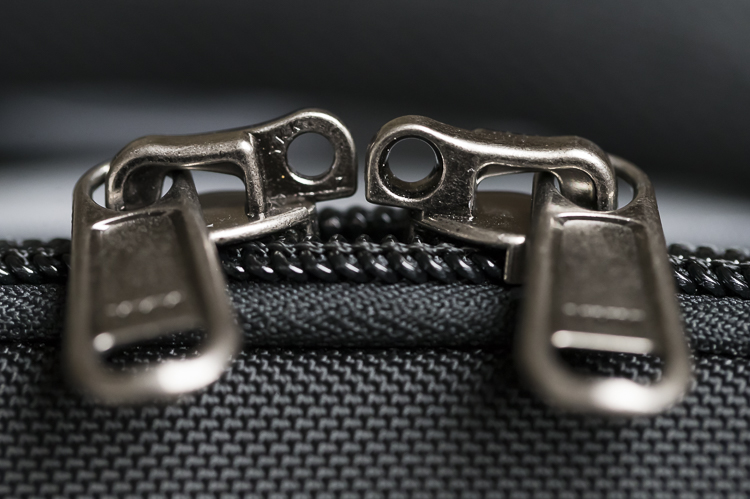
Lockable Zipper

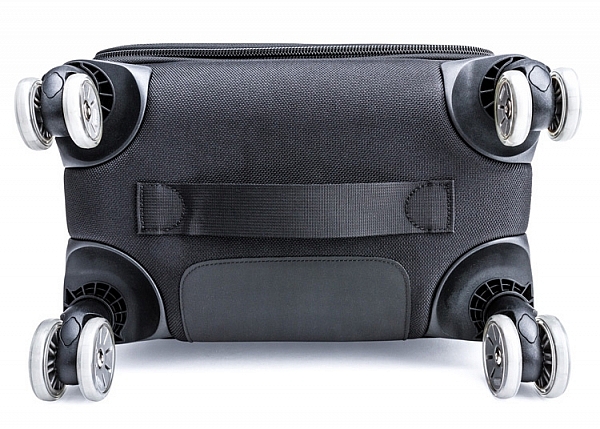
At the base of the bag, extending up the back a little way, is a tougher nylon cover which is perfect for protecting the material of the bag as you pull along; such as when going down stairs or whatnot. Internally, the bag is no really different to any other ThinkTank bag. The removable inserts provide ample protection for all of my kit. The rollers on the bag have also proven to be very durable. I’ve taken my bag through puddles, mud, wet grass, gravel – you name it – and all without a single problem.

What really helps the wheels is that there are actually eight wheels in total; two wheels on each castor. This helps spread the weight of the bag and its contents out more effectively, thereby reducing the strain on each individual wheel.
airport-roller-derby-6-750

Image courtesy ThinkTank

Wheels

DESIGN

The design of the Roller Derby is very well thought out. The main camera compartment is easily accessible. The opening hinges across the bag, not up/down. This does make it easier to work with in smaller spaces, or out of the trunk of your car, as you don’t need much space to open it.

On the inside of the opening are three compartments where you can put extra items like memory cards, cleaning tools etc. On the front of the bag you’ll find there’s also a handy compartment to fit your laptop/tablet and other little bits and bobs too.
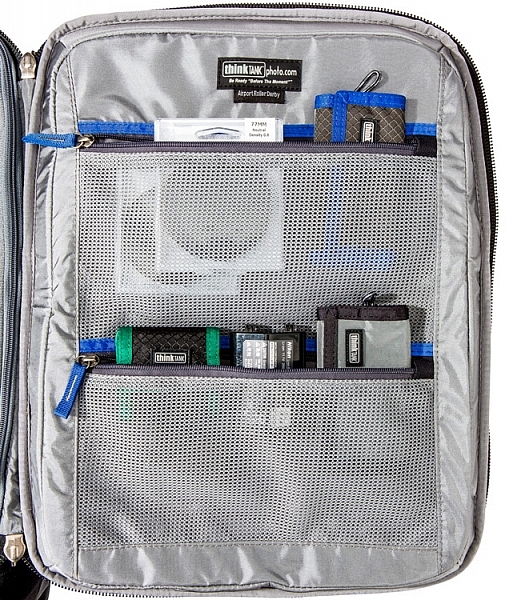
Image courtesy ThinkTank

Image courtesy ThinkTank

If you need to leave your bag unattended, ThinkTank has you covered there, too. They have provided a cable, which is attached to the bag, and a lock which will enable you to lock the bag to an object so it’s more secure. The zippers to the main camera compartment are also lockable, so all your kit is safe; this is also perfect for air travel or public transport, for that little extra peace of mind.

The bag also ships with a rain cover which, I might add, is one of the easiest rain covers to put on bag! It covers the bag nicely and gives your equipment that extra level of protection from the elements.
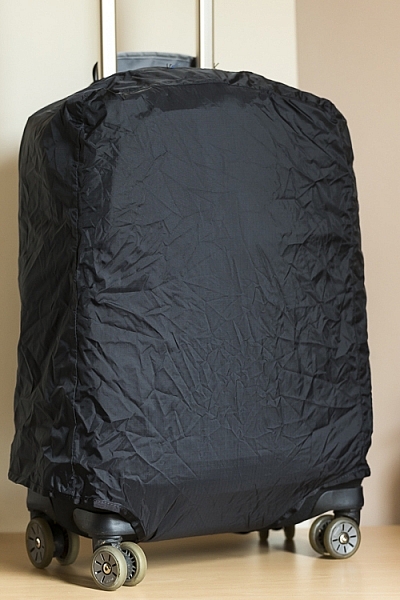
Rain cover on

Image courtesy ThinkTank

Image courtesy ThinkTank

IN USE

This has now become my go-to bag for day-to-day use. It’s smaller than my other roller bag, which makes it easier for fitting in to cars, on trains, etc., and is also easier to fit under a table in a media room. The four castor design makes it easier to put the bag under a table, and take it out again; without having to move myself about to maneuverer it. I can just simply push it under, or grab it out.
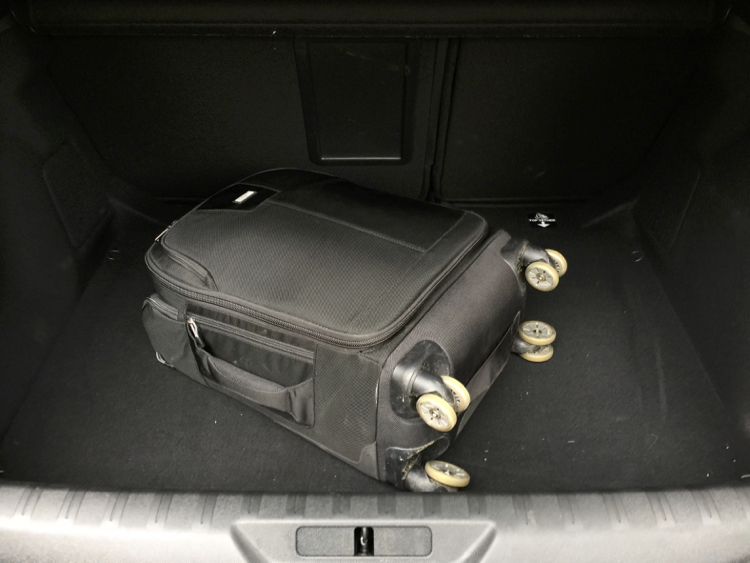
Boot

Here it is in the trunk (boot) of my car.

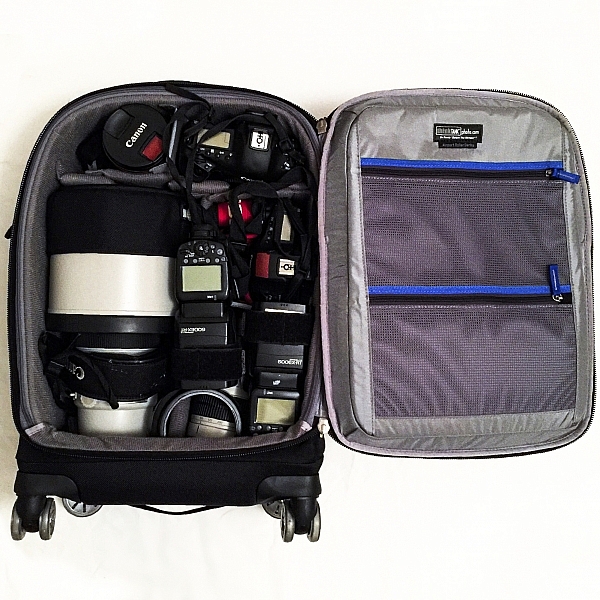
I’ve found the compact design of the bag to be very helpful when working in tighter spaces (some of the media rooms here in the UK are very ah….cozy!) as it doesn’t get in the way when I am unpacking my kit from it. Yet, despite its compact nature I can still fit my everyday required kit.

In this bag I can fit:

  • Two EOS 1-D series cameras
  • A 400mm f/2.8 lens
  • A 70-200 f/2.8 lens
  • A 16-35 f/2.8 lens
  • A 1.4x Teleconverter
  • Two 600-EX RT Canon Speedlites
  • Other little bits and pieces

IMG_4882

CONCLUSION

I love roller bags, they work perfectly for my requirements. For me, this bag is a winner. It’s compact design, yet high carrying capacity, make this bag ideal for people who want to carry larger amounts of equipment easily. Here are my thoughts:

Who is this bag for:

This bag is ideal for people who want a bag that they don’t have to carry around. The wheels make transporting equipment so much easier. It’s particularly ideal for travel on public transport, as its compact design will easily fit in the luggage area of many trains, or next to you on the seat.

Who is this bag NOT for: 

If you’re someone who needs to travel with a bag with them all the times, you may want to look outside roller bags. If you want to carry more equipment, this particular model may be a little too small as well.

Pros:

Empty, the bag is quite light for a roller bag, weighing in at 5kg (11 pounds). Its compact design makes it easier to store when you’re in transit and at home, and the wheels make it a lot easier to move around. A well thought out design makes the most of its compact size to fit a generous amount of kit inside.
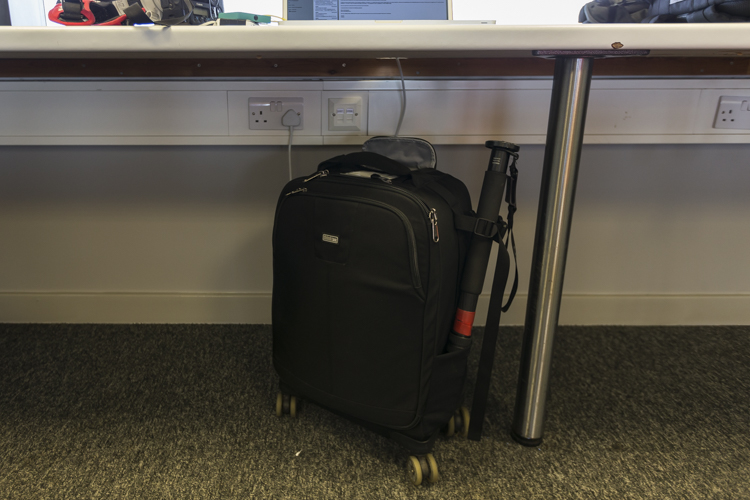
Media

Cons:

I wouldn’t say this is necessarily a con; rather just something to be aware of, but the 4-wheel design can mean the bag can tend to roll away if it’s left on a slope, so be careful of this! When using a large lens (such as a 400mm f/2.8 or 600mm f/4, etc.) with the hood on, you are no longer able to put a laptop in the laptop compartment in the front of the bag. The price may be a con for some if you’re not in the market for a bag that’s almost $ 400.

If you’re on the market for a good quality, durable, and ergonomic roller bag, I would strongly suggest you take a look at the ThinkTank Photo Airport Roller Derby!

googletag.cmd.push(function() {
tablet_slots.push( googletag.defineSlot( “/1005424/_dPSv4_tab-all-article-bottom_(300×250)”, [300, 250], “pb-ad-78623” ).addService( googletag.pubads() ) ); } );

googletag.cmd.push(function() {
mobile_slots.push( googletag.defineSlot( “/1005424/_dPSv4_mob-all-article-bottom_(300×250)”, [300, 250], “pb-ad-78158” ).addService( googletag.pubads() ) ); } );

The post Review – The ThinkTank Photo Airport Roller Derby Bag by Daniel Smith appeared first on Digital Photography School.


Digital Photography School

 
Comments Off on Review – The ThinkTank Photo Airport Roller Derby Bag

Posted in Photography


Getting up close: Canon EF-M 28mm macro hands-on review

24 Jul

Hands-on review: Canon EF-M 28mm Macro

This is the Canon EF-M 28mm F3.5 Macro IS STM. It is a compact, light weight, close-focusing lens designed exclusively for Canon’s EOS M lineup. It’s image-stabilized and uses a quiet stepping motor mechanism for autofocus. It’s priced at $ 299.

Hands-on review: Canon EF-M 28mm Macro

The lens comes with a removable cover for the front

$ 299 places it below a majority of macro primes for cost. However, the Nikon Micro?Nikkor 40mm F2.8 does still beat it out in price by around $ 50, and is 2/3-stop brighter.

All the trump cards held by the Micro-Nikkor fold when other features of the EF-M 28mm Macro are brought in to consideration, though. First, even though it is a wider FOV lens, its nearest focus distance is 3.7″, nearly 3″ closer than the Micro-Nikkor. Even taking the slightly longer field of view of the Micro-Nikkor in to account, the Canon is able to achieve a 1.2x magnification in “Super Macro” mode over the Nikkor’s 1x magnification.

When working at such diminutive focus distances, there’s an inherent issue that many experienced macro photographers have learned to work around. The camera, lens, and sometimes even photographer start blocking light from the itty bitty subject. To get around this, macro photographers will use specialized lights, typically ring lights mounted to the filter thread. 

Canon has gone the extra mile (inch?) and included a pair of LED lights (hidden under their cover in this shot) mounted on the left and right hand side of the front of the lens, diffused by a clear white ring, eliminating the additional requirement of a macro light kit for those extreme close-ups.

Hands-on review: Canon EF-M 28mm Macro

3.7″ is quite an extreme working distance, and this means a maximum reproduction ratio of 1.2x in ‘Super Macro’ mode. Image stabilization is included and is effective for shooting in a wide range of scenarios, although for the extreme close-ups it’s better left switched off and replaced with a tripod.

A subject at minimum focus distance illuminated by the two LED’s together receives about 8.9 EV illumination in normal macro and 9.1 EV in super macro mode when measured with an incident light meter. The lights have two levels of brightness, and are switched on via a button on the lens barrel. Both come on with a single press, and a press and hold switches to one light only. Sadly, there’s no ability to have just one LED on at full brightness and the other dimmed. They’re either both on at the same power level, or illuminated independently.

The lightweight construction and STM focus motor also help this lens focus reasonably quickly, especially when compared to the painfully slow-focusing macro lenses of yore. It isn’t as fast as some of the quickest we’ve seen, but does very well, especially considering how close its MFD is.

Hands-on review: Canon EF-M 28mm Macro

By itself, this lens weighs 130 grams, making it so light Canon boasts about the 28mm F3.5 being the ‘world’s lightest autofocus macro lens for an ILC system.’ When mounted to the EOS M3 the total weight is a featherweight 492 grams, exemplifying the lightness and convenience benefit of mirrorless systems compared to DSLRs. By comparison, a Nikon D5500 body weighs 420 grams. Add another 235 grams for the 40mm Micro lens, then another 200+ for an LED macro light kit, and the total comes out to 855 grams, or nearly double the weight of the Canon kit.

This diminutive size means weight can also be saved when making a tripod selection, as long as it is sturdy enough for work that is incredibly sensitive to vibrations.

Less weight means less fatigue and more reasons to bring the camera on location.

It resolves well…

This graph shows the maximum resolution (as a percent of Nyquist) attained by our copy of the lens at various apertures. It uses MTF-10 criteria, which is a measure of the finest detail that can be resolved with at least 10% contrast. If that sounds complicated, just keep in mind this figure is well correlated to total resolution, though isn’t as great a representation of perceived sharpness, which correlates more with MTF-50 measurements (more on that on the next slide).

Our results here show that center resolution peaks at 80% the linear resolution that can be theoretically attained, at F5.6 – a decent result. If this were resolved across the frame, you’d get about a 16MP image from this 24MP sensor. Of course it’s not, but corners aren’t too far behind, at 67% by F6.3. Not bad when you consider the higher resolving power demands placed on the lens by the smaller APS-C sensor… but what about perceived sharpness?

… and is fairly sharp

The MTF-50 result – better correlated with perceived sharpness – tells a slightly different story, indicating only around 875 line pairs per picture height resolved, which translates to ~4.6MP, or 19% of the total sensor resolution. It’s not a terrible result, but does indicate that while the lens resolves a lot of detail, it doesn’t quite maintain as much contrast as a higher performing lens might. This is no surprise, given the lens’ size, weight, and price.

While performance isn’t state of the art in terms of macro lenses (the Sony FE 90mm F2.8 deserves a shout out here), it does a good job throughout the aperture range, with good field uniformity, and fair ability to resolve fine detail, particularly when you factor in the disadvantages of the smaller APS-C sensor (which places high demands on lens’ resolving power). It doesn’t have L-series levels of contrast and perceived sharpness – but we wouldn’t expect it to.

See our gallery for a set of infinity shots to see how this tiny macro resolves real-world detail on a flat plane.

How well does it work with EOS M3?

The EOS M3’s articulating touch screen is great for close-up work when using this lens. It takes a lot of strain out of working low when one doesn’t need to peer through a viewfinder or crouch low to see the screen. Magnifying the image for focus checking also works brilliantly on the M3. There’s no pixel binning or frame rate drops in 100% magnification mode, which helps the touch-enabled panning function to operate quickly and smoothly, helping ensure the narrow focus plane is placed exactly where you want it.

It’s creative

Even club soda can make an interesting photo when shooting this close

Or rather, it can be used creatively. 1.2x magnification means that objects are 1.2 times their actual size on the sensor plane. This means objects, details or textures can completely fill the frame, creating wonderful abstract shots that aren’t usually possible without a fair bit of kit. Combine this ability with a set up that is easily carried around and opportunities for interesting shots begin to pop up everywhere, as it offers a whole new view on the seemingly mundane.

It isn’t perfect…

This image was taken with just the built-in LED lights for illumination, and was cropped and brightened in post.

Well, for $ 300, expecting absolute perfection is unrealistic, especially in the photo world. 

First, it isn’t the sharpest lens out there. It’s pretty good, but in the macro world there are better options. That said, none of them have those lovely lights and will probably cost more.

The lights and image stabilization aren’t powerful enough to make this a hand-holdable macro, so don’t make the mistake of expecting that. The handheld spider shot above illustrates the pitfalls of lighting exclusively with the on board LEDs.  

First, the light cast by the LEDs isn’t particularly intense. It’s bright enough to light subjects at minimum focus distance outdoors, but only when its overcast. Any direct sunlight will overpower the light and will make the lens’ shadow very obvious. By itself, the light needs to be combined with a tripod, and should be thought of as a way to avoid the complications of a ring light system (batteries, cables, etc) instead of an all-purpose fill light.

Second, when working with a high reproduction ratio, depth of field is inherently incredibly shallow. The LED lights aren’t bright enough to allow for stopping down for deep depth of field while shooting handheld in dim ambient light. 

…but is still very usable

Using a narrow aperture can achieve deep depth of field when close focusing, but diffraction will decrease sharpness, as can be seen in this shot at F18.

It is important to remember that shallow depth of field is a challenge with all macro lenses. One way to get around that issue is by focus stacking. There are many software solutions to focus stacking, and Olympus has even gone as far as to include it as an automatic function in some of its cameras. One can only hope Canon does eventually as well.

The only other gripe is with the lights and their configuration. It would be nice to be able to rotate the lights 90 degrees for a sort of “clamshell” lighting instead of being stuck with the “copystand” lighting constantly, or to be able to have them configured either way regardless of wether the camera is being used in portrait or landscape orientation. 

As a standard lens, it performs fine in normal working distances, but vignetting is strong wide-open, making the EF-M 22 F2 a better general use prime lens if you don’t need the macro performance. 

Hands-on review: Canon EF-M 28mm Macro

This image used a combination of the built-in lights and a back lit semi-transparent surface

For beginners looking to shoot macro, the EF-M 28mm F3.5 Macro is a great place to start. Its close focus abilities mean it has a wide range of macro use cases, and the built-in LEDs mean one doesn’t have to budget for a set of lights when just getting started. It’s a great starting point for learning the challenges and pitfalls of macro photography, and will produce great results when applying those lessons.

Articles: Digital Photography Review (dpreview.com)

 
Comments Off on Getting up close: Canon EF-M 28mm macro hands-on review

Posted in Uncategorized


All about control: Huawei P9 camera review

24 Jul

DPReview smartphone reviews are written with the needs of photographers in mind. We focus on camera features, performance, and image quality.

$ (document).ready(function() { SampleGalleryV2({“containerId”:”embeddedSampleGallery_8524135201″,”galleryId”:”8524135201″,”isEmbeddedWidget”:true,”standalone”:false,”selectedImageIndex”:0,”startInCommentsView”:false,”isMobile”:false}) });

Right behind the LG G5, the Huawei P9 is the second device to launch in 2016 with dual cameras. However, while on the LG the secondary module essentially acts as a wide-angle extension, Huawei’s approach is different. In the Huawei system, which has been co-engineered with German camera manufacturer Leica, a 12MP RGB main sensor is accompanied by a 12MP monochrome chip. Huawei says combining image information from both sensors makes the P9 camera 100% more light-sensitive than conventional smartphone cameras which should, at least in theory, result in superior low light image quality.

The P9 is also capable of some other dual-camera tricks that we’ve seen before, such as simulating shallow depth-of-field. While the camera is no doubt one of the most interesting we have seen this year, with an octa-core chipset and fingerprint reader the non-camera specifications are flagship-worthy as well. Read our full review to find out how the Huawei P9 performs in the hands of a mobile photographer.

Key Photographic / Video Specifications

  • Dual Sony IMX 286 12MP sensors with 1.25µm pixel size
  • 27mm equivalent focal length
  • F2.2 aperture
  • Laser-assisted AF
  • DNG Raw capture
  • Manual control
  • 1080p Full-HD video
  • 720p, 120fps slow-motion video
  • 8MP front camera with F2.4 aperture

Other Specifications

  • 5.2-inch 1080p IPS screen
  • HiSilicon Kirin 955 chipset
  • 3GB RAM/32GB storage or 4GB RAM/64GB storage
  • microSD slot
  • 3,000mAh battery
  • Fingerprint reader

Articles: Digital Photography Review (dpreview.com)

 
Comments Off on All about control: Huawei P9 camera review

Posted in Uncategorized


Second Time Around: Canon PowerShot G7 X Mark II Review

20 Jul

Key Features

  • 20MP 1″-type BSI CMOS sensor
  • 24-100mm F1.8-F2.8 lens
  • 3″ tilting touchscreen LCD
  • Click/click-less front dial
  • 8 fps continuous shooting
  • 1080/60p video capture

For nearly two and a half years, Sony had the 1″-type sensor compact camera segment all to itself with its RX100 series. While Canon had its PowerShot G1 X (and the Mark II that followed), they were anything but pocketable. In September 2014 Canon joined Sony, offering up its PowerShot G7 X. From a pure specifications point of view, the G7 X was toe-to-toe with the Sony RX100 II and RX100 III (the current models at the time it was announced) in most respects, especially in terms of focal range and usability.

Despite being so promising on paper, the G7 X proved a disappointment in a few areas. Performance in Raw mode was sluggish, battery life wasn’t great and, its lens wasn’t as good as those on some of its competitors. Canon has addressed most of those problems on the Mark II, due in large part to its Digic 7 processor, which makes its debut in the G7 X II.

From a performance perspective, the Mark II has faster burst shooting, especially when shooting Raw files, which was a big disappointment on the original model. Where the Mark I shot continuous Raw bursts at just 1 fps, the Mark II can now shoot Raws, JPEGs or both at 8 fps. Canon also claims improvements in subject recognition and tracking, which wasn’t a strong point of the original model, either.

The G7 X II offers what Canon calls ‘Dual Sensing IS’, which uses data from the image sensor (in addition to gyro-scoping sensors) to reduce blur caused by camera shake. The company claims that this system is more effective than on the G7 X, with the ability to reduce shake by four stops. There’s also a new panning IS mode that will adjust the shutter speed to ensure that your subject is ‘frozen.’

In the image quality department, the Digic 7 processor brings improved sharpening and high ISO noise reduction algorithms. We’ll see the results of that later in the review.

Perhaps the G7 X’s biggest problem was battery life, which has been boosted by 25% to 265 shots per charge (CIPA standard). Even with that increase, though, the Canon still lags behind the Sony RX100s and Panasonic Lumix ZS100/TZ100.

The G7 X II uses the same lens and 1″-type sensor as its predecessor.  As you can see, the main difference on the front is a much-needed grip. It’s also slightly ‘chunkier’ in general.
Canon has moved the display hinge from the top to the bottom, which allows the screen to tilt downward by 45 degrees, something that the original G7 X could not do.

Cosmetically, the Mark II boasts three major changes. First is the addition of a much-needed grip, as the finish on the camera is quite slippery. Second, while it’s a bit subtle, Canon has moved the hinge on the tilting LCD to the bottom, which allows the screen to tilt downward, itself of just up. Finally, those who can’t decide whether they want the control ring around the lens to be ‘clicky’ or ‘smooth’ can now have both via a toggle switch to the lower-right of the lens.

Spec Comparison

Below is a look at how the key specs vary between the PowerShot G7 X I and II as well as the Sony Cyber-shot DSC-RX100 III, which is arguably the Mk II’s closest competitor.

   Canon G7 X  Canon G7 X II  Sony RX100 III
Sensor 20MP 1″-type BSI CMOS 20MP 1″-type BSI CMOS 20MP 1″-type BSI CMOS
Lens focal range 24-100mm equiv. 24-100mm equiv. 24-70mm equiv.
Max aperture F1.8 – F2.8 F1.8 – F2.8 F1.8 – F2.8
LCD size/type 3″ tilting (180° up) 3″ tilting (180° up, 45° down) 3″ tilting (180° up, 45° down)
Touchscreen Yes Yes No
Built-in EVF No No Yes
Max burst rate
(w/AF lock)
6.5 fps JPEG
1 fps Raw 
8 fps JPEG/Raw 10 fps JPEG
6.5 fps Raw
Video 1080/60p/30p

1080/60p/30p/24p

1080/60p/30p/24p
In-camera Raw conversion No Yes No
Battery life (CIPA) 210 shots 265 shots 320 shots
In-camera charging No Yes Yes
Dimensions 103 x 60 x 40mm 106 x 61 x 42mm  102 x 58 x 41mm
Weight (CIPA) 304 g 319 g 290 g

As you can see, lens focal range, touchscreen and battery life are what separate the G7 X II from its competition.

Lens Comparison

The chart below breaks down the equivalent aperture for each camera, as you work your way through the zoom range. Our article here explains the concept of equivalence, but at a high level all you need to know is that the lower the line is on the graph below, the blurrier the backgrounds you’ll be able to get and, typically, the better the overall low-light performance.

As you can see, the G7 X II and RX100 III start off at the same spot, but up until about 50mm the former has a slight equivalent aperture advantage. The two cameras are matched until the RX100 III’s focal range ends up 70mm. The G7 X continues on to 100mm at F2.8 (~F7.6 equiv.), which is one of its big selling points.

Articles: Digital Photography Review (dpreview.com)

 
Comments Off on Second Time Around: Canon PowerShot G7 X Mark II Review

Posted in Uncategorized


Comparison Review: Sony FE 50mm F1.4 ZA vs 55mm F1.8 ZA

20 Jul

Sony has announced a high-end ‘normal’ prime for its Alpha E-mount line of cameras: the Planar T* 50mm F1.4 ZA lens. As the third normal prime for the system, we wanted to know what it offers over the already excellent FE 55mm F1.8 ZA, so we set about performing some benchmark tests.

We’ll take a look at sharpness on this page, and bokeh, coma, and longitudinal chromatic aberration on the next.

Sharpness

Below, you’ll see a series of aperture progressions for the 50mm F1.4 ZA and 55mm F1.8 ZA. Have a look around the scene at various apertures to get an idea of the capabilities of these two lenses – with the caveat that this performance is only representative of our single copy of each lens.

$ (document).ready(function() { ImageComparisonWidget({“containerId”:”reviewImageComparisonWidget-27965628″,”widgetId”:381,”initialStateId”:null}) })

Wide-open, the 55/1.8 is slightly sharper than the 50/1.4, both centrally$ (document).ready(function() { $ (“#imageComparisonLink2690”).click(function() { ImageComparisonWidgetLink(2690); }); }) and peripherally$ (document).ready(function() { $ (“#imageComparisonLink2691”).click(function() { ImageComparisonWidgetLink(2691); }); }) (the advantage is retained on the left side$ (document).ready(function() { $ (“#imageComparisonLink2692”).click(function() { ImageComparisonWidgetLink(2692); }); }) of the frame as well, despite the fact that our 55/1.8 is slightly decentered and has poorer left side performance). But none of this should be too surprising, since sharpness at F1.4 is far more challenging than at F1.8. In fact, the 50/1.4 holds up very well considering the 2/3 EV disparity in f-stop.

Comparing both lenses at F1.8 (a more level playing field), the 50/1.4 catches up to the 55/1.8 in terms of center sharpness$ (document).ready(function() { $ (“#imageComparisonLink2695”).click(function() { ImageComparisonWidgetLink(2695); }); }), but still lags in peripheral sharpness on the left$ (document).ready(function() { $ (“#imageComparisonLink2693”).click(function() { ImageComparisonWidgetLink(2693); }); }) and right$ (document).ready(function() { $ (“#imageComparisonLink2694”).click(function() { ImageComparisonWidgetLink(2694); }); }) sides of the frame. By F2, though, the 50/1.4 just surpasses$ (document).ready(function() { $ (“#imageComparisonLink2701”).click(function() { ImageComparisonWidgetLink(2701); }); }) the 55/1.8 in central sharpness, though off-center it still lags a bit$ (document).ready(function() { $ (“#imageComparisonLink2702”).click(function() { ImageComparisonWidgetLink(2702); }); }). By F2.8 though, the 50/1.4 pulls ahead$ (document).ready(function() { $ (“#imageComparisonLink2703”).click(function() { ImageComparisonWidgetLink(2703); }); }) of the 55/1.8 even here off-center, and particularly at center$ (document).ready(function() { $ (“#imageComparisonLink2696”).click(function() { ImageComparisonWidgetLink(2696); }); }) where it pulls and stays ahead at higher F- numbers. Peripherally, though, the 50/1.4 never quite catches up to the 55/1.8, not at F2.8$ (document).ready(function() { $ (“#imageComparisonLink2697”).click(function() { ImageComparisonWidgetLink(2697); }); }), and not even by F5.6$ (document).ready(function() { $ (“#imageComparisonLink2698”).click(function() { ImageComparisonWidgetLink(2698); }); }) (the lenses are a bit more even on the left side at F2.8$ (document).ready(function() { $ (“#imageComparisonLink2699”).click(function() { ImageComparisonWidgetLink(2699); }); }) and F5.6$ (document).ready(function() { $ (“#imageComparisonLink2700”).click(function() { ImageComparisonWidgetLink(2700); }); }) due to the weaker performance of our 55/1.8 on the left but, technically, the F1.4 is still a little bit behind).

What does this mean?

The new 50/1.4 ZA displays impressive sharpness and contrast at F1.4. Not quite as much as the venerable 55/1.8 wide open, but a respectable amount considering the 2/3 stop light and depth-of-field advantage. These new lens designs deliver sharp and punchy images wide open, instead of the soft and hazy images you may be used to getting if you slap on old F1.4 designs on such high resolution sensors (remember that we’re using the unforgiving 42MP a7R II for this test).

That said, the new 50/1.4 does not retain this sharpness across the field as well as the 55/1.8, which offers better field uniformity at all apertures. By F2, though, the new 50/1.4 ZA matches the 55/1.8 in central sharpness, and surpasses it at all smaller apertures. Considering the high bar set by the 55/1.8 ZA, this is very impressive. However, you give up off-center sharpness at the widest apertures. If we were forced to pick an overall winner here in terms of sharpness, we’d probably go with the 55/1.8, but really there isn’t a huge difference between the two.

Roger Cicala over at LensRentals found the Sony 50mm F1.4 lens to be the sharpest centrally of any 50mm prime, outperforming the 55mm F1.8 ZA. However, peripherally, the 50/1.4 takes a plunge in terms of resolution, and the 55mm F1.8 pulls ahead. In fact, just 4mm out from center in the image circle, tangential resolution (which we assess by considering the highest frequency MTF trace: 50 lp/mm) drops below that of the 55/1.8 (solid purple line). Source: LensRentals Blog

It’s worth noting that Roger Cicala at LensRentals found the central sharpness wide open of the 50/1.4 to exceed the 55/1.8 (see MTF traces above), while our visual results don’t show the 50/1.4 to exceed the 55/1.8 until F2.8. We can’t rule out the possibility that our copy of the 50/1.4 slightly under-performed relative to the average, perhaps due to decentering; however, it’s reassuring that he found the 55/1.8 to offer greater uniformity. This difference in peripheral sharpness may be the reason for the apparent discrepancy in our results.

Below, we show our infinity scene overlaid with red and blue rings representing image heights of 4mm and 16mm, respectively: the two points where the 50 lp/mm MTF traces of the two lenses intersect. Between these rings, Roger’s 50/1.4 sagittal 50 lp/mm trace falls well below the 55/1.8. Hence, our visual shootout seems to agree with Roger’s results: aside from a very small region in the center, the 55/1.8 does outperform the 50/1.4 wide open (though we don’t see the improvement towards the edges of the 50/1.4: our 55/1.8 remains better). 

Our infinity scene with red and blue rings that represent 4mm and 16mm image heights (distance from center in the image circle). Between these regions, Roger’s own MTF data indicate a dip in sagittal resolution. It’s likely only the small region in the center (within the red circle) where the 50/1.4 resolves more than the 55/1.8 wide open, which would explain the apparent discrepancy between Roger’s results and ours. 

All that said, sharpness isn’t everything. How does the new 50/1.4 fare in terms of bokeh, coma, and purple/green fringing? Let’s take a look on the next page.

Articles: Digital Photography Review (dpreview.com)

 
Comments Off on Comparison Review: Sony FE 50mm F1.4 ZA vs 55mm F1.8 ZA

Posted in Uncategorized


Review: Light Painting Brushes – Tools for Creativity

20 Jul

If you enjoy light painting photography, I think this review of tools from Light Painting Brushes (LPB) will interest you. All photographers know that light is essential to taking a successful photograph. At night, when light is limited, light painting can be a fun and artistic form of photography that may stretch a shutter-bug’s creativity by creating light, solely for the purpose of photographing light. If you are new to light painting please read my article – Beginner’s Guide to Light Painting for some ideas to get started.

Light-Painting-Brushes-10

Also, Light Painting Brushes has a great online presence, full of ideas, examples and tutorials. Check out this example of the great tutorial video available:

There are two main types of light painting:

  1. Off-camera painting, by which a light source, unseen to the camera’s view, is used to illuminate a scene or objects so as to make them appear out of the dark in an image. Here the light is only showing the subject and is not part of the image.
  2. Secondly, on-camera painting, in which the light source is seen by the camera and is a subject to be photographed. So here the light IS the subject.

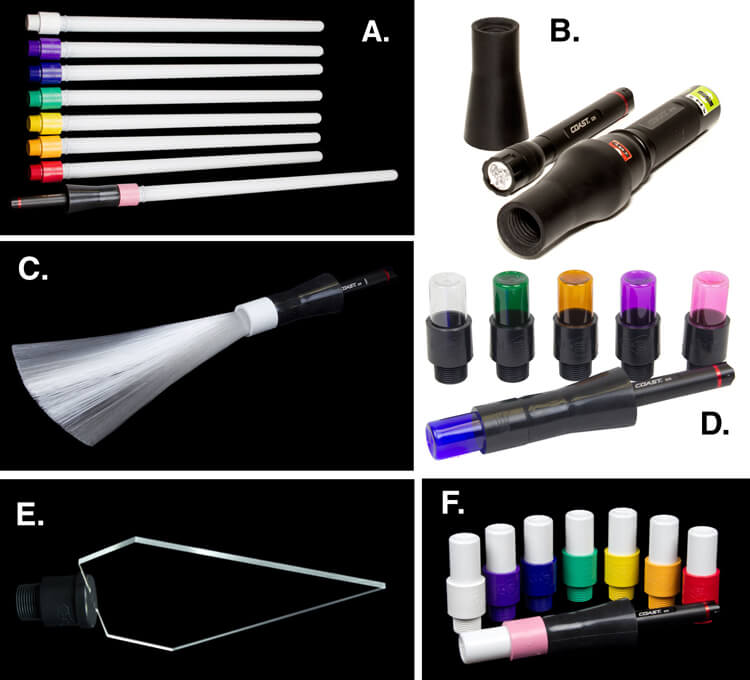
The tools I am reviewing in this article are used for on-camera light painting. With Light Painting Brushes, most of the tools are used to add a graffiti-type light to a scene. This can be lots of fun (especially in social situations) and the creative options are endless! Listed here are the items from Light Painting Brushes that I will be reviewing in this article. (Spoiler alert. they are really cool!)

  • Universal Connectors
  • Set of 8 Opaque Light Writers
  • Set of 6 Translucent Light Writers
  • White Fiber Optic
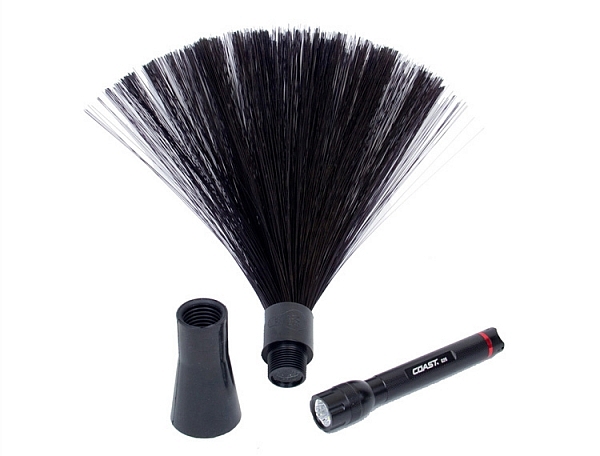
  • Black Fiber Optic
  • Plexiglass Diamond
  • 22″ Light Sword
Light-Painting-Brushes-Tools

A. – Light Sword, B. – Universal Connectors, C. – White Fiber Optic, D. – Translucent Light Writers, E. – Plexiglass Diamond, F. Opaque Light Writers

Universal Connectors

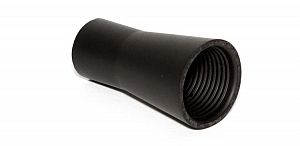
The universal connector is the glue that literally holds this whole system together. Made of a durable rubber, the universal connector allows any flashlight with a diameter of .975″ to 1.5″ to connect to any of Light Painting Brushes’ tools. The end of the universal connector appears to be threaded, but don’t try to screw the brushes into the connector. The thread’s function is to just grip the brush and hold it tightly it in place.Light-Painting-Brush-Universal-Connector-2-750px

Flashlights will easily insert into the other end, but never hold the whole thing by just the flashlight, as the brush may slide out. Instead, hold it by the universal connector. The universal connector may also be used to connect a “brush” of one’s own making, such as a pop bottle, to a light source (your flashlight).

Opaque Light Writers (Set of 8)

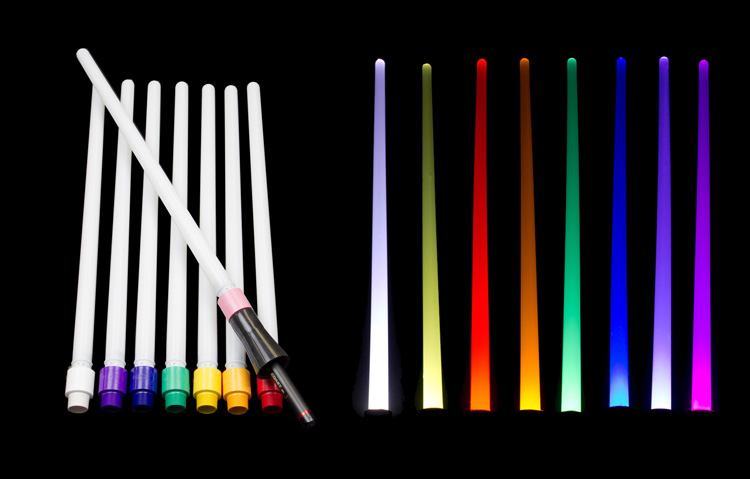
Use the universal connector to connect these opaque colored lights to your light source. The set is available in eight hues including white, purple, blue, green, yellow, orange, red, and pink. The opaque color makes them excellent tools for light writing, drawing or graffiti, and creative uses limited only by one’s own imagination. Because of the opaque colors of these light brushes, a very crisp drawing or writing source results. After some practice with this tool, I am sure some very detailed light drawings can be captured within a photograph.

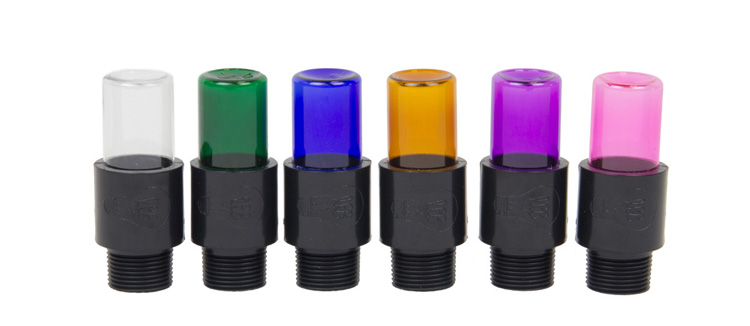
Translucent Light Writers (Set of 6)

Light_Painting_Brushes_Translucent_Light_Writer_Set-750px

These attachments are very similar to the opaque light painting brushes, but because they are translucent the lights create a more textured effect than the opaque lights. Another tool for artistic expression lighting up the night!

White Fiber Optic

Light-Painting-Brushes-9

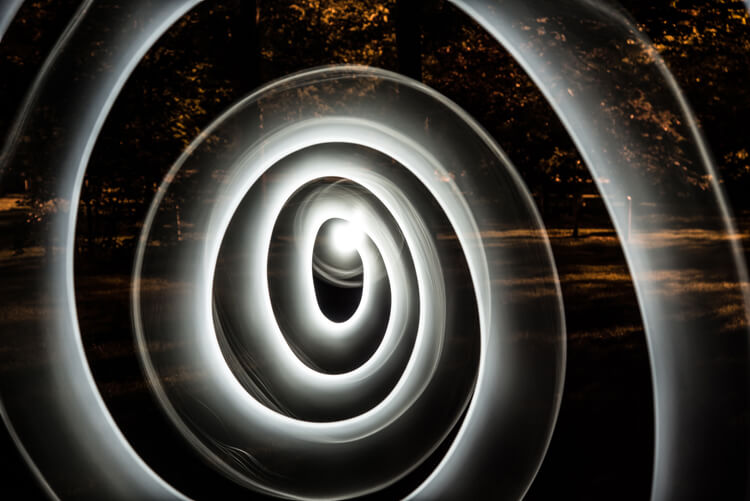
Spiral design created using the White Fiber Optic brush

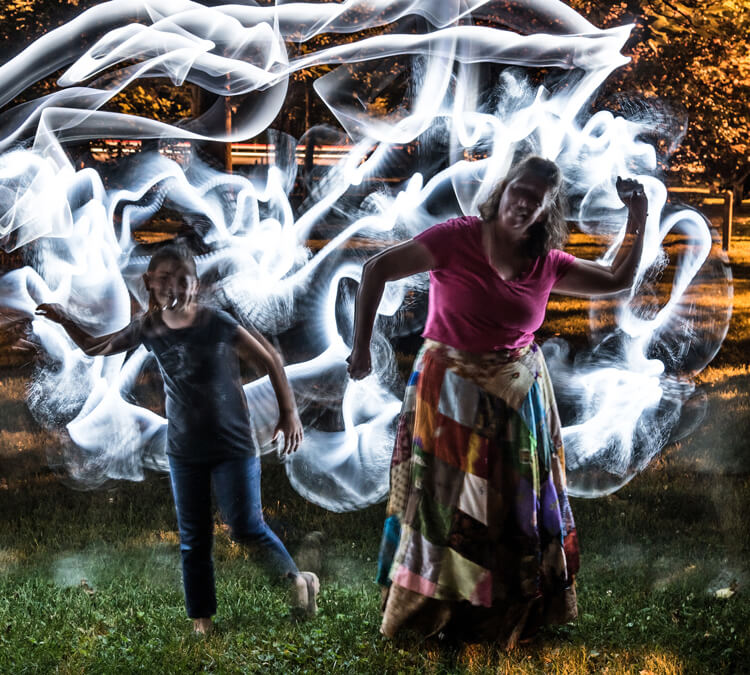
The fiber optic brush connected to a light source really makes some awesome wispy lines. The white light has great depth as the whole strand of the brush lights up. This tool really gave me the feeling that I was actually painting with light! The white fiber optics is so much fun to use, creating some great effects and can be used for many light painting applications.

Black Fiber Optic

Light-Painting-Brushes-Black-Fiber-Optic-02-750px

The black fiber optic tool only lights up the ends of the brush, great for use in portraits. However, I feel it has a more limited use for other types of light painting, since it puts out a lesser amount of light.

Plexiglass Diamond

Light-Painting-Brushes-11

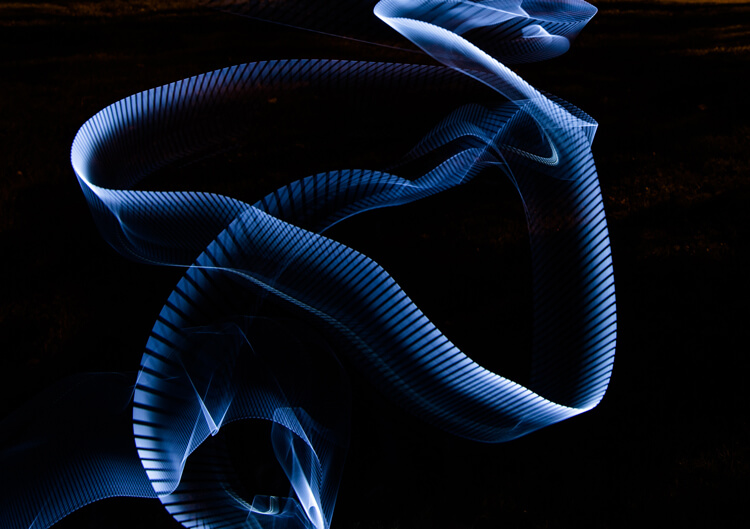
Abstract design created using the Plexiglass Diamond brush

The 9” Plexiglass Diamond shines light out through the cut edges, creating interesting and unique textures when waved about as the image is being shot. This tool is great for light graffiti, portraits, and abstract designs. It is my favorite tool of all the ones I’ve reviewed in this article!

22″ Light Sword

22in-Light-Swords-Illuminated-750px

These tools create a very wide path of light, and are available in 8 different colors: blue, green, orange, pink, purple, red, yellow and white. The colored swords cause some stunning effects, but while the white sword can make some nice strokes of light, in my opinion its results are not as exciting as the colors.

Light-Painting-Brushes-8

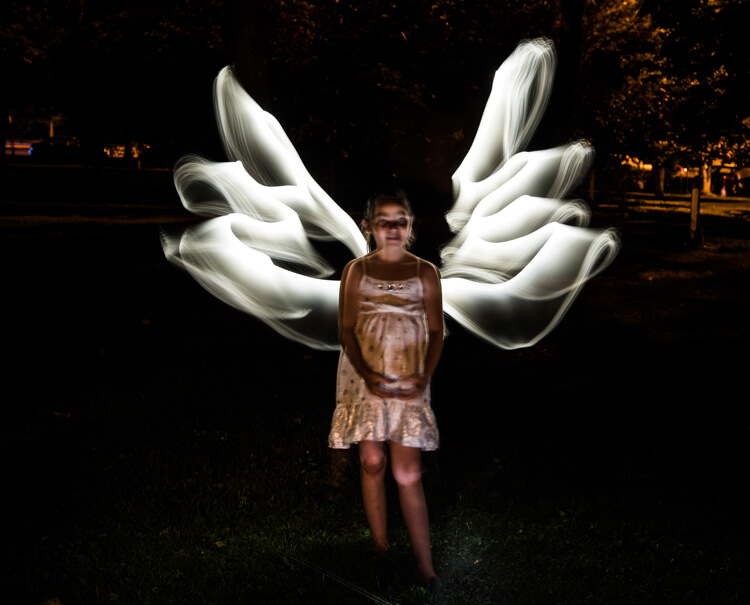
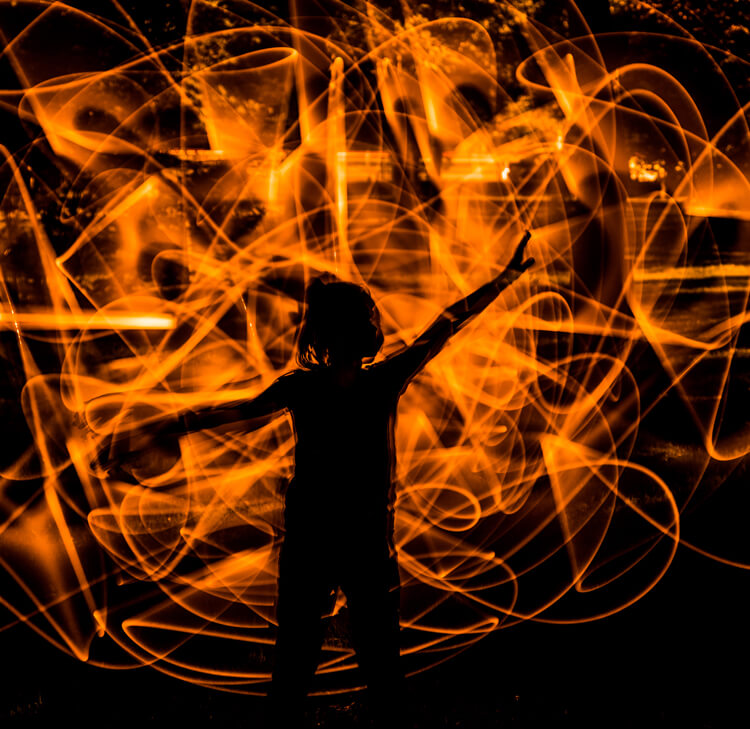
This silhouetted image of a girl was created using the orange 22″ sword brush

Tips:

  • To remain as invisible as possible when trying to photograph a light painting, wear dark colored clothing, keep moving, and avoid holding the light source too close to your body.
  • Speed of motion can make a big difference with many of these tools: the slower the motion, the more vibrant and textured the effect; the faster the motion, the smoother but fainter the effect.

First impressions

Light-Painting-Brushes-7

I recently had the privilege to lead a light painting workshop with some local photographers, so I introduced the Light Painting Brush system to them during our course. The following feedback comes from a few of the participants:

  • “I felt like a kid, amazed and surprised with all the images we shot and with the numerous options we used to create and express ourselves as we played with the Light Painting Brushes. My favorite was the colored ones because they made things and shapes look like I was using chalk, and the colors were great in the pictures! It helped me to express and to imagine numerous things. I just wish we’d had two more hours!”
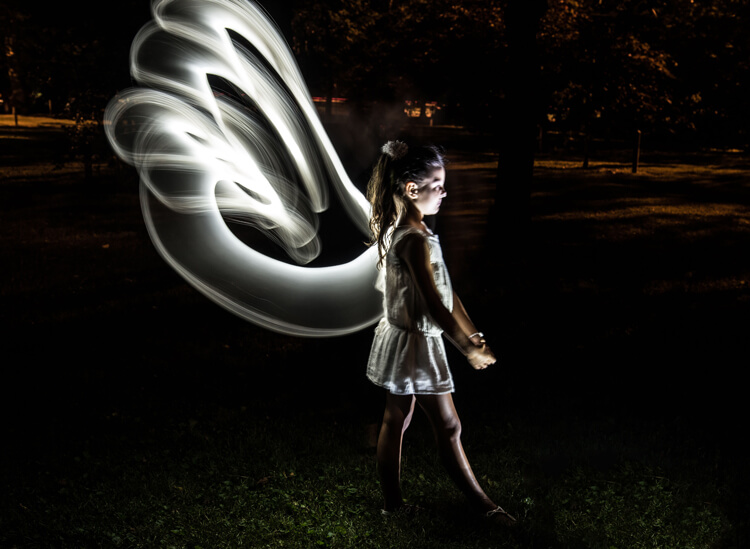
  • “Several lighting methods were demonstrated, but my favorite was using light painting brushes to create an angel figure out of a beautiful little girl.”
  • “My favorite was the white fiber optic, as it made a really pretty effect and I felt I could be more creative with it.”
  • “I was very impressed with the quality and the different possibilities of the light painting tools! I love that it gives you the ability to add your own personal unique touch to a photo!”

The brushes were easy to use, even for beginners, and cast a new “light” giving night photography a new perspective and dream like world.

Light-Painting-Brushes-13


Conclusion

Whether you are an experienced light painter or just wanting to give this technique a try for the first time, these tools from Light Painting Brushes are a fantastic addition to your accessory arsenal. They are designed by light painters who create and use their products. If you watch their tutorials online you’ll see that they have a passion to create tools that are to be used to create works of art in Light Painting.

Here’s another really cool thing you can do with these tools – make a spirograph!

The Universal Connector is the essential tool for using the actual brushes. I really like the unique textures and shaping possibilities of my two personal favorite brushes, the White Fiber Optics and the Plexiglass Diamond. My previous experience with light painting has mostly been of the off-camera type, but after using these Light Painting Brushes my interest has really been piqued to pursue on-camera light painting.

googletag.cmd.push(function() {
tablet_slots.push( googletag.defineSlot( “/1005424/_dPSv4_tab-all-article-bottom_(300×250)”, [300, 250], “pb-ad-78623” ).addService( googletag.pubads() ) ); } );

googletag.cmd.push(function() {
mobile_slots.push( googletag.defineSlot( “/1005424/_dPSv4_mob-all-article-bottom_(300×250)”, [300, 250], “pb-ad-78158” ).addService( googletag.pubads() ) ); } );

The post Review: Light Painting Brushes – Tools for Creativity by Bruce Wunderlich appeared first on Digital Photography School.


Digital Photography School

 
Comments Off on Review: Light Painting Brushes – Tools for Creativity

Posted in Photography


Software Review: AfterShot Pro 3 by Corel

12 Jul

ASP3-box_front.jpgI remember seeing a poster on the wall of my fourth grade elementary school class that said, “What’s right isn’t always popular, and what’s popular isn’t always right.” The quote is attributed to Albert Einstein, and while he was most likely speaking with regard to issues of ethics, justice, and social equality, he might as well have been referencing the current state of image editing software.

The king of the hill when it comes to photo editing programs is Adobe, with their extensive suite of applications designed for creative professionals and hobbyists. But just because their software is widely used, does not mean it is the best. Corel, a software company based in Canada, has been making its own image and video editing programs for years, and is a stalwart in the ever-changing software industry with roots that go back to the early days of the personal computer revolution in the mid-1980’s.

The most recent version of their photo-editing software, AfterShot Pro 3 by Corel, may not have the sheer quantity of features offered by Lightroom or Photoshop, but it has a few tricks up its sleeve that make it a very attractive alternative to those looking for a solid solution outside of Adobe’s offerings.

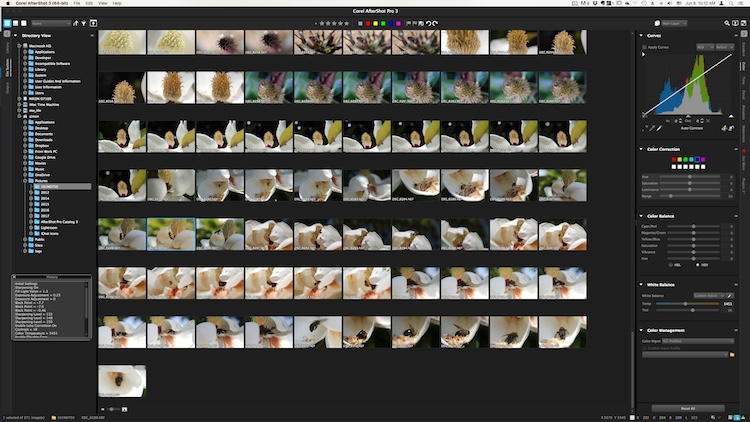
The user interface is instantly familiar to anyone who has used Lightroom or other image editing programs.

The user interface is instantly familiar to anyone who has used Lightroom or other image editing programs.

Overview

At its core, AfterShot Pro 3 is an end-to-end workflow solution that is designed to suit the needs of demanding photographers as well as casual hobbyists. It allows you to sort your images, edit them, and export them for print, sharing, or use in other programs. Its core features are centered on a robust set of tools that allow you to have a great deal of control over several parameters of your images, and adjust fairly basic elements like white balance, exposure, saturation, and contrast, while also giving you fine-grained control over settings like individual RGB color balance, hue/saturation/luminance, and tone curves.

Pixel peepers and image tweakers will find little to complain about here, though some of the tools are a bit lacking compared to those offered by Lightroom. Sharpening and noise removal work quite well, but don’t allow the same degree of control as in Adobe’s software, but there are some automatic “Perfectly Clear” options for noise removal and color adjustments that I have found to be quite useful.

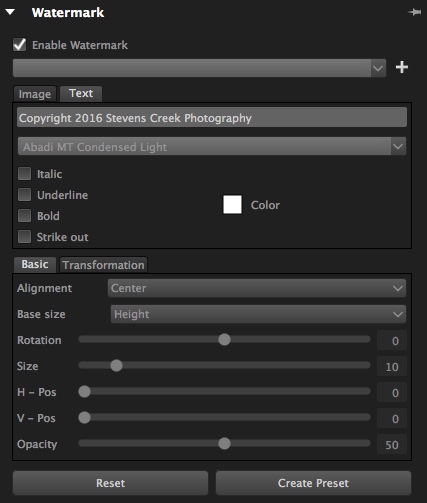
You can of course edit metadata, use presets, and even insert watermarks or access a growing library of plugins, but a proper evaluation of this program isn’t necessarily about comparing features tit-for-tat to see how it stacks up to the competition. Anyone who is looking at sheer numbers of options and adjustment sliders, will likely find everything here that they could ask for. Rather, deciding if this is the right program for you will likely come down to whether it is suited to your own particular way of actually using the features it has.

The built-in watermarking tool can accommodate text or allow you to insert a logo or other graphic.

The built-in watermarking tool can accommodate text or allow you to insert a logo or other graphic.

Workflow

AfterShot Pro 3 has its own unique workflow, which does bear some resemblance to how Lightroom and other programs function. But, in order to make full use of the program’s capabilities you might need to learn how to do things in a way that seems strange at first, but will feel like second nature over time.

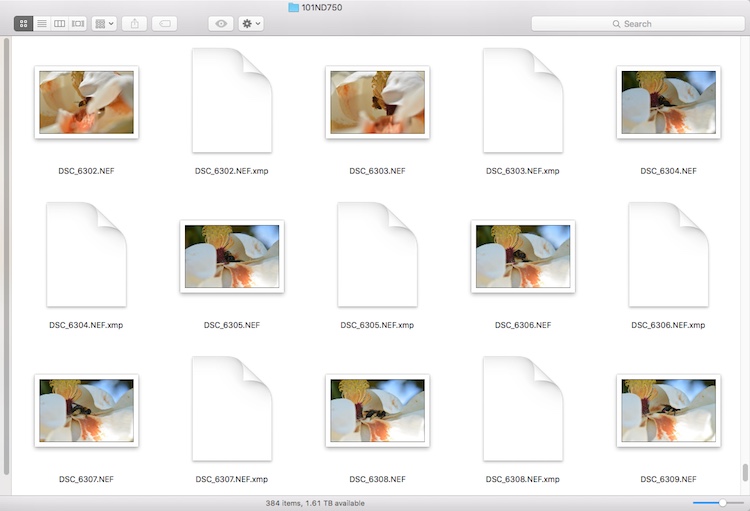
One of the most notable differences is that AfterShot Pro 3 does not import your pictures into a database, and does not store changes to files in one single master catalog like Lightroom. Instead, it works by leaving your pictures exactly where they are and does not copy them, even from a camera memory card. You must first save your images where you want them, and then as you make edits, a record of all the changes you have made to your image get stored in a unique XMP file.

Instead of keeping a master catalog file with all your edits, a single data file is created for every photo that you have changed. To let someone else edit a photo you have already started, give them the original and the XMP file.

Instead of keeping a master catalog file with all your edits, a single data file is created for every photo that you have changed. To let someone else edit a photo you have already started, give them the original and the XMP file.

This approach may seem counterproductive at first, because you end up with thousands of XMP files instead of one single all-encompassing catalog. However, it makes your editing much more portable and flexible, since you can transfer your photos and their editing instructions across devices, and share them with other users in a way that Lightroom simply does not offer. If I edit an image on my computer and want to hand it off to another team member to tweak even further, all I have to do is send her the original RAW or JPG file, along with the very small related XMP file. She can now open the image on her machine, make changes to any of my edits, and add alterations of her own. I can even edit an image right on my camera’s memory card without ever copying it to a hard drive, and then physically hand that card to someone else who can make further edits or go back and revise any changes I have made.

From this standpoint, AfterShot Pro 3 could be a boon to those who work in a collaborative or fast-paced environment, as well as casual or hobbyist photographers who want a little more flexibility.

Work space

AfterShot Pro 3 also operates in a single combined environment, as opposed to the discrete modular-based approach taken by Lightroom, where you use the Library module to organize and sort your images, the Develop module to make edits, the Print module when making prints, etc. In AfterShot Pro 3 everything happens from within a single module, from organizing your images, to editing them, to adding watermarks, and finally printing or sharing. Neither one is necessarily good or bad, and neither approach can be said to be objectively better than the other, but personally I have found the interface in AfterShot Pro 3 to be a refreshing change from Lightroom, where I am forced to switch between Library and Develop to do simple things, and even the function of quick keys changes depending on which module I am in at the time. Your mileage may vary, but it’s an important distinction to know if you are considering changing over to Corel’s program, or even just trying it out.

Use of Layers and Flexibility

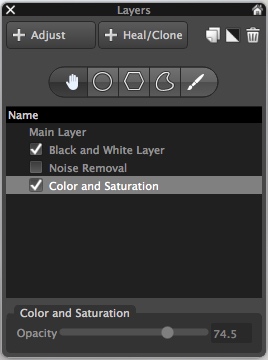
Layers contain a set of edits and can be made more or less opaque, and enabled or disabled at will.

Layers contain a set of edits and can be made more or less opaque, and enabled or disabled at will.

One hugely useful aspect in AfterShot Pro 3, that really stands out from much of the competition, is its intuitive use of layers. You can apply any number of edits in terms of tint, hue, curves, etc., then stash them all into a single layer, which can then be set to anywhere between 100% and 0% opacity. This is an incredibly helpful way of stacking various types of edits on top of one another, and I’m surprised it is not available in Lightroom. For instance, you could easily create a layer wherein you convert your image to black and white, but then set that overall layer opacity to 25%, which would lend a subtle desaturated look to the actual image. You can use multiple layers of edits on a single picture, and even use layers specifically for cloning and healing adjustments as well. It’s a clever, and highly useful way of editing your images, and once you get used to it, you may not ever want to be without it again.

Is the software right for your needs

New in version 3 of the program, is a highlight recovery tool that allows you to coax a bit more out of your RAW files than before, along with other tweaks and improvements compared to earlier iterations. However, as I mentioned in the opening paragraph it’s not really a productive exercise to simply compare a list of features when deciding if an image editor is right for you, since nearly all of them have extensive options that will likely suit your needs.

What matters is whether the program suits your needs and your workflow, and in the case of AfterShot Pro 3 it is certainly worth considering if you are a casual user who wants something with much more power and flexibility, or are simply seeking a worthy (and far cheaper) alternative to one of the more popular editors like Lightroom.

One of my favorite parts of AfterShot Pro 3 is its speed, which honestly could be a make-or-break decision if you are comparing programs. Photos load almost instantly and switching between RAW files is as smooth as butter, which is a far cry from some other programs where you might as well go make some coffee while you wait for a picture to load.

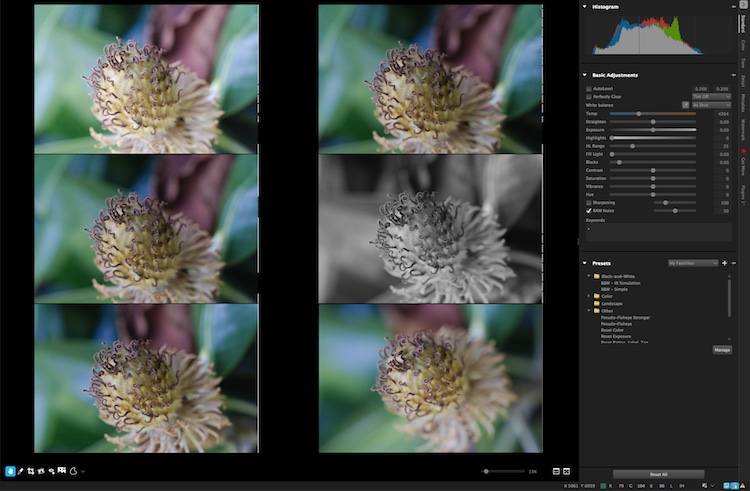
You can view up to six images at once and apply edits to individual photos while in multi-image view.

You can view up to six images at once and apply edits to individual photos while in multi-image view.

In the end, I found Corel’s latest entry into the image-editing fray a worthy competitor that can certainly hold its own against the competition. I especially like that it’s priced well under $ 100, which is a one-time purchase, as opposed to a monthly subscription.

I did find a few things to quibble over, like like its lack of a clarity slider (which can be mitigated by using a combination of other sliders) and a black and white conversion function, that is in my opinion, far behind Lightroom’s use of color filters to take fine-tune control over monochrome conversions. However it is a speedy and full-featured image editing program that is certainly worth checking out.

ASP3-Logo.png

Editor’s note: if you want to check it out Corel has a free trial and you can enter to win a copy right here on dPS. 

googletag.cmd.push(function() {
tablet_slots.push( googletag.defineSlot( “/1005424/_dPSv4_tab-all-article-bottom_(300×250)”, [300, 250], “pb-ad-78623” ).addService( googletag.pubads() ) ); } );

googletag.cmd.push(function() {
mobile_slots.push( googletag.defineSlot( “/1005424/_dPSv4_mob-all-article-bottom_(300×250)”, [300, 250], “pb-ad-78158” ).addService( googletag.pubads() ) ); } );

The post Software Review: AfterShot Pro 3 by Corel by Simon Ringsmuth appeared first on Digital Photography School.


Digital Photography School

 
Comments Off on Software Review: AfterShot Pro 3 by Corel

Posted in Photography


Review of The MIOPS Smart Trigger

10 Jul

The MIOPS Smart Trigger is many things you’d want in a photography accessory; small, rugged, and multipurpose. It may not be the perfect answer to any solution, but its range of modes and really cool connectivity options, make it a very useful and intriguing tool nonetheless.

At the time of this writing, the MIOPS Smart Trigger is available for $ 199.99 at Amazon (for the standard versions), which makes it a bit pricey for its size, but a great value when you consider the depth of its functionality. The trigger features seven different modes of operation, all available with various sensitivity settings, they include:

  1. Lightning mode
  2. Sound trigger mode
  3. Time lapse mode
  4. Laser mode
  5. HDR mode
  6. DIY mode (experts only)
  7. Scenario or custom mode

MIOPS Camera Trigger

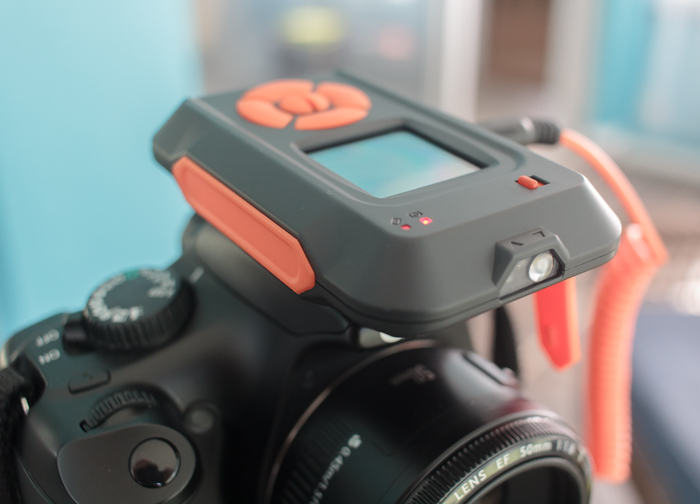
The exterior of the unit is very rugged and appears it would be extremely durable. You definitely get a feeling of solidness when holding it. A 128×128 pixel, full color display, is mounted just above the large buttons, used for operation and selecting menu options on the front of the trigger.

The device is powered by a 3.7 volt/1020 mAh lithium ion battery, which is rechargeable via the provided USB cable. It is also possible to provide power through the USB connection, with no battery in place.

This new trigger kit from MIOPS is an evolution (and apparent replacement) to the Nero Trigger previously available from the company. The newer version was reworked, inside and out, to be a more rugged and competent accessory. Versions of the kit are available for Canon, Nikon, and Sony camera systems, as well as other brands including Olympus, and certain smartphones.

MIOPS7

The various camera connection cables mean that one unit can operate with many different camera makes and models, and extends the usefulness of the accessory.

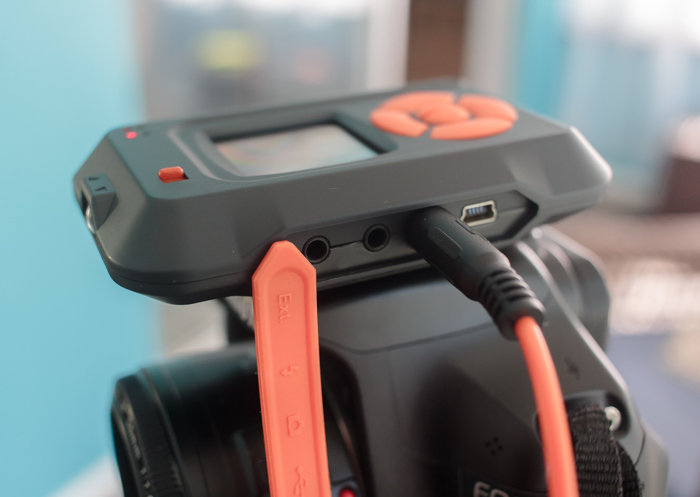
The trigger unit itself is connected in one of two ways, either to an external flash unit, or to the camera itself. Cables for each are included with each unit. This allows the trigger to sync and fire, either the flash system, or the camera shutter itself. Flash units are connected via the PC sync jack, and cameras are connected through the remote shutter release jack, meaning any camera or flash unit with these common connectors can be potentially be paired with the MIOPS trigger.

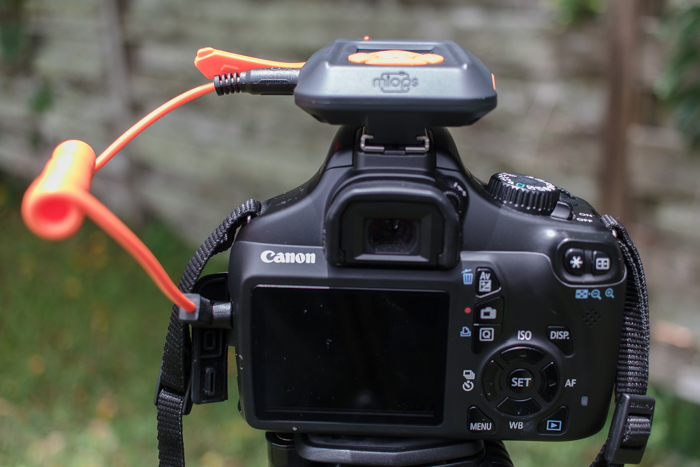
The MIOPS trigger can either mount on your DSLR’s hotshoe connector, or on your tripod via a standard screw-in connection.

The MIOPS trigger can either mount on your DSLR’s hotshoe connector, or on your tripod or light stand, via a standard screw-in connection.

The unit can be connected for charging via a micro-USB cable, which basically means most smartphone charging cables, which are readily available. The trigger housing is rugged plastic, with raised, easy to press controls and features a large color screen for displaying information, a microphone, and a light sensor that is used for the Lightning and Laser modes. Lastly, an additional port is available for connecting various external sensors in DIY Mode.

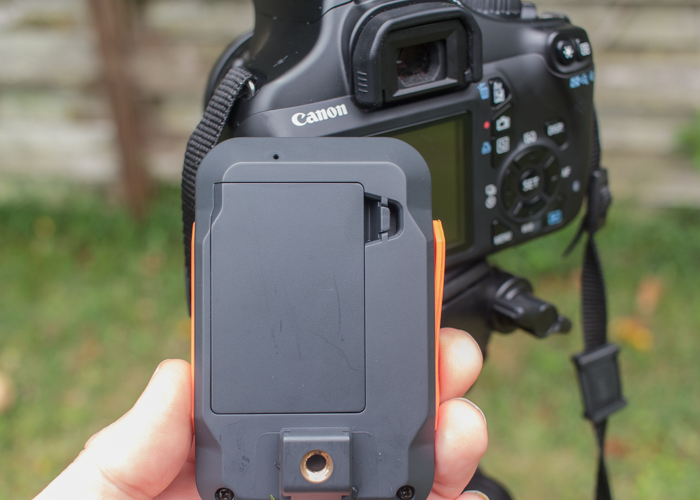
The trigger slides on a standard camera hot shoe, but also has a screw mount for placement on a separate tripod or light stand.

The trigger will accept a standard screw-in type connection for mounting on a tripod.

The trigger will accept a standard screw-in type connection for mounting on a tripod.

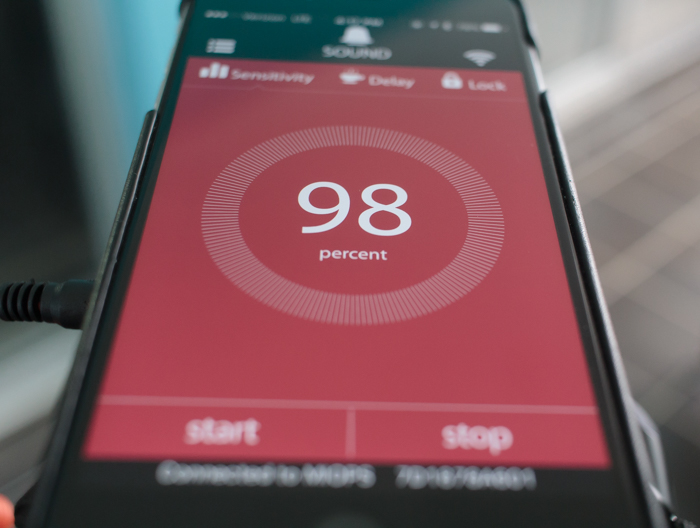
To me, one of the best features of the unit is its available remote connectivity via the MIOPS smartphone app. The app is free (available for Apple and Android phones), and allows you to access and control all modes offered by the trigger. After downloading the app, I found it connected to the unit without issue, and I was able to access all modes and modify the settings quickly, without having to even look at the unit mounted on top of my camera.

The accompanying MIOPS smartphone app is a highlight of the system, and allows you to control everything remotely.

The accompanying MIOPS smartphone app is a highlight of the system, and allows you to control everything remotely.

1 – Lightning Mode

Lightning mode is intended to allow you to capture flashes of lightning with your camera, without having to run series of long exposures or using bulb mode. You can set the sensitivity from 1 to 99, and start the sensor to capture the event. This mode is also sensitive to other types of light, such as fireworks, sparks, as well as artificial light, widening the gamut of possibilities. I didn’t get an opportunity to test the unit in a lightning storm, but I did attempt to trigger the MIOPS with a burst from a flashlight, and found that it picked up the light immediately and accurately.

As with several modes on the product, you’ll need to have your camera’s lens in manual focus in order for it to work.

2 – Sound Mode

Although this is the mode you’d expect to be the most useful, (and the biggest draw to the device) I found this one less intriguing due to the way it works. Without using the device, I’d expect it to allow me to trigger the shutter (cables are included to hook the MIOPS unit up to either your camera shutter, or an external flash unit), and capture the image, such as a balloon being popped, for example. This isn’t possible however, due to a slight lag, and the ridiculous shutter speeds necessary.

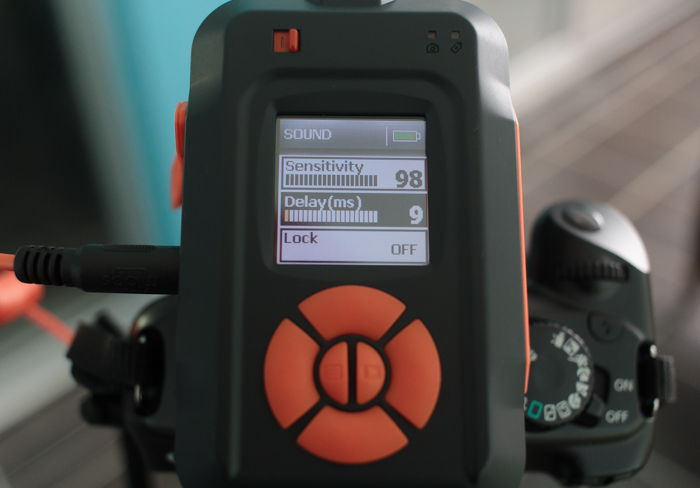
Each mode features several customizable parameters, each adjustable on the unit itself as well as the smartphone app.

Each mode features several customizable parameters, each adjustable on the unit itself as well as the smartphone app.

Instead, you have to perform any captures of this type in total darkness, a pretty big drawback in my book. The idea is to leave your camera shutter open (which is why darkness is needed), and use the MIOPS unit to trigger a separate flash and capture the action.

As a natural light landscape photographer, I don’t have external speedlites available to me. The one I was finally able to get ahold of ended up not being a TTL enabled flash, and didn’t have the connection port I needed to use it.

In the end, I became frustrated and gave up. But of course, this isn’t the trigger’s only feature, and there were plenty of other modes to keep me busy and satisfied.

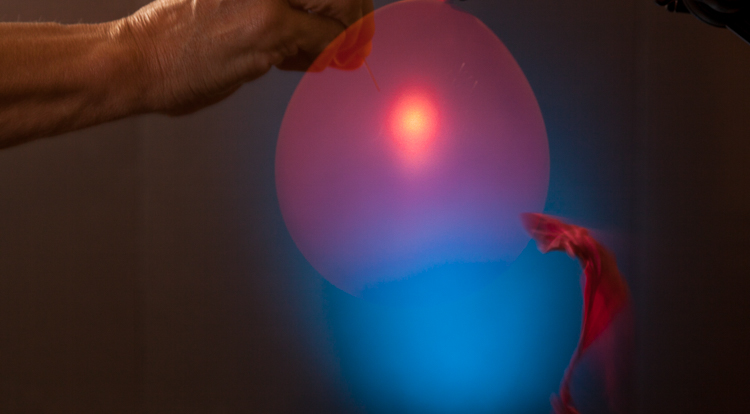
Editor’s note: I actually had a chance to try out the Miops trigger as well and was playing with sound mode. My friend and I had the same issues – we realized we had to fire the flash with it, in total darkness and somehow pop the balloon. We tried it on a balloon and smashing a light bulb. This is all we managed to get:

miops-sound-750px-01

Not exactly frozen or what we were hoping for. We learned later that by turning down the power on the flash the duration is shorter and more freezing occurs. Would have been good for more helpful instructions to come with the unit. We struggled to make this work.

miops-sound-750px-02

The best bulb smash we got after many attempts. Be careful if you try this at home! – Darlene

3 – Time Lapse Mode

Another extremely useful mode is the time lapse feature. With this mode you’re able to set a few parameters, to produce a set of images showing changes to a scene over a period of time. With this feature, you must set your camera to bulb mode so that the trigger can override your camera’s settings.

MIOPS5

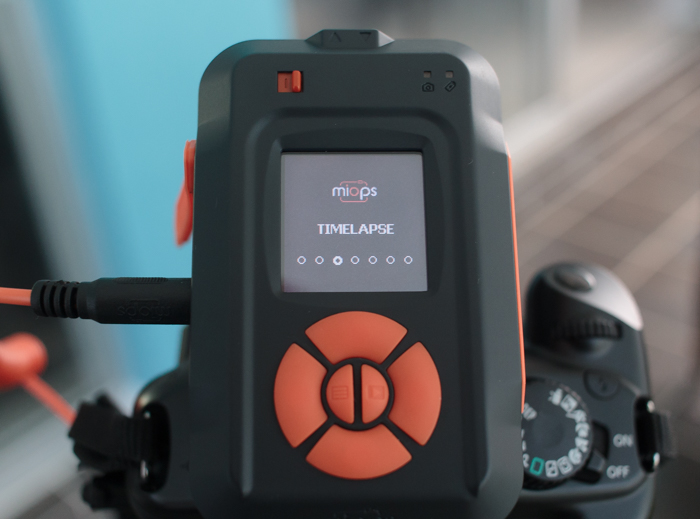
After switching to time lapse mode on the unit, you can set the interval (how often the camera takes a shot), the exposure (this is why your camera must be in bulb mode), as well as the total number of images that will be shot before the process completes.

In my testing, I found it very easy to set these parameters, and after a couple of trials, was pleased to find all of the functionality of this mode worked perfectly, without any issues.

4 – Laser Mode

This is another mode that I was unable to try out, but based on the accuracy of the sensor, I believe it would perform well. This mode requires a constant laser beam to be fed into the front sensor, and will trigger the camera when this beam is broken.

The laser doesn’t have to be a particular type or color, meaning a $ 10 pen laser pointer from an electronics store will do just fine. The hardest part of the operation will probably be mounting the laser on a stable surface and preventing the beam from being broken prematurely. After you’ve setup the laser, you can adjust the delay on the unit up to 999 milliseconds. A final setting allows you to designate a set number of frames to capture in this mode before the trigger stops.

This mode could be used to capture animals moving into the frame (could be tricky to setup) or something falling or moving like pouring shots or freezing water droplets.

10

Image by dPS author Ivo Guimaraes

5 – HDR Mode

HDR is a familiar term for most photographers; it is a technique where two or more images of varying levels of exposure are combined in post-production to capture a higher dynamic range, more equivalent to what the human eye sees. The MIOPS trigger allows you to set these parameters on the unit itself, including the center value (the middle value in the range of exposure levels to be captured), the difference in exposure value from one frame to the next (such as 1 stop between, or 1 1/2 stops between), and the total number of frames to expose, up to 7.

A 3 shot HDR composite from the MIOPS trigger.

A 3 shot HDR composite from the MIOPS trigger.

While this feature definitely extends the functionality and usefulness of the device, it must be said that it doesn’t really offer anything that most DSLR’s can’t do already, and I would almost always prefer to just set this up in-camera.

6 – DIY Mode

DIY mode is one of the modes that really makes the MIOPS unit shine, as it adds functionality not standard on most cameras. The trigger has a 3.5mm stereo jack on the side of the housing, and this allows you to connect a multitude of external sensors, adjust the threshold (percentage of change from the sensor), the delay of the trigger event in milliseconds, and mode, which lets you set what type of event detected from the external (add-on) sensor will trigger the unit, such as change, increase, or decrease.

This mode is advanced, and requires multiple connections in most cases, but the possibilities are almost endless. Sensors that measure changes in temperature, pressure, humidity, or motion can all be used to trigger the camera’s shutter.

7 – Scenario Mode

Scenario mode basically allows the user to program the unit by stringing together a series of functions, and having them execute based on a unique situation. Up to 5 steps can be saved for each custom scenario, and a total of 3 scenarios can be stored on the trigger. This entire function can then be executed via the Miops unit itself, or remotely via the smartphone app.

For example, let’s say a thunderstorm is approaching and you want to capture different types of shots during the event. You could program Lightning Mode as the first step, capturing a set number of stills of the lightning, and then immediately activating Time Lapse Mode in the second step, capturing photos at 5 second intervals to assemble later.

For each step, all of the usual parameters for each mode are available.

I didn’t get the chance to try this scenario out during an actual thunderstorm, but I did attempt to string together a couple of functions and execute them, and the results were excellent. Once the first step was completed (a 5 shot HDR photo), the trigger immediately went into Sound Mode, and stopped after it detected a loud sound (the clap of my hands from a few feet away).

I’d definitely chalk this mode up as one of the most useful features of this unit.

Remote Release

To me, this is one of the most useful features of the MIOPS trigger. I can connect the unit via bluetooth, fire up the accompanying app, and control my shutter from several feet away, wirelessly.

I tried this in a normal scenario I often find myself in, which is my tripod lowered to a short height, legs planted into the surf of a local beach, taking low angle, long exposure shots.

MIOPS_LowAngleBeach

I was able to snap off many perfectly-timed images, without ever having to worry about holding on to my usual corded cable release, keep the camera as still as possible, while avoiding the high winds blowing the cord around and smacking my camera.

I will use this, all the time!

Conclusion

The MIOPS Camera Trigger is a sturdy, rugged little unit that was easy to set up and use (note: this device is more aimed at intermediate to advanced photographers and could easily be confusing for beginners). It has a couple of features that almost make it worth the price of admission in my book, but a few issues linger that keep it from being the perfect tool, including a highly-touted Sound Mode. It promises high-speed photography but requires total darkness and a flash setup to accomplish, as well as a couple of modes that feel a bit tacked on, and not anything you couldn’t do already with existing camera settings (HDR and time lapse).

MIOPS6

Still, the MIOPS is a fun tool to use, the Remote Release mode, DIY mode, and smartphone connectivity are extremely useful, and if you’ve got $ 200 bucks burning a hole in your pocket for a new gadget, this might be one to pick up.

Have you had any experience with the MIOPS Camera Trigger, or triggers in general? Sound off below and let us know what you think, and show us some of the work you’ve accomplished!

googletag.cmd.push(function() {
tablet_slots.push( googletag.defineSlot( “/1005424/_dPSv4_tab-all-article-bottom_(300×250)”, [300, 250], “pb-ad-78623” ).addService( googletag.pubads() ) ); } );

googletag.cmd.push(function() {
mobile_slots.push( googletag.defineSlot( “/1005424/_dPSv4_mob-all-article-bottom_(300×250)”, [300, 250], “pb-ad-78158” ).addService( googletag.pubads() ) ); } );

The post Review of The MIOPS Smart Trigger by Tim Gilbreath appeared first on Digital Photography School.


Digital Photography School

 
Comments Off on Review of The MIOPS Smart Trigger

Posted in Photography


Elevating X-Trans? Fujifilm X-T2 First Impressions Review

07 Jul

The Fujifilm X-T2 is an updated version of the company’s top-level DSLR-shaped APS-C camera. It’s built around the same 24MP X-Trans sensor as the X-Pro2 but ends up being much more than an X-T1 with more pixels. Instead, the X-T2 is a camera that does much to address the X-System’s remaining weaknesses, which can only broaden its already considerable appeal.

Fujifilm X-T2 Key Features:

  • 24MP X-Trans CMOS III sensor
  • 325 AF points (169 of which offer phase detection)
  • AF point selection joystick
  • 2.36M-dot OLED EVF with 0.005 sec refresh time (60 fps or 100 fps in boost mode)
  • 3″ 1.04M-dot articulating LCD
  • 4K UHD video at up to 30 fps for up to 10 min (30 min with booster grip)
  • F-Log flat profile and 4K out over HDMI
  • 8 fps continuous shooting with AF (11 fps with booster grip)
  • 5 fps continuous shooting with live view updates between capture
  • Dual SD card slots (UHS-II compatible)
  • USB 3.0 socket

The X-Pro2 represented a good step forward for image quality within the system and the X-T2 gains all of that improvement, but there are also some considerable changes in terms of autofocus, video and flash control, suggesting Fujifilm wants its the X-T2 to be an all-round more capable camera than its predecessor, rather than just building on its existing strengths.

The body seems broadly unchanged at first glance but there’s a clever doubly-hinged flip-out screen that seems to offer many of the flexibility advantages of a fully articulated monitor while retaining the more compact form of a tilting screen.

There’s also a Performance Boost mode that speeds up several aspects of the camera’s behavior (at the expense of some battery life), but that really comes into its own when the optional ‘Power Boost Vertical Grip’ is added. None of these additions comes for free, though: at $ 1599, body only, the X-T2’s launch price has jumped $ 300, compared to its predecessors’.

Autofocus

Part and parcel of that 24MP sensor are the 169 phase-detection points that we saw in a large central square region of the sensor on the X-Pro2. Beyond this, the X-T2 now gains an extra two columns of 13 contrast-detection AF points down each side of the frame, widening its AF area and bringing it to a total of 325 AF points in total.

Fujifilm also promises a more powerful processor and revised algorithms, along with faster sensor read-out, to improve the camera’s speed, regardless of whether it’s using a combination of phase detection and contrast detection (Hybrid AF), or simply the latter alone.

To get the best-possible performance out of the newly refined AF system, the X-T2 introduces a use case-based AF-C setup system. Much like the one we’ve seen on high-end Canon DSLRs, this lets you specify the types of movement you’re expecting from your subject, so that the camera can try to respond appropriately.

Video

The X-T2 makes a bigger leap forward into video than we were expecting. There was much chatter around the time of the X-Pro2’s launch that the camera’s hardware was, theoretically, capable of 4K capture, but that the company hadn’t pursued its development for such a stills-orientated model. Well, it has now.

The X-T2’s movie capabilities are a big step forward for the system.

But Fujifilm has done more than just do enough to be able to emblazon the phrase ‘4K capable’ on the box: the camera also gains a mic socket and on-screen audio monitoring with the ability to assign mic volume to a Fn button. There’s also an ‘F-Log’ flat profile to give flexibility while color grading.

The good news is that our first shots of our test scene suggest the camera’s 4K footage is much more impressive than the 1080p that the first X-Trans cameras could muster. Combine this with 4K output over HDMI and the X-T2 looks like the first X-Trans camera that might appeal to shooters interested in shooting both stills and video.

Flash control

One of the missing pieces of an increasingly well fleshed-out XF mount system has been the lack of advanced flash control – something that the X-T2 is looking to address. Up until now, users have had to turn to third-party makers if they wanted to communicate TTL flash information to remote flash units.

The newly introduced EF-X500 flash allows high speed flash sync and remote TTL flash control for the first time, making it significantly easier to use the X-T2 with strobes.

Optional ‘Power Booster Grip’

Along with the X-T2, Fujifilm has introduced the VPB-XT2, a vertical battery grip that holds two extra batteries. As well as significantly extending the camera’s battery life, the grip also extends the camera’s ‘Boost’ mode. With the grip attached, this is able to draw power from multiple batteries, increasing the camera’s maximum continuous shooting rate, as well as extending its video recording time to 30 minutes.

The entertainingly-named ‘Vertical Power Booster Grip’ can house two addition batteries (without displacing the camera’s internal unit), helping increase capacity to around 1000 frames between charges. It also adds a headphone socket and a ‘Boost’ switch that improves responsiveness and ups the frame rate to 11 fps.

This grip features the same level of environmental sealing as the camera body and also plays host to a headphone socket for audio monitoring while shooting video.

Review History

Review History
6 July 2016 First Impressions, Studio Scene and Beta Gallery published,
based on pre-production camera running f/w 1.34

Articles: Digital Photography Review (dpreview.com)

 
Comments Off on Elevating X-Trans? Fujifilm X-T2 First Impressions Review

Posted in Uncategorized


The price is right: Canon EOS Rebel T6 / 1300D Review

29 Jun

Key Features

  • 18MP APS-C CMOS sensor
  • 9-point autofocus system
  • 1080/30p video capture
  • Fixed 3″ 920k-dot LCD
  • ISO 100-6400, expandable to 12800
  • 3 fps burst shooting
  • Wi-Fi with NFC

The Canon EOS Rebel T6 / 1300D is an entry-level DSLR targeted toward first-time ILC users and smartphone upgraders. Built around an 18MP APS-C sensor, the T6 offers Wi-Fi with NFC for easy photo sharing when you’re out-and-about, and adds a faster processor compared to its predecessor, the Rebel T5.

Its closest competitor in the category is the Nikon D3300, which was announced in January 2014 and is getting a little long in the tooth at this point.

As per Rebel tradition, the T6 packages up some tech borrowed from previous-generation higher end models, and that’s no bad thing. It offers a 9-point AF module, 1080/30p video and built-in Wi-Fi with NFC. Battery life is a very respectable 500 shots per charge, putting it near the top of its class in that respect. But one of the T6’s headline features isn’t on the inside of the camera at all, it’s written on the outside of the box: that sweet $ 500 price tag with lens.

The T6 is better tuned to a beginner’s needs and hits an aggressively low price point

Offering tech handed down from previous generations at a very reasonable price is what the Rebel line has traditionally done best. The original Digital Rebel is just about 13 years old, and was essentially a single-dial 10D in a plastic body, priced at $ 1000 with kit lens – a breakthrough price-point for DSLRs at the time. As well as being cheaper still, the T6 is a vastly more capable camera than that pioneering Rebel, and better tuned to a beginner’s needs. 

In short, with the T6, Canon has gathered up various components it had lying around on the shelf from Rebels past and put them together in an aggressively priced bundle. Smart business move for Canon, but is it the best way to spend your $ 500? Read on. 

Articles: Digital Photography Review (dpreview.com)

 
Comments Off on The price is right: Canon EOS Rebel T6 / 1300D Review

Posted in Uncategorized