RSS
 

Posts Tagged ‘REVIEW’

Accessory review: Western Digital My Passport Wireless Pro

11 Nov

If you’re like me, chances are good that a normal part of your mobile kit for photo travel is a laptop computer. However, given the choice, it would also be one of the first things I would jettison from my travel kit thanks to the added weight and space it consumes in my pack. Unfortunately, I haven’t found a viable way to do it since I usually need to back up data, do some editing in the field, and share images to social media or to clients.

That’s exactly the challenge the Western Digital My Passport Wireless Pro is designed to address. It’s a hard drive with its own built-in Wi-Fi network, internal SD card slot, USB connection, and dedicated iOS and Android apps. In theory, it should appeal to those who want to back up photos and videos in the field, access their data from a mobile device such as an iPad, and even do some editing of their files without a computer.

What’s new

This is the second iteration of Western Digital’s My Passport Wireless line of products; we reviewed the original about a year and a half ago and, although it was great in concept, it felt a bit like a first attempt at a product with room to improve. In fact, a Western Digital representative told us that the company listened carefully to users of the first edition, and that most of the improvements in this updated model were in direct response to user feedback.

On the hardware side of things, the My Passport Wireless Pro has a much faster SD card slot than its predecessor, with a 75 MB/sec read speed compared to 10 MB/sec on the previous model. It also supports 802.11ac Wi-Fi using both 2.4GHz and 5GHz networks, and WD tells us the new model is capable of WiFi data transfers up to 20 MB/sec compared to 9 MB/sec on the first edition. Additionally, battery capacity has been improved significantly, from 3400 mAh to 6400 mAh, providing a claimed 11.5 hours of mobile power (6-8 hours under heavy use).

However, according to WD, one of the most common feature requests was directed at the MyCloud mobile app, which didn’t provide a way for users to export photos from the drive to the Camera Roll on their device. The new WD My Cloud app facilitates this, though how it works will depend whether you’re using JPEG or Raw files.

Key Features:

  • 2TB/3TB 5400rpm hard drive
  • 802.11ac Wi-Fi (2.4GHz and 5GHz)
  • Built-in Wi-Fi hotspot
  • SD 3.0 card reader
  • USB 2.0 port for external card readers
  • Connectivity to common cloud services, including Adobe Creative Cloud
  • Rechargeable battery with up to 11.5 hours of operation
  • IOS and Android apps
  • Plex media server 

The My Passport Wireless Pro is available in two capacities: a 2TB version which retails for $ 229 and a 3TB version which retails for $ 249.

Setup

Initial setup of the My Passport Wireless Pro is fairly straightforward, though I did find myself referring to the user manual on a couple occasions. If you’re working from a mobile device you’ll need to download the WD My Cloud app from the appropriate app store before starting. Then, using either a computer or mobile device you simply turn on the drive, connect to the Wi-Fi hotspot it creates using a web browser or the My Cloud app, and follow the setup instructions.

The web-based dashboard is intuitive and puts most functions within easy reach. However, since the Passport doesn’t recognize Raw image files by type they get categorized as ‘Other.’ (Which explains the 300GB of ‘other’ files in the graph.)

During setup you have the option of connecting to the internet. The My Passport Wireless Pro accomplishes this by acting as a bridge between your computer or mobile device and the Wi-Fi network of your choice. When configuring the Wi-Fi connection it’s important to pay attention to the option that asks whether you want to share the device on the network: if you’re on a private network this can be a useful feature, but if you’re on a public network, such as at a hotel or a coffee shop, everyone else on the network will be able to see your files as well.

Once the setup process is complete there are basically three ways to connect to the My Passport Wireless Pro. The first is via a direct Wi-Fi connection between the Passport and your computer or mobile device. This works whether the Passport is connected to the internet or not, and it allows you to access the contents of the drive using the My Cloud app or a computer. Second, assuming you’ve configured your My Passport to connect to a Wi-Fi network (and selected the option to share its contents), any computer on the network will be able to access the drive. In a sense, it acts like a mini-NAS. Finally, the My Passport can always be plugged directly into a computer using a USB 3.0 cable. In this scenario it just acts like a normal hard drive, but a direct connection provides the best performance.

The Passport’s built-in Wi-Fi hotspot can act as a bridge to connect to the internet and supports connections from multiple devices simultaneously.

Backing up data

My typical photography workflow when traveling revolves around a laptop computer and various attached hard drives or SSDs. The prospect of leaving all that at home, and traveling only with the My Passport Wireless Pro and an iPad was enticing, so I decided to put it through a real world test.

A couple months ago I traveled to the city of Yellowknife in Canada’s Northwest Territories to photograph the northern lights. This type of trip requires disciplined data management as it involves shooting multiple DSLRs at one time, with each camera capturing hundreds, or even thousands, of photos per night while capturing time-lapse sequences. I would have to recycle my cards and needed a foolproof, reliable way to back up all the images. (In the interest of full disclosure, I ran my normal workflow in parallel for security.)

I quickly came to appreciate the ease-of-use of the My Passport Wireless Pro. Upon returning to the hotel every morning, I simply turned it on and began inserting cards to back up while I focused on re-organizing my gear and charging batteries. The device can be set to back up cards automatically or require the user to initiate transfer. I settled for the automatic transfer option, so all I had to do was insert a card and go about my business. A row of LEDs, which double as a battery indicator, dutifully blinked away while data was copied, and once they stopped I could just insert the next card and move on.

The My Passport Wireless pro organizes card data into a very logical hierarchy.

This process works very well, in part thanks to the way the My Passport Wireless Pro organizes data. When a card is inserted, its entire contents are copied to a unique folder, and all folders are organized by date. The result is a well-organized hierarchy of every card you’ve backed up along the way. It also supports incremental backups, so inserting a card with a few extra files added doesn’t result in redundant backups or duplicated data; only new files are copied.

Working with images

The My Passport Wireless Pro did a great job of backing up my data, but that’s only part of the equation. Western Digital’s premise is that you can leave your laptop at home and work entirely from a mobile device. To access images on the drive you’ll need to download the WD My Cloud app, available for both iOS and Android. (I did my testing on an iPad. There may be minor differences when working from Android.)

The My Cloud app makes it easy to navigate and view all the contents of the drive, though there are some limitations. If you’re working with JPEG files it’s possible to preview them inside the app, save them to your Camera Roll, or share them with other apps on your device.

If you’re working with JPEG files it’s easy to preview your images in the My Cloud app. The share button in the upper right corner allows you to save images to the camera roll or send them to other apps.

The user interface isn’t quite as polished as I’d like. In particular, there’s no way to display a grid of thumbnail images across the screen, similar to what you would find in the Camera Roll or many other apps. Instead, you’re basically browsing the file system in a single column with tiny thumbnails, leaving much of the screen unused until you select an image. It works, but it seems like a missed opportunity to make the app much more user friendly.

Unfortunately, there’s no support for Raw images inside the My Cloud app. It’s possible to see the files, but clicking on one results in a giant question mark instead of an image preview. If you want to work with Raw images you really need to shoot Raw + JPEG. This essentially provides a thumbnail image for each Raw file so that you know which image you’re looking at in the app. Simply use the JPEG files to find the desired image, then select the Raw file with the same filename. From here you have a couple options to work with a Raw file.

If you’re shooting Raw files it’s not possible to view them directly inside the My Cloud app. However, it’s possible to save them to your Camera Roll (DNG) or send them to other apps for processing. Shooting Raw + JPEG serves to provide thumbnail images to help find the file you’re looking for.

The quickest way is to save your Raw image(s) to your Camera Roll or send them to another app for editing. This works fine if you’re working with DNG images, especially now that iOS recognizes this type of file. However, since very few cameras save DNG files natively, chances are pretty good that whatever you’re backing up in the field will be in a different format. In my case, I had thousands of Nikon NEF files, so this wasn’t an option.

Alternatively, the My Cloud app can be linked to several common cloud storage services. At the time of publication, this includes Dropbox, Google Drive, Microsoft OneDrive, WD’s own MyCloud and Adobe Creative Cloud. This means that you can easily copy any of your files to a cloud service where you may have additional ways to work with it. The inclusion of Adobe Creative Cloud is particularly useful since files there can be opened and edited by Adobe apps on your mobile device. (Assuming you have a Creative Cloud subscription, of course.)

Popular cloud storage services, including Adobe Creative Cloud, are integrated with the My Cloud app, making it easy to copy Raw files from the Passport to another location.

Performance

One of the knocks against the original My Passport Wireless was speed, and Western Digital has clearly focused on improving this aspect of the user experience. In particular, WD says the SD card slot can now read data at 75 MB/sec, compared to 10 MB/sec on the original model. In practice, I found that it took about 5 minutes to back up a card with 10GB of data using the built-in card reader. By comparison, connecting the drive to my laptop via USB 3.0 and using the MacBook’s built-in SD card reader to copy the same data set to the Passport took around 2 minutes and 30 seconds, or about half the time. This ratio stayed fairly constant across a number of informal tests. The card reader on the Passport isn’t a speed demon, but it’s fast enough for a portable backup solution that can run on its own while I focus other things.

There’s also a USB port on the device in case you need to back up files from a different type of media, such as a CFast 2.0 card. Unfortunately, it’s a USB 2.0 port, so it won’t support the faster transfer speeds most of us are accustomed to with USB 3.0. In practice, however, it wasn’t that much slower than using the built-in card reader on the device. The 10GB reference data set I mentioned above typically transferred in about 6 minutes and 30 seconds, compared to 5 minutes for the built-in card reader. However, it seems like another missed opportunity given that media like CFast 2.0 or XQD cards have the potential to transfer data much more quickly.

WD claims the battery on the My Passport Wireless Pro can last up to 11.5 hours, or 6-8 hours under heavy use. In practice, I typically got around 8 hours of use on a charge. The drive comes with an AC power adapter for charging or to keep the drive powered full time.

Build quality

One important feature of any device meant for travel or mobile use is durability. The My Passport Wireless Pro feels dense and solid, and I never ran into any trouble with my review unit. My only concern revolves around the plastic case, which seems more appropriate for a desktop hard drive than a mobile device. It’s picked up a few scuffs and scratches along the way, but it has otherwise held up pretty well. I suspect that it might look a lot rougher around the edges after a year of heavy use, but I’m reasonably confident that the damage would be cosmetic and not functional. 

Conclusion

Overall I really liked using the My Passport Wireless Pro, and under the right circumstances it can be a great solution. For example, if you’re the type of person who just saves all your images on memory cards until you get home, it’s a great way to provide an extra layer of security for your data while traveling: simply plug in your cards and they all get duplicated to a second location for safety.

It’s also a great solution if you work mostly with JPEG images, want to do some editing and sharing of images on the road, but prefer to leave your laptop at home. In fact, I think this is probably the sweet spot for the Passport. In this scenario it really can relieve you of the burden of carrying a laptop all the time, but still provides a way to access and perform basic editing of every photo from your trip in one place.

Power users will likely find some utility in the device, but not enough to meet all their needs, particularly when working mainly from Raw files. That said, it can still be a very useful tool. In particular, I appreciated the simplicity of using the device to back up my cards in a highly organized manner with minimal effort.

Western Digital has addressed many, though not all, of the shortcomings on the original My Passport Wireless, and overall I was impressed with the My Passport Wireless Pro. However, whether it’s the right tool for you will come down to your particular use case and whether the features meet your specific needs. 

What we like:

  • Automated, organized backups
  • Integrated mobile app
  • Integration with cloud services
  • Built-in Wi-Fi hotspot
  • Excellent battery life

What we don’t like:

  • No way to view Raw files in My Cloud app
  • Plastic case scratches easily
  • USB 2.0 connection for non-SD media types

Articles: Digital Photography Review (dpreview.com)

 
Comments Off on Accessory review: Western Digital My Passport Wireless Pro

Posted in Uncategorized


Next level: iPhone 7 Plus camera review

09 Nov

$ (document).ready(function() { SampleGalleryV2({“containerId”:”embeddedSampleGallery_3203287185″,”galleryId”:”3203287185″,”isEmbeddedWidget”:true,”standalone”:false,”selectedImageIndex”:0,”startInCommentsView”:false,”isMobile”:false}) });

Judging by design, screen size and resolution, the new iPhone 7 Plus is nothing new. While its major specs are nearly identical to the iPhone 6s Plus, it’s in the camera department where a lot of innovation has happened. Next to the standard 28mm equivalent lens there is a second 56mm module to enable optical zooming. Combined with digital zoom, you can drag the zoom slider in the camera app up to a 10x magnification. 

At F1.8 the six-element lens in the wide-angle camera comes with a faster aperture than the 6s Plus and optical image stabilization is on board as well. The 56mm ‘tele’-lens has to make do without stabilization though, and uses a slower F2.8 aperture. A bokeh-simulation mode, similar to what we’ve seen on the HTC One M8 and Huawei P9 before is also made possible by the dual-camera setup. Other new camera features include a quad-LED true-tone flash and flicker-sensor. With iOS 10 and certain third-party camera apps the new iPhone can now finally save Raw files as well.

As you can see, there are a lot of new camera features to explore on the new iPhone 7 Plus and we have done exactly that. Read our full review to see how we got on. 

Key Photographic / Video Specifications

  • Dual 12MP sensors
  • 28/56 mm equivalent focal length
  • F1.8/2.8 aperture
  • On-sensor phase detection
  • Quad-LED flash
  • DNG Raw capture and manual control with 3rd party apps
  • 4K video at 30 fps
  • 720p/240 and 1080p/120fps slow-motion video
  • 7MP front camera with F2.2 aperture and 32mm equivalent focal length

Other Specifications

  • 5.5-inch 1080p IPS screen with taptic feedback
  • Apple A10 Fusion chipset
  • 3GB RAM
  • 32/128/256GB storage
  • 2,900mAh battery
  • Fingerprint reader
  • Stereo speakers

DPReview smartphone reviews are written with the needs of photographers in mind. We focus on camera features, performance, and image quality.

Articles: Digital Photography Review (dpreview.com)

 
Comments Off on Next level: iPhone 7 Plus camera review

Posted in Uncategorized


Shaking up the market: Pentax K-70 Review

09 Nov

The Pentax K-70 is a mid-level DSLR that takes the basic architecture of their existing K-S2 and adds a new 24MP AA-filterless CMOS sensor with on-sensor PDAF, and a slew of other improvements. The sensor is cradled by Pentax’s famous ‘Shake Reduction’ in-body image stabilization system, and is protected from the elements thanks to weather-sealing and dustproofing. Clever use of the ‘SR’ unit enables the Pentax to perform a few tricks, such as the AA-filter simulator that reduces moiré and Pixel Shift Resolution that cancels out the Bayer color filter array by shifting the sensor one pixel in each direction, resulting in improved color detail and less noise.

There’s also an improved image processor that enables the K-70 to shoot 14 bit Raw at 6 frames per second, which works in tandem with an 11-point autofocus system. The central nine points of the AF system are cross-type, and are sensitive down to -3EV.

Just this handful of headline features should make the K-70, at its starting price of $ 649.95 for the body, good value for money. Its competition, the Nikon D5500 and the Canon EOS Rebel T6i, don’t offer up nearly as many features for the price. Let’s take a closer look:

  Pentax K-70 Canon Rebel T6i Nikon D5500
Launch price
(body only)
$ 649.95 $ 749.95 $ 899.95
Launch price (with long zoom kit lens) $ 899.95
(18-135mm F3.5-5.6 WR)
$ 1,099.95
(18-135mm F3.5-5.6 STM)
$ 1,199.95
(18-140mm F3.5-5.6 VR)
Control Dials 2 1 1
ISO range Auto, 100-102400   Auto, 100-12800 (expandable to 25600)   Auto, 100 – 25600  
Image Stabilization Sensor-shift No No
Focus Points 11 (9 cross-type) 19 (all cross-type) 39 (9 cross-type)
Articulated LCD   Fully articulated Fully articulated Fully articulated
Touchscreen No Yes Yes
Wi-Fi Yes Yes Yes
Battery Life (CIPA) 410 440 820
Live View Hybrid AF Yes No No
AF Fine-tune Yes No No
Weight 688 g (24.3 oz)   555 g (19.6 oz) 420 g (14.8 oz)  
Viewfinder type   Pentaprism Pentamirror Pentamirror
Viewfinder magnification 0.95x
(0.63x in FF terms)
0.82x
(0.51x in FF terms)
0.82x
(0.55x in FF terms)
Viewfinder coverage 100% 95% 95%

As we can see, the Pentax represents a serious value for money. It offers complete (twin-dial) DSLR controls in a segment where most make due with just one. It has the largest viewfinder here and is the only one to offer full coverage of the scene. Plus, it is the only to offer in-body stabilization and on-sensor phase detection autofocus.

As a consequence of the big, prism-type viewfinder and internal stabilization, it also ends up being the heaviest camera and comes with with the shortest battery life. On the face of it, the autofocus system appears behind the other two in terms of number of points, with the Nikon leading the way. When cross-type points are taken in to consideration, the Canon takes the lead with its 19 cross type points, while the Pentax and the Nikon both have only 9 cross-type points. On the other hand, the Pentax is the only one to offer the increasingly necessary (with DSLRs) AF fine adjustment. More on that later.

For those that would rather not mess with adjusting autofocus, there are plenty of mirrorless options for the price of the Pentax. The quick Sony a6000 comes to mind, as does the similarly well equipped Olympus E-M10 II (IBIS and twin dials). If weight is an issue, the mirrorless options as a whole will offer a big decrease in weight and size, and in some cases a great increase in overall operation speed. For those wanting something more traditional and chunkier, though, the Pentax seems promising.

What the mirrorless options, and even the DSLR options, won’t be is a near indestructible, weatherproof camera. So, is the Pentax K-70 as good as its features promise?

Articles: Digital Photography Review (dpreview.com)

 
Comments Off on Shaking up the market: Pentax K-70 Review

Posted in Uncategorized


Xiaomi Redmi Pro quick review: dual-cam on a budget

08 Nov

Xiaomi Redmi Pro quick review: dual-cam on a budget

Dual-cameras are all the hype in 2016 and we have seen several high-end smartphones with the technology being launched in the past months, including the Huawei P9, LG G5 and, most recently, the Apple iPhone 7 Plus. While each device uses the dual-camera technology in different ways, one thing is common to all of those devices: a high price tag.

In the mid-range bracket of the market dual-cameras are still a rarity, but with the Redmi Pro, Chinese manufacturer Xiaomi has recently launched a dual-camera smartphone that is suitable for smaller budgets. The standard version with 3GB RAM and 32GB of internal memory is currently available for approximately $ 300. Not only is the dual-camera unusual at this price point, but its very solid metal body, deca-core chipset and 5.5″ OLED display make the Redmi Pro look and feel like a much more expensive device. 

The dual-camera setup combines a 13MP Sony IMX258 1/3.06″ sensor with a 5MP Samsung depth sensor. The system does does not offer any optical zoom capability, as on the LG G5 or iPhone 7 Plus, nor does it combine the captured image information from both sensors for improved image quality, ala the Huawei P9. Instead, it uses the dual-camera to simulate the bokeh of a fast lens on a large-sensor camera, something we first saw on the HTC One M8.  There is also a dual-tone LED flash and at the front the Xiaomi comes with a 5MP selfie-camera.

Thanks to retailer Gearbest.com that ships Xiaomi devices worldwide, we’ve had the chance to try the Redmi Pro and its dual-camera, shoot a wide range of samples and see how it generally performs as a device for mobile photography.

Key Specifications:

  • 13MP Sony IMX258 1/3.06″ sensor
  • Secondary 5MP Samsung depth sensor
  • F2.0 aperture
  • Dual-tone flash
  • 1080p video
  • 5MP front camera
  • 5.5-inch 1080p OLED display 
  • Mediatek Helio X20 Deca-Core processor
  • 3GB RAM
  • 32GB storage
  • MicroSD support
  • 4050mAh battery
  • USB Type-C port with quick-charging

Camera App

The Redmi Pro’s camera app is intuitively structured and easy to use.

The Redmi Pro’s camera app comes with a pleasantly simple and intuitive design. Above the shutter button you can find the button for switching to video mode. Other controls on the main screen let you activate HDR capture and the dual-cam’s Stereo mode. Swiping up opens the camera mode screen where you can enter Panorama and Manual modes among others. The latter only offers manual ISO and white balance, though. There is no manual control over shutter speed. Swiping down on the main screen opens up a thumbnail preview array of 12 simple filter effects. 

Image Quality

In bright light the Xiaomi Redmi Pro camera captures 13MP images that show very pleasant colors and good exposure in most conditions. For a smartphone in this price category the Redmi deals well with higher contrast scenes, keeping highlight clipping pretty well under control. 

Things don’t look quite as good when you start zooming into the image, though. At the center of the frame, image detail is decent for a mid-range device and luminance noise is kept at bay as well. However, our test sample’s lens shows strong softness on both the right and left edges of the frame, which is quite noticeable when viewing the image at screen size.

ISO 101, 1/834 sec
ISO 103, 1/1273 sec

In low light situations the Redmi Pro uses a maximum ISO setting of 2050 and slowest shutter speed of 1/15 sec, which in combination with the F2.0 aperture, allows for usable exposures even in pretty dark interiors and night scenes. There is no optical image stabilization, so holding the phone steadily when shooting in dim conditions is recommended, but overall camera shake is not too much of an issue. 

As you can see in the samples below, the Redmi Pro is capable of capturing nice exposures and colors, even in pretty dim light. Lens softness aside, detail is pretty good for this type of device at lower ISO levels, but things start falling apart at ISO 800 and above. On the plus side, luminance noise is well-managed and chroma noise is hardly visible, even at the highest sensitivity setting. Overall, the Redmi Pro’s low light images look nice at web and typical social network size, but at larger viewing sizes the smearing of detail and strong lens softness don’t make for a good combination. 

 ISO 155, 1/30 sec
 ISO 405, 1/30 sec
 ISO 841, 1/30 sec
 ISO 1413, 1/15 sec

Dual-camera Stereo Mode

Stereo mode is The Redmi Pro’s feature highlight. Thanks to the secondary depth-sensing camera, the Redmi can distinguish between foreground and background. Applying digital blur to the latter simulates the shallow depth-of-field you can achieve with a DSLR and fast lens. In the camera app you adjust the ‘virtual aperture’ between F0.95 and F5.6 to control the degree of background blur. Alternatively you can change the focus point and the aperture after capture in the gallery app.

As you can see in the samples below, the feature works reasonably well, but under closer scrutiny it becomes obvious that Stereo mode is not too precise at distinguishing the focal plane, and the transition of blur is often too abrupt to look natural. Generally things look better if you choose a smaller aperture setting and make sure there is some distance between the foreground subject and the background. Stereo images are captured in 16:9 format and are 5.3 MP large.

 ISO 434, 1/30 sec, F2.4 virtual aperture
  ISO 101, 1/1445 sec, F2.0 virtual aperture
  ISO 101, 1/896 sec, F3.5 virtual aperture

In addition to refocusing and controlling the background blur you can apply a range of effects to your Stereo images in the gallery app. Again, the foreground/background separation is not too precise, but the modes can be fun to play with. 

 In the gallery app several effects can be applied to Stereo images.
Blackboard effect

Conclusion

In its price bracket the Xiaomi Redmi Pro can score a lot of points with its premium look and materials, a bright and sharp OLED display and very good battery life. The 13MP camera delivers good color and exposure across the ISO range but our test sample suffered from strong lens softness away from the center of the frame.

The dual-camera does not offer the same zooming or image quality improvement functions we have seen on some recent high-end models, but the effects can be fun to play with. Close-up the results of the shallow depth-of-field simulation do look a little artificial but they are good enough for social sharing.

Overall, the Redmi Pro looks like a good choice for those who want a high-end look and feel for little money and want to try out the dual-camera as a bonus. However, if image quality is your number one priority, and you can live without the dual-cam and metal body, the Motorola Moto G Plus might be a good alternative at a similar price point. The 32GB version of the Xiaomi Redmi Pro is currently available at Gearbest.com for $ 299.

What we like:

  • Premium look and feel
  • Very god battery life
  • Bright and sharp OLED display
  • Good exposure and color across the ISO range

What we don’t like:

  • Lens softness
  • No manual control over shutter speed
  • Imprecise background separation in Stereo mode

There are 22 images in our Xiaomi Redmi Pro gallery. Please do not reproduce any of these images on a website or any newsletter / magazine without prior permission (see our copyright page). We make the originals available for private users to download to their own machines for personal examination or printing (in conjunction with this review), we do so in good faith, please don’t abuse it.

Unless otherwise noted images taken with no particular settings at full resolution.

Review sample gallery

$ (document).ready(function() { SampleGalleryV2({“containerId”:”embeddedSampleGallery_1116046053″,”galleryId”:”1116046053″,”isEmbeddedWidget”:true,”standalone”:false,”selectedImageIndex”:0,”startInCommentsView”:false,”isMobile”:false}) });
Articles: Digital Photography Review (dpreview.com)

 
Comments Off on Xiaomi Redmi Pro quick review: dual-cam on a budget

Posted in Uncategorized


Review: Neat Image 8 Noise Reduction Software

07 Nov

In the early days of digital cameras, noise was a much bigger problem than it is these days. DSLRs routinely top out at high ISO ratings that film shooters and early DSLR users could only dream of. In those early days (the early 2000s), when ISO 800 was typically the upper usable limit of high ISO, noise reduction software became a must-have for those of us who were post-processing our files and wanted them to look less like sandpaper and more like something we’d be willing to display. Neat Image was one of the first noise reduction applications I used at that time.

Neat Image 8 Review

While it did a nice job, at that time, all noise reduction software was problematic in that it tended to give images an overly smooth, almost plastic or painted look that did a lot of damage in the fine details of an image. Neat Image was no exception in this regard, so I used it sparingly. Over the years, I found myself gravitating to other noise reduction plugins and applications, such as Nik DFine, Topaz DeNoise, and more recently, Macphun’s Noiseless. When I saw that Neat Image had recently been updated to version 8, I was excited to give it a try and see how it stacked up against the others. While Neat Image 8 is available as a standalone app or a Photoshop and Lightroom plugin, I will be focusing on the plugin version, as that suits my workflow better.

Overview of Neat Image 8

Neat Image Profile Screen

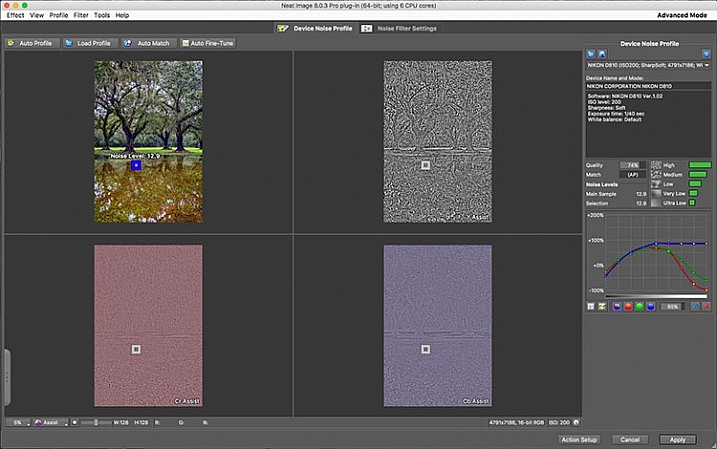
Upon opening Neat Image 8, the Device Noise Profile screen is the first thing you see.

Neat Image 8 is a fairly simple software to use, although upon first opening the plugin it can appear a bit confusing. You will be presented with multiple views of the image you are working on; a full-color preview, and the R, G, and B components of the image. There are four buttons at the top left of the screen; Auto Profile, Load Profile, Auto Match, and Auto Fine Tune. In the center are two tabs, Device Noise Profile, which is the tab the plugin starts in, and Noise Filter Settings.

Analyze image

Once the plugin is open, you’ll see the four different versions of your image. The easiest way to get started is to simply click “Auto Profile” and let Neat Image analyze the image. Once complete, a box will highlight the area that Neat Image has selected to use for noise analysis. Neat Image looks for an area with minimal detail for best results. If you select your own area to analyze, make sure it’s an area that contains minimal detail.

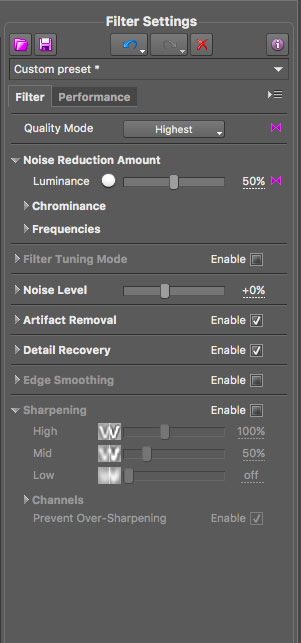
Neat Image 8 Adjustment Sliders

These sliders allow you to tweak the noise reduction to your liking after Neat Image has applied the noise profile to the image.

Filter settings in Neat Image

Now that you’ve analyzed the noise levels in the image, you’ll want to click on the Noise Filter Settings Tab. The preview will switch to the full-color image in the center and the R, G, and B channels will disappear. At the bottom left is a zoom toggle to zoom in or out of the image as desired. You’ll also have the ability to change the preview to various other options, including the RGB preview, a Luminance and Chrominance preview, as well as individual channels. Neat Image will then apply the noise filter settings based on the analysis as done above.

You can tweak the settings using the sliders at the right side of the app window. You’ll have the ability to adjust quality, the noise reduction amount, recover detail, smooth edges, sharpen, and fine tune the filter itself. In addition to the sliders, Neat Image comes with some presets, such as Recover Fine Details, Apply Less Noise Reduction, Apply More Noise Reduction, Reduce Noise and Sharpen, and more. You can also create your own presets for future use. These settings put Neat Image among the most customizable noise reduction applications I’ve used.

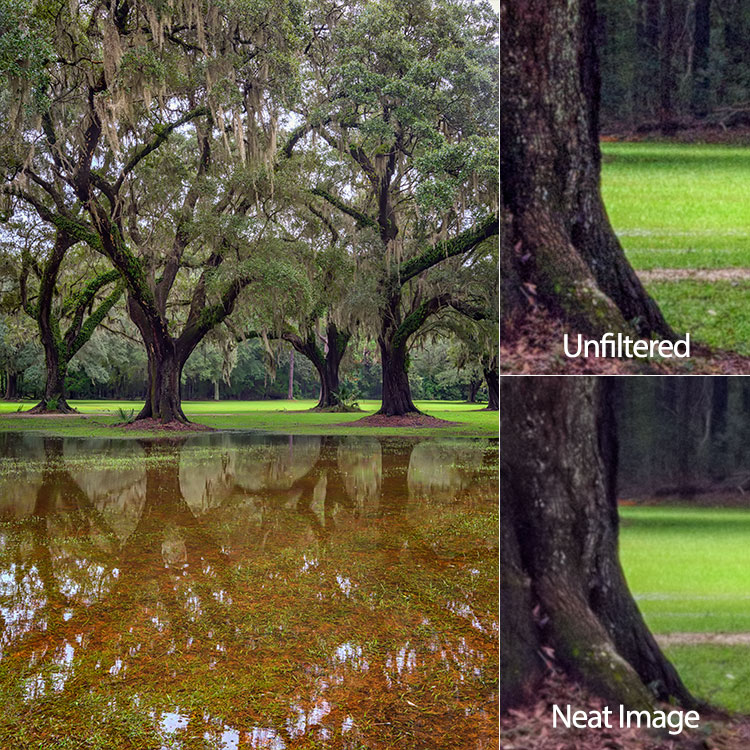
oaks-neat-image

Pros

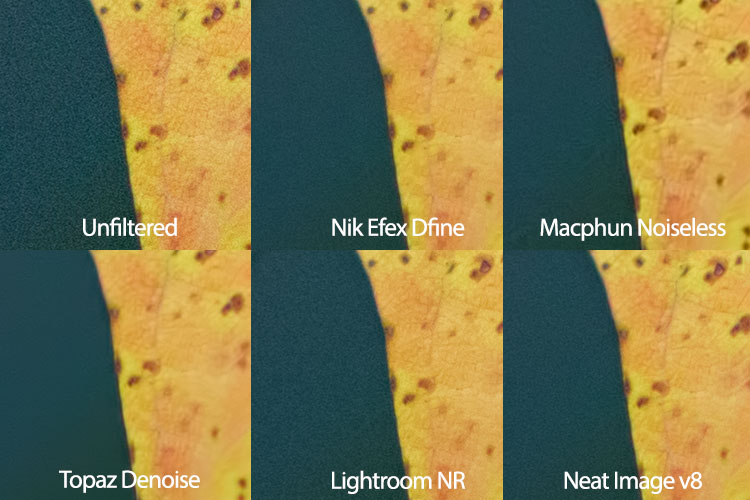
For me, noise reduction has always been a love-hate relationship, always battling with a balance between preserving detail and reducing unsightly noise. One of my favorite things about Neat Image is the software’s auto profiling ability, customizing the noise reduction to each image as needed. While Nik Collection’s Dfine 2 also does its own image analysis, it doesn’t offer the customizability that Neat Image does. And Neither Topaz’s Denoise 5, nor Macphun’s Noiseless offer any kind of image profiling, with both requiring you to simply select a preset on your own and go from there.

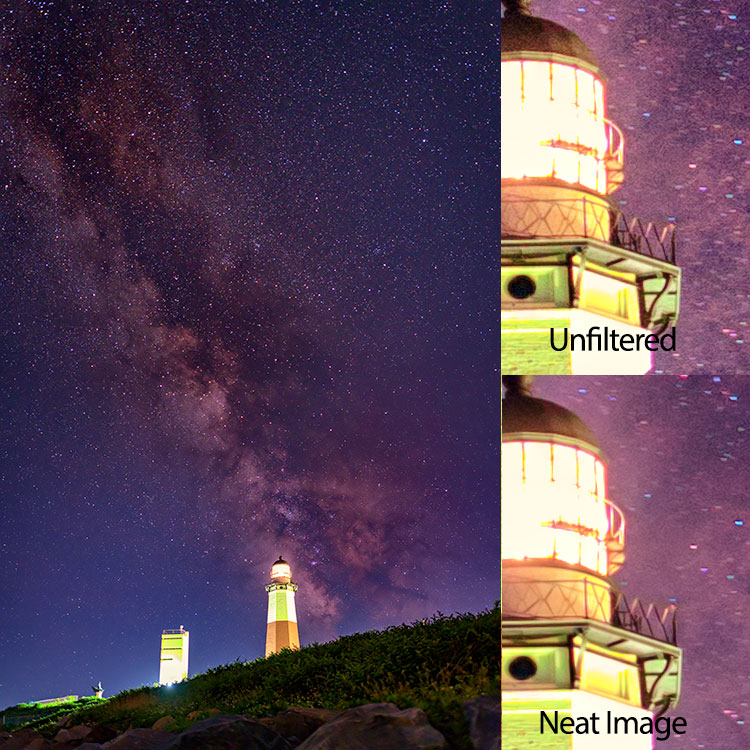
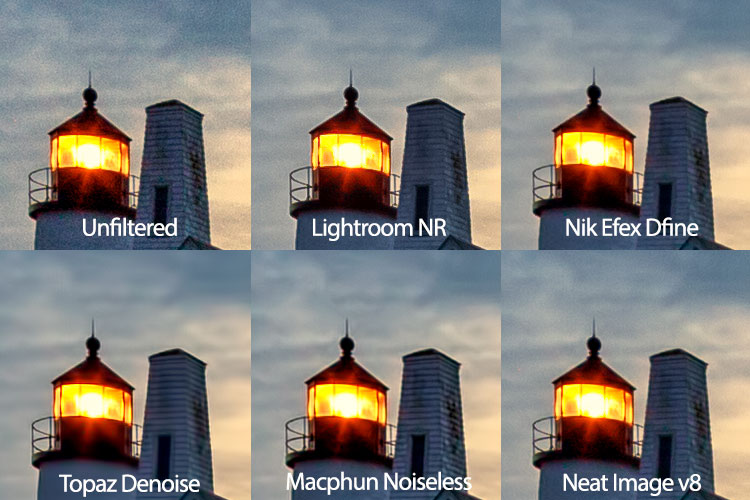
Neat Image 8 does an excellent job of maintaining detail while reducing noise in an area with little or no fine detail, such as skies.

night-sky-neat-image

Cons

With all the customizability, of course, comes a bit of a learning curve in terms of use. Neat Image does offer tutorial videos on their website to help get you started, but for those of us who are less patient and just want to dive in, it can be frustrating. I had one or two false starts when I first downloaded Neat Image 8, before finally going to their video tutorial to give me a jumpstart.

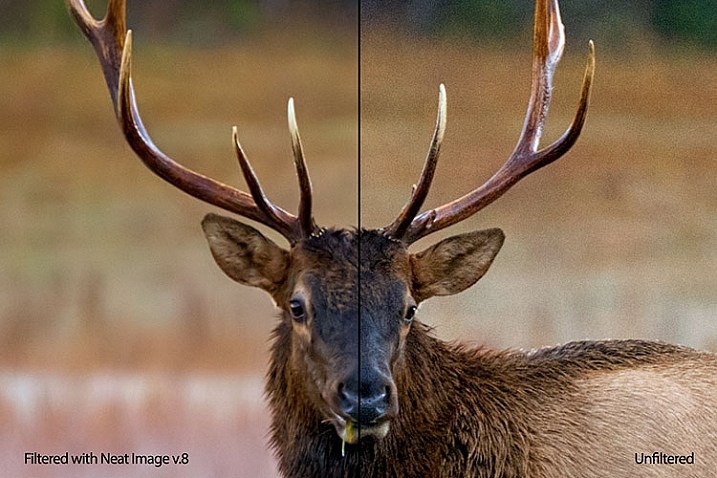
Neat Image 8 side-by-side comparison.

Side by side comparison of an image shot at ISO 2500, before and after Neat Image 8.

Conclusion

Ultimately, the ability to auto profile an image, adjust settings to personal taste, and use presets for repeatability of noise reduction, makes Neat Image an excellent choice for photographers who battle noisy images for any reason, including shooting long exposures, low light photography, or high iso photography such as indoor sports, events, or weddings. Neat Image is available starting at $ 39.90 per license.

lighthouse-neat-image-v8

neat-image-comparison

leaf-neat-image

leaf-neat-image-comparison

googletag.cmd.push(function() {
tablet_slots.push( googletag.defineSlot( “/1005424/_dPSv4_tab-all-article-bottom_(300×250)”, [300, 250], “pb-ad-78623” ).addService( googletag.pubads() ) ); } );

googletag.cmd.push(function() {
mobile_slots.push( googletag.defineSlot( “/1005424/_dPSv4_mob-all-article-bottom_(300×250)”, [300, 250], “pb-ad-78158” ).addService( googletag.pubads() ) ); } );

The post Review: Neat Image 8 Noise Reduction Software by Rick Berk appeared first on Digital Photography School.


Digital Photography School

 
Comments Off on Review: Neat Image 8 Noise Reduction Software

Posted in Photography


Accessory review: MindShift Gear SidePath camera backpack

05 Nov

The MindShift Gear SidePath
$ 99.99 | MindShiftGear.com

MindShift Gear makes a lot of cool bags; I’ve used several over the years and have been impressed with their durability. The most recent bag to join the MindShift Gear family is the SidePath. It caught my attention because it features a near identical design to one of my all time favorite camera backpacks, the Lowepro Hatchback. These ‘hatchback’ style bags consists of two main compartments: an upper area to store personal stuff and a lower area, accessible via the back of the bag, for storing one’s camera gear.

I’ve found this style of bag to be exceptional for everyday use. I almost always have a camera on me (usually a Nikon D750 and 35mm F2), but often need additional room in my bag for carrying my hard drives, extra clothes and a snack. With the SidePath, I have plenty of room to do this. I was also able to keep my camera and hard drives separate from my cloths and food. Also convenient: the bag has a trapdoor to open up the two compartments into one. This makes it a good grocery-getter as well.

The SidePath is available in one size only, and offers a total volume of 14 liters (by comparison, Lowepro has a 16L and 22L version of the Hatchback).

Specifications:

  • Exterior Dimensions 10.6″ W x 19″ H x 5.9″ D (26 x 47 x 15 cm)
  • Camera Compartment: 9.1″ W x 6.7″ H x 5.5″ D (24 x 15 x 14 cm)
  • Tablet Slot: 8.3″ W x 9.8″ H x 0.6″ D (22 x 25 x 2 cm)
  • Weight: 1.6 lbs (0.7 kg) (includes rain cover)

Design and Construction

I live in Seattle and spend a lot of time walking and biking between my apartment, the office and concert venues. I had previously been using the Lowepro Hatchback before swapping it out for the SidePath and found I sacrificed very little in the switch (I have the 16L Hatchback, so I did lose some volume.) After three weeks using the SidePath, including a weekend trip to Santa Cruz California, and I have mostly positive things to say.

What I like most about the design of this bag is how ordinary it looks; it doesn’t scream ‘I’m a camera bag!’ Moreover, I love how well-protected my camera gear is in the hidden lower compartment. Now, I’m not suggesting you sneak your camera somewhere it doesn’t belong, but the lower gear pocket makes doing just that VERY easy. And because the lower compartment is padded, it also doubles as a cooler-like area. Once again, I’m not suggesting you fill the compartment with brews, but it does perfectly fit a six pack of cold beverages.

The exterior of the bag has a water repellent coating while the inside is coated in polyurethane. This helps to keep your stuff dry when not using the dedicated rain cover. More on that later.

The side pockets are impressively stretchy. As you can see from the photo, I was easily able to stuff a water bottle in one and a Manfrotto BeFree tripod in the other. The two bungee cords located on the upper left and right of the bag can be used to further secure any oversized gear, like a tripod or flash stand.

Comfort

I’m 5’10” and have found the SidePath comfortable to wear, even for an extended period of time. It is also perfectly sized for every day out-and-about use (the next slide will give you a better idea of just how much you can lug). The back is well-padded, though the shoulder straps could benefit from some additional padding.

Another benefit of the hatchback-style design is that most hefty items, like your camera and lenses, will be located in the lower portion of the bag, right up against your back. This makes hauling heavy equipment less painful. There is also a chest strap and buckle on the over-the-shoulder straps for added support.

Capacity

You can seriously fit a lot of stuff in this bag, including: a full frame DSLR body (Nikon D700), 2 lenses (Tokina 17-35mm F4, Nikon 85mm F1.8), two film cameras (a Polaroid 300 and Olympus Stylus Epic), a flash, card wallet, rain cover, 11-inch Macbook Air (you could probably squeeze a 13-inch in there instead), laptop charger, water bottle, tripod, US map, sunglasses, extra socks (it rains a lot in Seattle) and various personal items.

Upper Storage

The SidePath has only one interior zippered pocket, which I found disappointing. The more places I can organize and secure my stuff the better. It’s located up against the front inside of the bag. There is also a pocket against the back of the bag that MindShift is advertising can fit a 10” tablet or 1.5L hydration reservoir. I didn’t attempt to fit either of those in the pocket, but did find it a useful space for stowing my notebook, memory card wallet and extra Instax film. I only wish it had some way of securing itself closed, whether it be Velcro or a zipper.

An 11″ laptop can easily slide down into the front portion of the bag. I also used that area to store my iPad while flying to Santa Cruz. There is also quite a lot of space in the open portion of the top area, which I was able to fill up with my flash, laptop charger and Polaroid camera.

Lower Storage

Whether you’re hauling sodas or camera gear, the lower area is well-padded and well-secured. The bag ships with three padded velcro pieces that can be reconfigured to your liking.

One feature the Lowepro Hatchback offers that is missing on the SidePath is the ability to remove the lower gear portion of the bag completely. Still, it is nice that the divider between the upper and lower area can be dropped down to combine the two area into one.

Side Pockets

The ability to haul lightstands or a tripod securely is invaluable. The previously mentioned bungees chords located on either side of the bag are an excellent feature. And one not offered by the competition.

Rain Cover

The SidePath ships with a rain cover. Good thing because I tested the bag during the month of October, which just so happened to be the wettest October in Seattle history. Thankfully, never once did I find myself with wet gear. I’m also quite fond of the clips on the rain cover: they really help secure it to the bag and ensure no moisture is getting in.

Areas for improvement

There are aspects of the bag’s design I feel could be improved upon. The zipper track for the upper compartment allows the bag to open up dangerously wide. On several occasions over the course of this review, I unzipped the bag only to have it flop open and spill the contents of the upper compartment everywhere. If the zipper started and ended an inch or two higher than the bottom of the compartment, I think this would go a long way to rectify this issue. Or maybe I just need to get use to not opening the zippers all the way.

I mentioned it before, but the back pocket could also really benefit from a zipper or velcro to secure itself closed. Because seriously, only one zipper pocket on a camera backpack is not enough, ever.

The bottom line

The MindShift SidePath is not a carbon copy of the Lowepro Hatchback, but the two are strikingly similar in design. There are aspects of each I like better, for instance I love the SidePath’s bungee cords for securing light stands or tripods, and I love the Hatchback’s removal lower compartment.

On its own, the SidePath is an excellent day pack or travel pack. It can haul an impressive amount of gear, all in secure fashion and is well-versed to deal with inclement weather. At $ 100 MSRP it is pricier than the Lowepro Hatchback 16L (and a bit smaller), but it easily gives my favorite camera bag of all time a run for its money.

What we like:

  • Lightweight
  • Spacious design with an impressive amount of room
  • Two compartments, one for personal items, one for gear
  • Camera gear compartment is secured against one’s back when wearing the bag
  • Trapdoor allows the two compartments to be one
  • Exterior of the bag is treated with a water repellent and it ships with a rain cover
  • Side pockets can easily fit a small tripod or light stand
  • Bungee cords allow for tripods or light stands to be easily secured to the bag

What we don’t:

  • Only one interior zipper pocket
  • Camera compartment can not be removed
  • Upper compartment opens too wide, this sometimes lead to its contents spilling out
  • Shoulder straps could use a little more padding

Score:

Articles: Digital Photography Review (dpreview.com)

 
Comments Off on Accessory review: MindShift Gear SidePath camera backpack

Posted in Uncategorized


Fast Five: Sony Cyber-shot RX100 V Review

03 Nov

Introduction

The Sony RX100 V is the company’s newest addition to its lineup of premium compact cameras. As with the previous two versions, it has a 1″-type sensor, 24-70mm equivalent F1.8-2.8 lens but gains 24fps burst shooting in both JPEG and Raw with full autofocus and autoexposure(!), oversampled 4K video recording, and plenty more. In short, the RX100 V has an incredible amount of technology stuffed into an easily pocketable package – but despite major increases in performance, we find that some of its more peripheral qualities could still use some attention.

Key Specs

  • 20MP 1″-type stacked BSI-CMOS sensor
  • 24-70mm equiv. F1.8-2.8 zoom lens
  • 24fps burst shooting in JPEG + Raw, with full AF and AE
  • 315-point phase-detection autofocus system
  • Detailed 4K video capture with well-controlled rolling shutter
  • Good quality high frame rate video capture

Where to begin, besides the original? The first RX100 made quite the splash when it was released back in 2012, and rightly so – it was the first camera to take a reasonably large, 1″-type sensor and place it within a camera body you could easily put into a pocket. There were, of course, pocketable compact digital cameras before it, but the RX100’s much larger sensor was the key here for really allowing it to stand above the crowd.

The RX100 V’s large sensor allows it to capture far more dynamic range than your typical smartphone and smaller-sensor compact, especially useful in challenging lighting conditions. Processed to taste from Raw using a preliminary build of Adobe Camera Raw. 24mm equiv. ISO 125, 1/500 sec, ISO 125. Photo by Carey Rose

The original RX100 brought us one significant step closer to the diminutive, high-quality 35mm film compacts of the 1990s. The RX100 V is a fitting member of the RX100 line in this regard, offering very good image quality and impressive capability in a camera that you can easily forget is in your purse or daypack.

The 24-70mm equivalent lens reach of the RX100 V is something of a standard for professionals with large F2.8 zooms, and is plenty flexible for all kinds of shooting – but some users might be left wanting for even more reach. Straight-out-of-camera JPEG at 70mm equiv. ISO 125, 1/640 sec, F4. Photo by Carey Rose

The RX100 V becomes the world’s first fixed-lens compact (at least, the first you can actually buy) to offer a 1″ sensor with phase detection autofocus, and it does so across 65% of the frame with a total of 315 points. As far as video, the RX100 V shoots oversampled 4K clips, resulting in impressively detailed footage.

Sony’s launch presentation for the RX100 V showed that this series of cameras is increasingly being chosen by existing mid-to-high-end DSLR shooters looking for a carry-everywhere compact. The RX100 V works exceedingly well as a capable point-and-shoot camera, but as with previous models, we’ve found ourselves frustrated when trying to take greater control over it for decisive-moment shooting.

“The RX100 V has the potential to be just about all the camera any enthusiast might ever need.”

That is, frankly, a shame. For all that Sony has done to make this a worthy upgrade from the Mark IV, it’s also the things they haven’t done that bear mentioning as well. There are still just too few controls on this camera, there still isn’t a touchscreen (to more easily take advantage of that snazzy new PDAF system), the user interface is still unfriendly and the sluggish speed at which the camera reacts (or doesn’t react) to some inputs stands in stark contrast to how unbelievably fast it can pull images off the sensor.

Specifications compared

  Sony
DSC-RX100 V
Sony
DSC-RX100 IV
Canon G7X
Mark II
Panasonic
LX10
MSRP $ 999 $ 899 $ 699 $ 699
Lens range (equiv) 24-70mm 24-70mm 24-100mm 24-72mm
Aperture range F1.8-2.8 F1.8-2.8 F1.8-2.8 F1.4-2.8
Autofocus 315-point phase detection Contrast detection

Contrast detection

Contrast detection

Control dials Lens ring (stepless)
Four-way/dial
Lens ring (stepless)
Four-way/dial

Lens ring
(stepped/
stepless)
Exposure Comp
Four-way/dial

Aperture ring Command dial Lens ring (stepless)

Viewfinder 2.36M-dot 2.36M-dot No No
Rear screen Tilt up/down Tilt up/down Tilt up/down
Touchscreen
Tilt up touchscreen
Video capability 4K/30p
1080/120p
4K/30p
1080/120p
1080/60p 4K/30p
1080/120p
Built-in ND Filter Yes
(Auto for stills)
Yes
(Auto for stills)
Yes
(Auto for stills)
No
Burst Shooting 24 fps 16 fps 8 fps 10 fps
Battery life (CIPA) 220 280 265 260

Here, you can clearly see Sony’s focus for this new model – speed and autofocus (regarding pricing, Sony has recently dropped the cost of the Mark IV to $ 899 from its original MSRP of $ 999, which the Mark V has launched at). However, you can see the extra processing has had a fairly detrimental effect on its rated battery life. More on that later.

Always at hand – the Mark V is the latest RX100 to feature impressive technology in a carry-everywhere package, but the price you ultimately pay (besides the steep MSRP) is in terms of ergonomics and controls. Processed from Raw using a preliminary build of Adobe Camera Raw at 30mm equiv. ISO 500, 1/500 sec, F2.5. Photo by Carey Rose

One of our earlier posts stated that the RX100 V has the potential to be just about all the camera any enthusiast might ever need. We still think that rings true, but as usual, there’s some caveats to take into account. Let’s take a closer look.

Articles: Digital Photography Review (dpreview.com)

 
Comments Off on Fast Five: Sony Cyber-shot RX100 V Review

Posted in Uncategorized


REVIEW: Everyday Messenger Bag for Photographers… And Everyone Else!

01 Nov

Peak Design is familiar to any pro photographer and their latest Kickstarter project for their Everyday Bags that gathered over $ 6,000,000 of funding has made them famous far beyond the photography world. While their new backpack, tote, and sling from the Everyday series are conquering the world, I’ve got a chance to put my hands on Peak Design’s Every Messenger Continue Reading

The post REVIEW: Everyday Messenger Bag for Photographers… And Everyone Else! appeared first on Photodoto.


Photodoto

 
Comments Off on REVIEW: Everyday Messenger Bag for Photographers… And Everyone Else!

Posted in Photography


REVIEW: Everyday Messenger Bag for Photographers… And Everyone Else!

31 Oct

Peak Design is familiar to any pro photographer and their latest Kickstarter project for their Everyday Bags that gathered over $ 6,000,000 of funding has made them famous far beyond the photography world. While their new backpack, tote, and sling from the Everyday series are conquering the world, I’ve got a chance to put my hands on Peak Design’s Every Messenger Continue Reading

The post REVIEW: Everyday Messenger Bag for Photographers… And Everyone Else! appeared first on Photodoto.


Photodoto

 
Comments Off on REVIEW: Everyday Messenger Bag for Photographers… And Everyone Else!

Posted in Photography


Panasonic Lumix DMC-G85/G80 Review

31 Oct

Key Features

  • 16MP Four Thirds MOS sensor w/o optical low pass filter
  • 5-axis image stabilization with Dual I.S. 2
  • Splash/dust-proof body
  • Depth from Defocus AF
  • 2.36M-dot OLED EVF
  • 3-inch 1.04M-dot fully-articulating touchscreen LCD
  • 4K video / photo
  • Focus stacking and post focus

The Panasonic Lumix DMC-G85 is an SLR-style mid-range mirrorless camera. It features 4K video capture, 2nd-generation 5-axis image stabilization and a 16MP Four Thirds sensor with no optical low pass filter. A sister model, the G80 will be available in other markets.

Though Panasonic has not come outright and said it, the G85 is the successor to the G7. More a refinement than something new entirely, both cameras share seemingly identical bodies and offer twin control dials, plenty of customizable buttons and fully articulating touch interfaces. 

But the G85 is rather more grand: it’s weather-sealed with a magnesium alloy front plate, and offers a new electromagnetic shutter to combat shutter shock, an upgraded electronic viewfinder and 5-axis in-camera IS.

Like the Panasonic GX85, the G85 uses a 16MP chip with no anti-aliasing filter. We found image quality from the GX85 to be slightly improved over that of past Panasonic cameras using the same 16MP chip with AA filters (like the G7).

The G85 also uses the same redesigned shutter mechanism as the GX85, which we found to effectively mitigate shutter shock, an issue that affected the Panasonic G7. 

Compared to its peers

  Panasonic G85 Panasonic G7 Panasonic GX85 Sony a6300 Olympus EM-5 II
MSRP $ 900 (body) $ 800 (with kit lens) $ 800 (with kit lens) $ 1000 (body) $ 1100 (body)
Sensor (resolution/size) 16MP Four Thirds 16MP Four Thirds 16MP Four Thirds 24MP APS-C 16MP Four Thirds
AA filter No Yes No Yes No
Stabilization Sensor-shift (5-axis) + Dual IS 2 In-lens only
Sensor-shift (5-axis) + Dual I.S.
In-lens only Sensor-shift (5-axis)
EVF res/mag. 2.36M-dot OLED (0.74x) 2.36M-dot OLED (0.7x) 2.76M-dot field sequential LCD (0.7x) 2.36M-dot OLED (0.7x) 2.36M-dot LCD (0.74x)
Autofocus Contrast Detect w/ 49-points + DFD Contrast Detect w/ 49-points + DFD Contrast Detect w/ 49-points + DFD Hybrid AF w/425 PDAF points Contrast Detect w/ 81-points
Burst w/ continuous AF 6 fps 6 fps 6 fps 11 fps 5 fps
LCD size, type 3-inch 1.04M-dot articulating 3-inch 1.04M-dot articulating 3-inch 1.04M-dot tilting 3-inch
921k-dot tilting
3-inch 1.04M-dot articulating
Touchscreen Yes Yes Yes No Yes
Mic/Headphone port Yes/No Yes/No No/No Yes/No Yes/No
Max movie resolution 4K/30p 4K/30p 4K/30p 4K/30p 1080/60p
Weather-sealing Yes No No Yes Yes
Flash sync speed 1/160 sec 1/160 sec 1/160 sec 1/160 sec 1/250 sec
Battery life 320 shots 350 shots 290 shots 400 shots 310 shots
Weight 453 g 410 g 426 g 404 g 469 g
Dimensions 128 x 89 x 74 mm 125 x 86 x 77mm 122 x 71 x 44 mm 120 x 67 x 49 mm 124 x 85 x 45mm

While the three Panasonic cameras compared above share quite a lot, the G85 stands out against the other 16MP Panasonic’s as the most appealing choice. This is due to its inclusion of weather-sealing, an updated Dual IS system and upgraded electronic viewfinder.

When compared to similar mirrorless offerings from Sony and Olympus, things get a bit more complicated. The Sony beats it in terms of its more sophisticated AF system, larger sensor and faster burst (w/ AF), but the G85 offers superior ergonomics (fully articulating touchscreen, dual top-plate control dials, higher magnification EVF). The G85 and EM-5 II also share quite a lot, the major distinction between the two being the G85’s 4K video capability (compared to 1080p on the Olympus).

The whole Panasonic gang, including the Panasonic G85, GX85, G7 and 20MP GX8.

Pricing and availability

The Panasonic G85 will be available in the US for $ 899 body only and $ 999 with 12-60mm F3.5-5.6 Power O.I.S. kit lens.

Accessories

The optional DMW-BGG1 vertical battery grip adds an additional shutter release and improved ergonomics, as well as room for a second battery, effectively doubling shooting time.

Articles: Digital Photography Review (dpreview.com)

 
Comments Off on Panasonic Lumix DMC-G85/G80 Review

Posted in Uncategorized