RSS
 

Posts Tagged ‘Processing’

20 May, 2014 – Post Processing Panoramas

21 May


As a follow up to Kevin Raber’s recent article on Having Fun With Panoramas today we present an article by Tom Legrady on Post Processing Panoramas.  This article for the most part focuses on the use go the Adaptive Wide Angle Filter in Photoshop.  The use of this filter especially in panoramas corrects for much of the distortion that is introduced during the stitching. 

Michael and I (Kevin) will be in Buffalo June 5-8 as part of the Silo City Workshop.  This workshop conducted by Mark Maio will be photographing one of Michael’s and my favorite things; abandoned buildings.  In this case these will be the abandoned Buffalo Childs Street grain elevators.  If you are free and want to have a great few days shooting these amazing structures inside and out then go to the Silo City Web Page and register today.  There are only a few spots left.  Another bonus is Capture Integration will have a rep there with Leica Gear as well as Medium format digital gear if you are so inclined to try this gear out.  Hope to see you there.


The Luminous Landscape – What’s New

 
Comments Off on 20 May, 2014 – Post Processing Panoramas

Posted in News


4 Tips for Post Processing Efficiency in Photoshop

08 Mar

post-processing-photoshop

A great deal of post processing can be done in Photoshop, more than most photographers realize actually. As a designer, I didn’t have Lightroom, and just wanted to adjust my photos to look a little nicer, little did I know the power behind Photoshop and its post processing capabilities.

Today I am going to give you some tips and tricks I learned that increased my efficiency within Photoshop.

1 – Photoshop Layout and Organization

The first way to increase efficiency before doing any photo editing, is to organize and optimize your Photoshop layout. Setting up and customizing your Photoshop layout is key to configuring exactly how you want your panels and canvas to look. It is also very easy to do, and can improve your workflow a lot.

Here are a few things to keep in mind when editing your Photoshop layout.

  • Only keep the necessary, delete all panels that are superfluous to your photo editing process. They really just get in the way and clutter your workspace.
  • Organize your panels based on your workflow. Keeping certain windows paired will help you work faster and make adjusting much easier.
  • Adjust spacing and panels so you can have the largest size available for your image.

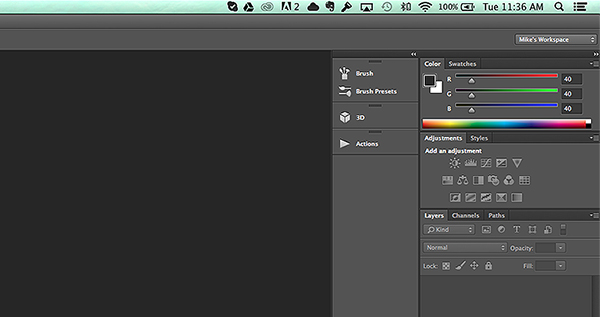
Here is a quick preview of my layout, in case you need some inspiration.

Photoshop-Layout

After you carefully adjust and tweak the panels to perfection, it is really simple to save your workspace. Simply go to the top right corner of your Photoshop Document, where is says Mike’s Workspace in the image above, and click to activate the drop-down menu. Then click new workspace and you can save it as your very own Photoshop layout. You can even save shortcuts and menus within the layout.

2 – The Basic Effects

Now that you’ve organized your layout, it’s time to start editing your photos. When I start editing any photo I have a few basic steps I do religiously. These don’t have to be the same for you, and it is totally ok to completely disregard them (or come up with your own), but it is sort of a habit that can help contribute to your photography style.

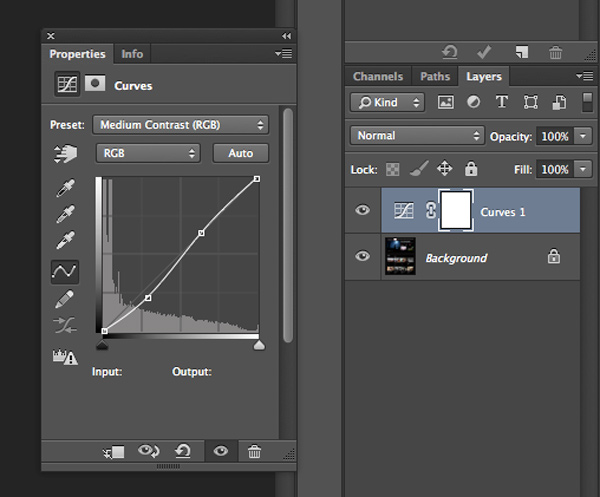
The first small task I complete is duplicating the image layer. To ensure I don’t damage my original photo. From there I add a few subtle Adjustment Layers to balance the light in the image. It looks something like the image below.

curves-adjustment-layer-photoshop

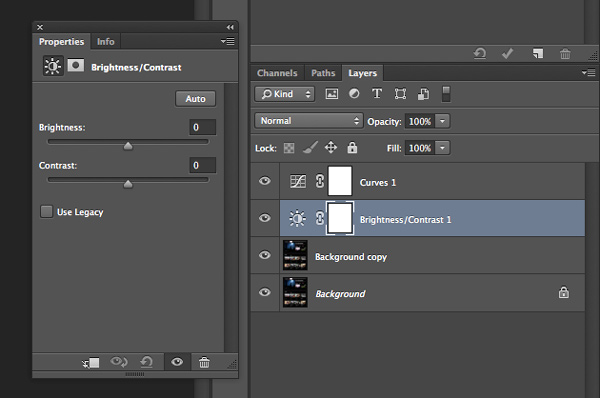
The above effect is a simple curves adjustment that helps balance light and tone down the colors in a subtle manner. After that I mess with the brightness and contrast just a little bit to get the image looking clean and balanced (as an Adjustment Layer as shown below).

adjustment-layer-brightness-contrast

Consider all the above steps as precursory steps to the actual photo editing process. These are simply done to balance light, prevent error, and it is like a little system I use to keep my style inline.

3 – Grouping and Organizing Layers

The next thing I do that really helps me work more efficiently is to organize and group my layers. It is really easy and not time consuming at all to rename layers so that you know exactly what effect they are applying to your photo. Then you don’t need to go through all your layers, switching them on and off, to find one you want to remove or readjust.

These are the key areas I group and label my adjustment layers and filters.

  • Light and contrast adjustment groups
  • Tints and color variations
  • Strong filters such as HDR and blurs
  • Gradients and vignettes

By labeling these I can easily go to certain effects and adjust them accordingly. This makes photo editing a much faster process, and makes re-editing a photo way simpler and fun.

4 – Subtle Adjustments that Make a Huge Difference

As a final tip for efficiency I am going to share a few subtle effects that work wonders for photo editing. The tools used include:

  • Blend Modes
  • The Levels adjustment tool
  • Tints

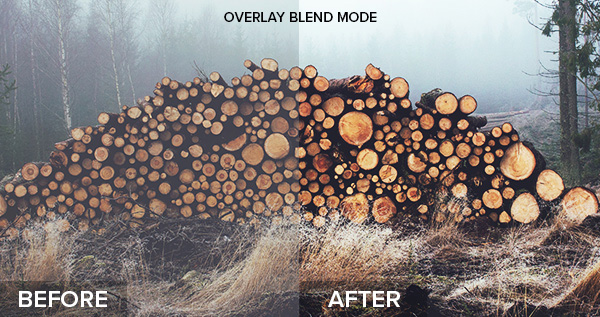
Take a look at the difference a simple blend mode can do to an image, with just the click of one button. In the example below I’ve used the Overlay blend mode. Remember to duplicate your original layer and play with the blend modes on the top, copy layer. Blend modes dictate how the pixels in one layer behave and react with the layer below it. Try them all and see what they do.

Blend-Modes

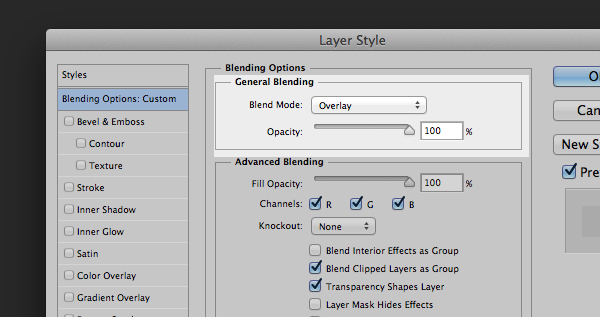
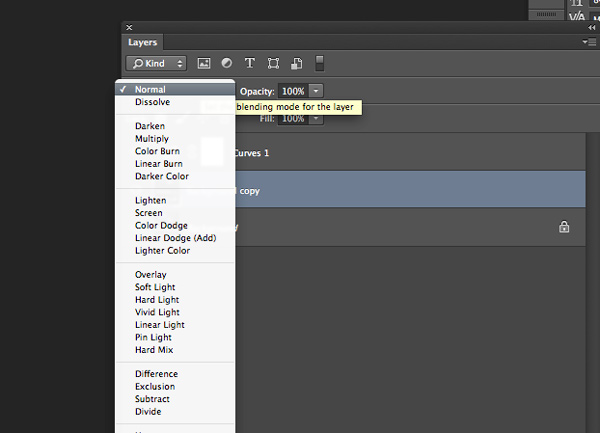
Blending modes can be applied in a few ways. The easiest way, and the way I achieved the above effect is to duplicate your image and select the blend modes drop-down by double clicking your layer (or selecting it right from the Layers panel)

Blending

Double click the layer to get this dialog box

You can also find layer blend modes here on your layers panel

You can also find layer blend modes here on your layers panel

Simply pick the blend mode that looks best and adjust the opacity accordingly. Some of my favorite blend modes are – screen, overlay, soft light, and lighten.

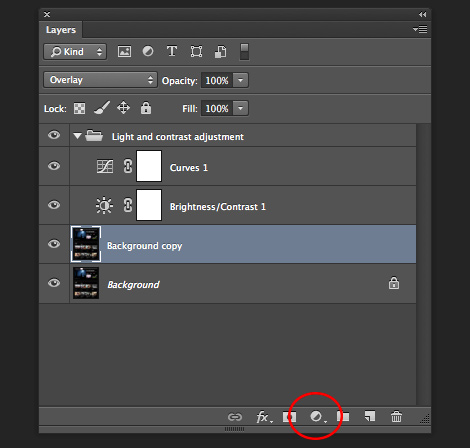
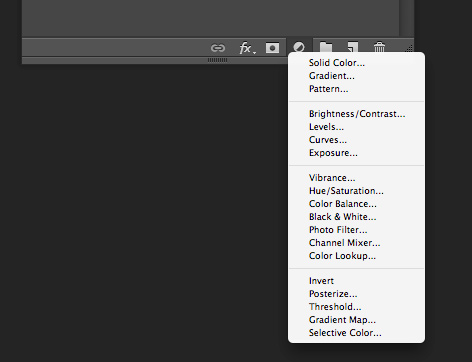
I then use a Levels adjustment layer to adjust light and colors at the same time, adding a crisp and subtle tint. To add a new adjustment layer go to Layer > New Adjustment Layer > then choose the one you want.  Or select it from the bottom of the layers panel as shown below.

adjustment-layer-icon2

Adjustment layer icon location on the layers panel

adjustment-layer-icon

Adjustment layer options


Adjust the various levels by clicking the drop-down and working on the red, green, and blue tones. It is very versatile and easy to use. Just remember – pulling top sliders the ones under the graph) to the left will darken, to the right will lighten. The bottom sliders under the black-white scale, do the opposite.

Summed Up

This is the process I used to create ultimate efficiency when I started editing my photos more frequently. These steps probably won’t apply to everyone, but they are helpful in getting organized when beginning. To wrap it up:

  • Organize your Photoshop Layout to improve your workflow
  • Use some basic effects for consistency
  • Group and label your adjustments so you can easily find them for future reference
  • Take advantage of the subtle, but highly effective adjustment layers such as photo tints, levels, and blend modes

Now it’s up to you

Got some interesting tips or tricks for efficiency? Share them in the comments and help other photographers improve the way they work and edit photos in Photoshop.

The post 4 Tips for Post Processing Efficiency in Photoshop by Mike Moloney appeared first on Digital Photography School.


Digital Photography School

 
Comments Off on 4 Tips for Post Processing Efficiency in Photoshop

Posted in Photography


Processing an Image in Lightroom 5 – a Video Tutorial

02 Mar

Lightroom5-processing

Of course, I always like to get the photo as perfect as possible, right in the camera.  But, sometimes the situation just doesn’t allow for a lot of adjustments to be made before the opportunity is lost. Today’s image of a Canadian Lynx kitten was one of those situations.

The kitten was in a forest on a bright sunny day with mottled light, pretty much nightmare’ish light.  Fill flash would have helped, but I’m hesitant to use fill flash with most mammalian critters because the flash will often show off hairs that our eyes don’t normally see, thereby rendering an artificial appearance to the critter.  So, instead, I attempted to expose for the highlights, trusting and hoping that my RAW files (later converted to Adobe’s DNG format) would help save the day when I got around to processing the image.  Today, is that day.

Processing an Image in Lightroom 5

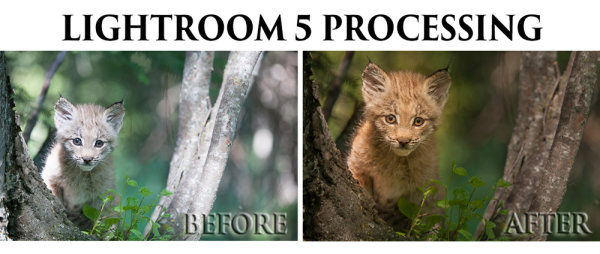
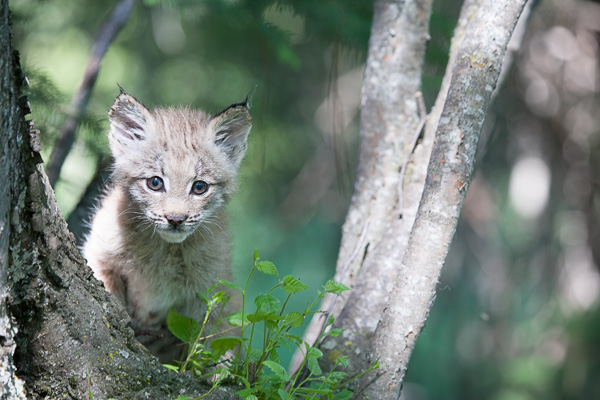
So here is a video tutorial on using the features in Lightroom 5 to change a photo that started off looking like this . . .

© Paul Burwell

Before Lightroom Processing

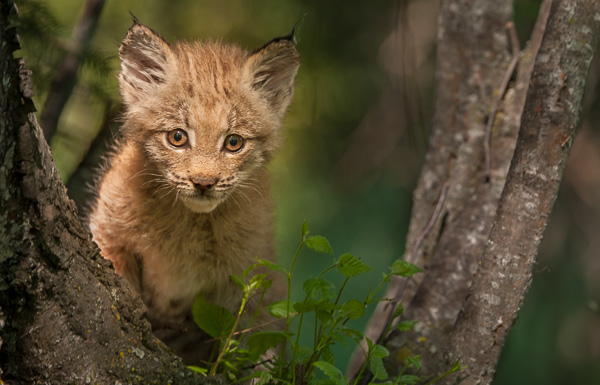
. . . into a photo that looks like this!

© Paul Burwell

After processing in Lightroom 5 – Horizontal Crop

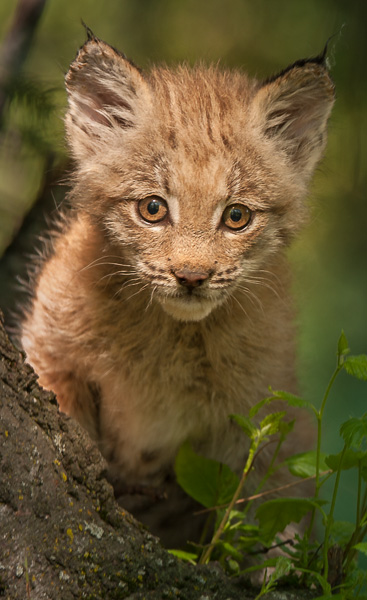
OR even this . . .

© Paul Burwell

After Lightroom Processing – Vertical Crop

To accomplish this we’ll make use of the Crop tool, the Basic Adjustment Panel, the Adjustment Brush, the Radial Filter, the Detail (Sharpening) Panel and the Virtual Copy feature.

We’ll take the photo of the Canadian Lynx kitten that started off pretty bland and forgettable, and end up with a nice looking, intimate portrait of a beautiful cat.  The video will cost you about 30 minutes of your life to watch through from beginning to end, but when you’re done, you’ll have an excellent idea on how to use these tools that come embedded in Lightroom to transform (or save) some of your own, less than stellar images.

Enjoy this video on processing an image in Lightroom 5

For more Lightroom tips try these articles:

  • 3 Uses for the Radial Filter Tool in Lightroom 5
  • Lightroom 5 Tips – Hidden Gems
  • Lightroom Tips for the Develop Module – the Magic Alt Key
  • Comparing Images with Lightroom 5’s Survey View

The post Processing an Image in Lightroom 5 – a Video Tutorial by Paul Burwell appeared first on Digital Photography School.


Digital Photography School

 
Comments Off on Processing an Image in Lightroom 5 – a Video Tutorial

Posted in Photography


Review: Photo Mate R2 brings Raw processing to Android devices

18 Jan

TS520x0~cms_posts-7236815772-title2.jpg

Ever since the original Apple iPad was launched in 2010 tablets have been the image viewing and presentation device of choice for many photographers. Tablets can also be a good alternative to fully-fledged laptops for those who prefer to travel light. However, up to now, tablets have not been a serious option for those photographers who prefer to shoot in Raw format. Enter Photo Mate R2: a fully-featured raw converter for Android. Read our review to find out how (and how well) it works. 

News: Digital Photography Review (dpreview.com)

 
Comments Off on Review: Photo Mate R2 brings Raw processing to Android devices

Posted in Uncategorized


Android-powered Samsung Galaxy Camera 2 adds processing power

03 Jan

GALAXY-Camera-2_004_Right-Angle1_white.png

Samsung has released its newest Android-powered Galaxy Camera, aptly named the Galaxy Camera 2. While the GC2 retains the slim form factor, 21X zoom lens, and huge 4.8-inch touchscreen LCD of its predecessor, it adds a faster quad-core processor, double the memory, a more recent version of Android (4.3), and a more powerful battery. Naturally, the camera has Wi-Fi built in (with NFC), and has the latest and greatest Samsung ‘Smart’ features, including a ‘selfie alarm’. 

News: Digital Photography Review (dpreview.com)

 
Comments Off on Android-powered Samsung Galaxy Camera 2 adds processing power

Posted in Uncategorized


Creative Color Processing (Part 3/3 – Tone Curve)

10 Jan

This is Part 3 of a 3-part series on creative color effects in Lightroom. In this article I will explain how to use the Tone Curve tool for creative color effects.
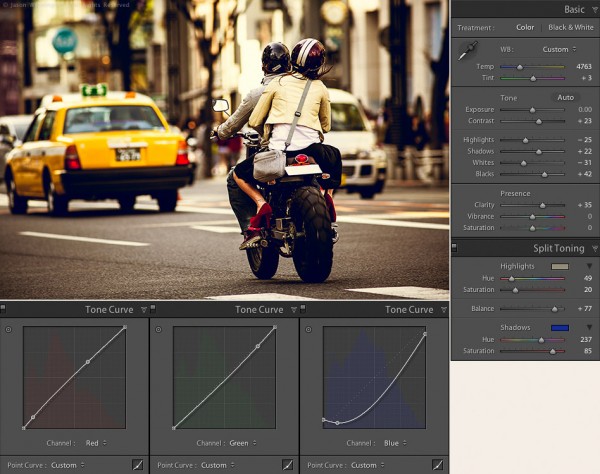
Tokyo street scene color settings

Tokyo Street Scene Color Settings

In Part 1 of this series I covered white balance. I discussed split toning in Part 2, as well as how to use split toning and white balance together. If you missed parts 1 or 2, check them out here:

Creative Color Processing (Part 1/3 – White Balance)
Creative Color Processing (Part 2/3 – Split Toning)

Tone curve is perhaps the most powerful tool in our creative color tool box. Tone curve is usually used for precise contrast control, but with Lr 4, we now have access to the individual RGB channels via the tone curve adjustment. Prior to Lr 4, this type of edit required Photoshop.

Note: this technique only works in Lightroom 4 and requires the 2012 process. Check out these articles to learn about Lightroom process versions if you’re not sure what this means:

Understanding Lightroom Process Versions
5 Tips for a Faster Lightroom Workflow

Editing Individual Color Channels with Tone Curve

To access the separate RGB channels in the Tone Curve you need to switch to the point curve adjustment:

1. Click the point curve box in the bottom right of the Tone Curve control:
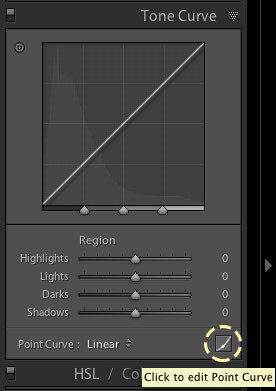
Editing the point curve in Lightroom

Editing the point curve in Lightroom

2. Choose the color channel you want to work with.
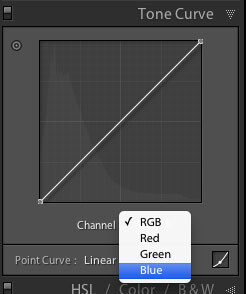
Selecting a color channel in the point curve

Selecting a color channel in the point curve

Each tone curve actually controls a pair of colors, and the shades between them. To illustrate this, let’s take a look at this image of joss sticks, that I shot at a temple in Singapore. First, here’s the image without any color adjustments:
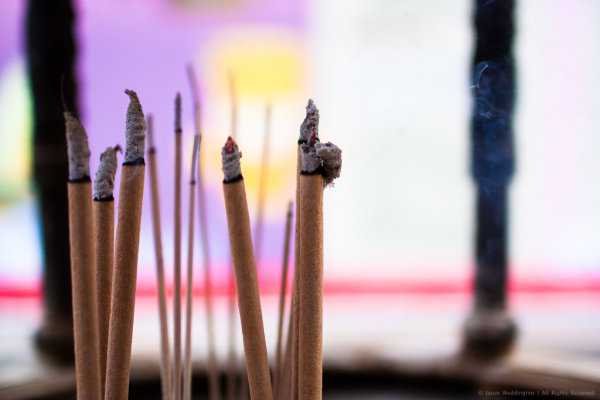
Joss sticks without color adjustments

Joss sticks without color adjustments

Red Channel

The red channel controls the color range from red to cyan, think of it as the Red / Cyan curve:
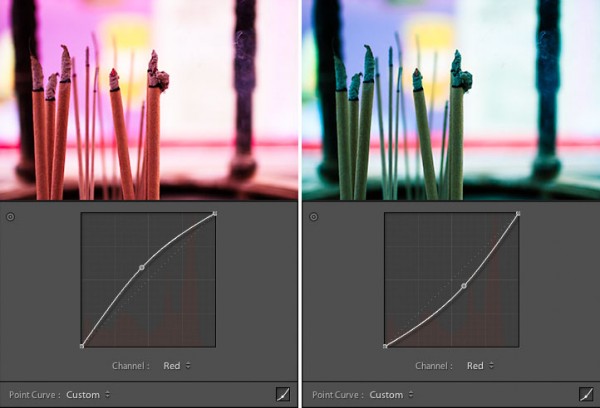
The red channel controls the red / cyan balance

The red channel controls the red / cyan balance

Green Channel

The green controls the color range from green to magenta, think of it as the Green / Magenta curve:
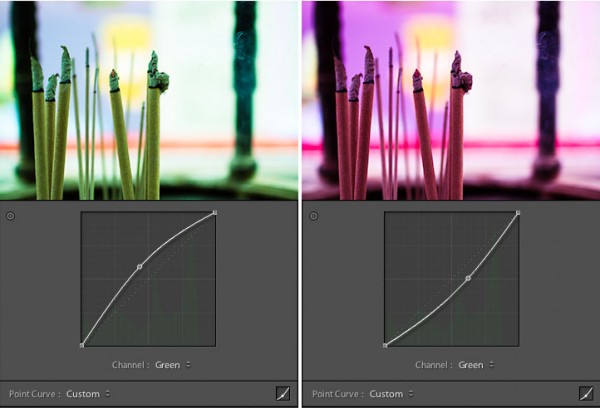
The green channel controls the green / magenta balance

The green channel controls the green / magenta balance

Blue Channel

The blue channel controls the color range from blue to yellow, think of it as the Blue / Yellow curve:
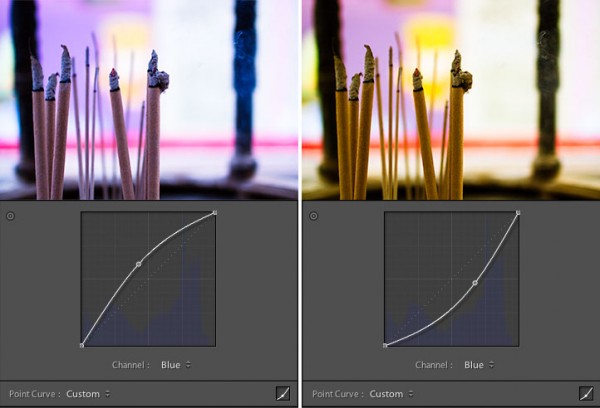
The blue channel controls the blue / yellow balance

The blue channel controls the blue / yellow balance

The possibilities are endless here, but I’ve found that the blue channel is often the most useful for creative color effects. Simply select the channel you want to work with and click the tone curve to begin adding points. To get rid of a point on the curve, grab it with your mouse and pull it to the side, out of the graph area.

Tips for Editing Color with Tone Curve

1. Play around with the shadow tones, a slight color tint in the just shadow areas of your photo is sometimes just enough to make people stop and stare.

2. Treat the shadows differently than the highlights, this is like taking split toning to the next level. Or the next, next level.

3. Keep at it. It takes time to develop your eye for color, and it takes time to develop your own aesthetic. Over time you will gravitate toward a particular “look” for your images. Just as a musician finds his or her sound, you will find a signature look for your photography. The key is to just keep tinkering, until you find it.

Putting It All Together
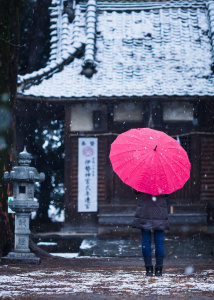
Japanese Temple in the Snow - Natural ColorTo conclude this 3-part series on creative color processing in Lightroom 4, here’s an image that combines all three of the techniques that I discussed in the series: white balance, split toning, and tone curve.

This is a photo of my wife standing in front of a temple in Takasaki, Japan. A sudden snow storm created an interesting photo opportunity that was too good to miss. The photo at right shows the colors as produced by the camera. The camera was set to auto white balance, which resulted in a white balance value of 4350 for this shot.

I wanted to bring out the mood of the snowy day, and also give the photo a bit of a timeless feel. To do this I combined a cool white balance with a yellow / blue split tone, as well as tone curve adjustments in the green and blue channels. The white balance adjustment gives the image a cold feel. The split toning emphasizes the cold feel by adding blue to the shadows, while also adding yellow to the highlights to keep the snow from looking blue. Finally tone curve adjustments in the green and blue channels give an interesting color cast, mostly to the shadow areas.

Here’s the final result:
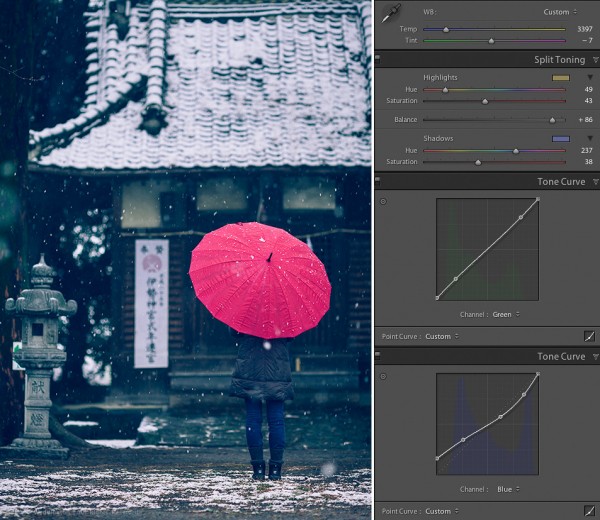
Japanese Temple in the Snow - Creative Color

Japanese Temple in the Snow – Creative Color

This concludes the 3-part series on creative color effects in Lightroom 4. I hope I’ve inspired you to think creatively about color and given you some new ideas and techniques for getting creative with your photographs. I appreciate feedback, please comment below or feel free to connect with me through Facebook or Google+. I’ll do my best to answer questions and reply to comments.

Post originally from: Digital Photography Tips.

Check out our more Photography Tips at Photography Tips for Beginners, Portrait Photography Tips and Wedding Photography Tips.

Creative Color Processing (Part 3/3 – Tone Curve)


Digital Photography School

 
Comments Off on Creative Color Processing (Part 3/3 – Tone Curve)

Posted in Photography


Canon EOS 60D Tutorial – In Camera RAW Processing 11/14

07 Jan

EOS 60D: On-Camera Tutorials Canon On-Camera Tutorial Videos explore a specific feature or technology of the EOS 60D


Creative Color Processing (Part 2/3 – Split Toning)

21 Dec

This is Part 2 of a 3-part series on creative color effects using Lightroom 4. In Part 1 of the series, I discussed shifting White Balance either warmer or cooler for creative effect. In this article I will explain Split Toning, and also give you some ideas for using creative white balance and split toning together for even more color control.

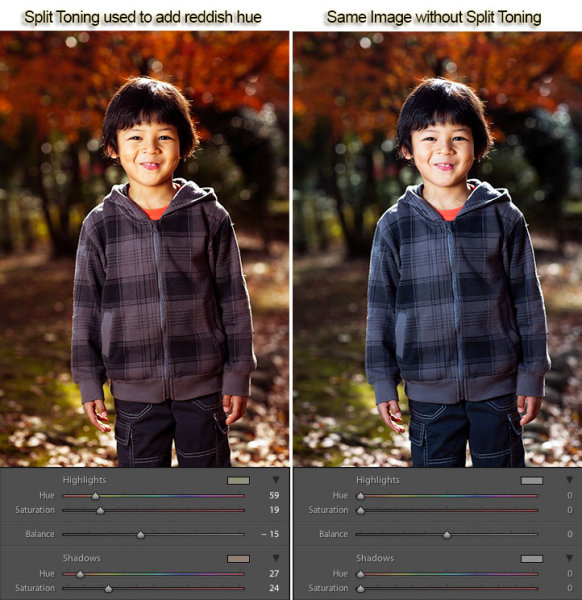
For this image, I used split toning to complement the autumn foliage by adding red to the shadow areas:

Split toning used to add a warm reddish hue

Example of Split Toning used to add a reddish hue

While white balance affects the entire image, split toning allows you to treat the shadows and highlights differently. You can add one color to the shadows and a different color to the highlights, and also control the balance between the two.

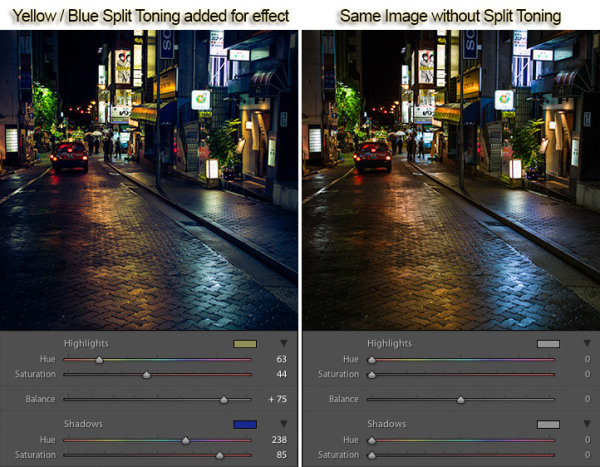
In processing this scene of a street in Tokyo I used split toning to add blue to the shadows and yellow to the highlights:

Example of Split Toning

Example of Yellow / Blue Split Toning

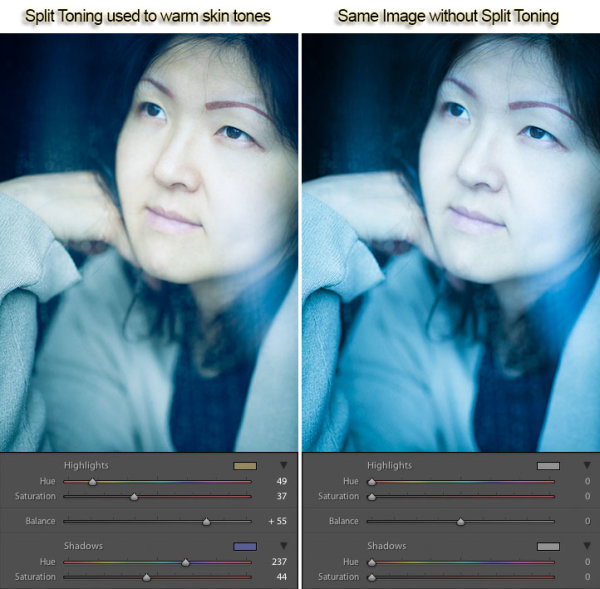
Split Toning can also be combined with white balance for creative effect. In the photo below I used a cool 3500 kelvin white balance, and then used split toning to warm the skin tones by adding yellow to the highlights. The result is cool-toned image, without unnaturally bluish skin tones. In this way, white balance and split toning can be used together to create an effect that would not be possible with either tool on its own.

Split toning to warm skin tones

Using Split Toning to warm skin tones

Creative color processing is very subject, and ultimately comes down to personal preference. Even if you don’t really like the editing decisions I’ve made in these sample photos, I hope I’ve inspired you to try some new techniques for creatively processing your photos. I appreciate feedback, please comment below or feel free to connect with me through Facebook or Google+.

This concludes Part 2 of my Creative Color Processing series. In Part 3, I will show you how to use the Tone Curve tool to control the red, green, and blue color channels separately.

Post originally from: Digital Photography Tips.

Check out our more Photography Tips at Photography Tips for Beginners, Portrait Photography Tips and Wedding Photography Tips.

Creative Color Processing (Part 2/3 – Split Toning)


Digital Photography School

 
Comments Off on Creative Color Processing (Part 2/3 – Split Toning)

Posted in Photography


Creative Color Processing (Part 1/3 – White Balance)

12 Dec

It is often said that photography is a visual language. Through our photographs we tell stories, share experiences, and communicate emotions. Aside from journalism, where faithful captures are important for ethics reasons, photography is often about creatively interpreting a scene, rather than simply recording what is in front of the lens.

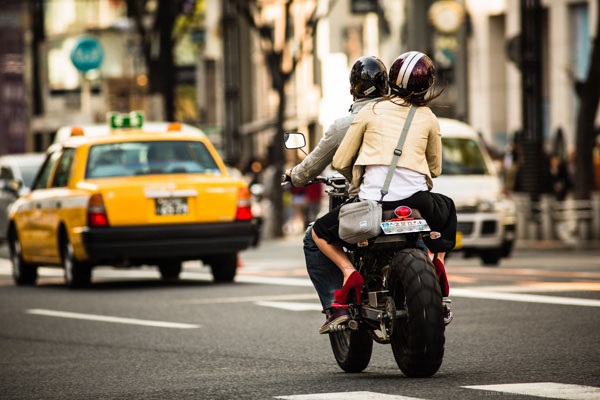
Tokyo street scene with creative color

Tokyo street scene with creative color

Tokyo street scene with 'normal' color

Tokyo street scene with ‘normal’ color

Creative use of color can be a powerful tool for controlling the mood in your photographs. In a series of three posts I will discuss three Lightroom controls that can be used to control color and mood in your photos:

1. White Balance
2. Split Toning
3. Tone Curve

In this first article in the series I will discuss white balance, the simplest of the three tools.

Note: I shoot Raw and import my photos into Lightroom, converting to DNG on the way into Lr. Shooting Raw gives me much more flexibility to make creative color decisions in post processing. The screenshots from are from Lightroom 4, but with the exception of the Tone Curve technique that I will cover in Part 3 of the series, these techniques can be used in previous versions of Lightroom.

White Balance

White balance allows you to control the overall color temperature of your image, and adjust for different light sources like tungsten, daylight, flash, etc. If you’ve never heard of white balance take a look at this post.

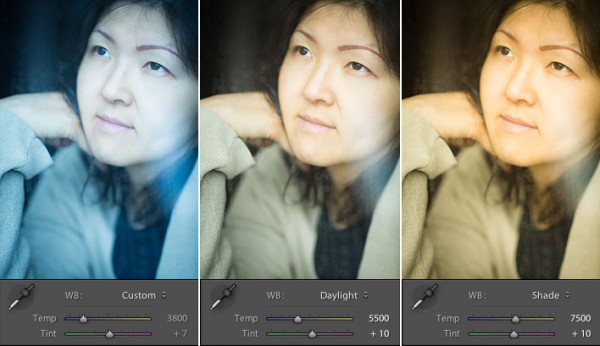
White Balance Example

Example of different white balance settings

Most of the time you’ll read that white balance is there to help you get accurate color in your photos. This article is not about accurate color. For the next few minutes, forget about accurate color and let’s just look at how white balance can be used to change the mood in a photo. I like to think of white balance as just another tool for controlling color image my images. Thinking of white balance this way is liberating and encourages experimentation.

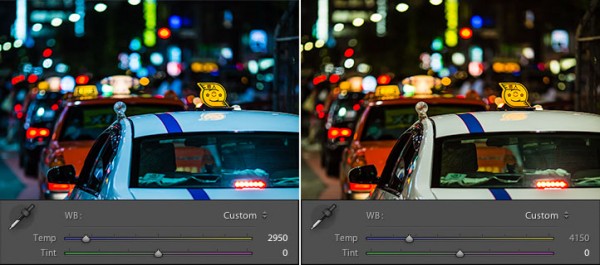
Tokyo Taxi White Balance Example

Tokyo Taxi White Balance Example

Notice how a cool white white balance creates a totally different mood than a warm white balance for the same scene? Which of the above images do you prefer? When you feel like getting creative with your images, try shifting the white balance either cooler or warmer for creative effect.

I hope this article has encouraged you to think creatively about white balance, and to experiment with shifting white balance for creative effect. I love hearing your feedback, please comment below or feel free to connect with me through Facebook or Google+.

In Part 2 of the Creative Color series I will discuss Spit Toning, and demonstrate how white balance and split toning used together for even more creative control over color.

Post originally from: Digital Photography Tips.

Check out our more Photography Tips at Photography Tips for Beginners, Portrait Photography Tips and Wedding Photography Tips.

Creative Color Processing (Part 1/3 – White Balance)


Digital Photography School
 
Comments Off on Creative Color Processing (Part 1/3 – White Balance)

Posted in Photography


Processing City – Sandy City (HD version) – ETH CAAD

19 Nov

www.vimeo.com Sandy_software, 3d city-Engine developed in Processing. by Jakob Przybylo Chen Min-Chieh Michele Leidi in ETH CAAD MAS 09/10 www.mas.caad.arch.ethz.ch
Video Rating: 4 / 5

 
Comments Off on Processing City – Sandy City (HD version) – ETH CAAD

Posted in 3D Videos