RSS
 

Posts Tagged ‘Processing’

Topaz Labs DeNoise 6 adds standalone option, batch processing, camera profiles

02 Mar

Topaz Labs has released DeNoise 6, the latest version of its noise-removal software. This latest installment can be used as a standalone application in addition to functioning as a plugin for host software like Adobe Lightroom and Photoshop; it also adds batch image processing as well as profile presets for dozens of camera models.

Topaz Labs announced the software update last week and is offering it to new customers at a discounted $ 49.99 rate until March 20, after which the regular $ 79.99 price tag will apply. Existing DeNoise customers can update to version 6 for free. DeNoise 6 is available for 64-bit Mac OS X and Windows systems.

Via: Topaz Labs Blog

Articles: Digital Photography Review (dpreview.com)

 
Comments Off on Topaz Labs DeNoise 6 adds standalone option, batch processing, camera profiles

Posted in Uncategorized


Sony develops 22MP smartphone sensor with on-chip AF processing and video IS

17 Feb

Sony has announced a 22.5MP Exmor RS imaging sensor for smartphones. The new stacked 1/2.6″ CMOS sensor, called IMX318, is smaller than most used by current smartphones and includes on-chip processing for AF and video image stabilization. Sony has used pixels measuring 1.0µm, allowing for a smaller sensor with higher resolution to be included in likewise slimmer mobile devices. For comparison, this sensor is 20% smaller than the 1/2.3″ chip commonly used in smartphones.

Like many current smartphone sensors, the IMX318 uses phase-detection AF elements combined with contrast-detection to create ‘hybrid AF,’ and the company claims AF reporting 0.03 seconds. According to Sony, IMX318 has such an efficient data interface that pixels can be read at 30 fps from across the entire surface. This allows the company to use the whole 22.5MP resolution for video recording – although the footage is scaled to 4K – and full resolution stills to be captured during video shooting. HD movies can be recorded at up to 120 fps, and 720p footage at 240 fps.

While this sensor is most suitable for the smartphone market, the technology could soon move into larger sensors for compact, mirrorless and DSLR cameras. IMX318 will go on sale in May, according to Sony, at a price of ¥2000/$ 17.50/£12.30 per unit. For more information see the Sony website. Below, you can see the sensor’s image stabilization system in action. 

Press release:

Sony Announces a New Type 1/2.6 22.5 Megapixel Exmor RS™, the Industry’s First*1 Stacked CMOS Image Sensor with Built-in Hybrid Autofocus and 3-Axis Electronic Image Stabilization

Tokyo, Japan – Sony Corporation (“Sony”) is announcing the commercialization of a new Exmor RS™ image sensor for smartphones and other devices that require increasingly better cameras and thinner form factors. The IMX318 is a type 1/2.6 stacked CMOS image sensor with 22.5 effective megapixels, and it boasts a more compact size, greater image quality, and higher performance. This new Exmor RS is the industry’s first*1 to be equipped with built-in high-speed hybrid autofocus (“AF”), as fast as 0.03 seconds*2, and built-in 3-axis electronic image stabilization technology for video. Sony aims to begin shipments for this new CMOS image sensor in May, 2016.

*1: According to Sony research (as of February 16, 2016)
*2: The time it takes to bring the picture into focus when the distance from the sensor surface to the subject is reduced from 2m to 2cm, given high-light conditions (2,000lux or higher).

The IMX318 boasts a stacked structure and the industry’s smallest unit pixels, which measure 1.0?m (micrometers) in size. With this, the image sensor achieves a compact, type 1/2.6 size suitable for inclusion into smartphones, while still realizing a high resolution of 22.5 effective megapixels, among the top in the industry. This new image sensor not only boasts enhanced resolution, but it also matches its predecessor in image quality despite the IMX318’s smaller size and unit pixels (IMX230 predecessor model: type 1/2.4 sensor with 1.12?m unit pixel size). Additionally, Sony has succeeded in equipping the IMX318 with cutting-edge digital imaging features, namely high speed built-in hybrid AF and 3-axis electronic image stabilization for video, a first*1 for the industry. With this image sensor, the user can capture image stills of those decisive moments reliably in high quality, as well as high resolution video without fear of blur.

Main Features

1. The industry’s smallest unit pixel size at 1.0?m, achieving compact size (type 1/2.6) while realizing 22.5 effective megapixels high resolution

As smartphones grow ever thinner, so too are image sensors growing increasingly more compact. In line with this trend, Sony has developed a miniscule 1.0?m pixel sensor that, despite its small size, realizes high image quality. To accomplish this, Sony employed manufacturing technology that improves light utilization efficiency, as well as circuit design technology that eliminates noise, a root cause of deterioration in image quality. With this innovation, Sony has realized an image sensor that delivers high quality images, while also boasting small optical size and a high resolution of 22.5 megapixels. Night shots have long been a weak point for the compact cameras used in smartphones, with the lack of light translating into excessive visual noise. The IMX318 addresses this weakness and realizes beautiful photography in nighttime conditions.
*
No drop in image quality from the IMX230 predecessor model (Left: 1.12?m unit pixel size) to the IMX318 (Right: 1.0?m unit pixel size), despite the latter’s smaller size

2. The industry’s first*1 image sensor with built-in hybrid AF, as fast as 0.03 seconds*2, and 3-axis electronic image stabilization

Hybrid AF
Hybrid AF, which merges image plane phase detection AF with contrast detection AF, has previously been realized through the combination of an image sensor and an application processor. But with the IMX318, Sony has created the industry’s first*1 stacked CMOS image sensor with hybrid AF built into the sensor’s internal signal processor. The IMX318 leverages Sony’s high-speed AF technology that has been honed over many years, boasting an AF as fast as 0.03 seconds*2 (and as fast as 0.017 seconds when shooting video at 60fps). With this power in hand, the user can capture those decisive moments reliably in focus, whether shooting stills or video.
*
When shooting with hybrid AF: 0.03 seconds
(Time required for focusing)
Image plane phase detection AF: Utilizes dedicated image plane phase detection AF pixels embedded throughout the image sensor pixel array.
Contrast AF: Works off the contrast of the subject.

3-axis electronic image stabilization for video
With the IMX318, Sony has also created the industry’s first*1 stacked CMOS image sensor with image stabilization functionality built into its internal signal processor. This sensor leverages the image stabilization technology that Sony has cultivated over its years developing cameras, realizing smooth 4K*3 videos with little camera shake by making effectively use of the signal output obtained from the external 3-axis (pitch, yaw, and roll) gyro sensor*4. Sony’s unique image stabilization technology incorporated into the IMX318 corrects not only camera shake, but also lens distortion, making for more beautiful videos. Furthermore, because image stabilization is achieved by processing within the hardware of the image sensor, less power is used than when it is accomplished by software processing in the external application processor. Since it enables smooth video shooting, this image sensor is suited for incorporation into not only smartphones, but also a variety of other products that tend to generate substantial camera shake, such as aerial drones used for image capture.

*3: QFHD (3840 x 2160)
*4: Gyro sensor: instrument that determines angular velocity through inertia.

3. 4K and high frame rate video recording, through high-speed communications leveraging the latest MIPI specifications

Sony elected to adopt the MIPI (Mobile Industry Processor Interface) Alliance’s latest C-PHY 1.0/D-PHY 1.2 specifications for this image sensor’s interface. With this interface, the IMX318 is able to achieve more power efficient and faster data transmission from the image sensor to the application processor. As a result, even at the high resolution of 22.5 megapixels, transmission is realized for all pixels at 30fps. This enables seamless switching between high resolution video and still image photography, realizing the best of both worlds. Since the image sensor can transmit greater-than-4K resolution images for all pixels to the application processor, the user can capture 22.5 megapixel still images even while in the middle of recording video in 4K*3 at 30fps

Articles: Digital Photography Review (dpreview.com)

 
Comments Off on Sony develops 22MP smartphone sensor with on-chip AF processing and video IS

Posted in Uncategorized


5 Starter Steps to Batch Processing using Adobe Bridge

31 Jan

Post-processing can be a minefield. Beginners especially can feel overwhelmed when confronted by amazing software, that can do almost anything, like Photoshop for example. However, everyone starts from somewhere, and not everything is terribly confusing. I am personally a fan of simplicity, when it comes to technology. Let me share with you a few simple steps on how to get started batch processing using Adobe Bridge.
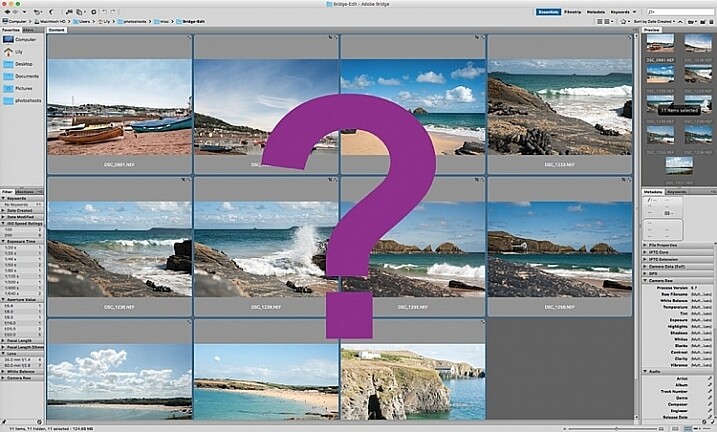
what-is-adobe-bridge_WEB

Editing in Bridge is super simple, and as easy as one – two – three. Open your file, edit your photo, save your file. I will walk you through it, and try to demystify the first step in post-processing, without touching Photoshop.

What is Adobe Bridge?

Bridge is part of Adobe’s Creative Suite, and is a media browsing application. It is an app that enables you to view your entire computer contents, manage and organize your digital files, and edit your photos without the need to import and file them in various catalogs elsewhere. For photographers specifically, Bridge simplifies the first step in the editing process, because within Bridge you can do the following easily, to name a few:

  1. Browse photos
  2. Rate photos
  3. Delete photos
  4. Rename, move, or copy multiple files at the press of a button
  5. Organize your files using various filters so you can perform your desired function in batches
  6. Watermark, copyright and manage metadata information
batch-editing-adobe-bridge-photography-tutorial

Adobe Camera Raw

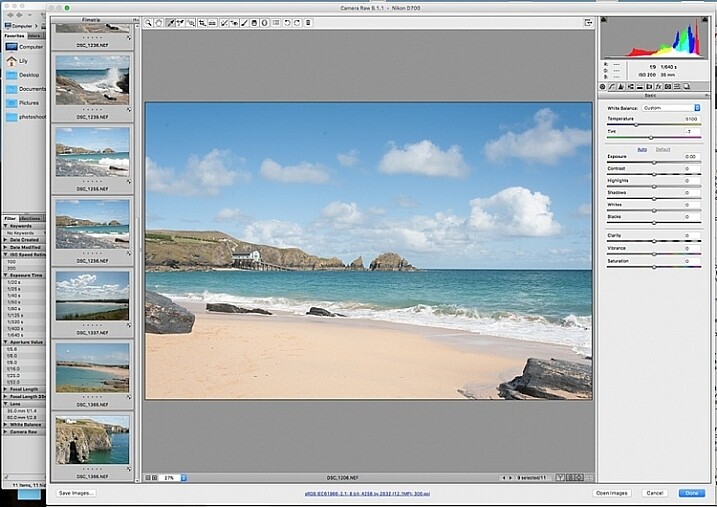
To edit photographs in Bridge, you need to have Adobe Camera Raw, a powerful plug-in that allows you to edit and enhance any photo, including JPGS. RAW files however, can only be opened, and read, in Adobe Camera Raw.

I would suggest that you shoot in RAW. Here is a good article about RAW vs JPGS which explains the benefit of shooting in RAW format. I shoot in RAW, and always edit from that format in Bridge, as my starting point. If you photograph in RAW, make sure you have downloaded Adobe Camera Raw, preferably the latest version, onto your computer before you can edit the files in Bridge.

A first word

This tutorial is a very basic suggested process of editing in Bridge, meant to aid your understanding if you have never used Bridge before. I do not claim it is the better way of editing nor the perfect way; it is one option, among many others available. Bridge is my personal preference over Lightroom, and I choose to use as much or as few of the functions in Bridge as I see fit for every image, or batch of images, that I edit. I like Bridge because, together with Adobe Camera Raw, it is straight-forward, hassle-free, and offers a non-destructive way of editing.

Loading your images

Before starting the batch processing, you need to load your images to a new folder on your computer.

My suggestion would be to download your images from your memory card, directly onto your computer. In my opinion, this is the safest, and most direct way, to copy over images from your memory card to your computer, without having to go through various software that potentially could complicate the copying process. Keep it as simple as possible to try and eliminate any malfunctions or errors right at the start. Use an external USB card reader to load your images into your computer, if it doesn’t come with a built-in one.

Put your images in a new folder clearly labeled so you know exactly where to find them. As an added step, when I copy a new set of images from a memory card on to my computer, I also immediately copy the same set to various external hard drives and cloud storage for back-up and safe-keeping. Always copy from the same memory card so you keep the transfer direct, and minimize potential errors. For example, if you copy your memory card images to a folder called Set A, do not then copy the images from Set A into another external hard drive folder; do not create this unnecessary step. Paste the same set of images from the memory card, directly where you want them stored on an external hard drive or on the cloud.

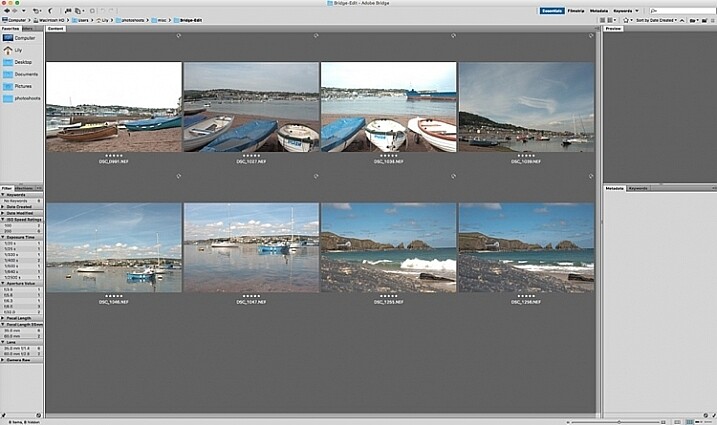
Once your images are safely copied, open Bridge. You will need to be subscribed to Adobe CC to have access to this. Subscriptions are now very affordable, compared to previous years when you had to buy a license of the very expensive full Adobe Suite just to use one software.
 batch-editing-adobe-bridge-photography-tutorial

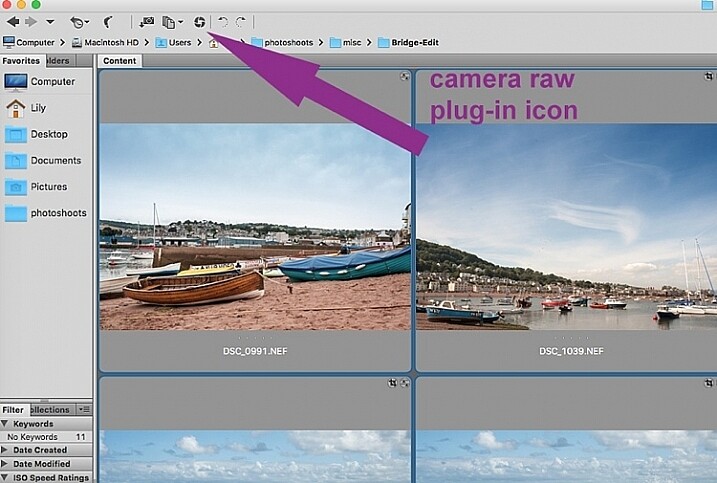
You will see the contents of your computer on the left side navigation menu. Find your folder, click on it and your images will be displayed on the main window. RAW files will be displayed as CR2 or CRW files for Canon cameras, NEF files for Nikon cameras and DNG for some other cameras (each manufacturer has a proprietary raw file format).

Select your RAW files, and open them by clicking the Camera Raw plug-in icon with the images selected.
 batch-editing-adobe-bridge-photography-tutorial

As a RAW file is an unprocessed image containing all the information the camera sensor sees. It can appear very flat, and darker than what you may have seen on your camera’s LCD screen, which displays a JPG preview of your image, and as such has already been processed by the camera for preview purposes.

An important note to consider when batch processing, is that it is most effective when used on images that are photographed using similar light and settings. The main thing to remember is that you are able to apply global edits in a few steps to multiple images, but the reality is that you may still have to tweak each image as appropriate before you save it.
sync-settings_WEB

Batch processing

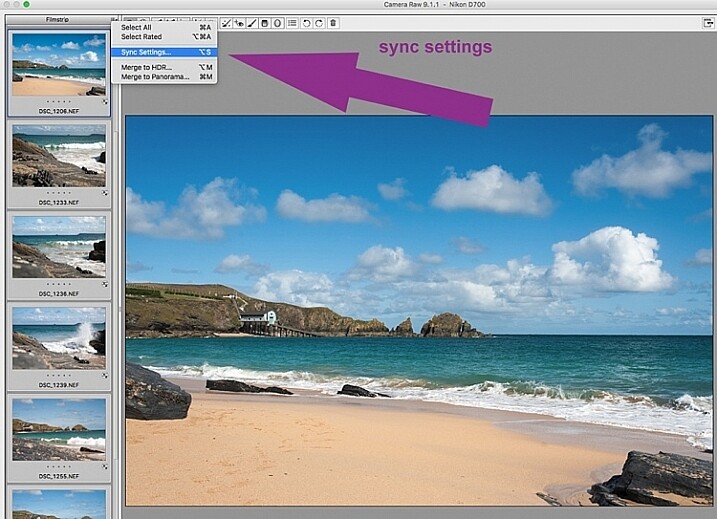
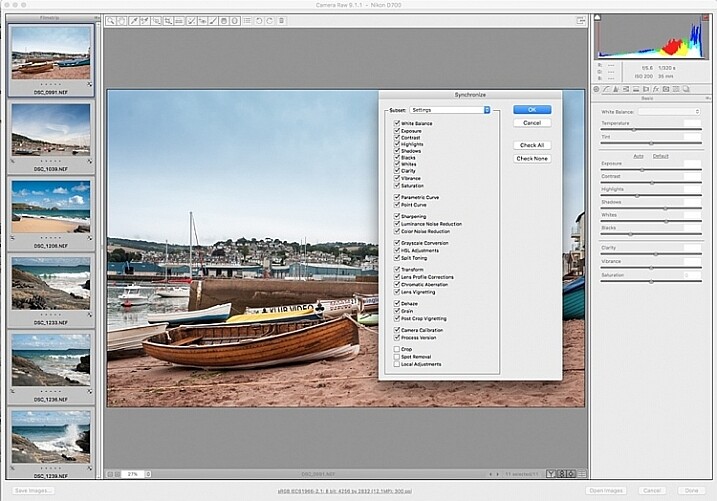
There are two ways of applying edits in batches. Below I make reference to selecting all images using cmd/ctrl+a, and making your adjustments by applying them to the images simultaneously – that is one way. The second way is to synchronize edits. To do this, use one image with all the adjustments made, then select all other images and click the synchronize button to apply the same adjustments to the rest of them.
 batch-editing-adobe-bridge-photography-tutorial

The idea behind batch editing is that you can apply a set of edits to multiple images, by only doing the adjustments once. To do this you can either select all the images you want to edit and make your adjustments while all the images are selected –  or you can edit one image first, followed by selecting all the images (making sure the edited image is the one highlighted with the blue box around it) then synchronizing the edits across all the images. A new window opens up with a series of boxes so you can check the settings you want to synchronize across the batch. I tend to uncheck the crop and local adjustments as those settings usually need to be specifically applied to each individual image.

Here is a key point to bear in mind when synchronizing your settings across the batches: It is important to note that you only want to do this with global adjustments that you want applied to the entire batch, and do it at an early stage of editing. If you use the synchronize function at the end of your edits, when you may have made various local adjustments to each individual image, any synchronizing action done then will overwrite previous adjustments (depending on what you select in the Sync settings popup box).

Step 1: Correct Lens Distortion and Chromatic Aberration
 batch-editing-adobe-bridge-photography-tutorial

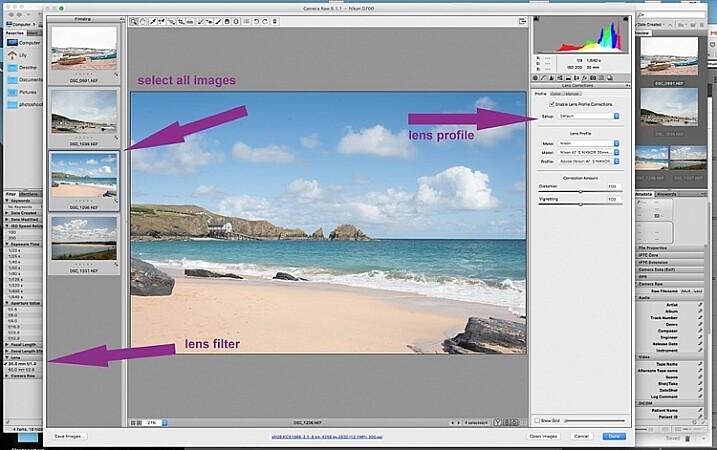
On the left hand navigation filter, choose Lens. A dropdown menu of the lenses used appears. I correct distortion on all images photographed around the 50mm focal length and under. By clicking on the specific lens, you are filtering the set so that only images photographed with that lens are shown in the thumbnail window. Select all the images by clicking cmd/ctrl+a . With the images selected, click the camera lens icon to open the Camera Raw plug-in and window. Select the images again by clicking cmd/ctrl+a, and go to the Lens Correction tab on the right hand navigation panel. On the Profile tab click the box that enables lens correction and choose your camera and lens details from the drop down menus. If your lens isn’t in the list, alternatively you can do this manually using the sliders on the Manual tab. Click done and your changes will automatically be saved.

Often with extreme lens distortions coupled, with straightening adjustments, you will need to crop your images. Type c (keyboard shortcut) and the crop box at the top will be highlighted. Hold down the crop icon to bring up the crop ratios. By doing this, your image will be constrained to the ratio you have chosenwhen you crop. Don’t forget to click done to save your changes.

Do this for all the lenses for which you want the distortions corrected. If you are only editing a batch photographed using one lens profile, you do not need to click done just yet. You can keep making further edits before clicking done.

Next correct any Chromatic Aberration. I only do this step if I know I have taken images in bright light using a very wide aperture such as f/2 or wider. The filtering and batch editing method is the same as above. However, I do this for each image individually at 100% view as each image would have various amounts of chromatic aberration and varyious color fringing.

Step 2: Correct your White Balance
 batch-editing-adobe-bridge-photography-tutorial

Once all the distortions on various lenses and focal lengths have been corrected, open your images again in the same way. Now you are ready to make batch edits.

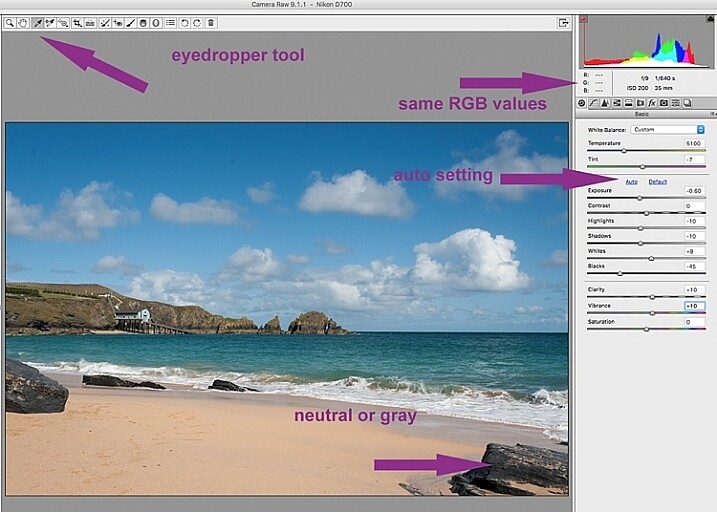
Once in Camera Raw, select a set of images that have been photographed in the same, or similar light. With the images selected correct the White Balance using the eyedropper tool. You need to find a neutral area (gray, or white) to click the eyedropper tool on and aim to get the RGB numbers to read the same, as much as possible. That way you know you are getting the most neutral color in the image. You can also correct White Balance by eye if you are confident enough to differentiate color temperature, although this will be less accurate than going with the RGB values.

You will notice that the White Balance changes on all the images you selected just by setting it on one image. Images that have been photographed in different light, or at varying times, will register a different White Balance. So, batch editing an entire set of images photographed in various places in this way, will produce irregular color results.

A solution to this is to use a gray card and have this set when photographing, or set your color temperature in-camera. By doing this the White Balance will be consistent throughout your images, for that time and setting. Here is a useful article on how to set your white balance in camera using a gray card. For more information on white balance and color temperature click here.

Step 3: Correct your exposure and make local adjustments
 batch-editing-adobe-bridge-photography-tutorial

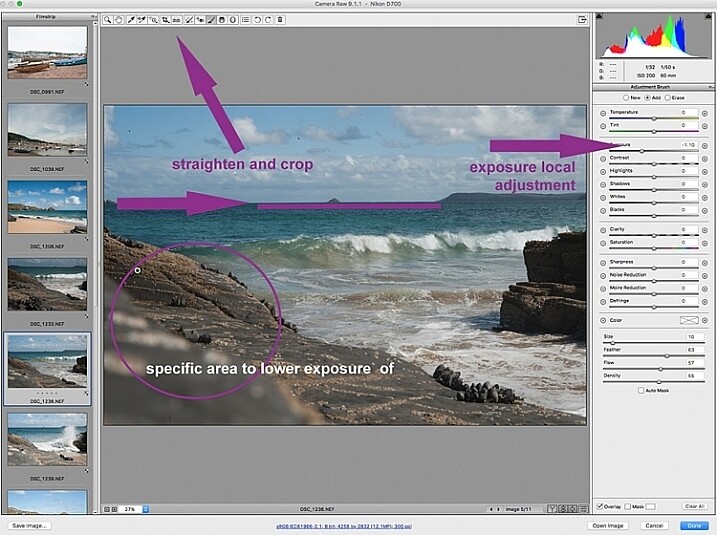
You may want to click Auto first, to see what Camera Raw’s suggested edits are, then start making your adjustments from there. To batch process, it is important to select sets of images shot in the same setting and light to make the most of this editing function. Batch editing images that have settings in opposite extremes will very likely add to your editing time, as you will need to go back and correct all the other images, thereby doubling your editing process. This is just one of the benefits of shooting in Manual mode where you have full control of your camera settings, rather than the camera making the decisions for you. If you are considering switching to Manual mode, in case you are still shooting in any of the other modes, see: How to Learn Your Camera’s Light Meter and Master Manual Mode.
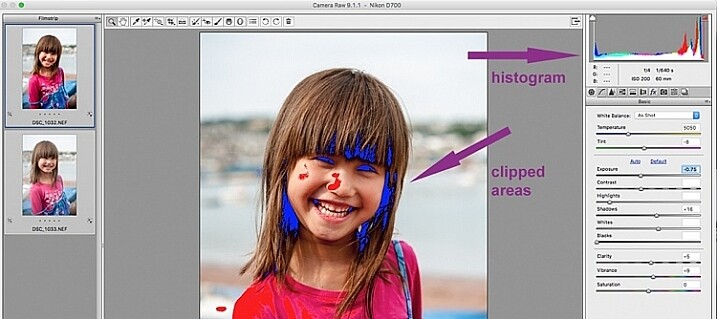
 batch-editing-adobe-bridge-photography-tutorial

When making adjustments, it is important to keep an eye on the histogram, which is the coloured graph displayed on the upper right hand corner of Camera Raw. The histogram tells you if there is clipping occurring in the dark and light areas of your image. Clipping simply means that there is no detail left in that area, as the tonal values have fallen outside the minimum and maximum brightness boundaries, where detail can be represented in the digital image.

Type U and O together and the window will display any clipped bright areas in red. Type U and O together again to display clipped dark areas, and one more time to turn off the clipping warnings. You can then make adjustments by moving the sliders to eliminate the clipped areas. Remember to keep checking the histogram. You don’t want to clip either the blacks or the whites, you will see this on the histogram when the colours start climbing up on the left and right walls. Ideally you want the colours to be evenly distributed around the middle area until they are just touching the walls. Here is a link explaining: How to Read and Use Histograms.

Local adjustments

There are useful tools that you can use in Camera Raw, but which will not be beneficial in batch editing such as: spot removal and healing, adding gradients, straightening and cropping. However, you can edit smaller sets within the opened big batch, with ease using the same process. Regardless of the number of images, you can select consecutive images you want to edit in smaller groups, and apply specific batch edits to those images only, such as cropping and other local adjustments.
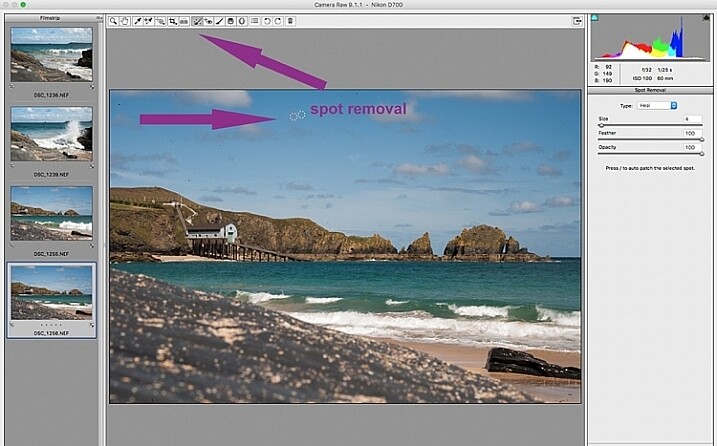
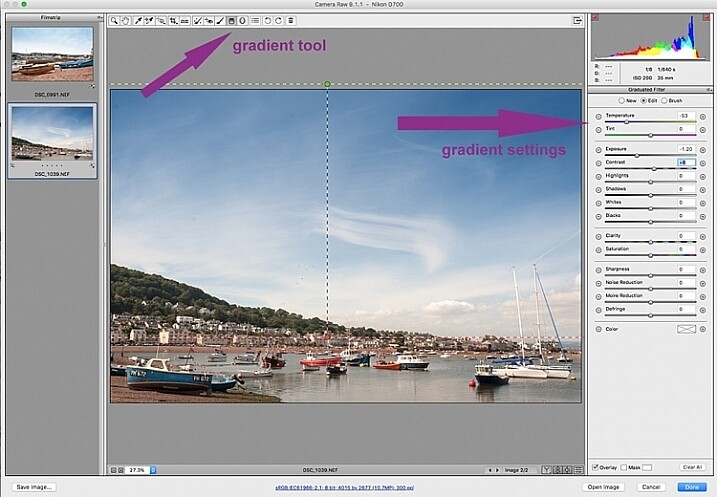
 batch-editing-adobe-bridge-photography-tutorial

 batch-editing-adobe-bridge-photography-tutorial

While I find local adjustments very useful, for instance brightening or darkening selected areas, warming up and cooling down specific parts of an image, and all the tools available on the adjustment brush panel, these tools need to be applied to each image individually, as necessary. Bridge and Adobe Raw can only go so far. If more fine tuning, and intricate edits need doing, you will need to take the image into Photoshop or a similar software to do so.
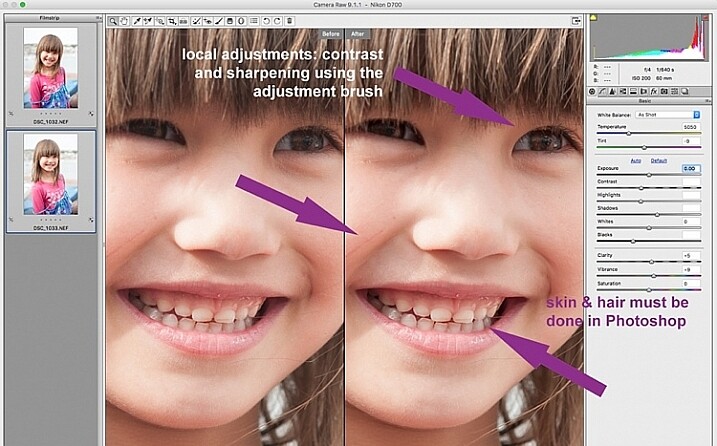
 batch-editing-adobe-bridge-photography-tutorial

Step 4: Remove Noise and Sharpen

Adjusting the sliders to remove noise in an image is essential for all images, more so if you are shooting at a high ISO. Noise in a digital image is composed of the grainy look that you see, and the red, green, and blue spots that show through on the image, especially in the dark areas. The luminance slider fixes the grainy issue, and the color slider removes the dots, so move both sliders until you remove the noise.

An image shot at a very high ISO such as ISO 8000 will need a different noise reduction value than an image shot at ISO 400. If this is the case with your set of images, you can go back and filter your images again as in Step 1, but using the ISO speed ratings this time, then proceed with batch editing. This process can be tricky, but is worth the extra step, especially when dealing with higher ISOs. It is essential to view the images at 100% when removing noise, so the effects of the sliders are visible. A word of caution: do not go overboard with the noise reduction and sharpening settings when doing global batch edits. The danger is that you may end up removal detail and color. The best way to ascertain the noise removal settings appropriate for an image, is to do it on every single image, due to the ISO and exposure variables which greatly determine the amount of noise in an image. But there is no reason why you can’t apply a gentle global noise reduction setting to your batch of images, and adjust from there individually as needed.

It is always good practice to sharpen all your images, ready for output. Sharpening values vary according to the detail, and information in the image. You can apply your chosen sharpening values globally if you are confident that the values are gentle, and general enough for all the images in the batch. A little sharpening is better than nothing. Some images however, may need specific, more aggressive, sharpening values, and this is where you need to apply the appropriate value to each individual image. Similar to removing noise, the best practice is to custom sharpen each image one by one.
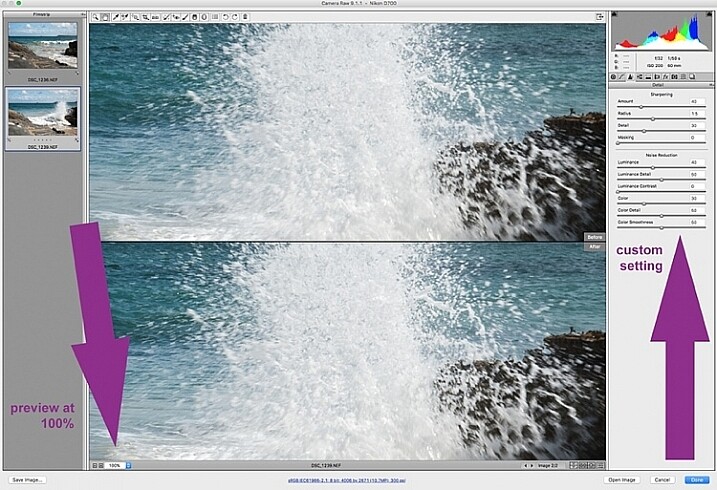
sharpen_WEB

Step 5: Save your images

Once you have made global batch edits to your images, I suggest you go through them one at a time, in the same Camera Raw window, and make final local adjustments for each one. Type cmd+alt+p to toggle between before and after previews. There are a variety of preview formats, so play around with the options given, to choose your preferred format.

Now it’s time to save your images. This is one of the features of using Bridge with Camera Raw that, for me, trumps all others. Select all your images again, and click the Save image button. A window opens up where you can specify where you want the images saved, or create a new folder for them. You specify the format you want them saved in, as well as quality. You name the files once only, and voila they are saved. Don’t forget to click the done button to store all your adjustments. If you close the window without doing so, all your adjustments will not be saved. Always make sure your images are in sRGB and are saved in sRGB color profile.

Summary

These are only very basic steps to get you started, Bridge and Adobe Camera Raw have so much more to offer. Play around, experiment for yourself, and find out how your workflow can be even more simplified. Editing in Bridge and Camera Raw does have its limitations, especially when it comes to fine edits on skin, and blemish and hair removals, but with their batch editing functionality, you can get you to a place where you’re ready for finer edits in Photoshop, much faster than opening each image in Photoshop as a starting point, and applying the same edits one at a time.
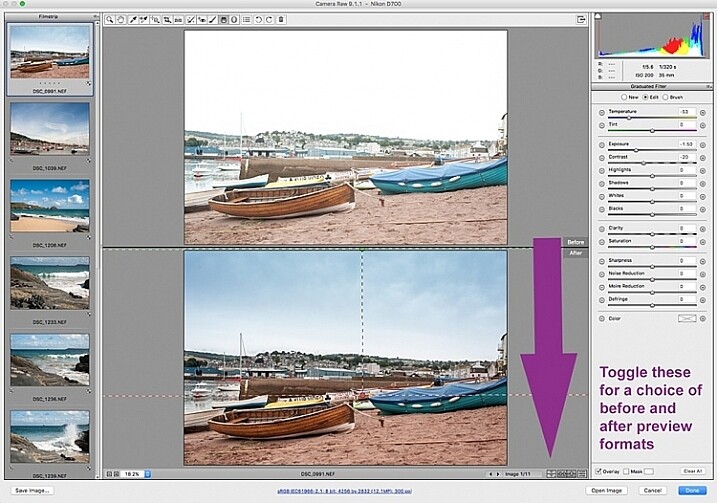
 batch-editing-adobe-bridge-photography-tutorial

There you have it – a few simple tips for batch processing. By saving your images in a different format, you will have your new set of edited images, while your RAW files are safe in the original folder. When you open these RAW files again they will show the adjustments you have made, but you can reset at any time if you want to re-edit from scratch. Your edited images are now ready to be further edited in Photoshop, should you want to do more creative and artistic edits, or if there are more edits necessary like head swapping, skin blemishes and hair removal as mentioned above. Bridge and Camera Raw are only the beginning, they gives you a good clean edited image to build on.

A last word

Batch editing is not for every photographer, nor for every photograph. Neither is batch processing necessary for every photography job that comes your way. But it is an option that can be easily learned, and might just save your sanity one day when you need to edit thousands of images within a short time-frame.

Here are the two images before and after editing in Bridge and Camera Raw.
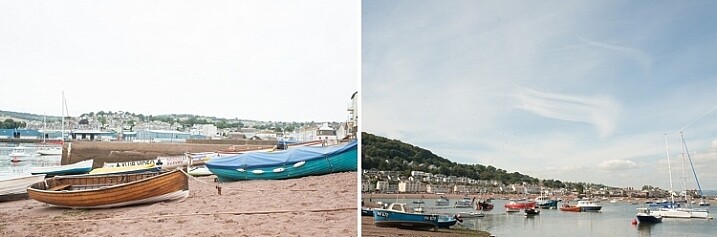
landscape-after-before_WEB

landscape-after_1_WEB

landscape-after_WEB

Do you have other smart tips to share when batch processing in Adobe Bridge?

googletag.cmd.push(function() {
tablet_slots.push( googletag.defineSlot( “/1005424/_dPSv4_tab-all-article-bottom_(300×250)”, [300, 250], “pb-ad-78623” ).addService( googletag.pubads() ) ); } );

googletag.cmd.push(function() {
mobile_slots.push( googletag.defineSlot( “/1005424/_dPSv4_mob-all-article-bottom_(300×250)”, [300, 250], “pb-ad-78158” ).addService( googletag.pubads() ) ); } );

The post 5 Starter Steps to Batch Processing using Adobe Bridge by Lily Sawyer appeared first on Digital Photography School.


Digital Photography School

 
Comments Off on 5 Starter Steps to Batch Processing using Adobe Bridge

Posted in Photography


How to do Basic Processing on a Portrait in 5 Minutes Using Lightroom

11 Nov

There’s a Triangle of Service that you may have seen before which goes something like this: You have three options available (cheap, quick, quality) but can only choose two. I first saw this on a sign in an automotive shop years ago, but it applies in almost any professional setting where goods and services are produced for consumption, and is especially true in photography.

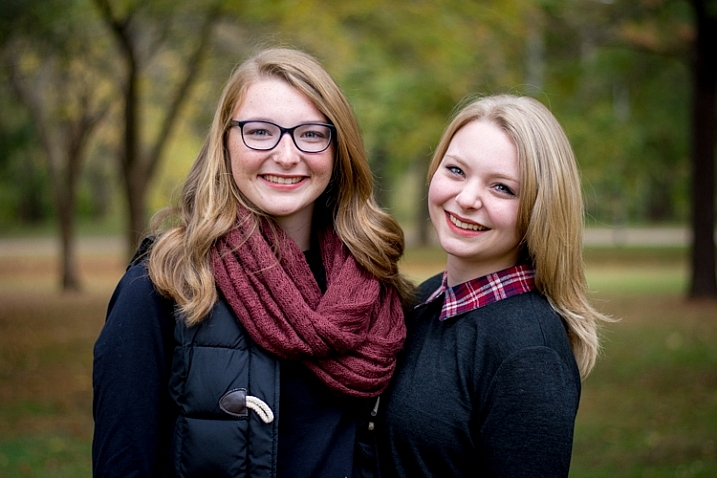
As a photographer you don’t have unlimited time, but you and your clients expect quality results, and doing so is not always cheap or easy. Fortunately Lightroom makes it simple to do a basic portrait processing job in only a few minutes, which you can then copy and paste to other similar photos, to make your work even faster.

five-minute-lightroom-portrait-processing-headshot

Before I get too deep into this article I want to make clear that the following steps are a process that works for me, but your unique solution might be a bit different. The important lesson is to find a workflow that is easy to replicate and repeat, so you don’t spent all your time doing the same types of edits over and over.

As you work with any editing program – whether it’s Lightroom, Photoshop, Capture One, or even a free tool like Photos or Picasa – it’s a good idea to find an editing style that matches your photography style. I know the look I’m going for when I edit a portrait or headshot, which might be entirely different from what you prefer. Knowing how to achieve my particular style has taken me a while, but now I find that my editing is a lot quicker, because I start each photo with a particular set of steps:

  1. White Balance
  2. Tone
  3. Sharpening
  4. Vignette

These steps are quick, usually get me 90% of the way towards a finished image, and will often result in a finished portrait with no additional editing required. Let’s look at each step one by one:

five-minute-lightroom-portrait-processing-step1-import

This original is decent but it needs some tweaks before it’s good enough to give to my client.

Step 1: White Balance

One advantage of shooting in the RAW format is that you can calibrate the White Balance of your images afterwards, whereas shooting in JPG leaves you much less leeway to edit not just White Balance, but most other aspects of the photo as well. Of course, one drawback of shooting in RAW is that calibrating the White Balance can take a lot of time, but much of this can be mitigated by using Lightroom’s eyedropper tool (targeted adjustment tool) instead of fiddling with the sliders on your own.

five-minute-lightroom-portrait-processing-white-balance

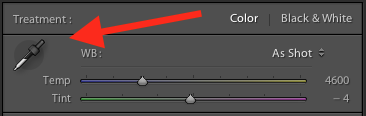
To quickly adjust the White Balance, click the eyedropper icon, then find a part of your image that is neutral in color – think slightly gray instead of pure white. The eyedropper tool might not get you the perfect overall color, but it will quickly get you close to your target, after which you can adjust the Temperature and Tint sliders to your liking.

Another tip to speed things up is to click directly on the Temperature and Tint numbers and use the up/down arrows to adjust their values, or hold down the [shift] key while doing so to make larger incremental changes.

Step 2: Tone

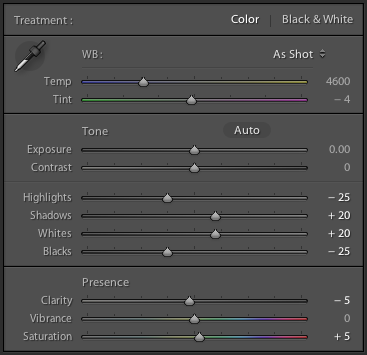
After you get your initial White Balance set, it’s time to make some initial adjustments using the rest of the Basic panel in the Develop module. To get my particular look, I almost always start off with the following values. You can change each one quickly by highlighting the numbers, entering new values, and pressing [Tab] to move to the next set of numbers instantly.

five-minute-lightroom-portrait-processing-basic-panel

Exposure 0, Contrast 0. I don’t change these values until I make the following adjustments you see below. Because they are global, and affect the entire image, that is not usually what I want to do right away. If the image is still too light or dark after doing the rest of the basic adjustments, I’ll increase or decrease exposure accordingly, but rarely do I need to adjust contrast and you’ll see why in the steps below.

Highlights -25. This helps even out the bright portions of the portrait so any spots that are a little bright are brought down a bit.

Shadows +20. This is a way of brightening just the dark parts of the portrait to bring out a little more color and definition.

Whites +20, Blacks -25. I use these sliders instead of adjusting the contrast because it gives me more granular control over the look and feel of my portraits. I’m essentially making the whites and blacks more pure, which helps give the portrait a richer look overall. Some people skip this step and make adjustments to the Tone Curve, but it’s all a matter of personal preference, though I usually find the white/black adjustments to be quicker.

Clarity -5. Most people bump up the clarity slider which essentially affects edge contrast mostly in the midtones, but I like a slightly more subdued look so I usually start by lowering it a few notches.

Vibrance 0 (zero). This slider mostly affects colors outside the normal range of human skin, so it can be useful if you shoot outdoors and want to make the nature colors pop. I leave it at zero as a general rule, and then adjust later as necessary.

Saturation +5. I usually like a bit more color to start things off, so I start with a small value increase here, and then go up or down as necessary.

I always start with these adjustments, and then tweak as necessary. The whole process only takes a minute and almost always results in an image that is dramatically improved over the initial import.

five-minute-lightroom-portrait-processing-step2-color

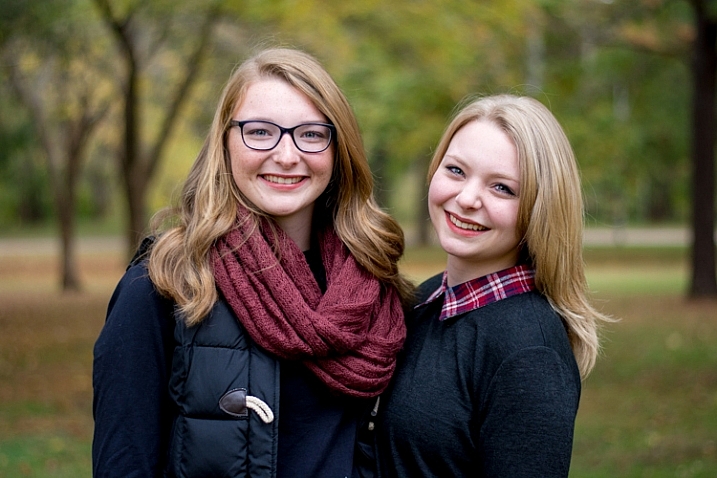
This image is already more vibrant than the initial picture even though most of the adjustments were very basic.

Step 3: Sharpen

After the color and tonal adjustments are finished, I almost always apply some degree of sharpening to the image. With portraits, it’s essential that the eyes be in focus and sharp, so the next thing after Basic adjustments, is to use the Detail panel to get the sharpening you want.

five-minute-lightroom-portrait-processing-step3-sharpen

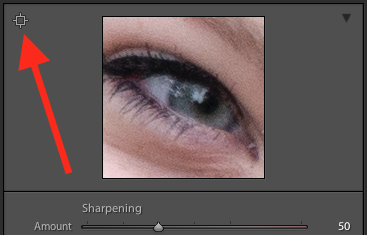
Click the targeting symbol in the top-left corner and then click on your subject’s eye to get a zoomed in view, then adjust your sharpening accordingly. I usually start with a value of 50 and then tweak additional parameters like Radius or Detail if I need to, but this basic adjustment is quick and usually gets me right near where I want.

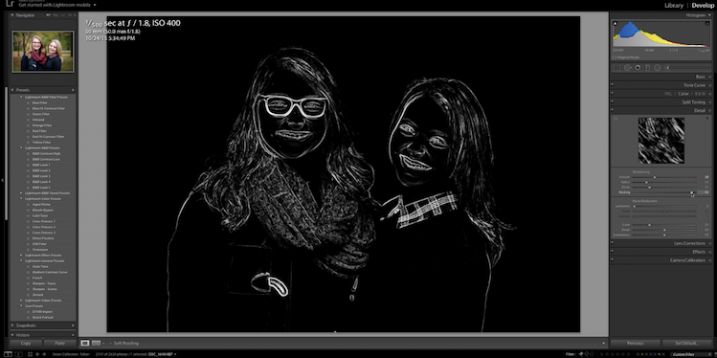
I also apply a mask to the sharpening so it doesn’t apply to areas like faces. This helps keep the eyes sharp without adding unwanted texture to people’s skin. If you hold down the ALT key while you click the Masking slider you will see something like this (below). The white areas are where sharpening will be applied, the black areas will not. Use this to decide how far you want to take the masking on your portrait.

five-minute-lightroom-portrait-processing-step3-sharpen-mask

Step 4: Vignette

This one is a bit controversial – some people like vignettes, and some think they are an abomination unto modern photography, but as I said in the beginning this is all about finding a style and workflow that works for you. I usually add a slight vignette to my portraits, but if that’s not your thing then you can skip this step altogether. It’s not part of everyone’s five-minute workflow but it fits neatly in with mine, which is why I’m including it here. I only use a little bit of highlight priority, dark vignette, and try to keep the effect subtle.

five-minute-lightroom-portrait-processing-step3-vignette

That’s it – finished

Doing these four steps won’t always lead you to a finished portrait, but as the title of this article implies, you can usually get to a very nicely-edited portrait in under five minutes with these simple steps. You might have additional adjustments like adjustment brushes, spot removal, or red-eye corrections to do afterwards, but this will get most of the essentials out of the way.

five-minute-lightroom-portrait-processing-step1-import

Before

five-minute-lightroom-portrait-processing-step3-vignette

After – subtle but you can see the differences

Save your settings as a Preset

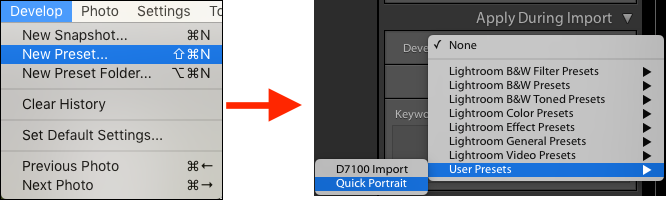
One final way to speed things up even more is to create a preset based on your workflow, which you can then apply to all photos on import.

five-minute-lightroom-portrait-processing-new-preset

If you take this angle, be sure to err on the side of caution and be a bit more conservative with your edits when creating the preset. You probably won’t want want to apply the same dramatic alterations to every single photo, but if you do find yourself reusing the same workflow over and over it might be worth your time to do an import preset.

Alternatively, you can create a preset and apply it at will after import by right-clicking on any photo in the Develop module, and choosing your preset from the “Develop Presets” shortcut (or find it in the Develop Presets panel on the left side panel of Lightroom).

What quick portrait processing tips work for you? Are there any specific actions you have found that save you a great deal of time? Share your thoughts in the comments below, and any example images of what your finished portraits look like are always welcome.

googletag.cmd.push(function() {
tablet_slots.push( googletag.defineSlot( “/1005424/_dPSv4_tab-all-article-bottom_(300×250)”, [300, 250], “pb-ad-78623” ).addService( googletag.pubads() ) ); } );

googletag.cmd.push(function() {
mobile_slots.push( googletag.defineSlot( “/1005424/_dPSv4_mob-all-article-bottom_(300×250)”, [300, 250], “pb-ad-78158” ).addService( googletag.pubads() ) ); } );

The post How to do Basic Processing on a Portrait in 5 Minutes Using Lightroom by Simon Ringsmuth appeared first on Digital Photography School.


Digital Photography School

 
Comments Off on How to do Basic Processing on a Portrait in 5 Minutes Using Lightroom

Posted in Photography


Processing Black and White Photos with OnOne Perfect B&W

18 Aug

Black and white photography is classy and powerful. When properly done, it can be enticing and dramatic. In fact, a great portion of fine art photography hanging in galleries is monochromatic. In the age of film, all it took was to load black and white film into your camera, but nowadays most digital camera sensors are recording images in color and with that, if you want to explore the black and white world, you’ll have to convert your images in the post-processing stage.

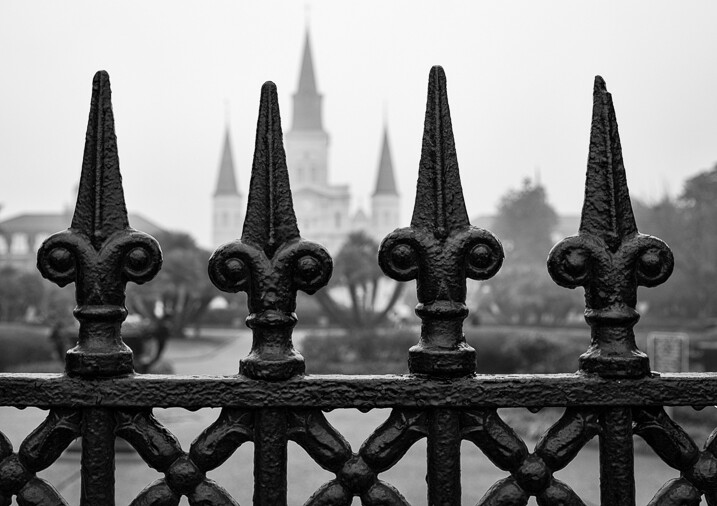
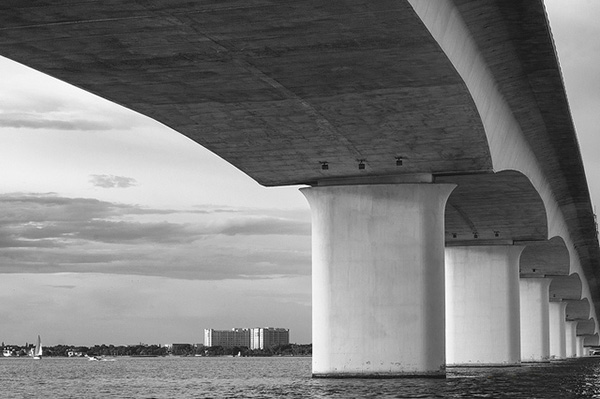
Close up of iron fence around Jackson Square in New Orleans with the St. Louis Cathedral behind.

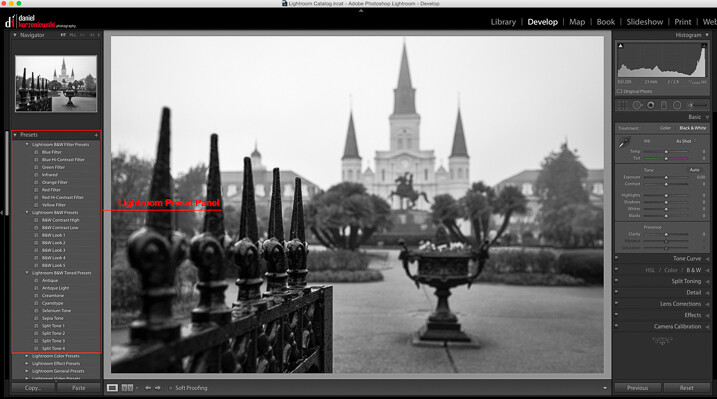
When it comes to converting and processing photos to black and white, there are a number of options. If you are a Lightroom user, there is a black and white option within the Basic Develop panel as well as some presets that come preloaded. All you need to do is click on them, and tweak the sliders until you get the desired effect.

Processing-black-white-photos-onone-perfect-bw-2

There are also, of course, more sophisticated alternatives that could help make your work easier. Among those, Perfect B&W from OnOne Software is one of my favorite options. This application can be used as a plug-in with Adobe Photoshop, Lightroom, Photoshop Elements, Apple Aperture, or as a standalone app. OnOne offers a full set of applications called Perfect Photo Suite, Perfect B&W is included in it, but it can be also purchased separately as a standalone application.

The idea behind this product is to help you to easily enhance your photos. There are controls to adjust tone, curves, color response via filters, and borders – and of course, it also comes with different types of presets. You’ll also be able to create your own presets and save them as well.

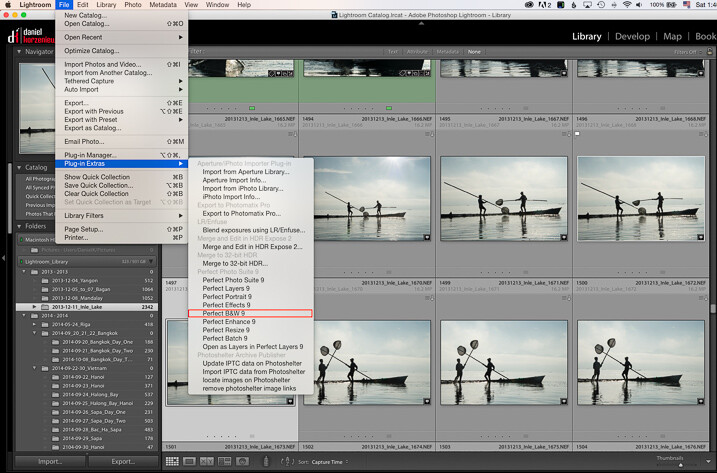
As I am an Adobe Lightroom user, I’ll demonstrate some of the features of the product by opening it from there. To launch the application, you need to select an image from the Library or Develop Module and go to the File Menu, then select Plug-In Extras and navigate to Perfect B&W 9.

Processing-black-white-photos-onone-perfect-bw-3

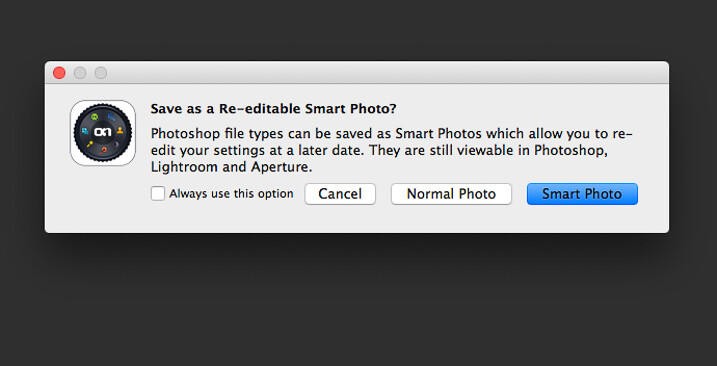
One of features that you’ll probably like is the possibility to save all your changes as a Smart Photo. It means that even after your edits are done, you’ll be able to come later and redo your settings. This way, you are working in a nondestructive way. The application will pop up a dialog box when you launch it, asking if you want to edit in this work mode.

Processing-black-white-photos-onone-perfect-bw-4

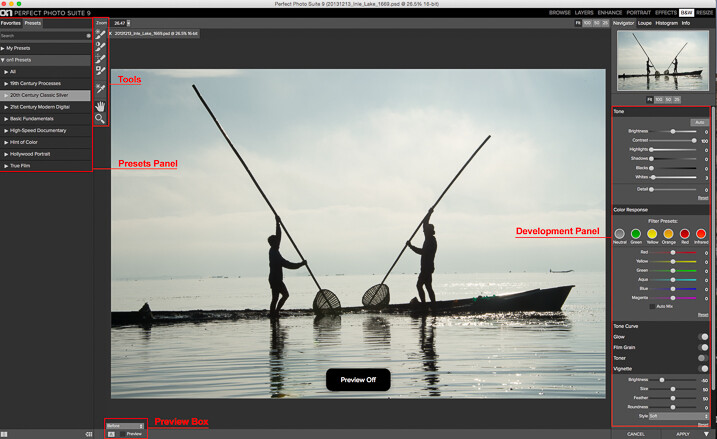
Once the applications opens, the layout is similar to what you find inside Lightroom. The preset panel is on the left and the develop options are on the right. There is also a set of tools that let you selectively add more contrast, brightness, or even mask entire areas in case you want to do a selective color treatment.

Processing-black-white-photos-onone-perfect-bw-5

Once you are ready to work, you have the option to start by selecting the different presets, or just working with the sliders in the development panel. You need to be sure that you have selected the preview option at the bottom to see the effect on the image; you can toggle back and forth to show the before and after.

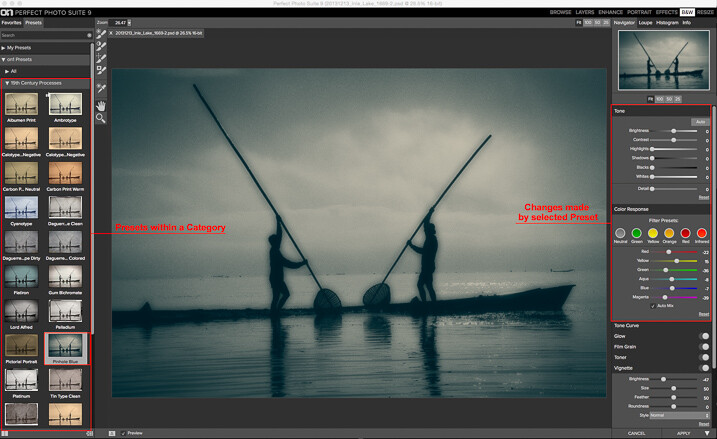
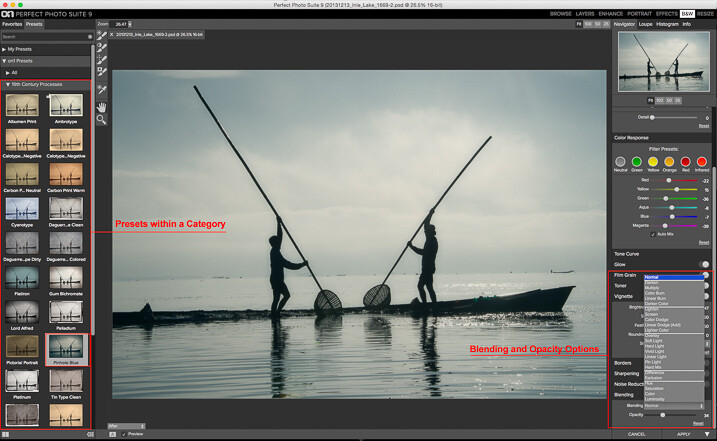
My preferred way of working is to use one of the presets as a base or staring point, then modify it to my liking with the sliders. The presets are divided into eight categories, as follows:

  • 19th Century Processes
  • 20th Century Classic Silver
  • 21st Century Modern Digital
  • Basic Fundamentals
  • High Speed Documentary
  • Hint of Color
  • Hollywood Portrait
  • True Film

The names are pretty much self-descriptive, and if you click on them, you’ll see all the presets within that category with previews on the side panel itself.

Processing-black-white-photos-onone-perfect-bw-6

As you can see in the image above, the application also allows for duotone images by combining the use of color filters, so you are totally flexible on the type of look you can create. For example, if I click the Pinhole Blue preset from the 19th Century Process, the software will create that effect, and you’ll see how some the sliders from the Develop Panel changed to create it.

From there you can pretty much tweak the image any way you want, and there is also an option where you can select the blending mode, exactly the same way layers work in Photoshop. You can also drop the opacity for a more subtle effect. In the example below I reduced the opacity to 34 percent.

Processing-black-white-photos-onone-perfect-bw-7

The different old century presets are great to create all the vintage looks that are so popular today, with just a few clicks and without the need to know more complicated software.

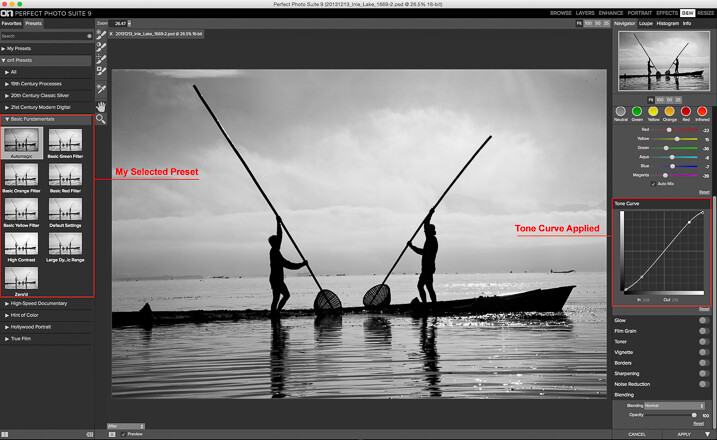
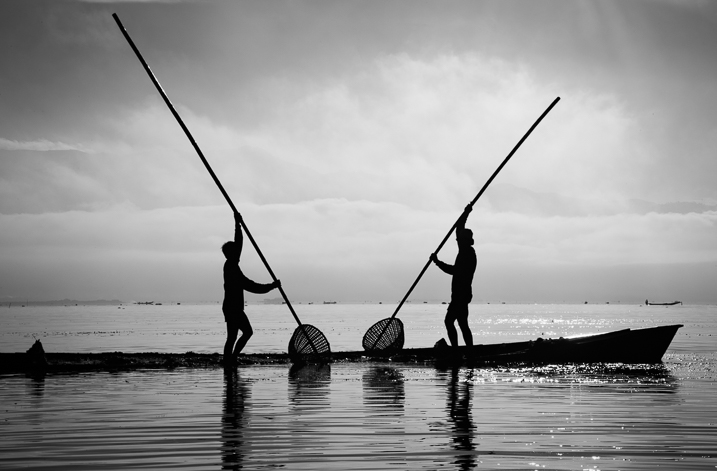
For my final image, I selected Automatic from the Basic Fundamentals, then added contrast by adjusting the Tone Curve. I also moved the Detail slider to 15 so the ripple effect on the water was more noticeable; it also helped to add some drama to the sky.

Processing-black-white-photos-onone-perfect-bw-8

As I knew I wanted to re-crop the image, I didn’t add any other effect here, so I went back to Lightroom cropped the image, then added a vignette.

Processing-black-white-photos-onone-perfect-bw-9

OnOne Perfect B&W is a well-rounded application and a powerful tool for black and white conversions. I believe the best way to judge it is to give it a try. The good thing is that the company is offering a thirty-day trial, so it won’t cost you to play with it; moreover, you can download and test the full suite if you want. The regular price for the standalone application is $ 59.95 and the complete suite is $ 149.95. They can be downloaded straight from the OnOne website.

Editor’s Note: This is second last of a series of articles this week featuring black and white photography tips. Look for earlier ones below and the last one later today.

  • 5 Simple Ways to Create Expressive Photos in Black and White
  • Tips for Black and White Wildlife Photography
  • 7 Tips for Black and White Portrait Photography
  • 28 Images with Strong Black and White Compositions
  • Weekly Photography Challenge – Black and White Techniques
  • Tips for Black and White Wildlife Photography
  • How to Convert Images to Black and White and Add a Color Tint in Photoshop
  • Shooting all Black and White for a Day to Improve Your Photographic Eye
  • Split Toning Black and White Images in Lightroom

googletag.cmd.push(function() {
tablet_slots.push( googletag.defineSlot( “/1005424/_dPSv4_tab-all-article-bottom_(300×250)”, [300, 250], “pb-ad-78623” ).addService( googletag.pubads() ) ); } );

googletag.cmd.push(function() {
mobile_slots.push( googletag.defineSlot( “/1005424/_dPSv4_mob-all-article-bottom_(300×250)”, [300, 250], “pb-ad-78158” ).addService( googletag.pubads() ) ); } );

The post Processing Black and White Photos with OnOne Perfect B&W by Daniel Korzeniewski appeared first on Digital Photography School.


Digital Photography School

 
Comments Off on Processing Black and White Photos with OnOne Perfect B&W

Posted in Photography


Tiffen adds more filters, looks and faster processing with version 4 of its Dfx software

14 Apr

Tiffen has announced an updated version of its Dfx photo and video editing software that adds new filters, historic process simulations and extra tools, as well as wider compatibility with movie editing programs. Tiffen Dfx produces effects like those created by the company’s optical glass filters, with the latest version 4 adding 12 extra ‘filters’ to the menu system, including the company’s new Pearlescent and Satin diffusers. Read more

Articles: Digital Photography Review (dpreview.com)

 
Comments Off on Tiffen adds more filters, looks and faster processing with version 4 of its Dfx software

Posted in Uncategorized


Basic Portrait Processing in Lightroom

24 Jan

Over the past few years I have learned a great deal about doing portraits, especially of young kids. I think it’s because I get so much enjoyment out of these types of shoots that I end up doing them more, though at some point it hardly seems fair because I wonder if I’m having more fun than the children whose pictures I am taking.

While each session is unique, I have developed my own style (which, in many ways, will always be a work in progress as I continue to learn new things) when it comes to both the shooting and editing process, and I thought it might help those who are new to this type of photo session to see a few examples along with an explanation of the creative choices I made along the way. I do all my edits in Lightroom, and while I sometimes need to do some more in-depth adjustments in Photoshop, 98% of all the pictures I give to clients don’t need anything more than what Lightroom can do. If you don’t have this software, I highly recommend it!

DSC_8127

Get it in camera first

Before I get to the editing portion of this piece, I need to clarify one thing: no amount of editing can make up for initial on-location mistakes, which is why it’s so critical to get the initial picture as good as you can right from the beginning. This involves things like choosing a good place to take the photos, finding the right time of day, and communicating with your subjects (and their parents, if you are working with kids). Along with that are your own creative choices such as your aperture and focal length, the composition of your shot, the angle from which you choose to shoot, the lighting manipulation you use, and a host of other elements that have an enormous impact on the final outcome of any given photo session.

Of course if you work in a studio you have much greater control over some of these items, but at the end of the day a poorly-shot initial photo will remain exactly that, no matter how much you try to edit it in Lightroom or Photoshop. I say all this to make sure you understand that editing tools are not a magical cure-all to make all your pictures shine. And the best way to make sure your photos are as good as they can be from the beginning is to focus not on the editing, but on basics like exposure, lighting, framing, and composition. It also helps to shoot in RAW, not JPEG, in order to maximize the amount of data you can work with on each individual photograph.

DSC_6792-original

Basic portrait processing in Lightroom

I shot this picture with my Nikon D7100 at 50mm, f/1.8, ISO 200. Since the sun was setting and I was not working with off-camera strobes, my lighting options were a bit limited. I had his father stand behind me with my Neewer 43-inch reflector to capture a bit more of the available light. (If you don’t have one of these, I recommend getting one. They are quite cheap and a fantastic addition to any camera setup.)

histogram

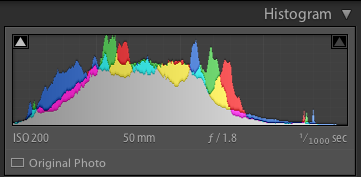
The initial photo was a bit underexposed, as shown in the histogram as well.

I also chose to frame the child with the green bush in the background, and of the half-dozen images I got of this particular pose I liked this one in which he was not quite looking at the camera. Often when working with kids I have found that the best images are a bit more candid as opposed to posed, but again, this is a creative choice you will have to make for yourself. Finally, I made sure to shoot this in RAW to take advantage of as much data as possible in order to correct some things back at my computer. Right away you probably noticed that the image is a bit too dark, which was the first thing I fixed in Lightroom.

A quick look at the histogram showed me that overall I got things pretty good in camera, but to make it look a bit better I increased the exposure by 1.2 stops, as well as cropped it a bit to focus the viewer’s attention on the boy’s face without the distracting red building in the background.

DSC_6792-2

First edits: Cropped and increased the exposure by 1.2 stops.

So far so good, but there’s still a lot of work that needs to be done. While the overall brightness was better, the colorization was still a bit off. The initial white balance settings determined by my camera were 4900K and -9 tint, but I wanted something a bit warmer so I increased the temperature to 5700K and changed the tint to -7.

DSC_6792-3

Second edits: adjust white balance and tint.

I liked this much better, but there were still some things that needed fixing. Now that the overall photo was properly exposed, there were some parts that were a bit too bright which was handled by lowering the highlights slider by -19. After that I increased the saturation to +6 and added +4 contrast as well.

DSC_6792-4

Third edits: lower highlights, increase saturation and contrast.

I was much happier with this, but it’s important to remember that all of the changes you make to a photo in post-production are based on your own creative ideas and there is no right or wrong way to do things. Some people like images that are desaturated, some prefer selective coloring (i.e. one part is colorized or over-saturated while the rest of the image is more black-and-white), others use cropping to achieve different effects. The sky really is the limit. One thing I like to do from time to time is add a subtle vignette effect (using Post Crop Vignette at -26, Highlight Priority), which I did here to result in the final image I gave to the client.

DSC_6792-5

Final edits: add a bit of an edge vignette, other minor color adjustments.

You might look at this and think the colorization is a bit off, or the vignette should be stronger, or the entire framing should be different, but the beautiful part of photography is that we all have our own opinions on how to do things. I was happy and so were my clients, which is all that matters to me.

DSC_1776

In this photo I used the Brush tool to selectively desaturate the orange strip on the boy’s shirt, and the Radial Filter to add a more precise vignette.

I do think it’s important to maintain a sense of reality in photos, though, and not let the editing get out of hand. It’s easy to feel like an all-powerful genie when you start playing around with the tools in Lightroom, Photoshop, or other editing software, but my rule of thumb when editing is to try to make the final image represent what I saw, when I initially took the photo. In the above image, for example, the orange strip on the boy’s shirt was a bit distracting, so I was able to selectively desaturate it quite a bit with Lightroom’s Adjustment Brush tool. This, along with other edits similar to the ones described above, resulted in a photo that my client was quite pleased with.

My point is that it’s great to have these editing tools available but If I start to lean too heavily on the saturation, bump up the clarity to absurd levels, or making dozens of small changes with the brush tool, I usually end up with photos that bear little resemblance to the original and come across as emotionless and empty.

What about you? What style have you developed over the years, and what approach do you use when you sit down to edit? Post your thoughts in the comments section below.

googletag.cmd.push(function() {
tablet_slots.push( googletag.defineSlot( “/1005424/_dPSv4_tab-all-article-bottom_(300×250)”, [300, 250], “pb-ad-78623” ).addService( googletag.pubads() ) ); } );

googletag.cmd.push(function() {
mobile_slots.push( googletag.defineSlot( “/1005424/_dPSv4_mob-all-article-bottom_(300×250)”, [300, 250], “pb-ad-78158” ).addService( googletag.pubads() ) ); } );

The post Basic Portrait Processing in Lightroom by Simon Ringsmuth appeared first on Digital Photography School.


Digital Photography School
 
Comments Off on Basic Portrait Processing in Lightroom

Posted in Photography


Step by Step Portrait Processing in Lightroom

21 Sep

Andrew’s ebook Mastering Lightroom: Book Four – The Photos is available now at a special price of 40% off for a limited time from Snapndeals. It’s an advanced guide to processing photos in Lightroom’s Develop module, explaining how to use Lightroom’s powerful processing engine plus Develop Presets and plug-ins to create beautiful images. This photo is one of ten case studies from the book.

Portrait processing in Lightroom

The story

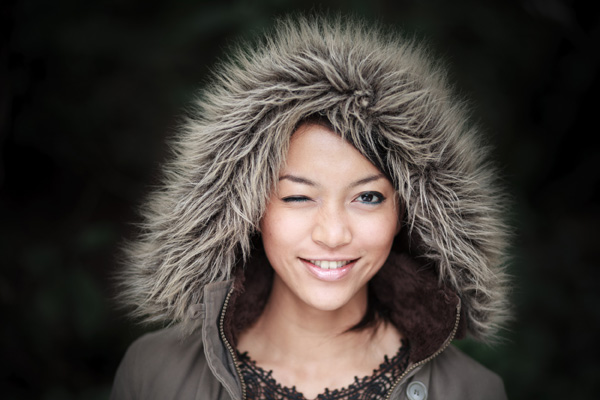
When you are photographing someone who enjoys being in front of the camera, take advantage of it. This was a simple portrait to take and its strength comes from the model’s spirit, not fancy technique. I’ve worked with her before and know that she is good at creating different facial expressions. I asked her to give me a series and every time she changed her expression I took another photo. Experienced models will pose, pause until you take the photo, and then move onto the next one, making your job as a portrait photographer much easier.

You can’t see it in this photo but the model was holding a silver reflector slightly beneath her shoulders. The reflected daylight created a wonderful clean lighting effect that made processing the portrait much easier.

First steps

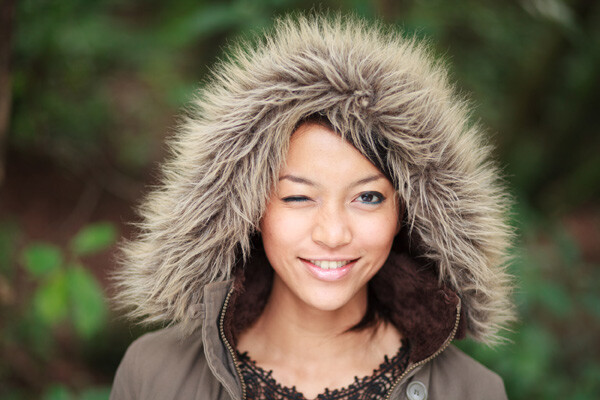
Here’s the original portrait as it appeared straight out of the camera. It was taken with an 85mm lens set to f/1.8, throwing the background out of focus.

Portrait processing in Lightroom

I knew from the start that I wanted the model’s expression to be the focal point of the portrait. The use of a short telephoto lens and a wide aperture has partly achieved that, but the photo required more work. The first task was to tackle the background. Although out of focus, its brightness was a big distraction. My main job here was to make the background darker so the viewer’s eye goes straight to the model.

My hope today is that by following this tutorial and applying the techniques I used to your own photos, you will learn how to create better portraits in Lightroom.

Step 1: Basic adjustments

I prepared the photo by going to the Camera Calibration panel and setting Profile to Camera Portrait. Next I went to the Lens Corrections panel and enabled Chromatic Aberration removal and Profile Corrections, setting Vignetting to zero.

I wanted clean, neutral skin tones, so I went to the Basic panel and moved the Temp slider slightly (from 4850 to 4520) to remove the warm tint.

Step 2: Add a vignette using the Radial Filter

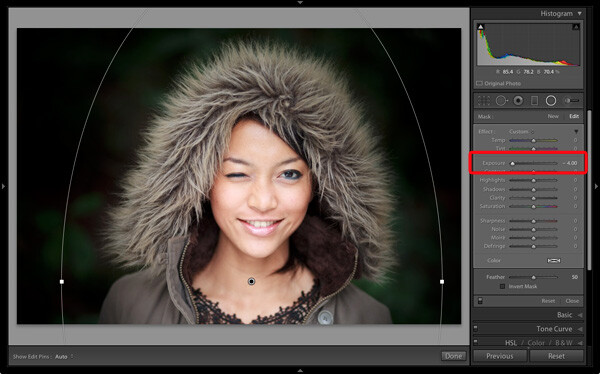
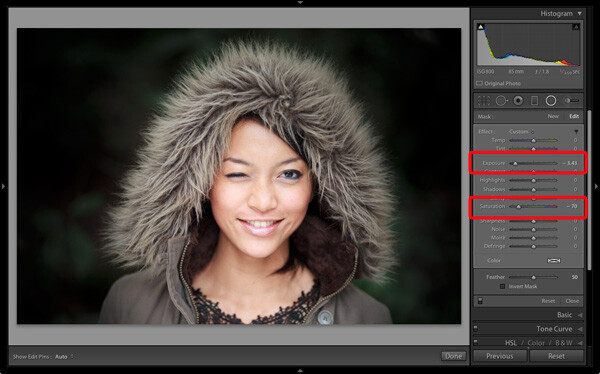
Next I used the Radial Filter tool to make the background darker. I placed the filter so that the top half surrounded the model’s face and shoulders. In this position the Radial Filter can be used to make the area either side and above the model darker, without affecting the bottom part of the portrait. I set Exposure to -4.0 to see the area affected by the adjustment.

Portrait processing in Lightroom

When I was happy with the position of the Radial Filter I reset Exposure to zero, then reduced it until the background went quite dark. I also set Saturation to -70 to remove colour from the background. How much you push the Exposure slider in this situation is always subjective. Some of you will want to retain a fair amount of detail in the background, others will be content to make it go completely black.

Portrait processing in Lightroom

Note: Radial filters are new to Lightroom 5. In earlier versions the best way to achieve a similar effect would be to place a Graduated Filter on either side of the model, and use Adjustment Brush adjustments to fill in the gaps. An alternative technique is to use the Post-Crop Vignetting tool, and lighten any areas that are too dark (such as the model’s shoulders in this example) with the Adjustment Brush tool.

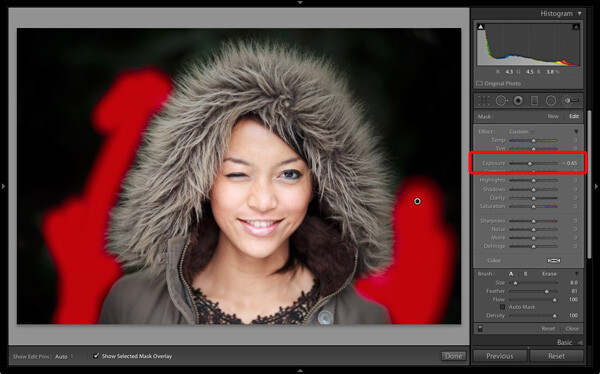
Step 3: Refine the vignette with the Adjustment Brush

While the Radial Filter is an excellent tool for making backgrounds darker, it’s not perfect. The feathering required for a gradual transition may leave some areas of the background close to the subject too light. In this case there were still areas around the hood that were a little bright.

So I used the Adjustment Brush tool to select those areas and reduced Exposure (to -0.65) to make them darker. I didn’t have to be precise with the placement of the Adjustment Brush as the background was already quite dark and out of focus.

Portrait processing in Lightroom

Tip: If you find that the use of the Adjustment Brush is obvious, try setting Feather to 100 and Flow to 50%. This lets you build up the effect little by little instead of doing it all in one brush stroke.

Step 4: Retouching with the Adjustment Brush

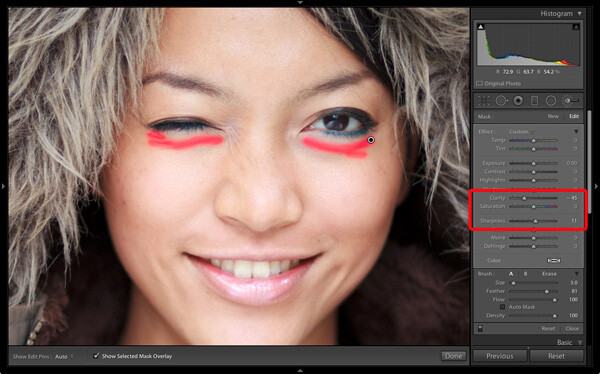
This portrait didn’t need much retouching, but there were still a couple of things I wanted to do. The first was to minimize the lines under the model’s eyes. Note that I didn’t want to get rid of them completely, as they are a natural part of her expression. The lines were created by her smile and winking action, and removing them would look unnatural.

I used the Adjustment Brush tool (zoomed in), and carefully painted over the lines under her eyes. I kept the brush size small so as not to affect the neighbouring areas.

Then I selected the Soften Skin preset from the Effect menu. Lightroom applied the skin smoothing effect at full strength by setting Clarity to -100 and Sharpness to +25. This was too strong. To reduce it, I clicked on the pin that marked the Adjustment Brush, held the left mouse button down and dragged the mouse left. Lightroom reduced the intensity of the effect by moving the Clarity and Sharpness sliders in proportion (this technique works with any setting from the Effect menu). I stopped when it looked right (Clarity -45, Sharpness +11).

Portrait processing in Lightroom

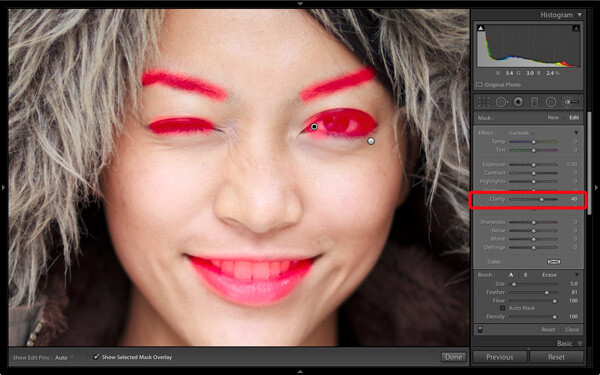
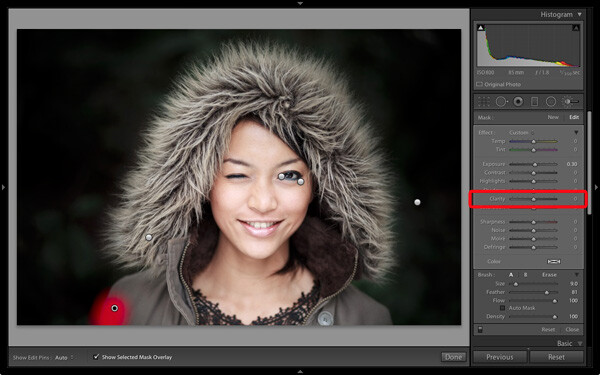
I created a new Adjustment Brush to cover the model’s eyes, mouth and eyebrows. I pushed the Clarity slider to +40 to bring a bit of extra sharpness and contrast to those areas. The screen shot shows the areas covered by the Adjustment Brush.

Portrait processing in Lightroom

Step 5: Framing the portrait

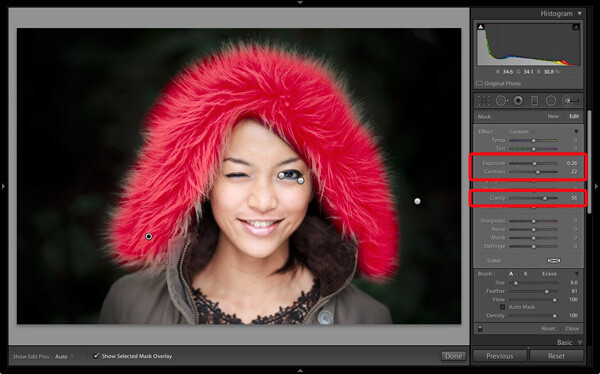
The model’s hood creates a natural frame for her face and is an essential part of the composition. I decided to emphasize it by using Clarity to bring out the texture of the fur.

I created another selection using the Adjustment Brush tool and increased Clarity (to 56), Contrast (to 22) and Exposure (to 0.26). The hood is a frame that draw the viewer’s eye to the centre of the frame, and these adjustments help to emphasize it. I needed to find the balance between emphasis and distraction; highlighting the beautiful texture of the fur lined hood without pulling too much attention away from the model’s expression. This screen shot shows the area covered by the Adjustment Brush.

Portrait processing in Lightroom

Next I went to the Basic panel and reduced Vibrance to -14 to de-emphasize the colours a little more. Finally, I used a small Adjustment Brush to lighten the edge of the model’s right shoulder, which had been darkened by the Radial Filter adjustment earlier. The area covered by the Adjustment Brush is shown in the screen shot.

Portrait processing in Lightroom

Comparing before and after results

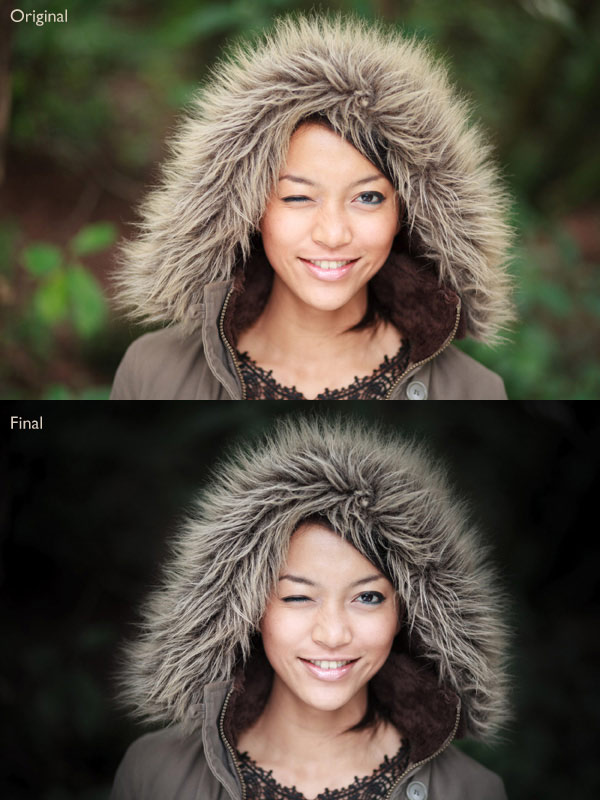
Here are the original and final versions together so you can compare them.

Portrait processing in Lightroom

What do you think of these processing techniques? There’s more than one way to process most photos – do you have any suggestions for an alternative interpretation of the original Raw file? Please let me know in the comments.

Mastering Lightroom: Book Four – The PhotosAndrew’s ebook Mastering Lightroom: Book Four – The Photos is available now at a special price of 40% off for a limited time from Snapndeals. It’s an advanced guide to processing photos in Lightroom’s Develop module, explaining how to use Lightroom’s powerful processing engine plus Develop Presets and plug-ins to create beautiful images. This photo is one of ten case studies from the book.

The post Step by Step Portrait Processing in Lightroom by Andrew S. Gibson appeared first on Digital Photography School.


Digital Photography School
 
Comments Off on Step by Step Portrait Processing in Lightroom

Posted in Photography


How to use Lightroom Develop Presets to Learn Processing Tips

24 Jul

Learn Lightroom from Develop Presets

In my previous article you learned how to create a vintage effect using Lightroom. I started by showing you some Lightroom Develop Presets you can use as a shortcut, and finished by demonstrating some techniques you can use yourself. The hidden message in the article was that one way to learn how to use Lightroom is to buy some Develop Presets (or download some free ones) and analyze them to see how they work. You can then apply the same techniques to your own photos, and even create your own Develop Presets.

Today I’m going to give you some tips on analyzing other people’s Develop Presets. I’m going to do it using some presets I downloaded from onOne Software. These are free presets that anyone can download and use themselves (just follow the link), so it is easy for you to follow along.

Preset: onOne Instantastic – Daisy

The Daisy preset, part of the onOne Signature Collection Presets (Vol. 2), gives an Instagram filter effect. There is a slight matte effect and a blue colour cast.

Learn Lightroom from Develop Presets

A. Original photo B. Daisy preset

Vibrance and saturation adjustments

This preset uses two techniques to create the colours. The first is applied in the Basic panel. The preset increases Vibrance to +20, and reduces Saturation to -20.

Learn Lightroom from Develop Presets

To understand the effect of these tweaks you need to know the difference between Saturation and Vibrance. Saturation affects all colours in the photo evenly. Reducing Saturation to -20 has a uniform effect on all the colours within the frame.

Vibrance, on the other hand, affects the least saturated colours in the photo the most. The net effect of decreasing Saturation and increasing Vibrance is that the strongest colours in the frame are desaturated while other colours are not desaturated nearly so much.

Learn Lightroom from Develop Presets

A. Vibrance 0, Saturation 0 B. Vibrance +20, Saturation -20

Tone Curve adjustments

The rest of the colour adjustment is carried out in the Tone Curve panel, with two adjustments to the blue and red Tone Curves. Here’s what the adjustments look like.

Learn Lightroom from Develop Presets

Raising the blue curve on the left creates a matte effect and a blue colour cast. Pulling the right hand side of the curve down adds yellow (the opposite of blue) to the highlights. This comparison shows the difference.

Learn Lightroom from Develop Presets

A. Blue curve lifted on left. B. Blue curve lifted on left and pulled down on right.

The red curve adjustments are also a subtle colour and tonal adjustment. Moving the bottom left corner to the right adds cyan and makes the shadows a little darker.

Moving the top right corner to the left adds magenta and makes the highlights a little brighter.

This comparison shows the difference the red Tone Curve adjustment makes. The difference is subtle, so you may have to look closely.

Learn Lightroom from Develop Presets

A. Blue Tone Curve adjustment only. B. Blue and red Tone Curve adjustments combined.

Preset: Nicolesy Matte 3

The Matte 3 preset, part of the Nicolesy Matte Presets for Adobe Lightroom 5 set, creates a subtle matte effect and a red colour cast.

Learn Lightroom from Develop Presets

A. Original photo. B. Matte 3 preset.

The Develop Preset does its work in the Tone Curve and Split Toning panels. Let’s take a look at each.

Tone Curve adjustment

The Tone Curve adjustment combines two adjustments in one to the RGB curve (the colour curves haven’t been touched). First, the bottom left corner has been moved upwards to create a matte effect. Second, the center of the RGB curve has been pushed gently upwards, making the mid-tones brighter. The net effect of this Tone Curve adjustment is to add a matte effect and make the mid-tones brighter at the same time. This comparison shows the difference it makes.

Learn Lightroom from Develop Presets

A. Linear Tone Curve. B. Adjusted Tone Curve.

Split Toning

The colour has been added to the photo using the Split Toning panel. The preset adds hot pink to the Shadows, and a luminescent green to the Highlights, with the Balance slider pushed to the right to give prominence to the green tone. This comparison shows the difference the split tone makes:

Learn Lightroom from Develop Presets

A. No Split Tone. B. With Split Tone.

Putting it all together

In my last article I wrote that buying Lightroom Develop Presets made by other people (or downloading free ones) is a shortcut to creating effects like these. One benefit of using other people’s presets is that you can take advantage of their knowledge and hard work and use the presets for yourself.

But the main advantage is that other people’s presets can introduce you to new and creative ways of processing your photos, using techniques that you may never have thought of by yourself. The real benefit comes when you take a close look at the settings altered by the preset and take the time to understand how they work. Your understanding of Lightroom will become deeper as you do, so that you can use these techniques in your own photos.

For example, in this article you have learned how to use the Tone Curve panel to create a matte effect and change the colours in your photos. You have also learned how to use the Split Tone panel in combination with a Tone Curve adjustment to create another type of matte effect. The rest is up to you.

Can you come up with ways to use these techniques creatively on your own photos? What Tone Curve adjustments can you make? What Split Tone combinations can you apply? Have fun, experiment and good things will surely follow.


Mastering Lightroom: Book Four – The Photos ebookMastering Lightroom: Book Four – The Photos

My new ebook Mastering Lightroom: Book Four – The Photos takes you through ten beautiful examples of photography and shows you how I processed them step-by-step in Lightroom. It explores some of my favourite Develop Presets and plug-ins as well as the techniques I use in Lightroom itself. Click the link to learn more.

The post How to use Lightroom Develop Presets to Learn Processing Tips by Andrew S. Gibson appeared first on Digital Photography School.


Digital Photography School
 
Comments Off on How to use Lightroom Develop Presets to Learn Processing Tips

Posted in Photography


Tips for Shooting and Processing Better Black and White Photographs

01 Jun

Photography, as you know, is fundamentally the capturing of light; you are not taking pictures of objects as much as you are recording the light that is bouncing off of them. In the early days of photography, the only medium available to capture this light was monochromatic film, commonly known as black and white. In the 1930s, the invention of Kodachrome, the first successfully mass-produced color film, ushered in an age of color to the art form.

Bw article3 NEW

Instead of fading away, however, black and white photography remained throughout the birth of color, and even increased in popularity in the following decades, due to its simplicity and ability to display tones more dramatically than color usually can.

What makes black and white photography retain its timelessness? A compelling picture is always based on the same fundamentals; lighting, tonal range, shapes, patterns and textures. A black and white photo breaks these fundamentals down to their basics, and is not hindered by the distraction and complexity that color can sometimes contribute. It is truly an art form. The reality of a scene depicted in color is transformed into an artistic interpretation when shown in shades of grey.

So what do you need to understand in order to produce a great monochrome photo?

Visualize in Black and White

One of the most helpful things you can do is something that takes place before you even click the shutter button. Training yourself to envision a scene in black and white will help determine if it will work in that state, or if it would be better left to color. Since you won’t have color in the final shot, you’ll need to visualize the core of the scene instead:

  • How is the light behaving on the objects in the scene?
  • What forms are involved?
  • Are there lights, darks, and shades in between, giving you a good tonal range?

Scenes that contain contrast and texture will usually provide a good end result when converted to black and white. Fortunately, you can apply monochrome to almost any type of photography, including landscape, portrait, and street photography. The resulting feel of the image depends on the subject; landscape shots of the ocean will have more highlighted textures of the waves, and street portraits done in black and white can have a grittier, more dramatic feel.

031814 siestaguarshack2 sized

Taking the Shot

Many of the basic principles of photography apply when shooting for black and white as well. You’ll need to compose the scene properly, utilizing the rule of thirds where applicable, and properly expose the shot. As always, you’ll want to shoot in RAW, so that any necessary adjustments can be made such as exposure and levels before you begin post-processing.

When composing, pay special attention to the lines and shapes in the image. These components are even more important when the photo is desaturated.

Finally, you may benefit from using a polarizing filter. This lens attachment will reduce, or remove, reflections that may be apparent in water or other shiny surfaces. Since these reflections could take away focus from your subject matter, it’s best to do this during the shooting process rather than post-production.

040613 siesta feet sized

Post-production

The most important step in this process is actually converting the shot into black and white. While almost all DSLRs have the ability to shoot in black and white initially, you’re losing an important advantage; the photo will permanently be monochrome. Photographers sometimes think that a poor image can somehow be “saved” by being converted into black and white; this is not always the case. If you shoot in JPG format and the black and white (monochrome) setting on your camera, you’ll be producing a black and white JPG image, and lose the ability to convert to color or take advantage of RAW adjustments. BUT if you shoot in RAW in this mode you will still have all the colour data but have the advantage of seeing a black and white preview on the camera screen.

Black and white conversions in an image editor such as Photoshop can usually be categorized in two ways; destructive, and non-destructive. Obviously, destructive methods actually modify pixels and cannot be easily adjusted. Converting directly to greyscale is a long-used example of this method. Preferably, you want to use a non-destructive method that will allow you to make continued adjustments to the image until you have the tone and shading desired.

The easiest method (and the one that I prefer) is to use the Hue/Saturation/Luminosity tab in the RAW importer in Photoshop (the HSL panel in Lightroom also does the same thing). Alternatively, you can accomplish the same thing (albeit with a bit less control) by using a Channel Mixer adjustment layer after you’ve imported the RAW file into Photoshop.

Converting to Black and White with the RAW HSL Controls

Not only does this method offer more control than simply desaturating the image, it keeps the color profile loaded into the RAW (.CR2) file, allowing you to reopen and adjust it as you see fit. To convert using this method follow these steps:

  • Select the RAW file you wish to convert and open it. The file will open within Adobe’s RAW import dialog.

Bw article ps1 FINAL

  • Click the HSL/Greyscale tab on the right side of the dialog box (this should be the 4th tab).

Bw article ps2 FINAL

  • Tick the “Convert to Greyscale” box.

Bw article ps3 FINAL

  • You will be presented with eight color sliders. Adjust these sliders individually (ensure the “Preview” checkbox is ticked near the top) to see real-time changes in those color channels, and how those changes impact your desaturated image. With a color image, moving the “yellow” slider would modify the yellow in your image, but here, it will make the portions of the image that were yellow change in shading, either lighter or darker depending on which direction the slider is moved.

Bw article ps4 FINAL2

That’s it, you’re all done. Few accomplishments in photography are as satisfying as producing a well-done black and white image. You have discarded color, and envisioned your story instead with shapes, lines, shadows, and textures. You’ve opened up a new world of imagery to yourself, and exponentially expanded your repertoire.

Now…what will you do with it? Share in the comments below if you have anything to add or would like to show us your new black and white images.

The post Tips for Shooting and Processing Better Black and White Photographs by Tim Gilbreath appeared first on Digital Photography School.


Digital Photography School
 
Comments Off on Tips for Shooting and Processing Better Black and White Photographs

Posted in Photography