This tutorial provides useful advice for getting the most out of Lightroom when it comes to converting images to grayscale and making edits. The narrator notes that it is OK to push sliders way more than you might be use to when editing color images, which is definitely important to remember! He also offers quality advice on using the color sliders to improve the tonality of b/w images.
Tag: Processing
-
A Step by Step Guide to Processing Portraits in Lightroom
 Every time we ask our readers what post production software they use to edit there portrait photography the most common answer is Lightroom. It’s no surprise either – it’s a powerful tool for editing and organising your photos.
However we know when we talk to our readers about Lightroom that while we all know it’s got amazing power that it can sometimes be overwhelming too. Many of you report knowing you don’t use Lightroom to it’s full potential and wish you had a guide to editing your portraits using the tool.
Today we’re excited to announce our new online course, “Lightroom Mastery: People & Portraits“.
If you’ve ever wanted to discover the secrets professionals use to perfect portraits in Adobe Lightroom, then this course is for you.
And for a limited time, you can access over 4 hours of Lightroom training… that’s 32 step-by-step video modules for a massive 50% off the regular price.
This brand new online course from professional photographer Mike Newton will teach you all the Lightroom secrets the pro’s use to retouch portraits and turn average shots into stunning creations.
Mike is a commercial photographer and has worked with clients ranging from Fortune 500 companies like Bayer and Metlife, technology companies like Uber, and clothing brands like Deckers Outdoor Corporation.
Checkout his intro video below to see what you’ll be learning.
No matter what level of Lightroom user you are, you will walk away from this course with huge improvements in the quality of your portrait edits and the speed of your workflow.
The best part is, Mike makes it super easy to understand.
In this course you’ll learn how to use the very best of Lightroom for photos of people including:
- The adjustment brush
- Radial filter
- Cloning and healing brushes
- Mike’s very own Lightroom editing workflow for editing portraits
- Eyes and lip editing techniques
- Teeth whitening tips
- Skin editing techniques including blemish removal
Save 50% on this brand new Lightroom Mastery for Portraits Course for a limited time.
PS: as with all dPS products this course comes with a 30 day satisfaction guarantee. If for any reason you don’t find it suits your needs please contact our support team and we’ll arrange a refund.
The post A Step by Step Guide to Processing Portraits in Lightroom by Darren Rowse appeared first on Digital Photography School.
-
Samsung Galaxy S8 and S8+ come with ‘infinity display’ and multi-frame processing

Samsung has today announced its new flagship smartphones Galaxy S8 and S8+ at simultaneous events in London and New York. The new devices’ outstanding feature is the new infinity display which combines curved display edges with minimal bezels, allowing for a screen that covers almost the entire front of the devices. This means the home button is now implemented underneath the display but works in the same way as before.
Display size is pretty much the only difference between the new models. The S8 comes with a 5.8″ screen, and at 6.2″ the S8+ is a touch larger. The 2960 x 1440 resolution is the same on both new phones, though.
While the new displays looks impressive, the camera department has unfortunately less innovation to show off. From a hardware point of view the S8 generation is, at least on paper, identical to its predecessor. A 1/2.5″ 12MP sensor with dual-pixel AF is combined with a fast F1.7 aperture and optical image stabilization.

There is some news on the software side of things, though. A new multi-frame technology captures three photos and then selects the clearest image and uses the other two to reduce motion blur. Samsung says the merging of frames also results in better detail and exposures in low light. A new camera user interface allows for easier one-handed operation. The camera resolution at the front has been upped from 5 to 8MP and there is now also a face-detection AF. At F1.7 the aperture is the same as in the main camera.
In terms of processing power the S8 and S8+ offer the very best. Android 7.0 is, depending on region powered by Qualcomm’s latest flagship chipset Snapdragon 835 or Samsung’s own Exynos 8895. 4GB of RAM and 64GB of expandable storage are on board as well. The new models are also IP68 certified for environmental protection and come with both a fingerprint reader on the back and an iris scanner for increased security. Samsung’s new Bixby voice assistant is on board as well and the optional DeX dock converts the devices into a Windows Continuum-style desktop. The Galaxy S8 and S8+ will be available from April 21st. No pricing information has been made available yet.
Key specifications:
- 12MP 1/2.5″ CMOS sensor with 1.4-micron pixels
- F1.7 aperture
- OIS
- On-sensor phase detection
- 4K video
- 1080p@120fps slow-motion
- 8MP, F1.7 front camera with AF
- 5.8″ (S8) / 6.2″ (S8+) display with 2960×1440 resolution
- Android 7.0 Nougat
- Qualcomm Snapdragon 835 or Samsung Exynos 8895 chipset (depending on region)
- 4GB RAM
- 64GB storage
- microSD-slot up to 256GB
- 3000mAh (S8) / 3000mAh (S8+) battery
- Fingerprint sensor and iris scanner
- IP68 certification
-
Iridient X-Transformer beta brings much-loved X-Trans processing to Windows
Iridient Digital, maker of the popular Iridient Developer Raw conversion software for Mac, has announced a public Beta of a Fujifilm Raw converter utility for Windows.
Iridient X-Transformer is a standalone utility that takes RAF files from Fujifilm cameras and demosaics them before saving them as DNG files. This allows Windows users to access the well-regarded processing look that is popular among Mac-owning X-Trans shooters.
Camera support covers all but the very latest X-series models and covers cameras both with X-Trans and Bayer color filter patterns.

The software is designed to give files that are optimized for the conversion software you then import into, with the option to add tags to prevent Lightroom from duplicating the sharpening or noise reduction you’ve chosen to apply with X-Transformer, and options defining the handling of lens corrections.
The plugin also includes options for organizing and batch-renaming of files and the ability to compress and reduce the bit-depth of processed files, to save space.
The software offers control over the following parameters:
- Interpolation process (More Detailed/Smoother), based on the Detail+ and Smooth options in Iridient Developer. The ‘Smoother’ option is less prone to artefacts but without the same level of fine detail.
- Sharpening (Off, Low, Medium, High), with the option to over-ride Lightroom Sharpening and the ability to specify the sharpening tag in the DNG file.
- Lens Correction – includes the option to apply the camera’s lens corrections, ignore them or write them as ‘opcode’ tags into the DNG file to be handled by the downstream converter.
- Chroma/Luma Noise Reduction (Off, Low, Medium, High) again with the option to cancel Lightroom’s default NR.
The beta utility is available for free download but will place watermarks on the converted images. The arrival of Iridient’s conversion algorithm for Windows users will see its inclusion in a forthcoming comparison of several leading Raw converters for X-Trans cameras.
Click here to read more and to download the public beta 2.0 of Iridient X-Transformer

Iridient conversion, 100% crop
(Sharpening Low)ACR conversion, 100 crop
(Default parameters) -
Sony a6500 adds 5-axis stabilization, touchscreen and processing power
$ (document).ready(function() { SampleGalleryV2({“containerId”:”embeddedSampleGallery_2453034851″,”galleryId”:”2453034851″,”isEmbeddedWidget”:true,”standalone”:false,”selectedImageIndex”:0,”startInCommentsView”:false,”isMobile”:false}) });
Sony has taken the wraps off of its 24MP a6500 mirrorless camera. The flagship APS-C camera gains five-axis image stabilization and touchscreen operation. A larger buffer and more processing power also help set it apart from the existing a6300. It will cost around $ 1400.

The a6500 is now the company’s top-end APS-C camera, sitting above the a6300. It makes use of the same copper-wired 24MP sensor with 425 on-sensor PDAF points but gains a faster (LSI) processor to allow high speed operation. Sony also promises improved processing at high ISO settings, thanks to this new LSI.

The camera gains 5-axis image stabilization which continues to work in both stills and video. The system is rated as offering 5 stops of stabilization, by CIPA standard testing.
When used in conjunction with stabilized ‘OSS’ lenses, the in-lens stabilization takes over correction of the axes that is can stabilize, though Sony makes no claims for this adding to the degree of stabilization offered.

It also gains a touchscreen for faster operation, particularly in terms of AF point positioning. The rear screen works as a touchpad if you’re holding the camera to your eye.

The buffer has been significantly increased, allowing the camera to shoot at 11 frames per second for around 300 JPEGs or 100 Raw+JPEG frames. Sony says this (presumably in combination with the additional processing power) also helps it offer a faster image review when you’ve been shooting large bursts.
It can shoot 4K video much like the a6300 but with the touchscreen allowing touch-to-pull-focus. The AF drive speed during video shooting can be controlled for smooth focus transitions. This autofocus ability is maintained across all the camera’s video modes, including 1080/120p capture.
Beyond that, the camera’s video capabilities are very similar to those of the a6300: UHD 4K at up to 100Mbps from 6K readout, meaning roughly 1.54x oversampling in each dimension (2.4x overall). The camera can also capture Full HD (1080) at up to 120p which is now offered as part of a feature that allows the camera to offer anything from 1fps to 120fps capture, for playing back as anything from 60x high speed to 1/5th speed slow motion.
Sadly, Sony is making no promises of improved rolling shutter, compared with the a6300 (suggesting it’s a sensor read-out limitation, rather than one of processing).
Like the a6300, the a6500 has a mic input but no headphone socket.
The camera’s menu has also been updated, which the company says will make it easier to search and navigate. At present, it does not appear that the camera can shoot uncompressed Raw.

Battery life is rated at 350 shots per charge when using the rear screen and 310 shots per charge when using the EVF.
The a6500 will be available for $ 1400/€1700 in the end of November and December for the US and EU, respectively.
Press release:
Sony Introduces New ?6500 Camera with Exceptional All-Around Performance
New Flagship APS-C Sensor Camera Combines World’s Fastest AF speed1and Highest Number of AF points2 with In-camera 5-axis optical image stabilization, Touchscreen AF Operation, 24.2 MP Exmor® CMOS sensor and more
NEW YORK, Oct. 6, 2016 – Sony Electronics, a worldwide leader in digital imaging and the world’s largest image sensor manufacturer, has today introduced their new flagship APS-C sensor camera, the ?6500 (model ILCE-6500).
As the latest addition to Sony’s lineup of award winning mirrorless cameras, the new ?6500 shares the same unrivaled 4D FOCUS™ system as the ?6300 camera, which can lock focus on a subject in as little as 0.05 seconds, the world’s fastest1 AF acquisition time. Also shared with the ?6300, the new ?6500 features 425 phase detection AF points that are densely positioned over nearly the entire image area – the world’s highest2 number of AF points on any interchangeable lens camera. The new model can shoot images at up to 11 frames per second with continuous autofocus and exposure tracking and up to 8 frames per second in a live-view shooting mode that makes it easy to track fast moving subjects, as it combines all of the benefits of an electronic viewfinder with the immediacy of an optical viewfinder.
The camera can shoot at these high speeds for up to 307 frames3 thanks to its expanded buffer, which, along with the fast response speeds described above, are all achieved with the support of a new front-end LSI chip that has been added to the camera. This new front-end LSI also serves to enhance both still and video image quality.
Additionally, the new ?6500 features Sony’s acclaimed in-camera 5-axis optical image stabilization, making it the first Sony APS-C sensor camera to offer all of the benefits of advanced in-body stabilization, which include a shutter speed advantage of approximately 5 steps4. It also offers touchscreen AF capabilities for focus point selection and adjustment.
“We are continuing to push the boundaries of modern innovation in digital imaging, in particular within the mirrorless space,” said Neal Manowitz, Vice President of Digital Imaging at Sony Electronics. “By equipping the ?6500 with 5-axis image stabilization and touchscreen AF, we’re offering photographers and videographers more control than ever before and a seemingly endless amount of creative possibilities. As our flagship APS-C camera, it far exceeds the performance threshold of any camera in its class, and many above its class as well.”
Unmatched AF Capability
Sony’s new ?6500 camera utilizes the same 4D FOCUS system as the ?6300 – a Fast Hybrid AF system that combines high-speed phase detection AF with extremely accurate contrast AF and allows it to capture and lock on to moving subjects in as little as 0.05 seconds1. It also features 425 phase detection AF points and High-density Tracking AF Technology, which significantly improves subject detection and tracking performance.
New for the ?6500, thanks to faster internal processing capabilities enabled by the front-end LSI, the maximum buffer for high-speed continuous shooting is an impressive 307 frames3, greatly increasing the chances to catch that decisive moment.
The camera’s 425 phase detection AF points, focusing tracking and accuracy are also available when using non-native A-mount lenses5 with Sony’s LA-EA3 mount adaptor. Additionally, it includes silent shooting, Eye AF in AF-C mode, AF in focus magnifier modes, Expand Flexible Spot AF and more.
5-axis Image Stabilization Provides 5 Steps Shutter Speed Advantage
One of the most exciting developments in the new ?6500 is the implementation of 5-axis image stabilization for the first time in a Sony APS-C sensor camera. Additionally, through a total revision of the internal design of the camera, this newly developed stabilization system fits entirely within a body that is nearly the same size as the ?6300 model6. This innovative 5- axis system provides a shutter speed advantage of 5 steps4, ensuring the full resolving power of the sensor can be realized, even in challenging lighting.
The shake compensation provided by the system works with a variety of lenses, including E-mount lenses without OSS (Optical SteadyShot) stabilization and A-mount lenses7 when used with a compatible mount adapter. When an E-mount lens with OSS is mounted, pitch and yaw are compensated in the lens and horizontal, vertical and roll axes are compensated in the camera body, resulting in optimal 5-axis stabilization7.
Also, with a simple half press of the shutter button, the effect of the image stabilization can be monitored in the viewfinder or on the LCD screen, allowing framing and focus to be accurately checked and continually monitored. This is available even when a lens is attached that does not have built-in shake compensation.
New Touch Screen Focusing
The new ?6500 comes equipped with touch screen functionality, allowing users to lock focus on a subject simply by touching it on the screen. This is a powerful compliment to its advanced AF system and video shooting capabilities.
Additionally, in a first for Sony cameras, the ?6500 features touchpad functionality. When utilizing the viewfinder for framing and shooting, the LCD screen can be used as a touch pad. Simply drag a finger across the screen to shift the focus point from one area to another.
Powerful 24.2 MP8 Exmor CMOS Sensor, BIONZ X® Processor and New Front-End LSI
The new ?6500 features an APS-C sized 24.2 MP8 Exmor CMOS sensor that works together with a BIONZ X image processor and the newly developed front-end LSI to maximize processing power and achieve an impressive sensitivity range of ISO 100-512009.
The image sensor employs a thin wiring layer and large photodiode substrate that maximizes light collection efficiency, plus copper wiring in its structure for outstanding read-out speed. The BIONZ X image processor and newly developed front-end LSI ensure superior image and video quality with low noise even when using higher ISO settings, in particular those at high sensitivity values where other cameras typically struggle. The LSI is also responsible for the expanded buffer depth for continuous shooting.
Professional Video Capabilities
The new ?6500 becomes the latest Sony interchangeable lens camera to offer internal 4K movie recording, as it can shoot 4K (3840x2160p) video in the popular Super 35mm format on the full width of the image sensor. When shooting in this format, the camera uses full pixel readout without pixel binning to collect 6K of information – approximately 2.4x10 (20 MP equivalent) as many pixels as 4K UHD and then oversamples the information to produce high quality 4K footage with exceptional detail and depth.
Additionally, the ?6500 will focus exceptionally fast during movie shooting thanks to its Fast Hybrid AF system, offers touch focusing for professionally smooth focus shifts, while also offering adjustable AF transition speed and AF tracking sensitivity. The camera supports the XAVC S codec11 during video shooting, which records at a high bit rate of up to 100 Mbps during 4K recording and 50 Mbps during Full HD shooting, ensuring maximum detail and clarity in both video formats.
Other professional caliber video features include the ability to record Full HD at 120 fps at up to 100 Mbps, which allows footage to be reviewed and eventually edited into 4x or 5x slow motion video files in Full HD (24p) resolution with AF tracking.
New on the ?6500 is the incorporation of a ‘Slow and Quick’ (S&Q) mode that supports both slow motion and quick motion. In this mode, frame rates from 1 fps to 120 fps can be selected in 8 steps for up to 60x quick motion and 5x slow motion recording12. Footage shot in this mode can be previewed after shooting without the need for PC-based post processing.
The camera also offers S-Log gamma recording13 for wide dynamic range shooting – approximately 14-stop latitude in S-Log3 gamma setting – and supports S-Gamut for a wider color space. Both options allow for greater creativity for processing video post-production.
Shooters also now have the ability to select, extract and save still images from movie footage directly on the camera. Approximately 8 MP images and 2 MP images can be pulled from 4K modes and Full HD modes, respectively.
Enhanced Operability and Reliability
The new ?6500 has a refined design, maintaining the mobility of the ?6000 series while adapting much of the usability of Sony’s acclaimed ?7 II series. The new model features the same high contrast, high-resolution 2.4 million dot XGA OLED Tru-Finder as the ?6300 that offers exceptional corner-to-corner visibility.
New hardware features on the ?6500 include a magnesium alloy body and a high-durability shutter with a tested life span of approximately 200,000 release cycles14. It also has several design features that are borrowed from the ?7 II series of full-frame cameras, which include a robust lens mount, a recessed grip to improve handling, a larger release button and ten total custom buttons including ‘C1’, ‘C2’ and ‘C3’. It also has an improved operation feel for its mode and control dials and rear face buttons, as well as a softer eyepiece cup for more comfortable usage.
On the software front, there is a new overall user interface, which allows for a much smoother process for searching and adjusting menu settings, as well two new metering modes – Highlight, where exposure metering is focused on the brightest area of the frame, and Entire Screen Avg, which maintains an average metering for the entire image.
The camera is Wi-Fi®, QR and NFC compatible and fully compatible with Sony’s PlayMemories Mobile™ applications15 available for Android™ and iOS platforms, as well as Sony’s growing range of PlayMemories Camera Apps™. The ?6500 also offers location data acquisition via a Bluetooth16 connection to a compatible mobile device and an updated menu structure to deliver a smoother navigational experience.
Pricing and Availability
The Sony ?6500 interchangeable lens camera will ship this November for about $ 1,400 US and $ 1,750 CA. It will be sold at a variety of Sony authorized dealers throughout North America.
There is also a new genuine leather body case (model LCS-EBG) that will ship in November and a new eyepiece cup (model FDA-EP17) that will be launched at a later date.
Notes:
- Among interchangeable-lens digital cameras equipped with an APS-C image sensor as of October 2016, based on Sony research, measured using CIPA-compliant guidelines, and internal measurement method with an E PZ 16-50mm F3.5-5.6 OSS lens mounted, Pre-AF off and viewfinder in use.
- Among digital cameras as of October 2016, based on Sony research.
- With “Hi” continuous shooting mode and “Fine” image quality.
- Based on CIPA standard. Pitch/yaw shake only. With Sonnar T* FE 55mm F1.8 ZA lens mounted. Long exposure NR off.
- A-mount lenses with SSM or SAM only. Users can choose phase-detection AF or contrast-detection AF in AF System menu. “Phase-detection AF” is not available during movie shooting. AF-C in AF System menu is available only with “Contrast-detection AF” selected, but no motion tracking is performed during continuous shooting (Hi+, Hi, Mid).
- Excluding grip, frontal-view size and main body thickness are the same as for the ?6300
- All 5-axis stabilization is performed in-camera when SEL90M28G is mounted
- Approximate effective MP
- Standard ISO range: 100-25600 for stills and movies. Expandable up to ISO 51200 for stills only.
- In 24p recording. Approx. 1.6 times in 30p recording.
- SDHC/SDXC memory card of Class 10 or higher is required for movie recording in XAVC S format. UHS-I (U3) SDHC/SDXC card is required for 100Mbps recording.
- Sound cannot be recorded. SDHC/SDXC memory card of Class 10 or higher is required.
- S-Log2 and S-Log3 are premised on processing pictures.
- With the electronic front curtain shutter, under internal test conditions of Sony.
- Use the latest version of PlayMemories Mobile
- Can be connected via Bluetooth with smartphones featuring (as of the date of release)
Sony Alpha a6500 specifications
Price MSRP $ 1400 (body only) Body type Body type Rangefinder-style mirrorless Body material Magnesium alloy Sensor Max resolution 6000 x 4000 Image ratio w:h 3:2, 16:9 Effective pixels 24 megapixels Sensor photo detectors 25 megapixels Sensor size APS-C (23.5 x 15.6 mm) Sensor type CMOS Processor Bionz X Color space sRGB, Adobe RGB Color filter array Primary color filter Image ISO Auto, 100-25600 (expandable to 51200) Boosted ISO (maximum) 51200 White balance presets 8 Image stabilization Sensor-shift Image stabilization notes 5-axis Uncompressed format RAW JPEG quality levels Extra fine, fine, standard File format - JPEG (Exif v2.3)
- Raw (14-bit Sony ARW)
Optics & Focus Autofocus - Contrast Detect (sensor)
- Phase Detect
- Multi-area
- Center
- Selective single-point
- Tracking
- Single
- Continuous
- Touch
- Face Detection
- Live View
Autofocus assist lamp Yes Manual focus Yes Number of focus points 425 Lens mount Sony E Focal length multiplier 1.5× Screen / viewfinder Articulated LCD Tilting Screen size 3″ Screen dots 921,600 Touch screen Yes Screen type TFT LCD Live view Yes Viewfinder type Electronic Viewfinder coverage 100% Viewfinder magnification 0.7× Viewfinder resolution 2,359,296 Photography features Minimum shutter speed 30 sec Maximum shutter speed 1/4000 sec Maximum shutter speed (electronic) 1/32000 sec Exposure modes - iAuto
- Program
- Aperture priority
- Shutter priority
- Manual
Built-in flash Yes Flash range 6.00 m (at ISO 100) External flash Yes (via hot shoe) Flash modes Flash off, Autoflash, Fill-flash, Rear Sync., Slow Sync., Red-eye reduction (On/Off selectable), Hi-speed sync, Wireless Flash X sync speed 1/160 sec Drive modes - Single
- Continuous (Hi+/Hi/Mid/Lo)
- Self-timer
- Bracketing
Continuous drive 11.0 fps Self-timer Yes Metering modes - Multi
- Center-weighted
- Highlight-weighted
- Spot
Exposure compensation ±5 (at 1/3 EV, 1/2 EV steps) AE Bracketing ±5 (3, 5 frames at 1/3 EV, 1/2 EV, 2/3 EV, 1 EV, 2 EV steps) WB Bracketing Yes (3 frames, H/L selectable) Videography features Format MPEG-4, AVCHD, XAVC S Modes - 3840 x 2160 @ 30p / 100 Mbps, XAVC S, MP4, H.264, Linear PCM
- 3840 x 2160 @ 30p / 60 Mbps, XAVC S, MP4, H.264, Linear PCM
- 3840 x 2160 @ 25p / 100 Mbps, XAVC S, MP4, H.264, Linear PCM
- 3840 x 2160 @ 25p / 60 Mbps, XAVC S, MP4, H.264, Linear PCM
- 3840 x 2160 @ 24p / 100 Mbps, XAVC S, MP4, H.264, Linear PCM
- 3840 x 2160 @ 24p / 60 Mbps, XAVC S, MP4, H.264, Linear PCM
- 1920 x 1080 @ 120p / 100 Mbps, XAVC S, MP4, H.264, Linear PCM
- 1920 x 1080 @ 120p / 60 Mbps, XAVC S, MP4, H.264, Linear PCM
- 1920 x 1080 @ 100p / 100 Mbps, XAVC S, MP4, H.264, Linear PCM
- 1920 x 1080 @ 100p / 60 Mbps, XAVC S, MP4, H.264, Linear PCM
- 1920 x 1080 @ 60p / 50 Mbps, XAVC S, MP4, H.264, Linear PCM
- 1920 x 1080 @ 60p / 28 Mbps, AVCHD, MTS, H.264, Dolby Digital
- 1920 x 1080 @ 60p / 28 Mbps, MP4, H.264, AAC
- 1920 x 1080 @ 60i / 24 Mbps, AVCHD, MTS, H.264, Dolby Digital
- 1920 x 1080 @ 60i / 17 Mbps, AVCHD, MTS, H.264, Dolby Digital
- 1920 x 1080 @ 50p / 50 Mbps, XAVC S, MP4, H.264, Linear PCM
- 1920 x 1080 @ 50p / 28 Mbps, AVCHD, MTS, H.264, Dolby Digital
- 1920 x 1080 @ 50p / 28 Mbps, MP4, H.264, AAC
- 1920 x 1080 @ 50i / 24 Mbps, AVCHD, MTS, H.264, Dolby Digital
- 1920 x 1080 @ 50i / 17 Mbps, AVCHD, MTS, H.264, Dolby Digital
- 1920 x 1080 @ 30p / 50 Mbps, XAVC S, MP4, H.264, Linear PCM
- 1920 x 1080 @ 30p / 16 Mbps, MP4, H.264, AAC
- 1920 x 1080 @ 30p / 6 Mbps, MP4, H.264, AAC
- 1920 x 1080 @ 25p / 24 Mbps, AVCHD, MTS, H.264, Dolby Digital
- 1920 x 1080 @ 25p / 17 Mbps, AVCHD, MTS, H.264, Dolby Digital
- 1920 x 1080 @ 25p / 16 Mbps, MP4, H.264, AAC
- 1920 x 1080 @ 24p / 50 Mbps, XAVC S, MP4, H.264, Linear PCM
- 1920 x 1080 @ 24p / 24 Mbps, AVCHD, MTS, H.264, Dolby Digital
- 1920 x 1080 @ 24p / 17 Mbps, AVCHD, MTS, H.264, Dolby Digital
- 1280 x 720 @ 25p / 6 Mbps, MP4, H.264, AAC
Microphone Stereo Speaker Mono Storage Storage types SD/SDHC/SDXC + Memory Stick Pro Duo Connectivity USB USB 2.0 (480 Mbit/sec) HDMI Yes (micro-HDMI) Microphone port Yes Headphone port No Wireless Built-In Wireless notes 802.11b/g/n + NFC Remote control Yes (via smartphone) Physical Environmentally sealed Yes Battery Battery Pack Battery description NP-FW50 Battery Life (CIPA) 350 Weight (inc. batteries) 453 g (1.00 lb / 15.98 oz) Dimensions 120 x 67 x 53 mm (4.72 x 2.64 x 2.09″) Other features Orientation sensor Yes GPS None -
Tips for Processing Landscape Photos – from Basic Edits to Artistic Interpretation
All professional, and many hobbyist photographers, post-process their photos. There are various reasons why you want to edit your photos, besides the fact RAW files need some level of processing, including:
- To fix minor errors made when you took the image.
- To make the image look more like you envisioned when you took it.
- To add your artistic touch to the image.
- Because image editing is fun, and is an important part of photography.
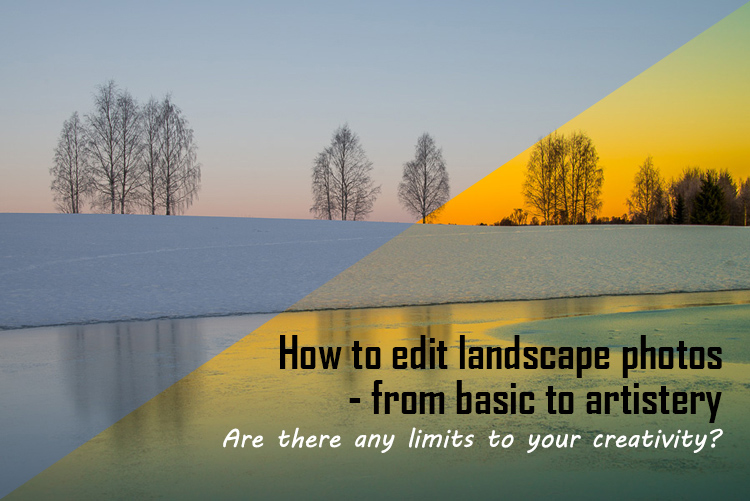
Landscape photography is often about being in the right spot at the right time. This is not always possible, so a little post-processing might help. “Why make it when you can fake it” seems to have become more and more common.
One question often raised, is how much editing you can do before you have over-processed your photo. Too much and your photo no longer represents the reality of the landscape.
It’s subjective how much editing is acceptable. Some argue the editing has gone way too far and is destroying photography. Others put their heart and soul into image editing. They try to get the most out of every detail in the photo, and to make their personal interpretation.
Landscape photographers are not photojournalists documenting reality. As such there should be plenty of room for an artistic interpretation of landscape photos. In the rest of this article, I’m going to discuss different levels of editing, using one of my own landscape photos as an example.
1. The leave as is approach – no editing
The easiest method is to save your files as JPG and do no editing at all. If you don’t want to buy an image editing software, or you simply don’t care to spend time on post-processing, that’s fine. It’s your decision. You can still enjoy the time you spend out in nature taking photos.
Obviously, with this approach, nobody can accuse your photos of not being real. But unless you learn some basic editing skills and post-process your images, you’re likely not to be regarded as a serious photographer.
Hardly any of the images with most likes on social media and photo sharing sites are unedited. In digital photography capturing the photo is just half the work, the rest is about post-processing techniques.
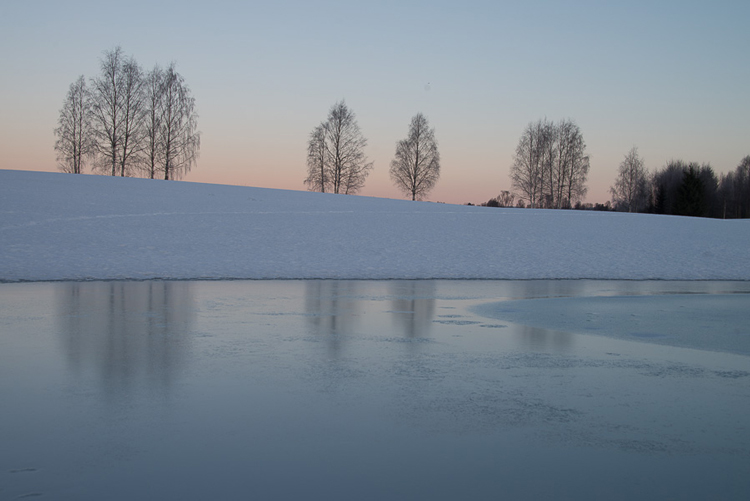
2. Basic editing
In my image (above), I realized I was sloppy with the composition when I took it. I had to fix this. Often one adjustment leads to another. Let’s go through the different steps I applied to this image.
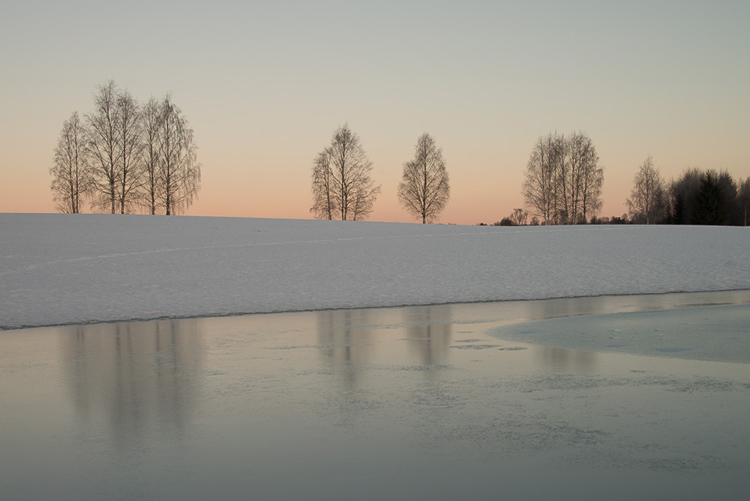
The image above is the untouched RAW file straight out of the camera. Some photographers are happy with this result, and leave it there. After a closer look, I found there were several other things with the image I could improve. Because it’s a RAW file, I knew there was a lot of image data to work with.
Basic editing is supposed to enhance what’s already in the photo, not fix what is wrong. Ideally, you should get the shot as technically correct as possible in the camera. One nice thing about digital photography is how easy it is to make small adjustments after the shot. If you fail on the exposure or the horizon is not perfectly straight, no problem, you can fix it
Levelling a tilted horizon and verticals, cropping, and dust spot removal
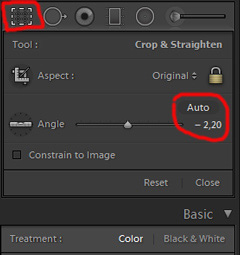 While you edit, you can make simple adjustments to your composition, like levelling the horizon and cropping. By cropping, you can tighten the composition, and to some extent “move” elements, so they align according to the rule of thirds or golden mean.
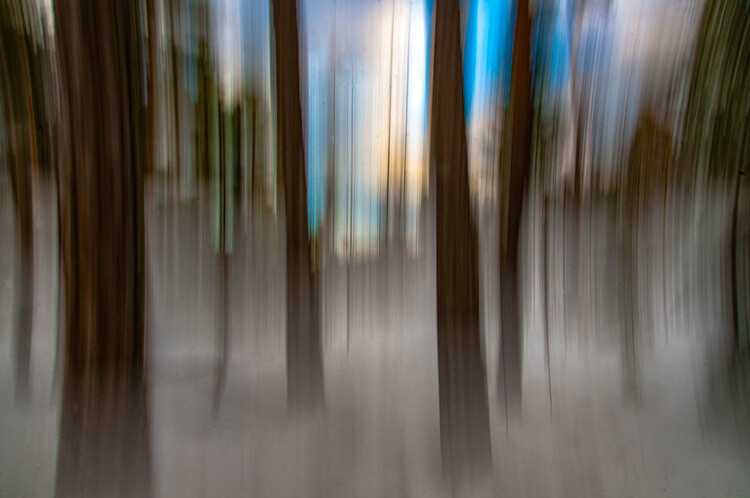
In the photo below I have levelled the trees, as they were leaning slightly to the right. I did not notice that when I took the photo. Most photographers will not question if levelling the horizon, cropping, and removing dust spots are acceptable image editing. It’s part of the workflow.
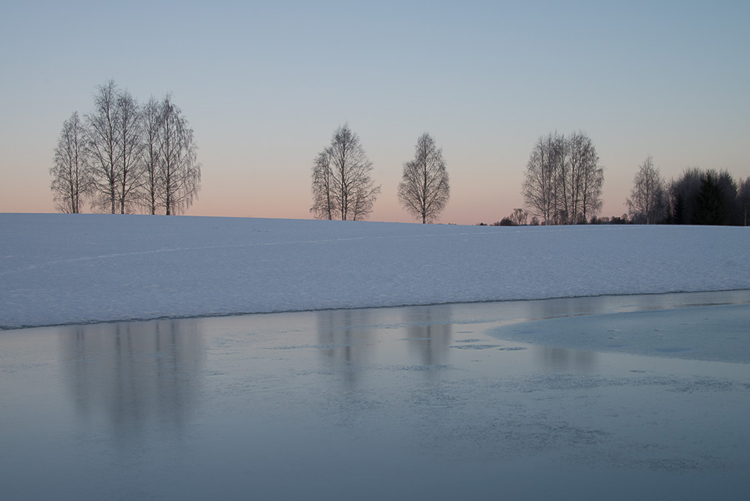
Adjusting the White Balance (WB)
I took this image an early morning, at sunrise. The reflections from the clear blue sky gave the scene an overall blue color cast. At the computer, I remembered the scene as being warmer. Warmer is perceived as more pleasing. I could be wrong, because who remembers exactly what colors a scene had at the time they took the image?
Photographers often claim they edit their photos to represent how they saw the scene. It is probably more correct to say they edit their photos the way they wish they saw the scene.
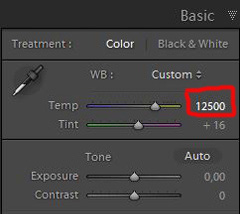 So I decided I wanted my image to have a warmer color tone. I adjusted the White Balance by adding more yellow.
I could have achieved something similar by setting the camera White Balance to the Cloudy preset, at the time I took the image. Changing the White Balance after the shot is another advantage when you shoot your files as RAW. Either way, the result is altered, and to some extent, the reality is changed.
Although the significant impact changing the White Balance can have on an image, it is usually accepted as part of the post-processing workflow.
Increasing Exposure and Contrast
Because no adjustments are made to the RAW files in camera, the images look unfinished when you open them up on your computer. The preview on the LCD is an embedded JPG version of the photo, which often looks much better.
 Even with modern digital cameras you don’t always hit spot on with the exposure. If you don’t get it right in-camera, with RAW files you can easily correct the exposure one two stops when post-processing.
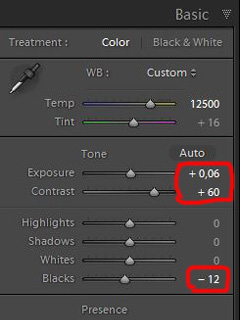
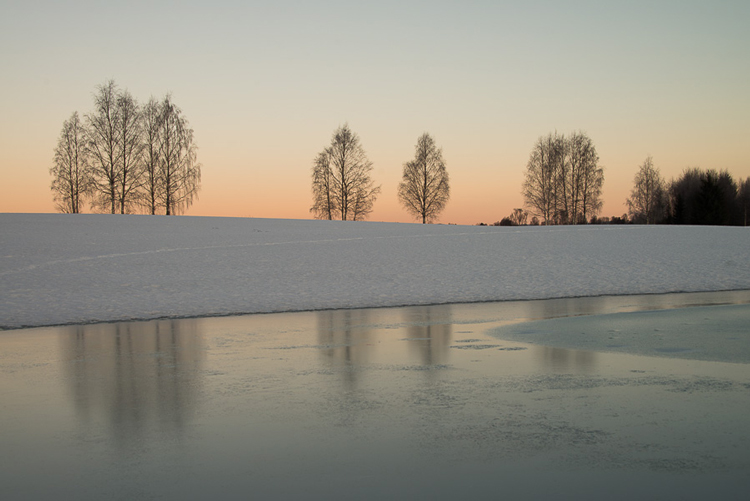
My image is no exception, it looks flat, and needs a few more adjustments. So I increased the contrast slightly. When you increase contrast, the image tends to get a little darker. To compensate for this, I had to increase the exposure a tiny bit. You can see the result so far below.
Decreasing Highlights and increasing Shadows
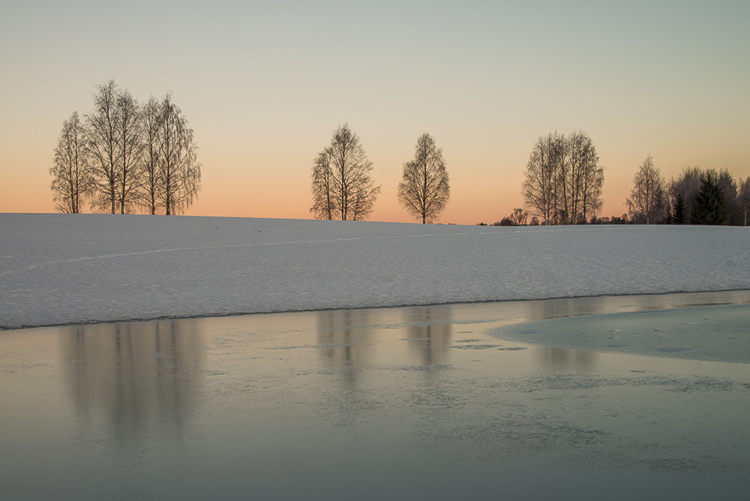
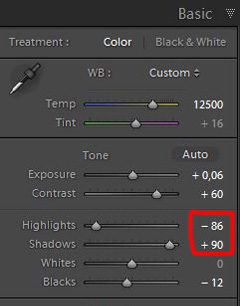 One more thing that bothered me was the black chunk of trees to the far right. The trees have now become too dark with no details in the shadows. I fixed this by increasing the shadows slightly. I also lowered the highlights a little to bring out more of the texture in the ice. In the version below the trees to the right are no longer completely black.
With these last adjustments, the image starts to look pretty decent. So far so good. All of the edits I have done until now are within what most photographers will find acceptable.
3. Beyond basic editing
Oversaturated colors
Photos with saturated and vibrant colors are eye catching. If you want attention when you post your images on social media sites, it’s a good idea to boost the colors first.
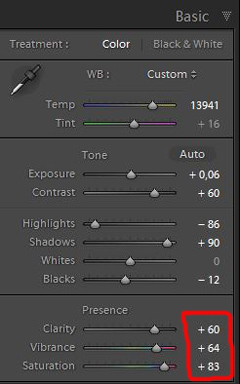
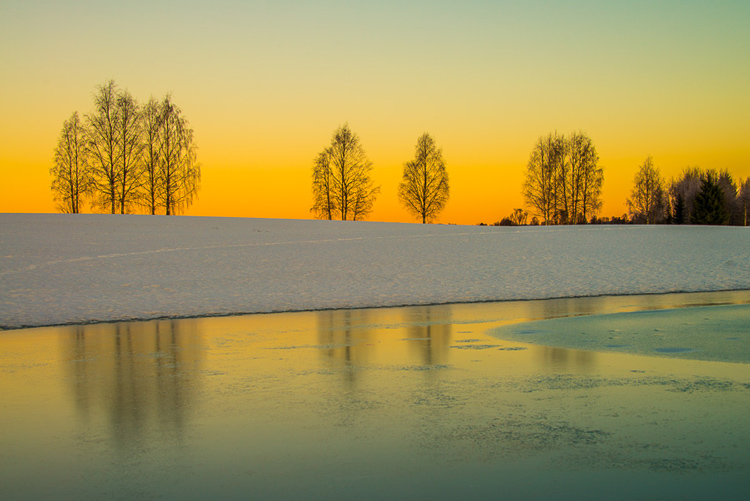
At this stage, it was attempting to make the sunrise more beautiful. To me, it was already an awesome winter morning sunrise. But I felt I could make it even better – with some over-processing.
I did this simply by increasing vibrance and saturation significantly. The image now has an entirely different feel. To me, it looks fake. But I bet this version would have received more attention on my social media sites if I posted both versions there. I have seen this happen with some of my other images before.
With this level of editing, the discussions start as to whether or not the image represents a realistic landscape. It can be your artistic interpretation of the scene, but to me it’s not authentic anymore.
4. Photo editing artistically
Adding texture for a complete different look
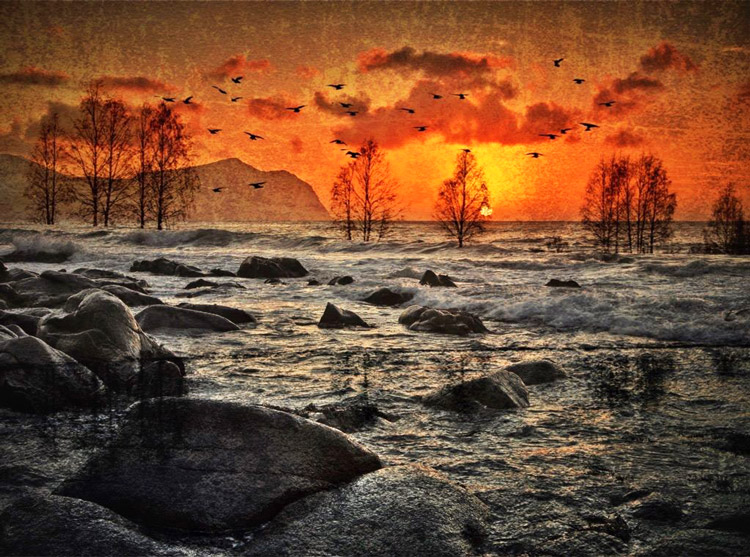
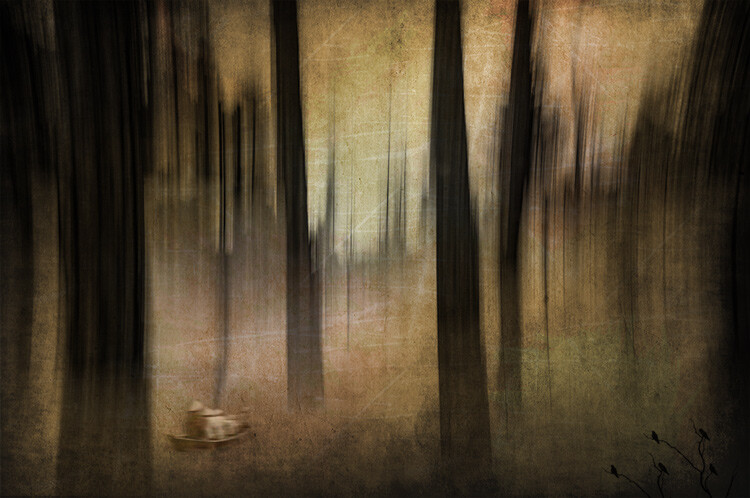
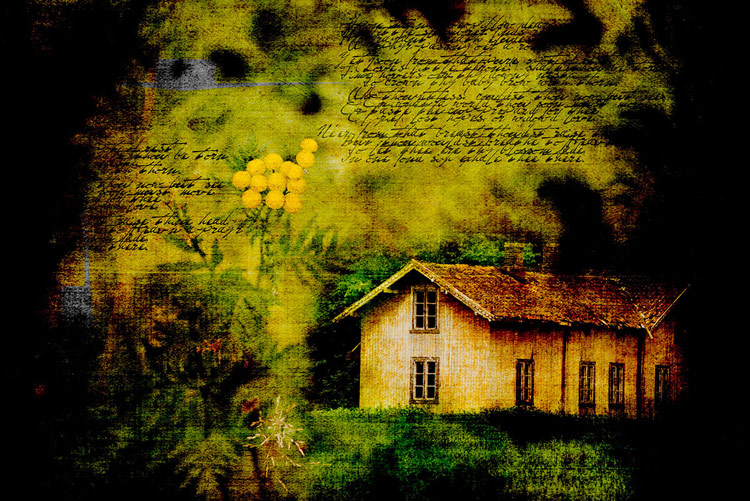
In the next image I have used my artistic freedom as a photographer and artist. I blended in a couple of texture layers and photo filters with the original image. By using textures properly, you can create some interesting effects on your images.
If this is a realistic landscape photo or not, is no longer a relevant question. It’s not, nor is it supposed to be. But you can discuss whether or not you like this style. While all the previous edits were made in Lightroom, the last two versions were made in Photoshop, as Lightroom doesn’t have the layers function which is needed.

Composite of several images makes this surreal piece
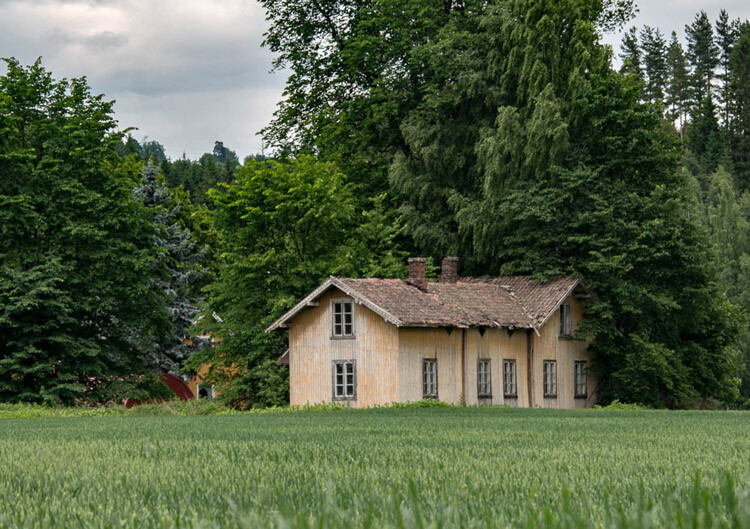
The last version of my image is a composite. Only a few elements are left from the original, but you can tell it’s still there. The result is so extreme that nobody can blame you for faking a realistic landscape image. Everybody know this is a creative piece of art. Again it’s very subjective whether like the style or not. Compositing is a whole new level of photo editing, it’s not for everyone.
When you create composites, you need many of the same skills as when you photograph. For a balanced composite, you must know about composition techniques and how to deal with light and shadows, as well as colors.
Conclusion
With digital photography it’s possible to create the image you want. Your imagination and skills are your only limitations. The general trend is bold and vivid colors get a lot of attention, at least among some photographers. Whether you want to follow this trend or not, is your decision. The fact is that more of the images you see online look similar, due to the same post-processing techniques. It’s getting harder to be recognized online unless you make something different.
As a landscape photographers you have a few challenge to tackle because the elements of nature are limiting. Light and weather conditions might not be as you wish when you’re at your dream scene. Maybe you never come back to the same spot again. In such a situation it’s tempting to fix the light (slightly) in post-production. In other words, to fake reality like I did with the oversaturated image.
Original edit
Creative edit
Photography is art, so it’s not wrong if you choose to do so, but be open with what you have done. Don’t pretend you experienced the sunrise of your life if you didn’t. In the end, it’s up to you what you’re comfortable with. Nobody can take away your creative vision.
You can do more advanced editing in Lightroom than I have shown in this tutorial. In Photoshop however the possibilities are endless. You can manipulate, remove, and add content to your images. With such drastic steps, you’re not only altering the reality, but you’re cheating. That’s if you claim your photo is real.
Now it’s your turn. What’s your opinion about how much you can edit landscape photos? Please share your thoughts in the comments below.
Original edit
Creative edit
This week we are doing a series of articles to help you do better nature photography. See previous articles here:
- 3 Habits Every Outdoor Photographer Should Develop to Avoid Missing Shots
- 5 Tips for Better Nature Photography
- 27 Serene Images of the Natural World
- Weekly Photography Challenge – Nature
- 10 Ideas for Photographing Nature in your Backyard
- 6 Tips for Capturing Character and Personality in Wildlife Photography
- 5 Tips for Setting the Focus in Your Landscape Photography
- 7 Tips for Better Marine Wildlife Photography
googletag.cmd.push(function() {
tablet_slots.push( googletag.defineSlot( “/1005424/_dPSv4_tab-all-article-bottom_(300×250)”, [300, 250], “pb-ad-78623” ).addService( googletag.pubads() ) ); } );googletag.cmd.push(function() {
mobile_slots.push( googletag.defineSlot( “/1005424/_dPSv4_mob-all-article-bottom_(300×250)”, [300, 250], “pb-ad-78158” ).addService( googletag.pubads() ) ); } );The post Tips for Processing Landscape Photos – from Basic Edits to Artistic Interpretation by Kim Rormark appeared first on Digital Photography School.
-
4 Batch Processing Techniques to Speed Up Your Workflow in Lightroom
Lightroom is a fantastic program for keeping your photos organized, but it also provides many tools to speed up your editing workflow. You can even process many photos at once with batch editing. These techniques are by far the biggest time savers Lightroom provides. Once you start using them you’ll wonder how you ever edited each image individually.
Technique 1: Applying presets on import
Presets are hugely popular, and for good reason. They allow you to apply frequently used edits and adjustments to photos, instead of having to manually adjust the settings for each new image. But did you know you can apply your favorite preset during import and cut out a lot of steps?
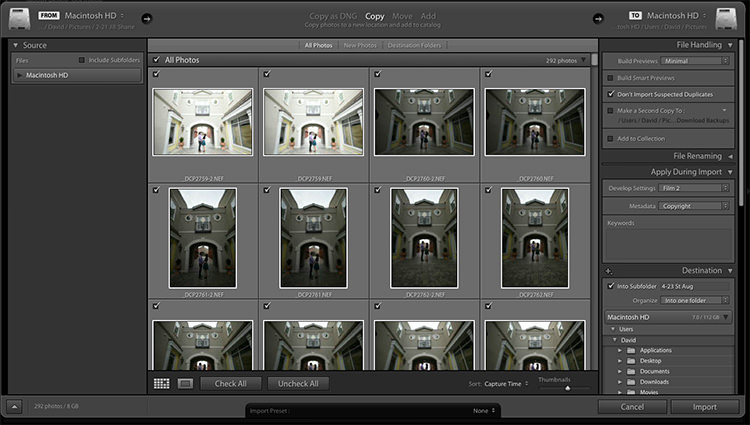
Step 1: Start an import in the library module
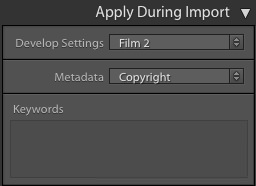
Step 2: On the right panel in the import dialog you’ll see the “Apply During Import” module.
Step 3: If you have a base preset, or a most commonly used one, select it here and click import to have it automatically applied to all of the photos as they are imported into Lightroom.
This not only skips a lot of clicks for you, but it applies them faster than selecting them individually in the develop module later.
Technique 2: Apply presets in the Library module
Applying presets on import is great if all the photos are similar, but you may need to use different presets on varying scenes, poses, etc. Instead of applying these one image at a time, you can select them in the library module and apply them in a group. This trick is great for weddings, or similar shoots where you may be inside then outside, or have constantly changing light conditions.
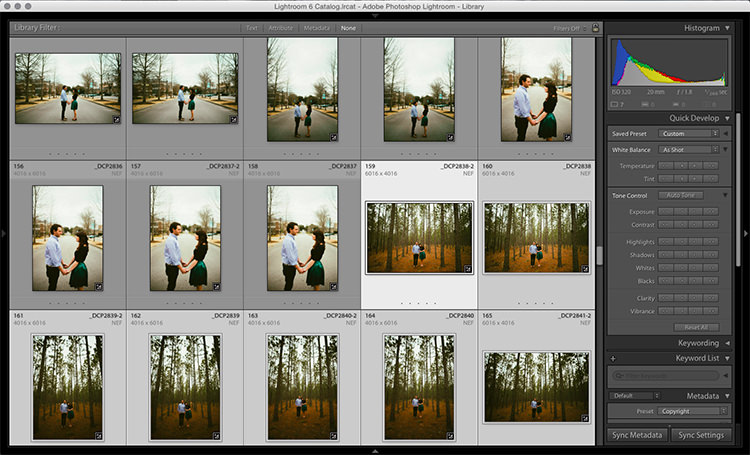
Step 1: Click the first image in the set, then hold down the Control button and click any others to which you want to apply the same preset.
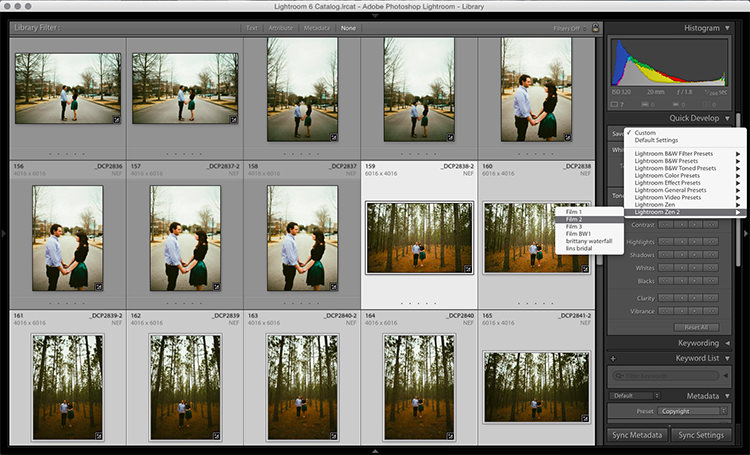
Step 2: At the top of the Quick Develop panel, click the drop down menu under “Saved Preset” and select the new preset. It will update the settings from that preset to all the selected photos.
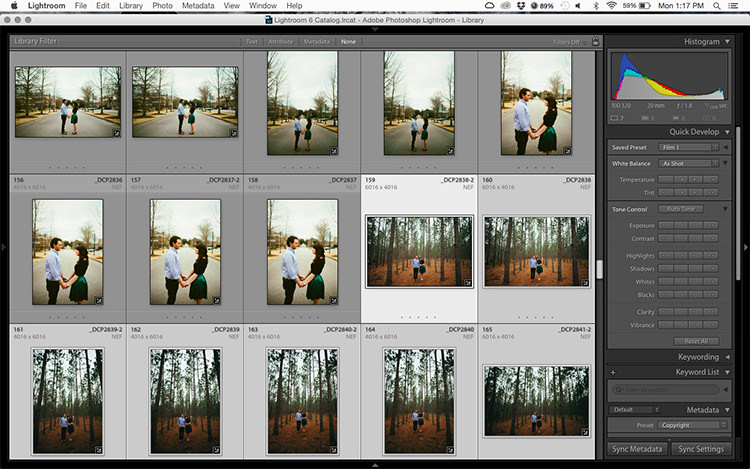
Step 3: Repeat for each changing scene as needed.
Technique 3: Edit in the Library module
The Library module runs much smoother, and processes changes faster than the Develop module. Since you have already applied your presets to the images, you will mostly need to make broad adjustments to your photos now. The Library module can edit the major adjustments like white balance, exposure, contrast, and more. Even better, you can apply these adjustments to multiple photos at once, making them more consistent, and saving you a lot of time.
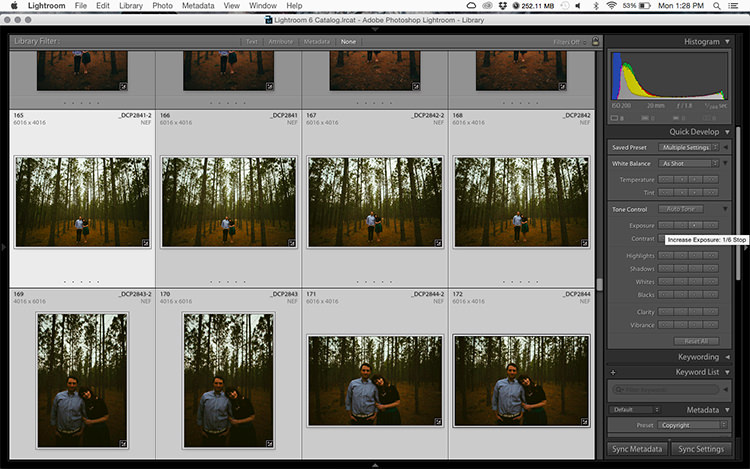
Step 1: Select a group of images as above (CTRL + click to add to your selection) in the Library module.
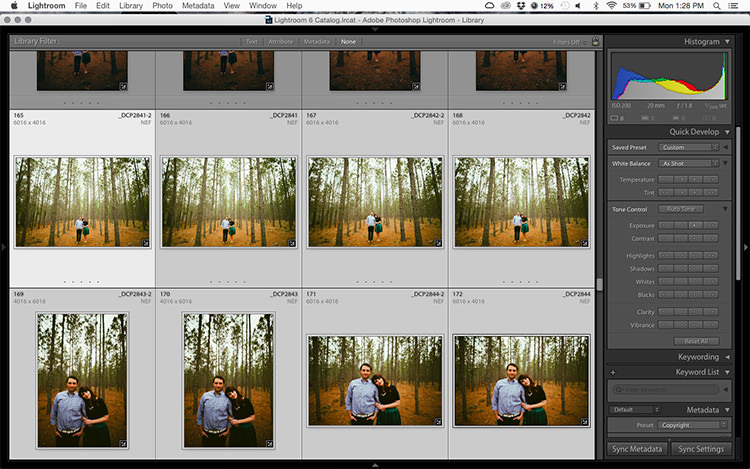
Step 2: In the Quick Develop panel on the right, click the arrows under Exposure, Contrast, and any other applicable options, to apply the changes to all selected photos at once.
Step 3: You can use the + and – key to enlarge or minimize the library view, allowing you to get a better view of the adjustments you are applying.
Technique 4: Sync adjustments across multiple photos in the Develop module
After applying the broad adjustments, you may need to fine-tune a few things in your images. These may include changes like a curve adjustment, add a gradient filter to fine tune a bright sky, etc. These are changes you have to make in the Develop module, but you can still apply them in batches, instead of doing them one photo at a time.
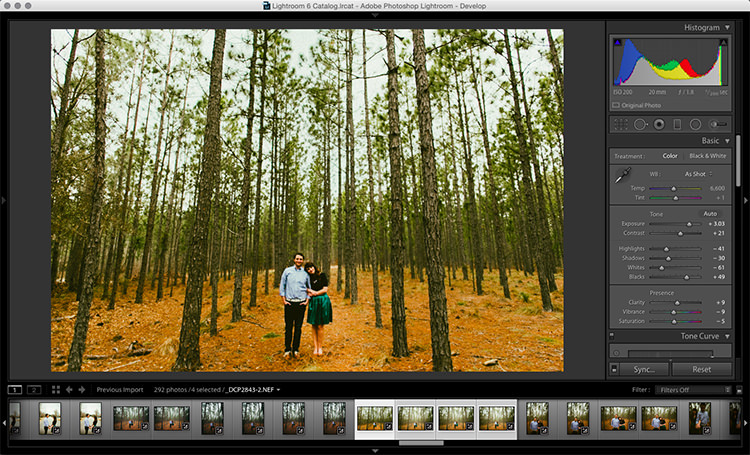
Step 1: In the Develop module, apply the adjustments to a single photo.
Step 2: In the Develop filmstrip or Library grid view, select multiple photos (CTRL + click).
Step 3: At the bottom of the right hand panel, select “Sync”, it will be the left button beside “Reset”
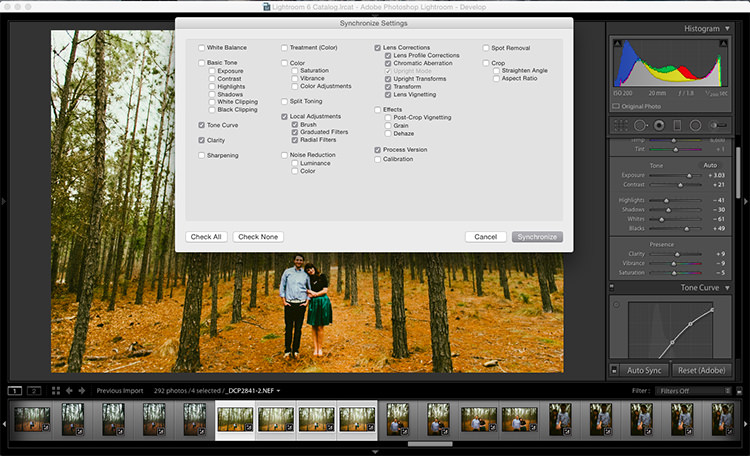
Step 4: Check the options that you want to sync with all the selected photos. These should include any adjustments you just made in the Develop module.
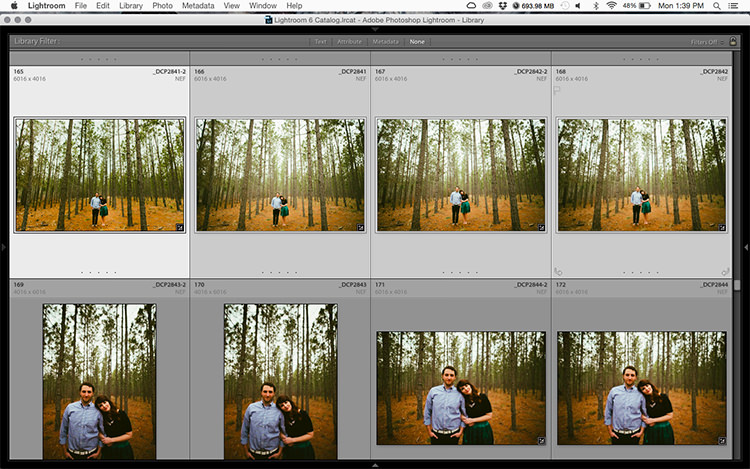
Keep in mind
When batch editing, be careful you don’t sync anything that you don’t want applied to all of the selected images. If you use the adjustment brush on skin in one photo and sync that to another photo, chances are that the subject has moved slightly, and the brush will be applied to the wrong part of the image.
Stick with it!
Do you think these batch editing techniques have a spot in your workflow? For me, learning to batch edit allowed me to cut my wedding editing time down to a fraction of what it was before. You can focus on the big picture and style of each shoot, and not get lost spending 10-15 minutes on every image. Batch editing lets you get more work done in less time, and that is fantastic!
Do you have any additional tips to add? Please do so in the comments below.
googletag.cmd.push(function() {
tablet_slots.push( googletag.defineSlot( “/1005424/_dPSv4_tab-all-article-bottom_(300×250)”, [300, 250], “pb-ad-78623” ).addService( googletag.pubads() ) ); } );googletag.cmd.push(function() {
mobile_slots.push( googletag.defineSlot( “/1005424/_dPSv4_mob-all-article-bottom_(300×250)”, [300, 250], “pb-ad-78158” ).addService( googletag.pubads() ) ); } );The post 4 Batch Processing Techniques to Speed Up Your Workflow in Lightroom by David Childers appeared first on Digital Photography School.
-
Go with the glow: How to effectively use Orton Layers in post processing

This image was taken in the summer of 2015 on the Skyline Trail near Panorama Point on the slopes of Mt. Rainier, WA. The image is composed of 8 focus stacked frames and was shot at the following settings: 16mm, f/8, 1/25sec, ISO 400 using a Sony a7R and a Canon 16-35mm f/2.8L II lens.
Photo: Chris Williams Exploration Photography
Have you ever wondered how some of the top landscape photographers achieve that dreamy yet sharp look in their photos? It turns out that the answer is really quite simple. The Orton effect, as it has been dubbed in recent years, is achieved by selectively adding a Gaussian Blur layer in Photoshop. When applied correctly the technique can add depth, atmosphere and an almost surreal feeling to your images. It can also help reverse some of the ‘crunchiness’ that sometimes results from web sharpening and compressing a large scene dynamic range into one, tone-mapped image.
The technique itself was developed by photographer Michael Orton in the darkroom some years ago. This ‘Orton’ effect was achieved through the process of sandwiching two slightly over exposed images; one of which was slightly out of focus while the other remained tack sharp. The result of this process yielded a soft glowy image that retained much of its edge detail.
Lucky for us this effect is now easily attained and even simplified in the digital age through the use of tools like Photoshop. In the following steps I will outline how to use and refine the technique that has been made popular by landscape photographers like Ryan Dyar over the past few years.
Apply the Blur
The first step to this process is to take care of your focus stacking, exposure blending and touch up work before you apply the blur layer. Once that has been completed, sharpen your image as you would normally and merge the visible layers. Right click on your merged image layer and duplicate it.
Now that you have the duplicated layer you can begin the process of applying the Orton effect. Select your duplicated layer (leave it at 100% opacity and normal blending mode) and apply the Gaussian filter to your layer. The radius at which you blur the pixels really depends upon your camera’s resolution and the desired outcome for your finished product.

Selecting the Gaussian Blur layer is as simple as browsing through the filter options in Photoshop and selecting the appropriately named layer. I typically blur the Raw files from my Sony a7R at a pixel radius of around 37. If you’re using a lower resolution file from something like a Sony a7S or even an APS-C camera I wouldn’t go further than a pixel radius blur of 25. The methodology behind this is that you don’t want to lose all of your edge detail and compromise the contrast in your blur layer, so choosing the correct blur radius is important. It’s a balance, and one that you should really play with to determine what blur radius works best for your needs and file types. Generally speaking, you want to stay within a pixel radius blur range of 15-40.

A preview of the effect of your Gaussian blur settings can be seen prior to applying the setting to the layer; adjust the pixel blur radius here to determine what works best for your image. Once you have selected the Gaussian blur settings that work best for your image click ‘okay’ to apply the filter to your layer. Leave the opacity of the layer at 100% for now.
Bring Back the Contrast and Select the Opacity
One of the most important steps to this process is to apply a ‘levels’ adjustment to this layer. More often than not, when photographers first start to experiment with this type of technique in post processing, their images are left with haloing and a lack of contrast. Applying a levels adjustment selectively to your Orton layer can make a huge difference in your final result by bringing back the blacks and highlights that the Orton layer tends to bleed out. I normally bring the blacks in to between 10-25 and the highlights to around 245. Applying this step to your layer will ensure that you lose a minimal amount of contrast and will help to blend the layer in areas of harsh transition.

Choose the ‘levels’ tool and adjust the blacks and lights to your taste. Once you have completed this step it’s now time to adjust the opacity of your Orton layer. I typically aim for between 10-20% opacity. This really depends on your style and what the overall desired look and feel of your image is. The example below illustrates what can happen if you increase your Orton layer to 35%, which can be a bit on the excessive side depending upon your image.

10% Orton Layer 35% Orton Layer The Devil is in the Details
Now that you’ve got this great atmosphere and glow going on in your image, you may ask yourself what happened to the detail? Loss of detail can happen when this layer is applied in your workflow, but there is a very easy solution to remedy this issue; the High-Pass filter.
The first step is to duplicate your original background image layer (that has no Orton applied to it), select it, pull it to the top of your workflow and navigate to the filters tab. Scroll down to find the ‘other’ category and select ‘High Pass’. A high-pass filter brings the detail out in the areas that tend to be most effected by the Gaussian layer: the edges of the elements in your composition.

Choosing the high-pass filter follows many of the same steps as locating the Gaussian filter only this time the filter is located in the sub-menu titled ‘other’. Once you have done this you will be given an option to select the pixel radius you wish to apply to your layer. I normally try to stay within a pixel radius of 4-5.5 (any larger and the image detail can get grainy). Pick your desired radius and click OK.

Once you have selected the high-pass filter you can choose your pixel radius size; I normally choose between 4 and 5.5. If you aren’t familiar with this type of application your first thought will probably be: ‘what did I just do to my image?’ as you stare at the grey layer on your screen. Fear not! There’s a very easy solution; you will need to select the layer and choose the ‘Soft Light’ blending mode.

Make sure to apply the ‘soft light’ blending mode to your layer to blend the high-pass pixel detail seamlessly into your exposure. This mode seamlessly blends the High-Pass pixel detail back into your image. You may want to adjust the opacity of this layer to your tastes after its application, but that’s all there is to it! If you feel like you’ve got your settings down to a science you may want to even record this as an action. Be aware that every image will be a bit different from a processing stand point, however, so you may want to make subtle changes on a case by case basis.

Toggle the application of your layers off and on and make changes in opacity, detail and contrast as you see fit. The Final Product

No Orton applied Orton applied If you’ve completed all of these steps successfully, you now know how to effectively utilize an Orton layer in your workflow. This type of layer can be added to anything from landscapes, to wildlife, and even to portraits in some cases. The limits are only bound by your creativity. Have fun with it and happy shooting!
-
Tips for Processing Winter Landscapes in Lightroom
I see a lot of winter. The interior of Alaska, where I live, gets a solid six months, often seven, of the white stuff. Essentially anytime from October to mid-April, we are likely to have snow on the ground. Unless I put the camera down for most of the year (which I don’t), I end up with a lot of photos on my computer of snowy mountains, forest, and tundra. Come the early-spring, brown season, I have a lot of computer work to take care of.
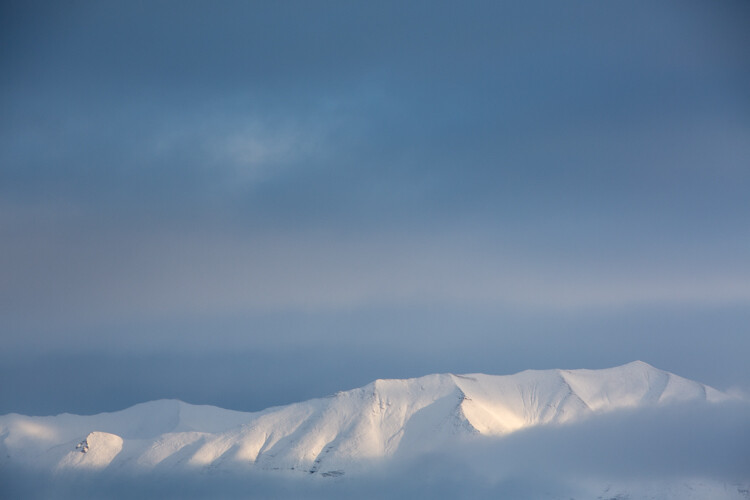
Though the method of processing winter images is largely the same as many other types of outdoor images, you’ve got to approach snowy images with cold focus (insert laughter here). I jest, but actually the cold, and bright blue tones of winter, are elements that should not be forgotten (or overdone).
My Approach
When I come at an image in Lightroom, I don’t tackle it with a standard formula. Rather, I consider the time and place I made it, what the landscape looked like, and just as importantly, how it felt. Those memories play an important role in my vision for the final image.
With that in mind let’s dive into the first of the three winter images I want to walk you through my processing steps.
Brooks Range, Alaska – Early winter
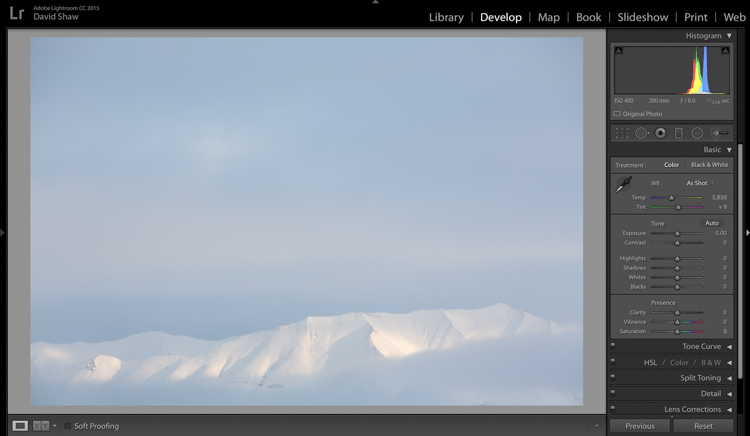
On a river trip in early September, down the remote Kelly River of the western Brooks Range, my clients and I were hit by the first snowfall of winter. It started the evening before I made this image, with a few big, wet flakes falling from the overcast sky. By the following morning, my tent, the gravel bar on which we were camped, and the entire landscape, was covered in six inches of fresh snow. The snow was tapering off, and I could see breaks in the clouds where patches of blue sky shone through. It didn’t take long before those patches were turned into beams of sunlight on the mountains. I walked down to the river with my camera, and started making images of the shifting light on the land. This shot came out of that session.
The light and color is typical of many winter images, bright, with lots of blue. Take a look at the histogram in the upper right, and you can see how it’s pushed to the right, meaning the image is on the bright side (but no blown-out highlights), exactly what I want with an out-of-camera winter shot.
Step One – White Balance
The first thing to consider is the white balance. Cloudy days tend to cause warmer tones, and snow, particularly under-exposed snow, can take on a yellowish hue. This can be off-putting, so pushing your white balance toward the blues can help provide a more pleasing, and accurate tonality. In this case, my camera selected an appropriate White Balance in the field, and didn’t need any adjustment in Lightroom. But keep this in mind when processing your own images.
Step Two – Exposure
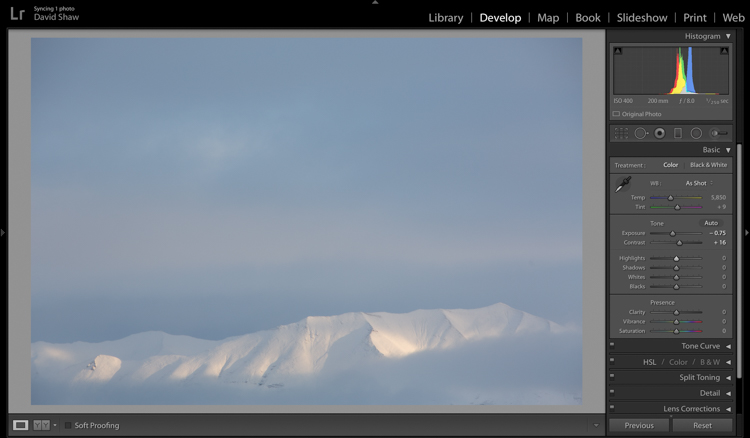
The next step was to bring down the exposure by 0.75 stops, making the image a bit moodier, and less bright. I then bumped the contrast a hair to +16 just to make those highlights more clear before I dove into the more important contrast adjustments.
As a quick note, I bet I do 85% of my Lightroom edits in the Basic panel. This very effective section of the program is one you should know intimately, before you go exploring too much of the huge variety of other tools provided by the software.
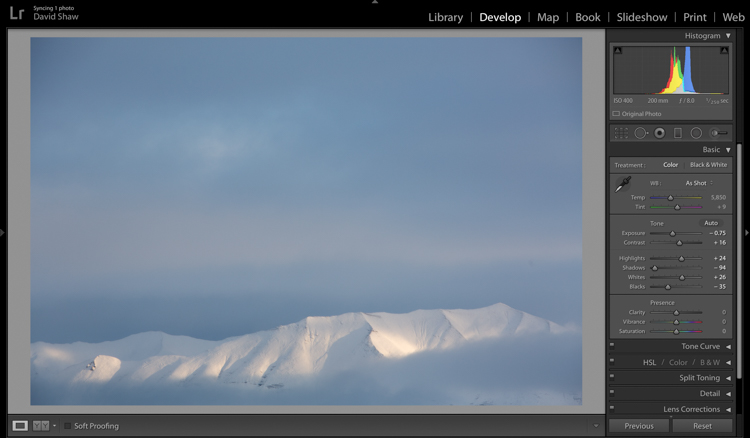
The next four sliders provide a more specific modification of lighting in the image. In this case, I wanted to recollect some of the feeling of the dissipating storm by emphasizing the dark clouds. To do so, I pulled the Shadows slider down nearly all the way, making the dark blues and grays of the clouds appear more menacing. The Highlights, I bumped just a notch, adding some pop to the bright patch on the mountains. Whites and Blacks each got a nudge up (Whites) and down (Blacks) respectively, finishing the job I started with the first two sliders.
Step Three – Clarity
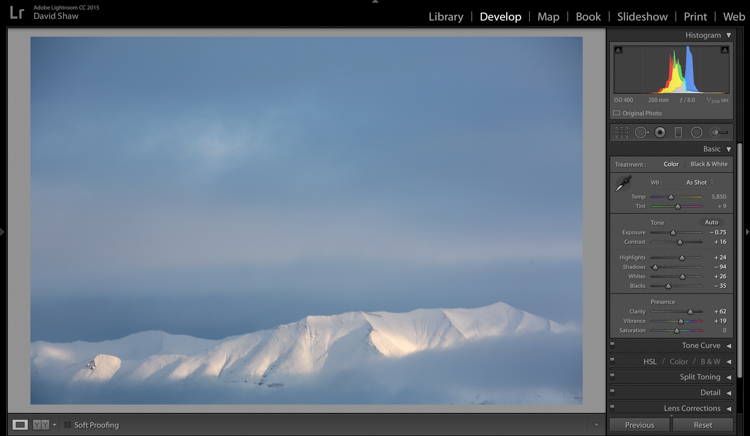
The first of the next three sliders is Clarity. This nifty tool, increases the contrast where dark and bright edges meet, and adds apparent sharpness to the image. On the morning I made the image, the clear morning light made the mountains very sharp to the eye. Wanting to emulate that effect in the image, I gave the Clarity a substantial boost to +62. That’s about as high as you can go on most images without appearing artificial.
Step Four – Vibrance and Saturation
The Vibrance and Saturation sliders are dangerous. Photographers tend to believe that bright colors mean a good image. I want to say this very clearly: Do NOT over-saturate your images. It doesn’t look as good as you think it does, so, you know, just don’t.
Vibrance increases the intensity of the less saturated tones. When used in moderation it adds pop. In this image, I left the saturation slider completely alone.
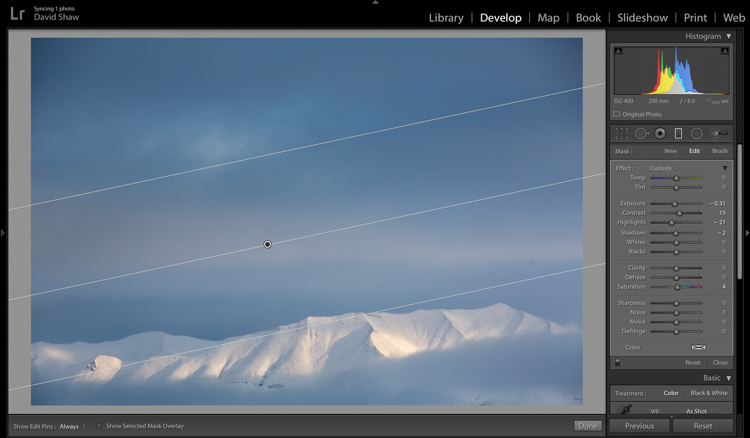
The rectangular icon in the row below the histogram is the Graduated Filter. This useful tool allows you to adjust a portion of the frame, without affecting the other areas. Just as importantly, you can adjust the edge softness (transition area) as hard or soft as you like. In this case, I wanted my changes to taper naturally into the frame so made the filter edge fairly wide (set feather to a high number). Using this tool, I chose to darken the sky, and draw attention to the mountains at the bottom of the frame. After adjusting the placement, I lowered the exposure in the sky. This allowed me to subtly darken the sky, without affecting the brighter tones of the mountains.
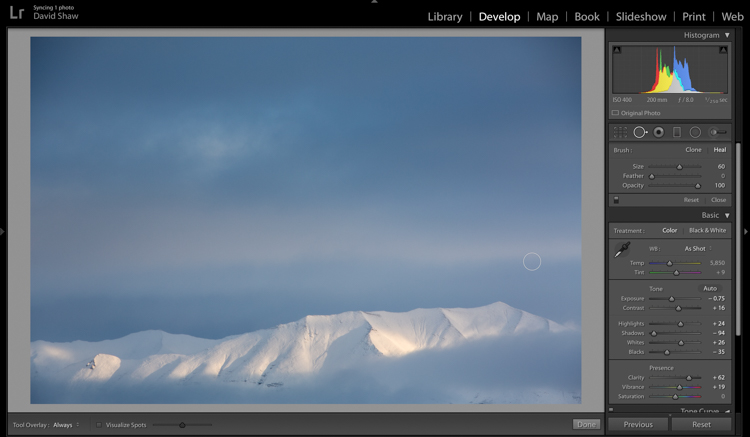
Adjusting contrast can cause previously invisible imperfections to appear. In this case, it was a dust spot on my sensor, which I cloned out using the “Heal” tool.
The final image, as you can see, is a substantial improvement over the original, and holds true to the scene as I remember it.

Before processing
After processing
Color in the Cold
Not all images of the winter rely on cool tones for their success. At times, it is the juxtaposition of those cool tones and bright warm colors that make an image.
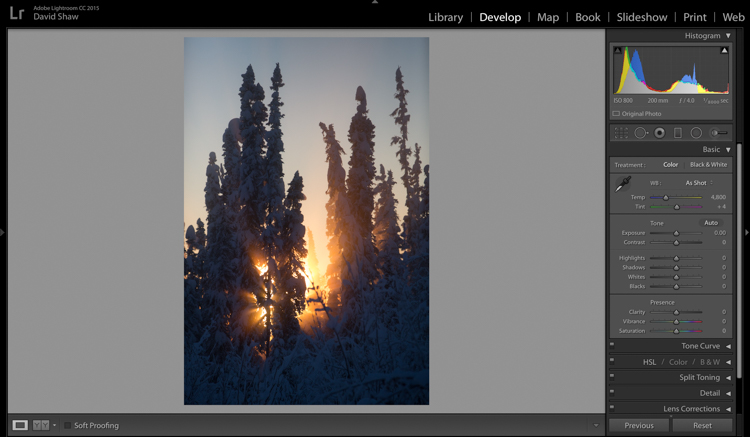
This is one such image. I made it on an extremely cold mid-winter day, on the ice of the small creek that flows on the lower part of my property north of Fairbanks, Alaska. It was about -35f (-37c), and water, pushed up from the bottom of the creek by the pressure of the ice, was trickling out onto the surface where it steamed into the frigid air, before freezing. It was midday, and the sun, just a few ticks above the horizon to the south, was throwing orange beams through the branches of the snow-colored spruces. Fortunately, I had my camera, and managed this photo before the sun slipped away.
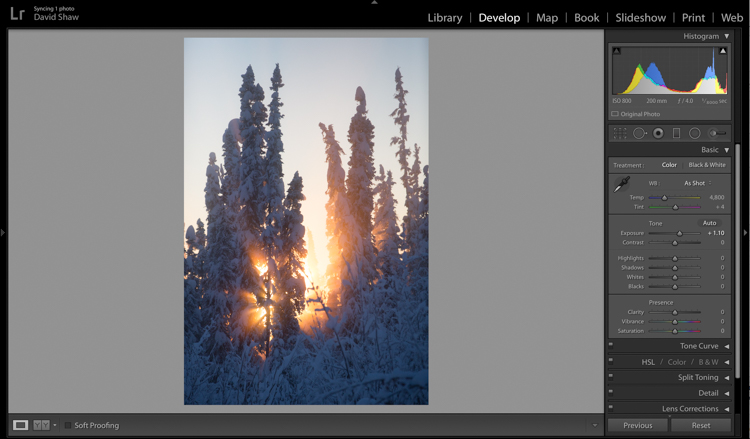
On that cold day, I was forced to underexpose the image to keep the beams of sunlight and the sky from blowing out. My first step was to return some of that brightness to the image by raising the Exposure +1.10 stops.
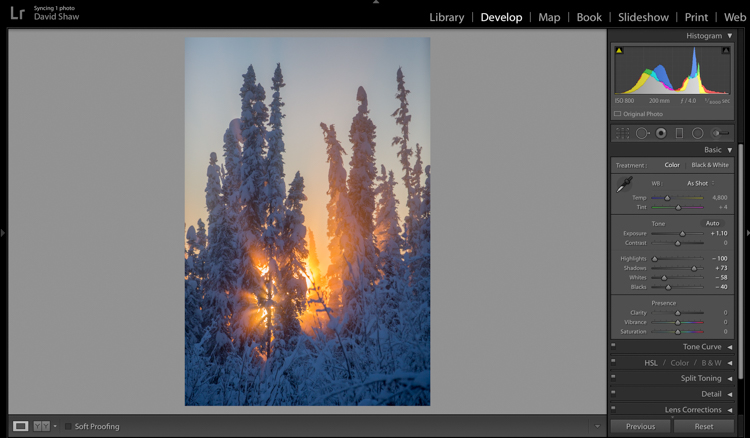
In general, I dislike High Dynamic Range (HDR) images, particularly the over-processed ones that appear regularly on Facebook and Instagram feeds. That said, HDR, or my Lightroom version of it, can be helpful in highly contrasted images like this one. Here, I pulled the highlights all the way down, bringing the beams and the sky back to more appealing levels. The Shadows I brought up, which revealed details in the trees and shrubs which were previously too dark to see. The effect, when used appropriately, does not look artificial.
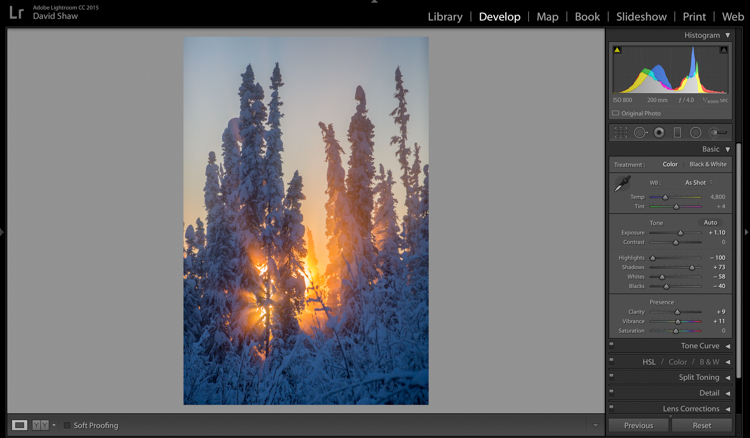
The image was already colorful and sharp so required very little in the way of Clarity, Vibrance or Saturation. A small boost (+9) to Clarity, +11 to Vibrance, and no change in Saturation was all the image needed.
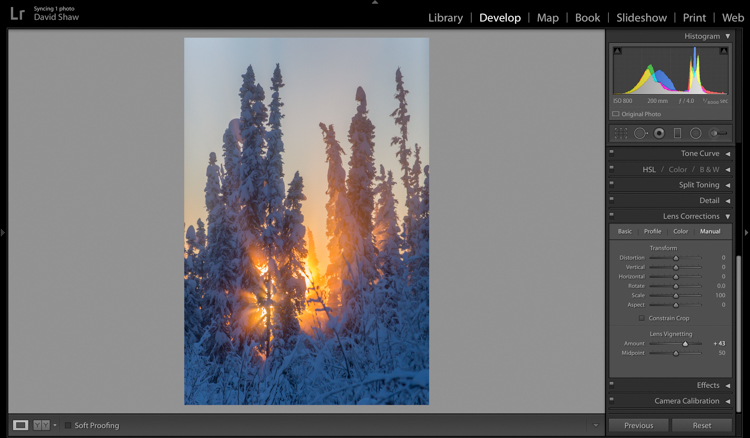
The lens I used to make the image has a hood, which I realized after the fact, was slightly mis-aligned and threw a vignette over the corners of the photo. If I want a vignette (see next), it needs to be purposeful, not the accident of a poorly fitted hood. So, using the Lens Corrections module, I made a single adjustment, sliding the Lens Vignetting slider to the right, brightening the corners, and almost entirely eliminating the ugly dark area in the top right.
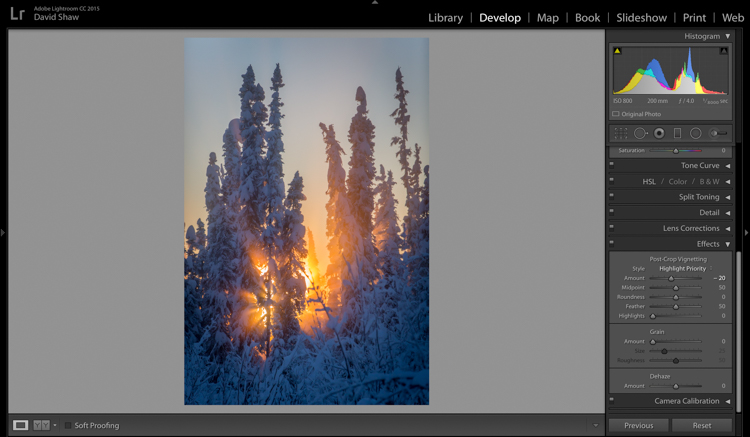
The last thing I wanted to do was darken the sky a touch more, and bring further attention to the starburst of sunbeams coming through the trees. So, using the Effects Module, I added a -20 Post-crop Vignette, which effectively darkened the sky and lower corners.
With that final change, the image was complete, a starburst of color on a brutal winter day.
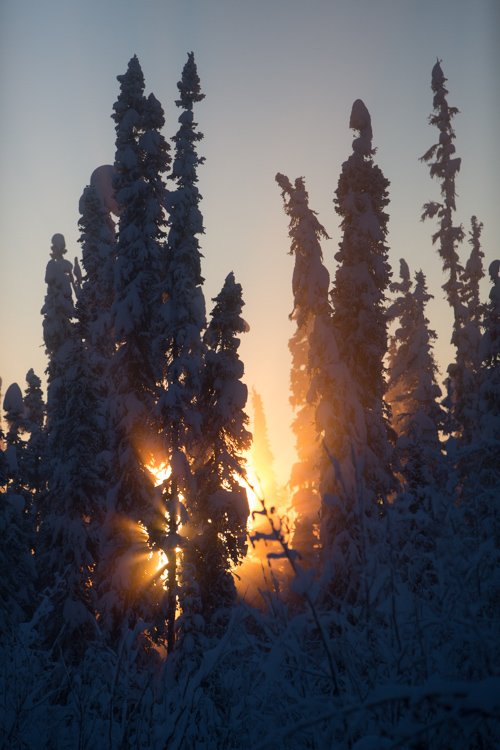
Before processing
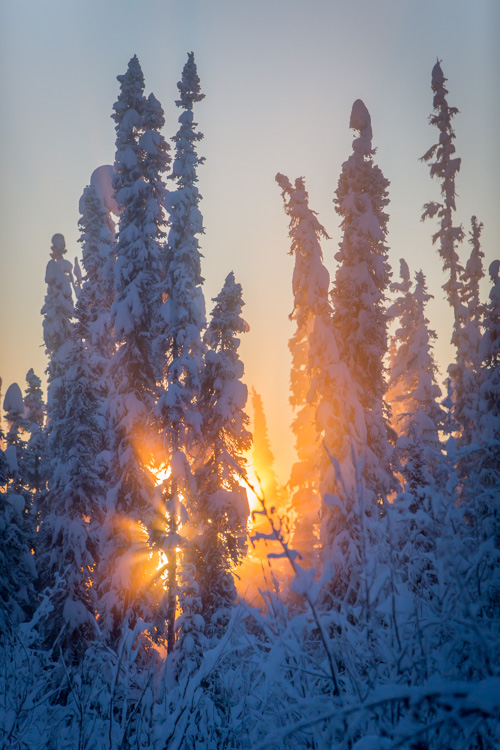
After processing
The Storm
A number of years ago, I spent 10 days trekking through the Himalayas of Bhutan. It was October, the tail end of the trekking season for the little mountain kingdom. My group and I hiked up from the lowlands, to a high camp at over 13,000 feet, where we planned to cross over two 15,000 foot passes before making a long descent back to the city of Thimpu. It didn’t work out as planned. We’d scheduled two nights at the high camp to acclimatize before crossing the passes. Just before bed on the second night, a storm rolled in, and by the time we woke up the following morning, there were eight inches of snow on the ground. Any hopes of penetrating higher into the mountains were dashed. Making the best of it, I rose and made photos of the dark mountains and falling snow.
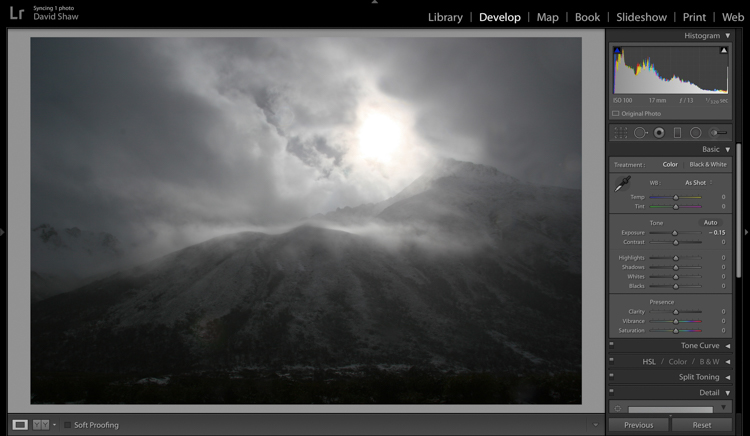
In the field, I purposely underexposed to keep the small patch of bright sky surrounding the sun from blowing out entirely. The mountains ended up nearly black, and the sky dark gray. Though consistent with my desire to make a moody, foreboding image, I wanted to emphasize that feeling even more.
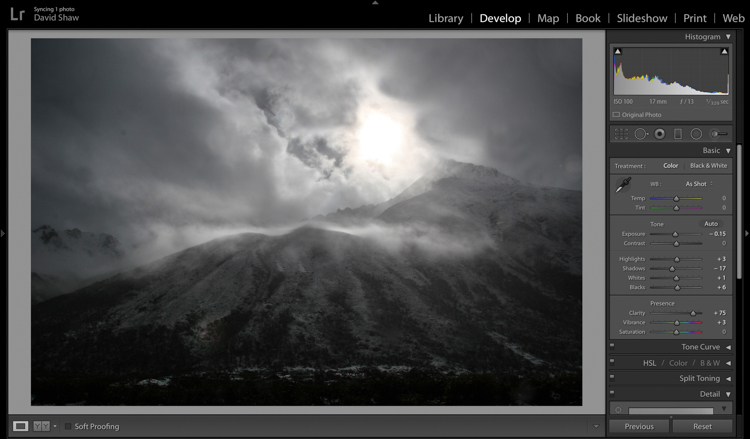
In the Basic Module, you can see that I darkened the image a bit more, left the highlights more or less alone, darkened the shadows a hair, and bumped the blacks just a bit to bring some texture into the dark lower corners. The Clarity slider I pushed notably to the right, which made the textures in the sky and mountain pop against the otherwise soft grays. I left the color adjustments mostly alone.
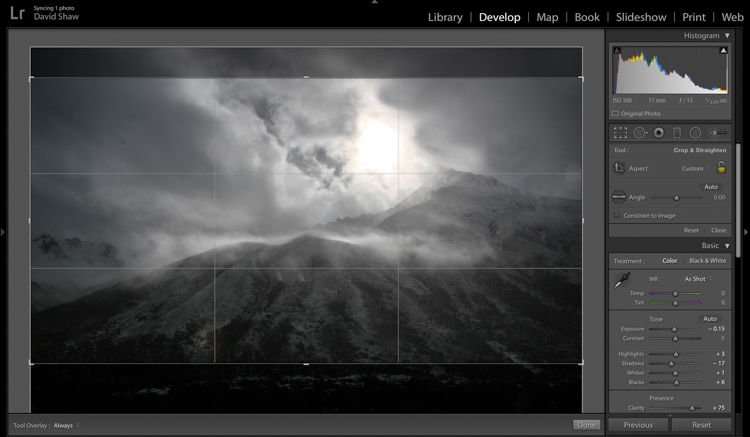
The more I looked a the photo, the more I realized the top and bottom edges added nothing to the image. Using the crop tool, I nipped them off, bringing all the attention to the action in the central part of the frame.
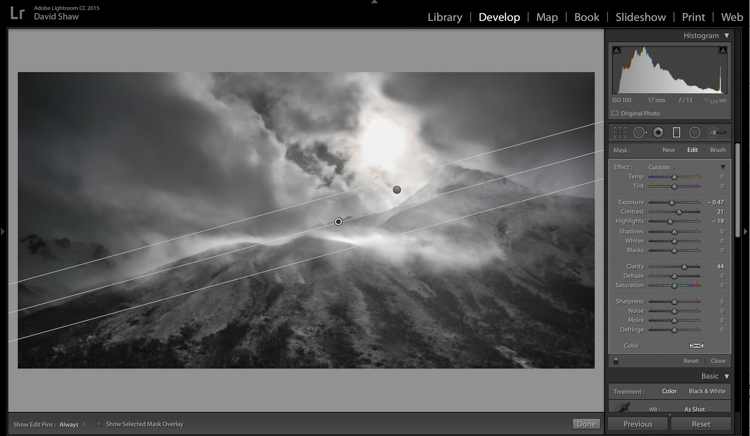
At this point, the processing got a bit complicated. I wanted to deal with the sky and mountains separately. One I wanted to brighten, the other darken. There were two ways to deal with this:
- Use the Adjustment Brush tool to select and develop the two areas
- Use Graduated filters to accomplish the same thing. Because the Graduated filter allows more flexibility to change the softness of the adjustment edge, I decided to use that.
The filter that adjusted the sky I darkened, and increased the clarity. The one for the mountains, I brightened, boosted the highlights, to make the scudding clouds pop, and added some clarity.
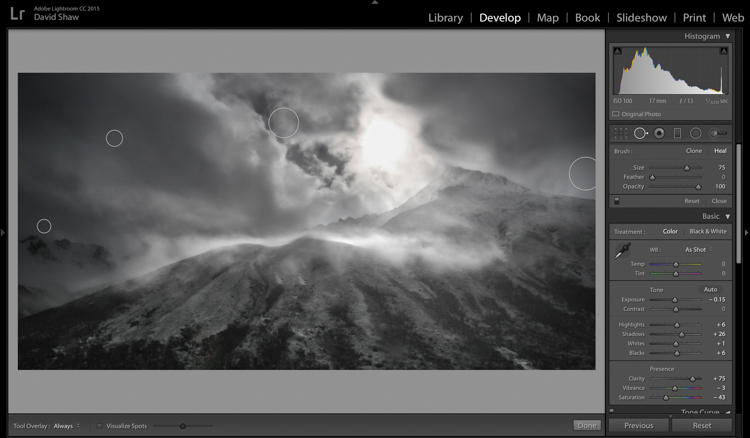
As noted earlier, the changes in contrast can emphasize imperfections, and I took a moment to remove lens flares and dust spots.
Last, I did a second pass of the Vibrance and Saturation. The yellowish patch around the sun was annoying me, so I dropped both the color sliders down reducing the image to a near black-and-white.
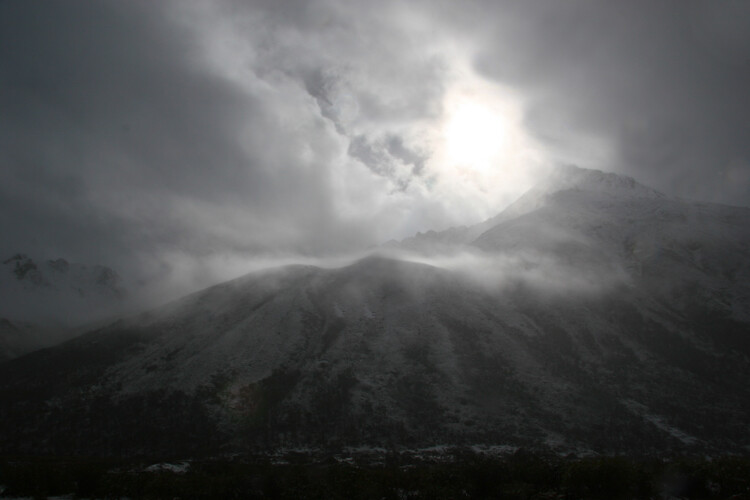
Before processing
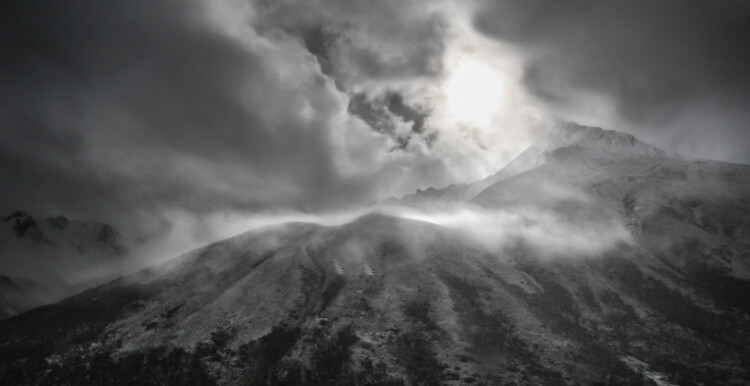
Finished image after processing
I really like the final image. It provides a sense of the storm and the foreboding nature of mountain weather. Looking back, I can easily remember my nervousness that snowy morning, the uncertainty, and eventually, our retreat back the way we’d come.
Conclusion
Great images can come from snow. Many photographers put their cameras away during a winter storm, but I strongly recommend you don’t because there is great stuff out there if you’ve got the perseverance to suffer through some cold days. The images you gather, like these, can be optimized in your computer. Remember to take a moment before you begin, to recall how the scene looked and felt when you made the image, then use those memories as your guide.
Do you have any winter images on your computer that are begging to be processed? Now’s the time to do it, please share your images and comments below.
googletag.cmd.push(function() {
tablet_slots.push( googletag.defineSlot( “/1005424/_dPSv4_tab-all-article-bottom_(300×250)”, [300, 250], “pb-ad-78623” ).addService( googletag.pubads() ) ); } );googletag.cmd.push(function() {
mobile_slots.push( googletag.defineSlot( “/1005424/_dPSv4_mob-all-article-bottom_(300×250)”, [300, 250], “pb-ad-78158” ).addService( googletag.pubads() ) ); } );The post Tips for Processing Winter Landscapes in Lightroom by David Shaw appeared first on Digital Photography School.
-
Macphun updates Tonality with batch processing and Raw support for more cameras

Software manufacturer Macphun has announced an update to its Tonality application that introduces batch processing, free preset packs, as well as Raw support for a wider range of cameras.
The black and white image manipulation package designed for the Mac platform already offers 160 ready-made manipulation and effects settings, but will now offer between one to three extra settings per month, created by a band of professional photographers. The company has four contributing professionals at the moment and will add a new one each month to enlarge the collection of settings users can download for free. Users can, of course, create their own presets using the tools and controls provided and can then share these amoung themselves. Further pre-sets are available to purchase.
The update also brings raw support for owners of Canon PowerShot G1 X Mark II, Fujifilm FinePix HS50 EXR, Leica Q (Typ 116), Leica SL (Typ 601), Leica M Monochrom (Typ 246), Nikon D300S, Panasonic DMC-G7, Sony DSLR-A700, Sony DSC-RX100M3 and Sony DSC-RX10M2 cameras.
The company has also added a link to the 500px image sharing website to smooth the uploading of pictures directly from the program, and has also made it easier to export files to Adobe’s Photoshop and Lightroom applications.
The program is available in three forms, as a standalone application that is priced £15 (though £7.99 until 14th April), as part of the Tonality Complete Kit you get the Pro Version for £48.99, or as part of Creative Kit 2016 with five other Macphun applications for £89.99.
For more information see the Macphun website.
New Tonality updates brings amateur photographers closer to professionals
Ability to add free preset packs created by worldfamous photographers, 500px export integration, batch processing, new cameras support, and special discounts at Mac App Store
Macphun Software, a leading innovative photography app developer with over 30 million users worldwide, have today launched a major update to Tonality, their awardwinning black and white photo editor for Mac.
To celebrate the update, Macphun are offering a 50% discount and a free batch processing in the MAS version of Tonality for one week only (7th14th April) .What are the key highlights of the update to Tonality?
Preset Packs from WorldFamous Photographers
Tonality users will now have access to a free preset library, created by professional photographers from around the world. To access the library, users simply need to click “Get more presets” from inside the software.
Macphun have enlisted the expertise of professional photographers, including Serge Ramelli, John Batdorff, Dan Hughes, Andy Krucezk and others to create exciting new preset packs exclusive to Tonality, which can be found at macphun.com/tonalitypresets.
Statistics show that since August 2014 (when the software was launched) Tonality users have processed over 7 million images , and applied over 50 million presets to their photos. Current favourite preset packs include Portrait, Architecture, and Dramatic.
500px Support plus 3month FREE membership
Macphun have teamed up with 500px to allow users to easily export images directly from Tonality to the global online photography community. Macphun are also excited to offer a 3month 500px membership for free as a bonus to Tonality.
More cameras supported
RAW file support has been improved and extended so RAW image files can now be opened from a variety of new cameras: Canon PowerShot G1 X Mark II, Fujifilm FinePix HS50EXR 100, LEICA Q (Typ 116), LEICA SL (Typ 601), LEICA M MONOCHROM (Typ 246), NIKON D300S, Panasonic DMCG7, Sony DSLRA700,
Sony DSCRX100M3, Sony DSCRX10M2.What other new features and improvements can be expected?
Other improvements include ability to export images from Tonality to Aurora HDR, improved Lightroom and Photoshop export, improved language translation quality, and improved stability.
Standard version of Tonality (available on the Mac App Store)
In addition to all the updates listed above, the Mac App Store version of Tonality now includes batch processing as an InApp purchase. The batch processing inapp will be available for free between 7th and 14th April. Batch in Tonality allows users to process, rename and resize dozens of photos at the same time.What is Tonality?
Tonality is a compelling black and white photo editor. It combines the authenticity of the
monochrome analog era and the cuttingedge colour technologies of the digital age. Reimagine your monochrome image editing with hundreds of presets, layers, unique digital controls, authentic grain and more.Pricing and Availability:
Tonality is available as a standard version through the Mac App Store, a standalone Pro version direct from https://macphun.com/tonality , or as part of Creative Kit 2016 at macphun.com/creativekit . The standard version of Tonality is available via the Mac App Store at the 50% discount: £7.99 from 7th-14th April: https://itunes.apple.com/gb/app/tonality/id892581529?mt=12
Tonality CK standalone is available direct from https://macphun.com/tonality at £48.99. Creative Kit 2016, featuring Tonality and five other incredible Macphun apps, is available direct from macphun.com/creativekit at £89.99.