RSS
 

Posts Tagged ‘PostProcessing’

Post-Processing Tips for Overcoming Beginners Acts of Omission

02 Apr

In an old dressmaking shop in Paris, a master-tailor has finished stitching a bridal gown. He is eager to show it to the world, but he knows that the job is not yet done. He has a few thoughts passing through his mind, and he has to make sure that the dress is presentable before the bride arrives. He tells himself that these threads dangling from here and there need to be trimmed, the ruffles need to be neatened, and the seams still need to be pressed. The master in him criticizes the dress until the tailor in him fixes the final details.

When it comes to photography, the story is no different. You must lose ownership of your image for a few seconds, and look at your own work with a fine-tooth comb. As beginners, we often rush to upload or print our photos, eager for appreciation and likes from others.

I have also been impatient in this way, though with time, I have now made it a habit to review my image critically at the end of post-processing. Here are some tips I hope that will help you taking your post-processing experience to the next level and pick up on some things that beginners often miss. I use Adobe Lightroom and Photoshop, so I will be talking about both where applicable.

Crooked images

There is nothing more embarrassing than your client telling you that the photo is a bit askew. Once spotted, it is an eyesore that will forever jar when you look at your image. It is not easy to judge tilted images when it comes to mountains and forests, but landscapes are also more forgiving when it comes to a tilt. With seascapes, however, one needs to ensure that the sky meets water on the perfect horizontal for a harmonious and balanced image. Similarly, check the angles of your doorways and buildings, that they are aligned appropriately. Adobe Lightroom has a useful Straighten tool, as well as options in Photoshop.
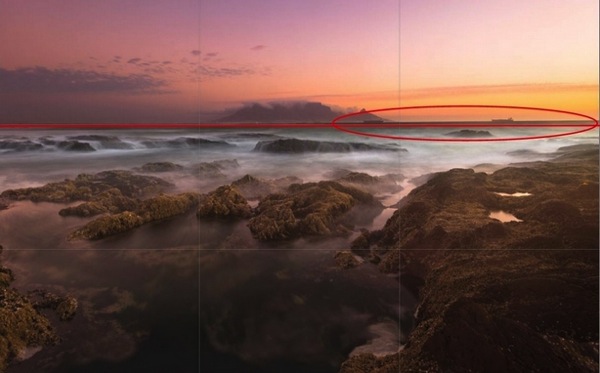
Skew Horizon

A crooked horizon is not always obvious; verify it using the proper tools.

Spots

Zoom-in and inspect your photo to make sure that there are no spots. Dried water droplets and dust become more visible when you increase the contrast of colors in your post-processing. Adobe Lightroom has a Spot Removal tool, and Adobe Photoshop also provides various ways to remove spots from your image.

Spots

Imagine printing a large image with these spots. These are very visible.

Chromatic aberration

Chromatic aberration, or color fringing, often happens around the edges of objects in your images. Why this happens is a technical topic on its own related to your lens, but what you need to know is that modern tools help remove this problem. Adobe Lightroom has a Remove Chromatic Aberration tool that you can use to overcome this issue.
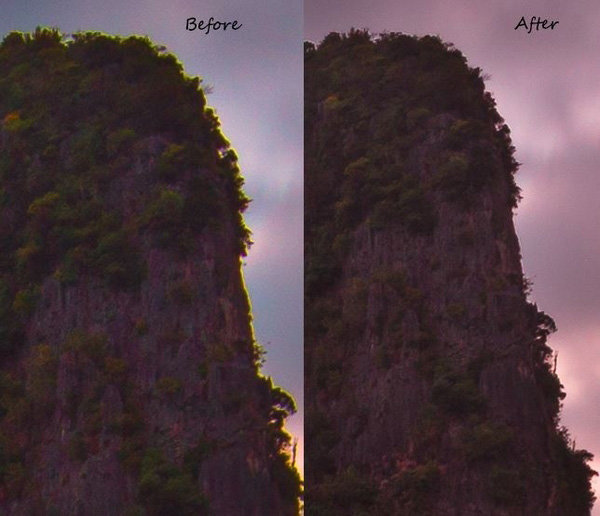
Chromatic_Aberration

With just one click, I was able to remove the color fringe from the edges.

Barrel distortion

Barrel distortion is associated with wide angle lenses. It causes your image to look more like a sphere. You might get away with it if the elements in your scene are uneven, and not particularly familiar to the eye. However, you need to be aware that the wider your focal length, the more distortion your image will have. Adobe Lightroom allows you to remove barrel distortion using the Lens Corrections feature. In the following image, people standing on each side of the image have elongated faces. I did not, of course, include this in the bridal album!

Raaiqah & Taariq Wedding, November 2014

Unwanted objects

Look for unwanted objects in the scene. Remove shopping bags, cans, tins, ships on the horizon, and even people if they are not desired in the scene. I use Adobe Photoshop’s Content Aware fill tool to achieve the desired results.

Image in black and white

Before and after post-processing, I usually check my images in black and white. By not allowing yourself to be distracted by colours, this is a good way to see if an image is flat. I do this for several reasons. Some images are just meant to be black and white, especially the ones in which the colour adds little by way of interest, and in fact may distract from the subject. You might also want to turn an image into black and white because the sky is overexposed, in this way salvaging, rather than discarding the image altogether. By converting an image to black and white, sometimes unwanted distracting elements in the background of your image can be de-emphasized, with some additional light adjustment (e.g. a person standing behind your main subject in a portrait).
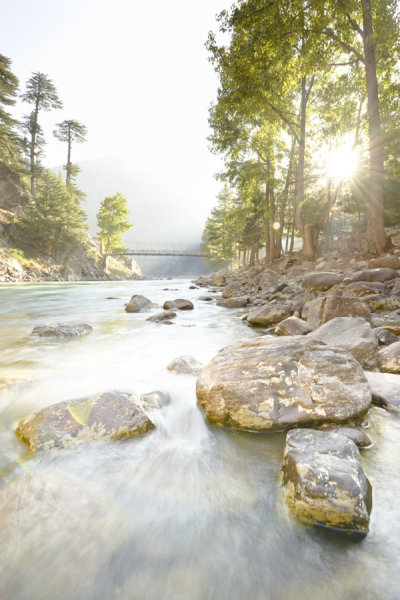
Color_Landscape BW_Landscape

Black and White allows you to appreciate the landscape with emphasis on the harmonies and lines rather than on the colours.

Color_Portrait BW_Portrait

In black and white, the background is not as distracting.

Tip: Walk away

Once you have finished editing your image (or a batch of images), step back and give review it full screen. Turning off the room lights and leaning back is a good idea. Without the mouse and the keyboard in my reach, I can think about the image critically. I sometimes even walk away and let the image lie there for some time before returning for a fresh approach.

Whether you are a beginner or a professional, after putting effort into post-processing, you tend to think that you have done enough to make the image ready. You focus on certain areas too much, and your mind forgets to tell you that you need to look in other areas to see if the image is balanced and harmonious. So, take your time and allow the image to fully absorb without patience in the post-processing phase. A lovely image can be converted into a magical one by proper processing.

Though these steps may sound pedantic, a good image needs loving care.

I hope these tips are helpful. Your feedback and comments are welcome.

googletag.cmd.push(function() {
tablet_slots.push( googletag.defineSlot( “/1005424/_dPSv4_tab-all-article-bottom_(300×250)”, [300, 250], “pb-ad-78623” ).addService( googletag.pubads() ) ); } );

googletag.cmd.push(function() {
mobile_slots.push( googletag.defineSlot( “/1005424/_dPSv4_mob-all-article-bottom_(300×250)”, [300, 250], “pb-ad-78158” ).addService( googletag.pubads() ) ); } );

The post Post-Processing Tips for Overcoming Beginners Acts of Omission by Mujahid Urrehman appeared first on Digital Photography School.

Digital Photography School

 
Comments Off on Post-Processing Tips for Overcoming Beginners Acts of Omission

Posted in Photography


Post-processing RAW Files – ACR Compared to Some Free Software Options

07 Mar

What is RAW?

Title-imageA RAW file is really the digital negative, which means that all the data is stored waiting to be unleashed via a RAW Editor. Unlike a jpeg file which has been edited in-camera (or in post-processing) and is a compressed 8-bit file.
Why shoot RAW?

The main benefit to shooting RAW is simply to have as much information as possible in the file. When you upload a RAW file onto your computer the white balance, and tonal corrections have to be set manually. More detail can be retrieved from the highlights and shadows. It is then saved as a jpeg or some other format. The RAW file always remains in its original state.

Shooting RAW has become more commonplace as cameras have the option, built-in and RAW editing software is more widely available on both Mac and PC. In this article, I will be testing out two RAW editors which are free to download. Yes, no purchase necessary. The main RAW editor that I will go into more detail on is Adobe Camera Raw (ACR), which comes with Photoshop and is my primary go-to RAW editing software.

As a side note, this article is by no means a complete in-depth review of the pros and cons of each of the the three RAW editors. I merely wanted to test Photoshop’s ACR against some of the RAW editors that are available to download for free, such as GIMP and RawTherapee.

A few years back, I was using ViewNX (now ViewNX2), which is Nikon’s RAW free editing software. Canon (DPP) and other major camera manufacturers have their own RAW proprietary software. But I found ACR just got better with each new release. I usually bring my images into Photoshop when I’ve done the initial edits in ACR. It means my workflow is quite efficient as I’m using ACR and Photoshop side-by-side.

The Basics

When you open ACR or any RAW editor, the user interface can be a bit daunting for the uninitiated. The range of adjustments and all the features of ACR would require several articles alone.

So, let’s look at the basic adjustments where I begin the editing process of my RAW files. These adjustments are fundamental to any RAW editor. Similar adjustments can also be found in the Develop module of Lightroom and in Photoshop Elements 12 and 13. Let’s begin with Adobe Camera Raw, otherwise known as ACR.

Adobe Camera Raw (ACR)

ACR-UI

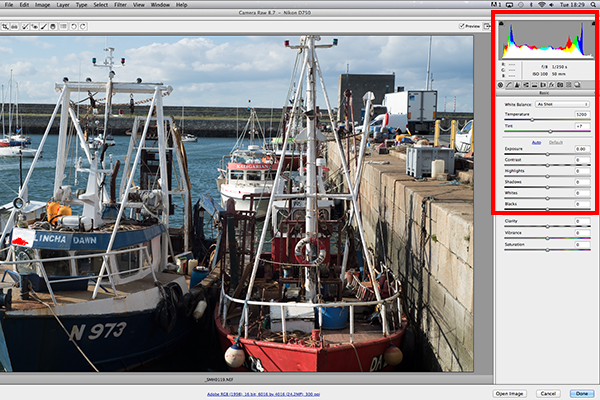
The interface when a RAW file is opened in ACR

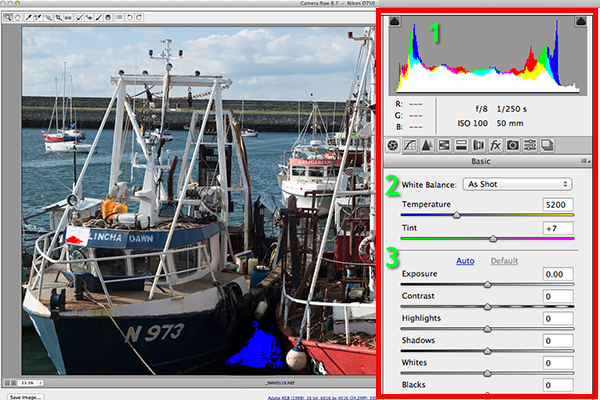
When I open a RAW file in ACR, White Balance is my first port of call. This is about the color temperature of the image depending on the light source. If the white balance is incorrect, then a color cast will occur on your image. It may look slightly blue, orange or green.

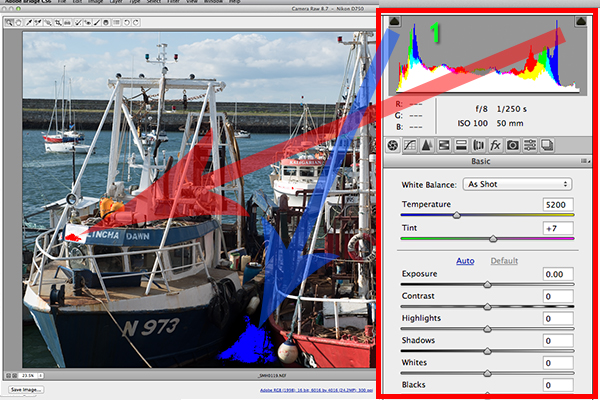
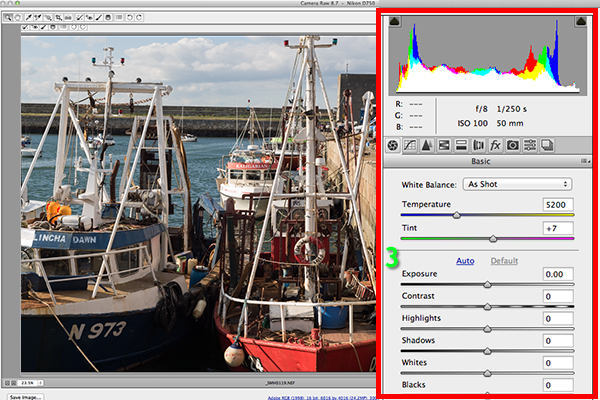
The 3 important focus points in the Basic panel in ACR

The three important focus points in the Basic panel in ACR

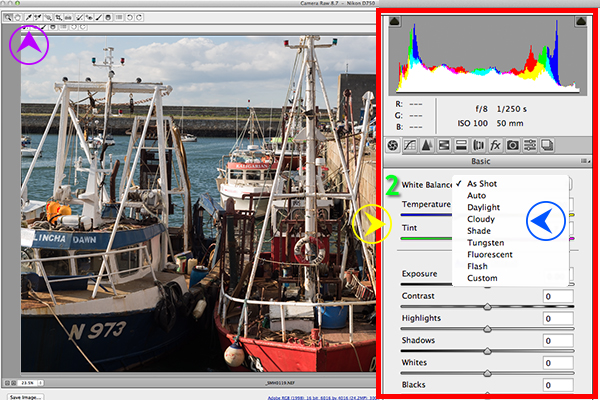
In ACR, there are three ways to adjust White Balance.

3-ways-to-edit-WB

Three ways to edit White Balance in ACR:
1. White Balance Tool
2. Presets
3. Temperature and Tint Sliders

  1. The White Balance Tool is my least favourite. The idea being that you click anywhere on the image that is suppose to be gray. I find this tool hit and miss.
  2. There are number of presets that are worth experimenting with, if you are new to RAW editing. Try Auto which is a good place to start.
  3. You can then adjust the Temperature and Tint sliders for finer tweaking and control. I favour these two sliders the most in my workflow.

Just above the Temperature and Tint sliders, you have the histogram panel. Click on the the two black triangles. These indicate the highlight (left) and shadow (right) areas that have been clipped (see photo below). As you can see in this image, the areas highlighted in red indicate where the clipping has taken place in the whites. Similar to the shadows, blue indicates where the shadow areas have been clipped.

Highlights-shadows-clipping

Highlights-shadows-clipping in the Histogram.

When adjusting the White and Black sliders keep an eye on the black triangles in the Histogram chart. These triangles turn green when clipping occurs. Alternatively, you can hold down the Alt key while dragging the Blacks slider across to the left until the darkest area of the image starts to appear. Similar for the Whites slider, hold down the Alt key and drag the slider to the right until the brightest part of the image begins to show.

I tend to leave the Exposure slider until after I have adjusted the Highlights and Shadow sliders.

Exposure-contrast

Exposure and Contrast sliders.

The Contrast slider gives your image that final punch but go lightly.

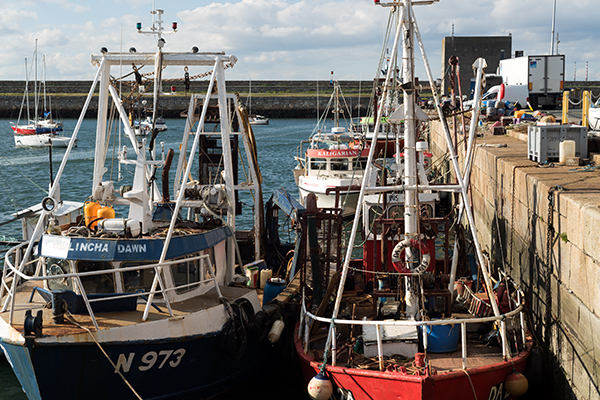
edited-image

Final edited image from the basic adjustments in ACR

All edits done in ACR are non-destructive. Editing RAW files can be easily done in one pass, especially if you have captured the image that you want in-camera. However, there are no layers in ACR or Lightroom, so if you need further editing where layers are required you will need to use Photoshop or GIMP.

GIMP

So this brings us to the next RAW editor, UFRaw. This comes pre-installed in GIMP, version 2.8. I’ve never used GIMP before now and I was really curious and enthusiastic to try it out. It has the reputation of being as powerful as Photoshop for editing – and the fact that it is free, is a bonus.

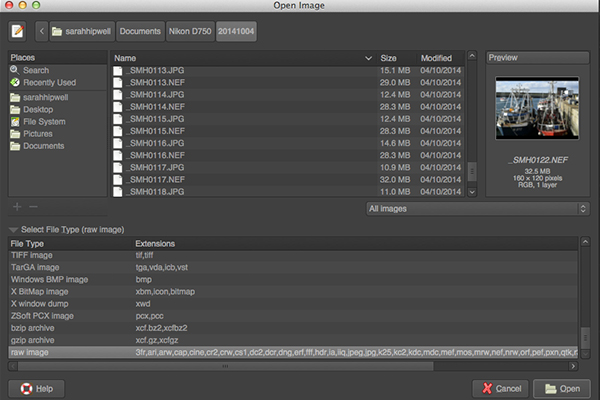
I presumed that by opening a RAW file that the UFRaw editor would launch automatically. It didn’t. After a quick research online. I found a solution. I had to go to File>Open>Select file. I then had to Select File Type and scroll down to the bottom of a list and click on ‘raw image’. Once I opened the image in question. It did not resemble anything like the image I had taken on the day. Normally when I launch a RAW file in ACR, it would be similar to the jpeg version.

Opening-RAW-file-in-GIMP

The UFRaw editor does not launch automatically. A few clicks gets you there.

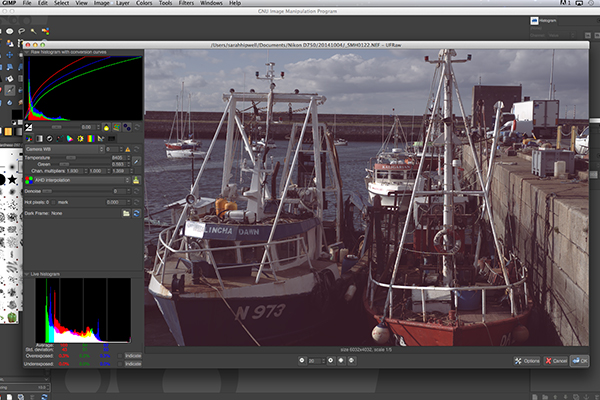
The interface was completely alien to me, and I didn’t find it particularly user friendly. I played around with the sliders for awhile but I couldn’t get the image to look right at all. I tried adjusting the White Balance but I couldn’t get rid of a green/grey color cast on the image. By not having the familiar sliders in ACR, I was a bit lost to be honest. I really wanted to like UFRaw, as it is a free software for Mac and PC. To be fair, this was my first attempt at using the software, so I’ll put the mea culpa (blame) on me as opposed to the software.

RAW-file-opened-in-GIMP

The UFRaw editor UI in GIMP

RawTherapee

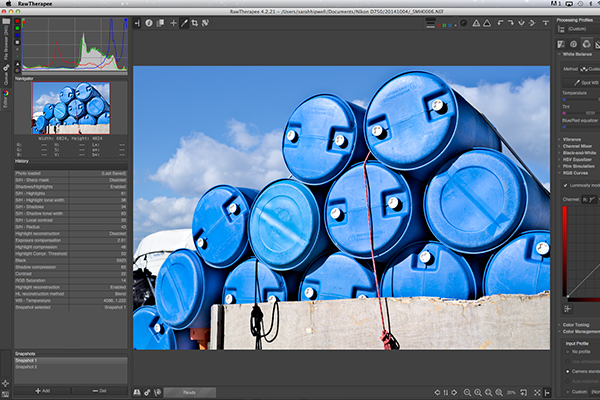
Now onto RawTherapee. I love the name. I wasn’t expecting much after trying out GIMP’s UFRaw but I was completely surprised and impressed. RawTherapee is available in 64 and 32 bit forms for Mac OS X and Windows. It also supports a huge range of supported cameras and manufacturer filetypes.

RawTherapee-UI

RawTherapee interface

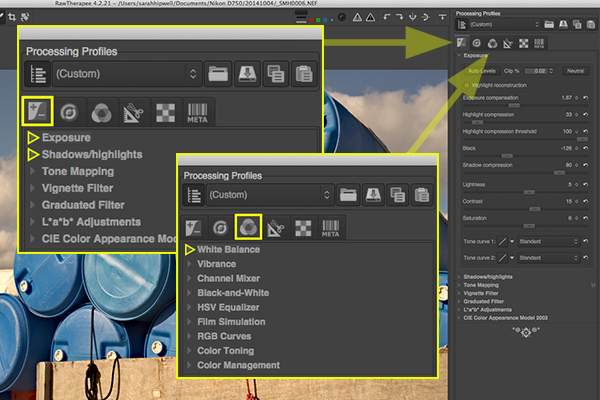
This RAW editor is quite rich in features. Even so I found the user interface very intuitive, and after a few minutes I felt right at home. I quickly adapted to the menu system and found it very easy to navigate around. The editing panels are on the right.

RawTherapee-adjustment-sliders

Highlighted adjustment sliders that are similar to the ones in ACR.

Summary

If you haven’t edited a RAW file before, I would highly recommend that you try it out. The options are varied whether you decide to purchase Lightroom, or choose to pick from the many RAW editors that are free to download. The choice is really up to you. Another free RAW editor that has just been launched is Affinity Photo and it looks really promising (currently in beta for Mac only).

googletag.cmd.push(function() {
tablet_slots.push( googletag.defineSlot( “/1005424/_dPSv4_tab-all-article-bottom_(300×250)”, [300, 250], “pb-ad-78623” ).addService( googletag.pubads() ) ); } );

googletag.cmd.push(function() {
mobile_slots.push( googletag.defineSlot( “/1005424/_dPSv4_mob-all-article-bottom_(300×250)”, [300, 250], “pb-ad-78158” ).addService( googletag.pubads() ) ); } );

The post Post-processing RAW Files – ACR Compared to Some Free Software Options by Sarah Hipwell appeared first on Digital Photography School.


Digital Photography School

 
Comments Off on Post-processing RAW Files – ACR Compared to Some Free Software Options

Posted in Photography


Post-Processing Tips of the Year 2014 on dPS

31 Dec

What to do with all those photos after you’ve taken them is the question. Do you do any post-processing? Are you a minimalist? Or maybe you like do to HDR?

Zvi Kons

By Zvi Kons

Whatever your tendency this year had some helpful post-processing articles. Here are a few of the most popular ones from the last year:

Lightroom

  • 6 of Lightroom’s Hidden Treasures
  • Useful Lightroom Plug-ins
  • How to do Noise Reduction in Lightroom
  • Photoshop Versus Lightroom Which is Right for You?
  • Lightroom How To – One Tip and One Trick
  • Seven Pieces of Advice for New Lightroom Users
  • Improve Your Images with the Lightroom Graduated Filter Tool
  • Save Tons of Editing Time with Lightroom Presets
  • How to Create a Vintage Look using Lightroom
  • Step by Step Portrait Processing in Lightroom
  • Lightroom 5 Tips – Hidden Gems
  • Mastering Color in Lightroom using the HSL Tab

Photoshop

  • >3 Easy Steps Using Photoshop to Making your Images POP
  • 5 Photoshop Tools to Take Your Images from Good to Great
  • How to Use LAB Color in Photoshop to Add Punch to Your Images
  • 6 Commonly Used and Confused Tools in Photoshop Explained
  • Ten Go-to Editing Tips for Using Photoshop
  • 4 Tips for Post Processing Efficiency in Photoshop
  • Understanding Masking in Photoshop
  • How to Watermarking Images With Photoshop and Lightroom
  • Two Quick and Easy Photoshop Head-Swapping Techniques
  • How to Use Levels in Photoshop Correct Color and Contrast
  • How to do Quick and Easy Curves Adjustments in Photoshop
  • 3 Creative Uses of the Drop Shadow in Photoshop
  • How to do Great Black and White Conversions Using Photoshop
  • 5 Creative Ways to Process Infrared Photographs in Photoshop
  • A Beginners Introduction to Using Layers

Other

  • Are You Guilty of these 5 Over-Processing Sins?
  • Luminosity Masks Versus HDR Software For Creating Natural Looking HDR Images
  • Better Star Trails Photographs with StarStaX
  • HDR Vertorama Photography – How to Create Mind-bending Images
  • Getting to Know Picasa – a Free Image Editor and Browser by Google

googletag.cmd.push(function() {
tablet_slots.push( googletag.defineSlot( “/1005424/_dPSv4_tab-all-article-bottom_(300×250)”, [300, 250], “pb-ad-78623” ).addService( googletag.pubads() ) ); } );

googletag.cmd.push(function() {
mobile_slots.push( googletag.defineSlot( “/1005424/_dPSv4_mob-all-article-bottom_(300×250)”, [300, 250], “pb-ad-78158” ).addService( googletag.pubads() ) ); } );

The post Post-Processing Tips of the Year 2014 on dPS by Darlene Hildebrandt appeared first on Digital Photography School.


Digital Photography School

 
Comments Off on Post-Processing Tips of the Year 2014 on dPS

Posted in Photography


Simple Post-Processing Tips For Minimalists

30 Nov

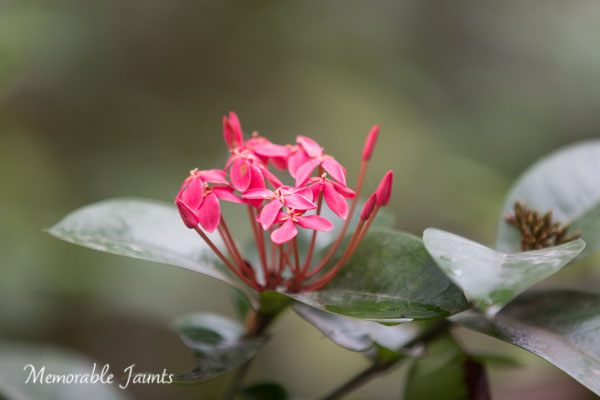
Pink Flowers on a cloudy day

Are you a minimalist in terms of your photography? Do you crave simple composition and clean lines in your images? There are many wonderful articles on minimalist photography and simple imagery. In fact Valerie Jardin has a fantastic article on Minimalist Photography – 4 Tips To Keep It Simple right here on Digital Photography School.

This article encourages you to take that approach a step further into post-processing to achieve a clean, timeless look to your imagery. A clean, crisp image always stands the test of time. You don’t have to look very far, just dig into your own image archives from prior years and see which images appeal to you the most.

As a photographer, your greatest achievement is when you are able to capture images exactly as you envision them or see them with your mind’s eye. When you import your images to your computer and the SOOC (Straight Out Of Camera) image simply takes your breath away, you know you’ve got what it takes. While all of us aim for that exact moment of shining glory, sometimes we need to add just a little bit of oomph to the image, simple adjustments that take the image from great to awesome.

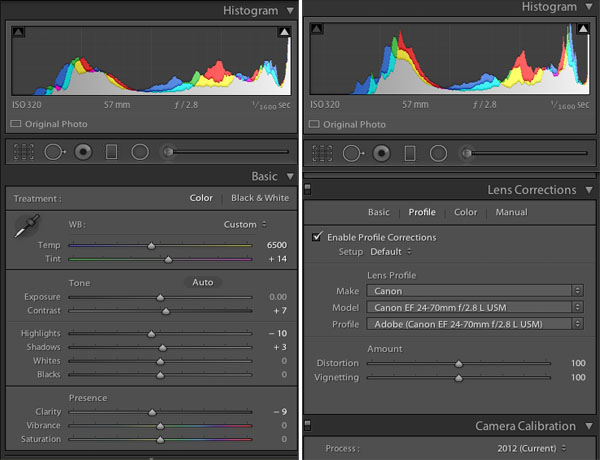
Here are some post-processing tips on achieving a great look using simple adjustments. These are all done in Lightroom 5 – a great processing tool for you – using only the Basic and Lens Corrections Panels. The Basic Panel in LR contains adjustment sliders like: Temperature and Tint which adjust White Balance, Exposure and Contrast, Highlights, Shadows, Whites and Blacks which adjust Tone and Clarity, and Vibration and Saturation which adjust Presence. The Lens Correction Panel in LR primarily contains profile corrections for various Lenses.

Lightroom 5 Basic Panel and Lens Profile Correction Panel

Another point to note is: Use RAW format for your images if your camera has the ability to record images in that format. This type of file format has a lot more leeway in terms of post-processing adjustments. There are several articles in the Digital Photography School’s archives that discuss RAW file formats in great detail.

Post-Processing Steps for Minimalist

1) Enable the Lens Correction

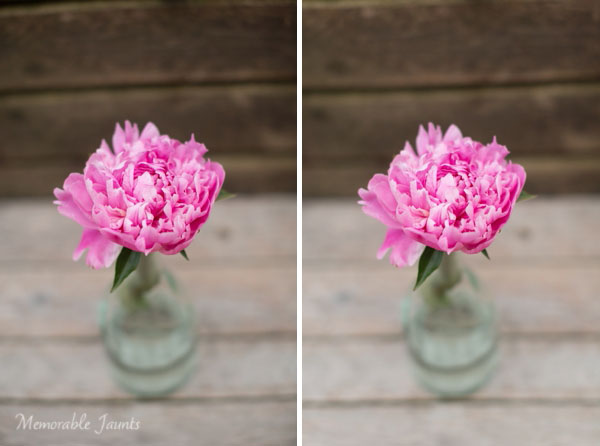
Certain lenses, particularly wide angles, introduce some distortion in the images, especially around the edges of the frame. This is generally more obvious in images that either have horizontal lines, curved lines  or the horizon in the frame. Lens Correction can be done in the Profile tab where you can Enable Profile Corrections. Selecting that box, should bring up the profile of the lens used for that particular image. With each new version of LR (we are currently in LR 5.6) more and more lens profiles are being added to the software.

Note: if you cannot find your lens you can try looking on the manufacturers site or use one that is similar.

In the Profile mode, LR automatically detects the lens used and corrects the distortion. Finer adjustments can be done using the sliders under the Lens Profile. You may have to drop down the list and find your particular lens. Enabling Profile Corrections first eliminates the distortion and sometimes brightens the images just a tad – which might be just what the image needs. For more control, switch to the Manual tab for individual profile correction adjustments.

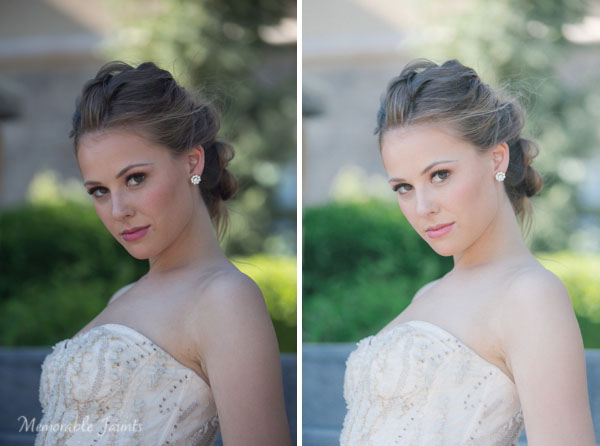
Left is SOOC; Right is Lens Correction adjustment (notice the wood panel in the top of the image)

The left image is SOOC; the right has Lens Correction adjustments done (notice the wood panel in the top of the image)

2) The Basic Adjustment Panel is your BFF (best friend forever)

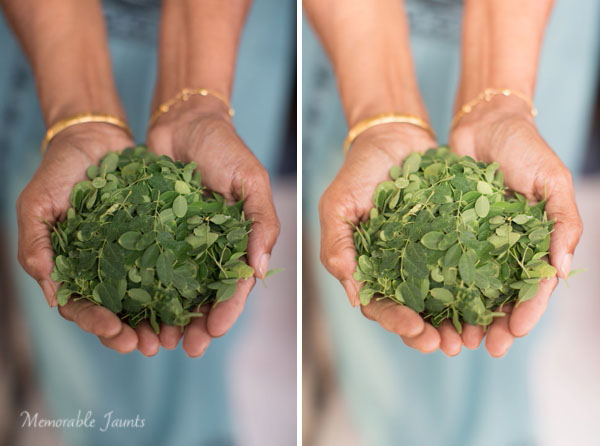
80% of all minimalistic adjustments happen in the Basic Panel. White Balance (Temperature and Tint) are the most commonly used sliders. Most adjustments are quite minimal. A few stops up or down generally gives you exactly what you are looking for. Take note that small adjustments are very subtle. If your photograph has people, be cognizant of skin tones and colors as they can vary a lot among people and hence the WB slider numbers will also vary. Other variables that affect white balance are; the type of light (artificial versus natural) as well as the time of day (morning, high noon, or dusk). If your camera has the ability to do custom adjust white balance in camera, you can use that to further reduce this adjustment step. Photographing in Auto White Balance versus Custom White Balance is a personal choice.

Left is SOOC; Right has Lens Correction, White Balance (Temp/Tint) adjusted

The left image is SOOC; the right has Lens Correction and White Balance (Temp/Tint) adjusted.

3) Exposure and Contrast go hand-in-hand

The easies way to explain exposure is its ability to brighten or darken an image. Moving it to the right (+) adds brightness to the overall image and moving it to the left (-) reduces brightness. Often times when adjusting exposure more than half or one full stop (i.e. adding more brightness) the overall contrast of the image is affected. The Contrast slider adds more definition between the darks and the lights in the image. Play with the contrast sliders (Contrast and Clarity); they provide an additional pop to the colors in the image that are generally blown out when exposure is drastically increased.

Left is SOOC; Right has Lens Correction and White Balance (Temp/Tint) adjusted

The left image is SOOC; the right has Lens Correction and White Balance (Temp/Tint) adjusted.

Left is SOOC; Right has Lens Correction, White Balance and Contrast adjusted

The left image is SOOC; the right has Lens Correction, White Balance, and Contrast adjusted.

Left is SOOC; Right has Lens Correction, White Balance (Temp/Tint), Exposure and Contrast adjusted

The left image is SOOC; the right has Lens Correction, White Balance (Temp/Tint), Exposure, and Contrast adjusted.

In most cases, minimalistic editing is done at this point. Highlights/Shadows/Whites and Blacks can be adjusted to taste depending on the image. With Portraits, you can also adjust the Clarity slider a bit just to smooth out the skin. For more information on Clarity Slider check out Peter West Carey’s article Lightroom’s Clarity Slider – What Does it Do? in the dPS archives. The easiest thing to remember about the Clarity slider is that it adjusts the edge contrast in only the mid-tones of the image. Go easy with this slider because a little does go a long way and too much clarity, particularly on skin, can provide a very plastic looking skin.

Left is SOOC; Right has Lens Correction, White Balance (Temp/Tint), Exposure and Contrast, Clarity and Highlights adjusted

The left image is SOOC; the right has Lens Correction, White Balance (Temp/Tint), Exposure, Contrast, Clarity and Highlights adjusted.

Left is SOOC; Right has Lens Correction, White Balance (Temp/Tint), Exposure and Contrast, Clarity and Highlights adjusted

The left image is SOOC; the right has Lens Correction, White Balance (Temp/Tint), Exposure, Contrast, Clarity and Highlights adjusted.

As always, the amount of post-processing you do to an image is a personal choice, including the minimalistic option; but it definitely provides for a faster workflow – less than a few minutes per image. In most cases of minimalistic post-processing the adjustments are very subtle. Less time in front of the computer equals more time spent perfecting the art of photography to get those nearly perfect images right out of the camera.

The post Simple Post-Processing Tips For Minimalists by Karthika Gupta appeared first on Digital Photography School.


Digital Photography School

 
Comments Off on Simple Post-Processing Tips For Minimalists

Posted in Photography


Speed Up Your Post-Processing Workflow With Photo Mechanic

07 Nov

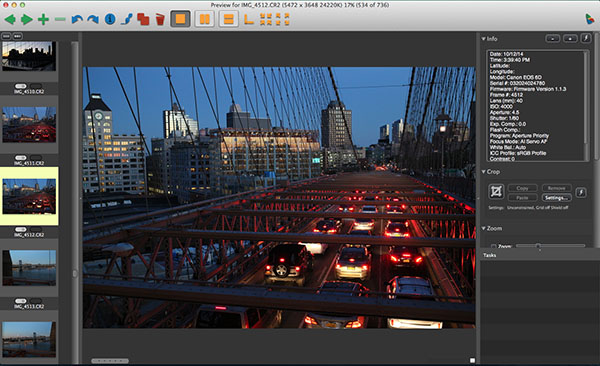
PMCleanCover-178x177Today there are a ton of photo editing software programs to choose from, but there is one in particular that is worth the investment if you’re in need of speed. Developed by Camera Bits, Photo Mechanic is a standalone image browser that offers the very basic features of previewing, selecting, and importing digital images (culling). While the software might seem like a questionable investment since all it does is cull with no photo editing capabilities, Photo Mechanic has long been vouched for by many professional photographers. In fact, it was debuted in 1998 and used by The Associated Press to accelerate its coverage of Super Bowl XXXII. Since then, Photo Mechanic has been a popular choice by professional sports shooters and photojournalists, and it has also been made available to amateurs at a price of $ 150.

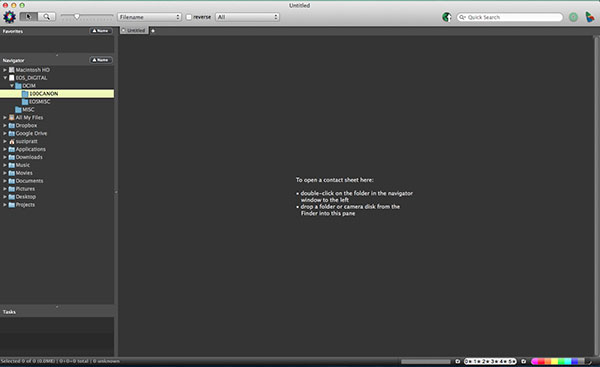
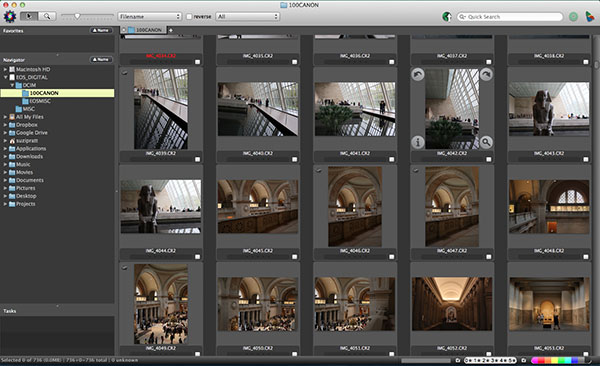
photo-mechanic

Whether you are a pro or not, here is why you may want to consider looking into Photo Mechanic for your post-processing workflow:

Photo Mechanic Image Browser

The core benefit of using Photo Mechanic is its wicked fast speed and ingest utility that allows for copying files from multiple flash or SD cards cards simultaneously, as well as renaming the files and adding IPTC information to them. Photo Mechanic also has a Live Ingest feature that is ideal for shooting tethered or using remote cameras and seeing your shots as soon as they are taken.

Photo Mechanic Image Browser

As soon as you connect your SD or CF card to your computer and pull up Photo Mechanic, you will immediately see compressed JPEG previews of all of your card’s contents on your contact page. It won’t matter if you shot a couple thousand RAW photos – each one will be almost instantly available for preview. There isn’t the three to five second delay that is common on other photo browsing programs such as Adobe Lightroom and Bridge. When you double click on a single image in the contact page, the image will enlarge in a preview screen, and you’ll be able to immediately view your photo in high resolution, including zooming in to check the focus of tiny details. All of this is done without having to load the image, meaning it happens with little to no lag time. You’ll be able to preview the entire contents of your card with the same speed.

Photo Mechanic Image Browser

Once you begin ingesting (importing) files from your cards to your computer or external hard drive, you can immediately start editing the photos. There is no need to wait until the copy process is complete. You can even initiate up to three other ingest sessions at a time, meaning up to three cards can be culled at the same time. The latest version 5 of Photo Mechanic was released in 2013 and it enhances the ingest feature by giving you the option to automatically import images when a disk is mounted to your computer.

Photo Mechanic Image Browser

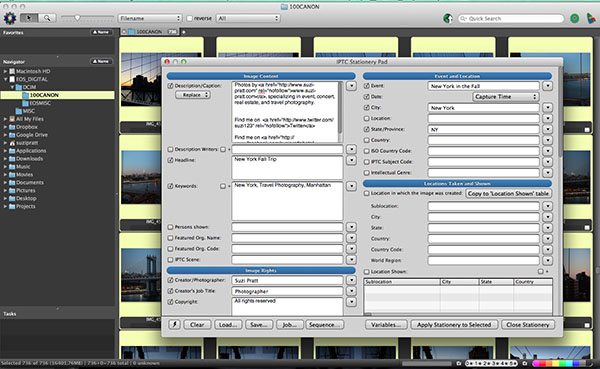
To speed up the image sorting and organizing process, Photo Mechanic includes an IPTC Stationery Pad for adding captions, credits, metadata, and copyright information to batches of images. Version 5 of Photo Mechanic includes dozens of new IPTC fields and extra sorting options including color class, rating, and tag values.

Photo Mechanic’s main disadvantage is that it does not convert RAW shots, meaning you’ll still need to use a separate program such as Lightroom or PhotoShop to perform any edits or convert RAW images into JPEGs. Some photographers might find it a hassle to go between programs, but if you’re in the market for speedy imports and downloads, then Photo Mechanic will be your preferred image browser. It also offers a free 30 day, fully functioning version if you want to test it out first.

Have you tried it of a similar solution? What are your thoughts? Please share your comments with us.

The post Speed Up Your Post-Processing Workflow With Photo Mechanic by Suzi Pratt appeared first on Digital Photography School.


Digital Photography School

 
Comments Off on Speed Up Your Post-Processing Workflow With Photo Mechanic

Posted in Photography


5 Unforgiving Post-Processing Mistakes Every Bird Photographer Must Avoid

03 Nov

Post-processing is one of the most important steps in the image making process. It is in fact one of the most powerful tools to make your vision come true. The camera does not see the way you see your world and it is your responsibility to translate your vision into reality in post-processing.

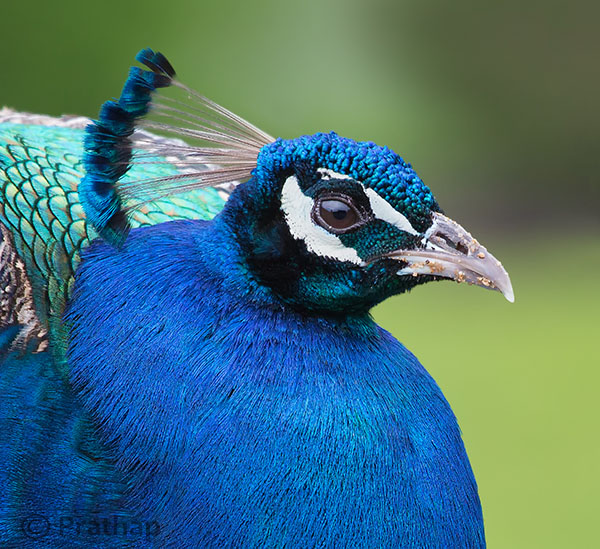
0 Nature Photography Simplified Bird Photography Post Processing Tips Peacock Portrait Featured Image

You can achieve most artistic results in post-processing that are simply not possible in reality. But, being a bird photographer you do not often get a chance to post-process your bird photographs artistically. Why?

Since the viewer would have seen the bird in reality, it is easier to compare to what is presented in a photograph. Bird photography is generally about showing the bird and its natural beauty not enhancing it artistically to achieve something else!
It is very similar to taking photograph of a person. Do you want to show the person as they are, or do you want to make them look someone else?

Does this mean, you have to just keep it real?

Not necessarily. But any enhancement in post-processing to make a bird or its features look beautiful has to be done with lot more care than if it was a landscape photograph for instance.

Remember that the mistakes will be caught easily!

Below I am listing the five post-processing mistakes that you, as a bird photographer, should avoid because they are unforgiving.
Committing any of these mistakes may ruin your bird photograph, and you definitely do not want to ruin your hours and days of effort in getting that one photograph you love. Do you?

Mistake #1: It’s cropped too tight

There is an ongoing debate about whether to crop or to get everything perfect in field. Though it is desirable to compose in the field, cropping in the post becomes necessary many a times in bird photography because of several factors like:

  • Not enough time to compose the fast action that unfolds in split seconds
  • Not enough focal length to fill the frame
  • Not enough time to compose an image especially in case of birds in flight

If you can improve the composition, then go ahead and crop the image. But too often, I see lot of bird photographers crop it too tight which makes the bird suffocate in the frame and the image look cramped.

1-Nature-Photography-Simplified-Bird-Photography-Post-Processing-Tips-Too-Tight-Crop

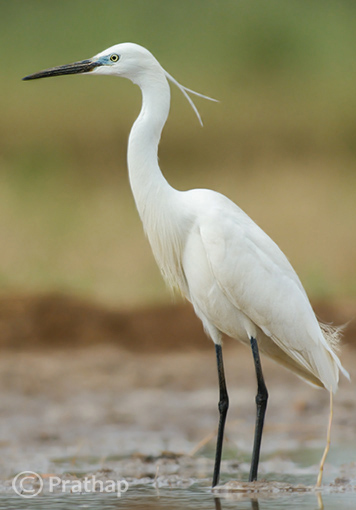
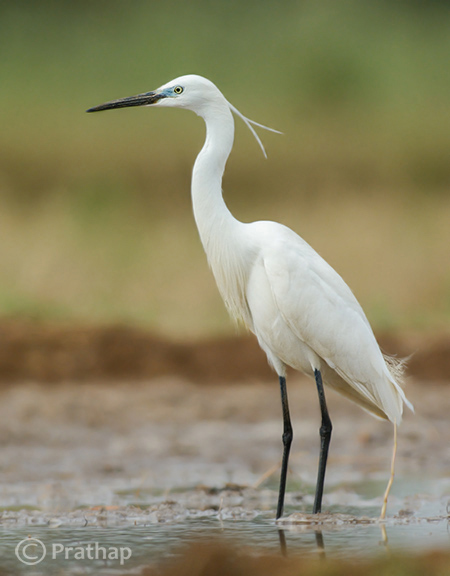
The little Egret in this photograph looks suffocated because there is no breathing space in front to look into, and no space to move which makes it look cramped.

2-Nature-Photography-Simplified-Bird-Photography-Post-Processing-Tips-Little-Egret

Notice how a little bit more space around the bird gives him room to look into and move. It is more pleasing to our eyes also.

Quick Tip: Use the Rule of Thirds as a guideline.

Mistake #2: It’s unrealistic

The clarity slider in Adobe Lightroom is such a lethal weapon that is hard to replicate even with Adobe Photoshop. It enhances the local contrast in an image, which is one of the most important aspects of processing. Too much local contrast makes an image looks unrealistic as it tends to sharpen.

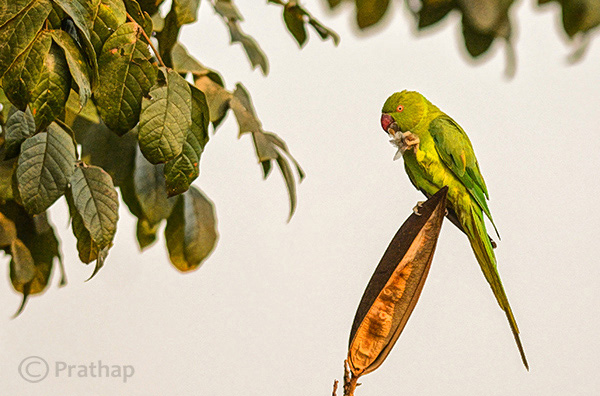
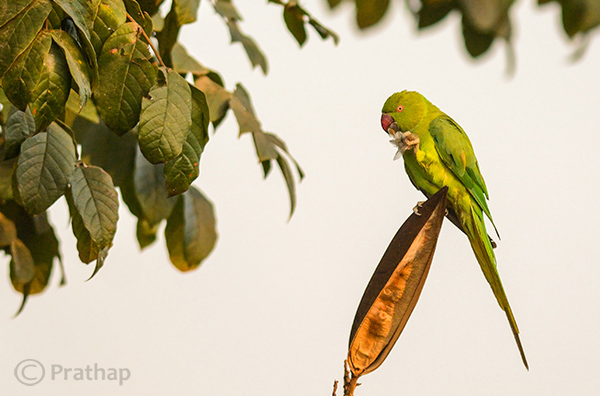
The soft and smooth feeling of the smallest details in feathers of the bird starts to look very unrealistic.

3 Nature Photography Simplified Bird Photography Post Processing Tips High Local Contrast

Notice how unrealistic the Parakeet looks in the above image. Even the leaves look like plastic.

4 Nature Photography Simplified Bird Photography Post Processing Tips Rose Ringed Parakeet Female

Just enough local contrast (usually Clarity of +20 to +30) will bring out all the details in the bird.

Quick Tip: Instead of using your mouse to pull the Clarity slider, use keyboard arrows and watch the changes as you bump up the clarity. Restrict to the smaller numbers like +10 to +30.

Mistake #3: Everything is overly colorful

Over-saturated images are everywhere!

Birds are definitely colorful subjects and that is the reason we are all attracted to them. But are they so colorful?
Too much saturation looks overcooked. If you try to increase the contrast as a last step in your post-processing workflow (which is usually recommended), then it will also increase the saturation.

Note that Saturation slider increases the overall saturation of the image making everything in the image colorful. Do you really want everything in the image looking colorful? Do you want to emphasize the bird or the background?

5 Nature Photography Simplified Bird Photography Post Processing Tips Over Saturated

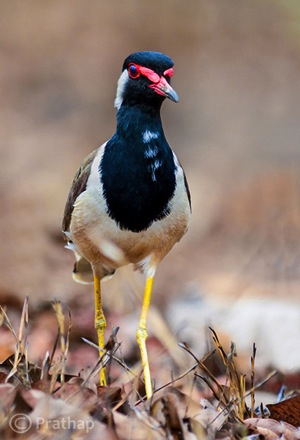
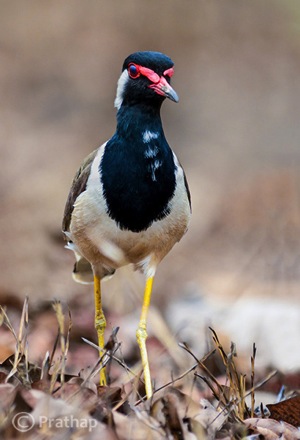
Everything in the above photograph of a Red-Wattled Lapwing is colorful. It is way too colorful.

6 Nature Photography Simplified Bird Photography Post Processing Tips Red Wattled Lapwing

In the above photograph I have selectively increased the Saturation only for the bird in Adobe Photoshop.

Quick Tip: Use selective coloring. Saturate only the colors or object that are very important. Use the HSL panel or the adjustment brush to apply the color.

Mistake #4: The bird looks like a wax statue

Have you seen a wax statue of a bird in a shop? You can also see them on the web. Excessive noise reduction will give a plastic or wax statue look to your bird photographs.

While it is important to reduce the noise because most often we have to bump up the ISO to 400 or 800 to freeze the action, it is also important to understand what the Noise Reduction filter does. It The smoothes out the edges, by smoothening out the minute and important details of the image and the bird.

7 Nature Photography Simplified Bird Photography Post Processing Tips Waxing

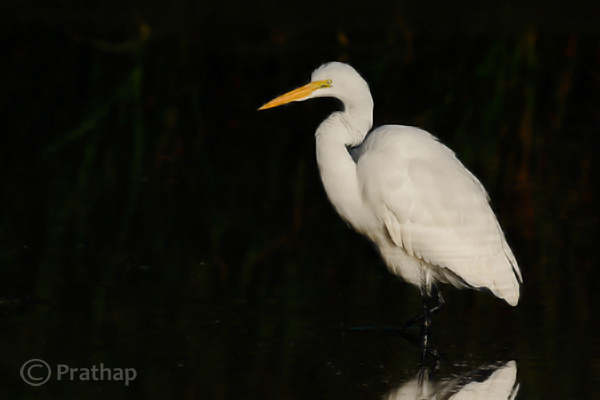
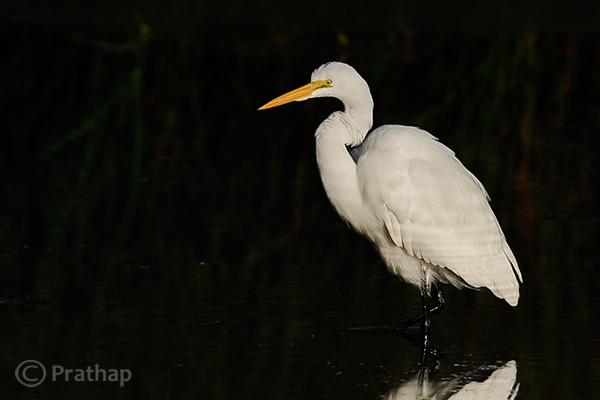
The above image of a Great Egret has a waxy look because of the excessive noise reduction applied to the entire image. Remember that the water looses texture due to excessive noise reduction giving it an artificial look.

8 Nature Photography Simplified Bird Photography Post Processing Tips Great Egret

By reducing the noise only in the out-of-focus or low detailed or shadow regions of the image, it will help to keep the details intact.

Quick Tip: Reduce the noise only in the smooth areas (like the background) since noise is generally not visible in the high detailed areas (like the bird’s body).

Mistake #5: Too much is bad

Too much is bad in anything that we do. Pushing any post-processing slider too far will yield a bad image. But the most important one that is noticeable with many bird photographs, is that it is over-sharpened. No matter how good your post processing skills are, if you make this one mistake, there is no way out.

Over-sharpening kills a photograph. Period.

It is better to keep it little less sharp than to go too far and be overly sharp.

9 Nature Photography Simplified Bird Photography Post Processing Tips Over Sharpened

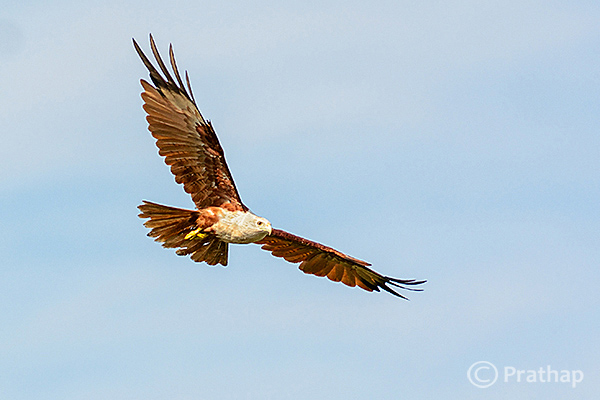
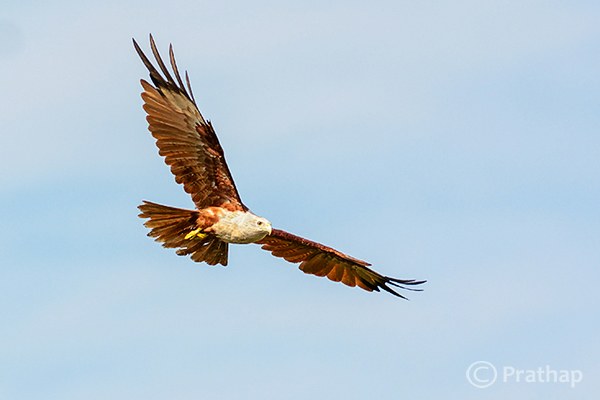
The features of the Brahminy Kite are way sharper than what they should be. Also check out the halo around the bird formed due to sharpening on the overall image.

10 Nature Photography Simplified Bird Photography Post Processing Tips Brahminy Kite In Flight

Quick Tip: Apply sharpening only to the bird but not to the background.

Final words

These are some of the major mistakes that should be avoided. Because they are unforgiving and can potentially ruin your best photographs. The best way to avoid these mistakes is to keep a small checklist to see if you have committed any and correct them immediately. With practice, you will easily avoid all of them.

Now, it’s your time to tell me the mistakes that you think should be avoided. What mistakes have you made in post-processing? Feel free to add your opinion on this subject but please make sure it is productive and helpful to all our readers.

The post 5 Unforgiving Post-Processing Mistakes Every Bird Photographer Must Avoid by Prathap DK appeared first on Digital Photography School.


Digital Photography School

 
Comments Off on 5 Unforgiving Post-Processing Mistakes Every Bird Photographer Must Avoid

Posted in Photography


6 Great Reasons to Get over Post-Processing Anxiety

24 Sep

I’m baffled when my workshop students tell me that they find image post-processing to be a chore, a dreaded task that prevents them from even looking at their beautiful photographs more than once. If you’re one of those types, I’m here to tell you that you’re missing out on a delicious second hit of creative joy.

1 – Don’t Miss Out – Post-Processing is Half the Fun

Night Photography with high ISO - Gavin Hardcastle

Unprocessed version below. Total processing time = five minutes. Steps taken:

  1. Boosted blacks and shadows
  2. Reduced whites
  3. Increased exposure by +1
  4. Increased clarity
  5. Increase contrast
  6. Subtle noise reduction
  7. Subtle sharpening

Victoria Night Photography - Gavin Hardcastle

I think one of the reasons that I love photography so much is that I get that double whammy of artistic creativity. The first is when I’m out taking the shot, often standing in awe at the scenery unfolding before me. The second hit is when I get back home and start processing my images.

When I’ve shot an image that I know is really strong, I can’t wait to get that RAW file opened up so that I can relive the moment and get creative with my processing to realize the visual feast that I witnessed when I was on location.

2 – RAW Files are Your Best Teacher

RAW file processing of Landslide Lake - Gavin Hardcastle

Unprocessed version below. Total processing time = three minutes. Steps taken:

  1. Boosted blacks and shadows
  2. Reduced whites
  3. Added high contrast grad filter just above water level to emphasize mountain structure
  4. Increased clarity
  5. Increased contrast
  6. Subtle sharpening added
  7. Increased vibrance
  8. Increased red highlights in the foreground

Unprocessed RAW image of Landslide Lake - Gavin Hardcastle

The first thing that you’ll learn when processing your images is what you did wrong. Maybe you selected the wrong aperture, perhaps your ISO was too high and your image is full of noise, or maybe you just focused in the wrong spot.

By processing and essentially studying your own photographs, you’ll quickly learn which techniques you need to improve and what you could have done to make your images better. If you got everything right when taking the shot, you’ll have loads of fun tweaking the most quality out of your RAW file, and producing an image that you’re proud to share with the world.

If you simply don’t care about sharing your images that’s fine, but if you’ve captured a beautiful moment in time, chances are that most people will gain pleasure from seeing your work. Don’t be so shy, process that image and show the world what you made.

3 – Didn’t Get it Right in Camera? No Problem

It’s totally possible to capture a truly beautiful image in camera, that requires minimal or zero processing, and that’s something you should strive for. However, most of the time there are technical challenges that our cameras simply can’t handle. That’s where image processing comes to the rescue. This could be as simple as red-eye reduction, right through to noise reduction and fixing blown out highlights.

When you’ve become adept at image processing, you’ll be far more daring in your photography by taking photos that you otherwise thought might have been too noisy, too blown out, or unusable for whatever reason. Having even a basic understanding of image processing will open your creative horizons and give you more confidence.

4 – The Camera Sees What You Did Not

aroura-borealis-photography-gavin-hardcastle

Unprocessed version below. Total processing time = five minutes. Steps taken:

  1. Changed the white balance
  2. Reduced whites
  3. Reduced red highlights in the foreground
  4. Increased clarity
  5. Increased contrast
  6. Applied heavy noise reduction
  7. Added subtle sharpening
  8. Increased vibrance

aroura-borealis-unprocessed-photography-gavin-hardcastle

There are times when your camera can see things that you might have missed or were not capable of seeing. When shooting aurora like the image above, most cameras are able to record colours that are barely visible to the naked eye. Some of this processing happens in the camera, but until you look at the RAW file and see what can be done to clean up your image, you won’t realize the full potential of the moment that you captured.

In the image above, I chose the wrong white balance while shooting, and wasn’t really happy with the colours until I switched the white balance to Tungsten in Adobe Camera Raw. I could have done this in camera, while shooting, but everything looks awesome on the little LCD screen on the back of the camera so I thought it was fine until I got back home.

High ISO images of the Milky Way or an aurora might be totally unusable until we’ve cleaned up the noise, fixed any white balance issues and corrected the contrast – among other things.

5 – It’s Easier Than You Think

Sve Your Adobe Camera RAW Defaults

This is how I do it in Adobe Camera RAW. Once you’ve tweaked your most commonly used settings such as lens profiles, chromatic aberration, shadows, highlights, etc., click on the top right tab and then choose ‘Save New Camera RAW defaults’. This well be called up automatically when you next open a RAW file.

A lot of the grunt work can be taken out of editing your images by the simple act of saving your default processing settings to match your camera and lens. Whether you process your images in Adobe Camera RAW or in Lightroom’s Develop Module (which is almost the same thing), you can save your most commonly used processing settings as a default file that will automatically be applied to any RAW file that you open.

This is a real time saver and can be used as a great starting point. There’s no one setting to suite all images, but if you often shoot the same types of images, it’s good to have a default setting that is already pre-configured for your equipment and processing style.

You can even save multiple presets so that if you change your shooting style for different projects, you’ve already got your previous go-to processing settings to get you off to a quick start. From that point, simply tweak your settings until you’re happy.

6 – Black and White Saves the Day

buttle-lake-the-hand-monochrome-conversion

Unprocessed version below. Total processing time = five minutes. Steps taken:

  1. Boosted blacks and shadows
  2. Reduced whites
  3. Converted to black and white
  4. Increased clarity
  5. Increased contrast
  6. Added a vignette
  7. Used the dodge brush to accentuate tree root highlights

buttle-lake-the-hand-unprocessed

I often shoot images that I know will work in black and white much more effectively.

Let’s say I really like the composition that I’ve got and the weather conditions are just perfect, except for the fact that there isn’t much colour in my scene. In those situations I’m already looking forward to converting my image to black and white which can sometimes result in a much more punchy, and dramatic image than the original colour version.

You can easily do the conversion in either Photoshop or Lightroom. Then have fun playing with contrast, shadows and highlights and maybe even a little dodge and burn to accentuate key areas.

Start Processing Your Images Right Now

I hope these six reasons have convinced you that it’s worth setting aside just a little bit of time to process your images. You might discover that you’re a much better photographer than you realized. At the very least, you’ll be able to figure out where you went wrong, and what you need to do to improve your photography.

Maybe you’ll even learn to love image processing as much as you loved taking the shot.

The post 6 Great Reasons to Get over Post-Processing Anxiety by Gavin Hardcastle appeared first on Digital Photography School.


Digital Photography School

 
Comments Off on 6 Great Reasons to Get over Post-Processing Anxiety

Posted in Photography


When is Altering Your Image Acceptable? A Debate on Post-processing

13 May

Have you ever used Photoshop’s ‘Content Aware Fill’ tool to get rid of some unsightly object in your otherwise perfect image? Have you ever cropped your image in order to give it a more pleasing composition? I know I’ve done both on many an occasion and I feel no guilt or remorse whatsoever.

The Plastic Bag You Didn’t Notice

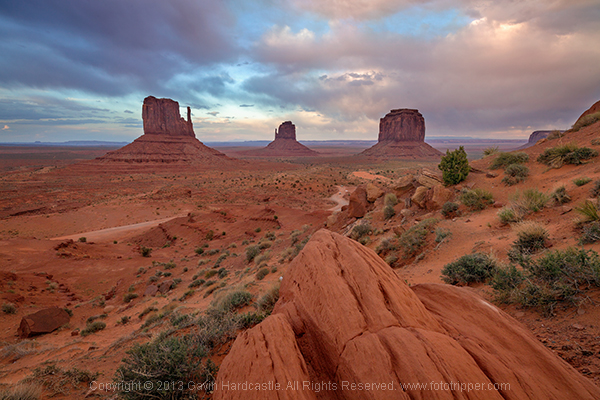
Here’s an example of a shot I took at Monument Valley in Utah. The foreground was completely covered in litter, so while editing I decided to cut out the more obvious offenders like this plastic bag. Should I have left it in? What is an acceptable level of post-processing and alteration?

Monument Valley Landscape Sunset

Monument Valley trash

I’m curious to know where you feel the line should be drawn? Would you judge me for cloning out that plastic shopping bag? Perhaps I should have walked over and picked it up, either way, it’s gone from my shot and I’m happy with the result.

Truth or beauty, the age-old question?

Landscape photographers like myself are always creating composites of multiple images just to get the tourists and other photographers out of our shots, it’s no big deal. Or is it? Are you one of those rigid purists that believes that the camera should not lie, not even a teensy little white lie? But if you are, doesn’t the camera lie the moment you frame your carefully placed shot and hit the shutter?

I can see both sides of the argument. But, given the choice of performing a ruthless crop and getting a keeper, or leaving my image untouched and forever condemning it to a digital graveyard, I’ll go for the former thank you very much.

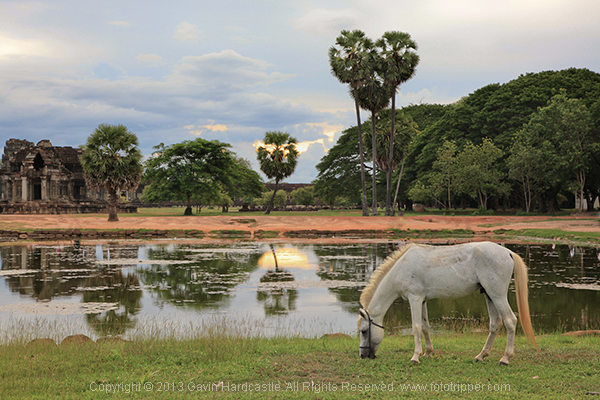
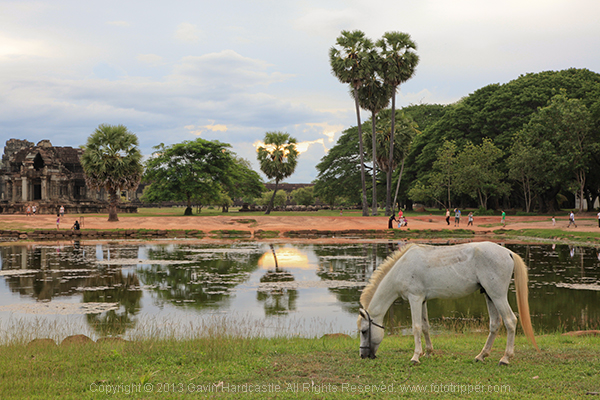
Here’s one of the very first pictures I took with a DLSR from back in 2010. I cut all of the people out of the image because they weren’t adding to the composition in any way. The eagle eyed among you will spot where I got lazy with my ‘people removal’. See the unaltered version below it and tell me if I crossed the line.

Angkor Wat Cambodia Landscape Photography - Gavin Hardcastle

Angkor Wat - Cambodia

Where does it end?

The problem is, where do you draw the line? When do you decide that enough is enough and the image should be left alone? Ultimately it’s down to you as the photographer and your creative vision, but there are instances where photography is used as an accurate historical document. In Photojournalism, we rely on a photographer to tell a story and capture a moment in history, albeit from their own unique perspective and how they choose to frame a shot.

Couldn’t it be argued that a photographer who chooses to omit certain elements, is manipulating the viewer just as clearly as when they chop out an ugly plastic shopping bag in Photoshop?

Consider the real estate photographer who carefully manages to exclude the crack shack next door to the million dollar home, no alteration but still a little white lie.

It’s all so very subjective and the truth is that you’d never know the difference if the photographer didn’t confess.

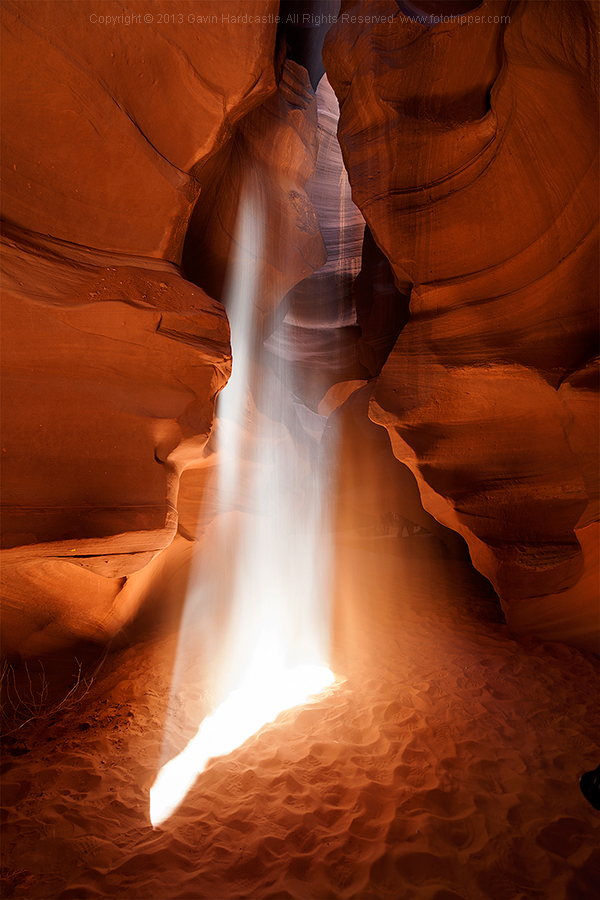
Oh what’s this below? My wife’s 24-105mm lens creeping in to the lower right of my shot, now there’s a surprise. What do you think are the chances that I’m going to be leaving that in my final edit?

Antelope Canyon Landscape Photography

Where do I draw the line?

As a landscape photographer I strive to keep all of the permanent or natural elements of my images intact. I won’t flinch at removing a discarded water bottle that I hadn’t noticed while shooting. I won’t bat an eyelid at cropping out my wife’s left foot as she reliably walks into the corner of my frame just a split second before I hit the shutter.

I draw the line however, at removing or moving objects that are natural or permanent. If there’s a tree or even a lamp post in a less than ideal spot in my composition I will not alter it. I want the viewer of my image to be able to stand in the exact place I stood when taking the shot and know that everything is in its right place. That doesn’t include the used condoms and the KitKat wrapper.

Tell me, where do you draw the line? Let the debate begin!

Share in the comments below where you stand on this subject. Do you do any post-processing on your images, and if so how far do you take it? How far is too far? Let’s discuss it.

The post When is Altering Your Image Acceptable? A Debate on Post-processing by Gavin Hardcastle appeared first on Digital Photography School.


Digital Photography School

 
Comments Off on When is Altering Your Image Acceptable? A Debate on Post-processing

Posted in Photography


The Power of Post-processing for Landscape Photography

16 Apr

Embracing the power of creative post-processing can transform your landscape photography from dull and lifeless, to lustrous and vibrant overnight!

We’re acutely aware that the preceding statement reads suspiciously like the voiceover script for a ‘next generation, nano-organic hair care’ commercial, but it’s true – digital post-processing can be a transcendent experience for your landscape images.

1 intro 001

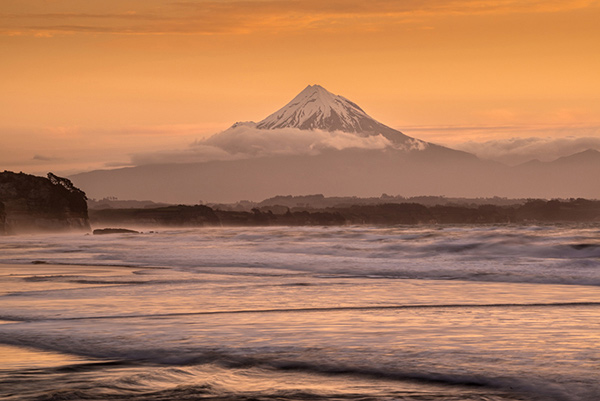
Sunset over the Mount Egmont from Wai-iti Beach, Taranaki Coast, New Zealand (by Sarah). Post-processing doesn’t always have to be complex to be effective. This image has received some basic adjustments to color, contrast and exposure to enhance its visual impact.

Why we need to post-process our landscape images

In the days of film photography we never performed any post-processing on our landscape images. Doing so entailed spending a small fortune on drum scanning and knowing someone with access to a supercomputer. Most landscape photographers were restricted to capturing everything in-camera and living with the results.

That state of affairs meant we needed to make decisions in the field that had permanent repercussions;

  • Which film stock and ISO to use?
  • Which color filters to apply?
  • How to achieve perfect exposure?

It is likely fair to assume that, for most dPS readers, film photography is either a distant memory or something that needs to be looked up on Wikipedia. We digital landscape photographers can gleefully wallow in the knowledge that RAW image capture and robust digital workflow allows us to make most of these decisions from the comfort of an office chair well after the time of capture.

The problem with RAW capture is that it usually produces really, really bland and unappealing images straight from camera. If you want to maximize the visual impact and creative options contained within a RAW file you need to post-process your images. It’s that simple.

2 before after

Sunset at Gentle Annie Beach (by Todd) West Coast, South Island New Zealand. This scene has all the ingredients of a successful landscape image, interesting visual elements, motion, and a nice blend of textures throughout the scene. However, the RAW file delivers an image that is bland, cold and lacking in contrast. Some simple post-processing of a single image file in Adobe Lightroom has resulted in an image that is visually inviting and makes the most of the tonal and color data contained within the image file.

2a intro 002

Lake Matheson and the Southern Alps at dawn (by Todd). Three distinctly different results were achieved from this one (bleak looking) RAW file! Long gone are the days where your creativity is restrained by in-camera results.

Two types of post-processing

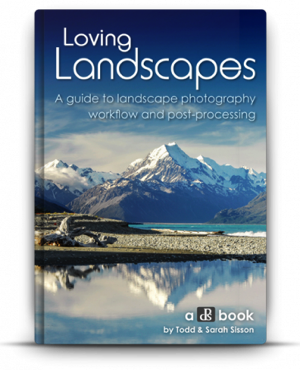
In our latest dPS eBook Loving Landscapes – a guide to landscape photography workflow and post-production we break down landscape photography post-production into two distinct approaches:

  • Single exposure post-processing
  • Multiple-exposure post-processing

Let’s take a quick look at these two different approaches enhancing landscape photos.

Single exposure post-processing

As you will have figured from the name, this approach creates the finished image by processing a single image file. This is primarily accomplished within Lightroom and is the simplest approach to post-processing – if you read our first eBook, Living Landscapes, you will know that we love simplicity, particularly when it comes to post-processing!

We always attempt to capture a scene in a single file if possible, as it reduces the time spent in front of a computer and introduces less technical barriers to creativity than are found in multiple exposure post-processing.

3 se at 12

Lake Alexandrina (by Sarah). Single exposure landscape photography offers huge creative scope. Combining in-camera single exposure techniques such as long exposure with post-processing (black & white conversion) can create results that are stunning.

Multiple exposure post-processing

Occasionally it is impossible, for technical or creative reasons, to achieve the desired result with a single image file. Cue multiple exposure workflow – where the final image results from processing and merging elements from two or more image files. Multiple exposure landscape photography is a significantly more complex approach – both in the field and during the post-processing workflow. We use a combination of Lightroom and Photoshop to combine multiple images into a single final result.

One of the most common uses of multiple-exposure post-processing for landscape photography is exposure blending – where two or more exposures are combined to overcome high dynamic range in a scene.

4 exposure blending

The dynamic range of this high contrast scene (image above) exceeded the camera’s capabilities. Exposure blending allowed us to create a technically excellent result from two exposures. We detail three different approaches to exposure blending landscape scenes (including the making of this image) in Loving Landscapes.

5 mi wf 16

Misty sunrise at Castle Hill (By Sarah). HDR is another multiple exposure post-processing approach that resolves technical limitations as well as offering creative options.

In addition to providing solutions to technical challenges, multiple exposure landscape photography allows creative options that are simply impossible to achieve in a single frame. A good example of this is the merging of ‘best elements’ from multiple shots of the same scene taken at different times. This allows us to composite different elements together to create an image that exceeds the results achievable in a single exposure.

6 best elements

Lake Pukaki (by Todd), merging best elements in this scene allowed us to combine the best sun starburst and clouds, with the most dramatic waves and shoreline from the field sequence (of over 20 images). Covering the sun in another frame also allowed us to minimize the appearance of lens flare on the cliff face.

Give it a go!

Post-processing opens up a world of creative opportunities that allow you to better express your vision of the world around you. The technology is there, it is easy to use and the results can be spectacular – why wouldn’t you want to post-process your images?

Post-processing may seem a little overwhelming at first – and it can be – but you don’t require an art school diploma to start making dramatic improvements to your images. Our oft repeated advice is to keep it simple when you are starting out. Take the time to learn about the post-processing tools that affect the fundamental variables of photography: color, exposure and contrast and your images will improve dramatically.

Once you have those mastered, start experimenting with more complex tasks in Lightroom’s wonderfully non-destructive editing environment (there is nothing that can’t be undone in Lightroom) before transitioning to the more complex realm of multiple exposure Photoshop.

We hope that this has been of interest to you and we look forward to your feedback in the comments section.

*Note: photo-puritans can still experience some of the old school ‘thrill’ of making a finished image in-camera by shooting in JPEG-only mode. All of the color, tone and quality decisions can be set by messing around in the bowels of your camera menu. These settings are then baked into the finished JPEG, leaving much less scope for post-processing than with RAW capture. Why anyone would choose to do this deliberately is unclear – apparently, some folks love a challenge.


Check ou the newest dPS ebook – Loving Landscapes A guide to landscape photography workflow and post-production – a brand new dPS ebook by the authors of Living Landscapes

The post The Power of Post-processing for Landscape Photography by Todd Sisson appeared first on Digital Photography School.


Digital Photography School

 
Comments Off on The Power of Post-processing for Landscape Photography

Posted in Photography


A Guide to Landscape Photography Workflow and Post-Processing

15 Apr

NewImageToday is an exciting day at dPS HQ because we’re releasing an eBook that has been asked for many times by readers – LOVING Landscapes, a Guide to Landscape Photography Workflow and Post-Processing by Todd and Sarah Sisson.

Early in 2013 we looked at our growing library of photography eBooks and realised that we had a big hole to fill – we were yet to publish a Landscape Photography eBook.

We began the hunt for a photographer to create a guide.

After much searching we came across the photography of husband and wife team Todd and Sarah Sisson and fell in love with their images. We began to talk to Todd about creating an eBook with us and mid last year released a guide to Landscape photography called LIVING Landscapes.

The eBook was a huge success and became one of our fastest selling eBooks ever.

That first eBook from Todd and Sarah received some amazing reviews and we still get positive feedback about it almost a year later. But alongside the praise was a request – a request for a guide to post processing landscape photos.

While the first eBook touches on some post production techniques it was not the place for comprehensive teaching on the topic – so… we began to talk with Todd and Sarah about a followup eBook that explored the topics of Workflow and Post Processing.

What they produced in LOVING Landscapes is pretty amazing. Inside you’ll find over 200 pages of practical information that leads you through 12 chapters of advice to help you bring the images that you take to life with a little post processing love.

Here’s the table of contents which will give you a feel for what’s covered.

NewImage

What I LOVE about this eBook is that it is packed with heaps of actionable information that you can apply immediately to the photos you’ve already taken.

Alongside that information are inspirational examples of the techniques in practice.

You’ll come away not only inspired but informed and ready to apply what you’ve learned.

NewImage

An Ideal Companion Bundle or a Great Standalone Guide

With the launch of Loving Landscapes we now feel like we’ve got a great complete guide to both ‘taking’ and ‘processing’ beautiful landscapes.

These eBooks are designed to be useful separately if you’re just interested in one of those topics – but together they also make an incredibly comprehensive guide through the whole topic of creating beautiful landscape images.

Grab Your Copy Today and Save 33%

Our Loving Landscapes eBook will retail for $ 29.99 but as a limited time Early Bird Special you can pick up a copy today for just $ 19.99 USD (33% off).

If you want to pick up both Living Landscapes and Loving Landscapes eBooks together you can bundle them together today for the special price of just $ 39.99 (normally $ 59.99 so today it’s also 33% off).

Want more information about this eBook? Get the full lowdown here.

The post A Guide to Landscape Photography Workflow and Post-Processing by Darren Rowse appeared first on Digital Photography School.


Digital Photography School

 
Comments Off on A Guide to Landscape Photography Workflow and Post-Processing

Posted in Photography