RSS
 

Posts Tagged ‘portraits’

How to Add a Grunge Effect to Your Portraits Using Lightroom

26 Oct
Grunge Main 600

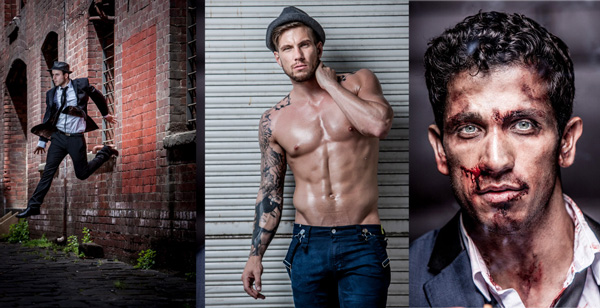
All images copyright Gina Milicia – Model credits from left to right: Jess Kenneally, Nathan Kennedy, Firass Dirani.

Gina has a new dPS ebook just released – Portraits: After the Shot – check out out!

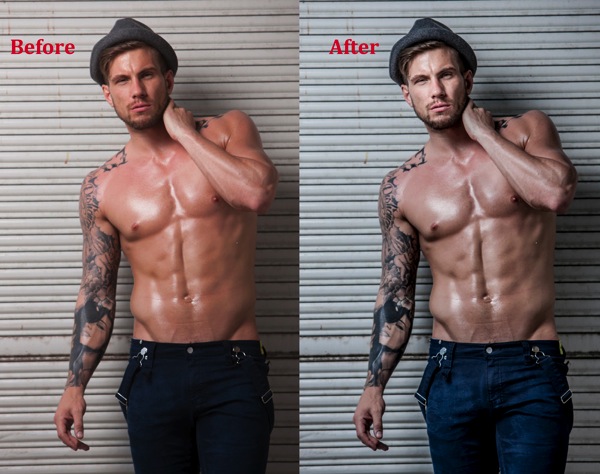
The style of side lighting (in the image below) is a great way to enhance muscle definition, and the post-production technique complements the lighting style. You can see that it appears as if Nathan has far better muscle definition in his after shot. I love using this post-production technique in character portraits for the entertainment industry, advertising and editorial shoots. It deliberately gives the skin a hard, detailed, gritty look, which is perfectly suited to character-style portraits.

Nathan Kennedy for ML Denim

Model credit: Nathan Kennedy for ML Denim. In this image I used fill flash from my Elinchrom Quadra lights with a Rotolux Deep Octabox camera left, which is lighting Nathan from a 45-degree angle.

If you want to see a full tutorial on my favourite lighting style for this type of effect, check out: How to Create this “Fight Club” Inspired Portrait using One Light.

It’s not the most flattering technique for skin post-production, so I’m selective about which projects I use it on and tend to avoid using it on female skin tones. There are very few women who will say, “Wow, I love how detailed and large my pores look.”
Don’t forget my overnight rule. After you’ve edited your image, try not to look at it for a minimum of 12 hours. When you look at it again with fresh eyes, you should trust your gut instinct on how it looks. If your first reaction is “Ewww”, then you may have gone too far!

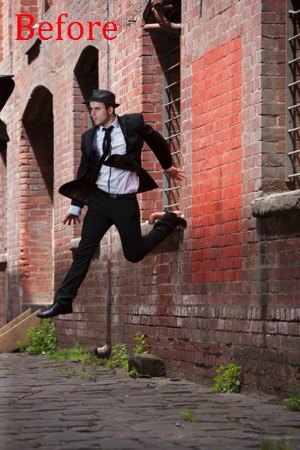
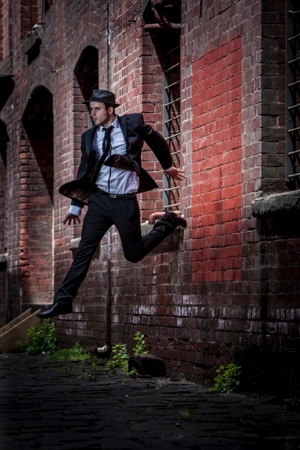
Here’s my step-by-step recipe for adding a grunge effect to your portraits using Lightroom:

LW GRUNGE 1 LW GRUNGE 1B

Note: Every lighting style is going to give you a slightly different result. I suggest you use my recipe as a rough guide only, tweaking your images until you get the results that best suit your image and personal style.

LW Grunge 2

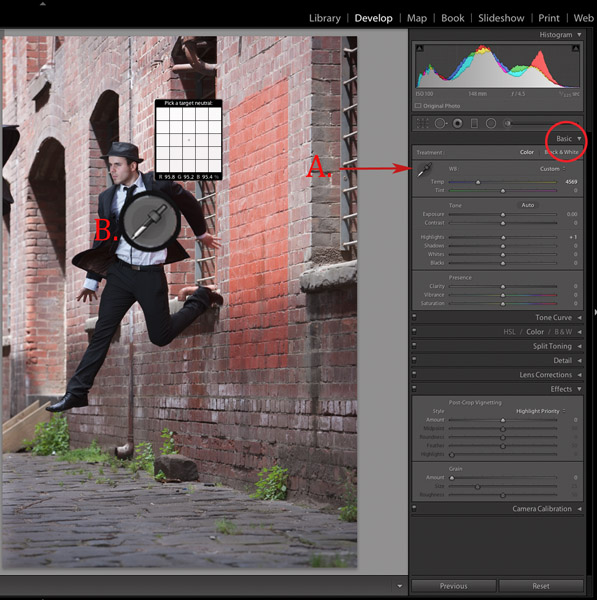
Find a neutral area of your image and use it to correct white balance. In this case I’ve selected a very light gray section of the white shirt the model is wearing.

Step 1. Import the file into Lightroom and in the Develop module, use the eyedropper tool (A.) and do a custom white balance (B.). This is achieved by finding a neutral area on your image (gray or white works best) then using your eyedropper tool (A) click on this (Neutral area) and Lightroom will automatically adjust your white balance.

The best and most accurate technique to achieve a good white balance is to ask your model to hold a gray card in front of their face for the first frame. This gives you an accurate neutral gray to select from for your white balance.

The third option to achieve white balance is to use Lightroom’s auto white balance. Test them all if you can and see which option best suits your shooting style.

I like working with a combination of gray card and finding neutral areas. I will use Lightroom’s auto function if I am shooting television stills or theatre productions where I need to color correct images that were shot under tungsten lights.

LW GRUNGE 3

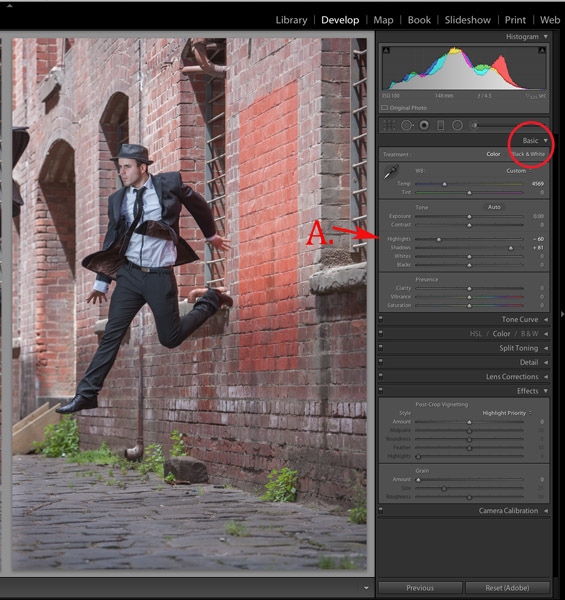
Step 2. As a starting point, increase shadows (+81) and decrease highlights (-60). The image starts to look a little wrong, but stay with me.

LW GRUNGE 4

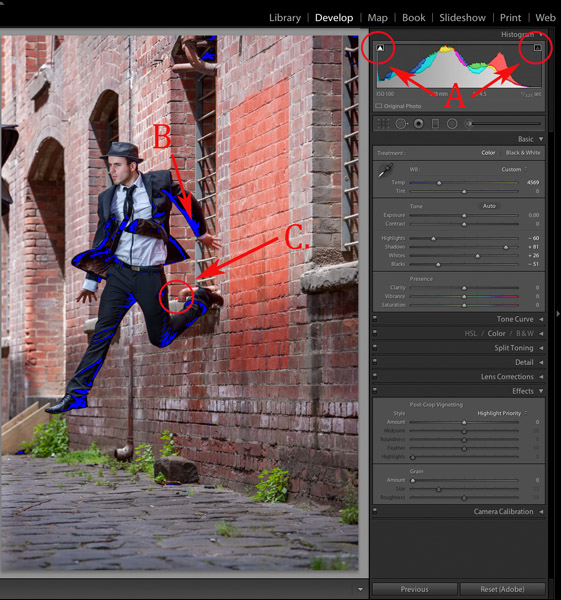
Step 3. Switch on clipping mask (A.) by clicking on little triangles above the histogram.

Move the blacks slider to the left until your image gets a good black tone. The areas in blue highlight loss of detail in the shadows, and areas highlighted in red indicate loss of detail in highlights.

Purists will probably start twitching at this point because I am crunching my black tones (B.) and blowing my highlights (C.). I believe this gives the image a more realistic feel because we don’t always see detail in shadow areas with our naked eye.

I personally like my images to look good overall, and if that means losing some detail in the shadows to gain good contrast across the whole image, I’ll do it. Just because Lightroom gives us the technology to see the entire gray scale doesn’t mean we have to.

LW GRUNGE 5

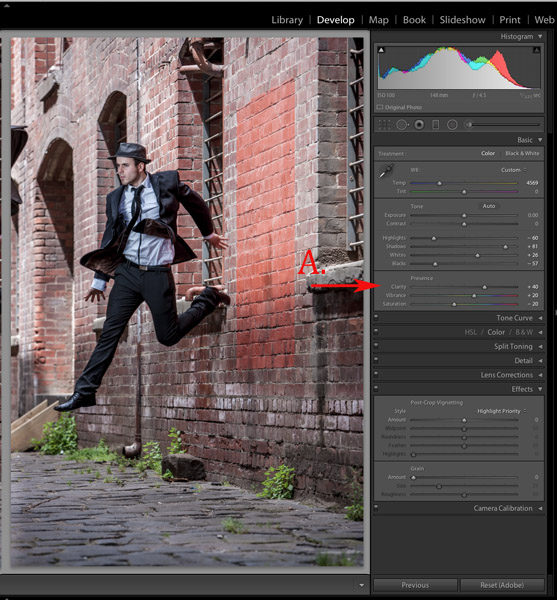
Step 4. In the next step, I increase the mid-tone contrast or clarity) (A.). I also decrease saturation to counter the digital orange glow the skin tone tends to take on in Step 3. Then I increase vibrance to bring some tone back to the muted tones.

LW GRUNGE 6

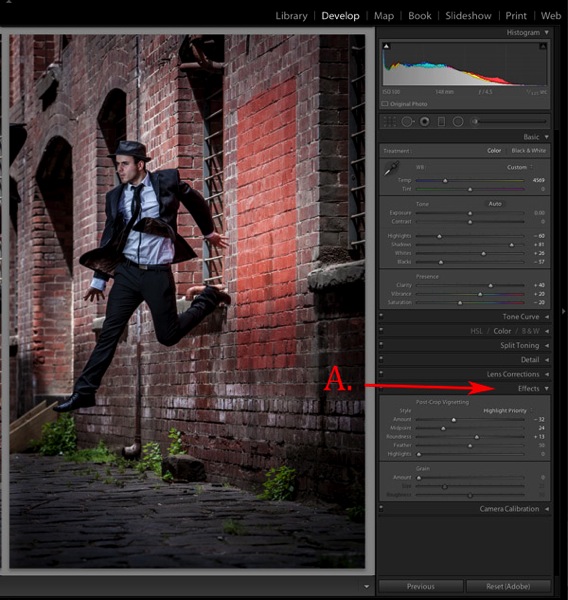
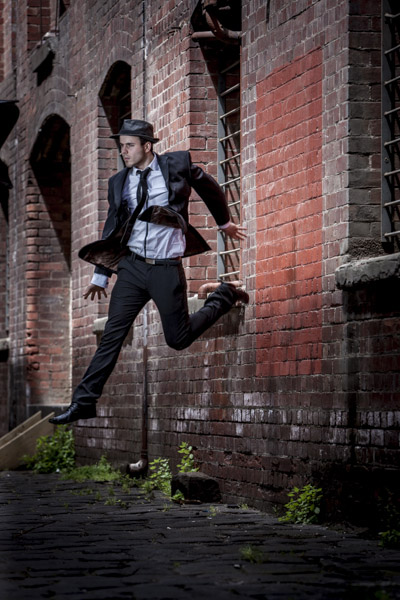
Step 5. The next step is to add a vignette from the Effects menu (A.). This is optional, but I feel it finishes the image off nicely and draws our eye to the hero of the shot, Jesse.

LW GRUNGE Main 2

Step 6. Finally, I enhance the eyes slightly using my eye-enhancing technique for Lightroom.

If you’d like to try it, you can check it out here: 3 Simple Ways to Create Stunning Eyes in Your Portrait Photography.

LW GRUNGE BTS

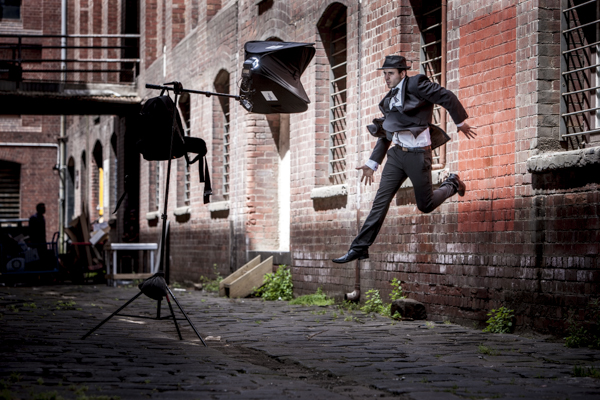
Behind the scenes on my air shoot with actor Jess Kenneally and my MacGyver-inspired lighting boom.

  • Canon 1DS MK3 ISO 100, F/5.6, 1/125th, 70-200mm IS zoom @ 200mm.
  • Jess has been lit using a Canon 580EX Speedlite and a medium softbox.

How do you create a grungy, gritty look to your portraits? Should we keep detail in the blacks and highlights, or is it okay to crunch and blow out to create the right vibe? I’d love to hear what you think.

Gina has a new dPS ebook just released – Portraits: After the Shot – check out out!

The post How to Add a Grunge Effect to Your Portraits Using Lightroom by Gina Milicia appeared first on Digital Photography School.


Digital Photography School

 
Comments Off on How to Add a Grunge Effect to Your Portraits Using Lightroom

Posted in Photography


Tips For Great Indoor Portraits Using Natural Light

05 Oct

192

You don’t have to have an amazing dedicated photography studio to get great shots indoors. Most homes have at least one or two spots that work just fine. You don’t have to have a lot of additional equipment, in fact, these tips will help you take indoor photos with just your camera and natural window light (and even incandescent light in a pinch).180

Seek the best light

Take a tour of the home you are going to shoot in to scout out the best light. I’ve done newborn sessions in a kitchen multiple times because that’s where the light was best. Often times bedrooms are little havens of sunshine as well. It might not be the room with the prettiest furniture, but that’s okay. Light is most important to me, and the other things in the room are secondary.

Eliminate clutter or simplify

Once you’ve found some nice light, do all that you can to eliminate clutter in the area you are going to shoot. Move distracting objects if possible; it’s much easier to move them before you shoot than to try to take them out later in post-processing. If you can’t avoid clutter, try getting in close to your subject.

200

Shooting in low light

Most of the time I shoot indoors with my 50mm f/1.4 lens on a full-frame body (try a 35mm lens on an APS-C or cropped sensor). It gives me enough space to get everything in the photo that I want, and gives me the ability to open the aperture wide enough to take photos in poorly lit rooms, if needed. Other lenses can work just as well, depending on what you are trying to achieve, but this is the lens that I have found has the most versatility for my indoor shooting.

You will often need to push the ISO higher if you don’t have a lot of natural light coming in. I prefer some noise, or grain, to the look of a flash, so this doesn’t bother me too much. Ideally you’ll want to shoot on days with plenty of sunlight, and a time of day when you have plenty of light indoors. This isn’t the situation to shoot in the golden hour, right before sunset. You might want to try late morning or early afternoon for more natural light.

185

Direction of light is important to create mood

When you are shooting with natural window light, pay attention to the direction the light is coming in, just as you would when shooting outdoors with the sun. You can have a beautiful hazy backlit photo, or a dimensional dramatic side-lit photo, or a flattering crisp photo lit directly from the front. Decide what mood you’d like in your photo, and also pay attention to the space you have to maneuver, and any clutter that may be in the background. 451

Mixed lighting situations

Sometimes you have to just work with what you’ve got. If you’re forced to shoot with incandescent lighting, you can still get some meaningful photos. Try not to have incandescent lighting and natural window lighting fighting to light your subject at the same time. It usually creates a crazy white balance issue, and it’s hard to make right, unless you just convert the photo to black and white. I’ll usually turn overhead lighting off, unless there is absolutely not enough light without it, or I’m shooting in a situation where I don’t have control over where the action happens.

456

Fitting it all in the shot

At times I have had to be very creative to get everything in the photo that I need to include. You can always use a wider angle lens, but that can distort things, and you might not want that look. I’ve stood on counter tops in the kitchen, on beds (watch out for ceiling fans-I’ve had a couple of close calls when I wasn’t paying attention), and wedged myself behind furniture. Anything for a good shot, right?

183

Finally

One last tip: Sometimes you may not be sure exactly where the best spot is for the lighting you’re hoping for. Don’t be afraid to experiment, and move your subject around until you’re happy with the way everything looks. If I have a newborn on a blanket, it’s a simple thing to rotate the blanket around until I like the way the light rests on his face.

Don’t be afraid to get your camera out indoors! With some practice and experimentation, you’ll find lots of ways to make great photos without any extra equipment.

171


The post Tips For Great Indoor Portraits Using Natural Light by Melinda Smith appeared first on Digital Photography School.


Digital Photography School

 
Comments Off on Tips For Great Indoor Portraits Using Natural Light

Posted in Photography


7 Tips for Interacting with People to Create Better Portraits

30 Sep

Sassy kid

Interaction is the basis of a portrait session, in every single way. In the most obvious ways, for example, you must interact with the client to set up the session, during the session, and when the images are done.

The portrait session is also an interaction with self, both for you the photographer and for your subject. You the photographer, who is creating with integrity, must meet with yourself inside to bring about bold creativity. The subject, likewise, is faced with many insecurities that they may have very little experience with in their day to day lives. They are in a vulnerable position. The portrait session brings about all kinds of internal interactions.

The photos themselves are a form of interaction with the future. The way a portrait portrays someone goes a long way to communicating who they are – or, at least, who they’d like to be seen as, which is important in its own right.

It’s for this reason that developing habits for skillful human interactions is so important. They make everyone more comfortable, but, more so, it means capturing images of someone who is comfortable at the moment the image was taken.

The way someone responds to you is the way they will look in their images. The difference may be imperceptible to a stranger, or when simply viewed at a glance; but a strained smile, or nervous eyebrow might be clear as day to the people who care about them. You as a photographer are not a plumber who can still fix the pipes, even if your subject is having a bad time. Among the most important tools you have is the one that elicits an honest and flattering response from the subject:

The way you interact with people is key
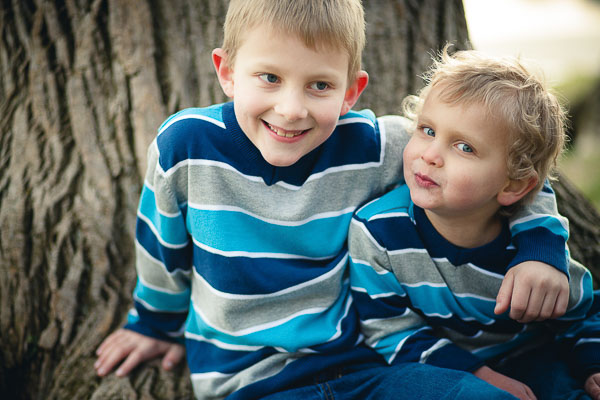
Casual kids

Everyone is a Little Kid

If you who wish to bring about a truth and transparency in your subjects, you can take a clue from the rules of photographing little kids; don’t slow the child down for your shot – you keep up with the kid!

Your goal is to keep your subject engaged and having a good time during their session, so what is true of working with children is also true for adults. It’s important to move at their pace. Adults get bored when you move too slowly and then you have pictures of bored adults trying really hard not to look bored. When you’re moving too fast, adults get anxious. They start having trouble understanding and interpreting your instructions. Then, you have photos of anxious adults trying really hard not to look anxious.

Getting a sense of your subject’s natural pace is all about how you interact with them. You can’t simply bark orders at your subject. You can’t withdraw into a technical and creative cocoon, sticking your lens out just far enough to take their picture. You have to actually engage with them personally. Allow time in between arrangements and locations to chat. Be open with your subject; make yourself vulnerable to them. Remember, that is the challenging posture a portrait session puts the subject in: vulnerability.

Pay attention to the things your client is saying, and the jokes they are making. If they say something like “I’m sorry, I must be terrible to work with” pay attention! They are blaming themselves, but it is likely because you are moving too fast and failing to communicate. The client is likely to blame themselves since they have seen all of your amazing photos and assume that all those people must have been able to keep up. Take this as a personal critique to communicate more openly and slow down.
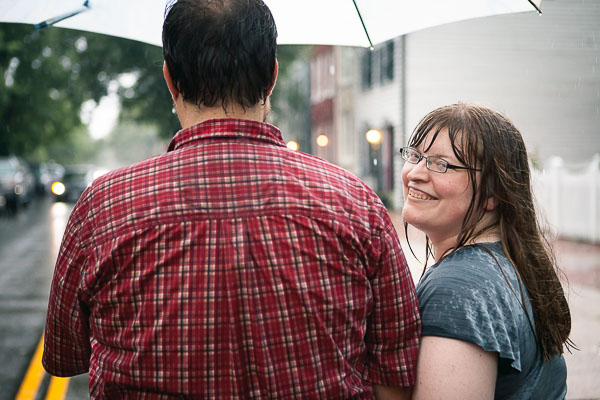
Unexpected circumstances

Learn to Speak in Positive Terms and Say Positive Things

As you are open and communicating with your subject, remain positive as much as possible. When you have to be honest about something challenging or difficult, do so in positive terms. This takes practice, but it’s beneficial to your own well being as well.

I’m not advocating lies, or even twisting the truth. I’m talking about finding a legitimate perspective in whatever you’re saying, so that some form of positivity is also in view.

For example, say you’re shooting in a local park and the shot you’re working on just isn’t working the way you want. When you know the shot that you wanted is dead, there’s no reason to keep wasting time; you should just move on. If you say “Ugh, this spot just isn’t working out, let’s look somewhere else”, you would be telling the truth, but in a negative way, with the focus on what isn’t working right. That’s not the important part. Instead, if you say “Hmm, this spot isn’t turning out how I’d hoped, I think there might be something even better over in that direction” it sounds more hopeful, positive, and encouraging.

Both of those statements are essentially the same. But in the first, the emphasis is on a problem right then and there. In the second statement the problem is acknowledged, but the emphasis is on something positive “over in that direction”.

Keeping an attitude like this helps your subject remain optimistic about the result, which is important. As your subject’s optimism goes down, they will have to work harder to appear comfortable and relaxed. So even if you’re struggling in the beginning, and your subject might have objectively good reason to become more pessimistic, if you allow that to happen, you’ll be damaging your chances of recovering later.

Stay positive!
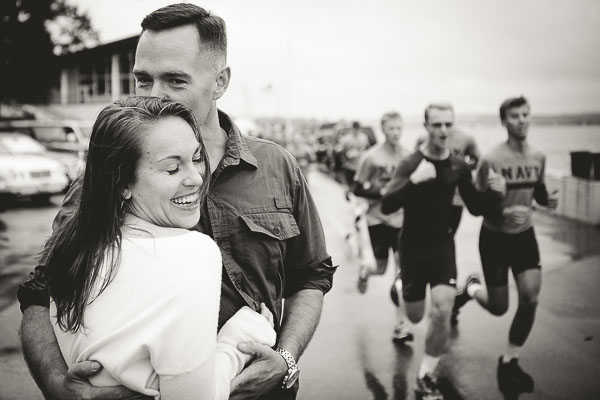
Naval Academy Runners Romance

Use Humor as a Diffuser

The situation your subject is stepping into is a vulnerable one. It’s your job to scrutinize how they look in order to present them in their most flattering light. Most of us feel uncomfortable being under the microscope like, especially concerning the way we look. People don’t like their looks being judged poorly and they spend a great deal of time, energy and money to avoid it. In fact, hiring you might itself, be a part of that desire.

So part of your job is to diffuse that feeling. You need to keep your subject comfortable, which typically means obscuring the overt need to scrutinize them and the way they look. An excellent method for this, without having to resort to being deceitful, is to place yourself under their microscope.

If you make a mistake, be open about it and laugh it off. By presenting your own momentary shortcomings, you make yourself vulnerable, and by contrast make them feel less vulnerable. You’re not lying, or manipulating them. You’re just levelling the playing field.

Likewise, if your subject has said or done something embarrassing, you can use humor to turn the embarrassment on yourself. For example, if my subject accidentally steps in a puddle of water and seems embarrassed, I might use the opportunity to tell them about the time I fell in the water during a portrait session. It’s humanizing.

By positively applying humor to your own shortcomings, you’re able to change the tone of the session from one where the subject feels that they must perform for you, into one where they must engage with you.
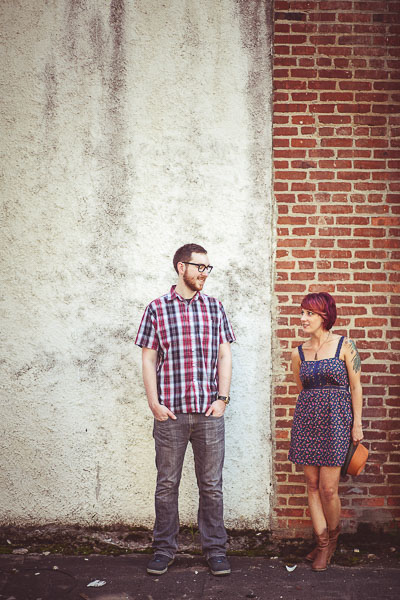
Engaged couple two tones

Speak in Terms Relative to Your Subject

In many cases, unless your subject has been trained as a model, they’re going to spend a fair amount of their mental energy trying to interpret what you’re telling them to do.

If you say, “tilt your head”, that means a lot more to your subject than that specific thing you want them to do, so for them, it has almost no meaning at all. Instead, you could say “tilt your forehead toward your toes”, or “bring your left ear closer to your left shoulder”. The same goes for the direction they’re facing and movements you need them to make. If you tell them to “step forward” they will often move in whichever direction their feet are facing, or they’ll feel confused about what you want them to do, and shuffle around awkwardly. Instead, you could say, “take a step toward me”.

These are specific instructions which are relative to your subject, rather than your vision. Giving subject-relative instructions also sounds a bit funny to many people at first so it acts as an excellent ice breaker too.

If you master no other subject-relative language, master your subject’s left and right. Instead of saying “step to the left”, say “step to your left”. By giving your subject terms that they do not have to interpret, they can devote more mental energy to the intangible elements of the shoot – like having a good time, or interacting with you.
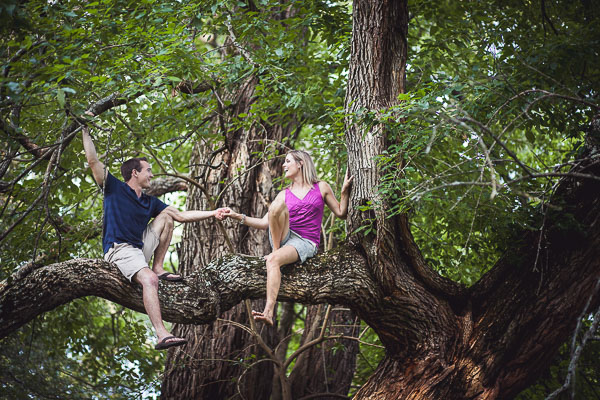
Engaged couple in a tree

Demonstrate Posing

This is an extension of speaking in subject-relative language, except it takes it one step further. Taking a moment to demonstrate how you’d like your client to pose can have multiple benefits.

First, demonstrating a pose can often act as an icebreaker, since the motions you will ask your subjects to carry out sometimes feel a little silly, even though they look great in a photo! When you demonstrate the pose, the subject has a chance to see you feeling a little silly, or not feeling silly and also not minding.

Second, as with speaking in terms relative to them, demonstrating a pose helps remove a big chunk of the subject’s need to interpret what you want them to do. They can more easily just go for it and try, rather than timidly wondering if they’re “doing it right”.
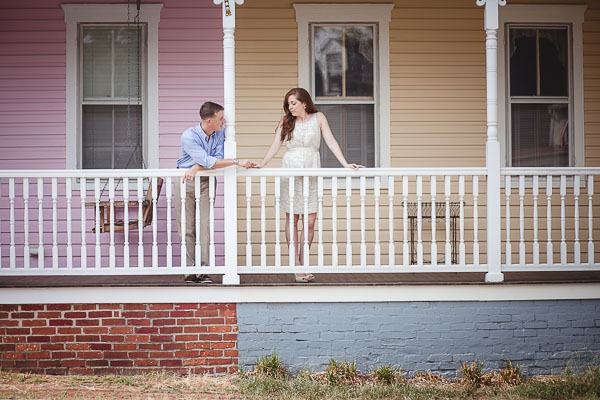
Relaxed romance

When I demonstrate a pose for a subject, I tell them what I’d like them to do, as I do it.

So, I may sit down in the spot I’d like my client in and say, “Okay, I’d like you to sit right about here”. Then I’ll sit down and say, “You can cross your legs like this, or something like this, if it feels more natural for you” as I demonstrate a couple of different acceptable positions for their legs. Then I might point over to where I’m planning on shooting from and say “I will be shooting from right over there, so you’ll want to look in that direction”.

By the time the client sits down, they have a kind of template for what to do and can act more confidently in giving it a try. This also has the added benefit of allowing you to help your subject find their way into a pose that is more natural for them, rather than putting them in a position you’d never see them use in real life.

For more on posing check out this dPS eBook – Portraits: Striking the Pose

Be a Constant Stream of Affirmation for Your Subject
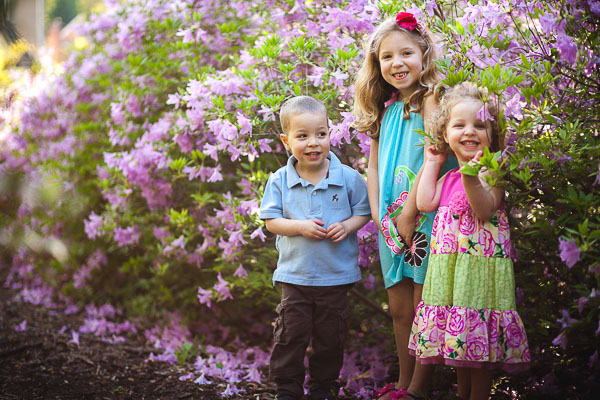
Hide and seek

I’ll say it again; remember what a vulnerable situation your subject is in when they’re in front of your camera. One of the simplest ways to offset that feeling for your subject is to be a constant stream of affirmation.

  • Thank you!
  • You’re doing a great job
  • Yes! That’s perfect, hold onto that!
  • You’re looking great!

Of course, you’re walking a line here, because what if your client isn’t doing a “great job” and they are in fact making your job a lot more challenging. Well, get over it. It’s your job as a photographer to work with who your customer is; some people are easier going with pictures, others need more attention, but the images will be yours and so the responsibility is too.
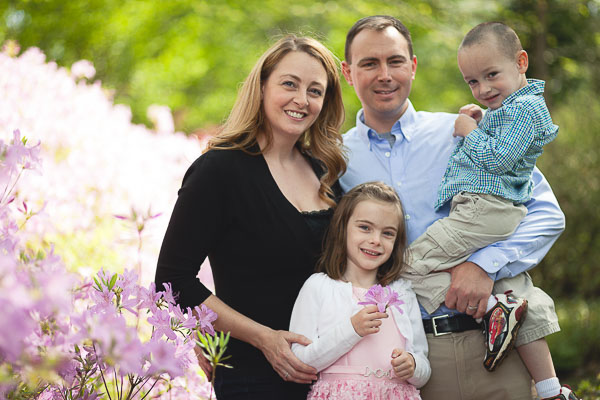
Friendly family

I wouldn’t advise lying if you’re struggling to get something you like while working with your subject. But affirmation is still important. Perhaps even more so. The thing about affirmation in this context is that it doesn’t necessarily have to be affirming anything the subject themselves is doing. Of course, that certainly works best to mitigate the feelings of a subject who is insecure about their appearance, or feels bad at photos. But simply affirming that the shoot is going well and you are excited is often enough to let the subject relax. Keep them coming – seriously, about every 15-20 seconds while you’re behind the camera.

  • Wow, this shot is coming out even better than I expected!
  • I love this background!
  • You and I are like a dream team!
  • The textures in this foreground are so interesting and juxtapose just right with your dress!

Easing a subject’s sense of vulnerability by making positive exclamations about the shoot makes sense logically too. By helping the subject to realize that they are only a part of what you’re paying attention to will relieve the pressure, and let them relax.
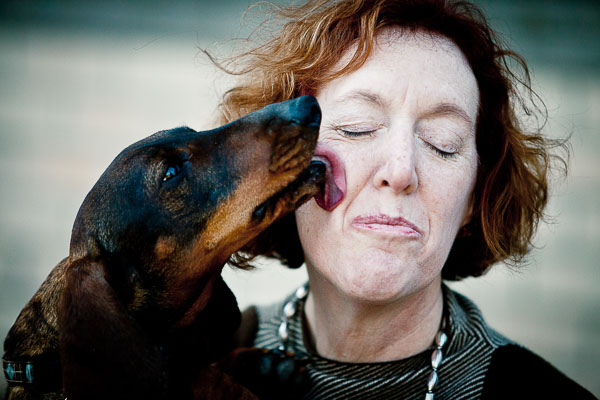
Dog kisses

Don’t Laugh at Anything that Shows up on the Viewfinder

Here’s what I want to leave you with. This advice, I believe, carries with it the heart of everything I’ve said here.

Never laugh at something that shows up on your camera’s screen.

I’m sure you can understand why – your subject’s vulnerability, of course. How might they interpret your laughter? It’s possible that you’ve cultivated an atmosphere of humor. Maybe you have consistently made yourself the butt of many jokes, and your subject might have joined in the fun and so maybe at this point it’s okay to laugh a little, as long as you’re laughing together. But let’s be honest, the average subject is pretty insecure. They’ll probably think you’re laughing at them and they’ll clam up.

But all of that is quite obvious. People don’t like to be laughed at. That’s not what is so important about this though. It’s not that you’re laughing, it’s not even why you’re laughing. It’s why your subject thinks you’re laughing. Truth is not important, your subject is going to respond to what they think, regardless of whether that is true or not.

It’s not that laughing is a problem. It’s that the subject thinks you’re laughing at them in some way. And it’s not just about laughing.

Let’s say you’re having some annoying problem with your camera for some reason. As you’re trying to work it out, you become visibly frustrated. Your subject probably doesn’t know what camera problems look like and their sense of vulnerability is causing them to take on a lot of blame. It’s not that you’re frustrated, it’s that you’re subject thinks you’re frustrated because of them.

Subjects place themselves in a position of vulnerability with photographers to a degree few other professions have access. Doctors and lawyers are a good example example. Doctors need access to the skin and the stuff underneath. Patients have to reveal their bodies to doctors – a vulnerable feeling indeed. Defence lawyers need access to the minute and truthful details of a defendant’s life. You as a photographer need access to their spirit – people must be who they really are with you.

You must take great care not to trample the spirit of your subjects. You must do mental, emotional, and creative gymnastics to avoid crushing the delicate structure of trust and assured respect. That allows their spirit to be reveal itself in honest smiles, cracked jokes, and a temperament of self-confidence standing in front of the camera.

Without your subject’s spirit, there is little reason for the photo.

Do you have any other tips for working with people and taking better portraits? Please share them and any stories you have in the comments below.

The post 7 Tips for Interacting with People to Create Better Portraits by William Petruzzo appeared first on Digital Photography School.


Digital Photography School
 
Comments Off on 7 Tips for Interacting with People to Create Better Portraits

Posted in Photography


Create Beautiful Portraits with CameraBag 2 Software

27 Sep

CameraBag for portraits

Do you use Lightroom for processing portraits but get frustrated by its limitations?

One way around this is to use a plug-in or buy some Develop Presets. But these can be expensive, so you may be interested in a cheaper alternative.

One of my favourites is Nerve Center’s CameraBag 2. It’s a bargain at just $ 20, and while it’s not as convenient to use as a plug-in that you can access directly from Lightroom, it is easy to incorporate into your workflow. Let me give you a couple of examples. Here’s the first; I selected it because there’s a dramatic difference between the photo created in Lightroom and the one created in CameraBag.

CameraBag for portraits

CameraBag for portraits

Here’s another one. The changes are more subtle, to show you can use the software with a light touch.

CameraBag for portraits

CameraBag for portraits

Lightroom workflow

Now you’ve got a taste for what CameraBag can do, I’d like to show you how to incorporate it into your Lightroom workflow.

As CameraBag is not a Lightroom plug-in, you need to export your photos as either JPEG or TIFF files (I recommend 16-bit TIFF) before you can open them in CameraBag. Start by creating a folder on your hard drive to store the photos. I call mine Photos (plug-ins temporary).

In Lightroom, select the photo/photos you want to edit in CameraBag. Go to File > Export. These are the settings you need to adjust in the Export window.

Export Location: Select the folder you just created. This is where Lightroom will save the files.

CameraBag for portraits

File Settings: Set Image Format to TIFF, Color Space to sRGB and Bit Depth to 16 Bits/Component.

You don’t need to touch any of the other settings in the Export window.

CameraBag for portraits

You can speed up the process by creating a User Preset. Click the Add button and give the new preset a name. All you have to do in future is click on the preset to apply the same settings. Easy!

CameraBag for portraits

Processing portraits in CameraBag

Start by opening the portrait you want to edit in CameraBag. You will see something like this:

CameraBag for portraits

The layout is minimal. Use the four buttons* in the top-right corner to access the program’s editing options.

CameraBag for portraits

* Alternatively, you can access the controls by clicking on the tabs on the very right of the screen. The functions are the same, just laid out differently.

My Styles and Cameras

Click either of these buttons to instantly choose from over 150 filters. Naturally, not all of them will suit your portrait. But look closely and you will definitely find something you will want to work with.

CameraBag for portraits

My Style filters. This is where you’ll find the majority of the filters.

CameraBag for portraits

Camera filters. There are some additional choices here.

On the surface, CameraBag may look as if it’s just another program designed to give your photos an Instagram type look. But dig a little deeper and you’ll see that it is a high quality photo editor. There are two important things to note here. The first is that CameraBag uses a 32-bit processing engine, preserving your portrait’s fine graduations of tone and colour.

The second is that all editing is non-destructive. You can adjust or undo any edits you make. For this example I’ve chosen the Film NC-1A filter. It’s a subtle preset that adds a slight matte effect and a blue cast to the shadows.

CameraBag for portraits

Now look at the tiles that have appeared below the photo.

CameraBag for portraits

Some of these represent the edits that have been made by the filter to your portrait. The others are additional, allowing you to alter the effect of the filter. For example, when I click on the Toning tile, a slider appears that lets me adjust the strength of the effect.

CameraBag for portraits

When I click on the Saturation tile, the slider is set to 50, indicating that no change to colour saturation has been made. But the option is there to increase or decrease it.

CameraBag for portraits

Adjustments

This is where you’ll find CameraBag’s photo editing tools. It’s a comprehensive selection. Among other things you can adjust colour, contrast and tonal values, add grain or a vignette, tweak the RGB or colour curves, crop, and adjust the colour temperature. I won’t bore you with detailed explanations, because you will be able to figure it out easily enough for yourself if you download the trial.

However, there’s one tool I’d like to draw your attention to (I used it in both opening images at the beginning of the article), and that’s Lightleak. There are two sliders: Remix, which changes the appearance of the light leak effect, and Amount, which adjusts the strength.

CameraBag for portraits

Borders

Finally, we come to the borders. You can choose one of CameraBag’s borders, or create your own in another program (such as Photoshop) and use that. While I used borders in the opening images to highlight one of the differences between CameraBag and Lightroom, they are something that I tend to avoid as I see them as bit of a gimmick. But they are there if you want to use them.

You should also note that if you use one of CameraBag’s built-in borders, it reduces the size of your image to 2000 pixels along the longest edge.

CameraBag for portraits

By the way, you can create your own filters using the current settings you have picked for the photo you are editing. Just go to File > Add Filter to My Styles to do so. CameraBag prompts you to enter a name and it is stored under My Styles.

You can download more filters, created by other CameraBag users, from the CameraBag website. You can also submit your own for others to share. Here’s the final version of my portrait (without the light leaks effect).

CameraBag for portraits

What CameraBag lacks

Is there anything that CameraBag doesn’t have? There are two features that I would really like to see included in future versions. The first is some kind of masking feature so you can control which part of the image is affected by an edit. The second is some portrait retouching tools. Having said that, if you use CameraBag at the end of your workflow, to edit portraits that you have already processed in Lightroom or Photoshop, then these features won’t be missed much.

Here’s a summary of CameraBag’s good and bad points.

Pros:

  • Quick and easy to use.
  • Lots of interesting built-in presets.
  • Complements Lightroom and Photoshop.
  • Good control over colour, contrast and tonal values like highlights and shadows.
  • 32-bits per component colour depth.
  • Non-destructive editing.
  • Raw file support.
  • Inexpensive!

Cons

  • Reduces image size to 2000 pixels along the longest edge if you apply a built-in border.
  • Only works with one colour space (whatever your monitor is set to).
  • Can’t be added as a plug-in to Lightroom, Aperture or Photoshop.
  • No local adjustments or portrait retouching tools.
  • No batch processing tool.

Give it a try

As with any software or plug-ins, the best way to see if CameraBag is for you is to download the trial version and have a play. Follow the link to download the software or learn more about it. You’ll find lots of information about CameraBag on the website, including how-to videos here.

Your turn

Have you used CameraBag or an inexpensive/free image editor such as Pixelmator, Picasa or GIMP? I’d like to hear about your experiences. What inexpensive software would you recommend for our readers?


Mastering Lightroom: Book Four – The Photos ebookMastering Lightroom: Book Four – The Photos

My new ebook Mastering Lightroom: Book Four – The Photos takes you through ten beautiful examples of photography and shows you how I processed them step-by-step in Lightroom. It explores some of my favourite Develop Presets and plug-ins as well as the techniques I use in Lightroom itself. Click the link to learn more.

The post Create Beautiful Portraits with CameraBag 2 Software by Andrew S. Gibson appeared first on Digital Photography School.


Digital Photography School
 
Comments Off on Create Beautiful Portraits with CameraBag 2 Software

Posted in Photography


Tip for Using a Reflector for Portraits

24 Sep

When it comes to portrait photography, one of the simplest and easiest things you can do to improve your images coming straight out of the camera, is using a reflector. There are many different sizes and shapes of reflectors, and the type of photography that you do most often will often dictate which size and shape you should purchase. For example, if you like to practice street or travel photography, it may be most beneficial to consider a round reflector that’s about 20″ wide so that you can hold it with one hand, and shoot with the other, without being intrusive in a small location like someone’s home. On the other hand, if you think you’d like to use a reflector for wedding photography, it is best to go for something rectangular and much larger (such as a 48×72″) so that the light you’re reflecting can reach everyone in the bridal party during portraits.

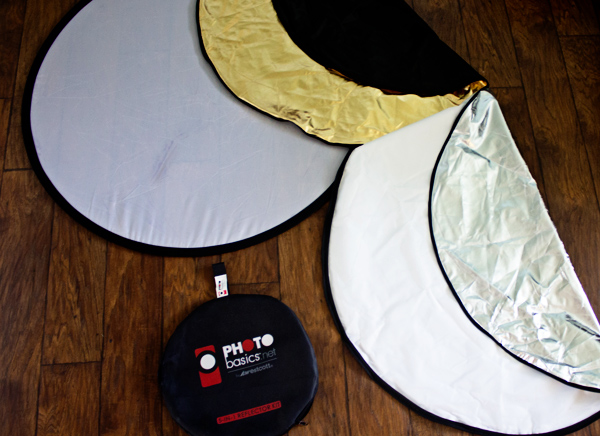
Reflector Kit

What kind of reflector should you buy?

I suggest a 5-in-1 round reflector that’s between 40-43″ across because I have found this size reflector to work exceptionally well for individual or small group portraits. Do keep in mind that with this size reflector, you will probably need either an assistant or a stand to hold the reflector during portraits.

5-in-1 reflectors typically come with a pop-up diffuser, and then a reversible zippered pouch to fit over the diffuser that includes white, silver, gold, and black sides. When you’re first beginning to use the reflector, the most difficult part can often be deciding which color reflector is best to use. As is often the case in photography, although there are some rules about when exactly to use each color reflector (my first photography professor in college used to tell us that a gold reflector was for indoor, studio portraits ONLY), the reality is that which color you should choose will vary based on your own style of photography and personal preference, and may or may not always follow the rules. I have found it most helpful to practice frequently with my reflector in a variety of settings so that I’ll have a better idea of a starting point when it comes to a real session.

All that said, I’m a visual learner, and need to actually see something in order to understand it best. So yesterday afternoon, I borrowed my sister Courtney and went to the backyard to take some photos so that you can see what each color reflector looks like in a portrait setting. Each photo was shot in manual mode with exactly the same settings, and every image in this post is straight out of the camera so you can really see the difference a reflector makes without any post-processing. These photos were taken at about 2 p.m. I live in Oregon and we perpetually deal with smoke from forest fires in the summer, so that was the case here as well, but this is also a good example of the difference that a reflector can make on a slightly overcast day.

Reflectors do just what they say—they reflect the light. So, because the direction of light will change depending on the time of day and the objects around you, you will want to experiment with placing the reflector in front of your model, as well as at head-height (often angled up slightly) on either side of your model. In this example, I had my model hold the reflector at chest-level in order to bounce catch-lights into her eyes and eliminate green color casting from the grass below. However, angling the reflector to bounce light from below can draw attention to the neck and chin and may not always be the most flattering way to light every subject. So, experiment with holding the reflector at different heights and angles in order to see what is most flattering on your particular model with your particular source of light.

First up, here’s Courtney with no reflector (below left). It’s not a bad photo, but it also isn’t a very dynamic photo either. I can absolutely add some “boost” in post-processing, but let’s make it better in camera, if we can.

Reflector 1 Reflector 2

White reflector

I started by having Courtney hold the white side of the reflector under her face, about chest-high (above right). As you can see, this really bounced a lot of neutral light up into her face. If you like this look but find that it’s a bit too much light (as I think it is here), you can have your model continue to lower the reflector away from their face until you achieve a more natural light.

Gold reflector

Then we flipped the reflector to the gold side, and had Courtney hold the reflector at waist-height under her face (below left). You can see that this option brought a significant amount of warm light into her face, compared to the image with no reflector. The gold side of the reflector can be tricky, as it can easily make people look a bit radioactive if the reflector is placed too close to the model. I find that I use the gold side of the reflector almost exclusively in backlit sunset portraits, but if you tend to prefer a warmer look to portraits, you may want to reach for this one more frequently.

Skin tone is also particularly important when it comes to the gold side of the reflector, and you will generally find the most success when using the gold side of the reflector on olive skin tones or people who are very tanned. Conversely, the silver or white reflector may be most flattering on people who have blue undertones in their skin.

Reflector 3 Reflector 4

Silver reflector

Next, I unzipped the reflector, flipped it inside out, and turned it to the silver side. I had Courtney hold the reflector under her face at waist-height (image above right). I tend to prefer the coloring here best, but I also need to say that the silver side of the reflector is by FAR the most difficult to work with, as the sheer brightness can essentially be very difficult for a model to look at, resulting in portraits that look like this:

Reflector 5

So, even though I personally tend to like the coloring of the silver side best, I most often elect to begin with the white reflector, simply because the silver side tends to be very difficult for my clients unless they have had lots of modelling experience.

Reflector 6

Black reflector

The black side isn’t a reflector at all; rather than reflecting light, it eats it up. I don’t use the black side of the reflector very often, but it can be useful for increasing shadows in very dramatic images. Can you tell where I was holding the black reflector in the image above? For more on how to use a black reflector to block light readt this dPS article: How to use a Gobo to add Depth to Your Portraits with Subtractive Lighting.

Diffusion part of the reflector

The part of the reflector that I end up using more than any other is actually the diffuser. The diffuser comes in handy when you’re in situations that may have mottled light, or direct sun overhead.

Do you see here how the tree is creating mottled light on Courtney’s face (below left)? In other words, some parts of her face are very light while other parts tend to be shadowed. The easiest thing to do to avoid mottled light is to put the light behind your subject. But, since that’s not always possible, a diffuser is a great thing to have in your bag of tricks as well.

Reflector 7 Reflector 8

The image above right is a pull-back of my husband holding the diffuser over Courtney’s head (and both of them just generally being silly). Notice the shadows on the diffuser – without it, they would be on her face. Instead, the diffuser blocks those shadows, creating more even light and a much more pleasant portrait overall.

Reflector 9

I hope that seeing examples of different colored reflectors used in the same setting has been helpful. I’d love to know, do you own a reflector? How (and which color) do you find yourself using it most often in your favorite style of photography?

The post Tip for Using a Reflector for Portraits by Meredith Clark appeared first on Digital Photography School.


Digital Photography School
 
Comments Off on Tip for Using a Reflector for Portraits

Posted in Photography


High Speed Sync Versus a Neutral Density Filter to Overcome Bright Sunlight in Portraits

11 Sep

ND3

For several years now I have used high speed sync (HSS) in order to light portraits in full sunlight at a wide aperture. If you’re unfamiliar with HSS, it allows you to shoot at shutter speeds that are higher than the native sync speed of your camera (usually 1/200 or 1/250 of a second, read your camera and flash manual to find yours) while still using speedlights. The reason this ability is so enticing is that you can shoot flash-lit images at wide open apertures in full sunlight, allowing for a shallow depth of field. Normally if you were using a flash, your maximum shutter speed would be at 1/200 or slower, meaning that you would need to close your aperture down in order to get a proper exposure in the sun.

ApertureOnly

Raw image shot at f/29

How HSS works is that the flash will begin pulsing light, just before the shutter opens, since the exposure is so short. The problem with this is that much of the output of the light is lost in the pulsing process, meaning that you need more flash units to achieve a decent output. For example, when I am shooting at 1/8000th of a second, I need to combine four flashes, on one stand, in order to light a subject that is about five feet away. And that is without any modifiers, like an umbrella or soft box. The other issue with HSS is that not just any flash and trigger system will do the trick. You need to have gear that will communicate information from the camera to the flash.

A couple systems that can do that are the PocketWizard Flex TT5 and Mini TT1, or the RadioPopper PX system. Since most photographers don’t already own one of these triggers systems, this means starting from scratch, which isn’t cheap. I personally opted for the RadioPopper system, since the PocketWizard Flex system for Canon was super glitchy. The RadioPopper system wasn’t perfect either. Just the amount of batteries alone, for four Canon Speedlites with triggers, including a ST-E2 transmitter for the camera, required 27 batteries. Even though they were mostly all rechargeable (the ST-E2 required the hard to find 2CR5 battery), imagine trying to troubleshoot a misfire. Did the batteries need changed in one of the transceivers or was the speedlite misaligned, obscuring the sensor? Or imagine that one of the speedlites’ batteries may be slightly more drained than another, causing only three of four lights to fire. This made the overall exposure fluctuate with every frame.

HSS1

Raw image unlit

HSS2

Raw image, 1/8000 @ f/2.8

I recently decided to compare HSS against using a variable neutral density (ND) filter. ND filters screw on to your lens and cut down the light that hits the sensor, thus allowing for a wider aperture in bright light. This allowed my shutter speed to stay at or below the sync speed cutoff, allowing the full strength of the Speedlite to light my subject. This meant that I wouldn’t need to transmit ETTL information (sell the RadioPoppers) and it meant that I would need fewer Speedlites (less batteries).

After setting my ISO as low as it would go (50), my shutter speed as high as was allowed (1/200th on the Canon 5D MarkII), and my Speedlites at their full output, I dialled down the variable ND until the ambient light perfectly balanced with the light from the flash.

ND1

Raw image unlit

ND2

Raw image, 1/200 @ f/4

Some people have pointed out that there could be the issue of a color cast with certain brands of ND filters. I have not experienced any issues with the ProMaster brand. However, it’s important to keep in mind that if you are shooting directly in to the sun, there will likely be glare in your image, causing a possible color cast or the image to appear washed out.

Note that this experiment was done using Canon 430EX Speedlites with RadioPopper PX triggers. I’ve since sold them all, opting for the cheaper, sturdier and more powerful LumoPro LP180 with PocketWizard PlusX triggers. Now with one bare bulb flash, and a variable ND filter, I can effectively cut the ambient light while fully lighting a subject at f/1.4 in full sunlight.

The post High Speed Sync Versus a Neutral Density Filter to Overcome Bright Sunlight in Portraits by Nick Fancher appeared first on Digital Photography School.


Digital Photography School
 
Comments Off on High Speed Sync Versus a Neutral Density Filter to Overcome Bright Sunlight in Portraits

Posted in Photography


DIY How to Build and Use a Reflector to Take Better Portraits

09 Sep

Photography is essentially capturing light. Beginners to photography can find the learning curve quite steep. To start with, there is the technical side. You need to understand what the camera can do and its limitations. Then there is the theory aspect, simply put you need to know what exposure is and how to achieve this with your camera if you want to get that creative shot.

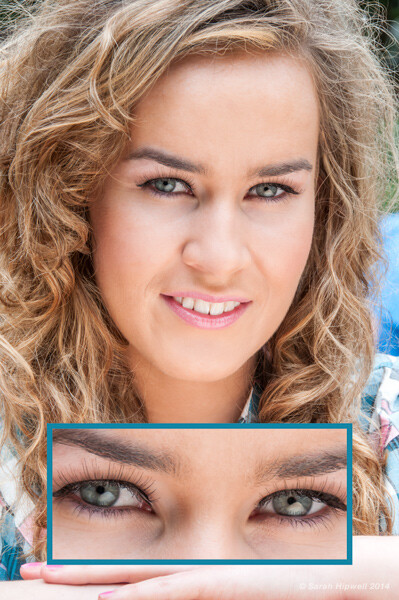
About four years ago, I was shooting a couple of models in my city of Dublin outdoors with a few fellow photographers. The day was overcast and I was just hoping it wouldn’t rain. Thankfully, it didn’t. One of the photographers had this big reflector, a 52 inch, translucent one. I was amazed at how effective it was, especially as it added these wonderful catchlights in the model’s eyes.

Model with catchlights

Think in terms of directing the light when photographing your subject or object. This is why a collapsible reflector is an excellent piece of additional camera gear. They are relatively inexpensive to buy, so portable, and lightweight. They do come in various sizes but a 42″ 5-in-1 collapsible reflector can be bought online for under $ 40 USD.

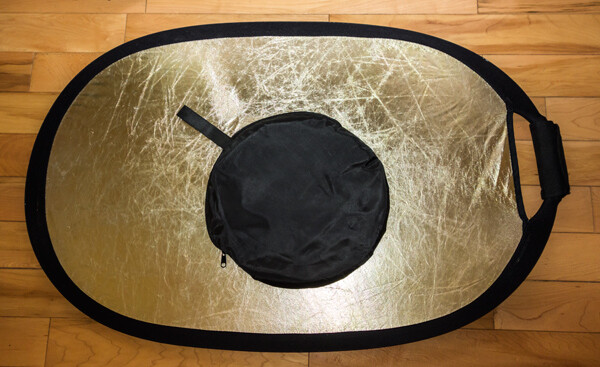
Collapsible Reflector 36x24 GoldSilver

Recently, at a family get together, my sister wanted me to take some headshots of her. We were outdoors, it was early in the evening around 6 p.m., and the sun was a ball of amber. I positioned her with the sun behind and it had created a wonderful rim light on her hair. But I didn’t have enough fill-light on her face.

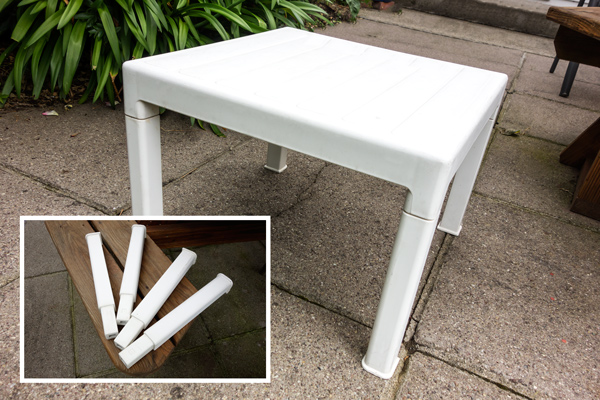
Then I realized, I didn’t have my reflector with me. On this occasion I had simply forgotten to bring it with me. After all, I wasn’t on a professional assignment. Anyway, I saw the small white plastic garden table. I grabbed it, turned it upside down and yanked the legs off. I got my youngest daughter to hold the table top slightly to the right and below my sister’s face.

Small white plastic garden table

Technology is speeding along at a very fast pace. The latest DSLR/mirrorless camera of today is fast becoming yesterday’s news in a relatively short time. As a newcomer to photography, it can be difficult to choose what gear and accessories to buy.

The basics of exposure havn’t changed with technology, nor has light. So practice with the camera that you have and learn to shoot with it in available light, and low light. Learn to see the different ways light can make a difference to your imagery.

I came up with five DIY options to serve as a reflector and tested them out. Here are some tip on how to use a reflector to take better portraits:

  1. White mount card from an art or hobby craft shop, size A1(33.1 x 23.4inches) 300g
  2. Kitchen aluminum foil crumpled up before fixing it on the back of the white card using spray
    adhesive
  3. Radiator reflective foil
  4. White plastic garden table
  5. Silver car mats

I still have, and use, the white card for demo purposes when I give workshops for beginners. It is so simple and affordable ,and the impact is quite dramatic. This option is the easiest to buy for a few dollars(USD). This piece of card can enhance your shots whether you are inside or outside. It’s great.

A simple indoor set-up for a portrait shoot using the white card

Have your model or subject seated (or stand) beside a large window. The model will be facing the camera, so one side of his or her face will be in shadow. Take a shot. Then have someone hold the white card near the model’s shadow side, at an angle so that a nice even light is cast across your subject’s face. Take numerous shots as you will need to direct your assistant on how close or far they hold the card up to the model. When you have taken a number of shots, you will get a clearer understanding of how to reflect the light upon your subject in a more pleasing manner. When you have uploaded your images to the computer, you will have the initial shot as your frame of reference to see the difference.

Tip – if the surface of your card starts to get grubby, I have covered up dirt marks using white interior matt paint.

Using kitchen aluminum foil is really simulating a silver reflector, which adds a cool light on your subject.

Becky silver reflector

If you don’t have spray adhesive or photo mount, an alternative method would be to water down a little PVC glue and paint this on one side of the white card. Then lay the aluminum foil (crumpled first) on top and smooth it out. This needs a good 24 hours to set. Also be careful when reflecting the light onto your model. Keep your distance as it reflects a large amount of light.

This roll of radiator reflector foil was inexpensive to buy. I can’t remember exactly but I think it was less than ten dollars (USD). Similar to above, this option works in the same way.

Becky radiator reflector foil

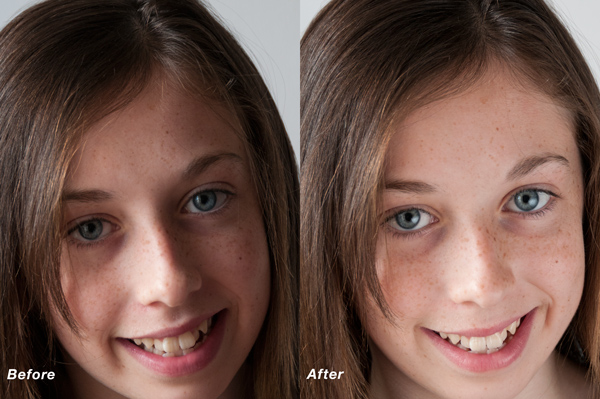
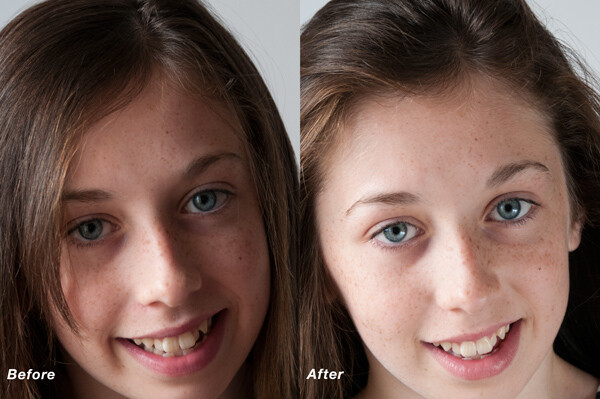
I recreated a similar test of my daughter in my Mum’s back garden using the small white plastic table. Unfortunately, I didn’t have the wonderful sun shining in the background, like I had for my sister’s shot. This was a quick test but as you can see there is an improvement in the after image. The light was cast more evenly across her face. Catchlights were created in the eyes which are key to good portraiture and shadows were eliminated under the chin.

Amy before and after small table

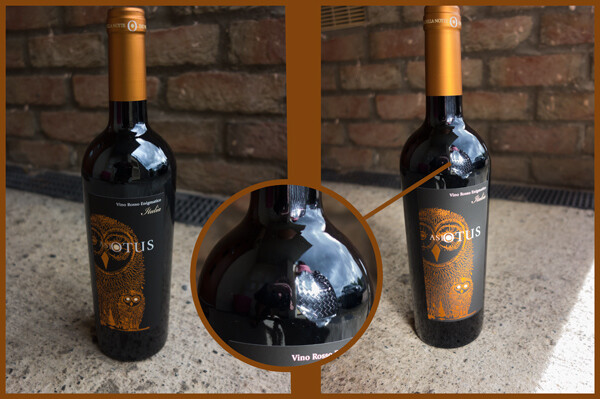
I included the silver car mats more as a tongue-in-cheek test! However, I decided to test them out to see would they actually work. I chose a bottle of wine so that you could see the silver car matt reflected in the bottle.

Wine bottle

Have you tried using a reflector before? What are your thoughts? Please give it a try if you haven’t and share your results and comments below.

The post DIY How to Build and Use a Reflector to Take Better Portraits by Sarah Hipwell appeared first on Digital Photography School.


Digital Photography School
 
Comments Off on DIY How to Build and Use a Reflector to Take Better Portraits

Posted in Photography


Black and White Portraits a Set of Images to Admire

06 Sep

Last week we looked at a collection of stunning black and white landscape photos. This week it’s all about portraits in the same modality.

Photograph So close together by Magda Constantin on 500px

So close together by Magda Constantin on 500px

For me there is something special about a portrait done in black and white, something about it that allows the photographer to exposure the subject’s very soul itself. The simplistic nature of being monochromatic means the focus is on light, shape, tone and emotion more so than with color, in my opinion anyway.

Black and white portraits transport me to a time of the master photographers like Karsh, Hurrell and Newman. If you don’t know those names – I suggest you google them with the word “portrait” and learn from them, as they were truly some of the best in portrait photography, possibly ever.

Without further ado, enjoy this set of black and white portraits, and if you want to learn more about black and white grab a copy of the newest dPS ebook The Essential Guide to Black and White Photography at early bird pricing only until September 13th.

Photograph K. by pkfruen  on 500px

K. by pkfruen on 500px

Photograph Fête de la musique by Jean-Paul Verjus on 500px

Fête de la musique by Jean-Paul Verjus on 500px

Photograph Sister love by Cathy Martineau on 500px

Sister love by Cathy Martineau on 500px

Photograph Rain by pkfruen  on 500px

Rain by pkfruen on 500px

Photograph Soul-division by Anthony De Faria on 500px

Soul-division by Anthony De Faria on 500px

Photograph David Hayman, King Lear by Tommy Ga-Ken Wan on 500px

David Hayman, King Lear by Tommy Ga-Ken Wan on 500px

Photograph FIlm Noir: Chris Botti by Brian Smith on 500px

FIlm Noir: Chris Botti by Brian Smith on 500px

Photograph second wind ,,, by Mete Ba?koçak on 500px

second wind ,,, by Mete Ba?koçak on 500px

Photograph my life... by Leila Raymond on 500px

my life… by Leila Raymond on 500px

Photograph Untitled by Lee Jeffries on 500px

Untitled by Lee Jeffries on 500px

Photograph shootout by David Mar Quinto on 500px

shootout by David Mar Quinto on 500px

Photograph Mans Best Friend by Drew Hopper on 500px

Mans Best Friend by Drew Hopper on 500px

Photograph Serge. by DrakSpirit on 500px

Serge. by DrakSpirit on 500px

Photograph Symmetry of Hate by Daniele Di Egidio on 500px

Symmetry of Hate by Daniele Di Egidio on 500px

Photograph Close-up portrait of a street by Mikhail Levit on 500px

Close-up portrait of a street by Mikhail Levit on 500px

Photograph A portrait of friend in a kitchen setting by Mikhail Levit on 500px

A portrait of friend in a kitchen setting by Mikhail Levit on 500px

Photograph Smoking Hot by Darcy Evans on 500px

Smoking Hot by Darcy Evans on 500px

Photograph Jill by Renee Robyn on 500px

Jill by Renee Robyn on 500px

Photograph Eye & Face by Andi Halil on 500px

Eye & Face by Andi Halil on 500px

Photograph The breath by Claudio L'Estremo Montegriffo on 500px

The breath by Claudio L'Estremo Montegriffo on 500px

Photograph mr thomas by Hegel Jorge on 500px

mr thomas by Hegel Jorge on 500px

Photograph When the soul cries(The true story of a tough life) by Silvia S. on 500px

When the soul cries(The true story of a tough life) by Silvia S. on 500px

Photograph Danka B&W by Gabor Jonas on 500px

Danka B&W by Gabor Jonas on 500px

Photograph Sometimes there are no words... just the moment by J.J. Taylor on 500px

Sometimes there are no words… just the moment by J.J. Taylor on 500px

Photograph thoughts by Danilo Veccia on 500px

thoughts by Danilo Veccia on 500px

Photograph Elusive by Federico  Ratano on 500px

Elusive by Federico Ratano on 500px

Photograph girl's eyes by marylexa on 500px

girl's eyes by marylexa on 500px

Photograph vamos bien by Angelo Tassitano on 500px

vamos bien by Angelo Tassitano on 500px

Photograph Master Monk by Anthony Pond on 500px

Master Monk by Anthony Pond on 500px

Photograph In the Brick Shed by Anthony Pond on 500px

In the Brick Shed by Anthony Pond on 500px

Photograph Three Prayers by Anthony Pond on 500px

Three Prayers by Anthony Pond on 500px

The post Black and White Portraits a Set of Images to Admire by Darlene Hildebrandt appeared first on Digital Photography School.


Digital Photography School
 
Comments Off on Black and White Portraits a Set of Images to Admire

Posted in Photography


Weekly Photography Challenge Black and White Portraits

06 Sep

Last week’s challenge was also black and white and in keeping with the them, earlier today I shared a set of black and white portraits. Your challenge this week, if you choose to accept it, is do photograph a real person and do a portrait in black and white.

By Sean Molin

There are lots of articles here on dPS to help you with that and get some inspiration including:

  • Create Better Black and White Photos Using Local Adjustments in Lightroom 5
  • How to Convert Photos to Black and White in Lightroom
  • How to See in Black and White
  • DISCUSS: When you Photograph People in Black and White, you Photograph their Souls

Here are a few more example black and white portraits:

By Sean McGrath

By Ben Raynal

By Neil Moralee

By stephane

By Ronn aka “Blue” Aldaman

By Dietmar Temps

By Nicolas Alejandro

By Gustave Deghilage

By Dietmar Temps

By i k o

By Fadzly Mubin

If you want to learn more about black and white grab a copy of the newest dPS ebook The Essential Guide to Black and White Photography at early bird pricing only until September 13th.

black-white-ebook

Share your black and white portrait images

Simply upload your shot into the comment field (look for the little camera icon in the Disqus comments section as pictured below) and they’ll get embedded for us all to see or if you’d prefer upload them to your favourite photo sharing site and leave the link to them. Show me your leading lines using pathways and roads in this week’s challenge.

The post Weekly Photography Challenge Black and White Portraits by Darlene Hildebrandt appeared first on Digital Photography School.


Digital Photography School
 
Comments Off on Weekly Photography Challenge Black and White Portraits

Posted in Photography


Tips for Taking Great Portraits in 10 Minutes or Less

20 Aug

Portraits 10 minutes or less 01

Yes, you read that right. 10 minutes tops (not counting editing time), and you could have a set of photos worthy to hang on the wall. Don’t get me wrong, I’m not telling you that every session should be that speedy, but sometimes that’s all the time you have.

Portraits 10 minutes or less 02

Maybe you’re dealing with some kids that aren’t too happy about being there, and 10 minutes is all they’re going to give you before the meltdown. Maybe you’ve got awful weather, and you’ve got 10 minutes before the tornado hits. Maybe you decide 10 minutes before the sun goes down that it’s the perfect day for some photos, and you must do them right then (or your model shows up an hour late and you’re losing light fast). Maybe you want photos of your favorite pet, and you know that you’ll be lucky to get 10 minutes of attention.

Maybe, like me, you like to do little mini-sessions sometimes, and you stack them in 10 minute increments. Maybe, just maybe, you like a challenge. So, here’s your challenge: see if you can follow these tips and get great portraits you’ll love in 10 minutes or less. Ready, set, go!

Portraits 10 minutes or less 03

Pick one location

For a portrait session in a time crunch, you must choose ONE location. Just one. Find a spot that has good light, a nice background, and stick with it. Moving around is great if you have lots of time, but our goal right now is speed and quality. Use a tried and tested spot, or scout out a good spot ahead of time. This would also be a good time to use a great indoor studio spot, but stick with just one backdrop.

Portraits 10 minutes or less 04

Make a plan

Go into your 10 minute session with a plan. For example: Let’s say you have a family who wants to hang a family photo collage on their wall. You know you’ll need a family photo, one of each kid, one of the kids together, and one of the parents together. You might want to give an option of portrait orientation (vertical), or landscape orientation (horizontal), especially for the family photo. So, take one of each of those. You may want to do one of family photo standing, and one seated. Maybe plan for one close-up and one full-body portrait of each kid. Whatever your scenario is, plan out ahead of time what you’re going to need, then stick to the plan. This isn’t the time to experiment.

Portraits 10 minutes or less 05

Put your subjects at ease quickly

Normally, you’d get to know your subjects a little bit, and put them at ease. You still need them to feel comfortable, so don’t skip this, just put it on fast-forward. The second you greet them, be happy, be enthusiastic, be fun! Every minute counts, so let them know right away that for this 10 minutes, your only focus is them. Let them feel your confidence in them, and in yourself. You don’t have time for awkward photos, so they have to be on board and comfortable right from the start. You could say something like, “Are you ready for the most painless photo session you’ve ever had? Let’s do this!”. It might get a laugh, and put them at ease right away. Who doesn’t want a painless photo session?

Portraits 10 minutes or less 06

Know your camera well

Finally, know your camera. When you’re in a time crunch, you don’t want to be fiddling with the settings, and panicking if things aren’t going how you expect. The more time you practice with your camera when you’re not under pressure, the better you’ll perform when it really counts. Know what settings you like, and when to use different apertures, shutter speeds, and ISO settings. If you are comfortable with these, you’ll be able to change them on the spot, in between photos, without wasting time.

If you aren’t comfortable with your camera yet, this would be a good time to use aperture priority, or even the auto setting. This isn’t the time to learn; this is the time to apply what you have already learned.

Portraits 10 minutes or less 07

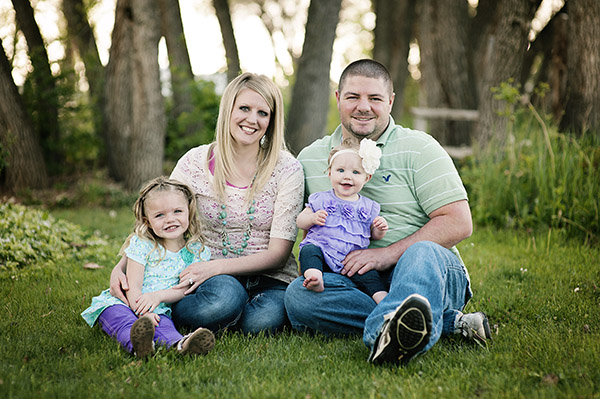
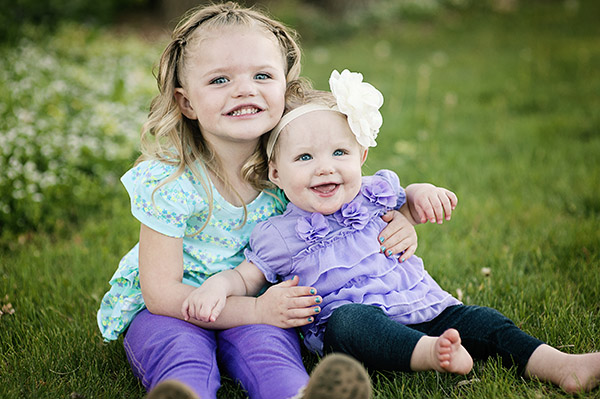
So, are you ready? I’m sure we’ve all got 10 minutes to spare. Give it a try, see if you can shoot at least eight portraits you love in 10 minutes or less using these tips. Let me know how it goes. The photos I shared here are an example of a real life less-than-10-minute session.

Portraits 10 minutes or less 08

The post Tips for Taking Great Portraits in 10 Minutes or Less by Melinda Smith appeared first on Digital Photography School.


Digital Photography School
 
Comments Off on Tips for Taking Great Portraits in 10 Minutes or Less

Posted in Photography