RSS
 

Posts Tagged ‘Portrait’

How to Photograph a Portrait of a Stranger with the WOW Factor

10 Sep

By Oded Wagenstein

Have you ever met a person, while travelling abroad or at home, who has such an interesting face that you would really like to photograph?  But, just before you press the shutter, you suddenly think, “How am I going to shoot this”?

Because there are so many questions to answer: How do I approach a strange person? Should I photograph from a distance, with a Tele-photo lens, or should I get closer? What if the person will get offended or angry?

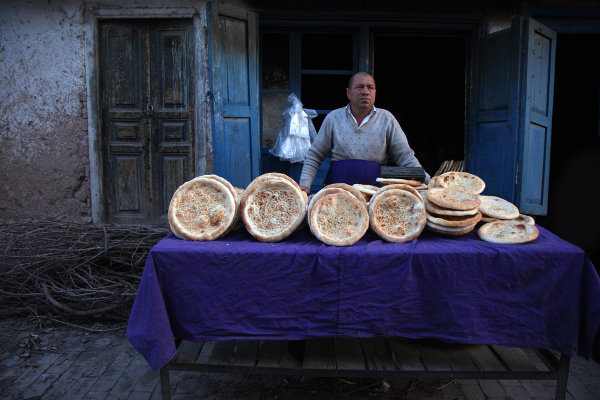
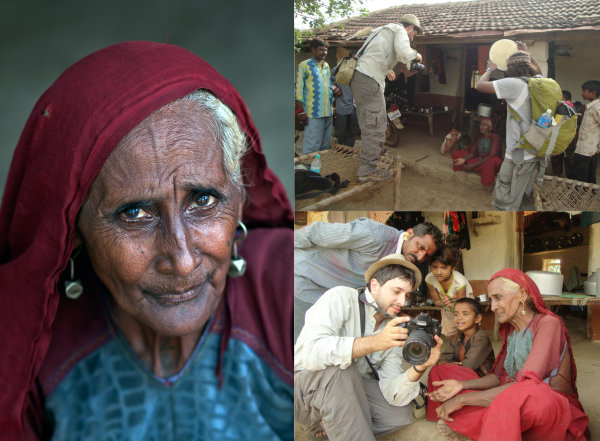
It depends on the situation but, in 99% of my portraits, I use what I like to call the “being involved” technique.  This technique requires the photographer to get closer to the subject, by using a wide focal length lens and there is no doubt, that the subject will be aware of the photographer and the camera.
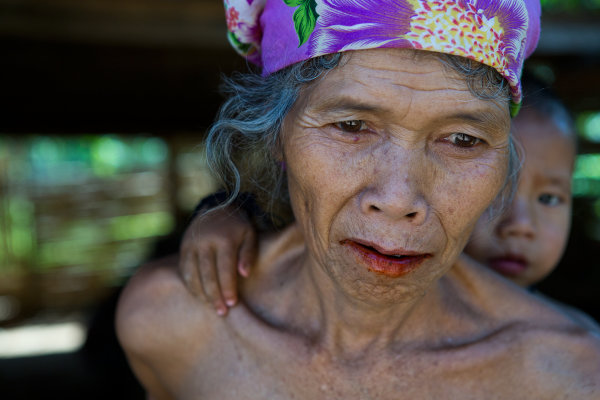
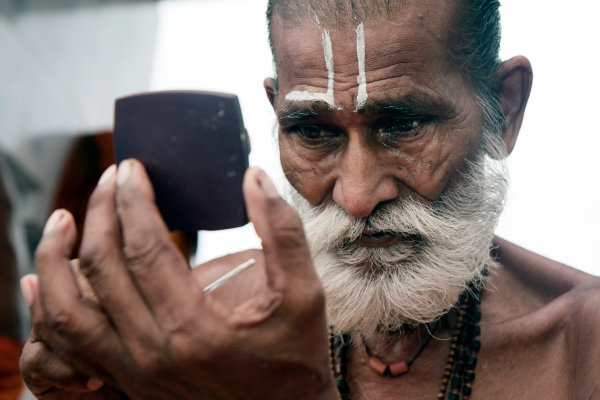
Fstop of 4.5, shutter speed@10 and ISO 320

Fstop of 4.5, shutter speed@10 and ISO 320

There are so many advantages to using this method, for instance the ability to control the composition, the angle, the background, not to mention asking your subject for “one more take” and of course, the possibility of  making a new friend. Creating a close-up portrait, with the technique of “being involved” creates intimacy and gives warmness to the image that you wouldn’t get with a Tele-photo lens in most cases. But, with this method as my students are well aware, there is one big disadvantage, when a person becomes aware of the camera, his behavior and the authenticity and spontaneity of the moment disappears.

Once, on a very cold night, while shooting in Japan, I asked my good friend and great photographer Dave Doisneau – “What kind of super power he would like to have?” (Cold nights in Japan will make you ask stupid and philosophical questions) Dave answered “I would like to be invisible. To be able to photograph a person, inches away from their face without them being aware that I was even there”. This for me sums up my whole philosophy on portrait photography. Losing the spontaneity, or the fear of losing authenticity, are just weak excuses. As a photographer, your job is to bring all these qualities back to your image. How can you do that? (Here’s a little hint for you) Photoshop or expensive equipment won’t help you.
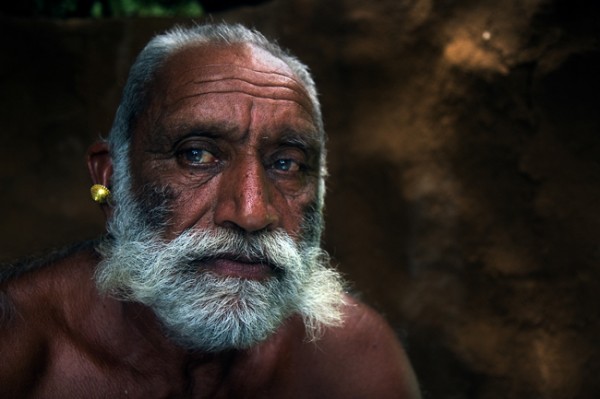
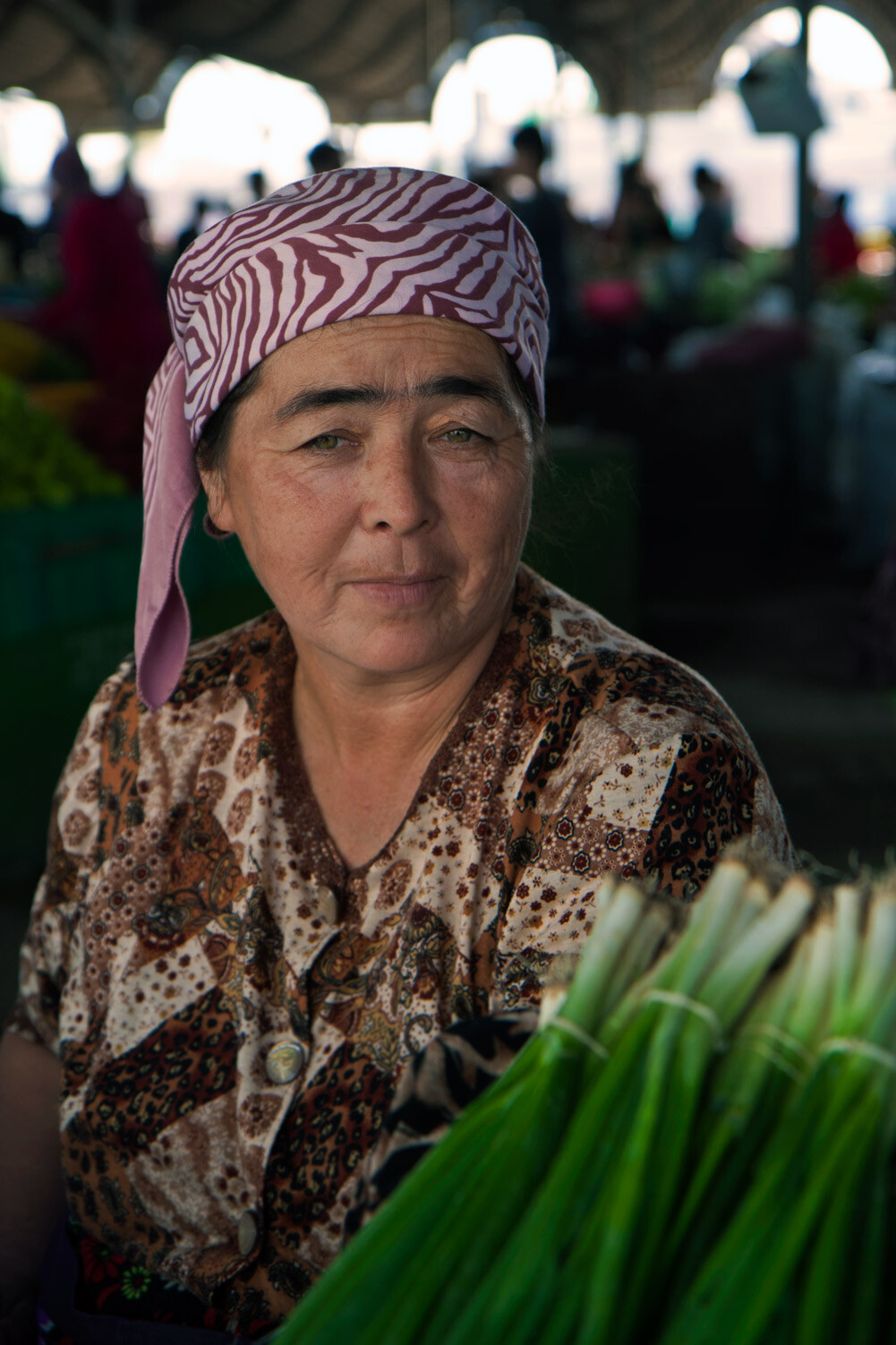
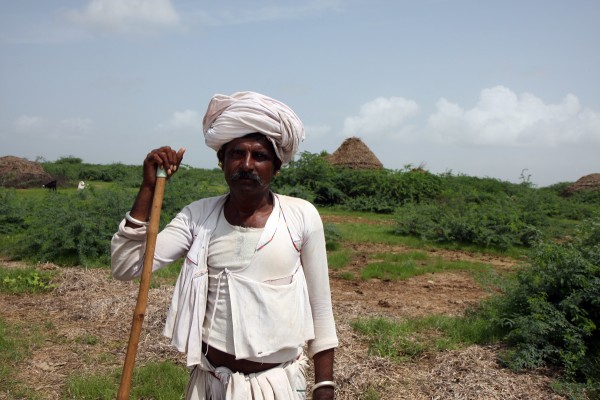
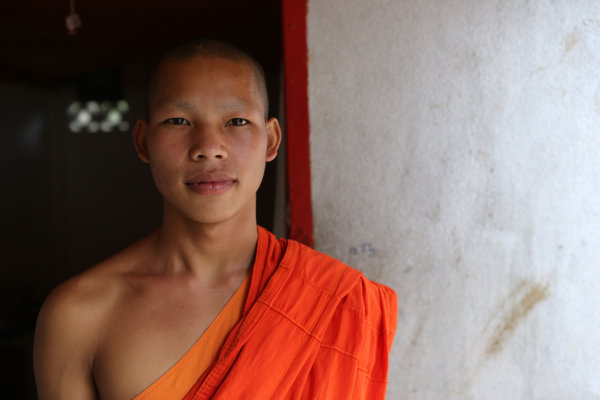
Fstop of 2.8, shutter speed@10 and ISO 100?

Fstop of 2.8, shutter speed@10 and ISO 100

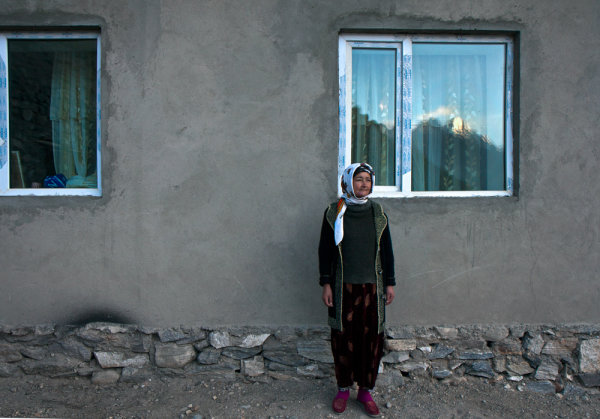
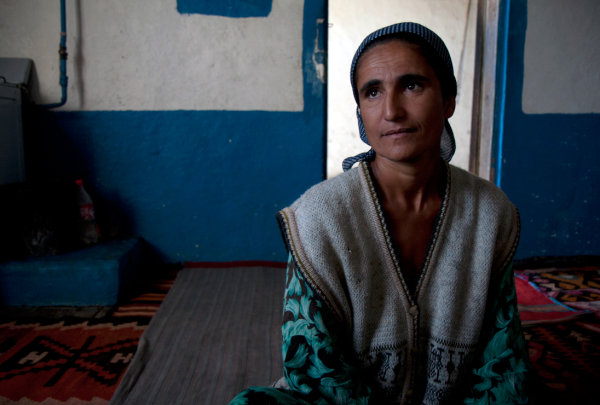
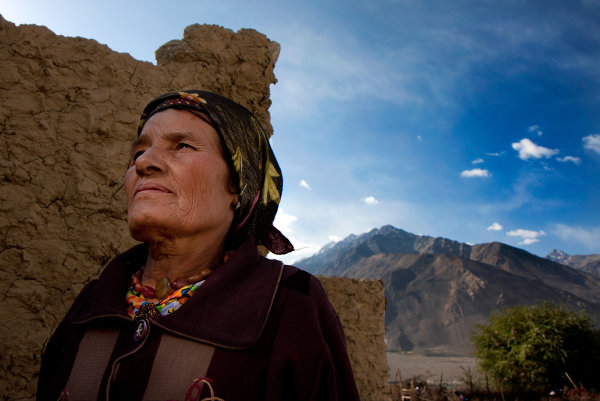
As one of the great photographers, Ansel Adams once said: “You don’t take a photograph, you make it”. The difference between an amateur and a professional is in the preparation.Knowledge is power and the more you know about a person and their culture, the easier it will be for you to become invisible. While I was in the Wakhan valley, between the Afghan and Tajikistan border, I learned, in advance that the people who live there have many cultural dos and don’ts. From the way they greet a stranger (Right hand on the chest and a slight bow) to the proper way to react when invited to a local house (just say yes and prepare yourself for tea, and lots of it!).
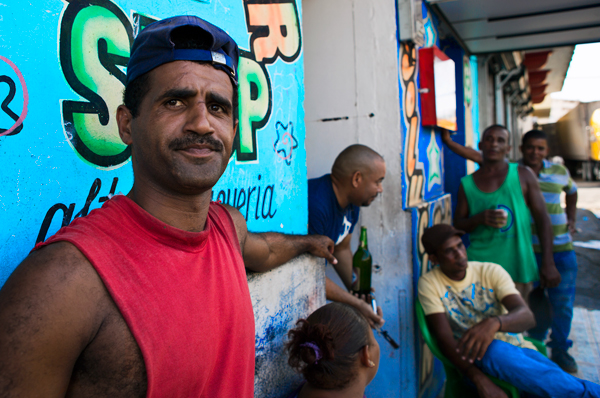
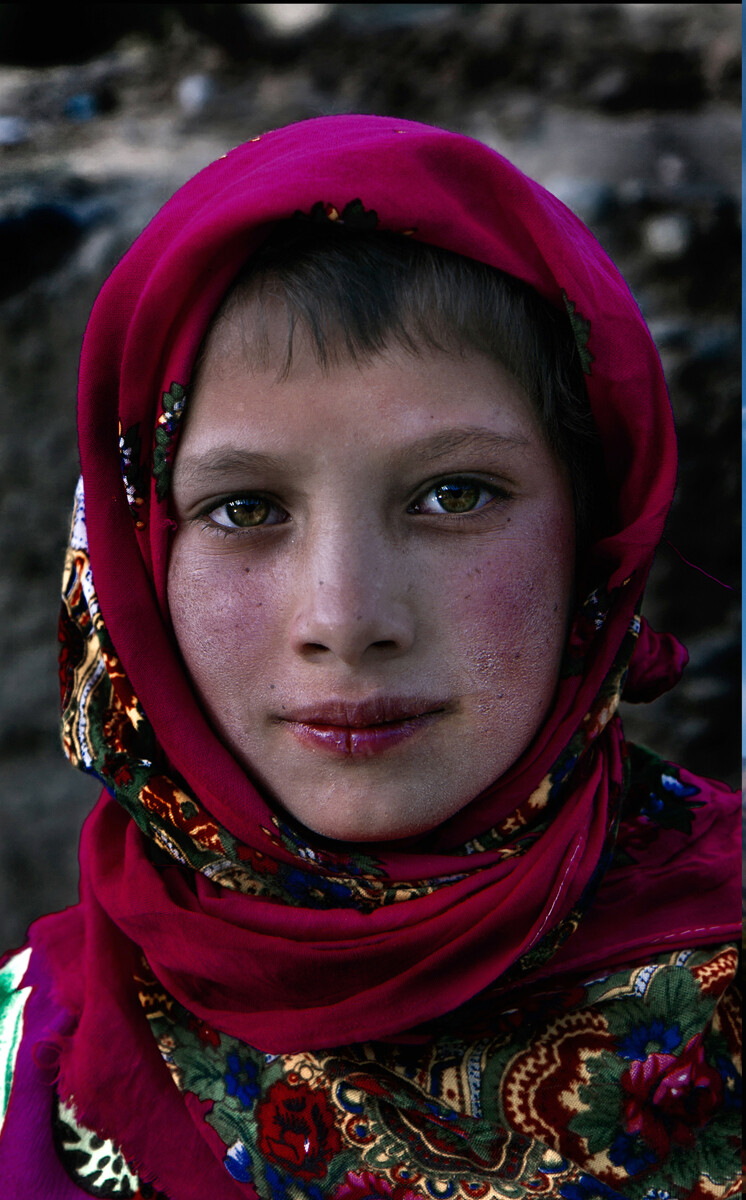
Fstop of 4.5, shutter speed@1 and ISO 125

Fstop of 4.5, shutter speed@1 and ISO 125

So before I travel anywhere, I familiarize myself, in advance, with any photography related taboos.  From how will people respond to the camera, to things that you should not shoot. For example, did you know that the people of the Akha tribe in south East Asia, believe that photographing one of their tribe member will actually steal his soul?

You can learn all these things and more by consulting with a photographer who has already visited the place.  The internet is a great place to find him or her. You can consult travel forums, books, or even call the embassy of the country of your destination.
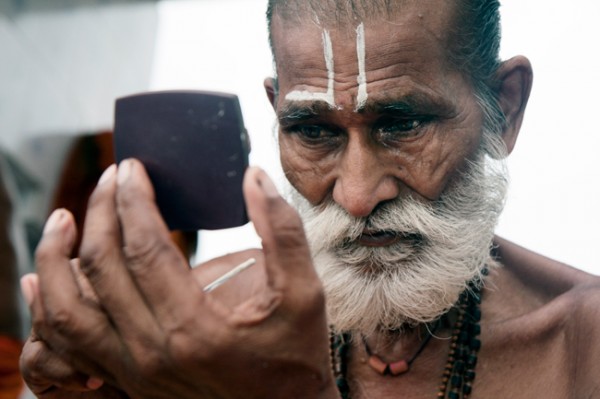
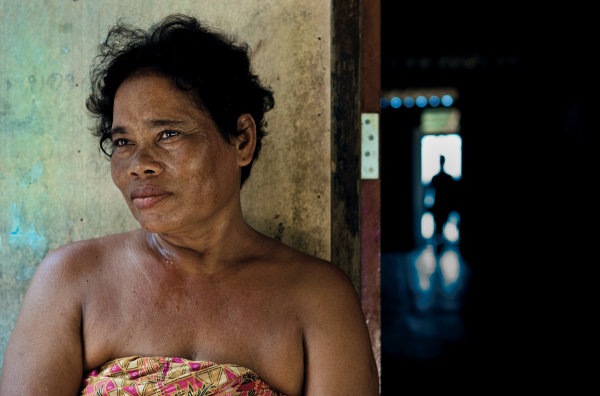
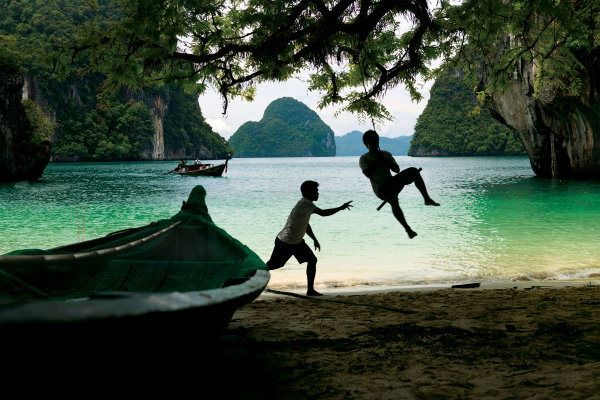
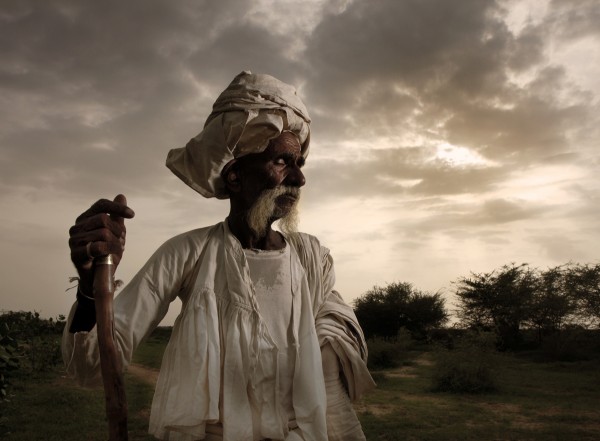
Fstop of 4.5, shutter speed@10 and ISO 200

Fstop of 4.5, shutter speed@10 and ISO 200

Many photographers will advise you to take your camera with you all the times. For me, the camera is just a tool, and as a tool it must not interfere. Have you ever felt uncomfortable because someone is aiming a camera at you? Have you ever thought how YOU look when you stand behind the camera? (A bit like holding a weapon right?).

Nobody likes it when you aim something at them without any explanation or permission. That’s why, when I encounter a new and interesting person, I would like to photograph, I first introduce myself as Oded the person before as Oded the photographer. by the time I take out my camera, the person has lost interest in me, and gone back on his work, I then become invisible and Voilà I can take my shot and I’ve make a new friend into the bargain.

In the past year, I have photographed hostile tribes in South East Asia, gypsy communities in Central Asia and even in the former Soviet Union. If there is one thing that I’ve learned from visiting those places, is that most people would actually like their picture taken, if we do it right. So please give yourself a confidence boast and try it. Anywhere you are on the globe, if you act with respect, be polite, and even have a little bit of sense of humor, most of the time people will act the same way towards you.

Yes, we’ve all got a horror story, of the one person who shouted at us while we took his photo. Think about it for a second; did it happen when you tried to shoot the person without his permission? If you approach a person with dignity, make a connection, and then you take out the camera, what the worst thing that can happen? They will say no, but at least you would have tried right?
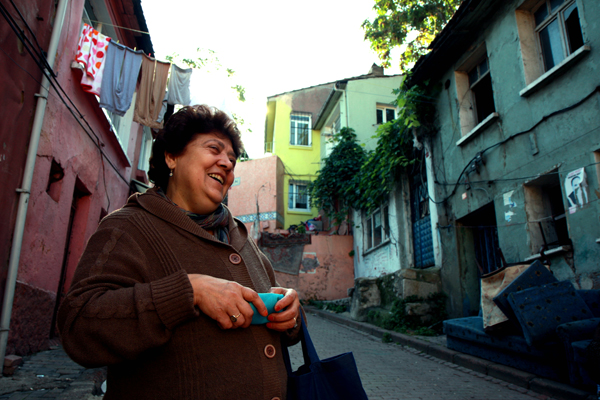
Fstop of 5.6, shutter speed@15 and ISO 100

Fstop of 5.6, shutter speed@15 and ISO 100

When you found a person with a unique face, invest the time to break the ice with them, then when you finally have his approval for the shoot, if he’s very polite, you will probably have around 30 seconds to take the shoot before they moves on, that’s some pressure.

This may be the most important section of this article, that many photographers forget, just relax. Being stressed never helps especially when dealing with people or while creating art. It’s true you may not have much time to decide on the focal length, the background, the shooting angle, the shutter or the aperture.

Also, try not to let your technical level stand in your way. How? Before starting to shoot people, try your craft on still life. Flowers would be perfect to start with. Also it would be really wise to invest in some photography course (much more important than buying new equipment). Last but by no means least, don’t forget to RTFM- read the camera’s fu*** manual!

That’s right, creating interesting and strong portraits is not easy. Take your time to work on your craft. Shoot flowers, then your friends and family members. Learn, learn and learn everything you can about your camera and about your subject. Come with respect and most important – relax.
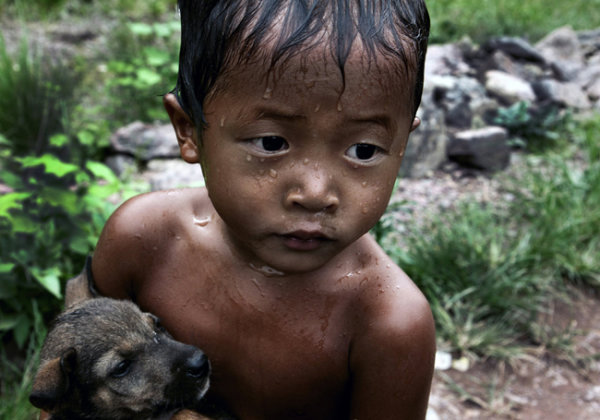
Fstop of 3.2, shutter speed@10 and ISO 200

Fstop of 3.2, shutter speed@10 and ISO 200

Oded Wagenstein is a Travel photographer and writer. He is a regular contributor to the National Geographic Traveler magazine (Israeli Edition) and he is known for his intimate portraits from around the world. You can join his Portrait & Travel Photography Facebook page  and continue to discuss on travel and people photography and get more amazing tips!

Post originally from: Digital Photography Tips.

Check out our more Photography Tips at Photography Tips for Beginners, Portrait Photography Tips and Wedding Photography Tips.

How to Photograph a Portrait of a Stranger with the WOW Factor

Digital Photography School

 
Comments Off on How to Photograph a Portrait of a Stranger with the WOW Factor
Posted in Photography


How to Create this “Fight Club” Inspired Portrait using One Light

05 Sep

By Gina Milicia – author of our brand new Portrait Lighting eBook.

Firass MAINWEB

Welcome to Fight Club. The first rule of Fight Club is: you do not talk about Fight Club.” -Chuck Palahniuk, Fight Club

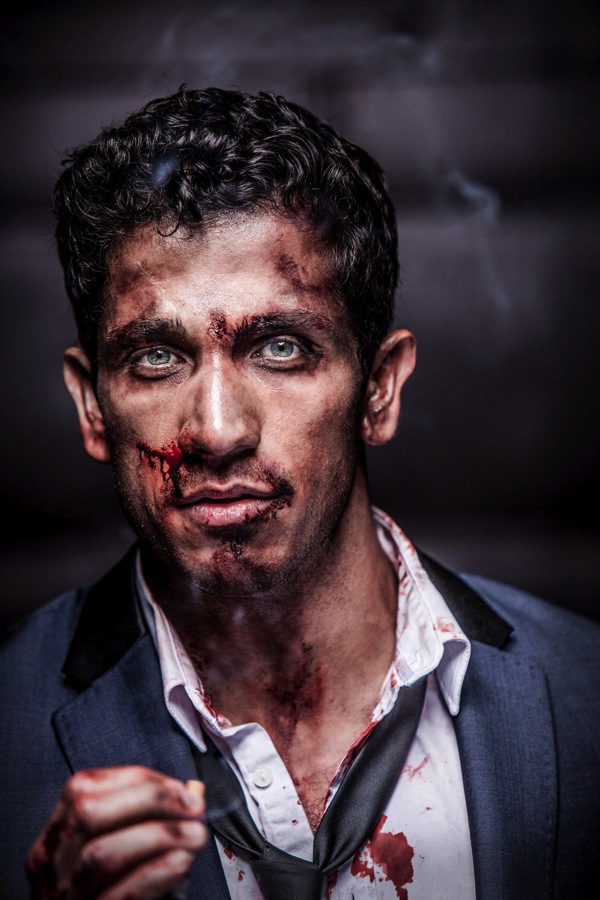
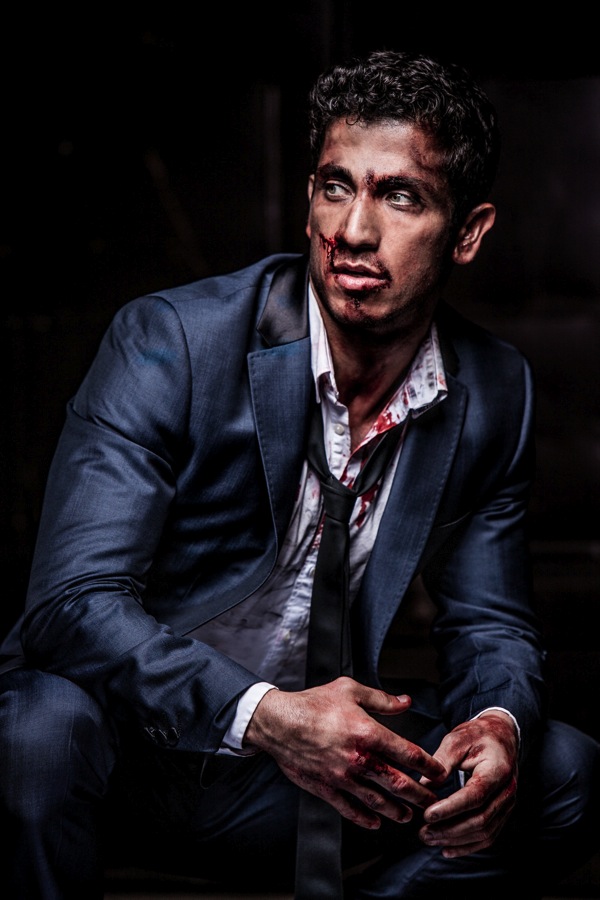
Australian actor Firass Dirani in my Fight Club inspired shoot @firassd (twitter) @firazzle (Instagram).

Australian actor Firass Dirani in my Fight Club inspired shoot @firassd (twitter) @firazzle (Instagram).

Most of my inspiration for photo shoots comes from Movies, art and popular culture.

Ever since I saw the movie Fight Club I’ve always wanted to do a fight Club inspired shoot.

My aim was to create a really cool, gritty, edgy looking shot. I could have achieved this look using several different techniques but opted for my new Rotolux deep Octabox with my Elinchrom Ranger Quadra battery operated light system.

Firass 643web

For this shoot I worked with Melbourne make up artist Mia’Kate Russell an incredibly talented special effects make up artist. Her brief was to make Firass look like he’d just been in an old school fistfight – busted up but still looking incredibly cool.

If you are thinking of trying something like this then I suggest you check out your nearest school of hair and make up. Special effects make up like Mia used on Firass is taught at these schools and students are often looking for the opportunity to test out their skills.

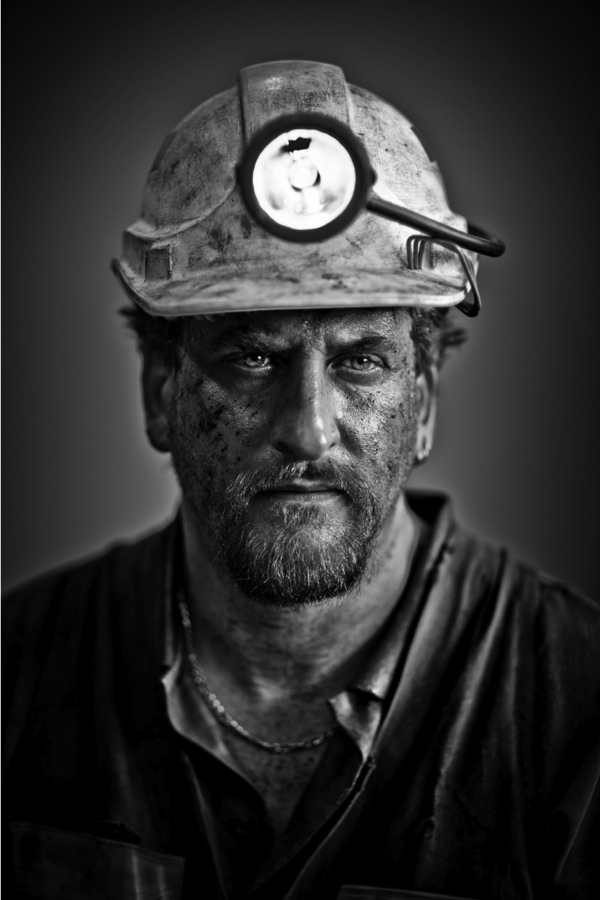
Another version you may like to try is to just scuff the face up using dirt to give that gritty look. That’s the technique I used for this shot of Lachy Hulme who was playing a trapped minor in the TV Movie Beaconsfield.

Portrait shoot

A good Make Up artist will take your portraits from OK to amazing. This is definitely a relationship you should invest in and nurture.

201309021410.jpg

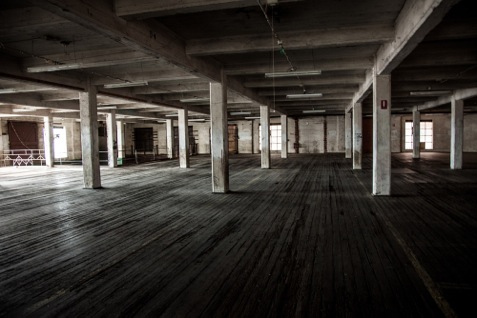
The location I chose was an old warehouse near my actual studio. I had gone out scouting a week earlier. It’s important that you always have your locations worked out ahead of time rather than hoping it will all fall into place on the day of the shoot.

Some places will incur a hire fee to work in others you may get permission by finding the owners and just asking (which is exactly what I did to get access to this amazing warehouse!)

201309021413.jpg

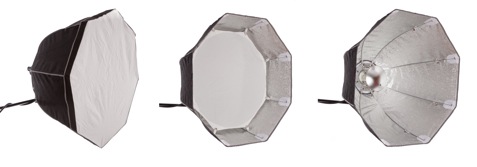
If a softbox and a beauty dish got married and had babies they would probably have little rotolux deep octaboxes. I love these light shapers because

They combine the softness and narrow spread of a soft box with the beautiful bone structure defining qualities of the beauty dish. It’s the best of both worlds.

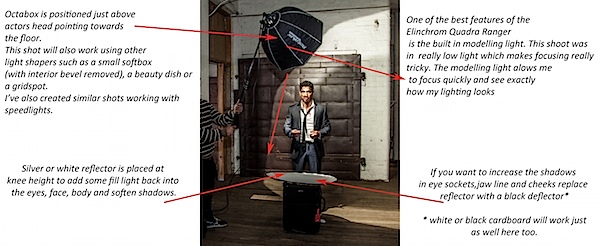
For this image of Firass I converted my Octabox to a beauty dish by removing the outer diffuser and inner bevel and adding the beauty dish attachment.

I could have also just used a beauty dish but I prefer this softer style of lighting.

Here’s some visuals on how I took the shots (click to enlarge).

Firass_MAINWEBDIAGRAM.jpg

FirassBTSW.psd

For this shot I’m using my:

  • Canon 1DS MK111, with my 70-200mm f2.8L series Lens
  • 2x Pocket wizards
  • I used fill flash from my Elinchrom Quadra lights with a Rotolux Deep Octabox

My settings for this shot are:

  • ISO is set to 100
  • Lens focus length is 200mm
  • Aperture is F/ 4* @ 1/200th of a second**

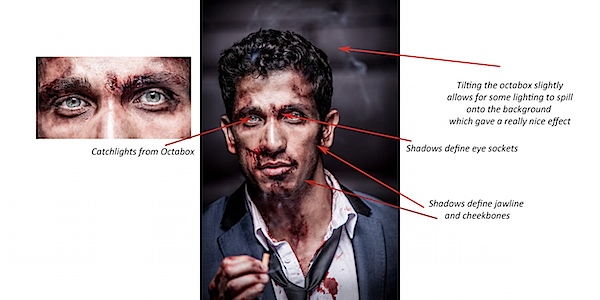
* I selected a wide aperture of F4 on my long lens because I wanted my background to be out of focus. I could have shot wide open at f2.8 but decided to play it safe at f4 as I find it really difficult to get my models eyes sharp at f2.8 using a long lens and focusing in low light.

** I shot at a very fast shutter speed of 1/200th sec because I wanted to keep my background really dark and moody.

This shot would also work using a Speedlight + Softbox without internal bevel.

If you want to increase the amount of shadow in eye sockets, jawline and cheekbones remove the reflector or replace it with a black cutter.

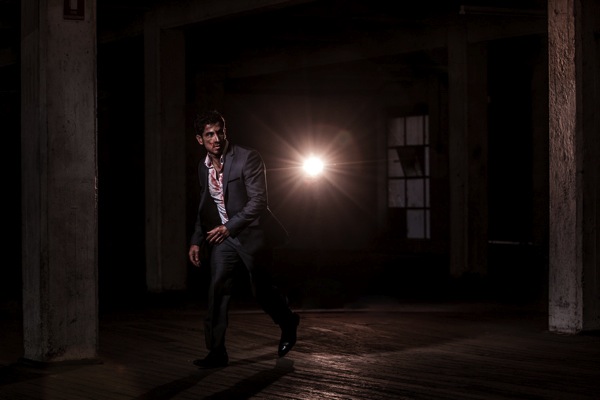
And here’s one more shot from the shoot.

Firass walking

Get more portrait lighting tips from Gina’s new dPS eBook – Portraits: Lighting the Shot.

Lighting_468x190px

Post originally from: Digital Photography Tips.

Check out our more Photography Tips at Photography Tips for Beginners, Portrait Photography Tips and Wedding Photography Tips.

How to Create this “Fight Club” Inspired Portrait using One Light


Digital Photography School

 
Comments Off on How to Create this “Fight Club” Inspired Portrait using One Light

Posted in Photography


Discover the Secrets of Beautiful Portrait Lighting

04 Sep

NewImageToday I’m excited to announce the launch of a new dPS eBook – Portraits Lighting the Shot – by Gina Milicia.


In January of this year we released a brand new Portraits eBook called Portraits: Making the Shot.

It was an ebook written by renowned Aussie celebrity portrait photographer Gina Milicia on the basics of how to shoot amazing portraits that reflect the true character of your subject.

The overwhelming response from readers of the eBook was that Gina had created a valuable resource that was helping thousands of photographers to improve their portraiture – but they wanted more.

One of the biggest requests that we’ve received since releasing ‘Making the Shot’ was for some teaching on ‘Lighting’ portraits.

Using light effectively can be the difference between a portrait that captures the true spirit of your subject and one that simply records a moment.

Based upon this feedback we immediately began work with Gina to create a guide to lighting portraits.

I’m pleased to announce that it is ready for you to download today at a limited time Early Bird price of just $ 14.99 (25% off).

What’s Covered in This eBook?

  • The Rules:  The ten golden rules to to live by (when lighting a portrait).
  • The Gear:  The gear you need, might need and actually don’t need.
  • The Way:  How to ‘see’ the light, by using the ‘force’ in a non nerdy way.  This section is GOLD.
  • The Style:  Understand Gina’s style, but importantly how to use all your new skills to create your own.
  • Troubleshooting:  How to handle those tricky lighting scenarios.
  • Building the shot:  Build your shot, one light at a time

Get full details on this valuable new eBook here or buy it directly by clicking the Download it Now button below.

jQuery(document).ready(function(){
jQuery(“a.lightbox-54528″).colorbox({className: ‘dark id54528’, onLoad: function() { jQuery(‘.id54528 #cboxClose’).css(‘display’, ‘block’); }, fixed: true, initialWidth: 500, initialHeight: 100, inline:true, width: 650, href:”div.lightbox-54528”});
});

download_it_now_lighting

jQuery(document).ready(function() { jQuery(‘div.lightbox-54528:gt(0)’).remove(); });// < ![CDATA[ // < ![CDATA[ // < ![CDATA[ function EJEJC_lc(th) { return false; } // ]]>

Post originally from: Digital Photography Tips.

Check out our more Photography Tips at Photography Tips for Beginners, Portrait Photography Tips and Wedding Photography Tips.

Discover the Secrets of Beautiful Portrait Lighting


Digital Photography School

 
Comments Off on Discover the Secrets of Beautiful Portrait Lighting

Posted in Photography


Rebellious Portrait Photography That Goes Against the Grain Like You Wouldn’t Believe

03 Sep

The world’s major fashion magazines are plump with advertising images of the size-zero models, with their flawless complexions and perfect bone structures. Much to the everyday girl’s dread, these images can also be found pretty much everywhere, especially in portrait photography. However, imagine for a moment if these models weren’t perfect? Would the images have a greater impact? Would people Continue Reading

The post Rebellious Portrait Photography That Goes Against the Grain Like You Wouldn’t Believe appeared first on Photodoto.


Photodoto

 
Comments Off on Rebellious Portrait Photography That Goes Against the Grain Like You Wouldn’t Believe

Posted in Photography


Full 360-degree camera rig takes your 3D portrait with 60 DSLRs

18 Aug

xIMG_0025.jpg.pagespeed.ic_.TP-LDuzYup.jpg

Printing in 3D is in the news a lot lately, but applications are usually limited to industrial prototypes. A company called Captured Dimensions has a different use for this technology. They’ve rigged 60 DSLRs in a 360-degree array to capture 3D portraits. The likeness is then printed using a substance containing gypsum powder, resulting in a 3D sculpture of 1/12 to 1/5 scale. Ready for your 3D closeup? Click through for more details (including how much it’ll set you back).

News: Digital Photography Review (dpreview.com)

 
Comments Off on Full 360-degree camera rig takes your 3D portrait with 60 DSLRs

Posted in Uncategorized


Portrait Photography: How to Photograph People in the Harsh Midday Sun

13 Aug

By: Oded Wagenstein

Great tips and tricks on overcoming the harsh mid-day sun to create beautiful portraits on either side of the “golden hours”

The Golden Time

The best time to take almost any kind of  picture, is in the “golden hours”: around one hour before sun down and one hour after sunrise, because that’s when the light is at its softest, lacking hard shadows, rich in colors, bathing your subject in even light, which entering from the side and that gives your subjects face definition.

-Uzbekistan-  Canon EFS 17-55mm f/2.8  Fstop of 3.5, shutter speed@10 ISO 160

-Uzbekistan-
Canon EFS 17-55mm f/2.8
Fstop of 3.5, shutter speed@10 ISO 160

-Tajikistan- Canon EFS 17-55mm f/2.8 Fstop of 5.6, shutter speed@15, ISO 200.

-Tajikistan-
Canon EFS 17-55mm f/2.8
Fstop of 5.6, shutter speed@15, ISO 200.

-China - Canon EFS 17-55mm f/2.8 Fstop of 2.8, shutter speed@10 and ISO 400 Natural light (sunrise) entering the frame from the right

-China –
Canon EFS 17-55mm f/2.8
Fstop of 2.8, shutter speed@10 and ISO 400
Natural light (sunrise) entering the frame from the right

-Tajikistan- Canon EFS 17-55mm f/2.8 Fstop of 5.6, shutter speed@10 and ISO 100 Natural light (sunrise) reflecting from the mountains, which are about 45 degrees to the woman (you can see it in the window).

-Tajikistan-
Canon EFS 17-55mm f/2.8
Fstop of 5.6, shutter speed@10 and ISO 100
Natural light (sunrise) reflecting from the mountains, which are about 45 degrees to the woman (you can see it in the window).

Once this time (golden time) has passed, we are left with harsh, unflattering light that is low in saturation and makes the images look dull and flat as you can see in this photo:

-India- Canon EFS 17-55mm f/2.8 Fstop of 8, shutter speed@10 and ISO 100 The harsh mid-day sun is just above him.

-India-
Canon EFS 17-55mm f/2.8
Fstop of 8, shutter speed@10 and ISO 100
The harsh mid-day sun is just above him.

The Problem

In order to provide solutions, first let’s understand the “problem”: Your camera doesn’t see as well as your eyes.  The “problem” is the camera’s dynamic range.  In plain English, the dynamic range is the distance between the brightest and darkest points in the frame.  Let’s say you take a shot of a man wearing a hat in the middle of the day, when the sun is at its highest and harshest. Your eyes will be able to make out his eyes even under the shadow of his hat, as well as his chin in the strong daylight. That’s because your eyes have the ability to see a large dynamic range.

Your camera however has a far more limited ability to see the dynamic range .If you we go back to our man in the hat, your camera will see his eyes, which are in shadow under his hat as black, while his chin which is in strong sunlight will be blown out and very white.

You might try to “fix it” by changing your aperture/shutter or ISO parameters but, this would only make your image lighter or darker as these actions have no bearing on the dynamic range. Even if we try to use an ND filter, again, this would only make your image darker and would not solve the problem or alter the range.

The Solutions

Move to the shade
Try moving the subject to the shade, or perhaps indoors. When I asked Steve McCurry, the creator of the “Afghan Girl” image, how he works in the mid day sun, he told me that he prefers to work indoors with the harsh light coming in through a window so that it turns to soft even light, and that’s really change my way of “seeing” the harsh light as an opportunity of creating great images by moving to the shade or indoors.

-Thailand- Canon EF 24-70 mm f/2.8L Fstop of 3.5, shutter speed@10 and ISO 160 This woman is sitting in the shade with strong light coming from the street (to her left). A small piece of paper was held above her head to block the light (flag).

-Thailand-
Canon EF 24-70 mm f/2.8L
Fstop of 3.5, shutter speed@10 and ISO 160
This woman is sitting in the shade with strong light coming from the street (to her left). A small piece of paper was held above her head to block the light (flag).

Try turning your subject 45 degrees to the light source (exp: window) by doing so you will be able to create a nice 3D effect.

-Uzbekistan- Canon EFS 17-55mm f/2.8 Fstop of 2.8, shutter speed@10 and ISO 500 Natural light (only) coming from the window on the left side of the frame (about 45 degrees)

-Uzbekistan-
Canon EFS 17-55mm f/2.8
Fstop of 2.8, shutter speed@10 and ISO 500
Natural light (only) coming from the window on the left side of the frame (about 45 degrees)

-Laos- Canon EF 24-70 mm f/2.8L Fstop of 3.5, shutter speed@100 and ISO 1000 I used the soft light coming through a red robe which was on the right side of the frame, in order to "sculpture" the light on his face. It also gave the whole image some sort of orange glow.

-Laos-
Canon EF 24-70 mm f/2.8L
Fstop of 3.5, shutter speed@100 and ISO 1000
I used the soft light coming through a red robe which was on the right side of the frame, in order to “sculpture” the light on his face. It also gave the whole image some sort of orange glow.

Create a Silhouette

Expose your image from the background, so your subject becomes a silhouette in some cases it makes for a wonderful image.

You can do so by using the manual exposure (M mode) or by changing the metering mode to spot and measure from the background.

-Thailand- Canon EF 24-70 mm f/2.8L Fstop of 5, shutter speed@10 and ISO 100 (on spot metering) Natural light only

-Thailand-
Canon EF 24-70 mm f/2.8L
Fstop of 5, shutter speed@10 and ISO 100 (on spot metering)
Natural light only

Burn it Down

Burning the background is not always a bad thing. On the contrary it creates a unique portrait that’s different and interesting

-India- Assistant: Hardik Pandya Canon EFS 17-55mm f/2.8 Fstop of 4.5, shutter speed@10 and ISO 200 Natural light only

-India-
Assistant: Hardik Pandya
Canon EFS 17-55mm f/2.8
Fstop of 4.5, shutter speed@10 and ISO 200
Natural light only

Reflector

By using a reflector, you can minimize the light range by bouncing light back onto your subject, which will add light to the dark areas. Like this image below.  I used a small folding reflector, which I held in my hand while taking the photo.

-Tajikistan- Canon EFS 17-55mm f/2.8 Fstop of 8, shutter speed@10and ISO 100 Natural light+ Reflector (gold color) I held in my hand on the lower left side of the frame + warm natural light bouncing off the mud wall

-Tajikistan-
Canon EFS 17-55mm f/2.8
Fstop of 8, shutter speed@10and ISO 100
Natural light+ Reflector (gold color) I held in my hand on the lower left side of the frame + warm natural light bouncing off the mud wall

-India- Assistant: Hardik Pandya Canon EFS 17-55mm f/2.8 Fstop of 2.8, shutter speed@10 and ISO 100 This nice lady was sitting in the shade of her house + silver color reflector, coming from the right upper side of the frame.

-India-
Assistant: Hardik Pandya
Canon EFS 17-55mm f/2.8
Fstop of 2.8, shutter speed@10 and ISO 100
This nice lady was sitting in the shade of her house + silver color reflector, coming from the right upper side of the frame.

External Flash

Like the reflector, the flash will add more light to the dark areas in turn creating a smaller dynamic range.

-India- Canon EFS 17-55mm f/2.8 Assistant: Hardik Pandya Fstop of 9, shutter speed@10 and ISO 100 Natural light of the background sky + fill light flash (off camera and inside a small soft box) coming from the right side of the frame, about 1 meter in front of the man's face.

-India-
Canon EFS 17-55mm f/2.8
Assistant: Hardik Pandya
Fstop of 9, shutter speed@10 and ISO 100
Natural light of the background sky + fill light flash (off camera and inside a small soft box) coming from the right side of the frame, about 1 meter in front of the man’s face.

HDR

Taking 3 (or more) exposures of your subject and using this technique in post processing could come in very handy.

-India- Canon EFS 17-55mm f/2.8 Assistant: Hardik Pandya Fstop of 11, shutter speed@10 and ISO 100 Natural light of the background sky + fill light flash (off camera and inside a small soft box, coming from the left side of the frame) + HDR effect in Photoshop.

-India-
Canon EFS 17-55mm f/2.8
Assistant: Hardik Pandya
Fstop of 11, shutter speed@10 and ISO 100
Natural light of the background sky + fill light flash (off camera and inside a small soft box, coming from the left side of the frame) + HDR effect in Photoshop.

I would like to thank Hardik Pandya and Linda Burnette for their help on making this article.

Do you have any interesting techniques or methods to overcome the harsh light? Please share in the comments.

Oded Wagenstein is a Travel photographer and writer. He is a regular contributor to the National Geographic Traveler magazine (Israeli Edition) and he is known for his intimate culture portraits. You can join his Portrait & Travel Photography blog and continue to discuss on travel and people photography and get more amazing tips!

Post originally from: Digital Photography Tips.

Check out our more Photography Tips at Photography Tips for Beginners, Portrait Photography Tips and Wedding Photography Tips.

Portrait Photography: How to Photograph People in the Harsh Midday Sun


Digital Photography School

 
Comments Off on Portrait Photography: How to Photograph People in the Harsh Midday Sun

Posted in Photography


Kickstarter campaign will take your portrait in space for $25

21 Jun

177b5e243421abaf39ab4a2efc56ab63_large.jpg

Kickstarter backers contributing $ 25 or more to the launch of a space telescope will get to have their photos taken in space. Planetary Resources, a company devoted to asteroid research, will thank its donors for their support by displaying their images in space and photographing them with the Earth in the background. Once launched, students and researchers will have access to the telescope so they can take their own pictures of the planet from space. Click through for more details.

News: Digital Photography Review (dpreview.com)

 
Comments Off on Kickstarter campaign will take your portrait in space for $25

Posted in Uncategorized


How to Create a “Soft Portrait” Preset in Lightroom 4

20 Jun

Introduction

The following is an excerpt from the SLR Lounge Lightroom Workflow System Workshop on DVD, a system designed to increase your post production speed by 5 to 10 times! Click here to learn more.

A portrait image includes a subject (Usually their faces) as the primary focus. When we edit portraits, we do not want to sharpen fine details too much as this will of course enhance pores and blemishes on the skin. Instead, we want a soft, gentle look for our portrait images.

In this tutorial, we will show you how to create a “Soft Portrait” preset in Lightroom 4. This preset will make our portraits more flattering, because we will tell it to smooth out the highlights in our images, and reduce the appearance of imperfections on skin and other semi-smooth surfaces. This “Soft Portrait” preset is the same preset we use at Lin & Jirsa Photography to fit our needs for wedding and portrait photography, however you may want to change some of the settings to fit your own personal style. We hope that the tips in this tutorial will help you develop your own style of editing portrait images!

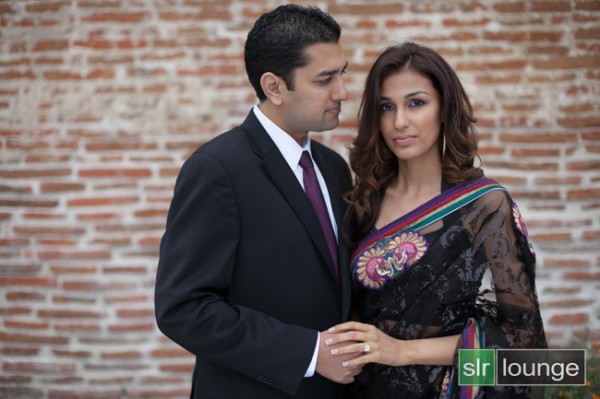
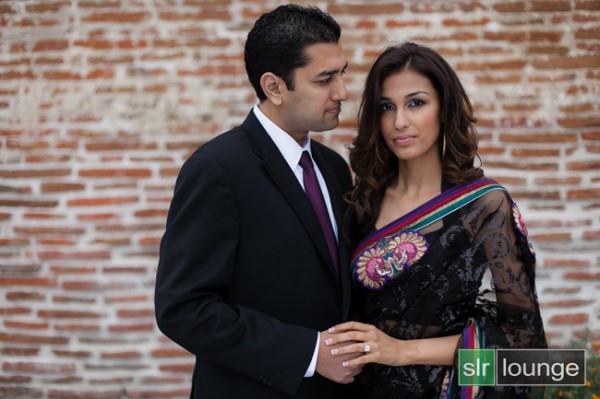
For this tutorial, we will use this standard portrait as our example.

origina 650

The Standard Import Preset Settings

For this tutorial, first select a basic standard portrait that you would typically shoot. Make sure that the portrait you choose is properly exposed with an accurate white balance, as an incorrectly exposed image will cause the preset to mis-represent the average photo you take.

Whenever you create a new preset for something specific such as protraits, we recommend that you start with another, standardized preset that has settings similar to what you’re going for in this image. So for example, we will select our original “Standard Import” preset to help us create the “Soft Portrait” preset.  For more information on how we created our “Standard Import” preset, click HERE.

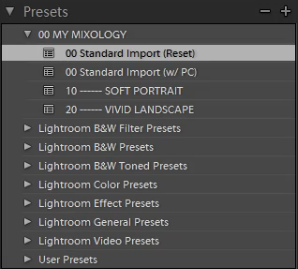
We will base the “Soft Portrait” Standard Color Preset off of the Standard Import Preset, so we have selected “00 Standard Import (Reset)” in our Presets Panel. The Presets Panel can be found on the left of the Lightroom Develop module.

02-ligthroom-4-standard-import-preset

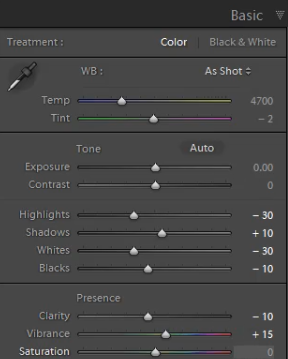
If you do not have the Standard Import Preset, these are the settings for it. Simply dial in these exact settings in the Basic Panel. To expand and collapse the Basic Panel, press “Ctrl + 1.”

03-lightroom-4-standard-import-preset-settings

Basic Panel Adjustments

Next we need to adjust the Basic panel settings to create the “Soft Portrait” look that we’re going for. Reduce the Highlights to -30. With the Shadows, bring them down to +10. Decrease the Whites to -30 and raise the Blacks to -10. These settings will smooth out the overall highlights in the portrait. Next, adjust the Clarity down to -10 to really smooth over the larger, harsher detail tones and to smooth out things like skin tones. Do not pull the Clarity down too much, because you will eventually lose important details in your portrait and create a “painted” or “smudged” look.

For Vibrance, we will leave it at +15. You can choose the amount of Vibrance to fit your own style, but we recommend not adding additional Vibrance if your portrait already has too much color in the skin. A high amount of Vibrance adds color to the skin which can make the portrait look unflattering, especially in mixed lighting!  Sometimes, if your images are too clear and crips, you may want to dial the Vibrance down as far as -10 or so.

Your Basic Panel adjustments should look similar to the settings below.

04-lightroom-4-soft-portrait-standard-color-preset-basic-panel-settings

Tone Curve Adjustments

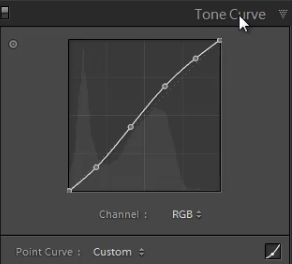
Next, we are going to adjust the Tone Curve in the Tone Curve Panel. To expand and collapse the Tone Curve Panel, press “Ctrl + 2.” To boost the overall contrast in the portrait, create a slight S-Curve. We recommend having at least 4 points on the Tone Curve so that you can control every quadrant. From left to right, these points will provide secondary control of your Blacks, Midtone Shadows, Midtone Highlights and Whites.

To create the slight S-Curve, pull down the Blacks a little bit, then pull up the Midtone Shadows and the Midtone Highlights. Finally, pull the Whites slightly down and to the right. Your Tone Curve should look similar to the one below, but feel free to adjust these points to fit your style.

05-lightroom-4-tone-curve-adjustments

Detail Panel Adjustments

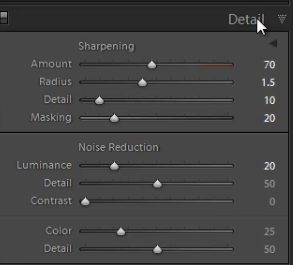
To expand and collapse the Detail Panel, press “Ctrl + 5.” The Sharpening settings from the Standard Import preset should be good enough for your portrait, but always zoom into the subject’s face to make sure everything looks fine. If you find that skin tone is a little too “crunchy”, consider dialing down the Detail slider before the actual Amount.

Next, adjust the Noise Reduction settings. Bring the Luminance up to 20. Do not bring up Luminance too high as this will once again kill detail in your image. However a conservative amount is helpful, even for images captured at your lowest ISO.

Setting Luminance to around 15-20 maximum creates a nice softening effect, especially over the pores of skin, while leaving major detail (such as eyelashes, etc.) intact. Even though the Luminance Noise Reduction is a minor adjustment, it plays a very important role in helping to smooth out the skin tones in a portrait.

(Of course if you’re shooting your portraits at higher ISO’s for whatever reason, you may need to increase this slider even higher!)

06-lightroom-4-detail-panel-adjustments

Lens Corrections Adjustments

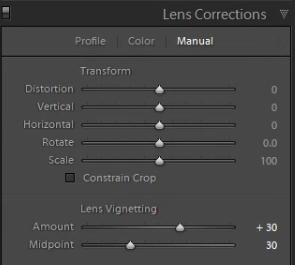
To expand and collapse the Lens Corrections Panel, press “Ctrl + 6.” After adjusting the Noise Reduction settings, we need to check the vignette of our portrait. The vignette refers to the darkness or brightness of the edges of an image. If you want to apply a faint amount of vignetting correction in general, we can leave the Lens Vignetting settings from the Standard Import Preset.  (Of course some photographers like to add vignetting to portraits, so this is going to be a subjective decision!)

07-lightroom-4-lens-vignetting-adjustments

Saving the “Soft Portrait” preset

Now that we have finished dialing in the settings for the “Soft Portrait” preset, we need to save this preset. First, click on the “+” sign in the Presets Panel.

08-lightroom-4-create-new-preset

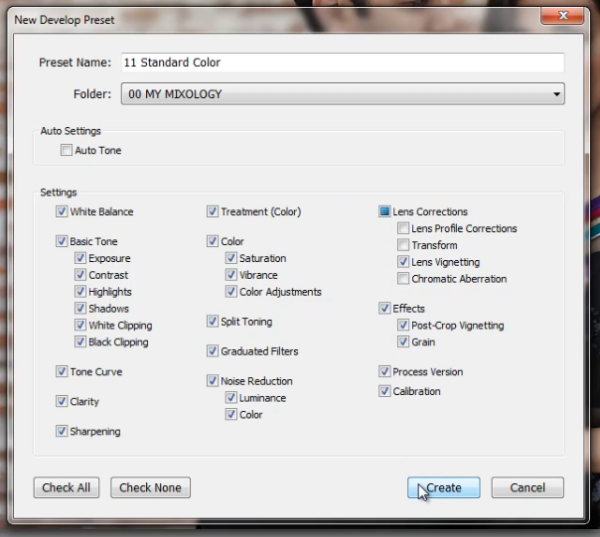
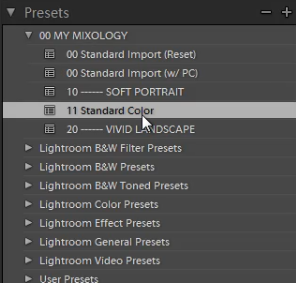
The New Develop Preset dialogue box will appear; name the preset “11 Standard Color.” Select “Check All” to select all the settings. However, make sure that “Auto Tone” has not been selected. Next, un-check “Lens Corrections,” “Lens Profile Corrections,” “Transform,” and “Chromatic Aberration” because we do not want to sync these specific settings across every portrait we have.  (We recommend creating separate presets to manage those settings.)

Press “Create” once you are done. Your New Develop Preset Dialogue Box should look like the one below!

09-lightroom-4-new-develop-preset-settings

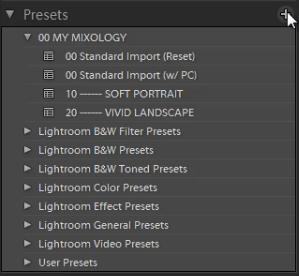
As you can see below, it may be a good idea to organize your presets by numbers, two or three digits is usually enough.  Either way, the goal is to have these default-related presets appear up towards the top.

10-lightroom-4-presets-panel-standard-color-soft-portrait-preset

This is what our final image looks like with the “Soft Portrait” Standard Color Preset applied.

soft portrait 650

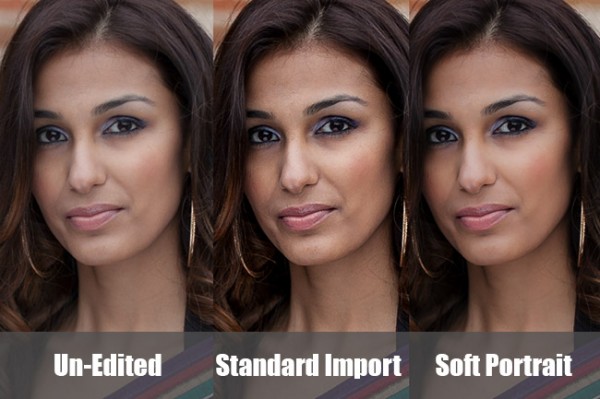
Below you can see a cropped comparison of the original un-edited image in it’s muted, RAW state, as well as the “Standard Import” and “Soft Portrait” presets for comparison:
side-by-side

Conclusion

Once again, the goal with creating a preset such as this is to minimize the amount of work we need to do on a per-image basis.  With a preset like this, in theory you should be able to breeze through a portrait session doing batch corrections to settings such as White Balance and Exposure, only pausing here and there to tweak other settings individually.

It will take time to fine-tune the preset to your own personal taste, however this general rule can help:  If you find yourself applying the same adjustment to more than 50-60% of your images from a certain type of photography, then that adjustment should be put into a preset!  It’s better to perform slight changes on 20-30% of your images than to perform major corrections to 70-80% of your images!

The SLR Lounge Workflow System Workshop on DVD

The SLR Lounge Workflow System Workshop on DVD takes everything that we taught in the Lightroom 4 A to Z Workshop on DVD and builds by teaching you how to maximize your shooting and post processing efficiency and workflow. This 7 hour DVD covers data safety procedures, file management, culling standards and overall develop techniques to increase your post production efficiency by up to 15x! In fact, using this Workflow System we can cull and edit over 1,500 images per hour! Don’t believe us, watch the teaser video! The Workflow System is also available as a part of the Lightroom 4 Workshop Collection. To learn more, click this link.

Post originally from: Digital Photography Tips.

Check out our more Photography Tips at Photography Tips for Beginners, Portrait Photography Tips and Wedding Photography Tips.

How to Create a “Soft Portrait” Preset in Lightroom 4


Digital Photography School

 
Comments Off on How to Create a “Soft Portrait” Preset in Lightroom 4

Posted in Photography


50 Portrait Retouching Tutorials To Take Your Photoshop Skills To A New Level

24 May

21 face-retouching tutorials are at your service! Realistic perfect skin, teeth and eyes heve never been so easy to reach.

The post 50 Portrait Retouching Tutorials To Take Your Photoshop Skills To A New Level appeared first on Photodoto.


Photodoto

 
Comments Off on 50 Portrait Retouching Tutorials To Take Your Photoshop Skills To A New Level

Posted in Photography


Nikon introduces 1 Nikkor 32mm f/1.2 portrait lens for 1 System

14 May

32_main.png

Nikon has introduced the 1 Nikkor 32mm f/1.2 portrait lens for its 1 System of mirrorless cameras. The lens, which will provide the angle of view and depth of field control of an 86mmm F3.2 lens for a full-frame system, making it the most enthusiast-friendly lens yet released for the 1 System. The lens, whose development was announced in October 2012, is also the first to use a silent wave motor for focus and to incorporate the company’s ‘nano crystal coat.’ Consistent with these loftier ambitions, Nikon will ask around $ 900 for the lens when it becomes available in June.

News: Digital Photography Review (dpreview.com)

 
Comments Off on Nikon introduces 1 Nikkor 32mm f/1.2 portrait lens for 1 System

Posted in Uncategorized