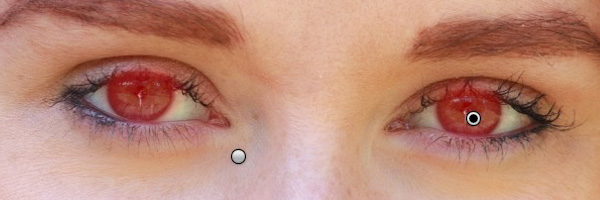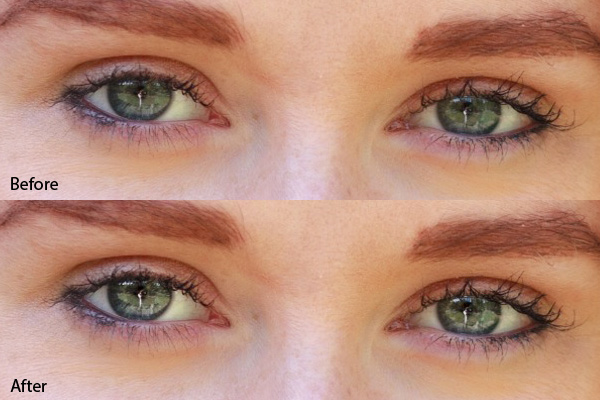
RSS
 

Posts Tagged ‘Portrait’

Five Places for Perfect Natural Portrait Lighting

10 Mar

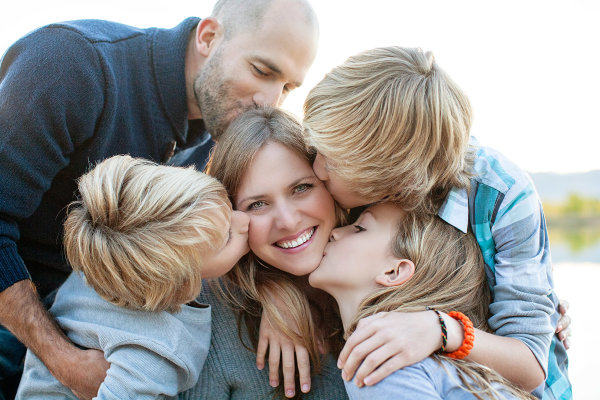
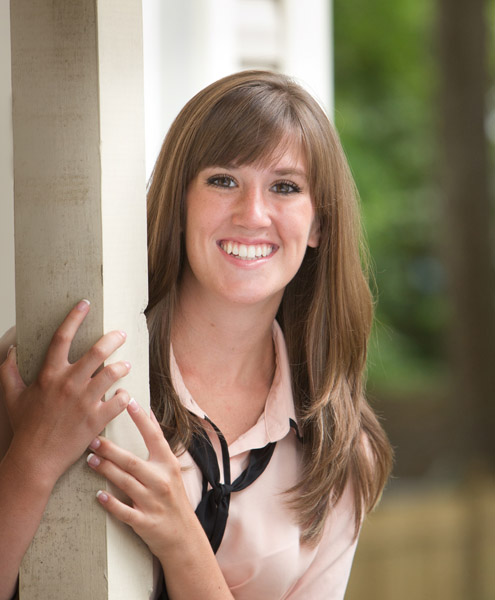
1 portrait lighting

Wouldn’t it be great if you could get beautiful, natural-looking portraits without ever having to use flash?

Well, perhaps you can. There are many different locations, often closer than you think, where you can find the right lighting for great looking portraits. Often they’re missed because we might not know where to look.

Generally, your best strategy is to look for what is called Open Shade. Ideally, you are looking for a situation where the stronger overhead light is being blocked by a structure, either man-made or natural.
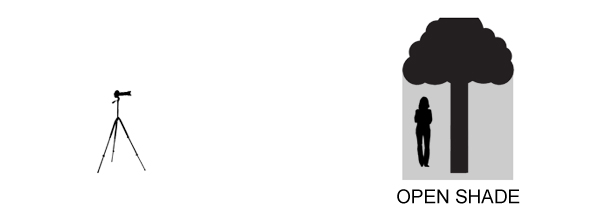
2 open shade diagram

There are a lot of variables to pay attention to, but with a little practice you begin to recognize good natural lighting situations that are right in front of you.

1. Find a gazebo or front porch with a roof

This is a particularly good technique for you to use when it’s sunny outside in the middle of the day, but it can work on overcast and rainy days as well.

It’s often a bad idea to pose your subject out in the direct sun, particularly when it is up high in the ske. That kind of lighting can produce harsh shadows, as well as cause your subject to squint their eyes.

I use the front porch location quite a bit when photographing high school seniors in the middle of the day. An overhang of any sort can block strong overhead light and allows your subject to be lit with the softer surrounding bounce lighting.
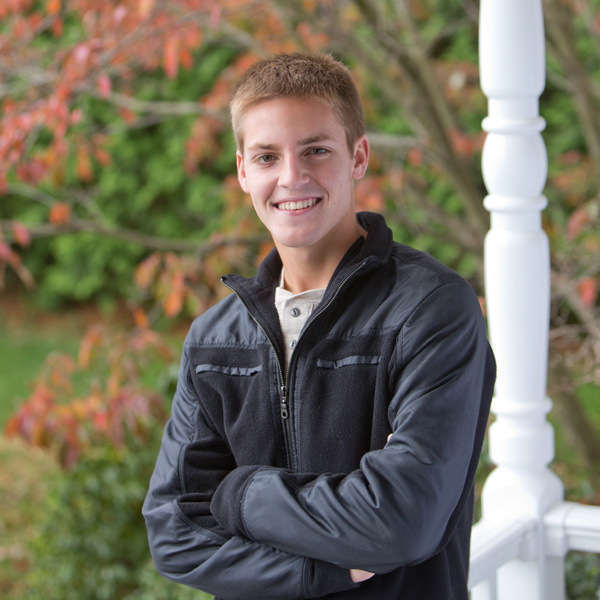
3 front porch lighting

In the case above, I also used a large white collapsible reflector, off to the right side, to provide additional fill-light with this handsome young man. A large aperture was used to help create an out of focus background.

If you have no porch available you can get your model to help create a good lighting situation by using a prop like a wide-brimmed hat for a close-up head shot.

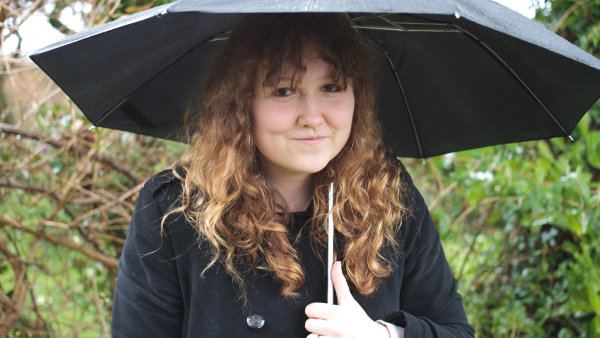
2. Under an umbrella
Andrew Menage

By Andrew Menage

Using an umbrella can work well to protect your subject from both the rain, and overhead lighting. Note that the color of the umbrella will have a significant effect on the color of the light that is illuminating your subject. A black umbrella is neutral in color and will block almost all of the light from above.

3. Near a window

Just because you may not be able to shoot outside doesn’t mean you still can’t use the outdoor light to create a natural looking portrait. There is a right way and a wrong way to do this.
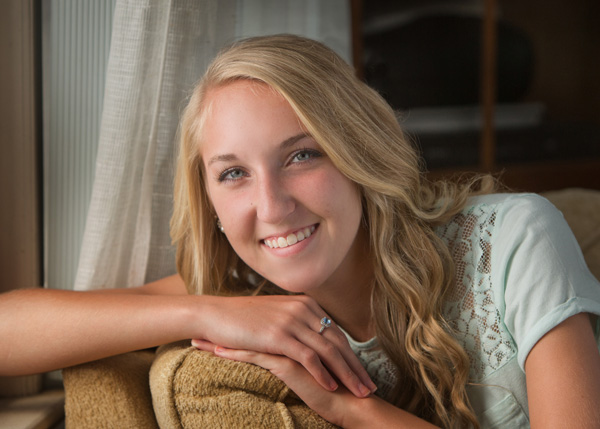
5 window lighting

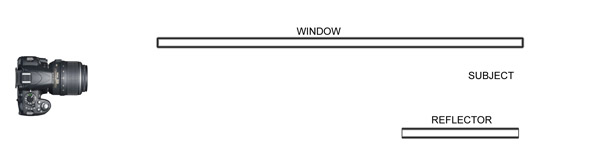
6 window lighting diagam

Make sure that most of the window is forward of your subject. The larger the window, the softer the lighting. The reflector can be any light colored object that is fairly neutral in color. The closer it is to your subject, the more fill light it supplies.

4. Find a bridge or an overpass

If you shoot in a more urban setting, you’ll likely have bridges or overpasses in your area. The photo below was taken at the entrance to a pedestrian underpass. Not only did we get good portrait lighting, we also got the model out of the wind and snow.
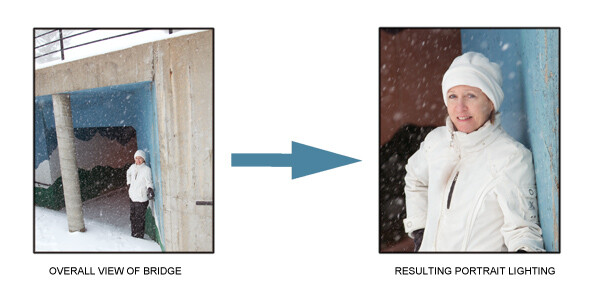
7 under bridge lighting

One important thing to remember is to watch your background. Although I was generally happy with the pose and the lighting, I could have done a better job controlling the background in this portrait.

5. Anywhere at sunset

This is one time when you do want the sun in the face of your subject. You only have a few minutes of this sweet light when most, or all, of the sun has disappeared below the horizon.

8 diffused portrait lighting sunset

Direct sun can be too bright at the beginning of sunset. You may have to wait until just after sunset to get a softer look. In the beach photo above, the light was nicely diffused by a few clouds on the horizon between my subjects and the setting sun.

More ways to find places with great natural portrait lighting

Similar to the way you use an umbrella, you can create your own overhead roof by having an assistant hold a light blocker above your subject. This could be anything lightweight, a large piece of cardboard, or even one of the a collapsible, panels like the ones shown below.
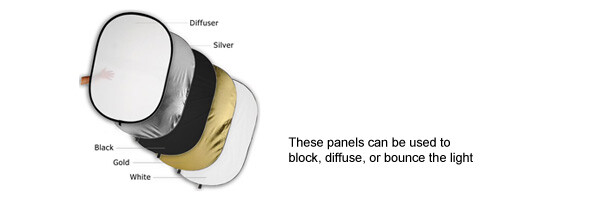
9 Photodiox diffusion panels

There are two factors that dramatically effect how well this technique works.

The first is how far back your subject is posed underneath the covering object. If you pose her too far back, you may not have enough light to get a nice photograph. If she is too far forward, you may get too much overhead lighting.

Secondly, how high the shading object is above your subject’s head affects how the light will illuminate their features. The best way to master this technique is to play around and experiment.

It’s always a great idea to shoot a few variations in several locations, and adjust exact placement of your subject. You’ll be able to learn a lot from your mistakes and your successes.

googletag.cmd.push(function() {
tablet_slots.push( googletag.defineSlot( “/1005424/_dPSv4_tab-all-article-bottom_(300×250)”, [300, 250], “pb-ad-78623” ).addService( googletag.pubads() ) ); } );

googletag.cmd.push(function() {
mobile_slots.push( googletag.defineSlot( “/1005424/_dPSv4_mob-all-article-bottom_(300×250)”, [300, 250], “pb-ad-78158” ).addService( googletag.pubads() ) ); } );

The post Five Places for Perfect Natural Portrait Lighting by Bruce Lovelace appeared first on Digital Photography School.

Digital Photography School

 
Comments Off on Five Places for Perfect Natural Portrait Lighting

Posted in Photography


Nur ein Portrait

08 Mar

Ausschnitt Linda © Marit Beer

Vor sechs Jahren war es ziemlich undenkbar, dass ich einmal Menschen fotografieren würde. Ich fand Gespräche mit Menschen eher anstrengend, klammerte mich an meine Kamera und klebte mit jener am Asphalt, um nach Dingen Ausschau zu halten, die sonst keiner sah.
kwerfeldein – Fotografie Magazin | Fotocommunity

 
Comments Off on Nur ein Portrait

Posted in Equipment


Café-Gründer im Portrait

05 Mar

© Leni Moretti

Ein Beitrag von: Leni Moretti

Habt Ihr Euch auch schon einmal gefragt, wenn Ihr bei einer heißen Tasse Kaffee in einem gemütlichen Café sitzt, wer eigentlich die Person hinter dem Café ist?
kwerfeldein – Fotografie Magazin | Fotocommunity

 
Comments Off on Café-Gründer im Portrait

Posted in Equipment


How to Retouch a Portrait with the Adjustment Brush in Lightroom

04 Mar

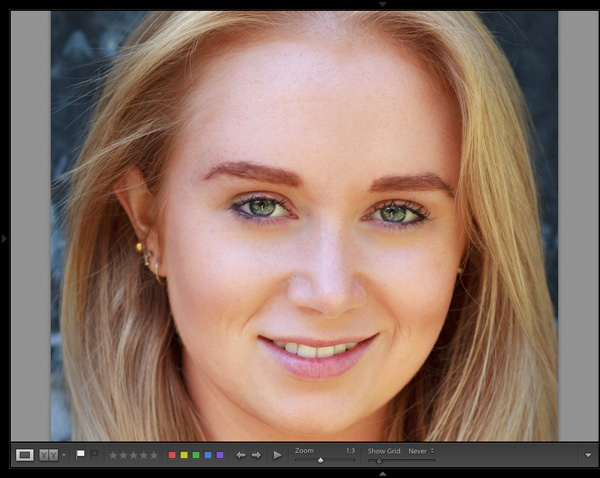
Portrait retouching Lightroom

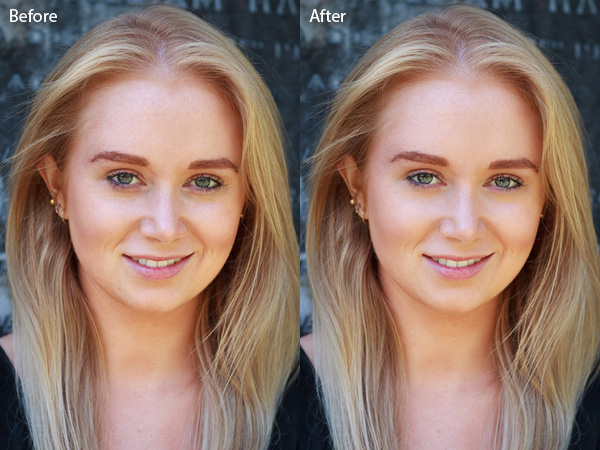
You have probably seen several portrait retouching programs advertised in magazines or online, and wondered if they were worth buying. The answer is no. I have tried out quite a few, and the truth is that the Soften Skin preset in Lightroom does just as good a job as any of them. For most photographers Lightroom’s retouching tools all are you will ever need. For high end retouching purposes you can go to Photoshop.

It’s worthwhile taking some time to think about your personal approach to portrait retouching. Some photographers seem to like the airbrushed, almost plastic look of heavy processing. It’s a style you see used a lot in commercial photography or movie posters.

Others will go for a more natural effect, and use the retouching tools with a light touch. That’s definitely my approach, and it fits with my preference for natural light and for creating portraits that capture character.

Either way,the Adjustment Brush in Lightroom can accommodate your needs.

Retouching portraits of women

When retouching portraits of women it is conventional to use a skin smoothing technique to make the portrait look more flattering. There are exceptions of course, sometimes skin smoothing is not necessary, especially if your model has good skin and you shoot in soft light, or use a wide aperture to throw some of the face out of focus.

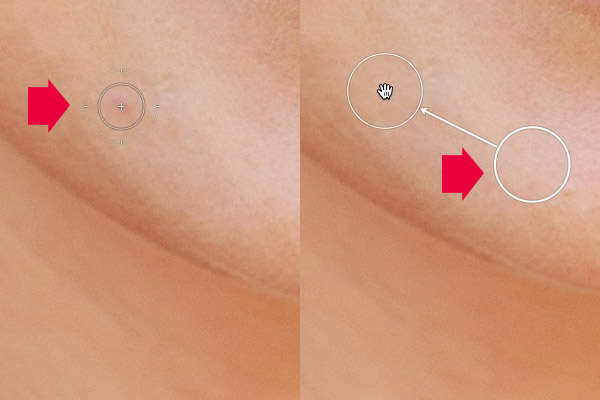
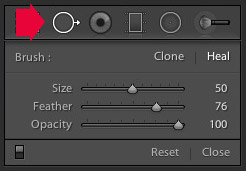
Portrait retouching LightroomThe first step in portrait retouching is to remove any blemishes with the Spot Removal tool. To do so, click on the Spot Removal tool icon to activate it, adjust the size of the  brush with the square bracket keys on the keyboard, and click on the spot you want to remove.

Lightroom automatically selects another area of the portrait to sample from, healing the blemish. Sometimes Lightroom won’t select the most appropriate area – in this case you can click on the circle representing the sample and move it to a more suitable location.

Portrait retouching Lightroom

Click on a blemish with the Spot Removal tool (left). In this case Lightroom’s healing algorithm worked perfectly, but if it doesn’t then click on the circle representing the sampled area and move it to a location where the skin matches the tone and texture of the area to be healed (right).

Adjustment Brush adjustments

Now it’s time to look closely at the portrait and decide what other retouching is required. It’s important that you have already made the required adjustments to tone and contrast in the Basic panel before you get to this stage. Increasing Contrast and Clarity, for example, will emphasize skin texture, wrinkles and blemishes. On the other hand, you can move the Exposure or Highlights sliders right to brighten the skin, making wrinkles and skin texture less obvious. Retouching with the Adjustment Brush should be left until last, so you know what you’re working with.

I like to start with the area underneath the model’s eyes. The skin here is thinner than the rest of the face which is why people get dark patches there. There may also be wrinkles, and some people have a strong crease along the lower eyelid.

The idea is not to eliminate these completely (unless you’re going for the heavily retouched, airbrushed look) but to minimize them. They’re a natural part of the skin’s texture and it will look unnatural if they are not there.

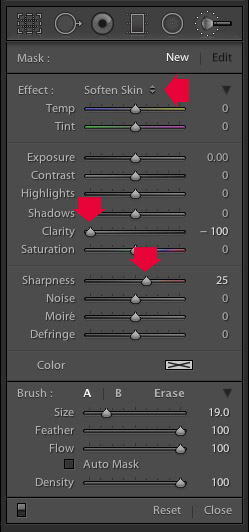
Portrait retouching LightroomClick on the Adjustment Brush icon to activate it. Select the Soften Skin preset from the Effect menu. Lightroom sets Clarity to -100 and Sharpness to +25. Make sure Feather, Flow and Density are set to 100, use the square bracket keys on the keyboard to adjust the size of the brush and paint over the areas under the eyes. The Soften Skin preset blurs the area that you paint in with the brush.

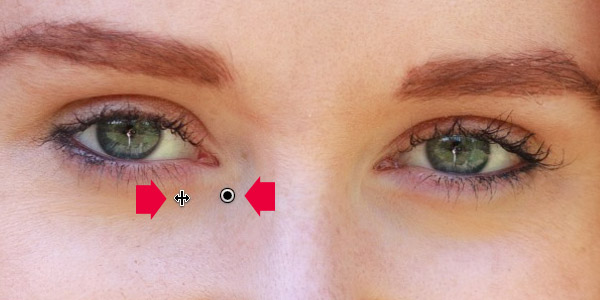
If the effect is too strong, hover the mouse over the Adjustment Brush pin (a grey circle with a black dot in the middle) until a double arrow icon appears (below). Hold the left mouse button down and move the mouse left. Lightroom reduces the value of the Clarity and Sharpness sliders, effectively lessening the strength of the Soften Skin preset. Stop when it looks about right. You can also reduce shadows by moving the Shadows slider (in the Adjustment Brush sliders) to the right. Every portrait is different so you have to adjust the effect by eye.

Portrait retouching Lightroom

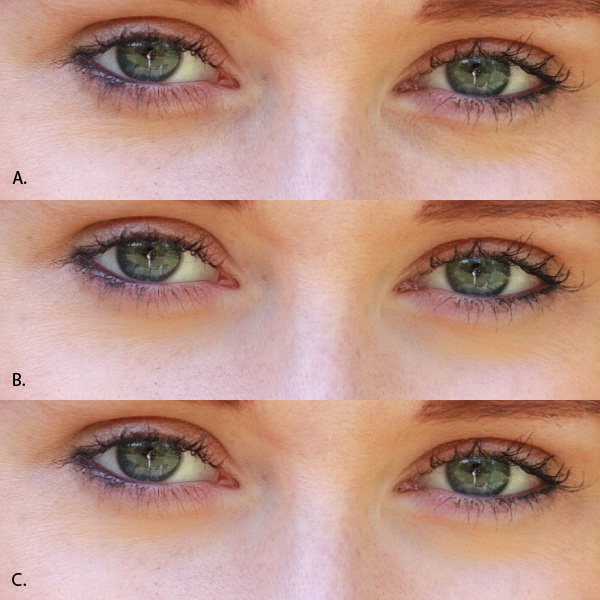
These are the results.

Portrait retouching Lightroom

A. Original, unretouched portrait.
B. Retouched, with Soften Skin preset at full strength.
C. Retouched, with strength of Soften Skin preset reduced and Shadows slider moved to the right (subtle difference only).

Enhancing eyes

You can also use the Adjustment Brush tool to enhance your model’s eyes. This is useful if the eyes are dark due to the lighting. Be careful of overdoing this effect as it may not look natural.

Click New at the top of the Adjustment Brush panel to create a new Adjustment Brush. Set Feather to around 50 and paint in the pupils of the model’s eyes. If you need to, press O (the letter) on the keyboard to see the masked area (it is displayed in red shown below).

Portrait retouching Lightroom

Now set Exposure to around 0.50 and Clarity to 30. The effect will vary depending on the colour of your model’s pupils and the amount of light on them. It’s a good idea to zoom out and look at the entire portrait to see if the effect is too strong. You can see this adjustment on the model’s eyes below, which I think is about right.

Portrait retouching Lightroom

You can make the effect stronger or weaker on your photo using the technique described above. Hover over the Adjustment Brush pin until the double arrow icon appears, move the mouse left to make the effect weaker, and right to make it stronger (you can also just drag the sliders one by one to change the settings)

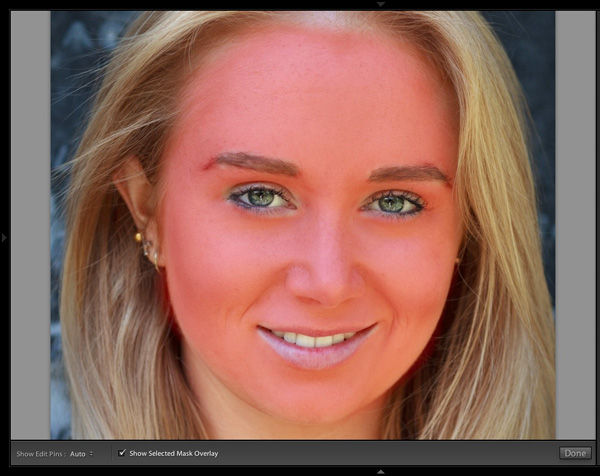
The final step is to apply gentle skin softening to the rest of the face. Create another Adjustment Brush, set Feather to 100 and paint the entire face (use the O keyboard shortcut to display the red overlay). Then select Erase in the Adjustment brush panel, set Feather to 50 and erase the eyebrows, mouth and eyes. The idea is that you only want to soften the skin, not these parts of the face. It should look something like the mask below.

Portrait retouching Lightroom

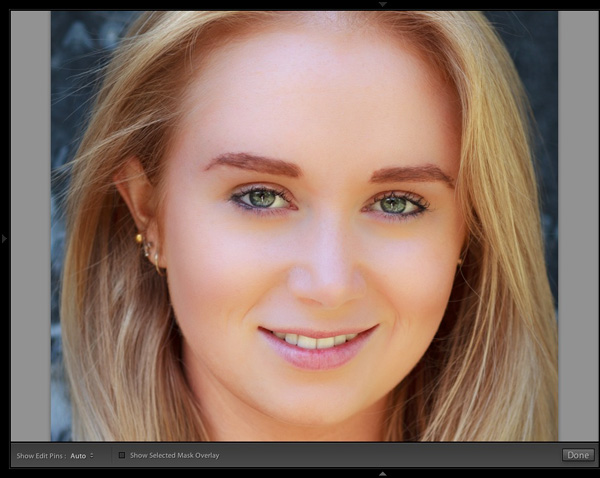
Go to the Effect menu and select the Soften Skin preset. Press O to hide the mask overlay and you will see something like the screenshot below. Remember, this is the Soften Skin preset at maximum strength so it has a strong effect on the photo.

Portrait retouching Lightroom

Use the technique we learned earlier to reduce the strength of the effect. How far you go is up to you. I like to apply the Soften Skin preset subtly to retain as much skin texture as possible. Here’s the result with Clarity reduced to -20 and Sharpness to +5.

Portrait retouching Lightroom

This video shows how I retouched another portrait, using the Adjustment Brush tool to enhance the model’s eyes and facial hair.

I’ve only touched on the number of ways you can use Adjustment Brushes in Lightroom for portrait retouching. What techniques do you use? Please let us know in the comments.


The Mastering Lightroom Collection

Mastering Lightroom ebooksMy Mastering Lightroom ebooks will help you get the most out of Lightroom 4 and Lightroom 5. They cover every aspect of the software from the Library module through to creating beautiful images in the Develop module. Click the link to learn more or buy.

googletag.cmd.push(function() {
tablet_slots.push( googletag.defineSlot( “/1005424/_dPSv4_tab-all-article-bottom_(300×250)”, [300, 250], “pb-ad-78623” ).addService( googletag.pubads() ) ); } );

googletag.cmd.push(function() {
mobile_slots.push( googletag.defineSlot( “/1005424/_dPSv4_mob-all-article-bottom_(300×250)”, [300, 250], “pb-ad-78158” ).addService( googletag.pubads() ) ); } );

The post How to Retouch a Portrait with the Adjustment Brush in Lightroom by Andrew S. Gibson appeared first on Digital Photography School.

Digital Photography School

 
Comments Off on How to Retouch a Portrait with the Adjustment Brush in Lightroom

Posted in Photography


Panasonic introduces Lumix G 30mm macro and new 42.5mm portrait prime

23 Feb

Panasonic has announced two new additions to its Micro Four Thirds lens lineup, a 30mm F2.8 macro and 42.5mm F1.7 portrait lens. The company had previously hinted that the 30mm was in the works, and as promised it offers Mega O.I.S stabilization along with 240 fps drive AF. The 42.5mm F1.7 isn’t quite as fast (or presumably as expensive) as the existing Leica Nocticron 42.5mm F1.2. Both lenses will be available in May. Read more

Articles: Digital Photography Review (dpreview.com)

 
Comments Off on Panasonic introduces Lumix G 30mm macro and new 42.5mm portrait prime

Posted in Uncategorized


10 Portrait Composition Tips to Frame Your Subject Perfectly

16 Feb

How you compose and frame your portrait is important for creating visual impact and connection with the viewer. It can dictate the mood and feel of the portrait, making it feel inviting or uncomfortable. Knowing a few rules, and how to break them effectively is a good place to start. In this article I’m going to give you some general Continue Reading

The post 10 Portrait Composition Tips to Frame Your Subject Perfectly appeared first on Photodoto.


Photodoto

 
Comments Off on 10 Portrait Composition Tips to Frame Your Subject Perfectly

Posted in Photography


Basic Portrait Processing in Lightroom

24 Jan

Over the past few years I have learned a great deal about doing portraits, especially of young kids. I think it’s because I get so much enjoyment out of these types of shoots that I end up doing them more, though at some point it hardly seems fair because I wonder if I’m having more fun than the children whose pictures I am taking.

While each session is unique, I have developed my own style (which, in many ways, will always be a work in progress as I continue to learn new things) when it comes to both the shooting and editing process, and I thought it might help those who are new to this type of photo session to see a few examples along with an explanation of the creative choices I made along the way. I do all my edits in Lightroom, and while I sometimes need to do some more in-depth adjustments in Photoshop, 98% of all the pictures I give to clients don’t need anything more than what Lightroom can do. If you don’t have this software, I highly recommend it!

DSC_8127

Get it in camera first

Before I get to the editing portion of this piece, I need to clarify one thing: no amount of editing can make up for initial on-location mistakes, which is why it’s so critical to get the initial picture as good as you can right from the beginning. This involves things like choosing a good place to take the photos, finding the right time of day, and communicating with your subjects (and their parents, if you are working with kids). Along with that are your own creative choices such as your aperture and focal length, the composition of your shot, the angle from which you choose to shoot, the lighting manipulation you use, and a host of other elements that have an enormous impact on the final outcome of any given photo session.

Of course if you work in a studio you have much greater control over some of these items, but at the end of the day a poorly-shot initial photo will remain exactly that, no matter how much you try to edit it in Lightroom or Photoshop. I say all this to make sure you understand that editing tools are not a magical cure-all to make all your pictures shine. And the best way to make sure your photos are as good as they can be from the beginning is to focus not on the editing, but on basics like exposure, lighting, framing, and composition. It also helps to shoot in RAW, not JPEG, in order to maximize the amount of data you can work with on each individual photograph.

DSC_6792-original

Basic portrait processing in Lightroom

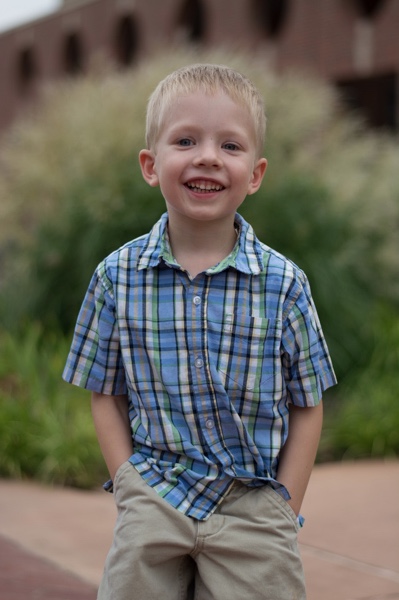
I shot this picture with my Nikon D7100 at 50mm, f/1.8, ISO 200. Since the sun was setting and I was not working with off-camera strobes, my lighting options were a bit limited. I had his father stand behind me with my Neewer 43-inch reflector to capture a bit more of the available light. (If you don’t have one of these, I recommend getting one. They are quite cheap and a fantastic addition to any camera setup.)

histogram

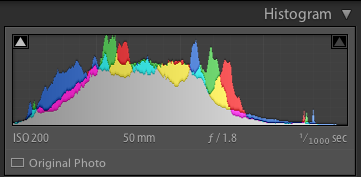
The initial photo was a bit underexposed, as shown in the histogram as well.

I also chose to frame the child with the green bush in the background, and of the half-dozen images I got of this particular pose I liked this one in which he was not quite looking at the camera. Often when working with kids I have found that the best images are a bit more candid as opposed to posed, but again, this is a creative choice you will have to make for yourself. Finally, I made sure to shoot this in RAW to take advantage of as much data as possible in order to correct some things back at my computer. Right away you probably noticed that the image is a bit too dark, which was the first thing I fixed in Lightroom.

A quick look at the histogram showed me that overall I got things pretty good in camera, but to make it look a bit better I increased the exposure by 1.2 stops, as well as cropped it a bit to focus the viewer’s attention on the boy’s face without the distracting red building in the background.

DSC_6792-2

First edits: Cropped and increased the exposure by 1.2 stops.

So far so good, but there’s still a lot of work that needs to be done. While the overall brightness was better, the colorization was still a bit off. The initial white balance settings determined by my camera were 4900K and -9 tint, but I wanted something a bit warmer so I increased the temperature to 5700K and changed the tint to -7.

DSC_6792-3

Second edits: adjust white balance and tint.

I liked this much better, but there were still some things that needed fixing. Now that the overall photo was properly exposed, there were some parts that were a bit too bright which was handled by lowering the highlights slider by -19. After that I increased the saturation to +6 and added +4 contrast as well.

DSC_6792-4

Third edits: lower highlights, increase saturation and contrast.

I was much happier with this, but it’s important to remember that all of the changes you make to a photo in post-production are based on your own creative ideas and there is no right or wrong way to do things. Some people like images that are desaturated, some prefer selective coloring (i.e. one part is colorized or over-saturated while the rest of the image is more black-and-white), others use cropping to achieve different effects. The sky really is the limit. One thing I like to do from time to time is add a subtle vignette effect (using Post Crop Vignette at -26, Highlight Priority), which I did here to result in the final image I gave to the client.

DSC_6792-5

Final edits: add a bit of an edge vignette, other minor color adjustments.

You might look at this and think the colorization is a bit off, or the vignette should be stronger, or the entire framing should be different, but the beautiful part of photography is that we all have our own opinions on how to do things. I was happy and so were my clients, which is all that matters to me.

DSC_1776

In this photo I used the Brush tool to selectively desaturate the orange strip on the boy’s shirt, and the Radial Filter to add a more precise vignette.

I do think it’s important to maintain a sense of reality in photos, though, and not let the editing get out of hand. It’s easy to feel like an all-powerful genie when you start playing around with the tools in Lightroom, Photoshop, or other editing software, but my rule of thumb when editing is to try to make the final image represent what I saw, when I initially took the photo. In the above image, for example, the orange strip on the boy’s shirt was a bit distracting, so I was able to selectively desaturate it quite a bit with Lightroom’s Adjustment Brush tool. This, along with other edits similar to the ones described above, resulted in a photo that my client was quite pleased with.

My point is that it’s great to have these editing tools available but If I start to lean too heavily on the saturation, bump up the clarity to absurd levels, or making dozens of small changes with the brush tool, I usually end up with photos that bear little resemblance to the original and come across as emotionless and empty.

What about you? What style have you developed over the years, and what approach do you use when you sit down to edit? Post your thoughts in the comments section below.

googletag.cmd.push(function() {
tablet_slots.push( googletag.defineSlot( “/1005424/_dPSv4_tab-all-article-bottom_(300×250)”, [300, 250], “pb-ad-78623” ).addService( googletag.pubads() ) ); } );

googletag.cmd.push(function() {
mobile_slots.push( googletag.defineSlot( “/1005424/_dPSv4_mob-all-article-bottom_(300×250)”, [300, 250], “pb-ad-78158” ).addService( googletag.pubads() ) ); } );

The post Basic Portrait Processing in Lightroom by Simon Ringsmuth appeared first on Digital Photography School.


Digital Photography School

 
Comments Off on Basic Portrait Processing in Lightroom

Posted in Photography


5 Tips to Cut Your Portrait Editing Time in Half

12 Jan

Editing is the bottleneck part of the workflow for many portrait photographers. We can shoot a great picture in mere seconds, but when it comes to editing dozens of images, it often feels like it takes forever. The biggest editing time saver is of course to get it right when shooting. There are countless things that can’t be “fixed” in Photoshop, but editing images isn’t meant to be the main part of a photographer’s job anyway.

lynseymattingly3

I am always hesitant to talk about editing because I think it gets taken way too far, way too often and in those cases we aren’t talking about photo editing, but rather imagery manipulation (which is an art in and of itself, but an art completely different than portrait photography). All of that said, oh how I wish someone had taught me some tricks, and gave me some tips when I first started. You can learn to pose people, find good light and the ins and outs of your camera in time, but learning to edit is a frustrating and lengthy process that used to make me want to go pick-up an application at McDonalds.

Professional photographers who have had great success are often so hesitant to tell their secrets and explain what they have learned. I have never understood that. I could tell you everything I do, exactly how I do it, and if you went about it the exact same way, you would still end up with a completely different image of your own. So here it is, my five best portrait editing tips (along with a bonus extra five tips below) to make your editing process more productive and hopefully much quicker. Because I use Photoshop, these are all geared in that direction, though there should be equivalents for nearly all image editing software.

lynseymattingly11

#1 – Learn shortcuts and use actions

All editing software offer keystroke shortcuts and actions (or similar) to make the things you do often easier and quicker. I could have a four year degree in Adobe and still likely just be scratching the surface of what can be done with photo editing software like Photoshop and Lightroom. Luckily I don’t have to store all of that in my brain (which is already pretty crowded with song lyrics and useless trivia), because I have memorized the keyboard shortcuts for the tools I use most often and have set up all of my customized actions to run on my F keys. Not only does this make editing ridiculously quick, it also means that I give 100% of my attention to a shoot and when it comes time to be an editing machine, I can sing-along to my terrible music and multi-task straight through it.

lynseymattingly4

#2 – Have one black and white and one color process

Converting an image to a fun vintage or using your skills to cross-process is tempting, and maybe here and there, it’s fun. But the easiest way to scale back the amount of time you sit staring at editing software is to streamline your process and this means doing all of your images in the same manner.

lynseymattingly10I have one way that I do black and white images that I have programmed into a single action. Same with my color shots. I do whatever basic touch-up I’m going to do first, then I hit play for either my color or black and white action. Because I always photograph people, this simple task works for every photo I need to edit. It also has the added bonus of giving my images continuity and a signature look.
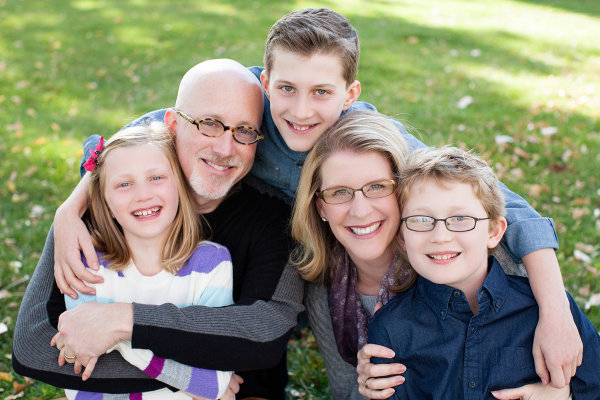

My color images look different than yours – and they should! You should have a color process that gives people a hint that you took the image. Same for monochrome; I want someone to look at a black and white photo I took and know “that’s one of Lynsey’s photos”. This not only cuts down on editing time, but also helps define your brand.

#3 – Run auto options

When I get tired because I’ve been editing for hours on end, I can stare at an image forever and know that it needs something but I have no idea what. This is when it’s time for two things: to change the music you’re listening to and to run an “auto” function – auto color, auto tone, or the auto RAW image editor – not typically to use it, but to see what your software, in all its brilliance, thinks you should do. Sometimes it will have good ideas and sometimes it won’t, but it will always gives you a look at the image in a different way, which can be extremely helpful.

lynseymattingly2

#4 – Accept a few universal truths

Everyone has one eye that is larger than the other. Kids will always have a scratch or scab somewhere. Double chins can happen to anyone. Most adults have a physical feature they aren’t 100% happy with.

My husband has a gorgeous head of hair. At an age when many men are shaving their heads to supersede a bald spot, my husband gets asked if he does shampoo commercials. (He should, if only so we can become millionaires already, and get a pool.) You would think this would make for great pictures – not having to work with a shiny head reflecting everywhere – but you’d be wrong; you see, he hates his forehead. Which I think is ridiculous as it’s perfectly proportioned to his head and glorious hairline. But, even though he is my husband and knows I am always right, there is no convincing him on this issue. Nor is it my place to try when taking his picture.

lynseymattingly9

The best thing I can do for anyone who expresses concern for a facial or body feature is give them a picture where they aren’t going to see their perceived flaw immediately. Pull out the great features so that you aren’t trying to both, take good pictures, and also change their mind.

#5 – Aim for people to look exactly like themselves, turned up ONE notch

You are not a plastic surgeon. We all want our clients to love photos of themselves but that shouldn’t come at the cost of you having to spend a great deal of time manipulating an image. My rule is simple: I don’t edit permanent features or make massive changes to faces or bodies. If you have a mole, I’m not going to touch it. But if you happen to have a pimple on picture day, fixing that is the least I can do for you. I sometimes dodge eyes lightly (keyboard shortcut O), but never in an obvious way. I may whiten teeth a bit (using the magnetic lasso and hue/saturation levels), smooth out a chin line (clone stamp and healing brush), or pull in a lumpy bit at the waist or otherwise (liquify and clone stamp), but only in a way that is more flattering and looks the way I know they usually would if they didn’t have a giant camera in their face, uncomfortable clothes on, and were running around after kids, or just generally feeling awkward like people tend to when someone is taking their picture.

lynseymattingly8

Like many other portrait photographers, I use a retouching tool (Totally Rad Pro Retouch action is my preference) that I apply liberally with the brush tool to all faces and then scale back by lowering the opacity. This allows for skin to look natural – normal skin has lines and freckles and areas rosier than others, but takes care of the small bumps and spots that cameras have a way of highlighting and putting on display.

What happens when you blow it? You took shots that no amount of editing could make great? You vow to do it right next time, that’s what. Here is a little lagniappe from me to you:

My five best quick portrait tips for getting it right in camera

1.) Shoot from above

Always have your subject lower than you so you are shooting downward. This can prevent double chins, unflattering angles, and in my husbands case, imaginary big foreheads. Unflattering portraits are most often due to bad camera angles and that is something that can’t be changed in any editing process.

2.) Avoid “dead light”

Shade is a wonderful thing for natural light photography, but large patches of shade, particularly in the morning hours, can often be very cold for color temperature. Everyone looks better with a little warmth, so strive to shoot in shady area that feel more warm in tone (think orange, yellow, red) than cool (blue).

3.) Suggest solid clothing or large scale prints. Small prints on a shirt tend to make people look larger.

4.) Photograph people doing something….anything. Avoid a boring portrait that is “all face” by having moment or action—this can be as small as involving their hands to frame their face or something more significant like leaning on wall or, my favorite, spinning.

5.) Talk honestly with your subjects beforehand. Find out what features they feel most comfortable with and anything they would like you to avoid or watch out for. I’ve heard it all, from people swearing they have tiny heads to people who felt their large feet would throw off the entire photo. The single best thing you can to ensure they will like their photo is listen to them before you even take one. It is not your job to tell them they are wrong about their insecurities–it’s your job to try and show them they are likely being over-critical. Hear their words so you will be mindful of their concerns and photograph them looking beautiful. Or handsome. Or at least like they don’t have a big forehead.

googletag.cmd.push(function() {
tablet_slots.push( googletag.defineSlot( “/1005424/_dPSv4_tab-all-article-bottom_(300×250)”, [300, 250], “pb-ad-78623” ).addService( googletag.pubads() ) ); } );

googletag.cmd.push(function() {
mobile_slots.push( googletag.defineSlot( “/1005424/_dPSv4_mob-all-article-bottom_(300×250)”, [300, 250], “pb-ad-78158” ).addService( googletag.pubads() ) ); } );

The post 5 Tips to Cut Your Portrait Editing Time in Half by Lynsey Mattingly appeared first on Digital Photography School.


Digital Photography School

 
Comments Off on 5 Tips to Cut Your Portrait Editing Time in Half

Posted in Photography


Top Portrait Tips of the Year on dPS

28 Dec


powerful-portrait-tips-17.jpg

If you like to do portraits here is a round up of some of the top portrait related articles on dPS in 2014. There are some really great tips here – get out and try them out:

  • 3 Simple Ways to Create Stunning Eyes in Your Portrait Photography
  • How to Improve Your Portrait Photography in Five Minutes
  • Using Composition to Create More Powerful Portraits
  • 15 Tips for More Powerful Portraits
  • How to Plan the Perfect Portrait Shoot
  • How to Create a Unique Bokeh Portrait for Under $ 10
  • 10 Portrait Tips to Take Your Photography to the Next Level
  • Tips for Great Beach Sunset Portraits
  • Tip for Using a Reflector for Portraits
  • How to Find Great Backgrounds for Portraits
  • DIY How to Build and Use a Reflector to Take Better Portraits
  • Tips for Taking Great Portraits in 10 Minutes or Less
  • 7 Tips for Interacting with People to Create Better Portraits
  • Tips For Great Indoor Portraits Using Natural Light
  • How Self-Portraiture Makes You a Better Photographer

Don’t forget dPS also has several portrait ebooks in our store. Check out the entire collection here.

googletag.cmd.push(function() {
tablet_slots.push( googletag.defineSlot( “/1005424/_dPSv4_tab-all-article-bottom_(300×250)”, [300, 250], “pb-ad-78623” ).addService( googletag.pubads() ) ); } );

googletag.cmd.push(function() {
mobile_slots.push( googletag.defineSlot( “/1005424/_dPSv4_mob-all-article-bottom_(300×250)”, [300, 250], “pb-ad-78158” ).addService( googletag.pubads() ) ); } );

The post Top Portrait Tips of the Year on dPS by Darlene Hildebrandt appeared first on Digital Photography School.


Digital Photography School

 
Comments Off on Top Portrait Tips of the Year on dPS

Posted in Photography


Deal 10: 50% Off the Portrait Lighting On Location Course

24 Dec

Today is day 10 in our 12 days of Christmas and we’ve got a deal that is really special to us because it is from our very own Managing Editor – Darlene Hildebrandt.

It’s 50% off her Portrait Lighting on Location Course! (Note: you need to use the coupon code of 12days2014 during the checkout to get the 50% off).

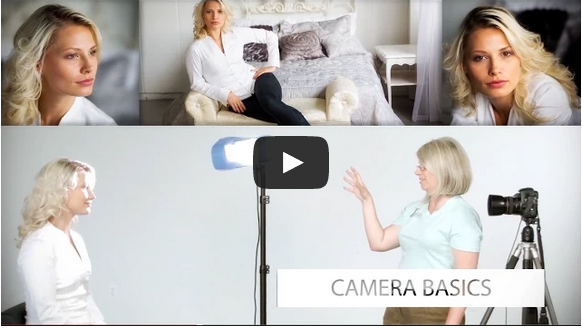
Portrait lighting on location course

Darlene started writing for us as a regular contributor several years ago and to this day some of her posts are among our all time most popular ones.

We liked her so much that we made her the editor!

While working with us Darlene has also been working with pro photographer Bruce Clarke to develop this brand new Portrait Lighting Course which has had some great reviews already from around the web.

You can get a full rundown of what is covered in the course here (don’t forget the 12days2014 coupon code) but in short it is all about giving you the confidence, techniques and tools around lighting your subjects – to be able to take better portraits using natural light and off camera flash.

It is perfect for beginners to intermediate photographers and gives you:

  • over 6 ours of video instruction over 25 lessons
  • over 240 pages of course notes to support the videos
  • quizzes after each lesson to help you cement what you’ve learned
  • printable cheat sheets and diagrams
  • lifetime access and updates
  • ongoing support through regular live webinars

This course can be taken at your own pace – so whip through it in an intense weekend of study or spread it out over the first weeks and months of 2015!

As with all the products in our 12 days of Christmas promotion – this comes with a 60 day money back guarantee. So you can sign up today and get the 50% discount but if you are not satisfied can ask for your money back for a full refund.

Get full details of the course and sign up at 50% off with the coupon code 12days2014 here

But don’t delay – this deal ends in 24 hours from the time this post goes live.

googletag.cmd.push(function() {
tablet_slots.push( googletag.defineSlot( “/1005424/_dPSv4_tab-all-article-bottom_(300×250)”, [300, 250], “pb-ad-78623” ).addService( googletag.pubads() ) ); } );

googletag.cmd.push(function() {
mobile_slots.push( googletag.defineSlot( “/1005424/_dPSv4_mob-all-article-bottom_(300×250)”, [300, 250], “pb-ad-78158” ).addService( googletag.pubads() ) ); } );

The post Deal 10: 50% Off the Portrait Lighting On Location Course by Darren Rowse appeared first on Digital Photography School.


Digital Photography School

 
Comments Off on Deal 10: 50% Off the Portrait Lighting On Location Course

Posted in Photography