RSS
 

Posts Tagged ‘Photoshop’

10 essential time-saving Photoshop tips

24 Jan

thomaspark-polaroid.jpeg

Fashion and fine art photographer Thomas Park shares the shortcuts that he finds most useful, along with tips for combining them in a fast, fluent manner. While many of these shortcuts and techniques may be familiar to you already, they can be combined to minimize context switches for maximum efficiency. Learn more

News: Digital Photography Review (dpreview.com)

 
Comments Off on 10 essential time-saving Photoshop tips

Posted in Uncategorized


Adobe adds Perspective Warp and 3D printing to Photoshop CC

16 Jan

shared:AdobeLogo.png

Adobe has released a major update to Photoshop for Creative Cloud subscribers. The most notable new features are Perspective Warp, Linked Smart Objects and 3D printing capability. Other improvements include enhancements to Scripted Patterns and fills, performance boosts for Smart Sharpen, Adobe Generator improvements for rescaling Smart Objects and adding padding, and font transformations and shape selections. Learn more

News: Digital Photography Review (dpreview.com)

 
Comments Off on Adobe adds Perspective Warp and 3D printing to Photoshop CC

Posted in Uncategorized


ATNX Photoshop Actions Review

17 Dec
"Photoshop Actions" from ATNX Digital provides an affordable, user-friendly actions alternative for Photoshop users.

“Photoshop Actions” from ATNX Digital provides an affordable, user-friendly actions alternative for Photoshop users.

Let’s face it– Photoshop is a beast, and a tough one to tame. There are at least half a dozen “right” ways to do just about everything, and I think it’s safe to say that most of us don’t use it to anywhere near its full potential. I’ve lost track of how long ago I started using PS (version 4, maybe?), and I’ve yet to unlock all its secrets– which I think is a good thing. For me, the best Photoshop work is that which my clients never even notice. To that end, I strive to get it right in the camera, and to the extent that post-processing is necessary, I try to keep it to a minimum. Smooth a little skin. Bump some contrast. Open up the shadows. Darken the highlights. A few simple tweaks to help make sure that people notice the photo– not the editing.

Keeping the edits simple, though, is not always an option. Try as I might, I’m not always going to get it right in the camera. Keeping the sky nice and blue when properly exposing for the ground isn’t always easy. And don’t even get me started on the myriad of ways to run a black & white conversion. Learning how to tackle some of these editing challenges can be slow, meticulous work, and it can often feel like you’re re-inventing the wheel for every photo. Who wants to spend that kind of time in front of the computer? This is where Photoshop Actions come in handy.

“I’m Still New to Photoshop. What’s an Action?”

A Photoshop action is basically a recorded set of steps which allows you to reduce any series of long, complicated, time-consuming steps to a single click of the mouse. What might ordinarily take minutes or even hours to achieve by going step-by-step, becomes a much more convenient, time-saving, automated process. Some actions provide a simple, global adjustment to the photo, while others will apply several customizable adjustment layers, allowing the user to fine-tune the action and target specific areas of the image.

While anyone can record their own actions in Photoshop, companies like Kubota Image Tools, Totally Rad Actions, MCP Actions, and others, have been creating action packs for years, allowing photographers to achieve editing results they might not otherwise have the time or Photoshop expertise to achieve on their own. Contrast adjustments, black & white conversions, sun flares, vintage filters– even teeth whitening– are all just a click or two away. Most action packs come with more than you will ever need (or want) to use, but if you’re lucky enough to find even just a few that help your workflow, you’ll find them to be well worth the cost.
atnx-actions-collage1

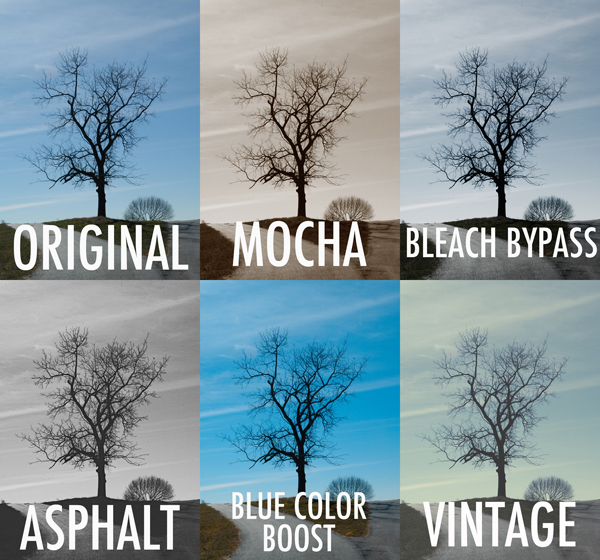
Set One – In this first set, “Lonely Tree” gets a sampling of actions from each of the four sets in the pack.

Photoshop Actions from ATNX Digital is a new option, providing users with 90 actions in four sets– Primary, Mono, Color, and Special.  The Primary set consists of 20 actions, helping to automate tasks like boosting contrast, dodge & burn, noise reduction, and soft focus. Mono– as the name implies– consists of 26 different black & white conversion tools, while the Color set goes the other direction, using actions like Bleach Bypass, Color Boost, and Custom Toning to make color adjustments you could never achieve in-camera (see image above). Finally, the Special set brings effects like center lighting, selective focus, light leaks, and 17 different textures to your digital palette.  It’s a pretty extensive selection, with a variety of options for many post-processing tasks.

First Impressions

What I like about these actions is that most are customizable and can be adjusted to the specific needs of the image. This is achieved in a variety of ways, depending on the selected action. Since most actions are applied by adding various types of adjustment layers, the original image (the Background layer) is left untouched on the bottom of the stack. By adjusting the opacity of the new layers, selecting which of them are even visible, or tweaking the layer masks, you open up a world of adaptable possibilities.

All of that sounds great, but it’s important to keep something in mind. The quality of any action is only as good as the Photoshop skills and aesthetic of the person who programmed it in the first place. Most actions are good starting points, but since every image– and every photographer– is different, you are hardly ever going to simply apply an action and walk away. You may have to tweak it, finesse it, and sometimes even bend it to get the right look. Hopefully, the structure of the action makes it easy– perhaps a final step in a relatively streamlined process. That’s why it’s so important to find actions that fit well with your workflow. If applying an action is only the first step of a 30-minute editing process, you’ve completely missed the point. They only save time and effort if you are off doing something else.

I haven’t tried all 90 of the actions yet, but I’ve gone through a good sampling from each set to have a pretty good feel for them. Of the 40 or 50 that I’ve put to the test, I’ve probably found five or six that I can see incorporating into my workflow. While that might sound like a bad review, I assure you that it’s actually pretty high marks coming from me. Of the hundreds of actions installed on my computer, I probably use a grand total of anywhere from six to ten of them with any regularity. While that may sound like a waste of money, if they get me away from my computer so I can spend more time with my family, it’s worth the price.

Examples

For purposes of this review, anything labeled “Original” is straight off the camera, with no edits other than resizing.  Anything labeled with an action name has had the action applied, with no additional editing of the image or tweaking of the action. See Set One examples above.
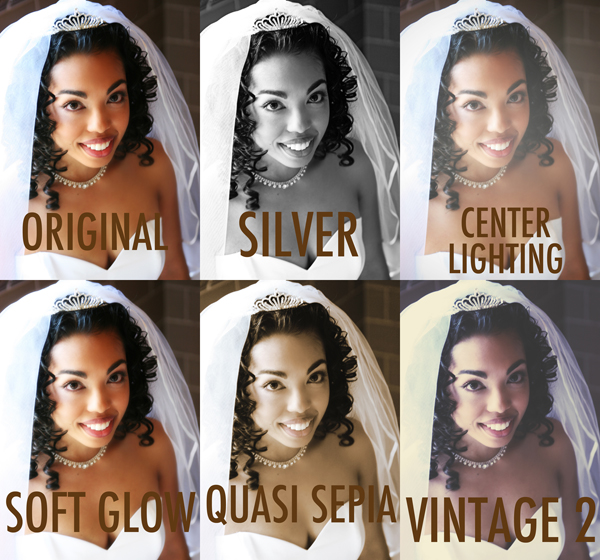
Not all actions are universal. What might work well with landscapes can fail miserably with portraits. Experimenting with how different actions affect different photos can lead to interesting and creative results.

Set Two- not all actions are universal. What might work well with landscapes can fail miserably with portraits. Experimenting with how different actions affect different photos can lead to interesting and creative results.

Easy on the Budget

Speaking of cost, this is where ATNX actions really shine. While some companies charge hundreds of dollars for smaller action packs, the complete set of 90 ATNX actions comes in at a very budget-friendly $ 25.00 (USD). This is particularly helpful for photographers who may be new to Photoshop actions and still aren’t quite sure how they’ll fit with their workflow. While you might hesitate to spend anywhere from $ 80.00 to $ 200.00 on a maybe from another company, at $ 25.00 you can afford to take a chance. That’s not to take anything away from higher priced sets, but if you’re still learning your way through the post-processing labyrinth and want to give actions a try, ATNX might just be a good place to start.

Wrap up

Anything negative that I might have to say would be based only on my own personal aesthetic, through no fault of the product. If an action’s initial output requires too much tweaking to get the look I want, then it’s not for me. Objectively speaking, though, Photoshop Actions from ATNX Digital combine strong, user-friendly editing tools with an affordable price tag– not an easy combination to find.

ATNX Digital Photoshop Actions are available for digital download on their website.

The post ATNX Photoshop Actions Review by Jeff Guyer appeared first on Digital Photography School.


Digital Photography School

 
Comments Off on ATNX Photoshop Actions Review

Posted in Photography


Tips for Learning to Love Photoshop Actions

13 Dec

This is a guest contribution from Meghan Aileen Schirmer at The Shoppe Designs & Photoshop Actions. Their In Vogue Action Set is available on Snap N Deals now for just $ 29! (until December 24, 2013)

Learning to Love Photoshop Actions

Photoshop actions tips 04

When it comes to Photoshop Actions or presets photographers tend to love them or hate them. But, when done right they can really enhance a digital image in a way that a straight out of the camera digital image cannot achieve. If you use film, that is very different, and the variety in types of film and processing techniques allows for a greater variety of beautiful looks for your images. However digital photography, in general, is limited to that digital look we all know, especially when we are in the context of a commercial photography workflow. You can of course edit your images individually in Lightroom, ACR or Photoshop. But when you use Photoshop Actions and presets it is simply speeding up this process. When you have hundreds of images to edit, time savers are very valuable.

What can you use Photoshop Actions for?

Photoshop Actions can be used for workflow speed, such as simply adding a little contrast and saturation to all of your straight out of camera images. They can also be used to specially edit key images or to add a unique style or look to your images that makes you memorable amongst the sea of competition. Action sets at The Shoppe Designs & Actions usually each contain, several specialized Photoshop Actions that you can use at different opacities and different combinations for various style looks, as well as some utility Actions such as adding contrast or grain.

Action styles

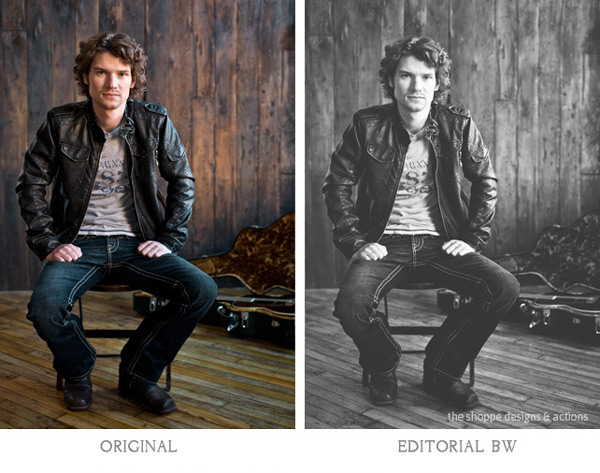
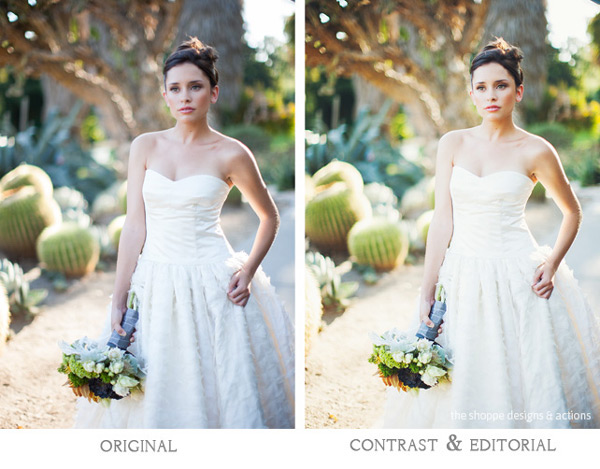
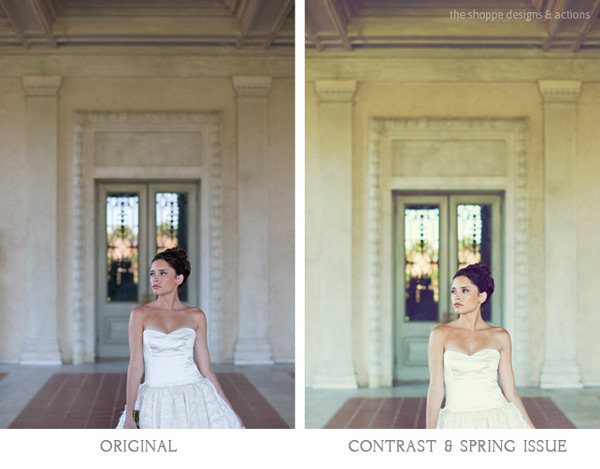
Our In Vogue set was inspired by the pages of high end fashion magazines. In this set you will see the matte look and slight toning of modern fashion photography, as well as the clipped blacks of vintage black and white film. When shooting film is not an option, using Actions to mimic the look of film is a great alternative. Maybe you love the look but are not in a position to switch to shooting film.

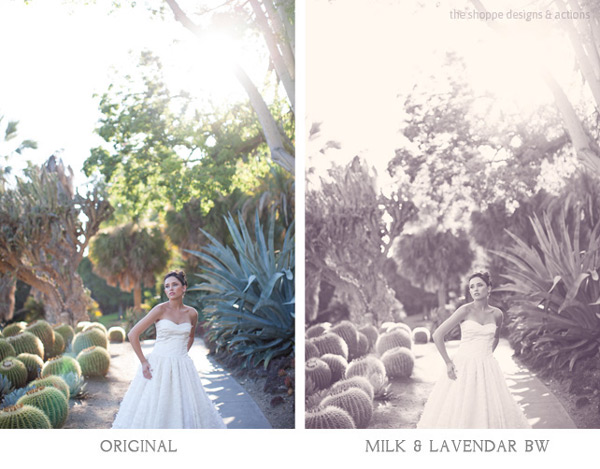
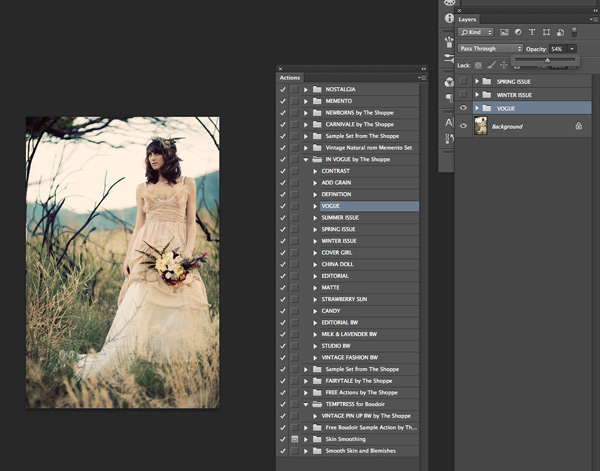
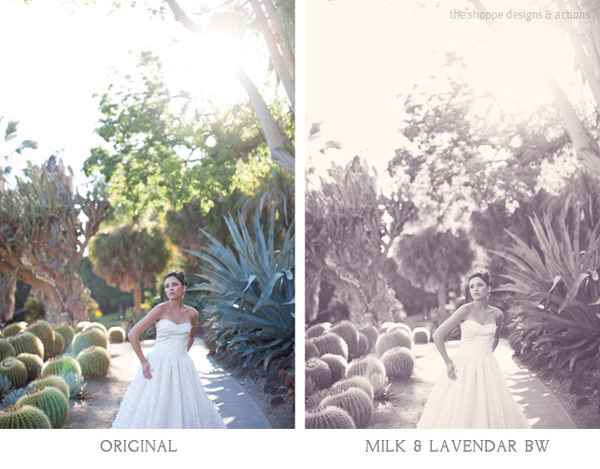
Here you can see the plain digital image and then the sample using the In Vogue Action Set. Our Actions are set up to leave you with a folder on top of your background layer in Photoshop, so that you can easily adjust the strength of the action. We give them to you at 100% strength or a bit less, and then you can adjust them to say 20% for a more subtle look. Perfect when you don’t want the image to look like you edited it with Actions, but just want to get rid of that digital feel. See how in these samples the actions are used at a lower opacity to simply enhance the image and not heavily alter it.

Photoshop actions tips 01

Photoshop actions tips 02

Black and white Actions

Using Actions to make your images black and white is an excellent use of them. Especially if you like the black and white film look. Just reducing the saturation on an image in Photoshop is not going to get a gorgeous black and white image, it will be flat and digital looking. Our Actions create different tones, different depths of contrast, flat or deep blacks and some even add grain for that authentic film look.

Photoshop actions tips 03

Photoshop actions tips 04

Applying Photoshop Actions

When using Photoshop Actions, we recommend trying a variety of them on several different types of photos with different lighting conditions. Not all Photoshop Actions work the same on all images, it is just not possible. Some greatly enhance one image, but may not work at all on another. As you use them often you get to know which works best on the different types of images. Some will really bring out the color in one image, while diminishing the color in another. As I mentioned our Photoshop Actions leave a folder on top of your image in your layers palate in Photoshop. We recommend playing each one on an image, then turning the folder off and on to see the effects. Then adjust the opacity of the entire folder and see what looks best. Then you can play another to add different effects and keep adjusting the folder opacity until you love it. It is best to go back to the background layer before playing each one.

Photoshop actions tips 05

In general, I recommend doing basic image editing in a RAW editing program before starting to play with Actions, unless you are using the utility Actions such as ADD CONTRAST. Stylized Photoshop Actions are simply meant to enhance while utility Actions like adding contrast, boosting saturation and sharpness can be used on original camera images.

If you want to use a utility type Action on a bunch of images at once, or a stylized action on a set of similar images, you can do that as well. In Adobe Bridge, go to TOOLS > PHOTOSHOP > BATCH and then choose the folder of images, the action to use, and the destination for them. I recommend saving them in a different folder and not saving over your originals in case you want to edit them differently later.

However you decide to use them, Photoshop Actions can be very versatile and very useful. It is a matter of fitting them into your workflow and discovering how Photoshop Actions in general as well as which Photoshop Actions in particular work best for you and the way you work.

The Shoppe Designs & Photoshop Actions has many well respected action sets to choose from, and the In Vogue Action Set from is available on Snap N Deals now for just $ 29! (until December 24, 2013)


Designer and Photographer Meghan Aileen Schirmer is the owner of The Shoppe Designs, Inc. Meghan has designed and photographed for some of the most well-known companies in the world over the past 15 years. From Sony to Nickelodeon, as well as Grammy winning artists and musicians. She lives in Nashville, TN with her family.

  • Try a FREE sample set of Actions by liking The Shoppe Designs Facebook Page
  • See more available Actions on their website  The Shoppe Actions
  • See the In Vogue Actions set, regular price.

The post Tips for Learning to Love Photoshop Actions by Guest Contributor appeared first on Digital Photography School.


Digital Photography School

 
Comments Off on Tips for Learning to Love Photoshop Actions

Posted in Photography


Photoshop Tips – Using the Blend If Feature

12 Dec

blendif_opener_alt

The Blend If feature in Photoshop blends one layer into another based on the content of either of the two layers. It can be used, for example, to replace a sky by making it easy for you to knock out the blue sky without having to make a complex selection.

In this article, you’ll learn some Photoshop tips on how to use Blend If to replace a sky.

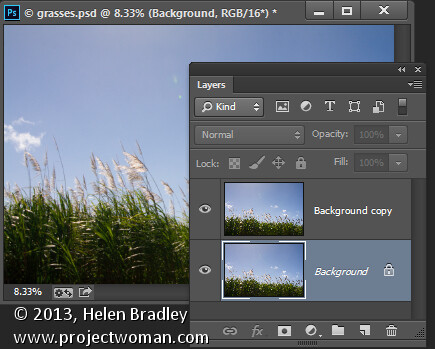
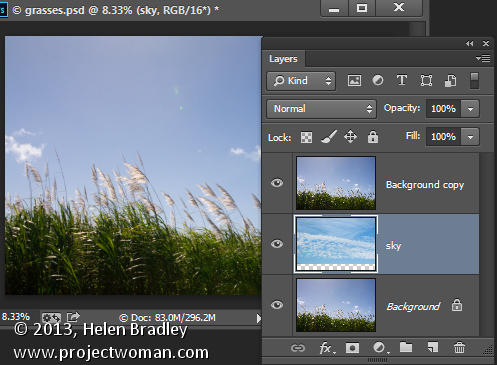
Start by opening an image such as the one shown here. Right click on the background layer and choose Duplicate Layer to make a second copy (keyboard shortcut is “command/control + J”). You now have two layers with the same content.

using the "blend if" feature in Photoshop

Make a duplicate layer

Open an image with good sky. Choose Select > All and then Edit >Copy. Click on the main image and choose Edit > Paste. Drag the sky layer between the two image layers. Size the sky layer, if necessary, so it is big enough to replace the unwanted sky in the original image. Alternately you can use File>Place to choose the new image, and Photoshop will automatically add it as a layer and make it a Smart Object (so it can be resized without any quality loss).

blendif_2

Put the layer of the new sky in between the other two

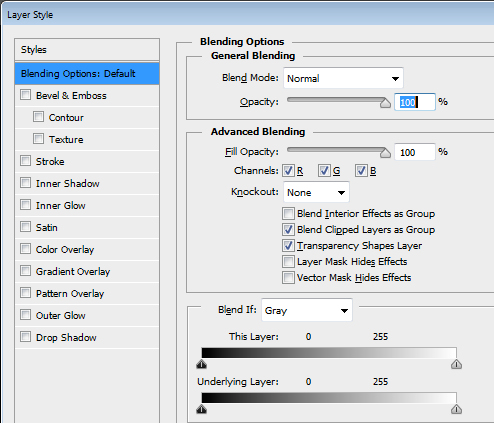
Target the top layer, click the Add Layer Style icon (fx)at the foot of the Layers palette and click Blending Options to open the Layer Style dialog box (see below).

blendif_3

The Blend If sliders and channel selector are at the foot of this dialog. To start, you will choose the channel to use. The Gray channel is the luminance channel so it lets you make your adjustment based on the lightness/darkness of either the image layer or the layer below. If you choose Red, Green or Blue you’ll be using that channel as the basis for your blending.

blendif_4

The layer underneath the current layer contains the sky that we want to use. So you will use the sliders called This Layer to remove the existing sky, to be able see through to the sky underneath. If we were to select the Gray channel we won’t be able to make the selection very easily because both the sky and the grasses have similar luminosity or lightness values.

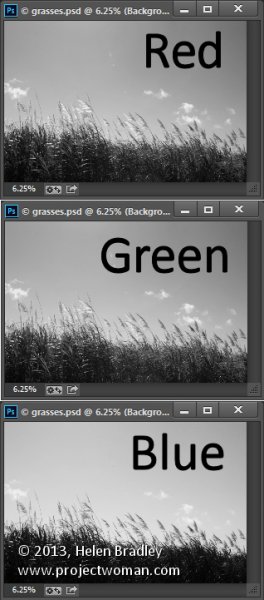
However if you exit this dialog for a minute and take a look at the individual channels in the image, you may find one where there is plenty of contrast between the area you are seeking to hide (the blue sky) and the areas you want to keep (the grasses).

To do this close the dialog box temporarily, choose Window > Channels and click on the Red, Blue, and Green channels in turn to view them.

In this case the Blue channel displays the sky as a lighter tone than the grasses, which are darker. This channel has the most contrast in the area we are interested in so it will be a good one to use.

Select the RGB channel again before you leave the Channels palette. Return to the Layers palette and target the top most layer again. Display the Blending Options dialog again and choose the Blue channel in the Blend If pull down.

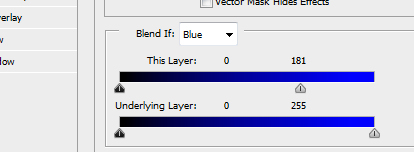
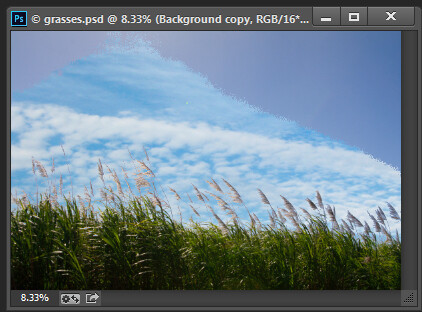
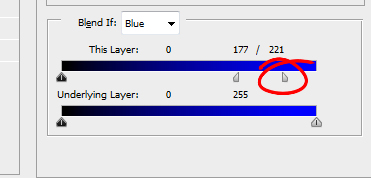
Drag the right most slider in the This Layer area to the left. As you do so, the lighter blue areas will disappear and you will see through to the sky layer underneath.

Blendif_5a

Pull the right slider for “This Layer” to the left

Blendif_5b

The result is the the layer below will start to appear, but the transition is not smooth

To smooth out the transition between the area being removed and the area which remains, break the slider in two. You do this by holding the Alt key (Option on a Mac) and drag half of the slider away from the other half.

The rightmost half of the slider indicates the point at which the blending effect is fully impacting the image. So pixels which have a value greater than the value indicated by this slider will be fully transparent. The left half of this slider controls the point at which the blending ceases. Any values in the blue channel that are smaller than the value indicated by this slider will be fully opaque. Pixels which have values in the blue channel that match the values between the two sliders are partially transparent.

blendif_6

For some images you may get better results by combining multiple channels. So you might use the blue and the red channels but use the rightmost slider on the blue channel and the leftmost slider on the red channel. You’ll need to experiment to see what works for your image. When you have a good result click Ok.

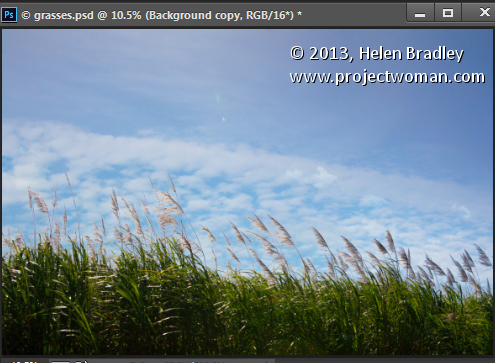
In a perfect world you’ll be able to fully remove the unwanted sky with just this adjustment. Chances are your results will be less than perfect! Mine certainly are, see below.

blendif_7

If this is the case, make sure that the Blend If adjustment gives you the best results in the area that would require you to make a complex selection. For me that is where the grass meets the sky. Selecting around the grass would be a big job so I want the Blend If results to be good in this area. That it doesn’t get rid of the rest of the sky is just fine – that it is easy to get rid of manually.

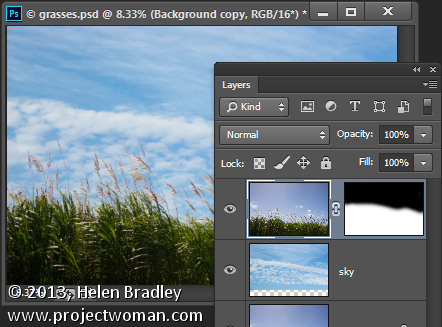
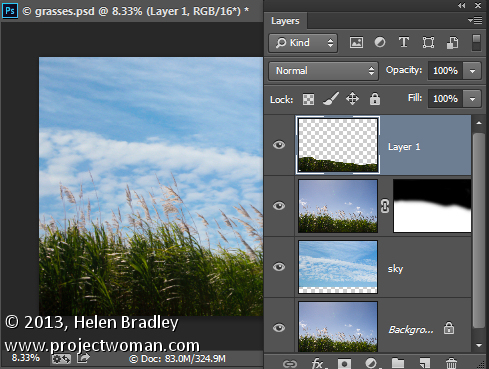
Target the top layer and click the Add Layer Mask icon at the foot of the Layers palette. Target the mask by clicking on it. Choose a soft round brush and paint using black over the mask to hide the remainder of the sky. Using a soft brush (0% Hardness) will ensure you get a seamless transition between the original image and the new sky.

blendif_8

Problems elsewhere

Occasionally you will find that using the Blend If sliders to remove the sky also results in some unwanted transparency appearing elsewhere in the image. If this occurs you can use content from the background layer to fill the transparent areas.

Make a selection over the area to fix, click on the Background layer to target it and choose Layer > New > Layer via Copy. Drag this layer to the top of the image and it will cover the areas that were made transparent.

Although this wasn’t a problem with this image, this is what the layer stack might look like if you do need to fix some transparency appearing elsewhere in the image.

blendif_9

The Blend If sliders are a useful way to blend layers without needing to make complex selections. You can make even better use of these sliders when you use the channel data as a guide to determine which channels to use for your blending.

Post originally from: Digital Photography Tips.

Check out our more Photography Tips at Photography Tips for Beginners, Portrait Photography Tips and Wedding Photography Tips.

Photoshop Tips – Using the Blend If Feature

The post Photoshop Tips – Using the Blend If Feature by Helen Bradley appeared first on Digital Photography School.


Digital Photography School
 
Comments Off on Photoshop Tips – Using the Blend If Feature

Posted in Photography


Edit Like a Boss on Photoshop With ATNX Digital

04 Dec

Photoshop actions are the best thing in the world if you use Photoshop a lot. Not only do they save you time and trouble, but they also empower you to improve your pictures any way you want. We don’t generally spotlight that many young companies, but one that we just thought you absolutely had to know about is ATNX Digital. Continue Reading

The post Edit Like a Boss on Photoshop With ATNX Digital appeared first on Photodoto.


Photodoto

 
Comments Off on Edit Like a Boss on Photoshop With ATNX Digital

Posted in Photography


Adobe now offers Photoshop and Lightroom for everyone

21 Nov

shared:AdobeLogo.png

When Adobe announced a version of Creative Cloud for photographers in September, there was a catch — you had to already own Photoshop CS3 or later to qualify for the special pricing. Now Adobe is lifting that requirement for a limited time. Through December 2, 2013, the $ 9.99 per month subscription is available to everyone. Learn more 

News: Digital Photography Review (dpreview.com)

 
Comments Off on Adobe now offers Photoshop and Lightroom for everyone

Posted in Uncategorized


50 Brilliant Photo Manipulation Tutorials to Understand Photoshop Like a Pro

18 Nov

When it comes to photo editing, the first thing that comes to my mind is Photoshop. Photoshop is the second name of creativity. Photo manipulation may be one of the funniest things you can do with Photoshop. Of course, a person should have lots of patience and time to create some truly stunning artwork, but it’s worth a try. Today, Continue Reading

The post 50 Brilliant Photo Manipulation Tutorials to Understand Photoshop Like a Pro appeared first on Photodoto.


Photodoto

 
Comments Off on 50 Brilliant Photo Manipulation Tutorials to Understand Photoshop Like a Pro

Posted in Photography


Sending Panorama Sequences from Lightroom to Photoshop

09 Nov

Sending Panorama Sequences from Lightroom to Photoshop

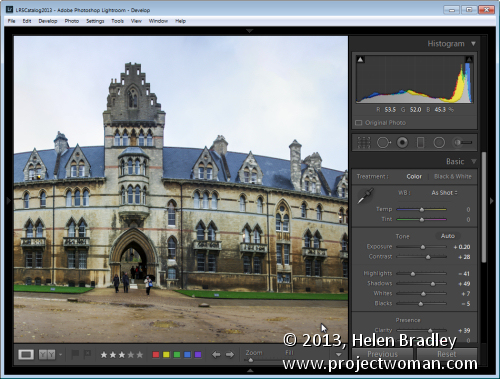
In addition to being able to send single images from Lightroom to Photoshop for editing you can also send a series of images to Photoshop to assemble into a panorama. This is a useful because the Photoshop panorama merge feature is pretty good (certainly since the improvements in Photoshop CS3 & CS4) and other Photoshop tools such as Content Aware Fill and the Lens Correction Filter are handy for finishing your panoramas. When you are done, click Save and the completed panorama will be sent back to Lightroom for further processing.

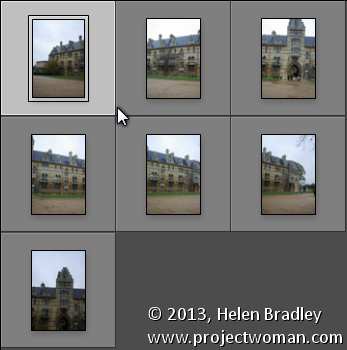
To see how this is done, begin inside Lightroom and select the images to assemble into a panorama. I like to put these into a collection so they are handy if I want to try multiple panorama options to select the best of them. I don’t typically process the images before sending them to Photoshop and, instead, I process the completed panorama when it returns to Lightroom. One exception to this is fixing the white balance if it were incorrectly set on the camera at capture time, for example.

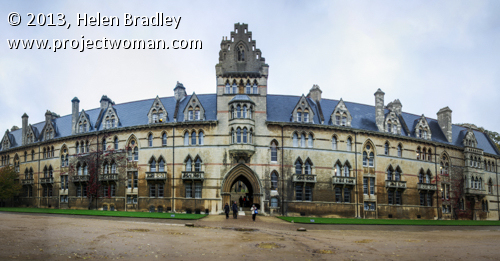
Photoshop can assemble panoramas both vertically and horizontally and it can also take a mix of images such as I used here. This sequence is six shots horizontally across the front of a building and one extra shot to handle the building’s tower which wasn’t captured in the original sequence. If I’d been thinking, I would have captured some extra sky to use but we can solve that in Photoshop.

Sending Panorama Sequences from Lightroom to Photoshop 1

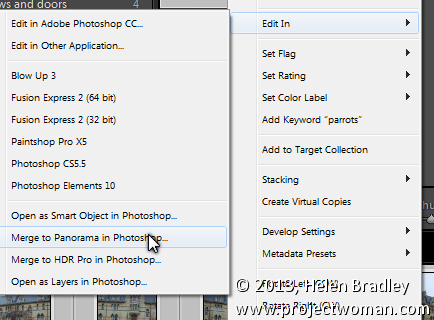
Select the images, right click and choose Edit In > Merge to Panorama in Photoshop.

Sending Panorama Sequences from Lightroom to Photoshop 2

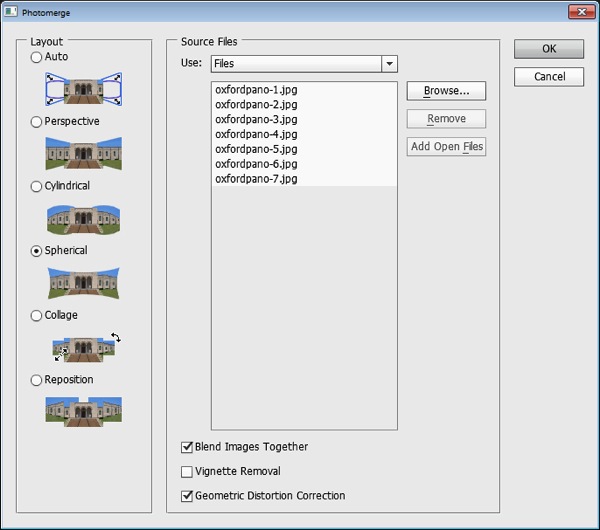
Photoshop will open with the images you sent to Photoshop listed in the Photomerge dialog. Now you need to determine the Layout to use. In most cases the Auto setting will be a good choice – when you select this, Photoshop will analyze the images and determine the best of the other layout alternatives: Perspective, Cylindrical and Spherical to use.

Sending Panorama Sequences from Lightroom to Photoshop  3

Check the Blend Images Together checkbox so that the images will be seamlessly blended together – then you won’t have to do it yourself. You can also click Geometric Distortion Correction to remove the effect of any barrel, pincushion or fisheye distortion in the original images. If the edges of your images have some edge vignetting click Vignette Removal. If you’re unsure what to choose, check all three checkboxes. Click Ok and wait as the images are aligned and blended.

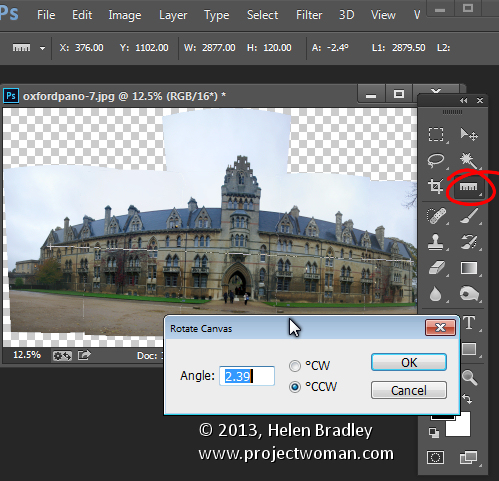
Once the panorama is assembled you can straighten the image if desired. To do this select all the layers and target the Ruler tool. Now drag along a line in the image which should be perfectly horizontal – you won’t be able to click the Straighten Layer button to rotate the image because you will have multiple layers selected. Instead, choose Image > Image Rotation > Arbitrary and click Ok to straighten the entire image to the angle of the Ruler line.

Sending Panorama Sequences from Lightroom to Photoshop  4

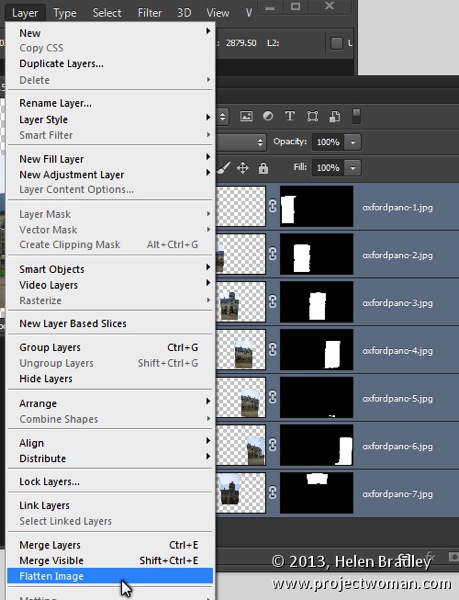
Most panoramas will then need to be cropped to a rectangle to eliminate uneven areas around the edge of the image. However, before you do this you may want to fill in some of the empty areas of the image using the Content Aware Fill tool so you can crop larger than you would otherwise be able to do. To do this you’ll either need to flatten the image to a single layer or you will need to create a new layer with the entire image on it to use. To flatten the image choose Layer > Flatten Image. To make a new layer with the image on it (but still retain the individual layers below) click the topmost layer and press Control + Alt + Shift + E (Command + Option + Shift + E on the Mac).

Sending Panorama Sequences from Lightroom to Photoshop  5

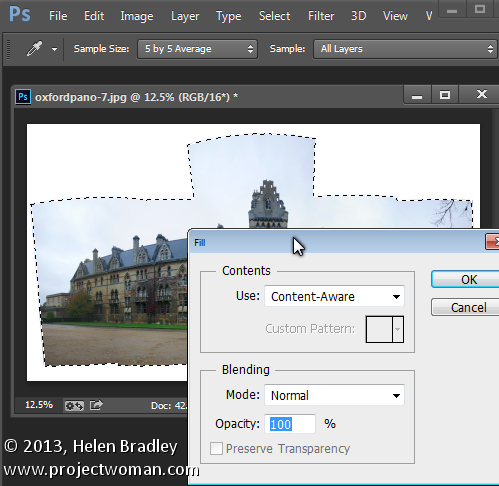
Select the area that you want to fill and then choose Edit > Fill, from the Use list choose Content Aware and click Ok. Photoshop will attempt to fill the missing area with details from the image around it. If the image contains sufficient detail you should be able to build up missing areas of sky and foreground, for example.

If you encounter problems with the Content Aware Fill feature this post will show you how to mask a layer to get better results when using it: http://digital-photography-school.com/smarter-content-aware-fill-in-photoshop. Crop the image when you have filled the edge area.

Sending Panorama Sequences from Lightroom to Photoshop 6

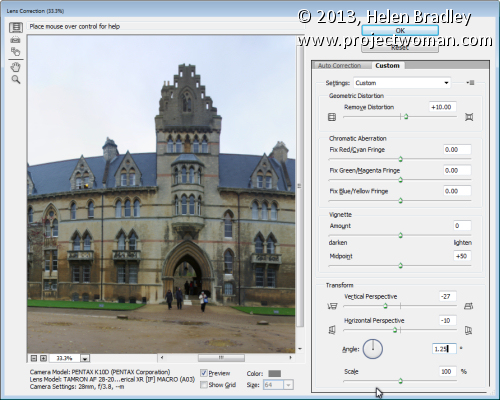
To fix unwanted distortion in an image you can use the Lens Correction tool. This tool works on a single layer and you run it by choosing Filter > Lens Correction > Manual. Adjust the Horizontal Perspective slider to fix problems with an image which has not been captured face onto the point of interest. Use the Vertical Perspective slider to adjust for keystoning – generally you will drag this slider to the left. Use the Geometric Distortion slider to remove barrel and pincushion distortion.

Sending Panorama Sequences from Lightroom to Photoshop 7

Once you have finished assembling the panorama choose File > Save to save the image and return to Lightroom where your panorama will be ready for further editing.

LR PS panoramaMerge 8

If you are not using Lightroom you can assemble a panorama from Bridge or from inside Photoshop. In Bridge select the panorama sequence and choose Tools > Photoshop > Photomerge in Bridge. In Photoshop, first open the images to use then choose File > Automate > Photomerge and click the Add Open Files button. In either case you will probably want to fix the image in Photoshop once the panorama is complete. If you are using Lightroom you may prefer to finish processing the panorama in Lightroom.

Layout Options

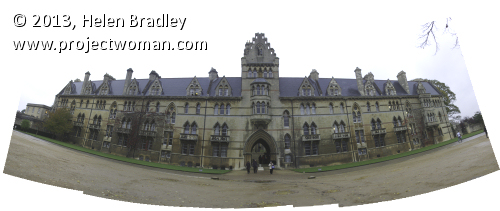
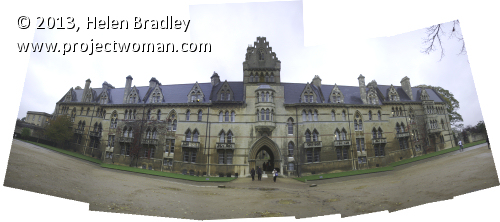
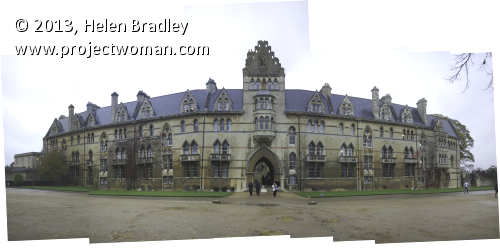
Each of the panorama Layout options in Photoshop results in a different looking panorama. Choosing Auto tells Photoshop to select the best of the options Perspective, Spherical and Cylindrical for your particular sequence of images.

Here is the result of each of the other Layout options used with our image sequence, these results haven’t been edited except to straighten the image and brighten it a little. You may want to experiment with any given sequence of images to see which of these options gives you the most pleasing result:

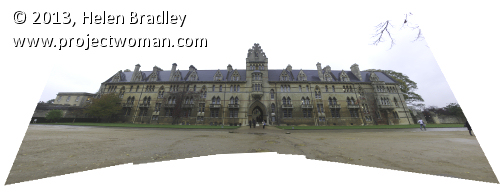
Perspective Layout

The panorama is assembled in relation to the middle image of your sequence of images. The middle image is placed in position and the other images arranged either side of it and skewed and repositioned as needed. This often results in edges which are taller than the middle giving rise to the term ‘bow-tie” distortion.

LR PS panoramaMerge perspective

Cylindrical Layout

This layout avoids the bow-tie distortion by showing the images as they might look if placed on an unwrapped cylinder.

LR PS panoramaMerge cylindrical

Spherical Layout

This layout arranges the images as if to cover the inside of a sphere. It is a good choice for 360 degree panoramas and can also give good results with other shorter panorama sequences.

LR PS panoramaMerge spherical

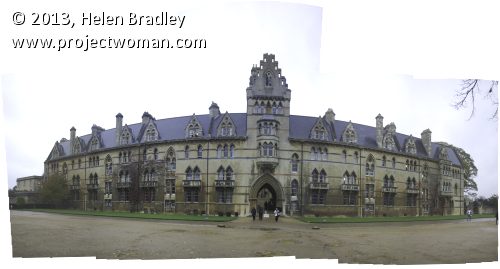
Collage Layout

This layout aligns the images matching overlapping content. If necessary, image layers are transformed and rotated.

LR PS panoramaMerge collage

Reposition Layout

This layout aligns the images matching overlapping content but without transforming or rotated the images.

LR PS panoramaMerge reposition

Post originally from: Digital Photography Tips.

Check out our more Photography Tips at Photography Tips for Beginners, Portrait Photography Tips and Wedding Photography Tips.

Sending Panorama Sequences from Lightroom to Photoshop

The post Sending Panorama Sequences from Lightroom to Photoshop by Helen Bradley appeared first on Digital Photography School.


Digital Photography School
 
Comments Off on Sending Panorama Sequences from Lightroom to Photoshop

Posted in Photography


How to Sharpen Image Edges in Photoshop

18 Oct

How to Sharpen Image Edges in Photoshopopener

If you’re a Lightroom user you’ll know that in Lightroom you can mask the sharpening you apply to an image so it is applied to the edges in the image only. This same feature is not yet available in Photoshop and the sharpening filters there are applied to the entire image rather than just edge detail.

However you can achieve a reasonable approximation of the Lightroom masking feature in Photoshop using the Photoshop Find Edges filter. The benefit of this is you can apply more sharpening to the image than you would do without the masking effect and areas of flat color like skies and skin tones won’t be sharpened. Here’s how to do this.

How to Sharpen Image Edges in Photoshop

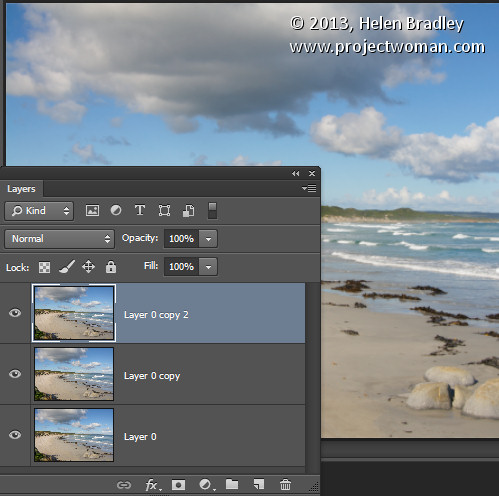
Once you have finished processing your image in Photoshop, flatten the image to a single layer or make a single layer of the edited image by adding a new layer at the top of the Layer palette and press Ctrl + Alt + Shift + E (Command + Option + Shift + E on the Mac) to create a flattened version of the image on that layer.

Duplicate the flattened layer twice.

How to Sharpen Image Edges in Photoshop 1

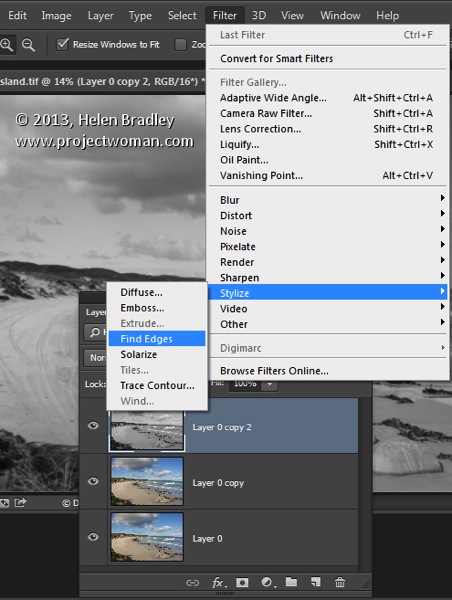
Target the topmost layer – you will create your sharpening mask from this layer. Choose Image > Adjustments > Desaturate to convert it to black and white then choose Filter > Stylize > Find Edges to isolate the edges in the image.

How to Sharpen Image Edges in Photoshop 2

Choose Image > Adjustments > Invert to invert the colors so that what is black is white and vice versa.

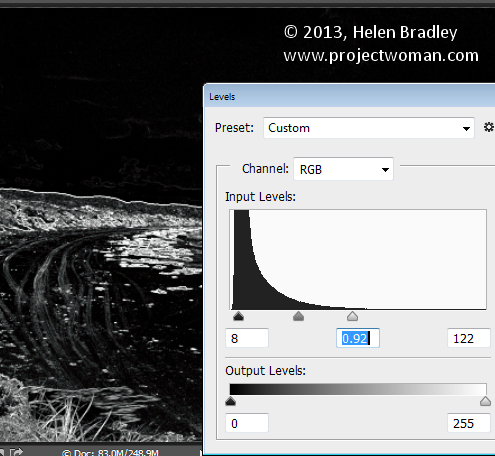
Choose Image > Adjustments > Levels and adjust the mask so that it shows white in the areas that you want to sharpen and black in those areas that you do not want to sharpen.

How to Sharpen Image Edges in Photoshop 3

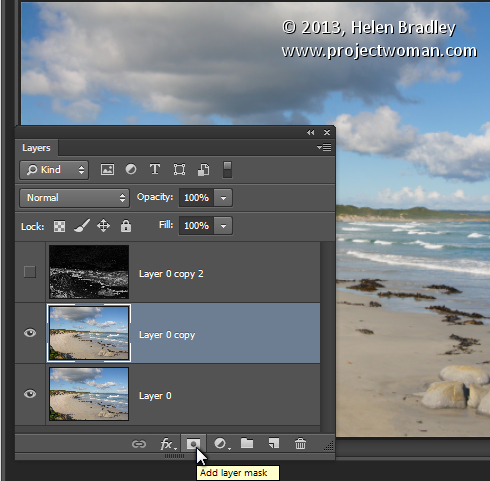
Once you have a good mask, blur its edges slightly by choosing Filter > Blur > Gaussian Blur and apply a 1 or 2 pixel blur to it. When this is done, hide the sharpening mask layer by turning its visibility icon off in the Layer palette.

Now target the second topmost layer in the image and click the Add Layer Mask icon at the foot of the Layer palette.

How to Sharpen Image Edges in Photoshop 4

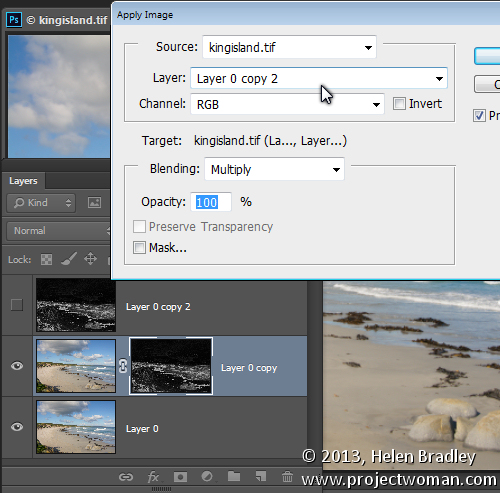
Click the mask thumbnail on this layer to target it and choose Image > Apply Image to open the Apply Image dialog. From the Layer dropdown list select the layer that contains the hidden sharpening mask, and click Ok.

How to Sharpen Image Edges in Photoshop 5

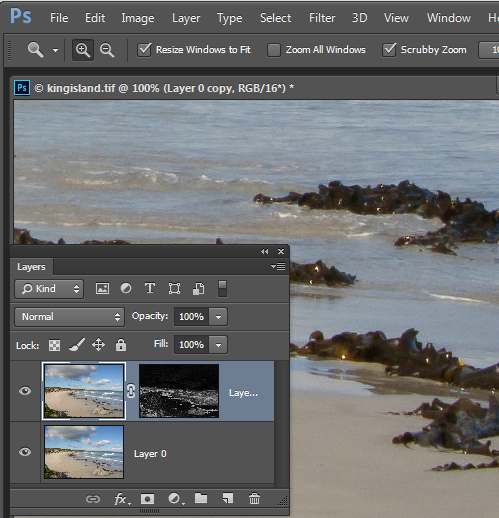
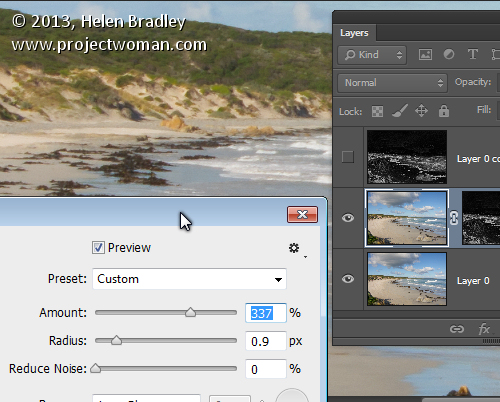
Click on the image thumbnail on this layer to target it and apply your sharpening to this layer – use Smart Sharpen or Unsharp Mask as desired. When you set the slider values, view the result on the image and not using the preview in the sharpening dialog. The preview in the dialog doesn’t take into account the mask you have applied – the image itself does. Click Ok when you’re done.

How to Sharpen Image Edges in Photoshop 6

To compare the before and after result of sharpening the image with an edge mask, Shift + Click on the mask layer thumbnail to disable it and see the image as it would look sharpened and without the masking effect. Click the mask thumbnail again to enable the mask again. You can discard the hidden mask layer now, if desired as it is no longer needed.

While this sharpening mask takes some effort to create once you’ve done it a few times you will find the process quite straightforward and some of its creation can be automated using Actions.

Post originally from: Digital Photography Tips.

Check out our more Photography Tips at Photography Tips for Beginners, Portrait Photography Tips and Wedding Photography Tips.

How to Sharpen Image Edges in Photoshop

The post How to Sharpen Image Edges in Photoshop by Helen Bradley appeared first on Digital Photography School.


Digital Photography School
 
Comments Off on How to Sharpen Image Edges in Photoshop

Posted in Photography