RSS
 

Posts Tagged ‘Photoshop’

Never forget a Photoshop or Lightroom shortcut again

19 May

Screen-Shot-2014-05-14-at-12.47.49-PM.png

Even longtime Photoshop and Lightroom users sometimes forget the myriad of keyboard shortcuts used to trigger the program’s powerful features. Now web developer Waldo Bronchart has made a web application called ‘Application Shortcut Manager’ to help you remember. It’s an interactive website that displays all the keyboard shortcuts for Photoshop, Lightroom and Blender. Learn more

News: Digital Photography Review (dpreview.com)

 
Comments Off on Never forget a Photoshop or Lightroom shortcut again

Posted in Uncategorized


Lesson In Photoshop With Katie Nattrass

16 May

Based in Manchester, Katie Nattrass is a professional retoucher with an innovative eye for image retouching. Recently featured in Professional Photographer Magazine, Katie’s background in photography strengthens her ability to connect with the needs of clients and photographers. From editorial, fashion and beauty to products and commercial images, she has worked with an impressive array of clients such as Boohoo, Puma, Nike, JD Sports Fashion, Blacks Outdoor Retail and Boots UK. Katie was able to share with us some very valuable insights into post production as well as a quick lesson in Photoshop.

Boohoo Katie Nattrass retoucher interview with FashionPhotographyBlog.com

Working for global brands, Katie Nattrass is responsible for perfecting the final images for fashion campaigns using Photoshop. We asked Katie; how did you come to work in this industry?


“I started working as a photography assistant for a top commercial photographer called Matthew Seed; he said I was the strangest assistant he had ever had because I had no desire to get behind the camera. He taught me so much about the industry and business that after three years assisting I flew the nest and became a fully-fledged retoucher. I then went on to work with some amazing clients and work on global campaigns.”


You must sometimes have to work with challenging material. What are the most common mistakes photographers make?


“From a technical aspect I don’t really have to deal with too many ‘mistakes’ as I’m lucky enough now to be working with top end photographers who know what they are doing and what they want. When I first started out retouching I’d spend a lot of time correcting lighting, or emailing photographers explaining that they had lit their models so much that they had blown out any detail in their faces and left nothing but floating eyes. I found that people would literally point four lights at the model and start from there, rather than using one light and knowing what that’s doing first. This just showed a lack of control and a lake of understanding as to what their lights were actually lighting.”


So what does retouching an image involve? We asked Katie to take us through a typical example. Katie has chosen a beautiful image from Boohoo’s spring campaign;


Before

Boohoo.com Katie Nattrass BEFORE retouching shot

After

Boohoo.com Katie Nattrass AFTER retouching shot

“This image was shot on location in Lanzarote by our Head of Studio and Photography Graham Reid. The composition of the image was beautiful; the horizon line fell completely level behind the models, giving a fantastic balance of sky and the volcanic sands.


The first stage was to extend the frame as I knew this was going to be used for outdoor media, rather than crop into the image and loose visibility of the product it makes sense to expand out.


The next stage is the general clean-up of the shot, removing any distracting blemishes, and then sharpening to make it look really eye-catching and crisp.


Then it’s all about achieving the right colour temperature, there is no right or wrong answer here; it’s down to knowing your message and audience. In this case, I wanted to capture the landscape of Lanzarote and story of our shoot, making the image really warm – it’s as if you can feel the sun coming from the billboard. Bringing out the colour of the red sand was also important to give it some depth and make the metallic dress look almost space-like…they could almost be on Mars.


The final two stages are about the contrast and saturation. If you’re using the auto setting in Photoshop then stop right now – retouching is an art and by using auto you’re giving up your creative licence. This part can make or break a shot; you have to show control and watch what you’re doing with every area of the image”.


For more examples of Katie’s work, take a look at her website http://katienattrass.com/


Fashion Photography Blog

 
Comments Off on Lesson In Photoshop With Katie Nattrass

Posted in Uncategorized


Real Life Photoshop: Giant Eraser Takes Out Urban Scenery

29 Mar

[ By Steph in Art & Street Art & Graffiti. ]

Real Life Photoshop Eraser 1

In another case of Photoshop invading the real world in three dimensions, giant erasers are appearing all over urban surfaces in London. Murals, street signs, billboards and trash bins are among the objects getting the Photoshop treatment with ‘Street Eraser,’ a joint project by artists Guus Ter Beek and Tayfun Sarier.

Real Life Photoshop Eraser 2

Real Life Photoshop Eraser 3

Real Life Photoshop Eraser 4

The installation consists of a series of handmade stickers plastered all over the city, featuring the gray and white checkered pattern that appears when you erase something in Adobe Photoshop.

Real Life Photoshop Eraser 5

Photoshop Eraser 2

Photoshop Tools 3

A similar project used cardboard props to recreate the look of a photoshopped image in progress, with the photographer using the eraser tool on himself. Another photographer takes Photoshop tools literally with humorous interpretations of commands like ‘convert to smart object’, ‘smudge’ and ‘puppet warp.’

Share on Facebook


[ By Steph in Art & Street Art & Graffiti. ]

[ WebUrbanist | Archives | Galleries | Privacy | TOS ]


WebUrbanist

 
Comments Off on Real Life Photoshop: Giant Eraser Takes Out Urban Scenery

Posted in Creativity


How To Make A Cinemagraph for Photoshop Newbies

28 Mar

A cinemagraph is “more than a photo, but not quite a video.” Or at least that’s how Supermodel Coco Rocha summed them up. Technically, a cinemagraph is just a GIF or a Graphics Interchange Format. Basically, a short, animated file that is everywhere online these days. You’ve probably seen them on Tumblr, Reddit or 4Chan. Maybe you even remember them Continue Reading

The post How To Make A Cinemagraph for Photoshop Newbies appeared first on Photodoto.


Photodoto

 
Comments Off on How To Make A Cinemagraph for Photoshop Newbies

Posted in Photography


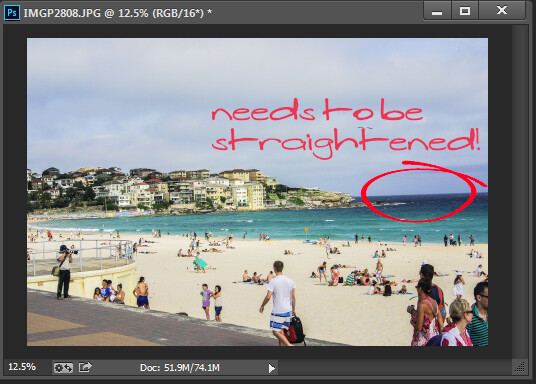
How to Straighten a Crooked Image in Photoshop

16 Mar
Straighten an image in Photoshop

Straighten an image in Photoshop

While most photo editing programs have a dedicated and easily discoverable Straighten tool, Photoshop does not and never has had. Instead, prior to Photoshop version CS6, it was notoriously difficult to straighten a photo.

This all changed with the new Crop tool in Photoshop CS6 and CC, and it is now much easier to straighten an image – even if it isn’t easy to determine that the Crop tool is how you do it.

I’ll show you how to straighten a crooked image in Photoshop, but before we look at Photoshop CS6 & CC let’s take a trip back in time to see how to straighten an image in Photoshop CS5 and earlier. Of course this process still works in later versions of Photoshop as well.

Straighten an image prior to Photoshop CS6 & CC

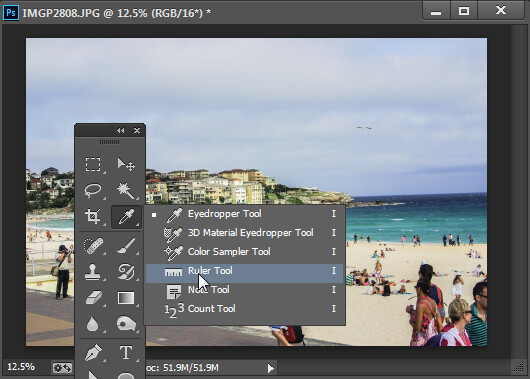
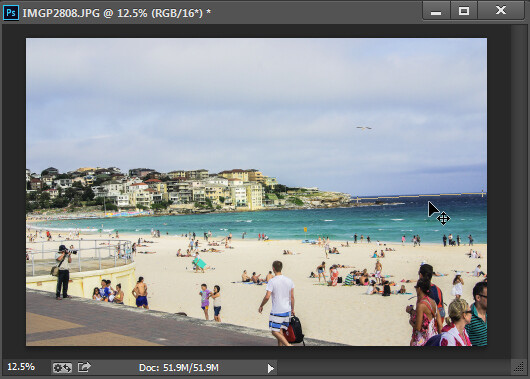
With an image open in Photoshop locate the Ruler tool which shares a toolbar position with the Eyedropper tool.

The Ruler tool shares a toolbar position with the Eyedropper tool.

The Ruler tool shares a toolbar position with the Eyedropper tool.

Click and drag along some element in the photo that should be either truly horizontal or vertical. The longer the line you make, the more accurate the adjustment will be.

Drag along an element in the image which should be horizontal or vertical using the Ruler tool.

Drag along an element in the image which should be horizontal or vertical using the Ruler tool

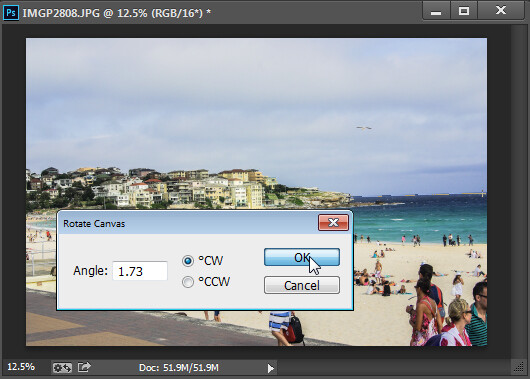
Once you have the ruler line positioned along the line you wish to straighten, choose Image > Image Rotation > Arbitrary and the dialog will show the angle of that ruler line – in other words the angle to rotate the image to straighten it. Press Ok to rotate the photo and straighten it.

Choose Rotate Canvas to rotate the canvas to the selected angle.

Choose Rotate Canvas to rotate the canvas to the selected angle.

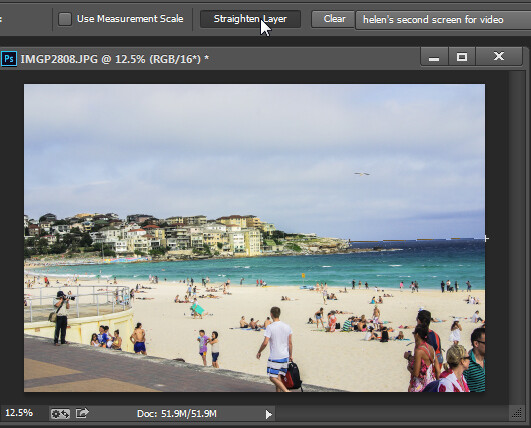
In Photoshop CS5, the process was streamlined slightly by the addition of a Straighten Layer option which appears when you select the Ruler tool. Once you mark out the line to straighten to you can then click this icon to straighten the image (see image below).

Click Straighten Layer in Photoshop CS5 and later to straighten using the Ruler tool.

Click Straighten Layer in Photoshop CS5 and later to straighten using the Ruler tool.

Straighten using the Crop tool

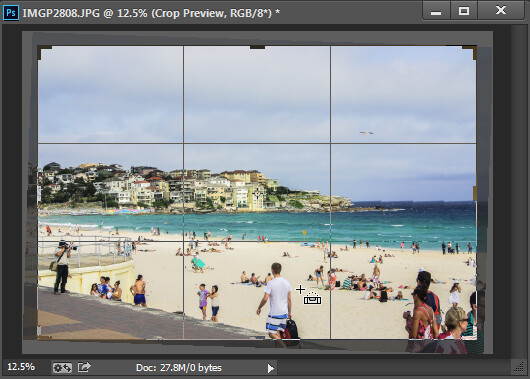
In Photoshop CS6 and CC the Crop tool now has a Straighten tool built into it. So, to straighten a photo, click the Crop Tool (or press C) and click the Straighten icon on the toolbar.

Click Crop and then click the Straighten icon on the Tool Options bar

Click Crop and then click the Straighten icon on the Tool Options bar

Now drag a line across the photo, along an element which should be horizontal or vertical.

Drag along an element which should be horizontal or vertical

Drag along an element which should be horizontal or vertical

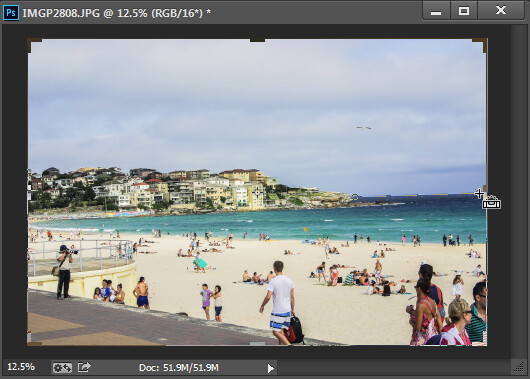
When you let go the mouse the image will be rotated automatically using the line as a guide and the resulting uneven edges of the image will be cropped away.

Press Enter to confirm the crop

Press Enter to confirm the crop

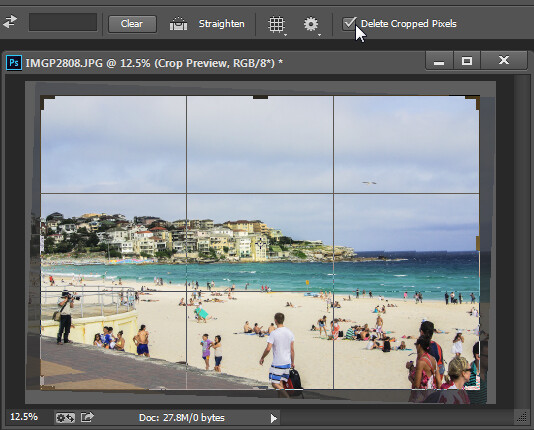
Press Enter to confirm the crop. If you have the Delete Cropped Pixels checkbox enabled then the excess image will be permanently removed.

The Delete Cropped Pixels setting lets you choose whether cropped pixels are deleted or not

The Delete Cropped Pixels setting lets you choose whether cropped pixels are deleted or not

If the Delete Cropped Pixels option is unchecked, the canvas will be reduced in size to match the crop rectangle and the extra image pixels will disappear from sight but will still be accessible.

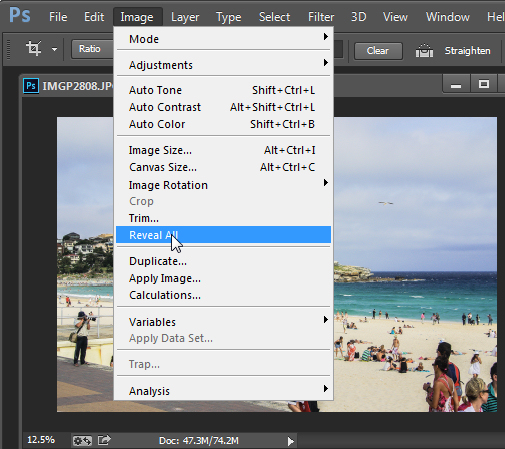
At any time you can reinstate these hidden areas of the image which lie outside the canvas by choosing Image > Reveal All.

Use Reveal All to display contend hidden when  you crop

Use Reveal All to display contend hidden when you crop

For more Photoshop tips try these:

  • 5 Easy Photoshop Tips for Beginners
  • Photoshop Tips – Using the Blend If Feature
  • Adobe Camera Raw (ACR) as a Photoshop Filter
  • What’s new in Photoshop CC for Photographers

The post How to Straighten a Crooked Image in Photoshop by Helen Bradley appeared first on Digital Photography School.


Digital Photography School

 
Comments Off on How to Straighten a Crooked Image in Photoshop

Posted in Photography


4 Tips for Post Processing Efficiency in Photoshop

08 Mar

post-processing-photoshop

A great deal of post processing can be done in Photoshop, more than most photographers realize actually. As a designer, I didn’t have Lightroom, and just wanted to adjust my photos to look a little nicer, little did I know the power behind Photoshop and its post processing capabilities.

Today I am going to give you some tips and tricks I learned that increased my efficiency within Photoshop.

1 – Photoshop Layout and Organization

The first way to increase efficiency before doing any photo editing, is to organize and optimize your Photoshop layout. Setting up and customizing your Photoshop layout is key to configuring exactly how you want your panels and canvas to look. It is also very easy to do, and can improve your workflow a lot.

Here are a few things to keep in mind when editing your Photoshop layout.

  • Only keep the necessary, delete all panels that are superfluous to your photo editing process. They really just get in the way and clutter your workspace.
  • Organize your panels based on your workflow. Keeping certain windows paired will help you work faster and make adjusting much easier.
  • Adjust spacing and panels so you can have the largest size available for your image.

Here is a quick preview of my layout, in case you need some inspiration.
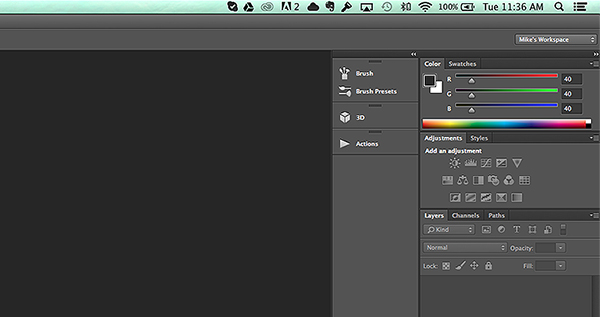
Photoshop-Layout

After you carefully adjust and tweak the panels to perfection, it is really simple to save your workspace. Simply go to the top right corner of your Photoshop Document, where is says Mike’s Workspace in the image above, and click to activate the drop-down menu. Then click new workspace and you can save it as your very own Photoshop layout. You can even save shortcuts and menus within the layout.

2 – The Basic Effects

Now that you’ve organized your layout, it’s time to start editing your photos. When I start editing any photo I have a few basic steps I do religiously. These don’t have to be the same for you, and it is totally ok to completely disregard them (or come up with your own), but it is sort of a habit that can help contribute to your photography style.

The first small task I complete is duplicating the image layer. To ensure I don’t damage my original photo. From there I add a few subtle Adjustment Layers to balance the light in the image. It looks something like the image below.
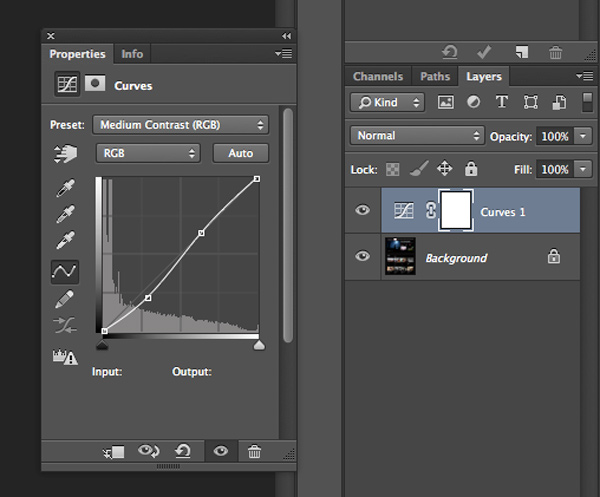
curves-adjustment-layer-photoshop

The above effect is a simple curves adjustment that helps balance light and tone down the colors in a subtle manner. After that I mess with the brightness and contrast just a little bit to get the image looking clean and balanced (as an Adjustment Layer as shown below).
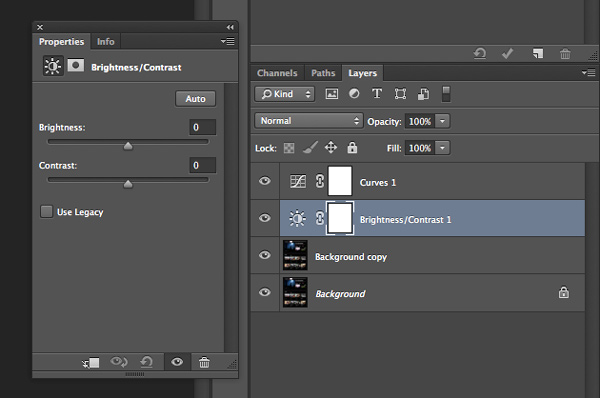
adjustment-layer-brightness-contrast

Consider all the above steps as precursory steps to the actual photo editing process. These are simply done to balance light, prevent error, and it is like a little system I use to keep my style inline.

3 – Grouping and Organizing Layers

The next thing I do that really helps me work more efficiently is to organize and group my layers. It is really easy and not time consuming at all to rename layers so that you know exactly what effect they are applying to your photo. Then you don’t need to go through all your layers, switching them on and off, to find one you want to remove or readjust.

These are the key areas I group and label my adjustment layers and filters.

  • Light and contrast adjustment groups
  • Tints and color variations
  • Strong filters such as HDR and blurs
  • Gradients and vignettes

By labeling these I can easily go to certain effects and adjust them accordingly. This makes photo editing a much faster process, and makes re-editing a photo way simpler and fun.

4 – Subtle Adjustments that Make a Huge Difference

As a final tip for efficiency I am going to share a few subtle effects that work wonders for photo editing. The tools used include:

  • Blend Modes
  • The Levels adjustment tool
  • Tints

Take a look at the difference a simple blend mode can do to an image, with just the click of one button. In the example below I’ve used the Overlay blend mode. Remember to duplicate your original layer and play with the blend modes on the top, copy layer. Blend modes dictate how the pixels in one layer behave and react with the layer below it. Try them all and see what they do.
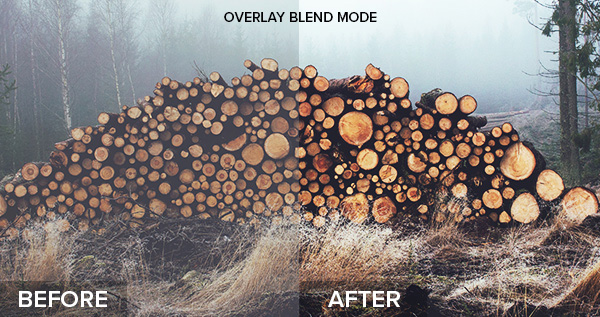
Blend-Modes

Blending modes can be applied in a few ways. The easiest way, and the way I achieved the above effect is to duplicate your image and select the blend modes drop-down by double clicking your layer (or selecting it right from the Layers panel)
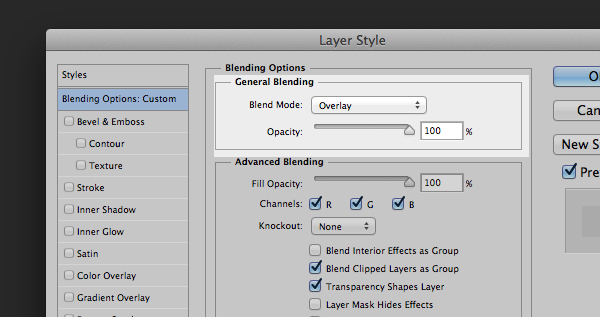
Blending

Double click the layer to get this dialog box
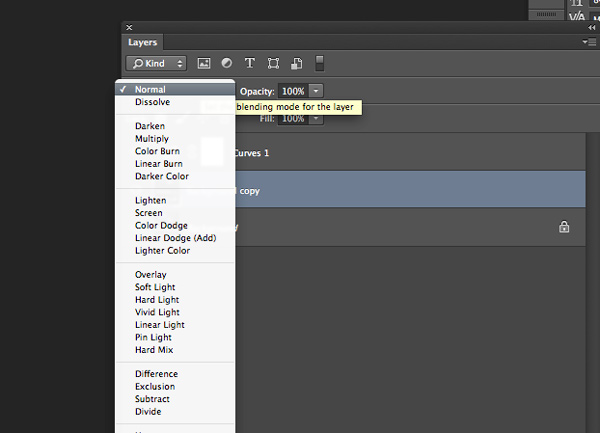
You can also find layer blend modes here on your layers panel

You can also find layer blend modes here on your layers panel

Simply pick the blend mode that looks best and adjust the opacity accordingly. Some of my favorite blend modes are – screen, overlay, soft light, and lighten.

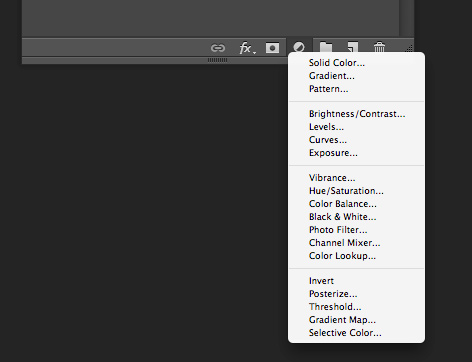
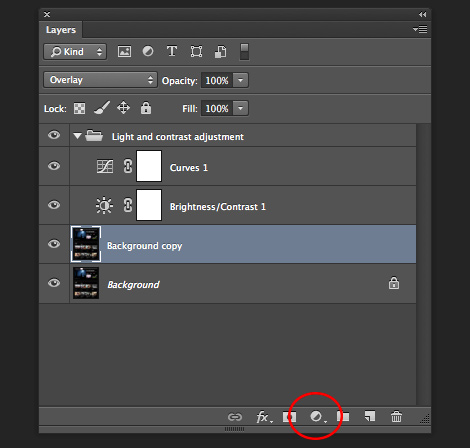
I then use a Levels adjustment layer to adjust light and colors at the same time, adding a crisp and subtle tint. To add a new adjustment layer go to Layer > New Adjustment Layer > then choose the one you want.  Or select it from the bottom of the layers panel as shown below.
adjustment-layer-icon2

Adjustment layer icon location on the layers panel

adjustment-layer-icon

Adjustment layer options


Adjust the various levels by clicking the drop-down and working on the red, green, and blue tones. It is very versatile and easy to use. Just remember – pulling top sliders the ones under the graph) to the left will darken, to the right will lighten. The bottom sliders under the black-white scale, do the opposite.

Summed Up

This is the process I used to create ultimate efficiency when I started editing my photos more frequently. These steps probably won’t apply to everyone, but they are helpful in getting organized when beginning. To wrap it up:

  • Organize your Photoshop Layout to improve your workflow
  • Use some basic effects for consistency
  • Group and label your adjustments so you can easily find them for future reference
  • Take advantage of the subtle, but highly effective adjustment layers such as photo tints, levels, and blend modes

Now it’s up to you

Got some interesting tips or tricks for efficiency? Share them in the comments and help other photographers improve the way they work and edit photos in Photoshop.

The post 4 Tips for Post Processing Efficiency in Photoshop by Mike Moloney appeared first on Digital Photography School.


Digital Photography School

 
Comments Off on 4 Tips for Post Processing Efficiency in Photoshop

Posted in Photography


How to Make a Signature Brush in Photoshop

27 Feb

photossop-signature-brush-dps-001

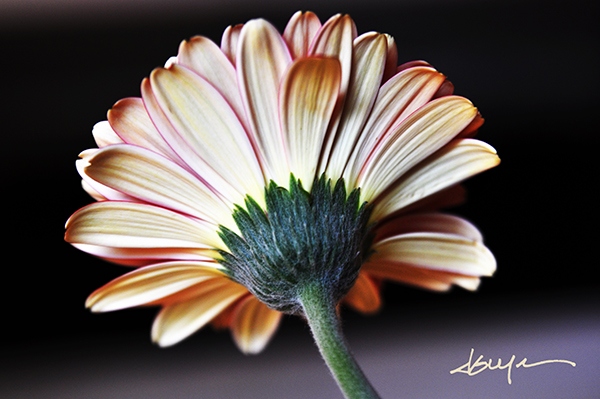
The decision of whether to watermark images posted online is a frequent topic of debate. Proponents say it’s an added measure of security–a notice to would-be image thieves that the photographer takes his or her copyright seriously and will defend it like a mama lion protecting her cubs. Others point out that watermarks are distracting, clients don’t like them, and unscrupulous people with decent editing software can make that watermark disappear in the blink of an eye, so what’s the point? Regardless of where you come down on this issue, sometimes you just find yourself wanting to make sure the world knows that you took the photo.

There are a lot of ways you can do this, but I find most of them to be rather cumbersome. You can create a watermark and save it in various file formats, but that means opening  the file and dragging it onto your image each time you want to use it. Chances are that you’ll have to resize it and/or adjust the opacity for every image. I also tried it as a custom shape tool for a while, but that too was an inefficient way of accomplishing what should have been a pretty basic task. I eventually figured out how to create a signature brush in Photoshop, finally finding my perfect solution. I should point out, that I’m one of those people who has pretty much thrown in the towel when it comes to online watermarking. If someone really wants to steal my image, they are going to find a way to do it–with or without a watermark. I do, however, like adding my signature to some of my fine art images.

While I’ve outlined the steps for creating a brush of your signature, the same steps will work for making  a brush of your logo.

Step 1 – Sign Your Name

Use a plain white sheet of paper and a fine point Sharpie. The Photoshop part of the process will go much easier with the heavier lines of the marker, but you should also scribble out your signature a bit larger than you ordinarily would. Once your signature looks right, scan it at a high resolution and save the JPEG to your computer. You can try taking a photo if you don’t have a scanner, but fill the frame and make sure that your lens is as parallel to the paper as possible.

photossop-signature-brush-dps-002

Thicker, bolder lines from a marker will make creating the brush easier, yet still give the signature a normal appearance when applied to an image.

Step 2 – Open, Zoom, and Select

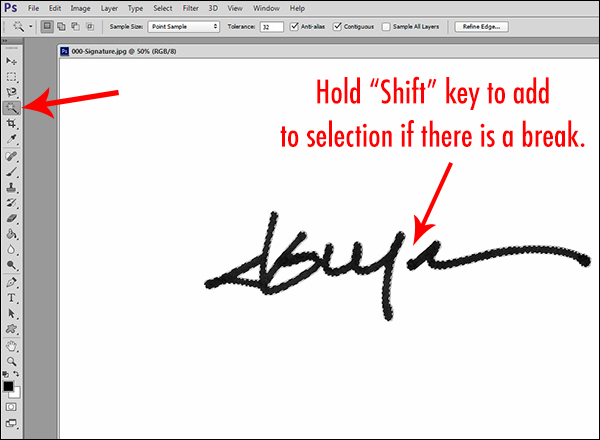
Once you open your signature in Photoshop, zoom in nice and tight. Using the magic wand tool (keyboard shortcut W), click on the signature to select it. You should immediately see the “marching ants” flashing across the outline of your signature. If the tool fails to select the entire signature, press and hold the Shift key while you click on parts of the signature that were missed the first time. Since my signature has a break in it, I had to add the second segment with an extra click of the selection tool. You can also right-click and select “Similar” from the context menu, but I find that the shift-click is quicker and more accurate.

photoshop-signature-brush-dps-003

The Magic Wand tool shares its spot in the tools palette with the Quick Selection Tool. Make sure you select the correct one.

Step 3 – Save It and Name It

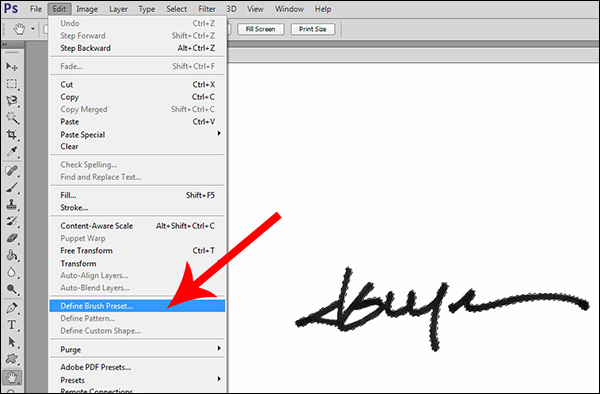
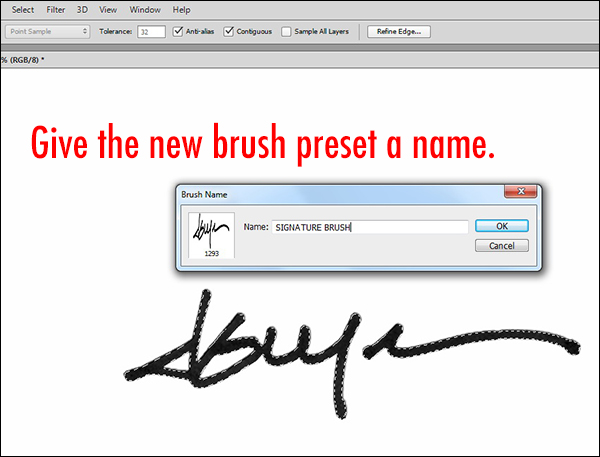
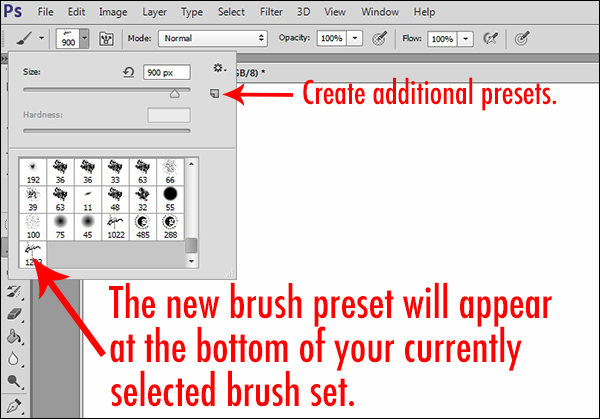
Once the complete signature is selected, click on the drop-down Edit menu at the top of the window. Clicking on Define Brush Preset will open a dialog box showing a thumbnail of your new brush. Give the brush a name and click “OK.” This will save the brush at its current dimensions in your current brushes set. You can check it by selecting the brush tool (keyboard shortcut B) and opening the preset picker (second drop-down menu from the left at the top of the window). Your new brush will appear at the bottom of the brush set.

photoshop-signature-brush-dps-004

The Define Brush Preset command appears in the drop-down Edit menu.

Finding your signature in the brushes palette will be pretty simple, but give it an easy-to-remember name, just in case.

Finding your signature in the brushes palette will be pretty simple, but give it an easy-to-remember name, just in case.

Step 4 – Customize It

Due to the over-sized signature that we used to create the brush, our new brush is way too big for tastefully marking a photo.  You can adjust the size within the brush panel, but there is a faster, easier way of doing it right from the keyboard. The right and left bracket keys — [     ] — can be used to adjust the size of the brush. The right key makes it bigger, and the left makes it smaller. You can either create a second preset at a more manageable size, or simply use the bracket keys to make quick size adjustments for each photo as necessary. The preset picker contains a small square icon on the right side. Clicking it will open a dialog box that will allow you to save the new preset at its new size. It’s also worth noting that–just like any other brush in Photoshop–you can change the color and opacity, as well as the hardness or softness of the edges.

You can further customize the brush by saving another preset with variations of size, color, and opacity.

You can further customize the brush by saving another preset with variations of size, color, and opacity.

I find that the best use of this brush is small and subtle, with enough contrast for it to be noticeable, but not too distracting. I usually select a color or shade from within the image to help the signature appear more organic and less out of place. You should also experiment with adjusting the opacity of the brush until you find a combination that suits you.

The post How to Make a Signature Brush in Photoshop by Jeff Guyer appeared first on Digital Photography School.


Digital Photography School

 
Comments Off on How to Make a Signature Brush in Photoshop

Posted in Photography


5 Easy Photoshop Tips for Beginners

20 Feb

Photoshop CC iconPhotoshop has changed the way we transform our imagination. If you are into any digital workplace, learning Photoshop can be a great help. Photoshop today is certainly a centre of creativity to which almost every digital domain; from web designing to animation; from photography to digital magazine, is deeply connected. Today, when it comes to photography, it is not possible to imagine it without Photoshop.

Good Photoshop skills can’t make a mediocre picture perfect unless you are into manipulation. However, it can certainly help you to enhance your best photo into an amazing masterpiece. Learning Photoshop is a slow process, and you should try it with enough practice, after all it is a digital art.

In this article I will walk you through some basic Photoshop retouching skills. These 5 easy Photoshop tips for beginners will be a great start to learning to proces your photographs.

1. Learning Keyboard Shortcuts

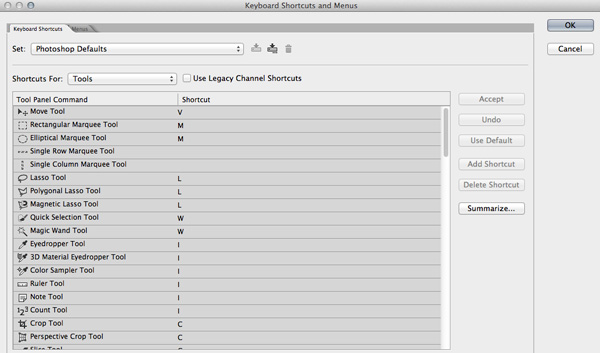
Learning keyboard shortcuts will help you to speed up your processing workflow. There are few key shortcuts for different tools in the tool bar. A few of the most widely used shortcuts are:

Photoshop keyboard shortcuts

  • V = move tool
  • F – toggles through display screen modes
  • Space bar = temporary hand key
  • B – paintbrush tool
  • D – sets the foreground/background colorss to default
  • X – swaps between background and foreground color
  • E – eraser tool
  • S – stamp or cloning tool
  • W – quick selection tool
  • Ctrl+j – duplicates the selected layer

There are just few of the most regularly used Photoshop shortcuts. When you start using the program more, your knowledge of shortcuts will gradually increase. Once you are aware of the most used shortcuts retouching pace will be faster than ever.

2. Color Enhancing – Saturation versus Vibrance

Photoshop tips vibrance

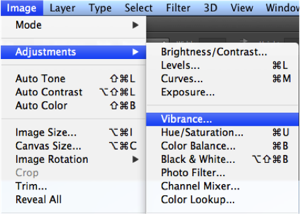
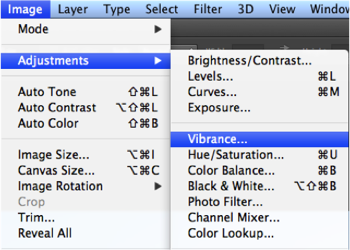
Color is another domain you can try while enhancing your photographs. Generally when you are beginning in photography, enhancing the color of every image looks good, as if the colors are speaking out of the photographs. It will be lot more helpful if you can understand the difference between how saturation and vibrance works. Go to Image menu and choose Adjustment under the menu

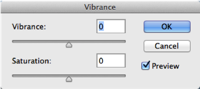
As shown in the image to the right, select the Vibrance option. You will get two options under the menu – Vibrance and Saturation. Vibrance increases the saturation of less saturated colors. This option avoids yellow and orange skin tones. Basically vibrance works best for portraits.

Photoshop tips saturation color adjustments

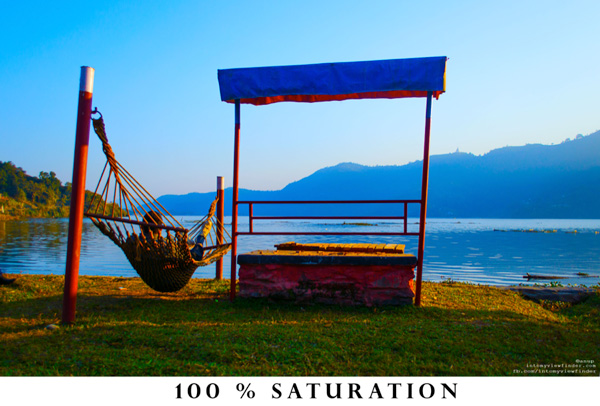
On the other hand, saturation increases the intensity of all the colors in your image equally. This may not be a good option for portraits or peoples photos. What I can recommend is this: slowly start with vibrance for the color enhancement and use saturation later if you want to pump up the color more.

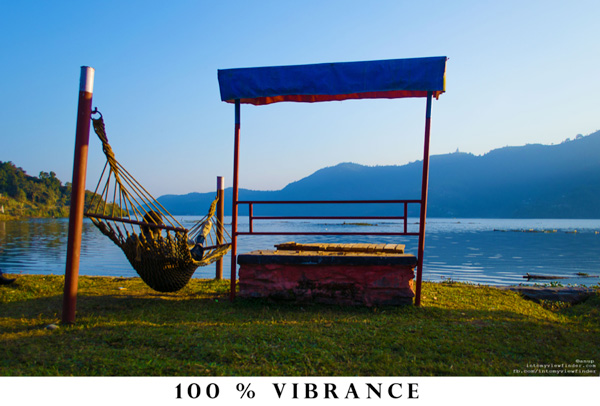
If you compare the two photos below, you will understand how vibrance is only responsible for increasing the intensity of less saturated colors, where as saturation increases the intensity of all colors equally.

Photoshop vibrance adjustment

Photoshop saturtation adjustment

3. Adding a Vignette

Photoshop vignette

Vignetting is basically a technique to darken the edges of your frame so that the eyes move to the subject more easily. This procedure works best when you have a subject in the center. Our eyes tend to move towards the brighter part of the image and recede on the darker side. This technique will result in dark space around the subject.

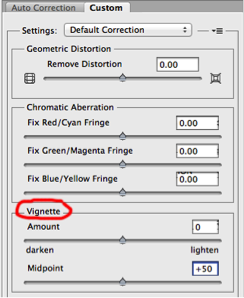
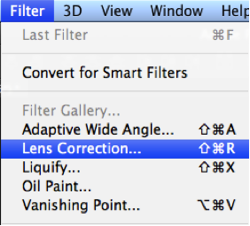
There are lots of manual ways you can add vignetting in your photos but I will talk about how to easily add vignetting in your images via Photoshop. Go to Filters Menu at the top and select “Lens Correction”, then choose the Custom Tab on the right. The third section down is for adding a vignette. Slide the Amount to the left to darken, and Midpoint to adjust the size of the circle.

Photoshop tips vibrance Photoshop tips vignetting

4. Adding Sharpness and Details

Photoshop filter lens correction vignette

Adding sharpness is another technique for beginners in Photoshop. This will make your image look more detailed. I would suggest detailing most of your images with appropriate values. But make sure you sharpen, or detail your images with a small value if you are going to upload images on Facebook because it compresses the images and adds some detail to make it took a bit sharper. So when an already sharpened image is uploaded in Facebook, there is a change of it looking too edgy.

Like any other technique, there are many ways you can add details in Photoshop. I will show you a very simple technique. Once you understand how this works you can experiment with some of the other techniques.

  • Photoshop high pass filterStep 1. Duplicate the selected layer with a keyboard shortcut Ctrl+J (PC) or Command+J oP MAC
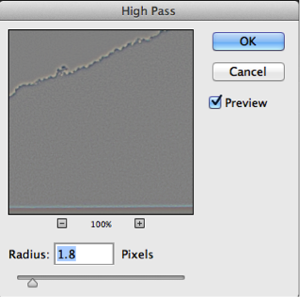
  • Step 2. Open the High Pass filter: Filter > Other > High Pass on the top layer
  • Step 3. Apply an appropriate value (just to see the edges in the image) and click Okay
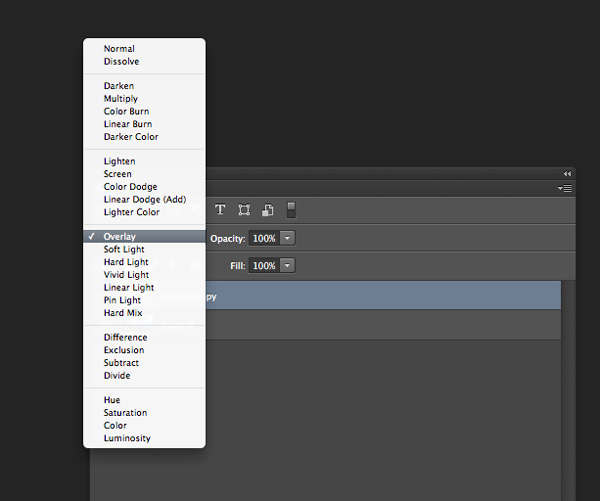
  • Step 4. Change the blending mode of the top layer to Overlay
  • Step 5. Adjust the opacity of that layer to your taste
Photoshop-tips-layer-blend-mode

Layer blend mode

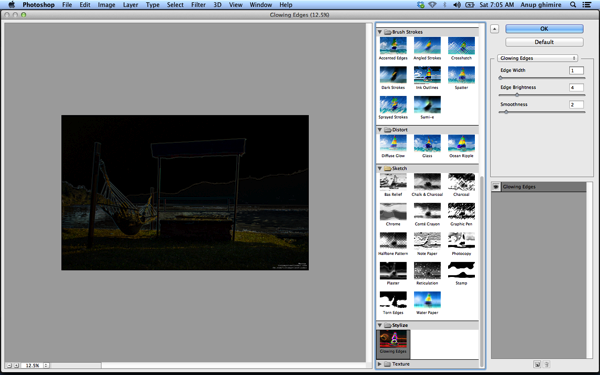
5. Photoshop Filter Gallery

Photoshop tips filters

Filters are basically automated effects that you apply to your images with a few clicks. Filters can help you to achieve certain special effects or looks. There are various filters in Photoshop, which you can pick individually, each filter results in different effect when applied to different images. You an also apply more than one and stack them. Though I don’t use filters much, it’s good to explore if you are just starting out in Photoshop. Later, when you are more familiar with advanced tools and techniques you can try to create the similar effect from manual options and controls.

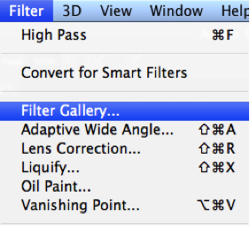
To apply a filter select the layer and go to Filter > Filter Gallery. Before you apply any filter in the gallery make sure to change your image to 8 bit. You can do that by going to Image > Mode > 8 bits/channel

Photoshop filter gallery

I hope these 5 basic Photoshop tips will help you to retouch and enhance your photos. If you have others suitable for beginners please share in the comments below.

For further reading on Photoshop head to:

  • Photoshop Tips
  • Photoshop “blend if” feature
  • 18 Useful Photoshop shortcuts
  • How to replace a face in 6 easy steps

The post 5 Easy Photoshop Tips for Beginners by Anup Ghimire appeared first on Digital Photography School.


Digital Photography School

 
Comments Off on 5 Easy Photoshop Tips for Beginners

Posted in Photography


Create a Cast of Light in Your Image using Photoshop or Elements

06 Feb

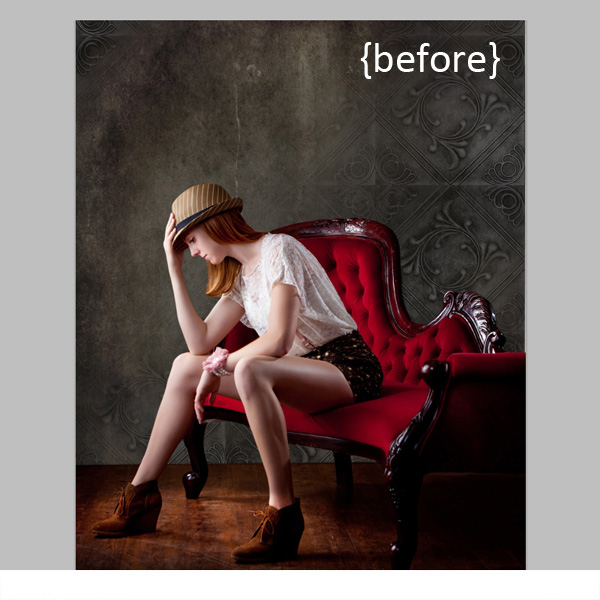
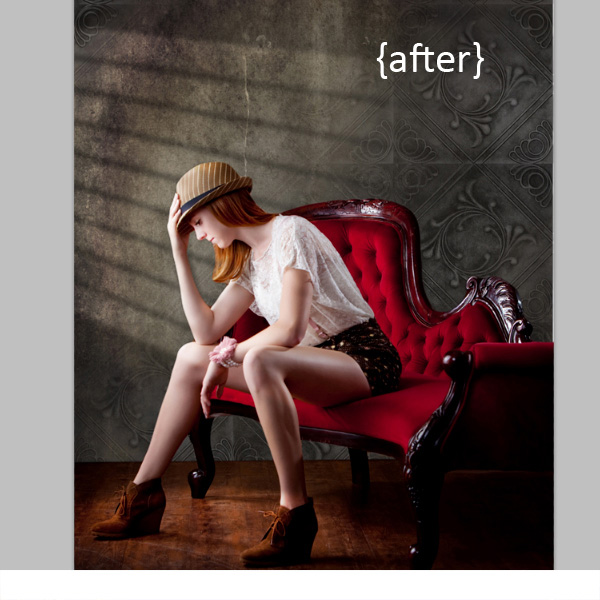
Light sources add depth and interest to your images immediately. By simply adding some window light to this image we added depth and warmth. If you have an image that you love, but it’s falling a little flat, consider adding some light! With just a few simple steps you can add beautiful light to your images.

Follow these steps to create a cast of light – works in Photoshop and Elements

Window Light Cast Before

Window Light Cast After

One thing you’ll want to pay special attention to is pre-existing lighting in your image. Make sure the light source you add works with and compliments your image. You can adjust the angles and direction of your added lights to make them work together so your image is both believable and beautiful.

Let’s get started. Follow these simple steps to make your compositions shine!

Step 1: Start with a light source

This can be an image you’ve taken, something you’ve designed or something you’ve purchased. We are using a light element from our Window Cast Light Set. Choose a light source and shape that you want to bring into your composition.

NOTE: if you want to follow along and try this on one of your images we’re happy to provide our set of Light Casts to you for free. Go here to download them – use the code: FREEBIE when you checkout to get them at no charge.

Step 2: Add the light source to your image

If you have your image and the light source both open in Photoshop, you can use your selection tool to drag the light source to your image. Alternatively, you can also copy (Control + C) the window shape layer in Photoshop (or PSE). Open your image and paste (Control + V) the window shape layer into your image.

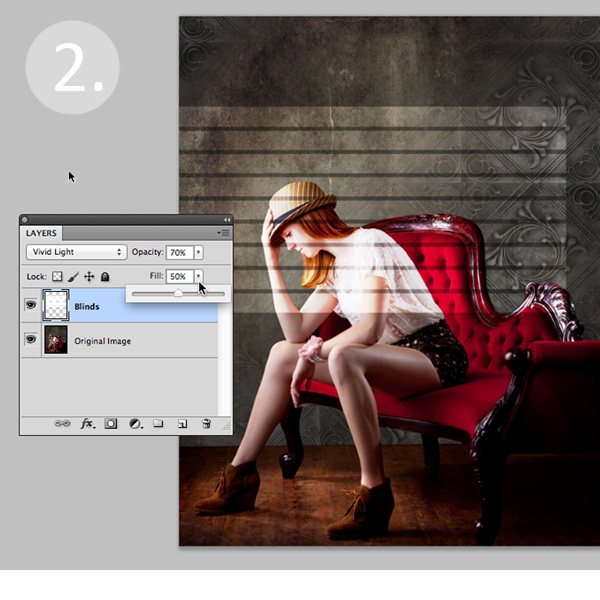
In this case, we placed the light source over our image. Next we adjusted our Layer Blending Mode by setting it to “vivid light” and then adjusted our opacity and fill on the light source until we achieved the desired look. You’ll want to play around with these settings to get the right look for your image.

Window Light Cast La ED2363

Step 3: Adjust the shape of your light

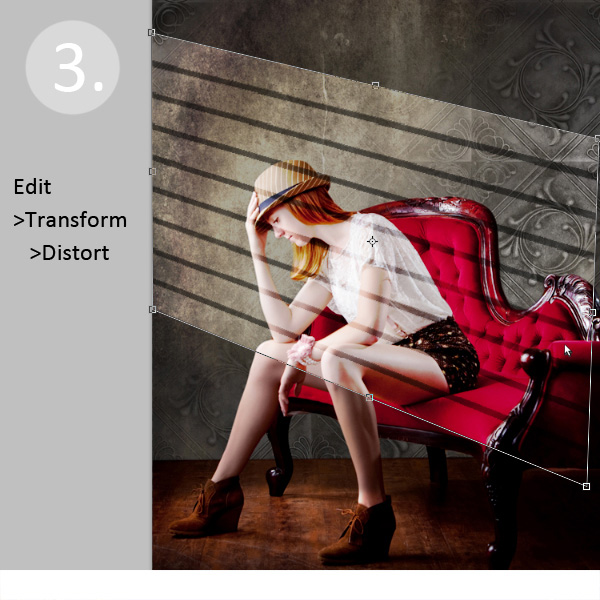
Next, you’ll transform the window shape to your liking. Go to Edit>Transform>Distort and then move the corners to create the
shape that works best with your image.

Window Light Cast Transform

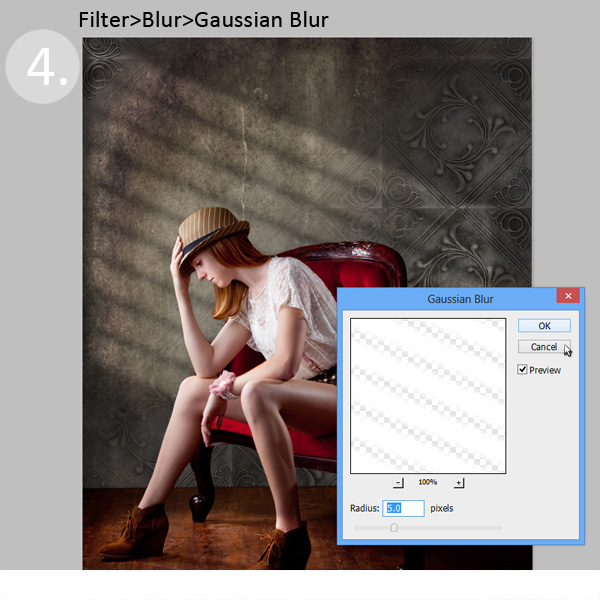
Step 4: Soften your light

Now you want to soften the edges of your light so that it is not so harsh. Use the Gaussian Blur filter (Edit>Blur>Gaussian Blur) to soften the edges to your taste. In this case, we set the blur amount to 5. Adjust the amount of blur up and down to see how it softens the light in your image.

Window Light Cast Blur

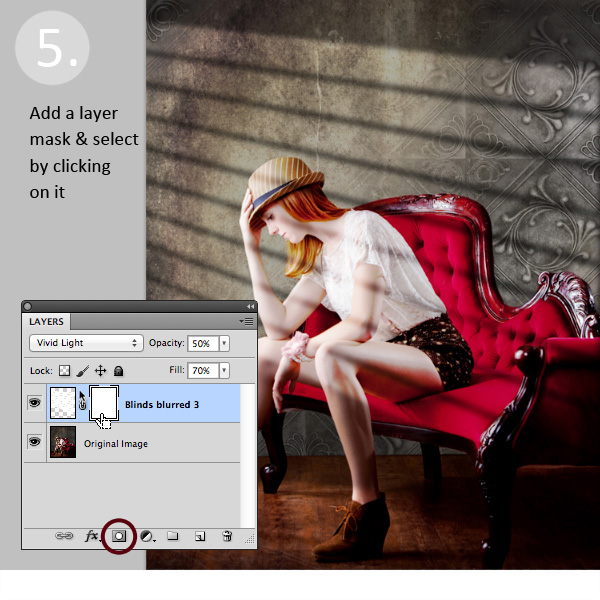
Step 5: Fade your light source for a more natural look

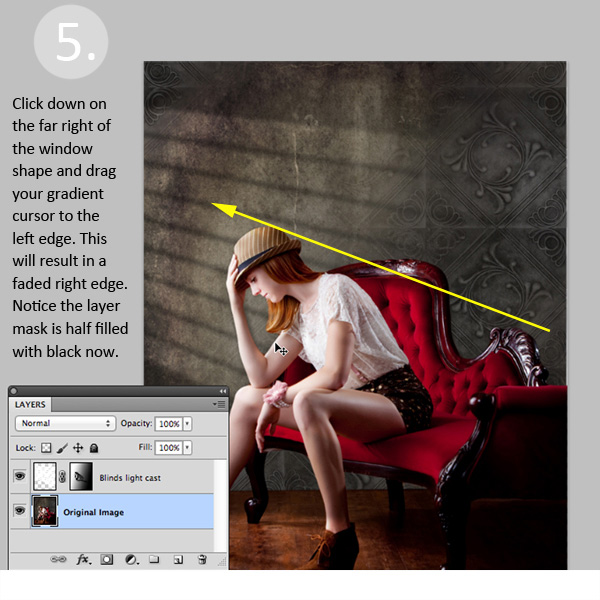
Now you’ll add a Layer Mask to your window shape layer. First, select your layer, and then click the Add Layer Mask Button at the bottom of your Layers Palette. Click on the new Layer Mask in the layer to make sure it’s selected. (VERY IMPORTANT STEP!)

Window Light Cast La ED283A

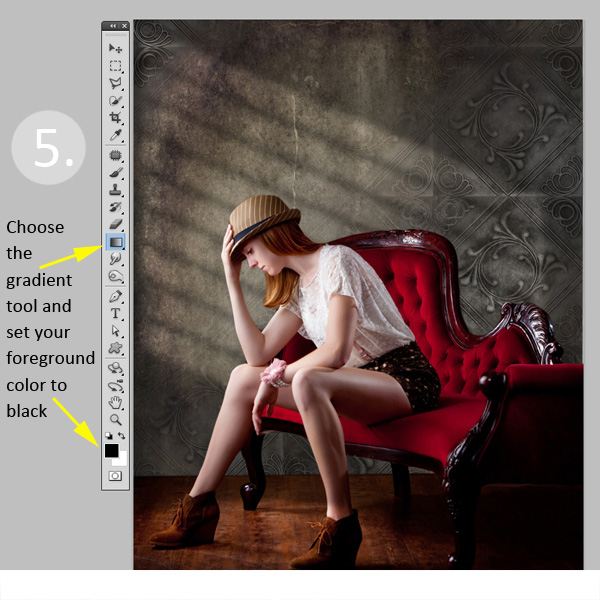
After adding a layer mask to the light cast layer, set your color palette to black and white, with black in the foreground color. Then use the gradient tool set to “foreground to transparent” to fade the light off.

Window Light Cast Gradient

Simply click into your layer mask and drag your cursor from one end (this will be 0% opacity) to where you’d like to see the light at 100% opacity. If you don’t like your results, fill the mask with white and start over.

Window Light Cast Gr ED2331

Step 6: Position the window shape to your liking.

Use your Selection Tool to adjust the position of your light layer to the desired location in your image. You can also use a soft black brush set to 30% opacity to subtly brush away the window light in the layer mask. We did this to remove extra light from her face.

Congratulations! You’ve successfully added a beautiful, warm light effect to your image to create more depth and interest in your image.

Window Light Cast Before

Window Light Cast After

Your turn!

If you’ve tried out this technique please share your images in the comments below, and please ask if you have questions!

The post Create a Cast of Light in Your Image using Photoshop or Elements by Christina Roth appeared first on Digital Photography School.


Digital Photography School

 
Comments Off on Create a Cast of Light in Your Image using Photoshop or Elements

Posted in Photography


Combining Images for Large Subjects using Photoshop Photomerge

31 Jan

Have you ever been so close to a subject that you just couldn’t get it all into the frame? You could use a fisheye lens but they creates so much distortion that it doesn’t always work the way you want it to. You can actually get the photo that you want with the lens that you already have! You can accomplish this by taking multiple images over several columns and several rows, and combining them into one very large, extremely detailed image. With a little practice and some information any photo is possible with the gear that you have in your camera bag.

Combining Images for Large Subjects using Photoshop Photomerge

Fig 2

WIDE LENS VERSUS IMAGE COMBINING

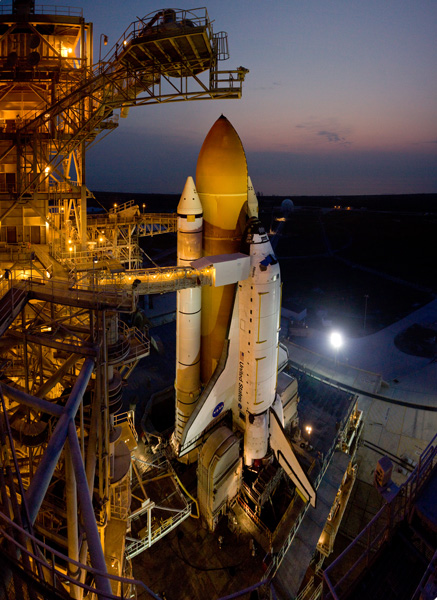
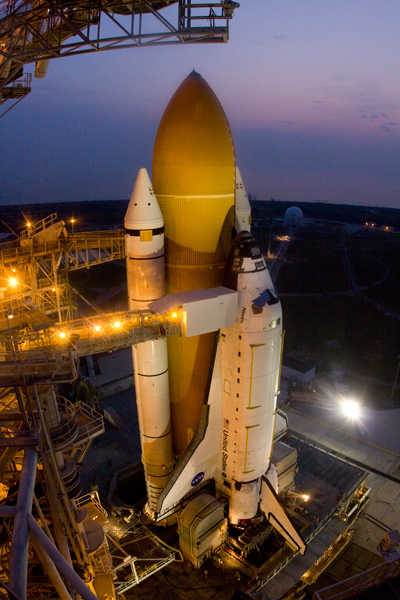
Let’s take a look at how to create one of these images. This photo of space shuttle Atlantis was taken just before sunrise as this incredible (and incredibly large) engineering marvel was being prepared for launch. Here are two photos
for comparison (Image #1 below) and (Image #2 above)

Fig 1

The image directly above was taken with a fisheye lens. More specifically a full-frame fisheye lens; one that covers a 180 degree angle of view, but the image still covers the entire frame with no black borders. As compared to a circular fisheye lens which covers a 180 degree angle of view, but the final image is a circle with a black border filling the rest of the frame. This image may be OK for some, but the cartoon like distortion may not be work for others.

Fig 2

You could buy a superwide lens that is corrected to eliminate distortion but those lenses could cost two or three times as much as a fisheye lens. Or maybe you have one but just don’t happen to have it with you on that particular day.

Image #2 (top and right) was created using a 17-40mm wide angle lens. This was accomplished by taking a series of images in a sequence from top to bottom in one column, followed by a second sequence from top to bottom in a second column. You want to make sure that you overlap your images approximately 20-25 percent so that they can be spliced together later using your editing software. The resulting image in this case was a combination of 12 images merged into one very large, very detailed image!

One major benefit of using this method is that you can focus each image separately as you take them allowing you to capture a greater depth of field. And when the images are combined you will have one large digital file that has many more pixels than the single images that you normally take. In this example the individual files were 3168 x 4752 pixels each. The total file size of the combined images is 9179 x 12,009 pixels. This composite image was then cropped to show just the desired image, cropping out this outer portion is something that we will take a look at in a minute. Using this method you can make some really large prints if you wanted to.

USING PHOTO MERGE TO COMBINE THE IMAGES

So now you know that it’s easy enough to take the images as long as you have sufficient overlap, so let’s learn how to combine them. I use Adobe Photoshop and I have successfully created these on every version that has the ‘Photomerge’ capability. You may have other photo stitching software that you want to try and that’s part of the fun of photography. Experiment with different software and experiment with how you take photos. It’s all part of adding knowledge to your photography tool belt. I’ll show you how we can combine these images using Photoshop CC since that’s what I’m currently using (the results are the same with all versions).

STEP ONE – SELECT IMAGES

Fig 3

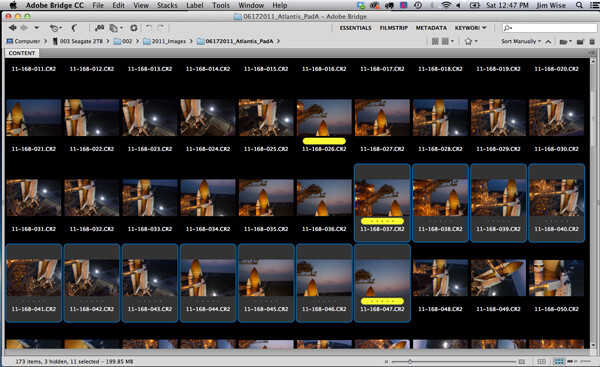
Step 1. Using Adobe Bridge select the images that you want to combine

STEP TWO – PHOTOMERGE

Fig 4

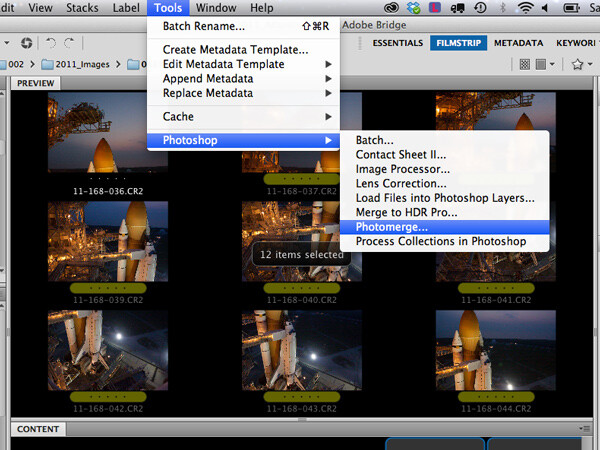
Step 2. In Adobe Bridge go to Tools > Photoshop > Photomerge

STEP THREE – COMBINING SETTINGS

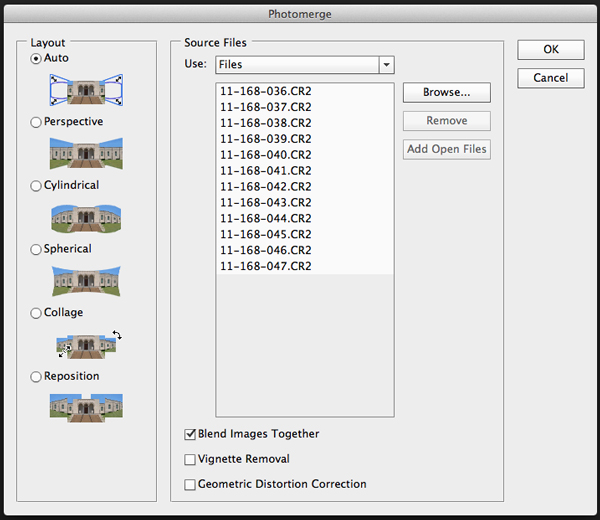
A new window will appear that shows you which files have been chosen to be combined, this allows you to verify that you have all of the correct files. You will see that you also have some options on how you want to combine the images. I have found that letting Photoshop automatically combine them works perfectly well for most things, so select Layout “Auto”, the top option. Check the ‘Blend Images Together’ option box, and leave the others unchecked. The ‘Blend Images Together’ option will automatically create layer masks in each of the layers of your image and it will greatly aid in seamlessly combining all of these images into one. See screen shot below.

Fig 5

Click OK

Note: At this point you may want to go make a sandwich. This part of the process can be time consuming and there are a lot of variables that will determine just how quickly or slowly your computer can crunch all of these pixels into one remarkable image.

  • Q. How many photos are you trying to combine? A. I recommend trying just 3 or 4 the first time.
  • Q. Are you combining RAW files or jpegs? A. For maximum punch you definitely want to use your RAW files, but for trying this out I would recommend using jpegs initially.
  • Q. How much RAM does your computer have? A. More is always better and will significantly decrease the time that your computer takes to process images like these. Combining these 12 images with 4GB RAM on my 2.4GHz Macbook Pro took almost 60 minutes.

How fast your processor is, what type of processor you have, which operating system, etc., are all factors that will determine how quickly this process works. Always use your computer’s hard drive (aka local drive) as opposed to an external hard drive that doesn’t respond as quickly as your local drive.

If you don’t have that super computer that you really would like to have yet, then you could stick to combining jpeg versions of your files instead of RAW files, but if you do that just make sure that your original files are untouched. And by untouched I mean do all of your color correcting AFTER your images are combined into one. That is true for those of you wanting to combine RAW files on your higher end computers also.

STEP FOUR – CROP AND FINAL TWEAKS

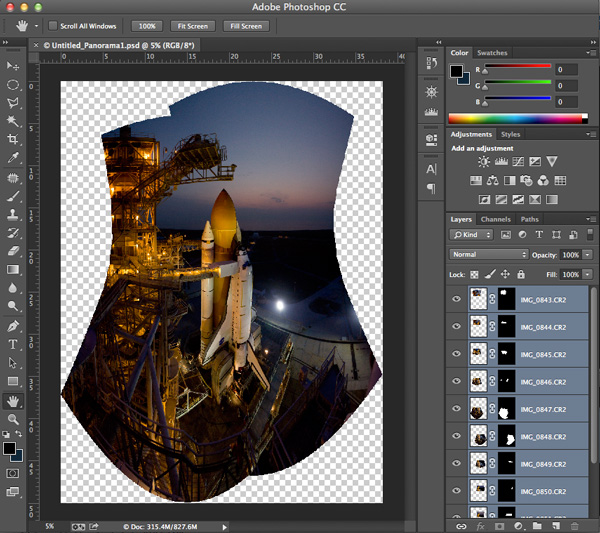
When photomerge has completed combining and blending your images you will see something like this below.

Fig 6

Photomerge has created a PSD file, complete with layer masks for showing just the parts of the image that you need to see from each layer. The blending may not look perfect at this point- you can usually see light edges where the masking is and that’s okay. You can see how Photoshop has automatically corrected for distortion and there will be some parts of the image that need to be cropped away. Let’s save the file ‘as is’ so that you will always have this ‘original’ to go back to.

The next step is to crop the image and save another copy that you can go ahead and flatten. It’s at this point (when the image is flattened) that you will see how well the blending did. Or rather you won’t be able to see it because the blending is seamless. You now have one really large composite image file with lots of detail.

Fig 7

You can save this flattened image as a TIF or JPG and make color corrections in Adobe’s Camera RAW, or any photo editing program. You can size it however you would like at this point.

SUMMARY AND CHALLENGE

So the next time you’re face to face with a larger than life subject, you can go ahead and take that fisheye capture. But while you’re there take a series of images with one of your other lenses as well. Capture them in columns or rows, leaving about 20-25% overlap, and see what you can create by combining those images. It might be a once in a lifetime opportunity so why not maximize your chances to get that great photo that you were hoping for!

Here are a few more photo stitching articles for further reading:

  • How to create a panorama with Photoshop and Photomerge
  • Stitching images for larger prints
  • How to shoot really big panoramas
  • Sending panorama sequences from Lightroom to Photoshop

The post Combining Images for Large Subjects using Photoshop Photomerge by Jim Wise appeared first on Digital Photography School.


Digital Photography School

 
Comments Off on Combining Images for Large Subjects using Photoshop Photomerge

Posted in Photography