RSS
 

Posts Tagged ‘Photoshop’

Photoshop Tip: Using the High Pass Filter to Sharpen Images

22 Nov

If you’ve used Photoshop, you are likely aware by now that there are many ways to accomplish the same tasks. One of the more important ones that should be done to almost every digital image is sharpening. This is necessary because most digital camera sensors make use of an anti-aliasing filter, which very slightly blurs the image, to reduce the chances of moire occurring in the image. This slight blurring, generally only one pixel in size, causes a slight loss of detail in an image. To correct for the slight blurring, tools such as Unsharp Mask are used. For a good tutorial on Unsharp Mask, check out How To Sharpen Photos: An Introduction.
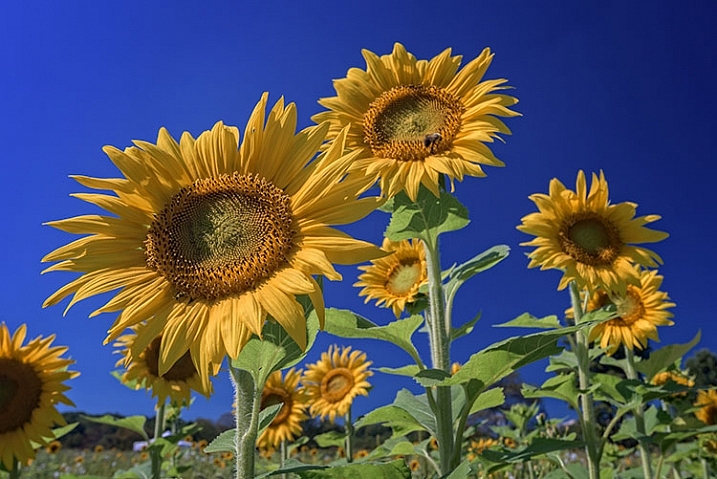
High Pass Sharpening

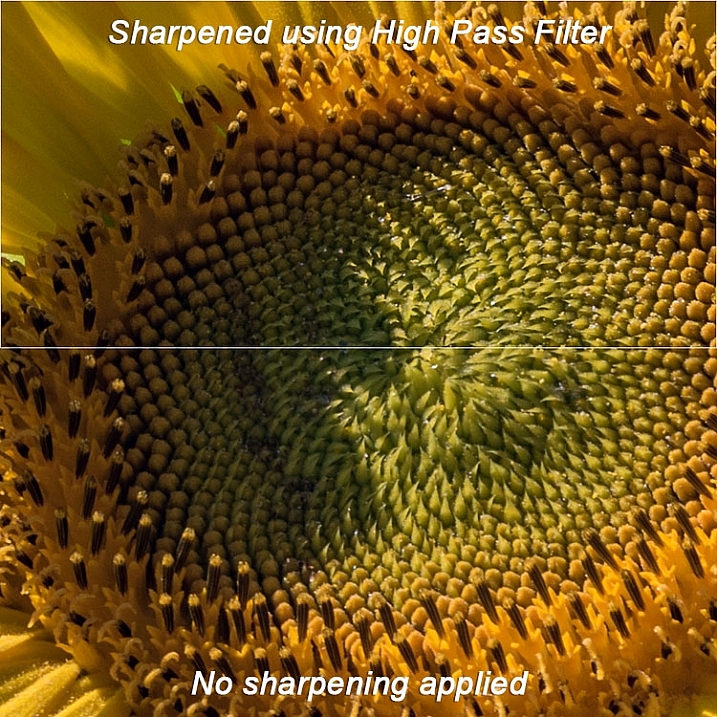
This shot of sunflowers benefited from the High Pass filter by sharpening the fine detail in the center of the flower.

Another easy way to sharpen your images is with a filter that’s not even found in the Sharpen menu under Filters in Photoshop. It’s relegated to the Other category at the bottom of the Filters menu, and is called High Pass. The High Pass filter is a bit easier to use than Unsharp Mask, in that it only has one slider to worry about, and the technique for using it allows for some experimentation even after it’s applied, so you can get your image looking exactly as you want.

Note: I am using the latest version of Photoshop, version 2015.0.1 in Creative Cloud.

Step 1: Edit your image, then flatten it

Before you use the High Pass filter, you’ll first want to process the image to your liking. Generally speaking, sharpening should be the final step in image editing, because it is directly dependent on image size. You will sharpen an image sized to 5×7″ differently than one sized to 13×19″. Once your image is edited, flatten all layers by going to the Layer menu and selecting Flatten Image. Then adjust your image size as needed if you’re going to print or to display online.

Step 2: Duplicate Layer

Now that your image is flattened, duplicate that layer by pressing <CTRL + J> (in Windows) or <CMD + J> (on a Mac). You’ll then want to zoom in to view the image at 100% by pressing <CTRL + 1> (in Windows) or <CMD + 1> (on a Mac), or just double clicking the magnifying glass in the toolbox. You’ll want to be at 100% so you can see the detail of the image clearly.

Step 3: The High Pass Filter
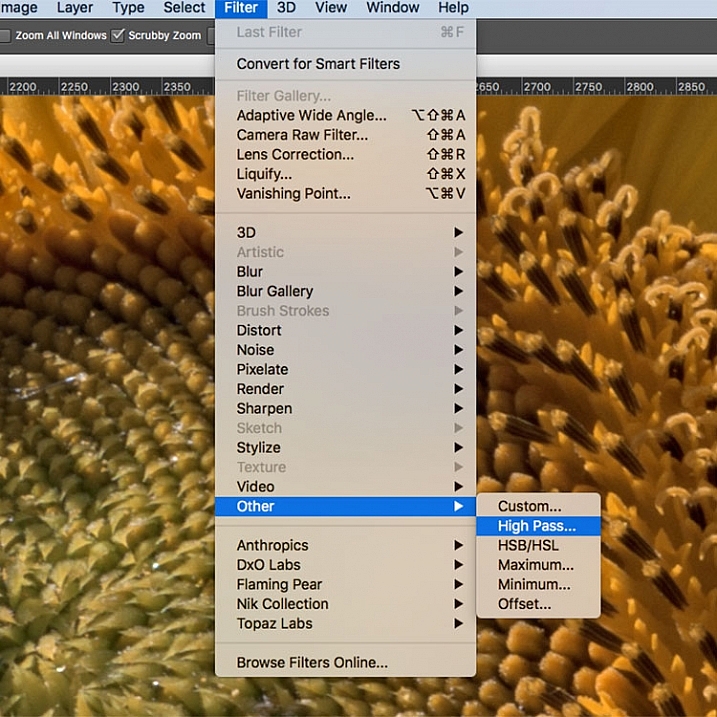
High Pass Filter Selection

In the Filter menu, select Other, then High Pass.

Go to the Filter menu and select Other, and then High Pass. You will see the entire image turn a flat grey color. Not to worry, as this will allow you to see what the filter is doing.

Step 4: Adjust the amount of sharpening
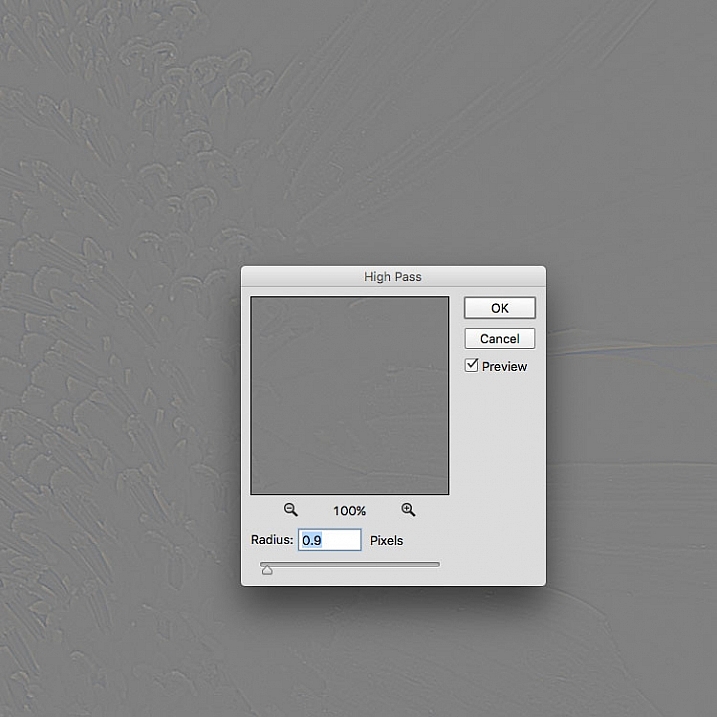
high pass filter sharpening

Once the High Pass filter dialog box pops up, use the slider to adjust the radius.

Once you run the filter, you’ll see a dialog box open up, showing a preview along with a radius slider. In addition, the image behind the dialog box will have turned grey, with some edge lines showing.  This allows you to see exactly what is being sharpened. The High Pass filter only sharpens edges, so anything that’s not an edge becomes flat grey. The amount of sharpening you do will largely be image dependent, as well as size dependent.

For this image of the sunflowers, I was making a large print, using the full resolution of the image. When doing so, I’ve found my radius amount will usually fall somewhere between 0.5 and 5 pixels. You need to be careful here, as too much sharpening will introduce unwanted artifacts and noise into the image. I use the preview as my guide. I want to see thin black lines over the grey areas, with little to no white. Once you see any white, it means you’ve begun to get a halo, which you want to avoid. The final effect will be a subtle sharpening, not a drastic pop. For this image, I used a radius of 0.9. You can see above that there are only black lines around the edges of the flower, with very little halo. Click OK when ready.


Step 5: Adjust Layer Blending Mode
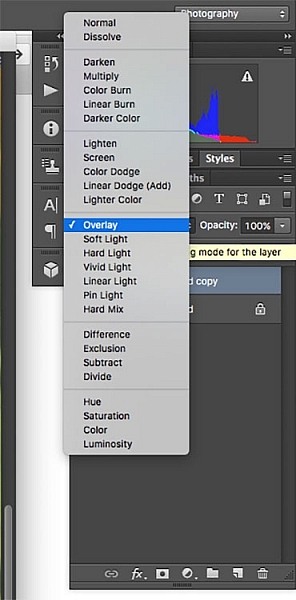
High Pass filter layer blending modeOnce you’ve applied the High Pass filter, it’s time to get rid of that flat grey image and bring your photo back to life. Go to your Layers palette and select the Blending Mode drop-down menu and set it to Overlay. Your image will regain its color, and you can toggle the sharpened layer off and on, to compare the image with and without sharpening.

You can also experiment with different blend modes, including Soft Light, Hard Light, Vivid Light, Linear Light, and Pin Light. In addition, you can use the Layer Opacity setting to reduce the effect a bit, if you decide the sharpening is a bit too strong. The beauty of this technique is that it’s completely adjustable (non-destructive) after you’ve applied the filter, and because you’ve worked on a separate layer, you can easily undo the sharpening and start over again if needed. Also, again because you’re working on a separate layer, if there are certain areas in the image where you want the sharpening to be applied, you can use Layer Masks to hide or show it.

Final results
High pass filter comparison

In this comparison image, the top half has been sharpened using the High Pass filter, while the bottom half has not been sharpened.

The High Pass filters allows a lot of flexibility in sharpening photos and is simple to use. It’s a great way to give your images a sharper, crisper look before uploading or printing. Give it a try and let me know what you think!

googletag.cmd.push(function() {
tablet_slots.push( googletag.defineSlot( “/1005424/_dPSv4_tab-all-article-bottom_(300×250)”, [300, 250], “pb-ad-78623” ).addService( googletag.pubads() ) ); } );

googletag.cmd.push(function() {
mobile_slots.push( googletag.defineSlot( “/1005424/_dPSv4_mob-all-article-bottom_(300×250)”, [300, 250], “pb-ad-78158” ).addService( googletag.pubads() ) ); } );

The post Photoshop Tip: Using the High Pass Filter to Sharpen Images by Rick Berk appeared first on Digital Photography School.
Digital Photography School

 
Comments Off on Photoshop Tip: Using the High Pass Filter to Sharpen Images

Posted in Photography


Make it Snow with Pure Photoshop Actions Winter Wonderland Set

18 Nov

winter-wonderland-action-1

When it comes to post-processing, photographers definitely have opinions about Photoshop Action sets. Some photographers love them, others consider them cheating. For me personally, Actions are most valuable when they either (a) make the editing that I would do by hand more efficient and/or (b) offer something unique and fun that may be outside my normal editing style, but fits a particular session.

In this case, the Winter Wonderland Action Set by Pure Photoshop Actions (available for Photoshop CS and above, and Elements 6-11 for $ 25 regular price) fits a bit of both those criteria. It’s not something that I use every day, but it really is a fun action set to have on hand during the winter months!

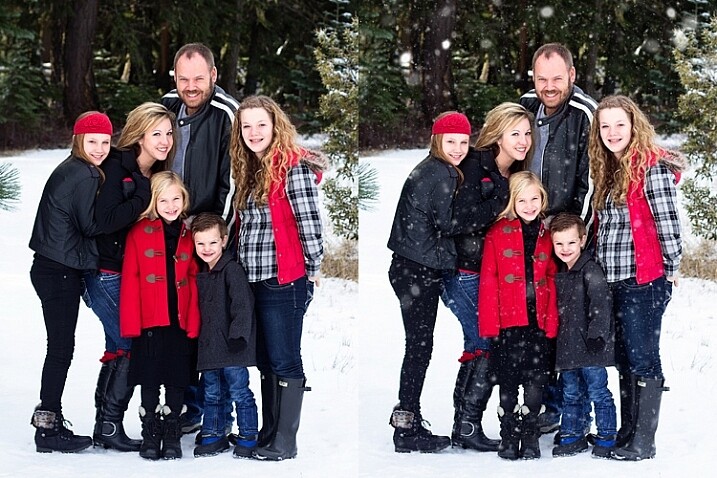
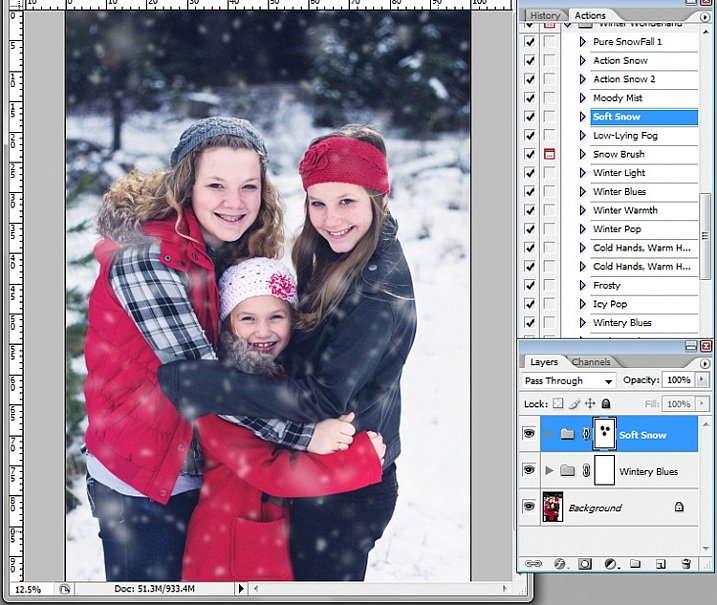
Essentially, the Winter Wonderland Action Set allows you to add snow with one click during post-processing. It includes several different kinds of snow, fog, and mist that can add a little something extra to your winter images. It also offers some tints and adjustments that allow you to tweak the final images towards your normal style of editing, whether you lean towards natural and clean, or a faded vintage look.

winter-wonderland-action-2

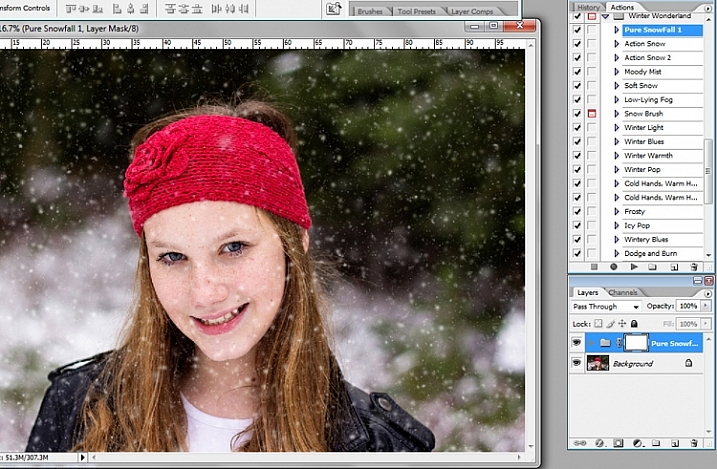
The first thing that I should mention, right off the bat, is that some of these actions run very slowly. The “Pure Snowfall 1” action in particular always seems to take several minutes to run. On the other hand, the “Soft Snow” action runs quickly every time. That said, even with “Pure Snowfall 1” taking several minutes to run, it’s still much faster than adding in individual snowflakes by hand, so it’s a win in my book.

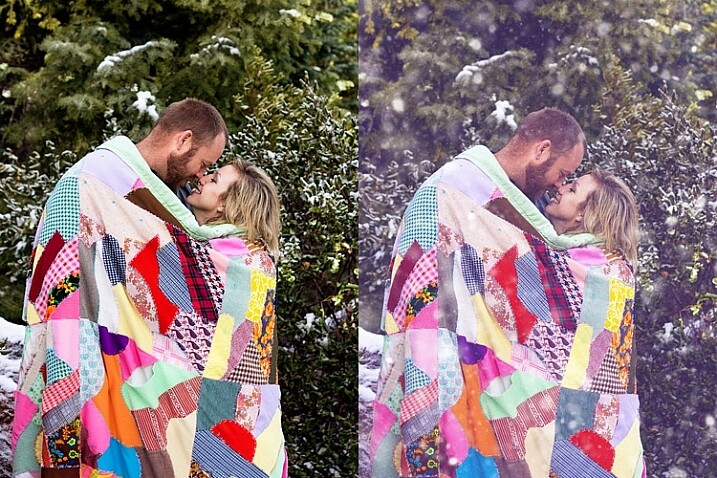
Original image on the left, final image using PPA Winter Wonderland on the right.

Original image on the left, final image using PPA Winter Wonderland on the right.

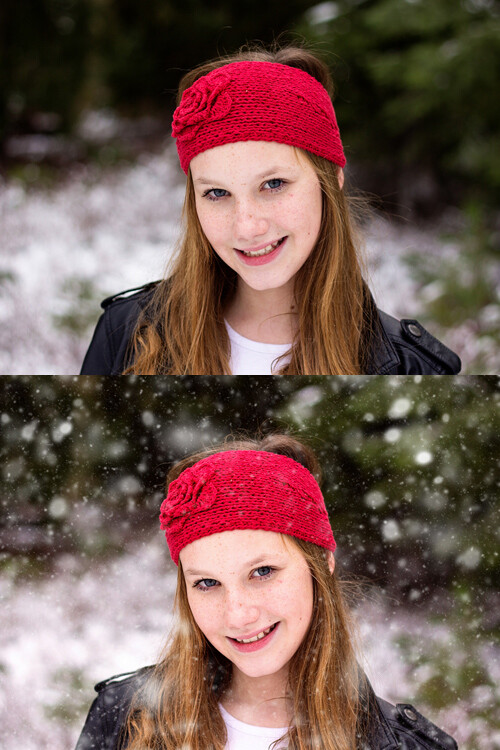
As with most action sets, you should be prepared to tweak Winter Wonderland to fit your particular image. Winter Wonderland adds masks to most of the actions after they’ve run, and I find that I use them quite often. The most common tweak that I make to the Winter Wonderland set is to remove the added snowflakes from the subject’s eyes, nose, and mouth. I prefer the “snow” to look as natural as possible, so I do tend to leave the snowflakes around the hairline, and sometimes even on the cheeks.

winter-wonderland-action-4

The actions in this set tend to do a pretty good job of varying the size of the snowflakes in order to give a more realistic foreground and background, but there is also a snowflake brush included with the set, which allows you to pick the overall size of snowflake you want, and then scatters additional snowflakes in that size randomly over the image.

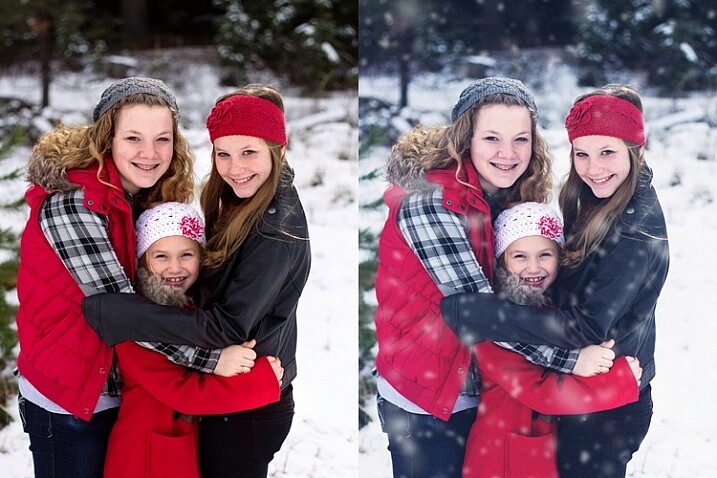
Original image on top, final image edited with PPA Winter Wonderland on the bottom.

Original image on top, final image edited with PPA Winter Wonderland on the bottom.

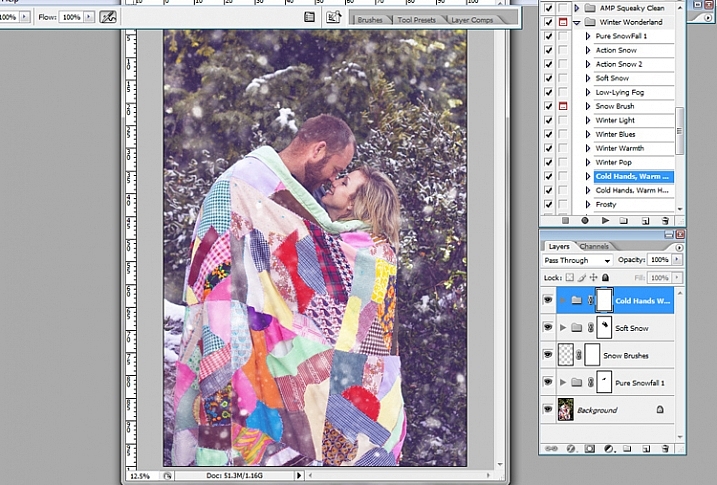
My editing style tends to be pretty clean, so that is about where I usually stop with this action set. However, the set also includes a number of actions that allow you to achieve a subtle vintage feel to your final images, and I’ve also enjoyed testing those options out as well.

winter-wonderland-action-6

Original image on the left, final image edited with PPA Winter Wonderland on the right.

Original image on the left, final image edited with PPA Winter Wonderland on the right.

When I use the Winter Wonderland action set, my ultimate goal is that if I were to post the image on Facebook, the majority of my client pool would not readily be able to tell that the snow was added in post-processing. Of course, some of my photographer friends are likely to be familiar with this particular action set, and others may be familiar enough with Photoshop to know that something’s up, but my hope is to create images that look natural enough that they could easily pass as being real. So, in order to accomplish that goal, one of the key pieces is to only use images in which your model is dressed appropriately for snow, and there could feasibly actually be snow in that location.

This particular set of images is my favorite set that I’ve ever edited with Winter Wonderland, and I think that’s due in large part to the fact that there was actually snow on the ground during our session. So, it’s not too much of a leap for a casual viewer to see snow on the ground, and find it feasible that snow could be falling at the same time. On the other hand, if I were to run this same action set on an image taken at sunset during the summer months, it would likely look ridiculous…which would really only work if you’re going for a super campy “Christmas in July” themed session.

winter-wonderland-action-9

winter-wonderland-action-10

Original image on the left, final edited image with PPA Winter Wonderland on the right.

Although I’ve seen Winter Wonderland marketed almost exclusively towards photographers doing portraits or family photography, don’t underestimate this set for landscape and nature images as well. As long as the content, and coloring of your landscape or nature image, would be appropriate for a photograph taken in the winter, there’s no reason not to give it a try!

winter-wonderland-action-8

Just for the record, I purchased the Winter Wonderland Action Set on my own, and Pure Photoshop Actions has no idea that I’m writing this article. I have just enjoyed the Winter Wonderland set quite a bit, and thought that it was worth sharing (and reasonable price at $ 25) as we head into the winter months in the northern hemisphere.

Have you tried the Winter Wonderland Action Set? If so, what did you think? If not, is there an image you’re eager to try it on?

googletag.cmd.push(function() {
tablet_slots.push( googletag.defineSlot( “/1005424/_dPSv4_tab-all-article-bottom_(300×250)”, [300, 250], “pb-ad-78623” ).addService( googletag.pubads() ) ); } );

googletag.cmd.push(function() {
mobile_slots.push( googletag.defineSlot( “/1005424/_dPSv4_mob-all-article-bottom_(300×250)”, [300, 250], “pb-ad-78158” ).addService( googletag.pubads() ) ); } );

The post Make it Snow with Pure Photoshop Actions Winter Wonderland Set by Meredith Clark appeared first on Digital Photography School.

Digital Photography School

 
Comments Off on Make it Snow with Pure Photoshop Actions Winter Wonderland Set

Posted in Photography


How to use Color Grading for Effect and Tone Control in Photoshop

07 Nov

Photoshop is a massive tool that can be used to do just about anything on your images. But, knowing how and when to use which tool can be daunting.

In these two videos you can see how to use color grading with adjustments layers to make special effects and add or control color and tone in your images.

This one from Clay Cook shows you how to “Color Grade like a Pro” as he walks you through two portraits as he processes them in Photoshop:

In this second one from SLR lounge photographer, Lauri Laukkanen, goes through how it takes one image from camera to a fashion look using color grading:

Lastly if you really want to put this information to use here’s an in-depth tutorial on using color grading to make a cinematic poster look to an image:

Have you tried color grading before? Please show us your results below in the comments if you follow along and give it a go.

googletag.cmd.push(function() {
tablet_slots.push( googletag.defineSlot( “/1005424/_dPSv4_tab-all-article-bottom_(300×250)”, [300, 250], “pb-ad-78623” ).addService( googletag.pubads() ) ); } );

googletag.cmd.push(function() {
mobile_slots.push( googletag.defineSlot( “/1005424/_dPSv4_mob-all-article-bottom_(300×250)”, [300, 250], “pb-ad-78158” ).addService( googletag.pubads() ) ); } );

The post How to use Color Grading for Effect and Tone Control in Photoshop by Darlene Hildebrandt appeared first on Digital Photography School.

Digital Photography School

 
Comments Off on How to use Color Grading for Effect and Tone Control in Photoshop

Posted in Photography


AfterShot Pro 2.3 offers missing link for Photoshop CS6 users with External Editor function option

05 Nov

The latest version of Corel’s AfterShot image editing and Raw conversion application introduces a ‘Send To External Editor’ button that allows Raw files to be opened and worked on in AfterShot, then exported directly to Photoshop. This creates another way for PhotoShop CS6 customers to continue to add Raw support for new cameras to their workflow, in addition to Adobe’s DNG converter application.  Read more

Articles: Digital Photography Review (dpreview.com)

 
Comments Off on AfterShot Pro 2.3 offers missing link for Photoshop CS6 users with External Editor function option

Posted in Uncategorized


How to Create a Surreal Look in Photoshop Using Hue Adjustment

03 Nov

When you start learning photoshop it is scary to see all those different tools you can choose from. It is often said there are seven ways to achieve the same results, using different tools in photoshop. So, it means you have to find the one that suits you perfect, in order to give to your pictures the look that you want.

In this article I want to show you how you can change colors in your pictures using Photoshop. This is a very easy method that you can use, either you are a beginner or you are a more advanced user.

You could add a surreal twist to your images, or remove colors you do not feel like comfortable working with (I am sure we can all relate to this, because as artists we have our favorite and least favorite colors- the ones we struggle to work with!). You can use this technique for anything from changing the color of a dress or any other prop, to changing the forest tones to enhance the autumn feeling, or creating it if you want to create an autumn picture even though it is still spring.

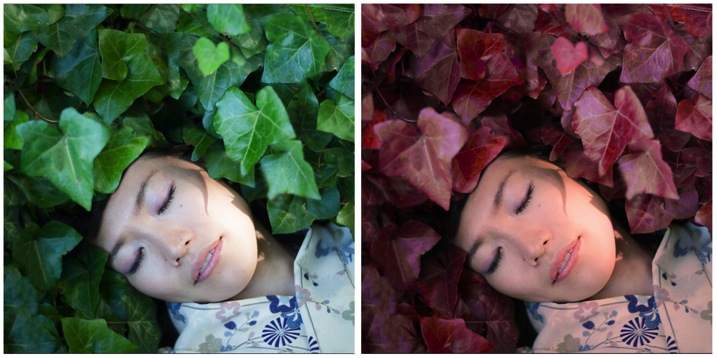
This is the before and after color change:

Picture01 before after

Create a color adjustment with Hue/Saturation

You can get to the Curves dialog in two ways:

  1. Image adjustment: By choosing Image > Adjustments > Hue/Saturation or Click the Hue/Saturation icon in the Adjustments panel.
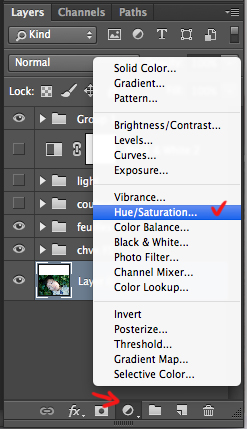
  2. As an adjustment layer: Layer > New Adjustment Layer > Hue/Saturation, or in your layers panel use the shortcut: New adjustment layer> Hue/Saturation.

Picture02 new adjustment layer shortcut

I strongly recommend working with layers. It allows you to come back to the adjustment and to erase it, or modify it, as many times as needed. Especially when you make big changes, you may want to be able to have full control. Layers can be scary at the beginning, but trust me, they will become your best friend once you overcome this fear.

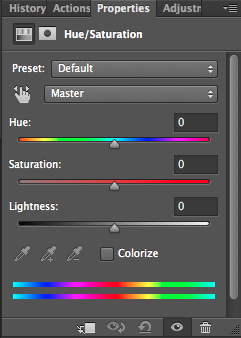
Creating a new layer you will have the following Hue/Saturation dialog box:

Picture03 HueSaturation dialog box

Select the color you want to change.

The more different you want your original color to be, the more important this selection is so that the color change does not affect areas do not want to shift. Removing a general color cast is usually a very light change. But, a total different color requires you to be more careful when selecting, and sometimes require several color adjustments.

When your object has a very clear color – as to say all red, one red tone – it is easy. When your object has different color shades it is tricky but not impossible.

In this case we are changing the color of ivy leaves, with different tones of green, blue, and even yellow.

First step: Make the color selection:

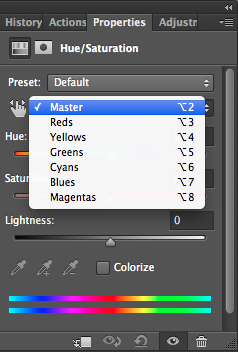
You can choose Master to adjust all colors at once, or one of the other preset color ranges listed for the color you want to adjust (reds, yellows, greens, cyans, etc.).

Picture04 Master or preset color

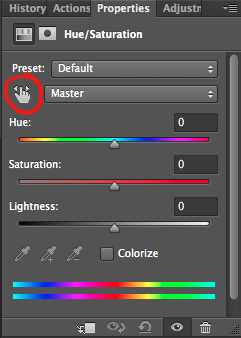
Or you can also choose the Targeted Adjustment Tool (the little white hand) – this is the easy way to select color if the area/object you want to change is a mix of several color tones.

Picture06 On image adjustment tool

Click on the Targeted Adjustment Tool and put your cursor on your image, the eyedropper tool appears. Drag it on your image, and click on the color tone you want to select.

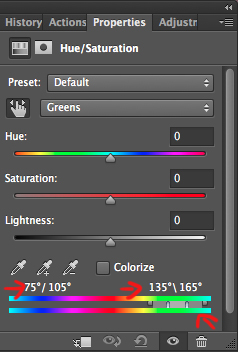
Picture05 color values

Four color values appear in degrees in your properties panel. If you click again, you change the selected colors.

Second step: Refine your selection

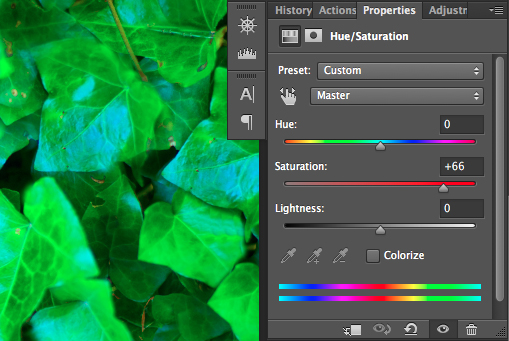
To check your selection, grab the saturation slider and move it to the right to increase saturation. The idea here is to see what you have selected, and make sure you have the right colors, therefore helping you adjust the selection. For example, when editing a portrait, you want to make sure it doesn’t affect the skin tones of your subject. If editing a forest you want to make sure you have selected the leaves, but not the tree trunks (or anything in the background).

Picture07 increase saturation to check selected colors

As you can see there is still a lot of blue of the leaves, that is not included in the selection. To add those blue tones you will drag the adjustment sliders to expend your selected colors, and change the color value (appearing in degrees in your properties panel).

There are four sliders. The ones in the middle allow you to expend or shorten the selected color ranges. The two sliders on both sides are to adjust the range of color and fall-off. Play with those sliders until you find a good selection. Don’t worry if it’s not perfect, you can still make a second hue/saturation adjustment layer, or mask this layer.

Third step: Change the color

In your properties window, drag the hue slider to the left or right depending on the new color tone you want to give to your selection. Then you can play with adding or removing saturation by dragging that slider either way.

Picture01 after

Learning to use hue/saturation will give you more creative options when editing your images in Photoshop. Share any images that you’ve changed the color on, or any other methods you use for doing this technique.

googletag.cmd.push(function() {
tablet_slots.push( googletag.defineSlot( “/1005424/_dPSv4_tab-all-article-bottom_(300×250)”, [300, 250], “pb-ad-78623” ).addService( googletag.pubads() ) ); } );

googletag.cmd.push(function() {
mobile_slots.push( googletag.defineSlot( “/1005424/_dPSv4_mob-all-article-bottom_(300×250)”, [300, 250], “pb-ad-78158” ).addService( googletag.pubads() ) ); } );

The post How to Create a Surreal Look in Photoshop Using Hue Adjustment by Amélie Berton appeared first on Digital Photography School.

Digital Photography School

 
Comments Off on How to Create a Surreal Look in Photoshop Using Hue Adjustment

Posted in Photography


How to do a Head Swap using Photoshop

26 Oct

When looking through your pictures, have you ever had that sinking feeling of seeing everyone in a single image perfectly happy and smiling except for one person who was sneezing, sniffling, or looking at a squirrel? I can recall several times when I have returned from photo shoots being all optimistic about the experience, but realized as I combed through my images, that while I had several good shots where most people were perfectly posed, I didn’t have any shots where everyone looked just right.

It can be intensely frustrating, especially if you know you did everything in your power to get just the right shot. Fortunately Photoshop can help. With a few simple steps, you can learn how to load up a couple of images and perform a face or head-swapping maneuver with surgical precision, that would make Nicolas Cage blush (as in from the movie: Face Off). If it’s done correctly, no one will ever be able to tell that the final image has been altered.

Face-swapping can be incredibly useful when dealing with squirmy kids. This impromptu photo at a birthday party is actually a composite of three separate pictures.

Heade-swapping can be incredibly useful when dealing with squirmy kids. This impromptu photo at a birthday party is actually a composite of three separate pictures.

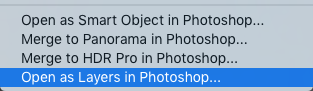
When going through my pictures, I always start with Lightroom to cull the images down to the best ones, and do initial edits, such as exposure and color adjustments. If I come across a situation where I need to take a face from one photo, and put it in another, I open both pictures in Photoshop (which is a simple matter of right-clicking and choosing: Open as Layers in Photoshop). For example, the following picture turned out fine except for the boy who was distracted by something off to the side.

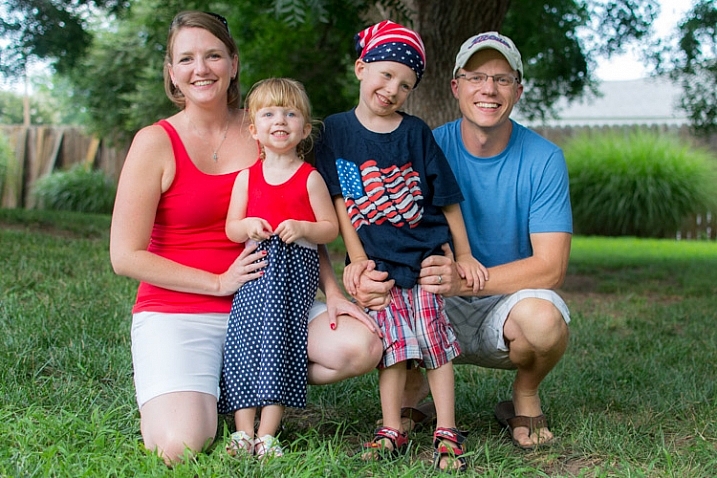
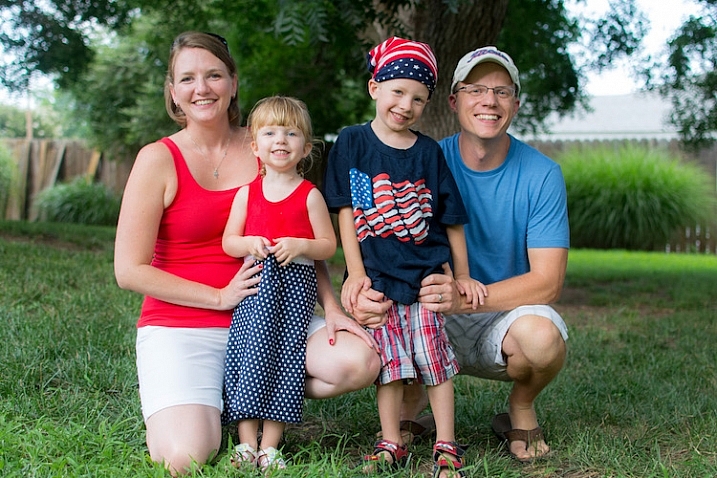
This family picture I took on July 4 is fine, but the boy's expression is not the greatest.

This family picture I took on July 4th is fine, but the boy’s expression is not the greatest.

Fortunately I had another picture that looked great, but in this one the mother was blinking. No worries though – Photoshop was there to save the day!

He has a much better expression in this photo, but his mother was blinking.

The little guy has a much better expression in this photo, but his mother was blinking. Photoshop to the rescue!

When working with edits like this it’s a good idea to use as high-resolution of pictures as possible, so you have the maximum amount of data to work with. Do not export your images from Lightroom as low-res JPG files, and then import them into Photoshop. Instead use full-size originals, though I do like to make sure the exposures are as closely matched in each picture first. Edit your white balance, color adjustments, and other parameters such that both images are as close as possible before going into Photoshop, or your composite will look painfully obvious. (Some photographers take the exact opposite approach and do all the Photoshop work first, and then do color adjustments and cropping in Lightroom. Either way works, but I prefer the former method.)

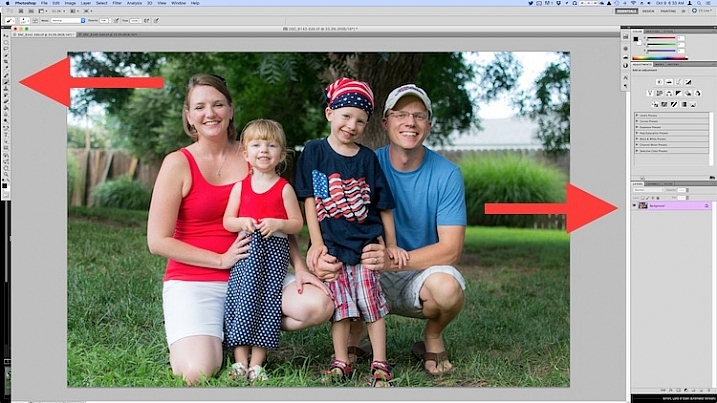
If you’re unfamiliar with Photoshop, and it seems a bit overwhelming at first, don’t think about all the buttons, menus and options available to you just yet. This face compositing really only requires two sections: the Layers panel in the bottom right corner, and the Brush tool on the left side.

photoshop-face-swap-workspace

Open both images as layers in Photoshop

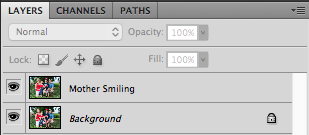
Select both images in Lightroom and right click, then choose: Open as Layers in Photoshop. Once your images are open in Photoshop, rename one or both so you can tell which is the one to use most people, and which is to copy the new head from.

photoshop-face-swap-edit-as-layers


You now have two layers in one image: the background (in this case, the one where everyone but the mother is smiling) and the layer you just copied over (in this case, the one where only the mother is smiling).

photoshop-face-swap-multiple-layers

Make a layer with just the new head to be added

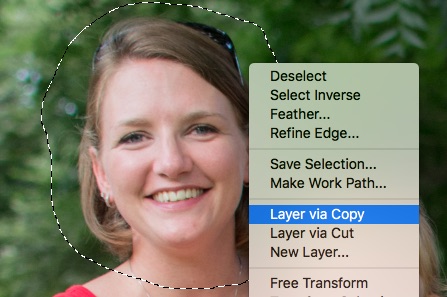
From here there’s a couple different ways to go about combining them, but when doing a simple head swap the method I prefer is to get rid of everything in the second layer except the face I want to put into the first image. To do this, use the Lasso tool to draw an active selection around the face, and create a new layer which consists of just the face itself. I like to use New Layer via Copy just in case I want to go back to the original for something, but it’s up to you. Make sure to leave plenty of padding around the face so you have enough room to blend it in as you make your adjustments.

photoshop-face-swap-new-layer-via-copy

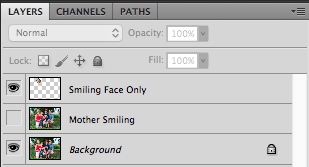
You now have three layers in the side panel: the original background, the new one you copied over, and the face itself. Since you only need the face, you can click the eye icon just to the left of the layer you copied over, which leaves it intact but invisible (hidden layer).

photoshop-face-swap-three-layers-hide-one

Compositing or blending them together

Now comes the fun part – compositing the face! I like this step because I get to be a little creative, and play around with exactly how I want the final image to look. The first thing you’ll notice is the face you are working with is probably going to be out of place, unless your camera was on a tripod, and everyone was perfectly still.

photoshop-face-swap-initial-composite

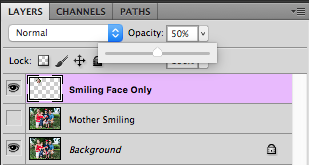
To get the face into the proper position, select it in the Layers panel and change its opacity to about 50%. That way you can see both faces at the same time, which will help you as you start lining them up. (Note: alternatively you can change the face layer’s blend mode to Difference. That will show it sort of inverted (negative) and it makes it easy to position them or align the layers. Then just change it back to normal when done.)

photoshop-face-swap-opacity

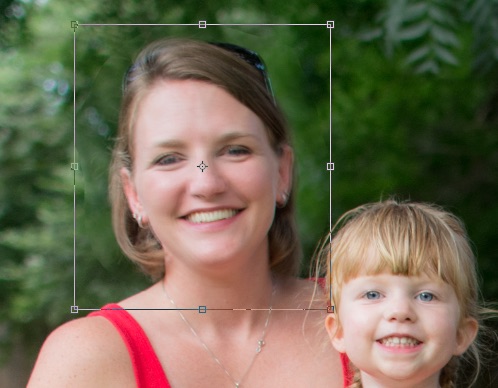
With the face layer still selected, choose “Transform” from the “Edit” menu, or press command-T on a Mac (control-T on Windows). Use your mouse to drag the face into the proper position, and press the arrow keys on your computer to fine-tune your movements on a per-pixel basis. You can also use the Transform command to rotate the face in case the person has turned his or head slightly. To do this, put your mouse cursor just outside the border near one of the corners, where it will change to a rounded arrow which means you can now click and drag to rotate.

photoshop-face-swap-line-up-facial-features

Once you that have the second face lined up properly over the first one, press the [Enter] key to lock it in place, then bring the layer opacity of the face back up to 100%. Don’t worry if you didn’t get things just right: you can always made additional Transformations later by selecting the layer and choosing “Transform” just like before.

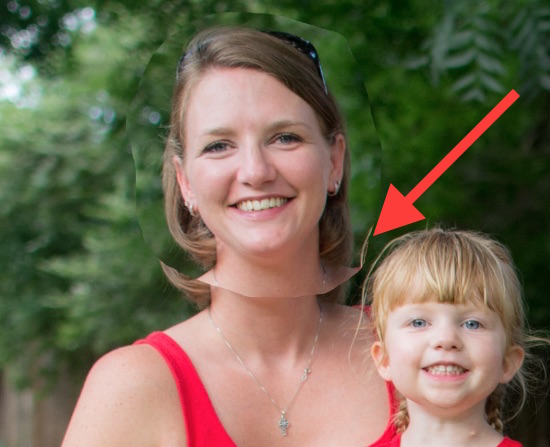
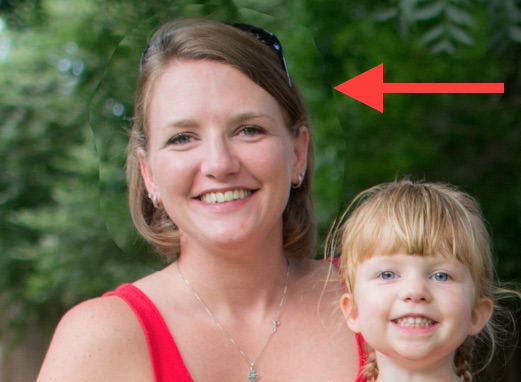
At this point things are looking pretty good, but right away you will notice a harsh border around the face where your selection box was. This needs to be eliminated so you only have the facial features you want, and not the person’s hair or any background elements that might have changed between the shots.

photoshop-face-swap-harsh-border

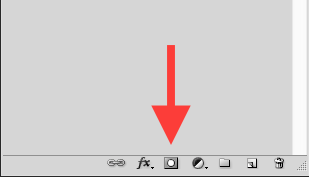
At this point you might be thinking “No problem! I’ll just use the eraser tool to get rid of the parts I don’t need,” but that’s a rookie mistake you will soon regret. The eraser tool is permanent, so instead we’ll use what’s called a layer mask to get rid of any parts we don’t want. It works similar to the eraser tool, but is fully adjustable and even altogether reversible (it’s called non-destructive editing) so that any edits you make can easily be undone at any point. With the face layer selected, click the “Add Layer Mask” button at the bottom of the Layers panel.

photoshop-face-swap-new-layer-mask

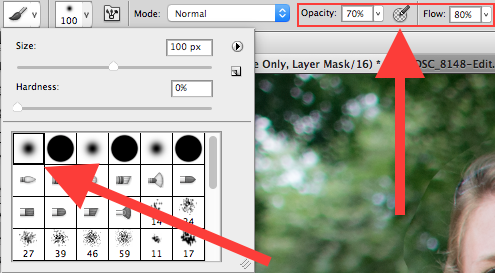
Now you can use the brush tool to paint out (using black) any areas of the face layer you do not want, or paint them back (paint with white) in if you do decide to keep them. This layer mask method is far more flexible than using the eraser tool, and it allows you to use varying levels of opacity as well. You can partially erase something, while retaining just enough to allow for a smooth transition, instead of a harsh line. Select the brush tool and choose a brush with soft edges. Play around with your flow rate and opacity settings too. I don’t like to go all the way to 100% opacity right away, so I usually start with 50%-70% to leave some wiggle room. Remember, you can always change your adjustments later.

photoshop-face-swap-brush-selection

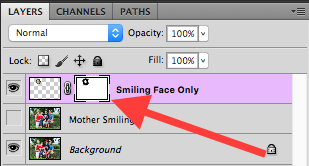
Now you can start blurring the line between the background photo and the face you are compositing onto it. Use the brush tool to gradually erase around the edges of the face, and if you find yourself wanting to brush anything back in just press the X key to reverse the process (X switches your foreground and background colors, in this case black and white) as you apply the brush. Notice that you’re not actually painting on the image of the face, but on a mask that has been applied to the layer. You are basically telling Photoshop which parts of the face layer you want to see, and which parts you want to erase (hide) or mask out. In the Layers panel you will see this mask show up to the right of the original layer as a mostly white box with some dark spots that indicate where you have painted with the brush.

photoshop-face-swap-edit-layer-mask

Using brushes on the layer mask is the most part of this whole process as I get to see my edits in realtime, and get as detailed as I want with brushing in the smiling face.

photoshop-face-swap-final-image

The final image

You can use this technique to composite as much as you want, including background elements, multiple faces, or even individual features such as eyes or teeth. Learning this simple head swapping technique is not only handy for creating the perfect group portrait, but can also be your gateway into a much broader world of Photoshop editing in general.

What are your favorite tips for doing simple edits in Photoshop? Do you have any other techniques that have worked for you over the years? Leave your thoughts in the comments below.

googletag.cmd.push(function() {
tablet_slots.push( googletag.defineSlot( “/1005424/_dPSv4_tab-all-article-bottom_(300×250)”, [300, 250], “pb-ad-78623” ).addService( googletag.pubads() ) ); } );

googletag.cmd.push(function() {
mobile_slots.push( googletag.defineSlot( “/1005424/_dPSv4_mob-all-article-bottom_(300×250)”, [300, 250], “pb-ad-78158” ).addService( googletag.pubads() ) ); } );

The post How to do a Head Swap using Photoshop by Simon Ringsmuth appeared first on Digital Photography School.

Digital Photography School

 
Comments Off on How to do a Head Swap using Photoshop

Posted in Photography


5 Tips for Using the Blend If Feature in Photoshop

18 Oct

In this video Blake Rudis, from EverydayHDR, shows five really useful tips for using the Blend If feature, which is available in Photoshop when working with layers.

The five methods for using Blend If:

  1. Adding sharpness to your image
  2. Removing noise
  3. Adding saturation
  4. Vignetting
  5. Adding a texture to your photo

Get the downloads he mentions in the video here:

Using the Blend If sliders allow you to really control where you want the affects to apply, without complicated masking and brushing in and out details. Give it a try, it may save you a ton of time editing!

googletag.cmd.push(function() {
tablet_slots.push( googletag.defineSlot( “/1005424/_dPSv4_tab-all-article-bottom_(300×250)”, [300, 250], “pb-ad-78623” ).addService( googletag.pubads() ) ); } );

googletag.cmd.push(function() {
mobile_slots.push( googletag.defineSlot( “/1005424/_dPSv4_mob-all-article-bottom_(300×250)”, [300, 250], “pb-ad-78158” ).addService( googletag.pubads() ) ); } );

The post 5 Tips for Using the Blend If Feature in Photoshop by Darlene Hildebrandt appeared first on Digital Photography School.

Digital Photography School

 
Comments Off on 5 Tips for Using the Blend If Feature in Photoshop

Posted in Photography


Adobe launches Photoshop Fix, desktop and mobile app updates

05 Oct

Adobe has officially launched Photoshop Fix, a mobile app it demoed at Apple’s iPad Pro launch in early September. Available today for iPad and iPhone, Photoshop Fix brings tools like the healing brush and liquify to mobile devices along with adjustments like paint and defocus. Read more

Articles: Digital Photography Review (dpreview.com)

 
Comments Off on Adobe launches Photoshop Fix, desktop and mobile app updates

Posted in Uncategorized


Dust on the lens or a new planet? NASA reveals some of its inter-galactic Photoshop tricks

01 Oct

In an interview for Adobe’s blog, NASA has revealed some of the processes its scientists use to transform technical data into images that the rest of the world can appreciate and understand. From simple tasks, such as straightening and cropping, to compositing multiple layers of scientifically calculated color, the agency uses programs including Adobe Photoshop to interpret the sometimes quite abstract images sent back to Earth from devices such as the Hubble Space Telescope and the Mars rover. Read more

Articles: Digital Photography Review (dpreview.com)

 
Comments Off on Dust on the lens or a new planet? NASA reveals some of its inter-galactic Photoshop tricks

Posted in Uncategorized


3 Fun Ways to Enhance Your Landscape Images in Photoshop

18 Sep
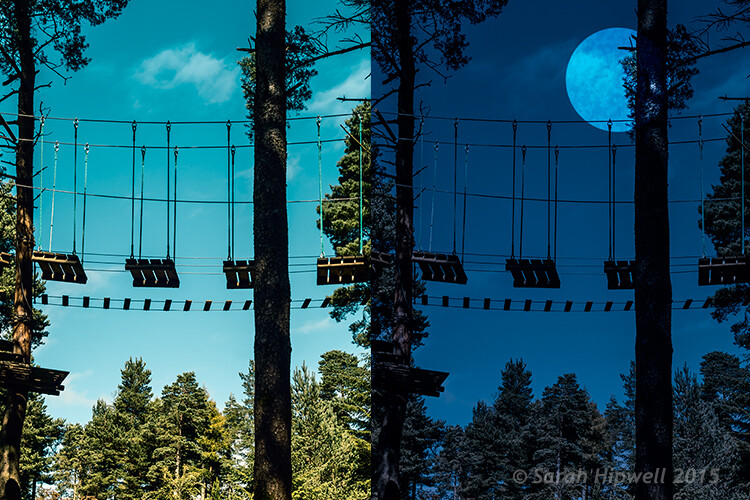
title-day-moonlight

Turning Day into Night using Color Lookup and easy-to-do moon in Photoshop.

As the theme for this month is on landscape photography, I thought I would share three fun ways to add features to your landscape images that already come embedded in Photoshop as presets. Let’s take a look at the first one.

#1 The Rainbow

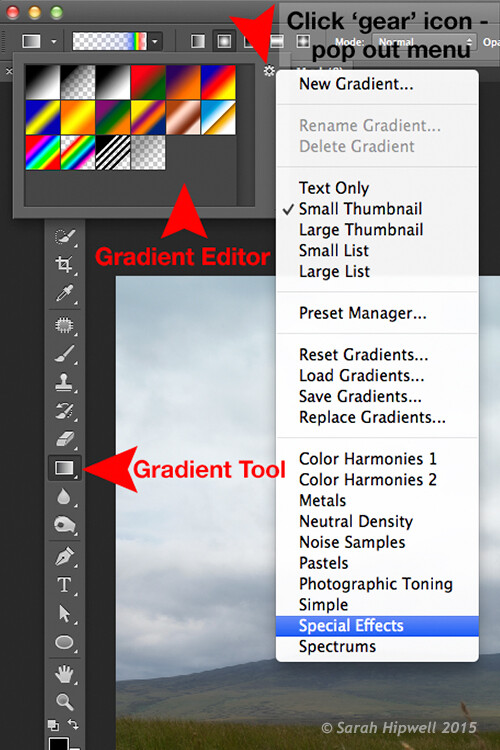
Open an image that you want to add the rainbow to. Click on the Gradient tool, then click on the Gradient box in the Options bar to bring up the Gradient Editor dialog box.

Click on the gear icon at the top right corner of the Presets section and another pop-up menu appears. Choose Special Effects near the bottom of the list. When you click on it, a dialog box appears asking you to replace the current default gradients with the ones that you are loading. Click Ok. It contains only five presets, the last one being Russell’s rainbow is the one I’m going to use. Click ok, then go back up to the Options bar and click on Radial Gradient.

Gradient-editor-pop-out-menu-special-effects

The rainbow preset is in the Gradient Editor under Special Effects.

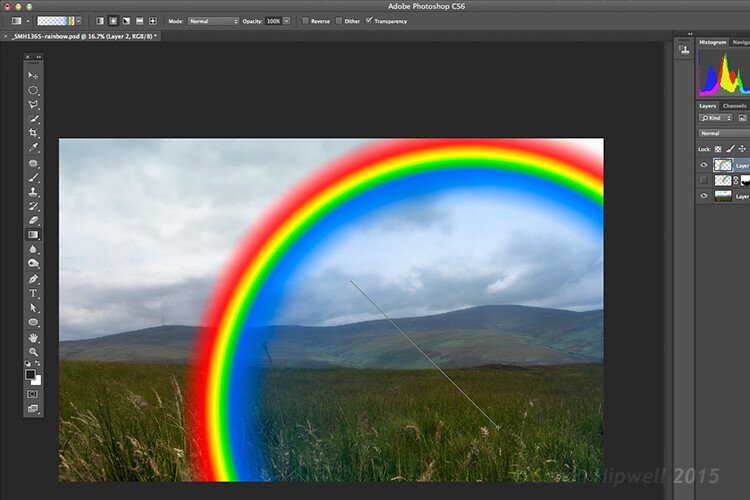
Make sure you have a new layer over the image that you are using. Start at the bottom of the image and drag upwards at a 45 degree angle and release. Depending on the size of the rainbow that you want, you can press CMD Z to undo and restart again (see image below). At first, it looks way too extreme and unrealistic, but using the free transform tool (CMD+T), resize and rotate and place it into position.

Creating-rainbow-using-rainbow-effect

With Russell’s rainbow preset selected and the gradient changed to radial. Click on a low part of the image and drag upwards at an angle to create the rainbow.

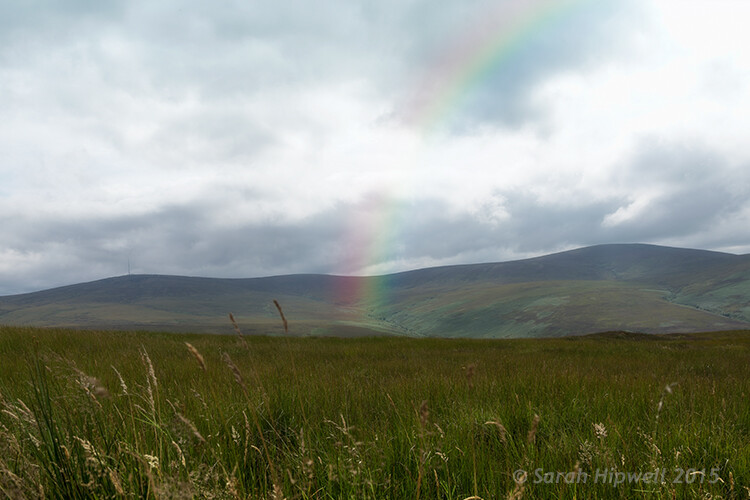
Change the layer blend mode to Screen. You can see the rainbow appears behind and in front of the clouds. Add a layer mask and with a big soft brush, soften the end of the rainbow where it hits the ground. I also converted the layer to a Smart Object and applied a Gaussian Blur. I then Lowered the Fill and Opacity to get an almost translucent effect. Voila, a real simple but effective rainbow.

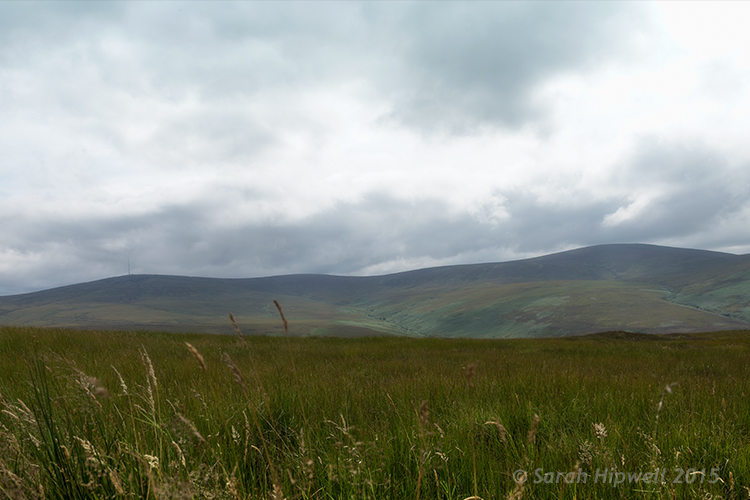
mountain-view

The original image without the rainbow.

mountain-view-rainbow

The rainbow effect added to the image.

Rainbows happen when sunlight and rain combine in a very specific way. And this brings me to the next preset…

#2 Rain

This particular preset is not as effective as the other two. I think a custom rain brush would be better, nevertheless, it does an okay job.

Depending on the image that you use, it is better to have an image with clouds rather than a clear blue sky. I desaturated this image by using a hue/saturation adjustment layer and I also added a vignette to give it more drama.

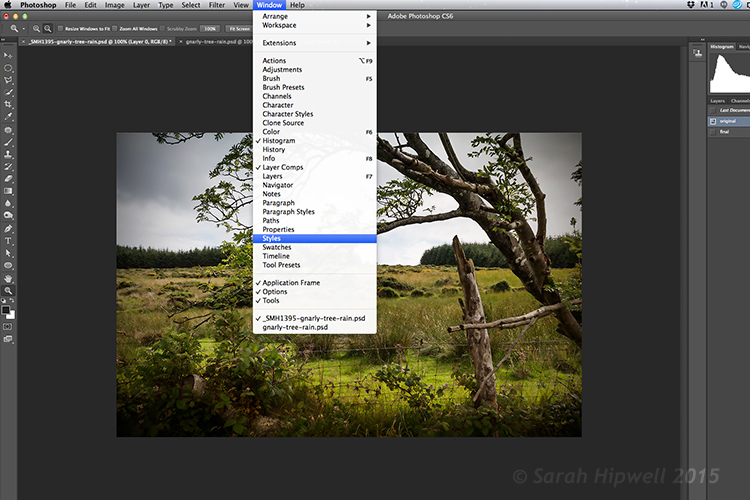
If you go up to Window in the menu bar and open up the Styles panel, or the Adjustments panel has a Styles tab to its right. Over to the far right corner is an arrow, click on this icon and a pop out menu appears. Choose Image Effects from near the bottom. Similar to the Gradient Editor, a dialog box appears asking you to, “Replace current styles with the styles from Image Effects?” Click Ok. The Rain style is down near the bottom.

Window-Styles

The Styles Panel is located under Window in the Menu bar.

arrow-icon-styles-panel

You’ll see this arrow icon to the far right corner of the Styles Panel. Click on tit and a pop-out menu appears (right).

pop-out-menu-styles-image-effects

This is the pop-out menu. The rain preset is located in the Image Effects.

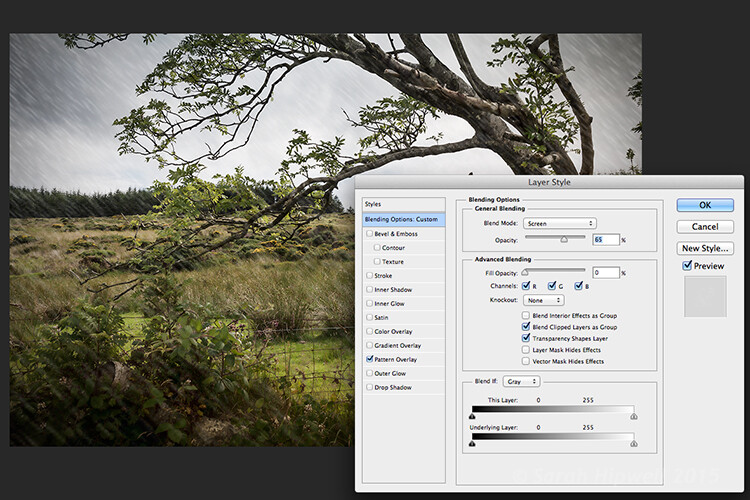
But first, create a new layer over the image that you have opened. Name this layer, Background rain. Fill it with 50% gray. Now click on the rain style. It creates a Pattern Overlay. At first, you just see small white diagonal slashes against a gray background. Change the blend mode to Screen. Then click anywhere to the right of this gray layer to bring up the Blending Options Layer Style dialog box. All you need to do here is bring the Fill opacity under Advanced Blending down to zero. Click Ok. Now you see just the the rain, the gray color is gone.

Layer-style-blending-options

This is the Layer Style Blending Options dialog box where you set the Fill Opacity to zero to get rid of the gray background. You could also reduce the Fill Opacity in the Layers panel.

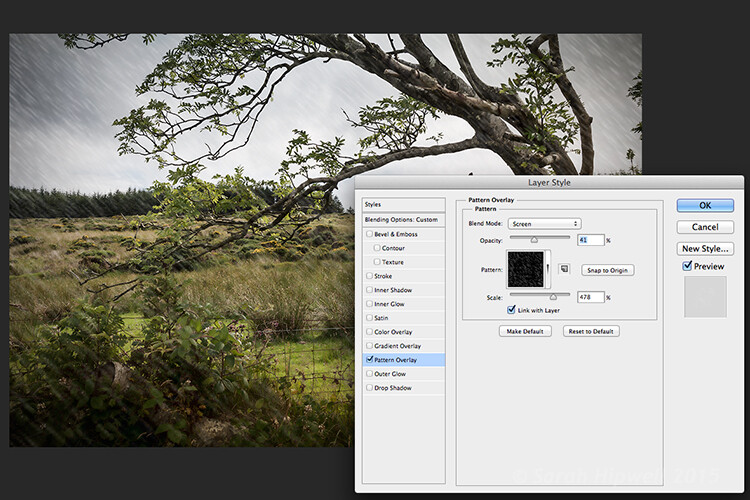
You need to alter the size of the rain, it needs to be smaller as if it’s in the background. Double-click just underneath the layer where it says Effects>Pattern Overlay, this brings up the Pattern Overlay Layer Style dialog box. As you move the scale slider to the right or left, you can see the rain increasing or decreasing in size. I chose 207% and reduced the opacity to 52%. Click Ok. I added a layer mask, and with gradient tool, I masked away the rain at the bottom (you can equally use a soft brush to mask instead). I reduced the Opacity on this layer to 85%.

Layer-style-pattern-overlay

This is the Pattern Overlay where you can adjust the size of the rain by using the scale slider, and its opacity, quick and easily.

I created another layer and named this Foreground rain. I repeated the same steps as above but I changed the scale of the rain. I wanted the rain to appear bigger. So again double click on the Effects>Pattern Overlay to open the Pattern Overlay Layer Style dialog box. Increase the scale to 478% and reduce the opacity to 41%. Click Ok. I then reduced the Opacity on this layer to 65%. This gives the rain a bit more depth and adds a more realistic effect.

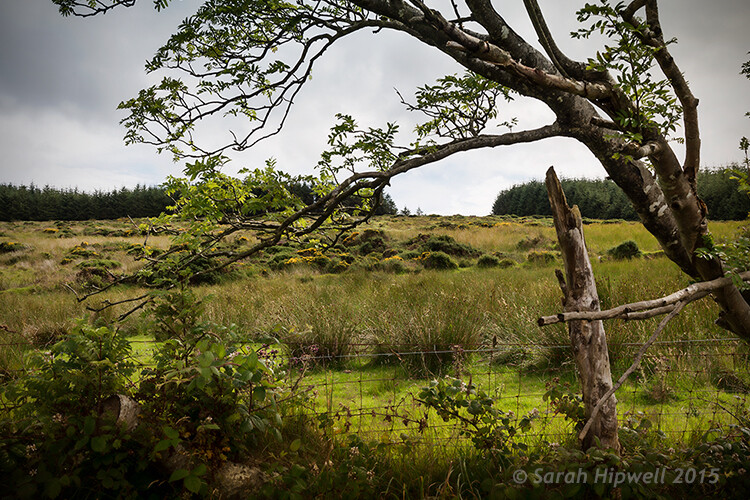
field

Original image taken with no rain.

Rain-in-field

Rain applied using the rain preset in the Styles panel. I also desaturated and added a vignette to the image before adding the rain.

#3 Day to Night

Now for the third effect. This is a really quick and easy way to turn a photo from day into night with a preset already in Photoshop (CS6). Go up to Layer>New Adjustment Layer>Color Lookup. Where it says 3DLUT File, click on the tab beside it and a pop-up menu with different effects appears, scroll down to Moonlight.3DL. These presets are known as lookup tables, or LUTs, they’re mainly found in the film industry.

For added effect, I’m going to add a moon. Create a new layer, Go to your eclipse tool and hold down the Shift key and draw a circle, roughly 200px. Fill it with white. Deselect (CMD+D). Go up to Filter>Filter Gallery>Artistic>Sponge. Choose the Brush tool set to: Size 7, Definition 3 and Smoothness 5. Click Ok. Move the moon near the top of the tree. I reduced the size a little by using the Free Transform Tool (CMD+T). Change the blend mode to overlay. Duplicate this layer and reduce the Opacity to 55%. See image below.

title-day-moonlight

I hope you enjoyed these fun and quick techniques using these presets found in Photoshop. Do you use presets or other plugins? Please share in the comments below.

googletag.cmd.push(function() {
tablet_slots.push( googletag.defineSlot( “/1005424/_dPSv4_tab-all-article-bottom_(300×250)”, [300, 250], “pb-ad-78623” ).addService( googletag.pubads() ) ); } );

googletag.cmd.push(function() {
mobile_slots.push( googletag.defineSlot( “/1005424/_dPSv4_mob-all-article-bottom_(300×250)”, [300, 250], “pb-ad-78158” ).addService( googletag.pubads() ) ); } );

The post 3 Fun Ways to Enhance Your Landscape Images in Photoshop by Sarah Hipwell appeared first on Digital Photography School.

Digital Photography School

 
Comments Off on 3 Fun Ways to Enhance Your Landscape Images in Photoshop

Posted in Photography