RSS
 

Posts Tagged ‘Photos’

Eye-Fi Mobi SD Card:Move Photos Onto Your Phone, Wire Free!

25 Jun

Extra photos for bloggers: 1, 2, 3

Your camera is going to love this. It finally has its own way to play with that smartphone it sees you tapping on all day.

The new Eye-Fi Mobi SD Card gives your camera a wifi connection to your phone. Simply stick it in your camera to automatically send your photos to your phone, as you shoot!

The newest card from our pals at Eye-Fi is optimized to work with mobile devices. The set up process is simpler than ever, under 10 seconds on any iOS or Android tablet or phone.

Combine your DSLR’s best features (high quality optics and complete photo taking control) with your phone’s easy to use go-anywhere super duper editing skillz and sharing powers.

Your camera and your phone just became BBFL (best buds for life).

Check out the new Eye-Fi Mobi
$ 49.95 at the Photojojo Store

 Tweet it!      Share

Related posts:

  1. Make Your Own Memory Card Holder Using a Credit Card Help Wanted! We’re looking for a freelance writer/editor and a…
  2. Make Your Photos Move with a Thaumatrope! Extra photos for bloggers: 1, 2, 3 Thauma-what? Sounds Greek…
  3. Attachable Lenses for Your Camera-Phone, Fisheye & Macro/Wide Angle Phone Lenses Extra photos for bloggers: 1, 2, 3 Camera-phones. They’re a…


Photojojo

 
Comments Off on Eye-Fi Mobi SD Card:Move Photos Onto Your Phone, Wire Free!

Posted in Equipment


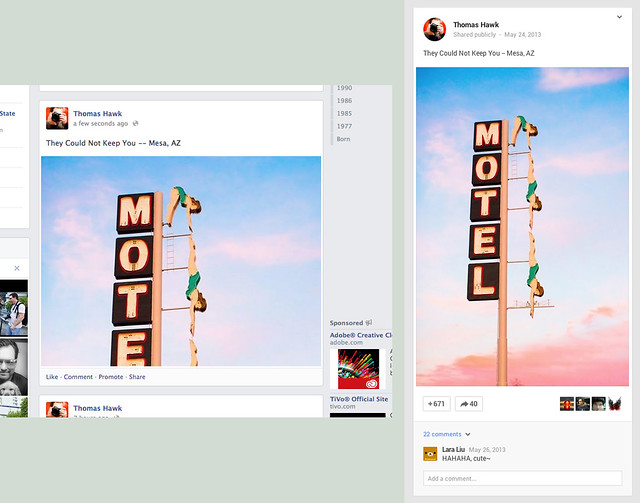
Vertically Cropped Photos Facebook Vs. Google+

23 Jun

Vertical Cropped Images Facebook vs Google Plus


Thomas Hawk Digital Connection

 
Comments Off on Vertically Cropped Photos Facebook Vs. Google+

Posted in Photography


Posing Guide for Photographing Women: 7 More Poses to Get You 21 Different Photos [Part II]

21 Jun

A post by Kaspars Grinvalds from Posing App.

If you haven’t read the first article in this series, I would kindly recommend you to start with Posing Guide for Photographing Women: 7 Poses to Get You 21 Different Photos – Part I where we started with 7 standing poses.

Let’s continue this time with 7 sitting poses for female subjects and their possible variations in order to get at least three different shots for each pose.

Pose 1

Pose1

Nice and simple pose to start with. Ask your model to sit comfortably with knees placed together. One hand relaxed on the knees while the other hand placed near the neck. And remind her to straighten the spine.

7poses2 1

Photo 1 – This basic starting point provides you with many different choices to continue with. But in the very beginning you may want to just test different shooting angles and heights and check what works best for your model.

Photo 2 – After I got the first shot similar to the sample, I asked the model to lower both arms and rest them on the knees.

Photo 3 – And finally I returned to the initial pose and took a close-up portrait shot.

Pose 2

Pose2

Another easy pose with hands placed together between the legs. Notice that arms should not be completely straightened, rather slightly bend at the elbows. Also in the sample pose it is illustrated that toes should be straightened in order to raise the knees slightly up.

7poses2 2

Photo 4 – The model easily recreated the sample pose and we could move on with some variations.

Photo 5 – This shot is exactly the same pose just taken from a side. Minor change but already different result.

Photo 6 – And again one more close-up portrait shot but this time the model is looking down her own body.

Pose 3

Pose3

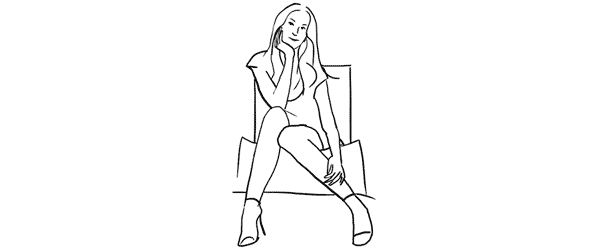
Another very simple pose with one leg crossed over the other. And I have to say here that including the legs in the frame can be challenging because it doesn’t work with all body types. If your model is curvy, consider framing closer comps (for example as in photos with the previous pose).

7poses2 3

Photo 7 – My model was with slim body type, nice legs and stylish shoes, so I chose to go for a full height frame.

Photo 8 – In exactly the same manner as with the previous sample I simply took this shot from a different angle. The model didn’t change anything, just turned her head to the camera.

Photo 9 – After that we repeated the already tested posture with one hand close to the neck. This hand movement is a very nice variation and works in many posing scenarios.

Pose 4

Pose4

This pose however is even more demanding than the previous one because it is all about the legs and thus there is no point of cropping them out. And nice shoes are a must.

7poses2 4

Photo 10 – Recreating it isn’t hard as the pose is fun and creates nice and playful mood to the photo.

Photo 11 – Here the model is looking down and kind of fixes her shoe. Very subtle changes but completely different photo.

Photo 12 – And once again the same pose but taken from a side creates one more variation.

Pose 5

Pose5

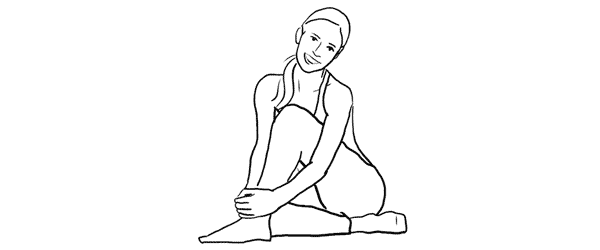
Simple and easy pose for the model sitting on the ground. And to my mind, in contrast to the previous on the chair poses, sitting on the ground works better barefoot.

7poses2 5

Photo 13 – The pose is kind of very natural and is easy to recreate. And as a result the model looks really relaxed.

Photo 14 – After recreating the initial pose, different hand placement options are available. Here for example the model raised them and connected on the knee.

Photo 15 – Only two minor adjustments to the initial pose were made here. Putting one hand up in the hair and slightly curving upper body part to the side. This also lowers the raised knee. The result is another friendly and natural looking pose.

Pose 6

Pose6

Another easy sitting on the ground pose. Very suitable for different close-up portrait shots.

7poses2 6

Photo 16 – While sitting in the initial pose try making two different versions with only the front arm and then with both arms raised on the knees. Both versions works well.

Photo 17 – A slight hand placement variation. This variation works very well for tight crops.

Photo 18 – And don’t be afraid to be spontaneous from time to time. This photo was just an improvisation on the go while sitting in the initial pose.

Pose 7

Pose7

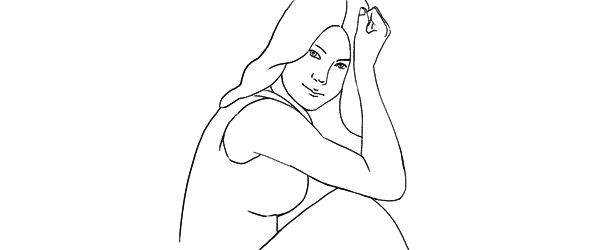
And finally I purposely chose also one simple portrait pose for the sitting samples. Despite the fact that only face is visible in the frame, it’s more comfortable for the model to recreate it while being seated.

7poses2 7

Photo 19 – Here I tried to illustrate the previous statement and showed the sitting position. You may visualize how it would work cropped only around the face.

Photo 20 – Keeping the “portrait with hands around the face” concept in mind, try different variations by moving hands around and making different head tilts.

Photo 21 – In order to achieve the most natural postures in the image ask the model to really move hands around. In this particular example she moved her hand through her hair and I made several shots and afterwards chose the best hand position.

So, this was a process of using 7 sample poses as the starting point to create 21 different photos. I encourage you to try this approach to posing your subjects in a similar workflow and most probably you will find your own and even better ways to achieve some great results.

All of these illustrations and many more posing samples are available on Posing App for your mobile devices.

Kaspars Grinvalds is a photographer working and living in Riga, Latvia. He is the author of Posing App where more poses and tips about people photography are available.

Post originally from: Digital Photography Tips.

Check out our more Photography Tips at Photography Tips for Beginners, Portrait Photography Tips and Wedding Photography Tips.

Posing Guide for Photographing Women: 7 More Poses to Get You 21 Different Photos [Part II]


Digital Photography School

 
Comments Off on Posing Guide for Photographing Women: 7 More Poses to Get You 21 Different Photos [Part II]

Posted in Photography


Master These Five Lightroom Sliders and Your Photos Will Pop

19 Jun

a Guest Contribution by John Davenport from Phogropathy

Have you ever opened up Lightroom (or any other professional level editing program) and said, “Oh my – where do I start?” If so then this post is probably right up your alley.

Today I’m going to show you how to take the process out of processing photos and how you can get some great results simply by learning how a handful of sliders work. After you learn these basics you can start to dig deeper into the program and learn how to bring out even more of the hidden details in your photographs.

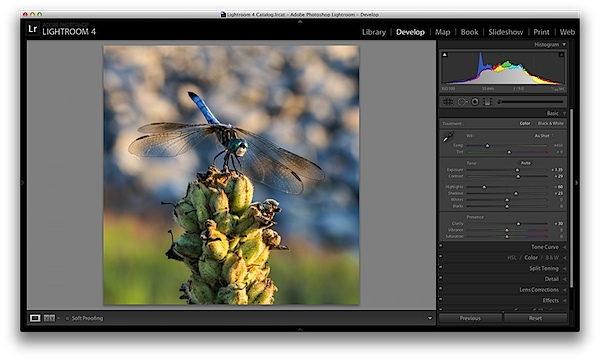
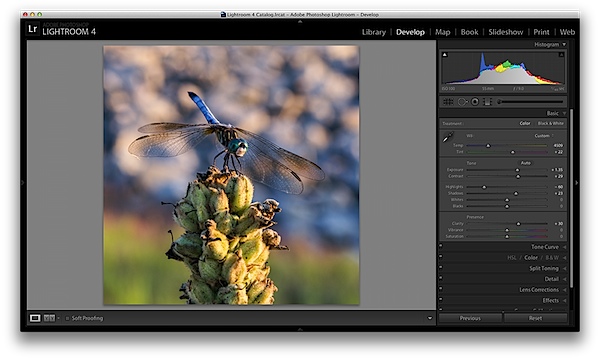
before&after1.jpg

The Seven Lightroom Sliders to Master First

Lightroom is filled with all sorts of options from drop down menus to sliders and all this can make get started for the first time overwhelming, especially if you’ve had no editing experience in the past, so today we are going to look at the very basics of Lightroom.

When you break it down there are five key parts of almost every photo that you’re going to want to adjust and those are as follows: mid-tones, shadows, highlights, sharpness and white balance. We will tackle all of these areas by using just a handful of sliders in the basic tab of Lightroom. To get here simply click on “Develop” and then if it isn’t opened already click on the “Basic” tab.

Now let’s get started!

Exposure

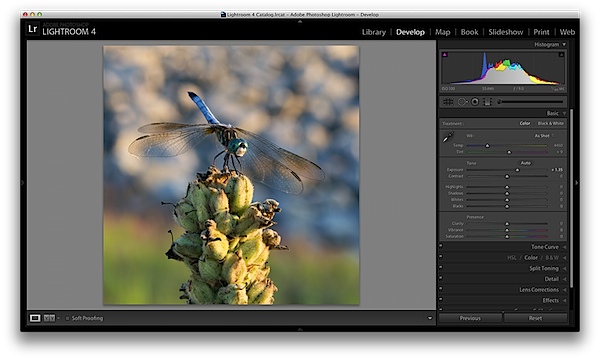
When I process photos I like to start with the exposure slider, as it’s a good overall adjustment to get started. It is designed to adjust the mid-tones of the photo and therefore will help to add or reduce to the overall brightness of the scene. To lighten an underexposed photo simply slide the exposure slider to the right – if you’d like to reduce the brightness then slide it to the left.

Watch your histogram and you’ll start to see the data shift from side to side as you make the changes. In the photo below I added just a small bit to the exposure to brighten it up slightly.

exposure.png

Contrast

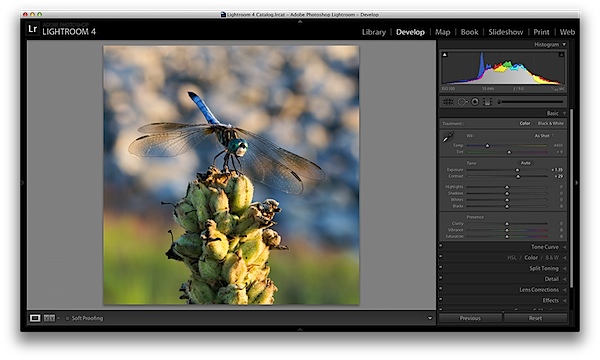
Next up is the contrast slider, which will help to define the areas of lightness and darkness. In the vast majority of my photographs I’ll end up increasing the contrast slightly as it tends to help bring out details and make the photo “pop” a bit more.

As you watch the histogram you’ll notice that the data will either get stretched out or be pushed together depending on which way you go. The more contrast you apply the more defined the difference between lights and darks will get which can be observed in the stretching of the histogram.

In my dragonfly photo I pushed the contrast up slightly which helps to get the subject separated from the background a bit more and adds a bit more crispness to the photo.

contrast.png

Shadows/Highlights

One of the best features in Lightroom 4 are the Shadows and Highlights sliders. (Note: if you’re using an older version of Lightroom you’ll do something similar with the Fill Light and Recovery sliders, but they’re not nearly as powerful).

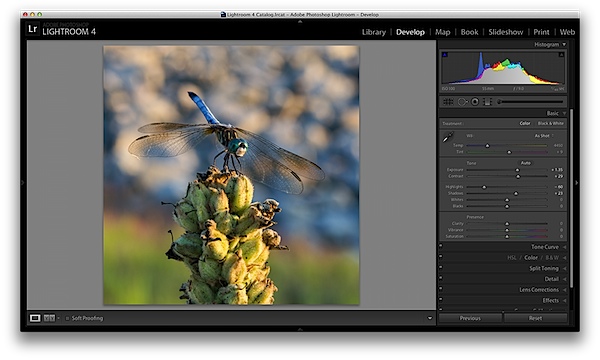
These two sliders work in opposite directions. The more detail you want in your highlights the lower you’ll drop the slider, for more detail in the shadows you’ll increase the slider. Make sure you’re aware that these do come at costs and you’re not going to be able to get detail out of blown out or completely black areas of your photo – there must be data there to recover for these to work.

Again as you watch the histogram when you make the changes you’ll notice that the shadows slider has an effect on the data towards the left side of the mid-tones and the highlights slider will work on an area to the right. The black and white sliders (which we aren’t talking about today) will have an effect on the very edges of the histogram in much the same manor.

HighlightsShadows.png

Clarity

There is an entire area of Lightroom dedicated to sharpening your images, but the clarity slider is a good place to start with if you’re trying to keep things simple. You won’t have as fine of control over the process, but you will be able to help crisp up your images a bit by using one simple slider.

As you’ll notice when you start moving this slider around it works in much the same way as the contrast slider, just on a finer detailed level. Again, in the vast majority of my photos I’ll be adding a bit of clarity to give the photo the punch it needs, but often times in portraits you might end up toning down the clarity to give that soft look to your subject’s face.

clarity.png

White Balance

Finally the temperature and tint sliders control the white balance of your photo. For the time being I’d suggest just using the Lightroom presets as they do a decent job of getting into the ballpark and make it a lot easier to deal with than trying to figure out the right amount of warmth and tint to add or subtract.

However, if you want that little extra control in your hand then use the “Temp” slider to adjust the color temperature of your photo. Moves to the right will produce a warmer scene and to left will cool your scene off.

The “Tint” slider is used more for minor adjustments to remove or add unwanted green or magenta colors from the scene and will often be used to get skin tones correct. However, there are people who use this slider for more artistic purposes (play with it and you’ll see what I mean).

whitebalance.png

One Small Note

If you’re photographing in RAW you’ll see more options available to you and have more control over the final outcome of your image, if you’re a JPEG shooter some options I talked about today will be limited as a result of the smaller file sizes and the compression that has already taken place in your camera. You can read more about RAW photography here.

A Few More Before and Afters

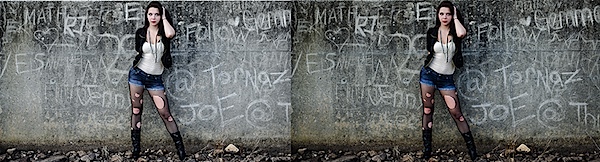
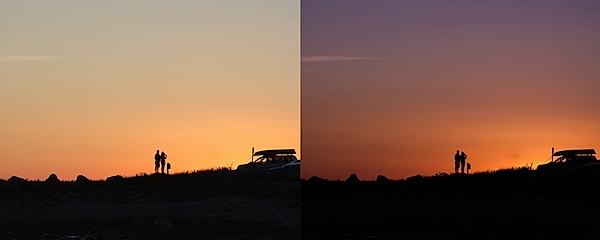
Here are a few more before and after images that I processed in a similar manner using only the techniques talked about in this post. It’s truly amazing how much just a few minor tweaks can change your photo and just imagine what can be done once you dig a bit deeper. If you’d like more tips on Lightroom editing feel free to subscribe to my YouTube channel.

before&after2.jpg

before&after3.jpg

before&after4.jpg

John Davenport is an avid photographer and blogger who shares his photography on his Facebook page and runs a weekly video series on how to edit photos in Lightroom.

Post originally from: Digital Photography Tips.

Check out our more Photography Tips at Photography Tips for Beginners, Portrait Photography Tips and Wedding Photography Tips.

Master These Five Lightroom Sliders and Your Photos Will Pop


Digital Photography School

 
Comments Off on Master These Five Lightroom Sliders and Your Photos Will Pop

Posted in Photography


10 Easy Ways To Take Candid Photos of Kids

14 Jun

Catching kids behaving in their most natural manner and playing with other kids almost guarantees a great photograph. However, one thing you should never let happen while shooting your kids is the children looking at the camera as it will spoil the whole atmosphere. You only want to capture the innocence, warmth, silliness and sweetness of them and it is Continue Reading

The post 10 Easy Ways To Take Candid Photos of Kids appeared first on Photodoto.


Photodoto

 
Comments Off on 10 Easy Ways To Take Candid Photos of Kids

Posted in Photography


How to Improve the Balance of your Photos by Paying Attention to the Corners

12 Jun

Balance is a very important aspect in photography. If you are aiming to create a balanced photo, then there is one key that is often overlooked.

The corners of an image.

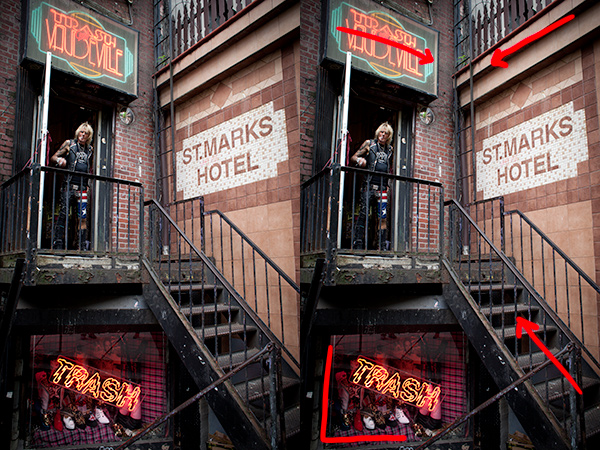
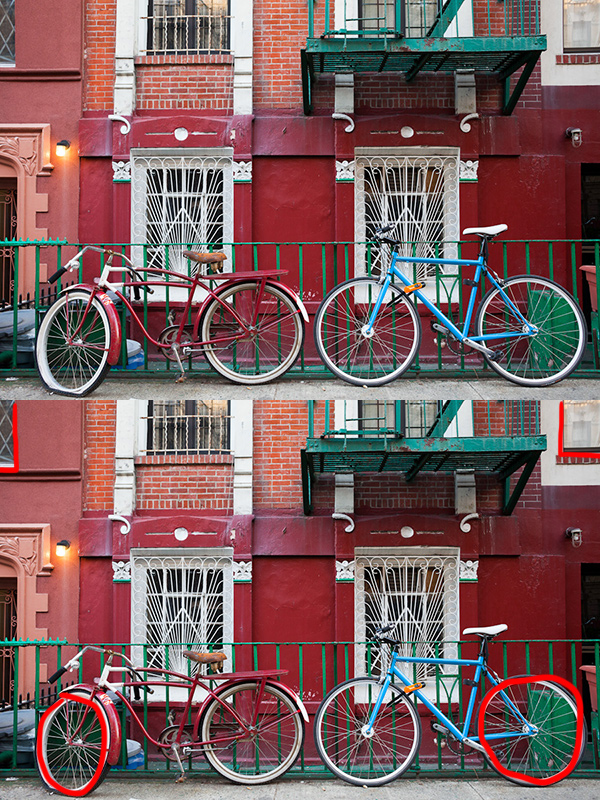
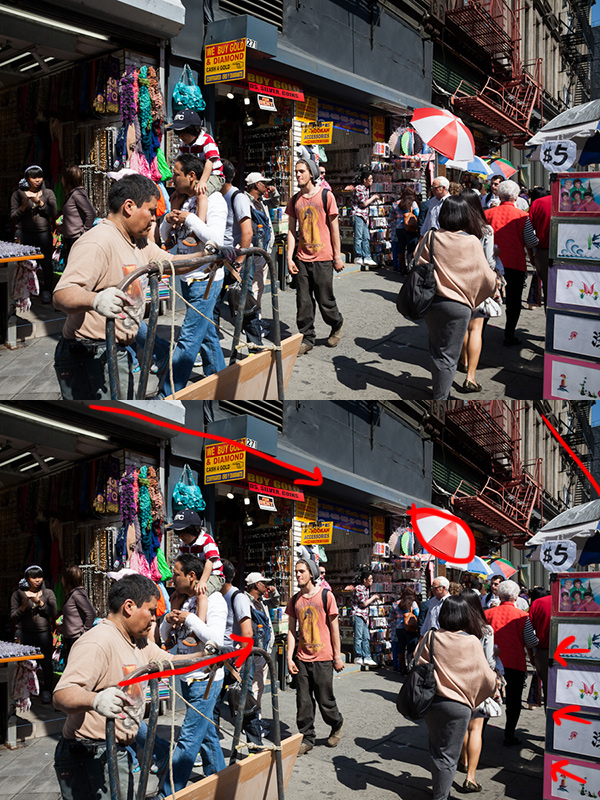
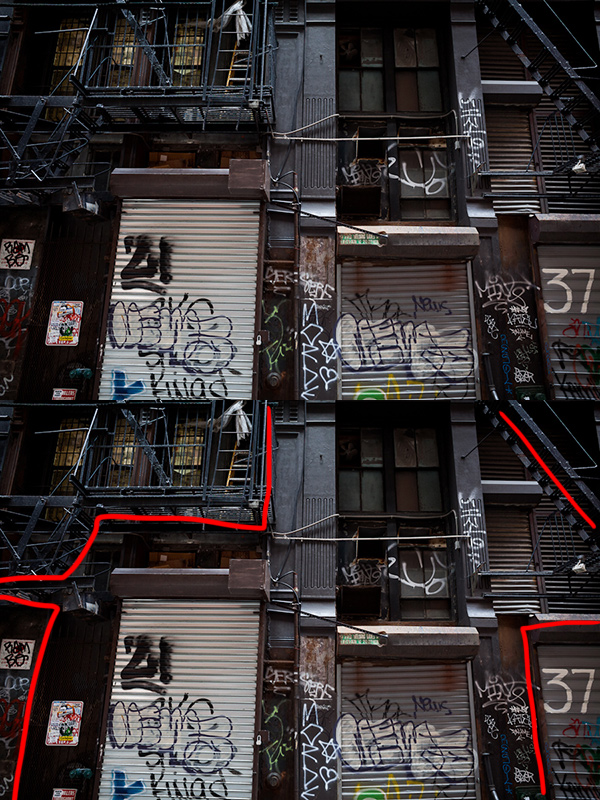
Our eyes have a natural tendency to want to dart off of the sides of a photograph when we look at it and so, when we can, we need to use the edges to fight this natural urge.  Putting elements in the corners will stop the eyes so that they move back into the scene.

When you are framing a photograph look into each corner to see what is there.  It can often help to cut off elements.  A hint of a stair, window, or tree branches will simultaneously make us feel like the full element is there while still grounding the photo and pushing our eyes back into the middle.

If you’ve noticed why some photographs feel balanced and some don’t and can’t tell why, the corners are often the reason.

Here are 5 examples to look at.

Jimmy Webb, Trash and Vaudeville

The corner lines all lead the eyes to the middle, except the lower left corner, which adds another level of interest but still eventually pushes the eyes back into the photo.

Flat, East Village

Notice on the top how you only need a tiny area in the corners to provide balance.  You can see how this effect applies to the elements on the top and left and right sides of the photo as well.

5 Canal Street, Chinatown

The lines all push the eyes into the scene.  Notice how there are two ‘corners’ providing balance on the top right.

Shipping Docks, Cortlandt Alley

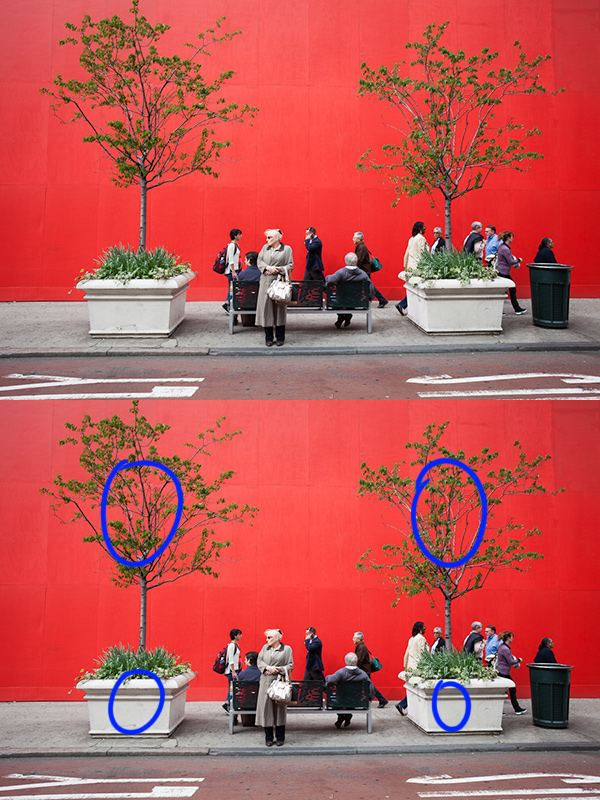
Red Wall, Midtown

The ‘corner’ elements don’t have to be at the very edge.  They can be further away from it.  They just have to provide the feeling of balance.


Post originally from: Digital Photography Tips.

Check out our more Photography Tips at Photography Tips for Beginners, Portrait Photography Tips and Wedding Photography Tips.

How to Improve the Balance of your Photos by Paying Attention to the Corners


Digital Photography School

 
Comments Off on How to Improve the Balance of your Photos by Paying Attention to the Corners

Posted in Photography


Women Posing Guide in Action: 7 Sample Poses – 21 Different Photos

04 Jun

A post by Kaspars Grinvalds from Posing App.

Previously published articles in the Posing Guide series contained hand illustrated posing samples as a guide or reference during your photo shoots. Based upon feedback and questions I received about these guides, I wanted to describe the process in a little more detail and show some real photos created while using these posing techniques.

I’d like to begin by stating once again – the main purpose of using posing samples is only to get your model into some starting point. That’s it. You don’t need to (and quite often you wouldn’t be able to) precisely recreate even the simplified illustrated pose.

This will be a three part series looking at standing, sitting and laying down poses for female models. For the the first article I chose seven sample standing poses and by slightly adjusting each pose I got 21 different photos. Now, let’s take a look at this process.

Pose 1
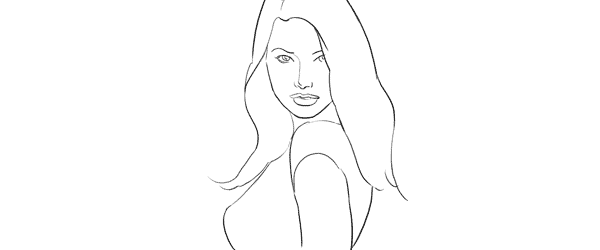
Pose1

It is a good idea to start your photo shoot with some very basic, easy pose. That’s why I chose this one to begin with. It’s easy to describe and easy to understand – “portrait shot from a side”. So you might start with saying to your model “Ok, turn with your side towards me, turn your head to me and look right over the shoulder at the camera. Straighten your spine and keep hands loose by sides.”

7poses 1

Photo 1 – With these instructions you should get something like the first picture. The next thing without changing the pose, is to “find” the face expression you’re looking for. You may want to try moving from very subtle smirks to stronger smiles or even laughter. And once you have the expression (or different ones) you’re after, tell and show it to the model. Thereby it will be easy for the model to learn and repeat it.

Photo 2 – After I got the simple and kind expression I was looking for, I slightly changed my position and asked the model to keep looking back over her shoulder to the camera. Exactly the same pose, just taken from another angle and you already have a slightly different photo.

Photo 3 – Also many different looking directions and head tilts are possible. In this particular example I asked the model to look back down her body. This look works very well in many posing situations, creating yet another variation just by slightly adjusting the starting pose.

Pose 2
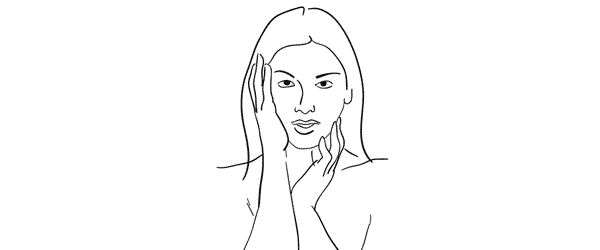
Pose2

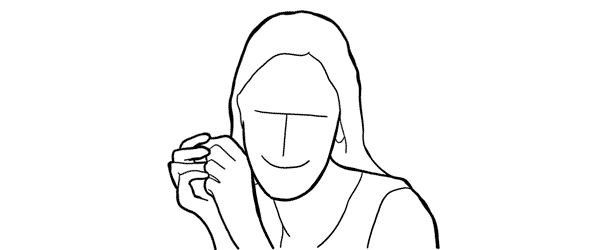
Seeing this sample illustration you should grab only the basic idea – “portrait shot with hands around the face”. That’s all you need for playing around with initial sample pose. Eventually you will come up with some nice variations of your own.

7poses 2

Photo 4 – Before getting to the hands, ask the model to stand facing the camera and support her body weight on just one leg. This instantly curves her body and her shoulder line is shifted. After that ask her to gently move her hands around the face and in the hair. Generally look for asymmetrical hand placements, but as you can imagine – many variations are possible.

Photo 5 – In this shot the only difference is slight tilting of the head and putting one hand behind the hair.

Photo 6 – To differentiate the look and feel, I once again asked the model to look down her own body and cropped tighter around the face. And again with only minor adjustments from one pose we’ve got 3 different photos.

Pose 3
Pose3

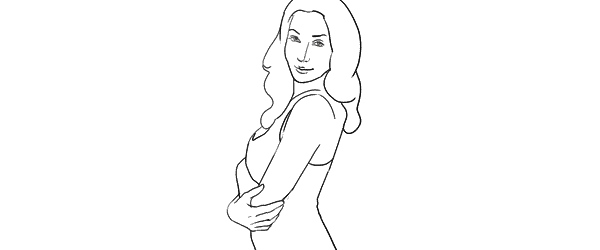
Another easy pose with very simple idea – “hands connected on the chest”. Notice that hands are not really “crossed”, but “connected”. Also you should warn your model not to grip them too tight or press upper arms against the body. Simply put, the posture should feel comfortable and subtle.

7poses 3

Photo 7 – Before taking this shot, I showed the model the sample illustration and she tried to recreate it. This is as close as you usually get if you recreate the sample pose.

Photo 8 – The outlines don’t and won’t match perfectly. In this particular example I took a shot from higher angle aiming slightly down because I saw that this angle works better for the model.

Photo 9 – Another simple way of transforming the pose is simply mirroring it the other way around. And to even more differentiate it from the first shot, I asked the model to lean against a wall.

And then I moved closer and took a head shot for just another variation of the same pose.

Pose 4
Pose4

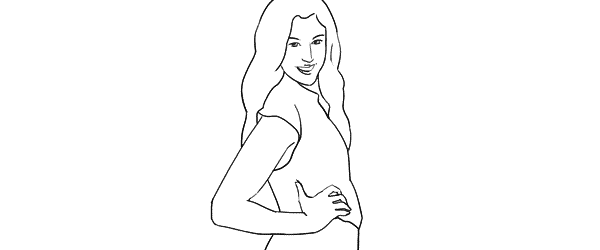
This simple pose is again self-explanatory – “the model turned to the side with one hand on the waist”. That’s all I tried to recreate.

7poses 4

Photo 10 – Here I started straight away with mirroring the sample pose because this was the better looking side for my model. Remember that it is different for each person. If you are not sure, take both variations and ask your model which one she prefers.

Photo 11 – From side view I followed to 45 degree position and asked the model to keep looking to the camera.

Photo 12 – Lastly, I just moved farther away for wider frame. The same pose, but these minor variations provide you with greater choice of images to select from in post.

Pose 5
Pose5

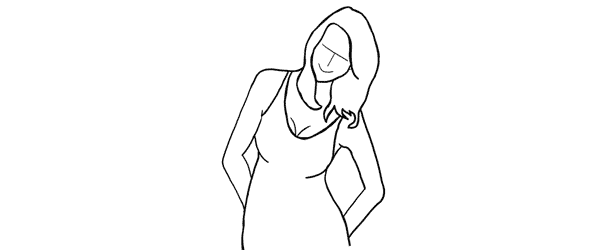
This pose provides simple yet elegant at the wall concept – “standing at the wall with hands behind the back”.

7poses 5

Photo 13 – Start with asking your model to support herself at the wall with her back. After that the first thing to take care of is shifting her body weight on one leg with the other crossed over it. Even if the legs are not visible in the frame, it is critical for forming the model’s body in S shape. Then ask her to place her hands behind her back asymmetrically. Finally ask her to lean forward slightly away from the wall with her upper body part.

Photo 14 – As usual I tried changing my shooting angle and took the next shot more from a side.

Photo 15 – And I continued to experiment with slightly different hand placement and head tilt. These images might be very similar, but most probably your subjects will be grateful for this kind of choice.

Pose 6
Pose6

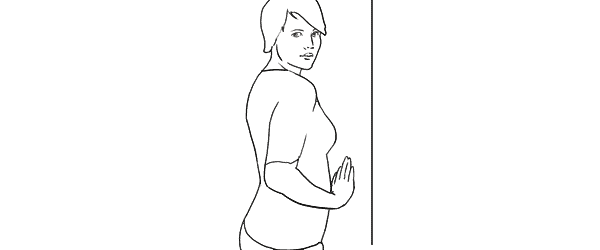
Another at the wall pose but this time with the model facing the wall. Easy to describe and recreate. Both hands are gently placed on the wall right in front of her just below the breast line.

7poses 6

Photo 16 – With the previous instructions the model easily achieved the described pose. And again I chose mirroring the sample illustration which already is one variation for any pose.

Photo 17 – Here I changed the shooting angle nearly parallel to the wall and cropped for a portrait shot.

Photo 18 – Finally the model changed the hand placement asymmetrically for just another variation.

Pose 7
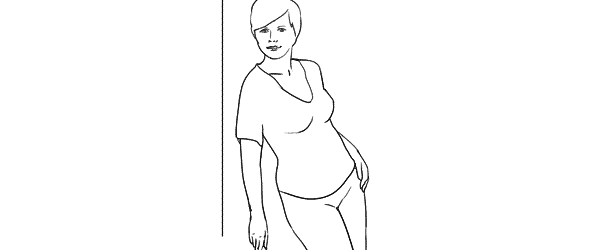
Pose7

This is a bit more challenging pose than the previous ones, so definitely some guidance for the model is required in order to recreate it.

7poses 7

Photo 19 – The trick for the model here is to stand slightly off the wall and support herself against the wall with the front shoulder only. Front hand is loosened by the wall. After that the model should support the body weight on the outer leg, kicking the hip out with the inner leg crossed over. The back arm rests on the hip and the elbow is pulled behind her back.

Photo 20 – After managing the starting pose I started to variate it. Here I moved closer for tighter crop and asked the model to lean slightly forward along the wall.

Photo 21 – And finally I asked the model to turn sideways, supporting against the wall with both shoulders. And to further differentiate the shots I asked her to look down her body.

So, that’s it. Out of 7 sample poses we managed to get 21 different shots. And as you can easily imagine, even these are only samples, adjustments and variations are indeed endless.

All of these illustrations and many more posing samples are available on Posing App for your mobile devices.

Kaspars Grinvalds is a photographer working and living in Riga, Latvia. He is the author of Posing App where more poses and tips about people photography are available.

(function(d){
var f = d.getElementsByTagName(‘SCRIPT’)[0], p = d.createElement(‘SCRIPT’);
p.type = ‘text/javascript’;
p.setAttribute(‘data-pin-hover’, true);
p.async = true;
p.src = ‘//assets.pinterest.com/js/pinit.js’;
f.parentNode.insertBefore(p, f);
}(document));

Post originally from: Digital Photography Tips.

Check out our more Photography Tips at Photography Tips for Beginners, Portrait Photography Tips and Wedding Photography Tips.

Women Posing Guide in Action: 7 Sample Poses – 21 Different Photos


Digital Photography School

 
Comments Off on Women Posing Guide in Action: 7 Sample Poses – 21 Different Photos

Posted in Photography


Urban Hybrid: Double-Exposure Photos Fuse London & NYC

03 Jun

[ By WebUrbanist in Art & Photography & Video. ]

double exposure londong nyc

While photo shoots can be meticulously staged, sometimes the best shots come with an element of surprise – particularly in the chaotic context of cities like New York an London.

double exposure art photos

Architect by training and photographer by professions, Daniella Zalcman took a series of photographs before leaving the largest city in the United States for the largest city in the United Kingdom, overlaying them secondary exposures in the latter city.

double take city scenes

The results are predictably unpredictable – a mix of juxtapositions ranging from smooth transitional gradients to sharp spatial contrasts, capturing street art and sidewalk scenes as well as broader city-scapes and edge conditions.

double architectural overlap images

In the end, many of the most jarring compositions defy the brain’s desire to organize a coherent narrative, like a tip-of-your-tongue memory or a slowly-fading dream, an effect reinforced by the gritty texture and grainy quality of the images themselves.

double horizon urban lines

More on the artist, who has also since launched a Kickstarter project for this set: “Daniella Zalcman is based in NYC where she works as a freelance photographer for the Wall Street Journal. Born in Washington, DC, she graduated from Columbia with a degree in architecture in 2009. Other clients include The New York Times, the New York Daily News, Vanity Fair, Esquire, Sports Illustrated, Saatchi & Saatchi, National Geographic, Wired, and The Nation.”

Share on Facebook


[ By WebUrbanist in Art & Photography & Video. ]

[ WebUrbanist | Archives | Galleries | Privacy | TOS ]


WebUrbanist

 
Comments Off on Urban Hybrid: Double-Exposure Photos Fuse London & NYC

Posted in Creativity


How to Unobtrusively Blend a Watermark Into Your Photos

29 May

Is it worth to watermark your photos? This is the question every photographer asks himself before sharing photos online. Visual watermarks protect your ownership and copyright from online theft. Photographers use watermarks for self-promotion, recognition and advertising purposes. All photographs you share online should be attractive and cohesive. Watermarks (like large stamps or long texts) carelessly placed, distract from the Continue Reading

The post How to Unobtrusively Blend a Watermark Into Your Photos appeared first on Photodoto.


Photodoto

 
Comments Off on How to Unobtrusively Blend a Watermark Into Your Photos

Posted in Photography


Three Tricks for Faking Depth of Field in Your Photos

29 May

Extra photos for bloggers: 1, 2, 3

There was a time when you’d want to stare at a photo for hours but couldn’t quite put your finger on why.

Then you taught yourself a little bit about photography and realized it was a photo’s dreamy depth of field that reeled you in — razor sharp details with a background that slowly fades to a wonderfully creamy blur.

To get really fantastic depth of field, photographers invest in pricey lenses. The good news is there are ways to create the illusion of depth of field without forking over the moola.

We’ll show you three totally accessible tools that’ll help you get a similar effect and will be fun to experiment with, too!

How to Fake Depth of Field

p.s. WE ARE HIRING A WEB DEVELOPER. If you love photography and San Francisco and codes, APPLY HERE.

p.p.s. WE ARE ALSO HIRING AN EVANGELIST/BIZ DEV HERO. Creative deal-maker types, APPLY HERE.

Why It’s Cool

When you look at a picture, your brain does all kinds of neat things to figure out what’s going on, and it just about does it all in a single instant.

Well, we just happen to speak brain! It turns out there are a bunch of cool tricks that can really please your viewer’s eye without them knowing you didn’t use a fancy lens.

We are going to show you three simple creative cheats to control the viewer’s perception of depth of field in your photos. That means you’ll be able to create the illusion that parts of your photo are out of focus while your main subject is crisp and clear.

The Ingredients List!

  • A camera
  • A glass window
  • Or a translucent glass window (or steamed up glass)
  • Or a foggy day

The Fog Method

beforeFog can be a bummer when you’re wishing for sunny weather, but here’s one way to embrace it: use its diffusing super powers to your advantage when you’re out shooting.

When it’s foggy out, objects near you appear clear and things further away are, well, foggy.? That’s the simple principle you’re working with.

Wide open spaces such as lakes or the coast work really well for playing with this concept as mist tends to be heavier over water.

Experimentation is the key, so do try setting your point of focus and exposure at a few different places in the picture to see what effects you get.

TIP: If you find a subject you really like, it can be worth waiting or coming back as the density of fog or mist can change over the course of a few minutes.

Diffuse Details with Glass

beforeGlass is a super accessible tool to get your subject to pop. All you need to do is sit your person just behind the glass.

There are two ways glass works to make your subject stand out.

The first is that anything reflected in the glass is by default slightly diffused. Juxtaposed, your person, who we’ll assume is in focus, looks extra sharp. Simple!

The second is your setting. If the interior that sits behind the glass is dark (which it normally is since it sits farther away from the sunlight that streams in), then your subject will pop for that simple reason.

You’ll create a perceived depth of field by having your subject well-lit and in focus against a dark backdrop and out-of-focus reflections.

TIP: Car windows work really well. The trick with a car is to setup the shot and then to try covering any widows which are letting light fall onto anything but the subject. You’ll be amazed at the effect of simply hanging a jacket to cover the light of an opposite-facing car window.

Translucent Glass for Mega Blur

beforeThe third method is placing your subject behind translucent glass. You might be able to find translucent glass in a store front, a shower door, or create your own by fogging up clear glass with steam.

The way this method works is a little more obvious — translucent glass obscures details as they get further away from it.

?You’ll notice that the hands are in focus, but the body which is only slightly further back starts to get dramatically blurry.

?In this picture, we placed a bedside table lamp in the shower (to the right of the models feet, pointing upwards) to add drama and illuminate her shape. The light from behind the model was from an open window.

Taking It Further

  • Turn a foggy picture upside down to give it an extra ethereal look (like we did above!).
  • Using the third method, Anastasia Mastrakouli made this beautiful alphabet out of photos of nude silhouettes.
  • Another method of getting faking depth of field is the Brenizer Method! Check out our guide.

Related posts:

  1. Get Greater Depth of Field with the Brenizer Method Extra photos for bloggers: 1, 2, 3~Have a cool photo…
  2. Get Sharp Photos with These Easy Tricks Extra photos for bloggers: 1, 2, 3 Getting a once-in-a-lifetime…
  3. 3 Tricks to Turn a Spring Clamp Into Your Best Photo Accessory ~Have a cool photo product or site? Reach 270,000 photo…


Photojojo

 
Comments Off on Three Tricks for Faking Depth of Field in Your Photos

Posted in Equipment