RSS
 

Posts Tagged ‘Photos’

How to Convert Photos to Black and White in Lightroom

18 Jun

Andrew’s book Mastering Lightroom III is on sale now at Snapndeals for 40% off. This is a limited time offer, grab it while it’s available.

Black and white conversions in Lightroom

Today I’m going to show you just how easy to use, and effective Lightroom is, for converting colour photos to powerful black and white images.

The key to getting the best out of it is to use the Raw format rather than JPEG. The extra bit depth means they contain far more information for Lightroom to use. The end result is that you have more options and get smoother conversions.

This article concentrates on global adjustments – those that affect the entire image (I’ll leave local adjustments to another article).

There are two ways to convert an image to black and white in Lightroom:

  1. Set Treatment to Black & White in the Basic panel
  2. Go the B&W tab in the Color/HSL/B&W panel

Let’s take a look at each of these in turn.

Set Treatment to B&W in Basic panel

A good way to start is with a colour image that has already been processed. Before you start, set Saturation and Vibrance to zero, and adjust the White Balance sliders to give a neutral colour balance (the Auto setting works well most of the time).

Black and white conversions in Lightroom

This preps the image for the conversion. Here’s my starting image.

Black and white conversions in Lightroom

And this is what it looks like with Treatment set to Black & White.

Black and white conversions in Lightroom

The next step is to refine the conversion using the Tone sliders. These are the most useful ones, working in order from top to bottom:

Exposure – sets the overall brightness of the image. Adjust this first. If you started with a processed colour image, you may not have to.

Contrast – sets the overall contrast. Most black and white images benefit from higher contrast than you would use for colour processing. Set Contrast second.

Shadows – adjusts the darkest tones in the photo independently of the others. Use this to make the shadows lighter or darker.

Highlights – adjusts the lightest tones independently of the others. Use it to make the highlights lighter or darker.

With my photo I increased Contrast, moved the Highlights slider left to make the model’s skin darker, revealing texture, and the Shadows slider left to darken the shadows and add drama. Here’s what it looks like so far.

Black and white conversions in Lightroom

There are three other sliders you may find useful:

Clarity – increases mid-tone contrast, emphasizing sharpness and texture. A side effect is that the image often becomes a little darker when you increase Clarity, so you may need to return to the Exposure or Shadows sliders to lighten the photo.

My article Four Ways to Improve Your Photos With the Clarity Slider in Lightroom goes into the topic in more depth.

White Balance – after you have used the other sliders, you can go to the Temp or Tint sliders and move them to see the effect they have on your conversion. These sliders change the colour balance in the original photo, which in turn alters the tones in the image. Experiment with these to see if they improve the tones in your image.

These three images show the difference it can make. Moving the Temp slider altered the skin tones (see second image), and moving the Tint slider mostly affected the green background (see third image). The differences are subtle, you may have to look closely to see them.

Black and white conversions in Lightroom

Activate the B&W tab in the Color/HSL/B&W panel

The second option for converting photos to black and white in Lightroom is to go straight to the B&W tab in the HSL/Color/B&W panel.

Black and white conversions in Lightroom

Again, it is a good idea to start with a processed colour photo with a neutral colour balance and Vibrance and Saturation zeroed.

Black and white conversions in Lightroom

The eight sliders under this tab let you make the tones corresponding to the colours in the original photo lighter or darker.

For example, if you move the Blue slider left Lightroom makes any grey tones converted from blue darker. Move it right and it makes them lighter. The most obvious use of this slider is for making blue skies go dark and dramatic in black and white.

Black and white conversions in Lightroom

The other coloured sliders work the same way. Alternatively you can use the Targeted Adjustment Tool. To do so, click on the Targeted Adjustment Tool icon (see below red arrow on the left) and move the mouse over the grey tone you wish to adjust in the image. The Targeted Adjustment Tool icon and a cross-hair appear (see below, arrow on the right). Hold the left mouse button down and pull the mouse down to make the tones underneath the cross-hair darker, or up to make them lighter. Lightroom analyses the colours under the cross-hair and moves the appropriate colour sliders accordingly.

Black and white conversions in Lightroom

Be careful not to move the colour sliders too far or you will introduce unwanted artefacts and haloes into the image. The point at which this happens depends very much on the content of your photo. The best approach is to get in the habit of zooming to 100% and checking to make sure that there are no haloes around edges, and that the transitions are smooth in the affected colours.

This screenshot shows what happens when you push the sliders too far (in this case the Blue slider to -58). The edge of the sculpture is marked by a thin halo that isn’t present in the original photo:

Black and white conversions in Lightroom

Note that the initial position of the colour sliders in the B&W tab depends upon a setting in the Presets tab in Preferences. If the Apply auto mix when first converting to black and white box is unticked, the sliders will be in their zeroed positions.

If it is ticked, then Lightroom sets them according to what it calculates will make a good conversion. My preference is to have the colour sliders zeroed, and it’s what I advise you to do. If you’d like to see Lightroom’s conversion, you can press the Auto button at the bottom of the B&W tab at any time.

Black and white conversions in Lightroom

After you have finished in the B&W tab you can go to the Basic panel and make further adjustments with the sliders as explained above. Of course, if you elected to go to the Basic panel first, you can then go to the B&W tab to make changes there. In reality you may find yourself switching between the two panels as you refine the image.

How do you know which panel to go to first? That depends on the image. If it’s a photo with strong colour, then the B&W tab will probably be the most useful. But if the colours are not so strong, then the Basic panel may be better. It’s a judgement call that becomes easier with experience.

I’ve only touched on the topic of black and white conversion in this article. Now you have learnt how to make global adjustments. In my next article I will show you how to make local adjustments to really bring your black and white images to life.

Andrew’s book Mastering Lightroom III is on sale now at Snapndeals for 40% off. This is a limited time offer, grab it while it’s available.


Mastering Lightroom: Book Three – Black & White
Masterlng Lightroom: Book Three – Black & White by Andrew S GibsonMy ebook Mastering Lightroom: Book Three – Black & White goes into the topic of black and white in depth. It explains everything you need to know to make dramatic and beautiful monochrome conversions in Lightroom, including how to use the most popular black and white plug-ins. Click the link to visit my website and learn more.

The post How to Convert Photos to Black and White in Lightroom by Andrew S. Gibson appeared first on Digital Photography School.
Digital Photography School

 
Comments Off on How to Convert Photos to Black and White in Lightroom

Posted in Photography


Spice-Up Your Outdoor Photos with Wireless Off-camera Flash and Gels

17 Jun

Wireless off-camera flash is a great way to add a splash of light and give a scene an added dimension, or to fill in shadows in high-contrast scenes. The TTL (through the lens) exposure feature makes it easier than ever to get a well-exposed image without the need for a flash meter. However, there’s one more ingredient that you can add that will open up a new world of creative possibilities for your photography. That ingredient is easy to find, easy to use, and affordable: colored flash gels.

What’s a gel?

A gel is a piece of colored cellophane that you place over your flash head. Gels are available individually (expensive) or in more pocketbook-friendly multiple gel kits, which may contain anywhere from half a dozen to 20 or more different color variations. Gels come in primary (red, yellow, blue), secondary (green, purple, orange), and tertiary colors (Kelly green, red violet, pink, aquamarine, etc.).

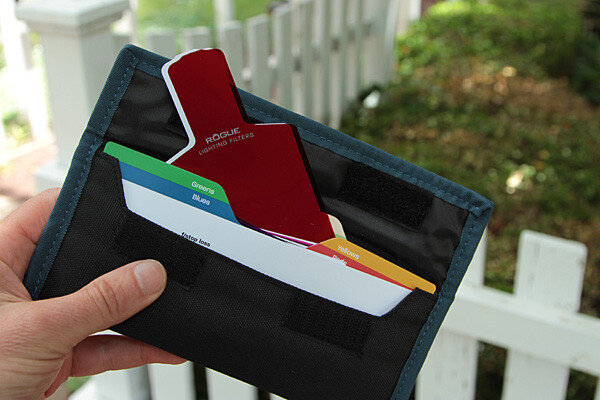
Rogue envelope 600

The Expoimaging Rogue Gel Universal Lighting Filter Kit has 20 different gels that are: well-organized in tabbed compartments; housed in a handy-dandy holder; and divided logically into warm colors, cool colors, and color corrective gels. Each gel has information about how many stops of light it blocks, as well as White Balance values. This will help you determine appropriate exposure, flash output, and camera White Balance settings.

Some kits include color correction gels, which are intended to balance the flash (normally balanced for daylight) with artificial light sources, such as incandescent or fluorescent lights. They can also be used to add elements of warm, or cool light, as more subtle effects. While individual gels are larger and can be cut to custom-fit your flash, kits gels are generally smaller but large enough to fit over nearly any shoe-mounted flash, and usually come with a band or fabric fastener strip that affixes the gel to the flash.

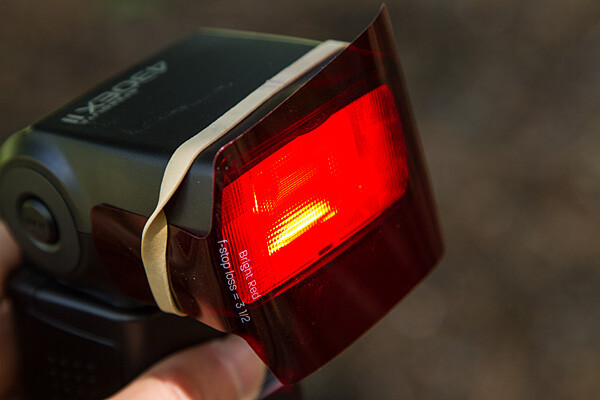
Flash redgel rubberband 600

Simple setup

All you have to do is take the gel and affix it to the front of your flash. While Rogue includes a black band that will do the job with just about any flash unit, sometimes a forgetful author needs to make due with a MacGuyver-like solution, such as using a rubber band (see image above).

The key to using a color gel to accent a scene is to use it with an off-camera flash. Fortunately, the cost of a TTL wireless flash is low. For instance, the Canon Speedlite 430 EX II currently costs under $ 260 USD, which is quite affordable. Whether you are using a DSLR, such as the Canon EOS 70D, or an advanced compact with wireless flash control, such as the Canon G16, you can fire the off-camera flash via a pulse from the on-camera flash.

Let’s take a look at one example of gels in action

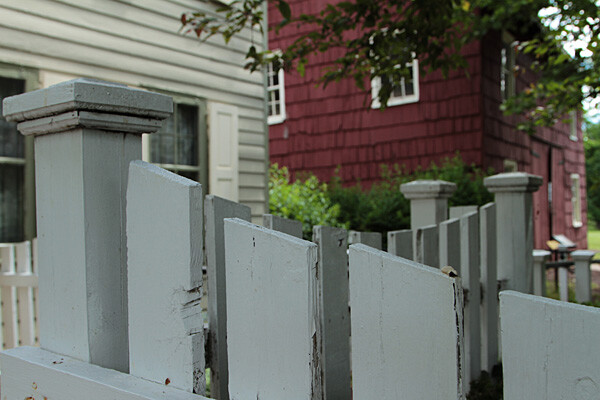
Whitefence noflash 600

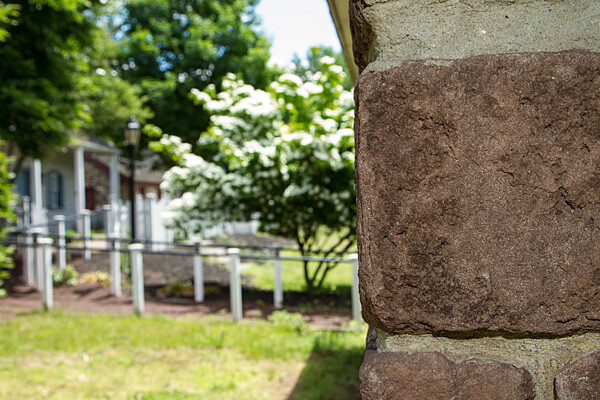
Blah foreground – this white fence could be a unifying element in this photo of a restored colonial village in Piscataway, New Jersey, but because it’s in the shade, it’s just a boring grey. Gear: Canon EOS 7D, Canon 24-105mm f/4L IS USM lens.

Whitefence flash nogel 600

A splash of flash – even if the fence had been more evenly lit, the plain white flash on the fence overpowers the image. Gear: Canon EOS 7D, Canon 24-105mm f/4L IS USM lens, and Canon Speedlite 430 EX II flash.

Whitefence redgel 600

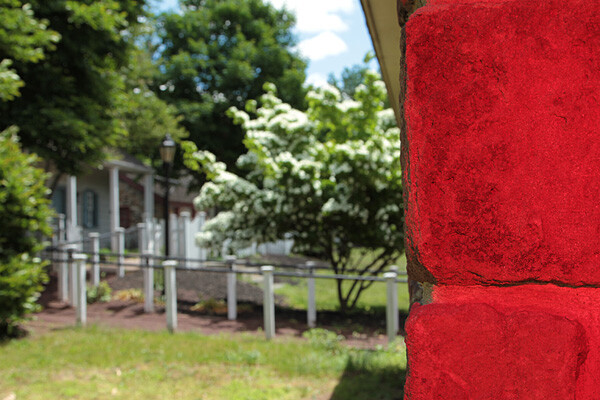
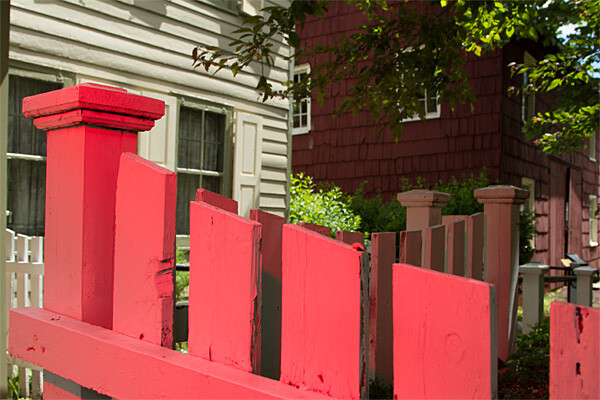
Bright red adds interest – the idea was to pick up the red tones of the building in the background while leading the eye into the shot by adding a red gel, courtesy ExpoImaging Rogue Gels (read on). Reducing the intensity of the flash output would have changed the color from pink to red. Gear: same as above with Rogue Bright Red Gel added.

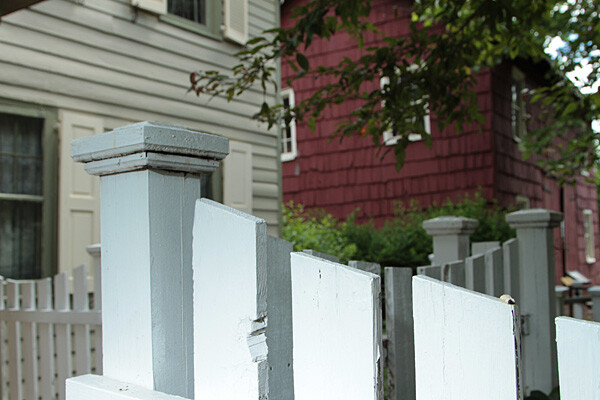
Whitefence levendargel 600

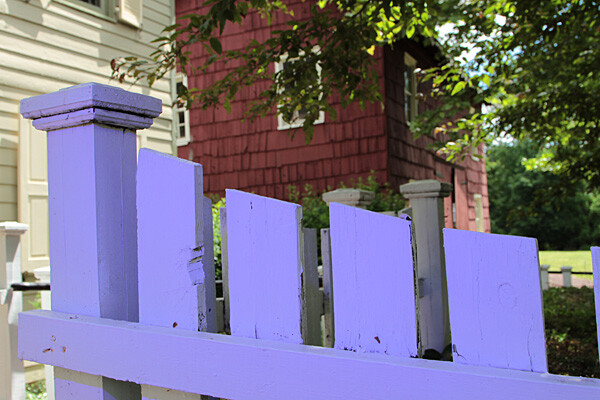
Oops, wrong color! In this case, the lavender gel was a mismatch. A color wheel, available at art supply stores, will help you make better choices. Gear: Same as above with Rogue Special KH Lavender Gel.

Step-by-step – how to trigger a Canon off-camera flash wirelessly

Here are the step-by-step directions for triggering a Canon 430 EX II wireless Canon flash from the Canon 7D. If you’re using another camera, check your manual for wireless flash instructions. Among Canon bodies, the directions will be similar to the following:

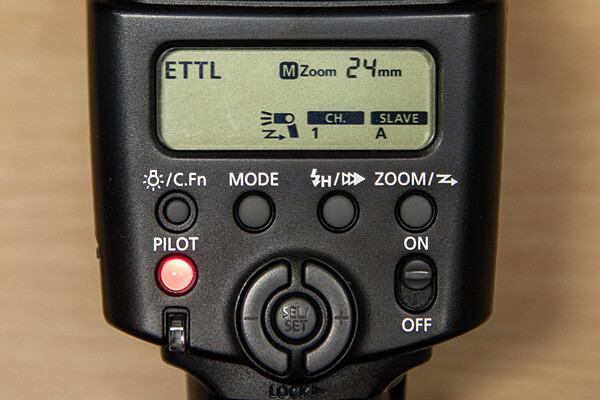
Flashsettings

  1. Turn the flash on, then press and hold the Zoom button for a second or two. You’ll see a new flash icon and Ch 1 Slave A appear in the LCD screen (see photo above).
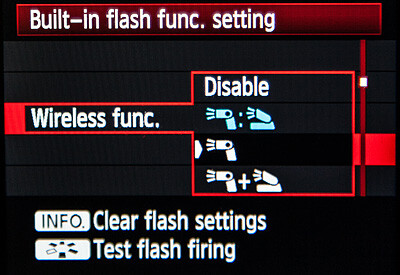
  2. Turn the camera on and pop up the flash.Wirelessfunc
  3. In Menu in the first tab (camera operation), choose Flash Control, then scroll down to Built-in flash function setting, select Wireless Functions and choose the middle setting of the single flash (see above)

Take pictures!

Although the on-camera flash is flipped up, it will not fire during the exposure. Rather, it will flash a split-second before the exposure, which triggers the off-camera flash to fire during exposure, so your only source of flash illumination during exposure is the off-camera flash. To the naked eye, it looks as if the two flashes are going off simultaneously, but they’re not.

If you want both the on-camera and off-camera flash to trigger simultaneously during exposure, go back to Wireless Functions and choose the bottom setting, which shows the off-camera flash icon + a flip-up flash icon. In this setting, your off-camera flash is your key (strongest) light source, and the flip-up flash is a fill light. Choose the top setting (Off camera flash = flip-up flash) and both will provide equal power. We’ll explore these options in future articles.

The other way to set off a wireless flash is by using a separate wireless transmitter such as the Canon Speedlite Transmitter ST-E2. The advantage of using a transmitter over triggering your off-camera flash via your camera’s built-in flash, is that the transmitter uses infrared signals, and can trigger the flash from farther away, and at greater angles. When using your on-camera flash, your flash sensor must always be within line of sight of your camera. If you’re using a full-frame DSLR, such as the Canon EOS-6D or 5D Mark III, neither of which has a built-in flash, you will need a transmitter to trigger off-camera flash.

Let your imagination run wild! You can add crazy colors and transform a scene, or you can use a more subtle approach to improve a scene without overpowering it. Here are a few examples of both techniques.

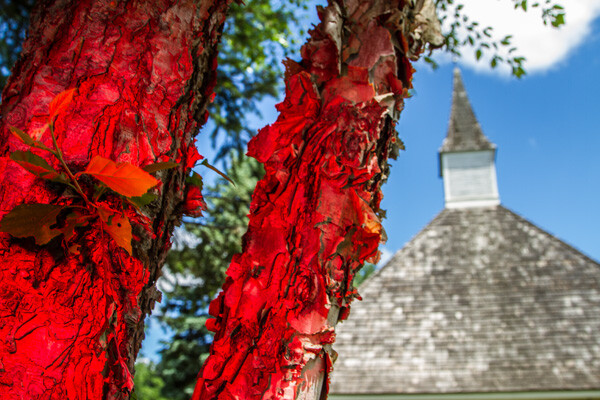
Steeple redtree 600

Wild and crazy – red tree adds primary color to offset the deep blue sky and add foreground interest. Too much? It’s a matter of personal taste.

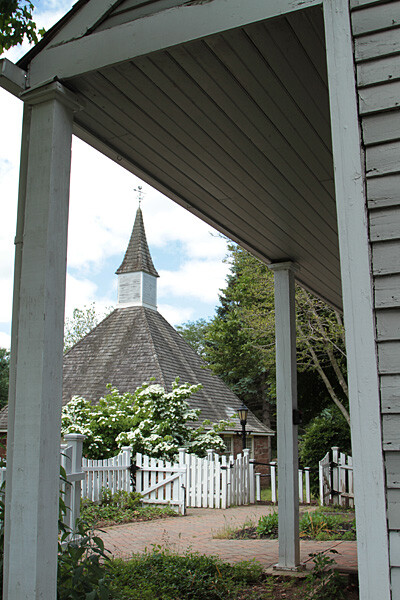
Steeple noflash 600

Before -this “frame within a frame” composition doesn’t quite work because the foreground is too dark, and the sun-drenched but interesting background is too light.

Steeple fullCTO 600

When lit with an unadorned flash, the foreground was uninvitingly cool. After adding a full CTO gel, the subtle splash of warmer light frames the background nicely.

Experiment. Try different gels to see what they look like. Don’t like your result? Try another one. Here are several variations where different color gels were used against a foreground wall in the shade, to balance a bright, sunlit scene in the background. Camera and flash setup are same as above.

Wall fullCTO flash 600

Gel: full CTO, balanced for 3,200K ambient light

Wall mossblue 600

Gel: Moss Green

Wall justblue 600

Gel: Just Blue

Wall red 600

Gel: Red

Wall nogel 600

No gel

Have you done any experimenting with colored gels and off-camera flash? Please share your results and comments below.

The post Spice-Up Your Outdoor Photos with Wireless Off-camera Flash and Gels by Mason Resnick appeared first on Digital Photography School.

Digital Photography School

 
Comments Off on Spice-Up Your Outdoor Photos with Wireless Off-camera Flash and Gels

Posted in Photography


In Photos: Sebastian Luczywo’s unconventional family portraits

14 Jun

children-family-photography-rural-sebastian-luczywo-14.jpg

Polish photographer Sebastian Luczywo takes an unusual approach to family photos. His clever and mood-filled photos depict his wife, their two children and family pets in the countryside, often with a touch of the surreal. The resulting images are anything but your standard family portraits. Take a look at his work. See gallery

News: Digital Photography Review (dpreview.com)

 
Comments Off on In Photos: Sebastian Luczywo’s unconventional family portraits

Posted in Uncategorized


In Photos: Iceland captured in infrared

07 Jun

kirjufell.jpg

Iceland, it seems, is extremely photogenic. Photographers traveling the country routinely emerge with stunning photos of mountains and waterfalls. Visiting for the first time, Andy Lee saw an opportunity to bring out even more of the drama in the country’s already dramatic landscapes. He used a DSLR converted for infrared photography, capturing the scenery in deep blues and blacks. See gallery

News: Digital Photography Review (dpreview.com)

 
Comments Off on In Photos: Iceland captured in infrared

Posted in Uncategorized


Take your Photos from Blah to WOW with Lightroom and Photoshop

07 Jun

Would you like to get started with black and white (or color) fine art photography, but don’t really know how to get the results you want? I will give you some insight in the process to take your photos to the next level and let you see how you can make the most of the not so ideal situation. I will explain how you can take your ordinary photo and transform it from this . . .

Img1

to this!

Img final

Take your Photos from Blah to WOW with Lightroom and Photoshop

For the creation of this photo I used both Adobe Lightroom and Adobe Photoshop (Note: any program that handles layers will also work including GIMP or Photoshop Elements). The beginning photo is just a black and white conversion of the color photo, as shot. It is important that when you go out and shoot, you have an idea of the final image in your head. If you are at a location, take a moment and think of what you would like to see as a final result. This way, it will take you less shots to get your winning photo.

First step the photography, how was this photo created?

This photo was shot with a Nikon D3000, Tokina 12-28mm f/4 (IF) DX AT-X PRO and Haida ND3.0 (10 stop neutral density filter). That’s right, it’s not a full frame camera! With good light conditions you don’t need one, spend money on lenses instead. I was aiming at an exposure time of minimum 25 seconds, to make the clouds and water smooth. I metered 1/60th at f/14, 100 ISO, so that would give me the 25-27 second exposure (with the ND3.0) I wanted.

You can find exposure tables online, and sometimes you get them with the filter you buy. If all the conditions were perfect (which wasn’t the case) I wanted to shoot until sunset, expanding my exposure time to over 1 minute. But clouds rolled in (wasn’t forecast) and ruined the light. After a few shots, I got what I wanted and was heading home.

Next step, post-processing your image

First load the photo in to Lightroom and give it some minor adjustments to contrast and clarity. Increase the contrast a bit and reduce the clarity of the bottom part of the photo (the water). This can be done with a graduated filter (keyboard shortcut “M”) and moving the clarity slider to the left.

Now move over to Photoshop to take care of the sky (you can export it directly from Lightroom, right click on the photo and select edit in Photoshop). I was aiming for a nice movement in the sky, but the clouds weren’t going fast enough for my maximum exposure time. So we are going to replicate that with the help of photoshop.

Duplicate the image and select the sky, using the magic wand selection tool (W). Use the current layer and a brush seize of 30 pixels. When you’ve got your selection (it won’t be perfect but that is fine), click on the add layer mask symbol. (below the layers on the bottom right side of the screen).

You can make the layer mask more accurate with the pen tool (p). Click on the edge of a building (and later on the bridge) and work your way around the skyline, by clicking on every corner. The pen too will automatically draw a straight path from one point to another. When complete (you have to get all the way back to the first point you made), right click on the image and select “make selection” (feather 0, and make new selection) hit OK in the new window. Now fill your selection with black and you have a nice and clean layer mask of the sky.

Add motion blur to the sky

Now you can add a zoom blur to the sky layer, so you get a nice washed out cloud formation. Here is how to do that:

  • Select the duplicated sky layer then select Filter -> Radial Blur
  • In the menu select Blur Method -> Zoom, Quality -> good and amount 70 (you can add more, but that depends on the photo) – don’t hit OK yet!
  • Nest select where the Blur Center is positioned in the right window by clicking and dragging it around (somewhere in the middle for this photo)
  • Hit OK
  • After this you need to clean up the layer, because it now runs over the buildings
  • Hold CMD (alt on win) and click on the layer mask for the sky. Click -> selection -> inverse (you now have everything but the sky selected and hit delete.

Now you should have something like this:

Img2

As you can see the sky is now very pleasing, full of movement. When you look closer you can see that all the wires from the bridge are gone. We will have to fix that next. The wires aren’t straight lines, so the selection process of these is a pain – but worth the effort.

Using the pen tool (P) you can select all the wires on the background layer (which took me quite some time). You can do this one by one. Select one complete wire and duplicate the selection into a new layer. When you have all of them, merge all of these layers to one and place it above the duplicated sky layer.

You could also use the Magnetic Lasso Tool (L) to select all the wires but because of the low contrast in some places it won’t work, and you have to correct it later on.

Using the pen tool is a complete chapter, and I’m feeling that explaining how to use the tool takes too much focus away from this tutorial. It can take some time to master but I highly recommend reading tutorials on how to use the pen tool. You will need it for this image, but for the most of the images you can just make straight selections.

Here is my selection of the wires:

Img3

Now you can add some adjustments to the contrast in the wires and bridge, using a Brightness/Contrast adjustment layer. I used: Brightness +3 and Contrast +24

Img4

Final adjustments in Lightroom

From this point we leave Photoshop and continue in Adobe Lightroom. You could, however, do the same in Photoshop with dodging and burning, but I like the workflow of Lightroom more and used it to get to the final stage of the image.

From here it is basically just adding and removing light (exposure, contrast, white point) to selective places in the photo and checking for some dust particles. I can go into the details here, but it’s your vision of what you would like to achieve with the photo. Use the gradient filter (M) and the adjustment brush (K) in Lightroom to add and remove light to selected areas of the image. You have to “color” the photo to your wishes and crop it when needed. You are in fact painting with light.

Here is what I came up with for the final image:

Img final

“Catch  the light” – Rotterdam (The Netherlands)

Do you have any additional tips for processing for that wow factor? Please share in the comments below.

The post Take your Photos from Blah to WOW with Lightroom and Photoshop by Martijn Kort appeared first on Digital Photography School.

Digital Photography School

 
Comments Off on Take your Photos from Blah to WOW with Lightroom and Photoshop

Posted in Photography


Rare photos of Nagasaki destruction auctioned

06 Jun

Nagasaki-3.jpg

A collection of images, including 24 photographs taken the day after the bombing of Nagasaki, were up for auction this week at Bonhams. According to the auction house, these are the only thorough record from the scene of the August 9, 1945 destruction. Twelve of these photos are though to be prints from original negatives belonging to the photographer, Yosuke Yamahata. The album was expected to fetch between $ 25,000 and $ 35,000 at auction. Read more

News: Digital Photography Review (dpreview.com)

 
Comments Off on Rare photos of Nagasaki destruction auctioned

Posted in Uncategorized


How To Shoot Unique Travel Photos Like You Wouldn’t Believe

06 Jun

In our world of digital photography, it’s tough to take one-of-a-kind travel photos. For example, let’s say you’re visiting the Leaning Tower of Pisa in Tuscany, Italy. With your camera around your neck, you stroll into the Piazza dei Miracoli and are struck by the strange bell tower’s architectural beauty. But you also notice the crowds of tourists snapping pictures like the paparazzi at Continue Reading

The post How To Shoot Unique Travel Photos Like You Wouldn’t Believe appeared first on Photodoto.


Photodoto

 
Comments Off on How To Shoot Unique Travel Photos Like You Wouldn’t Believe

Posted in Photography


Royal Air Force commemorates 70 years since D-Day with recreated photos

06 Jun

A_II__AC__Squadron_Mustang_in_flight.jpg

Seventy years after the D-Day landings in Normandy, the Royal Air Force remembers June 6, 1944 by recreating some historic images from the day – though not the kind you might expect. As naval forces made landfall on D-Day, a II (AC) Squadron Mustang took to the sky above, bringing back some of the first images of the landings. The reconnaissance mission was recently mimicked by two Tornado GR4s carrying more sophisticated imaging equipment. Compare the photos and fly along with the modern jets in a behind-the-scenes video. See more

News: Digital Photography Review (dpreview.com)

 
Comments Off on Royal Air Force commemorates 70 years since D-Day with recreated photos

Posted in Uncategorized


In iOS 8, Apple brings welcome refinements to Photos app

03 Jun

wwdc-2014-brandnew-100260150-gallery.png

As we’ve come to expect, Apple is using its annual developers’ conference in San Francisco to announce new versions of its desktop and mobile operating systems. Along with a host of refinements in iOS 8 is a revamped Photos app, with improved native retouching options, better search, more complete iCloud integration and support for third party retouching apps as ‘extensions’. Click through for more details.

News: Digital Photography Review (dpreview.com)

 
Comments Off on In iOS 8, Apple brings welcome refinements to Photos app

Posted in Uncategorized


A Collection of Great Silhouette Photos

30 May

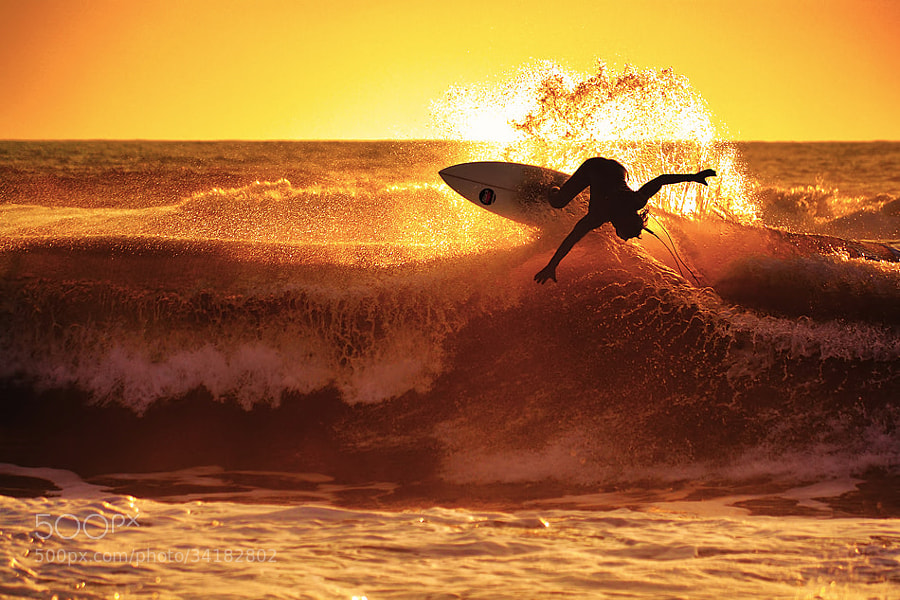
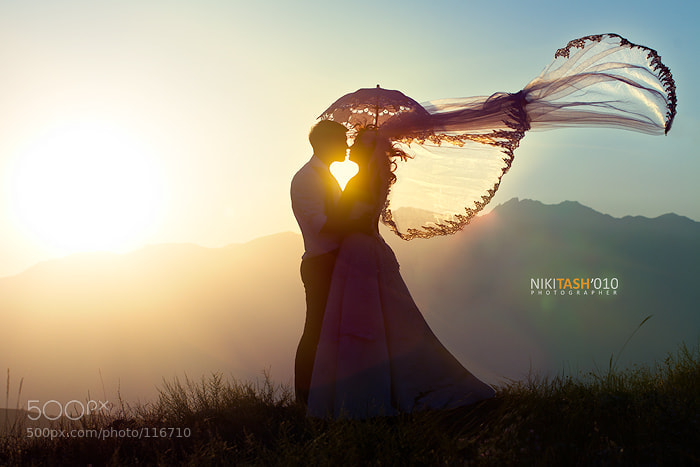
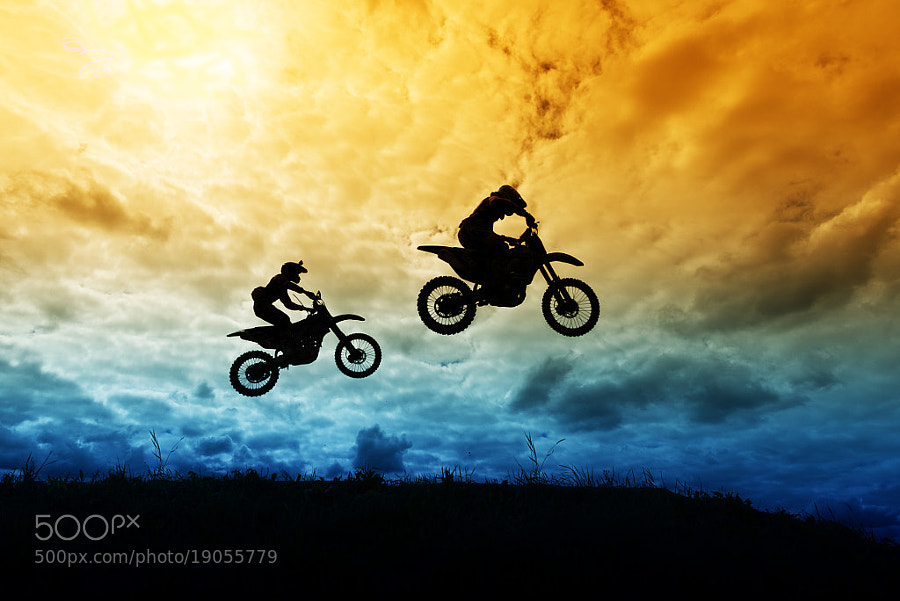
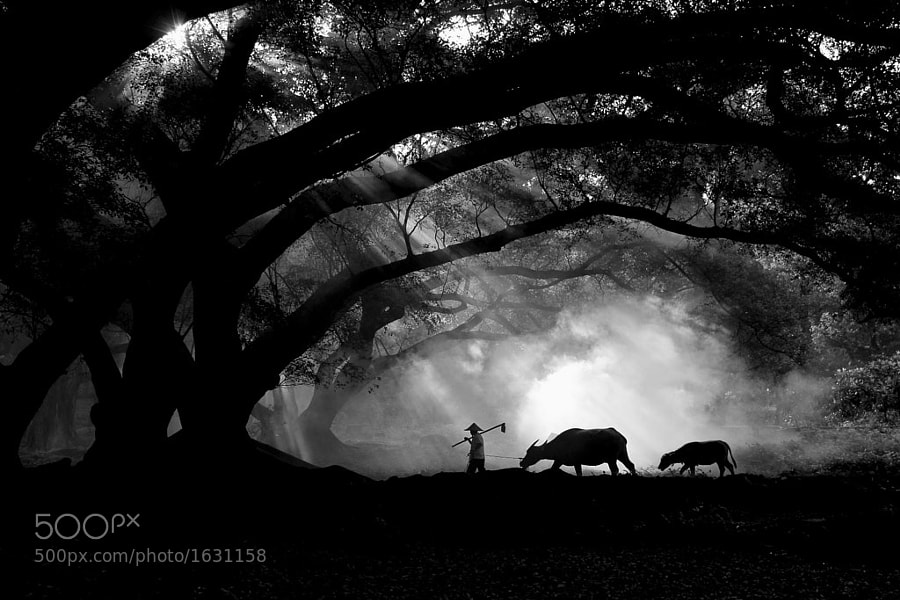
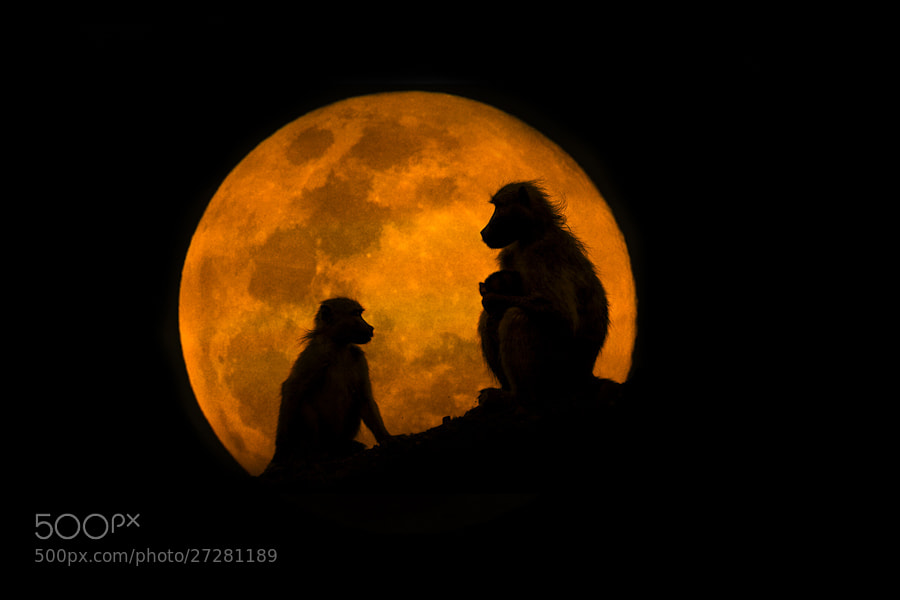
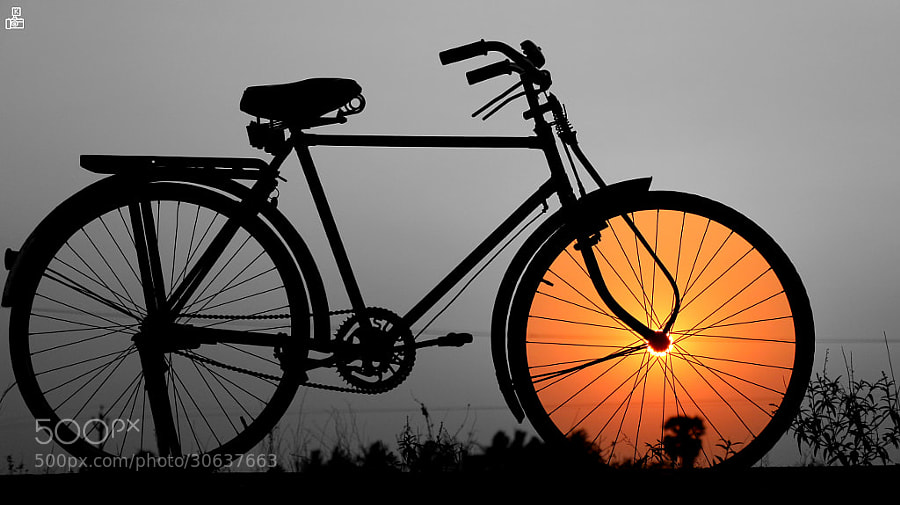
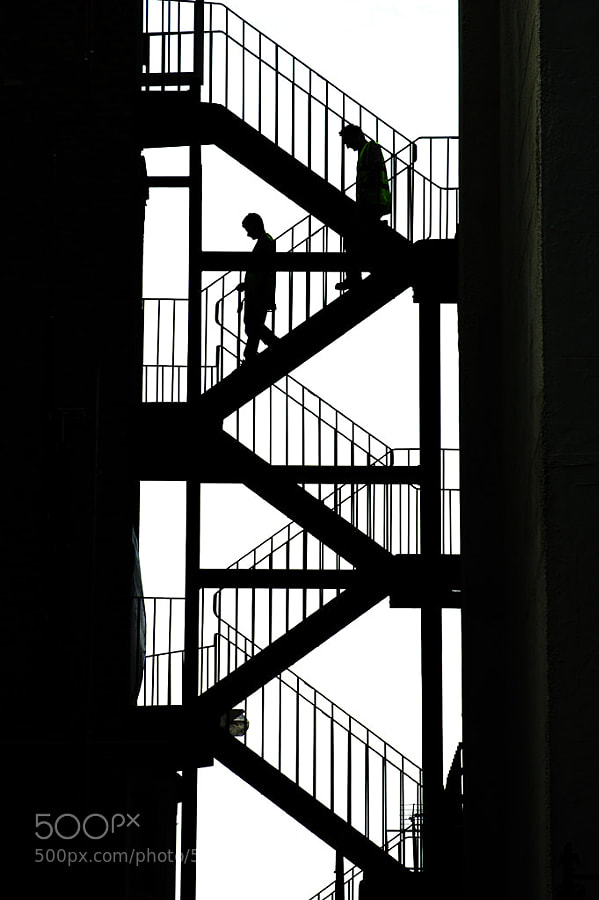
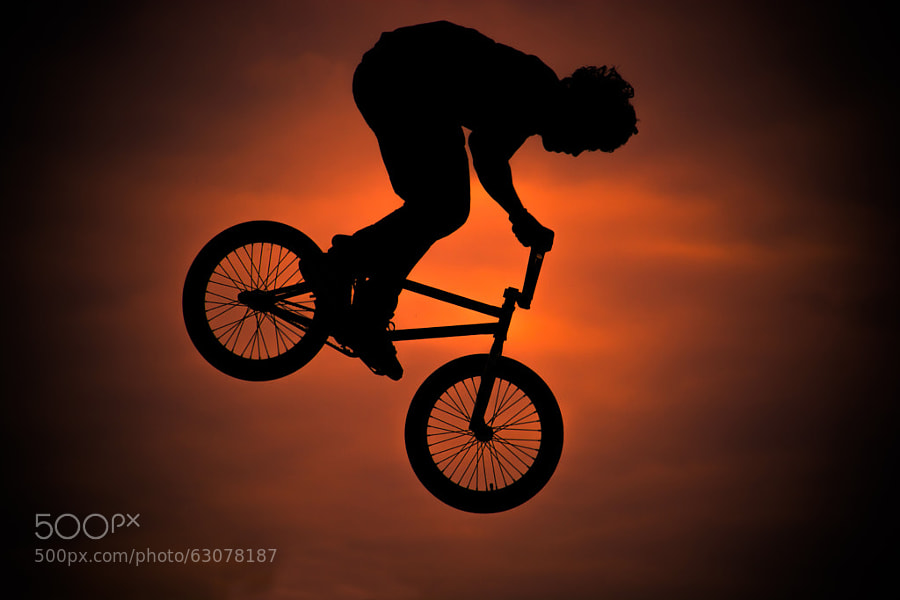
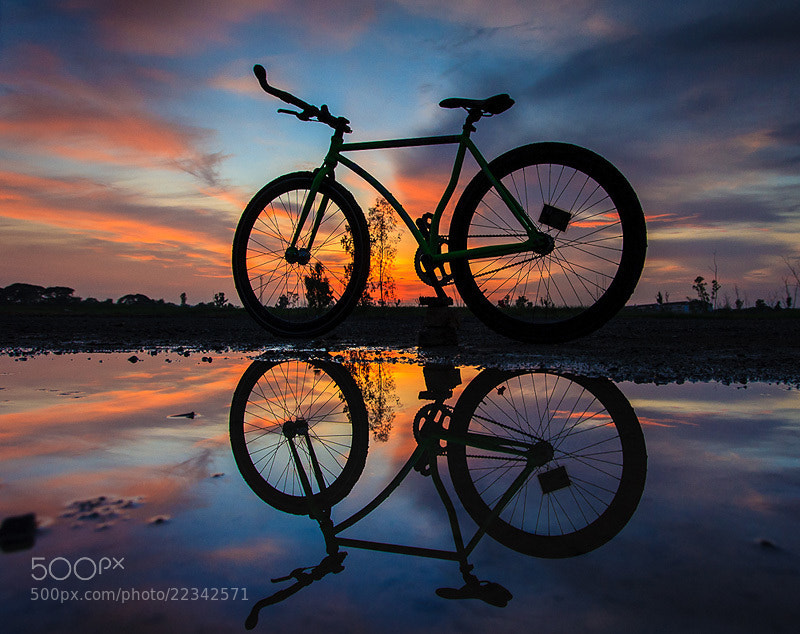
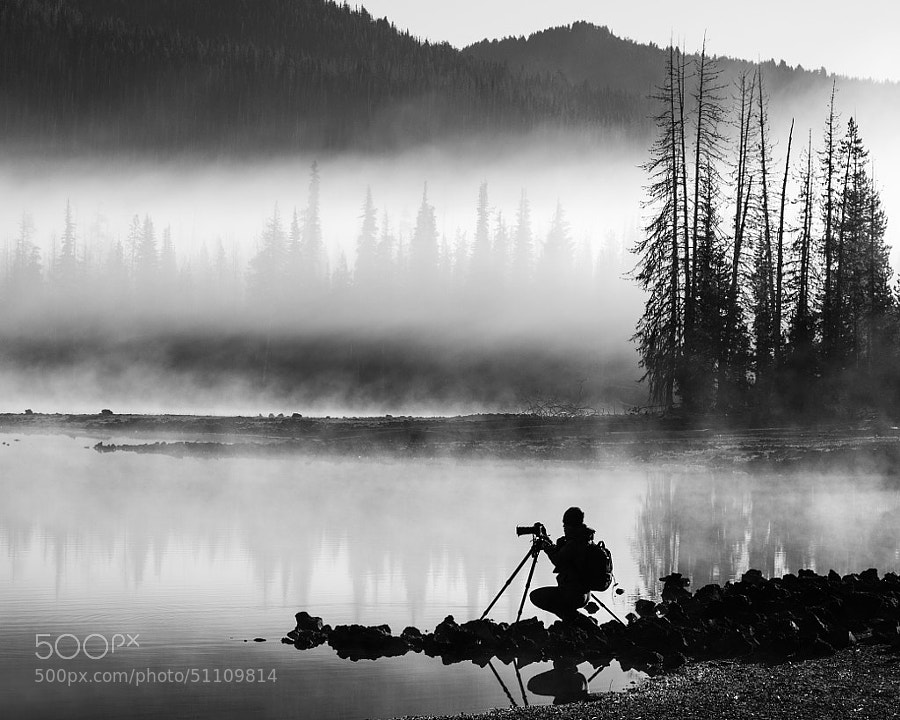
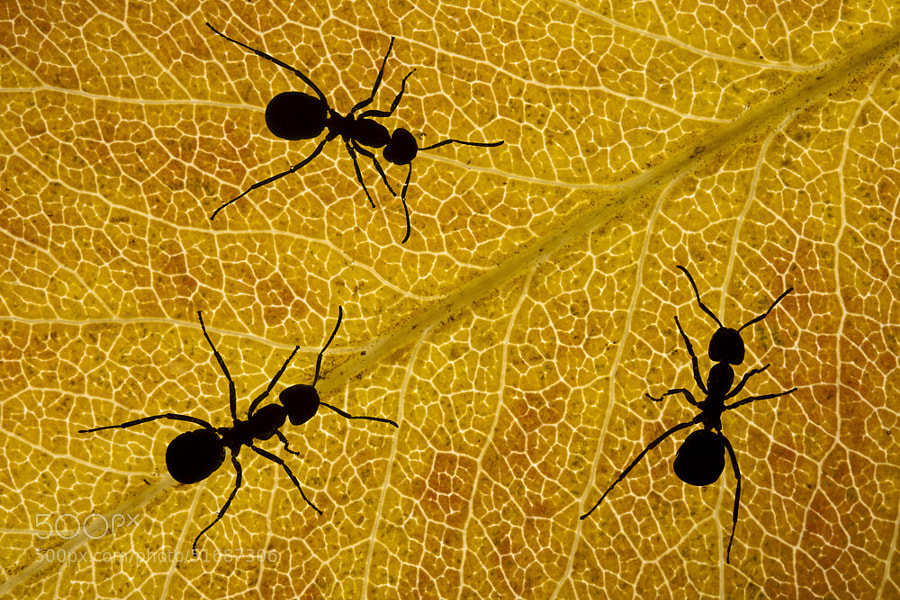
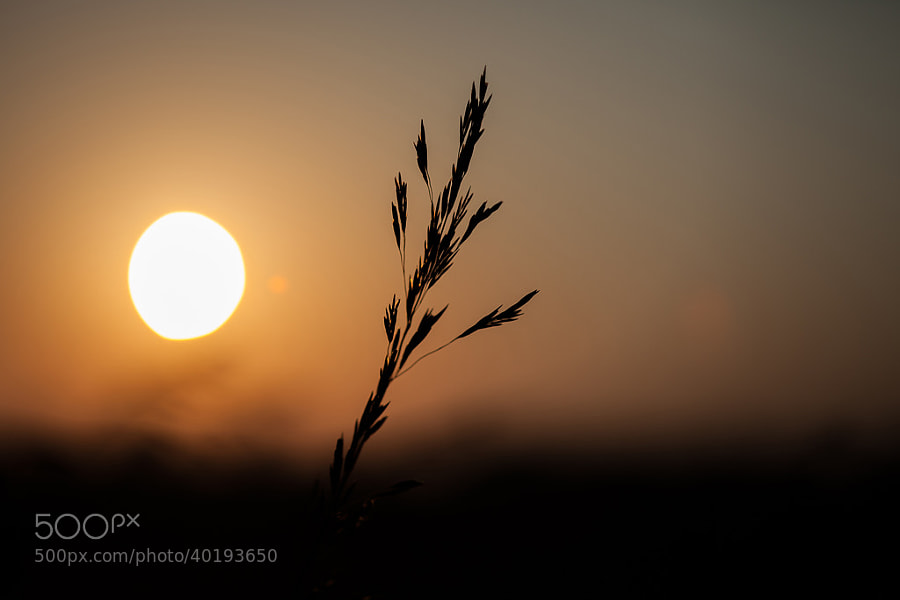
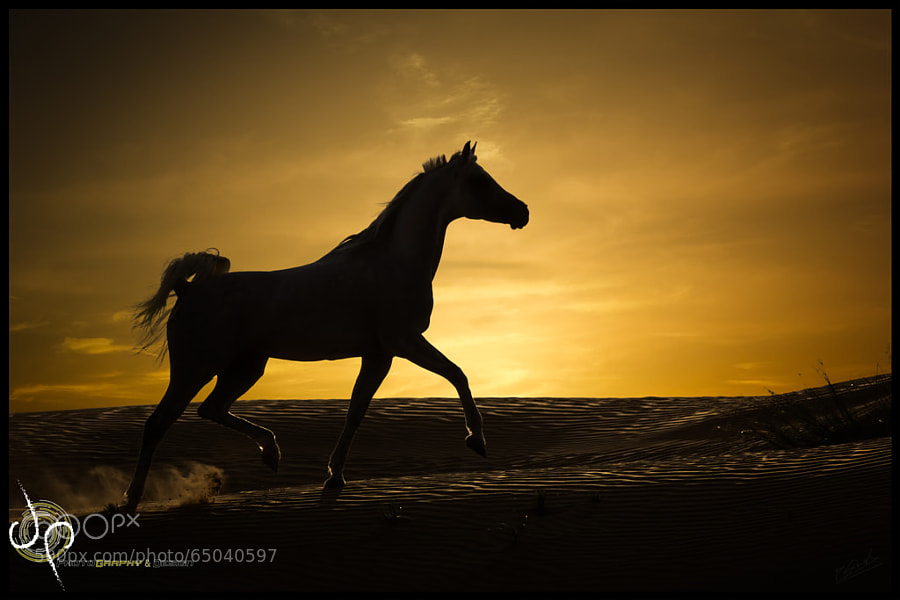
The Merriam-Webster dictionary defines silhouette as: a dark shape in front of a light background. It is a dramatic way to use backlighting to create stunning photos. Silhouettes are often associated with portraits but there are many other forms as well. 

Here’s a selection of a variety of silhouette photos  – enjoy!

Photograph re....magic by Marco Petracci on 500px

re….magic by Marco Petracci on 500px

Photograph *** by Nikita Shirokov on 500px

*** by Nikita Shirokov on 500px

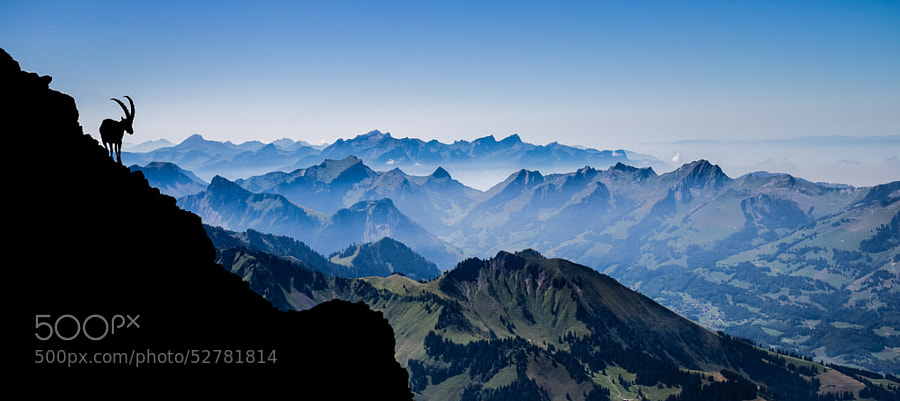
Photograph Shadow of the Ibex by Gilles Baechler on 500px

Shadow of the Ibex by Gilles Baechler on 500px

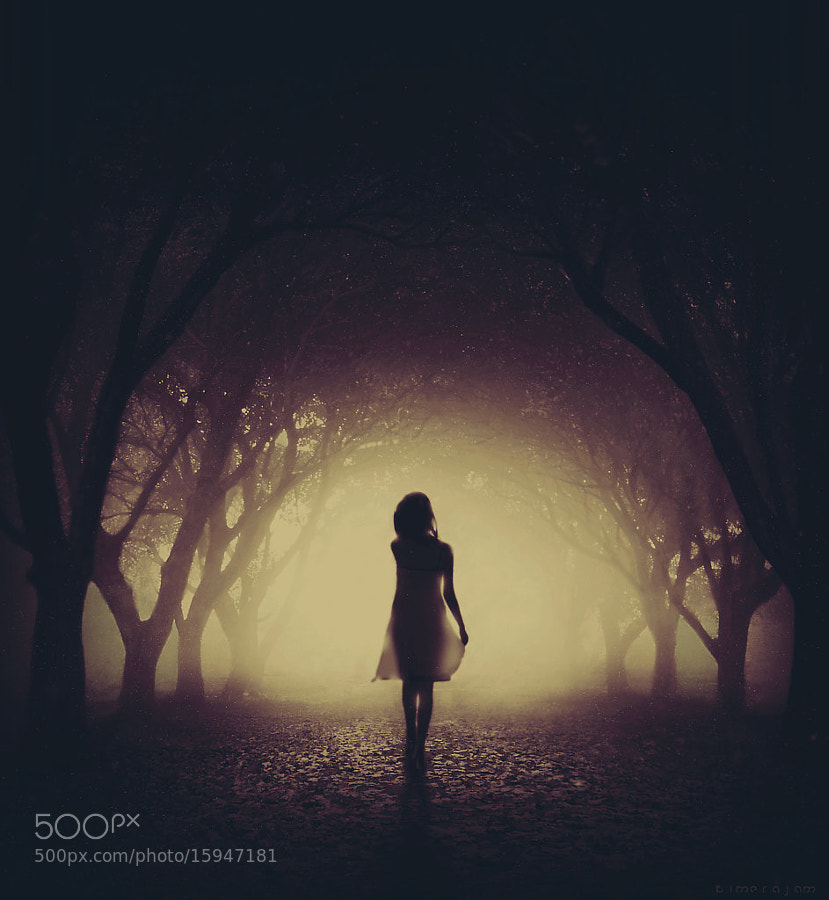
Photograph the dark alley by kimera jam on 500px

the dark alley by kimera jam on 500px

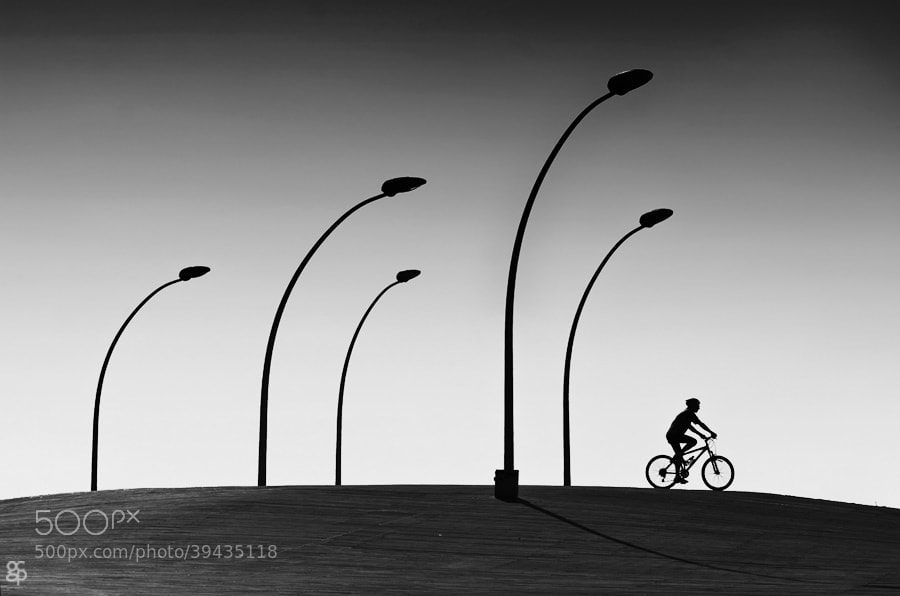
Photograph Right by Guy Cohen on 500px

Right by Guy Cohen on 500px

Photograph Life and Death by Carlos Gotay on 500px

Life and Death by Carlos Gotay on 500px

Photograph Motocross by Daniil Lebedev on 500px

Motocross by Daniil Lebedev on 500px

Photograph Farmer with his buffalos by Jinny Tan on 500px

Farmer with his buffalos by Jinny Tan on 500px

Photograph The Baboons & The Moon by Mario Moreno on 500px

The Baboons & The Moon by Mario Moreno on 500px

Photograph Sunbathing Gekko on Leaf by Leon Dafonte Fernandez on 500px

Sunbathing Gekko on Leaf by Leon Dafonte Fernandez on 500px

Photograph Dont debase and stop,success is not so far...... by Krishna Kumar on 500px

Dont debase and stop,success is not so far…… by Krishna Kumar on 500px

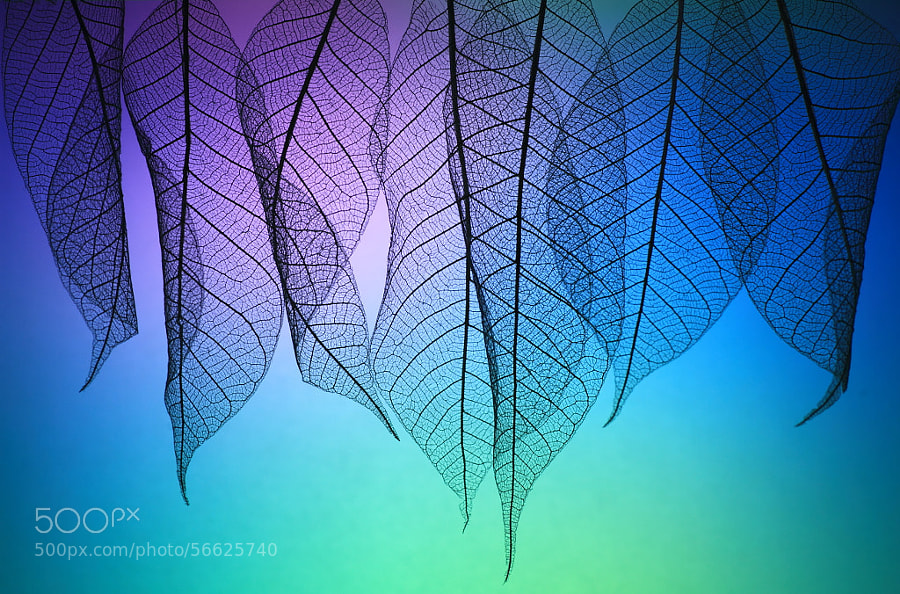
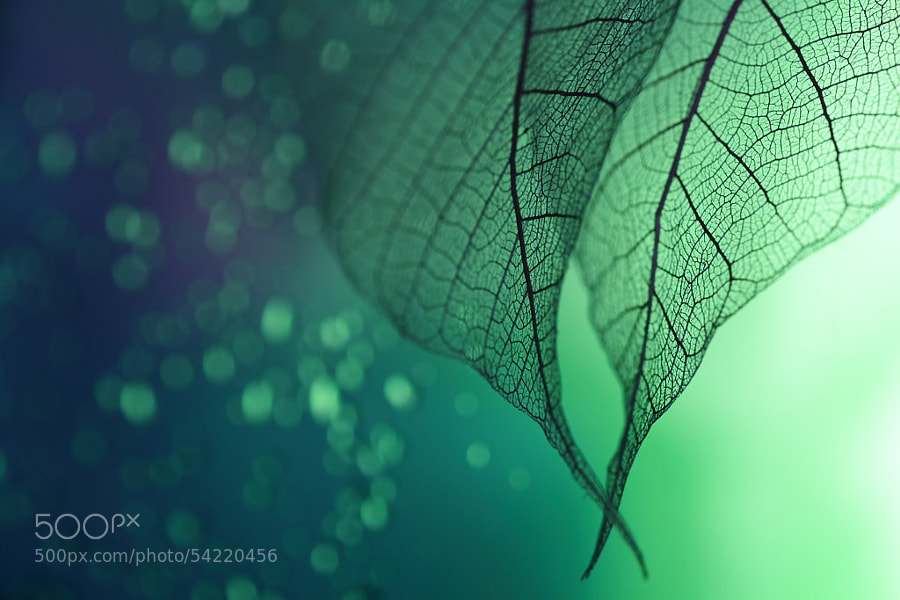
Photograph Prismatic leafs by Shihya Kowatari on 500px

Prismatic leafs by Shihya Kowatari on 500px

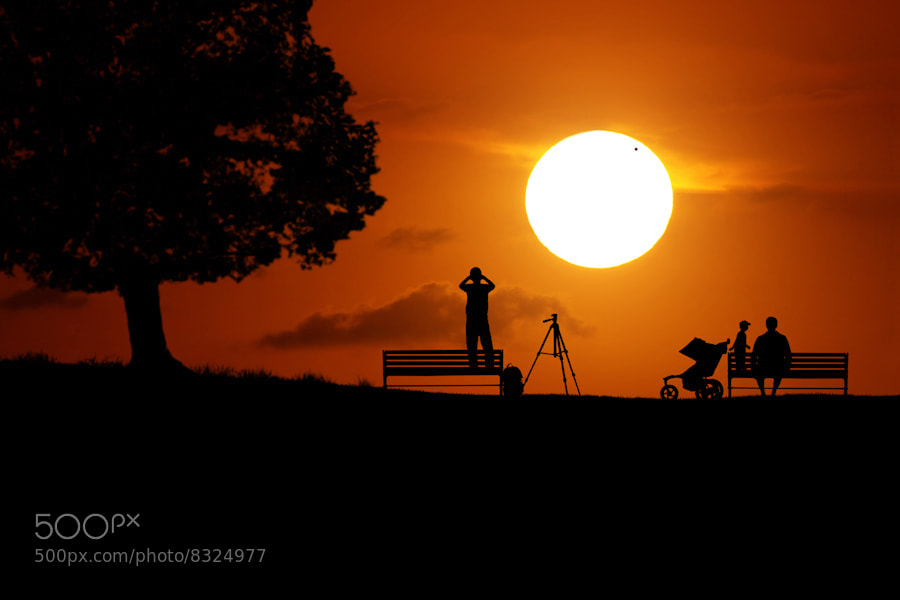
Photograph Venus Transit by Carlos Gotay on 500px

Venus Transit by Carlos Gotay on 500px

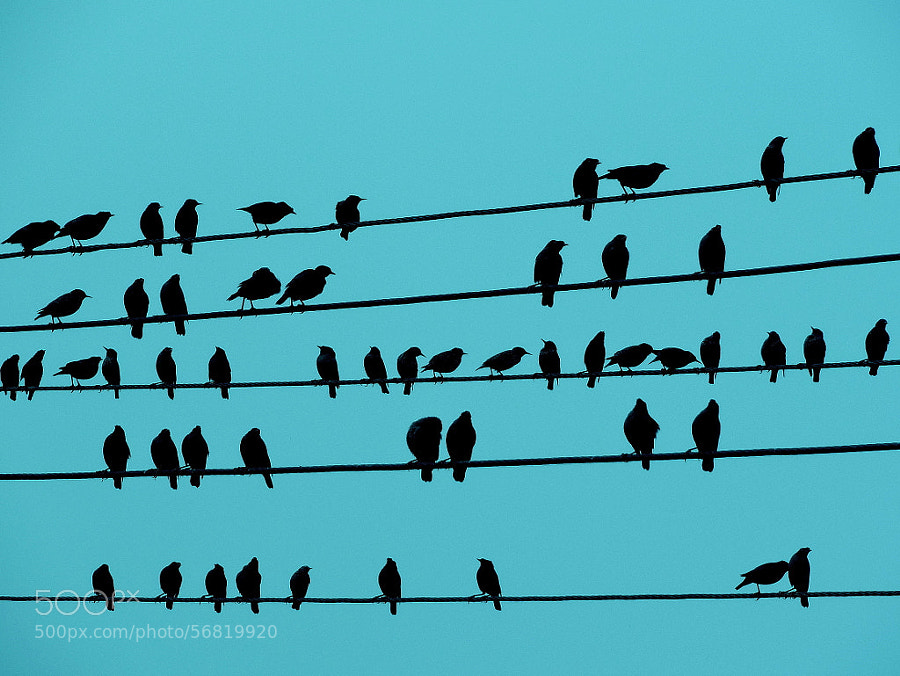
Photograph Music Notes by Rahul Tripathi on 500px

Music Notes by Rahul Tripathi on 500px

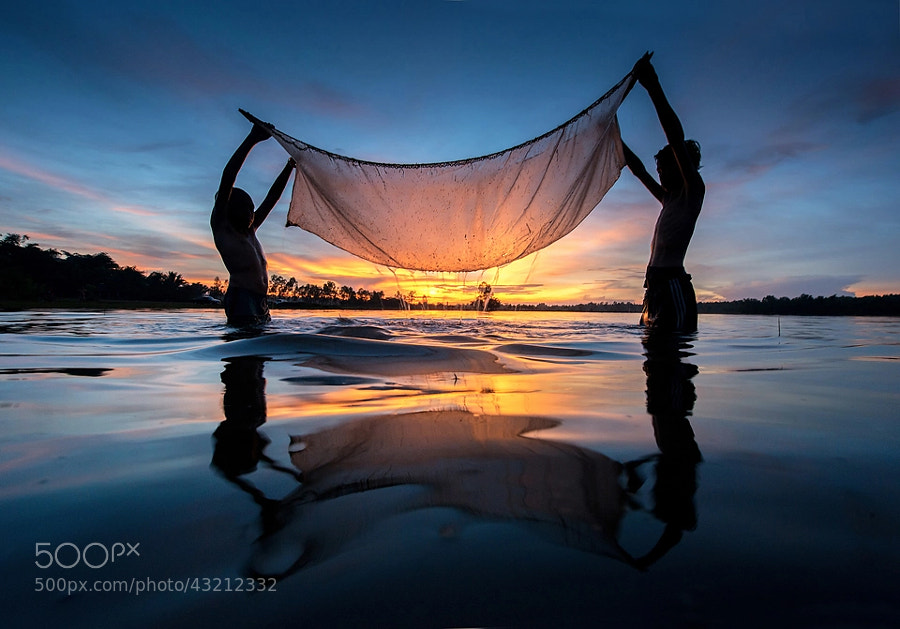
Photograph Young fishing by sarawut Intarob on 500px

Young fishing by sarawut Intarob on 500px

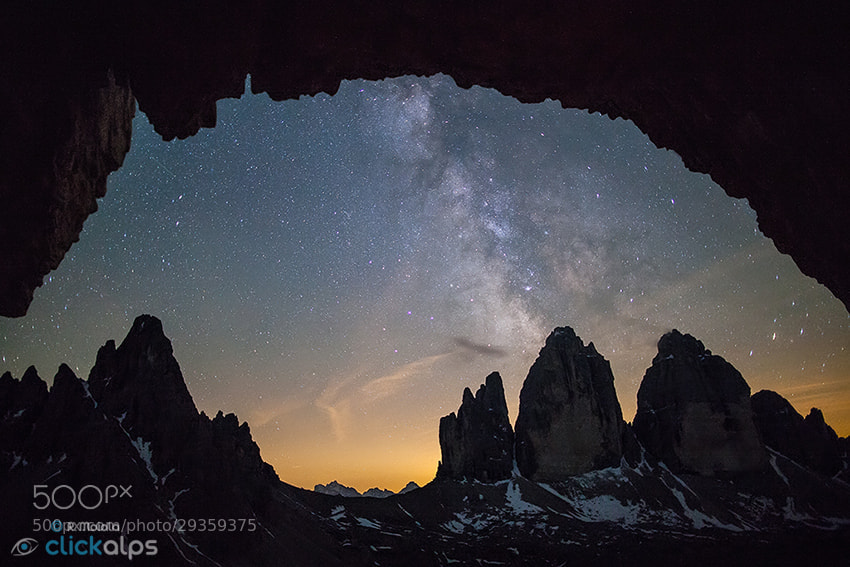
Photograph Dolomites Postcard by SysaWorld Roberto Moiola on 500px

Dolomites Postcard by SysaWorld Roberto Moiola on 500px

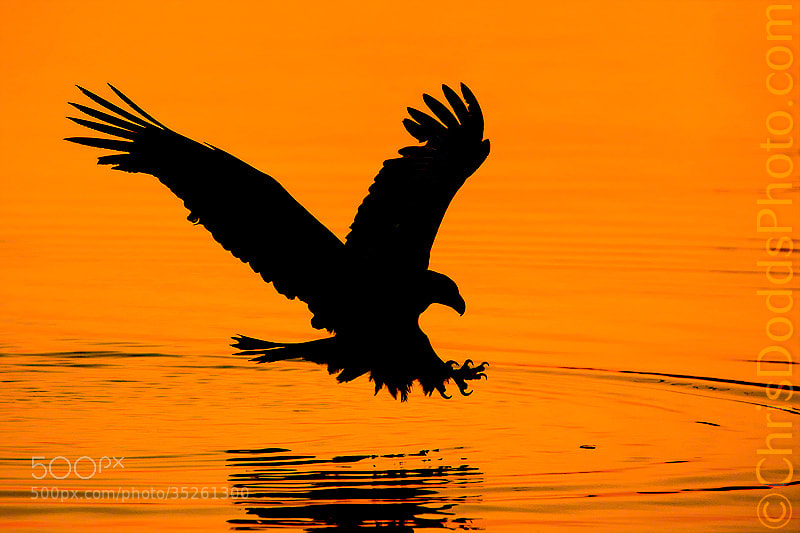
Photograph Bald Eagle Silhouette by Christopher Dodds on 500px

Bald Eagle Silhouette by Christopher Dodds on 500px

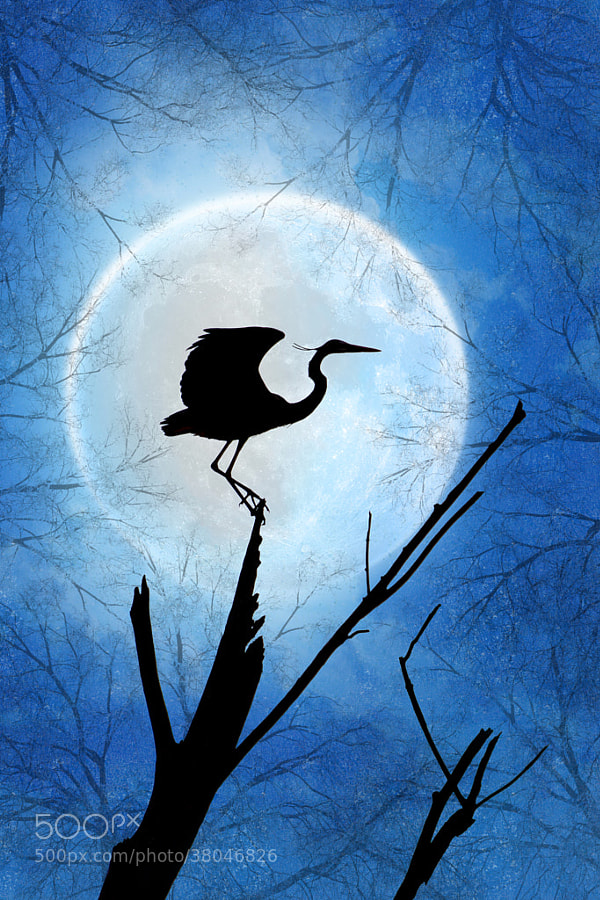
Photograph Lunar Landing by Adrienne Elliot on 500px

Lunar Landing by Adrienne Elliot on 500px

Photograph Pale love story by Shihya Kowatari on 500px

Pale love story by Shihya Kowatari on 500px

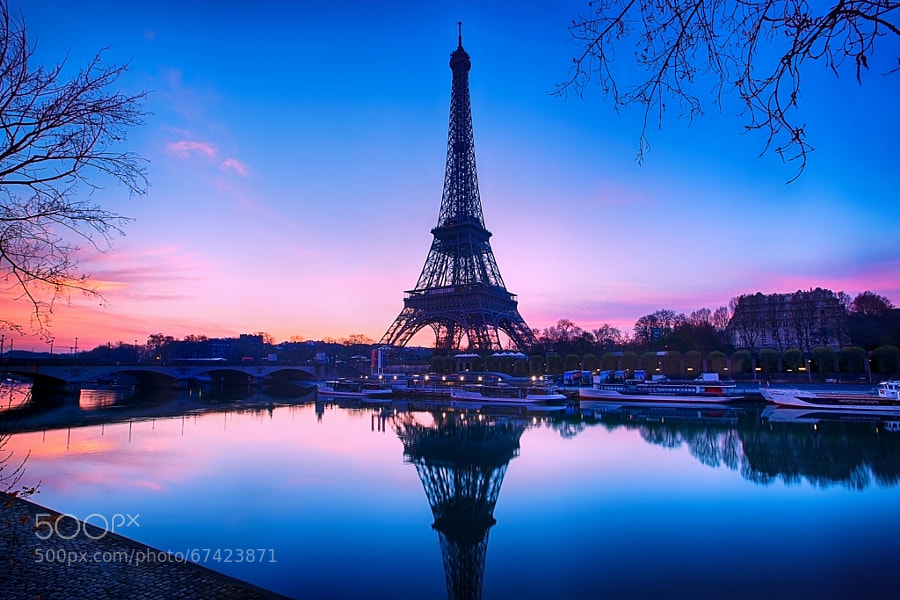
Photograph Pink Paris... by Charlie Joe on 500px

Pink Paris… by Charlie Joe on 500px

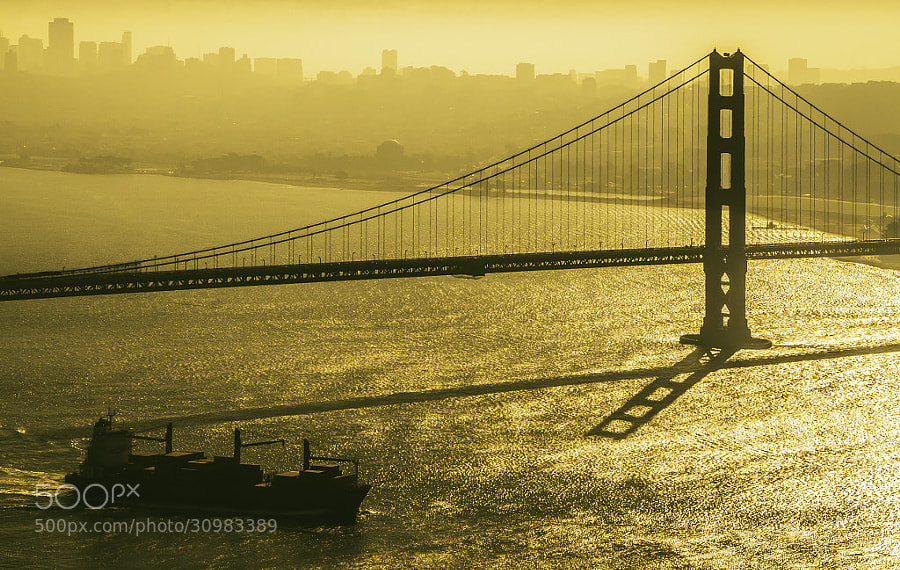
Photograph The Silhouette of an Icon by Alister C. on 500px

The Silhouette of an Icon by Alister C. on 500px

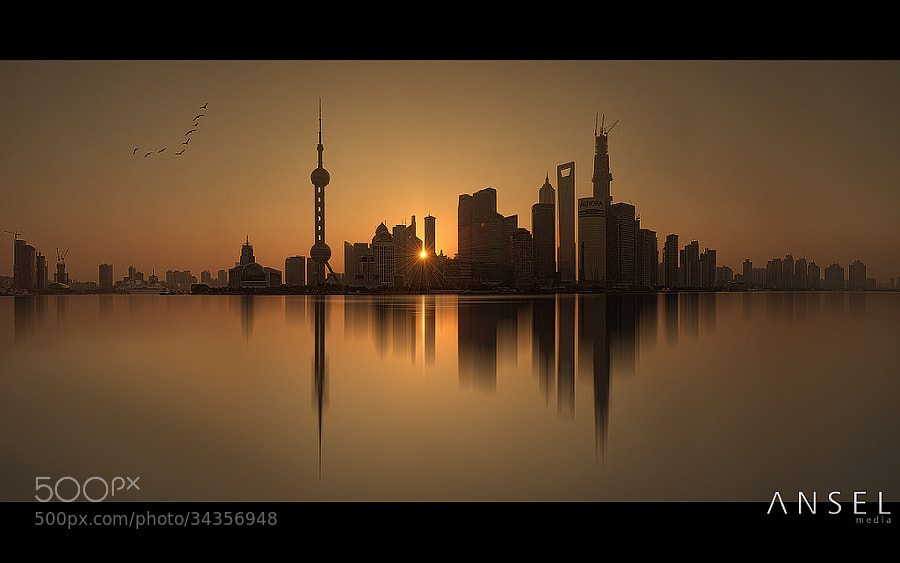
Photograph Shanghai Silhouettes by Jonathan Danker on 500px

Shanghai Silhouettes by Jonathan Danker on 500px

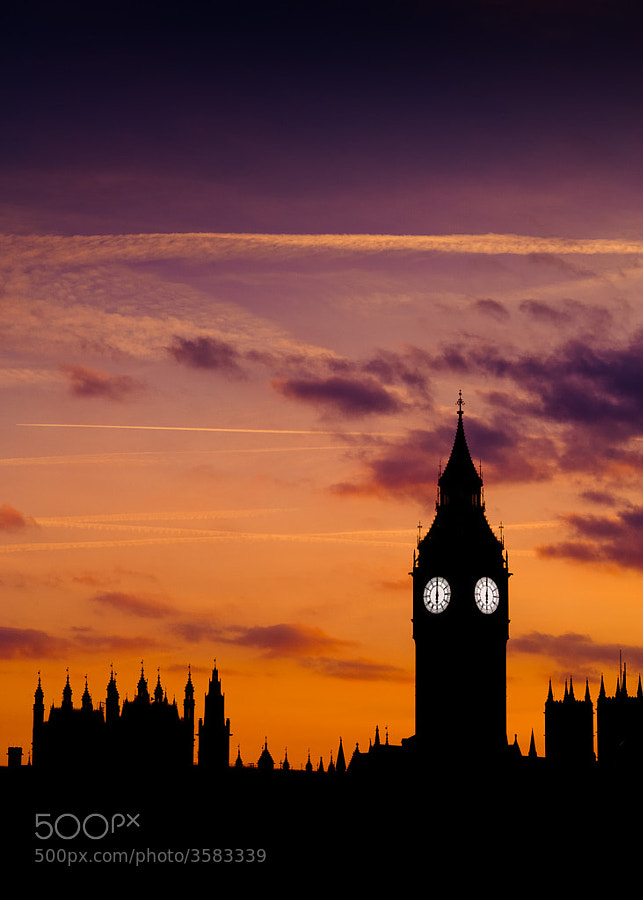
Photograph London by Sémaphore  on 500px

London by Sémaphore on 500px

Photograph Six O'Clock by Sean Molin on 500px

Six O'Clock by Sean Molin on 500px

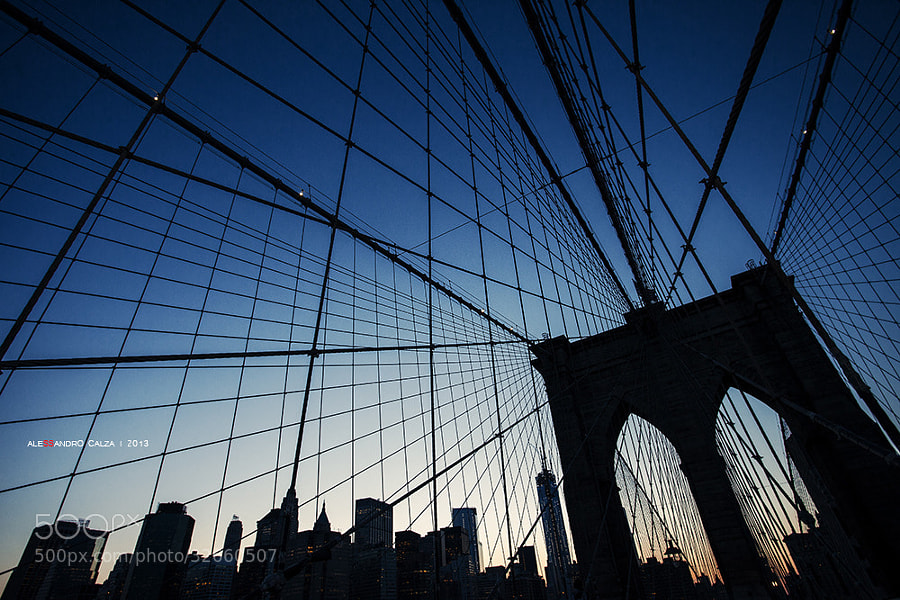
Photograph Brooklyn Bridge by Alessandro Calza on 500px

Brooklyn Bridge by Alessandro Calza on 500px

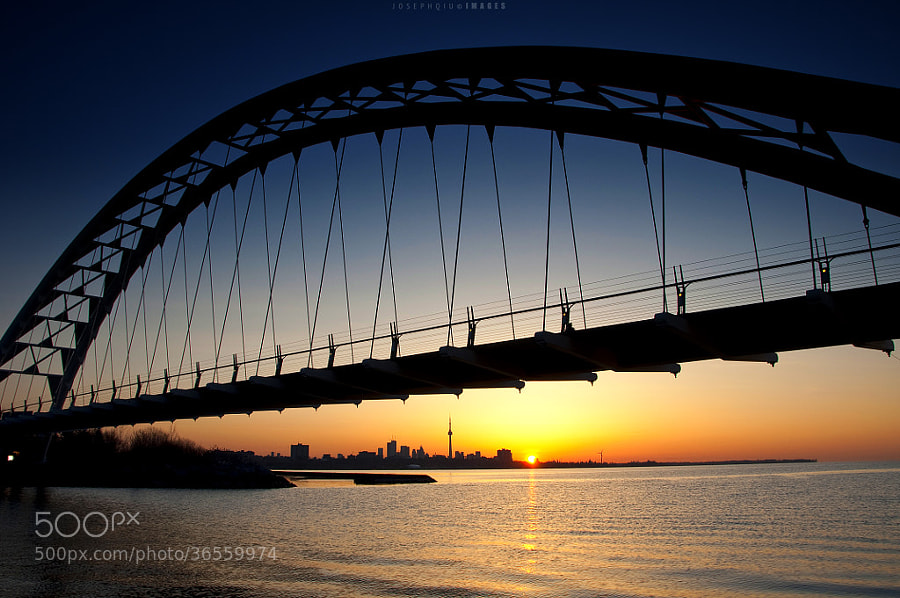
Photograph Bridge the Day and Night by Joseph Qiu on 500px

Bridge the Day and Night by Joseph Qiu on 500px

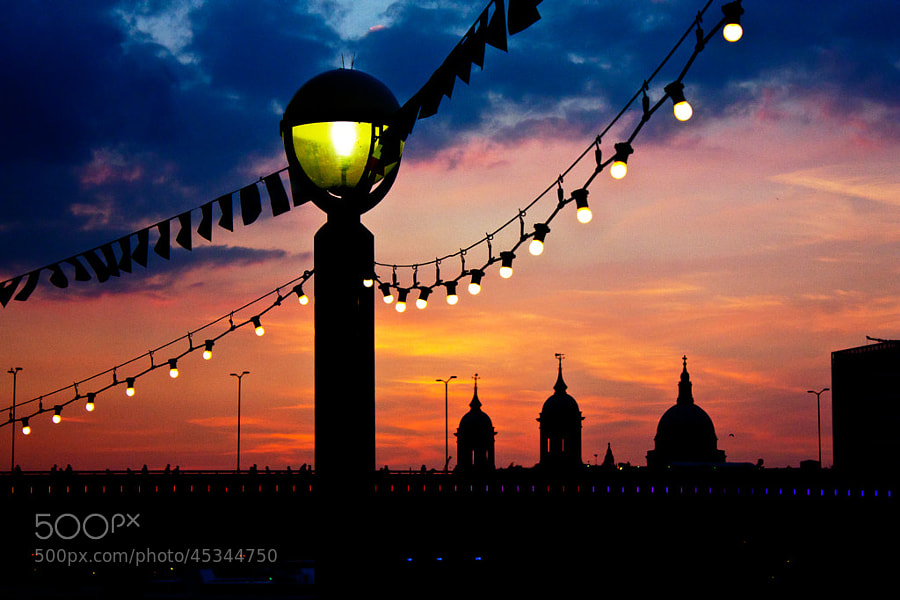
Photograph London Bridge at sunset by Rob Dawkins on 500px

London Bridge at sunset by Rob Dawkins on 500px

Photograph The Legend by Milonean Vlad on 500px

The Legend by Milonean Vlad on 500px

Photograph ?Bike. by Khatawut J on 500px

?Bike. by Khatawut J on 500px

Photograph Moment by Majeed Badizadegan on 500px

Moment by Majeed Badizadegan on 500px

Photograph Ants silhouette by Barni Buslig on 500px

Ants silhouette by Barni Buslig on 500px

Photograph Goodnight by Luke Strothman on 500px

Goodnight by Luke Strothman on 500px

Photograph Whale shark silhouette off Mexico by Simon Pierce on 500px

Whale shark silhouette off Mexico by Simon Pierce on 500px

Photograph Sundowners by Adrian Furner on 500px

Sundowners by Adrian Furner on 500px

Photograph A Kiss Before... by Ray Sanduski on 500px

A Kiss Before… by Ray Sanduski on 500px

Photograph Summer by Bodhi Connolly on 500px

Summer by Bodhi Connolly on 500px

Photograph Photographer is fish by sarawut Intarob on 500px

Photographer is fish by sarawut Intarob on 500px

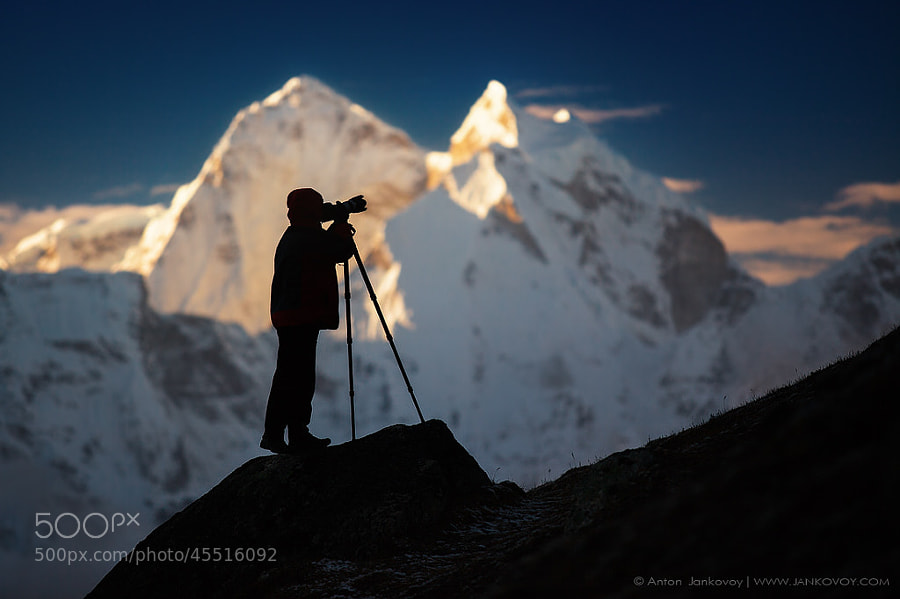
Photograph Photographer and Mountains by Anton Jankovoy on 500px

Photographer and Mountains by Anton Jankovoy on 500px

Photograph Freedom by Prakash singh on 500px

Freedom by Prakash singh on 500px

The post A Collection of Great Silhouette Photos by Darlene Hildebrandt appeared first on Digital Photography School.

Digital Photography School

 
Comments Off on A Collection of Great Silhouette Photos

Posted in Photography