RSS
 

Posts Tagged ‘Photos’

A Super Simple Way to Make Landscape Photos POP Using Lightroom

17 Jan

It seems like virtually all outdoor or landscape photographs suffer from the same illness when they come out of the camera. The symptoms are:

  • An overly bright sky
  • Foreground that is too dark
  • A general lack of color and contrast.

Sound familiar?

Fortunately, there is a cure for this ailment. Actually, as anyone who has worked with post-processing software for any length of time knows, there are a lot of different cures. But I want to show you a super simple way to fix pictures with these problems. I performed these fixes in Lightroom, but you can also do them on the Adobe Camera Raw screens of Photoshop or Photoshop Elements.

Colorado road photo with Lightroom adjustments

The quick-fix shown here will involve nothing more than moving six sliders, each of which is in the Basic panel of Lightroom’s Develop module. The edits will take less than 30 seconds of your time. I performed these edits – and only these edits – to the pictures you see throughout this article to show you the effects.

The Steps

Let’s not dally with a lot of explanation just yet. Here are the steps to perform a quick-fix of landscape photos. The first three steps are the most important, where you will see about 90% of the changes to your pictures. After walking you through these steps I will explain the process in a little more detail.

  1. Decrease the Highlights: Just pull the highlights slider to the left as much as is needed to add more detail to your sky.
  2. Increase the Shadows:  Pull the Shadows slider to the right to brighten the foreground. Don’t worry if it looks a bit washed-out after this step.
  3. Reduce the Blacks: Pull the Blacks slider to the left. This will add contrast back to the picture, and will fix the washed-out look that might have crept into your picture after the last step.
  4. Increase Vibrance: Pull the Vibrance slider to the right a bit to add more color to the picture.
  5. Increase Contrast: Pull the Contrast slider to the right a little bit to increase overall contrast. Don’t go too far, or it might start to undo the changes you just made above.
  6. Increase Clarity: Pull the Clarity slider to the right to add some clarity (edge contrast) to your photo and make it appear less soft.

That’s it. Just move these six sliders and you should see a vast improvement in your landscape pictures. This might seem more complicated than it actually is, because there are six steps. But after a while you will be able to do all of it in a matter of seconds.

Bass Harbor photo with Lightroom adjustments

What’s Going on Here

Now that I’ve shown you the steps and a few examples, let’s talk about this process.

What you are doing first is reducing the tones in the sky by using the Highlights slider. The sky is typically the brightest part of landscape photos. The Highlights slider will ONLY affect the brightest tones in the image, so decreasing it should tone down your sky but not touch the darker portions of your picture. Decreasing the highlights will not only keep the sky from being too bright, but will also add detail and texture to the clouds.

After the change to the sky, step 2 is to increase the brightness of the foreground. The foreground is almost always too dark in outdoor photos, and you need to brighten it up and add detail there. As you pull the Shadows slider to the right, you should see your foreground brighten up. The sky, which is not among the shadows of your photo, should remain largely unaffected. Your photo should be looking a lot better at this point.

Many times, when you make the change to the foreground in step 2, that area starts to look a little bit washed-out. Therefore, step 3 is the pull the Blacks slider to the left. Whereas the previous step brightened the shadows, we are now taking the very darkest tones in the photo and bringing them closer to black. The shadows were made brighter in the last step, and now the blacks are made even blacker. That adds more contrast to the foreground and eliminates that washed-out look. It often adds a little bit more contrast to your sky as well.

Note: For a handy tip on using sliders, read The Magic Alt Key article here. 

At this point, your photo should be looking pretty good. In fact, about 90% of the effect is applied to your photo after step 3. Now you will just clean up by making the photo a little clearer, and more colorful.

Texas field photo with Lightroom adjustments

In step 4, we will just increase the vibrance of the photo to add more color to the scene. The Vibrance slider is just below the sliders you have been working with.  Pull it to the right to add more color to the picture. You can adjust this slider however you want, but don’t overdo it.

You might wonder why you should use the Vibrance slider instead of the Saturation slider. The answer is that vibrance is designed to have a higher impact on less saturated colors. Saturation adjustments apply to all colors equally, so an increase in saturation can make certain highly saturated colors look garish. Vibrance, by focusing on colors that are less saturated, lets you increase the overall saturation of your colors without overdoing any colors.

Next, you add a little contrast. Pull the Contrast slider to the right a little bit. You have to be careful here because essentially what you did in the first three moves of this process was reduce overall contrast (making the bright sky darker and the dark foreground lighter). If you crank the contrast up now using the Contrast slider, you will be working against the moves you previously made. A small or moderate increase in contrast, however, can add more texture to the photo, so I recommend you do that.

Finally, a small to moderate increase in Clarity usually makes the photo look sharper and clearer. Don’t overdo this, as clarity is a powerful tool. Just add a little bit by pulling the Clarity slider to the right, and this final step can really make your photos pop.

After having gone through this process, there is nothing stopping you from continuing with additional editing, if you wish.  You can take your photo into Photoshop and make a lot of other changes, or you can use the plug-in of your choice. But even if you decide to do additional editing, the process I have described in this article can still be a good starting point for your landscape photos. It also works really well when you are in a hurry or you’d like to process a lot of photos at once.

Head Harbor Lighthouse photo with Lightroom adjustments

Bonus Tip

I want to keep this process as simple as possible and not confuse it with a bunch of other things, but there is just one more tip I want to pass along in this article. It is a way to add more contrast to your skies in Lightroom (or in ACR in Photoshop).

Scroll down to the HSL/Color/B&W panel in Lightroom’s Develop module, where you will see sliders for eight different colors. Go to the Blue slider and make sure the Luminance tab is selected just above the colors. Decrease the luminance of the blues in your picture by pulling the Blue slider to the left. This will make the color in your sky a deeper, richer blue.

Recall that Step 1 of the process above was to decrease the highlights in an effort to tone down and add detail to your sky. If you decrease the luminance of the blues, you might find that you don’t need to do Step 1 (or at least that you do not need to pull down the highlights as much). In fact, keeping the highlights nice and bright, while decreasing the luminance of your blues, can really add some nice contrast to your skies.

Colorado National Monument photo with Lightroom adjustments

Conclusion

This is one simple way to make super fast changes to your landscape photos. After you have done it a few times, you can make these changes in mere seconds. I know we are all sensitive to falling into ruts and doing the same thing over and over again, so you don’t want to do this process all the time. But it is great when you just want high impact in a short amount of time, or as a quick baseline for further changes.

googletag.cmd.push(function() {
tablet_slots.push( googletag.defineSlot( “/1005424/_dPSv4_tab-all-article-bottom_(300×250)”, [300, 250], “pb-ad-78623” ).addService( googletag.pubads() ) ); } );

googletag.cmd.push(function() {
mobile_slots.push( googletag.defineSlot( “/1005424/_dPSv4_mob-all-article-bottom_(300×250)”, [300, 250], “pb-ad-78158” ).addService( googletag.pubads() ) ); } );

The post A Super Simple Way to Make Landscape Photos POP Using Lightroom by Jim Hamel appeared first on Digital Photography School.

Digital Photography School

 
Comments Off on A Super Simple Way to Make Landscape Photos POP Using Lightroom

Posted in Photography


Tumblr: Share Photos, Learn Lots, Make Friends

08 Jan

Imagine a community of talented photographers who constantly inspire and encourage each other.

Sounds pretty awesome, huh? Good news: it’s real!

More good news: it’s on Tumblr and it has an open spot with your name on it!

The growing world of photogs on Tumblr is eagerly waiting for you to come by and contribute some of your amazingness. So we’ve listed 5 ways to help you get started and make the most of your Tumblr-ful experience.

5 Ways To See and Be Seen on Tumblr 

(…)
Read the rest of Tumblr: Share Photos, Learn Lots, Make Friends (1,545 words)


© Taylor for Photojojo, 2015. |
Permalink |
No comment |
Add to
del.icio.us

Post tags:


Photojojo

 
Comments Off on Tumblr: Share Photos, Learn Lots, Make Friends

Posted in Equipment


Best Photos of 2014 by JMG-Galleries Blog Readers

07 Jan

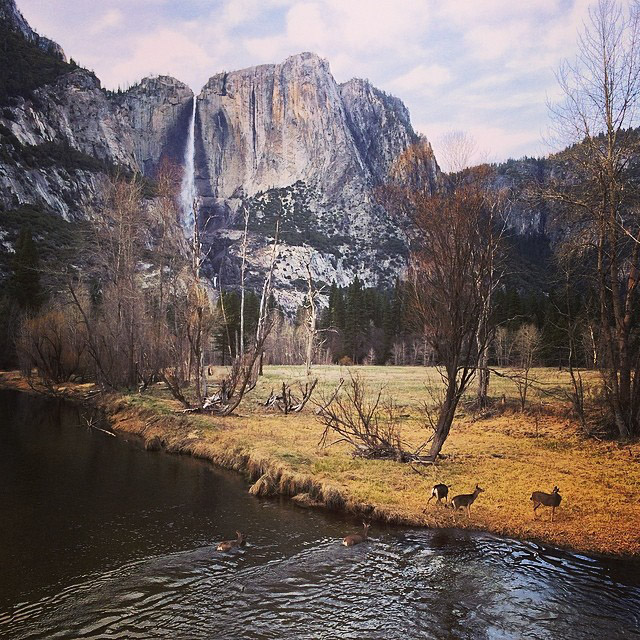
Adventures with My Son II – Deer Crossing the Merced River

If inspiration is what you’re looking for then the following 200 “Best Photos of 2014″ entries should keep you busy for a while. As with years past Best of Photos project entries there is some amazing new talent to discover. I continue to be amazed that this blog project attracts so many talented and passionate photographers. Participants spanned a spectrum of skill levels from hobbyists to professionals and covered a wide variety of genres including landscape, macro, nature, photojournalism, portraiture, event, wildlife, fine art photography and more. There are likely many names you’ll recognize below, some famous, and many others you won’t. I highly recommend visiting each entry as I have.

If you’d like to take part next year and be informed when submissions open for the “Best Photos of 2015″ blog project add your name to my mail list. You won’t be spammed. I send out newsletters quite infrequently.

Thank to everyone who took part! I hope reviewing your best photos of the year and comparing them to years pasts keeps you inspired and aware of your progress as a photographer.

Best Photos of 2014

  1. Best Photos of 2014 JMG-Galleries – Jim M. Goldstein
  2. 2014 The Small Year – Rebecca R Jackrel
  3. 2014: Our favorite images of the year – Isabel & Steffen Synnatschke
  4. Exploring Light Photography – Chris Moore
  5. Favorite Photographs of 2014 – Pat Ulrich
  6. My Top 10 Photos of 2014 – Michael Russell
  7. Anasazi Photography Favorite Photos of 2014 – Randy Langstraat
  8. USKestrel Photography Best of 2014 – Pete Miller, USKestrel Photography
  9. Don Hall Best of 2014 – Don Hall
  10. ShadowDancer Images: 2014 Best – Paul Middleton
  11. Changing Perspectives – Jenni Brehm
  12. Matthias Wassermann Best of 2014 – Matthias Wassermann
  13. Year 2014, landscapes – Janis Janums
  14. Best Photographs of 2014 – David Leland Hyde/Landscape Photography Blogger
  15. California Good Clothing – Instagram – Saier Sadiq
  16. Dave Ross Best of 2014 – Dave Ross
  17. Greg Clure Photography Best of 2014 – Greg Clure
  18. Clicking through the bucket list – Rob Weir
  19. My Best Natural History Photos of 2014 – Phillip Colla
  20. Abraham Neben Photography – Abraham Neben
  21. 2014 Team Favorites – PhotoCascadia
  22. John Huntington photography – John Huntington
  23. Rachel Cohen Best of 2014 – Rachel Cohen
  24. Favorite Images of 2014 – Chuq Von Rospach
  25. Top 10 Photos of 2014 – Brian W. Downs
  26. Craig Ferguson Images – Best of 2014 – Craig Ferguson
  27. My Top 10 Photos for 2014 – Carrie Cole Photography
  28. My Ten Best of Images of 2014 – Mike Chowla
  29. Best & Favorite Photographs of 2014 – Scott Wyden Kivowitz
  30. Alex Filatov Photography – Alex Filatov
  31. My Favorite Photos from 2014 – Mike Matenkosky
  32. Top 13 images 2014 – Denise Goldberg
  33. Martijn van der Nat Best Photos of 2014 – Martijn van der Nat
  34. 2014 – The Year in Pictures – Russ Bishop
  35. My Favorites from 2014 – Kyle Jones
  36. Dave Wilson Photography – Best of 2014 – Dave Wilson
  37. Best of 2014 – Richard Murphy
  38. Peter Carroll Best Photos of 2014 – Peter Carroll
  39. Behind The Clicks – Mohammad N.
  40. Scenic NH Photography – 2014 Favorite Images – Erin Paul Donovan
  41. Best of 2014 – Olivier Du Tre
  42. The Stentorian Image – Best of Twenty Fourteen – John Fujimagari
  43. Travel & Landscape Photography – Brent Huntley
  44. Timages Gallery – Tim Mulcahy
  45. Top Eleven Photos 2014 – Alan Majchrowicz
  46. Andy Biggs 2014 Year In Review – Andy Biggs
  47. Amanda Sinco Photography – Amanda Sinco
  48. Traveler. Writer. Photo-er. – Jason Matias
  49. Best Scottish Ladybird Images From 2014 – Rosie Nixon
  50. TJT Photography – Best of 2014 – Ted Truex
  51. Alexander S. Kunz Photography – Alexander S. Kunz
  52. Best Photos of 2014 – Regis Vincent
  53. oodbye 2014 – GSteve Cole
  54. My favourite shots of 2014 | Momentary Awe – Catalin Marin
  55. Free Roaming Photography – Twelve Favorite Photos from 2014 and a Short Documentary – Mike Cavaroc
  56. Top 10 of 2014 – My 10 Best Landscape and Scenic Photos – Clint Losee
  57. Sean Bagshaw – Outdoor Exposure 2014 – Sean Bagshaw
  58. Looking Back, Looking Forward – Neil McShane
  59. Margot Raggett’s 2014 Review – Margot Raggett Photography
  60. My Favorites of 2014 – Dan Baumbach
  61. Adrian Klein – Best Photos of 2014 – Adrian Klein
  62. British Landscapes Photography – Favourite Photos of 2014 – Derek Fogg
  63. My Top Favorite Photos of 2014 – Patricia Davidson
  64. Reframing 2014 – Roman W. Schatz
  65. Annika Ruohonen Photography – My Best Shots 2014 – Annika Ruohonen
  66. Best Pictures of 2014 – Brian Snyder
  67. Best Photos of 2014 – Deb Snelson
  68. Top 10 USA National Parks 2014 – Andrew Thomas
  69. Living Wilderness: Best of 2014 – Kevin Ebi
  70. Andrew Scharlott Photography 2014 – Andrew Scharlott
  71. 2014: Selected Images – Eric Fredine
  72. Richard Wong – Favorite Photos of 2014 – Richard Wong
  73. David’s favorites 10 of 2014 – David Hernandez
  74. My 10 Best Tahoe Photos of 2014 – Scott Thompson
  75. Matt Suess Fine Art Photography – Matt Suess
  76. Best of Views Infinitum 2014 – Scott Thomas
  77. My Favorite Images of 2014 – Gary Crabbe / Enlightened Images
  78. Rick Holliday’s Best Images of 2014 – Rick Holliday
  79. Best Photos of 2014 from PhotoTrace.com by Viktor Elizarov – Viktor Elizarov
  80. 2014 Favorites – Mike Cleron
  81. Twenty Fourteen – Mark Graf
  82. Top 10 from 2014 – Nick Fitzhardinge
  83. Art in Nature Photography – Best of 2014 – Floris van Breugel
  84. latoga photography: My Favorite Photos of 2014 – Greg A. Lato
  85. Twelve from 2014 – Tom Whelan
  86. Best of 2014 – Bill Bean
  87. Gravy Lessons – Laura Heldreth
  88. Landcapes of the year in elpaisajeperfecto.com – Pablo SÌÁnchez SÌÁnchez – El Paisaje Perfecto
  89. debbie teague photography – Debbie Teague
  90. Top 10 Favorite Photographs from 2014 – Derrald Farnsworth-Livingston
  91. My favorite 2014 photos – Ed Rosack
  92. Top Photos of 2014 – Ben Chase
  93. 2014 Summary – Kent Mearig
  94. My Top Ten Photos for 2014 – Andrew S. Gibson
  95. FoTollery.com – RJ Wilner
  96. Favorite Whale Photos of 2014 – Tony Wu
  97. FredMertzPhotography.com – Fred Mertz
  98. My Top 10 Favorites of 2014 – Sara M. Skinner Photography
  99. Twelve Photographs from Neil Corman in 2014 – Neil Corman Photography
  100. Wildlife Photography: 2014 Review – David Lloyd
  101. Aaron Bates Photography – Favorite Photos of 2014 – Aaron Bates
  102. RHM Images best of 2014 – Robin Mayoff
  103. Best Photo of 2014 by Chris McNeill – Chris McNeill
  104. aminumerique.com – Francois Nadeau
  105. Beach Bum Prints Best Photos of 2014 – beach bum prints
  106. Beautiful Carolinas – Sid Vedula
  107. Deepak Dawrani Best Photos of 2014 – Deepak Dawrani
  108. Best of 2014 – SkyVista Photography by Steve Luther – Steve Luther
  109. 2014 Celebrations! – Joezette Alexis Carroll
  110. Year 2014 In Review & 2015 Greetings – QT Luong
  111. Favourites from 2014 – Bryn Tassell
  112. Wilderness Adventure Images: Best of 2014 – Michael Burkhardt
  113. Best Photos Of 2014 – Dawnstar Australis – Daniel McNamara
  114. UK Bird Watching – Phil Slade
  115. Best of 2014 – Alex Buisse Adventure Photography
  116. Quality over quantity: One of my favourite photographic years – Richard Peters Wildlife Photography
  117. Richard Valenti Photography – Richard Valenti
  118. David Pinsent Best Photos of 2014 – David Pinsent
  119. 014 Favorites – 2Dale King – Sugar Mountain Photography
  120. Quinn Images – 2014 Favorites – Martin Quinn
  121. Korwel Phootgraphy blog – Iza Korwel
  122. Jim Caffrey Images Photo Blog – Jim Caffrey
  123. The Carey Adventures – Peter West Carey
  124. Ralph A. Clevenger – Photography and Video – Ralph A. Clevenger
  125. Yackley Photo – Thomas Yackley
  126. 2014 Jim Goldstein Blog Project – J. J. RAIA
  127. WBW – Looking Back at 2014 – Stewart Monckton
  128. Best of 2014 – Jason Frye
  129. Favorite photos of 2014 – Greg Russell | Alpenglow Images
  130. Favorites of the Year: 2014 Edition – Ken Trout
  131. G Dan Mitchell 2014 Favorite Photographs – G Dan Mitchell 2014 Favorite Photographs
  132. Mohib Ahmad Photography – Mohib Ahmad
  133. Jonesblog – Bryan William Jones
  134. (APP)Alexanders Photo Prescott – Phillip Alexander
  135. Best of 2014 – Ron Coscorrosa
  136. Best of 2014 – Year in Review – FMKPhoto -Brian Knott
  137. Alexandria Huff’s Best Photography of 2014 – Alex Huff
  138. 2014: A Photographic Retrospective – Johann A Briffa
  139. The best of 2014 – my personal choice – Jan A. Hof
  140. Colors of winter sunrise by Dima Vorontsov – Dima Vorontsov
  141. Through the Lens Best Photos of 2014 – Tony Swinton
  142. 2014: Year of Transition – Jim Denham
  143. My Top 14 Photos From 2014 – Björn Göhringer
  144. Ashish Garg Photography – Ashish Garg
  145. My top photos of 2014 – Milan Hutera
  146. Marquis Walsh Best Photos of 2014 – Marquis Walsh
  147. Nature odyssey of 2014 – Shikha S
  148. 2014 Favorite Images – Stephen G. Weaver
  149. 2014 Favorites – Alan Dahl
  150. Jon McCormack Photography – Jon McCormack
  151. The Accidental Blurist – Stuart Liddle
  152. Scott’s Best of Home and Travel 2014 – Scott Presnell
  153. Elmer Jensen Best Photos of 2014 – Elmer Jensen
  154. Special Images from 2014 – Nomeca Hartwell
  155. Franka M. Gabler – Favorite Photos of 2014 – Franka M. Gabler
  156. 2014 Top Ten photos – Patrick Endres – AlaskaPhotoGraphics
  157. 2014: My 10 Favorites – Eric E Photo
  158. Colleen Miniuk-Sperry Photography: Favorite Photos From 2014 – Colleen Miniuk-Sperry/CMS Photography
  159. My Best Underwater Photos 2014 – Suzy Walker-Toye
  160. Life | By Tara – Tara Sutherland
  161. Yosemite in the Fall – Alan Morris
  162. Photographic Highlights of 2014 – Wayne Sentman
  163. JMG 2014 – Grant Kreinberg
  164. Learning To See Light – Stacey/Lensaddiction
  165. Great Outdoors Photo – Best of 2014 – Justin Soderquist
  166. Ten of Our Favorite Images of 2014 – Anne & Frank Klug
  167. Digitized Chaos 2014 – Rian Castillo
  168. Ty O’Neil Best Photos of 2014 – Ty O’Neil
  169. Favorite Photographs of 2014 – Sarah Marino
  170. Phyllis Whitman Hunter Photography – Phyllis Whitman Hunter
  171. charlottegibbblog.com – Charlotte Gibb
  172. My Top Photographs of 2014 – Michael Frye
  173. Happy Holidays! A Few Words And A Few Gifts ‰ÛÒ My Best Images Of 2014 – Wasim Of Nazareth
  174. Best of 2014 – Sheila Skogen
  175. – Rich Greene
  176. My Favorite of 2014 – Kristy Massey
  177. The Stormtroopers Are Coming! – Michael Walker-Toyeq
  178. Romain Guy’s Best of 2014 – Romain Guy
  179. Peter Harris Best Photos of 2014 – Peter Harris
  180. 10 below 100 – my reflection on 2014 – Morkel Erasmus
  181. Flickr – 2014 Favorites – Larry Bradshaw
  182. Daniel Pomfret Photography – Daniel Pomfret
  183. My 10 best images from the long, strange trip that was 2014 – Robin Black
  184. Favorites folder on Smugmug site – Jim Layne
  185. Top Ten – Regina Pagles
  186. Through the Glass – Photography by Samantha Decker – Samantha Decker
  187. Best 12 Images of 2014 – Vaibhav Tripathi
  188. Some of my favorites from 2014 – Scott Wood Photography – Scott Wood
  189. Robs Wildlife – Rob Daugherty
  190. Top 10 of 2014 – Scott McGee – Under Pressure Photography
  191. Top 10 2014 – Stefan Bäurle
  192. Harold Davis Art & Photo Best of 2014 – Harold Davis
  193. Available Light Images – Alister Benn
  194. Best Photos of 2014 – Edie Howe
  195. Favorite 2014 Photos – Craig L. Howe
  196. Focused on Light : First Day of 2015 – Stephen DesRoches
  197. A Selection From 2014 – Joseph Smith
  198. 2014 Favorite Images – Cody Duncan
  199. Harvest – Edward Tzu-Yi Yang
  200. Edith Levy Photography – 2014 A Year in Review – Edith Levy


Thanks to all who took part. Have a great year of photography in 2015!

Copyright Jim M. Goldstein, All Rights Reserved

Best Photos of 2014 by JMG-Galleries Blog Readers

The post Best Photos of 2014 by JMG-Galleries Blog Readers appeared first on JMG-Galleries – Landscape, Nature & Travel Photography.


Related Stories

  • Best Photos of 2014 by Jim M. Goldstein
  • Best Photos of 2014 by Jim M. Goldstein – Enclosure
  • Blog Project: Your Best Photos From 2014 – Enclosure
Feed Ads by FeedBlitz
powered by ad choices


JMG-Galleries

 
Comments Off on Best Photos of 2014 by JMG-Galleries Blog Readers

Posted in Equipment


Create More Unique Travel Photos by Adding a Model

06 Jan

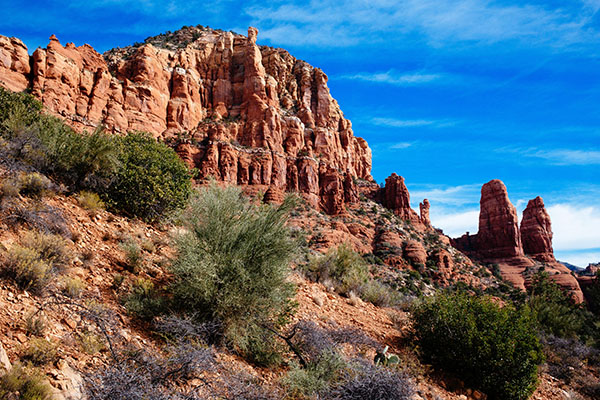
Creative travel photography is becoming increasingly difficult as world travelers have easier access than ever to stellar cameras. In fact, travel photography can at times seem uninspiring when you arrive at a tourist spot and see that everyone around you is taking the exact same shots. There are many ways to reframe your perspective to capture unique angles of a tourist attraction, but there is also another way that seems to be overlooked: turn travel photography into a series of creative portrait sessions with a model.

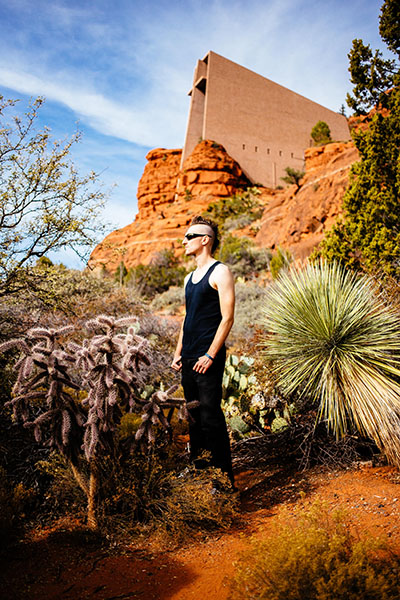
Sedona creative travel photography

You may have noticed a trend among some of your amateur photographer friends who take an object like a Lego figurine toy and place it in a unique location as a way to maintaining some continuity between travel photography images, or tell a visual story. Using a consistent model is actually a great way to exercise creativity and tell a compelling, unique story, with imagery. While it’s definitely easy to use an inanimate object, why not exercise your portrait skills by adding a human model? This was the way of thinking my photo companion and I assumed during a recent long weekend escape to Sedona, Arizona.

Sedona creative travel photography

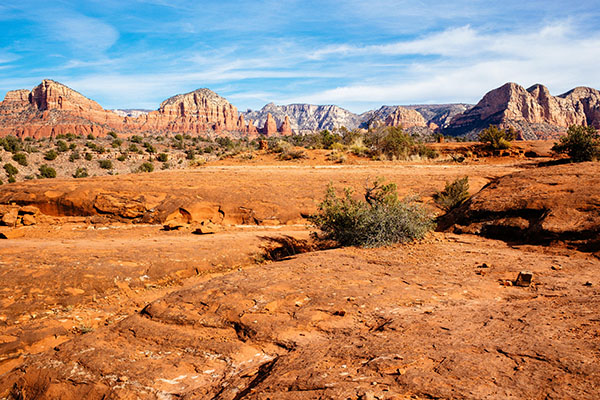
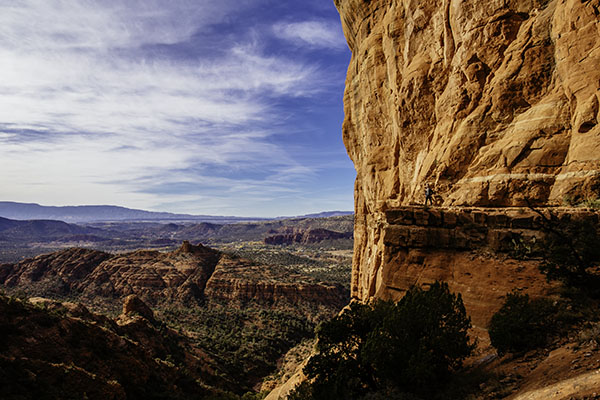
Before: landscape without a model, or the shot that everyone else was getting.

Famous for its natural red rock formations, Sedona is one of those areas that has already been widely photographed from a landscape perspective. In fact, the hotel we stayed at gifted us with a set of six postcards. Each one is a striking landscape photo of a notable attraction in Sedona taken during the perfect time of day, and from a high altitude, likely from a helicopter or high hiking spot. That immediately began to deter our ambitions for capturing stunning images of Sedona, as I’m not inspired by capturing the same images that others have already taken and widely publicized. Immediately, the idea of placing a unique model in the middle of a popular landscape came to mind as a way of crafting one-of-a-kind images.

Sedona creative travel photography

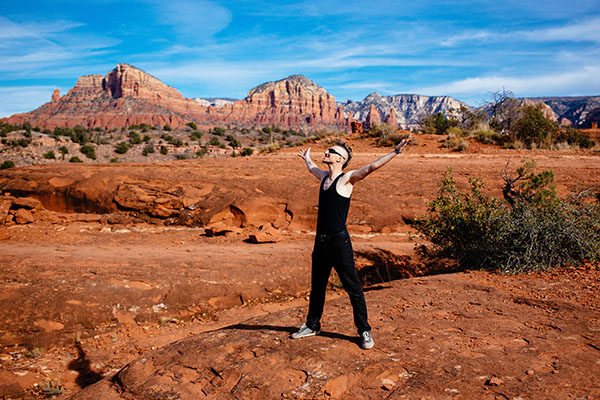
After: landscape with a model.

Background

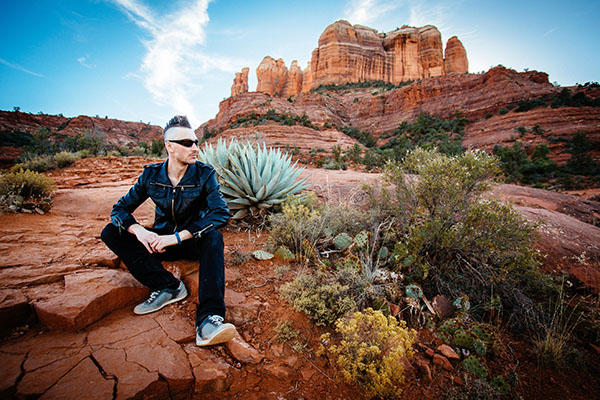
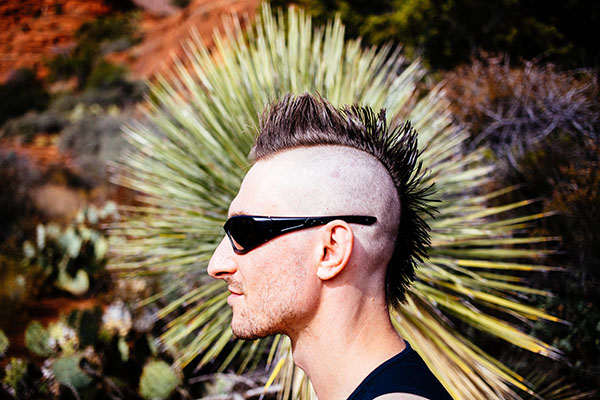
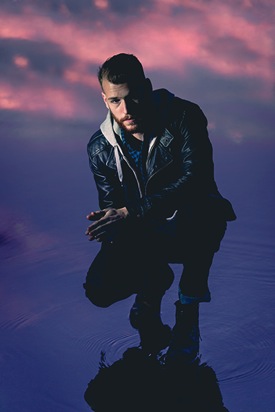
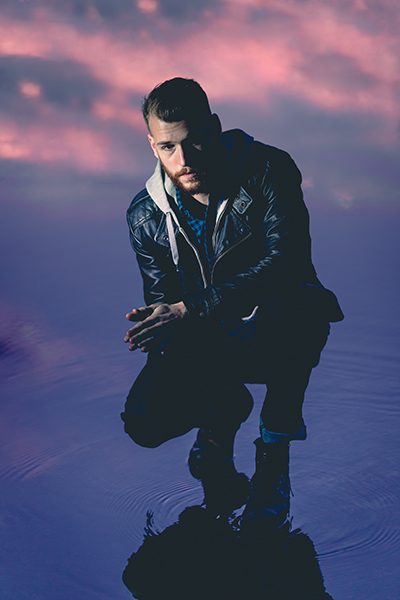
Luckily, my travel companion loves having his photo taken and isn’t afraid of drastically altering his appearance for the sake of a photo shoot. As we began mapping our trip around Sedona, he decided that assuming a character identity similar to that of Mad Max would make a perfect visual theme for our travel photo sessions. The result? He went and shaved his full head of hair into a mohawk and donned an outfit of black pants and black leather jacket, which he wore throughout our entire trip to Sedona. A bit out of place for a hot desert? Indeed, and appropriately so, as a mohawk can be seen as an emblem of nonconformity, in our case, against the typical tourist photos everyone around us was taking. We were met with many stares and raised eyebrows throughout the entire trip, but, we walked away with a unique series of images that not only showcase the beauty of Sedona, but also add some intrigue by inserting a seemingly out of the ordinary character into these landscapes.

Sedona creative travel photography

Executing the Photo Shoots

As mentioned earlier, Sedona is very popular among camera-wielding tourists, making it tough to find clearings for taking portraits. The best method we found was setting up the scene as best as we could and waiting for a quick, often one second, gap when people passed by. The gear was simple: a Canon 6D camera, a 24-70mm f/2.8 lens, and a 70-200mm f/2.8 lens. No external lighting was used, just the sun in all of its glory. As the photographer, it was a fun challenge to figure out the best way to photograph someone with a mohawk. In fact, the only way to capture the full effect of the mohawk is from a profile view, so the real trick was to get creative with the backgrounds, perspectives, and angles to make each portrait unique.

Sedona creative travel photography

This portrait was taken at the Chapel of the Holy Cross, one of the most visited and easily accessible tourist spots in Sedona. While this would be a pretty common shot of the chapel, inserting a model into the scene makes for a more dynamic image. A wide angle shot like the one above sets the scene, whereas the telephoto shot below takes essentially the same pose and turns it into an entirely new image.

Sedona creative travel photography

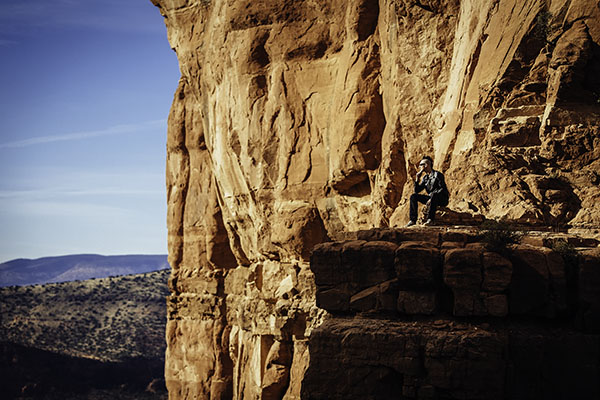
Another way to add flair to landscape portraits was to use the 70-200 f/2.8 telephoto zoomed in to 200mm

Sedona creative travel photography

Same principle with these images: in the one above, I started off with a wide shot at the vista of the popular Cathedral Rock Trail, and then zoomed way in with a telephoto lens below.

Sedona creative travel photography

Any other creative landscape portrait artists out there? Show off your images and the stories behind them!

googletag.cmd.push(function() {
tablet_slots.push( googletag.defineSlot( “/1005424/_dPSv4_tab-all-article-bottom_(300×250)”, [300, 250], “pb-ad-78623” ).addService( googletag.pubads() ) ); } );

googletag.cmd.push(function() {
mobile_slots.push( googletag.defineSlot( “/1005424/_dPSv4_mob-all-article-bottom_(300×250)”, [300, 250], “pb-ad-78158” ).addService( googletag.pubads() ) ); } );

The post Create More Unique Travel Photos by Adding a Model by Suzi Pratt appeared first on Digital Photography School.


Digital Photography School

 
Comments Off on Create More Unique Travel Photos by Adding a Model

Posted in Photography


How to Split Tone Black and White Photos in Lightroom

04 Jan

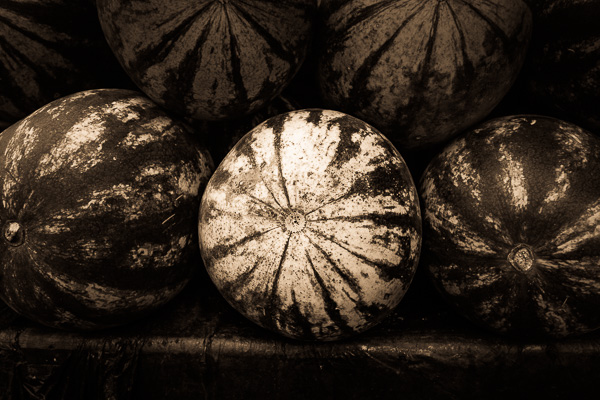
Split toning in Lightroom

Toning originated as a darkroom process designed to extend the longevity of black and white prints. Photographers did so using chemical toners such as sepia, selenium and gold. Toners work by removing silver from the print and replacing it with another element with a longer life span.

A side effect of toning is that it adds colour. Sepia toned prints range from light yellow to deep brown, selenium is a subtle blue or purple, and gold anything from blue to deep red (if applied to a photo that has already been sepia toned). For many photographers the colours were just as important as the archival benefits because of the emotional values they added to the monochrome print.

Another, more unfortunate side effect of darkroom toning is that many of the chemicals are hazardous. Luckily, in the digital age, there is no need to use them. Toning is much quicker, and you can create any colour tone you like, using Lightroom’s Split Toning panel.

Furthermore you can use Virtual Copies to create several different versions of the same image, each with a different tone. It makes experimenting easy, and you can compare them afterwards to see which you prefer. You can even turn your favourite toning effects into Develop Presets so you can use them again whenever you want.

Emotional value of toning

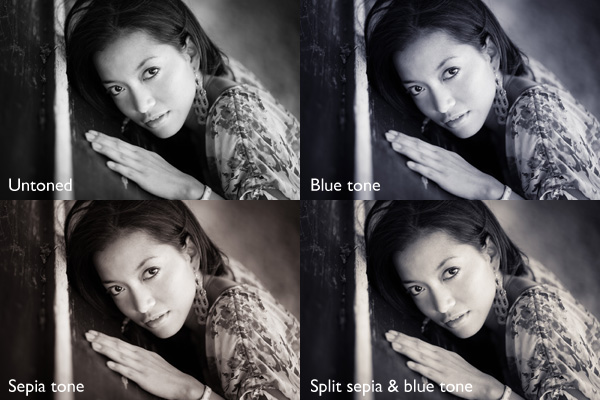
Before we start, let’s look why you would tone a black and white photo. With digital, there is no need to tone for archival purposes, that leaves two reasons. The first is simply because you want to add some colour. Toning is a good way to do that and can really lift your images. The second reason is to add emotional value to the photo. For example, sepia toning both flatters the model and adds a sense of nostalgia and warmth. Blue toning, on the other hand, adds a cold feel.

Split toning in Lightroom

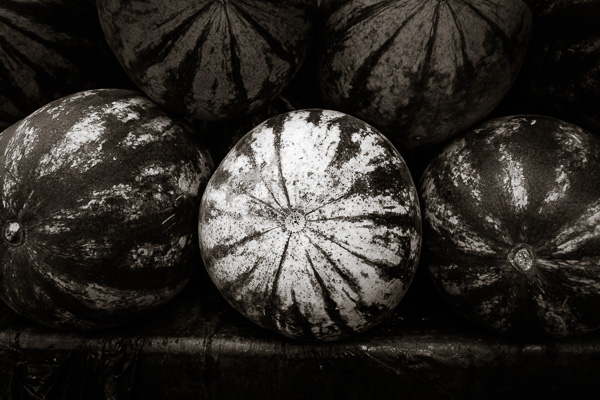
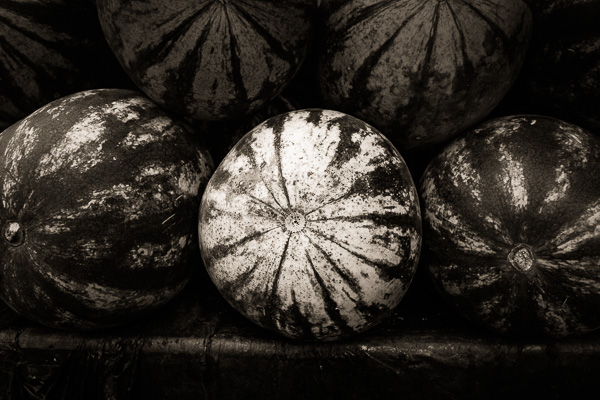
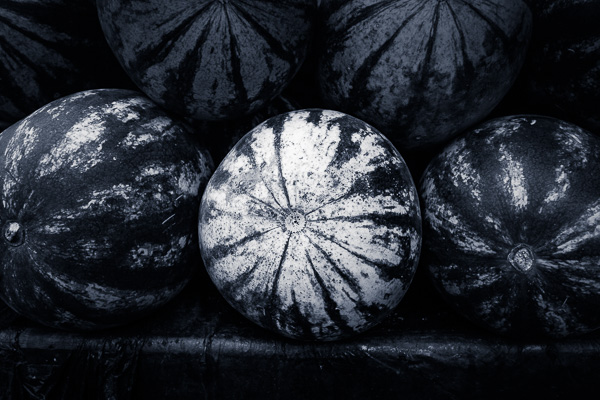
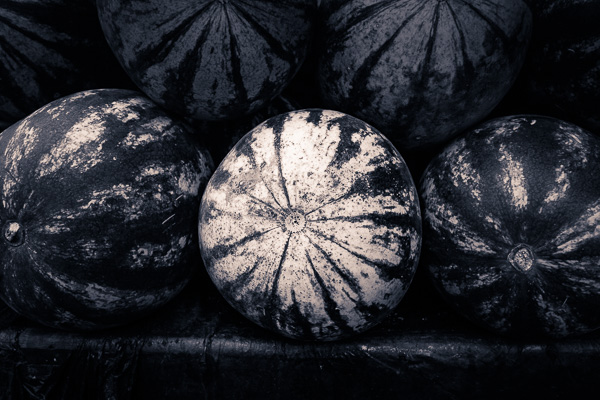
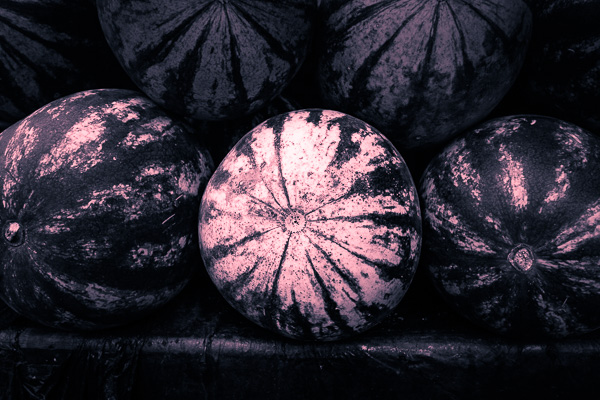
These four photos are processed identically apart from the toning treatment. The colour makes a huge difference to the appearance and emotional impact of each image.

It should be noted at this point that not all black and white photos take well to toning. The best images to use are those with lots of dark tones (plus some highlights for contrast – my article about tonal contrast goes into this more). Black and white photos with lots of light tones don’t seem to tone as well as those with lots of shadows.

How to use the Split Toning panel

Split toning in Lightroom

The Split Toning panel

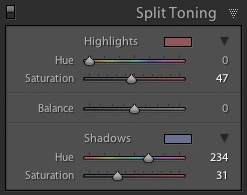
The Split Toning panel is simple to use. The first pair of Hue and Saturation sliders sets the colour that is applied to the photo’s highlights. The second pair sets the colour that is applied to the shadows. The Balance slider is used to give precedence to either the highlight or the shadow colour.

If you hold the Alt key down while moving the Hue slider, Lightroom displays the Hue at 100% saturation, helping you judge the colour accurately.

Here are some examples. Most black and white split toning combinations are a variation of the following.

Split toning in Lightroom

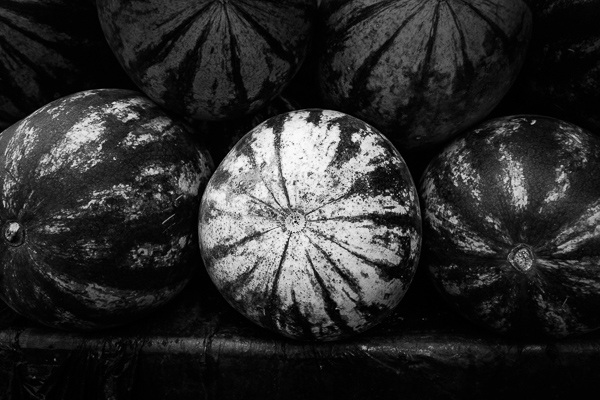
Highlights: Hue 0/Saturation 0 | Shadows: Hue 0/Saturation 0

Untoned black and white image.

Split toning in Lightroom

Highlights: Hue 0/Saturation 0 | Shadows: Hue 45/Saturation 13

 Sepia tone applied to shadows only, leaving highlights unchanged.

Split toning in Lightroom

Highlights: Hue 46/Saturation 17 | Shadows: Hue 45/Saturation 15

 Sepia tone applied to shadows and highlights.

Split toning in Lightroom

Highlights: Hue 0/Saturation 0 | Shadows: Hue 234/Saturation 26

 Blue tone applied to shadows only, leaving highlights unchanged.

Split toning in Lightroom

Highlights: Hue 39/Saturation 30 | Shadows: Hue 234/Saturation 26

Blue tone applied to shadows, sepia tone applied to highlights. This is the classic split tone look. Split toning like this helps create a sense of depth. Basic colour theory tells us that warm colours appear to be closer to the viewer and that cool colours recede. Applying a cool tone to the shadows and a warm one to the highlights helps reinforces a similar sense of depth created by the effective use of tonal contrast.

Split toning in Lightroom

Highlights: Hue 0/Saturation 47 | Shadows: Hue 234/Saturation 31

Blue tone applied to shadows, copper tone applied to highlights. This imitates the blue and copper split tone effect that was possible to achieve in the chemical darkroom.

Split toning in Lightroom

Highlights: Hue 47/Saturation 52 | Shadows: Hue 36/Saturation 23

Sepia tone applied to shadows, gold tone applied to highlights. This imitates the sepia and gold split tone effect it was also possible to achieve in the chemical darkroom.

Those combinations should be enough to get you going, and of course you can experiment as much as you like with the sliders in the Split Toning panel to see what you can achieve.

Please share some of your split toning creations in the comments below.


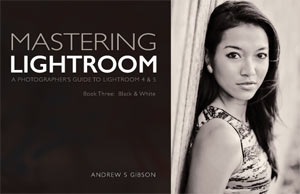
Mastering Lightroom: Book Three – Black & White

Masterlng Lightroom: Book Three – Black & White by Andrew S GibsonMy ebook Mastering Lightroom: Book Three – Black & White goes into the topic of black and white in depth. It explains everything you need to know to make dramatic and beautiful monochrome conversions in Lightroom, including how to use the most popular black and white plug-ins. Click the link to visit my website and learn more.

googletag.cmd.push(function() {
tablet_slots.push( googletag.defineSlot( “/1005424/_dPSv4_tab-all-article-bottom_(300×250)”, [300, 250], “pb-ad-78623” ).addService( googletag.pubads() ) ); } );

googletag.cmd.push(function() {
mobile_slots.push( googletag.defineSlot( “/1005424/_dPSv4_mob-all-article-bottom_(300×250)”, [300, 250], “pb-ad-78158” ).addService( googletag.pubads() ) ); } );

The post How to Split Tone Black and White Photos in Lightroom by Andrew S. Gibson appeared first on Digital Photography School.


Digital Photography School

 
Comments Off on How to Split Tone Black and White Photos in Lightroom

Posted in Photography


Best Photos of 2014 by Jim M. Goldstein

03 Jan

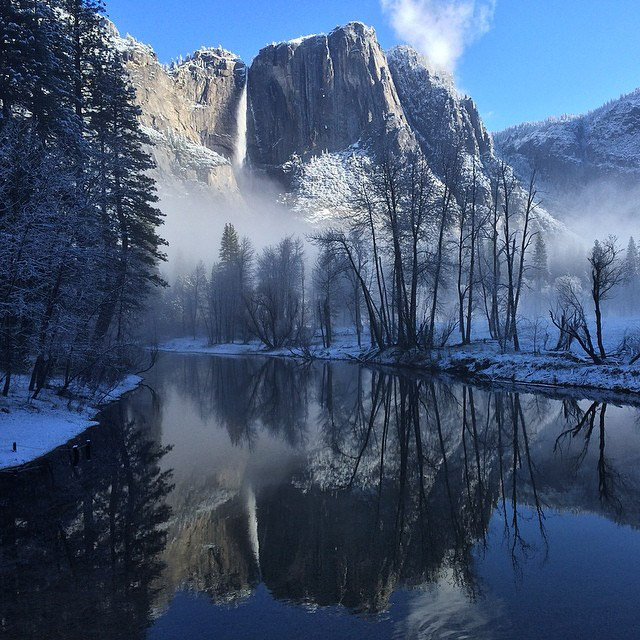
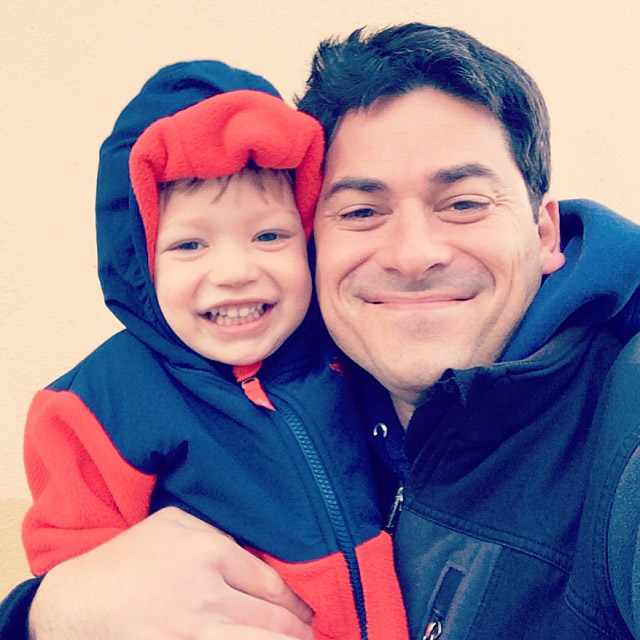
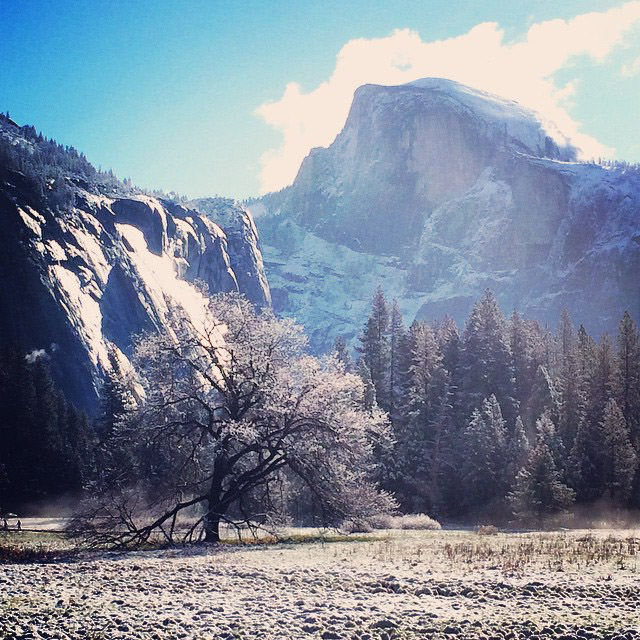
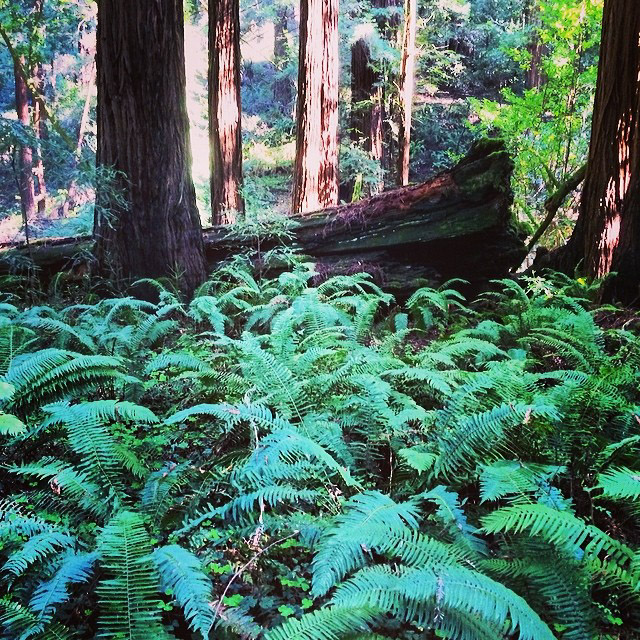
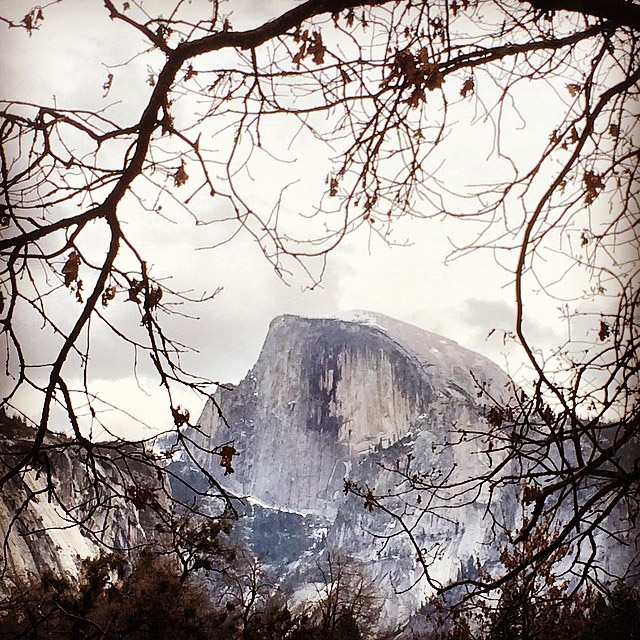
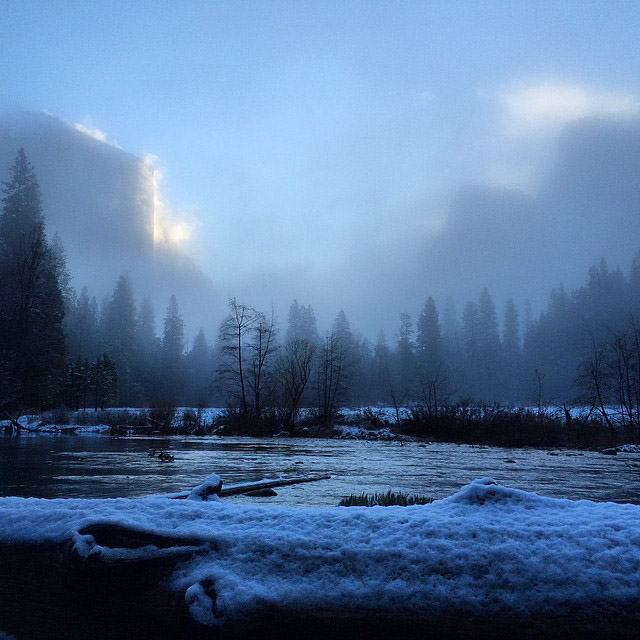
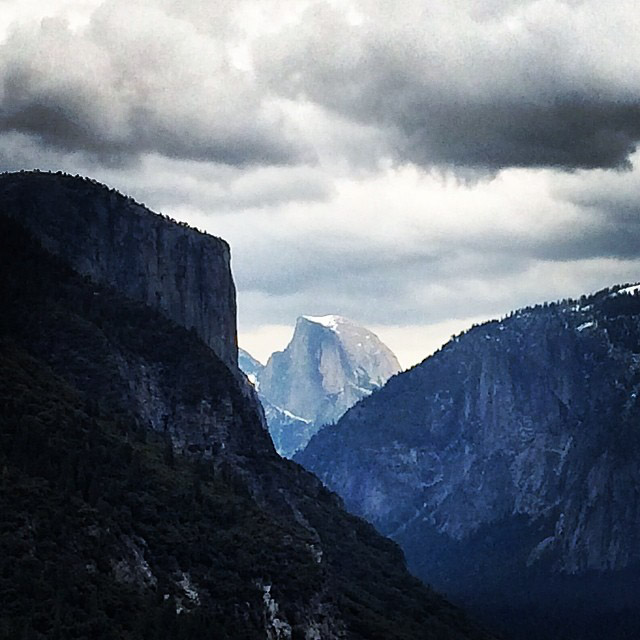
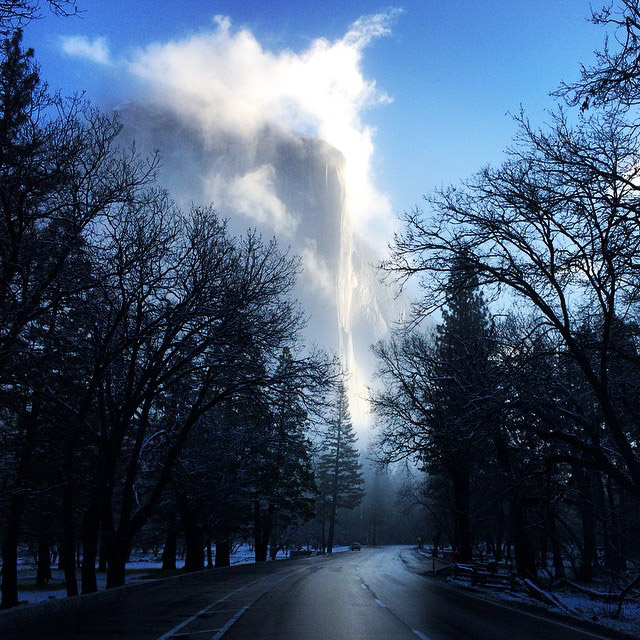
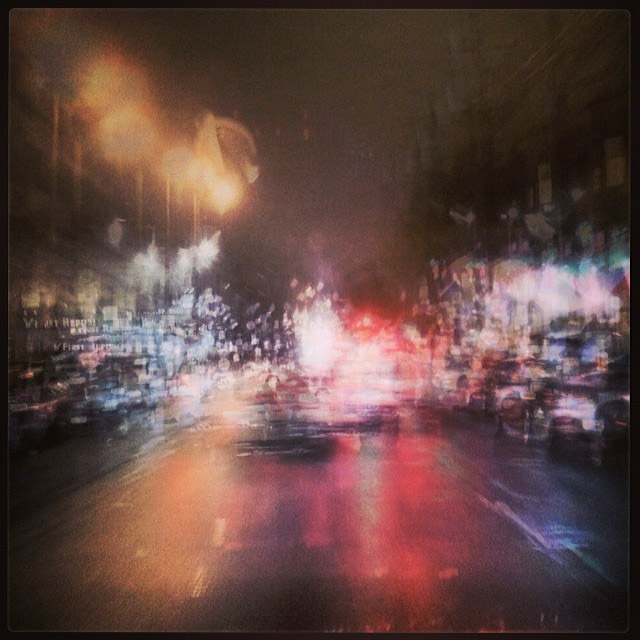
2014 was a very different year for me in that I spent my time in the field focusing nearly 100% on enjoying nature without obsessing on taking photos. My motivation was to give my oldest son (4 years old) the best introduction to the natural world possible.  Everything this year was the same as years past in regard to my pre-planning for ideal photography conditions I just happened to intentionally leave my pro gear at home. To be honest I couldn’t have asked for better results sharing spectacular wildlife & snow conditions in Yosemite  and perfect Milky Way / night sky conditions in Big Sur to name a couple of noteworthy trips. Seeing everything new through the eyes of my young son was (and continues to be) an amazing experience. I’m hopeful that he picks up as deep a passion for the outdoors as I have. This year was also monumental in that my second son was born mid-year. After that things quickly became a blur thanks to a good deal of sleep deprivation. Seeing that this year was so unorthodox for me I’ll continue that trend and share with you my best photos of the year as seen through my Instagram (JimGoldstein) photos. During this experimental year my iPhone 5S was the only camera I had on hand during my father/son trips.


Adventures with My Son VIII – View from Swinging Bridge this AM

Happy New Year 2014! – On a New Year morning mission

Adventures with My Son IX – Fresh Snow in Cook’s Meadow

Adventures with My Son II – Deer Crossing the Merced River

Muir Woods I – Waiting for Ewoks

Adventure with My Son IV – Half Dome & Gray Skies

Adventures with My Son VII – Gates of the Valley Sunrise & Snow

Adventures with My Son VI – Stormy Skies over Half Dome

Adventures with My Son X – Snowy Sunrise on El Capitan

Wet World I

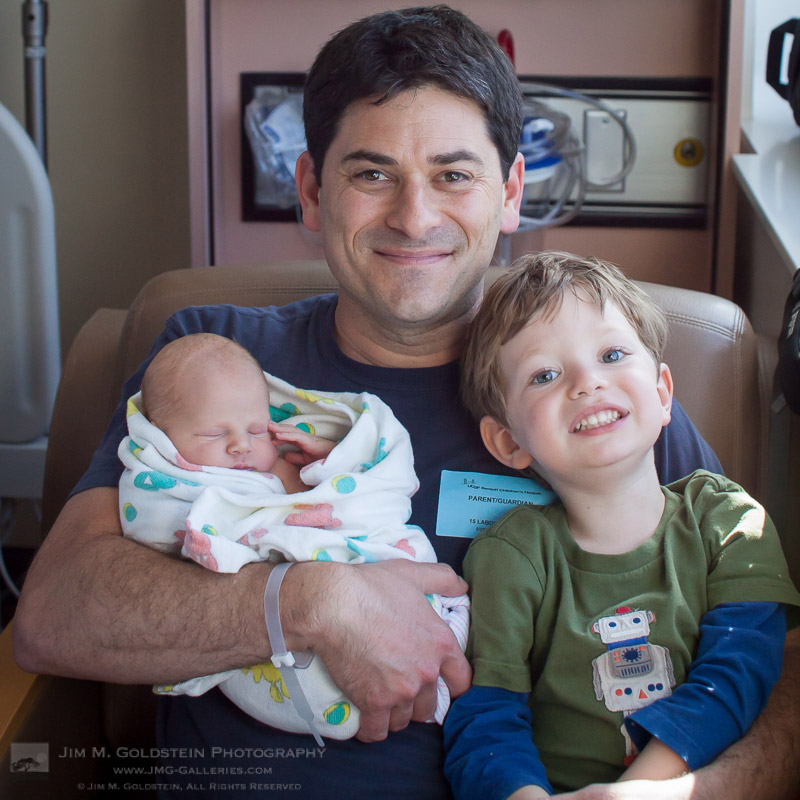
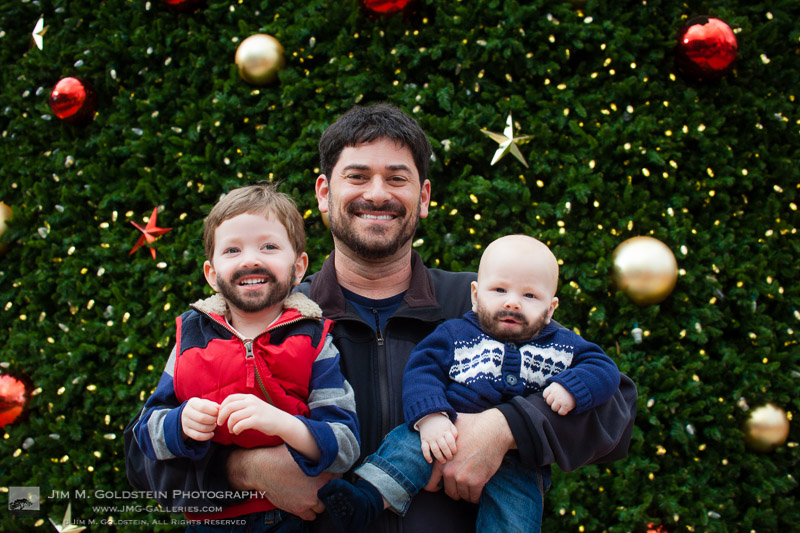
Fear not I did not give up on DSLRs. Here are some the obligatory family photos with the boys:

The New Addition

Chips Off the Old Block


Copyright Jim M. Goldstein, All Rights Reserved

Best Photos of 2014 by Jim M. Goldstein

The post Best Photos of 2014 by Jim M. Goldstein appeared first on JMG-Galleries – Landscape, Nature & Travel Photography.


Related Stories

  • Best Photos of 2014 by Jim M. Goldstein – Enclosure
  • B&W Challenge Day 1 – Point Reyes National Seashore Clouds
  • B&W Challenge Day 1 – Point Reyes National Seashore Clouds – Enclosure
Feed Ads by FeedBlitz
powered by ad choices


JMG-Galleries

 
Comments Off on Best Photos of 2014 by Jim M. Goldstein

Posted in Equipment


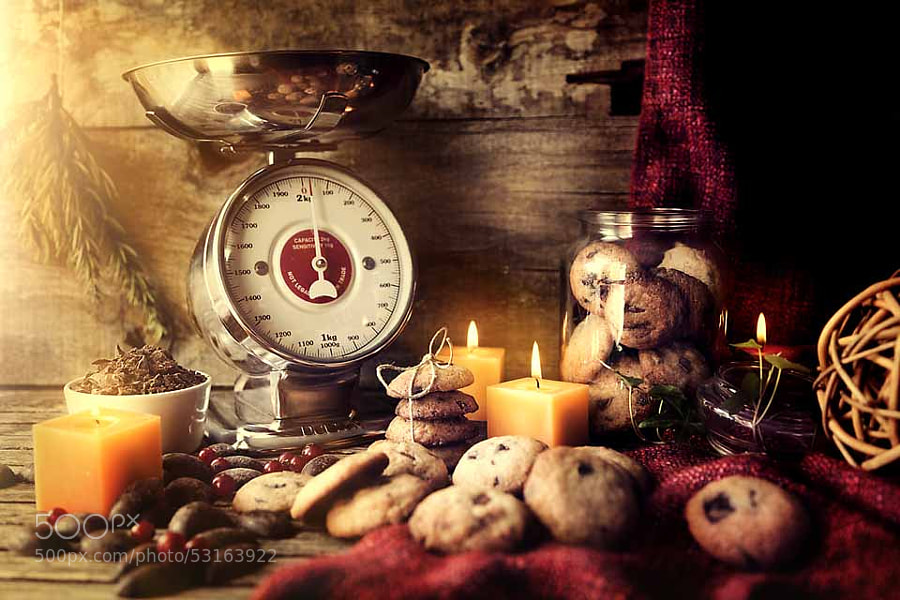
25 Mouthwatering Holiday Food Photos to Wet Your Appetite

19 Dec

With the holiday season upon us that also means big family gatherings and festive meals. Food photography is a great way to capture some of the festivities and color of the season. Whether you celebrate Christmas, Hanukkah, Kwanzaa, Ramadan, Omisoka or something else – likely it involves food.

Enjoy this set of holiday food photos to help you get in the mood or maybe even get some menu or photo ideas or both!

Photograph Dream House by Siggi B on 500px

Dream House by Siggi B on 500px

Photograph Christmas tiramisu by Darius Dzinnik on 500px Christmas tiramisu by Darius Dzinnik on 500px

Photograph Untitled by Julia Hernandez on 500px

Untitled by Julia Hernandez on 500px

Photograph x mas cocktail by Peter Harasty on 500px x mas cocktail by Peter Harasty on 500px

Photograph Hot drink with whipped cream for Christmas by Beatrix Boros on 500px

Hot drink with whipped cream for Christmas by Beatrix Boros on 500px

Photograph Christmas gingerbread cookies by Sergey Kumer on 500px Christmas gingerbread cookies by Sergey Kumer on 500px

Photograph Red Velvet Christmas Pancakes by Sebrina Wareham on 500px

Red Velvet Christmas Pancakes by Sebrina Wareham on 500px

Photograph Christmas duck by Darius Dzinnik on 500px Christmas duck by Darius Dzinnik on 500px

Photograph Roasted turkey with fruits by Elena Shashkina on 500px

Roasted turkey with fruits by Elena Shashkina on 500px

Photograph Traditional Sliced Honey Glazed Ham by Brent Hofacker on 500px Traditional Sliced Honey Glazed Ham by Brent Hofacker on 500px

Photograph festive sandwiches by Jevgeni Proshin on 500px

festive sandwiches by Jevgeni Proshin on 500px

Photograph Champagne glass by Vadim Kolobanov on 500px Champagne glass by Vadim Kolobanov on 500px

Photograph Santa Berries  by Tetyana Kovyrina on 500px

Santa Berries by Tetyana Kovyrina on 500px

Photograph ????????? ? ????????? ???? by Natalia Lisovskaya on 500px ????????? ? ????????? ???? by Natalia Lisovskaya on 500px

Photograph Homemade Festive Cinnamon Eggnog by Brent Hofacker on 500px

Homemade Festive Cinnamon Eggnog by Brent Hofacker on 500px

Photograph Christmas traditionals by Delia Cozma on 500px Christmas traditionals by Delia Cozma on 500px

Photograph Tangerines on a dark blue background - New Year by Anastasiya Kononenko on 500px

Tangerines on a dark blue background – New Year by Anastasiya Kononenko on 500px

Photograph ?????????? ?????????? by Natalia Lisovskaya on 500px ?????????? ?????????? by Natalia Lisovskaya on 500px

Photograph Sweets for Christmas by Bettina  on 500px

Sweets for Christmas by Bettina on 500px

Photograph Whishes by Szabolcs Szlavik on 500px Whishes by Szabolcs Szlavik on 500px

Photograph Jam Tarts by Aisha Yusaf on 500px

Jam Tarts by Aisha Yusaf on 500px

Photograph Christmas Fruits by Pete Franks on 500px Christmas Fruits by Pete Franks on 500px

Photograph Christmas by Danilo Fisichella on 500px

Christmas by Danilo Fisichella on 500px

Photograph Navidad by Gary Alvarado on 500px

Navidad by Gary Alvarado on 500px

Stéphanie Kilgast

By Stéphanie Kilgast

googletag.cmd.push(function() {
tablet_slots.push( googletag.defineSlot( “/1005424/_dPSv4_tab-all-article-bottom_(300×250)”, [300, 250], “pb-ad-78623” ).addService( googletag.pubads() ) ); } );

googletag.cmd.push(function() {
mobile_slots.push( googletag.defineSlot( “/1005424/_dPSv4_mob-all-article-bottom_(300×250)”, [300, 250], “pb-ad-78158” ).addService( googletag.pubads() ) ); } );

The post 25 Mouthwatering Holiday Food Photos to Wet Your Appetite by Darlene Hildebrandt appeared first on Digital Photography School.


Digital Photography School

 
Comments Off on 25 Mouthwatering Holiday Food Photos to Wet Your Appetite

Posted in Photography


Blog Project: Your Best Photos From 2014

18 Dec

Our planet has nearly completed its orbit around the Sun once again and if you’re a regular JMG-Galleries reader that means one thing…  it is time to kick off the 8th annual best photos of the year blog project. This is by far my most popular blog project. Year over year this project has continued to increase in participation with last years participation hitting 328 participants (see Best Photos of 2013,  2012, 2011, 2010, 2009, 2008 and 2007). Around this time of year people start to ask if I’d be running this project again. The answer clearly is always YES! 1. I love this project and I love that so many people get excited about it. 2. It’s a great way exercise to improve your photography (10 Ways to Top Your Best 20xx Photographs). So with out any further delay here is how you take part to submit your best photos of 2014.

How to Participate (Read Carefully)

  1. Review & select your best photos from 2014.

    Note: Photo edit carefully narrowing down your results to your best 10 or 5 photos. Reference Pro Tips: Photo Editing with Gary Crabbe for pointers.
  2. Create a blog post on your web site or a Flickr/500px set containing your best photos from 2014.
  3. Complete the form below by Saturday JANUARY 3th at 11:59PM PST to take part. The following Tuesday I’ll post a link to all submitted sites and photos on my blog. Through out the week I’ll also share the results across all my social media accounts.

Spread the Word!

Feel free to spread the word of this project on Twitter, Facebook, Google+, photo forums you frequent and/or your blogs. All who are interested in taking part are invited.


Loading…

Copyright Jim M. Goldstein, All Rights Reserved

Blog Project: Your Best Photos From 2014

The post Blog Project: Your Best Photos From 2014 appeared first on JMG-Galleries – Landscape, Nature & Travel Photography.


Related Stories

  • The Insightful Landscape – A New Landscape Photography Book
  • 101 Landscape Visionary Insights Not To Miss – A New eBook & Video Series
  • 101 Landscape Visionary Insights Not To Miss – A New eBook & Video Series – Enclosure
Feed Ads by FeedBlitz
powered by ad choices


JMG-Galleries

 
Comments Off on Blog Project: Your Best Photos From 2014

Posted in Equipment


Using Rain Puddles to Create Unique Reflection Photos

17 Dec

6

Implementing water into a shoot ratchets up the drama in the images but also the difficulty in the execution. I equate the learning curve of lighting water to learning how to light metal objects and other reflective surfaces. It’s not a quick learn, so be patient with yourself.

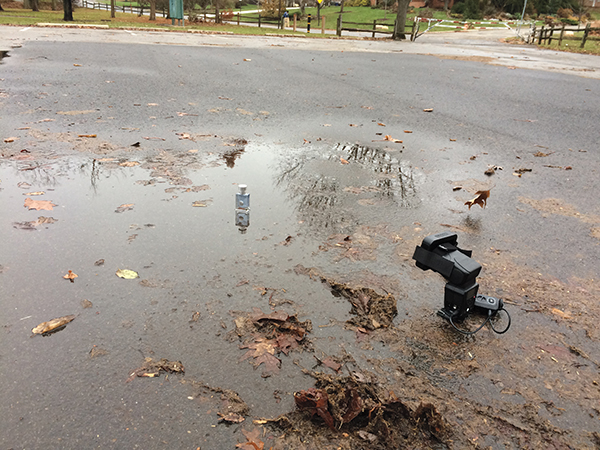
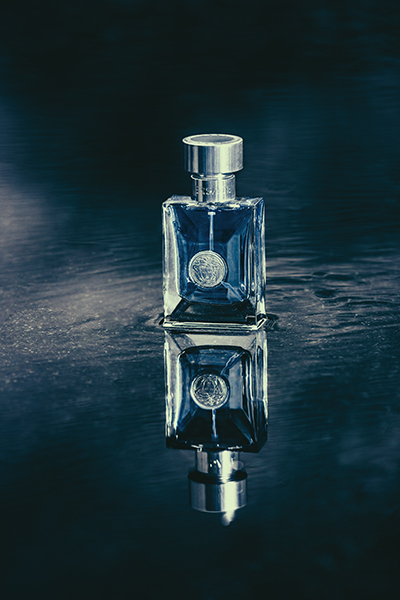
Rain puddles are awesome. I bet you never thought to run out after it rained to hunt for decent puddles. But as you can see in the image below, that’s exactly what I was working with. Since the product I was shooting was a cologne bottle, which is rather small, the puddle didn’t need to be very wide or long. If I was shooting something larger, like a person, I would need a much larger puddle to pull off this technique of making reflection photos.

1

The setup: I was working with a rain puddle in a parking lot, on a patch of blacktop. I added a grid to my flash to keep light from spilling onto the foreground.

The first thing I was looking for was a puddle on a patch of blacktop, or dark asphalt. Typical asphalt or concrete is much lighter in color, and you need something darker to really make this work. The next thing to keep in mind is the height of the flash. Notice I placed it on the same level as the product – on the ground. If I were to light it from a higher angle instead, the light would illuminate too much of the ground around the product, resulting in a less than dramatic image. I also added a honeycomb grid to the flash to further contain the light spill.

Since the day I photographed this was particularly drab and dark, I had no problem dialing down the ambient with a moderate exposure. With a flash output of ¼ power I had all but eliminated the ambient light, leaving me with an exposure of 1/60 at f/7.1. On a brighter day, I’d likely need a neutral density filter to get rid of the extra ambient light.

Though the ambient has been lowered to an almost night-time quality, there are still some reflections of the sky and trees visible in the puddle. The lower shutter speed allowed these tones and shapes to remain. Though the puddle was not especially wide or deep, it sufficed in allowing me to achieve the glassy surface that I was going for, see below.

2

The final shot: This rain puddle, shot on a drab, gray, day has been transformed into a dramatic, glassy surface.

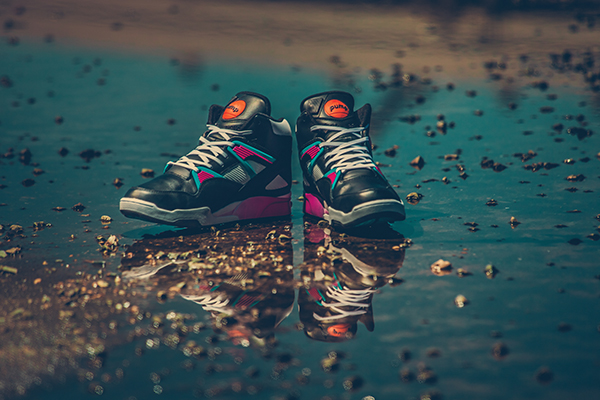
If the sky had been clear, rather than dark gray, the surface of the puddle would have been a nice, vibrant blue, as seen below. In this shot you can see that while the blue tone is nice, the illuminated foreground is pretty distracting, not to mention the dozens of small rocks. This was because the light was elevated, lighting the concrete in front of the shoes as well, which is why it’s important to lower your lights, so that they’re parallel to the ground.

3

When the sky is clear, the surface of the puddle changes to a lovely blue color. However, be sure not to light from above, because as seen in this image, the illuminated concrete makes for a distracting foreground.

4

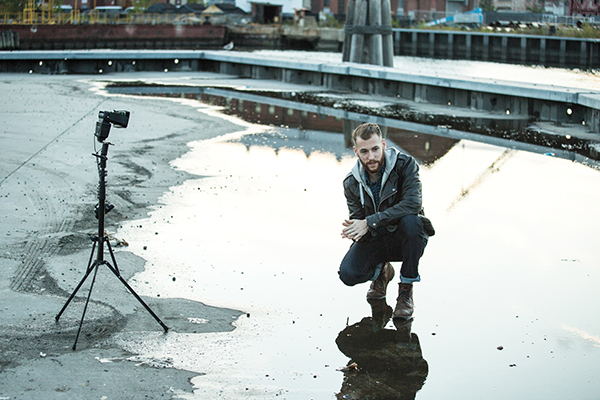
The setup: A puddle, this time a large one, is the setting for this portrait. The shoot took place right after the sun dropped below the skyline.

In this next image I was using a rather wide puddle, which was large enough to allow me to isolate my subject, Max. Once again, to minimize light spill, I set my light at the same level as the subject, rather than above, as well as used a grid. The puddle reads really well, though the reflection shows a bit of the building in the background. After I finished color grading the image in Lightroom, I opened up the file in Photoshop to remove the building.

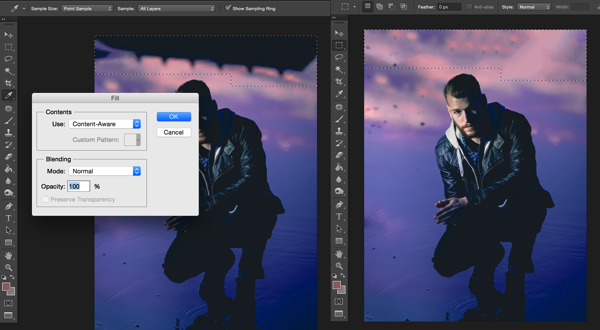
To do this, select the trouble area and simply hit the delete key. As long as you are using Adobe Photoshop CS6 or CC, you’ll see the option to use Content Aware Fill (see below). It will typically do a decent job at filling in the selection, but minor cleanup is often needed. I used the Spot Healing Brush tool to clean up any remaining trouble areas.

5

I quickly removed the building reflection by using the Content Aware Fill option in Photoshop CC.

6

The final shot: After removing the building reflection, the water surface looked seamless.

Have you got any other tips for creating reflection photos? Please share them and/or your images in the comments below.

googletag.cmd.push(function() {
tablet_slots.push( googletag.defineSlot( “/1005424/_dPSv4_tab-all-article-bottom_(300×250)”, [300, 250], “pb-ad-78623” ).addService( googletag.pubads() ) ); } );

googletag.cmd.push(function() {
mobile_slots.push( googletag.defineSlot( “/1005424/_dPSv4_mob-all-article-bottom_(300×250)”, [300, 250], “pb-ad-78158” ).addService( googletag.pubads() ) ); } );

The post Using Rain Puddles to Create Unique Reflection Photos by Nick Fancher appeared first on Digital Photography School.


Digital Photography School

 
Comments Off on Using Rain Puddles to Create Unique Reflection Photos

Posted in Photography


33 Gritty Photos of Graffiti Street Art

12 Dec

Urban photography is a great way to get out and find some unique images, whether in your own city or abroad. Cities provide a multitude of interesting subjects. In this week’s image collection I’ve found a bunch of gritty photos of street art, also known as graffiti.

In some cities like Melbourne they encourage this graffiti and businesses or the government actually sponsor the artists and provide a space to create murals and street art.

Enjoy this series of grungy, gritty, street photography and art.

Photograph Justin arrives by Shady ezz on 500px

Justin arrives by Shady ezz on 500px

Photograph Street Tagging by Lin Zee on 500px

Street Tagging by Lin Zee on 500px

Photograph Colors and the City by Xavier Liard on 500px

Colors and the City by Xavier Liard on 500px

Photograph street art by Samir Salim on 500px

street art by Samir Salim on 500px

Photograph around the corner by Dragan Todorovi? on 500px

around the corner by Dragan Todorovi? on 500px

Photograph Graffiti Invasion by Liban Yusuf on 500px

Graffiti Invasion by Liban Yusuf on 500px

Photograph Dónde está el 7º cielo?? by Gemma B&N  on 500px

Dónde está el 7º cielo?? by Gemma B&N on 500px

Photograph Graffiti? by  antoni  targarona  on 500px

Graffiti? by antoni targarona on 500px

Photograph Fisheye: Melbourne Street Art by Tom Cunningham on 500px

Fisheye: Melbourne Street Art by Tom Cunningham on 500px

Photograph Pump Dream by Fred  Adams on 500px

Pump Dream by Fred Adams on 500px

Photograph Vanishing Point by Len Saltiel on 500px

Vanishing Point by Len Saltiel on 500px

Photograph Ace of Spades by Fred  Adams on 500px

Ace of Spades by Fred Adams on 500px

Photograph Colors And Lines by Burak Arik on 500px

Colors And Lines by Burak Arik on 500px

Photograph Work or Cupcake by Kent Atwell on 500px

Work or Cupcake by Kent Atwell on 500px

Photograph graffiti by Vladimir Perfanov on 500px

graffiti by Vladimir Perfanov on 500px

Photograph painting the town by Shady ezz on 500px

painting the town by Shady ezz on 500px

Photograph { Walk along } by Thai Hoa Pham on 500px

{ Walk along } by Thai Hoa Pham on 500px

Photograph physical graffiti by victor cucos on 500px

physical graffiti by victor cucos on 500px

Photograph Dark Room III by Xavier Liard on 500px

Dark Room III by Xavier Liard on 500px

Photograph Forgive me Lord, for I have sinned.. by Mathijs van den Bosch on 500px

Forgive me Lord, for I have sinned.. by Mathijs van den Bosch on 500px

Photograph woman on the wall by Gabor Nagy on 500px

woman on the wall by Gabor Nagy on 500px

Photograph Lost shoes by Joanna Lemanska on 500px

Lost shoes by Joanna Lemanska on 500px

Photograph Graffiti face by Brian Behling on 500px

Graffiti face by Brian Behling on 500px

Photograph dark tunnel by Gianluca Sgarriglia on 500px

dark tunnel by Gianluca Sgarriglia on 500px

Photograph blue eye by Sergio Spiegel on 500px

blue eye by Sergio Spiegel on 500px

Photograph Urban Graffiti @ by Philippe PONSIN on 500px

Urban Graffiti @ by Philippe PONSIN on 500px

Photograph graffiti tunnel 02 by Paul Hinderer on 500px

graffiti tunnel 02 by Paul Hinderer on 500px

Photograph Mid-Levels Street Art by Postcards from the World on 500px

Mid-Levels Street Art by Postcards from the World on 500px

Photograph Reckless Abandon by Nick Cox on 500px

Reckless Abandon by Nick Cox on 500px

Photograph NY Style Pizza, Jing'an by Craig McCormick on 500px

NY Style Pizza, Jing’an by Craig McCormick on 500px

Photograph Graffiti Lane by Paul Hinderer on 500px

Graffiti Lane by Paul Hinderer on 500px

Photograph Surprise! by Brian Sanders on 500px

Surprise! by Brian Sanders on 500px

Photograph Ghost train by Xavier Liard on 500px

Ghost train by Xavier Liard on 500px

googletag.cmd.push(function() {
tablet_slots.push( googletag.defineSlot( “/1005424/_dPSv4_tab-all-article-bottom_(300×250)”, [300, 250], “pb-ad-78623” ).addService( googletag.pubads() ) );
} );

googletag.cmd.push(function() {
mobile_slots.push( googletag.defineSlot( “/1005424/_dPSv4_mob-all-article-bottom_(300×250)”, [300, 250], “pb-ad-78158” ).addService( googletag.pubads() ) );
} );

The post 33 Gritty Photos of Graffiti Street Art by Darlene Hildebrandt appeared first on Digital Photography School.


Digital Photography School

 
Comments Off on 33 Gritty Photos of Graffiti Street Art

Posted in Photography