RSS
 

Posts Tagged ‘Photos’

How to Organize Your Photos in Lightroom

30 Sep

The Lightroom Catalog is a database containing all the relevant information that Lightroom needs about your photos in order to process your images and sit at the centre of your workflow.

Lightroom is a digital asset management (DAM) tool – you can use it to organize and search your photos, as well as process them. This is the main difference between Lightroom and Photoshop, which is a powerful image editor, but has no database capabilities.

Even if you use Photoshop for all your processing you can still use Lightroom to view, organize, and search your photos. That’s why the two programs come together if you subscribe to Adobe’s Creative Photography Plan (and why Photoshop no longer comes with Adobe Bridge). This article will walk you through some of the tools inside Lightroom to help you organize your photos.

Using Collections

Lightroom uses Collections to organize your images. A Collection is a virtual folder that exists in the Lightroom Catalog. You can create as many Collections as you like within Lightroom and use them for whatever purpose you see fit. The more you use them, the more you will find better ways to use them.

There are several types of Collections in Lightroom:

Collections: Virtual folders to which you can add any photo that you have imported into Lightroom.

Collection Sets: Another type of virtual folder to which you can add Collections, but not photos. Collection Sets are used to keep your Collections organized.

How to organise photos in Lightroom

This screen shot shows the icons used to represent Collection Sets and Collections in Lightroom. Xi’an – Terracotta Warriors (red arrow) is a Collection Set. Full Selection (green arrow) is a Collection. The icon is indented because it is inside the Collection Set.

Smart Collections: Collections that are populated automatically according to the rules that you set. For example, you could create a Smart Collection containing all photos taken in 2015, tagged with the keyword phrase “New York” to find all photos that meet those criteria. A Smart Collection is really a way of searching for images, and retaining the result indefinitely.

Published Collections: Beyond the scope of this article, Published Collections are created in Lightroom’s Publish Services. You can learn more about Published Collections in my article How to Upload Photos to Flickr and 500px Using Lightroom 5 (the information applies to Lightroom 6 and Lightroom CC as well).

Book and Print Collections: These are created in the Book and Print modules. My articles How to Create a Simple Blurb Photo Book in Lightroom and How to Create a 2015 Calendar in the Lightroom Print Module go into more detail.

For the purposes of this article we are interested in Collections and Collection Sets.

Creating Collections and Collection Sets

If this is your first time using Lightroom you won’t have any Collections yet (apart from the Smart Collections that it already contains). So let’s get started! I’m assuming that you have already imported your first photos into the Lightroom Catalog.

Go to the Collections panel and click on the plus icon you see in the top right corner. Select Create Collection Set.
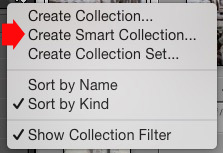
How to organise photos in Lightroom

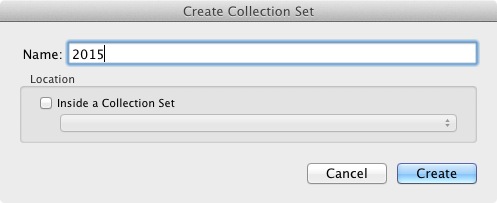
The Create Collection Set window appears, where you can give the Collection Set a name.
How to organise photos in Lightroom

I’ve named this one 2015. The idea is that it will house all the Collection Sets containing photos taken in the year 2015 (remember that Collection Sets can only contain Collections, not photos).

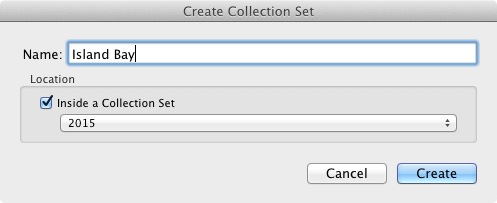
Now right-click on the Collection set you just created and choose Create Collection Set. Lightroom prompts you for a name. I’ve called this Island Bay because it’s the Wellington suburb where the photos in my last import were taken (and have saved it inside the 2015 Collection Set).
How to organise photos in Lightroom

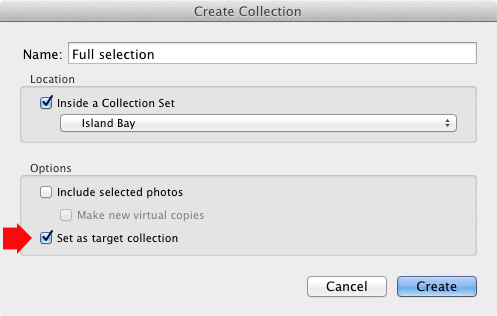
Right-click on this new Collection Set (Island Bay) and select Create Collection. The Create Collection window opens. This is slightly different and gives you more options. Name the Collection “Full selection” (I’ll explain why in a minute), tick the Set as Target Collection box and click Create.
How to organise photos in Lightroom

Now go to the Catalog panel and click on Previous Import. Lightroom displays the last set of imported images in the Content window. Go to Edit > Select All to select all the photos and press the B key. Lightroom adds all the selected photos to the Target Collection – the Collection called Full Selection that you just created. Congratulations, you have just created your first Collection!
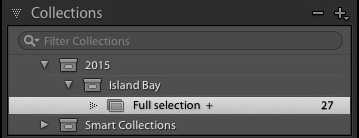
How to organise photos in Lightroom

This is what the Collection Sets and Collection I created in the example above look like in the Collections panel in the Library module. The plus icon next to the Collection Full Selection indicate it is the Target Collection. The number 27 on the right tells you how many photos are in the Collection.

Collections and workflow

Of course, you are probably wondering why I asked you to create such a strange name as Full Selection. To find out why read my article Use Lightroom Collections to Improve Your Workflow. It shows you how to use Collections to help you decide which photos from a shoot you are going to process. All will become clear when you do so.

Flags, Ratings and Color Labels

The Lightroom database (called the Catalog) lets you assign Flags, Ratings, and Color Labels to your photos. There seem to be as many ways of using these as there are photographers, but if you have read my article about using Collections to improve your workflow you will understand that I favour a very simple system, which is this:

Use Flags to indicate which photos you are going to process.

I ignore Ratings and Color Labels and don’t use them. Of course, you may wish to use them and there is nothing wrong with that. Workflow is a personal thing, and ultimately you will figure out what works best for you through trial and error.

Let’s take a closer look at Flags, Ratings, and Color Labels. The easiest way to see them is in Grid View, which you can go to from any Lightroom module by pressing the G key on the keyboard. Read my article Making Sense of Lightroom’s Grid View to learn more.

Flags

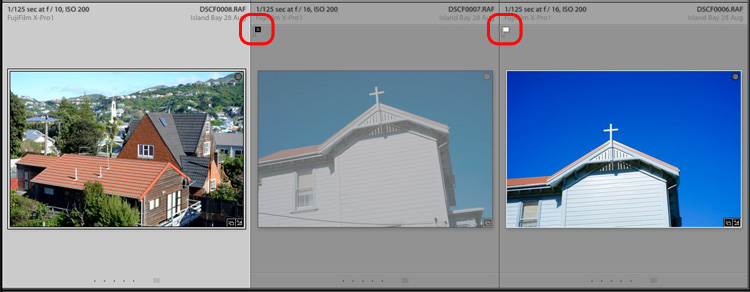
Every photo in your Lightroom Catalog is either unflagged (the default), flagged as a Pick (indicated by a white flag) or flagged as a Reject (marked by a black flag with a cross in it).

The quickest way to flag a photo as a Pick is to select and it and press the P key. You can remove the flag by pressing the U key or mark it as a Reject by pressing the X key. Flags are generally used to indicate which photos you would like to process (Picks) and which you would like to delete (Rejects).
How to organise photos in Lightroom

The middle photo has been flagged as a Reject. It is marked with a black flag (circled left) and the thumbnail is greyed out, making it easy to pick out in Grid View. The right photo has been flagged as a Pick and is marked by a white flag (circled right). The left photo is unflagged. There is no flag icon, but Lightroom displays a grey one when you mouse over the thumbnail.

Ratings

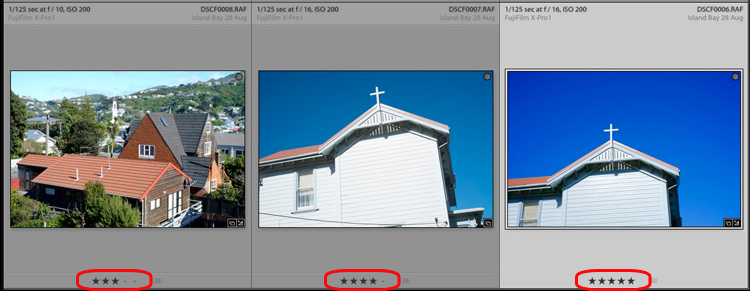
Every photo in your Lightroom Catalog is either unrated (the default) or has a one, two, three, four or five star rating. You can apply these ratings by selecting a photo and pressing the corresponding number key (1, 2, 3, 4 or 5).

Ratings are generally used as a way to indicate which photos are your favourites. Give your best images a rating of 5, and use the other numbers for the rest.
How to organise photos in Lightroom

Here, the three photos have been given a rating of three, four and five stars respectively. The star rating of each photo is displayed under the thumbnail in Grid View.

Color Labels

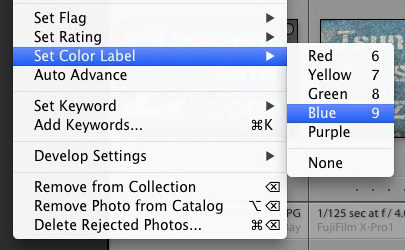
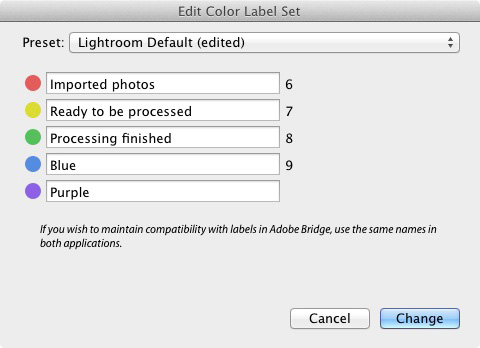
You can also assign a color label to your photo by selecting it, going to Photo > Set Color Label and choosing from Red, Yellow, Green, Blue, Purple or none. You can also use the 6, 7, 8 and 9 number keys as a shortcut to applying Red, Yellow, Green and Blue color labels.
How to organise photos in Lightroom

Colour labels are designed to be adaptable so you can use them for whatever you want. Go to Metadata > Color Label Set > Edit to assign a meaning to each color label. In this example I have entered a purpose for three of the color labels. It’s just an example to show you the possibilities – in reality I prefer to keep things simple and not use them.
How to organise photos in Lightroom

Hopefully this article has given you a good overview of the process of using Lightroom as a digital asset management tool. The next article in this series will show you how to get started in the Develop module. Meanwhile, if you have any questions about organizing your photos in the Library module then please let me know in the comments.


Mastering Lightroom Book One: The Library Module

Mastering Lightroom ebookMy latest ebook Mastering Lightroom Book One: The Library Module (second edition) is a complete guide to using Lightroom’s Library module to import, organise and search your photo files. You’ll learn how to tame your growing photo collection using Collections and Collection Sets, and how to save time so you can spend more time in the Develop module processing your photos.

googletag.cmd.push(function() {
tablet_slots.push( googletag.defineSlot( “/1005424/_dPSv4_tab-all-article-bottom_(300×250)”, [300, 250], “pb-ad-78623” ).addService( googletag.pubads() ) ); } );

googletag.cmd.push(function() {
mobile_slots.push( googletag.defineSlot( “/1005424/_dPSv4_mob-all-article-bottom_(300×250)”, [300, 250], “pb-ad-78158” ).addService( googletag.pubads() ) ); } );

The post How to Organize Your Photos in Lightroom by Andrew S. Gibson appeared first on Digital Photography School.

Digital Photography School

 
Comments Off on How to Organize Your Photos in Lightroom

Posted in Photography


Fall Foliage Map For Your Fall Photos

30 Sep
Fall Leaves

Fall has officially arrived! It is time to start snapping pics of everything pumpkin and pumpkin-colored.

Check out this map before you head out for photos. It shows where, and at what stage, the leaves are changing within the lower contiguous US states.

Scroll down below the map to read about how and why the leaves change, and snag some coloring pages too. Who doesn’t love coloring? Especially next to a fire, sipping on a warm drink. Yay, fall!

Photo by The U.S. Department of Agriculture


© Erin for Photojojo, 2015. |
Permalink |
No comment |
Add to
del.icio.us

Post tags:


Photojojo

 
Comments Off on Fall Foliage Map For Your Fall Photos

Posted in Equipment


How to Import Photos into Lightroom

27 Sep

If you are new to Lightroom, the first thing you need to do after installing the software, opening it up, and taking a look around is import some photos.

As Lightroom is a database you can’t open photos in it the same way you can in Photoshop – instead, you have to import your photos before you can view, or process them. The import process adds photos to the Lightroom Catalog (Adobe’s name for the database that the program uses) and generates a preview of the image for you to view. Once imported, images stay in the Lightroom Catalog forever (or until you remove them from the Catalog yourself).

The Lightroom modules

Lightroom is modular software, there are seven of them: Library, Develop, Map, Book, Slideshow, Print and Web. You can only work in one module at any one time, but you can move around between them as often as you want.

The Library module is the heart of the system. This is where you view photos, organize them into Collections and carry out searches. The Library module is your window to the Lightroom Catalog ,and all the information that it holds about your images.

Importing and viewing photos happens entirely within the Library module.

The Lightroom module layout

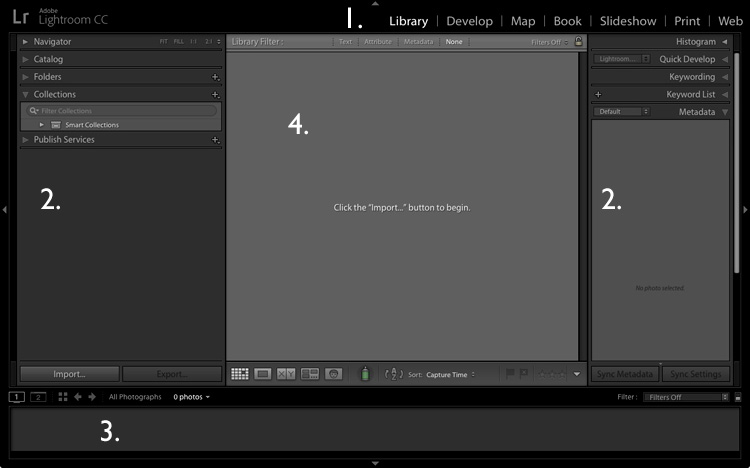
The screenshot below shows the Library module layout. If you haven’t imported any photos into the Lightroom Catalog yet this is what it will look like.

Importing photos into Lightroom

1. Module selector
2. Side panels
3. Filmstrip
4. Content area

The screen is divided into four areas.

1. The Module selector: This is the bar at the top that tells you which module you are in (in this case, the Library module). You can make it disappear by clicking the white arrow at the top of the screen, freeing up screen space.

2. The left- and right-hand panels: These contain all the Library module tools. You can click the arrow on either side to make them disappear and reappear.

3. The Filmstrip: Displays thumbnails in the currently selected Folders, Collections or search results. If there are no photos in your Catalog it will be blank. Click the white arrow at the bottom of the screen to show/hide it.

4. The Content window: This is the central display area. After you have imported some photos into Lightroom you can view them here. If you hide all four side panels (use the keyboard shortcut Shift+Tab) it will fill your screen.

Importing photos

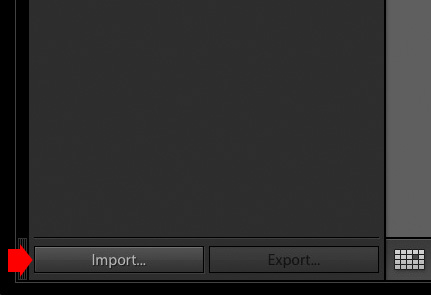
To get started, free up some screen space by hiding the Module Picker, Filmstrip and right-hand panels. Click the Import button in the bottom left-corner of the left-hand panel.

Importing photos into Lightroom

If this is your first import you are likely to be importing your photos from your hard drive, but you can also import them directly from a memory card, or connected camera.

It is best to import your photos one folder at a time, so you can organize them as you go along. It is more difficult if you import all your image files in one go. Plus, Lightroom will make you wait a long time while it carries out the import process!

The Import window

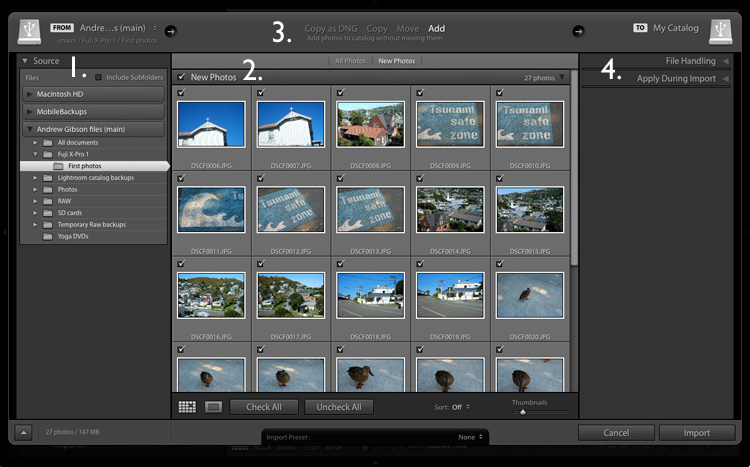
When you click the Import button Lightroom takes you straight to the Import window. It is divided into four sections (marked below).

Importing photos into Lightroom

1. Source 
2. Photo thumbnails
3. Import options
4. Destination

1. Source (left panel): This is the folder(s) from which you are going to import the photos. You can navigate through all hard drives, cameras, or memory cards connected to your computer.

2. Photo thumbnails (middle section): Here Lightroom displays thumbnails of the photos in the selected source folder or folders. The photos are ticked to show that Lightroom will import them into the Catalog when you press the Import button (you can untick any that you don’t want to import).

3. Four import options which tell Lightroom what to do with the photos (top middle): They are:

  • Copy as DNG: When you select this option Lightroom converts your Raw files to Adobe’s DNG format (non-Raw formats such as JPEG and TIFF are not converted). This is the most time consuming option as Lightroom has to first copy your photos then convert them to a new format. Make Lightroom Faster by Using DNG explains the advantages of the DNG format. If you’re new to Lightroom leave this option alone for the moment, as it’s for more advanced users.
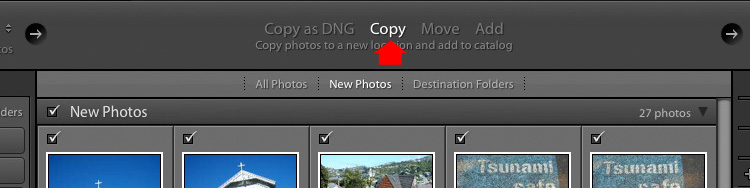
  • Copy: Lightroom copies your files from their current location to a new one, without changing the file format. This is ideal for importing photos from a memory card, as it leaves the original files intact on the card.
  • Move: Lightroom moves your files from their current location to a new one, without changing the file format. However, it does delete the original files after they have been moved. This is ideal when you want to move photo files from one folder to another on a hard drive.
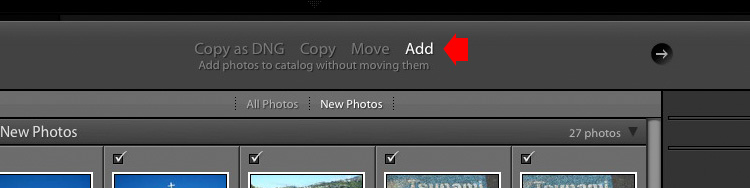
  • Add: Lightroom imports your photos into the Catalog, without moving or copying them from their current location. Select this option if you are importing photos from your hard drive and don’t want to change their location.

4. Destination (right panel): This is where you tell Lightroom what to do with the photos (and where to put them) during the import process. If you select the Add option you will see two panels here (File Handling and Apply During Import). If you select Copy as DNG, Copy, or Move, Lightroom also displays the File Renaming and Destination panels.

Putting it together

Ready to import your first photos into Lightroom? These are my recommended settings – you can start with these and adjust the workflow to suit your needs as you become more comfortable with Lightroom’s settings.

1. Navigate to the folder containing your photo files on the left and select the Add option from the top.

Importing photos into Lightroom

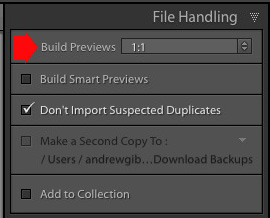
2. On the right open the File Handling panel (click on the heading to open and close panels) and set Build Previews to 1:1.

Importing photos into Lightroom

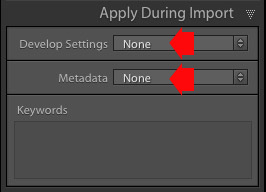
3. Open the Apply During Import panel and set Develop Settings and Metadata to None. The idea is to keep your first import simple – you can learn how to use Develop Presets and Metadata presets later (this article How to Create Your Own Lightroom Presets will get you started).

Importing photos into Lightroom

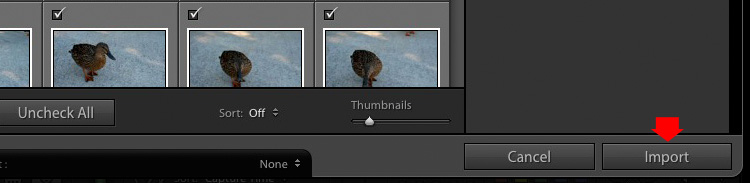
4. Click the Import button (bottom right). Lightroom returns to the Library module and starts the import process. It takes Lightroom a while to build the 1:1 previews, but the wait is worth it, as it makes viewing them in the Library module much quicker.

Importing photos into Lightroom

Once Lightroom has imported your photos, you can view them in the Library module. These articles Making Sense of Lightroom’s Grid View and The Hidden Secrets of Lightroom 5’s Loupe View (yes it applies to Lightroom 6 and Lightroom CC too) will get you started.

Importing photos from a memory card

Once you’ve carried out your first import, at some stage you will want to import photos directly from a memory card into Lightroom. There are a couple of extra steps in this process. Start by selecting Copy (instead of Add) at the top of the Import window.

Importing photos into Lightroom

Set the File Handling and Apply During Import panel settings as above. Ignore the File Renaming panel (another advanced topic).

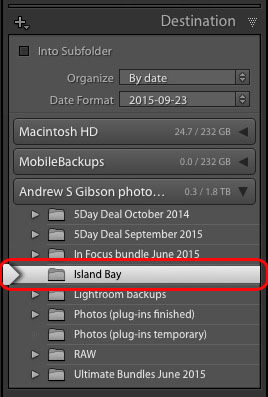
In the Destination panel, select the folder where you would like to save the imported images (you can create a new folder by right-clicking on an existing one and selecting Create New Folder). The selected destination folder is marked in white.

Importing photos into Lightroom

Click the Import button when you’re ready.

After the import

It’s important to understand that the import process doesn’t physically add your photo files to the Lightroom Catalog. The Catalog contains previews of your photos, plus information about them, including the location where they are saved. The photo files themselves remain on your hard drive.

The next task is to organize your newly imported photos. I’ll show you how to do that in a future article.

Do you have any questions regarding this process? Please let me know in the comments.


Mastering Lightroom Book One: The Library Module

Mastering Lightroom ebookMy latest ebook Mastering Lightroom Book One: The Library Module (second edition) is a complete guide to using Lightroom’s Library module to import, organise and search your photo files. You’ll learn how to tame your growing photo collection using Collections and Collection Sets, and how to save time so you can spend more time in the Develop module processing your photos.

googletag.cmd.push(function() {
tablet_slots.push( googletag.defineSlot( “/1005424/_dPSv4_tab-all-article-bottom_(300×250)”, [300, 250], “pb-ad-78623” ).addService( googletag.pubads() ) ); } );

googletag.cmd.push(function() {
mobile_slots.push( googletag.defineSlot( “/1005424/_dPSv4_mob-all-article-bottom_(300×250)”, [300, 250], “pb-ad-78158” ).addService( googletag.pubads() ) ); } );

The post How to Import Photos into Lightroom by Andrew S. Gibson appeared first on Digital Photography School.

Digital Photography School

 
Comments Off on How to Import Photos into Lightroom

Posted in Photography


How to Understand Depth of Field to Avoid Blurry Photos

21 Sep

Last week we released our brand new course – Photo Nuts and Shots which is all about teaching the tools, techniques and thought processes for creative photography. It’s by on of our most popular ebook authors, Neil Creek and features over two hours of video teaching.

We asked Neil to create this course as he has a natural knack of explaining technical concepts in a way that makes the intricacies of photography easy to understand.

We’re so convinced that this course will help you that we want to share a couple of minutes from one of the modules about avoiding blurry images with you here today.

Neil Creek runs through an additional 35 minutes of golden focus advice in this lesson – available in full when you purchase the course online today.

Keep in mind that this is just one of ten creative photography lessons included in Photo Nuts and Shots.

So you’ll not only discover practical tips and tricks for producing tack sharp photos, but get step-by-step guidance on:

  • Using light effectively
  • Avoiding and embracing lens flare
  • Composition techniques
  • Choosing creative exposure settings
  • Thinking flexibly on location
  • And much more!

With Neil’s comprehensive demonstrations and easy-to-understand teaching style, it’s like having your very own professional photography mentor.

All packaged in over two hours of streamable and downloadable video content for the terrific introductory price of USD $ 39. That’s 33% off!

Don’t miss out – take the full course today.

We’ve extended the 33% saving to our first course, Photo Nuts and Bolts, too (although you can certainly take one without the other). So both are USD $ 39 each, but for a limited time only. And you can rest assured that all of our video courses come with a 60-day money-back guarantee.   

googletag.cmd.push(function() {
tablet_slots.push( googletag.defineSlot( “/1005424/_dPSv4_tab-all-article-bottom_(300×250)”, [300, 250], “pb-ad-78623” ).addService( googletag.pubads() ) ); } );

googletag.cmd.push(function() {
mobile_slots.push( googletag.defineSlot( “/1005424/_dPSv4_mob-all-article-bottom_(300×250)”, [300, 250], “pb-ad-78158” ).addService( googletag.pubads() ) ); } );

The post How to Understand Depth of Field to Avoid Blurry Photos by Darren Rowse appeared first on Digital Photography School.

Digital Photography School

 
Comments Off on How to Understand Depth of Field to Avoid Blurry Photos

Posted in Photography


Wish you could take Amazing Photos? Now you can with our Brand New Course

17 Sep

Wish you could take amazing photos with that camera that rarely comes out of Auto Mode?? Now you can.

With our brand new photography course – presented on video – Photo Nuts and Shots.

It’s a follow up to the incredibly popular Photo Nuts and Bolts course released earlier this year and complements our best-selling ebook of the same name (and author, Neil Creek).

If you already know your way around your camera but want to gain real skills that you’ll use in every shot you take, then this creative photography course is for you.

And for a limited time, it’s available at the special introductory price of just USD $ 39 – which is a saving of 33%.?

What you’ll learn

In 10 easy-to-understand video lessons, Neil reveals the tools, techniques and thought processes for producing amazing photos:

  • Learn to harness light to convey emotion
  • Understand the impact of great composition and how to achieve it
  • Take the sharpest possible photos
  • Discover how to adapt your camera’s exposure to get the shot you want
  • Master the concepts of shot perception, planning and execution – in any setting
  • Know when to break the rules for creative effect
  • Tap into your creativity to be the best photographer you can be
  • Because the videos are streamable and downloadable, you can go through at your own pace and in any order.

And the best part is that Neil’s teaching is practical and immediately actionable, so you’re guaranteed to see an instant improvement in the quality of your shots.

Take a look…

For a quick video preview, or to find out more, head here and check out the full details of this great new course.

Great photography CAN be learned – and Photo Nuts and Shots will show you how.

So get your camera ready and take this all-new dPS course today/

googletag.cmd.push(function() {
tablet_slots.push( googletag.defineSlot( “/1005424/_dPSv4_tab-all-article-bottom_(300×250)”, [300, 250], “pb-ad-78623” ).addService( googletag.pubads() ) ); } );

googletag.cmd.push(function() {
mobile_slots.push( googletag.defineSlot( “/1005424/_dPSv4_mob-all-article-bottom_(300×250)”, [300, 250], “pb-ad-78158” ).addService( googletag.pubads() ) ); } );

The post Wish you could take Amazing Photos? Now you can with our Brand New Course by Darren Rowse appeared first on Digital Photography School.

Digital Photography School

 
Comments Off on Wish you could take Amazing Photos? Now you can with our Brand New Course

Posted in Photography


Camera Restricta concept blocks photos of over-photographed subjects

11 Sep

Photographer and designer Philipp Schmitt has created a concept camera called ‘Camera Restricta’ with a unique feature: it won’t allow the user to take a picture in an area where too many other photos have been taken. Read more

Articles: Digital Photography Review (dpreview.com)

 
Comments Off on Camera Restricta concept blocks photos of over-photographed subjects

Posted in Uncategorized


How to Create Better Photos by Adding a Sense of Motion

10 Sep

Photographing subjects in motion can be kind of tricky because of the very nature of photography as an art form: cameras capture still images, not moving pictures (unless you are Harry Potter and like to read the Daily Prophet).

Of course, one solution is to record a movie with your camera or phone, but even a movie is in itself a series of still images projected quickly, that only give the illusion of motion. Each individual frame is not moving, but put together it appears as though everything you see is changing. Another solution, and one I generally prefer, is to use some knowledge of composition to create a sense of motion in a single photograph. It’s not all that difficult, but these techniques do require a bit of knowledge, a lot of practice, and in the end your photos will be much more dynamic and interesting as a result.

motion-and-composition-bike-car

One of the most basic elements of composition is called the Rule of Thirds. It has to do with putting your subjects off-center in order to add more visual impact to your photos. It’s not a hard-and-fast rule, and some people swear by it while others reject it altogether, but understanding how it affects motion photography can go a long way towards giving your pictures an extra boost. To offer an example, take a look at the following image of my niece on her bike.

motion-and-composition-bike-center-panning-2

My niece on her bike. There’s clearly a sense of motion, but putting her in the center is not the best use of photographic compositional space.

This image involves a technique called panning, which helps create the illusion of motion by tracking a moving subject with your camera, while the shutter is open. But, take a look at how the girl is framed – she in the center of the image, and you can see her surroundings on all sides. It seems like a good picture at first, but take a look at how a simple compositional change can have a dramatic impact on the sense of motion created by the image.

motion-and-composition-bike-center-panning

Putting the subject off-center shows not just that the girl is biking, but the space into which she is traveling.

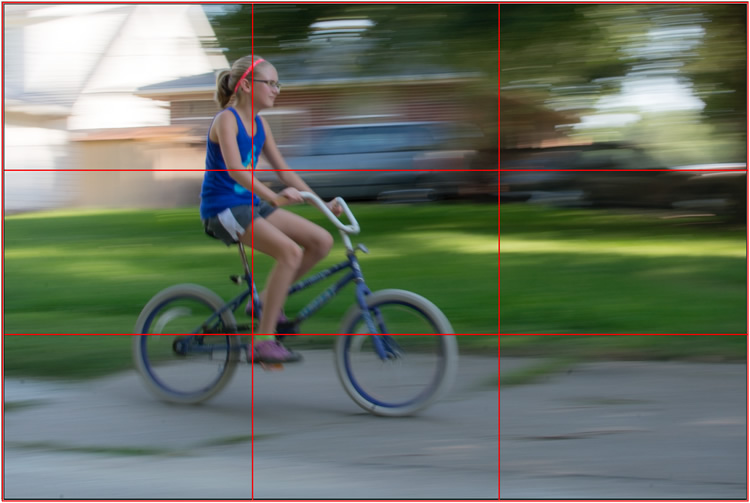
I took this second picture using spot focus on my camera which allowed me to select which focusing point to use, and selected a point on the left side of the frame. Doing this placed my niece right along one of the vertical gridlines, if we look at this image as it relates to the classic Rule of Thirds:

motion-and-composition-bike-left-panning-grid

Both the girl, and her bicycle, line-up with the one-third dividing lines, which helps create a more pleasing and dynamic composition.

Aligning my subject on the left third of the image (and the horizontal center of the bike along the bottom third) has done a couple of things. First, it makes for a more pleasing image due to the off-center placement of my subject. It allows us to see more context overall, since she is on one side and not dominating the entire image. Second, the other goal this placement accomplishes has to do with motion – we see her not only biking, but biking to somewhere. By showing us where she is going, our minds essentially create a greater sense of movement because we can see more context.

This works almost any time you have an object in motion, whether you employ the panning technique or not. Simply placing your subject on one side of the image (often along one of the dividers according to the Rule of Thirds) such that it is moving in the direction of the rest of the image (put more space in front of the subject than behind), will help your photos will seem much more dynamic and interesting. It helps your viewers to get a sense that they were actually there with you at the moment of the picture.

If panning isn’t quite your thing, you can still employ some compositional techniques to create a greater sense of motion. Here’s a picture of my other niece riding her bike that I took from a standing position. I see pictures like this posted online quite a bit, and while they are not bad photos, a change to how they are composed can dramatically alter the visual impact.

motion-and-composition-bike-center-2

My other niece biking, taken from a standing position without much thought put into overall composition.

Again you see that she is in the center of the image (above), and while this picture is perfectly serviceable, there is a lot that can be done to create a greater sense of motion. Here’s another picture of the same scenario, but taken from ground level as she approached me down the alley.

motion-and-composition-bike-right-2

Altering my angle to be low to the ground, and putting the girl on the right-hand side, creates a much more dynamic photo. This was shot with a DSLR but could have easily been taken with any camera or even a mobile phone.

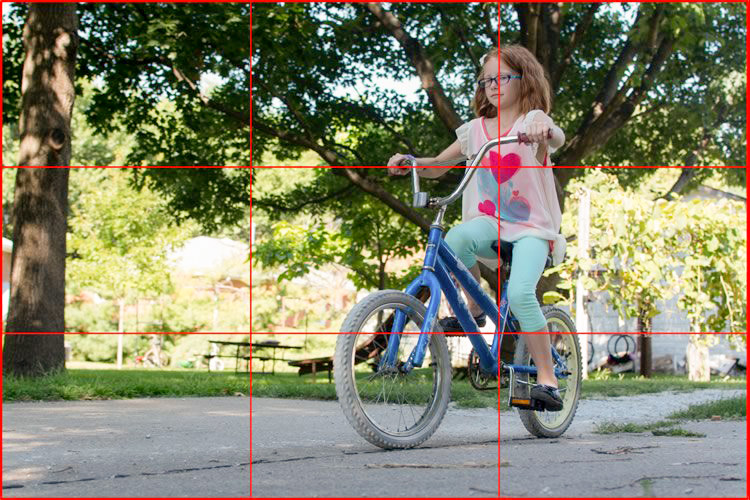
I had to lie on the ground to get this shot, but the results were well worth it. The low angle helps make the shot much more interesting, and the open space on the left side shows us the empty street that she will soon be riding on. This general framing is used all the time in photos of moving objects, and is a favorite of the advertising industry as well: you will often see pictures of sports cars not from the top and side (as in the first of these two bike photos) but from a low angle, and the front wheels turned away from the viewer, much more akin to the second photo. And sure enough, this image also conforms quite well to the good old-fashioned Rule of Thirds.

motion-and-composition-bike-right-grid-2

There are other ways to play with composition to create a sense of motion in photos; the Rule of Thirds is just the beginning. This photo of a man walking past a fountain violates the first rule about showing the subject on one side moving towards the rest of the image, but it works because we’re not so much interested in where he is going but what the entire scene is about.

motion-and-composition-fountain

Putting the subject on the left side of this photo creates a different mood and tone than if the man were on the right-hand side.

By using a longer shutter speed, and holding my camera still I was able to capture motion, not only in the man walking, but the water rolling off the fountain. If the position of the man and the fountain were reversed it might look as though he is walking into it. But as it is, the motion of my human subject is one part of the picture as a whole, and the falling water adds another dynamic layer to the image.

The placement of the man creates a bit of tension as well; he is clearly carrying something, and from the words on the wall it’s obvious that he is walking past a library. Is he a student that’s late for class? Is he walking fast to catch up to some friends who are out of the frame? Putting him on the right-hand side would make the image seem a bit more casual and informal. But, intentionally composing this shot so that he is about to walk out of the frame, imparts a different feeling on the viewer that can be very effective when used properly. Also note that both the fountain and the man line up roughly with the traditional Rule of Thirds grid, which helps create a more pleasing composition all around.

I should note that the reliance on the Rule of Thirds can become a crutch, and there are many creative ways to take motion-based images without it. What about you? What are some compositional tricks you have found to help create a sense of motion in your photographs? Do you have any favorite motion images to share? Leave your thoughts in the comments below.

googletag.cmd.push(function() {
tablet_slots.push( googletag.defineSlot( “/1005424/_dPSv4_tab-all-article-bottom_(300×250)”, [300, 250], “pb-ad-78623” ).addService( googletag.pubads() ) ); } );

googletag.cmd.push(function() {
mobile_slots.push( googletag.defineSlot( “/1005424/_dPSv4_mob-all-article-bottom_(300×250)”, [300, 250], “pb-ad-78158” ).addService( googletag.pubads() ) ); } );

The post How to Create Better Photos by Adding a Sense of Motion by Simon Ringsmuth appeared first on Digital Photography School.

Digital Photography School

 
Comments Off on How to Create Better Photos by Adding a Sense of Motion

Posted in Photography


32 Majestic Landscape Photos to Inspire Your Wanderlust

05 Sep

2-for-1 special

As part of Landscape Photography Week here on dPS, we’re offering TWO for the price of ONE on our best-selling Living & Loving Landscape Photography ebooks!

Click here to take advantage of this offer.


This week is a deep dive into landscape photography here on dPS. Continuing on that theme I’ve selected a set of images that I hope will inspire you to get out into nature and do your own photography.

If you can’t travel far, you may want to consider a cow safari closer to home for a fun afternoon. Enjoy!

Photograph Stora Graenafjall by Xavier Jamonet on 500px

Stora Graenafjall by Xavier Jamonet on 500px

Photograph The Tower by Fra Trevi on 500px The Tower by Fra Trevi on 500px

Photograph Golden Hour by Bobby Bong on 500px

Golden Hour by Bobby Bong on 500px

Photograph Autumn Dreams by Robin Halioua on 500px Autumn Dreams by Robin Halioua on 500px

Photograph A long way by abdulla almajed on 500px

A long way by abdulla almajed on 500px

Photograph X light by Sebleu  on 500px X light by Sebleu on 500px

Photograph Jet Airway by Miles Morgan on 500px

Jet Airway by Miles Morgan on 500px

Photograph Hump Rock by Miles Morgan on 500px Hump Rock by Miles Morgan on 500px

Photograph B side by Dylan Toh  & Marianne Lim on 500px

B side by Dylan Toh & Marianne Lim on 500px

Photograph Moraine Lake by Aman Anuraj on 500px Moraine Lake by Aman Anuraj on 500px

Photograph Iconify by Dylan Toh  & Marianne Lim on 500px

Iconify by Dylan Toh & Marianne Lim on 500px

Photograph Phantasm by Daniel Greenwood on 500px Phantasm by Daniel Greenwood on 500px

Photograph Moravian landscape by Radek Severa on 500px

Moravian landscape by Radek Severa on 500px

Photograph Japanese Tranquility by Natasha Pnini on 500px Japanese Tranquility by Natasha Pnini on 500px

Photograph The Last Ride by Rob Dweck on 500px

The Last Ride by Rob Dweck on 500px

Photograph Bold by Arthur Hoffmann on 500px Bold by Arthur Hoffmann on 500px

Photograph Norway , Trollstigen by pascal Kiszon on 500px

Norway , Trollstigen by pascal Kiszon on 500px

Photograph Stacked Plates by Brandon Goforth on 500px Stacked Plates by Brandon Goforth on 500px

Photograph Magic Dreams by Aitor Acedo on 500px

Magic Dreams by Aitor Acedo on 500px

Photograph Midnight sunset by Beboy Photographies on 500px Midnight sunset by Beboy Photographies on 500px

Photograph Tree & Clouds by Carsten Meyerdierks on 500px

Tree & Clouds by Carsten Meyerdierks on 500px

Photograph Way to Paradise by Kilian Schönberger on 500px Way to Paradise by Kilian Schönberger on 500px

Photograph Descent to Rivendell by Enrico Fossati on 500px

Descent to Rivendell by Enrico Fossati on 500px

Photograph Dream of Sunset by husham alasadi on 500px Dream of Sunset by husham alasadi on 500px

Photograph Endor Redwoods by TJ "TJ Thorne" Thorne on 500px

Endor Redwoods by TJ “TJ Thorne” Thorne on 500px

Photograph Untitled by Luis Beltrán on 500px Untitled by Luis Beltrán on 500px

Photograph A Portrait of a Landscape Photographer by Nagesh Mahadev on 500px

A Portrait of a Landscape Photographer by Nagesh Mahadev on 500px

Photograph Heaven by Miguel Angel Martín Campos on 500px Heaven by Miguel Angel Martín Campos on 500px

Photograph You may say I'm a dreamer by Karen Plimmer on 500px

You may say I’m a dreamer by Karen Plimmer on 500px

Photograph Milford Wild Sunset by Soniel Dalumpines on 500px Milford Wild Sunset by Soniel Dalumpines on 500px

Photograph Spring impression by Stefan Andronache on 500px

Spring impression by Stefan Andronache on 500px

Photograph BUTTER MERE TREE. by Neil Hulme on 500px BUTTER MERE TREE. by Neil Hulme on 500px


Here on dPS it is landscape week. You can see the previous ones listed below. Watch for a new article (or two) on landscape photography daily for the next week.

  • 6 Tips for Better Low-Light Landscape Photography
  • Landscape Photography and the Human Element
  • 5 Ways a Telephoto Lens Can Improve Your Landscape Photography
  • Landscape Photography from the Side of the Road

googletag.cmd.push(function() {
tablet_slots.push( googletag.defineSlot( “/1005424/_dPSv4_tab-all-article-bottom_(300×250)”, [300, 250], “pb-ad-78623” ).addService( googletag.pubads() ) ); } );

googletag.cmd.push(function() {
mobile_slots.push( googletag.defineSlot( “/1005424/_dPSv4_mob-all-article-bottom_(300×250)”, [300, 250], “pb-ad-78158” ).addService( googletag.pubads() ) ); } );

The post 32 Majestic Landscape Photos to Inspire Your Wanderlust by Darlene Hildebrandt appeared first on Digital Photography School.

Digital Photography School

 
Comments Off on 32 Majestic Landscape Photos to Inspire Your Wanderlust

Posted in Photography


Polaroid Snap instant digital camera prints 2×3″ photos

04 Sep

This year’s IFA show in Berlin saw the introduction of the Polaroid Snap instant digital camera. It features a 10 megapixel sensor and integrated ZINK Zero Ink printer that produces 2 x 3 inch adhesive-backed color photos using heat-activated dye crystals and a polymer overcoat rather than ink. Read more

Articles: Digital Photography Review (dpreview.com)

 
Comments Off on Polaroid Snap instant digital camera prints 2×3″ photos

Posted in Uncategorized


Submit your photos to Feature Shoot’s ‘Vertical Living’ group show for your chance to be displayed at PIX

02 Sep

Feature Shoot is accepting submissions for its latest group show, and winners will have their work displayed at PIX 2015 – our interactive photo expo. The show centers on themes of ‘vertical living,’ and will be curated by Feature Shoot Editor-in-Chief Alison Zavos. Read more

Articles: Digital Photography Review (dpreview.com)

 
Comments Off on Submit your photos to Feature Shoot’s ‘Vertical Living’ group show for your chance to be displayed at PIX

Posted in Uncategorized