RSS
 

Posts Tagged ‘Photography’

Tips for Using Color in Your Photography

22 Jun

Tips for Using Color in Your Photography - boats in a row on the shore

Color is one of those things that you easily take for granted because it is everywhere. Even though you see it every day, not much thought is given to how (or why) it affects your perception or mood. While it is a common part of your life, you can still pay attention to how it affects your images.

Since color or the absence thereof plays an important part in your final product (others include light, shape, form, and texture), give it some more thought. Are you conscious of how you are using color in your photos?

salt and pepper close up shot - Tips for Using Color in Your Photography

1. The Basics

There are three primary colors – red, blue and yellow. Secondary colors are produced when you combine these: green (combination of blue and yellow), purple (red and blue) and orange (red and yellow). If you further combine, you get the next level/tertiary colors.

color wheel - Tips for Using Color in Your Photography

By The original uploader was Sakurambo at English Wikipedia. [GFDL or CC-BY-SA-3.0], via Wikimedia Commons

The color wheel is a diagram that shows how different colors relate to each other. They exist along a continuum with each color transitioning into the one next to it. So why are these basics important?

Color Harmony

Color harmonies are combinations that are visually appealing to the human eye. A color harmony is when you have two or more different colors that complement each other. This is a key tool used by both artists and photographers to communicate with their viewers, as it is used to evoke a mood or emotion. There are a few types of color harmonies that you can use.

red boat on the shore and one bird - Tips for Using Color in Your Photography

Monochromatic versus Analogous

While these two color harmonies are similar, analogous offers subtle differences that set it apart. A monochromatic color scheme or harmony uses variation in the lightness and saturation of a single color. An analogous color harmony is composed of colors that are adjacent to each other on the color wheel. There is still one dominant color, but the second color enhances the overall look.

anise seeds - Tips for Using Color in Your Photography

Example of using color in a monochromatic way.

Both of these color harmonies are easy to create and are very easy on the eyes. Monochromatic color schemes are sometimes used to establish a mood because of their visual appeal and balance.

Tips for Using Color in Your Photography - mountain scenic photo

Example of an analogous color scheme with blue and green being next to each other on the wheel.

Analogous colors flow into each other, creating a more soothing look in your image. When you are outdoors, you are exposed to all the various color harmonies including these two. Think about a lush forest with its varying shades of green or the variances of oranges and red in an autumn scene. These tones are likely appealing to you, now you have a little idea as to why.

Complementary Colors

Complementary colors are directly opposite each other on the color wheel. Thus the color complement of a primary color is a secondary color (as shown on the color wheel) e.g., red and green complementary colors work well together since they are highly contrasting. They can be quite dramatic when used at full saturation, as each color makes the other appear more active.

Tips for Using Color in Your Photography - sunset on the water

Orange and blue are complementary colors, which makes sunsets and other scenes with these colors so appealing to us visually.

2. The Key or Dominant Color

The key color is the main color in an image. Often, the key color in an image is that which is the most dominant. Allowing one color to dominate can lead to a powerful image. This is stronger when a primary color (red, blue or yellow) is the dominant color.

Colors with greater intensity will draw (and hold) your viewer’s attention. Keep that in mind, in relation to how it affects your subject.

Tips for Using Color in Your Photography - red tomato in a red bowl

Red is the dominant color in this image, clearly.

3. Advancing or Receding Colors

Advancing colors are the gamut of colors on the warmer end of the spectrum. These include red, red-violet, yellow, yellow-orange and orange. When advancing colors are dominant, they appear as though those objects are closer to the eye, as if coming towards you. Red is one of those colors that dominates and jumps right at you. Think about a scene that has only a hint of red (e.g., a red mailbox) and yet the red dominates.

Tips for Using Color in Your Photography - sunset photo

Advancing colors can work well in an image or on the other hand, can disrupt your scene by taking away the attention from your subject.

Receding colors are the opposite and take on a more background characteristic. Think about what blues and greens (the cooler colors) add to a landscape. They fall into the distance, add a feeling of depth, and help balance the stronger colors.

cool colors of blue hour - Tips for Using Color in Your Photography

4. Feelings and Color

Color provokes various emotional responses in people. So much so, that we use color to describe different emotions, for example: feeling blue, seeing red, tickled pink, or green with envy.

We connect to the warm colors of a sunset differently than we do to a cool blue morning. Color in everyday life is used as a powerful psychological tool, the same applies when using color in your photographic compositions.

Tips for Using Color in Your Photography - statue and the sky

Remember that color is subjective – the same color can make one person happy but irritate another. Also of note, one color can evoke different emotions, if you change its hue and saturation or change the color you combine it with. Orange for example, can create excitement when it leans towards red and be more calming when it is more on the yellow side.

Conclusion

It is fun to learn how colors work with each other and how we react to different combinations. When creating an image, organize color in a way that is easy and pleasing to the eye. Use strong, bold colors to create impact or generate an emotional response. Do you want to grab your viewer’s attention immediately or prefer if their eyes wander around your image?

buffalo in a yellow field - Tips for Using Color in Your Photography

While people see the world in their own way, experiment with color and try to understand what reaches your audience. When creating images with impact, you can use color and make them feel what you want. Share your colorful world with us in the comment area below.

The post Tips for Using Color in Your Photography appeared first on Digital Photography School.


Digital Photography School

 
Comments Off on Tips for Using Color in Your Photography

Posted in Photography


How to Edit Food Photography Images Using Lightroom

22 Jun

To edit food photography it requires a bit of a different approach than you might take with other types of photography, like portrait or landscape. The objective is to keep the food looking as fresh and appetizing as possible, which can take a subtle but considered hand.

How to Edit Food Photography Images Using Lightroom

Before and after a subtle edit of a food photo.

Although there is always room for style and artistry, the more real your subjects look, the better. Lightroom is the program of choice for most food photographers. It’s intuitive and relatively easy to use and offers most of the tools required to make great food photos.

For this article, I will walk you through how I make global adjustments to a food image in Lightroom’s Develop module. Workflow is something that is individual to each photographer. This is how I approach editing my food photography, however, you may opt to do things differently. Hopefully, you will find some takeaways that will help you edit your own images.

I’ll be editing this image of an apple pie. This is the shot straight out of the camera. Like all RAW images, it lacks contrast and needs a bit of pizzaz.


How to Edit Food Photography Images Using Lightroom

Final image.

The Histogram

It’s important to have a basic understanding of the histogram in order to make adjustments to the exposure and tones in your image. The histogram is one of the key tools available for analyzing your image. It provides a graph of the density values of a given image. The histogram shows the relative quantity of pixels at each density value.

The far left point of the histogram is pure black and the densest, and the far right point is pure white with no density. A big peak in any of these regions means that the image has a lot of pixels at that particular density. An open gap in the histogram means that there are no pixels at that density.
How to Edit Food Photography Images Using Lightroom - histogram

The distribution of these tones will tell you about the overall exposure of the image. Most images look best if they contain both dark and light values. Generally, without some dark and light values, the image may lack contrast and look flat.

If you have a strong peak at the black or white end of the histogram, your image could be under or overexposed. However, it really depends on the individual image and the desired aesthetic. For example, blown out whites has become a “thing” in recent years. A dark and moody shot will have a lot of pixel density at the dark end of the spectrum.

Cropping

Before you can start making global adjustments to your image, it makes sense to crop and straighten it first. One tip is to shoot a bit wider than what you want for your end result so you can tweak your composition in post-production. You also may want to crop it to a certain aspect ratio – say 4×5 or square for Instagram.

First,  make sure that your horizon line is straight.

My horizon line in the apple pie image was already pretty straight. I used the crop tool to check it and also brought the crop in slightly on the left-hand side to cut off a little bit more of the pie. To access the Crop Tool in Lightroom, click on the grid symbol under the Histogram in the top panel (or just hit R, the keyboard shortcut). This will allow you to crop your image by bringing in the corners with your cursor.

While this tool is activated you can click “O” for the shortcut to bring up several compositional overlays like the Phi Grid or Golden Spiral to help you get the most out of your composition.

How to Edit Food Photography Images Using Lightroom - crop your image first

Lens Corrections

How to Edit Food Photography Images Using Lightroom - lens corrections panel in LR

The Lens Corrections options fix optical distortion caused by the position of your subject in the frame, or where your camera is positioned relative to your scene. Lightroom supports a variety of lenses to automatically calibrate with this function.

I always check off Enable Profile Corrections before I start making adjustments to my image. Checking this box automatically brings up the camera profile for the lens used to create the image, in this case, the Canon EF 24-70mm.

White Balance

I recommend setting your White Balance in-camera or shooting with a gray card and adjusting it in post-processing. This removes incorrect color casts and ensures that your whites and colors render accurately.

How to Edit Food Photography Images Using Lightroom - eye dropped for WB in LR

You can correct your White Balance in Lightroom by taking the eyedropper tool (circled in red below) and clicking on an area in the image which appears neutral. This will the adjust the color temperature in the whole image, and you can tweak afterward if it’s not quite as you desire. It’s not as precise as the other options but can work well for food your food images.

Also, in food photography, White Balance can be used creatively, depending on your image. I tend to favor a cooler approach to my food photography. Cool colors give a crisp and fresh feeling to the image, which means I tend to edit more towards the blue or cyan.

Using the white balance eye dropper tool in Lightroom to color correct - How to Edit Food Photography Images Using Lightroom

Using the white balance eyedropper tool in Lightroom to color correct

Keep in mind that the goal is to make the food look as fresh and appetizing as possible, so you don’t want the food to look blue. Food photography looks best when there is a balance of tones. I keep my surfaces and props on the cool or neutral side and work with my food subjects individually to keep it as realistic looking as possible.

When composing my apple pie image, I chose a vivid blue background to complement the golden tones of the pie. Not only does this create a balance of tones, blue and yellow are opposite on the color wheel and are a great combination of colors for food photography.

How to Edit Food Photography Images Using Lightroom

After White Balance color corrections.

Exposure and Contrast

The next slider is Exposure, which affects the brightness of the range of tones in your image. To see bright or dark details, pull the Exposure slider to the left, or the Blacks slider to the right. If the bright areas look muddy, or the shadows still need more light, move the sliders to points where the image looks good overall.

I often make this adjustment initially and then may scale it back once I have made some other adjustments.

Contrast can be boosted in the Basic Panel or in the Tone Curve panel, which I will get to in a moment. It’s important to add some contrast, as RAW digital files are flat by nature.

How to Edit Food Photography Images Using Lightroom

After slight Exposure and Contrast adjustments.

Highlights, Shadows, Whites and Blacks Sliders

How to Edit Food Photography Images Using Lightroom - basic panel sliders

This panel is where you may end up doing a lot of tweaking before you settle on a look that you’re satisfied with. It will give you a more precise balancing of tones than simply relying on the Exposure slider.

In my shot of the apple pie, the highlights were too bright, and the shadows too light for the look I was aiming for, which was a darker mood. My style tends to be dark and moody with bright food.  I brought the highlights down and boosted the whites, while also bringing down the shadows and blacks to create the ideal balance for the aesthetic I was going for.

How to Edit Food Photography Images Using Lightroom

After Highlights and Shadows were tweaked.

Clarity, Vibrance, and Saturation

Clarity is a most important slider in Lightroom when editing food photography. Clarity gives your image contrast in the mid-tones (edge details more specifically) and adds detail. You probably wouldn’t edit a portrait with +50 clarity, but you can easily do so with food photos. Keep in mind that overdoing the clarity can make food look dry and unappetizing. For this edit, I put my clarity at +42.

Vibrance is also an important slider in food photography post-processing. It’s a better tool for your edits than saturation because it’s is more subtle. It tends to adjust the less saturated colors without intensifying the ones that are already saturated.

The difference between Vibrance and Saturation is that it affects the intensity of the colors. Red becomes redder, green becomes greener, and so on. Vibrance will first boost the saturation of the muted colors and then the other colors. It adjusts the less saturated tones without over-saturating the ones that are already saturated. Whether you use Saturation depends on the image and the look you are going for, but in general, a conservative approach is what works best when editing food photography.

How to Edit Food Photography Images Using Lightroom

Clarity, Vibrance and Saturation adjusted.

It’s easy to quickly overdo the Saturation and make your image look ugly. If I use the slider at all, I might only nudge it up a tad to about +5 or +6. You’ll notice that I actually brought down the Saturation slightly in this image, so the blue looks a little less intense.

Tone Curve

The Tone Curve is often challenging to new users, but it’s one of the most powerful tools that Lightroom has to offer. Getting in-depth with it is beyond the scope of this article, but let’s look at the basics.

The Tone Curve is a graph that maps out where the tones in your images lie. The bottom axis of the Tone Curve starts with Shadows at the far left side and ends with Highlights on the far right end. The mid-tones fall in the middle, in a range from darker to lighter. The tones get darker as you move lower, and brighter as you move up the axis.

Assess the mid-tones in your image. Are they bright already? If not, click on the middle of the tone curve and bring the point up. If they are already bright or too bright, bring the curve down slightly. Move on to the rest of your image. Typically you will find that your curve looks somewhat like a soft S (see screenshot below).

You can control the lightness and darkness of your tones by adjusting the Point Curve itself or by Region Curve. The Region has sliders for each part of the tonal range. As you drag each slider, the curve and the image both change.

To make adjustments with the Point Curve, click on the area you want to affect to create an anchor point at which to control the tone. Dragging the point up lightens that tone; dragging it down darkens the tone.

After Curves.

You will also notice that there is an RGB option in the lower-right portion of the point curve. This helps you to individually edit the Red, Green, and Blue channels. It performs the same types of adjustments to brightness and darkness, but on each separate color. This can be utilized if you want to edit a color individually, or give your image a certain type of color overall.

To choose tones directly from the image, there is a handy tool called the Targeted Adjustment Tool. This is located in the top left of the Tone Curve.

Click on it and move the cursor over the image. The tool shows you the tones under the crosshairs. If you click and drag it up and down the image, you will affect the tones like those under the crosshairs. For example, if you drag vertically on an area with light pixels, all of your image’s highlights will be adjusted.

If you’re getting started with learning the Tone Curve, play around with the Region sliders and take note of how the various sliders affect the curve. Whichever approach you choose, be sure to watch the histogram as you make changes, to ensure that you are not losing important detail.

HSL Adjustments

HSL stands for Hue, Saturation, and Luminance. This is where you balance the colors in Lightroom. However, color adjustments are usually more subjective than tonal adjustments, as color gives a photograph a sense of mood.

There are two ways to make color adjustments in this panel; you can adjust them all at once under HSL/All, or each color individually under the Color tab at the top of the panel.

The Hue tab or section is where you choose how warm or cool you want each color in your image to be. For example, I find that greens almost always look off, so I slide the greens slightly more towards the left or right to get them looking more realistic. To add more warmth, that is, more yellow to your greens, slide it to the right. For a cooler hue, sliding it to the right will add more blue.

Whereas the Saturation slider in the basic panel adjusts the color of the whole image, the saturation sliders here adjust each color individually.

If you adjust a color to be more saturated, then it will affect the saturation of that particular color throughout the whole photo. Whether you’re working in the basic panel or the HSL panel, saturation requires a light hand.

In the image of the apple pie, I thought that the blue looked a bit more on the magenta side, so I slid it towards the left. This hue gave me a blue that worked better with the orange tones in my picture.

Lastly, Luminance affects the brightness of the color. I find these sliders more valuable than the saturation sliders and work with these first.

How to Edit Food Photography Images Using Lightroom

After HSL adjustments have been applied.

Working in Lightroom is all about balance, and the same goes when working with the Hue, Saturation, and Luminance adjustments.

Noise

Noise is the grain that can appear throughout an image. It’s not often a problem when you are shooting with artificial lights, but when working with natural light, grain can appear in your images if you are shooting at a higher ISO or you didn’t get enough light onto your sensor.

Working with the Noise slider in Lightroom will minimize the grain and give your image a smoother look. But, be careful not to push the slider too high, as it can result in a plastic look. For the apple pie, I set the Noise at +20, as it was shot in studio with a strobe.

Post-Crop Vignetting and Dehaze

If you are editing a darker, moodier image, Post-crop Vignette is a must. By darkening the outer corners of the frame, you draw the viewer’s eye towards the center of the image and your subject.

To darken, move your slider to the left. The midpoint slider controls how far in the dark edges get to the center of your photo. Feather controls how soft or hard your vignette will look. A softer vignette looks more appealing than a hard, “spotlight” effect.

How to Edit Food Photography Images Using Lightroom

Vignette applied.

Sharpening

Sharpening should be the last editing step. It adds contrast between pixels and edges, thereby adding definition and creating a more refined look.

NOTE: It’s not meant to make a blurry image look sharp!

Also, sharpening should not be applied to the whole image. In food photography, there is not much of a point in sharpening the props and the background, etc. The focus is on the food, therefore, this is what we sharpen.

To do this in Lightroom, mask out the image to select the areas of the image you want to sharpen rather than sharpening the whole image. You do this by holding down the Alt/Option key (it will show you where the sharpening is being applied, the white areas) while clicking on Masking in the Sharpening panel. Slide it to the right. The farther right you go, the less of the image it will sharpen. For my image, I left it at +76.

Also read: How to Make Your Photos Shine Using Clarity, Sharpening, and Dehaze in Lightroom

In Conclusion

So here is the final image! Not drastically different than what I began with, but overall a more balanced and refined looking photo and consistent with my style of food photography.

How to Edit Food Photography Images Using Lightroom

Before and after editing. Note how subtle the differences are here.

When it comes to post-processing your food photography, the best advice I can give is that whatever your style, strive for a natural look for your subject. Ask yourself this question, “Looking at this image, do I want to eat that food?”

The answer should unequivocally be yes! If so, you’ve done a good job.

The post How to Edit Food Photography Images Using Lightroom appeared first on Digital Photography School.


Digital Photography School

 
Comments Off on How to Edit Food Photography Images Using Lightroom

Posted in Photography


The Best Way to Improve Your Photography is to Forget About Your Camera

21 Jun

Are you confident using your camera to take photographs in every situation in which you want to shoot? Do you experience anxiety when you think about reaching for your camera? Would you like to feel sure that when you do head out for a photography session you will return more than satisfied with your results? So what is the best way to improve your photography?

portrait of a Kayan girl - improve your photography

If you are anxious or lacking confidence in using your camera you will most likely not be so happy with your photographs. As photographers, most of us like to be improving our pictures each time we use our cameras. I don’t know of a photographer who is not interested in continuing to create better photos than they have previously.

Photography is so much more than having the most up to date equipment and knowing which dials to turn and buttons to push to make it work. The best way to improve your photography is to forget about your camera.

Photography is More Popular Than Ever

Photography is currently more popular than it has ever been. People are taking more photos every day than ever before in history. Why? Because they can and because it is easy. And because everyone always has a camera with them.

Northern Thailand landscape near Suan Sook Homestay, Doi Inthanon - improve your photography

Mobile phone cameras have made photography more popular than ever. This photo was taken with my phone camera.

It is easier and more convenient than ever to be able to take and share your photographs. Most people can take a photo with their phone very easily and without much knowledge of photography technique. Most phone camera users are not concerned with their shutter speed or their ISO setting. But you don’t have to search much to find some outstanding photographs made with phone cameras.

When people take photos with their phone they are most often concentrating on the moment, not the mechanics of how to work the camera. The more you can learn to do this when you are using your DSLR, mirrorless or any other camera the more you will improve your photography.

Make Time to Learn

Make time to study how your camera works. If you are just starting out, begin with the essentials. Become familiar with the settings for obtaining a good exposure and well-focused photos.

Night photo of a buddhist monk at a ceremony at Wat Pan Tao - improve your photography

In any situation you find yourself wanting to photograph, you need to be confident in adjusting your settings well without losing concentration on your subject.

For more advanced photographers, don’t neglect to keep learning more about your camera. Learn to use more of the functions and become proficient at them. If you can do this you will be well prepared whenever you want to head out for a photography session.

If you are constantly trying to figure out how to use your camera at the times when you want to make great photos, you will not be as successful.

Know your camera functions and settings well, so you can use it as quickly and easily as your phone camera. You’ll be able to pay more attention to the moment if you do so.

:aughing Karen woman in a rice field - improve your photography

Be Prepared

When you are in a situation where you want to take photographs, be prepared. Have everything with you that you need. Do you need another lens? Will you need flash? How about your tripod? As well, be mindful of whether or not you will need anything other than your camera and one or two lenses. If not, don’t carry it with you. It will only hinder you.

Always try to anticipate the situation ahead of time. Be well set up with the right lens and any other accessories you need. If you can do this in advance you will be able to concentrate more on making great photos.

Thai woman in traditional costume - improve your photography

Being prepared means you will not miss any opportunities to make great photos.

Review and Critique

Always take a good look at your photos, including the ones you are not satisfied with. Hopefully, you are not deleting any of your photos from your cards before reviewing them on your computer. Aside from this being poor technical practice, you can learn a lot from your dud photos.

lady and giant soap bubbles - improve your photography

Studying your photos for composition, exposure, timing, subject choice, etc., will help you improve. If you are reviewing photos you are not so happy with, this will help you avoid making the same mistakes in future.

Having someone else look at your photos and offer critique can be very valuable. Even if it’s a friend or family member who has little or no photography experience it can help keep you on track, (so long as they are honest and positive.)

Sharing your photos for critique with an experienced photographer can help your growth. They will be able to point out things you may not have noticed. By seeking feedback you will learn directly from your own images.

Reflection of a monk in a puddle of water - improve your photography

Art and Science

Photography is very much a whole brain experience. The left hemisphere of your brain engages to manage the technical aspects. Your right hemisphere is more attentive to the creative aspects. There must be a cohesion and a balance.

If you are too focused on the technical aspects of photography you will not produce such creative pictures. If your right brain takes over you may not get well-exposed or focused images because of not paying attention to your camera.

Pink dahlia photo - improve your photography

Knowing your equipment, whatever camera you are using, will help you improve your photography. A photo that was taken with my camera phone.

Being confident to use your camera, whichever one you choose to use, will help you be more successful. Understand how to use it and to adjust the settings to get the photos you want easily. This takes some study, commitment, and practice, but it’s well worth it to be able to achieve consistently better results.

The post The Best Way to Improve Your Photography is to Forget About Your Camera appeared first on Digital Photography School.


Digital Photography School

 
Comments Off on The Best Way to Improve Your Photography is to Forget About Your Camera

Posted in Photography


Apple releases four new iPhone X mobile photography video tutorials

20 Jun

Apple released a new batch of mobile photography tutorial videos this week, each briefly demonstrating how to perform various camera actions using the flagship iPhone X. The OLED-equipped iPhone X features dual rear 12MP cameras coupled with optical image stabilization and optical zoom.

The four new videos were published on June 14 and guide iPhone X users through the following functions: shooting with the backlight, shooting in burst mode, recording in slow motion, and creating panoramas.

Apple semi-regularly updates video tutorials for its products, and previously released a batch of similar mobile photography instructional videos for the iPhone 8. A full playlist of Apple’s mobile photography video tutorials, including those covering older iPhone models, is available here. The four newest videos are below.

Via: Light Stalking

Articles: Digital Photography Review (dpreview.com)

 
Comments Off on Apple releases four new iPhone X mobile photography video tutorials

Posted in Uncategorized


How to Choose a Lens for Night Sky Photography

20 Jun

There is a big distinction to be made when it comes to night sky photography, which is whether or not you plan on photographing the stars in the night sky. If you do not plan on including stars in your shots, things are a lot simpler for you. That is true in a lot of ways, in that you don’t need to worry as much about the clouds and weather, the impact of the moon, or light pollution.

When it comes to lens selection, it means that you can pretty much use whatever lens you want. Therefore, if that is the type of night photography you plan to do, continue using whatever is your favorite lens at present.

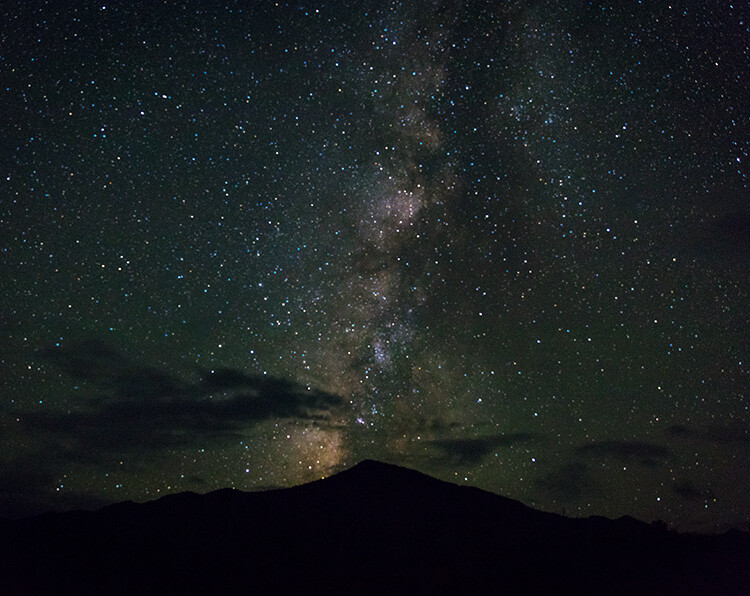
Photo of the Milky Way at night - How to Choose a Lens for Night Sky Photography

Issues doing Night Sky Photography

On the other hand, if you plan on shooting the night sky and capturing the stars, things get trickier. This stems from two facts. The first is that starlight is extremely dim. It is only a tiny, tiny fraction of what you have at sunset (let alone the middle of the day). Even moonlight is many times more powerful.

The second issue is that the stars are moving across the sky (or, rather, that the earth is spinning, but it appears as though the stars are moving to your camera). This is happening more quickly than you might realize.

As a result, you need to do everything possible to maximize exposure, and you need for that to happen quickly. In other words, the dim light means that you need a lot of exposure. Exposure stems from a combination of three things: shutter speed, aperture, and ISO.

In other types of photography, you might simply open up the shutter for a long time. In night sky photography, however, you don’t have that luxury since the stars are moving. That means your shutter speed is going to be capped somewhere between 15 and 30 seconds. If you expose any longer, the camera will pick up that movement and it will show up as tails or blur in your pictures. That won’t work.

How to Choose a Lens for Night Sky Photography - night shot with cliffs and stars

That means you’ll have to look at the other two exposure options – ISO and aperture. To deal with the dim light, you will have to crank up your ISO to at least 3200 and in many cases 6400. At present, that’s about as high as you should go. Even if your camera goes up to something like ISO 25,600, as many cameras do these days if you use an ISO that high you risk noise completely taking over your picture.

Use a Fast Lens

Because of these caps on shutter speed and ISO, the only remaining exposure control is aperture. To maximize exposure and still successfully capture the night sky, you will need a fast lens. How fast?

A lens that opens up to f/2.8 or wider is ideal. A lens with a maximum aperture of f/4.0 is acceptable. Anything less than that (meaning a higher f-number) probably won’t work. This is one situation where your kit lens might serve you well. Most kit lenses open up to f/3.5 at their widest focal length, which is actually 1/3 stop brighter than your typical f/4.0 lens.

As a side-note, you might be worried about depth of field when using these large apertures. You need not worry about that though. You will always set your focus at infinity and everything in your scene will be on that plane of focus. Even if there are objects in the foreground, at wide angles things quickly go to infinity on your lens. Unless something is very close to you (say, within 10 feet or so), it will be on the same plane of focus and depth of field will not be an issue. If you want to include anything closer than that, you’ll likely need to focus stack.

desert trees and Milky Way - How to Choose a Lens for Night Sky Photography

Shoot with a Wide-Angle Lens

You may be familiar with something called the Reciprocal Rule. It will help you make sense of why you need a wide angle lens for night sky photography. That rule states that the slowest shutter speed (exposure time) you can use when shooting handheld and still avoid blur in your pictures is the reciprocal of your focal length. So, for example, if you are using a 100mm lens, your minimum shutter speed should be 1/100th of a second.

This rule shows that there is always a direct correlation between focal length and the longest shutter speed you can use to avoid blur. That also holds true when it comes to photographing the stars. When you photograph the night sky, the wider the lens you use, the longer you can open up the shutter.

How wide of a lens do you need? There is no clear answer. If you are familiar with photographing the stars or the Milky Way, you may have heard of certain rules of thumb where you divide a number by the focal length of your lens to get a maximum exposure time (such as the Rule of 600, 500, or even 400) before the stars start to arch and blur.

For example, using the Rule of 500, a 24mm lens would allow you to use a shutter speed up to 20 seconds (500 divided by 24 mm is 20.8 seconds). But if you use a 16mm lens instead, you can expose up to 30 seconds (500 divided by 16 is 31.25). As you can see, wider is better. Here is how it works out for the widest focal lengths.

Rule of 500 chart - How to Choose a Lens for Night Sky Photography

Before moving on, let me point out two things about this standard. First of all, it is not absolute, and there are those who advocate for a stricter standard (meaning that you should use even shorter shutter speeds for these focal lengths). Be sure to test out different speeds and see what works best for you.

Second, if you use a crop factor camera, be sure to adjust these numbers to the Effective Focal Length, which is based on a full-frame or 35mm format (i.e. 20mm on a 1.5x crop factor camera is effectively a 30mm, so the maximum exposure then is only 16.7 seconds before the stars arch).

Measuring Sharpness

It goes without saying that you want a sharp lens. But how do you determine what is a sharp lens and what isn’t? The best way, of course, is to try them out for yourself. It may not be practical to test out a whole series of lenses though.

We all rely on lens reviews. I’m certainly no expert on optics, so I definitely do. These are usually extremely helpful, but sometimes it is difficult to get an apples to apples comparison of different lenses. To do that, there is an extremely helpful resource called DXO Mark.

The reason DXO Mark is so helpful is that they score all lenses in the exact same manner. For example, they give scores for sharpness, distortion, and vignetting (as well as other criteria, and an overall score) and grade each lens the same way. That lets you look at numbers very quickly, rather than comparing images from different lenses and attempting to quantify the differences. If nothing else, it gives you a good place to start.

DXO lens comparison chart - How to Choose a Lens for Night Sky Photography

Of course, sharpness isn’t the only thing you need to consider. Lenses all have different amounts of distortion as well. One type of distortion that is important in night photography is called coma distortion. It adds little wings to points of light, which in the case of photographing stars is not ideal. Unfortunately, this is not something that is often included in lens tests, so you’ll have to check for this with whatever lens you are considering.

Narrowing Your Choices Down

We have now established the three most important criteria for picking a lens for your night sky photography. Your lens needs to be wide, fast, and sharp. In terms of how wide, how fast, and how sharp, that is up to you. But you can use your own criteria to create a list of available lenses.

For example, you might decide to only consider lenses that are 20mm or wider, open up to f/2.8, and are at least moderately sharp.

lens comparison chart - How to Choose a Lens for Night Sky Photography

Once you narrow the list down to your particular brand of camera, you will probably find that the list is not very long. There may actually only be a few models from which to choose.

The Top Picks

Once you start looking at the widest, fastest lenses made, the list quickly gets pretty short. Once you add in the reviews and ratings, some pretty clear choices emerge. Of the Big Three manufacturers, I think you would have to strongly consider the following lenses (if you can afford them, as they are quite pricey):

three good lens choices - How to Choose a Lens for Night Sky Photography

  1. Canon EF 16-35mm f/2.8 III
  2. Nikon AF-S NIKKOR 14-24mm f/2.8G ED
  3. Sony 16-35mm f/2.8 GM

That’s not to say you necessarily need to rush out and purchase one of these lenses. The point of this article is really to help you establish the criteria for picking your own lenses. At the same time, I don’t want to be coy about these obviously great lenses, as they fit the criteria for night sky photography very well.

A Sleeper

When you start putting price limitations on lenses, the list gets short real quick! Most lenses in this range cost well over $ 1000, and many approach $ 2000. You may be looking for something more affordable, as I was. Once I looked at the list further, the Tokina 16-28 mm f/2.8 jumped out at me.

It is under $ 700 in most places and meets all three criteria of being wide (16 mm), fast (f/2.8), and sharp (scoring a 22 on my camera per DXO Mark). I picked one up and like the results. It works great, although there is definitely some coma distortion going on. Still, for the price, it is a great option. This lens is available for both Canon and Nikon cameras.

How to Choose a Lens for Night Sky Photography - Milky Way and spooky trees

A Wildcard

There is another affordable option if you don’t mind manual controls – Rokinon lenses. They have several wide angle options to choose from, ranging from 12-24mm. They are prime lenses and are very fast. All have maximum apertures of at least f/2.8. These are all manual lenses though, which means that you will need to focus manually. It also means that you will set the aperture with a ring on the lens, rather than with your camera.

Still, that should not be a problem with night sky photography. You just set the lens at its widest aperture and set the focus at infinity. You might never change it. Because of these manual controls, you can often pick up these lenses for well under $ 400 (check out the Rokinon 14mm). Again, this is just another good option if you don’t mind manual control lenses.

Note: Rokinon also has 12mm and 8mm fish-eye lenses available with mounts for Canon, Nikon, Sony, Fuji, and Micro 4/3 cameras if you want to go really wide. 

How to Choose a Lens for Night Sky Photography

The Lens for You

Just remember that if you are considering a lens for night sky photography, you’ll want to limit the lens selection to wide-angle lenses (generally 24mm or wider). You can get away with longer focal lengths, but you’ll need them to be extremely fast (probably f/2.0 or greater).

Once you have narrowed down your selection in this fashion, look at fast lenses. Try to get one that opens up to f/2.8 or better. That usually means you are looking at fairly expensive lenses, but as mentioned above there are some affordable options that will get the job done. After that, be sure to check the DXO Mark ratings. But don’t stop there – a simple Google search for the lens(es) you are considering will likely yield a lot of reviews. I am partial to The Digital Picture and DP Review as well.

Hopefully, this article has gotten you familiar with the criteria you need from a lens for night sky photography and has spurred a few ideas. It isn’t meant to limit your alternatives, so if there are other lens options I’ve missed, please let me know in the comment area below.

The post How to Choose a Lens for Night Sky Photography appeared first on Digital Photography School.


Digital Photography School

 
Comments Off on How to Choose a Lens for Night Sky Photography

Posted in Photography


Rekindling the Romance of Black and White Photography

18 Jun

There is a renewed interest in the romance of black and white photography for several good reasons. First, hyped color is becoming boringly predictable. Second, automated software presets and templates deliver a predictable variety of pre-digested looks that can be applied to any image and deliver similar results.

Just as Hollywood movies have fallen into the same predictable themes and plots, color digital photography has lost some of its originality to over-processing. As you noticed, the common theme here is predictability. Serious photographers want to do unique and serious work and that all points to a resurgence of black and white images.

In the Beginning

Heidelberg Pipes - Rekindling the Romance of Black and White

There was a certain warmth and personality to black and white prints in the days of film and darkrooms. Photographers got involved with this medium for more than a technical exercise, it became a conduit for personal expression and emotional input. It was a way for the photographer to be involved in every aspect of the process.

Black and white prints were produced in a more personal way than color prints. While color prints were cranked-out mechanically by drugstore photo labs, black and white prints were produced one at a time by photo-artisans, many times in makeshift darkrooms.

These darkrooms didn’t have to be state-of-the-art facilities; any room large enough to house a small enlarger, four 8×10 trays, and a clothesline would do. Many times bathrooms were taken over for the evening simply because they had running water, a countertop, and electricity; the three necessities of a well-equipped darkroom.

Taping off the small window with a bath towel and duct tape was simple, and a hand towel stuffed under the door sealed the deal. A nightlight wrapped in Rubylith made a perfect safelight.

Tybee Window - Rekindling the Romance of Black and White

You can make a stronger statement with black and white than you can with color. Nothing “pops” like good black and white.

Black and white was a labor of love

The lure of black and white was personal expression more than technical achievement. The drugstore produced stacks of little glossy snapshots in an envelope, but YOU were creating one-of-a-kind masterpieces worthy of wall placement. The wannabe artists weren’t really in a bathroom, they were in a custom photo lab.

Creativity was the mystical elixir that compelled us all to work in hot, cramped little rooms without proper ventilation, dipping and dripping various chemicals on clothing, tables, and floors. The acidic smell of stop bath and fixer lingered in the air and on hands and clothing for hours.

Hawaii Lava Rocks CR750 - Rekindling the Romance of Black and White

The RGB image above provided over 4 billion colors that could be pushed and shaped. This monochrome shot provided only 256 tones to do the same job. With film, this would be nearly impossible but with digital…

Sometimes entire 25-sheet packs of photo paper were needed to produce a single perfect print. But all the expense and inconvenience was willingly paid for the sake of the prize and the pride of the print. In the end, the masterpiece was paraded around for all to appreciate.

Hawaii Lava Rocks CR750 Toned - Rekindling the Romance of Black and White

This original RGB capture of the lava pools in Hawaii presented a challenge. How to capture and delineate detail in the extreme shadows and highlights. Tough enough for color but almost impossible for monochrome.

Those were indeed magical escapades, but ones that can still be replicated (to some extent) today in the digital world. The stifling air, low light, and acrid aroma may be a thing of the past, but the personal expression and purity of purpose are all waiting to be relived.

The Romance

Black and white photography quietly transports your mind into a playground of creative thought; a semi-guided tour into your imagination. Black and white photography doesn’t enclose your mind inside the bookends of a specific color scheme. It sets your imagination free to discover a place filled with emotion and open to interpretation. Black and white photos deliver moods, not just pictures.

Color can totally capture your mind, but not always in a good way. Here’s what I mean. Once you see a color picture, mental blinders close the deal. You can no longer imagine the scene your way. Before you know it, you find yourself subconsciously critiquing the color rather than interpreting the subject. Color captivates your mind but black and white enables you to dream.

The Reality

Both film and digital cameras capture color information and transpose that color into black and white images. But there’s a significant difference in the way it’s done. Black and white film in the hands of an old-school darkroom artist can produce a print that captures the imagination, though a straight RGB-to-B/W conversion from even a good color photo can deliver ho-hum results. Here’s why.

Black and white film is composed of silver-halide particles that are uniquely sensitive to specific colors but this spectral fingerprint doesn’t automatically carry over to digital image sensors. A scene’s colors captured with panchromatic film will produce different values than the same scene captured by digital sensors.

This means that YOU must get involved shaping the luminance (brightness/contrast) values, and adjusting the chrominance (spectral / color) values of the RGB image. Color frequencies influence the tonal values when converted from color to black and white. Fortunately, both the chrominance and the luminance are controlled in virtually all RAW Interpreter software.

Digital cameras follow a purely statistical recording process and thus, don’t emphasize the strength of one color over another. Different film manufacturers (Agfa, Kodak, Ilford, and others) parsed these color values slightly differently. The photosites in your digital camera’s image sensor simply count photons (the atomic level of light measurement) and use electrical current to set the gray levels.

These values vary based on the camera’s current ISO, white balance, and color mode settings. Just as both black and white and color images captured with film cameras were influenced by various colored filters, these color settings affect both color and tonality values in digital captures.

BountyRGB - Rekindling the Romance of Black and White

This is the original RGB image shot in San Juan Puerto Rico.

The Problem

When a digital image is captured in monochrome (Black and White) mode in JPEG format, the camera discards all RGB information and retains only a very sparse number of gray tones. While this sounds like a logical way to arrive at black and white values, it’s not!

Monochrome negates the nuances of spectrally-weighted color transformation. Quite simply, the process removes the emotion and personality of the image. Each camera’s engineering team determines the way each color is parsed as a gray value, and we know how emotional engineers are. There’s a reason we tend to avoid guys with pocket protectors at parties.

Bounty BW in-Camera Rekindling the Romance of Black and White

This is a simple conversion from RGB to B/W with no adjustments, as your camera would do.

When you capture images in black and white (Monochrome) mode, you are literally at the mercy of the engineers who wrote your camera’s algorithms. But while some very interesting color/monochrome translations are provided by camera manufacturers, you are still locked into someone else’s interpretation. So what to do?

Bounty CR BW750 - Rekindling the Romance of Black and White

This is the conversion from RGB to Grayscale using Camera Raw’s HSL Grayscale tools. The intensity and saturation of eight different colors determine the internal contrast of the gray tones.

The Solution

There are several ways to address this problem.

  1. Record all images in both B/W JPEG and RAW formats.
  2. Investigate the interesting results that can be achieved when monochrome images are captured in one of your camera’s “scene” presets. Experiment with your camera’s settings to get a fair sampling.
  3. When digital images are captured in RAW format, all spectral (color) information can be accessed (see below) and used to influence the tonal values.
BountyColorize - Rekindling the Romance of Black and White

To add a little sparkle to your monochrome, try the Colorize option in Photoshop’s Hue/Saturation dialog box.

The Two-Stage RAW Approach

When these controls (provided by Camera Raw and a number of other RAW Interpreter software apps) are involved in shaping the spectral information into B/W, some absolutely magical results take place.

Remember, both the luminance and the chrominance need to be optimized for the best results in RGB-to-Monochrome conversions. I suggest that the chrominance be addressed first and the luminance second. This combination of controls provides all the tools you’ll need to take total control of your black and white images.

BowersBWMix - Rekindling the Romance of Black and White

The chrominance settings reside in the Black & White Mix panel.

Bowers Basic BW Panel - Rekindling the Romance of Black and White

The luminance is adjusted in the Basic – Black & White panel.

In Camera Raw, toggle back and forth between the original RGB image and the current settings using the P-key, noting the colors in the original and the influence that each color slider has on the final product.

Bowers SBS - Rekindling the Romance of Black and White

When either of these processes is put to work, you become creatively involved in converting colors into gray tones and the magic of silver halide interpretation gets replicated in the digital process. And here’s the kicker… using digital controls, you can surpass the mile markers established by the black and white masters of the past.

This is scary good stuff, and Ansel would have loved it.

The post Rekindling the Romance of Black and White Photography appeared first on Digital Photography School.


Digital Photography School

 
Comments Off on Rekindling the Romance of Black and White Photography

Posted in Photography


This Photography Training is Guaranteed to Improve Your Photography [48 Hours Only]

18 Jun

Are you looking to give your photography a boost?

If so – for the next 48 hours we’ve got a bundle of training resources that you’ll want to snap up.

It’s the Ultimate Photography Bundle and it’s back for 2 days only.

The Short Story:

Here’s what you need to know about this bundle of photography training:

  • It contains 26 eBooks, 21 courses, 1 membership and 10 amazing tools
  • It is valued at just over $ 5000 USD
  • It is currently 98% off and yours for $ 97 USD
  • This offer disappears forever in less than 48 hours
  • There’s no risk – buy it today and if you’re not 100% satisfied Ultimate Bundles will refund the purchase

There’s so much covered in this bundle. There’s training on travel photography, landscape photography, black and white, portraits, post production, making money from photography and so much more.

Check out what’s included here but don’t delay because it’ll be gone in a snap.

Here’s how long is left:

There's not much time left! Enable images to see just how much time is left on the clock!

The Longer Story:

Earlier this year our friends at Ultimate Bundles released this Ultimate Photography Bundle and when we saw it we were quite amazed by what they’d included.

For example one of our writers – Gina Milicia – has her best selling ‘How to Direct and Pose Like a Pro‘ Course in the bundle. This is definitely one of the highlights of this bundle and one we’re very excited about because Gina is an accomplished photographer and brilliant teacher.

Gina’s course is normally priced at $ 297 – 3 times what you’ll pay for the full bundle which also gets you over 50 other resources including:

  • Light & Airy Lightroom Presets by Cole’s Classroom ($ 67)
  • The Essentials of Street Photography and Street Photography Conversations eBooks by James Maher ($ 19.95)
  • Colour Portrait Tools by Gavin Gough ($ 59)
  • Photoshop for Portrait Photographers by David Molnar ($ 197)
  • Easy Way Photography Photoshop Essentials Workflow by Adam Williams ($ 200)
  • Food Photography Behind the Scenes: Bright Food, Dark Shadows by Nicole Branan ($ 20)
  • Lighting 101: Foundation & Light Shaping by Pye Jirsa ($ 99)
  • Intentional Documentary: The Session Workflow for Documentary Family Photographers by Marie Masse ($ 149)
  • The Winning Creative’s Way by Christina Scalera ($ 997)
  • Our own dPS Essential Guide to Black and White Photography eBook ($ 19)

Everything I’ve mentioned already normally cost $ 2104 and we’re just scratching the surface of what’s included – see the full list of what you get here.

Don’t Miss It This Time

Many dPS readers picked up this bundle when it was first offered in February but we heard from quite a few of you that you missed out.

Thankfully Ultimate Bundles have brought it back one last time for a quick 48 hour flash sale.

This is the last time it’ll be offered so don’t miss out.

30 Day Happiness Guarantee

As I mention above – this bundle is covered by a 30 day happiness guarantee – so you can snap it up today before it’s gone and rest easy that if you don’t find it quite fits your need that the team at Ultimate Bundles is happy to refund your purchase price any time within 30 days of purchase.

dPS is proud to be involved in this Ultimate Photography Bundle as an affiliate and partner because we know it will help you to improve your photography.

Secure this bundle of great training here now before time runs out.

There's not much time left! Enable images to see just how much time is left on the clock!

The post This Photography Training is Guaranteed to Improve Your Photography [48 Hours Only] appeared first on Digital Photography School.


Digital Photography School

 
Comments Off on This Photography Training is Guaranteed to Improve Your Photography [48 Hours Only]

Posted in Photography


Photography Challenge – Street Photography

16 Jun

Street photography is a fun and popular genre of photography that anybody can do. But it’s not as easy as it looks to get really good, storytelling images.

street photography challenge - shot on a street in Colombia

I shot this in Retiro, Colombia a little town not far from Medellin. It had a very old-world feel so I processed this image to match that style.

For this week’s photography challenge you’ll need to hit the streets and show us your best. If you need some tips, here are some ideas:

  • The Ultimate Guide to Street Photography
  • Panning and Other Tips for Adding Motion to Your Street Photography
  • 4 Ways To Make Better Street Portraits While Traveling
  • Which Street Photography Lens is Right for You?
  • 7 Tips for Capturing the Decisive Moment in Street Photography
  • 8 Advanced Street Photography Tips to Get You to the Next Level

Weekly Photography Challenge – Street Photography

Simply upload your shot into the comment field (look for the little camera icon in the Disqus comments section) and they’ll get embedded for us all to see or if you’d prefer, upload them to your favorite photo-sharing site and leave the link to them. Show me your best images in this week’s challenge. Sometimes it takes a while for an image to appear so be patient and try not to post the same image twice.

Get some people in your street photography.

Try panning for something different.

Share in the dPS Facebook Group

You can also share your images in the dPS Facebook group as the challenge is posted there each week as well.

The post Photography Challenge – Street Photography appeared first on Digital Photography School.


Digital Photography School

 
Comments Off on Photography Challenge – Street Photography

Posted in Photography


6 Quick Tips for Doing Summer Photography

13 Jun

For many of us in the Northern Hemisphere, it is finally here – sunshine – the time of year most synonymous with new beginnings, transition and growth all thanks to the powerful rays of the sun. After months of dark dreary weather and perhaps a mood that matches staying indoors, we are finally ready to shed those winter blues and head outside with our gear. So in the spirit of getting you out of the house and into the outdoors, here are a few tips to help you do summer photography and revel in all its glory!

6 Quick Tips for Doing Summer Photography - purple flowers

#1 No more excuses period!

Shake off that hibernation mentality and get yourself out the door. Often times, some of the first signs of spring can be spotted right outside your front door so you maybe don’t need to go far. Or better yet, take a walk around your neighborhood and start noticing the transition as spring works its way into summer.

It is amazing how leaves, color, and budding florals can make an old place feel like new again.

white flowers - 6 Quick Tips for Doing Summer Photography

#2 Seasons and change can be a good thing

I know the whole time change thing that happens here in the US is debatable to many. But personally, I wait for spring forward. Yes, I lose an extra hour of sleep but it also means that the days start getting longer and that magical golden light at the end of the day is more within my reach.

With each and every day that passes, we are given more daylight, which provides greater opportunity to grab that camera and capture the golden hues. So head to a nearby park or even an open prairie and take in the whole scene. Use your wide angle lens to capture the big picture in your summer photography.

Karthika Gupta Photography - Memorable Jaunts DPS Article 6 ways to photograph spring-7
Karthika Gupta Photography - Memorable Jaunts DPS Article 6 ways to photograph spring-3


patio - 6 Quick Tips for Doing Summer Photography

#3 Embrace pattern play

As you’re taking in your surroundings, notice unique patterns and textures that are created by plants, water, and trees. Summer has this amazing ability to make everything colorful, so go ahead and use all that color to add a little punch to your photos.

Color, patterns, and textures add so much more interest in photos so use that to your advantage.

plants on shelves - 6 Quick Tips for Doing Summer Photography

flower in the garden - 6 Quick Tips for Doing Summer Photography

#4 The light and shadow dance

Mother nature really is a wonder. As winter changed into spring, the whole world seems to get lighter and transition into a new phase. You can almost sense that change in the air again.

The quality of light also changes and with that the play of light and shadows is quite spectacular.  Use this time as an opportunity to experiment with light and shadows and use these elements to create drama and interest using different subjects.

peony - 6 Quick Tips for Doing Summer Photography

#5 Capture those blooms

When the flowers and trees start blooming all around us it really feels like a breath of fresh air. Capture those blooms and see how vibrant they make everything else appear. Look for a neutral background like white siding or pastel walls to bring highlight to the florals.

Karthika Gupta Photography - Memorable Jaunts DPS Article-8

#6 Work around the weather

Rain showers and sunshine seem to go hand-in-hand with summer. I suggest you embrace all of Mother Nature’s tantrums and photograph around it. Use that rain cover to step out into the rain to photograph the scene. If you don’t have a rain cover for your gear, maybe stay indoors and photograph the outside from your window. Or even get in the car, go for a drive and photograph from the comfort of your car!

Notice how rain changes the light completely and embrace that softness for a very different look to a normally sunny scene.

I hope these tips help get you in the mood to pick up that camera more often and get back into the swing of photography if you have been suffering from the winter blues.

The post 6 Quick Tips for Doing Summer Photography appeared first on Digital Photography School.


Digital Photography School

 
Comments Off on 6 Quick Tips for Doing Summer Photography

Posted in Photography


Weekly Photography Challenge – Backlighting

09 Jun

Light is the most important thing in photography – you’ll hear that from many pros and teachers. There are many creative ways to use light, different colors of light, and direction of light.

This week we’re going to focus on one particular direction of light – backlighting – for this week’s photography challenge.

With the sun behind the subject here, it gives her a nice outline or rim lighting effect. A reflector was used to add light back into her face so it wasn’t too dark. 

There are many subjects that look great with backlighting – in particular flowers and leaves. As they are slightly translucent objects, the light comes through them and gives them a nice glow. Other items have unique shapes or texture are highlighted with backlighting.

The color of leaves really jumps out when they are backlit.

The sun hitting this yellow leaf from behind really makes it stand out against the dark wood of the old bridge.

This little cactus has all of its spines really stand out due to the backlighting.

If you need more help on this topic, read: How to Understand Natural Light Part 3: Direction of Light – or How to Backlight Translucent Objects for Dramatic Effect

Backlighting can make your subject in shadow so be conscious of that.

Weekly Photography Challenge – Backlighting

Simply upload your shot into the comment field (look for the little camera icon in the Disqus comments section) and they’ll get embedded for us all to see or if you’d prefer, upload them to your favorite photo-sharing site and leave the link to them. Show me your best images in this week’s challenge. Sometimes it takes a while for an image to appear so be patient and try not to post the same image twice.

Share in the dPS Facebook Group

You can also share your images in the dPS Facebook group as the challenge is posted there each week as well.

The post Weekly Photography Challenge – Backlighting appeared first on Digital Photography School.


Digital Photography School

 
Comments Off on Weekly Photography Challenge – Backlighting

Posted in Photography