RSS
 

Posts Tagged ‘Photography’

HDR Vertorama Photography – How to Create Mind-bending Images

26 Mar

If you are anything like me, then you are always looking for ways to create something original in your photography – images that have not been taken and presented a thousand times before. But being truly original and creating photos that have real impact is the hardest thing of all. It seems there is nothing that hasn’t been done yet. Or is there?

In this article, I am going to show you a technique for creating interior photos that you will certainly not find in every other portfolio – photos that will turn heads for sure. The technique that I am referring to is called HDR Vertorama Photography.
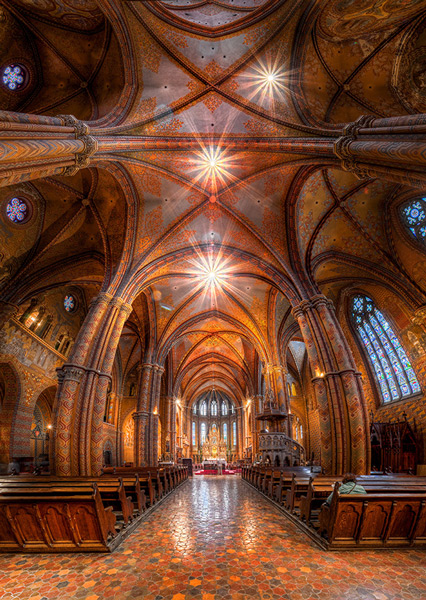
Matthias Church Budapest Hungary HDR Vertorama

What is a Vertorama?

Panorama photography is a well-established photographic discipline: you take a series of photos while you pan your camera in a horizontal direction between each pair of shots, ensuring that adjacent photos have enough overlap. Such a series of photos can then be combined into a single image with a much wider angle of view, a process that is called stitching.

But what happens if you turn panorama photography sideways? Turning an idea on its head can sometimes produce ingenious and unexpected results, and doing this literally with panorama photography falls into this category.

To answer the question: what you get is a Vertorama – a panorama in vertical direction. This may sound trivial, but when applied to interiors, this technique can present scenes in unseen ways. A room photographed as a Vertorama, seems to be opening towards the viewer. It depicts an interior in a way that you can only experience if you scan the actual scene with your own eyes, and it puts your audience inside the scene rather than in the spectator’s seat.

Why Does This Require HDR?

Photographing such a wide angle of view presents some challenges. One of them is the unusually high dynamic range encountered in such scenes. When you scan an interior (like a church, for example) from bottom to top, you will see very dark areas as well as extremely bright parts (e.g., the windows). In order to capture the scene realistically, combining the Vertorama technique with HDR (High Dynamic Range) photography is a natural choice. HDR will allow you to depict the details in the highlights and shadows in such a scene, despite the unusually high dynamic range. The resulting photographic discipline is called HDR Vertorama Photography.

The Anatomy of an HDR Vertorama

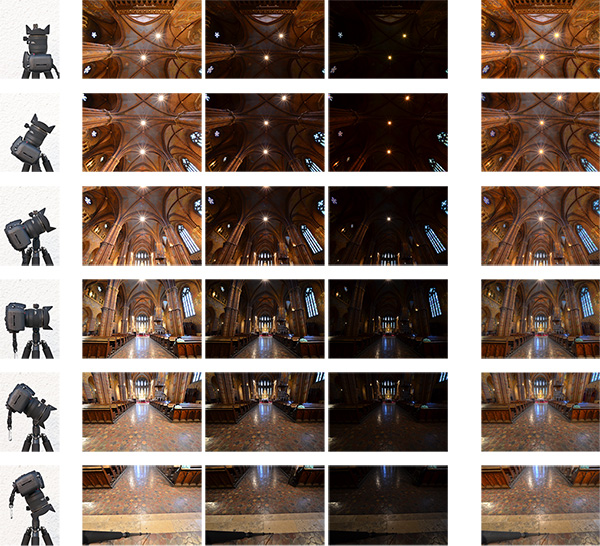
Vertorama and HDR photography are combined in such a way that each section of the final image consists of an exposure series, taken with a different tilt angle. Each of these exposure series is merged into an HDR image and tone mapped into a section HDR image.
Hdr vertorama anatomy 01

Camera positions (left), exposure series (middle) and tone mapped section HDR images (right)

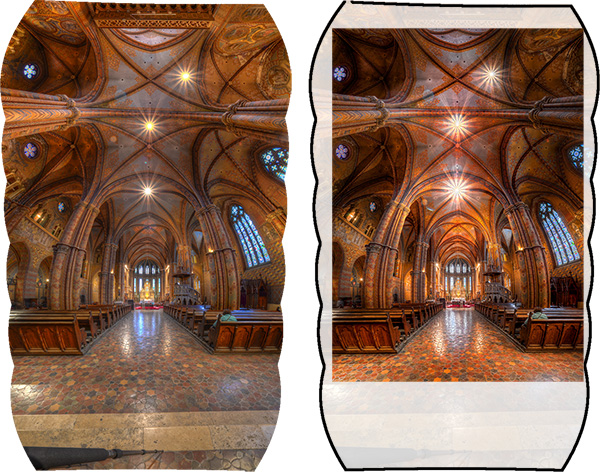
The section HDR images are stitched to produce a Vertorama, and finally, the Vertorama image is cropped and post-processed.
Hdr vertorama anatomy 02

Stitched HDR Vertorama (left) and final cropped image (right)

All the source photos for a single HDR Vertorama are called a set, and depending on actual scene, you may end up with 12 to 30 photos in a set.

The Camera

As long as you are shooting from a tripod, the range of cameras that can be used for this technique is wide. Any DSLR and mirrorless camera will be just fine. Having a camera that lets you change lenses is an advantage because in order to get the most out of your HDR Vertorama shoots, you should be using an ultra wide-angle lens with a shorter focal length then you will find on most fixed-lens cameras.

The Lens

You should use a rectilinear lens with a short focal length – the sorter, the better. With an ultra wide-angle lenses, you get a very wide angle of view, enabling you to capture more of an interior scene. If you own a DSLR with an APS-C-sized sensor, for example, the Nikon 10-24mm f/3.5-4.5G ED AF-S DX Nikkor, Canon EF-S 10-22mm f/3.5-4.5 USM SLR or Sigma 10-20mm f/4-5.6 EX DC HSM may be good choices, depending on which camera you are using and what budget you have available.

In contrast to a fisheye lens, a rectilinear lens has little or no barrel distortion. This means that straight lines in the scene are also (almost) straight in the image, and this creates the characteristic look of these images.

The Nodal Point Adapter

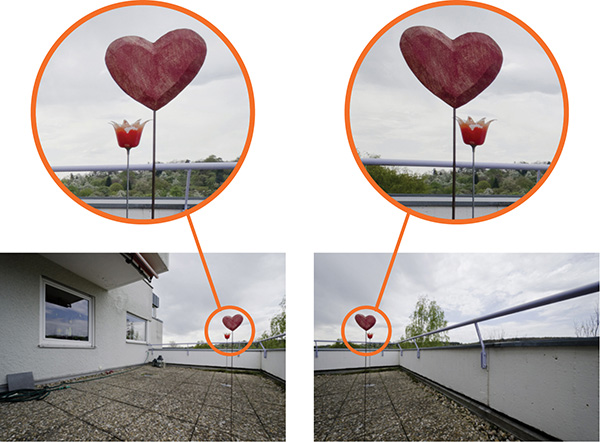
A nodal point adapter is a device that you screw on top of your tripod and that allows you to rotate your camera/lens combination around the nodal point of the lens. This avoids so-called parallax errors where objects at different distances from your camera move relative to each other in the overlapping areas of two consecutive source photos. If you are using a well-adjusted adapter, the overlap regions of the different sections of your Vertorama will perfectly match which is important for the stitching.
Hdr vertorama parallax error

Example of a parallax error

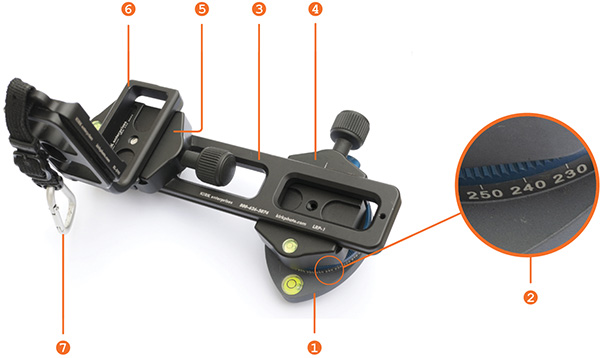
You can buy off-the-shelf nodal point adapters that are usually quite bulky and expensive, or you can assemble your own as shown in the example below: This do-it-yourself nodal point adapter consists of:

  • a panorama plate (1 diagram below)
  • with a scale that helps you control the rotation (2)
  • a macro rail (3) that enables you to move the camera back and forth for finding the nodal point
  • two quick release clamps for mounting the camera on the rail (5) and the rail on the panorama plate (4)
  • an L-bracket (6) for conveniently mounting the camera in landscape and portrait orientation
  • a snap hook (7) connects the L-bracket (and the camera that is permanently mounted to it) to the camera strap when the camera is not mounted to this adapter
Hdr vertorama nodal point adapter


Before you can produce usable source photos with an adapter like this one, you need to adjust it such that your camera is really rotated around the nodal point.

Setting up Your Camera

To prepare for the actual shoot, mount your camera onto the nodal point adapter and the adapter onto the tripod. Set up the nodal point adapter and tripod such that your camera can rotate around the horizontal axis.
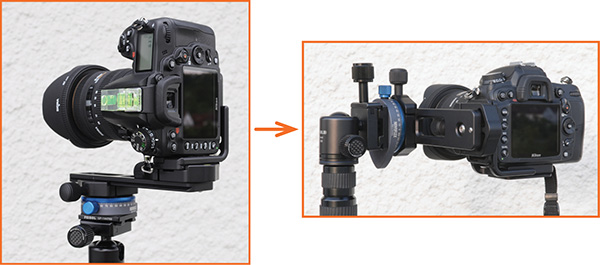
Hdr vertorama camera orientation

To set up your camera, do the following:

  • Aperture – put your camera in aperture priority mode (“A” for Nikon, “Av” for Canon) and dial in an aperture that puts more or less the entire scene into focus – f/8 usually works pretty well
  • Focus – focus your camera and then put it into manual focus mode to avoid focus changes between the exposures
  • White balance (optional) – set the white balance to a fixed value depending on the type of light at the location. If you are shooting in Raw format, you can also skip this step
  • Mirror lock-up (optional, DSLRs only) – turn on mirror lock-up to reduce camera shake caused by the slapping mirror
  • Cable release – attach a cable release (remote trigger) to release the shutter without touching the camera
  • Cover the viewfinder (for long shutter speeds) – cover your viewfinder to prevent light from entering and falling on the camera’s sensor during the exposure

Finding the Right Exposure

There are many ways of finding the right exposure values for your source exposures. Here, I will show you a quick and simple one that uses the auto exposure bracketing (AEB) function of your camera to shoot the exposure series for your HDR process. Your goal is to set up the camera for an exposure series that remains the same for every section of the Vertorama.

To do this, put your camera in aperture priority mode, set the correct aperture, and scan the scene from the bottom to the top by rotating your camera. While you do this, your camera will adjust the shutter speed to get a correct exposure of the part of the scene it currently sees. Take note of the range of shutter speeds you see in the viewfinder (highest and lowest).

To set the correct exposure, put your camera in manual mode, dial in the respective aperture again and set the shutter speed to a value that is in the middle between the highest and lowest speed you saw during the scan. Now, set up your AEB function such that it goes above and below that shutter speed as much as possible.

For example, if your camera measures between 1/20s and 1/640s, the right shutter speed would be around 1/125s (roughly the middle between 1/20s and 1/640s). If your camera can do 3 shots with +-2 EV, set your AEB function to that setting. This gives you an exposure series of 1/30s, 1/125s and 1/500s for each section, and this produces a result that is close enough to what we need in this situation.

Taking the Shots

Your camera is now ready to take the photos. You should try to take the photos as quickly and fluently as possible as follows:

  1. Rotate your camera down: Your first section should be the floor right at your feet. This section will contain your tripod and possibly your feet. These things are not meant to be in the final image, but this gives you some room to maneuver in post-production.
  2. Wait for the right moment: Check the conditions before you start to shoot the series. When there are no people around and the lighting conditions are stable, you can start shooting.
  3. Action! When the conditions are right, start photographing the first section. When the section is done, rotate the camera to the next section such that the overlap with the previous section is about 30% and shoot, and so on. Do this until your camera points at the ceiling for the last section. It is important that you take the photos quickly to avoid that movement and changes in lighting interfere with your shoot.

Post-processing

The post-processing stage involves a number of steps. If you shot your source photos in RAW mode, you need to develop them in some RAW converter. Depending on the ISO setting you used to capture the photos, you may want to apply some noise reduction already at this early stage to keep the noise at bay over the remaining workflow.
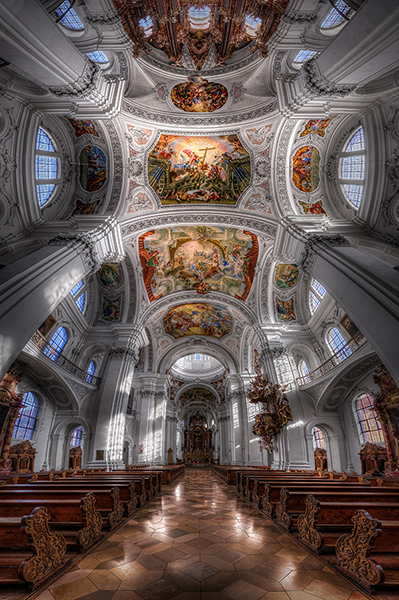
Basilica St Martin Weingarten Germany HDR Vertorama

Vertorama Creation

When the preparation of the source photos is finished, it’s time for the merging and the stitching. Remember that the source photos have to be combined in two different ways:

  • The exposure series for each section needs to be merged into an HDR image
  • all the resulting HDR images for all sections need to be stitched to generate the final HDR Vertorama

Depending on the software you use, the order of these two steps can vary. We will do the HDR merging first and then the stitching. This is generally easier.

For creating the HDRs, you need to load each exposure series into your HDR software (e.g., Photomatix), and merge them, one by one. This is straightforward and there are not a lot of decisions to be made. The result will be one 32-bit HDR image for each section (we call these the section HDR images in the following). Then you need to tone map each section HDR image, using the same settings for each one of them:

  1. Load one of the section HDRs into your HDR software and find the right tone mapping parameters. How you set the parameters is completely depending on your personal taste and style. There is no right or wrong here.
  2. Once you have found pleasing settings, apply these settings to all section HDRs and tone map them.
  3. Save each of the tone mapped images as an 8 or 16-bit image. Saving 16-bit images will give you a better quality but produces larger files.

After this step, you have a tone mapped image for each of the sections, and these images need to be stitched. There are many software products that can stitch photos. I prefer to use Photoshop for this task as it has a very simple but yet powerful stitching module called Photomerge.

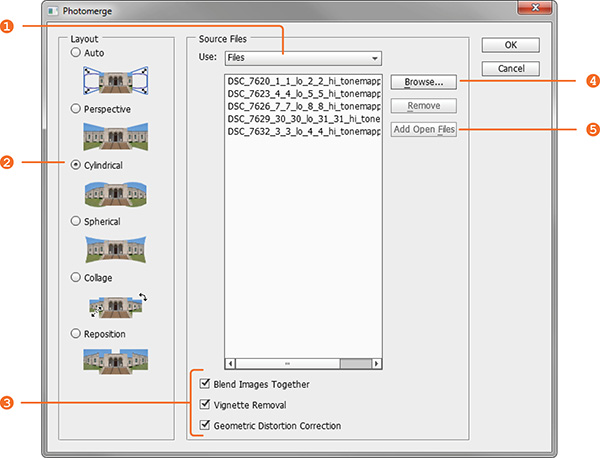
Stitching your tone mapped images in Photomerge (File > Automate > Photomerge) is simple: the Use drop-down menu (1) lets you work with individual files or whole Folders of images. Browse your disk (4) to select the files or add all files that are currently opened in Photoshop (5). Choose Cylindrical (2) as your Layout and check the three check boxes at the bottom (3) to let Photomerge apply a number of corrections to your images. When you press Ok, your images are stitched fully automatically.
Hdr vertorama photomerge

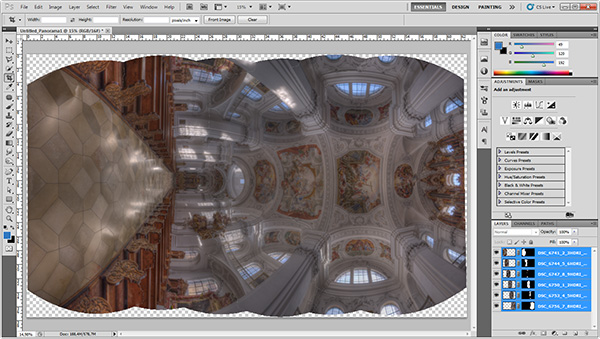
When the stitching is complete, Photoshop presents you with the result. The edges are a bit wonky and it is laying on the side because Photoshop thinks it is a panorama. Merge all the layers into one (Layer > Merge Layers) and rotate the image accordingly (Image > Image Rotation).
Hdr vertorama after stitching

Use the Warp tool (Edit > Transform > Warp) to correct the typical distortion of an interior Vertorama image that makes it wide in the middle and narrow at the top and at the bottom. You can do this by dragging the corner handles of the Warp box to the outside and the right and left edge handles to the inside.
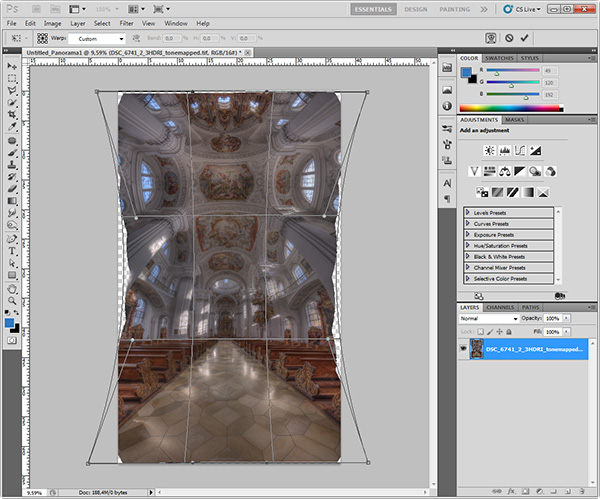
Hdr vertorama distortion correction

Apply the warp distortion and crop the image such that the uneven edges are removed and the composition is symmetrical.
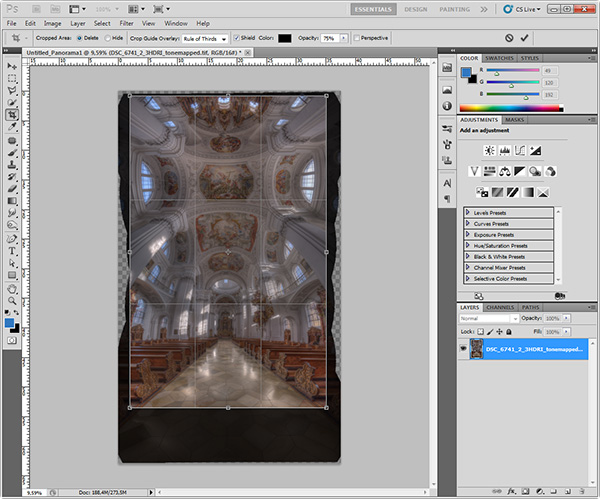
Hdr vertorama cropping

This completes the actual HDR Vertorama creation. You now have a stitched image that covers the entire tonal range of the scene (due to using HDR). The remaining post-processing steps are not specific to the HDR Vertorama technique. As with any other photo, you will at least want to correct the colors and increase the contrast. But you can also apply arbitrarily complex adjustments to the image and process different parts of it selectively.

In this particular case, I applied selective adjustments to the white interior to desaturate it slightly, to the floor to enhance the reflections, and the paintings on the ceiling to balance the colors and make them stand out. I added more saturation to the windows and more contrast to some of the ornaments. Finally, I added a vignette to the edges and a spot light effect to the paintings in the ceiling to guide the viewers’ eyes.

Conclusions

HDR Vertorama Photography is a technique that lets you depict interiors in a unique way. If you are willing to invest the effort and time it takes to master this multi-exposure technique, you will be rewarded with images that will stand out in your portfolio.
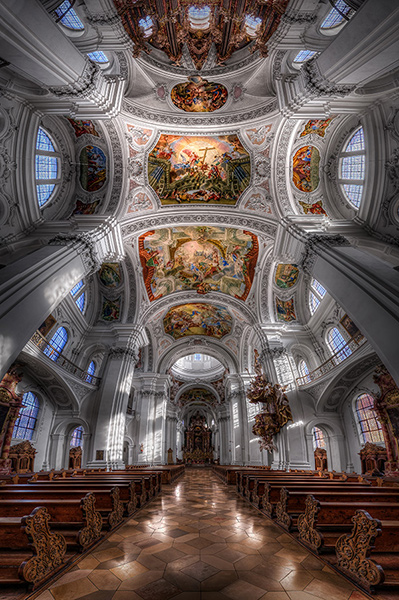
Basilica St Martin Weingarten Germany HDR Vertorama

Please share your comments, suggestions and tips below.

For more articles on HDR check out these:

  • Five Minutes to Realistic HDR using Lightroom and a 32-Bit Plugin
  • 5 Tips for Successful HDR Photos
  • How to Create Realistic Looking HDR Photographs
  • Tips for Great HDR Sunsets

The post HDR Vertorama Photography – How to Create Mind-bending Images by Klaus Herrmann appeared first on Digital Photography School.


Digital Photography School

 
Comments Off on HDR Vertorama Photography – How to Create Mind-bending Images

Posted in Photography


HDR Vertorama Photography – How to Create Mind-bending Images

25 Mar

If you are anything like me, then you are always looking for ways to create something original in your photography – images that have not been taken and presented a thousand times before. But being truly original and creating photos that have real impact is the hardest thing of all. It seems there is nothing that hasn’t been done yet. Or is there?

In this article, I am going to show you a technique for creating interior photos that you will certainly not find in every other portfolio – photos that will turn heads for sure. The technique that I am referring to is called HDR Vertorama Photography.

Matthias Church Budapest Hungary HDR Vertorama

What is a Vertorama?

Panorama photography is a well-established photographic discipline: you take a series of photos while you pan your camera in a horizontal direction between each pair of shots, ensuring that adjacent photos have enough overlap. Such a series of photos can then be combined into a single image with a much wider angle of view, a process that is called stitching.

But what happens if you turn panorama photography sideways? Turning an idea on its head can sometimes produce ingenious and unexpected results, and doing this literally with panorama photography falls into this category.

To answer the question: what you get is a Vertorama – a panorama in vertical direction. This may sound trivial, but when applied to interiors, this technique can present scenes in unseen ways. A room photographed as a Vertorama, seems to be opening towards the viewer. It depicts an interior in a way that you can only experience if you scan the actual scene with your own eyes, and it puts your audience inside the scene rather than in the spectator’s seat.

Why Does This Require HDR?

Photographing such a wide angle of view presents some challenges. One of them is the unusually high dynamic range encountered in such scenes. When you scan an interior (like a church, for example) from bottom to top, you will see very dark areas as well as extremely bright parts (e.g., the windows). In order to capture the scene realistically, combining the Vertorama technique with HDR (High Dynamic Range) photography is a natural choice. HDR will allow you to depict the details in the highlights and shadows in such a scene, despite the unusually high dynamic range. The resulting photographic discipline is called HDR Vertorama Photography.

The Anatomy of an HDR Vertorama

Vertorama and HDR photography are combined in such a way that each section of the final image consists of an exposure series, taken with a different tilt angle. Each of these exposure series is merged into an HDR image and tone mapped into a section HDR image.

Hdr vertorama anatomy 01

Camera positions (left), exposure series (middle) and tone mapped section HDR images (right)

The section HDR images are stitched to produce a Vertorama, and finally, the Vertorama image is cropped and post-processed.

Hdr vertorama anatomy 02

Stitched HDR Vertorama (left) and final cropped image (right)

All the source photos for a single HDR Vertorama are called a set, and depending on actual scene, you may end up with 12 to 30 photos in a set.

The Camera

As long as you are shooting from a tripod, the range of cameras that can be used for this technique is wide. Any DSLR and mirrorless camera will be just fine. Having a camera that lets you change lenses is an advantage because in order to get the most out of your HDR Vertorama shoots, you should be using an ultra wide-angle lens with a shorter focal length then you will find on most fixed-lens cameras.

The Lens

You should use a rectilinear lens with a short focal length – the sorter, the better. With an ultra wide-angle lenses, you get a very wide angle of view, enabling you to capture more of an interior scene. If you own a DSLR with an APS-C-sized sensor, for example, the Nikon 10-24mm f/3.5-4.5G ED AF-S DX Nikkor, Canon EF-S 10-22mm f/3.5-4.5 USM SLR or Sigma 10-20mm f/4-5.6 EX DC HSM may be good choices, depending on which camera you are using and what budget you have available.

In contrast to a fisheye lens, a rectilinear lens has little or no barrel distortion. This means that straight lines in the scene are also (almost) straight in the image, and this creates the characteristic look of these images.

The Nodal Point Adapter

A nodal point adapter is a device that you screw on top of your tripod and that allows you to rotate your camera/lens combination around the nodal point of the lens. This avoids so-called parallax errors where objects at different distances from your camera move relative to each other in the overlapping areas of two consecutive source photos. If you are using a well-adjusted adapter, the overlap regions of the different sections of your Vertorama will perfectly match which is important for the stitching.

Hdr vertorama parallax error

Example of a parallax error

You can buy off-the-shelf nodal point adapters that are usually quite bulky and expensive, or you can assemble your own as shown in the example below: This do-it-yourself nodal point adapter consists of:

  • a panorama plate (1 diagram below)
  • with a scale that helps you control the rotation (2)
  • a macro rail (3) that enables you to move the camera back and forth for finding the nodal point
  • two quick release clamps for mounting the camera on the rail (5) and the rail on the panorama plate (4)
  • an L-bracket (6) for conveniently mounting the camera in landscape and portrait orientation
  • a snap hook (7) connects the L-bracket (and the camera that is permanently mounted to it) to the camera strap when the camera is not mounted to this adapter

Hdr vertorama nodal point adapter


Before you can produce usable source photos with an adapter like this one, you need to adjust it such that your camera is really rotated around the nodal point.

Setting up Your Camera

To prepare for the actual shoot, mount your camera onto the nodal point adapter and the adapter onto the tripod. Set up the nodal point adapter and tripod such that your camera can rotate around the horizontal axis.

Hdr vertorama camera orientation

To set up your camera, do the following:

  • Aperture – put your camera in aperture priority mode (“A” for Nikon, “Av” for Canon) and dial in an aperture that puts more or less the entire scene into focus – f/8 usually works pretty well
  • Focus – focus your camera and then put it into manual focus mode to avoid focus changes between the exposures
  • White balance (optional) – set the white balance to a fixed value depending on the type of light at the location. If you are shooting in Raw format, you can also skip this step
  • Mirror lock-up (optional, DSLRs only) – turn on mirror lock-up to reduce camera shake caused by the slapping mirror
  • Cable release – attach a cable release (remote trigger) to release the shutter without touching the camera
  • Cover the viewfinder (for long shutter speeds) – cover your viewfinder to prevent light from entering and falling on the camera’s sensor during the exposure

Finding the Right Exposure

There are many ways of finding the right exposure values for your source exposures. Here, I will show you a quick and simple one that uses the auto exposure bracketing (AEB) function of your camera to shoot the exposure series for your HDR process. Your goal is to set up the camera for an exposure series that remains the same for every section of the Vertorama.

To do this, put your camera in aperture priority mode, set the correct aperture, and scan the scene from the bottom to the top by rotating your camera. While you do this, your camera will adjust the shutter speed to get a correct exposure of the part of the scene it currently sees. Take note of the range of shutter speeds you see in the viewfinder (highest and lowest).

To set the correct exposure, put your camera in manual mode, dial in the respective aperture again and set the shutter speed to a value that is in the middle between the highest and lowest speed you saw during the scan. Now, set up your AEB function such that it goes above and below that shutter speed as much as possible.

For example, if your camera measures between 1/20s and 1/640s, the right shutter speed would be around 1/125s (roughly the middle between 1/20s and 1/640s). If your camera can do 3 shots with +-2 EV, set your AEB function to that setting. This gives you an exposure series of 1/30s, 1/125s and 1/500s for each section, and this produces a result that is close enough to what we need in this situation.

Taking the Shots

Your camera is now ready to take the photos. You should try to take the photos as quickly and fluently as possible as follows:

  1. Rotate your camera down: Your first section should be the floor right at your feet. This section will contain your tripod and possibly your feet. These things are not meant to be in the final image, but this gives you some room to maneuver in post-production.
  2. Wait for the right moment: Check the conditions before you start to shoot the series. When there are no people around and the lighting conditions are stable, you can start shooting.
  3. Action! When the conditions are right, start photographing the first section. When the section is done, rotate the camera to the next section such that the overlap with the previous section is about 30% and shoot, and so on. Do this until your camera points at the ceiling for the last section. It is important that you take the photos quickly to avoid that movement and changes in lighting interfere with your shoot.

Post-processing

The post-processing stage involves a number of steps. If you shot your source photos in RAW mode, you need to develop them in some RAW converter. Depending on the ISO setting you used to capture the photos, you may want to apply some noise reduction already at this early stage to keep the noise at bay over the remaining workflow.

Basilica St Martin Weingarten Germany HDR Vertorama

Vertorama Creation

When the preparation of the source photos is finished, it’s time for the merging and the stitching. Remember that the source photos have to be combined in two different ways:

  • The exposure series for each section needs to be merged into an HDR image
  • all the resulting HDR images for all sections need to be stitched to generate the final HDR Vertorama

Depending on the software you use, the order of these two steps can vary. We will do the HDR merging first and then the stitching. This is generally easier.

For creating the HDRs, you need to load each exposure series into your HDR software (e.g., Photomatix), and merge them, one by one. This is straightforward and there are not a lot of decisions to be made. The result will be one 32-bit HDR image for each section (we call these the section HDR images in the following). Then you need to tone map each section HDR image, using the same settings for each one of them:

  1. Load one of the section HDRs into your HDR software and find the right tone mapping parameters. How you set the parameters is completely depending on your personal taste and style. There is no right or wrong here.
  2. Once you have found pleasing settings, apply these settings to all section HDRs and tone map them.
  3. Save each of the tone mapped images as an 8 or 16-bit image. Saving 16-bit images will give you a better quality but produces larger files.

After this step, you have a tone mapped image for each of the sections, and these images need to be stitched. There are many software products that can stitch photos. I prefer to use Photoshop for this task as it has a very simple but yet powerful stitching module called Photomerge.

Stitching your tone mapped images in Photomerge (File > Automate > Photomerge) is simple: the Use drop-down menu (1) lets you work with individual files or whole Folders of images. Browse your disk (4) to select the files or add all files that are currently opened in Photoshop (5). Choose Cylindrical (2) as your Layout and check the three check boxes at the bottom (3) to let Photomerge apply a number of corrections to your images. When you press Ok, your images are stitched fully automatically.

Hdr vertorama photomerge

When the stitching is complete, Photoshop presents you with the result. The edges are a bit wonky and it is laying on the side because Photoshop thinks it is a panorama. Merge all the layers into one (Layer > Merge Layers) and rotate the image accordingly (Image > Image Rotation).

Hdr vertorama after stitching

Use the Warp tool (Edit > Transform > Warp) to correct the typical distortion of an interior Vertorama image that makes it wide in the middle and narrow at the top and at the bottom. You can do this by dragging the corner handles of the Warp box to the outside and the right and left edge handles to the inside.

Hdr vertorama distortion correction

Apply the warp distortion and crop the image such that the uneven edges are removed and the composition is symmetrical.

Hdr vertorama cropping

This completes the actual HDR Vertorama creation. You now have a stitched image that covers the entire tonal range of the scene (due to using HDR). The remaining post-processing steps are not specific to the HDR Vertorama technique. As with any other photo, you will at least want to correct the colors and increase the contrast. But you can also apply arbitrarily complex adjustments to the image and process different parts of it selectively.

In this particular case, I applied selective adjustments to the white interior to desaturate it slightly, to the floor to enhance the reflections, and the paintings on the ceiling to balance the colors and make them stand out. I added more saturation to the windows and more contrast to some of the ornaments. Finally, I added a vignette to the edges and a spot light effect to the paintings in the ceiling to guide the viewers’ eyes.

Conclusions

HDR Vertorama Photography is a technique that lets you depict interiors in a unique way. If you are willing to invest the effort and time it takes to master this multi-exposure technique, you will be rewarded with images that will stand out in your portfolio.

Basilica St Martin Weingarten Germany HDR Vertorama

Please share your comments, suggestions and tips below.

For more articles on HDR check out these:

  • Five Minutes to Realistic HDR using Lightroom and a 32-Bit Plugin
  • 5 Tips for Successful HDR Photos
  • How to Create Realistic Looking HDR Photographs
  • Tips for Great HDR Sunsets

The post HDR Vertorama Photography – How to Create Mind-bending Images by Klaus Herrmann appeared first on Digital Photography School.


Digital Photography School

 
Comments Off on HDR Vertorama Photography – How to Create Mind-bending Images

Posted in Photography


Sunset Photography Tips Video Tutorials

22 Mar

Yesterday I shared a set of amazing sunset images and this week’s photography challenge is also to capture some sunset images. So to help you along with that is a video tutorial on how to underexpose to get more color in your sunset shots, also one of the tips I mentioned on the challenge page!

In this video Gordon Laing goes through step by step how to change the settings on your camera to do just that. Have a look:

And a second video by the Corel Learning Center with five more sunset photography tips. These are practical and easy to understand and follow:

Have some other tips, please share in the comments below!

Look for another article on sunsets coming up this week!

The post Sunset Photography Tips Video Tutorials by Darlene Hildebrandt appeared first on Digital Photography School.


Digital Photography School

 
Comments Off on Sunset Photography Tips Video Tutorials

Posted in Photography


Winners of the 2014 Sony World Photography Awards, part 1

22 Mar

130391061577070000_-Michael-Nordqvist_Nordics_1st-Place_National-Award_2014_600x450.jpg

Sony World Photography Awards has announced the winners in their Open, Youth and National categories. The winning photos were selected from more than 70,000 images submitted by enthusiasts all over world. An overall winner with a $ 5,000 (~£3,024) cash prize and judging of the remaining categories will be announced on April 30. See gallery

News: Digital Photography Review (dpreview.com)

 
Comments Off on Winners of the 2014 Sony World Photography Awards, part 1

Posted in Uncategorized


Weekly Photography Challenge Sunset Photography

22 Mar

Earlier today I shared some stunning, and colorful sunset images, including one of my own from my recent photo tour to Nicaragua. Even if you can’t get to exotic locations like that, I have a few tips for you to help you take better sunset photos. Then off you go as sunset photography is this week’s photography challenge.

Group from my photo tour to Nicaragua getting ready to shoot some fire spinning on the beach. I turned around and shot them against the last bit of light in the sky.

Group from my photo tour to Nicaragua getting ready to shoot some fire spinning on the beach. I turned around and shot them against the last bit of light in the sky.

Sunset photography tips:

I give these in my travel class, they are easy to do and make such a dramatic difference in coming back with a boring sunset versus one that has your friends drooling.

  1. Put something in front of the sunset – just a gorgeous sky at sunset is not enough to make a great photo. It needs something of interest, a focal point. So basically the sunset becomes a stunning background for something. Ideally pick something with a recognizable shape such as: a tree, a person, birds, animals, a city skyline, etc. Just make sure the outline is clean and doesn’t overlap something else, watch for people standing together that look like one person with three legs, horizon going right through a person’s head, and so on – in a silhouette they will all blend together and be a messy blob. Lastly, focus on the item, NOT the sky!
  2. Wait (or hope) for some clouds – sunsets with clouds can be even more incredible as the colors move and shift across the sky, almost as if they are alive. Keep shooting until it’s dark, use every bit of light there is and see how the colors change over the whole time period.
  3. Expose for the sky, meaning underexpose according to your camera’s meter – often when you shoot a sunset your camera’s meter will read the light and try to make it brighter. But if you want more vibrant and saturated colors, and to create a silhouette of the lovely subject you’ve placed in front of the sky – you will need to override the camera and tell it to under expose, or make it darker. This is subjective so you might want to bracket your exposures when shooting and choose the best ones later.
  4. Adjust your White Balance – using Auto White Balance most of the time will give you a decent result. For sunsets if you really want to bring out the color though, try switching to one of the presets that adds warmth such as Shade or Cloudy. If you have K as an option play with the entire scale – shoot one image at 2500K and another at 10,000K and see which works best for that scene.

By Theophilos Papadopoulos

By RayMorris1

By Jeff S. PhotoArt

By Bo Nielsen

By Milivoj Sherrington

By esther**

By Angela Sevin

For some articles that might help with this challenge, see these:

  • 12 Tips for Photographing Stunning Sunsets
  • Using Sun Flares and Starbursts to Create Stunning Images
  • Do you pack up and leave after sunset and miss the fun of night photography?
  • Getting Great Portraits At Sunset
  • How to Use a 10-stop ND Filter to Take Long Exposure Sunset Images

Share your sunset images!

Simply upload your shot into the comment field (look for the little camera icon in the Disqus comments section as pictured below) and they’ll get embedded for us all to see or if you’d prefer upload them to your favourite photo sharing site and leave the link to them.


The post Weekly Photography Challenge Sunset Photography by Darlene Hildebrandt appeared first on Digital Photography School.


Digital Photography School

 
Comments Off on Weekly Photography Challenge Sunset Photography

Posted in Photography


50 Majestic Spring Photography Examples to Set Up Your Mood

21 Mar

No matter how long the winter is, spring is sure to follow. Spring is a fantastic season that brings nature back to life. It’s often considered the most beautiful and inspiring time of the year with its colorful, refreshing and vivid imagery and structures. This post proves just that! The wide range of flowers that appears is probably one of Continue Reading

The post 50 Majestic Spring Photography Examples to Set Up Your Mood appeared first on Photodoto.


Photodoto

 
Comments Off on 50 Majestic Spring Photography Examples to Set Up Your Mood

Posted in Photography


Top Photo Spots – a New Way to Find Locations for Photography

20 Mar

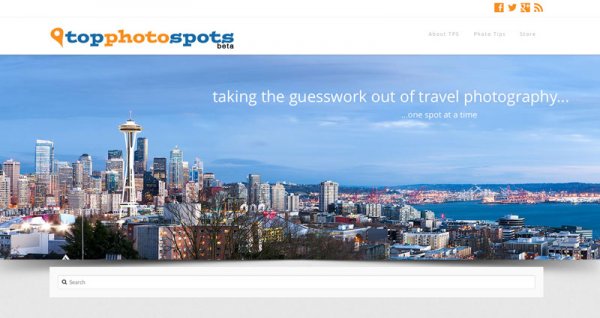
Top Photo Spots is a hugely ambitious project headed up by James Brandon (a regular  dPS writer) that aims to take the guesswork out of travel photography. James has asked me to introduce TPS here on Digital Photography School in hopes of bringing attention to the project and helping bring his vision to life. It’s a great idea and one, that if it can be accomplished, could become a go-to resource for photographers looking to find locations for photography around the world – however it’s a long way from that point right now.

So what is Top Photo Spots?

topphotospots1

The best way to introduce TPS is to take a quote from the man who created it – from James himself.

You can Google something like “best places to photograph in Big Sur” and while you might get some helpful information, it will mostly be from random one-off websites and it won’t always be geared towards photographers.

In essence TPS aims to solve the problem of searching the web, which is filled with tourists photos of various locations, inaccurate or confusing information on where and how the photographs were taken, and replace that with something that’s geared specifically towards photographers.

The concept, layout and design are there

Overall TPS has a unique concept that will fill a huge need in this industry, the layout and design are modern, easy to navigate and complement the concept well, but – oh yes there’s a but – the big hurdle that TPS needs to conquer is content (which I’ll touch on in a bit). So, let’s focus on the good first.

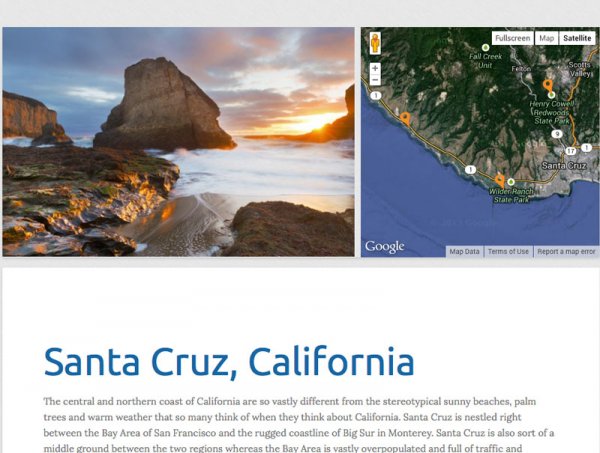
As I said, the design is great and well thought out. Each location that’s been added to TPS has a sample photograph, Google map with location pins for points of interest, and a description of what to expect.

topphotospots2

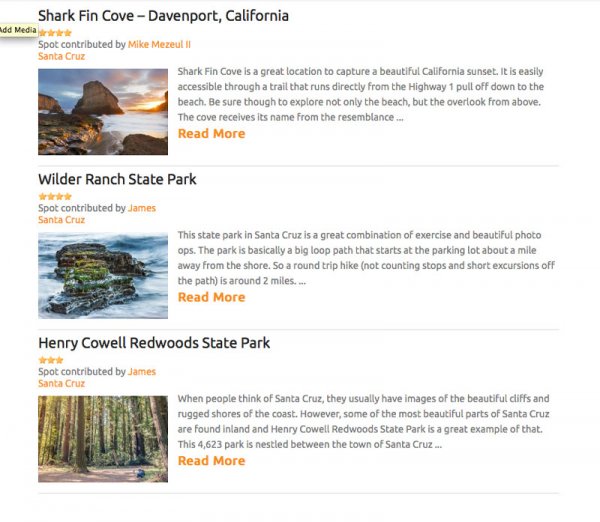
After the brief introduction to the overarching location, in this case Santa Cruz, California, there are sub-posts that describe various photographic opportunities within the location in more detail.

topphotospots3

Moving into one of these sub-locations will provide you with a sample photograph from that specific location as well as another Google map giving you exact coordinates to get you there and of course more information on the location itself. It’s a really well thought out concept and I can see these guides being very helpful to people visiting locations and looking for not only ideas of things to photograph, but exactly how and where to take photographs.

Now – about the content problem

Currently James has TPS listed in a beta status while he builds content and brings in contributors. As I’ve said from the start of this article – this is an ambitious project – it’s going to take a lot of time and effort to get it to the point where it needs to be in order to truly be meaningful to the majority of people searching for locations to photograph.

Currently there are only a few dozen locations, most of which are within the United States, so the location you are traveling to probably isn’t yet listed – which means there’s a lot of room to grow. But this is where you can help!

TPS is openly looking for contributors to help fill out the site with locations around the world. If you’ve got an interesting location and know a bit about writing for the web I’d suggest that you check out the write for TPS page and help James get the site rolling – it could be the next big thing in travel photography.

Final Thoughts and Suggestions

Top Photo Spots is a great concept that is too ambitious for the vast majority of people to even attempt – which is why it’s such a good idea. If James can succeed in his vision I think that TPS will become an extremely valuable resource for photographers looking for spots to photograph on their next trip.

That said, I do have a few suggestions for James, and I’m sure he’ll entertain more in the comments – here are the three big things that I’d like to see integrated into the site at some point in the future.

  • A visually appealing way to browse through all the currently available locations – sometimes people don’t know where they want to travel, but rather are looking for something to inspire them.
  • The ability to print and download guides, or save them to a mobile device. Ideally I’d want to have quick and easy access to the guide when I’m on location without having to refer back to TPS – especially if the location is in a remote location where access to the internet might be limited.
  • Integrate TPS with other photographers around the world who are willing to set up photo walks and guides of locations that are featured on TPS. This could take some time – but I think that a site like TPS is set up perfectly for this and would be a huge benefit to people traveling to the new locations. Not only that, but it would set it even further apart from the ‘Google search’ method that we are currently using to find places to photograph.

So go have a look at Top Photo Spots and check out what James has put together so far. Then come back here and tell us what you would add to the TPS wish-list above.

For more on travel photography:

  • Tips for Photographing Popular Tourist Destinations
  • 10 Ways to Improve your Vacation Photos
  • 6 Tips for Photographing People When Travelling

The post Top Photo Spots – a New Way to Find Locations for Photography by John Davenport appeared first on Digital Photography School.


Digital Photography School

 
Comments Off on Top Photo Spots – a New Way to Find Locations for Photography

Posted in Photography


Remote Wildlife Photography From My Basement

19 Mar

A couple of weeks ago it was -30 Celsius (-22 Fahrenheit) and I was intent on photographing a pair of Red-backed Voles that seem to have established themselves in the backyard of my home in Edmonton, Alberta, Canada. Before I got myself a new gadget, I probably would have suited up in my heavy duty Canada Goose parka, some long underwear, snow pants and about four hand warmers and camped out for a morning to get a few shots of these cute little guys.

But now I’m a bit older and maybe even a bit wiser and I do so love my technology. And one of those technological gadgets allows me to get me shots without having to worry about freezing any of my favourite appendages right off. What’s the gadget I’m talking about? It’s called the CamRanger and it allows me to operate my camera anywhere that I’m within WiFi range (~35m indoors and ~100m outdoors).

CamRanger_SetupThe CamRanger itself is a little white plastic box measuring about 3.5” x 2” that you connect to the USB port of your camera via a USB cable. The device itself is powered by a rechargeable lithium battery. Once the CamRanger is plugged into your camera it sets up its own WiFi network. Connecting a device to that WiFi network (like an iPhone, iPad, Android device, Mac or Windows computer) allows you to wirelessly control your camera from that device.

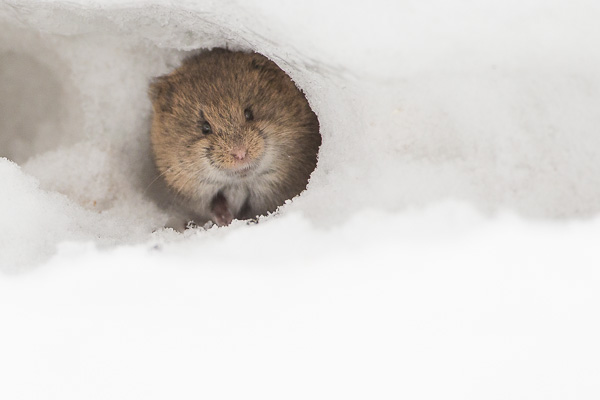
In my case, I used my iPad to connect to the CamRanger attached to my camera. I set the camera up on a tripod with the lens pointing at the holes in the side of a snow bank that the voles were using to access the world outside their lair. Once set up, I could scurry into my own lair which in this case was my home office in our basement.

I activated the Live View feature to keep an eye on what the camera was seeing. I’d been watching these voles for a few days (they set up camp under one of our bird feeders) and I knew that they came out for about an hour each morning just after sunrise. Sure enough, not long after getting everything set up and waiting for my glasses to defrost, the voles started making their appearance.

From my position warmly tucked away in the basement I could consult the live histogram and make adjustments to the exposure (Shutter Speed, Aperture and ISO) to make sure that my exposure was perfect. I turned on a feature in the software app called “Focus Peaking” that allowed me to clearly see what was, and wasn’t in focus and I fine-tuned that focus via controls in the app.

With all that set up, it was just a matter of waiting for the voles to get themselves into a photogenic position and then I’d tap the remote shutter button on the CamRanger app and take a shot. The voles usually spend their time cautiously emerging from their lair, then darting out to find one seed or another, and quickly returning to the shelter of their tunnel entrance to safely eat the seed. If they got a particularly good seed, they’d retreat further within the tunnel, presumably to stash it away.

Northern Red-backed Vole - © Paul Burwell Photography

Northern Red-backed Vole – © Paul Burwell Photography

During these breaks in the action, I used another feature of the CamRanger to download the full resolution images to the iPad so that I could magnify them to check for critical sharpness. There is a bit of lag between what you see on the app’s Live View display and what is happening in the “real world” along with a slight delay between when you press the shutter button on the app and when the signal arrives at the camera to make the photograph. It isn’t long (think milliseconds) but it can be enough that by the time the photo is made the fast little critter isn’t where you thought it should be, and focus is off or the composition isn’t great.

I use my CamRanger a lot and love its ability to remotely initiate photography and video sessions. It also has a built in intervalometer to make time lapse photos and can do advanced bracketing of exposures for HDR type applications. Another favourite CamRanger feature of mine is its ability to provide very precise focus control for macro photography and it can even perform automatic focus stacking to provide enhanced depth-of-field images by running them through some third party software.

Northern Red-backed Vole - © Paul Burwell Photography

Northern Red-backed Vole – © Paul Burwell Photography

A few years ago I’d dreamed of the possibility of having remote operational control of my camera at a distance and now, with the help of the CamRanger, that’s a reality. My toes and fingers are eternally grateful! CamRanger is widely available and sells for about $ 300 US dollars.

More on wildlife photography here:

  • 5 Most Common Mistakes in Wildlife Photography – and How to Avoid Them
  • Manipulating Natural Light in Wildlife Photography
  • Making Sharper Wildlife Photographs – [Part 1 of 2]
  • Making Sharper Wildlife Photographs – [Part 1 of 2]

The post Remote Wildlife Photography From My Basement by Paul Burwell appeared first on Digital Photography School.


Digital Photography School

 
Comments Off on Remote Wildlife Photography From My Basement

Posted in Photography


10 Photography Hacks that will Dramatically Improve Your Photos

18 Mar

Mike is the author of the eBook Hacking Photography: A Plain-English Guide to Taking Impressive Photos – Fast, on sale now for 60% off at SnapnDeals.

There is a widely accepted rule called The Pareto Principle also known as the 80:20 rule. In short, it states that 80% of the results come from 20% of the efforts. I find that in learning photography, this can even skew much higher. This means that potentially improving 5% of your photographic knowledge in the right places, could improve your photography by 95%!

10 photography hacks that will dramatically improve your photos

Hack 1 – Turn the flash off of automatic!

Camera manufacturers are often too eager to make the flash pop up even when it gets slightly dark. This is actually a retention tool for them. If the flash pops, the photo won’t look as good but people won’t be blurry because the flash freezes them in place. If enough new photographers see blurry photos (even though they are caused by improper photographer technique) they will assume something is wrong with the camera and take it back for a refund.

Instead, keep the flash closed and increase the ISO. In all the camera modes except manual mode, increasing your ISO will cause the camera to increase your shutter speed to have a better chance of freezing people in motion. Now shoot the photo. It will use the ambient (available) light, which typically has more color and character instead of a bright face and black background.

Hacking photography music

Hack 2 – Get in close to your subject…then get closer

Most people think that they have to step way back and get a lot of space around the subject to get the whole scene. Your subject is not a mime that is stuck in an invisible box, it’s okay to cut off their foreheads, legs, or lower half every now and then! Try getting a close-up of someone’s face from the eyebrows to the mouth. Here is a quick example:

Hacking photography get closer

The problem with zooming way out for every photo is that it doesn’t make it plainly obvious to the viewer what is the point or subject of the photo. I’m a huge fan of subtraction – the less there is in your photo the better. The best images are simple and very clear to the viewer what “story” you are telling with your images.

Hack 3: Eliminate the clutter

This is huge! The best images are ones that are simple and have breathing room for the subject. Try to find the simplest background possible. It’s no different than walking into a super cluttered house versus walking into a clean minimalistic space with very few items to distract you.

If you are taking a photo of a person, take the extra second to look around and find a minimal background that doesn’t distract the viewer.

Hack 4: Look for repeating patterns

Ever hear someone say that a photographer “just has the eye for it?” I disagree. This is a learned skill, not something that you are born with.

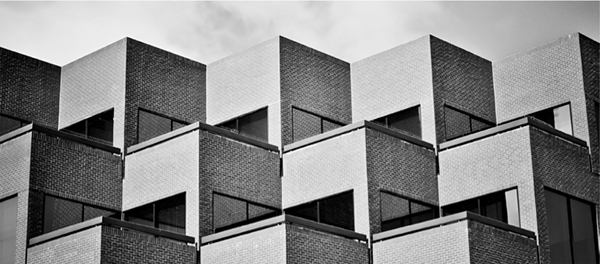
As you walk around, take notice of buildings, windows, patterns in brickwork, etc. I was walking by a building I walk by all the time and something suddenly ‘clicked’ and I realized there was a really cool pattern in the brickwork I had never noticed before. I ran home and grabbed my camera to shoot it before I forgot again.

Hacking photography repeating patterns

Hack 5: Shoot from interesting perspectives

I would argue that 99% of photos most viewers ever see are shot from eye-level where the photographer was standing – the same viewpoint we see 99% of our lives from. It’s no surprise when you go to the top of a huge building and look down at a city that it’s visually stunning because we don’t see that perspective very often. You see this birds-eye-view used a lot in food photography.

Hacking photography birds eye view

The same goes for getting down on your stomach and shooting straight up to the sky. Anytime you are afforded a unique viewpoint it’s always interesting to the viewer.

Hack 6: Look for symmetry

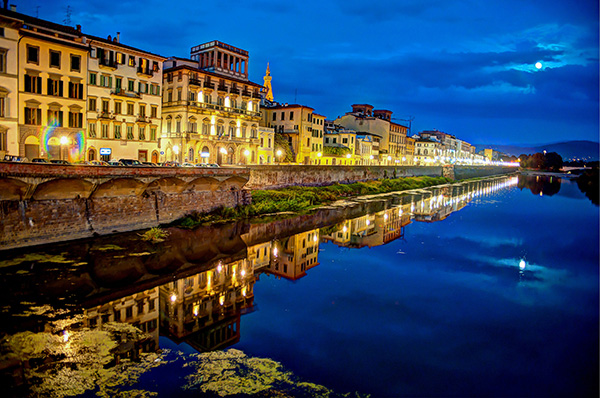
Your viewer will do backflips if you can find an image that perfectly reflects the same thing top to bottom, or right to left! How many times have we seen something every day then see a photographer create an image that is an entirely different view of that item?

I took a photo trip to Italy and consciously tried to capture as much symmetry as I could. Here is a quick symmetrical shot:

Hacking photography florence moon

Always keep an eye out for perfect symmetry!

Hack 7: Straighten your lines

Instead of just clicking away when you see something interesting, take the extra second to make sure horizontal lines are horizontal, and vertical lines are vertical. We all have the habit nowadays of just pointing our cameras in the general vicinity of what we are shooting. I propose you take a moment and line yourself up perfectly with that building or person.

Hack 8: Max out the aperture

What most people perceive as “artistic” photographs (AKA better than most) are ones that use a big aperture (small f-number) to blur the background or foreground, to call more attention to a subject. If you are using a kit lens your aperture will likely only go down to f/3.5, which isn’t a very big aperture.

The biggest impact item, and cheapest investment in gear that can make your photos go from okay to awesome is a lens with a huge aperture. I recommend purchasing a 50mm f/1.8 new on Amazon for $ 130-200 (Canon 50mm f/1.8 or Nikon version) or you can usually find them in perfect condition, used, for between $ 80-150.

Hacking photography aperture

Hack 9: Know where the light is coming from, and the quality

It’s funny how easy it is to take great photographs if you are just simply aware of these two things. Think about this: if you are shooting a photograph of someone outside and the sun is directly behind him or her, they will show up as a dark silhouette. If all you did was switch positions with this person so they are facing the sun, they will be nicely lit.

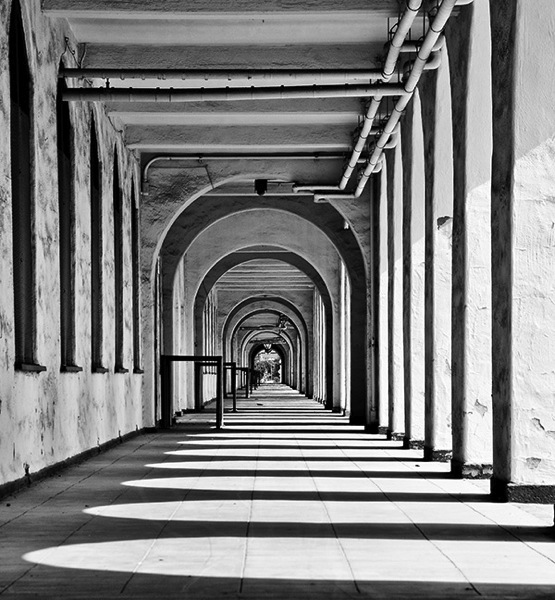
Being aware of the direction and quality of light can also ties into step 4 above. I walked outside of a building, looked down an outside walkway and noticed the shadows formed a really cool pattern because the sun was very bright and coming in from the left. This made an interesting arch pattern that almost looked like an MC Escher sketch.

Hacking photography maze patterns

Hack 10: Use the Rule of Thirds

The rule of thirds is the simplest and most under-utilized tip in the book. Are you ready for the quickest and easiest lesson yet? Here we go: go into your camera and turn on the “Grid” function which will show a grid in your viewfinder with horizontal and vertical lines when you look through it. 99% of new photographers put their subject smack in the middle of the frame when they compose the photo. The viewer also sees 99% of photos with the subject right in the middle of the frame because they look directly at a person, item, etc. This gets really boring really quickly, as we discussed earlier.

The tic-tac-toe rule

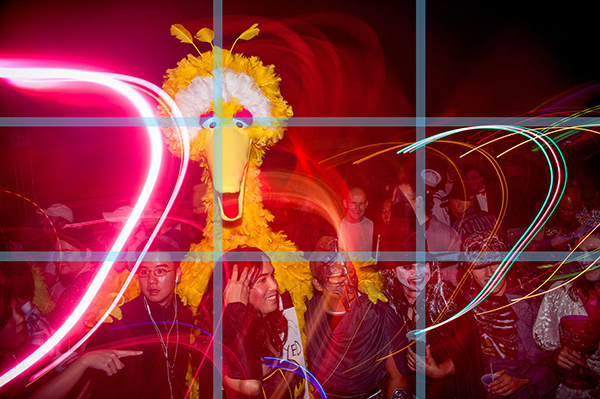
Imagine a tic-tac-toe board when you look through your viewfinder. Some cameras have a ‘grid’ function you can turn on to see this through the viewfinder. You always want to line up the point of interest where the lines meet each other. When you compose your photo, line up the point of interest at either 1/3 to the right or left of the frame, and/or the top or bottom 1/3. You want to give your subject room to breathe in the frame.

I caught this at a huge Halloween party Miller-Coors sponsored. You can see who got the attention at the intersection of the top and left 1/3 marks. Note the people on bottom all line up with the bottom horizontal 1/3 line.

Hacking photography rule of thirds

Wrapping up

If you follow these 10 hacks, your photography will take a giant leap forward. I recommend experimenting with one of these hacks per day for 10 days. After you get used to thinking about each one, you will eventually internalize the lesson so it will just happen instinctually. That’s when photography really gets fun. I can’t wait to see what you come up with.

Please share any additional tips in the comments section below.

For more on these hacks grab Mike’s eBook Hacking Photography: A Plain-English Guide to Taking Impressive Photos – Fast, on sale now for 60% off at SnapnDeals.

The post 10 Photography Hacks that will Dramatically Improve Your Photos by Mike Newton appeared first on Digital Photography School.


Digital Photography School

 
Comments Off on 10 Photography Hacks that will Dramatically Improve Your Photos

Posted in Photography


Don’t Miss The Big Picture Natural World Photography Competition

17 Mar


Big Picture Natural World Photography Competition

One of the best science museums in the world and a local favorite of mine here in San Francisco,  the California Academy of Science is in the final stretch of their Natural World Photography Competition. Winners have their photographs exhibited at the museum and are eligible to win a grand prize of $ 5000. Categories include “Land Mammals”, “Birds”, “Insects, Reptiles, Marine Mammals, Fish and Amphibians”, “Waterscapes, Landscapes and Plant Life” and “Conservation Imagery”. I should also note that the terms of the competition are  photographer friendly.

If you want to enter do so by the deadline of March 31st, 2014. Don’t miss it.

Enter the Big Picture Natural World Photography Competition

Also…

The contest is sponsored by the late Calumet, but from my conversation with the organizers there is no impact to prizes.

Have fun and good luck with your entries!

Copyright Jim M. Goldstein, All Rights Reserved

Don’t Miss The Big Picture Natural World Photography Competition

The post Don’t Miss The Big Picture Natural World Photography Competition appeared first on JMG-Galleries – Landscape, Nature & Travel Photography.


Related Stories

  • Don’t Miss The Big Picture Natural World Photography Competition – Enclosure
  • In Defense of Pretty Pictures – Enclosure
  • In Defense of Pretty Pictures
Feed Ads by FeedBlitz
powered by ad choices


JMG-Galleries

 
Comments Off on Don’t Miss The Big Picture Natural World Photography Competition

Posted in Equipment