Photo Mate, arguably the most comprehensive Raw image editing app for Android, has received a substantial update. Version R3 comes with an all-new rendering engine for both Raw & JPEG editing. This includes improvements to all the important adjustments, such as contrast, shadows, highlights and exposure. Read more
Tag: Photo
-
Art of Photography: NYC Blizzard Photo Looks Like a Painting
[ By WebUrbanist in Art & Photography & Video. ]

As roads closed and kids turned staircases into sledding hills and snowboarding slopes across East Coast cities during Jonas, one photographer stopped to shoot a few pictures that turned out looking like modern-day impressionist paintings.

Photographer Michele Palazzo managed to capture not only the swirling snow around the structure, but an installation of snowflakes inside mirroring the exterior weather. Despite Sprint and Apple logos, hallmarks of the present age, there is something timeless about the composition.

According to Colossal, “the snowflakes you see in the window of the Flatiron are part of a paper origami installation by Chelsea Hrynick Browne in the Prow Artspace. The cloudy atmosphere and gusty winds creates patterns that appear uncannily like brush strokes. You can see more of Palazzo’s shots from the morning of January 23rd on EyeEm.” (See more storm photos, thumbnails above, over at the EyeEm Blog).
Want More? Click for Great Related Content on WebUrbanist:
Cinematography of Snow: Watch a Film Projected Onto a Blizzard
An idle thought while waiting out a snowstorm led to an accidental artistic discovery: projecting a movie on falling snow can result in an visually rich result …
Click Here to Read More »»

Chromatic Vortex: 3D Art from 4,416 Sheets of Photo Paper
A site-specific installation in a New York City storefront, this twisting multi-colored tunnel was suspended in mid-air and held together with no less than …
Click Here to Read More »»

Math + Paper Craft: Computer Scientist Creates 3D Origami
Computer scientist Jun Mitani designs software that generates mathematical designs for complex three-dimensional origami crafted from a single sheet of paper.
Click Here to Read More »»


[ By WebUrbanist in Art & Photography & Video. ]
[ WebUrbanist | Archives | Galleries | Privacy | TOS ]
-
Crazy Combo Compositions: Photo Series Contrasts the Unexpected
[ By Steph in Art & Photography & Video. ]

Skiers land jumps on ice cream cones, construction equipment struggles to transport oversized hot dogs and jet-powered seagulls zoom through the sky in a series of surreal photographic collages by Stephen McMennamy. Creative director of the advertising agency BBDO, McMennamy takes original photos of everything from meatballs to hand grenades and puts them together in unexpected ways, calling the results ‘combophotos.’


Inspired by the plethora of talent and creativity that can be found on Instagram, the photographer set out to pair things you’d never imagine together. Rather than seamlessly blending the photos in Photoshop so they appear to be a single composition, McMennamy simply matches up the contours of each subject, leaving behind the demarcation lines.


This technique results in images that tell an entirely different story than each of the originals, turning what would be highly ordinary, stock-photo-type images into something else altogether. McMennamy’s curiosity was initially piqued by photo apps that let you layer photos into collage compositions, and then he tried connecting images for a more fluid effect.


“The whole thing is one big scavenger hunt,” says the artist. “Sometimes it’s as simple as playing with scale and other times there’s a more meaningful message being told, like the cigarettes and French fries image but for the most part it’s just visual fun, like a truck with skateboard wheels.”
Want More? Click for Great Related Content on WebUrbanist:

Fantasy Photo Series: Darth Vader on the Toilet & More
What do super heroes and villains do when nobody’s looking? Photographer Ian Pool gives us a glimpse with this fantasy photo series.
Click Here to Read More »»

Bubble of Fear: Surreal Photo Series Highlights Fukushima
A gas mask hangs in a red box mounted to a tree in an otherwise peaceful forest, a jarring reminder that all is not well in Fukushima. French photographers …
Click Here to Read More »»

Fractured Reality: Bizarre 3D Collaged Photo Sculptures
Artist Gwon Osang forms hundreds of photographs around mannequins to create bizarre three-dimensional photo sculptures.
Click Here to Read More »»
[ By Steph in Art & Photography & Video. ]
[ WebUrbanist | Archives | Galleries | Privacy | TOS ]
-
6 Tips for Doing a Successful 365 Photo Project
Happy 2016, welcome to the start of a new year. This is a great time to start new projects – be it losing weight, getting fit by regularly exercising, committing to eating right, or improving and growing your photography knowledge and skill.
We all have many different goals when it comes to our passion for photography. A great way to get started is by working on personal and professional photography projects. One simple yet effective way to work on your photography skills is to participate in a 365 Photo Project. Quite simply, a 365, as it is most often called, is a commitment to take a photo a day for 365 days straight. You can get as specific or as general as you like in terms of what you photograph, when you photograph, or even how you photograph. There are no set rules – the only requirement being you must take at least one photo each day, that counts towards your 365.
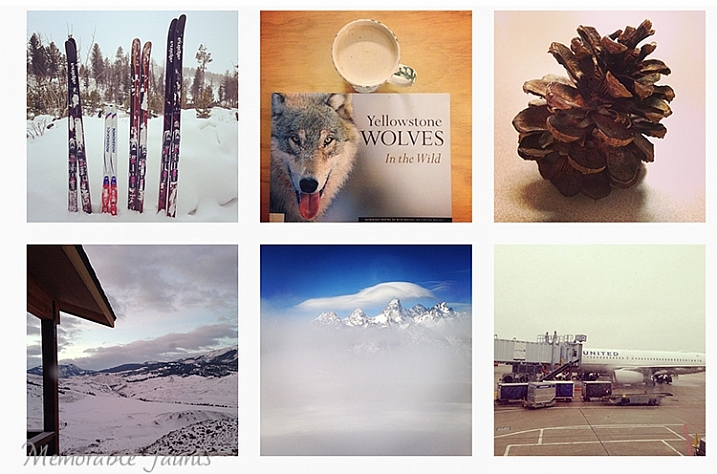
A small collage from my 365 project done in 2014.
That being said, there are some basic guidelines to successfully complete a 365 – a sort of dos and don’ts list, if you will.
#1 Be honest about why you want to do a 365
Talk to anyone, and you are bound to hear many different reasons why you should do a 365 photo project. Some people feel it improves your photography because you are consistently taking at least one picture a day. Others feel it is a fun way to document and record a year in your life. It is also a great way to experiment and learn about light, composition, subject, equipment, and develop and hone in on your observation skills.
Since you know you have to take at least one photo every day, you are constantly looking for good photo opportunities everywhere, and tend to become more observant of your environment. No matter what your reason, be very clear on exactly why you want to start a 365, and document that as part of the process. This will help clarify your goals, and make the process more enjoyable.
#2 Create a routine for your 365
Just like anything else in life, having a routine provides a sense of organization. Figure out when is your best time to photograph, and stick to that routine. For me, the best time is around 9:00-10:30 a.m. It is early enough in the morning when my brain is quite active, there are no distractions, and the morning light is quite clean and bright. Of course that is not to say that I don’t photograph at other times of the day, but when I am working on a project, or an assignment, that’s my go-to time. And yes, I do treat my 365 as an assignment. The only difference is that I am my own client!
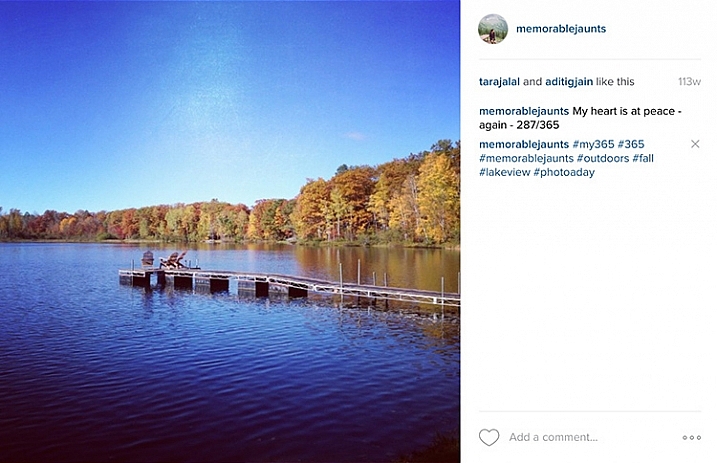
My general task list for my 365 -generally, all it takes is 10 minutes of my time:
- Shoot 365 photo – five minutes
- Edit photo – two minutes
- Load to Dropbox – 30 seconds
- Post on Instagram – 30 seconds
- Write a caption and one line description for the image – one minute
- Add hashtags – one minute
- Total – 10 minutes approximately
#3 Set your own prompts or join a 365 group
In my opinion, this is the hardest part of doing a 365. The proverbial, “What do I photograph?”. Luckily there are so many of us doing 365 projects, that there are online groups you can join to get daily or weekly prompts sent to your inbox. Here are a few:
- Project 365 Flickr group
- 365 Project website
- The 365 Make 1 shot per day, for 1 year – Flickr group
The other option is to completely customize the project, and work from your own prompts, or inspirational triggers. You might only want to photograph your breakfast, your pet, or your children. You may want to focus on modes of transportation. No matter what the prompt, I recommend creating a list or a journal to document them. That way you know what you have already photographed, and what comes next.
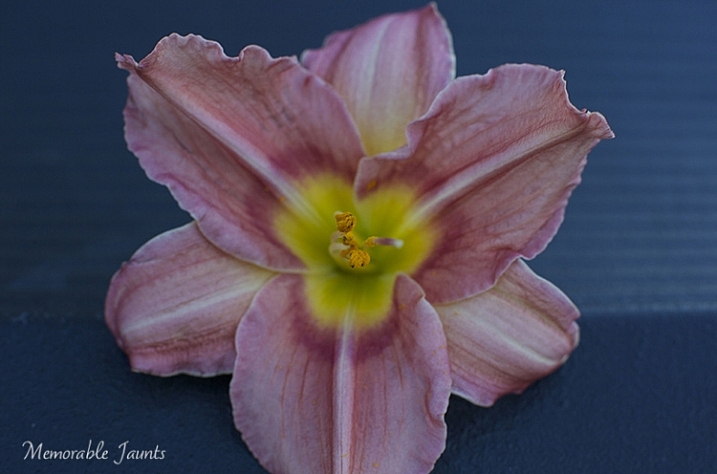
I try to follow this general prompt weekly for my 365. Sometimes, I deviate from it, and for me that’s okay!
- Monday – Inspire
- Tuesday – Food
- Wednesday – Nature of the outdoors
- Thursday – Indoors
- Friday – Family
- Saturday – Personal
- Sunday – Fun day (anything goes)
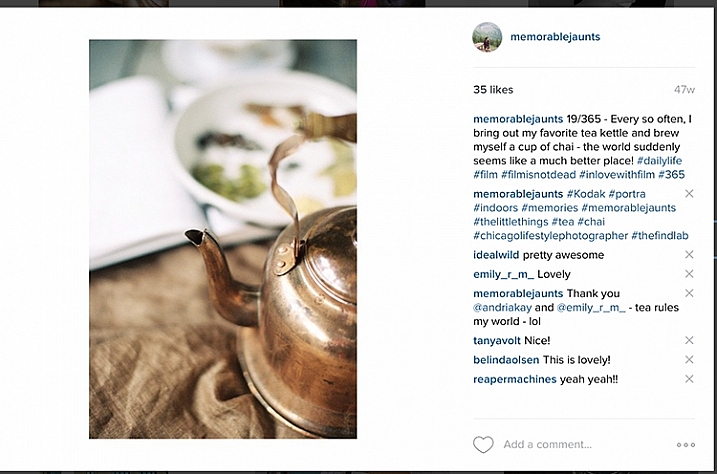
#4 Choose the tools of the trade
Choose a camera – any camera! If you want to improve on your mobile camera skills go for it. Did you get a new camera for Christmas? Use a 365 photo project as a great way to learn the workings of your new toy. After all, practice makes perfect, and there is nothing like practicing everyday to get you comfortable with using that new camera.
Regardless of what tool you use, makes sure that it is something achievable. I find my DSLR to be cumbersome at times, and not easy to carry around with me for smaller errands in town. So instead, for my 365 photo project, I use a combination of iPhone and DSLR, which gives me the flexibility I need.
The other common question that most people want to know is how to document the project. My 365 medium of choice is Instagram. I love this platform, as it brings forth a great sense of community and creativity. By posting my images, and using the #365 hashtag, I am instantly part of a large group of people who are in the same project. It keeps me motivated and on track. I know a lot of people who post a collage of images on their social media channels, rather than a picture a day. This does not mean they don’t photograph one picture a day, but rather they just share their images once a week, or a month at a time.
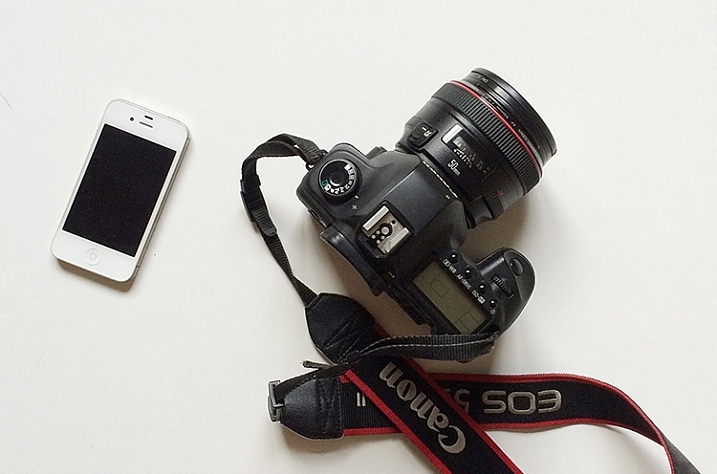
These are the only two tools I use for my 365. When an image is from my DSLR, I can use the #dslr365 in Instagram to separate the two (not a required step but I like to do it just for my reference).
#5 Learn to forgive and move on
Who knew that doing a 365 can also be a great way to learn basic life lessons! The age old adage to forgive and forget is very relevant while participating in a 365. Sometimes things happen and you end up missing a day, or several days in a row. It is not the end of the world. Acknowledge it, accept it and move on. Either you can catch up, and post more than one picture the next day, or just mark it off as missed and go forward. The key here is to keep moving forward. Otherwise days turn into weeks, that turn into months, and before you know it, the 365 has long been forgotten and abandoned.
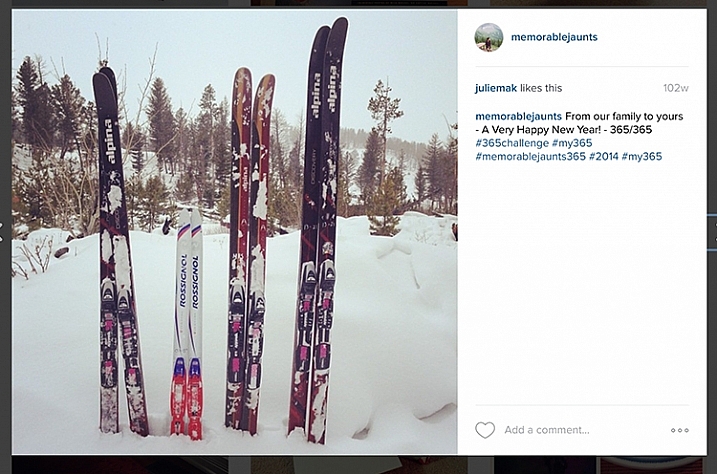
One of my favorites from my last 365. I did miss a few days here and there but the memories that I was able to capture still make me smile to this day!
#6 Success, completion, and what’s next
A 365 photo project is definitely a commitment. One that takes time and effort on your part, but the rewards are quite satisfying. To me, completing a 365 photo project provides a sense of achievement and accomplishment. In my mind it’s not an easy task, and I do celebrate my success!
Print all, or some of your best images, and create a collage of photos. Create a photo book specific to your 365. The possibilities are endless. My 365 photo project lives on my Instagram feed only, and I like printing my favorites. There are several companies that also provide the option of printing Instagram images. I have used Artifact Uprising in the past, but Blurb and Shutterfly are a few other companies that come to mind.
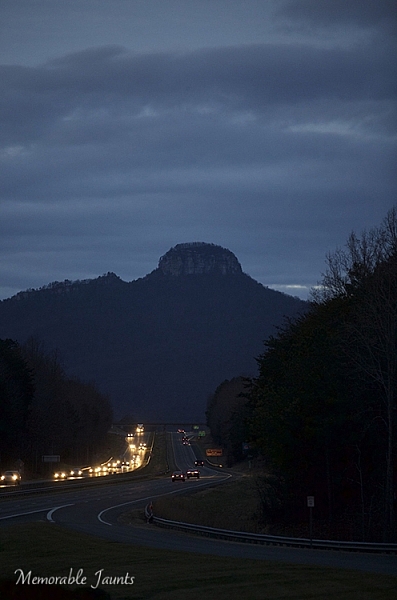
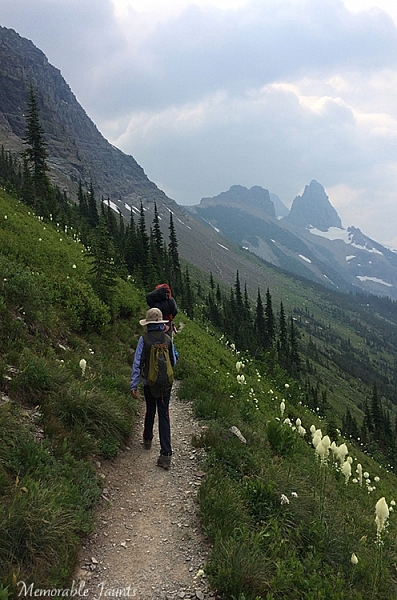
Note: If you use Lightroom you can create a Blurb book and order it directly from within the software, all right from your original camera files.
Once you have completed your 365 photo series, my recommendation would be to take a break. Jumping right in to another 365 can be a bit much. That’s not to say that people don’t do it, and be successful. Many people absolutely love doing 365 photo projects, and have consistently done it for several years at a stretch.
Personally, I like a variety of challenges in my photographic journey. After completing a 365 photo project in 2014, I took a break and focused on other things. Now I am ready to get back into the game and will be starting a 365 photo series in 2016 on my Instagram. Join me if you want to and lets motivate each other to take a photo a day for 365 days!
googletag.cmd.push(function() {
tablet_slots.push( googletag.defineSlot( “/1005424/_dPSv4_tab-all-article-bottom_(300×250)”, [300, 250], “pb-ad-78623” ).addService( googletag.pubads() ) ); } );googletag.cmd.push(function() {
mobile_slots.push( googletag.defineSlot( “/1005424/_dPSv4_mob-all-article-bottom_(300×250)”, [300, 250], “pb-ad-78158” ).addService( googletag.pubads() ) ); } );The post 6 Tips for Doing a Successful 365 Photo Project by Karthika Gupta appeared first on Digital Photography School.
-
50 Photoshop & Lightroom Photo Editing Tutorials to Enhance Your Images
Photoshop and Lightroom are awesome tools for photographers, professionals and amateurs alike. While Lightroom is considered the most comprehensive tool to do some basic image editing, such as fixing exposure, white balance, and contrast, Photoshop is often chosen by photographers for further creative processing. Without a doubt, Photoshop is a powerful program with huge possibilities. However, once you really dig Continue Reading
The post 50 Photoshop & Lightroom Photo Editing Tutorials to Enhance Your Images appeared first on Photodoto.
-
Deal 12: Black & White Photo Artistry Course – 60% OFF!
 It’s the final day of our 12 deals of Christmas and we’ve saved one of our best deals until last.
Last year Sebastian Michaels smashed every dPS record with his Fine Art Grunge Composition course. This year he’s back, with this brand new Black & White Photo Artistry course!
… and you can save 60% on the regular price right now.
This course brings together all Sebastian’s best photo artistry approaches and techniques and expands on them within the specific realm of creative black and white.
You’ll discover the pro secrets for producing stunning works of photo art. Awesome, intricate black and white compositions fit for print and canvas. All while honing your photography skills!
Ready to create the most artistic photo works of your life? Grab this deal with a 60% saving today only!
We think it’s a brilliant final deal in the 12 dPS days of Christmas and well know you’ll cherish everything it will teach you.
Grab this deal before it is gone here.
PS: Sebastian has put together 3 amazing bonuses for dPS readers – scroll down his information page to see them – they make this an even better deal!
googletag.cmd.push(function() {
tablet_slots.push( googletag.defineSlot( “/1005424/_dPSv4_tab-all-article-bottom_(300×250)”, [300, 250], “pb-ad-78623” ).addService( googletag.pubads() ) ); } );googletag.cmd.push(function() {
mobile_slots.push( googletag.defineSlot( “/1005424/_dPSv4_mob-all-article-bottom_(300×250)”, [300, 250], “pb-ad-78158” ).addService( googletag.pubads() ) ); } );The post Deal 12: Black & White Photo Artistry Course – 60% OFF! by Darren Rowse appeared first on Digital Photography School.
-
Apple iOS 9.2 adds iPhone support for USB camera adapter for direct photo transfer
Apple released a number of software updates yesterday including iOS 9.2. In addition to a large number of bug fixes, the update adds iPhone support for the company’s Lightning to USB Camera Adapter, making it possible now to transfer images directly from a camera to your iPhone. Previously, only iPads were supported. Read more
-
Alien Skin releases non-destructive photo editor Exposure X
Alien Skin has launched Exposure X, its non-destructive photo editor and film emulation software for Mac OS X and Windows. Exposure X is the successor to Exposure 7, and functions as both a plug-in for Adobe Lightroom and Photoshop as well as a standalone editor. Features include a revamped user interface, RAW image editing, and an import system that doesn’t use a catalog file.
Plans to release Exposure X were announced weeks ago. As promised, the software combines simplified design with non-destructive editing tools for organizing, editing, processing, and storing photos. Exposure X doesn’t use a catalog file, instead opening photos directly from the source folder. The interface, meanwhile, does away with separate modules, presenting a full set of tools at all times, according to Alien Skin. Analog looks can be applied to images, including Kodachrome, Lo-Fi, Daguerreotypes, and more.
Exposure X is a free upgrade for Exposure 7 owners and $ 99 USD for those with other Exposure versions. The software is $ 149 USD for new customers.
Via: Alien Skin
-
Review of the Wacom Intuos Photo Pen and Touch Tablet
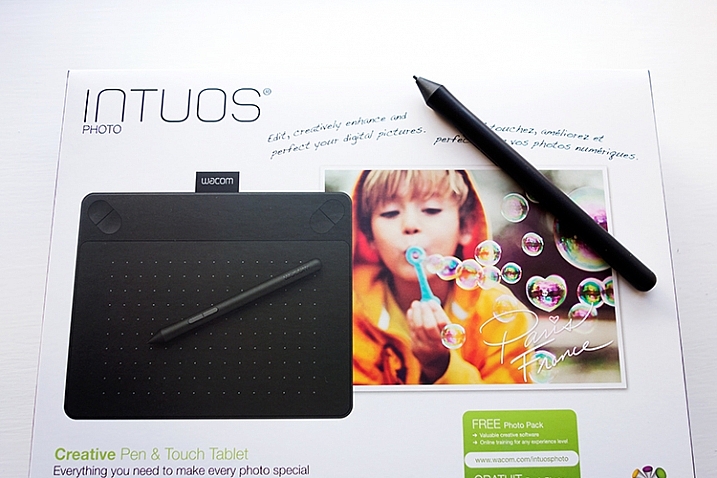
Intuos Photo Creative Pen and Touch Tablet
In this article I’ll review the Wacom Intuos Photo Creative Tablet Small. Wacom brought out this model, and three other similar ones, back in September 2015. The only difference is they come bundled with different software. Otherwise the specs are the same.
Can you benefit from using a tablet?
The short answer to this question is, yes. Do you actually need one? Possibly not. But, if your workflow demands a lot of retouching to your images, then you will indeed benefit from using a tablet. The pen (stylus) essentially replaces your mouse, and allows for more precise actions where pinpoint accuracy, especially pressure sensitivity, are indispensable.
I’ve being using a Wacom tablet for a number of years. Although, I will admit when I first got my Graphire4, I took it out of the box and thought, “Hmm that looks nice” and put it straight back into the box. Long story short, some time later, I was about to give it away when I decided I’ll give it another go. Initially, it did take a little bit of getting use to. Whereas now, I would find it difficult resorting back to a mouse for editing my images.
The Graphire4 served me well even though it had only 512 levels of pressure sensitivity. So it was time for an upgrade.
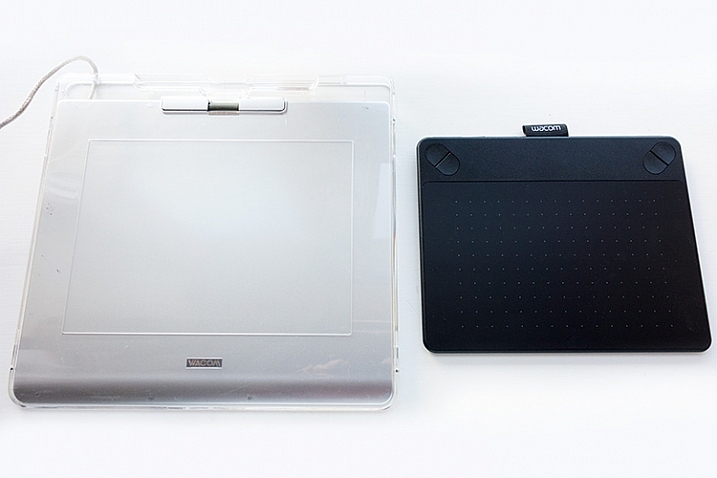
The Graphire4 tablet on the left versus the new Intuos Photo Small on the right
The new Intuos Photo has 1024 levels of pressure, which was immediately noticeable, and very responsive. It has four Express Keys (the Graphire4 had only two) which you can configure to whatever shortcuts you choose. There also two buttons on the stylus, which offer the same customization.
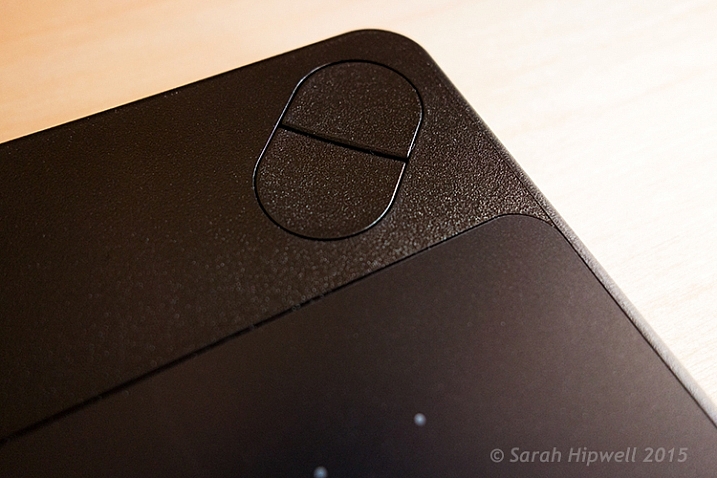
There are 4 ExpressKeys on this tablet, two on the left and two on the right, which can be customized for shortcuts.
I didn’t notice any lag time when moving the stylus across the surface, and the pen feels so intuitive, just like a real pen. It’s is very responsive and doesn’t have that scratchy feel when using broad brush strokes, you might expect because the surface is matte.
Features and design
This tablet is small, slim, and lightweight, which makes it very portable. Although it is light, it does feel solid.
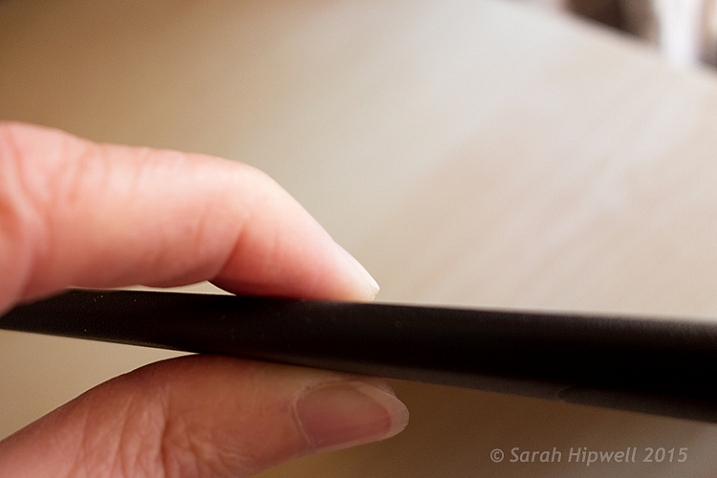
I’m holding the Intuos Photo between my fingers to illustrate how slim it is.
It has multi-touch gestures, which operate in the same manner as a trackpad. I wouldn’t use this feature, as I use my keyboard for shortcuts, but it’s cool nonetheless. There is a switch at the back to turn this feature off. My hand would activate the zoom feature, which was distracting.
If you turn the tablet upside down and slip this portion of the base off, you will find slots for the Wireless bits to go. You have to purchase the Wireless Accessory Kit separately. You get four spare pen nibs tucked away neatly, saved for when you need them.
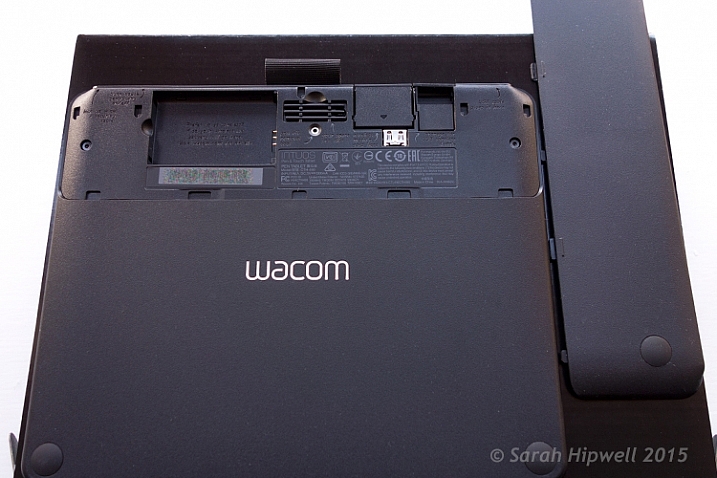
Back of the Intuos Photo where the Wireless kit goes (sold separately).
I did find the engraved instructions neat. It did appeal to my sense of aesthetics!
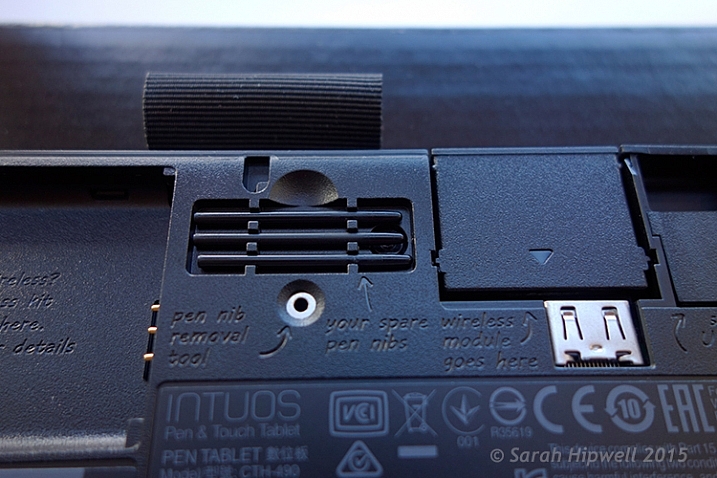
Close up to show the four spare nibs for the pen (stylus). Notice the neat engraved instructions.
Size can matter!
Before I purchased the Intuos Photo Small, I wasn’t sure whether to choose this size (6 x 3.7 inches) or go for the medium size. The medium is called the Wacom Intuos Art Pen and Touch Tablet Medium (8.5 x 5.3 inch active area). The larger model retails at $ 199.95.
The price wasn’t just the only determining factor for me. I have a 24” monitor so I wasn’t sure if this size tablet would match the monitor? I’ve found no issue, the size is good for me. However, if I had a bigger monitor, I would probably have gone with the medium tablet. Another factor to consider is how much space do you have on your desk? The Intuos Photo is small and compact.
What software is included?
- Macphun Creative Kit
- Corel AfterShot Pro (Mac)
In order to get the software, a download key is printed on the inside of the box. I have downloaded the Macphun Creative Kit (Tonality Pro, Intensify Pro, Snapheal Pro, Noiseless Pro) but that’s as far as I got. I haven’t tested out the software yet.
My verdict
Wacom tablets are a leading brand. Their Intuos Pro range are expensive. However, the Pro range offer 2048 levels of pen pressure sensitivity, wireless connectivity, and other features. So this makes the Intuos Photo Small a really good deal for the price. I find the pressure sensitivity levels suffice for my workflow.
Another plus, if you suffer from RSI (Repetitive Stress Injury) issues, especially if you spend a considerable amount of time in front of your computer editing your images, I certainly find holding a pen preferable to gripping a mouse for any length of time.
To sum up, if you have a (much) older Wacom tablet, I would recommend the Intuos Photo as an upgrade. If you haven’t used a tablet before and are thinking of buying one. This model is a good place to start and it is competitively priced.
Cons (or maybe quirks)
This is more of an observation rather than a gripe. The USB cable supplied is 148cm (58 inches) in length! Not sure of the rationale behind this…maybe a ploy to get you to buy the Wireless Accessory Kit, which is sold separately.
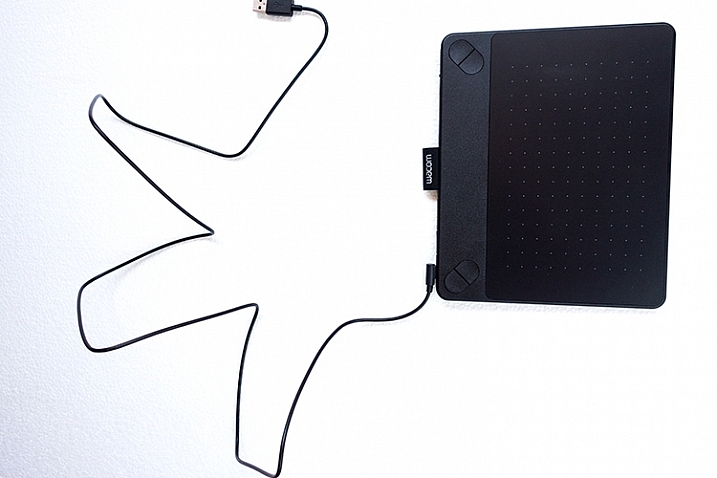
USB cable measuring 148cm(58 inches) in length.
The stylus is much lighter and slimmer compared to the chunkier and heavier model I was more use to. It does feel a little cheap.
I’ve found the pen inclined to roll between my thumb and fingers, so that at times, I had to keep rolling the pen around again to where the two buttons are at the side to access them. This was getting quite irritating. I feel a rubberised moulding would help in preventing the pen from rolling around. Similar to the rubber grip found on ordinary pens. So I came up with my own inexpensive solution to modify the pen.
DIY hack for the stylus
I bought these pen grips at a local stationary shop. I cut one in half and rolled it up until it reached just below the two buttons. This way, I can grip the pen better, and roll it more easily, so that the two buttons rest next to my thumb for easy access. The four in a pack came to less than $ 2USD.
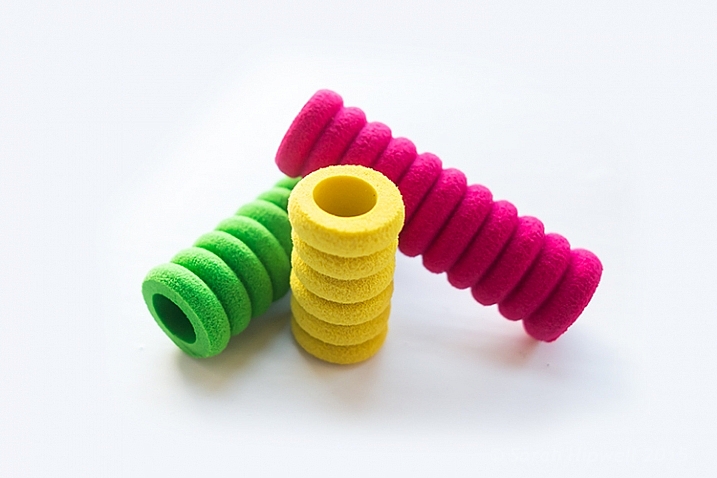
Ordinary biro pen grips that are sold in stationary shops.
DIY stylus holder hack
The Intuos Photo has a fabric sleeve to house the pen, which I presume is for when you’re transporting this tablet in your bag. The sleeve is tight fitting, so this is not practical for everyday use while sitting working at your desk. The tablet doesn’t come with a pen holder.
So, while I was in the same stationary shop to get my pen grips, I spied this pencil sharpener with eraser holder and thought that would make a great stylus holder. It was a perfect fit (see photo below). Again, this item cost less than $ 2! Just to add a little weight stability, I put fishing lead balls in the bottom part, only because I had them anyway.
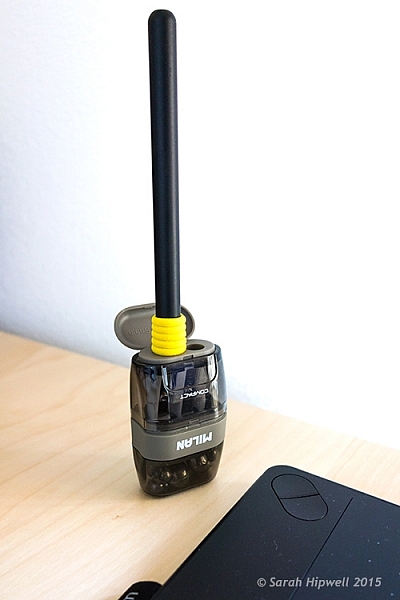
DIY stylus holder hack from a pencil sharpener with an ordinary pen grip on the stylus.
Do you use a tablet or a mouse? Which is your preference for editing your photos? Share in the comments below.
googletag.cmd.push(function() {
tablet_slots.push( googletag.defineSlot( “/1005424/_dPSv4_tab-all-article-bottom_(300×250)”, [300, 250], “pb-ad-78623” ).addService( googletag.pubads() ) ); } );googletag.cmd.push(function() {
mobile_slots.push( googletag.defineSlot( “/1005424/_dPSv4_mob-all-article-bottom_(300×250)”, [300, 250], “pb-ad-78158” ).addService( googletag.pubads() ) ); } );The post Review of the Wacom Intuos Photo Pen and Touch Tablet by Sarah Hipwell appeared first on Digital Photography School.
-
Alien Skin Exposure X ‘nondestructive’ photo editor to launch by year’s end
Alien Skin Software plans to release a new ‘nondestructive’ photo editing application called Exposure X by the end of the year. Exposure X will include several changes over Exposure 7, including improvements to the user interface, file management tools, and new keyboard shortcuts. Read more