RSS
 

Posts Tagged ‘Part’

So You Want to Be a Stock Photographer, Part II

18 May

Preface:  There will be no images included in this entry. The point is to have the reader start reviewing the work of  great stock shooters. Stock photography is work and part of that work is research.  In this entry I have dropped names and agencies.  Now the research begins. Check out Part I of this series here. -DW

Stock photography has been going through an evolutionary process since the beginnings of photography as a popular hobby, and continues to be an industry in search of itself. The foundation is well established, but the end means is being continually in a state of flux by technology.

From its inception stock photography has been the process of making photographs on a speculative basis, for the most part, and despite the changes in the industry this notion has not changed.  Up until the early 1980’s, the collectives and libraries concentrated on global spot news, photo essays and photojournalism with a particular emphasis on editorial content.

One of the most respected of these original agencies, Black Star, who opened their doors in 1936, and remains a force in the editorial world to this day.  Many of the leading magazines, such as Time and Life, owe countless covers and visual content to Black Star, and its stable of noted photographers such as Robert Capa, Henri Cartier-Bresson, and other others.

Capa, Cartier-Bresson, and fellow photographers George Rodger and Chim Seymour would eventually move on and start the agency Magnum Photos. Magnum also attracted the best shooters of the day and concentrated on covering global wars and human interest photo essays.

Both Black Star and Magnum continue to be leading editorial content providers and are very selective of the photographers they will represent, ensuring editorial integrity as a cornerstone of their respective businesses.

Although there were stock houses concentrating their efforts on licensing commercial and advertising photography before the 1980’s, Miller Services and  Comstock were several of earliest libraries that blazed the way for photographers to have the possibility of earning a living shooting stock images exclusively.  As commercial image libraries matured, along came the likes of Tony Stone, Masterfile, Image Bank and many others. These agencies would license image rights, as opposed to selling a picture in what was known as a Rights Managed business model. Consequently an advertiser licensing the image could be assured of not having the image also licensed by a competitor, and this exclusivity came with a premium pricing formula.

Several of the early agencies accepted image out-takes from assignment shoots; however, they soon realized good stock photography had a unique look and feel and those agencies that didn’t maintain high content standards were eventually swallowed and spit out by the dedicated and exclusive stock houses.

During the so-called heydays of the 90’s and early into the new millennium, skilled stock photographers were experiencing annual sales figures in the hundreds of thousands of dollars, or more.  Many photographers would claim their average license fee was in the vicinity of $ 400 per license, and monthly revenue with the better agencies could be estimated to average around $ 17.50 to $ 20.00 per image on file, per month, and with some select artists that number was much higher. These were no longer the days where stock images were outtakes from an assignment, but highly executed imagery with very sophisticated and targeted approaches to visually portray the art directories anticipated copy writing.

In the early 1990’s Corel™, out of Ottawa, Canada, started buying images outright for inclusion in CD bundles that being sold to a relatively new player in the field – desktop publishing.  By the mid-90’s Adobe Photoshop™ was coming into the mainstream, and digital camera’s of some consequence were starting to appear by the year 2000.  Next was the digital revolution and the start of a whole new business model in the world of stock photography.

In 2000, based out of offices in Calgary, Canada, a new upstart called iStockphoto would turn the stock photo business into a period of uncertainly.  Based on a concept of primarily giving access to amateur photographers the opportunity to earn a few bucks from their pictures, microstock was born. No longer was stock photography the exclusive milieu of dedicated full time image makers.

Seasoned stock photographers had difficulty comprehending why anyone would want to give an agency their work for a royalty as low as 15%, especially when traditional stock was providing photographers, on average, 50% of the license fee. There was even further confusion when the micro agencies demanded the photographer ensure the image was categorized, captioned, keywords applied and a myriad of other backend metadata duties became the requirement of the photographer; this work that had previously been completed by the agency as part of their cost in the Rights Managed world.

Many cigar chomping photographers dismissed this new revolution that came crashing at their doors in the form of microstock. Within a very few years there was a deluge of microstock agencies available to photographers —mostly amateurs with no previous skill or training—but with the technology advances in both cameras and post production software it quickly became inevitable this tidal wave was here to stay and would be a storm that would inflict change in its evolutionary wake.

Many agencies today continue to offer Rights Managed content for their clients, clients who require the knowledge that they have the opportunity to license an image with some degree of exclusivity. These rights managed images continue the trend of being highly executed stock images with unique looks and feel. The same agencies also offer Royalty Free images for those clients who are not concerned if their business competition uses the same images in similar media.

While microstock initially featured the work of amateurs, there have been professional photographers who have learned how to make the model work for them, and, indeed, work very well. However, the majority of microstock contributors continue to be the part-time pro, or amateur, who are complacent with potentially earning a few bucks for pizza and beer.

It really is anyone’s guess at this juncture what the long term prospects for stock photography as a business will be, and whether the photographer will have the capacity to develop a successful business model. The one thing that is showing trends is the very fact that a phenomenal number of images are being loaded to stock photography portals every day. As with any business, stock photography also subscribes to the concept of supply and demand. With such an oversupply of certain categories the price for images has plummeted. In some cases agencies are giving away images for free in an effort to keep those potential clients who are browsing their site.

One thing is certain, good stock images will always be in demand. The question is whether they can be created and marketed in such a manner that everyone can earn a living? With a royalty retention of 20%, or less for the photographer, it is highly unlikely the ROI (Return on Investment) will be sufficient to justify being a full-time, exclusive stock photographer.

Who knows, in 5 years everything will probably have changed again.

Postscript:  In Part III we will start discussing the process of how to learn what makes a stock photograph. 


Post originally from: Digital Photography Tips.

Check out our more Photography Tips at Photography Tips for Beginners, Portrait Photography Tips and Wedding Photography Tips.

So You Want to Be a Stock Photographer, Part II

Digital Photography School

 
Comments Off on So You Want to Be a Stock Photographer, Part II
Posted in Photography


Light Painting Part Two – Photoshop

13 May

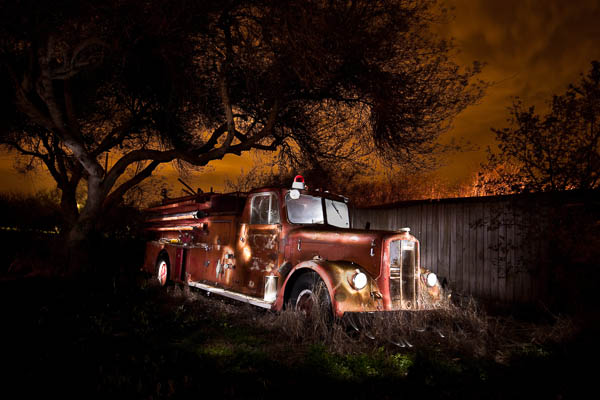
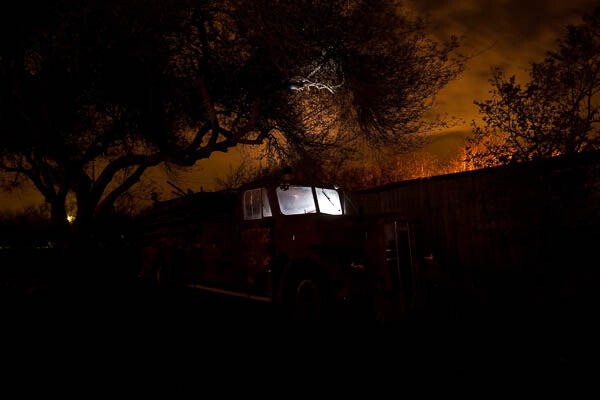
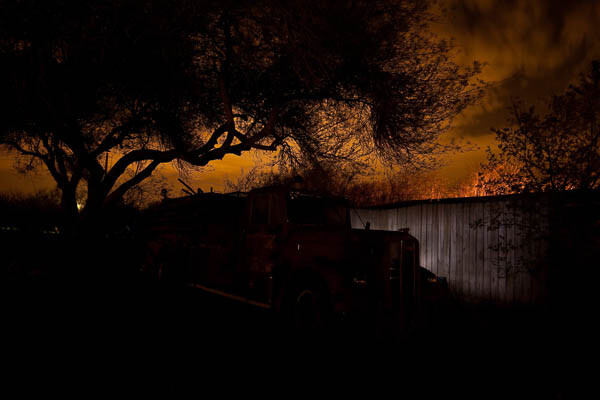
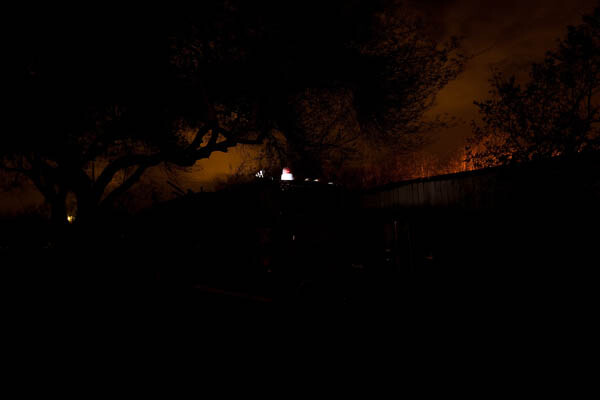
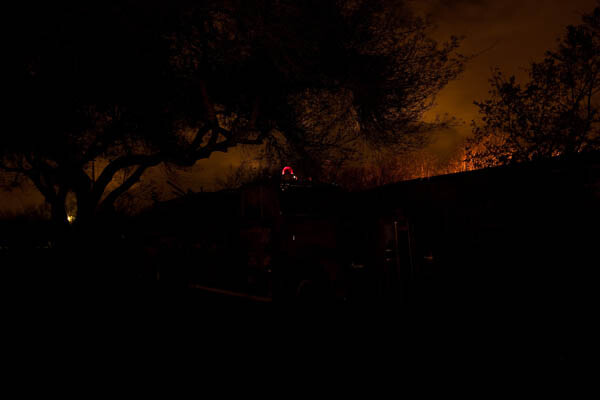
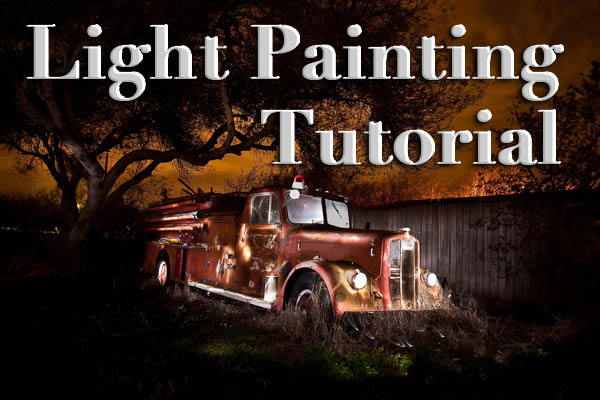
"1956 Le France Pumper"

In Part One of  the Light Painting Tutorial I went over how to do the photography part: equipment, camera settings, set up, lighting, potential pitfalls, and step by step instruction on how to do light painting shots.  In this article Part Two, we’re going to take a look at how to combine multiple exposures in Photoshop.

WHAT YOU’LL LEARN IN THIS TUTORIAL

  • how to create one big layered file of all your images
  • what layer settings to use to “turn the lights on” with each added image
  • how to get rid of any unwanted areas of each image
  • how to easily “dim the lights” on any shots that were too bright
  • saving your final combined image as a masterpiece

Combining images in Photoshop is surprisingly quick and easy

What you need to do this:

  • a series of images of the same subject, shot with the same angle of view (you didn’t move the tripod), with each image lit just a little differently
  • Photoshop (CS or Elements) or some other photo editor that uses layers
  • a basic knowledge of how to use layers, blend modes and masking in your photo editor
  • a computer with good memory and speed – creating multi-layered documents can sometimes slow down your computer if you have an old processor, not enough RAM (put as much in as your computer will hold, I have 6gb and want more but I’m maxed on my 6 year old MacBookPro) or your hard drive is overly full (you want your hard drive never to go over 75% full max, otherwise it will bog down).

Note: if your computer is slow you may not need a new one: just upgrade your RAM and get a bigger hard drive or empty a bunch of stuff off and see if that helps.

STEP ONE OPENING YOUR FILES AS LAYERS

If you are using Adobe Lightroom, you can open your original files directly from Lightroom into Photoshop (wherever I mention Photoshop you can use CS, Elements or your usual editor that has layers capabilities). I do find however that if you are shooting Raw opening 12 or more Raw files into Photoshop really tends to bog it down. So in this case I have exported JPGs first and then opened those into Photoshop. If you are opening from Lightroom directly follow these steps:

  • select all the images of your scene so they are highlighted
  • right click on one of the thumbnails
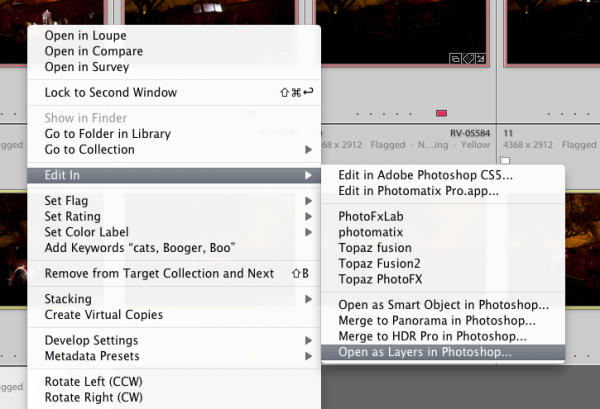
  • from the pop up menu choose “Edit in” and then “Open as layers in Photoshop” like shown below in Figure #1
open-as-layers-from-LR-to-PS

Figure #1

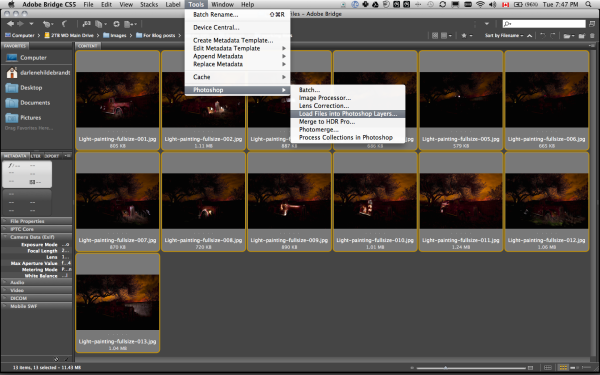
If you are using Photoshop you will follow almost the same steps using Bridge (or the mini browser where you can see your thumbnails)

  • select all the images of your scene so they are highlighted
  • go to the Tools menu
  • select Photoshop > Load files into Photoshop layers (as shown below in Figure #2)
Open as layers from Bridge

Figure #2

STEP TWO ALIGNING THE LAYERS

Once you have all your files opened as layers into one document in Photoshop you want to make sure they are perfectly aligned.  If you used a tripod and it didn’t move they should be pretty close, but we want to make sure they are perfect. Follow these steps:

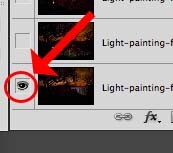
eyeball-icon

Figure #3

  • Turn on just your bottom layer by clicking and holding the Option or Alt key on your keyboard, then clicking on the little eyeball icon (next to the thumbnail of the layer) of the bottom layer. That will make that one active and hide all the others. (See Figure #3 right)
  • Next one by one turn on each layer by clicking the eyeball next to them. If you notice that any of the images seem to jump a bit as you do that, you’ll want to run an alignment. If not but you just want to be sure anyway, continue on to the next step
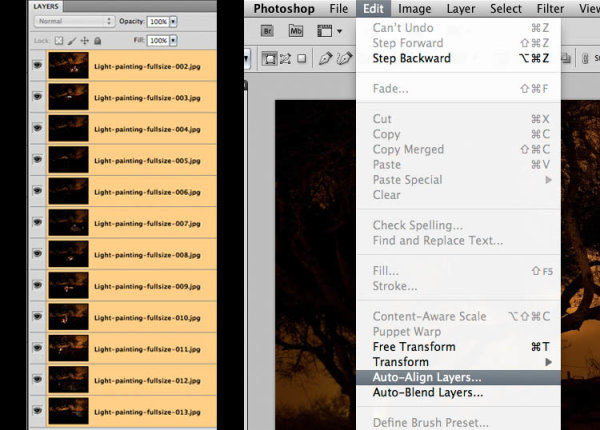
  • Select all your layers, click the bottom thumbnail, then shift>click the top one so all layers are highlighted (as shown below in Figure #4 below)
  • Align the layers by going to the Edit Menu> Auto align layers (see Figure #5 below) and just choose the auto method from the pop up box. If it adjusts any of the layers you may have to crop the result to get rid of any odd edges.
Figure #4 left - Figure #5 right

Figure #4 left – Figure #5 right

STEP THREE BLENDING THE LAYERS

Now that your images are aligned perfectly we’re ready to do some magic!  In this section we’re going to “turn on the lights” from each image one by one. Here’s how:

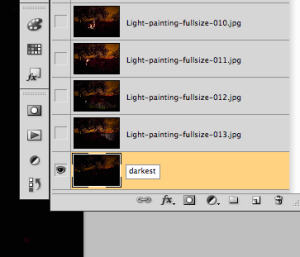
Rename darkest image, put it as bottom layer

Figure #6

  • find your darkest image by going through each layer one at at time.  This should be the image you shot before you added light with your flashlight. The base image you created in Part One of the Light Painting Tutorial.  
  • drag the layer with your darkest image to the bottom of your layers panel.  Just grab the thumbnail for the layer and drag and drop it below the bottom one.  You can rename that layer “darkest” if you like by double clicking on the layer name and typing in your new one. See Figure #6 right.
  • turn on the layer just above the bottom one and make it your selected layer – use the eyeball icon, they should all be turned off except your “darkest” layer and the one above it now
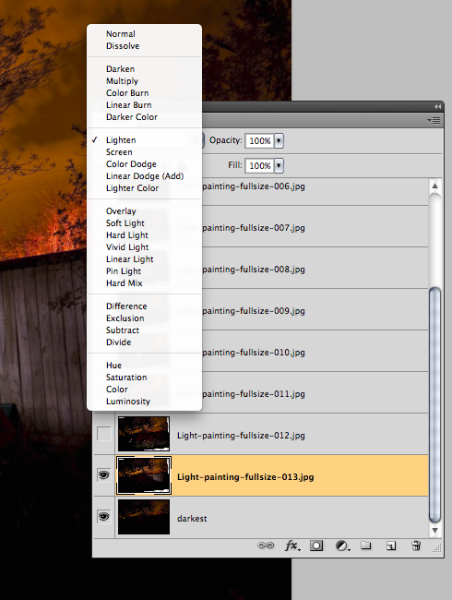
  • change the blend mode of the selected layer to “lighten” – you do this by going up to the pull down menu in the upper left corner of your layers palette, right under the tab that says “Layers” and to the left of where it says “Opacity”. See Figure #7 below.
  • copy the layer style – right click on the layer itself and choose “copy layer style”
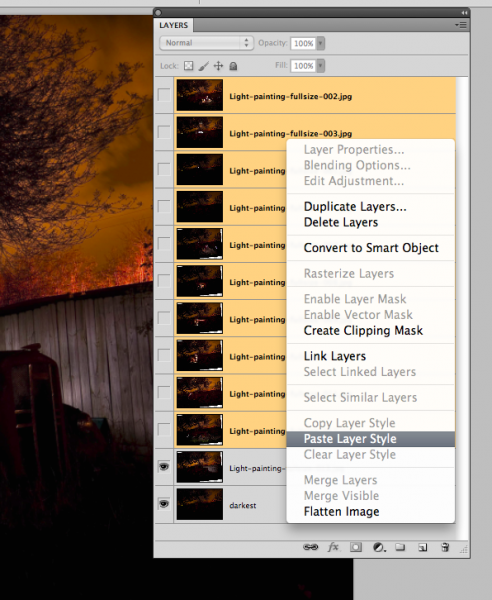
  • change the blend mode of all other layers to lighten – select all other layers, right click and choose “paste layer style”. That is the only way I know of to change them all quickly without having to do them individually, one by one. See Figure #8 below.
Figure #7

Figure #7

Figure #8

Figure #8

TURNING ON THE LIGHTS

Now if you click on each of the Eyeball icons for the layers above, you will see the lights turn on in the different spots you painted in each exposure. In the example of the firetruck here are a few views of the overall image as I turn on a layer above one at a time.

lights-on

REVIEW AND REFINING THE IMAGE

I’ve skipped a couple here, but you get the idea. Notice how as I turn each subsequent layer on a new part of the truck is magically lit up. There are a few issues however, as it’s never, or rarely perfect right out of the camera. But we can fix those things easily too using layer masks. Do you notice the following issues in the image above?

  • a few stray light bugs in places we don’t want them (on the fence to the right of the truck)
  • the sky got overly bright as well (caused by some of the exposures being longer than the “darkest” base layer)
  • there are some double images of the tree branches in a few places (caused by wind and the tree moving from one exposure to the next)

To fix any issues and clean up the image follow these steps:

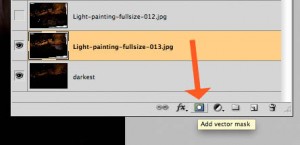
Figure #9

Figure #9

  • turn on just the bottom layer again (alt/option click the eyeball for that layer)
  • turn on each layer one at a time, let’s do the one above the bottom one first
  • review the image and look for any issues such as – areas that got too light, stray light bugs, your body showed up in the photo, etc.
  • create a layer mask by clicking on the “layer mask icon” in the bottom of the layers panel. See Figure #9 right.  ***Important to note: you can do this two ways. Just clicking it directly will create a mask that shows the whole layer (mask will be white).  Alt/option clicking on it will make the layer hidden or “masked” (mask will be black). If you only have a few issues to “paint out” use the direct click method.  But if you have a lot of issues you need to paint out, I suggest using the second method so the mask hides the layer and then you just paint in the good areas. Either way you’ll get the same result just with less painting or adjustments needed so choose the method that is best for each layer.***
  • mask-selected

    Figure #10

  • paint on the mask to show or hide the parts you want – TIPS: hit the “D” key on your keyboard, that will set your swatches to the default black/white for foreground and background colors. Then hit “B” to get your brush tool. Select a soft edge brush so you don’t get a harsh line where you paint on the mask. Paint at 100% using Black to over areas you want to hide and switch to white for areas you want to show. To switch the foreground/background colors back and forth use the X key. Here’s what it looks like – make sure you are painting ON the mask not the image. You’ll be able to tell because there will be little corner markers around the mask and not the layer thumbnail. See Figure #10 right.
  • repeat for each layer – turn it on, add a layer mask, paint to hide and show the areas you want. TIP: if you want to see what it looks like without the layer mask (especially useful if you are using a black mask and painting IN areas you want to show), hold SHIFT and click on the mask itself. A red X will appear and the mask is just disable. Do the same to turn it back on. 
  • if any of your images appear too bright you can tone them down by simply lowering the opacity of that layer, or by painting over the parts that are too bright with the layer mask to partially hide them (just set your paintbrush opacity to 20% and brush over that area gently)

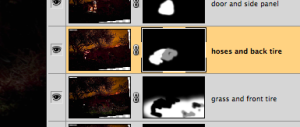
This is what my layers look like with the masks added and areas painted to show only the bits I want from each exposure. Remember to save your file in two formats:  PSD to preserve all the layers, and a final JPG you can use for printing or sharing online (you may have to make a smaller one for email sharing).

all-layers

SUMMARY AND REVIEW

Okay so it seems like a lot of steps but once you get the hang of it, then it really doesn’t take that long to make something you can wow your friends with. They’ll be asking you “how’d you do that?!” in no time! Let’s take a look at the steps in short form again:

  • open your files as layers into one document
  • align the layers in perfect registration
  • change the layer blend modes to “lighten” (all except the bottom layer)
  • add a layer mask to each layer and paint in areas you want, or hide areas you don’t want to appear in the final image
  • save as a layered PSD file
  • flatten and save again as a JPG (full resolution, no compression)

I hope you enjoyed this two part series, once again here is the final image.

"1956 Le France Pumper" Corpus Christi, Texas

“1956 Le France Pumper” Corpus Christi, Texas

Post originally from: Digital Photography Tips.

Check out our more Photography Tips at Photography Tips for Beginners, Portrait Photography Tips and Wedding Photography Tips.

Light Painting Part Two – Photoshop


Digital Photography School

 
Comments Off on Light Painting Part Two – Photoshop

Posted in Photography


Light Painting Part One – the Photography

04 May

"1956 Le France Pumper"

I teach a night photography class and I find that many people who’ve never tried it imagine it to be a lot harder than it really is to get spectacular results. In this two part series I’m going to take you through step by step how I created the image above using light painting techniques that are actually quite easy.

PART ONE – THE PHOTOGRAPHY

In this article, Part One, I’m going to go through everything you need to know so that you can go out and create some images using this technique. In Part Two I’ll take you through combining multiple exposures, like I’ve done for this shot, using Photoshop to create the final photograph. It’s really not that hard and I’ll do it one step at a time so you can follow along with my screen shots after each step.

WHAT YOU’LL LEARN IN THIS ARTICLE

  • Recommended equipment
  • Camera basics (how to set up your camera)
  • Finding a good subject
  • Getting started (set up, preparation and starting points)
  • Lighting, how to do light painting and some tips
  • Potential problems and how to avoid them

EQUIPMENT FOR NIGHT PHOTOGRAPHY

Night photography is not that difficult but there are a few essential pieces of equipment needed to do the job right. Here is a list of mandatory and optional items:

The “Must Haves”

  • a DSLR, or camera with manual settings that include “Bulb”
  • a camera that shoots RAW format images (not mandatory but highly suggested)
  • a sturdy tripod that is not affected by wind
  • an electric cable release or remote trigger (could be called either) with a locking mechanism or timer
  • at least one extra battery for your camera (long exposures and cold eat up batteries quickly so you may run through two or more in a night)
  • a lens hood or shade for your lens

The “Really Nice to Haves” – not essential, but sure handy

  • a digital watch or timer (or remote that has a timer) I use my iPhone
  • a penlight or small flashlight (your cell phone can work in a pinch) to be able to check camera settings and find an item in the bottom of your bag OR a headlamp like the kind hikers wear, is a better option for hands free operation
  • a powerful flashlight like a Maglite for light painting (I use an incandescent one, LED will produce a bluer tone light)
  • a speedlight or portable flash unit can also be used for light painting (you don’t need a fancy one, even an old Vivitar 283 or 285 will do the trick)
  • rain covers for your camera bag, camera, and yourself (weather can change quickly at night but you can get some great shots in bad weather if you’re prepared – you dry easier than your camera, keep that in mind!)
  • A friend to tag along. Helpful if you’re doing night photography in an urban setting. It’s someone to help pass the time, but also watch that your gear doesn’t grow legs and walk off while you’re digging in the camera bag for something. Or someone to stand guard over the camera gear while you’re off painting with light in the scene.

CAMERA SETTINGS

  • File format –  shoot raw whenever possible lighting at night can be odd colors
  • White balance – I generally choose “incandescent” or “tungsten” White Balance Preset when doing light painting because I know that will balance correctly for my flashlight. I let the rest of the scene fall where it may color wise
  • Focus – your camera has a hard time focusing at night and will “hunt” unless you find focus and lock it for all your exposures.  If your camera has back button focus capabilities I’d suggest using that, if not you can focus and then turn it to manual focus so it doesn’t attempt to refocus when you hit the shutter release. You can try to focus using manual but keep in mind if your camera can’t see in the dark, neither can you!  So to achieve focus use your flashlight, and if you have a friend along, get them to light up the part of the object you want to focus on. Then either use your auto focus and lock it, or manually focus and then don’t touch it!
  • Manual mode or BULB – for exposure set it to manual. That way the camera is not trying to guess the correct exposure. We’ll be setting it and leaving it for the most part – just like our focus. For exposures longer than 30 seconds (30″ on your camera) you’ll need to find and use your BULB setting. On many cameras it is right after 30 seconds on the shutter speed scale, one some there’s a B option on your mode dial on top of your camera.
  • ISO – how low can you go?!  This is where it gets counter intuitive because your gut may be telling you that it’s dark out so you need a higher ISO, right?  Well in certain situations like shooting the moon, a starry sky, or northern lights where you want a faster shutter speed – then you might need a higher ISO. But for this purpose and most of the times you are on a tripod it is always best to choose the lowest ISO possible. Noise in your image increases with changes in 3 things:  higher ISO, long exposures and in blue or dark areas of your scene. We’re already pushing the long exposure boundaries and night is ALL blue – so keeping the ISO low will minimize the noise best we can.

Light-painting-015FINDING A GOOD SUBJECT
Night photography can produce some great images, but it can be a bit tricky to find a location and compose your shots in the dark.  It is best to go out ahead of time and find a spot, then return to it later, about 30 minutes before you actually want to start shooting.  That will give you time to find it, get set up and be ready.   Here are some tips for finding a good night subject suitable for painting with light.

  • Old barns and abandoned cars and trucks in fields make great subjects, and often are appropriate for some painting with light.  If you need to cross someone’s land to get to there, make sure to get permission BEFORE you head out.  Trespassing is not cool and could lead to  lot of problems including getting arrested, or worse, which you certainly don’t want.
  • If you want to shoot the moon, star trails, or do light painting you’ll need to get out of the city.  You may have to drive quite a while to get far enough away so that the city lights do not contaminate your shot.  As you will be exposing for several minutes or longer, the city lights may show up on the horizon if you are not far enough away. (the city lights are a factor in my example in this article which gave me some limitations, and the orange fire in the sky – more on that later)
  • Start with a smaller subject that you can light in one exposure and work your way up to bigger ones like this firetruck or an old barn that will take a few shots and need compiling. An old bicycle is a great starter subject. Buy one at a flea market or junk yard and take your own prop wherever you want and plop it into your scene.  Just remember to take it with you as you’ll want it again later and littering isn’t cool either.

Light-painting-014

GETTING STARTED – SETTING UP

  1. Set up your camera on tripod with remote attached or set up to fire the camera
  2. Turn off any image stabilization (IS or VR) on your lens
  3. Turn OFF “long exposure noise reduction” unless you have a lot of patience. What it does it takes a second exposure of equal length of just black, then merges it with your shot to get rid of the noise. But if you’re doing a 2 minute exposure, you have to wait another 2 minutes to review your image and be able shoot again. I don’t use it, and because we’re on a low ISO noise shouldn’t be a big factor
  4. ISO low – ideally 100 or 200
  5. Aperture – start around f/5.6 – depending on your scene, then adjust from there if you want more or less depth of field.  Keep in mind the smaller aperture you use, each stop you close down doubles the amount of time you need to be painting and exposing. So a 60 second exposure at f/5.6 becomes an 8 minute exposure at f/16!
  6. Shutter speed – start around 60 seconds. I’ve done enough night photography to know that’ll get you pretty close for most moonlit scenes. You may have to adjust faster (shorter exposure) or longer depending on whether it’s a full moon, or there’s some stray light in the scene, and how bright your flashlight is.
  7. Focus using the flashlight – then lock your focus.

LIGHT PAINTING – HOW TO DO IT

Basically what you do it set your camera on Bulb, open the shutter using your locking release and walk into your scene and start lighting the objects in the camera view using your flashlight. It sounds simple but can be quite tricky to get just the right amount of light in different places, not get yourself in the image, and still get a good overall exposure. Here are a few tips or starting points, then you just need to experiment and adjust as you go.

Setting up your base exposure

  • Before you start “painting” take a test shot, without the flashlight, of the scene as it is with no additional light added
  • Review that image and make sure you have a good overall exposure of the scene, with it perhaps just a little on the dark side (histogram should be mostly inclined to the left side)
  • When you are happy with the exposure, adjust your settings so that you have a long enough shutter speed to easily get into the scene and light the subject with your flashlight before the shutter closes (at least 30 seconds). You may have to go to a smaller aperture to do so.
  • Once you know your exposure and your shutter speed is at least 30 seconds long, you can get started. If you can bring a friend along they can press the shutter release for you, so you can go in and out of the scene without returning to the camera after each shot to press it again. Or a wireless remote comes in handy here too.
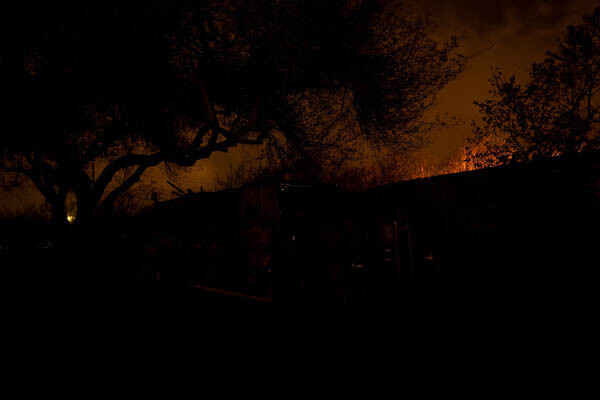
First shot to establish the base exposure. ISO 100, f/5.6 for 30 seconds.

My first shot to establish the base exposure. ISO 100, f/5.6 for 30 seconds.

Adding the flashlight – tips for light painting

  • To keep yourself invisible, always make sure the flashlight is aimed at the subject, and that you do not light up yourself, dark clothing helps too.  Also keep moving during the whole exposure.  Don’t stand in one place for more than a couple seconds or you will show up as a ghost in that spot.
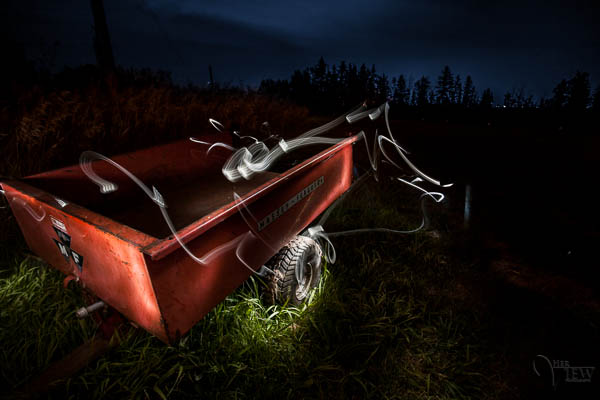
  • Don’t aim the flashlight back towards the camera, unless you want what I call “light bugs”. Sometimes you can use that technique on purpose to create streaks of light and outline your subject, and that can work well also.  See the image of the little red wagon above for an example of light bugs. I believe I accidentally had my headlamp on while I painted and it made the light bugs – but I kind of liked it so I kept it. Happy accidents are great!
  • Keep the light moving the whole time so as not to create any harsh lines or bright spots. I like to make outlines of the shape of my subject or parts of it. Discover what works for you.
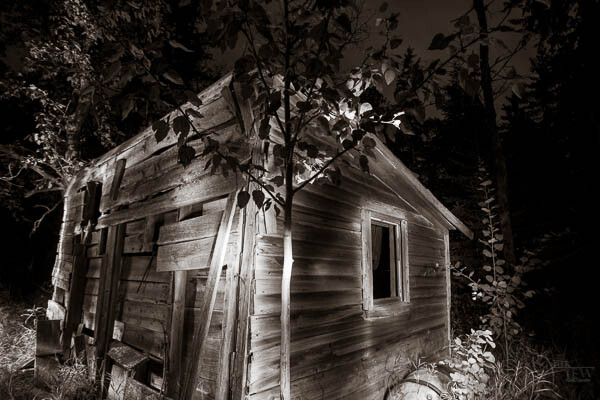
  • For a more defined and abstract look to your light painting you must come in a REALLY close to the subject!  By that I mean about 1-2 feet away from the subject. YES you are going to get right into the scene. But if you keep moving, and keep your light moving you will not show up in the photo. (see the b/w of the old shack above for an example of this look and technique). Also make sure your flashlight beam is focused to a small area – that’s why I like the Maglites, they focus down to a small spot.
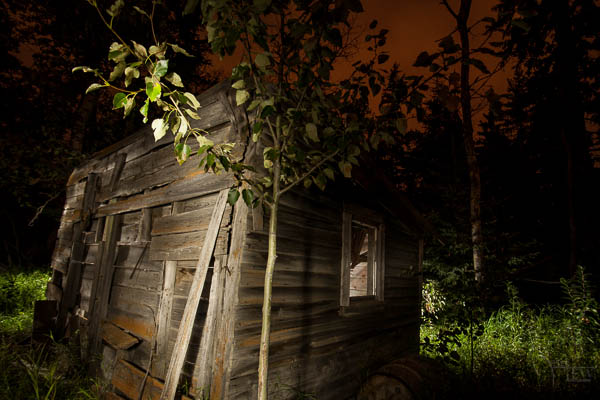
  • For a broader more even light keep the flashlight beam wide and stand back from the subject a bit (4-8 feet) and light it from the side to create a nice cross light and texture on the subject. (see the color image of the old wooden shack below for an example of this affect)
Light-painting-017

Light painted from a few feet away from the shack with a wider beam flashlight

REVIEW YOUR IMAGE AND DO IT ALL AGAIN

Back in the days of film, painting with light was much harder.  There was no way to determine if any of the exposures were correct or not.  To paint a whole scene you had to get it right in one frame or exposure.  Now with digital we have the benefit of testing and seeing what we’re doing and compensating on the next shot.   You can even paint a scene in stages, or sections, and build them all into one image later in Photoshop.  I’ll cover how to do that in Part Two.

The things you want to look for in your first image are:

  • How did you do with your flashlight painting? If it was too bright in one area and not bright enough in another, just be conscious of how much time you spend on one spot and adjust accordingly.
  • If it is overall too dark or light, you may need to adjust your exposure time or your aperture.
  • If the flashlight isn’t showing up well enough you might need a longer exposure time (just go from 30 seconds to 60 and try again) to allow you to paint slower and cover more areas better.
  • If you want the light more even, back up and use a wider beam.
  • If you want it more focused and like outlines, get closer.
  • Did you get any light bugs you didn’t want?  (turn off your headlamp!)
  • Did you get a ghost of yourself or a body part?
  • Generally look for any problems or areas you want to correct.  Take note and do it again, and again, and again – until you’re happy with it.
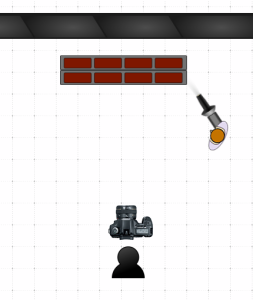
Set up showing how close I got to the firetruck

Set up showing how close I got to the firetruck

MAKING A MULTIPLE IMAGE COMPOSITE – SHOOTING FOR IT

Now that you’re ready to progress to a larger subject we’ll look at how to shoot multiple images of the same subject, so that you can merge them together in Photoshop later. The ONLY thing you’re going to do different than what you just did in the lessons above – is paint the subject in sections. That’s it!

For the firetruck image I actually shot about 30 different exposures. I didn’t end up using them all but I wanted to make sure I had my based covered and had options. That’s the beauty of putting them together later – you do NOT have to get it perfect in one shot! Let’s take a look at a few of my images from that shoot.

Lighting the back area where the hoses are.

Lighting the back area where the hoses are and the back tire

Lighting the side panel and running board.

Lighting the side panel and running board, notice how I’ve highlighted certain areas

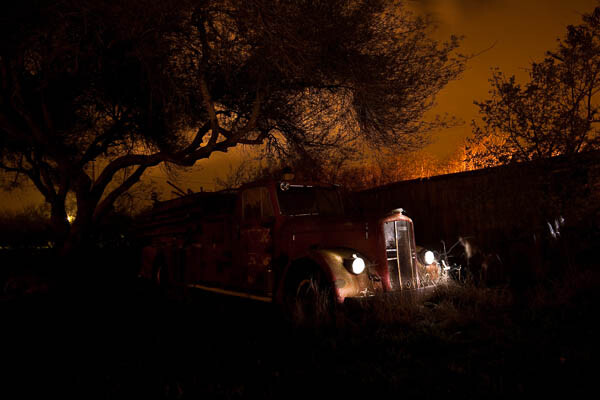
Lighting the front grill and headlights - to get headlights to look like they're on, put the flashlight right up to the glass and just rotate it around for a bit.

Lighting the front grill and headlights – to get headlights to look like they’re on, put the flashlight right up to the glass and just rotate it around for a bit.  Notice the light bugs on the right here? We’ll handle those in part two.

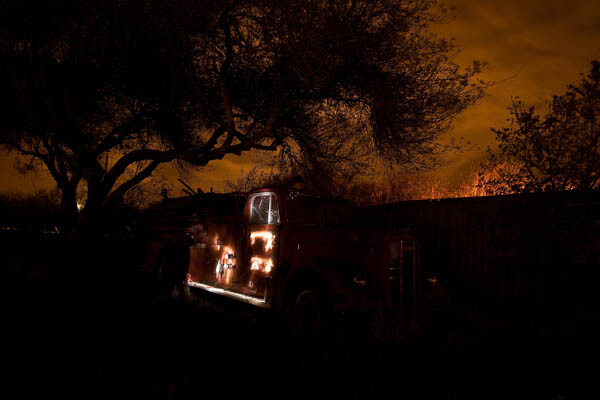
Lighting up the windows from the inside!

Lighting up the windows from the inside! A little of the tree branch too.

Lighting the fence behind the truck to give it separation

Lighting the fence behind the truck to give it separation

Turing on the cherry light that makes it a firetruck!  Don't forget the details like this!

Turing on the cherry light that makes it a firetruck! Don’t forget the details like this!

Lighting the "cherry" from behind to make it glow red

Lighting the “cherry” from behind to make it glow red

You get the idea right? Cover it well, then just to be sure, do it again. I think we were there (my husband was the button pusher, I ran the flashlight) about an hour an a half just doing this one shot. It was such a unique subject, and we had full permission to be there and be photographing it at night that I wanted to take full advantage of it. That it was a beautiful night and this stuff is just so much fun for me that once I get started, I lose all track of time.

Wrapping up

Well I was a bit long winded on this tutorial, I hope you are still with me. I wanted to make sure you had all the details you need to go out and try this yourself. I fully expect you to do so and be ready with some images for Part Two when we are going to take our multiple shots and combine them to get something that looks like this in the end.

Action plan steps

  1. get the right gear
  2. find a good subject, get permission if need be
  3. set up your camera using the starting settings
  4. take your base exposure test shot
  5. add your flashlight and light painting
  6. review and continue

COME BACK FOR PART TWO!

"1956 Le France Pumper" Corpus Christi, Texas

“1956 Le France Pumper” Corpus Christi, Texas

Post originally from: Digital Photography Tips.

Check out our more Photography Tips at Photography Tips for Beginners, Portrait Photography Tips and Wedding Photography Tips.

Light Painting Part One – the Photography


Digital Photography School

 
Comments Off on Light Painting Part One – the Photography

Posted in Photography


28 April, 2013 – Vision, Part 2

28 Apr

We have just published Vision – Part 2, of an ongoing new series by Alain Briot.

I just returned from a shoot with Sean Reid and Mark Dubovoy where I had an opportunity to shoot with the new Leica M 240 for the first time.

I will have a First Impressions report here in a few days, and then in a while we will publish an extended round-table video discussion by the three of us in which the main topic is not just the M240 but non-DSLR camera in general. Watch for it!


"Yes I downloaded the videos. THEY ARE AWESOME!!! I learned so much I think my brain is going to explode.


The Luminous Landscape – What’s New

 
Comments Off on 28 April, 2013 – Vision, Part 2

Posted in News


How to Choose Your Next EOS Camera: Part Two

21 Apr

01.jpg

This article is written by Andrew S. Gibson, the author of Understanding EOS, on sale now at Snap N Deals for a limited time.

Note: This article is about Canon’s semi-professional and professional EOS cameras. You can read about its entry level models in my previous article.

Semi-professional cameras

This group of EOS cameras is aimed at semi-professional photographers and serious hobbyists. Don’t let that put you off if your budget stretches to one of these models and you’re looking to buy your first EOS camera. There is nothing intrinsically more complicated about these models. In some ways they are even simpler to use as most of them don’t have the automatic exposure modes (portrait, landscape etc) that come on entry-level models.

The main differences between these cameras and entry level models are:

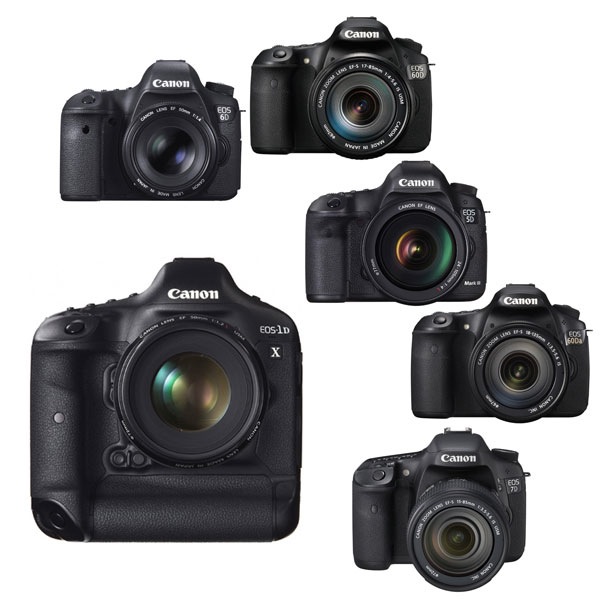
Size and weight. These cameras are bigger and heavier than entry-level models. Most of them have bodies constructed from magnesium alloy frames and are built to last.

Quick control dial. Entry-level models use a set of four cross keys to dial in exposure compensation and make other adjustments. Semi-professional (and professional) EOS cameras use the Quick Control dial instead. This makes it easy to dial in exposure compensation while looking through the viewfinder and simplifies the photo taking process.

Autofocus. Two of these models (the EOS 7D and 5D Mark III) have a much more advanced autofocus system than the entry level cameras and are suitable for shooting moving subjects such as sports and wildlife.

Full-frame. Both the EOS 6D and 5D Mark III have full-frame sensors. Cameras with full-frame sensors cost more but give better image quality and improved high ISO performance over cameras with APS-C sensors.

Names. These cameras have the same name no matter where they are sold.

02.jpg

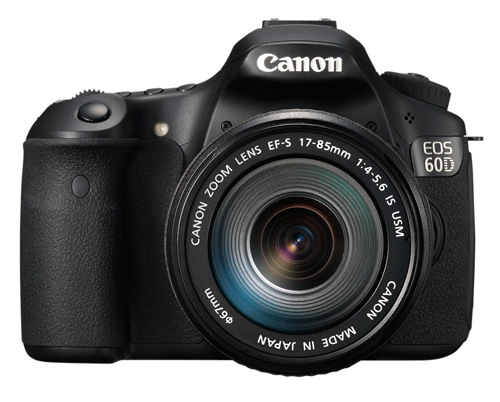
EOS 60D

September 2010

Key specs:

  • 18 megapixel APS-C sensor
  • 9 point AF with 9 cross-type sensors
  • 63 zone evaluative metering
  • Live View and movie mode
  • DIGIC 4 processor
  • Uses SD cards
  • Three inch vari-angle LCD display
  • Built-in flash with wireless flash control

The EOS 60D is bit of an oddity in that it has a smaller and lighter body than the previous models in the xxD range like the EOS 40D and 50D. In terms of size, weight and features the EOS 60D occupies the middle ground between the EOS 700D and 7D. However, the 700D, being much newer, has a few advanced features that the 60D doesn’t have such as a touchscreen menu system and hybrid AF for improved autofocus performance in Live View and movie mode.

The EOS 60D is a fine camera to learn photography with but the age of the model does suggest that Canon may replace it with an EOS 70D sometime this year. Whether the 70D will retain the body size of the 60D or return to the larger sizes of its predecessors remains to be seen. However, in the meantime the EOS 60D represents great value for money.

While lagging slightly behind the EOS 700D in terms of specification, it has a much more professional feel in the hand, and the Quick control dial is a great asset. If you’re trying to decide between the 700D and the 60D, it’s a good idea to try both out in a camera store. That’s the best way to appreciate the difference between the two.

03.jpg

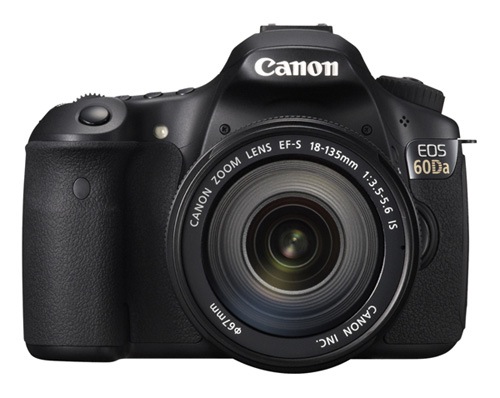
EOS 60Da

April 2012

Key specs:

  • 18 megapixel APS-C sensor
  • 9 point AF with 9 cross-type sensors
  • 63 zone evaluative metering
  • Live View and movie mode
  • DIGIC 4 processor
  • Uses SD cards
  • Three inch vari-angle LCD display
  • Built-in flash with wireless flash control

The EOS 60Da is a modified version of the EOS 60D designed specifically for astrophotography. It contains a powerful infra-red filter that increases hydrogen-alpha light sensitivity by 300%. This means that it can capture light wavelengths emitted by deep space gases normally blocked by the low-pass filters in regular digital SLRs. This camera is a specialised tool for photographing stars and nebulae in space, and not intended for ‘regular’ photography.

04.jpg

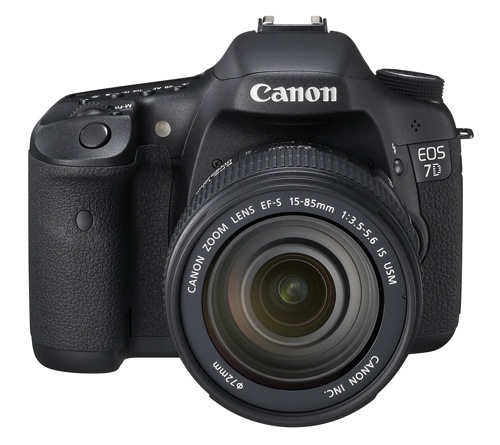
EOS 7D

October 2009

Key specs:

  • 18 megapixel APS-C sensor
  • 19 point AF with 19 cross-type sensors
  • 63 zone evaluative metering
  • Live View and movie mode
  • Dual DIGIC 4 processors
  • Uses CF cards
  • Three inch fixed LCD display
  • Built-in flash with wireless flash control

The oldest model in the current EOS lineup, the EOS 7D marked a turning point in EOS camera design when it was released in 2009. It was the first APS-C camera to feature an advanced autofocus system capable of accurately focusing on and tracking moving subjects. It has 19 cross-type autofocus points (entry level models have 9 point AF arrays) plus other innovative features such as the electronic level and built-in Speedlite transmotter that have since been included in other EOS cameras. Despite its ‘age’ it’s still a very capable camera and the least expensive EOS camera to feature advanced autofocus.

The big question is will Canon release a 7D Mark II in 2013 and if so how much will it cost and how good will the autofocus be? In the meantime, the EOS 7D is another camera that represents excellent value for money. It is ideal for photographers who photograph sports, wildlife or any other moving subject and need an AF system capable of keeping up.

05.jpg

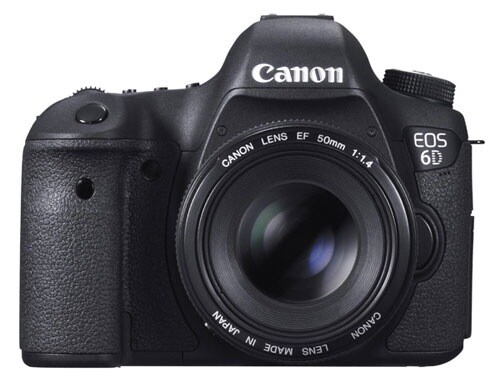
EOS 6D

November 2012

Key specs:

  • 20.2 megapixel full-frame sensor
  • 11 point AF with 1 cross-type sensor
  • 63 zone evaluative metering
  • Live View and movie mode
  • DIGIC 5+ processor
  • Uses SD cards
  • Three inch fixed LCD display
  • No built-in flash
  • Built in Wi-Fi and GPS connectivity

The EOS 6D is less expensive, smaller and lighter than Canon’s other two full-frame EOS cameras, the EOS 5D Mark III and 1D-X.

Unique features include an 11 point autofocus system that Canon claims is the best in low light of any EOS camera and built-in Wi-Fi and GPS transmitters (it is sold in some countries without the latter two features where forbidden to do so by laws regarding radio transmission).

The Wi-Fi lets you tether the camera wirelessly to a computer and will be appreciated by anybody who works in a studio or has bought a dedicated Wi-Fi transmitter separately (expensive!) and struggled to get it to work. The GPS transmitter, if enabled, records your location in the photo’s metadata and will be a useful feature for some.

The EOS 6D, like Canon’s other full-frame cameras, doesn’t have a built-in flash or Speedlite transmitter for controlling Speedlite flash units remotely.

06.jpg

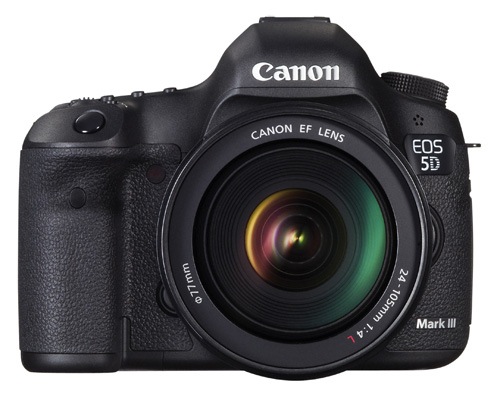
EOS 5D Mark III

March 2012

Key specs:

  • 22.3 megapixel full-frame sensor
  • 61 point AF with 41 cross-type sensors
  • 63 zone evaluative metering
  • Live View and movie mode
  • DIGIC 5+ processor
  • Uses CF and SD cards (dual card slots)
  • Three inch fixed LCD display
  • No built-in flash

This is the latest model in the venerable 5D range and is used by many professional photographers. While the most expensive of the models reviewed so far, it also has the best autofocus system (61 point array), high ISO performance, dual CF and SD card slots and a 22.3 megapixel sensor. If you can afford it you won’t be disappointed by any aspect of this camera. It is a tool that will serve you faithfully for many years to come.

Professional cameras

Canon’s top of the line EOS 1 series cameras are aimed at professional photographers. They are big, heavy and expensive, built to withstand just about anything the working pro can throw at them. There is just one current model:

07.jpg

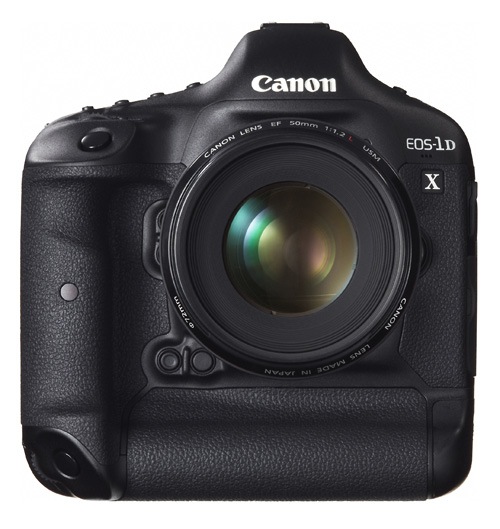
EOS 1D-X

April 2012

Key specs:

  • 18.1 megapixel full-frame sensor
  • 61 point AF with 41 cross-type sensors
  • 252 zone evaluative metering
  • Live View and movie mode
  • Dual DIGIC 5+ processor plus a DIGIC 4 processor dedicated to AF processing
  • Uses CF and SD cards (dual card slots)
  • Three inch fixed LCD display
  • No built-in flash

The best camera in the EOS range by far. I’ve used one and the look, feel and quality just blows the other cameras away completely. Which, considering the price, is exactly what you’d expect.

The EOS 1D-X has an 18.1 megapixel full-frame sensor, 61 point autofocus, 12 frames per second continuous shooting speed, two DIGIC 5+ processors, a weatherproofed body and a maximum ISO of 204,800. It has a built-in portrait grip and a large battery that outlasts every other Canon battery.

If you’re in the market for this camera bear in mind the extra size and weight may be a disadvantage. Take the EOS 5D Mark III into consideration when making your buying decision. The money saved on the body could be used towards some good quality glass.

Final thoughts

Recent advances in digital camera technology mean that there has never been a better time to buy a new camera body, regardless of which brand you use. The recent expansion of Canon’s line-up with the launch of the EOS 100D and 700D means that Canon users have a greater choice of camera bodies than ever before, which can only be a good thing for the consumer.

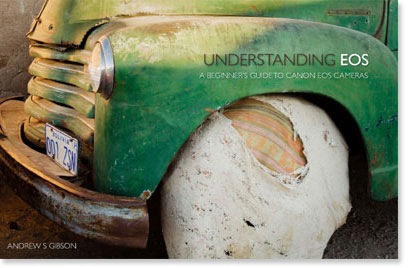
Understanding EOS

It’s wise to remember that whichever camera you have, it’s only a tool. Photographers create photos, cameras just take them. An understanding of the principles of light and composition are just as important as which model you own.

08.jpg

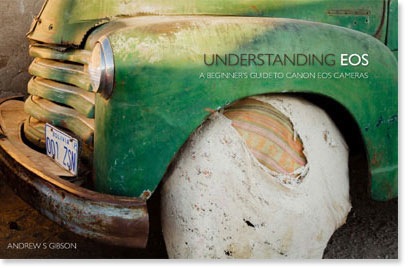
This is the principle behind my ebook Understanding EOS, which I wrote to help people learn to use their EOS cameras. It’s available now at Snap N Deals for a special price for a limited period. Whichever EOS camera you own, it’s the essential accessory to help you get the most out of your camera. Grab it today (at 30% off) at SnapNDeals.

Post originally from: Digital Photography Tips.

Check out our more Photography Tips at Photography Tips for Beginners, Portrait Photography Tips and Wedding Photography Tips.

How to Choose Your Next EOS Camera: Part Two


Digital Photography School

 
Comments Off on How to Choose Your Next EOS Camera: Part Two

Posted in Photography


So You Want to be a Stock Photographer, Part I

16 Apr
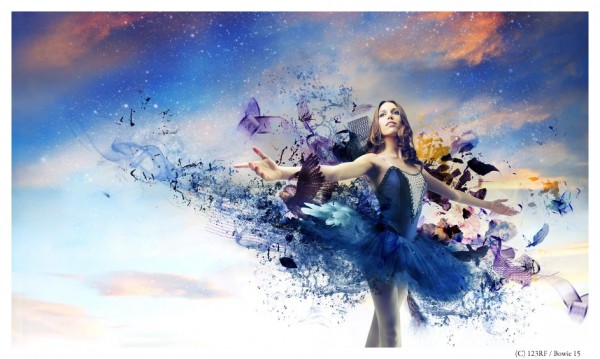
The photographer has spent a fair amount of time creating this image both in shooting the elements and model, and compositing in post production.  But as a stock image - what does it say?  How will the end user use the image for their messaging?  License cost was 3 credits or about $  2.58; photographer will receive about 52 cents.

The photographer has spent a fair amount of time creating this image both in shooting the elements and model, and compositing in post production. But as a stock image – what does it say? How will the end user use the image for their messaging? License cost was 3 credits or about $ 2.58; photographer will receive about 52 cents. How much is the photographers time worth?

A few weeks back there was an opinion piece posted on dPs that raised the ire of many, and garnered supporters from others.  The fact remains that while it was an interesting read from a single individual, there were several inaccuracies in that piece.

First,  iStock was not the first microstock agency to enter the marketplace; the most widely known perhaps, but it definitely was not the first.  That claim to fame can be laid on another Canadian upstart – Corel.  While I can’t recall the exact dates, in was around 1993-94 time frame when Corel started to purchase images outright for inclusion in CD bundles and incorporation in Corel Draw and Word Perfect. In those days it was pretty much called clip art.  Now it can be argued that Corel wasn’t a microstock agency. I would suggest they were as they purchased images from amateurs and professionals alike. The only difference between them and an iStock, for example, was that Corel purchased the rights and owned the image whereas the microstock agencies today simply work on a royalty basis with the contributor.

The other inaccuracy in the article was the implication that agencies only provide 20% royalty to the photographer.  In some cases this may be true; however, there are also agencies that provide 50% royalty to the contributor, and any percentage combination below that which you can think of.  Usually, the extreme low percentages are in microstock and traditional agencies marketing RF images.  However, in order to compete traditional rights managed agencies are also making package and bundle deals that can see rights managed license fees dramatically reduced to levels even below royalty free image fees.

But let’s not get hung up on the 20% royalty. Yes, the contract most likely states that the photographer will receive 20% royalty from “monies received.” Let’s put that in context.  Somewhere else in that contract you are most likely giving the agency the exclusive right to redistribute the image through their other supply networks.  What this means is that you will not get 20% of the purchase price, but 20% of your contracted agencies receipts.

Put in context it translates to this:  Photographer A makes an image available to his contracted agency – let’s call them Agency X.  Agency X then places that image in the redistribution circuit with Agency Y.  (Photographer A usually does not know who Agency Y is or what the financial arrangement between Agency X and Agency Y might be.)  Agency Y licenses the Royalty Free image to a client for $ 10.00 USD.  Agency Y then remits $ 5.00 to Agency X (assuming their split if 50%), and agency X then redistributes its 20% obligation amounting to $ 1.00USD to Photographer A.

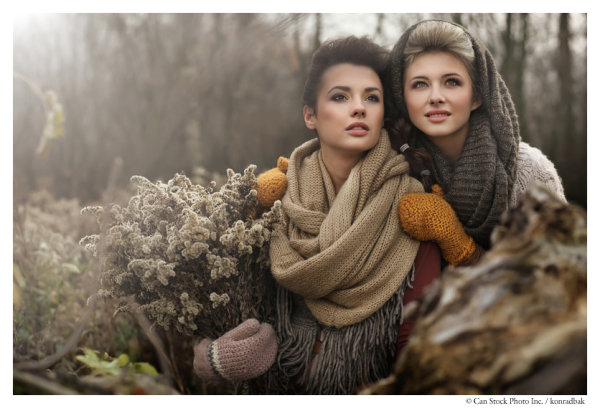
This is a really nicely executed stock image. Are the two ladies friends, or lovers? Is this image about fashion, seasons, or simply looking toward the future? The image provides options for the copy writer, and the more options provided typically the better sales. However, this image has only been licensed twice in more than one year. The license for appearance here cost one credit or about 60 cents; the photographer will receive, unfortunately,  about 12 cents.

This is a really nicely executed stock image. Are the two ladies friends, or lovers? Is this image about fashion, seasons, or simply looking toward the future? The image provides options for the copy writer, and the more options provided typically the better sales. However, this image has only been licensed twice in more than one year. The license for appearance here cost one credit or about 60 cents; the photographer will receive, unfortunately, about 12 cents… it is most definately worth more just in production value alone.

So as you can see, if you are signed with a small agency who more than likely is clamouring to get their material with the large image machines that have far reaching marketing clout, you are more than likely only going to receive 10%, or less, of the initial license price.

Let’s put this financial translation into further context.  I am going to assume you are a Canon user, and you need a new popular lens; let’s say the 70-200mm F4L which retails for about $ 700.  You offer that you can warrant purchasing the lens because of your stock sales and over time you will recover the purchase price.  But wait, when you receive the $ 1.00 from that sale, that is not a deposit in your bank account.  How much time did you take to edit and prep the image by sizing and ensuring the right colour space? How much time did you spend ensuring the correct metadata and keywords were applied. How much is your time worth?  Now that you have received your royalty I suspect you have the usual income tax deductions that can range anywhere from 15-40% depending upon where you live. And on it goes – the list of expenses is endless. However, a general rule of thumb is to endeavour that you would like to retain 30% of your gross income as profit … although many stock photographers today are suggesting they are in a negative profit position and are getting out of the business.

Therefore, and assuming we are going to keep good business practises and retain 30% of the gross sale, we would have 30 cents from each sale from which to purchase that lens. (I don’t want to get into the minutiae of whether or not your capital reserve is included in your business plan.)  Quick translation realizes that we would have to make 2,333 sales in order to purchase that lens!  I can tell you that in more than 20 years as a full time stock photographer I have not had one image be licensed for even half that many times.

So the point of this primer on the financial benefit of the microstock industry and part-time photographer is this: There probably isn’t any financial benefit and in all likelihood it will cost you money.

So yes, if you want to continue shooting for pizza and beer go for it; but at the same time you should calculate all your costs, including time, to see if you would be further ahead by spending that time and money with family.

In the next installment we’ll take a look at cost per image versus return per image.

Post originally from: Digital Photography Tips.

Check out our more Photography Tips at Photography Tips for Beginners, Portrait Photography Tips and Wedding Photography Tips.

So You Want to be a Stock Photographer, Part I


Digital Photography School

 
Comments Off on So You Want to be a Stock Photographer, Part I

Posted in Photography


How to Choose Your Next EOS Camera: Part One

14 Apr

01.jpg

This article is written by Andrew S. Gibson, the author of Understanding EOS, on sale now at Snap N Deals for a limited time.

In these articles I’m going to take a look at the current range of Canon EOS cameras, giving an overview of each model and the reasons that you may consider buying one.

You may be wondering why I’m writing about Canon EOS cameras – after all there are other brands such as Nikon, Sony, Pentax and Olympus to choose from. The answer is that I’m a Canon EOS user, and I write about EOS cameras for a living. If you want to know anything about other brands, I’m definitely the wrong person to ask.

Maybe other DPS authors will jump in and write similar guides about the brands they’re familiar with (hint, hint). I think it would make a fantastic series.

A note about prices: DPS has an international readership, so I haven’t included prices as they vary so much. The cameras are listed roughly in order of ascending price to give you an idea of where each model fits in the EOS range.

Entry level EOS cameras

Let’s start with ‘entry level’ EOS cameras. Canon calls these enthusiast cameras. They are designed for hobbyists rather than professional photographers. If you are buying a digital SLR for the very first time, or you’re on a tight budget, you will probably buy one of these models.

An idiosyncrasy of entry level EOS cameras is that Canon gives the same model different names depending on which territory they are sold in. Hence the same camera is a 700D in Europe, a Kiss X7i in Japan (where it is marketed to the female demographic) and a Digital Rebel T5i in North America.

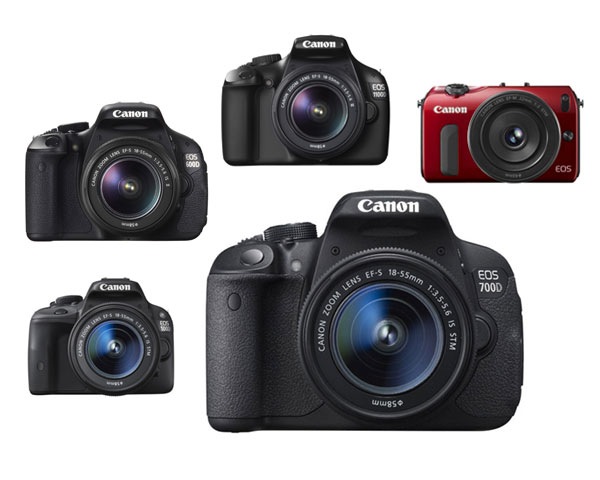
Canon currently has five enthusiast models:

02.jpg

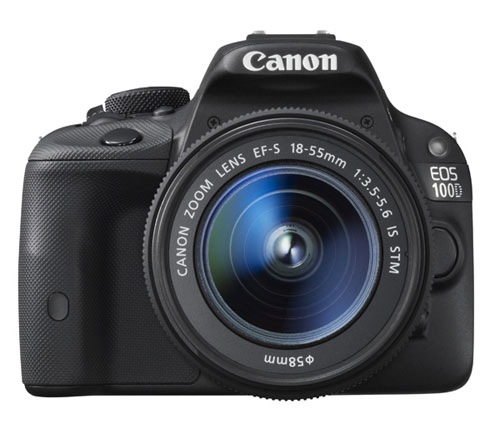
EOS 100D/Rebel SL1/Kiss X7

March 2013

Key specs:

  • 18 megapixel APS-C sensor
  • 9 point AF with 1 cross-type sensor
  • 63 zone evaluative metering
  • Live View and movie mode
  • DIGIC 5 processor
  • Uses SD cards
  • 3 inch fixed touch screen LCD display
  • Built-in flash with no wireless flash control

According to Canon the EOS 100D is the world’s smallest and lightest digital SLR. It’s aimed at photographers who are moving up from compact cameras or smart phones and don’t want to buy a larger camera.

It is ideal for photographers who want a light body to carry around all day, or who need to keep the weight down when travelling overseas. It may also appeal if you like the idea of being able to carry it around in your bag or handbag.

The small body of the EOS 100D will be more inconspicuous when you are travelling than other EOS cameras. This may suit some people, including street photographers.

The spec is similar to the EOS 700D, although it doesn’t have as many features. The main selling point of this model is the size. If size doesn’t matter, then consider a more advanced model – you’ll get more bang for your buck.

03.jpg

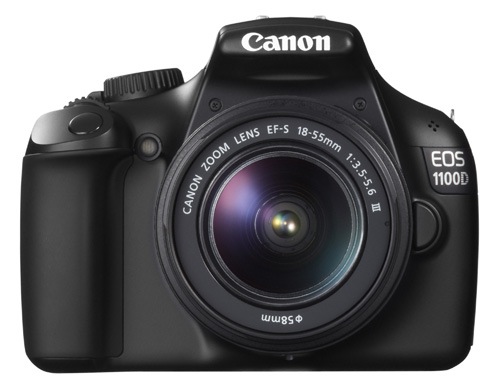
EOS 1100D/Rebel T3/Kiss X50

March 2011

Key specs:

  • 12.3 megapixel APS-C sensor
  • 9 point AF with 1 cross-type sensor
  • 63 zone evaluative metering
  • Live View and movie mode
  • DIGIC 4 processor
  • Uses SD cards
  • 2.7 inch fixed LCD display
  • Built-in flash with no wireless flash control

This is Canon’s least expensive SLR, ideal for anybody on a tight budget. However, it also has the lowest spec and lacks some of the features found on the other models in this list, such as the three inch vari-angle LCD screen and built-in master unit for controlling external Speedlites.

It also has the lowest megapixel count. To be honest, if you buy it you’re probably going to outgrow it fairly soon. It’s also possible that Canon may update this model soon as it’s two years old.

Don’t let that put you off though if you’re on a tight budget – this is a very capable camera for learning on and is by far the cheapest model in this list. Might also make a good gift for a relative or friend who has expressed an interest in photography. Budget allowing, you’ll be better off with a more advanced model.

04.jpg

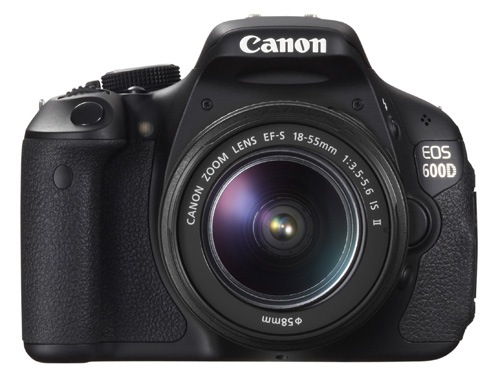
EOS 600D/Rebel T3i/Kiss X5

March 2011

Key specs:

  • 18 megapixel APS-C sensor
  • 9 point AF with 1 cross-type sensor
  • 63 zone evaluative metering
  • Live View and movie mode
  • DIGIC 4 processor
  • Uses SD cards
  • 3 inch vari-angle LCD display
  • Built-in flash with wireless flash control

The EOS 600D is a step up from the EOS 100D and 1100D models. It has a larger body and a high resolution vari-angle LCD screen that you can use with movie mode or for taking photos at awkward angles (ie with the camera at ground level).

Another benefit of the vari-angle screen is that you can turn it around so the screen faces the back of the camera, protecting the LCD surface during travel.

The built-in flash doubles as a wireless master for external Speedlite flash units, so if you want to use (or learn to use) external flash then this is a good camera to buy instead of the EOS 100D or 1100D.

You may be interested in this camera if you are upgrading from an 1100D, or an older model such as the EOS 400D camera. It’s not as advanced as the EOS 700D, but much less expensive.

05.jpg

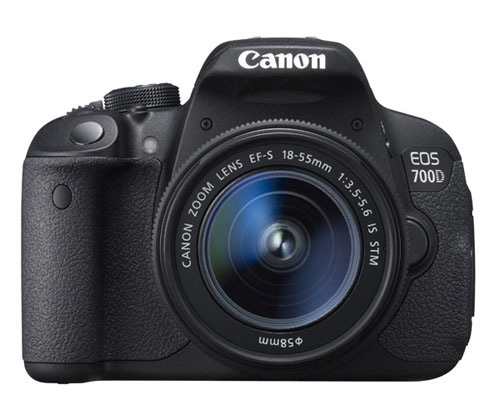
EOS 700D/Rebel T5i/Kiss X7i

March 2013

Key specs:

  • 18 megapixel APS-C sensor
  • 9 point AF with 9 cross-type sensors
  • 63 zone evaluative metering
  • Live View and movie mode
  • DIGIC 5 processor
  • Uses SD cards
  • 3 inch vari-angle touch screen LCD display
  • Built-in flash with wireless flash control

The EOS 700D was announced in March and replaces the EOS 650D (which you may still be able to buy until stock runs out). The EOS 600D remains available as a lower cost alternative to the 700D.

The key differences between this camera and the 600D is that the 700D has a more advanced processing chip, a greater ISO range and hybrid AF that gives better autofocus performance in Live View and movie mode.

You may be interested in this camera if you are upgrading from an 1100D, or an older model such as the EOS 400D camera. It’s an ideal model if you want an advanced EOS camera but don’t like the extra size and weight or need the more advanced features of models like the EOS 6D, 7D or 5D Mark III. It is also cheaper than those cameras.

06.jpg

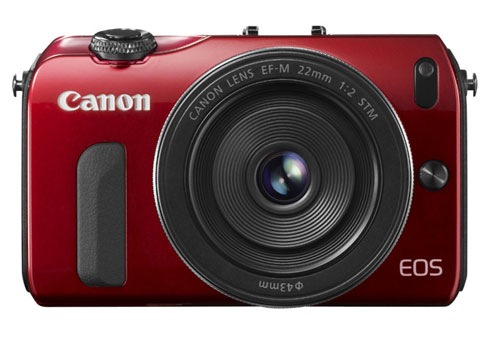
EOS M

July 2012

Key specs:

  • 18 megapixel APS-C sensor
  • 31 point hybrid AF
  • 63 zone evaluative metering
  • Live View and movie mode
  • DIGIC 5 processor
  • Uses SD cards
  • Three inch fixed LCD display
  • Comes supplied with 90EX Speedlite flash unit in most countries when purchased in kit form

The EOS M is Canon’s first compact system camera and marks the company’s entry into the mirrorless camera market. It’s essentially a scaled down EOS 650D without a pentaprism or viewfinder.

Another important difference is that the EOS M has its own lens mount (the EF-M mount). At the moment there is a choice of two EF-M lenses, plus an adapter that lets you mount the EF-S and EF lenses that other EOS cameras use.

The appeal of this camera is the small size and beauty of the design. Coupled with the EF-M 22mm pancake lens it makes a very portable setup that will create high quality images, something that could be ideal for travel or street photography.

However, reviews about the camera’s autofocus performance aren’t encouraging. The lack of a viewfinder means you have to take photos by composing them on the LCD screen, something regular digital SLR users could find hard to get used to.

If size isn’t important, then go for an SLR camera instead. The optical viewfinder and phase detection autofocus make them a much more versatile tool.

Conclusion

That concludes the round up of entry level EOS cameras. I will take a look at the current range of semi-professional and pro cameras in the next article.

Understanding EOS

It’s wise to remember that whichever camera you have, it’s only a tool. Photographers create photos, cameras just take them. An understanding of the principles of light and composition are just as important as which model you own.

07.jpg

This is the principle behind my ebook Understanding EOS, which I wrote to help people learn to use their EOS cameras. It’s available now at Snap N Deals for a special price for a limited period. Whichever EOS camera you own, it’s the essential accessory to help you get the most out of your camera.

Post originally from: Digital Photography Tips.

Check out our more Photography Tips at Photography Tips for Beginners, Portrait Photography Tips and Wedding Photography Tips.

How to Choose Your Next EOS Camera: Part One


Digital Photography School

 
Comments Off on How to Choose Your Next EOS Camera: Part One

Posted in Photography


Learning to See, Part X

08 Apr

The limitations in your photography are in yourself.  –Ernst Haas

 Diagonal lines, as we learned in our entry, are the subliminal connectors that keep the viewers eye within and moving around the picture. As you looked at the busy example by Rembrandt we saw how he cleverly positioned his supporting elements to facilitate the movement and study of each subject. Similarly, Karsh utilized exquisite posing and darkroom technique to force the viewer to study Churchill’s piercing eyes, and in so doing we can just imagine his character and wisdom. Both artists used the diagonal line to cleverly create geometric triangulation, and by consequence keep the viewer engaged as the artist intended.

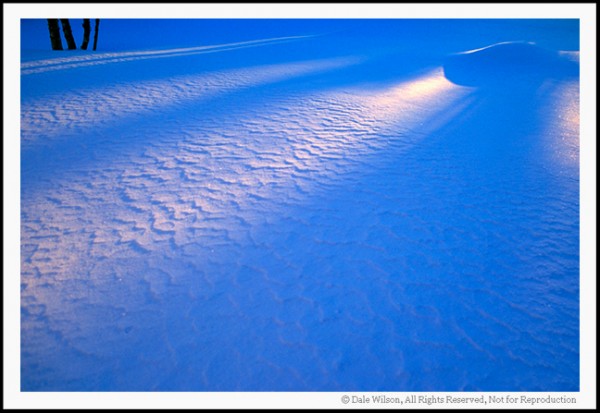
This image has been cropped to show how diagonals create the element of movement. Casual observation should provide for your eyes to be drawn to the upper right hand corner of the image due to the lighter colour of the diagonal drawing your eyes there.  Incidentally the image is from my front yard and there was a snowman at the convergence of the lines.

This image has been cropped to show how diagonals create the element of movement. Casual observation should provide for your eyes to be drawn to the upper right hand corner of the image due to the lighter colour of the diagonal drawing your eyes there. Incidentally the image is from my front yard and there was a snowman at the convergence of the lines.


Should you study classical rules of composition in photography you will inevitably come across tutelage advocating the use of C-curves and S-curves as leading lines — lines to lead the viewer into the picture.  Well, let’s simplify this prospect even further: C-curves and S-curves are little more than a diagonal line that has consumed too much wine! Regardless if the line is a straight or curved diagonal its sole purpose in making a picture to draw the eye to an intended point or place of interest.

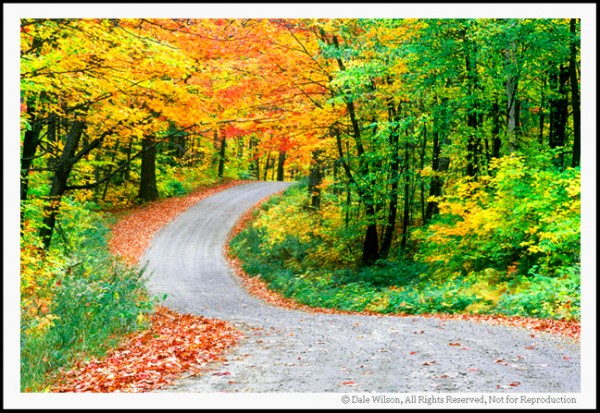
This image of a country road shows a good example of an S-curve. Just like the C-curve our eye will follow the path to its smallest point, leaving us curious what lies beyond. Diagonals, whether they have been drinking wine or not, provide the direction of travel in an image by moving the eyes around the scene.

This image of a country road shows a good example of an S-curve. Just like the C-curve our eye will follow the path to its smallest point, leaving us curious what lies beyond. Diagonals, whether they have been drinking wine or not, provide the direction of travel in an image by moving the eyes around the scene.


I would wager that as you learn to find supporting elements to enhance the impact of your image you will more than likely be able to locate some natural element that could be used as a diagonal traffic director.  Curves are child’s play to the composition; they are easy to find and natural supporting components – we need only look for them.  Finding the straight diagonal is the fun and a challenge in making pictures.

It has been my experience that diagonals most often work best with wide-angle lenses. The wide-angle lens will allow us to get closer to the diagonal element, such as a low angle camera on a roadway. Consequently the diagonal will oftentimes become the primary element in the picture so care must be taken not to allow the supporting diagonal overpower the intended subject.   With judicious care and placement of the supporting diagonal or curve, we will inevitably  be drawn to the subject that captured our attention and is the intended subject.

Go to your park, your backyard, or anywhere else the muses may take you. Find a comfortable location to settle in, and leave your camera gear untouched.  Why did you stop here? Of all the possible locations, why did you select this area to sit and ponder? There is a very real possibility that something caught your eye, and you are already composing the picture in your mind. What is it?

Now that you have located the unique tree, the colourful flower, the man-made structure that made you stop in the first place, start searching for the supporting element. What is nearby that you can use that will draw a line from the front of your picture right back to the attraction that will be your subject?

Don’t be afraid to move around looking for a fence, a line of rocks, or perhaps cirrus-whip clouds pointing downward, or anything else that will draw the viewers attention into the picture, and eventually to the subject. That diagonal component is here – be it a curved or straight line; you just have to find it.

Now the practise of photography begins, and with it the ensuing fun. And remember, if you are having fun, you are doing it right.

Post originally from: Digital Photography Tips.

Check out our more Photography Tips at Photography Tips for Beginners, Portrait Photography Tips and Wedding Photography Tips.

Learning to See, Part X


Digital Photography School

 
Comments Off on Learning to See, Part X

Posted in Photography


SEO For Photographers Part 3: 5 Great Link Building Strategies

06 Apr

Why are link building strategies important? This is a common question and the answer has everything to do with how much weight the search engines place on different aspects of our SEO activities. Although paying attention to your on-site search engine optimization is important, and it’s vital to select and use the right keywords for your photography business (see “SEO Continue Reading

The post SEO For Photographers Part 3: 5 Great Link Building Strategies appeared first on Photodoto.


Photodoto

 
Comments Off on SEO For Photographers Part 3: 5 Great Link Building Strategies

Posted in Photography


Learning to See, Part IX

19 Mar

You don’t take a photograph, you make it.  – Ansel Adams


In our last entry we learned that placing the subject at one of the four primary points of impact within the scene would greatly enhance the ease of viewing by way of good composition. We introduced the “Rule of Thirds” as a classic example of guidance by drawing an imaginary template from which to establish the point of impact.

With that lesson reinforced, is there any particular reason why we couldn’t also have a Rule of Fifths or Rule of Sevenths?  No; not at all.  With that having been said the point behind these “Rules” is simply to provide the beginner with the tools to make an informed effort to move the subject from the centre of the viewfinder. 

We must now be aware of the supporting components that will aid in subconsciously drawing us into the picture. Think lines, more specifically think of diagonal lines.

The diagonal line will offer a suggestion of movement. To see how we can use diagonal lines to improve our composition we should first review the work of the great masters. If one were to do a web search looking for “Rembrandt and The Night Watch” one of his most inventive works should appear.

One’s first impression of the work is to notice how there are three primary subjects in the work: the two gentlemen at the front centre and the girl in the background. If you reflect on your first reaction —and be honest—did you not immediately draw your eyes to the two lightest coloured persons in the work: the Lieutenant and the girl? That is because our eye will intuitively be drawn to the brightest part of a picture by default.

Most importantly, look at the almost over-indulgence of diagonal lines. Everything in the picture leads from tallest on the outside to shortest on the inside. Study the lance, the muskets, the drum and the pennant; they all draw our eyes to the centre of the picture. Similarly, look at how Rembrandt has chosen to portray the other people in the picture; by drawing an imaginary line across the tops of their heads you can envision a diagonal line starting on the outside and receding downward to the centre of the picture.


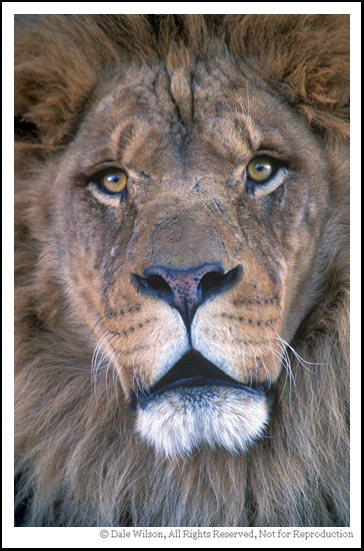
How many diagonal lines can you find in this image of Leo?

How many diagonal lines can you find in this image of Leo?

Now, let’s advance the clock some 300 years to the great portrait of Winston Churchill by master photographer Yousuf Karsh. This photo can also be located by a web search.

Notice how Karsh has very purposefully positioned Churchill’s hands on a hip and chair back. By default this raises the shoulders and creates triangles on both sides of the body; triangles are little more than three diagonal lines that join with the other. Because Churchill is wearing black, and with further darkroom burning, our eye is forced to follow the outside lines of Churchills forearm, biceps and shoulders until we are eventually drawn right into that remarkable face. 

From these two examples by master artists we can learn how to use diagonal lines in our photography to draw the viewer toward our ultimate subject. Once we start to move away from the subject those diagonal lines should draw us right back into the scene yet again. Successful art will hold you in the scene by not allowing your eyes to escape.


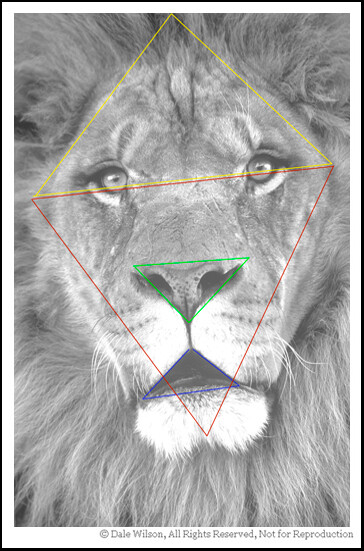
There are several more triangles that are less obvious. Can you find them?  The point is that you should be looking for composition elements in your photography until it becomes an intuitive process.

There are several more triangles that are less obvious. Can you find them? The point is that you should be looking for composition elements in your photography until it becomes an intuitive process.

By studying and understanding the master portrait artists we can learn their compositional technique and apply that equally as well to landscape and nature photography. Good composition is good composition; it really is that simple.

And remember, if you are having fun then you are doing it right.


Postscript: In keeping with the flavour of the artists (including other photographers) copyright I will ask the reader to reference the images that have been suggested as opposed to my posting without license.  Thank you in advance for understanding.


Post originally from: Digital Photography Tips.

Check out our more Photography Tips at Photography Tips for Beginners, Portrait Photography Tips and Wedding Photography Tips.

Learning to See, Part IX


Digital Photography School

 
Comments Off on Learning to See, Part IX

Posted in Photography