RSS
 

Posts Tagged ‘More’

26 November, 2014 – Luminous-Endowment Grant Winners Announced and More

26 Nov


For our US readers, Happy Thanksgiving.  We wish you a great Holiday and we hope you enjoy a lot of turkey and time with your family as well as some good ole US football.  

So much is happening at LuLa these days.  We’re busy working on a lot of projects and on  new interesting articles and reviews as well as videos.  Today though we want to share some special news.

As you hopefully are aware Michael Reichmann the founder of Luminous-Landscape started earlier this year the Luminous-Endowment.  This is a program to help fund photographers that are working on special photographic endeavors.  Today we announce the winners of the first round of grants. We are proud to announce that we have awarded $ 20,000 USD in grants this past week.

Luminous-Endowment Grant Winners

The amount of grant requests were incredible and we hope to see many more in our next round of grant requests.  This program would not be possible without donations from our readers as well as some very generous private and corporate donors.  Please take a look at our site and consider how you can be part of helping aspiring photographers make their dream projects come true.

A Special Opportunity For Giving And Receiving

We are also announcing a Special Opportunity For Giving and Receiving starting today and running to Christmas Day. To help raise money for the Endowment, to be used to finance future grants, The Luminous Endowment has created a special new and lower donation level of $ 200. The reward that you will receive for this tax-deductible donation is a copy of Michael Reichmann’s new book – A Twenty Year Retrospective. Normally this book requires a $ 350 donation to be received as a reward for your donation. This will be the price again after December, 25th.  Please consider donating and helping the Luminous-Endowment.


Michael’s beautiful book would make a great Holiday gift for the photographer in your life or maybe you want to hint to someone special that you would like this as a gift.  To learn more on how to Give and Receive – click here.


The Luminous Landscape – What’s New

 
Comments Off on 26 November, 2014 – Luminous-Endowment Grant Winners Announced and More

Posted in News


How to get more from your printer – besides good quality prints!

26 Nov
Canon Pixma MG6350 All-in-one-printer

Canon Pixma MG6350 All-in-one-printer

If you like to print hard copies of your photos at home, how do you decide which inkjet printer to buy? With such a myriad of printers on the market it can be daunting which one to choose. However, similar to buying a camera, one main consideration will be how much do you want to spend.

I bought a Canon PIXMA MG6350 a little over a year ago.

As luck would have it, my local computer shop had the white version in stock for nearly 50 Euros ($ 62USD) less than the black one. The white one was my first choice.

This is a high-end, multifunction, inkjet printer. It is an all-in-one color printer with two paper trays. This means that it can print, copy, and scan and it also has WiFi and Airprint. I believe the latter lets you print from a smartphone or tablet but I haven’t tried it yet.

The lower cassette can hold up to 125 sheets of A4 (US letter) size paper, while the upper tray is for photo paper (20 sheets) of 10 x 15cm (3.9 x 5.9 inches) or 13 x 18cm (5.1 x 7.1 inches). So it doesn’t hold a great deal of paper but I only ever load one sheet at a time.

Its physical size, measuring 466 x 369 x 148mm (18.34 x 14.5 x 5.8 inches)was a perfect fit for my shelving unit. My Manfrotto travel tripod measures 18 inches when folded and this is exactly the width of the printer. It’s not small but at least it doesn’t have a top paper feed which can be awkward if the space between the shelves isn’t adequate enough.

It’s solid but it is not light, it weighs approximately 8.4 kg (18.5 lbs). Also, this printer is noisy.

Canon printer with Manfrotto travel tripod

Manfrotto travel tripod on top of Canon Pixma MG6350 All-in-one-printer

Canon Pixma MG6350 All-in-one printer

Canon Pixma MG6350 printer-perfect fit on these shelves

Inks

The branded inks aren’t cheap. This is often the case with home, small office printers, whereby the consumables are not cost efficient. The Canon Pixma MG6350 uses a six-tank ink system. A full set of standard 15ml tanks will cost you around 62 Euros ($ 77.50 USD). The 22ml XL versions cost around 85 Euros ($ 106 USD), and are better value for money. The Canon Pixma MG6350 has a print resolution of up to 9600 x 2400 dpi.

Generic third party inks have improved in their quality. It will be a case of trial and error to see which ones are better than others. The upside is that they can work out much cheaper. Currently, the non-branded full set XL versions cost 52 Euros ($ 65 USD) for this printer, so it is worth taking at look at them.

DPI/PPI/MP

In printing, DPI (dots per inch) refers to the output resolution of a printer or imagesetter. The more dot’s the higher the quality of the image.

PPI (pixels per inch) refers to the input resolution of a photograph or image. Although these two terms are used in the same context, they are different but are analogous to each other.

The real digital “resolution” of your photos are its pixels, the total of those is expressed as megapixels. For example, if your camera shoots 2848 x 4288 natively. Multiply these two figures and this represents the megapixels of your camera. In this case, it is 12.2 MP.

Images viewed on the web have an output value of 96dpi (for PCs) and 72dpi (for Macs). However, this is where it can get confusing. An image displayed on your monitor with a resolution value of 72dpi, and the same image saved out as 300dpi will look exactly the same on screen (the resolution on your monitor is fixed). But if you were to print these images, this is where they would look very different. The image saved out as 300dpi will be a quarter the size of the image at 72dpi but the image will be better quality and won’t have that pixelated (jaggies) look.

So why bother saving images for the web at 96/72dpi? Because they load faster and it saves on bandwidth.

The standard output resolution(dpi) for printing when using inkjet printers is normally 240dpi (good), 300dpi (better) and 360dpi (better yet).

To change the the resolution of a file in Photoshop, you first choose Image from the File menu and then Image Size. Make sure to uncheck Resample Image. If you need to make the image smaller or larger than leave Resample Image checked.

However, if you want to change the resolution and the document size (print output size) at the same time here’s what you do. In this example, I want to change this file sized 9.49” x 14.29” at 300ppi to a 4” x 6” at 360ppi.

  1. Choose Image > Image Size (Alt+Ctrl+I). The Image Size dialog box appears.
  2. Deselect the Resample Image option, and change the Resolution to 360ppi. Notice that the Document Size changes to 7.9″ x 11.9″ because you’re moving the pixels closer together.
  3. Select Resample Image option and change the Document Size Width to 4 inches.
  4. Click OK. Now you have a file that is 4″ × 6″ at 360ppi.
Resampling and image resizing in Photoshop

Animated gif illustrating how to change resolution and size of image in Photoshop

Scanning

The Canon Pixma MG6350’s flatbed scanner has an optical resolution of up to 2400 x 4800 dpi, and is Twain compatible. This means that you can scan an image through Photoshop rather than using proprietary software. What I like about this flatbed scanner is that the flap can extend upwards allowing for books and larger items.

This was particularly useful a few months back, I was presented with this very old portrait image to make a copy. As you can see, the actual image is much larger than the surface area of the scanner.

Old large image on scanner bed

Old large image on scanner bed

Old portrait image-actual size-larger than scanner bed

Old portrait image-actual size-larger than scanner bed

Tip: Scan the image in as four separate files, working from top left to top right and then bottom left across to bottom right to ensure all the image has been scanned. Don’t worry if they overlap. Depending on the size of your photo, it is better to increase the DPI.

For this image, I increased the DPI to 400. Save out the images as PNGs. This format is lossless, whereas JPEGs are a lossy compression which means that some detail is lost. The size of the image worked out at 6056 x 6983 pixels. This is a high resolution image.

You then bring the four separate images into Photoshop. Go to File>Automate>Photomerge. A dialog box appears. By default, Auto is chosen which is fine. Make sure Blend Images Together checkbox is ticked too.

Photomerge dialog box in Photoshop CS6

Photomerge dialog box in Photoshop CS6

Photoshop usually does a fantastic job of blending images together. It also creates the layer masks. This will be a huge time saver. Then save out your file as a PSD and work on cleaning up the image.

Photomerge action completed showing scanned image with layer masks

Photomerge action completed showing scanned image with layer masks

Photo Papers

When it comes to photo papers, the better quality branded papers are excellent. They are consistent and produce much better quality prints over non branded cheaper versions. My choice is the Ilford Galerie range (especially the Prestige Smooth Pearl paper), Hahnemühle FineArt Pearl-finish, and the Canon Luster range.

However, I do use cheaper photo papers for my girls’ school projects. And if you are feeling in a creative mood, like I was, you can print up ID tags for your kids’ school bags using an old plastic gift/iTunes card, some double-sided tape, a colored cable tie and an O-ring.

Another gift idea is the iron-on transfer papers. These papers allow you to print your photo onto a t-shirt. In the past I have given these as last minute birthday presents. They have always gone down as a treat.

T-shirt+name-tag

T-shirt+name-tag

WiFi

That fact that this printer works from WiFi is a plus. This helps prevent your desk looking like a spaghetti junction of cables from other connected peripherals.

CD/DVD Labels

A feature that I hadn’t realized came with the printer was neatly tucked under the second paper tray. This is the direct-to-disc tray for printing CD, DVD and Blu-ray labels.

This is a much more favourable option over the self adhesive labels. These are known to peel and get stuck in the optical drive.

While Apple is doing away with optical CD and DVD drives from their range of desktops and laptops. This technology is becoming defunct, especially as flash drives are getting cheaper to buy. Nonetheless, it makes for a good presentation to give someone a CD with photos and a cool label on it. This could be a potential client or gift to someone you like.

Do you have any other printer tips you’d like to share?

The post How to get more from your printer – besides good quality prints! by Sarah Hipwell appeared first on Digital Photography School.
Digital Photography School

 
Comments Off on How to get more from your printer – besides good quality prints!

Posted in Photography


5 Beginner Tips for More Autofocus Success

19 Nov

When you’re just starting out, it can sometimes be frustrating trying to get sharp photos. The camera’s autofocus often seems like it has a mind of its own. Here are five quick tips that can help you get the autofocus under control.

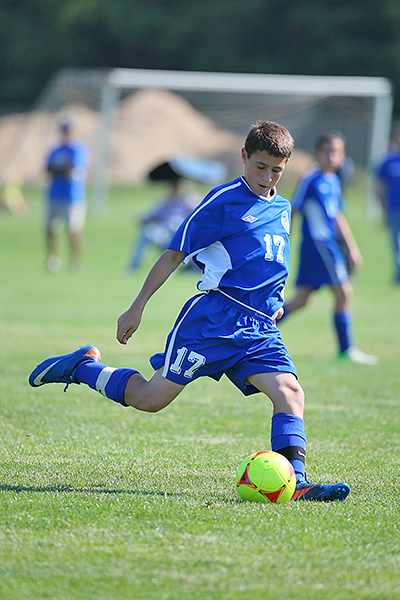
AI Servo AF or Continuous Focus will continue to track moving subjects.

AI Servo AF or Continuous Focus will continue to track moving subjects.

1. What is your subject doing?

If your subject is sitting still and not moving, be it a person, a still life, or a landscape, you’ll want to choose One-Shot autofocus (AF-S for single on Nikon). One shot AF allows the camera to focus, and then as long as the button is depressed, focus will stay locked. This is useful if you want to focus and recompose your shot, especially if an autofocus point doesn’t cover the area you want to be in sharp focus (see #2 below).

If your subject is moving, such as a child at play, an animal, or a car, change the autofocus mode to AI Servo AF, or Continuous AF (AF-C, depending on the brand of camera you have). This means the camera will continue to focus on the subject even as it moves toward or away from you. Just be sure to keep the AF point on your subject. The image at left was taken using AI Servo AF with the center point as the active focus point. If you use AI Servo (AF-C) with automatic point selection, you will most likely start tracking with the center focus point, and as your subject moves, the AF point will automatically shift to another area to maintain focus. Some cameras offer the option of letting you choose which point focusing starts with before shifting to other points. In manual autofocus point selection mode (not to be confused with manual focus), you choose one point and keep your subject covered with that one point.

2. Check your AF point selection mode

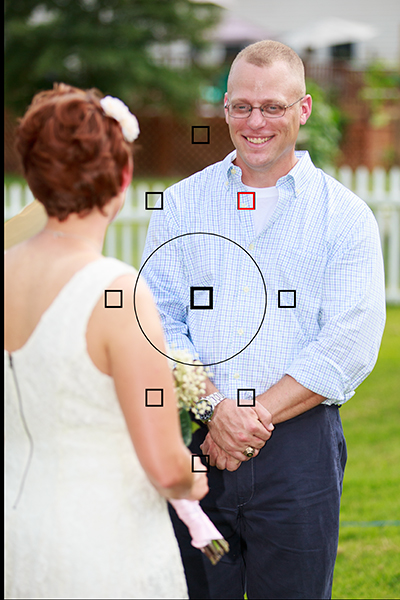
Using Manual AF Point Selection I was able to keep my brother in focus despite the fact that my sister in law was closer and covered by an AF point. Automatic AF point selection would have selected her instead.

Using Manual AF Point Selection I was able to keep my brother in focus despite the fact that my sister in law was closer and covered by an AF point. Automatic AF point selection would have selected her instead.

If you find your camera isn’t focusing where you want it, check your AF point selection mode. All DSLRs offer at least two modes. There may be other options as well, but most people use one of these two main modes. The first is automatic AF point selection. This means that all AF points are active, and in one shot mode, the camera will try to focus on the nearest object to it with detail. This means that if something between you and your subject is covered by an AF point, the camera will focus there, rather than where you want it to. This can be a problem if trying to photograph through a window or fence as well.

To combat that problem, you’ll want to choose a single AF point. This will most likely be called Manual AF Point selection, depending on the brand of camera you have. This mode allows you to choose which AF point you want to use, giving you the ability to choose the one that covers your subject, regardless of what’s between you and the subject.

3. There are two types of autofocus points

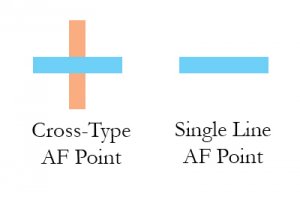
AF_PointsMost modern cameras have two types of AF points: Single-line, and Cross-type.  Single line AF points are able to focus on lines going either horizontally or vertically. Which one it reads will depend on how the AF point is oriented. Horizontally oriented AF points can focus on vertical lines, and vertically oriented AF points can focus on horizontal lines.
Cross-type points are simply vertically oriented AF points, overlaid with horizontally oriented ones. So a single cross-type AF point can read both vertical and horizontal lines, making it more likely that it will be able to focus on the right object. Why is this important? If you have selected an AF point and the camera is unable to focus on the subject, it could be that there isn’t any detail that the AF point can pick up. A cross-type AF point has a better chance of finding a line of detail to focus on. Try selecting one of the cross-type points in your camera. Most of today’s DSLR’s have at least one, if not more.  Check your camera’s manual to find out where the cross-type points are in your autofocus array.

4. Learn how to change AF points without taking your eye from the viewfinder

Once you’ve learned to set Manual AF Point Selection, and have started using a single AF point, you’ll want to practice selecting an AF point quickly without taking your eye away from the viewfinder. Some cameras offer a single control such as the joystick type controller on the EOS 5D Mark III, while other cameras such as the EOS Rebels require a combination of a button push and spin of the dial to change an AF point. The faster you are able to do this, the less likely it is you will miss a key moment.

5. Try to compose with the AF point you are using exactly where you want it

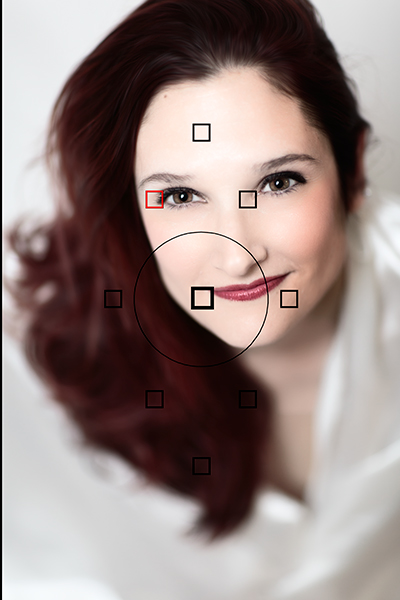
Putting the AF point right on her eye meant that despite having a very shallow depth of field, I was still able to focus on the eyes and keep them sharp, without having to recompose.

Putting the AF point right on her eye meant that despite having a very shallow depth of field, I was still able to focus on the eyes and keep them sharp, without having to recompose.

Many people who are just starting to do photography often stick to the center AF point for focusing, and then lock focus and recompose the shot to put the subject where they want in the frame.  For most shots, this will work just fine. However, there is a chance that when recomposing, you are actually shifting the plane of focus enough that your subject will no longer be sharp.  This is very likely when you are close to the subject with a shallow depth of field.  To avoid this, choose the AF point that is closest to, or covers your subject. For instance, when shooting a portrait, use the AF point that covers your subject’s eye.

Your thoughts

Keep these five tips in mind the next time you take out your camera.  What are your favorite autofocus tips?

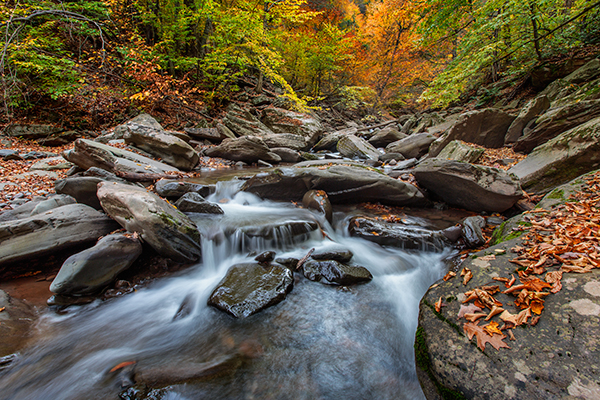
I have had people who let running water confuse them, unsure which AF mode to select. Yes, the water is moving, but the stream is not, it stays the same distance from the camera, so you would use One Shot AF for a shot like this.

I have had people who let running water confuse them, unsure which AF mode to select. Yes, the water is moving, but the stream is not, it stays the same distance from the camera, so you would use One Shot AF for a scene like this.

The post 5 Beginner Tips for More Autofocus Success by Rick Berk appeared first on Digital Photography School.


Digital Photography School

 
Comments Off on 5 Beginner Tips for More Autofocus Success

Posted in Photography


Lytro’s new Develop Kit opens platform to NASA and more

07 Nov

Lytro has opened its doors to outside companies with a Lytro Development Kit (LDK), giving the likes of NASA and the Department of Defense – two of its first customers – access to its light field technology hardware and software. This is part of its Lytro Platform, and it starts at $ 20,000 USD. Read more

Articles: Digital Photography Review (dpreview.com)

 
Comments Off on Lytro’s new Develop Kit opens platform to NASA and more

Posted in Uncategorized


5 Tips for More Successful Event Photography Using a Shot List

26 Oct

Company parties. Special galas. Nonprofit fundraisers. When someone asks you to shoot one of these events, you aren’t exactly leaping for joy, right?

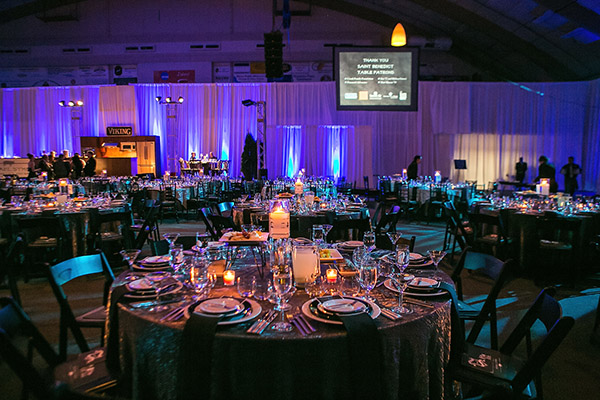
Event Photo 04

Corporate event photography can get a bad reputation among creatives, mostly because it sounds like an unglamorous style of photography. While it is true that many aspects of corporate event photos can be very rote, these events actually a huge advantage that can lead to even more creative expression. Here’s why: There is almost always a set structure and schedule to corporate events that rarely deviates, meaning it is incredibly easy to build a shot list to get your essential shots out of the way very quickly. That means you have more time on your hands at the event to get creative with the way you choose to take these shots. Whether you’re a budding event photographer, or taking on an event as a favor, use these tips to build an effective event photography shot list that will make your clients happy and maybe even lead to other photography opportunities with them down the road!

Fact: Most corporate clients will not know what kind of photos they need.

At least in my experience working with west coast corporate clients, most of them can’t give me a clear answer when I ask how many photos they need, what they need shots of, etc. While this may seem frustrating at first, bear in mind that this vagueness from your client gives you the perfect opportunity to shine by filling in the blanks for them, because in general, most corporate clients want the same types of event photos.

So what kinds of photos do corporate clients want?

To answer this question, put yourself in the shoes of the branding or marketing coordinator who put the event together. Often, their whole purpose to having you there to is capture images that show that they did their jobs right by properly setting up the space and making sure the people they invited showed up and had a good time. They want shots that capture:

1. Setup shots of empty rooms, trade show booths, promotional items, signage, etc.

Event Photo 02

Be sure to arrive early to capture any event setup shots. It was someone’s job to put everything together, so he or she will definitely want images that show off all of the hard work that went into it. Generally, setup shots should be taken before guests arrive so that everything is still intact.

2. Candid and posed shots of VIPs or executives that are deemed important by the company.

Event Photo 01

This can be extremely tricky because often times, you won’t have any idea who the company CEO or big wigs are, even if the event coordinator hands you a sheet with all of their names on it. The best way to handle this is to ask the coordinator ahead of time if there is someone from the company who can accompany you and point out their VIPs and executives on site. Don’t be afraid to ask for help so that you can get your job done right.

3. Closeups and wide angle shots of any speakers.

Event Photo 03

As much as possible, get shots of speakers that include branding and signage somewhere in the photo. Also bear in mind that you will not always have a designated spot to shoot from, so bring a telephoto lens and prepare to possibly shoot from farther away. If you’re shooting from up close, make your shots quick so that you don’t block the view of guests.

4. Guests looking engaged and interested at the event.

Barneys New York And The Parkinson's Project Host A Luncheon In Support Of The Parkinson's Project At The Kingfish Cafe

Try not to capture photos of people (especially VIPs and executives) making unflattering expressions or gestures. It can take some patience, but make sure you get images that indicate everyone was having a good time. If you captured any goofy expressions or moments, you might be able to submit them, but be sure to flag them as optional outtakes.

5. Shots that indicate the event was well attended, such as full room shots with lots of people.

Event Photo 07

While it might still be valuable to include full room shots where only half of the seats are filled, you’ll want to pull out your zoom lens and focus in on larger clumps of people to provide shots that indicate the event was well attended.

The photos that corporate clients DON’T want

While event photography can in many ways feel like photojournalism, this is not the time to take too many images that are overly honest. Bear in mind that many times the photos are intended to be used for marketing purposes, so the last thing your clients want to see are ugly, unfavorable photos. Even though events might be poorly attended and the attendees might not be the most interesting people, it’s your job to make the event look and seem as fun as possible, even if you have to act like a hype person or stage photos to do so.

While there are many lessons and creative inspiration that can be obtained by winging it and thinking quick on the spot, professionals know there is generally more value to preparing ahead of time. One way to effectively do this is to think out every aspect of the shoot beforehand and great a comprehensive shot list. This will help you picture the finished shoot even before you step foot on set, greatly reducing any last minute issues that might arise, and giving you more freedom to take your necessary shots with creativity.

Do you photograph events? Do you have any other tips you’d like to share? You could also read 5 Tips for Special Event Photography here on dPS for more tips on covering events.

The post 5 Tips for More Successful Event Photography Using a Shot List by Suzi Pratt appeared first on Digital Photography School.


Digital Photography School

 
Comments Off on 5 Tips for More Successful Event Photography Using a Shot List

Posted in Photography


Dodging and Burning to Create More Effective Black and White Images

16 Oct

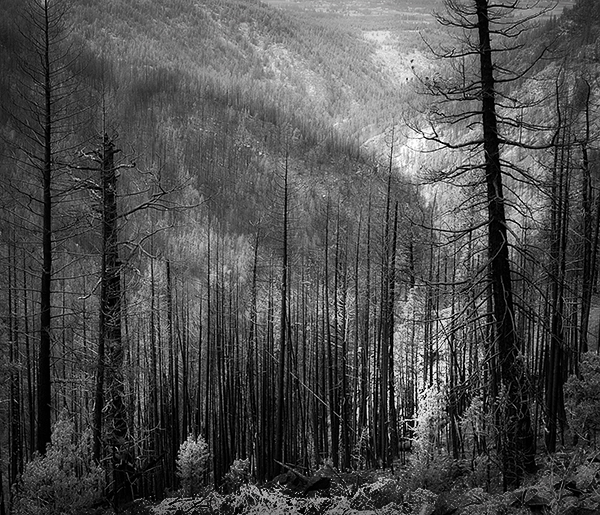
With the huge assortment of software and plugins you have at your disposal these days, the photo processing technique of burning and dodging is practically ancient. It was (and still is) one of the most common ways of enhancing film images in the darkroom, and everyone from Ansel Adams to Imogen Cunningham used it.

myra2

They used it because it is powerful and simple and still is to this day. With all the complicated plugins and post-processing procedures you have at your disposal, you won’t get any better bang for the buck than creative dodging and burning.

This tutorial with show you  how I do dodging and burning in Photoshop, for black and white images. I’ll save another article for you about using the technique for your color images. First, though, let’s make sure we all know what dodging and burning is.

WHAT IS DODGING AND BURNING?

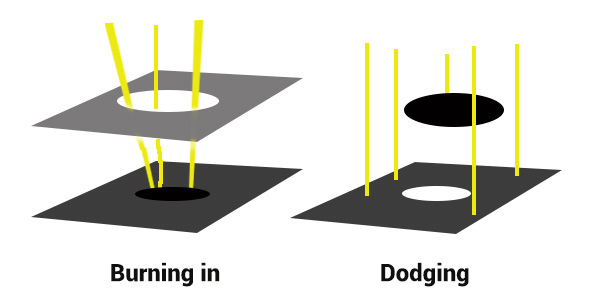
Originally, dodging and burning was used in the traditional darkroom, to retouch film to enhance highlights, and deepen shadows on photographic prints. Photographers used simple darkroom tools to either allow more light from the developer machine to reach certain parts of the light sensitive photographic paper. This was known as “burning in” which made these parts of the photo darker. The photographer could also dodge the light – hold it back from the paper – allowing that part of the photo to remain less developed or lighter than the non-dodged area.

Using this method, photographers or retouch artists could control with great accuracy the developing process to ensure that their prints displayed the full range of tonal values needed to make the photograph pop.

Darkroom Burning and Dodging digram

Darkroom burning and dodging: allowing more light to pass, or holding light back.

WHY YOU SHOULD DODGE AND BURN YOUR DIGITAL PHOTOS

So what has an ancient darkroom technique got to do with your photography? Plenty! Dodging and burning can add a whole new level of depth to your images. With Photoshop it’s simple.

Here are some compelling reasons to incorporate dodging and burning into your digital photography post-processing workflow:

  • To create more dimensionality, make things pop out at your viewers, and make others recede into the shadows.
  • To draw your viewer into your image. Our eyes are programmed to follow the light, and the lightest, brightest parts of your photo are where you want to direct viewers. Some creative dodging and burning will help get their eyes where you want them to go.
  • To isolate the subject.
  • To minimize distracting backgrounds.
  • To turn the lights on, in a photo – if you need some creative lighting after your shot, dodging and burning can help.
  • To make things more dramatic and moody – enhance the shadows to darken things down.
  • Add a vignette to keep the viewer’s eye in the image.
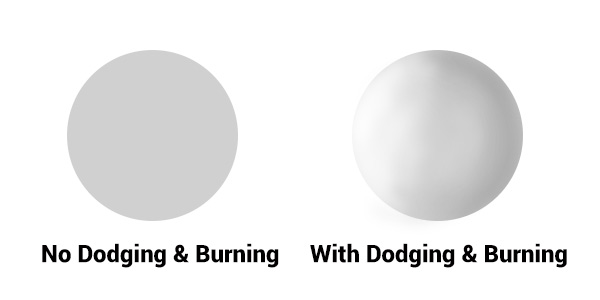
Dodging & Burning adds dimension.

Dodging and burning add dimension.

The three dimensionality of the circle on the right was created purely by dodging and burning a copy of the one on the left. As well, it is super easy with the technique you’re about to learn. As with most things in Photoshop there are many ways to accomplish the same goal, and each have their advantages and drawbacks. I prefer this way because it gives you a huge amount of control and flexibility. It’s drop dead simple, and non-destructive.

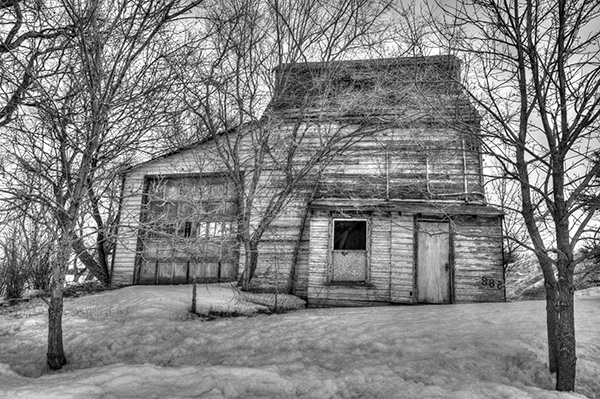
Let’s look at  before and after shots so you can see  the difference between nothing, and selective dodging and burning.

Before Dodging and Burning

Before dodging and burning, the image is flat and has no center of interest.

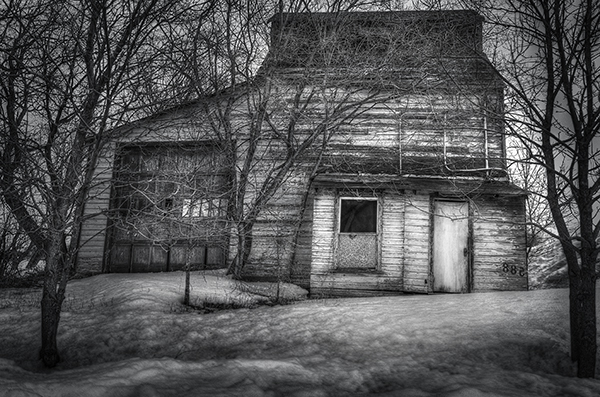
Final Image, with Burning and Dodging applied - exaggerated for effect.

Final image, with dodging and burning applied – we are drawn by light to the door.

The second image has more drama, more of a moody feel. The snow has texture and dimension, and the small door and window are the clear center of interest. Nothing was changed in this photo other than adding tonality by dodging and burning. The look has been exaggerated so you can see the changes, normally dodging and burning is more subtle than this example. Although you can get quite dramatic results if that’s the mood you’re going for.

USE THE BEST TOOLS FOR THE JOB

toolsYou may have noticed in Photoshop’s Toolbar, a couple of tools called Dodge and Burn. Forget about them. I don’t use  these for my dodging and burning. I like to have more control when I work on my images. So instead of the pre-made tools I create my own using layers and the brush tool. It becomes artistic like creating a painting, and you have more freedom to be flexible.
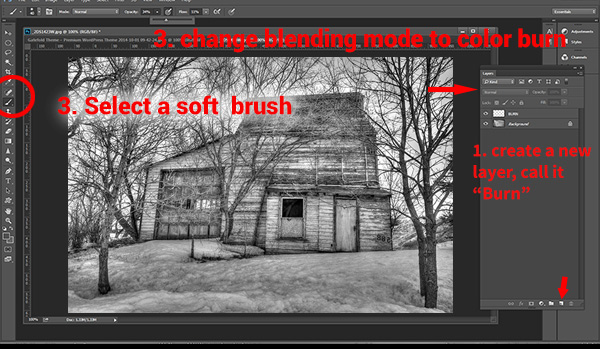
Using layers give you the flexibility to change opacity, and to group your different layers into folders. You can then selectively turn on layers to see how your work is progressing.

HOW TO DO DODGING AND BURNING

Dodging – adding more light:

  • Create a new layer. Switch the blending mode to Color Dodge, and rename this layer Dodge. You may end up having many dodge layers, so name it something more descriptive, door dodge or tree dodge.
  • Select a pale gray color from the toolbox palette, initially this color will be light, for example #bcbcbc, or 188,188,188 on the RGB scale. This color determines the main intensity of the dodge, or how bright it will be.
  • Select a soft brush at a size suitable for the area you want to bring out or emphasize.
  • Initially set the Opacity and Flow of the brush to about 20% each.
  • Brush on the new layer and instantly see the light colors start to POP. If there’s too much, you can either reduce the opacity of the layer, or reduce the opacity and flow of the brush itself.

step1

Once you have an intensity you like, brush dodge segments of the image – the door for example. If you move to another part of the image use a new layer for that area or element. You do this because you may want to adjust the intensity by changing the opacity of the layer, or the brush, or even change the color to a lighter or darker shade of gray.

Finally create a Layer Group – click the little folder icon in your layers palette. Move all your Dodge layers into one Group. Name the group Dodge. This allows you to instantly turn off all the “lights” to see before and after. Did you go overboard too much, should you do more, or is it just right? Being able to turn all the dodging off with one click will help you decide.

Where and what to dodge:

You want the lightest parts of your image to lead the viewer’s eye to your subject. Can you create a pathway of sorts with a dodged or brighter leading line, a bright path that the eye can easily follow? Alternately you can also make leading lines darker by burning. Leading lines don’t always have to be bright.

Dodge (and burn) places with texture, to add that three dimensionality, to make the texture really stand out. Try dodging the subject a bit, just a subtle brushing with a gentle opacity to add some brighter tones relative to the rest of the image. Does it pop out a little more now?

You’ve finished dodging for now, next let’s go over to the dark side!

Burning – creating darkness:

Next you’ll do the exact same process for burning. I suggest starting with the exact same color and opacity settings too. Simply create a new layer and set the blending mode of Color Burn, and name the layer Burn.

Once again, if you need more drama, you can change the color of the brush, or change the opacity and flow of the brush or the layer. You can add more layers if needed, duplicate a layer to instantly double the amount of darkness.

This method is quick and intuitive, and if I feel that you’ve gone too far, you can turn off a few layers to hide their visibility in the image. I suggest you make a Layer group for the Burn layers as well.

You can even create another Layer group called D&B (for dodge and burn) and put the the other groups inside. Just ctrl+click to select them and drag them over top of the D&B layer. Now you’ll be able to see the total before and after view with one click. Off and on – good or not? More work needed or done?

SEEING THE BIG PICTURE

Once you’ve brushed in the areas that you want and think you have all the burning and dodging done, you can burn a vignette around the edges of your image to keep the viewer’s eye from leaving. It’s like framing your photo with a bit of darkness, so the eye stays on the brightness.

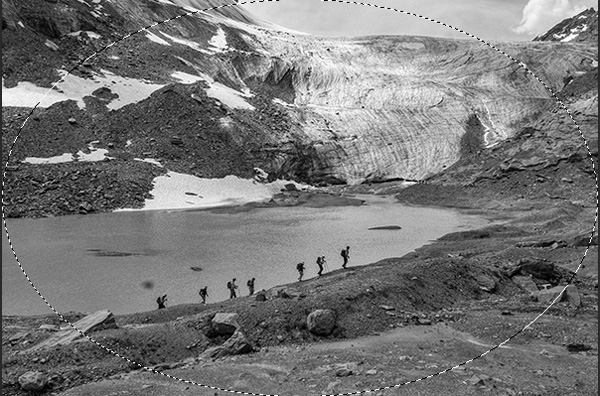
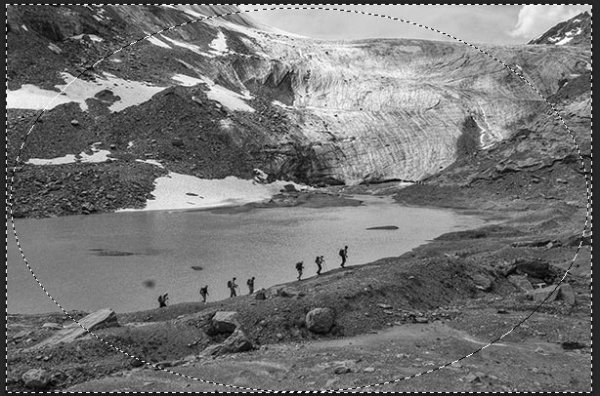
All  you need to do here is create (yes) another layer and use the elliptical marquee tool, with a feathering setting of at least 50 pixels. On the new layer drag out the circle so it touches the edge of your frame. To add darkening to just the edge of the image to create the vignette, go to the top menu in Photoshop and click on Select>Inverse. This will now let you fill the area OUTSIDE the selection.

In the Tools Box, select the same grey color you used for the initial burning of your image as your foreground color, then hit Alt>Backspace on your keyboard to fill that selection with color.  Set the layer blending mode to Color Burn. You may have to decrease the opacity of this layer a bit depending on the tones in your image.  This vignette should be pretty subtle, it’s not meant to be a frame, just a very slight darkening to keep your centre of interest a few tones brighter, to keep the viewers’ eye in your frame.

marquee

Initial selection

Selection inverted

Selection inverted

Vignette added

Vignette added

_2DS2932VV

FInal image

I’ve made a short screen capture video showing my technique for dodging and burning you can watch below if you prefer to follow along:

Once you give this method a try, you’ll see how easy it it and how you can achieve dramatic effects with a few quick steps. You have full control of the look and style of your image, and you can revert your steps at anytime to adjust if needed.

If you have alternate methods for dodging and burning let me know why you like them, and also what challenges they create for you. If you’d have any dodged and burned images you’d like to share, please do post them here. Inspire us!

The post Dodging and Burning to Create More Effective Black and White Images by Alex Morrison appeared first on Digital Photography School.


Digital Photography School

 
Comments Off on Dodging and Burning to Create More Effective Black and White Images

Posted in Photography


8 October, 2014 – The Think Tank Navigator and More

09 Oct

Many of us do a lot of traveling to capture the special images that we enjoy so much.  Getting to these special locations is a challenge these days. We face weight and size limitations of the airlines not to mention our own as we do everything we can do to reduce size and weight of our kits.  Over the years I have collected way too many bags trying to accomplish the ultimate carry solution for my gear.  Today I share one of the newest and best bags I have owned as well as some other tips on how I travel with my gear.  Check out The Think Tank Navigator article as well as a short video and hopefully you’ll find some good information that will help you in your travels. 

I thought I’d share a website I have just bookmarked that you may find handy too. Glossary Of Photographic Terms .


The Luminous Landscape – What’s New

 
Comments Off on 8 October, 2014 – The Think Tank Navigator and More

Posted in News


Western Digital’s My Book Thunderbolt Duo, An Awesome Way to More Securely Store Your Photos

06 Oct

Western Digital's My Book Thunderbolt Duo, An Awesome Way to More Securely Store Your Photos

For the past month or so I’ve been testing out one of the 8TB Western Digital My Book Thunderbolt Duos and I have to say I dig it. Before trying this out, my entire storage setup was built around Drobos. I’ve got 2 Drobo 5Ds with 15TB each in them and a Drobo Mini.

I was interested to see what the performance would be like with Western Digital’s large storage solution and I have to say I’m a fan.

What I like about it:

1. It’s quiet. So quiet. My Drobos are not bad, but the Western Digital My Book Thunderbolt Duo is even quieter. You don’t even know it’s on or there, except for the tiny little pinhole light that is on in the front, and of course you see it on your Mac. For some reason one of my Drobo 5Ds feels like it almost goes to sleep sometimes. When I try to access it in the finder I have to wait a few seconds and I hear it powering up a bit. This doesn’t happen with the My Book Thunderbolt Duo.

2. Thunderbolt is sooooo fast. Whoever invented Thunderbolt should get a Nobel prize for speed. I can’t believe how quickly I can copy hundreds of gigabytes of photos around.

3. The Duo is a bit cheaper than the Drobo for those who may be on more of a budget and need less storage. To get 4TB of replicated storage on a Drobo 5D I’d have to buy about 6TB worth of drives. This would cost me about $ 800. You can buy an 8TB My Book Thunderbolt Duo for about $ 650 or so. You can mirror the drives so that you get two copies of everything or about 4TB of replicated storage. Because the Western Digital My Book Thunderbolt Duo doesn’t rely on a proprietary format for replication, if one drive fails, you would always have a perfect backup copy on the other. I haven’t had a problem with Drobo’s proprietary format before, but it’s something that some folks have criticized in the past.

4. Primary data is automatically backed up. I can’t use a backup strategy that requires my manual contribution. With both the Drobos and the My Book Thunderbolt Duo your primary versions of photos are more secure.

5. The Western Digital My Book Thunderbolt Duo is smaller than the Drobo 5D and much lighter.

Setting up the My Book Thunderbolt Duo was easy. It’s just plug and play. Similar to my Drobos.

I know a lot of people will probably comment on this post about how they are doing things even cheaper by building their own solution with their own replicated in home RAID servers, etc. That’s just great, but I’m not a very technical guy when it comes to computer hardware and I’d wayyyyy rather pay a little bit more and have a Thunderbolt solution that is just plug and play, without me having to do any work, or do any coding, or manually buying and installing drives into a server body and all that. Different strokes for different folks though and each person should do whatever works best for them.

There is also a 4TB and 6TB version of the My Book Thunderbolt Duo. You can learn more about them including all of the technical specs on Western Digital’s site here.

Mmmmm... 8TB of @westerndigital storage.  Looking forward to trying this puppy out!

A HUGE disclaimer on any device like the Drobo or My Book Thunderbolt Duo. These solutions may protect you against hard drive failure, but they will not protect you against fire, theft, etc. For that reason you may also want to incorporate both offsite and/or cloud storage to whatever your backup strategy may be. I see replicated hard drives really only as a first line of defense. In my own case I also purchased a large fireproof gun safe and when I’m out of the house or on a trip or something I usually lock my drives up in there. I also have off site backup storage for my images and I’m actually working on a plan this year to begin moving my offsite storage into a bank security deposit vault.

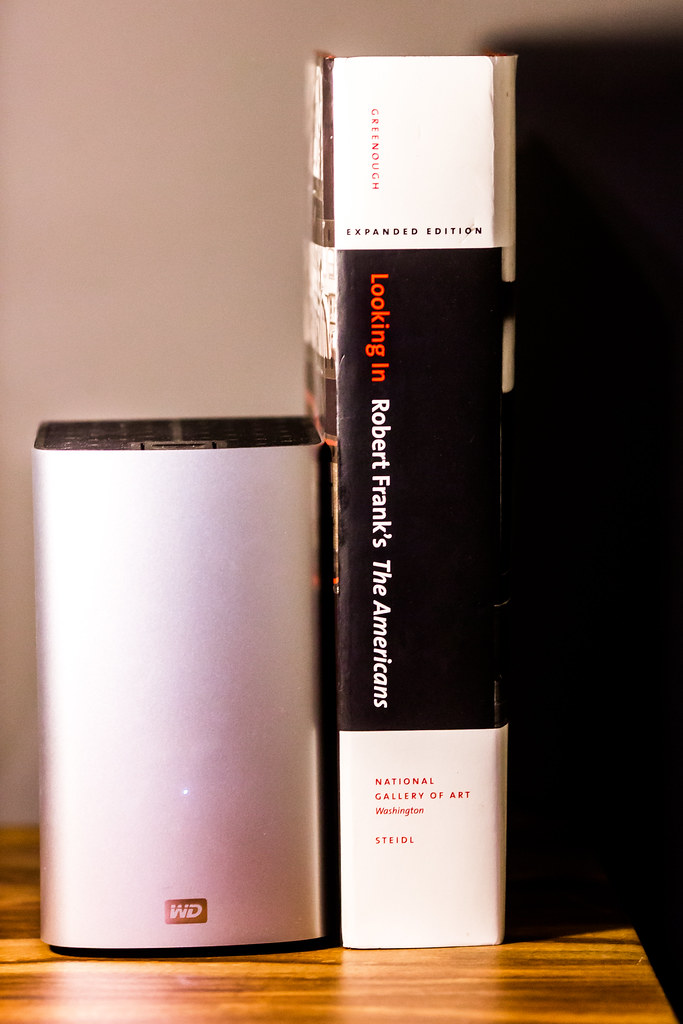
The book next to the My Book Thunderbolt Duo by the way to compare size is the excellent expanded edition version of Robert Frank’s The Americans which was reissued a few years back and is *highly* recommended. One of the best photography books ever published. It’s one I go back to and revisit over and over again.
Thomas Hawk Digital Connection

 
Comments Off on Western Digital’s My Book Thunderbolt Duo, An Awesome Way to More Securely Store Your Photos

Posted in Photography


Transforming Transit: 13 Compact Scooters, Skates & More

02 Oct

[ By Steph in Technology & Vehicles & Mods. ]

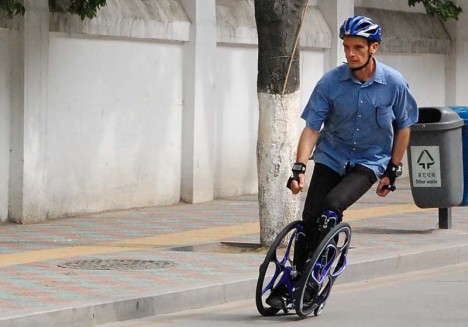
Urban Commuting Chariot Skates 2

Zoom past backed-up traffic and crowded sidewalks on an electric unicycle, motorized skates or a fold-up scooter/backpack combo. Urban personal transit is going electric and ultra-compact so you can reach your destination faster and then pack up your wheels and slide them under your desk or into your locker.

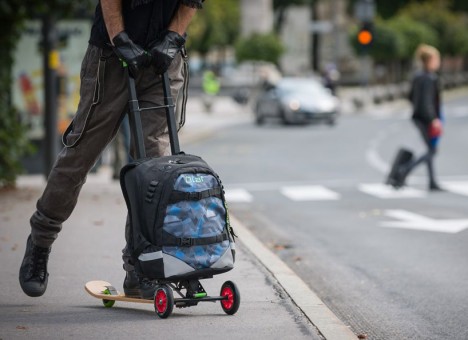
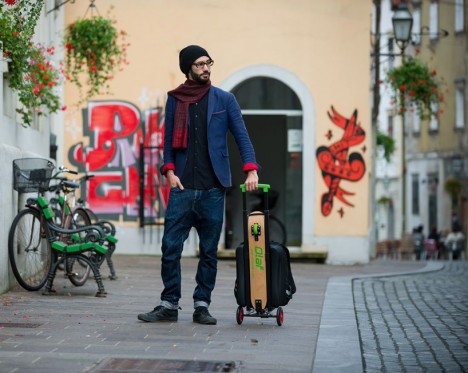
Olaf Scooter Backpack

Urban Commuting Olaf 1

Urban Commuter Olaf 2

The Olaf is a carry-on suitcase, trolley, kick-scooter and skateboard in one, with an instant ‘pedal transformation system’ enabling the switch from one function to the next. It has everything a business traveler needs in a compact, airline-approved suitcase, but it’s also suited for urban commuting, with a soft wooden longboard that flips up and down with a kick of the foot. The creators are currently raising funds on Kickstarter to bring it into production.

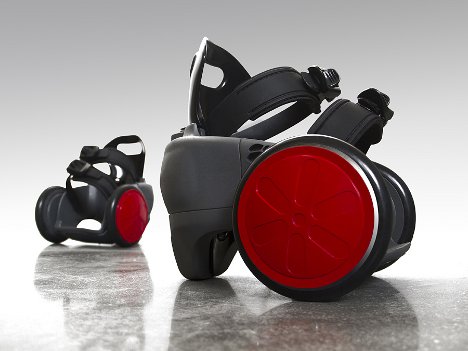
Motorized Skates

Urban Commuting Motorized Skates 2.j[g

Urban Commuting Motorized Skates 1

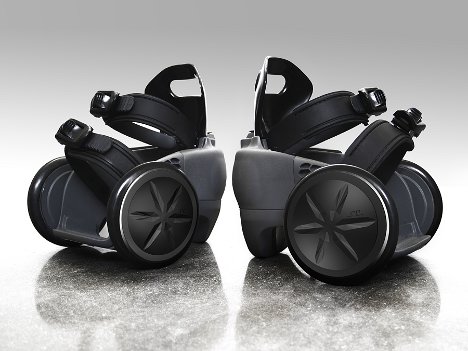
If you find roller blades too dorky or slow to be a real option for travel around the city, maybe you just need a little boost. SpnKiX are motorized skates that strap on over your shoes, operated by a hand-held remote control so you can control your acceleration at the press of a button.

Snap Folding Skateboard

snap skateboard 2 snap skateboard

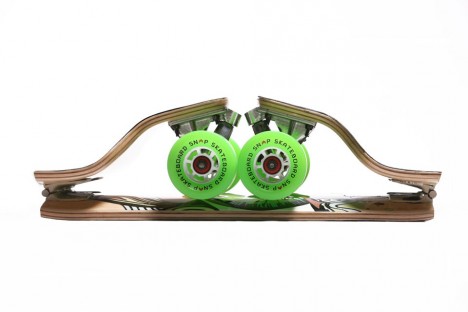
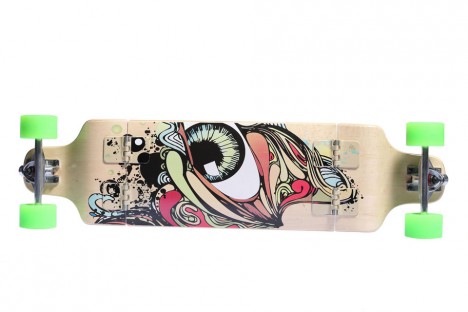
Skateboards may be portable, but they can be annoying to carry around all day. Enter the ‘SNAP,’ a foldable skateboard designed with students and commuters in mind. The full-sized longboard fits inside any locker with hinges that fold the deck in thirds. According to the designers, dividing the deck in three makes each individual section much stronger and more durable than a full-length wood deck.

Urban Glider

Urban Commuting Glider 1

Urban Commuting Glider 2

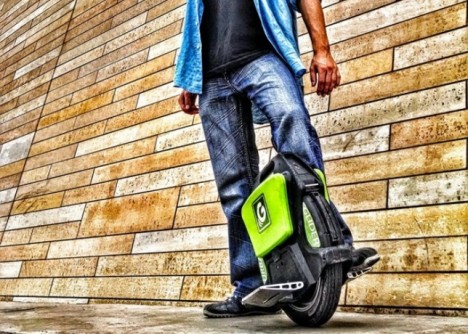
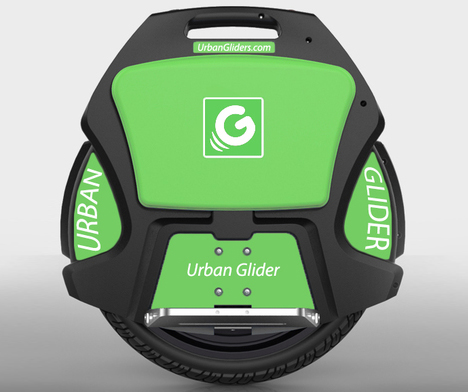
This lightweight single-wheeled cycle will get you around town quickly, but is as easy to transport as a suitcase. The Urban Glider uses a gyroscopically-stabilized electric mono-wheel to keep you upright as you stand on the pedals, and you control it by leaning back, forward or to either side. While it only goes about 13 miles per hour at most, it’s faster than walking, and the battery lasts up to 6 hours per charge, taking just 30 minutes to juice back up.

Next Page – Click Below to Read More:
Transforming Transit 13 Compact Scooters Skates More

Share on Facebook


[ By Steph in Technology & Vehicles & Mods. ]

[ WebUrbanist | Archives | Galleries | Privacy | TOS ]


WebUrbanist

 
Comments Off on Transforming Transit: 13 Compact Scooters, Skates & More

Posted in Creativity


More manual control on iOS with Manual Cam

30 Sep

With the release of Apple’s latest mobile OS version, developers have been scrambling to take advantage of newly unlocked camera controls. In the wake of this development new apps have emerged, including Manual Cam, one of the best implementations of manual control on the iPhone we’ve seen so far. Read more

Articles: Digital Photography Review (dpreview.com)

 
Comments Off on More manual control on iOS with Manual Cam

Posted in Uncategorized