RSS
 

Posts Tagged ‘mode’

Bursting the Burst Mode Myth: [What I Learned from Shooting with Film]

29 Jul

Over the next week we’ll be featuring a mini-series of posts from Rachel Devine (author of our kids photography eBook) in which she’ll be talking about five reasons learning photography on film cameras made her the digital photographer that she is today.

Here’s today’s on Busting the Burst Mode Myth.

no burst mode here

There are a few things I hear as top advice for budding children’s photographers and parents who want to take better photos of their children. I think that setting the camera to burst mode and holding the shutter down while taking photos is the one I hear most often and makes me cringe hardest. Called the “spray and pray” method, lots of digital photographers rely on taking hundreds of images (I have actually heard of thousands of frames shot for one portrait session) at a sitting to get a handful of good shots.

When keen new photographers ask for advice on how to get better photos of kids (their own or for a client) and are told, “It is digital, it will not cost you anything, just put the camera in burst mode and take as many as you can and you are bound to get a good one in there” they are being fed bad advice…or rather non-advice.

I started my photography career on film 16 years ago and when I did, those who swear by the spray and pray method may be shocked to learn that there were lots of other kid and family photographers who had to get the entire session worth of images for their clients on just a few rolls of film. And they did…every time.

Here is why shooting in burst mode not best for everyone and what I think is better advice for those really wanting to get better at taking photos of kids.

Burst Mode does actually cost something

Time:: It takes time on your end to weed through those hundreds of resulting shots. Culling images is a time sucking and soul zapping process where you will be tied to your computer for hours sorting, comparing and slitting hairs. It may be fun the first few times you go through your images, but it will wear on you over time and if you get into the habit of having to shoot this way, you will also have to allow time for sorting and editing all of those images.

Not learning to see:: If you do have to resort to shooting in burst mode, then things really are on auto. Burst mode does not allow for the photographer to make changes to the image and exposure settings while they are taking the shots. With single images taken thoughtfully, the photographer can fine tune the exposure settings and compose carefully. Learn to recognize what makes a great image and then set out to purposefully shoot that.

no burst mode here

Missing Details:: When the camera is set to burst mode, the focus is on quantity and quality tends to take a back seat. People tend to forget to scan the shot for details and end up with an entire series of cute expressions on a child who seemingly has a tree growing out of the top of their head. That photographer can now tack extra time onto their post processing routine to edit that sucker out. I have seen tags left on clothes, dirty faces, cars parked prominently in the background. Things get missed easily in the rapid fire fury.

Connection with the subject:: Finally, I have heard an argument in favor of burst mode that it helps avoid missing any special moments. Really, the wham-bam-thank you ma’am approach to photography may seem like a good idea for kids because they are fast and have short attention spans, but getting them involved in the whole experience is so much more enriching for both photographer and subject. These are not wild animals on safari, but tiny human beings who can and should bring personality to the table when they are active participants in your sessions, not just being shot at. This is especially true for people who enjoy documenting their own children over and over again. Slow down, take a moment to breathe, observe and photograph and then breathe again…it is then when you will not only be photographing the special moments, but also participating in them.

If that all does not speak to you, let’s talk cash…

Shutter actuations:: Your camera does have a shelf life and it really is not determined by when the latest and greatest new model is released, but more by how many times the shutter has actually clicked. While the total end number can vary by camera model and may seem really quite high, it will be reached faster if you are taking hundreds of images each time you go to use your camera.

Where burst mode does come in handy

no burst mode here

Shooting big group portraits :: Great for getting extra shots of the same scene (especially when mounted on a tripod) where you may need to do a head swap because someone closed their eyes.

Sports :: That is pretty much why it is called Sports Mode

Portraits with a point and shoot camera :: The shutter lag present in point and shoot cameras (the time it takes the camera to actually capture the shot from when you press the shutter button is called shutter lag and is very apparent in point and shoot cameras) can cause you to miss the moment even when you are shooting carefully and are ready for it. Setting the little compact cameras to sports mode can help overcome this technical hurdle.

Back in the days of film, we were limited by budget as we had to pay cash money for the film and processing. That made it necessary to shoot mindfully. We ended up with more images that we loved and fewer wasted frames. Today with digital, the costs are hidden, but there are still costs. Take the time to set up the sessions, meter the light, compose and be present while you are photographing your little subjects. Practice shooting digital with the discipline of film. You just may find that you enjoy the act of photographing kids even more than you thought possible.

For more on the topic of Kids Photogrpahy – Check out Rachel’s eBook Click! How to Take Gorgeous Photos of Your Kids.

kids photography tips

Post originally from: Digital Photography Tips.

Check out our more Photography Tips at Photography Tips for Beginners, Portrait Photography Tips and Wedding Photography Tips.

Bursting the Burst Mode Myth: [What I Learned from Shooting with Film]


Digital Photography School

 
Comments Off on Bursting the Burst Mode Myth: [What I Learned from Shooting with Film]
Posted in Photography


Fujifilm posts revised X-Pro1 firmware 3.01 with movie mode fix

26 Jul

xp1news.png

Fujifilm has posted firmware version 3.01 for the X-Pro1, which resolves a bug in the recently-released v3.00 that caused movies to be recorded incorrectly under some circumstances. It’s otherwise the same, meaning that it promises faster AF speed, and adds a ‘peaking’ display mode to aid manual focus, compared to prevous versions. Click through for the download link.     

News: Digital Photography Review (dpreview.com)

 
Comments Off on Fujifilm posts revised X-Pro1 firmware 3.01 with movie mode fix

Posted in Uncategorized


How To Improve an Image with 2 Steps in Photoshop Using Screen Mode

03 Jul

A Guest Post by Sergey Sus/

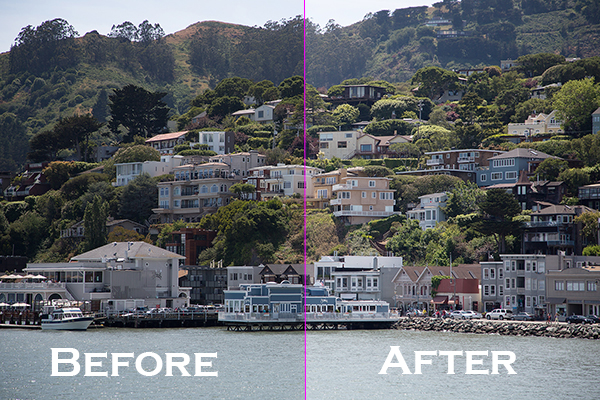
Before after

Wanted to share a very simple way for improving a photo without having to change the exposure. I use this method quite often and sometimes even after adjusting exposure.

The image is of a small hillside town in North California called Sausalito taken while on vacation.

Here the SOOC (straight out of the camera) image before any adjustments are applied or any cropping. It is just a bit under exposed and very flat looking.

Img sooc

Certainly there are many ways to brighten a photo in Photoshop like using Curves, Levels or Shadow layers. For this tutorial, we will be using a duplicate layer and then change the overlay to Screen mode to brighten up and give it a bit of a punch. I’ve seen many professional photo retouchers use this technique on both landscape and portrait photography as a starting point for retouching. This method works really well on jpgs as well!

1. Open image in Photoshop. Then duplicate layer by pressing Ctrl+J (Win) / Command+J (Mac)

Img dup layer

2. Change blend mode to Screen and and then set Opacity to 50%.

Img screen

Starting out with Opacity set to 50% and adjusting the slider for more or less brightness. For this image the opacity is about right at 50% for my eyes. See how this new layer in Screen mode added a subtle contrast and brightness.

Img ps screen

Give this technique a try even if the image is not under exposed as it will brighten up overall highlights and will slightly increase perceived contrast. Make sure to experiment with different opacity values for different looks. Here is the final image cropped and with a bit more processing – how I remember Sausalito looking that day.

Img final

Let me know in the comments how this has worked for you or if you have questions.

Sergey Sus is a Los Angeles based photographer telling telling real stories, individual, professional and family. Problem solver, artist and teacher. His work can be found on http://www.sergeys.us/.

Post originally from: Digital Photography Tips.

Check out our more Photography Tips at Photography Tips for Beginners, Portrait Photography Tips and Wedding Photography Tips.

How To Improve an Image with 2 Steps in Photoshop Using Screen Mode


Digital Photography School

 
Comments Off on How To Improve an Image with 2 Steps in Photoshop Using Screen Mode

Posted in Photography


Sigma introduces Photo Pro 5.5 with Monochrome mode

21 Feb

sigma_dp3m.png

Sigma has released version 5.5 of its Photo Pro raw processing software, which adds a monochrome processing mode for cameras with the 15x3MP Foveon sensor – i.e. the SD1, SD1 Merrill, DP1 Merrill, DP2 Merrill and DP3 Merrill. It’s also now compatible with Windows 8. The software is available now from Sigma’s website – click through for more details and download links. 

News: Digital Photography Review (dpreview.com)

 
Comments Off on Sigma introduces Photo Pro 5.5 with Monochrome mode

Posted in Uncategorized


Finding Your Way Around the Mode Dial

11 Feb

This is the first in a series of articles by Andrew S Gibson, the author of Understanding EOS: A Beginner’s Guide to Canon EOS cameras.

01

Your camera’s Mode Dial is the gateway to its exposure modes. Knowing which exposure mode to use, and why, is the key to creative photography, and to taking photos like the one above.

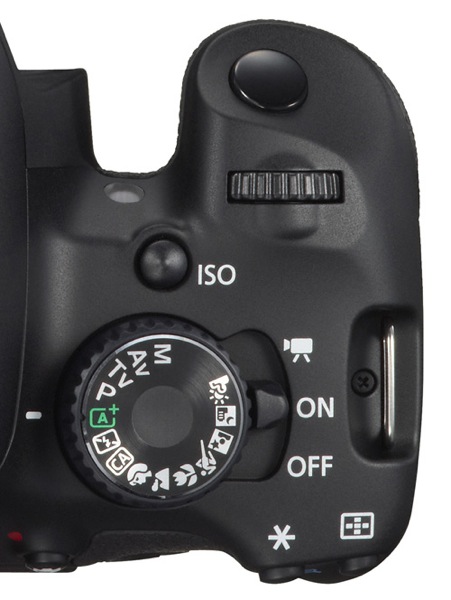
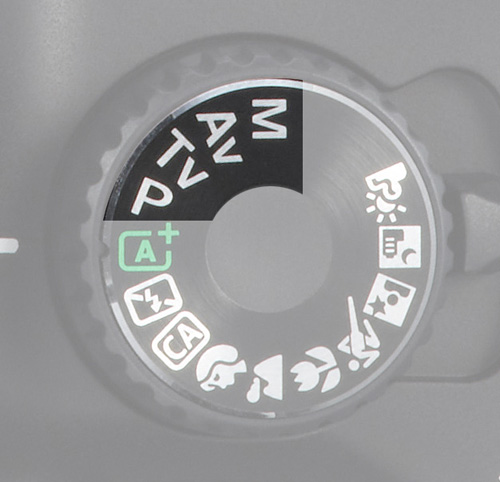
If you want to create beautiful images then you need to know how to control your camera’s settings. It all starts with your camera’s Mode Dial (not all cameras have a Mode Dial, but most do). Here’s what the Mode Dial from the EOS 650D (or Rebel X4i if you’re in North America) looks like. It’s fairly typical of many SLR cameras:

02

As you can see, there are a lot of icons. This can be confusing, especially for newcomers to photography. If you’re new to using an SLR, then how do you know which mode to select?

Let’s start by looking at Full Auto. It’s depicted by the green A+ icon on the Mode Dial of the EOS 650D (the precise term for the fully automatic mode on this camera is Scene Intelligent Auto). With other camera brands the Full Auto mode is also clearly marked by using an icon of a different colour to the rest (Nikon uses green, Pentax and Sony blue).

Full Auto mode is aimed at photographers who don’t know how to use the camera’s more advanced controls. If you’ve just picked up a digital SLR for the first time you can set it to fully automatic and start taking photos even if you know nothing about photography.

03

There are several other fully automatic modes on the EOS 650D’s Mode Dial (see above). Not all cameras have these modes (they are noticeably absent on many models aimed at semi-pro and professional photographers). They have names like portrait, landscape, close-up mode etc.

They are also aimed at photographers who don’t know how to use the more advanced controls on their camera. Their use is straightforward. If you’re taking a portrait, for example, then just set the camera to portrait mode. You don’t need to know anything about the camera or how it works to do this.

Fully automatic modes are very helpful for photographers that don’t know much about how their camera works. But they are too restrictive to be useful to creative photographers. On Canon EOS cameras, for example, you can’t change the white balance, Picture Style, autofocus mode or shoot in Raw in the fully automatic modes. Neither can you override the camera’s selected aperture, shutter speed and ISO settings. You can’t even use exposure compensation. You are locked into the settings the camera selects, and there’s nothing you can do about it. The fully automatic modes on other manufacturer’s cameras have similar restrictions.

The creative half of the Mode Dial

04

Now, these are the modes that creative photographers are interested in! They are Program Auto Exposure (P), Aperture Priority (Av on Canon EOS cameras), Shutter Priority (Tv on Canon EOS cameras) and Manual (M).

I’m a great believer in keeping things simple. You’ll find the only exposure modes you need in this section of the Mode Dial.

If you’re new to photography, your task as a creative photographer is to move away from the fully automatic modes and start using Program, Aperture Priority or Shutter Priority as soon as you can.

Once you’re comfortable with using these modes, you can also consider using Manual mode. There are some compelling reasons for doing so (I discussed them in another article here).

Let’s take a brief look at the benefits of Program, Aperture Priority and Shutter Priority modes:

Program Auto Exposure (P)

Often overlooked, Program is a surprisingly useful exposure mode. It works like this: you set the ISO and the camera sets the shutter speed and aperture according to the reading from its built-in exposure meter.

Many cameras now also let you use Auto ISO. With Auto ISO activated, the camera also selects the ISO. You can usually restrict the upper (and sometimes the lower) end of the ISO range available to the camera so that it doesn’t set an ISO that is too high.

At first glance, Program seems nearly the same as Full Auto. But the differences are crucial. You retain full control over settings like image quality (ie Raw or JPEG), white balance and Picture Style. You can use exposure compensation to override the camera’s exposure settings. And if you don’t like the aperture/shutter speed combination selected by the camera, you can use Program Shift (that’s Canon’s term, check your manual if you have a different brand of camera) to nudge the selected settings one way or the other.

In other words, while the camera is in an automatic mode, you stay in control of the settings. This is crucial for creative photography.

This is the sort of photo you might take in Program mode. Neither the aperture nor the shutter speed are particularly important:

05

The next two exposure modes really let you get creative:

Aperture Priority (Av)

I’m sure plenty of readers are already aware of the effect of aperture on the photo. For those of you who aren’t, here’s how it works. There are three approaches to using aperture:

06

1. You use a wide aperture to take a photo with shallow depth-of-field. You know those beautiful portraits you’ve seen with the background completely out of focus? That’s the sort of thing you can achieve with a wide aperture. Some photographers buy prime lenses (which have wider maximum aperture settings than zoom lenses) just to take advantage of this characteristic. I created the above portrait with an 85mm lens set to f1.8.

07

2. You use a small aperture to ensure that the entire scene is in focus from front to back. This is the opposite approach and one often used by landscape photographers who want everything within the scene to be rendered sharply. It’s the opposite to the first approach. I selected an aperture of f16 to create the above landscape image.

08

2. You use a middle-of-the-road aperture, that is one somewhere in the middle of your lens’s aperture range, to create a photo where part or most of the scene is in focus. Parts of the background may be out of focus, even if you have to look closely to see it. This is the sort of approach you would take when you want the background to be recognisable, but it’s not important for it to be completely sharp. The above photo is a good example, taken with an aperture of f5.6.

Aperture Priority works very simply. You set the ISO and the aperture, and the camera sets the shutter speed required to give the correct exposure.

Shutter Priority (Tv)

You use Shutter Priority when you want to set a certain shutter speed to record any movement within the frame a certain way. Again there are three approaches:

09

1. Set a fast shutter speed to freeze motion. This is what sports photographers do when they freeze the motion of athletes in mid-leap. I used a shutter speed of 1/2000 second for the above photo.

10

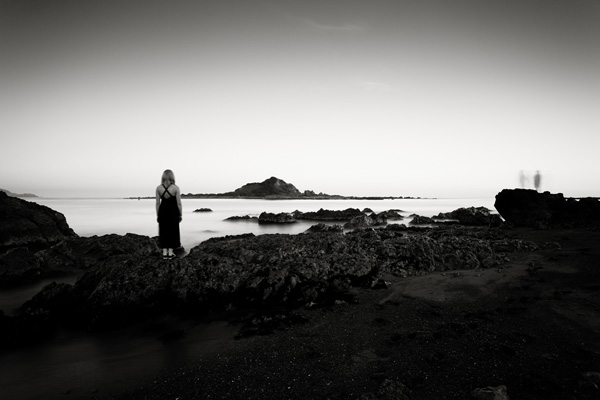
2. Set a slow shutter speed to blur any movement within the scene. You would normally set the camera on a tripod to support it when you do this, although you can also use creative techniques like panning if you are hand-holding the camera. I used a shutter speed of 30 seconds and asked my model to stand still to create the photo above.

3. Set a middle-of-the-road shutter speed that freezes most motion and lets you take a photo free from camera shake. This is the typical approach that many photographers take most of the time. But exploring fast and slow shutter speeds is fun and creative.

Shutter Priority also works very simply. You set the ISO and the shutter speed, and the camera sets the aperture required to give the correct exposure.

Conclusion

There are only three modes you really need to use on your camera: Program Auto Exposure, Aperture Priority and Shutter Priority (some of the others, such as Manual or Bulb mode, will come in useful as your skills develop). But as for the fully automatic modes on your camera, it’s best to forget about them completely. They will hold you back, and prevent you from getting the full potential out of your camera.

This article is the second in a series. The next one will take a close-up look at your camera’s colour and contrast controls.

11

Understanding EOS

Andrew S Gibson is the author of Understanding EOS: A Beginner’s Guide to Canon EOS cameras. The use of the Mode Dial is one of the topics discussed in-depth within the ebook.

Post originally from: Digital Photography Tips.

Check out our more Photography Tips at Photography Tips for Beginners, Portrait Photography Tips and Wedding Photography Tips.

Finding Your Way Around the Mode Dial


Digital Photography School

 
Comments Off on Finding Your Way Around the Mode Dial

Posted in Photography


MooN Canon 60D Crop Movie Mode EF 70-200mm F4L IS USM

21 Jan

Testing Canon 60D’s Crop movie mode with EF 70-200 F4L IS USM on SLIK AMT Pro Tripod.
Video Rating: 4 / 5


Photography Tutorials – Landscape Photography Tips – Learn How To Use Your Camera In Manual Mode

19 Jan

Hi Everyone. Welcome to another landscape and seascape photography tip. Heaps of people when they are starting out are unsure how to find correct exposure when taking photos. This little trick should help you get correct exposure when taking your landscape photographs. Its easy and takes about 10 seconds to do. Let me know what you think! Jamie Paterson


Manual mode vs Aperture Mode – Which mode do I normally use for outdoor photography?

17 Jan

photographyequipment.yolasite.com (Budget Equipment) razzi.me www.facebook.com twitter.com In this video you’ll learn that the light meter inside your DSLR will give you the same meter reading in both manual mode and aperture mode. Using aperture mode doesn’t mean you’re doing half the job. Shooting in manual mode doesn’t mean your pictures will come out right. The exposure is going to be the same if you balance it in manual mode vs if you let the camera does it for you automatically in aperture mode. Those who may be having difficulty shooting in manual mode should try aperture mode and see if they feel more comfortable. It’s less work and you can concentrate on composition and reduce camera shake.
Video Rating: 4 / 5

General Info: info@etinspires.com SOCIAL Subscribe to our channel: YOUTUBE : bit.ly TWITTER : bit.ly FACEBOOK fan page : on.fb.me INSTAGRAM : ETTHEHIPHOPPREACHER SOUNDCLOUD : bit.ly TUMBLR : bit.ly WEBSITE : etinspires.com GOOGLE + : bit.ly AUTOBIOGRAPHY& Other Merchandise etinspires.com (store page) EtInspires Store Page : bit.ly APP — ANDROID : bit.ly APPLE : bit.ly AUDIO CDBABY : bit.ly ITUNES (MP3’s) : bit.ly AMAZON (MP3’s) : amzn.to e-BOOK ITUNES (e-BOOK) : bit.ly AMAZON (e-BOOK) : amzn.to Barnes & Nobles : bit.ly New intro song by Fame Or Juliet www.facebook.com Download link: itunes.apple.com Clothing provided by Sleep is 4 Suckers: www.sleepis4suckers.com
Video Rating: 4 / 5


Sigma sets out its stall at CES – including lens pricing and SPP mono mode

08 Jan

Sigma_120-300mm.png

Sigma has published details of what it will be showing at the CES show, including pricing details for two of the lenses it announced at Photokina 2012. The 17-70mm F2.8-4 DC Macro OS HSM, part of the company’s ‘Contemporary’ line of lenses, will retail for around $ 499. Meanwhile the 120-300mm F2.8 DG OS HSM, which falls into the company’s ‘Sports’ category, will sell for around $ 3,599. Meanwhile, the company has given details of a monochrome processing mode that it’s added to its Sigma Photo Pro processing software for its Foveon-sensored cameras.

News: Digital Photography Review (dpreview.com)

 
Comments Off on Sigma sets out its stall at CES – including lens pricing and SPP mono mode

Posted in Uncategorized


Eye-Fi Mobile X2 Card Shooting Wirelessly to iPad 2 in Direct Mode

31 Dec

Terry White demos the Eye-Fi Mobile X2 card shooting wirelessly from a Nikon D7000 to an iPad 2 in the NEW Direct Mode without the need of a wireless hotspot.

 
Comments Off on Eye-Fi Mobile X2 Card Shooting Wirelessly to iPad 2 in Direct Mode

Posted in Nikon Videos