RSS
 

Posts Tagged ‘mode’

How to Choose the Right Camera Mode to Get the Shot You Want

02 Dec

When starting out in photography, one of the scariest and most confusing things for a beginner is deciding which camera mode to use. While the automatic modes provide a bit of a safety net for those just starting out, there will come a time when you either want to or have to, take greater control of your camera to get the results you desire. But how do you know what camera mode to use?
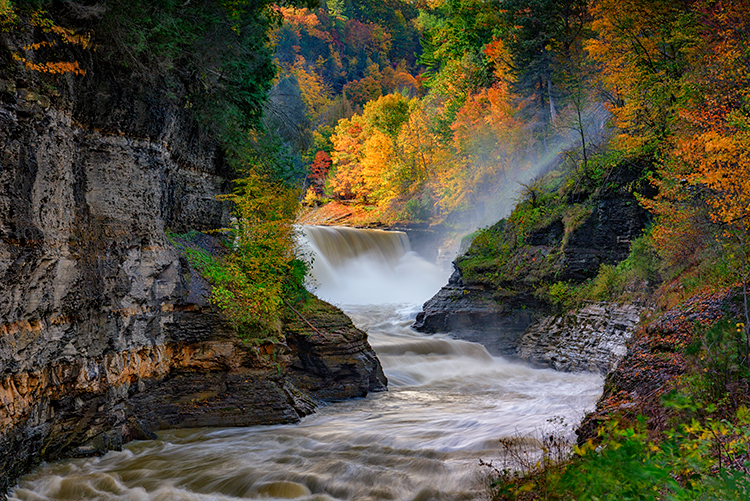
Aperture Priority Mode

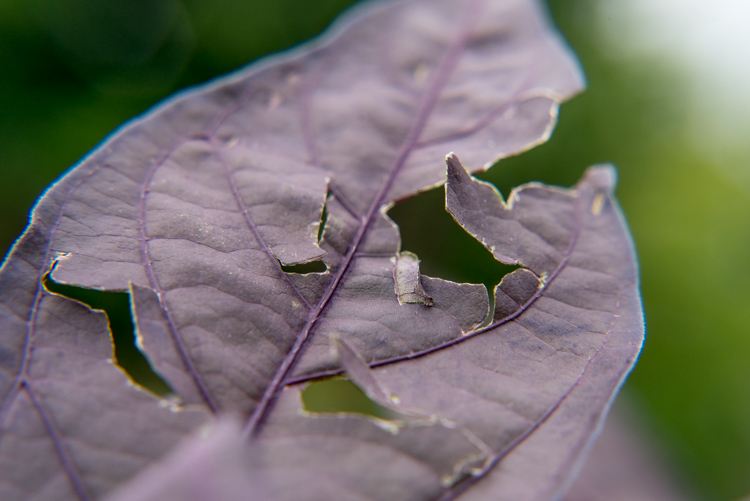
Aperture Priority mode is a perfect choice for a scene like this where you know you’ll want deep depth of field to keep the entire scene in focus.

First off, I won’t discuss any of the automatic modes here. A full discussion of what those do can be found here: Camera Modes Explained for Newbies. What I’d like to do here is discuss specific situations and the appropriate mode for each. Before we dive into that, I’ll explain the basics before we move forward.

Aperture

The aperture is the opening of the lens, which determines exactly how much light enters the camera and strikes the imaging sensor. The aperture also affects the field of focus from foreground to background, otherwise known as depth of field. A shallow depth of field is one that has a sharp focus on the subject, while objects in front of or behind the subject are out of focus. Deep depth of field is when the entire image is in sharp focus from foreground to background. And of course, you can have a depth of field that is somewhere in between those two.

Aperture is shown as a number on your lens, usually as a ratio. For instance, lenses with a maximum (widest) aperture of f/1.8 will have a very shallow depth of field. That same lens set to f/16 will have a deeper depth of field. An easy way to remember this is smaller numbers give you less and higher numbers give you greater depth of field.
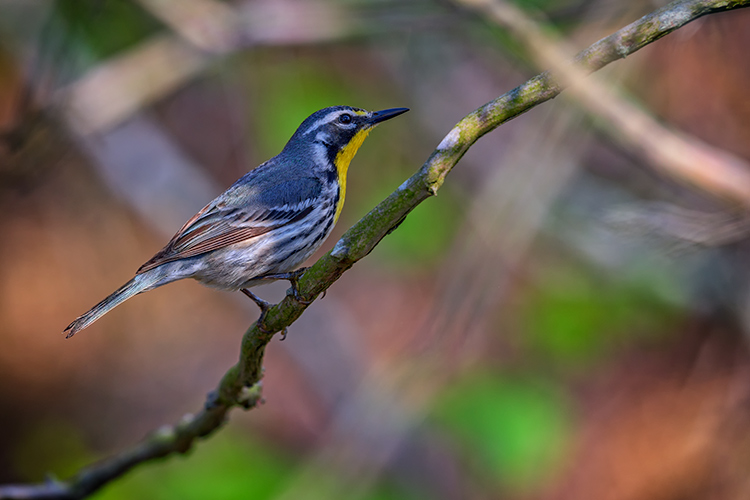
Aperture Priority

When you know you want the background blurred, setting a wide aperture to create a shallow depth of field is key. Aperture Priority mode can be used in cases like this (keep reading to learn more on that a bit later).

Shutter Speed

Shutter speed determines the amount of time light strikes the sensor when it enters the camera. The faster the shutter speed, the less light strikes the sensor. In addition, shutter speed is directly responsible for how movement is rendered in an image. Shutter speeds are referred to in fractions of a second, such as 1/125th, 1/60th, or 1/1000th. Faster shutter speeds, such as 1/500th, freeze motion, while slower shutter speeds, such as ½, 1 second, or even 30 seconds,  will show motion as more of a blur. The longer the shutter speed, the more blur motion will create.

ISO

Your camera’s ISO determines how sensitive it is to light. Lower numbers such as ISO 100 or 200 mean your camera is less sensitive to light and are used in bright situations, such as in direct sunlight. When there is less light, such as in shade, or indoors, you might use a higher ISO such as 800, 1600, or 3200 to make your camera more sensitive to light. ISO plays an important part in the various situations I will discuss going forward, so always keep in mind that you can change this setting, and don’t be afraid to raise your ISO if needed.

Camera Modes

Before going any further, I want to clarify that there are multiple ways to get a specific desired result with your camera, using any of these modes. Once you understand the relationship between shutter speed, aperture, and ISO, you’ll be able to do whatever you like in any of these modes.

But which mode is best for which situation? You’ll have to visualize your image to decide.

Program Mode
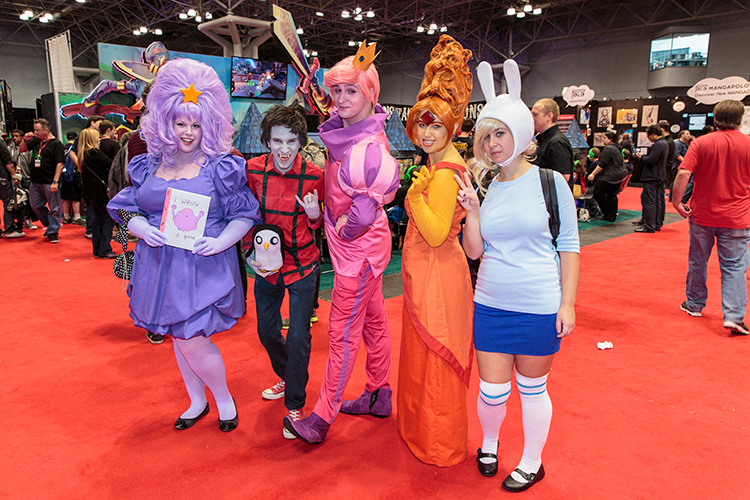
"<yoastmark

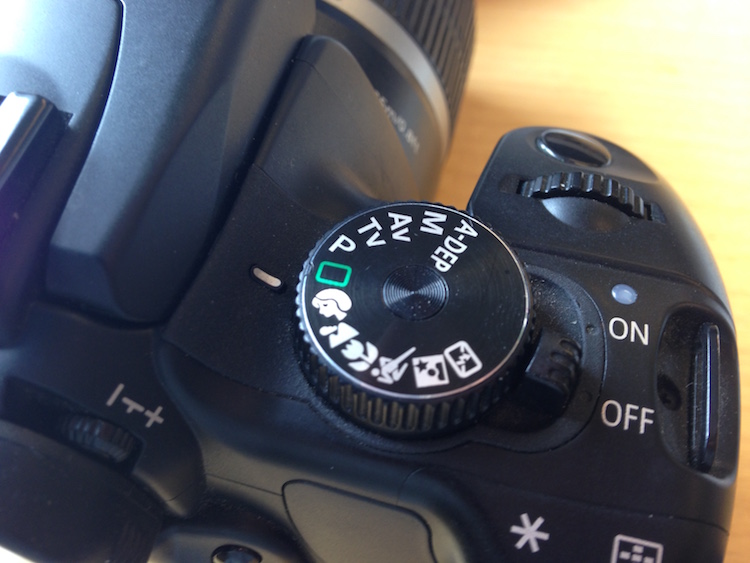
Program Mode resides on the advanced side of the camera mode dial, usually denoted by a P. In this mode, the camera will set the aperture, ISO, and shutter speed for you. So when should you use Program Mode?

Program Mode is good when you’re not looking for any effect in particular. Your camera, when set to Program Mode, will attempt to give you a proper exposure that can be handheld, meaning you won’t be required to use a tripod to steady your camera. This is a good mode for when you’re just casually photographing and just want to be sure your exposures are right.

It is a lot like Automatic Mode in that regard, except that you have the ability to override, or shift, the exposure the camera sets, as well as many other settings such as white balance and picture style. In addition, while in Auto mode, the camera will pop your flash up when it thinks it needs more light. But in Program Mode the flash will not pop up unless you tell it to.

Aperture Priority

On some cameras, this mode is simply denoted by an A on the mode dial, while on Canon cameras it is denoted as Av, meaning Aperture Value. In any case, in this mode, you set the aperture and ISO you want and the camera will set the appropriate shutter speed for you. So when should you use Aperture Priority mode?
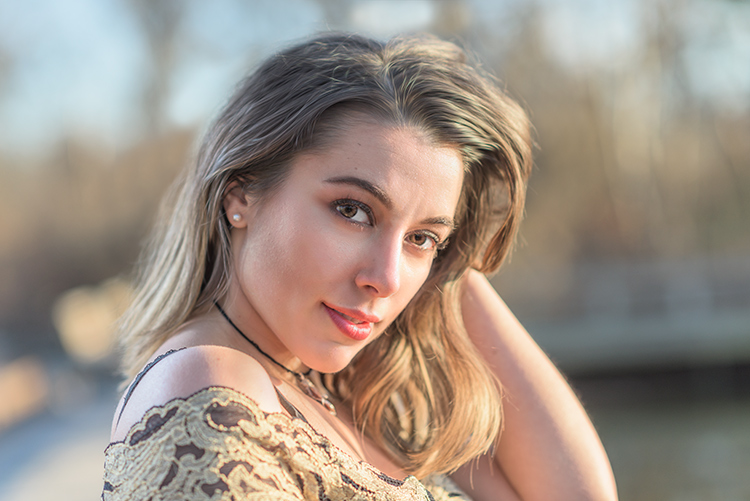
Aperture Priority

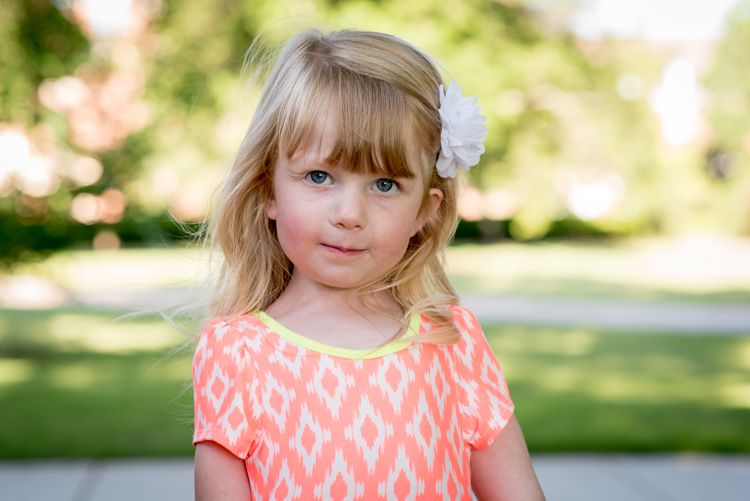
When you want a shallower depth of field, such as in a portrait, using Aperture Priority and setting a wide aperture is an excellent choice.

To determine the answer, visualize your finished image in your mind’s eye. What do you want it to look like? Generally speaking, if you’ve decided that the most important factor in your image is a specific depth of field, you’ll want to use Aperture Priority Mode so that you can force your camera to give you the depth of field that you want. For instance, if you’re making a portrait, you probably want your subject in sharp focus, but you may also want the background to be a little blurred, to keep your viewer’s focus on the subject. An out of focus background can create a setting without distractions for the viewer. So you might decide you want to use a fairly wide aperture such as f/4, to create enough depth of field to keep your subject sharp, but let the background blur nicely.

But watch your shutter speed too

It’s important to note, however, that you also need to keep an eye on the shutter speed setting. While the camera will set this for you, unlike in Program Mode, the camera is not going to try and give you a fast enough shutter speed to handhold. If there isn’t enough light, this will result in a slower shutter speed that may not be fast enough to freeze any subject movement. This could result in a slight blur due to unsteady hands or slight movement by your subject. If the shutter speed chosen by the camera (based on the aperture you’ve set) isn’t fast enough to freeze motion in this situation, you’ll need to raise your ISO. Raising your ISO will effectively increase the shutter speed given for the aperture you’ve set.
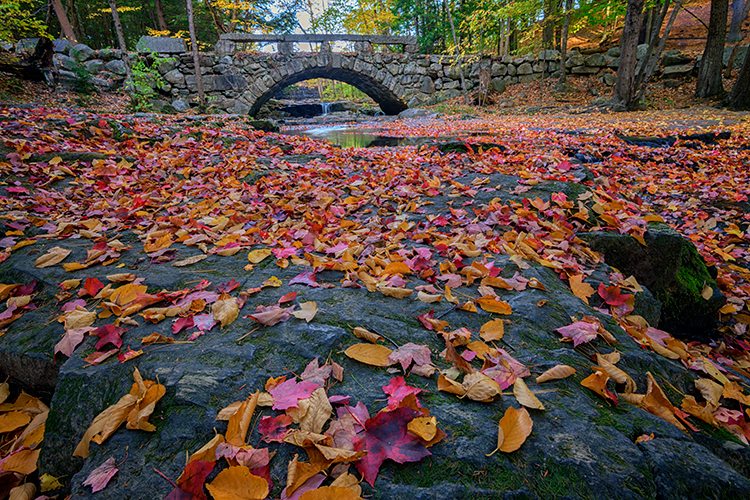
Aperture Priority Landscape

Aperture Priority is a great choice when photographing a landscape where you want a deep depth of field, and the shutter speed doesn’t need to be set at anything specific to capture motion a certain way.

For landscape photography

Another situation for Aperture Priority would be a landscape photo, where you may want greater depth of field to keep the entire scene in focus. In this situation, your primary goal is to get lots of depth of field to keep the entire scene in focus, so you’d set an aperture of f/11 or even f/16 to capture a greater amount of the scene sharply. In this situation, if you’re using a tripod, the shutter speed may not be as big of a factor for you.

But if you’re handholding the camera,  you will want to pay attention to the shutter speed the camera sets to ensure it’s fast enough to avoid camera shake. In addition, if there is moving water or clouds, or the wind is blowing the trees or grass, you’ll want to ensure that the shutter speed the camera sets is appropriately stopping that movement to your liking. If not, you’ll want to adjust your ISO so the camera sets a more appropriate shutter speed.

Shutter Priority
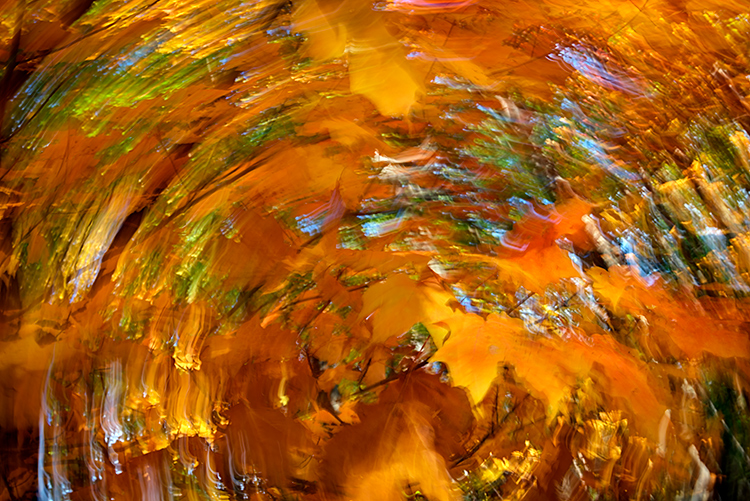
Panning using Shutter Priority

When you know you need a specific shutter speed, such as this image where a panning technique was used, Shutter Priority is often the best choice.

Shutter Priority is usually denoted using an S on most cameras, while Canon uses Tv, representing Time Value to denote Shutter Priority mode. Shutter Priority Mode is just the opposite of Aperture Priority. In this mode, you set the shutter speed you want, as well as the ISO, and let the camera choose the appropriate aperture.  This mode is an excellent choice when you’ve decided that rendering motion in a certain way is the key component of your image.

Shooting sports

For example, suppose you are photographing a sporting event. Most likely, you’ll want to freeze the action of the athletes on the field. To do so, you need a fast shutter speed, such as 1/500th or even 1/1000th. In shutter priority, you’ll need to again keep an eye on your ISO to ensure that the camera is giving you a proper exposure. Usually, the exposure indicator in your viewfinder will flash to show that at the current settings, proper exposure cannot be achieved. In this case, raise the ISO to achieve the correct exposure for the shutter speed you want.
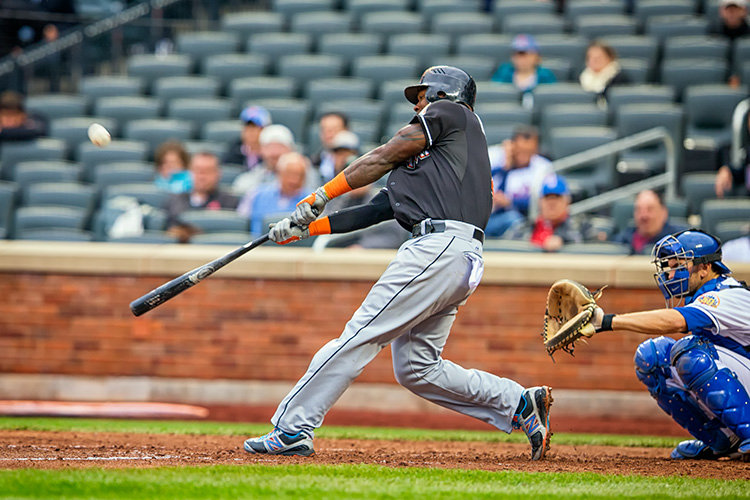
Shutter Priority for Fast Action

You might want to use Shutter Priority Mode when you know you need a fast shutter speed to stop action, such as when photographing sports.

As another example, let’s say you want a slower shutter speed to create a panning effect. Again you would set the correct shutter speed to create the effect, and let the camera adjust the aperture. Any time the primary concern is the appearance of motion in an image, Shutter Priority is a good choice for shooting or camera mode.
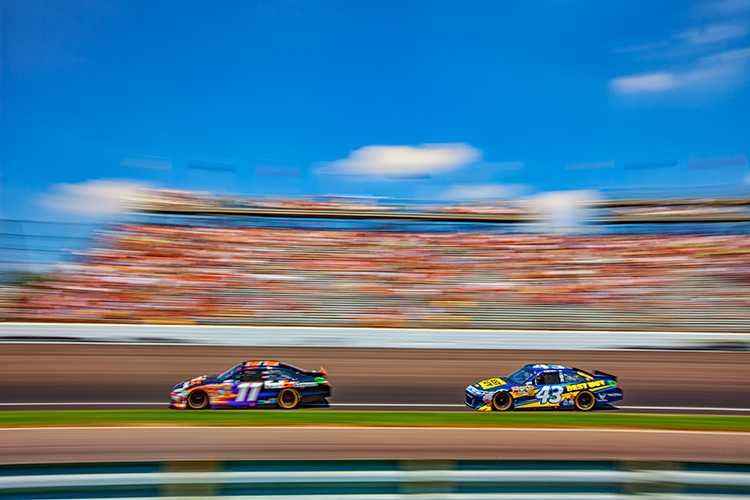
Panning in Shutter Priority mode

Another example of using a slow shutter speed to create a panning effect in Shutter Priority Mode.

Manual Mode

Once you’re comfortable with changing settings and you really want to take control of your camera, Manual mode is the way to do that. You will set all of your settings according to how you want your final image to look. There is one caveat, however. Your settings will also be dependent on the available light in the scene. So if you want a fast shutter speed, and deep depth of field, you’ll probably need to raise your ISO a bit. Or compromise on one of the other settings as well.

Watch the meter

Just keep an eye on your camera’s meter and it will help you find the right combination of shutter speed, ISO, and aperture. The other modes do a nice job of taking some of the load off your brain by allowing you to choose one setting to have priority, but sometimes you just need to take full control.
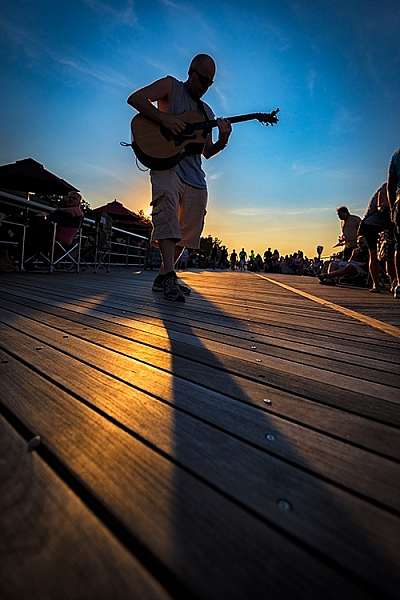
Silhouette in Manual Mode

Manual Mode is the best choice when you want to create an effect that the camera’s normal exposure modes just don’t normally do, such as this silhouette.

Exposures long than 30 seconds

One instance where you’ll need to do this is when creating an exposure longer than 30 seconds. Today’s cameras don’t have shutter speeds for longer than that, so you would need to calculate in your head how long to keep the shutter open, and then use the Bulb setting to do so. Any time the camera can’t properly calculate exposure is a good time to use Manual Mode.
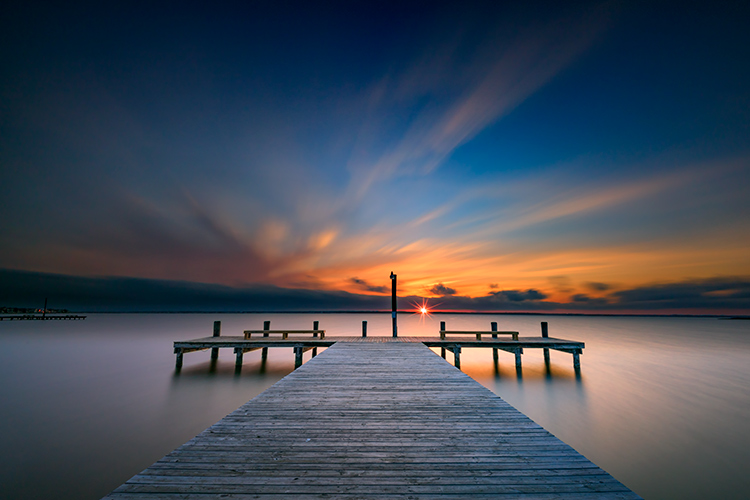
manual-mode-long-exposure

When creating images using a long exposure, such as this one with an exposure time of two minutes, Manual Mode is the best (or possibly only) choice.

Another time to use Manual Mode is when the lighting in a scene is especially challenging, such as when there are a lot of dark shadows. Your camera will try to expose for the deep shadows, causing the highlights to overexpose. Using a manual setting to override the camera’s choices will work well in achieving a satisfactory exposure.

Summary

As I mentioned, there are many ways to capture an image and arrive at similar settings. But each time I’m out photographing, I go through the following checklist in my head:

  1. Do I want deep or shallow depth of field?
  2. Do I want to stop action or is some motion blur okay?
  3. Which of the above two choices is more important for this image?
  4. Is one of the priority modes suitable for the available light of the scene?

The answer to those four questions should lead you to the correct mode for the shot you want.
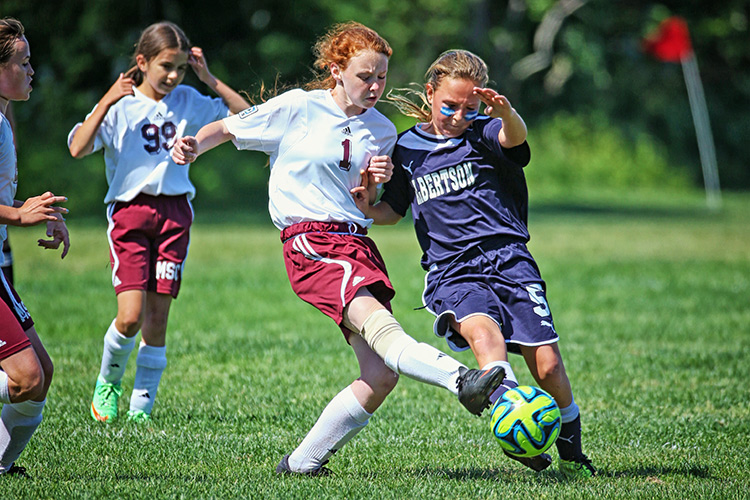
Shutter Priority for fast action

Shutter Priority can be used when photographing sports to set a fast shutter speed to stop action.

googletag.cmd.push(function() {
tablet_slots.push( googletag.defineSlot( “/1005424/_dPSv4_tab-all-article-bottom_(300×250)”, [300, 250], “pb-ad-78623” ).addService( googletag.pubads() ) ); } );

googletag.cmd.push(function() {
mobile_slots.push( googletag.defineSlot( “/1005424/_dPSv4_mob-all-article-bottom_(300×250)”, [300, 250], “pb-ad-78158” ).addService( googletag.pubads() ) ); } );

The post How to Choose the Right Camera Mode to Get the Shot You Want by Rick Berk appeared first on Digital Photography School.


Digital Photography School

 
Comments Off on How to Choose the Right Camera Mode to Get the Shot You Want

Posted in Photography


iOS 10.1 adds ‘beta’ support for Portrait mode to iPhone 7 Plus

26 Oct

Apple has released an update to iOS 10, which alongside various bug fixes and refinements, adds beta support for ‘Portrait’ mode in the iPhone 7 Plus.

The Portrait mode feature is only supported by the dual-lens iPhone 7 Plus model running iOS 10.1, and is designed to replicate the look of shooting at a shallow depth of field – an effect traditionally limited to larger imaging formats. Although anyone with an Apple developer account has been able to shoot with the new mode for a while (we posted a gallery including some samples last month), iOS 10.1 represents the first truly public ‘beta’ test of the new feature.

Are you curious? Have you downloaded it? Did you jump straight to the comments section before you finished reading this paragraph? Let us know. 

Articles: Digital Photography Review (dpreview.com)

 
Comments Off on iOS 10.1 adds ‘beta’ support for Portrait mode to iPhone 7 Plus

Posted in Uncategorized


Pentax K1 firmware update adds electronic shutter in live view mode

04 Oct

Pentax has released new firmware for its flagship K1 full frame camera that includes the ability for users to select electronic shutter shooting for the first time. Firmware version 1.3 adds a live view Electronic Shutter option to the menu system that the company says avoids the vibrations caused by mechanical shutter actions immediately prior to the exposure of the sensor. There are some limitations however, as the shake reduction system can’t operate during electronic shutter exposures, HDR mode won’t work, external flash units won’t be triggered and the drive is limited to single shot or multiple exposure modes.

Other functions added by this update include the ability to shoot square images and to record only two frames (Off and Type 2) when using the anti-aliasing filter simulation bracketing feature. Previously, three frames had to be recorded in a sequence that included Type 1 as well. A general ‘bracketing cancel’ Off option has also been added to the camera menu under the BKT function.

Pentax says that other more general stability issues are fixed too with this update. To read more and to download the firmware see the Pentax website.

Release information:

Release of the function expand Firmware version 1.30 for PENTAX K-1

RICOH IMAGING COMPANY, LTD. is pleased to announce the release of the function expanding Firmware version 1.30 for PENTAX K-1 digital SLR camera (launched on April, 2016) on September 29, 2016.

The function expand firmware is to add new function or increase number of setting for currently used PENTAX K-1 camera, so that improve the function, easy handling and update to the latest function.

New Enhanced Functions

*The Electronic Shutter at Live View mode
The Electronic Shutter can be selected at the Menu to reduce camera shake from the mechanical shutter when shooting with Live View mode.

*Add the [1:1] format at the Crop mode
Added and selectable [Square format (1:1)] size at the Crop mode.

*Add [2 frames bracketing] for the [AA Filter Simulator bracketing]
Addition to the current [3 frames bracketing (OFF, TYPE1, TYPE2)], the [2 frames bracketing (OFF, TYPE2)] is added and selectable for the [AA Filter Simulator bracketing]

*Smart Function
At the [BKT] setting, the bracketing range [±0 (=single frame)] can be selected.

[Others]
*Improved stability for general performance.

Articles: Digital Photography Review (dpreview.com)

 
Comments Off on Pentax K1 firmware update adds electronic shutter in live view mode

Posted in Uncategorized


How to Use Manual Mode to Make Artistic Choices for Your Photography

27 Sep

When learning photography, it can be tricky to understand how your DSLR works. Most of us started shooting in automatic because we did not know what we were doing when we switched our camera to manual mode.

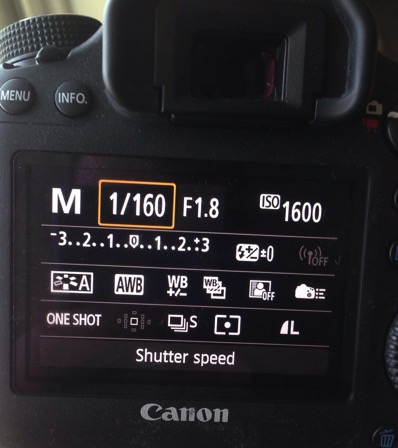
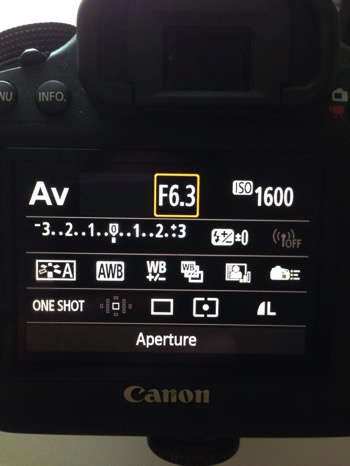
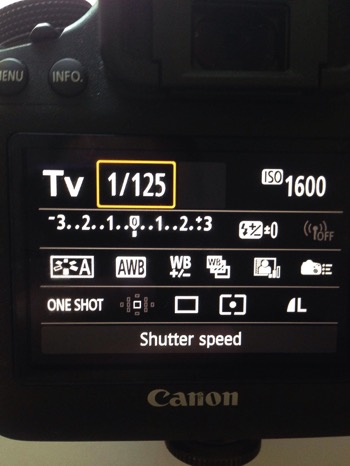
Basically, your DSLR has four main shooting modes, they are; Program (P), Manual (M), Aperture Priority (Av/A) and Shutter Priority (Tv/S).

Manual mode image1

The different shooting modes on an advanced DSLR.

Manual mode image2

Manual mode lets you control everything on your camera.

In this article, I will try to explain shutter speed, aperture, and ISO in the easiest way possible. Hopefully, it will help you to never use automatic mode on your camera anymore. I do not hate automatic mode, but I think that it reduces your creativeness.

Manual mode image3

Aperture Priority mode lets you control everything except the shutter speed – it will be set automatically depending on your other settings. You can control your ISO or leave it on automatic.

Manual mode image4

Shutter Priority mode lets you control everything except the aperture – it will be set automatically depending on your other settings. You can control your ISO or leave it on automatic.

Manual Mode makes you think and slow down

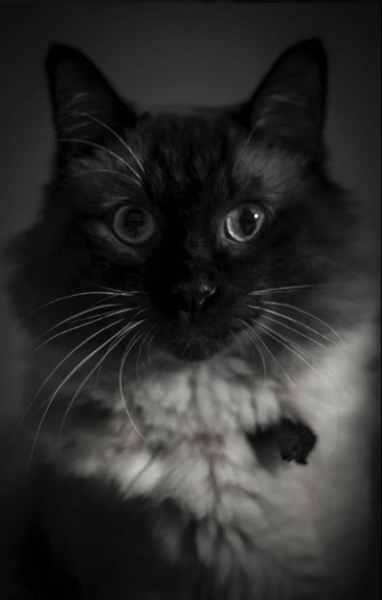
When you take a photo in auto mode, you’re just capturing a moment objectively. For example, let’s say you’re taking a picture of a cat. Your only intention is to have the cat pictured , that’s a snapshot. Automatic mode gives you the right exposure straight away whereas in Manual Mode, you have to go through a creative process in your brain to take the image.

Let’s say you’re taking a picture of the same cat in Manual Mode, you’re not just clicking a button. You’re actually thinking about what you want to do. You might want to picture the cat with a blurred background, you might want to photograph the cat in motion or freeze the moment while it’s blinking. My point is that manual mode brings more subjectiveness to your photographs, a bigger piece of consciousness about your intent, and what you need to do to achieve the end result you want.

Manual mode image5

The problem many people have with Manual Mode, or at least I did, is how to get the right exposure. My pictures would be either over or underexposed.

Finding the correct exposure

You will have a correct exposure when you are able to create the perfect balance between the shutter speed, aperture and ISO depending on the amount of light that’s available. When you are shooting outside, your exposure will always change, let’s say you are doing a portrait session in natural light. Your exposure will change every five minutes because the light varies all the time.

Manual mode image6 8

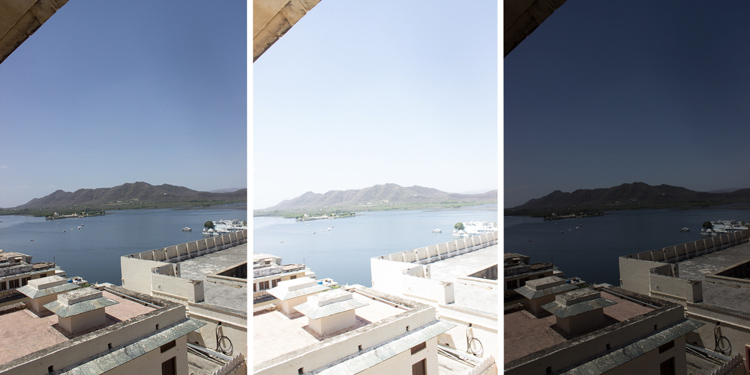
Comparison between a correctly exposed image, overexposed and underexposed one (left to right).

There might be a cloud covering the sun or it may be setting, so the intensity of the light will change. In a studio session, once you get your lights positioned the way you want and have found the correct exposure, you will not need to change your settings again unless you change the position of your light and its intensity. Basically, my point is you have to consider the amount of light available, the intensity, and its direction.

Manual mode image9

A studio portrait. As soon as I get my exposure settings right, I will not change them.

Shutter speed, aperture, and ISO explained

Before I get to the main subject of this article and you finally leave the automatic mode for good, I want to explain shutter speed, aperture, and ISO.

Shutter speed

The shutter speed is the amount of time the sensor inside your DSLR is exposed to light. A faster shutter speed will let in less light than a longer one. That is why we use very long shutter speeds in low light photography. The time between the shutter opening and closing will vary depending on how much light you want in your picture.

The shutter speed controls ambient light, that is one very important thing. If you need less light, then get a faster shutter speed. Do the opposite if you need more light. A fast shutter speed will also freeze action because the picture will be taken much quicker than a longer shutter speed. This will let you control if you want a moving subject to appear in motion or frozen in your image

Manual mode image10

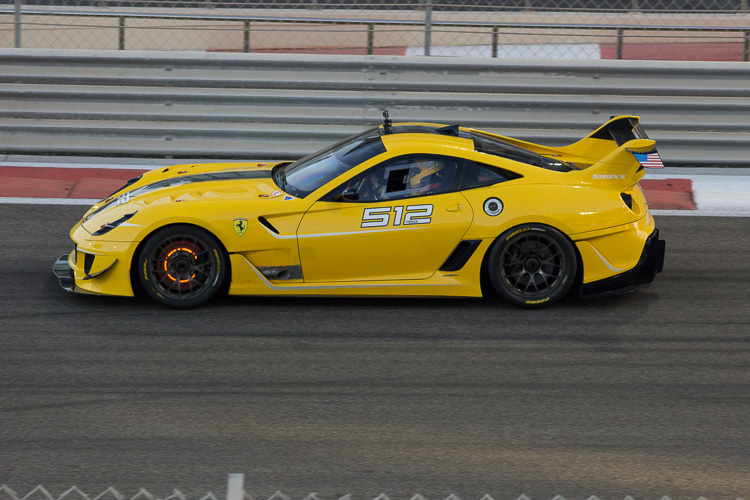
Using a fast shutter speed to freeze a moving sports car

Manual mode image11

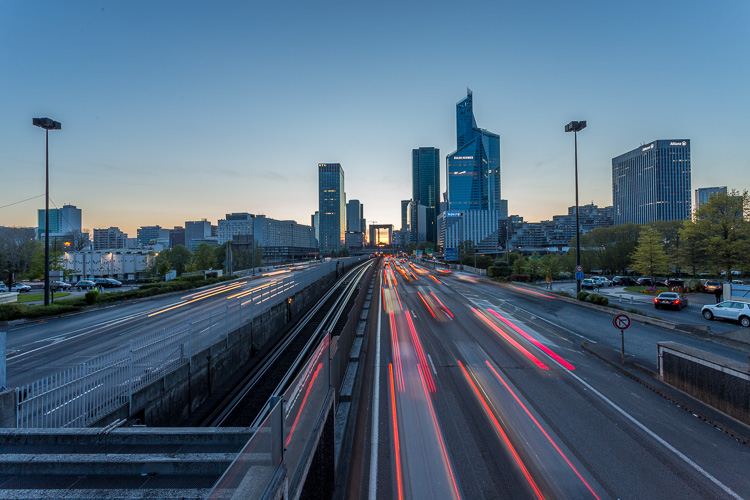
Using a slow shutter speed shows cars in motion or only the light trails from their headlights.

Aperture

The aperture (opening in the lens) controls the amount of light that is let inside the camera. There is one confusing thing about apertures. A large aperture lets in more light but large apertures are translated with small numbers. In other words, an aperture of f/1.8 is a large aperture (opening) but the number is small, whereas an aperture of f/16 is a small opening but the number is big. Once you get this straight in your mind, it should be fine because the aperture is not that difficult to understand.

Basically, you use aperture for two main things. If you have low light conditions, you will need to use a big aperture (small number) to let in more light. But mostly we use aperture to control the sharpness of an image. A bigger aperture (small number) will give you a shallower depth of field (a blurred background), and a small aperture (bigger number) will give you a larger depth of field (there won’t be any blur in the background, most of the photo will be sharp).

ISO

with an aperture of f/5.6 during a concert, I had no flash and had to boost up my ISO to over 1000 to get a proper exposure. I used a focal length of 50mm

Shot with an aperture of f/5.6 during a concert, I had no flash and had to boost up my ISO to over 1000 to get a proper exposure. I used a focal length of 50mm.

The ISO is the sensitivity of your camera sensor to light. With a higher ISO, the sensitivity to light is increased, therefore you will have more light in your photograph. One tip I can give you is not to be scared of the ISO. It does damage your photo quality wise by adding grain (noise) but with today’s DSLRs you can boost up the ISO to 1000 (or more) and still have good quality. Besides, you can always reduce noise later in post-production. I sometimes take portraits up to 1250 ISO, because I don’t really have a choice and choice is the whole point of this article.

Manual mode

Manual mode in photography is all about making choices. Sometimes use an ISO of 1250 for portraits. Most people would tell me I have no idea what I am doing if they see my settings because they’re scared of a grainy high-ISO picture. But I made the choice to use a high ISO to compensate for the shutter speed (make sure it was fast enough).

a portrait using a large aperture of f/1.8 and an ISO of 1000, I had no flash with me and it was long after the sunset.

This a portrait using a large aperture of f/1.8 and an ISO of 1000, I had no flash with me and it was long after the sunset.

If I use a long focal length with an aperture of f/5.6, I will mostly likely get satisfying bokeh. A shutter speed of at least 1/125th or 1/160th is needed to avoid any blurred shots due to camera shake as my lens is pretty heavy. I really need a sharp photo, so this will make me boost my ISO to 1250 because my choice was to shoot with that lens, at that aperture and that shutter speed.

To use manual mode, you have to make artistic choices and play with the shutter speed and the aperture, leaving the ISO as an additive compensation to get the correct exposure. If you want to photograph a road with cars passing by in the middle of the day, you will most likely want a sharp photo so you will use a small aperture. You then need a fast shutter speed to freeze the cars so the ISO, in this case, will most likely be pretty high.

is an image during daylight of a fast car using a fast shutter speed. The amount of light available enables me to use a fast shutter speed with an ISO of 100 and a small aperture. If it was during sunset I would have needed to increase my ISO to compensate for the light.

An image during daylight of a fast car using a fast shutter speed. The amount of light available enabled me to use a fast shutter speed with an ISO of 100 and a small aperture. If it was during sunset I would have needed to increase my ISO to compensate for the lack of light.

If you’re shooting sunsets and you want to capture some clouds moving in the sky; you will most likely use a small aperture to cut down the light, which will force a long (slow) shutter speed so you will likely need to decrease the ISO to 100. What you are doing is playing around with the shutter speed, the aperture, and the ISO to get the desired effect.

There are many ways to balance them, but each choice produces a different artistic result. It’s up to you to make that choice.

is a long exposure of 30 seconds with an ISO of 100, the camera was placed on a tripod, I used a small aperture of f/14  for a sharp image.

This is a long exposure of 30 seconds with an ISO of 100, the camera was placed on a tripod, I used a small aperture of f/14 for a sharp image.

Conclusion

Using Manual Mode makes you put more thought and reflexion into the photo you are about to take; I call this the artistic choice. Like I previously said, the shutter speed, the aperture, and the ISO make the photograph. Between your artistic choices, you can choose to have a shallow depth of field, a large depth of field, a subject in motion, or frozen.

Manual mode image12

Think about what you want to do before pressing the shutter button.

You can also choose how much light you want in your photo. If your artistic choice is determined by the aperture, then you have play around with the shutter speed and the ISO to find the right exposure. However, if it is determined by your shutter speed then you need to play around with the aperture and the ISO to find the correct exposure.

Note: your camera will reach its limits. But, you can use ND filters to darken your image or flash to brighten it up.

googletag.cmd.push(function() {
tablet_slots.push( googletag.defineSlot( “/1005424/_dPSv4_tab-all-article-bottom_(300×250)”, [300, 250], “pb-ad-78623” ).addService( googletag.pubads() ) ); } );

googletag.cmd.push(function() {
mobile_slots.push( googletag.defineSlot( “/1005424/_dPSv4_mob-all-article-bottom_(300×250)”, [300, 250], “pb-ad-78158” ).addService( googletag.pubads() ) ); } );

The post How to Use Manual Mode to Make Artistic Choices for Your Photography by Yacine Bessekhouad appeared first on Digital Photography School.

Digital Photography School

 
Comments Off on How to Use Manual Mode to Make Artistic Choices for Your Photography

Posted in Photography


How Playing With Manual Mode Can Help You Learn Exposure Faster

21 Sep

I have a disclaimer before I even begin this article. I shoot much more often in Shutter or Aperture Priority than I do in Manual mode. I save Manual mode specifically for studio shooting, for some tripod work where I have a lot of time to get the settings perfect, or for situations where the lighting is very consistent.

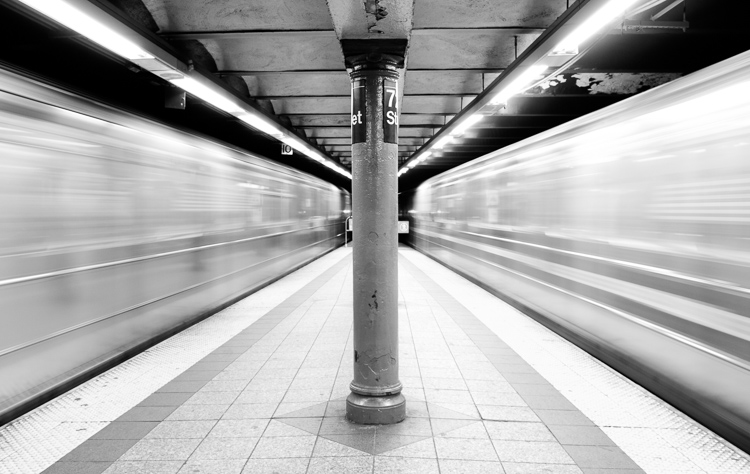
Subways in Motion, New York

Learn Manual Mode to better understand exposure

However, I think it is immensely important for you to try to periodically shoot in Manual early on, especially if you’re just learning. Take a look at your camera. How many buttons does it have on it? New cameras these days can have 20 or more buttons on them all doing different things, but in reality, there are only three settings that make the photograph: the ISO, the Shutter speed, and the Aperture.

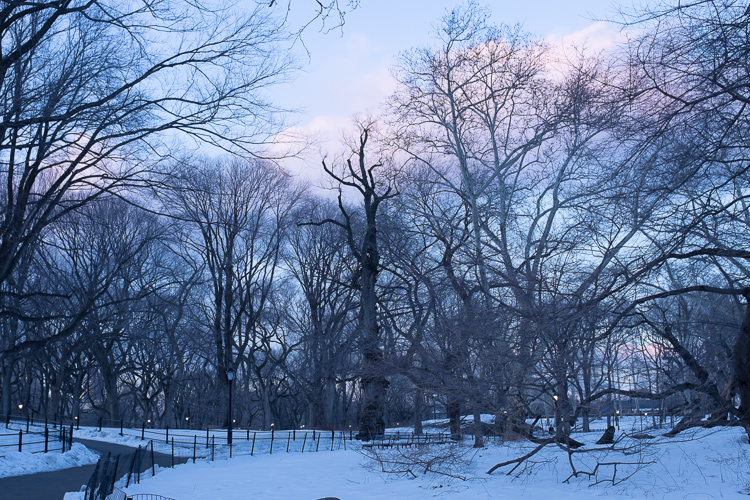
Central Park, New York

Before you even go out, turn your camera to Manual mode and figure out the fastest and most comfortable way to change each of these settings. You’re going to do a lot of that in Manual.

Understanding shutter speed

The next step is to understand a couple of important points. The shutter speed always needs to be at least one over your focal length to offset handheld camera shake. So if you are at 50mm (on a full-frame camera), then your shutter speed needs to be 1/50th of a second. To freeze the motion of moving subjects such as people, I like a shutter speed of around 1/250th or 1/320th of a second, but you can get away with a little slower than that. You will need a faster shutter speed to freeze faster moving subjects like cars, etc.

Understanding aperture

For your aperture, the lower the number (such as f/2.8), the less depth of field and more bokeh there will be. This is counterintuitively called a large aperture because the size of the aperture hole in the lens is actually larger. This will also let in a lot of light due to the size of the hole. A small aperture (such as f/11 or f/16) will create a much larger depth of field, but the tradeoff is that it will let in less light.

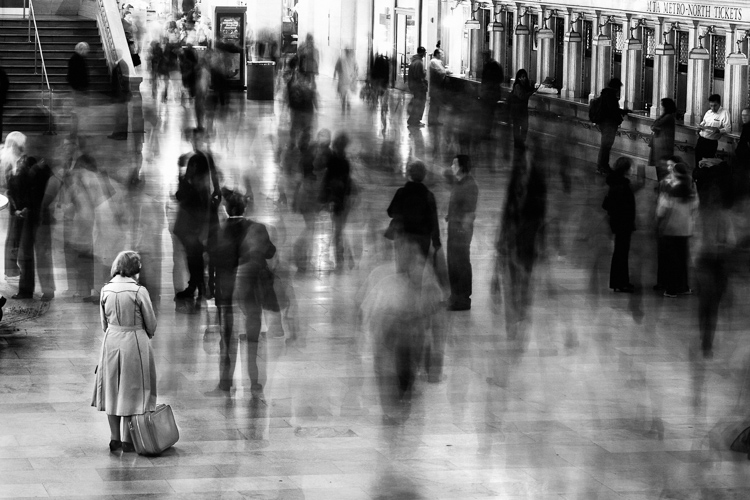
Waiting in Grand Central Terminal, New York

Understanding ISO

The ISO is the sensitivity of your camera’s sensor to light. The higher the number, the more noise that an image will have, but the more sensitive to light it will be. Newer cameras can make beautiful photos up to ISO 3200 or even 6400, but older or entry level cameras can have a lower limit of around ISO 1600 (test your camera to find your comfort zone with its upper ISO limits).

If you want a lot of bokeh in your image, and you set your lens to f/2.8, that means the camera will be letting in so much light that you will usually want a low ISO. However, if you are shooting street photography, fast moving subjects, you want a shutter speed of 1/250th or faster, and/or a smaller aperture such as f/11 – unless you are in bright sunlight, you will often have to raise your ISO to be able to let in enough light to use those settings. In general, if it’s darker out, then your ISO will often have to go up unless you are on a tripod.

Now play with them

Those are the main considerations that you need to learn; now just walk out the door and mess around with your settings. Screwing around with the settings in Manual is the fastest way to start to learn them well. Start off with your aperture. How much depth of field do you want in the image? Once you pick that, then take a guess at the shutter speed and ISO and see how it looks. View the back of the screen, look at the histogram, and zoom in on the details.

If an image is too dark, then slow the shutter speed, raise the ISO, or use a larger aperture. If the main subject is too blurry, then speed up the shutter speed.

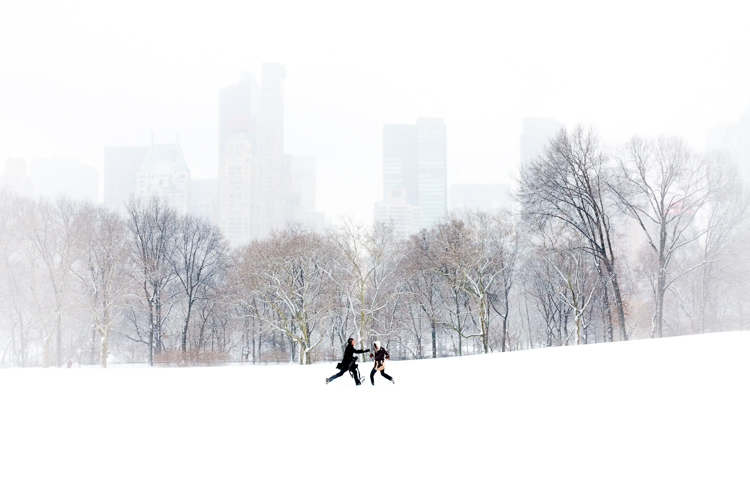
Couple in Sheep Meadow, New York

Try different lighting scenarios

Explore different lighting situations. Paying attention to lighting is the first thing that you should do before you take a photograph. How strong is the light? Where is the sun or artificial light in relation to what you are shooting? The strength of the light will be the number one factor in helping you figure out your settings. From there, you can figure out the depth of field that you want and if you need to freeze the motion of your subjects or not.

Get comfortable walking from one lighting situation to another. If you walk from the sun into the shade, what will you need to change to expose the scene correctly? Pay attention to scenes with both bright highlights and darker shadows. With these scenes you need to figure out which is most important to expose correctly. If the shady area is more important, then let in more light. If the highlights are the most important, then darken the scene so they are correctly exposed and the shadows are closer to black. If you are in sunlight, learn how your settings will change if you are shooting into the sun versus shooting away from it.

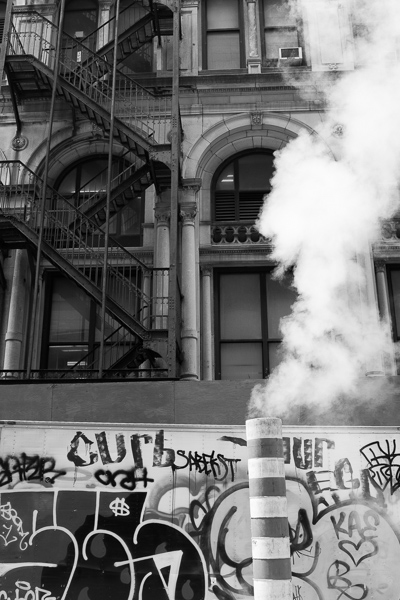
Smokestack and Graffiti, New York

Go out in the morning, in the middle of a sunny day, at dusk, or in light rain. Learn how your settings change in each of these lighting situations.

Most digital cameras will show you the light meter reading for what they believe will correctly expose your image. For instance, if you choose the three settings, the light meter might show you that it thinks you are underexposed by one stop (look in your viewfinder for a + 0 – scale, press the shutter button part-way down to activate it). Keep an eye on this because it can help you, but also try to not pay too much attention to it. The point of Manual shooting is to learn the numbers yourself without relying on the camera. You can rely more on the camera later.

Conclusion and practice

The only way to learn these things is to experiment and do them. Shooting in Manual at first will make you screw up much more than in Shutter or Aperture Priority, but a handful of dedicated days of doing this will have you understanding the settings in a much more intuitive way. Then if you decide to shoot in Shutter or Aperture Priority, you will have a strong understanding of how to use those modes to the best of their ability.

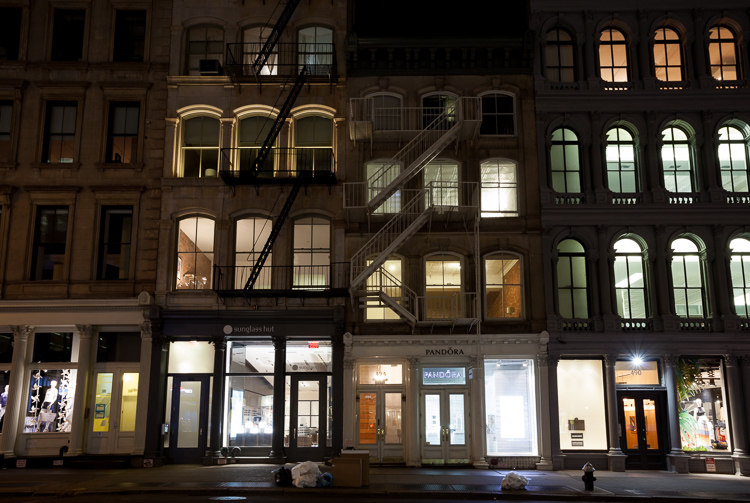
SoHo at Night

googletag.cmd.push(function() {
tablet_slots.push( googletag.defineSlot( “/1005424/_dPSv4_tab-all-article-bottom_(300×250)”, [300, 250], “pb-ad-78623” ).addService( googletag.pubads() ) ); } );

googletag.cmd.push(function() {
mobile_slots.push( googletag.defineSlot( “/1005424/_dPSv4_mob-all-article-bottom_(300×250)”, [300, 250], “pb-ad-78158” ).addService( googletag.pubads() ) ); } );

The post How Playing With Manual Mode Can Help You Learn Exposure Faster by James Maher appeared first on Digital Photography School.

Digital Photography School

 
Comments Off on How Playing With Manual Mode Can Help You Learn Exposure Faster

Posted in Photography


Why Semi-automatic Mode is the Best Choice for Wildlife Photography

14 Aug

There is a mindset that a lot of photographers seem to have around anything but manual mode is cheating. Not only does this frustrate me as a statement, but it’s just bad advice, that hinders the photographic progress of others. I would argue that there’s no cheating in photography, and that using your camera in fully manual modes actually makes it harder to achieve the photo you’re looking for – so let’s take a look at why semi-automatic modes are a good choice for wildlife photography.

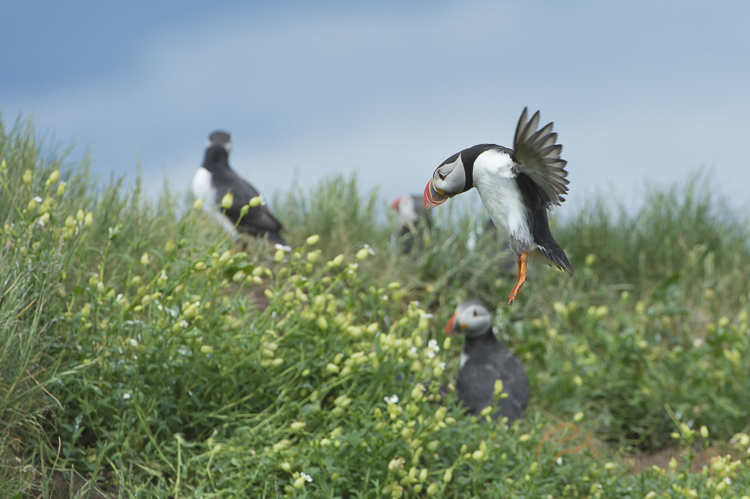
Tracking this puffin in flight, I'd never be able to change the settings quick enough if I was in full manual mode.

Tracking this puffin in flight, I’d never be able to change the settings quick enough if I was in full manual mode.

Now I’d never recommend anyone use full automatic modes. They are a pain in the backside, to be frank. The camera focuses wherever it sees fit, seemingly changing its mind on a day to day basis. The setting are often wrong, since you have no bearing over how the exposure triangle is balanced (other than a little bit of exposure compensation). For wildlife photographers, this is a pretty poor choice of mode.

However, what I do recommend is that you run with a semi-automatic mode. Because with wildlife, everything is so unpredictable that there is little chance you can spin the wheels, and react to changing conditions fast enough in manual mode. Picture this: you’re photographing an eagle swooping down from the sky to catch a fish from the water. It’s moving through many different ambient light conditions, from looking up towards the sky, all the way down to the water, and away again. You can’t accurately change the settings quick enough.

semi-automatic modes

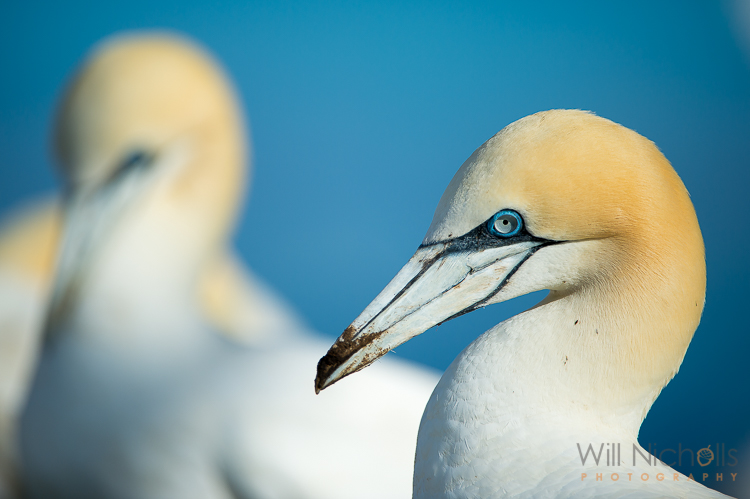
Northern Gannet

So what can you do? Use a semi-automatic mode. It’s definitely not cheating, and is a choice favoured by almost all wildlife photographers in the industry. It’s not to say that we can’t run the camera in manual mode – and that’s definitely something you should learn to do – but rather that there is no point putting such a simple task as adjusting the shutter speed, in the way of you composing a stunning wildlife image.

Choosing a semi-automatic mode

There are a few choices you can make here when it comes to semi-auto modes. Let’s take a look at the best choices.

Aperture Priority Mode

This is my personal favourite. Aperture priority mode allows you to set the aperture you require, leaving the camera to adjust the shutter speed automatically, in order to balance the exposure. You can increase your ISO should the light become a limiting factor, letting the camera increase the shutter speed as a result. But you still have total control really, because all you need to do is adjust your exposure compensation to fine-tune the resulting photo.

DSC_2260

Exposure compensation allows you to retain control and properly expose a photo, even in a partly automatic mode.

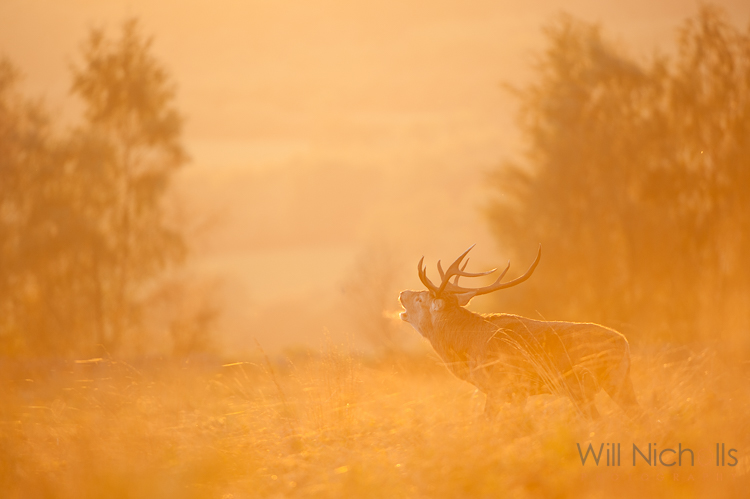
A wide aperture often favours wildlife photographs, as it allows for a nice, soft bokeh, that isolates the subject from the background. This is what often gives a wildlife image a sense of quality, although I am a big believer in breaking the rules and actually including the background in your shots. For this reason, aperture priority often makes sense as you are able to control the setting that can make or break a photo.

Shutter Priority Mode

This is definitely not the mode you want to be in, if you’re going to involved in wildlife photography. Chances are you’ll be setting your shutter speed high – and probably too high at that. Wildlife is most active at dawn and dusk, and while you may find it relatively easy to see, it is surprising how little light is available to the camera, especially if you’re shooting with a lens slower than f/2.8. With a shutter speed dialed down, the camera only has so far it can go in increasing the aperture before the photo starts to become underexposed. Conversely, with aperture priority mode there is no real limit to how fast or slow the shutter speed can go – the worst thing that may happen is you get a blurred image, although this can sometimes come off artistically.

Note: Stay away from shutter priority mode for wildlife photography!

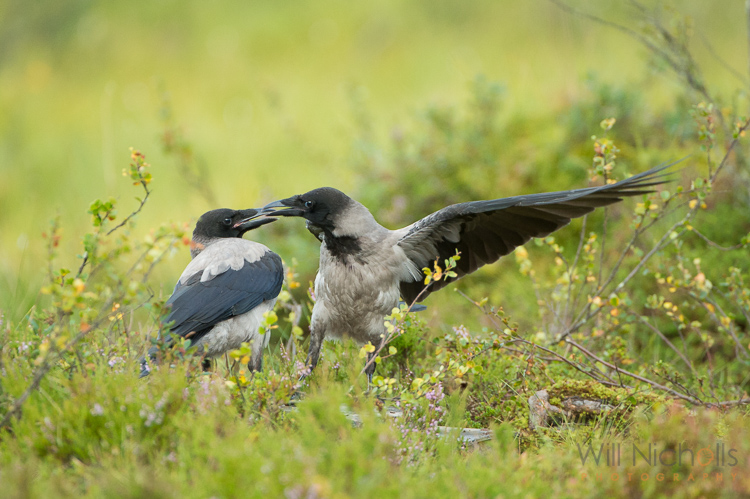
Two hooded crows engaged in a scrap.

Two hooded crows engaged in a scrap.

Manual Mode with Auto ISO

This is a popular choice amongst wildlife photographers too, although I have yet to use it myself. By sticking the camera into manual mode, but leaving the ISO set to automatic, you retain control over both aperture and shutter speed, allowing the camera to adjust the ISO to balance the exposure. Personally, I like to have control over the ISO, as I feel this can ruin an image.

This mode does allow you to ensure you have the desired aperture and shutter speed for proper effect, but consequently you may not notice that your ISO is increasing quickly as light conditions drop. The worst thing to find is a photo that looks fantastic on your camera’s LCD, until you return to your studio and find it is peppered with digital noise.

Even so, getting into a good habit of checking the ISO settings periodically during a shoot, will mean this is no longer a problem. With experience you’ll learn what the limits tend to be for certain ambient conditions, before the ISO gets ramped up.

semi-automatic modes

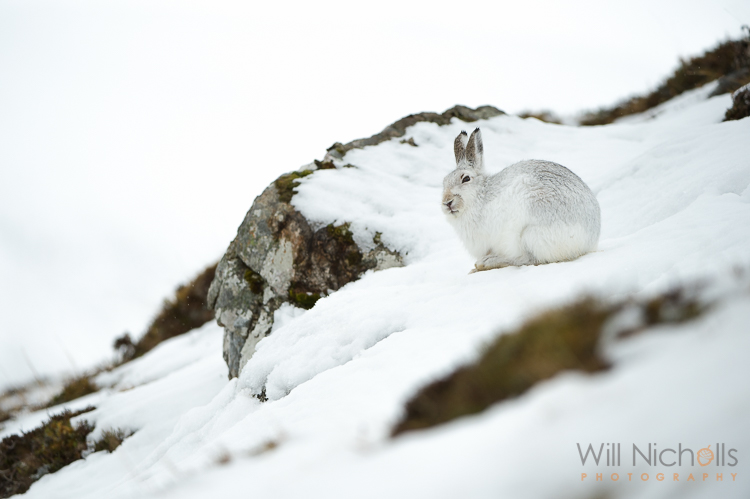
You still have full control in semi-automatic modes, allowing you to achieve more unusual images.

You also still retain the ability to use exposure compensation while ISO is set to auto. This allows you to fine-tune the exposure, just like with aperture and shutter priority modes.

So which mode should you use?

Now we’ve looked at three different semi-automatic modes you’re probably wondering which you should go for? Well, you know what I think about shutter priority mode. Other than that, it’s essentially up to you. If you want to be entirely confident in your aperture and shutter speed, then opt for manual with auto ISO.

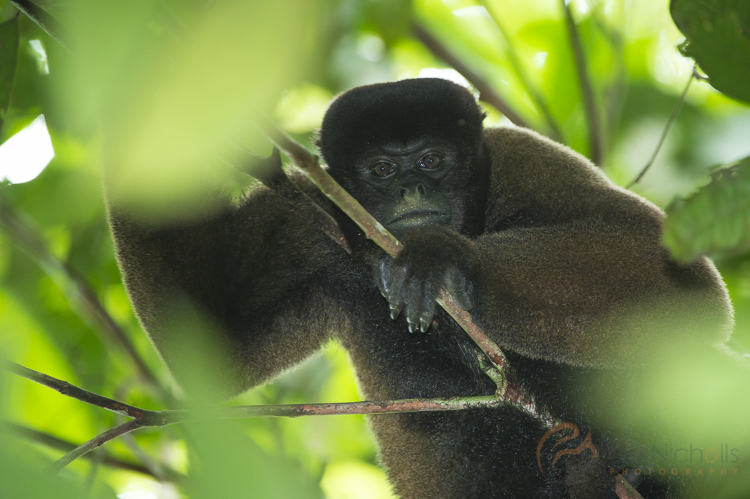
Thanks to a semi-automatic mode, I was ready for action when this woolly monkey surprised me in the Amazon rainforest. Manually mode would have rendered my efforts useless in such a fleeting moment.

Thanks to a semi-automatic mode, I was ready for action when this woolly monkey surprised me in the Amazon rainforest. Manual mode would have rendered my efforts useless in such a fleeting moment.

If, like me, you find the prospect of an unacceptably high ISO speed creeping up on you, then stick to aperture priority mode. Professionals use both modes, and either can result in great success with the right photographer behind it. It’s just getting used to the mode of choice, and playing to the relative advantages each one brings with it.

You’re going to feel the limitations of either mode as light drops, but I always say that a slightly blurred image (or risk of one from a slow shutter speed) is better than a photo rendered unusable thanks to digital noise.

googletag.cmd.push(function() {
tablet_slots.push( googletag.defineSlot( “/1005424/_dPSv4_tab-all-article-bottom_(300×250)”, [300, 250], “pb-ad-78623” ).addService( googletag.pubads() ) ); } );

googletag.cmd.push(function() {
mobile_slots.push( googletag.defineSlot( “/1005424/_dPSv4_mob-all-article-bottom_(300×250)”, [300, 250], “pb-ad-78158” ).addService( googletag.pubads() ) ); } );

The post Why Semi-automatic Mode is the Best Choice for Wildlife Photography by Will Nicholls appeared first on Digital Photography School.

Digital Photography School

 
Comments Off on Why Semi-automatic Mode is the Best Choice for Wildlife Photography

Posted in Photography


A Simple Explanation of the Camera Mode Dial

09 Aug

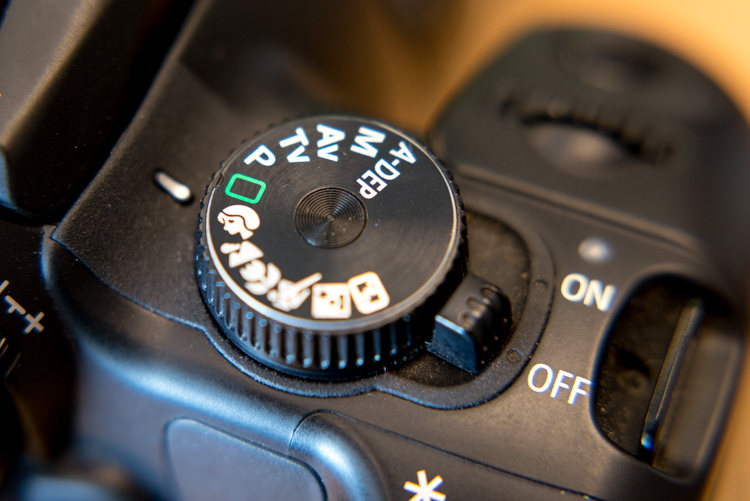
If you have a more advanced camera like a DSLR or mirrorless, or even a high-end pocket model, it’s a good bet that somewhere on the top of the camera body you will find a circular dial (the camera mode dial) with a whole lot of strange letters like: M, Tv (or S), Av (or A), P, and maybe even a U1 or U2 (or C1, C2) thrown in for good measure. There is also a friendly safe green option, that may say Auto, or depending on the type of camera you have, is just represented by a green rectangle.

mode-dial

Most beginners know this option the best, since it essentially puts your camera in the driver’s seat, and forces it to do all the heavy lifting of figuring out the exposure, while all you need to do is point your camera in the right direction. If you like shooting in Auto and you are happy with your pictures, then don’t let anyone tell you that you need to change, or that you aren’t a good photographer.

However, if you would like to branch out a little bit, and learn to make your camera do what you want in order to make the photos you desire, then the mode dial is your key to a whole new world of photographic creativity. It can be somewhat daunting, and those strange letters don’t inspire much confidence for beginners who already feel overwhelmed. So I’ll walk you through the basic functions of the mode dial one by one, and give you the information you need to start experimenting with some of your camera’s more advanced settings.

Auto Mode

This one might seem fairly self-explanatory, but I’d like to offer some detail about what Auto mode actually does. In most situations, your camera is going to do whatever it can to make sure the pictures you take are properly exposed (in other words, not too dark nor too bright). There are three main things that govern exposure (Aperture, Shutter, and ISO – otherwise known as the Exposure Triangle) and Auto mode takes care of setting the values of all three of these elements for you. If your camera has a flash, it may decide to fire it, order to brighten up a scene that is quite dark, which often happens indoors or at night. Auto generally does a good job at allowing you to take decent photos in a variety of situations.

Sometimes Auto mode is all you need to get the pictures you want.

Sometimes Auto mode is all you need to get the pictures you want.

P: Program Auto Mode

When you want to branch out from Auto mode, this is a good place to start. Program Auto does exactly the same thing as the familiar, comfortable green Auto mode, but with a twist – you can change a few settings if you want. Using Program Auto allows you to do things like decide whether you want the flash to automatically pop-up or turn off altogether, as well as change the ISO and the White Balance.

It really gets interesting when you turn the rotating circular dial (called a control wheel) on the top or back of your camera, which lets you take some degree of control back from your camera. In Program Auto your camera will always try to maintain a properly-exposed picture, but you can use the dial to change the aperture and shutter speed at the same time. It’s a fun way to experiment with your camera while being reasonably certain that you will still get good pictures, and also start to notice some of the effects that changing the aperture and shutter speed has on your final images.

Program Auto can be a great way to help you get the shot you want by changing the shutter speed and aperture with a simple flick of your thumb.

Program Auto can be a great way to help you get the shot you want by changing the shutter speed and aperture with a simple flick of your thumb.

Av (or A): Aperture Priority Mode

When you want to have full control over the aperture in your lens (and thus also control the depth of field), this is the mode to use. It lets you turn the control wheel on your camera in order to adjust the aperture alone, while the camera decides what ISO (if you use auto ISO) and shutter speed to use.

If you have plenty of available light this is a fantastic mode to be in, because you can choose whether you want a wide depth of field (i.e. everything in focus) or a shallow depth of field (just your subject in focus, with foreground/background elements blurry) and know that the shutter speed and ISO will be set automatically to get the shot you want. However if you are shooting in low light, you might end up in a situation where you set the aperture you want, but your camera chooses a shutter speed that is too slow, or an ISO (again only if you are using Auto ISO, if you are manually setting the ISO you will still have to adjust that yourself) that is too high for your liking.

My personal favorite mode to shoot in is Aperture Priority with Auto-ISO, which means my camera won’t use a shutter speed that’s too slow (you can usually set the parameters for minimum shutter speed in your camera’s settings via the menu options – consult your user manual if you aren’t sure), and will instead raise the ISO.

I knew I wanted a shallow depth of field with this, so I used Aperture Priority mode to select a wide aperture and let my camera figure out the rest.

I knew I wanted a shallow depth of field for this shot, so I used Aperture Priority mode to select a wide aperture, and let my camera figure out the rest.

Tv (or S): Shutter Priority Mode

You may have already guessed what this mode does, based on the explanation of Aperture Priority above. Shutter Priority Mode is essentially the opposite. In this mode you tell the camera what shutter speed to use, and let it calculate the aperture and ISO (when using Auto ISO). It is particularly useful if you are shooting fast action like a race or sporting event, because you can set your shutter speed to be fast enough to freeze the motion of the subjects, and know that your camera will select whatever aperture and ISO values are needed to get the shot. Most cameras can shoot as fast as 1/4000th of a second which is plenty for freezing motion, or as slow as 30 seconds, which can be fun for nighttime photography and capturing light trails.

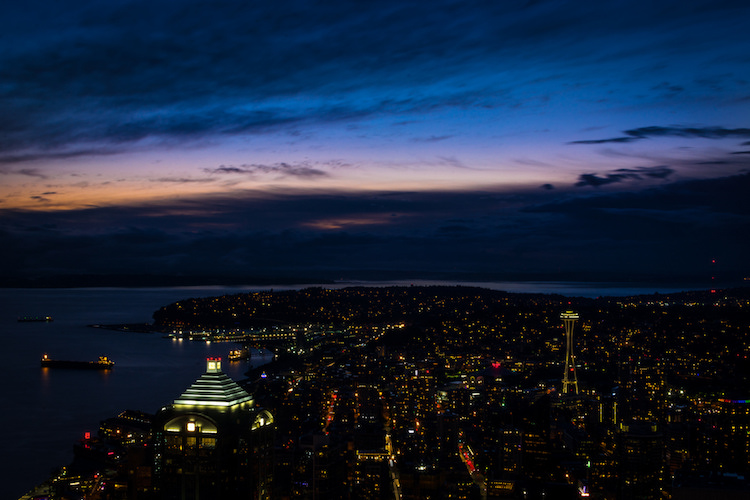
I used Shutter Priority with a value of 30 seconds to get this shot of the Seattle skyline from the Columbia Tower Observation Deck.

I used Shutter Priority with a value of 30 seconds to get this shot of the Seattle skyline, from the Columbia Tower Observation Deck.

M: Manual Mode

This is the granddaddy of all camera modes, because you have to choose all three settings: Aperture, Shutter Speed, and ISO. Shooting in manual can be a little scary at first, but the trick here is to learn to use your camera’s light meter, which will tell you if your picture will be over, or under-exposed. When you put your camera in Manual ode, the control wheel will only change one parameter of the three aforementioned settings at a time, so you may need to press another button while turning the wheel, or navigate to one of your camera’s menus in order to select a different value. With enough practice you will easily get the hang of it.

Shooting in Manual can be challenging, but intensely rewarding, as you learn exactly how to control your camera to get precisely the picture you want. Any situation can be good for Manual, provided you are well acquainted with your camera and how it operates.

Learning to shoot in Manual mode might seem daunting at first, but it's incredibly liberating when you learn how to take full control over every element of exposure.

Learning to shoot in Manual mode may seem daunting at first, but it’s incredibly liberating when you learn how to take full control over every element of exposure.

U1 (or C1): Storing custom user settings

Not all cameras have these options, but if yours has the ability to save custom user settings, you may want to investigate it a little more to start taking advantage of how this can help you. These custom settings allow you to specify a set of parameters, not just for exposure, but for other options like: shooting in JPG or RAW, shooting mode, White balance, enabling Auto ISO, and others – then instantly switch to those settings with just a click of your dial.

One thing I find these user storage banks useful is for having U1 (may be called C1 or something else on your camera) store a set of parameters that is a good starting point for indoor photography, such as a wider aperture and higher ISO, and then using U2 for outdoor pictures. The values and parameters can all be changed once you click over to a U1 or U2 storage bank, but it’s an incredibly handy to instantly change to a specific custom baseline for shooting different types of scenes.

Other things you could use it for are: saving settings for panning, bracketing for HDR shots, low light photography, portrait settings, landscape settings, etc. Use them for the types of things you do most often, or need to access quickly.

I have U1 configured to be ideal for outdoor portraits, so no matter what I'm doing I can instantly switch over to those settings to get the shot I want.

I have U1 configured to be ideal for outdoor portraits, so no matter what I’m doing I can instantly switch over to those settings to get the shot I want.

Preset Program Modes

Insert mode dial close-up shot here. This is just a placeholder.

Think of these as custom Auto settings, each one suited for a different type of photography (look for the mountain, flower, person or sports figure on your mode dial). If you are perfectly happy shooting in Auto mode, but get frustrated when it doesn’t always give you the results you want, you might want to try using one of these instead.

Each option includes a specific set of parameters, kind of like the U1/U2 storage banks, that is ideal for taking pictures in certain types of settings. If you like going outdoors and taking shots of landscapes, twist the dial away from Auto, and over to the mountain icon, which will force your camera to use smaller apertures and lower ISO values that are suited for this type of photography. If you are watching your kids play football or run around at the park, use the icon with a person running, which will make your camera use faster shutter speeds and higher ISO values, if necessary, to freeze the action.

Each one of these icons is calculated and calibrated by your camera’s manufacturer to deliver good results in various types of situations, and they often deliver better images than just shooting in Auto mode.

Using the icons on your camera can help you get the specific type of picture you want; the Portrait mode works here because it forces the camera to choose a wider aperture resulting in a blurry background behind the subjects.

Using the icons on your camera can help you get the specific type of picture you want; the Portrait mode worked here because it forced the camera to choose a wider aperture, resulting in a blurry background behind the subjects.

Other Common Modes

There are plenty of other modes you might find on any given camera, and each manufacturer includes a slightly different set of options, so it’s difficult to make a list that includes an explanation of all available functions. Here are just a few more that you might find, along with brief explanations. If your camera has something that’s not on this list, it may well be worth your time to open up your user manual and investigate. You may find some very useful modes for helping you take better pictures that were hidden in plain sight all along!

A-Dep: A fully automatic mode that lets you pick two points (in the foreground and background) that you want to be in focus, and your camera selects the aperture needed to get everything between those two points in sharp focus. The abbreviation stands for Automatic Depth of Field and it’s fun to play with, but doesn’t always work out so well in practice.

Box with Lightning Symbol Crossed Out: Another automatic mode that also disables the flash. It’s good if you want to shoot in low-light situations and only use available light, but your pictures may come out grainy or blurry.

Flower (macro): This is useful for shooting subjects at close range, such as flowers, or other small objects. It doesn’t affect the properties of your lens, which are far more important when shooting close-up subjects, but merely tells your camera to set the focus priority on things that are closer instead of farther away.

SCN/SCENE: Similar to the icons you may find on a mode dial, this lets you choose from several built-in scene examples, in order to help your camera figure out the appropriate shooting parameters to use.

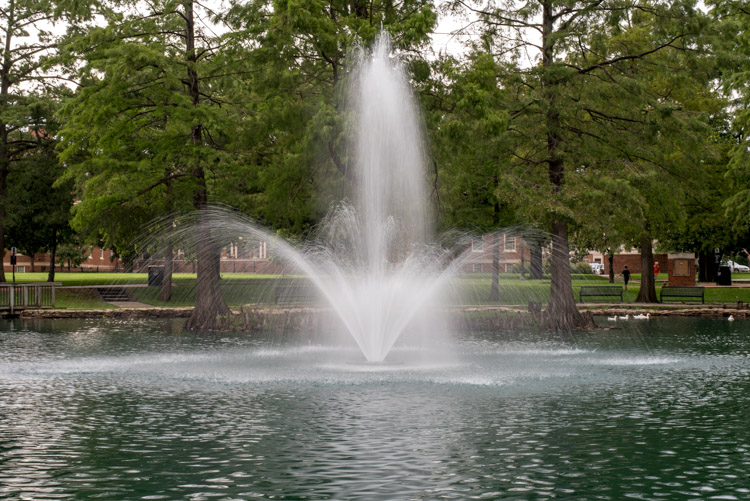
Though I shot this in the day, the nighttime scene mode worked well because it forces the camera to use a slow shutter speed which resulted in a nice blurry fountain.

Though I shot this in the day, the nighttime scene mode worked well because it forces the camera to use a slow shutter speed, which resulted in a nice blurry fountain.

Do you like using the mode dial on your camera, or do you prefer to leave it in just one position for all your shooting needs? Do you have any other tips or tricks you have learned from using the various functions on your mode dial? Did I leave out any critical information you think might be useful to someone learning to use the mode dial? Please leave your thoughts in the comments below.

googletag.cmd.push(function() {
tablet_slots.push( googletag.defineSlot( “/1005424/_dPSv4_tab-all-article-bottom_(300×250)”, [300, 250], “pb-ad-78623” ).addService( googletag.pubads() ) ); } );

googletag.cmd.push(function() {
mobile_slots.push( googletag.defineSlot( “/1005424/_dPSv4_mob-all-article-bottom_(300×250)”, [300, 250], “pb-ad-78158” ).addService( googletag.pubads() ) ); } );

The post A Simple Explanation of the Camera Mode Dial by Simon Ringsmuth appeared first on Digital Photography School.

Digital Photography School

 
Comments Off on A Simple Explanation of the Camera Mode Dial

Posted in Photography


DEAL: How to Get Your Camera Out of Auto Mode

11 Jul

It is Day 5 of our 7 day Summer Sale.

Today only, you can buy our two popular Photo Nuts courses together for just $ 35.

Pnbvideo

Normally you’d pay $ 118 to get them both. But today you’ll save 70% when you purchase them in a bundle.

Grab them here.

In these two courses, Neil Creek goes through all the basics of photography and explains tech concepts in a way anyone can understand.

This 2 course bundle includes:

  1. Photo Nuts and Bolts – Over 2 hours of practical online video lessons that teaches you all about your camera and gets you out of “auto” mode.
  2. Photo Nuts and Shots – 2.5 hours of online video lessons, that teach you the craft of photography – so you can take photos that truly connect with people and reflect your creative vision.

Only want the one course? Then pick up either for just $ 19 for today only. Usually $ 59, you’ll save 68%.

Remember, these deals only last for 24hrs so grab this offer while you can.

Note: As with all dPS products these come with a 60 day money back guarantee so there’s no risk. If you don’t find them useful simply let our team know and we’ll arrange a refund.

googletag.cmd.push(function() {
tablet_slots.push( googletag.defineSlot( “/1005424/_dPSv4_tab-all-article-bottom_(300×250)”, [300, 250], “pb-ad-78623” ).addService( googletag.pubads() ) ); } );

googletag.cmd.push(function() {
mobile_slots.push( googletag.defineSlot( “/1005424/_dPSv4_mob-all-article-bottom_(300×250)”, [300, 250], “pb-ad-78158” ).addService( googletag.pubads() ) ); } );

The post DEAL: How to Get Your Camera Out of Auto Mode by Darren Rowse appeared first on Digital Photography School.

Digital Photography School

 
Comments Off on DEAL: How to Get Your Camera Out of Auto Mode

Posted in Photography


Panasonic Lumix GH4 firmware 2.5 brings Post Focus and 4K Photo Mode

16 Mar

Panasonic has announced a firmware update for the Lumix DMC-GH4, bringing Post Focus, 4K Photo Mode and burst shooting with flash to the video-centric mirrorless camera. The update will be available at the end of March, free of charge. 

Post Focus was first announced in July of last year. It captures a short clip of 4K footage while racking focus from one end to the other, allowing the user to select a frame in playback mode after capture with the desired focus point. The Lumix GX8, G7 and FZ300 were the first in line to get the feature via firmware update.

Also taking advantage of the GH4’s video capabilities is the newly added 4K Photo feature, which enables 4K burst, 4K Burst (Start/Stop) and 4K pre-burst. These modes optimize 4K shooting for still photo extraction, and aim to help photographers catch hard-to-get moments, like the elusive group shot with all eyes open. Firmware 2.5 also enables consecutive shooting with compatible Panasonic external flash units.

In the past, Panasonic has used Photokina to launch its DSLR-style mirrorless cameras, so it would make sense if we see an update to the GH-series come September. However, a significant firmware update in the meantime indicates that it’s still alive and kicking.

Check Panasonic’s support website at the end of March to download the update.


Press release:

DMC-GH4 Firmware Update Version 2.5

Newark, NJ (March 16, 2016) – Panasonic has today announced the new firmware update Version 2.5 for the DMC-GH4 to further enhance its performance at no charge. The new firmware Version 2.5 includes following functional updates:

-Post Focus
Post Focus is a special function that enables users to select an in-focus point after shooting. It has already been integrated in new LUMIX cameras such as the GX8. With this function, users can enjoy changing the perspective for greater photographic expression or to choose the best in-focus shot for macro shooting.

-4K PHOTO (4K Burst / 4K Burst (Start/Stop) / 4K Pre-burst)
With 4K PHOTO mode there are three dedicated modes – 4K Burst / 4K Burst (Start/Stop) / 4K Pre-burst – are all now available on LUMIX GH4*. The addition of these modes further enhances the usability of 4K PHOTO to capture fleeting photo opportunities at 30p. 

-External Flash Burst
Consecutive shooting with flash burst is available with an external flash that is capable of continuous emission.  This includes the following Panasonic models: DMW-FL580L, DMW-FL360L, DMW-FL500, DMW-FL360 and DMW-FL220.

The new DMC-GH4 firmware Version 2.5 is scheduled to be released at the end of March 2016 at the LUMIX Customer Support website: http://panasonic.jp/support/global/cs/dsc/

Articles: Digital Photography Review (dpreview.com)

 
Comments Off on Panasonic Lumix GH4 firmware 2.5 brings Post Focus and 4K Photo Mode

Posted in Uncategorized


75% OFF: Get Out of Auto Mode & Gain Creative Control Of Your Camera

23 Dec

It’s day 10 of our 12 deals of Christmas and todays deal is one we’ve been getting requests for – it’s deals on our brand new Photography Courses by Neil Creek.

These two courses were both released in 2015 and both have helped many of our readers to get out of Auto mode and gain creative control over their cameras.

Today you can pick up either course for $ 20 (they are each normally $ 59) or you can bundle them together for just $ 30.

Course 1: Photo Nuts and Bolts

NewImage.png
This course is all about getting out of Auto mode and getting to know your camera and how to get control over it to take fantastic images.

In 10 practical video lessons, you’ll discover the key photography concepts that will put you in creative control of your camera and increase your technical confidence, to take more amazing photos than you ever thought possible!

  • Shutter speed
  • Aperture
  • F-stops
  • ISO
  • Metering
  • Depth of field
  • Lenses
  • Focus
  • Magnification

Photo Nuts and Bolts is perfect for new camera owners or those who are yet to venture out of Auto Mode.

Take the course today for just $ 20

Course 2: Photo Nuts and Shots

NewImage.png
This second course is for those who understand the basics (it builds perfectly upon the first course above) and helps you to discover tools, techniques and thought processes for creative photography.

In 10 video lessons you’ll:

  • Learn to harness light to convey emotion
  • Understand the impact of great composition and how to achieve it
  • Tips for the sharpest possible photos
  • How to adapt your camera’s exposure for the shot you want
  • Master the concepts of shot perception, planning and execution – in any setting
  • When to break the rules for creative effect

Today only you can grab it for just $ 20 (66% off).

Take Both Courses for $ 30 (75% Off)

These courses are designed to be taken stand alone but are beautiful companion courses when you bundle them.

You can start though courses immediately and go through them all at once or pace it over time. You’ve got lifetime access so it’s completely up to you!

If you’re sick of looking at the dials and settings on your camera and knowing it can do so much more than what you do with it they’re the perfect gift to yourself to help you take beautiful images in 2016 and beyond.

This is one deal you don’t want to miss.

googletag.cmd.push(function() {
tablet_slots.push( googletag.defineSlot( “/1005424/_dPSv4_tab-all-article-bottom_(300×250)”, [300, 250], “pb-ad-78623” ).addService( googletag.pubads() ) ); } );

googletag.cmd.push(function() {
mobile_slots.push( googletag.defineSlot( “/1005424/_dPSv4_mob-all-article-bottom_(300×250)”, [300, 250], “pb-ad-78158” ).addService( googletag.pubads() ) ); } );

The post 75% OFF: Get Out of Auto Mode & Gain Creative Control Of Your Camera by Darren Rowse appeared first on Digital Photography School.

Digital Photography School

 
Comments Off on 75% OFF: Get Out of Auto Mode & Gain Creative Control Of Your Camera

Posted in Photography