A project to salvage, clean, scan and return photographic prints found in the areas devastated by the August 2011 Great East Japan Earthquake and Tsunami has reunited over 90,000 images with their rightful owners since shortly after the disaster struck. The Save The Memory Project has recovered over 400,000 prints from the rubble of affected areas, having cleaned, scanned and posted digitized versions to an online system for owners to claim. Learn more
Tag: Memory
-
The Best Way to Delete Photos From Your Memory Card
When it comes to photography, we spend most of our time thinking about taking photos – lighting, composition, exposure, and posing. Then, once the photo is taken, we may start to think about post-processing, gently nudging the photo along until it becomes exactly what we’ve pictured in our mind’s eye. Once that’s accomplished, we do it all over again.

Back in high school and college, I shot film. I can vividly remember running out of film, and sometimes having to wait weeks until I was able to buy more. Our public high school relied heavily on donations of film, and sometimes when there wasn’t any left, our teacher would have us walk around campus with our pointer fingers and thumbs shaped into a rectangle, pretending to take photographs. Now that digital cameras are on the scene and we’re using memory cards in lieu of film, with the capability to erase images and write over them again, the number of photographs that we can take in any given week or month is nearly endless.
You may have noticed that I said, “nearly” endless, and that’s because memory cards do have a lifespan, and will not last indefinitely. That said, there are a few things that we can do to maximize the lifespan of our memory cards, including making sure that we are deleting our photos off the memory card in the most efficient manner possible. This isn’t something that’s talked about all that often, but when it comes down to it, it is really simple:
Less Desirable Ways to Delete
Deleting each photo individually through the camera by using the “Delete” or Trashcan Button
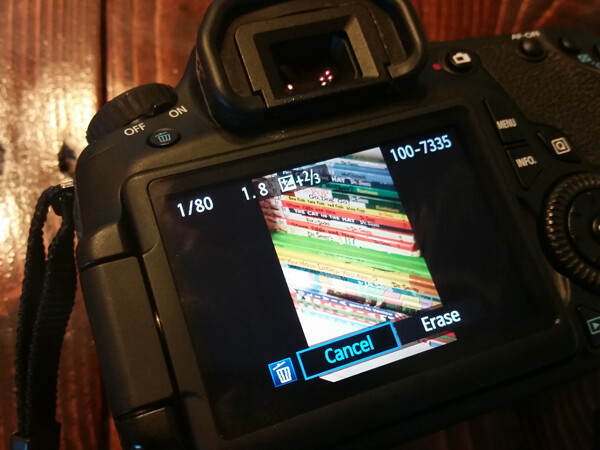
Deleting all photos through the camera by using the “Delete All” option
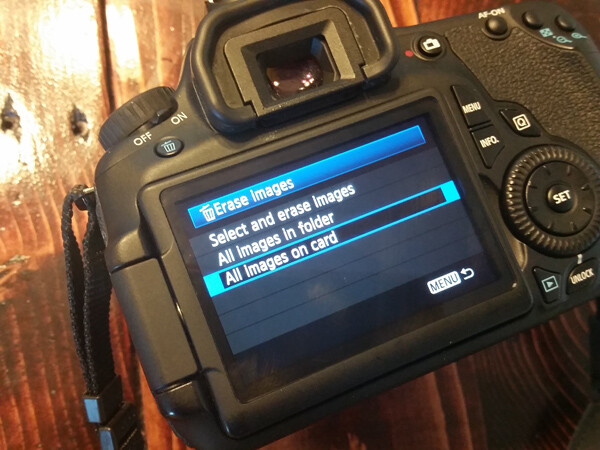
Plugging the camera into the computer, and dragging photos into the computer’s recycle bin and/or allowing your import software to delete the files from the card once they’re uploaded.
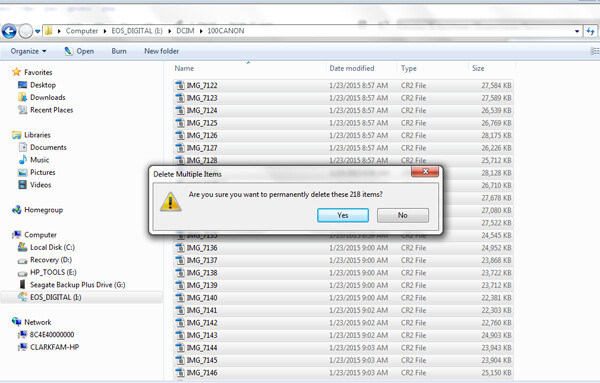
Most Desirable Way to Delete
Using your camera’s Format function
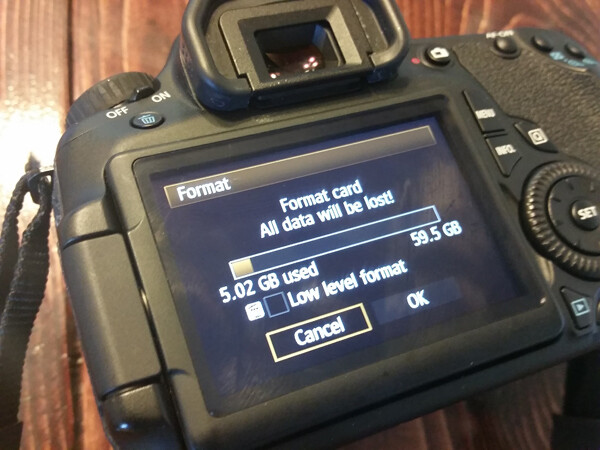
In the end, all of the above methods work toward the same end, in that they remove the images from your card. However, the first three ways to delete are actually more taxing to the memory card than using the card’s Format function. I’ve heard it explained like this:
Let’s pretend for a moment that your memory card has a shelf-life of 1,000 uses. Let’s say that you go out and take 500 photos, that’s 500 uses on your memory card. You then upload the photos to your computer, and then individually delete each photo using the delete button on your camera. Deleting each photo individually counts as another 500 uses on your card. So in all, you’ve just spent 1,000 uses of your memory card, leaving you with no uses left on that card.
Now, let’s pretend that you’ve uploaded your 500 photos, but instead of deleting them with your delete button, you use your camera’s Format function. Formatting works in a different way than deleting, and only deletes the directory files rather than the images themselves. This then allows the images to be overwritten the next time you take a picture. Because of this, formatting only counts as ONE use of your memory card, regardless of how many photos you’re deleting. So, in the scenario above, you’d have used only 501 of your memory card’s uses, as opposed to 1,000 with deleting manually. Certainly, memory cards available today will be able to handle far more than 1,000 uses, but the illustration still rings true – formatting your card causes less wear and tear on your memory card than other ways of deleting images.
Additionally, because formatting only deletes the directory file instead of the images themselves, images on a card that has been formatted are typically much easier to recover (if needed) than those that are deleted manually, assuming that you did not overwrite them by taking more photos. Not a bad trick to have up your sleeve in case of emergencies, am I right?
I’d also like to add that I have personally seen a difference in both buffering time of the card, and also a decrease in the amount of corrupted images/cards that I’ve come across since I’ve been formatting cards rather than deleting in some other way. I’m not sure whether there’s an actual scientific basis there, but it definitely seems related in my book, and it is now pretty rare that I delete even a single image in any way other than formatting.
So, how often should you format? Some people like to wait until their card is totally full, and then format. Personally, I like to format my card before each new photo session. It just makes sense to me to start fresh each time, and be able to upload everything on the card to one location. This is really a matter of personal preference as far as I’m concerned. The one hard and fast suggestion that I do have when it comes to formatting cards is simply to be sure to format the card in whichever camera body you plan to use it in next.
How do you typically delete images, and why?
googletag.cmd.push(function() {
tablet_slots.push( googletag.defineSlot( “/1005424/_dPSv4_tab-all-article-bottom_(300×250)”, [300, 250], “pb-ad-78623” ).addService( googletag.pubads() ) ); } );googletag.cmd.push(function() {
mobile_slots.push( googletag.defineSlot( “/1005424/_dPSv4_mob-all-article-bottom_(300×250)”, [300, 250], “pb-ad-78158” ).addService( googletag.pubads() ) ); } );The post The Best Way to Delete Photos From Your Memory Card by Meredith Clark appeared first on Digital Photography School.
-
How to Recover Lost Files from a Memory Card
Whether you’re a novice or veteran photographer, chances are you’ve experienced a moment of dread when you thought all of your precious photos were lost forever. Maybe you damaged a SD or CF card, or accidentally formatted a card before offloading your images. As long as your memory card can still be plugged in to, and recognized by your computer, there’s a good chance you’ll be able to salvage your photos, even if you did an accidental deletion. Sometimes you can achieve this all by yourself, and recover your lost files.
There are many programs and apps that can help you recover data from a memory card, but the one I’m going to introduce you to is SanDisk RescuePRO. Created by the same folks who produce trusty SanDisk memory cards, RescuePRO has in my experienced maintained the same reliability and quality that one can expect from SanDisk products. Their recovery program is straightforward, easy to use, and does a great job at recovering lost photos. So before you make an appointment with an IT professional, give this memory card recovery method a try.
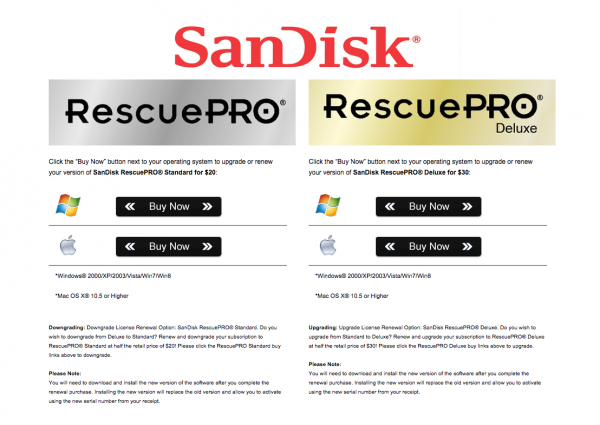
About SanDisk RescuePRO
RescuePRO is a downloadable, data recovery program available for Mac or Windows. Using proprietary media recovery algorithms, RescuePro will scan your memory card and display previews of any recoverable data such as photos (JPG and most RAW formats), video, and audio. The software will work with most brands of digital cameras and memory card types including; SD, SDHC, CompactFlash, Memory Stick, CDs, and DVDs.
There are two versions of RescuePRO, regular and deluxe, with the main difference other than price being in the extra formats of photos and video/audio that deluxe promises to recover. RescuePRO has a fee of $ 39.99 for the regular version and $ 59.99 for deluxe, but they do offer a free evaluation so you can verify if the program will work with your memory card before you purchase. Payment buys you a one year subscription, which must be renewed annually to continue using the service. But on the bright side, this is a small price to pay if you stand to recover important photos or videos.
How RescuePRO Works
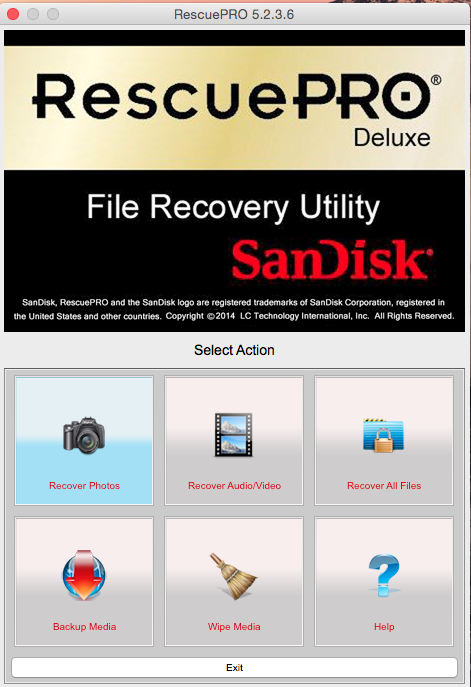
1. After you buy a subscription, download the RescuePRO program to your desktop computer. Insert your memory card into your computer and launch RescuePRO. The below menu will pop up on your screen, and you’ll want to select the option that’s relevant to your needs: either Recover Photos, Recover Video/Audio, or Recover All Files.
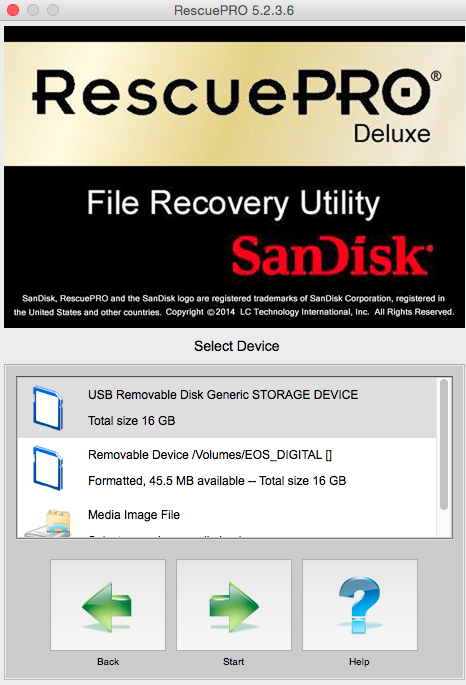
2. After you select your desired outcome, the below screen will prompt you to select the memory card in question. Be sure you have your memory card connected to the computer. Select your card and hit the green Start button.
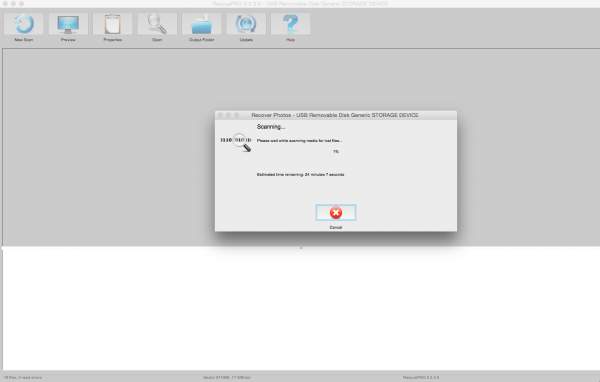
3. Now it’s time to sit tight and let the program do its thing. Feel free to pull up an Internet browser or Photoshop and multitask as you wait. Data recovery from your memory card can take a bit of time depending on how many files there are to be retrieved. In this particular instance, I had 927 files to recover from my CF card and it took about 30 minutes.
4. When the program is done recovering data, it unfortunately doesn’t do a great job at alerting you. There’s no fanfare, but you’ll know the recovery process is done when you see the bottom portion of the screen filled with recovered files. To verify what content the program has recovered, click on each individual file name and a preview will appear. In this particular instance, the previewed images were showing up tinted in pink, but the actual recovered images were just fine without any distortions.
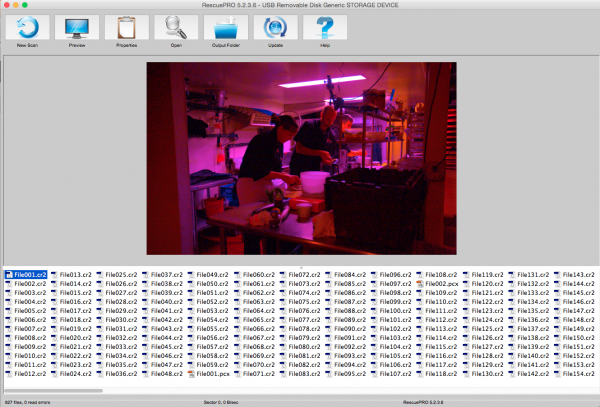
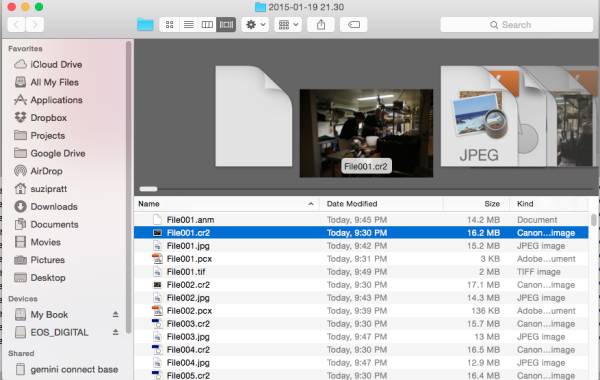
5. Once you verify that your files have indeed been saved, it’s time to locate them on your computer. The great part about RescuePRO’s long recovery process is that it includes saving the files on your device automatically. As a result, all you have to do to find the desktop folder full of your recovered images is click on the giant Output Folder button. The program should then pull up a desktop window like the one below, showing you a folder full of recovered data. Also, notice in the preview below that the recovered image does indeed, not carry over the extra coloring that RescuePRO’s software assigned to it in the preview.
There you have it; a relatively simple, low cost way, to potentially get back precious photos that you thought were lost. Either way, do yourself a favor and remember to always format your memory card in your camera (not your computer) after every use; doing this will keep your memory card up to speed, and lessen the chance of it becoming corrupt over time.
Since this is one of many options, let me know in the comments below if you have a preferred method or program for recovering lost images.
googletag.cmd.push(function() {
tablet_slots.push( googletag.defineSlot( “/1005424/_dPSv4_tab-all-article-bottom_(300×250)”, [300, 250], “pb-ad-78623” ).addService( googletag.pubads() ) ); } );googletag.cmd.push(function() {
mobile_slots.push( googletag.defineSlot( “/1005424/_dPSv4_mob-all-article-bottom_(300×250)”, [300, 250], “pb-ad-78158” ).addService( googletag.pubads() ) ); } );The post How to Recover Lost Files from a Memory Card by Suzi Pratt appeared first on Digital Photography School.
-
Photography Workflow Tips – From Memory Card to Computer and Beyond
Discover the best workflow protocol for safe long-term file storage, and efficient file retrieval.
“Be willing to give that extra effort that separates the winner from the one in second place” – H. Jackson Brown Jr.

All images copyright Gina Milicia – Playing your cards right means having a consistent workflow, which leads to safer long-term file storage and efficient file retrieval. Photo credits: Promo shoot for Fat Tony and Co. Image courtesy Nine Network Australia
“Respect your efforts, respect yourself. Self-respect leads to self-discipline. When you have both firmly under your belt, that’s real power.” – Clint Eastwood
It’s very easy to become lazy and a bit sloppy with post-production workflow protocols. If you are like many people I know, then you are currently downloading your files to a folder marked “downloads” or “photos” or “John”. Inside this folder you may have hundreds, perhaps thousands of images with file names like 5U9D2496.jpeg or 5U9D2497.CR2. This is all perfectly fine if you never want to see those images again but what if in five years time you need to find those images again?
Following a constant workflow protocol will save you hours of valuable time and also prevent potential heartbreak caused from lost files.
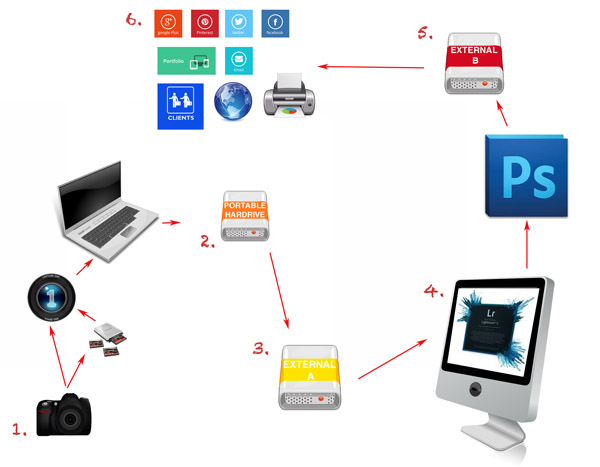
An overview of the workflow tips:
- Import the images from your camera (first backup)
- Backup to portable hard drive (second backup)
- Backup to external hard drive (third backup)
- Editing
- Final backup
- Delivery
Workflow tips – step by step
“Success is the sum of small efforts, repeated day in and day out.” – Robert Collier
Step 1: Import the images from your camera (backup #1)
You can get the images off the memory card in a few different ways. Here are the pros and cons of each method.

Instant gratification: In this image I’m shooting tethered on a photo shoot for Australian entertainer Todd Mckenney (pictured second from left) and makeup artist extraordinaire, Fotini Hatzis (far right) with stylist to the stars Louise Petch (far left).
Shooting tethered to your laptop
I shoot about 70 percent of my work tethered (connected to my laptop) and it’s my preferred way of shooting. I have a memory card in the camera but the images are being downloaded straight to my laptop via image capture software. The memory card is just a backup.
My preferred software for viewing images as I shoot is Phase One Capture One. I use Capture One to view my files because it’s very fast and I’ll often have several people crowded around the computer waiting to see the image. In these cases a couple of seconds can make all the difference.
Shooting straight to memory card
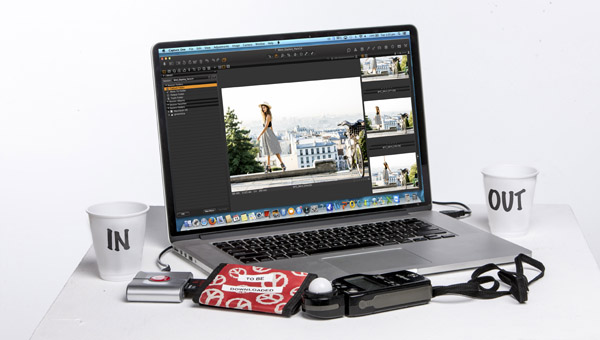
This shoot with Australian model, Mimi Elashiry was shot on location in Paris. It was photographed at dawn to avoid the crowds and I needed to work quickly in order to get all my shots done before the light became too hard and the crowds became an issue. This is a perfect situation for me to shoot straight to card.
I will shoot straight to a memory card when I can’t have my laptop with me. Like, on remote locations, in extreme weather conditions, at press conferences, at events where I need to be mobile or I’m on stage photographing someone.
I carry a special cardholder that is clearly marked “To be downloaded” and stored away from my gear. This way, if my camera bag is lost or stolen (or the day gets a bit frantic) before I’ve downloaded all the memory cards, I won’t lose my files.
The images are then downloaded to my laptop using a memory card reader via Capture One.
I use RAW capture software at this stage because it’s crucial to check my exposures and expressions as I work. I’m also often working with art directors, magazine editors, fashion designers or publicists who want to view the images straight away.
All images stay as RAW files. This step is simply for checking, viewing and selecting (tagging) images.
Some people will prefer to copy the images directly onto their computer desktop and use other software. I choose Capture One because for most of my shoots, my clients are right next to me and we’re making sure we’ve got the shot. I’ve also got an assistant double-checking the technical aspects of the shots.
Capture One lets me handle the process simply and quickly, and the software is easy enough for clients to use. Lightroom works just as well but when I’m shooting thousands of images, I don’t like the interface. It’s a personal preference, that’s all.
As long as you can organize, select and name your files at this point in the workflow – use whatever works for you.
The memory card that has just been downloaded to my laptop is then put aside and not reused that day. This works really well when I’m shooting across multiple cards as it prevents any card being wiped, accidentally.
I never leave a memory card in the camera, always removing the last card at the end of a shoot. This is another way of protecting my files and prevents me, or anyone else assistants, from accidentally deleting files.
Renaming images
Now back to all those images you have sitting in a folder marked “Photos” or “John” or they may be roaming free across your desktop and stored wherever they happen to land when you download them. I call this the “shoebox file storage system”. Everything gets stuffed in one place without any thought to ever having to retrieve the information again.
For the sake of your own sanity, I beg you to not ignore this section.
I rename images when I download the files from the camera to my laptop.
My shoots often have very fast turnaround times with art directors, publicists, or clients choosing their images during or at the end of a shoot. Having the files already in an organized and consistent structure saves everyone a lot of time and hassle.
- Images for private clients are renamed as:
Folder name: Client name + year
Filename: Client surname_first initial+last 2 digits of year_4 digit counter - So my shoot for James Brown in July 2014 would be named:
Folder name: James Brown 2014
Filename: Brown_J14_0001.CR2 - Images for companies are renamed as:
Folder name: Company + job + year
Filename: Company_job+last 2 digits of year_4 digit counter - So when I shoot the next Nutella® Winter campaign (Dear Nutella® I’m available and will work for product. Call me.) I would create the folder and files as follows:
Folder name: Nutella Winter 2014
Filename: Nutella_Winter14_0001.CR2
This naming system allows me to search by folder or file and find shoot quickly and efficiently.
Step 2: Backup to portable hard drive (backup #2)
I backup my RAW files onto a portable external hard drive every hour. During a full day shoot I may end up with 3000-5000 files so I need to make sure they are secure as I go.
Step 3: Backup in the office (backup #3)
When I get back to my office, I copy the images from the external portable hard drive I used at the shoot onto one of three working hard drives. In this case, I copy them on to working hard drive A.
At this point in my workflow I have the entire shoot in three locations: my laptop, an external portable hard drive and working hard drive A. The shoot stays in all three locations until the job is delivered.
I only use hard drives that are two or three terabytes in size because I don’t want everything on one single hard drive.
I don’t use cloud storage mainly because my files are just too big. My website has storage for my final processed images and I use my website to deliver images to my clients. I trust the business hosting my website but if anything should happen, I still have the files on two other hard drives.
Step 4: Editing
I edit my images using Adobe® Photoshop® or Lightroom, or a combination of both, and the edited versions are saved to working hard drive A.
Step 5: Archiving
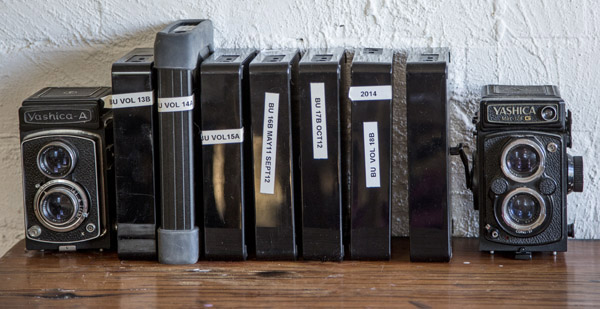
Once post-production is complete I copy all my files onto working hard drive B, which is stored in an off-site location for safety.
If you think this is overkill, remember: memory cards corrupt, laptops crash and hard drives fail. Protect your work with as many backups as you can.
As a minimum, save your images in two different locations. Keep one with you, and store the other in a safe location off site. This way if disaster strikes you will still have a backup copy of your precious files.
Step 6: Deliver
Nearly all my jobs are delivered as electronic files with the exception of a small percentage of clients (about 5%) who require prints.
The images they have selected are delivered via file transfer protocol (FTP), my website image archive (I use Photoshelter), DVD or an external hard drive.
Editor’s note: your version of “deliver” might look like sharing photos online in social media, emailing a couple to friends, or making prints for yourself.
What are some of your favorite workflow protocols? Do you have any great workflow, storage and delivery techniques you’d like to share? How do you safely store your memory cards before you download them? I’d love to hear about them.
The post Photography Workflow Tips – From Memory Card to Computer and Beyond by Gina Milicia appeared first on Digital Photography School.
-
Sony G Series XQD format v.2 memory cards introduced
Sony has introduced a new line of XQD format version 2 memory cards, the G Series. As with other XQD cards, the G Series promises fast read and write speeds that are able to match the demanding needs of select cameras, such as the Nikon D4 and D4s. In turn, Nikon has announced that the D4s will support Sony’s version 2 XQD cards, with improved write speeds and burst capacities. Read more
-
[MODIFIED] Google Chrome – View Memory and CPU Usage, Network Activity of Each Tab
Display memory, CPU, network, and other Google Chrome usage details.
For those trying to diagnose computer or networking issues when visiting resource-intensive websites, or just the merely curious, Google Chrome includes a Task Manager. This displays the amount of memory and CPU used by the browser and each tab as well as network activity, process IDs, and for developers the frames per second and ports used to debug native client apps (NaCl debug port). This way, you can determine if a particular webpage is using too many system resources, possibly slowing your computer down.
If you want extra information, a “Stats for nerds” screen shows the memory broken down by private and shared, as well as virtual memory usage. This details screen can even show basic memory usage statistics for other browsers such as Internet Explorer and Mozilla Firefox….
Read more at MalekTips.
New Computer and Technology Help and Tips – MalekTips.Com -
Toshiba unveils UHS-II Class 3 microSD memory cards

Toshiba has announced the industry’s first microSD memory cards to comply with the UHS-II standard. Also being UHS Speed Class 3 (U3) enabled will allow the new cards, available in 64GB and 32GB capacities, to capture 4K video at constant minimum write speeds of 30MB/s. The 64GB cards offer a maximum read speed of 260MB/s and a maximum write speed of 240MB/s. The 32GB cards have a maximum read speed of 145MB/s and maximum write speed of 130MB/s. Learn more
-
How to Spring Clean Your Memory Cards
Ahhh spring. A great time to bust out your lens pens and lens cloths and dust off your photography equipment. But don’t forget to spruce up your memory cards before heading into the summer season.
Start With a Memory Card Inventory
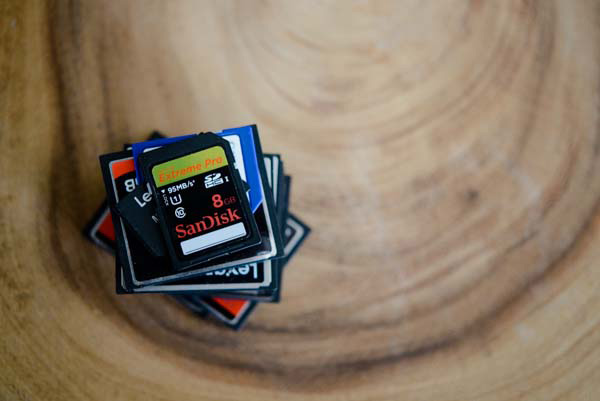
Take the time to survey how many cards you have and what state they are in. This is especially important if you have multiple types of cards floating around. Ensure that there are no stragglers hiding in a camera bag pocket or at the bottom of a lens case. My tip: I write numbers on my memory cards so I can double check I have all my cards before leaving a location.
Back-up Images on Your Cards
Do you ever snap a quick photo but forget to move it off the card? Now is a great time to move those images over to your computer, leaving room on your memory cards for new photos. Here is another great tip: delete images from your card in a batch. Limiting the amount of times you change data on your memory card will help extend the life of your cards. So choose to delete the images off your card in one format, either in your camera or on your computer, instead of deleting single images as you shoot. Better yet use “Format” to wipe and reformat the card in camera.
Store Your Cards Properly
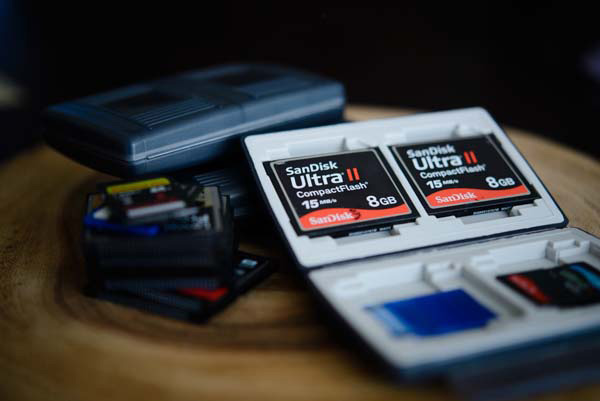
All memory cards, no matter the type, have delicate parts. Keep your cards safe and dust free by storing them in a container designed for memory cards. There are a ton of memory card wallet options available. Take a few minutes to think about what your memory cards go through and then look for a container that will work for you. Do you need a waterproof case? Are you a wedding photographer who carries around more than a few cards? If so, this is a worthwhile investment for you.
Write Your Name on Your Cards
We’ve all seen the Facebook posts of an image being shared around the web off of a found camera or memory card, in an effort to return the device to its owner. Don’t let that be your photo! Write your name and contact information on your cards. Losing a memory card is a downer – they aren’t cheap and those images could be lost forever. Simply including your email address, website, or phone number along with your first name, may increase the odds of having a lost memory card returned.
Label Used Cards
Come up with a system to label used cards. It happens – you start taking photos, and forget which cards you’ve used and which you haven’t. You then have to do the classic move of putting the card into your camera to check if it is full. Skip this step by coming up with a way that quickly identifies which cards are full. If you’ve numbered your cards, you can keep track of the numbers. My personal system is to put used cards into my card wallet backwards. A quick glance tells me which cards are ready to use.
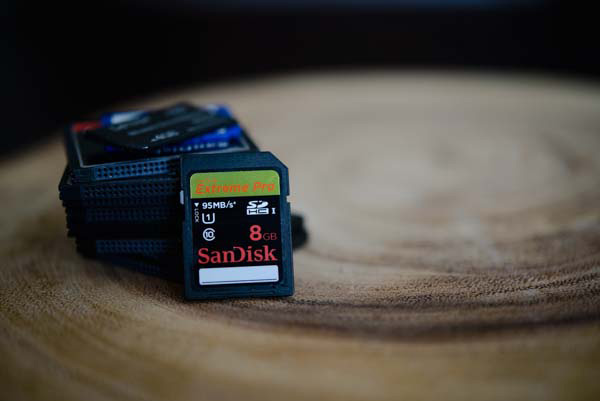
Do you have a memory card organization system? Tell us what works for you in the comments below.
Need some new cards or some accessories? Try some of these:
The post How to Spring Clean Your Memory Cards by Nikole Bordato appeared first on Digital Photography School.
-
Transcend UHS-I Class 3 memory cards support 4K video capture

Transcend has announced SDXC/SDHC UHS-I Class 3 (U3) rated memory cards with read and write speeds of up to 95MB/s and 85MB/s. The Transcend cards meet requirements to give smooth video capture on new 4K cameras such as the Sony FDR-AX100, Panasonic Lumix GH4 and Canon EOS C500. Featuring 32GB to 128GB capacities, the new cards will available by mid-April in Japan and soon after in the U.S. Learn more
-
Nikon D4s and Lexar 400x or 1000x memory card problems

According to a Nikon support advisory there are a small number of Lexar 400x or 1000x compact flash memory cards that may have issues communicating with the new D4s camera. Nikon USA’s service and support site has outlined how to identify the faulty cards and instructions for replacement. Learn more