RSS
 

Posts Tagged ‘Memory’

Advertising vs reality: microSD memory card speed test

08 Aug

When you’re purchasing a new memory card, the card’s “read” and “write” speed is an important spec. If it’s too slow, you might pass on the card; if that number is big enough, you break out your wallet. But are those speeds accurate? In this video, Tom David Frey of Tom’s Tech Time tested 10 different microSD cards to see how the advertised speeds on the box compare to real-world performance. The results are mostly disappointing… but not surprising.

Frey tested the top-of-the-line microSD cards out there—all 4K-ready, speed class 10 and UHS class 3. And while we wish the test involved regular SD cards, CF cards or XQD cards, since those are more relevant to photographers, the difference between the cards’ read/write speed and real-world performance is still telling. Plus, drone photographers need some love too.

The cards tested include: The SanDisk Extreme PRO, Sandisk Extreme, Transcend Ultimate 633x, Samsung PRO, Sony SR-32UZ, Kingston, Panasonic, Toshiba Exceria Pro, Verbatim, and Patriot EP Series in either 16GB or 32GB sizes. Here are the contenders alongside their advertised read and write speeds:

Frey performed two tests. First, he used a USB 3.0 card reader and ran several programs to test the actual read/write speeds. Then, he took a 4.1GB video file from his hard drive and copied it to each of the cards in turn to gauge real-world write speed.

So… how did these cards perform in real life? All of them (except Panasonic, which doesn’t give read and write speeds…) advertise read speeds of 90MB/s and up, and the fastest of them claim a write speed of 90MB/s. But not a single card topped even 80MB/s read speed, and the fastest write speed reached was 78.81MB/s by the SanDisk Extreme PRO.

The good news is that some of the cards actually outperformed their advertised write speeds, but none of them were the cards claiming lightning fast 90MB/s write.

You can see all of the results for yourself at the 7:30 mark of the video.

Articles: Digital Photography Review (dpreview.com)

 
Comments Off on Advertising vs reality: microSD memory card speed test

Posted in Uncategorized


Delkin BLACK USB 3.0 Rugged Memory Card Reader offers microSD, CF and SD slots

16 May

Delkin has launched the BLACK USB 3.0 Rugged, a large memory card reader featuring both microSD and SD UHS-II card slots.  This is the first rugged memory card reader offering both of these slots in a single device, according to Delkin, making it a suitable model for on-the-go photographers who are frequently in ‘strenuous shooting environments.’

In addition to support both USH-II SD and microSD cards, the BLACK USB 3.0 Rugged has a larger Compact Flash UDMA 7 memory card slot. Transfer speeds reach up to 500MB/s, which Delkin says is ten times the speed of USB 2.0. All three card slots can be used at the same time, while the USB transfer cord and one of each type of flash card can be stored inside of the media card reader when not in use.

The card reader itself is made from both plastic and aluminum with a rubber cover that shields the device from water, dust, and impacts caused by bumps and drops. If the BLACK USB 3.0 Rugged does break at any point within its 5-year warranty period, Delkin will ship a replacement to the customer within 48 hours. The model is available now exclusively within authorized retail camera stores; price isn’t clear at this time.

Via: PhotographyBLOG

Articles: Digital Photography Review (dpreview.com)

 
Comments Off on Delkin BLACK USB 3.0 Rugged Memory Card Reader offers microSD, CF and SD slots

Posted in Uncategorized


‘I don’t use my camera as my memory’: we interview Graham Nash

18 Oct
 Graham Nash, photographed by Amy Grantham.

From Lancashire to California, Graham Nash’s journey has been a long and winding one, both as a musician and a photographer. 

As he prepares for his keynote talk at this week’s Photo Plus Expo in New York, we spoke to Graham Nash about his career as a photographer, and his role in developing modern digital photographic printing.


Graham – most people probably know you primarily as a musician, but when did you start taking photographs?

I’ve been a photographer for longer than I’ve been a musician. The first portrait I took was a picture I took of my mother when I was 11. And it was at that moment that I knew that I saw differently to most people.

You and I both grew up in Northern England. I was born in Yorkshire and you were raised in Lancashire, in Salford.

It’s alright, I’ll still talk to you!

So you’re from L.S. Lowry country – dark, satanic mills, and all that. How did growing up in Salford influence your visual style?

I think it did wonders for me as a person, not necessarily in terms of any talent I may have. When you grow up in that kind of area after World War II, your feet are on the ground. You’re thankful that you’re still alive, that your friends are still alive, and that your house is still standing. Because when I was younger, that wasn’t always the case.

Once you have this sense of having survived, it’s a sense of accomplishment. And also, you know, don’t complain to me about the room not being the right temperature. Talk to me about something more important.

 Johnny Cash, Nashville, TN. 1960. Photograph by Graham Nash, used with permission. 

So being raised in the industrial north of England, coming to America in the 1960s must have been a mind-blowing experience?

Mind-blowing and joyful. I had sunshine, I had music, David (Crosby) and Stephen (Stills) and I were just forming our relationship and falling in love with each other, and each other’s music. Having all that music to make, and records to make, and sunshine and beautiful weather… it was an extraordinary time.

‘I’m interested in those little surreal moments that happen in front of me’

And just visually – even now, America isn’t like anywhere else…

It’s an incredible country. The first time the Hollies came to America, we came to New York. But where I went to live, and where I really thrived was Los Angeles.

The people are very interesting to look at, the countryside is beautiful, but I’m not really one of those photographers. I’m more interested in those little surreal moments that happen in front of me, and they seem to happen in front of me daily. I’m not interested in pictures of kittens with balls of wool, or making an image to match the color of my couch. I don’t take landscapes, and I don’t use my camera as my memory.

Nash’s bandmate David Crosby. Photograph by Graham Nash, used with permission.

So you’ve been taking pictures now for more than 50 years. What would you say the biggest difference – technically or culturally, between when you started taking pictures, and now?

I think it’s more mindless now. People are taking pictures of everything. And nothing is that important. I don’t want a picture of me at Disneyland, pulling the sword out of the stone, or any of that stuff. I’m not interested. I’m not interested in selfies. I’ve been taking self-portraits since 1968. It’s so mindless now and I experience it daily. There’s not a show when I don’t get approached afterwards by someone with 20 albums to sign and a selfie that they want taken, immediately. And often they don’t even ask for permission.

‘I draw inspiration from moments’

As a photographer, do you draw more creative inspiration from people, or from places?

Neither, actually. I draw inspiration from moments. I’ve had so many pictures taken of me, I know when a lens is being turned on me. I know that look. And I can’t stand it. If I take portraits, I want to take pictures when they have no idea when I’m there.

Girl with Uzi, North Hollywood, CA. 1998. Photograph by Graham Nash, used with permission.

What were your earliest photographic influences?

My father was an amateur photographer. He used me and my sister’s bedroom as a darkroom, and it was his enthusiasm and his passion that remains with me even today. I’m still thrilled by the magic of photography, and it really is magic.

For the last 15-20 years I’ve been collecting daguerreotypes. The world’s first photographic format. Daguerre invented himself into a corner, because there was no negative to reproduce the image. That’s what Henry Fox Talbot did – he invented the negative, and therefore invented himself into the future.

‘Fox Talbot invented himself into the future’

You’ve been very influential in the development of what we now call digital photographic printing. Can you give me some context around that?

It was pure selfishness. I used to live with Joni Mitchell, and Joni always loved my images, but I never shared them because I thought of myself as a musician. She had had a really good experience with a gallery in Tokyo. The Parko Gallery. She said why don’t you send them some of your photographs?

I was very hesitant to do that, but she told me to send some pictures to this gallery and see if they’d be interested in doing a show. So reluctantly I made 5 or 6 prints and sent them off, and forgot about it. And then they called me and said they’d love to do a show. They wanted 50 images, which was fine, but they wanted them printed about 3 or 4 feet square, which was a problem.

Dennis Hopper, Kentucky Derby, Louisville KT, 2002. Photograph by Graham Nash, used with permission.

At the same time as I was pondering how to do that, I was introduced to the Iris Printer. And when I saw what that printer was capable of doing, I asked the owner two questions. Could it print in black and white? And would the inks last more than ten minutes?

I bought the machine, it cost about $ 125,000, and my partner Mac Holbert and I voided the warranty immediately because we were modifying it and forcing it to do what we wanted it to do. We opened Nash Editions in the early 90s after a couple of years of research, and we’re still in business.

At that time, in the late 1980s and 90s, as I understand it, the abilities of computers to generate digital images had exceeded the ability of printers to output the files. Is that right?

Exactly. You couldn’t get them off the screen. The honor of having our first printer put into the Smithsonian Museum of American History was a real thrill.


Graham Nash will appear at the Photo Plus Expo 2016 this week, in a conversation with photographer and musician Mark Seliger on October 20th.

Articles: Digital Photography Review (dpreview.com)

 
Comments Off on ‘I don’t use my camera as my memory’: we interview Graham Nash

Posted in Uncategorized


Samsung launches first removable UFS memory cards

09 Jul

Samsung has announced that it intends to produce the first removable versions of a new format of memory cards designed, it says, to replace the microSD card in portable electronic devices such as cameras, drones and phones.

The Universal Flash Storage cards are as small as microSD cards but boast enhanced read/write speeds, with the company claiming that 5GB can be read in just 10 seconds at a rate of 530MB/s. The write speeds a less impressive however, with a quoted maximum of 170MB/s, but Samsung says that is still almost twice the speed of a top end microSD card. The company says its cards will write at 170MB/s, which compares well to the 100MB/s rate quoted by SanDisk for its Extreme Pro UHS-II cards. The same SanDisk card reads at 275MB/s.

Although the format was announced in a white paper (pdf) in 2013, and Samsung announced its plans in February, this is the first time the cards appeared to become a reality with compliance with the Joint Electron Device Engineering Council (JEDEC) standards.

The company expects to introduce capacities of 32, 64,128 and 256GB, but hasn’t said when or whether there will be devices to take them.

Press release:

Samsung Introduces World’s First Universal Flash Storage (UFS) Removable Memory Card Line-up, Offering up to 256-Gigabyte (GB) Capacity

Samsung Electronics, the world leader in advanced memory technology, today unveiled the industry’s first removable memory cards based on the JEDEC Universal Flash Storage (UFS) 1.0 Card Extension Standard*, for use in high-resolution mobile shooting devices such as DSLRs, 3D VR cameras, action cams and drones. Coming in a wide range of storage capacities including 256, 128, 64 and 32 gigabyte (GB), Samsung’s UFS cards are expected to bring a significant performance boost to the external memory storage market, allowing much more satisfying multimedia experiences.

“Our new 256GB UFS card will provide an ideal user experience for digitally-minded consumers and lead the industry in establishing the most competitive memory card solution,” said Jung-bae Lee, senior vice president, Memory Product Planning & Application Engineering, Samsung Electronics “By launching our new high-capacity, high-performance UFS card line-up, we are changing the growth paradigm of the memory card market to prioritize performance and user convenience above all.”

Samsung’s new 256GB UFS removable memory card ? simply referred to as the UFS card will provide greatly improved user experiences, especially in high-resolution 3D gaming and high-resolution movie playback. It provides more than five times faster sequential read performance compared to that of a typical microSD card, reading sequentially at 530 megabytes per second (MB/s) which is similar to the sequential read speed of the most widely used SATA SSDs. With this UFS card, consumers have the ability to read a 5GB, Full-HD movie in approximately 10 seconds, compared to a typical UHS-1 microSD card, which would take over 50 seconds with 95MB/s of sequential reading speed. Also, at a random read rate of 40,000 IOPS, the 256GB card delivers more than 20 times higher random read performance compared to a typical microSD, which offers approximately 1,800 IOPS.

When it comes to writing, the new 256GB UFS card processes 35,000 random IOPS, which is 350 times higher than the 100 IOPs of a typical microSD card, and attains a 170MB/s sequential write speed, almost doubling the top-end microSD card speed. With these substantial performance improvements, the new 256GB UFS card significantly reduces multimedia data downloading time, photo thumbnail loading time and buffer clearing time in burst shooting mode, which, collectively, can be particularly beneficial to DSLR camera users. To shoot 24 large/extra fine JPEG photographs (1,120 megabyte (MB)-equivalent) continuously with a high-end DSLR camera, the 256GB UFS card takes less than seven seconds, compared to a UHS-1 microSD card which typically takes about 32 seconds, at 35MB/s.

To achieve the highest performance and most power-efficient data transport, the UFS card supports multiple commands with command queuing features and enables simultaneous reading and writing through the use of separately dedicated paths, doubling throughput.

As the leading memory storage provider, Samsung has been aggressive in preparing UFS solutions for the marketplace, while contributing to JEDEC standardization of the Universal Flash Storage 2.0 specification in September 2013 and the Universal Flash Storage (UFS) 1.0 Card Extension standard in March 2016. Following its introduction of the industry-first 128GB embedded UFS chip in January 2015, the company successfully launched a 256GB embedded UFS memory for high-end mobile devices in February of this year. As of earlier this month, Samsung also completed the Universal Flash Storage Association** (UFSA)’s certification program that evaluates electrical and functional specifications for compatibility of a UFS card, and Samsung’s new UFS card products were approved as UFSA-certified UFS cards with the right to use the official UFS logo for the first time in the industry.

Articles: Digital Photography Review (dpreview.com)

 
Comments Off on Samsung launches first removable UFS memory cards

Posted in Uncategorized


Sandisk launches 128GB capacity memory stick with USB-C and A connections

07 Jun

Memory manufacturer SanDisk has announced a new series of portable flash drives that feature a retractable, reversible connector that allows users to pair the stick with both USB Type-C and Type-A devices. The company suggests the dual compatibility of the Ultra Dual Drive USB Type-C will make it easier for smartphone users to transfer images and data from the phone to a computer, as well as offering a solution for expanding the storage memory of the device.

SanDisk claims the USB sticks have a maximum read speed of 150MB per second but says that the write speed is dependent on the device it is connected to. Android users can download the SanDisk Memory Zone app that features a convenient interface for transferring files between the phone and the external storage areas. The flash drives come in capacities from 16GB to 128GB and have a five year warrantee.

  • 16GB $ 19.99/£10
  • 32GB $ 29.99/£13
  • 64GB $ 39.99/£21
  • 128GB $ 69.99/£39

For more information see the SanDisk website.


Press release:

SanDisk Mobile Storage Portfolio Expanded with Faster, Higher Capacity USB Type-C Flash Drive

New SanDisk Ultra® Dual Drive USB Type-C™ offers hassle-free transfer between smartphones and next-generation USB-C™ devices

Western Digital® Corporation (NASDAQ: WDC), a global storage technology and solutions leader, today expanded its line of SanDisk-branded mobile storage solutions with the new SanDisk Ultra Dual Drive USB Type-C flash drive. The newest generation drive features a new retractable design, faster speeds and higher capacity, giving consumers the ability to quickly and easily free up space and transfer content between their smartphones and today’s USB-C devices1.

“With its reversible connector, impressive speeds, and multi-purpose potential, USB Type-C is a game-changer,” said Dinesh Bahal, vice president of SanDisk product marketing, Western Digital. “More Type-C devices are entering the market and through our Type-C mobile drives, we can offer consumers a complete line of mobile storage solutions. The new SanDisk Ultra Dual Drive USB Type-C flash drive now provides more than twice the capacity and offers the flexibility to quickly and conveniently move photos, videos and files between devices, as well as the freedom to expand device capacity.”

Now available in up to 128GB*, the sleek, new SanDisk Ultra Dual Drive USB Type-C includes one reversible USB Type-C connector and one standard USB (Type-A) connector, enabling users to easily free up space on a smartphone or tablet, or transfer files between smartphones, tablets and computers and next-generation devices. The drive also now delivers high-speed USB 3.1 performance of up to 150MB/s2 – offering users phenomenal speeds when moving their photos, videos and files to a computer.

“By 2020 we expect that 44 percent of all mobile phones sold worldwide will include a USB-C connector, that’s about 800% growth over the next four years,” said Ken Hyers, director, Wireless Device Strategies, Strategy Analytics. “At this rate of anticipated growth, we expect to see more and more solutions like the SanDisk Ultra Dual Drive USB Type-C flash drive that offer consumers a way to move and access their content between devices with varying connectors.”

The SanDisk Ultra Dual Drive USB Type-C flash drive also works with the SanDisk® Memory Zone app for Android™, giving users an easy way to manage and back up content on their device. The app, which is available for free through the Google Play™ Store3, auto-launches upon insertion of the drive into a compatible device, allowing immediate access to the user’s content.

The SanDisk Ultra Dual Drive USB Type-C flash drive complements the company’s suite of SanDisk brand USB Type-C flash memory solutions which range from USB drives to portable SSDs.

Pricing and Availability
The SanDisk Ultra Dual USB Type-C Flash Drive features a five-year warranty4, and is now available worldwide at Amazon and other leading retailers. The new offering comes in capacities of 16GB, 32GB, 64GB and 128GB with U.S. MSRPs of $ 19.99, $ 29.99, $ 39.99 and $ 69.99, respectively.

Articles: Digital Photography Review (dpreview.com)

 
Comments Off on Sandisk launches 128GB capacity memory stick with USB-C and A connections

Posted in Uncategorized


Western Digital acquires SanDisk as more data moves to solid state memory

27 May

Hard disk drive giant Western Digital has completed its acquisition of flash manufacturer SanDisk in a deal that will create a partnership that WD hopes will help it leap into the future of computer memory. The company announced plans to buy SanDisk last fall.

Western Digital’s reliance on spinning disk technology in a world that is swiftly moving towards solid state drives has been a cause for concern for the company that currently claims 44% market share for HDDs. Acquiring the world’s largest producer of NAND flash memory should settle some nerves.

Western Digital is said to be interested in cloud storage and computing solutions as PC sales continue to decline, so SanDisk’s know-how in flash data center technologies that provide more capacity in a smaller space, with less heat and faster communication have proven attractive. 

All told, the deal cost Western Digital $ 17 billion in cash and shares, $ 2 billion short of initial estimates. The company expects to be able to make significant savings through economies of scale, expecting combined revenue of almost $ 20 billion with a better position to compete against Samsung and Micron.

For more information visit the SanDisk and Western Digital websites.


Press release:

WESTERN DIGITAL COMPLETES ACQUISITION OF SANDISK, CREATING A GLOBAL LEADER IN STORAGE TECHNOLOGY

Western Digital® Corporation (NASDAQ: WDC) today announced that its wholly-owned subsidiary Western Digital Technologies, Inc. has completed the acquisition of SanDisk Corporation (NASDAQ: SNDK). The addition of SanDisk makes Western Digital Corporation a comprehensive storage solutions provider with global reach, and an extensive product and technology platform that includes deep expertise in both rotating magnetic storage and non-volatile memory (NVM).
The Company also indicated that the debt financing associated with this transaction has been consummated and that the previously obtained funds from this financing have been released from escrow to Western Digital Technologies, Inc.

“Today is a significant day in the history of Western Digital,” said Steve Milligan, chief executive officer of Western Digital. “We are delighted to welcome SanDisk into the Western Digital family. This transformational combination creates a media-agnostic leader in storage technology with a robust portfolio of products and solutions that will address a wide range of applications in almost all of the world’s computing and mobile devices. We are excited to now begin focusing on the many opportunities before us, from leading innovation to bringing the best of what we can offer as a combined company to our customers. In addition, we will begin the work to fully realize the value of this combination through executing on our synergies, generating significant cash flow, as well as rapidly deleveraging our balance sheet, and creating significant long-term value for our shareholders.”

The integration process will begin immediately through the joint efforts of teams from both companies. As previously announced, Steve Milligan will continue to serve as chief executive officer of Western Digital, which will remain headquartered in Irvine, California. Sanjay Mehrotra, co-founder, president and chief executive officer of SanDisk, will serve as a member of the Western Digital Board of Directors, effective immediately.

“As a combined company, we will be best positioned to address the demands for data storage, which is growing exponentially every year,” said Sanjay Mehrotra. “Growth and change go hand in hand, and we couldn’t be happier to grow and change together with Western Digital. I look forward to contributing to realizing the potential of this combination as a member of the board.”
Under the terms of the transaction, each outstanding share of SanDisk common stock was converted into the right to receive $ 67.50 per share in cash and 0.2387 shares of Western Digital common stock.

SanDisk shareholders looking for information with regard to the payment of the merger consideration should review the Public FAQ available in the Investor Relations section of our website at investor.wdc.com or click here.

Articles: Digital Photography Review (dpreview.com)

 
Comments Off on Western Digital acquires SanDisk as more data moves to solid state memory

Posted in Uncategorized


Tamrac Goblin gear pouches protect lenses, cameras and memory cards

01 Mar

Tamrac has a new line of Goblin gear pouches designed for individual lenses and cameras, as well as a couple larger accessory pouches for storing multiple items together. The product line includes half a dozen lens pouches, all with drawstring enclosures, three body pouches, two accessory pouches and one memory card wallet. 

The Goblin pouches feature ripstop nylon exteriors and quilted interiors. The lens pouches span bag models 0.3 to 2.4, with the smallest model (0.3) having an interior space of 6 x 8cm/2.25 x 3 in, and the largest (2.4) having an interior space measuring 12 x 21cm/4.75 x 8 in. The camera body pouches are similar, with the smallest model (0.4) offering 3 x 5.5 x 2 in/8 x 14 x 5 cm of interior space, and the largest model (1.4) offering 4.25 x 5 x 3.5 in/11 x 13 x 9 cm of interior space.

Unlike the lens and body pouches, the two accessory pouches, models 1.0 and 1.7, feature YKK zippers and mesh windows to offer a view of what’s in the bag while it’s closed. The Goblin line is rounded out with a memory card wallet with a micro mesh window and three difference size options, one that fits 6 SD cards, another that fits 4 Compact Flash cards, and a third option that fits all ten cards at once.

The Goblin line of pouches is available now through Tamrac’s website. Prices start at $ 12.95.

Via: Fstoppers

Articles: Digital Photography Review (dpreview.com)

 
Comments Off on Tamrac Goblin gear pouches protect lenses, cameras and memory cards

Posted in Uncategorized


Intel and Micron create 3D XPoint: a smaller, faster, more secure memory technology

29 Jul

Chip makers Micron and Intel have announced a new form of computer memory that promises faster, more reliable storage than current technologies, in a smaller space and at similar prices. The technology could reduce the distinction between memory and storage within computers and provide a faster, more stable way of storing large Raw and video files. Read more

Articles: Digital Photography Review (dpreview.com)

 
Comments Off on Intel and Micron create 3D XPoint: a smaller, faster, more secure memory technology

Posted in Uncategorized


Successfully Copy Photos from Your Memory Card to your Computer

02 May

Before you can begin editing your photos you need to get them safely off your camera and onto your computer. Unfortunately this process is often hijacked by (well-meaning if misguided) software which purports to do the work for you but leaves you wondering just where your photos really are! So, to help you understand your options for getting your photos onto your computer, here’s what I recommend.

First of all: Take Charge!

The first thing to understand about getting photos from your camera card or camera onto your computer is that you’re in charge. Any application that opens and tries to grab your photos for you can be closed down. If it is not the application you want to use then do just that – close it.

Now you can take charge and manage the process in a way that makes sense for you.

Choose your application

If you’re using Photoshop then you can use Bridge to import your photos. If you are using Lightroom then you can launch Lightroom and import your photos using it. If you don’t have either program, or if you prefer to manage the process yourself, you can do so using Finder on the Mac or Windows Explorer on a PC. I’ll cover this process first, then look at Bridge and Lightroom.

Importing using Finder or Windows Explorer
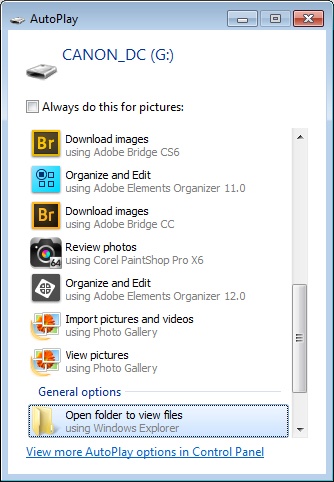
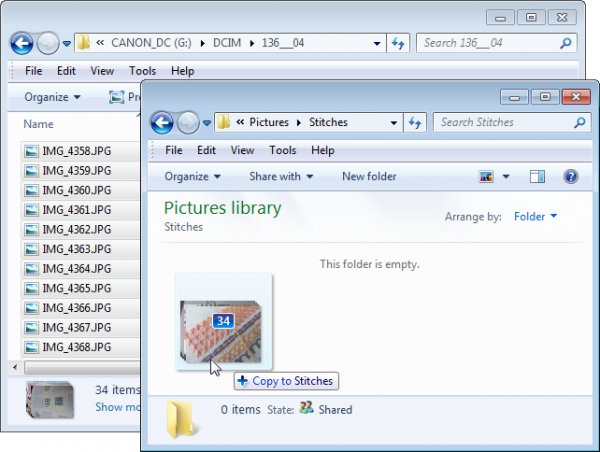
import-photos-using-Windows-1When attached to your computer, a camera or memory card works like any drive, so you can view its contents. You can also copy photos from the memory card onto your computer’s hard drive manually using Explorer or Finder.

On a PC, if the AutoPlay dialog appears when you insert your camera card or attach your camera, choose the Open Folder to View Files option.

If the dialog doesn’t appear, simply launch Windows Explorer and select the drive that represents your camera or memory card.

Navigate to the folder that contains your photos – there may be multiple folders depending on how your camera stores images on the card. You can select the photos, then drag and drop them to the folder of your choice. It’s often easier if you first open the target folder in a second Windows Explorer window so you can drag from one to the other.
import-photos-using-Windows-2

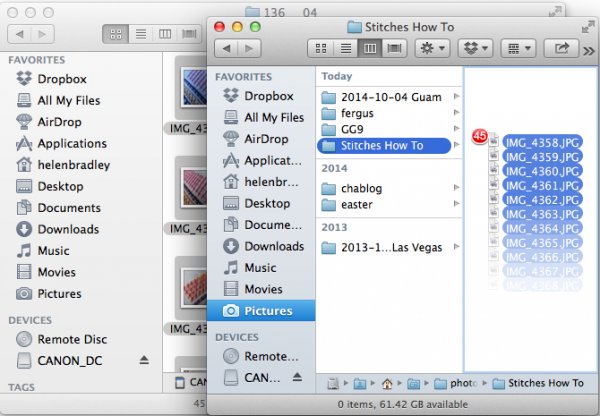
The process is similar using Finder on the Mac. If iPhoto launches – stop it from downloading any photos and close it. Then you can drag photos from your camera card open in one Finder window, to a folder of your choice open in a second window.
import-photos-using-finder-on-the-mac

Importing Photos using Bridge

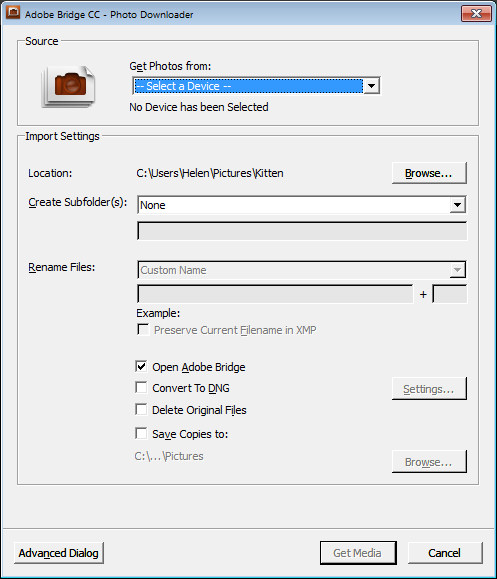
If you are using Photoshop, launch Adobe Bridge and choose File > Get Photos from Camera. Click the button to open the Advanced Dialog.
import-photos-using-bridge-1

From the “Get Photos from” drop down list select the drive letter that corresponds to your camera or card.
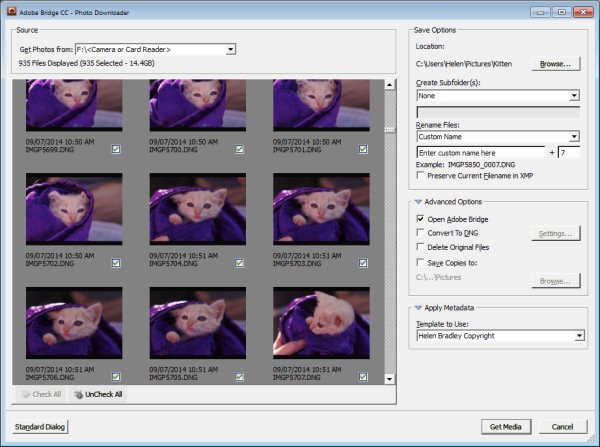
import-photos-using-bridge-2

You can now see and select the photos to import. This is one benefit of using Bridge over Windows Explorer – you will see thumbnail images of your raw files so you can see what you are importing.

On the right of the dialog select the folder in which to place the images. Typically this will be inside your My Pictures folder on your computer but you can choose any location that makes sense to you. However, if you want to find your photos later, on it is essential that you pay attention to the choices you make here.
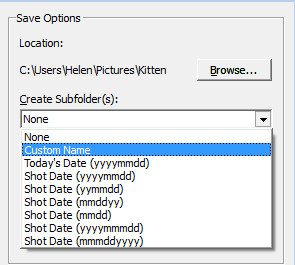
import-photos-using-bridge-3Once you have selected the folder to import the images into, you can, if desired, select a subfolder. In this way you can group photos by shoot, date or something that makes sense to you.  Bridge will create the folder for you if it doesn’t exist, so choose an option from the Create Subfolder(s) list and, if required, type a name for it or choose the date to use – either the capture date or today’s date. If you don’t want to organize photos in a subfolder then click None.
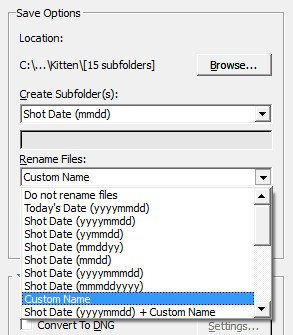
import-photos-using-bridge-4You can also select to rename files on import, or not. Choose Do not rename files if you don’t want them renamed or alternatively select a naming convention from the list.

If you have advanced naming requirements for which the dialog does not provide an appropriate choice, scroll to the bottom of the list and click Advanced Rename to open the Advanced Rename dialog where you can create quite complex naming conventions. Whatever choice you make check the entry just below the dialog where Bridge shows you an example of the naming convention in place so you can check to see if it is what you want.
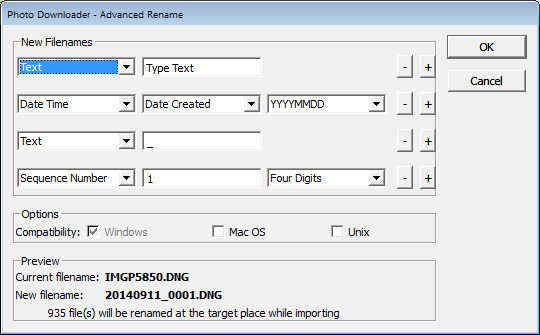
import-photos-using-bridge-5

In the Advanced Options area you can choose other options including Convert to DNG – which is handy if your camera captures in a manufacturer specific format such as CRW, NEF, PEF and so on, but you prefer to work with DNG files. Select this option and Bridge will do the conversion for you.

You can also select Delete Original Files although this is not recommended. It’s best to make sure that the images are correctly copied onto your computer before the originals are deleted so I suggest you leave this option disabled.

Bridge offers a backup option so it will make a copy of your photos on import. To do this, click the “Save Copies To:” checkbox and select an alternate location (such as an external drive) in which to save a copy of your photos.
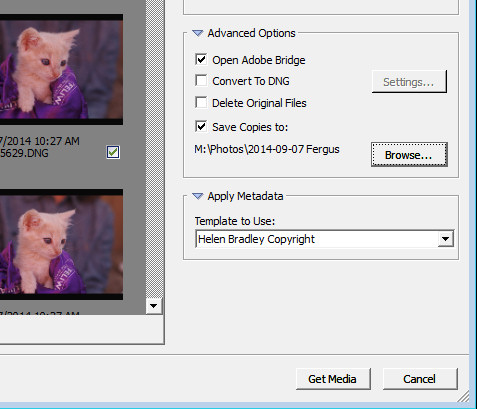
import-photos-using-bridge-6

If you have a metadata template already created you can select this from the Apply Metadata drop down list.

In future you can create such a metadata template in Bridge by selecting Tools > Create Metadata Template. I suggest that you complete the IPTC Core Data for Creator as well as Copyright Notice, Copyright Status and Rights Usage Terms. Also complete the Type Of Source entry in the IPTC Extension group. When completed this will give you a good all round metadata preset to apply to all your images. For more information on IPTC Copyright Metadata check out this article: Lightroom: Add your IPTC metadata on Import.
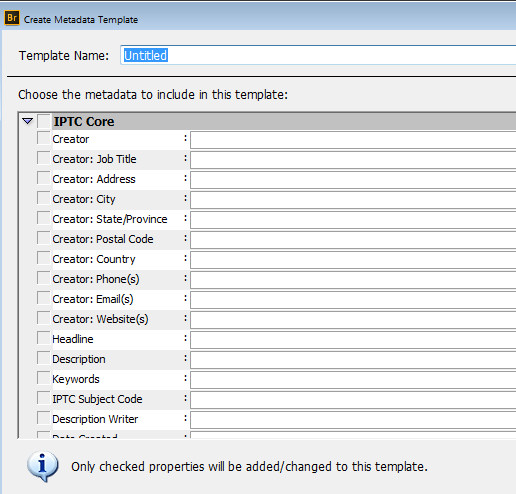
import-photos-using-bridge-7

When you have your import settings selected and configured to meet your needs click Get Media to import the images.
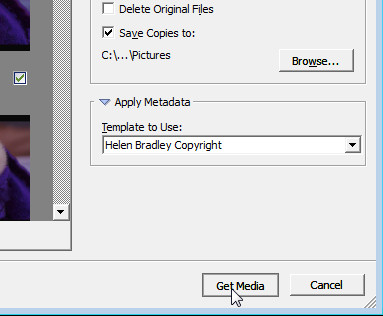
import-photos-using-bridge-8

You will see a dialog showing you the progress of the import process.
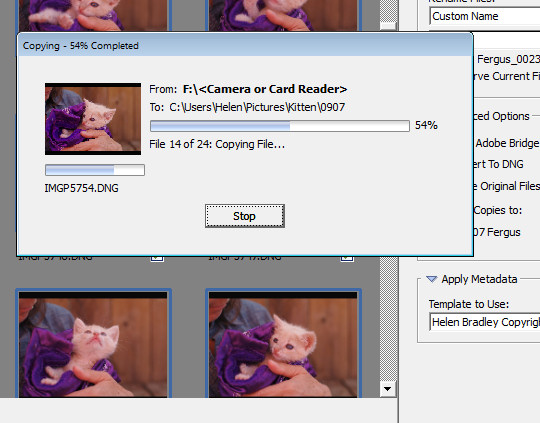
import-photos-using-bridge-9

Importing Photos using Lightroom

If you’re using Lightroom then it is the obvious choice for managing the process of importing photos from your camera or memory card. From the Library module click Import, then select the source in the top left corner of the Import dialog.
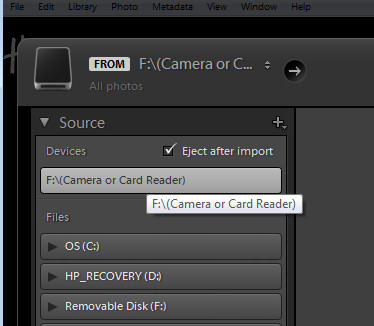
import-photos-using-lightroom-1

Across the top of the screen you will see only two choices, Copy as DNG and Copy. This reflects the fact that you’re importing images from a camera card or camera – the options Move and Add are not available for this process (if you do see Move and Add as available options, it appears that Lightroom isn’t recognizing your camera or camera card correctly and even though they may be available you should not use either of these choices).
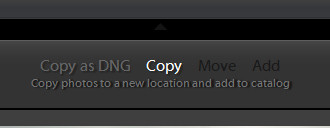
import-photos-using-lightroom-2

Next, open the File Handling panel on the right of the screen and select the kind of preview to create – Standard is a good choice. You can choose Build Smart Previews or not (if you’re unsure, check Build Smart Previews).

Checking Don’t Import Suspected Duplicates will ensure that Lightroom doesn’t import images again, that you’ve already previously imported. This is one feature available in Lightroom which is not also available in Bridge.

In Lightroom you can also choose to make a backup by making a second copy of your photos to an alternate location as you import them.
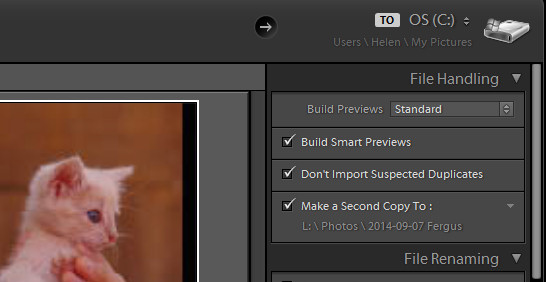
import-photos-using-lightroom-3

File Renaming panel allows you to rename images on import – you can select from a range of naming templates and even create your own. Here I’ve chosen to use the Custom Name – Sequence template so I’ve typed the Custom name and the sequence is set to start at 1:
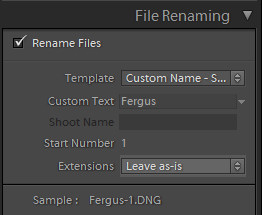
import-photos-using-lightroom-4

The Apply During Import panel has an option for applying metadata to the image upon import. Unlike Bridge the drop down list for Metadata presets also includes an option New which you can use to create your own metadata preset. I suggest you complete the IPTC Copyright and IPTC Creator details, and in the IPTC Extension Administrative select Original digital capture from a real live scene from the Digital Source Type drop down list. Type a name for the preset and from the Present drop down list click Save current settings as new preset.
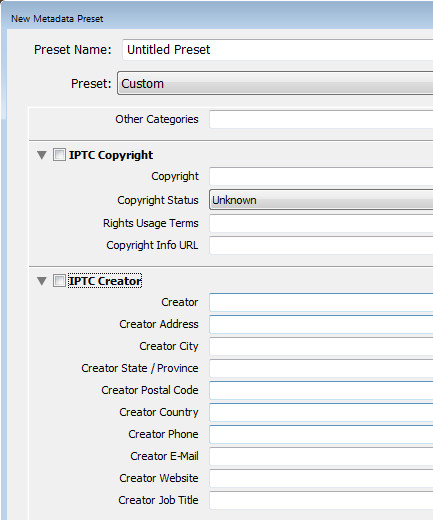
import-photos-using-lightroom-5

In the Destination panel you’ll need to select the location into which the images are to be copied. If you’re copying them to your hard drive then typically you’ll select your C drive, then your My Pictures folder which should be in your Users area.

If you save your images to an external drive then select the external drive and the folder into which the images should be imported.

If the folder does not exist you can create a subfolder on import by selecting the Into Subfolder checkbox and type a name for the folder that Lightroom should create to import the images into.
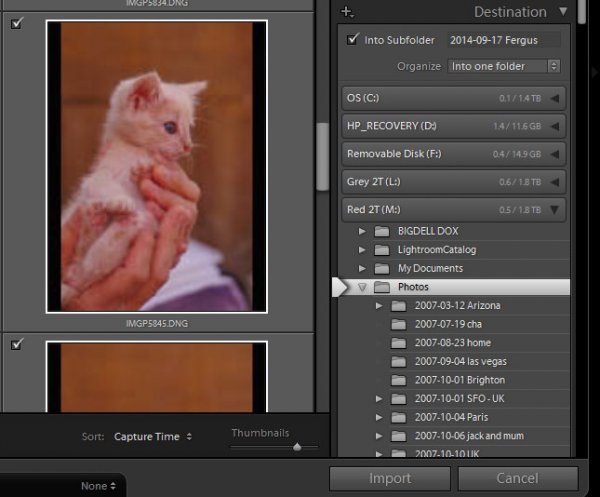
import-photos-using-lightroom-6

From the Organize drop down list you can select to put the images into this folder (Into one Folder) or to organize them by date. Whichever choice you make you can see a preview of what’s going to happen in the folder list, allowing you to check and make sure that everything is going to be imported and arranged to your requirements before you go ahead and complete the import process.
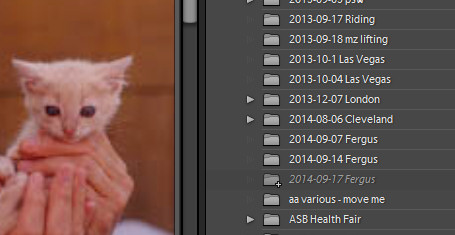
import-photos-using-lightroom-7

When you’re ready to import the images click Import.

Whatever process you choose to use for getting images off your camera card onto your computer the acid test for whether it is a good system or not will be if you can find your images later on. Also be aware that it’s advisable to make a backup copy of your images in case your computer is stolen, damaged or your hard disk crashes. For this reason a backup on a removable external drive is a sensible choice.

Having an import routine that you understand, and can reliably execute, is a necessary first step for any photographer. The worst possible scenario is to have copied your images from your camera card to your computer and erased them from your card, only to discover that you cannot find the images. It’s a scenario that way too many users have encountered – don’t let it happen to you!

Find a video version of this blog post here:

Do you have any other copy and import tips? Please share in the comments below.

googletag.cmd.push(function() {
tablet_slots.push( googletag.defineSlot( “/1005424/_dPSv4_tab-all-article-bottom_(300×250)”, [300, 250], “pb-ad-78623” ).addService( googletag.pubads() ) ); } );

googletag.cmd.push(function() {
mobile_slots.push( googletag.defineSlot( “/1005424/_dPSv4_mob-all-article-bottom_(300×250)”, [300, 250], “pb-ad-78158” ).addService( googletag.pubads() ) ); } );

The post Successfully Copy Photos from Your Memory Card to your Computer by Helen Bradley appeared first on Digital Photography School.


Digital Photography School

 
Comments Off on Successfully Copy Photos from Your Memory Card to your Computer

Posted in Photography


How to Select the Right Camera Memory Card

17 Apr

In today’s market if you want to buy a camera memory card, you may find it challenging to select the right one. A card comes with the following criteria; type, speed, price, capacity. If you want to buy a high capacity card with low price it might come with a low transfer speed. If you wish to buy a high transfer speed with high capacity card it may come with a really high price. If you want to strike a balance between both, you really have to compromise on quality.

Paul Hudson

By Paul Hudson

What is a memory card?

A small removable memory medium which can be used to store data on one medium and to transfer the data to another medium.

Let’s see each criteria which will help you decide on a memory card in detail.

Capacity

This one is fairly straightforward, and not a big deal. A 32GB memory card can hold up to about 1000 RAW photographs. Assuming that one RAW file size is 30MB, in general a Canon 5D MKIII will produce a RAW file between 25-35MB in size. Likewise a 16GB card can hold up to about 500 photographs, and so on. If you shoot in jpeg format, then a 32GB card can hold around 3200 photographs, assuming you have your jpeg settings as fine in detail, and large in file size. With that setting a jpeg file will come in at an average size of 10MB on a Canon 5D MK III camera.

Types

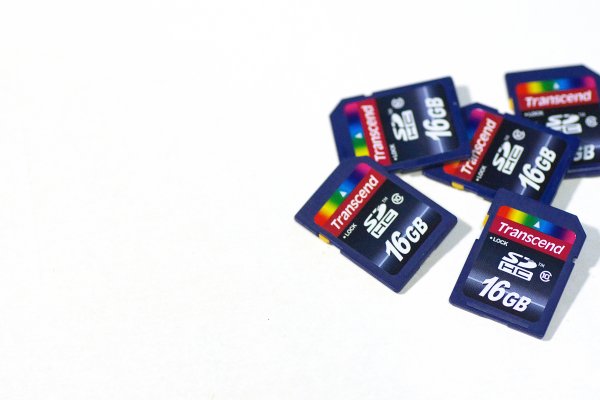
There are many types of memory cards available on the market ranging from Micro SD card, SD card, CF card, M2 (from sony). But there are only three type of cards being used primarily in the photography world, Secure Digital (SD) card, Eye-fi card, Compact Flash (CF) card.

Micro SD card

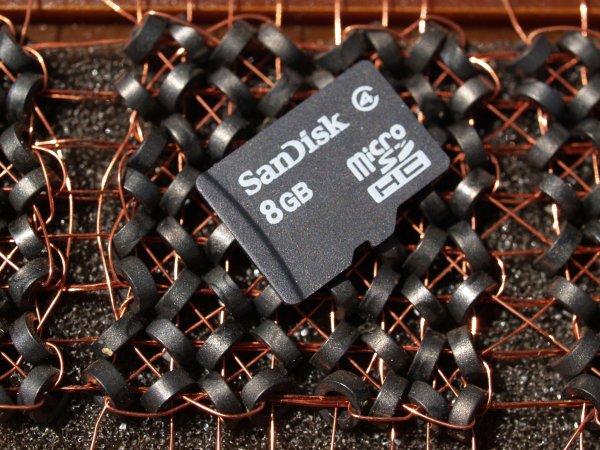
Micro SD card is a miniature version of the SD card and meant to be used in mobile phones. This card has capacity, as well as transfer speed restrictions. That is why it is used primarily in Smartphones where one can store music and apps, or any other relatively less active data.

Daniel Sancho

By Daniel Sancho

Secure Digital card (SD card)

This type of the card is widely being used in digital cameras, primarily in point and shoot cameras and secondarily being used in professional cameras. The constraint in using this card is the capacity of the card. The initial high capacity is only 2GB when introduced in 1999. But as the time and technology progressed a later version as SDHC is introduced with a higher capacity of 64GB in 2006 (HC means Higher capacity). The recent third iteration of SD card been announced in 2009 as SDXC cards (XC stands for extended capacity). This type of card offers up to 2TB and increased transfer speed.

Eye-fi card

These are unique SD cards that come with built-in WiFi. This allows you to transfer the data to your computer or a cloud based service or even to your Smartphone directly, thus enabling you to clear off the memory as you shoot, without having a need to replace the memory card. It is even possible to geotag your photographs with the available wireless service, but with less accuracy though.

Bfishadow

By bfishadow

There seems to be a promising future for this card!

Compact Flash card (CF card)

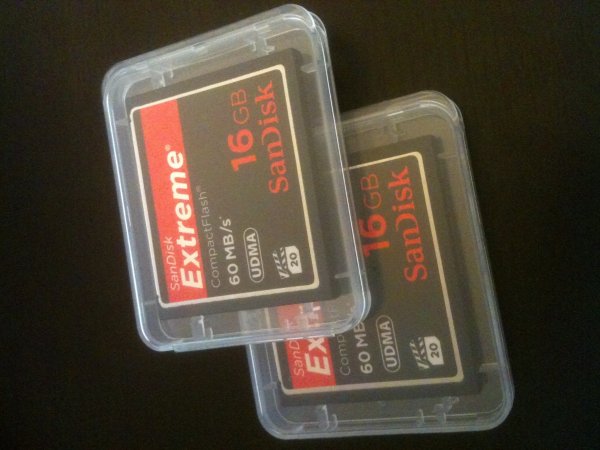
First introduced in 1994, CD cards have high speed, and high capacity. This is the reason why CF cards occupy the primary card slot in professional cameras. Present SD cards are equalling the speed and capacity of CF cards, but camera manufacturers are not leaving CF cards just yet. They often provide slots for both an SD and CF card, but some photographers wish they would offer two SD card slots instead. This provides some extra space inside the camera and saves money for the photographer (CF cards costs roughly twice that of SD cards). Hopefully they will switch the importance to SD cards in the near future.

As the name suggests this is a flash memory which aids high speed reading/writing speed, and has a higher capacity too.

Speed

Speed in SD cards

All memory cards come with speed, either mentioned or not. Speed here means both writing and reading. The one indicated on the card is the maximum speed the card can read, but the most important thing is the write speed. Read speed is the time taken to read the data from the card and the write speed is the time taken to write the data. Simply put read speed comes into action when you transfer the data from the card, write speed comes into play when you shoot. In general the write speed is about half of the speed of read speed in SDHC cards. In few other cards both the read and write speeds are about the same.

Simon Yeo

By Simon Yeo

The speed of cards have been classified into classes by the SD Association, which are referred to below. The speeds are primarily meant for video recording, where sustained recording (write) is required and it is supposed to be the minimum worst case scenario speed.

You really need to give weight to this one single-most important factor, when you buy a memory card. All SD cards have a class noted on them. Check the attached diagram below:

Class Minimum Speed
2 2MB/s
4 4MB/s
6 6MB/s
8 8MB/s
10 10MB/s

Later, in 2009 another class, UHS, was introduced by the SD association and is designed for SDHC and SDXC memory cards. UHS utilizes a new data bus that will not work in non-UHS host devices. If you use a UHS memory card in a non-UHS host, it will default to the standard data bus and use the “Speed Class” rating instead of the “UHS Speed Class” rating. UHS memory cards have a full higher potential of recording real-time broadcasts, capturing large size HD videos and extremely high quality professional HD.

Courtesy – SanDisk website.

UHS Class Minimum Speed
1 10MB/s
3 30MB/s

Speed in CF cards

Laurie Cooper-Murray

By Laurie Cooper-Murray

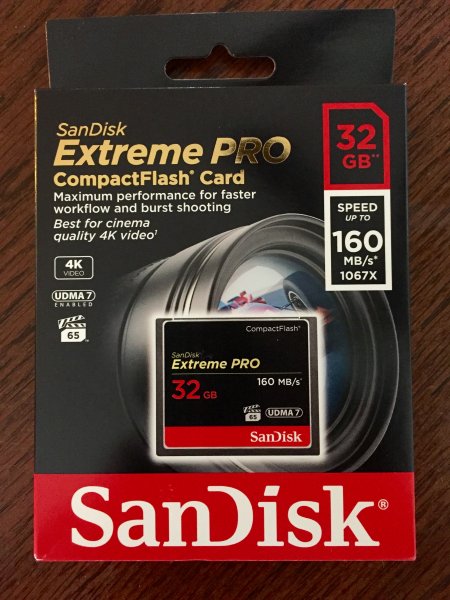
When it comes to CF cards the speed is often mentioned as X times and in many cards it’s been mentioned as MB per second, which is pretty straight forward. Whereas when the speed is mentioned as 600X or 1066X what exactly does it means? X means 150Kb per second. It is a standard brought over from optical media recording. Now to find out what exactly the speed is of 600X – to find this multiply 600 by 150 and divide the result by 1000. The final result is in MB per second. Eg., a 600X speed card is capable of 90MB per second read speed (600?150/1000).

The latest CF cards come with the UDMA 7 which improves in clearing the camera’s buffer memory quickly, which allows the camera to get ready for the next burst. Firmware upgrade is required for the Canon 5D MKIII (yours may require it also, check with the manufacturer) camera to make full use of UDMA 7.

Price

Phil Romans

By Phil Romans

When it comes to price, the fastest card is the primary criteria which decides the price. The next deciding factor is capacity of the card. An SD card is 50% of the price in the same capacity CF card. So, if you want to buy a high speed card with same capacity you will need to pay more. On the other side if you want to buy a high capacity card at a lower price, it is possible to do so but you’ll get a lower speed card.

Notes

  • If you use two cards at different speeds, the lowest speed is the deciding criteria for the burst. For instance if you use a CF card at 90 MB/sec in one slot and an SD card having the capacity of 45MB/sec (and you set RAW files for both cards) then you won’t get the advantage of 90MB/sec and the possibility of missing the shot. You have to use both cards at the same speed.
  • If you do not upgrade to the latest firmware for the 5D MKIII camera, the host memory will perform for UDMA 6 which significantly consumes more time in clearing the buffer memory.
  • I wish the camera manufacturers would switch to SD cards completely for both slots. The speeds of the SD card already matches with the CF cards, there is no point paying twice the price, and we’d get the added bonus of saving space inside the camera.
  • In few cases the SD card speed is higher than CF cards. For instance SanDisk Extreme Pro speed is 280 MB/sec but from the same manufacturer the CF card’s maximum speed is 160 MB/sec.

Hope you have gotten a bit of information from this article. Do share your thoughts in the comments.

googletag.cmd.push(function() {
tablet_slots.push( googletag.defineSlot( “/1005424/_dPSv4_tab-all-article-bottom_(300×250)”, [300, 250], “pb-ad-78623” ).addService( googletag.pubads() ) ); } );

googletag.cmd.push(function() {
mobile_slots.push( googletag.defineSlot( “/1005424/_dPSv4_mob-all-article-bottom_(300×250)”, [300, 250], “pb-ad-78158” ).addService( googletag.pubads() ) ); } );

The post How to Select the Right Camera Memory Card by Navan Viswa appeared first on Digital Photography School.


Digital Photography School

 
Comments Off on How to Select the Right Camera Memory Card

Posted in Photography