RSS
 

Posts Tagged ‘Making’

3 Useful Photoshop Techniques for Making Images Exposure Corrections

20 Jul
Title-correct-exposure

Using a Curves Adjustment Layer with the Blend Mode set to Screen to correct exposure in Photoshop.

In general, where images are too dark, this is referred to as underexposed. Conversely, images that are too light are overexposed. Photos taken on sunny days are prone to being overexposed.
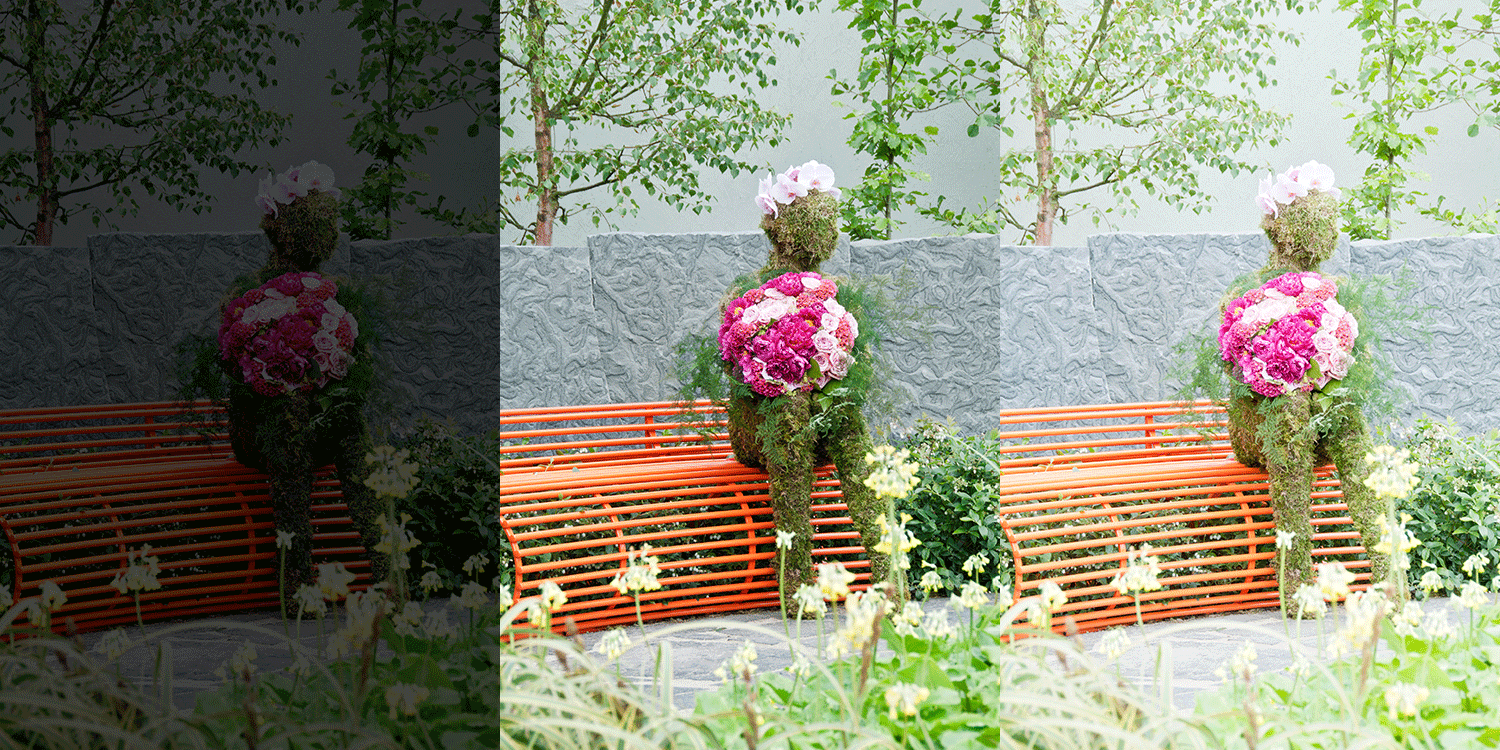
exposure

An animated gif to illustrate a correct exposure, an underexposed shot and an overexposed one.

In an ideal situation, the aim is to try and get the correct exposure in-camera. In doing so, less time will be spent in front of your computer post-processing.

In this article, I will describe how to easily correct photos that are underexposed (photos that are too dark) and overexposed (photos that too light) using Adjustment Layers and Blend Modes in Photoshop. I will then describe how the Dodge and Burn tools work to target specific areas to brighten or darken your image.

The following techniques are not new, but have been around for quite some time in Photoshop. The methods are still very effective, quick and easy to do.

  • Overexposed photos – Blend Mode: Screen with Curves Adjustment Layer.
  • Underexposed photos – Blend Mode: Multiply with Curves Adjustment layer.
  • Dodge & Burn tools – New Layer above the image filled with 50% gray – Blend Mode: Overlay/Softlight.

Read:  The First 3 Photoshop Blend Modes You Need to Understand

All of the images I used in this article are the jpegs straight out of the camera, completely unedited. I want to demonstrate how effective these techniques are when applied.

Correcting Overexposed Images
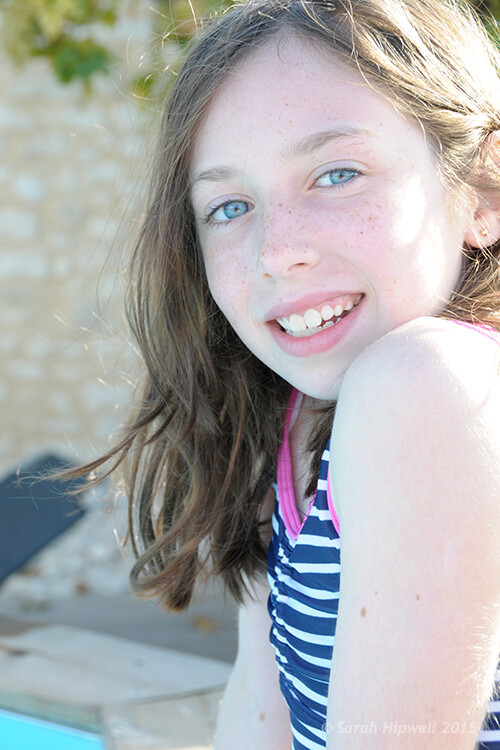
Becky-overexposed

A typical washed-out look from an overexposed photo.

As you can see, from the first overexposed shot. The subject has that washed-out look. The subject is overexposed by a stop and a half. I applied a Curves Adjustment Layer and changed the Blend Mode to Multiply. Straight away, the contrast of the image has dramatically increased.
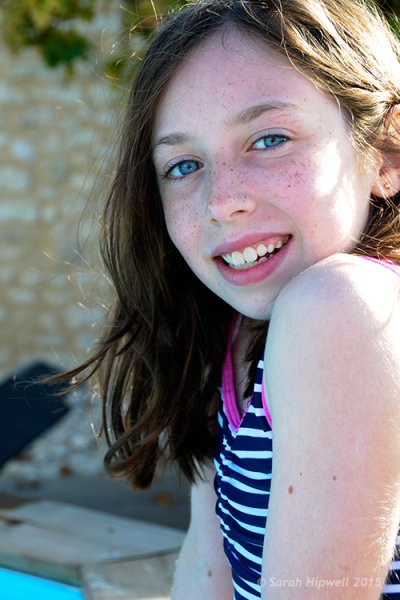
Becky-curves-multiply

The result is quite dramatic when the Curves Adjustment Layer (with Multiply blend mode) has been applied, but there is a noticeable change in color shift.

The Multiply Blend Mode can cause a shift in color, but this is easily remedied. To adjust the color balance, go to the Properties panel (CS6) and choose the channel you want by clicking on the menu left of the Auto button. In this case, the color was too cool, so I adjusted the three channels (Red, Green and Blue) to get the result I wanted.
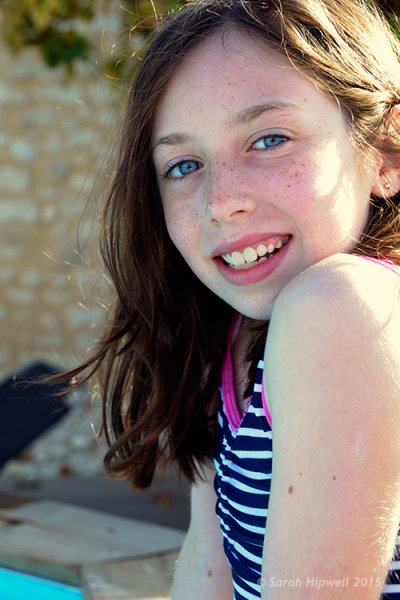
Becky-correct-exposure

The color balance has now been modified by adjusting the red, green and blue channels in the the properties panel for the Curves layer.

In the image of the Rhino below, when I applied the adjustment layer and changed the Blend Mode to Multiply, the effect caused a color shift to green, and the intensity of the effect was too dramatic. I adjusted the color balance by choosing the green and red channels in the Properties panel. I then reduced the Opacity to 55% of the layer to further fine-tune the image.
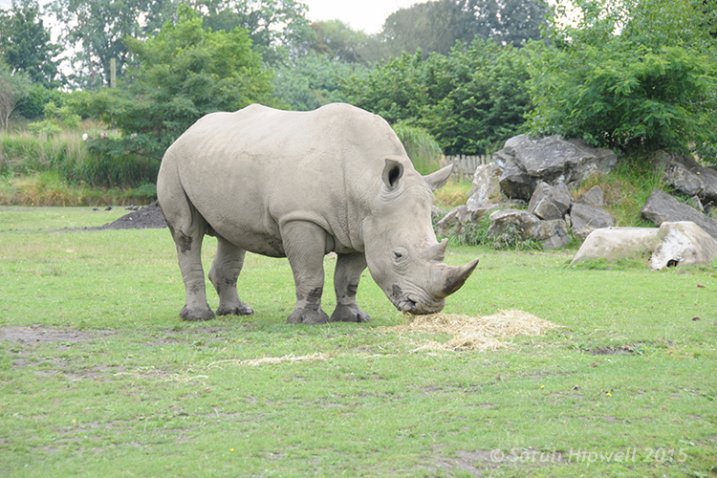
Rhino-underexposed

Overexposed photo of a Rhino taken at Dublin Zoo.
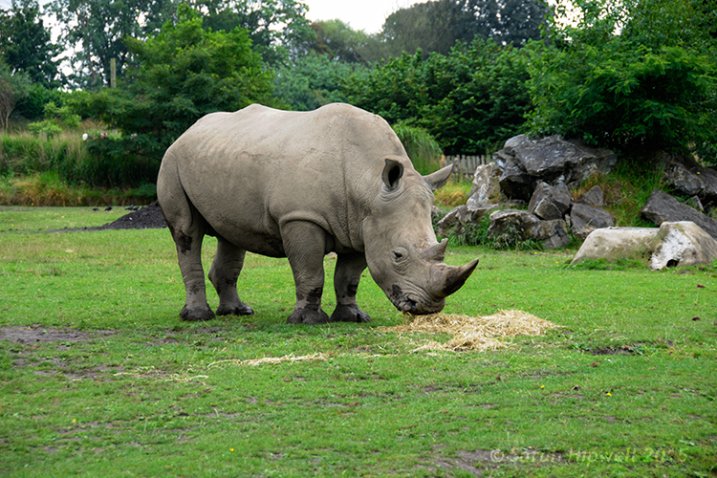
Rhino-curves-multiply

A Curves Adjustment layer with the Blend Mode set to Multiply.
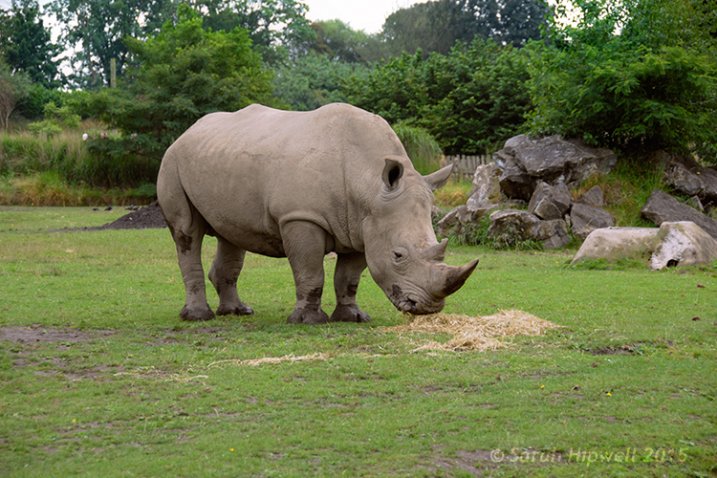
Rhino-correct-exposure

I reduced the Opacity of the Curves Adjustment Layer as the effect was too much. I then adjusted the color balance by tweaking the red, green and blue channels.

Correcting Underexposed Images

Underexposed shots are typical when working outdoors on sunny days. Usually, the background is properly exposed but your subject is silhouetted. Similarly, if the background is washed out but your mode/subject is exposed correctly.

For example, the photo of the flower was taken at the beach on a very sunny day. I focused and exposed for the flower, which meant the background was way too dark. I applied a Curves Adjustment Layer and changed the Blend Mode to Screen. The shadows became lighter, but I duplicated this layer again as I wanted more detail in the shadows. (In most cases, this effect of using the one Adjustment Layer is enough but if your photo is very washed out, or very dark, you may need to duplicate the Adjustment Layer and adjust the opacity accordingly.)
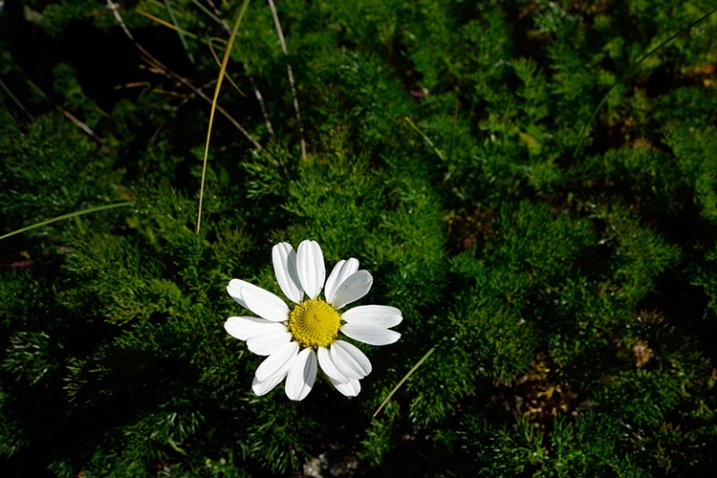
flower-underexposed

An underexposed flower in green foliage.

I reduced the opacity of both layers and added a mask to bring back the highlights on the flower’s petals. Similar to the Multiply Blend Mode, the Screen Mode can cause a shift in color. In this instance, the photo had too much green. Similar to the photo above, I was able to adjust the color balance in the Properties panel and chose the green channel to modify the color balance.
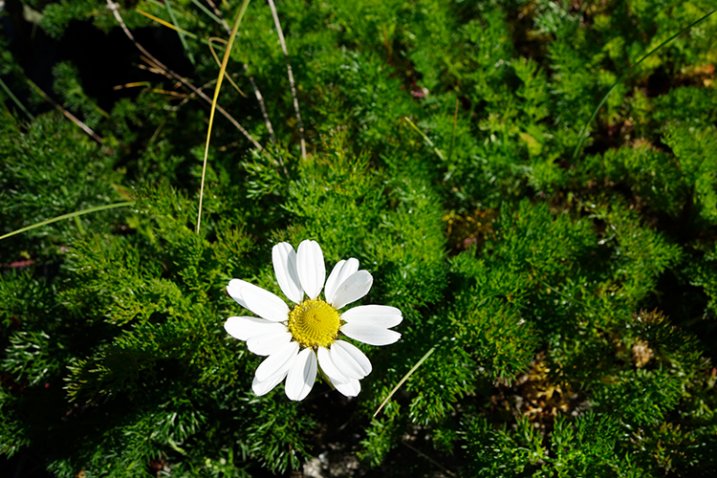
flower-curves-screen

Two Curves Adjustment Layers were applied to this photo. I wanted to bring out more detail in the shadows.
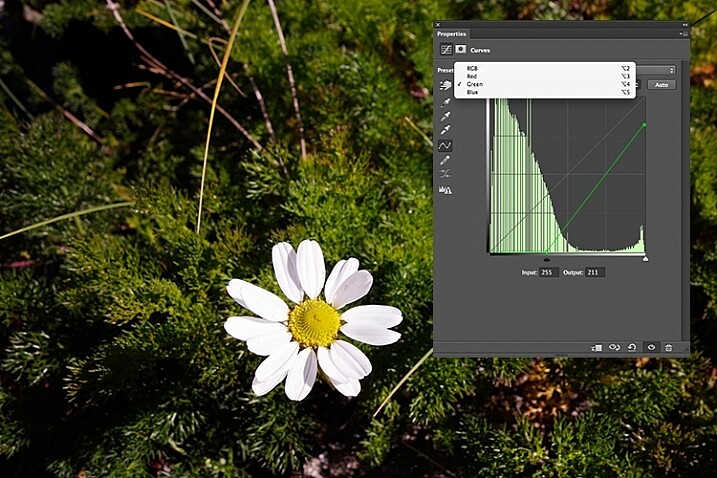
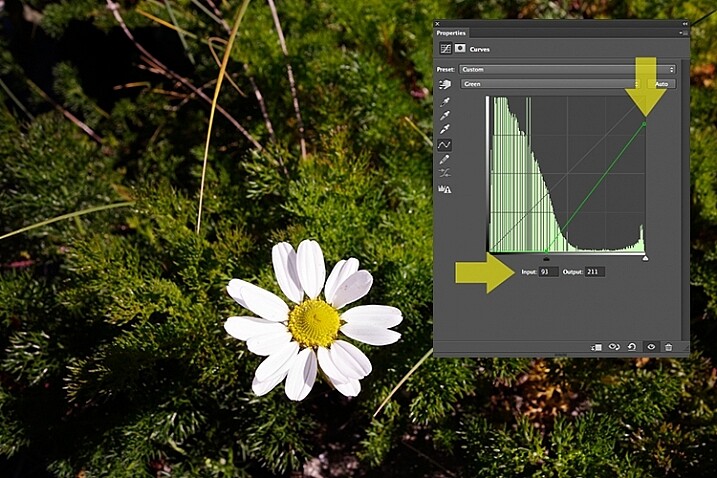
flower-changing-to-green-channel

flower-input-output-sliders

By going into the different channels, it’s easier to target the specific colour that needs adjusting. In the image of the flower, I wanted to reduce the green colour. So by clicking on the top right point of the graph (output) and dragging it down. I then moved this Input slider to the right to bring in some magenta. As this an adjustment layer, you can play around with each of the colour channels and experiment using the input and Output sliders in an non-destructive way.
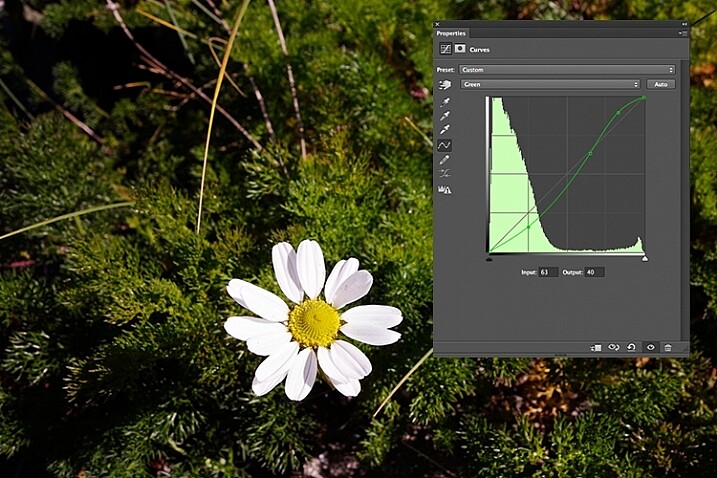
flower-green-channel-S-curve

A more accurate way would be to plot different points on the grid to get that classic S shape, which is what the Curves Adjustment is know for.
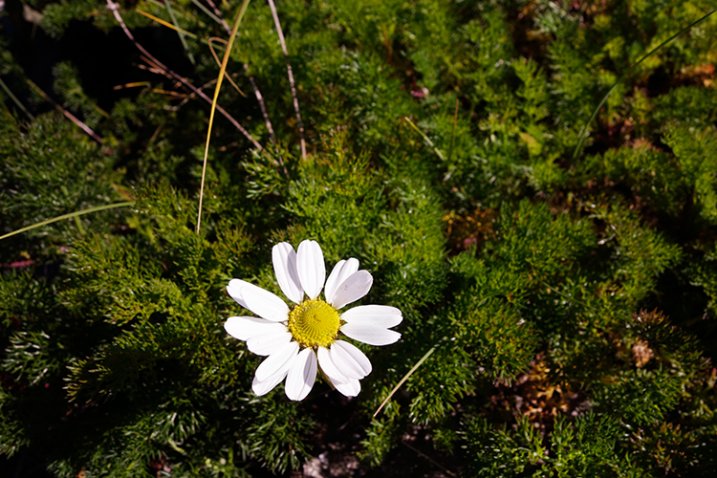
flower-correct-exposure

Opacity was reduced on each of the two Curves Adjustmnet layers. The green channel was adjusted to modify the color balance.

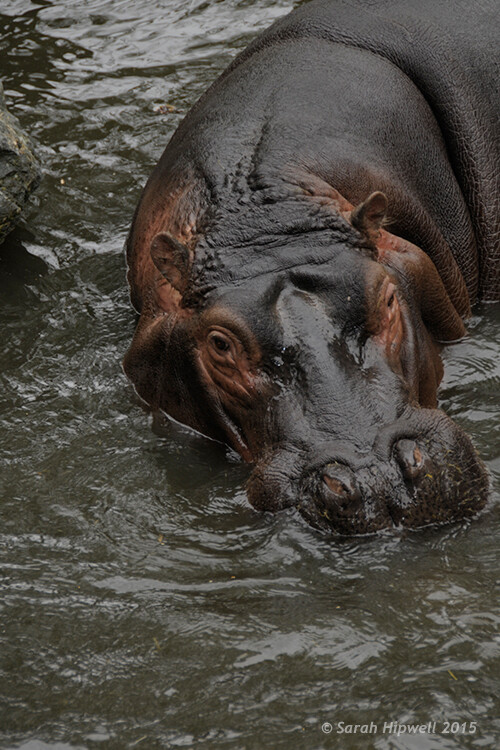
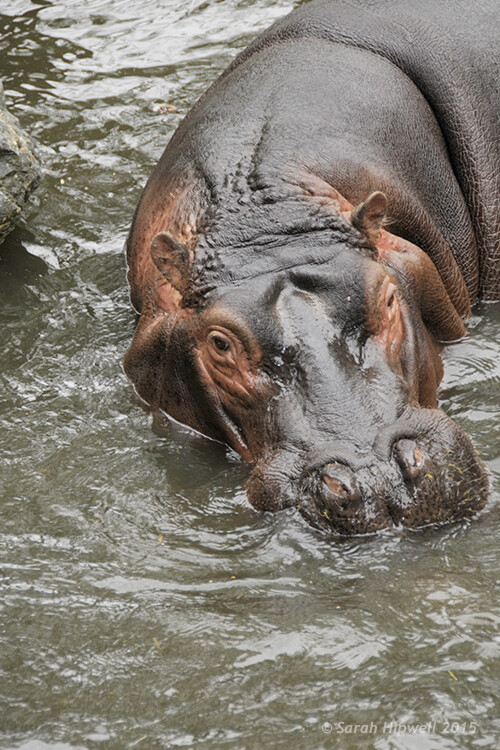
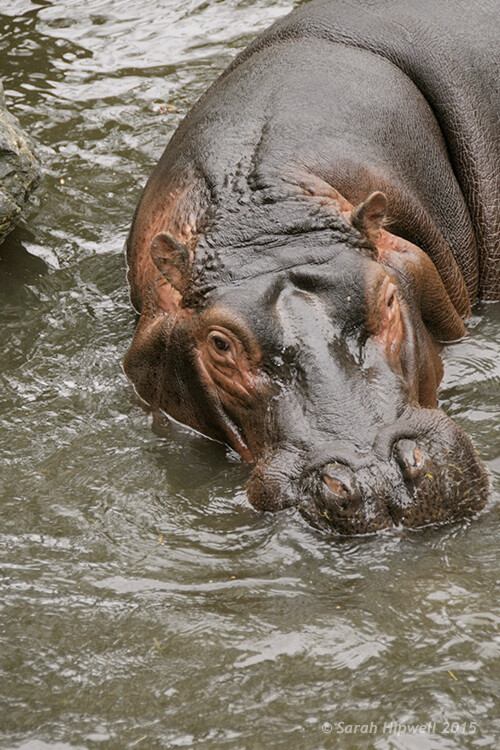
The shot of the hippo below was taken at Dublin Zoo and the day was quite overcast. As before, I added a Curves Adjustment layer and changed the Blend Mode to Screen. I then adjusted the red, green and blue channels to correct the color balance. I reduced the opacity on the Adjustment Layer only slightly.
Hippo-underexposed

A underexposed shot of a hippopotamus taken at Dublin Zoo
Hippo-curves-screen

A Curves Adjustment layer with the Blend Mode set to Screen.

The shot of the Hippo was taken at Dublin Zoo and the day was quite overcast. As before, I added a Curves Adjustment layer and changed the Blend Mode to Screen. I then adjusted the red, green and blue channels to correct the color balance. I reduced the opacity on the Adjustment Layer only slightly.
Hippo-correct-exposure

The Opacity was only slightly reduced for this image but the color balance again had to be adjusted in all the channels.

So by using an adjustment layer and changing the Blend Mode to Multiply or Screen, overexposed and underexposed shots can be easily fixed in a few steps. But what if specific areas of your image only need the exposure corrected?

Dodge and Burn

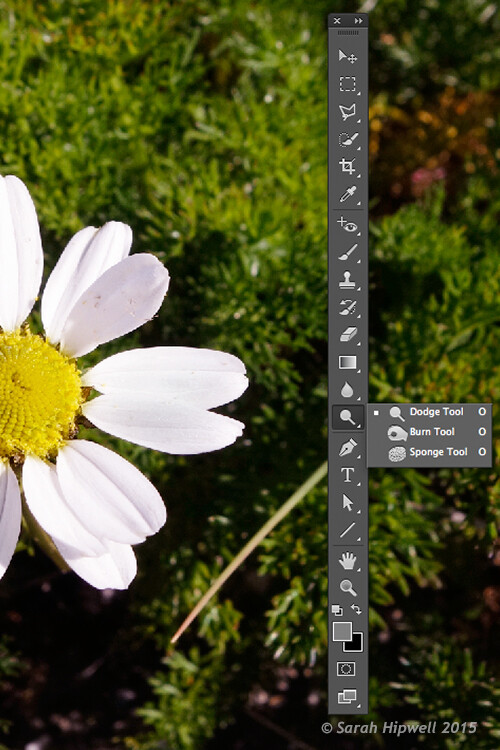
The Dodge tool lightens and the Burn tool darkens specific areas of your photo. This is why the Dodge and Burn tools are really useful if you don’t need to apply a global exposure correction.

I use these tools a lot in my workflow, it can create highlights in hair. When I shoot headshots, the eyes are important and the Dodge and Burn tools can also really enhance eyes and make them sparkle. Other forms or parts of the body can also be accentuated and given more depth by using these tools.

However, the Dodge and Burn tools, if used directly on a image, work in a destructive way. So to use these tools non-destructively, you will need to create a new blank layer above the image that you are working on, fill it with 50% gray and change the Blend Mode to Overlay or Softlight.
Dodge-Burn-tools

Where to locate the Dodge and Burn tools in Photoshop.

Before you begin, use a brush with the hardness set to soft (0-30). In the Tools Options Bar, make sure that you set the Range to Midtones, Exposure is set to low (8-10%) and that the Protect Tones is checked, as shown below.

Midtones+Exposure+Protect-Tonespsd

Set the Range to Midtones. Keep Exposure at a low setting. Make sure the Protect Tones box has been checked.
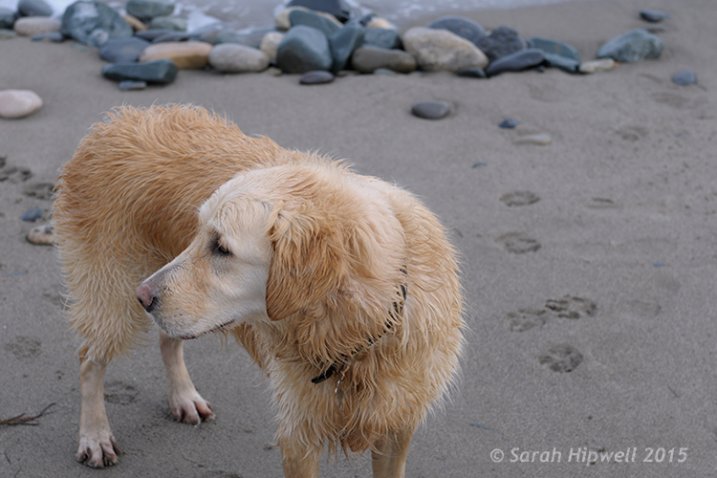
dog

In this photo of the dog, I want to create some highlights on the dog’s fur. Well, fur is like hair!
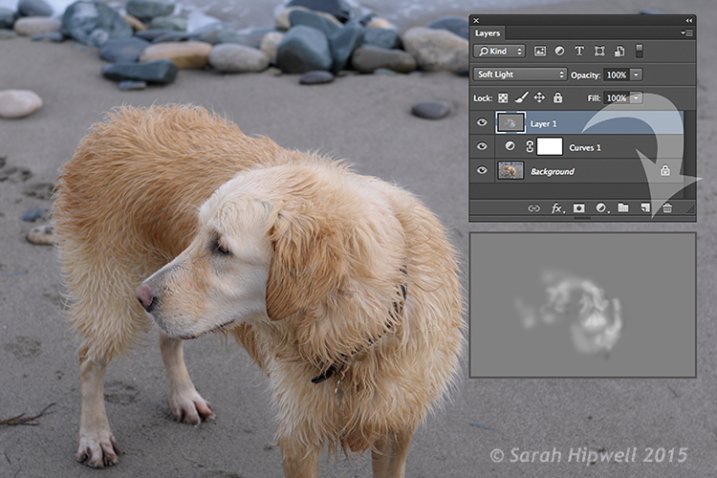
Dog-dodge-burn

You can see the difference in what a little dodging can do in this image of the dog with the photo above.

If you feel that you have overdone either the Dodge or the Burn tool, just lower the opacity of the layer.
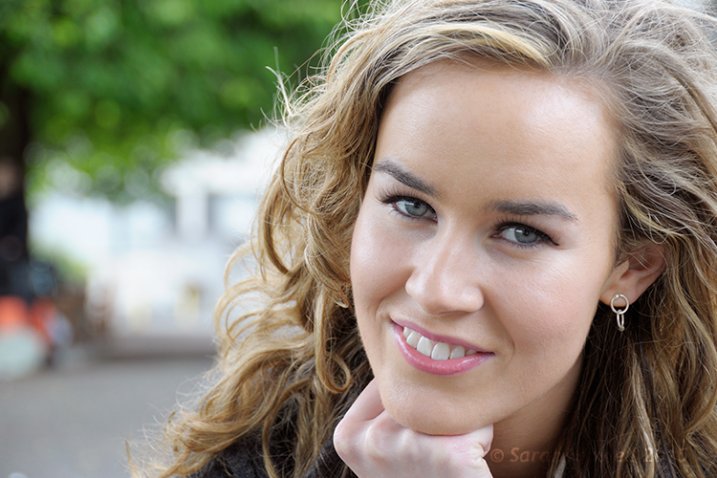
Lisa

Lisa, before any Dodging or Burning has been applied to the image.
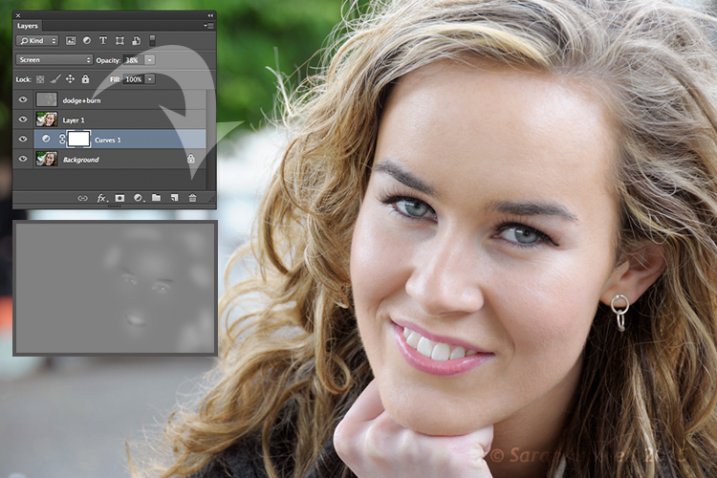
Lisa-dodge-burn

Just a little dodge and burn can make a difference to your photo.

Even subtle differences can enhance your images. In this image of Lisa, I applied some dodging to her eyes, I used the Burn tool to emphasize her lips. I then added a bit more dodging to the face and hair.

I hope you find these techniques useful? Maybe, you have some of your own? If so please share in the comments below.

googletag.cmd.push(function() {
tablet_slots.push( googletag.defineSlot( “/1005424/_dPSv4_tab-all-article-bottom_(300×250)”, [300, 250], “pb-ad-78623” ).addService( googletag.pubads() ) ); } );

googletag.cmd.push(function() {
mobile_slots.push( googletag.defineSlot( “/1005424/_dPSv4_mob-all-article-bottom_(300×250)”, [300, 250], “pb-ad-78158” ).addService( googletag.pubads() ) ); } );

The post 3 Useful Photoshop Techniques for Making Images Exposure Corrections by Sarah Hipwell appeared first on Digital Photography School.
Digital Photography School

 
Comments Off on 3 Useful Photoshop Techniques for Making Images Exposure Corrections

Posted in Photography


Making the Mundane Magnificent: Finding Inspiration in Everyday Objects

29 Jun

Chances are you have a tourist attraction in your town. Each day people crowd around and line up to take photographs of it. If you think of the most photographed tourist spots in the United States, you probably come up with the Statue of Liberty, San Francisco Golden Gate Bridge, or Grand Canyon.

Thousands of pictures a year are taken at these destinations, however despite all of the mundane images some people can still produce incredibly unique and breathtaking photographs of these attractions.

If you study the most impressive photos you will find consistent aspects that make the mundane magnificent. To fully appreciate the qualities of such fine art, you should consider working backwards, finding inspiration in everyday objects.

A simple way to make better photos of ordinary objects

Step one – pick something, anything

Pick a simple object from around your house that you see everyday. It doesn’t have to be anything special, just something you use mindlessly each day. It could be anything from your car keys, to a spoon, or a pencil.

PHOTO 1

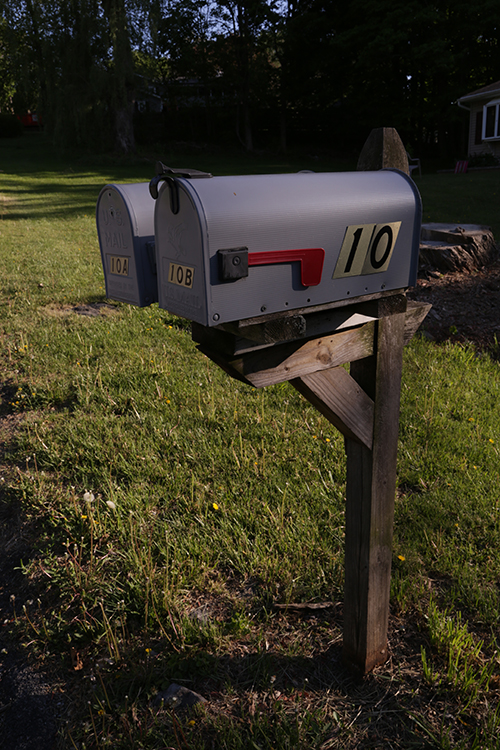
In this example we’ll try to make a picture of an ordinary mailbox unique and interesting. This first photo is an example of a mundane run-of-the-mill photograph of a mailbox (above). You should duplicate a similar photograph of your object. Use your camera or camera-phone, and without giving it much thought, just snap a picture of the scene.

Step two – choose a unique camera angle

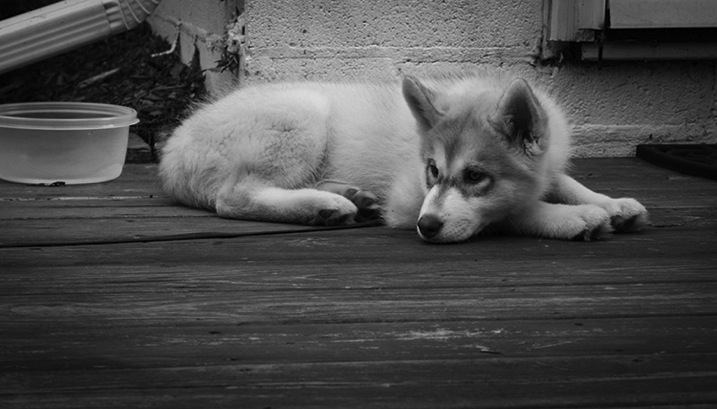
There are a few variables involved in composing a unique image, but an important one we can explore is camera angle. Beginner and amateur photographers tend to take pictures at the angles in which we are used to naturally seeing things (eye level). One example is a photograph of a pet taken from a standing position looking down at the pet. This is the most common perspective of pet photographs, thus it also tends to be the least interesting or unique. While this is a often heard tip, it gets to the heart of why the angle of a photo is so important. Getting down at ground level provides a perspective that adults are not used to seeing of a pet.

PHOTO 2

Start to think about atypical angles to which people are not generally accustomed. In the pet example, simply lying on the floor and taking a photograph from the perspective of the ground, creates a much more interesting perspective.

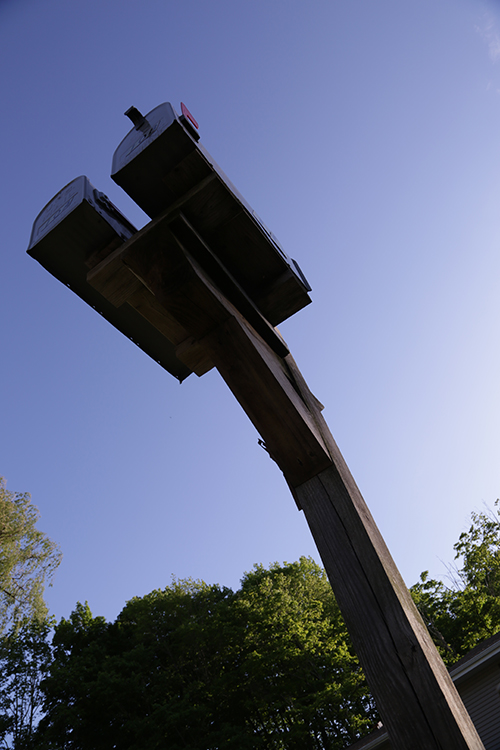
In the mailbox example, this photograph (below) was taken from the ground, looking up. By shooting the mailbox at a wide angle, the post of the mailbox becomes slightly distorted and creates a powerful and aggressive look. The mailbox looks much farther away than it is in real life. Furthermore, who ever looks at their mailbox from the ground? It’s a perspective most people are not used to seeing so it creates a unique presentation.

PHOTO 3

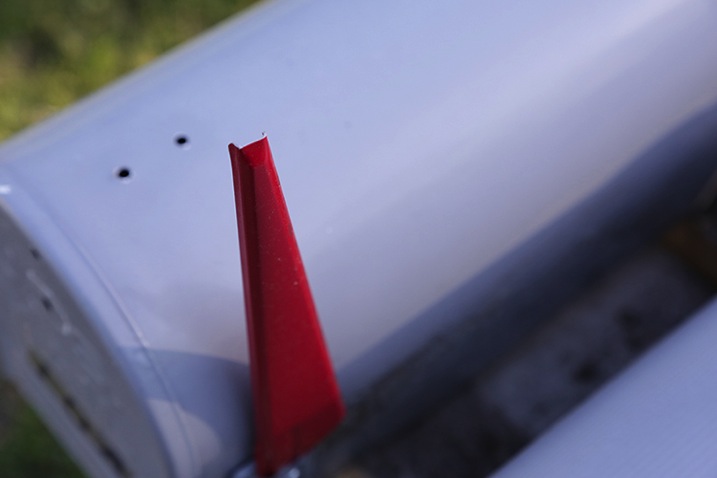
In this next image you are seeing the mailbox from the perspective of the flag. The subject becomes the flag, and creates a sensation that the flag has a meaningful and powerful purpose; there is mail that needs to be picked up!

PHOTO 4

That’s it!

When taking pictures think about how you can present the photo in a unique fashion. Is there any interesting angle you can get? Can you lie on the ground and look up? Can you get far above and provide a birds-eye view? Look at the people around you, and try to do something different from what everyone else is doing. Often we might see photographers in these awkward positions and think they look silly, but the result is usually a great photograph.

Go beyond just shooting the easy way

Chances are if the picture you are taking is convenient and easy, it won’t be original and breathtaking. Try to get to a place no one else is willing to get to, like climbing a wall, or laying on the ground, or holding the camera high up above your head. These unique angles, blended with the willingness to get into positions others aren’t willing do, typically provides photographic results that are above and beyond the norm.

Even with the most mundane objects, taking some time to think about how you can take the photo differently, can result in a stunning perspective, or unique angle, that makes the ordinary extraordinary and the mundane interesting.

googletag.cmd.push(function() {
tablet_slots.push( googletag.defineSlot( “/1005424/_dPSv4_tab-all-article-bottom_(300×250)”, [300, 250], “pb-ad-78623” ).addService( googletag.pubads() ) ); } );

googletag.cmd.push(function() {
mobile_slots.push( googletag.defineSlot( “/1005424/_dPSv4_mob-all-article-bottom_(300×250)”, [300, 250], “pb-ad-78158” ).addService( googletag.pubads() ) ); } );

The post Making the Mundane Magnificent: Finding Inspiration in Everyday Objects by Justin Varuzzo appeared first on Digital Photography School.

Digital Photography School

 
Comments Off on Making the Mundane Magnificent: Finding Inspiration in Everyday Objects

Posted in Photography


Fashion Photography – Tips for Making Something out of Nothing

18 May

Recently, I found myself in a conversation with a mentoring client who was feeling creatively stunted. I asked her where she wanted her portfolio to go and she said, “I want images like yours! But you live in California, and everything is pretty there!” I literally laughed out loud when she said that because California, while pretty, is filled with more urban yuck, specifically Los Angeles, than one can even imagine. I only wish I had infinity pools available to me, palm trees for as far as the eye can see, and no traffic to have to clone out! Even a green lawn, would be nice. But, alas, I’m not a Kardashian.

fashion-01

Beauty or fashion photography – not all glamorous

The honest truth is like anywhere else, locations are always troublesome to find. In Los Angeles County, to shoot on the street, beach or outside a structure, you need a permit. It’s a serious business. Applying for a permit can take a substantial financial cost, and if for some reason the weather is bad on the day of the permit, you’re out of luck. Because of this, I’ve learned to be more open-minded, and have found ways to “make it work”. You can too! Stop preventing yourself from making amazing images because you don’t have the right spot.

First, Don’t laugh at me. Nobody knows the magic behind the scenes, so keep that in mind. At the end of the day, the final image is all that matters! Trust me when I lead you down this liberating path of cheap backdrops, dirty backyards, and grocery store finds.

Reference #1: Create a backdrop from leaves

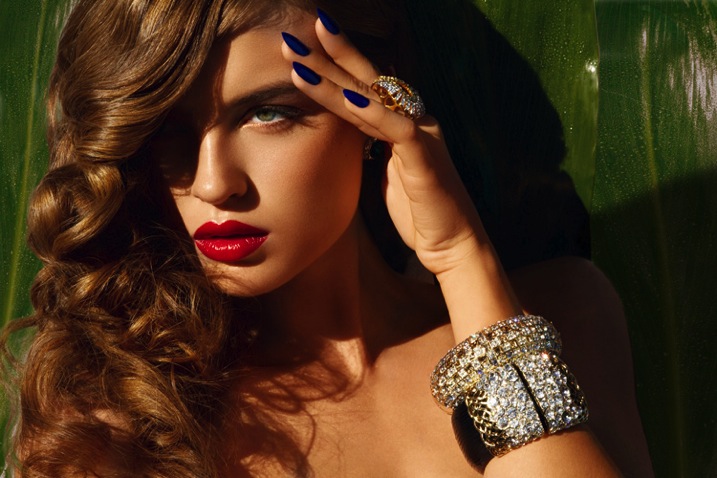
I shot a beauty story for Cosmopolitan magazine. I knew I wanted a lush tropical backdrop, and pops of color throughout. I called everyone I knew to see if anyone had bird of paradise, or other tropical looking greenery, in their back yards. Nobody had pretty backyards that were a good fit. So I decided to order some leaves from my local florist and make the backdrop I wanted. I decided my TINY backyard was the best place for me to shoot this story. So I will show you the final product first.

This is the image that went to Cosmopolitan.

Image 1b

Before we got started I set up a big piece of white plastic board I had in my garage. Why plastic board you ask? Because, I was out of white paper and it was there. I just needed a white background.

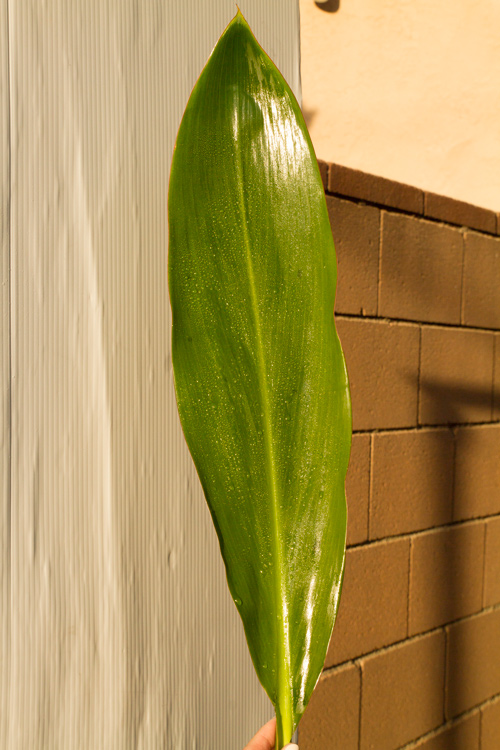
Using natural sunlight, I took photos of the leaves, cleaned and misted against the white backdrop for samples.

Image 2b

Then I took the photo against the white backdrop. Using midday sun. YES, 2 o’clock burn our your retinas, sunlight. Don’t be afraid of sunlight. Once you conquer it, you can shoot anything!

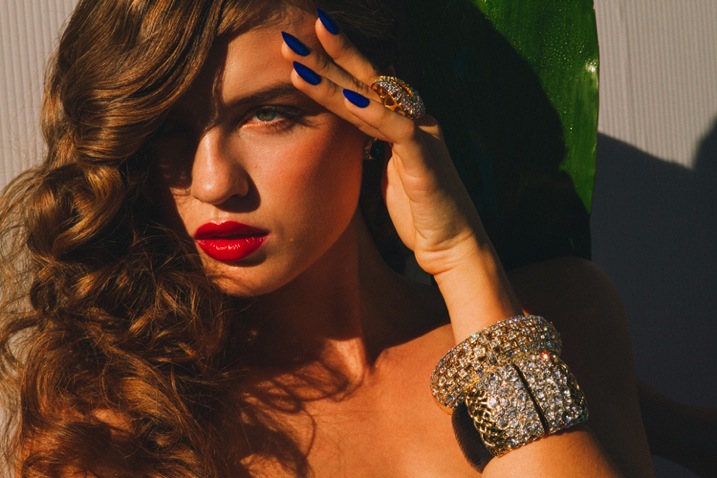
Image 3b

My assistant is simply holding the leaf up behind the model. Pretty, but missing something right? By adding the leaf samples (duplicating them) in post-production, it gives it such an exotic feel. You CAN do this. You have poster board, correct? You have nature around you, right? Use it!

Reference #2: Improvise

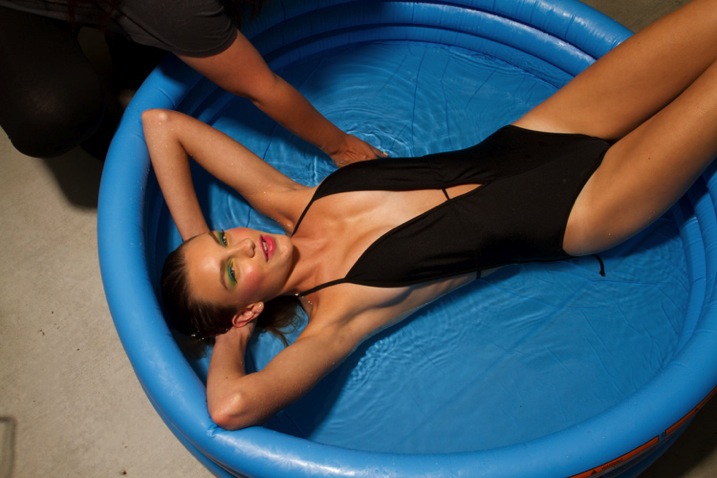
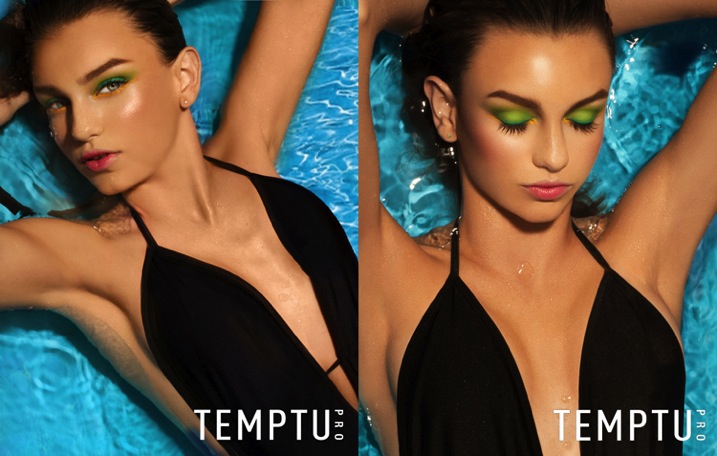
A cosmetic commercial client wanted a summer themed campaign, with the tagline, Summer in High Def. I pitched the idea of a pool shoot with bold aquas and colorful pops of color. She told me she had no location budget, I told her, “No problem.”

I took a quick stroll to my local grocery store chain. Luckily, it was May so they had lots of summer goodies in stock. I found an inflatable pool for $ 5. SCORE! Once again, at the end of the day, nobody knows what your set looks like.

Image 4b

The model barely fit in the five inch deep, kiddy pool. It was quite funny. The client LOVED the shots and couldn’t believe I pulled it off. I never had any doubts. This setup is my most requested one. Clients ask for it all the time. I simply say, “Oh yeah, it’s in my trunk”. They look at me oddly, and confused.

Image 5b

You can shoot at a mansion or in your own front yard, NOBODY KNOWS. Stop getting in your head that you need more. That’s what makes our business so beautiful. It’s really not about how big your studio is or how you have amazing locations. At the end of the day, all that matters is your final image.

Do you have any other make-shift background or location tricks? Please share in the comments below.

fashion-02

googletag.cmd.push(function() {
tablet_slots.push( googletag.defineSlot( “/1005424/_dPSv4_tab-all-article-bottom_(300×250)”, [300, 250], “pb-ad-78623” ).addService( googletag.pubads() ) ); } );

googletag.cmd.push(function() {
mobile_slots.push( googletag.defineSlot( “/1005424/_dPSv4_mob-all-article-bottom_(300×250)”, [300, 250], “pb-ad-78158” ).addService( googletag.pubads() ) ); } );

The post Fashion Photography – Tips for Making Something out of Nothing by Courtney Dailey appeared first on Digital Photography School.

Digital Photography School

 
Comments Off on Fashion Photography – Tips for Making Something out of Nothing

Posted in Photography


Making ‘Art’: We go inside Sigma’s lens factory

09 Mar

On our recent visit to Japan to attend the CP+ show in Yokohama we were fortunate to be invited to tour Sigma’s factory in Aizu. The Aizu factory is where almost all of Sigma’s lenses are manufactured, including the company’s impressive new ‘Art’ line of primes. Click through to take a virtual tour of the factory, in the company of Kazuto Yamaki, Sigma’s CEO. 

Articles: Digital Photography Review (dpreview.com)

 
Comments Off on Making ‘Art’: We go inside Sigma’s lens factory

Posted in Uncategorized


Making Faces: Huge Military Warehouse Mural Spans 48 Windows

10 Dec

[ By WebUrbanist in Art & Street Art & Graffiti. ]

giant building mural blu

Covering two sides of a three-story building in Rome, this ground-to-roof artwork is massive, even by the standards of a big-thinking street artist like BLU used to large-scale works.

blu building in progress

blu giant street mural

Various window and door openings are incorporated into colorful characters with a” rainbow range of painted personalities,” some of which play off of the existing architectural details or structural quirks of the building.

blu colorful face art

blu window door mural

BLU lives in Bologna and has been active in the street art scene since 1999 – he is well-known for his large-scale works around the world. Like Banksy, he keeps his identity a closely-guarded secret.

blu rainbow giant characters

blu building corner

About the artist: “His graphic mania is directly proportional to the epic scale of his murals. His paintings seem to interpret the architectural language of public spaces and reinvent them into new shapes. Thus, his murals are never detached from the places where they were conceived because Blu is a painter in the landscape, urban or industrial. He always tries to communicate with the society which inhabits those spaces, searching for the uniqueness of each place.”

Share on Facebook


[ By WebUrbanist in Art & Street Art & Graffiti. ]

[ WebUrbanist | Archives | Galleries | Privacy | TOS ]


WebUrbanist

 
Comments Off on Making Faces: Huge Military Warehouse Mural Spans 48 Windows

Posted in Creativity


Finding the Balance: Capturing Memories Versus Making Memories

27 Oct

CM3

I am more than a little obsessed with capturing and preserving memories for my family. We have a photo wall that’s regularly updated. We print photo books, both from Instagram and of photos from my “real” camera. My girls know that twice a year, we go out to a field nearby our house, and I do a mini photo session with them. I’m the type of person who easily had 5,000 photos in the first year after my daughter was born, and that’s just what I decided to keep. So whenever I see a mom taking photos of her kids at the park, or a dad taking pictures at his son’s soccer game, I want to run over and give them a high five. I want to tell them that I think they are awesome, and that capturing those memories for their family is something priceless. They’re images that will be pulled out during graduation parties, played on wedding slideshows, and – God forbid – treasured after the loss of a loved one. It’s important work, and it is work that I feel absolutely passionate about.

But there’s a catch. If you’re anything like me, it can be easy to become so focused on capturing memories for our family and of our kids that we can sometimes tend to forget to be part of making memories WITH our family. It can be hard to find a balance, so here are a few tips that I have picked up along the way that can help you find that sweet spot of capturing those important moments, while also being present for them as well.

1. Do a dry run

CM

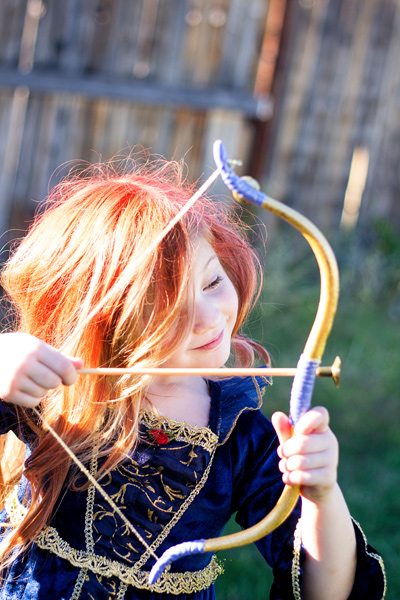
Halloween is coming up later this month, and my oldest daughter Lizzy wants to be Merida (from Pixar’s Brave). I absolutely want a non-phone photo of her all dressed-up in her costume. This is non-negotiable. But, I know that on the day of Halloween Lizzy will be excited (and probably a little hopped up on sugar), and trying to have a little photo session with her on that day would probably be fighting a losing battle. So, we did a dry run. We do this every year, and it works out so well for us because I can take a few photos of her to stick in the scrapbook in a no-pressure environment, and then on Halloween night, I can leave the camera at home and just be present with my family. We all get a good outcome, and in my book that’s a win. Does it really matter that the photo was taken the weekend before the event? Not to me in this instance, because the memory that I’m actually interested in capturing was the fact that at age four-and-a-half, Lizzy thought that Merida was the coolest of all the princesses, and that she wants to be strong, independent, and brave just like Merida is.

This tip is SO easy, but it has made such a big difference for our family, and it isn’t just for Halloween – this same idea would work for any occasion in which you want a photo of your kids either in a special outfit or with a particular person, opposed to during an event. For example, doing a dry run would be a good fit for capturing your daughter in her ballet outfit, taking a photo of your kids with Mom for Mother’s Day, or even to catch your kiddos in their Christmas pajamas.  As a bonus, doing a dry run lets us know if there are any costume or clothing  issues (dress is too itchy, shoes too tight, needing six cans of red hairspray instead of one) that need to be addressed before the big day as well.

2. Make good use of your camera’s creative modes

CM5

I have several friends who are currently learning how to shoot in manual. One of them was told by her mentor that the creative modes on her camera are cheating and that she should quit using them cold turkey and shoot in full manual, all the time, if she wants to be a real photographer. When she told me all this, I audibly groaned.

Here’s the deal – learning to shoot in manual is awesome and worthwhile. But as far as I’m concerned, if trying to shoot in full manual means that you spend all of your daughter’s soccer game (or birthday party) behind the camera trying to figure out appropriate settings rather than participating in the event itself, that’s a bummer. In my opinion, you would have been better off to stick your camera in Program mode or any other creative mode that you are very familiar with, take a few photos you love, and then be able to set the camera down and enjoy the rest of the time with your family. I’m not saying that you shouldn’t play around with settings or experiment at all, I’m simply saying that at special events like birthdays, weddings (in which you are not the official hired photographer), anniversaries, once-in-a-lifetime vacations, and graduations are the types of events where it is just as important to be a part of making the memories with your family as it is to be capturing those memories. If using one of your camera’s creative modes can help you in that way, go for it!

3. Don’t feel the need to photograph everything

CM2

Such an easy thing to say, and such a difficult thing to put into practice! The reality is that I don’t need to photograph all three times my daughter will go to the pumpkin patch this month between school field trips, family, and friends. The reality is that I don’t need to photograph every time my kids go out to the backyard to play. Sometimes, pulling out the camera while they play is an awesome time for me to practice and play around, but it can also really frustrate my kids if I do it too often (EVEN if I’m not asking them to, “Look here and say cheese!”).

So, for my sanity and theirs, whenever my gut instinct is to grab my camera, I try to stop and ask myself when the last time I photographed this particular event or activity was. If it has been less than a month, that’s a good cue for me to pause and consider whether or not I really need to bring the camera along that day. I really encourage all you moms and dads out there to choose a similar pause point for your family – maybe it’s weekly, maybe it’s monthly, but however frequent it is, it gives you and your kids some built in grace.

4. Get IN the picture sometimes

This is the only photo with me in it from my daughter's first birthday. It's a little blurry, but it went in the album nonetheless, and it's one of my daughter's favorite photos from the day.

This is the only photo with me in it from my daughter’s first birthday. It’s a little blurry, but it went in the album nonetheless, and it’s one of my daughter’s favorite photos from the day.

If you’re the photographer of the family, chances are that there are a lot fewer photos of you in the family album than there are of anyone else. I think this is something that we ALL struggle with. Or maybe you’ve even tried to pass the camera off to someone else and have been disappointed by the blurry, too light, too dark, weirdly cropped results. I get it, and I’ve been there.

One thing that I’ve noticed is that if I’m quickly handing the camera off to a friend or family member that isn’t familiar with photography, I get the best result if I pass the camera off in AV mode, with the aperture set at least at the number of people that will be in the photo, and the center focal point selected. So, if there will be four people in the photo, make sure the aperture is set to at least f/4 when you hand it over. I usually have my 50mm lens on my camera, so if I hand the camera over in Program mode, there’s a chance that it will elect to shoot at f/1.8 or f/2.2, which would probably not yield the best results for a photo of four or five people. If you’re shooting with a kit lens that isn’t capable of shooting that wide open, it may be just as beneficial to pass off the camera in Program mode. This is just one simple thing that will help yield better results when passing the camera to someone else, but trust me when I say that when it comes to family photos, the important thing is that you’re there, not that you’re well composed and perfectly in focus.

Do you struggle with the balance between capturing memories and making them? Do you have any other tips you’d like to share?

The post Finding the Balance: Capturing Memories Versus Making Memories by Meredith Clark appeared first on Digital Photography School.

Digital Photography School

 
Comments Off on Finding the Balance: Capturing Memories Versus Making Memories

Posted in Photography


Making the Most out of the Photography Stuff You Have Already

21 Sep

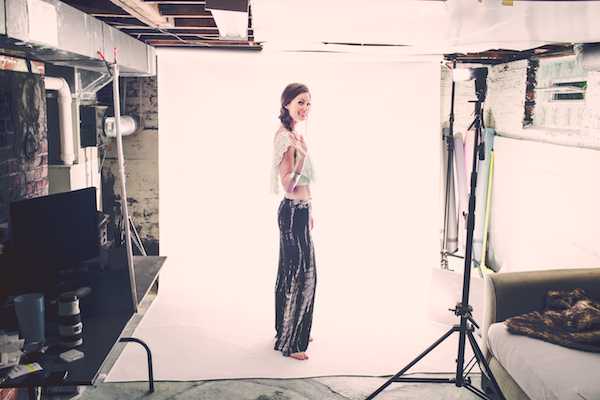
Several years ago I had a studio for about six months. It was really nice to have a space that I knew was always there, waiting for me to shoot in, should the need arise. The problem was that most of my shoots took place outdoors or on location, and when my trial lease period was over, I couldn’t rationalize staying on at the monthly rental rate. What didn’t occur to me at the time was that I had a perfectly good, albeit small, basement at my disposal. Due to the low, 80″ (6.6 foot) ceiling, the narrow, 10’x20′ shooting area, and the generally dark ambience of an unfinished basement, the thought of shooting down there had never crossed my mind. It wasn’t until I moved out of my studio and no longer had a place to store my gear, that I even ventured down there with my equipment.

IMG 8174

The setup began simply enough, with me doing little more than editing at a table down there. Over the months that followed, I did the occasional head shot or product shoot, quickly realizing that I didn’t need as much space as I originally thought. Sometimes a problem would arise, like when I needed to shoot a full body portrait of a guy who was over six feet tall. I began modifying the space accordingly, such as adding white panels to the overhead joists to reflect light.

I wanted a white seamless set up, but the backdrop stand legs were too wide to allow for the 8 foot wide white vinyl roll. Instead, I discovered that I could run a rod from the top of the air condition duct to a C-stand and just barely fit it in the space, pulling the sweep just out to the edge of my desk. This allowed a depth just long enough to light the subject and background separately, which meant I could accomplish a pure white background (if the space was any more shallow, the subject would be stepping in to the backdrop light, blowing them out with the light).

Tumblr navcq2zXA81qzpmooo1 1280

The other issue with a small shooting space is that you don’t have the space to back your lights off of your subject. As you may know, if you want soft light on your subject, you need to make your light source large and diffused or indirect. The problem was that if I added even an smaller umbrella to my strobe stand it meant that I’d have to lower the light the length of the radius of the umbrella, leaving my light at a max height of around five feet (too low). The narrow width of the shoot space also meant that I couldn’t simply hang up a white sheet and shoot through it, which is a common workaround in making a small light source larger.

IMG 8294

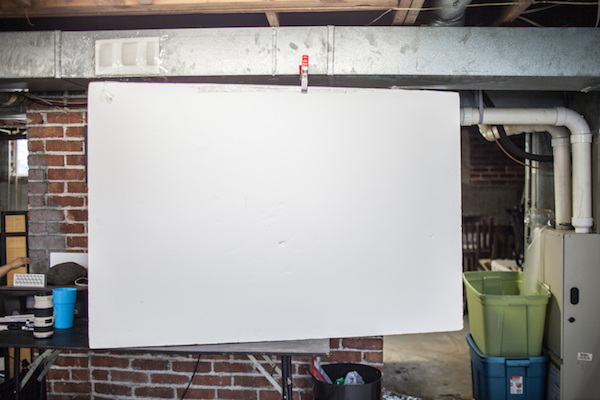
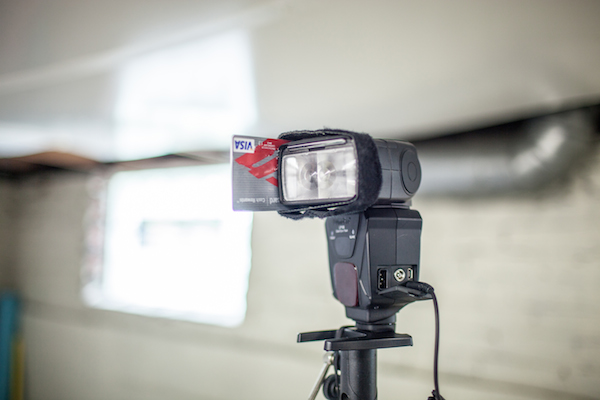
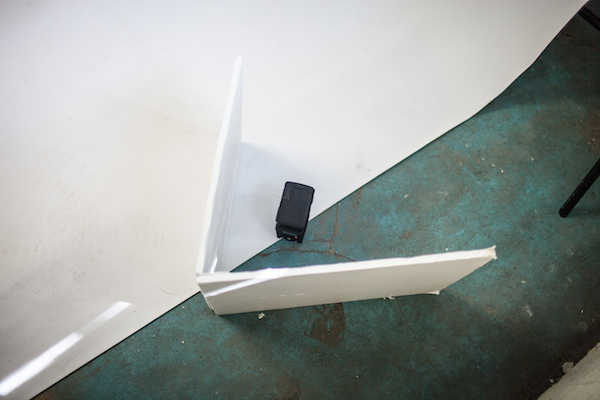
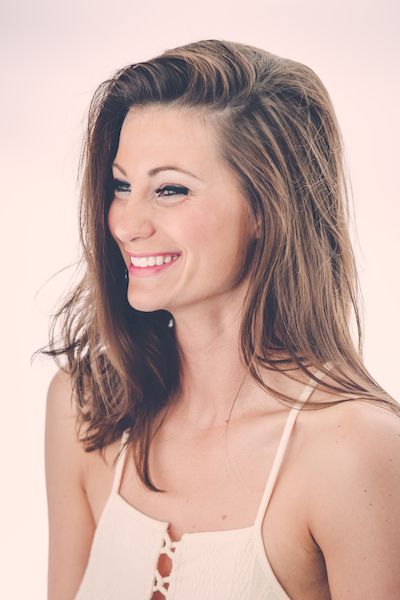
I eventually figured out as a solution which was to place a 40″x60″ white board on my desk, beside where the subject usually stands, and shoot light into the board, several feet in front of the subject. By securing a credit card, or something of a similar size and opaqueness, to the side of the strobe, and zooming the flash in to 105mm, I was able to get my light stand out of my view of the subject as well as create a large, reflected light surface, that ran all the way up to the ceiling. This large light source was fantastic in creating a giant catchlight in the subject’s eyes, sunglasses or any reflective surface. I also added a small, white v-flat to hide the background light, which also served in reflecting some of the light onto the opposite white wall, helping to further light the subject.

IMG 8288

IMG 8290

Keep in mind that within the small confines of this setup, the subject is pretty much fixed in one spot. If they were to move forward at all, the crosslight will create odd shadows on their face, or if they move backward, they would get caught in the harsh background light.

Tumblr navcq2zXA81qzpmooo4 1280

What sorts of innovations have you come up with to work within your space or equipment limitations? Share in the comment section below.

Links to other DIY projects for you:

  • DIY How to Build and Use a Reflector to Take Better Portraits
  • Light Tent Comparison – DIY Versus Kit Tents
  • A project for the New Year: How to make a DIY Ground Pod
  • 27 Amazing Macro Snowflake Images Shot with a DIY Camera Set Up

The post Making the Most out of the Photography Stuff You Have Already by Nick Fancher appeared first on Digital Photography School.

Digital Photography School

 
Comments Off on Making the Most out of the Photography Stuff You Have Already

Posted in Photography


Making a splash: Photos capture colorful liquids frozen in time

28 Jun

Jeremy Floto and Cassandra Warner are the husband-and-wife duo behind Floto+Warner, a New York-based photo studio. Their aptly titled ‘Colourant’ series features Western and Midwestern US landscapes with – literally – a splash of color. Fast shutter speeds freeze the action and give them the appearance of sculptures, suspended in time for only a moment. They answered some questions about the series – see more of their work and find out how it came together. See gallery

related news: Digital Photography Review (dpreview.com)

 
Comments Off on Making a splash: Photos capture colorful liquids frozen in time

Posted in Uncategorized


3 Easy Steps Using Photoshop to Making your Images POP

06 Jun

Image Post Processing Techniques

Having taught in-depth image post-processing workshops for Photoshop users, I’ve found that three of the simplest techniques are the ones that people love the most. These are quick and easy tricks that work for most image processing situations.

If you’ve got your exposure, aperture, focus and white balance all correct during shooting, you’ve got all that you need for a great image, but with these three easy steps using Photoshop we’ll add some serious POP to the colour, contrast and sharpness of your images.

I’m going to assume that you’ve already corrected your image in Adobe Camera Raw to fix any blown out highlights and shadow detail. This can sometimes leave you with a low contrast image that lacks lustre. HDR users will often find that a full HDR image lacks some punch once it has all the dynamic range fixed for highlights and shadows. Here’s how to add some pizazz to images.

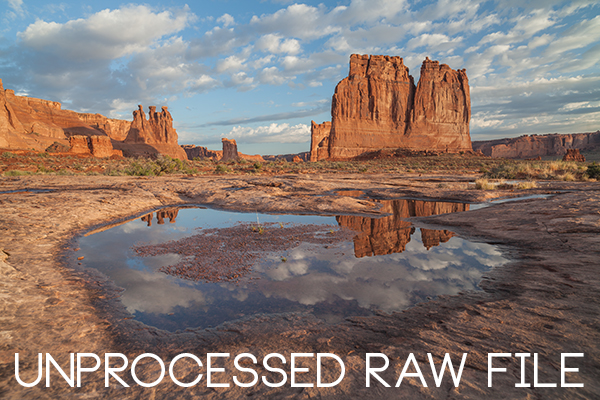
I’ll start with a RAW file from last year’s trip to Moab, Utah.

Unprocessed RAW file

I was more than happy to get this shot of Courthouse Towers in Moab, Utah but the RAW file was total Blandsville.

Step 1 – Make Those Colours POP

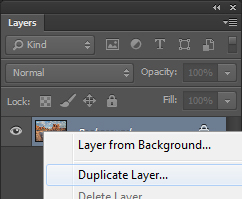
Open the image in Adobe Photoshop. With the image on the background layer of Photoshop, right click on the layer (in the layer window) and choose ‘Duplicate Layer’ (see screenshot below left).

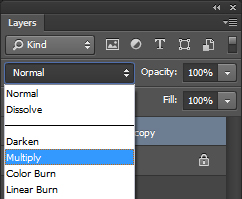
Duplicate Layer Multiply Layer

Now click on the newly duplicated layer and change the blend mode to ‘Multiply’ (see screenshot above right).

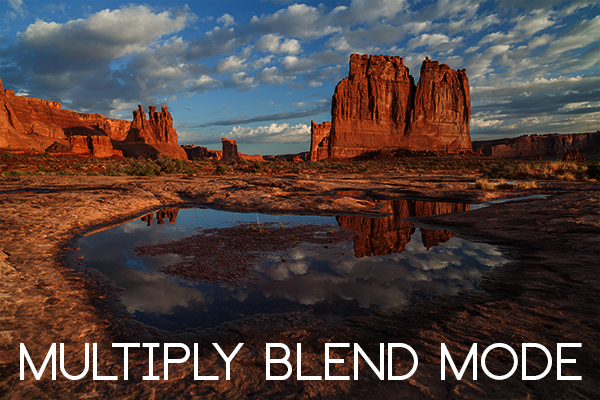
Multiply Blend Mode

Right away you’ll notice that all of the colours are more striking and the contrast is extreme. It’s also way too dark so we’ll fix that next.

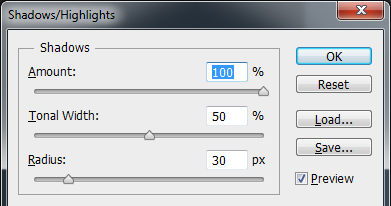
Next go to Image > Adjustments > Shadows/Highlights and drag the shadows slider all the way to right then hit OK (see screenshot below left).

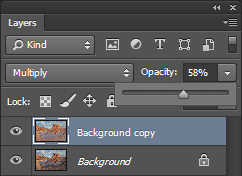
Photoshop Shadows / Highlights Photoshop Layer Opacity

By doing this, you’ll reduce the darker parts of the image ONLY in the duplicated layer. It’s still a little too dark, so in the layers window reduce the opacity of the duplicated layer until it’s at about 58% (see screenshot above right). This percentage will be different for all of your images so use your judgement and don’t overdo it. Usually I find that a setting of 28% works best in most cases.

Step 2 – Selectively Boost Colours and Brighten

I think that some of the colors need a little encouragement. For this example you want to boost the blue sky so combine the two layers that you’ve been working on so that you can make changes to that. You can do this ‘none destructively’ by pressing ctrl+alt+shift+e which will now combine the two layers you have selected, and create a new layer from those. The original layers are still intact underneath this new one.

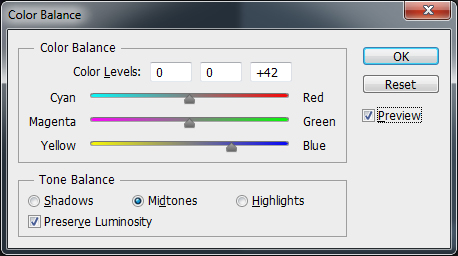
Next, go to Image > Adjustments > Color Balance > and bring up the RGB sliders. As I mentioned earlier, you’re going to be boosting the blues in my sky so click on ‘mid-tones’ and then pull the blue slider up to about +42.

Photoshop Color Balance

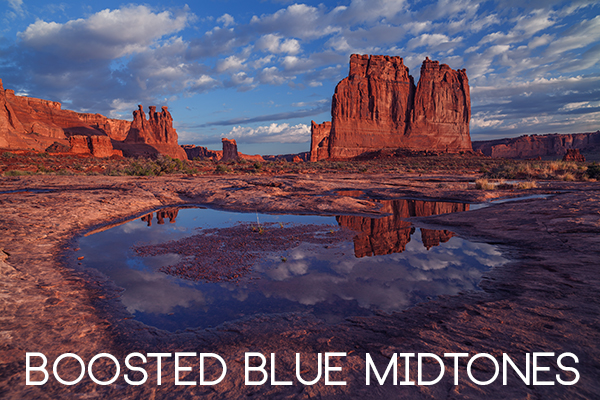
Boosted Blue Midtones

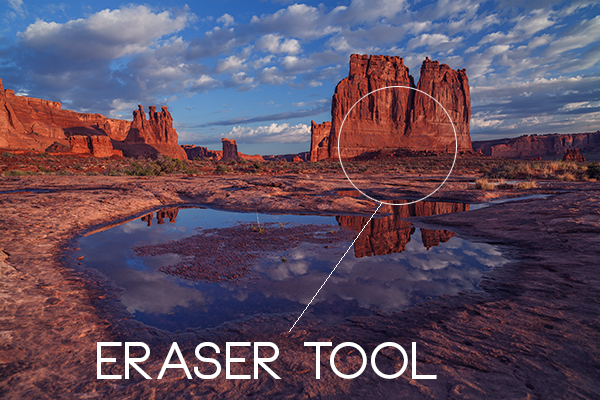
Ooooh, now that sky is looking vibrant but I’m not too sure about boosting the blues in the land area. Let’s fix that by erasing the land in this blue layer so that the layer underneath is revealed, where the blue mid-tones have not been boosted. You can also do this with ‘layer masks’ but this method is much easier to understand.

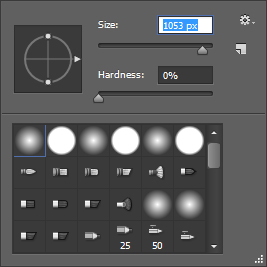
Do this with the eraser tool and select a brush size that fits inside the land area of the image. In the layer with the boosted blue mid-tones, erase a large area of land at first and then choose a smaller brush size for tighter control. To do this, simply click inside the layer you want to erase. The settings below show a brush size of 1053 pixels and a hardness of 0% which gives a soft, feathered edge.

Photoshop Easer Tool

Erase Bruash Tool

Click in the area you’d like to erase to reveal the layer beneath. In this case the layer beneath won’t have the boosted blue mid-tones that you want only in the sky.

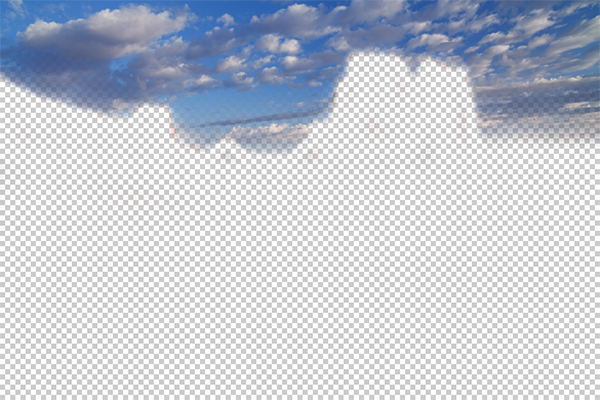
Now you’ve managed to selectively boost the blue colour in the sky without ruining other parts of the image that didn’t need that blue boost. Here is an image of how the ‘sky’ layer looks after the land has been erased out, and below you can see how it looks in the layers panel.

Erased Land

This is what’s left of the ‘boosted blues’ layer. The layers under it are temporarily switched off so that you can see the isolated sky.

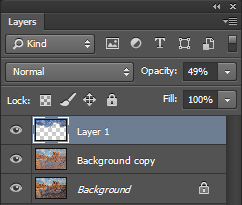
Photoshop Layers Palette

Layers panel showing the partially erased boosted blue sky layer

Notice that the opacity of the sky layer has been reduced to 49% so the effect is more subtle when laid over the top of the lower two layers. Again, you’ll need to use your own judgement for your own images as they won’t all be the same. Maybe you have red clouds and would like to boost the red highlights? You can do this procedure multiple times with multiple layers to tweak the colours selectively. There are more accurate ways to do this but if you’re new to Photoshop, this is the easiest method to understand and has hardly any learning curve.

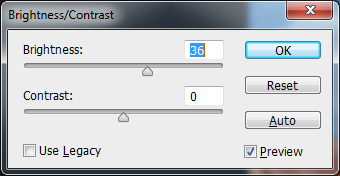
Lastly, all this tweaking has made the image a little too dark so a boost the overall brightness by 36 has been done.

Photoshop Brightness

Step 3 – Let’s Resize and Get Sharp

Sharpening is often something that I leave to the end of my image processing, depending on the medium I’m using to display the image. I’ll use different sharpening settings for a high resolution print than I will for the web, so it’s always a good idea to save an ‘unsharpened’ version of your processed image for safe keeping.

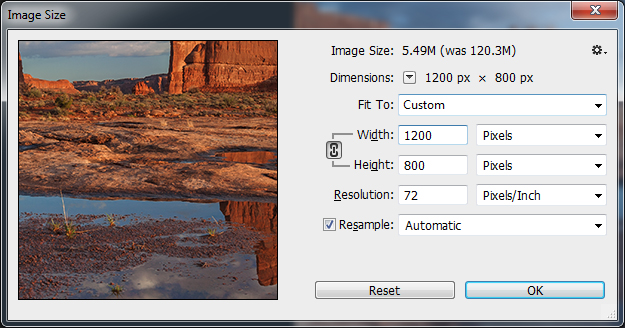
Assuming that you wish to display your images online, here are some fairly universal sharpening settings that I use for sharing my images online. Before we sharpen, let’s flatten and resize our image for the web. You can decide how large your image should display on screens but for the purposes of this tutorial let’s go with 1200 pixels wide.

Go to Layer > Flatten Image so that you’re now just dealing with one complete layer that has all of the changes. Next go to Image > Image Size and tell Photoshop that you’d like your image to have a resolution of 72 dpi which is standard for web images. Next, specify the width by entering 1200 pixels in the ‘width’ window. The height should auto adjust if you have ‘constrain proportions’ checked by default (the little chain icon).

Photoshop Image Resize

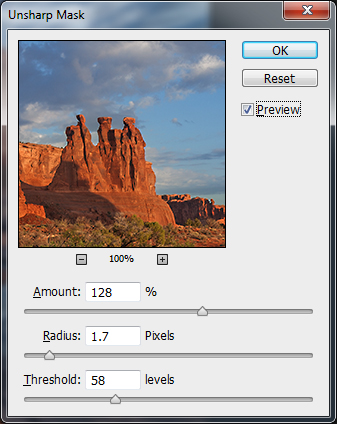
Next open the Filter > Sharpen> Unsharp Mask tool.

Use some fairly safe sharpen settings for web so that you don’t over it. It’s worth noting that ‘sharpening’ deserves an article as a separate topic but for now these basic settings should get you going. Try: Amount > 128%, Radius > 1.7 pixels and Threshold > 58 Levels.

Photoshop Unsharp Mask

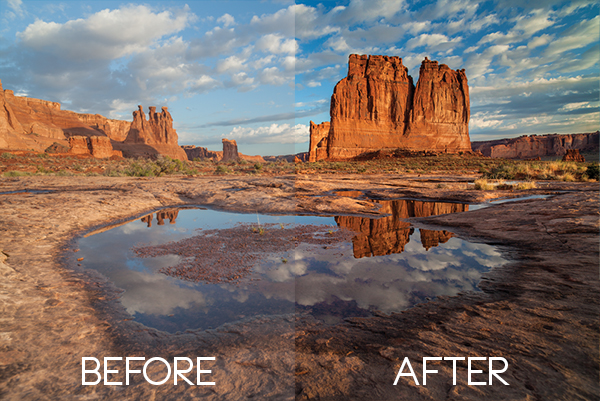
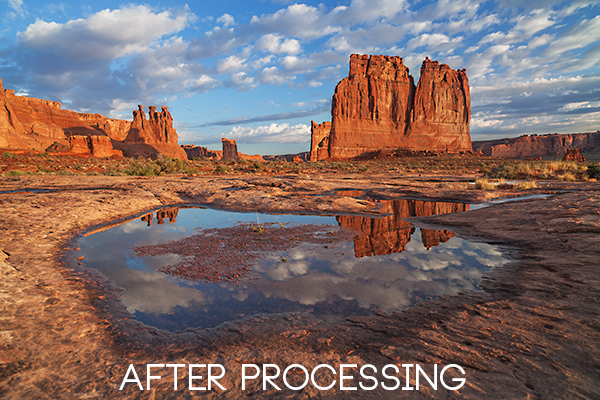
The Final Result

POP! There you go, three easy steps an you’ve now got an image with plenty of punch. There are many different ways to achieve the same results, but for this tutorial, I wanted to give you an easy to understand process to introduce you to some of Photoshops most powerful tools. Try these three simple techniques for your image post-processing and let me know it works out for you.

After Processing

IMPORTANT NOTE: Backup your files before editing or saving your edits.

The post 3 Easy Steps Using Photoshop to Making your Images POP by Gavin Hardcastle appeared first on Digital Photography School.

Digital Photography School

 
Comments Off on 3 Easy Steps Using Photoshop to Making your Images POP

Posted in Photography


Three Methods of Making Stunning Photographs in Bright Sunlight

26 May

Location Lighting Masterclass – The Art Of Shooting Into The Sun

Shooting directly into the sun may not be the first thing that pops into your mind when creating a photograph, but the effects it can have on your final image when done correctly can border on magical.

1

#2 The Dreamy Look

There are three primary looks that can be achieved by shooting into the sun.

  1. The first of these takes advantage of lens flare and aims to over-expose the image drastically, creating a ‘dreamy’, almost glowing look. (see image above)
  2. The second ignores the foreground entirely, exposing only for the brightly lit sky and creating foreground silhouettes.
  3. The third comes somewhere in between, exposing for the brightly lit sky and simultaneously using reflection or fill flash to overpower the foreground shadows.
The Silhouette Look

#2 The Silhouette Look

#3 The Balanced Look

#3 The Balanced Look

Let’s work through each of these in turn, how to make stunning photographs in bright sunlight.

#1 – the Dreamy Look

This is not a photographic style I typically aim to produce, however it is nonetheless popular with many photographers. The style aims to expose for the skin tones predominantly, allowing the background to become significantly overexposed; and in the process, create a soft glow around the subject. This style can also take advantage of lens flare (the rings of light that appear in your shot when you shoot directly at bright sunlight) and the varying types of lens flare that different lenses create. To achieve this look, ensure that you have spot metering selected on your camera and measure directly for the skin (you will need to be in aperture priority mode for this). It doesn’t matter if the background overexposes; the primary aim is to expose for the skin and facial features. The brightness of the background will typically create a haze across the rest of the image.

4

#2 – the Silhouette Look

Again, using the camera’s spot meter in Aperture Priority mode, you will need to meter and expose for the background. Select an area (not directly on the sun itself) of sky near to the sun. You can lock the exposure using the AE lock function (usually the “*” button on Canon cameras) to enable recomposition of the image. Alternatively, note the shutter speed reading where you metered on the sky, switch to manual mode and set the camera up with the given shutter speed and aperture manually. Here, the aim is to darken everything in the foreground so be sure to think about the kind of silhouette you’re creating. Less is usually more. Too much in the foreground just creates clutter and loses the focal point.

5

#3 – the Balanced Look

The final, and arguably the most powerful is partway in between, and utilizes flash to fill the image exposure correctly.
Just like the silhouette style, you should meter on the background sky. If you don’t use flash, you’d end up with another silhouette. Instead, crank up the power of the flash as far as it will go (it takes a fair amount of flash power to overcome direct sunlight). About 600w (watt seconds) is preferable, and ensure that the subject you want to light up remains relatively close (due to the inverse square law, light fall-off will very quickly erode the power of the flash). Some post-production boost to the shadows and recovery of the background highlights may be necessary to properly balance the exposure.

6

A few general hints to help with direct sunlight shooting:

1) Autofocus often struggles in direct sun. Try first shading the end of your lens with your hand, focussing on your subject, then switching off autofocus and taking the shot without shading the lens.

2) Colors and white balance can often be thrown by bright sunlight. Be sure to shoot in RAW so that you can true up any color differentials later on.

7

3) Use a polarizer or ND (neutral density) filter where you can. Really bright direct sunlight and long exposures are not good for your camera’s sensor over time, just as they are not good to stare at with your naked eye.

4) Think about the time of day – you want light to fall behind your subject, not on top of it. Therefore, early mornings and late afternoons are best for this type of photography. It is also when the sunlight is weakest, resulting in less overexposure and less risk of damage to the sensor.

8

5) Think about alternative fill light sources. Consider reflective windows, white walls, metallic surfaces – effectively anything that can bounce the direct sun back into the subject to naturally add fill light. This means you will need to have your back to the reflective source.

10

6) Consider some post-production magic, if too much flare is coming into the shot. Mount the camera on a tripod so that the image doesn’t shift, then take two shots of the same scene with the same exposure settings. For one shot, leave the image as is, but for the second, shade the end of the lens with your hand. It doesn’t matter if your hand appears in the image because during post production, you simply join the half from the shaded shot that doesn’t have your hand in it, with the bright half from the unshaded shot. This technique will leave the full effect of the flare around the sun, but enable you to remove the surplus flare from the rest of the image.

9

The post Three Methods of Making Stunning Photographs in Bright Sunlight by Leo Edwards appeared first on Digital Photography School.

Digital Photography School

 
Comments Off on Three Methods of Making Stunning Photographs in Bright Sunlight

Posted in Photography