RSS
 

Posts Tagged ‘Macro’

It’s a Bug’s Life – 27 Super Macro Photography Images

22 May

Editor’s Note: This is part a series on macro photography this week. Look for a new one each day. The next newsletter will have them all if you miss any!

Macro photography is all about getting close and photographing small things. The tiny world of bugs and insects is perfect for macro photographers as there are always an abundance of them no matter where you live.

Let’s see some examples of images by photographers who have delved into the micro world of bugs:

Photograph ngeblues by Alfian Ismail on 500px

ngeblues by Alfian Ismail on 500px

Photograph hey, it's my reflection by Abidin M Faiz Nur on 500px

hey, it's my reflection by Abidin M Faiz Nur on 500px

Photograph Share by Miki Asai on 500px

Share by Miki Asai on 500px

Photograph Kungfu Mantis by Boim Wahyudi on 500px

Kungfu Mantis by Boim Wahyudi on 500px

Photograph The eye by bug eye :) on 500px

The eye by bug eye :) on 500px

Photograph hi ! by bug eye :) on 500px

hi ! by bug eye :) on 500px

Photograph Red by Ondrej Pakan on 500px

Red by Ondrej Pakan on 500px

Photograph Sup Peeps! by Jay Capilo on 500px

Sup Peeps! by Jay Capilo on 500px

Photograph The Katydid by Steve Passlow on 500px

The Katydid by Steve Passlow on 500px

Photograph Bumble Bee 2 by Gustavo Restrepo on 500px

Bumble Bee 2 by Gustavo Restrepo on 500px

Photograph BIG HEAD by Yudy Sauw on 500px

BIG HEAD by Yudy Sauw on 500px

Photograph It's Me by Uda Dennie on 500px

It's Me by Uda Dennie on 500px

Photograph Big Drops by Mostafa Ghroz on 500px

Big Drops by Mostafa Ghroz on 500px

Photograph 4 vs 1 by Uda Dennie on 500px

4 vs 1 by Uda Dennie on 500px

Photograph Lantern Fly by Richard Nurse on 500px

Lantern Fly by Richard Nurse on 500px

Photograph Moth by Carlos Esteban Solís Fallas on 500px

Moth by Carlos Esteban Solís Fallas on 500px

Photograph Twilight Assassin by Chad  on 500px

Twilight Assassin by Chad on 500px

Photograph Sigmund, the Jumping Spider by Amine Fassi on 500px

Sigmund, the Jumping Spider by Amine Fassi on 500px

Photograph Green bug on white flower by Steen Rasmussen on 500px

Green bug on white flower by Steen Rasmussen on 500px

Photograph Taeniopoda maxima by Carlos Esteban Solís Fallas on 500px

Taeniopoda maxima by Carlos Esteban Solís Fallas on 500px

Photograph Portrait of An Alien 1 by Nhut Pham on 500px

Portrait of An Alien 1 by Nhut Pham on 500px

Photograph Le tre sorelline by Roberto Aldrovandi on 500px

Le tre sorelline by Roberto Aldrovandi on 500px

Photograph A dragonfly by Fabio Giarrizzo on 500px

A dragonfly by Fabio Giarrizzo on 500px

Photograph The predator by shikhei goh on 500px

The predator by shikhei goh on 500px

Photograph Next to you... by Yvonne Späne on 500px

Next to you… by Yvonne Späne on 500px

Photograph the dancing ants by Rhonny Dayusasono on 500px

the dancing ants by Rhonny Dayusasono on 500px

Photograph Nass erwischt by Leo Pöcksteiner on 500px

Nass erwischt by Leo Pöcksteiner on 500px


macro-coverWant to learn more about macro photography? Check out Ed Versosky’s Introduction to Close-Up & Macro Photography ebook – just $ 10 (over 30% off) this week with coupon code: DPS. You will need to enter the code to apply the discount.

googletag.cmd.push(function() {
tablet_slots.push( googletag.defineSlot( “/1005424/_dPSv4_tab-all-article-bottom_(300×250)”, [300, 250], “pb-ad-78623” ).addService( googletag.pubads() ) ); } );

googletag.cmd.push(function() {
mobile_slots.push( googletag.defineSlot( “/1005424/_dPSv4_mob-all-article-bottom_(300×250)”, [300, 250], “pb-ad-78158” ).addService( googletag.pubads() ) ); } );

The post It’s a Bug’s Life – 27 Super Macro Photography Images by Darlene Hildebrandt appeared first on Digital Photography School.


Digital Photography School

 
Comments Off on It’s a Bug’s Life – 27 Super Macro Photography Images

Posted in Photography


3 Ways to Try Macro Photography on a Budget

21 May

Editor’s Note: This is one of a series of article on macro photography this week. Look for a new one each day. The next newsletter will have them all if you miss any!

Ranunculus1

Has Macro Week here at DPS sparked your interest, but you’re still not sure whether you’re quite ready to invest in a macro lens of your own? If so, then this article is for you! I’ll outline three different ways that you can try out macro on a budget, and possibly even with gear that you already own.

Now, before any macro-purists fall off their chairs in disgust, let me say that the techniques outlined in this post will produce pseudo-macro images. In a true macro image, the subject is projected onto the camera’s sensor at a 1:1 magnification, which means that the subject is exactly the same size in real life as it is on your camera’s sensor. That’s not the case, or the intent here. The intent here is to allow those of you who haven’t tried macro photography, the opportunity to test the waters and see if it is even something that interests you before making a big investment in a macro lens.

1.  Use a Telephoto Lens

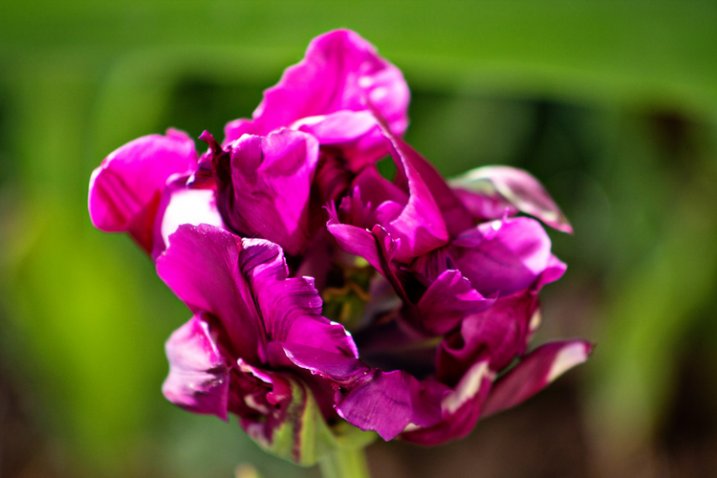
DoubleTulip

This image was shot about two feet away from this flower, using a telephoto lens at 220mm.

My very first dslr camera came in a package with both an 18-55mm lens and a 75-300mm lens. I don’t tend to use the 75-300mm lens very often, but when I do, it’s usually in a pseudo-macro capacity. If you have a telephoto lens already in your bag, give this a try–stand about two feet away from your subject, with your zoom lens at about 250-300mm. If you have trouble getting your subject to come into focus, continue to move backwards with your feet until you find the sweet spot. It’s important to zoom with your legs rather than your lens, in this instance, so that you can keep the background nice and blurry, and the focus on your subject. Once you find that sweet spot, you may want to set your camera on a tripod at that spot to avoid camera-shake as you’re taking the photo. I’ve also tried it hand-held a few times with good results, so don’t be afraid to give that a try as well.

Pollinator

This image was shot using a telephoto lens at 300mm. This is about as sharp as I’m personally able to get when photographing living creatures with this method, and it isn’t sharp enough in my book.

One of the benefits of this method is that it doesn’t require you to get particularly close to your subject, which is ideal if you’re interested in taking macro photos of living creatures. Personally, I find that it is still difficult for me to achieve sharp focus when it comes to photographing living creatures with this method (even with a tripod),  so I usually stick to more stationary objects like flowers. Still, if you already have a telephoto lens in your bag it may be worth your time to try this method first, before buying a macro lens. I say this only because I have more than one friend who thought they’d be really interested in macro photography of insects, only to discover that they actually couldn’t stomach seeing the insects up close in all their glory.

2. Try Extension Tubes

This image was taken with an 18-55mm kit lens + manual extension tubes.

This image was taken with an 18-55mm kit lens + manual extension tubes.

An extension tube is a nifty little invention that screws on in between your camera body and your lens. They come in different widths, and can often be stacked so that you are able to use more than one at a time. They do not contain any glass, but simply allow you to get closer to your subject than you would be able to normally, while still maintaining focus. When it comes to extension tubes, you can find something for nearly any budget. More expensive versions maintain the electrical connections that allow you to use the autofocus feature on your camera, while less expensive versions will not. Additionally, some extension tubes will limit your ability to control aperture in-camera. If you have a lens that has a manual aperture ring, you can control it that way, but otherwise you’ll be shooting wide open. Personally, I have one of the least expensive sets of tubes $ 15, and even though I don’t have the capacity to use autofocus or control my aperture, I have always really enjoyed my set of tubes for creating macro images.

This image was taken with an 18-55mm kit lens + manual extension tubes.

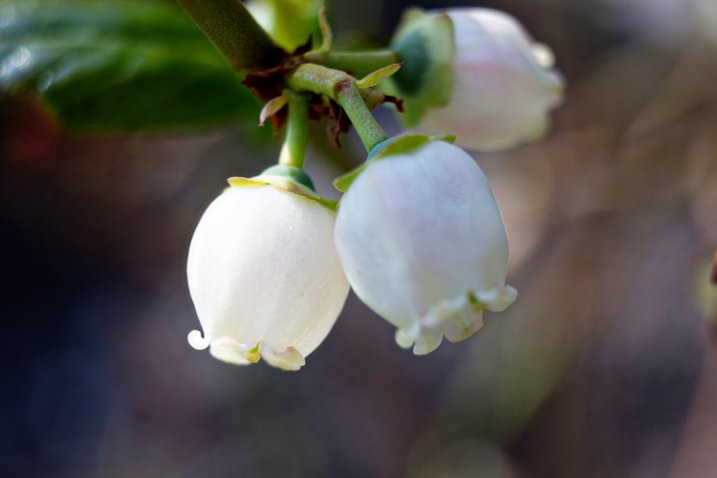
This image of a blueberry bush was taken with an 18-55mm kit lens + manual extension tubes.

That said, before you buy, you should know three things.

First, some reviewers have reported that the less expensive tubes have gotten stuck on their camera body and/or lens. Others have reported that the tubes did not hook securely to their camera body and caused their lens to fall off during use. I have not experienced either issue, but generally use the tubes on my second body, with my kit lens, neither of which I would be devastated to lose. It is a trade-off though—using my kit lens means that I’m not able to control my aperture as I would be with other lenses, which is a bummer (but also not a major issue for me).

Editors note: buyer beware, just be sure to shop around and read reviews (the good and the bad) before you buy any extension tubes. It may seem like a great deal but if they wreck your camera or your lens it won’t be.

Second, be prepared to get close. Like, REALLY close. It will feel really strange to have the lens almost touching your subject, but that’s typically about as close as you will need to go in order to achieve focus. If you’re too close try using a longer focal length lens, that will help with this issue.

Third, there is absolutely a learning curve with extension tubes, particularly those that don’t maintain the electrical connection with the camera. It’s not insurmountable, but you probably won’t be able to use them perfectly right out of the box. Just be prepared for some trial and error.

3. Reverse Your Lens

50mm lens hand-held in reverse up to an 18-55mm kit lens.

50mm lens hand-held in reverse up to an 18-55mm kit lens.

Did you know that you can turn any lens around and use it backwards? Well, you can! There are two different ways that you can reverse a lens to use it for macro photography.

The first way to use your lens in reverse is to buy a macro reverse ring. These rings are usually around $ 15, and you would need to know which lens you plan to use in reverse (different lenses require different sized reversal rings), AND whether you’d like to reverse the lens directly to the camera, or on to another lens.

Another instance of a 50mm lens being hand-held in reverse up to an 18-55mm kit lens. Note the major vignetting in this image--that was straight out of camera.

Another instance of a 50mm lens being hand-held in reverse up to an 18-55mm kit lens. Note the major vignetting in this image, along with an almost tilt-shift effect. Both were straight out of the camera

The second way that you can reverse a lens is to simply hand-hold it in backwards. If you have both a kit lens and a 50mm lens, attach your kit lens to your camera as usual, and then hold your 50mm lens backwards, up to the end of the other one. If you can, wrap your fingers around the place where the kit lens and the 50mm lens join together to minimize any accidental light leaks. Again, you’ll have to zoom with your feet, and you’ll probably have to get pretty close in order for things to come into focus. This method works best for creative macro—you’ll find that the focus is much softer than the other methods, and often includes unpredictable vignetting. That said, if I’m trying to create a macro image that feels ethereal, this is my go-to method.

Are there any other techniques you’ve used to create macro or pseudo-macro images without a macro lens? If so, please share!


macro-coverWant to learn more about macro photography? Check out Ed Versosky’s Introduction to Close-Up & Macro Photography ebook – just $ 10 (over 30% off) this week with coupon code: DPS. You will need to enter the code to apply the discount.

googletag.cmd.push(function() {
tablet_slots.push( googletag.defineSlot( “/1005424/_dPSv4_tab-all-article-bottom_(300×250)”, [300, 250], “pb-ad-78623” ).addService( googletag.pubads() ) ); } );

googletag.cmd.push(function() {
mobile_slots.push( googletag.defineSlot( “/1005424/_dPSv4_mob-all-article-bottom_(300×250)”, [300, 250], “pb-ad-78158” ).addService( googletag.pubads() ) ); } );

The post 3 Ways to Try Macro Photography on a Budget by Meredith Clark appeared first on Digital Photography School.


Digital Photography School

 
Comments Off on 3 Ways to Try Macro Photography on a Budget

Posted in Photography


How to Give Your Macro Photography a Fine Art Touch in Post-Processing

21 May

Editor’s Note: This is part a series on macro photography this week. Look for a new one each day. The next newsletter will have them all if you miss any!

Macro photography is very popular and you will find lots of images, of all sorts of subjects on the internet. People spend a lot of time taking the photos, planning them, setting them up, and getting all the gear they need to get all the shots they want. Then the photos are loaded onto the computer and minimal processing is done to them.

With this tutorial we are going to look at how you can get your macro images from this:
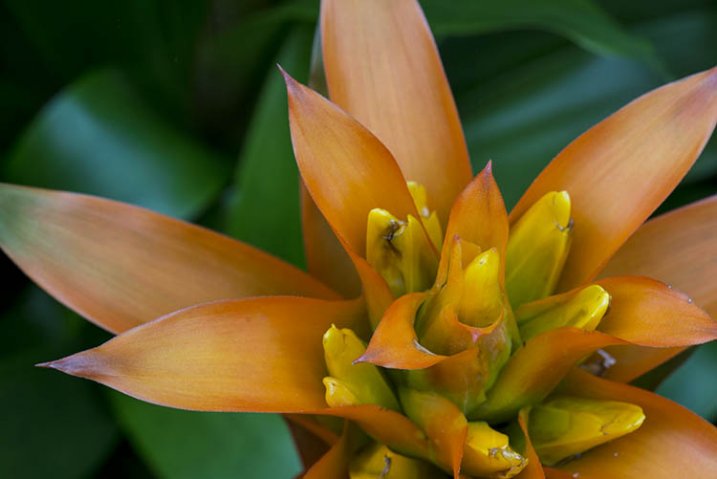
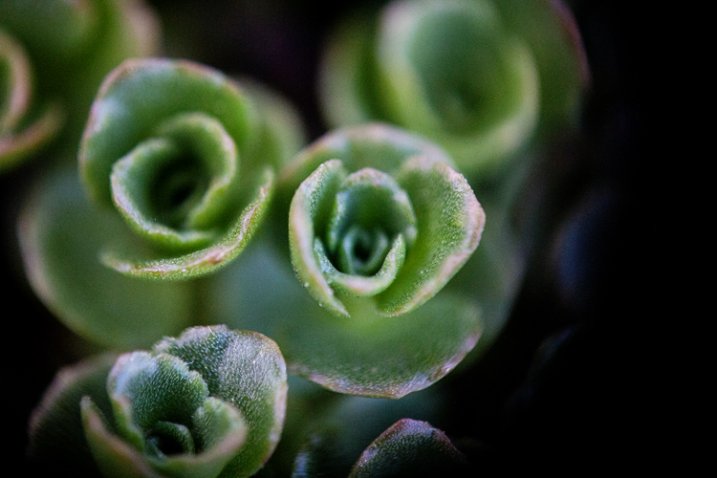
1-fitzroy-gardens-succulent-marco-original

To this:

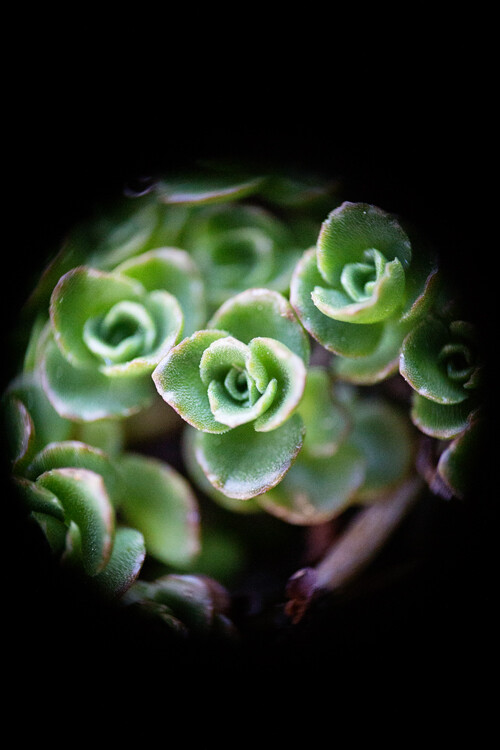
2-fitzroy-gardens-succulent-marco-fineart

There are many things you can do to your images; what I’m going to show you is only one way. You can try anything really as it’s up to you, it’s your image.

This image was first opened in Adobe Camera Raw and some processing was done to it, just to get the exposure right. From there the macro was opened in Photoshop CC (2014). To explain what some of the instructions are for Photoshop I am including an image below that has the various areas of the interface pointed out, especially the sections that we will be using for this tutorial.

Here is the screenshot of Photoshop with all the various places to find the tools, options, layers and adjustments that were used.
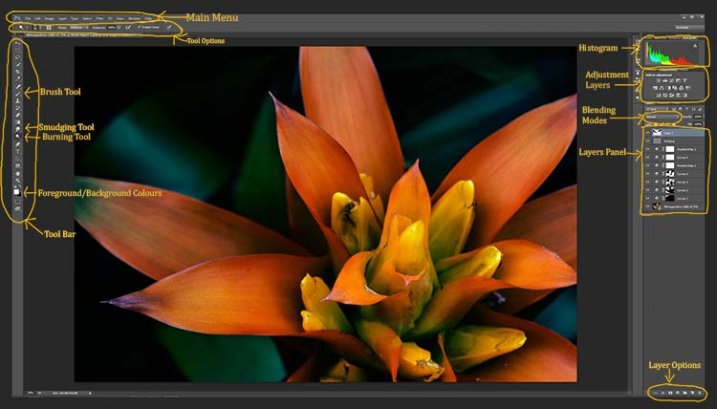
photoshop-setup-2

Step #1 – Curves

At this stage we are going to do several adjustment layers using Curves to change the lighting and bring the centre of the flower out more.

Work in adjustment layers so if you decide further down the track that you should have changed something you did earlier, then you still can go back and fix it, change it or delete the layer. The best way to do this is to use adjustment layers. The adjustment layers are often found above the layers panel on the right of your screen or in the layers menu at the top of the Photoshop window (if you don’t see them go to Window > Adjustments and place it above your layers panel). You will also need the brush tool for this, which is in the tool panel, usually found on the left of the window.
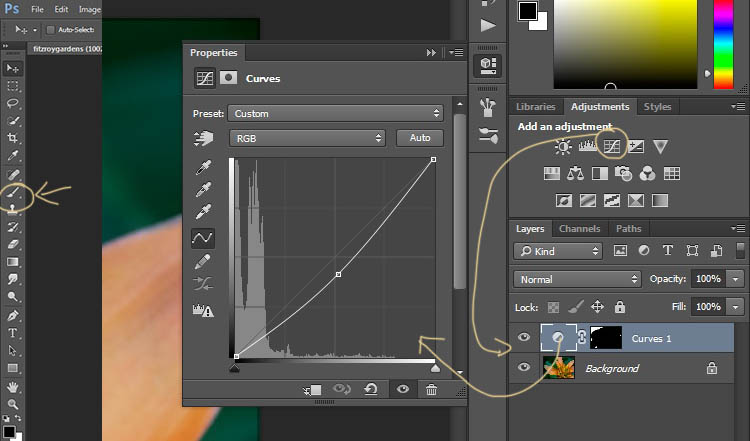
3-adjustment-layer-brush-tool

Once you know where each one of those are, you can start doing your layers for the image.

Click on the adjustment curves layer, as in the photo above. Then in the window that pops up, move the curve down to the dark area just a little, like the image above (just click on the straight line and hold the mouse button down while you drag to move it).

Grab your brush tool from the tool panel. Make it the size that you will need for your image. You can change the size by using the square bracket keys on your keyboard – [ or ] , or right click and in the pop-up window moving the slider for the size. The same changes can be made in the options bar for the tool at the top. Click on the second option from the left, the one that has the size of the brush, and you will get the same panel to change the size and hardness of the brush. For this tutorial a brush towards the soft end was chosen so the edges wouldn’t be too hard (Hardness set to 30% or lower).

You will need to click on the layer mask within the layer, it is the white rectangle in the curve layer. When the mask is white it means the adjustment is being applied to the image below, and when it is black it the change has been hidden. If you paint black onto the mask with the brush you are hiding the adjustment. Black on a mask conceals – white reveals. If you make a mistake and hide a bit you want, you can just paint it back in with the opposite color, white.

Start brushing the image, if nothing changes, then the foreground color (which the brush uses) is likely set to white. You will need to change that colour to black. You can also press X on your keyboard too, it will swap the foreground and background colours around.

For each different curves layer I took less and less of the adjustment from the image. The following image will show you what I did to each layer. The white areas are where the curves layer still applies, and the black shows where it was hidden.
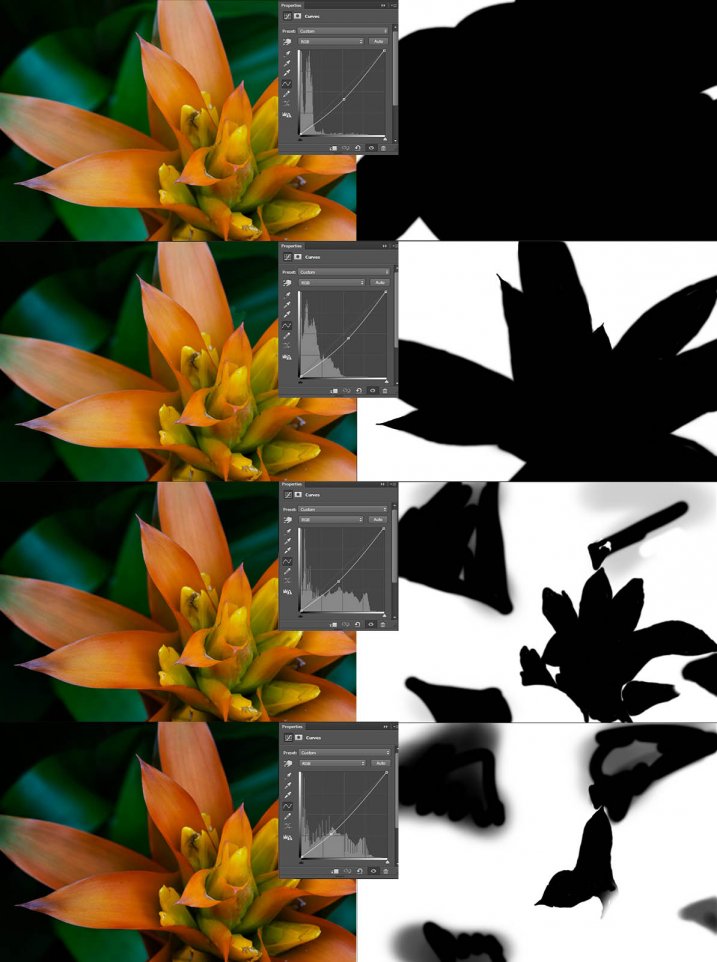
4-macro-curves-layer

This image was done with curves layers. You don’t have to use the same number of layers, it is up to the image. Some of the background leaves were brought back in the last couple of layers as they were getting too dark. It is something you should be aware of, take notice of what is happening in the background as well.

The centre of the flower is now the same as the original but everything else is darker. The changes should be subtle.

Step #2 – Gradient Map Adjustment Layer

Once the curves were done a gradient adjustment layer was added. The gradient adjustment will change the highlights and shadows; you can decide what colours you want to use.

When you click on the gradient adjustment layer often the black and white gradient comes up and you will notice your image turns to monochrome. If you click on that bar in the window that comes up, you will get a lot more options for the gradient. For this tutorial I used the orange and purple gradient.
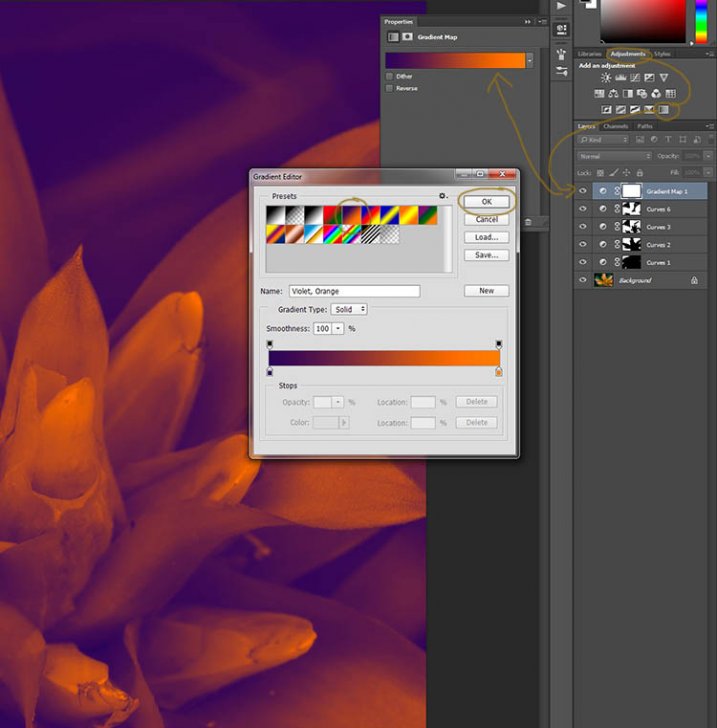
5-gradient-adjustment-layer-01

You will see all your highlights turn orange and the dark areas will go purple. You don’t want your image to remain like this, so now you need to blend it. In the image above you can see the blending modes that are above the layers, normal is the default. Click on that and go down to select Soft Light. You will notice the gradient layer is now blended and doesn’t look so horrible.
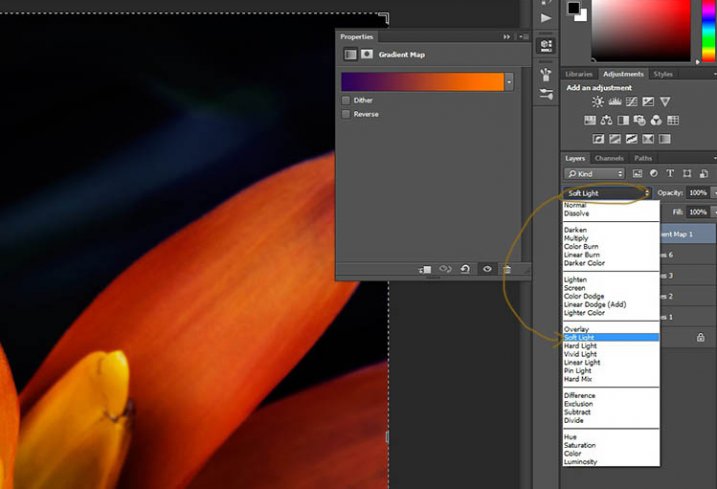
5-gradient-adjustment-layer-02

Just because that gradient has those colours, doesn’t mean you have to stick with them. They are easy to change them to give your highlights and shadows the tones you want.

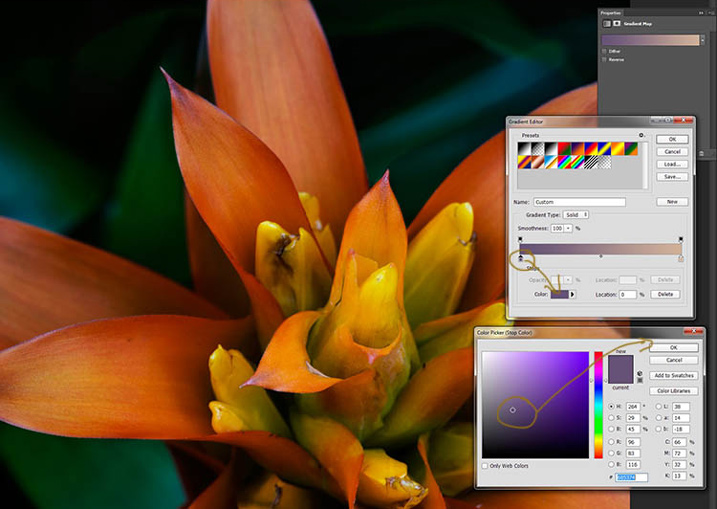
In the bottom part of the gradient editor you can see the colour slider which is how the change goes from one colour to another, and directly underneath you can see little colours. If you click on one of those, the colour comes up at the bottom.
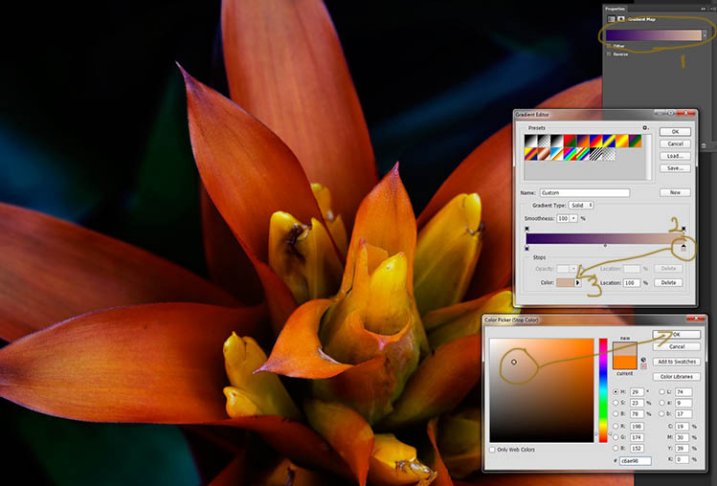
6-gradient-adjustment-layer-2b

Click on that, you will see the Colour Picker window open up. You can change the colour to whatever you want, and as you do so you should be able to see the effect on your image straight away. If you can’t, then it is likely because you forgot to blend the layer. See the following image.
6-gradient-adjustment-layer-2c

You can see from the images what I changed the colours to; you don’t have to use the same ones. I would recommend trying a few colours to see which ones you like. Purple is my favourite colour, so I use it a lot.

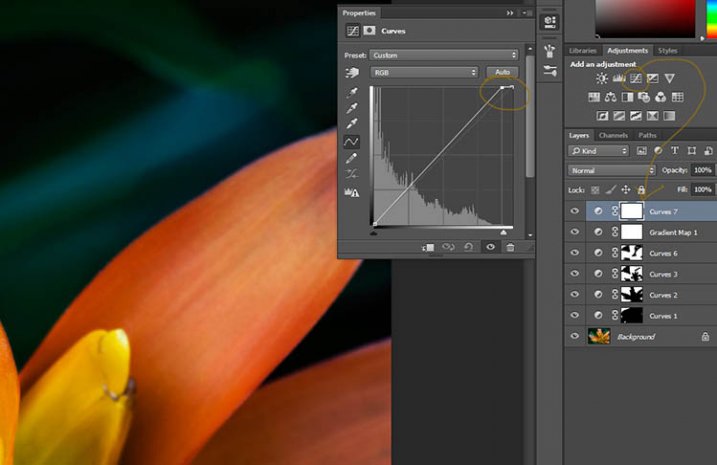
The next step is not always necessary, but often nice to do. All the work that has been done can mean losing the highlights, so to help bring them back you can use a Curves Adjustment Layer.

Step #3 – Adjusting the Highlights

Open a new Curves Adjustment Layer. In the Curves window go to the top right corner and move the line across the top. Watch as you do it and notice if you can see the highlights changing. Sometimes it is good to go too far and then bring it back, just to see what it does. Just be careful not to blow the the highlights out, making them solid white with no detail. Check out the image before to see what to change.
7-curves-highlights

Step #4 – Adding Another Gradient Map Adjustment

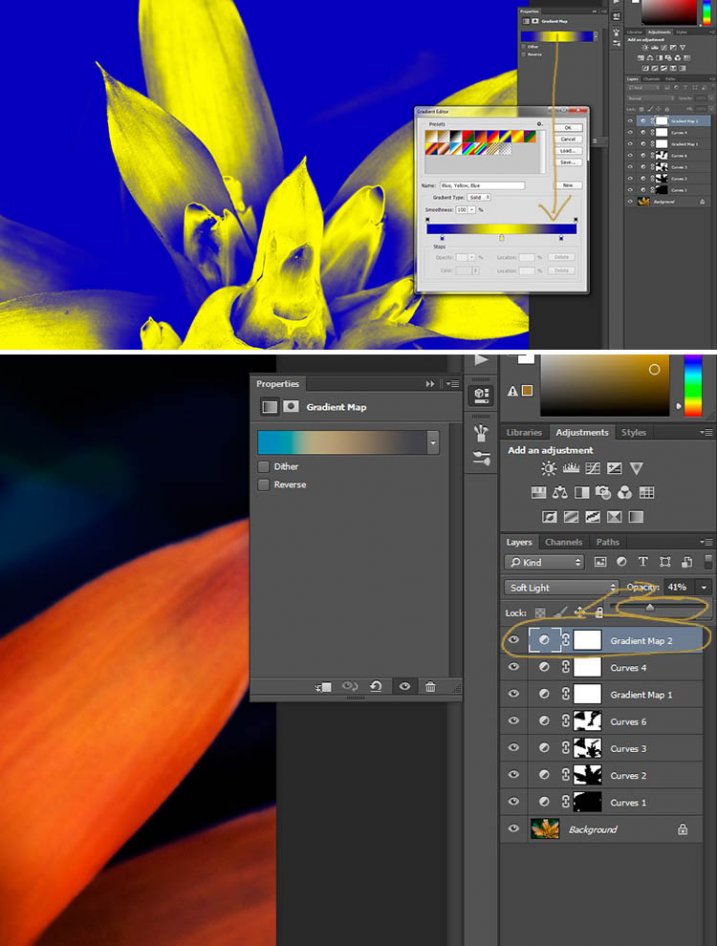
Next another gradient map adjustment layer was added, time time using a different one.

From the above image you should be able to see what colours I choose and follow along the same steps as previously. This time I chose a gradient that changed three areas.
8-gradient-adjustment-layer-3

Step #5 – Dodging the Highlights

One thing that I like to do on many of my images is to bring out the highlights, in small ways, with the dodging tool. The dodging tool is a touchy one, to be used carefully.

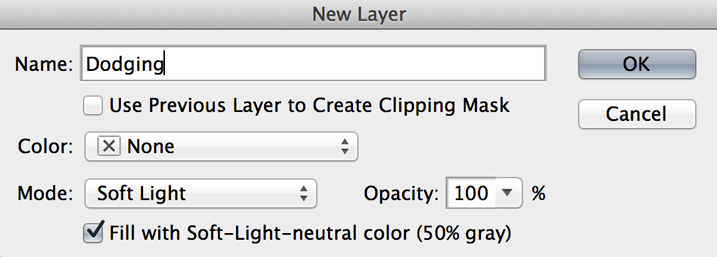
It is always best never to do anything straight onto your original image layer, so like with everything we have done so far it’s going to be on a separate layer. Go to the top menu and click layer, then new layer. When the window appears you can name the layer, if you want to, I called it “Dodging”.
Dodging

There are a couple of things you need to do so you can use this layer with the Dodge tool. First change the layer blend mode to Soft Light, then under the mode drop down menu you will see a box you can check to “Fill with Soft-Light Neutral Colour 50% Grey”, so check that, then press okay (see above)

Over in the layers panel you will see what looks like a grey box, this is what you will do the dodging on. Go over to the tool bar on the left and select the dodge tool.

At the top under the main window you will see Exposure, I have set mine at 26% for this image, but you can set it to anything, it depends on how patient you are. In the options bar there is also a setting for the highlights, midtones and shadows, I tend to use midtones. The more you move over an area the more it will go white. In the days of the darkroom they would using dodging to stop the light from getting to certain parts of the area. In Photoshop you can use it to put a little of the highlights back into the image, or to make the highlight pop. It should not be obvious, again subtle is the way to go.

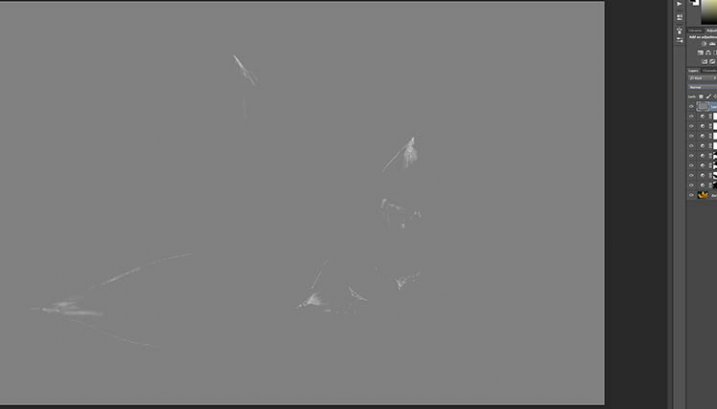
I have changed the layer back to normal mode so you can see what I worked on. Dodging shows up as white on the layer.
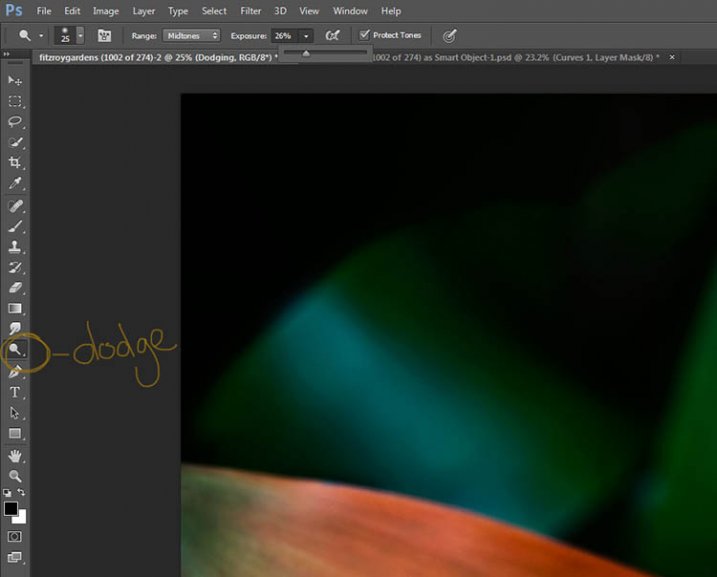
10-dodge-layer-2

You can see that I haven’t done a lot, except bring up some of the highlights a little more.11-dodge-layer-3
Step #6 – Smudging

Finally I did a little smudging. Sometimes when you do a lot of work to images it can start to look pixelated, or you get some colour separation. I’ve found that the smudge tool can help get rid of that. You will find it in the tools panel.

I did this on a new transparent layer, again not working on the original image.
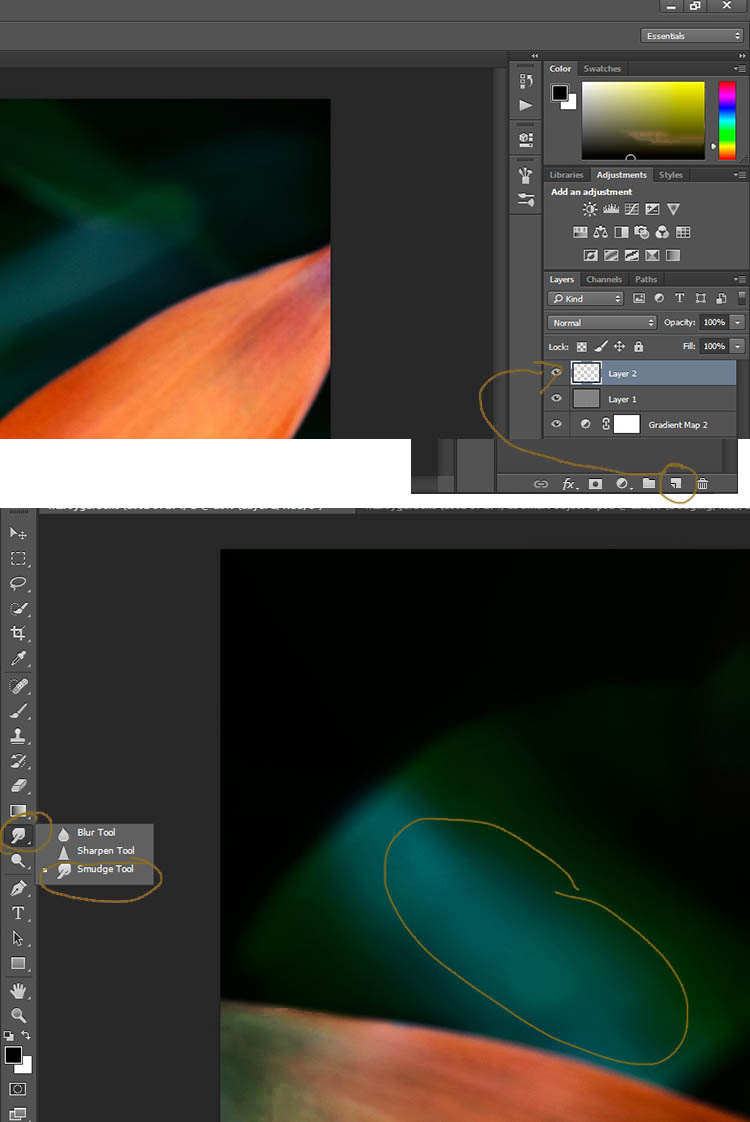
12-smudge-layer

Make sure you check the Sample all Layers in the options bar for the tool at the top, and for this tutorial I left the Strength at 50%. I went over the areas where I thought I had some colour separation to smudge them together. If it were a painting I would get my finger into it and smudge the colours together.

Here is the final image.
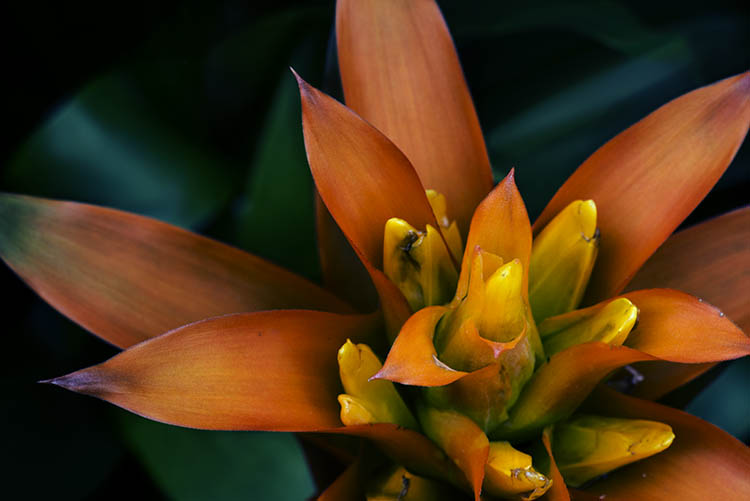
2-fitzroy-gardens-succulent-marco-fineart

It is all about personal taste, so you should do it to your own style. I like it like this, but other people might find it too much, and others may think it isn’t enough. I like the way the flower seems to be coming out of the darkness.

If you have any questions, please ask. I will do my best to answer them.

macro-coverWant to learn more about macro photography? Check out Ed Versosky’s Introduction to Close-Up & Macro Photography ebook – just $ 10 (over 30% off) this week with coupon code: DPS. You will need to enter the code to apply the discount.

googletag.cmd.push(function() {
tablet_slots.push( googletag.defineSlot( “/1005424/_dPSv4_tab-all-article-bottom_(300×250)”, [300, 250], “pb-ad-78623” ).addService( googletag.pubads() ) ); } );

googletag.cmd.push(function() {
mobile_slots.push( googletag.defineSlot( “/1005424/_dPSv4_mob-all-article-bottom_(300×250)”, [300, 250], “pb-ad-78158” ).addService( googletag.pubads() ) ); } );

The post How to Give Your Macro Photography a Fine Art Touch in Post-Processing by Leanne Cole appeared first on Digital Photography School.


Digital Photography School

 
Comments Off on How to Give Your Macro Photography a Fine Art Touch in Post-Processing

Posted in Photography


Contest – Win a Tamron 16-300mm Di II VC PZD Macro All-In-One Zoom Lens

05 May

ContestOver the last few years here at dPS, we’ve run very some very popular competitions with our partners to give away some of their great photographic products to lucky dPS readers.

We are lucky enough to be able to do it again this week.

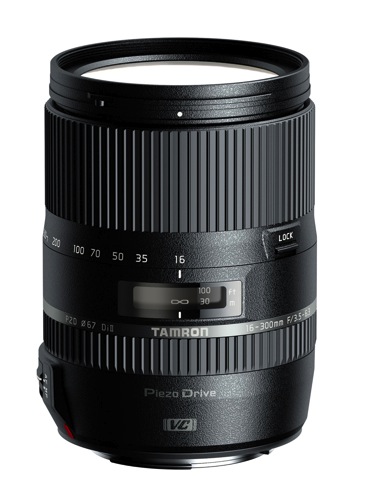
For this contest, Tamron is giving away a Macro All-In-One Zoom Lens

Tamron 16 300mm Di II VC PZD Macro 750

Tamron 16-300mm Di II VC PZD Macro

This prize is designed to help every level of photographer create BETTER pictures. Tamron is the world’s most awarded photographic lens line. Here’s what you, our dPS reader, could win:

Tamron 16-300mm Di II VC PZD Macro – Retail Value $ 629
For canon, Nikon or Sony small-sensor cameras.

Learn a little more about Tamron here.

How to Win

To win this contest you need to:

  • Visit the lens information pages and learn more about the lens and its core use.
  • Leave a comment below and tell us WHY you’d like to win and HOW you would you utilize the lens. Please note: there is a limit of ONE entry per person.
  • Do this in the next 14 days and after May 20th, 2015, the team at dPS will choose the best answer and we will announce the winners in the following days.

The deadline to enter is May 19, 2015, Midnight PDT. Comments left after that date and time will not be considered.

Canon-Beach_ken-hubbard-resized.jpg

Photo by Ken Hubbad

By “best” – we’re looking for people who have an understanding of the lenses and how they will best suit their needs. So you’ll need to check out the product pages to put yourself in the best position to win.

There’s no need to write essay length comments to win – but we’re looking to hear what you like about the lens and how it would help your development as a photographer.

This competition is open to everyone, no matter where you live – but there is only one entry per person. To enter – simply leave your comment below.

tamron-logo.jpg

About Tamron

Disclaimer: Tamron is a paid partner of dPS.

googletag.cmd.push(function() {
tablet_slots.push( googletag.defineSlot( “/1005424/_dPSv4_tab-all-article-bottom_(300×250)”, [300, 250], “pb-ad-78623” ).addService( googletag.pubads() ) ); } );

googletag.cmd.push(function() {
mobile_slots.push( googletag.defineSlot( “/1005424/_dPSv4_mob-all-article-bottom_(300×250)”, [300, 250], “pb-ad-78158” ).addService( googletag.pubads() ) ); } );

The post Contest – Win a Tamron 16-300mm Di II VC PZD Macro All-In-One Zoom Lens by Darlene Hildebrandt appeared first on Digital Photography School.


Digital Photography School

 
Comments Off on Contest – Win a Tamron 16-300mm Di II VC PZD Macro All-In-One Zoom Lens

Posted in Photography


Lighting for Macro Photography

23 Apr

Macro photography is great for exploring new worlds that are otherwise invisible to the naked eye. You can turn ordinary, boring subjects into fascinating ones. A closeup photograph’s composition is 80% determined by the lighting, therefore it is the single most important element a macro photographer should have complete control over. With good lighting your macro photographs will pop out of the frame and will be sharp, vibrant, and visually stunning. If you get the lighting wrong however, your macro photograph will just look dull and boring.

Image 1

In this article I hope to show you some of the ways you can illuminate your macro subjects in order to capture fantastic photographs. Macro photography can be achieved using three forms of light; continuous, flash, and natural. All of these have separate advantages over one another, but it is completely down to personal preference as to which one you should use.

Continuous Lighting

Continuous macro lighting is great for controlling a number of lighting characteristics. Furthermore, with continuous light you can see how the light is affecting the subject at all times. I believe continuous light is the best option for beginning macro photography. It allows you to build your understanding of how lighting effects macro photography considerably, which will result in you becoming a better macro photographer. Continuous lighting also offers a much more convenient way to direct light on to specific areas of a subject. This gives you full control of the lighting environment, which can result in some stunning photographs.

Continuous lighting also adds another weapon to a macro photographer with a video capable camera. Macro videography is incredible and with continuous lighting, you don’t even need to change anything to switch between capturing photos and videos.

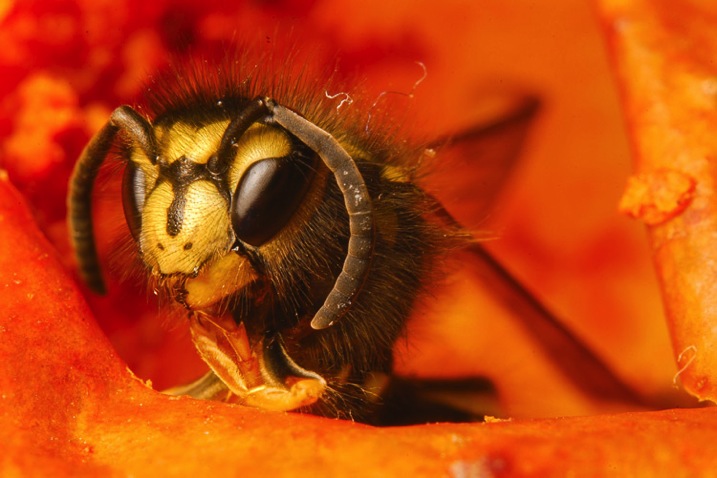
Image 2

The images above were both captured using continuous lighting techniques. The first image subject is a wasp and the second is moss.

Flash (strobe)

Flash photography is great if used properly. Its main advantage is the ability to freeze subjects due to the short duration of the light. This makes it excellent for out in the field as a fill light and for capturing moving insects.

Flash is more complex to learn to use properly, with strange flash settings such as manual mode, TTL and rear curtain sync. However, once learned well the results are amazing. Using flash is very much a trial and error process and it takes a lot of time to get right.

Natural Light

Image 3

Natural sunlight usually provides more than enough light for macro photography. You can combine it with reflectors and other photography accessories to gain an element of control. Natural light can also be used alongside either continuous or flash light accessories.

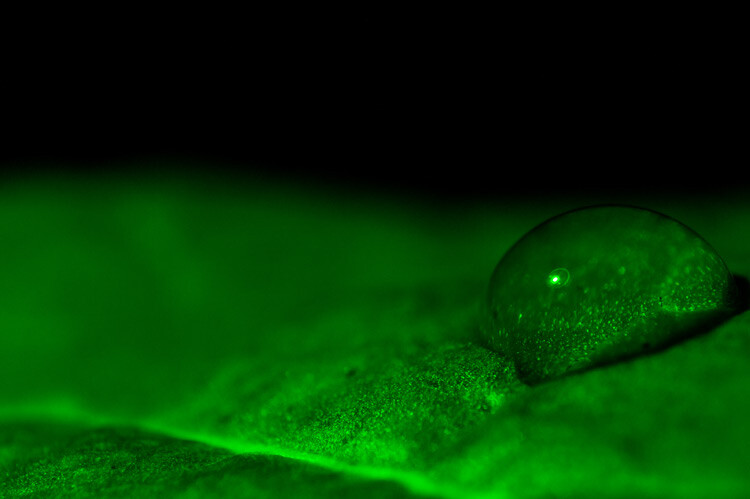
Image 4

The two images above were captured using natural light.

Adding additional elements of lighting control:

Controlling your lighting environment is essential to producing that perfect macro photograph. Here are a couple of methods that you can use to help achieve complete control.

Diffusion

Lighting that doesn’t look natural is not a good look for a macro photograph, if it is unintended. The way to avoid this is to use diffusers, which spread out the light across a bigger surface area. This results in a softer light that looks natural and makes your macro photographs aesthetically more pleasing. Diffusers can be made out of materials found in the home; tissue paper is great for example.

Image 5

This image was taken with no diffuser, notice how the light is quite harsh and reflects off the subject.

Image 6

This is the same subject, but captured using a diffuser. Notice how the light looks much more natural and makes the image look more appealing.

Colour

Adding coloured lighting to macro photos can make them unique, and stand out in the crowd. You can do this by applying gels or colour filters to your lighting equipment.

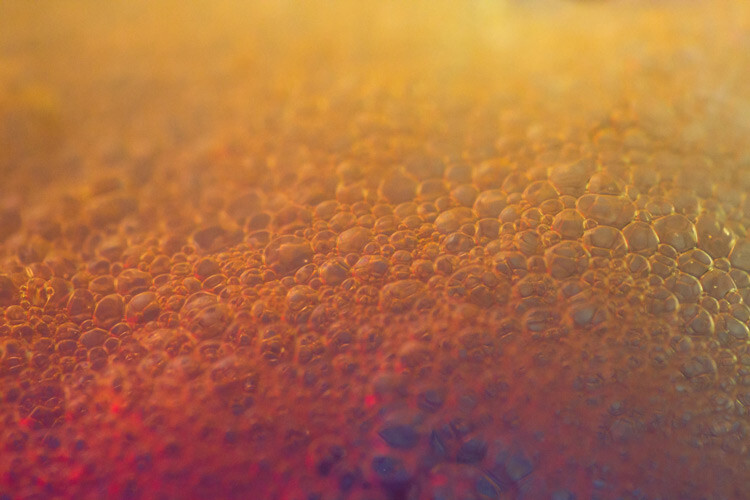
Image 7

This image of shaving foam has been captured using coloured continuous lighting.

Image 8

This image of a flower has been captured using coloured continuous lighting.

Lighting Position

Understanding how the direction of light alters the appearance of your subject is significant. This is much easier to do with continuous light, although it can be done with flash as well. A macro subject will look completely different with a light behind it for example.

Image 9

This image of liquid soap has been captured using a light positioned from behind the subject.

I hope this article has given you a great insight to how lighting affects macro subjects and how you can control it. If you have any questions or additional tips, please leave a comment below.

googletag.cmd.push(function() {
tablet_slots.push( googletag.defineSlot( “/1005424/_dPSv4_tab-all-article-bottom_(300×250)”, [300, 250], “pb-ad-78623” ).addService( googletag.pubads() ) ); } );

googletag.cmd.push(function() {
mobile_slots.push( googletag.defineSlot( “/1005424/_dPSv4_mob-all-article-bottom_(300×250)”, [300, 250], “pb-ad-78158” ).addService( googletag.pubads() ) ); } );

The post Lighting for Macro Photography by Samuel Granger appeared first on Digital Photography School.


Digital Photography School

 
Comments Off on Lighting for Macro Photography

Posted in Photography


Venus Optics offers hotshoe Macro Twin Flash KX-800 with guide number of 190ft/58m

09 Apr

Chinese flash manufacturer Venus Optics has launched a double headed macro flash unit, claiming that it has the highest guide number in the world for such a device. The Kuangren Macro Twin Flash KX-800 uses a pair of flash heads on extending flexible arms that can be positioned in front of the lens for extreme close-up work. Another arm houses an LED light to help with focusing. Read more

Articles: Digital Photography Review (dpreview.com)

 
Comments Off on Venus Optics offers hotshoe Macro Twin Flash KX-800 with guide number of 190ft/58m

Posted in Uncategorized


Macro Photography Tips – Video Tutorials

06 Apr

This time of year is a great time to get out and find some macro photography subjects. So I dug around and found a few videos to help get you started if you want to try it.

Macro Photography by Matt Granger

First up is a lesson by Matt Granger as he teaches Tina (a new photographer) how to do macro photography. Follow along with her and try it yourself as they go through using a long zoom lens, hand held, natural light, adding flash, and using a tripod.

Getting sharper images

The second video is from Alessandro Zocchi he gives you a few tips to help you get sharper macro images.

Focus stacking

Lastly Peter Bargh covers a more advanced technique, focus stacking, which involves taking multiple shots focused at different points, and merging them later.

You can find the software he mentioned here:

  • Combine ZM
  • Helicon Focus

You can also use Phototoshop if you have it. Read: How to Focus-Stack Macro Images using Photoshop for more on that technique.  Check It’s a Small World – the World of Macro Photography if you need some subject ideas.

Have fun!

googletag.cmd.push(function() {
tablet_slots.push( googletag.defineSlot( “/1005424/_dPSv4_tab-all-article-bottom_(300×250)”, [300, 250], “pb-ad-78623” ).addService( googletag.pubads() ) ); } );

googletag.cmd.push(function() {
mobile_slots.push( googletag.defineSlot( “/1005424/_dPSv4_mob-all-article-bottom_(300×250)”, [300, 250], “pb-ad-78158” ).addService( googletag.pubads() ) ); } );

The post Macro Photography Tips – Video Tutorials by Darlene Hildebrandt appeared first on Digital Photography School.


Digital Photography School

 
Comments Off on Macro Photography Tips – Video Tutorials

Posted in Photography


Samyang and Rokinon formally introduce 100mm f2.8 macro lens

03 Apr

On March 27, Samyang and Rokinon teased a new lens on Facebook, saying that it would offer ‘immense focus and unparalleled features’. That lens was officially introduced today, and it’s a 100mm f2.8 Macro offering with 1:1 magnification and a 1ft. minimum focusing distance. Though it won’t be shipping until next month, the lens is available to pre-order from retailers now. Read more

Articles: Digital Photography Review (dpreview.com)

 
Comments Off on Samyang and Rokinon formally introduce 100mm f2.8 macro lens

Posted in Uncategorized


Adaptalux introduces portable lighting studio for macro photography

28 Mar

Adaptalux has introduced a new portable lighting studio, likewise called Adaptalux, which is designed specifically for macro photography. The design is modular in nature, allowing photographers to ‘rebuild’ it in different ways to meet different needs. This is achieved using a core Control Pod into which Lighting Arms are plugged, with each Lighting Arm being customizable in regards to color, beam angle, brightness and diffusion. Read more

Articles: Digital Photography Review (dpreview.com)

 
Comments Off on Adaptalux introduces portable lighting studio for macro photography

Posted in Uncategorized


University of Texas crowdfunding project will release macro images into public domain

26 Mar

The University of Texas has initiated a new crowdfunding campaign that, if successful, will result in macro photos of insects being released into the public domain. The funding for the project will be used to support the students learning to use the imaging system, to improve the photography hardware, and to help pay for the Web hosting. Read more

Articles: Digital Photography Review (dpreview.com)

 
Comments Off on University of Texas crowdfunding project will release macro images into public domain

Posted in Uncategorized