Image sharing service Flickr has released a major update to its mobile app for iOS devices. In the new design images are displayed in a similar way to Apple’s own Photos app, with images grouped by capture date. The new version of the app also emphasizes the auto upload feature, trying to convert Flickr from an image-based social network into everybody’s go-to photo app. Read more
Tag: LOOK
-
Look Out! 12 Outstanding Observation Towers Worth Climbing
[ By Steph in Architecture & Cities & Urbanism. ]

From Canal Street in New Orleans to a nature preserve in Latvia, these diverse observation towers look out over everything from bird sanctuaries to Formula One race tracks. With designs that stand out for both their brilliance and quirks, these 12 viewing decks in the sky provide unparalleled views of both urban and rural settings.
Phoenix Observation Tower by BIG Architects


Arizona’s capital city will soon get a 70,000-square-foot addition to its skyline, a spiraling walkway stretching toward the clouds. Three glass elevators lead to the helical apex, with retail, exhibition and recreation spaces at the base. BIG Architects envision it as a pin on the map, which “becomes a point of reference and a mechanism to set the landscape in motion through the movement of the spectator.”
Floating Observation Deck for Grand Central Terminal by SOM


A floating ring slides up and down two supporting towers right over New York City’s Grand Central Terminal in this design by SOM. The moving deck preserves the original 100-year-old station while rethinking the available space around the building, turning it into a landmark with 360-degree views of the city.
Leaning Tower of Belgium by Ateliereen Architecten


There’s only one angle from which Ateliereen Architecten’s observation tower in Belgium looks like it’s standing up straight. Everywhere else, the 30-meter steel and timber tower draped with ribbons of rope appears to be leaning. The ropes reference the nearby sand dunes in the nature preserve in which the tower is set.Observation Tower in Jurmala by Arhis Architects


Observation decks jut out from this lookout tower in Jurmala, Latvia like balconies from a skyscraper, providing a variety of vantage points from which to enjoy Dzintaru Park. Consisting of an open-air cage, the structure reaches to 124.6 feet at its pinnacle.
Next Page – Click Below to Read More:
Look Out 12 Outstanding Observation Towers Worth Climbing
Want More? Click for Great Related Content on WebUrbanist:
13 Scary Sky-High Platforms & Observation Decks
A glass balcony on the Willis Tower, a vertigo-inducing overlook in Norway and 11 other towering platforms and observation decks offer views unlike any other.
Click Here to Read More »»
Super Skyscrapers! 20 Concept Towers That Reach Sky High
Architects are all dreamers and looking at their design concepts is a great way to see the future of architecture.
Click Here to Read More »»
Outstanding Offices: 12 Unorthodox Business Buildings
Inspired office buildings may be few and far between, but these 12 unusual buildings take office architecture to new heights with treehouse offices and more.
Click Here to Read More »»


[ By Steph in Architecture & Cities & Urbanism. ]
[ WebUrbanist | Archives | Galleries | Privacy | TOS ]
-
Top 10 Qualities of an Experienced Photographer You Should Look for
Photography is without a doubt a very powerful form of artistic expression. Although Instagram can make us all feel like pros, pictures of food and posted selfies do not even come close to professional photographers’ portfolio. So today, let’s talk specifics and study top qualities which differentiate experienced photographers from the amateur crowd. The importance of professional presentation In such Continue Reading
The post Top 10 Qualities of an Experienced Photographer You Should Look for appeared first on Photodoto.
-
Applying a Texture Overlay to Your Images to Create an Antique Look
If you were to look at my computer you would find a folder called textures, and in that folder you would find hundreds of files. I take photos of things everywhere that I think will be good textures. I also make them, and try different things. You can do the same. Any time you see interesting textures in concrete, marble, or maybe cracked paint, take photos of them, add them to your folder for textures.
There are numerous reasons for adding textures to your photos, and one of the best is to give your work an old or antique look. Lots of old photos have marks on them or the emulsion has stained. Photos were often not treated with preservation in mind and they have started to look textured.
In this article we are going to look at how you can apply a texture overlay to your images to give them an aged look.
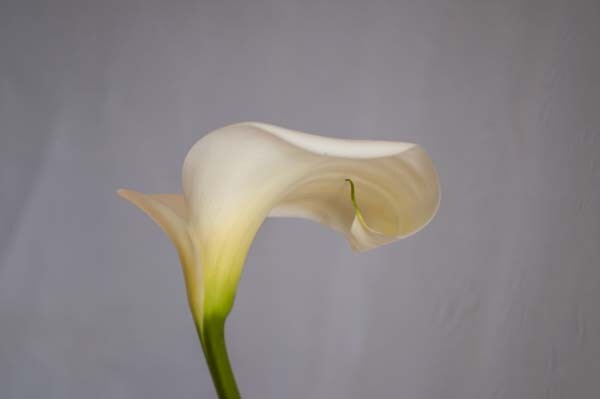
We are going to work on the above image of the lily. It has had basic processing done to it in Adobe Camera Raw before being opened in Photoshop CC (2014).
Cameras and lenses back in the day often didn’t produce super sharp images, so to start off we are going to make a duplicate layer of our image. I do this with the Ctrl+J, keyboard shortcut (Cmd+J on a Mac). There are other ways of doing this, such as; going to the menu at the top and choosing Layer, then clicking on Duplicate Layer, but I find the keyboard shortcut to be the easiest and quickest way.
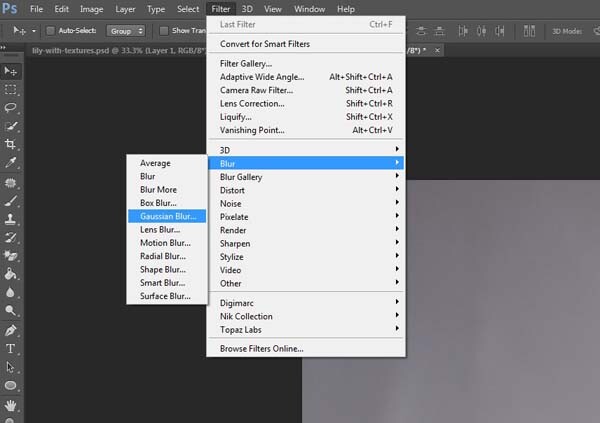
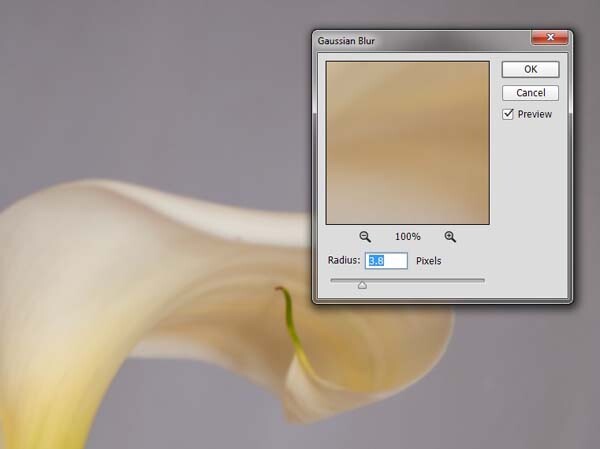
Once you have that duplicate layer then go over to Filters and choose Blur, then Gaussian Blur as in the image above. You don’t want too much blur, or it will look like it is out of focus, and you don’t want too little or it will not be visible or obvious enough. I used 3.8 for the purpose of this image.
Next, you want to try and separate the flower from the background, you can do this with curves. Open a curves adjustment layer and use it to darken the image overall. Then using the Brush tool (which is located on your tool bar in Photoshop) on the layer mask, remove the adjustment from the flower as follows.
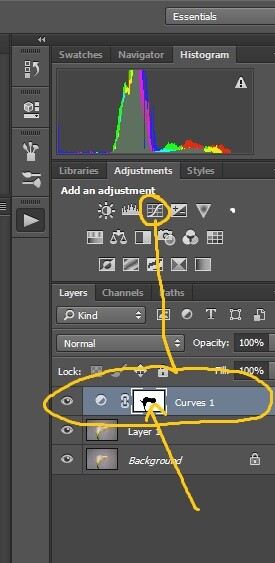
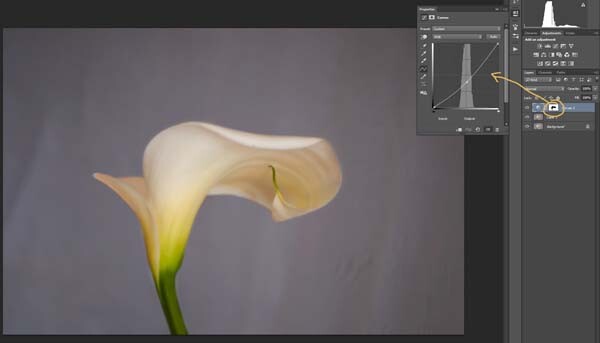
Click on the Brush tool, then set your foreground colour to black. It is the one with the two little squares at the bottom of the tool bar – the colour on top is the foreground color, the one on the bottom is the background color. Go to the curves layer you created in your layers panel and click on the white square in that layer (that is the mask), then go to your image and start brushing on the flower. You should see the flower getting lighter.
Add a warmer color to your image
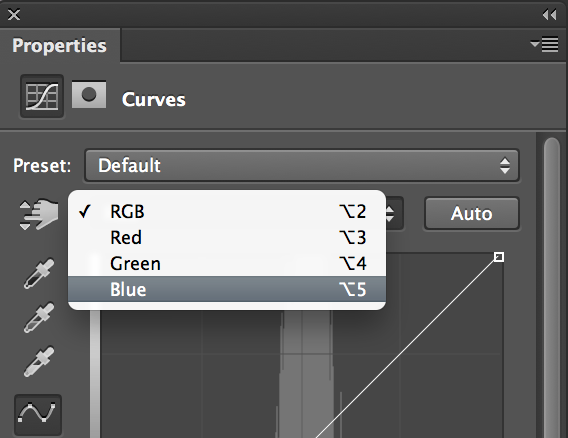 Next you are going to change the colour of the highlights. You don’t have to do this, but it is a nice touch and it helps create a warmer feel to the image.
Open another curves adjustment layer. At the top you should see a pull down menu that says RGB, click on that and choose Blue. Go to the curves line and up in the top right corner (the highlights) click on the dot in the corner and pull it down along the side line. Don’t go too far, but you should see the image turning yellow. Remember yellow is the opposite of blue.
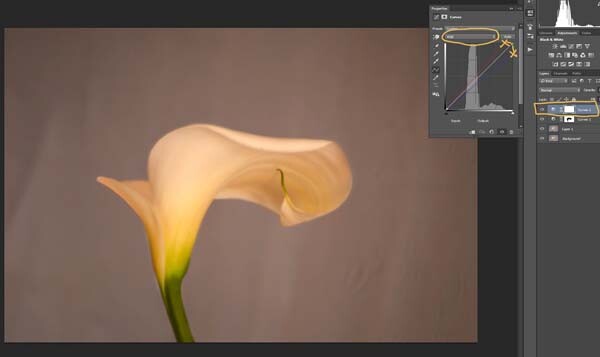
Go back up to the curves window and click on red. You are going to do the same thing, except this time take the dot to the left and across the top. You don’t need to go very far.
Adding the texture overlay
Now it is time to find a texture overlay to put on top of your image. It is always going to be an individual thing and something that you need to work out. Here, I used a texture that I saw on the floor of a building in the city. I liked the cracked look of the floor so I took quite a few photos.
Open the texture file in Photoshop, then using the move tool (the first one at the top of the tool bar) click on the image and drag it over to the image you want to apply it to. You can copy and paste it as well, or use Place (which will add it as a SmartObject).
If you buy textures, or get free ones off the internet, you will often find they are too small for your image. But don’t worry about it because you are going to be blending it into your image, so it doesn’t really matter.
If you need to change the size of the texture overlay you can do this with the transform tool. You can find the Free Transform tool under the Edit button on the main menu across the top, where you found Layer and Filters. You can also the keyboard shortcut, Ctrl+T (Cmd+T on a Mac). You will see a little grid go up around the texture so you can drag one of the corners to make it bigger, or smaller, depending on the size you require. Press enter to apply the transform, or you can double click on it, or click on the move tool and press apply.
Blending the texture into your image
You will need to blend the texture so you can see your image underneath. The layer blend mode options are at the top of the layers panel, it is another drop down menu. The default option is set to Normal, so look for that. There are many options, for this tutorial however, we are going to use Soft Light. Once you change it to that blend mode you should be able to see the texture and the image underneath.
You can also change the opacity of the layer if you like as well. I usually change it slightly so the texture isn’t too strong. You can change the opacity in the window next to the options panel. Just make sure your texture layer is highlighted.
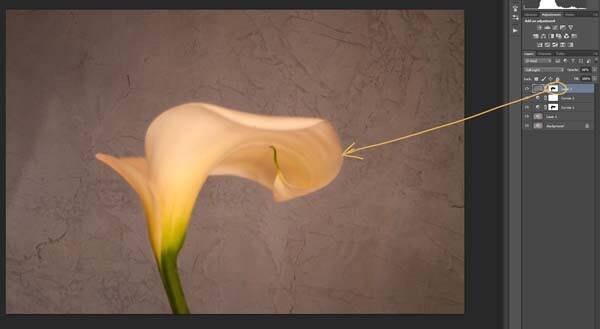
If you go to the bottom of the layers panel you will see a few things across the bottom. If you click the rectangle one with the round hole in it you will give your layer a mask. The mask means you can hide some of that layer from your image, like you did with the first curves layer.
Again, get your brush tool, make sure the foreground colour is black and paint over the flower. You are now making the texture look like it is just on the background.
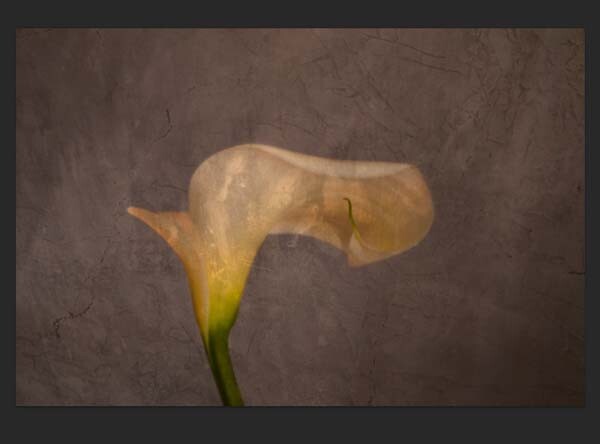
Next we are going to apply a texture to the whole image. This time it is one that will make the image look grungy, and dirty. You can find textures that have marks on them that look like smudges and grease. The one in this tutorial was a polished cement wall outside.
Add the texture to the image the same way you did the previous one. Blend it with the Soft Light Blend mode again. See how you feel about how the image looks, and if you decide it is too strong remember that the opacity can help make it less intense.
Adding a tint to your image
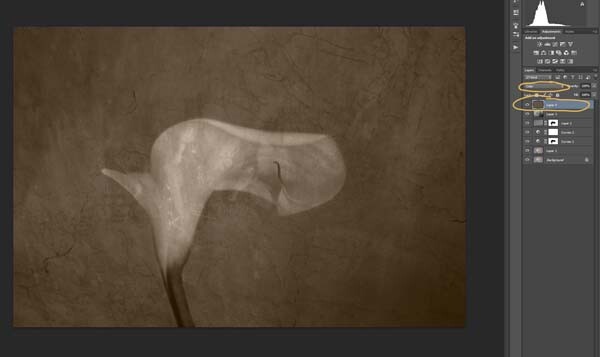
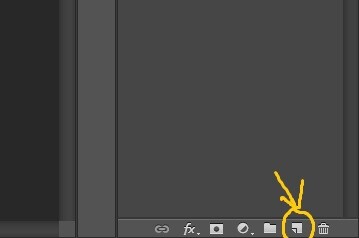
You will need to add a new layer, one that is transparent. At the bottom of the layers panel where you found the layer mask, you should see next to the trash bin a white square with a corner folded over, that is the new layer icon (see below). Click on it.
Next go to the tool bar and find the Paint Bucket Tool. Then go to the foreground colour and click on it. A popup window should come up and you can choose a colour to give your image a new tone. I would recommend you choose a grey, for this demonstration a mid tone grey with a hint of orange was chosen.
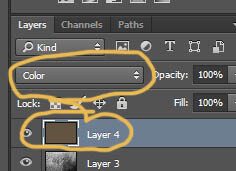
Now go to your image and click on it. The new empty layer should be filled with the colour you chose, and your whole image should look like a solid colour. Go to the blending mode for the new layer and change it to Colour. Your image should be transformed to monochrome. If you change the opacity of that layer then some of the original colour will come through, but that is up to you.
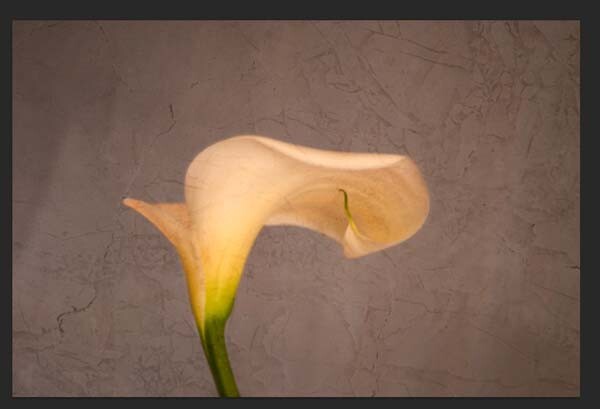
Here is the final image.
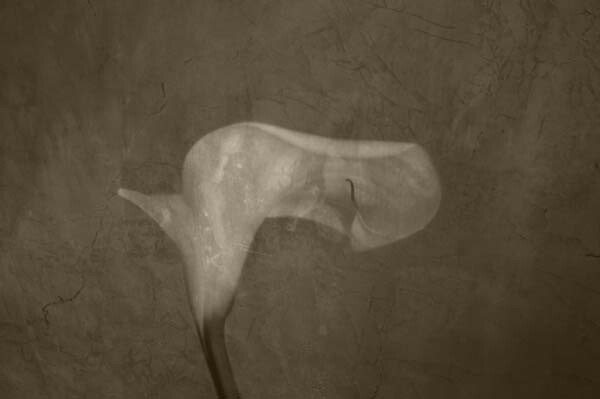
There are lots of other things you can do, but that might be best left for another tutorial.
If you prefer to watch this demonstrated you can check out the video below as I walk you through the same steps:
Have you tried using textures before? Do you have any favorite textures or sites for finding them? Please share in the comments below.
googletag.cmd.push(function() {
tablet_slots.push( googletag.defineSlot( “/1005424/_dPSv4_tab-all-article-bottom_(300×250)”, [300, 250], “pb-ad-78623” ).addService( googletag.pubads() ) ); } );googletag.cmd.push(function() {
mobile_slots.push( googletag.defineSlot( “/1005424/_dPSv4_mob-all-article-bottom_(300×250)”, [300, 250], “pb-ad-78158” ).addService( googletag.pubads() ) ); } );The post Applying a Texture Overlay to Your Images to Create an Antique Look by Leanne Cole appeared first on Digital Photography School.
-
Nikon 1 J5 offers 20.8MP BSI sensor and revamped look
The Nikon 1 J5 has been announced as the latest member of Nikon’s mirrorless lineup. It offers a more traditional shape and feel with a contoured grip and a command dial. Its 1″-type 20.8MP BSI-CMOS sensor offers a boost in resolution over its predecessor, and is capable of 4K video capture at 15 fps. Read more
-
A closer look at the Nikon Coolpix P900 megazoom
The Nikon Coolpix P900 has the longest zoom of any camera by a large margin. Whether you’re a nature photographer or just spying on your neighbors (not that we’d recommend that), the camera’s 24-2000mm should cover any situation. We got our hands on this monster zoom and will run through its most notable features right here.
-
How to Make an Architecture Space Look and Feel Natural in a Photo
The New Age of Architectural Photography
Gone are days of interior photos looking like furniture showrooms. So, too, are the days of exterior photos being full of uplighting accents and HDR effects.
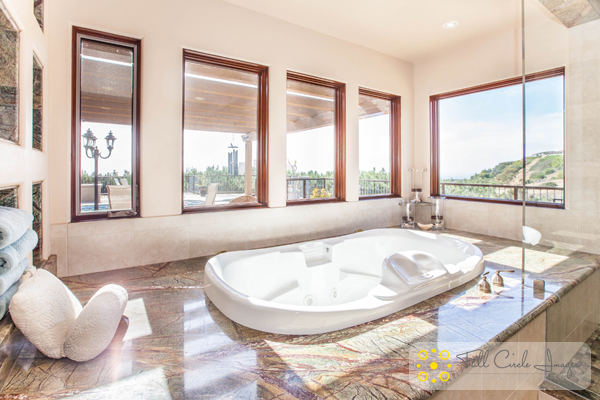
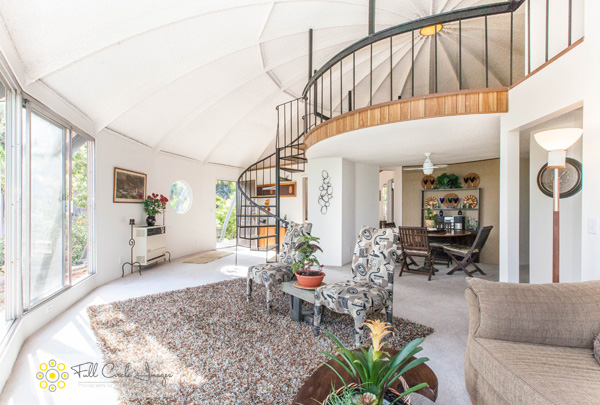
Today, architectural photography is all about lifestyle. The appeal of luxury has shifted away from the material luxury and flashy spaces of high society to an intangible luxury that transpires during quiet moments with loved ones. It’s more about quality of life than quality of goods.
When shooting interiors, your goal as photographer is to create a space that makes the viewer want to be there. You want them to imagine themselves in that space, and most importantly, to escape to it.
As a photographer, you not only have to read a space for its light, material, and flow, but you also need to feel the space. Consider a sleek urban condo in a downtown high-rise versus a historic Victorian house in family neighborhood versus a new construction in a suburban development. Each architectural development stirs up different feelings, and these are what you want to capture in your photography.
So how do you transfer these feelings into your images? Here are four steps to get you started.
1. Set the Stage
Focus on the personality and live-ability of the space. Luxurious bouquets of roses set in an empty room at sunset won’t do the trick. Instead, emphasize the day-to-day moments — an open book and some cushions on the seat of a bay window, a comfy throw blanket draped over the couch, or jewelry laid out on the dresser of a walk-in closet.
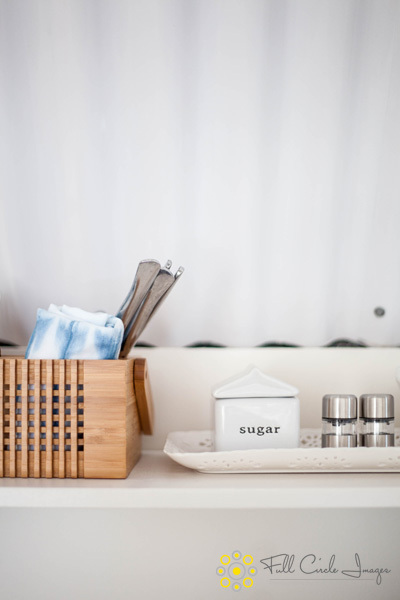
2. Mixing Cleanliness with Reality
Yes, the space should be clean. Yes, it should be cleaner than usual. However, it shouldn’t feel sterile. You want it to feel lived in, but not dirty.
All flat surfaces should be wiped down and cleared, except for staging items. Every light fixture should be in working order since they’ll be turned on to ensure the space has adequate lighting. Floors should be mopped or vacuumed. Any areas where the carpet or hardwood floors look old and worn, such as in high traffic areas, should be covered up with inexpensive area rugs. Be aware of any clutter that we get used to in our day-to-day life. A small pile of clutter goes a very long way in photos, and so all those stacks of mail, magazines, and books should be tucked away out of sight.
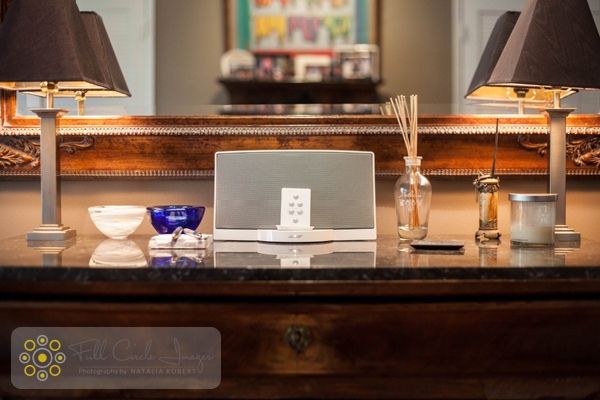
3. Use Optimal Lighting
A well-lit space is crucial! You want to create a look that feels natural, happy, and real, so use all of the light resources available to you. Photos should be shot during the day so you can take advantage of any soft sunlight that pours in.
As a secondary light source, be sure to turn on all of the lights. Yes, all of them. They’ll be turned on to give the space a warm and inviting feel. Long exposures shot on a tripod help brighten up shadows a bit, but you can also use a flash to bounce light off walls and ceilings to fill in shadows.
4. Vary the Photo Set
Wide shots are vital and dramatic and show the overall space well. However, details can be just as compelling.
Materials and traditional luxuries themselves are not important to show in detail. Rather, you must show the personality in the details. Staged items are perfect for shooting close-ups and setting the tone.
That pen and paper on the desk. The pastry and coffee cup on the side table next to an arm chair. The puzzle in progress by the bay window with a view. The tea kettle steaming with boiling water on the stove. These touches take your shots from a simple set of interior photos to the story of a lifestyle.
What are your tips for giving architectural photography a natural look and feel? Share your thoughts and photos in the comments section below.
googletag.cmd.push(function() {
tablet_slots.push( googletag.defineSlot( “/1005424/_dPSv4_tab-all-article-bottom_(300×250)”, [300, 250], “pb-ad-78623” ).addService( googletag.pubads() ) ); } );googletag.cmd.push(function() {
mobile_slots.push( googletag.defineSlot( “/1005424/_dPSv4_mob-all-article-bottom_(300×250)”, [300, 250], “pb-ad-78158” ).addService( googletag.pubads() ) ); } );The post How to Make an Architecture Space Look and Feel Natural in a Photo by Natalia Robert appeared first on Digital Photography School.
-
CP+ 2015: A closer look at Canon’s forthcoming PowerShot G3X
Alongside new DSLRs and the EOS M3, Canon quietly announced a new high-end PowerShot last week. The G3 X hasn’t been released yet, but we’re at the CP+ show in Yokohama Japan, where a prototype (displayed under glass) offers some clues to its specification and ergonomics. Click through for some images and a little informed guesswork.
-
Retro Style Tech: 10 Modern Gadgets with a Nostalgic Look
[ By Steph in Technology & Vintage & Retro. ]

If you’re nostalgic for Walkman-equipped jogs, need a desktop computer that fits into a midcentury modern design scheme or just want to gaze lovingly at cassette tapes and reminisce while you’re working, these gadgets will scratch that itch while still providing all the functions you expect from contemporary technology.
CURVED/labs Macintosh-Inspired Computer

This computer by CURVED/LAbs features the same sleek aluminum casing seen on the latest slimline Apple computers, but takes the aesthetics in the other direction – way back to the original Macintosh released in 1984. The computer mimics the original in looks, but features a 11.6-inch touchscreen, SD card slots, speakers, microphones and all of the other modern functions and accessories you’d expect.
Rotary iPhone Dock

Cast in resin to perfectly replicate vintage rotary phones, this iPhone dock by iRetrofone on Etsy features a spot that fits various generations of iPhones just right. It’ll charge your phone, and the handset is actually usable, so you can pretend like it’s 1985 while chatting, even as you swipe at apps on your screen.
Audio Infuser Stereo & Record Player


It may look like it could be, but designer Todd Kumpf emphasizes of the Audio Infuser 4700 that it’s “not your grandpa’s stereo.” The exterior looks just like retro stereos with its stained wood and brushed aluminum, but in addition to playing records, it’s equipped with a Linux-driven Raspberri Pi that operates as the wifi receiver so the stereo can stream music wirelessly from any mobile device, laptop or desktop computer. It can even stream music from the record player out to other wifi enabled speakers.
Vintage Camera iPhone Dock

Sometimes high-tech gadgets just don’t fit in with the aesthetics of your personal space. Anyone with a vintage flair in their interior design might like an iPhone charger that fits in with the decor on their bedside table, like the camera docks created by Etsy shop Laboratorio Altieri.
Gramaphone for iPhone

Take it way back to the early 20th century with an iphone amplifier made to look just like an old gramophone, with a solid walnut dock. It’s available at Restoration Hardware.
Next Page – Click Below to Read More:
Retro Style Tech 10 Modern Gadgets With A Nostalgic Look
Want More? Click for Great Related Content on WebUrbanist:

Retro Fits: 15 Hacks & Mods Take iPads Back in Time
The iPad is on the cutting edge of technology – but that doesn’t stop us from loving retro gadgets. These iPad cases and accessories offer the best of both.
Click Here to Read More »»

Mech Mods: 26 Sexy Steampunk Gadgets & Hi-Tech Hacks
Steampunked stuff that may make you want to go back in time, from images of virtual vintage to pictures of real retro gadgets, gear, art and design.
Click Here to Read More »»

So Retro: 15 Vintage Style Inspired Website Designs
Who says websites have to be as modern as the medium itself? These 15 sites feature boldly retro typography, illustrations, photos and textures.
Click Here to Read More »»
[ By Steph in Technology & Vintage & Retro. ]
[ WebUrbanist | Archives | Galleries | Privacy | TOS ]
-
Quick Look: The art of the unforeground
‘It’s all about the foreground’. Generations of landscape photographers learn this principle the moment they first pick up a camera. In this quick behind-the-shot look, professional landscape photographer Erez Marom argues for a compositional technique he calls the ‘unforeground,’ or lack of a defined foreground subject. Read more