RSS
 

Posts Tagged ‘LOOK’

How to Create a Vintage Look for Your Image Using Photoshop

23 Dec

Creating a vintage look for an image is now easy, without having to shoot with an old film camera. Although I would recommend any photo enthusiastic to try! I have a an Agfa camera ISOLA that I use every now and then. I love the contrasty, grainy black and white pictures it allows me to shoot. I usually ask advice regarding the film I can use depending on the sought-after result (contrast- grain – ISO).

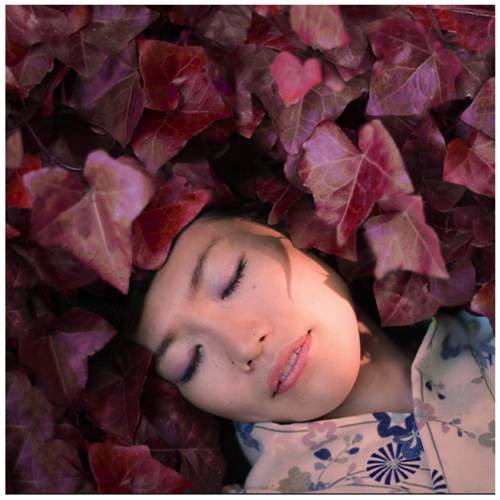
With a few easy steps in Photoshop you can make a textured, desaturated vintage look for any of your pictures. I’m going to show you how I did it with a self-portrait, but you can really do it with any picture as this technique really creates a great feeling to any image, whether it is a portrait or a landscape.

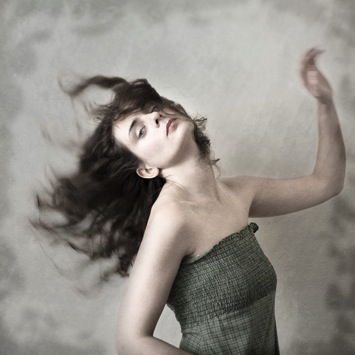
Vintage images are usually not so sharp, so I chose an image with some motion blur. You can add some directly in camera playing with slow shutter speeds and creating some motion. To edit this image, we are going to change the color using a gradient map adjustment, add some textures, and finally add a vignette to get a vintage look image.
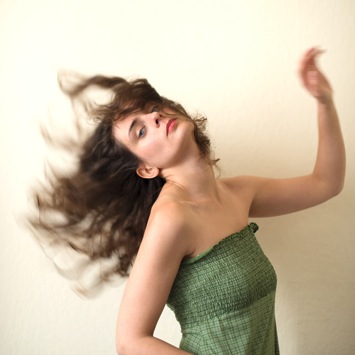
Setting the mood for creation before Setting the mood for creation after

Step one: Modifying the color tones using gradient map

There are many ways to desaturate an image. I love the gradient map adjustment because it allows me to desaturate the image, to add some color tones, and also to adjust its contrast. Hopefully, you will love this tool if you haven’t tried it yet.

Vintage images are usually desaturated – it could also be sepia. To get the desaturation you can go to Layer > New adjustment layer > Gradient Map (as shown below).
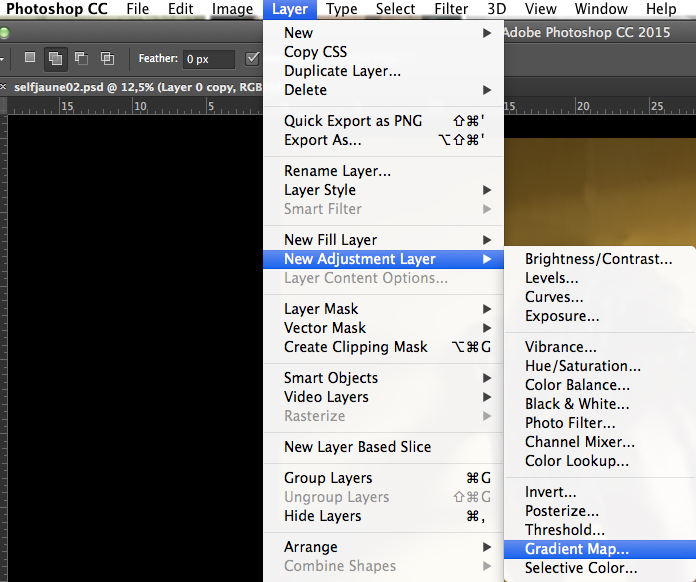
01

Or you can go to your layer tab and select new Gradient Map layer (as below).
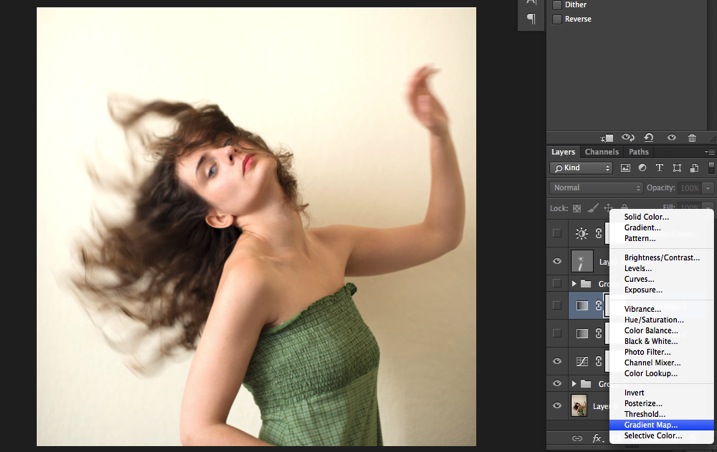
02

In the properties tab (screenshot below) you can see what gradient has been applied. By default it will be a foreground to background color, so usually black and white (the color squares on the bottom of your tools bar). You can also set the gradient color by changing your background and foreground color.
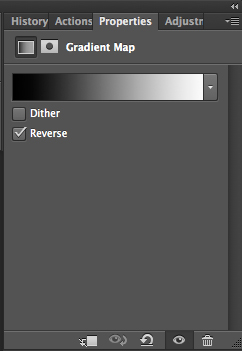
03

Photoshop then offers you 2 different options:

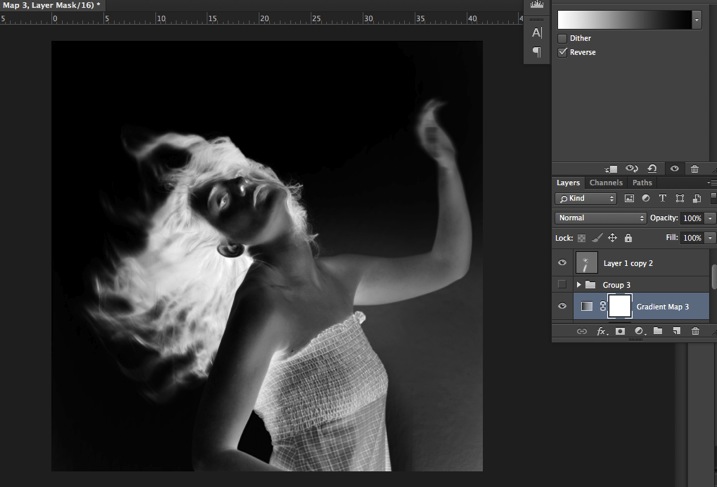
  • The Reverse option will change the gradient and give you a negative of your image, as in this case I add white into the black and black into the white (below).04
  • The Dither option will mix in noise to help blend the gradient more smoothly. So you can check any of those options depending on the effect you want to achieve.

Edit your gradient by clicking on it (click on the gradient color bar); the gradient editor will then open.
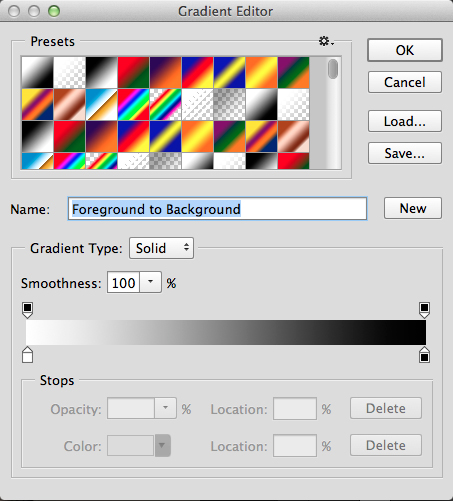
05

The gradient editor window shows you on the left the color applied to your blacks, and on the right the color applied to your whites. To modify the gradient you have two options:

First option, you choose one of the available presets. You click on a preset to apply it to your image. Second option is to create a custom gradient. Simply double click on one of the color stops, and choose a new color among the color pop-up menu.

You can also create a new color stop/intermediate by clicking below the gradient bar to define another one wherever you want (remember on the left are your shadows/black tone – in the middle mid-tones, and on the right your highlights/white tones). Once the new color stop is set you can also move it so it affects more of your dark or light tones.

In case you want to save the created gradient as a preset, name it, then click New after you have finished. It will then appear in your presets.

This is a powerful tool to adjust any color tone in your images. In this case I will first use the black and white gradient. When using this option the image is then turned into a black and white picture.
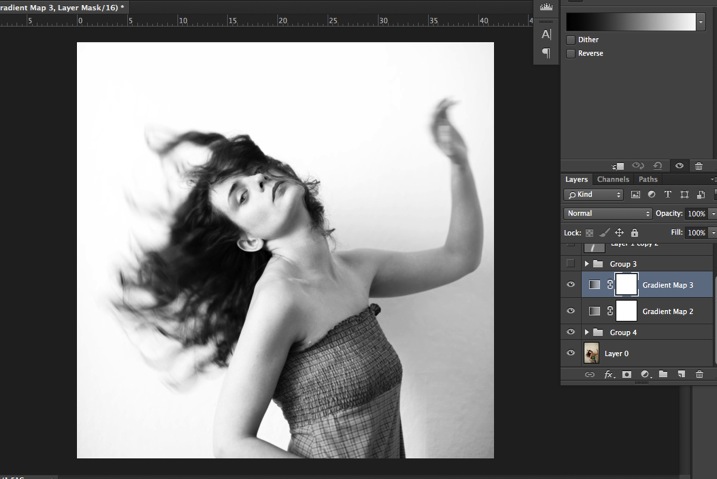
06

As it is not what we intended to do, lower the opacity of the adjustment layer.
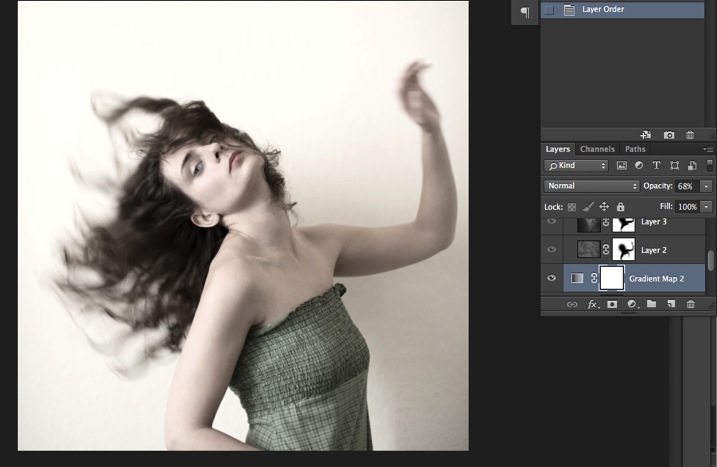
07

I set it to 68% in this case, but you can choose whatever number gives a nice look to your image – play with the opacity to decide which one best suits the image you are editing.

You can add also a touch of color. Keep it very soft to achieve a vintage look. To bring back some color, you can add a second Gradient Adjustment layer. After you add another layer, click on your gradient and choose a yellowish/brownish option to get a sepia tone, one in the presets or make a custom one.
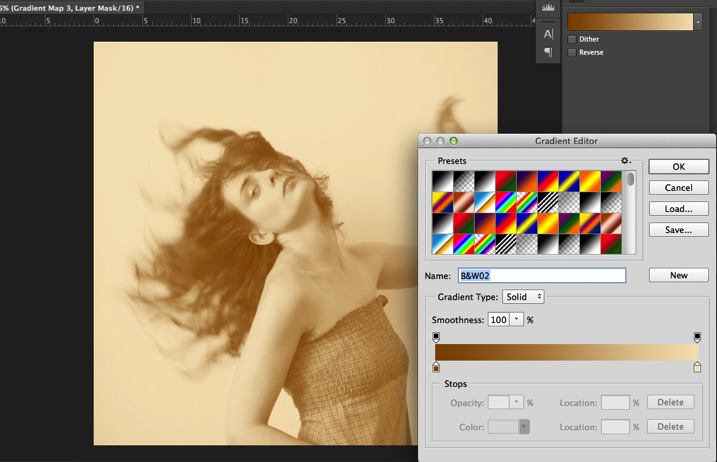
08

Once again you can lower the opacity of the adjustment layer to have a softer effect.
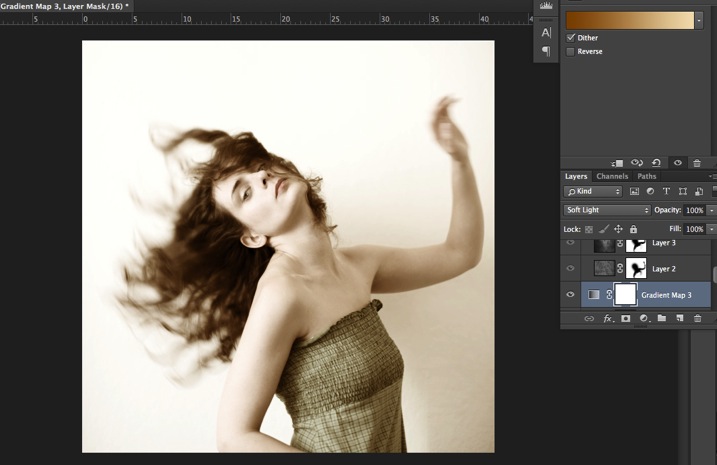
09

You can also add a different color according to the mood you want to set in your image. In this case I decided not to add further color tones so I added only the black and white gradient.

Step two: Adding texture to give the image a vintage feel

Now that you have achieved the color you want, it is time to add some texture to your image.

Personally I always shoot my own textures, but you can also find great textures on the internet on stock image sites. Or shoot your own pictures: walls, old paintings, grounds, wood, leaves, etc., any textured surface you can find. It is very easy, and can help you find some inspiration.
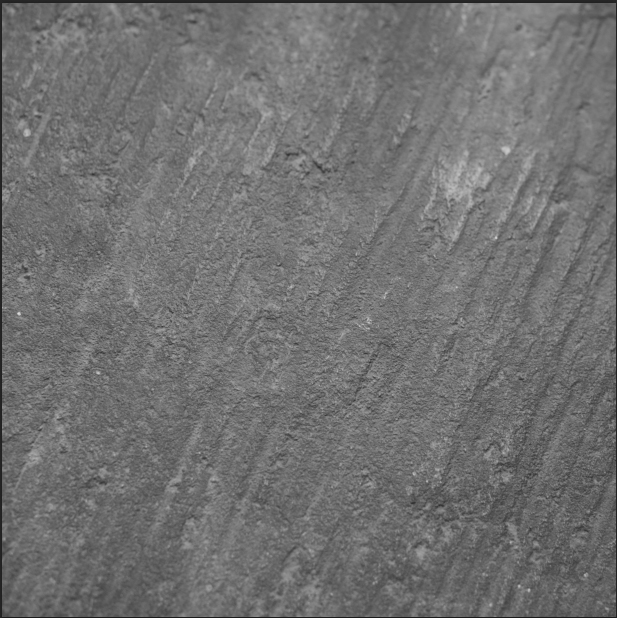
10

You drag and drop using your move tool or copy and paste a textured photo on top of your main picture. Then mix it by using the layer Blending Mode, try Overlay or Soft Light. I really recommend you to go through all the blending options to see how they blend the texture with your image (each image is different, and each mode can create a different look).
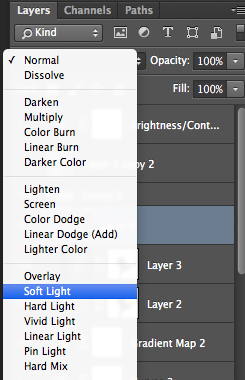
11

I always add textures to my personal works to give a painterly effect to my images. To have a lighter effect you can lower the opacity of your layer. To have a stronger effect you can repeat this step and add several textured layers.

You can modify the effect by adjusting your texture image. Select the texture in your layer’s tab and go to: Image > Adjustment > Curves/Levels.
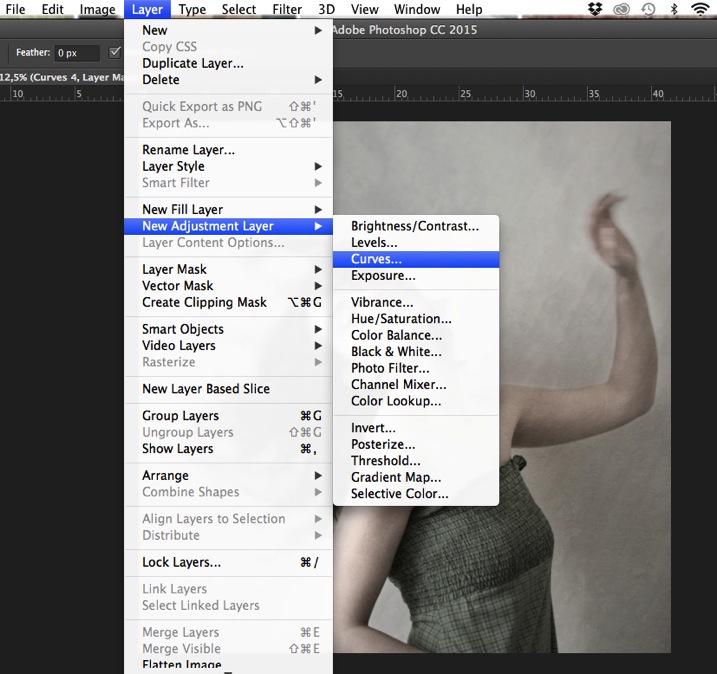
12

Playing with Curves or Levels will help you to bring back, or soften, some details in the texture. You also can add a Gaussian Blur filter if there are details that are too sharp in your texture image.
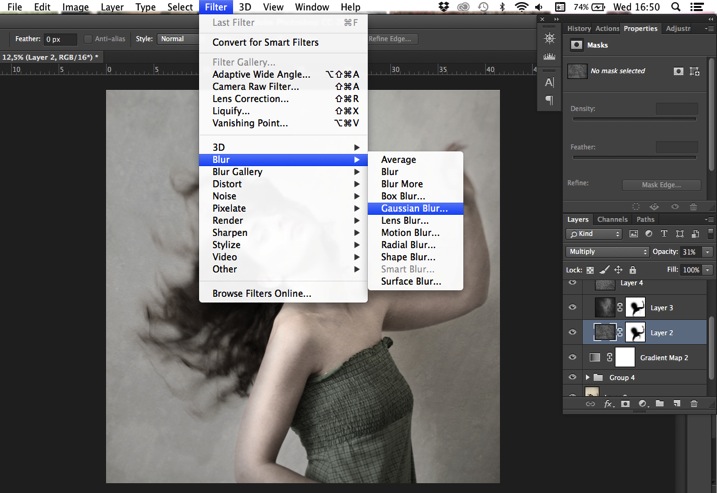
13

Select the area where you want to show or not show the texture. You can add a layer mask on the texture layer and by painting with black or white on the layer mask, you add (show) or remove (hide) areas where the texture appears.

Select your texture layer and click on add a layer mask. Lower the opacity of your brush tool, and keep its hardness to 0% to get very smooth edges. Now you can start painting in black over the areas where you want less or no texture.
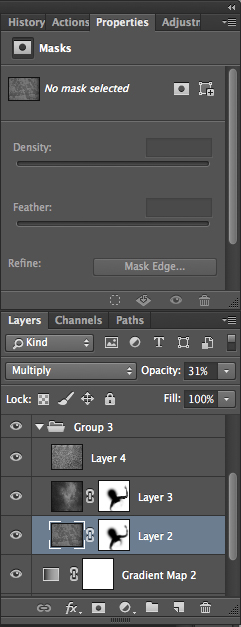
14

Everything is in the details, and Photoshop allows you a full control over your images. Usually to still have a “clean” image, and not to lose some details, you can mask areas such as skin, eyes, lips, etc., when editing a portrait.

So take your time to play with your textures. Try different types of shapes and contrasts. You can desaturate your textured image, or keep it in color. I find it easier when the texture is desaturated so you can fully control the color tones of your image separately, but it is up to you, and to the image you have in mind. As with any creative exercise, it is a matter of taste and style.

Step three: Finishing your image by adding a vignette

Vignetting can be an unintended, and undesired effect, caused by camera settings or lens limitations. However, you can also introduce it for creative effect, such as to draw attention to the center of the frame. You can choose a lens which is known to produce a vignette, or a filter to obtain the same effect.

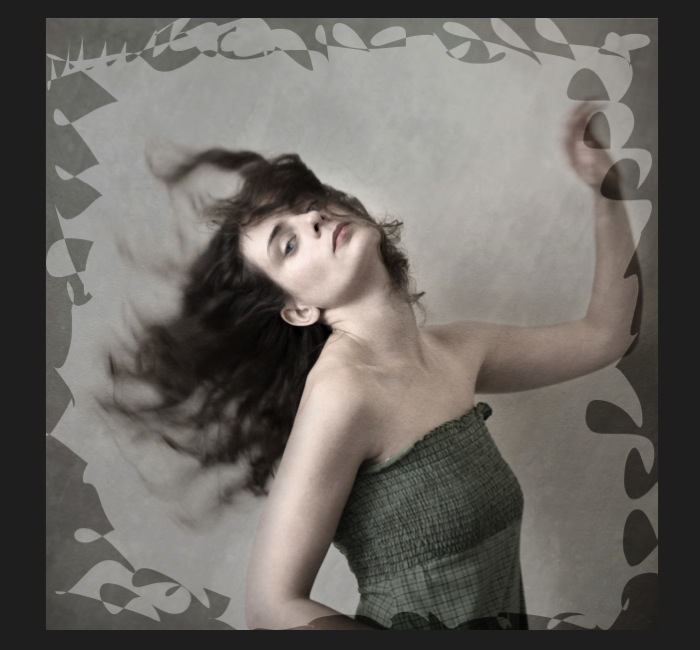
Obviously, as we are going to do now, you can also add a vignette by post-processing your image in Photoshop. You have many options in Photoshop to vignette your images. In this case we are doing something very uneven so the vignette also helps to create a strange atmosphere.

Grab your lasso tool and draw very random lines around the edges of your image. It looks weird, but it is quite effective.
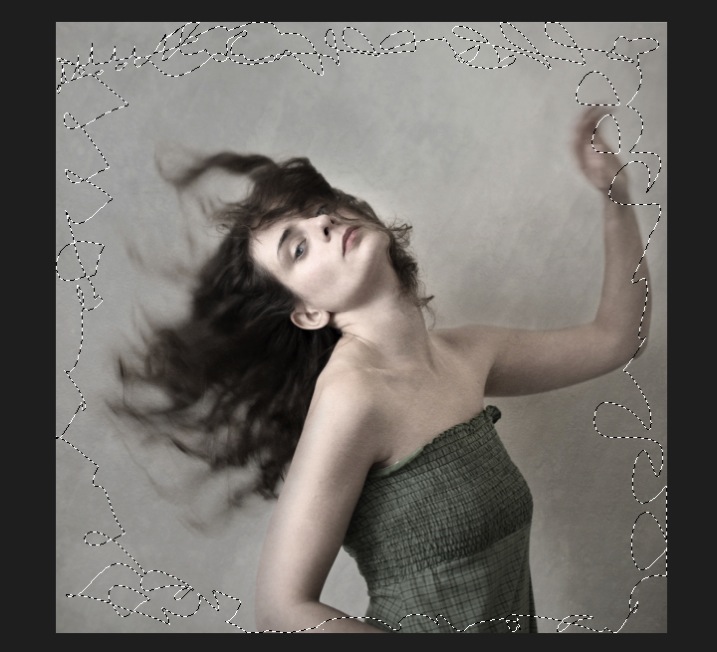
15

Go to Layer > New adjustment layer > curves. Darken your mid-tones by pulling down your curves to about one third (or to any darker/lighter spot according to your taste).
16

Whenever you select an area of your image, and have this selection active when you create a new adjustment layer, Photoshop automatically creates a layer mask on the new layer from your active selection.

Remember – on your layer mask white is where the effect will be applied, and black where the effect will not be applied. Here you want to apply the effect on the edges of the image, not in the center- if need be invert your layer mask by selecting the layer mask and pressing: CMD/CTRL+I.

Then double click on your Curves layer mask and feather your selection (around 87 pixels here).
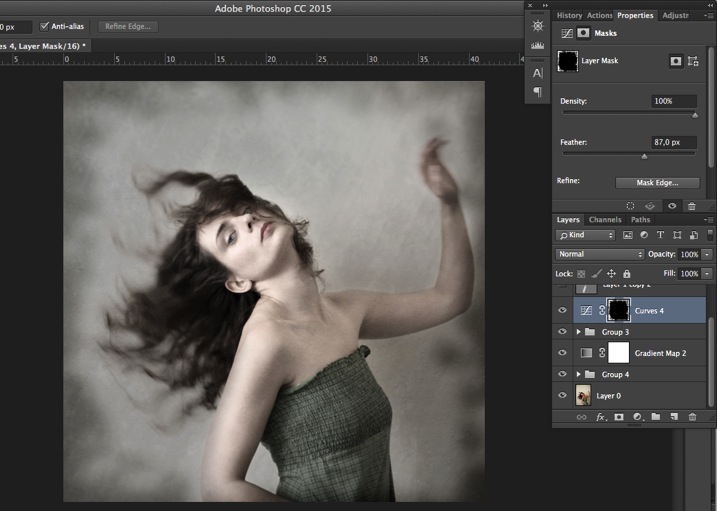
17

You can once again play with the opacity of your layer to lighten the vignette.

I hope you enjoyed this article. Feel free to share in the comments your usual steps to crete a vintage look to your images. Share your images as well using this technique if you give it a go.

googletag.cmd.push(function() {
tablet_slots.push( googletag.defineSlot( “/1005424/_dPSv4_tab-all-article-bottom_(300×250)”, [300, 250], “pb-ad-78623” ).addService( googletag.pubads() ) ); } );

googletag.cmd.push(function() {
mobile_slots.push( googletag.defineSlot( “/1005424/_dPSv4_mob-all-article-bottom_(300×250)”, [300, 250], “pb-ad-78158” ).addService( googletag.pubads() ) ); } );

The post How to Create a Vintage Look for Your Image Using Photoshop by Amélie Berton appeared first on Digital Photography School.
Digital Photography School

 
Comments Off on How to Create a Vintage Look for Your Image Using Photoshop

Posted in Photography


Video: a look at the Sony Cyber-shot RX1R II

16 Dec
 

Like much of the DPReview staff, editor Barney Britton is a self-proclaimed super-fan of the 35mm focal length. The Sony Cyber-shot RX1R II has the same permanently affixed 35mm F2 lens as its predecessor, but it is backed up by almost completely new internals, including the same 42MP full-frame sensor and autofocus system as the Sony a7R II. Barney’s put the RX1R II through its paces in a wide variety of shooting scenarios, and shares his thoughts about what’s new, what isn’t, and more importantly, whether or not the Mark II version is worth the upgrade. For more sample images, click the link below.

Articles: Digital Photography Review (dpreview.com)

 
Comments Off on Video: a look at the Sony Cyber-shot RX1R II

Posted in Uncategorized


How to Create a Surreal Look in Photoshop Using Hue Adjustment

03 Nov

When you start learning photoshop it is scary to see all those different tools you can choose from. It is often said there are seven ways to achieve the same results, using different tools in photoshop. So, it means you have to find the one that suits you perfect, in order to give to your pictures the look that you want.

In this article I want to show you how you can change colors in your pictures using Photoshop. This is a very easy method that you can use, either you are a beginner or you are a more advanced user.

You could add a surreal twist to your images, or remove colors you do not feel like comfortable working with (I am sure we can all relate to this, because as artists we have our favorite and least favorite colors- the ones we struggle to work with!). You can use this technique for anything from changing the color of a dress or any other prop, to changing the forest tones to enhance the autumn feeling, or creating it if you want to create an autumn picture even though it is still spring.

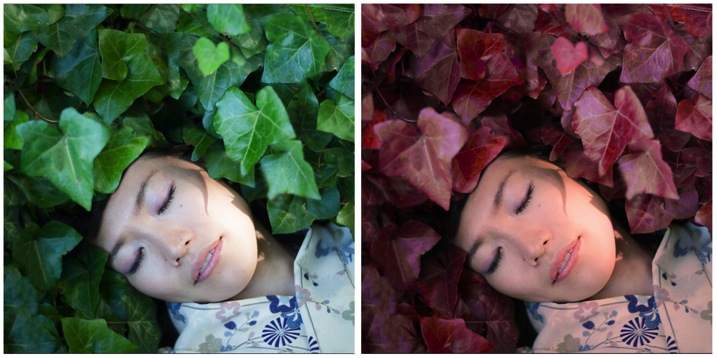
This is the before and after color change:

Picture01 before after

Create a color adjustment with Hue/Saturation

You can get to the Curves dialog in two ways:

  1. Image adjustment: By choosing Image > Adjustments > Hue/Saturation or Click the Hue/Saturation icon in the Adjustments panel.
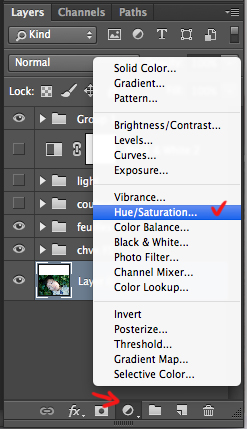
  2. As an adjustment layer: Layer > New Adjustment Layer > Hue/Saturation, or in your layers panel use the shortcut: New adjustment layer> Hue/Saturation.

Picture02 new adjustment layer shortcut

I strongly recommend working with layers. It allows you to come back to the adjustment and to erase it, or modify it, as many times as needed. Especially when you make big changes, you may want to be able to have full control. Layers can be scary at the beginning, but trust me, they will become your best friend once you overcome this fear.

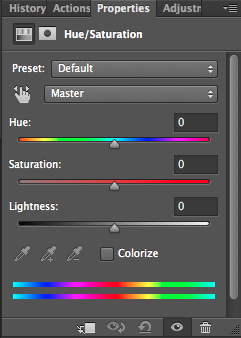
Creating a new layer you will have the following Hue/Saturation dialog box:

Picture03 HueSaturation dialog box

Select the color you want to change.

The more different you want your original color to be, the more important this selection is so that the color change does not affect areas do not want to shift. Removing a general color cast is usually a very light change. But, a total different color requires you to be more careful when selecting, and sometimes require several color adjustments.

When your object has a very clear color – as to say all red, one red tone – it is easy. When your object has different color shades it is tricky but not impossible.

In this case we are changing the color of ivy leaves, with different tones of green, blue, and even yellow.

First step: Make the color selection:

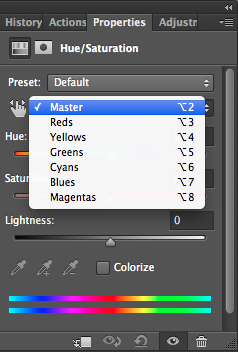
You can choose Master to adjust all colors at once, or one of the other preset color ranges listed for the color you want to adjust (reds, yellows, greens, cyans, etc.).

Picture04 Master or preset color

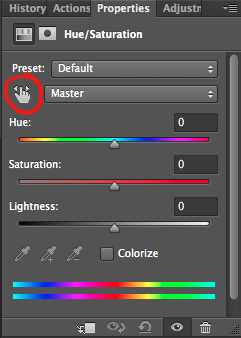
Or you can also choose the Targeted Adjustment Tool (the little white hand) – this is the easy way to select color if the area/object you want to change is a mix of several color tones.

Picture06 On image adjustment tool

Click on the Targeted Adjustment Tool and put your cursor on your image, the eyedropper tool appears. Drag it on your image, and click on the color tone you want to select.

Picture05 color values

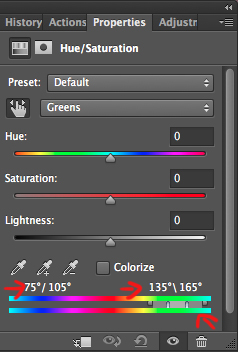
Four color values appear in degrees in your properties panel. If you click again, you change the selected colors.

Second step: Refine your selection

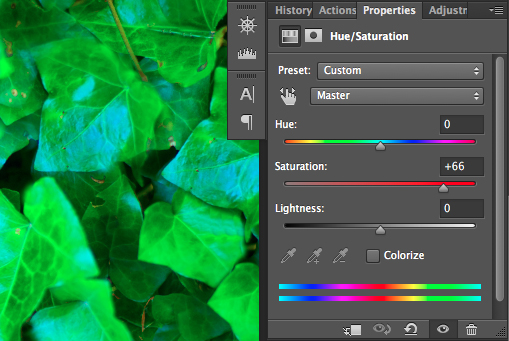
To check your selection, grab the saturation slider and move it to the right to increase saturation. The idea here is to see what you have selected, and make sure you have the right colors, therefore helping you adjust the selection. For example, when editing a portrait, you want to make sure it doesn’t affect the skin tones of your subject. If editing a forest you want to make sure you have selected the leaves, but not the tree trunks (or anything in the background).

Picture07 increase saturation to check selected colors

As you can see there is still a lot of blue of the leaves, that is not included in the selection. To add those blue tones you will drag the adjustment sliders to expend your selected colors, and change the color value (appearing in degrees in your properties panel).

There are four sliders. The ones in the middle allow you to expend or shorten the selected color ranges. The two sliders on both sides are to adjust the range of color and fall-off. Play with those sliders until you find a good selection. Don’t worry if it’s not perfect, you can still make a second hue/saturation adjustment layer, or mask this layer.

Third step: Change the color

In your properties window, drag the hue slider to the left or right depending on the new color tone you want to give to your selection. Then you can play with adding or removing saturation by dragging that slider either way.

Picture01 after

Learning to use hue/saturation will give you more creative options when editing your images in Photoshop. Share any images that you’ve changed the color on, or any other methods you use for doing this technique.

googletag.cmd.push(function() {
tablet_slots.push( googletag.defineSlot( “/1005424/_dPSv4_tab-all-article-bottom_(300×250)”, [300, 250], “pb-ad-78623” ).addService( googletag.pubads() ) ); } );

googletag.cmd.push(function() {
mobile_slots.push( googletag.defineSlot( “/1005424/_dPSv4_mob-all-article-bottom_(300×250)”, [300, 250], “pb-ad-78158” ).addService( googletag.pubads() ) ); } );

The post How to Create a Surreal Look in Photoshop Using Hue Adjustment by Amélie Berton appeared first on Digital Photography School.

Digital Photography School

 
Comments Off on How to Create a Surreal Look in Photoshop Using Hue Adjustment

Posted in Photography


Second time lucky? A closer look at Sony’s new RX1R II

15 Oct

Sony has just announced a brand-new full-frame camera, the Cyber-shot RX1R II. Successor to the RX1 and RXIR, the new model brings some significant updates, most notably the same sensor and hybrid AF system as the company’s flagship mirrorless interchangeable lens camera, the A7R II. We’ve had our hands on the R1XR II and we’ve put together some first impressions. Click through to read more

Articles: Digital Photography Review (dpreview.com)

 
Comments Off on Second time lucky? A closer look at Sony’s new RX1R II

Posted in Uncategorized


Exo creates housing to make GoPro operate, look more like a traditional camera

17 Sep

New Zealand-based EXO Camera Equipment has launched a Kickstarter campaign to get its camera-style casing for GoPro cameras off the ground. The company hopes to produce the EXO GP-1, a metal body into which GoPro cameras can be placed, to take on a more traditional camera form. Read more

Articles: Digital Photography Review (dpreview.com)

 
Comments Off on Exo creates housing to make GoPro operate, look more like a traditional camera

Posted in Uncategorized


Artist Nikita Nomerz Gives Russian Buildings A New Look

23 Aug

[ By Steve in Art & Street Art & Graffiti. ]

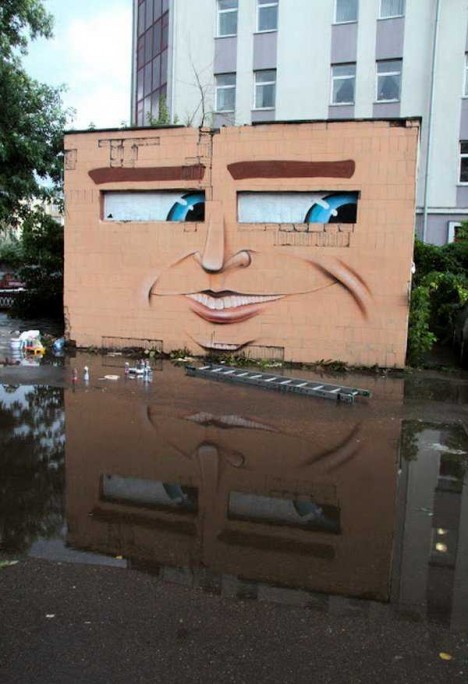
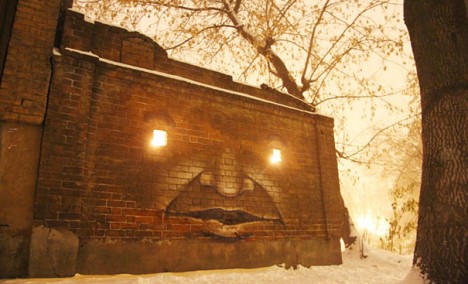
nikita-nomerz-big-brother
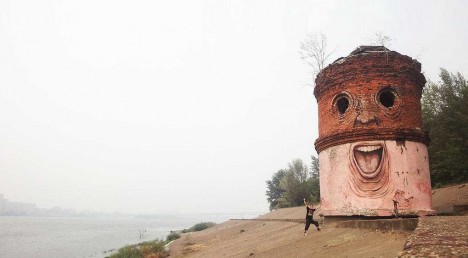
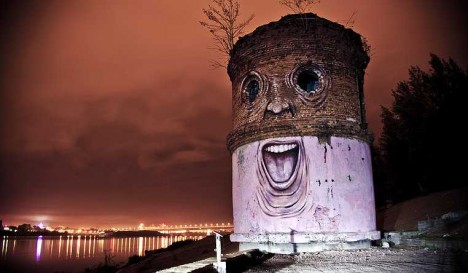
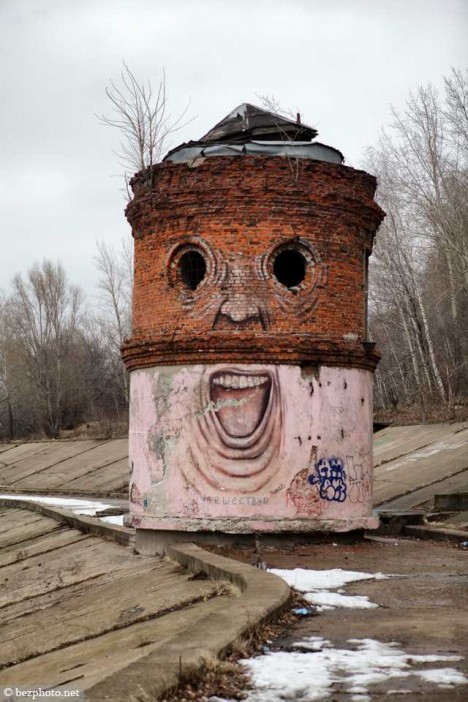
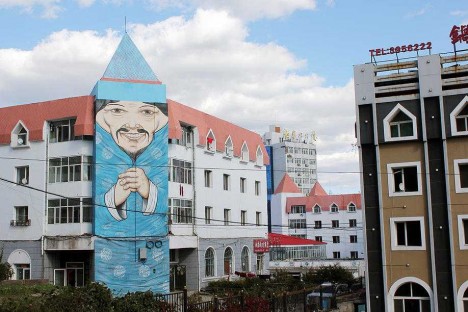
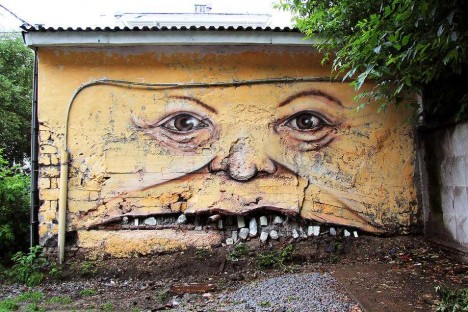
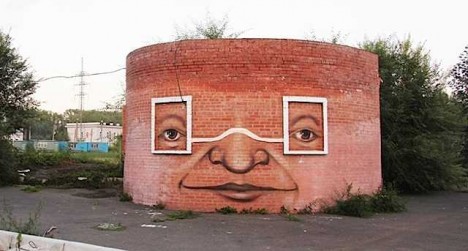
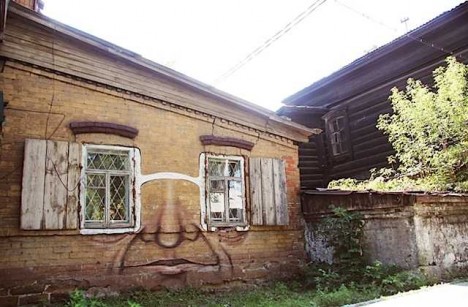
Artist Nikita Nomerz is giving abandoned buildings and structures in Russian cities a new look… and the eerily expressive edifices are looking back!

nikita-nomerz-big-brother2

nikita-nomerz-big-brother3

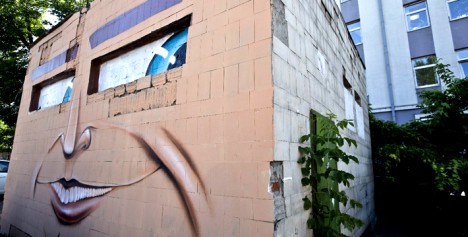
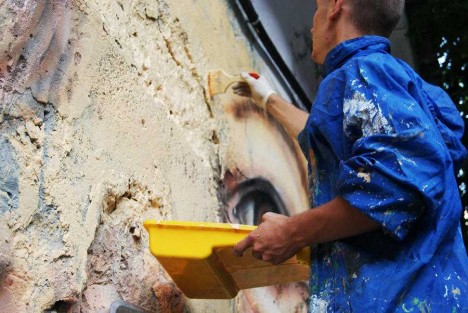
Hailing from the northwestern Russian city of Nizhniy Novgorod, Nikita Nomerz cut his artistic teeth in the field of hip-hop graffiti. For the past few years, however, his focus has been on street art of a different sort. Nomerz gets his inspiration from the buildings and structures he paints, seeing the inner “soul” of the edifice much as a sculptor imagines the finished statue before the first chip of the chisel. “The Big Brother”, above, is one of Nomerz’ earliest such works dating from 2010. The lowest of the three images was taken in April of 2015 – darned graffiti artists!

nikita-nomerz-sly-smile1

nikita-nomerz-sly-smile2

“When you are doing street art, you create a dialogue with passersby, architecture, nature and with other artists,” explains Nomerz. “Maybe on streets, art is not so durable, but it’s for real alive. Works which has been done on the streets are living their own life.” Since not everyone can see the life still couched within these derelict structures, Nomerz employs his own talent and creativity to bring it to the forefront.

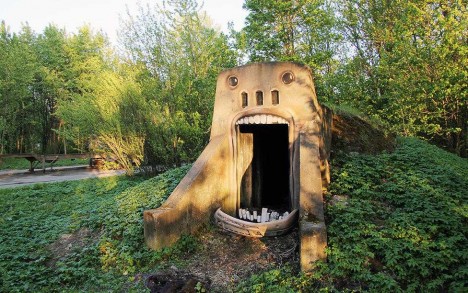
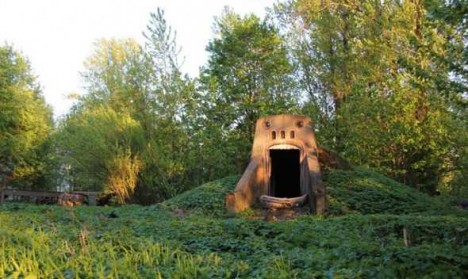
nikita-nomerz-the-glutton

nikita-nomerz-the-glutton2

nikita-nomerz-chinese-residents

Since 2010, Nomerz has been engaged in a wide-ranging project he calls The Living Wall. From St. Petersburg eastward to the Chinese border city of Mudanjiang, Nomerz has left his mark – often quite a large mark – upon cities and towns in need of a little extra character. The bizarrely disturbing piece above is titled The Glutton; the striking installation below, The Chinese Residents. The latter stands out for NOT being created on an abandoned structure.

nikita-nomerz-toothy man

nikita-nomerz-toothy man2

nikita-nomerz-toothy man3

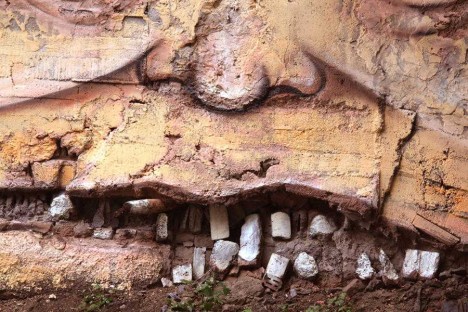
Nomerz’ main medium is spray paint but in some of his works, a little added plaster and some shifting of stone and/or brickwork is performed to enhance the composition. It’s startling how a row of decaying bricks can approximate a grinning mouth, as seen on The Toothy Man above – no doubt the building’s original constructors would be shocked at the transformation!

nikita-nomerz-fire-eyes

nikita-nomerz-glasses1

nikita-nomerz-glasses2

If the eyes are the windows of the soul, then the windows of abandoned buildings must be… OK, let’s not go there. Nomerz has no qualms about bringing out the inherent “personalities” of his inanimate subjects, mind you.

Next Page – Click Below to Read More:
Artist Nikita Nomerz Gives Russian Buildings A New Look

Share on Facebook


[ By Steve in Art & Street Art & Graffiti. ]

[ WebUrbanist | Archives | Galleries | Privacy | TOS ]


WebUrbanist

 
Comments Off on Artist Nikita Nomerz Gives Russian Buildings A New Look

Posted in Creativity


Under the hood: A closer look at the Sony a7R II

17 Aug

There’s a lot of new technology in the Sony a7R II, and here we were briefed on some of the salient features by Sony engineers during a recent Sony Digital Imaging event in Portland, OR. Join our Technical Editor Rishi Sanyal as he explains some of the capabilities of this camera, and why they matter to photographers. Click through to read more

Articles: Digital Photography Review (dpreview.com)

 
Comments Off on Under the hood: A closer look at the Sony a7R II

Posted in Uncategorized


Do Look Up: 14 Dazzling Modern Ceiling Designs

13 Aug

[ By Steph in Design & Fixtures & Interiors. ]

ceilings olga nur

At one restaurant in Berlin, you might spend more time gazing up in wonder at an undulating ceiling installation made from over 14,000 chopsticks than you do at your dining companion. Ceilings are often an afterthought, but these 14 (more) modern ceiling designs and installations completely transform the feel of each space, making restaurants, retail shops and even churches feel more like art installations than conventional interiors.

Futuristic Chapel Interior

ceilings pastoral care 2

ceilings pastoral care

Feeling a bit like it’s located on a spaceship, the Pastoral Care Center in Linz, Austrlia by X Architekten features a graphic geometric arrangement of striped white panels that make the spatial limitations difficult to discern. All inside surfaces are white and furniture is minimal to create a meditative atmosphere.

Aluminum Fins at Delft Railway Station

ceilings train station 1

ceilings train station 3

Pass through the fused glass envelope of the new Delft train station by Mecanoo and you’ll find yourself gazing up at curving arrangement of aluminum fins lining the vaulted ceiling. When viewed from certain angles, an abstracted 1877 map of the region appears

Clouds of Cubes

ceiling cloud cubes 2

ceiling cloud cubes

“Similar to fractal geometries,the ceiling installation in its layered layout is self-similar and recursive in the sense that its formal behavior is the same from near and from afar, and further exists within the fractal non-differentiability if one considers the essential multiplication of each member as its distance from the viewer increases,” says design firm BlueArch of its installatiion in a New York restaurant. They also integrated an LED light system into the poplar-cloud structure.

Explosion of Reclaimed Wood

ceilings nishi 2

ceilings nishi

Australia firm March Studio hung 2,000 pieces of reclaimed wood from the walls and ceiling of the Nishi Building in Canberra, creating cascading installation that almost seems to capture a structure mid-explosion. The boards were all recycled from demolished homes, a basketball court and the construction site of the Nishi itself.

One-of-a-Kind Starbucks in Japan

ceilings starbucks 2

ceilings starbucks 1

Adjacent to a Shinto shrine in Fukoko Prefecture, this Starbucks might be the most unique chain restaurant interior in the world. Architects Kengo Kuma and Associates created a thatched arrangement of over 2,000 wooden beams to give the cafe a nest-like feel. The installation takes inspiration from the limbs of trees and ceremonial lumber structures at the shrine.

Next Page – Click Below to Read More:
Do Look Up 14 Dazzling Modern Ceiling Designs

Share on Facebook


[ By Steph in Design & Fixtures & Interiors. ]

[ WebUrbanist | Archives | Galleries | Privacy | TOS ]


WebUrbanist

 
Comments Off on Do Look Up: 14 Dazzling Modern Ceiling Designs

Posted in Creativity


8 Factors to Look at Before You Choose a New DSLR or Mirrorless Camera

29 Jul

Not too long ago, the path to choosing your gear was very clear. If you wanted to take professional quality images, the DSLR reigned supreme. Yet, the landscape of available camera gear is constantly evolving, and today there are more options than ever before. Instead of just one or two dominant companies, you now have outstanding systems from no less than seven manufacturers. Mirrorless cameras have matured from a niche product to a complete solution, while DSLRs have been further refined. This may sound daunting at first, but with a bit of research, it’s possible to find a model that meets your specific needs. Here are the main points to review when considering whether you get a DSLR or mirrorless camera next.

1) Availability of Lenses

Buying a high megapixel camera body won’t spare you from the the negative effects of a poor lens. In fact, more resolution can bring greater attention to the lens’s optical flaws. For example, if you pair a full frame sensor with a kit lens you’ll have soft corners and mushy detail. Alternatively, high quality lenses can maximize every pixel of your camera’s sensor providing tack sharp focus from corner to corner. There may be some who will argue this theory and point to studio tests and technical charts. Yet in practice, a camera with a smaller sensor and less megapixels paired with a stellar lens can provide more clarity than a high resolution full frame coupled with an average lens. For this reason, the selection of available lenses is the first consideration when deciding on a camera.

Sharpness is not the only part of this decision, but also the speed in which the lens achieves focus. A constant aperture is also a nice convenience for low light shooting as opposed to slower variable aperture lenses that span from f/3.5 to f/5.6. Finally, if you envision a super shallow depth of field in your images, f/5.6 will not be as desirable as f/2.8. Map out your kit with each manufacturer using your dream scenario. For example, can you build a system with f/2.8 lenses that span from ultra wide to super telephoto? How much would this cost for each manufacturer, and what would it weigh? While it’s true that DSLR users once enjoyed a significant advantage in lens availability, that gap is quickly closing. Most mirrorless systems now offer a complete line of professional quality glass that is of equivalent quality to a DSLR counterpart.

2) Image Quality

Ultimately, the image quality from a camera is only as good as the person controlling it. The best photographers in the world can capture stunning imagery, with the most basic cameras. Simply put, they know how to maximize the potential of any situation, and work around the limitations to get the shot.

Ideally, you want to find a camera that doesn’t get in the way of your creative process. If you’re fumbling with confusing menus and buttons, chances are you will miss a number of fleeting opportunities. Still, photography is also a game of confidence, and you want to feel as if the photo you are capturing will have all of the detail you need it to. I have good news for you! Nearly every DSLR and mirrorless camera today has more than enough resolution for professional work. Whether you are shooting for large prints, billboards, magazine spreads, stock submissions or your own personal satisfaction, today’s modern cameras are up to the task. This is a game changer, as a DSLR is no longer a prerequisite for professional work.

3) Sensor Size

At the same effective focal range and aperture, the actual depth of field each format provides will appear different based on sensor size. For example, a full frame camera at f/2.8 dramatically throws a background out of focus. This is ideal for reducing distractions and bringing attention to the subject. To achieve the same look with an APS-C sensor you would need to open the aperture to f/1.8. With micro 4/3, you’d need f/1.4. Clearly, this makes shallow depth of field easier to achieve with a full frame. Having said that, micro 4/3 users can create similar results with fast lenses like the Voigtlander 42.5mm f/0.95.

While larger sensors enjoy a slight advantage for shallow depth of field, the opposite happens with great depth of field. This means f/5.6 on a micro 4/3 camera provides the equivalent depth of field to f/8 on APS-C and f/11 on a full frame model. This provides the micro 4/3 user with 1-2 extra stops of light while still creating sharp focus from near to far. As a result, the ISO doesn’t need to be as high, providing better image quality. For the same exposure and equivalent depth of field, here is an example of how the sensor size would affect the settings.

  • Micro 4/3: 1/125, f/5.6, ISO 200
  • APS-C: 1/125, f/8, ISO 400
  • Full Frame: 1/125, f/11, ISO 800

This is summed up nicely by Cambridge in Colour who noted, “Larger sensors (and correspondingly higher pixel counts) undoubtedly produce more detail if you can afford to sacrifice depth of field. On the other hand, if you wish to maintain the same depth of field, larger sensor sizes do not necessarily have a resolution advantage.”

4) Features and Functionality

The technology you’ll find, in even the most entry level mirrorless camera, can make a DSLR feel like stepping back in time. This is not solely due to the weight, but the glaring absence of useful features that make simple tasks more convenient. No longer do you need to stand beneath a shaded tree to check your images on the LCD. The quality of EVF in today’s mirrorless cameras is astonishing. It’s similar to using live view, but the image appears in the viewfinder where the display is not affected by harsh sunlight. Without removing your eye from the viewfinder you can check critical focus and exposure while viewing the histogram, highlight alert, and exposure settings.

With in-viewfinder image magnification and focus peaking, manual focus has never been easier or more accurate. Tapping the shutter lightly will activate the shooting mode so you’re always ready to capture the action. This can certainly reduce time spent chimping, and helps one remain focused on the subject in front of them. Depending on the model, you may enjoy other features like double exposures, silent electronic shutter, keystone correction, live time, time-lapse, touch screen autofocus that covers most of the frame, and built-in wifi. It’s these little things that ultimately make the shooting experience more enjoyable.

For those who are struggling with depth of field, the EVF on mirrorless cameras offers a huge advantage. As you look through the viewfinder and adjust your aperture, you will see a real-time look at how the depth of field will alter your image. This makes it so convenient to establish your settings for any given shot. In fairness, some DSLRs have a DOF preview button, but its functionality is far from ideal. Using that method the screen gets very dark, and you have to really look hard to determine what will truly be sharp. The EVF simplifies all of this as what you see is what you get.

5) Size and Weight

A DSLR is a commitment. You make a decision to take pictures, pack your gear, and head out. This has proven to be an effective formula for a very long time. Yet, I’ve spoken with countless photographers who leave their DSLR home to avoid carrying extra weight. Some even purchase expensive telephoto zoom lenses only to complain they’re too much of a hassle to bring along. If you do the math, DSLRs are about twice as heavy as mirrorless cameras and approximately 40% bulkier. When you’re traveling to distant places, or hiking deep into the woods, every ounce matters. I’ve been on small international airplanes with a strict 25 pound luggage limit, which included personal items.

Advances in technology can allow us to go places that were previously inaccessible. No longer do you need to leave important things behind. That’s one of the reasons carbon fibre tripods have become the preferred choice for many. Since they are much lighter than aluminum models, you can go further. Couple this with a lighter camera system, and it’s possible to reach remote locations faster, giving you the competitive edge.

6) Familiarity

15 years ago, on countless pages of photography magazines, experts debated the topic of film versus digital. What followed was undoubtedly one of the biggest revolutions in the history of photography. Despite some of the early limitations, digital imaging forged ahead, ultimately winning over many of the initial naysayers. While this current shift in camera gear may not be quite as dramatic, there are many who are still resistant to change. Yet, as George Bernard Shaw said, “Progress is impossible without change, and those who cannot change their minds cannot change anything.” If you’ve never tried a modern mirrorless system, you are short changing yourself. Visit a local camera store and have a look, or better yet, rent one for a weekend photo adventure. It may take a real world test to experience the benefits that don’t translate well on paper.

7) Durability and Battery Life

DSLRs take the crown when it comes to battery life. Where one DSLR battery can go a full day with 1000 plus shots, a mirrorless camera will require approximately three batteries. The obvious workaround is to carry several spares, but it’s worth noting as it is one definitive area that requires improvement. The issue is largely due to the heavy power demand from the EVF. As a result, it’s a concern for all mirrorless manufacturers with no one brand having a distinct advantage.

If you’re looking for a camera that’s weather sealed and built like a tank, both types of cameras have models to check out. Still, in order to enjoy a fully weatherproof system, the lenses need to have the same level of durability. With a DSLR this build-type is often reserved for the professional models. These are typically more expensive and heavier than non-sealed lenses. Alternatively, Sony, Fuji and Olympus all have rugged systems that boast features like splash, dust, and freeze resistant. If you find yourself in extreme situations often, this may be the better option for you.

8) Cost Savings

Do you rely on image stabilization as part of your photography routine? With a DSLR, this convenience comes at a significant cost. Lenses with this feature are often priced hundreds of dollars more than a non-stabilized model. Perhaps a more cost effective method would be a camera with built-in 5-axis stabilization. This will work on any lens you mount, making it possible to capture sharp hand held images at 1/15th of a second or slower. If you’re skeptical, as I certainly was, there are a myriad of tests that prove its accuracy.

This is an important development that changes the way you works in low light scenarios. For example, if you’re photographing a dark interior where tripods are not allowed, a typical setting would be around 1/125, f/4, ISO 6400. That same shot with 5-axis IS could be captured at 1/15, f/4, ISO 800. Noise won’t be nearly as prevalent at the lower ISO, and you’ll still have a tack-sharp image. This cutting edge feature gives photographers yet another tool to solve common everyday problems.

Conclusion

There have never been as many viable options as we have right now. It is indeed a great time to be in the market for a new camera. The system you decide on will certainly have a big impact on your work, so do thorough research and choose wisely. Remember, the ideal selection should not be based on what everyone else is doing, but what will allow you to realize your unique vision. This can only be decided by you, not a salesperson, or forum chatter. Above all, your next camera should be one that inspires you to pick it up and use it more often.

As for my gear, I don’t leave the house without my Olympus OMD EM1. Sometimes I also carry an EM10 as a backup body. I recently sold a Canon 40D, retired the old 10D, and am still determining the fate of my Canon 6D.

googletag.cmd.push(function() {
tablet_slots.push( googletag.defineSlot( “/1005424/_dPSv4_tab-all-article-bottom_(300×250)”, [300, 250], “pb-ad-78623” ).addService( googletag.pubads() ) ); } );

googletag.cmd.push(function() {
mobile_slots.push( googletag.defineSlot( “/1005424/_dPSv4_mob-all-article-bottom_(300×250)”, [300, 250], “pb-ad-78158” ).addService( googletag.pubads() ) ); } );

The post 8 Factors to Look at Before You Choose a New DSLR or Mirrorless Camera by Chris Corradino appeared first on Digital Photography School.

Digital Photography School

 
Comments Off on 8 Factors to Look at Before You Choose a New DSLR or Mirrorless Camera

Posted in Photography


Photo District News Presents The Look Competition

07 Jun

Photo District News The Look Competition 2015


Hey there FashionPhotographyBlog.com readers,


We are really excited to announce that our friends over at Photo District News (PDN) are having a competition, called The Look and are open for entries right now!


The Look is PDN’s comprehensive competition for evocative fashion and beauty photography, with categories for professional photographers, such as still photographers and motion photographers, as well as for students of photography.


We are at FPBlog are excited for the next edition of the look and you should be too! I’m sharing this competition to you guys because we know that winning a prize like this could really help give you a boost to your photography existing career or help you start one.

Photo District News The Look Competition 2015


3 Reasons why you should be excited about the Look Competition


Here are our top 3 reasons why we are excited about this competition:


1) The range of work. The Look includes many categories to enter in such as advertising, editorial, still life/accessories, personal work/fine art, runway/street scenes and beauty, plus a motion category for film and a debut/student category for rising stars.

The competition aims to cover all facets of the fashion industry. Last year’s winning work included a series of Chloé handbags shot for Barneys’ look books, a beauty series in Vogue Italia, and a film from a Valentino runway show.

Photo District News The Look Competition 2015


2) The grand-prize package. With a $ 3,500 award to fund a photographer’s work, $ 500 for equipment at B & H, and a one-page profile in Photo District News, the grand-prize package provides the winner with an exceptional opportunity for growth.


3) Promoting the winners. All the winners of this competition will be published in PDN’s October issue this year. Online, The Look winners’ gallery always makes for a beautiful collection of work, and PDN are proud to showcase them! In addition to the print and online gallery, PDN organized an exhibition of the winners’ works at the PhotoPlus Expo at the Javits Center in October last year, which saw 22,000 visitors over the event. PDN will be looking for more opportunities like this to exhibit this year’s winners. You can take a look at last year’s winner gallery by clicking here –> The Look 2014 Winners


Photo District News The Look Competition 2015

The Look Competition Prizes


Here is a recap of the prizes offered in PDN’s The Look Competition for 2015:


ONE GRAND-PRIZE WINNER WILL RECEIVE:


– $ 3,500 cash prize


– A $ 500 B&H Gift Card


– A one-page profile in an issue of PDN


SEVEN FIRST-PLACE WINNERS WILL RECEIVE:


– $ 100 B&H Gift Card


ALL WINNERS WILL RECEIVE:


– A one-year PHOTO+ Basic Membership


– A place in the print/online winners’ gallery in the October 2015 issue of PDN


– The official winners’ seal for The Look


For more information on how to enter The Look competition, you can click and visit this link here -> The Look Competition Details


Entries close June 30th 2015, so do hurry to enter!

Photo District News The Look Competition 2015


Fashion Photography Blog

 
Comments Off on Photo District News Presents The Look Competition

Posted in Uncategorized