It’s been a busy week here in the office as we’re working hard on some post-Photokina reviews and preparing for PPE next week. We also got a serious dose of Pacific Northwest fall weather, and the rainy afternoons and evenings left us plenty of time to go poking around the corners of the internet for important (read: probably not really important) things that happened in the world of photography. Read more
Tag: LOOK
-
How to Create a Vintage Look using Lightroom
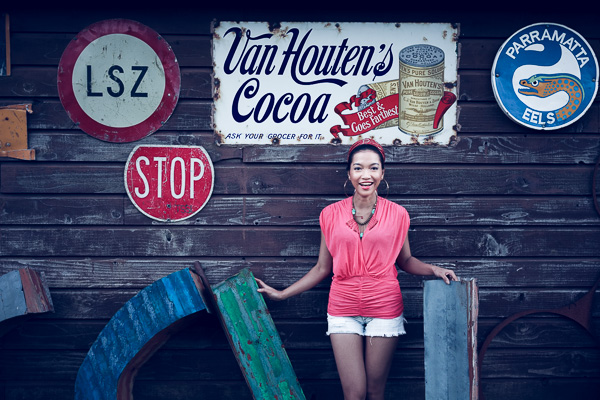
Before you create a vintage look using Lightroom, you have to decide what characteristics you think that look should have. It may mean different things to other people, but here’s my version. Photos with the vintage look are nostalgic, evoking the look of faded photos taken decades ago. There may be a colour cast or faded blacks, and they should look as if they may have been taken with film.
What is your definition of the vintage look? Whatever it is, once you have arrived at it, you can think about how you can achieve that look in Lightroom.
Using Lightroom Develop Presets
The easiest way to create a vintage look is to buy Develop Presets or download free ones. Don’t worry, I will explain how you can create the vintage look yourself, without buying somebody else’s presets, in the second part of this article. But I think it’s wise to acknowledge that sometimes the easiest path is to let someone else do the hard work of figuring out the mechanics, and buy into their expertise.
By the way, if you are new to presets, my article A Concise Guide to Lightroom Develop Presets will give you an introduction to the subject.
Free Vintage Develop Presets
An easy place to start is with onOne Software’s free Develop Presets for Lightroom. I recommend Nicolesy’s Matte Presets for Adobe Lightroom 5 and the onOne Signature Collection Presets (available for Lightroom 4 and 5). There are also some presets for Lightroom 2 and 3 if you are using those versions.
You can also try these free vintage presets from Presets Heaven.
This comparison shows you some of the effects you can create with these presets. Please remember that the best way to use Develop Presets is as a starting point. Once you have applied the preset you can then go to the right-hand panels and tweak the settings to get the most out of your photo (something I haven’t done with these examples as I wanted to show you how they work straight out of the box).
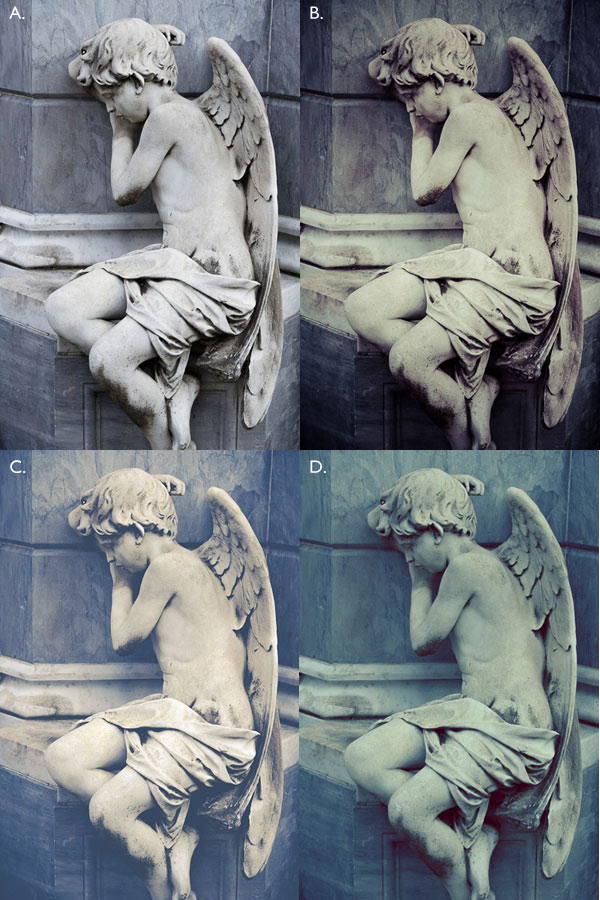
A. Original photo B. onOne Signature Collection: Vintage – Grandma’s Lemonade preset C. Nicolesy Matte Lightroom Presets: Nicolesy Matte 2 preset D. Presets Heaven: PH Vintage IV preset
Best Paid Vintage Develop Presets
Not everybody wants to pay for Lightroom Develop Presets (my article Are Lightroom Develop Presets Worth the Money? asked that question) but there are certainly some great preset collections out there if you don’t mind doing so. I recommend (and have personally bought and used) the following:
Nicole S. Young’s Vintage Fade presets. These are the least expensive out of all these preset packs. The set includes Photoshop Actions and ACR presets as well as Lightroom Develop Presets.
Lightgram Instafade presets. These presets emulate the beauty and nostalgia of film. I like Lightgram’s presets a lot. They also have some free presets you can try out.
Really Nice Images Faded Films presets. These are the more expensive than the others, but you get nearly twice as many presets plus a toolkit to help you tweak the settings. But most importantly they are really good.
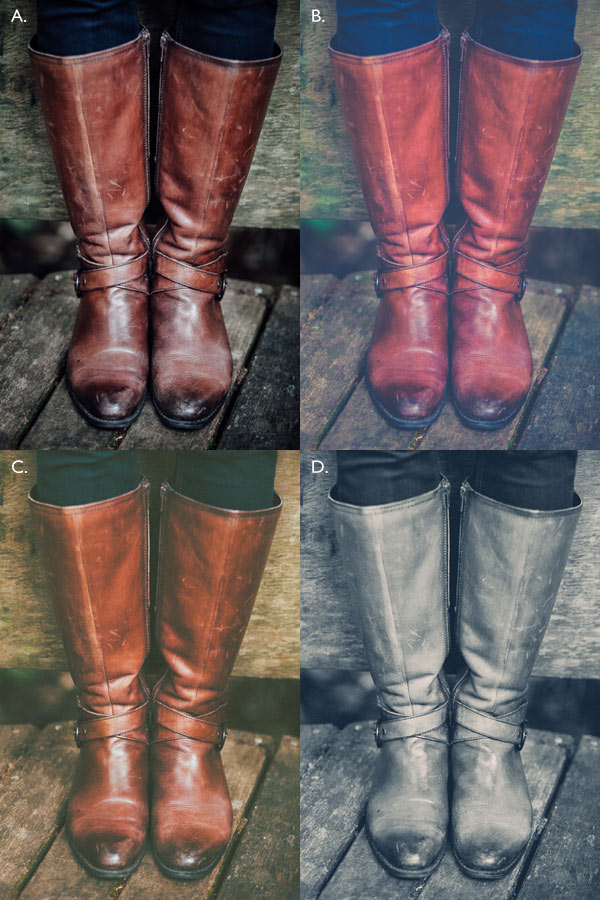
A. Original photo B. Nicolesy Vintage Fade: Rainfall preset C. Lightgram Instafade: Lightgram Faded 12 preset D: Really Nice Images: Faded Films – Utah Monochrome preset
How to create the vintage look yourself
Now it’s time to take a look at a few of the techniques you can use to create the vintage look yourself in Lightroom.
1. Fade out with the Tone Curve
Go to the Tone Curve panel and raise the left side of the RGB curve upwards. Doing so removes true black from the photo, making the darkest tones lighter. How far you move it is up to you – the best way is to judge the effect by eye.
You’ll get the best results when the RGB curve starts from its linear position (a straight line from bottom-left to top-right). If you are planning to use the Tone Curve to create a matte effect, it is best to carry out tonal adjustments such as increasing contrast in the Basic panel. You may also wish to reduce Saturation or Vibrance to weaken the colours in the photo, emphasizing the vintage look created by the matte effect.
Alternatively, click on the RGB curve three times (where the lines intersect it on the grid) before lifting the left-hand corner. This gives a slightly different look. Experiment with both techniques to see which one suits your particular photo best. This is what the curves look like.
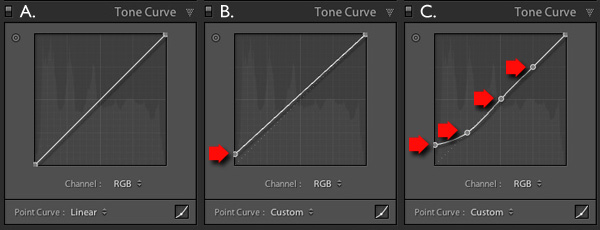
A. Linear curve B. Entire curve raised. C. Left-hand side of curve raised only.
This is how those curve adjustments affect the photo.
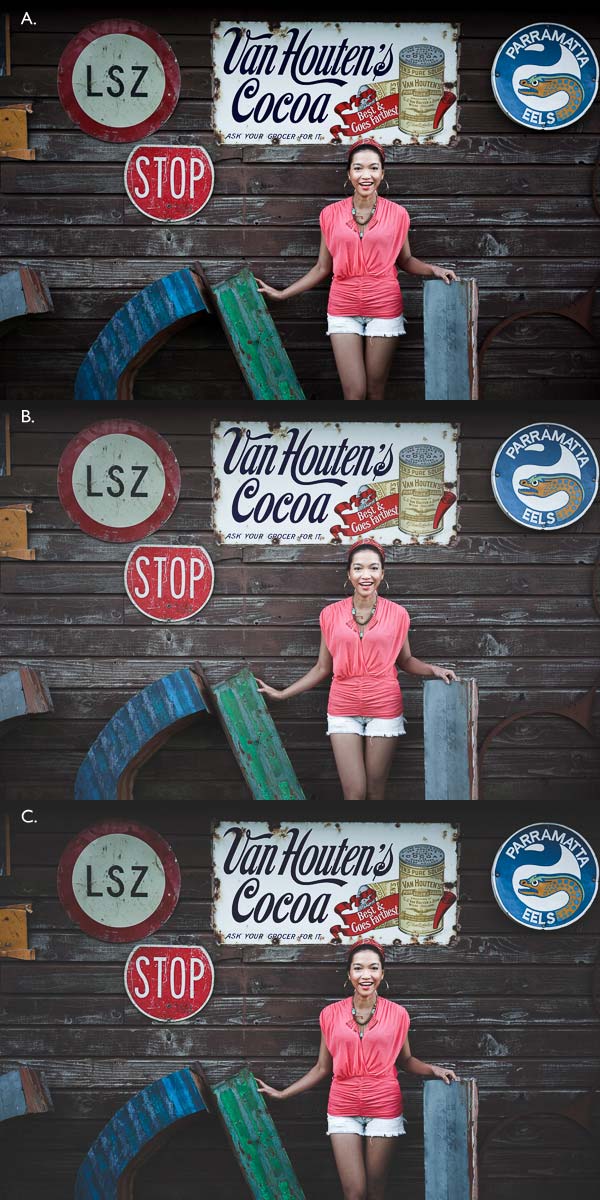
A. Linear curve B. Entire curve raised. C. Left-hand side of curve raised only.
Using the RGB Tone Curve applies a matte effect without affecting the colour. However, you can play with the colour curves as well. If you use the same technique on a colour curve, it affects the colour of the photo as well as the contrast. Here are a couple of examples.
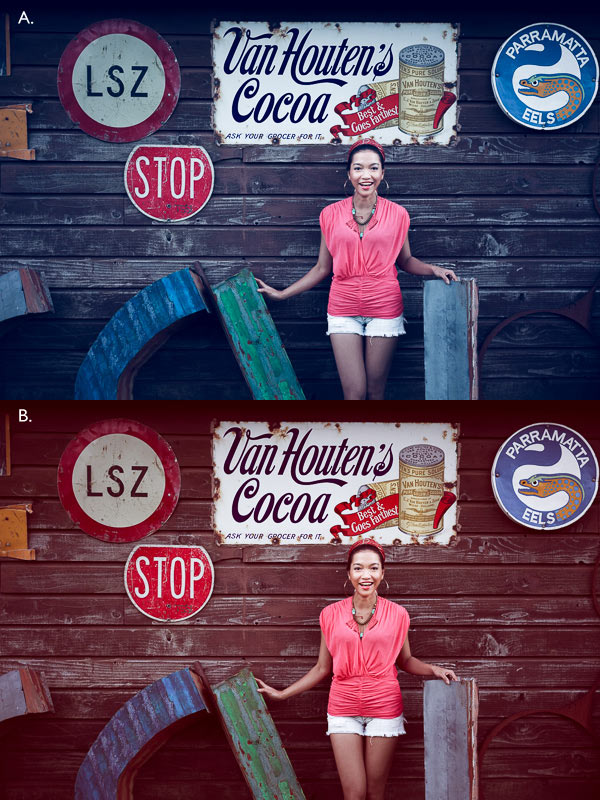
A. Blue curve raised. B. Red curve raised.
2. Split toning
Another way to add colour is with split toning. The basic concept is simple. Apply a warm colour to the highlights (such as orange, red or yellow) and a cool one to the shadows (for example blue, dark green or teal). You may be aware that warm colours appear to move towards the viewer, and cooler ones away. Split toning builds on that principle.
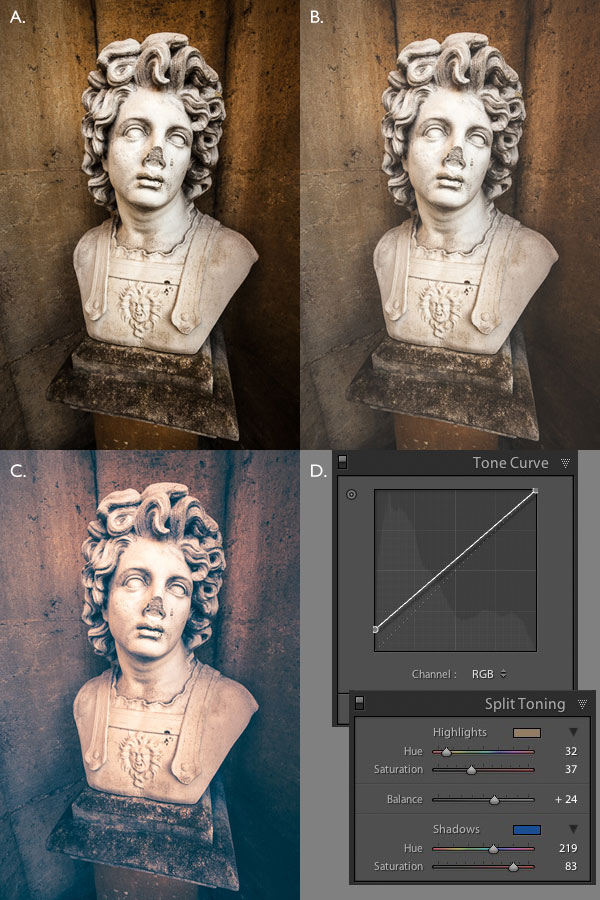
A. Original photo. B. RGB Tone Curve raised (neutral colour). C. Split tone applied. D. The Tone Curve and Split Toning settings used for these photos.
Conclusion
Now you know how to create a vintage effect in Lightroom. If you have any other tips for creating a vintage effect, please leave them in the comments below.
 Mastering Lightroom: Book Four – The Photos
My new ebook Mastering Lightroom: Book Four – The Photos takes you through ten beautiful examples of photography and shows you how I processed them step-by-step in Lightroom. It explores some of my favourite Develop Presets and plug-ins as well as the techniques I use in Lightroom itself. Click the link to learn more.
The post How to Create a Vintage Look using Lightroom by Andrew S. Gibson appeared first on Digital Photography School.
-
A look at the Lomography Petzval 85mm F2.2 lens
Lomography isn’t a company we’ve historically talked about much on DPReview; with its emphasis on low-fi, ‘shoot from the hip’ photography using plastic film cameras, it’s a long way from the typical interests of our readers. But last year the company came up with an interesting idea: to recreate a classic 19th century portrait lens for modern SLRs. The result is the Petzval 85mm F2.2, which is available now to fit Canon or Nikon SLRs. So what’s it like?
-
Video: Canon REALLY wants you to look after your camera gear

Canon USA has released a video explaining how to take care of your camera gear. In the video, hosted by Holly Groder of Canon’s call center, Canon gives a series of recommendations for things to avoid, and things to get into the habit of doing, to keep your gear clean and fully functional. If you mentally delete the word ‘Canon’ from every other sentence there’s plenty of sensible advice for caring for your gear – whatever the manufacturer. Click through to see the video.
-
Sony RX100 III: A look at the operation and controls

As we’ve been spending more time with the Sony RX100 III, we’ve published some of our initial thoughts on the Operation and Controls of this highly intriguing camera and expanded our impressions of the pop-up electronic viewfinder. We also shot a short video showing what’s new so you can get a first-hand look at the 20MP compact with 1″-type sensor and faster, wider 24-70mm F1.8-2.8 lens. Learn more and see video
-
A Look Inside the Bag of a Hobby Photographer on a Budget
We often get to see inside the bags of professional photographers. You know, the bag that we dream of having ourselves, filled with three full-frame bodies and six or more lenses with plenty of accessories to fill out every pocket the bag has to offer. Well, I’m not a pro – and today’s ‘inside the bag’ post might not be something to drool over, but it should give you an idea of what you can do on a reasonable budget if you’re planning to do some serious photography on the weekends.
Inside the bag of a hobby photographer on a budget
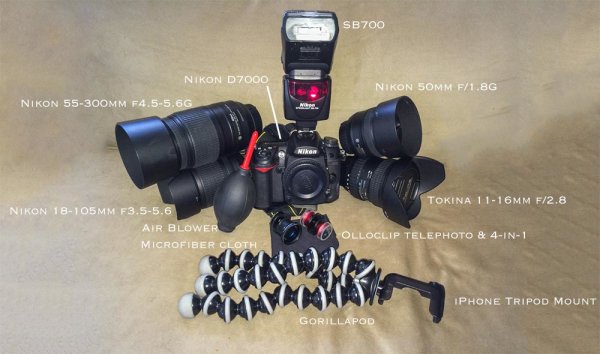
As you can see from the photo, I have a fairly well rounded collection of lenses that let me capture anything from ultra-wide to super close. I wouldn’t consider anything inside this bag “pro-level”, but the collection is very capable and allows for a wide range of subjects.
My camera body for the last three years has been the trusty Nikon D7000. I highly recommend this camera, or its bigger brother the D7100, to anyone who’s interested in getting into photography seriously. While it’s not an FX (full-frame) body it does have a lot of pro-like features, is very capable in low light situations and being marketed at the enthusiastic hobbyist it’s fairly affordable as well.
As far as lenses go I use the Tokina 11-16mm f/2.8 most frequently, followed closely by the Nikon 55-300mm f/4.5-5.6G. It really depends on the mood that I’m in but I tend to spend most of my time at the extremes of my focal length range. On occasion the Nikon 50mm f/1.8G and the Nikon 18-105 3.5-5.6G, which came with the D7000, will be used for specific shots. The Nikon SB700 speedlight featured in the photograph above is rarely used and is probably my greatest regret in terms of purchases (not that it’s a bad flash, just that I don’t use it nearly as much as it deserves).
On top of the DSLR stuff I do carry two Olloclip adapters (the telephoto + circular polarizer and the 4-in-1 kit) for my iPhone along with a Gorillapod with an iPhone mount attached to it. Sometimes I just enjoy the simplicity and creativity that the iPhone allows.
Other little things not pictured above include a wireless remote shutter release, 77mm circular polarizing filter, and a 77mm Hoya ND filter.
To support the main camera I use the Manfrotto 190XPROB aluminum tripod with the basic Manfrotto ball head. It does the job I need it to do, and has served me well for three years, but I do want to upgrade to a carbon fiber tripod in the future for the added strength.
What bag holds it all and how’s it packed?
I manage to fit all of this into a Lowpro Slingshot 102 AW which when fully packed it’s bursting at the seams. The bag itself is designed to fit a camera body with a small lens attached, two smaller lenses on either side, and has a couple other storage compartments for extras like filters, charging cables and cleaning supplies.
I almost never pack my flash as it’s not typically something I use, but if I do pack it, the 18-105mm is usually the lens that gets left at home. Here’s a couple photographs to show you the bag fully packed.
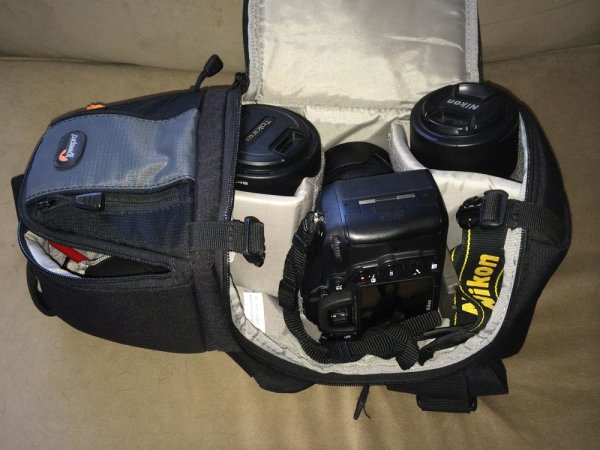
Main storage compartment from left to right: Tokina 11-16mm, Nikon D7000+18-105mm, 55-300mm.
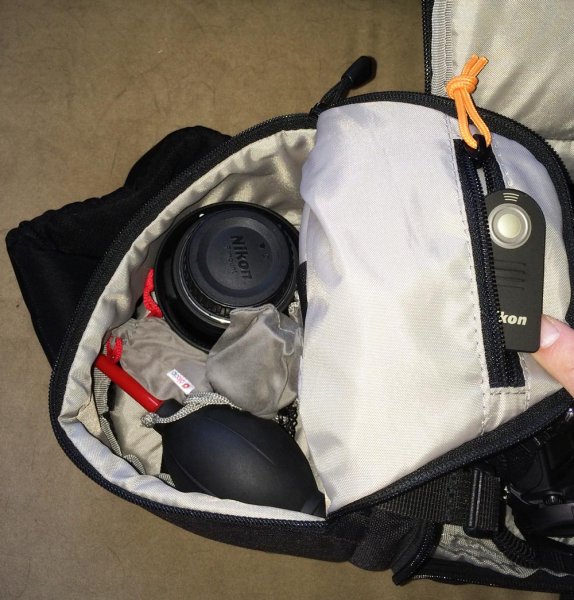
Secondary compartment – 50mm, Olloclips, cleaning supplies and remote trigger.
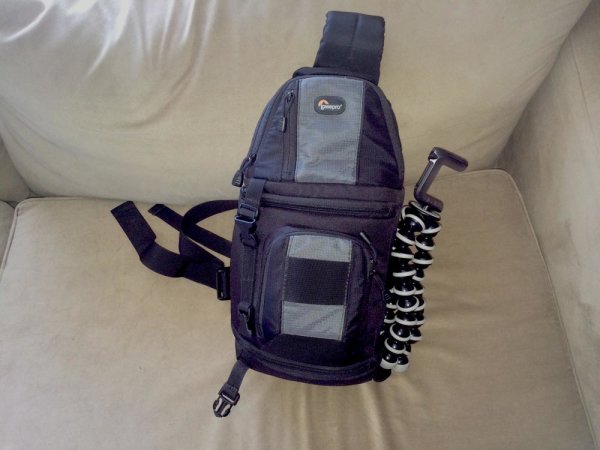
All closed up and ready for a shoot with Gorillapod attached to the side.
The filters and other little things that I may need can fit in the front compartment and if I want to bring the Gorillapod along I can attach it to the side of the bag using the built in tripod holder (which doesn’t really work well for anything larger than a Gorillapod anyway.
What do I use this kit for?
Whether it’s waterfalls, seascapes or the night sky; the D7000 plus the Tokina, supported by the Manfrotto, works like a charm. While I primarily shoot landscapes, the 55-300mm lens comes in handy when I want to capture a shot of some wildlife or simply looking for a change in perspective. I’ve also done some cityscape photography, a few portraits and one wedding (read: The Story of Photographing my First Wedding also Likely my Last to find out why I won’t do that again.)
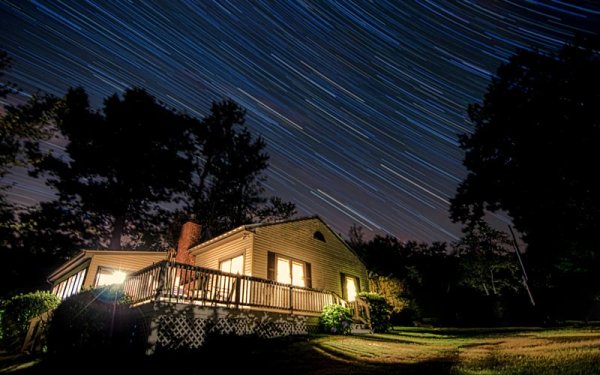
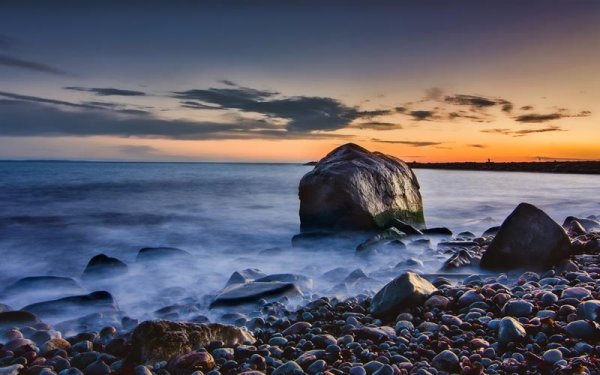
All in all I think it’s a pretty well rounded kit for someone who spends his weekends hiking through forests taking photos. Obviously there’s a lot more that I could add to the collection, and I plan to do just that when I have more money to invest into it. Currently on my ‘next to buy’ list is a macro lens and then it might be time to upgrade the body.
So that’s my bag – what do you think about it and feel free to share your own in the comments below.
The post A Look Inside the Bag of a Hobby Photographer on a Budget by John Davenport appeared first on Digital Photography School.
-
A first look at the Sony Alpha 7S 12MP full frame with 4K output

Sony has just announced a 12MP full frame addition to its Alpha 7 series, designed to output 4K footage over HDMI. We’ve just got back from Sony’s press conference at the NAB show in Las Vegas, where we got a chance to see the camera. We hope to get more hands-on in the coming days, but for now, here’s some more details of the Sony Alpha 7S.
-
How to Apply the Look of Hand Coloring in Lightroom
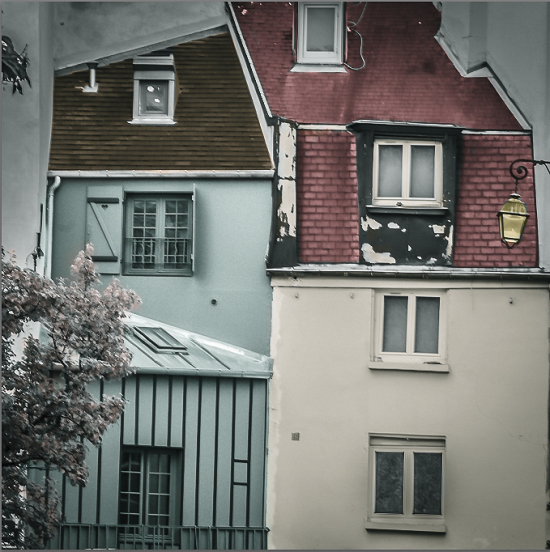
Give a photo the look of a hand coloring in Lightroom
Before there were color photos there were black and white photos, colored by hand using paints or dyes. Today, courtesy of any good photo-editing program, you can apply your own hand coloring effect to your photos.
Here’s how to apply the look of hand coloring in Lightroom.
To get started, open the image in the Lightroom Develop module. You will want to make the usual basic edits to the image so it shows a good tonal range and contrast.
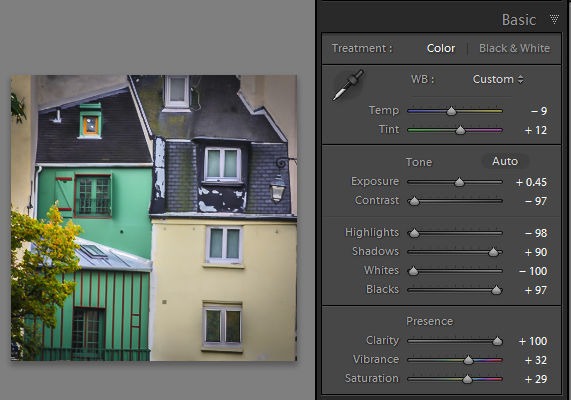
Before colorizing the image, make sure to adjust the tonal range and contrast
Then convert the image to a black and white by clicking B&W panel and adjust how the underlying colors in the image are converted to black and white using the sliders. Lighter areas will show the color better and darker areas will show a more subtle tint.
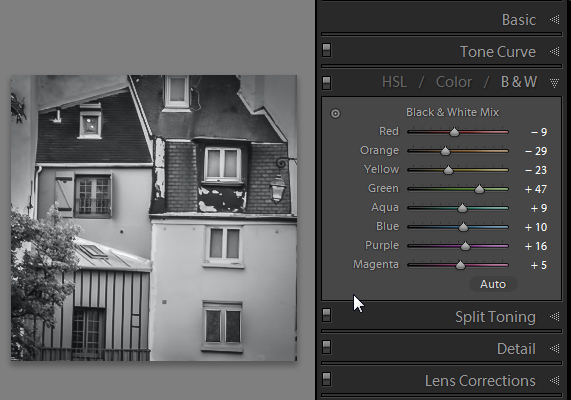
Use the B&W panel to create a grayscale or monochromatic image
When you’re ready to add color to the image, click the Adjustment Brush and return all the sliders to zero by double clicking on the word Effect at the top of the panel (circle in red below).
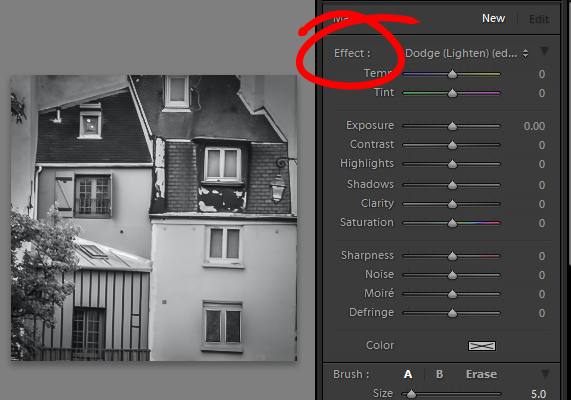
Double click Effect to reset all the Adjustment Brush sliders
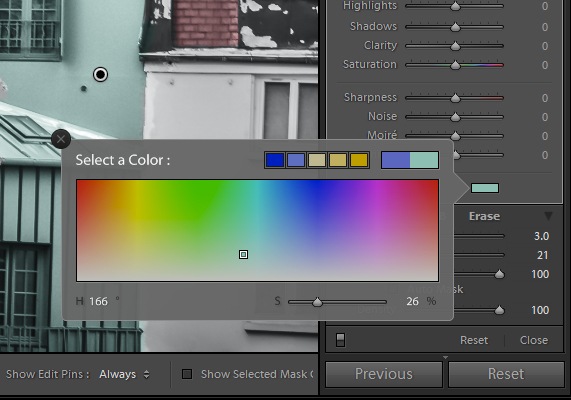
Click on the color sampler and choose a color to use.
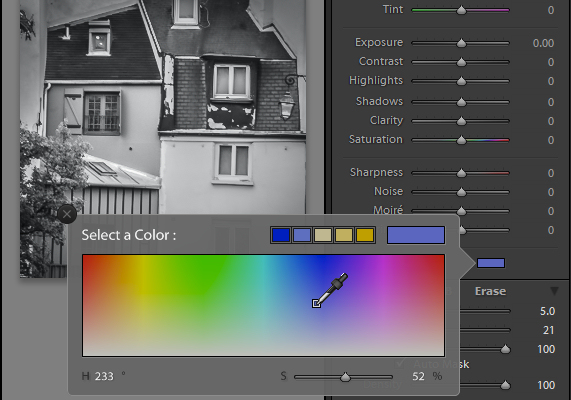
Select a color to tint the image with from the Color selector as shown here
Now click on the area that you want to recolor to set an Edit Point. Paint over the area to apply the color to it. As you paint with the Adjustment Brush a layer of partially opaque color is applied to the image.
Select the Auto Mask checkbox if you are working on an area of the image that has distinct edges. Doing this makes it easier to limit the painting to only the desired area. The roof tops and buildings here are good examples of areas with distinct edges.
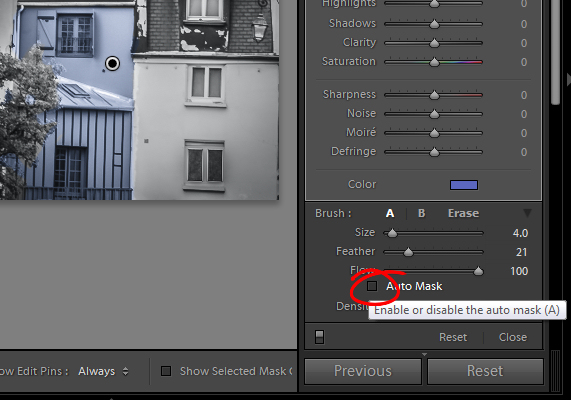
Selecting Auto Mask helps paint in areas with defined edges (stay within the “lines”)
When painting an area that is less defined, disable the Auto Mask checkbox. The tree in this image has less defined edges so you should disable Auto Mask when coloring this area.
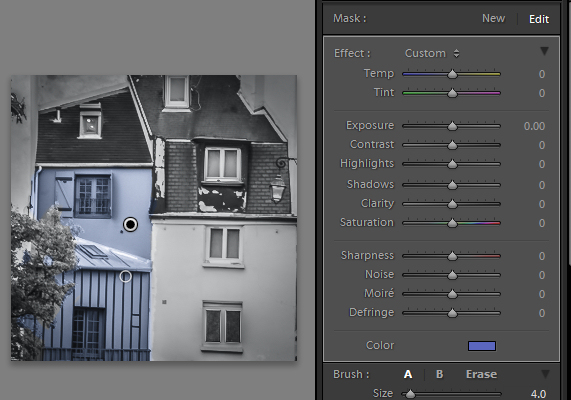
The buildings have defined edges so use Auto Mask when painting them. The tree does not, so disable Auto Mask when painting it.
If you mistakenly paint over an area and want to undo the painting click the Erase brush link or hold Alt to select Erase and paint to remove the mistake.
To zoom into the image press Z on the keyboard and click on the image to zoom in or out. To move the image hold the spacebar so the mouse pointer turns into a hand and drag on the image.
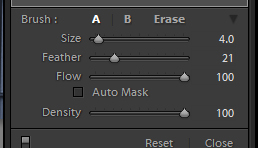
Size the brush using the Size slider
To resize the brush either use the [ and ] keys on the keyboard or adjust the size using the Size slider.
When you have finished working with the first color, click New to set a new Edit Point. Select a different Color and paint that onto the image.
Continue creating a new Edit Point for each color until the coloring is complete.
If desired, you can alter a color or adjust a painted area by selecting the Adjustment Brush and then click the Edit Pin for that adjustment. You can then change the color using the color picker.
Give a photo the look of a hand tinted image in Lightroom
Do you have some other tips:
If you have some other ways of doing this technique in Lightroom please share. Or share your images if you give it a try!
For more Lightroom tips and tutorials try these:
- Processing an Image in Lightroom 5 – a Video Tutorial
- 6 of Lightroom’s Hidden Treasures
- Why Lazy Photographers Should Use Lightroom Smart Collections
- 3 Uses for the Radial Filter Tool in Lightroom 5
- Lightroom 5 Tips – Hidden Gems
The post How to Apply the Look of Hand Coloring in Lightroom by Helen Bradley appeared first on Digital Photography School.
-
How to Apply the Look of Hand Coloring in Lightroom
Give a photo the look of a hand coloring in Lightroom
Before there were color photos there were black and white photos, colored by hand using paints or dyes. Today, courtesy of any good photo-editing program, you can apply your own hand coloring effect to your photos.
Here’s how to apply the look of hand coloring in Lightroom.
To get started, open the image in the Lightroom Develop module. You will want to make the usual basic edits to the image so it shows a good tonal range and contrast.
Before colorizing the image, make sure to adjust the tonal range and contrast
Then convert the image to a black and white by clicking B&W panel and adjust how the underlying colors in the image are converted to black and white using the sliders. Lighter areas will show the color better and darker areas will show a more subtle tint.
Use the B&W panel to create a grayscale or monochromatic image
When you’re ready to add color to the image, click the Adjustment Brush and return all the sliders to zero by double clicking on the word Effect at the top of the panel (circle in red below).
Double click Effect to reset all the Adjustment Brush sliders
Click on the color sampler and choose a color to use.
Select a color to tint the image with from the Color selector as shown here
Now click on the area that you want to recolor to set an Edit Point. Paint over the area to apply the color to it. As you paint with the Adjustment Brush a layer of partially opaque color is applied to the image.
Select the Auto Mask checkbox if you are working on an area of the image that has distinct edges. Doing this makes it easier to limit the painting to only the desired area. The roof tops and buildings here are good examples of areas with distinct edges.
Selecting Auto Mask helps paint in areas with defined edges (stay within the “lines”)
When painting an area that is less defined, disable the Auto Mask checkbox. The tree in this image has less defined edges so you should disable Auto Mask when coloring this area.
The buildings have defined edges so use Auto Mask when painting them. The tree does not, so disable Auto Mask when painting it.
If you mistakenly paint over an area and want to undo the painting click the Erase brush link or hold Alt to select Erase and paint to remove the mistake.
To zoom into the image press Z on the keyboard and click on the image to zoom in or out. To move the image hold the spacebar so the mouse pointer turns into a hand and drag on the image.
Size the brush using the Size slider
To resize the brush either use the [ and ] keys on the keyboard or adjust the size using the Size slider.
When you have finished working with the first color, click New to set a new Edit Point. Select a different Color and paint that onto the image.
Continue creating a new Edit Point for each color until the coloring is complete.
If desired, you can alter a color or adjust a painted area by selecting the Adjustment Brush and then click the Edit Pin for that adjustment. You can then change the color using the color picker.
Give a photo the look of a hand tinted image in Lightroom
Do you have some other tips:
If you have some other ways of doing this technique in Lightroom please share. Or share your images if you give it a try!
For more Lightroom tips and tutorials try these:
- Processing an Image in Lightroom 5 – a Video Tutorial
- 6 of Lightroom’s Hidden Treasures
- Why Lazy Photographers Should Use Lightroom Smart Collections
- 3 Uses for the Radial Filter Tool in Lightroom 5
- Lightroom 5 Tips – Hidden Gems
The post How to Apply the Look of Hand Coloring in Lightroom by Helen Bradley appeared first on Digital Photography School.
-
Kodak reborn: A look at JK Imaging’s 2014 lineup

Kodak famously failed to adapt to the transition from film to digital photography, and finally stopped making digital cameras in early 2012. Now the famous old brand has been resurrected by JK Imaging Ltd, which is producing cameras in partnership with Asia Optical. We got a quick look at some of the 2014 product portfolio earlier this year at CES but this week we had a more detailed briefing at a European press event. Click through to take a closer look.