RSS
 

Posts Tagged ‘LOOK’

How To Retouch Skin And Still Look Natural

20 Jul

Skin Retouching for Dummies


Hey FashionPhotographyBlog.com readers. Retouching… A LOT of people have asked for it so here it is:


When it comes to retouching skin, it’s really quite simple. In fact, you can do it in two simple steps. However, it’s also really quite time consuming. Take your time and don’t rush through it. Following these few simple steps will pay off in the end!


Whatever you do: DON’T BLUR YOUR SUBJECT’S SKIN! Skin is full of texture – keep it that way. Eliminating pores is an obvious sign of someone who doesn’t know what they’re doing. Study your face in the mirror. Texture changes as you move throughout the face and body, be conscious of this when retouching skin.


Don’t blur your subject’s skin! Skin is full of texture – Keep it that way #fpblog
Click To Tweet


(Remember: It always helps to have a good makeup artist and start with an even base of foundation. A good makeup artist can drastically cut down your time spent retouching skin in Photoshop.)


How To Retouch Skin


First things first, NEVER-EVER work directly on your background layer. This is an extremely bad habit most people have. This is considered destructive. Once you work directly on your background layer, there is no going back. Whereas, if you work on layers independent from your background layer, you can always delete them and start from scratch.


1. Select your image and open it up in Photoshop.


retouching_skin_original_imageOriginal, untouched image


2. Start by removing blemishes. To do this, I typically switch between the Healing Brush and the Clone Stamp.


The Healing Brush (band-aid tool) works by merging texture, color and luminosity from the sample area to the destination area.


The Clone Stamp (stamp) takes the information from the sample area and moves it to the destination area (no automatic blending in of texture, color and luminosity.)


retouching_skin_heal_patch_clone_stamp


Create a new, empty layer and at the top change the setting from “Current Layer” to “Current & Below.”


To remove blemishes and wrinkles, make the brush size just a bit larger than the size of the blemish. To select a source point, hold down “Option” (Mac) or “Alt” (PC) and click, then paint over the blemish to remove it. The healing brush tends to spread out a bit so it works best by using a harder brush rather than a softer brush.


BE CAREFUL* When healing, many people have a tendency to pull source areas from right next to the destination area. Doing this will create repetitions in texture. This is a major no-no. Repetitions in texture make it known that the image has been manipulated. It’s a sign of an amateur. If you see this, take a step back and try again. Are there naturally occurring patterns? Break them up. Keep your hand light – a heavy hand is also a sign of an amateur and leaves your subject looking unnatural. 


retouching_skin_after_healing_cloningAfter Healing/Cloning


2. Next up: Dodge and Burn! Dodging and Burning is the process of manipulating tone in order to even out blotches in skin. This is fantastic for (painstakingly) taking out goosebumps or evening out the blotches most people have on their skin.


Dodging and Burning is derived from a darkroom process. Dodging is lightning of tones and burning is the darkening of tones. By dodging and burning simultaneously, you’re able to even out tones and create smooth, perfect looking skin.


To begin, create a new layer set “mode” to “soft light” and select “fill with 50% grey.”


retouching skin photoshop new options

New layer options: Mode: Soft Light, Select “Fill with 50% grey”


Using the Dodge/Burn tool (J) you can choose which tones to work with – highlights, midtones or shadows. I typically start with midtones and then work my way around the image switching between midtones, highlights and shadows. Keep your exposure low. I usually work around 9%. Start small and you can gradually build your way up. 


Continuously switch between Dodge and Burn – an easy way to do this is to hold down the “Option” key. If you’re dodging midtones at an exposure of 9% and hold down the “option” key, you’ll burn midtones at 9% as long as the option key is held down. Essentially, it gives you the opposite tool of what you’re working on, however whatever settings you already have chosen (midtone/shadow/highlight and exposure) will remain the same.


*Dodging and Burning can be tricky! Until you train your eyes to see the difference between tones, it’s really easy to over-do your dodging and burning. In order to help you better see the differences in tone, you can create a guide to help train your eyes! To do this, create a “Hue/Saturation” adjustment layer and desaturate the image. Then, create a new “Curve” adjustment layer and make a deep curve. This will separate the tones and make it easier to see where you need to dodge and where you need to burn.


retouching_skin_photoshop_eye_guide_d&b_curveEye Guide: Deep Curve


retouching skin eye guide help before dodge and burnretouching_skin_eye_guide_help_before_dodge_and_burnWith Eye Guide on: Before Dodging and Burning. Notice the blotchy patches.


retouching_skin_eye_guide_help_after_dodge_and_burnWith Eye Guide on: After Dodging and Burning. Notice the smooth transitions between tones.


retouching_skin_eye_guide_help_after_dodging_and_burningAfter Dodging & Burning


Over-do it? That’s okay. Lower the opacity of your layer until it looks right. This is the beauty of working on a layer independent from your background layer.


3. After Healing, Dodging and Burning, now is time for color! ALWAYS be careful of where you place your color layers. For those just starting out, it’s best to do color last. If you manipulate color before you retouch, make sure your color layers stay on top of all the retouching layers you create.  IF YOU RETOUCH ON TOP OF COLOR MANIPULATIONS, YOU CAN’T UNDO THE COLOR. 


If you retouch on top of color manipulations, you can’t undo the color #fpblog
Click To Tweet


If you decide you don’t like the color and try to remove or change it, you’ll have to re-do all of your retouching work. Since the healing layer is set to “current and below” it is pulling color and texture from the layers below it (this would include your color layers). When you delete the color layer, the color remains in the areas which have been healed or cloned above it, leaving you with a mess that looks like this:


retouching_skin_on_top_color_manipulationsImage that has had retouching done on-top of color manipulations. The colour manipulations were removed resulting in an unusable mess!


So, those just starting out with this method of skin retouching, play it safe and work with color last.


retouching_final_skin_retouch_with_color_appliedFinal skin retouching with color applied


So – as a reminder, the order you retouch skin:

1. Heal/Clone – Remove wrinkles and blemishes

2. Dodge/Burn – Even out skin tone

3. Manipulate Color


Stay as organized as possible! It helps to make a group for retouching and a group for color to keep everything straight.

retouching_skin_layers_from_completed_retouched_imageLayers from completed retouched image (pictured above)


Good luck! Remember to take your time and practice. It takes a long time to be able to really see what you’re doing. Train your eye and you’ll be able to pick apart tones and see imperfections in skin more easily. Feel free to share your retouching here in the comments for feedback and critique!


And remember, if you have any questions, feel free to ask!


Alana


retouching_skin_animation


IMAGE SOURCE:

Feature image and images 1-12: courtesy of Alana Tyler Slutsky


Fashion Photography Blog

 
Comments Off on How To Retouch Skin And Still Look Natural

Posted in Uncategorized


Take a look around: traditional stills versus VR in Iceland

13 Jul

Introduction

Time to relax – does VR capture lower the barrier for creating memorable vacation content? Let’s take a look. Nikon D810 + Nikon AF-S 35mm F1.4G @ F2 | 1/8000 sec | ISO 200. Photo by Carey Rose

Back in April, two friends and I took a trip to Iceland, spending eight days circumnavigating the island via its famous ring road. Happily, around that time we were looking for some updated content for our review of the Nikon D810, so I took one along and wrote up a shooting experience.

In general, though, I enjoy documenting my travels even when I’m just traveling for fun. I find it to be a nice creative recharge, simply photographing for myself, in my style, with my choice of equipment. Of course, the D810 I borrowed wasn’t my personal equipment, but it was near-ideal for the sorts of situations I found myself in (plus, handling-wise, it isn’t quite so different from the D700 I was originally planning on bringing).

But now we’ve got VR technology beginning to make waves in the consumer electronics industry. What’s more, capture devices are getting more accessible: the Ricoh Theta S retails for just $ 349, making it a cheaper proposition than most DSLRs, as well as my secondhand X100 and Ricoh GR, which are my usual go-to cameras for casual photography.

The Ricoh Theta S carries an MSRP of $ 349, and offers full 360 stills and video capture as well as smartphone integration.

At its core, the act of taking a photograph requires some translation of the 360-degree setting in which the photographer stands into a two-dimensional window, for viewing on the web or in print. But 360-degree VR capture changes that. When you’re literally just capturing the entirety of a scene around you, is there value in it for other viewers? When you’ve removed one of the most basic creative tenets of capturing a photograph, what are you left with?

During our time in Iceland, my friends and I were lucky enough to have the opportunity to borrow a Ricoh Theta S as well. Without any prior experience, we tried to use it as we did our DSLRs – to see if and how it could offer value to us above and beyond our traditional camera kits.

Click-and-drag on a desktop or laptop to view the 360 footage. All ‘traditional’ photographs by Carey Rose, and all Theta S 360 images by Jordan Stead.

360-degree viewing methods

Spoiler alert – when viewing the Theta S footage on a 2D viewing device, such as a laptop or smartphone, I find the results somewhat underwhelming. And throughout this article, you will, of course, notice that the files from the Ricoh are a little low-res, and lack some ‘pop’ that you can see in files from the D810. This shouldn’t really be a surprise given the dramatic differences in hardware, so I’ll be focusing on the viewing experience concerning the 360-stills rather than outright image quality.

Here’s a collection of stills captured on a D810 from a black sand beach outside Vik, in southern Iceland.

The top two images are shot with a 35mm prime, and the bottom two with an 80-200mm F2.8 zoom. Now, as I alluded to in my shooting experience, these may not be your standard picture-perfect postcard images from this setting. But that’s okay, because that’s not generally how I shoot when I’m shooting for myself. I like to use several different photos to focus on several different aspects of a scene, as opposed to shooting wider-angle ‘overall’ photos that get more of a sense of place in a single image. Something approaching the latter is what you get when you use the Theta S. 

I find viewing the 360 as you see it above in a web browser or on a mobile phone to be somewhat ‘distant.’ The distortion is strong, and therefore distorts the sense of place, even though you can see everything in the scene. Everything also feels very far away, which ties in with an overall sense of detachment I feel looking at it, even though I know that I’m just a little ways down the beach in the image. You can zoom into the 360 image to reduce the distortion somewhat, but then the experience becomes even less immersive.

The overall feeling I get is of a person quickly taking an eye-level wide-angle photograph of something in front of them (not a criticism of my friend Jordan who was shooting with the Theta – the 360’s I took on this trip also had the same feel). Also, if you happen to view it on a phone, by default you ‘look’ around the scene by reorienting your phone in 3D space, which makes you look very silly if you are looking at it in public.

But then I looked at it through a Galaxy Gear VR headset, and everything changed.

Articles: Digital Photography Review (dpreview.com)

 
Comments Off on Take a look around: traditional stills versus VR in Iceland

Posted in Uncategorized


Dodging, burning… microwaving? A look inside Ansel Adams’ darkroom

09 Jul

In a recent interview with Marc Silber of Advancing Your Photography, Ansel Adams’ son Michael gives a tour of his father’s darkroom.

The basics are all there, but by and large, they were designed by Adams for the space he was in. Sure, the dodge-and-burn stick is literally a stick with some cardboard taped to it, but the enlarger and wall mount are both on a custom-built track, and can be moved independently toward or away from each other depending on Adams’ needs. The light source in the enlarger is actually 30 individual light sources, each with its own switch for the utmost control over a negative’s illumination.

My favorite part? When Michael details how his father tested exposures with a new image. It’s pretty standard up until the end, when he says that Adams would routinely microwave the test print – it would dry faster that way, and the best way to ascertain the correct exposure is with a dry print. The more you know!

It’s a fascinating look back into the world of film and physical prints, and a reminder that creativity and control don’t necessarily require the fanciest equipment money can buy. 

Articles: Digital Photography Review (dpreview.com)

 
Comments Off on Dodging, burning… microwaving? A look inside Ansel Adams’ darkroom

Posted in Uncategorized


Mystery science theater: A look inside the Samsung NX3000

19 Jun

A peek inside the Samsung NX3000

When it was introduced in May 2014, the Samsung NX3000 didn’t exactly make waves in the camera industry. But it did provide an attractive 20MP sensor, articulated 3″ LCD and plenty of connectivity for a reasonable $ 520 all wrapped up in a super slim rangefinder-style ILC. Being curious about these kinds of things, we wanted to see how Samsung managed to wedge all of that tech into such a slender frame, and thanks to iFixit we can sit back at a safe distance and see how it’s made.

A peek inside the Samsung NX3000

Before proceeding with the disassembly, the camera battery must be taken out.

A peek inside the Samsung NX3000

If iFixit’s disassembly guides have taught us anything, it’s that cameras are held together with a metric ton of tiny screws. Not surprisingly, there are considerably fewer on the NX3000. Disassembly of the lens mount starts with the removal of four 7.3mm Phillips screws.

A peek inside the Samsung NX3000

With a few screws on the bottom, sides and hotshoe removed, the back panel can be eased away from the body…

A peek inside the Samsung NX3000

…And with a ribbon cable disconnected, the panel can be completely removed to reveal a cool blue motherboard.

A peek inside the Samsung NX3000

A pair of tweezers can be used to pluck the tripod mount right out of the camera.

A peek inside the Samsung NX3000

There are several ribbon cables to be removed before the sensor is free, but we think this is the coolest looking one.

A peek inside the Samsung NX3000

…And here’s the sensor module.

A peek inside the Samsung NX3000

With a couple more ribbon cables removed, the motherboard is ready to go too.

A peek inside the Samsung NX3000

The top panel can be freed with only a few more pieces to go.

A peek inside the Samsung NX3000

The button panel is one of the last pieces to be removed from the shell of the camera, also a striking blue color.

A peek inside the Samsung NX3000

And there you have it, the Samsung NX3000 inside and out.

Articles: Digital Photography Review (dpreview.com)

 
Comments Off on Mystery science theater: A look inside the Samsung NX3000

Posted in Uncategorized


iFixit takes a look inside the Olympus PEN E-PL7

11 Jun

Inside the Olympus PEN E-PL7

The Olympus PEN E-PL7, like its Micro Four Thirds peers, is a pretty impressive little piece of engineering. It houses a 16MP Four Thirds sensor and a 3″ LCD that flips up 180-degrees. It accepts Micro Four Thirds lenses and ships with a pocket-sized external flash. Being curious types of people, we wanted to know how Olympus squeezes everything into a camera of the E-PL7’s size. Thankfully, there’s iFixit. Their disassembly guide gives an up-close look at what’s inside the camera – and you don’t have to void your warranty in the process.
Inside the Olympus PEN E-PL7

This disassembly starts the way so many projects do: with a screwdriver. Screws are removed from the bottom plate and sides of the camera.
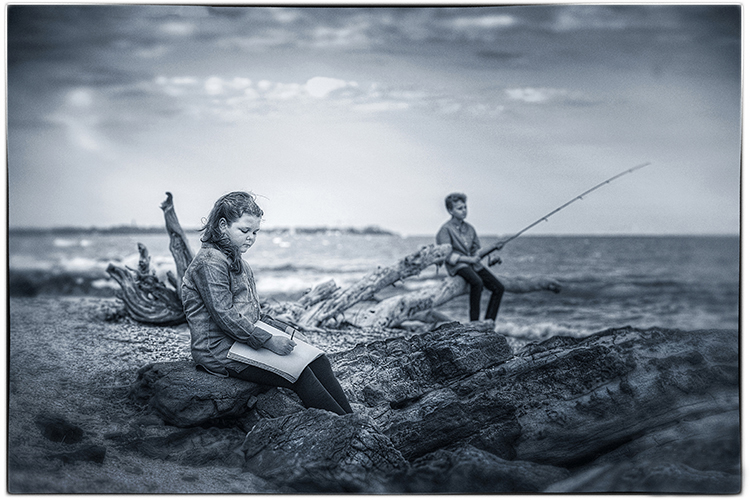
Image via iFixit

Inside the Olympus PEN E-PL7

With some screws removed from the lens mount, this inner ring is revealed and carefully removed.

Image via iFixit

Inside the Olympus PEN E-PL7

With even more screws gone a pair of tiny springs can be taken out of the mount.

Image via iFixit

Inside the Olympus PEN E-PL7

Removing even more screws makes it possible to gently pull the chassis apart, but not quite all the way with a ribbon cable connecting the two pieces. 

Image via iFixit

Inside the Olympus PEN E-PL7

A camera divided. Highlighted in red is the ZIF connector keeping the ribbon cable attached to the motherboard.

Image via iFixit

Inside the Olympus PEN E-PL7

With the cable disconnected, the camera can be handled one half at a time.

Image via iFixit

Inside the Olympus PEN E-PL7

Here’s another look at the motherboard, with even more ribbon cables attached.

Image via iFixit

Inside the Olympus PEN E-PL7

Up top, the plate that holds the mode dial and shutter release can be removed once one more screw is out of the way. 

Image via iFixit

Inside the Olympus PEN E-PL7

…And with some ribbon cables disconnected, the sensor comes free of the camera body too.

Image via iFixit

Inside the Olympus PEN E-PL7

 E-PL7’s 16MP sensor lies 

Here’s a front view of the E-PL7’s 16MP sensor. 

Image via iFixit

Inside the Olympus PEN E-PL7

The camera is looking quite empty at this point. Here’s a sense of how small that motherboard is.

Image via iFixit

Inside the Olympus PEN E-PL7

…And with a few last cables disconnected and screws removed, the E-PL7 disassembly is complete.

Image via iFixit

Articles: Digital Photography Review (dpreview.com)

 
Comments Off on iFixit takes a look inside the Olympus PEN E-PL7

Posted in Uncategorized


Take a closer look inside Canon’s impressive EF 200-400mm F4L IS

11 Jun

Canon has posted a video showing its massive EF 200-400mm F4L IS USM Extender 1.4 X reduced to its component parts.

The Canon 200-400mm is an impressive lens. This hefty telephoto uses no fewer than 33 elements arranged in 24 groups, including Fluorite and Ultra-Low Dispersion glass, and features a built-in 1.4X teleconverter. Canon’s stop-motion video is rather charming, and makes a nice change from the computer-generated exploded imagery that we’re used to seeing. 

Articles: Digital Photography Review (dpreview.com)

 
Comments Off on Take a closer look inside Canon’s impressive EF 200-400mm F4L IS

Posted in Uncategorized


4 Tips for Pre-Visualizing – Look Before You Shoot

11 May

For a limited time only at Snapndeals, May 10-24th only get 33% OFF Timeless Portraits & Natural Light Black & White Portraiture, a 2-eBook Bundle by Wayne Radford.

Pre-visualizing is an art form, that I believe, is not taught enough these days. It is the foundation for an artist or photographer to establish lighting, background, foreground elements, composition, and harmony. You need to establish all this before lifting a camera to your eye. Let’s look at some techniques and tips for pre-visualizing.

1 – BACKGROUND

Are there any distracting elements behind the subject that draw your eye away, e.g., bright hotspots such as sun coming through trees, strong geometric shapes, or bright colours. If these are a problem, move the subject or camera position around to avoid or minimize their effect.

PHOTO 1

2 – FOREGROUND

Can you use any foreground elements to help create framing – examples would be rocks or foliage. Even getting down very low to blur the foreground will create a framing effect.

3 – COMPOSITION

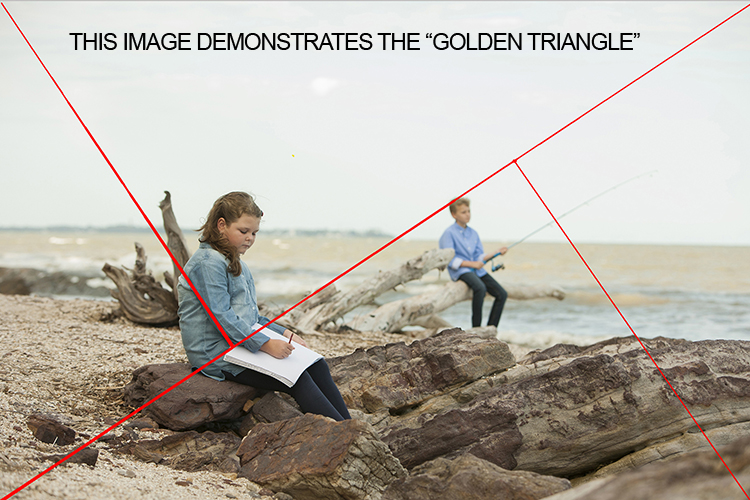
Look around for shapes and perspectives that create more interest and lead your viewer around the scene. Example: I like to use the Golden Triangle instead of the Rule of Thirds, so I’m looking for elements that balance with that in mind. There is a sample below and you can read: Divine Composition With Fibonacci’s Ratio (The Rule of Thirds on Steroids) for more comprehensive information. Of course, it’s built-in as part of the cropping tools of Photoshop CS6 (and LR) and later, but I suggest learning to see this way before post-production adjustments.

4 – HARMONY

This one is the most overlooked aspects of composition. I want my subject’s face to stand out, so I generally choose backgrounds that are complimentary to their clothing for colour, and depth of tone for black and white. Also, try minimizing any additional colours in the background that clash with the subject. Yes it sounds complex, so I’ve added some study examples to make it easier. (clothing colour selection is also important, but that’s a subject of its own for another day). Next time you watch a movie, look at the colour coordination of clothing and scenes.

PHOTO 1

I chose an old painted door as the background for these two girls as it had the same hues (colour tones) as their clothing and skin. Look at your subject’s clothing colours, and then find a background tone that will compliment it. This will make them stand out from the background and not create a distracting colour contrast. An example would be if the background were green or blue.

The simpler, less cluttered backgrounds work best, especially when the colour tones harmonize. Keep the subject at least a meter or more away from the background, and use a wide aperture of f/1.2-2.8 to create a shallow depth of field.

PHOTO 2

Be careful that the subject doesn’t blend into the background. In this study I first looked for the light direction, then looked at the background colour and tone. It was a yellow painted wall which normally would record brighter than his face, but as it was undercover in shade, it rendered quite dark. Looking at his clothing colours I knew that there would be separation that could be controlled in Photoshop without any problem, if necessary. Again distance from subject to background, combined with an f/2.8 aperture setting, creates a lot of background blur which allows the subject to pop. Note, there are no distracting background elements.

PHOTO 3

When searching for suitable locations, you may find lots of distracting objects and textures that will make your image busy. This is when pre-visualizing where the camera and subject should be placed, and what you want to be included in the background should be used.

In this image of the two boys, I noted that the trees and shed were too cluttered and distracting. By placing the boys a good distance from the shed and trees, and again setting the lens to create a shallow depth of field, (f/2.8 70-200mm lens) I was able to achieve good subject to background separation. The bikes were important to the story, so I placed them in the background to give the boys a direction to walk. Also, note the rim lighting on their hair gives extra separation.

PHOTO 4

Pre- visualizing this scene is an easy one for a trained eye – find the light, look at the background. Here you can see the light wrapping around the columns, creating graduated shadows, and a diminishing background that gives depth to the overall image. In this study, the light is cross-lighting them at 90 degrees to their bodies, so turning their faces to the light creates modelling on their faces, which adds shape to their faces.

The background almost has a 3D look in the way it diminishes. Column over column, and arches layering over each other, creates great depth.

The following study is an example of how I try to pre-visualize a portrait session

When I found this beach location (below), I was overloaded with ideas on how I was going to use it. This is the opposite to writers block, where you become void of ideas. Instead, you can be over excited with creative ideas and forget the basics that make a portrait work.

The first consideration was the direction and quality of light. In this study the open sky (right hand side of the photo, over the ocean) was the main light. Note the sun was setting over a hill behind the children, so I am using the soft light provided by the open sky. While it is a fairly flat light and very soft, it provides enough cross lighting to enhance texture and shape in the clothing and rocks. Notice the small specular light, rim lighting her legs, and the shadows in her clothing. These are helpful indicators to the direction of light when it is flat.

PHOTO 5

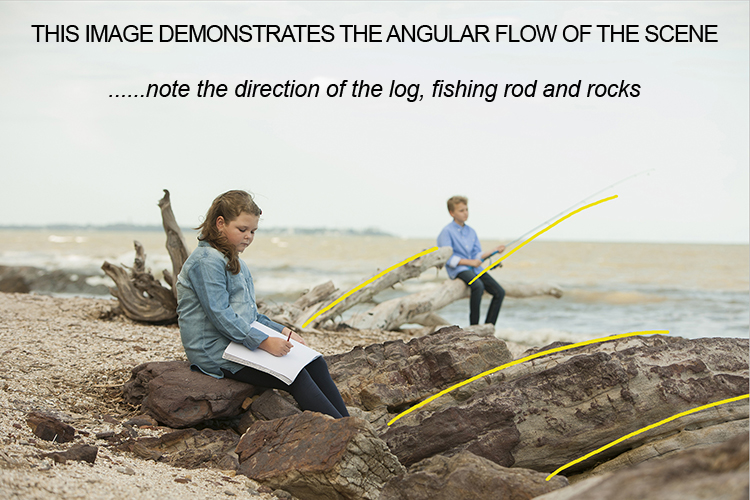
The next consideration is the placement of the subjects in relationship to the light, and the natural props such as the rocks and driftwood. Those props are the things that get photographers excited, the challenge is how to use them creatively. Remember this is all done before lifting the camera to your eye – the art of pre-visualizing. I also noticed the angular shape in the rocks curving towards the ocean, this matched the angle of the driftwood.

PHOTO 6

The girl was placed on the most distant rock (also the flattest one for comfort) so the light was coming from her front left-hand side, creating some modelling to her clothes and face. It also allowed the image to read from left to right.

The boy was placed on the driftwood, with his rod angled to match the driftwood branch beside him. It’s also a similar angle to the diagonal line running from top right to bottom left in the image. My only disappointment was the horizon line running through the girl’s head. It wasn’t possible to move the camera any lower, and raising the camera higher would have placed the boy’s head near the horizon line. Moving the girl wasn’t an option either due to the awkward shapes of the rocks. I was happy to leave it that way, as the shallow depth of field had created enough background blur to allow her to separate from the background.

PHOTO 7

Canon 5D + 70-200 f/2.8 IS lens – F4 @1/800th – ISO 400
Hand-held at ground level
Photoshop CS6 – Alien Skin Exposure 7

When you learn the art of pre-visualizing, you will look at your work with greater satisfaction. You will know that you alone created the image to the best of your ability, using all the artistry skills of light and composition before even raising the camera to your eye. Not everything is created in the computer, I believe pre-visualizing is another tool in the journey of craftsmanship.

For a limited time only at Snapndeals, May 10-24th only get 33% OFF Timeless Portraits & Natural Light Black & White Portraiture, a 2-eBook Bundle by Wayne Radford.

googletag.cmd.push(function() {
tablet_slots.push( googletag.defineSlot( “/1005424/_dPSv4_tab-all-article-bottom_(300×250)”, [300, 250], “pb-ad-78623” ).addService( googletag.pubads() ) ); } );

googletag.cmd.push(function() {
mobile_slots.push( googletag.defineSlot( “/1005424/_dPSv4_mob-all-article-bottom_(300×250)”, [300, 250], “pb-ad-78158” ).addService( googletag.pubads() ) ); } );

The post 4 Tips for Pre-Visualizing – Look Before You Shoot by Wayne Radford appeared first on Digital Photography School.


Digital Photography School

 
Comments Off on 4 Tips for Pre-Visualizing – Look Before You Shoot

Posted in Photography


Under the hood: A look inside the Panasonic Lumix DMC-LX100

08 May

A look inside the Panasonic Lumix DMC-LX100

Panasonic’s LX100 is an ambitious little camera. It steps right over the 1″ sensor compact class with a 16MP Four Thirds sensor (though only 12.7MP is truly available), a 24-75mm equiv. F1.7-2.8 lens and 4K video recording. It all added up to a very favorable score and a gold award when we reviewed the camera. Now, thanks to the folks at iFixit, we can take a look at what’s inside the LX100 without ever picking up a screwdriver. 

A look inside the Panasonic Lumix DMC-LX100

Removing the battery is a first and very important step. 

A look inside the Panasonic Lumix DMC-LX100

After removing plenty of screws from the body of the camera, removing this metal piece from the hotshoe reveals yet another set of screws.

A look inside the Panasonic Lumix DMC-LX100

A spudger is the best tool for this job – with all of the screws out of the way the back of the chassis can be pried away from the camera body.

A look inside the Panasonic Lumix DMC-LX100

Here’s a view of the back panel with the cover out of the way. The motherboard lies just below the buttons seen here.

A look inside the Panasonic Lumix DMC-LX100

To get to the motherboard, the LCD needs to be removed. Here, the silver metal backing is pried away with a spudger. A ribbon cable also connects the screen to the rest of the device and is carefully removed.

A look inside the Panasonic Lumix DMC-LX100

With the LCD gone, the motherboard and its related ribbon cables are visible.

A look inside the Panasonic Lumix DMC-LX100

A couple more screws out of the way and the EVF pops right out. In that housing is an XGA 1024×768 panel.

A look inside the Panasonic Lumix DMC-LX100

Next goes the motherboard, which is gently pried back and pulled away from the camera.

A look inside the Panasonic Lumix DMC-LX100

Next to go is this copper plate. On the other side we’ll find the lens, but only after the next batch of screws is removed. 

A look inside the Panasonic Lumix DMC-LX100

No fewer than four different sized screws, from 4mm down to 3.1mm are used here. 

A look inside the Panasonic Lumix DMC-LX100

With the last (well, almost last) screws out of the way the lens casing is free…

A look inside the Panasonic Lumix DMC-LX100

…and then the lens can be removed as well. 

A look inside the Panasonic Lumix DMC-LX100

The top panel is ready to go too…

A look inside the Panasonic Lumix DMC-LX100

…and we can see what goes on under the dials and shutter release up there.

A look inside the Panasonic Lumix DMC-LX100

And there you have it, the LX100 in all disassembled. 

Articles: Digital Photography Review (dpreview.com)

 
Comments Off on Under the hood: A look inside the Panasonic Lumix DMC-LX100

Posted in Uncategorized


24 Reflective Mirror Images to Make You Look Twice

06 May

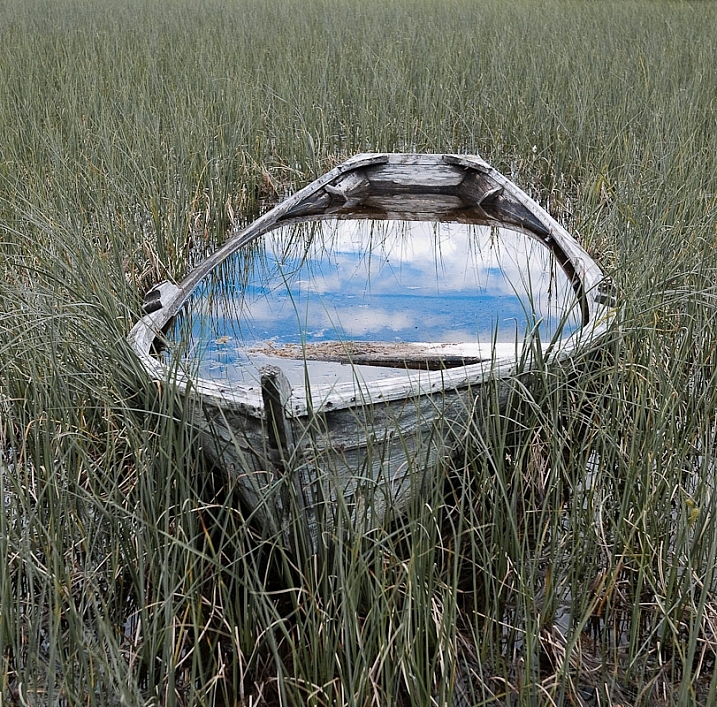
Kids love a good puddle to splash in – photographers love them for a different reason – reflections.

In this collection of images have a look at how these photographers captured reflective surfaces in creative ways:

Darlene Hildebrandt

By Darlene Hildebrandt

Nick Kenrick

By Nick Kenrick

Theophilos Papadopoulos

By Theophilos Papadopoulos

Karol Franks

By Karol Franks

Jos Van Wunnik

By Jos van Wunnik

Highlights6

By highlights6

ANDY ARCIGA ( Www.arcigaandy.com )

By ANDY ARCIGA ( www.arcigaandy.com )

Jon Wallach

By Jon Wallach

Miroslav Petrasko

By Miroslav Petrasko

?Jin Mikami?

By ?Jin Mikami?

Mario

By Mario

Darlene Hildebrandt

By Darlene Hildebrandt

Stefano Corso

By Stefano Corso

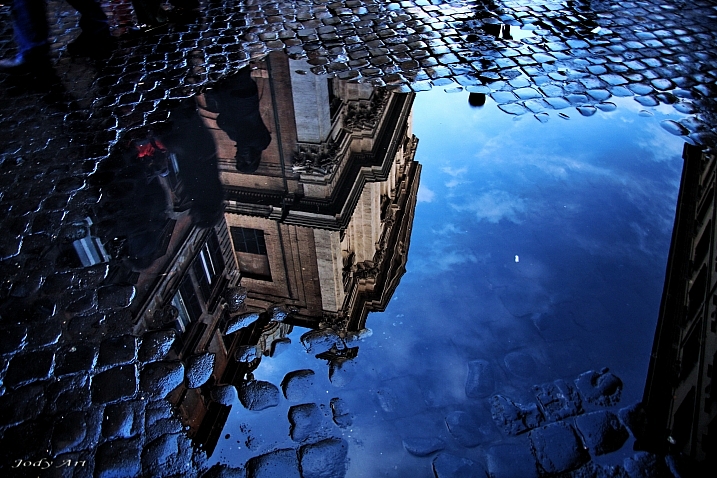
Jody Sticca

By Jody Sticca

Loïc Lagarde

By Loïc Lagarde

Neil Howard

By Neil Howard

Davide D'Amico

By Davide D’Amico

Thomas Hawk

By Thomas Hawk

?ethan

By ?ethan

Brett Kiger

By Brett Kiger

Phil Whitehouse

By Phil Whitehouse

Thomas Hawk

By Thomas Hawk

Roman Kruglov

By Roman Kruglov

Moniek Van Rijbroek

By Moniek van Rijbroek

googletag.cmd.push(function() {
tablet_slots.push( googletag.defineSlot( “/1005424/_dPSv4_tab-all-article-bottom_(300×250)”, [300, 250], “pb-ad-78623” ).addService( googletag.pubads() ) ); } );

googletag.cmd.push(function() {
mobile_slots.push( googletag.defineSlot( “/1005424/_dPSv4_mob-all-article-bottom_(300×250)”, [300, 250], “pb-ad-78158” ).addService( googletag.pubads() ) ); } );

The post 24 Reflective Mirror Images to Make You Look Twice by Darlene Hildebrandt appeared first on Digital Photography School.


Digital Photography School

 
Comments Off on 24 Reflective Mirror Images to Make You Look Twice

Posted in Photography


First Look and Field Test of the Canon 80D

01 May

Recently Canon released their latest upgrade in the EOS line, the 80D. It’s a direct update of its predecessor the 70D but it competes well in many areas when compared to the older 5D Mark III, and the 7D Mark II bodies.

See what Chris and Jordan from The Camera Store think as they put the Canon 80D through various tests.

It has some great dynamic range, focus pull features while doing video, and a rotating tilting screen. The guys feel that the 80D is the best DSLR in the Canon range right now, and that it’s a step in the right direction for Canon.

What are your thoughts? Have you tried it out?

googletag.cmd.push(function() {
tablet_slots.push( googletag.defineSlot( “/1005424/_dPSv4_tab-all-article-bottom_(300×250)”, [300, 250], “pb-ad-78623” ).addService( googletag.pubads() ) ); } );

googletag.cmd.push(function() {
mobile_slots.push( googletag.defineSlot( “/1005424/_dPSv4_mob-all-article-bottom_(300×250)”, [300, 250], “pb-ad-78158” ).addService( googletag.pubads() ) ); } );

The post First Look and Field Test of the Canon 80D by Darlene Hildebrandt appeared first on Digital Photography School.


Digital Photography School

 
Comments Off on First Look and Field Test of the Canon 80D

Posted in Photography