RSS
 

Posts Tagged ‘lightroom’

DEAL: Phil Steele’s ‘Lightroom Made Easy’ Course at 33% Off

15 Mar

NewImageThe new deal over on SnapnDeals this week is one I know many dPS readers are going to enjoy – it’s 30% off Phil Steele’s Lightroom Made Easy Course – that’s just $ 33 (normally $ 47).

Phil’s videos have made regular appearances here on dPS and are always really popular and this course contains 24 videos with hours of great instruction on using Lightroom (it covers both Lightroom 3 and Lightroom 4).

If you’re new to Lightroom or feel overwhelmed by it – this course is for you!

Here’s what you’ll learn in the course:

Create Stunning Images

Make your photos “pop” like the shots you see in magazines.

Get More Done in less time

Dramatically increase your photography output—zipping through photo processing tasks in minutes that used to take hours or days.

Protect Your Copyrights

Automatically embed hidden data in your photos to protect your images from theft or misuse—and to guarantee you get paid.

Never Lose Another Photo

Get your photos organized—whether you have one hundred or 100,000—so that you’ll never lose another image again.

Retouch Portraits Like a Pro

Quickly and subtly retouch portraits to remove imperfections, enhance beauty, and keep clients coming back.

Create Instant Web Galleries

Display your photos for clients or the public in impressive, customized galleries on your own web site—with just a few clicks.

Remove Flaws and Defects

Remove unwanted objects, blemishes, or unsightly sensor dust from photos.

Share Photos Easily

Instantly upload your edited photos to social sharing sites like Flickr, Facebook, Picasa, and more.

Attract Search Engines

Tag your photos with keywords to lure Internet search engines and boost your sales.

Make Beautiful Slideshows

Quickly create stunning slideshows, with music, for friends, clients, or presentations.

Find the Right Photo When You Need It

Use ratings, labels, categories, keywords, and names to make it easy to always find your best shots, or those most suited to a particular job or client.

Do It All From One Easy Place

Easily handle your entire photography workflow all from one place, quickly and efficiently. Use my secret ninja tricks and techniques to boost your productivity even more!

This course is normally $ 47.00 USD but for the next 12 days Phil is offering it for just $ 33 along with a couple of great bonus videos.

Get full details and pick up your copy here.

Post originally from: Digital Photography Tips.

Check out our more Photography Tips at Photography Tips for Beginners, Portrait Photography Tips and Wedding Photography Tips.

DEAL: Phil Steele’s ‘Lightroom Made Easy’ Course at 33% Off


Digital Photography School

 
Comments Off on DEAL: Phil Steele’s ‘Lightroom Made Easy’ Course at 33% Off

Posted in Photography


Samsung UK to include Adobe Lightroom 4.4 with NX300 shipments

13 Mar

samsung_nx300.png

Samsung UK has announced it will include a copy of Adobe Lightroom 4.4 photo-editing software for free with its NX300 APS-C mirrorless camera shipments. Announced at the CES 2013 tradeshow,the 3D-capable camera is built around a 20MP sensor, 3.3″ OLED screen and built-in Wi-fi. We do not know whether this is a UK-only bundle, but we will update the story if more information becomes available.

News: Digital Photography Review (dpreview.com)

 
Comments Off on Samsung UK to include Adobe Lightroom 4.4 with NX300 shipments

Posted in Uncategorized


Quick Tip: Importing to Lightroom Made Easier

07 Mar

Introduction

This tutorial is from the Lightroom 4 Workshop Collection. Including 27 hours of A to Z Lightroom 4 education and the industry standard Lightroom 4 Preset System. DPS users can get 10% off by using the DPS10 coupon code upon checkout. Click the link above to learn more/purchase.

Overview

In this tutorial, we will give you a quick tip when importing image into Lightroom that will eliminate the need to search around for import and destination folders.

Step 1. Create Your Catalog

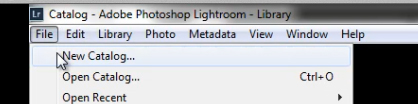
If you don’t already have a Lightroom catalog created, then let’s go ahead and create one now. Simply open Lightroom and go to File -> New Catalog.

file-new-catalog

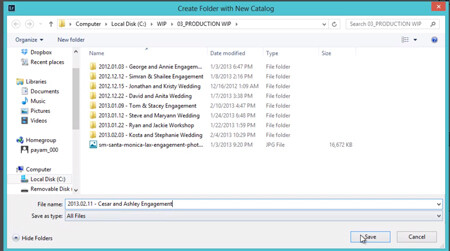
Give your Catalog a descriptive name and a destination folder of your choice. Remember to keep your naming conventions consistent to have an efficient and organized workflow. Our naming convention is as follows:

YEAR.MONTH.DAY – NAMES PHOTOGRAPHY TYPE

So, for this example we have the following:

2013.02.11 – Cesar and Ashley Engagement which is typed into the File name location shown in the image below.

name-catalog

After you hit “Save”, Lightroom will close and re-open with the New Catalog which is ready for images to be imported.

Step 2. Creating the “Folders”

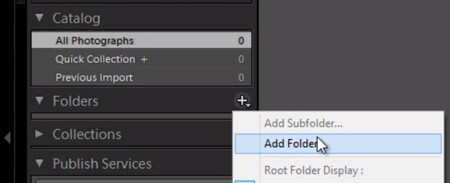
We will be directly importing the images into a folder on the left-side Panels called “Folders.” But, first we have to create a folder for the images to be imported into. On the Folders Panel, simply click the “+” icon to create a new folder as shown below.

add-folder

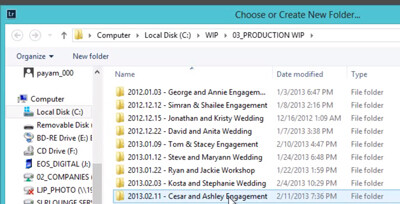
Now, select the same folder where we saved our catalog to create the folder where we want to place the original images. We do this to ensure that the images always move with the catalog if the catalog is ever transferred.

select-folder-engagement

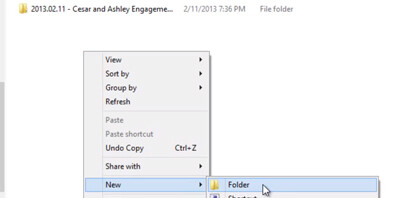
To create new Folder for your original images, right-click within the Folder content area and select “New Folder”. Remember, we are doing this all from the “Add Folder” dialogue in Lightroom, not in the Operating System.

new-folder-engagement

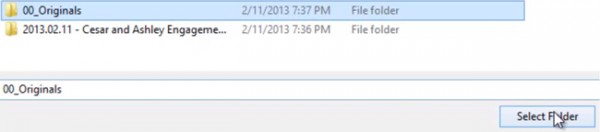
Type in “00_Originals” or the name of your choice for the Folder to contain your original images. Again, keep your naming conventions consistent for better organization. Then click “Select Folder”.

create-00-originals

Step 3. Importing Directly to Folders

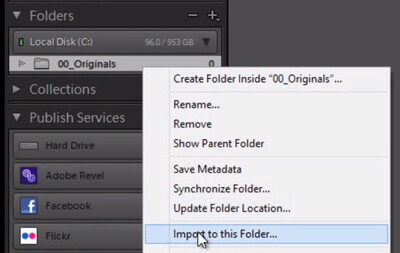
Now that we have our folder created. We have two options to import. Option number 1 is to Right-click on the Folder that shows up under the Folders Panel and select “Import to this Folder” as shown below.

right-click-import

This will pull up our Import Dialogue and automatically set the destination to the “00_Originals” Folder without having to manually select our destination as we normally would.

Workflow Tip: Apply a Workflow Preset on Import

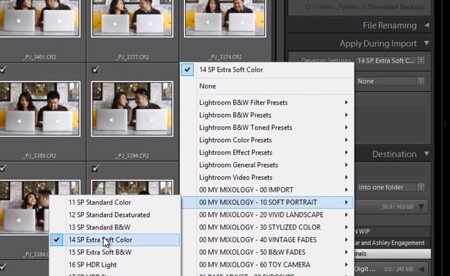
Before you begin the Import process, we always select an import preset that is most applicable to the type of images being imported. In our studio, we generally use the “Extra Soft Color” Preset for portrait sessions from the Lightroom 4 Preset System by SLR Lounge as shown below.

import-with-preset

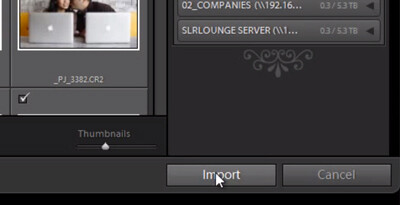
When you are finished, select “Import” located on the bottom-right in Lightroom.

FINAL-select-import

And that’s it! Hopefully this little quick tip on importing will help you to import images just a bit more efficiently.

Learn More with the Lightroom 4 Workshop Collection!

This was a sample tutorial from the Lightroom 4 Workshop Collection. A collection of nearly 30 hours of video education teaching everything from Lightroom basics to advanced raw processing techniques.

The LR4 Workshop Collection also includes the critically acclaimed Lightroom 4 Preset System which is designed to enable users to achieve virtually any look and effect within 3-5 simple clicks. From basic color correction, vintage fades, black & white effects, tilt-shift effects, faux HDR, retouching, detail enhancing, and so much more. Click the links above to learn more.

Post originally from: Digital Photography Tips.

Check out our more Photography Tips at Photography Tips for Beginners, Portrait Photography Tips and Wedding Photography Tips.

Quick Tip: Importing to Lightroom Made Easier


Digital Photography School

 
Comments Off on Quick Tip: Importing to Lightroom Made Easier

Posted in Photography


Adobe posts Lightroom 4.4 and ACR 7.4 release candidates

26 Feb

shared:AdobeLogo.png

Adobe has announced ‘release candidate’ versions of Lightroom 4.2 and Adobe Camera Raw 7.2. As usual, the latest near-complete versions add support for recent cameras. What makes this release especially significant, however, is improved support for Fujifilm’s X-Trans sensor models, including the X-Pro1 and X-E1. The Lightroom update also corrects a series of bugs present in the current version of the software. As usual, release candidates are considered well tested but not final.

News: Digital Photography Review (dpreview.com)

 
Comments Off on Adobe posts Lightroom 4.4 and ACR 7.4 release candidates

Posted in Uncategorized


Visual Supply Company releases Film 03 presets pack for Lightroom & ACR

13 Feb

VscoFilm_03LR4.png

Visual Supply Company has released the VSCO Film 03 camera profiles and film emulation preset pack for Adobe Lightroom 4 and Camera Raw 7. The software comes with customized camera profiles for Fujifilm, Canon and Nikon image files and allows native non-destructive editing of desired film effects within Lightroom and ACR. The latest version includes a toolkit to achieve an ‘authentic instant ?lm’ look. Version 03 is currently available for immediate download at a retail price of $ 119 (~ £75/ €90) from the company’s website.

News: Digital Photography Review (dpreview.com)

 
Comments Off on Visual Supply Company releases Film 03 presets pack for Lightroom & ACR

Posted in Uncategorized


Easy Blog Collages With MCP Action’s Lightroom Presets

12 Feb

Are you a fan of Lightroom presets?  There are so many Lighroom preset brands out there, but some of them stand above the rest.  MCP Actions is one of them, and recently they’ve released a fantastic set of presets with the purpose of giving photographers an simple way to create blog collages.

As you can see, without leaving Lightroom you’re able to organize and generate amazing blog collages using the new MCP Actions Lightroom presets.

Here is an example:

blog-collages-lightroom-presets

What do you think? Will you be picking up a copy?

Thanks for reading,
Scott

dslrBlog

 
Comments Off on Easy Blog Collages With MCP Action’s Lightroom Presets

Posted in Photography


How to Steal without Stealing: Hack Your Post-Processing With Lightroom Presets

07 Feb

There are only 7 basic notes in music. There are only three colors on a computer screen. So, digital photography should not be that difficult. But ok, forget it, we all know it is too good to be true. When all you have is a set of bricks, building a castle does not become easier. Enough metaphors for now – Continue Reading

The post How to Steal without Stealing: Hack Your Post-Processing With Lightroom Presets appeared first on Photodoto.


Photodoto

 
Comments Off on How to Steal without Stealing: Hack Your Post-Processing With Lightroom Presets

Posted in Photography


Raw Converter Showdown: Capture One Pro 7, DxO Optics Pro 8 and Lightroom 4

24 Jan

logo2.jpg

There’s no shortage of quality raw conversion options on the market, but there’s little consensus as to which software solution is the best choice. We’ve put three of the most popular cross-platform applications through a comprehensive comparison of performance, features and of course, image quality. Whether you’re new to raw processing or looking to make a switch from your current software, read our article to find out which one is right for you.

News: Digital Photography Review (dpreview.com)

 
Comments Off on Raw Converter Showdown: Capture One Pro 7, DxO Optics Pro 8 and Lightroom 4

Posted in Uncategorized


Create a Warm, Sunset Mood Image in Lightroom 4

22 Jan

Introduction

This tutorial is a demonstration of the SLR Lounge Lightroom 4 Preset System. With over 200 presets, the LR4 Preset System has been critically acclaimed as the most powerful and intuitive preset system available for Lightroom 4. DPS users can get 10% off by using the DPS10 coupon code upon checkout. Click the link above to learn more/purchase.

Overview

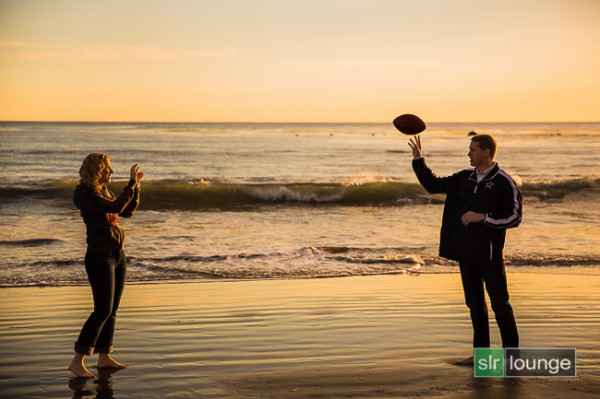
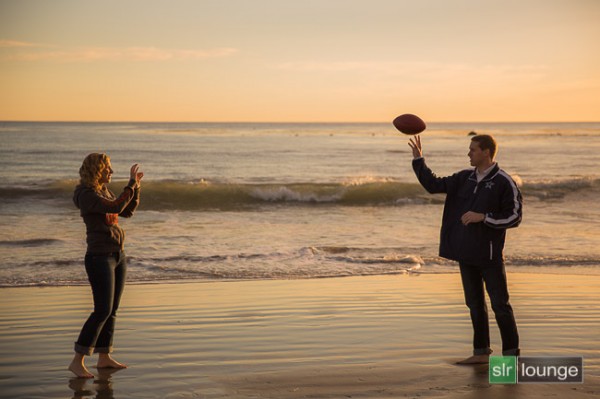
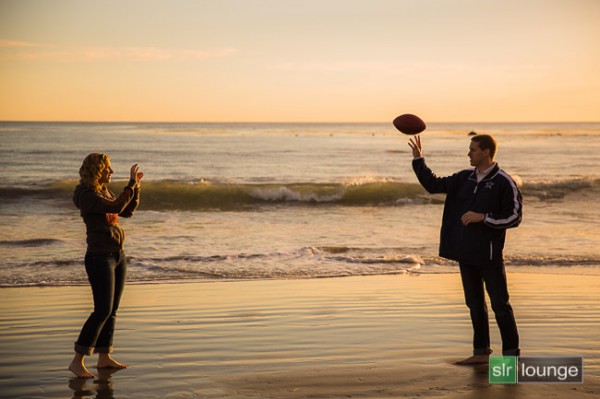
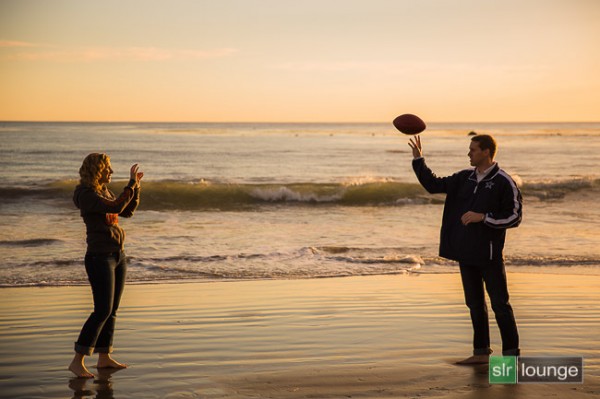
In this Lightroom 4 tutorial, we will show you how to create a warm, sunset-toned look in Lightroom 4. It is a great look that can be applied to a late afternoon outdoor images. I particularly dig this look on shots like this one at the beach. We will also correct for uneven exposure across the image that is caused by the directional lighting of the sun.

Before and After Image

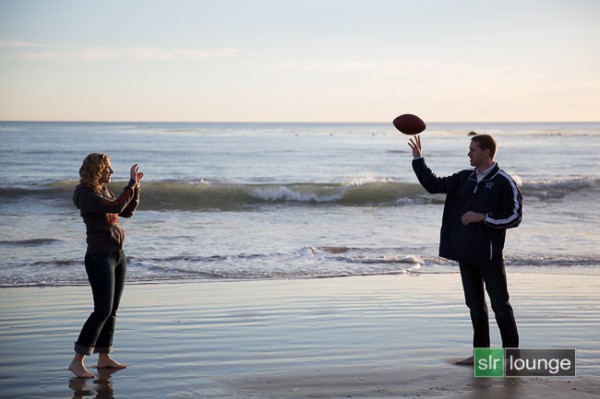
Before

After

Lightroom 4 Preset System Mixology

If you own the SLR Lounge Lightroom 4 Preset System, this effect can be achieved in 3 clicks as shown below. If you don’t own the preset system, please skip to Step 1 to learn how to do it manually.

Lightroom 4 Presets

00 MY MIXOLOGY – 10 SOFT PORTRAITS > 16 SP HDR Light
01 BASE ADJUST – 00 EXPOSURE > 04 Darken -0.5
01 BASE ADJUST – 40 SHADOWS BLACKS > 42 Heavy Brighten (+30, +60)

Warm up Temperature and increase the Magenta in Tint to your liking. To see all the tweaks and adjustments applied, please continue on.

Step 1. Applying our Basic Adjustments

This image from a recent engagement session was shot around 4pm late in December on one of our many SoCal beaches ;) . Although it was late afternoon, there were not a lot warm tones in the atmosphere, and the photo lacked dynamic range.

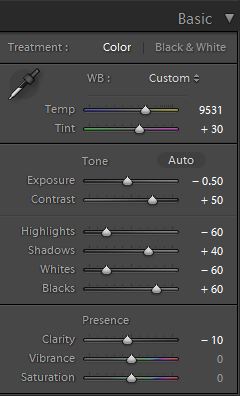
So in the Basic Adjustment Panel, let’s warm up the image by raising the Temperature to between 8000K to 10,000K. Additionally, we want to add some Magenta Tint in order to keep the image from looking too green. Without the pink/red tones that will be added from boosting Magenta tones, we end up with an image lacking the rich warmth we desire. This is the one of the advantages of shooting in RAW, you can change the color temperature of the image at will.

The background environment is also a little too bright and flat, and since we want a moodier shot, let’s lower the exposure by -0.50 stop and increase contrast by +50.

Next, let’s expand the dynamic range of the image by decreasing the Highlights and Whites by -60 while lifting the Shadows and Blacks by +40 and +60 respectively.

Finally, bring down the Clarity by -10. We will reintroduce Clarity with an adjustment brush to everything but the couple’s face, hair, hand, and feet.

The Basic Adjustment Panel and the image should look similar to below.

Step 2. Adding Additional Contrast via Curves

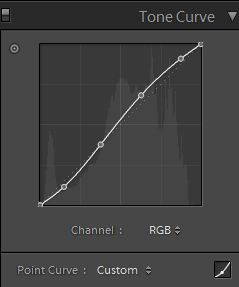
In addition to adding Contrast in the Basic Panel, let’s add a slight contrast-boosting “S” curve that pulls down the shadows a bit and boosts the highlights up a bit.

Step 3. Sharpening and Noise Reduction

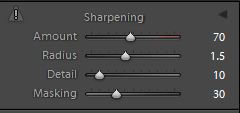
Normally, if you are using the SLR Lounge Preset System, standard Sharpening amounts are automatically applied. Here is what we typically apply to our image:

03b Sharpening

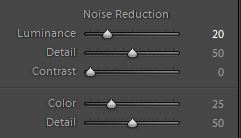
Because we boosted the dynamic range and pulled up the shadows, we do need to apply some Noise Reduction. We use this setting for Noise Reduction:

03c Noise Reduction

03 Sharpening and Noise Reduction

Step 4. Opening up the Borders with Vignetting

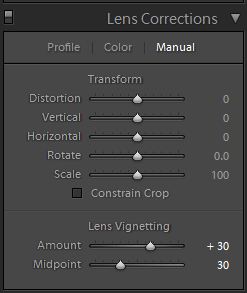
Finally, the brightness is not that even along the edges of the frame, so let’s add some Lens Vignetting at +30 Amount and +30 Midpoint to even out edge-to-edge brightness.

04b Lens Correction

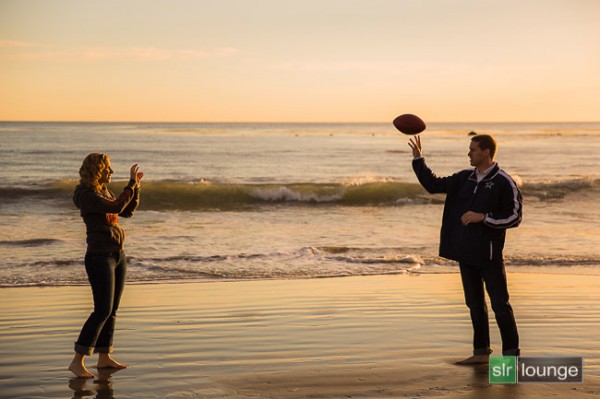
Here is how your image should look like after applying all of these adjustments.

04 Lens Correction

That is it for the global adjustments, we are now going to use the adjustment brushes and graduated filter to add more clarity and contrast to the environment, as well as work on evening out the overall exposure.

Step 5. Using Adjustment Brushes for the Sky and the Ground

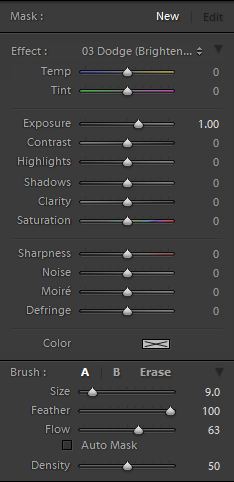
In the Lightroom 4 Preset System, there is an adjustment brush called the “Sky | Cloud | Ocean” that we apply to the sky, cloud, and ocean. The purpose of this brush is to increase the contrast and clarity. Additionally, this adjustment brush also increases saturation.

Here are the settings for this adjustment brush:

05b Sky Cloud Ocean from SLR Lounge Lightroom 4 Preset System

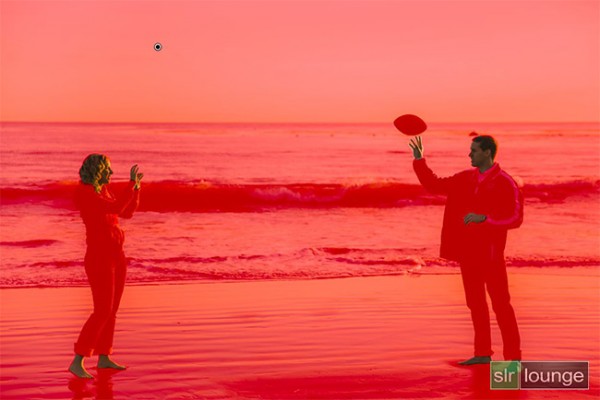
We want to apply this brush to the entire scene except for the couple’s exposed skin. The quickest way to accomplish this is to fill the entire scene with the brush, then use Erase brush at the bottom of the Brush Panel to remove the effect from their face, hair, hands, and feet.

Hold Alt (Opt on OSX) while in the active brush to switch to the Erase brush.

Because there is a lot of contrast between the subjects and their surroundings, you can use the Auto Mask to allow Lightroom to mask around the individuals.

To make it easier to see what part of the image is being affected by the adjustment brush, press “O” on the keyboard to toggle the Mask Overlay. The adjustment brush is applied on any part of the image that is overlaid in red.

05c Adjustment-Brush

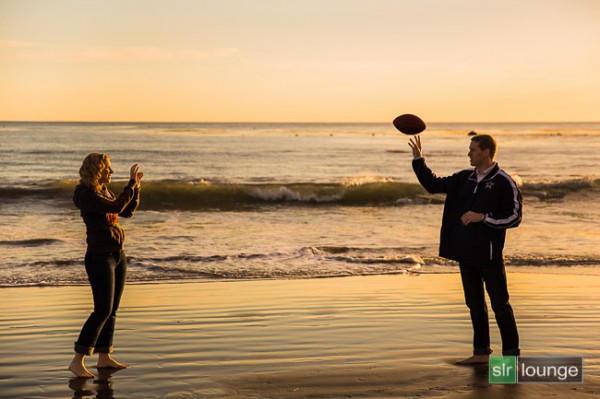
Once you are finished applying this adjustment brush, press “O” again to hide the overlay. Your image should have a punchier look that similar to the deep shadows of the setting sun.

05 Adjustment Brush

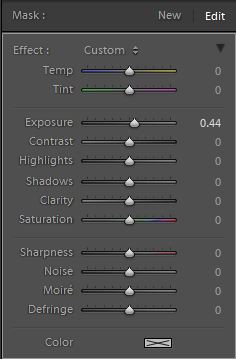
Step 6. Using an Graduated Filter to Even Out Exposure on Left Side

At 4pm, the winter sun had already started its decent to the horizon, which meant that light was beginning to fade quickly. Because the sun is lighting the scene from the far right, the left side of the image was a tad underexposed in comparison to the right side. We want to correct for this subtly, so we will be using a Graduated Filter to slightly brighten the left side of the frame.

One final adjustment I would like to make to this image is just to remove the rock in the water that is just behind and above the male subjects head. But, given the size and position of the rock, this will best be done in Photoshop.

06b Graduated Filter

Final Before and After Images

Finally, here are the before and after images comparing the original image to the new image with the warm, sunset mood look.

Original

Warm, Sunset Mood Image

The Lightroom 4 Preset System

The SLR Lounge Lightroom 4 Preset System is designed to enable users to achieve virtually any look and effect within 3-5 simple clicks. From basic color correction, vintage fades, black & white effects, tilt-shift effects, faux HDR, retouching, detail enhancing, and so much more. The sky is the limit with what has been dubbed the most powerful and intuitive preset system available. Click the link above to learn more/purchase.

You can also purchase the LR4 Preset System as part of the 30 hour 3 DVD Lightroom 4 Workshop Collection set, containing every bit of education and tools needed to run a Lightroom 4 based photography studio.

Post originally from: Digital Photography Tips.

Check out our more Photography Tips at Photography Tips for Beginners, Portrait Photography Tips and Wedding Photography Tips.

Create a Warm, Sunset Mood Image in Lightroom 4


Digital Photography School

 
Comments Off on Create a Warm, Sunset Mood Image in Lightroom 4

Posted in Photography


3 Tips for Better Black and White Conversion using Lightroom

16 Jan

Ever wondered how the professional photographers get those dreamy black and white or sepia toned images? Wonder why yours come out looking dull and flat looking?  I’m going to give you 3 tips to help you do better black and white conversions using Adobe Lightroom, and solve that problem!

Today’s cameras are pretty smart, and many of them offer a black and white setting or shooting mode. I recommend using those to start, especially if you’ve never done any black and white (B&W) or if you are not currently doing any post processing or image editing on your files. BUT, if you have some experience with b/w photography, and you are processing your images, I recommend doing the conversion yourself as you have more control over the look of the final image.  I’m going to show you a few ways of converting them into B&W using Lightroom.

Note:  for the most part these tips will work in Photoshop as well, using the Adobe Camera Raw features and sliders.

First a quick note about my background. Back when I took my photography degree (dare I say, in 1987-88, and date myself) I spent the entire first year shooting black & white only, using a 4×5 view camera no less. I processed my own film and made my own prints. I spent a lot of time in a black & white darkroom, so I’m pretty well versed in how it works and how to control it to my advantage.

To grab some info from those film days, it’s important to note and understand that your camera sees light and colours differently than does the human eye. Black and white film sees blue tones much lighter than our eyes, for example.  Coloured filters were used to shift how the B&W film “saw” and rendered the scene.  Using a red filter would lighten anything red in the image and darken blue tones.  So if you were a landscape photographer you’d often use a red filter to darken the sky and make it less washed out.   A green filter would lighten green and blue tones and darken red and orange.  So photographers used the appropriate filter to capture the scene as they envisioned it.

In Lightroom and ACR (Adobe Camera Raw) in Photoshop you have the same tools at your disposal!  So without the use of filters, you can adjust how the scene is rendered in B&W.  That brings me to the first tip.

Tip #1 – use the B&W mix to do your conversions

In Lightroom’s Develop module (and ACR) there are a few ways that you can convert your images into B&W.  You can just pull the saturation slider all the way to left to -100. You can also do similar with the Vibrance slider, but it may not give you a 100% B&W image, depending on the image. Both of those options will give you a black & white result. However, they give you no control over how the colours render into the various shades of grey. A better choice, in my opinion, is to use the B&W mix, located on the third panel down on the right in Develop – see below.
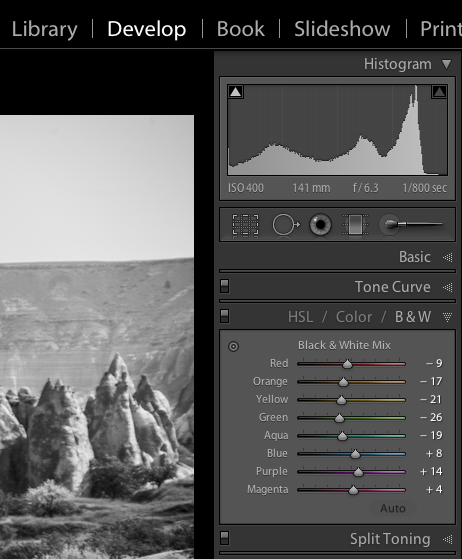
Black and white mix panel in Lightroom Develop module

Let’s take a look at an example using the same image.
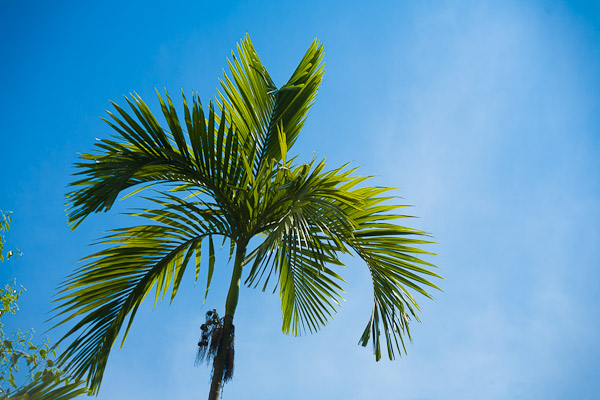
Original colour image
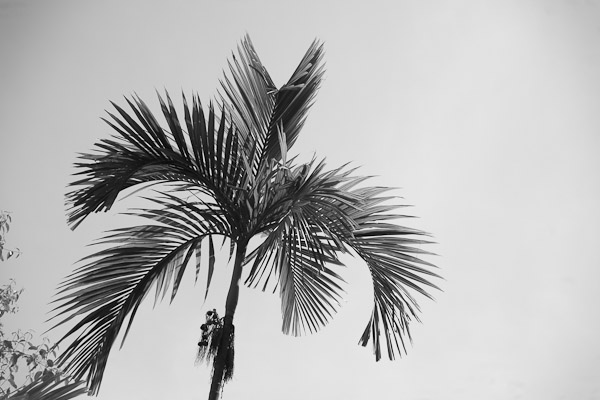
B&W conversion done using the Saturation slider at -100
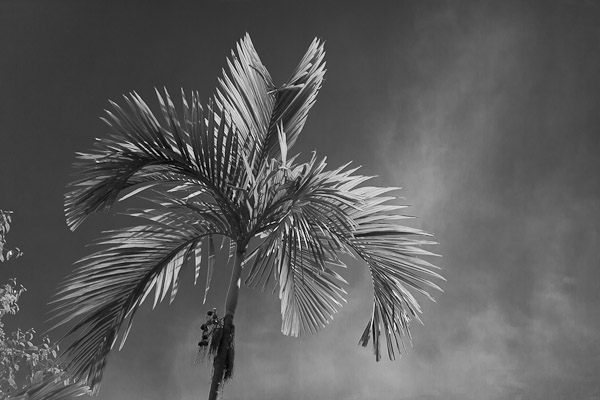
B&W conversion done using the B&W mix in LR

In the images above, notice how the blue sky went really light using the desaturate method?  This is often the case when you have a lot of blue sky in an image, as I explained above.  Using the B&W mix and pulling a few of the sliders I was able to get very different tones.  This is what my sliders in the B&W Mix panel look like on the third image:
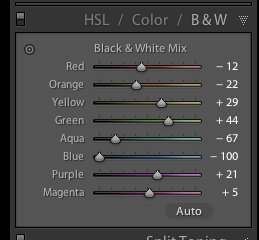
Notice the blue slider is pulled all the way to the left to -100.  That is what is darkening my sky.  Also worth noting is the green and yellow sliders are moved in the opposite or plus direction.  This lightens both yellows and greens (most grass and trees are often a mix of green and yellow, sometimes more yellow than green).  I have not done any selective adjustments to darken the sky here, just the sliders you see to the right!  How very different this image is from the desaturated one, and so simple to do using this method!

Also on this panel notice there is an “Auto” button.  Clicking it will allow Lightroom to apply a predetermined B&W mix for you.  You can also set up in your Lightroom preferences to apply that for you when B&W mix is selected, then you can just fine tune from there.  Otherwise all the sliders will start at “0″.

Another little known trick for using these sliders is the funny looking little double circle thing on the top left.  As you move the mouse over it, you will see this:
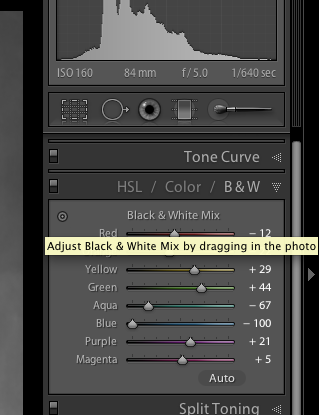
Adjust Black & White Mix by dragging in photo. So what on earth does that mean, you may wonder?!  If you click on the little circle your mouse pointer will now have little up and down arrows, as well as your cursor showing the same icon as you hover over the image. Click anywhere on the image, hold and drag, and it will adjust ONLY the colours that you’ve clicked on.   Drag up to move the sliders to the right (+) and drag down to move them to the left (-). How cool is that?!

This is very helpful if you do not know which sliders to adjust.  Just select the area of your image you’d like to adjust the tones on and drag away!

Tip #2 – don’t just stop there, add some punch

Sometimes even using the B&W mix sliders the resulting image still looks a bit flat and dull looking.  Take it up a notch by adding some punch to your image.  I do the following to most of my B&W images:

  • increase the clarity:  if it’s a scenic I’ll push it quite far like +60 or higher, if it’s a person I keep it under +30 or they start to look a bit crunchy and overly wrinkled (especially if the photo is of your mom or your spouse, they tend not to be too happy about that)
  • lower the black slider, until it looks good.  Highly scientific, yes! Here’s a little trick for you as well using the Blacks slider:  if you click and hold the Opt/Alt button while you slide it, you will get to see exactly where your blacks are clipping (meaning going off the chart on the histogram and having no detail). You can use that information to make sure you have just enough blacks, but make sure you keep all the detail in important areas.
  • increase the contrast either using the Contrast slider or Curves

Occasionally after making these contrast adjustments it will affect the overall image and you may want to go back and rework the B&W sliders a bit too.  It’s a dance, play them back and forth until you get a mix you like.   Here’s the final version of the image above, with contrast and punch adjustments applied.

Notice how much more snap it has, while still maintaining that nice rich, dark sky!

Secret to making great B&W images that the pros won’t tell you . . .

Black!  That’s it.  Make sure you actually have some black, and some white in your image.  Check the histogram and use my little tip on seeing the clipped bits. Add contrast or increase the blacks, whites, or both to get a full range of tones.  No matter what the subject is in the photograph, having enough contrast to have pure white, and pure black is key to having a stunning B&W image.  Otherwise you’re just left with a bunch of grey mud.

Tip #3 – creating selective coloured images

There are a couple ways to make selectively coloured images, and also to create that faded look that is really popular. Once again you can use the Vibrance and Saturation sliders in the Basic panel, however they will affect colours in the entire image the same.  You can also use the Adjustment Brush and paint in a lower saturation onto parts of your image where you want to fade out the colour.  I use that method quite often, even on full colour images, to do tone control on items in the background that are distracting.

Lastly you can use the sliders in the HSL panel.  By sliding selected colours to the left you can desaturate only those colours.  You can also use the little Click and Drag tool we used earlier to do the B&W Mix to click on your image and pick the areas to fade.   Here’s an example using each of these methods.  None is right or wrong, just give you a different look and some have more control than others.  Choose the one that works for you on in individual image basis.
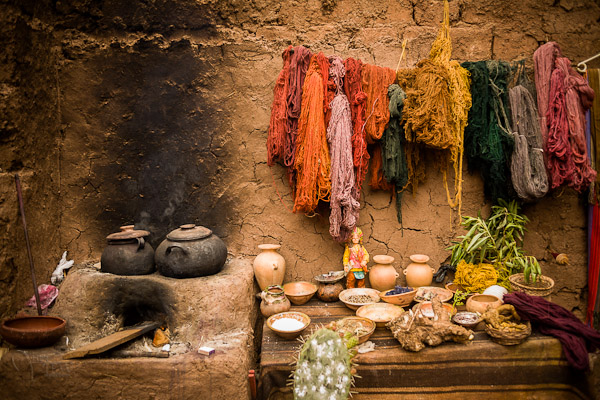
Original colour image
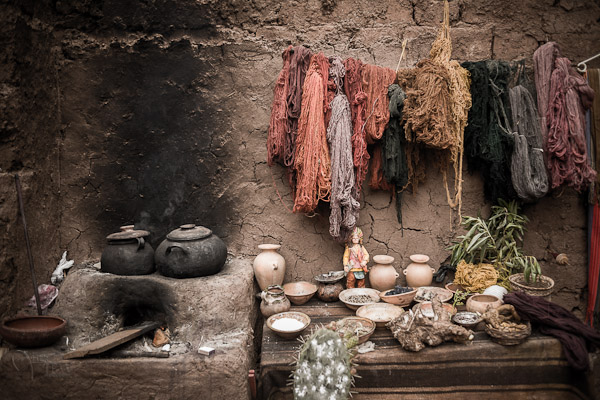
Vibrance slider set to -75

Saturation slider set to -75

Adjustment brush used to paint in saturation at -75 to the whole image except for the wool
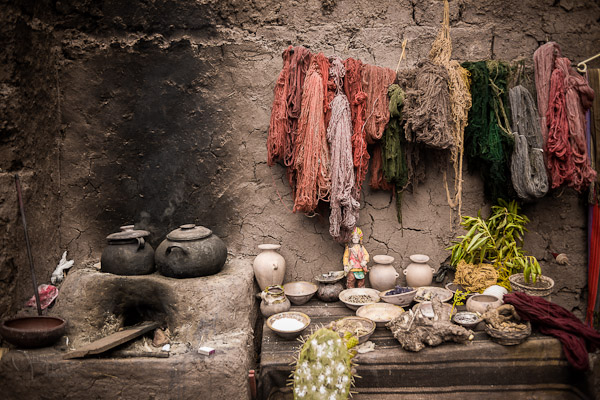
HSL sliders used to desaturate by separate colours

*Bonus Tip – making a nice duotone or sepia toned image

A little extra bonus tip for you.  Adobe has made it super easy to create a really nice duotone (just means two tones, go figure!) image, which includes Sepia.  Just go to the Split Toning panel after you’ve done your B&W conversion, it’s the fourth one down.
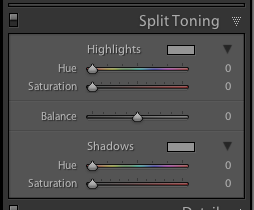
You will see sliders for both Highlights, and Shadows.  My personal tip on how to keep a nice clean sepia or toned image is to use ONLY the Shadows sliders and do not touch Highlights.  That will leave you with clean, crisp white highlights even after you’ve applied the toning.

How to create the duotone

First start by choosing the Hue slider (for Shadows).  If you want a nice brown colour, start with it around 40-45. Each image tones slightly differently, so start there and adjust to your taste and style.  You may notice that nothing happened, right?  That is because you need to increase the Saturation slider before the tone will show up.  The more you increase saturation, the deeper and more vibrant the colour tone will become.  Again, there is no right or wrong, it’s all about preference.  For a subtle, dark, chocolate brown try 10-20.  For a deeper colour go higher with saturation (NOTE: make sure the “balance” slider is set to zero)

If you want a different tone just move the Hue slider.  You can create some really neat affects this way including Blue Tone or a true Duotone.

Example using a portrait

For this final example I’ll show all the steps we’ve just covered using a portrait.  This is applicable to any people photos, you don’t need to make portraits to use this information.
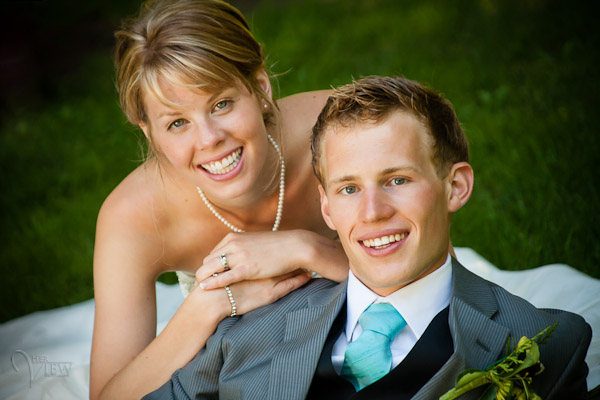
Original colour image
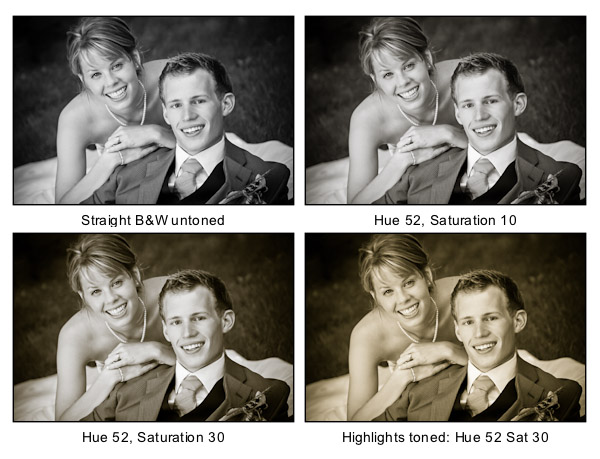

Notice the last image where I’ve added in colour to the Highlights and how it completely changes the look of the image. The whites have a yellow tint now instead of a nice clean look. I personally prefer the third one but there are times I do use this option. Do what feels right for your image, you’ll know what to do.
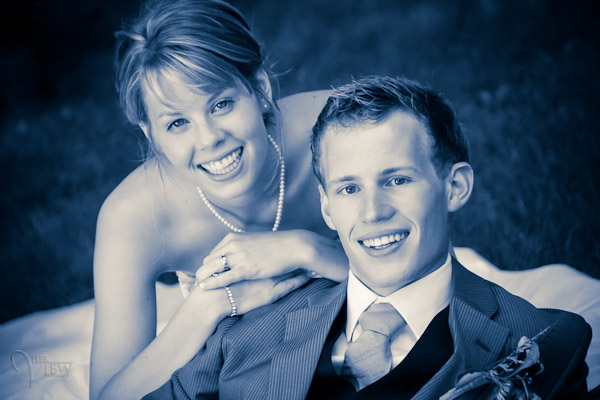
A "duo" tone using different colours for the Highlights and Shadows. Shadow settings: Hue 232, Sat 70 – Highlight settings: Hue 52, Sat 37. I did move Balance to -27 to skew the colours more towards the Shadows as well.

What next?

As always I encourage experimentation.  If you have another way that you like better, that’s awesome!  Please share it with us if you will.  Another way to do some really quick B&W inside Lightroom is to find some good presets. There are literally tens of thousands of Lightroom Develop presets available for free on the internet.  Try a Google search for:   Free lightroom b&w presets.  Then just pick the ones you like and install them.

Now get out there and go make some images and let’s see what you can do in Black & White!


Post originally from: Digital Photography Tips.

Check out our more Photography Tips at Photography Tips for Beginners, Portrait Photography Tips and Wedding Photography Tips.

3 Tips for Better Black and White Conversion using Lightroom


Digital Photography School
 
Comments Off on 3 Tips for Better Black and White Conversion using Lightroom

Posted in Photography