RSS
 

Posts Tagged ‘lightroom’

How to Use Film Simulator Presets in Lightroom

26 Jun

20130620 dPS 000  tri x
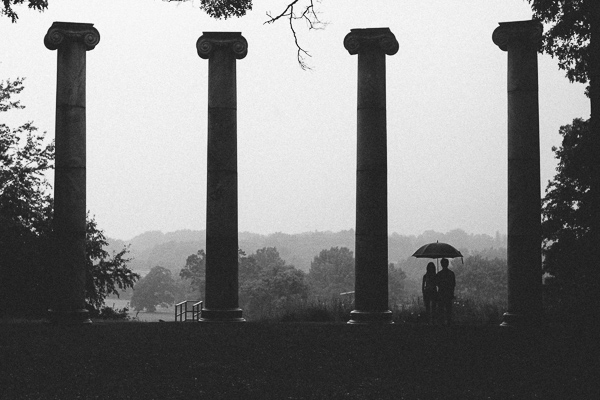
processed using VSCO’s Kodak TRI-X film preset

Those of you who think Instagram and its ilk are pushing us towards the end of “real photography” can quit reading right now.  For everyone else, the following paragraphs will show you how to get that ever-so-trendy, faded, slightly desaturated, vintage, “look” that is so prevalent from both professionals and hobbyists.  I’m going to let you in on a secret that professionals have been utilizing for awhile (many use it secretly!) to give their photos that added edge. 

Specifically, I am going to cover the use of film simulation presets to develop your RAW files in Lightroom.  Why use film simulation at all?  As evidenced by the popularity of mobile apps like Instagram, emulating the look of traditional film stocks has become a rather trendy and prevalent practice in photography and can be a useful tool in your post-processing arsenal.  Your clients may not specifically request a certain film, but they may ask you to give them a specific look & feel that is a result of simulating film, i.e. “Can you give my engagement photos that faded, vintage-y feeling?”, or “Make my photos look like they were taken with Instagram”.  I’ve had several clients ask for that style of processing without realizing it was the result of emulating a 50-year old film stock.  Film simulators answer the question: “What would this digital image look like if I took it with Kodak TRI-X film?”.
 
In short, film simulation presets are designed to process your camera’s specific RAW files into images that emulate the look provided by some classic film types.  Before I discovered these plugins, I foolishly spent countless hours playing with various Lightroom sliders attempting (and failing) to get that look I wanted to emulate.  After trying a number of these, my favorite by far is VSCO Film, created by a company called Visual Supply Co (VSCO for short).  They create a number of plug-ins for Lightroom, Adobe Camera Raw, and Aperture, that all do the same thing; make your digital image look like it was taken with an old-school film camera. We’ll be covering how to use these in Lightroom though they should have the same effect in ACR or Aperture.  It should be mentioned that I do NOT work for VSCO and / or receive payment in any way from them.
VSCO Logo

VSCO’s film packs come as downloads from their website and installation is as easy as running the downloaded installer and booting up Lightroom afterwards. You will then find several new groups of presets once you’re in Lightroom’s Develop module. 
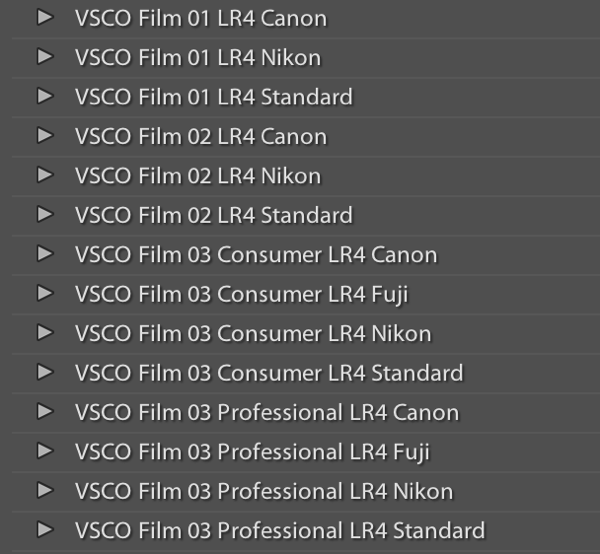
VSCO Presets

Once you’ve installed the presets, applying them is as easy as selecting the image(s) you want to process, and clicking on the desired preset on the left.  If you mouse-over the list of presets, you’ll notice that the Develop module’s Navigator window will show you a preview of the preset’s effects on your image.  You’ll find that each different film type will give you varying effects on color, contrast, brightness, and will alter the tone curve of the image.  Some film presets will introduce subtle changes, while others do dramatic things, and covert your image to B&W, add grain, and reduce the dynamic range of the image by resetting the tone curve. 

Frankly, I am unsure if there is anything a VSCO filter can do that you can’t do manually, however, it is an incredible time saver if you don’t want to spend hours re-creating the look of specific film stocks.  VSCO’s team has already done the research into the settings to emulate popular film types, and all you need to do choose which ones you like.  You’ll also notice that each preset has  “-”, “+”, “++” versions of each film, representing the degree to which you’d like the particular film’s effects applied.  Film presets work like any other preset and the develop settings can be copied and pasted from image to image or applied to a large batch of images at once.

However, the beauty of VSCO (and similar presets), is that once you’ve selected a film stock that you like, you can then tweak it to your heart’s content.  For example, you can start off with a baseline Kodak Portra 400+, and decide that you’d want to bring up the shadows, add some grain, and saturate the blues.  Save those settings as a new preset, and boom, you’ve developed your own, unique look.  VSCO’s film pack also comes with “Toolkit” presets that will help you fine-tune your image.  With a click of a button you can add grain, bring up the shadows, save your highlights, or fix Chromatic Aberration.  Again, these are all things that you can do manually, but the presets will save you quite a bit of time.
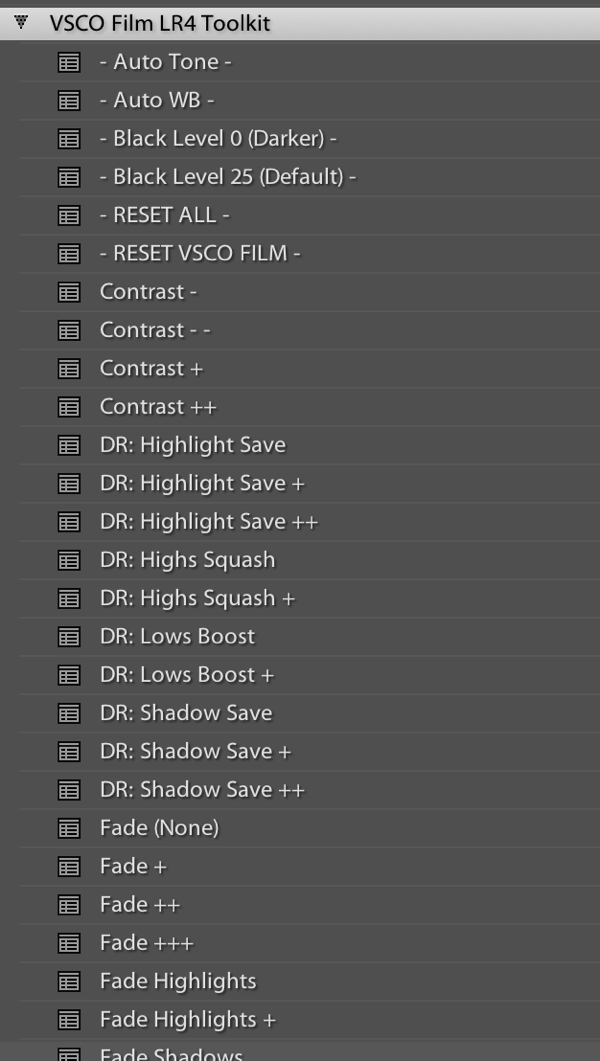
VSCO Toolkit

VSCO has now released three different film packs, each with its own set of films, with the latest film pack focusing on a variety of instant (Polaroid!) films.  The film packs are not cheap, at $ 119 / pack, but existing customers will receive a discount on subsequent film pack purchases.  I’d suggest buying VSCO 01 and only adding the others if you really like the first pack.  Don’t feel like ponying up the dough or only use your iPhone to take pictures?  VSCO actually has an iOS app called VSCO Cam. 

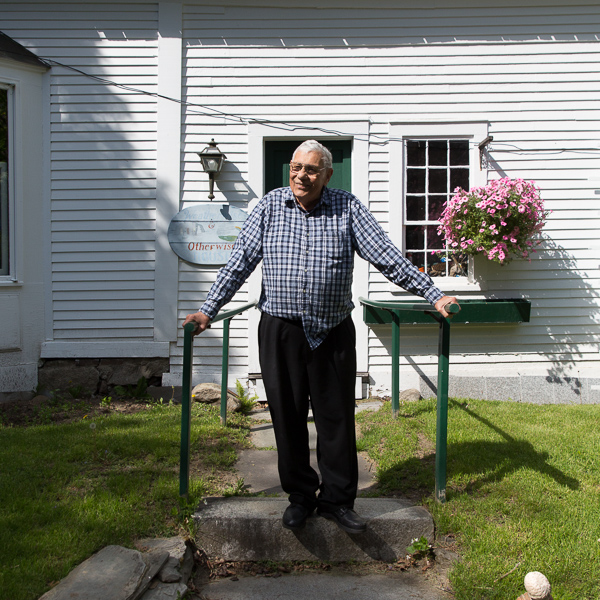
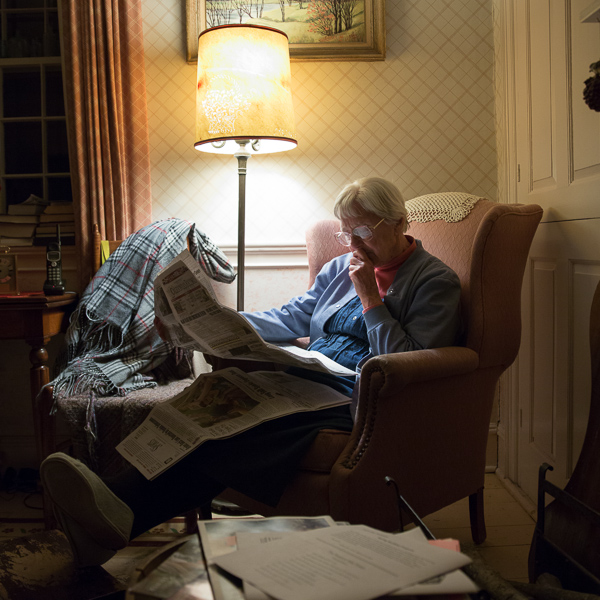
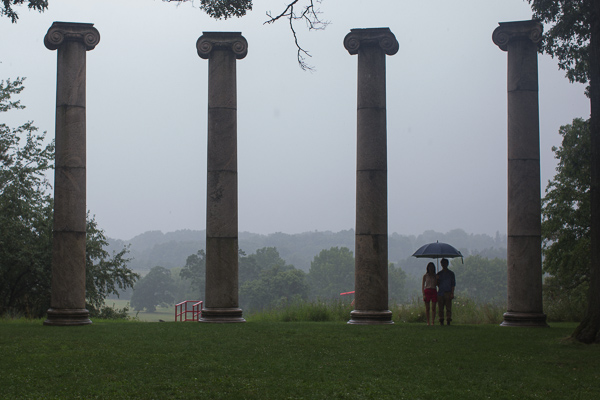
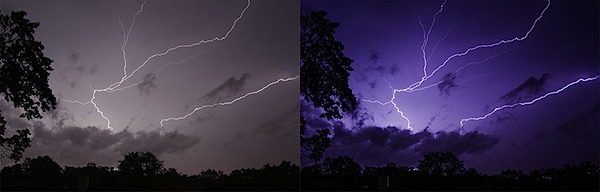
So that’s all there is to it! I will leave you with some quick before & after examples that may help demonstrate how powerful these presets can be.  Each of these following images will be presented in two forms, the “before”, sans preset and without any major Lightroom modifications, and the “after”, with a specific preset applied. For the sake of this demonstration, I have picked films with a relatively dramatic effect on the original image.

Before:
20130620 dPS 001??After, with a “Polaroid 690 cold” preset applied:
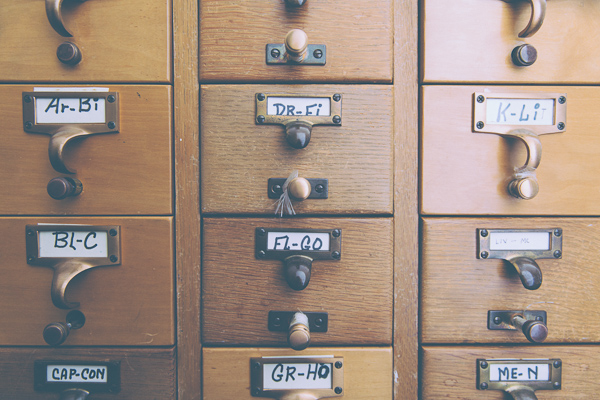
20130620 dPS 001  polaroid 690 cold

Before:

20130620 dPS 002

After, with a Polaroid 669 preset applied:
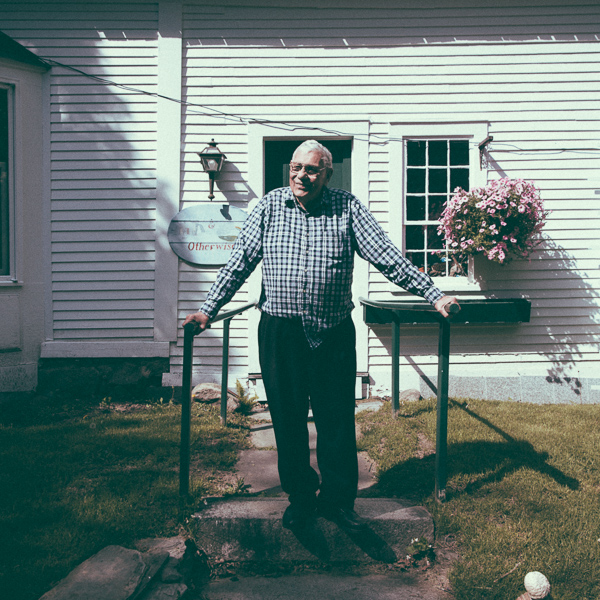
20130620 dPS 002  polaroid 669

Before:

20130620 dPS 003

After, with a “Polaroid 690 cold” preset applied:
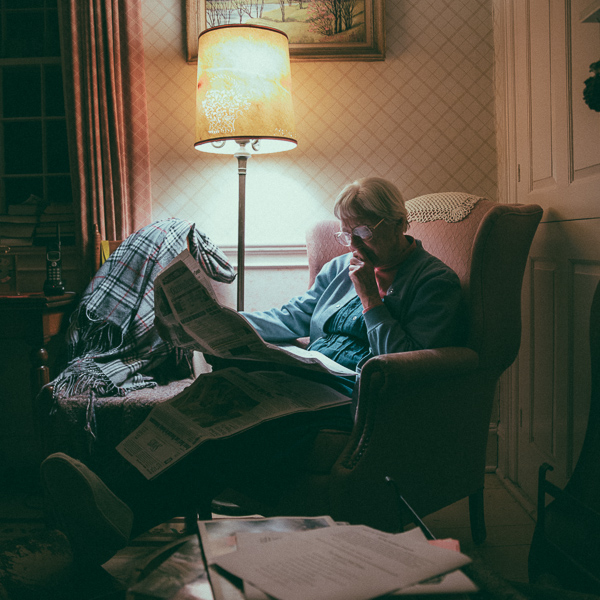
20130620 dPS 003  polaroid 690 cold

Before:

20130620 dPS 000

After, with a Kodak TRI-X filter applied:
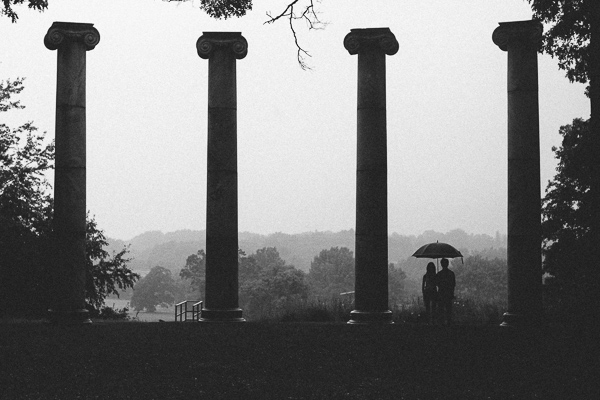
20130620 dPS 000  tri x

Frank Wang is a NYC photographer specializing in portrait and architectural photography. You can find him online at www.frankwangphotography.com and www.framephotographics.com. Connect with him via witter / Instagram: @frankwangphoto

Post originally from: Digital Photography Tips.

Check out our more Photography Tips at Photography Tips for Beginners, Portrait Photography Tips and Wedding Photography Tips.

How to Use Film Simulator Presets in Lightroom

Digital Photography School

 
Comments Off on How to Use Film Simulator Presets in Lightroom
Posted in Photography


How to Create a “Soft Portrait” Preset in Lightroom 4

20 Jun

Introduction

The following is an excerpt from the SLR Lounge Lightroom Workflow System Workshop on DVD, a system designed to increase your post production speed by 5 to 10 times! Click here to learn more.

A portrait image includes a subject (Usually their faces) as the primary focus. When we edit portraits, we do not want to sharpen fine details too much as this will of course enhance pores and blemishes on the skin. Instead, we want a soft, gentle look for our portrait images.

In this tutorial, we will show you how to create a “Soft Portrait” preset in Lightroom 4. This preset will make our portraits more flattering, because we will tell it to smooth out the highlights in our images, and reduce the appearance of imperfections on skin and other semi-smooth surfaces. This “Soft Portrait” preset is the same preset we use at Lin & Jirsa Photography to fit our needs for wedding and portrait photography, however you may want to change some of the settings to fit your own personal style. We hope that the tips in this tutorial will help you develop your own style of editing portrait images!

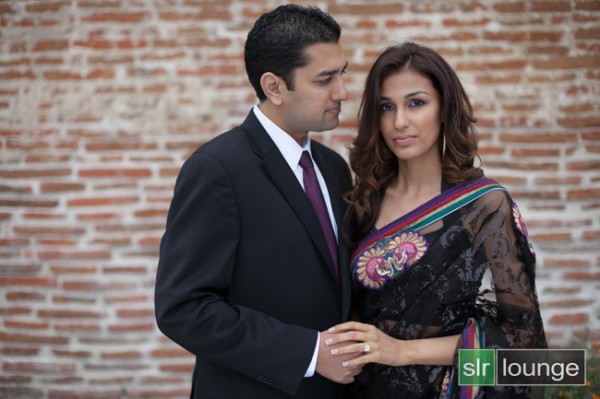
For this tutorial, we will use this standard portrait as our example.

origina 650

The Standard Import Preset Settings

For this tutorial, first select a basic standard portrait that you would typically shoot. Make sure that the portrait you choose is properly exposed with an accurate white balance, as an incorrectly exposed image will cause the preset to mis-represent the average photo you take.

Whenever you create a new preset for something specific such as protraits, we recommend that you start with another, standardized preset that has settings similar to what you’re going for in this image. So for example, we will select our original “Standard Import” preset to help us create the “Soft Portrait” preset.  For more information on how we created our “Standard Import” preset, click HERE.

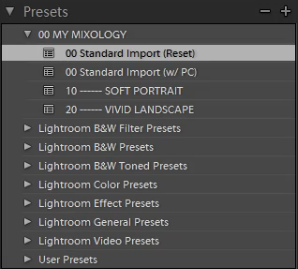
We will base the “Soft Portrait” Standard Color Preset off of the Standard Import Preset, so we have selected “00 Standard Import (Reset)” in our Presets Panel. The Presets Panel can be found on the left of the Lightroom Develop module.

02-ligthroom-4-standard-import-preset

If you do not have the Standard Import Preset, these are the settings for it. Simply dial in these exact settings in the Basic Panel. To expand and collapse the Basic Panel, press “Ctrl + 1.”

03-lightroom-4-standard-import-preset-settings

Basic Panel Adjustments

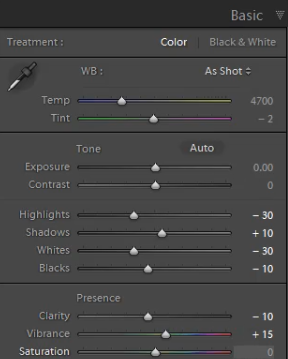
Next we need to adjust the Basic panel settings to create the “Soft Portrait” look that we’re going for. Reduce the Highlights to -30. With the Shadows, bring them down to +10. Decrease the Whites to -30 and raise the Blacks to -10. These settings will smooth out the overall highlights in the portrait. Next, adjust the Clarity down to -10 to really smooth over the larger, harsher detail tones and to smooth out things like skin tones. Do not pull the Clarity down too much, because you will eventually lose important details in your portrait and create a “painted” or “smudged” look.

For Vibrance, we will leave it at +15. You can choose the amount of Vibrance to fit your own style, but we recommend not adding additional Vibrance if your portrait already has too much color in the skin. A high amount of Vibrance adds color to the skin which can make the portrait look unflattering, especially in mixed lighting!  Sometimes, if your images are too clear and crips, you may want to dial the Vibrance down as far as -10 or so.

Your Basic Panel adjustments should look similar to the settings below.

04-lightroom-4-soft-portrait-standard-color-preset-basic-panel-settings

Tone Curve Adjustments

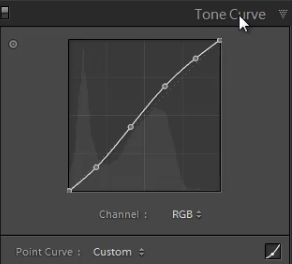
Next, we are going to adjust the Tone Curve in the Tone Curve Panel. To expand and collapse the Tone Curve Panel, press “Ctrl + 2.” To boost the overall contrast in the portrait, create a slight S-Curve. We recommend having at least 4 points on the Tone Curve so that you can control every quadrant. From left to right, these points will provide secondary control of your Blacks, Midtone Shadows, Midtone Highlights and Whites.

To create the slight S-Curve, pull down the Blacks a little bit, then pull up the Midtone Shadows and the Midtone Highlights. Finally, pull the Whites slightly down and to the right. Your Tone Curve should look similar to the one below, but feel free to adjust these points to fit your style.

05-lightroom-4-tone-curve-adjustments

Detail Panel Adjustments

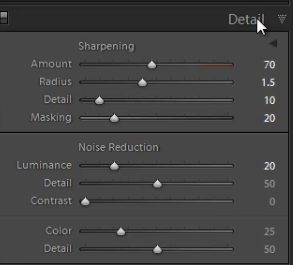
To expand and collapse the Detail Panel, press “Ctrl + 5.” The Sharpening settings from the Standard Import preset should be good enough for your portrait, but always zoom into the subject’s face to make sure everything looks fine. If you find that skin tone is a little too “crunchy”, consider dialing down the Detail slider before the actual Amount.

Next, adjust the Noise Reduction settings. Bring the Luminance up to 20. Do not bring up Luminance too high as this will once again kill detail in your image. However a conservative amount is helpful, even for images captured at your lowest ISO.

Setting Luminance to around 15-20 maximum creates a nice softening effect, especially over the pores of skin, while leaving major detail (such as eyelashes, etc.) intact. Even though the Luminance Noise Reduction is a minor adjustment, it plays a very important role in helping to smooth out the skin tones in a portrait.

(Of course if you’re shooting your portraits at higher ISO’s for whatever reason, you may need to increase this slider even higher!)

06-lightroom-4-detail-panel-adjustments

Lens Corrections Adjustments

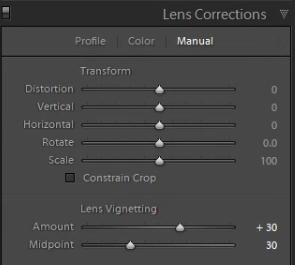
To expand and collapse the Lens Corrections Panel, press “Ctrl + 6.” After adjusting the Noise Reduction settings, we need to check the vignette of our portrait. The vignette refers to the darkness or brightness of the edges of an image. If you want to apply a faint amount of vignetting correction in general, we can leave the Lens Vignetting settings from the Standard Import Preset.  (Of course some photographers like to add vignetting to portraits, so this is going to be a subjective decision!)

07-lightroom-4-lens-vignetting-adjustments

Saving the “Soft Portrait” preset

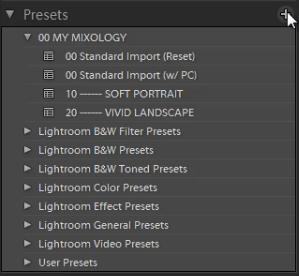
Now that we have finished dialing in the settings for the “Soft Portrait” preset, we need to save this preset. First, click on the “+” sign in the Presets Panel.

08-lightroom-4-create-new-preset

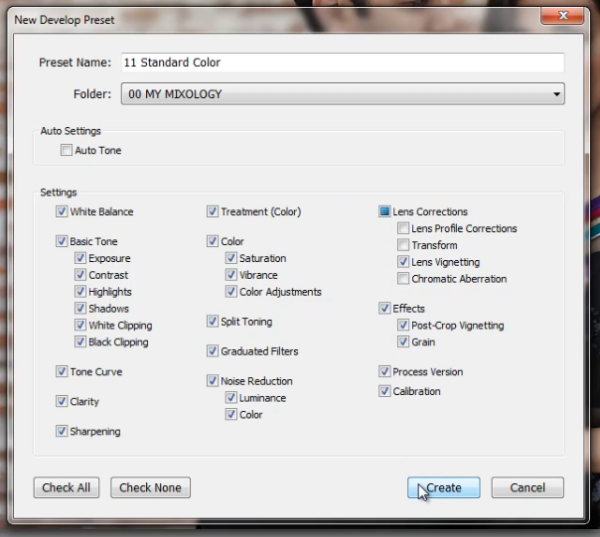
The New Develop Preset dialogue box will appear; name the preset “11 Standard Color.” Select “Check All” to select all the settings. However, make sure that “Auto Tone” has not been selected. Next, un-check “Lens Corrections,” “Lens Profile Corrections,” “Transform,” and “Chromatic Aberration” because we do not want to sync these specific settings across every portrait we have.  (We recommend creating separate presets to manage those settings.)

Press “Create” once you are done. Your New Develop Preset Dialogue Box should look like the one below!

09-lightroom-4-new-develop-preset-settings

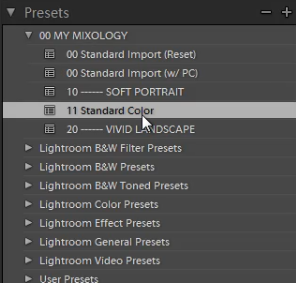
As you can see below, it may be a good idea to organize your presets by numbers, two or three digits is usually enough.  Either way, the goal is to have these default-related presets appear up towards the top.

10-lightroom-4-presets-panel-standard-color-soft-portrait-preset

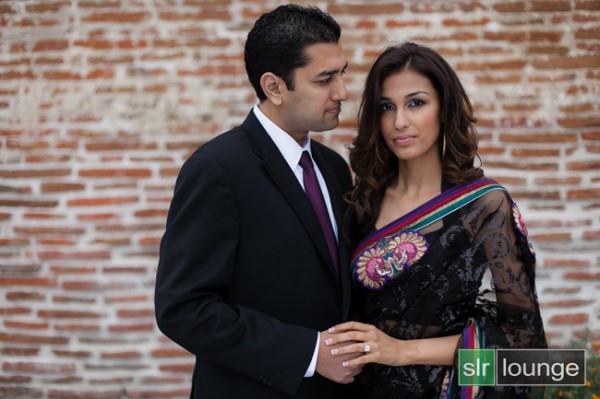
This is what our final image looks like with the “Soft Portrait” Standard Color Preset applied.

soft portrait 650

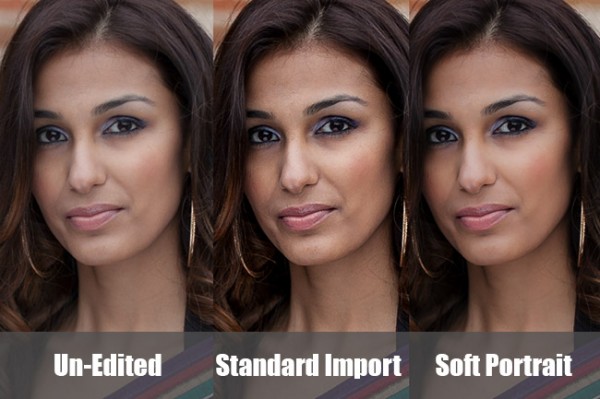
Below you can see a cropped comparison of the original un-edited image in it’s muted, RAW state, as well as the “Standard Import” and “Soft Portrait” presets for comparison:
side-by-side

Conclusion

Once again, the goal with creating a preset such as this is to minimize the amount of work we need to do on a per-image basis.  With a preset like this, in theory you should be able to breeze through a portrait session doing batch corrections to settings such as White Balance and Exposure, only pausing here and there to tweak other settings individually.

It will take time to fine-tune the preset to your own personal taste, however this general rule can help:  If you find yourself applying the same adjustment to more than 50-60% of your images from a certain type of photography, then that adjustment should be put into a preset!  It’s better to perform slight changes on 20-30% of your images than to perform major corrections to 70-80% of your images!

The SLR Lounge Workflow System Workshop on DVD

The SLR Lounge Workflow System Workshop on DVD takes everything that we taught in the Lightroom 4 A to Z Workshop on DVD and builds by teaching you how to maximize your shooting and post processing efficiency and workflow. This 7 hour DVD covers data safety procedures, file management, culling standards and overall develop techniques to increase your post production efficiency by up to 15x! In fact, using this Workflow System we can cull and edit over 1,500 images per hour! Don’t believe us, watch the teaser video! The Workflow System is also available as a part of the Lightroom 4 Workshop Collection. To learn more, click this link.

Post originally from: Digital Photography Tips.

Check out our more Photography Tips at Photography Tips for Beginners, Portrait Photography Tips and Wedding Photography Tips.

How to Create a “Soft Portrait” Preset in Lightroom 4


Digital Photography School

 
Comments Off on How to Create a “Soft Portrait” Preset in Lightroom 4

Posted in Photography


Master These Five Lightroom Sliders and Your Photos Will Pop

19 Jun

a Guest Contribution by John Davenport from Phogropathy

Have you ever opened up Lightroom (or any other professional level editing program) and said, “Oh my – where do I start?” If so then this post is probably right up your alley.

Today I’m going to show you how to take the process out of processing photos and how you can get some great results simply by learning how a handful of sliders work. After you learn these basics you can start to dig deeper into the program and learn how to bring out even more of the hidden details in your photographs.

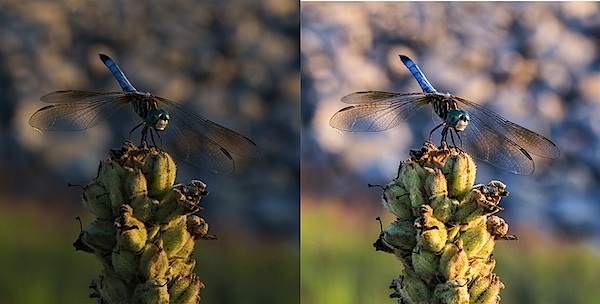
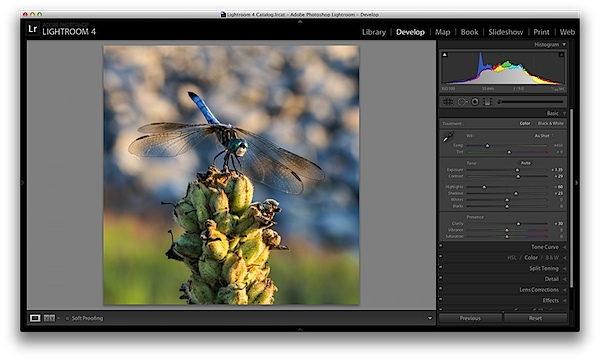
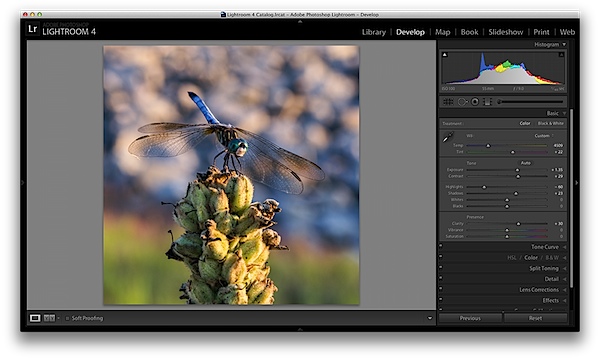
before&after1.jpg

The Seven Lightroom Sliders to Master First

Lightroom is filled with all sorts of options from drop down menus to sliders and all this can make get started for the first time overwhelming, especially if you’ve had no editing experience in the past, so today we are going to look at the very basics of Lightroom.

When you break it down there are five key parts of almost every photo that you’re going to want to adjust and those are as follows: mid-tones, shadows, highlights, sharpness and white balance. We will tackle all of these areas by using just a handful of sliders in the basic tab of Lightroom. To get here simply click on “Develop” and then if it isn’t opened already click on the “Basic” tab.

Now let’s get started!

Exposure

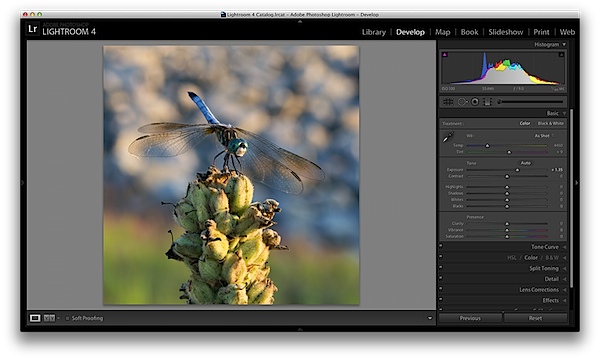
When I process photos I like to start with the exposure slider, as it’s a good overall adjustment to get started. It is designed to adjust the mid-tones of the photo and therefore will help to add or reduce to the overall brightness of the scene. To lighten an underexposed photo simply slide the exposure slider to the right – if you’d like to reduce the brightness then slide it to the left.

Watch your histogram and you’ll start to see the data shift from side to side as you make the changes. In the photo below I added just a small bit to the exposure to brighten it up slightly.

exposure.png

Contrast

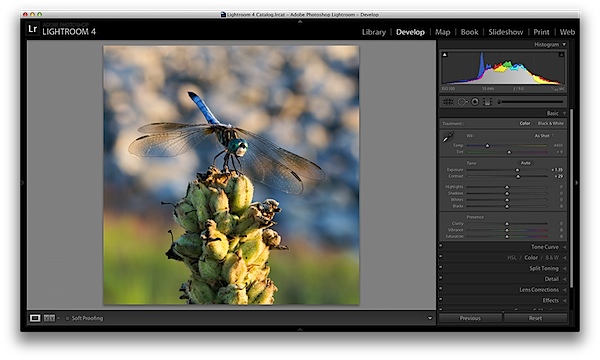
Next up is the contrast slider, which will help to define the areas of lightness and darkness. In the vast majority of my photographs I’ll end up increasing the contrast slightly as it tends to help bring out details and make the photo “pop” a bit more.

As you watch the histogram you’ll notice that the data will either get stretched out or be pushed together depending on which way you go. The more contrast you apply the more defined the difference between lights and darks will get which can be observed in the stretching of the histogram.

In my dragonfly photo I pushed the contrast up slightly which helps to get the subject separated from the background a bit more and adds a bit more crispness to the photo.

contrast.png

Shadows/Highlights

One of the best features in Lightroom 4 are the Shadows and Highlights sliders. (Note: if you’re using an older version of Lightroom you’ll do something similar with the Fill Light and Recovery sliders, but they’re not nearly as powerful).
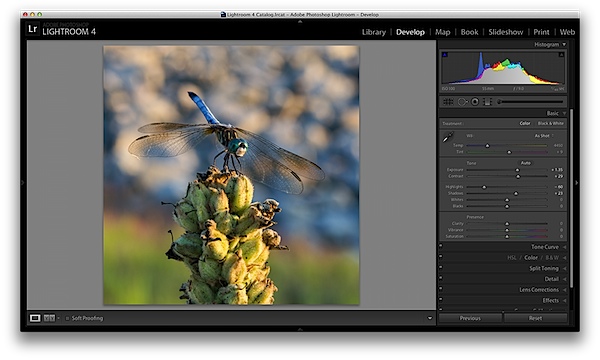
These two sliders work in opposite directions. The more detail you want in your highlights the lower you’ll drop the slider, for more detail in the shadows you’ll increase the slider. Make sure you’re aware that these do come at costs and you’re not going to be able to get detail out of blown out or completely black areas of your photo – there must be data there to recover for these to work.

Again as you watch the histogram when you make the changes you’ll notice that the shadows slider has an effect on the data towards the left side of the mid-tones and the highlights slider will work on an area to the right. The black and white sliders (which we aren’t talking about today) will have an effect on the very edges of the histogram in much the same manor.

HighlightsShadows.png

Clarity

There is an entire area of Lightroom dedicated to sharpening your images, but the clarity slider is a good place to start with if you’re trying to keep things simple. You won’t have as fine of control over the process, but you will be able to help crisp up your images a bit by using one simple slider.

As you’ll notice when you start moving this slider around it works in much the same way as the contrast slider, just on a finer detailed level. Again, in the vast majority of my photos I’ll be adding a bit of clarity to give the photo the punch it needs, but often times in portraits you might end up toning down the clarity to give that soft look to your subject’s face.

clarity.png

White Balance

Finally the temperature and tint sliders control the white balance of your photo. For the time being I’d suggest just using the Lightroom presets as they do a decent job of getting into the ballpark and make it a lot easier to deal with than trying to figure out the right amount of warmth and tint to add or subtract.

However, if you want that little extra control in your hand then use the “Temp” slider to adjust the color temperature of your photo. Moves to the right will produce a warmer scene and to left will cool your scene off.

The “Tint” slider is used more for minor adjustments to remove or add unwanted green or magenta colors from the scene and will often be used to get skin tones correct. However, there are people who use this slider for more artistic purposes (play with it and you’ll see what I mean).

whitebalance.png

One Small Note

If you’re photographing in RAW you’ll see more options available to you and have more control over the final outcome of your image, if you’re a JPEG shooter some options I talked about today will be limited as a result of the smaller file sizes and the compression that has already taken place in your camera. You can read more about RAW photography here.

A Few More Before and Afters

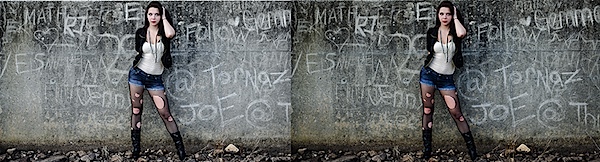
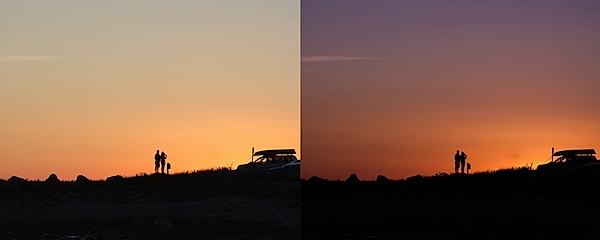
Here are a few more before and after images that I processed in a similar manner using only the techniques talked about in this post. It’s truly amazing how much just a few minor tweaks can change your photo and just imagine what can be done once you dig a bit deeper. If you’d like more tips on Lightroom editing feel free to subscribe to my YouTube channel.

before&after2.jpg

before&after3.jpg

before&after4.jpg

John Davenport is an avid photographer and blogger who shares his photography on his Facebook page and runs a weekly video series on how to edit photos in Lightroom.

Post originally from: Digital Photography Tips.

Check out our more Photography Tips at Photography Tips for Beginners, Portrait Photography Tips and Wedding Photography Tips.

Master These Five Lightroom Sliders and Your Photos Will Pop


Digital Photography School

 
Comments Off on Master These Five Lightroom Sliders and Your Photos Will Pop

Posted in Photography


15 June, 2013 – LuLa’s Advanced Guide to Lightroom 5 Now Available

15 Jun

We have just published our Advanced Guide to Lightroom 5. This "live" video tutorial, with Jeff Schewe, Michael Reichmann and Adobe’s Eric Chan provides an in-depth explanation at all of the new features in Adobe Lightroom 5.

You’ll find a comprehensive Table of Contents here, and you can click directly on this link to purchase. No waiting, no taxes – available immediately to anywhere in the world.

Our Advanced Guide to Lightroom 5 is available for an introductory period at just US $ 19.95, a 20% discount over the regular price.


The Luminous Landscape – What’s New

 
Comments Off on 15 June, 2013 – LuLa’s Advanced Guide to Lightroom 5 Now Available

Posted in News


13 June, 2013 – The LuLa Guide to Lightroom 5 is Coming

13 Jun

We’re just completing the final editing of our brand new Advanced Guide to Lightroom 5. Only a few more days until it’s available.

In the meantime, you can watch the opening chapter.


The Luminous Landscape – What’s New

 
Comments Off on 13 June, 2013 – The LuLa Guide to Lightroom 5 is Coming

Posted in News


Adobe releases Photoshop Lightroom 5

10 Jun

shared:lr5box.png

Adobe has released Photoshop Lightroom 5, the latest version of its workflow and image editing software. Available as either an individual license or as part of a Creative Cloud subscription, Lightroom 5 adds a more advanced healing/cloning tool, automatic image leveling and perspective correction, a new selective editing tool and the ability to edit files that are offline. US pricing is $ 149 for new customers and $ 79 for the upgrade. Click here for more information, including our features preview and download links.

News: Digital Photography Review (dpreview.com)

 
Comments Off on Adobe releases Photoshop Lightroom 5

Posted in Uncategorized


Learn How to Use the Sharpening Tools in Lightroom
23 May

There’s no question that Lightroom is a powerful piece of photo processing software, but due to that power sometimes it’s not as easy to wrap our heads around everything it has to offer, that’s in part why I started my Let’s Edit YouTube series a weekly segment in which I share my own editing workflow for viewers to learn from.

After starting this series one of the most commonly asked questions was to go into more detail on how the sharpening tools in Lightroom work. Sharpening in Lightroom is broken down into four different sliders – Amount, Radius, Detail and Masking – and they each work together to help you achieve the perfect amount of sharpness in your photograph. Today, rather than simply answer this question to the comparatively small group of people over on my site, I thought I’d bring these tips to the dPS community as a whole. I know there are a lot more people out there looking to master the art of sharpening images and I’m happy to help explain them.
Before We Get Started

There is one thing I’d like to mention before we dive into the tutorial and that is that these tools are designed to help improve an image that is sharp to begin with. They won’t fix camera shake, missed focus points, or poor DOF choices, but rather improve upon an already sharp image. So with that said if you’re struggling to get your image tack sharp you might want to check out this great DPS article on five tips to achieve sharper images first and then head back here to learn how you can make them even better.

The Amount Slider

As the name implies the amount slider is a broad and general addition or subtraction of the amount sharpening applied to your image. The more you slide to the right the sharper your image will become. It works by increasing the contrast between different pixels in a fairly general way. The next three sliders can help us refine how the amount of sharpening is applied throughout the image.

Amount

Before we get into those other sliders though I do want to mention that each of these four tools has an extra option attached to it. By using the Alt (windows) or Option (Mac) key on your computer you will be shown an overlay that will help aid you in making better decisions with your sharpening.

For the amount slider this option removes the color from the image letting us use a simple gray scale image for sharpening. This is important because some colors can give false sense of sharpness when placed next to each other and can make it difficult to determine the true level of sharpness in the image.

The Radius Slider

Next in the detail panel is the Radius Slider which lets you control how far away from the center of each pixel the sharpening effect occurs. This is great for determining if you’d prefer a more airy feel (smaller radius) or a more hard edge feel (larger radius).

Radius

Each photograph is different and often times in portraiture the radius is left rather small, while in architecture or landscape, the radius can be made a bit larger to truly define the edges of your scene.

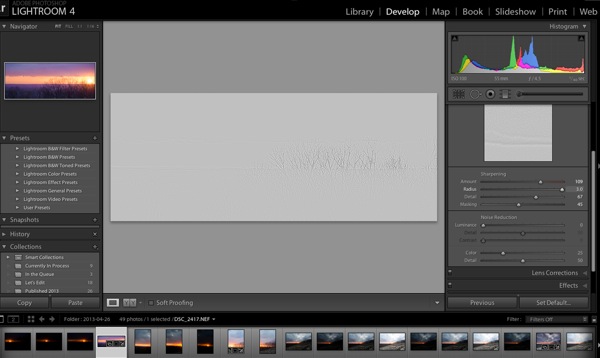
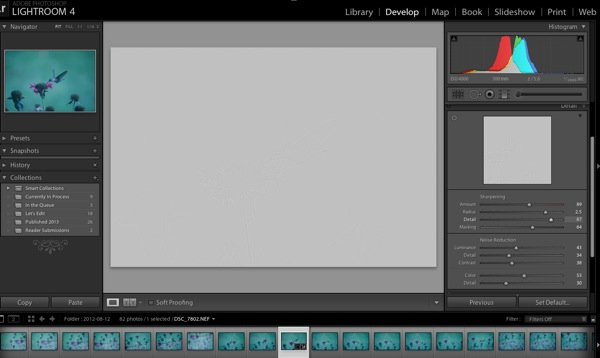
With the radius slider the option key will create an overlay that allows you to see the effect of the edge sharpening in a visual and easy to understand way. The edges that are being effected become clearly defined and the areas of the photograph where this effect is not being applied will be left hidden behind a gray overlay. In the screen-capture above you’ll see with the radius slider maxed out the trees along the horizon are clearly defined in the overly.

The Detail Slider

I like to think of the detail slider as a fine-tuning slider or even just simply as picking up from where the radius slider left off. Rather than focusing on the hard edges of the image the detail slider is designed more for bringing out the finer textures of the images.

Detail

It does this by controlling how the high frequency data is displayed.

The further you push the detail slider to the right the more high frequency data will be displayed resulting in more textures in your image. Be warned, if you push it too far in some cases the outcome will be overly sharp or you may start sharpening unwanted noise. These negatives are things you’ll want to watch out for as they can start to make your photograph too harsh for your viewer and distract from the overall story you’re trying to tell.

To help you determine the optimum positioning of the detail slider the option overlay available works in much the same way as the radius slider showing you where your detail is being applied by showing you the areas effected by your changes.

The Masking Slider

Finally we’re down to the last one of the four. The masking slider allows you to in a sense control where your sharpening is to occur. By sliding it to the right you reduce the areas of the photograph that sharpening will occur by ignoring less important edges and only sharpening the more obvious ones.

Masking

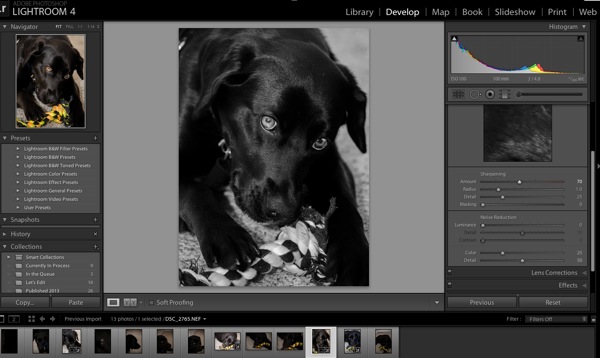
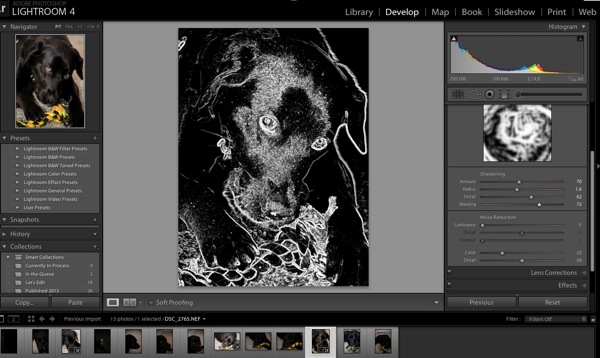
Again with the alt or option key held down you are presented with an overlay for this slider which shows you where everything is occurring The areas in black are being masked out, while the areas in white are where the sharpening will take effect. As you can see above here the hard edges of the dog around her ears, muzzle and eyes are being sharpened where as the areas in black are not. It’s a great way to keep you background filled with creamy bokeh, but sharpen the face or focal point of your subject.

Well that’s it – I hope this quick look into Lightroom’s detail sliders has helped you learn a bit about how to sharpen your photographs, if you’d like to see it in action check out this video where I go through the above steps while sharpening a Macaw from a recent trip to the local zoo.

John Davenport is an avid amateur photography who shares his photography on Facebook. He also runs a weekly series called “Let’s Edit” which focuses on editing photos in Lightroom.

Post originally from: Digital Photography Tips.

Check out our more Photography Tips at Photography Tips for Beginners, Portrait Photography Tips and Wedding Photography Tips.

Learn How to Use the Sharpening Tools in Lightroom

Digital Photography School

 
Comments Off on Learn How to Use the Sharpening Tools in Lightroom
Posted in Photography


How to Create a “Standard Import” Preset in Lightroom 4
19 May

Introduction

The following is an excerpt from the SLR Lounge Lightroom Workflow System Workshop on DVD, a system designed to increase your post production speed by 5 to 10 times! Click here to learn more.
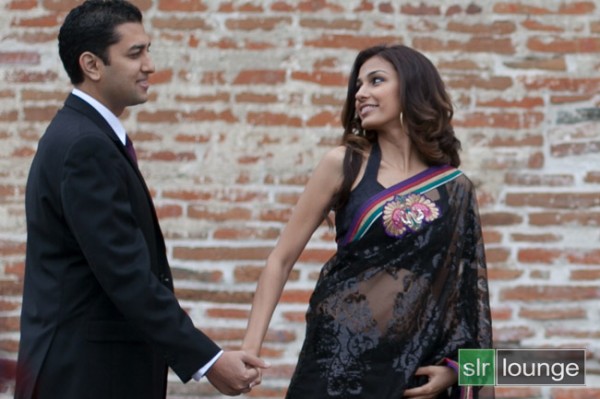
In this article, we are going to talk about creating a develop preset that you would like to apply to all of your images when they are first imported into Lightroom.

Although Adobe’s RAW image processing is extremely powerful, one common complaint is that your images may look flat and colorless at first. Often photographers will lament how beautiful their colors looked on the back of their camera.

Well, in an effort to fix this problem and make our images automatically look a little more crisp and vibrant when we first bring them into Lightroom, we’re going to create a “Standard Import” preset.

For this tutorial we will use the following image as our example:

original 650

Basic Adjustments Panel

The goal for a standard preset is twofold:  First, to simply help every image look a little better overall, of course. Secondly we also want to apply default settings such as a personal blend of sharpening, lens corrections, or other calibration-related things.

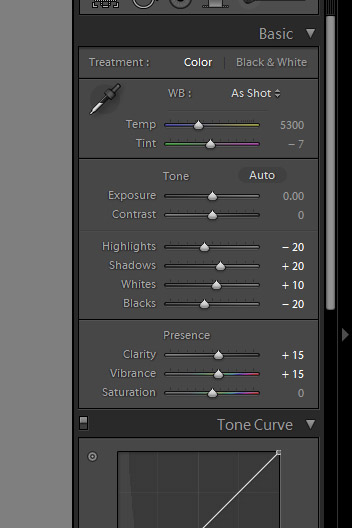
First, let’s tackle the Basic Adjustments.  Open the Basic Adjustments panel in the Develop Module and apply the following settings:

basic develop panel

The idea here is that you want to keep detail in any bright highlights or deep shadows, but do it without making the image look flat overall.  This is why we bring down the highlights to -20 yet push the Whites up to +10, and the same with the Shadows and Blacks. The image gets a little “punch” to it, without blowing out any highlights or clipping any shadows.

To enhance that subtle punch a little further, next we’ll boost both the Clarity and Vibrance to +15.  Note that we leave alone settings like Saturation and Contrast, because for the most part those adjustments are too strong for them to be applied to every single image.

Of course, YOU should tailor the adjustments to your own personal style!  Usually however we advise that going too much further than subtle editing should be saved as a separate preset that you use part of the time, but not necessarily 100% of the time.

The goal, of course, is to minimize the amount of editing you have to do to the majority of your images.  If for example you find that 80-90% of the time you wind up adjusting some of these settings even further, or less, …then you might as well create your Standard Import preset that way because it will minimize the amount of editing you have to do later, even if you have to undo one or two settings just 10-20% of the time.  See how that works?

To be avoided, however, is using a standardized preset to cover your habitual mistakes.  A good indicator for this is is if you feel like you ought to adjust your Exposure slider in your standardized preset.  Unless you have a very good reason; you’ll probably want to simply work to meter and expose your images better in the first place!

Detail Panel Adjustments

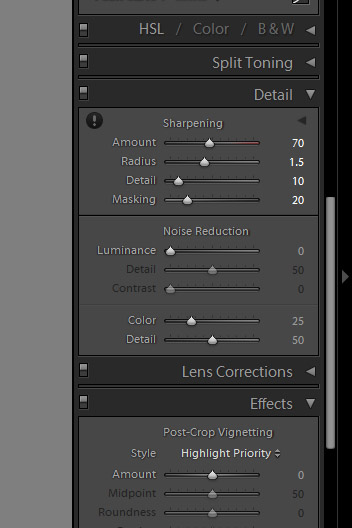
In the Detail Panel, we are going to apply our own special blend of sharpening that we apply to 99% of our RAW images.  These settings are shown below:

detail panel

Sharpening is definitely one of the most subjective aspects of post-production, however this “recipe” is our tried-and-true blend for RAW images, and we use it for all types of images from general portraits, weddings, and details.

So adjust the settings to your taste, however just remember that your goal is for these settings to become the foundation for all your images!  Try out these settings on many different types of images, and settle on something that works best for all of them.

Lens Correction Adjustments

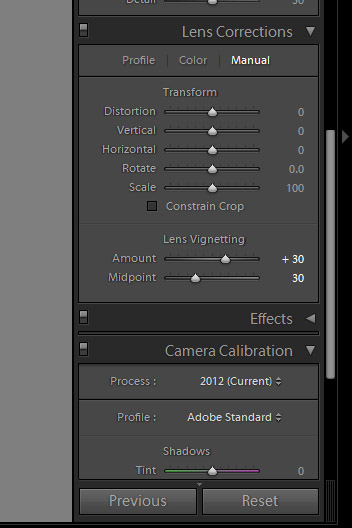
Another common issue on DSLR cameras and lenses these days is vignetting.  By default, we prefer to correct for a slight amount of vignetting by dialing our Lens Corrections’ “Manual” tab to the following settings:

lens correction panel

Again, if you commonly shoot with certain lenses that have less vignetting, or more, then feel free to adjust these settings slightly.  Or, of course, if you actually utilize vignetting in your personal style, then feel free to zero-out this adjustment.

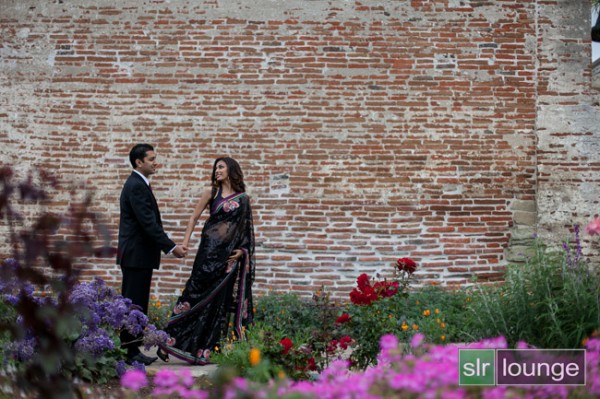
If you followed our adjustments approximately, then your final image will look something like this:

standard import 650

To see the real difference in the processing, let’s zoom in a bit:

original crop 650 standard import crop 650

Again, the goal here is not to make the image over-the-top contrasty or colorful, just to und0 the “flatness” that you initially see in your RAW images.

Saving the Standard Import Preset

If there are any other settings you would like to add to your “Standard Import” develop preset, do that now.  For example certain cameras may need adjustments in the Camera Calibration section, to correct for faint hues or tints in the shadows or highlights.  There are also Camera Profiles that attempt to emulate specific in-camera colors, (“Faithful”, “Neutral”, Landscape”, etc.) …however in our opinion the “Adobe Standard” profile is the best.

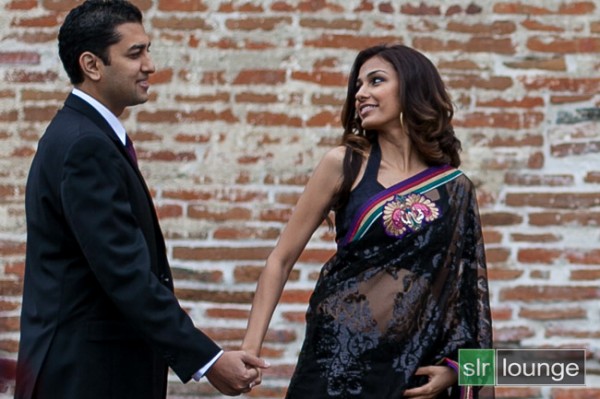
When you’re ready to create a preset, open the Develop Module’s left-hand panel and click the little plus sign on the Presets tab:

create preset

In the New Develop Preset window you can select which adjustments become part of this preset.  You may wish to only select a few parameters, such as for the specific tabs which we adjusted, however consider selecting “Check All” so that this preset can be used to reset images entirely.

Name this preset “00 Standard Import”, and be sure to put the two zeros at the beginning (or a similar code) so that this preset shows up at the top of your list of presets for easy access. Similarly, you may want to create a new folder and give it a numerical name so that all your presets show up at the top of the Presets panel, instead of below the (annoyingly un-deletable) Adobe-included Lightroom Presets.
Applying the Preset During The Import Process

Now that you have saved this new preset, you can apply it any time when you’re working on images in Lightroom.  However there is another awesome tool that we can utilize which will help us automate or workflow overall.

When you get back from a photo shoot with images that are ready to be imported into Lightroom, you’ll be able to apply this preset to all your images during the import process!

Open the import dialog box by either clicking on the Import button at the bottom of the left-hand panel of the Library module, or simply type the hotkey “Ctrl + Shift I”.

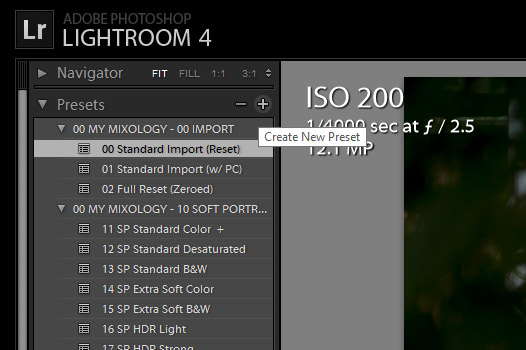
On the right-hand side of the import panel, you will see “Apply During Import” and the first option will be for develop settings.  Find your Standard Import Preset and select it.

apply preset upon import

By default, these options will remember themselves the next time you import images, so don’t forget this in case you want to change or stop using presets during the import process.

One of the main advantages of setting up your workflow this way is that, by applying a preset such as this during the time of import, combined with the option tell your computer to render previews after it is done importing, (in the “File Handling” section above) …you can tell Lightroom to import an entire photo shoot, apply a preset to every photo, and then render 1:1 previews all at once!
At the end of a long photo shoot or wedding day or whatever, this allows you to simply download and backup your photos once, then commence the Lightroom import workflow and go to bed.  By morning you’ll have your entire Lightroom catalog full of images with the preset and full previews ready to go!
Conclusion

It takes time to fine tune your own “Standard Import” preset and get it to work on the majority of your images, but once you develop it you can save hours and hours of post-production time.

Once we have created a standard preset for all our images, theoretically in post-production we will mostly spend our time just editing certain settings on an image-to-image basis, such as white balance and exposure.  Even these settings can be adjusted in batches though. (This is why we did not adjust the settings for White Balance and Exposure in the Basic Panel for the “Standard Import” preset.)

The SLR Lounge Workflow System Workshop on DVD

The SLR Lounge Workflow System Workshop on DVD takes everything that we taught in the Lightroom 4 A to Z Workshop on DVD and builds by teaching you how to maximize your shooting and post processing efficiency and workflow. This 7 hour DVD covers data safety procedures, file management, culling standards and overall develop techniques to increase your post production efficiency by up to 15x! In fact, using this Workflow System we can cull and edit over 1,500 images per hour! Don’t believe us, watch the teaser video! The Workflow System is also available as a part of the Lightroom 4 Workshop Collection. To learn more, click this link.

Post originally from: Digital Photography Tips.

Check out our more Photography Tips at Photography Tips for Beginners, Portrait Photography Tips and Wedding Photography Tips.

How to Create a “Standard Import” Preset in Lightroom 4


Digital Photography School

 
Comments Off on How to Create a “Standard Import” Preset in Lightroom 4

Posted in Photography


Google Hangout with Adobe Lightroom team

15 May

lrlogo.png

The Adobe Lightroom team is conducting a Google+ Hangout today at 11am PT. Adobe Product Managers Tom Hogarty and Sharad Mangalick will be answering user questions about the Lightroom 5 beta and, ‘what Adobe has in store for photographers.’ Photographers Dallas Nagata White and Ed White will be hosting the Hangout and asking your questions to the Lightroom team. Click through for login information.

News: Digital Photography Review (dpreview.com)

 
Comments Off on Google Hangout with Adobe Lightroom team

Posted in Uncategorized


Lightroom for your tablet? A mobile version could be in works

02 May

TS80x80~cms_posts_6365066828_Lightroom.png

Adobe product manager Tom Hogarty yesterday offered a tantalizing sneak peek into future Lightroom functionality. On Scott Kelby’s web show, The Grid, Hogarty demoed an iOS app that allows a wide range of raw file edits on the iPad that can sync back to your Lightroom catalog. You can watch it in action on connect.dpreview.com.

News: Digital Photography Review (dpreview.com)

 
Comments Off on Lightroom for your tablet? A mobile version could be in works

Posted in Uncategorized