RSS
 

Posts Tagged ‘lightroom’

Adobe announces ACR 8.2 and Lightroom 5.2 release candidates

01 Aug

shared:AdobeLogo.png

Adobe has announced the latest ‘release candidates’ of Adobe Camera Raw and Photoshop Lightroom, adding support for ten cameras – including preliminary support for the Canon EOS 70D and Sony RX100 II. The release candidates of Adobe Camera Raw v8.2 and Lightroom 5.2 also fix some bugs introduced in the previous versions. ACR v8.2 acts only as a camera and lens profile update for users of Photoshop CS6. Both are available to download from the Adobe Labs site, with the usual reliability caveats about release candidates. A release candidate of DNG converter 8.2 is also available.

News: Digital Photography Review (dpreview.com)

 
Comments Off on Adobe announces ACR 8.2 and Lightroom 5.2 release candidates

Posted in Uncategorized


Review: Landscapes in Lightroom 5 eBook

31 Jul

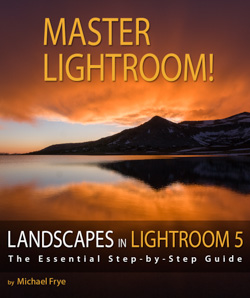
Landscapes in Lightroom 5: The Essential Step-by-Step GuideFriend and fellow landscape photographer Michael Frye has released a new ebook today:

Landscapes in Lightroom 5: The Essential Step-by-Step Guide 

Use code lr520 to save 20%

This discount is good through Sunday August 4th midnight PST.

Michael is equally as talented as a teacher as he is as a photographer. His ebook includes a great combination of tips, tricks, overview information, videos and even downloadable image files to practice on. The design is clean and most importantly the information is invaluable if you’re looking to get the most out of Lightroom 5 with your landscape and nature photography.

Included in the ebook:

  • Lightroom 5 “Development Module” improvement/feature overview
  • Detailed workflow discussions and examples
  • Numerous comparisons of images processed with Lightroom 5, 4 and 3
  • 8 videos detailing discussed techniques
  • DNG Raw file downloads to practice with as you read 6 LR development examples
  • and a lot more

Be sure to take advantage of the 20% discount with code lr520 and download a copy.


Copyright Jim M. Goldstein, All Rights Reserved

Review: Landscapes in Lightroom 5 eBook

The post Review: Landscapes in Lightroom 5 eBook appeared first on JMG-Galleries – Landscape, Nature & Travel Photography.


Related Stories

  • Review: Landscapes in Lightroom 5 eBook – Enclosure
Feed Ads by FeedBlitz
powered by ad choices


JMG-Galleries

 
Comments Off on Review: Landscapes in Lightroom 5 eBook

Posted in Equipment


4 Quick Tips For Getting The Most Out of Lightroom Presets

25 Jul
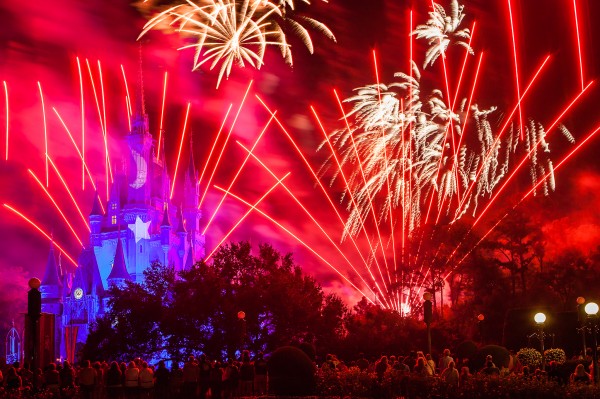
Image created with Daylight to Sunset preset

Image created with Daylight to Sunset preset

This post was written to coincide with my latest deal over at the DPS sister site – Snapndeals. Over the years I’ve created and stockpiled tons of presets in Lightroom, just for personal use. I finally made them available to the public earlier this year at the request of many of my blog readers and the feedback has been amazing! The collection on Snapndeals includes all of the presets I have released (80 total in 7 different groups) and they are all, of course, fully customizable. I put a ton of work into these and I really think you will love them!

So Lightroom presets are something I’ve become really obsessed with. I use them with pretty much 100% of my family photos and about 70-80% of my other images. Sometimes it’s just one click and I can take an image from it’s RAW state to a completely post processed and finished image. Other times I can apply a preset and be about 80-90% finished. From there it’s just a few minor adjustments to get the image looking great but the total time saved by adding the preset is still incredibly valuable. So here’s a few tips for using my new JamesB Lightroom Presets to help your workflow and create amazing images. Let’s go!

1) Spend Some Quality Time Familiarizing Yourself With The Presets

I’ve found that using presets becomes more efficient the more you use them. If you use them rarely, you aren’t very familiar with the presets you own. Therefore, when it comes time to use one you have to wade through them all to find the right one which can take a lot of time (especially with a collection of 80 presets like this one). When you use presets regularly you memorize where each one is, you know where your favorite presets are and how to get to them fast, you know which presets will work better for certain images. When you get into this mindset, your workflow in Lightroom really becomes optimized. And who among us doesn’t need more time on our hands?

I broke the presets into 7 different groups and each group has presets that were specifically designed for different genres/styles of photography. That doesn’t mean you can’t use a portrait preset on a landscape image, I’ve done that several times. But more often that not, I use travel presets for travel images. Portrait presets for portrait images.

2) Create A New Folder For Your Absolute Favorite Presets

Screen Shot 2013-06-21 at 10.10.11 AMOver time, you’ll discover that there are certain presets that you use quite often. Feel free to create a new folder in your presets catalog and the drag your favorites into that one. A few of my favorites are Day At The Zoo and Bright and Sunny from my “Family Lifestyle” set, B&W Film Grain and B&W High Contrast from my “Monochrome” set, Sweet Pea Vintage in my “Nostalgia Film” set and Rome in my “Travel” set.

Creating a new folder in the presets panel is easy, although not very intuitive if you haven’t done it before. Clicking the + mark at the top right won’t do it, that’s just for creating new presets. You have to hover over your presets and right click, choose New Folder and then give the folder a name. Then it’s as easy as dragging the presets from one folder to another.

3) Don’t Be Afraid To Fine Tune

The Develop module can be pretty intimidating to those who haven’t used it before. There are a LOT of options over there. A lot of ways to make a photo look great, and a lot of ways to make a photo look terrible! When you add a preset, you’ll be able to see the changes that it made over on the right side of Lightroom. If the photo doesn’t look just how you were hoping, go over and play around with the sliders a bit to get it just where you want it. The truth is, there’s no preset out there that will work perfectly for every photo, so most of the time you will have to make slight adjustments.

4) Create Your Own!

Once you’ve used presets for a while, you will start to get more and more comfortable tweaking and fine tuning them to your taste. The more comfortable you get, the more you will start using certain looks time and time again. Feel free to use some of my presets as a base or a starting point. Then add to it, change it up, tear it down and rebuild it, then create new preset that’s all your own. I do this quite often and not only is it a great learning experience, to see how much work goes in to creating a great preset, it’s also a lot of fun!

Be sure to grab a set of the presets for yourself, I promise you’ll love them!

A Few Samples Of Images Created Using My Presets

_MG_2302 1DS_3478 1DS_5603 1DS_6004 Death_Valley_Cactus-X3


Post originally from: Digital Photography Tips.

Check out our more Photography Tips at Photography Tips for Beginners, Portrait Photography Tips and Wedding Photography Tips.

4 Quick Tips For Getting The Most Out of Lightroom Presets


Digital Photography School

 
Comments Off on 4 Quick Tips For Getting The Most Out of Lightroom Presets

Posted in Photography


How to use the new Radial Filter Tool in Lightroom 5

14 Jul

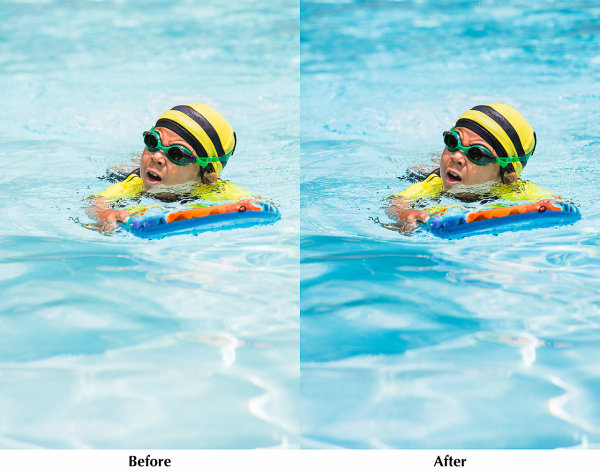
Radial Filter Before and After

Adobe PhotoShop Lightroom version 5 was released in June, and I’ve been digging into the new features. In this article I’ll share some tips for selective editing with the new Radial Filter tool.

The Radial Filter allows you to draw an ellipse around an area of an image, and apply edits to the area outside or inside the ellipse. This is a great technique for highlighting portions of an image.

Radial Filter Settings
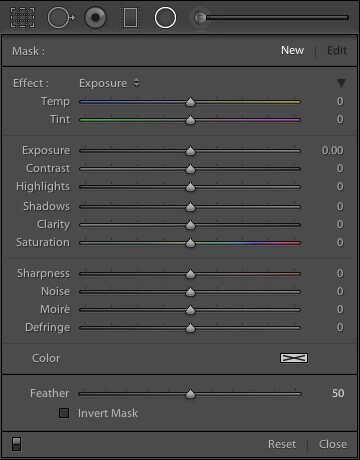
Lightroom 5 Radial Filter SettingsThe Radial Filter tool in Lr 5 gives you the same set of standard adjustments as the Graduated Filter and Adjustment Brush. Note that this screenshot is from an image that is using the 2012 process. Read more about process versions here.

Keyboard Shortcut: Shift M

If you read my article on improving your Lightroom workflow, you’ll remember that I’m nuts about keyboard shortcuts. The shortcut for accessing the Radial Filter tool is Shift M. Just remember that the shortcut for the Graduated Filter is M, so Shift M makes sense for the new Radial Filter. After all, if you took a Graduated Filter, and curled it into a circle, you’d have the new Radial Filter tool.

Using the Radial Filter Tool

In the above photo of my son enjoying a summer day at the pool, I used the Radial Filter to make the water a little darker, and a little more blue, without changing the exposure or white balance over the subject. This has the effect of emphasizing the subject by making him brighter and warmer than the rest of the image.
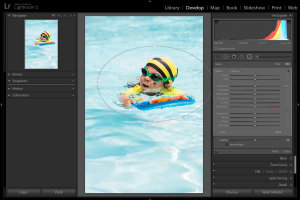
Lightroom 5 Radial Filter Usage
1. Select the Radial Filter tool and draw an ellipse around the subject. Start by clicking at the center of the subject, and dragging outwards.
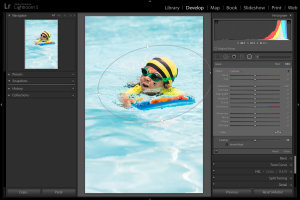
Lightroom 5 Radial Filter Usage
2. If necessary, rotate the ellipse. Hover your mouse just outside the ellipse until the cursor changes to that rotation indicator thingy, then click and drag.
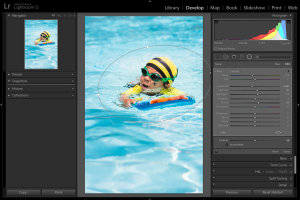
Lightroom 5 Radial Filter Usage
3. Apply the desired settings. In this example, I’m cooling the white balance, reducing exposure, and increasing contrast, highlights, and clarity. Increased clarity often make water look more interesting by bringing out the reflections.
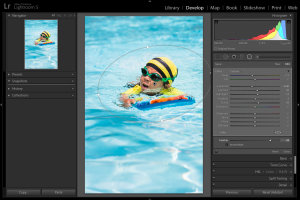
Lightroom 5 Radial Filter Usage
4. Feather the adjustment. Feathering the adjustment is important to ensure your image looks natural, not “Photoshopped.” Feature is 50 by default, I’ve found that for more image, I like it around 85 or so. Note that after increasing the feather, you may need to back and increase the size of the filter.

Inverting the Mask
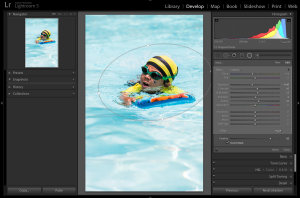
Lightroom 5 Radial Filter Usage
When the Invert Mask box is not checked, your edits apply to the area outside the ellipse. If you check the Invert Mask box, your edits apply to the area inside the ellipse.

Conclusion

By varying the exposure, contrast, and white balance of the subject, relative to the setting, you can direct the viewer’s gaze and increase the impact of your photo. I hope this simple example has given you some ideas of how to incorporate the new Radial Filter tool into your workflow. I appreciate feedback, please comment below or feel free to connect with me through Facebook or Google+. I’ll do my best to answer questions and reply to comments.

Post originally from: Digital Photography Tips.

Check out our more Photography Tips at Photography Tips for Beginners, Portrait Photography Tips and Wedding Photography Tips.

How to use the new Radial Filter Tool in Lightroom 5


Digital Photography School

 
Comments Off on How to use the new Radial Filter Tool in Lightroom 5

Posted in Photography


DEAL: Save 30% off James Brandon’s Lightroom Presets Bundle (and get a FREE ebook)

14 Jul

LR_presets_adOver on our sister site – SnapnDeals – we have a great offer running right now – it gets you 30% off of an incredible collection of Lightroom presets by DPS contributor James Brandon. You’ll also receive a free copy of his newest ebook “10 Tips For Improving Your Photography Today.”
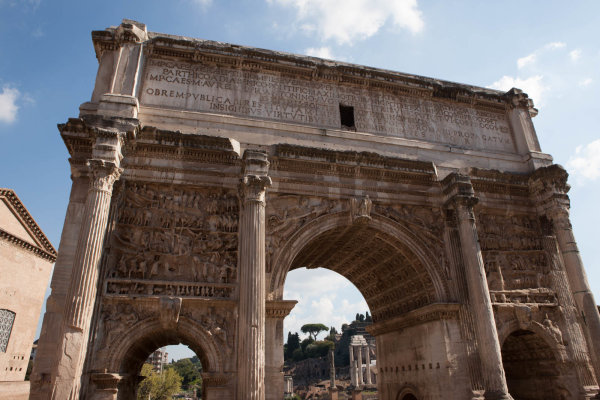
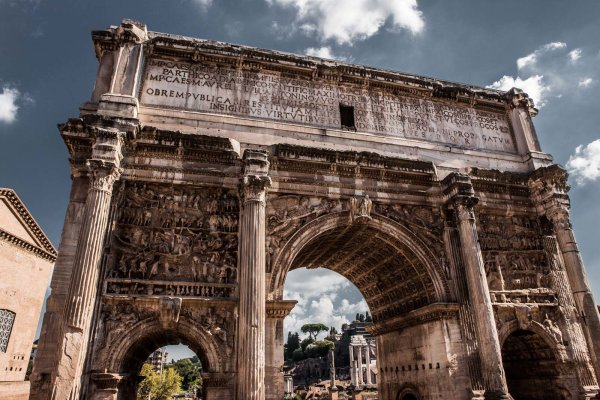

This collection includes 80 presets in 7 different groups and will take your images to a whole new level! Presets are a great way to speed up your workflow in Lightroom and discover new looks and effects for your photos.

James has been stockpiling and optimizing these presets for years, and narrowed them down to just the best. Each collection is targeted towards a specific genre of photography or a specific photo processing need. Highlights of this bundle include the JamesB Filter Pouch; a collection of presets that mimic the filters landscape and travel photographers use out in the field. The JamesB Travel Presets; a collection that will work great for those vacation and adventure images. And the brand new JamesB Family Lifestyle Presets; a collection that James has created specifically for pictures of his family and friends.

His ebook 10 Tips For Improving Your Photography Today is included free with this purchase and will be a great companion for any photographer looking for quick, useful tips that will give your creativity and photography a boost.

Check out full details of the deal here

Before and After Samples

Before

Before

After - Using 'Rome' in the JamesB Travel Preset collection

After – Using ‘Rome’ in the JamesB Travel Preset collection

Before

Before

After - Using 'Day at the Zoo' in the JamesB Family Lifestyle collection

After – Using ‘Day at the Zoo’ in the JamesB Family Lifestyle collection

Before

Before


After - Using 'Sweet Pea Vintage' in the JamesB Nostalgia Film collection

After – Using ‘Sweet Pea Vintage’ in the JamesB Nostalgia Film collection


Post originally from: Digital Photography Tips.

Check out our more Photography Tips at Photography Tips for Beginners, Portrait Photography Tips and Wedding Photography Tips.

DEAL: Save 30% off James Brandon’s Lightroom Presets Bundle (and get a FREE ebook)


Digital Photography School

 
Comments Off on DEAL: Save 30% off James Brandon’s Lightroom Presets Bundle (and get a FREE ebook)

Posted in Photography


13 July, 2013 – Lightroom 4/5 Training Video Bundle Discount

13 Jul

We have just announced a 20% discount for the combined purchase of our Lightroom 4, 4x and 5 Training Videos.

These three tutorial videos are the most comprehensive way to learn Lightroom, and cover virtually every aspect of the program, both basic features as well as the more advanced and latest additions.


The Luminous Landscape has just announced two spectacular new 
Antarctic Photographic Expeditions for January and February 2015

Find Out More Now
These Expeditions Will Sell Out Quickly. They Always Do.


The Luminous Landscape – What’s New

 
Comments Off on 13 July, 2013 – Lightroom 4/5 Training Video Bundle Discount

Posted in News


How to Use Lightroom on 2 Computers and Keep the Catalogue Synchronised

11 Jul

A common question that we hear from readers about using Lightroom is how can it be used on two computers while keeping your catalog synchronised?

In this video Phil Steele shares 3 great strategies for doing just this.

For more great Lightroom tips from Phil Steele check out his Lightroom Made Easy Course which many dPS readers have enrolled in and found helpful.

Post originally from: Digital Photography Tips.

Check out our more Photography Tips at Photography Tips for Beginners, Portrait Photography Tips and Wedding Photography Tips.

How to Use Lightroom on 2 Computers and Keep the Catalogue Synchronised


Digital Photography School

 
Comments Off on How to Use Lightroom on 2 Computers and Keep the Catalogue Synchronised

Posted in Photography


DxO Viewpoint 1.2.1 now compatible with Photoshop CC and Lightroom 5

10 Jul

shared:DxOLogo.png

DxO Labs has updated its distortion-correction software Viewpoint to version 1.2.1, meaning it’s now compatible with Adobe Photoshop CC and Lightroom 5. Viewpoint works both as standalone software and as a plug-in, and is designed to correct for perspective distortions such as converging verticals, and to restore more natural proportions to objects at the edge of the frame when shooting with wideangle lenses. The company has also announced that all of its software is on sale at reduced prices until 31st July. Click through for more info and download links.

News: Digital Photography Review (dpreview.com)

 
Comments Off on DxO Viewpoint 1.2.1 now compatible with Photoshop CC and Lightroom 5

Posted in Uncategorized


How to Use the Adjustment Brush in Lightroom

08 Jul

In this video tutorial Trevor Dayley gives a few quick and helpful tips on using the Adjustment brush in Lightroom. If you’re new to Lightroom this is a great place to start to get a little more creative control. Enjoy!

Post originally from: Digital Photography Tips.

Check out our more Photography Tips at Photography Tips for Beginners, Portrait Photography Tips and Wedding Photography Tips.

How to Use the Adjustment Brush in Lightroom


Digital Photography School

 
Comments Off on How to Use the Adjustment Brush in Lightroom

Posted in Photography


7 July, 2013 – Last day for 20% discount on Lightroom 5 tutorial

07 Jul

20% Off Discount ends July 7


The Luminous Landscape – What’s New

 
Comments Off on 7 July, 2013 – Last day for 20% discount on Lightroom 5 tutorial

Posted in News