RSS
 

Posts Tagged ‘lightroom’

Creating a Black and White High Contrast Portrait Edit in Lightroom

17 Nov

Introduction

The Following is an excerpt from the SLR Lounge Lightroom Preset System v5 and accompanying workshop from the Lightroom Workshop Collection v5.  The Lightroom Preset System is designed to take you from Ordinary to Extraordinary photos in just a few seconds and clicks within Lightroom 4 and Lightroom 5.

Overview

In this tutorial we’re going to go over how to turn a regular color portrait into a nice high contrast black and white image. For this tutorial we have a portrait of a baby out in a field. The overalls, details in the field, and overall background blur will be complimented by a high contrast black and white edit. The SLR Lounge Lightroom Preset System v5 has presets specifically for high contrast black and white portraits which we are going to apply to this photo. If you don’t have the preset system, we’ll list all of our Develop settings so you can achieve the same look.

Here’s what our photo will look like before and after we’re done with the edit.

beforeafter

Unedited Photo on Left | High Contrast Black and White on Right

Lightroom Preset System v5 Mixology

For those who have the Preset System, you can follow the Mixology Recipe below to get to the same results. If you don’t have the Preset System, please read the article or watch the video below to see exactly how this look was achieved.

Develop Mixology

  • 01-10 BASE – SOFT: 13b. Light Crush – B&W
  • 03-70 ADJUST – VIGNETTING: 71c. Neutral – Zeroed

Written Tutorial

Step 1: Checking The EXIF Data
exifdata

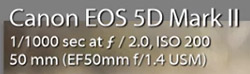
We press “i” to pull up our EXIF data so we can see exactly how this image was shot. This image was shot with a 50mm lens at f/2. We want to keep in mind that the depth of field is shallow, and we may have to add sharpening to this image.

Step 2: Apply Preset

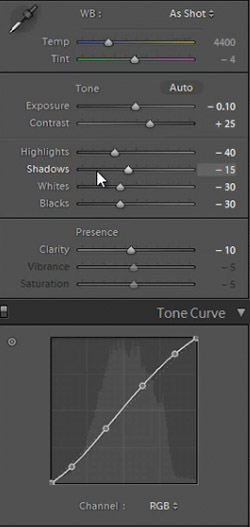
We’re starting with our “01-10 BASE – SOFT: 13b. Light Crush – B&W” preset, and after we lower the Exposure to -0.10 we have a nice high contrast black and white look. Then we apply a “03-70 ADJUST – VIGNETTING: 71c. Neutral – Zeroed” vignette preset so we can get a subtle edge darkening.

In the develop settings the Contrast was raised and the Shadows and Blacks have been dropped. This is giving our nice deep shadows and blacks, and adding to the high contrast look we’re editing for. The Highlights and Whites have also been dropped in order to bring the highlights in the skin closer to the mid tones.
developpanel1

With Settings Zeroed Out

Here’s what our image looks like with a simple black and white conversion (convert by hitting “V”), without the adjustments in Contrast, Highlights, Shadows, Whites, Blacks, and Tone Curve.
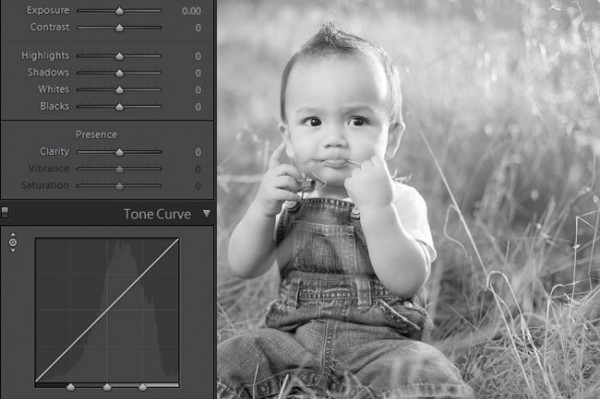
Before High Contrast Settings

With High Contrast Settings

Here’s our image with Contrast, Highlights, Shadows, Whites, Blacks, and Tone Curve adjustments applied.
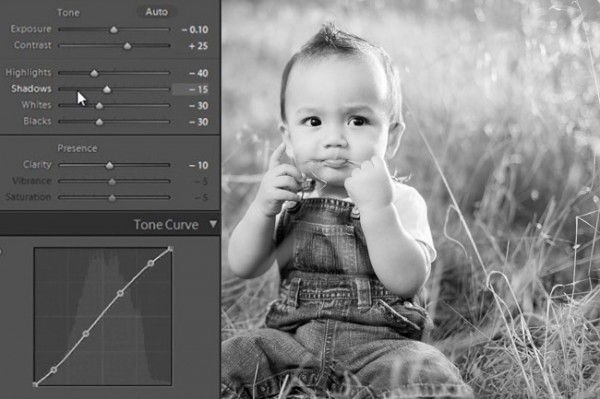
High Contrast Develop Settings

In the image below you can see a huge difference that the adjustments make. The eyes stand out, there’s more details in the hair and grass, and there’s more texture in the clothes.  All these subtle details combined add quality to an otherwise flat black and white image.

beforeandafter

All Settings Zeroed On Left. High Contrast Adjustments on Right


In our Sharpening settings our preset applied our standard amount, but the image is still a bit soft because of the shallow depth of field caused by shooting this image at f/2.0. To get a nice sharp portrait we raise the Amount, Radius, and Detail. The preset also adjusted our Noise Reduction settings, giving the subject in our portrait nice soft skin. All of the “SOFT” presets have this standard amount of Noise Reduction applied in order to soften and smooth out skin without going so far to kill fine details.
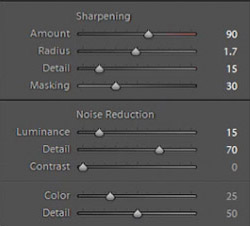
sharpening settings

Here’s what our image looks like before and after our presets are applied.

Before

lightroom-5-tutorial-high-contrast-b&w-newborn-0001

After

lightroom-5-tutorial-high-contrast-b&w-newborn-0002

Watch the Video Tutorial

If you would like to see exactly how all of the settings and adjustments were applied, please watch the video from the SLRLounge YouTube Channel.

Conclusion and Learn More

We hope you all enjoyed this tutorial. If you are interested in learning more or purchasing the SLR Lounge Lightroom Preset System v5 or the newly released Lightroom Workshop Collection v5, please click any of the links in this article.

Post originally from: Digital Photography Tips.

Check out our more Photography Tips at Photography Tips for Beginners, Portrait Photography Tips and Wedding Photography Tips.

Creating a Black and White High Contrast Portrait Edit in Lightroom

The post Creating a Black and White High Contrast Portrait Edit in Lightroom by Post Production Pye appeared first on Digital Photography School.
Digital Photography School

 
Comments Off on Creating a Black and White High Contrast Portrait Edit in Lightroom

Posted in Photography


How to Find Your Best Images With Lightroom 5’s Compare View

15 Nov

Using Lightroom 5's Compare View

For decades photographers have faced the question of how to determine which of their images are the best. I’ve been through it all, from squinting at 35mm slides through a loupe on a lightbox, to creating contact sheets from negatives and marking the best with a red marker, to scanning negatives and slides through to the modern version of looking at Raw files on the camera’s LCD screen or in the various programs I have used over the last few years. Of those, there’s no doubt that Lightroom is one of the best for the task of comparing images and selecting the best ones.

Compare View

The tool I use for comparing images in Lightroom is the aptly named Compare View (I also use Survey View, to be covered in a future article).

To get the most out of Compare View, you should use Collections to organise your images, and Grid View to view thumbnails. Click the links to learn more about both.

Using Lightroom 5's Compare View

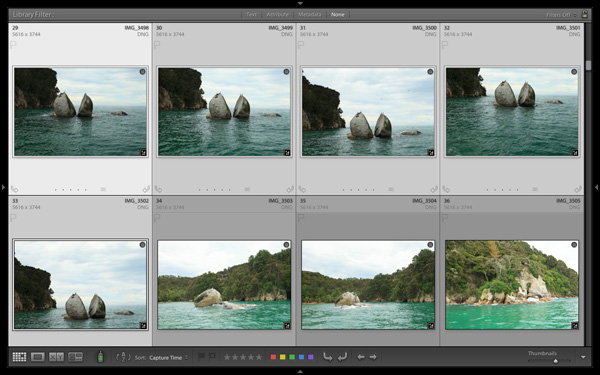
Grid View is the starting point for using Compare View. Select the images that you want to compare. It may be just two, or you may want to compare more. In this example (above) I selected five images.

Using Lightroom 5's Compare View

The first image that you select is, in Lightroom terminology, the most selected image. It is surrounded by a lighter frame than the other selected photos. In the screenshot above the photo on the left is the most selected.

Using Lightroom 5's Compare View

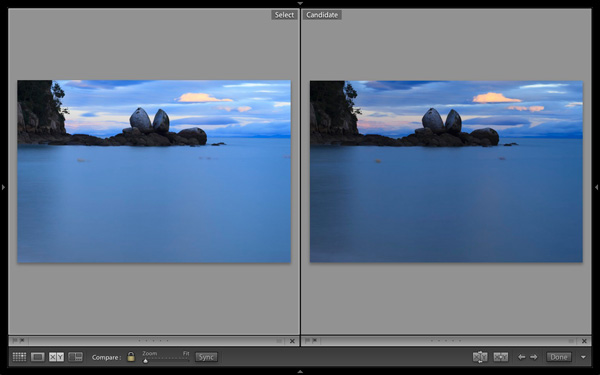
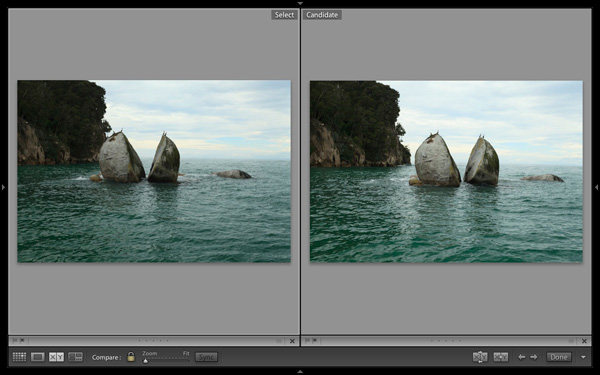
Images selected, press ‘C’ on your keyboard to go to Compare View. The most selected image is displayed on the left. Lightroom calls this photo the Select. The next image in the selection is displayed on the right. This one is called the Candidate.

The idea is to compare the Select with the rest of the images in the selection. Test it out by using the left- and right-arrow keys on your keyboard. If your selection contains more than two images, Lightroom cycles through the remainder of the selection, displaying each image as a Candidate.

Compare View icons

The icons along the bottom of the window in Compare View help you tell Lightroom what to do with either the Select or Candidate images. The first set is located underneath each photo:

Using Lightroom 5's Compare View

1. Click on these icons to flag the photo as a Pick (left) or a Reject (right).

2. Click on these dots to give the photo a Star rating.

3. Click on the faint grey square to apply a Colour label.

4. Click on the X to deselect the photo. Lightroom removes it from Compare View when you do this.

The icons change to indicate the updated status of the image.

If the photo changes when you click any of these options, it is because you have the Auto Advance option ticked. Turn Auto Advance off by going to Photo > Auto Advance. I find it easiest to use Compare View with Auto Advance disabled.

The Toolbar icons

The rest of the icons are displayed in the Toolbar at the bottom of the Compare View window (press ‘T’ on your keyboard to reveal the Toolbar if you don’t see it).

Using Lightroom 5's Compare View

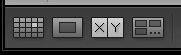
This indicates that you are in Compare View. From left to right, these icons show Grid View (G), Loupe View (E), Compare View (C) and Survey View (N). You can switch between these modes by clicking on the icon or using the keyboard shortcuts (indicated in brackets).

Using Lightroom 5's Compare View

With the padlock icon in the locked position (above) you can zoom into both the Select and Candidate image simultaneously by clicking once on either one. The magnification is set by the Zoom slider and both images move in tandem with the hand tool. This is useful for comparing two near identical images for fine detail such as accurate focusing or noise.

Using Lightroom 5's Compare View

With the padlock icon in the unlocked position you can zoom into either image without affecting the other. Press the Sync button at any time to bring the second image into sync with the first.

Using Lightroom 5's Compare View

These icons are perhaps the most important in Compare View, as they help you navigate around the images in the selection.

The two arrows on the right are straightforward. Click on them to navigate through the selection, just like you did with the arrow keys earlier.

The Swap button (X|Y with two arrows) tells Lightroom to swap the Candidate and Select images. Use it when you decide that the Candidate is the strongest image in the selection, and you want to compare it to the others.

The Make Select button (X|Y with one arrow) tells Lightroom to turn the Candidate image into the Select. The Select is removed from the display, and the next image in the selection becomes the new Candidate.

Using Lightroom 5's Compare View

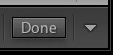
If you press the Done button Lightroom takes you to the Loupe View and displays the Select image. Alternatively, you can use the ‘G’ shortcut to return to Grid View.

Click the White arrow icon to add or remove icons from the Toolbar.

Putting it together

The main purpose of Compare view is to let you compare similar image so that you can decide which ones you want to process in the Develop module (you can also use it to compare photos that you have processed, or partly processed in the Develop module – but that’s another topic). Use the arrow keys to cycle through the images in your selection, and the Swap and Make Select buttons to compare different images. If this is new to you, it won’t take much practice before you settle into a rhythm. You’ll be pleasantly surprised at how quickly you can work you way through even hundreds of images using Compare View.

While some photographers use Star ratings and Colour labels to help organise their images, by far the simplest method is to use Flags. If you decide to process an image, click the grey flag icon underneath the photo (it’s on the left) to flag it as a Pick. If decide not to process it, leave it unpicked. Then, when you have finished, all you have to do is return to Grid View and choose the Flagged option in the Filter bar to remove the unwanted images from view. Then go to Edit > Select all to select all the flagged images and send them to a new Collection containing only the images that you want to process in the Develop module (using Collections to organise your images is covered in this article).

Mastering Lightroom Book One: The Library Module

Using Lightroom 5's Compare View

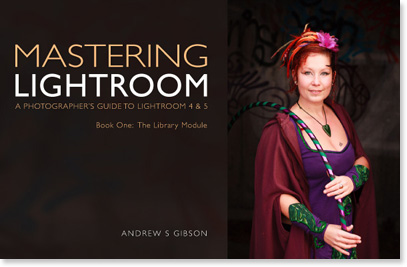
My latest ebook Mastering Lightroom Book One: The Library Module is a complete guide to using Lightroom’s Library module to import, organise and search your photo files. You’ll learn how to tame your growing photo collection using Collections and Collection Sets, and how to save time so you can spend more time in the Develop module processing your photos.

Post originally from: Digital Photography Tips.

Check out our more Photography Tips at Photography Tips for Beginners, Portrait Photography Tips and Wedding Photography Tips.

How to Find Your Best Images With Lightroom 5’s Compare View

The post How to Find Your Best Images With Lightroom 5’s Compare View by Andrew Gibson appeared first on Digital Photography School.

Digital Photography School

 
Comments Off on How to Find Your Best Images With Lightroom 5’s Compare View

Posted in Photography


How To Save An Underexposed Photo Using Lightroom

10 Nov

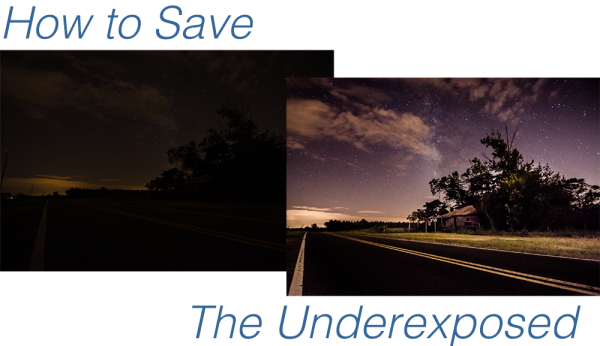
Before we even get started I should make clear that this is to be used as a last resort effort to save a photograph that can’t possibly be retaken any time soon, not something we should make a habit out of. We all know that the best way to save an underexposed photograph is to simply pay attention to the histogram while taking photos and if it’s pushed all the way to the left adjust our settings and reshoot.

Of course with that said, there are cases where it’s impossible to reshoot, or we just forgot to check our settings and get home to realize everything is underexposed and in that case we can do one of two things – toss the photo in the trash or try and save it.

Today I’m going to show you…

after underexposed

I’d like to mention upfront that to be able to achieve these kinds of results you really must be photographing in the RAW format – no ifs, ands or buts about it! If you need a bit of clarification as to why RAW is important you can read all about the RAW format here.

Let’s Save An Underexposed Photo

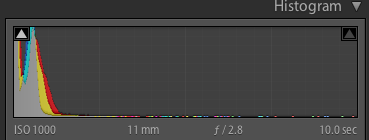
Underexposed histogram

If you do get home and your histogram looks the one to the right than you’ve got an underexposed photograph in serious need of some help. It probably looks very similar to the before image above with just peaks of light in the very brightest parts of the photograph.

Before you give up hope and assume that your shoot is a complete failure there are a few things you can do to try and salvage the underexposed photographs that you’ve taken.

I’m going to be presenting you with three techniques that you can use to get the most out of what you have. However it is important to note that every photograph is different and will present its own unique set of challenges. These three ideas will give you something to try in the event that you do get home and find your photographs have taken a turn for the dark side, but they might not be able to bring them back, sometimes they truly are too far gone.

For this tutorial I’m using a fairly serious example, in most cases I would hope that you won’t have nearly as bad a situation as I have for you today, so let’s get started!

#1 – Save what you can get rid of what you can’t

This might not be the best way to go about things, but it certainly is the easiest way to get something out of nothing.

By simply adjusting the basic settings a bit to expose for the sky in the photograph I create a simple silhouette of the trees and leave it at that. The final step was to clone out the little bits of the run down shack that were peaking out asking for attention, but not adding to the photograph.

Definitely not the best option for this photo, but it is an option worth considering when you are processing your own photos – sometimes you really don’t have to save everything – it might not be what you had intended the shot to be, but that doesn’t mean it’s a complete loss.

Clone Screenshot

Expose for what you have clone out what you can’t save.

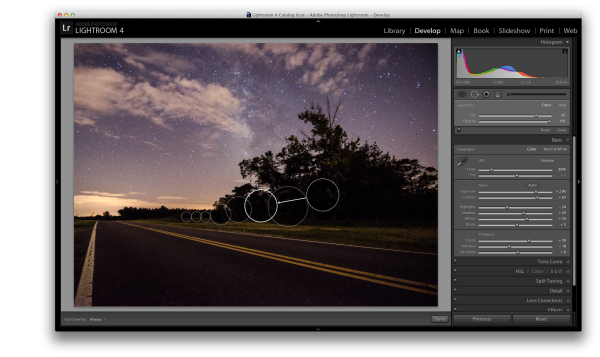
#2 – Use Graduated Filters and Adjustment Brushes Until You Can’t Use Them Anymore

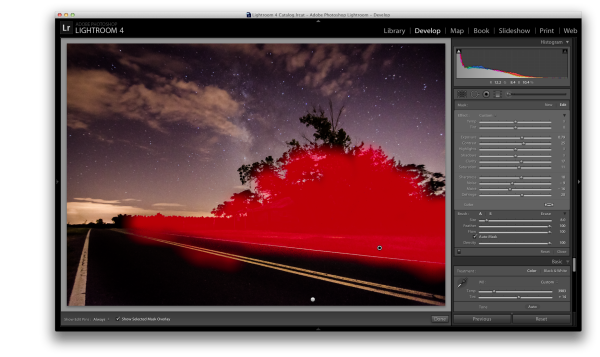
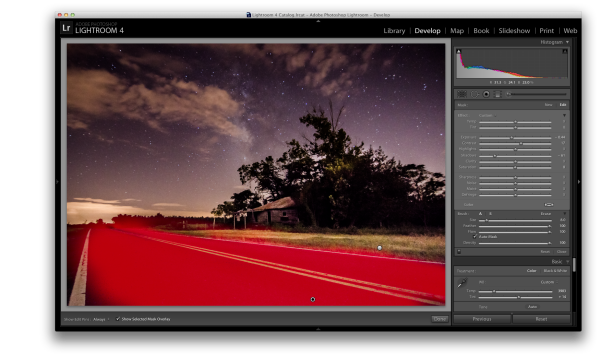
For this second attempt at saving this image I did a lot of the same processing as I did on the first one to get the sky the way I wanted it. Once I got to that point instead of simply giving up and cloning out the run down shack I decided to add a graduated filter and some adjustment brushes to try and save the foreground.

As you can see with just a few modifications I was able to really bring out the hut and add some light to the grass as well as some much needed contrast to the road. This became the after image scene above.

Graduated filter screen shot

Use a graduated filter to bring light back into the foreground.

Adjustment Brush Overlay One

Add light to the grass and hut with one adjustment brush

Adjustment Brush Overlay Two

Darken the road to add contrast and remove some noise with a second adjustment brush.

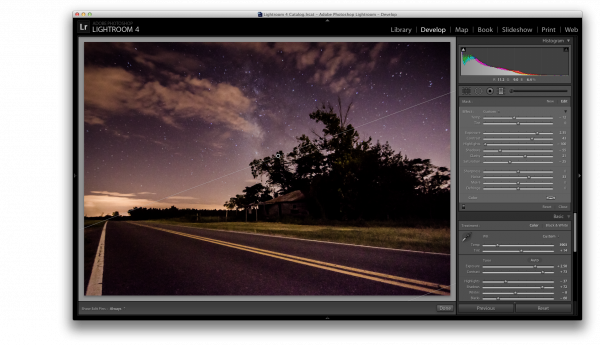
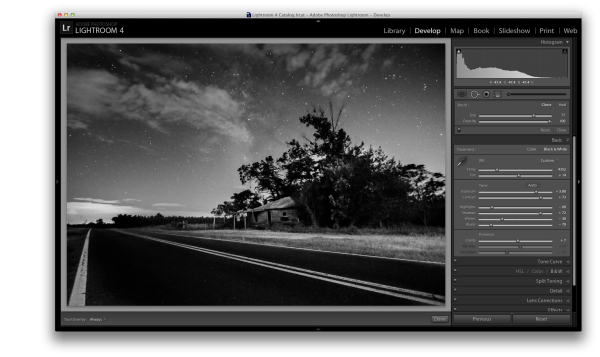
#3 – Convert to Black and White

If we have a really bad case of underexposure, as I do in this photograph, noise will become a problem. As you recover data from the darkest of the shadows you will find that there just isn’t any data there to recover and you’ll end up with pixelated noise in those regions. This is especially true if you were already shooting at a higher ISO.

In cases like this sometimes the only solution left to do is convert to black and white. By converting the image to black and white you essentially are able to hide the color noise leaving only the luminance noise in the photograph. While it’s still not ideal, it can be a useable alternative if you have no other options.

Reduce noise by converting to black and white

Convert the image to black and white to minimize the effect of noise

For those who enjoy videos this photograph’s edit was part of a weekly series I run on YouTube called Let’s Edit you can watch the video of that episode below.

Post originally from: Digital Photography Tips.

Check out our more Photography Tips at Photography Tips for Beginners, Portrait Photography Tips and Wedding Photography Tips.

How To Save An Underexposed Photo Using Lightroom

The post How To Save An Underexposed Photo Using Lightroom by John Davenport appeared first on Digital Photography School.


Digital Photography School

 
Comments Off on How To Save An Underexposed Photo Using Lightroom

Posted in Photography


Adobe releases Camera Raw 8.3 and Lightroom 5.3 release candidates

09 Nov

shared:AdobeLogo.png

Adobe has issued Camera Raw and DNG Converter 8.3 release candidates, along with a similar preliminary version of Lightroom 5.3. ACR 8.3 is designed as different versions for Photoshop CC and Photoshop CS6. DNG Converter is available for free for users of older versions of Photoshop. The latest versions brings support for 15 additional cameras, including most of the latest models from Fujifilm, Nikon, Olympus and Sony. Eight lens correction modules are also added, including support for the Sigma 18-35mm F1.8.

News: Digital Photography Review (dpreview.com)

 
Comments Off on Adobe releases Camera Raw 8.3 and Lightroom 5.3 release candidates

Posted in Uncategorized


Sending Panorama Sequences from Lightroom to Photoshop

09 Nov

Sending Panorama Sequences from Lightroom to Photoshop

In addition to being able to send single images from Lightroom to Photoshop for editing you can also send a series of images to Photoshop to assemble into a panorama. This is a useful because the Photoshop panorama merge feature is pretty good (certainly since the improvements in Photoshop CS3 & CS4) and other Photoshop tools such as Content Aware Fill and the Lens Correction Filter are handy for finishing your panoramas. When you are done, click Save and the completed panorama will be sent back to Lightroom for further processing.

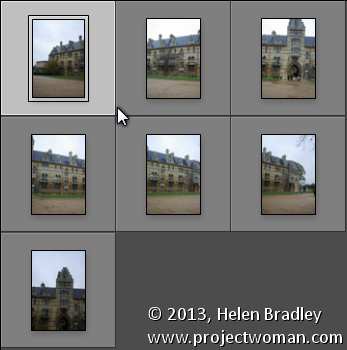
To see how this is done, begin inside Lightroom and select the images to assemble into a panorama. I like to put these into a collection so they are handy if I want to try multiple panorama options to select the best of them. I don’t typically process the images before sending them to Photoshop and, instead, I process the completed panorama when it returns to Lightroom. One exception to this is fixing the white balance if it were incorrectly set on the camera at capture time, for example.

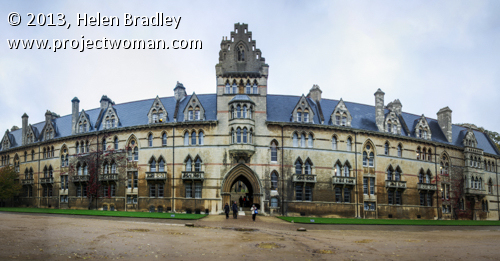
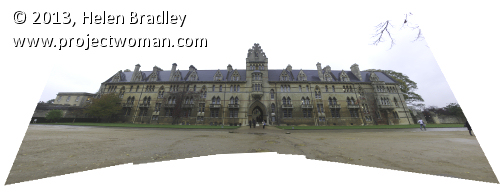
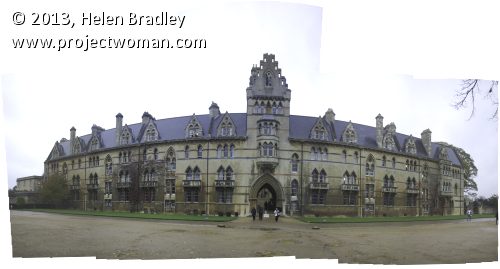
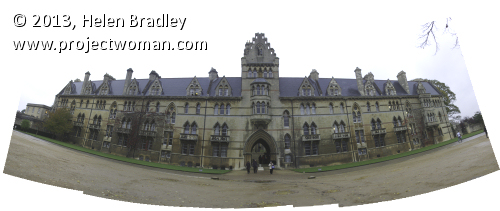
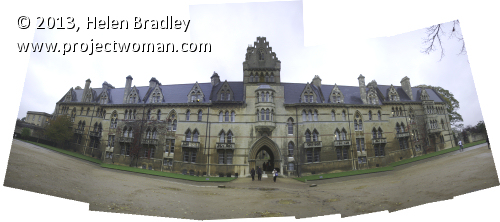
Photoshop can assemble panoramas both vertically and horizontally and it can also take a mix of images such as I used here. This sequence is six shots horizontally across the front of a building and one extra shot to handle the building’s tower which wasn’t captured in the original sequence. If I’d been thinking, I would have captured some extra sky to use but we can solve that in Photoshop.

Sending Panorama Sequences from Lightroom to Photoshop 1

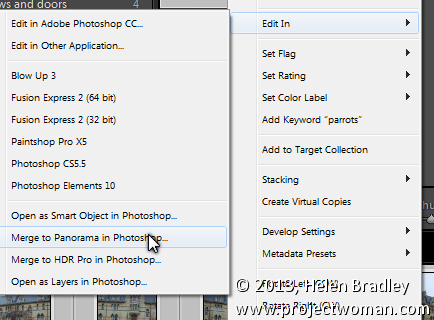
Select the images, right click and choose Edit In > Merge to Panorama in Photoshop.

Sending Panorama Sequences from Lightroom to Photoshop 2

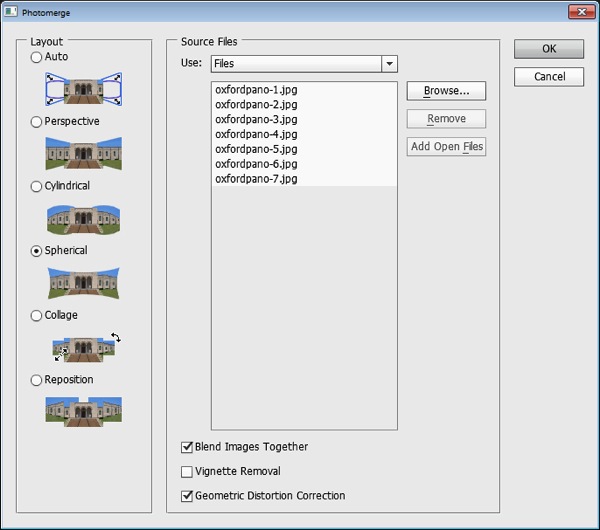
Photoshop will open with the images you sent to Photoshop listed in the Photomerge dialog. Now you need to determine the Layout to use. In most cases the Auto setting will be a good choice – when you select this, Photoshop will analyze the images and determine the best of the other layout alternatives: Perspective, Cylindrical and Spherical to use.

Sending Panorama Sequences from Lightroom to Photoshop  3

Check the Blend Images Together checkbox so that the images will be seamlessly blended together – then you won’t have to do it yourself. You can also click Geometric Distortion Correction to remove the effect of any barrel, pincushion or fisheye distortion in the original images. If the edges of your images have some edge vignetting click Vignette Removal. If you’re unsure what to choose, check all three checkboxes. Click Ok and wait as the images are aligned and blended.

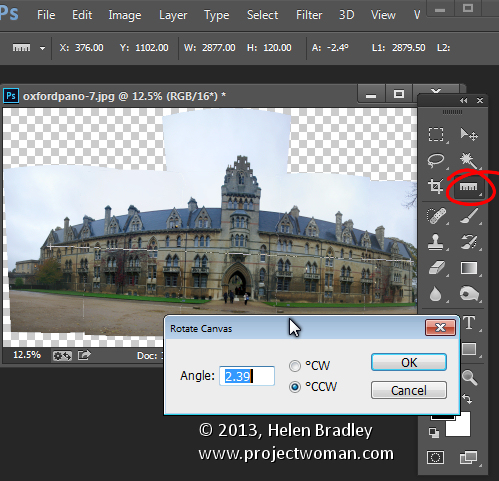
Once the panorama is assembled you can straighten the image if desired. To do this select all the layers and target the Ruler tool. Now drag along a line in the image which should be perfectly horizontal – you won’t be able to click the Straighten Layer button to rotate the image because you will have multiple layers selected. Instead, choose Image > Image Rotation > Arbitrary and click Ok to straighten the entire image to the angle of the Ruler line.

Sending Panorama Sequences from Lightroom to Photoshop  4

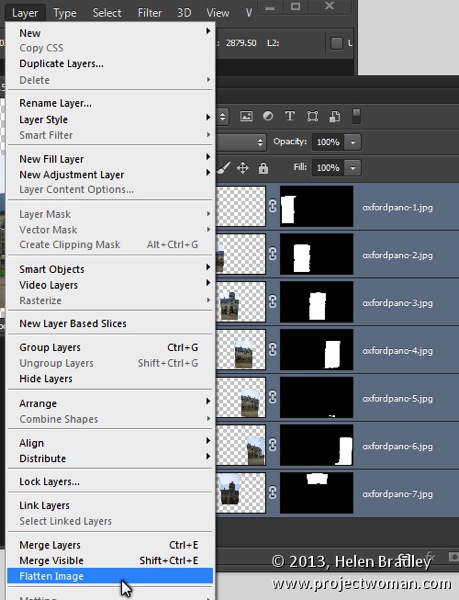
Most panoramas will then need to be cropped to a rectangle to eliminate uneven areas around the edge of the image. However, before you do this you may want to fill in some of the empty areas of the image using the Content Aware Fill tool so you can crop larger than you would otherwise be able to do. To do this you’ll either need to flatten the image to a single layer or you will need to create a new layer with the entire image on it to use. To flatten the image choose Layer > Flatten Image. To make a new layer with the image on it (but still retain the individual layers below) click the topmost layer and press Control + Alt + Shift + E (Command + Option + Shift + E on the Mac).

Sending Panorama Sequences from Lightroom to Photoshop  5

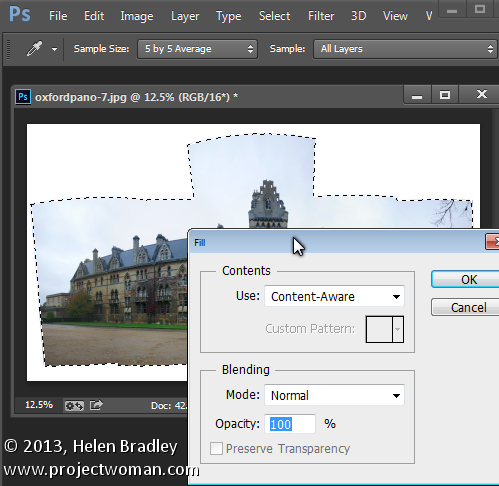
Select the area that you want to fill and then choose Edit > Fill, from the Use list choose Content Aware and click Ok. Photoshop will attempt to fill the missing area with details from the image around it. If the image contains sufficient detail you should be able to build up missing areas of sky and foreground, for example.

If you encounter problems with the Content Aware Fill feature this post will show you how to mask a layer to get better results when using it: http://digital-photography-school.com/smarter-content-aware-fill-in-photoshop. Crop the image when you have filled the edge area.

Sending Panorama Sequences from Lightroom to Photoshop 6

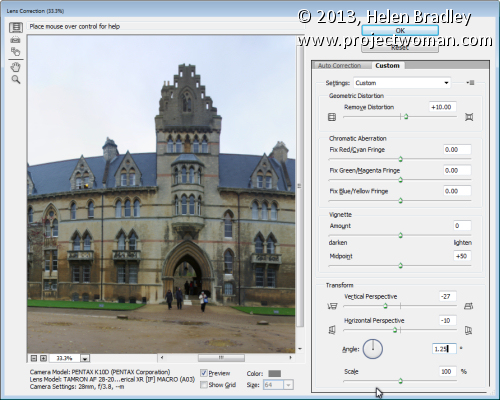
To fix unwanted distortion in an image you can use the Lens Correction tool. This tool works on a single layer and you run it by choosing Filter > Lens Correction > Manual. Adjust the Horizontal Perspective slider to fix problems with an image which has not been captured face onto the point of interest. Use the Vertical Perspective slider to adjust for keystoning – generally you will drag this slider to the left. Use the Geometric Distortion slider to remove barrel and pincushion distortion.

Sending Panorama Sequences from Lightroom to Photoshop 7

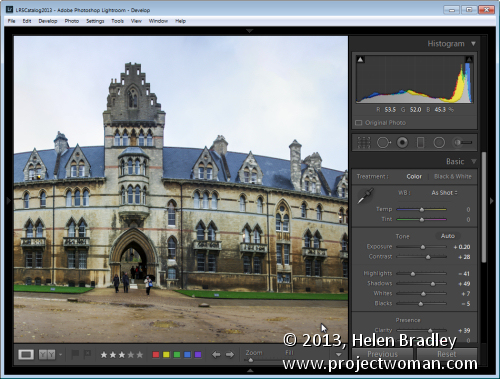
Once you have finished assembling the panorama choose File > Save to save the image and return to Lightroom where your panorama will be ready for further editing.

LR PS panoramaMerge 8

If you are not using Lightroom you can assemble a panorama from Bridge or from inside Photoshop. In Bridge select the panorama sequence and choose Tools > Photoshop > Photomerge in Bridge. In Photoshop, first open the images to use then choose File > Automate > Photomerge and click the Add Open Files button. In either case you will probably want to fix the image in Photoshop once the panorama is complete. If you are using Lightroom you may prefer to finish processing the panorama in Lightroom.

Layout Options

Each of the panorama Layout options in Photoshop results in a different looking panorama. Choosing Auto tells Photoshop to select the best of the options Perspective, Spherical and Cylindrical for your particular sequence of images.

Here is the result of each of the other Layout options used with our image sequence, these results haven’t been edited except to straighten the image and brighten it a little. You may want to experiment with any given sequence of images to see which of these options gives you the most pleasing result:

Perspective Layout

The panorama is assembled in relation to the middle image of your sequence of images. The middle image is placed in position and the other images arranged either side of it and skewed and repositioned as needed. This often results in edges which are taller than the middle giving rise to the term ‘bow-tie” distortion.

LR PS panoramaMerge perspective

Cylindrical Layout

This layout avoids the bow-tie distortion by showing the images as they might look if placed on an unwrapped cylinder.

LR PS panoramaMerge cylindrical

Spherical Layout

This layout arranges the images as if to cover the inside of a sphere. It is a good choice for 360 degree panoramas and can also give good results with other shorter panorama sequences.

LR PS panoramaMerge spherical

Collage Layout

This layout aligns the images matching overlapping content. If necessary, image layers are transformed and rotated.

LR PS panoramaMerge collage

Reposition Layout

This layout aligns the images matching overlapping content but without transforming or rotated the images.

LR PS panoramaMerge reposition

Post originally from: Digital Photography Tips.

Check out our more Photography Tips at Photography Tips for Beginners, Portrait Photography Tips and Wedding Photography Tips.

Sending Panorama Sequences from Lightroom to Photoshop

The post Sending Panorama Sequences from Lightroom to Photoshop by Helen Bradley appeared first on Digital Photography School.

Digital Photography School

 
Comments Off on Sending Panorama Sequences from Lightroom to Photoshop

Posted in Photography


3 Lightroom History Tips

06 Nov

Lightroom history tips opener

Like Photoshop, Lightroom has a History feature that shows a list of the fixes you’ve applied to an image. It can be used to wind back changes that you have made to an image. Unlike the Photoshop history, the Lightroom history entries don’t disappear when you close Lightroom – they remain accessible from one instance of Lightroom to the next.

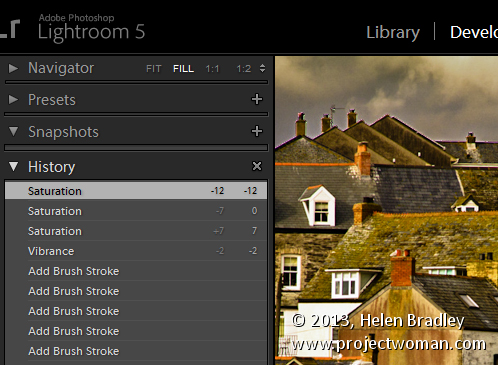
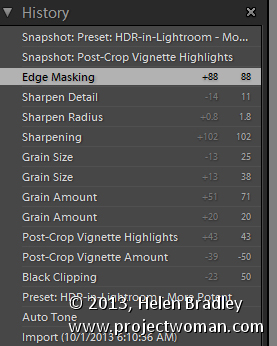
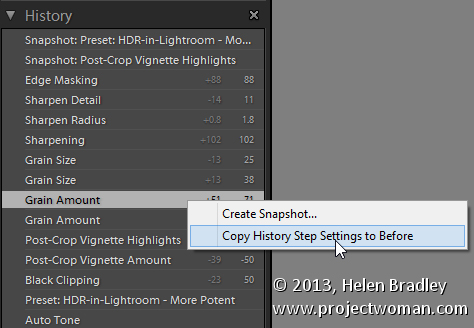
The History panel is on the left in the Develop module. Click to open it and you’ll see a list of the edits made to the image. These read from bottom to top so the topmost history setting is the one you applied last to the image. These History settings show not only the sliders you adjusted when editing the image but also the final value of that slider and the amount of change you made at that step.

Lightroom history tips 1

You can wind back the history of changes that you’ve made to the image by clicking any of the entries in the History panel. Until you make further changes to the image you won’t lose the later history states if you click on an earlier one. So you can click from one history state to the next to view the image at that point in the editing process.

If you click to view an image at an earlier stage of its editing and then start making changes to the image you will lose all the later history states – they’ll be replaced by your new edits.

3 Lightroom History Tips

Here are three handy tips for working with Lightroom History:

1. Delete History

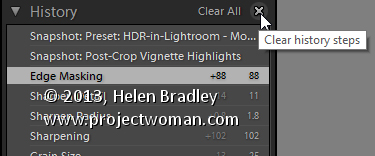
You can delete the Lightroom history for any selected image. To do so, click the X (Clear All) button in the top right of the History panel. This removes the history steps from the History panel – it doesn’t actually remove the edits from the image – it just clears the History panel.

Lightroom history tips 2

If you are like me you will use the backslash key (\) in the Develop module to compare the image Before and After your edits. However, sometimes you will want to compare the After version with the image as it was part way during the editing process – not as it was when you imported it.

You can set the Before version of an image to be the image as it was at any earlier History step. To do this, right click the History step that shows the image at the point you want to make the Before image and choose Copy History Step Settings to Before. If the most recent history step isn’t selected, select it to return to the current state of the image. Now, when you press the Backslash key you will compare the current state of the image with the selected history state.

You can also drag and drop History steps to do the same thing. So, if you are viewing the Before image you can drag and drop any History step onto the Before version and that will become the new Before version. Again – you don’t lose any history steps when you do this, you’re just creating a different Before version of the image.

Lightroom history tips 3

3. Create a Virtual Copy

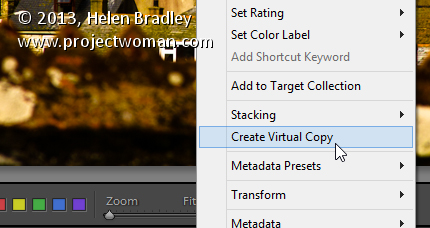
When you are part way through editing an image you might want to go back and try a different editing process but also keep the version of the image you are working on. You can use the History panel to facilitate this. Start by selecting the History step where you want to begin an alternative method of editing the image. Right click the image and choose Create Virtual Copy. This creates a new Virtual Copy – its starting point is the current History step – it has no other History steps associated with it. Also note that this new Virtual Copy is the currently selected image.

Lightroom history tips 4

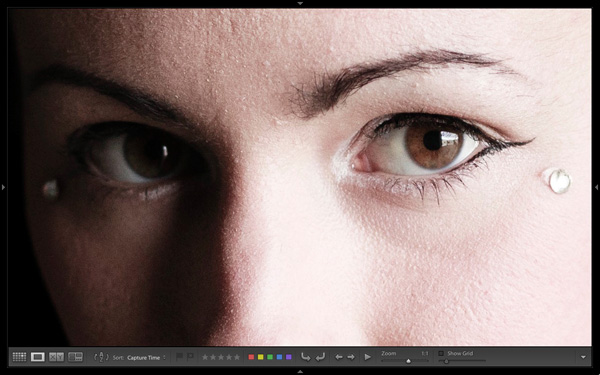
Before beginning to work on this image, click the original image in the filmstrip to reselect it and click the last History step in the list to return this version of the image to your current editing point.

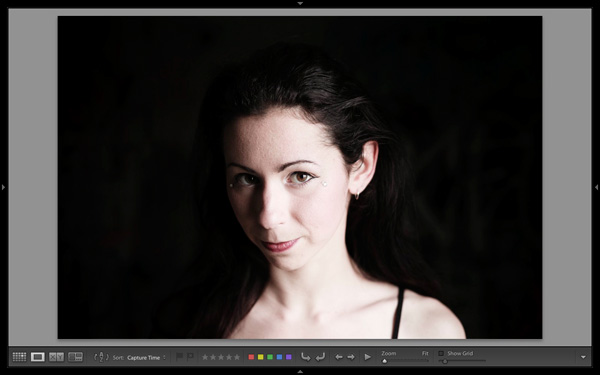
You’ll now have two versions of the image – a virtual copy extracted from the image at the point at which you want to begin an alternative editing approach and the original version with all your current edits in place.

Post originally from: Digital Photography Tips.

Check out our more Photography Tips at Photography Tips for Beginners, Portrait Photography Tips and Wedding Photography Tips.

3 Lightroom History Tips

The post 3 Lightroom History Tips by Helen Bradley appeared first on Digital Photography School.


Digital Photography School

 
Comments Off on 3 Lightroom History Tips

Posted in Photography


The Hidden Secrets of Lightroom 5’s Loupe View

31 Oct

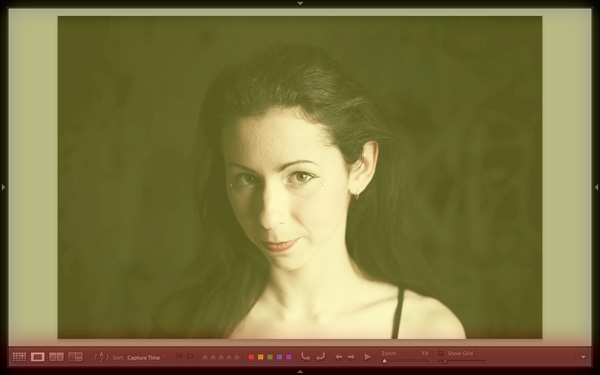
Lightroom 5 Loupe View

Last week I showed you how to use Lightroom’s Grid View. Once you have customised the Grid View to suit your needs, it is time to move on to the Loupe View. Getting there is easy. Just press the letter ‘E’ on your keyboard. This will take you to the Loupe View from anywhere in Lightroom. Alternatively, if you are in the Grid View, you can press the space bar.

On the surface, Loupe View looks simple. But there are a few things I’d like to show you that you may not be aware of. They are the ‘hidden features’ of Lightroom’s Loupe View, and will help you when you view your images, and assess their potential for creative processing.

Lightroom 5 Loupe View

This is what the Loupe View looks like, with all four side panels removed (use the Shift+Tab keyboard shortcut to hide them from view).

Lightroom 5 Loupe View

The Loupe View is divided into two parts. The Content window (yellow) occupies the main part of the screen. The selected photo is displayed here.

The Toolbar (red) lies along the bottom. Press ‘T’ to reveal it if it isn’t there. The same key hides the Toolbar if you press it again.

The main difference between the Loupe View and the Grid View is that you can only view one image at a time in the Loupe View.

The hidden features

Of course, these features are not really hidden. But if you are not aware of them they may just as well be. They are all useful, so it’s worth taking a few minutes to learn how to use them.

Library view options

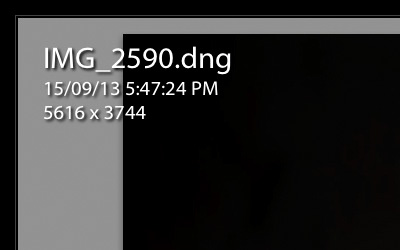
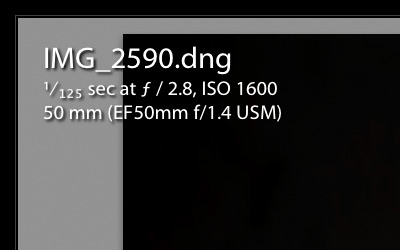
When you press the ‘I’ key on the keyboard Lightroom displays some information about the photo you are looking at in Loupe View. Press the ‘I’ key again and the information changes. Finally, press it once more to hide the information:

Lightroom 5 Loupe View

The first information overlay displays the filename, the time and date the photo was taken, and the image size (in pixels).

Lightroom 5 Loupe View

The second overlay shows the filename, the exposure settings (shutter speed, aperture and ISO) and the focal length and lens used. This is handy for checking the camera settings when you are viewing your images.

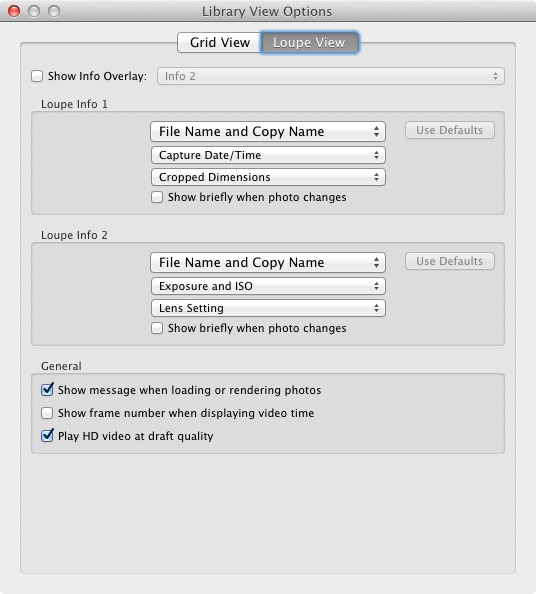
Here’s the hidden feature: Did you know you can customise the information overlays to display the information that you want them to? Go to View > View Options to bring up the Library View Options window. Here you can tell Lightroom which information to display in each information overlay:

Lightroom 5 Loupe View

Mirror image mode

Wondering how your photo would look if it was back to front? Just go to View > Enable Mirror Image Mode to see:

Lightroom 5 Loupe View

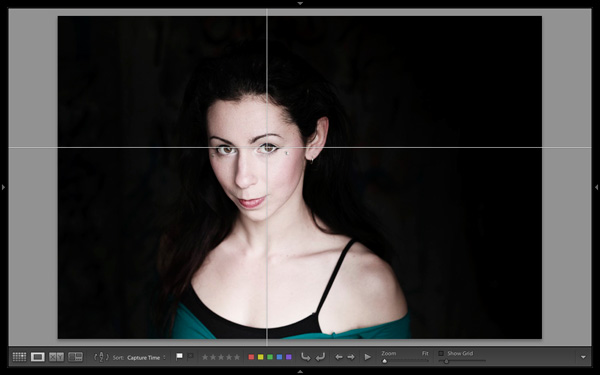
Grids and guides

Lightroom 5 Loupe View

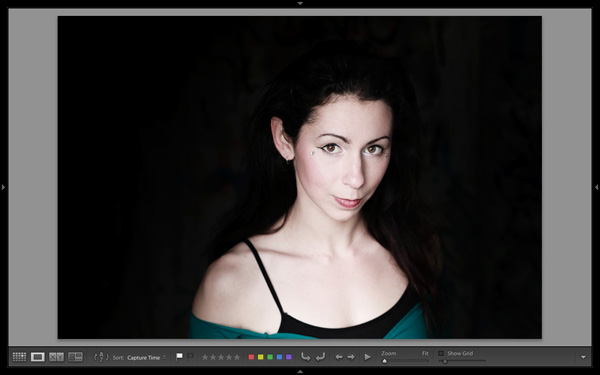
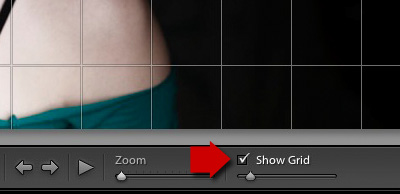
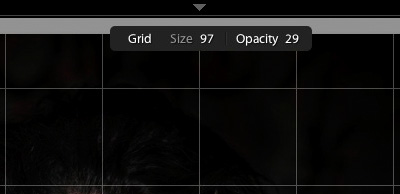
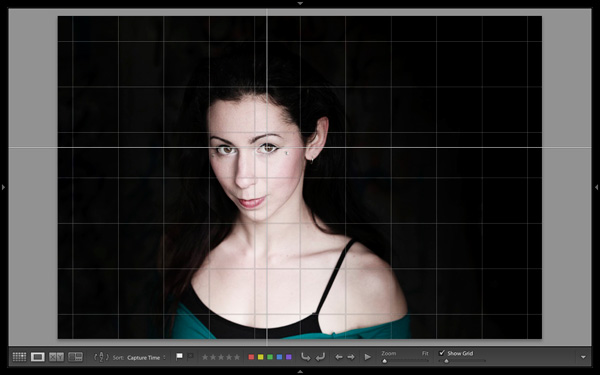
To reveal the grids and guides, tick the Show Grid box in the Toolbar. Use the slider to set the size of the squares. If you hold the Cmd key down (PC owners should use the Ctrl key) you can also alter the size of the grid and the opacity of the lines by mousing over the Size and Opacity settings displayed at the top:

Lightroom 5 Loupe View

Note: If you don’t see the Show Grid box, click on the white arrow on the right hand side of the Toolbar and select Grid Overlay from the menu. Lightroom removes any unticked options in this menu from the Toolbar.

Lightroom 5 Loupe View

Next, go to View > Loupe Overlay and select the Guides option. This turns the central horizontal and vertical grid lines into guides that you can move by holding down the Cmd (Mac) or Ctrl (PC) keys. They come in useful for checking things like the straightness of horizons and buildings.

Lightroom 5 Loupe View

Untick the Show Grid box to see the Guides by themselves.

The Loupe Overlay

The final hidden feature is something that is more likely to interest professional photographers than hobbyists. But it comes in handy as a creative exercise if you have any interest in submitting images to stock libraries or to magazines.

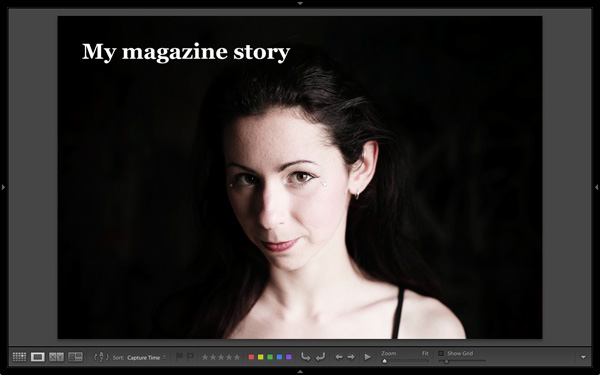
When buying images for editorial use, magazines often look for photos with empty space where they can lay out headings or text. The Loupe Overlay feature lets you display an overlay containing text over the top of your image so you can see whether the composition of your image provides enough space. While pros can obtain an official file from their client, there’s nothing to stop you making up your own.

Go to View > Loupe Overlay > Layout Image. Navigate to the folder containing your overlay and open it. The file must be saved as a PNG file, which supports transparency.

Lightroom 5 Loupe View

In this example, you can see that the portrait isn’t composed in a way that works with the sample text. It would have been better if the model was further to the right in the frame.

Mastering Lightroom Book One: The Library Module

Lightroom 5 Loupe View

My latest ebook Mastering Lightroom Book One: The Library Module is a complete guide to using Lightroom’s Library module to import, organise and search your photo files. You’ll learn how to tame your growing photo collection using Collections and Collection Sets, and how to save time so you can spend more time in the Develop module processing your photos.

Post originally from: Digital Photography Tips.

Check out our more Photography Tips at Photography Tips for Beginners, Portrait Photography Tips and Wedding Photography Tips.

The Hidden Secrets of Lightroom 5’s Loupe View

The post The Hidden Secrets of Lightroom 5’s Loupe View by Andrew Gibson appeared first on Digital Photography School.


Digital Photography School

 
Comments Off on The Hidden Secrets of Lightroom 5’s Loupe View

Posted in Photography


Newborn Photography Black and White Conversion in Lightroom

25 Oct

Introduction

The Following is an excerpt from the SLR Lounge Lightroom Preset System v5 and accompanying workshop.  The Lightroom Preset System is designed to take you from Ordinary to Extraordinary photos in just a few seconds and clicks. In this tutorial we’re going to be creating a nice soft black and white portrait for a newborn baby captured from the Newborn Photography Workshop where we teach photographers how to take beautiful newborn with any camera using simply natural window light and a reflector.

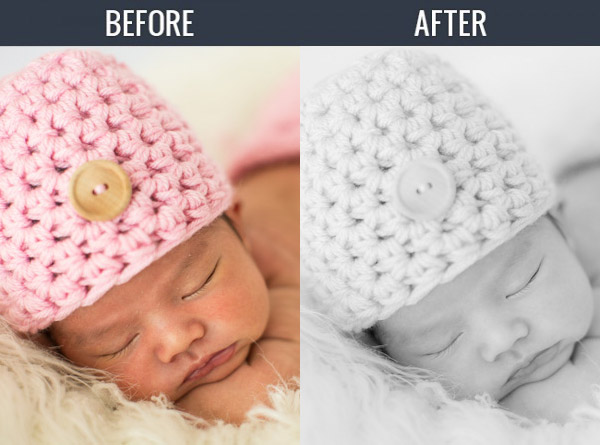
The complete written tutorial is below, and you can also watched the video tutorial at the end of this article. Here’s a sneak peak at what our image will look like before and after our edit.

newbeforeafter


Black and White Conversion for Newborns

The first thing we did to this image was adjust our Color Tempurature to taste, and in this case we used the Eye Dropper Tool (W) taking a reading from the fur that the newborn is sleeping on.

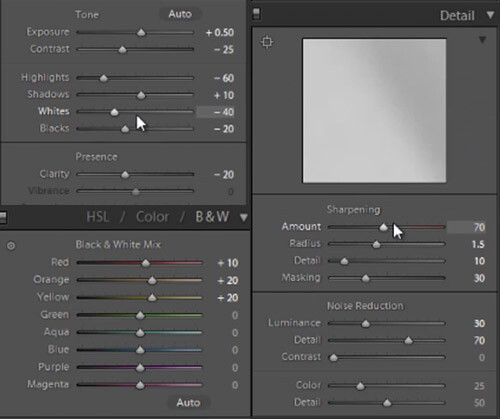
After our Color Temperature adjustment we used our “01-10 Base – Soft: 12b Super Soft – B&W” preset to edit our photo. This preset does all of our work for us and after this preset is applied our photo edit is pretty much finished. So let’s go over exactly what this preset did.

First, the Highlights and Whites have been taken down to -60 and -40. This is to smooth out highlights by bringing them closer to the mid-tones and shadows. This adjustment has the effect of softening highlights over skin tones giving us much more evenly lit skin.

Next, Clarity is being dropped to -20 in order to reduce mid-tone contrast. The reduction of mid-tone contrast again helps us achieve a softer and more flattering look. However, I would caution not to take the Clarity slider down too far as it can create an overly-soft looking image completely lacking in contrast and mid-tone detail.

In this black and white conversion the Reds, Oranges, and Yellows in the HSL are being raised, which again is primarily for skin tones. This brightens up the skin tones, further enhancing the soft flattering look.

We have our standard amount of Sharpening for portraits applied to this image which you can see below.

Also worth noting, the preset we selected dialed in a Noise Reduction Luminance setting of +30. Noise reduction was added to the preset in order to quickly reduce a little bit of the pore detail in the skin giving it a slightly smoother overall look. At an amount of +30, we will see a nice smoothing effect over skin, while retaining the majority of our fine detail in the hair, eyes and so forth.

Below is a snapshot of all of our final settings to achieve this look.

developsettings

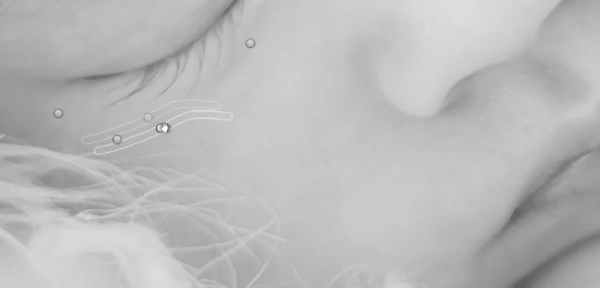
To clean up the skin a little we can use the Lightroom 5 Spot Removal Tool to remove some of the more obvious bits of dry skin and hair. Adobe has modified the Spot Removal Tool in Lightroom 5 to operate more like a brush making the tool much more powerful than in previous editions of Lightroom.

Just remember to keep your Spot Removal Tool size small and just large enough for the area you are working so that it doesn’t look unnatural.

Screen-Shot-2013-07-30-at-9.59.27-PM-650x313

Black and White Conversion for Newborns

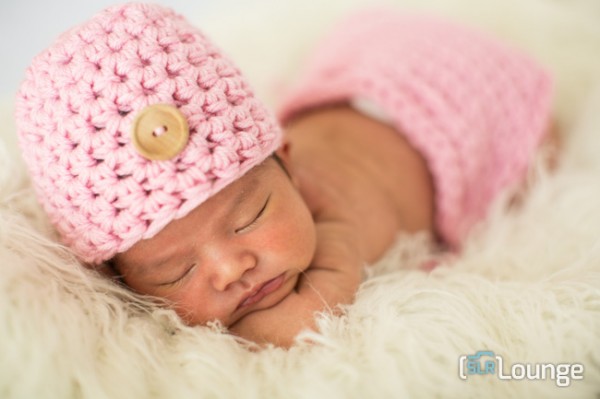
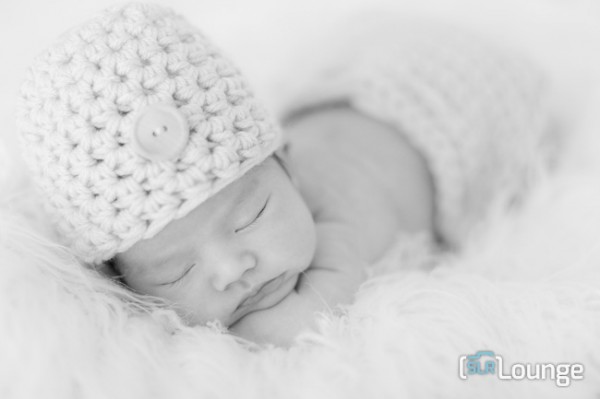
Here’s  a look at the final before and after of our newborn black and white portrait.

Before

lightroom-5-tutorial-soft-black-and-white-newborn-0001

After

lightroom-5-tutorial-soft-black-and-white-newborn-0002

Watch the Video Tutorial

If you would like to see exactly how all of the settings and adjustments were applied, please watch the video below from the SLR Lounge YouTube Channel.

Conclusion and Learn More

We hope you all enjoyed this tutorial. If you are interested in learning more or purchasing the SLR Lounge Lightroom Preset System v5 or the newly released Lightroom Workshop Collection v5, please click any of the links in this article. If you are interested in Newborn Photography Workshop please also check out our Newborn Workshop Collection and Lightroom Presets now available via digital download.

Post originally from: Digital Photography Tips.

Check out our more Photography Tips at Photography Tips for Beginners, Portrait Photography Tips and Wedding Photography Tips.

Newborn Photography Black and White Conversion in Lightroom

The post Newborn Photography Black and White Conversion in Lightroom by Post Production Pye appeared first on Digital Photography School.


Digital Photography School

 
Comments Off on Newborn Photography Black and White Conversion in Lightroom

Posted in Photography


How to Harness the Power of Lightroom Print Collections

20 Oct

LR print collection opener

In a post last year I explained a process for exporting images from Lightroom (http://digital-photography-school.com/output-from-lightroom-to-your-blog) sized and all ready for posting to a blog. Since then I discovered a more robust solution to the problem of outputting images using a custom print layout from Lightroom. This can be used when printing images or saving them as jpeg files.

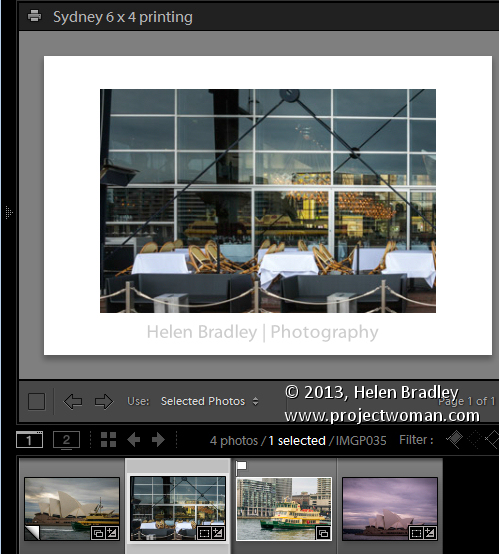
The process of preparing and outputting images can be simplified by taking advantage of the Single Image/Contact Sheet Layout in Photoshop and combining this with a print collection. The result is that printing to a specific layout is as easy as dropping the image into a collection and switching to the Print module and clicking to print – it’s a simple process once it is all setup.

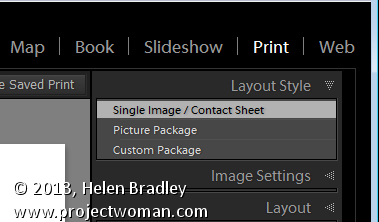
To do so, start out by selecting an image to use to configure your print layout and click to launch the Print module. In the top right panel select Layout Style: Single Image/Contact Sheet. The image which appears on the page is the one selected in the filmstrip.

LR print collection 1

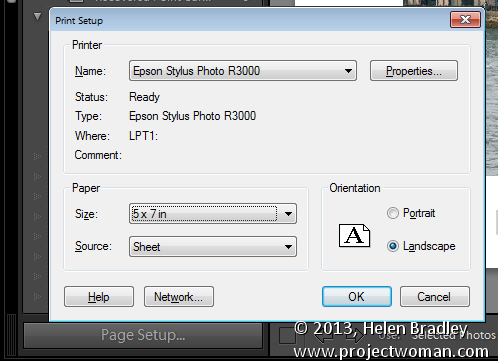
Set up this image so that it looks the way you want to print all images of this type. If you plan to print the image to paper, click Page Setup and select your printer and the page size and orientation.

LR print collection 2

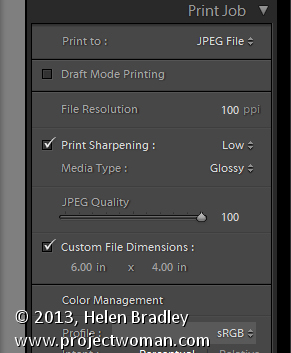
To print to a file, open the Print Job panel and from the Print to dropdown list select JPEG file. Deselect the Draft Mode Printing checkbox, select Custom File Dimension and set the output dimensions and file resolution.

LR print collection 3

Adjust the image size and placement on the page using the Image Settings and Layout panel options. You can also add an Identity Plate and/or Watermark as desired.

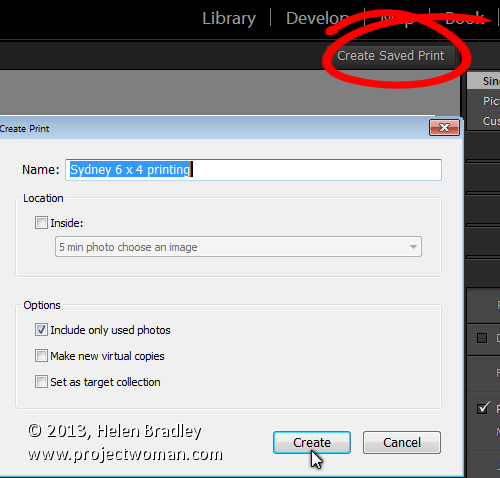
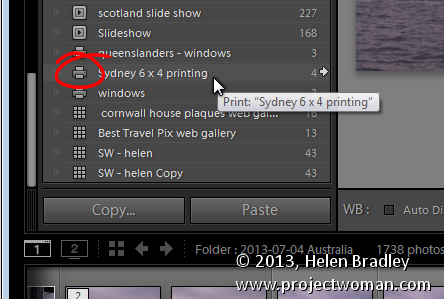
Once you are done, click the Create Saved Print button at the top right of the screen above the print layout and type a name for your new collection. This saves the image and the layout as a special Print collection in the Collections panel.

LR print collection 4

In future to set up images ready to print them, add them to this collection in the Library module, double click the collection in the Collections panel and it will automatically launch the Print module.

Click on any image in the filmstrip and the image will be assembled ready to print or save to a jpeg file.

LR print collection 5

A number of readers have asked me for solutions to outputting images with watermarks in different positions and using different text colors from Lightroom. If you’re outputting to jpeg files or printing images you can do this using this process. Set up a print collection for each of the watermark options. You can then drop the images into the appropriate collection and they’ll be automatically laid out ready for printing. The layouts are saved in the collection so simply selecting the collection automatically recreates your layout.

Post originally from: Digital Photography Tips.

Check out our more Photography Tips at Photography Tips for Beginners, Portrait Photography Tips and Wedding Photography Tips.

How to Harness the Power of Lightroom Print Collections

The post How to Harness the Power of Lightroom Print Collections by Helen Bradley appeared first on Digital Photography School.

Digital Photography School

 
Comments Off on How to Harness the Power of Lightroom Print Collections

Posted in Photography


Use Lightroom Collections to Improve your Workflow

16 Oct

Using Lightroom Collections

The main benefit of Lightroom’s Library module is that it gives you the tools you need to get organised and speed up your workflow. The end result is that you can spend more time in the Develop module – the place where you creatively process your photos.

The best way to get organised is by using Collections and Collection Sets. There seem to be as many ways of using Collections as there are photographers. I’m going to look at two in this article. The first uses Collections, and the second Smart Collections. Together they will give you an insight into how you can use Collections to improve your workflow.

Why use Collections?

You may be wondering why you should use Collections in Lightroom instead of the Folders panel. Here’s why:

1. The Folders panel is only available in the Library module.

The Collections panel is accessible from every module. Adobe wants you to use the Collections panel as it is the most practical way to organise your images.

2. Collections and Collection Sets give you far more freedom than the Folders panel.

The contents of the Folders panel mirrors the file structure of your hard drive. Let’s say you take a photo of a friend called Amy in Hong Kong. In the Folders panel, that photo can only exist in one place – the physical folder where it has been saved on your hard drive.

However, the same file can be stored in as many Collections as you like. It could be part of a Collection called ‘Amy’, another called ‘Hong Kong’, perhaps another called ‘Favourite photos’. There is no limit to the number of Collections you can add it to.

It’s a little like using Playlists in iTunes. You can add a song to as many Playlists as you like. It’s the same in Lightroom with photos and Collections.

Organise your images

Hopefully you’re now beginning to see just how flexible and convenient Collections are. Now let’s take a look at how you can use them to organise your images.

Other photographers’ methods

When it comes to learning how to use Lightroom, don’t feel that you have to figure everything out yourself. There are plenty of outstanding websites dedicated to using Lightroom, and lots of photographers who share the way they work for others to use. There’s no need to re-invent the wheel – just find a way that works for you and tweak it to suit your needs.

In that spirit, I’m going to look at two methods for using Collections I learnt from other photographers.

Technique 1: Using multiple Collections

Using Lightroom Collections

This technique is based on a method I read about on Scott Kelby’s blog. I like it because it’s simple, and the easiest way that I’ve found to narrow down the images you take in a shoot to the ones that you want to process. The quicker you can do that, the sooner you can move on to the Develop module. Here’s a brief description of how it works:

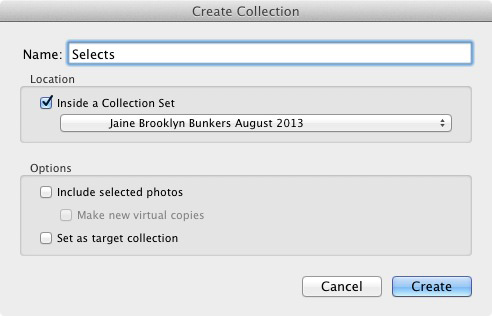
  • Create a Collection Set and give it a name relevant to the shoot (i.e. the name of the place where the photos were taken, or the person in the photos etc.)
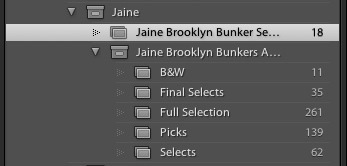
  • Create three Collections inside that Collection Set. Name them Full Shoot, Picks and Selects.
  • Send all the photos from the shoot to the Full Shoot Collection.
  • Flag your favourite photos from the Full Shoot Collection and send them to the Picks Collection. You don’t have to be really selective at this stage. You’re eliminating the worst images rather than picking the best.
  • Use flags to mark your best photos from the Picks Collection and send them to the Selects Collection. This is where you get really picky – the aim is to select only the very best photos from the shoot, the ones you intend to process.

Of course, you can adapt this to you own needs. If you don’t take many photos during a shoot, you may only need two Collections to narrow them down. On the other hand, if you want to convert some of your photos to black and white, you could create an additional Collection to hold those images.

Using Lightroom Collections

As you can see, I ended up creating five Collections for the above shoot.

The process is outlined in full here.

Technique 2: Using Smart Collections

Using Lightroom Collections

The previous technique relies on you adding photos to each Collection manually. But it’s also possible to use Smart Collections that Lightroom populates automatically. Photographer Rob Knight has the following system:

  • Create a Collection Set – give it a relevant name (in Rob’s example he uses ‘Landscape’).
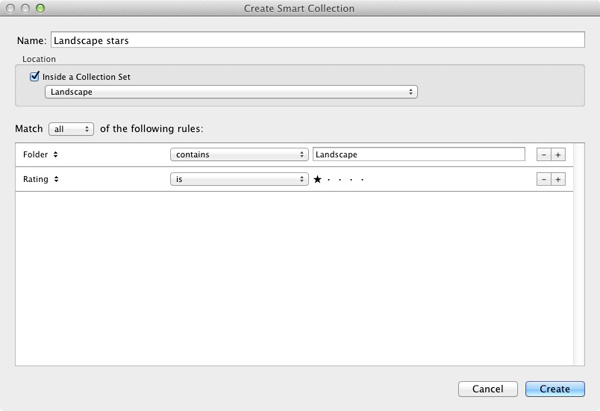
  • Create two Smart Collections inside the Collection Set. Rob names his ‘Landscape picks’ and ‘Landscape stars’. All he has done here is add the words ‘picks’ and ‘stars’ to the name of his Collection Set. The article (link below) explains what rules to set.
  • Go to the Folder containing the images, and flag the best as picks. They are sent automatically to the ‘Landscape picks’ Smart Collection.
  • Go to the ‘Landscape Picks’ Smart Collection and give the best images a one star rating. Lightroom adds them to the ‘Landscape stars’ Smart Collection. This Smart Collection contains the best images from the shoot.

You can read about it  here.

Over to you

If you have an interesting way to use Collections yourself, then why not leave a comment? I would love it if readers could share some of their ideas – I’m also curious to see how other people use Collections.

Mastering Lightroom Book One: The Library Module

Using Lightroom Collections

My latest ebook Mastering Lightroom Book One: The Library Module is a complete guide to using Lightroom’s Library module to import, organise and search your photo files. You’ll learn how to tame your growing photo collection using Collections and Collection Sets, and how to save time so you can spend more time in the Develop module processing your photos.

Post originally from: Digital Photography Tips.

Check out our more Photography Tips at Photography Tips for Beginners, Portrait Photography Tips and Wedding Photography Tips.

Use Lightroom Collections to Improve your Workflow

The post Use Lightroom Collections to Improve your Workflow by Andrew Gibson appeared first on Digital Photography School.

Digital Photography School

 
Comments Off on Use Lightroom Collections to Improve your Workflow

Posted in Photography