RSS
 

Posts Tagged ‘lightroom’

A Concise Guide to Lightroom Develop Presets

05 Jan

 Lightroom develop presets

The Presets panel (found in the left-hand panels in the Develop module) is one of the most useful in Lightroom. The most obvious benefit of Develop Presets is that they can save you time, which is always a good thing. But they do more than that, including help you maintain a consistent approach to post-processing and using creative effects.

Develop Presets tend to fall into one of two categories. The first are what you might call one-shot presets, which seem to work well on one or two images but not many others. A good example is Develop Presets intended to create a vintage or cross-processed look. They tend to improve some photos, but look horrible on most others.

The second category is what you could call genuinely useful presets. They are a bit better thought out, and designed to make post-processing an easier and quicker task. Usually they are created by a photographer that has put them to use over a long period of time and tweaked them until they work well. I will give you some examples of these at the end of the article.

In this guide to Lightroom Develop Presets we’ll go over some your options.

Free Develop Presets

If you haven’t used Develop Presets before then you likely don’t have many to play with. There are some included already with Lightroom, but there are also plenty of websites where you can download good Develop Presets for free. The problem is, as with anything free, sorting out the rubbish, especially as most of these fall into the first category of Develop Presets. We can save you some time by making some recommendations:

OnOne Software Signature Collection

  • One of my favourites is made by OnOne Software. There are a lot of Develop Presets in their set. Some of them will be a bit over the top for most photographers, but there are some good ones, including a set that imitate the filters in the Instagram app. If you’ve ever wanted to use Instagram on photos taken with your digital camera, this is the easiest way to do it. By the way, the link takes you through to OnOne Software’s Lightroom Presets page, where you’ll find lots more free Lightroom Presets.
Lightroom-develop-presets-09

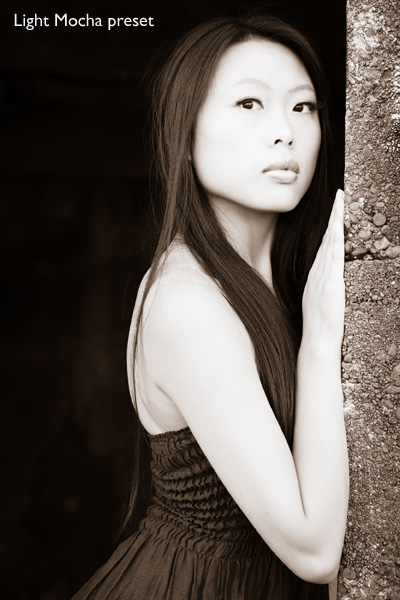
This photo was created with the Light Mocha Preset from OnOneSoftware

Presets Heaven Vintage Presets

  • A nice collection of seven vintage effects for Lightroom 4 and 5. The opening photo above was processed with one of these.

Delicious Freebies

  • A set of free Lightroom Presets from Delicious Presets.

Installing Lightroom Develop Presets

Develop presets are easy to install, follow these steps:

  • Start by downloading them to your computer (the folder you save them in isn’t important at this stage)
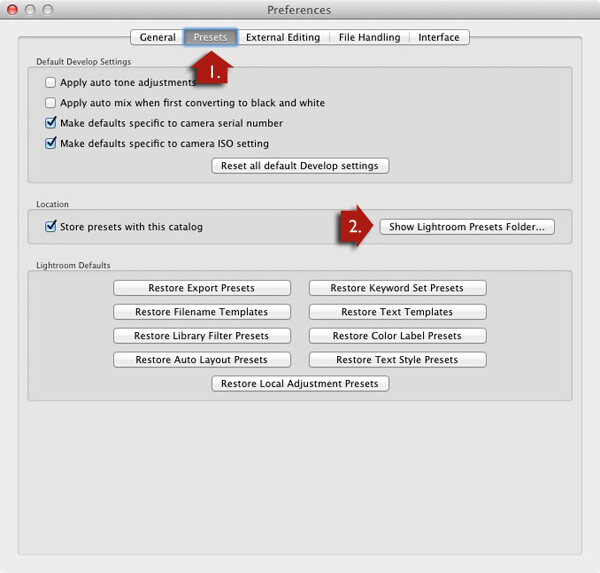
  • Open Preferences, go to the Presets tab (see red arrow #1 below) and click on the Show Lightroom Presets Folder button (see red arrow #2 below)
  • Inside this folder is another called Lightroom Settings, and inside that is one called Develop Presets. Drag the Develop Presets you downloaded earlier to this folder
  • You will need to restart Lightroom before they appear in the Presets panel
Lightroom develop presets

Using Develop Presets

Develop Presets are easy to use:

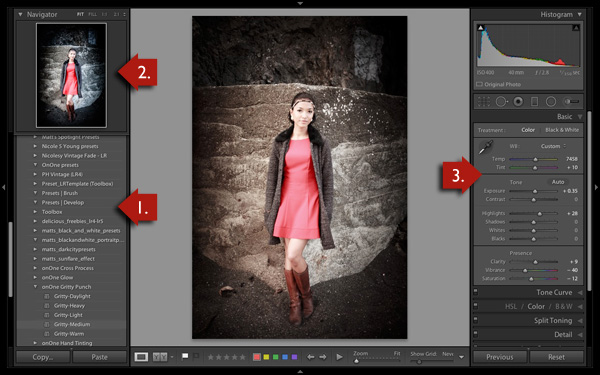
  • The Presets panel contains all Develop Presets that come with Lightroom, ones you have created yourself (listed under the heading User Presets) or downloaded from other sources (see red arrow #1 below).
  • If you hover over any of the presets, the thumbnail in the Navigator panel shows you what your photo will look like with that preset applied (see red arrow #2 below).
  • Click on the preset name to apply it to your photo. The Develop settings in the right-hand panel are updated when you do so (red arrow #3 below).
Lightroom develop presets

You can’t always tell much from the thumbnail in the Navigator panel as it’s so small. You’ll get a better view if you click on the Before/After View icon (#1 below) – the backslash key “\” is the keyboard shortcut, and will toggle before/after on the entire image by turning it off and on. Set the Zoom slider to Fit to show the entire image on the screen (see #2 below).

When you click on a Develop Preset to apply it to your image you will see the original photo and the new version displayed side by side. If you don’t like the result, Undo it using the Cmd+Z (Mac) or  Ctrl+Z (PC) keyboard shortcut.

Lightroom develop presets

For a close-up look at the effect the Develop Preset has had on your photo, set the Zoom slider to 1:1 (below). Make sure you check important parts of the photo, such as the model’s face in this portrait, to make sure that the newly applied preset hasn’t created any undesirable effects. Some presets do go a little over the top with settings such as Clarity, so it’s wise to double check. You can make adjustments to the appropriate sliders if required.
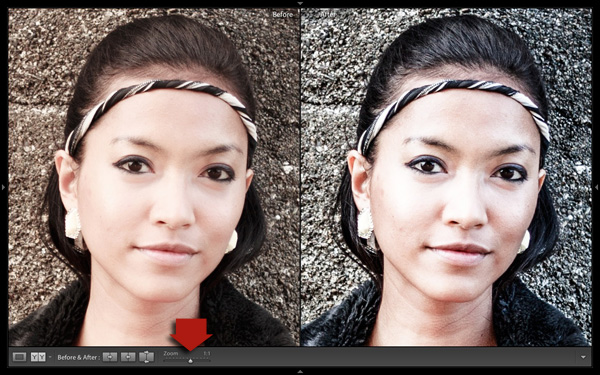
Lightroom develop presets

One of the interesting things about Develop Presets you download from other sources is that you can look at how the settings have changed after you have applied the new preset to see how the effect is achieved. It’s an easy way to learn new processing techniques.

In the example above (the Gritty-Medium preset from OnOne Software), the Develop Preset made all the changes in the Basic Panel. It boosted the contrast by moving the Contrast and Clarity sliders to the right, then negated that effect somewhat in the mid-tones by moving the Highlights slider left and the Shadows slider right (see screenshot below). It also reduced Vibrance and Saturation. The end result is gritty and dramatic, but not so harsh that it’s unsuitable for portraits.
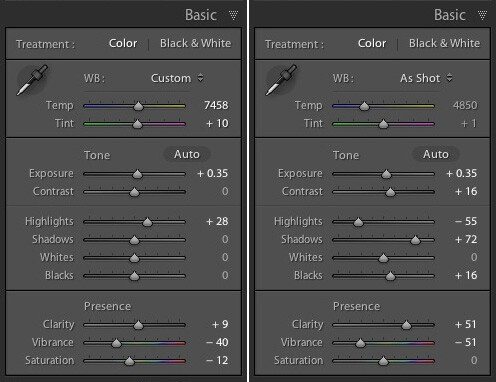
Lightroom develop presets

Settings before preset applied on the left, and after it was applied on the right

Create Your Own Develop Presets

It’s very easy to create your own Develop Presets:

  • Select a photo and make the required adjustments using the right-hand panels of the Develop Module.
  • Go to Develop > New Preset. Alternatively, click the Create New Preset icon in the Presets panel (below)

Lightroom develop presets

  • Give the Preset a name (#1 below) and select the settings that you want to include in the Develop Preset in the New Develop Preset window (#2 below). You don’t have to include every setting. If you did, the Develop Preset would probably only be useful for that specific photo.
  • Press the Create button (#3 below) when you are done. The new Develop Preset appears in the User Presets category in the Presets panel.

Lightroom develop presets

Other Develop Presets

Here is a list of other Develop Presets you may find useful. These are different from the ones listed above as they are not free. If you have any recommendations yourself, please leave them in the comments.

The first two are from the Craft & Vision website

  • David duChemin’s Lightroom Presets
  • Dave Delnea’s Lightroom Presets

The next one is from SLR Lounge

  • It’s a comprehensive system, and so costs more than the others. You can watch the video on the page to see how it works: Lightroom Preset System V5
key-11Mastering Lightroom Book One: The Library Module

My latest ebook Mastering Lightroom Book One: The Library Module is a complete guide to using Lightroom’s Library module to import, organise and search your photo files. You’ll learn how to tame your growing photo collection using Collections and Collection Sets, and how to save time so you can spend more time in the Develop module processing your photos.


The post A Concise Guide to Lightroom Develop Presets by Andrew Gibson appeared first on Digital Photography School.
Digital Photography School

 
Comments Off on A Concise Guide to Lightroom Develop Presets

Posted in Photography


Five Minutes to Realistic HDR using Lightroom and a 32-Bit Plugin

19 Dec

Easy Peazy HDR in Adobe Lightroom to make realistic HDR images!

HDR photography used to be time consuming, difficult to learn, and required expensive software. Recent new technology now allows anybody, even beginners, to make perfect HDR in less than 5 minutes – while eating a bowl of ice cream. It’s that easy!

Cuddeback_DSC5809_10_1132-bit-HDR-2

Using Adobe Lightroom for HDR

Just wait until you see how awesome this is!

The Perfect HDR Workflow takes place completely within Adobe Lightroom 4 or 5, a very robust, yet inexpensive, state of the art software. There is also an inexpensive plugin you will need. It’s made exclusively for Lightroom by the smart Photomatix people and is the secret sauce which makes this workflow possible and so elegant. It’s called “Merge to 32-bit HDR plugin” and is available for $ 29. They also have a trial version available so you can test it out first. These are the same people who make the world’s leading HDR tone mapping software, Photomatix Pro. So, take comfort, there’s no smoke & mirrors in this HDR workflow and you’ll be working with the best software available today. At the same time, your photography will now blow away 95% of the HDR images which are still being made using the old, harder to learn, HDR tone mapping process.

Notice, you don’t need to own Photoshop or endure the pain & suffering of learning how to use Photoshop to do this method! This, in itself, is huge and a welcome departure from the way HDR photography is typically done.

Advantages of 32-bit HDR Processing

The process I’m going to show you is technically called 32-bit HDR processing. The Perfect HDR Workflow is just my name for the particular workflow I designed with the beginning photographer in mind. My criteria was that total cost be under $ 150 US, which immediately rules out Photoshop in the workflow. Another requirement was that it be so easy that even a beginner can learn to make extraordinary HDR photos in minutes.

The advantages of the 32-bit process are:

  • It’s fast
  • It’s inexpensive
  • It yields realistic looking images
  • It’s very easy to learn

HDR doesn’t have to be complicated anymore. In fact, the Perfect HDR Workflow obliterates the complex technical barriers of making outstanding HDR which used to exist. Now, anybody with a digital camera and the desire can play a much bigger game when it comes to HDR photography, can do this!

Are you ready to see how it’s done?

Five Minutes to Perfect HDR

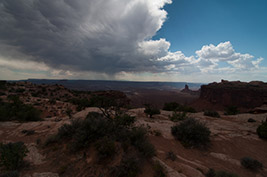
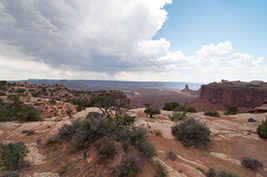
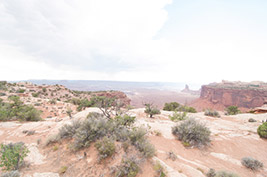
Here we go. Start with the three bracketed RAW images right out of the camera (you can download these for free if you want to follow along):

Easy realistic HDR in Lightroom

-2 shot at: ISO 200, F8, 1/1500

Easy realistic HDR in Lightroom

0 exposure shot at: ISO 200, F8, 1/350

Easy realistic HDR in Lightroom

+2 exposure shot at: ISO 200, F8, 1/90

In less than 5 minutes you’ll end up with an HDR photo looking like this:

Cuddeback_DSC5809_10_1132-bit-HDR-2

Start your stopwatch:

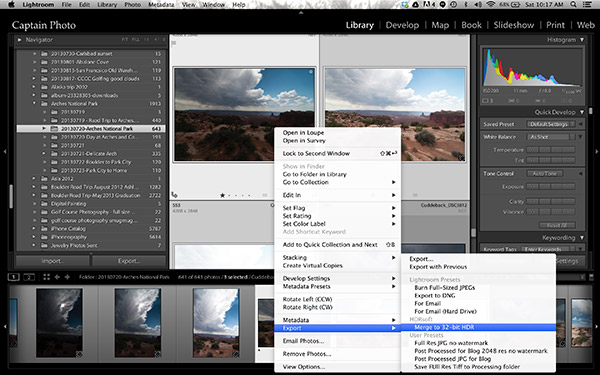
The first thing you want to do is create the 32-bit image. With the three RAW files selected in Lightroom, right click and in the dialog box which appears, select “Export>Merge to 32-bit HDR” as shown below.

Screen Shot 2013 11 23 at 10 17 57 AM

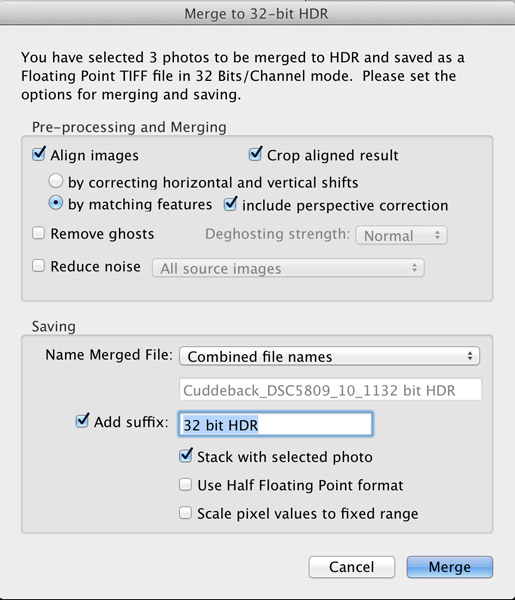
A new dialog box opens up where you choose your options for merging the RAW files (see image below). Always choose to “Align Images” and then one of the alignment options. If your three photos were taken handheld, select the alignment option “by matching features”. When you shoot on a tripod, you would chose the other option, “by correcting horizontal and vertical shifts”.

If there are moving objects in your scene such as: cars, people, clouds, trees, or anything else – select “Remove ghosts” and the software will usually do a great job of producing a non-blurry merged image, with no ghosts. For this landscape photo, nothing was moving so this option was not selected.

Noise reduction is usually necessary in HDR photography, however, I recommend not using the “Reduce noise” option which the plugin offers up. Instead, you are better off using the noise reduction built into Lightroom. So, leave that unchecked, as well.

Moving down to where you choose how the resulting 32-bit file is saved. I recommend simply combining the file names and adding a suffix like “32-bit HDR” so that, at a glance, you know that is the 32-bit file you want to work with in Lightroom.

The final dialog box selection you want to make is; “Stack with selected photo.” It’s so easy and elegant how this plugin makes your HDR workflow when this is selected. After the 32-bit file is created, the plugin automatically imports it right back into Lightroom and places it neatly next to the original RAW files. This keeps my OCD mind happy. Leave the final two options unselected then click the “Merge” button.

Here’s what the dialog box should look like

Screen Shot 2013 11 23 at 10 18 08 AM

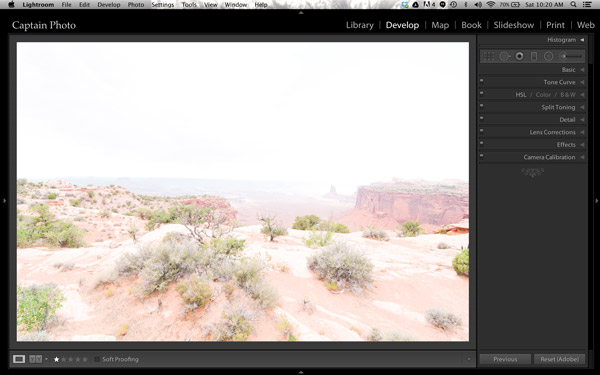
In a few seconds, your newly created 32-bit file appears in Lightroom and looks something like this:

Screen Shot 2013 11 23 at 10 20 14 AM

Okay, well that’s not too pretty! That’s because this is a 32-bit file which your computer monitor can’t correctly display. But Lightroom 4 or 5 can process it, so let’s do that.

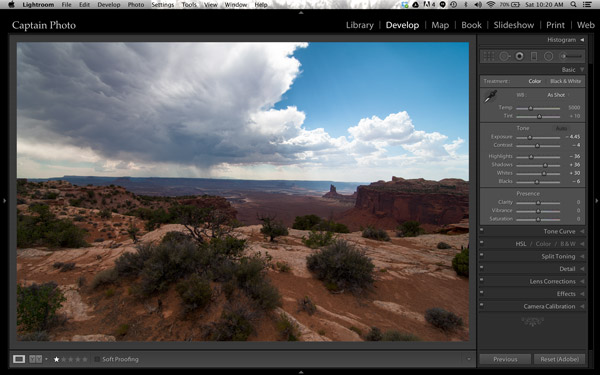
We’ll be working mostly in the Basic panel of the Develop module in Lightroom. The first step is to simply click the “Auto” button which gives you Lightroom’s best guess at the right setting for the image:

Screen Shot 2013 11 23 at 10 20 25 AM

It’s already looking much better. But let’s take it a step further!

Adding Your Artistic Touch

Now it’s time to add your personal artistic mark on your photo! At this point, you take over the processing manually to create an HDR image that is most pleasing to you. There are no right or wrong settings. However, my 5 minute process to Perfect HDR does follow some general guidelines so let me show you how this image evolved for me.

Working in the Basic panel, you first will reduce the “Highlights” (slide it left) and increase the “Shadows” (push it to the right) sliders until the image looks best to you. Then you might adjust the “Clarity” to a slight positive value, which adds local contrast between pixels. It makes the HDR photo “pop.” Please be careful not to push clarity too far right. My advice is to keep it below 30, for now anyway. Now let’s jump out of the Basic panel.

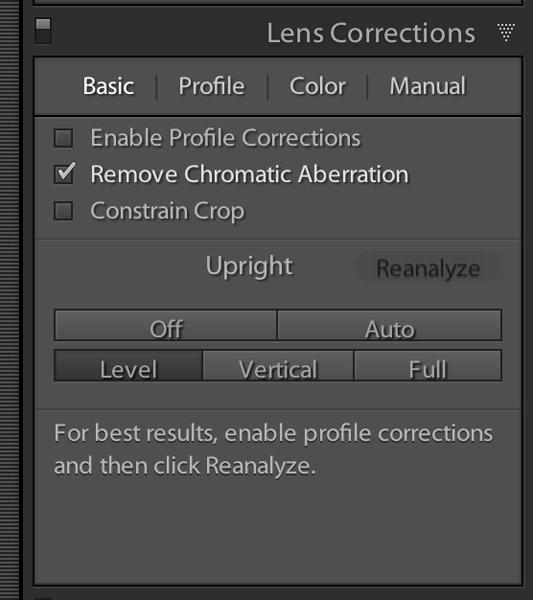
For just a couple of quick automatic adjustments, open up the “Lens Correction” panel. I recommend that you always check the box to “Remove chromatic aberration.” Also, you may want to straighten your horizon and/or vertical lines using the “Upright” adjustment tool. Here is what the “Lens correction” panel looks like when you make these simple adjustments:

Screen Shot 2013 11 23 at 10 24 24 AM

Now, go back to the Basic panel to finish. Set the white and black points as shown in the video below. The other sliders in the Basic panel can then be fine tuned to your taste and that’s it! Woooo Hooooo, done in less than 5 minutes! You’ve just made your first Perfect HDR photo! Send it to Mom and your friends and be ready to receive their adoration!

Watch The Full Perfect HDR Workflow Video

In the video below, I show the complete processing of this image including how to set the white and black points correctly. It’s easier to show some of the steps in a video, rather than try to describe it all in written form.

Try the Perfect HDR Workflow

If you want to give the Perfect HDR Workflow a try yourself right now, you can download my RAW files of this image for free. Get the free trial download of the merge to 32-bit plugin from the Photomatix website. The plugin you want is the last item on the page. Install the plugin with your copy of Lightroom 4 or 5. Then follow along to get the hang of the Perfect HDR Workflow and find out for yourself how easy this really is! If questions come up, I hang out on Google+ every day and you are welcome to circle & chat with me there or on my blog.

Become an HDR Wizard

Next time, in Easy Peazy HDR in Lightroom Part II, we’ll take this image further using the other panels of the Develop module in Lightroom. I think you’ll be amazed at the power and control you have using Lightroom to process your HDR photos. It’ll be like you’ve evolved into this unstoppable HDR Wizard!

The post Five Minutes to Realistic HDR using Lightroom and a 32-Bit Plugin by Keith Cuddeback appeared first on Digital Photography School.

Digital Photography School

 
Comments Off on Five Minutes to Realistic HDR using Lightroom and a 32-Bit Plugin

Posted in Photography


How to Upload Photos to Flickr and 500px using Lightroom 5

14 Dec

Lightroom 5 Publish Services

The main benefit of Lightroom’s Library module is that it saves you time. It is much quicker, and ultimately simpler, to organize your photos using Lightroom Collections, than it is to search through the folders on your hard drive containing those photos when you need something.

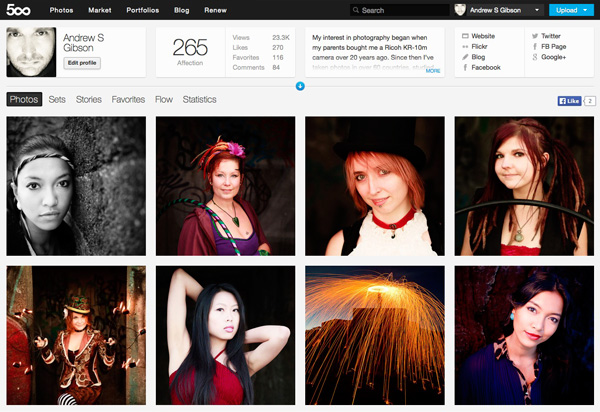
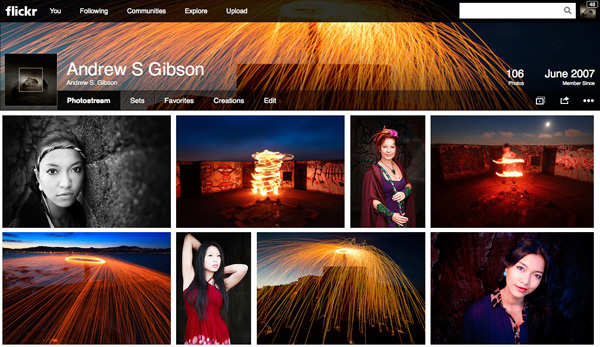
The skills you’ve learned so far in this series (yes, there is a series – I’ll provide links to the relevant articles at the appropriate points) all come together with Lightroom’s Publish Services. You can use these to publish photos to photo sharing websites like Facebook, Behance, Flickr, 500px and more. Today I’ll concentrate on the two you are most likely to use for your best images: Flickr and 500px.

How to Upload Photos to Flickr and 500px using Lightroom 5

Publishing Collections

Lightroom 5 Publish Services

Lightroom’s Publish Services use a special type of Collection called Published Collections (there are also Published Collection Sets and Published Smart Collections). These are the same as regular Collections (which you can learn more about in my article Use Lightroom Collections to Improve Your Workflow) except for these key differences:

  • Published Collections have one purpose only:  to publish your images to either a hard drive location or a photo sharing website such as those listed above.
  • Published Collections are dynamic. They tell you if a photo has changed after you have published it, so you can re-publish it.

Here’s how it works. You create a Published Collection containing the photos that you would like to upload to a website (for example, Flickr). Lightroom tells you which photos have already been uploaded, and which ones haven’t. But wait, there’s more: if you publish a photo to Flickr, then make changes to that photo in Lightroom’s Develop module, Lightroom’s Publish Service marks it and gives you the option of uploading it again.

That’s clever, and very, very useful, as it enables you to see at a glance whether you have uploaded the most recent version.

Setting up a new Flickr Publish Collection

That’s the theory, let’s see how to put it into action:

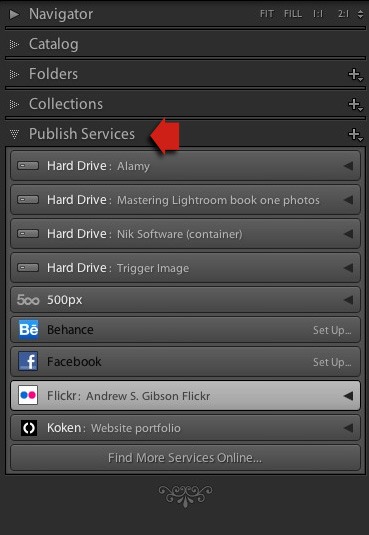
Step 1. Go to the Publish Services panel. It’s at the bottom of the left-hand panels in the Library module (see below)

Lightroom 5 Publish Services

Step 2. Click the New Published Collection icon and select the Go to Publishing Manager option.

Lightroom 5 Publish Services

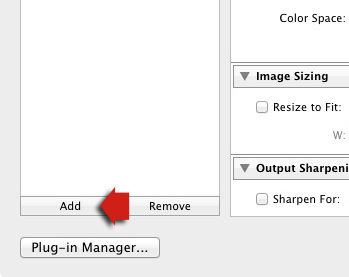
Step 3. Click the Add button in the bottom left of the Publishing Manager window.

Lightroom 5 Publish Services

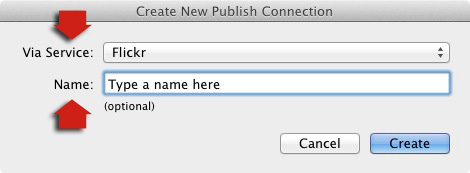
Step 4. In the next window, select Flickr from the Via Service drop-down menu. Type a name for your service underneath.

06

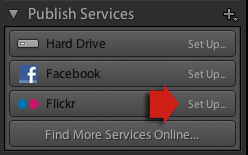
Alternatively, if this is the first time you’ve done it, you’ll see something like the screenshot below. Click the words Set Up next to the Flickr icon to get started.

05a

Step 5. Start by clicking the Authorize button and entering your Flickr log-in details. This authorizes Lightroom to access your Flickr account.

07

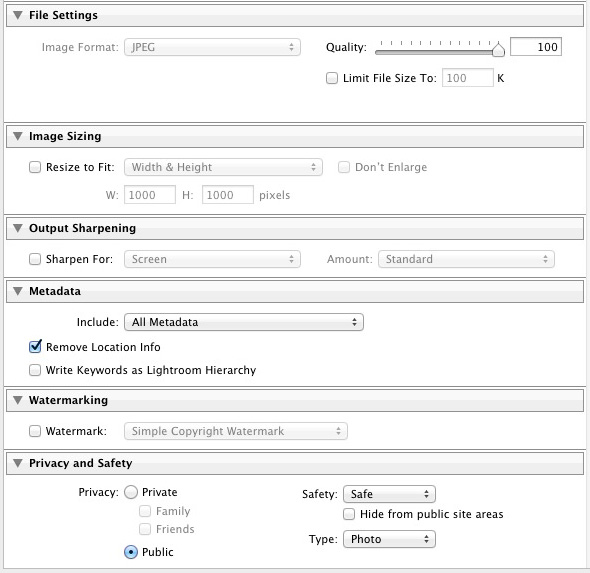
Step 6. Now it’s just a simple matter of adjusting the settings to what you want. The most important ones are near the bottom of the Publishing Manager window. You can set things like image quality, image size and sharpening, add a watermark, set which metadata (if any) to include and select the appropriate privacy setting. Press the Save button at the bottom-right of the window when you’re done. The Flickr Publish Service is now set up.

08

Using the Flickr Publish Service

You’ll see that there is a Published Collection called Photostream in the Flickr Publish Service. Any photos you add to this Published Collection will be uploaded to your Flickr account using the size and quality settings you selected earlier.

Lightroom 5 Publish Services

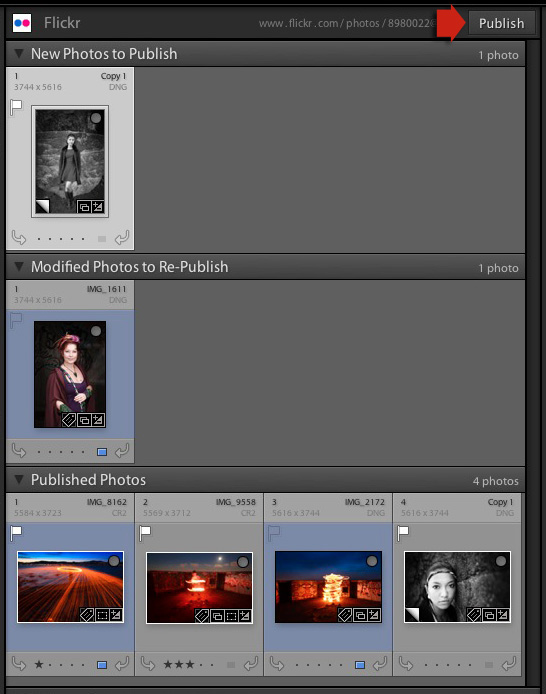
Click on the Photostream Publish Collection and you’ll see something like the image below if you’re in Grid View – press ‘G’ on your keyboard if you aren’t. If you’re not familiar with how Grid View works, then see my article Making Sense of Lightroom’s Grid View.

09

There are three sections:

New Photos to Publish: photos added to the Published Collection but not yet uploaded to Flickr. Click the Publish button at the top right to publish them.

Modified Photos to Re-Publish: these are photos already uploaded to Flickr that have changed since being published. Note that any change, however minor, will result in a photo appearing in this section. That includes things like adding keywords, or any tweaks you make in the Develop module. Modified photos are uploaded again when you press the Publish button. If you don’t want to upload the modified photo, right-click on the thumbnail and select the Mark as Up-to-Date option.

Published Photos: Photos already published to Flickr.

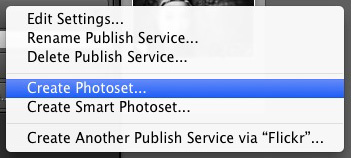
You can also manage Flickr Photosets from within Lightroom. Right-click the Flickr Published Collection heading and select Create Photoset from the menu. This lets you add photos to Sets as well as your photostream.

10

Finally, another benefit of using Lightroom’s Publish Services is that you can add keywords and a description to your images in Lightroom and these are populated automatically when you upload your photos to a photo sharing website. That means you only have to type in those details once, instead of multiple times. You can learn more about keywords in my article Creative Ways to Use Keywords in Lightroom 5.

Publishing to 500px

The 500px Publish Service works in a similar way to the Flickr Publish Service except that it is not built-in to Lightroom. You need to download the plug-in from the 500px website, which you can do here.

Unzip the file and move it to your Programs folder (PC) or Applications folder (Mac). Go to the Lightroom Plug-in Manager (File > Plug-in Manager) and click the Add button to install the plug-in. Once installed, it works virtually the same way as the Flickr Publish Service. The main difference is that the 500px plug-in downloads any photos you have already uploaded to 500px and adds them to your Lightroom Catalog.

Mastering Lightroom Book One: The Library Module

Mastering Lightroom ebook

My latest ebook Mastering Lightroom Book One: The Library Module is a complete guide to using Lightroom’s Library module to import, organize and search your photo files. You’ll learn how to tame your growing photo collection using Collections and Collection Sets, and how to save time so you can spend more time in the Develop module processing your photos.

The post How to Upload Photos to Flickr and 500px using Lightroom 5 by Andrew Gibson appeared first on Digital Photography School.

Digital Photography School

 
Comments Off on How to Upload Photos to Flickr and 500px using Lightroom 5

Posted in Photography


Adobe adds color profiles for Olympus cameras to ACR and Lightroom

13 Dec

P9150565-acrprof.jpg

Adobe’s latest versions of Camera Raw and Lightroom contained a pleasant surprise for Olympus owners – color profiles for image conversion. The company says the addition is a response to ‘a long standing customer request.’ We’ve re-processed one of the images from our Olympus OM-D E-M1 sample gallery to see how closely the profiles match the camera’s ‘Natural’ setting.

News: Digital Photography Review (dpreview.com)

 
Comments Off on Adobe adds color profiles for Olympus cameras to ACR and Lightroom

Posted in Uncategorized


Adobe releases final versions of Camera Raw 8.3 and Lightroom 5.3

12 Dec

shared:AdobeLogo.png

Adobe has announced the final versions of Camera Raw and DNG Converter 8.3, along with Lightroom 5.3. Different versions for ACR 8.3 are available for Photoshop CC and Photoshop CS6 – both from Adobe.com and through the update mechanisms in the software. DNG Converter is available for free for users of older versions of Photoshop. The latest versions brings support for 20 cameras, including the Nikon Df and Nokia Lumia 1020 that weren’t in the release candidate versions.

News: Digital Photography Review (dpreview.com)

 
Comments Off on Adobe releases final versions of Camera Raw 8.3 and Lightroom 5.3

Posted in Uncategorized


Lightroom Tips for the Develop Module – the Magic Alt Key

08 Dec

LR_Alt_option_visualization_opener

Lightroom tips for the Develop module – one feature in Lightroom that isn’t obvious or easy to discover is the visualization feedback which you can get in the Develop module. In many cases when you hold the Alt key, (Option on a Mac) and click (and hold it) on a slider, the screen will change to give you feedback on the adjustment you are making.

This feedback (visualization) take some of the guess work out of how the adjustment you are making is affecting the image. Here are some of the useful visualizations available in the Lightroom Develop module:

Alt and the Exposure, Highlights, Whites, Shadows and Blacks Sliders

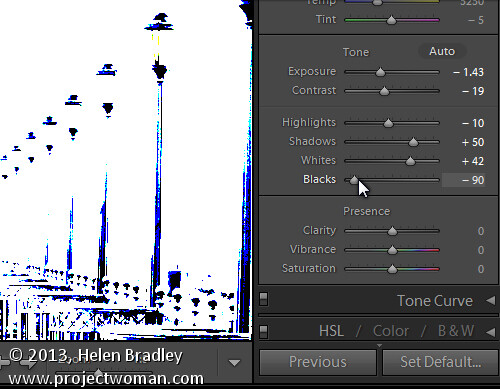
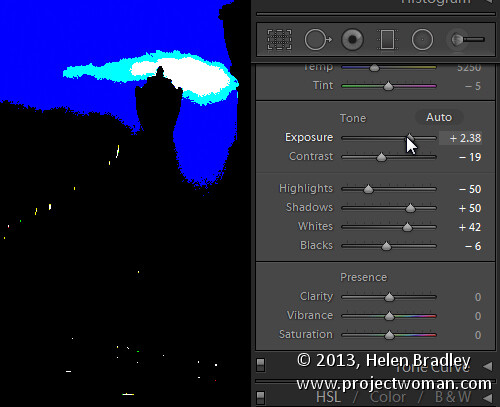
When you hold Alt (Option) and drag any of these sliders you will see any areas where whites or blacks are clipped as a result of the adjustment – the color shows which channel is being clipped. When you adjust Shadows and Blacks the white areas of the image aren’t clipped.

LR_Alt_option_visualization_1

Showing where the blacks are being clipped

When adjusting Exposure,  Highlights and Whites – the black areas are not clipped.

LR_Alt_option_visualization_2

Showing where the highlights are being clipped

Sharpening

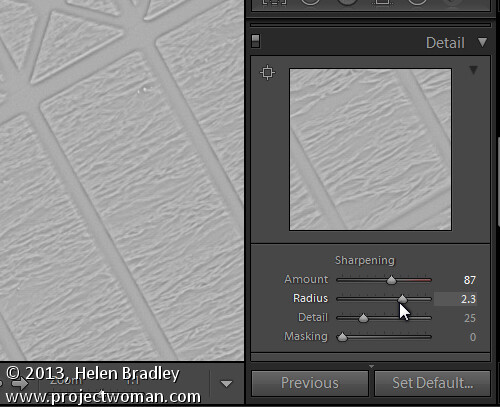
When adjusting Sharpening you can preview the result of the sharpening on the image by holding the Alt (Option) key and drag on any slider. Alt (Option)  and the Amount slider shows you the sharpening applied to a black and white version of the image – as Lightroom sharpens only the luminance and not color this gives you a better view of the sharpening result.

Alt (Option)  with the Radius slider shows the halos being applied to the edges in the image to sharpen it.

LR_Alt_option_visualization_3

Showing the radius or amount of sharpening being applied

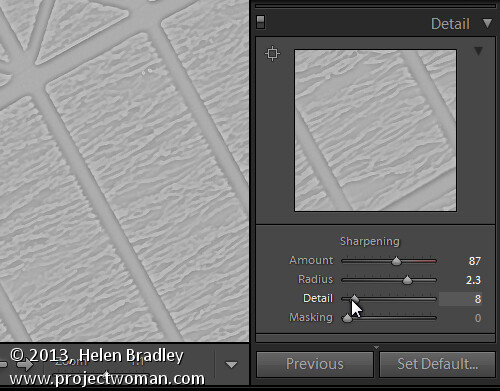
Alt (Option)  and the Detail slider shows the suppression of the halos occurring as you drag on this slider.

LR_Alt_option_visualization_4

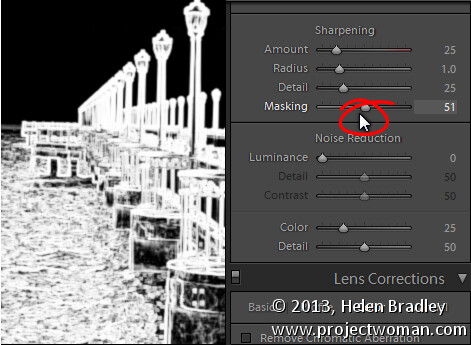
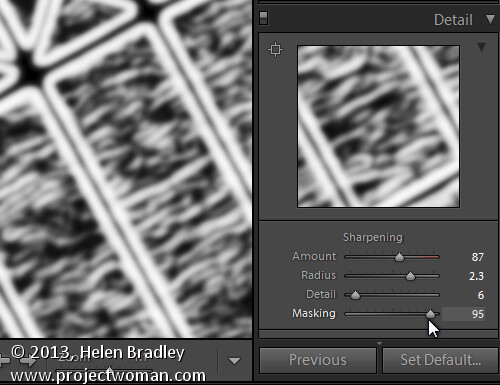
Alt (Option) and the Masking slider shows a black and white mask over the image – the areas which are black are not sharpened and those which are white will be sharpened.

LR_Alt_option_visualization_5

Showing the mask when sharpening – makes it easy to control which areas are sharpened and which are not, very useful for people photos.

Split toning

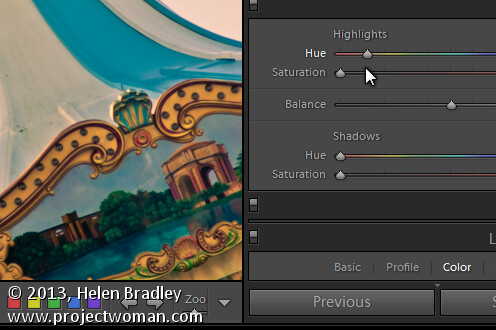
Alt (Option) and either of the two Hue sliders shows the currently selected hue in place on the image even if the Saturation slider is set to zero. This lets you see the color you are selecting, at 100% saturation, before you apply it.

LR_Alt_option_visualization_6

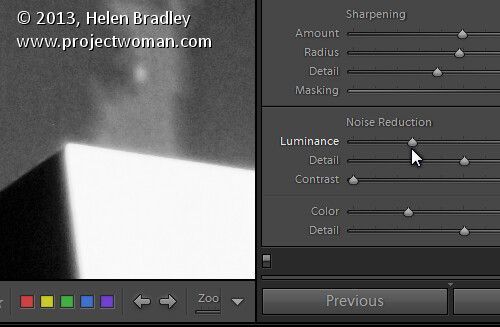
Noise Reduction

Alt (Option) and the Luminance, Detail and Contrast sliders for removing  noise converts the image into a black and white image so you can see the effect of the adjustments more clearly.

LR_Alt_option_visualization_7

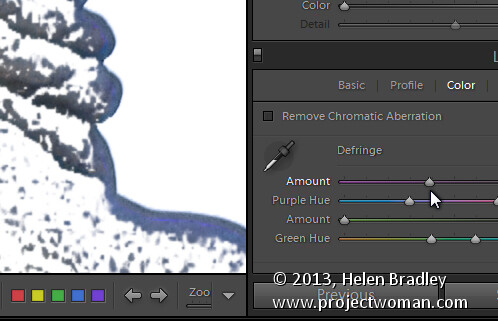
Lens Correction – Color tab

Alt (Option) and the appropriate Amount slider shows the areas in the image affected by fringing. White is not affected and you will see any areas affected by purple or green fringing.

LR_Alt_option_visualization_8

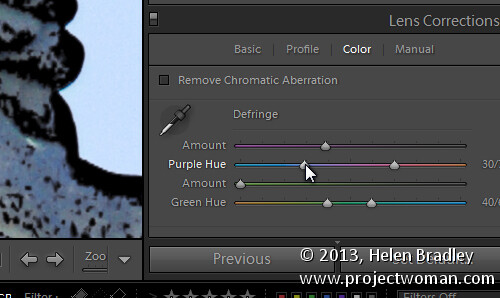
Alt (Option) and the appropriate Hue slider lets you view the range of hues being fixed. Black areas are already being targeted and any remaining purple or green color indicates residual color fringing.

LR_Alt_option_visualization_9

Recognizing the times you can use the Alt (Option) key in the Develop module will help you make adjustments to your images more easily and effectively. I hope you enjoyed these Lightroom tips for the Develop module.

Post originally from: Digital Photography Tips.

Check out our more Photography Tips at Photography Tips for Beginners, Portrait Photography Tips and Wedding Photography Tips.

Lightroom Tips for the Develop Module – the Magic Alt Key

The post Lightroom Tips for the Develop Module – the Magic Alt Key by Helen Bradley appeared first on Digital Photography School.

Digital Photography School

 
Comments Off on Lightroom Tips for the Develop Module – the Magic Alt Key

Posted in Photography


Creative Ways to use Keywords in Lightroom 5

05 Dec

Andrew S. Gibson is the author of Mastering Lightroom Book One: The Library Module, on offer now at Snapndeals for a limited time.

Keywords in Lightroom 5

One of the things about any software, such as Lightroom 5 that does a lot of things, is that many photographers tend to use only a small number of the available features. For example, I’ve never bothered to use the keywords feature much in Lightroom. I’ve always seen it as a waste of time. It takes time to add keywords to images and I don’t really need keywords to search for images – I know where to find them already.

But since I started writing about Lightroom, and reading what other photographers have written about it, I’ve realised that there are a lot of good reasons to use keywords, and that used wisely they can actually save time.

Like many things, it’s a matter of balance. The more keywords you use the harder it is to keep track of them all and the reasons that you added them, and to maintain a consistent approach (exception: if you shoot stock you will want to use lots of keywords as they are an essential part of your work).

If you use just a few keywords, it’s easy to remember which ones you use and why.

Let’s look at a couple of examples of creative ways to use keywords in Lightroom 5. Of course, if you have any suggestions, please leave them in the comments. I’m curious to see how you use keywords.

Keep track of the kids

I really like this one (thanks to Robert Taylor for the suggestion, he left in the comments on Using Lightroom Collections to Improve your Workflow). If you have children, add their name as a keyword when you import the images that you take of them. Then you can create a series of Smart Collections that searches for images with that keyword and organises them by year.

Create a yearbook

Keywords in Lightroom 5

Back before digital photography became the norm, a photographer’s best work ended up as prints or as slides. Today, the finished article is often a digital image stored on a hard drive or uploaded to a website. One of my current projects is organising my best images from every year since I’ve owned a digital camera, and picking the best to create a yearbook. The ultimate aim is to use Blurb to create a book creating my favourite photos taken each year, over the last eight years, and to carry this forward throughout my life. Not just for me, but for posterity. These books will hopefully make great gifts for younger family members.

Method: add the keyword “yearbook” to suitable images, then create Collections to house those images.

Taking it further: This could be applied to all sorts of ideas. For example, I could use it to create a book (or simply a collection) of my favourite images taken here in New Zealand. All I need to do is add the keywords “New Zealand” and “book” to candidate images, then perform a search.

Using keywords

Excited? I hope so, because the more you delve into Lightroom’s Library module ,the more you’ll find ways to simplify how you organise your images. Keywords are no exception. Now let’s look at the different ways you can actually apply keywords to your images in Lightroom. There are several options:

Keywords in Lightroom 5

Adding keywords when you import images

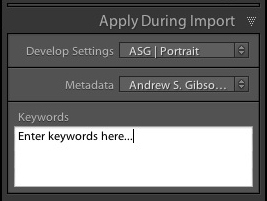
This method works well if you tend to import images in groups, according to subject matter. For example, if you take some portraits one day, some landscapes the next, and import them all in one go you can’t really add subject specific keywords. But if you import the images from both shoots separately you can add keywords at the import stage (for example, the name of the model to the portraits, and the name of the location to the landscapes). You can do this in the Apply During Import panel on the right-hand side of the Import window.

Use the painter tool

Keywords in Lightroom 5

The Painter tool is an easy way to add keywords to images while you are in Grid View. Click on the Painter icon in the Toolbar (it looks like a spray paint can – press the ‘T’ key to reveal the Toolbar if you don’t see it) and select ‘Keywords’ from the drop-down menu. Type in the keywords you want to add (in the box just to the right). Now all you have to do is click on a photo thumbnail to add those keywords to that image. It’s a very fast way of working in Grid View.

Use the Keywording panel

Keywords in Lightroom 5

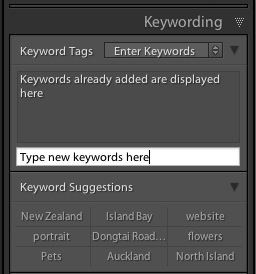
The Keywording panel is located in the right-hand panel in the Library module. To add keywords, select the image (or a group of images) and type the new keywords into where it says ‘Click here to add keywords’. Any keywords already given to the image are displayed above. You can also add keywords by clicking on any that appear under Keyword Suggestions (populated by keywords you have used in the past).

Use Keyword Sets

Keyword Sets are found at the bottom of the Keywording panel. They are there to help you organise your keywords, and overcome the problem caused by the fact that it becomes more difficult to maintain consistency the more you use keywords.

Keywords in Lightroom 5

For example, I live in a suburb of Wellington called Island Bay. If I take photos here then I should keyword them with “Island Bay”. But what if one day I use the keyword “Wellington” instead? Or even forget to keyword them completely? Then the power of keywording is diminished, because those photos won’t be picked up in any search based on the keywords “Island Bay”.

The solution is to use a Keyword Set. For instance, I could create a Keyword Set called Island Bay, and add Keywords such as Island Bay, Wellington, New Zealand, landscape, portrait. Then, when it comes to adding keywords, I can select the Island Bay keyword set first, then click on the appropriate additional keywords. This ensures consistency by ensuring that I select my keywords from a pre-determined pool.

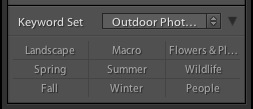
There are several Keyword Sets included with Lightroom, with titles such as Outdoor Photography, Portrait Photography and Wedding Photography. You can access them via the drop-down menu at the top of the Keyword Set section of the Keywording panel. This menu also gives you the options to create your own Keyword Sets.

Keywords in Lightroom 5

Keyword List

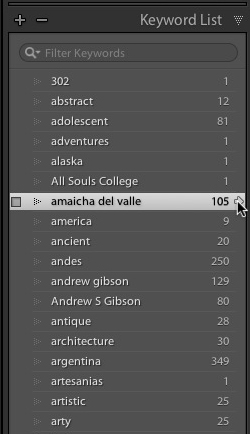
The Keyword List panel lists all the keywords that you have applied to images in your Lightroom Catalog. If you want to see all the photos tagged with a specific keyword together, hover over the keyword and click on the white arrow that appears on the right-hand side. Lightroom brings them together in Grid View. This is one way of searching images by keyword.

Finding keyworded images

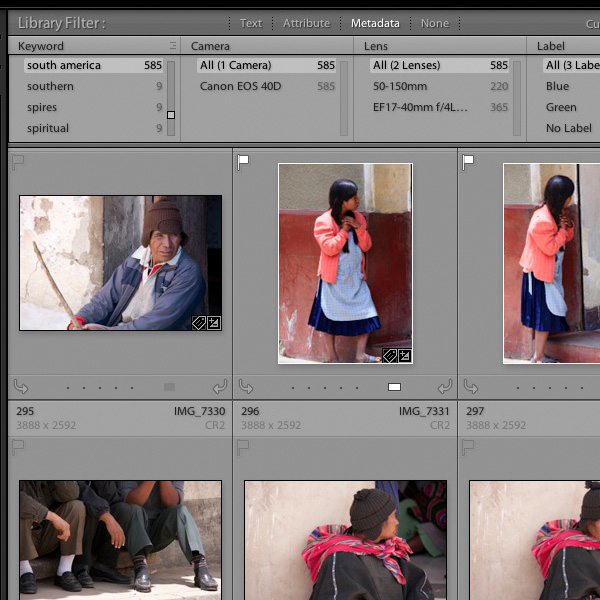
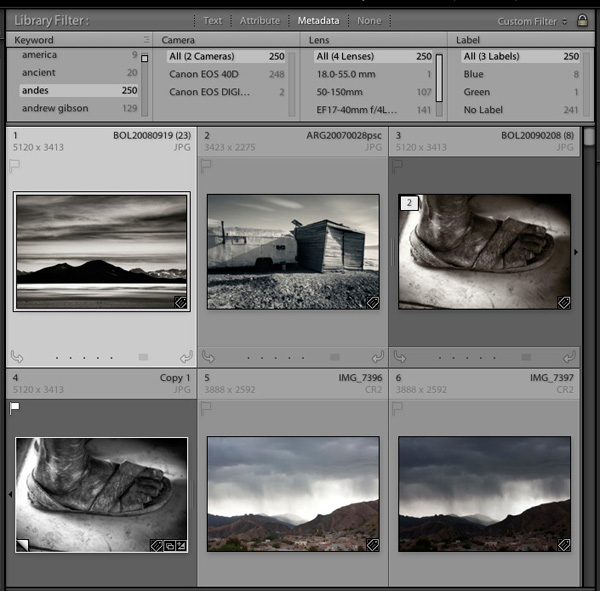
The easiest way to find keyworded images is to go the Filter Bar (press the ‘\’ key if you don’t see it) in Grid View and click on the Metadata label. Select “Keyword” from the drop-down menu in the first column. Lightroom displays a list of keywords underneath. Click on a keyword – Lightroom gathers all images tagged with that keyword together. You can limit the search to specific Folders or Collections by selecting them in the left-hand panels (or select “All Photographs” to search your entire catalog).

Keywords in Lightroom 5

Using Smart Collections

Keywords in Lightroom 5

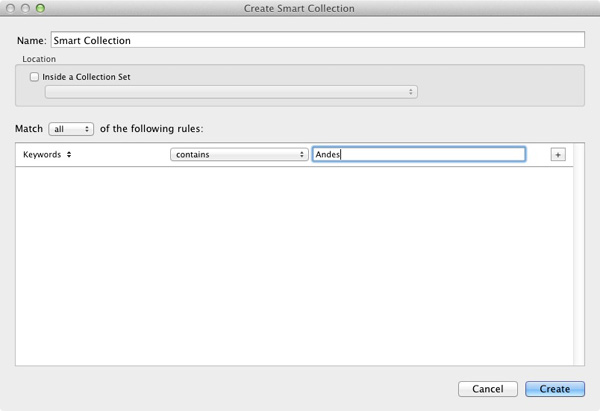
Finally, you can use Smart Collections to gather together images tagged with specific keywords automatically. Go to the Collections panel, click on the ‘+’ icon in the top-right corner and select the Create Smart Collection option. Set Match to All, select ‘Other Metadata > Keywords’ from the drop-down menu in the first column and then type the required keyword in the blank space provided. The example shows a very simple Smart Collection, you can make it as complex as you like by adding extra rules (remember to give your Smart Collection a name, in the example above “Andes” would be applicable).

Additional learning – Mastering Lightroom eBook

Keywords in Lightroom 5

My latest ebook Mastering Lightroom Book One: The Library Module is a complete guide to using Lightroom’s Library module to import, organise and search your photo files. You’ll learn how to tame your growing photo collection using Collections and Collection Sets, and how to save time so you can spend more time in the Develop module processing your photos. It’s available now for a special price at Snapndeals for a limited period.

Post originally from: Digital Photography Tips.

Check out our more Photography Tips at Photography Tips for Beginners, Portrait Photography Tips and Wedding Photography Tips.

Creative Ways to use Keywords in Lightroom 5

The post Creative Ways to use Keywords in Lightroom 5 by Andrew Gibson appeared first on Digital Photography School.

Digital Photography School

 
Comments Off on Creative Ways to use Keywords in Lightroom 5

Posted in Photography


Lightroom Workflow – from Setup to Finished Sunrise Photo

01 Dec

One of my favorite times of the day to photograph is sunrise. There’s just something about the peacefulness of being up before the sun, before most of the human world, that allows me to clear my head.

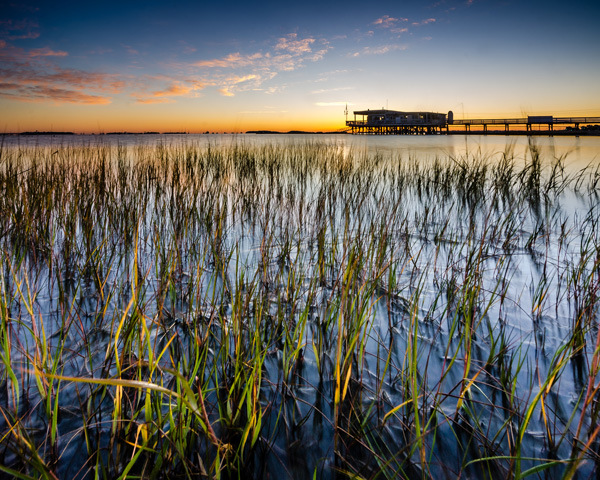
Sunrise photos have always been high on the list of fan favorites and I know that there are a great many DPS readers who love them as well, so I thought I’d share with you a little bit about how I made the shot above from finding the location to setting up the camera and then a step by step walk-through of my Lightroom workflow.

Lightroom Workflow Final Image

Determining a location

To begin a shoot you need a concept, and while photographing sunrise is always a great concept to start with, one of the most important things that you’ll need to do is find a location. This can be difficult to do sometimes, but if you’re struggling to find a new location, check out 5 Creative Ways to Find New Locations for Photography for some inspiration.

I can tell you that the inspiration for this photo came from my sister who saw this boat house while out on an afternoon jog. She sent me a text message demanding that I come spend a night so that I could photograph it at sunrise – and sure enough that’s exactly what I did. The key point to take away from this is, that inspiration can come from anyone and any where, so make sure that you are paying attention to your surroundings as well as what people are saying about their own.

As for getting to the location for a sunrise shoot you’re going to have to wake up early. Well before sunrise. For this reason I typically will either spend the night in a hotel or find a friend or family member who lives close enough to the location to allow me to crash for a few hours, otherwise there might not be any point of sleeping at all. Think of it like this… If you can still see stars – you’re doing it right!

Setting up the camera

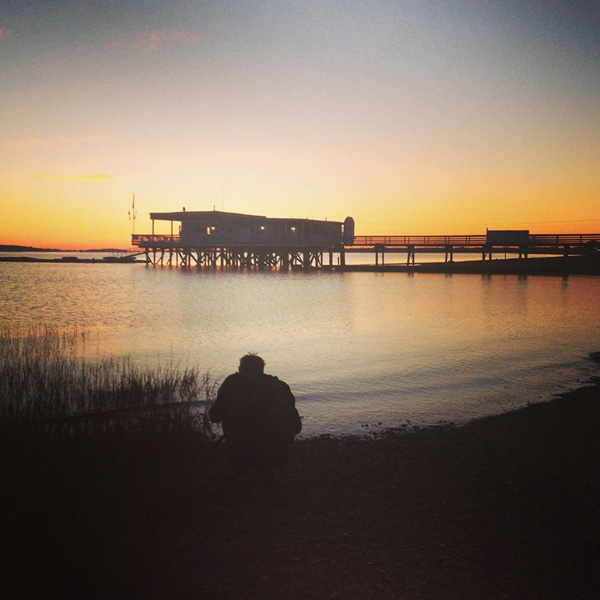
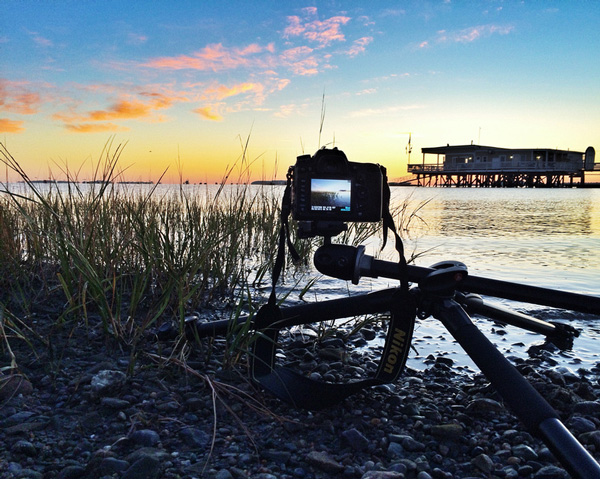
Since camera settings will vary depending on your scene I thought I’d share a couple behind the scenes shots. The first is one that my sister took of me while I was setting up my camera and tripod along the shore – notice how close to the water I get. The second shot is a close up that I took of my camera setup during the shoot, notice that for this particularity shot the tripod was nearly flat against the ground to allow me to get a very low perspective, and allow for the foreground sea grass to take up a good portion of the frame.

Lightroom Workflow - Setting up the shot

A behind the scenes shot of yours truly setting up the camera

Lightroom Workflow - Behind the Camera

A photo of the camera set up – notice how close to the water and how low to the ground I put the camera for this shot

It’s important to note that each shoot is going to be different and you must realize that with every sunrise and every location there will be challenges that you will have to overcome. While I can show you examples of how I set up the camera and my thought process behind it, when you get out to your own location it’s up to you to determine the best ways to photograph the scene.

Back home – it’s time to process the photos

Lightroom Workflow - Office

Just for fun I thought I’d throw in this snapshot of my office – What’s your desk look like?

Lightroom workflow – which frame to process?

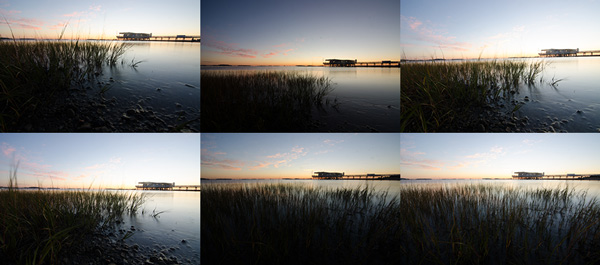
Before you can start processing you must determine which of the frames you want to use. There’s no “one-size-fits-all” way of doing this, it really comes down to the person behind the computer. Some people like to simply process everything from the start of their shoot to the end. Other people like to meticulously rate everything, fill in all the meta data and stay super organized. My own workflow usually consists of a quick browse through all the photos that I’ve captured in a particular shoot, rating each of the ones I want to edit with a 5-star rating, and leaving everything else untouched for the time being. I’ll usually come back to shoots from time to time, to see if anything I may have missed on my first go through jumps out at me on a second glance.

Lightroom-workflow-collage

Six different frames from the shoot – I chose the bottom right frame for today’s photo

Lightroom workflow – making adjustments

Now that you’ve chosen a photograph to edit, it’s time to dive into the develop panel and get started with the post production workflow.

Lightroom Workflow - Oriignal

Enter the develop panel and select the photo to be edited.

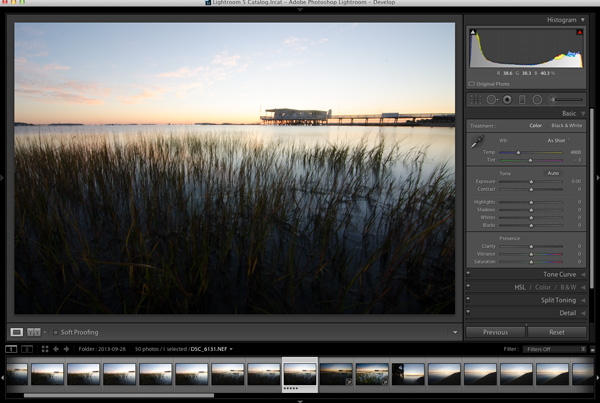
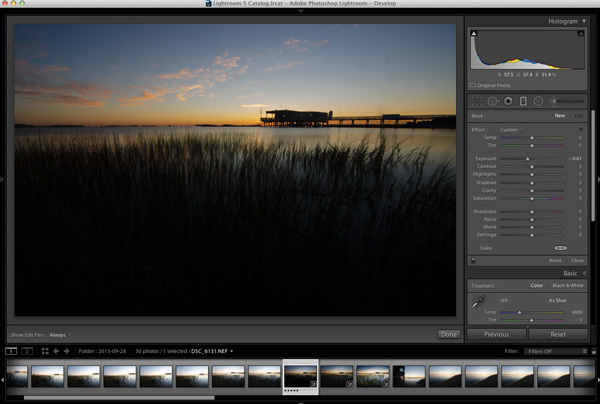
Since this photograph is all about the sunrise, the first step is to make sure that you get your sky exposure as close to perfect as possible. By making a small adjustment here to the exposure slider in the basic tab you can have a great effect on the sky which will set the foundation for the rest of the photograph. It might look a bit under exposed at first, but we will be fixing this and fine tuning everything throughout the tutorial.

Lightroom Workflow - Expose for the sky

Adjust the exposure for the sky

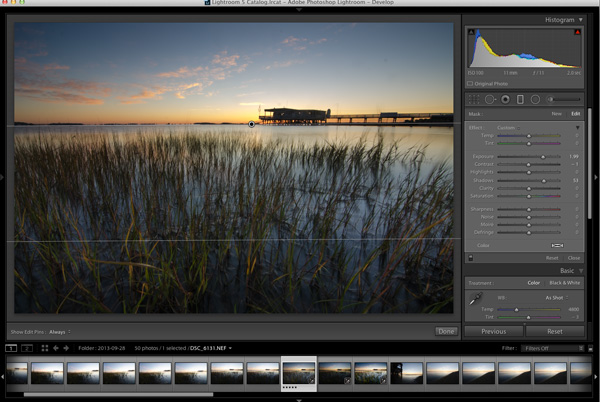
To bring the foreground back into the image you will want to add a graduated filter into the frame (assuming you didn’t use one in the field of course). To do this simply press the ‘M’ key on your keyboard to open that panel in Lightroom. To apply the graduated filter drag in from the bottom of the frame and place the filter on the horizon line. Remember the filter’s effect is greatest starting from the direction you initially dragged in from so here the effect will be greatest towards the bottom of the frame.

Next to bring the exposure back into the foreground by increasing the exposure and shadows sliders (moving them to the right) of the graduated filter until you’re satisfied with the look. You will be able to fine tune the image by using the basic tab a bit later. You can always go back to this graduated filter if you need to make a minor adjustment later on, as well, simply by revisiting the graduated slider panel and clicking on the button (dot) of the graduated slider to activate it for editing.

Lightroom workflow - graduated filter

Apply a graduated filter to adjust the exposure of the foreground without effecting the sky from the previous step

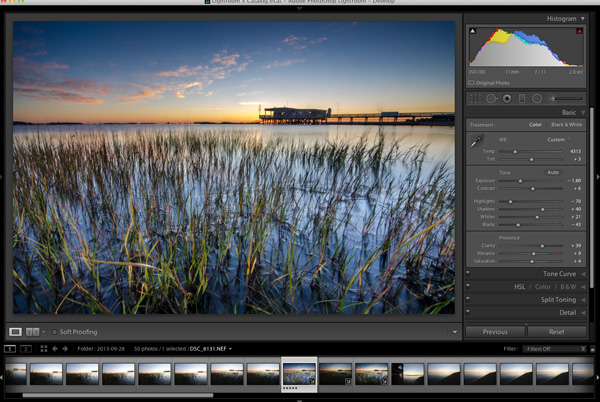
Now that you’ve exposed for the sky and brought back some foreground light, the next step is to add contrast, color, and clarity – all of which will help to make your image ‘pop’. This can be done by using the basic tab in Lightroom, which I’ve covered in Master These Five Lightroom Sliders and Your Photos Will Pop, if you’d like more information.

Lightroom workflow basic tab

After achieving a general evenness in the previous steps use the basic tab to add contrast, color and clarity

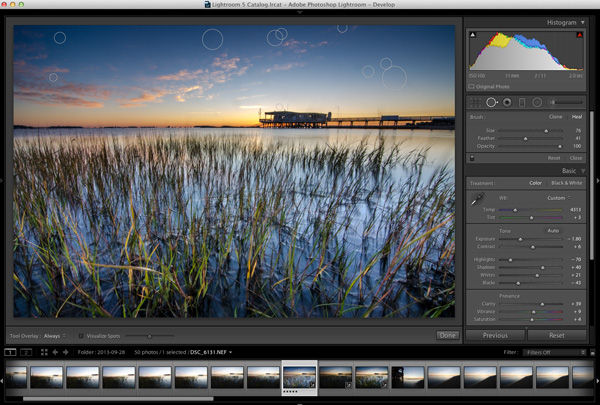
At some point you’ll want to clean up the dust spots or remove distracting pieces of litter or other unwanted items from your image so now’s a good time to jump into the clone/heal tool and do just that – as you can see I need to get my sensor cleaned.

Lightroom Workflow - Cloning

Here’s a good chance to clean up those pesky dust spots by using Lightroom’s clone/heal tool

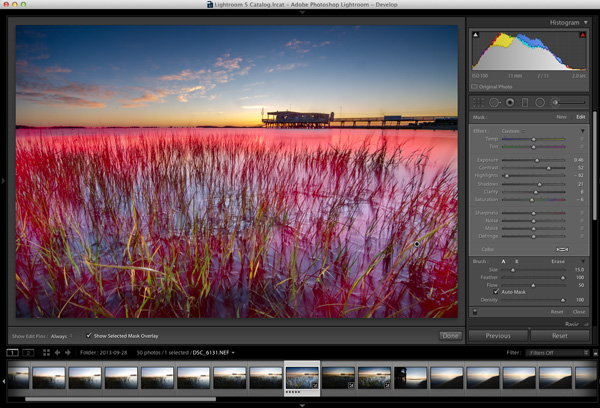
Final adjustments can be made by using a combination of different adjustment brushes. Usually you’ll want to use this tool to control specific areas of the photograph, or specific parts of the exposure. To open the adjustment brush panel press ‘K’ on the keyboard and click on your image to place a brush. If you’d like to use more than one brush you can click on ‘New’ and again click on your image which will allow you to adjust two different parts of your scene separately from one another.

In the photo below I’ve added an adjustment brush to affect the highlights, and contrast of the water at varying levels of intensity. You can control these levels of intensity by adjusting the “flow” slider of the adjustment brush which will determine how much of the effect is applied at each pass of the brush – a lower flow has less effect per pass than a higher flow.

Lightroom workflow - adjustment brush

Fine tune the highlights on the water with an adjustment brush. The red overlay can be turned on and off with the check box below the photo (or ‘O’ on your keyboard)

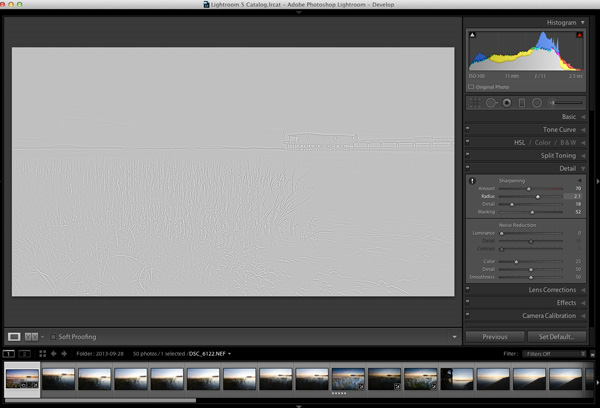
Before you call it a day – the last step is to dive into the detail panel in Lightroom and apply some sharpening. For some more information on Lightroom’s sharpening options you can watch this Youtube video A Look at Sharpening in LR4, which is part of a weekly series I run on my channel.

Lightroom workflow - sharpening

Apply any sharpening you wish using Lightroom’s sharpen panel.

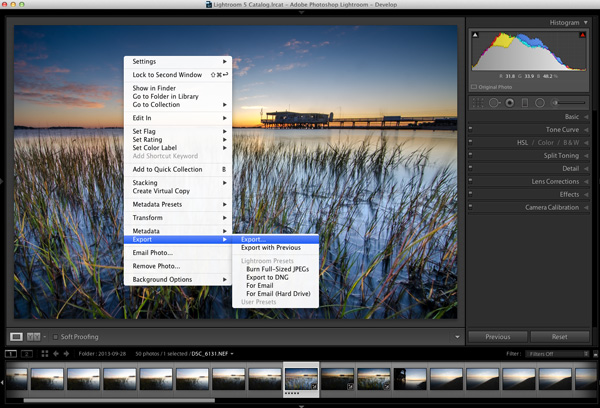
Lightroom Workflow Export

All that’s left to do now is export and share your work with the world.

Exporting and sharing

All that’s left now is to export the photo and share the results.

I hope this step by step Lightroom workflow helps you learn a bit about how to process your own photos. Share a before and after Lightroom edit in the comments below, and if you’ve got any behind the scenes shots, those are always fun to see as well. Don’t forget to let us know how you achieved the results.

Post originally from: Digital Photography Tips.

Check out our more Photography Tips at Photography Tips for Beginners, Portrait Photography Tips and Wedding Photography Tips.

Lightroom Workflow – from Setup to Finished Sunrise Photo

The post Lightroom Workflow – from Setup to Finished Sunrise Photo by John Davenport appeared first on Digital Photography School.

Digital Photography School

 
Comments Off on Lightroom Workflow – from Setup to Finished Sunrise Photo

Posted in Photography


Comparing Images with Lightroom 5’s Survey View

26 Nov

Using Survey View

Andrew S. Gibson is the author of Mastering Lightroom Book One: The Library Module, on offer now at SnapnDeals for a limited time.

‘Working the subject’ is an expression often used in photography to describe the process of taking a series of photos of the same subject. The idea is to work your way closer to the ‘perfect’ photo (if there is such a thing) by varying the camera angle, focal length, point-of-view and other factors. As part of the editing process it’s the photographer’s job to select the best images to process. In the old days this meant poring over a lightbox or contact sheet with a loupe. Some people still do it this way, but most of us work with digital images. One of the benefits of this is that software like Lightroom makes it very easy to view images side-by-side and organize the keepers into a “Collection” for processing.

When I use Lightroom’s Library Module to cull my photos, I start off in Grid View and then use either Compare View or Survey View to compare similar images. The previous article in this series showed you how to use Compare View, and today I’m going to take a look at Survey View.

Compare or Survey View – which one to use?

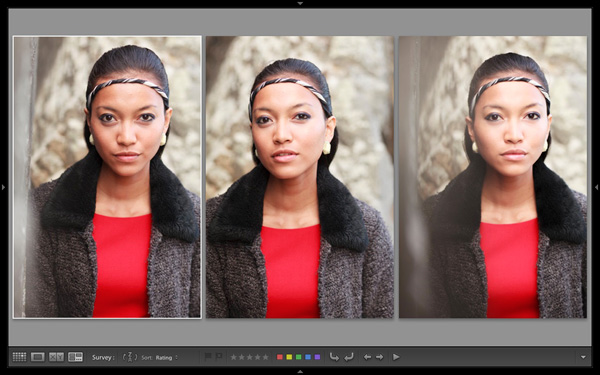
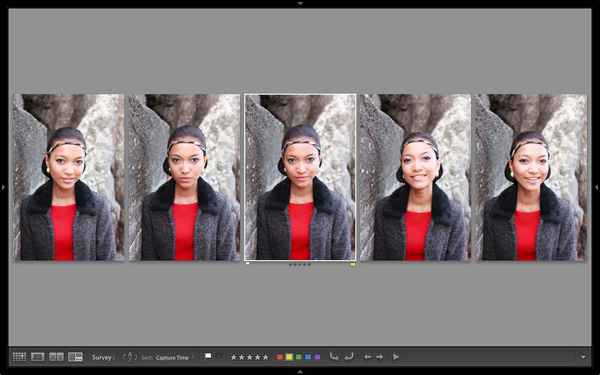
What’s the difference between the two? The main difference is that you can only compare two images at one time in Compare View, but as many as you want in Survey View. Here’s an example:

Using Survey View

To arrive at this view I selected five images in Grid View and used the ‘N’ keyboard shortcut to go to Survey View. Lightroom arranges the images in the way that fits the screen space best so you can look at them all together. A little common sense is required here – Lightroom will try and squeeze as many photos as you select into the one screen, but the thumbnails will soon become too small to be of any practical use. The practical limit is probably somewhere between eight and 20 images, depending on your monitor size.

Using Survey View

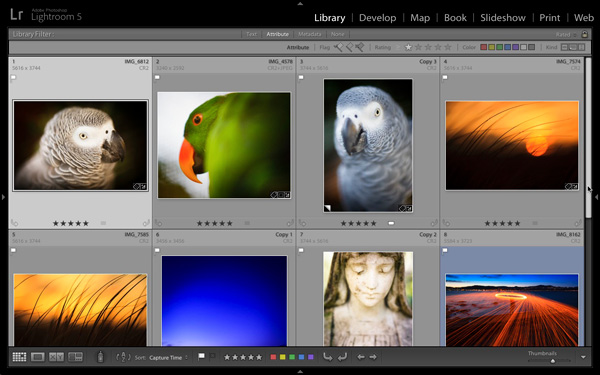
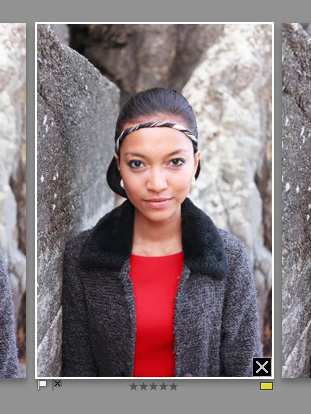
The ‘most selected’ image is displayed with a white border, and if you have assigned a flag, star rating or colour label it is displayed underneath. These also appear in the Toolbar at the bottom of the screen (press ‘T’ to reveal the Toolbar if you don’t see it):

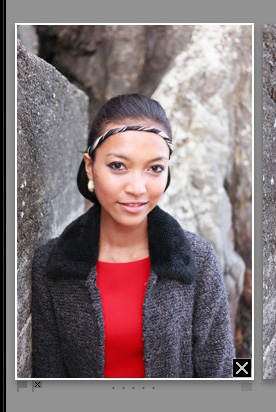
If you hover over one of the images you can assign a flag, star rating or colour label by clicking one of the icons displayed underneath (you can also do this in the Toolbar). You’ll also see a white X in a black square in the bottom right-hand corner of the image. Click this to remove the image from the selection. Lightroom removes it from the screen when you do so, and the remaining images rearrange themselves. If you click the X by mistake, press Ctrl-Z (PC) or Cmd-Z (Mac) to bring the de-selected photo back.

Using Survey View

What do you do once you’ve decided which images are keepers? I find the simplest approach is to flag each image that I want to process, and send them to a new Collection (see my article Use Lightroom Collections to Improve Your Workflow for more information on this).

Another useful feature of Survey View is that you can press the Space bar whenever you like to view the most selected image in Loupe View – useful if you want to see it in a larger size or zoom in to check for fine detail such as accurate focusing. Simple press the Esc key or use the ‘N’ key shortcut to return to Survey View.

Mastering Lightroom

Using Survey View

My latest ebook Mastering Lightroom Book One: The Library Module is a complete guide to using Lightroom’s Library module to import, organize and search your photo files. You’ll learn how to tame your growing photo collection using Collections and Collection Sets, and how to save time so you can spend more time in the Develop module processing your photos. It’s available now over at Snapndeals, for a special price for a limited period.

Post originally from: Digital Photography Tips.

Check out our more Photography Tips at Photography Tips for Beginners, Portrait Photography Tips and Wedding Photography Tips.

Comparing Images with Lightroom 5’s Survey View

The post Comparing Images with Lightroom 5’s Survey View by Andrew Gibson appeared first on Digital Photography School.

Digital Photography School

 
Comments Off on Comparing Images with Lightroom 5’s Survey View

Posted in Photography


Adobe now offers Photoshop and Lightroom for everyone

21 Nov

shared:AdobeLogo.png

When Adobe announced a version of Creative Cloud for photographers in September, there was a catch — you had to already own Photoshop CS3 or later to qualify for the special pricing. Now Adobe is lifting that requirement for a limited time. Through December 2, 2013, the $ 9.99 per month subscription is available to everyone. Learn more 
News: Digital Photography Review (dpreview.com)

 
Comments Off on Adobe now offers Photoshop and Lightroom for everyone

Posted in Uncategorized