RSS
 

Posts Tagged ‘lightroom’

Processing an Image in Lightroom 5 – a Video Tutorial

02 Mar

Lightroom5-processing

Of course, I always like to get the photo as perfect as possible, right in the camera.  But, sometimes the situation just doesn’t allow for a lot of adjustments to be made before the opportunity is lost. Today’s image of a Canadian Lynx kitten was one of those situations.

The kitten was in a forest on a bright sunny day with mottled light, pretty much nightmare’ish light.  Fill flash would have helped, but I’m hesitant to use fill flash with most mammalian critters because the flash will often show off hairs that our eyes don’t normally see, thereby rendering an artificial appearance to the critter.  So, instead, I attempted to expose for the highlights, trusting and hoping that my RAW files (later converted to Adobe’s DNG format) would help save the day when I got around to processing the image.  Today, is that day.

Processing an Image in Lightroom 5

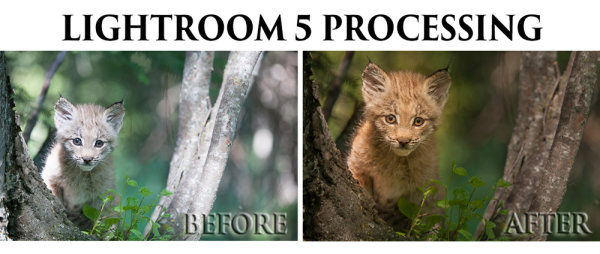
So here is a video tutorial on using the features in Lightroom 5 to change a photo that started off looking like this . . .

© Paul Burwell

Before Lightroom Processing

. . . into a photo that looks like this!

© Paul Burwell

After processing in Lightroom 5 – Horizontal Crop

OR even this . . .

© Paul Burwell

After Lightroom Processing – Vertical Crop

To accomplish this we’ll make use of the Crop tool, the Basic Adjustment Panel, the Adjustment Brush, the Radial Filter, the Detail (Sharpening) Panel and the Virtual Copy feature.

We’ll take the photo of the Canadian Lynx kitten that started off pretty bland and forgettable, and end up with a nice looking, intimate portrait of a beautiful cat.  The video will cost you about 30 minutes of your life to watch through from beginning to end, but when you’re done, you’ll have an excellent idea on how to use these tools that come embedded in Lightroom to transform (or save) some of your own, less than stellar images.

Enjoy this video on processing an image in Lightroom 5

For more Lightroom tips try these articles:

  • 3 Uses for the Radial Filter Tool in Lightroom 5
  • Lightroom 5 Tips – Hidden Gems
  • Lightroom Tips for the Develop Module – the Magic Alt Key
  • Comparing Images with Lightroom 5’s Survey View

The post Processing an Image in Lightroom 5 – a Video Tutorial by Paul Burwell appeared first on Digital Photography School.


Digital Photography School

 
Comments Off on Processing an Image in Lightroom 5 – a Video Tutorial

Posted in Photography


Darktable vs Lightroom – Does it measure up?

16 Feb

Recently I was introduced to a free open source RAW file editor called Darktable. I know most everyone loves free stuff and quality RAW file editors are not easy to come by with a price tag of $ 0.00, so I thought it would be worth taking a quick look at Darktable vs Lightroom here on DPS.

I’d like to preface this article with a simple disclaimer…

I’ve only spent a handful of hours with Darktable and therefore by no means have I mastered the workflow and features packed into it. My intention here is to introduce it to you and share with you some of my experiences within the first few hours of opening it up. Is it for you? I can’t say that for sure, but if you’re like me, and you’re saying – “Did he just say free?” – than why not head on over to Darktable’s website and get your own copy today.

General Overview

Darktable is no slouch when it comes to RAW file processing. In fact, it is probably one of the better free options that I’ve come across in my travels. If there is one flaw with the software I’d have to say that it boils down to its learning curve. It simply has A LOT of tools, and as a result the interface ends up feeling a bit cluttered and confusing to a first time user.

Darktables-tool-set

Basic Processing

Overall the basic processing will feel very similar to Lightroom. The tools are broken into different groups, you still move sliders around to manipulate the photograph, and you have various ways of doing the same action. It feels very much like it was inspired by Lightroom and while there are some similarities, it is also very different in what it can, and can’t do.

I’m not going to go through everything in this article, but rather, just show you a couple of generic examples that I ran through both Darktable and Lightroom 5.

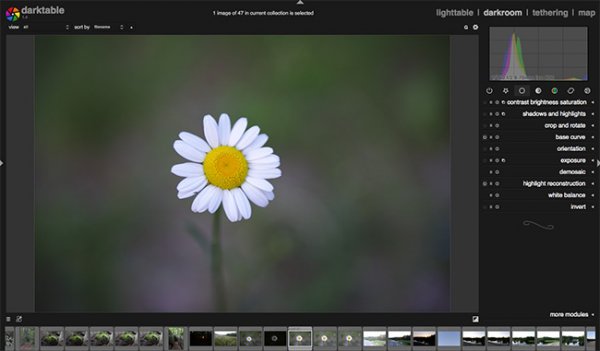
In this first example I’ve spent a bit of time processing a very simple photograph of a flower. I thought this would be a nice simple start to get my feet wet with the program.

Darktable-Free-Lightroom-alternate-07

Darktable Screenshot – Before

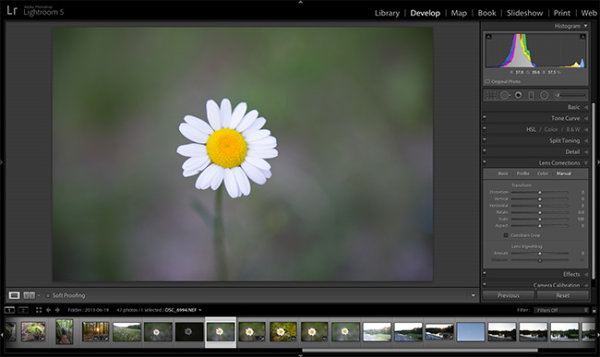
Notice how Darktable’s imported image appears slightly underexposed compared to that of Lightroom. While this isn’t a big deal, it is interesting that the same RAW file displays differently by default within the two programs.

Darktable-Free-Lightroom-Alternate-08

Lightroom Screenshot – Before

Overall the workflow for processing images is much simplier and more streamlined in Lightroom, but both pieces of software do perform quality edits on the flower. While I did try my best to get the two edits to come out to be the same, they did end up a bit different. This isn’t necessarily a flaw of Darktable, just that its layout of sliders, nomenclature, and the way the algorithms and coding behind the scenes work to process your edits are different.

Darktable-Free-Lightroom-Alternate-06

Darktable final edit

Darktable-Free-Lightroom-AlternateLR

Lightroom final edit

Another Example

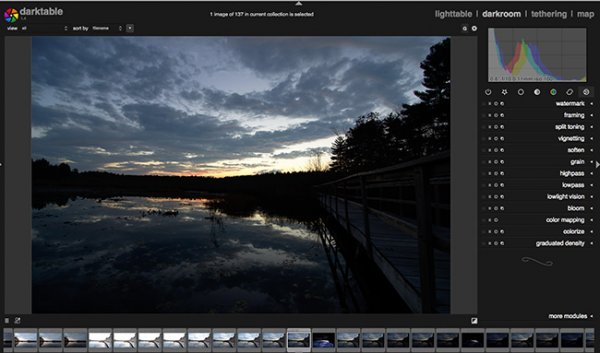
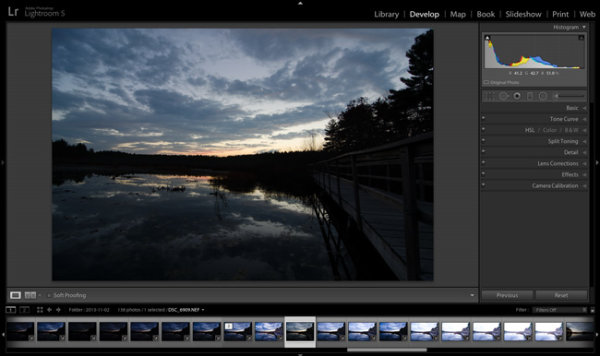
Another example, which I thought might be more difficult for Darktable to handle, was a photograph taken just after sunset. It was part of a bracketed set of images and was slightly underexposed. My goal here was to see how Darktable performed at recovering shadows from underexposed areas while retaining the highlight details in the sky and reflections.

Darktable-Free-Lightroom-Alternate-03

Darktable Screen Shot – Before

You can see here, once again, the original RAW file imported into Dartable is slightly darker compared to that of Lightroom. Potentially this is something that could be fixed within the settings of the program, but either way, it is a consistent trend in my experience.

Darktable-Free-Lightroom-Alternate

Lightroom Screenshot – Before

As I mentioned, the goal for this edit was to recover the foreground shadows along the tree line and retain the highlight detail just above the horizon and within the reflections.

Darktable-Free-Lightroom-Alternate-04

Darktable Final Edit

You’ll notice that while Darktable was able to dramatically improve the photograph, Lightroom was able to retain more detail in the brightest and darkest regions of the original photo. This wasn’t surprising to me as Lightroom has only recently had this much control over these areas of the photograph and I can only imagine how much math goes into creating the code behind the operations that we perform with a simple move of a slider.

Darktable vs Lightroom

Lightroom Final Edit

Bottom Line

Darktable is a powerful RAW image processor – there’s no question about that – and for the price of $ 0.00 it is an attractive alternative to Lightroom. It’s not going to replace Lightroom for me and probably won’t for anyone who currently uses Lightroom, but if you’re absolutely set on paying nothing for a RAW file processor, Darktable might be the perfect choice for you.

Over to you – have you used Darktable? What are your own experiences with it? Do you have any tips to share with those who are trying it for the first time?

The post Darktable vs Lightroom – Does it measure up? by John Davenport appeared first on Digital Photography School.


Digital Photography School

 
Comments Off on Darktable vs Lightroom – Does it measure up?

Posted in Photography


Why Lazy Photographers Should Use Lightroom Smart Collections

12 Feb

I never bother to keyword or tag my images. I often neglect putting my photos into organized collections. It takes too much time away from my workflow to bother with any of that – so how the heck do I find any of my images?

Lightroom Smart Collections

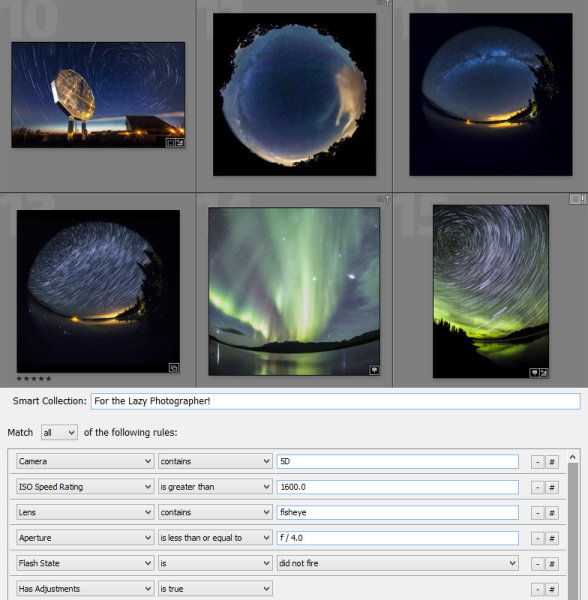
It’s easy to keep track of your images without painstakingly organizing them shot-by-shot. Lightroom Smart Collections allow you to filter and organize your images based on metadata contained within the images. Often times this metadata can be unique enough to sort your images based on subject, location, and genre.

smart-collections

Smart Collections allow you to define very specific criteria, and you can require many different criteria to be met before an image will be included in the collection. Common settings like ISO, shutter speed and aperture are available, but the options are endless. You can filter based on whether a flash was used, based on GPS data, file type, lens, focal length, capture date, the list goes on.

Below are a few examples where Smart Collections can define a specific type of image with only metadata:

Example 1: pan blurs

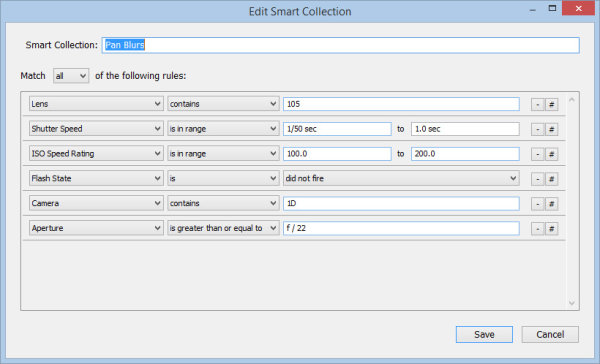
Some images can easily get lost amongst others, and pan-blur shots are one of them. I usually photograph these on a whim while shooting other subjects, but they all have something in common. I use a zoom lens with a very small aperture, in addition to a few other factors:

pan-blur-requirements

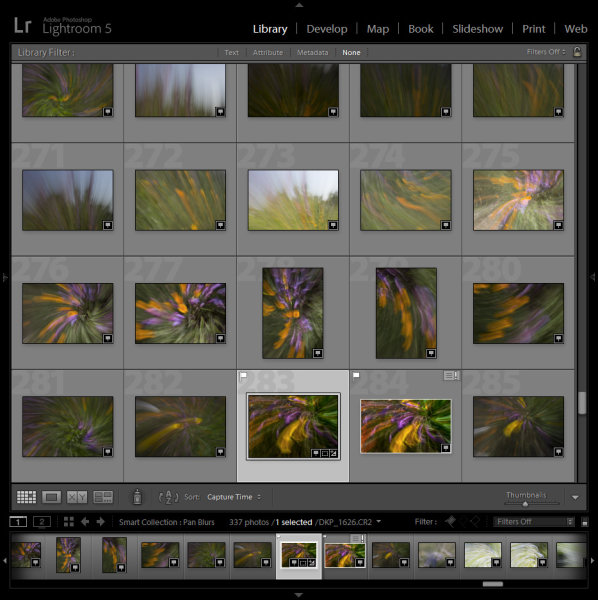
Slower shutter speeds are usually used, and typically only with one of my cameras. I built the above list of criteria or requirements which gives me a pretty good list of all the pan-blur abstract images I’ve ever taken:

pan-blur-library

There is always a chance that an unrelated shot might meet the same criteria and appear in the collection, so try to be as specific as possible and use as many defining conditions as you can.

Example 2: GPS data

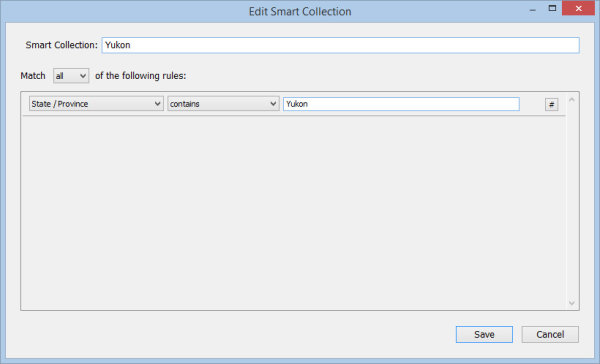
If you have a GPS unit for your camera (or have a GPS built-in), the extra metadata provided by your location can be invaluable to sorting your images. For example, I can easily specify that I want to create a collection of all images I’ve photographed in the Yukon Territory of Canada:

yukon-requirements

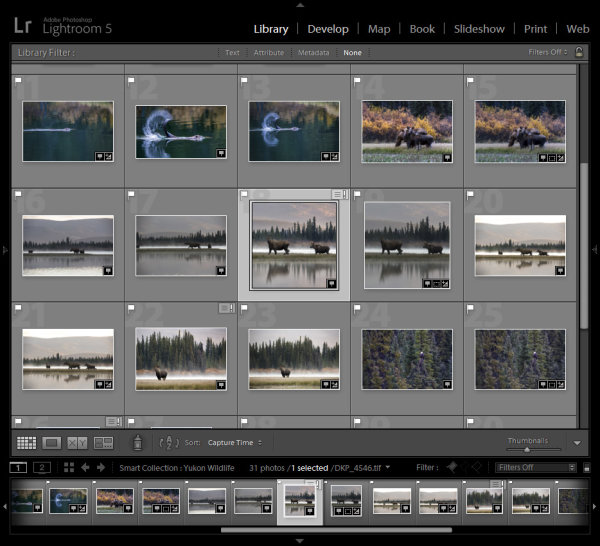
You could also further to showcase only the wildlife shots. Because I know that I would only have been using focal lengths longer than 200mm for wildlife, I can add that requirement to find only my wildlife images. A few other shots may sneak in, but it’s a great way to narrow things down:

yukon-library

Entire vacations or trips can be defined this way, and even specific client location shoots can be identified by this location metadata.

Example 3: snowflakes

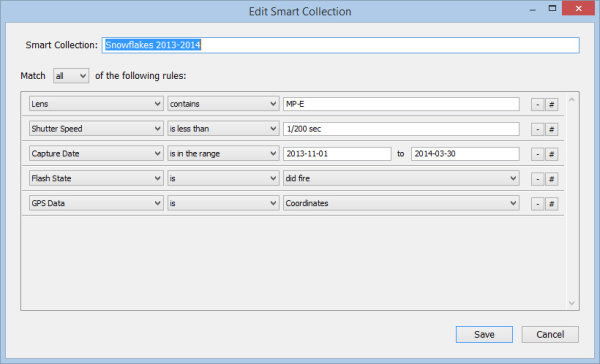
I shoot a TON of snowflake images each winter, and by looking at the common metadata for each image you can create a “fingerprint” that a Smart Collection can identify. The following Smart Collection will only show snowflake photographs:

snowflakes-requirements

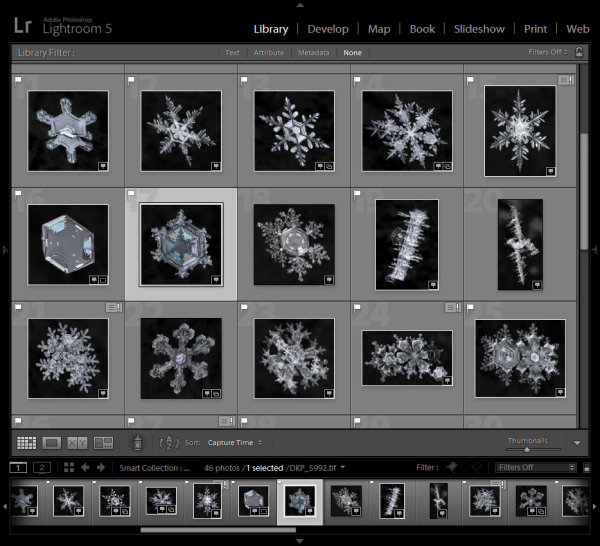
I can also create a collection of just my final print-ready files. As these images need to be edited in Photoshop as part of the required workflow, the final images would then all be TIF files. That requirement can be added to show only my completed images:

snowflakes-library

Conclusion:

Not every subject will have a “fingerprint” that can be defined by Lightroom Smart Collections, but with a bit of clever thinking you should be able to define a good number of your own. As new images are added to your Lightroom catalog that meet the criteria for inclusion in your new Smart Collections, they will automatically appear. The lazy efficient photographer’s dream come true!

The post Why Lazy Photographers Should Use Lightroom Smart Collections by Don Komarechka appeared first on Digital Photography School.


Digital Photography School

 
Comments Off on Why Lazy Photographers Should Use Lightroom Smart Collections

Posted in Photography


Organizing Images in Lightroom 5

09 Feb

Another great video right from Adobe Lightroom expert Julieanne Kost on how to organize your images inside Lightroom 5. This is one of those “non-sexy” things that you really need to know and understand or Lightroom can get really confusing for you. Watch as she explains how to move files, create new folders and get organize, all right inside Lightroom!

Organizing Images in Lightroom 5

For more on Lightroom check out these:

  • How to Add an Opacity Slider to Lightroom Develop Presets with The Fader Plug-In
  • Lightroom How To – One Tip and One Trick
  • A Concise Guide to Lightroom Develop Presets
  • How to Upload Photos to Flickr and 500px using Lightroom 5

The post Organizing Images in Lightroom 5 by Darlene Hildebrandt appeared first on Digital Photography School.


Digital Photography School

 
Comments Off on Organizing Images in Lightroom 5

Posted in Photography


3 Uses for the Radial Filter Tool in Lightroom 5

02 Feb

One of the most powerful new tools in Lightroom 5 is the Radial Filter tool. Here are a few examples of how you can use this tool creatively inside your workflow to help draw attention to your subjects. If you don’t have Lightroom5, you can use multiple graduated filters to draw attention, but it’s not as easy, and the results can be hit or miss.

#1 – Off-center vignetting (beginner tip)

Let’s face it, Lightroom’s post-crop vignette leaves a lot to be desired, especially if you want your vignetting effect to be applied a bit off-center, allowing you to draw focus towards your subject.

Let’s look at an example and see how the radial filter tool compares to the post crop vignetting effect of old.

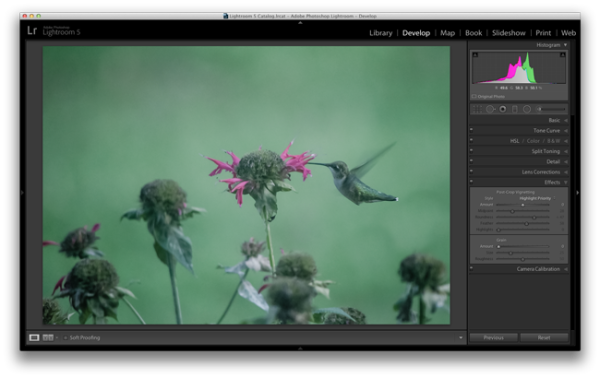
Hummingbird-before

Original photo with no effect

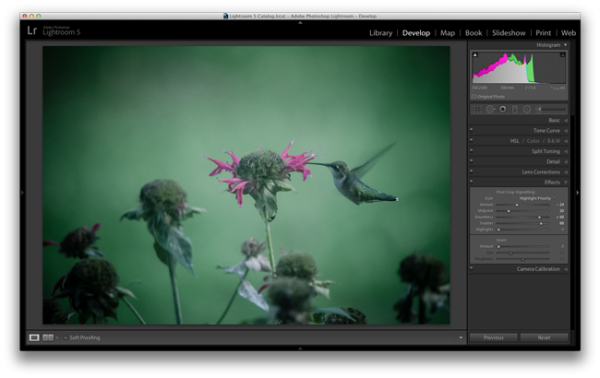
PostCropVignette

Post-crop vignette applied

With the post-crop vignetting tool what you’ll immediately notice is that the effect occurs out from the midpoint of the frame ,and there is no way to off-set this midpoint so that you would be able to have a more customized effect.

Enter the Radial Filter Tool…

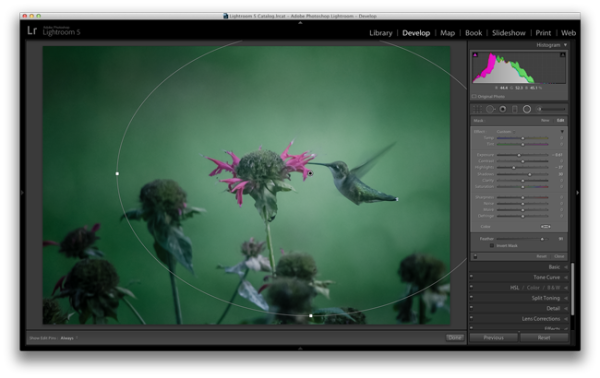
Radial-Filter-Vignetting

To apply a Radial Filter press Shift+M on your keyboard or select the circular icon below the histogram. This will open up a drop down filled with a handful of sliders. If you’re familiar with Lightroom’s other filters this won’t seem all that foreign to you. To add a filter to your image click and drag it into your image. You don’t have to worry about sizing it properly right away as you can always resize, move, and rotate it later within the image.

Applying the vignetting effect is going to depend a lot on your own style and the image you are processing, but the three sliders that you will want to typically play around with are: exposure, highlights and shadows. In the photograph above, a strong vignette was applied by dropping both the exposure and highlight sliders down, but the shadows slider was raised slightly to compensate for the drop in the other two just a bit. With that said, this is something that you’ll want to play around with on your own images and find out what works for them and your own personal taste.

#2 – Adding highlights and brightness to draw attention (mid-level tip)

While adding your standard vignette is all fun and great, there’s more power to this tool than that, so let’s step it up a notch and take a look at another way you can draw attention to your subject with a Radial Filter.

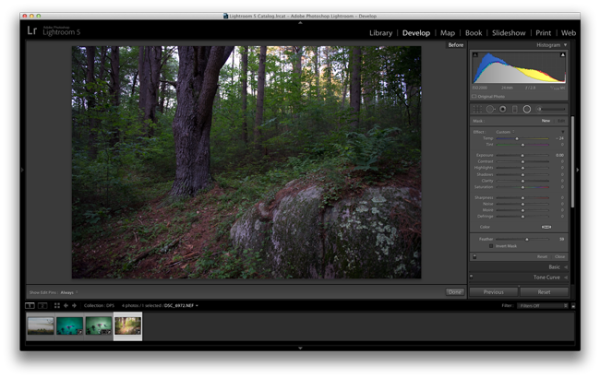
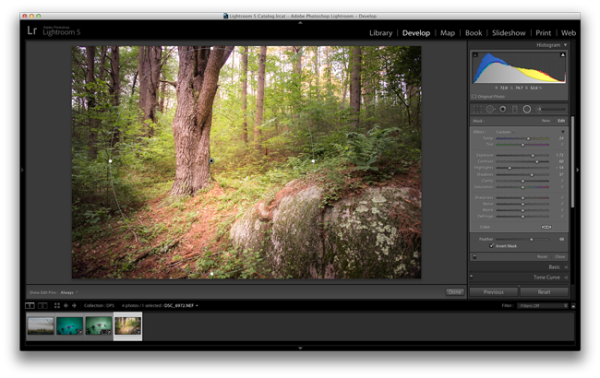
Take this rather boring photograph that I snapped while on a hike through the forest for example.

Invert-Radial-Filter-Before

By applying a Radial Filter and some other Basic Tab modifications I was able to liven the shot up quite a bit and draw attention to the large tree that had caught my eye while on the hike.

invert-radial-filter

To achieve this result you’ll want to once again add a Radial Filter to your image, but this time make sure you check the “Invert Mask” checkbox. This checkbox allows the effect of the filter to be applied from the middle of the filter instead of from the edges of the image.

Again, this is another area where artistic choice is left wide open, but you can see how the tool is more powerful than simply a vignette effect creator. You have the power to control more than just the brightness of the edges of your frame, as seen above, where there are contrast and temperature adjustments happening inside this filter allowing for a more dramatic look.

#3 – Stacking multiple radial filters for more dynamic results (advanced tip)

Finally, once you’ve mastered one radial filter, you might try stacking more than one filter to create even more dynamic results. To add a second filter to an image simply click “New” and then click and drag within your image as you’ve done before. Each filter can be controlled and selected individually by clicking on its respective dot (gray for unselected, black for selected). By having individual control over each radial filter you can really start to draw your viewer’s eye where you want it to go.

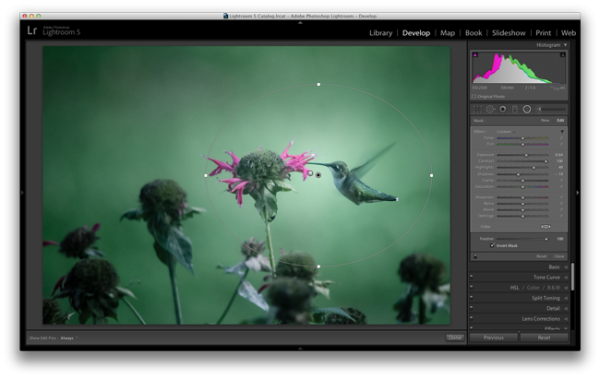
As an example, let’s look at where I left off on the hummingbird photograph from earlier.

Radial-Filter-Vignetting

The original radial filter does a nice job of darkening the sides of the photograph and applying a fairly generic vignetting effect to the photo, but what else can be done?

radial-filter-tool-stacking

By applying a second radial filter to the image and using the invert feature that I talked about above, I’m able to add a small bright point right at the meeting of the bird’s beak and the flower.

What creative ways have you used the Radial Filter Tool?

Have you had time to play around with the new Radial Filter tool yet? What other creative ways can you think of using it? Share below in the comments section.

The post 3 Uses for the Radial Filter Tool in Lightroom 5 by John Davenport appeared first on Digital Photography School.


Digital Photography School

 
Comments Off on 3 Uses for the Radial Filter Tool in Lightroom 5

Posted in Photography


4 Not-so-Secret Tricks to Speed up Your Lightroom Workflow

22 Jan

Lightroom_iconDo you want to speed up your Lightroom workflow? You’re not alone – I get countless requests from people to help them optimize their photo processing workflow. However, because it is so commonly asked, it is also frequently answered and this makes it difficult to add a fresh spin on a topic that hasn’t changed much over the years.

One of the great things about dPS is the diverse nature of its writers and how we each have our own point of view, own skill set, and own way of explaining a topic. This post won’t be a groundbreaking reveal of some hidden secrets that I just uncovered in Lightroom yesterday, but rather an explanation of some commonly overlooked and ignored features of Lightroom that you’ll want to learn in order to speed up your workflow.

Speed up your Lightroom workflow

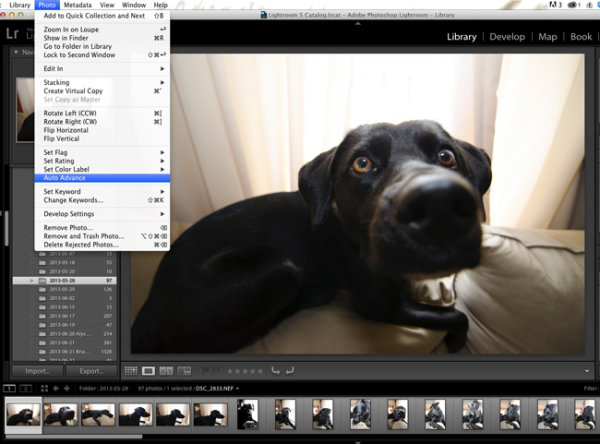
#1 – Auto Advance rating option

This is something that I would have preferred Adobe set to “ON” as default and then give you the option to turn it off if you choose. How many of you rate your photos by selecting a rating, and then pressing the arrow right key to advance to the next photo?

Do that no longer! Simply turn on Auto Advance either by selecting it from the drop down menu under ‘Photo’ or simple turn on CAPS LOCK. Once activated Lightroom will advance you to the next photo in the queue after every successful rating. It’s amazing how fast you can get through a fresh import with this option turned on.

Lightroom workflow use auto advance

#2 – Start with a YES or NO rating system

I like to think of this as keeping it simple. There are so many different rating options (from flags, to stars, to colors) and while each one serves a purpose, I think it’s best to keep it simple the first time you import a new set of photos. Remember tip #1 above and active Auto Advance, and then use the keys ‘P’ or ‘X’ to rate your photos. ‘P’ tells Lightroom that you want to keep that photo and it is flagged as a “Pick”. ‘X’ tells Lightroom that you want to reject that photo, and it is marked as such. Once you’ve made it all the way through your import, press Command + Delete (control on PC). This will remove all of your rejected photos, never to be seen again. (choose “delete from disk” to not only remove from your LR catalog but delete from your hard drive)

I find that this will help to keep your Library cleaner, and easier to manage. It will also allow you to remove a lot of the ‘maybe-I’ll-use-this-photo-sometime’ photos which in most cases just end up wasting your time.

Lightroom-workflow-keep-it-simple

#3 – Learn and use the magic keyboard shortcuts

I’ve already mentioned a couple of the keyboard shortcuts above, but the master list is only a shortcut away. Press Command / (Control / on PC)  in any panel of Lightroom and the index of everything possible within that window is displayed. It’s one thing to learn the keys, and it’s another to work them into your workflow (I’m still slowly learning to do this myself), but once you get it down you will be flying through the panels without even thinking about it.

Lightroom-workflow-learn-keyboard-shortcuts

Press: Cmd / (Control / on PC) to get this to pop up

#4 – Use Solo Mode on the side panels

Another Lightroom setting that I personally feel should have been set as a default option is the Solo Mode option for the various tool panels of Lightroom. This option allows you to automatically minimize a panel when you open another one. For example, if you’re working in the Basic Tab of the Develop Module and want to switch to work on sharpening your photo, clicking on the Detail Tab, Lightroom will automatically close the Basic Tab for you. I find that this keeps the interface a lot cleaner and easier to navigate, especially for someone who’s just starting to get their feet wet with the program (or using a small screen or laptop)

To turn it on simply right click on any of the sidebar panel names (not the triangle) and select ‘Solo Mode’ from the menu that appears. Once activated you’ll probably never go back.

Speed-up-lightroom-workflow-solo-mode

How do you speed up your Lightroom workflow?

These four tips will certainly help you become faster at working through your photos, but there are countless other ways to speed up the way you work. If you are well experienced with Lightroom, what else can you think of to add to this list?

For more Lightroom reading check out these articles:

  • How to Upload Photos to Flickr and 500px using Lightroom 5
  • Lightroom Tips for the Develop Module – the Magic Alt Key
  • Creative Ways to use Keywords in Lightroom 5
  • Use Lightroom Collections to Improve your Workflow

The post 4 Not-so-Secret Tricks to Speed up Your Lightroom Workflow by John Davenport appeared first on Digital Photography School.


Digital Photography School

 
Comments Off on 4 Not-so-Secret Tricks to Speed up Your Lightroom Workflow

Posted in Photography


Lightroom 5 Tips – Hidden Gems

19 Jan

Lightroom_iconAdobe Photoshop Lightroom instructor Julieanne Kost goes over some of the lesser known, yet less exciting features and some Lightroom 5 tips. If you haven’t upgraded from Lightroom 4 yet this will be a little preview. I would personally highly recommend that you do upgrade to LR5 if you haven’t yet.

Some of my favourite LR5 new features are:

  • the Radial Filter
  • that the heal/clone tool is paintable now and not just a dot
  • the auto correct for perspective to correct buildings and tilted images
  • the BOOK module is greatly improved for ordering Blurb books
  • Smart Previews which I didn’t think I’d have a use for but have used a few times now

What are your favourite new features?

Do you have any other hidden gems that aren’t covered in this video? If so please share with us in the comments!

For more Lightroom 5 tips and learning check out these articles:

  • Lightroom Tips for the Develop Module – the Magic Alt Key
  • 3 Lightroom History Tips
  • 4 Quick Tips For Getting The Most Out of Lightroom Presets
  • How to use the new Radial Filter Tool in Lightroom 5

The post Lightroom 5 Tips – Hidden Gems by Darlene Hildebrandt appeared first on Digital Photography School.


Digital Photography School

 
Comments Off on Lightroom 5 Tips – Hidden Gems

Posted in Photography


Adobe leaks ‘Lightroom Mobile’ app

18 Jan

lightroom.png

Is Adobe planning to release a mobile version of its Lightroom editing program? It seems so, judging by an accidental leak on its own website earlier this week. A private page on Adobe’s website – quickly removed – appears to have revealed details of a planned iOS version of Lightroom, including a price of $ 99 for an annual license. Click through for more (albeit not much more) detail.

News: Digital Photography Review (dpreview.com)

 
Comments Off on Adobe leaks ‘Lightroom Mobile’ app

Posted in Uncategorized


How to Add an Opacity Slider to Lightroom Develop Presets with The Fader Plug-In

13 Jan

The Fader Lightroom plugin

For me, one of the biggest advantages of Lightroom over Photoshop is the ability to use Develop Presets on your images. Here are some of the benefits:

  • You can create several virtual copies of an image and use different Develop Presets to see how they come out. Doing so uses virtually no extra hard drive space as the changes are stored in the Lightroom Catalog in the form of text commands.
  • Develop Presets fit in neatly with your Lightroom workflow – there’s no need to export your images to Photoshop or other software.
  • It’s easy to see how Develop Presets work. If you download someone else’s Develop Presets it is easy to go to the Develop module and see which settings have been altered. You can tweak them to suit your photo, and (best of all) you get to see how the photographer achieved the effect. It’s a great way to learn how to use Lightroom.

Lightroom comes with some built-in presets, and there are plenty of websites that either give Develop Presets away for free or sell them. One of my favourites are the Signature Collections from OnOne Software. They are free (click the link for details) and give you a range of creative effects you can add to your images.

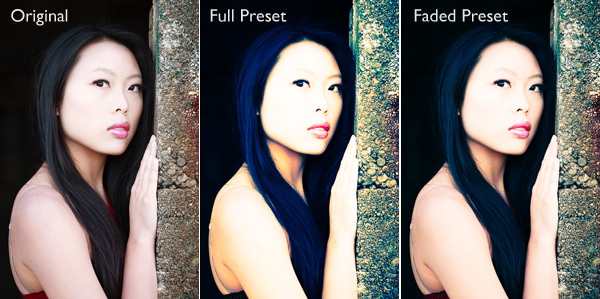
The only thing with downloaded Develop Presets is that most of them are not subtle. Here’s an example:
The Fader Lightroom plugin

If only there was a way of fading the effect – a kind of opacity slider in Lightroom. Maybe it will come in a future version. But at the moment there isn’t, so we have to find a way around that.

One method is to export two versions of your image, one with the preset applied and the other without. You place one on top of the other in Photoshop and use the Opacity slider to fade the effect. Easy enough – but it does take you out of Lightroom, something that’s good to avoid where possible. Those exported files take up valuable hard drive space. Plus, you may want to do something else to the image afterwards back in Lightroom.

As a smart Lightroom user you probably want to save time as well as hard drive space. That’s where a Lightroom plug-in called The Fader comes in.

The Fader does exactly what its name suggests. Once installed, you can activate it, select the Develop preset you want to apply from the drop down menu, and use an Opacity slider to fade the effect. This clever plug-in calculates the changes the Develop preset made to the image, and fades them all at the same time.

It’s simple, and it works wonderfully well. It isn’t free, but it’s relatively inexpensive at $ 10 (plus 24% VAT if you live in the European Union). You can download it, and test it out, with Lightroom’s built-in Develop presets at no cost. Paying the registration fee lets you use it with all your Develop presets.

You can download The Fader plug-in from the Capture Monkey website.

Installing The Fader plug-in

1. Go to this page on the Capture Monkey website and download The Fader plug-in. Select a folder to store it in (creating a folder called “Lightroom Plug-ins” in your Documents folder seems logical). Double-click the zipped folder to extract the files.

2. Open Lightroom and go to the Plug-In Manager (File > Plug-in Manager). Click the Add button in the bottom left-hand corner and navigate to the folder where you saved The Fader folder. Open the folder and double-click on the file called TheFader.lrplugin to complete the installation:
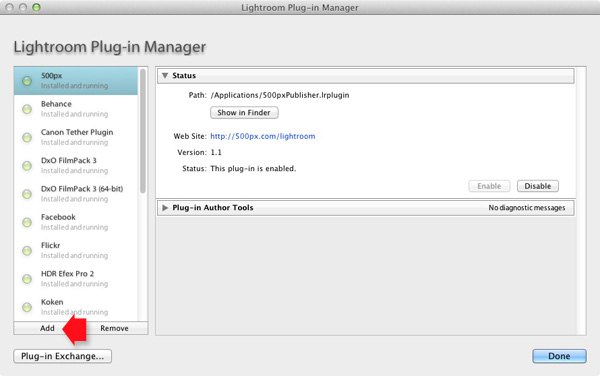
The Fader Lightroom plugin

Using The Fader

1. Open the photo you want to process in the Develop module. If you are using Develop Presets like the ones in OnOne Software’s Signature Collection, then you should process your file first in Lightroom and then apply the Develop Preset afterwards. Don’t expect the preset to do all the developing for you, it doesn’t work that way:
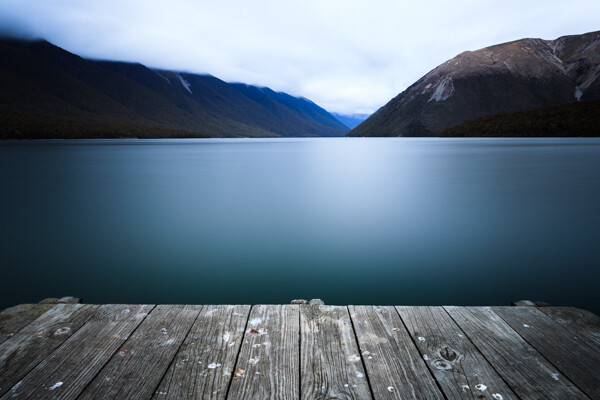
Original images before preset

Original images before preset

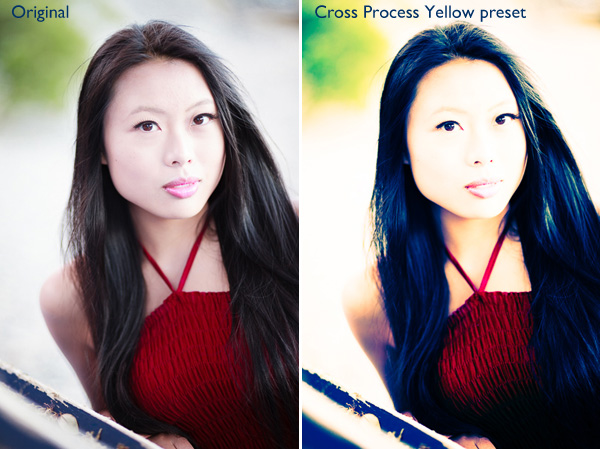
Then go to File > Plug-in Extras > The Fader and select the Develop Preset you want to apply. In this case I’ve chosen the Cross Process Yellow preset from OnOne Software. The effect is dramatic:

Preset applied

Preset applied

2. Now use the Opacity slider to reduce the intensity of the Develop Preset:

Fader applied

Fader applied at 40%

Here, I set Opacity to 40% for a more subtle effect:
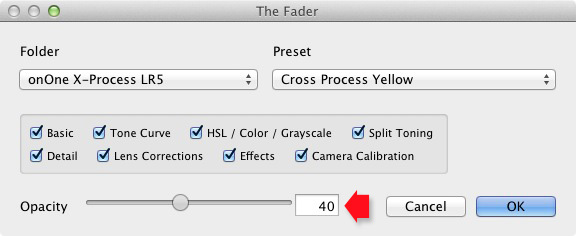
The Fader Lightroom plugin

The Opacity slider has a range of -50 to 150. Values above 100 increase the intensity of the Develop Preset. The effect of minus values varies according to the preset used, but it is unlikely you will ever use them.

3. Finally, you can fine-tune the fade even further by selecting which parameters to apply to your photo. For example, if the Develop Preset you selected applies a Tone Curve to the photo, you can disable that part of the preset by unticking the Tone Curve box. Then you can use the Opacity slider to fade out the rest of the Develop Preset.
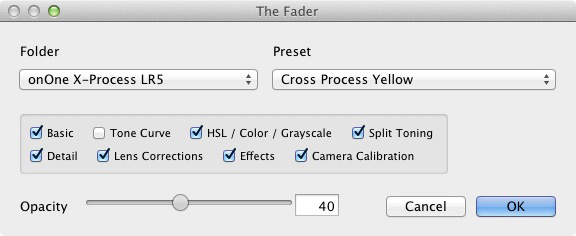
The Fader Lightroom plugin


Mastering Lightroom Book One: The Library Module
key-11My latest ebook Mastering Lightroom Book One: The Library Module is a complete guide to using Lightroom’s Library module to import, organize and search your photo files. You’ll learn how to tame your growing photo collection using Collections and Collection Sets, and how to save time so you can spend more time in the Develop module processing your photos.

The post How to Add an Opacity Slider to Lightroom Develop Presets with The Fader Plug-In by Andrew Gibson appeared first on Digital Photography School.


Digital Photography School
 
Comments Off on How to Add an Opacity Slider to Lightroom Develop Presets with The Fader Plug-In

Posted in Photography


Lightroom How To – One Tip and One Trick

06 Jan

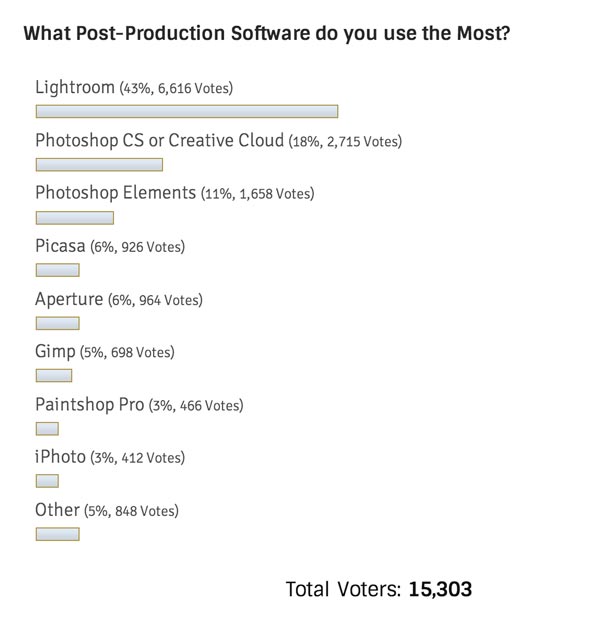
Recently we asked what post-production software to you use the most often?

So far of the over 15,000 of you that have voted on the poll (use the link above if you wish to vote), the overwhelming winner is Lightroom with a whopping 43%!

what-processing-software

Today I want to share with you a couple of short videos by Adobe Photoshop Lightroom expert, Matt Kloskowski. Matt is one of “The Photoshop guys”, runs a website called Lightroom Killer Tips and teacher with NAPP and Photoshop World. He really knows his stuff!  So take it away Matt:

Lightroom how to – one tip and one trick

QUICK TIP – THE MOST USEFUL BUTTON IN LIGHTROOM

QUICK TRICK – WORKING WITH SKIES

 Want more? You can find more Lightroom articles here:

  • Lightroom Tips for the Develop Module – the Magic Alt Key
  • 3 Lightroom History Tips
  • 4 Quick Tips For Getting The Most Out of Lightroom Presets
  • How to use the new Radial Filter Tool in Lightroom 5

The post Lightroom How To – One Tip and One Trick by Darlene Hildebrandt appeared first on Digital Photography School.


Digital Photography School

 
Comments Off on Lightroom How To – One Tip and One Trick

Posted in Photography