RSS
 

Posts Tagged ‘lightroom’

Take your Photos from Blah to WOW with Lightroom and Photoshop

07 Jun

Would you like to get started with black and white (or color) fine art photography, but don’t really know how to get the results you want? I will give you some insight in the process to take your photos to the next level and let you see how you can make the most of the not so ideal situation. I will explain how you can take your ordinary photo and transform it from this . . .

Img1

to this!

Img final

Take your Photos from Blah to WOW with Lightroom and Photoshop

For the creation of this photo I used both Adobe Lightroom and Adobe Photoshop (Note: any program that handles layers will also work including GIMP or Photoshop Elements). The beginning photo is just a black and white conversion of the color photo, as shot. It is important that when you go out and shoot, you have an idea of the final image in your head. If you are at a location, take a moment and think of what you would like to see as a final result. This way, it will take you less shots to get your winning photo.

First step the photography, how was this photo created?

This photo was shot with a Nikon D3000, Tokina 12-28mm f/4 (IF) DX AT-X PRO and Haida ND3.0 (10 stop neutral density filter). That’s right, it’s not a full frame camera! With good light conditions you don’t need one, spend money on lenses instead. I was aiming at an exposure time of minimum 25 seconds, to make the clouds and water smooth. I metered 1/60th at f/14, 100 ISO, so that would give me the 25-27 second exposure (with the ND3.0) I wanted.

You can find exposure tables online, and sometimes you get them with the filter you buy. If all the conditions were perfect (which wasn’t the case) I wanted to shoot until sunset, expanding my exposure time to over 1 minute. But clouds rolled in (wasn’t forecast) and ruined the light. After a few shots, I got what I wanted and was heading home.

Next step, post-processing your image

First load the photo in to Lightroom and give it some minor adjustments to contrast and clarity. Increase the contrast a bit and reduce the clarity of the bottom part of the photo (the water). This can be done with a graduated filter (keyboard shortcut “M”) and moving the clarity slider to the left.

Now move over to Photoshop to take care of the sky (you can export it directly from Lightroom, right click on the photo and select edit in Photoshop). I was aiming for a nice movement in the sky, but the clouds weren’t going fast enough for my maximum exposure time. So we are going to replicate that with the help of photoshop.

Duplicate the image and select the sky, using the magic wand selection tool (W). Use the current layer and a brush seize of 30 pixels. When you’ve got your selection (it won’t be perfect but that is fine), click on the add layer mask symbol. (below the layers on the bottom right side of the screen).

You can make the layer mask more accurate with the pen tool (p). Click on the edge of a building (and later on the bridge) and work your way around the skyline, by clicking on every corner. The pen too will automatically draw a straight path from one point to another. When complete (you have to get all the way back to the first point you made), right click on the image and select “make selection” (feather 0, and make new selection) hit OK in the new window. Now fill your selection with black and you have a nice and clean layer mask of the sky.

Add motion blur to the sky

Now you can add a zoom blur to the sky layer, so you get a nice washed out cloud formation. Here is how to do that:

  • Select the duplicated sky layer then select Filter -> Radial Blur
  • In the menu select Blur Method -> Zoom, Quality -> good and amount 70 (you can add more, but that depends on the photo) – don’t hit OK yet!
  • Nest select where the Blur Center is positioned in the right window by clicking and dragging it around (somewhere in the middle for this photo)
  • Hit OK
  • After this you need to clean up the layer, because it now runs over the buildings
  • Hold CMD (alt on win) and click on the layer mask for the sky. Click -> selection -> inverse (you now have everything but the sky selected and hit delete.

Now you should have something like this:

Img2

As you can see the sky is now very pleasing, full of movement. When you look closer you can see that all the wires from the bridge are gone. We will have to fix that next. The wires aren’t straight lines, so the selection process of these is a pain – but worth the effort.

Using the pen tool (P) you can select all the wires on the background layer (which took me quite some time). You can do this one by one. Select one complete wire and duplicate the selection into a new layer. When you have all of them, merge all of these layers to one and place it above the duplicated sky layer.

You could also use the Magnetic Lasso Tool (L) to select all the wires but because of the low contrast in some places it won’t work, and you have to correct it later on.

Using the pen tool is a complete chapter, and I’m feeling that explaining how to use the tool takes too much focus away from this tutorial. It can take some time to master but I highly recommend reading tutorials on how to use the pen tool. You will need it for this image, but for the most of the images you can just make straight selections.

Here is my selection of the wires:

Img3

Now you can add some adjustments to the contrast in the wires and bridge, using a Brightness/Contrast adjustment layer. I used: Brightness +3 and Contrast +24

Img4

Final adjustments in Lightroom

From this point we leave Photoshop and continue in Adobe Lightroom. You could, however, do the same in Photoshop with dodging and burning, but I like the workflow of Lightroom more and used it to get to the final stage of the image.

From here it is basically just adding and removing light (exposure, contrast, white point) to selective places in the photo and checking for some dust particles. I can go into the details here, but it’s your vision of what you would like to achieve with the photo. Use the gradient filter (M) and the adjustment brush (K) in Lightroom to add and remove light to selected areas of the image. You have to “color” the photo to your wishes and crop it when needed. You are in fact painting with light.

Here is what I came up with for the final image:

Img final

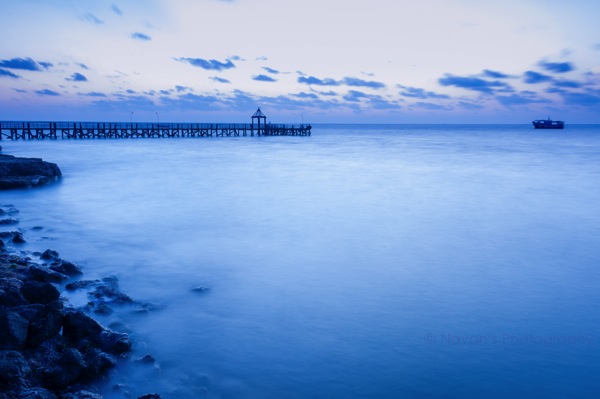
“Catch  the light” – Rotterdam (The Netherlands)

Do you have any additional tips for processing for that wow factor? Please share in the comments below.

The post Take your Photos from Blah to WOW with Lightroom and Photoshop by Martijn Kort appeared first on Digital Photography School.
Digital Photography School

 
Comments Off on Take your Photos from Blah to WOW with Lightroom and Photoshop

Posted in Photography


Mastering Color in Lightroom using the HSL Tab

24 May

Mastering colour in Lightroom

Color in Camera

Mastering color in Lightroom occurs in two steps. The first is when you take the photo. Successful color photography requires an awareness of the colors in the scene and how they work together. If you read about the topic of color composition you will come across a lot of advice, including articles about the emotional values of color. It’s all good background knowledge, but if there’s one tip I can give that will help you compose better color images right away it is to simplify. Color is powerful, and if there are too many colors in the photo they will either clash or weaken each other. Simplify the use of color to make your images stronger. This works because the colors you choose to leave in have more impact when there are fewer other hues in the frame to distract from them.

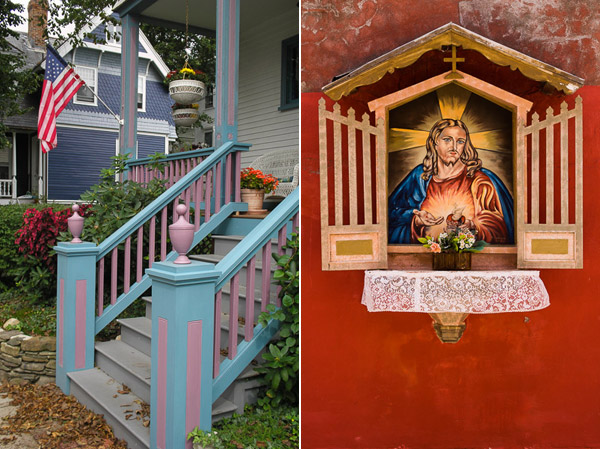
Here’s an example below. In the photo on the left the use of color is not as good as it could be. There are too many conflicting hues. The red stripes on the flag compete with the orange flowers on the porch, and the blue and violet paintwork. It is more of a snapshot than a carefully composed image.

In comparison the photo on the right is dominated by red and yellow, and the colors are much stronger.

Mastering colour in Lightroom

An easy way to simplify color is to use a telephoto lens to simplify the composition. Another is to  use a wide aperture to blur the background. Click the links to read my articles on those topics.

You can go into the topic of color in more depth by reading Mitchell Kanashkevich’s ebook Captivating Color.

Color in Lightroom

The next step, after you have taken your photo, is to get the best out of it in Lightroom. Today I’m going to focus on the first two tabs in the HSL / Color / B&W panel, and show you how to use them. If you’re a Photoshop user, you will find the same sliders in Adobe Camera Raw.

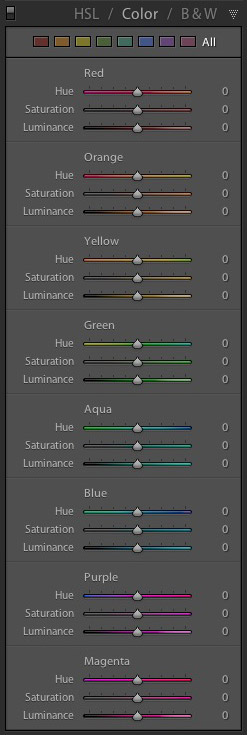
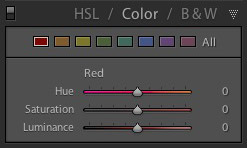
The HSL and Color tabs are essentially the same, but with the sliders arranged in a different order. In the Color tab, the sliders are grouped in eight colors.

Mastering colour in Lightroom

Mastering colour in Lightroom

Click on one of the colored squares at the top to show the sliders from a single color group.

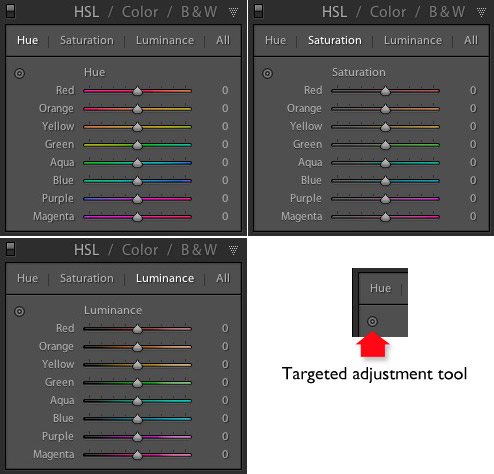
The HSL tab groups the same eight color sliders into three categories: Hue, Saturation and Luminance. It is the tab I prefer to use as I find it easier to adjust by property (ie. hue, saturation or luminance) rather than color. It also has a Targeted Adjustment Tool (I will show you how to use that further on in the article), which the Color tab doesn’t.

Mastering colour in Lightroom

H=Hue, S=Saturation, L=Luminance

Now it’s time to take a look at the sliders under the HSL and Color tabs to see what they do. You can carry out most of these adjustments within either tab, but the examples I show you will all use the HSL tab.

Hue adjustment sliders

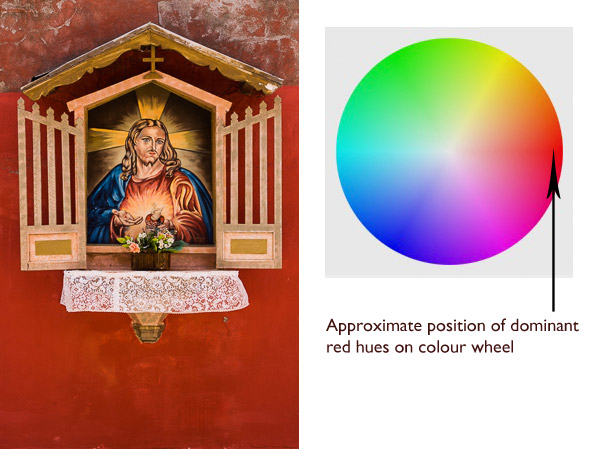
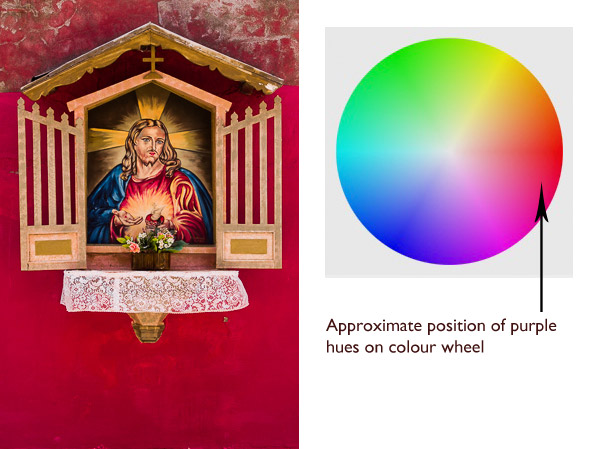
Hue is another word for color. The Hue sliders let you replace colors in your photo with neighbouring hues from the color wheel. Let’s take a look at the earlier photo again to see how it works. The image is dominated by the color red. This diagram shows you approximately where those red hues occur on the color wheel.

Mastering colour in Lightroom

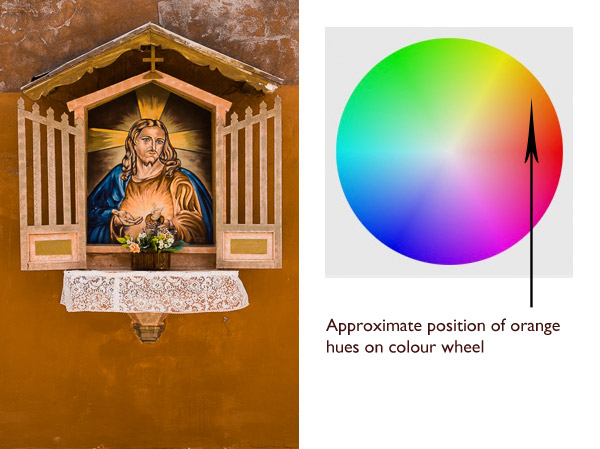
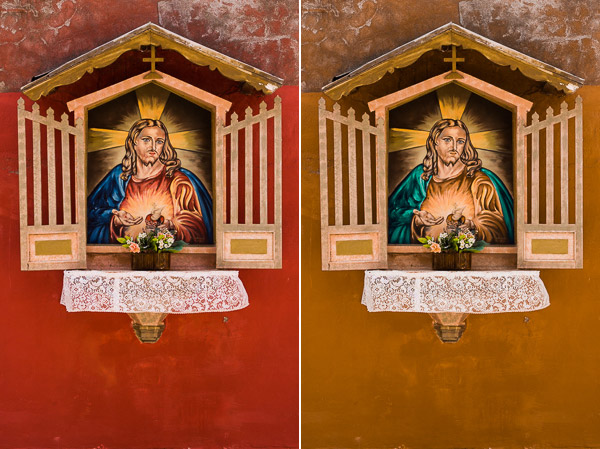
When you move the Red slider under the Hue setting to +100 Lightroom replaces red with orange tones, located nearby on the color wheel.

Mastering colour in Lightroom

When you move the Red slider to -100 Lightroom replaces red with purple tones, located in the other direction on the color wheel.

Mastering colour in Lightroom

It is possible to make dramatic differences to the colors in your images using just the Hue sliders. Here, the right hand version of the image was created by setting Red to +100 and Blue to -100. Lightroom replaced the red and blue tones in the photo with other colors.

Mastering colour in Lightroom

Before left – after Hues adjusted on the right.

The Targeted Adjustment Tool

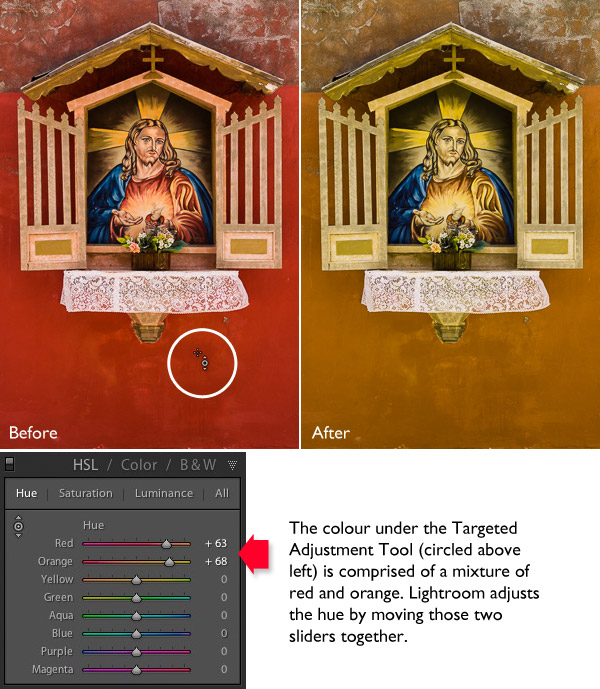
The Targeted Adjustment Tool gives you an alternative way to do the same thing. It is more precise than the sliders because most of the hues within your photos will fall somewhere between the color sliders in the HSL tab. The Targeted Adjustment Tool lets you target those colors exactly.

Start by clicking on the Targeted Adjustment Tool icon. Use the mouse to lay the crosshair over the hue you want to adjust. Click and hold the left mouse button down while you move the mouse upwards to replace the hues underneath the crosshair with neighbouring colors from the color wheel in one direction, and down to replace them with colors from the other direction.

When you do this, Lightroom moves colored sliders in whatever combination is required to adjust the color you have targeted. In the following example I used the Targeted Adjustment Tool to target the red colors in the wall. Lightroom moved both the Red and Orange sliders, indicating that the targeted color was comprised almost equally of those colors.

Mastering colour in Lightroom

You can use the Targeted Adjustment Tool to target colors with precision exactly the same way when you adjust Saturation and Luminance.

Saturation adjustment sliders

The term saturation refers to the strength of a color. If you increase Saturation, the color becomes stronger. Decrease it and it becomes weaker. Note: My article Color Composition: Using Subtle Color goes into the topic of using subtle colors in more detail.

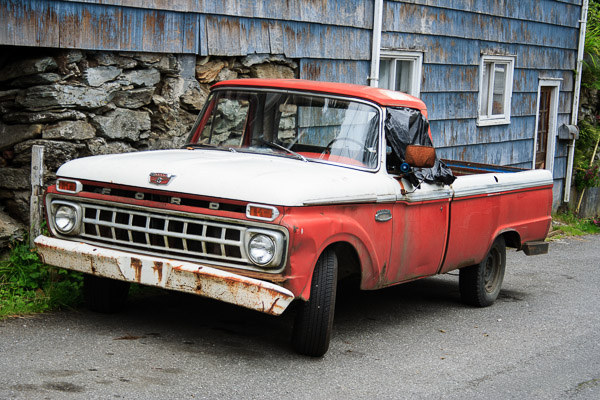
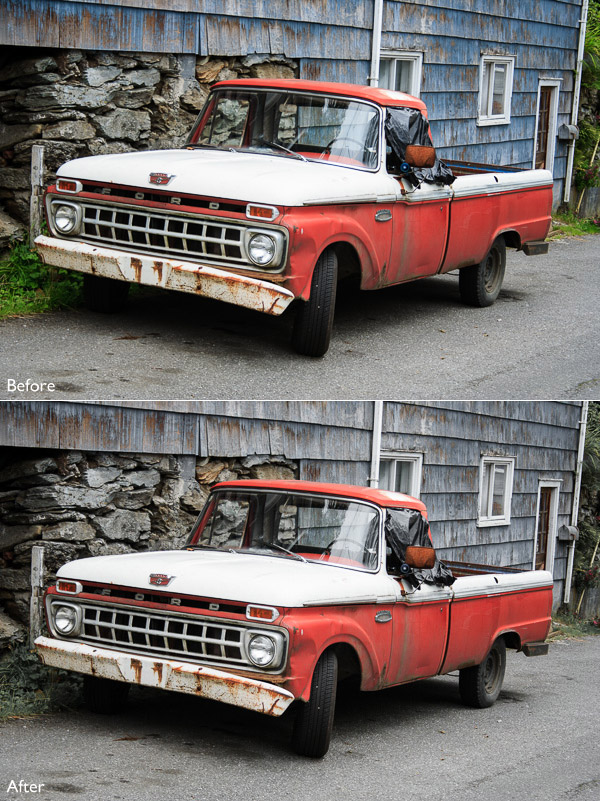
One way to emphasize color in Lightroom is to desaturate surrounding colors. Here’s an example. The starting point is an image of an old car I took in Alaska. The composition is simple –  the red paintwork on the car contrasts against the blue wooden shingles on the house behind it and the patches of greenery.

Mastering colour in Lightroom

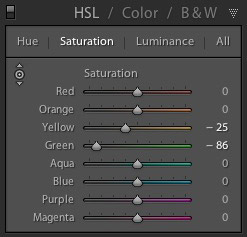
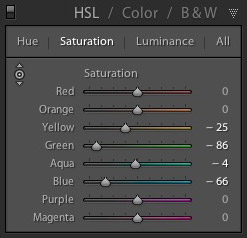
First I used the Targeted Adjustment Tool to reduce the saturation of the green patches. Lightroom reduced Saturation in the Yellow and Green sliders accordingly.

Mastering colour in Lightroom

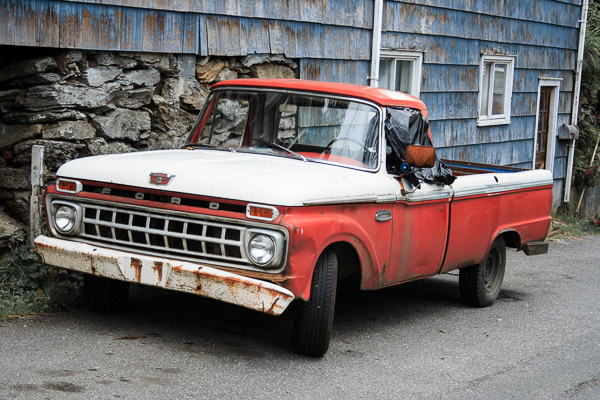
This simplifies the color composition even more, leaving red and blue as the dominant hues.

Mastering colour in Lightroom

Then I used the Targeted Adjustment Tool again to reduce the saturation of the blue paint. Lightroom reduced Saturation in the Aqua and Blue sliders.

Mastering colour in Lightroom

This is the result. I’ve placed the original and the final versions together so you can see the difference.

Mastering colour in Lightroom

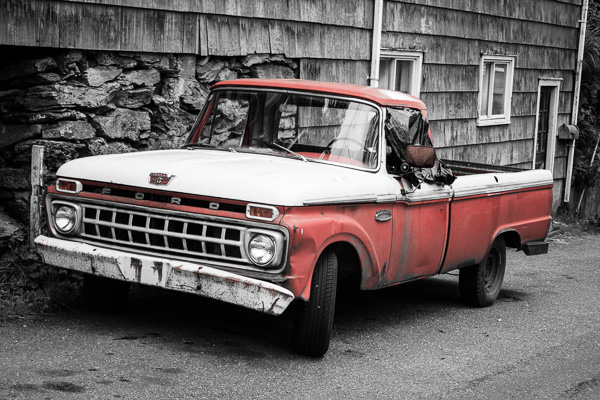
Here’s another technique you can use. I set every Saturation slider except Red to zero. This desaturated most of the colors, turning the entire image black and white with the exception of the red paintwork on the car. I added a slight vignette using the Post-Crop Vignetting tool and increased Contrast and Clarity in the Basic panel to arrive at this black and white conversion.

Mastering colour in Lightroom

Luminance adjustment sliders

Luminance is the brightness of a color. You can make colors brighter to make them stand out more, or darker to subdue them. Depending on how bright the color was to start with, reducing luminance may also increase saturation, and increasing it may reduce saturation.

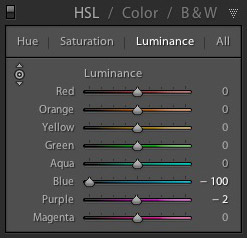
Here’s a example showing the difference when I used the Targeted Adjustment Tool to reduce the luminance of the blue paintwork.

Mastering colour in Lightroom

Lightroom reduced luminance in the Blue and Purple sliders when I made this adjustment.

Mastering colour in Lightroom

Note that with some images the colors may go a little weird when you adjust luminance too much. Watch out for this and ease back on the luminance sliders if this happens to you.

Your turn

Now it’s your turn. How do use you use the HSL and Color tabs when processing your photos in Lightroom or Adobe Camera Raw? Have you come up with any interesting techniques you can share with our readers? Let us know in the comments.


Mastering Lightroom: Books One, Two and Three

Mastering Lightroom ebook bundleMy Mastering Lightroom ebooks are a complete guide to using Lightroom’s Library and Develop modules. Written for Lightroom 4 & 5 books One and Two take you through every panel in both modules and show you how to import and organise your images, use Collections and creatively edit your photos. Book Three shows you how to create stunning black and white images in Lightroom.

The post Mastering Color in Lightroom using the HSL Tab by Andrew S. Gibson appeared first on Digital Photography School.

Digital Photography School

 
Comments Off on Mastering Color in Lightroom using the HSL Tab

Posted in Photography


DxO Optics Pro 9.5 now integrates with Adobe Lightroom

22 May

opticspro8logo_large.png

DxO Labs has released version 9.5 of its DxO Optics Pro software. This new release adds a non-destructive workflow that is completely integrated within Lightroom. It allows users to transfer Raw images from Lightroom cataloguer to DxO Optics Pro, process them, and then return them to Lightroom in Adobe’s open DNG format. Learn more

News: Digital Photography Review (dpreview.com)

 
Comments Off on DxO Optics Pro 9.5 now integrates with Adobe Lightroom

Posted in Uncategorized


Save Tons of Editing Time with Lightroom Presets

21 May

On now at SnapnDeals you can get 100 of my custom Presets 50% off. Deal ends soon, don’t miss out so grab it here. 

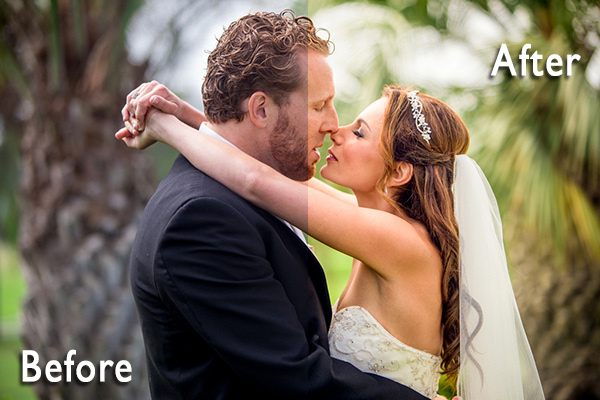
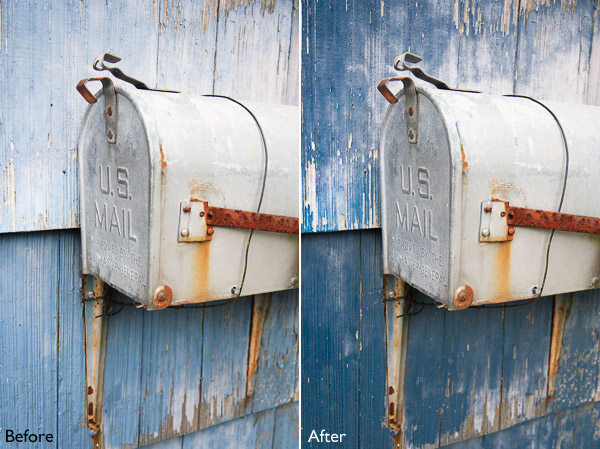
before-after-lightroom-presets

Photographers don’t have a lot of extra time to edit. As a full-time photographer myself, I rely heavily on any tools that save me time in the editing process. One of the tools I use is Lightroom presets.

What are Lightroom presets?

A preset is a pre-determined position all (or some) of the of sliders in Lightroom (they are pre-set, get it?) In other words, you can edit a photo to your liking, and then save that exactly combination of slider positions for future use on another image.

First things first: how do you create a Lightroom preset?

Very easily! Once you have a photo edited the way you want it you need to save those settings.

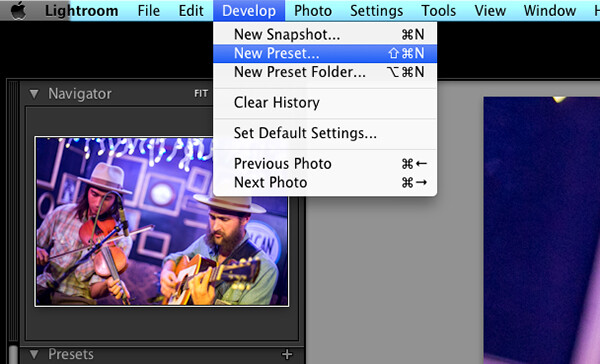
Step 1:  Click “Develop” then “New Preset”

presets-step-0

Step 2: Give your preset a title

Lightroom Presets Tutorial

Name your new Preset

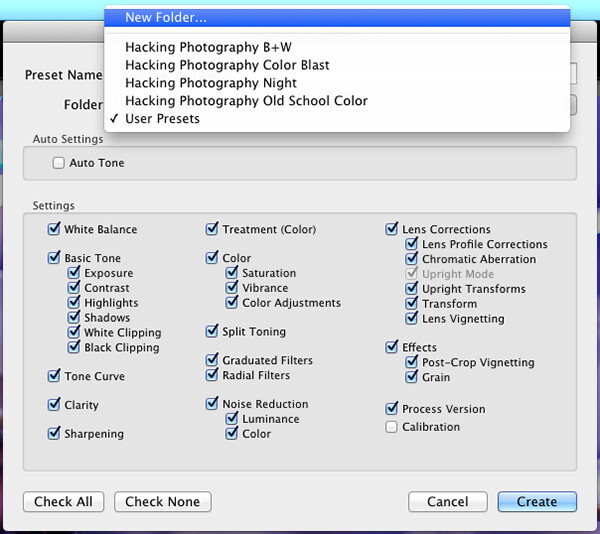
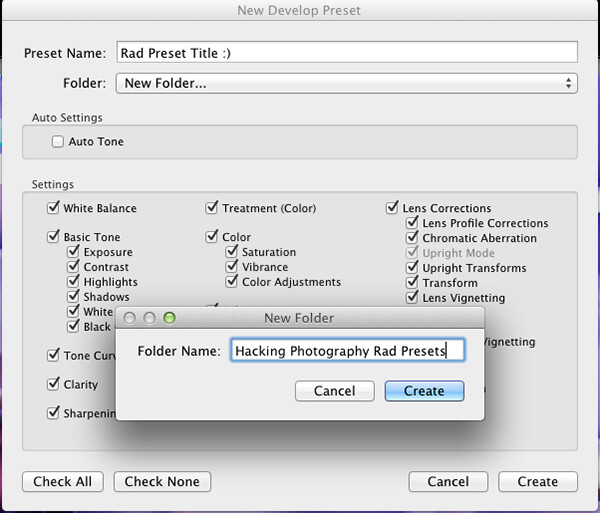
Step 3: Choose the folder you want the preset stored in, or create a new folder.

This is a good idea to separate your presets by type. You would be surprised how many random presets you end up with over a few years. Consider creating folders based on the type of edits they are.

Lightroom Presets Tutorial 3

Choose the folder to save it in

You can see I’ve named my presets by color blast (big colors), night, old school color, and black and white. Now I can quickly find the preset I’m looking for based on what type of edit I want to do.

preset-step-3-web

Or make a new folder and give it a name

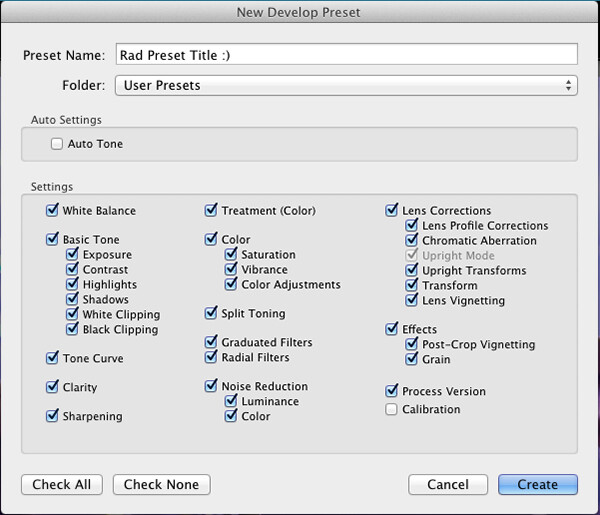
Step 4: Click the boxes you want applied to this preset and click “create” to create your preset

Sometimes you don’t want every box checked when you create a preset. Imagine you just edited an underexposed photo and had to increase the exposure two full stops (+2 on the exposure slider) to get it correct. This preset would look great on underexposed photos in that set, but would overexpose photos that had the correct exposure.

Another scenario is that you create a preset that only applies a slight vignette to your photos. Unchecking every box except the “vignetting” box would create a preset that would keep the ‘look’ of any photo you are editing and only apply that vignette to it. Pretty cool!

Step 5: You’re done, the preset is complete.

preset-step-4-web

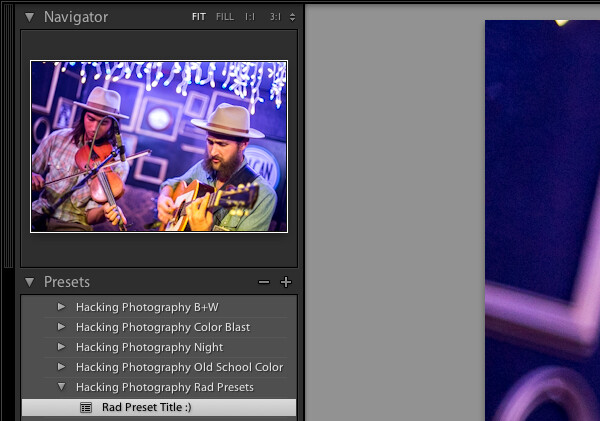
There’s your new Preset

The preset is complete and waiting in the folder you just created. Just open the folder and click the preset title to apply it to future photos.

Lightroom presets save time by enabling batch editing

Imagine shooting 300 images in an area where the lighting isn’t changing and stays consistent. You edit the first image to your liking and save the settings as a preset. Instead of individually editing the remaining 299 images one by one, you can apply that preset and achieve the same ‘look’ as the previous photos. 

The next time you want that type of ‘look’ on a photo with a similar lighting setup you can just apply a preset in one click. It will move all the sliders to those exact positions so the edit style stays the same.

The best part about this is batch editing your photos all at once. You can edit a single image and then apply that preset directly to as many photos as you would like in just one click.

How do you batch edit photos?

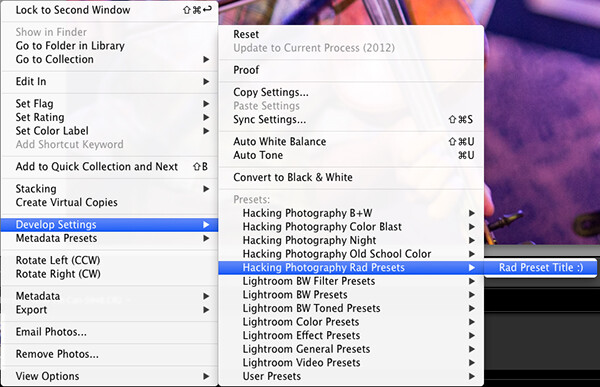
Select all the photos you want to apply the preset to, right-click the any of the photo thumbnails, and follow this path:

Lightroom Presets Tutorial 5

That will apply the preset automatically to all the images you selected in one click.

For a walk through on how to do this watch this video as I go through all the steps:

Lightroom presets also save time with the live preview feature

When you hover over the preset names the image thumbnail in the top left corner will give you a preview of what that image will look like with that preset. As you scan your mouse over the list you will be able to tell if a certain preset will look good or not. If it does, you can click once and be done with the image.

Lightroom presets give you a great starting point

Instead of manually editing a photo from scratch, you can apply a preset to make a big change and edit from there. It’s like getting a big head start.

Lightroom presets can do a one-click edit

If I’m hitting a blank spot on where I want to take an image I will hover over my presets and see if I like any of the previews. Sometimes I love it and it’s a one-click edit.  Sometimes I like the look but know it needs a little tweaking. Either way it can save a lot of time. Check out a few one-click edits below from some of my presets.

Straight out of camera

Straight out of camera

After one-click Preset

After one-click preset

before-5968

Straight out of camera

After one-click Preset

After one-click preset

Hacking-Photography-Color-Pop-Presets---Fill-Light-Smooth-Pre

Straight out of camera

After one-click Preset

After one-click preset

I hope you’ve seen how much Lightroom presets can help speed up your editing time and supply you with some very creative edits. I’d love to hear your thoughts in the comments below.

For more information on Lightroom presets check out these:

  • A Concise Guide to Lightroom Develop Presets
  • 4 Quick Tips For Getting The Most Out of Lightroom Presets
  • How to Add an Opacity Slider to Lightroom Develop Presets with The Fader Plug-In

Don’t want to make your own presets? On now at SnapnDeals you can get 100 of my custom Presets 50% off. Deal ends soon, don’t miss out so grab it here. 

The post Save Tons of Editing Time with Lightroom Presets by Mike Newton appeared first on Digital Photography School.

Digital Photography School

 
Comments Off on Save Tons of Editing Time with Lightroom Presets

Posted in Photography


Never forget a Photoshop or Lightroom shortcut again

19 May

Screen-Shot-2014-05-14-at-12.47.49-PM.png

Even longtime Photoshop and Lightroom users sometimes forget the myriad of keyboard shortcuts used to trigger the program’s powerful features. Now web developer Waldo Bronchart has made a web application called ‘Application Shortcut Manager’ to help you remember. It’s an interactive website that displays all the keyboard shortcuts for Photoshop, Lightroom and Blender. Learn more

News: Digital Photography Review (dpreview.com)

 
Comments Off on Never forget a Photoshop or Lightroom shortcut again

Posted in Uncategorized


Improve Your Images with the Lightroom Graduated Filter Tool

30 Apr

Using the Graduated Filter in Lightroom

The Lightroom Graduated Filter is a versatile tool for making local adjustments to your photos. Don’t be fooled by the name – it may be named after a type of filter used for making skies darker in landscape photography, but its uses go far beyond that.

Before we look at how you can use the Graduated Filter tool to improve your images, you may want to think about the style in which you’d like to process the photo. What is your ultimate aim? My article Finding and Achieving Your Style in Lightroom will give you some advice on figuring that out. Once you know what you want to do, the rest falls into place.

How to use Graduated Filters

Using the Graduated Filter in Lightroom

This is how you apply a Graduated Filter in Lightroom

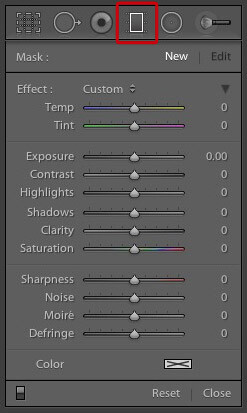
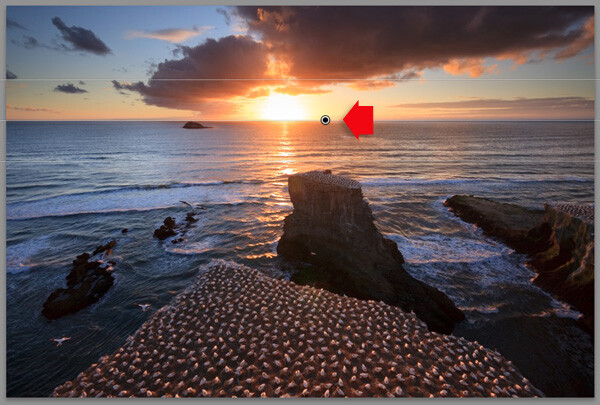
1. Click on the Graduated filter icon underneath the Histogram (the keyboard shortcut for it is “M”). The Graduated filter panel opens up beneath, revealing the sliders that you can adjust.

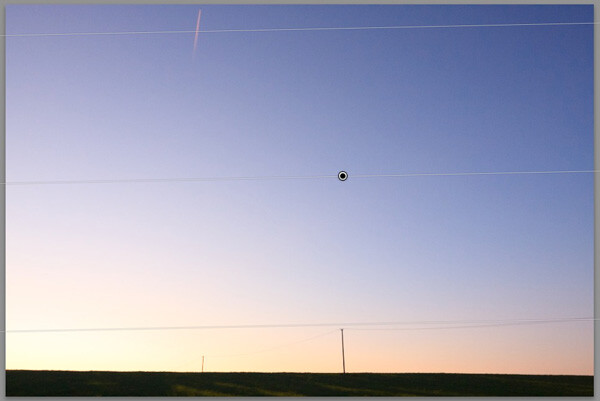
2. Hold the left mouse button down and drag the mouse across the image to place the Graduated filter. In this example I held the mouse button down while I dragged to create a wide Graduated Filter. There is a lot of space between the lines making up the filter, indicating that it will create a smooth graduation.

Using the Graduated Filter in Lightroom

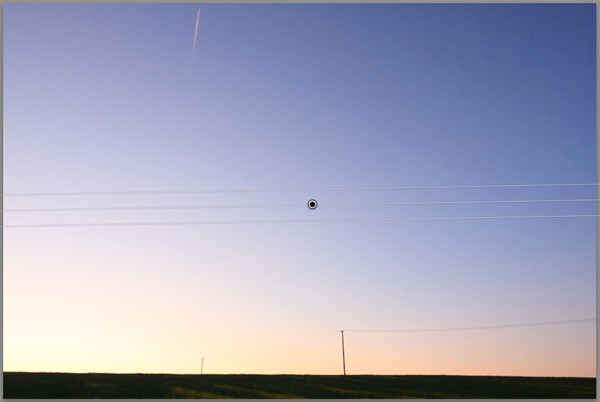
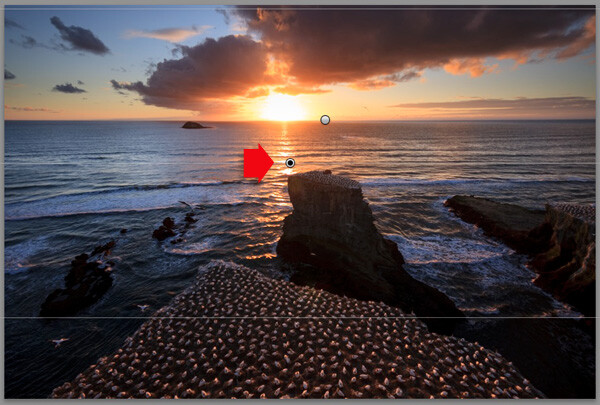
3. If you let go of the mouse button early, you create a narrow Graduated Filter that gives a harder graduation. Drag the pin to position the Graduated Filter where you need it.

Using the Graduated Filter in Lightroom

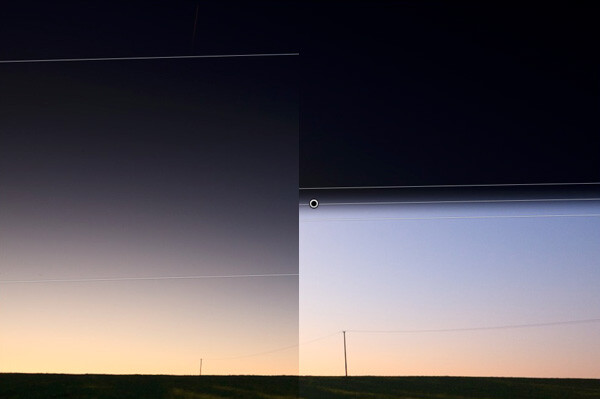
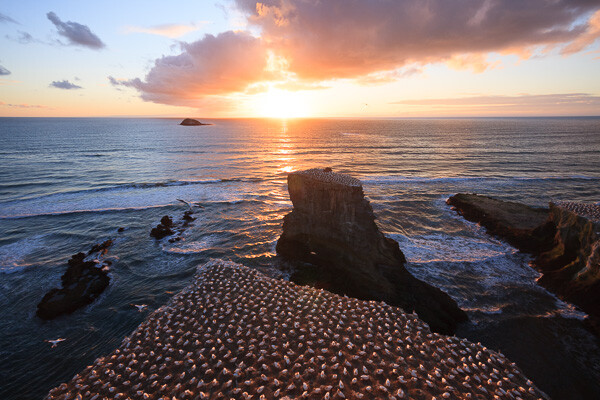
Here, I set Exposure to -4.0 to show you the difference between the two types of Graduated Filter:

Using the Graduated Filter in Lightroom

This illustration shows the difference between creating a wide Graduated Filter (left) and a narrow one (right). Experiment with both to see how they affect your photos.

Now you know how to use the Graduated Filter tool, here a few ways you can make your photos better with it.

Note: you can reposition the placement by dragging the pin, or widen the gradation any time even after applying the filter. Just reactivate it, select it (the dot will be black) and adjust. To adjust the gradation just hover the mouse over one of the edges, click to grab it, hold down the mouse button and pull to widen or narrow the spread. 

1. Making skies darker

Let’s start with the obvious application of using the Graduated Filter to make the skies in landscape photos darker. Note that the Graduated Filter can’t rescue you if the sky in your photo is so overexposed that detail is lost – you may still need to use a neutral density graduated filter when you take the photo in the first place.

Using the Graduated Filter in Lightroom

Starting image

The first step is to make the sky darker. I did this by adding a Graduated Filter and pulling back Exposure to -1.81. Every photo is different, so use your eye to judge the Exposure adjustment required on your photos.

Using the Graduated Filter in Lightroom

Exposure -1.81 applied using the Graduated Filter

2. Adjusting Contrast and Clarity locally

My aim with this landscape was to make the foreground darker and sharper, directing the viewer’s gaze towards the horizon. I achieved this by adding another Graduated Filter from the bottom. But this time, as well as adjusting Exposure to -0.79, I increased Contrast to +20 and Clarity to +27:

Using the Graduated Filter in Lightroom

Bottom Graduated Filter applied, Contrast +20 and Clarity +27

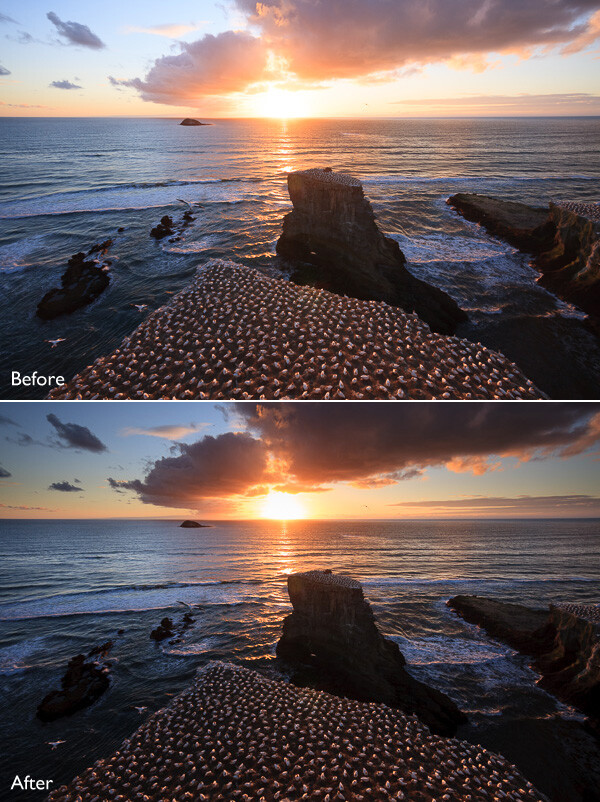
Here’s a before and after comparison, so you can see the difference adding the Graduated Filters has made. The two simple adjustments have transformed the photo.

Using the Graduated Filter in Lightroom

3. Adjusting White Balance

Another use of the Graduated Filter is to adjust colour temperature in part of the image. Sticking with the same landscape photo, I selected the top Graduated Filter to activate it and set Temp to 30. This warmed up the sky, emphasising the deep orange and red colours of the sunset:

Using the Graduated Filter in Lightroom

Be careful with adjusting Temp. If you push the slider too far the results may not look natural.

4. Making edges of your image darker

Moving away from landscapes, Graduated Filters are a handy way of making the edges of your images darker. This helps direct the viewer’s attention towards the focal point.

Using the Graduated Filter in Lightroom

This diagram shows roughly where I placed the three Graduated Filters. The benefit of using individual Graduated Filters (instead of the Radial Filter or Adjustment Brush) is that you can adjust each one individually.

Using the Graduated Filter in Lightroom

5. Adding a colour wash

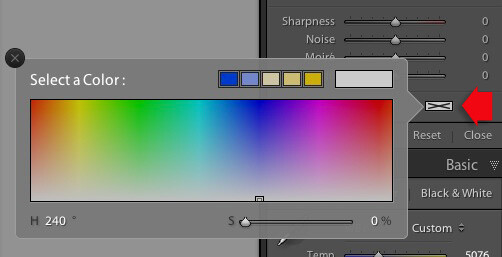
The Color setting at the bottom of the Graduated Filter panel lets you add a tint. It is laid over the filter in addition to the effects created by whichever sliders you choose to adjust. To select a colour, click on the colour picker icon at bottom of the Graduated Filter panel (the white rectangle with black cross inside indicates no colour has been selected) and select the colour you wish to add:

Using the Graduated Filter in Lightroom

Slider below is for adjust the Saturation of your selected color

One use of this is to add a colour wash to a photo, to make it look as though the subject is lit by the light from the setting sun. This technique works best when the subject was genuinely shot during the golden hour, and you use the Graduated Filter to emphasize that. In this example I selected an orange hue to imitate the sun and set Exposure to +1.16 to lighten that side of the image.

Using the Graduated Filter in Lightroom

6. Lens blur effect

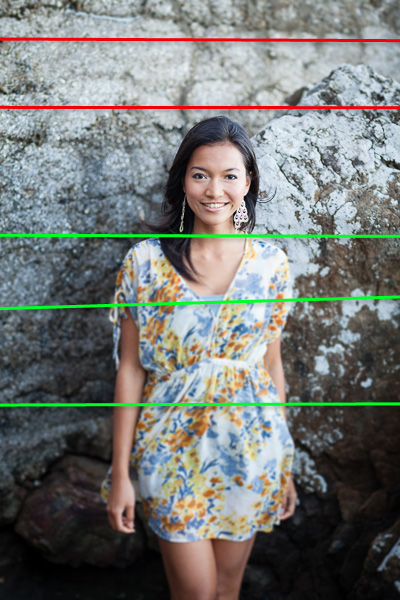
The Sharpness slider in the Graduated Filter panel is dual purpose. From zero to -50 it reduces sharpness. From -50 to -100 it creates lens blur. This lets you replicate the effect of using a tilt-shift lens or large format camera to create a photo with a tilted plane of focus. This is what it looks like. You may have to look closely – the model’s head is sharp but the areas at the top and bottom are not.

Using the Graduated Filter in Lightroom

I created this effect by adding five Graduated Filters, two at the top, and three at the bottom, their position shown by the coloured lines. The effect works best with a narrow Graduated Filter.

Using the Graduated Filter in Lightroom

The red lines indicate where I added Graduated Filters with Sharpness set to -100 at top. The green lines show you where I placed three filters at the bottom. Spacing the Graduated Filters mean the effect is strongest at the edges, replicating the true effect of using a tilt-shift lens.

Hopefully these tips will help you use the Graduated Filter more creatively. Lightroom is great for processing your photos and understanding how its tools work will help you use it more effectively. If you’re new to Lightroom, then my article Seven Pieces of Advice for New Lightroom Users will help you get started. Once you’ve mastered the Graduated Filter, I suggest you read Four Ways to Improve Your Photos With the Clarity Slider in Lightroom or 3 Uses for the Radial Filter Tool in Lightroom 5 to learn how to use more of Lightroom’s fabulous tools. Have fun!

By the way, I’m curious to hear how you use Graduated Filters in Lightroom. What techniques have you come up with? Please share them with other readers in the comments.


Mastering Lightroom: Book One and Two
mastering-lightroom-bundle-1

My Mastering Lightroom ebooks are a complete guide to using Lightroom’s Library and Develop modules. Written for Lightroom 4 & 5 they take you through every panel in both modules and show you how to import and organise your images, use Collections and creatively edit your photos.

The post Improve Your Images with the Lightroom Graduated Filter Tool by Andrew S. Gibson appeared first on Digital Photography School.

Digital Photography School

 
Comments Off on Improve Your Images with the Lightroom Graduated Filter Tool

Posted in Photography


Finding and Achieving Your Style in Lightroom

26 Apr

Photo processed in Lightroom

There are so many options for processing photos in Lightroom that it’s no surprise that some photographers get confused. If you’re finding it difficult to decide what to do with your images (in the post-processing sense) you’re not alone.

The key is to think about what you want to achieve with your processing. That’s not always easy, but you may find it useful to start by thinking about the following aspects. Your answers will help determine the approach you take.

Colour

Do you want a bright, colourful image or a desaturated one? Perhaps you’d even like to work in black and white. If you are working in colour do you want the colour to be accurate, or your photo to be predominantly warm or cool toned? The decisions you make about colour will have a big impact on the direction you take once you get to the Develop module in Lightroom.

Tonal values

Do you want a light image, or a dark one? High contrast or low contrast? Some of this will be determined when you take the photo. For instance, if you decide you want to create a portrait with a dark background, then ideally you would make sure that the background is dark in the first place. But, there are ways of making backgrounds darker that mean you can change the look of a photo quite dramatically in Lightroom if you wish. There’s an example of that later, keep reading.

General feel

Do you want your photo to be conservative or edgy? Modern or maybe nostalgic, vintage or retro? These concepts may feel a little hard to pin down, but again they will help determine the path you take in Lightroom. If you want to create an image with a nostalgic feel, then how does that affect your approach to colour? Or to contrast? How would it be different if you decided to go for a modern look instead?

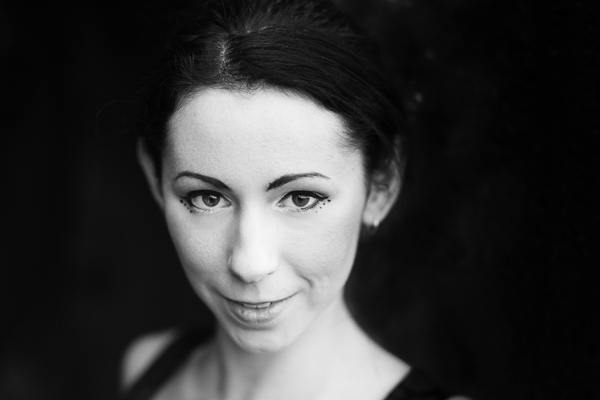
Portraits

With photos of people, do you want them to look stylized or natural? Are you interesting in capturing character or beauty? Or maybe even both? Do you want your subjects to be sexy or sensual, or asexual? Do you want them to be casual or fashionable? Again, some of these concepts are somewhat airy, but thinking about them will help you work out what approach to take in Lightroom.

Please note that you don’t have to think about all of these aspects. For most most photos, you will probably only have to consider two or three . Here are some examples:

Example 1: Portrait with dark background

The inspiration for this approach came from looking at the work of photographers like Tom Hoops, who use dark backgrounds to great effect in their portraits.

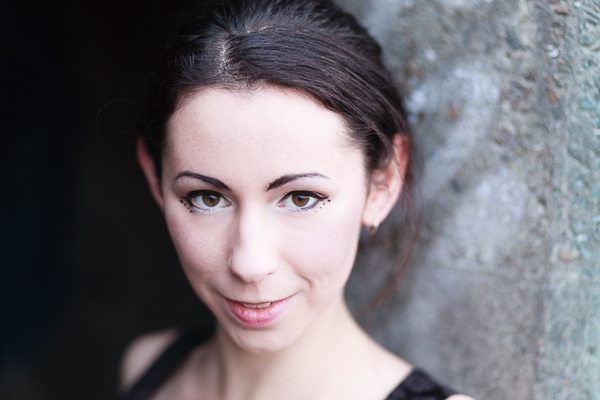
The first example is a portrait I took of a girl standing in the doorway of a concrete bunker. The light is coming from her left.

Photo processed in Lightroom

One side of the photo is already dark, so I decided to reduce the brightness of the other side to match. I used a Graduated Filter to darken the concrete wall, and an Adjustment Brush to make the model’s hair darker. Here’s the result.

Photo processed in Lightroom

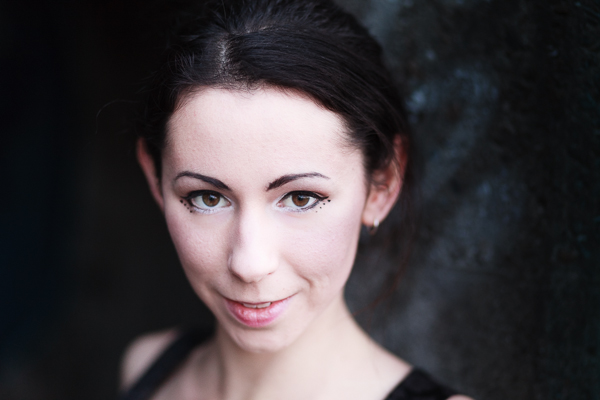
Possible alternative B&W

The logical extension of this thought process is to convert the image to black and white and make the background even darker. I also increased Contrast in the Basic panel and applied Clarity to the model’s eyes with an Adjustment Brush to make them stand out more.

Photo processed in Lightroom

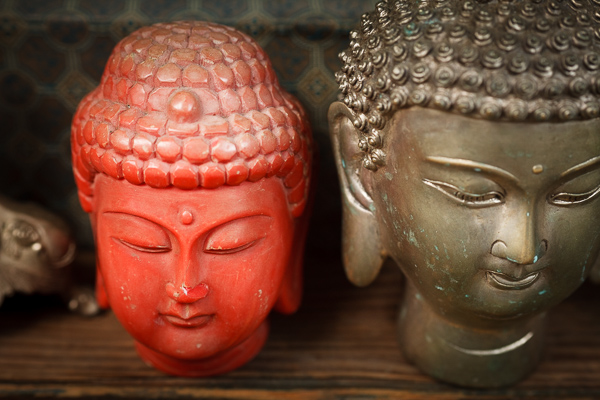
Example 2: Nostalgic colour

I took this close-up photo in a market in Shanghai, China.

Photo processed in Lightroom

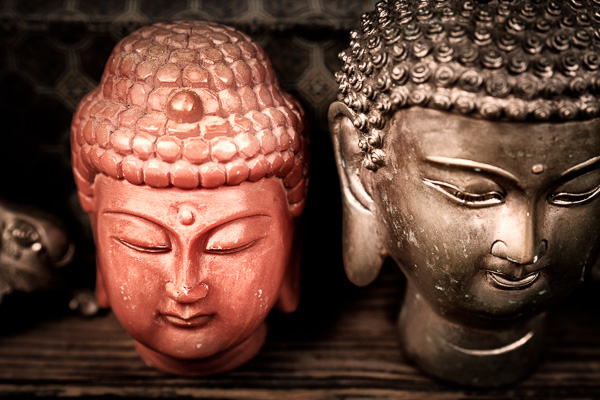
There are two thoughts that occur to me here. First, that the two Buddha heads have beautiful textures that I’d like to emphasize. Second, that I’d like to give the image a nostalgic feel.

To achieve the nostalgic look, I used the Temp slider to make the photo warmer, and reduced the saturation of the colours with the Vibrance and Saturation sliders. I increased Clarity and Contrast to bring out the texture, and added a vignette using the Radial Filter. The dark shadows this creates add a sense of mystery.

Photo processed in Lightroom

Possible alternative add a plugin

How about seeing how far I can push the idea of bringing out the texture and reducing colour saturation? Nik Software’s Viveza2 has some excellent tools for this. See the resulting image below.

Photo processed in Lightroom

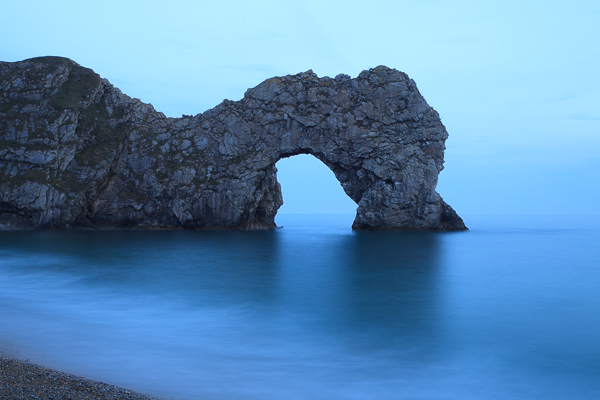
Example 3: Long exposure landscape

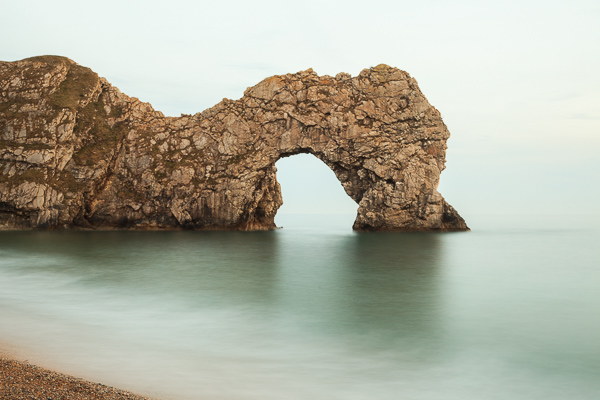
Finally, here’s a landscape that I took one evening using a shutter speed of 30 seconds. The light is flat and dull, and there is a strong blue colour cast.

Photo processed in Lightroom

One option here is to emphasize the late hour and natural blue colour of the light. But I decided to take a different approach and that I wanted to create an image with warm tones. I did this by pushing the Temp slider to the right. Then I increased Contrast to compensate for the flat light and reduced Highlights to bring back some of the subtle detail in the sky. I added Clarity to the rock arch with the Adjustment Brush to emphasize it as the focal point.

Photo processed in Lightroom

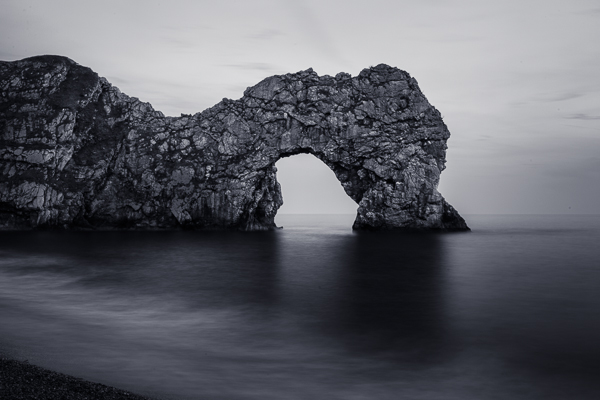
Possible alternative dark monochrome

A darker, monochrome version with a blue tone to evoke the atmosphere of the blue hour when the photo was taken. I applied more Clarity to the rock arch, beach and water to enhance the texture and contrast in these areas, then added a vignette with the Radial Filter.

Photo processed in Lightroom

 So as you can see there are many approaches to processing your images in Lightroom. Try different techniques and styles on the same image and you’ll start to learn which ones appeal to you most and are more your “style”. You can also create as many “Virtual Copies” of your image as you want and apply a different style to each for easy comparison. You can even save them as a Lightroom Preset if it’s a look you think you may want to use often.

What is your approach to processing images in Lightroom? If you have any tips for our readers then please leave them in the comments.


Mastering Lightroom ebook bundle

Mastering Lightroom: Book One and Two

My Mastering Lightroom ebooks are a complete guide to using Lightroom’s Library and Develop modules. Written for Lightroom 4 & 5 they take you through every panel in both modules and show you how to import and organise your images, use Collections and creatively edit your photos.


The post Finding and Achieving Your Style in Lightroom by Andrew S. Gibson appeared first on Digital Photography School.

Digital Photography School

 
Comments Off on Finding and Achieving Your Style in Lightroom

Posted in Photography


Lightroom Presets That You Have to Have at Any Cost

25 Apr

Photo editing has never been so easy as it is these days. The web offers you tons of Lightroom presets and Photoshop actions to add some cool effects to your images by pressing just one button! Lightroom presets are a fantastic tool that can help to automate your workflow and to add creativity to your photo library, no matter if Continue Reading

The post Lightroom Presets That You Have to Have at Any Cost appeared first on Photodoto.


Photodoto

 
Comments Off on Lightroom Presets That You Have to Have at Any Cost

Posted in Photography


Large Library Management with Lightroom and Daminion [for Advanced LR Users]

13 Apr

daminion-opener

If you have Lightroom you might assume that you have all you need for managing your images. That may not be the case and many professional and keen amateur photographers benefit from combining Lightroom with the image management software Daminion.

Daminion is an image management solution which helps you do large library management with Lightroom. You can think of it as being the rough equivalent of the Lightroom Library module operating on steroids. Daminion’s biggest advantage is that it is true multiuser software so, with Daminion server installed, multiple users can access a single catalog. This is something that Lightroom is notoriously poor at doing and which Adobe has so far failed to address despite multi-user/multi-computer access being one of the top ten feature requests for Lightroom.

You can download a version of Daminion here using the Download link. At the time of writing the current release version is 2.5 and version 3 is still in beta. Daminion comes as both a standalone and a server version. The Daminion standalone Free version handles up to 15,000 images per catalog. The paid versions are Basic, Standard and Pro which give you 25,000, 75,000 and unlimited images in a catalog respectively. There are also multiple Daminion server versions, one for non-commercial use and others for individual professionals and small teams.

NOTE: Daminion is available for PC only and not currently available for Mac.

You can install both the server and client versions on the same computer – the server version will run faster than the client version so it has value when you have a lot of images in a catalog. When you consider that some Daminion users have catalogs of a million or more images, speed of accessing and filtering these images becomes important.

Setting up Daminion

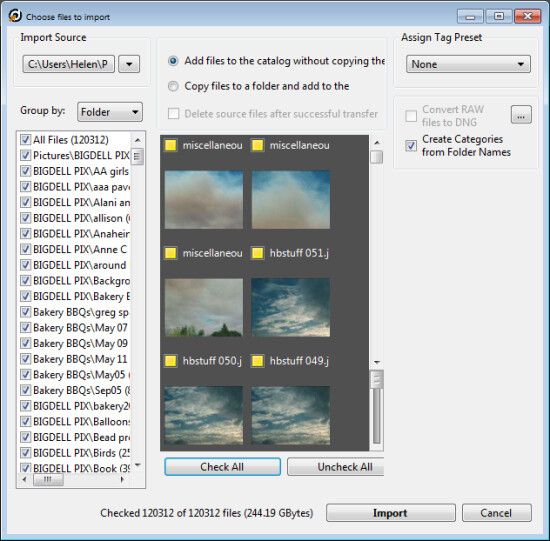
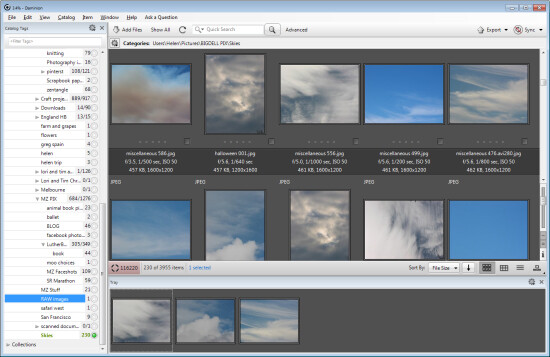
Once you have downloaded and installed Daminion, launch it and you can create a catalog. Like Lightroom you must import the images you want to manage with Daminion into the catalog. If the Add Files dialog doesn’t open automatically you can find it by choosing File > Add Files and then select the folders to import from.

daminion-import

While you can create and manage multiple catalogs in Daminion, like Lightroom, you can’t search across multiple catalogs so you should be careful about how you organize your images in catalogs. What makes sense in terms of catalog organization will depend on how you work with your images and if it makes sense to have them all in one catalog or in separate ones.

Daminion will recognize and manage a wide range of file types including common raster and vector formats as well as camera RAW images, video, music, and PDF formats. This gives it a broader scope as a management tool for digital media collections than Lightroom which is limited to photo and video formats only.

You can copy the images to another location on import or import them from their current locations. You can also group images by folder, date or file type on import. As the images are being imported you can begin to work with those already imported.

daminion-work-while-importing

daminion-catalog-tags

Organizing and tagging

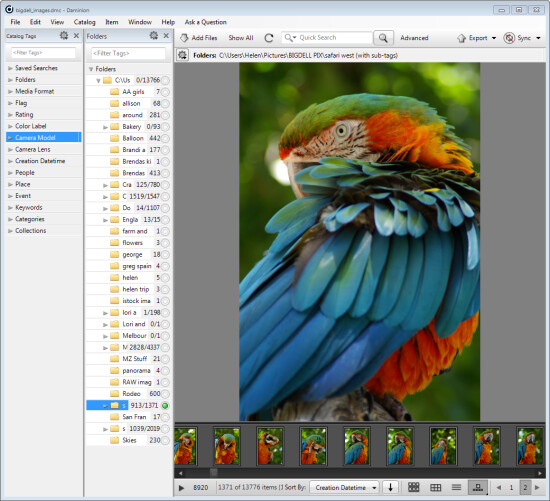
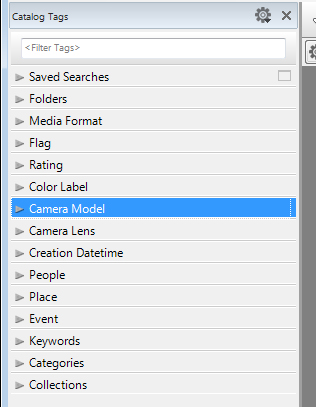
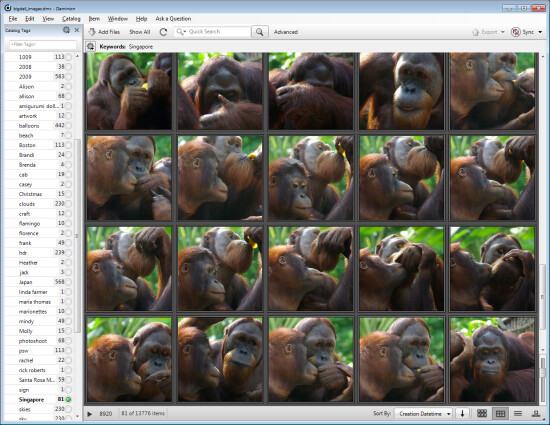
When you have some images imported into Daminion you can investigate the tools you have for managing and organizing them. The Catalog Tags panel on the left of the screen (see image on the right) is pre-populated with tags. Some of these are created from the image metadata, such as Camera lens and Camera Model, and others are those that you may have applied to the images in other programs such as keywords, ratings and color labels.

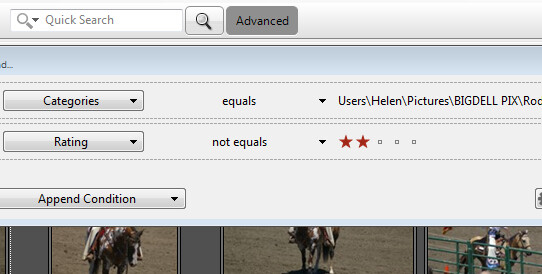
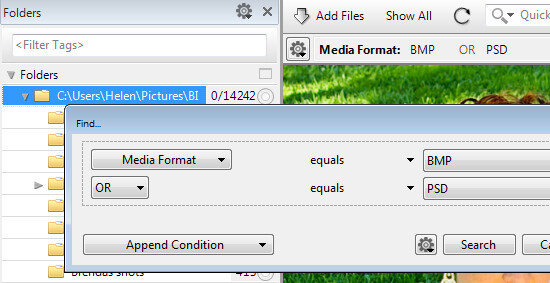
To filter the images by any catalog tag click the tag group and the tag to view and click the circle icon to view images that match that tag. You can perform AND and OR filtering using the Find dialog which you can find by clicking the Advanced link immediately to the right of the search box on the toolbar (see image below).

daminion-searches

You can also add tags and keywords to your images using the Catalog Tags panel. These can be written to the image XMP metadata so they will be accessible not only within Daminion but also in other applications such as Lightroom and Bridge.

There are benefits to using Daminion for image management and filtering in preference to Lightroom. Daminion provides multiple ways to categorize your images including Categories, Collections, Events, Places, People and more. It also supports hierarchical tags, with no limitation on nesting levels. So you can configure hierarchical tags for categories, people, places, keywords, events and so on whereas in Lightroom you can create hierarchical keywords only. You can also create your own custom user defined tags in Daminion to categorize images by criteria that are meaningful to you. Daminion can write metadata directly into the RAW images rather than needing to do so to sidecar .xmp files, and it makes it easy for you to filter your image collection by writing complex searches using Boolean (AND/OR) operators.

daminion-boolean

Viewing your images

You can view your filtered images in one of a number of ways. You can sort them using a range of sort options including by shutter speed, file size, file name and so on. You can also view the images as thumbnails, using a compact view, details or filmstrip view.

daminion-compact

In Thumbnail view you can customize the information displayed above and below the image so it is easy to see the image properties that are meaningful to you. At any time you can view an image full screen by pressing Enter or click View.

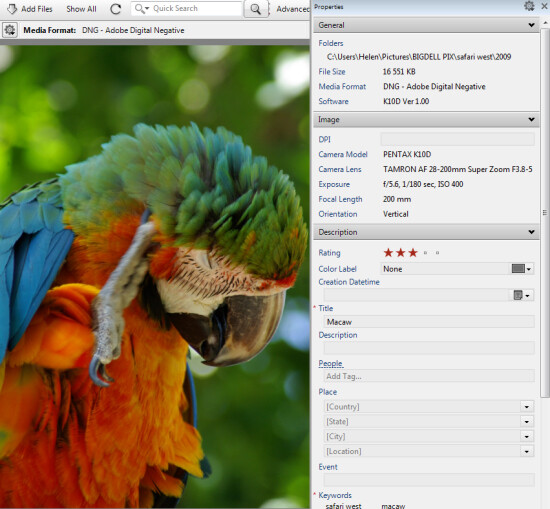
You can select any image and view and edit its properties using the Properties panel. While Daminion is not an editor you can use it to rotate your images.

daminion-properties

As you work through your images you can drag images you want to do something with into the Tray. The Tray stores these images until you are ready to work with them such as by sending them to an external editor or using the multiuser checkout feature. The checkout feature helps you manage multiple people working with the same catalog, it maintains an audit history and gives you the ability to undo changes if, for example, a newer version of an image is replaced by an older version.

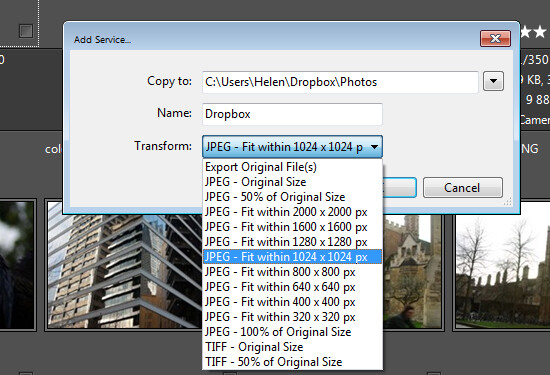
One handy feature of Daminion is the ability for you to publish images from Daminion direct to Dropbox so they are viewable on your iPad or other device. The Publish panel can be set up to convert and resize images including raw format images and then export them to a Dropbox folder on your computer. When this folder syncs to Dropbox the uploaded images can then be viewed on other devices.

daminion-publish

Is Daminion for you?

If you’re looking for a way to allow multi-user access to your image collection then Daminion is a great tool. It can be used along-side Lightroom for managing and organizing images which you then develop in Lightroom. The metadata changes made in either program can be easily viewed in the other program and the two work in tandem very well.

Do you also need some Lightroom organizational help? Try these:

  • Use Lightroom Collections to Improve your Workflow
  • 8 Important Things to know about Lightroom Collections
  • Why Lazy Photographers Should Use Lightroom Smart Collections
  • Organizing Images in Lightroom 5
  • Seven Pieces of Advice for New Lightroom Users

The post Large Library Management with Lightroom and Daminion [for Advanced LR Users] by Helen Bradley appeared first on Digital Photography School.

Digital Photography School

 
Comments Off on Large Library Management with Lightroom and Daminion [for Advanced LR Users]

Posted in Photography


The Triangle of Color Adjustments in Lightroom

11 Apr

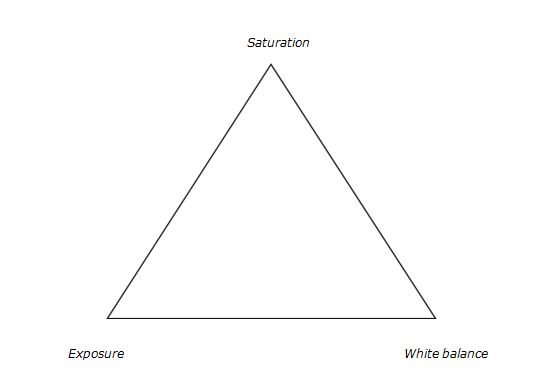
In digital photography, just like exposure, colors too have a triangle of their own.

3 Color correction triangle

Color adjustment triangle

The triangle of color adjustments in Lightroom. The three attributes that form the triangle are shown above, now let’s see how they affect the colors of an image.

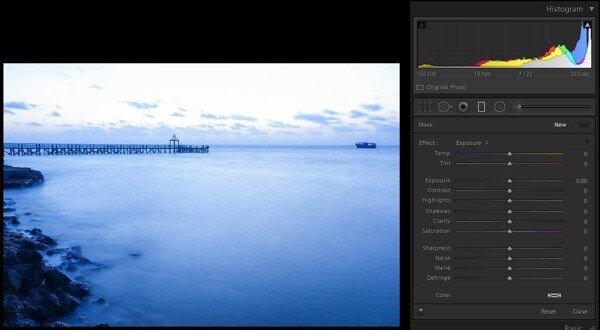
Exposure

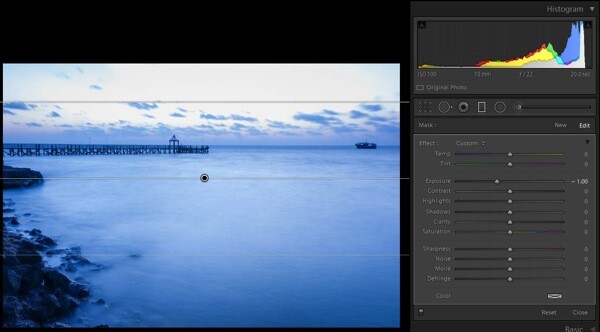
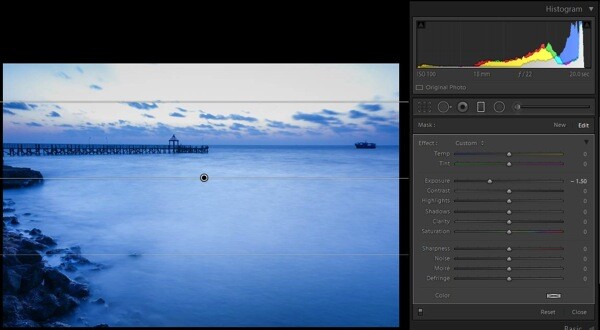
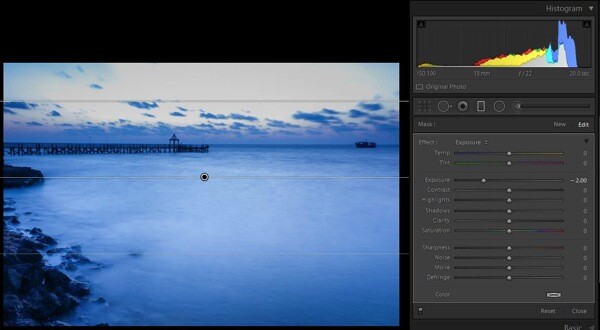
This attribute controls the brightness level of all the pixels that constitute an image. Whenever the brightness level of the pixel is altered, the color value too gets changed. You can easily identify this effect in a photograph of a landscape. Apply a Graduated Filter on the sky area with a value of -2.00 on the exposure slider and then take a look at the sky area. You will immediately notice that the blue color has become richer. You would do well to remember that you didn’t change any other value in that sky area except the exposure.

Let’s look at some examples of exposure adjustments and how it affects the color:

1 with nothing applied

No adjustments applied on graduated filter

2 EV minus 1

-1.0 stop exposure adjustment applied

2 EV minus 1 5 applied

-1.5 stop exposure adjustment applied

2c EV minus 2 applied

-2.0 stop exposure adjustment applied

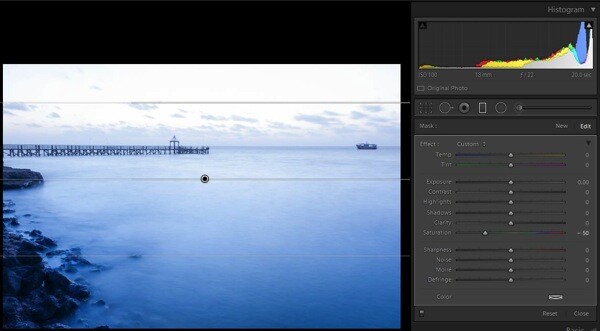
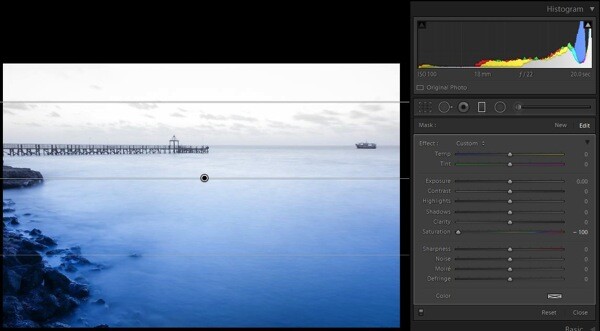
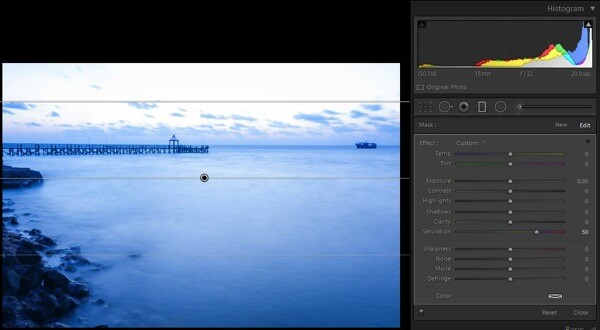
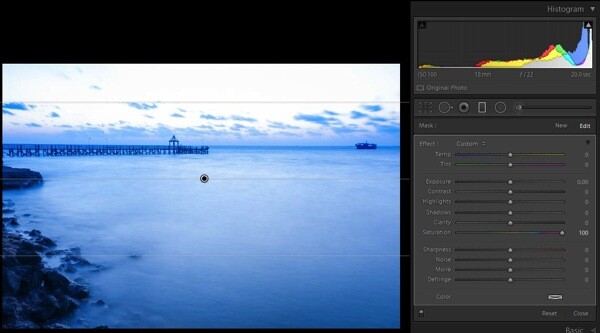
Saturation

This attribute controls the intensity of all colors in all of the pixels that constitute an image. Since the effect of this tool is global, it needs to be used with caution; otherwise it is guaranteed that the picture will end up looking artificial. To check the effect of this tool, keep the same graduated filter applied and active, reset the exposure values by double clicking the exposure slider (or the word Effect), then move the saturation slider towards the right; you will notice the changes that are wrought in the sky area.

4a Sat minus 50

Saturation set to -50

4b Sat minus 100

Saturation set to -100

4c Sat plus 50

Saturation set to +50

4d Sat plus 100

Saturation set to +100

There is another tool called Vibrance, just above the saturation slider. I have considered this as part of saturation tool. It plays only with the less intense colors, one of the smartest tools in Lightroom (Note: this tool can be found only in the Basic Deveolop panel not in the Graduated Filter or any other local correction tools).

White balance

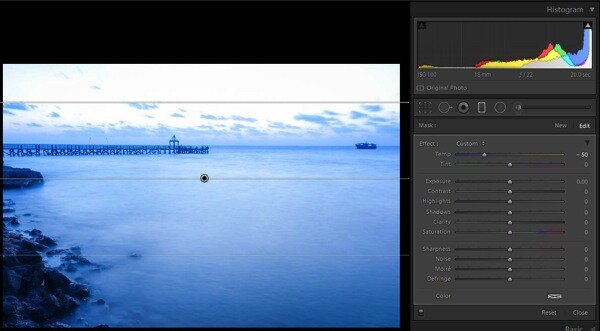
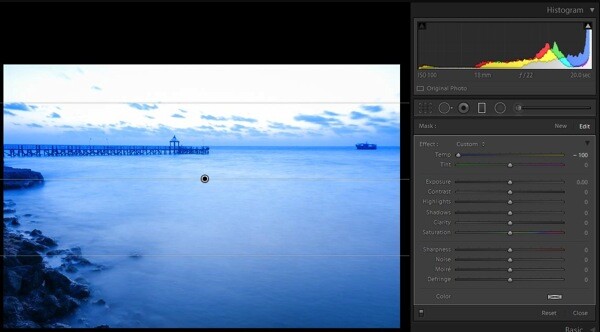
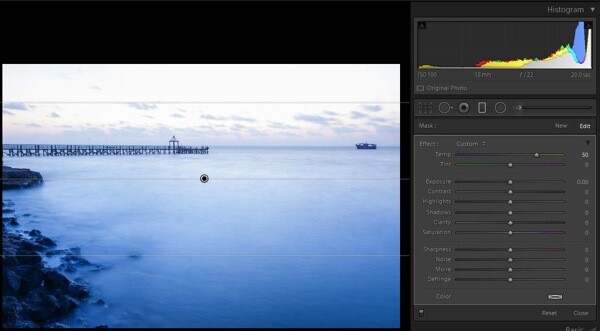
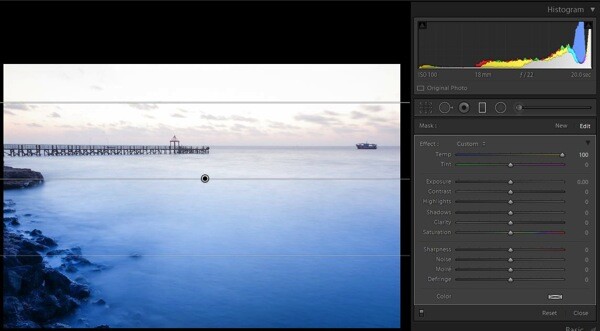
This is one of the most discussed topics in the internet. What white balance exactly does is to change all of the color values of all the pixels in the photograph; yes I mean all three RGB values of a pixel. When you move the White Balance slider towards the right the photograph gets warmer, specifically towards yellow side. When you move it towards the left, the photograph gets cooler, specifically towards blue side. (Note: this tool is at its full power when the image is captured in RAW format) To check this effect, reset the previous graduated filter and move the White Balance slider either way to see for yourself.

3a WB 50

White Balance adjustment made to -50

3b WB minus 100

White Balance adjustment made to -100

3c plus 50 WB

White Balance adjustment made to +50

3d plus 100 WB

White Balance adjustment made to +100

There is another tool below White Balance called tint, it is part of adjust the white balance. This tool needs to be used cautiously, as the name suggests the tool can be used to add or remove the tint primarily green or magenta in color, and mostly helps to bring out the real colors. If this tool is used carefully, it will help you to remove the color cast from your photograph if any.

Putting it all together

Now that you know how all three major tools control the colors in a photograph, the question is how to apply this knowledge. There is no universal prescription, and each photograph demands its own treatment. Understanding how all these tools work, and developing your skill by practicing on a few photographs, will make you so much better in visualizing and bringing out the colors in any given photograph.

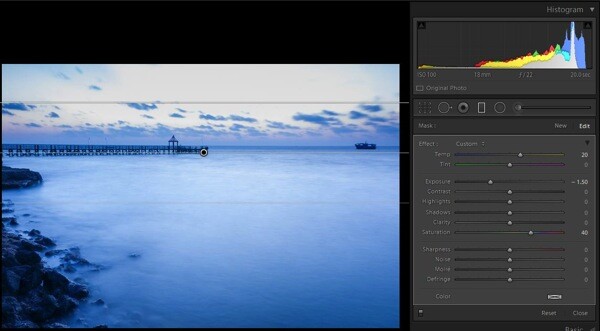
5a all 3 components applied

Graduated Filter all sliders applied

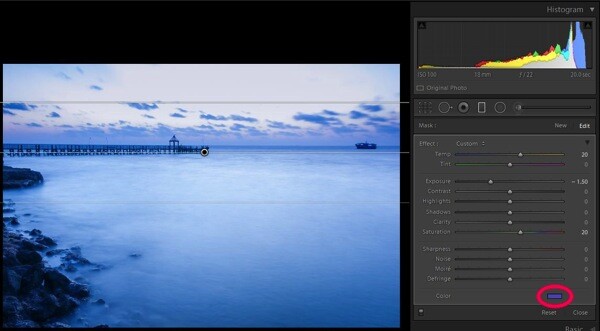
Now, you know the major tools controlling the colors in an image and how they are being applied on this sample image (see screen shot above) but I still felt something was missing in the sky region. So I applied a slight color tint from the color picker tool (see image below).

5b small colour tint used  balance

Graduated filter slider adjustments plus a color tint added, see red circle

Some photographs might be underexposed, whereas others might be under saturated to some extent. Remember RAW images tend to be less saturated, lower in contrast, and less sharpened. In some photographs a little adjustment to the White Balance slider may fix almost all the problems.

Final image

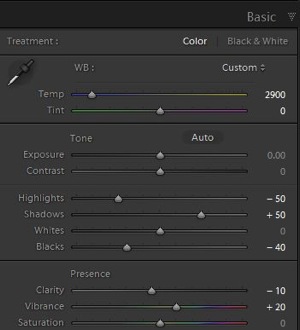
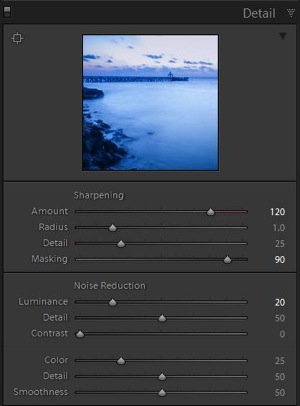
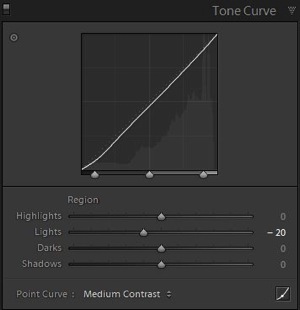
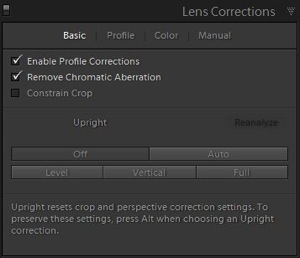
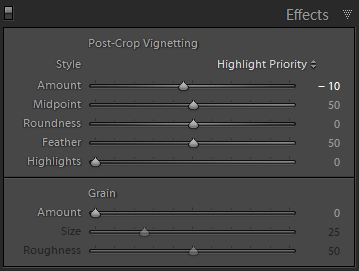
Here is a look at the sliders in all the panels used to produce the final image.

6a Global adjustments

Basic panel slider adjustments

6c Detail panel adjustments

Detail panel slider adjustments

6b adjustments Tone curve panel

Tone curve panel adjustments

6d Lens correction panel adjustments

Lens correction panel adjustments

6e mild vignetting

Post-crop vignette added

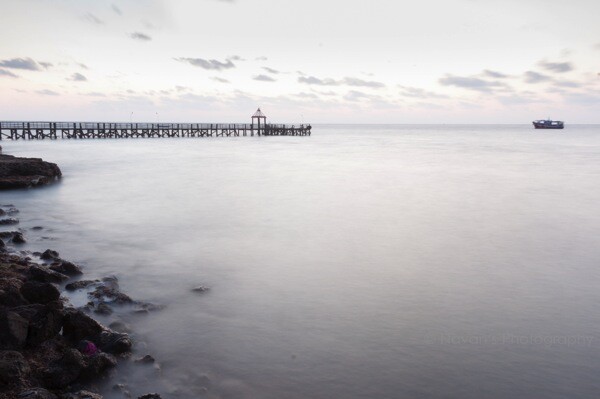
After using almost all the panels in Develop module here are the before and after photographs.

1 As shot

As shot right out of camera

2 Final image

Final image after all corrections have been applied

All said, you are the creator of your photograph. You have to decide which tool needs to be used and in what proportion with other tools, to give you the results you hoped for when you pressed the shutter button. Hope this article helps you make more beautiful photographs.

If you have any other Lightroom color adjustment tips of tricks please share with us in the comments below.

The post The Triangle of Color Adjustments in Lightroom by Navan Viswa appeared first on Digital Photography School.

Digital Photography School

 
Comments Off on The Triangle of Color Adjustments in Lightroom

Posted in Photography