RSS
 

Posts Tagged ‘lightroom’

How to Watermarking Images With Photoshop and Lightroom

30 Sep

Have you seen the writing on images? You know, the little pictures or words that show the photographer’s name? Those are called watermarks. Photographers often watermark their images so that they are properly credited for their work. Here are a few ways to watermark images with Photoshop and Lightroom.

Watermarks using Photoshop

You can create watermarks in Photoshop several different ways. Here are a few of them.

1. Text layer

The first way is to create a text layer. This is great for simple word watermarks. You can then write your name or your photography business’ name. From there, you can adjust the opacity as you see fit. Try adjusting the blending mode to achieve the look you want. To get the © symbol type; option+g on a Mac, or Alt+0169 on a PC.
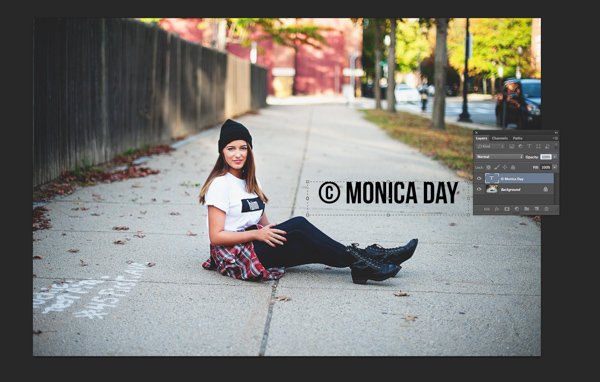
MonicaDayDPS-Watermark-01

Normal blending layer with black font at 100% opacity.
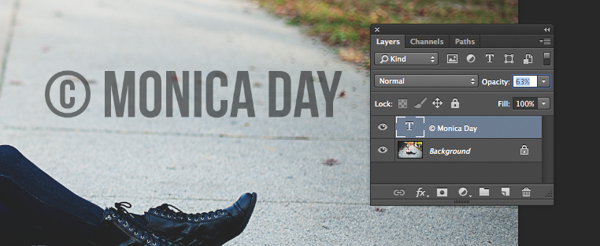
MonicaDayDPS-Watermark-03

Normal Blending Mode with an opacity of 63% in black font.
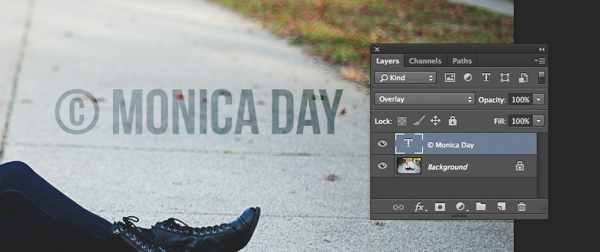
MonicaDayDPS-Watermark-04

Overlay Blending Mode with a black font color at 100% opacity.

2. Logo file

If you have a logo you can place it on your image. You want to make sure your logo has a transparent background. Usually, this will be a PNG file, a GIF or even a vector graphic. If you are unsure, check with your logo designer. Use the place option to put your logo on your image. Again, you can adjust your opacity and blending modes to get the desired effect.

MonicaDayDPS-Watermark-05

PNG file with a transparent background. The checker pattern lets you know that the background is transparent.
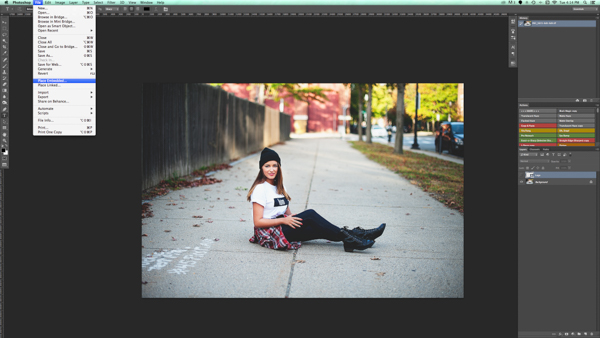
MonicaDayDPS-Watermark-06

Place function in the Photoshop CC menu. You then choose the file you’d like to place.
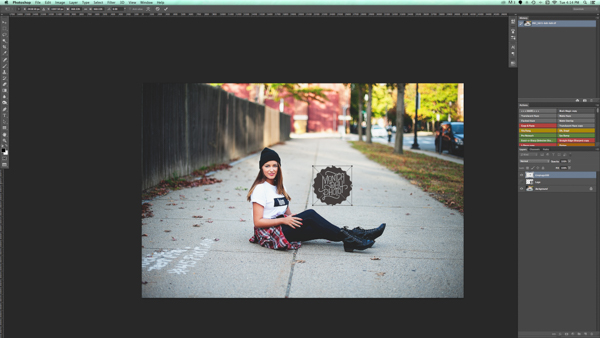
MonicaDayDPS-Watermark-07

Place the file and adjust the size as you wish. (Hold the Shift key down as you resize to maintain the aspect ratio and proportion of your logo)
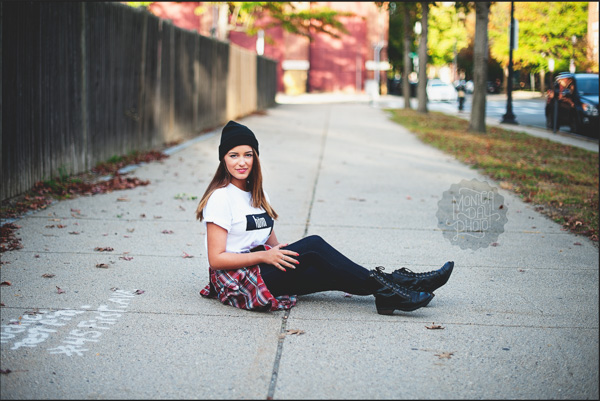
MonicaDayDPS-Watermark-08

You can again adjust the opacity and blending mode to get your desired look.

2a. Making your logo background transparent if it isn’t already

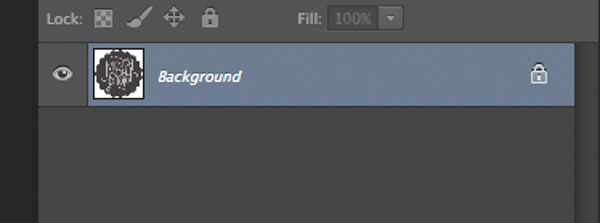
If you have a logo file that does not have a transparent background then follow these simple steps to create one. First, open your file in Photoshop. Go ahead and unlock this layer (double click it, then hit Enter).
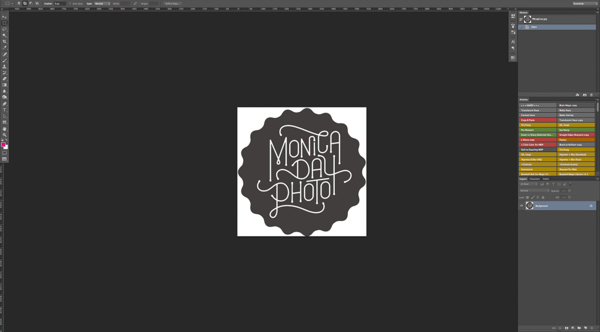
Watermark-01

Watermark-02

Background layer locked

Watermark-03

Layer is now unlocked.

Next, use the magic wand to select the background. If the background is not a solid color then select your logo image and then invert the selection. Now that your background is selected, simply cut. You can do this with cmd+x (Mac) or ctrl+x on a Windows computer.

Watermark-04

Select the background only.

Your image should now have a transparent background. Save this file as a .PNG (JPGs cannot hold transparency) and you’re ready to go.

Watermark-05b

Where you see the grid pattern it’s now transparent.

3. Using the brush tool

For an even easier way to watermark, create a brush. This way you do not have to go through these steps each time you want to watermark your images.

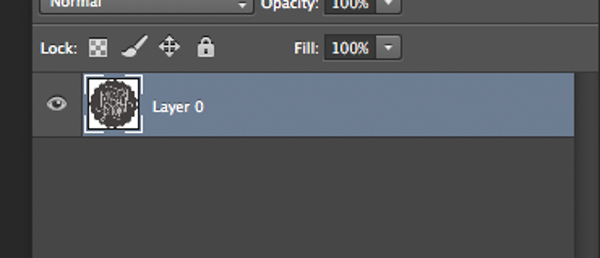
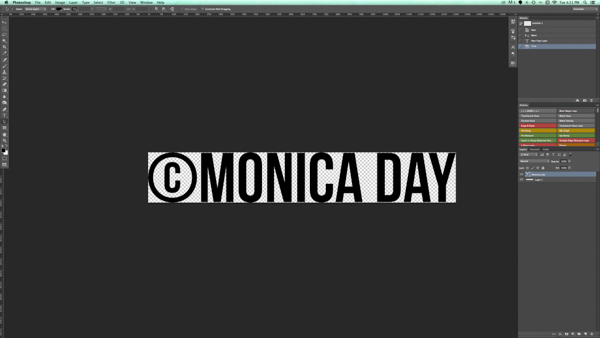
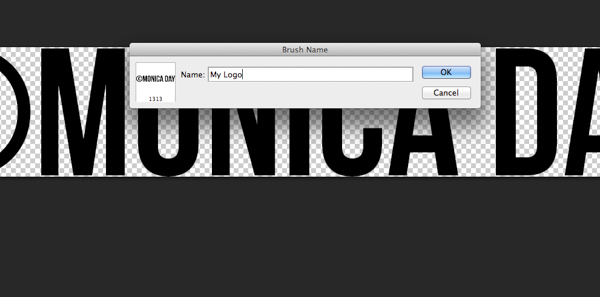
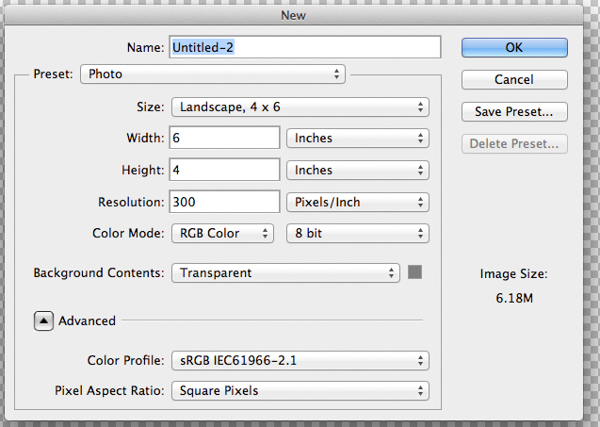
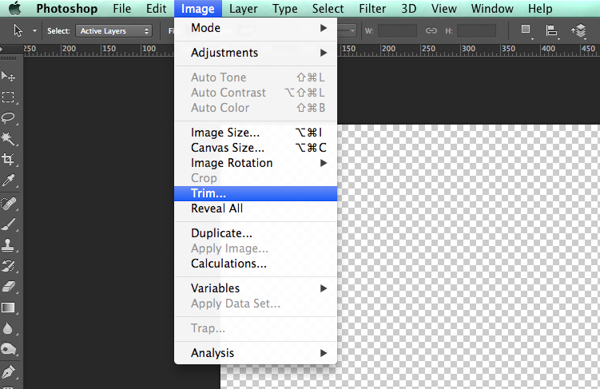
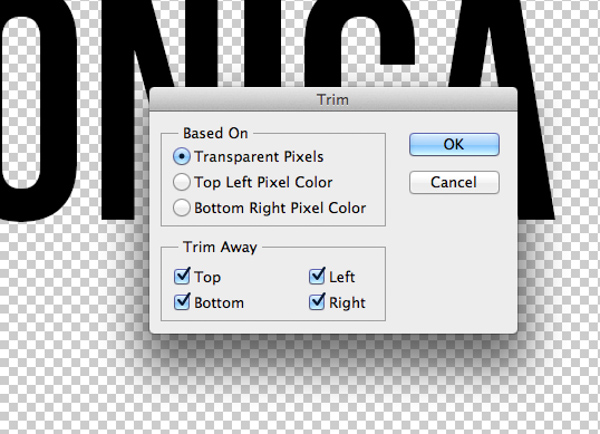
To create the brush with text you’ve written you will need to open a new document in Photoshop. Make sure your document has a transparent background. Type the information you want to have on your watermark. Make sure you have it set up exactly like you want it on your images. Once you have your watermark just as you want it you should go to Image > Trim > Transparent Pixels. Next, Edit-Define Brush Preset. Name your brush and you’re ready to go. The same process can be done with your logo file.
MonicaDayDPS-Watermark-09

These are sample settings that work well in most cases. Make sure your background is set to “Transparent”.

MonicaDayDPS-Watermark-10

Notice that the font is written very large.
MonicaDayDPS-Watermark-11

Make sure you trim your watermark text.
MonicaDayDPS-Watermark-12

MonicaDayDPS-Watermark-13

Your trimmed text should have no space around it.
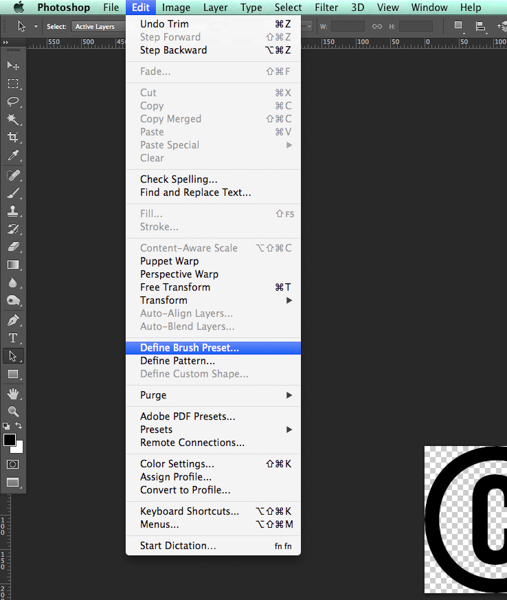
MonicaDayDPS-Watermark-15

Define your brush in the edit menu.

MonicaDayDPS-Watermark-16

Give your brush a descriptive name.

MonicaDayDPS-Watermark-17

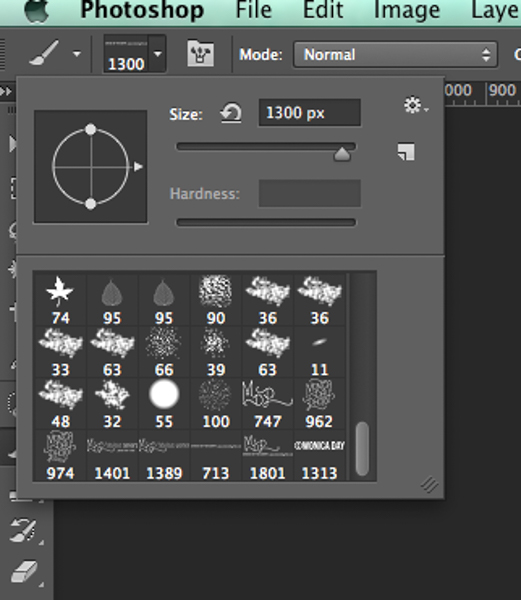
Notice that your brush is now in your brush menu. You can see it at the bottom right in this picture.

You can now use your brush as you would any other brush. The key to having it watermark is to create a layer and select the brush that is your watermark. A simple click will watermark your image. You can adjust the size, opacity, and blending mode as your like.

For more on making a signature brush read: How to make a signature brush in Photoshop

Watermarks using Lightroom

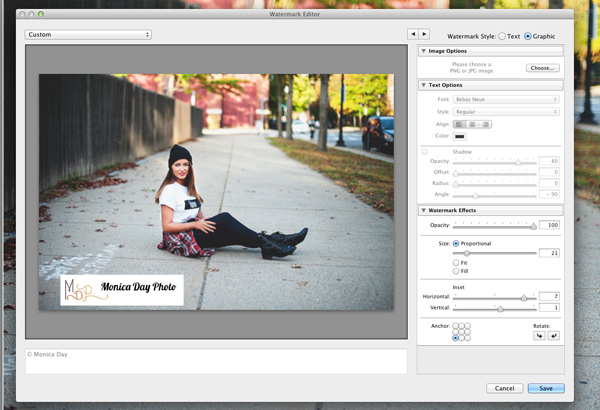
Lightroom has an awesome feature built-in that allows you to watermark your images upon export. In order to use this feature you must first set up your watermark, to do that go to Lightroom>Edit Watermarks.
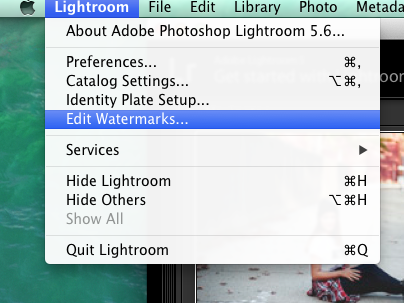
Screen Shot 2014-09-16 at 5.49.22 PM

You can choose an image or text. There are several different settings that allow you to adjust your watermark like you want. Remember, to get the best results you’ll want to use a PNG file with a transparent background. If you don’t, you’ll have a white box around your logo. You’ll need to save and name your watermark.
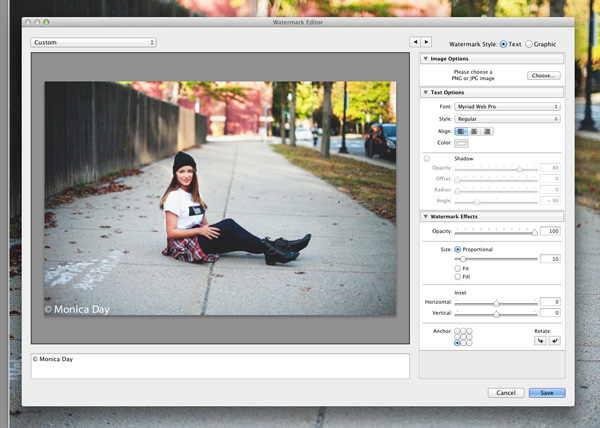
For a text watermark simply write your desired information in the white box. You can change the font, color, shadow, and size of your watermark. Watch the image to see your desired effect. Use the Anchor option to adjust placement and the Inset option for further tweaks.
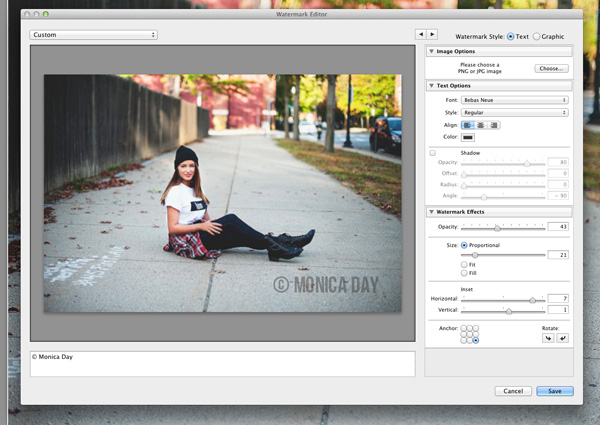
For a text watermark simply write your desired information in the white box. You can change the font, color, shadow, and size of your watermark. Watch the image to see your desired effect. Use the Anchor option to adjust placement and the Inset option for further tweaks.

Screen-Shot-2014-09-16-at-5.02.11-PM2

The font, opacity, size, and location can be altered as you like.
Make sure you use a logo file with a transparent background to avoid this white box. JPEG files do not have transparent backgrounds.

Make sure you use a logo file with a transparent background to avoid this white box. JPEG files cannot have transparent backgrounds.

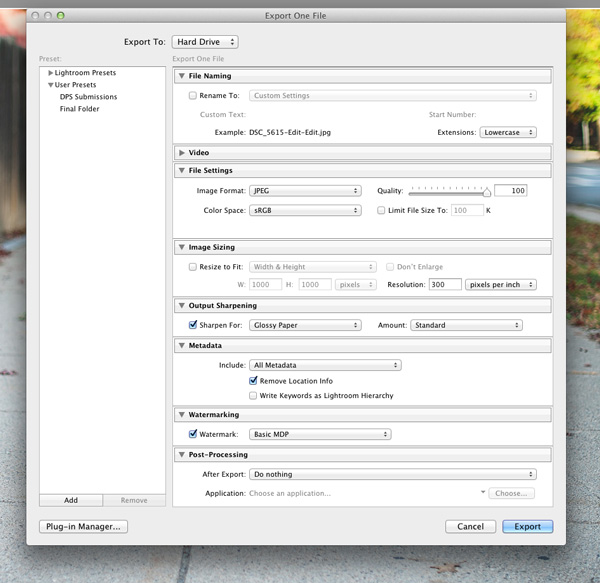
Now that your watermark is all set up, let’s apply it to your image. Go to Export and Watermarking. There you can choose whatever watermark you have setup. Your image will be exported to the desired location with the watermark chosen.
Screen-Shot-2014-09-16-at-5.06.01-PM2

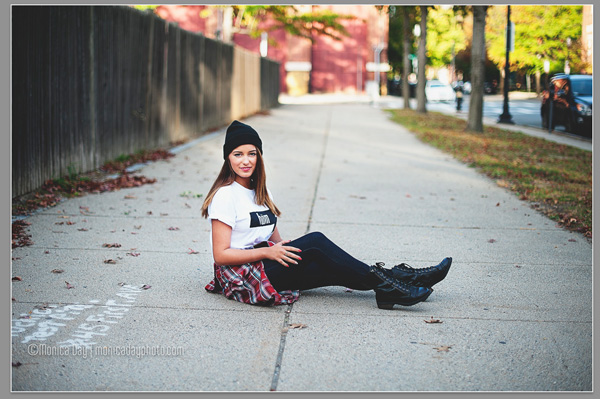
This image was watermarked in Lightroom with a shadow.

This image was watermarked in Lightroom with a shadow.

Have you got any other methods for adding a watermark to your images? Please share your tips or your results using these methods in the comments below.

The post How to Watermarking Images With Photoshop and Lightroom by Monica Day appeared first on Digital Photography School.


Digital Photography School

 
Comments Off on How to Watermarking Images With Photoshop and Lightroom

Posted in Photography


Step by Step Portrait Processing in Lightroom

21 Sep

Andrew’s ebook Mastering Lightroom: Book Four – The Photos is available now at a special price of 40% off for a limited time from Snapndeals. It’s an advanced guide to processing photos in Lightroom’s Develop module, explaining how to use Lightroom’s powerful processing engine plus Develop Presets and plug-ins to create beautiful images. This photo is one of ten case studies from the book.

Portrait processing in Lightroom

The story

When you are photographing someone who enjoys being in front of the camera, take advantage of it. This was a simple portrait to take and its strength comes from the model’s spirit, not fancy technique. I’ve worked with her before and know that she is good at creating different facial expressions. I asked her to give me a series and every time she changed her expression I took another photo. Experienced models will pose, pause until you take the photo, and then move onto the next one, making your job as a portrait photographer much easier.

You can’t see it in this photo but the model was holding a silver reflector slightly beneath her shoulders. The reflected daylight created a wonderful clean lighting effect that made processing the portrait much easier.

First steps

Here’s the original portrait as it appeared straight out of the camera. It was taken with an 85mm lens set to f/1.8, throwing the background out of focus.

Portrait processing in Lightroom

I knew from the start that I wanted the model’s expression to be the focal point of the portrait. The use of a short telephoto lens and a wide aperture has partly achieved that, but the photo required more work. The first task was to tackle the background. Although out of focus, its brightness was a big distraction. My main job here was to make the background darker so the viewer’s eye goes straight to the model.

My hope today is that by following this tutorial and applying the techniques I used to your own photos, you will learn how to create better portraits in Lightroom.

Step 1: Basic adjustments

I prepared the photo by going to the Camera Calibration panel and setting Profile to Camera Portrait. Next I went to the Lens Corrections panel and enabled Chromatic Aberration removal and Profile Corrections, setting Vignetting to zero.

I wanted clean, neutral skin tones, so I went to the Basic panel and moved the Temp slider slightly (from 4850 to 4520) to remove the warm tint.

Step 2: Add a vignette using the Radial Filter

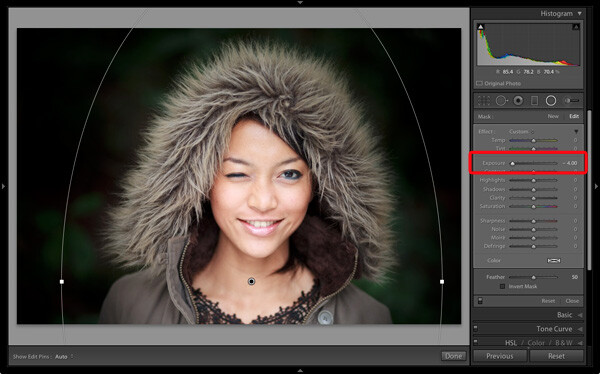
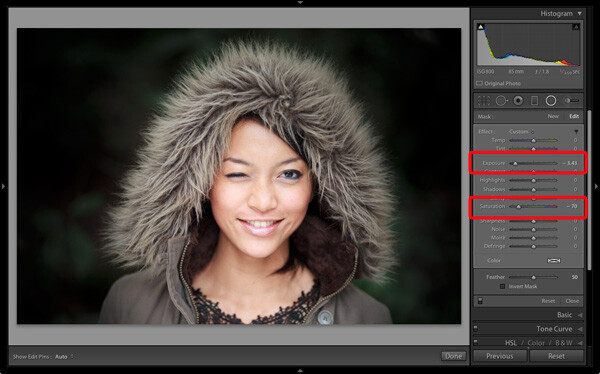
Next I used the Radial Filter tool to make the background darker. I placed the filter so that the top half surrounded the model’s face and shoulders. In this position the Radial Filter can be used to make the area either side and above the model darker, without affecting the bottom part of the portrait. I set Exposure to -4.0 to see the area affected by the adjustment.

Portrait processing in Lightroom

When I was happy with the position of the Radial Filter I reset Exposure to zero, then reduced it until the background went quite dark. I also set Saturation to -70 to remove colour from the background. How much you push the Exposure slider in this situation is always subjective. Some of you will want to retain a fair amount of detail in the background, others will be content to make it go completely black.

Portrait processing in Lightroom

Note: Radial filters are new to Lightroom 5. In earlier versions the best way to achieve a similar effect would be to place a Graduated Filter on either side of the model, and use Adjustment Brush adjustments to fill in the gaps. An alternative technique is to use the Post-Crop Vignetting tool, and lighten any areas that are too dark (such as the model’s shoulders in this example) with the Adjustment Brush tool.

Step 3: Refine the vignette with the Adjustment Brush

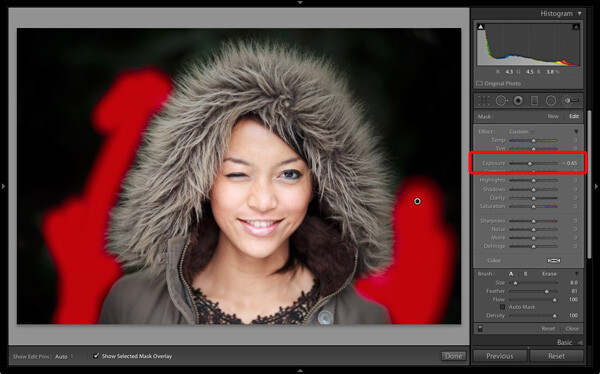
While the Radial Filter is an excellent tool for making backgrounds darker, it’s not perfect. The feathering required for a gradual transition may leave some areas of the background close to the subject too light. In this case there were still areas around the hood that were a little bright.

So I used the Adjustment Brush tool to select those areas and reduced Exposure (to -0.65) to make them darker. I didn’t have to be precise with the placement of the Adjustment Brush as the background was already quite dark and out of focus.

Portrait processing in Lightroom

Tip: If you find that the use of the Adjustment Brush is obvious, try setting Feather to 100 and Flow to 50%. This lets you build up the effect little by little instead of doing it all in one brush stroke.

Step 4: Retouching with the Adjustment Brush

This portrait didn’t need much retouching, but there were still a couple of things I wanted to do. The first was to minimize the lines under the model’s eyes. Note that I didn’t want to get rid of them completely, as they are a natural part of her expression. The lines were created by her smile and winking action, and removing them would look unnatural.

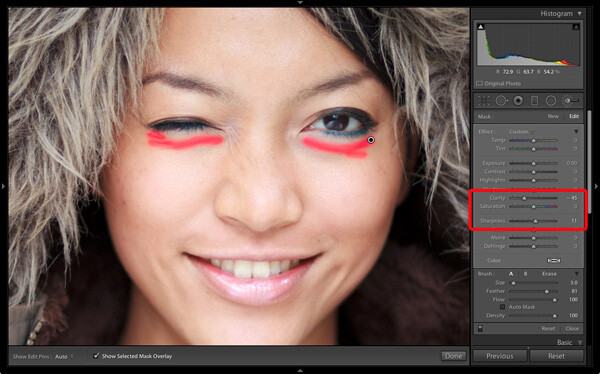
I used the Adjustment Brush tool (zoomed in), and carefully painted over the lines under her eyes. I kept the brush size small so as not to affect the neighbouring areas.

Then I selected the Soften Skin preset from the Effect menu. Lightroom applied the skin smoothing effect at full strength by setting Clarity to -100 and Sharpness to +25. This was too strong. To reduce it, I clicked on the pin that marked the Adjustment Brush, held the left mouse button down and dragged the mouse left. Lightroom reduced the intensity of the effect by moving the Clarity and Sharpness sliders in proportion (this technique works with any setting from the Effect menu). I stopped when it looked right (Clarity -45, Sharpness +11).

Portrait processing in Lightroom

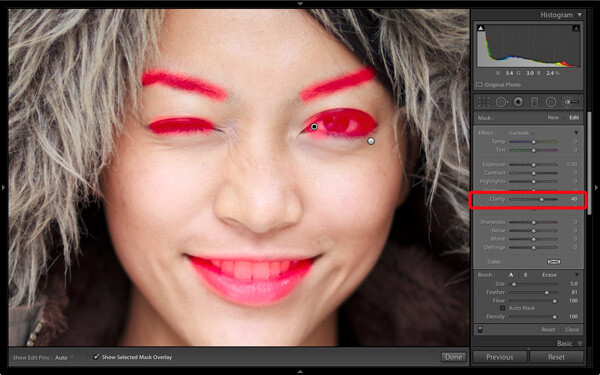
I created a new Adjustment Brush to cover the model’s eyes, mouth and eyebrows. I pushed the Clarity slider to +40 to bring a bit of extra sharpness and contrast to those areas. The screen shot shows the areas covered by the Adjustment Brush.

Portrait processing in Lightroom

Step 5: Framing the portrait

The model’s hood creates a natural frame for her face and is an essential part of the composition. I decided to emphasize it by using Clarity to bring out the texture of the fur.

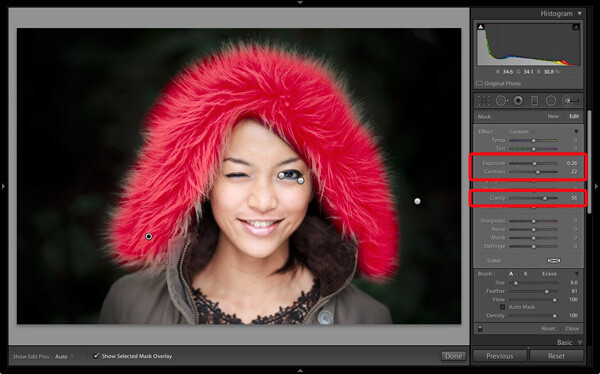
I created another selection using the Adjustment Brush tool and increased Clarity (to 56), Contrast (to 22) and Exposure (to 0.26). The hood is a frame that draw the viewer’s eye to the centre of the frame, and these adjustments help to emphasize it. I needed to find the balance between emphasis and distraction; highlighting the beautiful texture of the fur lined hood without pulling too much attention away from the model’s expression. This screen shot shows the area covered by the Adjustment Brush.

Portrait processing in Lightroom

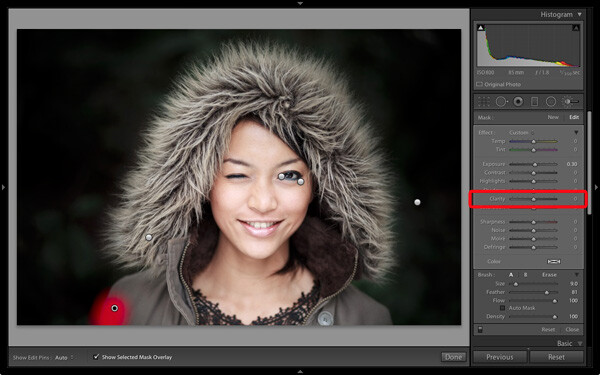
Next I went to the Basic panel and reduced Vibrance to -14 to de-emphasize the colours a little more. Finally, I used a small Adjustment Brush to lighten the edge of the model’s right shoulder, which had been darkened by the Radial Filter adjustment earlier. The area covered by the Adjustment Brush is shown in the screen shot.

Portrait processing in Lightroom

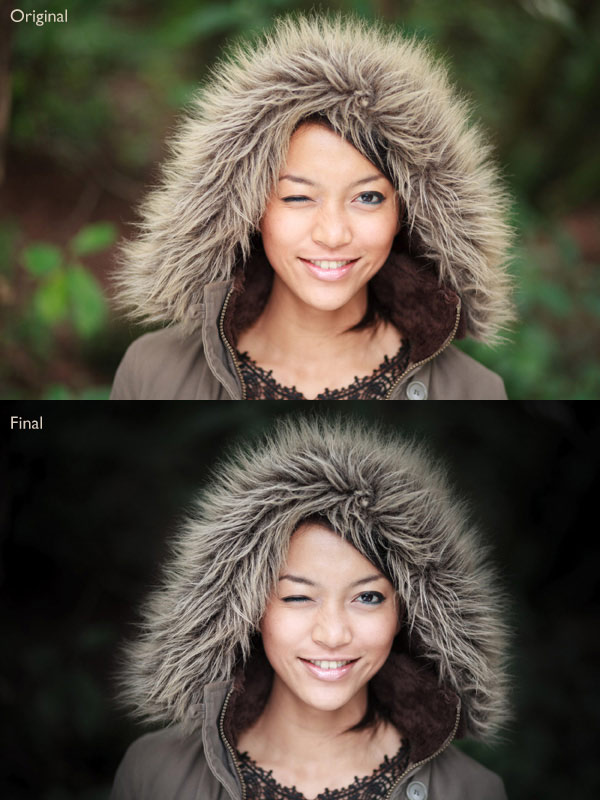
Comparing before and after results

Here are the original and final versions together so you can compare them.

Portrait processing in Lightroom

What do you think of these processing techniques? There’s more than one way to process most photos – do you have any suggestions for an alternative interpretation of the original Raw file? Please let me know in the comments.

Mastering Lightroom: Book Four – The PhotosAndrew’s ebook Mastering Lightroom: Book Four – The Photos is available now at a special price of 40% off for a limited time from Snapndeals. It’s an advanced guide to processing photos in Lightroom’s Develop module, explaining how to use Lightroom’s powerful processing engine plus Develop Presets and plug-ins to create beautiful images. This photo is one of ten case studies from the book.

The post Step by Step Portrait Processing in Lightroom by Andrew S. Gibson appeared first on Digital Photography School.

Digital Photography School

 
Comments Off on Step by Step Portrait Processing in Lightroom

Posted in Photography


Before and After: How This Photo was Processed in Lightroom

16 Sep

Andrew’s ebook Mastering Lightroom: Book Four – The Photos is available now at a special price of 40% off for a limited time from Snapndeals. It’s an advanced guide to processing photos in Lightroom’s Develop module, explaining how to use Lightroom’s powerful processing engine plus Develop Presets and plug-ins to create beautiful images.

Post-processing in Lightroom

The Story

A few years ago I passed through Bolivia, South America’s poorest and, in some ways, least developed country. I spent a few days in Potosí, a small, largely forgotten city whose history had a central role in shaping the modern world. Built at the foot of the Cerro Rico (Rich Hill), the silver mined in Potosí flowed across the continent, through the cities of Cartagena and Havana, and across the ocean to Sevilla and Madrid in Spain, where it powered the rise of European nations as the wealthiest and most developed of the era.

lightroom-post-processing-example-10

The silver no longer flows from Potosí, although the mines are still open. The city seems to exist on a mixture of mining output and tourism. It’s one of the world’s highest cities, sitting a little over 4,000 metres above sea level in the Bolivian Andes. It’s a cold place, even in the summer. Sleet or snow can strike at any time of the year.

I liked wandering the streets as dusk fell, watching the local people as they went about their daily activities. It was a busy time, with kids out of school, shops closing and people leaving work. Potosí is a city of contrasts: the poverty of some of the local inhabitants against the relative affluence of foreign travellers; the fading grandeur of the magnificent old colonial architecture against the newer mud brick houses at the edges of the city; the tragedy and scope of the city’s history against the snippets of modern daily life. The feeling that, even after hundreds of years, this is still a place where the traditions of the people who lived here before the Spanish came intersect with the ways of modern, European descended South Americans.

lightroom-post-processing-example-11

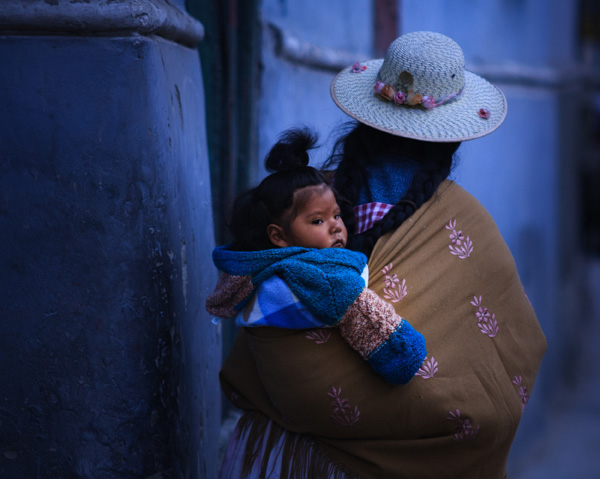
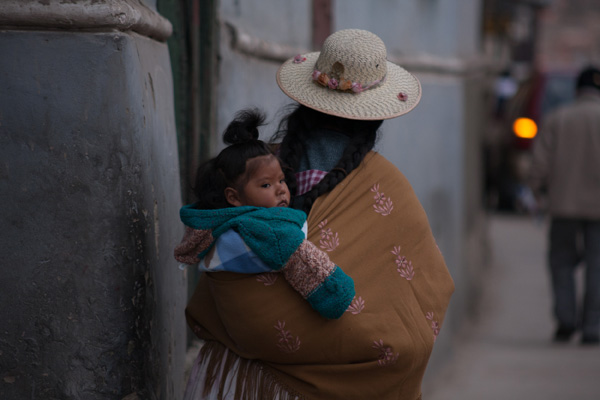
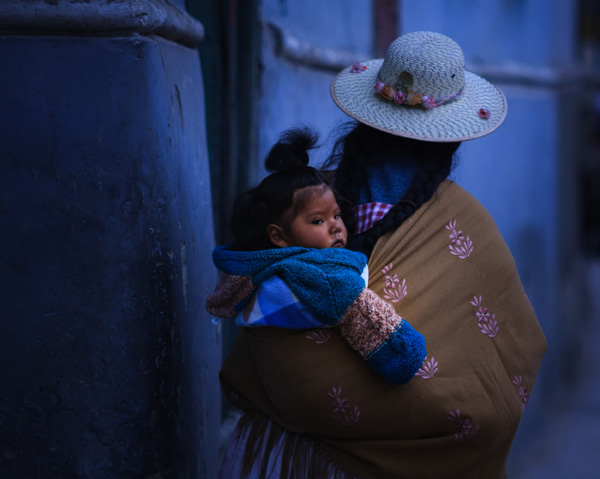
As I wandered around the streets, dusk falling, a Bolivian lady walked around the corner. She had tied her hair in two long plaits, and wore a Bolivian style sun hat on her head. There was a blanket slung around her shoulders, inside which sat a baby, hair styled in a topknot, looking behind it as his mother walked onwards. I had time to raise the camera and take a single photo before a second child walked around the corner and blocked my view.

This photo isn’t perfect. The baby’s face is slightly out of focus. The photo was underexposed (the moment happened so fast I didn’t have time to dial in exposure compensation). The rear light of a car and the out of focus man in the background are distractions (see the original version below). Yet that’s not important. Photography is about evoking emotion, and sometimes things happen too fast for technical perfection.

What matters is the moment. In this photo it’s the juxtaposition between the mother walking one way and her baby looking another. The atmosphere created by the fading light of another cold night in Potosí. The age of the building she is walking past. The intersection of ancient ways with the present day.

This is a photo I come back to again and again, reprocessing as my skills improve. Each time my approach is driven by my memory of that moment and how it felt. Ask yourself the same question when processing images. How did the moment feel? And how can you express that feeling with colour, light and shadow?

First steps

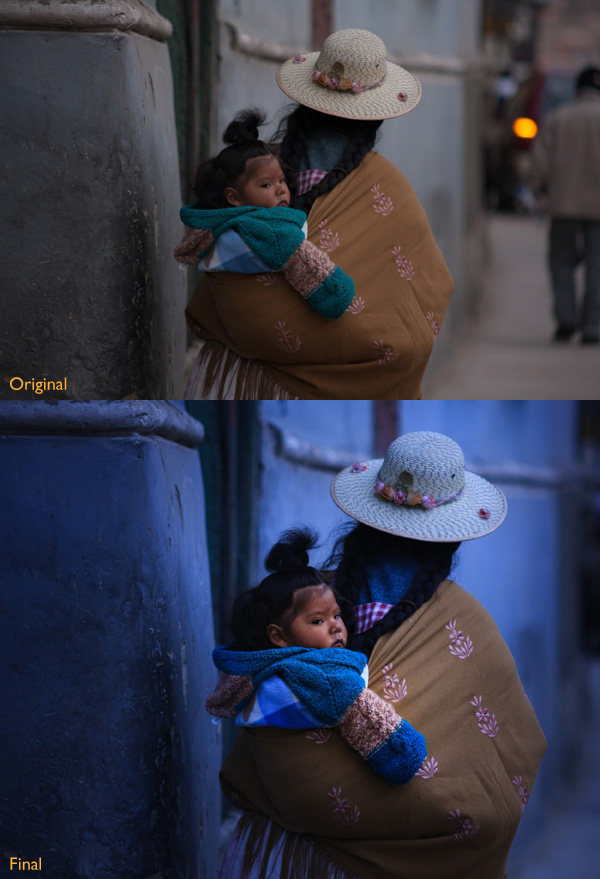
There are plenty of things wrong with the original photo (below). It’s underexposed, and needs brightening (although not too much as I want to retain the atmosphere created by the fading light). The background is distracting. The colours are muddy.

Post-processing in Lightroom

Step 1 Basic corrections

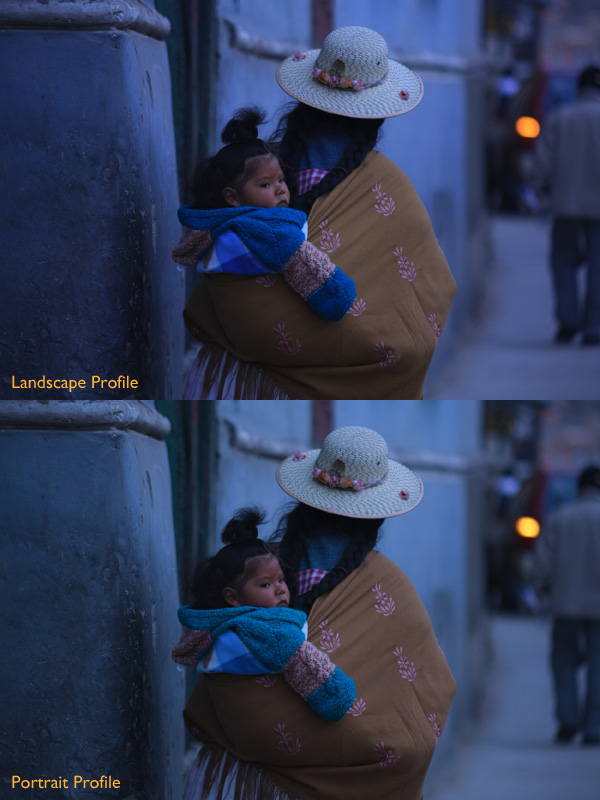
The baby is the natural focal point of the photo, and I wanted to emphasize it. I also wanted a lot of blue, the natural colour of light during dusk, in the photo. To start, I set Profile in the Camera Calibration panel to Camera Landscape. This setting is intended for use with landscape photos, but you can use it whenever you want to emphasize the colours blue or green. I also went to the Lens Corrections panel and enabled both Profile Corrections (with Vignetting set to zero) and Chromatic Aberration removal.

I went to the Basic panel and kept Exposure where it was, even though the photo was underexposed, because I liked the gloomy atmosphere. I set White Balance to auto, which gave a neutral colour, then reduced it (to 3639 Kelvin) to create a blue colour cast. This gave me a good starting point.

Post-processing in Lightroom

Two versions of the photo after the completion of step one. One has the Camera Landscape profile and the other the Camera Portrait profile. Even though it may seem logical to use the Camera Portrait profile on a photo containing people, Camera Landscape is the better option given my intention, as it gives the most appropriate colours.

Isolating the subject

My aim now is to continue the processing in a way that minimises distractions and places the emphasis on the baby.

Step 2 Crop

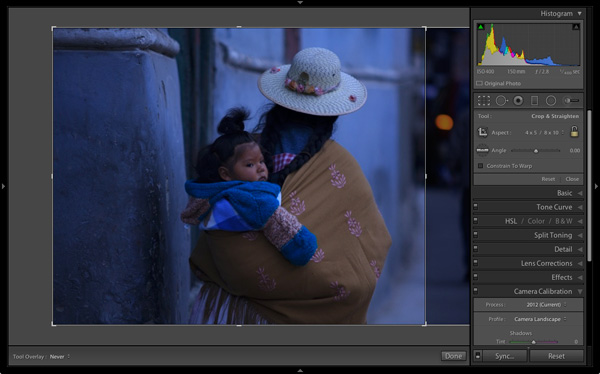
I used the Crop tool to cut the right-hand side of the photo, eliminating the distracting background. This makes a big difference as the eye is no longer being pulled away from the people by the blurred light.

Post-processing in Lightroom

Step 3 Local adjustments

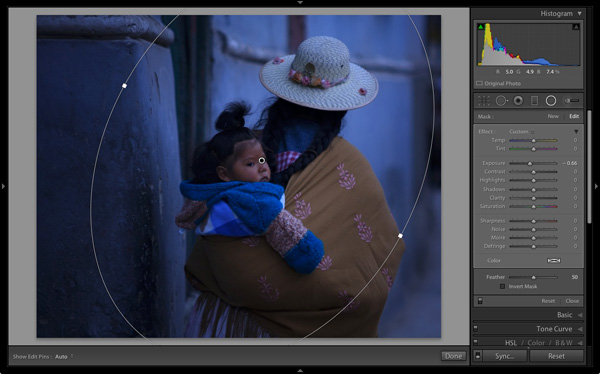
I added a Radial Filter and moved the Exposure slider left to make the background darker. The Radial Filter is new to Lightroom 5, but if you have an earlier version of Lightroom, you can do something similar with the Adjustment Brush (by painting in the area you want to darken).

Post-processing in Lightroom

Step 4 Add some punch

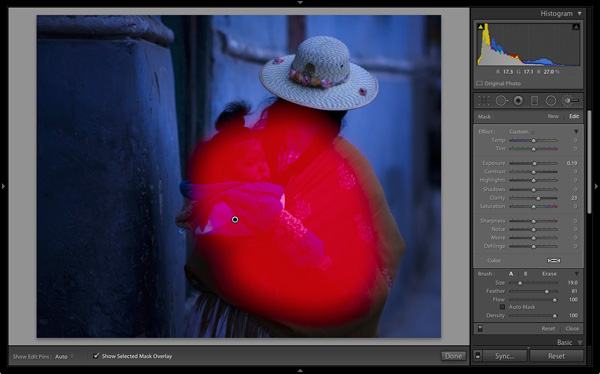
The photo was quite flat so I returned to the Basic panel and increased Contrast. Then I used the Adjustment Brush to make a selection over the woman’s back and the child, and increased Clarity and Exposure. The aim was to make the baby sharper, and a little brighter, than the rest of the image, encouraging the eye to go to that part of the photo.

This screen shot shows the mask created by the Adjustment Brush.

Post-processing in Lightroom

Step 5 Make color work

Next I used the Adjustment Brush again to select a smaller area and moved the Temp slider right, making that area warmer. The idea here is to work on the natural colour contrast between the colours of orange and blue.

This image below shows the result of these adjustments. The key was to make them subtle so the image looked natural and not over-processed.

Post-processing in Lightroom

Throughout the processing I imagined that I had taken the photo on slide film and that the scene really did look like that. The fact that the scene would have come out differently than my version is incidental. The idea was just a guide to the approach I should take.

Step 6 Darken edges of the image

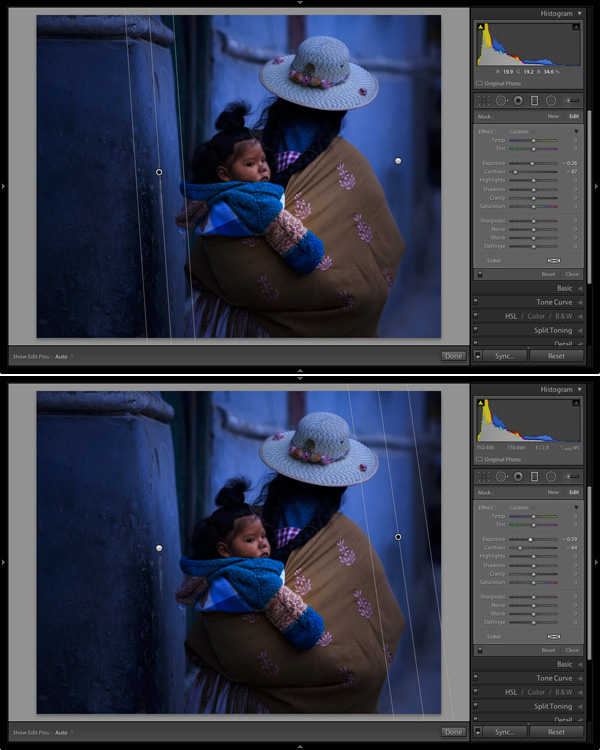
Next I created two Graduated Filters, one on either side of the frame. I reduced the Contrast in each one. A side effect of reducing Contrast is that the area affected also becomes lighter, so I adjusted Exposure to make them darker again.

These are subtle adjustments that reduce contrast at the edges to emphasise the area around the baby in the centre of the image, where I increased Clarity earlier.

Post-processing in Lightroom

Finally I decided the image was too dark and increased Exposure to compensate. Here’s the original and final versions together so you can compare them.

Post-processing in Lightroom

What do you think of these processing techniques and the style in which the photo was processed? Do you have any suggestions for an alternative interpretation of the original Raw file?  Please let us know in the comments.

Mastering Lightroom: Book Four – The PhotosAndrew’s ebook Mastering Lightroom: Book Four – The Photos is available now at a special price of 40% off for a limited time from Snapndeals. It’s an advanced guide to processing photos in Lightroom’s Develop module, explaining how to use Lightroom’s powerful processing engine plus Develop Presets and plug-ins to create beautiful images.

The post Before and After: How This Photo was Processed in Lightroom by Andrew S. Gibson appeared first on Digital Photography School.

Digital Photography School

 
Comments Off on Before and After: How This Photo was Processed in Lightroom

Posted in Photography


Macphun’s Tonality Pro Versus Lightroom 5 for Black and White Conversion

13 Sep

Tonality Pro vs. Lightroom

MacPhun Software recently released Tonality Pro (use this link to get 20% off, for dPS readers only), a powerful black and white converter for Mac. In this article I’m going to compare it to Lightroom so you can see how the conversion process differs between the two programs.

Windows users please don’t stop reading now – I’ll look at some other black and white plug-ins at the end of the article, all of which are cross-platform.

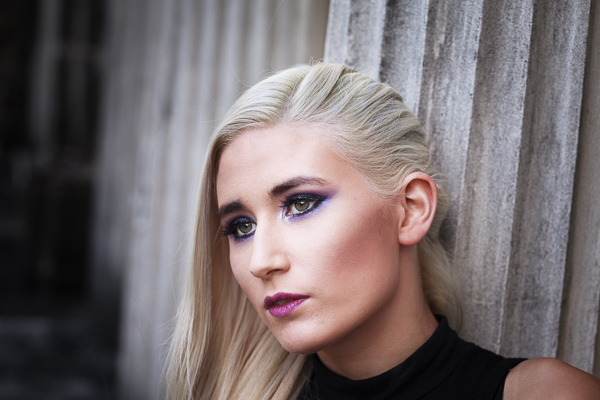
To start, here’s the colour photo that I’m going to convert to black and white.

Tonality Pro vs. Lightroom

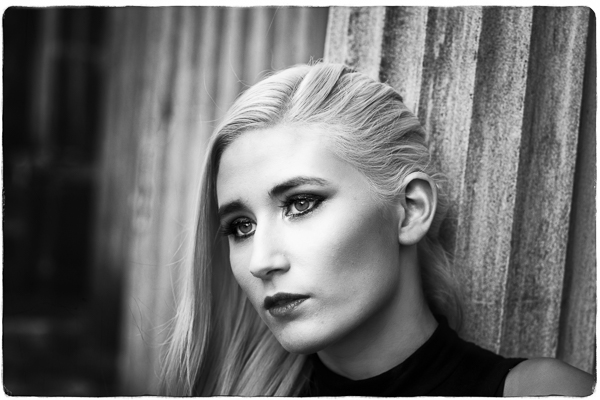
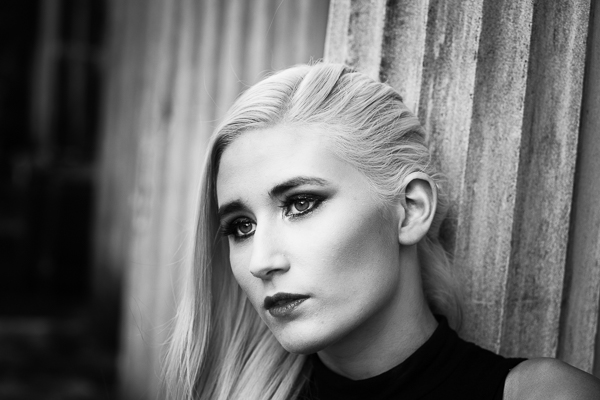
Here’s the black and white version I created in Lightroom.

Tonality Pro vs. Lightroom

It’s a fairly straightforward conversion. I increased Clarity and Contrast, and added a vignette using the Radial Filter. I didn’t touch the Black and White Mix panel, and I didn’t add Split Toning.

All these tools will be familiar to Lightroom users. So, how does Tonality Pro differ? Let’s take a look.

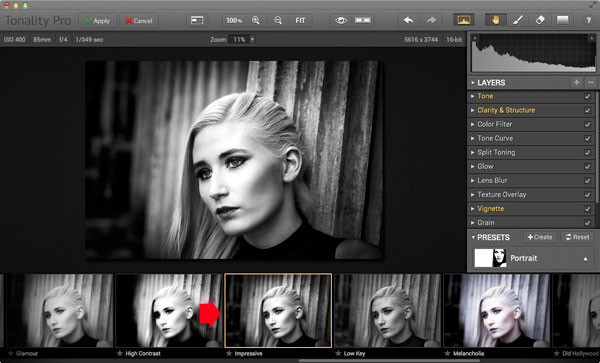
Tonality Pro uses presets

Tonality Pro’s presets give you a variety of ready made black and white conversions. Of course, not all of them will be suitable for your photo, but with over 150 to choose from, you are bound to find at least a few that do good things for your images. If you don’t like using presets, just skip them and go straight to the other panels to do your work.

Tonality Pro’s presets are similar to Lightroom’s Develop Presets. The main difference is that Tonality Pro comes supplied with a full set, while Lightroom only has a limited range of built-in monochrome presets. If you want a decent set of black and white presets for Lightroom, you will have to buy them.

Tonality Pro’s presets have two features that make them a very powerful and versatile feature.

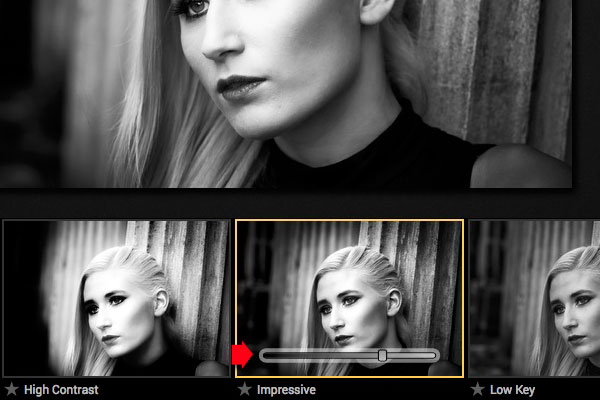
The first is a slider that lets you adjust the strength of the preset. This is useful because the number one problem with presets of any sort is that they can be too strong. A subtle touch is better when it comes to post-processing and many presets are far from subtle. The opacity slider in Tonality Pro helps you deal with that. Let’s say you apply the Impressive preset to your photo. Here’s how it looks.

Tonality Pro vs. Lightroom

Too strong? It’s easy to reduce the strength of the effect until it looks just right.

Tonality Pro vs. Lightroom

The second feature (I’m really excited about this) is that Tonality Pro has layers. With layers, you can apply a preset on a new layer, then create a mask using Brush mode so that the preset is only applied to part of your image.

Take a moment to think about what that means. For example, you could apply one preset to the subject (in this case the girl in the photo) on one layer, and another to the background on another layer. It’s got the potential to be very powerful, and it’s something that I haven’t seen in any other plug-in.

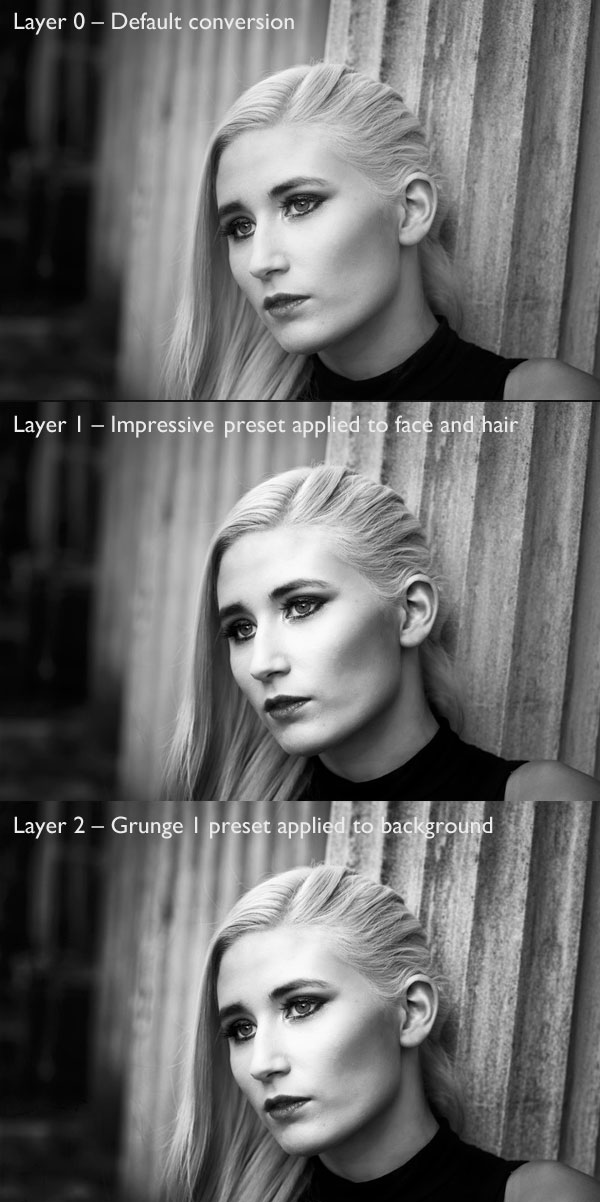
Here’s how it works. In these examples I’ve applied the Impressive preset to the model’s face, and the Grunge 1 preset to the background using layers. I used the opacity sliders to keep the effect subtle. These three images show the result.

Tonality Pro vs. Lightroom

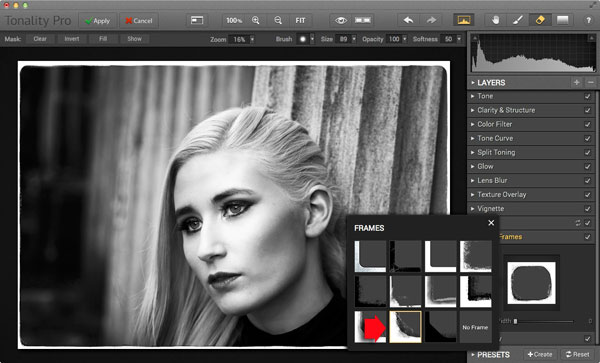
Next I added a frame.

Tonality Pro vs. Lightroom

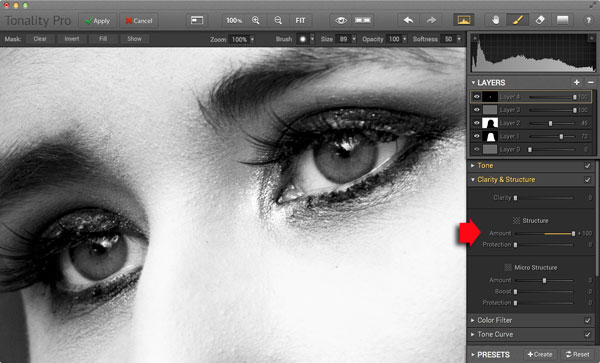
Finally I added some Structure to the eyes, and increased Adaptive Exposure a little to compensate for the way Structure tends to make things darker as well as add detail. You can achieve a similar effect in Lightroom with Clarity, but you will be interested to know that you can adjust Structure in Tonality Pro as well as Clarity (Structure is better than Clarity for bringing out detail).

Tonality Pro vs. Lightroom

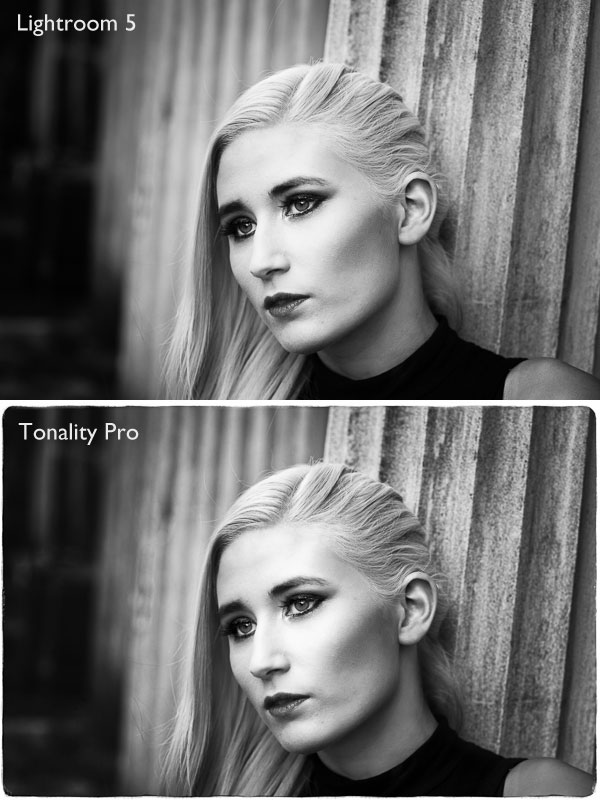
Here’s the final comparison of the two versions of the photo.

Tonality Pro vs. Lightroom

As you can see, apart from the border, most of the differences are subtle. But the way I got there, the editing process itself, was very different.

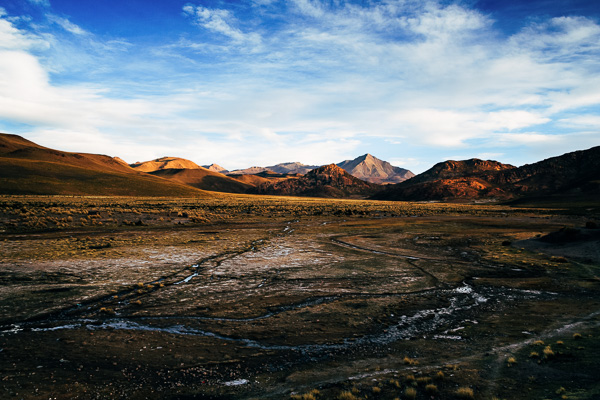
Now I’m going to show you another application of Tonality Pro that you definitely can’t do in Lightroom. Here’s the original colour photo.

Tonality Pro vs. Lightroom

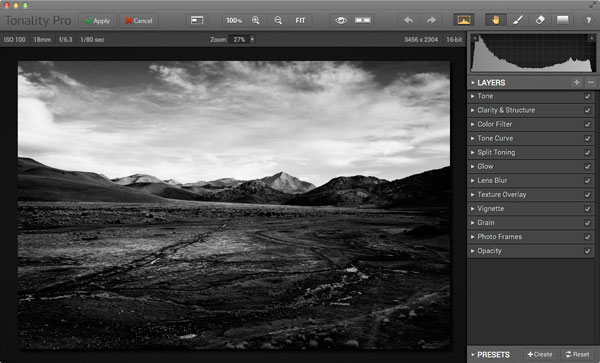
Here’s the initial black and white conversion:

Tonality Pro vs. Lightroom

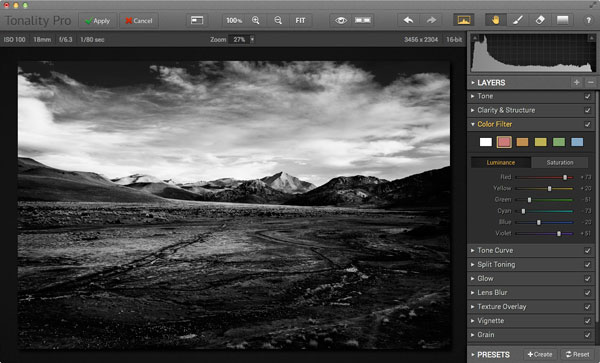
This is the same photo processed in Tonality Pro with a red colour filter applied to darken the sky and add drama to the distant mountains.

Tonality Pro vs. Lightroom

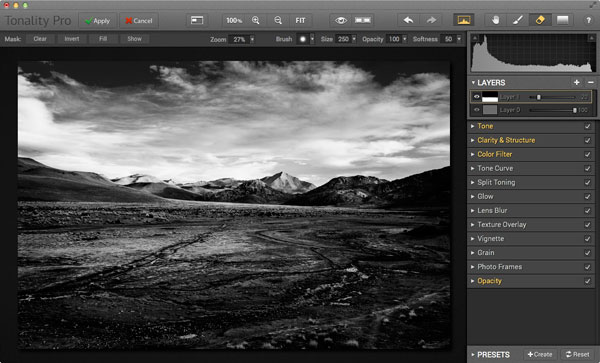
Here I’ve added another layer and applied the El Captain preset, reduced the opacity of the layer to 20 (to keep the effect subtle), and used a mask to apply the preset to the foreground only, not the mountains or sky.

Tonality Pro vs. Lightroom

All this took just a couple of minutes to carry out.

The verdict

This is a simple demonstration but hopefully it’s given you a taste for what Tonality Pro can do, and how it compares to Lightroom.

I’ve only scratched the surface in this article, Tonality Pro has lots more interesting features. Another dPS writer,  Phillip VanNostrand has done a full review here, it covers the software in more depth, so check that out also. In the meantime, if you want to test out Tonality Pro for yourself, or learn more about the program, then you can do so at MacPhun’s website (get 20% off for dPS readers using this link).

How Tonality Pro compares to other plug-ins

Tonality Pro isn’t the only black and white plug-in out there, and you may be interested to know how it compares to some of the others. Don’t forget they all have different features and strengths, and the best one for you depends on what you want to do with your black and white images. You can download trials of all the plug-ins to help you make your mind up. Here’s a brief guide:

Silver Efex Pro 2

Until Tonality Pro came along this was the single best black and white conversion plug-in you could buy. To be honest, I haven’t used Tonality Pro enough yet to say whether it is better than Silver Efex Pro 2. But, there’s no doubt that the layers feature in Tonality Pro means that it is a versatile program that gives Silver Efex Pro 2 a good run for its money.

Silver Efex Pro 2 is more expensive (more than double the price) but it does come as part of the Nik Collection, so you do get the benefit of the other programs within it (Viveza, Color Efex Pro and so on). Silver Efex Pro 2 also has a powerful history function that Tonality Pro lacks.

Alien Skin Exposure 6

One of my favourite plug-ins, Exposure 6 is designed to give your digital photos an analog look. You can use it for both black and white and color photos, and in my opinion it’s stronger on the colour side than monochrome. But it’s still a powerful black and white converter.

It’s more expensive than Tonality Pro, but you get the advantage of being able to use it to process colour photos too. It can be used as stand-alone program as well as a plug-in (as can Tonality Pro).

Topaz Black & White Effects 2

Black & White Effects 2 is a nifty black and white plug-in. Its main benefit is an extensive range of creative presets, including several sets that imitate old processes such as cyanotype, albumen and van dyke brown. It’s also good for emphasizing detail and texture.

Perfect Black & White

onOne Software’s Perfect Photo Suite includes the Perfect Black & White module. Like Silver Efex Pro 2, you get the benefit of the other modules in the suite. But unlike Silver Efex Pro 2, all the modules work together and you can switch seamlessly from one to the other.

One of my favourite modules is Perfect Mask. I use it to blend two versions of landscape photos, one processed for the sky and the other for the foreground. Combined with Perfect Black & White it helps you create powerful and dramatic black and white landscapes. It also works as a stand-alone program.

Discussion time

In my review of MacPhun’s Intensify Pro one reader gave an opinion that photographers who use plug-ins instead of Photoshop are lazy. It’s an interesting topic for discussion, so please let us know what you think in the comments. Do you use plug-ins to process your photos? If you do, which are your favourites and why? Or do you agree with the view that plug-ins are for lazy photographers?


Mastering Lightroom: Book Three – Black & White

Masterlng Lightroom: Book Three – Black & White by Andrew S GibsonMy ebook Mastering Lightroom: Book Three – Black & White goes into the topic of black and white in depth. It explains everything you need to know to make dramatic and beautiful monochrome conversions in Lightroom, including how to use the most popular black and white plug-ins. Click the link to visit my website and learn more.

The post Macphun’s Tonality Pro Versus Lightroom 5 for Black and White Conversion by Andrew S. Gibson appeared first on Digital Photography School.

Digital Photography School

 
Comments Off on Macphun’s Tonality Pro Versus Lightroom 5 for Black and White Conversion

Posted in Photography


How to do Noise Reduction in Lightroom

08 Sep

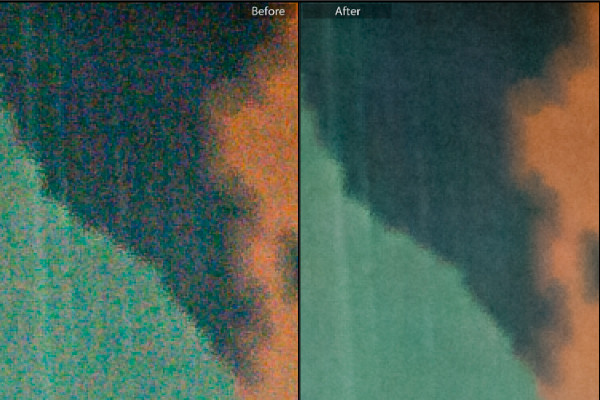
Lightroom-noise-removal-before-after

When you capture images using a high ISO setting you will invariably end up with some noise in your photos. If the noise is distracting and if you want to remove it, then Lightroom can help.

A word of warning

Before start using any noise removal tool it will pay to understand that noise removal is generally achieved at the expense of losing some detail in the photo. This is because the noise removal process involves smoothing the image pixels, and this in turn compromises fine detail. In addition, the main Lightroom noise removal tool applies the fix to the entire image not just the areas where it is most visible, meaning that you can’t mask the result and limit it to only those areas you want to apply it.

Because of this, if you are a purist and noise reduction is an ongoing and significant need, then you may consider a dedicated and specialist noise reduction program such as Topaz DeNoise, Neat Image or Photo Ninja a worthwhile investment. However, for most photographers, the tools in Lightroom judiciously applied will suffice.

Identifying noise

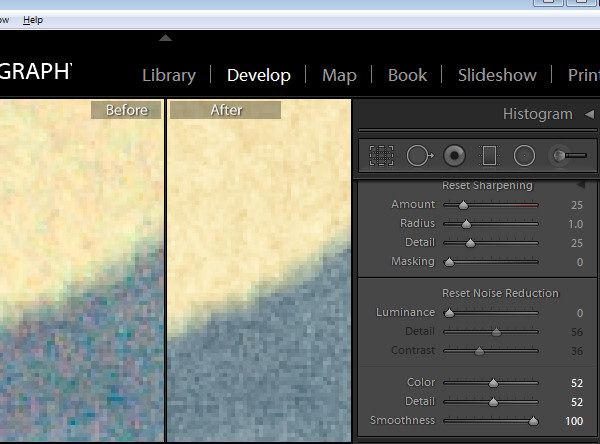
Noise in photos comes in two types; color noise and luminance noise. Color noise is evidenced by multicolored pixels in an area of the photo that should show as a flat color. In the image below you can see that there are multicolor pixels in an area which should be solid blue.

Lightroom-noise-removal-step1

Luminance noise is monochromic so it will be less colorful and more like grain. Here is luminance noise in the sky of a photo captured at an ISO of 6400 in early morning light:

Lightroom-noise-removal-step2

Process versions

Whenever you import an image into Lightroom some noise removal will be performed automatically by the process version which is the camera raw technology Lightroom uses to adjust and render your photos. In each process version the technology has improved over that of the earlier versions. So each will render your photos differently and, in particular, Process Version 2010 included better noise reduction technology than the earlier 2003 version. This was carried forward to the 2012 version.

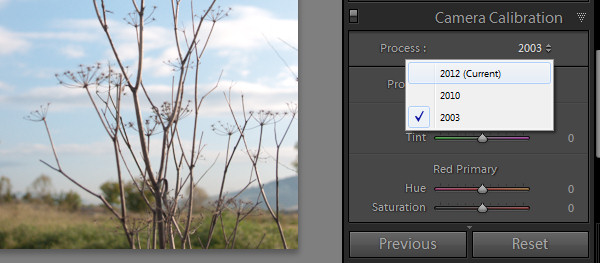
The current process version for Lightroom 4 and 5 users is 2012 so, if you have images in your catalog that you imported using an earlier version of Lightroom (versions 1, 2 or 3) which are still set to process version 2003 then you can achieve some immediate benefits in noise reduction by simply updating those images to the new process version. To do this select the images and in the Develop module from the Camera Calibration panel select 2012 (Current) as the process version (use the Sync option to copy the setting to all selected images).

Lightroom-noise-removal-step3

Removing noise

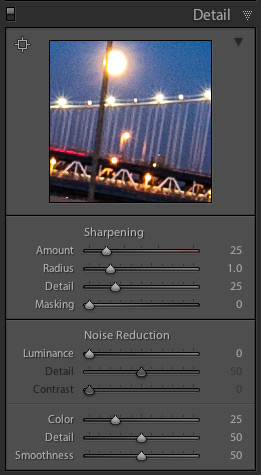
To remove noise from a photo, open the Detail Panel in the Develop module to display the noise reduction sliders. There you will find sliders for Luminance noise and for Color noise.

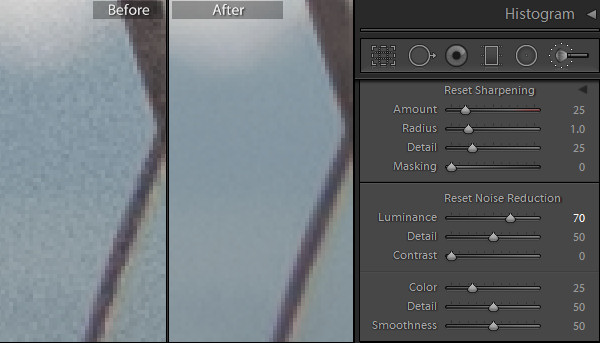
noise-default-LRFor raw images Lightroom automatically applies color noise reduction in the import process. So the Color Noise Reduction slider will be set, by default, to 25 with Detail and Smoothness set at 50 for all raw images. The Luminance noise slider will be set at 0, with Detail at 50 (see screenshot on the right)

Adjust the slider for the type of noise you are seeing in the image, either color or luminance. If you are unsure what type of noise you have, adjust each slider in turn to the maximum value to see which removes the noise. In some cases you may have both types of noise, in other cases one type may predominate.

Once you know what type of noise you are trying to remove, adjust the slider for that type of noise by dragging it to the right. Aim to reduce the noise to an acceptable level, but avoid going beyond that point because, in doing so, you will lose some detail in the image.

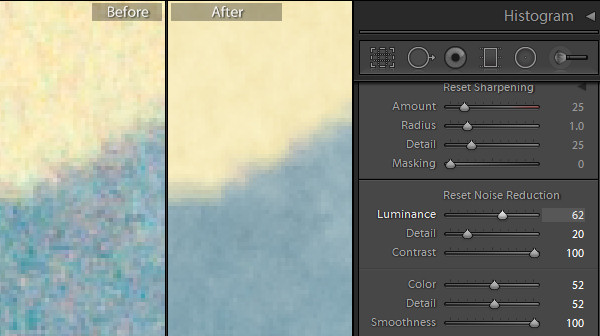
Once you have adjusted the Luminance Noise slider you can then adjust its Detail and Contrast sliders. The Detail slider controls the luminance noise threshold – the higher the value the more detail in the image but, as a result, you may experience some residual noise. If you use a lower value you will get a smoother result but with less detail.

Lightroom-noise-removal-step4

The Contrast slider controls luminance contrast so high values will retain more contrast but you may also see more noise and mottling in the image. Lower values will give you a smoother result but again at the expense of reducing contrast.

For Color Noise there are two additional sliders: Detail and Smoothness (the latter was added in Lightroom 5.2). The Detail slider controls the color noise threshold, so adjusting this to a higher value will protect detail in thin colored edges but often at the expense of removing speckled color. Lower values will give you some added smoothing of the color noise but, as a result, you may notice that colors bleed into each other. Adjust the Smoothness slider to help reduce low-frequency color mottling artifacts.

In this image, removing Color noise leaves some Luminance noise apparent:

Lightroom-noise-removal-step5

Once the color noise is removed, the Luminance slider will remove the remaining Luminance noise:

Lightroom-noise-removal-step6

When you are removing noise from an image it helps to be viewing the image at a 1:1 size ratio so you see clearly what is happening. Periodically zoom out to check the result.

Local Noise Reduction

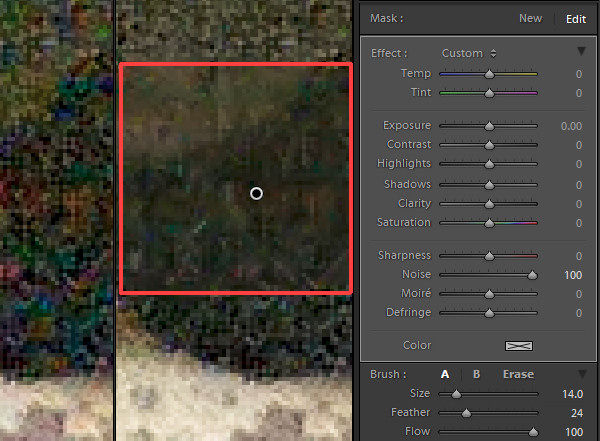
If your image has luminance noise you can remove this from selected areas of the image using any of the three local adjustment tools: the Adjustment Brush, the Radial Filter or the Graduated Filter. These tools let you limit noise reduction to only those areas you want to affect, leaving other areas of the image unchanged. The downside to this feature is that there is no additional Detail or Contrast slider to fine tune the result, and it only works to remove luminance noise (not color noise).

Lightroom-noise-removal-step7

Using any of these tools select the area from which to remove noise, and then adjust the Noise adjustment slider. Drag to the right to remove luminance noise from the image. If you drag to the left then you will add noise to the image.

When you go to sharpen an image that you have removed noise from, pay attention to the Masking slider in the Detail panel. Using this you can apply sharpening to only the edges in the image and avoid sharpening areas of flat color where the noise was most apparent.

Here is a video tutorial showing how to reduce noise in photos in Lightroom:

If you have questions or comments please leave them in the space below. Hope this helps you with removing some of the noise in your images.

The post How to do Noise Reduction in Lightroom by Helen Bradley appeared first on Digital Photography School.

Digital Photography School

 
Comments Off on How to do Noise Reduction in Lightroom

Posted in Photography


How to Edit Newborn Photos Using Lightroom

04 Sep

Cole’s Newborn Photography Workshop is on sale now at Snapn Deals. Save 72% until September 16th, grab a seat now!

BW.jpgNewborn photography requires a tremendous amount of patience, skill, a willingness to be okay with accidents, and even stronger photo editing skills as these precious little newborns often have numerous skin imperfections that can cause you to spend a significant amount of time editing and retouching the photos.

Until recently, to truly excel at editing newborn photos you had to be quite proficient using Photoshop, but now with Lightroom 5′s newest tools you can get great results with far less time!

Here are my top 6 tips for quicker and more effective newborn photo editing in Lightroom:

1. Slightly Overexpose in Camera

To get amazing final edited newborn photos you first need to focus on getting your exposures as close as you can in camera. Since newborns often have some redness to their skin, the best way to help minimize that is to slightly overexpose your photos while shooting. Doing so will help you achieve that soft, creamy and bright skin that we all love!

Slight Overexpose

2. Shoot RAW

I always shoot in the RAW file format. There are many advantages of shooting in RAW, but for newborns which require a lot of touching up and white balance changes, shooting in RAW will help keep the color tones of your images as natural as possible – even when making big adjustments.

3. The Magic “C” Sliders

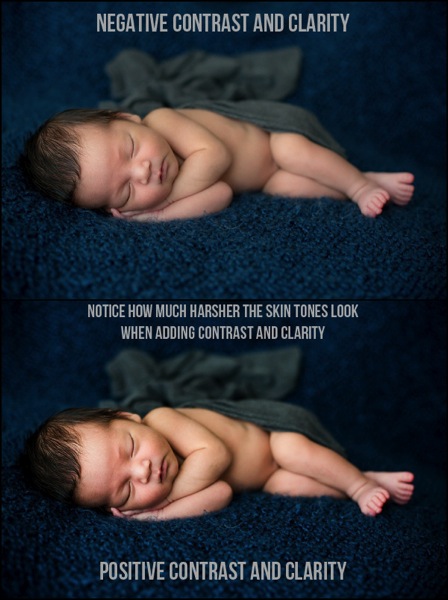
If you’re after soft and creamy skin tones, the two sliders in Lightroom that will help you the most are the contrast and clarity slider. By reducing contrast you will smooth out the tonality of the image (just watch the histogram when you change contrast) and it will help remove the dark shadow areas or even bright highlights. Remember, for most of us, the goal with newborns is soft, airy photos – rather than edgy high contrast imagery. Adjusting the clarity slider downward a bit will help give you the “creamy” factor. Just be very careful to not remove too much clarity! I recommend somewhere between -10 to -20.

Contrast and clarity sliders

4. HSL Sliders for Adjusting Skin Tones

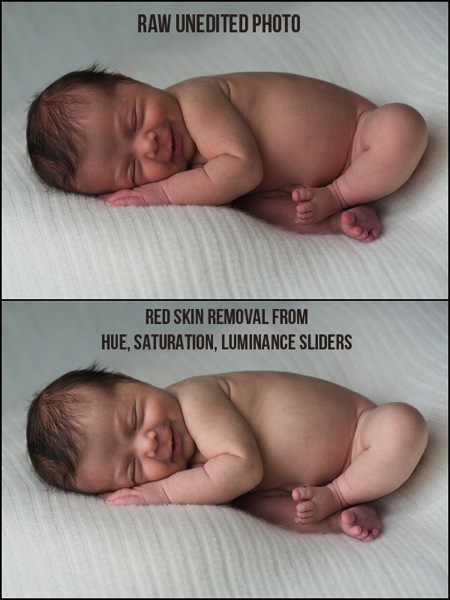
Adjusting the white balance will only get you so far, sometimes you need some fine tuning on the skin tones and that is where the HSL sliders can really help. While you can manually adjust each color slider, the real trick is to use the targeted adjustment tool on each element (Hue, Saturation, and Luminance) to fine tune your skin tone corrections. Simply click on the targeted adjustment tool, go over a part of the image with the skin tone color you want to fix, click (and hold) then adjust with your mouse up or down and you’ll see the sliders adjust.

HSL Sliders

Tip: if you are trying to remove redness, click in the photo where there the skin is red, and follow this sequence with each slider using the targeted adjustment tool:

Hue: move the mouse up and the red/orange sliders will move to the right
Saturation: lower the mouse and the sliders will shift to left lowering saturation
Luminance: raise the mouse to adjust the targeted color sliders to the right, raising the luminance (brightness) of those tones in the photo.

See below for video tutorial of this technique if you are a visual learner.

5. Choose Wraps, Blankets and Props Wisely

Extremely light colored wraps or blankets can be so cute, and can look great with color images. But, if you are a fan of classic, timeless, black and white images I’d urge you to stay away from blankets or wraps that are too light, or even white in color. There simply isn’t enough contrast in color between the baby and the blankets for an effective, and attractive black and white image, and your photo will often look too washed out.

B W

6. Presets for Speed and Consistency

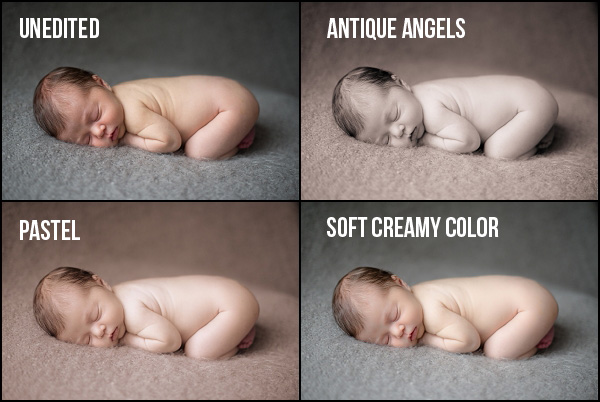
Once you find an edit or a look that you love, make sure to save it as a preset so you can use it on other photos that were taken with similar lighting and settings. Not only are presets vital for saving you a ton of time while editing, but they also will help you create a consistent look to your photos.

Specifically for newborn photography, I created a complete Lightroom presets collection that make soft, creamy and dreamy newborn photos with the simplicity of just one-click.

Newborn Lightroom Presets

I sure hope that you can put these six tips into use right away and start editing your newborn photos quicker, with better results. If you have any questions at all, just let me know down below, I’d love to hear from you.

Cole’s Newborn Photography Workshop is on sale now at Snapn Deals. Save 72% until September 16th, grab a seat now!

The post How to Edit Newborn Photos Using Lightroom by Cole Joseph appeared first on Digital Photography School.

Digital Photography School

 
Comments Off on How to Edit Newborn Photos Using Lightroom

Posted in Photography


25 Helpful & Free Lightroom Tutorials to Post-Process Like a Pro

03 Sep

Adobe Lightroom is one of the most popular options for photo editing and with great reason. Thanks to a number of various Lightroom features, photographers may decrease the time spent processing and increase efficiency. Moreover, one of the greatest time-saving features of Lightroom is the ability to save your actions, which means creating presets. In this article, I’d like to share Continue Reading

The post 25 Helpful & Free Lightroom Tutorials to Post-Process Like a Pro appeared first on Photodoto.


Photodoto

 
Comments Off on 25 Helpful & Free Lightroom Tutorials to Post-Process Like a Pro

Posted in Photography


Everything You Need to Know About Lightroom and Colour Space

03 Sep
Lightroom and colour space

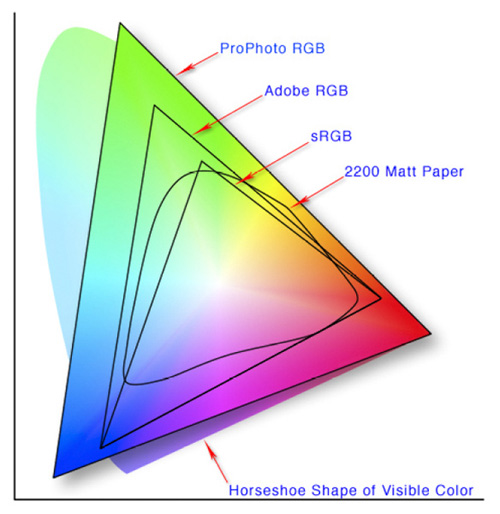
This diagram shows the three colour spaces that Lightroom works with. Photo from Wikipedia

One of the key differences between Lightroom and Photoshop is their approach to colour management. In Photoshop, once out of Adobe Camera Raw, you can go to the Colour Settings menu option and tell Photoshop in which colour space you want it to work.

How Lightroom works

Lightroom works differently. When processing Raw files, Lightroom uses the ProPhotoRGB colour space the whole time, and there’s nothing you can do to change it. The benefits of this method are:

  • Less colour information is lost during the processing stage. ProPhotoRGB is the largest colour space, so it is the optimum one to work in.
  • You can export multiple versions of the same photo, each with a different colour space, if you have need to do so.
  • If future output devices (monitors, printers etc.) support ProPhotoRGB (they don’t at the moment) then your photos will be ready for them.
  • Colour management is greatly simplified. You don’t have to make any decisions about what colour space to work in until you export your photos. This is the biggest advantage of all.

How Lightroom manages colour

When processing Raw files, Lightroom (and Adobe Camera Raw in Photoshop) uses its own colour space based on ProPhoto RGB. It provides a large colour gamut to work with the wide range of colours that digital sensors are capable of recording.

Note: Gamut is the term used to describe the range of colour values that fit in a colour space.

Exporting photos in Lightroom

When you export a photo in Lightroom it gives you the choice of three colour spaces.

ProPhotoRGB: ProPhoto RGB is the largest of the three. It roughly matches the range of colours that a digital camera sensor can capture.

Adobe RGB (1998): Adobe RGB (1998) is smaller than ProPhoto RGB, but larger than the next choice, sRGB. It roughly matches the colour gamut of CMYK printers used to print books and magazines.

sRGB: sRGB is the smallest colour space of the three. It represents the colour space that most monitors are able to display.

Comparing colour spaces

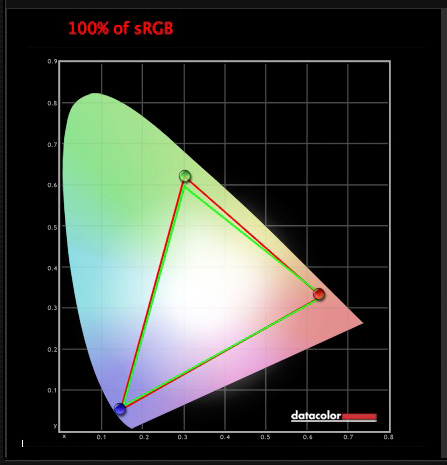
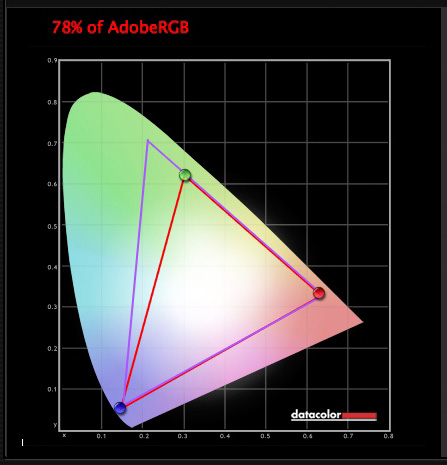
These two graphs show how the colours my monitor is capable of displaying, compared to the sRGB and Adobe RGB colour spaces.

Lightroom and colour space

The green triangle shows the sRGB colour space, the red one shows my monitor’s colour gamut. The two are nearly identical.

Lightroom and colour space

The purple triangle shows the Adobe RGB (1998) colour space, the red one shows my monitor’s colour gamut. My monitor can’t display all the colours within this colour space. Only a select few high end monitors can display all the colours within the Adobe RGB (1998) colour space.

This diagram compares the ProPhoto RGB, Adobe RGB (1998) and sRGB colour spaces. You can see that ProPhoto RGB is the largest.

Lightroom and colour space

Photo from Wikipedia 

Keeping it simple

Armed with this knowledge, here’s a guide to which colour space you should select when exporting your photos:

sRGB: Use when exporting photos to be displayed online, printed at most commercial labs, or printed with most inkjet printers. In short, if in doubt, use sRGB.

Note: Lightroom’s Web module automatically sets the colour space of exported files to sRGB.

Adobe RGB (1998): Use only if requested. If you’re not sure, ask. If you’ve been asked to submit photos to a magazine, for example, then ask them which colour space is required. It will probably be Adobe RGB (1998). Submitting photos to a stock library? Again, it will probably be Adobe RGB (1998). It’s the colour space most likely to be used for commercial purposes.

You would also use this colour space if you have an inkjet printer that utilizes the Adobe RGB (1998) colour space, or you are using a lab that accepts and prints photos with that profile.

ProPhoto RGB: Use when exporting a photo file to be edited in another program such as Photoshop or a plug-in. The file should be exported as a 16-bit TIFF or PSD file. There is little point in using the ProPhoto RGB colour space with 8 bit files, as they don’t contain enough bit depth to utilize the full colour range.

Note: If you import a JPEG or TIFF file into Lightroom, it uses the file’s embedded colour profile. If there is no colour profile attached, it assumes that it’s an sRGB file. If you choose an alternate colour space when you export the file, Lightroom converts it.

Colour spaces and compression

The reason that Lightroom uses a version of the ProPhoto RGB colour space, is that it is doesn’t compress the colours captured by your camera’s sensor.

When you export a photo, if you select either the Adobe RGB (1998) or sRGB colour space, Lightroom compresses the photo’s colours to match the chosen profile. That’s why selecting colour space is best left for as close to the end of the post-processing workflow as possible.

While Lightroom does its work within its version of the ProPhoto RGB colour space, your monitor isn’t capable of displaying all those colours. Instead, your computer’s operating system uses the monitor profile to convert the colours to ones that your monitor is capable of displaying.

Note: All monitors have a colour profile, regardless of whether they have been calibrated. But your monitor will only display colour accurately if it has been properly calibrated. You can learn more about the calibration process in my article How to Calibrate Your Monitor With the Spyder 4 Express.

Exporting photos with Lightroom

To export a photo in Lightroom, select the photo (or photos) you want to export, then go to File > Export. You can do this from any module (use the Film Strip to select multiple photos if you are not in the Library module’s Grid View).

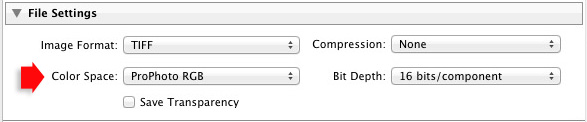
Go to the File Settings section of the Export window and set the required colour space. If you select the ProPhoto RGB colour space set Bit Depth to 16 bits/component.

Lightroom and colour space

Transferring photos to Photoshop

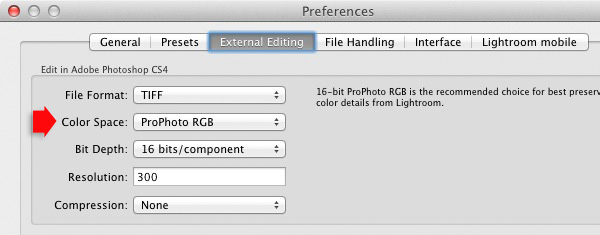
To open a photo in Photoshop, right-click on the photo and select Edit In > Edit In Adobe Photoshop. Photoshop opens the photo using the colour space indicated in Lightroom’s preferences.

To adjust this setting, go to the External Editing tab in preferences, and set Color Space to ProPhoto RGB. You can choose another colour space if you wish, but ProPhoto RGB is definitely the best one to use.

Lightroom and colour space

Opening photos in plug-ins

To export a photo to a plug-in, right-click on the photo, go to Edit In and select the plug-in you want to use to open the photo.

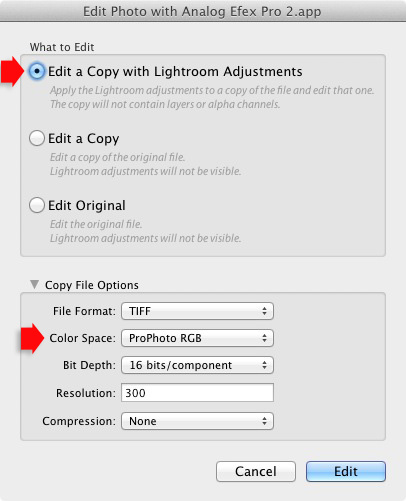
In the Edit Photo window, if you select Edit a Copy with Lightroom Adjustments (the only option available if you are exporting a Raw file) you will be able to select which colour space you want to use. Again, go with ProPhoto RGB for the best results.

Lightroom and colour space

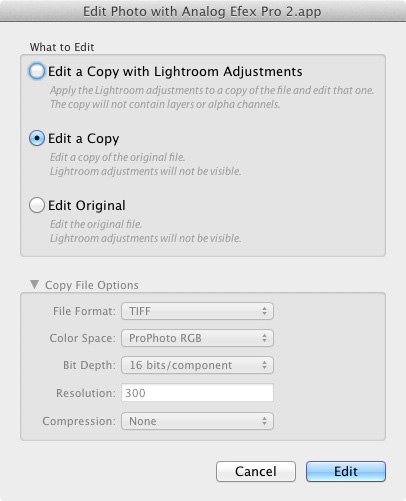
If you are exporting a JPEG or TIFF file, Lightroom gives you the option of selecting Edit a Copy or Edit Original in the Edit Photo window. If you do so, the option to select a colour space is greyed out and Lightroom opens the photo in the plug-in using the embedded colour profile.

Lightroom and colour space

But if you select Edit a Copy with Lightroom Adjustments, you can select any colour space and Lightroom will convert the photo to that colour space when it opens the photo in the plug-in.

Conclusion

Confused? I hope not, because colour management in Lightroom is really very simple. It’s essential to calibrate your monitor, but after you’ve done that Lightroom takes care of all colour related issues for you until you export your photos. Then, it’s just a matter of selecting the appropriate colour space.

If you have anything to add to the article, or any questions, please post it in the comments.


Mastering Lightroom: Book Four – The Photos ebookMastering Lightroom: Book Four – The Photos

My new ebook Mastering Lightroom: Book Four – The Photos takes you through ten beautiful examples of photography and shows you how I processed them step-by-step in Lightroom. It explores some of my favourite Develop Presets and plug-ins as well as the techniques I use in Lightroom itself. Click the link to learn more.

The post Everything You Need to Know About Lightroom and Colour Space by Andrew S. Gibson appeared first on Digital Photography School.

Digital Photography School

 
Comments Off on Everything You Need to Know About Lightroom and Colour Space

Posted in Photography


Photoshop Versus Lightroom Which is Right for You?

24 Aug

As a photographer, whether it be professional or hobbyist, you have several skill sets to juggle and many hats to wear; you’ll need to be an artist when composing your photo’s scene, technically proficient with your camera and settings, and in the case of professionals, an adept businessperson who can maintain a business and satisfy clients consistently.

Lightroom versus photoshop

One of the most important roles you play as a photo enthusiast is that of image editor. Rarely do our images come straight out of the camera exactly as we had envisioned, so before release we are required to put our shots through the post-processing phase; this is where our raw photos are enhanced, adjusted, toned, and sharpened to give us the final image we want to deliver.

Although we have many tools at our disposal these days to help us through this phase of processing, the industry juggernaut has undoubtedly been Adobe Photoshop since its first version’s release in 1990. The software has been used by amateurs and professionals alike year after year, and is considered an essential part of most photographer’s toolboxes.

Through the following years, and the popularity surge of digital photography, Adobe realized the need for a tool more targeted for photographers, and in 2007, released Lightroom. This workflow-centric and management software has become incredibly popular in its own right, and maintains a massive following in today’s industry.

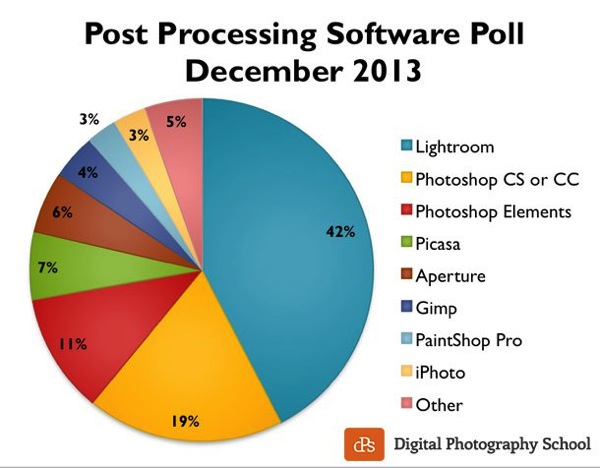
Post processing poll 2013 dPS

Click to see more on the survey results

So the obvious question is, as a photographer, which software package do you need? Both titles are excellent and carry their own strengths and weaknesses, so let’s drill down and examine them in a bit more detail to discover which one is right for you!

What we require in post-processing software

Rarely do we get a perfect result in camera that allows us to bypass the post-processing workflow, and even then, some editing is almost always required to prepare the photo for different mediums.

Generally, photos will need to be altered in size, adjusted for exposure and contrast, edited for blemishes or other imperfections, and possibly toned or have their appearance altered through filters, presets or other means. The file then needs to be exported in its final format, ready for the client, printing, or for web use.

Photoshop’s strengths

  • Pixel-level editing – images created or opened in Photoshop are comprised of pixels, which are the small physical points in a raster image, and are the smallest addressable elements in a photo. The software allows for editing even at this tiny level, meaning limitless manipulation is possible. Raster and vector images can be created from scratch.
  • Layers – Photoshop allows for multiple layers to be stored within a master file, meaning that you can keep different images or edits on separate layers, and then hide, modify or enhance any of those layers independently.
    3a

    Photoshop’s layers

    4a

    Layer blending modes in Photoshop

  • Actions  – an extremely useful feature, actions allow manipulation steps to be chained together and recorded, letting you recreate an entire editing process with a click of the mouse.
  • Compositing and blending – because of the ability to layer components within an image, it is possible to blend those layers together in unique ways. Masking allows you to protect specific parts of the photo from any adjustments being made down to the pixel level, simply by painting out the area you’d like to keep.
  • Huge toolbox – each progressive release of Photoshop seems to bring more and more useful tools into the mix. From content-aware filling, reducing camera shake effects, photo filters, and automatic panoramic image stitching, there is a tool for almost every task a photographer would need.
5

Photoshop Actions

Photoshop’s weaknesses

  • Steeper learning curve – with great power comes… a steep learning curve. Although you have a massive array of tools at your disposal, mastering them is something that takes time and practice.
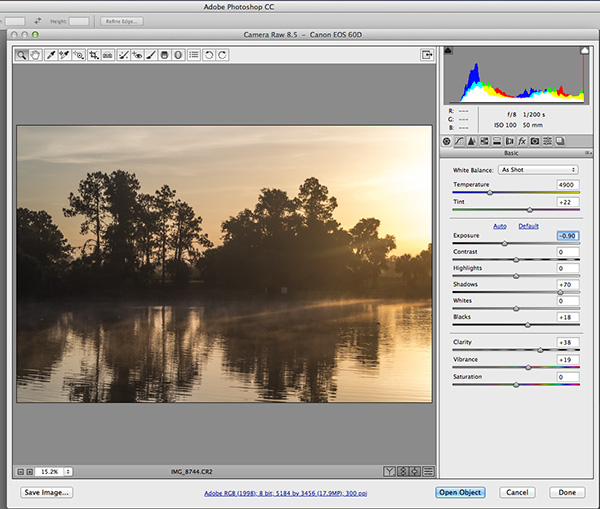
  • No built-in RAW editing – unlike Lightroom’s native ability to manipulate RAW files directly from your camera, Photoshop must rely on a plugin like ACR (Adobe Camera RAW) or something similar in order to import and modify these files.
  • No image management – Photoshop is built from the ground up to be a powerful image creation and editing tool. Although there are batch import and export tools available to make some aspects of the process easier, there isn’t a fully-recognized  built-in management or workflow system for photographers.
6

Adobe Camera Raw must be used for processing RAW files in Photoshop

Lightroom’s strengths

9

Built-in RAW processing in Lightroom

  • Built-in RAW editing – no plugin required! Lightroom natively accepts RAW files straight from your camera, and allows all of the editing you’d expect from within the software.
  • Image management and workflow centric – Lightroom was born from the desire to give photographers something better to manage their photo libraries with.  The entire program is based on creating a solid, consistent workflow that will help you make the most of the post-processing phase.

    8

    Lightroom’s image management system

  • Simple and easy to use – since Lightroom doesn’t have the huge toolbox found in Photoshop, there is MUCH less to learn. Everything from the tools available, to the interface itself, is simple and easy to manipulate.
  • Presets – a photographer’s dream; imagine having the ability to string together exposure levels, contrast, and toning, and then save those to a handy file. Then imagine you can have unlimited variances of these, and apply them to any photo with a click of the mouse. Welcome to Lightroom’s presets! Photographers around the world share these online as well, giving you limitless potential options for your photo’s look and feel.
10

The power of Lightroom’s Presets

Lightroom’s weaknesses

  • No advanced editing tools – because Lightroom wasn’t intended as a full-on raster editor, most of the editing functions Photoshop users take for granted are not present here. With the exception of a few basic tools, you’ll want to use Photoshop in situations where heavy image editing is necessary.
  • No layer management – the powerful layer system in Photoshop is non-existent as well. Effects and modifications can be stacked on an image, but there is no real separation of image segments or any ability to use blending modes.
  • Photos only – again, Lightroom is intended as a workflow system for photographers, meaning you’ll only be able to import existing photos and modify them; there are no raster or vector image creation tools to be found here as there are in Photoshop. Lightroom is assuredly one-track minded.


Adobe Creative Cloud logotype with icon RGB vertical

Creative Cloud and pricing models

?Up until fairly recently, Photoshop would have had one additional disadvantage compared to Lightroom, and that would be price. In the past, purchasing Photoshop could set you back $ 400 to $ 900, depending on the version and any discounts you could use.  Comparatively, Lightroom could be had for less than $ 100. The huge up front cost made buying Photoshop outright a financial strain for budding photographers on a slim budget.

Those days are gone, thanks to Adobe’s awesome cloud and subscription program. As of the last release, all of Adobe’s main products have been converted to cloud-based programs and are all rooted in the new Creative Cloud subscription model. Generally, $ 20 per month will give you unlimited access to one Adobe title, such as Photoshop or Lightroom, and ample cloud storage, enabling you access to your files regardless of where you were. $ 50 per month will give you access to Adobe’s entire Creative Cloud suite, which is quite a deal.

This year, however, Adobe unveiled their Photography Program, and if you haven’t already gotten involved, you might want to take a look. For less than $ 10 per month, Adobe gives you Photoshop CC AND Lightroom CC, along with the aforementioned cloud storage. It’s an unbeatable deal, and eliminates the need to pick and choose which image program to use.

Which one is right for you?

Since pricing is no longer an issue, the choice as to which program to use for your photography work comes down to what is most important to you.

Use Lightroom if…

You value a smooth clean workflow more than infinite control over the editing of your images. Having said that, Lightroom is no slouch when it comes to processing photos, and you can recreate almost any look using the controls available to you in this software.

The presets provide an endless array of styles, and thousands more are available on the internet. Lightroom’s clean, efficient interface will allow you to process those multiple wedding or portrait shots quickly and consistently, and make managing all of those photos simpler than you could have imagined.

Use Photoshop if…

You need more control over your images. Photoshop can do it all, but of course the cost of that is a higher learning curve. Quick presets are not what the program does best; instead, it offers complete image editing with masks, layers, and a multitude of other tools, giving you all of the options you could ever need.

At the end of the day…

BOTH titles can be an integral part of the post-processing workflow.  Like anything else they both have strengths and weaknesses.  Fortunately, with Adobe’s wonderful new Creative Cloud subscription model, you can enjoy both programs, and employ the advantages of each within your workflow, without breaking your bank.

For more information and tutorials on both programs check out these dPS articles:

  • Save Tons of Editing Time with Lightroom Presets
  • A Concise Guide to Lightroom Develop Presets
  • 4 Quick Tips For Getting The Most Out of Lightroom Presets
  • How to Convert Photos to Black and White in Lightroom
  • Improve Your Images with the Lightroom Graduated Filter Tool
  • 3 Easy Steps Using Photoshop to Making your Images POP
  • Ten Go-to Editing Tips for Using Photoshop
  • 6 Commonly Used and Confused Tools in Photoshop Explained
  • Changing Color in Photoshop
  • Photoshop Tutorial: How to Color, Brighten and Sharpen Eyes

The post Photoshop Versus Lightroom Which is Right for You? by Tim Gilbreath appeared first on Digital Photography School.

Digital Photography School

 
Comments Off on Photoshop Versus Lightroom Which is Right for You?

Posted in Photography


How to Fix Chromatic Aberration in Lightroom 5

21 Aug

Chromatic aberration is a phenomenon caused by distortion of the lens. Basically, it is a failure of the lens to focus all the colors to the same convergence point.

The effect can be generally seen in dark edges adjacent to bright areas of an image; it looks like an out-of-focus ghost of magenta or purple color. In photography this is also called “purple fringing”.

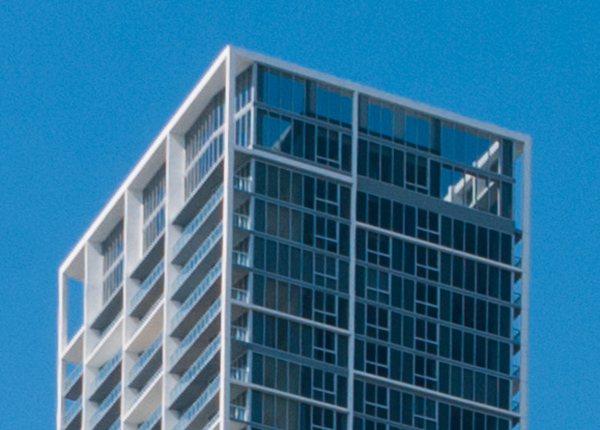
100 Crop Before

The quality of the optic plays an important role here, as not all lenses will produce the same effect. This problem tends to manifest much more in zoom lenses with variable aperture. However, no lens is exempt from having some distortion of this type, but we are not going to enter into that right now. I just want to share with you an easy solution with Lightroom 5. Your photos will look much better on the screen and, of course, in print once you easily correct this.

First off, let me share the example above, where you can see a 100 percent crop of a photo where you can see the distortion. If you look around the edges of the building against the sky, you can clearly see the magenta lines and out-of-focus effect.

Now, depending on the type of camera you are shooting with, if you shoot in JPG, chances are you’ll probably notice it less. The camera will apply some automatic correction when converting or processing the JPG in-camera. So please note that this will work much better when you are shooting in Raw.

We are going to be working in the Lens Corrections panel in Lightroom. Correcting chromatic aberration is fairly easy and can be done really quickly in Lightroom 5. All you need is a few clicks in the appropriate boxes and Lightroom will work its magic. Please note that this panel is also used to correct other type of lens distortions as well, including barrel distortion, vignetting, etc.

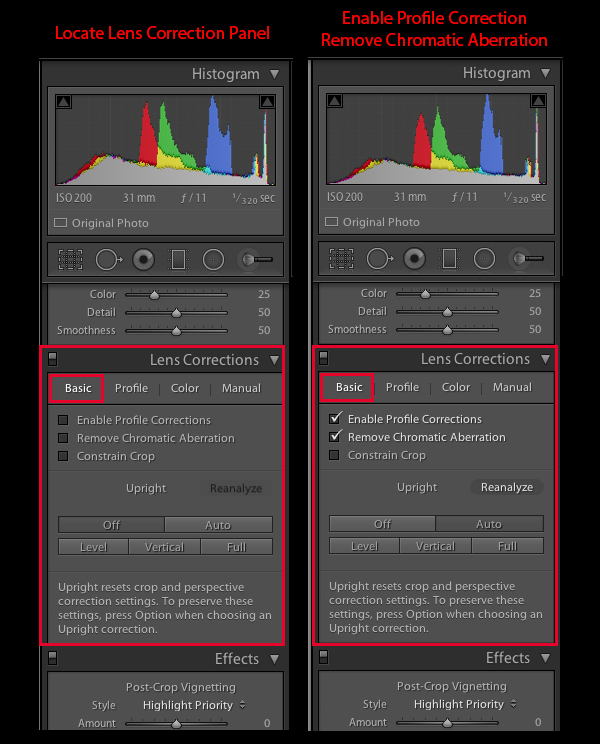
Step 1 Go to the Lens Correction Panel

Locate the Lens Corrections panel in the Develop Module. You’ll probably have to scroll down. The Lens Corrections panel is located between the Detail and Effects panels.

Step 2 Do the Basic tab options first

The Lens Corrections panel is divided into four sections: Basic, Profile, Color, and Manual. Be sure to start from left to right and select the Basic section. Select the options Enable Profile Corrections and Remove Chromatic Aberration. The software comes preloaded with profiles from all major camera manufacturers and lenses. So as soon as you enable these options, you’ll notice that the image will change and any distortion will be automatically corrected. It will also correct and reduce the chromatic aberration or purple fringing.

Lens Correction Panel 1

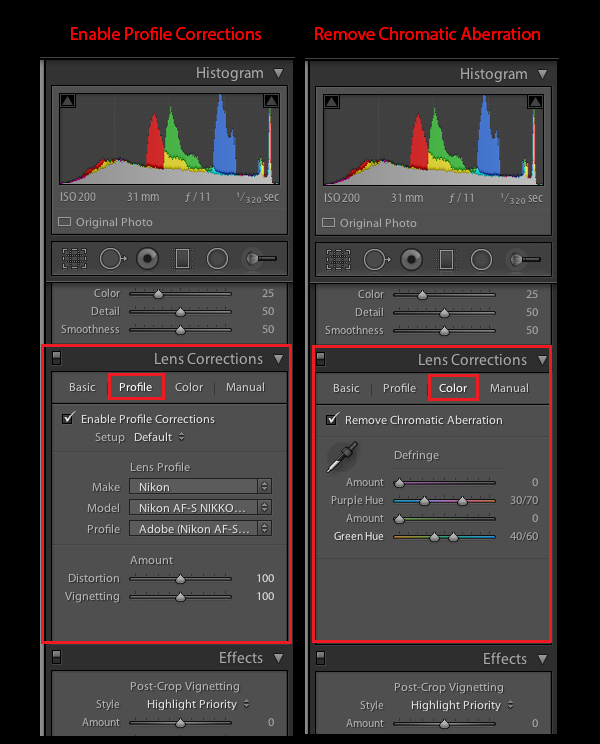
Step 3 Go to the Profile tab next

Now, go to the second section of the panel, Profile. Be sure that the checkbox Enable Profile Corrections is selected. Right below you’ll notice that Lightroom already recognized your lens make and model. If for any reason it is not, you can browse and select it manually. If your lens is not available you can switch the Setup option to Custom and correct distortion yourself by moving the sliders Distortion and Vignetting manually.

Step 4 The Color tab

Move to the Color section. Again, be sure that the Remove Chromatic Aberration checkbox is selected. In the majority of situations this is all you need to do. But for some particular images, you may need to do some extra work to completely remove the distortion. For that you can move the sliders until underneath until you notice the fringes disappear. A more precise method is to use the eyedropper to select the purple or green fringes for correction in a more accurate way.

Lens Corrections Panel 2

As you can see, this is a very simple process. Like stated before, in most cases you’ll be just clicking a few checkboxes and the program will do the rest. There are really very few occasions where you need to do any manual work – especially if the lens is already profiled in Lightroom, which applies to a very wide selection.

Here are the final results. In both, the same 100 percent crop as before and the entire image. As you can observe, the chromatic aberration no longer exists and the photo looks much better.

100 Crop After

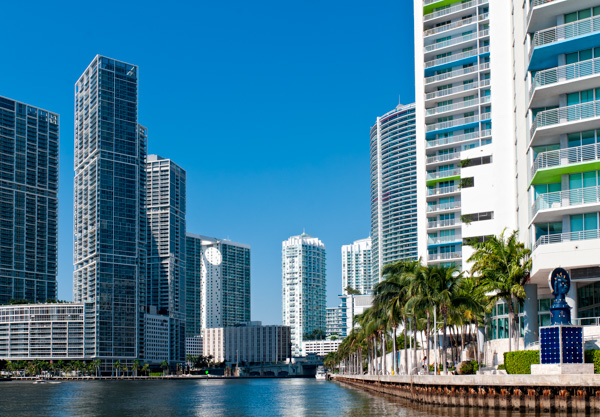
Miami River Condos

For more Lightroom articles click here.

The post How to Fix Chromatic Aberration in Lightroom 5 by Daniel Korzeniewski appeared first on Digital Photography School.


Digital Photography School

 
Comments Off on How to Fix Chromatic Aberration in Lightroom 5

Posted in Photography