RSS
 

Posts Tagged ‘lightroom’

How to Split Tone Black and White Photos in Lightroom

04 Jan

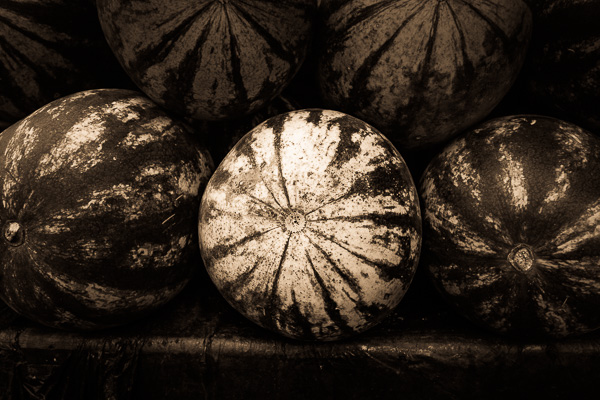
Split toning in Lightroom

Toning originated as a darkroom process designed to extend the longevity of black and white prints. Photographers did so using chemical toners such as sepia, selenium and gold. Toners work by removing silver from the print and replacing it with another element with a longer life span.

A side effect of toning is that it adds colour. Sepia toned prints range from light yellow to deep brown, selenium is a subtle blue or purple, and gold anything from blue to deep red (if applied to a photo that has already been sepia toned). For many photographers the colours were just as important as the archival benefits because of the emotional values they added to the monochrome print.

Another, more unfortunate side effect of darkroom toning is that many of the chemicals are hazardous. Luckily, in the digital age, there is no need to use them. Toning is much quicker, and you can create any colour tone you like, using Lightroom’s Split Toning panel.

Furthermore you can use Virtual Copies to create several different versions of the same image, each with a different tone. It makes experimenting easy, and you can compare them afterwards to see which you prefer. You can even turn your favourite toning effects into Develop Presets so you can use them again whenever you want.

Emotional value of toning

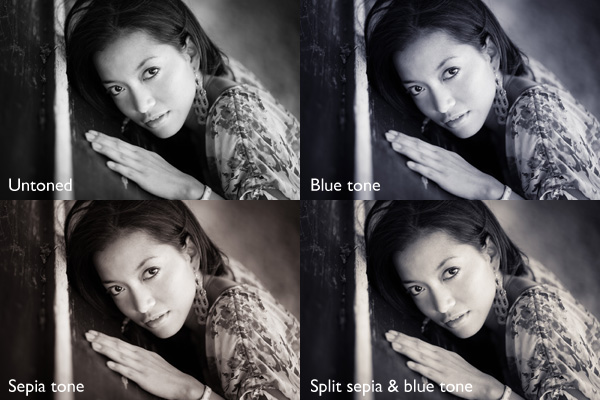
Before we start, let’s look why you would tone a black and white photo. With digital, there is no need to tone for archival purposes, that leaves two reasons. The first is simply because you want to add some colour. Toning is a good way to do that and can really lift your images. The second reason is to add emotional value to the photo. For example, sepia toning both flatters the model and adds a sense of nostalgia and warmth. Blue toning, on the other hand, adds a cold feel.
Split toning in Lightroom

These four photos are processed identically apart from the toning treatment. The colour makes a huge difference to the appearance and emotional impact of each image.

It should be noted at this point that not all black and white photos take well to toning. The best images to use are those with lots of dark tones (plus some highlights for contrast – my article about tonal contrast goes into this more). Black and white photos with lots of light tones don’t seem to tone as well as those with lots of shadows.

How to use the Split Toning panel
Split toning in Lightroom

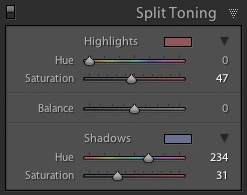
The Split Toning panel

The Split Toning panel is simple to use. The first pair of Hue and Saturation sliders sets the colour that is applied to the photo’s highlights. The second pair sets the colour that is applied to the shadows. The Balance slider is used to give precedence to either the highlight or the shadow colour.

If you hold the Alt key down while moving the Hue slider, Lightroom displays the Hue at 100% saturation, helping you judge the colour accurately.

Here are some examples. Most black and white split toning combinations are a variation of the following.
Split toning in Lightroom

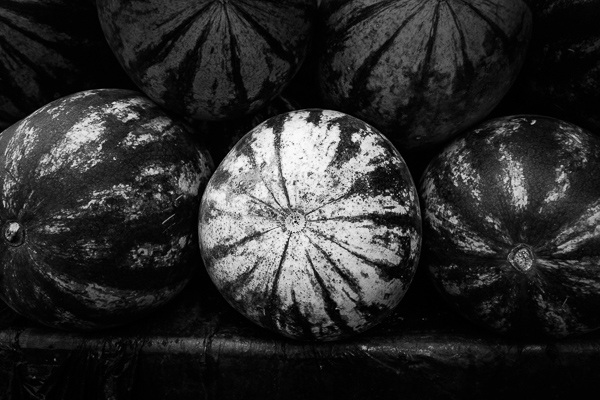
Highlights: Hue 0/Saturation 0 | Shadows: Hue 0/Saturation 0

Untoned black and white image.
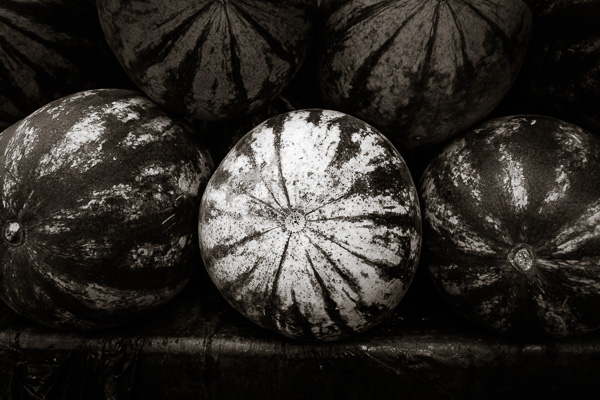
Split toning in Lightroom

Highlights: Hue 0/Saturation 0 | Shadows: Hue 45/Saturation 13

 Sepia tone applied to shadows only, leaving highlights unchanged.
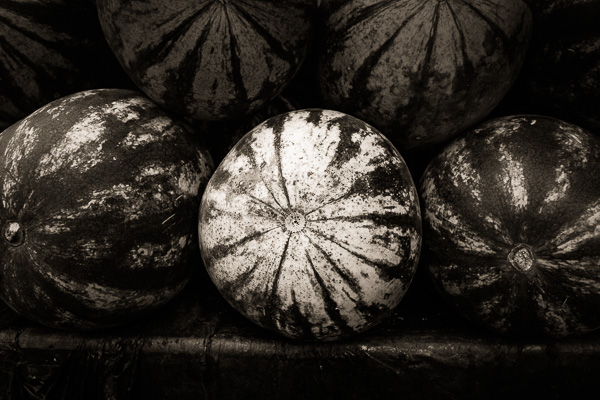
Split toning in Lightroom

Highlights: Hue 46/Saturation 17 | Shadows: Hue 45/Saturation 15

 Sepia tone applied to shadows and highlights.
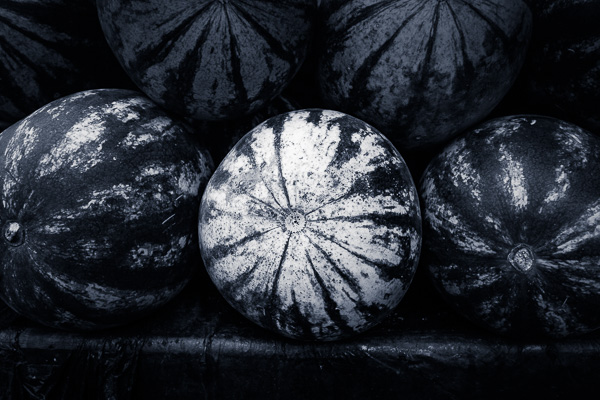
Split toning in Lightroom

Highlights: Hue 0/Saturation 0 | Shadows: Hue 234/Saturation 26

 Blue tone applied to shadows only, leaving highlights unchanged.
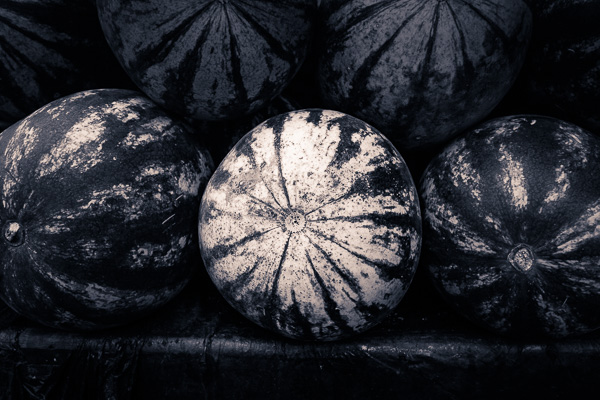
Split toning in Lightroom

Highlights: Hue 39/Saturation 30 | Shadows: Hue 234/Saturation 26

Blue tone applied to shadows, sepia tone applied to highlights. This is the classic split tone look. Split toning like this helps create a sense of depth. Basic colour theory tells us that warm colours appear to be closer to the viewer and that cool colours recede. Applying a cool tone to the shadows and a warm one to the highlights helps reinforces a similar sense of depth created by the effective use of tonal contrast.
Split toning in Lightroom

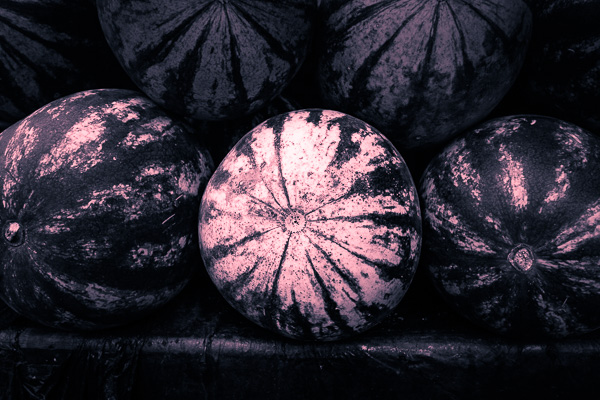
Highlights: Hue 0/Saturation 47 | Shadows: Hue 234/Saturation 31

Blue tone applied to shadows, copper tone applied to highlights. This imitates the blue and copper split tone effect that was possible to achieve in the chemical darkroom.

Split toning in Lightroom

Highlights: Hue 47/Saturation 52 | Shadows: Hue 36/Saturation 23

Sepia tone applied to shadows, gold tone applied to highlights. This imitates the sepia and gold split tone effect it was also possible to achieve in the chemical darkroom.

Those combinations should be enough to get you going, and of course you can experiment as much as you like with the sliders in the Split Toning panel to see what you can achieve.

Please share some of your split toning creations in the comments below.


Mastering Lightroom: Book Three – Black & White
Masterlng Lightroom: Book Three – Black & White by Andrew S GibsonMy ebook Mastering Lightroom: Book Three – Black & White goes into the topic of black and white in depth. It explains everything you need to know to make dramatic and beautiful monochrome conversions in Lightroom, including how to use the most popular black and white plug-ins. Click the link to visit my website and learn more.

googletag.cmd.push(function() {
tablet_slots.push( googletag.defineSlot( “/1005424/_dPSv4_tab-all-article-bottom_(300×250)”, [300, 250], “pb-ad-78623” ).addService( googletag.pubads() ) ); } );

googletag.cmd.push(function() {
mobile_slots.push( googletag.defineSlot( “/1005424/_dPSv4_mob-all-article-bottom_(300×250)”, [300, 250], “pb-ad-78158” ).addService( googletag.pubads() ) ); } );

The post How to Split Tone Black and White Photos in Lightroom by Andrew S. Gibson appeared first on Digital Photography School.

Digital Photography School

 
Comments Off on How to Split Tone Black and White Photos in Lightroom

Posted in Photography


How to Create a 2015 Calendar in the Lightroom Print Module

23 Dec

Create a calendar in the Lightroom Print module

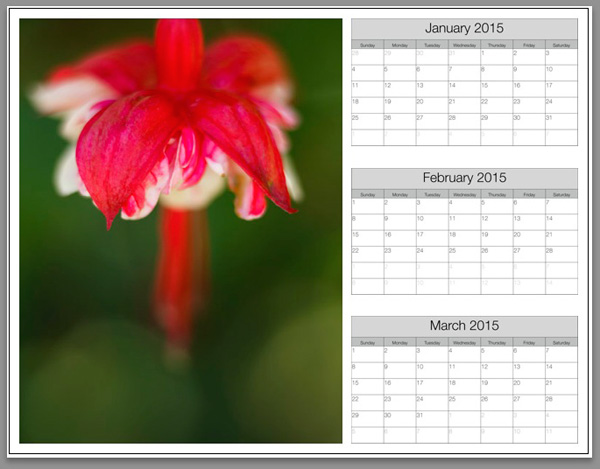
The Lightroom Print module is a great tool for creating print layouts, but one thing it is not designed to do is make calendars (hopefully Adobe will introduce this feature in future versions of Lightroom). Luckily, in spite of that it is not too difficult to create a calendar once you know how, and you are prepared to put the work in to create the month and day parts of the calendar.

Or – you can let someone else do all the hard work. That somebody is photographer Ed Weaver, who has created some Print module calendar templates that anybody can download from his website for free.

Ed updates the templates every year, and has recently added templates for 2015. There are two versions, one with the week starting on Sunday, and the other with it starting on Monday. Just select the one that is appropriate for your part of the world (the links are at the bottom of the web page) and download the files.

The download includes a set of calendar graphics and Lightroom Print Templates, along with instructions. All you have to do is import the calendar images into the Lightroom Catalog and add the Print Templates to the Print module. It only takes a few minutes and you’re ready to go.

Creating a calendar

Follow these instructions to make your first calendar using Ed’s templates.

1. Open the folder containing the templates you want to use. Import the JPEGs into Lightroom. There are two JPEGs for every month in 2015, one with large numbers, the other with small numbers (see below), giving 24 in total.

Create a calendar in the Lightroom Print module

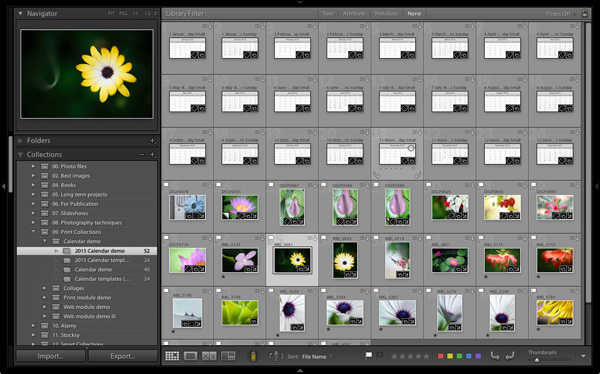
2. Go to the Library module and create a Collection for the calendar. Add both the calendar JPEGs you just imported plus any photos you may wish to use in the calendar.

Create a calendar in the Lightroom Print module

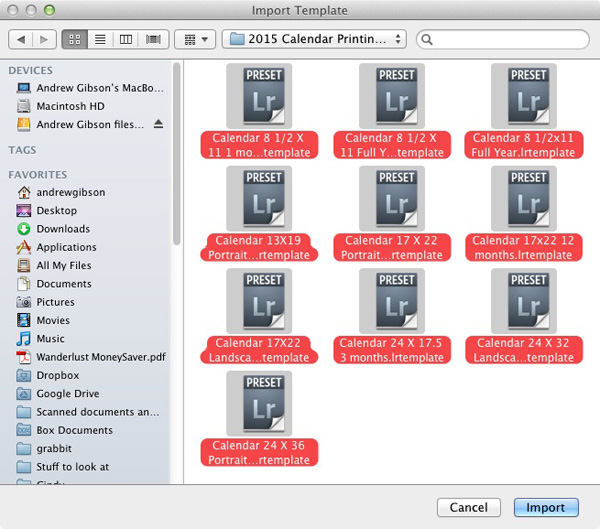
3. Go to Lightroom’s Print module, then select Print > New Template Folder from the menu. Give the folder an appropriate name (i.e. 2015 Calendar). Right-click on the folder name and select Import. Navigate to the folder where Ed’s calendar templates are stored, select them all and click the Import button.

Create a calendar in the Lightroom Print module

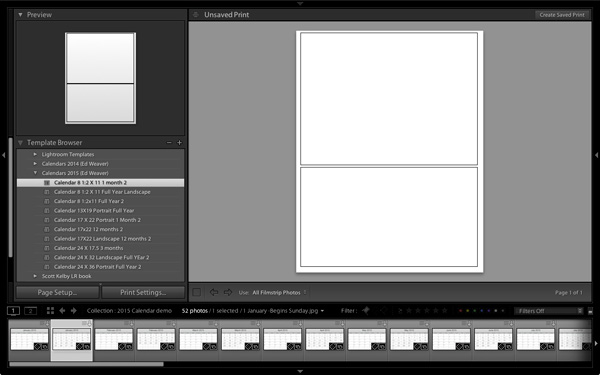
4. Open the Template Folder you just created. There are ten templates to choose from. When you click on a template, Lightroom displays it in the Content window (see below). The templates use the Custom Package layout style, which means that Lightroom doesn’t add photos to the layout automatically. Instead, you have to do it yourself by dragging the photos from the Filmstrip.

Create a calendar in the Lightroom Print module

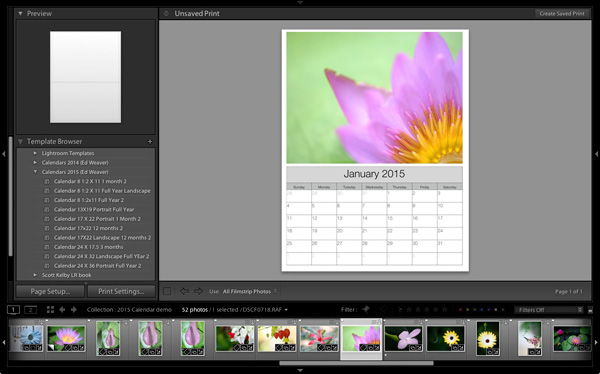
5. Drag photos and calendar templates as needed from the Filmstrip to create your calendar. With this template, you need just one of each.

Create a calendar in the Lightroom Print module

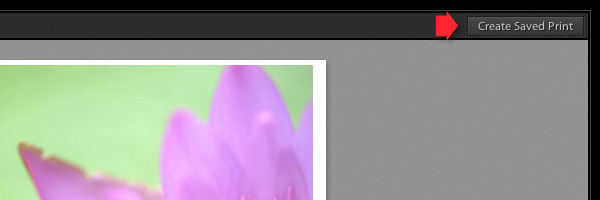
6. Click the Create Saved Print button in the top right corner of the Content window (see below). Give the print a name in the Create Print window and click the Create button. Lightroom creates a Print Collection (marked by a printer icon in the Collections panel) containing only the images used in the print. Now you can leave the Print module and return to your print at any time without losing any changes.

Create a calendar in the Lightroom Print module

7. Repeat for the rest of the months in the year, and you have a complete calendar.

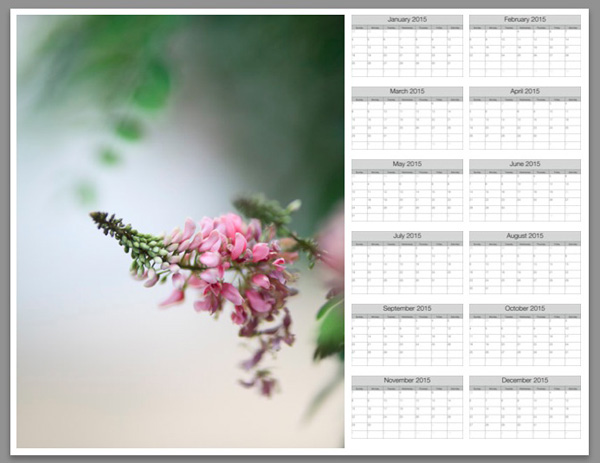
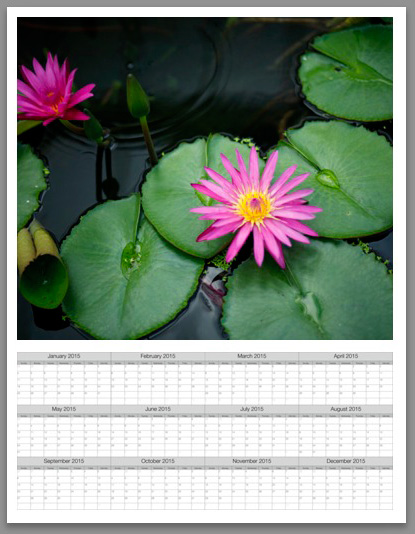
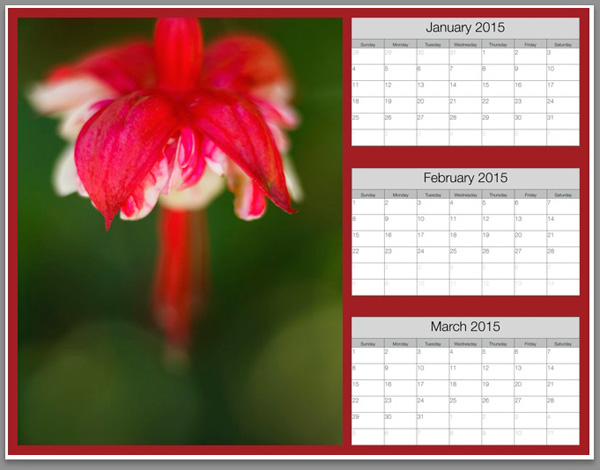
Here are some examples using some of the other templates:

Create a calendar in the Lightroom Print module


Create a calendar in the Lightroom Print module


Create a calendar in the Lightroom Print module

Modifying template files

Ed’s templates are great, but there is no easy way to change the colours, fonts, or any other aspect of the design of the JPEG files, at least not in Lightroom. If you want to change the style, you should open the files in Photoshop or Photoshop Elements. Using layers, it is relatively straightforward to replace the font Ed used with that of your own choice, or change the colours. Of course, you could also start completely from scratch and create your calendar files to use with Ed’s templates.

Changing background colour

Create a calendar in the Lightroom Print module

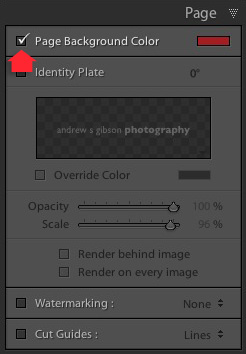
You can change the background colour of the calendar from its default white by going to the Page panel and ticking the Page Background Color box. Click the swatch on the right to choose a colour. Just bear in mind that adding a background colour uses more ink if you print the calendar on an inkjet printer.

Create a calendar in the Lightroom Print module


Mastering Lightroom: Book Five – The Other Modules ebook coverMastering Lightroom: Book Five – The Other Modules

My new ebook Mastering Lightroom: Book Five – The Other Modules shows you how to use Lightroom’s powerful features to create fun and interesting projects using the Map, Book, Slide show, Print and Web modules. Whether it’s geotagging, putting together a photo book, printing your best photos or creating web galleries all the information (and inspiration) you require is right here.


googletag.cmd.push(function() {
tablet_slots.push( googletag.defineSlot( “/1005424/_dPSv4_tab-all-article-bottom_(300×250)”, [300, 250], “pb-ad-78623” ).addService( googletag.pubads() ) ); } );

googletag.cmd.push(function() {
mobile_slots.push( googletag.defineSlot( “/1005424/_dPSv4_mob-all-article-bottom_(300×250)”, [300, 250], “pb-ad-78158” ).addService( googletag.pubads() ) ); } );

The post How to Create a 2015 Calendar in the Lightroom Print Module by Andrew S. Gibson appeared first on Digital Photography School.

Digital Photography School

 
Comments Off on How to Create a 2015 Calendar in the Lightroom Print Module

Posted in Photography


Tips for Retouching a Night Photograph using Lightroom

21 Dec

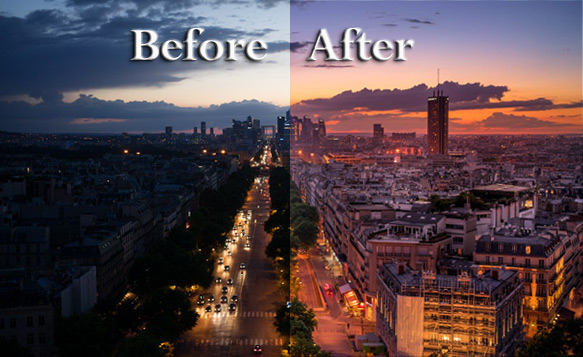
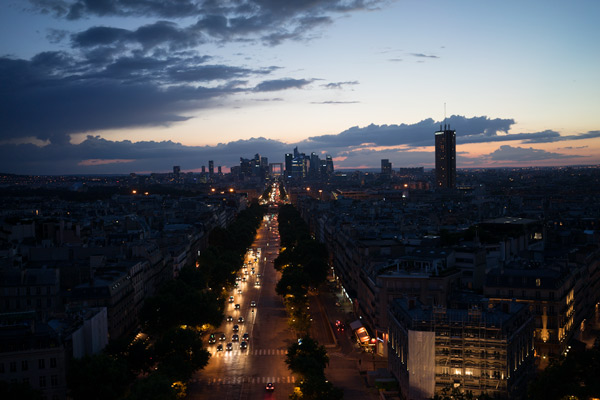
I will show you an experience I had of shooting in the middle of the night after sunset without a tripod. Many monuments don’t allow you to shoot with a tripod but you still want to take a photo. The nicer light in my opinion is usually after sunset or before sunrise, so I will show you how to take and process a photo without a tripod at night.

dPS-Before-after

If you have a nice high vantage point to take a beautiful photo but cannot put down your tripod you will see that there
is something we can do about it. The trick is you must put your camera on a timer, (use the built-in 2-second timer) meaning when you press the shutter it counts to two and then takes a photo. This way when you take the photo you are not pressing the button so there is less vibration.

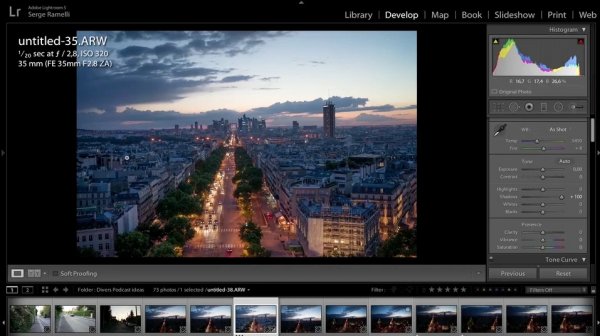
Next go into manual mode and put it on 1/20th of a second. Usually it will be blurry, but if you put your arms on your stomach and stop breathing you should get a sharp photo. Then open the lens as much as you can. As you can see the photo is very sharp and I was only at 320 ISO.

As usual I am always shooting to get the highlights, so what you do is you put your camera at 1/20th of a second, 2 second on timer, approximately f/2.8 aperture (or open as wide as you can), then start going up on the ISO. You take several photos until you see that you have something you like.

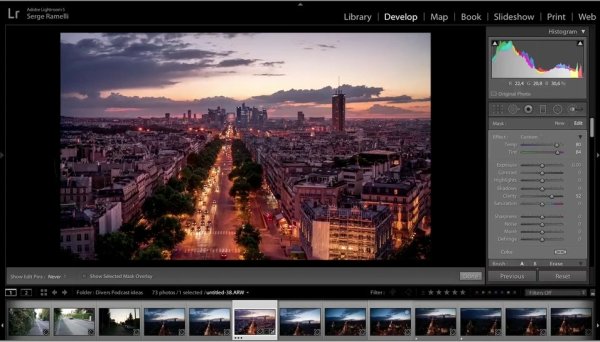
Now let’s see how we are going to retouch this photo. First we are going to open up the shadows; you see how we can see the entire city?

Screen shot 1
Now on the white balance. When you are taking a photo of a sunset in a city there is one white balance that I advise you to use, but it is very difficult to get the right white balance right away. What I usually do is go to the shade preset, and add a bit of magenta, that is something I like.

Then bring down the highlights, and lastly do the white and black points.

Look how incredible this photo is, I took it without a tripod at night, now the only problem is that I don’t have a long exposure so the cars are very sharp, I don’t have the lighting streak behind the cars that I would have liked but it’s still pretty good.

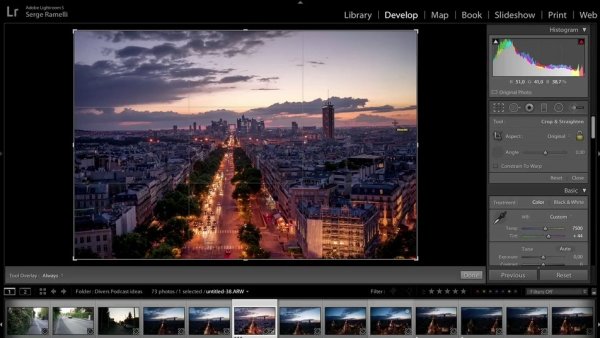
Ok, now let’s crop the photo a bit to get it to look more dynamic.

Screen shot 2

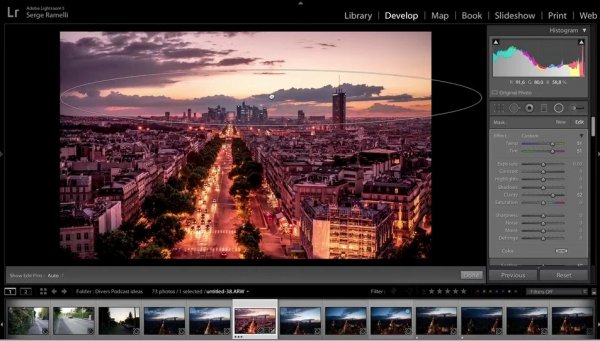
Next, let’s take a brush, select a warm temperature and add some clarity to it and we will now start painting the photo in specific areas where we want to add color.

Screen shot 3

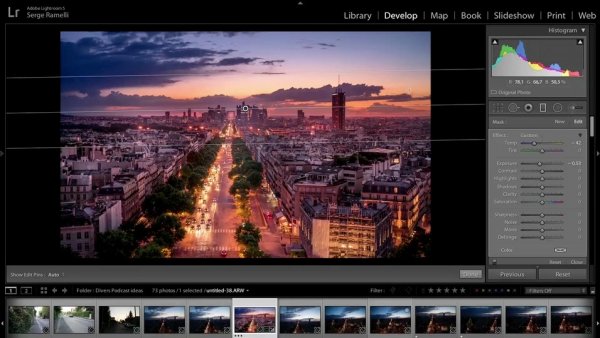
We will now create a graduate filter to accentuate the sunset.

Screen shot 4
Create a new graduate filter to add some highlights to parts of the buildings to make them come out a little bit more.

We will now add a gradient filter on the top of the photo to create more of a blue sky.

Screen shot 5

We will remove some clarity on the overall photo. Last but not least let’s add some sharpness, there is almost no noise as I am using this amazing Sony camera, so we will only remove a bit of noise.

We can now see the end result of this photo that was taken at night without a tripod. I find it quite incredible!

Before

After

For a full walk-through of how this is done check out this video:

If you enjoyed this tutorial you can find more of Serge’s tips and courses here.

PhotoSerge

googletag.cmd.push(function() {
tablet_slots.push( googletag.defineSlot( “/1005424/_dPSv4_tab-all-article-bottom_(300×250)”, [300, 250], “pb-ad-78623” ).addService( googletag.pubads() ) ); } );

googletag.cmd.push(function() {
mobile_slots.push( googletag.defineSlot( “/1005424/_dPSv4_mob-all-article-bottom_(300×250)”, [300, 250], “pb-ad-78158” ).addService( googletag.pubads() ) ); } );

The post Tips for Retouching a Night Photograph using Lightroom by Serge Ramelli appeared first on Digital Photography School.

Digital Photography School

 
Comments Off on Tips for Retouching a Night Photograph using Lightroom

Posted in Photography


Deal 9: Grab Hacking Photography’s 100 Lightroom Presets for just $10 (88% Off)

21 Dec

On the 9th day of Christmas dPS gave to me – the biggest discount of the year with…

88% off Hacking Photography’s mega preset deal!

NewImage

Yesterday Our Deal Was Big… But Today is Bigger!

Yesterday we brought back a popular deal from over at SnapnDeals and the response was amazing – over 1000 of you saved 70% on a great course.

Today’s deal is another of our most popular from SnapnDeals this year and it’s at the biggest discount yet – 88% off the retail price on this great presets bundle.

For just $ 10 you’ll pick up 100 professionally-developed presets from Mike Newton over at Hacking Photography. That’s just 10 cents per preset!

With them you’ll be able to convert your photos from average to amazing with just one click, saving you a whole lot of processing time.

Split into four collections of Lightroom presets, you’ll get:

  • 25 color blast presets – stunning, vivid, rich, buttery colors in every image
  • 25 black and white presets – for a stark, sharp effect that’ll give your images the soul they could be missing
  • 25 old school color presets – roll back the clock for a vintage appearance
  • 25 night color presets – to add different colored street, building and ambient lights

Don’t know how to use Presets? Fear not! Included in the bundle are instructions on how to download, install and use them.

We don’t need to say much more than at $ 10 for the next 24 hours, these are an absolute bargain.

Grab them here before they’re gone.

PS: as with all our deals this week there’s a money back guarantee on this product. If you find it isn’t suiting your needs simply ask for your money back within 60 days for a full no questions asked refund.

googletag.cmd.push(function() {
tablet_slots.push( googletag.defineSlot( “/1005424/_dPSv4_tab-all-article-bottom_(300×250)”, [300, 250], “pb-ad-78623” ).addService( googletag.pubads() ) ); } );

googletag.cmd.push(function() {
mobile_slots.push( googletag.defineSlot( “/1005424/_dPSv4_mob-all-article-bottom_(300×250)”, [300, 250], “pb-ad-78158” ).addService( googletag.pubads() ) ); } );

The post Deal 9: Grab Hacking Photography’s 100 Lightroom Presets for just $ 10 (88% Off) by Darren Rowse appeared first on Digital Photography School.

Digital Photography School

 
Comments Off on Deal 9: Grab Hacking Photography’s 100 Lightroom Presets for just $10 (88% Off)

Posted in Photography


Deal 3: Save 57% On This Fantastic Lightroom Post Production Course

16 Dec

Today is day 3 in our 12 Days of Christmas and today is all about helping you improve your post production skills with a great deal on Gavin Gough’s Lightroom Video Tutorials.

The Deal

For one day only you can pick up Gavin’s ‘Post-Production Lightroom Video Course’ for just $ 29 – that’s a saving of just over 57%.

Screen Shot 2014 12 15 at 3 02 31 pm

This value-packed course with 20 videos, companion eBook and some great high-res RAW files to learn with gives you step by step training in using the incredibly powerful Lightroom to help take the photos that you’ve taken to their potential.

Gavin has thoughtfully created these videos to walk you through the skills you need. From basics right through to more advanced techniques.

Here’s a video that gives you a feel for Gavin and what is covered.

The Photographer’s Post-Production – An Introduction from Gavin Gough on Vimeo.

This course is practical but also a lot of fun and today instead of paying $ 69 it is yours for $ 29. Grab it here.

Bundle It to Learn about Post Production Workflow

If you are looking to go beyond just processing your images (as is covered in the course) we’ve also got the option to bundle the processing course with Gavin’s best selling eBook – The Photographer’s Workflow.

NewImage

This eBook is all about backing up your photos, cataloging and arching images, presets and developing a workflow management system for your precious images that helps keep them safe and secure but also allows you to process them efficiently.

The full bundle of Course and eBook together normally retail for $ 99 but today only they are yours for just $ 49.

Two Options: But Only for 24 Hours

So today’s deals in a nutshell.

  1. Grab Gavin Gough’s ‘Post-Production Lightroom Video Course’ for just $ 29 (normally $ 69)
  2. OR get Gavin’s ‘Post-Production Lightroom Video Course’ AND his eBook ‘Photographer’s Workflow’ for $ 49 (normally $ 99).

But don’t wait too long – this deal is for today only and the clock is ticking.

googletag.cmd.push(function() {
tablet_slots.push( googletag.defineSlot( “/1005424/_dPSv4_tab-all-article-bottom_(300×250)”, [300, 250], “pb-ad-78623” ).addService( googletag.pubads() ) ); } );

googletag.cmd.push(function() {
mobile_slots.push( googletag.defineSlot( “/1005424/_dPSv4_mob-all-article-bottom_(300×250)”, [300, 250], “pb-ad-78158” ).addService( googletag.pubads() ) ); } );

The post Deal 3: Save 57% On This Fantastic Lightroom Post Production Course by Darren Rowse appeared first on Digital Photography School.

Digital Photography School

 
Comments Off on Deal 3: Save 57% On This Fantastic Lightroom Post Production Course

Posted in Photography


5 Ninja Tips to Speed Up Your Lightroom Workflow

11 Dec

Currently on for 33% OFF is Johny’s Lightroom Essentials for Landscape Photographers Course. Grab it now, only until December 23rd, 2014.

DSC 8831 Edit
Here are five things that will make a huge difference to your Lightroom workflow by making you more efficient and saving you time.

1. Solo Mode

Solo Mode

Do you get frustrated scrolling up and down the panels looking for the right adjustment or setting? If so, then your frustration is over. Right click on one of the panels and in the drop down menu, select Solo Mode. Solo Mode only allows you to have one panel open at a time, so every time you open a panel the last one you had opened, closes. This allows you to easily see all the panels at once and find what your looking for quickly.

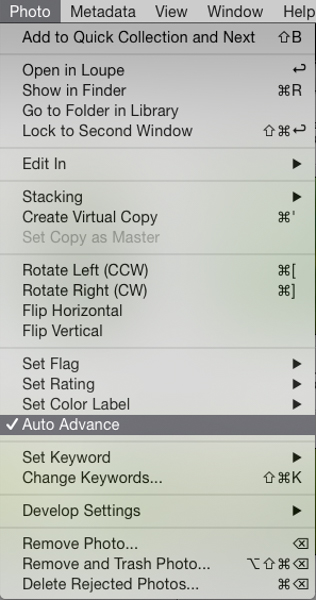
2. Auto Advance

The best way to find your keeper images after a shoot is by using flags. All you need to do is use the keyboard shortcuts; P for pick, and X for reject. This is a super fast way to power through your shoots. The problem is once you pick or reject an image you need to then click a right or left arrow key or mouse click on the next image to make the next selection. That’s where Auto Advance comes in. To turn it on make sure you’re in the Library module, then in the menu under Photo select Auto Advance. With this enabled, each time you flag an image Lightroom will move to the next image in the film strip automatically. This may not sound like a huge thing but believe me, when you have several hundred images to sort through saving one keystroke on each image will save you heaps of time.

Auto Advance

3. Quick Collections

Collections are super important in Lightroom. Using them is the best way to quickly switch between groups of images in the Develop module without switching back to the Library module and digging through your folders. Quick Collections is a term I’ve coined, but honestly this is the quickest way to create a collection. It’s really simple. Just grab a folder of images you want to make a collection from, then click and drag the folder to the collections panel. Once you see a blue bar appear, drop the folder and BOOM, instant collection.

Quick Collections

4. Turning Off Auto Show Panels

To give you more real estate on the screen it’s a great idea to hide the side panels when you are not using them. The perfect place to do this is with left panel in the develop module as most of the time everything you need is in the right panel. The problem is once it’s hidden and every time you mouse over to the left of the screen the panel pops out. That might be fine a couple of times but after a while you’ll find that it becomes annoying and starts to slow down your workflow. It’s easily fixed by right clicking on the panel disclosure triangle, and selecting manual from the drop down menu. This will stop the panel from opening automatically. When you want it back, just click on the triangle to show the panel.

Turn Off Auto Show Panels

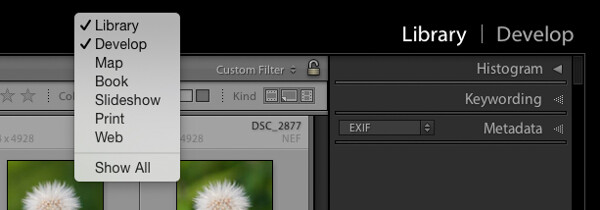
5. Decluttering the Lightroom Interface

Learning Lightroom can be very overwhelming especially when you see all the modules in the top bar and all the different panels and settings. There is so much going on in the interface, it can lead to what I call Lightroom burnout. The tip here is to turn off the modules and panels you aren’t using by cleaning up the interface. This allows you to only focus on just the things you are learning or need to use regularly. Just right click on the top bar or any of the panels, and in the drop down menu select what module or panel you want to hide, repeat the process to unhide.

Declutter

Like a lot of software there are many ways to achieve the same outcome. I encourage you to keep refining your workflow until you find the perfect system that works for you. Give these five tips a go; they will not only save you time, but help you on your way to achieve what I call Lightroom bliss. That is when you get to a place using Lightroom where there’s no more frustration or confusion, and it’s just all about having fun with your photography and creating beautiful images.

Dancing Gulls

DSC 8638

Currently on for 33% OFF is Johny’s Lightroom Essentials for Landscape Photographers Course. Grab it now, only until December 23rd, 2014.

googletag.cmd.push(function() {
tablet_slots.push( googletag.defineSlot( “/1005424/_dPSv4_tab-all-article-bottom_(300×250)”, [300, 250], “pb-ad-78623” ).addService( googletag.pubads() ) );
} );

googletag.cmd.push(function() {
mobile_slots.push( googletag.defineSlot( “/1005424/_dPSv4_mob-all-article-bottom_(300×250)”, [300, 250], “pb-ad-78158” ).addService( googletag.pubads() ) );
} );

The post 5 Ninja Tips to Speed Up Your Lightroom Workflow by Johny Spencer appeared first on Digital Photography School.

Digital Photography School

 
Comments Off on 5 Ninja Tips to Speed Up Your Lightroom Workflow

Posted in Photography


How to Make Freckles POP or Disappear using Lightroom

24 Nov

Editing Freckles in Lightroom

One photo, edited completely in Lightroom

One photo, edited completely in Lightroom

digitalphotographyschool-1-9

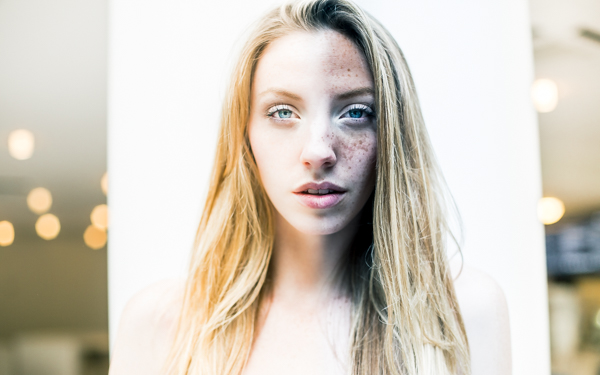
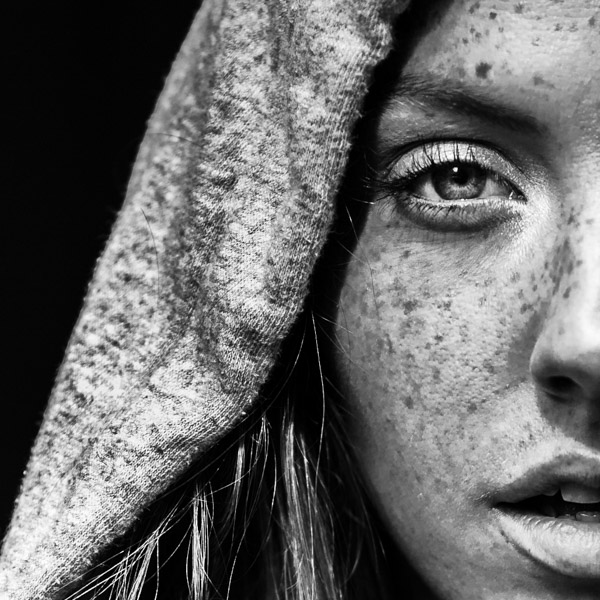
I recently photographed a model in New York City. As I was communicating with her leading up to the shoot I noticed in some of her pictures that she had freckles. I personally am a big fan of freckles and wanted to do a shoot that highlighted her skin rather than hide it behind makeup or photoshop tricks. One of my favorite photos that came out of the shoot was this one, cropped close to highlight her eyes and skin:

digitalphotographyschool-1-2

After I posted the photo above on Instagram I was emailed by someone asking me what process I used to get that gritty look. I’m here to share my secrets and show how you can achieve this look in less than 30 seconds with Lightroom, every time.

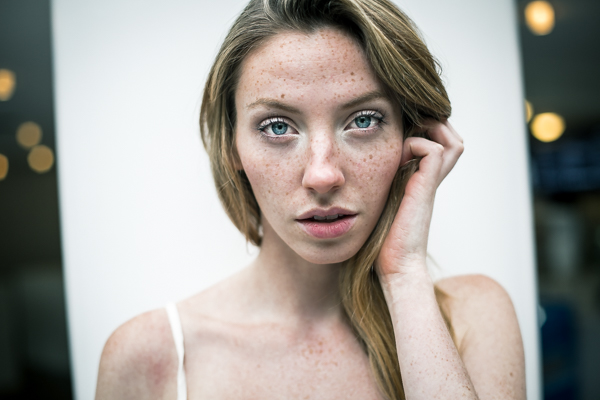
First off, here is what the original looked like, straight out of the camera:

digitalphotographyschool-1-3

I shoot in RAW to make sure I have enough information to work with. All the freckles are there in the skin, which you can see lightly showing up in the original photo.

Step One: Convert to Black and White

The first step is to convert your image to black and white by selecting “B&W” in the develop panel of Lightroom, or using the shortcut key “v.”

Now I have something that looks like this:

digitalphotographyschool-1-4

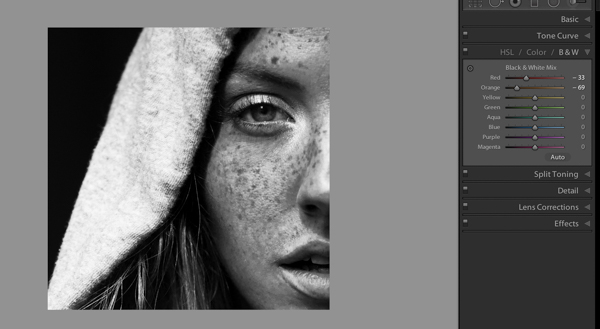
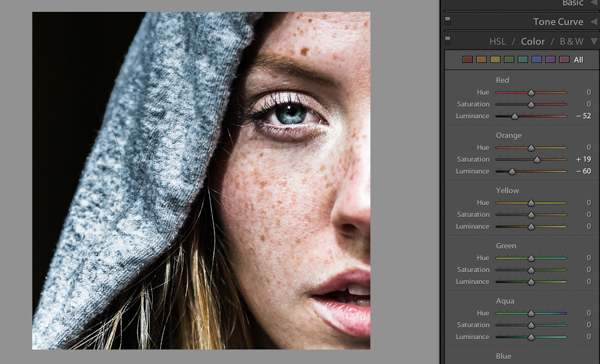
Step 2: Adjust Red and Orange Sliders

Still not seeing the freckles, right? Under B&W in the develop module in Lightroom you should see “Black and White Mix” and a column of sliders beneath it with all the colors of the rainbow. These allow you to control the original colors in the photo, within the black and white mode.

Knowing that freckles and skin blemishes are typically orange/red in nature, you will be playing with the orange and red sliders only. You get to decide how far you want to push them, making your subject more or less intense looking.

digitalphotographyschool-1-5

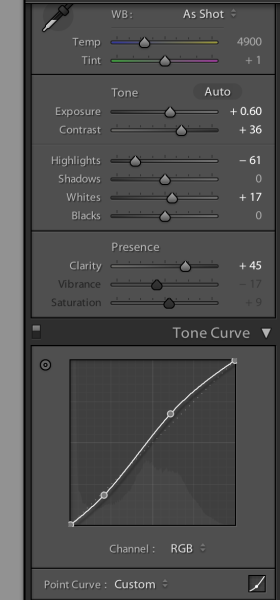
That’s about it, actually. You’ve just enhanced the freckles in your photo. Congratulations! If you want to give it even a little more pop, try this with your tone curve and exposure sliders:

editing_freckles_dps

The last thing I did to the picture was use the Adjustment Brush (k) to bring the highlights down on the hood of her sweater, which I felt was too bright for the photo. Then I used the Adjustment Brush to brighten the eyes a bit using the Dodge (Lighten) effect.

digitalphotographyschool-1-2

Voila! This is equally impressive in color. You just need to adjust the Color sliders Red and Orange:

digitalphotographyschool-1-7
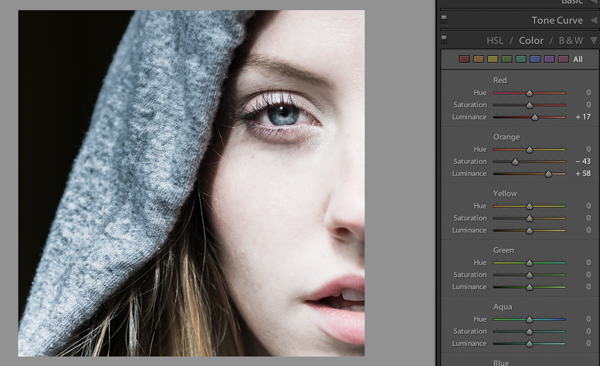
I would love to see what you do with photos of your children or self-portraits using this technique. And if you are someone who really wants to get rid of freckles, you can basically reverse the the effect by pulling the same sliders to the right instead:

digitalphotographyschool-1-8

Please post your examples below!

The post How to Make Freckles POP or Disappear using Lightroom by Phillip VanNostrand appeared first on Digital Photography School.

Digital Photography School

 
Comments Off on How to Make Freckles POP or Disappear using Lightroom

Posted in Photography


Adobe Camera Raw, Lightroom and DNG Converter add EOS 7D II, X100T, G7 X, NX1 and LX100 support

20 Nov

Adobe has launched Adobe Camera Raw v8.7 and Lightroom v5.7, adding support for the Canon EOS 7D Mark II, Samsung NX1, Fujifilm X100T, Canon G7 X, Panasonic LX100 and a host of other recent cameras. An update to DNG Converter allows files to be adapted for use with older versions of Adobe’s software. The latest downloads are available through the software update feature or the links provided. Learn more

Articles: Digital Photography Review (dpreview.com)

 
Comments Off on Adobe Camera Raw, Lightroom and DNG Converter add EOS 7D II, X100T, G7 X, NX1 and LX100 support

Posted in Uncategorized


Fake Perfect Fall Colors Using the HSL Tab in Lightroom

08 Nov

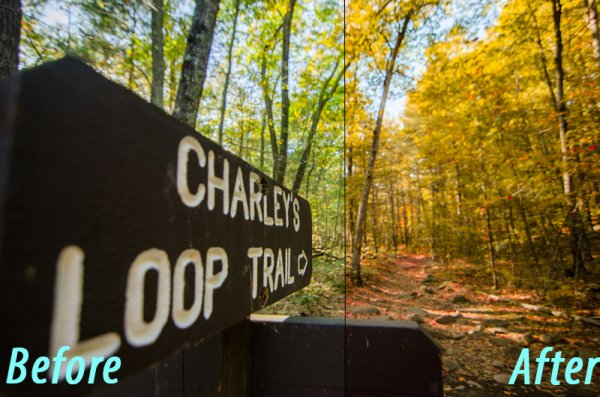
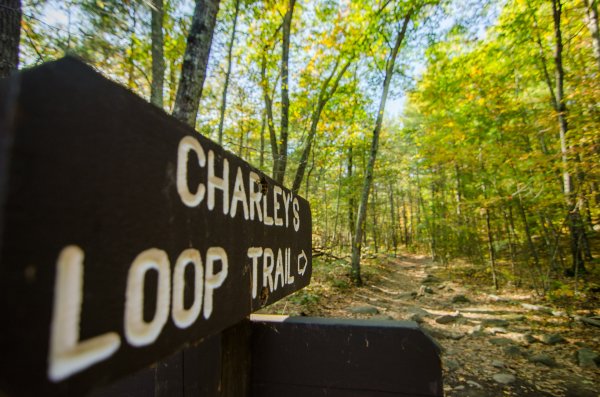
It can be extremely hard to predict when and where the peak colors of falls will hit. If you’ve ever been a week or two early you’ll know the frustration of seeing little splattering of color when you were hoping for full on peak color. Well, using a little bit of post-production magic, you can add some life to those early fall shots and get it closer to the vision you’d hoped mother nature would’ve given you in the first place. Let’s see how we can fake fall color using the HSL tab in Lightroom!

before&after

As a side note: I do want to mention that while this article is about faking the colors to create a vision that didn’t exist in the first place, a lot of these techniques can be applied to enhancing fall colors that do exist. Even if you’re completely against the idea of changing the world in post-production it might be worth reading through it to see how you might be able to use these techniques in a way that retains a more true to life look in your image.

What is the HSL tab

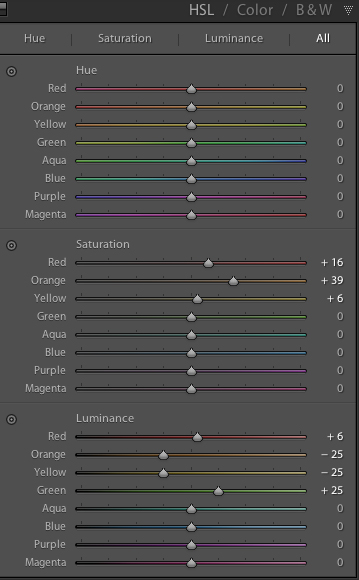
HSLThe workhorse of the manipulations you will see today is the HSL tab in Lightroom. It allows you to control the Hue, Saturation, and Luminance of your photograph on a color by color level. This gives you the ability to modify reds separately from oranges, blues from greens and so forth.

Each of the HSL controls have a unique slider for the eight different color tones that make up an image and as you’d expect, each of the HSL controls allow you to modify different aspects of that color.

  • Hue – Controls the tonal range of the color that you’re modifying. For example greens can be anywhere from yellow to aqua.
  • Saturation – Controls the intensity of the color that you’re modify. More saturated means deeper and more intense color, less saturated and you’ll have muted or even no color for the selected color.
  • Luminance – Controls the brightness of the color you select. Moving a slider to the right will brighten the selected color, while moving to the left will darken it.

As you can see there is a wealth of specialized controls built into the HSL tab. I hope the walkthrough below gives you some ideas on what you can do with it. Remember it’s not just limited to faking the colors of the fall season.

Fake perfect fall colors with Lightroom

To get started you’ll need a photograph to work with. It is going to be important that you choose your images carefully here as not every photograph will work for this kind of post-production.

For example – you’ll want to make sure that the trees you’re featuring do in fact change color in fall (evergreens do not), and, that the other surrounding features of your photograph are outside of the green/yellow spectrum that you’ll most-likely be changing, or you’ll be altering them as well as your trees.

fall

Once you have a great shot and you’ve completed some of the basic post production steps then you’ll want to hop over to the HSL tab in your Lightroom develop module.

As you’ll be working with trees that have yet to change color you’ll mostly be working with greens and maybe some yellows or reds. Again, this is why it’s important that the photograph you’re modify doesn’t contain any non-leaf items in these color ranges – or you’ll change them too – and that might looking more unnatural than the fake fall colors you’re creating.

fakingfallcolor-green

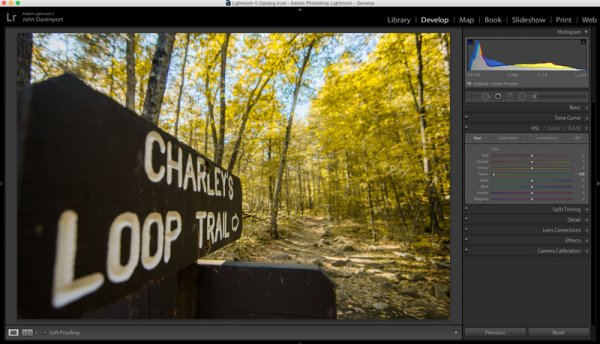
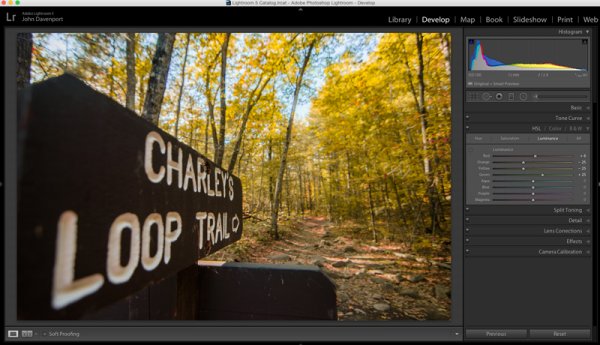
As you saw above, the shot I’ve chosen for this article contains mostly green leaves with just a few hints of fall color. The first step is to remove the greens from the image by moving the green’s hue slider all the way to the left. This effectively changes the green colors in the image to yellow giving a more fall like look the the photograph, but we’re not done just yet!

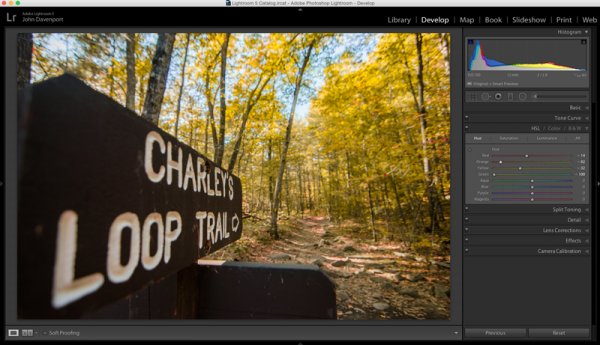
Next you can experiment with moving the reds and yellows sliders around to try and see how they effect the image. Different color tones will come to life that you may not even realize were there in this step so it’s important to take it slow and look at the entire photograph as you make the changes. In this image the leaves on the ground took on a rusted red look while the trees themselves got a deeper orange look.

fakingfallcolor-hue

Once you’ve got the Hue the way you like it you may want to move into the Luminance and Saturation tabs of the HSL tool. This will allow for further modifications of the colors tones by effecting the richness and brightness of the colors you’re presenting.

fakingfallcolor-luminance

Remember the color tones are still the same as they were in the Hue slider, so even though the greens appear as yellow, moving the green Luminance slider to the right brightens the trees a bit, while the orange and yellows sliders effect their respective color tones.

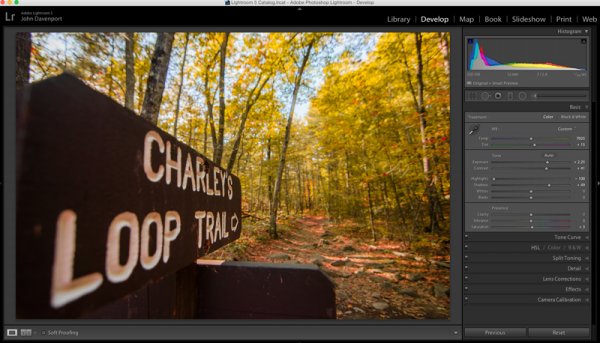
Another idea that you might want to toy around with is modifications of the white balance. Adding more yellows with the Temp slider or more magenta with the Tint slider can add even more dimension to the shot giving the colors a more dynamic feel.

fakingfallcolor-wb

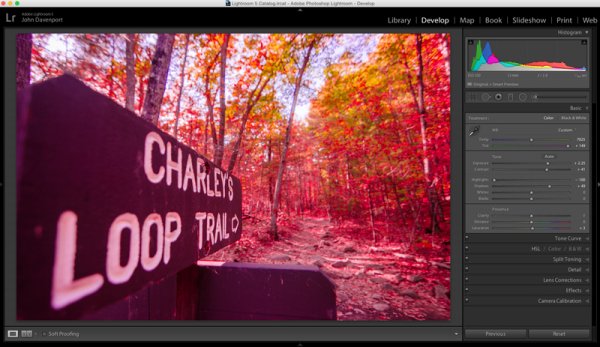
However, it is extremely important to be careful with the white balance sliders when you’re doing these manipulations as bad things can happen very quickly if you’re too aggressive with the changes!

fakingfallcolor-toomuch

After you’ve set your color tones and adjusted the white balance of the image it’s time to give the entire photograph a good, close, once over.

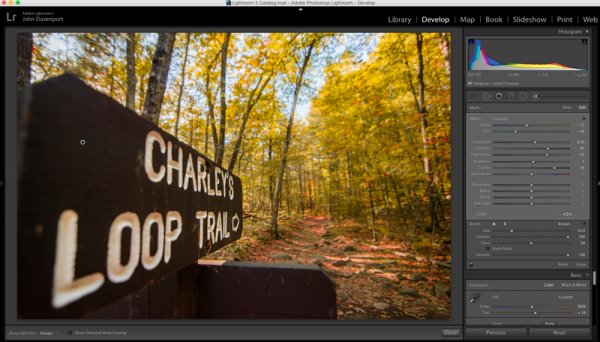
For this demonstration image the lettering on the sign started to take on a reddish/yellow tint after the white balance tweaks were performed. To fix this an adjustment brush was added to the sign which reduced both the Temp slider (to remove yellows) and the Tint slider (to remove the magenta colors). Also at this point the sign was given a little more definition with the adjustment brush by increasing the clarity and fine tuning the exposure.

fakingfallcolor-adjustment

All in all using the HSL tab in Lightroom can be a fun way to create that fall color when it might have been just out of reach. Of course, this doesn’t compare to the real thing so, the best way to get fall color is to go find it in person. Therefore don’t let this stop you from getting out and planning your next hiking trip – the unpredictable nature of the fall season is one of my favorite parts about it!

fall-2

Watch this technique in action

Do you have any other fall photography or post-processing tips to bring out those great colors? Please share in the comments below.

The post Fake Perfect Fall Colors Using the HSL Tab in Lightroom by John Davenport appeared first on Digital Photography School.

Digital Photography School

 
Comments Off on Fake Perfect Fall Colors Using the HSL Tab in Lightroom

Posted in Photography


How to Add a Grunge Effect to Your Portraits Using Lightroom

26 Oct
Grunge Main 600

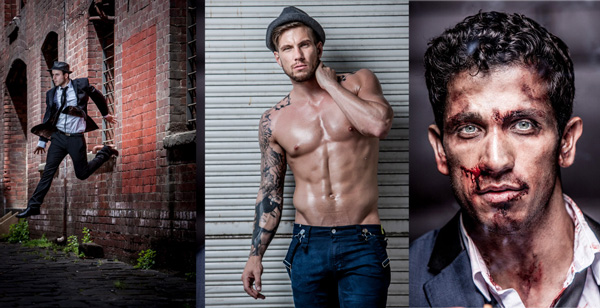
All images copyright Gina Milicia – Model credits from left to right: Jess Kenneally, Nathan Kennedy, Firass Dirani.

Gina has a new dPS ebook just released – Portraits: After the Shot – check out out!

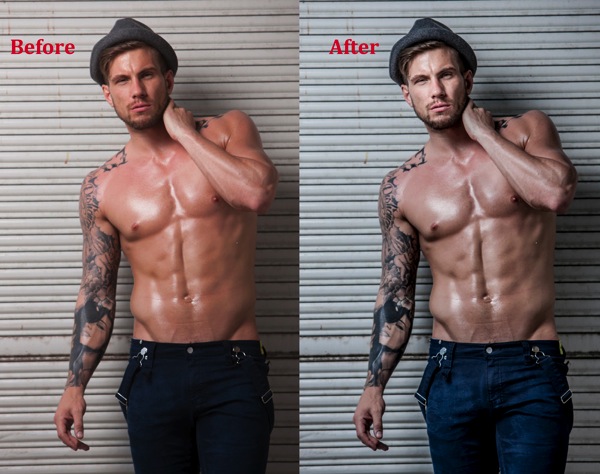
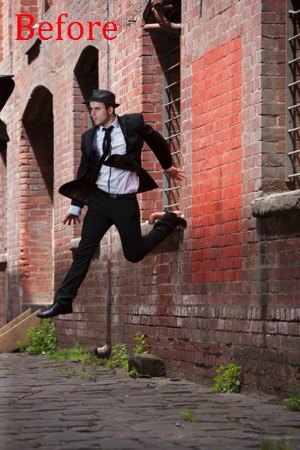
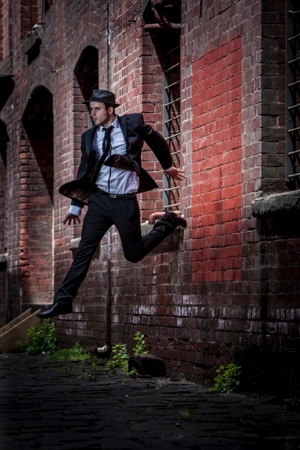
The style of side lighting (in the image below) is a great way to enhance muscle definition, and the post-production technique complements the lighting style. You can see that it appears as if Nathan has far better muscle definition in his after shot. I love using this post-production technique in character portraits for the entertainment industry, advertising and editorial shoots. It deliberately gives the skin a hard, detailed, gritty look, which is perfectly suited to character-style portraits.

Nathan Kennedy for ML Denim

Model credit: Nathan Kennedy for ML Denim. In this image I used fill flash from my Elinchrom Quadra lights with a Rotolux Deep Octabox camera left, which is lighting Nathan from a 45-degree angle.

If you want to see a full tutorial on my favourite lighting style for this type of effect, check out: How to Create this “Fight Club” Inspired Portrait using One Light.

It’s not the most flattering technique for skin post-production, so I’m selective about which projects I use it on and tend to avoid using it on female skin tones. There are very few women who will say, “Wow, I love how detailed and large my pores look.”
Don’t forget my overnight rule. After you’ve edited your image, try not to look at it for a minimum of 12 hours. When you look at it again with fresh eyes, you should trust your gut instinct on how it looks. If your first reaction is “Ewww”, then you may have gone too far!

Here’s my step-by-step recipe for adding a grunge effect to your portraits using Lightroom:

LW GRUNGE 1 LW GRUNGE 1B

Note: Every lighting style is going to give you a slightly different result. I suggest you use my recipe as a rough guide only, tweaking your images until you get the results that best suit your image and personal style.

LW Grunge 2

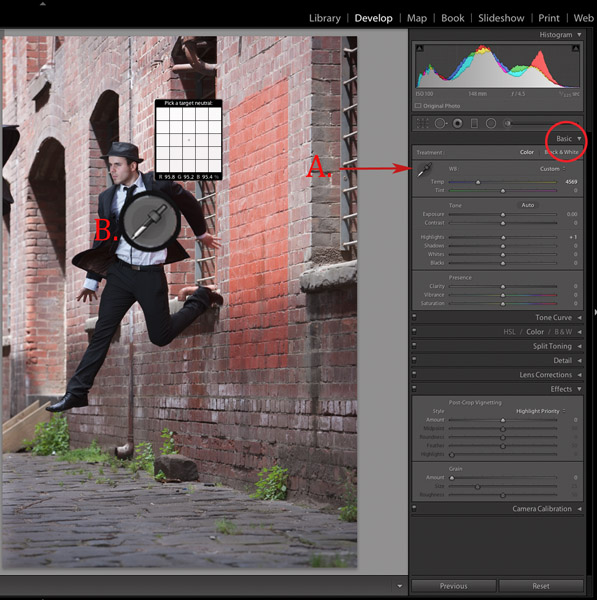
Find a neutral area of your image and use it to correct white balance. In this case I’ve selected a very light gray section of the white shirt the model is wearing.

Step 1. Import the file into Lightroom and in the Develop module, use the eyedropper tool (A.) and do a custom white balance (B.). This is achieved by finding a neutral area on your image (gray or white works best) then using your eyedropper tool (A) click on this (Neutral area) and Lightroom will automatically adjust your white balance.

The best and most accurate technique to achieve a good white balance is to ask your model to hold a gray card in front of their face for the first frame. This gives you an accurate neutral gray to select from for your white balance.

The third option to achieve white balance is to use Lightroom’s auto white balance. Test them all if you can and see which option best suits your shooting style.

I like working with a combination of gray card and finding neutral areas. I will use Lightroom’s auto function if I am shooting television stills or theatre productions where I need to color correct images that were shot under tungsten lights.

LW GRUNGE 3

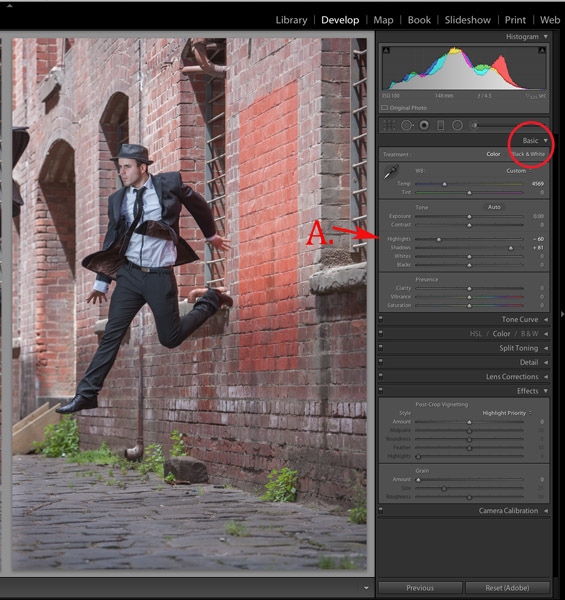
Step 2. As a starting point, increase shadows (+81) and decrease highlights (-60). The image starts to look a little wrong, but stay with me.

LW GRUNGE 4

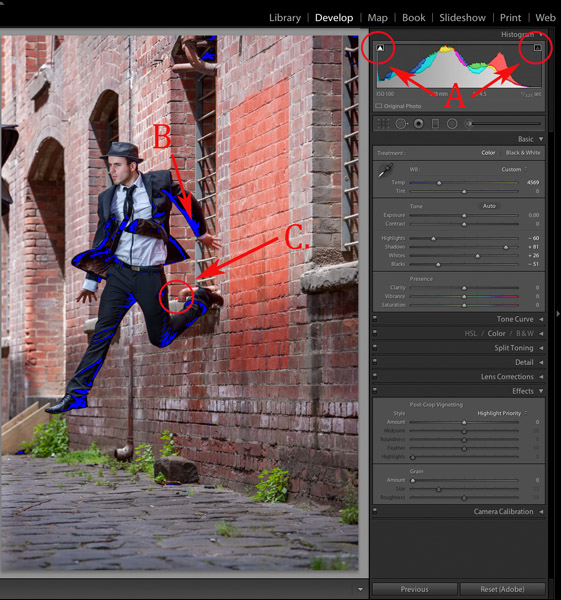
Step 3. Switch on clipping mask (A.) by clicking on little triangles above the histogram.

Move the blacks slider to the left until your image gets a good black tone. The areas in blue highlight loss of detail in the shadows, and areas highlighted in red indicate loss of detail in highlights.

Purists will probably start twitching at this point because I am crunching my black tones (B.) and blowing my highlights (C.). I believe this gives the image a more realistic feel because we don’t always see detail in shadow areas with our naked eye.

I personally like my images to look good overall, and if that means losing some detail in the shadows to gain good contrast across the whole image, I’ll do it. Just because Lightroom gives us the technology to see the entire gray scale doesn’t mean we have to.

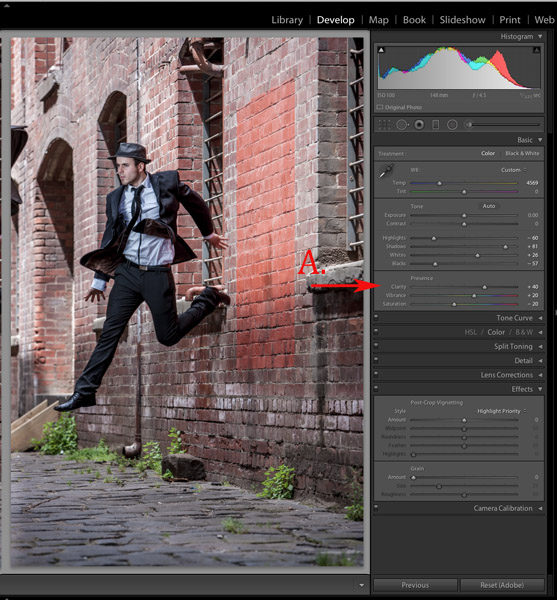
LW GRUNGE 5

Step 4. In the next step, I increase the mid-tone contrast or clarity) (A.). I also decrease saturation to counter the digital orange glow the skin tone tends to take on in Step 3. Then I increase vibrance to bring some tone back to the muted tones.

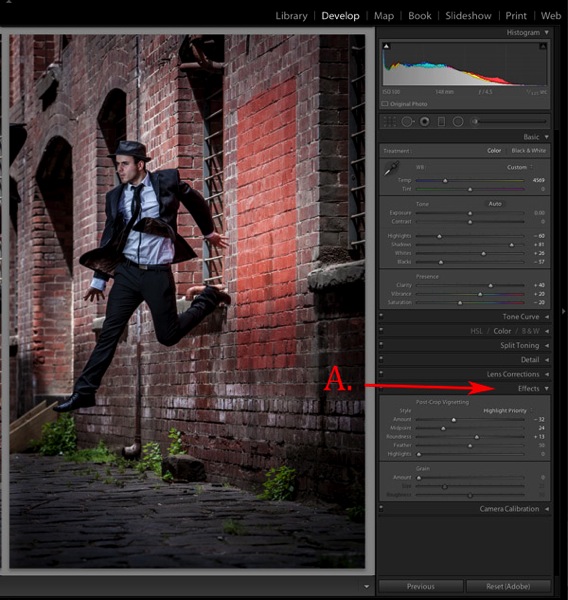
LW GRUNGE 6

Step 5. The next step is to add a vignette from the Effects menu (A.). This is optional, but I feel it finishes the image off nicely and draws our eye to the hero of the shot, Jesse.

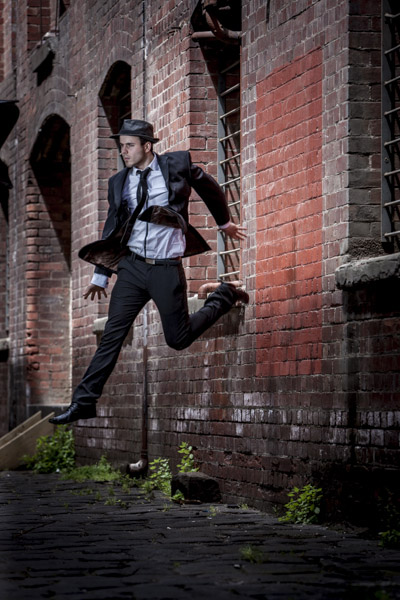
LW GRUNGE Main 2

Step 6. Finally, I enhance the eyes slightly using my eye-enhancing technique for Lightroom.

If you’d like to try it, you can check it out here: 3 Simple Ways to Create Stunning Eyes in Your Portrait Photography.

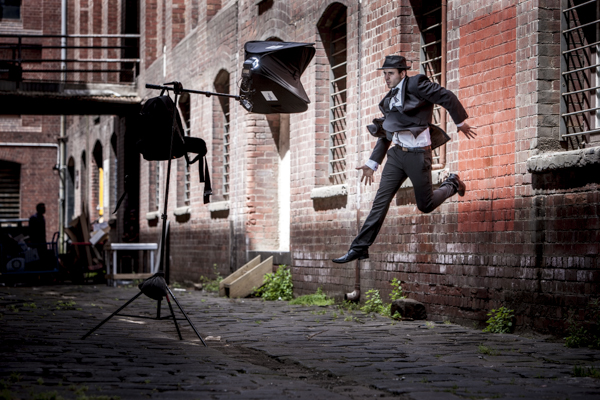
LW GRUNGE BTS

Behind the scenes on my air shoot with actor Jess Kenneally and my MacGyver-inspired lighting boom.

  • Canon 1DS MK3 ISO 100, F/5.6, 1/125th, 70-200mm IS zoom @ 200mm.
  • Jess has been lit using a Canon 580EX Speedlite and a medium softbox.

How do you create a grungy, gritty look to your portraits? Should we keep detail in the blacks and highlights, or is it okay to crunch and blow out to create the right vibe? I’d love to hear what you think.

Gina has a new dPS ebook just released – Portraits: After the Shot – check out out!

The post How to Add a Grunge Effect to Your Portraits Using Lightroom by Gina Milicia appeared first on Digital Photography School.

Digital Photography School

 
Comments Off on How to Add a Grunge Effect to Your Portraits Using Lightroom

Posted in Photography