RSS
 

Posts Tagged ‘lightroom’

Camera Raw 9.5.1, Lightroom updates add Pentax K-1 support

29 Apr

Adobe has released updates for ACR as well as standalone and CC versions of Lightroom, providing Raw support for the Pentax K-1 and Sony Cyber-shot DSC-RX10 III. Adobe Camera Raw 9.5.1, Lightroom CC 2015.5.1 and Lightroom 6.5.1 are all available for download and offer some minor bug fixes along with the new camera support. Updates are also available for Adobe DNG Converter for Windows and Mac.

Lightroom Mobile for iOS also gets an update. Version 2.3 brings improvements to editing workflow by making it easier to start editing a single photo from the device’s camera roll. The latest version is available for iPhones and iPads at the App Store.

Bugs Fixed in Camera Raw 9.5.1

  • EXIF lens name not visible for some camera models.
  • Camera Raw would not launch under Mac OSX 10.7 and 10.8.
  • Errors when using Camera Raw to tone HDR images from Photoshop. This occurred when converting 32-bit files to 16 or 8-bit files.

Bugs Fixed in Lightroom CC 2015.5.1 / 6.5.1

  • Droplets not working as export actions 
  • Issues with incorrect folder permissions.  Please see instructions to help correct user permissions issues.
  • EXIF lens name not visible for some camera models.  Please see instructions to reparse the Lens metadata after installing the update.
  • Focus lost in the keyword panel when navigating to the next image
  • Error when merging to HDR or Panorama from a collapsed stack 
  • Removed dependencies on QuickTime for some video codecs on Windows. Please see https://helpx.adobe.com/x-productkb/multi/quicktime-uninstallation-impact.html for more information

Articles: Digital Photography Review (dpreview.com)

 
Comments Off on Camera Raw 9.5.1, Lightroom updates add Pentax K-1 support

Posted in Uncategorized


Tips for Processing Winter Landscapes in Lightroom

20 Apr

I see a lot of winter. The interior of Alaska, where I live, gets a solid six months, often seven, of the white stuff. Essentially anytime from October to mid-April, we are likely to have snow on the ground. Unless I put the camera down for most of the year (which I don’t), I end up with a lot of photos on my computer of snowy mountains, forest, and tundra. Come the early-spring, brown season, I have a lot of computer work to take care of.
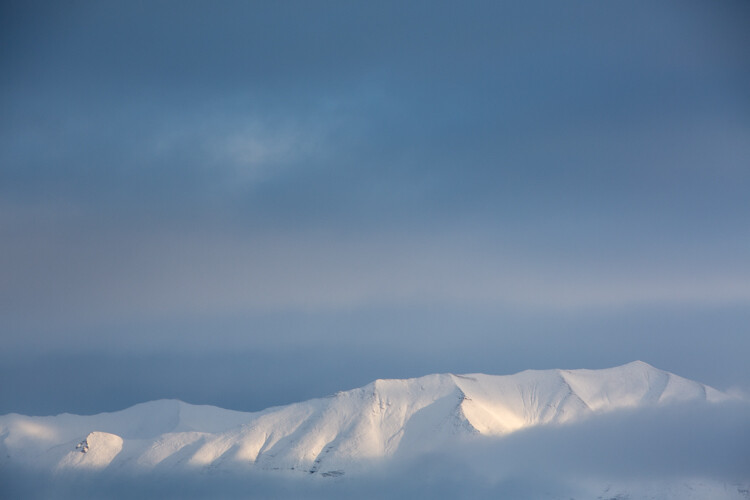
Kelly DONE-1

Though the method of processing winter images is largely the same as many other types of outdoor images, you’ve got to approach snowy images with cold focus (insert laughter here). I jest, but actually the cold, and bright blue tones of winter, are elements that should not be forgotten (or overdone).

My Approach

When I come at an image in Lightroom, I don’t tackle it with a standard formula. Rather, I consider the time and place I made it, what the landscape looked like, and just as importantly, how it felt. Those memories play an important role in my vision for the final image.

With that in mind let’s dive into the first of the three winter images I want to walk you through my processing steps.

Brooks Range, Alaska – Early winter
Kelly 1

On a river trip in early September, down the remote Kelly River of the western Brooks Range, my clients and I were hit by the first snowfall of winter. It started the evening before I made this image, with a few big, wet flakes falling from the overcast sky. By the following morning, my tent, the gravel bar on which we were camped, and the entire landscape, was covered in six inches of fresh snow. The snow was tapering off, and I could see breaks in the clouds where patches of blue sky shone through. It didn’t take long before those patches were turned into beams of sunlight on the mountains. I walked down to the river with my camera, and started making images of the shifting light on the land. This shot came out of that session.

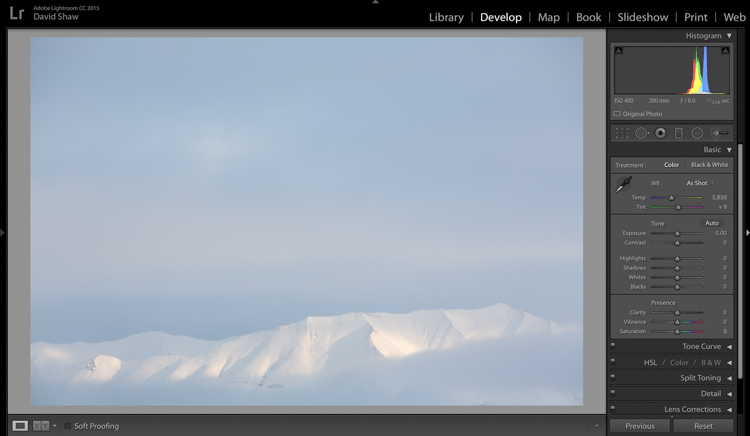
The light and color is typical of many winter images, bright, with lots of blue. Take a look at the histogram in the upper right, and you can see how it’s pushed to the right, meaning the image is on the bright side (but no blown-out highlights), exactly what I want with an out-of-camera winter shot.

Step One – White Balance

The first thing to consider is the white balance. Cloudy days tend to cause warmer tones, and snow, particularly under-exposed snow, can take on a yellowish hue. This can be off-putting, so pushing your white balance toward the blues can help provide a more pleasing, and accurate tonality. In this case, my camera selected an appropriate White Balance in the field, and didn’t need any adjustment in Lightroom. But keep this in mind when processing your own images.

Step Two – Exposure
Kelly 2

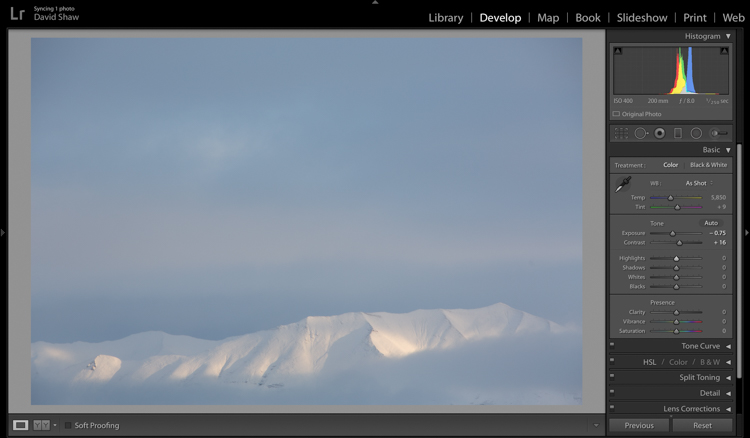
The next step was to bring down the exposure by 0.75 stops, making the image a bit moodier, and less bright. I then bumped the contrast a hair to +16 just to make those highlights more clear before I dove into the more important contrast adjustments.

As a quick note, I bet I do 85% of my Lightroom edits in the Basic panel. This very effective section of the program is one you should know intimately, before you go exploring too much of the huge variety of other tools provided by the software.
Kelly 3

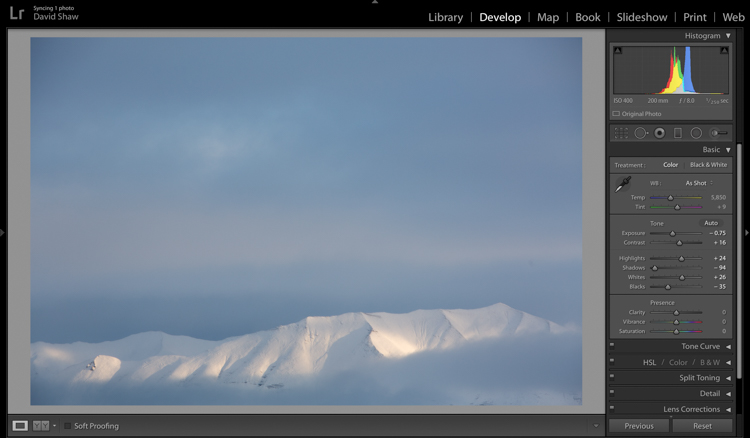
The next four sliders provide a more specific modification of lighting in the image. In this case, I wanted to recollect some of the feeling of the dissipating storm by emphasizing the dark clouds. To do so, I pulled the Shadows slider down nearly all the way, making the dark blues and grays of the clouds appear more menacing. The Highlights, I bumped just a notch, adding some pop to the bright patch on the mountains. Whites and Blacks each got a nudge up (Whites) and down (Blacks) respectively, finishing the job I started with the first two sliders.

Step Three – Clarity
Kelly 4

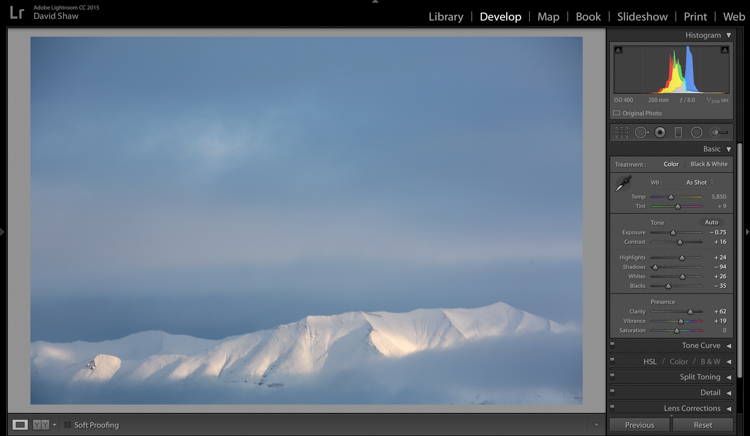
The first of the next three sliders is Clarity. This nifty tool, increases the contrast where dark and bright edges meet, and adds apparent sharpness to the image. On the morning I made the image, the clear morning light made the mountains very sharp to the eye. Wanting to emulate that effect in the image, I gave the Clarity a substantial boost to +62. That’s about as high as you can go on most images without appearing artificial.

Step Four – Vibrance and Saturation

The Vibrance and Saturation sliders are dangerous. Photographers tend to believe that bright colors mean a good image. I want to say this very clearly: Do NOT over-saturate your images. It doesn’t look as good as you think it does, so, you know, just don’t.

Vibrance increases the intensity of the less saturated tones. When used in moderation it adds pop. In this image, I left the saturation slider completely alone.
Kelly 5

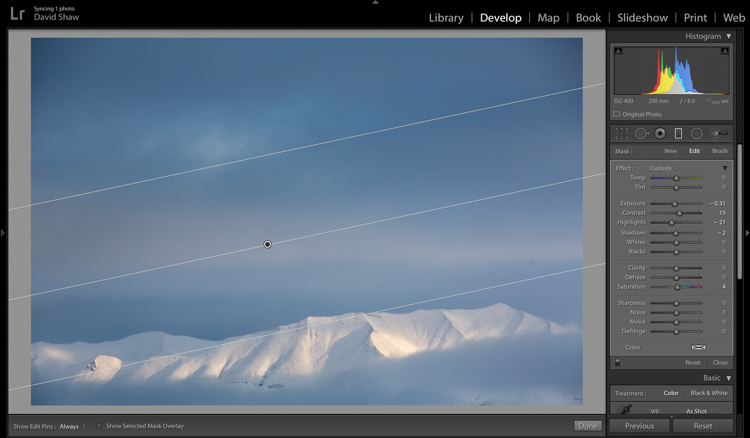
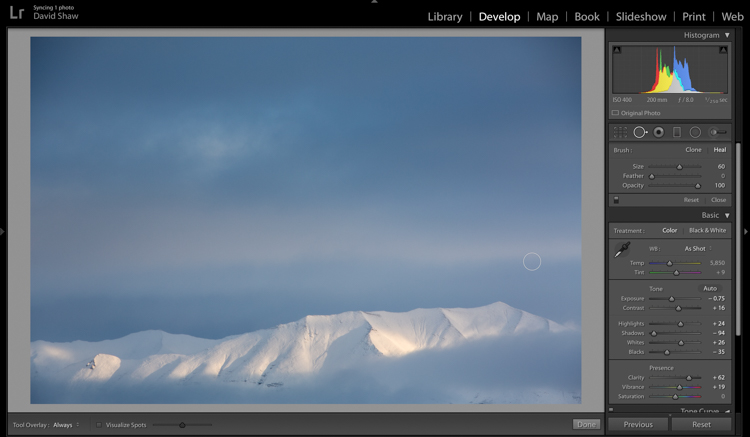
The rectangular icon in the row below the histogram is the Graduated Filter. This useful tool allows you to adjust a portion of the frame, without affecting the other areas. Just as importantly, you can adjust the edge softness (transition area) as hard or soft as you like. In this case, I wanted my changes to taper naturally into the frame so made the filter edge fairly wide (set feather to a high number). Using this tool, I chose to darken the sky, and draw attention to the mountains at the bottom of the frame. After adjusting the placement, I lowered the exposure in the sky. This allowed me to subtly darken the sky, without affecting the brighter tones of the mountains.
Kelly 6

Adjusting contrast can cause previously invisible imperfections to appear. In this case, it was a dust spot on my sensor, which I cloned out using the “Heal” tool.

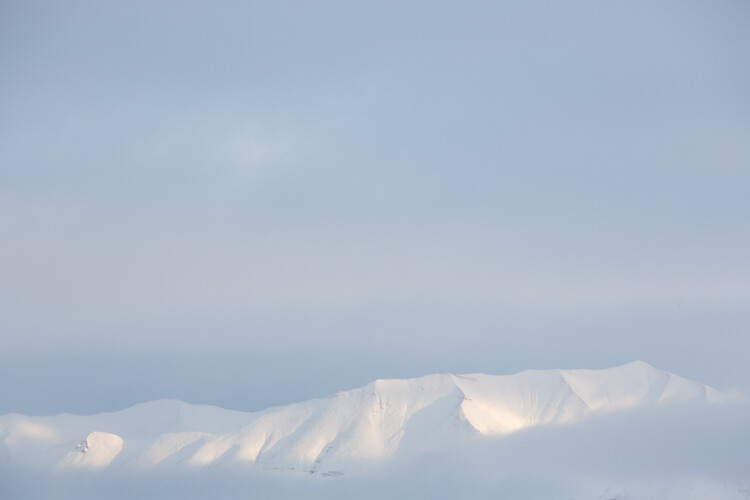
The final image, as you can see, is a substantial improvement over the original, and holds true to the scene as I remember it.
Before

Before processing

Kelly DONE-1

After processing

Color in the Cold

Not all images of the winter rely on cool tones for their success. At times, it is the juxtaposition of those cool tones and bright warm colors that make an image.
Beams 1

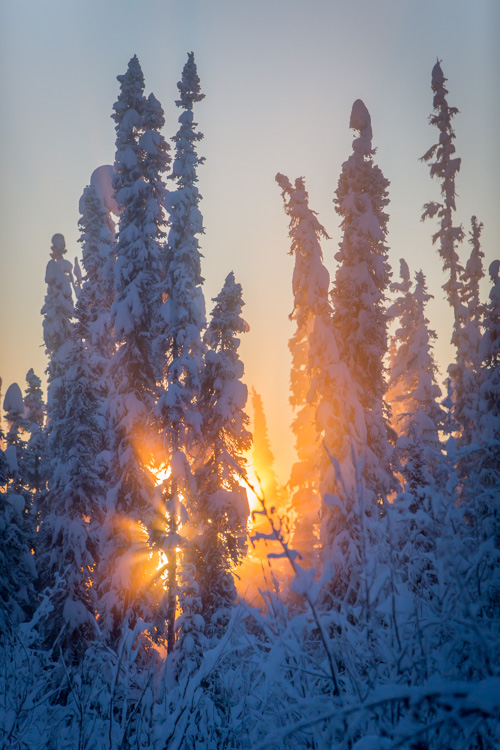
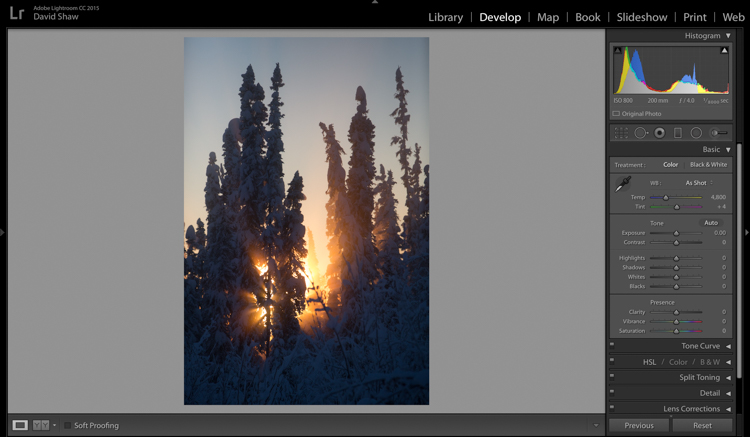
This is one such image. I made it on an extremely cold mid-winter day, on the ice of the small creek that flows on the lower part of my property north of Fairbanks, Alaska. It was about -35f (-37c), and water, pushed up from the bottom of the creek by the pressure of the ice, was trickling out onto the surface where it steamed into the frigid air, before freezing. It was midday, and the sun, just a few ticks above the horizon to the south, was throwing orange beams through the branches of the snow-colored spruces. Fortunately, I had my camera, and managed this photo before the sun slipped away.
Beams 2

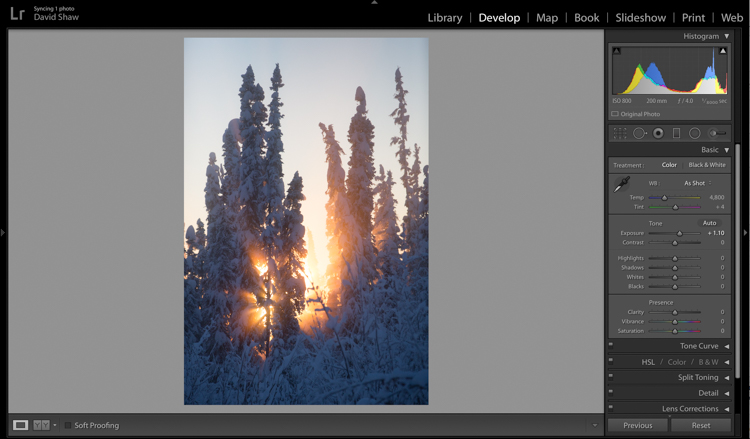
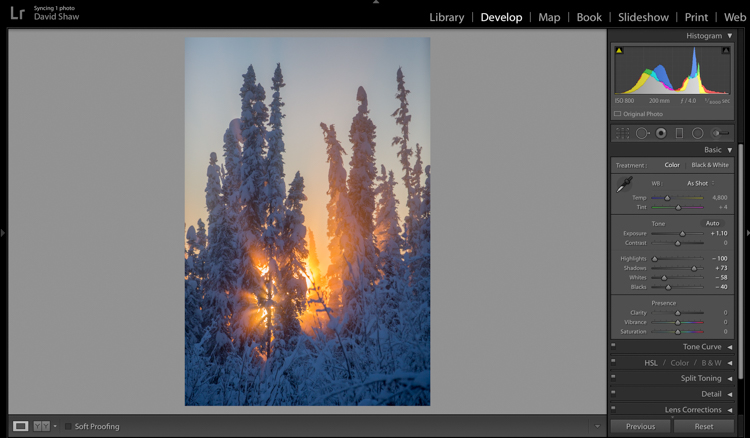
On that cold day, I was forced to underexpose the image to keep the beams of sunlight and the sky from blowing out. My first step was to return some of that brightness to the image by raising the Exposure +1.10 stops.
Beams 3

In general, I dislike High Dynamic Range (HDR) images, particularly the over-processed ones that appear regularly on Facebook and Instagram feeds. That said, HDR, or my Lightroom version of it, can be helpful in highly contrasted images like this one. Here, I pulled the highlights all the way down, bringing the beams and the sky back to more appealing levels. The Shadows I brought up, which revealed details in the trees and shrubs which were previously too dark to see. The effect, when used appropriately, does not look artificial.
Beams 4

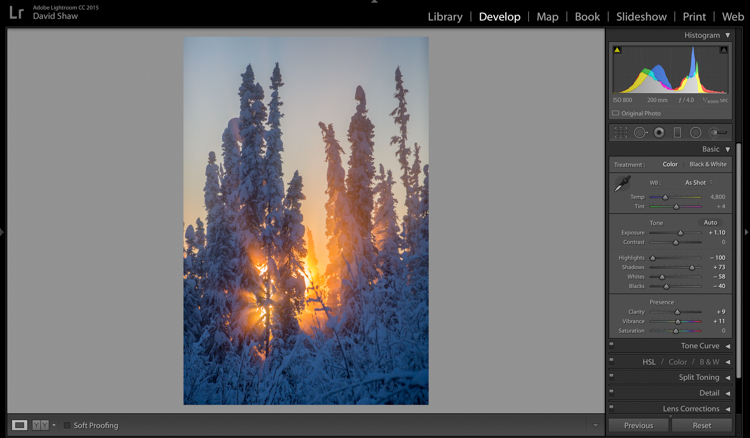
The image was already colorful and sharp so required very little in the way of Clarity, Vibrance or Saturation. A small boost (+9) to Clarity, +11 to Vibrance, and no change in Saturation was all the image needed.
Beams 6

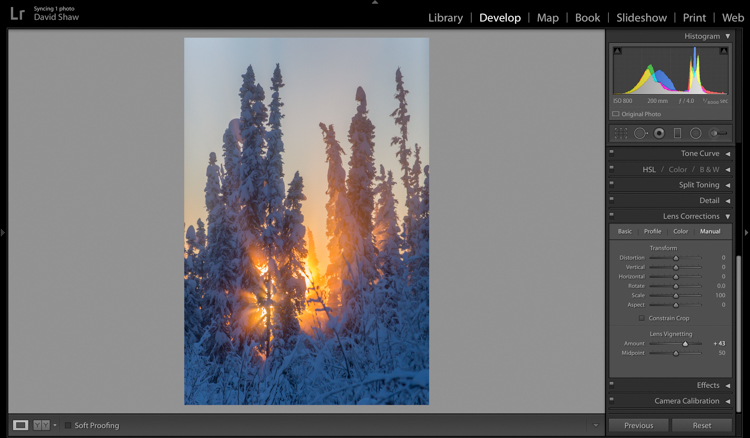
The lens I used to make the image has a hood, which I realized after the fact, was slightly mis-aligned and threw a vignette over the corners of the photo. If I want a vignette (see next), it needs to be purposeful, not the accident of a poorly fitted hood. So, using the Lens Corrections module, I made a single adjustment, sliding the Lens Vignetting slider to the right, brightening the corners, and almost entirely eliminating the ugly dark area in the top right.
Beams 7

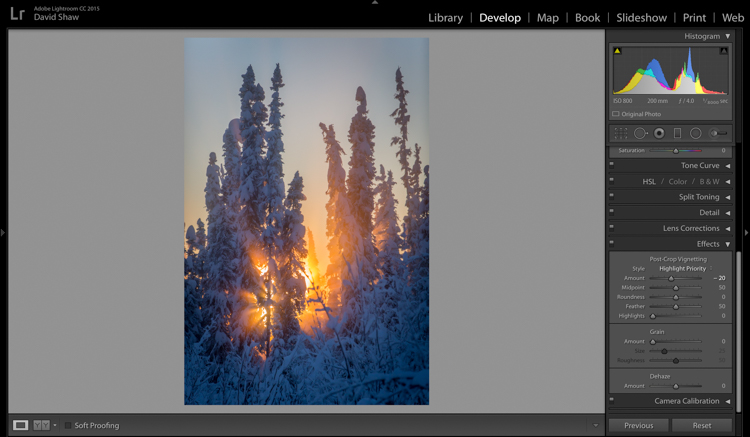
The last thing I wanted to do was darken the sky a touch more, and bring further attention to the starburst of sunbeams coming through the trees. So, using the Effects Module, I added a -20 Post-crop Vignette, which effectively darkened the sky and lower corners.

With that final change, the image was complete, a starburst of color on a brutal winter day.
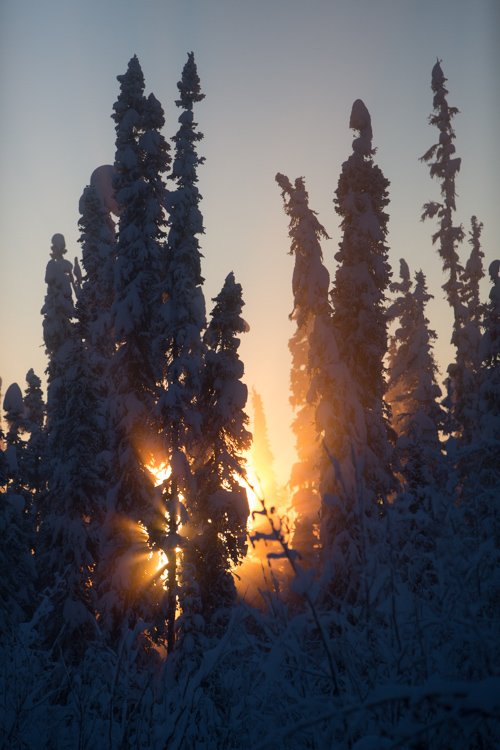
Before processing

Before processing

Beams Done-1

After processing

The Storm

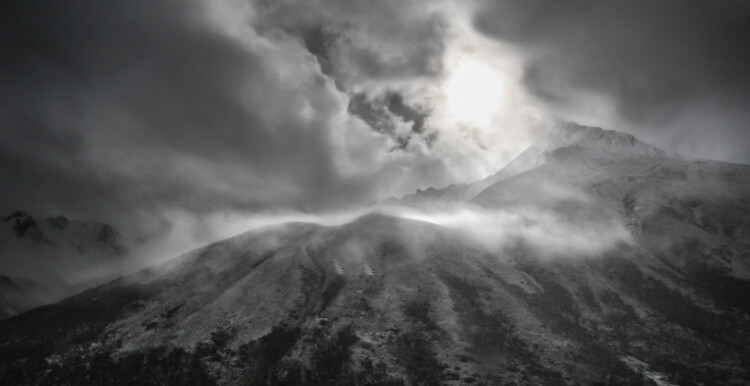
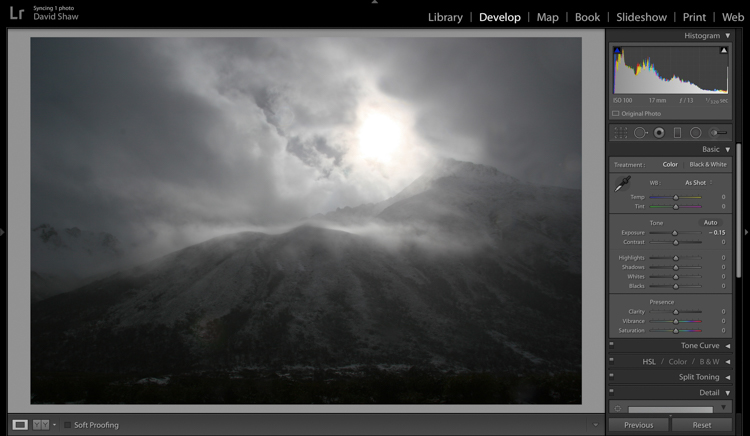
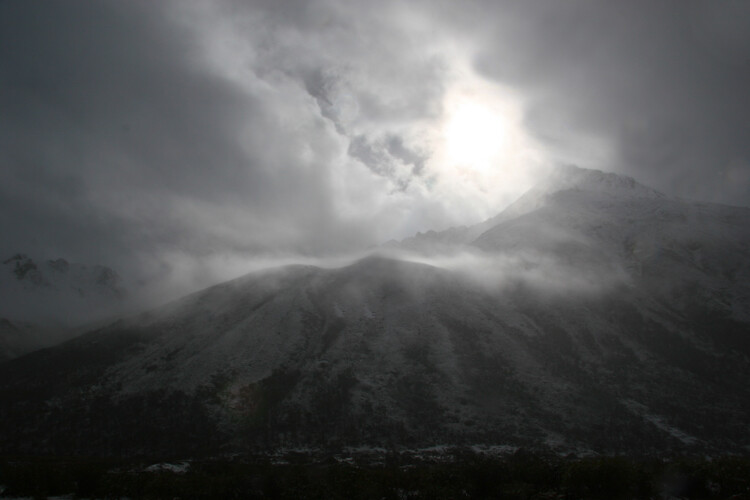
A number of years ago, I spent 10 days trekking through the Himalayas of Bhutan. It was October, the tail end of the trekking season for the little mountain kingdom. My group and I hiked up from the lowlands, to a high camp at over 13,000 feet, where we planned to cross over two 15,000 foot passes before making a long descent back to the city of Thimpu. It didn’t work out as planned. We’d scheduled two nights at the high camp to acclimatize before crossing the passes. Just before bed on the second night, a storm rolled in, and by the time we woke up the following morning, there were eight inches of snow on the ground. Any hopes of penetrating higher into the mountains were dashed. Making the best of it, I rose and made photos of the dark mountains and falling snow.
Bhutan 1

In the field, I purposely underexposed to keep the small patch of bright sky surrounding the sun from blowing out entirely. The mountains ended up nearly black, and the sky dark gray. Though consistent with my desire to make a moody, foreboding image, I wanted to emphasize that feeling even more.
Bhutan 2

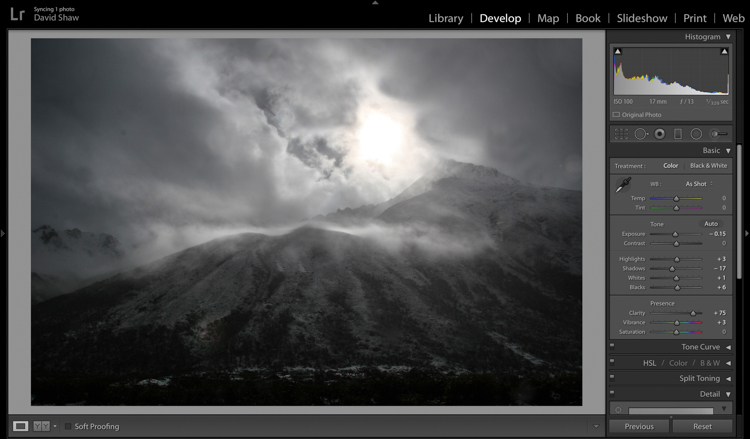
In the Basic Module, you can see that I darkened the image a bit more, left the highlights more or less alone, darkened the shadows a hair, and bumped the blacks just a bit to bring some texture into the dark lower corners. The Clarity slider I pushed notably to the right, which made the textures in the sky and mountain pop against the otherwise soft grays. I left the color adjustments mostly alone.
Bhutan 3

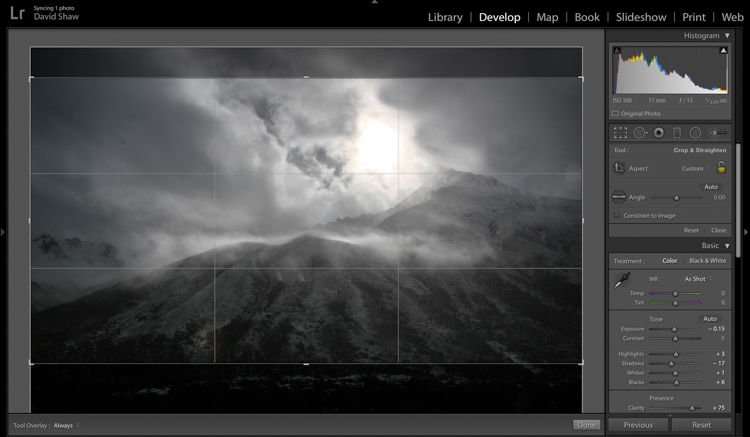
The more I looked a the photo, the more I realized the top and bottom edges added nothing to the image. Using the crop tool, I nipped them off, bringing all the attention to the action in the central part of the frame.
Bhutan 4

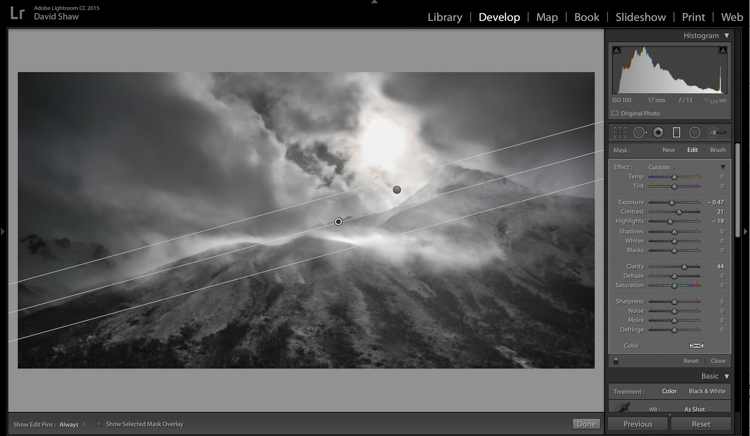
At this point, the processing got a bit complicated. I wanted to deal with the sky and mountains separately. One I wanted to brighten, the other darken. There were two ways to deal with this:

  1. Use the Adjustment Brush tool to select and develop the two areas
  2. Use Graduated filters to accomplish the same thing. Because the Graduated filter allows more flexibility to change the softness of the adjustment edge, I decided to use that.

The filter that adjusted the sky I darkened, and increased the clarity. The one for the mountains, I brightened, boosted the highlights, to make the scudding clouds pop, and added some clarity.
Bhutan 5

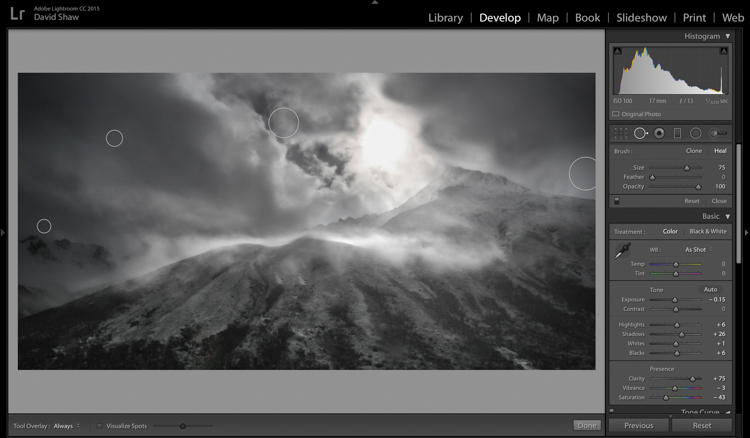
As noted earlier, the changes in contrast can emphasize imperfections, and I took a moment to remove lens flares and dust spots.

Last, I did a second pass of the Vibrance and Saturation. The yellowish patch around the sun was annoying me, so I dropped both the color sliders down reducing the image to a near black-and-white.
Bhutan-Jangothang-snowstorm-04

Before processing

Bhutan Done-1

Finished image after processing

I really like the final image. It provides a sense of the storm and the foreboding nature of mountain weather. Looking back, I can easily remember my nervousness that snowy morning, the uncertainty, and eventually, our retreat back the way we’d come.

Conclusion

Great images can come from snow. Many photographers put their cameras away during a winter storm, but I strongly recommend you don’t because there is great stuff out there if you’ve got the perseverance to suffer through some cold days. The images you gather, like these, can be optimized in your computer. Remember to take a moment before you begin, to recall how the scene looked and felt when you made the image, then use those memories as your guide.

Do you have any winter images on your computer that are begging to be processed? Now’s the time to do it, please share your images and comments below.

googletag.cmd.push(function() {
tablet_slots.push( googletag.defineSlot( “/1005424/_dPSv4_tab-all-article-bottom_(300×250)”, [300, 250], “pb-ad-78623” ).addService( googletag.pubads() ) ); } );

googletag.cmd.push(function() {
mobile_slots.push( googletag.defineSlot( “/1005424/_dPSv4_mob-all-article-bottom_(300×250)”, [300, 250], “pb-ad-78158” ).addService( googletag.pubads() ) ); } );

The post Tips for Processing Winter Landscapes in Lightroom by David Shaw appeared first on Digital Photography School.


Digital Photography School

 
Comments Off on Tips for Processing Winter Landscapes in Lightroom

Posted in Photography


Step by Step How to Use HDR Merge in Lightroom

13 Apr

HDR merge in Lightroom
There are lots of plug-ins that you can use with Lightroom to create High Dynamic Range (HDR) images. Photomatix and HDR Efex Pro are two of the best known, and MacPhun’s Aurora HDR (Mac only) is a new application that has received good reviews.

But, if you have Lightroom 6 or CC, you can create HDR images right within Lightroom itself, without having to buy a plug-in. There are several advantages to using Lightroom for your HDR conversions:

  1. You save money. Most HDR plug-ins are not free, and are an additional cost for you.
  2. Lightroom’s HDR merge creates natural looking HDR images. Not everybody will see this as an advantage – but if you want to create garish, over-saturated images the aforementioned plug-ins will help.
  3. You don’t need a lot of bracketed images. Two seem to be enough (you can use more if you want, or if you have a really contrasty scene), one exposed at -2 stops, the other at +2 stops.
  4. The final HDR image is saved as a DNG file. Not only is this smaller than a TIFF file, but you can process it in Lightroom the same as you do with any other DNG or Raw file. The main difference is that the Exposure slider runs from -10 to + 10 stops, rather than the normal -4 to +4. There is also much more information in the file for Lightroom to work with, when you make adjustments with the Shadows and Highlights sliders (and local adjustment tools like the Graduated and Radial filters).
  5. You can take bracketed sequences hand-held, and Lightroom will align them automatically. Having said that, I’ve found the best results come from bracketed photos taken with a tripod mounted camera.
  6. There is less noise in shadow areas than you would expect from a regular, single photo.

Lightroom HDR merge in action

Let’s look at a couple of practical examples to see how it performs.

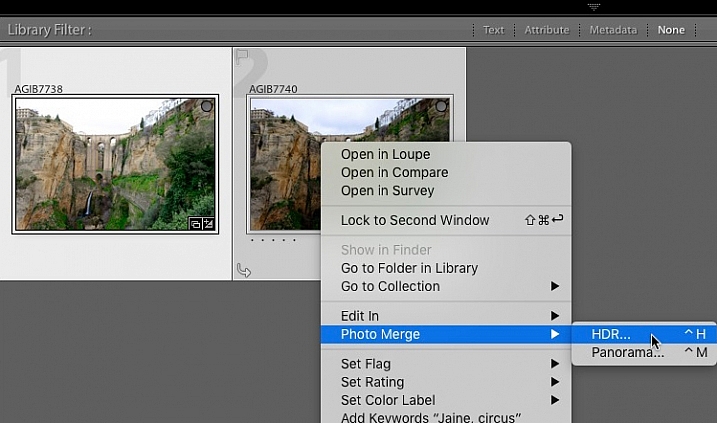
Start in Grid View in the Library module, and select the images you want to merge. Alternatively, you can select the images in the Filmstrip in the Develop module. Then, go to Photo > Photo Merge > HDR. Or, right-click on one of the selected photos and select Photo Merge >HDR.

HDR merge in Lightroom

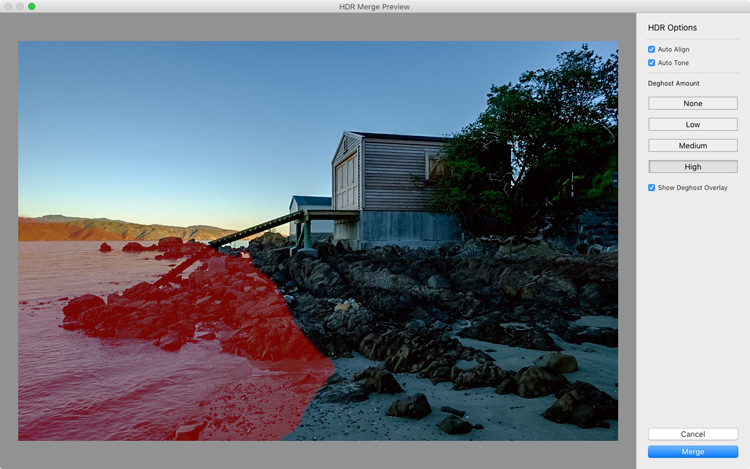
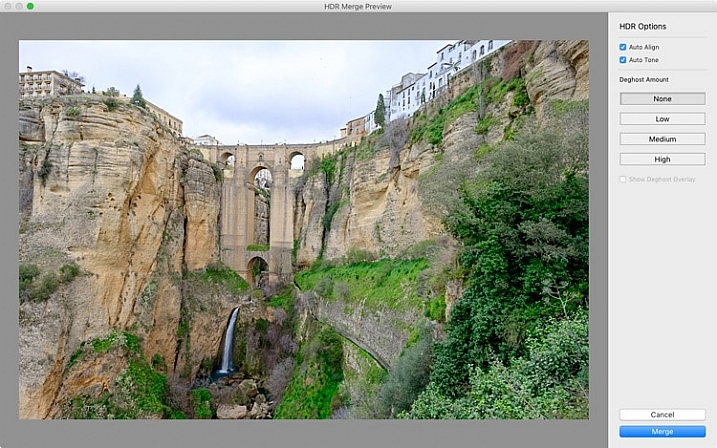
The HDR Merge Preview window opens, and Lightroom creates a preview of the HDR image. This may take some time, especially if you have selected several images. The Auto Align and Auto Tone boxes are ticked, and the Deghost Amount is set to None, by default. Lightroom remembers the last settings used, if you have changed them.

Auto Align is useful if the camera moved between exposures (for example if you hand-held the camera) and Auto Tone performs a similar function to the Auto Tone settings in the Basic Panel of the Develop module.

I find HDR merge works best with the Auto Align and Auto Tone boxes ticked (see below). If there is subject movement between frames you can set Deghost Amount to Low, Medium, or High (trial and error is the only way to see what works best, and is different for each set of images).

HDR merge in Lightroom

You may be surprised to learn that there are not many settings to adjust. This is deliberate, as the aim is to let Lightroom produce a natural looking HDR image, which you can then process in the Develop module to achieve the desired look.

You can set Deghost Amount to Low, Medium, or High if you see any ghosting (double images) in the image. Ghosting takes the form of lines, white patches, or other artefacts caused by subject movement taking place between frames (such as trees blowing in the wind, clouds moving across the sky, or people walking through the scene).

You can’t zoom in to a 100% in the preview mode, so you may only become aware of ghosting once you move on to the Develop module and zoom in to 1:1 magnification. You can simply go back and reprocess the images if you notice ghosting at that stage. Tick the Show Deghost Overlay box, to reveal the areas in which Lightroom has detected and attempted to clean up ghosting (it is shown in red).

Click the Merge button when you’re done. Lightroom saves the merged image as a 32-bit DNG file, with the suffix -HDR appended to the file name, and takes you back to the module where you started. From there you can edit the image as normal in the Develop module.

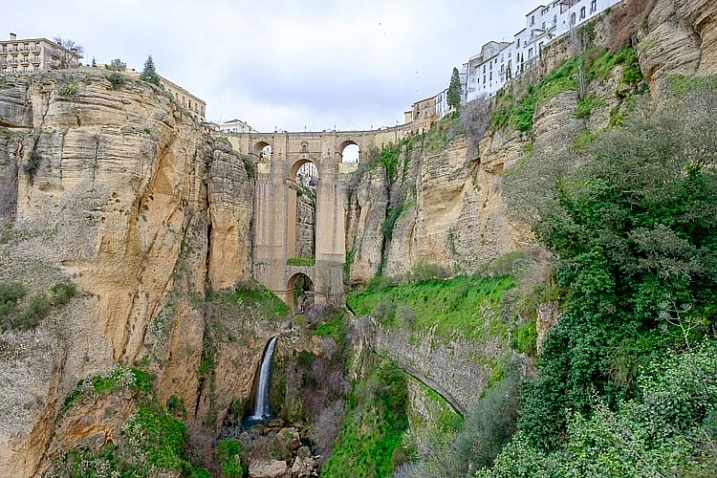
This is the result from my HDR merge. I used two photos, bracketed one stop apart. That’s not a lot, but it was a cloudy day and what I wanted was a photo that captured detail in both the landscape and the sky. On a sunny day you would use images that were bracketed further apart.

HDR merge in Lightroom

The result should be treated as a starting point in your processing – a new Raw file that you can edit in the Develop module to achieve the desired effect. In this case photo was too light, so I darkened it, made some tonal adjustments, and increased clarity. This is the result.

HDR merge in Lightroom

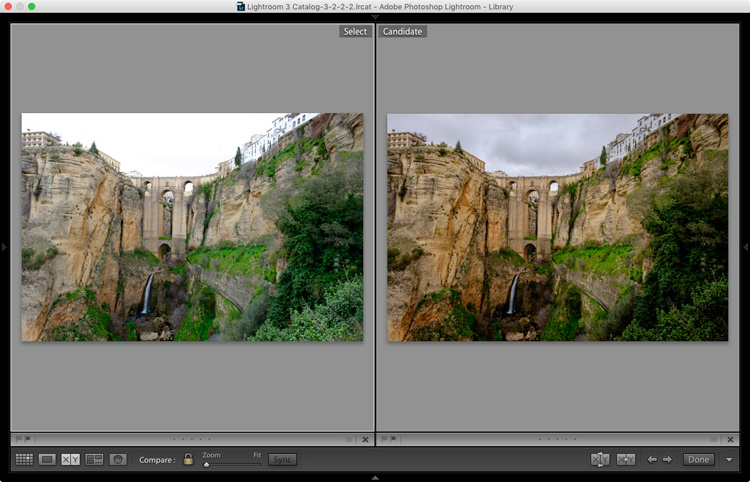
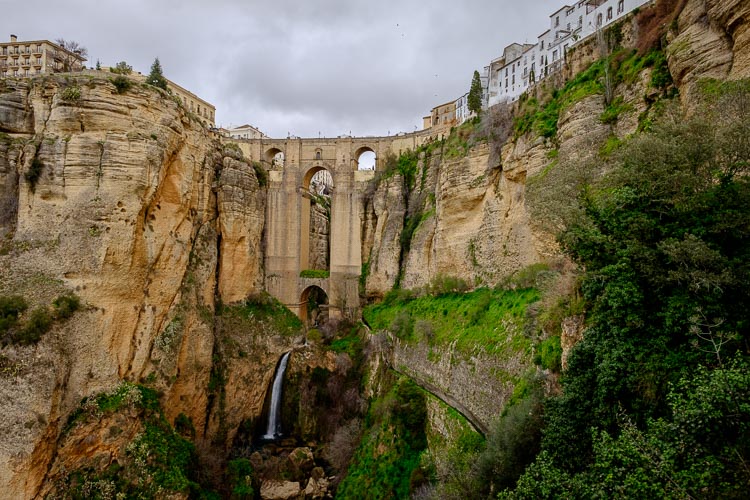
The screenshot below shows a comparison between the HDR image (right) and the same photo taken without any exposure compensation (left). As you can see, merging two exposures has allowed me to capture the details in the grey clouds. If, at this stage, you think the image has too much of an HDR feel, you can use the Basic Panel sliders, or local adjustments, to alter the tonal values. For example, you can increase Shadows or the Blacks setting to add contrast, so you don’t have the unnatural detail in every shadow effect that typifies overdone HDR.

HDR merge in Lightroom

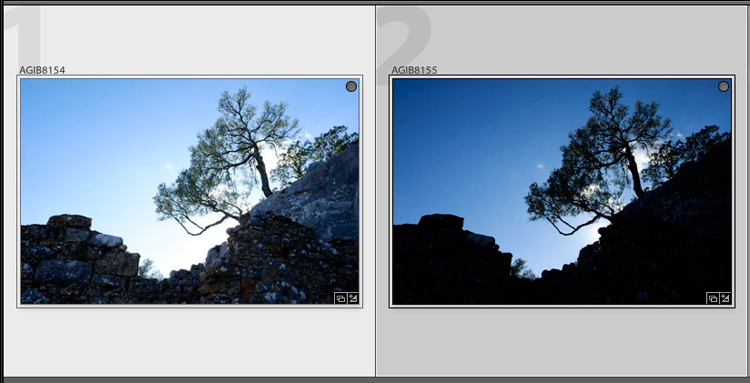
Here’s another example, this time with photos taken in the sun, and a much greater brightness range. These two photos were taken at +1 and -1 stops respectively.

HDR merge in Lightroom

This is the result that Lightroom gave after the HDR merge process.

HDR merge in Lightroom

Below is how it looks after editing in the Develop module. The differences are subtle, I just made the image a little darker, and moved the Highlights slider to zero, to bring out as much detail in the clouds as possible.

HDR merge in Lightroom

High contrast example

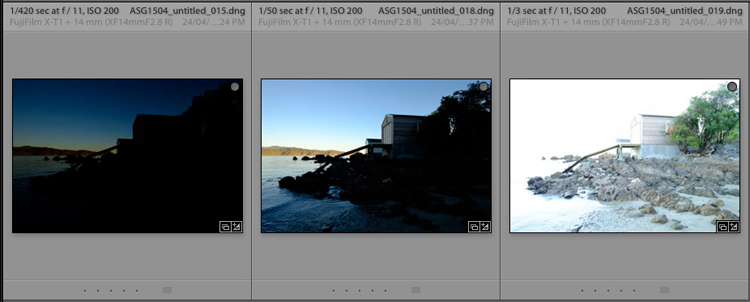
Here’s another example, this time taken with three photos with a total of seven stops difference in exposure. You probably don’t need to make the exposure differences that drastic, but it’s always interesting to try.

HDR merge in Lightroom

Here’s the result.

HDR merge in Lightroom

The water looks different in each version of the photo so I set Deghost to High. The deghosted area (shown in red below) covers all of the water – when I compare the three original images I can see that Lightroom has used the water from the first photo in the sequence, avoiding the ghosting that would be caused by merging three photos with a different level of water in each shot.

HDR merge in Lightroom

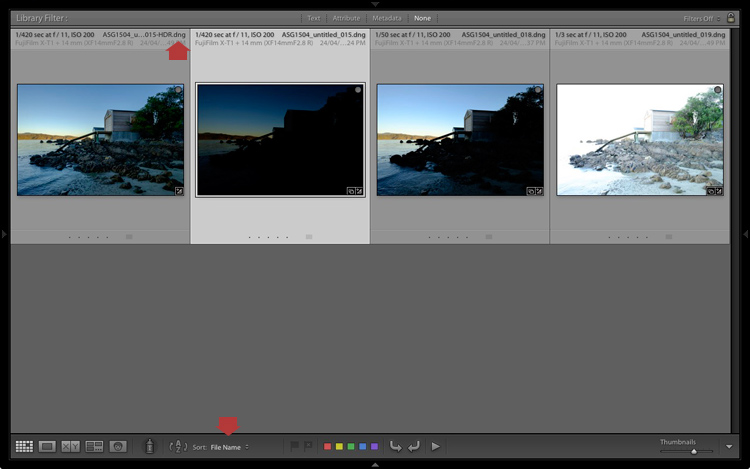
Can’t find your new HDR file?

By the way, if you’re not sure where to find the newly created HDR file, set Sort to File Name in Grid View, and it will appear next to the first image in the sequence (also make sure you are in the folder of originals, not inside a collection).

HDR merge in Lightroom

Here's an extreme contrast example

Here’s an extreme contrast example – a tototal 5 stops bracketed to keep details in the buildings outside, and capture some inside.

The final HDR merged and edited version.

The final HDR merged and edited version.

Final notes

You should be aware that it is best to carry out the HDR merge process with files that haven’t yet been edited in the Develop module, as Lightroom only retains some of the adjusted settings. These are taken from the most selected photo and applied to the HDR image. They are listed below (all other settings are returned to their default):

  • Presence sliders (Saturation, Vibrance and Clarity).
  • HSL / Color / B&W panel
  • Split toning panel
  • Detail panel
  • Lens Corrections (excluding Upright)

Lightroom also requires access to the original photo files. It can’t create a HDR image from Smart Previews alone.

Over to you

Have you tried Lightroom’s HDR merge tool? If so, what did you think? Is it a worthwhile addition to Lightroom’s toolset or would you prefer to use a plug-in. Please let us know in the comments below.

Mastering Lightroom

If you’d like to learn more about Lightroom, then please check out my Mastering Lightroom series of ebooks.

googletag.cmd.push(function() {
tablet_slots.push( googletag.defineSlot( “/1005424/_dPSv4_tab-all-article-bottom_(300×250)”, [300, 250], “pb-ad-78623” ).addService( googletag.pubads() ) ); } );

googletag.cmd.push(function() {
mobile_slots.push( googletag.defineSlot( “/1005424/_dPSv4_mob-all-article-bottom_(300×250)”, [300, 250], “pb-ad-78158” ).addService( googletag.pubads() ) ); } );

The post Step by Step How to Use HDR Merge in Lightroom by Andrew S. Gibson appeared first on Digital Photography School.


Digital Photography School
 
Comments Off on Step by Step How to Use HDR Merge in Lightroom

Posted in Photography


5 Tips for Using the Lightroom Adjustment Brush Tool

03 Apr

One of Lightroom’s most useful tools is tucked away at the top of the Develop panel, under a rather strange-looking icon that looks like a magic wand from Harry Potter. Clicking this Adjustment Brush icon, gives you access to many of the macro-scale alterations and edits available on some of the other Develop panels, but lets you control them on a micro level. It’s a fantastic tool for editing specific portions of an image, as opposed to the whole picture, but figuring out how to use it can be a bit overwhelming.

Here are my five favorite tips and tricks for using the Lightroom Adjustment Brush tool, and hopefully some of these will be useful to you as you explore how to use it for your own editing.

five-tips-brush-tool-woman-portrait

1. Use the A/B brush options to alternate between different types of brushes

My wife and I have done a great deal of painting in our house over the years. From hallways, to walkways, to bedrooms, we have spent more time and money on painting than I ever thought possible before we became homeowners. One of the most valuable lessons we have learned is that different types of painting jobs require different brushes. Sometimes you need a large roller, other times you need a small one. Sometimes you need a two-inch angled brush, and other times you need a small foam one. Each brush has its own purpose, and all are required to properly complete a painting task.

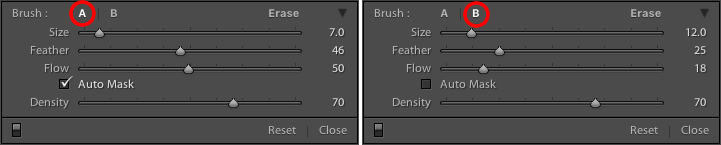
The same principle holds true in Lightroom, and you often need more than one brush to make the adjustments necessary on a given image. This problem is easily remedied by switching between the A and B brushes near the bottom of the Adjustment Brush panel.

five-tips-brush-tool-a-b-brushes

Brush A is highlighted by default when you click on the Adjustment Brush panel, which means that any size, feather, flow, mask, and density settings you use will be automatically applied to that brush. When you click on Brush B you can use an entirely different set of options, then cycle between the two brushes just by clicking A and B. In the example above, Brush A is small with a medium feather and flow rate. Brush B is larger with a much lower flow rate and no Auto Mask, which makes it better suited for large-scale edits, whereas Brush A would be better suited for fine-tuning specific parts of an image. Setting up two different brushes is a great way to speed up your editing workflow, since you won’t need to continually change the parameters of a single brush, and you can instantly switch between the brushes by pressing the forward slash (/) key.

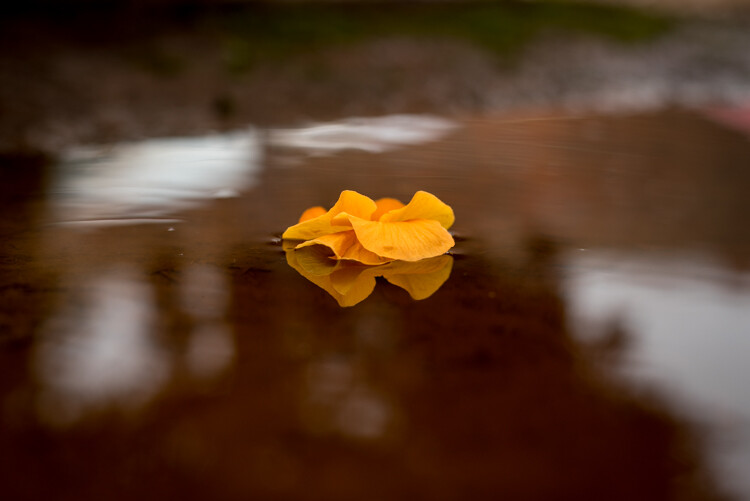
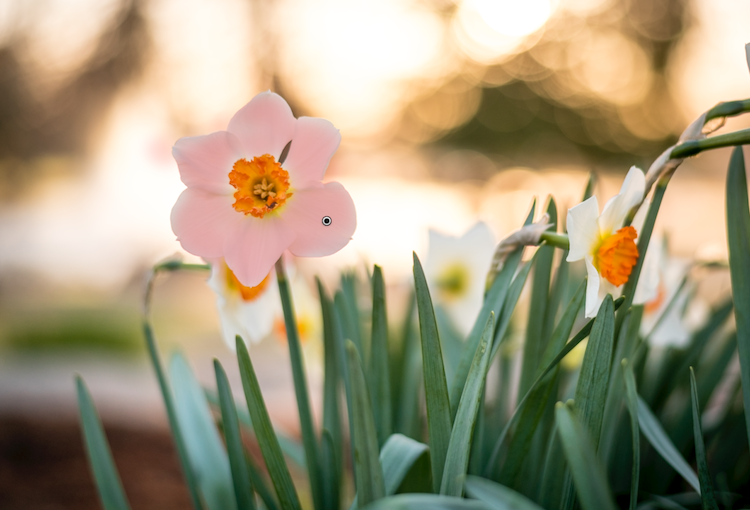
I used a large brush on the background and a smaller brush on the flower petals, and was able to switch between the two easily to get the edits I needed quickly.

I used a large brush on the background and a smaller brush on the flower petals, and was able to switch between the two easily to get the edits I needed quickly.

2. Create custom brush effect presets

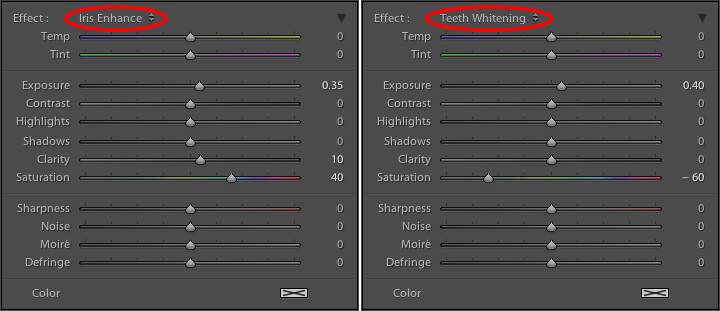
If the A/B brushes are similar to choosing different physical brushes at a hardware store, then the brush effect presets are like picking out different types of paint. Lightroom has several different presets that are available as default options, and they have names like “Highlights,” “Temp,” and “Teeth Whitening.” These presets are just default values that Lightroom thinks would work well to accomplish specific tasks like: adjusting exposure, adding contrast, or reducing noise. You can see how they work just by looking at the sliders, as you change from one preset to another.

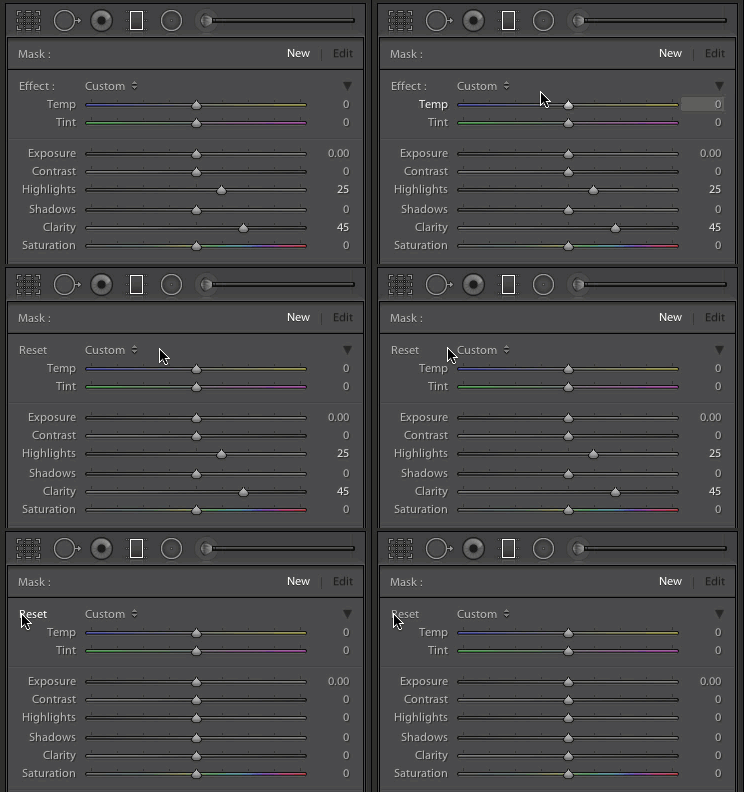
These presets don't inherently do anything special, they just adjust various sliders in different ways.

These presets don’t inherently do anything special, they just adjust various sliders in different ways. You can create your own presets to do unique tasks as well.

The beauty of these presets is you are free to add new ones that suit your own workflow. You would never select from only a dozen colors when choosing how to paint a room in your house, and neither should you be forced to stay within the confines of the existing presets in Lightroom. To add your own presets, adjust the sliders how you want, click the name of the existing preset to pull down the list, and choose “Save Current Settings as New Preset.” Give your new collection of slider settings a name, and you can now select it whenever you want, right alongside the rest of the presets.

For example, I have found that on many of my portraits I need to brush in some sharpness while reducing the noise so I created a preset to do exactly that. I also have custom skin smoothing and teeth whitening presets that are a bit different from the default set Lightroom uses, and it’s very handy to switch over to these brushes whenever I need to, instead of configuring the sliders from scratch every single time.

3. Adding color to a brush

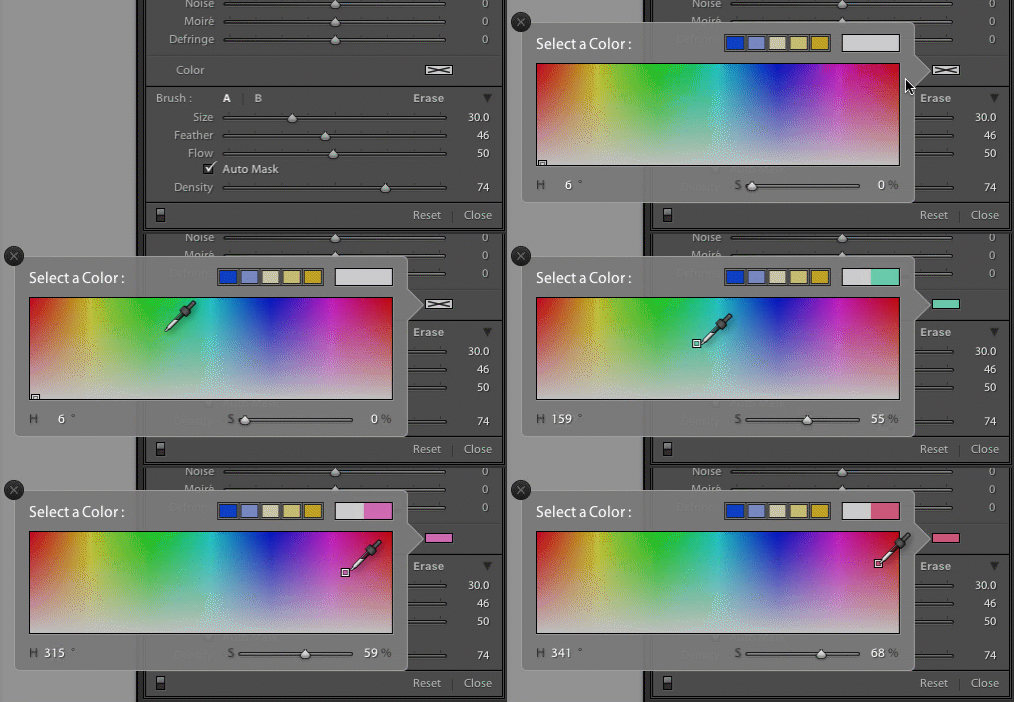
I started this article with an analogy comparing the Adjustment Brush tool in Lightroom to a literal paint brush, but what some people don’t realize is you actually can use the tool exactly like a paint brush to add color to your images. Near the bottom of the color panel is a rectangular box with a large X through it, and if you click on that you will see a color picker with an eyedropper tool that you can use to give your brush strokes a bit of color.

five-tips-brush-tool-color-selection-animated

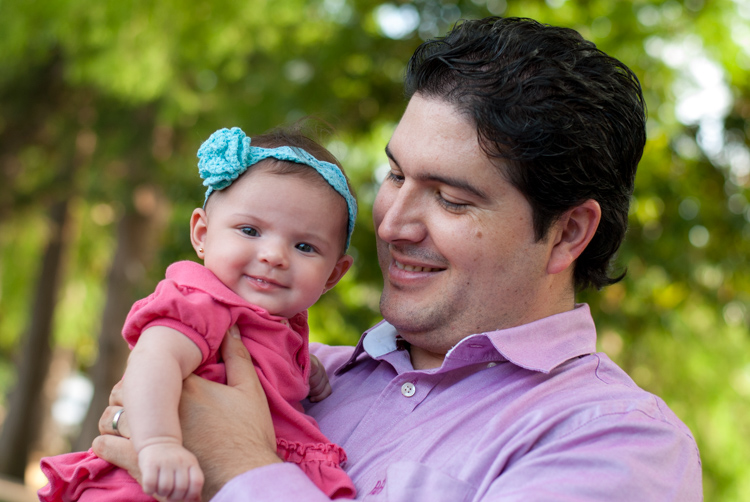
Once you apply a color, the Lightroom Adjustment Brush tool now functions just like the paintbrush in any standard painting application on your computer. It applies any effects you are already using such as exposure, clarity, or saturation while also painting in the color you specified. In the following picture I used this technique to add a subtle splash of color to the baby’s face, but you can also use it on much larger edits like changing the color of flowers or altering the eyes on a portrait.

five-tips-brush-tool-man-baby

4. Use Auto Mask to contain the brush to specific areas

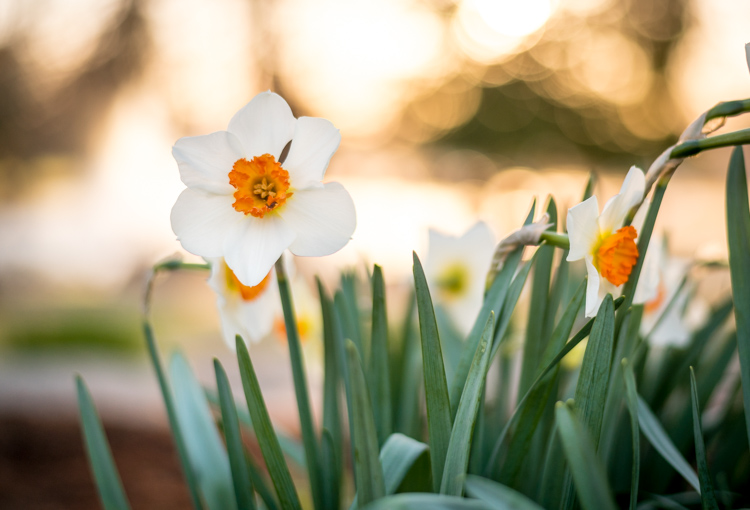
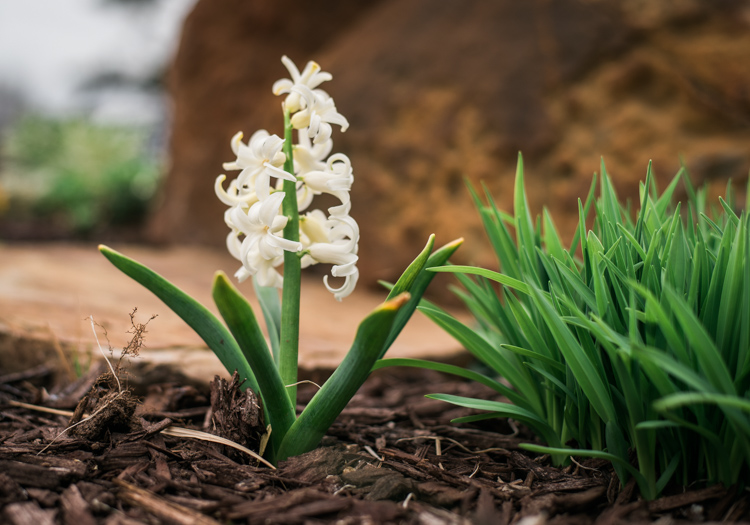
One of the most frustrating parts about the Adjustment Brush tool is that, unlike regular paintbrushes, it only comes in one shape: a circle, which can present a bit of a problem when editing photos with hard lines and angles. How do you confine your brush edits to just a specific area? The key to this lies in the Auto Mask feature which, when checked, tries to keep all the brush edits to places on the image that are similar to where you started painting. In the following picture I used some custom brush settings involving highlights and clarity and then clicked the Auto Mask function to keep these edits within the petals only, and not the surrounding areas.

five-tips-brush-tool-white-yellow-flower

An easy way to make sure the Auto Mask is doing what you want is to hover your mouse over the black dot that appears where you started brushing in your edits (hit the H key if you do not see it). You will then see a red overlay that shows precisely where your edits for that particular brush have been applied, and as you can see below they were confined to the precise area that I wanted, the flower petals. This type of precision is very difficult without the Auto Mask option, but with the click of a button Lightroom makes it very easy for you to do as your kindergarten teacher likely admonished years ago, color inside the lines.

five-tips-brush-tool-white-yellow-flower-edits

5. Changing brush size, resetting settings, and fixing mistakes

There are so many useful elements to the brush tool that it’s kind of difficult to distill everything down to five points. As such, here are a few more tips and tricks that I have found quite handy and you might too.

  • Use the scroll wheel on your mouse to quickly change the size of your brush. For fine-grain adjustments you can click the numbers in the brush parameters that indicate Size, Feather, Flow, and Density and increase or decrease them with the arrow keys on your keyboard. To go up and down in units of ten, hold the [shift] key while pressing arrow-up or arrow-down.
  • five-tips-brush-tool-resetAfter you have brushed in a particular set of edits, click “New” on the top-right of the Brush panel to create a new brush, but notice that all your sliders and adjustments remain unchanged. To reset all your parameters to their default values, hold down the alt key (option on a Mac) and you will see the Effect label at the top change to Reset. Click on that and everything will be set back to zero for you to start creating a fresh set of edits.
  • Pencils have erasers, but fixing errors when painting with brushes and pigment is not so easy. Fortunately the Brush tool in Lightroom has a feature that makes it much more like its wood-and-graphite counterpart in the real world, and makes fixing mistakes as simple as pressing a button. No, I’m not talking about Edit > Undo. If you’re brushing away with some edits and realized that you made a mistake or two, press and hold the Alt key (option on a Mac) and your brush will instantly switch over to eraser mode. Now, just like using the rubber end of a pencil, clicking and brushing will remove any edits you have made to the photo with the current brush. If you have used several different brush edits within one photo, your edits will mercifully be confined to the whatever brush is currently selected, and you can also adjust parameters of the eraser like size, feather, and so on.

five-tips-brush-tool-white-flower
As I mentioned earlier there are enough tricks with the Adjustment Brush tool to fill several articles, but I’m going to stop here and instead ask you for your favorite tips and hidden features. Leave your thoughts in the comments section below and I’m sure I will learn a thing or two from your experiences as well!

googletag.cmd.push(function() {
tablet_slots.push( googletag.defineSlot( “/1005424/_dPSv4_tab-all-article-bottom_(300×250)”, [300, 250], “pb-ad-78623” ).addService( googletag.pubads() ) ); } );

googletag.cmd.push(function() {
mobile_slots.push( googletag.defineSlot( “/1005424/_dPSv4_mob-all-article-bottom_(300×250)”, [300, 250], “pb-ad-78158” ).addService( googletag.pubads() ) ); } );

The post 5 Tips for Using the Lightroom Adjustment Brush Tool by Simon Ringsmuth appeared first on Digital Photography School.


Digital Photography School
 
Comments Off on 5 Tips for Using the Lightroom Adjustment Brush Tool

Posted in Photography


Lightroom Quick Post-Processing Tips for Landscape Photography

30 Mar

Processing a good landscape image is a lot like getting a good haircut…it should look good, but people shouldn’t really be able to tell you’ve had anything done. Now while that may be a slightly funny (hopefully) analogy, it really is a good way to approach the editing of your landscape photos. Ideally, the image should be developed to its full potential in accordance to your vision, while stopping well short of over-processing. The key to pulling off a strong landscape image can sometimes be understanding when to stop.

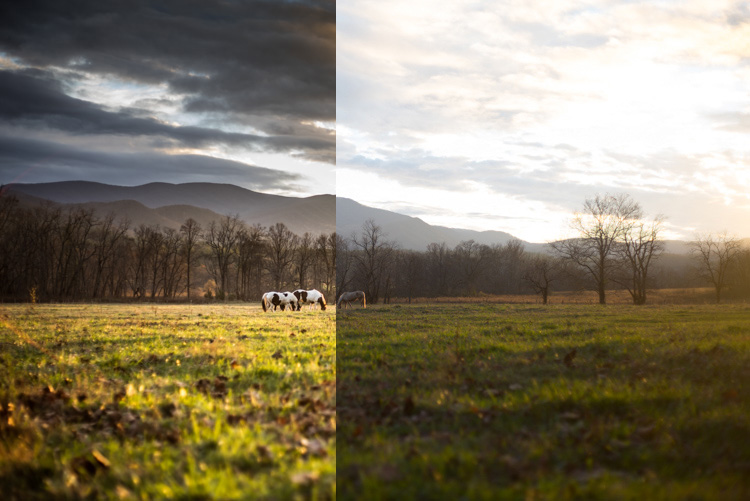
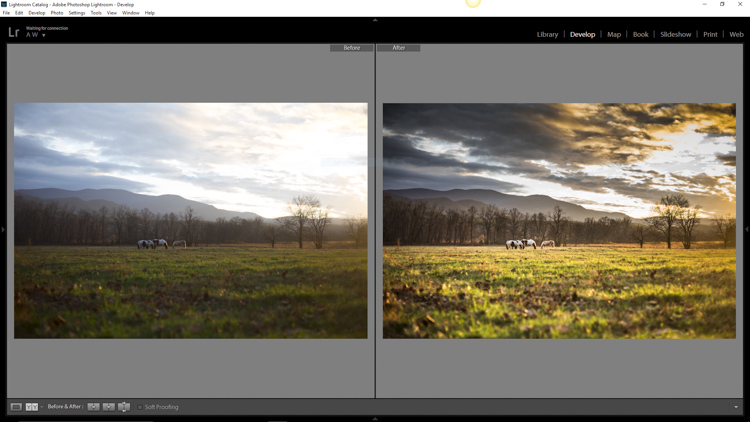
Before and After Split

In this article, we will go from a straight out of the camera RAW file to a fully processed photograph using Adobe Lightroom CC. We will look at each step, and I will explain why each edit was made. By the end, you will see just how easy it is for you to take full control of your landscape photography with a few simple edits.

Shoot in RAW

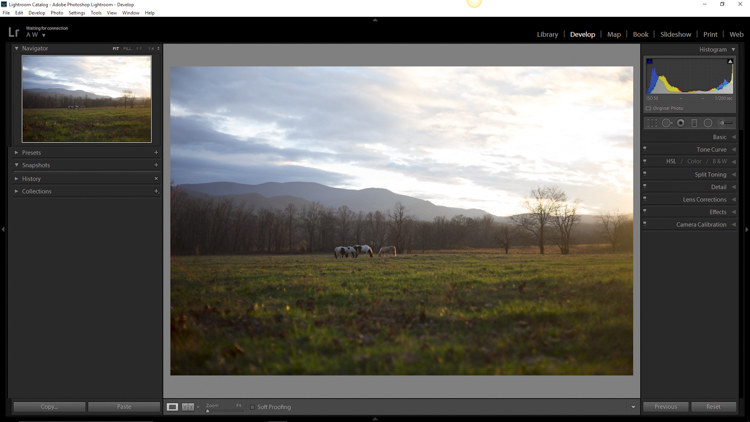
Here we have the RAW file as it looked after importing into Lightroom.

RAW Screenshot

As always, the better the ingredients you have to begin with, the better the finished product will be. This means to always strive to make for best exposure, crop, and composition you can, before any processing is applied. Shooting in RAW format helps you immensely when working with landscapes. The greater dynamic range (exposure latitude) will allow you to bring up shadows, and manage highlights, much better than with smaller JPEG files. I know, I know – you’ve heard all of this before – but it doesn’t hurt to hear it again! RAW truly is the best friend of the landscape photographer.

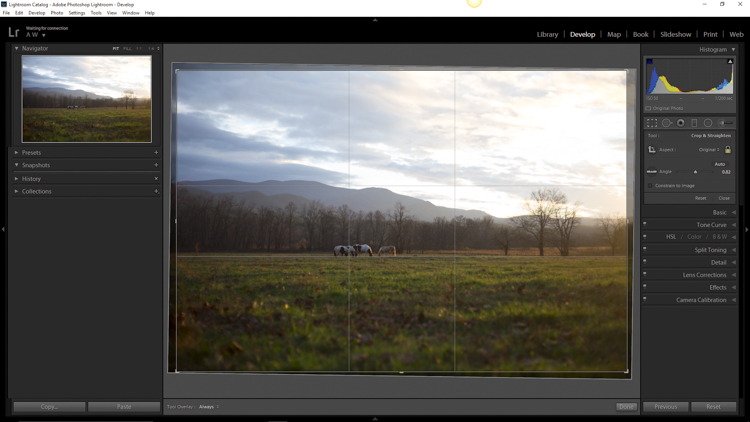
Crop first

The image above is virtually level, but not perfectly so. The first thing we will do is open the crop panel and tweak the alignment before we begin any development. Having a grid overlay will really help you to get the lines of the image just right (with the crop tool activated, press the O key to cycle through all the grids available until you find the one you want). If you wanted to crop the image further, this would be done here as well.

Crop

Add Graduated Filters to adjust sky and foreground

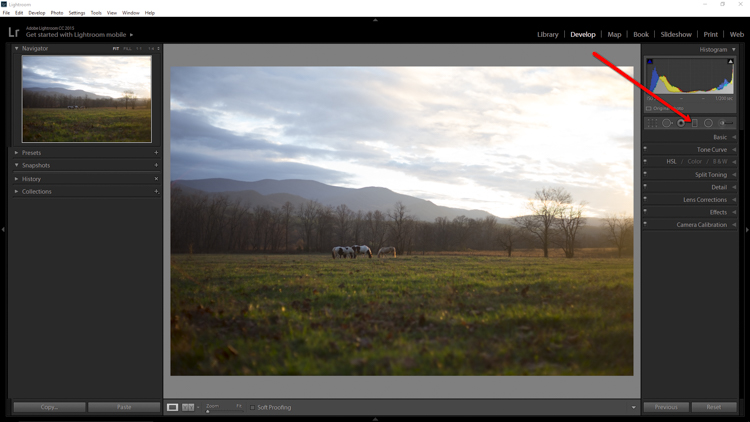
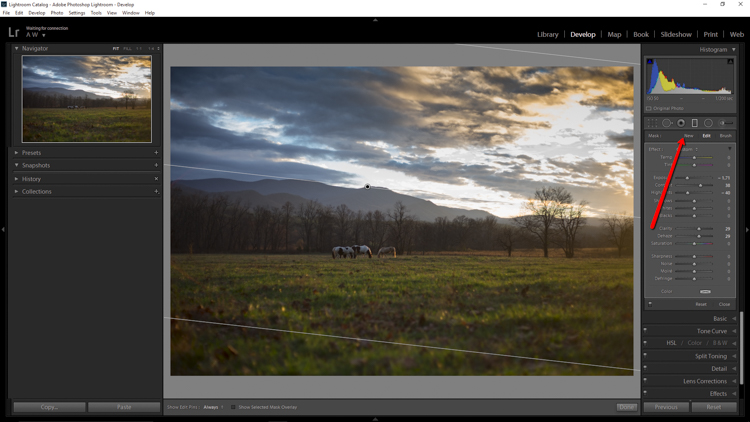
Now that the image has been straightened, it’s time for the real fun to begin. The first thing to do is take control of the sky so that it isn’t quite so bright. To do this, we will use the Graduated filter tool. It’s located just above the Basic Panel in the develop module, in the same row as the crop tool.

GND Indicator

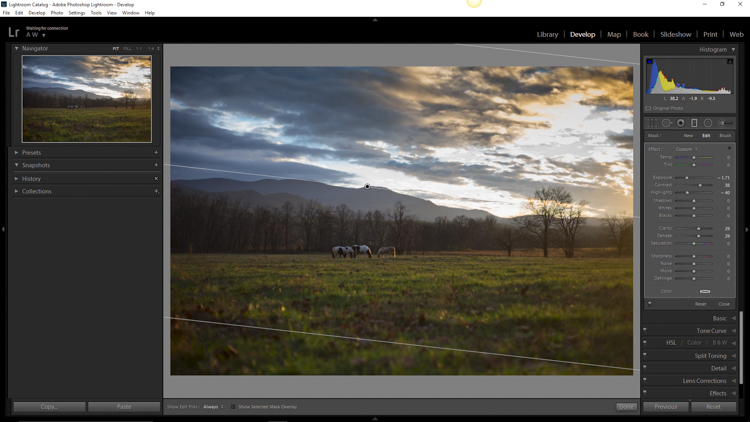
The filter simulates the effect of a graduated neutral density filter. It is an indispensable tool for adjusting landscape photos. Using the Graduated filter, you can decrease the exposure, add a little contrast, and then increase the clarity just to make the clouds more pronounced, which adds a little drama in the sky. In this example I also took town the highlights, and dehazed ever so slightly. The dehaze feature is a relatively new addition to the Lightroom tool box, is available in Lightroom 6 and Lightroom CC, and really helps when clearing skies.

GND Sky

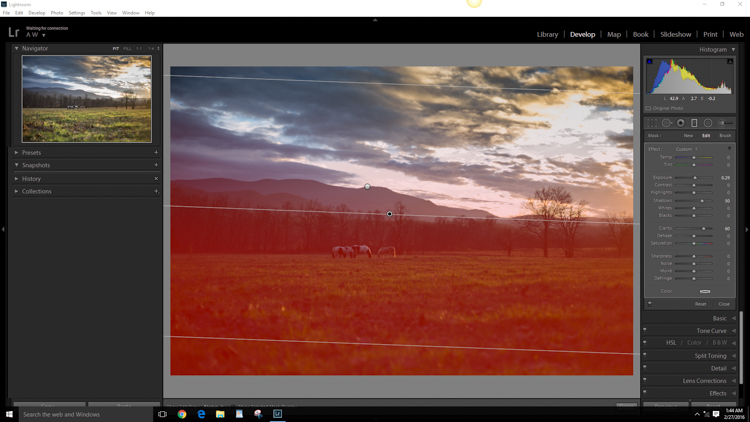
Next, you want to process the foreground but not disturb the edits you’ve just made to the sky. To do this, click new to make a new Graduated filter.

New GND Indicator

To better understand where your edits will be applied with the ND filter, simply hover the pointer over the indicator dot for a second. Everything in red indicates where the filter is working (you can also just press the o key and it will show the mask overlay – it may also show in another color on your screen, press Shift+o to cycle through all the various colors).

GND Red

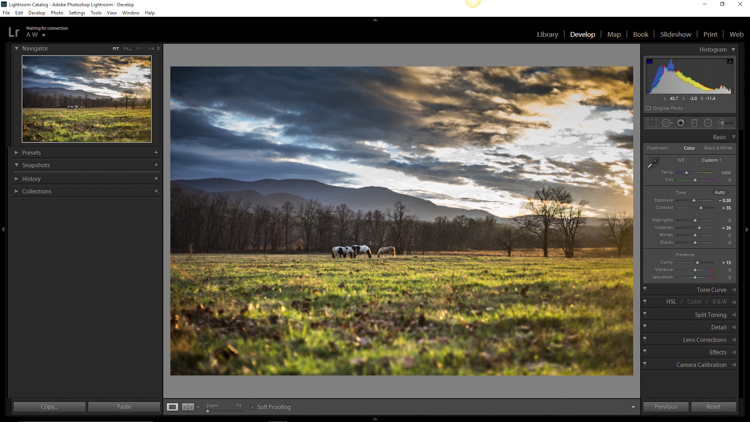
Using the Graduated filter, I increased the clarity of the foreground grass, as well as illuminated the shadows. This will help to draw the viewer’s eye into the image. I’m careful not to overdo the exposure here. The main subjects of the image are the horses, and the mountains in the background, so I want to keep those emphasized. Speaking of horses…

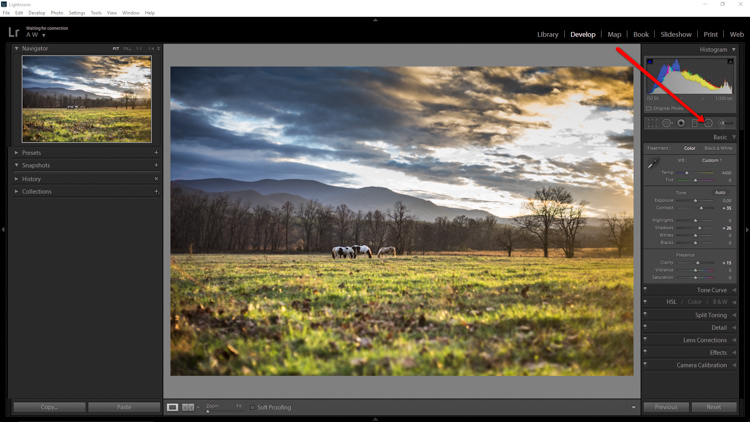
Do local edits using a Radial Filter

I wanted to really make the horses standout within the photo so let’s make use of another powerful tool in the Lightroom arsenal – the Radial filter. It works virtually the same way as the Graduated filter, except that it is applied in the form of a circle (fully adjustable). It can be set to apply edits either inside or outside of the circular outline.

Circular GND Indicator

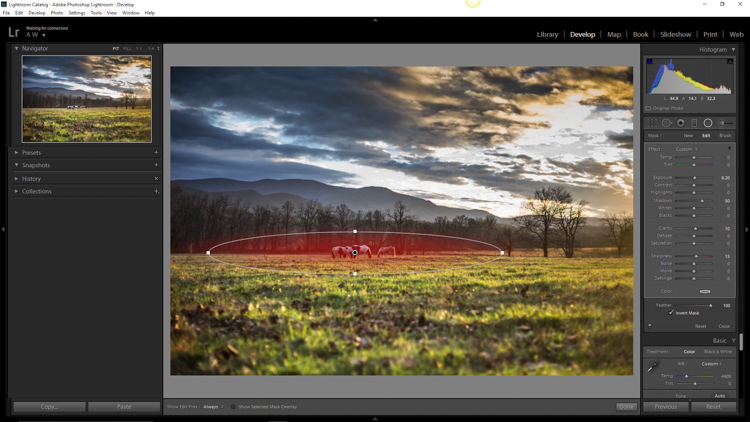
With the Radial filter, I raised the shadows around the horses and increased clarify slightly. I also threw in a little extra sharpening there as well. When using the Radial filter, it’s important to remember that the border between what is, and what is not edited, is very controllable. Make use of the feathering slider in order to control the density of your adjustments as they radiate outward or inwards of the circle. Effective feathering will make make your adjustments with the Radial filter seamlessly blend in with the rest of the image. Here you can see exactly where the edits will be applied.

Circular GND Red

Makes global adjustments

So far, the image has been processed using only the Graduated and Radial filter tools for local adjustments (specific areas). Now we will make some final global (whole image) adjustments in the Basic Panel.

I brought up the overall contrast and shadows, and added in a little bit more clarity. Doing this made the highlights a little too harsh so I reduced the exposure by -10. This photograph was made in the waning golden hours of sunset, so I increased the total temperature (white balance) from 4400 to 5200, so that the tone better matched what I was feeling at the time of the exposure.

Global Adjustment

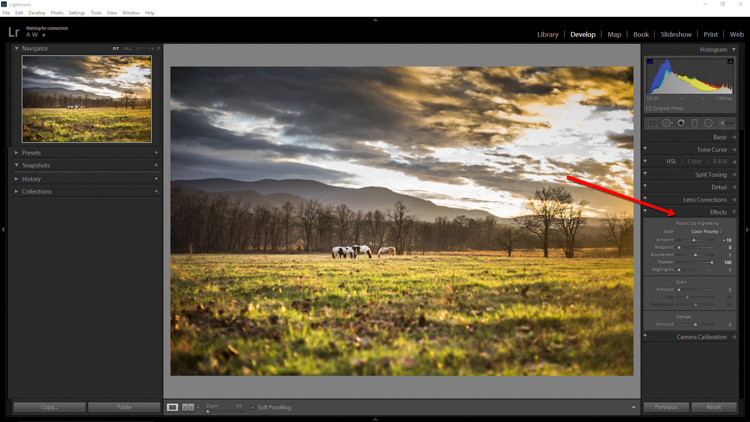
Add an edge vignette

As a final touch, I add in a small amount of vignetting.

Vignette

Vignetting is great because it serves to draw the viewer’s attention into the image. In the case of this photo it works well, but that is not always the case. Just as with any other effect used in post-processing, discretion is the name of the game. When using a vignette, make sure it fits the overall mood of the image. Experiment with the feathering slider (and others) until you achieve the desired effect. As a general guideline, very subtle vignetting usually works best.

See, that wasn’t difficult at all! We have went from a completely unprocessed RAW file to a fully developed image using relatively few edits in Adobe Lightroom.

Before and After

Processing a landscape image doesn’t have to be a massive undertaking. Everything you do to a landscape photograph should compliment the scene and add harmony. You have some incredible processing tools available today which can help you to achieve your creative vision. Be careful that you don’t go too far, though. Every photograph is as unique as a fingerprint, and should be approached individually. Use the techniques in this article as a guide to your processing, and have fun helping your photos reach their full potential.

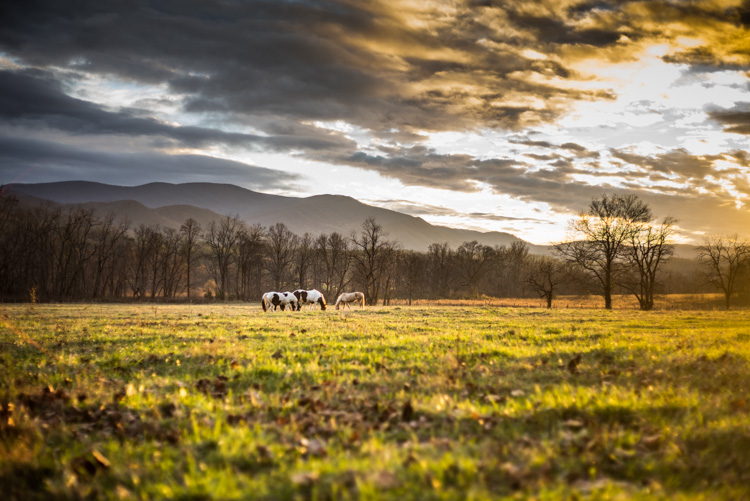
Finished

If you have any additional landscape post-processing tips that work for you, please share in the comments below.

googletag.cmd.push(function() {
tablet_slots.push( googletag.defineSlot( “/1005424/_dPSv4_tab-all-article-bottom_(300×250)”, [300, 250], “pb-ad-78623” ).addService( googletag.pubads() ) ); } );

googletag.cmd.push(function() {
mobile_slots.push( googletag.defineSlot( “/1005424/_dPSv4_mob-all-article-bottom_(300×250)”, [300, 250], “pb-ad-78158” ).addService( googletag.pubads() ) ); } );

The post Lightroom Quick Post-Processing Tips for Landscape Photography by Adam Welch appeared first on Digital Photography School.


Digital Photography School
 
Comments Off on Lightroom Quick Post-Processing Tips for Landscape Photography

Posted in Photography


Adobe announces Technology Previews for Lightroom on the Web with subject-identifying Search feature

19 Mar

Adobe has launched Technology Previews for Lightroom on the Web, allowing Lightroom users to test new features before they are officially rolled out. To get things started, Adobe has released a Technology Preview that introduces ‘Search,’ a feature that uses new image analysis technology to identify photos based on subjects. 

According to Adobe, the search function lets users search for any photograph that has been synced online using Lightroom on the Web, Lightroom for mobile, or one of the Lightroom desktop applications. Search terms like ‘food’ or ‘flowers’ will reportedly be indexed whether or not the photos contain any keywords. Users can access the feature by first logging into Lightroom on the Web, then clicking the ‘Lr’ menu in the top left corner and selecting ‘Technology Preview’ from the menu. Search will then index synced photos.

The new search function is only available in English, though Adobe says it will be provided for other languages once the final version is officially rolled out. Before that happens, though, Adobe plans to expand Search’s functionality, adding support for metadata searches and more. 

Via: Adobe

Articles: Digital Photography Review (dpreview.com)

 
Comments Off on Adobe announces Technology Previews for Lightroom on the Web with subject-identifying Search feature

Posted in Uncategorized


Adobe Lightroom CC 2015.5 / 6.5 update brings bug fixes, new camera support

17 Mar

Adobe has launched Lightroom CC 2015.5 and Lightroom 6.5, bringing numerous bug fixes alongside new camera support and dozens of new lens profiles. The update fixes a few issues with the Panorama Merge feature, including bugs affecting Boundary Warp, as well as ‘a ton of sync errors’ and a couple missing features.

The new version of Lightroom takes care of dust spots in a smart way – remove spots from the first image, and the rest will be removed automatically as other images are merged. Additionally, bugs have been fixed that affected Boundary Warp, a tool that helps straighten curved edges of stitched panoramas.

Bug fixes unrelated to Panorama Merge include numerous unspecified syncing errors. Adobe also claims that syncing with the Android and iOS Lightroom apps is now faster. Mouse scrolling has been restored in Loupe view, and it has also reinstated scroll bars in the Book module for faster browsing. Finally, slideshows once again display images in high-resolution, whereas before a bug caused them to display at a ‘much lower res than expected.’

The following camera models are now supported:

  • Canon EOS-1D X Mark II
  • Canon EOS 80D
  • Canon EOS 1300D (Rebel T6, Kiss X80)
  • Nikon D5
  • Nikon D500
  • Olympus PEN-F
  • Olympus SH-3
  • Panasonic DMC-CM10
  • Panasonic DMC-GF8
  • Panasonic DMC-ZS100 (DMC-ZS110, DMC-TZ100, DMC-TZ101, DMC-TZ110, DMC-TX1)
  • Samsung NX3300
  • Sony Alpha a6300 (ILCE-6300)
  • Yuneec CGO4

Lastly, more than 70 lens profiles have been added for lenses from Canon, Fujifilm, Olympus, Panasonic, Pentax, Samsung, SIGMA, and Sony, and there’s support for the lens used by the Huawei Nexus 6P and LG Nexus 5X smartphones. The full list of newly supported lens profile is available here.

Articles: Digital Photography Review (dpreview.com)

 
Comments Off on Adobe Lightroom CC 2015.5 / 6.5 update brings bug fixes, new camera support

Posted in Uncategorized


11 Steps for Basic Portrait Editing in Lightroom – A Beginner’s Guide

16 Mar

I love Lightroom, and use it for the vast majority of my portrait editing. You can achieve a wide variety of portrait effects in Lightroom, from harsh and grungy, to soft and dreamy. My technique varies depending on the kind of portrait I’m editing, although the workflow remains consistent.

The photo I’ve selected for this exercise, is one you can easily replicate at home. It was shot indoors, with a large window as the only light source, and is one of a series shot in the same location.

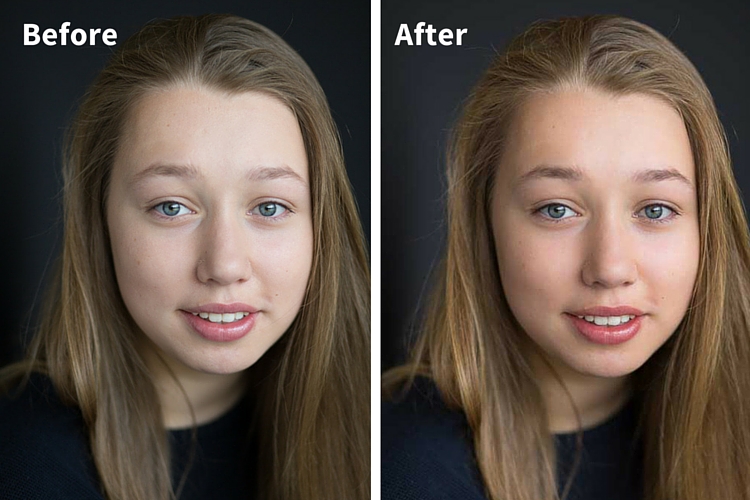
Before and after

One of the great features of Lightroom is the ability to sync settings. It’s a huge time-saver when you have a series of images, all shot in similar conditions. Once you are happy with the general settings (white balance, shadow-highlight ratio, etc.) of one image, you can sync the rest of the images in the series, with the same settings. After that, you’ll only need to fine-tune the others.

This before image is too cool for my liking, and there is not enough separation between the model’s hair and the background. I am also going to smooth out her skin tone, and bring a bit more sparkle to her eyes.

As you work through each step on your own image, play around with the sliders to see what effect each one of them has.

Step #1: Import your file

Image showing basic portrait editing in Lightroom

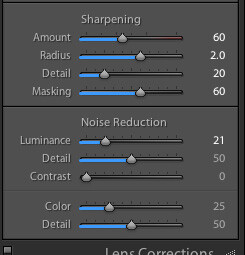
Sharpening preset

In the LIBRARY module, import your image into Lightroom. I have created a custom sharpening preset (shown here), which I find works with the majority of my portraits. I apply this preset upon import – a handy shortcut, especially when you’re importing a large number of images at once. It’s easy to create your own presets in Lightroom, read this tutorial How to Create Your Own Lightroom Presets on dPS, that shows you how.

To apply a preset on import, go to the righthand panel in LR, to the tab labelled “Apply during import”. Go to Develop settings > user presets, then click on the preset you wish to apply.

Once you have imported your file, go to the DEVELOP module.

Image for basic portrait editing in Lightroom

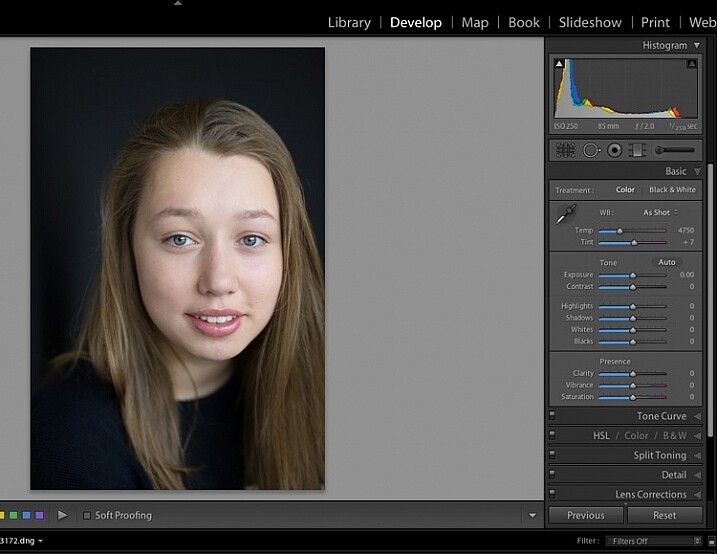
Import your file.

Step #2: Adjust  the white balance

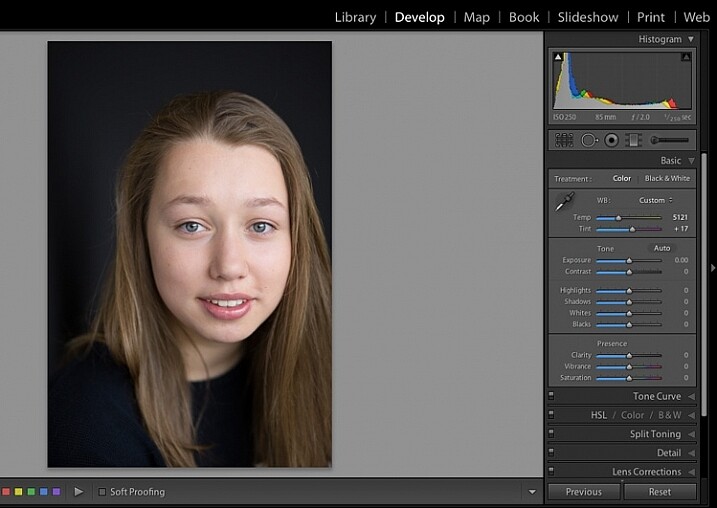
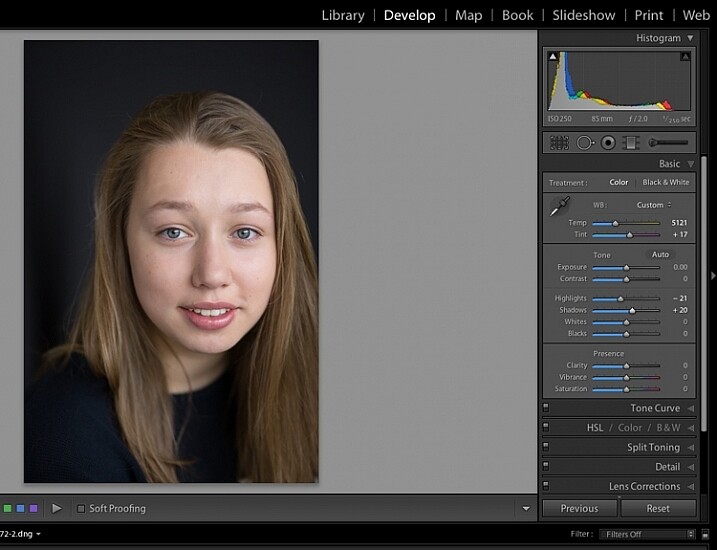
The colour tint in this photo is a bit cold. There are a number of ways to adjust the white balance. If there was a neutral wall or surface in this photo, you could use the eyedropper tool. In this case, there isn’t a neutral reference, so I have moved the sliders under the white balance section to give the image more warmth.

Image for basic portrait editing in Lightroom

Correct the white balance.

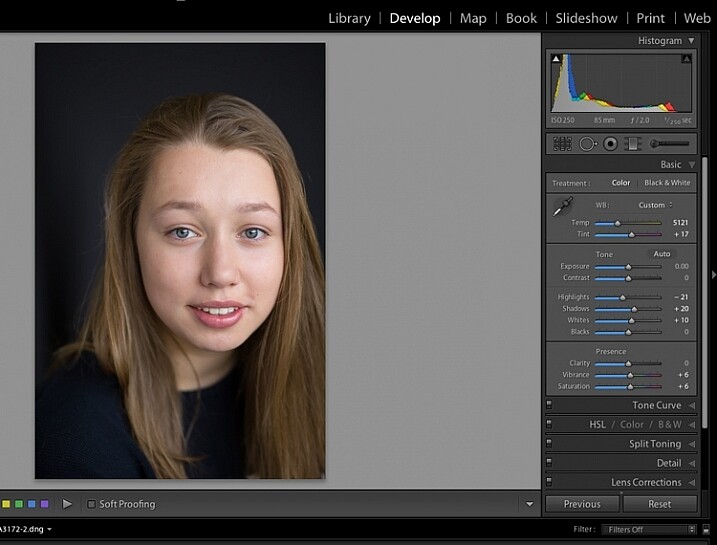
Step #3: Adjust highlights and shadows

The model’s skin tone is a little too light, and her hair and the background are too dark. To redress the imbalance, pull back the highlights and lighten the shadows. You can fine-tune this later if necessary.

Image showing basic portrait editing in Lightroom

Adjust highlights and shadows.

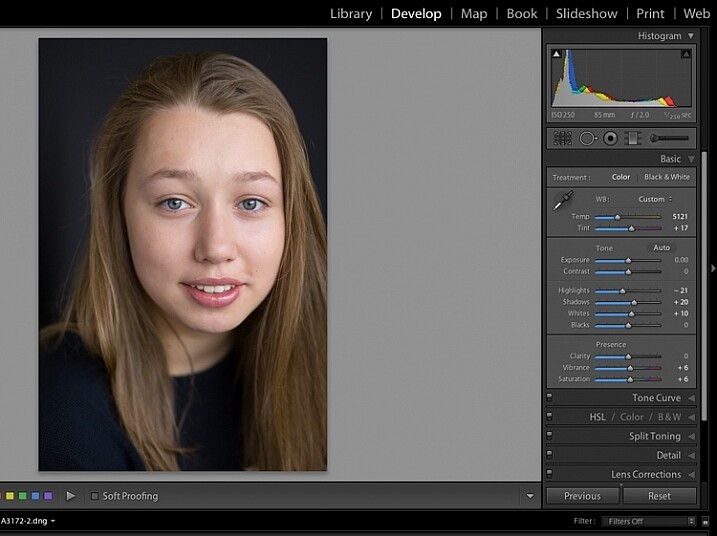
Step #4: Increase vibrance and saturation

The image still looks a little dull. Use the sliders under the presence tab to increase the vibrance and saturation, and move the whites slider up to give your portrait a nice clean look. Now it’s starting to look like my model’s real-life skin tone.

Image showing basic portrait editing in Lightroom

Increase vibrance and saturation.

tep #5: Crop your image

You can crop at any stage. I’ve cropped this image for a tighter, better-balanced headshot.

Image showing basic portrait editing in Lightroom

Crop your image.

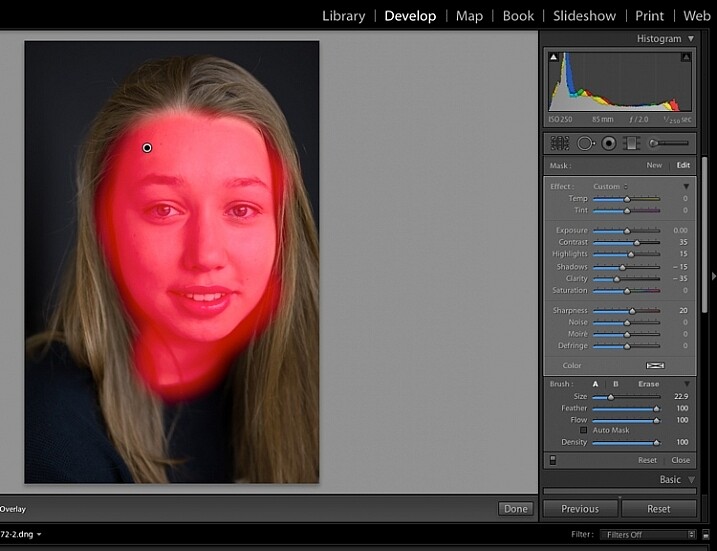
Step #6: Soften the skin

Zoom in to take a closer look at the skin. This model is very young with almost flawless skin. Usually I wouldn’t do much, if any, softening with such great skin. However, for the purpose of this exercise, I will.

Select the brush tool. You can load your brush with any adjustments you want to apply. Although there are brush presets you can use for skin softening, teeth whitening, etc., I find them too heavy-handed.

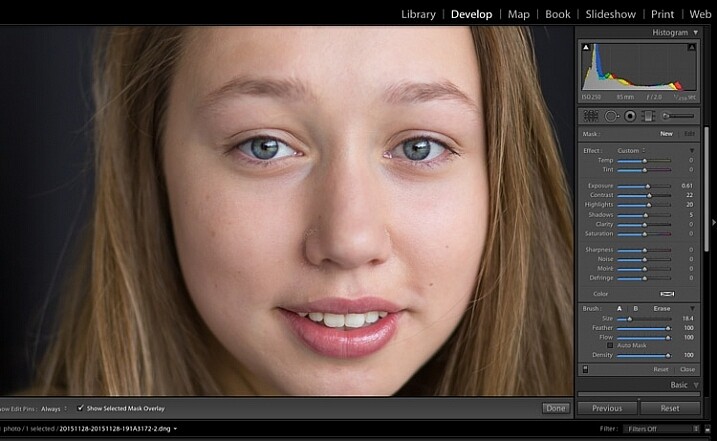
Set the clarity slider down to around -35 to -40, and the (contrast to +35, and the Highlights to +15 or so – this will help maintain contrast and keep the face from looking flat) sharpness up to +20. This will vary according to your subject’s skin, and the kind of effect you want to achieve. In this example it will just even out the skin tone and give it a soft, glowing appearance. A mature person photographed in stronger light, will require a different treatment. The lower the clarity slider, the softer the skin will appear. For a grungy look, increase the clarity slider.

Reducing the clarity tends to flatten out the image, so you can increase the contrast, deepen the shadows and increase the highlights to balance this out. Keep the feather and flow at 100%, and brush all over the face with a large brush.

Image showing basic portrait editing in Lightroom

Zoom in close to look at the skin.

Image showing basic portrait editing in Lightroom

Brush all over the area with your adjustment brush.

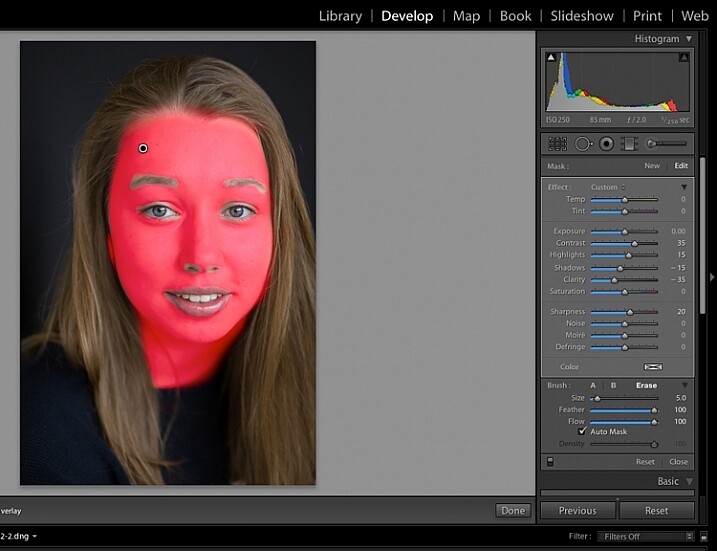
Step #7: Fine-tune your adjustments

Underneath the image, check the box “Show selected mask overlay”  (or use the keyboard shortcut, O) to see exactly what parts of the image your brush adjustments have touched. Often you’ll find it has covered the eyes and mouth, which is not desirable. Still using the adjustment brush, click on the erase brush tool, and remove the brushed-on effect from around the eyes, mouth, and hair.

Image showing basic portrait editing in Lightroom

Brush off the adjustments from unwanted areas.

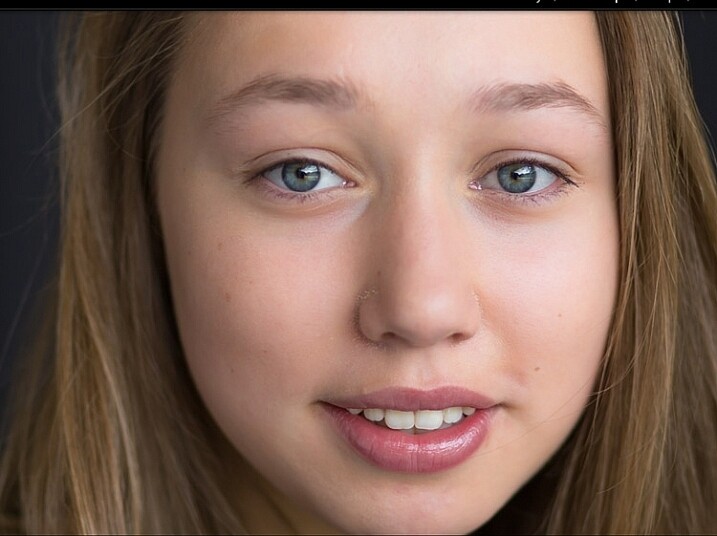
Image showing basic portrait editing in Lightroom

Here are the adjustments so far. Looking good.

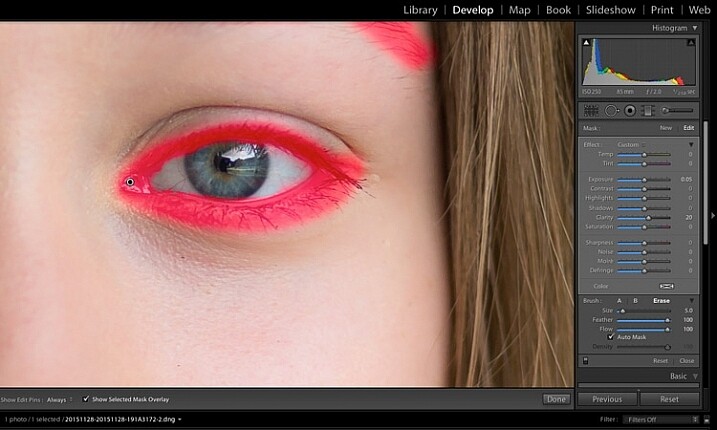
Step #8: Brighten the eyes

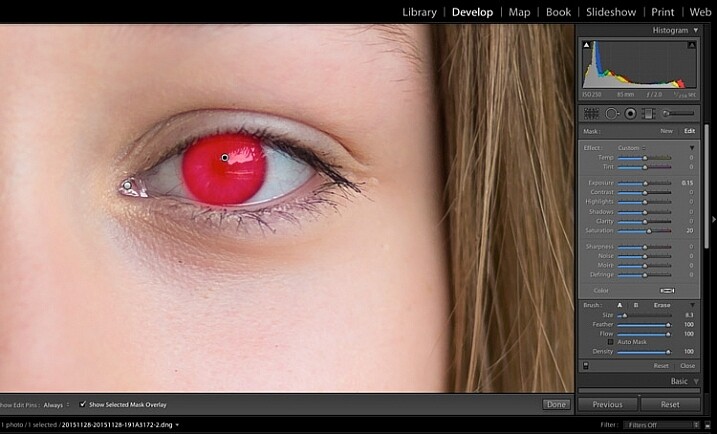
Zooming in even closer, then use the Adjustment Brush to add clarity and sparkle to the eyes. Note that by increasing the clarity, you also make the affected part of the image darker. Compensate with your exposure slider.

In this photo, I also increased the saturation of the iris a little to enhance the blue of the model’s eyes. Be sparing with this technique to avoid an unnatural look.

Image showing basic portrait editing in Lightroom

Use the brush tool to sharpen the outline of the eyes.

Image showing basic portrait editing in Lightroom

Treat the iris separately.

Step #9: Add colour to the mouth

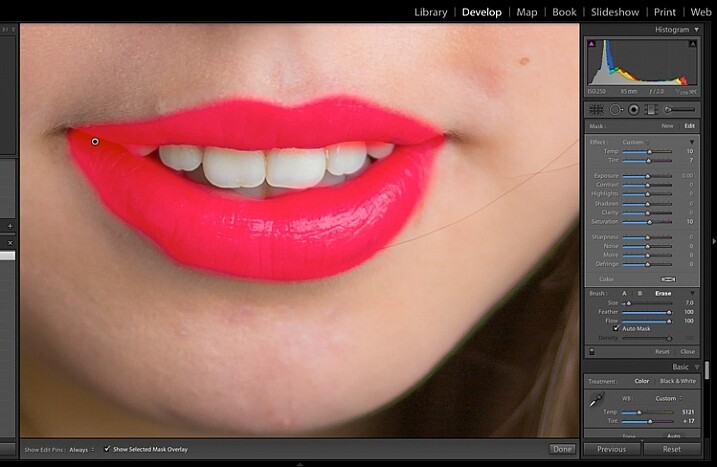
Moving on to the mouth area now. Again, this model doesn’t need any work on her lips or teeth; this is for the purpose of demonstration. Using the same technique as with the eyes, brush on clarity and increase saturation. I have also moved the temp and tint sliders up to alter the hue of her lips.

Image showing basic portrait editing in Lightroom

Brush over the lips to add colour and clarity.

Step #10: Whiten the teeth

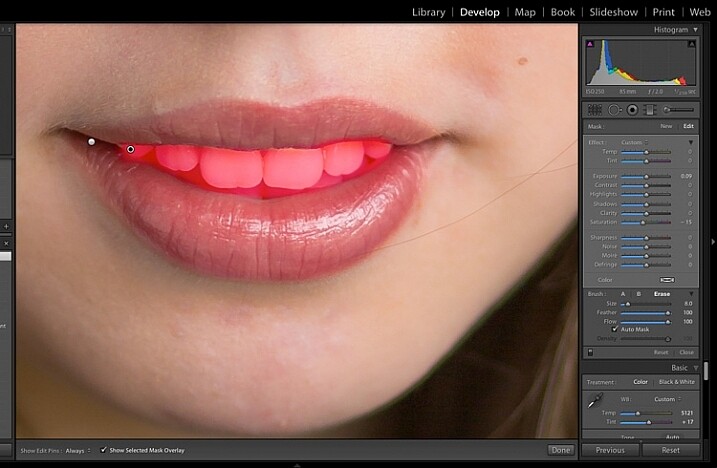
To lighten teeth, use the brush tool with the saturation slider decreased, and the exposure slider increased just a little. As with the eyes, be sparing with this step.

Image showing basic portrait editing in Lightroom

Lighten or whiten the teeth.

Step #11: Lighten the hair and background

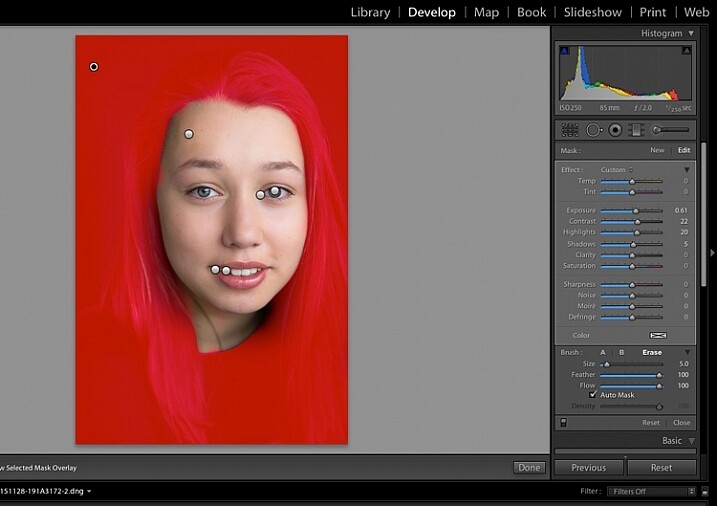
Finally for this image I have lightened the hair and background to reduce contrast between her face and the background, and to give separation between hair and background.

Image showing basic portrait editing in Lightroom

Finally, lighten the hair and background to give separation.

The final image is a vast improvement on the SOOC (straight out of camera) image.

Image showing basic portrait editing in Lightroom

Before Lightroom adjustments.

Image showing basic portrait editing in Lightroom

After all Lightroom adjustments.

Over to you!

Lightroom editing is as much about personal preference as your shooting style, and my workflow and style represents just one approach of many. Share your tips and tricks (and, of course, questions) in the comments section below.

googletag.cmd.push(function() {
tablet_slots.push( googletag.defineSlot( “/1005424/_dPSv4_tab-all-article-bottom_(300×250)”, [300, 250], “pb-ad-78623” ).addService( googletag.pubads() ) ); } );

googletag.cmd.push(function() {
mobile_slots.push( googletag.defineSlot( “/1005424/_dPSv4_mob-all-article-bottom_(300×250)”, [300, 250], “pb-ad-78158” ).addService( googletag.pubads() ) ); } );

The post 11 Steps for Basic Portrait Editing in Lightroom – A Beginner’s Guide by Karen Quist appeared first on Digital Photography School.


Digital Photography School
 
Comments Off on 11 Steps for Basic Portrait Editing in Lightroom – A Beginner’s Guide

Posted in Photography


2 Video Tips for Using the Print Module in Lightroom

13 Mar

Julianne Kost is the premiere Adobe instructor who teaches us about both Lightroom and Photoshop. In these two videos she gives us tips for printing from Lightroom.

In this first one learn some general tips using the Print Module inside Lightroom:

The second video below is a handy tip on how to print multiple images directly to a JPG, using a the Print Module again but this time saving a file, not making a print. This is really good to know if you want to make images to share on social media, your blog or website, etc.

If you want more printing tips check out these dPS articles:

  • Image Size and Resolution Explained for Print and Onscreen
  • Two Useful Lightroom Print Module Custom Layouts
  • How to Create a 2015 Calendar in the Lightroom Print Module (you can figure out how to make one for 2016 too!)
  • Next Steps to Getting Started in the Lightroom Develop Module

googletag.cmd.push(function() {
tablet_slots.push( googletag.defineSlot( “/1005424/_dPSv4_tab-all-article-bottom_(300×250)”, [300, 250], “pb-ad-78623” ).addService( googletag.pubads() ) ); } );

googletag.cmd.push(function() {
mobile_slots.push( googletag.defineSlot( “/1005424/_dPSv4_mob-all-article-bottom_(300×250)”, [300, 250], “pb-ad-78158” ).addService( googletag.pubads() ) ); } );

The post 2 Video Tips for Using the Print Module in Lightroom by Darlene Hildebrandt appeared first on Digital Photography School.


Digital Photography School
 
Comments Off on 2 Video Tips for Using the Print Module in Lightroom

Posted in Photography


Raw workflow goes mobile: Hands-on with Adobe Lightroom for Android 2.0

03 Mar

Unlike iOS, Android supports the capture and processing of Raw photos. Chances are that if you own a late model mobile device running either Lollipop or Marshmallow, you should now be able to use the Adobe DNG Raw format, the headline feature in the recently updated Lightroom for Android 2.0. We tried out the new Raw workflow, from mobile to desktop and back again. Read more

Articles: Digital Photography Review (dpreview.com)

 
Comments Off on Raw workflow goes mobile: Hands-on with Adobe Lightroom for Android 2.0

Posted in Uncategorized