RSS
 

Posts Tagged ‘lightroom’

How to Process a Black and White Landscape Photo Using Lightroom

20 Sep

The process of converting a color landscape photo into a black and white image using Lightroom goes beyond changing the treatment to black and white. That’s just the start. From there you have to tweak and refine, using all tools that Lightroom gives you, to craft an image that matches the vision you carry in your mind.
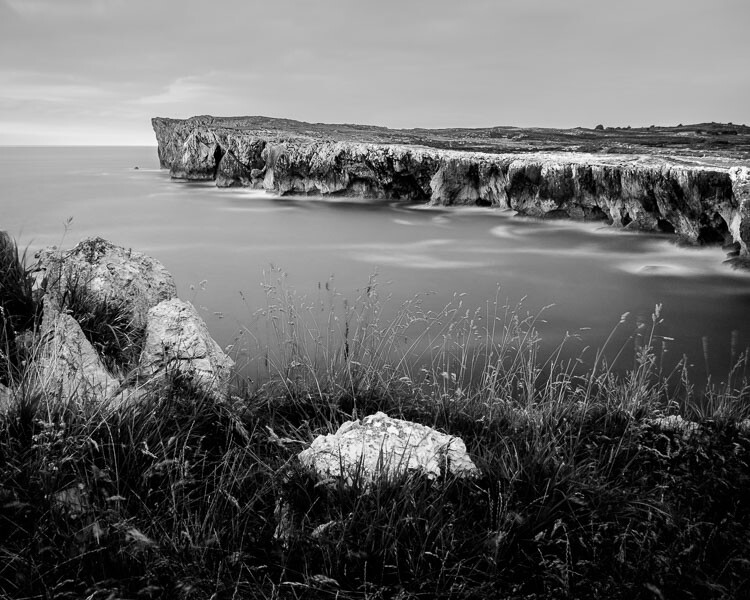
Black & white landscape in Lightroom

A good way of showing you how this works is to take you step by step through the process that I use when converting a landscape photo to black and white in Lightroom. You’ll see the techniques that I use. and more importantly, the reasoning behind them. This should give you the insight you need to use these tools on your own images.

1. Make sure you have a good image for black and white

The first step is to make sure that you are working with a photo that suits a black and white treatment. Good black and white photos have strong composition that make use of texture, line and tonal contrast.

It’s a good idea to convert only your best landscape photos to black and white. It will take you some time to convert a photo, so why waste it on anything less than your best work?

2. Prepare the color photo

First, open your photo in Lightroom’s Develop module. Then, I do two things before converting a color landscape photo to black and white.

  1. Use the Spot Removal tool to get rid of any dust spots.
  2. Set White Balance to Auto so that the color balance of the photo is more or less neutral. Photos with strong color casts are harder to successfully convert to black and white.

If you are converting a photo that you have already processed in color it’s a good idea to make a Virtual Copy and work on that. This way you don’t lose the work you have done on the original color version.
Black & white landscape in Lightroom

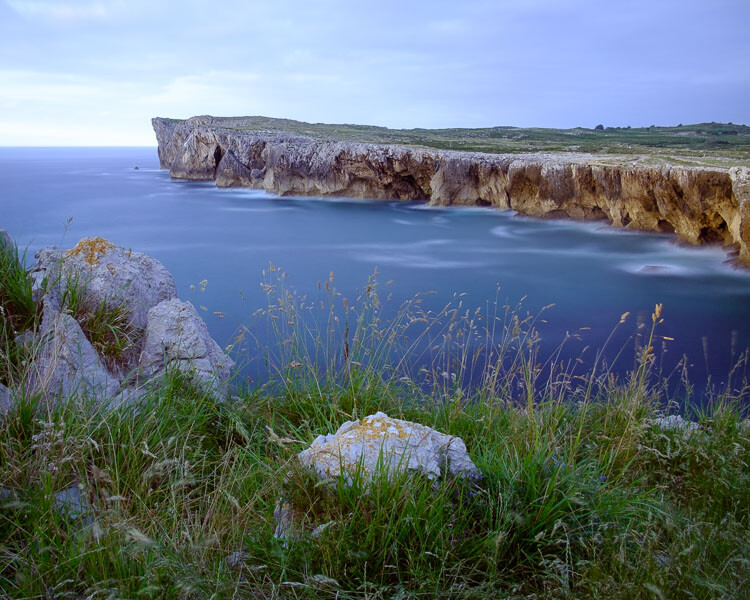
Here’s the color photo that I am going to convert to black and white.

3. Analyze your photo

This takes practice and becomes easier the more you convert photos to black and white. The idea is to make some big picture decisions about what you want to achieve with your conversion. With my photo I can see that:

  • The sky is too bright, and I would like to make it darker.
  • The distant cliffs have beautiful texture that I would like to bring out
  • So do the grass and stones in the foreground.
  • The sea and sky are smooth, creating a visual contrast against the heavily textured parts of the photo.
  • There is good tonal contrast between the grass and stones in the foreground.

This analysis helps me set some goals for the conversion.

4. Convert the image to black and white

There are three ways to convert the photo to black and white using Lightroom. They all do the same thing, so it doesn’t matter which of these methods you use:

  1. Set Treatment to Black & White in the Basic Panel.
  2. Use the keyboard shortcut; V .
  3. Click on B&W in the HSL/Color/B&W panel.

The conversion is likely to look quite flat. That’s okay – it’s easy to add some contrast.
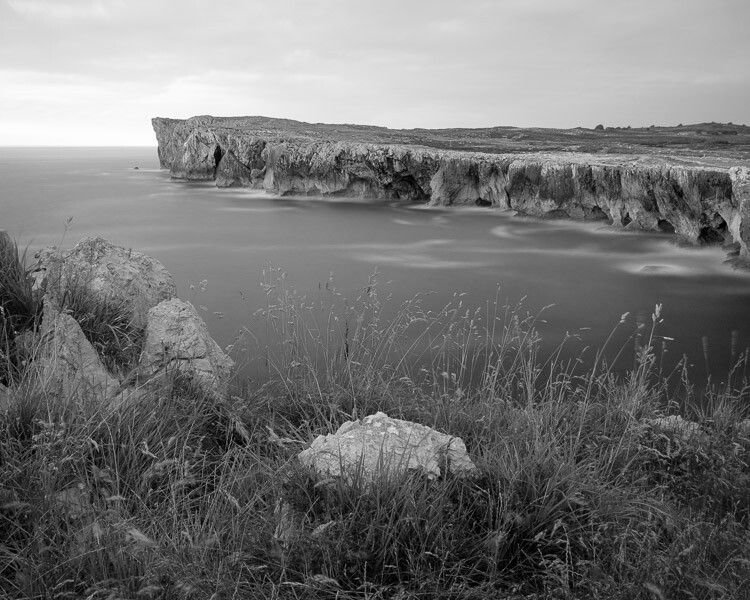
Black & white landscape in Lightroom

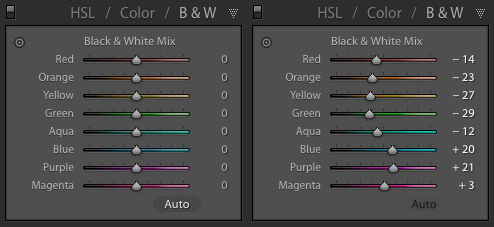
Now go to the B&W tab in the HSL / Color / B&W panel. It will look like one of the these two examples below depending on your Preference settings in Lightroom:
Black & white landscape in Lightroom

If you go to the Presets tab in Preferences (see below) you’ll see a tick box titled Apply auto mix when first converting to black and white. If this is unchecked, all the sliders will be zeroed, as in the screenshot on the left (above). If it is ticked, Lightroom takes a guess at what settings to use to make a good conversion and you’ll see something like the screenshot on the right (above).
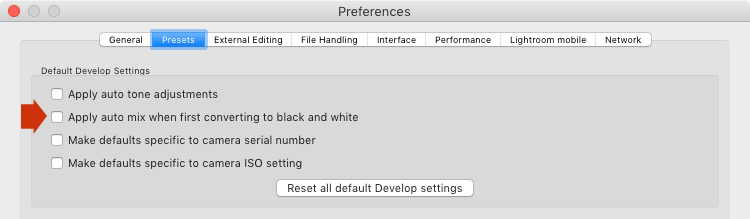
Black & white landscape in Lightroom

My preference is to leave the box unticked.

When I convert the image to black and white I go to the HSL / Color / B&W panel and click the Auto button at the bottom of the B&W tab. If I like the result, I leave it there. If I don’t, I use the undo command (Ctrl-Z on a PC, Cmd-Z on a Mac) to undo it.

In this case, I liked the result of pressing the Auto button, so I left the settings as they were. I rarely do any work more than this in the HSL / Color / B&W panel.
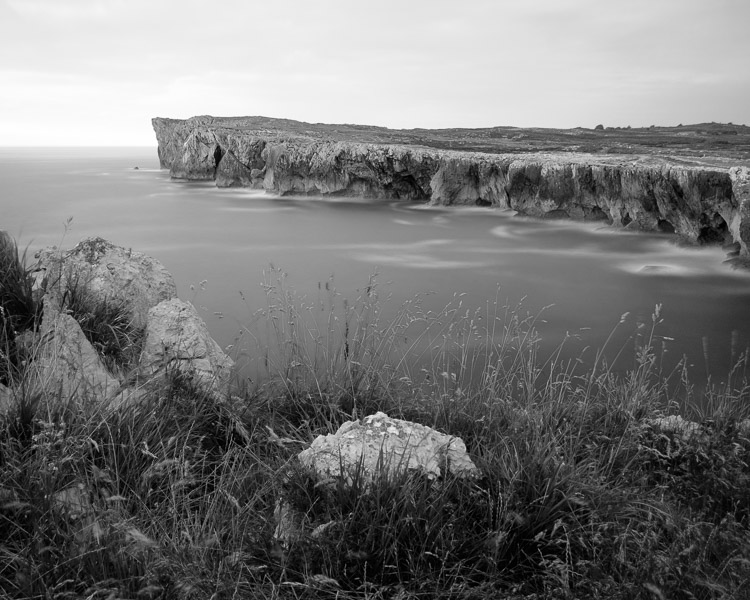
Black & white landscape in Lightroom

5. Basic panel adjustments

Now it’s time to make some global adjustments in the Basic panel. Global adjustments are those that apply to the entire image.

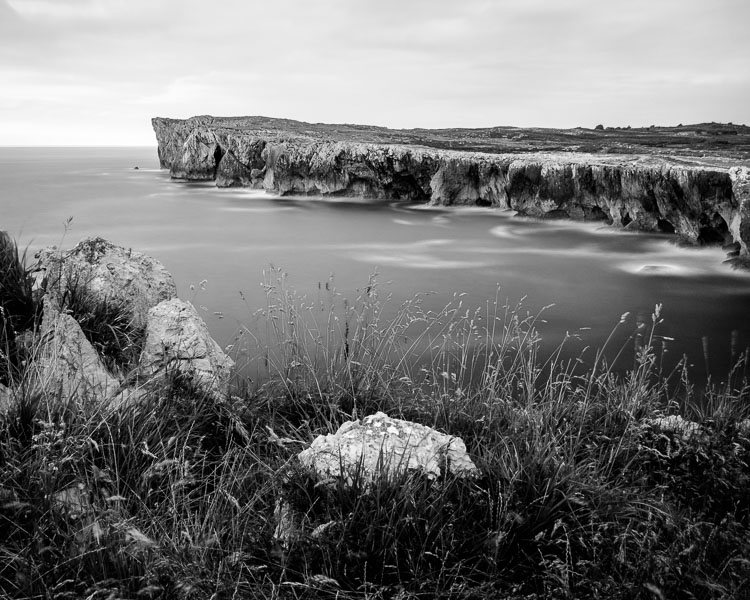
The image is flat so the first step is to increase contrast.

Going back to the analysis I did earlier, I can see that I want to emphasize the textures in the photo. Clarity is the ideal tool for this. Increasing Clarity also increases contrast. You should adjust both Clarity and Contrast sliders to get the best overall effect, without overdoing it. You can also use the Highlights and Shadows sliders to adjust the brightness of the lightest and darkest tones in the image individually.

In the end I set Contrast to +40, Clarity to +60, Shadows to -13 and Highlights to -49. Remember that every image is different, and that these settings only apply to this one.
Black & white landscape in Lightroom

6. Make local adjustments.

Now it’s time to make some local adjustments. Local adjustments are those that just affect part of the image. Lightroom gives you three tools to do this – the Radial filter, the Graduated filter and the Adjustment Brush.

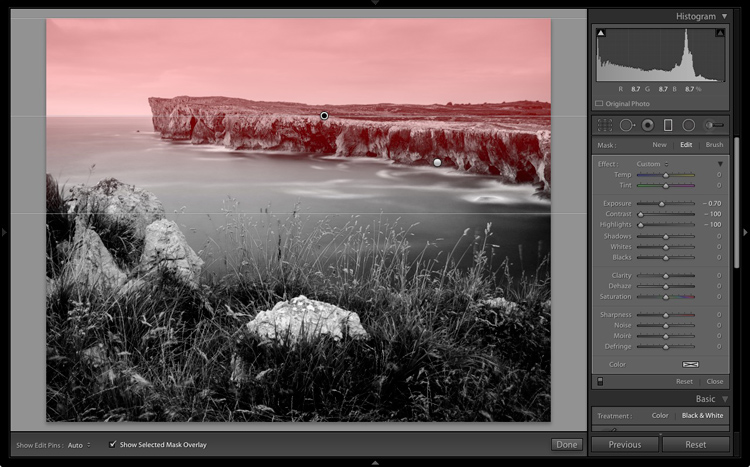
I want to make the sky darker in this photo, so I will do that with a Graduated filter. This screenshot shows the location of the Graduated filter (the area affected by the local adjustment is shown in red).
Black & white landscape in Lightroom

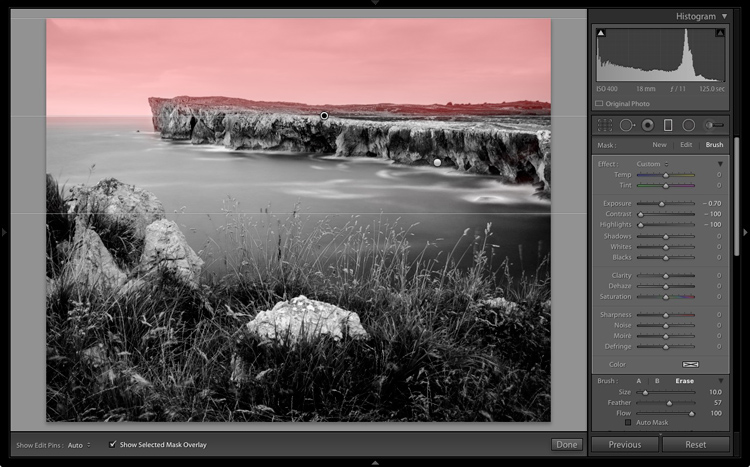
I used the brush to erase part of the Graduated filter so that the sea and cliffs weren’t affected.
Black & white landscape in Lightroom

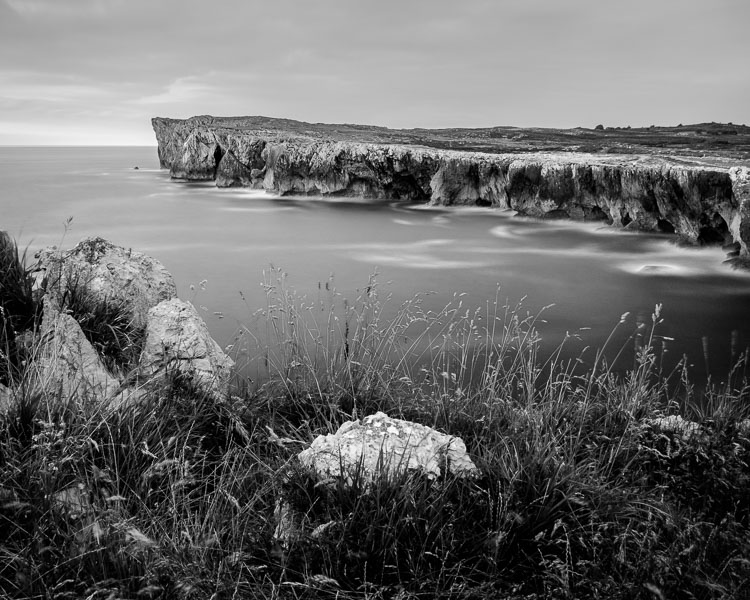
I set Exposure to -0.70, Contrast to -100 and Highlights to -100. Again, the settings required depend on your photo.

My aim here was to make the clouds darker and reduce the contrast so that they appeared smoother. The contrast in this image is in the cliffs, the sea and the foreground, not the sky. Less contrast in the sky means that it won’t compete with those areas for attention.
Black & white landscape in Lightroom

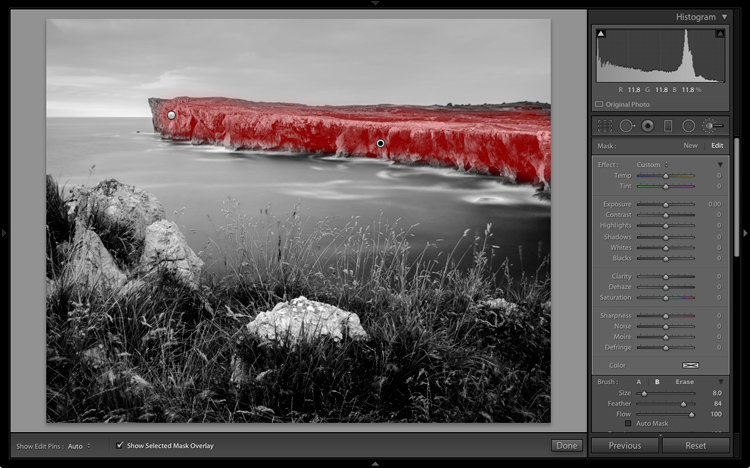
The next local adjustment is on the cliffs in the background. I used the Adjustment Brush for this. Here’s the area affected by the local adjustment (shown in red again).
Black & white landscape in Lightroom

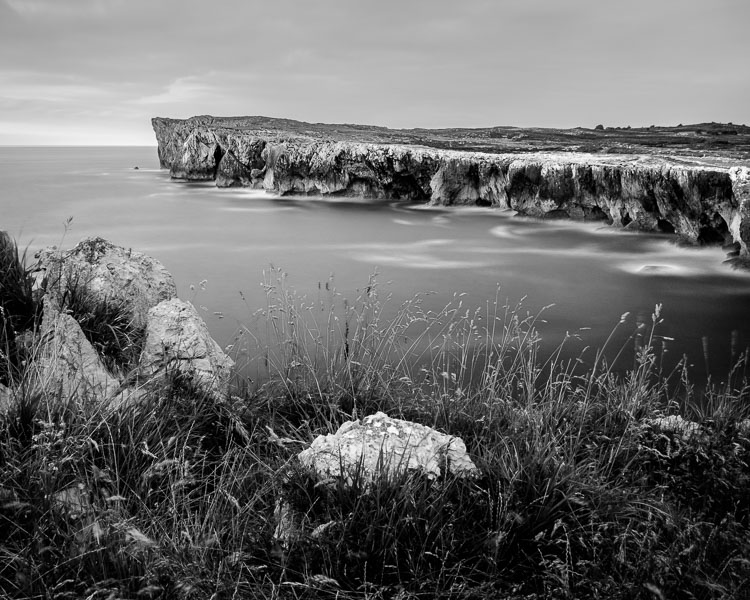
I set Clarity to +86 and Shadows to +16.
Black & white landscape in Lightroom

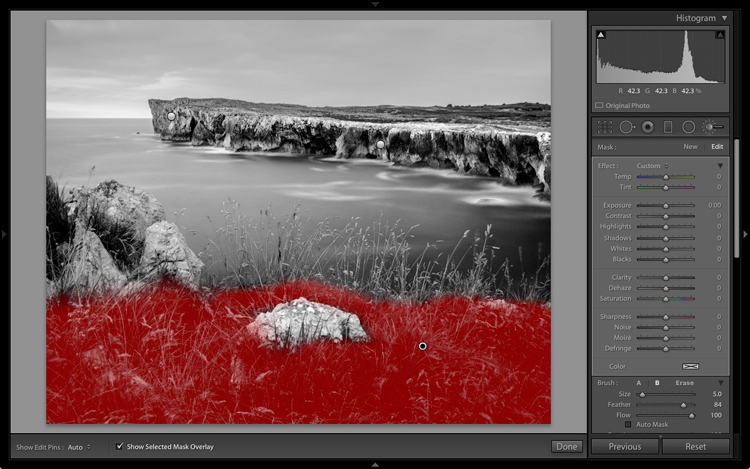
You may remember that in my analysis I decided that I wanted to make the foreground darker to emphasize the tonal contrast between the grass and the rocks. I’m going to use the Adjustment Brush for this as well.

First, I added an Adjustment Brush to make the grass darker. Here’s the area affected (shown in red).
Black & white landscape in Lightroom

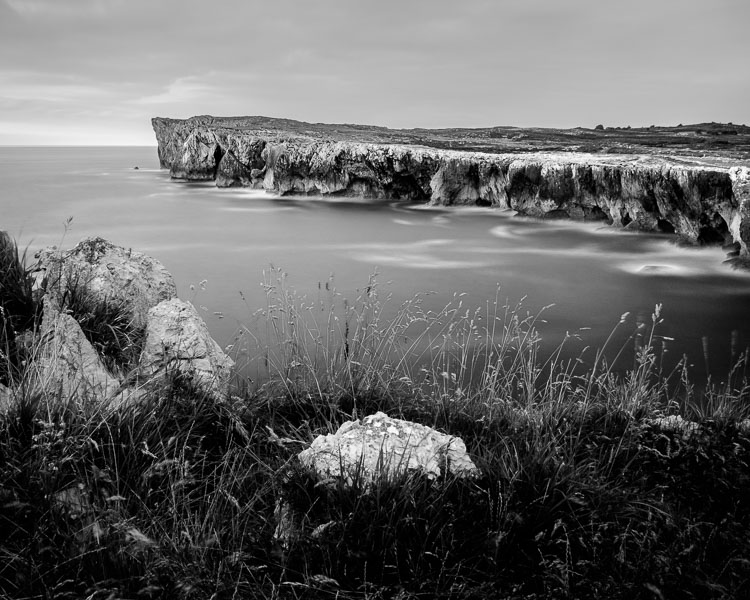
I set Highlights to -64, Shadows to -48.
Black & white landscape in Lightroom

That left a light patch in the bottom left corner, and a dark patch under the stone in the center. I used the Adjustment Brush two more times, to make the light patch darker and the dark bit lighter, creating a more even tone across the bottom of the image.

Then I used the Adjustment Brush on the stones, with a Clarity adjustment to bring out the texture. Below is the result of all those adjustments.
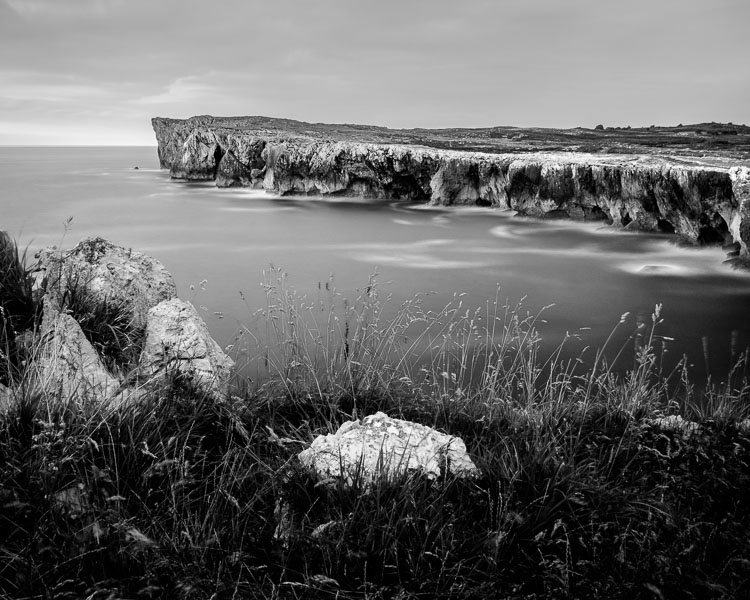
Black & white landscape in Lightroom

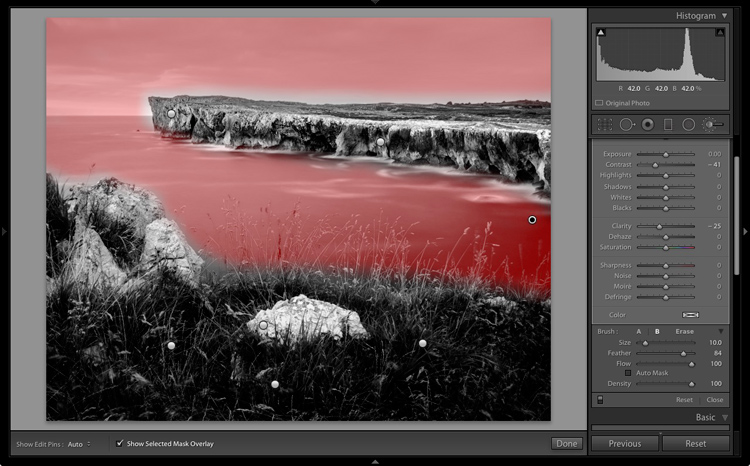
Next I used the Adjustment Brush again and selected the sea and the sky.
Black & white landscape in Lightroom

Then I set Contrast to -41 and Clarity to -25. The idea was to remove some of the contrast and texture from these areas, to emphasize the smoothness and lack of texture and set up a stronger visual contrast against the heavily textured cliffs and foreground.

Black & white landscape in Lightroom

That’s it. The final image could certainly be refined a little further, but it’s important to pick a point at which to stop so that you don’t spend too much time on the conversion. Where this point is depends on how much of a perfectionist you are, and how much time you are willing to devote to a single image.

Here’s the initial black and white conversion and the final result together so you can see the difference more clearly.

Black & white landscape in Lightroom

Original color image.

Black & white landscape in Lightroom

First version of black and white conversion.

Black & white landscape in Lightroom

Final image.

There are lots of ways you can convert landscape photos to black and white in Lightroom. I’ve only touched on the topic here, so if you have anything to add please let us know in the comments.


Mastering Lightroom

If you want to know more about processing black & white photo in Lightroom then please check out my ebook Mastering Lightroom: Book Three – Black & White.

googletag.cmd.push(function() {
tablet_slots.push( googletag.defineSlot( “/1005424/_dPSv4_tab-all-article-bottom_(300×250)”, [300, 250], “pb-ad-78623” ).addService( googletag.pubads() ) ); } );

googletag.cmd.push(function() {
mobile_slots.push( googletag.defineSlot( “/1005424/_dPSv4_mob-all-article-bottom_(300×250)”, [300, 250], “pb-ad-78158” ).addService( googletag.pubads() ) ); } );

The post How to Process a Black and White Landscape Photo Using Lightroom by Andrew S. Gibson appeared first on Digital Photography School.

Digital Photography School

 
Comments Off on How to Process a Black and White Landscape Photo Using Lightroom

Posted in Photography


Use These Few Lightroom Sliders To Make Your Image Pop

19 Sep

One of the most used tools in Lightroom to bring attention to the subject is the vignette tool. However, unless you are very subtle with the vignette tool it will be very obvious what you did to the image to make the subject pop. If you overdo it, the vignette tool will leave a distinct dark circular frame near the Continue Reading

The post Use These Few Lightroom Sliders To Make Your Image Pop appeared first on Photodoto.


Photodoto

 
Comments Off on Use These Few Lightroom Sliders To Make Your Image Pop

Posted in Photography


Use These Few Lightroom Sliders To Make Your Image Pop

16 Sep

One of the most used tools in Lightroom to bring attention to the subject is the vignette tool. However, unless you are very subtle with the vignette tool it will be very obvious what you did to the image to make the subject pop. If you overdo it, the vignette tool will leave a distinct dark circular frame near the Continue Reading

The post Use These Few Lightroom Sliders To Make Your Image Pop appeared first on Photodoto.


Photodoto

 
Comments Off on Use These Few Lightroom Sliders To Make Your Image Pop

Posted in Photography


Adobe Lightroom Mobile for iOS 2.5 brings Raw DNG capture

14 Sep
In order to capture shadow detail, this image was metered from the shadows, resulting in blown out highlights. The DNG version on the right enabled the highlights to be recaptured without issue. Photo and caption courtesy of Adobe.

Adobe has released an update for the iOS version of its Lightroom Mobile app, taking advantage of iOS 10’s DNG support. Version 2.5 offers Raw capture and editing within the app, provided that you’re running Apple’s newest OS version on an iPhone 6s, 6s Plus, SE or iPad Pro 9.7.

Apple snuck a mention of iOS 10’s Raw capabilities into its WWDC keynote in June. Available for download today, iOS 10 brings DNG raw capture and editing to Apple devices. Today’s Lightroom Mobile update for iOS brings the app’s feature set into line with the Android version, which has been able to capture and edit Raw since February. 

Version 2.5 also brings support for the wide gamut P3 color space offered by the iPad Pro 9.7 and the forthcoming iPhone 7 and 7 Plus. 

Adobe Lightroom for iOS 2.5 is available for download now from the App Store.

Articles: Digital Photography Review (dpreview.com)

 
Comments Off on Adobe Lightroom Mobile for iOS 2.5 brings Raw DNG capture

Posted in Uncategorized


Discover the Secrets of Lightroom: 48 Hours Left to Save 50% Off Our Lightroom Mastery Course

31 Aug

dps-lightroom-mastery-hero-v1b-large

If you’ve ever wanted to learn more about Adobe Lightroom, now’s your chance to do it with our brand new Lightroom Mastery Course – and if you act fast you can save 50%!

Over the last few years here at dPS we’ve noticed that the most common tool that our readers use to process their photos is Lightroom.

Along with this rise in the use of Lightroom we’ve noticed that many of our readers are coming to us with questions about how to use it most effectively and the feeling of being overwhelmed by how to get started with it.

So earlier this year we approached Pro Photographer and Lightroom Expert Mike Newton to create a course for our readers on how to Master Lightroom.

Mike went above and beyond and created Lightroom Mastery – a course that we’ve had some fantastic feedback on.

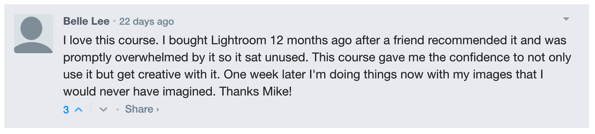
Here’s what one of our readers said about the course a few days after it launched.

Lightroom mastery course review

Belle wasn’t the only one – much of the feedback was along similar lines with readers reporting that they finally felt like they knew how to take control over Lightroom and to develop a workflow to help them take their photos to the next level and create beautiful images.

Early Bird Special: Ends in 48 Hours

Over the last 4 weeks we’ve offered Lightroom Mastery at an Early Bird discount of 50% off. We’ve also been putting everyone who purchases a copy in the draw to win $ 1000 USD toward new camera gear.

Many of you have taken up this offer already but we wanted to let you know today that there are just 48 hours left to take advantage of it.

At midnight (US EDT) the competition closes off and we’ll be reverting the course to its full price so now is your last chance to take advantage of this Early Bird Offer.

Discover How to Transform Your Images Today

This online course includes 16 modules and just over 3hrs of video tutorials.

Here are some of the things you’ll learn:

  • Editing – How to use the crop tool, basics panel, tone curve panel, color panel, split toning, details panel, and lens corrections panel, all while improving the image.
  • Tools – Using the spot removal brushes (cloning/healing), red eye correction tool, graduated filter, radial filter, and adjustment brushes!
  • Workflow – Lightroom presets, finding lost photos, stacking, the face finder tool, lights out mode, and more advanced topics!
  • Creative Techniques – How to Create Panoramas and HDR images.
  • How to Bring your Photos to Life – Full Photo Edit Workflow.

… and much much more.

And remember – when you order before midnight EDT this Friday, not only will you save a whopping 50%, you’ll also go into the draw to win USD $ 1,000 to spend on your photography.

So don’t wait – grab Lightroom Mastery here – or you might miss out!

googletag.cmd.push(function() {
tablet_slots.push( googletag.defineSlot( “/1005424/_dPSv4_tab-all-article-bottom_(300×250)”, [300, 250], “pb-ad-78623” ).addService( googletag.pubads() ) ); } );

googletag.cmd.push(function() {
mobile_slots.push( googletag.defineSlot( “/1005424/_dPSv4_mob-all-article-bottom_(300×250)”, [300, 250], “pb-ad-78158” ).addService( googletag.pubads() ) ); } );

The post Discover the Secrets of Lightroom: 48 Hours Left to Save 50% Off Our Lightroom Mastery Course by Darren Rowse appeared first on Digital Photography School.

Digital Photography School

 
Comments Off on Discover the Secrets of Lightroom: 48 Hours Left to Save 50% Off Our Lightroom Mastery Course

Posted in Photography


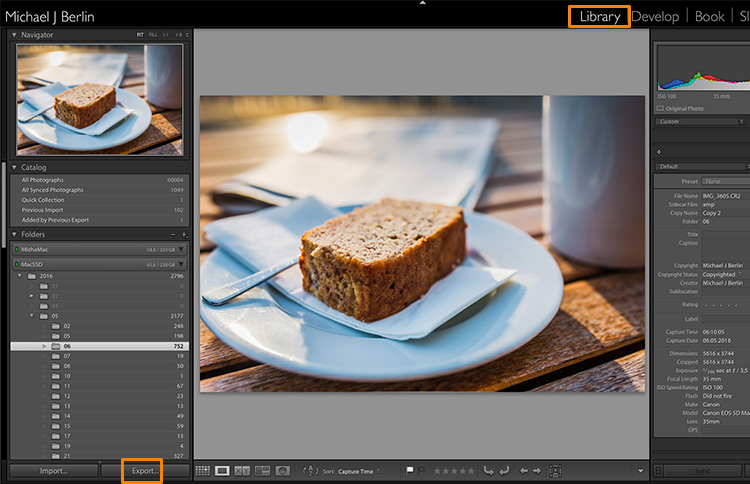
How to Size and Export Images from Lightroom for Facebook and Print

24 Aug

One of the most confusing features of Adobe Lightroom for many users, is how to get your final results out of the software, to show them to friends or to send to customers. Different from other programs, there is only one way to “save” thing out of Lightroom – that is to an Export Images. This article will walk you through some of the options to help you demystify this often confusing function, so you can post your images on Facebook, and get them printed, all using the right sizes.

Lightroom export images

The reason is that Lightroom does not actually store your images, they are not really within its database. Lightroom merely keeps a list of locations where your original images are located, generates its own internal previews of those images to work with, and stores the changes you have chosen to make to the files. But until this stage all you are seeing in Lightroom is purely a visualization, there is no actual finished images created yet.

For this, you will have to learn to use the Export feature. While it is one of the essential features of Lightroom, it seems to confuse many people at the start. Part of the confusion certainly comes from the huge amount of options Lightroom offers when trying to save images:

Lightroom export images

So let’s have a look at the most common cases for using the Export functionality to get the best results:

Export an image for Facebook

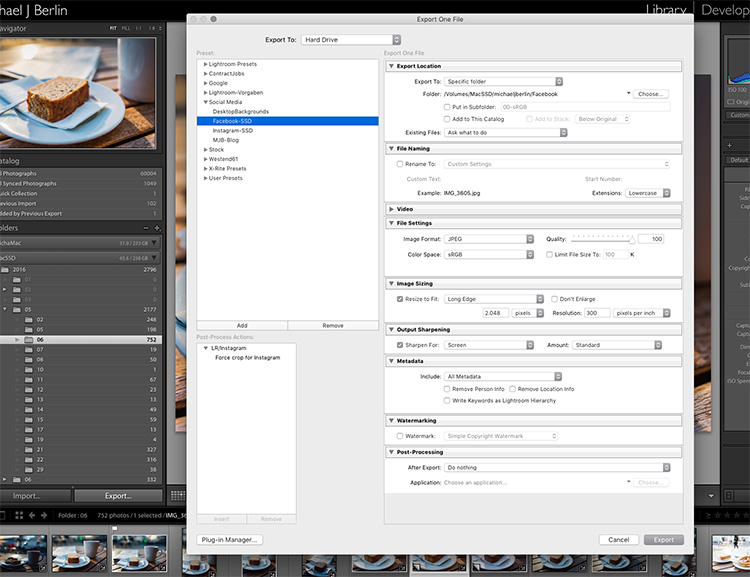
There are many discussions about how an image should be saved for Facebook. I trust Facebook’s own recommendations most and have had good experiences relying on that article. Typically I export images at the highest resolution Facebook will accept, the 2048 pixels mentioned in the help article.

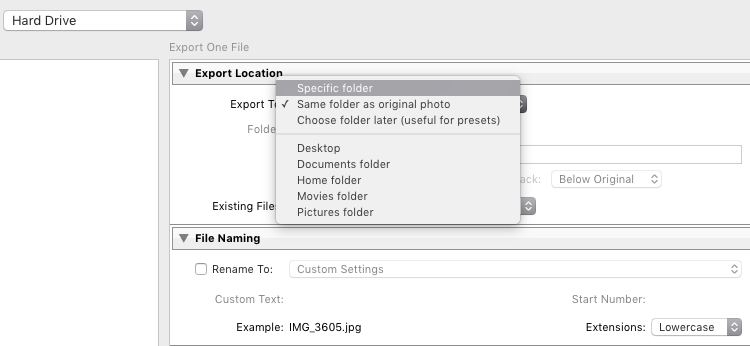
So, first of all, you have to tell Lightroom where we want to save your image. Lightroom offers a lot of choices, one of them being to save the new resulting image into the same folder as the original. Remember, until now only the original image exists somewhere on your hard drive, no changes have been made to it.

Lightroom export images

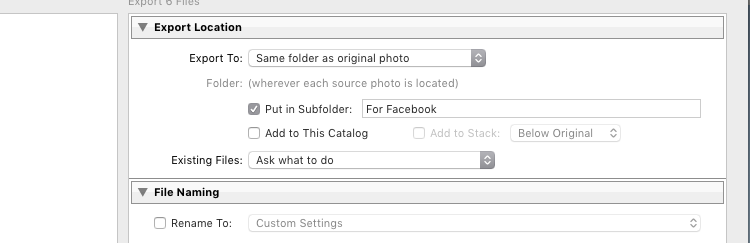
It can be a good idea to keep the original and your final copies in the same space. However, I typically save images into a subfolder to the original – named “For Facebook” for example – so when my original RAW image is in a folder structure by date “2016/05/06”, I would save my Facebook images into the sub folder “2016/05/06/For Facebook”.

Lightroom export images

Another option at this point that I regularly use, is to define a “Specific folder” for my outputs. This allows you to send all exported images to the same location on your hard drive, for example to keep a specific folder containing all the images you have uploaded to Facebook. This also works great to automatically save files into an online cloud storage such as into a Dropbox folder on your disk.

File format

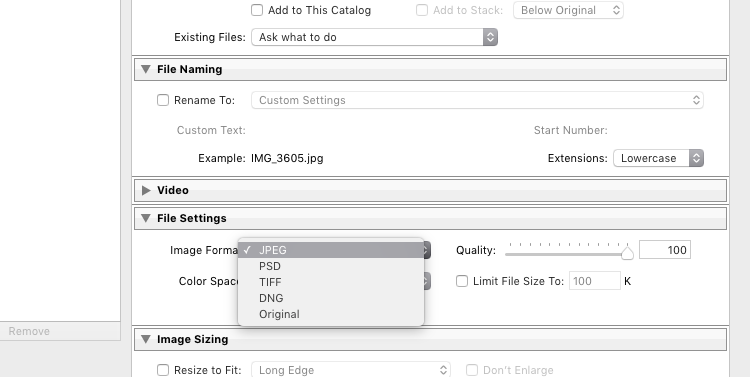
Further down on the Export screen, you get to choose the file format you want to make the exported image. For internet purposes, you would mostly choose JPEG as the desired file format. JPG is a compressed format which allows faster transmission of images, so most internet based platforms use this format to store photos. PSD and TIFF will allow you to store images in full detail in with a wider range of colors (16 bit instead of 8 bit). Some printers (photo labs) will accept TIF files because of the additional details stored in the images, but you should make sure your printer does before trying to send files that can reach more than 100 MB.

Lightroom Export 05 File Format

With the JPEG format, you also have to choose the Quality level. As JPEG tries to find areas of similar colors to make the file size smaller, the quality setting defines how “different” a color section needs to be before a compression is being applied. The lower the quality, the more compression artifacts you might see in the final image, in exchange for a lower file size. In most cases, values around 80-90% will not show critical changes over the full 100%, and only in rare occasions (when file size is very critical) you should go below 60%.

Color profile

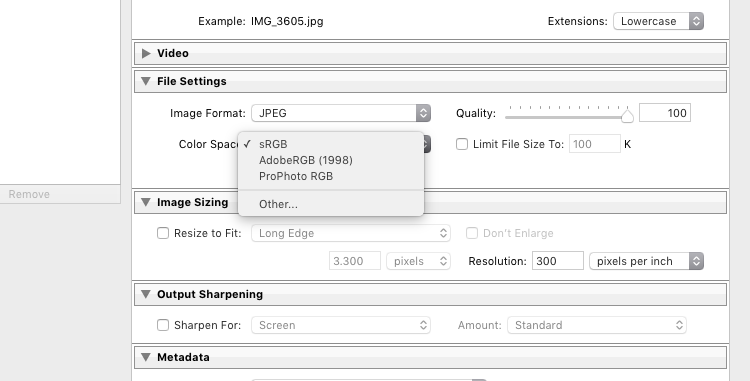
Besides the format and quality settings, there is another drop down box in this section showing the color profile to be used. In simple terms, the color profile defines how many (and which) colors can be accurately stored. The smaller a color profile is, the less color information it contains, but also the smaller the file sizes will also be.

Lightroom Export 06 Color Space

In general, sRGB is the best choice for all images that are meant to be displayed on electronic screens, from large computer monitors, to smart phones, on your website, or on Facebook. The other options (AdobeRGB and ProPhoto RGB) both contain more color information, which can be advantageous if you want to apply further changes to the images at a later stage, for example in Photoshop or in the pre-print processing.

Just as with generating TIF or PSD files, you should only use these other color spaces when sending images when you know in advance that the recipient at the target location can work with them. Most online print services today are prepared to accept images in JPEG format and sRGB color space, as this is what most consumers produce with their cameras.

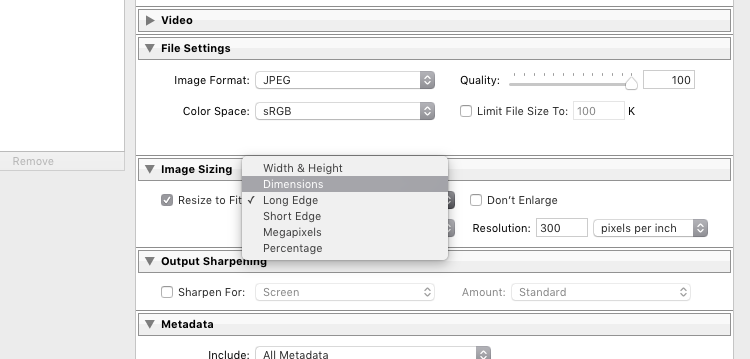
Sizing your images

The final section you need to address before exporting your images are the resizing options:

Lightroom Export 07 Resize

For images you plan to upload to the internet – be it your blog, to Facebook, or Instagram – you probably don’t want to upload the full resolution of 16 or 24 megapixels that your camera probably shoots. As mentioned in the linked help article above, Facebook only accepts up to 2048 pixels on the wide side, and if you upload larger images they will automatically be downscaled. So it is preferable to save the file in the recommended size, to save upload time.

With these settings, you could now export your image for sharing on Facebook. There are a few sections below like Output Sharpening (you can choose “Screen” and “Standard”, and compare the results to a version without output sharpening to see the difference) or adding a Watermark to your images automatically, but those are topics for a another article in the future. But just wait a second before you press the Export button right now, there is something else we should look at first.

Save your settings as an Export Preset in Lightroom

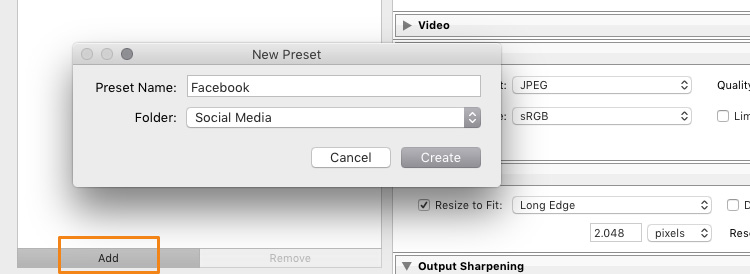
Now that you have taken the time to understand the settings on the Export screen and have come to a result you’re happy with, you want to be able to use the same settings in the future without having to think about getting them all right for every new image. This is why Lightroom allows you to save these settings as an Export Preset. Just press the “Add” button below the list of saved presets on the left half of the window, to add your personal preset – you can even have them sorted in Folders for different purposes:

Lightroom Export 08 Add Export Preset

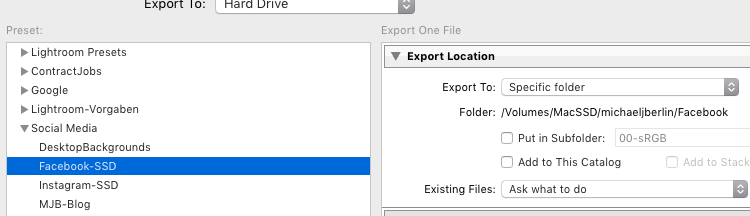
Once it is saved as an Export Preset, selecting the same settings is simply a matter of a single click. As you can see from the next screenshot, I have defined my personal Export Presets for different social media uses like my blog, Facebook, and Instagram, as well as usage as a new Desktop Background for my own computer.

Lightroom Export 09 Use Export Preset

Cropping images for desired format before the Export

With all the settings, we have looked at in the first part of this article, there is one important part that has to be done before entering the Export screen: Cropping your images when you want to use them into a format (proportion) that does not match your camera’s output.

Most modern cameras produce images in a 3:2 aspect ratio, so the long side of an image is 50 percent longer than the short side – in a 24 megapixel camera this translate to 6,000 x 4,000 pixels. However, traditionally there are different popular formats, especially when it comes to printing images:

  • From the age of large format cameras, the 5:4 format (or 8×10 prints) is still very popular in some regions.
  • Medium format cameras usually produced images in 6 x 4.5 (so a 4:3 ratio) or in 6×6 square format.
  • The square format has also been Instagram’s unique format until recently.
  • TV screens, and a growing number of computer monitors, come in the 16:9 standard defined by high definition TV.

To print a full image in one of those different formats would cause distortion, as the image information would have to be squeezed to fit to the shorter sides. In general, printers will not distort the image but instead cut them off at the side. To avoid a random crop in print, what you need to do is to crop your images to fit the desired output format.

Make Virtual Copies

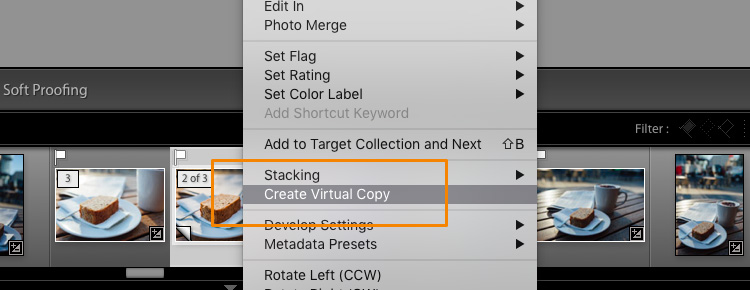
Bonus Tip: If you want to keep the original format for easy access and/or offer your customers different print formats, I recommend to create a Virtual Copy (keyboard shortcut is: Command/Control+’ or right click the image and select Create Virtual Copy, see screenshot below) from your image before doing the cropping. This way, you will have two (or more) versions of your images, one in original aspect ratio and others in the cropped format. Within Lightroom this will only take a minimal amount of space, as Virtual Copies do not duplicate the original file but are just an additional set of data within the database.

Lightroom Export 10 Virtual Copy

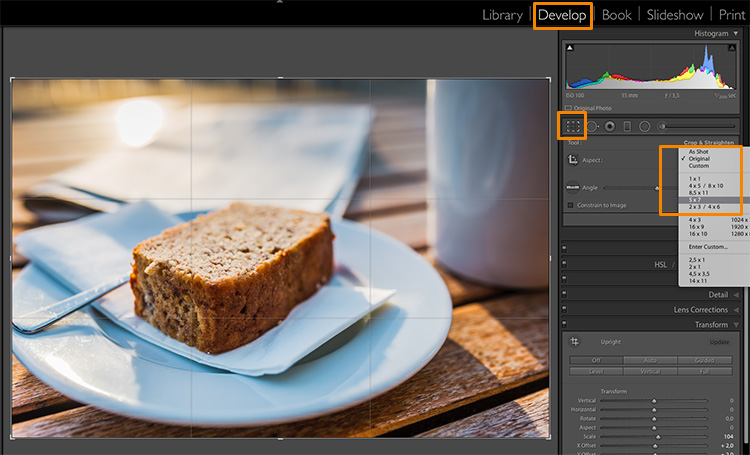
When you select the Crop tool in Lightroom’s Develop module, you will find a list of presets covering the most popular aspect ratios in a dropdown menu. Choose the desired format from the list, or choose a Custom Format if you don’t find the aspect ratio you are targeting.

Lightroom Export 11 Crop Tool

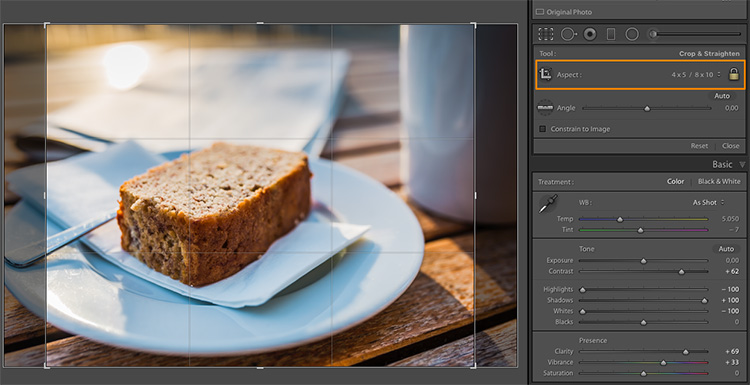
If you select a 5×4 crop, you will see the crop guides highlighting the parts of your image that will remain in the final result, and the darkened parts on both sides of the photo that would be cropped off. You can now move the crop area to your liking to the right or left – or drag one of the corners in case you want to close in to your main subject a little more. Reminder: As everything in Lightroom, this is a non-destructive process, you can change the chosen crop at any stage and even return to the original size.

Lightroom Export 12 5x4 Crop

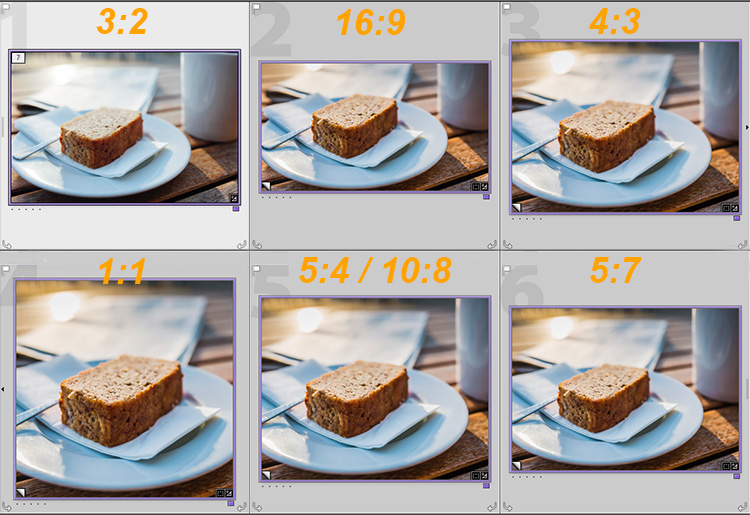
To give you an idea how the different crops can impact an image, I have created five virtaul copies, in addition to my original 3:2 format image, and have applied the five most popular aspect ratios as follows:

Lightroom export images Crop Comparison

Image size settings

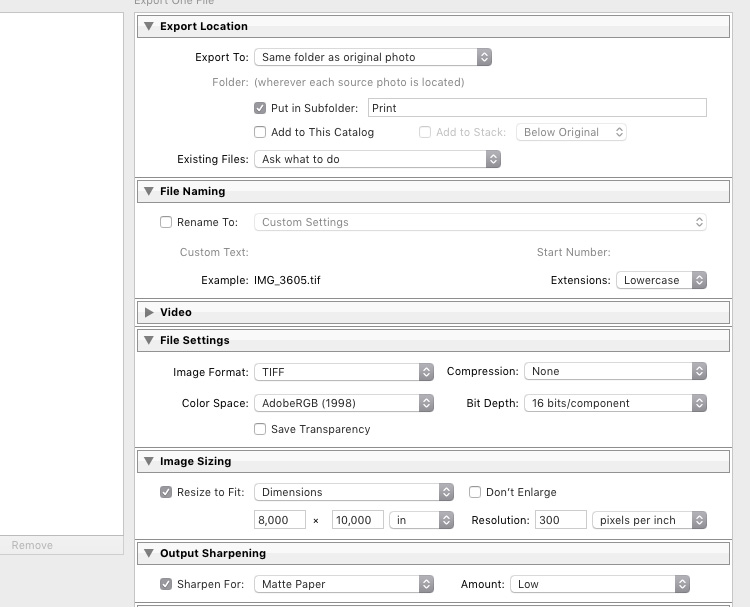
Once you are happy with your crop, you can go back to the Export screen from the Library module. Now let’s have a look at the Image Sizing section again. As you can see, I have now chosen to make Lightroom fit the image to a 8 x 10 inch print format. Please note that I have changed the measure from “pixels” to “in” in the drop down box for this – if you prefer the metric system, there is a “cm” option for centimetres as well.

Lightroom export images Print

I have also set the Resolution to 300 pixels per inch which is the typical requirement for most printers. With these settings, Lightroom will now automatically save the image to the desired aspect ratio and file size. Remember to store these settings as another Export Preset if you are happy with the results, so you can use the same settings for future exports.

Also, please note that I have changed the File Settings in this case to TIFF, and AdobeRGB with 16-bit, to show the settings that will save the most information with the file. As discussed in the first part, this is only recommended if you know that the printer can handle the resulting large file size. If you want to deliver printable files to your clients, I would recommend you stick with JPEG and sRGB, as you can’t say in advance which printers they will use and most services will be able to handle those images as well.

Summary

I hope this article helped you to understand the basics of exporting images to different formats from Lightroom. In case you have questions, feel free to leave a comment below this article or join the Digital Photography School group on Facebook where I am available to answer questions as well.

lightroom-mastery.jpg


For more training using Lightroom check out our new course Lightroom Mastery!

googletag.cmd.push(function() {
tablet_slots.push( googletag.defineSlot( “/1005424/_dPSv4_tab-all-article-bottom_(300×250)”, [300, 250], “pb-ad-78623” ).addService( googletag.pubads() ) ); } );

googletag.cmd.push(function() {
mobile_slots.push( googletag.defineSlot( “/1005424/_dPSv4_mob-all-article-bottom_(300×250)”, [300, 250], “pb-ad-78158” ).addService( googletag.pubads() ) ); } );

The post How to Size and Export Images from Lightroom for Facebook and Print by Michael Zwahlen appeared first on Digital Photography School.

Digital Photography School

 
Comments Off on How to Size and Export Images from Lightroom for Facebook and Print

Posted in Photography


Lightroom Mastery: The Power of the Adjustment Brush

10 Aug

If there is one thing I wish I would have spent more time learning early on in my time with Lightroom, it’s the adjustment brush.

Lightroom is an incredible editing tool, arguably the easiest one to use, and the quickest to learn. The one thing that took me a while to wrap my head around when starting out, was how to use the Adjustment Brush. In this article I’d like to share a quick excerpt from the new Lightroom Mastery course I created for Digital Photography School. I hope you find it helpful.

Why the Adjustment Brush is Great

Lightroom excels at making changes to the entire image (global adjustments) super simple and effective. It really becomes a joy to use Lightroom once you get the hang of it. Need to pull up the shadows in an overly-contrasty image?  No problem; just pull up the shadow slider.  Need to correct for overexposure?  Easy – just drop the exposure slider.

But what do you do when you need to make a change to a very specific area (local adjustments), and you don’t want that to affect the rest of the image? This is exactly when you want to call upon the power of the Adjustment Brush.

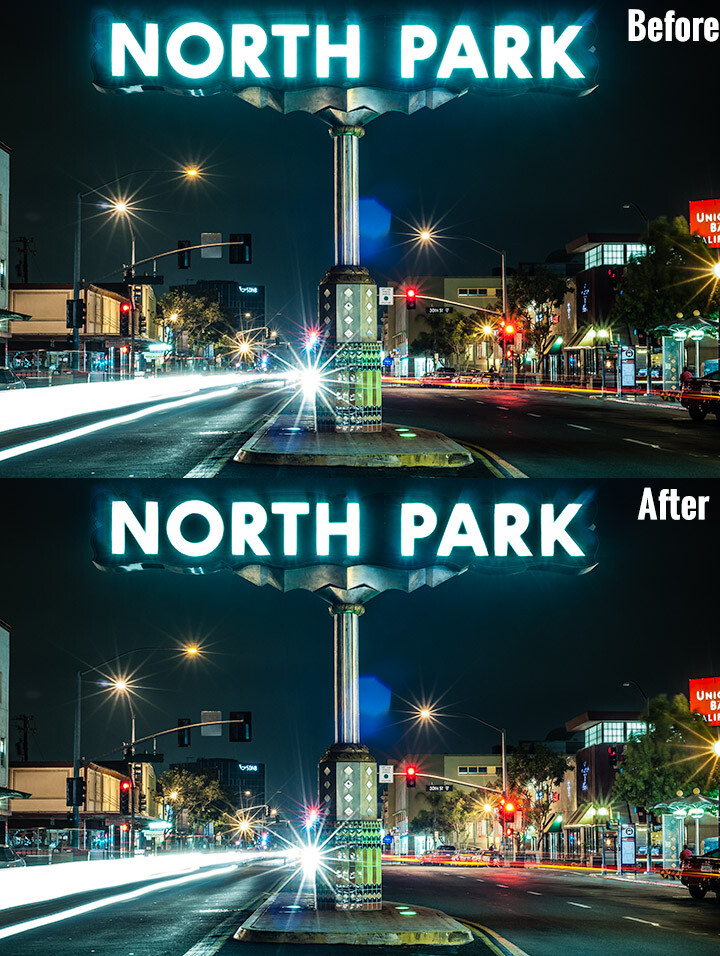
Look at the difference an adjustment brush made in the sign, as well as brightening up the lower right corner.

Look at the difference an adjustment brush made in the sign, as well as brightening up the lower right corner of this image.

How the Adjustment Brush Works

Instead of making a global change to the entire canvas, the Adjustment Brush enables you to get very specific and just paint over where you would like to make changes.

This sounds simple, but is incredibly powerful – you now have the ability to affect big change in many different areas of your image, without resorting to bouncing the image over to Photoshop. Hey, I’m all about simplicity, and if I can get all my edits done in one program versus two, I’m all in!

A Perfect Example – Corvettes and Chrome

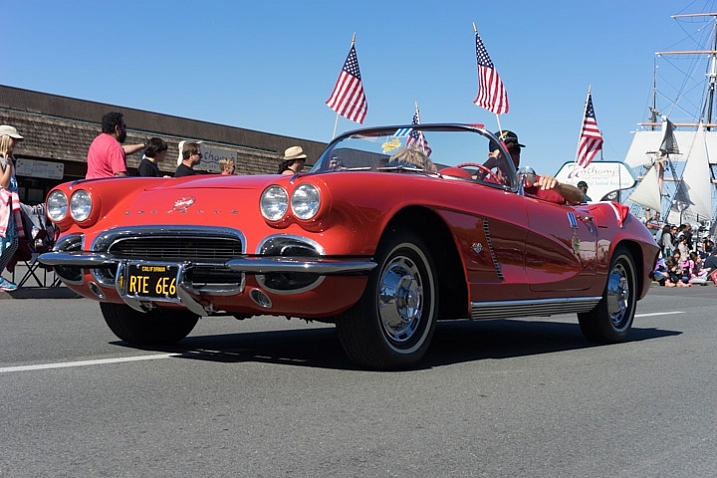
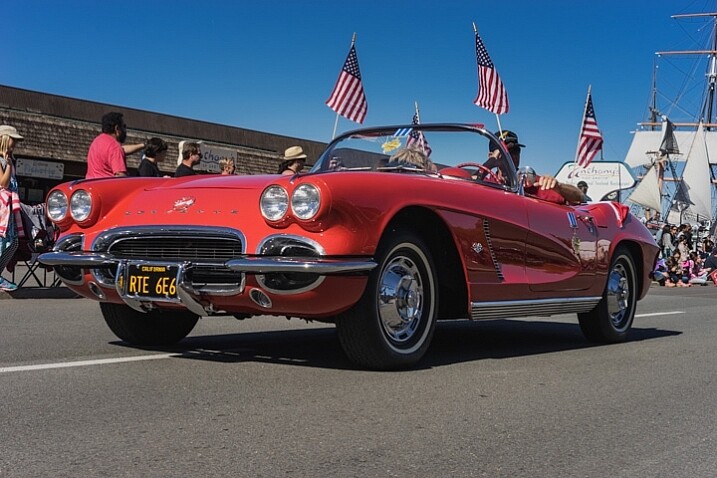
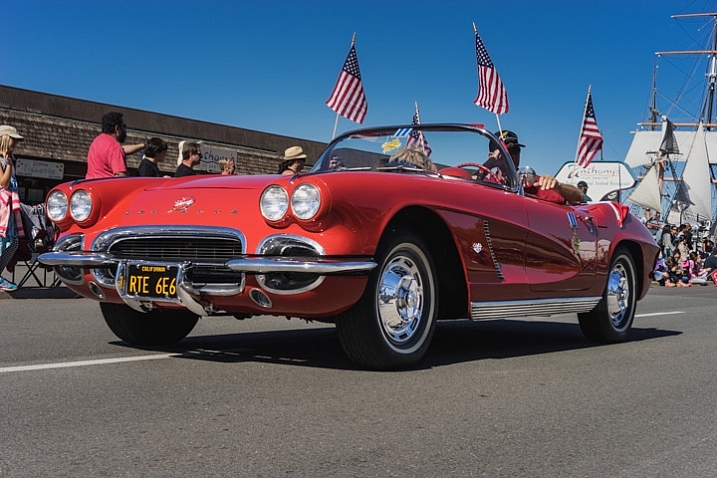
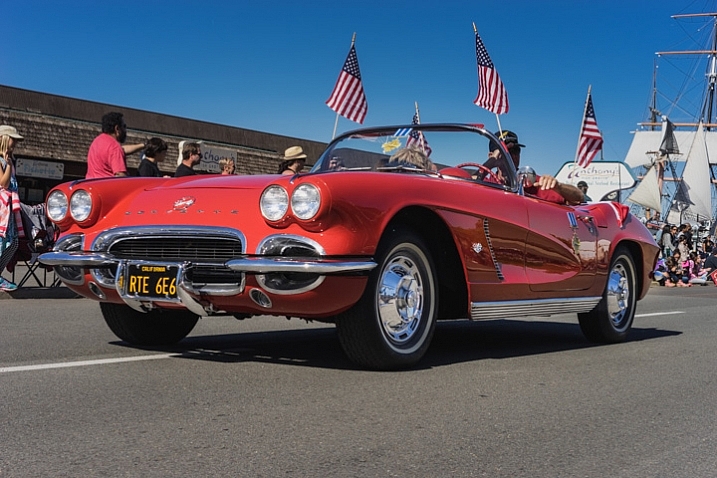
A good friend had just come to visit me from China, we decided to walk around the neighborhood and managed to catch a parade. It may not look like it, but this was in November in San Diego, one of the benefits of fair weather every day. I caught this image of this beautiful car driving by:

Lightroom adjustment brush, lightroom mastery course, lightroom mastery, dps, corvette, chrome, parade

I darkened the sky a bit and applied some more contrast to the ground and ended up with this:

Lightroom adjustment brush, lightroom mastery course, lightroom mastery, dps, corvette, chrome, parade

That looks good, but the photo really wasn’t capturing how bright the chrome wheels and bumper accents were. In short, I needed to do some local editing on just those pieces. Adjustment brush to the rescue!

Time to Shine – Creating a Chrome Adjustment Brush

Deciding where to start when creating your custom brush

I knew the key to making this photo pop was getting that chrome to come back to life. I first clicked into my Adjustment Brush window (hit K on your keyboard or select the Brush tool from the top of the right hand panel in the Develop Module) and reset all the sliders back to zero. Since the wheels were not facing the sun, they were underexposed and caught in shadow.

Creating the brush itself

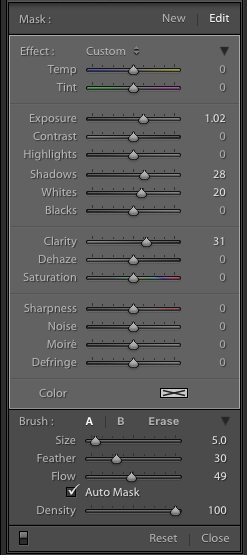
Lightroom adjustment brush, lightroom mastery course, lightroom mastery, dps, corvette, chrome, paradeI decided to increase the exposure +1 stop, bump the shadows up to +28 to correct the darkness, and increase the whites to +20 to make the highlights in the chrome pop.

For good measure I increased the clarity to +30 to make sure the edges in that chrome highlights were nice and snappy. Here is what the adjustment window looked like before I started painting (see right)

This was an educated guess as to what I thought would work. If this worked well, I could leave it. If it didn’t, I could always move the sliders after painting, to change it as necessary.

Painting with the Adjustment Brush – best practices

There are a few guidelines I like to follow when painting with the Adjustment Brush. Here a few helpful tips to make this easy:

  • Use a brush size that is a bit smaller than the area you are trying to paint.  It helps if you don’t “color outside the lines”, although that is an easy fix if you do. A quick tip here: if you use a mouse with a scroll wheel you can change the size of your brush by scrolling up and down. It works the same with my Apple magic mouse.
  • Check the box for Auto Mask if you are painting something with fine edges you don’t want to go over. Auto Mask does a good job of keeping your brush inside the lines even if you go outside, which saves time.
  • I like to see the mask I’m painting versus the effects of the mask I’m painting. To have the mask show up in red either click Show selected mask overlay or simply click the O key on the keyboard to toggle the mask on and off.

Let’s get painting!

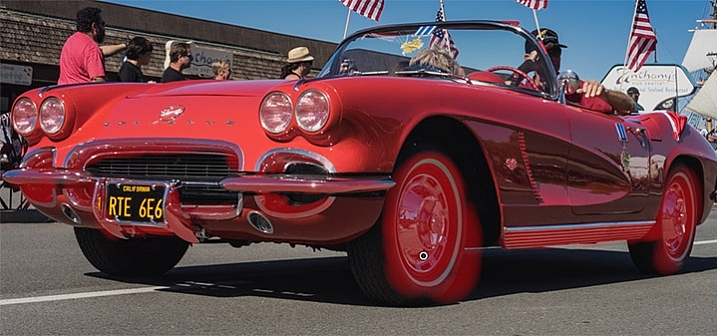
I quickly painted over the wheels, front bumper, headlights, and any other chrome I could find. It’s a bit difficult to see, since the mask is nearly the same color as the car (you can change the mask color by clicking Shift+O repeated times until you find a better color) but here is what the mask looked like after my initial run:

Lightroom adjustment brush, lightroom mastery course, lightroom mastery, dps, corvette, chrome, parade

Using the eraser tool to clean up mistakes

Wow, I’m apparently terrible at coloring inside the lines! In all reality, going outside the lines on this image didn’t make a noticeable difference, but we might as well do this right.

To clean up areas where you’ve overpainted all you have to do is click Erase in your Adjustment Brush window. This will pull up a brush that will erase the mask area when you paint over it. This is important: make sure to click click the A or B brush after using the eraser so you don’t forget and start painting over areas with the eraser versus the brush by accident!

After a quick clean-up I ended up with this, which is much better:

Lightroom adjustment brush, lightroom mastery course, lightroom mastery, dps, corvette, chrome, parade

Let’s turn off the mask and see how it looks

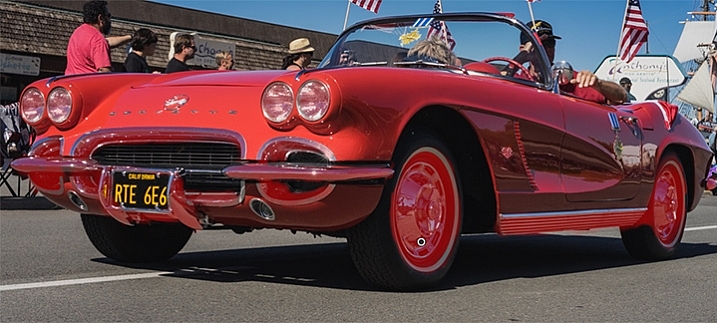
Remember, to turn off the mask you can simply click the O key on your keyboard. Here you see my image after the adjustment brush has been applied:

Lightroom adjustment brush, lightroom mastery course, lightroom mastery, dps, corvette, chrome, parade

Much better!  The chrome wheels and bumper are much brighter now, and look a lot better.  The only thing I don’t like now, is how dark the drivers-side door is.

It’s a pretty easy fix to create a new brush to bring up the shadows, so I’ll do that.

Starting a new mask in the same image

It’s important to think of masks like layers. The wheels and bumpers are painted with one mask, that has one group of settings.

If I want to make a new adjustment brush with different settings for the door, I need to create a new mask, as opposed to just moving the sliders around. If I move the sliders around without creating a new mask, that will make changes to the current active mask (my wheels and bumpers).

To make a new mask just click New at the top of the mask menu. I only increased the exposure setting to +1 to add a full stop of light to the side, painted over the door and rear of the car, and got this:

Lightroom adjustment brush, lightroom mastery course, lightroom mastery, dps, corvette, chrome, parade

Let’s compare that to the second edit before I used any adjustment brushes:

Lightroom adjustment brush, lightroom mastery course, lightroom mastery, dps, corvette, chrome, parade

Before Adjustment Brushes were applied.

Much better!

This is just one simple example, the sky’s the limit!

There are endless possibilities with the adjustment brush. I could have changed the color of this entire car if I wanted to as well.

You can lighten up dark areas of images and vice versa. You can apply sharpening or clarify to individual areas. You can do a whole host of beauty editing like whitening teeth, giving eyes more color,  and more.

If you found this helpful, you will LOVE the new DPS Lightroom Mastery course!

lightroom-mastery.jpg

There are far too many excellent tips to learning how to master Lightroom to include in a blog post, so Digital Photography tasked me with creating the best and most comprehensive Lightroom video course on the web!

In Lightroom Mastery I break down everything in Lightroom and teach you more in three hours, than most photographers learn in years. I cover every module, tool, tip, and trick from my 10 years using Lightroom.

During the initial launch, dPS is doing a huge 50% discount on the course!  The price will regularly be $ 99, but during this special launch it’s only $ 49!

Go grab the course before the sale is over

You can click this link to learn more about what is included in the course, watch a preview video, and purchase the course!

googletag.cmd.push(function() {
tablet_slots.push( googletag.defineSlot( “/1005424/_dPSv4_tab-all-article-bottom_(300×250)”, [300, 250], “pb-ad-78623” ).addService( googletag.pubads() ) ); } );

googletag.cmd.push(function() {
mobile_slots.push( googletag.defineSlot( “/1005424/_dPSv4_mob-all-article-bottom_(300×250)”, [300, 250], “pb-ad-78158” ).addService( googletag.pubads() ) ); } );

The post Lightroom Mastery: The Power of the Adjustment Brush by Mike Newton appeared first on Digital Photography School.

Digital Photography School

 
Comments Off on Lightroom Mastery: The Power of the Adjustment Brush

Posted in Photography


Solving the Biggest Newbie Confusions with Lightroom by Phil Steele

07 Aug

Photography educator Phil Steele has taught Lightroom to tens of thousands of people. In this video tutorial he helps clear up the biggest confusion around using Lightroom that most beginners have – understanding how Lightroom and the catalogue work.

Watch this video to get a better understanding of how Lightroom works behind the scenes. If you’ve been using it for a while you can either confirm that you’ve got it right, or clear up some things that you may still not be 100% clear on.

Learn about several common sources of confusion when using Lightroom including:

  • The Lightroom database or catalog, what it is and how the “mind” of Lightroom works
  • Where Lightroom stores your images
  • How to get the edited versions out of Lightroom

If you enjoyed that video, and want to learn even more about Lightroom you can check out Phil’s course: Lightroom Made Easy.

googletag.cmd.push(function() {
tablet_slots.push( googletag.defineSlot( “/1005424/_dPSv4_tab-all-article-bottom_(300×250)”, [300, 250], “pb-ad-78623” ).addService( googletag.pubads() ) ); } );

googletag.cmd.push(function() {
mobile_slots.push( googletag.defineSlot( “/1005424/_dPSv4_mob-all-article-bottom_(300×250)”, [300, 250], “pb-ad-78158” ).addService( googletag.pubads() ) ); } );

The post Solving the Biggest Newbie Confusions with Lightroom by Phil Steele by Darlene Hildebrandt appeared first on Digital Photography School.

Digital Photography School

 
Comments Off on Solving the Biggest Newbie Confusions with Lightroom by Phil Steele

Posted in Photography


Everything You Need to Know to Master Lightroom

03 Aug

Today we launched a brand new dPS course to help you get total control over Adobe Lightroom.

dps-lightroom-mastery-hero-v1b-large

For a short time you can grab it with a 50% off early bird discount.

Are you frustrated with the time you’re spending perfecting your photos in Lightroom?

Perhaps you’re a beginner and just don’t know where to start with the workflow?

Our latest online video training course Lightroom Mastery will have you mastering post processing in hours.

Photographer Mike Newton has created a complete Lightroom Mastery Course specially for dPS subscribers.

Whether you’re a Lightroom novice or an intermediate user, you can take the whole course and work alongside Mike or skip ahead and start on the modules/tools you want to learn.

here’s a little more on what it includes from Mike himself.

Promotional Video from Digital Photography School on Vimeo.

Checkout details on all 15 modules here.

No matter what level of Lightroom user you are, you will walk away with huge improvements in the quality of your edits and the speed of your workflow.

The best part is Mike makes it super easy to understand.

In this course you’ll learn how to:

  • Use the essential editing features of Lightroom
  • Create amazing edits quickly and easily
  • Stitch panorama
  • Add watermarks to your photos
  • Export a selection of photos as a web gallery for displaying your work online
  • Perfect your Lightroom workflow for speedy batch editing
  • Most importantly, learn what to do, when to do it, which tools to use, and have fun while editing!
  • For a limited time, we’re offering this comprehensive Lightroom Mastery course for US$ 49, but in a couple of weeks time it will be going to the regular price of US$ 99.

Learn more and grab Lightroom Mastery with a Limited Time 50% Saving here.

PS: As with all our products this one comes fully guaranteed. If for any reason you don’t find it meets your needs just let us know within 30 days of purchase and we’ll send you a refund.

googletag.cmd.push(function() {
tablet_slots.push( googletag.defineSlot( “/1005424/_dPSv4_tab-all-article-bottom_(300×250)”, [300, 250], “pb-ad-78623” ).addService( googletag.pubads() ) ); } );

googletag.cmd.push(function() {
mobile_slots.push( googletag.defineSlot( “/1005424/_dPSv4_mob-all-article-bottom_(300×250)”, [300, 250], “pb-ad-78158” ).addService( googletag.pubads() ) ); } );

The post Everything You Need to Know to Master Lightroom by Darren Rowse appeared first on Digital Photography School.

Digital Photography School

 
Comments Off on Everything You Need to Know to Master Lightroom

Posted in Photography


Adobe Lightroom launches for Apple TV

27 Jul

Adobe has announced the launch of Lightroom for Apple TV. The app is available now from the App Store, and is compatible with all fourth-generation Apple TV devices. Users must have an Adobe Creative Cloud subscription to log in and access their photos. Once logged in, photos can be accessed as collections and showcased in slideshows. You can’t do any actual editing in the app – it’s for viewing photos only.

Via: Adobe Blog

Articles: Digital Photography Review (dpreview.com)

 
Comments Off on Adobe Lightroom launches for Apple TV

Posted in Uncategorized