RSS
 

Posts Tagged ‘lightroom’

Open source Lightroom plugin Focus Point Viewer highlights active focus points

05 Jan

Joshua Musselwhite, an underwater photographer and software developer, has launched a free, open source Adobe Lightroom plugin called Focus Point Viewer. With this plugin, Lightroom users can view the active focus point of their photos, a feature similar to the one offered by now-defunct plugin Show Focus Points. 

Musselwhite details his new software on Reddit’s photography subreddit, where he explains that Focus Point Viewer was created as a way to easily see whether the focus points in his underwater images were the ones he had intended to use. The software is currently only mapped for his camera, a Nikon D7200, but because it is made freely available anyone can take the time to map the plugin to their own camera.

Explaining how to perform the mapping, Musselwhite said:

You’ll need to map each of the focus points. The best way I knew how to was take 51 photos at each focus point and determine the x,y pixel location for each from the top left using photoshop. I searched and searched for a focus point map for my camera but couldn’t find any … The process is a little time consuming, but it only takes a couple of hours, and is described how in the README file in Github.

The Github README file with the full explanation can be viewed here, and the entire project is available here. Musselwhite has also shared a small gallery showing both the focus points in action and the metadata submenu.

Via: PetaPixel

Articles: Digital Photography Review (dpreview.com)

 
Comments Off on Open source Lightroom plugin Focus Point Viewer highlights active focus points

Posted in Uncategorized


Tips for How to Think and Use Lightroom More Artistically

04 Jan

Each time I process one of my images I do it in a totally different way. This might sound strange to you. I feel that often articles about image processing are riddled with ideas about formulas and essential steps. But for me, this totally goes against everything I believe about photography.
dps-how-to-be-artistic-lightrrom-9

If you want to make creative images there is no one formula that you can apply to all photographs, or all genres. There are no essential steps that you must follow for every single image.

Why there is no magic formula

To say there is one formula is like saying there is one for making great art, and if we followed it then we’d all be great artists. But that is looking at it from the wrong angle. That’s asking for something outside of you to make you perform well. In fact, the only chance (literally the only) any of us have of taking great photographs, is to allow the most unique parts of ourselves to flow out.

Now, that’s not to say I don’t have some great advice for you. I do! It is, though, based on my philosophy that every image is unique. This is not a paint by numbers experience – so processing must be approached in a fresh, new way every single time.
dps-artistic-lightroom-8-6

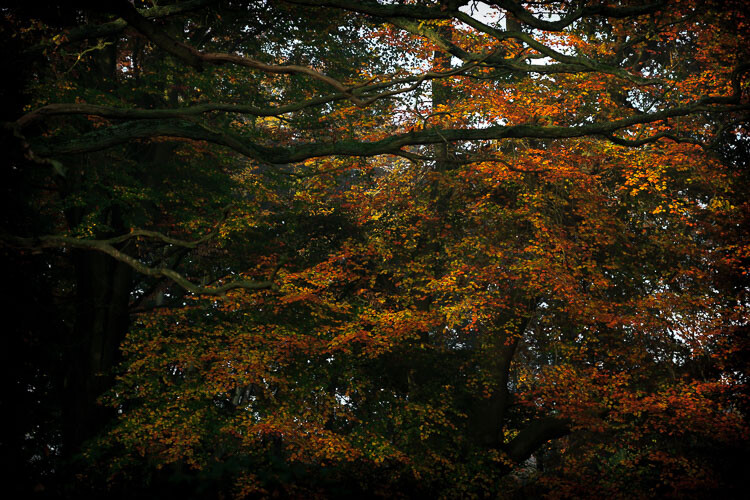
Before processing

Like a lot of photos there are a few different ways I could have gone about this. Processing, like the act of taking photos, is a totally subjective experience. That’s most of the fun!

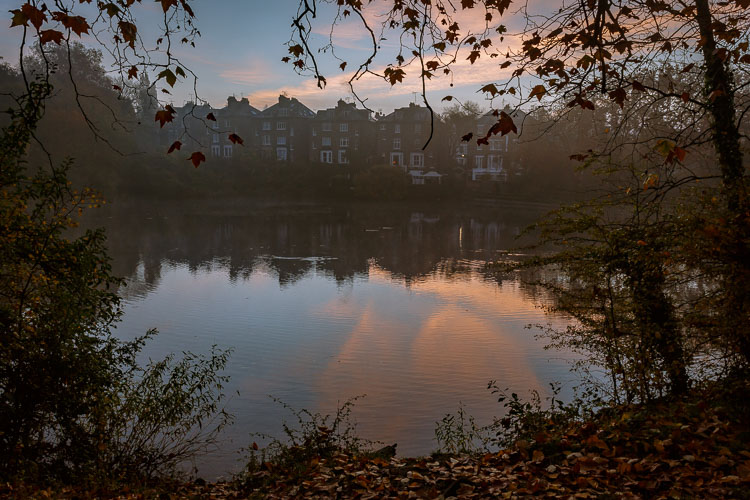
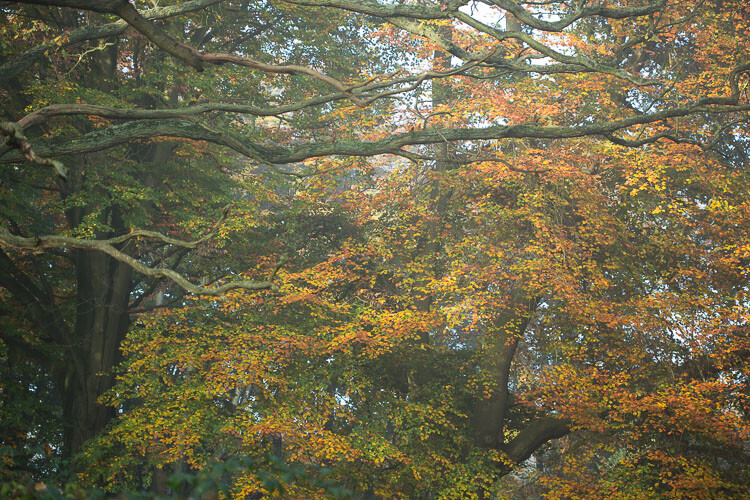
Unlike the other photos I’ve featured in this article, which were all taken on the same beautiful morning in Hampstead Heath in London, in this photo I didn’t want to have that misty fog in the photo. It didn’t work for me with the vibrant colours of the leaves. So instead I enhanced that deep colour and gave the leaves a strong contrast with the dark branches.

To me this is more of a natural look, what you would see when you are out in the woods. I used the HSL module to saturate the colour channels individually with a little Clarity in the basic module. It didn’t really take a big push to make a big change.
dps-artistic-lightroom-8-5

After processing.

“The reason that art (writing, engaging, and all of it) is valuable is precisely why I can’t tell you how to do it. If there were a map, there’d be no art, because art is the act of navigating without a map.” – Seth Godin

Take a unique approach for each image

You wouldn’t shoot all of your images at the same shutter speed would you? When you are out taking photos, even if you shoot on full auto, you respond to both the subject and the lighting conditions around you. You adjust and work with what is there. That’s the same approach you need to take when processing your images.

I like to think of processing an image like creating a painting. It’s an organic, subjective, unstructured process that finds me going back and forth between the tools, using a little of this, a little of that, until I am able see something that I want.
dps-artistic-lightroom-8-2

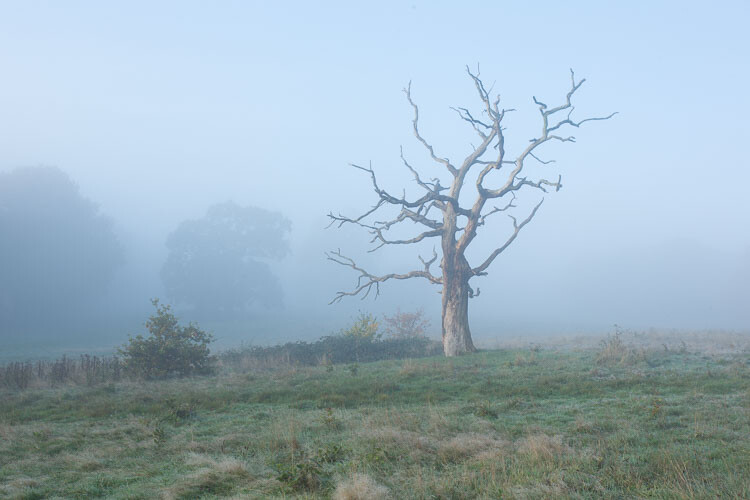
Before processing.

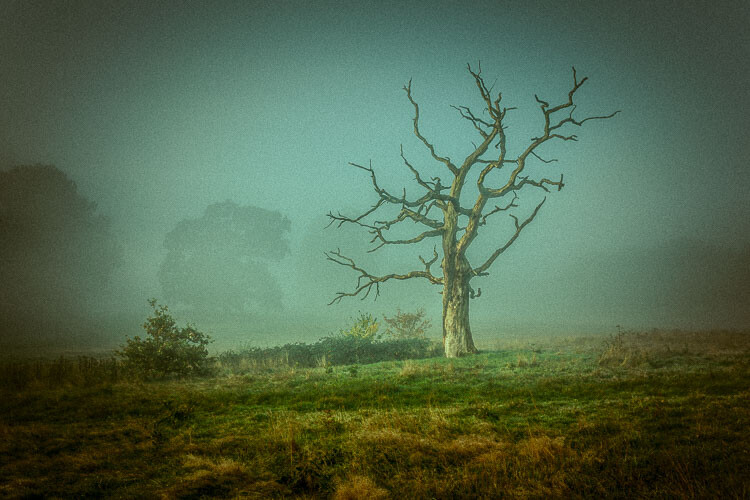
This image already has all of the elements for a good photo. There is atmospheric light that you can truly feel, and the composition of the bare wild tree on its own is strong. So what I focussed on in the processing was to bring out the colours and enhance the atmosphere ad feeling of cold, bleak and misty. Plus I thought a blue/orange split tone would look cool and topping it off with some grain would make it a have a feel of nostalgia…I’m very nostalgic about trees (childhood thing).
dps-artistic-lightroom-8

After processing in Lightroom.

“You must forget all your theories, all your ideas before the subject. What part of these is really your own will be expressed in your expression of the emotion awakened in you by the subject.” –  Henri Matisse

How can you apply this to your photography?

My approach might sound a tad unhelpful – I mean if I can’t tell you the formula, the five steps to success, the three keys everyone needs, how can you learn? Well, my approach may take longer to learn, but you will end up with much stronger images. You’ll create images that are powerful, impactful, and unique to you.

Even though Lightroom is about learning a software program, I recommend you do not use it with a technical mindset. Use it with a creative, artistic mindset. Use it as you would a paintbrush, a pen or your camera. Remember we are creating – not solving an algebra problem here!
dps-artistic-lightroom-8-3

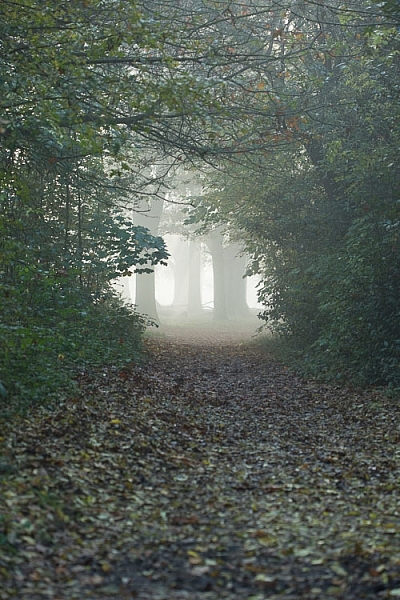
Before

dps-artistic-lightroom-8-4

After

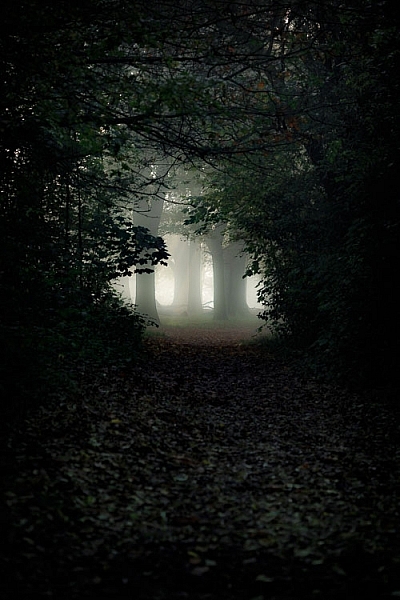
What appealed to me here was the slightly mystical feel. It made me think that the path was leading to a circle of fairies. So my Lightroom work reflected that vision, and this is what I created (above right).I wanted a very surreal look. I used split toning in greens and blues, as well as a vignette, and brought out the blacks very intensely using the basic panel. What I ignored was the histogram, which was all squashed up to the right, but that doesn’t matter.

I wanted a very surreal look. I used split toning in greens and blues, as well as a dark edge vignette, and brought out the blacks very intensely using the basic panel. What I ignored was the histogram, which was all squashed up to the right, but that doesn’t matter. Art is always a bit chaotic, right?

Before and after step by step

This is a creative, organic, fun process. Once you’ve gone through all the Lightroom modules (if needed), don’t be afraid to go back and adjust and have a play.

So, I want to take you through the steps of how I processed an image in detail. I hope it sparks a lot of ideas for ways to help you process yours. I am going to take the photo from this, straight out of the camera:
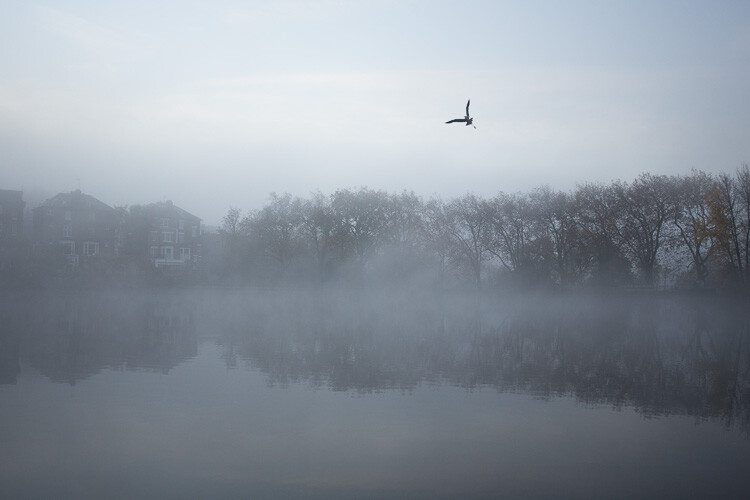
dps-artistic-lightroom-1

Before image, straight out of the camera.

To this:
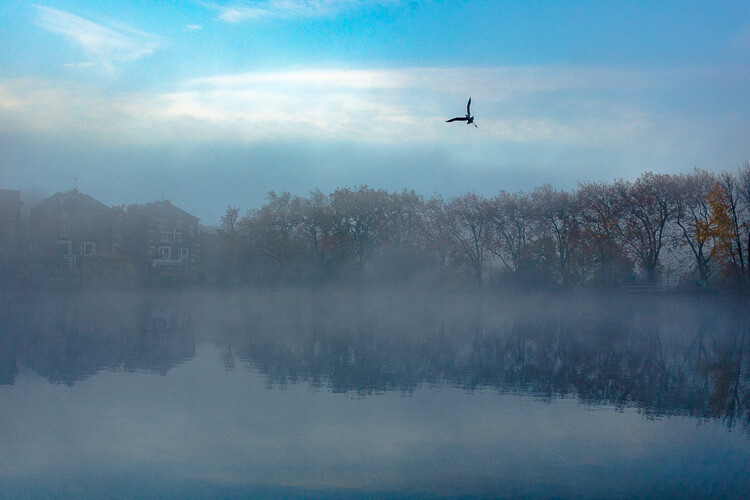
dps-artistic-lightroom-1-7

Finished image processed in Lightroom.

Connect to the image

Look at the image. What does it make you think of, feel or imagine? What qualities can you sense in the image that you can work with and draw out? The Lightroom tutorials you watch and read will tell you how to use sliders, etc., but they usually don’t tell you when to use them. This process of knowing when to use certain tools comes down to getting really involved in your image, and learning to use the inherent qualities of the photo to guide you.

This may sound obvious, but I think this is an essential step that most people miss. We are often so focused on getting it done, or getting the buttons ready to press, that we leave the artistic part of our mind and jump too quickly into the technical. So respond to the subject, the colors, and the mood of the photo. No blanket presets here, please!

Basic panel first

My next step with this image was with the Basic panel. Most images will start here because you may want to control the tones before starting on the color work. This image was really flat tonally so I wanted to boost the contrast by bringing down the shadows and raising the whites. You get much more specific control when you use the Highlights, Shadows, Whites and Blacks slider then you do with the Contrast slider above them. So here are the settings I applied:

  • Highlights -94
  • Shadows -50
  • Whites +50
  • Blacks -31
  • Saturation +50
  • Exposure -0.20
  • Contrast +19

Those changes produced the following result:
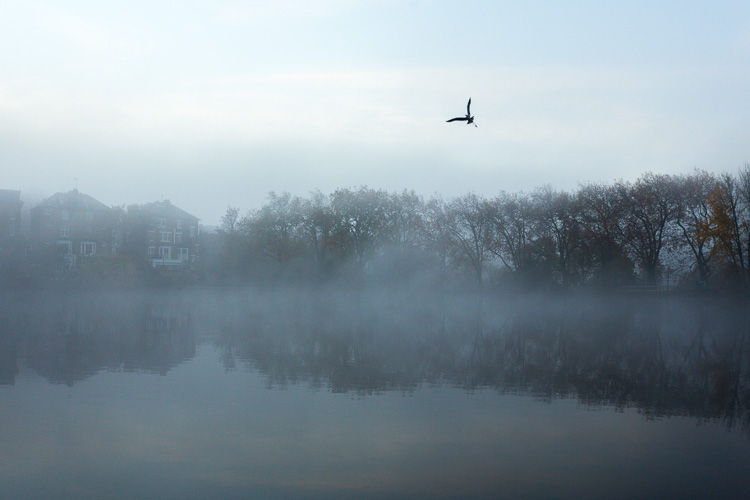
dps-artistic-lightroom-1-2

Now I have some good dark tones in the trees and some bright whites in the sky (all contained in the Histogram). Some Saturation gives me a good idea of what color the image would like to be (what direction it leans naturally). In this case, it’s blue.

Apply a Tone Curve

Next I decided to use the Curve panel for a bit more tonal change; bringing up the shadows and bringing down the highlights. Now the sky is richer and the dark areas are less muddy looking.
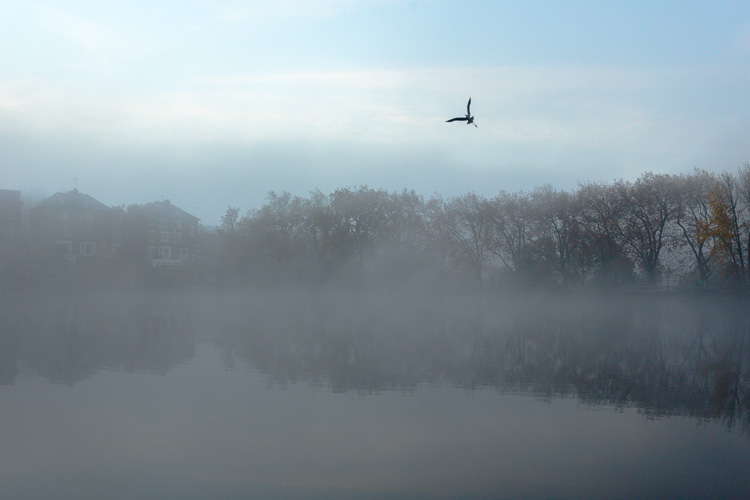
dps-artistic-lightroom-1-3

Dehaze

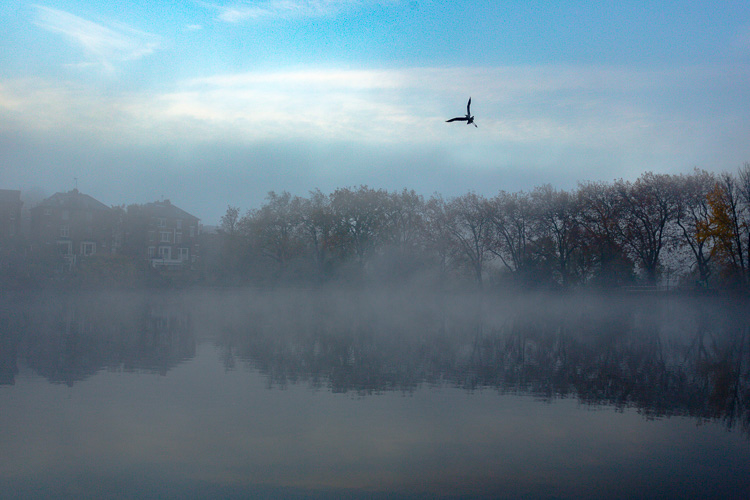
It was a really beautiful morning with the fog and trees, not to mention the fantastic bird (got lucky there!). That said, I was looking at this image and feeling that I wanted to bring out a lot more detail in the water and houses. The fog was great but I was pretty sure I could get more detail without a loss of atmosphere. My answer was Dehaze in the Effects module.

Dehaze is useful for images like this, but can be really super harsh if you are not careful. This image seemed to take a +44 without negative effects, like colour blocking and artefact creation so I left it there (see below).
dps-artistic-lightroom-1-4

Dehaze does tend to mess around with Saturation, which you can see here. But, eh, I liked it! What I was going for was removing some of the fog on the water and houses and that worked well. It also had the added effect of making the reflection of the trees in the water stand out.

Local adjustments

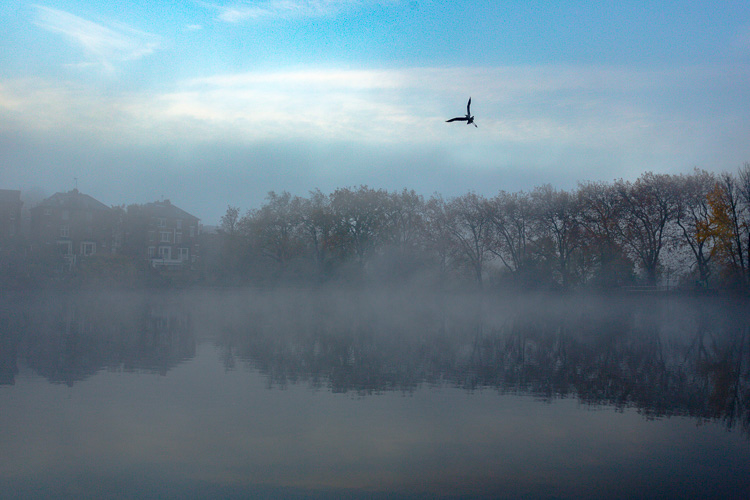
At this point I usually start to toggle modules on and off to see what happens. I thought the shadows of the trees on the right hand side could use a bit of detail so I made a mask with the brush tool to lighten them a bit. This also brightened up the sky behind the trees and made it all look less muddy. Then, I did the same for the reflection.
dps-artistic-lightroom-1-5

I really liked the fog on the water but I wanted the water to look crisp. So I used a graduated filter over it and put Clarity up to +74 and Exposure at +.60. I also changed the colour to match the blue sky. Now there is a lot more separation between the water and the reflection.

If I like my work up to a point I’ll make a snapshot so I can continue working on the image, but go back to that stage later if necessary. I’m pretty happy with it so far. Now is the time I would start toggling modules on and off again to see what needs adjusting.
dps-artistic-lightroom-1-6

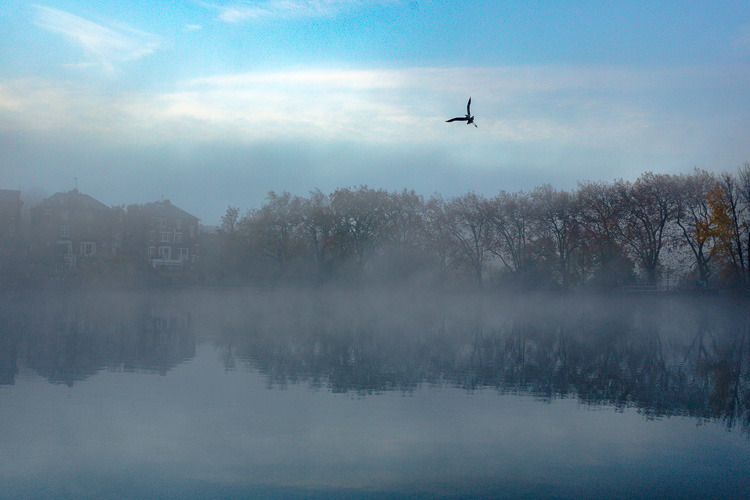
Next, see below, I chose to use HSL (Hue/Saturation/Luminance) panel last just to boost specific colours, in this case the blues. (Not sure why now that I look at it…probably would do it all over again without the blue boost).

I did try lightening the tones in the trees, which look yellow but LR wasn’t having it and said that it was actually blue. Understandable, since there is such a blue cast over everything. The only yellow that could be targeted was that last tree on the far right. I end up with this:

dps-artistic-lightroom-1-7

Conclusion

Now – on the last note, Lightroom is never going to destroy your image or make permanent changes. Therefore you have endless opportunities to play and learn what is possible with this amazing world of processing. Processing is the second half of photography, taking the photo is just the first half. Now I encourage you to:

“Go and make interesting mistakes, make amazing mistakes, make glorious and fantastic mistakes. Break rules. Leave the world more interesting for your being here. Make. Good. Art.” – Neil Gaiman

I’d love to know what you think. Maybe you would have gone about processing this image totally differently? Maybe you like what I did, and maybe you don’t? Let me know, I would love to hear your thoughts.

googletag.cmd.push(function() {
tablet_slots.push( googletag.defineSlot( “/1005424/_dPSv4_tab-all-article-bottom_(300×250)”, [300, 250], “pb-ad-78623” ).addService( googletag.pubads() ) ); } );

googletag.cmd.push(function() {
mobile_slots.push( googletag.defineSlot( “/1005424/_dPSv4_mob-all-article-bottom_(300×250)”, [300, 250], “pb-ad-78158” ).addService( googletag.pubads() ) ); } );

The post Tips for How to Think and Use Lightroom More Artistically by Anthony Epes appeared first on Digital Photography School.


Digital Photography School

 
Comments Off on Tips for How to Think and Use Lightroom More Artistically

Posted in Photography


How to Create a Dark and Moody Rembrandt-Style Portrait In Lightroom

03 Jan

Dutch artist Rembrandt Harmenszoon van Rijn is known for his dark and moody portraits, characterized by a single lighting source falling across a subject placed in front of a dark background. It’s an interesting, evocative style that is easy enough to replicate in modern photography.

There are two steps to creating a Rembrandt-style portrait. The first is to get the lighting and composition right. The second is to use Lightroom to emphasize the dark and moody feel created by the lighting.

Rembrandt inspired lighting is easily achieved using natural light. The important thing is that the light is directional. Take a look at these portraits to see how it works.

Portrait #1Rembrandt style dark and moody portrait

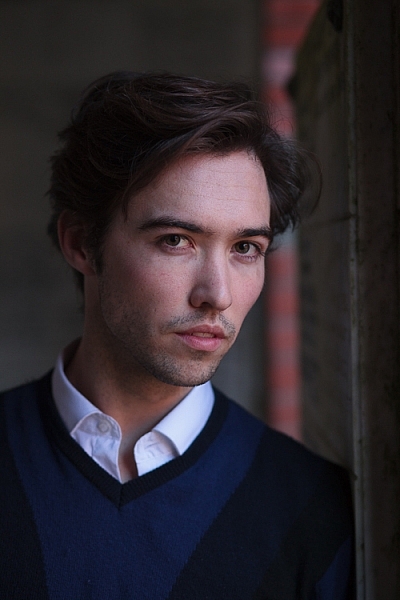
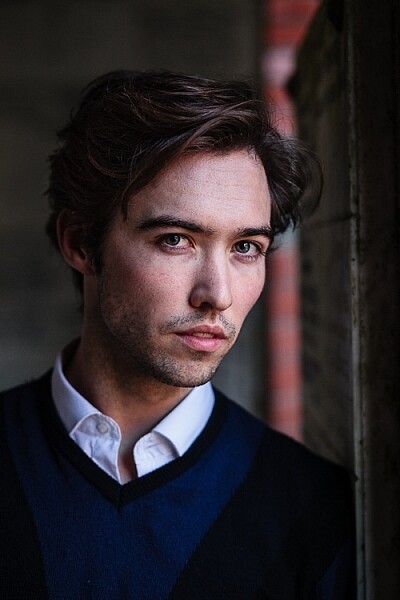
This portrait was taken with the model standing under an archway that was part of a local building. We took the photo on a cloudy day, so the light was quite soft and even, perfect for portraiture.

The light comes from the model’s left, through the archway, casting a shadow across his face. The right side of his face is dark because no light is coming from that side. The background is also dark because less light is falling on it.

The photo looks like it could have been taken in a studio – but the light was shaped by the archway rather than a softbox.

Rembrandt style dark and moody portraitPortrait #2

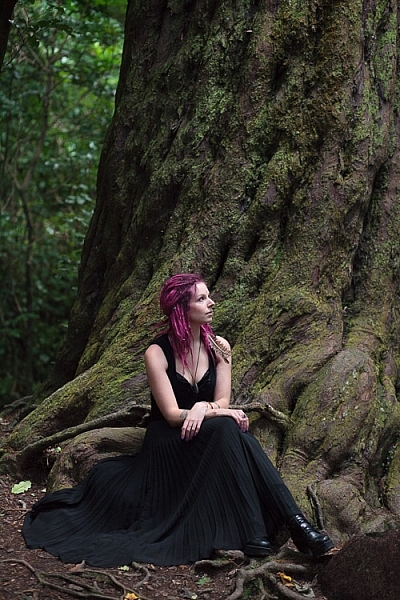
I made this portrait in a forest. The light was coming through the trees from above. It was a cloudy day, but the narrow gaps between trees meant the light was very directional. I asked my model to lift her face up towards the light so that it didn’t cast shadows under her eyes.

I selected these portraits because they are interesting from a post-processing point of view. One of them was very easy to process, and the other took a lot more work. Can you guess which one was which?

Processing Portrait #1

The first portrait was the easiest to process. Here’s the Raw file as it came out of the camera.

Rembrandt style dark and moody portrait

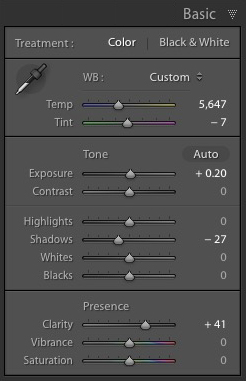
Virtually all the work for this portrait was done in the Basic panel in Lightroom. These are the main adjustments.

Rembrandt style dark and moody portrait

  • Exposure +0.20. A slight tweak to brighten the photo.
  • Shadows -27. This makes the darkest tones in the photo darker without affecting the lightest tones.
  • Clarity + 41. A global adjustment to enhance texture and details and add a gritty feel to the male portrait (a much lighter touch is required with portraits of women).

You’ll note that I didn’t use the Contrast slider to make the background darker. The reason is that the Contrast slider affects both dark tones and light tones equally. It is better to use the Highlights and Shadows sliders to control highlights and shadows separately.

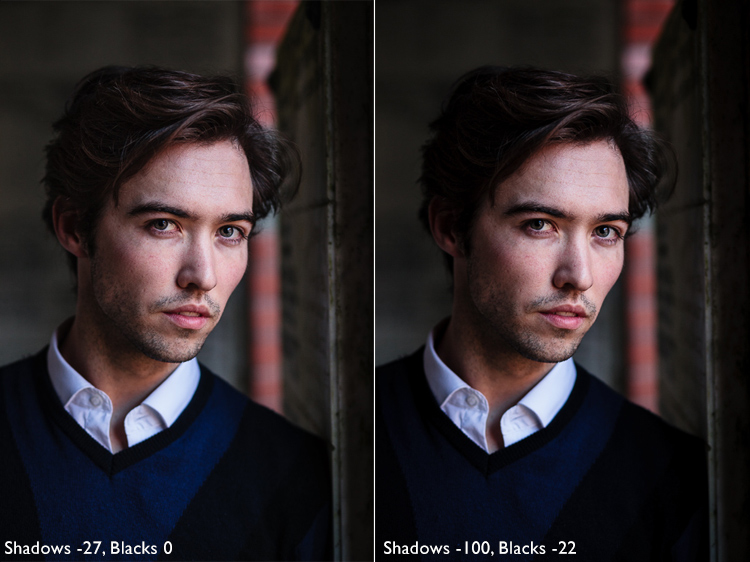
Taking control of dark tones with the Shadows slider gives you a lot of choice when it comes to setting the tonal values of the image. You can also move the Blacks slider left, although you may block up some shadow areas when you do so.

Remember, your aim is to create a dark and moody Rembrandt style portrait, so it’s up to you how dark you want to make the shadows. Here’s a comparison that shows what happens with this portrait when I push Shadows to -100 and Blacks to -22.

Rembrandt style dark and moody portrait

Local adjustments

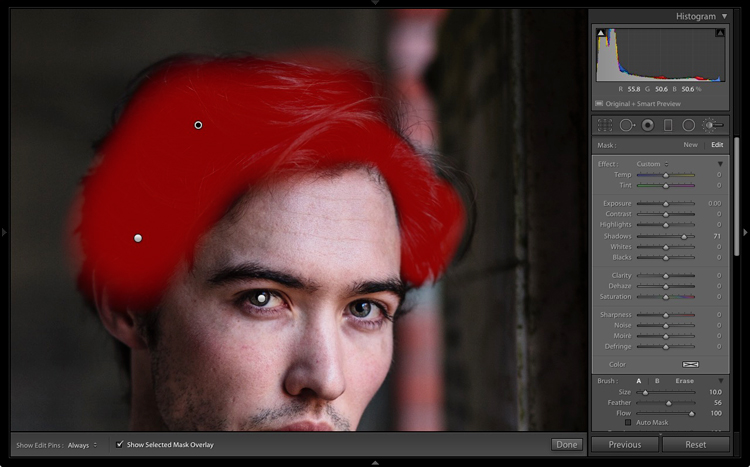
Pushing Shadows and Highlights sliders left may also darken parts of the photo that you would prefer to remain as they are. In this portrait, the model’s hair became too dark, so I used the Adjustment Brush to lighten it. This screenshot shows the mask created by the Adjustment Brush in red. I set Shadows to +71 to make his hair lighter.

Rembrandt style dark and moody portrait

Processing Portrait #2

The next portrait required more work in Lightroom. You can see why when you look at the original image as it came out of the camera, below.

Rembrandt style dark and moody portrait

While the light is coming from above, it wasn’t as directional as the processed image suggests. An image like this needs a little more work in Lightroom in order to obtain the dark background that a Rembrandt style portrait requires.

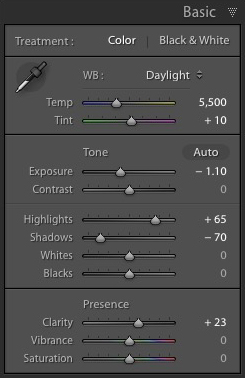
Rembrandt style dark and moody portraitI made some subtle changes by setting the following:

  • Exposure to -1.10
  • Shadows to -70
  • Highlights to +65
  • Clarity to +23

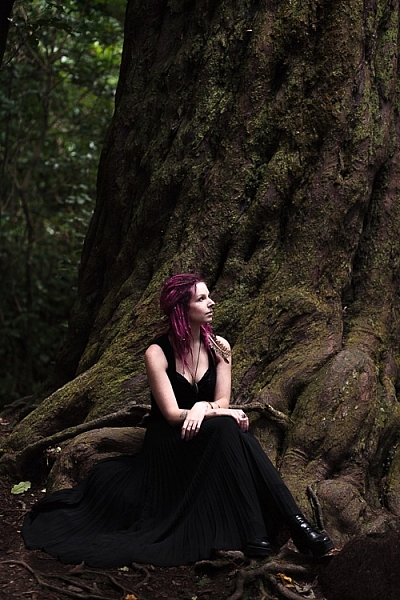
Moving the Shadows and Exposure sliders left made the entire image darker, making the background look more how I wanted. Moving Highlights to +65 then made the highlights (in other words, the model’s skin) brighter. Once again this has increased contrast, but in a way that is much more controlled than using the Contrast slider.

Here’s the result so far.

Rembrandt style dark and moody portrait

Local adjustments

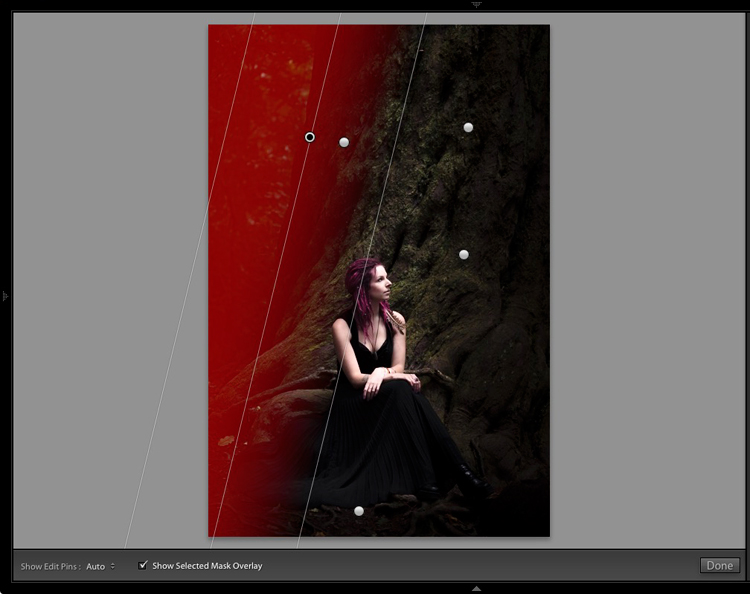
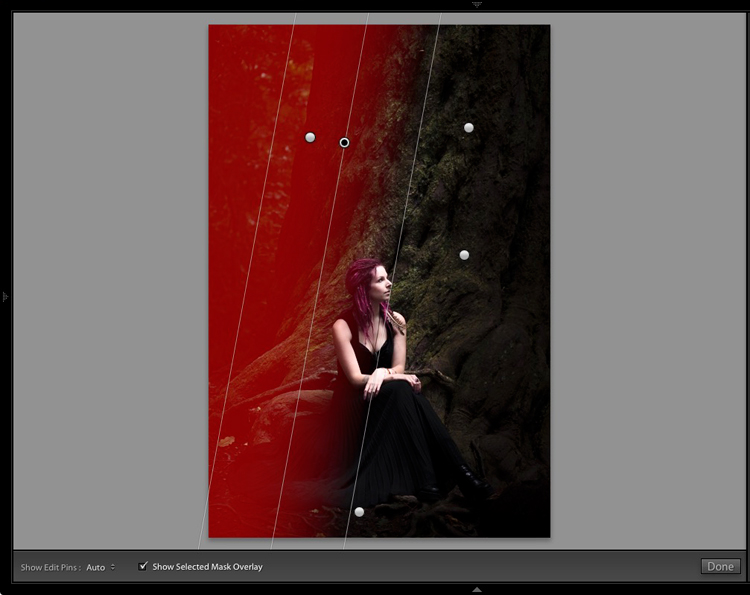
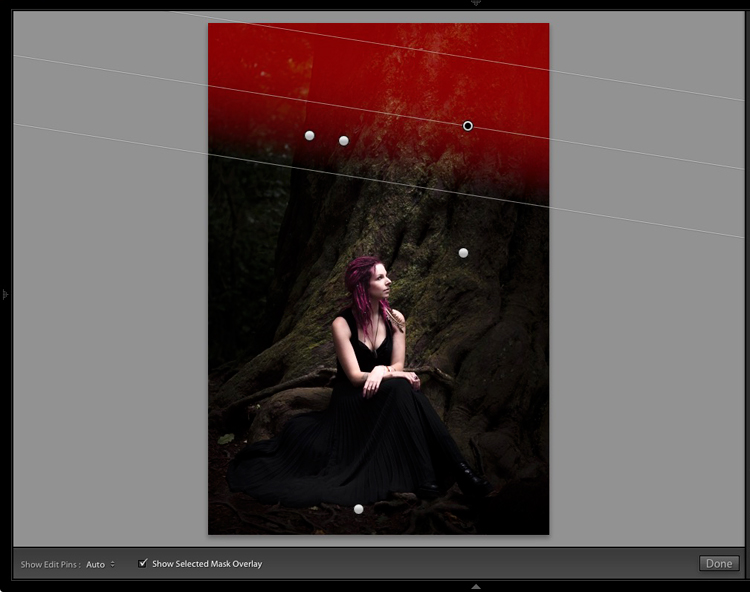
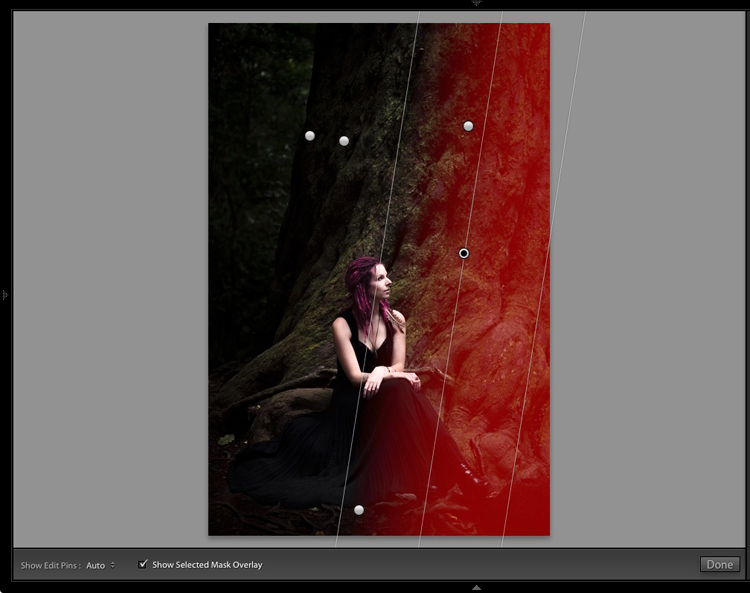
Once you have achieved all you can with global adjustments, it is time to work with local adjustments. Lightroom has three local adjustment tools – the Graduated filter, Radial filter and the Adjustment Brush. It is up to you to select the tool (or combination of tools) best suited to the task in hand.

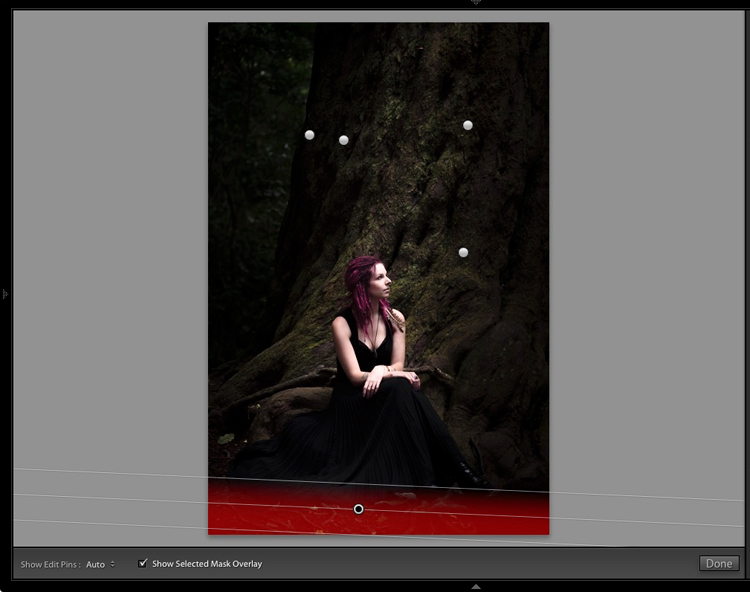
For this portrait, I applied five Graduated filters, and moved the Exposure slider left (to darken) for each one. These screenshots show where the Graduated filters I applied to the image fall.

Rembrandt style dark and moody portrait

Rembrandt style dark and moody portrait

Rembrandt style dark and moody portrait

Rembrandt style dark and moody portrait

Rembrandt style dark and moody portrait

The best way when making local adjustments is to play it by eye. Don’t be afraid to jump around between your local adjustments and tweak the settings until you get the photo looking as you wish.

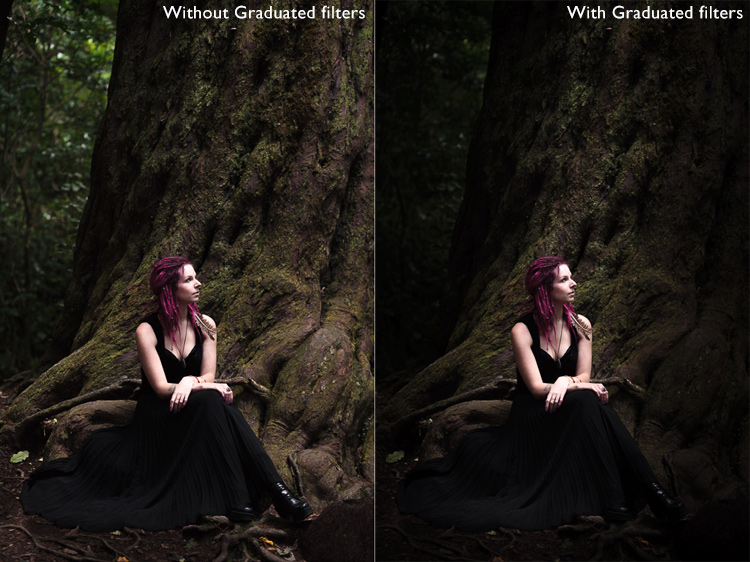
These comparisons show the difference that the Graduated filters made to the image.

Rembrandt style dark and moody portrait

Finally

The key to re-creating the style of a painter like Rembrandt in Lightroom is to analyze the type of lighting used in his portraits and think about how you can replicate that using the tools inside Lightroom. Bear in mind that the lighting is just as important as Lightroom technique. Get the lighting right and the rest should follow easily.

Do you have any questions about the Lightroom techniques used in this article? Let me know in the comments!


If you’d like to learn more about processing your photos in Lightroom then please check out my ebook Mastering Lightroom: Book Two – The Develop Module.

googletag.cmd.push(function() {
tablet_slots.push( googletag.defineSlot( “/1005424/_dPSv4_tab-all-article-bottom_(300×250)”, [300, 250], “pb-ad-78623” ).addService( googletag.pubads() ) ); } );

googletag.cmd.push(function() {
mobile_slots.push( googletag.defineSlot( “/1005424/_dPSv4_mob-all-article-bottom_(300×250)”, [300, 250], “pb-ad-78158” ).addService( googletag.pubads() ) ); } );

The post How to Create a Dark and Moody Rembrandt-Style Portrait In Lightroom by Andrew S. Gibson appeared first on Digital Photography School.


Digital Photography School
 
Comments Off on How to Create a Dark and Moody Rembrandt-Style Portrait In Lightroom

Posted in Photography


Save 60% off with these Professional Photoshop Actions & Lightroom Presets

21 Dec

It’s Day 5 of our 12 Days of Christmas sale and today our friends over at Shutter PulseShutterPlus are offering an exclusive 60% off to dPS subscribers.

Shutter pulse

Today you can save 60% on their Professional Photoshop Actions and Lightroom Presets.

Quality Photoshop Actions and Lightroom Presets allow you to save a massive amount of time during post processing, and they can also help you to achieve impressive looks and effects with ease.

Today you have the option to pick up the following ShutterPlus Packs:

  • 300+ Photoshop Actions Bundle – Just $ 29, normally $ 39
  • 330+ Lightroom Presets Bundle – Just $ 29, normally $ 59
  • OR… get Both Bundles for an even bigger saving of just $ 39, normally $ 98!

These Bundles Include 100’s of effects including:

  • Stunning HDR Effects
  • Vintage Effects
  • Cinema-Inspired Effects
  • Film-Inspired Effects
  • Matte and Haze Effects

Pick up your bundle before it’s gone!

P.S. You’ll need a copy of Adobe Lightroom and/or Photoshop to use Presets or Actions.

P.P.S These presets are completely different to the dPS presets on sale yesterday, so here’s your chance to build up your preset collection so you have the right look for every occasion!

googletag.cmd.push(function() {
tablet_slots.push( googletag.defineSlot( “/1005424/_dPSv4_tab-all-article-bottom_(300×250)”, [300, 250], “pb-ad-78623” ).addService( googletag.pubads() ) ); } );

googletag.cmd.push(function() {
mobile_slots.push( googletag.defineSlot( “/1005424/_dPSv4_mob-all-article-bottom_(300×250)”, [300, 250], “pb-ad-78158” ).addService( googletag.pubads() ) ); } );

The post Save 60% off with these Professional Photoshop Actions & Lightroom Presets by Darren Rowse appeared first on Digital Photography School.


Digital Photography School
 
Comments Off on Save 60% off with these Professional Photoshop Actions & Lightroom Presets

Posted in Photography


How to Understand and Use the Lightroom Histogram

21 Dec

The histogram in Lightroom is a useful tool that is easily overlooked. Its main purpose is to help you understand the relationship between the sliders in the Basic panel and the tones in your photos. It helps you get brightness levels spot on and edit images without losing highlight detail.

Where is the Lightroom histogram?

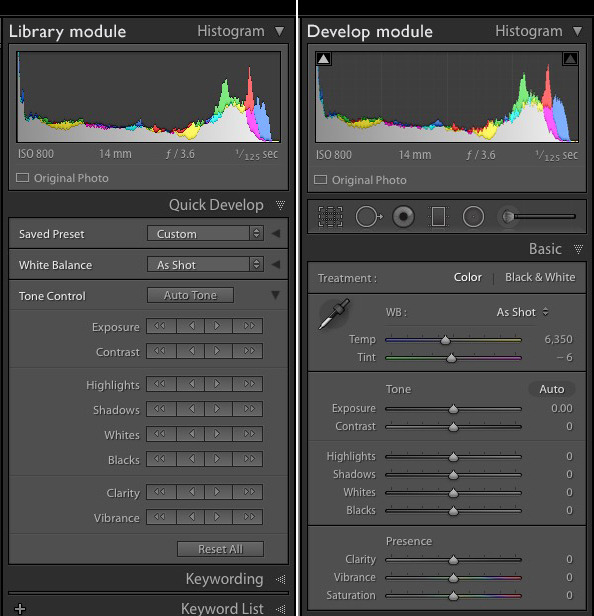
The histogram is found in two places, at the top of the right-hand panels in both the Library and Develop modules. In the Library module, it helps you see what is happening to your image when you make adjustments in the Quick Develop panel. You also need it in the Develop module so you can see how any adjustments you make during post-processing affect the histogram.

The Lightroom histogram

What does the LR histogram tell you?

The histogram tells you whether you have any clipped highlights or shadows. It also tells you how much contrast the photo has. This information lets you decide whether you need to adjust exposure and contrast. It also tells you whether the original photo was over or underexposed. The histogram changes as you move sliders around in the Basic panel, so you can immediately see the effect.

Important: Please note that the following features work with the Develop module histogram, but not the Library module histogram.
How to check for clipping

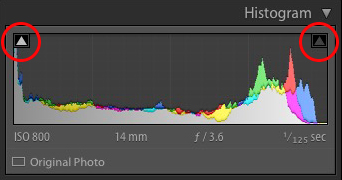
Clipping is indicated by the Show Shadow Clipping and Show Highlight Clipping triangular icons in the top left and right (circled below). Use the keyboard shortcut key J to show and hide clipping.

The Lightroom histogram clipping

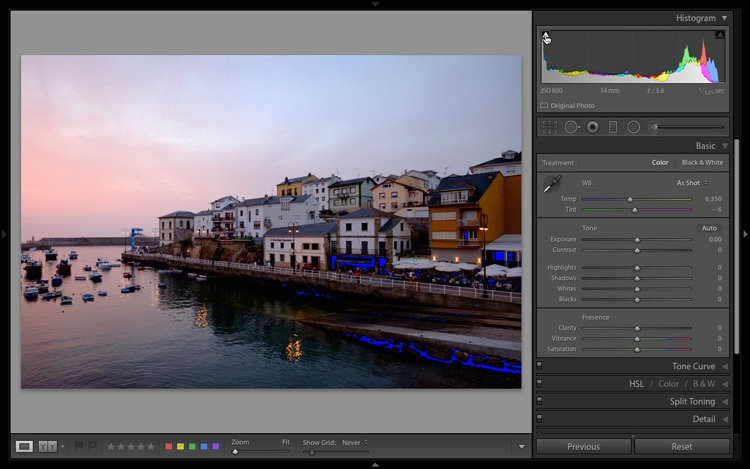
In this histogram, the Show Shadow Clipping icon is colored white to show that the image contains clipped shadows (this is perfectly normal in many images and nothing to worry about).

If you click on (or hover over) the Show Shadow Clipping icon, those clipped shadows are shown in blue in the photo.

The Lightroom histogram clipped shadows

The Show Highlight Clipping icon on the right is colored gray to indicate that there are no highlights clipping. This is a good sign, as most photographers expose to preserve highlight detail.

The Clipping icons also come in useful to indicate if you are losing detail in the highlights or shadows as a result of making adjustments in the Basic panel.

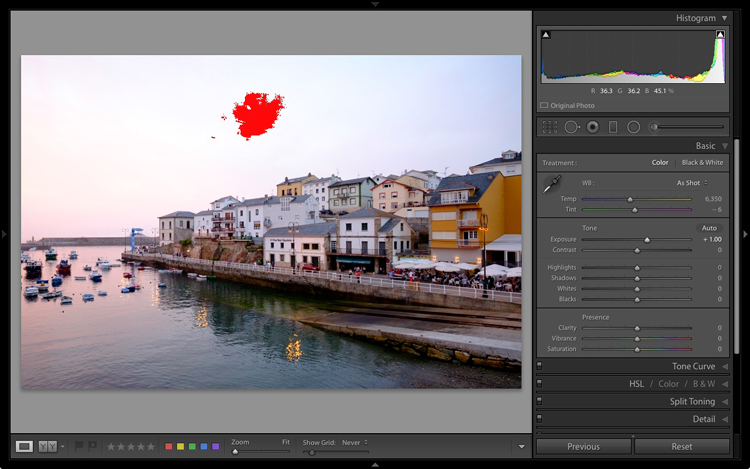
If I set Exposure to +1.00 for this particular image, the histogram tells me that I have lost detail in the sky. The Show Highlight Clipping icon is colored white to indicate this. If you click the icon, clipped highlights are displayed in red in the image. You can see from the screenshot that only a small part of the sky is clipped. This may not be important, but it indicates that perhaps I increased the Exposure too much.

The Lightroom histogram clipped highlights

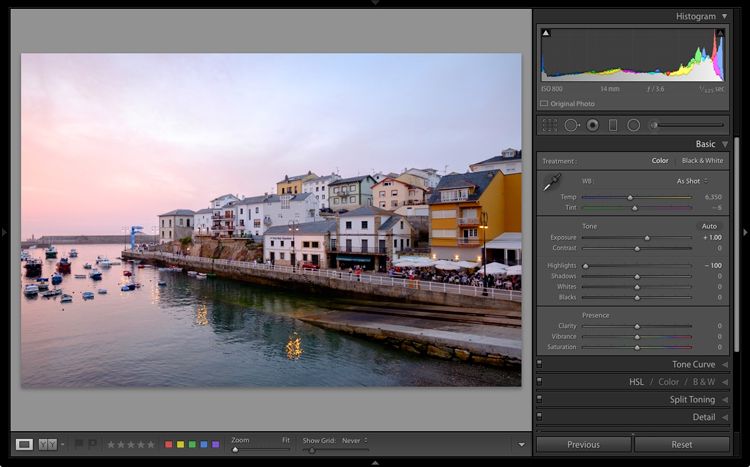
If I set Highlights to -100 the detail comes back in the sky and there is no clipping. Notice how the histogram has changed from above to the one below.

The Lightroom histogram

This simple example shows you how you can push sliders around, using the histogram to make sure that you don’t lose highlight or shadow detail.

The histogram and underexposure

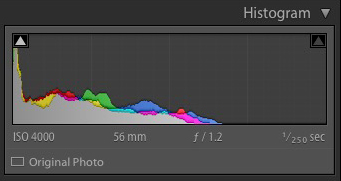
If there is a gap on the right side of the histogram it probably indicates that the image was underexposed (an exception would be if the photo has lots of dark tones but few light ones – like a photo of a black cat sitting on a black rug).

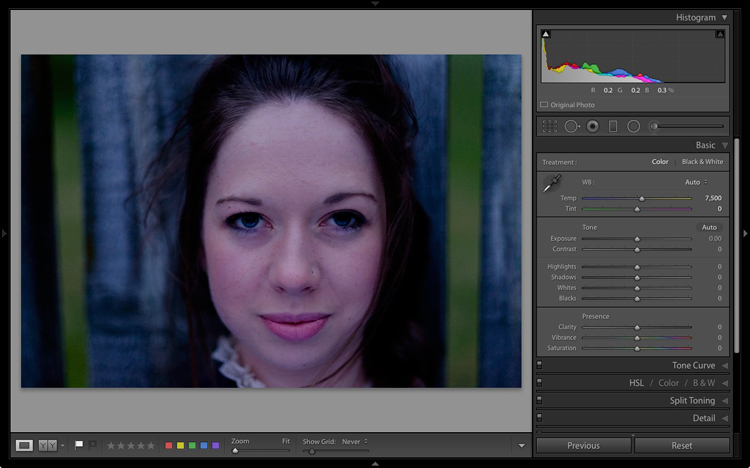
Here’s an extreme example. The photo generating this histogram was underexposed by over a stop.

The Lightroom histogram underexposed image

A look at the photo confirms the histogram is correct and that it is underexposed (too dark).

The Lightroom histogram

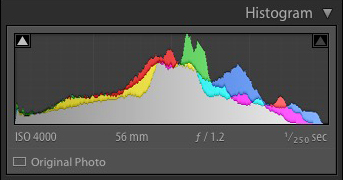
While it is best to get the exposure right in the first place, you can fix this by moving the Exposure slider to the right. As you do so, the histogram also moves to the right. The Exposure slider is quite clever and increases brightness mostly in the mid-tones to prevent highlight clipping. You may be able to push it a long way to the right without losing any highlight detail.

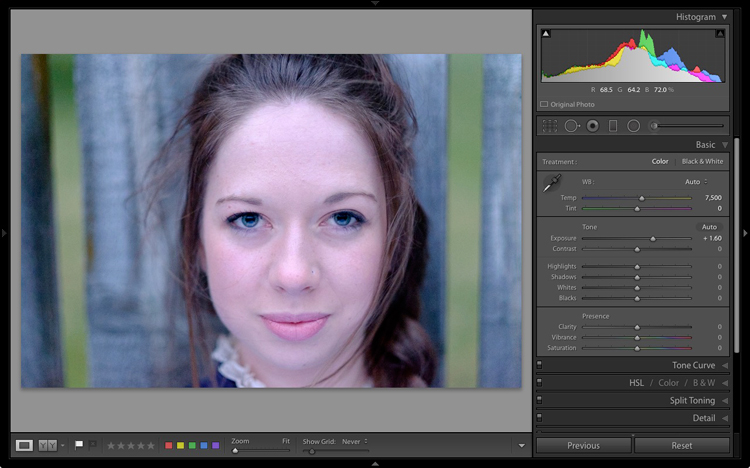
Here, I set Exposure to +1.6, and the histogram looks much better.

The Lightroom histogram

This is what the photo itself looks like after that simple adjustment. Now it is ready for further refinement.

The Lightroom histogram

If you see a gap on the right side of the histogram yet the brightness of the photo looks okay to your eye, it could be a sign that the brightness of your monitor is set too high. If this is the case, you will find your photos look dark when printed or viewed on other people’s monitors. Ideally, you want to calibrate your monitor to be the correct brightness.

The histogram and contrast

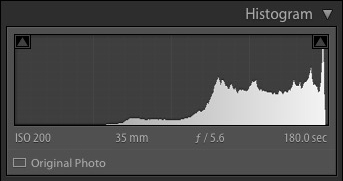
If the histogram is bunched together and doesn’t cover the entire range of the graph this indicates that the photo has low contrast. This is most likely to happen when shooting in flat light.

Here’s a histogram that demonstrates this.

The Lightroom histogram low contrast

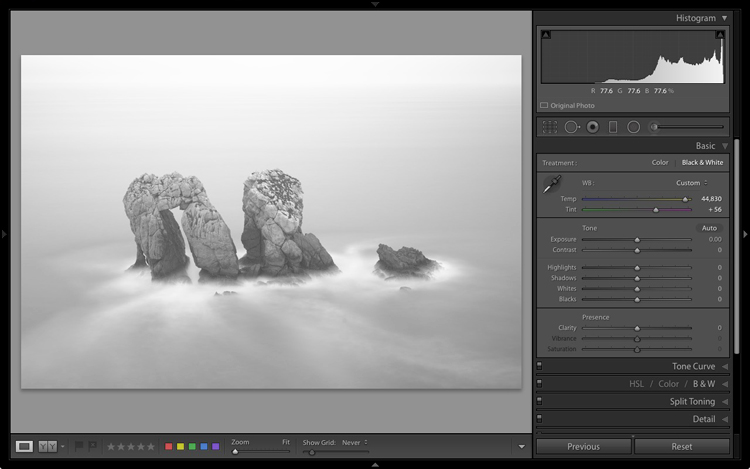
The histogram belongs to a black and white photo taken on a cloudy day in warm and humid conditions. The spray coming from the sea reduced the contrast of the scene, resulting in a very flat image.

The Lightroom histogram

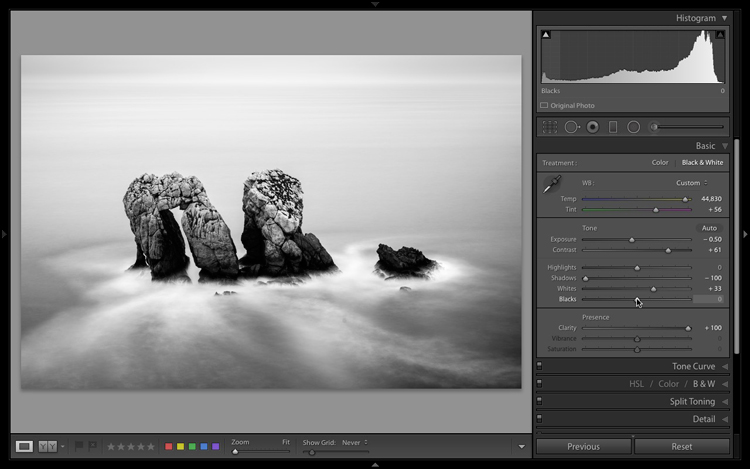
I used the Tone sliders to increase contrast and stretch the histogram so that it filled the space available. The histogram acted as a guide that told me exactly what was wrong with the image and helped me add the contrast back into the photo that it lacked.

The Lightroom histogram contrast adjusted

The histogram and the Tone sliders

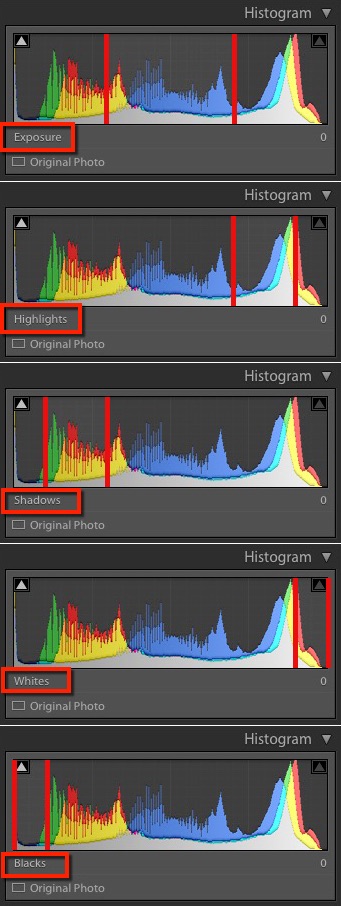
There are five zones in the Lightroom histogram.

When you move the mouse over the Exposure, Highlights, Shadows, Whites or Blacks sliders in the Basic panel the zone that is affected by that slider is shown in light gray in the histogram. I’ve added red lines to make it clear where each zone falls.

lightroom-histogram-zones

The same zones are shown when you move the mouse over the histogram itself. The name of the slider that controls the tones in that part of the histogram is displayed underneath.

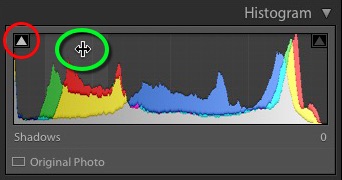
This diagram (right) shows the zone that corresponds to the Shadows slider.lightroom-histogram-sliders


When you see the icon with the two arrows (circled in green), hold the left mouse button down and move side to side to adjust move the Shadows slider left or right. The histogram will change as you do so. This technique gives you control over the Tone sliders from the histogram itself.

Each slider controls a particular zone, but bear in mind that those adjustments also make changes in the other zones. Don’t worry if this sounds complicated – it will make perfect sense once you try it out for yourself. The key is to practice, and you will soon understand the relationship between the Tone sliders and the histogram.

Luminance and color histograms

If you’re processing a color photo you’ll notice part of the histogram is colored. Lightroom is actually showing you four histograms in one. On top is the luminance histogram, shown in gray. This shows brightness values only and has nothing to do with color. This is similar to the luminance histogram on your camera. The other three histograms are colored red, green and blue and correspond to the color channels in the image (some cameras also show these histograms).

You’ll also see some additional colors (like yellow) where the red, green and blue histograms overlap.

Saturation and the histogram

The color controls in the Basic panel affect the color histograms. The easiest way to show you is by demonstrating how the Saturation slider affects the color histograms. Here is a histogram belonging to a color photo, with Saturation set to zero.

The Lightroom histogram

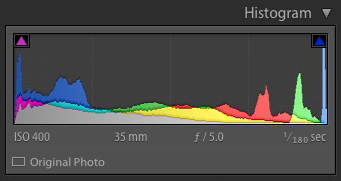
This is what happened when I set Saturation to +100. Increasing Saturation means that the colors are stronger. The result is that the peaks of the color histograms are higher.

The Lightroom histogram

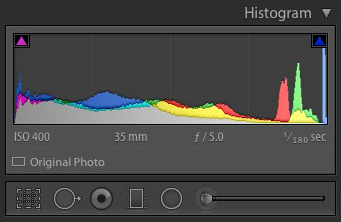
You’ll also notice that the Shadow Clipping icon (on the left) has turned magenta, and that the Highlight Clipping icon (on the right) has turned blue. These indicate that there is clipping in the shadows, but only in magenta hues, and that there is clipping in the highlights, but only in the blue channel.

This is an extreme example because in real life you will never increase Saturation to +100. But there may be times when you make adjustments that clip colors rather than brightness values. It probably doesn’t matter in images viewed on a computer screen, but it may do with images that are printed on paper or reproduced in a book or magazine.

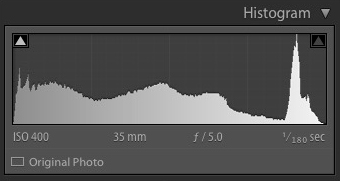
Finally, when I move the Saturation slider to -100, which removes all color from the photo, the color histograms disappear and we are just left with the luminance histogram. This is a useful tip if you would ever like to see the luminance histogram by itself.

The Lightroom histogram

Conclusion

That concludes our overview of the histogram in Lightroom. Hopefully, you can see what a useful tool it is for processing photos in Lightroom. If you have any questions about the histogram, please let me know in the comments below.


If you enjoyed this article and woudl like to learn more about Lightroom then please check out my Mastering Lightroom ebooks.

googletag.cmd.push(function() {
tablet_slots.push( googletag.defineSlot( “/1005424/_dPSv4_tab-all-article-bottom_(300×250)”, [300, 250], “pb-ad-78623” ).addService( googletag.pubads() ) ); } );

googletag.cmd.push(function() {
mobile_slots.push( googletag.defineSlot( “/1005424/_dPSv4_mob-all-article-bottom_(300×250)”, [300, 250], “pb-ad-78158” ).addService( googletag.pubads() ) ); } );

The post How to Understand and Use the Lightroom Histogram by Andrew S. Gibson appeared first on Digital Photography School.


Digital Photography School

 
Comments Off on How to Understand and Use the Lightroom Histogram

Posted in Photography


Adobe Lightroom CC and iOS updates add Reference View and new edit interface

09 Dec

Adobe has announced updates to Lightroom CC 2015.8, Lightroom Mobile for iOS 2.6 and Adobe Camera Raw. The Adobe Lightroom CC update brings a new Reference View for comparing a pair of different images to each other, as well as zoom to fill, zoom to fit and performance improvements. This is joined by the Camera Raw update, which adds support for new cameras and lens profiles, as well as bug fixes.

The Lightroom for iOS update is the most extensive of the three, bringing with it a new edit interface that aims to make it easier and faster to find tools and use them to edit images via an iPhone. The new edit interface is complemented by a new info section with options for adding copyright data, captions and titles while on mobile. Additionally, the iOS app has a new capture interface that Adobe describes as similar to the interface in the Android app, and it gives users access to a new ‘Professional Mode’ with better control over the iPhone camera’s features.

All three updates are available now. You can view the full list of new camera and lens profile support in Lightroom CC here, and the full list of new camera and lens profile support in Adobe Camera Raw here.

Via: Adobe

Articles: Digital Photography Review (dpreview.com)

 
Comments Off on Adobe Lightroom CC and iOS updates add Reference View and new edit interface

Posted in Uncategorized


3 Video Tutorials – Portrait Retouching Tips Using Lightroom

06 Dec

Many of our readers use Photoshop to edits portraits, but what if all you have is Lightroom? Or you don’t know Photoshop as well? You can certainly do most of your portrait retouching using Lightroom.

Here are some video tutorials that walk you through a complete edit of one portrait from start to finish, using only Lightroom. I have also included one that I myself did too.  Every photographer has their own style, so take what works for you from each and apply that to your own editing style.

#1 Extended Lightroom Portrait Edit by Adam Lerner

Photographer Adam Lerner walks you through his portrait editing process from start to finish. He will give you some tips and tricks and great hidden gems inside Lightroom that you can use.

#2 Full Lightroom Portrait Editing by Photos in Color

Ed Gregory from Photos in Color processes a portrait using Lightroom from end to end. He makes a very different looking end result so if you’re looking for some style ideas and tips this might be a good one for you. See what he does the same and differently than Adam above, and myself below.

#3 Portrait retouching in 10 minutes using Lightroom

This is my version. Having taught Lightroom in the classroom and done portraits for over 20 years, I may have some good tips for you that you didn’t already know. I’ve been using Lightroom since the beta version 0.9 or so, and it’s my go-to image editor.

I almost never pull an image over to Photoshop unless I need to do layers for something. For portraits, that may be a head swap or something where I have to blend images. But otherwise, I pretty much use Lightroom for everything, even skin, eye and lip retouching.

Your turn

How do you use Lightroom to process and do your portrait retouching? Do you have any other tips the three of us missed? Please share in the comments below.

googletag.cmd.push(function() {
tablet_slots.push( googletag.defineSlot( “/1005424/_dPSv4_tab-all-article-bottom_(300×250)”, [300, 250], “pb-ad-78623” ).addService( googletag.pubads() ) ); } );

googletag.cmd.push(function() {
mobile_slots.push( googletag.defineSlot( “/1005424/_dPSv4_mob-all-article-bottom_(300×250)”, [300, 250], “pb-ad-78158” ).addService( googletag.pubads() ) ); } );

The post 3 Video Tutorials – Portrait Retouching Tips Using Lightroom by Darlene Hildebrandt appeared first on Digital Photography School.


Digital Photography School

 
Comments Off on 3 Video Tutorials – Portrait Retouching Tips Using Lightroom

Posted in Photography


How to Publish Images Directly to Instagram From Lightroom

29 Nov

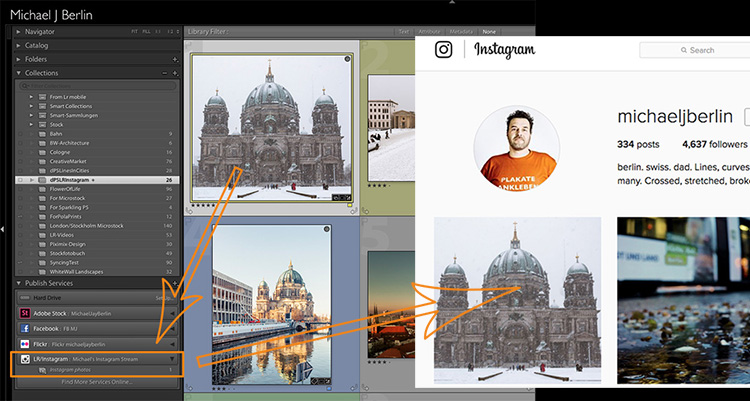
The Lightroom Library module offers more than just the option to organize your images. With its Publish Services, it allows uploading content to online services from within its interface. The best known Publish Services might be connections to Facebook or Flickr built into the software by Adobe. Since the summer of 2016, you can add Instagram to this list. The LR/Instagram plugin allows publishing on the popular sharing platform through a direct connection from the Library module.

From Lightroom to Instagram

This comes in pretty handy since Instagram does not allow uploads from desktop computers directly. Until now you had to find ways to export images from Lightroom and transfer them to your smartphone before being able to publish them on Instagram.

Installation of the LR/Instagram plugin

The plugin is free to download and try, and there is no time or volume limit to the usage. The publisher, however, asks for a $ 10 payment if you like it. The payment can be done through the plugin manager in Lightroom with a PayPal transaction.

Please also note that this plugin is programmed by a third party, neither Adobe nor Instagram can offer any support, and the plugin may fail at times when either Lightroom or Instagram change their code. So keep yourself updated through the author’s website.

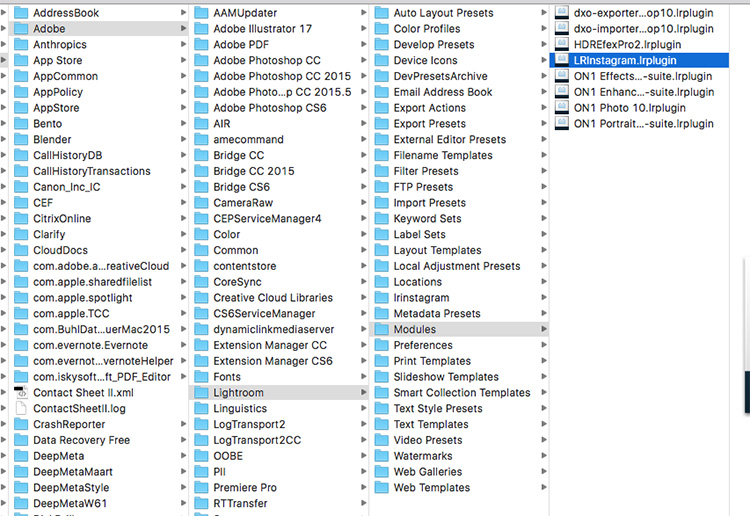
The LR/Instagram plugin acts as a publishing service within the Lightroom Library module. To install the plugin, you first need to download a ZIP file from the website and unpack that to your hard drive.

Lightroom Module folder

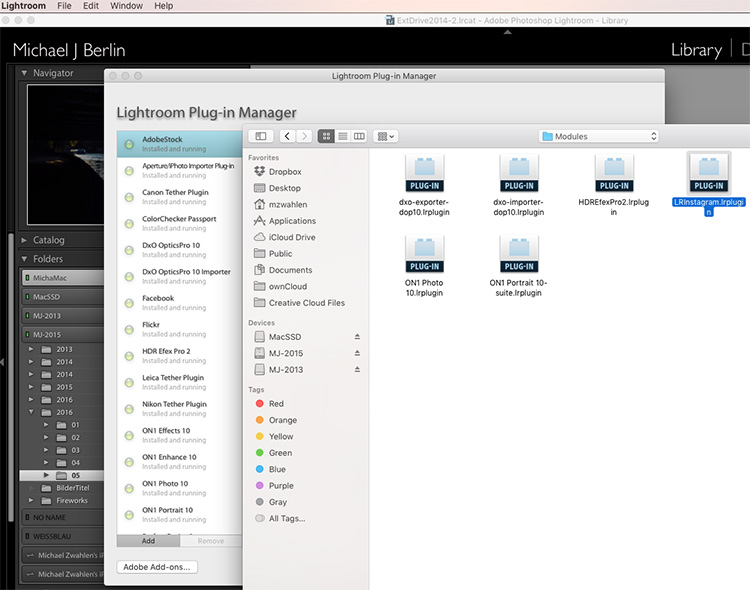
While Lightroom allows you to install the plugin from that location, I recommend first moving it from your download folder or desktop to a more permanent location. I use the “Modules” subfolder in the Application Library structure on my hard drive to store my LR plugins. But as your system may vary, make sure it is located in a folder that is related to your Lightroom installation.

Now in Lightroom, open the Plug-In Manager through the File menu structure. Below the list of existing plugins you can find an “Add” button. Point Lightroom to the location of the plugin and tell it to “Add Plug-In”.

Add LR/Instagram Plug-In

How to set up your Instagram Publish Service in Lightroom

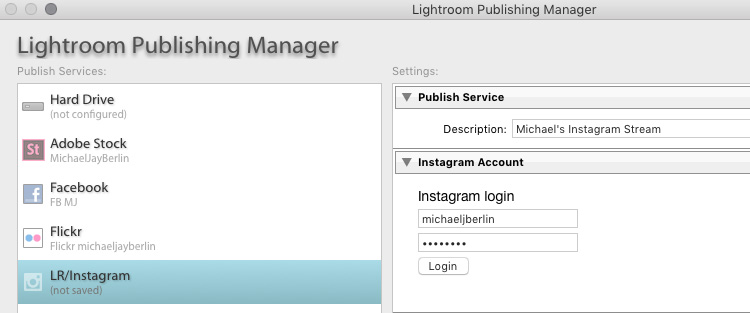
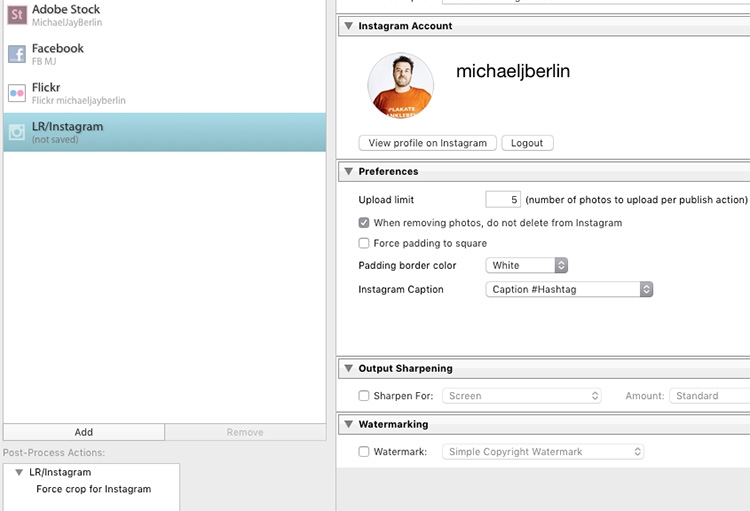
Once it is installed, you have to set up a Publish Service using that plugin. For this, press the Plus button on top of the Publish Services section in Lightroom’s Library module. The Publishing Manager will show up and offer LR/Instagram as an additional service. You can name the new service and enter your Instagram username and password.

Please note that the plugin does not work with a Facebook connection login, you need to have a password directly on the Instagram site.

Setting up the LR/Instagram Plug-In

If you now press the Login button, the plugin will show your Instagram profile picture if successful.

Configure settings

In the Preference section, you can limit the number of images published at once. As Instagram and its users might react negatively to one user filling up pages of images at once, it is recommended to set this to a value of around five.

Since Instagram changed their platform to also allow non-square images, you could upload portrait or landscape oriented images to the platform. Still, some users prefer to make their images all appear in the commonly known square format. For this, you can have the plugin add a white or black padding border for images that are not natively in square format.

However, I prefer to crop my images to square format before uploading them to Instagram. For this, I usually create a Virtual Copy of my image in Lightroom before making the Instagram crop. I might upload the original format to other platforms like Facebook and want to avoid going back and forth between different formats.

As Instagram widely relies on #hashtags for users to find content outside of their followings, the LR/Instagram plugin offers a separate metadata field with the option to add these hashtags within the Lightroom interface. You can find the hashtag field in the Metadata section through the drop down menu selecting the LR/Instagram section.

LR/Instagram Preferences

In the preferences area of the Publishing Manager, you can choose to “Caption #Hashtag” as an option to publish the image on Instagram using your caption and add the hashtags from that separate field. If preferred, you can also just publish the image using Title or Caption from your metadata as you also could enter hashtags in a second stage on the Instagram platform directly.

Publishing images to Instagram from Lightroom

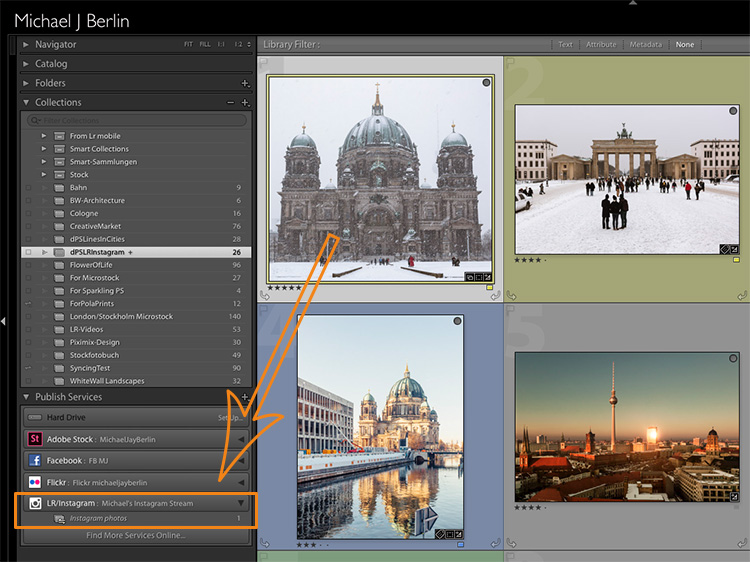
Once set up, the new Publish Service will appear in your Library module. You can now simply drag the image you want to publish to the “Instagram photos” collection. This serves as a collection like all others in Lightroom. If you prefer, you can also set this as your Target Collection which allows you to use the B shortcut to directly add images from anywhere in your library into it.

Drag and drop images in Lightroom

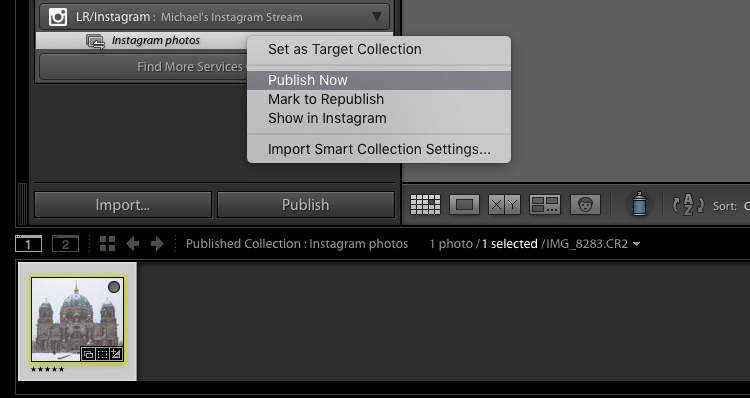
When you are finished adding images, you can now tell Lightroom to publish those images. Personally, I try to limit myself to one new image each time. But if preferred, the plugin will now publish as many images as you have recently added to its collection or the limit you have set in the Preferences as explained above. The Publish Service will now run in the background and use Instagram’s API to publish your image.

Publishing from Lightroom to Instagram

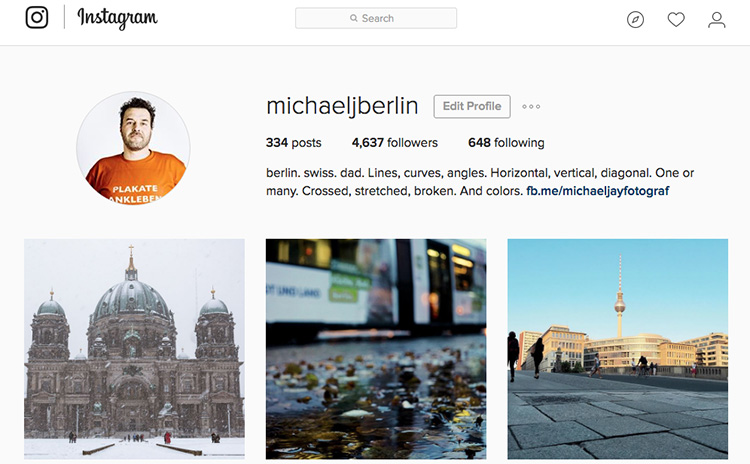
Instagram Stream with photo from Lightroom

If you ever want to change the settings you have originally entered, just press the Plus button on the Publish Services section in the Library module and open the Publishing Manager again.

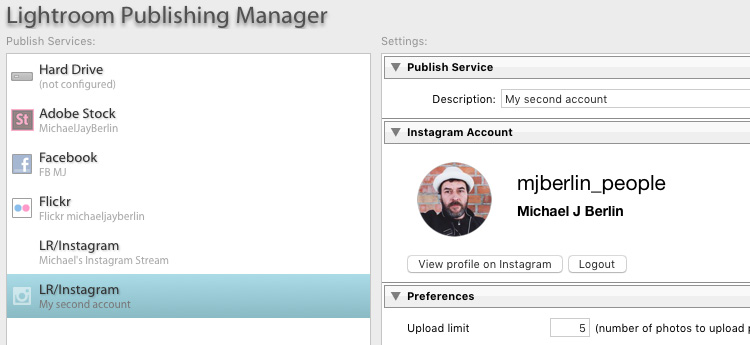
You can also set up multiple different publishing streams, either with different settings or even for a separate Instagram account.

Multiple Publishing Streams for second account

Give it a go

So if you’re on Instagram you might want to have a look this the LR/Instagram plugin. If you’ve used it tell us about your experience. Please share your profile so others can see your work, and follow dPS on Instagram as well.

Read this on how to get more Instagram followers too.

googletag.cmd.push(function() {
tablet_slots.push( googletag.defineSlot( “/1005424/_dPSv4_tab-all-article-bottom_(300×250)”, [300, 250], “pb-ad-78623” ).addService( googletag.pubads() ) ); } );

googletag.cmd.push(function() {
mobile_slots.push( googletag.defineSlot( “/1005424/_dPSv4_mob-all-article-bottom_(300×250)”, [300, 250], “pb-ad-78158” ).addService( googletag.pubads() ) ); } );

The post How to Publish Images Directly to Instagram From Lightroom by Michael Zwahlen appeared first on Digital Photography School.


Digital Photography School

 
Comments Off on How to Publish Images Directly to Instagram From Lightroom

Posted in Photography


How I Processed This Photo Using Only Lightroom

24 Nov

An advantage of using the Raw format is that it gives you a tremendous amount of freedom when it comes to processing. This, combined with Lightroom’s powerful processing engine, opens up lots of possibilities for the creative photographer. I’d like to show you how I processed a Raw file using only Lightroom.

Photoshop users will also be able to follow along with most of it, as Adobe Camera Raw shares many of Lightroom’s sliders and functions. This is the original Raw file, as it came out of the camera.

Lightroom processing

And here’s the finished result after post-processing.

Lightroom processing

The story behind the image

As you can see there’s quite a difference between the before and after images. But before we look at how I achieved this in Lightroom I’d like to share the back story of the photo. This is important because it guided the way that I decided to process it.

I took the photo in a blacksmith’s forge in the English town of Spalding earlier this year. The forge is remarkable because they use working practices that date back over a hundred years. It’s open to the public and they have demonstrations where you can take photos. The forge is small and you can get quite close to the blacksmith, which allows you to take intimate portraits like this one.

The light was coming from windows in front of the blacksmith and behind him, as well as from the hot piece of metal he is hammering. There was also overhead fluorescent lighting. The end result is that the light is fairly flat and boring, which is something I wanted to change in Lightroom.

A blacksmith’s forge should be lit by a combination of cool natural light and the fiery orange glow from the fires, not fluorescent light. I wanted mysterious shadows in the photo, not every detail visible. Points like these are important because they help you work with a destination in mind, rather than aimlessly pushing sliders around to see what happens.

lightroom-before-after

First steps – color corrections

The first steps involve getting the colors right, as this affects the look of the photo and everything you do from this point forward. The most important setting is in the Camera Calibration panel. A lot of people gloss over this panel as if it’s not so important. This isn’t helped by its placement at the bottom of the right-hand side in Lightroom’s Develop module.

When I took the photo I had the color profile set to Velvia, which gives high contrast and strong, saturated colors on my Fujifilm X-T1. It doesn’t matter what your color profile settings are on your camera if you’re shooting Raw as you can change them in Lightroom. I wanted softer, more subtle colors, so I changed the setting to Classic Chrome.

Note: This setting is only available on some Fujifilm cameras. The settings you see in the Camera Calibration panel depend on your camera model.

Next, I went to the Basic panel and set the White Balance to Auto. This tells Lightroom to decide how to set the color temperature to give the image neutral colors. How successful Lightroom is at this depends on the content of your photo. If you have mixed lighting sources, as this photo does, even Lightroom’s powerful algorithms aren’t going to give you anything other than an educated guess. It’s not possible to get rid of all color casts with mixed lighting.

Regardless, Auto White Balance gave me a good starting point. This is what the photo looks like so far. You can see it’s already quite different from the starting image which was quite orange.

Lightroom processing

Auto White Balance applied.

Tonal adjustments

The next step was to start making the transition from an image that is too bright to one that is dark and moody.

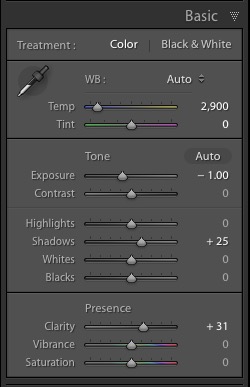
I did this by setting the Exposure slider to -1.0. This made the shadows too dark, so I brightened them by setting the Shadows slider to +25. I also set Clarity to +31 to bring out the gritty textures in the scene. See my settings below:

Lightroom processing

As you can see now that the image is darker the blacksmith’s face is lit by the glow from the hot metal he is working with. This was lost in the original.

Lightroom processing

Tonal adjustments and Clarity applied.

Cropping to remove distractions

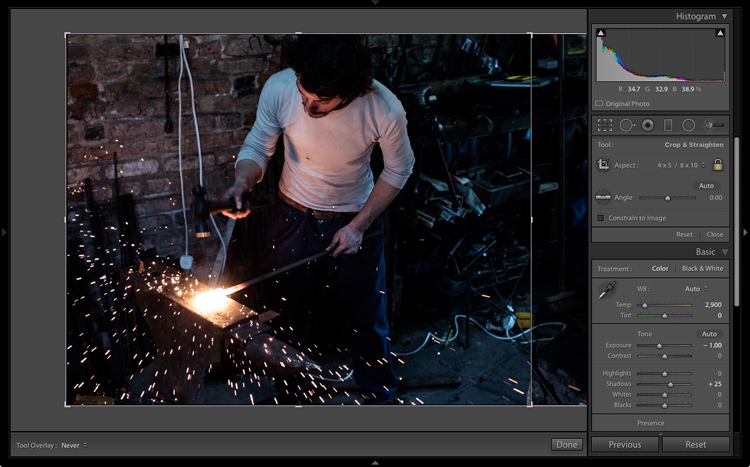
Now I can see that the photo has a major problem. There is too much empty space on the right-hand side, and the blue plastic is a major distraction. In hindsight, the composition would have been better if I had placed the blacksmith in the center of the frame. However, we can compensate for that by cropping the image.

I activated the Crop Overlay (keyboard shortcut R), set the Aspect to 4×5 / 8×10, and cropped the image. This cuts out the distractions on the right-hand side and brings the attention back to the blacksmith.

Lightroom processing

Lightroom processing

This is the result after the image has been cropped.

Refining the image with local adjustments

So far the adjustments made have all been global. That is that Lightroom applies them equally to the entire image. Now it’s time to refine the tonal values with some local adjustments.

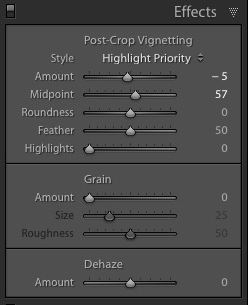
I started by adding a slight vignette using the Post-Crop Vignetting tool in the Effects panel. This darkened the corners slightly.

Lightroom processing

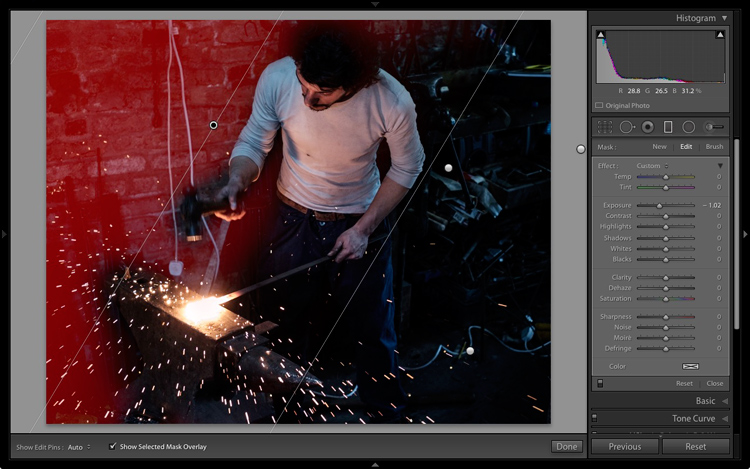
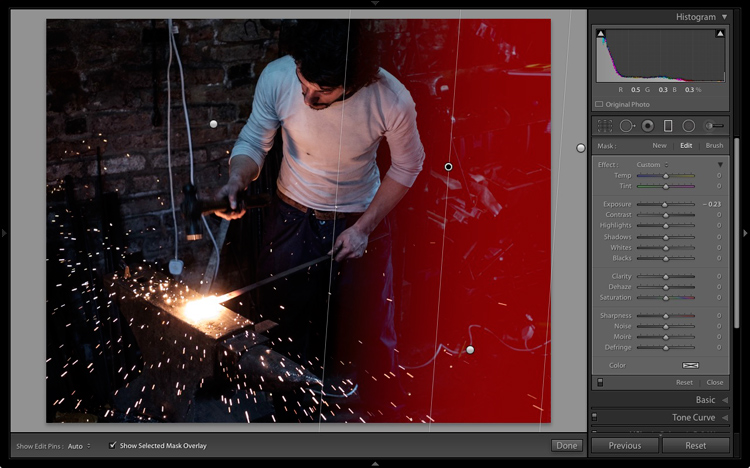
Next, I decided that I wanted to make the background even darker. This is going back to the earlier decision to make the image dark and moody as if the blacksmith is working in a much darker environment.

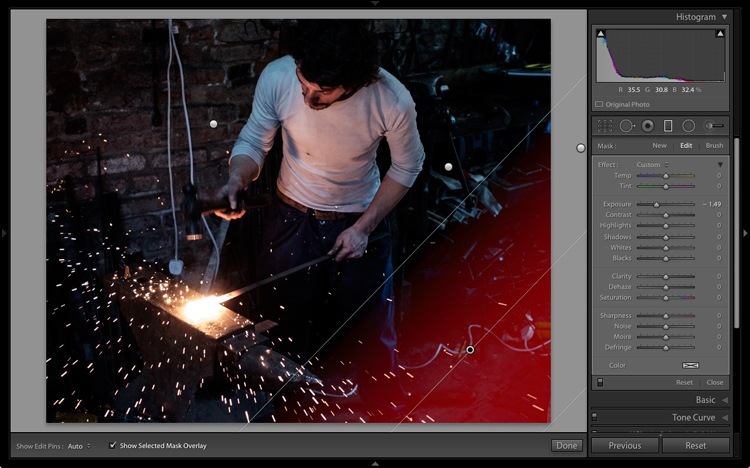
I added three Graduated filters to darken the edges. The screenshots below show the placement of the filters and the settings used.

Lightroom processing

Graduated Filter #1 applied on the upper left of the image.

Lightroom processing

Graduated Filter #2 applied on the right side of the image.

Lightroom processing

Graduated Filter #3 applied on the lower right corner of the image.

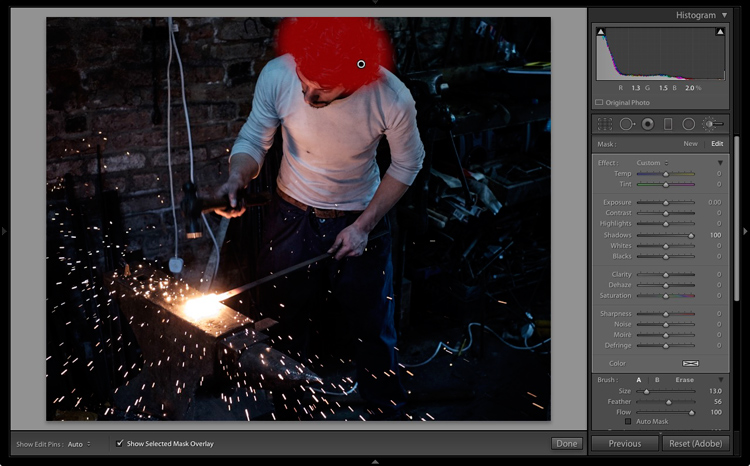
Then I used an Adjustment Brush and moved the Shadows slider right to make the blacksmith’s hair lighter and bring out the detail.

Lightroom processing

Adjustment Brush applied to his hair to bring out detail.

This is what the image looks like now with these adjustments.

Lightroom processing

After local adjustments have been applied.

Split toning for color grading

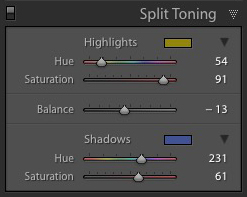
Lightroom processingFinally, I decided that the mood could be further enhanced with a split tone applied: blue to the shadows and an orange tone in the highlights.


The idea was to emphasize the difference in color temperature between the orange light from the hot metal and sparks, and the background, which in my imagination is lit by daylight (but in reality was also lit by fluorescent light). I did that in the Split Toning panel with these settings.

Here is the final result.

Lightroom processing

Final image after split toning applied.

Final thoughts

As you can see, even though the final image looks remarkably different from the starting Raw file, the steps involved in the processing were quite simple. It didn’t take long to get from the starting point to the end photo. This is mostly because I had a firm idea of what I wanted as the end result before I started processing the file.

If you have any questions or thoughts to share about the processing I did on this image then please let me know in the comments.


If you’d like to learn more about processing your photos in Lightroom then please check out my ebook Mastering Lightroom: Book Two – The Develop Module.

googletag.cmd.push(function() {
tablet_slots.push( googletag.defineSlot( “/1005424/_dPSv4_tab-all-article-bottom_(300×250)”, [300, 250], “pb-ad-78623” ).addService( googletag.pubads() ) ); } );

googletag.cmd.push(function() {
mobile_slots.push( googletag.defineSlot( “/1005424/_dPSv4_mob-all-article-bottom_(300×250)”, [300, 250], “pb-ad-78158” ).addService( googletag.pubads() ) ); } );

The post How I Processed This Photo Using Only Lightroom by Andrew S. Gibson appeared first on Digital Photography School.


Digital Photography School

 
Comments Off on How I Processed This Photo Using Only Lightroom

Posted in Photography


4 Tips to Supercharge your Lightroom Workflow

23 Nov

In this article, we’re going to look at four tips to help you supercharge your Lightroom workflow and post-processing. Then you can spend more time doing what you love, photography!

The issue

Going through several hundred pictures after a photo session can seem so daunting and time-consuming that it becomes more of a chore than an enjoyable and creative part of the photography process. It’s those late nights staring at a collection of pictures on your computer monitor, sipping the last drops from your cold mochaccino long after the whipped cream has melted away, that can suck all the fun out of photography. It can make you want to up-end your workstation, chuck your gear in the trash, and look up the price of desert island real estate so you never have to edit another picture again.

Fortunately, most image editing programs have some type of photo management built-in to help streamline your editing. Lightroom has a set of tools that have been honed over many years of iterative development to really assist you when it comes to trimming precious time from your post-processing workflow. There are four specific techniques that can help you, and those just getting started in the field. Together they can save you time and maybe bring back the artistic spark that may have been lost over the years.

You can help me save time in Lightroom? Tell me more!

Can you help me save time post-processing in Lightroom? Tell me more!

#1 – Create your own presets

Most people know that Lightroom has a fairly extensive offering of built-in presets, and you can even buy additional sets like the ones we offer here at dPS. But as useful as those are, they might not meet your specific needs as a photographer. If you’re like me you, tend to use presets as a starting point and then tweak your images ad nauseam, but sometimes even getting to that starting point can be tricky.

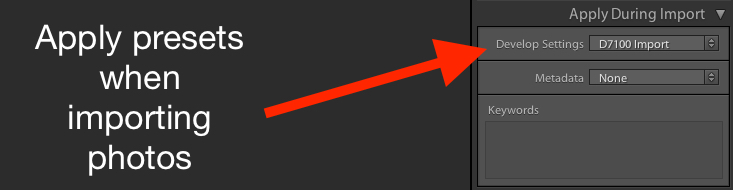
Enter the wonderful world of user-created presets! Lightroom lets you save any combination of adjustments in the Develop module as a Preset that you can apply to any photo at any time. I find this really handy when doing my initial photo imports. I like the RAW files from my Nikon D750 to have a little bit of added vim and vigor right off the bat. So upon import, I usually apply a preset I made called “Nikon RAW Import” that adjusts black, white, and shadow levels along with a few other parameters. It gives me a nice starting point for almost any image and is a great way to save time when editing.

supercharge-lightroom-workflow-custom-presets

How to save your own presets

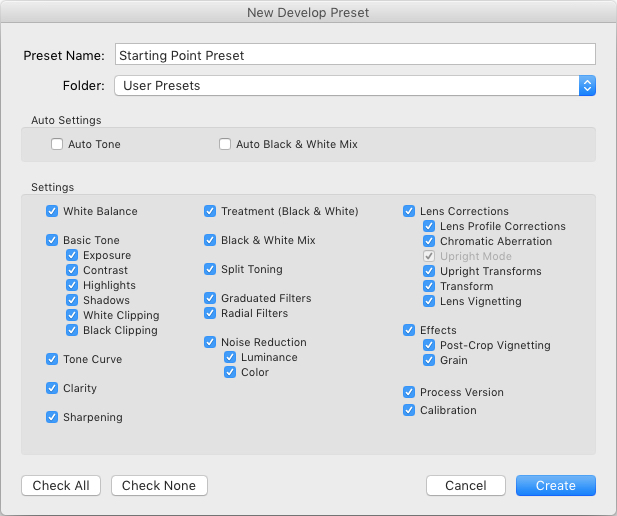
To create your own presets go to the Develop module and change the value of your sliders, adjust your tone curve, dial in your preferred level of sharpening and noise reduction, and you’re 90% finished. After you have an initial set of edits created go to the Develop menu and choose “New Preset.” Select the parameters you would like to include in the Preset and then click “Create.”

Your Preset is now ready to go and you can apply it with one click to any image, or to a batch of images. Do so by selecting them (from the thumbnails) in the Develop module, right-click on them, and choosing “Develop Settings > User Presets > [Your Preset name].” You can also apply it to all your photos on import by going to the right-hand side of the Import screen under the “Apply During Import” option. Where is says “Develop Settings” pull that menu down and find your preset from the list.

supercharge-lightroom-workflow-preset-import

As a bonus, you can even share your Presets with others by navigating to the folder on your hard drive in which they are stored (“Preferences” menu > Presets > Show Lightroom Presets Folder), copying the file with your Preset data, and sharing it with anyone you choose.

Read more here: How to Create Your Own Lightroom Presets

#2 – Sync edits across multiple photos

Photographers are going crazy over this! You can save all sorts of time in your Lightroom workflow by using this one weird trick! I know that sounds like a cheesy click-bait title from a sidebar you might see on a used car website, but in this case, it’s really true.

On many photo sessions you will end up with dozens of images that are relatively similar and thus can often benefit from the same types of adjustments. Let’s say you shoot a wedding and have 20 really nice images of the groomsmen getting ready and adjusting their superhero-themed vests in the church office. You could easily spend 5 or 10 minutes adjusting the white balance, black levels, highlights, color saturation, and noise reduction. You finally get one of the photos looking, as Goldilocks might say, “Juuuuust right,” and then realize you still have nine more to go. At which point you start looking up how much your 70-200mm lens might sell for on Craigslist because you know this is going to be another one of those editing sessions that involves way more late nights and cups of coffee than you had initially planned.

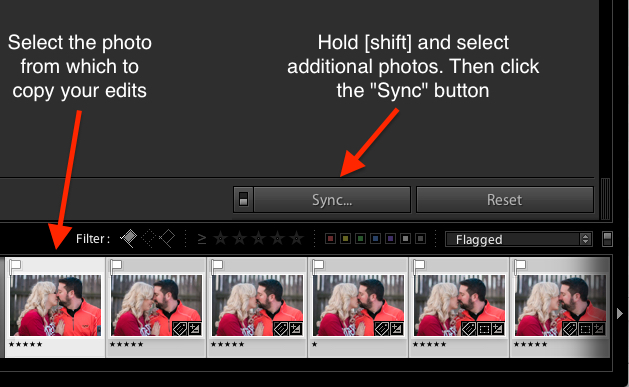
supercharge-lightroom-workflow-sync-button

How to sync your processing settings

But wait, there’s hope! To instantly sync the edits from the first photo to all the rest which are similar, select the initial image in the filmstrip view at the bottom of the Develop panel. Then hold down the [shift] key while selecting all the rest and click the “Sync…” button in the lower-right corner of your screen.

You can pick and choose which edits you want to sync, and with the click of a button, all the other images are instantly edited just like the first one. BAM! Time saved: infinite. You’re welcome.

Alternatively, you could use the Copy/Paste function to copy edits from one picture to the next, but that only works with a single photo at a time. I have found the Sync option to be far more useful, you may as well.

Using the Sync option saved my bacon on this photo shoot. I had so many pictures to edit that synchronizing the changes made things go much faster.

Using the Sync option saved my bacon on this photo shoot. I had so many pictures to edit that synchronizing the changes made things go much faster.

#3 – Use the White Balance Eyedropper

When I first started out with digital photography I was the kind of person who wanted to do everything myself. Auto mode? No thank you camera, I’ll set the exposure myself. Autofocus? I don’t think so. Automobile? Not me, I prefer to walk!

Over time, I learned to let go of some of these tendencies with one glaring exception. Setting the white balance on my RAW files in post-production, stuck with me far too long.

Setting the proper white balance is the foundation for almost any photo editing. If you fiddle with the Temp and Tint sliders long enough you can usually get a good result. The trouble is that takes a long time, especially when working with hundreds of images. It can take a lot of trial and error, and guesswork to dial in just the right white balance. Unless you let Lightroom do most of the heavy lifting for you.

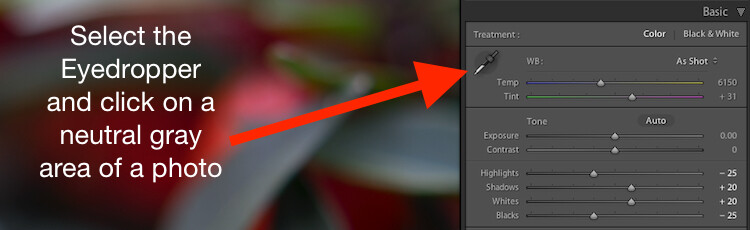
White Balance got you down? The Eyedropper is here to help.

White Balance got you down? The Eyedropper is here to help.

Using the eyedropper

Nestled quietly on the left-hand side of the Basic panel in the Develop module is a strange icon. It looks like a medieval dagger or possibly a light saber that can’t decide whether it’s meant for a Jedi or a Sith. It’s actually an eyedropper. Using on it can help you out immensely when it comes to finding the proper white balance for a RAW file.

Click the icon and find a spot on your photo that is slightly gray (neutral). Not totally pure white mind you, but a little off-white to give Lightroom a reference point as it calculates the value of how the rest of the colors in the image should look. What it does is neutralizes any color cast or shift in that area. A half second later and voilà! Your picture is now properly white balanced, but if it doesn’t look quite right you can tweak it with the sliders. Using the eyedropper isn’t a surefire guaranteed method, but it almost always gets you right on the mark or very close to it.

One click and...bam! Instant white balance.

One click and…bam! Instant white balance.

#4 – Flag/Reject when culling images

I was just talking with a friend recently who takes a lot of pictures of his kids with his DSLR. He told me that one of the hardest things for him to do is go through his images and remove the bad ones. His solution was to simply not delete any at all.

If this sounds like you, whether you’re professional or amateur, and you just can’t quite bring yourself to tap the [Delete] key when browsing through your photo library – Lightroom is here to help.

You might do a family portrait session and get 20 pictures with just mom and dad, 50 that you took in burst mode with the kids sitting on their lap. Then a couple hundred from when the family invited their pet ferret to join the shoot. Some of your images would be easy to discard due to being out of focus, poorly composed, or overly pernicious polecats deciding to climb atop dad’s carefully crafted coiffure. But what about the rest? The ones that are all pretty good while also being quite similar?

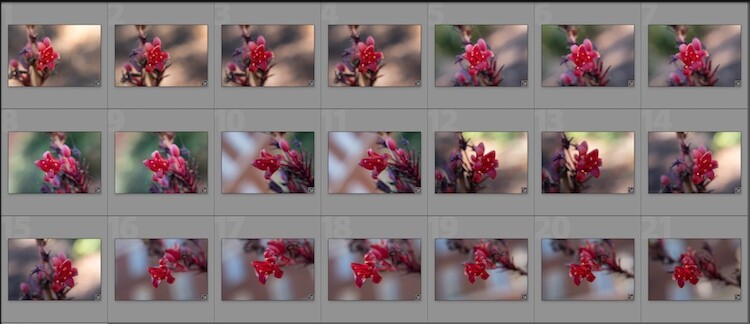
So many photos, so little time...

So many photos, so little time…

How to flag images in Lightroom

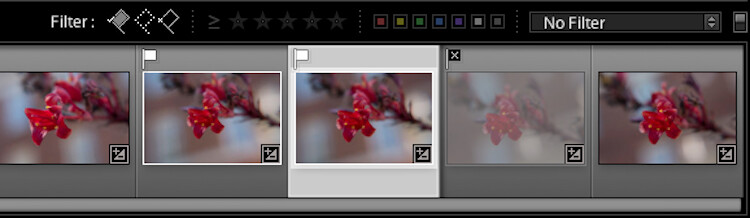
As you scan through your library in Lightroom, you can use the arrow keys to move from one image to the next, and the P and X keys to mark images as keepers or rejects. Tap P (pick) on a picture to adorn it with a  white flag, and tap X to mark it with the Tiny Black Flag of Shame denoting a rejected image.

A Flagged picture is one that you have highlighted as particularly good, while a Rejected picture is not worth your consideration. Marking an image as Rejected does not delete it so you can always go back and look at it later. But it serves as a signal to you as you are culling, that you don’t need to consider it. You can also use the filter bar at the bottom of the screen to show only those images that are Flagged, Unflagged, or Rejected by clicking on their respective icons. If you accidentally mark an image incorrectly, press the U key to remove the Flag/Rejected status.

Filter them

You can also use the filter bar at the bottom of the screen to show only those images that are Flagged, Unflagged, or Rejected by clicking on their respective icons. If you accidentally mark an image incorrectly, press the U (unflag) key to remove the Flag/Rejected status.

Once you mark your images as Flagged or Rejected, use the filter icons to choose which photos to display.

Once you mark your images as Flagged or Rejected, use the filter icons to choose which photos to display.

Using the Flag/Rejected markings has significantly decreased my editing time, and will likely dramatically lower yours as well. In a similar fashion you can use the number keys 1-5 to mark images with one to five stars, and numbers 6-9 to label images with different colors. I find these less handy than simply using the Flag/Rejected method when doing the initial culling, but far more useful when deciding, for instance, which images are the Best of the Best and worth printing, sharing, or showing to clients.

Over to you

I hope these tips have been helpful. Certainly, there are many more options for helping your Lightroom workflow go a little smoother that we simply don’t have the space to cover in one article. What are your favorite tips? Please share your ideas, tricks, and shortcuts in the comments below!

googletag.cmd.push(function() {
tablet_slots.push( googletag.defineSlot( “/1005424/_dPSv4_tab-all-article-bottom_(300×250)”, [300, 250], “pb-ad-78623” ).addService( googletag.pubads() ) ); } );

googletag.cmd.push(function() {
mobile_slots.push( googletag.defineSlot( “/1005424/_dPSv4_mob-all-article-bottom_(300×250)”, [300, 250], “pb-ad-78158” ).addService( googletag.pubads() ) ); } );

The post 4 Tips to Supercharge your Lightroom Workflow by Simon Ringsmuth appeared first on Digital Photography School.


Digital Photography School

 
Comments Off on 4 Tips to Supercharge your Lightroom Workflow

Posted in Photography