RSS
 

Posts Tagged ‘lightroom’

An Overview of Lightroom Web – What is it and who is it for?

16 Mar

Lightroom CC subscribers can access Lightroom in three places; on a computer using the desktop app, on a tablet or phone using Lightroom Mobile, or through an internet browser, using Lightroom Web (go to the url https://lightroom.adobe.com/ to check it out for yourself).

Lightroom web

Lightroom web is probably the least talked about of those three options. So I thought it would be interesting to take a closer look at it to see what it can do and who might find it useful.

But first, let’s talk about Smart Previews. A Smart Preview is a highly compressed DNG file that measures 2540 pixels along the longest edge. Smart Previews are a fraction of the size of Raw files (as little as 2%). If you get into the habit of building Smart Previews when you import your images into Lightroom you will enjoy the following benefits.

1. You can develop photos when Lightroom can’t find the originals

If you save your Raw files on an external hard drive (recommended, so they don’t clog up your internal drive) then without Smart Previews you can only develop those photos when the hard drive is connected to your computer.

When the hard drive isn’t connected Lightroom uses the Smart Previews. This is helpful if you’re a laptop user who likes to travel. You can work on your photos while away from home, wherever you are in the world, without access to your Raw files.

2. Smart Previews make the Develop module faster

Using Smart Previews in the Develop module helps Lightroom run faster. Lightroom works quicker with the smaller Smart Preview than it does with the full-size Develop module preview.

Lightroom now gives you the option to automatically use Smart Previews in the Develop module. Go to the Performance tab in Preferences and tick the Use Smart Previews instead of Originals for Image Editing box.

Lightroom web

This feature appeared in Lightroom CC 2015.7 and Lightroom 6.7.

3. Smart Previews enable Lightroom Mobile and Lightroom Web

Smart Previews are used by Adobe to enable Lightroom Mobile and Lightroom Web. When you sync a Collection, Lightroom uploads the Smart Previews for the images in that Collection to Adobe’s servers.

Lightroom web

Lightroom Mobile and Lightroom Web then pull those Smart Previews from the servers so you can access your photos on your mobile device or in a browser. Adobe calls this CreativeSync.

What can you do in Lightroom Web?

There’s a lot you can do in Lightroom Web:

1. You can view your photos

You can view any synced Collections in Lightroom Web as well as in Lightroom Mobile.

This is the Lightroom Web interface. Synchronized Collections are shown on the left. The photos in the selected Collection are displayed on the right. All of this is done using Smart Previews.

Lightroom web

2. You can share photos

You can create online galleries and share the link. If the viewer has an Adobe ID they can favorite photos and leave comments.

This gives you an easy way to show photos to friends or clients. You can disable the link whenever you like, giving you complete control. The links can also be shared on Facebook, Twitter, and Google +.

Lightroom web

3. You can flag and rate photos

In Lightroom Web you can flag and rate photos, but you can’t apply color labels.

Lightroom web

4. You can develop photos

Most of the developing tools available in Lightroom mobile are also available in Lightroom Web. You can see the histogram, crop images, apply Clarity, adjust exposure and White Balance, convert to black and white and apply a split tone. There are also 25 built-in Lightroom presets.

But there are limitations – you don’t have access to the HSL / Color / B&W tools, and you can’t make local adjustments.

I can make basic adjustments in Lightroom Web to this landscape photo, but I can’t apply a Graduated filter to darken the sky. You can, however, do this in Lightroom Mobile (iOS version only at the time of writing).

Lightroom web

5. You can create new Collections

You can also move photos around between Collections.

6. You can download photos

You can download a JPEG of any photo in Lightroom Web. The maximum size is 2540 pixels along the longest edge (the same dimension as the Smart Preview).

7. You can send photos to Behance and Adobe Portfolio

You can send up to 50 photos to Adobe Portfolio or Behance. Adobe Portfolio is a free service that lets you build a portfolio web gallery for your images.

Who is Lightroom Web for?

If you build Smart Previews for every photo in your Collection you can view those photos using Lightroom Web from anywhere in the world. All you need is a web browser and your Adobe password.

The question of who is Lightroom Web for is a little tricky to answer. If you are away from home and have a choice between using Lightroom Mobile on a tablet and Lightroom Web, then you should use Lightroom Mobile. It has more options, especially when it comes to developing photos. It is also quicker to use if you download the Smart Previews to your device.

Lightroom Web may be useful if you work on two computers, say a desktop and a laptop. You can do most of your work on the desktop, and view photos, apply flags or star ratings and do some developing in Lightroom Web on the laptop.

If you are away from home and don’t have a mobile device, or want to see your photos on a bigger screen, the ability to access your synchronized Collections using Lightroom Web may come in handy. It’s a good to way to show your photos to people. Professionals may find it handy for handling last-minute client requests while away from home.


If you enjoyed this article and would like to learn more about Lightroom then please check out my Mastering Lightroom ebooks.

The post An Overview of Lightroom Web – What is it and who is it for? by Andrew S. Gibson appeared first on Digital Photography School.


Digital Photography School

 
Comments Off on An Overview of Lightroom Web – What is it and who is it for?

Posted in Photography


Adobe Lightroom CC 2015.9 arrives with new camera and lens support, loads of bug fixes

09 Mar

In addition to its Camera Raw update, Adobe has released Lightroom CC 2015.9, adding support for additional cameras and lens profiles, as well as nearly two dozen bug fixes. The update is available now; existing users can download the latest version by selecting ‘Help’ > ‘Updates’ in the application’s menu.

Adobe Lightroom 2015.9 adds support for the following cameras:

  • Canon PowerShot G9 X Mark II
  • Casio EX-ZR3200
  • Fujifilm GFX 50S
  • Fujifilm X100F
  • Fujifilm X-A10
  • Fujifilm X-T20
  • Leica M10
  • Olympus E-M1 Mark II
  • Panasonic DC-FZ80
  • Panasonic DC-GF9
  • Panasonic DC-GH5
  • Panasonic DMC-TZ82
  • Phase One IQ3 100MP (“S” compression mode not supported)

In addition to the new camera support, Lightroom 2015.9 has gained support for more than two dozen lens profiles, including for lenses from Nikon, Canon, Apple, Sony, and DJI. The full list of lens additions can be found here.

Lastly, the new Lightroom CC update corrects 21 different bugs and issues as detailed in the following changelog:

  • Upright error where the “Update” button was incorrectly enabled when Upright is unable to find a correction.
  • Lens Profile Auto Matching was not working for Zeiss Batis 85mm lenses.
  • Cursor movements on Point Curves were erratic
  • Issue related to abnormal Lightroom exit when using Full Screen mode. The issue only occurred on Mac OS 10.12 (Sierra)
  • Develop Module Locked after deleting images while using two displays
  • Live Photos created on iPhoto caused the JPEG to be treated like an XMP sidecar file
  • Instead of deleting currently selected photo, deletes face tag from previous viewed photo
  • Images from Canon EOS G7X MK II sometimes had a green color cast
  • Unable to change the image after deleting a rejected photo in develop module
  • Export was taking longer than expected.
  • Unable to import compressed raw files from Fujifilm XT-2 and X-Pro2
  • iPhone video Capture Time is shifted upon Import
  • Slideshow Export as JPG text overlay issue
  • If using 2-byte characters for catalog path, unable to backup
  • Problem with map module (Windows)
  • Cannot access Auto Import Settings form File menu
  • The zoom does not work properly after the update
  • Lightroom 6.8: Memory Leak
  • Keyboard shortcut X for rejecting an image in Library not available (French)
  • Erroneous warning message on Catalog Backup
  • Messing up file ordering with panoramas

Via: Adobe Blog

Articles: Digital Photography Review (dpreview.com)

 
Comments Off on Adobe Lightroom CC 2015.9 arrives with new camera and lens support, loads of bug fixes

Posted in Uncategorized


Lightroom Mobile update brings Raw HDR capture mode

07 Mar

Adobe today released an update for its Lightroom Mobile app for both iOS and Android that comes with an HDR feature that makes use of the Raw capture capability of the latest mobile devices. The new HDR mode first scans the scene to determine the correct exposure range and then captures three DNG files. After capture the files are automatically aligned, merged, de-ghosted, and tone-mapped. The end result is a 16-bit DNG that combines the benefits of the Raw file format and HDR, and can be processed in the same way as the HDR technology in Adobe Camera Raw and Lightroom.

Compared to existing smartphone HDR modes, this method offers better dynamic range, according to Adobe. Members of Adobe’s Creative Cloud service get the additional benefit of automatically syncing files and edits with their desktop.

The algorithms of new HDR mode do require powerful hardware and are therefore limited to a relatively small number of devices, though. On iOS it works with all devices that are capable of capturing DNG files, such as iPhone 6s, 6s Plus, 7, 7 Plus, iPhone SE, or the iPad Pro 9.7. On Android at this point only the Samsung Galaxy S7, Galaxy S7 Edge and the Google Pixel models are supported. However, Adobe says it is working on getting the software to run on a wider range of devices.

If you have a compatible device and would like to try Adobe’s new Raw HDR mode, there is a tutorial available on the Adobe Lightroom Youtube channel.

Articles: Digital Photography Review (dpreview.com)

 
Comments Off on Lightroom Mobile update brings Raw HDR capture mode

Posted in Uncategorized


The New Imagely NextGEN Lightroom Plugin Will Rock Your WordPress World

01 Mar

The New Imagely NextGEN Lightroom Plugin Will Rock Your WordPress World

It’s a new year and Imagely has released a great new Lightroom gallery plugin to make our lives easier. If you run your own photography website on WordPress, like countless other photographers, then you have probably come across Imagely and NextGEN Gallery.

Imagely provides WordPress themes and hosting, focused specifically on photographers. They have terrific support, and will make your life much easier when it comes to hosting a website. They are a service that I consistently recommend to photographers looking to create new professional websites.

The NextGEN Lightroom Plugin

Even if you already have a theme or WordPress service that you enjoy, like me, Imagely provides a gallery plugin called NextGEN Gallery. This gives you a variety of options to display your photography. After a significant amount of research on the right gallery plugin, NextGEN Gallery won me over. Both the free and paid (NextGEN Pro) versions provide you with a wealth of visual options for your gallery and make the management, proofing, and selling of your work a breeze.

The New Imagely NextGEN Lightroom Plugin Will Rock Your WordPress World

The NextGEN Pro Thumbnail Grid Gallery

But now they have added a new Lightroom plugin, which makes their offering even more enticing. Enter the Imagely NextGEN Lightroom plugin, which syncs your Lightroom catalog directly to your NextGEN Galleries. Suddenly, you can add or remove photographs and alter your albums without leaving Lightroom.

The NextGEN Lightroom plugin allows you to create new galleries or albums directly in the plugin. You can upload images directly to these galleries, edit the filename and file information, which can help with SEO, as well as specify the image size, format, quality, color space, and sharpening. The convenience cannot be overstated. What used to take five steps, exporting the file to your computer, logging into your website, selecting the correct gallery, uploading the new version of the photo, and editing the photo information – now takes only one step.

googletag.cmd.push(function() {
ruleset_slots.push( googletag.defineSlot( “/1005424/_dPSv5topic-rhs(300×250)”, [300, 250], “pb-ad-0” ).addService( googletag.pubads() ) ); } );

The New Imagely NextGEN Lightroom Plugin Will Rock Your WordPress World

The plugin gives you a variety of export options.

Installation

The plugin can be downloaded here and is simple (5 minutes) to install. Here is the full documentation to get it up and running, but after installing it all you need to do are four steps.

Step 1:

Under the Library panel, navigate to Publish Services, then Imagely and select “Set Up”.

The New Imagely NextGEN Lightroom Plugin Will Rock Your WordPress World

Step 2:

Add the description for the website you are uploading to and the WordPress settings (your website address, username, and password).

googletag.cmd.push(function() {
ruleset_slots.push( googletag.defineSlot( “/1005424/_dPSv5topic-rhs(300×250)”, [300, 250], “pb-ad-1” ).addService( googletag.pubads() ) ); } );

The New Imagely NextGEN Lightroom Plugin Will Rock Your WordPress World

Step 3:

Under FTP Settings, navigate to edit under the preset menu, then enter your FTP or SFTP credentials given to you by your hosting company.

Click the Browse button, navigate to your /wp-content/ folder, and save. Click OK to close the module an then click “Fetch from WordPress” under FTP Settings.

Step 4:

As you would regularly export your images using Lightroom, select the correct settings for the images that you would like to upload to the gallery. This includes color space, size and resolution, sharpening, metadata, and the watermark.

The New Imagely NextGEN Lightroom Plugin Will Rock Your WordPress World

Gallery and Album Creation

googletag.cmd.push(function() {
ruleset_slots.push( googletag.defineSlot( “/1005424/_dPSv5topic-rhs(300×250)”, [300, 250], “pb-ad-2” ).addService( googletag.pubads() ) ); } );

Creating galleries and albums through the plugin is a breeze. The first step is to right click on Imagely under Publish Service and select Collection or Collection Set. Collection will create a new NextGen gallery while Collection Set will create a new NextGen album. Collection Sets can hold other Collection Sets and Collections, while Collections can only hold images.

Add images to a Collection and select “Publish” to add the gallery or album and to add the new images into them. Already published photos will be displayed in the “Published Photos” section while new photos will be under the “New Photos to Publish” section. In addition to adding new photos, you can also modify and delete them through the plugin. Clicking publish after you make these changes will sync them with your website.

Conclusion

There is a lot to be said about how advances like this can make our lives easier as photographers. But the ability to see and alter our website galleries directly in Lightroom, where most photographers do most of their work, is an incredible advantage, both in helping us to figure out the correct sequencing of our portfolios as well as to make it as simple and streamlined as possible to edit these galleries.

Have you tried out this plugin? If you have a WP site what’s your workflow? Please share your thoughts in the comments below.

googletag.cmd.push(function() {
ruleset_slots.push( googletag.defineSlot( “/1005424/_dPSv5topic-rhs(300×250)”, [300, 250], “pb-ad-3” ).addService( googletag.pubads() ) ); } );

The post The New Imagely NextGEN Lightroom Plugin Will Rock Your WordPress World by James Maher appeared first on Digital Photography School.


Digital Photography School

 
Comments Off on The New Imagely NextGEN Lightroom Plugin Will Rock Your WordPress World

Posted in Photography


How to Understand the Lightroom Tone Curve

20 Feb

With all the editing options available in the Lightroom Develop module it can be tough to know where to start when you pull up a picture and start making changes. The Basic panel covers elementary adjustments like exposure and white balance; Detail lets you adjust sharpness and noise reduction; Effects allows you to add a vignette, and so on. The Tone Curve panel seems downright strange at first, with a light gray histogram and a diagonal line going right through the middle of it. But this panel can actually be used to tweak and enhance your images quite a lot if you know how it works.

It won’t give you the same level of finely-tuned control you may want for individual colors, and can’t help you remove spots or blemishes. But it does give you a huge amount of power to change the overall visual impact of a picture and with a few clicks of the mouse can take it from average to awesome.

How to Understand the Lightroom Tone Curve

What is the Tone Curve?

The Tone Curve panel can be thought of almost like the contrast slider on steroids. Most photographers use it to add a sense of punchiness or vibrancy to their pictures. You can also do the opposite and make the overall exposure a bit more even-handed by bringing down the highlights while bringing up the shadows.

How you use the Tone Curve is going to depend on your editing style and the pictures you are working with, but suffice it to say that if you’ve been using the contrast slider you may find yourself quite pleased with the editing power offered by the tone curve. To understand how it works I’m going to use the following image as an example and apply a few simple edits using only the tone curve.

Using the Tone Curve

How to Understand the Lightroom Tone Curve

Straight out of the camera, with no edits.

This picture is an unedited RAW file straight from my camera, but with a few tweaks of the Lightroom Tone Curve, it can be transformed into a much more vibrant photo. To get started with these edits on any picture, enter the Develop module of Lightroom and click the Tone Curve panel (on the right side) which brings up a grayscale graph with a diagonal line going from one corner to the other (as shown below).

How to Understand the Lightroom Tone Curve

Look carefully in the background of the graph and you will see a histogram which is the exact same as the one at the top of the Lightroom Develop module. This shows you where the color values are in your image and whether you have a lot of colors that are very bright, very dark, or somewhere in the middle.

What the diagonal line and the sliders below it allow you to do is change the intensity of various parts of your picture. You can make the light parts lighter or the dark parts darker. For instance, here is the original image with a bit of adjustment to the lights.

Adjusting the curve

How to Understand the Lightroom Tone Curve

This adjustment has taken the lighter portions of the image (mostly the blue sky in the background) and made them even brighter while leaving the darker portions of the image alone. Now I’ll take the editing process a bit further by clicking on the bottom-left part of the diagonal line and dragging it down instead of up.

With just two simple edits on the Tone Curve, the image is now much more pleasing than the initial version, and things are just getting started. In making the bright portions lighter and the dark portions darker it has given the picture an improved sense of contrast and vibrancy. The same thing can happen with your images too.

Using the sliders

You may also notice if you do these edits on your own that the adjustments you make to the tone curve are also quantified in the sliders below the graph, as you can see below.

How to Understand the Lightroom Tone Curve

You can also use these sliders to adjust the values of the tone curve if you choose, and you may also notice that there are more than just two sliders, one each for lights and darks. The highlights are the very brightest portion of the image, whereas the shadows are the very darkest portions, and as you adjust these sliders (or the tone curve itself) you will see the colorful histogram at the top of the Develop module change accordingly.

If you lower the numerical value of the shadows or darks (or simply drag that portion of the line down) you will notice the histogram creep towards the left which is another visual illustration of the edits you are performing. The same holds true for the highlights and lights.

Use in moderation

I recommend that if you are using the tone curve to enhance your pictures, that you are careful not to push the histogram too far to the right or the left. Ideally, you want the darkest parts of your image to be pure black, but not so much more that whole sections of your photo get muddied in the process. The same goes for the lighter portions, as you can see in the following example.

How to Understand the Lightroom Tone Curve

There are a couple of things to note in the above image, so I want to break it down a bit.

First, you will see that the picture of the leaf is vastly different from its original incarnation at the top of this article. It has much more contrast and is in my opinion, too heavily edited. Some people like this look though, and using the tone curve is a good way to achieve it.

Second, if you look carefully at the bottom portion of the diagonal line in the tone curve you will see that it flatlines until after it starts to overlap part of the shadowy gray histogram behind it. This means that much of the color in the darker portions of the image has been crushed to be completely black, and the same thing has happened to the lighter portions. You can see this at the top of the S-shaped curve where it hits the top of the graph while there is still gray histogram data left on the right-hand side. All that color data has been discarded, which is why huge swaths of the bright blue sky in the picture now show up as completely white.

Finally, the colorful histogram on the right side shows that instead of a well-exposed picture, much of the data is now extremely bright or extremely dark which is a sign that the picture is very high contrast.

Curve presets

You can also use two built-in presets by clicking on the “Point Curve” options in the lower-left portion of the panel for a medium or high contrast image, but I generally don’t use those. Normally when making adjustments to the tone curve I keep things subtle and avoid such high contrast situations. Because many photographers prefer this style, Adobe has limited the way in which the tone curve can be edited by default.

When you click and drag on the white line it affects a rather large swath of the whole line, which is a nice way of making sure your adjustments are evenly reflected across much of the image. However, you can have a bit more fine-tuned control over your edits by clicking the small little mini-graph icon in the lower right corner of the tone curve panel.

The Point Curve

Using the Point Curve to make adjustments gives you much more control over your image, but if you’re not careful things can quickly get out of hand. It’s always a good idea to try things out, especially in a program like Lightroom where all your edits are nondestructive. But generally, I like to stick with the default tone curve adjustment because it’s a bit more forgiving in its edits.

How to Understand the Lightroom Tone Curve

I wouldn’t normally edit a picture to look like this, but I wanted to illustrate how the point curve can give you much different results from the traditional tone curve.

RGB Curves

You might notice the “RGB” option in the lower-right portion of the point curve as well, which gives you even greater control over your edits. Click this to edit the individual Red, Green, and Blue channels of your image and perform the same types of adjustments (i.e. adjust the brightness and darkness) but on each individual color separately.

I rarely use it, but this can be quite useful if you want to give your pictures a certain type of color cast or edit a single color (e.g. blue skies, green grass) to have more impact. If you find yourself going a little overboard while editing the point curve and want to remove some of your edits, just double-click on a point to delete it.

Targeted adjustments

Finally, another way to edit the tone curve that some people find useful is to click the little circle (targeted adjustment tool) in the top-left corner of the tone curve panel. Then you can click and drag on specific parts of your image (say, a bright sky or a dark river) to make them lighter or darker. It’s an easy way to make targeted adjustments right on the image itself without trying to guess at which part of the tone curve graph to edit.

Conclusion

I hope this gives you a bit more understanding as to what the tone curve does. If you’ve never tried it before I highly recommend giving it a chance. If you want to add just a little bit of punch to your pictures, whether portraits, landscapes, sports, wildlife, or just about anything else, click over to the Tone Curve and try a couple of adjustments. You can’t really go wrong with a little bit of a classic S-curve, where you raise the highlights and lower the shadows, but you might find other types of edits that work well for specific pictures too.

Do you have any tips that work for you when using the Lightroom Tone Curve? Any secrets that you want to share that I forgot to mention here? Please leave your thoughts in the comments below.

googletag.cmd.push(function() {
tablet_slots.push( googletag.defineSlot( “/1005424/_dPSv4_tab-all-article-bottom_(300×250)”, [300, 250], “pb-ad-78623” ).addService( googletag.pubads() ) ); } );

googletag.cmd.push(function() {
mobile_slots.push( googletag.defineSlot( “/1005424/_dPSv4_mob-all-article-bottom_(300×250)”, [300, 250], “pb-ad-78158” ).addService( googletag.pubads() ) ); } );

The post How to Understand the Lightroom Tone Curve by Simon Ringsmuth appeared first on Digital Photography School.


Digital Photography School

 
Comments Off on How to Understand the Lightroom Tone Curve

Posted in Photography


Four Advantages of Using Lightroom Collections

29 Jan

In this article, I will explain Lightroom Collections, a very powerful cataloging feature. We’ll focus on how using Lightroom Collections and Collection Sets can help you build a significant portfolio of your best work. Then we’ll move on to the difference between Standard and Smart Previews and how combining Smart Previews with Collections makes it even easier to review and process your best work. Next, we’ll learn how Lightroom Mobile dovetails with Collections and finish up with a few tips on using both of them to share your images. It’s a lot of info (it’s a long one) so buckle up.

Four Advantages Lightroom Collections

A little background first

A year ago at a photography conference run by a consortium of local camera clubs, I had the pleasure of introducing Lightroom expert Tim Grey to the audience. After I introduced him, I sat in on his seminar. He asked everyone to raise their hands if they organize their image files chronologically by date. Knowing that most experts agree this is a terrible way to organize your files, very few attendees admitted to organizing this way. I raised my hand because of course, I do. It just makes my brain happy to be chronological. Mr. Gray asked me how I could ever keep track of or find images by date, so I explained how I also used Lightroom Collection Sets and Collections. He laughed at me and told me to put my hand down. He felt I didn’t really organize things chronologically at all.

Use Lightroom Collections to Build Your Portfolios

The main goal of Lightroom Collections is to create cohesive groupings of your best images. Naming and how you sort and organize your images is up to you, based on how and what you shoot. The key to building a portfolio using Collections is to include only your absolute best images. If you shoot 10,000 images on a two-week photo trip, the images you put in your Collections are the top 1%, the best-of-the-best. These are the ones you share online, upload to sell as stock images, prepare an exhibit or your work, or make some prints for your own walls.

How to Create Collections and Collection Sets

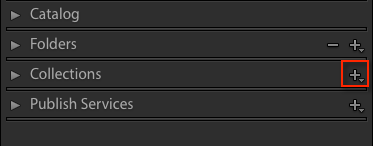
You can find Collections in the Develop Module, on the left-hand panel between Folders and Publish Services. To create a new Collection or Collection Set, click the + (plus sign).
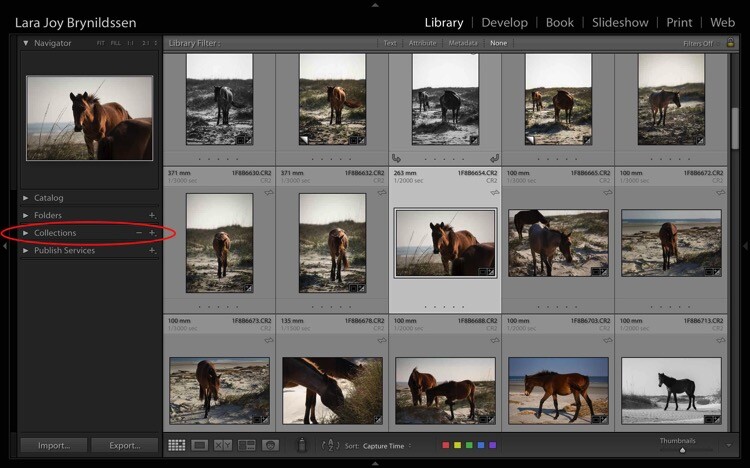
Four Advantages Lightroom Collections 1

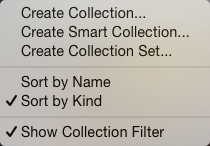
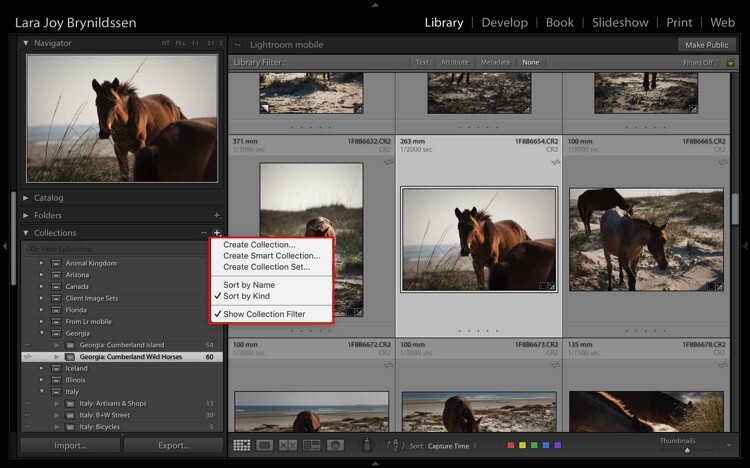
Once you click the + (plus sign), a dialog box pops up. Click Collection Sets to create a container that will hold multiple, related Collections. Or, if you just have one group of images that isn’t related to anything else, click Collections.
Four Advantages Lightroom Collections

NOTE: In this article, we’re focusing on Collections, not Smart Collections, which work a bit differently. Read this for more on that topic: How to Create and Use Smart Collections in Lightroom.

Collections Versus Collection Sets
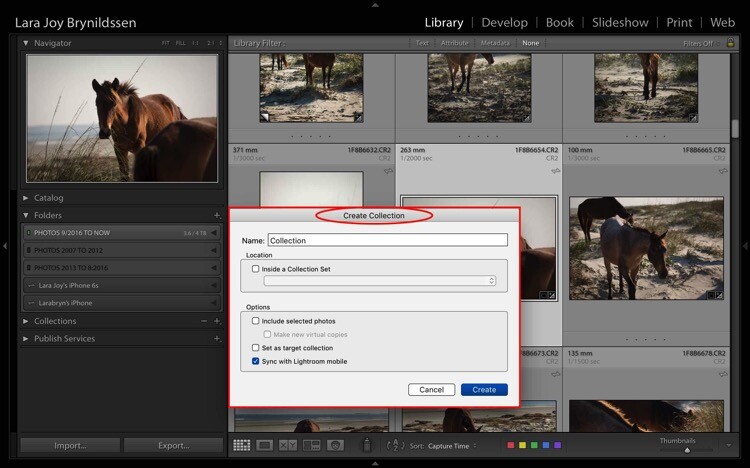
Four Advantages Lightroom Collections 1 2

This is the dialog box for creating a Collection.
Four Advantages Lightroom Collections 1 3

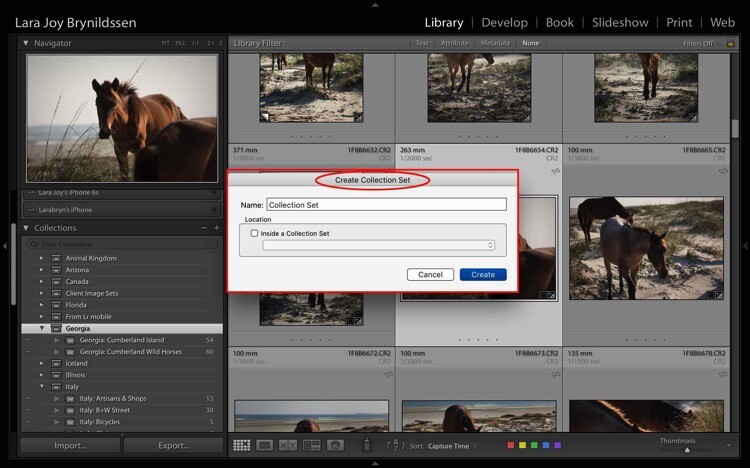
This is the dialog box for creating a Collection Set.
Four Advantages Lightroom Collections 1 4

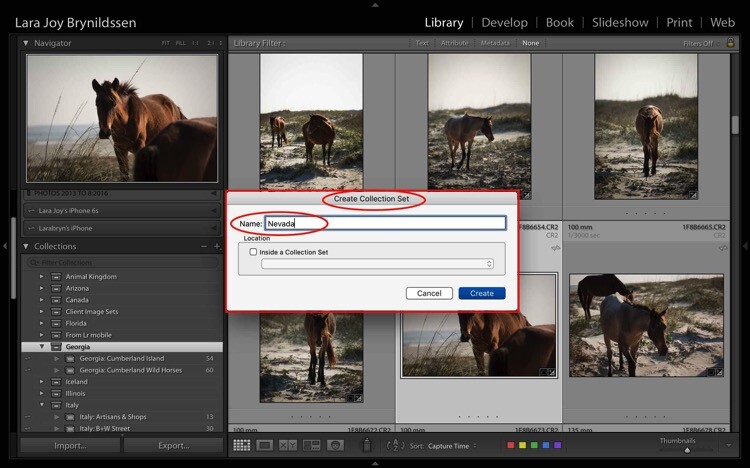
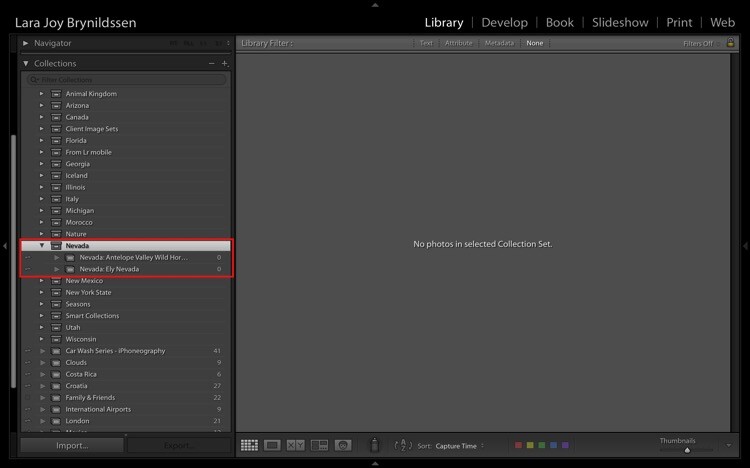
I’m headed to Nevada soon so I created a new Collection Set for Nevada. To do this, type the title of your Collection Set in the 1st box and click Create.
Four Advantages Lightroom Collections 1 5

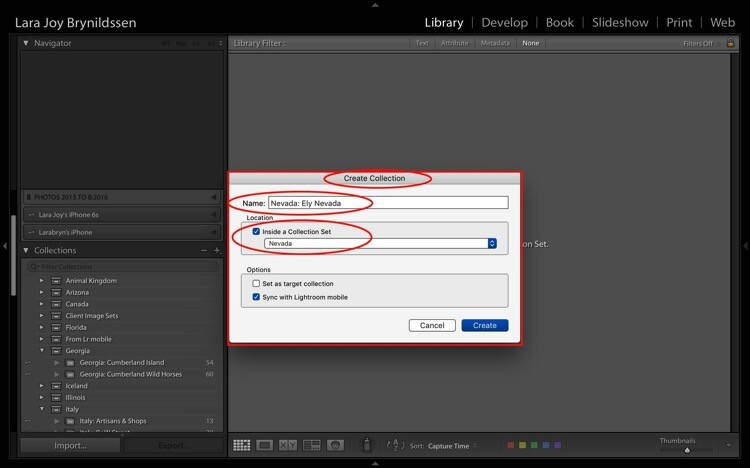
When I’m in Nevada, I’ll be staying in Ely so I created a Collection within my Nevada Collection Set for Ely.

To do this, first, check the box indicating that this Collection sits inside the Nevada Collection Set. When titling Collections, repeat the title of your Collection Set (e.g. Nevada: Ely Nevada). This is important because it helps maintain the file structure in Lightroom Mobile. (More details on that in a few paragraphs.) Make sure you also check the box to Sync with Lightroom Mobile.
Four Advantages Lightroom Collections 1 6

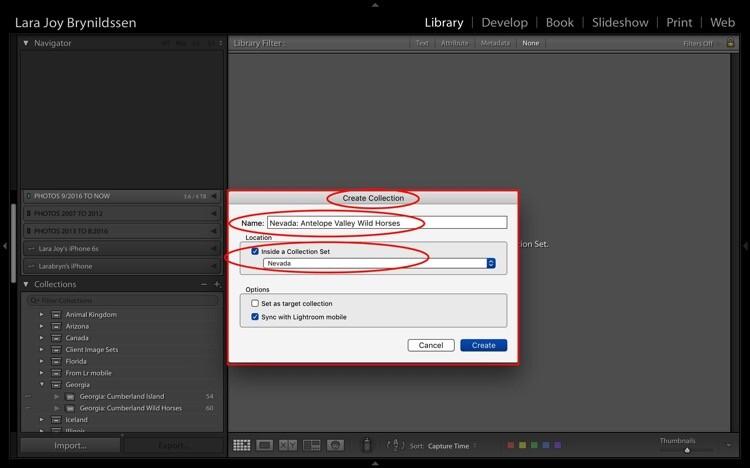
Second Collection for wild horse images.

I’ll also be photographing the wild horses in the Antelope Valley HMA, so I created a second Collection within my Nevada Collection Set for that called – Nevada: Antelope Valley Wild Horses (as shown above).

Now you can see the new Nevada Collection Set within the Collections tab on the left panel (below). Note that the icon for the Collection Set is like a large file box. The icons for the two collections inside of it are smaller, like file folders. Both say that they contain zero images because I haven’t added anything to them yet.
Four Advantages Lightroom Collections 1 7

How to Name Your Collections Sets and Collections

As you can see, I most frequently organize based on location. My Collection Sets are often names of countries or American states. That works for me since I travel a lot to make my images and I often go back to the same places over and over again. When I create a collection of my best images of Italy, I’m not interested in whether I made the image in 2013, 2014, 2015 or 2016. I’m interested in whether it’s the best image I’ve ever made in that region of that subject.

If you’re a macro flower photographer, it might make more sense for you to name your images by flower type and color. E.g., your Collection Set could be called Peonies, and your Collection names would be Peonies: Pink, Peonies: White, Peonies: Purple.

You would be able to continue that naming structure across all flower types that you photograph: Zinnias, Dahlias, Daisies, etc. By naming this way, if you get a request for an image of a pink peony, you know exactly where to find it. Click your Peonies Collection Set and scroll down to the Collection called Peonies: Pink.

If you want to have more comprehensive portfolio-like collections, you can have a Collection Set called “Best of”. Your Collections can be called Best of: Peonies, Best of: Zinnias, etc. You can even have a Collection called Best of: All Flowers, which would be the most superlative macro flower images you have ever made.

Collections Add a Second Level of Organization to Your Files

Basically, Collections are a secondary organization structure for your images. The first (for me) is chronological organization. Think of those folders as archives. All images live there. Collections are a second tool to harness the best of those images and make them easier to find. How you name them doesn’t matter as much as consistency. By consistently naming your Collections, you’ll be able to take the most advantage of their features and quickly locate your portfolio-worthy images.

Think of a Collection like a bookmark. Each time you create a Collection, you’re basically bookmarking the images inside of it so that you can quickly and easily find them by clicking on that Collection. You can bookmark each image as many different ways as you want by adding them to multiple Collections. A flower image could be in your Collection called Peony: Pink. It can also be in Best of: Peonies and Best of: All Flowers.

The main purpose is always to include your best work. You never want to scramble to find that great image you think you took two years ago in in Italy but you’re not sure exactly when? Or what town? By using Collections, you’ll always know exactly how to find that awesome image which is worth its weight in gold.

Adding Images to Collections

Four Advantages Lightroom Collections 1 7 3

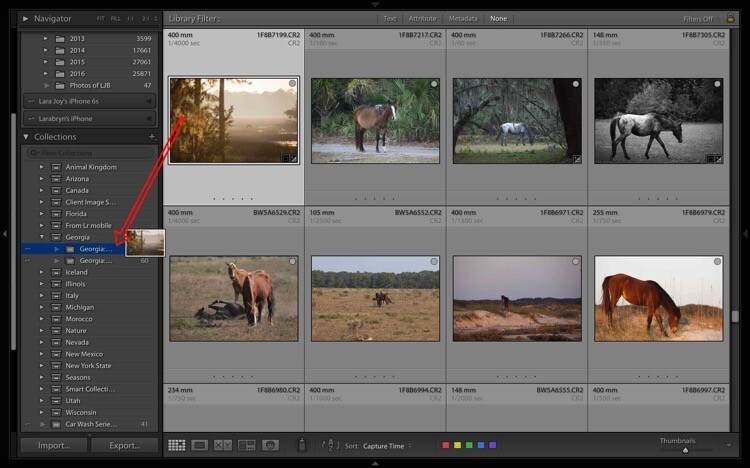
Now that you know how to create and name Collections, and why they’re useful, YOU need to add some images to them. First, select an image. The one above is from a group of images I made on a recent trip to Georgia (USA). I like it and have processed it, so now I select and drag the thumbnail to the Georgia: Cumberland Island Wild Horses Collection. Once the Collection name is highlighted, just release the image and it will drop into the Collection.
Four Advantages Lightroom Collections 1 7 1

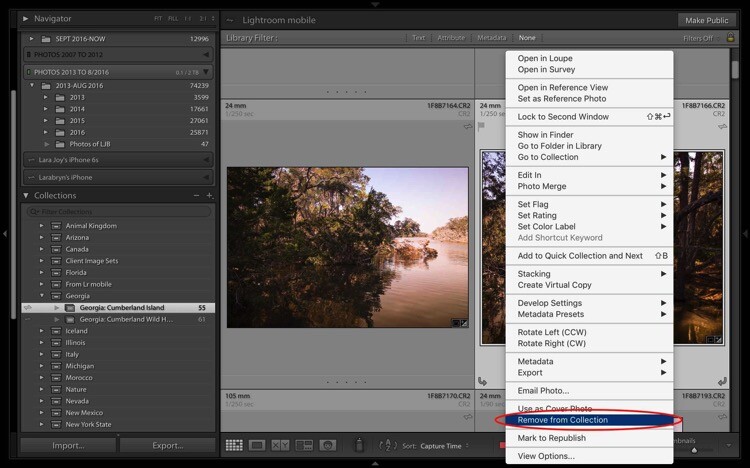
To remove an image from a Collection, first select it. You can see it’s highlighted in pale gray, which means it’s been selected. Right-click and when the menu pops up, scroll to the bottom and select Remove from Collection. Voila! The image will be removed from the Lightroom Mobile Collection too.
Four Advantages Lightroom Collections 1 7 2

Bonus Feature That Makes Collections Even More Useful

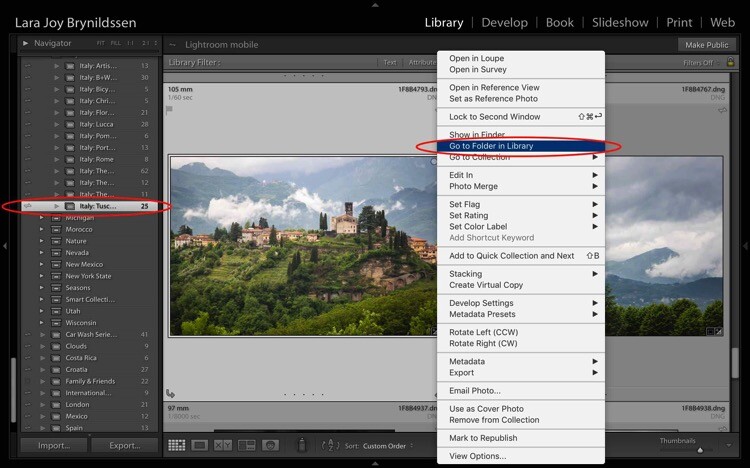
If you are looking through your Collections and find the perfect image, but wish it was shot in vertical rather than landscape format, you need to be able to find the original folder where your image file lives. Luckily, Lightroom builds in a neat little trick to help you to quickly jump to that folder.
Four Advantages Lightroom Collections 1 8

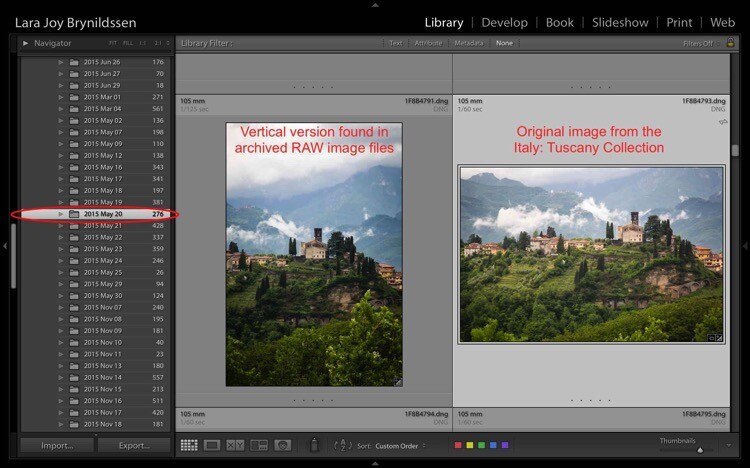
For example, in the Italy: Tuscany Collection, there is a beautiful landscape looking over Barga with lush green grass and heavy clouds sitting on the mountains above the village. To check whether this image is available in a vertical orientation, select the image and right-click to bring up a menu. Scroll to the top of the menu and click; Go to Folder in Library.
Four Advantages Lightroom Collections 1 9

Lightroom takes us from the Italy: Tuscany Collection to the main folder where all of the RAW images taken that same day actually live on the hard drive. You can see in the left side panel we’re now in the 2015 May 20 folder. I think of these folders as archives. They contain all the RAW images I shoot, even the so-so ones or the ones that are near duplicates of other, better images. And – good news – there is a very similar image in a vertical orientation.

Standard Previews Versus Smart Previews

Whenever you upload images using Lightroom, Lightroom creates a small Standard Preview. This preview is like a tiny little jpeg allowing the program to quickly show you your image. If you want to edit that image, Lightroom usually needs to be able to access the original image file.

If you have just a few images, you can keep the files on your computer’s hard drive but since you’re an avid photographer, you probably have your images saved on external drives. The more images you take, the more external hard drives you probably have containing all of your images. If you’re looking for your best Italy images from the last 10 years, you might have to look through images on four hard drives. That can get a little unwieldy. To solve this problem, create Smart Previews for all of the images that you have organized in your Collections.

Creating a Smart Preview

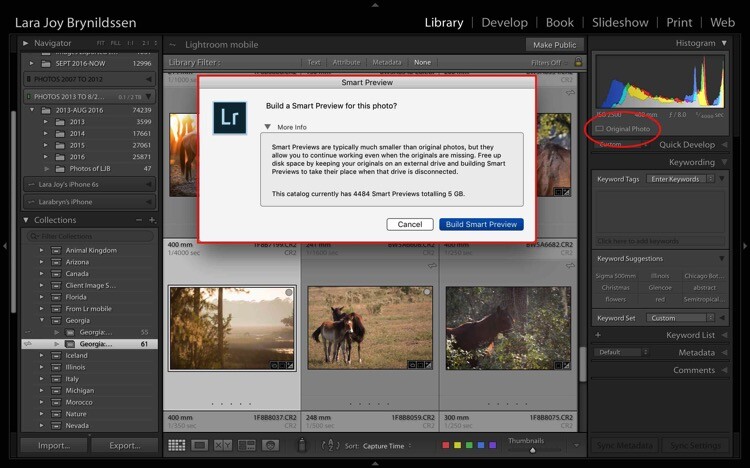
To create a Smart Preview, click on the icon next to where it says Original Photo in the right side panel. A dialog box will pop up. Click Build Smart Preview.
Four Advantages Lightroom Collections 1 10

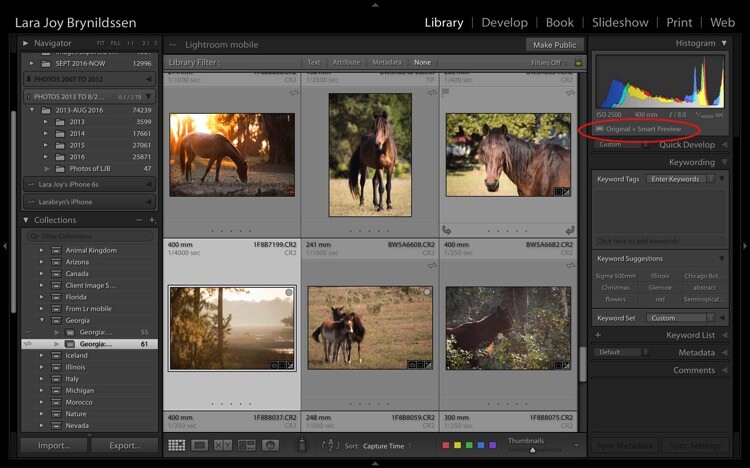
Now in the right side panel, you can see that the icon has changed and the text now reads Original + Smart Preview.
Four Advantages Lightroom Collections 2

A Smart Preview is a larger jpeg than the Standard Preview. The advantage is that it lives on your computer with your Lightroom Catalog files. A Smart Preview takes up far less space than an actual image file but it still contains plenty of information available in it for you to increase the size of the image on your screen, to magnify the details, and even to process it within the Lightroom Develop Module. Any changes you make to the Smart Preview will carry over to your original image once you connect your hard drive too.
Four Advantages Lightroom Collections 2 1

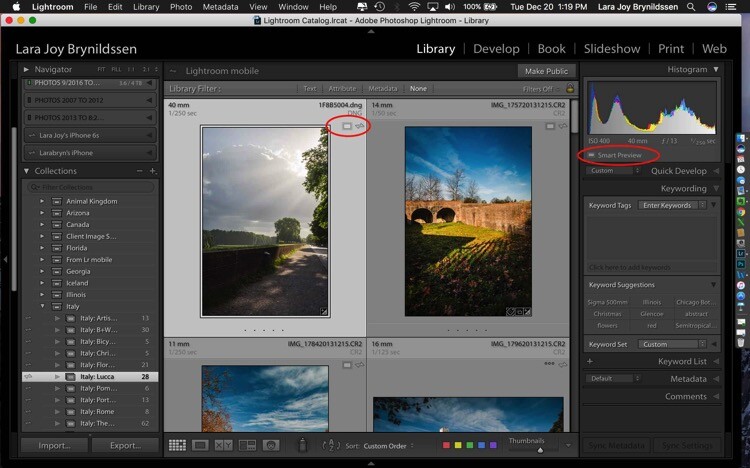
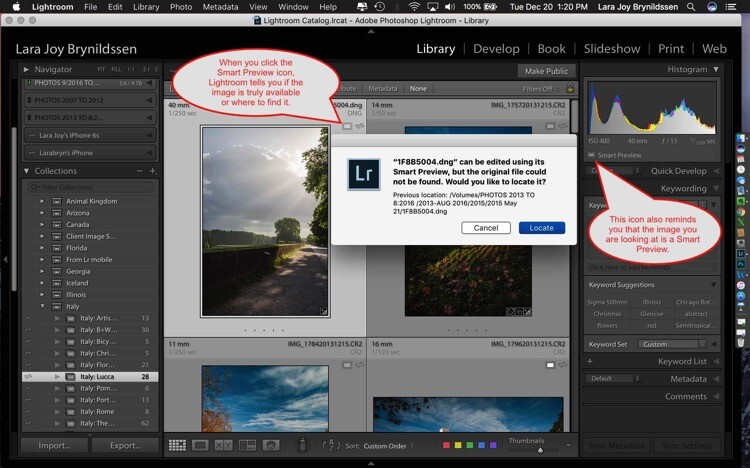
This file is a Smart Preview. You can see the icon on the image and also in the side panel on the right.

If you click on that icon, Lightroom shows a dialog box letting you know the image isn’t available but that Lightroom knows where it should be. In this case, if I attach the external hard drive and click Locate, Lightroom will find the image for me. Note that LR is also telling me that I can process the image without the original which is exactly what I want.
Four Advantages Lightroom Collections 2 2

NOTE: You cannot export an image if you are only working from a Smart Preview. You also cannot edit it outside of Lightroom (e.g., like Edit in Photoshop).

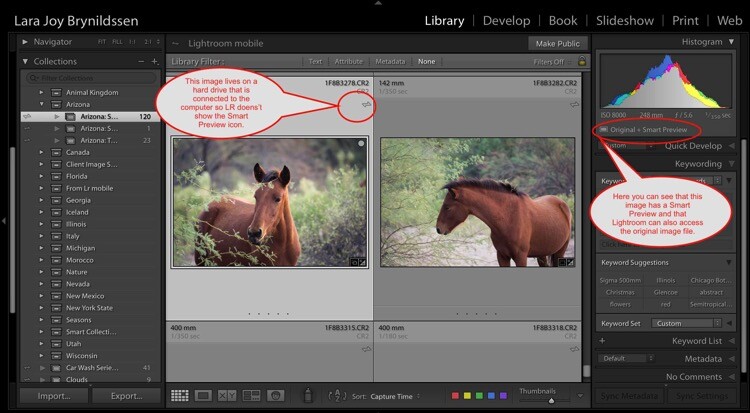
Here you can see that since the external hard drive for this image is attached to the computer, the full image file is available. Lightroom doesn’t show the Smart Preview icon in the Grid View since you’re working with the actual file. In the side panel on the right, LR does show you that this image has a Smart Preview available.
Four Advantages Lightroom Collections 2 3

How are Smart Previews Helpful?

Let’s say you’re printing images for a solo exhibition, and want to showcase your images of Italy. There’s no need for you to slog through the 25,000 images on your miscellaneous external hard drives. All you need to do is open Lightroom, click on Collections, and scroll down to your Italy Collection Set.

Because you’ve made Smart Previews for all your images, you don’t even need to have the hard drives which contain the actual images connected to your computer. This is the key to pairing Smart Previews with Collections. Even if your external hard drives are at home and you only have five minutes before you head back to work, you can begin selecting exhibition images on your laptop. Once you get home and can connect to your external hard drives, you can finish the selection and start printing.

How Lightroom Mobile Dovetails with the Collections Feature

If you are an Adobe Creative Cloud member you are getting so many more features than constant updates to Photoshop and Lightroom. One of those features is Lightroom Mobile. The mobile app doesn’t have the processing power of the full version but I don’t typically use it to edit images so that’s not an issue for me. I use it mainly to have my best images at my fingertips all the time.

Sync with Lightroom Mobile

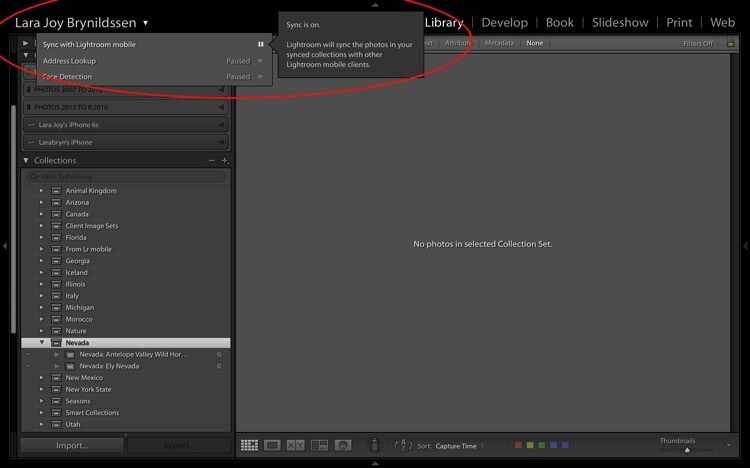
To Sync with Lightroom Mobile, you need to be logged in to your Adobe CC (Creative Cloud) account and you have Sync turned on. Click your nameplate in the upper left corner to ensure you are logged in and Sync is on. My nameplate has been customized, yours might simply say Lightroom. Here you can see that Face Detection and Address Lookup are off but that Sync is on. If you’re ever confused about the on and off positions, just hover your cursor over the box or triangle. A dialog box will pop up letting you know if that feature is on or off.
Four Advantages Lightroom Collections 3

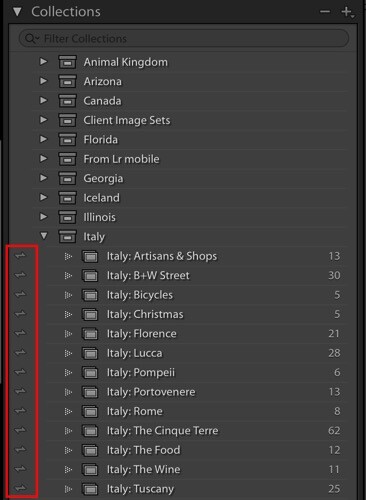
On the left of each collection is a double-sided arrow (see below). This indicates that these Collections are being synced with Lightroom Mobile.
Four Advantages Lightroom Collections 3 1

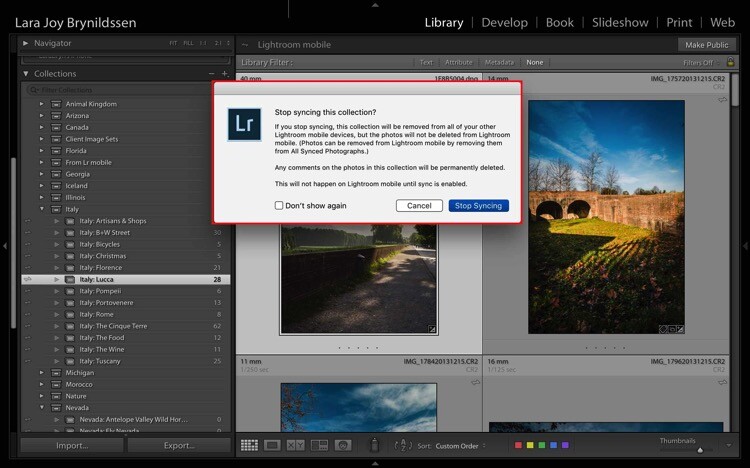
You can toggle Sync with Lightroom Mobile on and off by clicking this arrow. When you turn syncing off, Lightroom will double check with you and let you know that it will remove these images from Lightroom Mobile too.
Four Advantages Lightroom Collections 3 2

If you leave Sync with Lightroom Mobile on, Lightroom will sync the images in your Collections to the mobile app. This is a good time to install the app on your phone and tablet if you haven’t already. Now that you’ve installed the mobile app and logged in, your phone or tablet will be busy grabbing copies of those collections.

While Lightroom Mobile is working, you’ll see the cloud icon in the upper left-hand corner will have three moving dots. When the dots stop moving, the mobile app should be synced with your desktop or PC.

Four Advantages Lightroom Collections 3 3

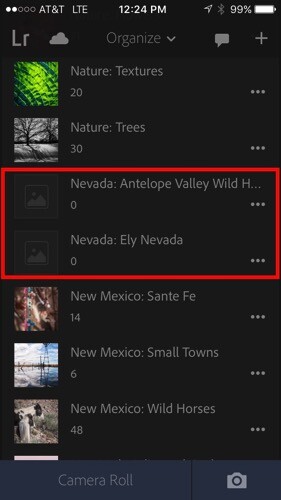
Remember earlier when we created a Nevada Collection Set? And then created a Nevada: Ely Nevada Collection and a Nevada: Antelope Valley Wild Horses Collection? Here they are in Lightroom Mobile.
Four Advantages Lightroom Collections 3 4

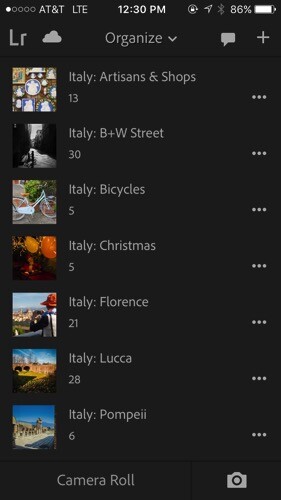
We’ve been working a lot with the Italy Collection Set too and you can see all of those folders here on the mobile app.
Four Advantages Lightroom Collections 3 5

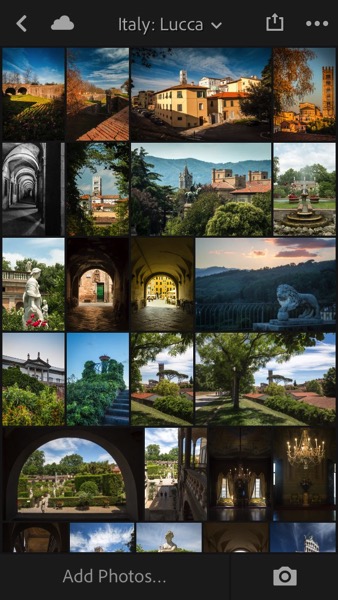
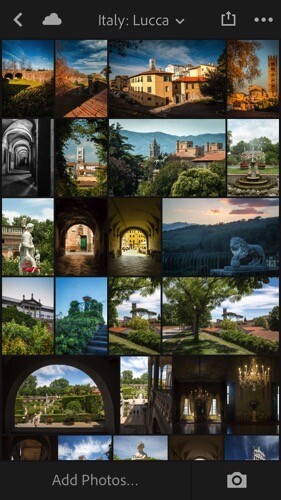
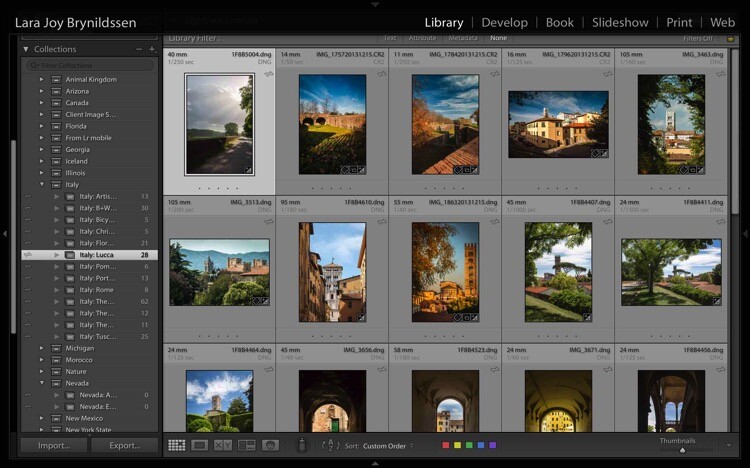
When you click on one of the folders – for example, Italy: Lucca – you’ll see that the images are exactly the same as they are on the desktop version.
Four Advantages Lightroom Collections 3 6

Four Advantages Lightroom Collections 3 7

Why Collection Names are Important in Lightroom Mobile

Remember back when we were setting up our Collection Sets and Collections on the desktop version? We repeated the name of the Collection Set in each Collection. It seems a little clunky to do it that way but hopefully now that we’re in Lightroom Mobile, you can see why we’ve chosen to name things that way. Lightroom Mobile doesn’t have Collection Sets. Instead, the mobile app organizes everything alphabetically by title.

If we hadn’t repeated the name of the Collection Set when we named our Collections, the names wouldn’t be specific enough. For example, I might not know what images are in a file called Artisan Shops if I don’t know those shops are in Italy. Now, by adhering to this slightly clunky naming structure, if someone (i.e. a publisher, client, gallery owner, friend or fellow photographer) wants to see your Italy images, you can open the app on your phone, scroll down the alphabet to Italy and show them the most important group of images.

NOTE: You can actually change the organization method in Lightroom Mobile by clicking the Organize menu. For our purpose of building portfolios of your best work, it’s best to stick with the default, Alphabetize by Title.

Using Collections to Share Images from the Desktop Version of LR

For many of us, sharing our images is the very heart of why we do what we do. Lightroom has built some handy features right into Collections to make it as easy as possible to share our portfolios.

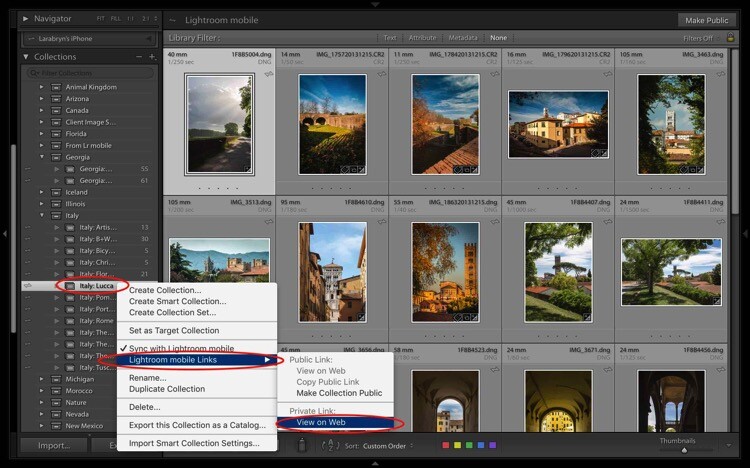
Let’s start with the desktop or full version of Lightroom. The first way we can share a Collection or portfolio of images is by right-clicking on a Collection. Let’s click on Italy: Lucca. A dialog box pops up. Click on Lightroom Mobile Links. Then, in the second dialog box, under Private Link, click on View on Web.
Four Advantages Lightroom Collections 4

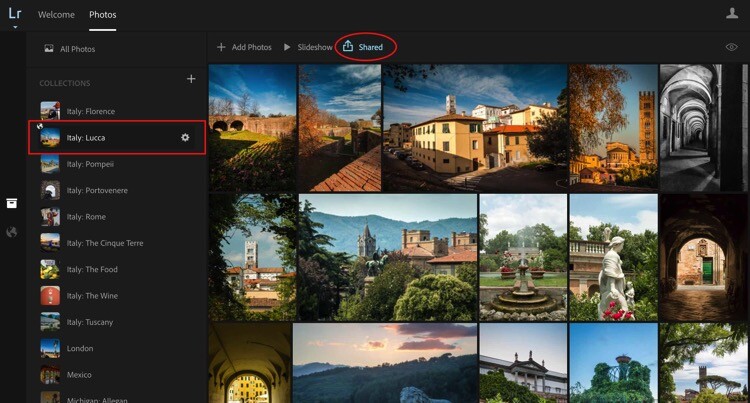
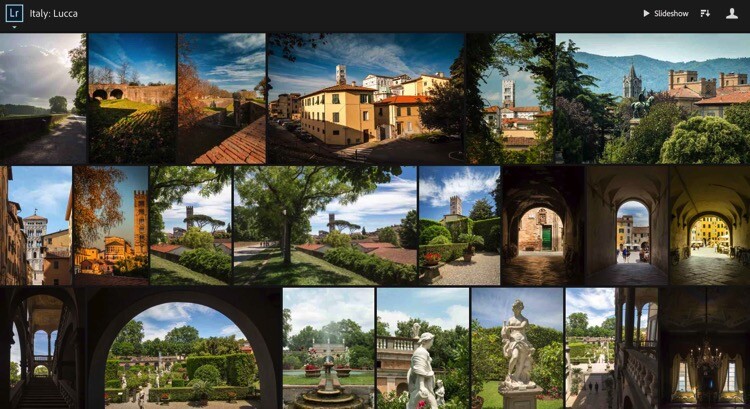
That takes us online to Adobe.com. If you’re not signed in, you’ll need to sign in now. You can see that once again, we’re in the same collection where we started. It’s titled the same and the images are in the same order. You can easily share by clicking on the Shared icon that is a box with an arrow sticking out of it.
Four Advantages Lightroom Collections 4 1

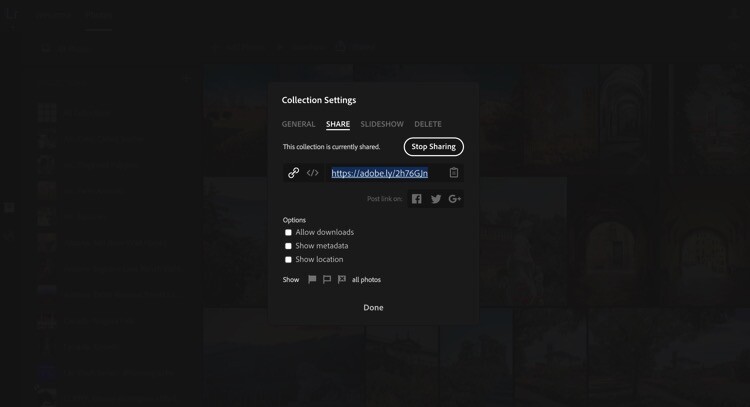
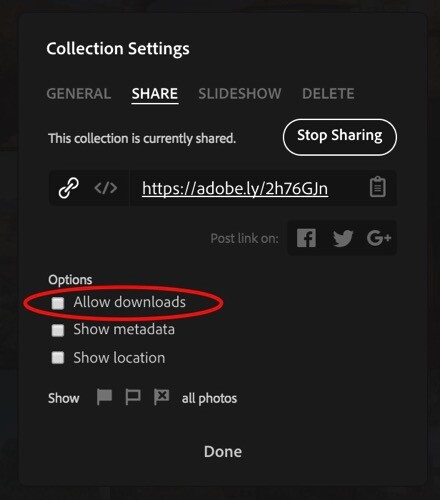
Once you click that icon, another dialog pops up. This dialog gives you a link to share. Here’s the link to my Italy: Lucca Collection. https://adobe.ly/2h76GJn. There are also a few options you can choose to specify how much about your images you want to share.
Four Advantages Lightroom Collections 4 2

Depending on where you’re sharing your Collection and why the only box I would suggest you almost never check is Allow Downloads. If you prefer to be credited for your work and to be paid, do NOT check this box or allow anyone to download your images.
Four Advantages Lightroom Collections 4 2 1

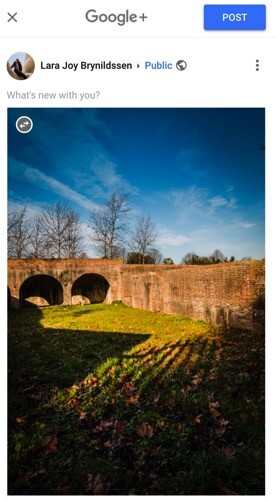
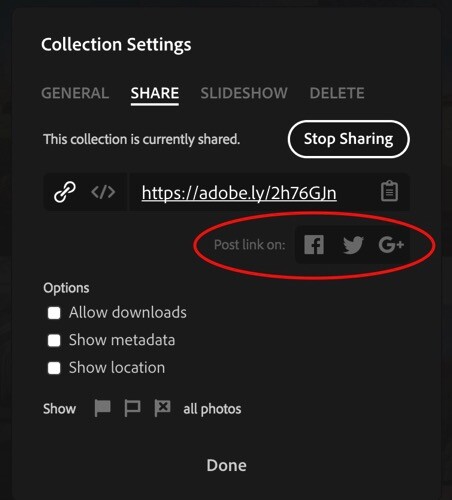
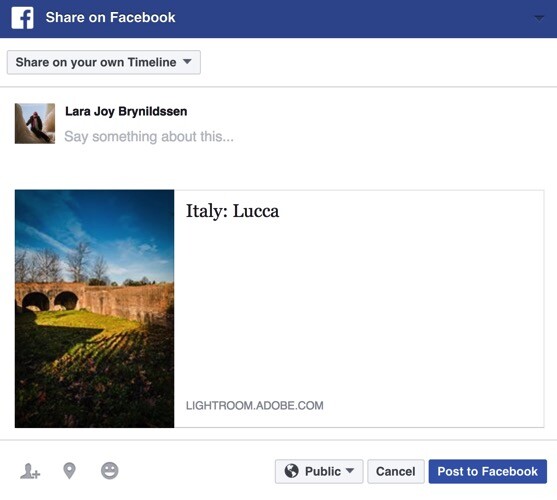
You can share your entire Collection on Facebook, Google+, or Twitter too. Tap the icon for your favorite social media site and follow the prompts. Lightroom will post the link to your entire Collection.
Four Advantages Lightroom Collections 4 2 2

Four Advantages Lightroom Collections 4 3

Four Advantages Lightroom Collections 4 4

Four Advantages Lightroom Collections 4 5

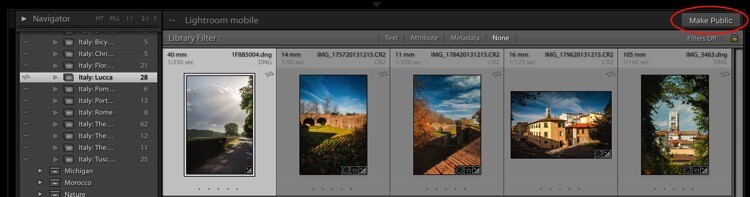
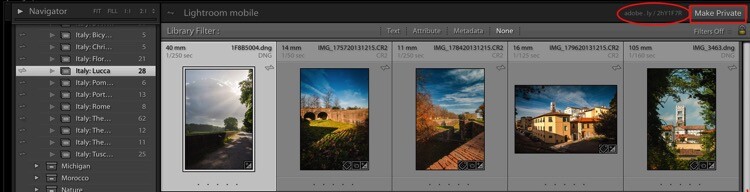
Another way you can share your images from the desktop or full version of Lightroom is to click the Make Public button in the top right corner.
Four Advantages Lightroom Collections 4 6

Once you click that link, Lightroom will generate a public link.
Four Advantages Lightroom Collections 4 7

When you click a public link, Lightroom again takes you to Adobe.com only this time, you’re not the only one who can see it. Anyone online can see your public Collection as a web gallery. To make the Collection private again, just click the button that says Make Private.
Four Advantages Lightroom Collections 4 8

Using Collections to Share Images from Lightroom Mobile

You can also share from the Lightroom Mobile in almost exactly the same way, with the same options.

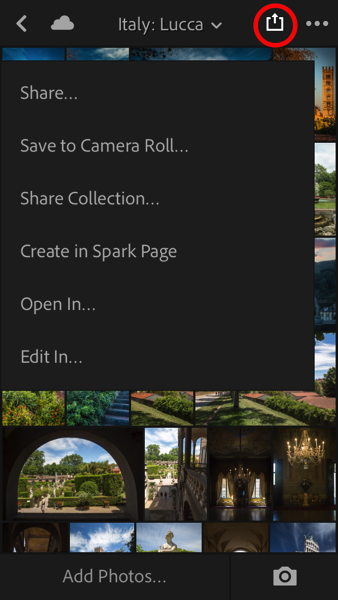
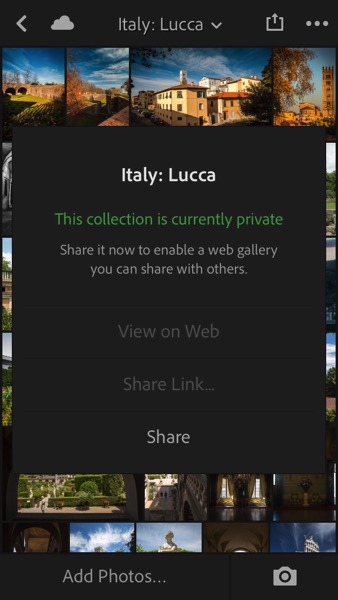
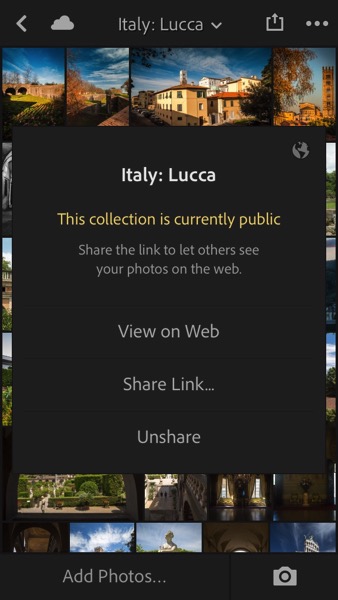
Here we have the Italy: Lucca Collection. When you tap the Share button (the box with the arrow sticking out of it), you pull up a dialog. Tap Share Collection. Another dialog box pops up giving you the option to make the Collection Public by tapping Share at the bottom of the dialog. If you change your mind, tap Unshare.

Four Advantages Lightroom Collections 4 9 Four Advantages Lightroom Collections 4 10
Four Advantages Lightroom Collections 4 11 Four Advantages Lightroom Collections 4 12

Why do you even need these links?

You might be thinking at this point that while it’s pretty cool to have shareable links to your Collections, you don’t really need them. That brings us back to the idea of building a portfolio. Regardless of whether you are an amateur photographer hoping to go pro someday, or whether you are a very serious enthusiast, building a portfolio is going to help you improve your photography.

More than that, sharing your portfolio enables you to get feedback on what you think are your best images. If you have a trusted mentor, you can share a link to one of your Collections with her, she can view the images, comment, and you can use her feedback to improve.

These links can also be used to share the image files from your shoot if you are a pro and work with clients. If you’re looking to sell your travel images, you can share a link with a local tourism bureau or to a travel magazine when you pitch a story. Or, if you were in Italy with friends and want them to see why exactly you always carry 30 pounds of camera gear with you when you travel, send them a link to one of your Italy Collections. They’ll re-live the trip as they scroll through your images and maybe even offer to carry some of your gear the next time you travel together.

Sharing to Instagram from Lightroom Mobile

Your sharing options from Lightroom Mobile are similar to the sharing options from the full desktop version and also include Facebook, Twitter, and email. One of the best ways to use the Lightroom Mobile app is to share to Instagram. Since uploads to Instagram can only be done from your phone, if you want to share images from your DSLR, it’s always a bit of a trick getting them over to your phone in a quick, easy way. Lightroom Mobile is the perfect solution.

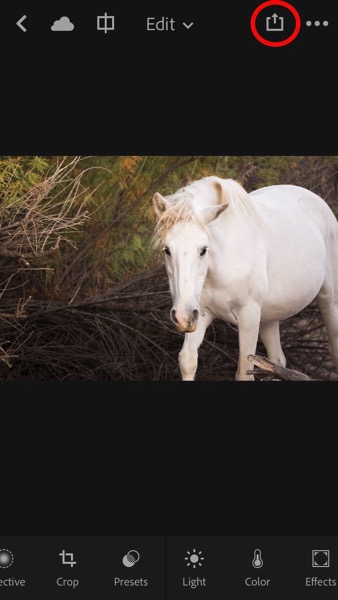
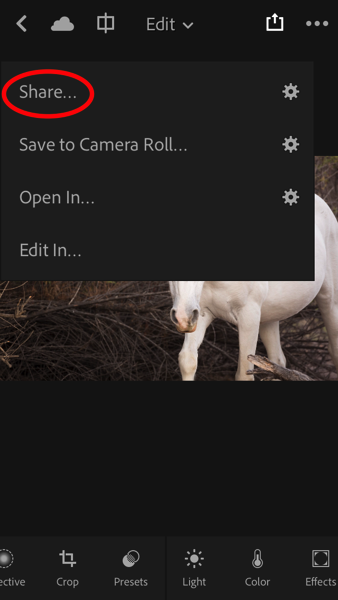
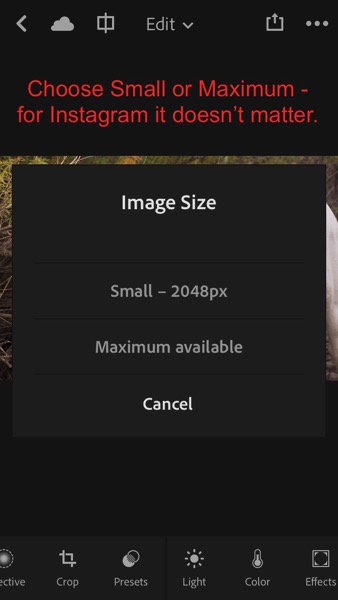
My Instagram feed is only images of horses so let’s jump to Arizona: Salt River Wild Horses Collection. Click on the image you want to share. Tap the Share button (the box with the arrow sticking out of it). In the dialog box that opens, tap Share…. Then, in the Image Size dialog box that opens, tap either one (it doesn’t matter so much for Instagram). Finally, in the next box that opens, click the icon that says Import with Instagram.

Four Advantages Lightroom Collections 5

Four Advantages Lightroom Collections 5 1 Four Advantages Lightroom Collections 5 2
Four Advantages Lightroom Collections 5 3 Four Advantages Lightroom Collections 5 4
Four Advantages Lightroom Collections 5 5 Four Advantages Lightroom Collections 5 6

You might also see an icon that just says Instagram. I don’t use that one because it gives fewer options. The Import with Instagram button takes you right into the app with all the native options to Instagram. Now you’re all set. Caption and hashtag as you normally would and go on your merry way.

NOTE: I’ve really just posted that image to Instagram. Go find it and give it some love so I can give you bonus points for reading all the way through this very long article.

Four Advantages Lightroom Collections 5 7

As long as you consistently sync to Lightroom Mobile, you can easily share your images to Instagram on a daily basis and eventually, your feed will be a living portfolio of your best images.

How do you use Lightroom Collections Sets and Collections?

The goal with this article was to show you how to set up and use Lightroom Collections to build your portfolio, to demonstrate the utility of Smart Previews, to clarify how to sync with Lightroom Mobile, plus a few tips on using Collections to share your images.

Do you use Lightroom Collections? Do these ideas work for you?

Share with me in the Comments below. I’d love to know how you build and share your portfolios.

googletag.cmd.push(function() {
tablet_slots.push( googletag.defineSlot( “/1005424/_dPSv4_tab-all-article-bottom_(300×250)”, [300, 250], “pb-ad-78623” ).addService( googletag.pubads() ) ); } );

googletag.cmd.push(function() {
mobile_slots.push( googletag.defineSlot( “/1005424/_dPSv4_mob-all-article-bottom_(300×250)”, [300, 250], “pb-ad-78158” ).addService( googletag.pubads() ) ); } );

The post Four Advantages of Using Lightroom Collections by Lara Joy Brynildssen appeared first on Digital Photography School.


Digital Photography School

 
Comments Off on Four Advantages of Using Lightroom Collections

Posted in Photography


3 Handy Lightroom Features I Discovered by Accident

27 Jan

When I first started to dabble in photography, I knew very little about post-processing. I used Picasa to edit my photos. It’s free and easy to use. I experimented with the different settings and created some pretty interesting images (they weren’t very good). Needless to say, I had no idea what I was doing.

This was the extent of my early post-processing attempts. I created collages in Picasa.

This was the extent of my early post-processing attempts. I created collages in Picasa.

Self-learning methods and benefits

Like many of you, I am a self-taught photographer. My degree is in English Literature, and photography was something I dabbled in as a hobby. I learned photography by reading books, participating in online forums and through trial and error. It’s been a long hard road but it’s been well worthwhile.

I learned most of my post-processing by watching YouTube videos. It has become one of my favorite ways to learn. There’s some inspirational stuff available that you can use to teach yourself all kinds of different skills. It’s a lot of fun, and the benefit of learning in this way is that you can go at your pace.

This type of learning is perfect for my lifestyle, and I’m sure for many of you the same factors apply. It always amazes me what we can teach ourselves when we put our minds to it. Check out this video. Sean Tucker experiments with landscape photography and discusses how important it is to continue to learn and push ourselves.

Three Lightroom Features Discovered by Accident

Now that we are on the path to self-directed learning I would like to share with you three Lightroom shortcuts, hacks, tricks, or whatever you want to call them, that I learned completely by accident. I just pushed buttons to see what would happen. By just experimenting, the results paid off. I learned some very efficient ways to manage my post-processing workflow, and I want to share them with you.

Accidental Discovery #1 – the Alt key

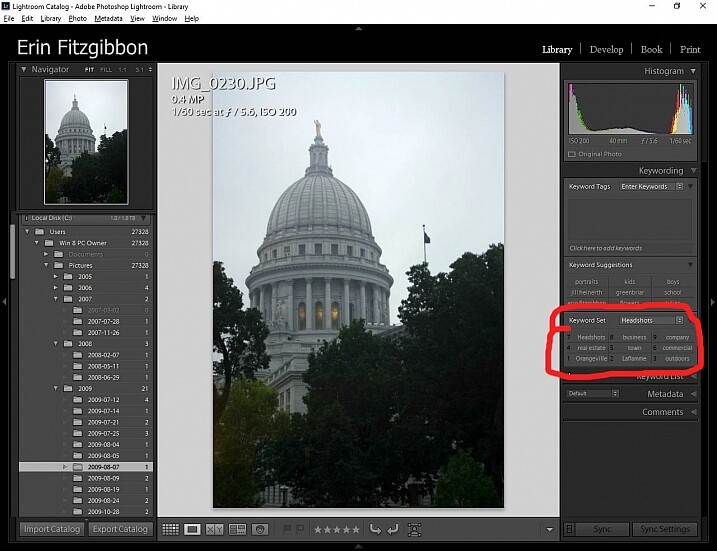
By simply pushing buttons I discovered some pretty cool functions. If you hold down the Alt key while in the Library module, little numbers appear by each keyword. You can then simply hit the number, and the module will tag your images with that keyword. Brilliant!!!

If you create a set keywords, this little trick becomes even more useful. The keyword set is then added to your images by simply typing in the correct number.

Alt key Lightroom Library module

This little discovery saves me loads of time.

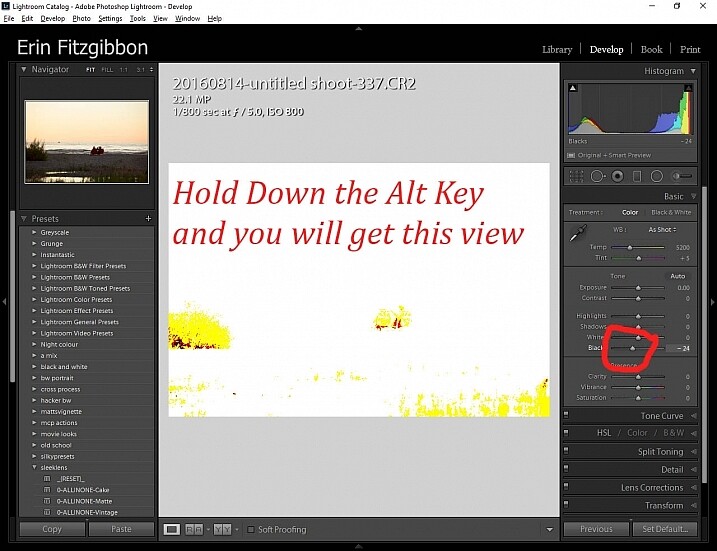
In the Develop module, the Alt key is very useful when setting black and white points in your images. Hold down the Alt key while hovering your cursor over the Blacks slider. The image will go completely white and as you move the slider from side to side (move it left to darken or add black) you will be able to see when the blacks begin to clip in your image.

This is a great way to adjust your image and super easy to see (and adjust) how much contrast range it will have. You can use the same principle to adjust the white points in your image. Give it a try. It’s one of the first steps I take when editing my work.

Note: It’s okay and even desired to have some blacks clipping in your image, but ideally you want to keep any whites from doing so. Clipping means areas with no detail in that tonal range.

Alt key Lightroom Develop module black point slider.

Here’s a screen shot of the black point slider.

Accidental Discovery #2 – Navigator Window

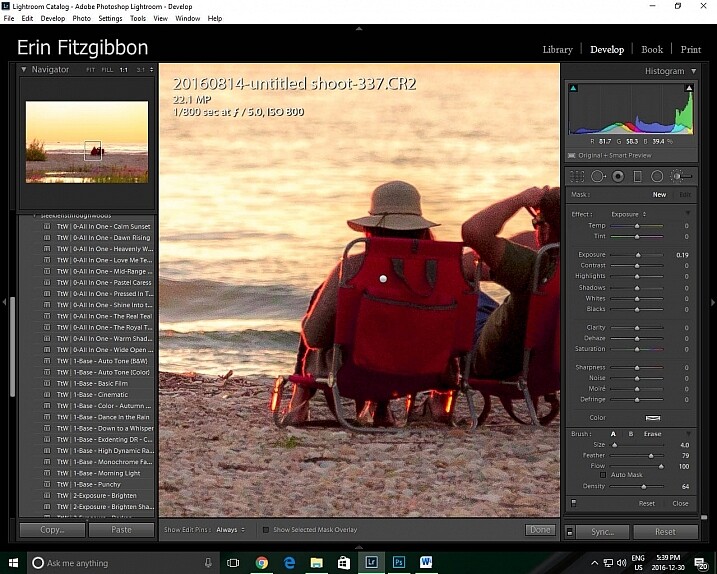
The Navigator window is very useful when you need to zoom in. This is probably really obvious and silly to those who have formal Lightroom training. Before discovering this little trick, I would zoom in and out applying the adjustment brush to small sections of the image. It was very tedious.

Then one day I discovered that if I click the 1:1 button on the Navigator (preview) window and then slide the square around on the screen, I could apply the adjustment brush without the tedium of closing the adjustment brush and moving out to the full-screen view.

Lightroom features 1:1 preview window

When I need to apply the same brush to several different areas of an image I click on the 1:1 feature and slide around the image making adjustments.

Accidental Discovery #3 – Lights Out in the Library

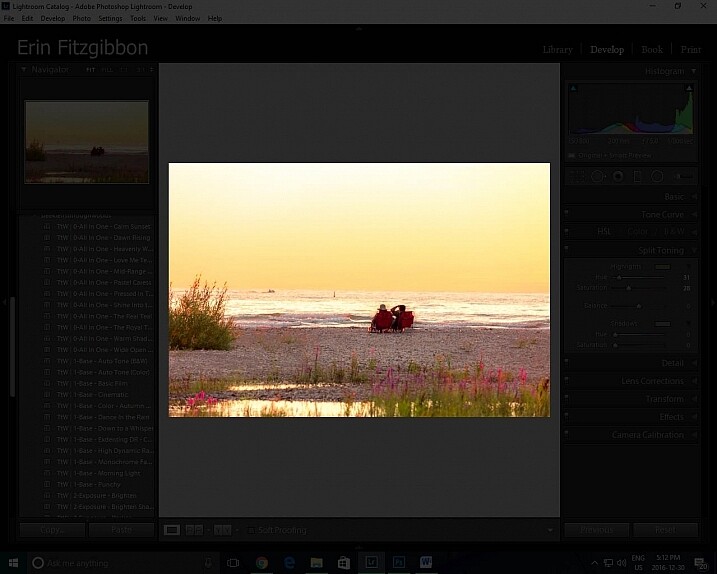
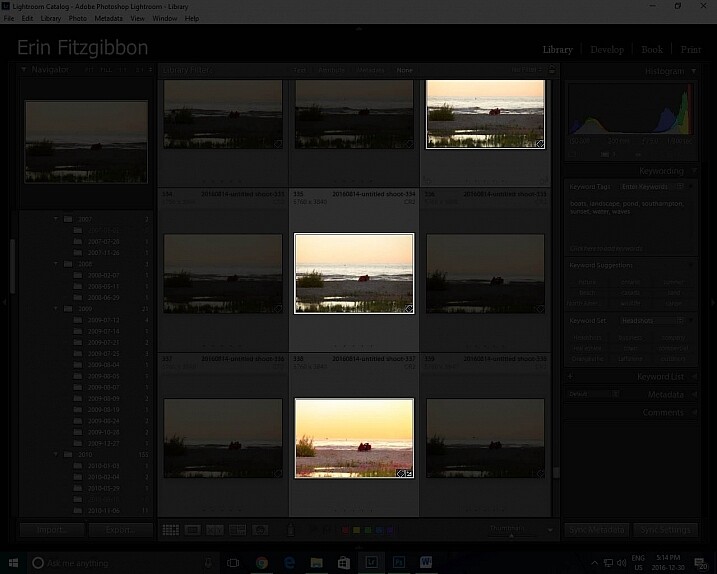
It took me a little while to figure out this trick. Again, I was just experimenting and pushing buttons. I had learned to use the Lights Out feature in the develop module.  When you press the letter L on your keyboard, it dims the surrounding panels so that you can focus more on the image at hand (press L again for total black around your image, and once more to return to normal). This same tool works well in the library module. I now use the “Lights Out” feature to isolate specific images. Simply select the images you wish highlight then hit the “L” button. It’s a neat little trick.

This same tool works well in the library module. I now use the Lights Out feature to isolate specific images. Simply select the images you wish highlight then hit the “L” button. It’s a neat little trick.

Lightroom features Lights Out in Library module

I use this feature to help me analyze an image before I decide it’s finished.

Lightroom features Lights Out in Library module

Look how easy it is to isolate specific images in the library module.

Conclusion

Experimentation is never a bad thing. We live in an age when we are lucky to have so many resources available to us. The internet is a true cornucopia of opportunity. Don’t be afraid to try different things. You really can’t break the program.

Sure there have been times when I have had to call Adobe and ask for assistance because I’ve pushed some button and haven’t been able to reset the program, but those times have been very few and far between.

Let me know about some of the tricks you use when post-processing. I’m sure there’s so much out there I still need to learn and I’m hoping you can add to my list of discoveries. What have you taught yourself about post-processing or using Lightroom in general? Please share in the comments below.

googletag.cmd.push(function() {
tablet_slots.push( googletag.defineSlot( “/1005424/_dPSv4_tab-all-article-bottom_(300×250)”, [300, 250], “pb-ad-78623” ).addService( googletag.pubads() ) ); } );

googletag.cmd.push(function() {
mobile_slots.push( googletag.defineSlot( “/1005424/_dPSv4_mob-all-article-bottom_(300×250)”, [300, 250], “pb-ad-78158” ).addService( googletag.pubads() ) ); } );

The post 3 Handy Lightroom Features I Discovered by Accident by Erin Fitzgibbon appeared first on Digital Photography School.


Digital Photography School

 
Comments Off on 3 Handy Lightroom Features I Discovered by Accident

Posted in Photography


3 Ways to Make Selective Color Portraits Using Lightroom and Silver Efex Pro 2

26 Jan

3 Ways Make Selective Color Portraits Using Lightroom and Silver Efex Pro 2Selective coloring is a post-processing technique where you convert an image to black and white, but leave part of it in color. It has a bad reputation because it can be used to create some truly horrendous images where the only thing on display is the photographer’s lack of ability.

But the good news is that you can use selective coloring in a far more sophisticated way to create some interesting images. The key is to keep it subtle and to use it only on suitable photos. I like to make selective color portraits, but of course you are free to experiment with other subjects as well (but please, no flowers).

I prefer to keep my workflow within Lightroom whenever possible as it saves hard drive space and makes the entire photography workflow much simpler. The first two techniques below are for Lightroom, the third uses Silver Efex Pro 2, a free plug-in you can download from Google.

1. Selective color in Lightroom using the Adjustment Brush

The first example, below, shows what you can do in Lightroom. This is the portrait that I am going to work with for this technique.

3 Ways Make Selective Color Portraits Using Lightroom and Silver Efex Pro 2

The simple background means it’s ideal to use for a selective color portrait.

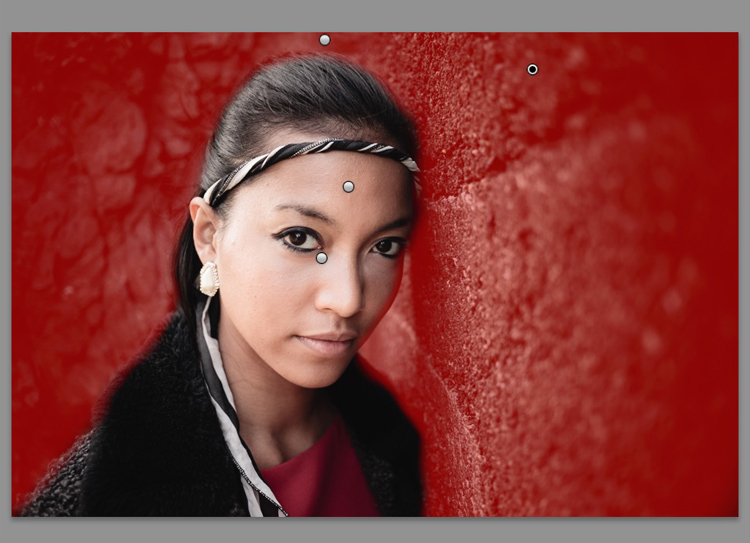
Start by going to the Develop module and activating the Adjustment Brush tool. Paint in the background to create a mask (as shown below).

3 Ways Make Selective Color Portraits Using Lightroom and Silver Efex Pro 2

The mask is shown here in red.

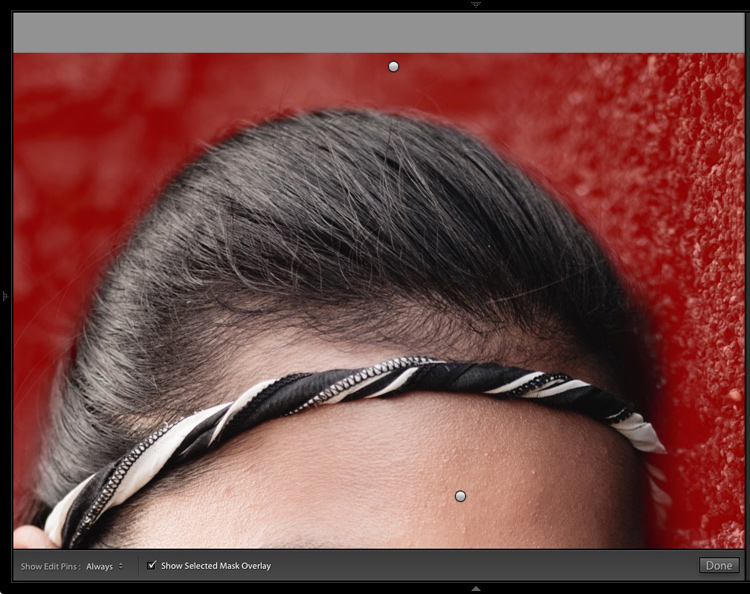
It may help to zoom in and use a smaller brush around the model for a more accurate mask.

3 Ways Make Selective Color Portraits Using Lightroom and Silver Efex Pro 2

View zoomed in so you can mask more accurately around the model.

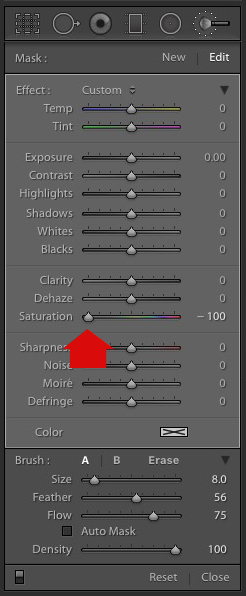
Go to the Adjustment Brush sliders and set the saturation to zero.

3 Ways Make Selective Color Portraits Using Lightroom and Silver Efex Pro 2 - set saturation to zero

That removes all color from the background, giving this effect. Don’t forget you don’t have to move Saturation all the way to zero – you can simply lower it to reduce the color intensity of the background. Play around and see what works best for your image.

Selective coloring in Lightroom

It’s important that you chose the correct image for this technique to get the best effect. There are several reasons it works well with this portrait.

  • The background is monochromatic. It wouldn’t work as well with a colorful background.
  • The rocks in the background have plenty of texture, which looks good in black and white.
  • Some of the model’s clothes are black or charcoal gray, so introducing this color into the background fits with the overall aesthetic of the image.

2. Selective coloring in Lightroom using the HSL

The next portrait (below) has a more colorful foreground. I’m not going to remove the color completely, but I would like to make it more monochromatic. That will help the subtle colors in the model’s dress and skin to stand out.

3 Ways Make Selective Color Portraits Using Lightroom and Silver Efex Pro 2

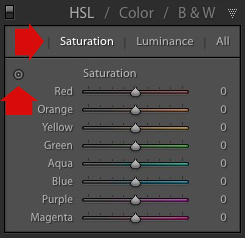
Go to the HSL / Color / B&W panel in the Develop module. Click the Saturation tab, then the Targeted Adjustment tool (marked below) to activate it.

Selective coloring in Lightroom

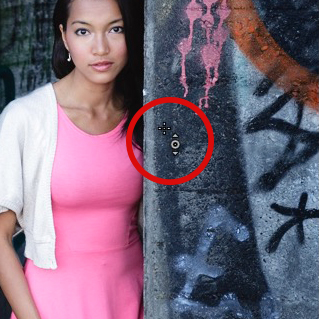
Move the cursor over part of the image that you want to desaturate. In this case, the foreground has a blue cast that I want to remove, so I chose this spot (marked by the small cross circled in red below).

Selective coloring in Lightroom

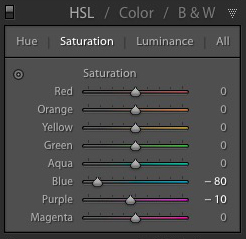
Click and hold the button as you move the mouse downward. Lightroom reads the pixels under the cross representing the Targeted Adjustment tool and reduces the saturation of those colors across the entire image. The matching color sliders in the HSL panel move to the left. When I did this, Lightroom set Blue to -80 and Purple to -10.

Selective coloring in Lightroom

This is the result.

3 Ways Make Selective Color Portraits Using Lightroom and Silver Efex Pro 2

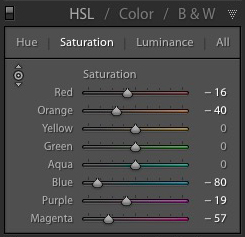
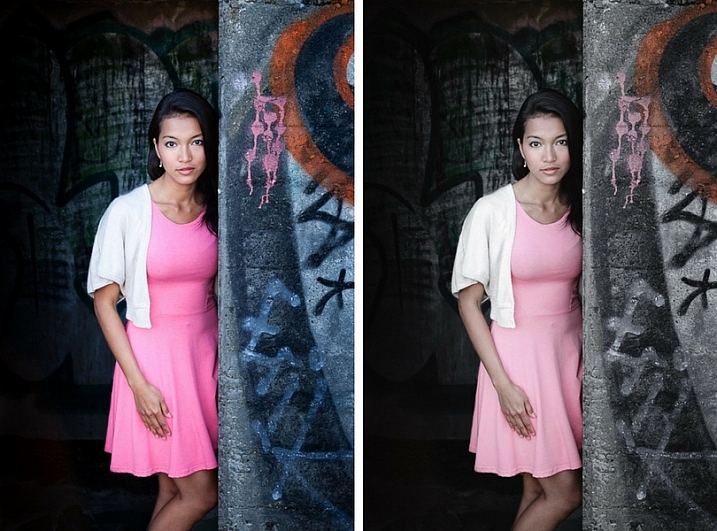
I took it further by repeating the technique. This time using the Targeted Adjustment tool on the pink and orange paintwork on the wall, resulted in the following saturation settings.

Selective coloring in Lightroom

This is a before and after of the final portrait showing these extra adjustments.

selective-colored-portrait-01

Notes:

One key thing to be aware of is how the colors in your photo are related. In the photo above reducing the saturation of the pink paint affected the model’s dress, which is also pink.

Reducing the saturation of the orange paint also affected the model’s skin. In this case, it worked out okay, but you should always zoom in and double check, especially when changing the color settings of Red, Orange or Yellow hues, as this can have some strange effects on skin tones.

3. Selective coloring using Silver Efex Pro 2

Silver Efex Pro 2 is one of my favorite black and white plug-ins. I’d like to show you how to use it for making a selective color portrait with a subtle effect that almost looks like an old style hand-tinted black and white print.

This is the portrait I’m going to use. It’s a good photo to use as the colors are subtle.

3 Ways Make Selective Color Portraits Using Lightroom and Silver Efex Pro 2

If you don’t have Silver Efex Pro 2 already, you can download it for free from the official Nik Collection website.

Once it’s installed go to Lightroom’s Library module and select the photo you want to edit. Go to File > Edit In > Silver Efex Pro 2 (you can also find this option by right-clicking the photo).

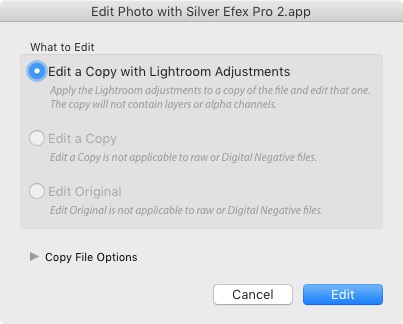
Select the option that says “Edit a Copy with Lightroom Adjustments” in the next window (it will probably be the only one you can select) and click Edit. Lightroom converts the Raw file to a TIFF file and opens it in Silver Efex Pro 2.

Selective coloring in Silver Efex Pro 2

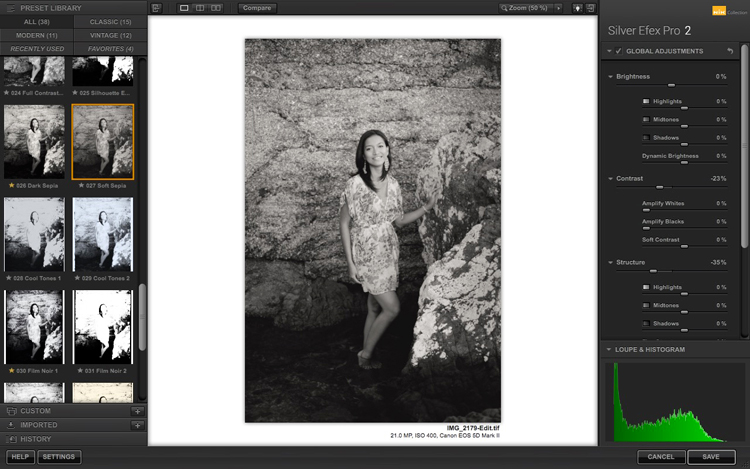
Your first task in Silver Efex Pro 2 is to decide whether you want to stay with the default neutral black and white conversion or use one of the built-in presets. I selected the Soft Sepia preset (below), then made some adjustments to the tonal values until I was ready to apply selective coloring.

3 Ways Make Selective Color Portraits Using Lightroom and Silver Efex Pro 2

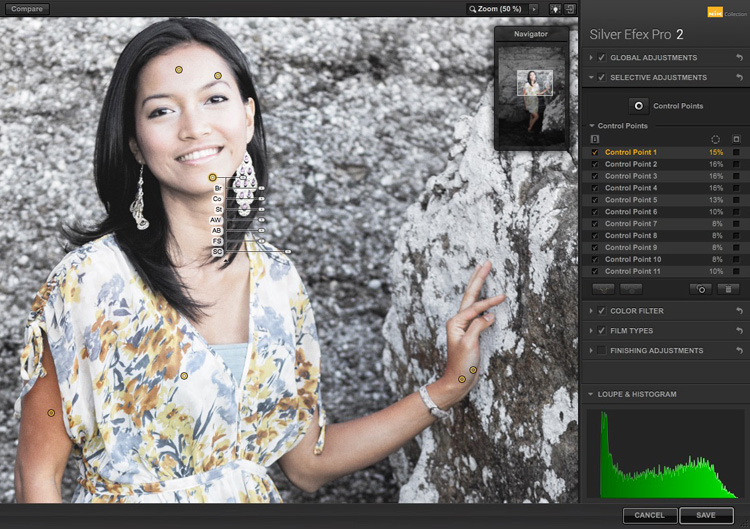
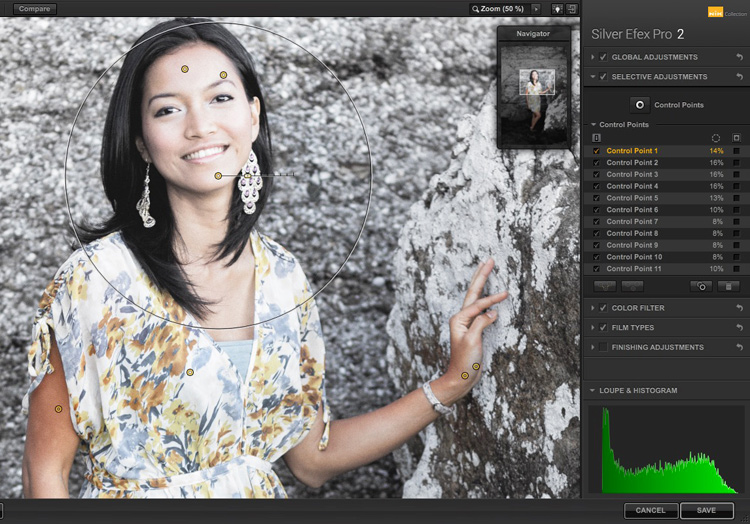
In Silver Efex Pro 2 you make local adjustments by going to the Selective Adjustments panel and adding Control Points. This screenshot shows seven of the Control Points that I added to this photo. Each one is depicted by a yellow dot.

Selective coloring in Silver Efex Pro 2

Using Control Points

Control Points work by analyzing the color and brightness of the pixels underneath them, then applying the selected effect to the pixels within the circle. In this photo, I moved the Selective Coloring slider (SC) to the right to bring the colors back to the model, but not the background.

You control the size of the circle by moving the top slider. Silver Efex Pro 2 displays a circle to show you the area affected by the Control Point.

3 Ways Make Selective Color Portraits Using Lightroom and Silver Efex Pro 2

Add multiple Control Points with circles that cover the model but as little of the background as possible. When you are finished, click the Save button. Silver Efex Pro 2 closes, saving the new TIFF file in the same folder as the original file and adding it to the same Collection in Lightroom.

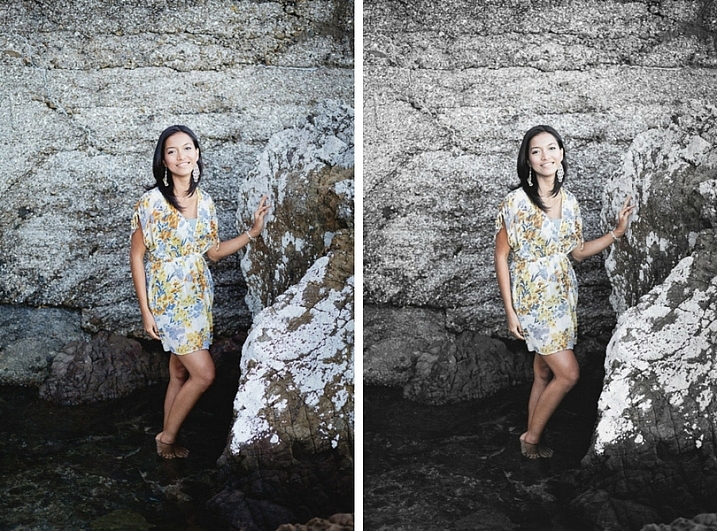
Here’s the before and after with portrait after selective coloring in Silver Efex Pro 2. Notice it’s very subtle.

selective-colored-portrait-02

Conclusion

Hopefully, this article has shown you how to use selective color in a subtle and sophisticated way that moves on from the garish examples you have probably seen online. Do you have any questions about these techniques? Let me know in the comments below.


If you’d like to learn more about Lightroom, then please check out my popular Mastering Lightroom ebooks.

googletag.cmd.push(function() {
tablet_slots.push( googletag.defineSlot( “/1005424/_dPSv4_tab-all-article-bottom_(300×250)”, [300, 250], “pb-ad-78623” ).addService( googletag.pubads() ) ); } );

googletag.cmd.push(function() {
mobile_slots.push( googletag.defineSlot( “/1005424/_dPSv4_mob-all-article-bottom_(300×250)”, [300, 250], “pb-ad-78158” ).addService( googletag.pubads() ) ); } );

The post 3 Ways to Make Selective Color Portraits Using Lightroom and Silver Efex Pro 2 by Andrew S. Gibson appeared first on Digital Photography School.


Digital Photography School

 
Comments Off on 3 Ways to Make Selective Color Portraits Using Lightroom and Silver Efex Pro 2

Posted in Photography


How to Create and Use Smart Collections in Lightroom

11 Jan

Collections are one of Lightroom’s most powerful features, giving you a way to bring images from many folders together. Generally speaking, they’re just like boxes you sort your physical stuff into. Nothing goes in unless you put it there, and nothing comes out unless you take it out. What if I told you there was another far more powerful type of collection that can sift through all your photo information and build a collection automatically based on a subset of that information? Well, there is, it’s called a Smart Collection.

Using Smart Collections

You’ll find the easiest way to get to grips with Smart Collections is to begin with a few simple ones and then expand to more complex ones. Let’s start with a couple simple ones.

Creating a Smart Collection

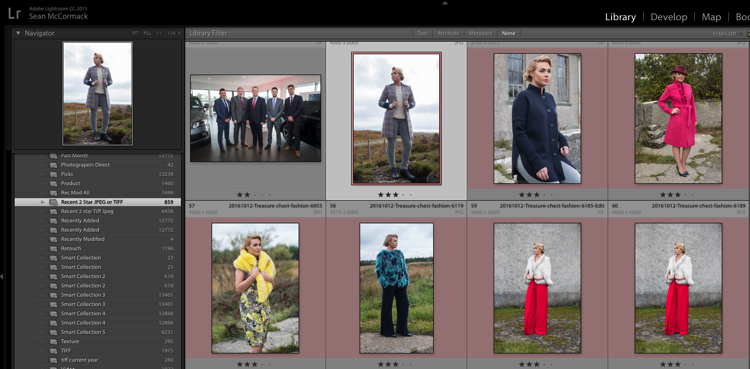
You can create a Smart Collection in a number of ways. First, you can click on the little ‘+’ in the Collections panel header, situated in the Left Panel of the Library Module.

Creating and using smart collections in lightroom

From the flyout menu, choose Create Smart Collection.

Creating and using smart collections in lightroom png 2

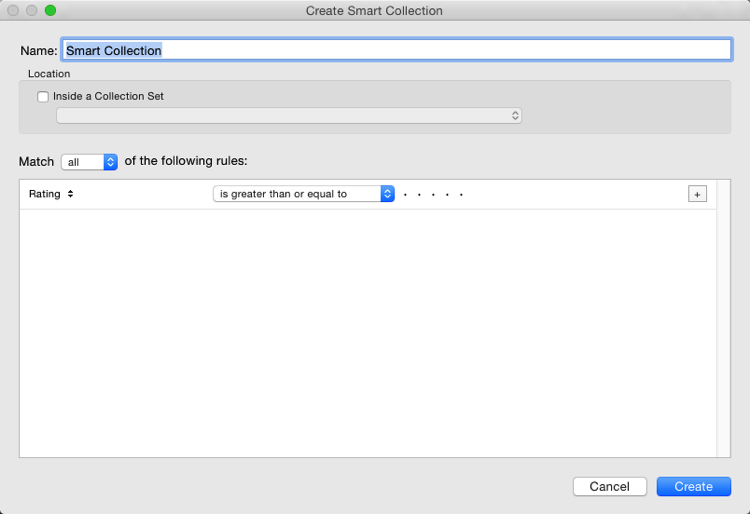
This brings up the default Smart Collection panel (below).

Creating and using smart collections in lightroom 3

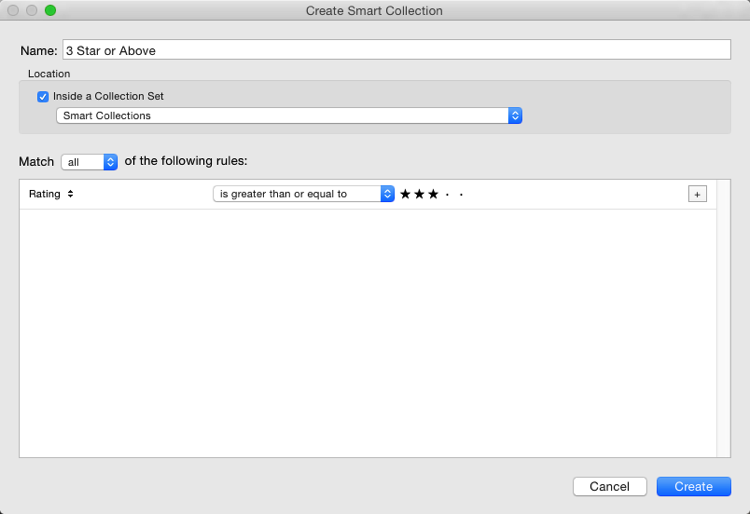
Begin by giving the Smart Collection a name. If you don’t, you’ll end up with a list with Smart Collection, Smart Collection 1, Smart Collection 2, and so forth. Use a name that describes what the collection will contain. For example, you could call this one “3 Stars or Above”. Below this you can choose to add the Smart Collection to a Collection Set (which needs to be created in advance). You could add it to the Smart Collections set, which is a default set created by Lightroom.

Adding the rules

The next part is the key to creating the Smart Collection. It’s the rules section that defines what will be in the collection. In the Match flyout, you’ve three options:

  1. All: Every rule must match for a photo to be included.
  2. Any: As long as a photo matches one of the rules, it’s included in the collection.
  3. None: As long as a photo doesn’t match a rule, it’s included.

If you’re trying to narrow down to a limited set of photos, you’ll most likely be using the All option. As your first Smart Collection is a simple one, set the Rating to 3 stars, with “is greater than or equal to” applied in the pull-down menu. There are other options in the list including; is, is not, is greater than, is less than, is less than or equal to, is in the range. These all allow you to refine what appears in the collection. Click Create to make the collection.

Creating and using smart collections in lightroom 4

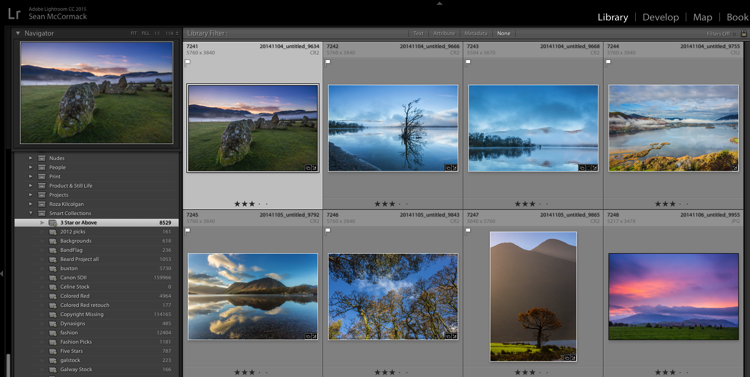
The newly created collection will appear in the Smart Collections set, already selected, and the Grid View will show all matching photos. If you change the rating of one of the images visible to be a 2-star photo, it would automatically drop out of the collection. Why? Because it no longer matches the collection rules (3 or more stars).

Creating and using smart collections in lightroom 5

Adding more criteria

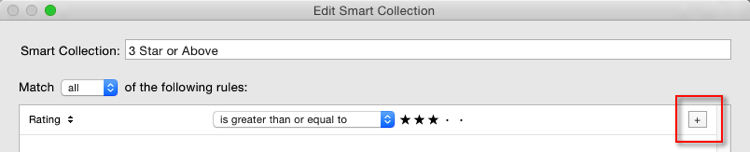
Let’s start to narrow down the images you’re seeing. You can either double click on the collection to edit it or create a new one. I’ve double clicked for this example to edit. At the end of the Rating line is a + icon (outlined in red below) which you can click to add another rule. As soon as you do, a minus (-) icon appears, allowing you to remove this rule at any stage. There must always be at least one rule, though.

Creating and using smart collections in lightroom 6

Let’s narrow down the collection to show only more recent 3-star images.

The new rule has Rating selected by default. You can change this by clicking Rating and choosing from the possible rule options in the pull-down menu. To get recent images, you need to choose Capture Date from the Date menu.

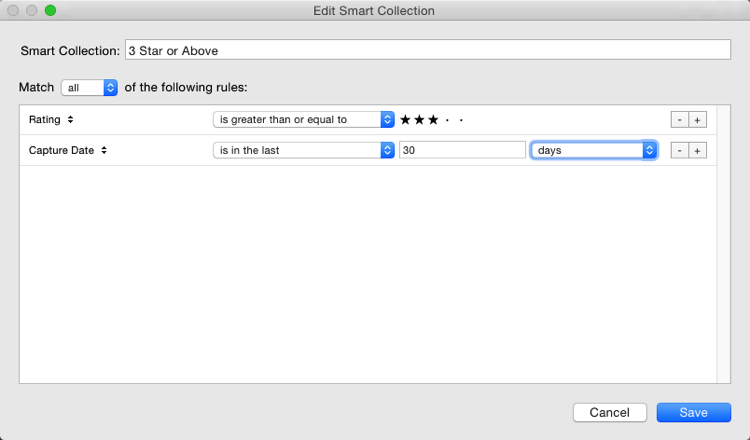
You’ll notice there’s a different set of options for dates in the figure below. As you want recent dates, choose “in the last” from the list. Next, you enter a number, then choose from days, weeks, months and years. For speed, enter 30 with the default “days” option. See below:

Creating and using smart collections in lightroom 7

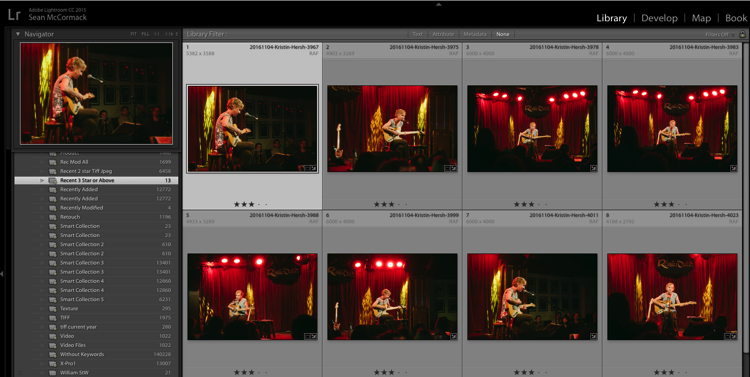
Next, change the name to reflect the new options and click Save. The collection will now display only the most recent photos (taken in the last 30 days) with 3 stars.

Creating and using smart collections in lightroom 8

Smart Collection uses

Right now, what you’ve just created could be done using the Filter Bar, so what use is a Smart Collection? Well, they’re great for helping you complete workflow tasks such as:

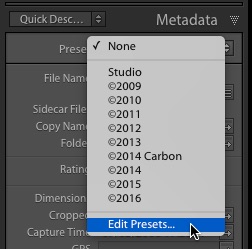
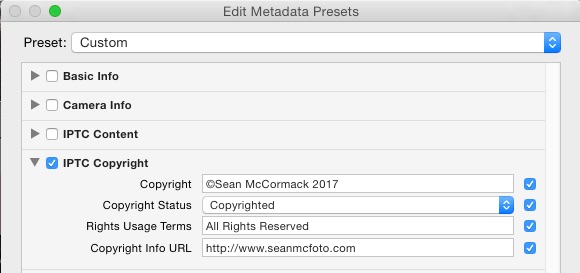
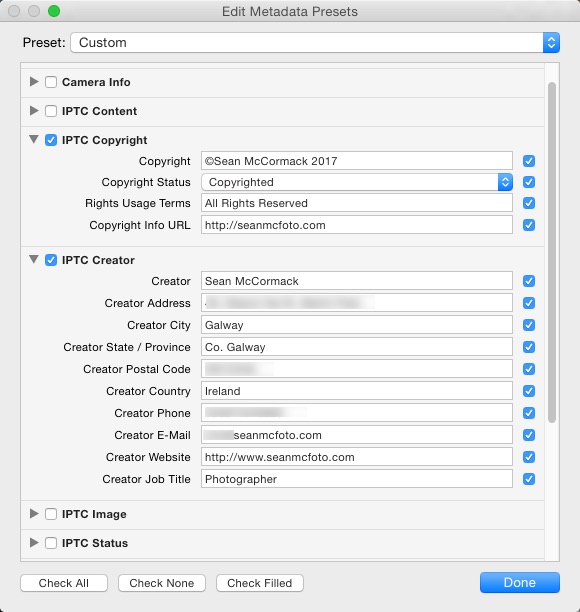
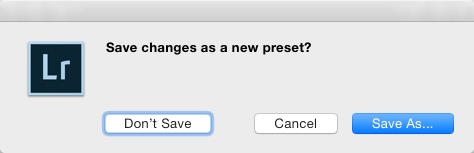
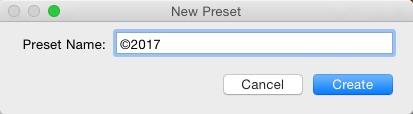
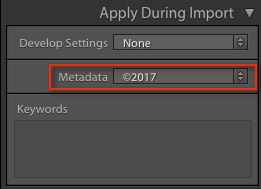
  • Add Copyright:  Create a Smart Collection with the rule “Copyright Status”, the option “is” and the choice ‘”unknown”. If you use Metadata Presets, generally you’ll have one that sets the copyright information and sets the Copyright Status to “copyrighted”. Add this preset to the files in the Smart Collection to add that information.
  • Add Keywords:  To sort images not keyworded. From the Other Metadata menu, choose Keywords, then set the option to “are empty”. Use this to add keywords to an image. Just remember that as soon as you hit enter in the keywords panel, the image will drop out of the Smart Collection.
  • Event work:  For event work, you’re generally delivering most of the image, except blinks or out of focus shots. Usually, this work is edited quickly. Create a Smart Collection with the rules; Capture Date, is in the last, 1 days, and Pick Flag, is, unflagged. Now run through and reject the duds using the shortcut key X. Export the rest for your client.
  • Labels for workflow stages:  Labels can be used to imply a status with your photos. For example, you could use red to mean “selected, but needs editing”, yellow to mean “processing” and green for “final image”. By creating smart collections for each stage, you can see what needs to be done with each image. Combined with setting a date, you can keep on top on what needs doing!
  • Adding Captions:  Coupled with a recent date range, you can create a Smart Collection with “Other Metadata>Caption” and “is empty”. This shows recent images in need of a caption. Couple with ratings, etc., to narrow down which images need to be worked on.

Advanced Rules

The Any, All and None route does allow a great selection of options, but it’s missing a trick. What if you need 4-5 rules for sure (All), but also need one or two rules that are more like an Any set? That can’t be done using the method you’ve seen so far.

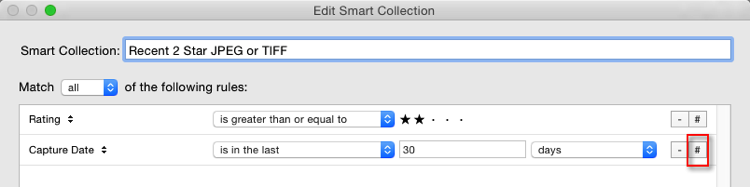
Rejoice . . . There is a way! It’s a little bit hidden, but if you hold down the Alt/Option key, the + icon turns into a number (#) sign. You can click the # to create a subset of new rules. These allow; Any of the Following, All of the Following and None of the Following – so you can mix in options as well.

Creating and using smart collections in lightroom 9

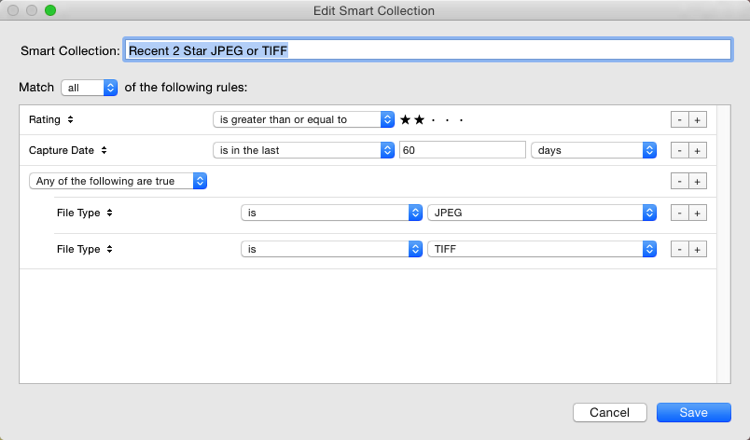
For example, you could specify an “Any of the following” are true and have two options for File Type, one for JPEG, and one for TIFF. This means all the other rules must apply, but either JPEG or TIFF will also apply. (note I’ve changed to 60 days here for a better set of photos to match for the example).

Creating and using smart collections in lightroom 10

The Smart Collection now shows both TIFF and JPEG images with 2-star or higher ratings, taken in the last 60 days.

Creating and using smart collections in lightroom 11

Other options you could use are red or yellow labels, or even non-continuous date ranges. Alternatively you could use the option to exclude information. For instance, you could have a date range of “in the last 1 year” and using “None of the following” could have “in the last 1 month” to exclude the most recent month. Combined with ratings/flags or stars, this could help locate older material still in need of editing.

Finally

As you can see, Smart Collections are a great tool in your file management arsenal, helping you drill down to specific sets of photos easily.

googletag.cmd.push(function() {
tablet_slots.push( googletag.defineSlot( “/1005424/_dPSv4_tab-all-article-bottom_(300×250)”, [300, 250], “pb-ad-78623” ).addService( googletag.pubads() ) ); } );

googletag.cmd.push(function() {
mobile_slots.push( googletag.defineSlot( “/1005424/_dPSv4_mob-all-article-bottom_(300×250)”, [300, 250], “pb-ad-78158” ).addService( googletag.pubads() ) ); } );

The post How to Create and Use Smart Collections in Lightroom by Sean McCormack appeared first on Digital Photography School.


Digital Photography School

 
Comments Off on How to Create and Use Smart Collections in Lightroom

Posted in Photography