RSS
 

Posts Tagged ‘lightroom’

A Step by Step Guide to Processing Portraits in Lightroom

03 May

Book covers 2 Every time we ask our readers what post production software they use to edit there portrait photography the most common answer is Lightroom. It’s no surprise either – it’s a powerful tool for editing and organising your photos.

However we know when we talk to our readers about Lightroom that while we all know it’s got amazing power that it can sometimes be overwhelming too. Many of you report knowing you don’t use Lightroom to it’s full potential and wish you had a guide to editing your portraits using the tool.

Today we’re excited to announce our new online course, “Lightroom Mastery: People & Portraits“.

If you’ve ever wanted to discover the secrets professionals use to perfect portraits in Adobe Lightroom, then this course is for you.

And for a limited time, you can access over 4 hours of Lightroom training… that’s 32 step-by-step video modules for a massive 50% off the regular price.

This brand new online course from professional photographer Mike Newton will teach you all the Lightroom secrets the pro’s use to retouch portraits and turn average shots into stunning creations.

Mike is a commercial photographer and has worked with clients ranging from Fortune 500 companies like Bayer and Metlife, technology companies like Uber, and clothing brands like Deckers Outdoor Corporation.

Checkout his intro video below to see what you’ll be learning.

No matter what level of Lightroom user you are, you will walk away from this course with huge improvements in the quality of your portrait edits and the speed of your workflow.

The best part is, Mike makes it super easy to understand.

In this course you’ll learn how to use the very best of Lightroom for photos of people including:

  • The adjustment brush
  • Radial filter
  • Cloning and healing brushes
  • Mike’s very own Lightroom editing workflow for editing portraits
  • Eyes and lip editing techniques
  • Teeth whitening tips
  • Skin editing techniques including blemish removal

Save 50% on this brand new Lightroom Mastery for Portraits Course for a limited time.

PS: as with all dPS products this course comes with a 30 day satisfaction guarantee. If for any reason you don’t find it suits your needs please contact our support team and we’ll arrange a refund.

The post A Step by Step Guide to Processing Portraits in Lightroom by Darren Rowse appeared first on Digital Photography School.


Digital Photography School

 
Comments Off on A Step by Step Guide to Processing Portraits in Lightroom

Posted in Photography


10 Tips for Advanced Lightroom Users

01 May

If you’ve been using Lightroom for a while maybe you’re ready to take your processing to the next level. Here are 10 tips for advanced Lightroom users and professionals, brought to you by Photos in Color:

Some of the tips they mentioned reference such topics as these:

  • How to Create Your Own Lightroom Presets
  • New Graduated and Radial Filter Features in Lightroom 6
  • How to Understand the Lightroom Tone Curve
  • How to Create an Effective Workflow and Image Organization
  • Four Advantages of Using Lightroom Collections
  • 12 Creative Photography Project Ideas to Get you Motivated
  • How to Experiment with Different Editing Styles to Find Your Own

There’s more, just watch the video and apply to them to your work now.

The post 10 Tips for Advanced Lightroom Users by Darlene Hildebrandt appeared first on Digital Photography School.


Digital Photography School

 
Comments Off on 10 Tips for Advanced Lightroom Users

Posted in Photography


PRIIME PRESETS FOR LIGHTROOM

19 Apr

Disclosure: I am an advisor to Priime.

A lot of people tell me that they know that they should shoot in RAW and edit their photos in Lightroom but that they just don’t have the time or desire to do the editing work. I’ve long been an advocate for photo editing, but also understand that time can be short sometimes and many people would rather spend more time behind a camera than behind a computer screen editing photos.

Here is where Adobe Lightroom presets can be super helpful. There are many different preset packages out there that you can purchase, but one I’d like to highlight today is a new preset package put out by the photo editing company Priime.

Lightroom presets are super easy to install with a few clicks and then when reviewing your photos in Lightroom you just hover over a preset to see which look makes your photos look the best. With a single click, instantly your photo is given the full editing process of that preset. Sometimes I’ll use a preset and just leave the photo exactly as edited in the preset and other times I’ll use the preset as a base doing 90% of the editing for me and make a few finishing tweaks from there. Either way good presets can save a ton of time and are a useful tool for photographers who want to edit their work quickly and professionally.

One of the the things I like about the new Priiime preset package is that the presets were developed by photographers for photographers. My friend Art Chang, Founder and CEO of Priime, is also an amazing and accomplished photographer who personally helped design this package himself.

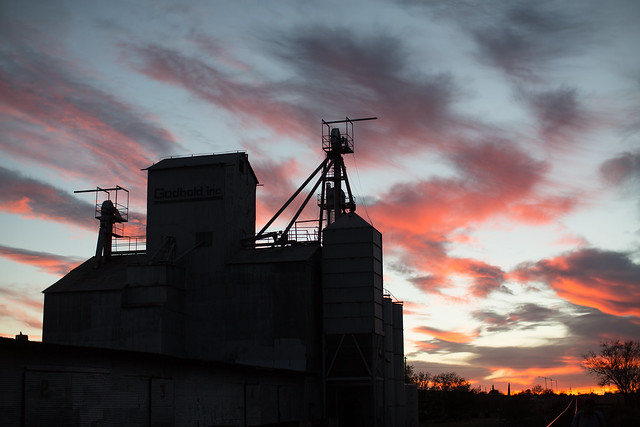
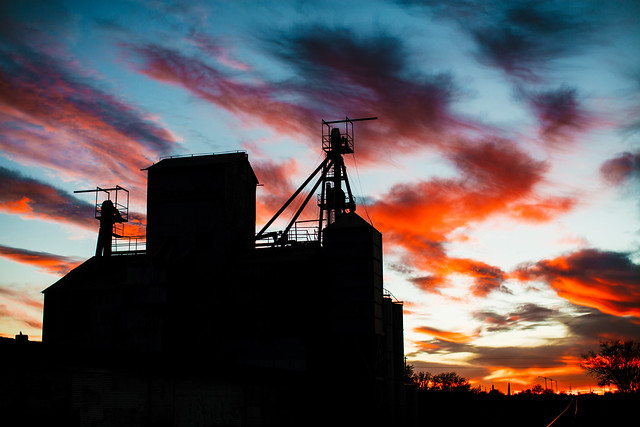
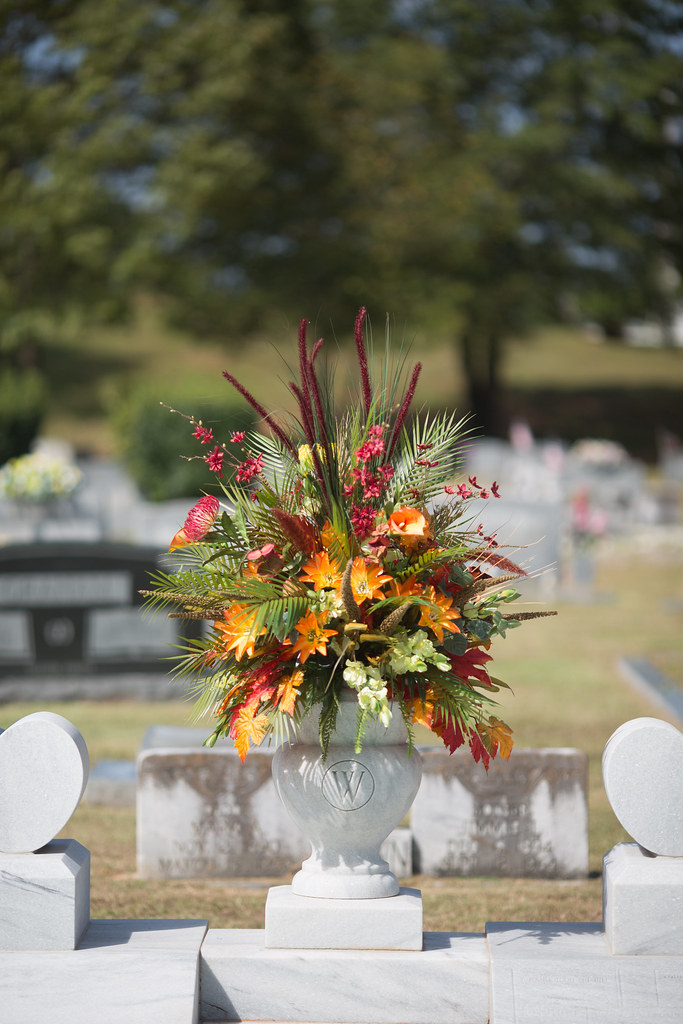
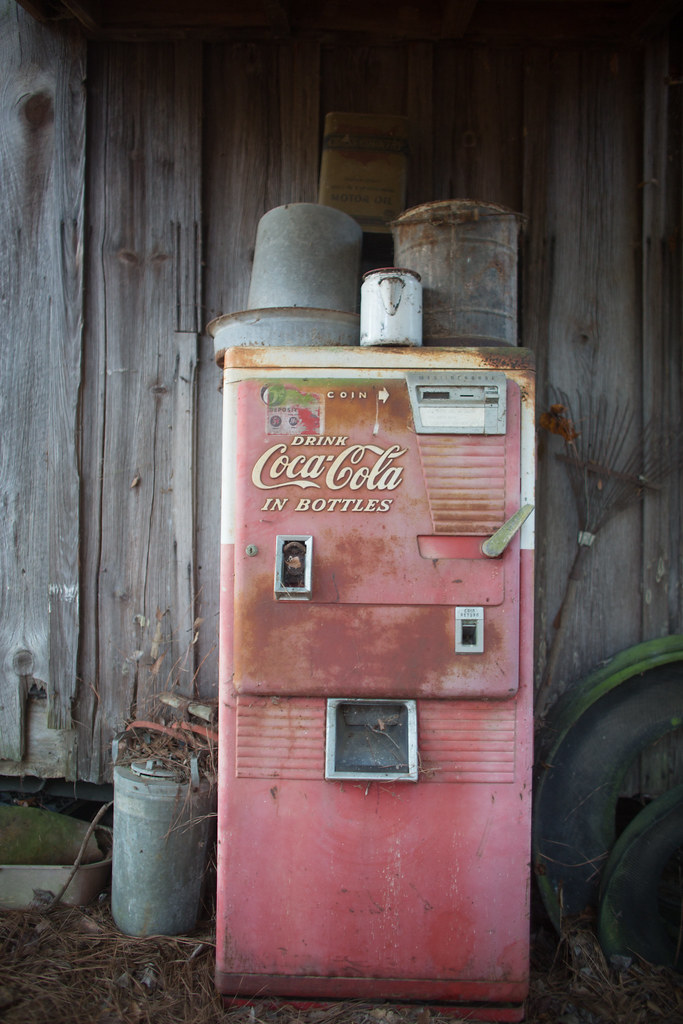
Below are some before/after photos that I edited today using some of the new Priime presets so you can get an idea of the impact a particular preset can have.

Priime’s preset package comes with 13 presets with 112 variants on the styles. Priime’s package sells for $ 49.99.

You can learn more about these presets and purchase them at Priime here.

Capitol Lights Pre Edit
Capitol Lights no editing

Capitol Lights
Capital Lights edited with Priime’s Atlantic preset

Texas Sunset Pre Edit
Texas Sunset no editing

Sunset, Marfa, Texas
Texas Sunset edited with Priime’s Montana + contrast preset

Marfa Portrait Pre Edit
Marfa Portrait no editing

Marfa, Texas
Marfa Portrait edited with Priime’s Utah preset

Hank Williams Grave Pre Edit
Hank William’s Grave, Montgomery Alabama, no editing

Hank William's Grave, Montgomery, Alabama
Hank William’s Grave, Montgomery Alabama, edited with Priime’s California vibrant preset

Coca Cola Pre Edit
Alabama Coca Cola, no editing

Montgomery Alabama
Alabama Coca Cola, edited with Priime’s California + green preset


Thomas Hawk Digital Connection

 
Comments Off on PRIIME PRESETS FOR LIGHTROOM

Posted in Photography


The dPS Ultimate Guide to Getting Started in Lightroom for Beginners

16 Apr

Note: this is one of the most comprehensive articles we’ve written on Lightroom. Read it below or get a free downloadable copy to print and/or refer to later by adding your email address below and we’ll send you a copy.


Download “The dPS Ultimate Guide to Getting Started in Lightroom for Beginners”

We respect your email privacy

If you’re new to Lightroom you may be wondering what it does, how it differs from other programs (like Photoshop), and how to use it to its full potential – this article will answer a lot of questions and help you get started.

The reason that Lightroom has become so popular is because it is a workflow application. You use it to manage your photos the moment they are downloaded from your camera’s memory card and saved on your hard drive. Once they are inside Lightroom you can organize them into Collections (a type of virtual folder) and process RAW, JPG, and TIF files.

You can also add photos to a map to organize them by location, create a photo book or slide show, print photos, or export them to other programs for further processing. Lightroom remains at the heart of your workflow as you do it all.

The Ultimate Guide to Getting Started in Lightroom for Beginners

Lightroom can be used for printing photos as well as processing and organizing them. It’s the complete workflow tool.

The Lightroom Catalog

The Lightroom Catalog is a database containing a preview of every photo you have imported into Lightroom. It also contains a record of each photo’s metadata (which includes all processing done to it) and the location where it is saved on your hard drive. Lightroom works by saving the edits you make to your photos as a series of text commands in the Catalog. This includes any and all processing instructions you set up for each image.

The benefit of working this way is that it saves a lot of hard drive space. This is especially true when working with RAW files, as there is no need to convert them to 16-bit TIF files first (as you do in Photoshop) to work on them. All processing in Lightroom is non-destructive, meaning you can undo any steps or everything, and return to the original state of the file at any time.

Lightroom Modules

Lightroom has seven modules (Library, Develop, Map, Book, Slideshow, Print, and Web). You can only work in one module at a time. This article concentrates on the Library and Develop modules, as they are the most important to learn first, and one you’ll use most often.

Scroll down to the end of the article for links to other articles I have written that explain how to use the other Lightroom modules. I’ve also linked to other articles throughout this guide that expand on the points within.
The Library Module

The Library module is the heart of Lightroom. It’s where you view, search, filter, and organize your imported photos. For example, if you want to find all your photos taken with a particular camera or lens, that’s easy in Lightroom (it takes seconds).

The Ultimate Guide to Getting Started in Lightroom for Beginners

This example search shows all the photos taken with my Fuji X-T1 camera and a 35mm lens in 2016.

But the real benefit of the Library module is that it lets you organize your photos any way you want. It does this by using Collections, a type of virtual folder system.

Folders are limited for organization purposes. Let’s say you took some photos of a friend called Peter in New York in September. You can only save those photos in one folder on your hard drive (which may be named Peter-New York-September or something similar).

But in the Library module you are free to add the photos to as many Collections as you want. In this example, you could have a collection named Peter, another called New York, and another named September. In fact, you can add the photos to as many Collections as you want. You have complete freedom to organize your photos how you see fit.
How to Import Photos Into Lightroom

As Lightroom is built on a database (the Catalog) you have to import photos before you can do anything with them. During the import process, Lightroom adds your selected photos to the Catalog and generates previews for viewing. Imported photos stay in the Catalog forever (or until you remove them) and don’t have to be imported again.

If this is the first time you have used Lightroom, then it will look something like this when you open it. There are no photos to see because nothing has been imported yet.

Lightroom tutorial 03

The screen is divided into four. This basic layout is repeated throughout the seven modules.

1. The Module picker: The bar at the top that tells you which module is currently active. Click the grey triangle (arrow) at the top to make it disappear, saving screen space.

2. The side panels: The left and right-hand panels containing all the Library module tools. Click on the grey triangles (arrows) to hide them.

3. The Filmstrip: This displays thumbnails of the photos in the currently selected Folders, Collection, or search results. Click the grey triangle (arrow) at the bottom of the screen hide it.

4. The Content window: This is the central display area. You view photos here after they have been imported into Lightroom. Use the keyboard shortcut Shift + Tab to hide all four side panels and see only the middle content window portion. This is handy when you are sorting and flagging images.

More on sorting and flagging images in Lightroom here: 4 of the Most Important Elements of the Lightroom Library Module.

Importing Photos into Lightroom

If this if your first import you will probably be adding photos that you have already downloaded from memory cards to your hard drive. You can also import photos directly from a memory card, or a connected camera or smartphone.

If you have already saved your photos in folders it is best to import one folder at a time. This gives you time to organize your images as you go along. Be aware that Lightroom will make you wait a long time while it builds previews if you import too many images in one go.

This is what happens during the import process:

  • Lightroom notes where the imported photos are saved and adds this information to the Catalog.
  • Lightroom reads each photo’s metadata and saves that in the Catalog. This includes the camera settings and file names, data that is used to help search images.
  • Lightroom creates a preview of each imported photo and saves it on your computer’s hard drive.
  • The previews are saved in a previews (.lrdata) file.

Please note the following: This is important and often trips up first-time Lightroom users. Your photos are not stored in the Catalog. Backing up the Catalog does not back up your images. Nor are your photos stored in the cloud if you’re a Lightroom CC subscriber. The Catalog only stores the metadata and processing information.

Always remember that your photos are saved on your hard drive. You can only back up your photos by backing up the hard drive on which you’ve saved them.

The Import Window

Get started by clicking the Import button. Lightroom opens the Import window. It’s divided into four areas.

The Ultimate Guide to Getting Started in Lightroom for Beginners

1. Source: This designates from where Lightroom will be importing the photos. All devices and hard drives connected to your computer are shown here.

2. Photo thumbnails: Ticked photos will be imported into the Lightroom Catalog when you press the Import button. You can choose Check All or Uncheck All at the bottom of the thumbnail window. To select several in a row tick one, hold the Shift key and select another – Lightroom will tick all of the images in between. To select random images hold the CMD/CTRL key and click each one individually.

3. Import options: These tell Lightroom what to do with the photos. You have four options, they are:

  • Copy as DNG – Lightroom copies your files and converts any non-DNG Raw files to the DNG format. Only select this if you understand the benefits (and disadvantages) of using the DNG format.
  • Copy – Lightroom copies the selected files without changing the format. Use this to copy files from a device or memory card over to a hard drive.
  • Move – Lightroom moves the selected files from their current location to a new one. This is the same as Copy, except that Lightroom deletes the originals afterwards. This option is NOT recommended if you are downloading from your memory card! Always use Copy for that, so that if anything goes wrong during the import process you still have your original images on the car.
  • Add – Lightroom adds the selected photos to the Catalog, without copying them. Use this if the imported photos are already saved in the correct place on your hard drive (i.e. you aren’t downloading them from a card).

4. Destination: Where you tell Lightroom to save the imported photos and what to do with them along the way.

If you select the Add option you’ll see two panels here. File Handling (where you can select the preview options and save a second copy to another drive) and Apply During Import (which allows you to apply Lightroom develop presets to all the images being imported, this can save a lot of time if you wish to apply things like Lens Corrections, a slight edge vignette, etc., to all your images).

If you select Copy as DNG, Copy or Move you’ll also see the File Renaming (where you can rename and number your images) and Destination (tell Lightroom where to put your actual images) panels.

Further reading: Make Lightroom Faster by Using DNG.

Putting it Together

Now it’s time to import your first photos. This initial workflow assumes that you’re importing files that you have already previously saved to a hard drive.

  1. Under “Source”, navigate to the folder containing your photo files.
  2. Select the Add option from the top section.
  3. Open the File Handling panel (on the right, click on the heading to open and close panels). Set Build Previews to 1:1.
  4. Open the Apply During Import panel and set Develop Settings and Metadata to None. This is just to keep your first import simple.
  5. Click the Import button. Lightroom takes you to the Library module and starts importing the selected photos. It takes a while to create the 1:1 previews, but the wait is worth it as it makes viewing your photos much quicker.

The Ultimate Guide to Getting Started in Lightroom for Beginners

At some point, you’ll want to import photos directly from a memory card, camera, or Smartphone. There are a couple of extra steps in this process.

  1. Under “Source”, navigate to your memory card containing your photo files.
  2. Select Copy (instead of Add) at the top of the Import window.
  3. Set the File Handling and Apply During Import panel settings as above.
  4. Ignore the File Renaming panel (advanced users only).
  5. Under “Destination Folder”, select where you would like to save the imported photos. You can create a new folder by right-clicking on an existing one and selecting Create New Folder.
  6. Click the Import button when you’re ready.

The Ultimate Guide to Getting Started in Lightroom for Beginners

How to Organize Your Photos in Lightroom

Photos are saved in folders (on your hard drive) and organized in Collections (in Lightroom). You can view both Folders and Collections in the Library module, but you can only view Collections in the other modules. This is one of the reasons why you will want to use Collections to organize your images.

You can create as many Collections as you like. The more you use Collections, the more you will appreciate how useful they are.

Lightroom has several types of Collections

Collections: Virtual folders to which you can add any photos imported into Lightroom.

Collection Sets: Another type of virtual folder. You can add Collections and other Collection Sets to a Collection Set, but not photos. They are for organizing Collections.

Smart Collections: Collections populated automatically according to criteria set by you. Lightroom already contains several Smart Collections, you can add more as you see fit.

Published Collections: These have a lot of uses, but the most common is for sending images to photo sharing websites like 500px and Flickr. This is for advanced users only.

For Further reading on this topic, check out:

  • How to Upload Photos to Flickr and 500px Using Lightroom 5 (the information applies to Lightroom 6 and Lightroom CC as well).
  • How to Publish Images Directly to Instagram From Lightroom.

Book, Slideshow, Print, and Web Collections: Created in Book, Slideshow, Print, and Web modules. These collections keep track of images used in these modules for specific projects you create.

This screenshot shows the icons used to represent Collections in Lightroom.

The Ultimate Guide to Getting Started in Lightroom for Beginners

  1. Devon (1) is a Collection Set that contains a Collection.
  2. Speke’s Mill Walk (2) is a Collection containing photos.
  3. Print (3) is a Print Collection.
  4. Web Gallery (4) is a Web Collection.
  5. The Collection Set Smart Collections (5) contains . . .
  6. The default Smart Collections (6) that come with Lightroom.

The numbers on the right tell you how many photos are in each Collection. We will concentrate on Collection Sets and Collections in this article.

Creating Collection Sets

1. Go to the Collections panel and click on the plus (+) icon. Select Create Collection Set.

The Ultimate Guide to Getting Started in Lightroom for Beginners

2. Give the Collection set a name. This might be something like the year or the country where the photos you imported earlier were taken.

The Ultimate Guide to Getting Started in Lightroom for Beginners

3. Right-click on the Collection Set you created and choose Create Collection. Give it a name (relevant to the photos you just imported), tick the Set as Target Collection Box and click Create.

The Ultimate Guide to Getting Started in Lightroom for Beginners

4. Go to the Catalog panel and click Previous Import. Lightroom displays the images you imported earlier in the Content window. Go to Edit > Select All to select all the photos and press the B key. Lightroom adds the selected photos to the Target Collection – the one you just created.

The Ultimate Guide to Getting Started in Lightroom for Beginners

Further reading

Now that you understand the basics of the Library module, you can learn more about organizing and searching your photos with these articles.

  • 5 Essential Things You Need to Know About the Lightroom Library Module
  • Use Lightroom Collections to Improve your Workflow
  • How to Organize Your Photos in Lightroom
  • Making Sense of Lightroom’s Grid View
  • The Hidden Secrets of Lightroom 5’s Loupe View
  • How to Find Your Best Images With Lightroom 5’s Compare View
  • Comparing Images with Lightroom 5’s Survey View
  • How to Create and Use Smart Collections
  • Four Advantages of Using Lightroom Collections
  • How to Use the Filter in Lightroom’s Library Module

The Develop Module

Now that you understand the basics of the Lightroom Library module, it’s time to get started post-processing some photos. To do so, select an image by clicking on it, then press the D key. This keyboard shortcut takes you straight to the Develop module.

The layout of the Develop module is similar to that of the Library module. The Filmstrip (bottom) and Module Picker (top) are the same. What have changed are the panels on the left and right-hand sides.

The Ultimate Guide to Getting Started in Lightroom for Beginners

When you’re ready, hide the Module Picker, Filmstrip and left-hand panels by clicking on the grey arrows (triangles). Your screen should look something like this – the photo you’re working on is in the centre of the screen (the content window) and there are some panels on the right.

The Ultimate Guide to Getting Started in Lightroom for Beginners

The panels on the right contain most of Lightroom’s RAW processing tools. You can jump around these in whichever order you want, but it makes sense to use a purposeful workflow and approach them in a logical order.

I’m going to show you my workflow. Follow this to start with (it works) but don’t be afraid to switch things around if you find a way that works better for you.

This article isn’t long enough to cover every tool in the Develop module, but I will cover the most important ones, and include links to articles that explore the other tools in more depth.

Camera Calibration Panel

There are two important settings you will want to take note of in this panel:

  1. Process: This should be set to 2012 (Current).
  2. Profile: The options here match the color profiles of the camera used to take the photo (and vary by manufacturer), plus the Adobe Standard option. Select the most appropriate for your photo. This should be done at the beginning of your post-processing as the profile affects both color and contrast.

The Ultimate Guide to Getting Started in Lightroom for Beginners

Don’t worry about the other sliders in the Camera Calibration panel they are for advanced users only.

I set Profile to Camera Landscape for this photo. This is the best profile to use as it brings out the soft blue hues of the early evening sky.

The Ultimate Guide to Getting Started in Lightroom for Beginners

By comparison, this version using the Camera Standard profile, is not as effective. There is a big difference between the colors in both photos, which shows why it is important to set the most appropriate profile at the beginning of your workflow.

The Ultimate Guide to Getting Started in Lightroom for Beginners

Lens Corrections Panel

Some photographers like to work with this panel near the end of their workflow. I place it near the beginning because it’s important to correct barrel distortion in landscape and architectural photos, otherwise you can’t straighten horizons using the Crop tool accurately.

To get started there are only two things you need to do inside the Lens Corrections panel. Both are found under the Profile tab.

1. Tick the Remove Chromatic Aberrations box. This tells Lightroom to automatically remove any chromatic aberrations in the photo. {Link to this URL with the highlighted text https://digital-photography-school.com/chromatic-aberration-what-is-it-and-how-to-avoid-it/ }

2. Tick the Enable Profile Corrections box. Lightroom should automatically detect the lens used to take the photo and apply the correct profile to eliminate barrel distortion and any edge vignetting that is present.

The Ultimate Guide to Getting Started in Lightroom for Beginners

There are two things to note here:

  1. The screenshot shown is from Lightroom CC. If you have Lightroom 6 or an earlier version of Lightroom the Lens Corrections panel has a different layout.
  2. Don’t tick the Enable Profile Corrections box if the Built-in Lens Profile applied message is displayed underneath. Some cameras have built-in lens profiles that are automatically applied by Lightroom. You won’t find profiles for them in the menu.

The Ultimate Guide to Getting Started in Lightroom for Beginners

If you have Lightroom 5 or earlier, the Built-in Lens Profile applied message isn’t displayed, even if the photo has one. If you can’t find the profile for your lens in the menu, it is either an old lens that Adobe hasn’t profiled or a new lens with a built-in profile (this mainly applies to lenses from Mirrorless camera systems).

Ignore the other tools in the Lens Corrections panel for the moment, they are for more advanced users.

Basic Panel

The Basic Panel is quite important as the work you do here establishes the tonal values and colors of your photo. Most of your post-processing is done here, and the tools in the other panels are used for refining the image.

White Balance Sliders

The Ultimate Guide to Getting Started in Lightroom for Beginners

Here you can use one of the presets (Auto, Daylight, Cloudy, etc.) or adjust the Temp and Tint sliders yourself. Move the Temp slider left to make the image cooler or move it right to make it warmer. The Tint slider is for removing green or magenta color casts (usually caused by fluorescent lights).

Alternatively, select on the eyedropper icon and click a neutral grey or white area in the image. Lightroom analyzes the pixels under the cursor and sets the White Balance sliders to remove any color cast (making the image color neutral).

There are three ways to use White Balance:

  1. Create an image with neutral color.
  2. Give the image a warm color tone. You might do this with a landscape taken during the golden hour (when the light is naturally warm) or a portrait (as warm colors are more flattering for skin tones than cool ones).
  3. Create a cool color tone to give the photo a cold feel (perhaps for a landscape photo taken in the winter).

Once you have decided which of these three paths you want to go down, you can adjust the sliders to suit. For example, I gave this portrait a warm tone by setting the White Balance to the Shade preset.

The Ultimate Guide to Getting Started in Lightroom for Beginners

Here, I set White Balance to Daylight. This gave the portrait a blue cast which is much less pleasing to the eye.

The Ultimate Guide to Getting Started in Lightroom for Beginners

Presence Sliders

There are two more sliders at the bottom of the Basic panel that affect color. They are called Vibrance and Saturation. Move them left to reduce the color intensity, or right to increase it.

The Ultimate Guide to Getting Started in Lightroom for Beginners

The Saturation slider affects all colors equally. The Vibrance slider has a greater affect on saturated colors. Play around with them on a few different photos to get a feel for how they work. Be careful – these sliders are best used for desaturation of colors (lowering the intensity) rather than increasing them (which often looks false).

The Clarity slider emphasizes texture when you move it right, and reduces texture when you move it to the left. Setting Clarity to +20 or +30 improves most photos (but beware of using it on portraits where it can over-emphasize skin texture and wrinkles and become unflattering to the subject). It may also change the brightness of the image.

This photo has Clarity set to zero.

Lightroom tutorial 16a

This version has Clarity set to +30, bringing out the texture in the bricks and roof tiles.

Lightroom tutorial 16b

Further reading: Four Ways to Improve Your Photos with the Clarity Slider.

Tone Sliders

The Tone sliders are for adjusting brightness and contrast. If you’re feeling lucky press the Auto button to see what happens. If you don’t like the effect simply go to Edit > Undo to step backward.

Lightroom tutorial 17

  • Exposure slider: Move it left to make the photo darker, right to make it brighter.
  • Contrast slider: Move it left to decrease contrast, right to increase it.
  • Highlights slider: Move it left to make only light tones darker, or right to make them lighter.
  • Shadows slider: Move it left to make only dark tones darker, or right to make them lighter.
  • Whites and Blacks sliders: Don’t worry about these sliders at this stage.

The best way to learn how to use the tone sliders is to use them and see what happens. Take the following photo as an example. This is how it looked before making any adjustments.

Lightroom tutorial 17a

In this version I set Shadows to -68 to make the bottom part of the image darker, and Highlights to +43 to make the sky lighter. Notice that this effectively increased the overall contrast of the image as well.

Lightroom tutorial 17b

Tone Curve Panel

This is an easy one for newcomers to Lightroom, as my recommendation is that you avoid it for the moment. You can work just as effectively with the Tone sliders in the Basic panel.

There’s just one exception to this – some of you may be comfortable with the Tone Curve because you have used in extensively in another program like Photoshop. In that case you can go right ahead and use it in Lightroom too.

Lightroom tutorial 19

HSL / Color / B&W Panel

The sliders in this panel give you much greater control over the colors in your image. You can also use them to convert your photo to black and white. The complexities of this panel are a little beyond the scope of this article, so I’ll point you towards the following articles to learn more.

Further reading:

  • Mastering Color in Lightroom using the HSL Tab
  • How to Convert Photos to Black and White in Lightroom
  • Understanding the HSL Panel in Lightroom for Beginners

Lightroom tutorial 20

Split Toning Panel

This is another panel that is useful both when working in color (for color grading – adjusting the overall color balance of the image) and in black and white (for toning photos). Once again, it’s a little advanced for Lightroom newcomers, but you can learn more with these articles.

Lightroom tutorial 21

Further reading:

  • How to Split Tone Black and White Photos in Lightroom
  • How to Create a Vintage Look using Lightroom
  • Understanding the HSL Panel in Lightroom for Beginners

Detail Panel

The controls in this panel have two purposes. The Sharpening sliders are there because RAW files are slightly soft (they are unsharpened) straight out of the camera. The Noise Reduction sliders are for reducing noise caused by using high ISO settings or long exposures (longer than five minutes).

Lightroom tutorial 22

The best thing to do is leave them at their default settings. They are good enough for most photos.

Effects Panel

The Effects panel is used for adding vignettes, adding grain (to imitate the look of film) and (with the Dehaze slider, available only in Lightroom CC) for removing atmospheric haze.

Lightroom tutorial 23

It’s another panel you can skip over for the moment. This will give me space to tell you about something that will really help improve your photo processing in Lightroom – making local adjustments.

Local Adjustments

Local adjustments are kind of a big deal in Lightroom because they are what elevate your post-processing technique from good to great. There are very few photos that can’t be improved by some sort of local adjustment.

First, let’s look at a definition. A global adjustment is one that affects the entire image. All the Develop module tools you have learned to use so far are global adjustments.

Local adjustments affect only part of the image. If you have a Photoshop background, then you know that you can make local adjustments in Photoshop using selections or masks. The theory is the same in Lightroom, but the tools are different.

Lightroom has three tools for making local adjustments; the Graduated Filter, the Radial Filter and the Adjustment Brush. You have the same options for each one.

Lightroom tutorial 30

The most obvious use of a local adjustment is to make part of the image lighter or darker (using the Exposure slider). But you can also adjust contrast (with the Contrast slider), color (with the Temp, Tint or Saturation sliders) or emphasize texture (with the Clarity slider). The more you use your imagination the more uses you will figure out for local adjustments.

The Graduated Filter

This tool is named after graduated neutral density filters used by landscape photographers to make the sky darker. The Graduated Filter inside Lightroom does something similar. The key to making the most of the Graduated Filter is to look past its most obvious use in landscape photography, and think about how it can be used elsewhere.

To start, click the Graduated filter icon (marked below), or use the keyboard shortcut M. The Graduated filter panel opens beneath the histogram.

Lightroom tutorial 29

Add a Graduated filter by clicking on the photo and holding the left mouse button down. Hold it and drag the mouse down over the image.

The Graduated filter is marked by three lines, which spread farther apart as you move the mouse. The further apart you pull the lines, the softer the graduation of the effect you’re applying will be. You can move the Graduated Filter by clicking and dragging the grey pin at the center.

This may sound complicated, but a few minutes playing with the Graduated Filter tool is all that’s required to get the hang of it.

I used three Graduated Filters on the following image. This is what I started with:

Lightroom tutorial 24

This is the result:

Lightroom tutorial 25

These screenshots show you the location of each Graduated Filter (shown in red) and the settings used for each one.

Lightroom tutorial 26

Lightroom tutorial 27

Lightroom tutorial 28

The Radial Filter

The Radial Filter was introduced in Lightroom 5. It creates a circle or oval shaped selection. You can apply the affect to the area inside or outside the selection.

Click on the Radial Filter icon (marked below) or use the keyboard shortcut Shift+M. Hold the left mouse button down and drag the mouse across the photo to create the filter.

Lightroom tutorial 31

You can change the size and shape of the Radial Filter by clicking and dragging the four white squares around the edge. Rotate it by moving the cursor to the edge of the filter until it changes from a hand or plus icon to a double curly arrow. Click and drag on the arrow to rotate the Radial filter.

Use the Feather slider to set the softness of the gradient at the edges of the Radial filter. The default setting of 50 seems to work well, but you can change it as needed.

Lightroom applies the adjustments to the area outside the Radial filter by default. Tick the Invert Mask box to apply the adjustments to the area inside it instead.

One use for the Radial filter is to darken the edges of your image to draw the eye towards the subject. Here’s an example, using a photo of a dandelion that I decided would look better if I made the green area darker. This is what I started with:

Lightroom tutorial 32

Original image.

Lightroom tutorial 33

This is the difference with the Radial Filter applied.

This screenshot shows the location of the filter, the area affected by the adjustment (in red), and the settings used.

Lightroom tutorial 34

Further reading:

  • Lightroom’s Secret Weapon: The Radial Filter and How to Use it.
  • Understanding the Radial Filter in Lightroom.

The Adjustment Brush

The Adjustment Brush is for making local adjustments that can’t be easily carried out with either of the Graduated or Radial filters. Click the Adjustment Brush icon (marked below) or use the keyboard shortcut key K. The Adjustment Brush panel opens up underneath the histogram.

Lightroom tutorial 35

You’ll find sliders for setting the size, softness (feather0, and strength of the brush at the bottom. Start by selecting Brush A (if it’s not already selected). Use the [ and ] keys to adjust the brush (you can also use the Size slider).

Use the Feather slider to adjust the softness of the brush (or hold the Shift key down and use the [ and ] keys). The size of the Adjustment Brush is displayed with two circles. The inner circle shows the area fully covered by the brush. The outer circle shows the feathered area. The gap between the two circles changes as you adjust the Feather setting (make it bigger for a more gradual effect).

Lightroom tutorial 36

Here’s an example of the how to use the Adjustment Brush. I wanted to emphasize the texture in the baboon’s face. The Adjustment Brush is the best tool to use for this because I could paint over an area that matched the shape of his face.

This screenshot shows the masked area (in red) which will be affected. I set Clarity to +51 to bring out the texture in the animal’s skin and fur.

Lightroom tutorial 37

Lightroom tutorial 38

This is the starting image.

Lightroom tutorial 39

This is how it looks with the adjustment made.

You can create another Adjustment Brush by clicking on B and changing the settings. You can switch between the A and B brushes whenever you like. If you want another that is different just click New and you can add as many Adjustment Brushes as you need.

If you paint over an area you don’t want to effect, just select Erase then paint over the parts where you want to remove the mask.

Flow controls the opacity of the brush; density sets the maximum strength. For now, keep both at 100 (you can learn more about these controls if you get into advanced retouching techniques) and vary the strength of the effect with the slider settings.

Leave the Auto Mask box unticked for now. It’s bit of a specialized tool that often doesn’t work very well.

Further reading:

  • How to Retouch a Portrait with the Adjustment Brush in Lightroom
  • 5 Tips for Using the Lightroom Adjustment Brush Tool
  • How to Create and Import Custom Adjustment Brush Presets for Lightroom

Combining Local Adjustment Tools

In Lightroom 6 and Lightroom CC you can use the Adjustment Brush to refine the mask created by the Graduated and Radial filters. This is an advanced tool that is very useful for creating precise selections.

Further reading:

  • New Graduated and Radial Filter Features in Lightroom 6
  • How to Save Images Using Export in Lightroom

The Other Lightroom Modules

Lightroom has several other modules, which aren’t possible to cover here. These articles will help you learn more about the Map, Slideshow, Print, Book, and Web modules.

Further reading:

  • How to Create a Simple Blurb Photo Book in Lightroom
  • Two Useful Lightroom Print Module Custom Layouts
  • How to Create a Simple Slideshow in Lightroom
  • An Overview of Lightroom Web – What is it and who is it for?

Conclusion

Lightroom may seem intimidating when you are new to the program, but the reality is that once you understand the basics of importing and processing images it really is surprisingly straightforward to use. The lessons learned from this article lay a foundation on which you can build to truly master Lightroom. This powerful program will become the center of a new and efficient workflow that saves you time and is easy and enjoyable to use.

If you have questions about the content of this article then please let us know in the comments below. I’ll do my best to help.

For more Lightroom learning you can also check out our course Lightroom Mastery here on dPS.

Author bio: Andrew S. Gibson is a long time Digital Photography School contributor and the author of the Mastering Lightroom ebooks.

Note: did you enjoy this guide to Lightroom? – get a free downloadable copy to print and/or refer to later by adding your email address below and we’ll send you a copy.


Download “The dPS Ultimate Guide to Getting Started in Lightroom for Beginners”

We respect your email privacy

The post The dPS Ultimate Guide to Getting Started in Lightroom for Beginners by Andrew S. Gibson appeared first on Digital Photography School.


Digital Photography School

 
Comments Off on The dPS Ultimate Guide to Getting Started in Lightroom for Beginners

Posted in Photography


How to Create a Retro Faded Look Using Lightroom or Photoshop

15 Apr

You’ve probably seen images floating around because it’s popular these days, you know, the ones with the retro faded look. It’s pretty popular with the instagram and wedding photography crowd. It’s not my fancy but I am all about empowering photographers to shoot what they have in mind. If that happens to be retro-faded here’s how to achieve that look in Lightroom and Photoshop.

How to Create a Retro Faded Look in Lightroom and Photoshop

Why this look is so popular

Here’s why I believe this look is very popular, it’s a quick and easy way to de-digitalize digital images. When you click that shutter release button, you get a straight, clinical, boring representation of reality. The faded retro look makes the images seem dreamy and ethereal because the colors are muted. Since it’s easy to do and already built into apps like Instagram, you have a recipe for popularity.

How to Create a Retro Faded Look in Lightroom and Photoshop

How to get this look using Lightroom

In Lightroom go ahead and process the image the way you want first. Once you are done, go to the Develop Module and scroll down until you reach the Tone Curves panel. Click the button on the bottom right.

How to Create a Retro Faded Look in Lightroom and Photoshop

First, click the button on the bottom right. Next, click on the little circle on the bottom left of the graph and drag it up. The higher you put it, the more faded the look. Adjust to your tastes and you’re done!

What you are essentially doing is putting a cap on how dark the black pixels will be. Imagine you had 3 groups of students with black, gray, and white shirts. The darkest shirt is black. But if you tell the group of students in black to become grey, the darkest shirt will be grey. It’s the same principle here, you are taking pixels that would normally be black to become dark gray.

How to get this look using Photoshop

In Photoshop the principle is the same. After you have processed the image, go in Image>Adjustments>Levels. You could also alternatively make an adjustment layer to do non-destructive edits by going to Layer>Adjustment Layer>Levels.

How to Create a Retro Faded Look in Lightroom and Photoshop

Drag the black output adjustment to the right to taste and you are done!

Examples

So to recap, take your straight image:

How to Create a Retro Faded Look in Lightroom and Photoshop

Straight original image.

Post-process to taste:

How to Create a Retro Faded Look in Lightroom and Photoshop

Post-processed with basic adjustments.

Then edit the blacks using Levels/Curves:

How to Create a Retro Faded Look in Lightroom and Photoshop

Black level lowered using Levels or Curves.

Further customization

Just like for any new technique, the trick is in experimenting, mixing, and finding your own favorite style. You can add some grain in Lightroom (My favorite, de-facto settings are 50-50-50 for Amount, size, and roughness) but you can also play around with the colors of the photograph for an added effect.

Under the Develop Module, you will find Split Toning in the right-side panel.

How to Create a Retro Faded Look in Lightroom and Photoshop

Split-toning adjustment panel.

The top is where you color the highlights of your image, the saturation controls how strong that color will be. The bottom is where you select the color for your shadows and saturation does the same as above. The Balance slider adjusts which direction you want the colors to lean more toward. If you push that slider to the right, the image will lean more towards the color you have chosen for highlights. If you push the slider left, the overall image will lean more towards the colors selected for the shadows. It’s usually best to keep it at 0 (in the middle) and play around with it after selecting the colors.

Starting points and examples

I personally keep my saturation levels around 10 for Highlights and Shadows because too much saturation will make the image go completely one color. Color images, I find 35 maximum saturation fit my tastes. Here are some results:

How to Create a Retro Faded Look in Lightroom and Photoshop

Playing with split-toning to add to the retro look. Top left is the original faded image.
Top right: Highlights color 299, Saturation at 25, Shadows at 99 and Saturation 31 (Balance at 0)
Bottom right: Highlights color 101, Saturation at 25, Shadows at 47 and Saturation 31 (Balance at 0)
Bottom left: Highlights color 30, Saturation at 25, Shadows at 253 and Saturation 31 (Balance at 0)

Yes, that is indeed how you get a cross-processed look in Lightroom. It fits in well with the overall retro faded look.

Conclusion

That’s it. It’s pretty easy to do if you ask me. It probably takes a bit more time (and you have more control) than using Instagram filters but it’s worth the time to learn if the look resonates with you. You will quickly learn “the numbers” that you like most and be able to be consistent throughout your images. Be yourself, stay focused and keep on shooting.

Please sure your faded retro look images in the comments below and tell us how you achieved it.

The post How to Create a Retro Faded Look Using Lightroom or Photoshop by Olivier Duong appeared first on Digital Photography School.


Digital Photography School

 
Comments Off on How to Create a Retro Faded Look Using Lightroom or Photoshop

Posted in Photography


Adobe Lightroom CC 2015.10 and ACR 9.10 now available

12 Apr

Adobe has announced the availability of Lightroom CC 2015.10 and Adobe Camera Raw 9.10, adding 22 new lens profiles to both applications, as well as new camera support and bug fixes. According to Adobe, both new software versions are intended to expand camera raw and lens profile support, as well as fix bugs including unavailable color presets in Lightroom, trouble loading Hasselblad H6D-50c files in Camera Raw, and others.

In addition to the new camera support listed below, which applies to both the new Lightroom and ACR versions, Adobe has also added lens profile support for lenses from Apple, Canon, Nikon, Leica, Minolta, Sigma, M42, and Sony. New Lightroom versions for Android and iOS have also been released, both adding support for the lenses and cameras listed for Camera Raw 9.10.

New camera support:

  • Canon EOS M6
  • Canon EOS Digital Rebel T7i (EOS 800D, EOS Kiss X9i)
  • Canon EOS 77D (EOS 9000D)
  • Pentax KP

The full list of new Lightroom lens profile support can be found here.

Articles: Digital Photography Review (dpreview.com)

 
Comments Off on Adobe Lightroom CC 2015.10 and ACR 9.10 now available

Posted in Uncategorized


How to Simulate the Look of Analog Film Using Lightroom

06 Apr

The tones and organic nature of analog film are things many of us have began to long for in our digital age. Don’t worry, though, this will not be an article about the merits or disadvantages of digital photography or whether film is better or worse than digital. The purpose of this tutorial is to deliver what might be called the best of both photographic worlds. And if not the best, a very liveable compromise between the charm of analog film and the convenience of digital imaging – how to simulate the look of analog film using Lightroom.

How to Simulate the Look of Analog Film Using Lightroom

Photography, like most everything else, is invariably on a forward march of advancement. Always looking for the next best thing; better cars, better computers, and for us photographers…newer digital cameras. Intriguingly enough, often times we end up missing the “old school” feel of the very things we sought to replace with successive newer versions.

Imparting our digital photos with the great look of film is not only but possible, but simpler than it has ever been before. Furthermore, we can conduct all this retrograde post-processing alchemy in Adobe Lightroom. Yes, I promise it’s easy.

How to Simulate the Look of Analog Film Using Lightroom

Things to Note

Now is a good time to pause and make a small disclosure. There are many other variables that exist which determine the final look of a print made from analog film. These variables range from the type and temperature of the chemistry used to develop the film, to the way it was printed and scanned. Even the age of the film when it was shot can change the look of the final results. So remember that while exact accuracy might not be possible the fun of the process itself certainly is!

First Things First – Find a Film You Like

The first step in the process is to find the film you want to replicate. There are a number of ways to go about this. If you happen to be one of those glorious hybrids who shoot both digital and film then you likely have some examples readily available. But the easiest way I’ve found to discover a multitude of images made with analog film is to have a look at Flickr.

There are quite a few groups there that specialize in “film only”, so each image posted is shot on analog film and then scanned into the computer. Some of these groups, such as Film Database require participants to post their images with the film type indicated. Once you find an image with a grain and tone you like, it’s very simple to learn which film was used to create that image. The more images you can find that were shot with that film, the better you can understand the general feel of it.

How to Simulate the Look of Analog Film Using Lightroom

Moving to Lightroom

Once you’ve found the film-look that you’d like to replicate, it’s time to move into Lightroom and let the fun begin. First, we’ll look at the three key things to pay attention to when it comes to simulating the characteristics of film color tone, contrast, and grain. Then, we’ll walk through creating the look of film with a sample image, so you can see just how easy the process really is!

Color Tone

Color tone is a broad term that, for our purpose, describes the overall color temperature of a film and the saturation of those colors. Analog films come in virtually every color tone under the rainbow (pun intended). Some films are very warm toned with rich, vibrant colors. While others are more subdued, with cooler tones and less color saturation. Even black and white films have certain color tone variations.

When looking for the chromatic characteristics of a film, be sure to take note whether the overall tone is warmer or cooler in temperature. Then, look to see if there is any color cast to the image such as blue, red, green, etc. If the film you’re replicating is black and white, still pay close attention to any coloring that might be present. Black and white film is always more than just black and white!

Contrast

This is perhaps the most straightforward aspect of the entire replication process. Contrast is simply the difference between lights and darks within an image. Films carry different contrast latitudes (again, development is key) which you can observe. Are the blacks dark and dense or are they lighter and more faded? Are the highlights bright and contrasted or is the photo flatter and less punchy? Later in Lightroom, the contrast slider will do a lot of the work for you.

Grain

Perhaps the most fickle property of analog film is the presence of grain. Grain is brought about by the size and number of the tiny light-sensitive silver crystals found in the film’s emulsion. Higher ISO film has more grain and lower ISO films generally have less grain. Depending on the film these grains can be larger or smaller, rough or fine, and literally everything in between. It’s a good idea to view the image at the largest size available when examining the grain of the film. Pay special attention to the amount, size, and coarseness of the grain when taking your notes. You are taking notes…aren’t you? Of course, you are!

The Process of Simulation

How to Simulate the Look of Analog Film Using Lightroom

Fujifilm Provia 400X (Image courtesy of Fujifilm)

Now here comes the good part. We will take a digital image and give it the look of a particular analog film. In this case, I’ve chosen a mid-range ISO film, Fujifilm Provia 400X. It’s a moderately saturated film in terms of color, with nice contrast. At ISO 400 the grain is apparent, but not as coarse as some other mid-range ISO films. In most of the images that I viewed from this film, there exists a slight blue color cast present.

Make a Roadmap

So, before I do anything in Lightroom, I make a road map to help me along the way during my processing. It will list the core attributes of the film I’m hoping to replicate. Do this for your film now:

  • Color Tone: Slight blue hue especially in the shadows. Color saturation is moderate. Color temperature is slightly cool.
  • Contrast: Moderate to strong contrast with deep blacks.
  • Grain: Quite apparent but relatively smooth.

Do Basic Adjustments First

We begin with a photo that has been corrected for exposure but no adjustments for color or contrast. This is the best place to start for replicating analog film.

How to Simulate the Look of Analog Film Using Lightroom

Image before processing.

I crop the photo slightly and then move back to the Basic Panel.

How to Simulate the Look of Analog Film Using Lightroom

Follow the Roadmap

Going back to the road map list I made earlier, contrast is the first adjustment. I increase the contrast slider to +81 but this still doesn’t give me the depth in the shadows I’m after, so I go further and darken the blacks by -40. While I’m here, I reduce the saturation to better match the moderate qualities of the Provia 400x. Since the image needs to be slightly cooler, I decrease the temperature a very small amount as well.

To add a little more blue to the shadows we will next use one of the great unsung hero of Lightroom, the tone curve. Click on the tone curve panel and be sure it’s set to “channels” view. Since I want to add a blue color cast, I select the blue channel (see below).

How to Simulate the Look of Analog Film Using Lightroom

Since I want to apply the blue toning mostly in the shadow areas of the image, I raise the leftmost end of the curve upwards slightly. This will introduce a blue hue to the blacks. Be careful not to overdo it here. A little goes an incredibly long way.

How to Simulate the Look of Analog Film Using Lightroom

Using the Curves Adjustment, in the blue channel – adjust the blacks as shown here to add a cool tint to shadows.

Adding Grain

All that’s left now is to focus in on our grain situation. My original digital image was shot at ISO 500 which is close to the ISO 400 of the Provia. Here’s a 1:1 zoom of the original image.

How to Simulate the Look of Analog Film Using Lightroom
But film grain bears many more nuances. So let’s adjust the grain in the effects panel based on our notes from earlier. We observed that Fujifilm Provia 400x sported grain that was moderate, but rather fine. So I experiment with the Amount, Size, and Roughness sliders until I reach a grain effect that approximates the appearance I’m after. Don’t be afraid to manipulate these sliders into submission! The correct combination only comes from visually comparing the adjustments.

How to Simulate the Look of Analog Film Using Lightroom

Here is the grain we’ve added compared to the original image. At a 1:1 view the difference because readily apparent.

And now, you’re all done!

How to Simulate the Look of Analog Film Using Lightroom

Final image.

Don’t hesitate to go back and tweak the exposure or other adjustments to get the look you want. But remember if you change the contrast or color edits your photo might distance itself from the analog film you’ve attempted to simulate.

*Bonus* Try increasing the color noise reduction slider to remove any traces of color noise. Color noise is a trait exclusive to digital imaging and is not found in analog films.

Here’s the finished simulation of Fujifilm Provia 400x film compared to our original digital photo.

How to Simulate the Look of Analog Film Using Lightroom

Before and after.

Conclusion

While we can’t exactly replicate the look of film due to variances in the development and printing processes, we can achieve very similar looks. In a way, we have more versatility since we can strive to achieve the look of a multitude of films in our digital darkrooms. Show us your own analog film simulations in the comments section below!


Want to get a jump start at creating your very own analog film simulations? Take a look at these presets developed by myself, which replicate the looks of numerous classic analog films. All with just a click of the mouse!

  • Analog Film Simulations: Volume 1
  • Analog Film Simulations: Volume 2

The post How to Simulate the Look of Analog Film Using Lightroom by Adam Welch appeared first on Digital Photography School.


Digital Photography School

 
Comments Off on How to Simulate the Look of Analog Film Using Lightroom

Posted in Photography


How To Use Lightroom To Save An Underexposed Photo

30 Mar

Sometimes you  come home with what you thought was a great shot, just to find out that it is way underexposed and without any better exposures of that composition. But, how can you save the underexposed photo in Lightroom? Of course, first of all, it would be better to get the exposure right on location, lesson learned, right. But if Continue Reading

The post How To Use Lightroom To Save An Underexposed Photo appeared first on Photodoto.


Photodoto

 
Comments Off on How To Use Lightroom To Save An Underexposed Photo

Posted in Photography


5 Reasons to Use Lightroom for Portrait Retouching

24 Mar

There are some photographers who use Photoshop or plugins such as Portrait Pro to do portrait retouching. There is nothing wrong with this and these programs can do an excellent job, especially if you retouch portraits at a high level.

But you may be surprised at just what an excellent job Lightroom also does at developing portraits. There are compelling reasons to do all of your portrait retouching within Lightroom. Here are some of them:

Portrait retouching in Lightroom

1. You can use Lightroom Presets to create different looks

Whether you buy presets made by other photographers, download freebies from the internet, or make your own, presets can open up new worlds. There are presets that emulate film (such as those from VSCO and Mastin Labs), presets for black and white photography and ones that create just about every type of look you can imagine.

It’s possible to buy or put together an entire preset system – a set of presets that is designed to make developing portraits much faster and simpler than going through the right-hand panels in the Develop module individually.

Retouching portraits in Lightroom

The same portrait, processed with three different Lightroom Develop Presets to create three different looks.

2. You can easily bulk process portraits in Lightroom

Another benefit of using Develop Presets in Lightroom is that they make it easy to bulk process your portraits. In any portrait session, it is natural to take lots of photos, possibly hundreds, as you explore a variety of poses, clothing, and settings. If you want to spend as little time on a computer as possible processing those photos, then Develop Presets are the key.

I’m particularly impressed by the SLR Lounge Lightroom Preset System which I’ve seen in action on a Creative Live class. Designed for high volume wedding and portrait photographers it really does make bulk processing easy. It is not difficult for advanced Lightroom users to come up with a similar system themselves.

Portrait retouching in Lightroom

Sets of similar portraits that share the same lighting and background are the easiest to bulk process. All you have to do is develop the first image, then copy and paste the settings to the rest. Leave local adjustments like retouching until last as those need to be applied to portraits individually.

3. You don’t need to leave Lightroom to smooth skin

The main selling point of portrait plugins is that you can use them to make anybody’s skin look beautiful. The danger of these plugins, if overused, is that they remove skin texture and make it look over-processed and plastic.

But what you might not know is that the Adjustment Brush in Lightroom is an excellent tool for portrait retouching. The Soften Skin preset helps you smooth skin while retaining texture when used with the Adjustment Brush tool.

You can reduce the opacity of the brush after you have applied the effect, giving you full control over the strength. Combined with the healing brush tool, which is perfect for eliminating blemishes, you can retouch nearly any portrait.

Portrait retouching in Lightroom

This before and after view shows how Lightroom’s Soften Skin preset smooths out skin while still retaining texture.

4. Saves hard drive space

I always recommend that you do as much work in Lightroom as possible, and only export photos to Photoshop or a plugin when absolutely necessary. The main reasons are hard drive space and workflow.

Every time you export a photo, Lightroom has to convert it from Raw to a file format the program understands. For maximum quality, you should use 16-bit TIFF – a file that is much bigger than Raw. 16-bit TIFF files are very large and rapidly fill your hard drives.

Retouching Raw files in Lightroom is much more space efficient. The workflow is also much smoother when you keep everything within Lightroom.

5. Lightroom helps you create a natural look

One of the biggest dangers associated with using Photoshop or plugins is that you can go too far and over-retouch your portraits. It’s common in movie posters, which make the actors almost unrecognizable, and expensive advertisements. The search for perfection results in a lie and realism goes out of the window.

We’ve all seen those epic Photoshop fails, where the retoucher takes a few inches off a waist or thigh, enlarges the model’s eyes or changes the shape of her face. This takes great skill and restraint to do realistically. Most people fail. A model once told me about another photographer who enlarged her eyes and altered the shape of her face in Photoshop. She didn’t like the results at all and felt they were no longer photos of her.

Portrait retouching in Lightroom

Lightroom is well suited for processing portraits with a natural look.

The benefit of Lightroom here is that it doesn’t have the same capability of Photoshop so there is no temptation to use it to distort the shape of the model’s face. Lightroom helps you keep it real and go for the natural look.

What happens when you can’t rely on Photoshop to slim somebody’s face or figure? You have to learn how to do it through lighting and posing. Using Lightroom indirectly helps you become a better portrait photographer.

Conclusion

Photoshop and portrait retouching plugins are powerful tools but Lightroom is just as good, maybe even better as it stops you from over-processing portraits. But what do you think? Do you have a favorite retouching application for your portraits or do you prefer to use Lightroom? Let us know in the comments.


If you’d like to learn more about Lightroom, then please check out my popular Mastering Lightroom ebooks.

The post 5 Reasons to Use Lightroom for Portrait Retouching by Andrew S. Gibson appeared first on Digital Photography School.


Digital Photography School

 
Comments Off on 5 Reasons to Use Lightroom for Portrait Retouching

Posted in Photography


Creative Use of the Radial Filter in Lightroom

21 Mar

Back in 2013, which is about two thousand years as far as digital photography is concerned, the folks at Adobe introduced a brand new tool into the kit of Lightroom 5. That tool is the Radial Filter and it has become not only one of my favorite tools in Lightroom but is one of the most versatile and powerful mechanisms we have for selectively applying edits to our photographs.

The Radial Filter tool has evolved and changed to where we find it becoming more and more useful in the latest version of Lightroom CC. In this tutorial, I will show you just how strong the Radial Filter has become. Most importantly, you will learn some of the great things it can do for you and your work.

What is the Radial Filter?

The term “radial” implies that the tool is circular of course but it goes quite a bit further than that. The Radial Filter is best considered as a virtually infinitely manipulable ellipse; meaning that the user can change the size and shape of the filter up to (and even beyond) the view window of the Develop Module.

Creative Use of the Radial Filter in Lightroom

Access the Radial Filter by clicking it on the toolbar in the Develop Module (is the second from the right, next to the Adjustment Brush). You can also open it by using the keyboard shortcut (shown above) Shift+M or by going to Tools > Radial Filter from the menu at the top of Lightroom.

The edits that can be applied using the Radial Filter with the current version of Lightroom CC include virtually all the develop options from the Basic Panel plus the recent addition of the “dehaze” feature from the Effects Panel. So essentially the Radial Filter allows you to apply edits to specific areas of the frame where you need them. You can set the filter so that the edits are applied to either the inside or outside of the filter margins (more on inversion later.) You can even use multiple Radial Filters together in order to achieve some impressive effects.

Applying and Manipulating the Radial Filter

Of course, the shape and position of the Radial Filter are the largest parts of the usage pie. To apply the filter, drag the cursor while holding down the left mouse button. You will see the filter expanding as you drag. There will be a placement indicator in the form of an opaque circular dot. This dot represents the location of each Radial Filter within your image. You’ll notice that there are also four square shapes around the perimeter of the ellipse. These are points where you can change the shape of the filter as you please.

Creative Use of the Radial Filter in Lightroom

Grab any of these points to expand the Radial Filter in that direction.

The entire filter can also be rotated by placing your cursor around the edge until it turns into a curved double-headed arrow (shown below).

Creative Use of the Radial Filter in Lightroom

You can rotate the Radial Filter around the center point when you see this symbol.

Left click to change the position of the filter.

Seeing Red – the Mask Overlay

One of the great things Adobe has included for you is a way to see where your edits are being applied by its filters and brushes. When using the Radial Filter, hover your cursor over the center dot indicator for about a second and you will see a wonderful bit of magic. Wherever the radial filter has applied its edits will now be highlighted in red.

googletag.cmd.push(function() {var gpt_slot = googletag.defineSlot( “/1005424/_dPSv5in-post-mobile(300×250)”, [300, 250], “pb-ruleset-mobile-ad-0” ).addService( googletag.pubads() );ruleset_mobile_slots.push( gpt_slot );});

googletag.cmd.push(function() {var gpt_slot = googletag.defineSlot( “/1005424/_dPSv5in-post-mobile(300×250)”, [300, 250], “pb-ruleset-desktop-ad-4” ).addService( googletag.pubads() );ruleset_desktop_slots.push( gpt_slot );});

Well, it’s not exactly magic, but it sure is close.

Note: If you want this mask to show all the time just hit O on your keyboard. You can change its color, or you can rotate through white, black, green and red by pressing Shift+O. 

Feathering, Duplication, and Inversion

There are some other tips when it comes to applying the radial filter. The most basic of these is feathering, duplication, and inversion.

Feathering

Feathering determines how hard or soft the border around the radial filter is, and in turn how noticeable the transition will between the edits applied and the rest of the photo.

Here we have a very abrupt transition….

Creative Use of the Radial Filter in Lightroom

Feathering at 0 the transition is harsh and very obvious. There is a definite line where the filter ends, and the unedited images begins.

Now you can see the softening of the border brought about by maximum feathering (+100). Depending on your needs feathering can make all the difference.

Creative Use of the Radial Filter in Lightroom

Feathering at +100 the transition is very gradual and less obvious.

Duplication

Now, let’s say you find yourself in a situation where there is more than one area which needs a similar adjustment to one that you’ve already applied with a Radial Filter. This happens frequently when working with groups of people or in a scene that has multiple elements such as a landscape.

Take this image for example; a shot of two people with similar lighting. I want to brighten both of their faces and add a little sharpness.

Creative Use of the Radial Filter in Lightroom

I created a Radial Filter using some slight exposure and sharpness increases and applied it to the man’s face. Instead of starting from scratch and creating a separate Radial Filter for the woman, I simply duplicated the Radial Filter. To do this, simply right click on the locator dot in the middle of the filter, then select duplicate (as shown below).

Creative Use of the Radial Filter in Lightroom

What this will do is copy all the settings of your current filter into a brand new Radial Filter which you can then move about and change as you see fit. It saves a lot of time and ensures you have a great starting point for your next edit.

Creative Use of the Radial Filter in Lightroom

The duplicated Radial Filter moved into place over the woman’s face.

I also added a third radial filter to add a little more contrast to the couple.

Creative Use of the Radial Filter in Lightroom

googletag.cmd.push(function() {var gpt_slot = googletag.defineSlot( “/1005424/_dPSv5in-post-mobile(300×250)”, [300, 250], “pb-ruleset-mobile-ad-1” ).addService( googletag.pubads() );ruleset_mobile_slots.push( gpt_slot );});

googletag.cmd.push(function() {var gpt_slot = googletag.defineSlot( “/1005424/_dPSv5in-post-mobile(300×250)”, [300, 250], “pb-ruleset-desktop-ad-5” ).addService( googletag.pubads() );ruleset_desktop_slots.push( gpt_slot );});

Inversion

On the other hand, inversion is something very different than duplication because you’re still working with the same filter and the same edits but in a completely different way. You’ll find the Invert Mask checkbox at the bottom of the Radial Filter panel.

Creative Use of the Radial Filter in Lightroom

Click the Invert Mask checkbox to invert the Radial Filter.

When left unchecked, all your edits will be applied OUTSIDE the filter. This is great for applying brightening and sharpening to faces and small areas of a frame as well as creating sunspots. Conversely, when the invert mask box is checked all your edits will be applied INSIDE the filter. This is great for creating custom vignettes and bringing down bright skies or overexposed areas within the image.

Integration of the Brush Tool

A wonderful advancement that is now included with the Radial Filter is the ability to adjust the filter’s edits using the brush tool. While the brush tool has been a standby in Lightroom for some years it has only recently been included as an advanced edit option for the Radial Filter tool. What the brush tool allows you to do with the Radial Filter is to tailor its effects more than ever before. You are now able to use the brush to apply the settings of the Radial Filter free-handed to extend outside or inside of the filter.

Creative Use of the Radial Filter in Lightroom

Here I have painted in the same edit selections with the brush tool that I used in the radial filter.

Creative Use of the Radial Filter in Lightroom

Creative Use of the Radial Filter in Lightroom

You can still hover to better see your edits while in brush mode (or click O on your keyboard to show/hide the Mask Overlay).

Furthermore, the brush has all the functions of the dedicated Adjustment Brush tool which includes the ability to erase edits.  If you’re like me and find yourself saying, “Oops, I went too far with the brush!” all you need to do is select erase and paint over it again.

Creative Use of the Radial Filter in Lightroom

Erase switches the brush into erase mode. Now you can erase the edits you don’t want.

Pretty great!

A Few Tricks

Sunspots

I mentioned sunspots a little earlier. They are a great way to add depth and interest to an image. While creating a sunspot where no sun exists isn’t always a good idea, the Radial Filter tool really helps to enhance the brightness (or darken) and warmth of a preexisting sunrise or sunset.

Here are two examples of using the Radial Filter to increase the impact of sunspots: First without the Radial Filters…

Creative Use of the Radial Filter in Lightroom

Original before adding the Radial Filter.

And now with two radial filters applied for brightness and warmth.

Creative Use of the Radial Filter in Lightroom

One more.

googletag.cmd.push(function() {var gpt_slot = googletag.defineSlot( “/1005424/_dPSv5in-post-mobile(300×250)”, [300, 250], “pb-ruleset-mobile-ad-2” ).addService( googletag.pubads() );ruleset_mobile_slots.push( gpt_slot );});

googletag.cmd.push(function() {var gpt_slot = googletag.defineSlot( “/1005424/_dPSv5in-post-mobile(300×250)”, [300, 250], “pb-ruleset-desktop-ad-6” ).addService( googletag.pubads() );ruleset_desktop_slots.push( gpt_slot );});

Three radial filters were used here to brighten the branches and add warmth to the sun in the background.

Tame the Moon

Another nifty way to use the Radial Filter tool is for toning down an overly bright or dull moon. Here we have a before and after split-view of the moon after some sharpening and clarity was applied with a single Radial Filter.

Creative Use of the Radial Filter in Lightroom

I also brought ought the shadows by darkening the blacks and then cooled the image a bit.

Simulating Depth of Field

It doesn’t stop there. The radial filter can also be used to simulate extremely shallow depth of field. This works great if you want to give an image a very old-time tintype feel. This is the original image:

Here I have used multiple Radial Filters to blur out the background, along with some other edits to give the image an antique feel.

Some Final Thoughts

The Radial Filter tool has come a long way since its introduction. Now you have the power to use the virtually all of the basic edit tools in Lightroom very selectively. The integration of the brush option takes the possibilities even further by adding versatility like never before. With a little creativity, the Radial Filter can do so much more than simply adding vignettes to your images. After some practice, it will likely become your workflow’s best friend.

How do you use this tool with your images? Please share your thoughts and images below.

googletag.cmd.push(function() {var gpt_slot = googletag.defineSlot( “/1005424/_dPSv5in-post-mobile(300×250)”, [300, 250], “pb-ruleset-mobile-ad-3” ).addService( googletag.pubads() );ruleset_mobile_slots.push( gpt_slot );});

googletag.cmd.push(function() {var gpt_slot = googletag.defineSlot( “/1005424/_dPSv5in-post-mobile(300×250)”, [300, 250], “pb-ruleset-desktop-ad-7” ).addService( googletag.pubads() );ruleset_desktop_slots.push( gpt_slot );});

The post Creative Use of the Radial Filter in Lightroom by Adam Welch appeared first on Digital Photography School.


Digital Photography School

 
Comments Off on Creative Use of the Radial Filter in Lightroom

Posted in Photography