RSS
 

Posts Tagged ‘Light’

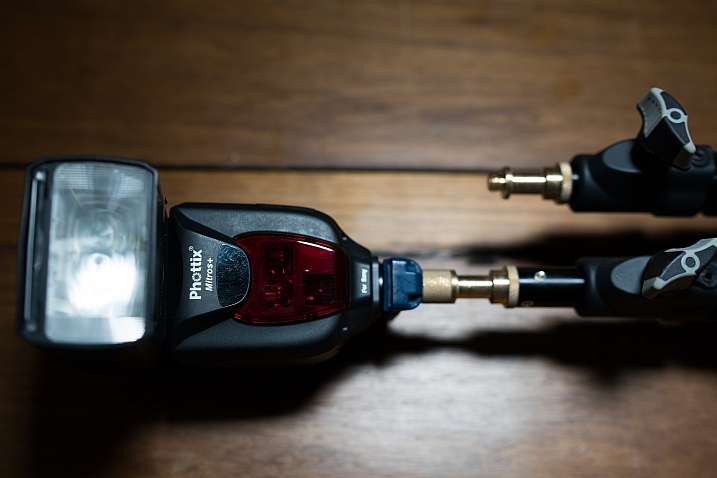
At Least Do This: Use a Warming Gel on Your Key Light

03 Mar

Abstract: Warming your flash will greatly improve skin tones. Which warming gel you use depends on your subject, the lighting environment, your camera's color palette and personal preference.

I still remember the day I was introduced to warming gels. It was nearly 30 years ago. I was assisting photographer Chris Usher in 1988 on a shoot in Washington for Businessweek. As he was setting up his light he asked me to hand him his gels, absentmindedly muttering, "Always gotta warm the key light…"

And I'm thinking, "Wait, what?"Read more »
Strobist

 
Comments Off on At Least Do This: Use a Warming Gel on Your Key Light

Posted in Photography


EHang uses 1000 GhostDrone 2.0 drones for massive light show in China

25 Feb

Just a few days after Intel wowed audiences with a 300-drone aerial light show at the Super Bowl, Chinese drone company EHang raised the bar with a 1000-drone light show for audiences in China.

EHang performed its ‘Meteor Sky’ show in the city of Guangzhou in celebration of the traditional Chinese Lantern Festival on February 11. To create the spectacle, the company used 1000 of its GhostDrone 2.0 drones configured with color changing lights.

A long exposure captures the drone show near Guangzhou’s Canton Tower.

Putting on a show of this scale requires some impressive logistics. Just arranging the drones prior to flight required an area 290m long by 19m wide, and over 30 EHang engineers and staff put in thousands of hours to develop, choreograph and test the show. The company also developed an advanced communication network and safety system which maintained a minimum 1.5m distance between drones during flight. Despite the complexity, the entire show was controlled by a single computer on the ground.

EHang staff arrange drones in preparation for its ‘Meteor Sky’ light show. The entire staging area was 290m x 19m in size.

EHang notes that the show also served as a trial to see if drones could provide an environmentally friendly alternative to fireworks.

What do you think about drone light shows? Tell us in the comments!

Articles: Digital Photography Review (dpreview.com)

 
Comments Off on EHang uses 1000 GhostDrone 2.0 drones for massive light show in China

Posted in Uncategorized


Teamlab Jungle: Step Inside a Massive Musical Instrument Made of Light

17 Feb

[ By SA Rogers in Art & Installation & Sound. ]

teamlab jungle light vortex

Anyone who visits ‘Music Festival, TeamLab Jungle’ this summer will get to immerse themselves in a space made of light, interacting with moving beams to help produce collaborative crowd-sourced music. ‘Light Chords’ is one of three ‘4D’ light-based installations the Japanese interdisciplinary group has planned for the event, all of which represent a unique intersection of art, design, technology and nature.

teamlab jungle light chords

teamlab jungle

‘Light Chords’ aims to create the sensation of being inside a massive musical instrument, touching the ‘strings’ to produce a sound and hearing it reverberate all around you. The beams of light rise into the sky when touched and then settle back down to be activated again.

teamlab jungle day

teamlab jungle light vortex 3

The second 4D space, Light Vortex, places visitors at the center of a surreal light show that bends and stretches around the space, while ‘Light Cave’ builds complex light-based architecture over attendees’ heads.

teamlab jungle vortex

teamlab jungle light vortex 4

Known for their use of illumination as an artistic medium and for a focus on interactivity, TeamLab brings their ‘Music Festival’ to various cities and spaces each year, with different experiences to be had by day and by night. Before dark, TeamLab Jungle is designed as a music festival for families, while after dark it becomes more like a dance party with BACARDÍ-sponsored bars.

Share on Facebook


[ By SA Rogers in Art & Installation & Sound. ]

[ WebUrbanist | Archives | Galleries | Privacy | TOS ]


WebUrbanist

 
Comments Off on Teamlab Jungle: Step Inside a Massive Musical Instrument Made of Light

Posted in Creativity


Photographing Weddings With Natural and Available Light

14 Feb

As photographers, light is our raw material. It doesn’t really matter what we are trying to say or capture in an image – if we don’t have light we don’t have a picture! Light has to be the prime consideration and the quality, direction, color temperature, source, quantity (as well as a host of other variable factors) of the light Continue Reading

The post Photographing Weddings With Natural and Available Light appeared first on Photodoto.


Photodoto

 
Comments Off on Photographing Weddings With Natural and Available Light

Posted in Photography


Apple emphasizes iPhone 7 low light capabilities in “One Night” ad campaign

02 Feb

$ (document).ready(function() { SampleGalleryV2({“containerId”:”embeddedSampleGallery_7980537670″,”galleryId”:”7980537670″,”isEmbeddedWidget”:true,”standalone”:false,”selectedImageIndex”:0,”startInCommentsView”:false,”isMobile”:false}) });

Apple’s ‘Shot on iPhone’ ads have been a familiar sight on billboards and on TV for quite some time now. For the latest round of advertising Apple is now focusing on the iPhone 7’s low light capabilities. The campaign’s title is ‘One Night,’ because all images were taken by a group of photographers around the world on the night of November 5th, 2016.

The group captured life around them from dusk to dawn, only using the iPhone’s camera. Like most smartphone cameras, with its small image sensor the mobile device has a distinct disadvantage compared to DSLRs and other system cameras in low light, but with its fast F1.8 aperture, improved optical image stabilization and a clever multi-frame mode, it’s a step into the right direction and a noticeable improvement over the previous iPhone 6 generation. 

You can read and view the samples in our own comprehensive review of the iPhone 7 Plus or view a selection of the campaign images in full size in our gallery above. 

Articles: Digital Photography Review (dpreview.com)

 
Comments Off on Apple emphasizes iPhone 7 low light capabilities in “One Night” ad campaign

Posted in Uncategorized


Quick Review of the Kupo Click Stackable Light Stand

02 Feb

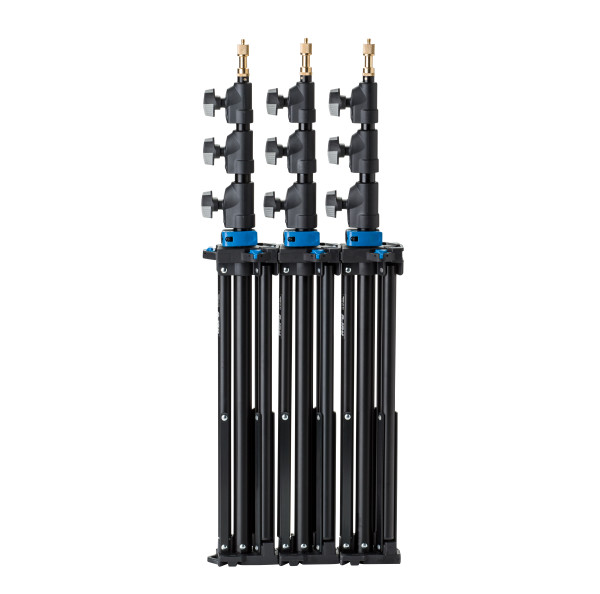
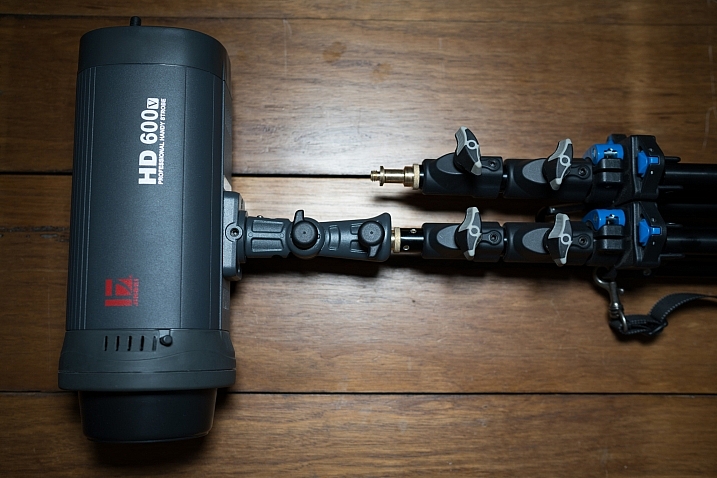
I’ve recently started using a pair of Jinbei HD600 studio lights for my photography and what I love about them is that they are self-contained units. They don’t have any requirements for power cables, etc., as they’re battery powered, wireless studio lights. What was starting to bug me, though, was that I only had heavy light stands to mount them on. Not a problem when you’re working in a studio, but when you have to visit a client to do a headshot or a quick portrait of someone, having to take a C-Stand along isn’t always ideal (especially if you’re on public transport).

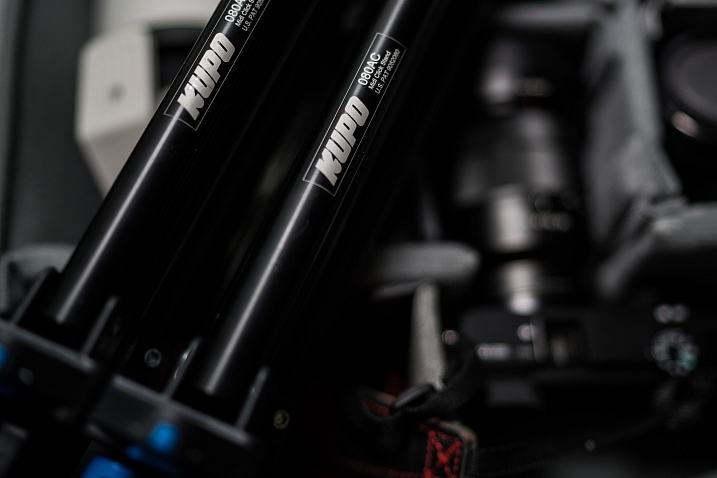
I wanted to stick with Kupo gear as I’m very happy with the quality and innovation of their products, so I asked the crew at ProTog what my options were. They suggested I hold out for the Kupo CLICK stackable lighting stands. I did and I’m very happy I did. Here’s my review…

Check out the Kupo Click Light Stands on Amazon or on B&H Photo’s website.

Kupo click light stand

My wish list

I had a few simple ideal specs for the stands that I was after:

  • I wanted them to be light enough to sling over my shoulder when I was on the go.
  • They need to not suffer from bad build quality due to being light weight.
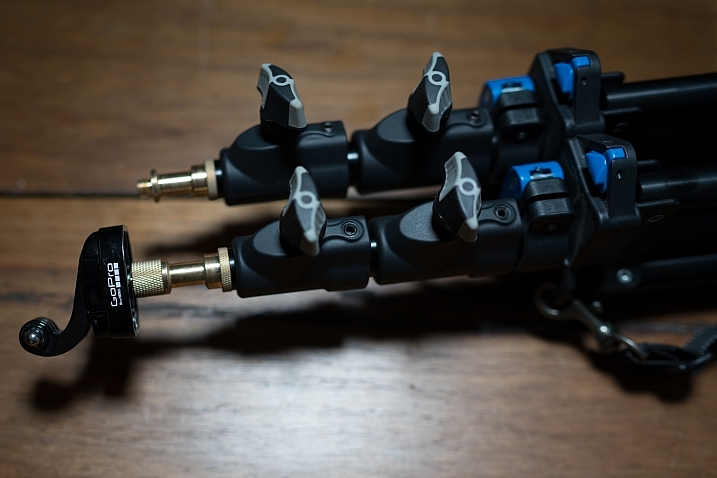
  • I wanted to be able to quickly use them for either a well-placed strobe on an outdoor shoot, a quick portrait in an office or studio, and maybe even to mount a GoPro on to run a quick timelapse of a session.

Features of the Kupo Click

The Kupo Click had everything I wanted in a portable light stand. Let’s take a look through the feature list.

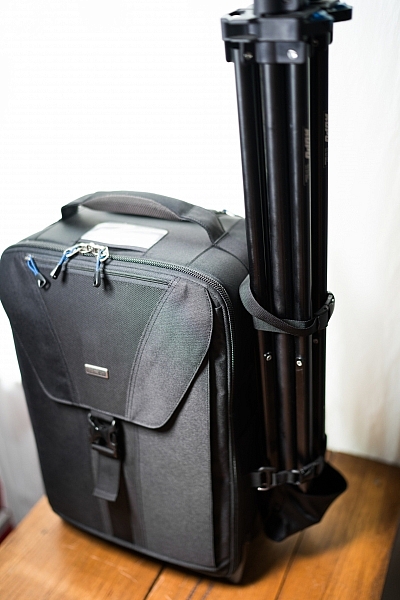
  • Coming in at 1.3kg (2.9 pounds), the weight was just fine, easily able to attach a pair of stands to the side of my ThinkTank Airport TakeOff roller.
  • In terms of load, the diminutive stands were capable of holding a 5kg (11 pounds) payload, more than I’d need to place atop the aluminum light-weights.
  • The tubes are also double pinned to the threaded ends, this makes them a lot less likely to fail when compared with my old stands, after a few months of heavy use, the stands haven’t loosened up in the slightest.

Kupo click light stand

Kupo click light stand

The Click

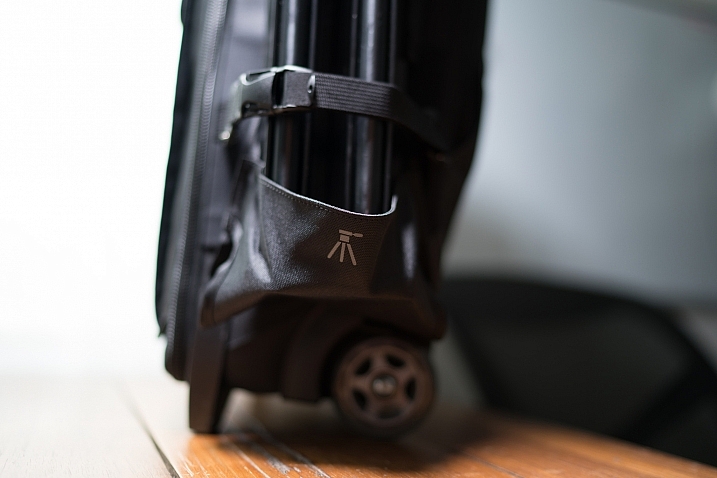
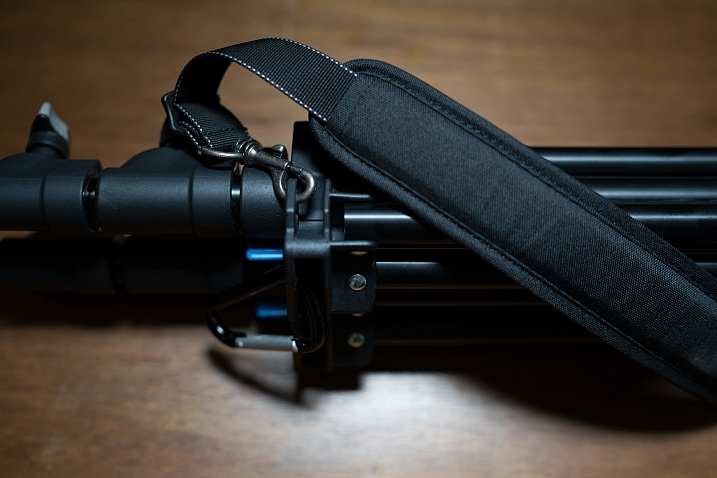
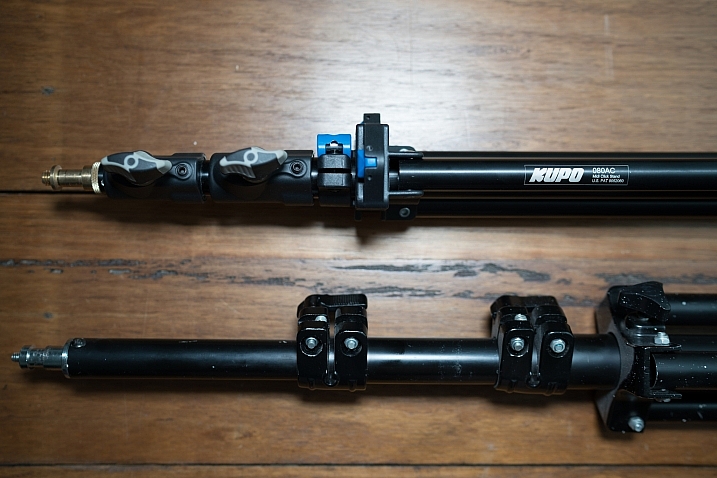
The Kupo Click light stands allow you to click them together either side by side or on top of each other. So you can essentially have one of them flat on each side of your bag with some little attachment straps, or you can have them side by side (above) and sitting in the tripod cup on your rolling camera bag, or you can use a strap (sold separately, I didn’t get one as I used a regular strap with a clip attached to sling mine over my shoulder, see below)

Kupo click light stand

Kupo click light stand

Kupo click light stand

The stands have a sweet built-in air damper that prevents damage to your lights if you accidentally undo the locks by cushioning the column on release. I have tested this and it works. The midsection is better than the top section at slowing descent, but it certainly does slow down the inevitable crash and ultimately a replaced flash tube!

Attaching your lights

The stands are equipped with a 5/8″ top stud with a 3/8″ threaded, plus a removable 1/4″-20 threaded top, this lets you mount a whole raft of lighting gear, as well as Sony ActionCam / GoPro mounts (The 1/4 20″ adaptor) which I like to use often on a shoot, or just to pop a camera up high for some reason or other – you can attach a regular ball head and mount your camera on that.

Kupo click light stand

Kupo click light stand

Kupo click light stand

Bottom line

I’ve had these stands a few months now and have had many chances to use them and abuse them. They pack away well, they’re all the things I was after in a light stand. I can’t fault these stands and for the price, I’d say they’re one of the best on the market and well worth your hard earned coin. Five stars.

googletag.cmd.push(function() {
tablet_slots.push( googletag.defineSlot( “/1005424/_dPSv4_tab-all-article-bottom_(300×250)”, [300, 250], “pb-ad-78623” ).addService( googletag.pubads() ) ); } );

googletag.cmd.push(function() {
mobile_slots.push( googletag.defineSlot( “/1005424/_dPSv4_mob-all-article-bottom_(300×250)”, [300, 250], “pb-ad-78158” ).addService( googletag.pubads() ) ); } );

The post Quick Review of the Kupo Click Stackable Light Stand by Sime appeared first on Digital Photography School.


Digital Photography School

 
Comments Off on Quick Review of the Kupo Click Stackable Light Stand

Posted in Photography


Tips for Making Natural Light Portraits

26 Jan

Natural light portraits are honestly one of my favourites, they have this extra feel that studio portraits don’t. Compared to studio portraits, they are much easier – you don’t need to learn all the lighting techniques. They are also much cheaper, you don’t need to buy any strobes, flashes, or light modifiers such as soft boxes beauty dishes. Studio portraits are really fun but they are much more difficult than doing natural light portraits.

Starting off, making portraits with natural light is a first great step. It will enable you to work on your composition, your communication with your model, and help you build your confidence. Then you can decide whether or not you want to invest in studio equipment.

Article natural light image1

Camera gear and settings

There are some simple tips and tricks to get the most out of your portraits with natural light. But let’s start with camera settings and camera gear first.

Shoot in manual mode

The ideal situation is to have total control over your settings, so I would highly recommend using manual mode. I recently wrote an article about using manual mode, so you can go check it out here; How to Use Manual Mode to Make Artistic Choices for Your Photography.

Shutter speed

You need a minimum shutter speed of around 1/100th of a second (or faster). This is very important as it helps you avoid blurry images as your model will be in constant movement most of the time.

Aperture and blurring the background

To get a soft background blur, you want to use the largest aperture possible – around f/4 works but the ideal would be f/1.8. If you want a larger aperture than f/1.8 the lenses can become quite pricey.

If you don’t have that kind of lens, you can still get nice results but separation (space) between the model and the background is needed. This really helps to drag the viewer’s attention to the model and avoid any unnecessary distractions. If you want to show the background behind your model then use a smaller aperture. I have an article on how to achieve background blur, I speak about bokeh in more detail there.

Article natural light bokeh

What lens to use?

If you are using a long (telephoto) lens then a large aperture isn’t as critical because you will automatically have some background blur separation. Long lenses are the best for portraits because they compress the subject to background very nicely. Avoid wide angles lenses because they distort the subject’s face and amplify features like the nose or the forehead. Try to use lenses with a minimum focal length of 50mm with a full frame sensor and 35 mm with an APS cropped sensor.

Article natural light long telephoto lens

ISO

For the ISO, choose the lowest possible option taking in consideration that your shutter speed must be 1/100th of a second or higher. Using the light meter in your camera, you can get a fast shutter speed by adjusting your ISO if the lighting conditions are low. But, knowing that you will be using a larger aperture as well, that shouldn’t be a big problem.

Shortcut – Aperture Priority Mode

One tip I can give is to use Aperture Priority mode if you are a lazy photographer (or smart?) like me. During an outdoor shoot, the light will change frequently and you will need to adjust your settings whether it’s the shutter speed or the ISO (I usually never adjust my aperture).

When you are making portraits, you will get into the shoot very quickly and with manual mode you need to constantly change your settings. The probability of missing a lot of good photos because you forgot to adjust your settings is very high. It’s very frustrating when you get the perfect pose only to realize the image is way too dark or way too bright because your settings were wrong.

I gave up on manual mode because I always forgot, so I now only use Aperture Priority and raise my ISO to 400 to force my camera to use a fast shutter speed. Don’t make the mistake of using ISO 100 in Aperture Priority with low light and ending up getting blurry images.

Article natural light aperture priority

Use RAW files and underexpose

I recommend shooting RAW and underexpose your images slighting using exposure compensation.

This is very important because sometimes you will accidentally expose for the shadows and that will automatically overexpose your images. The problem with that is that you will lose all the information in the model’s skin tone and if those areas area burned you may not be able to recover detail there.

A RAW file also lowers the probability of losing any information in your image because you have a bigger margin of recovery. Since you are underexposing your images slightly, you will be able to correct the exposure later in post-production. It’s a bit technical but this is the best way to have all the necessary information in your image, burned-out pixels are the worst enemy a portrait portrait photographer can have.

Another solution is to turn on the highlight alert for your camera (most entry level cameras have this setting) and every time you take an image, the burned-out pixels (clipped highlight areas) will show up in red (or blink). This is very useful because every time you see this it means that there is no information in that area, it’s just a pure white point which is not recoverable.

Article natural light shoot raw underexposue

I underexposed this image to have all the detail in the skin.

Location and lighting conditions

One thing you must avoid is taking portraits with harsh light (during the day and facing the sun). This increases the features of the face (emphasizing any blemishes and flaws) with harsh shadows and the result is not flattering. One tip I can give you to help you determine if you will have good light for a portrait is to look at the shadows (on the ground) of people passing by in the streets. If the shadow is very harsh (strong outline), you will probably not get good light but if the shadow is very soft (fuzzy or undefined) then the light is perfect for making portraits.

One main aspect of natural light portraits is soft light. There are five different possibilities to get beautiful soft light on your model’s face.

Five lighting options

#1 – Use window light, it will give you a very nice soft light on your model’s face.

Article natural light window light

Portrait taking using natural window light.

#2 – Take portraits during sunset, you will have the softest light possible.

Article natural light image7

Portrait taken at sunset.

#3 – Take portraits on an overcast day, the sky will become a huge softbox with very soft light.

Article natural light overcast

Portrait taken during an overcast day.

#4 – Take portraits on a street where buildings or apartments are blocking the sun (like an alleyway).

Article natural light image9

When it’s bright outside, try to look for buildings that block direct sunlight.

#5 – Use a light diffuser in the middle of the day, this will turn harsh light into soft light.

Article natural light image10

The location doesn’t really matter because most of the time the background will be blurred, but the light is crucial so overtime you want to take a portrait make sure to have one of these different possibilities.

Conclusion

I hope that gives you some tips for making natural light portraits. Find a friend to pose for you and try it out. Please share your photos and questions in the comments section below.

googletag.cmd.push(function() {
tablet_slots.push( googletag.defineSlot( “/1005424/_dPSv4_tab-all-article-bottom_(300×250)”, [300, 250], “pb-ad-78623” ).addService( googletag.pubads() ) ); } );

googletag.cmd.push(function() {
mobile_slots.push( googletag.defineSlot( “/1005424/_dPSv4_mob-all-article-bottom_(300×250)”, [300, 250], “pb-ad-78158” ).addService( googletag.pubads() ) ); } );

The post Tips for Making Natural Light Portraits by Yacine Bessekhouad appeared first on Digital Photography School.


Digital Photography School

 
Comments Off on Tips for Making Natural Light Portraits

Posted in Photography


How to Create a Rim Light Effect Using Photoshop

20 Jan

Lighting is a huge integral part of a movie’s success. The same applies to photography. It’s all about the light or lack of it to create the drama in an image. Rim lighting, as the term suggests, is also called edge or back lighting. In this article I will show you how to create this dramatic style of lighting.

how to create a rim light effect in Photoshop

A rim light effect created in-camera and an Inner Glow effect added in Photoshop.

Rim lighting adds drama

There’s a particular scene in the movie Alien (1979) in which the character played by Harry Dean Stanton goes to find Jones the cat. That scene had me glued to my chair with both hands up to my mouth and fingers lodged between my teeth. You just knew something bad was going to happen but it was drawn out with unbelievable tension.
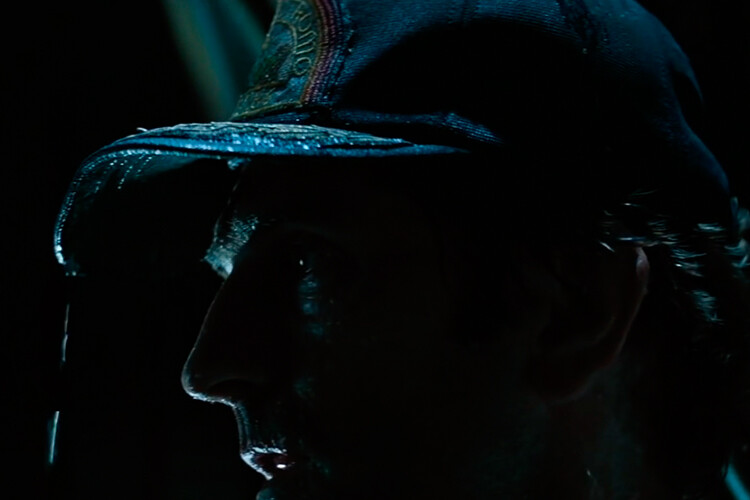
How to Create a Rim Light Effect Using Photoshop Alien

Alien Courtesy of 20th Century Fox

The lighting throughout the movie was low key to give that moody atmospheric feel.

A good example of rim lighting is using two side lights or one light from behind the subject, as in the image below.
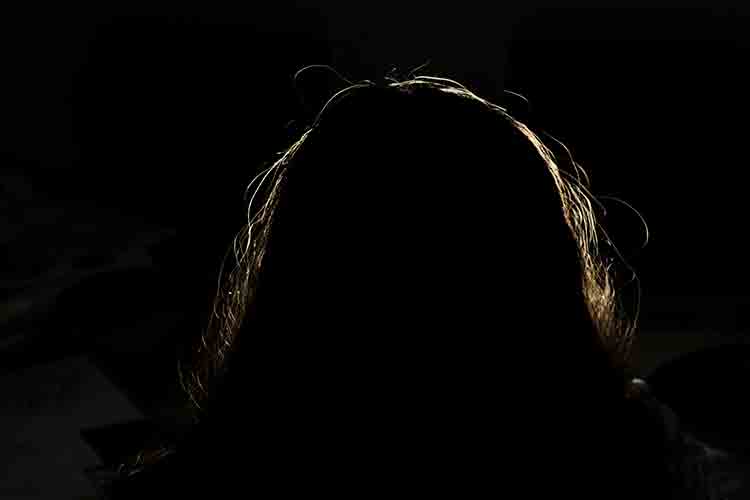
How to Create a Rim Light Effect Using Photoshop

In this photo the light is behind the subject creating an edge or rim light around the subject’s head. This is also called a hair light.

Before I demonstrate how to create a rim light effect in Photoshop. I want to show you just how easy it is to get a rim light effect in-camera, so you can try it out in the comfort of your own home.

Create a rim light effect in-camera at home

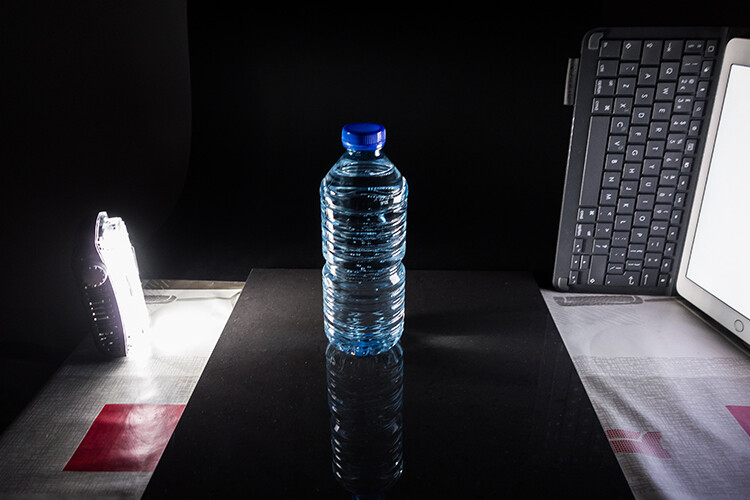
I used the following setup to create my rim light:

  • One bottle of water
  • One glossy black tile
  • Two lights
  • A camera mounted on a tripod

I picked up a sample black glossy tile from a local tile shop, where I was able to purchase just the one. As for the lighting, strip softboxes are ideal for this type of rim lighting. You place a strip softbox on each side, and slightly behind (closer to the background), the subject.

Unlike standard softboxes, strip softboxes are narrow and rectangular in shape. But, for the purpose of this article so that you can easily do a similar setup in your own home, use whatever light sources that you already have at your disposal.

Using my iPad placed vertically to one side of the bottle, I opened the Soft Box app which is free to download and set it to white. I placed an LED light on the other side of the bottle. My kitchen table was used for the setup.

As you can see in the photo below, I was able to angle the lights so that I could control the rim light hitting the bottle. My camera settings were: ISO 2000, 1/60th of a second, at an aperture of f/5.6.
How to Create a Rim Light Effect Using Photoshop

A simple setup that you can do at home to create a rim light effect in-camera using a black glossy tile, a prop, and two lights.

NOTE:

If you don’t want to use two lights and you have a regular softbox, try placing it directly behind the object and cover the center of the softbox with a strip of black card (that will become your background). You will need to experiment to get the rim lighting around the object.
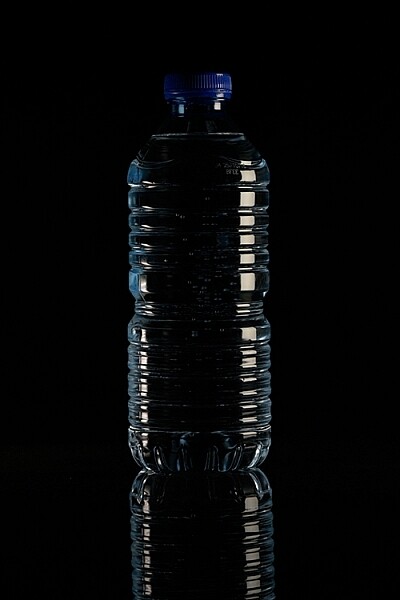
how to create a rim light effect in Photoshop

This is the bottle of Water straight out of the camera.

Let’s dive into Photoshop.

Creating a rim light effect in Photoshop

The key to adding the rim light effect in Photoshop is Layer Styles and having the subject isolated from the background. Before any layer style can be applied, it is necessary that the image that you are applying the style to has been carefully cut out. Use whatever selection tool you want but I would recommend using the pen tool.

Layer style

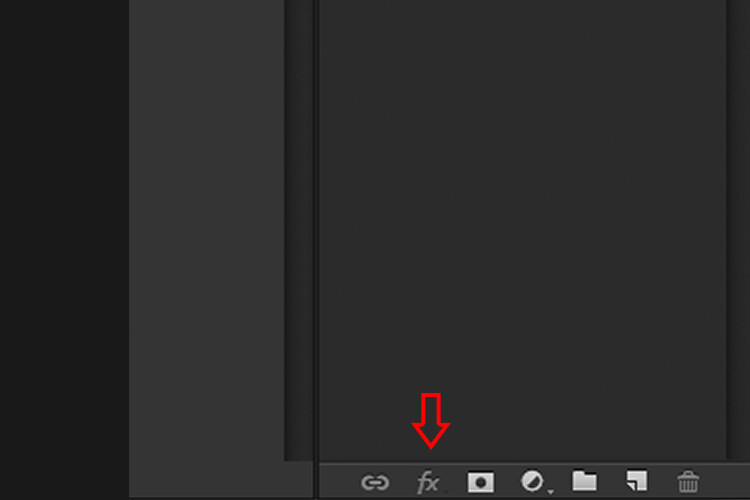
Let’s take a look at Layer Styles. With Photoshop open, go over to the Layers Panel. Scroll down to the bottom and you will see a group of icons. You will see this icon, fx second to the right. Click on that and a pop-up dialog box will appear with different preset style options.
How to Create a Rim Light Effect Using Photoshop layer styles

The Layer Styles presets are accessed by clicking on the fx icon located at the bottom of the Layers Panel.
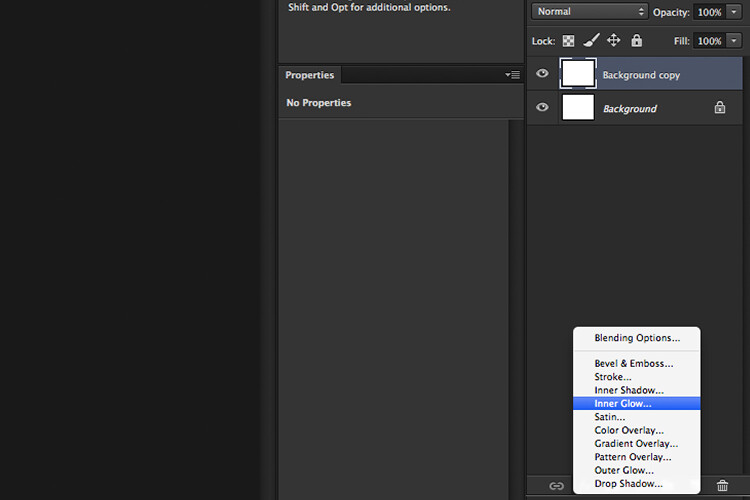
How to Create a Rim Light Effect Using Photoshop - The Inner Glow preset

The Inner Glow preset

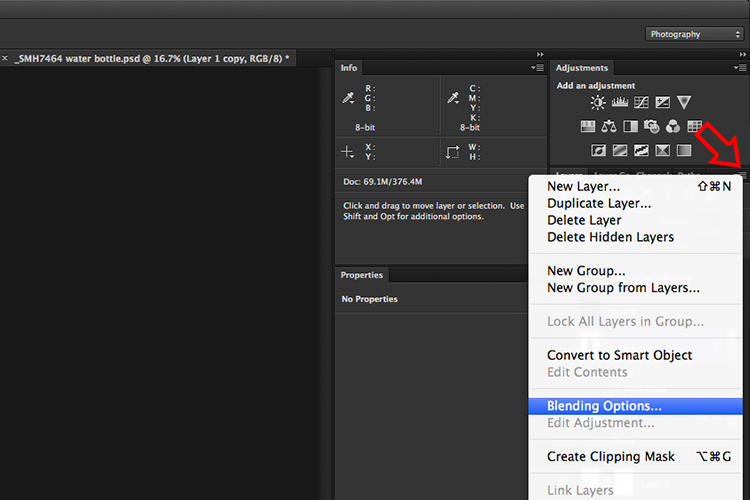
Alternatively, you can access the Layer Styles by going back to the top right corner of the Layers Panel and clicking on the downward arrow icon with horizontal lines beside it. Scroll down to where it says Blending Options. The same Layer Style option box appears and just click on Inner Glow.
How to Create a Rim Light Effect Using Photoshop

When you click on any of the Layer Style options, the settings are all preset options, but they can be easily edited. In this example, leave some of the settings as they are and only adjust the following three:

  1. Choke – similar to feathering
  2. Size
  3. Opacity

Experiment until you get the desired effect, then click the OK button.
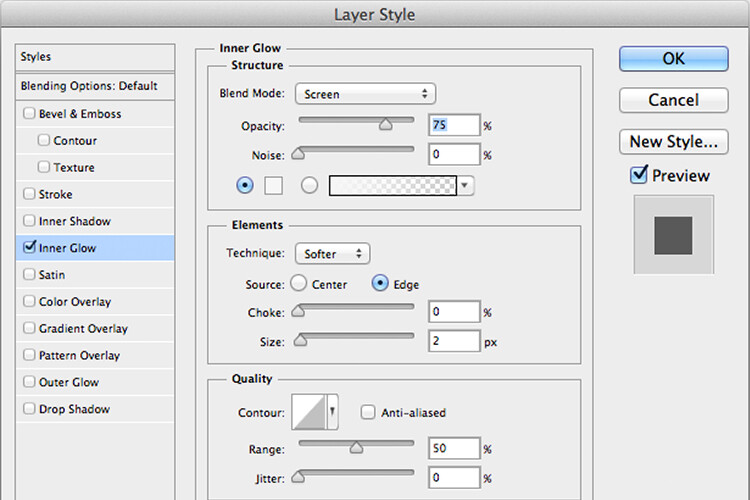
How to Create a Rim Light Effect Using Photoshop

The Layer Style pop-up dialog box with the default settings.

adding a rim light effect in Photoshop

A rim light effect is added in Photoshop using Inner Glow from the presets in the Layer Styles.

Using Color Dodge Blend Mode instead of Screen

My preference when using this Layer Style technique is to change the Blend Mode from Screen to Color Dodge. I used this on the bottle of water in the title shot. To illustrate the subtle differences between the two Blend Modes, see the two photos below. The first image is the Inner Glow with Screen as the

The first image is the Inner Glow with Screen as the default setting. For the second image, I changed the Blend Mode to Color Dodge.
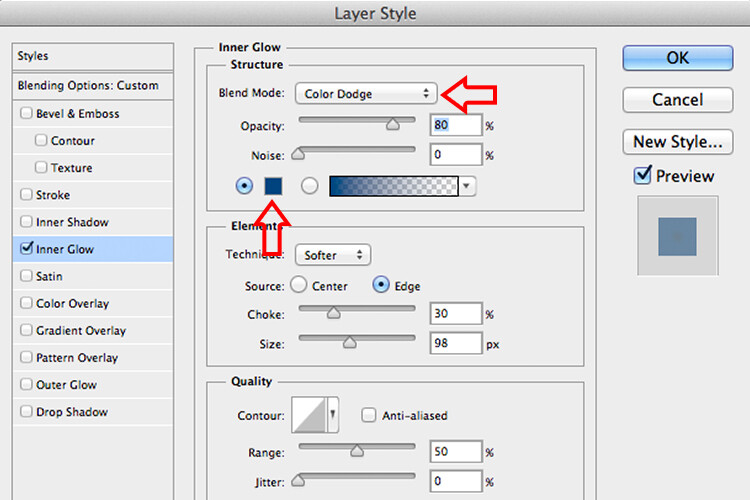
alt=

Changing the Blend Mode to Color Dodge
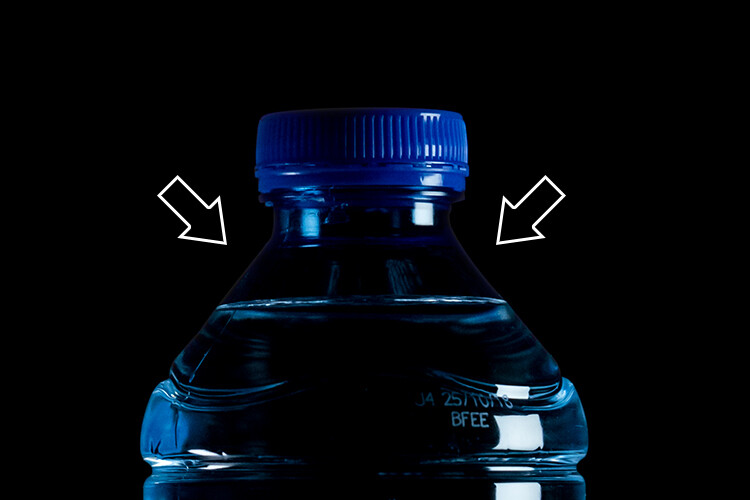
How to Create a Rim Light Effect Using Photoshop inner glow

Rim light effect created in Photoshop using Inner Glow from the presets in Layer Styles.

How to Create a Rim Light Effect Using Photoshop

This rim light effect is created using Inner Glow from the Layer Style presets but I changed the Blend Mode to Color Dodge.

Creating a rim light from scratch using Photoshop

However, this technique really does shine when you have to create the rim light effect totally in Photoshop. For example, take this Owl Butterfly image that I got from www.pixabay.com. It has no rim light effect on it at all.
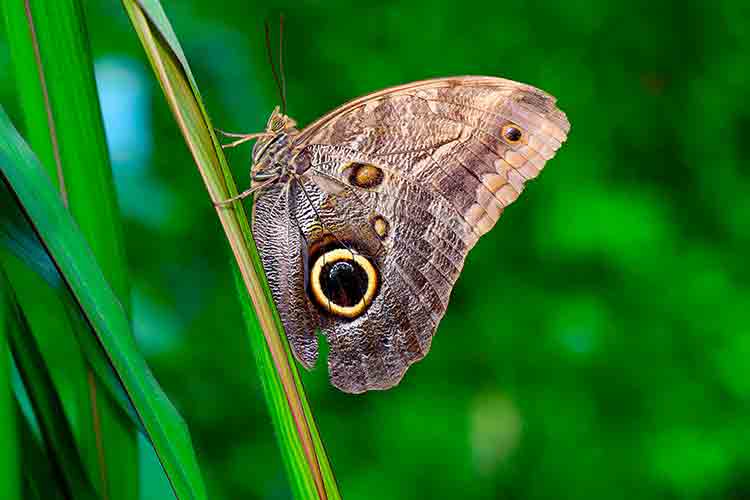
How to Create a Rim Light Effect Using Photoshop owl

Owl Butterfly from Pixabay 1668956 – dowload the image if you want to follow along.

I isolated the Owl Butterfly from the background using the Pen Tool and placed it against a different background shot to which I added a Gaussian Blur.
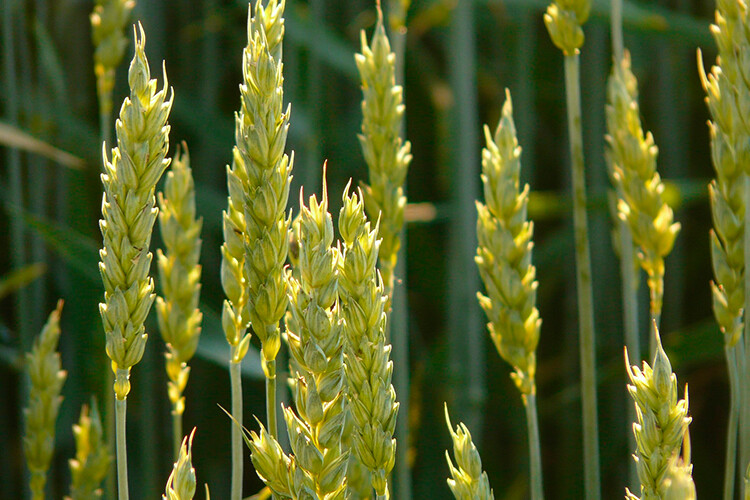
How to Create a Rim Light Effect Using Photoshop owl

Wheat from Pixabay 8244_1920

As I had the Butterfly on its own separate layer, I added an Inner Glow from the Layer Styles and changed the Blend Mode to Color Dodge and chose a darkish yellow. I wanted a backlight to appear on the wings of the Butterfly caused by the setting sun in the background.
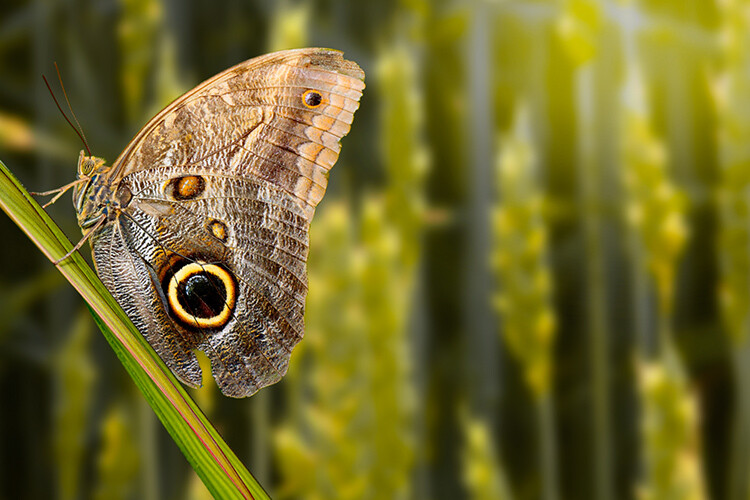
How to Create a Rim Light Effect Using Photoshop owl before

The Owl Butterfly was cut out using the Pen Tool in Photoshop and placed it against another background image. I blurred the background using Gaussian Blur.

I put this Layer Style effect on its own separate layer. Then I applied a layer mask and brushed in the yellow glow on the wings to give it a more realistic look. I did a bit more retouching by adding a gradient Overlay and then applied the Filter>Blur>Average to blend the colors from the two images.
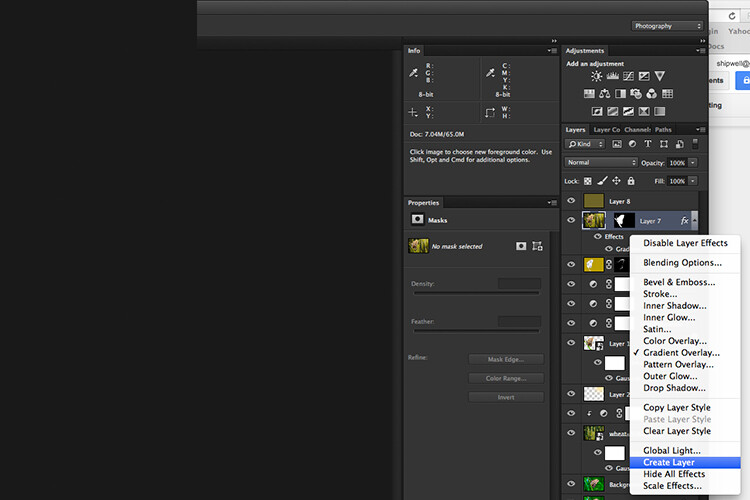
How to Create a Rim Light Effect Using Photoshop layer style

By placing the Layer Style effect on its own separate layer. I was able to apply a layer mask and brush the Glow effect onto to the wings of the Butterfly.
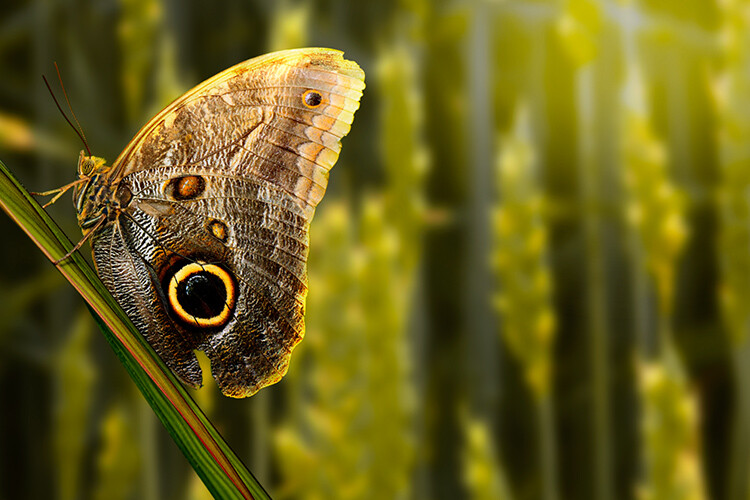
How to Create a Rim Light Effect Using Photoshop owl after

An Inner Glow was added using the blend Mode set to Color Dodge. I then added a Gradient Overlay to darken the bottom part of the Butterfly and I applied an Average Blur to blend the color of the two images.

Your turn

I hope I have been able to show you how effective creating a rim light in Photoshop can enhance your images. Do you use this effect on your images? Feel free to give it a try and post your results below, I will try to answer any questions and would love to see your images.

googletag.cmd.push(function() {
tablet_slots.push( googletag.defineSlot( “/1005424/_dPSv4_tab-all-article-bottom_(300×250)”, [300, 250], “pb-ad-78623” ).addService( googletag.pubads() ) ); } );

googletag.cmd.push(function() {
mobile_slots.push( googletag.defineSlot( “/1005424/_dPSv4_mob-all-article-bottom_(300×250)”, [300, 250], “pb-ad-78158” ).addService( googletag.pubads() ) ); } );

The post How to Create a Rim Light Effect Using Photoshop by Sarah Hipwell appeared first on Digital Photography School.


Digital Photography School
 
Comments Off on How to Create a Rim Light Effect Using Photoshop

Posted in Photography


Modern Mazes: 15 Labyrinths Made of Glass, Steel, Light and Salt

19 Jan

[ By SA Rogers in Art & Installation & Sound. ]

light-maze-1

Escaping the convoluted confines of the conventional hedge-in-a-garden, the labyrinth takes on ever more complex forms to better confuse you with, especially when mirrors, glass or mechanical elements are involved. These immersive installations use unusual materials and disorienting configurations to encourage visitors to wander, explore, face uncertainty about their paths and pause to marvel at the beauty of it all.

Maze Made of Light by Brut Deluxe

light-maze-2

light-maze-3

light-maze-4

This immersive light maze made of acrylic panels with dichroic film applied to one side creates a reflective rainbow you can walk through. Once you’re inside, circles cut into the acrylic transmit colors from other areas of the maze. ‘Yûzhóu’ was craeated by architecture and design studio Brut Deluxe for the Luneng Sanya Bay Light and Art Festival in Hainan, China.

Vertical Maze Tower in Dubai

maze-tower-2

This 56-story skyscraper in Dubai is the world’s tallest vertical maze according to Guinness. DAR Consult worked with maze designer Adrian Fisher to design the eye-catching accent, highlighting it in thousands of LED lights to make it stand out after dark.

Big Maze by Bjarke Ingels Group at the National Building Museum

big-maze-1

big-maze-2

big-maze-3

big-maze-4

With high birch panel walls that tower over you along the edges shrinking to waist-height at the very center, this maze by architecture firm Bjarke Ingels Group gets easier the navigate the further you go. The life-sized indoor maze was assembled inside the National Building Museum in Washington DC. “The concept is simple: as you travel deeper into a maze, your path typically becomes more convoluted,” say the architects. “What if we invert this scenario and create a maze that brings clarity and visual understanding upon reaching the heart of the labyrinth?”

Steel Labyrinth by Gijs van Vaerenbergh at C-Mine Art Centre, Belgium

steel-maze-1

steel-maze-2

steel-maze-3

steel-maze-5

steel-maze-4

The architect duo known as Gijs Van Vaerenbergh experimented with the classic form of the labyrinth for a sculptural installation at the center of the C-Mine Arts Centre in Genk, Belgium. The design, made of 5mm-thick steel plates weighing a total of 186 tons, is envisioned as a composition of walls and voids that strategically frame various areas with cut-outs. An accompanying tower outside the maze allows visitors to get a bird’s eye view of the entire thing.

Salt Labyrinths by Motoi Yamamoto

salt-labyrinth-2

salt-labyrinth-1

salt-labyrinth-3

This labyrinth is so minuscule in scale, only insects could ever hope to navigate it, but it’s a wonder to take in from above. Artist Motoi Yamamoto is known for his intricate temporary sculptures made of salt, creating complex arrangements that almost seem organically formed.

Next Page – Click Below to Read More:
Modern Mazes 15 Labyrinths Made Of Glass Steel Light And Salt

Share on Facebook


[ By SA Rogers in Art & Installation & Sound. ]

[ WebUrbanist | Archives | Galleries | Privacy | TOS ]


WebUrbanist

 
Comments Off on Modern Mazes: 15 Labyrinths Made of Glass, Steel, Light and Salt

Posted in Creativity


Painting with Light on a Canvas of Night: Alien Blooms by Hannu Huhtamo

17 Jan

[ By SA Rogers in Art & Photography & Video. ]

light-painting-1

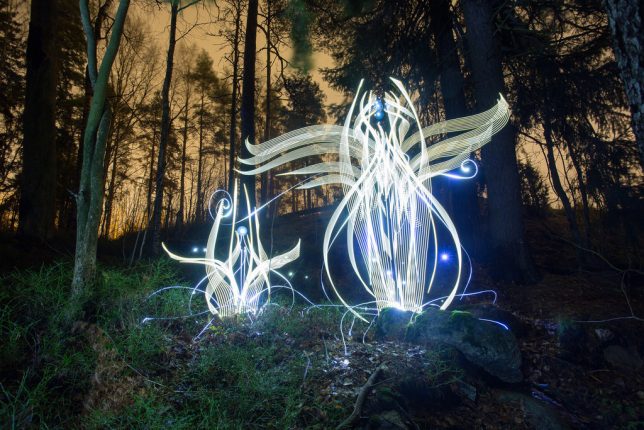
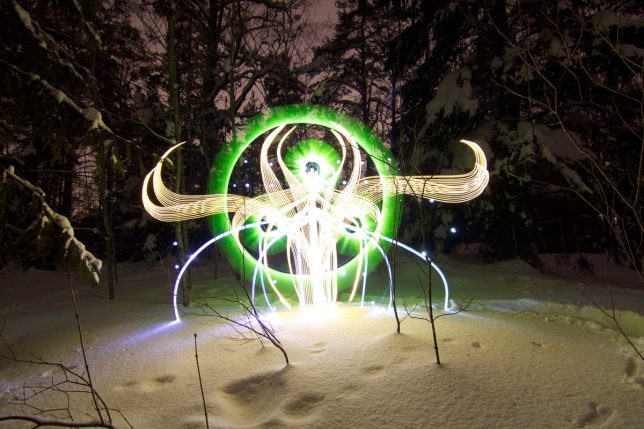
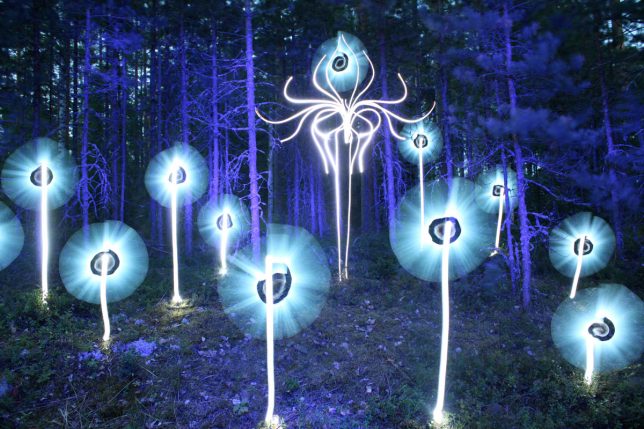
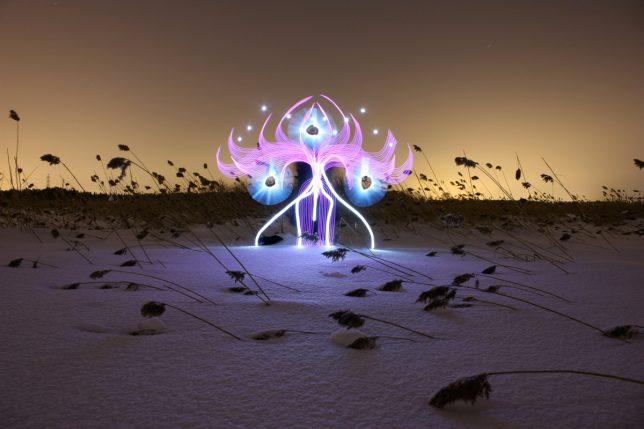
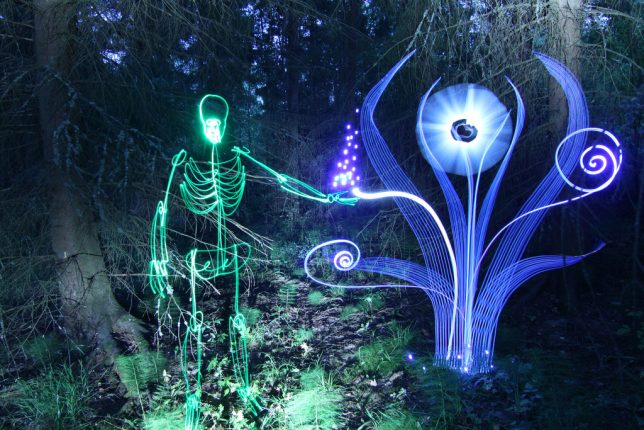
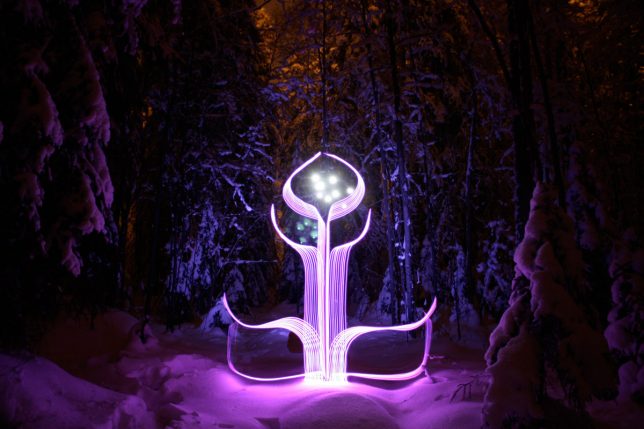
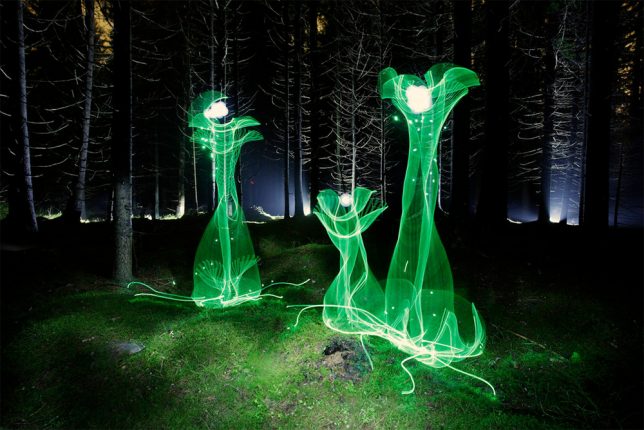
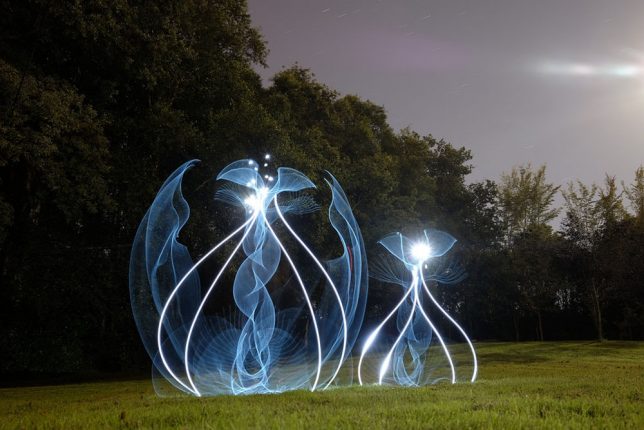
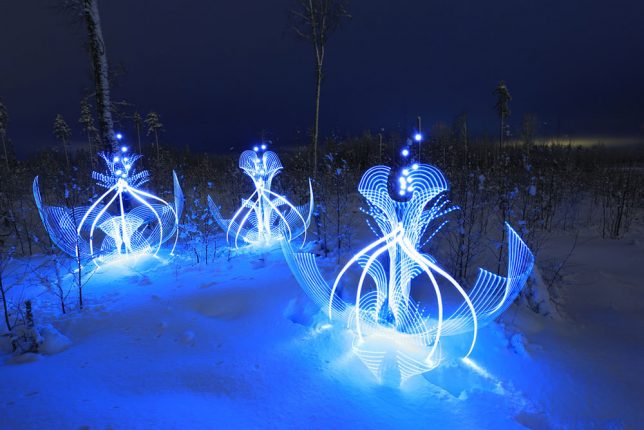
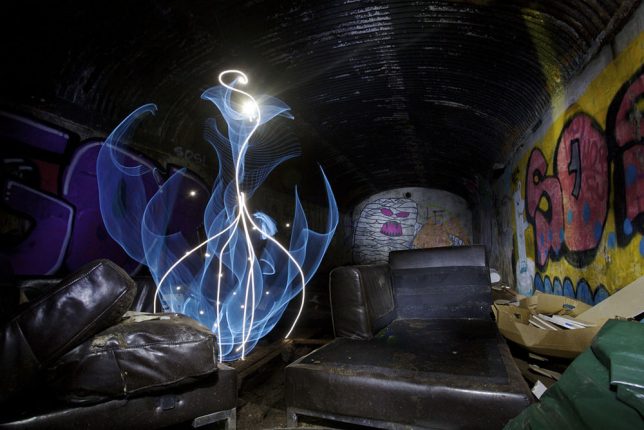
The strange glowing figures in these images are so complex, you might think they’re screenshots from a digital animation, or created in Photoshop – but there’s no computer-based trickery here. Just the same long exposure techniques light artists have been using for decades to create and capture ethereal compositions, albeit applied in an unusually creative manner.

light-painting-2

light-painting-3

light-painting-4

Hannu Huhtamo’s bizarre shapes glow against twilight landscapes and abandoned interiors, often looking somewhere between a plant and an alien insect. They sprout up in snowy fields, appear from inside giant teacups at theme parks or take shape in darkened living rooms.

light-painting-5

light-painting-6

light-painting-7

A musician by training and hobbyist photographer, the Finnish artist first experimented with lighting techniques when taking promotional photos for a death metal band and deciding he wanted a long-exposure pentagram made with the flame of a lighter. Years later, when he met light artist Janne Parviainen and got a look at his work, Huhtamo decided to revisit the technique from a new angle.

light-painting-8

light-painting-9

light-painting-10

All of his work is created ‘SOOC’ or straight out of the camera, and he uses no special light equipment other than El-Wire (electroluminescent wire) and modified LED flash lights. “Darkness is my canvas and the light is my brush,” he says in this behind-the-scenes video produced by Great Big Story.

Share on Facebook


[ By SA Rogers in Art & Photography & Video. ]

[ WebUrbanist | Archives | Galleries | Privacy | TOS ]


WebUrbanist

 
Comments Off on Painting with Light on a Canvas of Night: Alien Blooms by Hannu Huhtamo

Posted in Creativity