RSS
 

Posts Tagged ‘improve’

10 Tips to Improve Your Food Photography

25 Aug

Have you ever tried shooting food? If you have, then you know how hard this can be. There are so many things you have to think about while making sure your food looks as fresh as it can be at the same time. Here is a beginner’s guide to help you get the food shots you’ve always wanted.
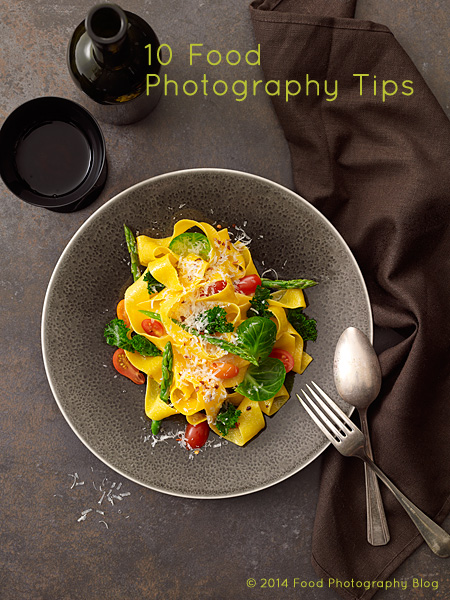
01 Food Photography Tips

#1. Do NOT use your on-camera flash

You probably know this already, but I just have to mention this here to make sure. After all, this is Digital Photography School. Your on-camera flash looks horrible on food. You will get loads of specular highlights on any area that has moisture, and these specular highlights are not only distracting, but will make your food look greasy instead of moist. You will also get strange and unattractive shadows either on your food, on the plate, or both. On-camera flash is so harsh. Food usually looks its best with soft light. The shot below on the right has soft backlight coming from a window in a restaurant.

02 No On Camera Flash

#2. Shoot on a tripod

Ok, I just heard all the booing and hissing from this tip but, since I just told you not to use your on-camera flash, you are going to have to shoot using a tripod instead. I actually love shooting on a tripod and I use one anytime I can. Try it! It will completely free up your hands to style your dish, in order to work on your shot. I am a commercial food photographer, so I am either shooting in my studio or some other controlled environment where I can use tripods, so this tip is for those situations.

03 Use a Tripod

Notice in the image above right, there is a a nifty tripod arm extension enabling me to get the camera out over the set. If you are trying to hand hold a camera AND shoot overhead, just schedule an appointment with your chiropractor right now! Not only is it back-breaking to shoot overhead like that, but it’s impossible to line up your shot exactly the same way each time you take a shot. Lock it down on a tripod, focus your set once, then start styling your food.

#3. Or use a high ISO instead of a tripod (last resort)

Now, if you can’t shoot on a tripod for some reason, for example maybe you are shooting an event and have to gets shots of the food, then you have the option of raising your ISO setting on your camera to accommodate for the lack of light. I use this as a last resort. You must keep in mind that raising your ISO will increase the digital noise in your file. Depending on your camera, the digital noise could be very severe if you are in a very low light situation. See in the image below the difference between shooting at ISO 100 and ISO 1600 on a Canon 5D Mark II.

04 High ISO Grain2

For the most part, you can get away with digital noise when using images for the web because of the lower resolution. However, if you need to have the image printed, then this is where you might run into problems with the digital noise. It can be very hard to correct out of the image AND keep the image in sharp focus at the same time. Applications that can correct digital noise in software do so by softening the edges of the pixels creating the noise. This gives the appearance of the image being a little soft with the focus afterwards.

#4. Please use props – but not too many

I see so many food blogs with shots of food in a plate, or a bowl, with nothing else in the shot. This to me is just a documentation of a food dish. There’s no story behind the image when you have no props. I get it – it takes more time. But, if you start real simple, props can dramatically improve your photos. Notice in the shots below that all the props are secondary – meaning the first thing your eye goes to is the pasta in both shots. All the props are low key and not distracting. It’s still all about the food, but it gives the food some visual support to get your viewer to look at your photos. There is a fine balance between just the right amount and too many props that take your eye away from the food.

05 Props Pasta Dishes

You are telling a story with your props. The story of the two images above is that these are nice pasta dinners. That’s it, real simple. You need to use the placement of your props to get the viewer’s eye where you want them to look. The first thing we see in an image is text, if there is any. Second will be a blaring highlight or a very bright color. Third, we look at what’s in focus. Your props should guide your viewer’s eye to look exactly where you want, and eliminate any distractions along the way. If you have a blaring highlight on something that is catching your eye, then guess what, your viewer is going be looking at that same highlight too, so get rid of it, or put a prop in front of it. Get your viewer to look at your food.

#5. Stay away from bold patterns on plates and fabrics

Food photography is all about creating an image that naturally has the viewer’s eye looking right at your beautiful food. As I mentioned above, all the fabulous props in the shot are just the supporting actors in your story. If you have a crazy pattern on a plate, your reader is going to look at the crazy pattern first, then your food (hopefully) second. Your story is not about the plate. Your story is about your food. You might be in love with that pattern on the plate but that’s probably not what your image is about. Beloow is a shot before props have placed, to give you a sense of how the food looks on different plates.

Biscotti Plates

I will test plates with food just like this to find the right one for the photo I’m doing. The problem with patterns is there will be areas of the pattern that will be in focus and competing with the food. A colored plate can be great as long as the color is complementary or a nice contrasting color. Then, white or cream will always make your food stand out.

The same rules generally applies to table clothes and fabrics as well. We never use bold patterns on the surfaces we shoot on. I’m saying “we” here because when I am shooting a job I have a food stylist AND a prop stylist. We all work together in making a shot for our client that is all about their food. When you are shooting on fabric with a bold pattern, that bold pattern will absolutely compete with your food. It’s just human nature. Our eyes are so easily distracted and you only have a few seconds to get your point across to your viewer, don’t blow it on some crazy pattern on the table.

# 6. Get vertical!

07 Get Vertical

Many people take all their photos in a horizontal format. I understand why, it’s a lot more comfortable to work that way. When shooting vertically, all your settings are now on the side and if you’re on a tripod you have to keep cranking your head over to see them. Well, you just have to suffer through it! Shooting vertically can give you nice depth in a photo from foreground to background. This also enables you to have large photos on your blog, if you have one. Shooting vertically can give you room for text like a title. Many sharing sites like Pinterest are better with vertical shots, so think about how this image will be shared and go from there. Mix up the images on your blog. Have some vertical photos and some horizontal ones as well. If you do everything the same way it can get very boring.

#7. Go ahead, crop that plate

The other habit I see a lot of new students doing is being afraid to crop into plates. Here are two shots. One full frame and one cropped in. Now, of course it depends on how the images will be used, and sometimes you might even need two formats of the image, but play around with cropping an image to see if you like it better. It’s okY to crop the plate. You are not selling the plate, remember, so show off that food a little more.

08 Crop 1

Now for the cropped version – a lot fewer distractions and it’s all about the food.

09 Crop 2

#8 – Back up and zoom in

Every student wants to know, what is the best lens for shooting food. For my 35mm DSLR (full frame), I’m always using my 100mm macro lens. I use this about 90% of the time. You really can get great depth of field with that lens. Here is shot I took with three lenses. Many people have a 50mm lens because that is what came with their camera. The only time I use that lens is when there are several dishes on the table that I have to get in one shot. That type of shot requires a wider angle lens, like the 50mm or the 35mm. When I am only focusing on one dish in the shot, I will always use my 100mm macro lens.

10 3 lenses

When using wider lenses, like the 50mm or the 35mm lens, you will need more background in your shot. Also, the wider the angle of your lens, the harder it will be to get very shallow depth of field, unless you get real close to your food, and open up that lens by opening your aperture. Depth of field is referring to how much is in focus versus out of focus in your shot. Which leads me to the next tip…

#9. Use a small f-stop number to get shallow depth of field

The f-stop, or aperture, controls the opening of your lens that lets light into the camera. The f-stop also controls how much of your image will be in focus, and how much will be out of focus.

Here is an f-stop grid showing the most common f-stops that many lenses have. Some lenses don’t open as wide as f/1.4. It seems to be that the more expensive the lens, the wider the f-stop. For instance, the higher end 50mm lenses will go to f/1.2, but you’ll pay for that in cost.

11 Apertures

When you are just starting out, f-stops, or apertures, are very confusing to learn about. You see, the smaller the f-stop number, the LARGER the opening. It’s very counter intuitive. What I always say in class is, the smaller the f-stop number, the smaller your depth of field and the larger the f-stop number, the larger your depth of field. This gives you such creative control with your images. I always suggest you shoot your food with a very “shallow depth of field”. This means less things in focus. See the two images below:

12 Apertures examples

The image on the left has shallow dept of field because I am shooting at f/5.6 on a 100mm macro lens. This shot is all about the olive oil, so that was the only thing I wanted in focus. The shot on the right was shot at f/16 and has a much larger depth of field (more things in focus). I find this distracting. There’s too much in focus and your eye bounces all over the place (see more in my article: Using Focus Creatively with Food Photography. You use your f-stop to control what you want to show in focus. As a very general guide, the f-stops for shallow depth of field are usually from about f/5.6 and below (this can also depend on how wide your lens is as well).

Now, if I was photographing a Thanksgiving table with loads of dishes on it that I wanted in focus, then I would definitely use an f-stop like f/16 or even f/22 with a wider lens, like a 50mm or even a 35mm lens.

#10. Keep your food looking fresh on set

Here I am painting a steak with butter to make it look nice and moist. I’m using butter because when they serve this steak at the restaurant they have melted butter all over it. You can also use vegetable oil, or water and glycerin, or just water on foods. If the food has an oily or fatty content, like meats and poultry do, then use vegetable oil. If you are keeping salad moist, you can just spray it with water.

When shooting burgers, I am always painting an TON of oil on the beef to keep it looking really juicy. There is nothing worse than a dry looking steak. Yuck. Who wants to eat that?

13 Food Fresh

To keep foods that can oxidize looking fresh, use Fruit Fresh or Accent on them. You can usually find these in the spice section of the super markets. I highly suggest you do not eat the foods that you treat with this stuff. It’s actually MSG. I use it two ways. I will soak things that turn brown, like artichokes and pears in a solution of 2 cups water with a few tablespoons of the MSG. The other way I use it is by taking the same solution and painting it onto the food once it’s on set to make sure it doesn’t turn brown.

When I tell people this trick they say, “oh, you can just use lemon”. Lemon works, just know that you will have to keep reapplying it.

14 Food Fresh

This image below would not be possible without using Accent or Fruit Fresh. Artichokes turn brown right away when you cut into them. I soaked both sides in a bath of a lot of Accent and water. I soaked them for 30 minutes too. This artichoke didn’t turn brown for hours!

15 Artichoke

All right! There’s so much more I can say here but hopefully some of these tips will inspire you to try to take your food photos to the next level.

For more food related articles check these out:

  • Food Photography Tips – Some Video Tutorials
  • 5 Tips to Seriously Improve Your Food Photography Techniques
  • 8 Steps to Create Mouth Watering Food Photography
  • 11 Quick Food Photography Tips to Make Mouth Watering Images
  • Snapn Food Guide a sister dPS ebook company

The post 10 Tips to Improve Your Food Photography by Christina Peters appeared first on Digital Photography School.



Digital Photography School

 
Comments Off on 10 Tips to Improve Your Food Photography

Posted in Photography


How to Improve Your Portrait Photography in Five Minutes

31 Jul

People often ask me for tips on taking better photos of their friends and family.

After much thought on photography tips that can apply to various experience levels and equipment — from DSLRs to smart phones — I present to you a short article with tips you can learn in five minutes to help you improve your portrait photography. If you have more time and would like more specifics, I’ve noted additional articles on each tip that may interest you.

Annie-Tao-Photography-DPS-article-Improve-Portrait-Photography-perspective

Tips that will instantly improve your portraits:

1. Don’t put everyone in the center

That person may be the center of your life, but they don’t always need to be in the center of all the photos.

Aside from corporate headshots, positioning your subjects directly in the center of your frame for every image can be… yawn. And don’t just substitute it with the “rule of thirds” either. Think how boring everything would be if they were always in the same place, whether that is the center of every frame or at a third mark.

Be adventurous once in awhile – mix it up!

Annie-Tao-Photography-DPS-article-Improve-Portrait-Photography-dont-center

Annie-Tao-Photography-DPS-article-Improve-Portrait-Photography-dont-center-2

If you can’t break the rules because you have never heard of the Rule of Thirds, you can read this article.

2. Keep one eye on the background

If your subject is right in front of a lamppost or a tree, reposition yourself or your subject, so it doesn’t look like he is growing a lamppost out of his head.

Another example:  if your subject is wearing a green dress and sitting on the grass, have her move where the background is a different color, so she doesn’t look like a floating face in a sea of green.

Also, be mindful of distracting elements behind your subjects, like a garbage can. The background can turn a good photo into a bad one, so keep one eye on the background.

Annie-Tao-Photography-DPS-article-Improve-Portrait-Photography-background-2

If you want to read more about the impact of backgrounds, check out Improve Your Background, Improve Your Photography.

3. Capture the story, not just a smiling face

Of course we all prefer a photo of someone smiling, but we aren’t always in a constant state of joy. Consider taking shots when someone looks pensive or serious, for example, or engrossed in an activity.

Try to resist the “look at me and smile” routine. I guarantee that photo will tell more of a story than one where people stop what they are doing to flash a fake smile.

Annie-Tao-Photography-DPS-article-Improve-Portrait-Photography-not-smiling

Annie-Tao-Photography-DPS-article-Improve-Portrait-Photography-capture-story-2

Annie-Tao-Photography-DPS-article-Improve-Portrait-Photography-capture-story

For more tips on this, read: Don’t Wait For A Smile.

4. Change your perspective

Did you know you can create the tone or mood of an image by the angle of your camera and your closeness to your subject?

Your perspective when you take the photo influences the viewer’s perception of the image. Taking a shot from the top, looking down can paint a picture that someone is small. A tight shot of a teardrop can provide a sadder tone than a shot that was taken from a distance.

So next time, before you click the shutter button, think about what tone you want to give and what story you want to tell.

Annie-Tao-Photography-DPS-article-Improve-Portrait-Photography-perspective-4

Annie-Tao-Photography-DPS-article-Improve-Portrait-Photography-perspective-3

To see examples of different perspectives and when you would use them, you must read The Power of Perspective.

There are many things you can do to improve your portrait photography. I narrowed my list to four because these were the ones that came to mind first.

Do you have a good tip to share? Please comment below. We’d love to hear it.

The post How to Improve Your Portrait Photography in Five Minutes by Annie Tao appeared first on Digital Photography School.

Digital Photography School

 
Comments Off on How to Improve Your Portrait Photography in Five Minutes

Posted in Photography


4 Ways Self-Critique Can Improve Your Photography

09 Jul

Self-Critique-PhotoLearning how to analyze and judge your own artistic work correctly is a valuable skill that can be a bit tricky to learn properly. I’m sure you’ve heard the saying “I’m my own worst critic” thrown about, you may have even said it yourself in reference to your own photography. However, there are ways that you can harness this self-criticism and learn from it rather than allowing it to consume you and destroy your self-confidence.

Learning how to constructively critique your own photography can not only help you make better photographs each time you pick up a camera, but it will also build your confidence as a photographer, and prepare you for the inevitable critiques from your peers and colleagues.

This article is a bit different in the sense that the images that I’ve used to illustrate the post showcase one particular case of how I used self-critique to iterate a photograph over the course of a shoot. I will cover the benefits of self-critique and how it can help you become a more confident photographer – so read both the article and the captions of each photograph as you continue along.

#1 Reinforces your knowledge of the craft

improve-photography-self-critic-2

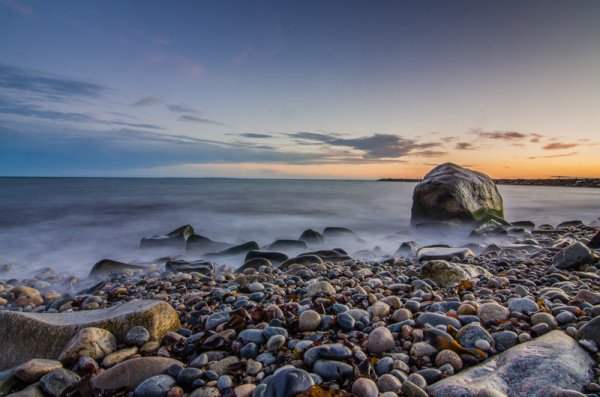
After looking at what I’d captured here on the LCD of my camera I decided that the prominent features of this landscape wasn’t the sky or the foreground, but the large boulder along the right side of the frame.

You read eBooks and tutorials to learn all the technical skill required to make stunning photographs, but in the heat of the moment technique will often slip, especially when you’re just learning. That’s okay, but it’s important to learn how to notice when this is happening and correct for it along the way.

Providing yourself with a thoughtful self-critique from time to time can really help you locate the most common faults in your photography. After performing a few of these critiques you may notice that you commonly forget to double check your settings leading to poorly exposed photographs or improper Depth of Field, or you may notice that you commonly struggle to compose a photograph with purpose resulting in a photograph that doesn’t capture the emotion that you had intended.

#2 Teaches you how to look at a photograph critically

improve-photography-self-critic-3

A second setup left me with a feeling that I was on the right track, but now the scene felt too cluttered and confined.

The ability to articulate what it is about a photograph that makes it special and what needs improvement, as specifically as possible, can drastically improve your photography. This is something that is learned over time and can be difficult at first, especially when looking at your own work.

Eventually, you’ll get to the point where this sort of critical analysis will come naturally. You’ll find yourself fine-tuning your composition and settings in the field, as I’ve done with the photographs that illustrate this point. You probably won’t even be consciously aware of the fact that you’re doing this.

#3 Helps build your confidence

improve-photography-self-critic-4

Now, I had the composition that I wanted. Something that featured the boulder prominently, yet allowed there to be enough room to breath in the foreground., but the water just wasn’t right. Time to adjust the settings to allow for a longer shutter speed.

No one enjoys being told what’s ‘wrong’ with something that they’ve created, but it’s going to happen, whether you ask for it or not. Even the best photographers have their critics so it’s not a matter of skill, it’s simply the way the world works.

By finding the ability to critique your own photography you’ll have an idea of what people might say when they are viewing your work, and as a result, you’ll be more prepared to defend the choices you made to create the image.

#4 You’ll become better at offering advice to others

While this might not directly affect your skill as a photographer, it does help to reinforce the other three points listed above. When you are able to offer constructive feedback to someone who’s just starting out you’ll not only feel great by helping them improve, but you’ll be more confident going forward with your own work at the same time.

improve-photography-self-critic-5

The longer exposure sealed the deal for me creating that milky water effect around the base of the boulder that I was featuring in the shot.

The post 4 Ways Self-Critique Can Improve Your Photography by John Davenport appeared first on Digital Photography School.


Digital Photography School

 
Comments Off on 4 Ways Self-Critique Can Improve Your Photography

Posted in Photography


How to use Texture to Improve Your Photos

30 Jun

texture in composition

I recently wrote about the importance of texture in my article about converting photos to black and white in Lightroom and my review of MacPhun’s Intensify app. Today I thought it would be interesting to take a closer look at this compositional element, and how becoming more aware of it can help you create stronger images.

Why is texture important? The primary reason is that it helps you create a sense of depth and tactility within your photos.

Let’s look at some practical examples.

Photo with lots of texture

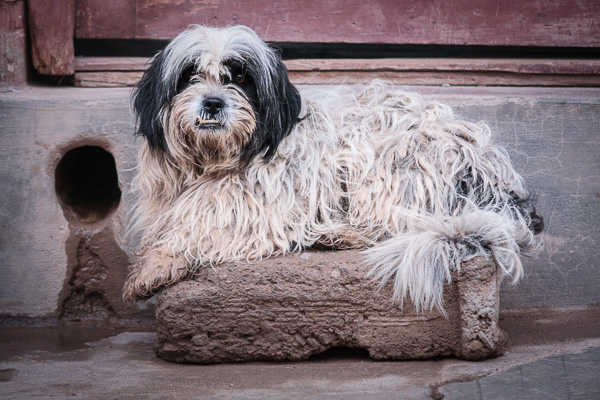
Here’s a photo I took in a Bolivian town.

texture in composition

Look at all the beautiful textures; in the dog’s fur, the stone he is laying on, the concrete step and wooden door behind him. Can you imagine what the dog’s fur is like to touch? Or the stone, concrete or wood? The textures of those objects help you do that, and bring a two-dimensional image to life.

Photos with some texture

Here’s another photo taken in South America.

texture in composition

There are several contrasts that make the photo interesting. One is the difference in brightness between the church and the sky (tonal contrast). The other is the contrast in texture. The stonework has a rough surface and a lot of texture. The sky has none. The contrast between the rough and the smooth adds an extra layer of interest.

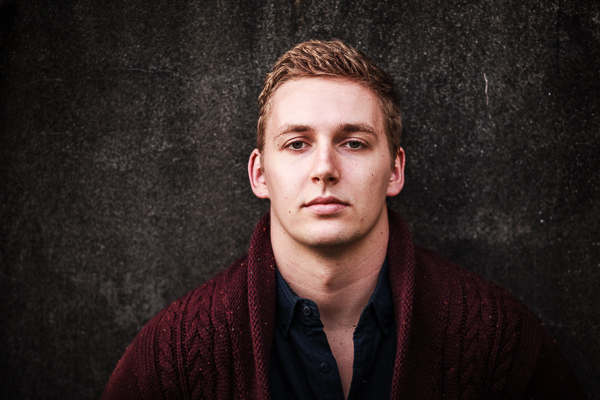
Portraiture is another subject where you can exploit the contrast in texture between the relatively smooth surface of someone’s skin, and a highly textured background. The portrait below is an example of that. The lack of texture in the model’s skin contrasts with the textures in his sweater, hair, and the background.

texture in composition

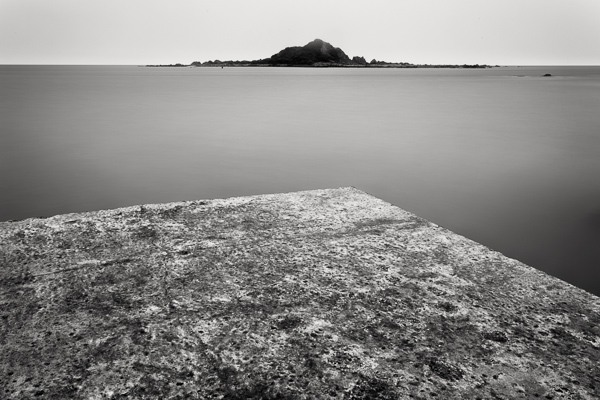
The contrast between rough and smooth is also common in long exposure photography, where photographers use shutter speeds of a minute or longer to blur the motion of the sea, or other body of water. The result is a photo containing both still elements (such as the concrete jetty and the island in the photo below) and moving elements that have recorded as a smooth, even tone, thanks to the long exposure.

texture in composition

Post-processing and texture

One of the benefits of digital photography is that you can use the tools available in programs like Lightroom to emphasize texture. Or in the case of portraits, to de-emphasize it by applying a local adjustment to smooth skin (my article Four Ways to Improve Your Photos With the Clarity Slider in Lightroom shows you how to do that in more detail).

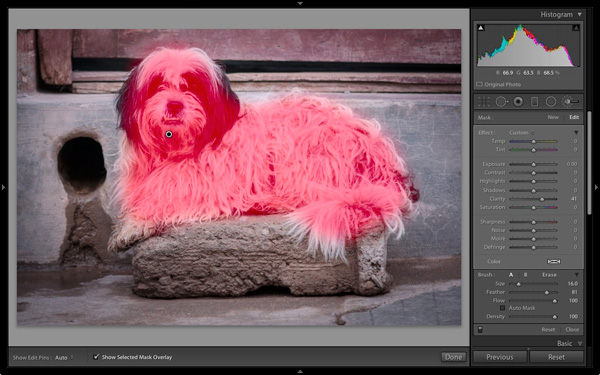
Here’s a quick tip. Think about enhancing texture as a local adjustment rather than a global one. In the example of the dog above I made two Clarity adjustments in Lightroom. The first was a global adjustment made by setting Clarity to +12 in the Basic panel. The second was a local adjustment made by using the Adjustment Brush to select the dog (see below) and setting Clarity to +41. The result is that the textures of the dog’s fur and the background don’t compete.

texture in composition

The red mask shows where the Adjustment brush has been applied locally to only the dog

Practical Exercise

The aim of this article is to get you thinking about texture and how you can use it to make your photos better. Here are a couple of exercises to help train your eye to see texture:

1. Street photography

Take a walking trip around your neighbourhood, looking for subjects with lots of texture. Think of things like doorways, letterboxes or anything made from concrete or stone. They don’t have to be fantastic photos, the aim is to raise your awareness of texture and get you thinking about how you can use it in your photos.

2. Portrait photography

Find a friend or a model to be your subject and find backgrounds with interesting textures. This could be anything from a wall, a doorway, or a large rock. The idea is to play with the contrast between the relative lack of texture (on skin) and the texture of the background.

Once the exercise is complete, the next step is to experiment with emphasizing texture in post-processing. Whether you use Lightroom, Photoshop or a plug-in like Intensify or Silver Efex Pro2, think about how can you use these tools to emphasize texture, or the contrast in texture between skin and a textured background.

Your turn

Now it’s your turn. How do you use textures in your photos? Do you have any tips for our readers, especially when it comes to post-processing? Let us know in the comments.


Mastering Lightroom: Books One, Two and Three

Mastering Lightroom ebook bundleMy Mastering Lightroom ebooks are a complete guide to using Lightroom’s Library and Develop modules. Written for Lightroom 4 and 5 books One and Two take you through every panel in both modules and show you how to import and organise your images, use Collections and creatively edit your photos. Book Three shows you how to create stunning black and white images in Lightroom.

The post How to use Texture to Improve Your Photos by Andrew S. Gibson appeared first on Digital Photography School.


Digital Photography School

 
Comments Off on How to use Texture to Improve Your Photos

Posted in Photography


5 Tips to Seriously Improve Your Food Photography Techniques

15 May

11 Tip05 Neutral BG

Food photography is arguably one of the most challenging types of photography out there. Like painting, you start with a blank canvas and build. Layer upon layer, you construct the photo until you reach the perfect balance of reality and art.

Everything in the photo is a decision. Every piece is perfectly placed by the photographer.

Starting out is frustrating, I know. You’re the chef, stylist, and the photographer. Once you reach technical proficiency with the camera, what’s next? I have been, and in a lot of ways still am, in that position. So, how do you improve your food photography beyond the basics? You work on the story.

Whether it is an after-party from the perfect cocktail, or the homemade roasted chicken recipe on the farm, like all photography, you’re telling stories.

Some shoots are more complicated stories than others, and it may sound like a lot of work, but it’s really not. Here are five quick tips you can use to seriously improve your food photography and tell better stories.

#1 – CHOOSE YOUR ANGLE

There are really only a few camera angles in food photography that you see again and again, but you need to make the one you choose, a conscious decision. Where you place the camera will affect the type of story you’re trying to tell.

Think of the food beforehand. Its size, shape, height and what is unique about it. Then place the camera where you think best highlights these qualities. Some dishes look great when you shoot from right in front of the food, and others are best suited when the you are looking down from directly above the table. Take a look at the cupcakes below; their spiralled and delicate toppings really stand out when shot from in front, yet the viewer doesn’t even see the size or shape when photographed from above.

01 Tip01 45 vs 90 Cupcakes

On the other hand, it’s difficult to see all the ingredients and beautiful shape of these salmon tacos when shot from the front, so the shot from above was definitely the way to tell this story.

02 Tip01 45 vs 90 Tacos

#2 – SURROUND YOUR HERO

When shooting from the front of the food try to keep a great foreground and background to play with. Use these empty spaces to tell more of a story. Surround your main dish with ingredients and props that relate to the food. Ingredients, sauces, oils, and cooking utensils could indicate how the dish was made.

Tins, jars, herbs, glasses, fabrics and linens could speak about the origin of the dish or the season in which it is served. Placing a few of these in the foreground and background will definitely elevate your story and give it depth.

03 Tip02 Props

The props in this image of baklava bring more to the story. The viewer has a sense of place that describes the Arabic origins of this delicious sweet.

#3 – NATURAL IS BEST MODIFIED

Light is king, and acquiring a few tools to help you control it will bring your food photography up to the next level. Poor use of light will ruin your story and immediately turn off your audience. So making sure light doesn’t distract will help out your food photos big time.

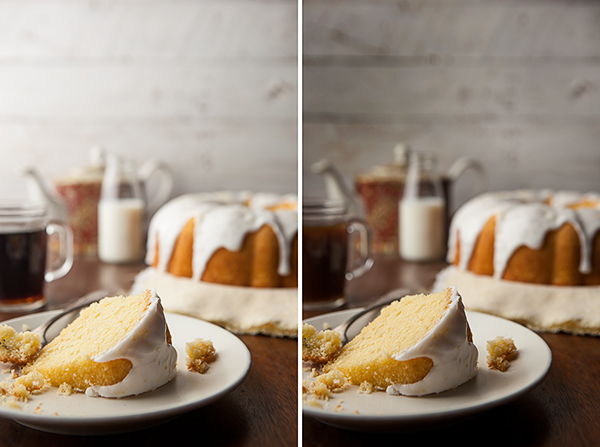
04 Tip03 Natural vs Diffused

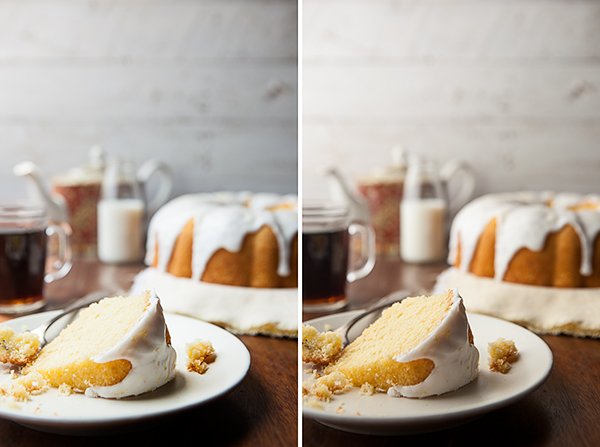
Direct natural light can give really hard and defined shadows like beneath the lemon cake on the left. Where those shadows are softened in the image to the right, with a little help from a cheap diffusor.

Placing a diffusor between the window and your table is first on the list. When working with direct sunlight, a diffusor (or even a thin white bed sheet) will greatly improve the quality of light. Softening those hard, dark shadows and bright highlights caused by direct sun light.

05 Tip03 White vs BlackCard

Using white and black cards really gives you control over the shadow areas. A white card was used to brighten up that lemon frosting on the left, but if you prefer more contrast than grab a black card and you’ll get an image like the one on the right.

Next up are white and black cards. You can make these yourself using foam core boards, bought at any craft store. Size them to fit your needs, using white cards to bounce light into shadow areas, revealing important details, or black cards to make shadows stronger for more contrast.

06 Tip03 BG Blocked vs Unblocked

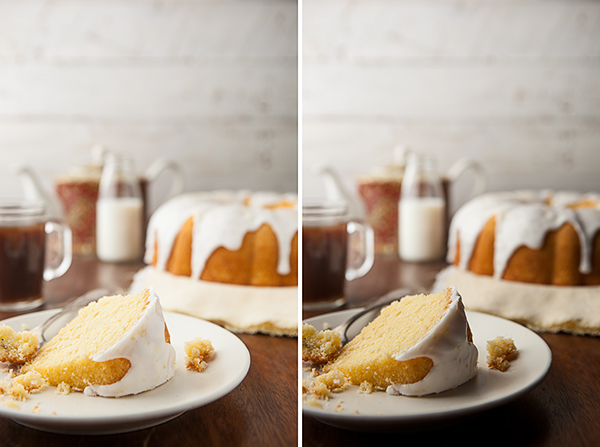
Nothing really changes between these two images except for a black card that was used to stop light from hitting the background, making sure the cake was the brightest area of the photograph.

Here is a little secret, when working with natural light. I call it, blocking (sometimes also called “gobos”). Sometimes that pesky natural light will fall on your background or props, causing them to be as bright or even brighter than your subject.

Since the viewer will always look at the brightest spot in your photo first, if it’s not your subject, it can harm your story. You can use your black cards to block light from hitting areas that will compete with your subject. This is also a very important technique for creating darker, low-key styled images.

07 Tip03 Final Image

Here is the final image, with a diffusor softening the window light, a white card to fill in the shadow on the lemon frosting and a black card to block the light on the background.

#4 – OUR OLD FRIENDS LINES AND LAYERS

With all these props and ingredients in the frame, how will we ever get the audience to look at our subject? Well, bring on the trusty techniques of composing with lines and layers. You can use props or ingredients to create lines and layered effects in your images. This is a compositional technique used by photographers to lead their audience’s eyes to the main subject.

You can use various props to create lines. Like this spoon, which forms a nice line, directing the viewer straight to the bowl of baked peaches and ice cream.

08 Tip04 Lines

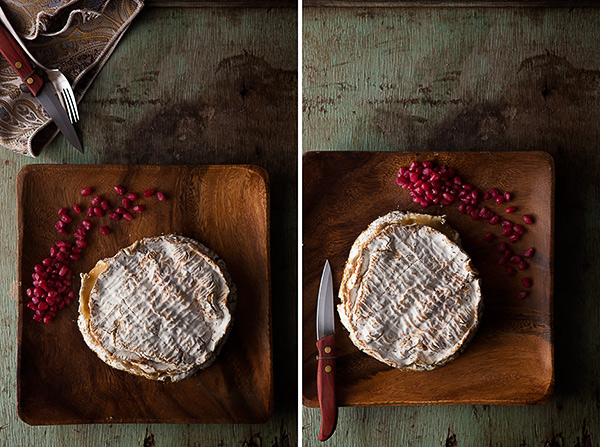
Since shooting from above always gets you more graphic images, there are plenty of chances to create some great lines here as well. Some could be quite literal like this cutlery leading to the round of Brie – or more abstract, like how the knife and pomegranate seeds create lines, framing our subject.

09 Tip04 LeadingLines vs FramingLines

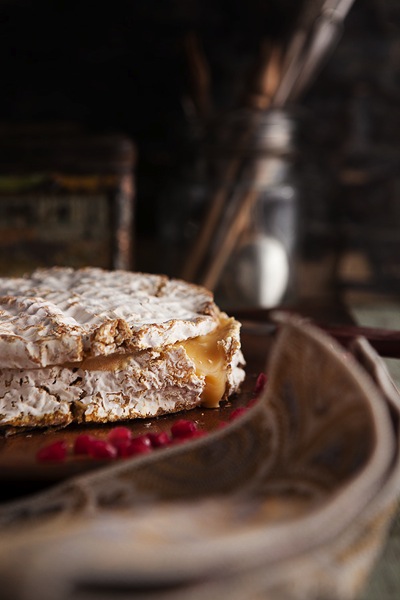
Composing images with layers is always a winner. This Brie, shot from the front, is set in the middle of various props and two large out of focus areas. This creates a layered effect, sending your eyes straight to the star.

10 Tip04 Layers

#5 – HOLD THE COLOR

11 Tip05 Neutral BG

This is my personal favorite. I love hunting for props, backgrounds and tableware to put in my images. This little tip was also the first big mistake I was making when I was starting out. It’s great to have props that are colorful, but if you’re not careful that colorful prop can easily upstage your food, and grab all the attention.

When placing items into your food images, try selecting neutral tones, something that makes the food really pop against it. Selecting a neutral background like this black metal tray and baking paper, amplifies the bright red strawberries and rhubarb inside these Crostatas, making them really steal the show.

Do you photograph food? Do you have any additional tips to share with us? Please add your comments below.

For more food photography tips, try these articles:

  • 8 Steps to Create Mouth Watering Food Photography
  • 11 Quick Food Photography Tips to Make Mouth Watering Images
  • The Ultimate Guide to Food Photography
  • SnapnGuide on Food Photography

The post 5 Tips to Seriously Improve Your Food Photography Techniques by Skyler Burt appeared first on Digital Photography School.


Digital Photography School

 
Comments Off on 5 Tips to Seriously Improve Your Food Photography Techniques

Posted in Photography


Improve Your Images with the Lightroom Graduated Filter Tool

30 Apr

Using the Graduated Filter in Lightroom

The Lightroom Graduated Filter is a versatile tool for making local adjustments to your photos. Don’t be fooled by the name – it may be named after a type of filter used for making skies darker in landscape photography, but its uses go far beyond that.

Before we look at how you can use the Graduated Filter tool to improve your images, you may want to think about the style in which you’d like to process the photo. What is your ultimate aim? My article Finding and Achieving Your Style in Lightroom will give you some advice on figuring that out. Once you know what you want to do, the rest falls into place.

How to use Graduated Filters

Using the Graduated Filter in Lightroom

This is how you apply a Graduated Filter in Lightroom

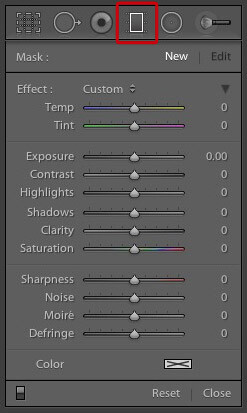
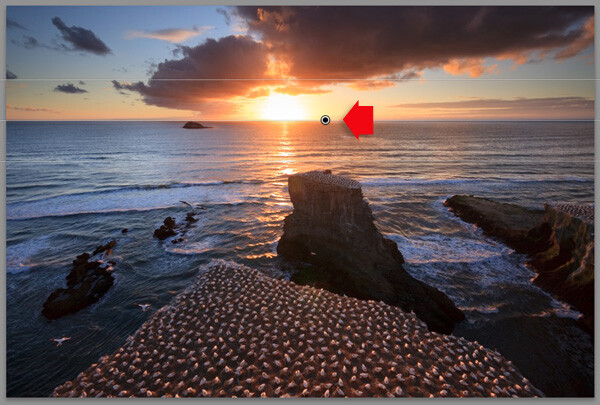
1. Click on the Graduated filter icon underneath the Histogram (the keyboard shortcut for it is “M”). The Graduated filter panel opens up beneath, revealing the sliders that you can adjust.

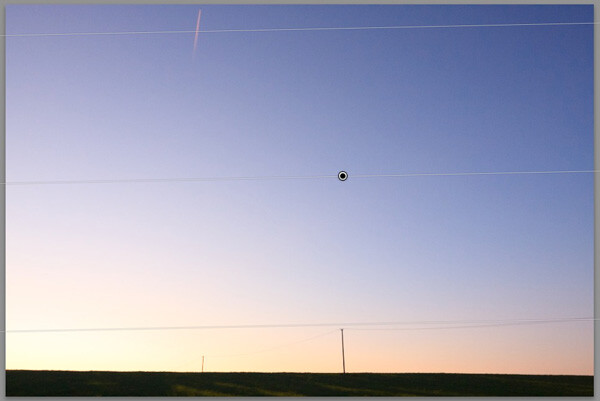
2. Hold the left mouse button down and drag the mouse across the image to place the Graduated filter. In this example I held the mouse button down while I dragged to create a wide Graduated Filter. There is a lot of space between the lines making up the filter, indicating that it will create a smooth graduation.

Using the Graduated Filter in Lightroom

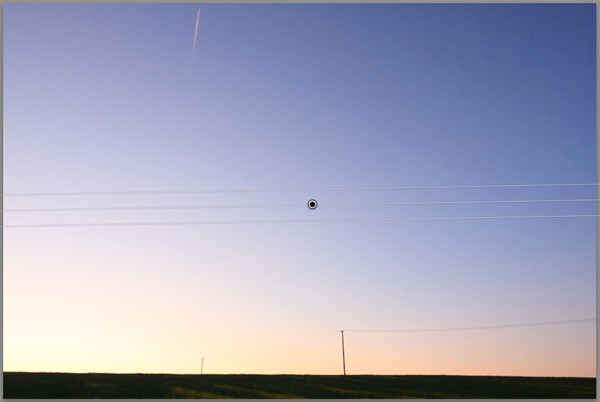
3. If you let go of the mouse button early, you create a narrow Graduated Filter that gives a harder graduation. Drag the pin to position the Graduated Filter where you need it.

Using the Graduated Filter in Lightroom

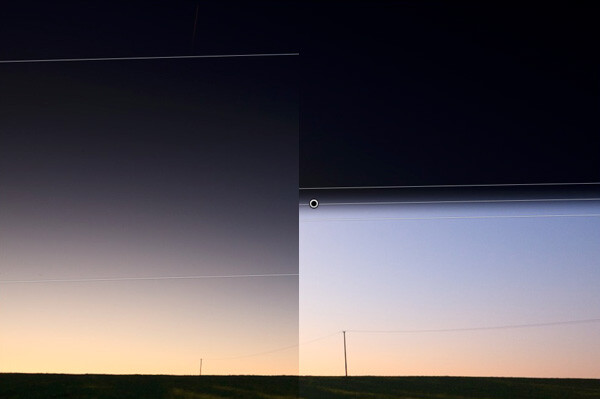
Here, I set Exposure to -4.0 to show you the difference between the two types of Graduated Filter:

Using the Graduated Filter in Lightroom

This illustration shows the difference between creating a wide Graduated Filter (left) and a narrow one (right). Experiment with both to see how they affect your photos.

Now you know how to use the Graduated Filter tool, here a few ways you can make your photos better with it.

Note: you can reposition the placement by dragging the pin, or widen the gradation any time even after applying the filter. Just reactivate it, select it (the dot will be black) and adjust. To adjust the gradation just hover the mouse over one of the edges, click to grab it, hold down the mouse button and pull to widen or narrow the spread. 

1. Making skies darker

Let’s start with the obvious application of using the Graduated Filter to make the skies in landscape photos darker. Note that the Graduated Filter can’t rescue you if the sky in your photo is so overexposed that detail is lost – you may still need to use a neutral density graduated filter when you take the photo in the first place.

Using the Graduated Filter in Lightroom

Starting image

The first step is to make the sky darker. I did this by adding a Graduated Filter and pulling back Exposure to -1.81. Every photo is different, so use your eye to judge the Exposure adjustment required on your photos.

Using the Graduated Filter in Lightroom

Exposure -1.81 applied using the Graduated Filter

2. Adjusting Contrast and Clarity locally

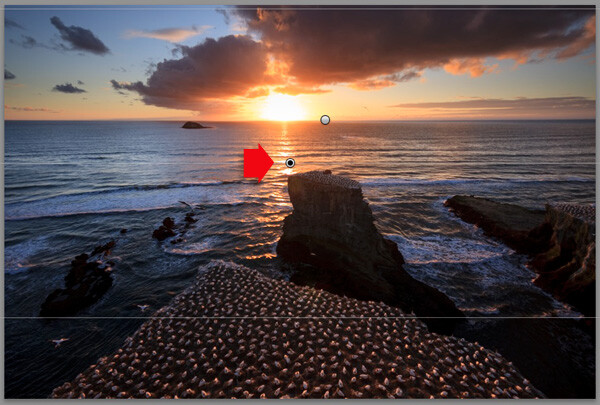
My aim with this landscape was to make the foreground darker and sharper, directing the viewer’s gaze towards the horizon. I achieved this by adding another Graduated Filter from the bottom. But this time, as well as adjusting Exposure to -0.79, I increased Contrast to +20 and Clarity to +27:

Using the Graduated Filter in Lightroom

Bottom Graduated Filter applied, Contrast +20 and Clarity +27

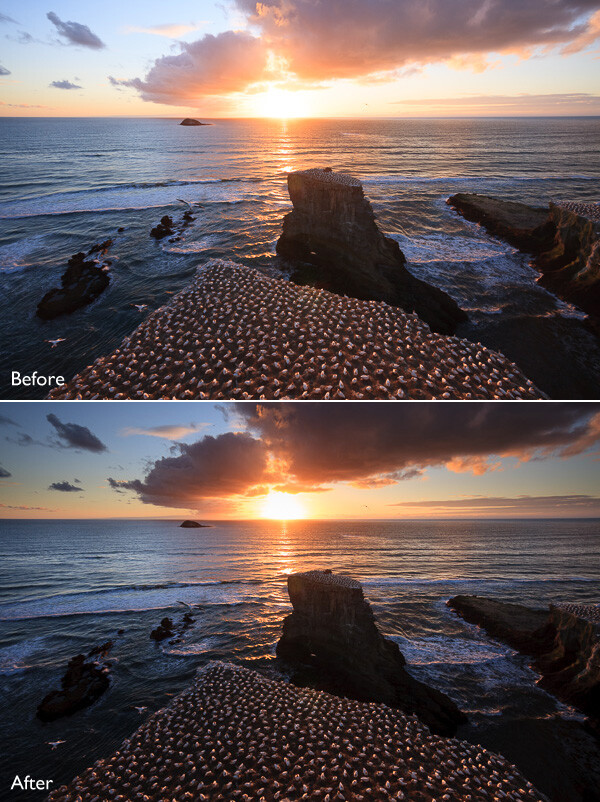
Here’s a before and after comparison, so you can see the difference adding the Graduated Filters has made. The two simple adjustments have transformed the photo.

Using the Graduated Filter in Lightroom

3. Adjusting White Balance

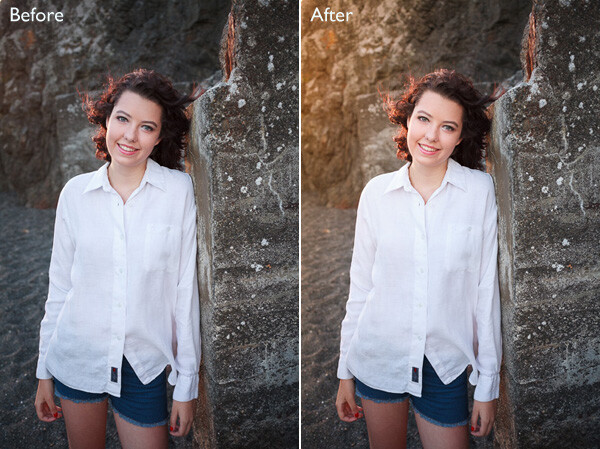
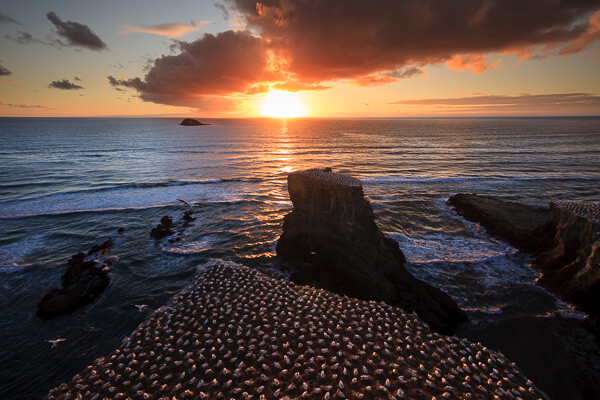
Another use of the Graduated Filter is to adjust colour temperature in part of the image. Sticking with the same landscape photo, I selected the top Graduated Filter to activate it and set Temp to 30. This warmed up the sky, emphasising the deep orange and red colours of the sunset:

Using the Graduated Filter in Lightroom

Be careful with adjusting Temp. If you push the slider too far the results may not look natural.

4. Making edges of your image darker

Moving away from landscapes, Graduated Filters are a handy way of making the edges of your images darker. This helps direct the viewer’s attention towards the focal point.

Using the Graduated Filter in Lightroom

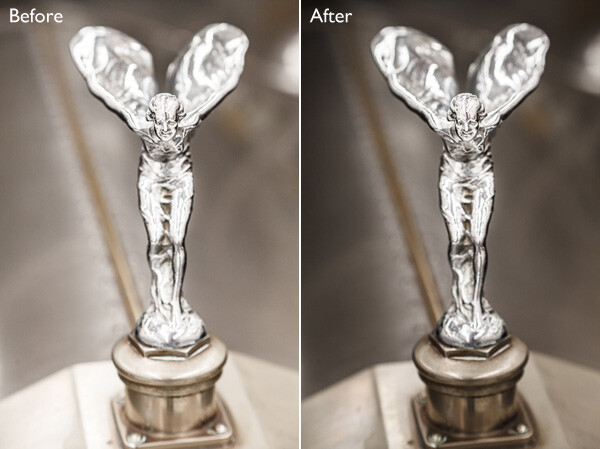
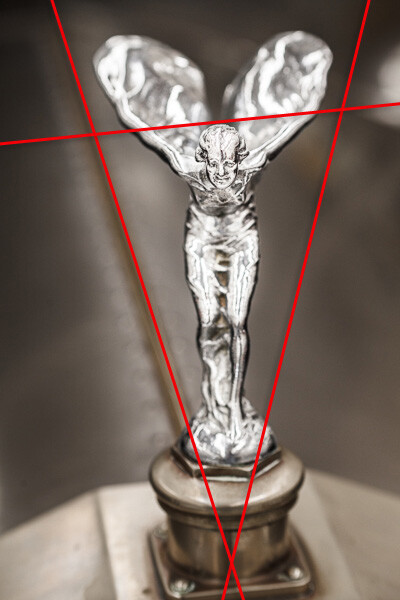
This diagram shows roughly where I placed the three Graduated Filters. The benefit of using individual Graduated Filters (instead of the Radial Filter or Adjustment Brush) is that you can adjust each one individually.

Using the Graduated Filter in Lightroom

5. Adding a colour wash

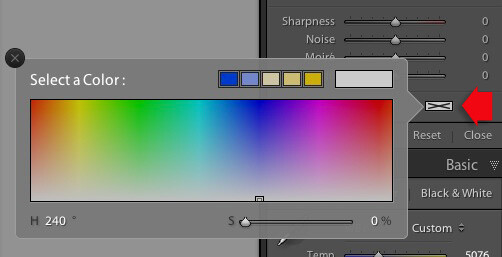
The Color setting at the bottom of the Graduated Filter panel lets you add a tint. It is laid over the filter in addition to the effects created by whichever sliders you choose to adjust. To select a colour, click on the colour picker icon at bottom of the Graduated Filter panel (the white rectangle with black cross inside indicates no colour has been selected) and select the colour you wish to add:

Using the Graduated Filter in Lightroom

Slider below is for adjust the Saturation of your selected color

One use of this is to add a colour wash to a photo, to make it look as though the subject is lit by the light from the setting sun. This technique works best when the subject was genuinely shot during the golden hour, and you use the Graduated Filter to emphasize that. In this example I selected an orange hue to imitate the sun and set Exposure to +1.16 to lighten that side of the image.

Using the Graduated Filter in Lightroom

6. Lens blur effect

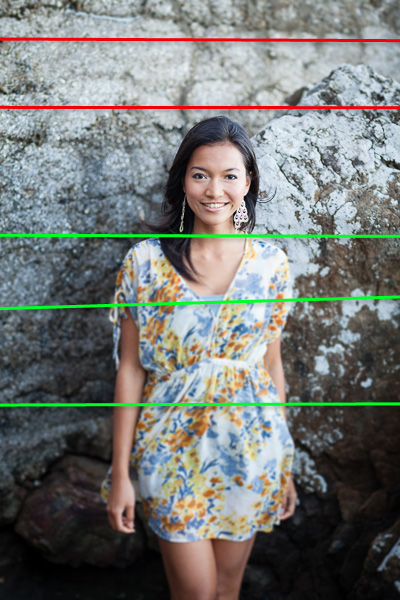
The Sharpness slider in the Graduated Filter panel is dual purpose. From zero to -50 it reduces sharpness. From -50 to -100 it creates lens blur. This lets you replicate the effect of using a tilt-shift lens or large format camera to create a photo with a tilted plane of focus. This is what it looks like. You may have to look closely – the model’s head is sharp but the areas at the top and bottom are not.

Using the Graduated Filter in Lightroom

I created this effect by adding five Graduated Filters, two at the top, and three at the bottom, their position shown by the coloured lines. The effect works best with a narrow Graduated Filter.

Using the Graduated Filter in Lightroom

The red lines indicate where I added Graduated Filters with Sharpness set to -100 at top. The green lines show you where I placed three filters at the bottom. Spacing the Graduated Filters mean the effect is strongest at the edges, replicating the true effect of using a tilt-shift lens.

Hopefully these tips will help you use the Graduated Filter more creatively. Lightroom is great for processing your photos and understanding how its tools work will help you use it more effectively. If you’re new to Lightroom, then my article Seven Pieces of Advice for New Lightroom Users will help you get started. Once you’ve mastered the Graduated Filter, I suggest you read Four Ways to Improve Your Photos With the Clarity Slider in Lightroom or 3 Uses for the Radial Filter Tool in Lightroom 5 to learn how to use more of Lightroom’s fabulous tools. Have fun!

By the way, I’m curious to hear how you use Graduated Filters in Lightroom. What techniques have you come up with? Please share them with other readers in the comments.


Mastering Lightroom: Book One and Two
mastering-lightroom-bundle-1

My Mastering Lightroom ebooks are a complete guide to using Lightroom’s Library and Develop modules. Written for Lightroom 4 & 5 they take you through every panel in both modules and show you how to import and organise your images, use Collections and creatively edit your photos.

The post Improve Your Images with the Lightroom Graduated Filter Tool by Andrew S. Gibson appeared first on Digital Photography School.


Digital Photography School

 
Comments Off on Improve Your Images with the Lightroom Graduated Filter Tool

Posted in Photography


Improve Your Backgrounds – Improve Your Photography

22 Apr

Photography-backgrounds-Omo-Valley-Piper-14

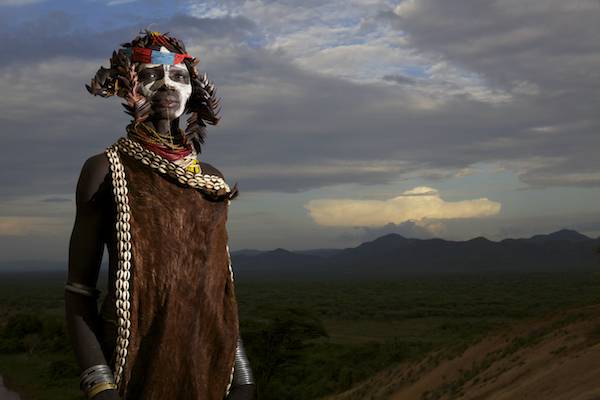
The background in your image can quickly reveal your skill level as a photographer. Learning to see past an exotic or exciting subject, to catch the details in the background, is what will distinguish you from a beginning, hobbyist photographer to an experienced professional. The background in your image immediately stands out to a trained eye. Learning just this skill can very quickly elevate and improve your photography.

Most times, the difference between a snapshot and a strong, compelling image can be as simple as one small step, slightly changing your perspective, or blurring out a background. If the photograph is about an exciting subject, then try to eliminate the background, making it about your subject. If you wish to photograph your subject in their environment check to make sure that:  the background is equally as  impressive as your subject, is part of the story, and adds value to the image.

Keep it simple for a more powerful image

Here are several examples of how one simple movement or adjustment can change an unusable image into a very powerful one. In the portrait below, the light had become too harsh to make a usable image.  I moved my subject into a hut, but then the light coming through the wood created a horrible background.

photography, distracting, background

Watch for bright, distracting spots in the background

I looked around, picked up one of the skins lying on the floor, and put it up behind the subject. This removed the distractions by making the background solid and created a powerful portrait.

photography, backgrounds

The image below on the left is beautiful, but once you look at the subject your eyes wonder up to the sky and out of the photograph. The sky is not part of the story. My subject is the story, therefore the sky is a distraction. I got a little higher and zoomed in a little closer, filling the frame with my subject, eliminating the distraction of the sky. Here the viewers eyes are drawn directly to the subject and stay there.

photography backgrounds photography background

Where is the horizon?

photography, backgrouds

Look where the horizon falls in respect to your subject

If you are going to have sky in your image, you want to make sure the horizon does not cut through the head of your subject, like the image above. To adjust and create the image below, I dropped  down about a foot lower and zoomed in slightly so the horizon line is below the subjects head, creating a stronger image.

photography backgrounds

Below is another example of keeping your subjects head above the horizon. This was a difficult shot. If my eyes had not been trained to quickly hone in on the background, the horizon could easily have cut right though his head, or been on a slant.   This would have ruined the power of this image. It is these small details that make the difference in a great shot or a snapshot.

Photography-backgrounds-Omo-Valley-Piper-Mackay-10

Create separation between subject and background

photography backgrounds

Separation between your subject and background is essential to draw the viewers eye to the subject

In the image above I was careful not to clip the toes and have the subject’s shadow in the frame, but the background around his head was distracting. I simply took a step to the left and the v-shape of the tree-line now leads the viewer directly to my subject. The man’s face is now in plain view without any distractions (image below).

photography background

Watch for bright spots

In this image I wanted to show the subjects connection with nature, but I was challenged by not being able to create a composition without the distraction of the bright sky coming through.

Photography background

Where does your eye go in this image? To the bright sky

The solution was to slightly change my angle and shoot it as a vertical (see below)

Photography backgrounds

Blur it out

photography backgrounds

The background in the image above is not bad, but since the subject is the bird it is distracting. The best way to handle this type situation is to blur the background by opening up to f/2.8 and zooming in on your subject, filling the frame. This is a much stronger image (below)

Photography backgrounds

Color can be a distraction

Photography background

When you are filling the frame with your subject always check for distracting elements in your background. In this first image (above) there is a brown line going directly across the background. Your eyes look directly at the cheetah, but then immediately pick up the break of color, distracting you as the viewer. The next two images have solid backgrounds. Your eyes go directly to the subject and stay there.

Photography backgrounds

Photography backgrounds

Great subject alone is not enough for a wow image

The image below looks more like a photograph that was taken because it was the first time the photographer saw a lion or because the photographer did not have a long enough lens. Sometimes a situation is what I call eye candy; just for looking at, and not for taking a photograph.  Just because your subject is exotic it does not mean it will make it a great photograph.

photography backgrounds

If the background does not add to the photograph or story, then remove it. Get up close and make the photograph about the subject.

photography backgrounds

Notice how much stronger this image is than the one above?

Put it into practice

The easiest way to train your eye is to practice. Get out and shoot, but before you head out, take a quick look through  a few of your existing galleries. Were you seeing what was in the background, when you clicked the shutter?

Challenge your self by going to a busy downtown tourist area and try to isolate your subjects or  visit the zoo where the backgrounds can be difficult. Download the images and view them on your monitor. Looking at them in the back of your camera is a good tool for a quick peek. But it is when are no longer in the emotion of the moment, viewing the images on your monitor, that unwanted elements will scream out at you. The more you see these mistakes on your computer, the more you will remember them behind the camera. Repeat this exercise often until what you see on the monitor is what you were seeing in the frame when you click the shutter.

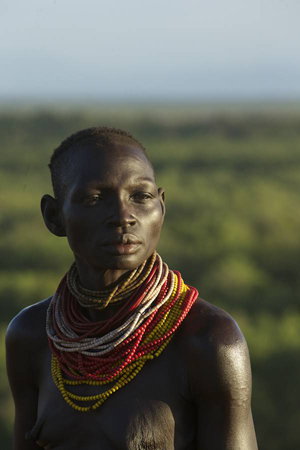
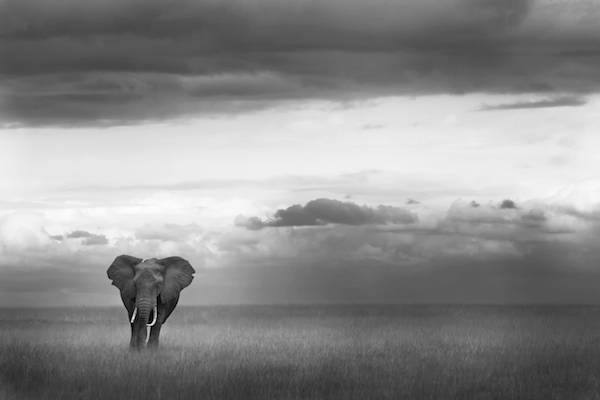
Practice putting your subjects in simple clean environments first, as the sample images below.

photography backgrounds

Photography-backgrounds-elphant-africa-Piper-Mackay-01

Photography-backgrounds-Omo-Valley-Piper-14

Soon you will be able to introduce a secondary subject in the background for a more complicated image. This draws the viewer to the main subject and then through the image to the discover what else is going on in the images, holding their attention in your image a lot longer.

Good Luck and enjoy the process

Photography-backgrounds-lion-africa-Piper-Mackay-02

Photography-backgrounds-Omo-Valley-Piper-Mackay-11

The post Improve Your Backgrounds – Improve Your Photography by Piper Mackay appeared first on Digital Photography School.


Digital Photography School

 
Comments Off on Improve Your Backgrounds – Improve Your Photography

Posted in Photography


How to Improve Your Photographic Eye Super-Effectively

21 Apr

What does it mean to have an eye for photography? Is it something you are born with, or can you can learn? Besides taking pictures, our photographic eye lets us recognize situations, composition, subjects and then puts together all these elements in a frame that makes a great picture. Taking good pictures is not always easy, as there is a Continue Reading

The post How to Improve Your Photographic Eye Super-Effectively appeared first on Photodoto.


Photodoto

 
Comments Off on How to Improve Your Photographic Eye Super-Effectively

Posted in Photography


Four Ways to Improve Your Photos With the Clarity Slider in Lightroom

05 Apr

Using the Clarity slider in Lightroom

Andrew S. Gibson is the author of Mastering Lightroom: Book 2 – The Develop Module. There’s a special deal on now at Snapndeals, get 40% off for a limited time only.

The Clarity slider is one of the most useful in Lightroom when it comes to giving your images extra punch and impact. Today I’m going to show you several ways you can use it to improve your photos. But first, let’s take a look at exactly what the Clarity slider does, and how it differs from its cousin the Contrast slider.

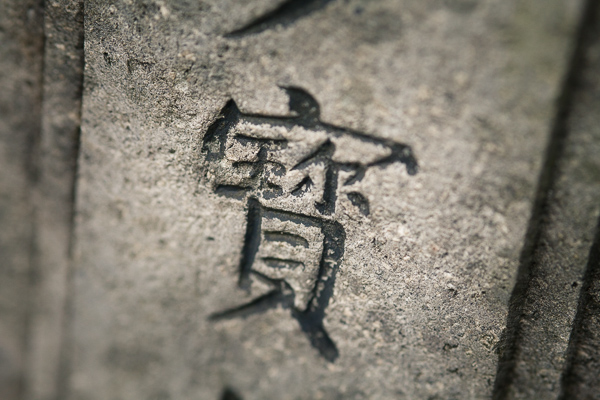
This photo is ideal to demonstrate the difference:

Using the Clarity slider in Lightroom

Using the Clarity slider in Lightroom

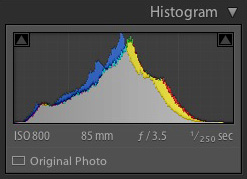
It was taken on an overcast day and the light was very flat. This is confirmed by the histogram, which has gaps on both the left and right-hand sides (screen capture image to the right).

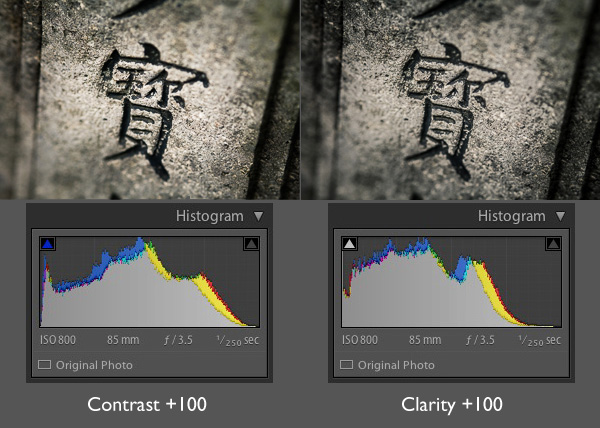
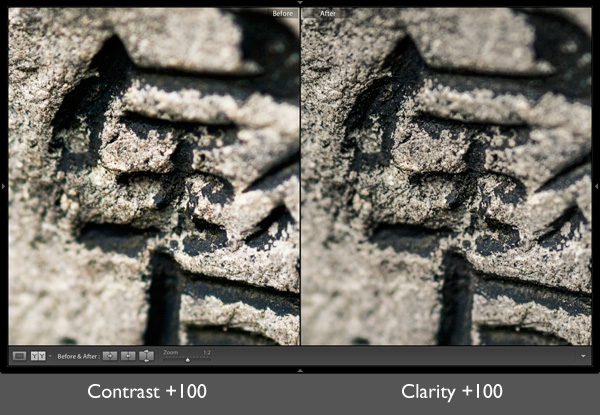
Now let’s see what happens when we set the Contrast slider, and then the Clarity slider, to their maximum settings of +100:

Using the Clarity slider in Lightroom

The most obvious difference at this scale is that the Contrast slider has a more far reaching effect. It makes both the shadows darker and the highlights brighter, stretching the histogram in the process.

The Clarity slider works differently. It increases contrast, but in the mid-tones only. The highlights aren’t affected, and if anything the photo becomes darker as the Clarity slider has a greater effect on dark tones than the Contrast slider.

Here’s a close-up of both images so you can see the effect in more detail. Look closely and you’ll see that the Clarity slider brings out more texture than increasing Contrast.

Using the Clarity slider in Lightroom

That’s the key to using this slider successfully. Increasing mid-tone contrast brings out texture and detail, increasing the tactility and apparent sharpness of the image. That’s what the Clarity slider is designed to do. Now I’m going to show you some practical applications.

1. Emphasizing texture

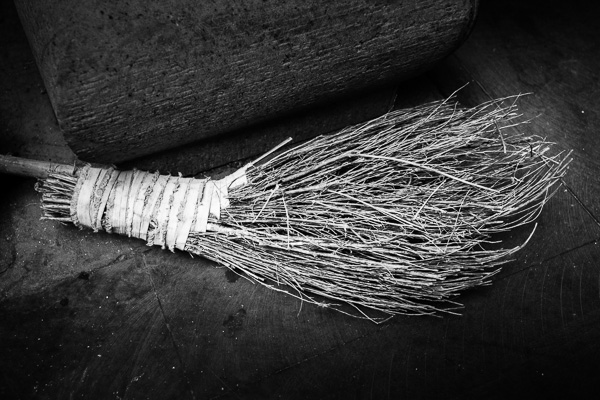
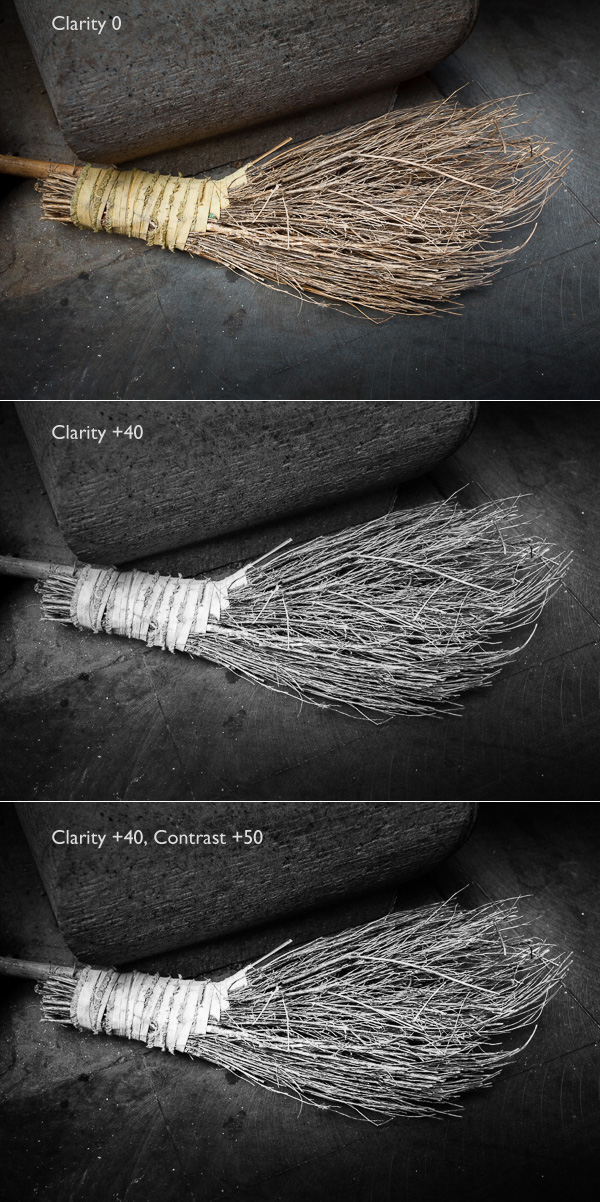
The Clarity slider in the Basic panel is a  global adjustment – meaning that, moving this slider affects the entire image. A small but subtle boost to Clarity can lift just about any image. Photos with more texture, such as the one below, may benefit from a larger increase in Clarity to bring out the texture and detail. This technique is especially effective in black and white. Plus, there’s nothing to stop you increasing contrast as well, especially in black and white, which usually benefits from higher contrast than colour images.

Using the Clarity slider in Lightroom

2. Emphasising texture locally

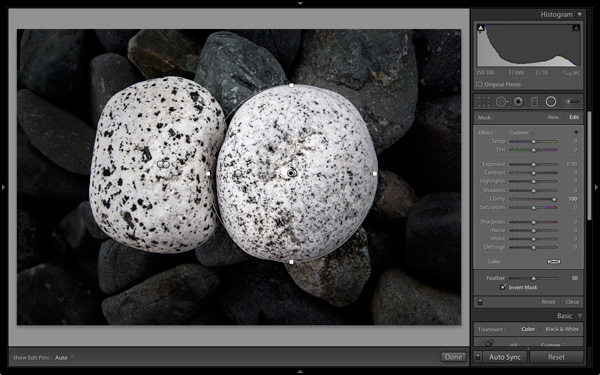
There is a theory in photography called visual mass that states that certain elements pull the viewer’s eye more than others (you read more about it in my article Composition, Balance and Visual Mass). One of these elements is sharpness. The eye goes to sharp parts of the image before it goes to unsharp, or out of focus areas.

You can use this to your advantage by making local adjustments to Clarity rather than global ones. In the example below, I wanted the white stones to be the centre of attention. The principle of tonal contrast ensures that they are, and I emphasixed it here by placing Radial filters over the stones and setting Contrast to +100 in each one.

Using the Clarity slider in Lightroom

Note: The Radial filter is new to Lightroom 5. If you have an older version of Lightroom you can use the Adjustment Brush tool instead.

3. Emphasize the eyes in a portrait

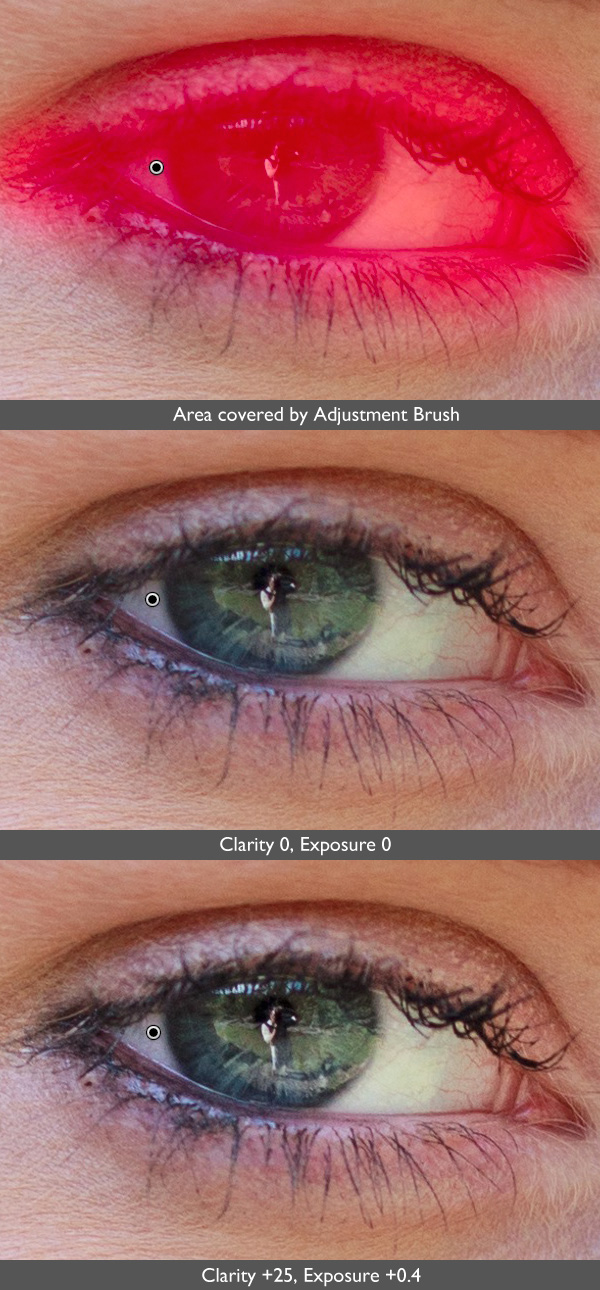
There’s another area where increasing Clarity locally can make a huge difference and that’s in portraiture. Use either the Radial filter or Adjustment Brush to increase the Clarity of your model’s eyes. Again, it’s a subtle, but often effective change. You can also do the same with your model’s mouth to emphasize the lips. Remember that as Clarity tends to make things darker, you’ll probably need to increase Exposure a little as well.

Using the Clarity slider in Lightroom

4. Soften skin

So far we’ve just looked at what happens when you increase Clarity, but you can also go the opposite way and decrease it in order to obscure detail, or soften part of the photo. You do have to be careful with this as the result can look a little false. A light touch is essential.

You can use negative Clarity as a kind soft focus effect in portraits. The most effective way is to increase Sharpness at the same time that you decrease Clarity. This helps retain realistic looking texture in the skin and avoids the false effect I spoke of earlier.

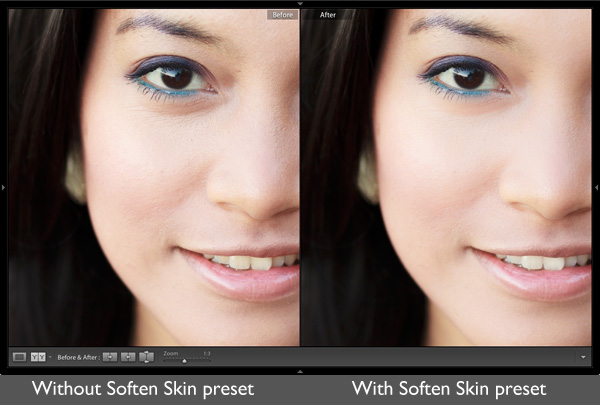
Lightroom has a built-in Adjustment Brush preset called Soften Skin which does exactly that. You can see the effect here. It’s subtle, look at the area under the model’s eyes if you’re not sure what the difference is:

Using the Clarity slider in Lightroom

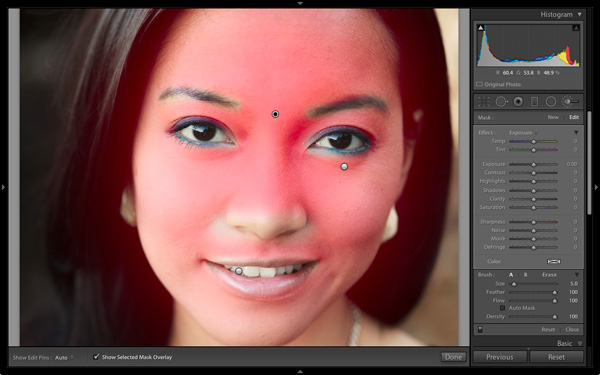
To use the Soften Skin preset, start by activating the Adjustment Brush and paint in the area you want to apply the preset to (shown in red below). Leave the eyes, eyebrows, mouth and tip of the nose alone as you don’t want to soften those areas.

Using the Clarity slider in Lightroom

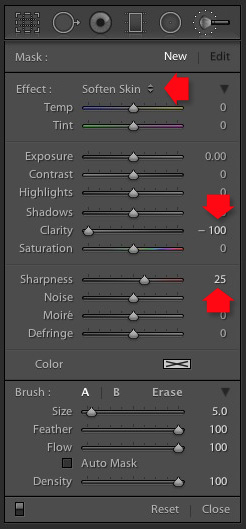
Select Soften Skin from the Effects menu. Lightroom sets Clarity to -100 and Sharpness to +25.

Using the Clarity slider in Lightroom

Using the Clarity slider in Lightroom

This is the strongest Soften Skin preset. If it’s too strong, you can reduce it by hovering the mouse over the Adjustment Brush pin until the double arrow icon (left) appears. When you see it, hold the left mouse button down and move the mouse left. Lightroom reduces the Clarity and Sharpness settings proportionally. Moving the mouse left, reduces the settings, moving it right increases them. Let go when it looks good to your eye. (You can also adjust the sliders manually)

Your turn

How do you use the Clarity slider? I’m curious to see what applications you have come up with for it.

Let us know in the comments, and feel free to share your photos so we can see what you have done.


Mastering Lightroom: Book Two

Mastering Lightroom: Book Two – The Develop Module ebookMy new ebook Mastering Lightroom: Book Two – The Develop Module teaches you how to process your Raw files in Lightroom for spectacular results. Written for Lightroom 4 & 5 it takes you through every panel in the Develop module and shows you how to creatively edit your photos. It’s now 40% off at Snapndeals for a limited time only.

The post Four Ways to Improve Your Photos With the Clarity Slider in Lightroom by Andrew S. Gibson appeared first on Digital Photography School.


Digital Photography School

 
Comments Off on Four Ways to Improve Your Photos With the Clarity Slider in Lightroom

Posted in Photography


10 Photography Hacks that will Dramatically Improve Your Photos

18 Mar

Mike is the author of the eBook Hacking Photography: A Plain-English Guide to Taking Impressive Photos – Fast, on sale now for 60% off at SnapnDeals.

There is a widely accepted rule called The Pareto Principle also known as the 80:20 rule. In short, it states that 80% of the results come from 20% of the efforts. I find that in learning photography, this can even skew much higher. This means that potentially improving 5% of your photographic knowledge in the right places, could improve your photography by 95%!

10 photography hacks that will dramatically improve your photos

Hack 1 – Turn the flash off of automatic!

Camera manufacturers are often too eager to make the flash pop up even when it gets slightly dark. This is actually a retention tool for them. If the flash pops, the photo won’t look as good but people won’t be blurry because the flash freezes them in place. If enough new photographers see blurry photos (even though they are caused by improper photographer technique) they will assume something is wrong with the camera and take it back for a refund.

Instead, keep the flash closed and increase the ISO. In all the camera modes except manual mode, increasing your ISO will cause the camera to increase your shutter speed to have a better chance of freezing people in motion. Now shoot the photo. It will use the ambient (available) light, which typically has more color and character instead of a bright face and black background.

Hacking photography music

Hack 2 – Get in close to your subject…then get closer

Most people think that they have to step way back and get a lot of space around the subject to get the whole scene. Your subject is not a mime that is stuck in an invisible box, it’s okay to cut off their foreheads, legs, or lower half every now and then! Try getting a close-up of someone’s face from the eyebrows to the mouth. Here is a quick example:

Hacking photography get closer

The problem with zooming way out for every photo is that it doesn’t make it plainly obvious to the viewer what is the point or subject of the photo. I’m a huge fan of subtraction – the less there is in your photo the better. The best images are simple and very clear to the viewer what “story” you are telling with your images.

Hack 3: Eliminate the clutter

This is huge! The best images are ones that are simple and have breathing room for the subject. Try to find the simplest background possible. It’s no different than walking into a super cluttered house versus walking into a clean minimalistic space with very few items to distract you.

If you are taking a photo of a person, take the extra second to look around and find a minimal background that doesn’t distract the viewer.

Hack 4: Look for repeating patterns

Ever hear someone say that a photographer “just has the eye for it?” I disagree. This is a learned skill, not something that you are born with.

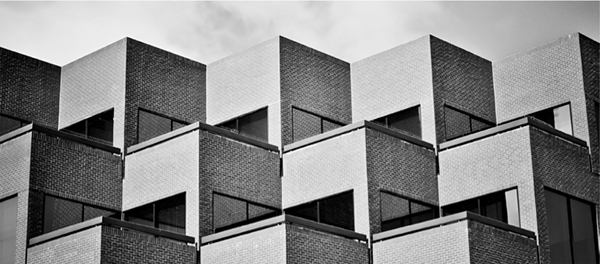
As you walk around, take notice of buildings, windows, patterns in brickwork, etc. I was walking by a building I walk by all the time and something suddenly ‘clicked’ and I realized there was a really cool pattern in the brickwork I had never noticed before. I ran home and grabbed my camera to shoot it before I forgot again.

Hacking photography repeating patterns

Hack 5: Shoot from interesting perspectives

I would argue that 99% of photos most viewers ever see are shot from eye-level where the photographer was standing – the same viewpoint we see 99% of our lives from. It’s no surprise when you go to the top of a huge building and look down at a city that it’s visually stunning because we don’t see that perspective very often. You see this birds-eye-view used a lot in food photography.

Hacking photography birds eye view

The same goes for getting down on your stomach and shooting straight up to the sky. Anytime you are afforded a unique viewpoint it’s always interesting to the viewer.

Hack 6: Look for symmetry

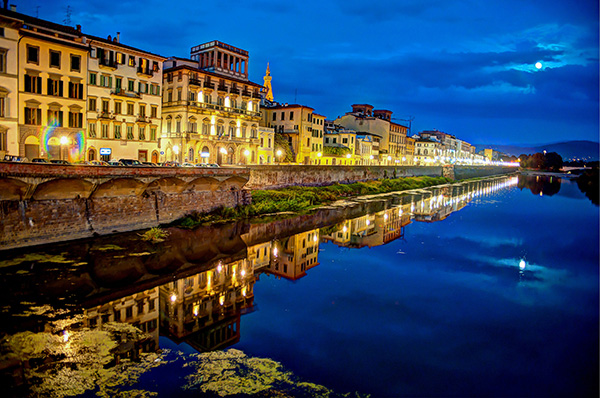
Your viewer will do backflips if you can find an image that perfectly reflects the same thing top to bottom, or right to left! How many times have we seen something every day then see a photographer create an image that is an entirely different view of that item?

I took a photo trip to Italy and consciously tried to capture as much symmetry as I could. Here is a quick symmetrical shot:

Hacking photography florence moon

Always keep an eye out for perfect symmetry!

Hack 7: Straighten your lines

Instead of just clicking away when you see something interesting, take the extra second to make sure horizontal lines are horizontal, and vertical lines are vertical. We all have the habit nowadays of just pointing our cameras in the general vicinity of what we are shooting. I propose you take a moment and line yourself up perfectly with that building or person.

Hack 8: Max out the aperture

What most people perceive as “artistic” photographs (AKA better than most) are ones that use a big aperture (small f-number) to blur the background or foreground, to call more attention to a subject. If you are using a kit lens your aperture will likely only go down to f/3.5, which isn’t a very big aperture.

The biggest impact item, and cheapest investment in gear that can make your photos go from okay to awesome is a lens with a huge aperture. I recommend purchasing a 50mm f/1.8 new on Amazon for $ 130-200 (Canon 50mm f/1.8 or Nikon version) or you can usually find them in perfect condition, used, for between $ 80-150.

Hacking photography aperture

Hack 9: Know where the light is coming from, and the quality

It’s funny how easy it is to take great photographs if you are just simply aware of these two things. Think about this: if you are shooting a photograph of someone outside and the sun is directly behind him or her, they will show up as a dark silhouette. If all you did was switch positions with this person so they are facing the sun, they will be nicely lit.

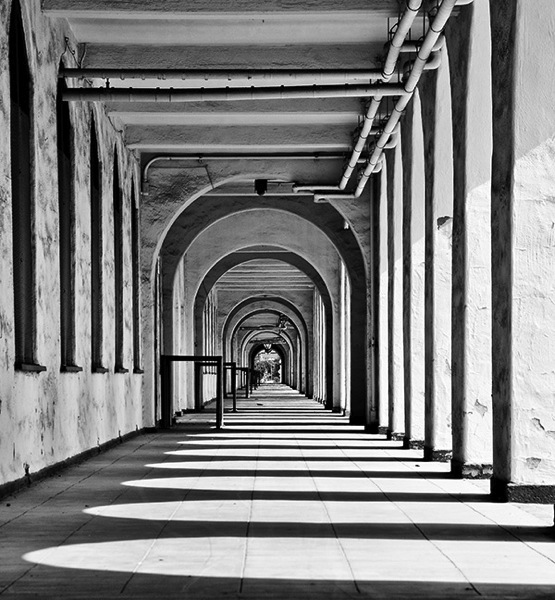
Being aware of the direction and quality of light can also ties into step 4 above. I walked outside of a building, looked down an outside walkway and noticed the shadows formed a really cool pattern because the sun was very bright and coming in from the left. This made an interesting arch pattern that almost looked like an MC Escher sketch.

Hacking photography maze patterns

Hack 10: Use the Rule of Thirds

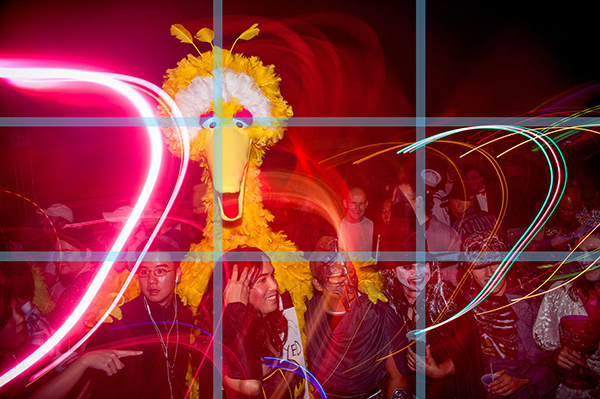
The rule of thirds is the simplest and most under-utilized tip in the book. Are you ready for the quickest and easiest lesson yet? Here we go: go into your camera and turn on the “Grid” function which will show a grid in your viewfinder with horizontal and vertical lines when you look through it. 99% of new photographers put their subject smack in the middle of the frame when they compose the photo. The viewer also sees 99% of photos with the subject right in the middle of the frame because they look directly at a person, item, etc. This gets really boring really quickly, as we discussed earlier.

The tic-tac-toe rule

Imagine a tic-tac-toe board when you look through your viewfinder. Some cameras have a ‘grid’ function you can turn on to see this through the viewfinder. You always want to line up the point of interest where the lines meet each other. When you compose your photo, line up the point of interest at either 1/3 to the right or left of the frame, and/or the top or bottom 1/3. You want to give your subject room to breathe in the frame.

I caught this at a huge Halloween party Miller-Coors sponsored. You can see who got the attention at the intersection of the top and left 1/3 marks. Note the people on bottom all line up with the bottom horizontal 1/3 line.

Hacking photography rule of thirds

Wrapping up

If you follow these 10 hacks, your photography will take a giant leap forward. I recommend experimenting with one of these hacks per day for 10 days. After you get used to thinking about each one, you will eventually internalize the lesson so it will just happen instinctually. That’s when photography really gets fun. I can’t wait to see what you come up with.

Please share any additional tips in the comments section below.

For more on these hacks grab Mike’s eBook Hacking Photography: A Plain-English Guide to Taking Impressive Photos – Fast, on sale now for 60% off at SnapnDeals.

The post 10 Photography Hacks that will Dramatically Improve Your Photos by Mike Newton appeared first on Digital Photography School.


Digital Photography School

 
Comments Off on 10 Photography Hacks that will Dramatically Improve Your Photos

Posted in Photography