RSS
 

Posts Tagged ‘Images’

5 Reasons To Should Shoot Your Landscape Images in RAW

20 Sep
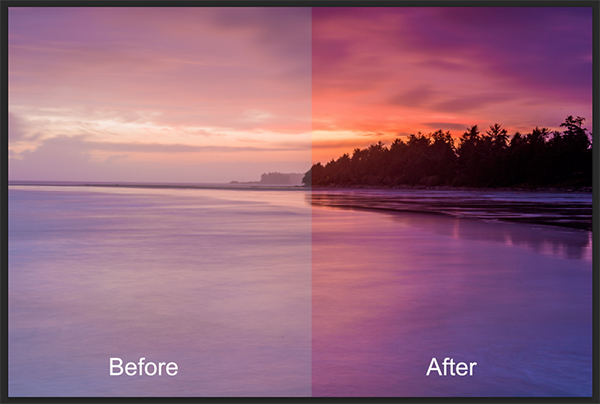
Detail recovered from a RAW file, before and after

Detail recovered from a RAW file, before and after.

There is often a debate among photographers about shooting in RAW. Try it out – next time you are with a group of photographers, ask them who shoots in RAW. Better still, ask them why they don’t shoot in RAW. The conversation will become pretty interesting. When I first started photography, I was told that shooting in RAW was a waste of time and that I won’t need all that “information”. I was told it was better to shoot on JPEG as it saves space. Yes, RAW files are bigger, especially on a high-resolution camera, but is it true that we don’t need all that “information”? Over the past few years, I have done a fair amount of research into the RAW vs JPEG debate and I now shoot completely in RAW. Yes, my image files are MUCH bigger; yes, I need more space to store my images; yes, it does impact my image editing workflow. Is it worth it? A categorical yes. Here are five reasons why you should shoot your landscape images in RAW.

1. Details

RAW files are big because they don’t discard any image information that is captured in the scene. When you shoot on JPEG, the algorithm for JPEG determines which information is discarded and which is kept without changing the way the image looks. That is great for saving space on your memory card, but not so good if you intend to edit your images in Photoshop.

The reality is that your camera can capture a significant amount of data if you shoot in RAW, which in turn gives you much more flexibility in Photoshop later. On average, a normal JPEG file will be between four and six megs per image. The same image shot on the same camera in 14-bit lossless RAW format will be 25 – 30mb, five times bigger. The reason is that there is much more information in a RAW file. That information is critical in post-production. You can get so much detail out of a RAW image, such as pulling back blown-out highlights and bringing back detail in the shadows that would be impossible to recover in JPEG format. This doesn’t mean you should be sloppy and not pay attention to your exposure. What it does mean is that in tricky lighting conditions, you will be able to get a shot that’s usable.
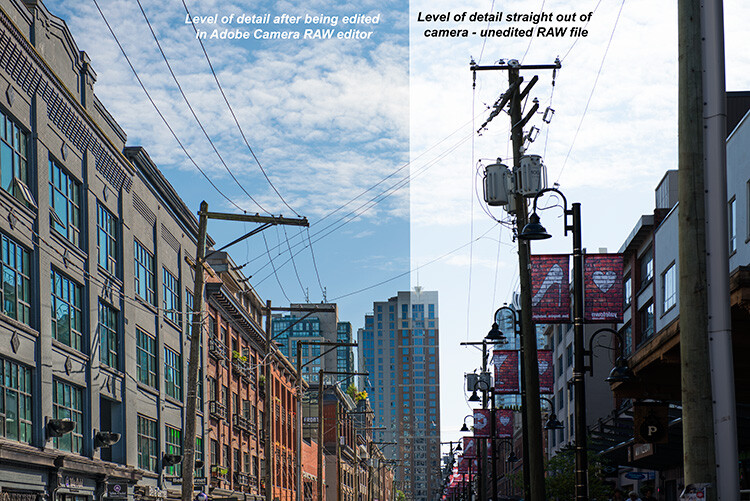
Recovered details in a street scene, overall much more detail can be seen.

Recovered details in a street scene, overall much more detail can be seen.

2. Color

We all shoot on color nowadays. If you don’t, you should, even if you are going to convert to black and white – but that’s for another post. Shooting in RAW means that you are saving as much color information as possible from the scene. This is really important in landscape photography, portrait photography, food photography and even street photography. The color in your scene can make the difference between a good image and a great image. By shooting in RAW, you will have all the color information possible. The important part of that is the subtle color. For example, the gradation in the sky will look better than it would on JPEG, even if you think that JPEG will be fine from a color perspective.  If you are shooting a landscape scene, you want to get as much color information as you can. RAW would be the format to do this. In Photoshop, the vibrance function will saturate the colors in your scene which are undersaturated and this can give your RAW file that subtle boost to make the image pop.
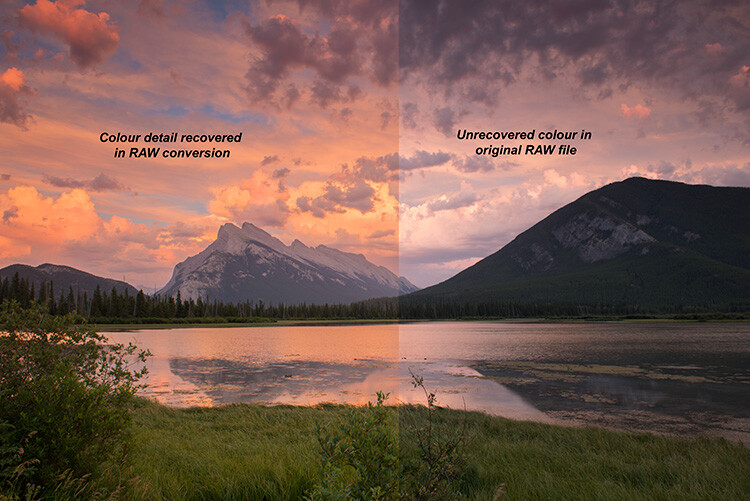
Much more colour can be rendered from a RAW file

Much more color can be rendered from a RAW file.

3. Exposure

The exposure in your scene should always be as good as you can get it in camera. In the past, most photographers would underexpose a little to make sure they didn’t blow out the highlights. In recent years, most photographers shooting in RAW have been exposing to the right (ETTR). The new generation of cameras have a really good dynamic range and are able to render details in the shadows and the highlights in one shot. This was not possible a few years ago. ETTR means that when you look at your photograph’s histogram, try and push it over to the right a little – in other words, overexpose it a little. The reason is because RAW can handle highlights in a scene really well and if your shadows are a little brighter there won’t be as much noise in the shadows. This is really a good technique to use in landscape photography and architectural photography. Your images will be cleaner and have very little noise in them. Once you adjust the image in Photoshop, you will have a well-exposed image across the dynamic range.
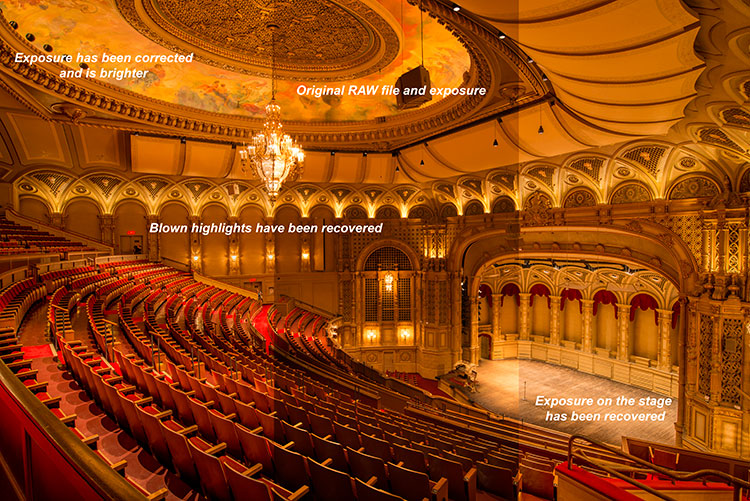
Blown out highlights in this scene were brought down, but the overall exposure was brightened.

Blown out highlights in this scene were brought down, but the overall exposure was brightened.

4. Flexibility

The best part about RAW files are that they give you flexibility. If you shoot landscape images or street photography, you have a lot of information to work with and you can use that information to create the best possible image. Also, Photoshop is always improving their tools and functions. I have gone back and reworked older images: the RAW file had all the information and the new functions brought out the best of that scene. This has happened quite a few times, so don’t delete “throwaway” images so quickly. For this reason, I am also not a fan of chimping too much. Wait until you download the images to see what is worth keeping. Use RAW to give you as much flexibility as you can, even on older images.
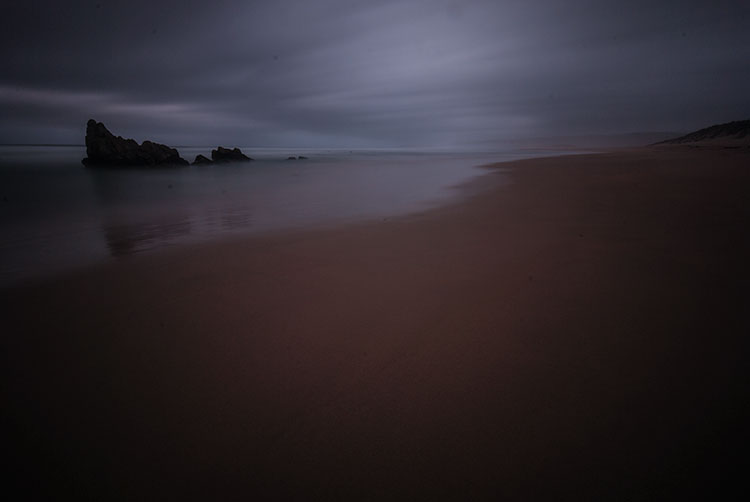
Original RAW file, the image was really dark from the use of an ND filter

Original RAW file, the image was really dark from the use of an ND filter.
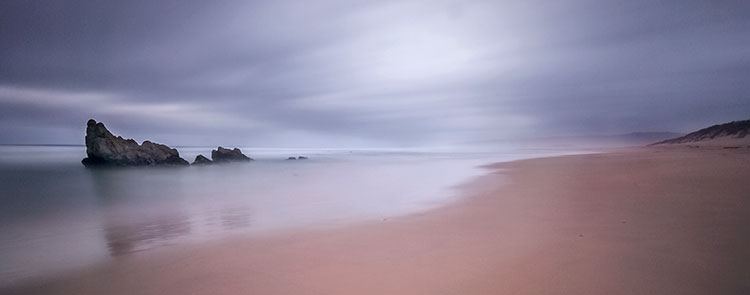
 

The result of the above image after being edited in Adobe RAW converter

The result of the above image after being edited in Adobe RAW converter.

5. Quality

Editing your RAW image is a two-step process. The first step is converting it in a RAW converter. (Lightroom converts RAW images, as does Photoshop and many other image editing products.) Once you have made the corrections and subtle adjustments in the RAW converter, then you can open the converted image in Lightroom or Photoshop. You will then be editing on the best quality image possible. Image quality is almost the “holy grail” of photography. If you ask any photographer what the most important thing is for any image, it will most likely boil down to image quality. To be clear, when I say image quality I include sharpness, noise, dynamic range, color, tone, chromatic aberration and so on. Anything that adds to the overall look and feel of the image. Your image quality will be fantastic if you work carefully in your RAW converter and edit well in Photoshop. You can get good image quality in JPEG too, but you will be able to squeeze that much more out of the image if you shot in RAW.
 

Look at the quality and detail of the scene after being edited in Adobe Camera Raw converter

Look at the quality and detail of the scene after being edited in Adobe Camera Raw converter.

RAW is a great format to use if you plan on editing your images. If you shoot landscapes, fashion, food, architecture and even weddings you should be considering shooting in RAW. One caveat on using RAW for weddings – you don’t have to shoot the whole wedding in RAW, but shoot the important images or images where the light is tricky in RAW. That way you can be confident you have the shot and information you will need for editing later.

RAW requires a different workflow for your image processing. If you don’t want to spend too much time editing, then maybe RAW will not work for you. The reality is RAW files are bigger, but that’s because they capture so much more information. If you are skeptical, give it a try. Shoot some scenes in RAW and try the Adobe RAW converter. Lightroom also works with RAW files. You might find that you have more details and information in your image than you thought.

googletag.cmd.push(function() {
tablet_slots.push( googletag.defineSlot( “/1005424/_dPSv4_tab-all-article-bottom_(300×250)”, [300, 250], “pb-ad-78623” ).addService( googletag.pubads() ) ); } );

googletag.cmd.push(function() {
mobile_slots.push( googletag.defineSlot( “/1005424/_dPSv4_mob-all-article-bottom_(300×250)”, [300, 250], “pb-ad-78158” ).addService( googletag.pubads() ) ); } );

The post 5 Reasons To Should Shoot Your Landscape Images in RAW by Barry J Brady appeared first on Digital Photography School.

Digital Photography School

 
Comments Off on 5 Reasons To Should Shoot Your Landscape Images in RAW

Posted in Photography


26 Expressive Images of Hands

19 Sep

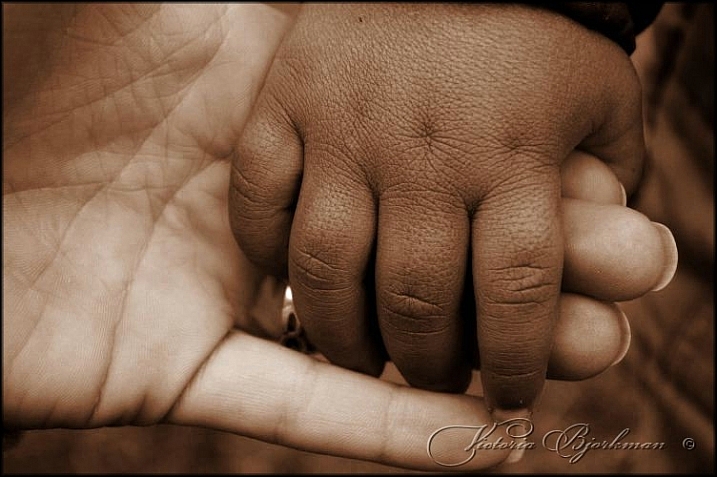
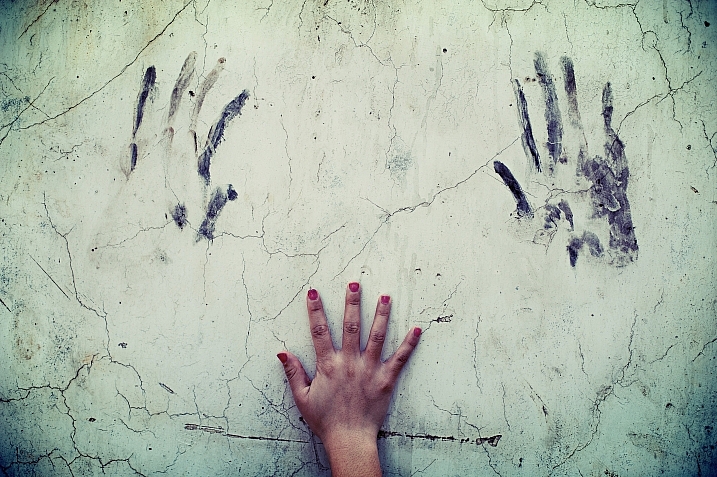
It is said that the eyes are the windows to the soul, but hands can be very expressive as well.

Let’s take a look at this set of images of different hands and see what they say, what story do they each tell?

Victoria Bjorkman

By Victoria Bjorkman

Khadija Dawn Carryl

By Khadija Dawn Carryl

Peter Lee

By Peter Lee

Alex Berger

By Alex Berger

Bill Gracey

By Bill Gracey

Riccardo Romano

By Riccardo Romano

Jun Aviles

By Jun Aviles

Craig Sunter

By Craig Sunter

Le Vent Le Cri

By le vent le cri

Jonathan Kos-Read

By Jonathan Kos-Read

Marjan Lazarevski

By Marjan Lazarevski

Toni Blay

By Toni Blay

Son Of Groucho

By Son of Groucho

Rob.

By Rob.

Kasia

By Kasia

Victor Bezrukov

By Victor Bezrukov

Chiara Cremaschi

By Chiara Cremaschi

ArTeTeTrA

By ArTeTeTrA

Mark Spearman

By Mark Spearman

Hamed Parham

By Hamed Parham

Serge Klk

By Serge klk

Jason Devaun

By Jason Devaun

Thomas Szynkiewicz

By Thomas Szynkiewicz

Strep72

By Strep72

Toru Watanabe

By Toru Watanabe

Ricardo Machado

By Ricardo Machado

googletag.cmd.push(function() {
tablet_slots.push( googletag.defineSlot( “/1005424/_dPSv4_tab-all-article-bottom_(300×250)”, [300, 250], “pb-ad-78623” ).addService( googletag.pubads() ) ); } );

googletag.cmd.push(function() {
mobile_slots.push( googletag.defineSlot( “/1005424/_dPSv4_mob-all-article-bottom_(300×250)”, [300, 250], “pb-ad-78158” ).addService( googletag.pubads() ) ); } );

The post 26 Expressive Images of Hands by Darlene Hildebrandt appeared first on Digital Photography School.


Digital Photography School

 
Comments Off on 26 Expressive Images of Hands

Posted in Photography


Fictional Libraries: Images Make Information Inaccessible

19 Sep

[ By Steph in Art & Drawing & Digital. ]

fictional libraries 1

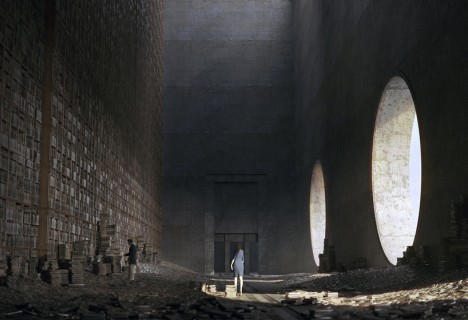
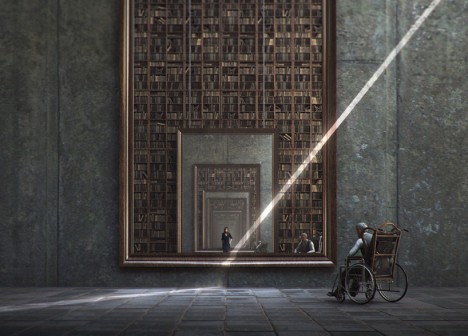
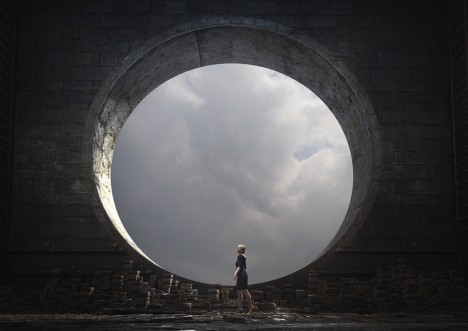
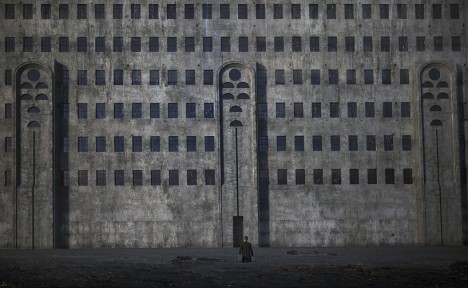
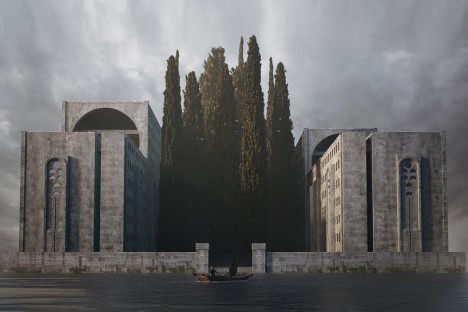
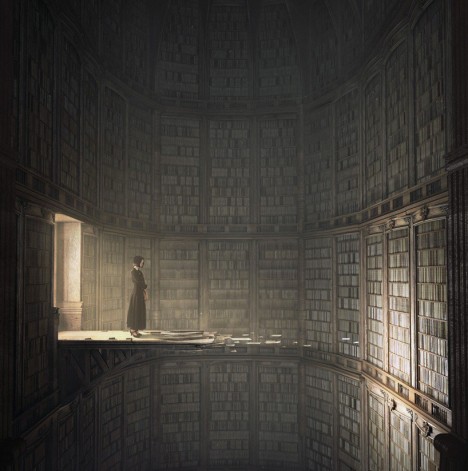
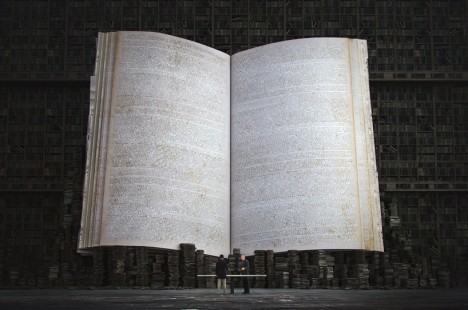
All of the books in the world still exist, yet are just out of reach, locked up in an impenetrable fortress or stacked so high we can’t hope to reach them, in this dystopian vision by Shanghai-based artist Jie Ma. The series of fictional libraries renders information inaccessible, teasing us with glimpses of what we could have but always keeping it just beyond our grasp.

fictional libraries 6

fictional libraries 3

Combining futuristic fantasy art reminiscent of movie or video game concepts and architectural assemblage, Ma’s series envisions libraries as stark structures that haven’t quite been abandoned altogether, but aren’t exactly in great shape. Human figures mill around in seeming frustration, stopped from actually finding anything by darkness and disorder.

fictional libraries 5

In some of the images, books are scattered around in spaces that look as if a storm has just ripped through, or they’ve been left to deteriorate for decades. It’s impossible to see the spines of any of the books, and there are no ladders offering access to shelves that tower many dozens of feet into the air. In a bibliophile’s worst nightmare, walkways to rooms full of books have crumbled away.

fictional libraries 2

fictional libraries 8

In others, the libraries are like off-limits military facilities, surrounded on all sides by water or mud, frustratingly devoid of actual entrances. One of these works, entitled ’Eclipse VII: Deep Reverence for Arnold Böcklin,’ pays tribute to a famous painting known as ’Isle of the Dead.’

fictional libraries 4

fictional libraries 7

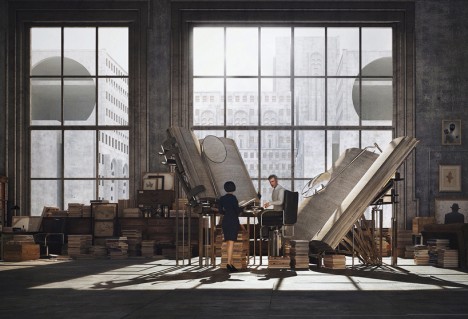
Yet, in contrast to these scenes are more hopeful ones, in which people examine oversized books with gigantic magnifiers in orderly rooms overlooking concrete landscapes. The series seems to suggest a sense of hope for human curiosity, driving us to keep seeking knowledge no matter how many obstacles we may encounter.

Share on Facebook


[ By Steph in Art & Drawing & Digital. ]

[ WebUrbanist | Archives | Galleries | Privacy | TOS ]


WebUrbanist

 
Comments Off on Fictional Libraries: Images Make Information Inaccessible

Posted in Creativity


3 Fun Ways to Enhance Your Landscape Images in Photoshop

18 Sep
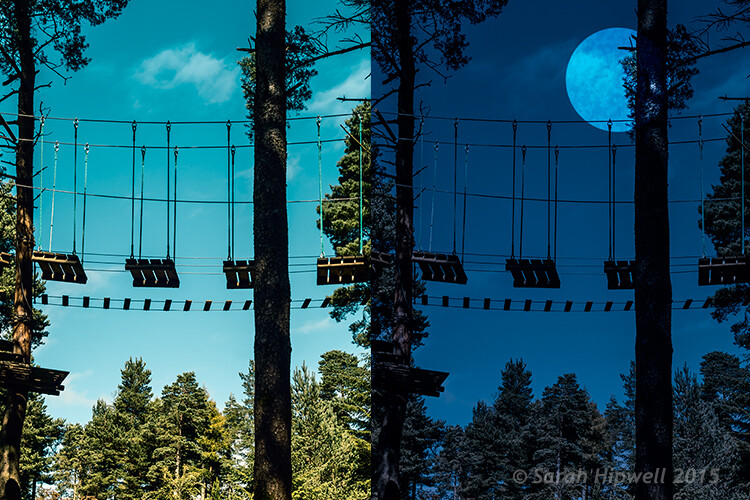
title-day-moonlight

Turning Day into Night using Color Lookup and easy-to-do moon in Photoshop.

As the theme for this month is on landscape photography, I thought I would share three fun ways to add features to your landscape images that already come embedded in Photoshop as presets. Let’s take a look at the first one.

#1 The Rainbow

Open an image that you want to add the rainbow to. Click on the Gradient tool, then click on the Gradient box in the Options bar to bring up the Gradient Editor dialog box.

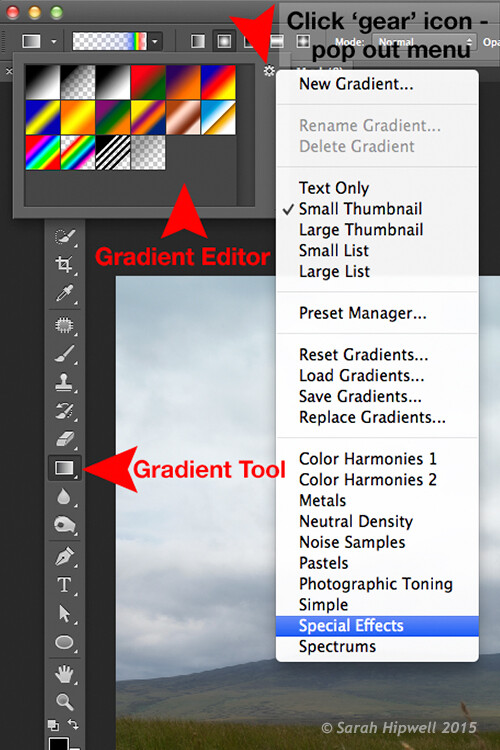
Click on the gear icon at the top right corner of the Presets section and another pop-up menu appears. Choose Special Effects near the bottom of the list. When you click on it, a dialog box appears asking you to replace the current default gradients with the ones that you are loading. Click Ok. It contains only five presets, the last one being Russell’s rainbow is the one I’m going to use. Click ok, then go back up to the Options bar and click on Radial Gradient.

Gradient-editor-pop-out-menu-special-effects

The rainbow preset is in the Gradient Editor under Special Effects.

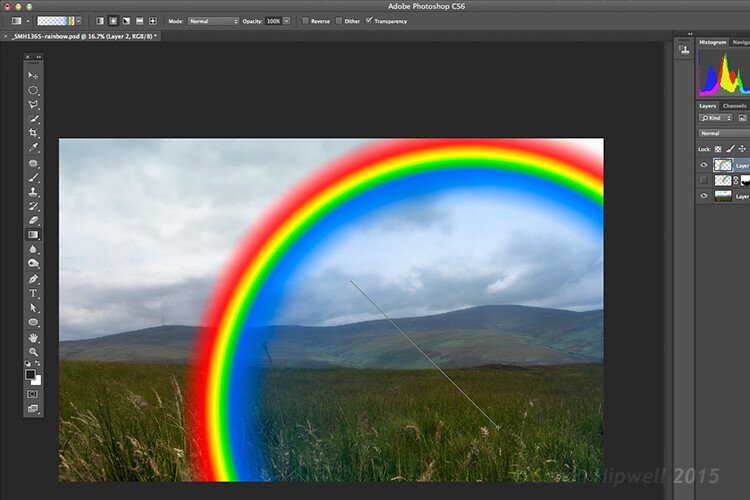
Make sure you have a new layer over the image that you are using. Start at the bottom of the image and drag upwards at a 45 degree angle and release. Depending on the size of the rainbow that you want, you can press CMD Z to undo and restart again (see image below). At first, it looks way too extreme and unrealistic, but using the free transform tool (CMD+T), resize and rotate and place it into position.

Creating-rainbow-using-rainbow-effect

With Russell’s rainbow preset selected and the gradient changed to radial. Click on a low part of the image and drag upwards at an angle to create the rainbow.

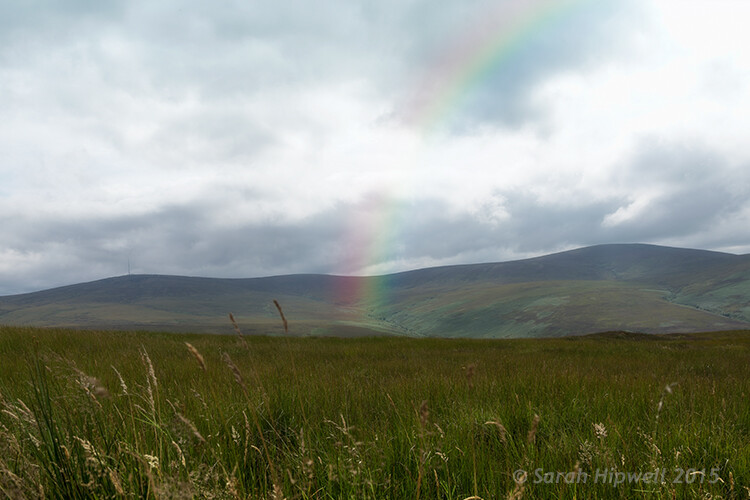
Change the layer blend mode to Screen. You can see the rainbow appears behind and in front of the clouds. Add a layer mask and with a big soft brush, soften the end of the rainbow where it hits the ground. I also converted the layer to a Smart Object and applied a Gaussian Blur. I then Lowered the Fill and Opacity to get an almost translucent effect. Voila, a real simple but effective rainbow.

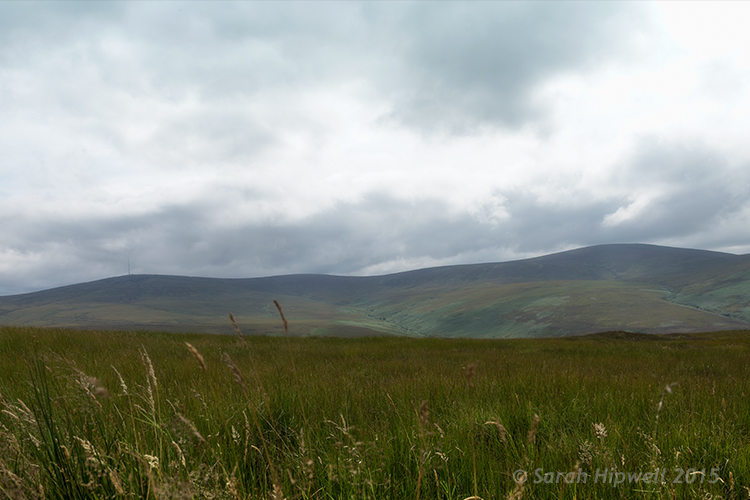
mountain-view

The original image without the rainbow.

mountain-view-rainbow

The rainbow effect added to the image.

Rainbows happen when sunlight and rain combine in a very specific way. And this brings me to the next preset…

#2 Rain

This particular preset is not as effective as the other two. I think a custom rain brush would be better, nevertheless, it does an okay job.

Depending on the image that you use, it is better to have an image with clouds rather than a clear blue sky. I desaturated this image by using a hue/saturation adjustment layer and I also added a vignette to give it more drama.

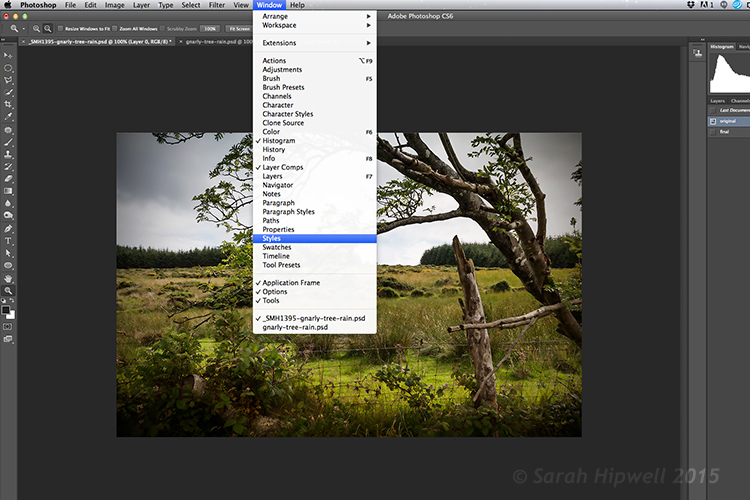
If you go up to Window in the menu bar and open up the Styles panel, or the Adjustments panel has a Styles tab to its right. Over to the far right corner is an arrow, click on this icon and a pop out menu appears. Choose Image Effects from near the bottom. Similar to the Gradient Editor, a dialog box appears asking you to, “Replace current styles with the styles from Image Effects?” Click Ok. The Rain style is down near the bottom.

Window-Styles

The Styles Panel is located under Window in the Menu bar.

arrow-icon-styles-panel

You’ll see this arrow icon to the far right corner of the Styles Panel. Click on tit and a pop-out menu appears (right).

pop-out-menu-styles-image-effects

This is the pop-out menu. The rain preset is located in the Image Effects.

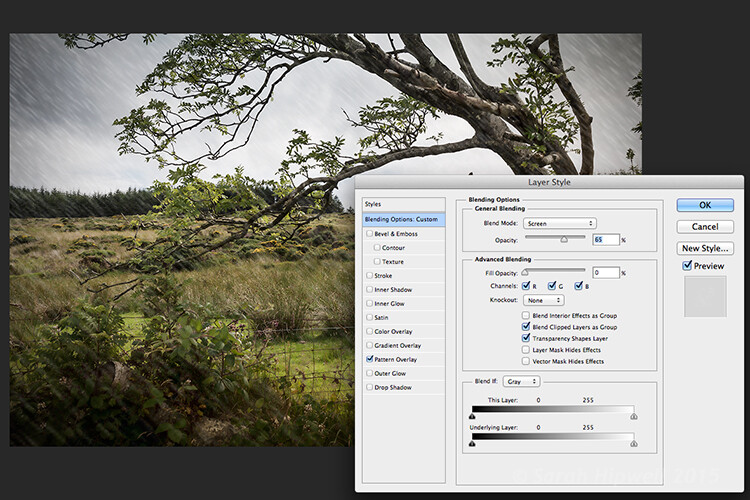
But first, create a new layer over the image that you have opened. Name this layer, Background rain. Fill it with 50% gray. Now click on the rain style. It creates a Pattern Overlay. At first, you just see small white diagonal slashes against a gray background. Change the blend mode to Screen. Then click anywhere to the right of this gray layer to bring up the Blending Options Layer Style dialog box. All you need to do here is bring the Fill opacity under Advanced Blending down to zero. Click Ok. Now you see just the the rain, the gray color is gone.

Layer-style-blending-options

This is the Layer Style Blending Options dialog box where you set the Fill Opacity to zero to get rid of the gray background. You could also reduce the Fill Opacity in the Layers panel.

You need to alter the size of the rain, it needs to be smaller as if it’s in the background. Double-click just underneath the layer where it says Effects>Pattern Overlay, this brings up the Pattern Overlay Layer Style dialog box. As you move the scale slider to the right or left, you can see the rain increasing or decreasing in size. I chose 207% and reduced the opacity to 52%. Click Ok. I added a layer mask, and with gradient tool, I masked away the rain at the bottom (you can equally use a soft brush to mask instead). I reduced the Opacity on this layer to 85%.

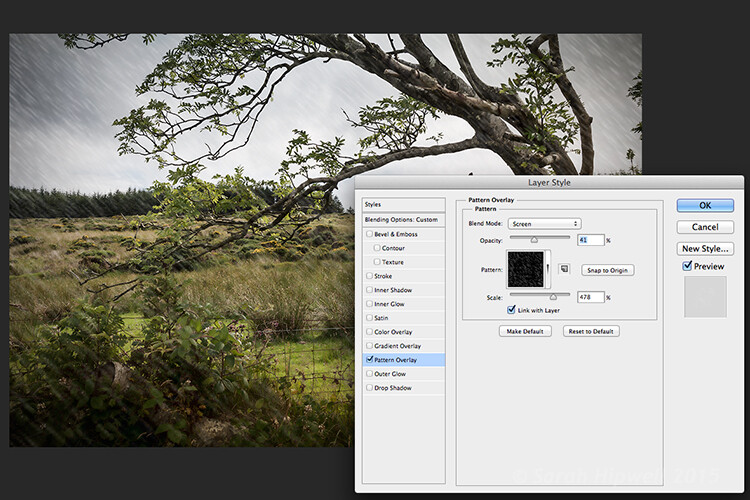
Layer-style-pattern-overlay

This is the Pattern Overlay where you can adjust the size of the rain by using the scale slider, and its opacity, quick and easily.

I created another layer and named this Foreground rain. I repeated the same steps as above but I changed the scale of the rain. I wanted the rain to appear bigger. So again double click on the Effects>Pattern Overlay to open the Pattern Overlay Layer Style dialog box. Increase the scale to 478% and reduce the opacity to 41%. Click Ok. I then reduced the Opacity on this layer to 65%. This gives the rain a bit more depth and adds a more realistic effect.

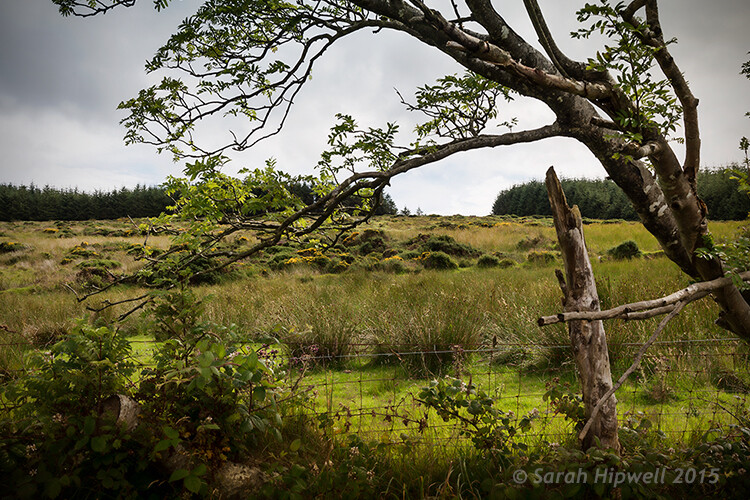
field

Original image taken with no rain.

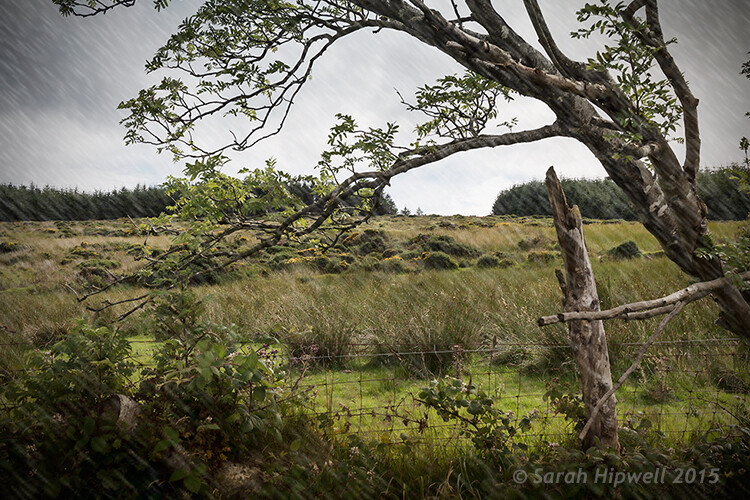
Rain-in-field

Rain applied using the rain preset in the Styles panel. I also desaturated and added a vignette to the image before adding the rain.

#3 Day to Night

Now for the third effect. This is a really quick and easy way to turn a photo from day into night with a preset already in Photoshop (CS6). Go up to Layer>New Adjustment Layer>Color Lookup. Where it says 3DLUT File, click on the tab beside it and a pop-up menu with different effects appears, scroll down to Moonlight.3DL. These presets are known as lookup tables, or LUTs, they’re mainly found in the film industry.

For added effect, I’m going to add a moon. Create a new layer, Go to your eclipse tool and hold down the Shift key and draw a circle, roughly 200px. Fill it with white. Deselect (CMD+D). Go up to Filter>Filter Gallery>Artistic>Sponge. Choose the Brush tool set to: Size 7, Definition 3 and Smoothness 5. Click Ok. Move the moon near the top of the tree. I reduced the size a little by using the Free Transform Tool (CMD+T). Change the blend mode to overlay. Duplicate this layer and reduce the Opacity to 55%. See image below.

title-day-moonlight

I hope you enjoyed these fun and quick techniques using these presets found in Photoshop. Do you use presets or other plugins? Please share in the comments below.

googletag.cmd.push(function() {
tablet_slots.push( googletag.defineSlot( “/1005424/_dPSv4_tab-all-article-bottom_(300×250)”, [300, 250], “pb-ad-78623” ).addService( googletag.pubads() ) ); } );

googletag.cmd.push(function() {
mobile_slots.push( googletag.defineSlot( “/1005424/_dPSv4_mob-all-article-bottom_(300×250)”, [300, 250], “pb-ad-78158” ).addService( googletag.pubads() ) ); } );

The post 3 Fun Ways to Enhance Your Landscape Images in Photoshop by Sarah Hipwell appeared first on Digital Photography School.


Digital Photography School

 
Comments Off on 3 Fun Ways to Enhance Your Landscape Images in Photoshop

Posted in Photography


Recipients of Getty Images Instagram Grant announced

15 Sep

Three winners were announced for the inaugural grant, meant to to reward photographers who use Instagram as a means to document stories from underrepresented communities around the world. Read more


Articles: Digital Photography Review (dpreview.com)

 
Comments Off on Recipients of Getty Images Instagram Grant announced

Posted in Uncategorized


24 Dynamic and Dramatic Backlit Images

12 Sep

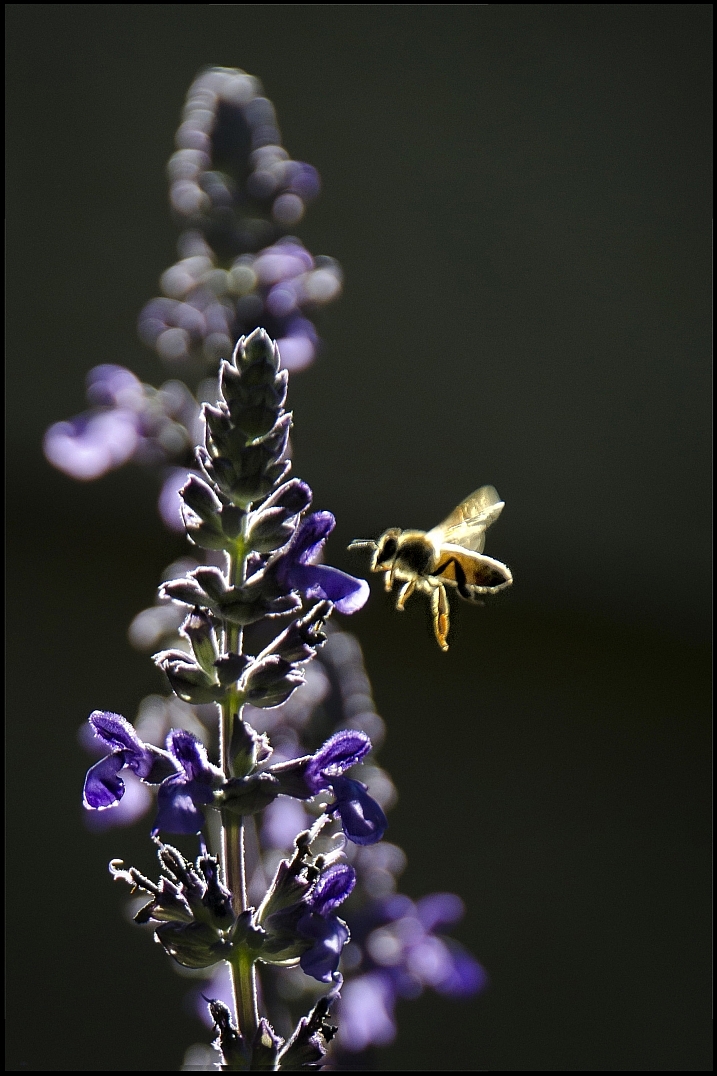
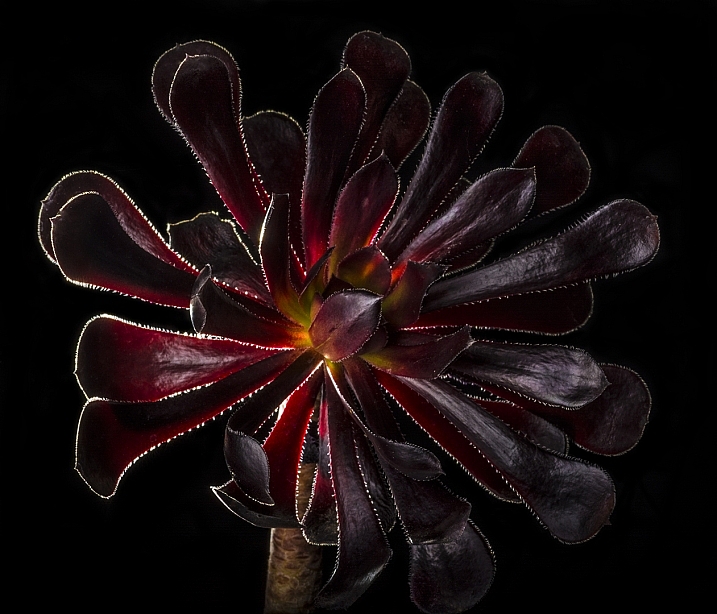
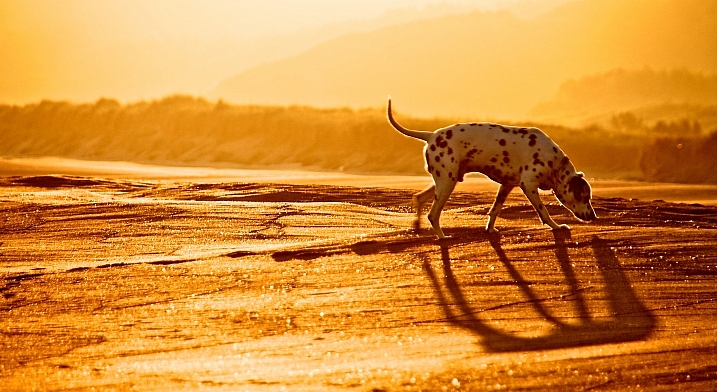
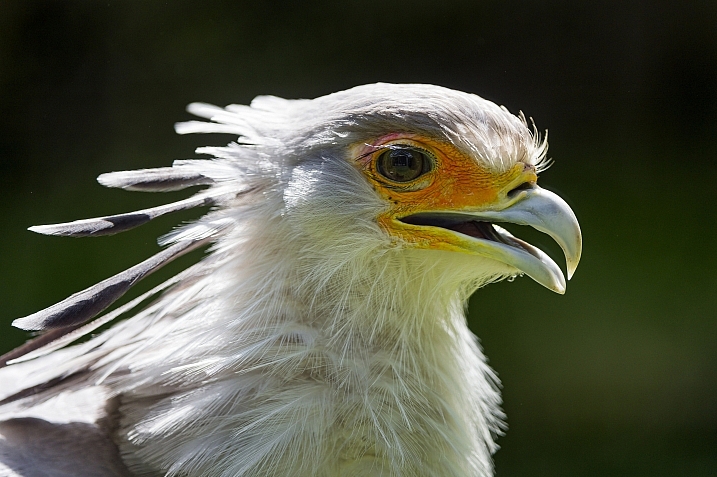
Light is key in photography and the direction of light an important factor in creating dramatic photos. When the subject is backlit, or the light is coming from behind it towards the camera, it can make for very dynamic and interesting images.

Like these:

Jason

By jason

Rylee Isitt

By Rylee Isitt

Randy Robertson

By Randy Robertson

Daniel Oines

By Daniel Oines

Matteo

By Matteo

Ignacio Abé

By Ignacio Abé

Kohei314

By Kohei314

Jørgen Schyberg

By Jørgen Schyberg

Brynn Tweeddale

By Brynn Tweeddale

Stavros Markopoulos

By Stavros Markopoulos

Dave Gough

By Dave Gough

Victor Camilo

By Victor Camilo

Markus Spiske

By markus spiske

Myles Tan

By Myles Tan

Keith Davenport

By Keith Davenport

M.G.N. - Marcel

By M.G.N. – Marcel

Steve Corey

By Steve Corey

Bill Gracey

By Bill Gracey

Oiluj Samall Zeid

By Oiluj Samall Zeid

Tambako The Jaguar

By Tambako The Jaguar

Natalie Barletta

By Natalie Barletta

Jorge Dalmau

By Jorge Dalmau

Jim Staley

By Jim Staley

Anne Worner

By Anne Worner

googletag.cmd.push(function() {
tablet_slots.push( googletag.defineSlot( “/1005424/_dPSv4_tab-all-article-bottom_(300×250)”, [300, 250], “pb-ad-78623” ).addService( googletag.pubads() ) ); } );

googletag.cmd.push(function() {
mobile_slots.push( googletag.defineSlot( “/1005424/_dPSv4_mob-all-article-bottom_(300×250)”, [300, 250], “pb-ad-78158” ).addService( googletag.pubads() ) ); } );

The post 24 Dynamic and Dramatic Backlit Images by Darlene Hildebrandt appeared first on Digital Photography School.


Digital Photography School

 
Comments Off on 24 Dynamic and Dramatic Backlit Images

Posted in Photography


27 Images of Powerful and Practical Machinery

22 Aug

If you live in an urban area there is probably some construction and/or machinery around, somewhere. Machines can make interesting photographic subjects. Let’s see what some other photographers found:

Photograph Cog wheels by Jaromír Chalabala on 500px

Cog wheels by Jaromír Chalabala on 500px

Photograph Toronto Distillery District 01 by Brian Carson on 500px

Toronto Distillery District 01 by Brian Carson on 500px

Photograph stopped time by jacek tomczak on 500px

stopped time by jacek tomczak on 500px

Photograph hand by ÖmerCan Can?dar on 500px

hand by ÖmerCan Can?dar on 500px

Photograph Usine S - Contrivance by Maarten Tummers  on 500px

Usine S – Contrivance by Maarten Tummers on 500px

Photograph The Requiem of Machinery by Christian Boss on 500px

The Requiem of Machinery by Christian Boss on 500px

Photograph Old machinery by Luca Gaverina on 500px

Old machinery by Luca Gaverina on 500px

Photograph Building Construction with Cranes in the evening. by SAMART BOONYANG on 500px

Building Construction with Cranes in the evening. by SAMART BOONYANG on 500px

Photograph Constructing landcapes by Luke Chung on 500px

Constructing landcapes by Luke Chung on 500px

Photograph Toronto: City of Cranes by Evgeny Tchebotarev on 500px

Toronto: City of Cranes by Evgeny Tchebotarev on 500px

Photograph Oil worker silhouette by Zoran Orcik on 500px

Oil worker silhouette by Zoran Orcik on 500px

Photograph Clouds Adjustment by trynidada on 500px

Clouds Adjustment by trynidada on 500px

Photograph Construction Workers by Ognian Medarov on 500px

Construction Workers by Ognian Medarov on 500px

Photograph Votecrab II. by Peter Majkut on 500px

Votecrab II. by Peter Majkut on 500px

Photograph The backhoe foot by Phoomin Karagate on 500px

The backhoe foot by Phoomin Karagate on 500px

Photograph The beast on the beach by Morgan Tiphagne on 500px

The beast on the beach by Morgan Tiphagne on 500px

Photograph backhoe/retroexcavadora by sairacaz (Abad Torres) on 500px

backhoe/retroexcavadora by sairacaz (Abad Torres) on 500px

Photograph Edit by Chatrawee Wiratgasem on 500px

Edit by Chatrawee Wiratgasem on 500px

Photograph ABSTRACT YELLOW CRANE by imageaddition on 500px

ABSTRACT YELLOW CRANE by imageaddition on 500px

Photograph Hard Work by Joop Snijder on 500px

Hard Work by Joop Snijder on 500px

Photograph Chain by Faruk Barabhuiya on 500px

Chain by Faruk Barabhuiya on 500px

Photograph (machine) by Gerhard Speck on 500px

(machine) by Gerhard Speck on 500px

Photograph Schwader by Tobias Müller on 500px

Schwader by Tobias Müller on 500px

Photograph Camera Gear by Phoomin Karagate on 500px

Camera Gear by Phoomin Karagate on 500px

Photograph wood & metal by Lucage Photography  on 500px

wood & metal by Lucage Photography on 500px

Photograph IVZN6 by Peter Majkut on 500px

IVZN6 by Peter Majkut on 500px

Photograph Cutter by Jack Daugherty on 500px

Cutter by Jack Daugherty on 500px

googletag.cmd.push(function() {
tablet_slots.push( googletag.defineSlot( “/1005424/_dPSv4_tab-all-article-bottom_(300×250)”, [300, 250], “pb-ad-78623” ).addService( googletag.pubads() ) ); } );

googletag.cmd.push(function() {
mobile_slots.push( googletag.defineSlot( “/1005424/_dPSv4_mob-all-article-bottom_(300×250)”, [300, 250], “pb-ad-78158” ).addService( googletag.pubads() ) ); } );

The post 27 Images of Powerful and Practical Machinery by Darlene Hildebrandt appeared first on Digital Photography School.


Digital Photography School

 
Comments Off on 27 Images of Powerful and Practical Machinery

Posted in Photography


Split Toning Black and White Images in Lightroom

18 Aug

It can at times seem difficult to make our images unique, or at the very least more interesting. During our workflow we sometimes even discard photos because we feel they aren’t interesting, or that we have failed at an exposure or composition. What we often forget is that we can actually make our images stand out from the rest, and become less mundane, just by being slightly creative with our editing. Sometimes we can even go so far as to salvage an image that might otherwise have been introduced to the delete button. Just by using some powerful, yet simple, post-processing techniques we can discover hidden gems within our images.

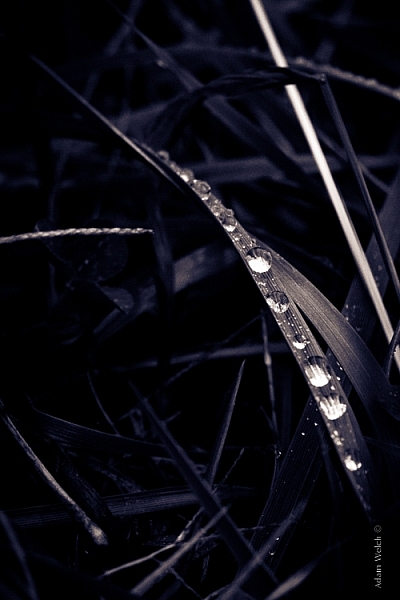
Rain-on-Grass.jpgIntroducing split toning

One such technique which can add uniqueness and strength to an image, is the process of split toning. Most likely, you have already viewed many images that were split toned, even if you didn’t know anything about it. Many of the vintage looking photographs, that seem to be trending at the moment, almost always employ split tone processing to some extent. That’s not to say that split tone images are something new, in reality, the situation is actually quite the opposite. Split toning has its roots in film photography and dark-room printing. Before we begin to learn just how easily you can convert your images to split tone, let’s first take a brief look at what split toned images are, and examine (even more briefly) a little bit of the history behind the process.

What is split toning?

Split toning is quite simply a process by which color tone is added to the highlight and shadow areas of an otherwise monochromatic photograph. Traditionally, the photo being processed with split tones begins its life as a black and white image capture. After the print has been fully made and developed, it is then introduced to other chemicals, which affect the image tones in different ways, depending on the relative compositions of the chemistry involved. In our world today, digital darkrooms now allow us to carry-over this technique of selective toning to our color prints. Color split tone images are quite possible and are often very pleasing. However, for our purposes here, we will keep the discussion limited to the process of using split toning as it relates to black and white photos exclusively.

History of split toning

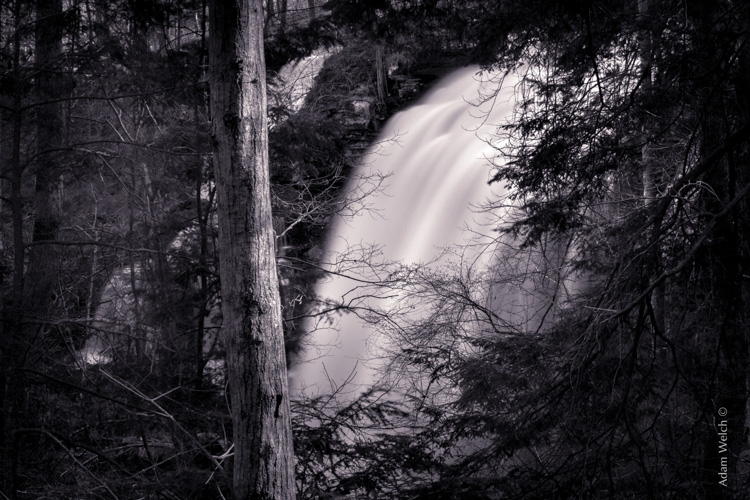
Virgin Falls

It all started with the birth of the photographic process itself in the mid 1800s. The images produced during that era of early experimentation into the medium were very delicate, and extremely susceptible to degradation from physical touch, atmospheric conditions, as well as exposure to light post-development. As photography evolved, the pioneers of the art found they needed a way to make their finished prints more durable and longer lasting. This lead to the introduction of toners in the darkroom printing process. Essentially, most toners replace the metallic silver present in the print with a more stable silver compound.

The finished print tone of course depended on the type of toner used. A readily identifiable example of this is sepia tone. We’ve all seen them before; the warm and golden hues that look predominately old fashioned and can lend a sense of nostalgia to an image. Originally, sepia toned photographs were a result of a chemical process in the darkroom. The process involved treating the finished print with chemical compounds that converted the silver present into a silver compound called silver sulfide, which made for a much longer lasting finished print.

The split toning processes came about by using different toning agents in different stages, in different proportions. A photographer might treat a photo with one type of toner and then stop the process at a desired stage, leaving only the highlights unreacted. Then, another and different type of toner might be introduced, which would react with the remaining silver present in the shadows left over from the previous treatment. Thusly, the tones visible within the image would be split – hence split toning.

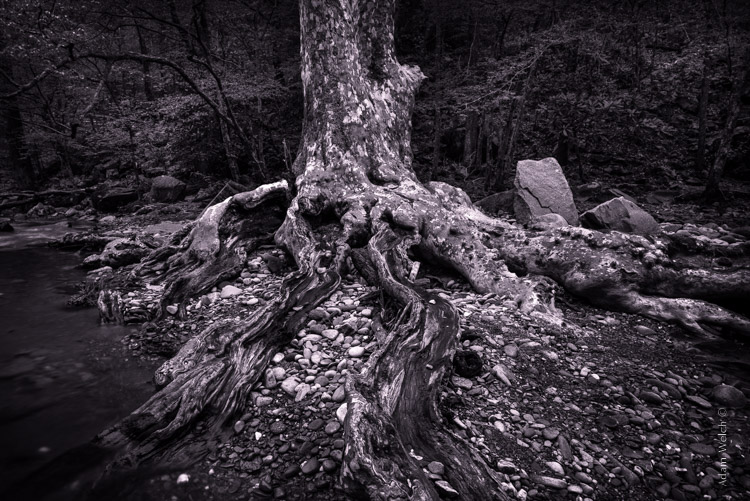
Roots

Ansel Adams, one of the most influential photo makers of the our time, also employed the use of split toning in his masterworks. This in itself is quite interesting since Adam’s was a realist in all ways. Meaning that he promoted straight photography with minimal manipulations in the darkroom aside from his own adjustments, using mostly dodging and burning. Ansel choose primarily selenium based toning agents for his work, which added a very slight blue hue to the shadows of most of his prints. He called the color tones eggplant, and indeed the coolness of bluish blacks produced images that are still counted among some of the most magnificent examples of photographic art ever made.

How to apply split toning in Lightroom

Now that you have an understanding of what the split tone processing is all about, we can move on to the fun stuff. Let’s take a look at how you can easily make your black and white images really stand out using split toning feature in Adobe Lightroom 6 (the split toning feature is also available in other image processing software including LR CC, Photoshop and ACR).

Let’s begin with a color image that we feel would benefit from being converted to black and white. Photos which transition well to black and white more often than not possess stark contrasts between the light and shadow areas, and have great texture within the subject matter.

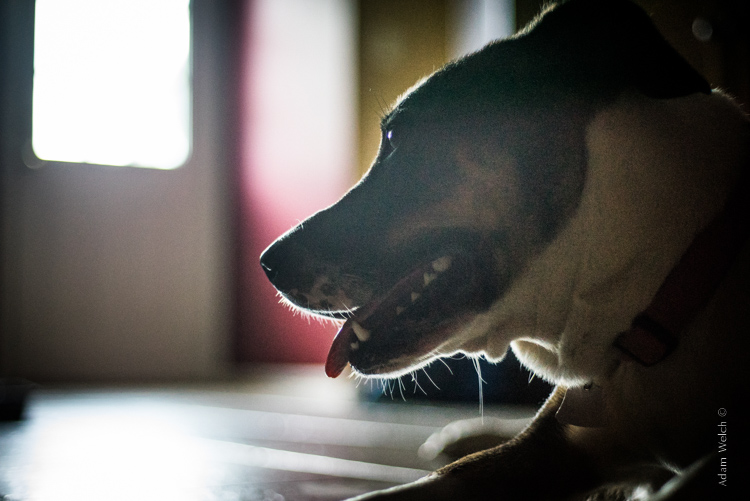
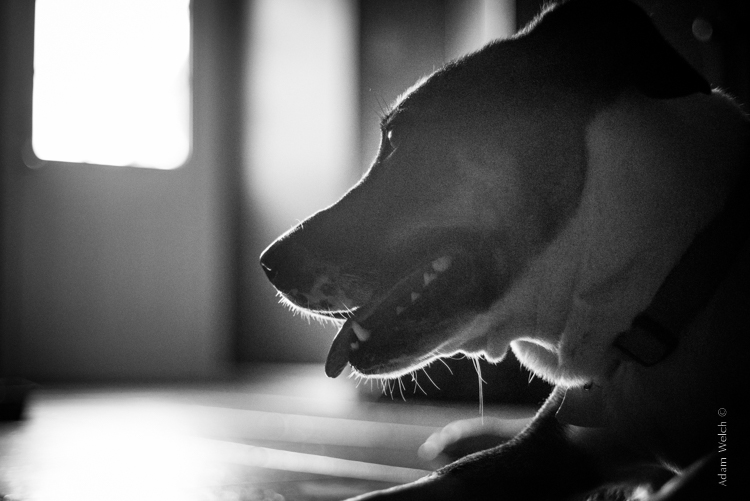
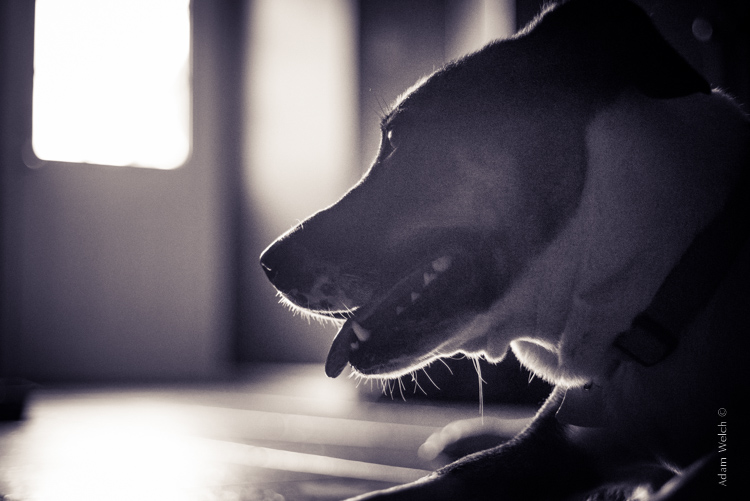
This is quick snapshot of my dog Leia. The bright light coming through the door casts her profile nearly in silhouette and the high ISO made for a slightly grainy image, but really no remarkable color of which to speak. So I chose to convert it to black and white and use the grain in order to produce a gritty, and spontaneous look to the photo.

Leia Original

Original color image

Leia Original BW

This is the image after converting to black and white.

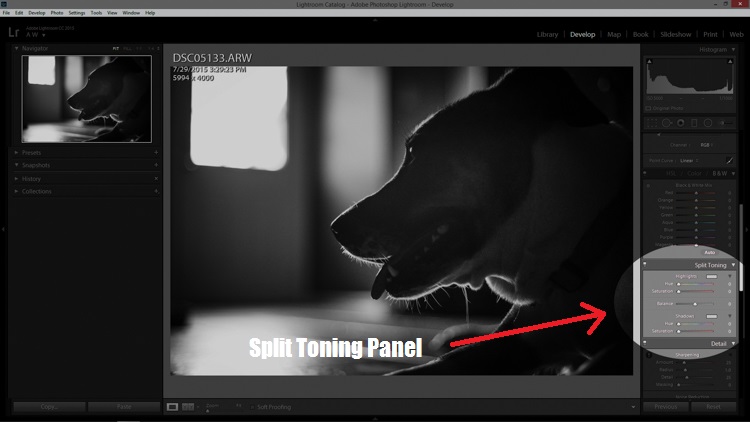
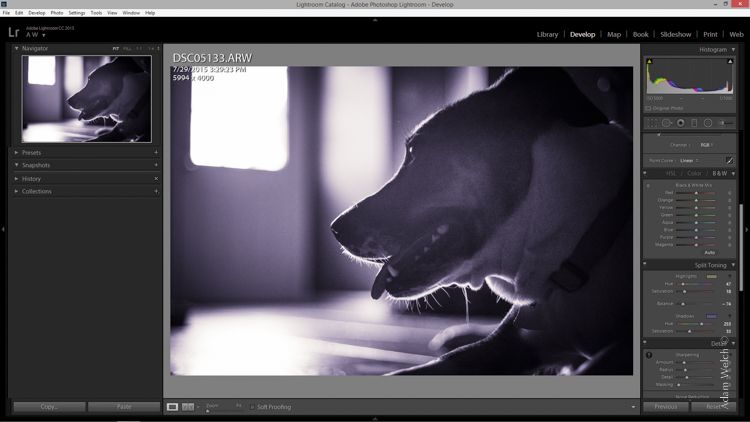
But, I still wanted more than just a black and white photo, so I decided to apply some slight split toning. Here we have the same photo of Leia opened in LR 6. The Split Tone panel is highlighted.

Split Tone Panel

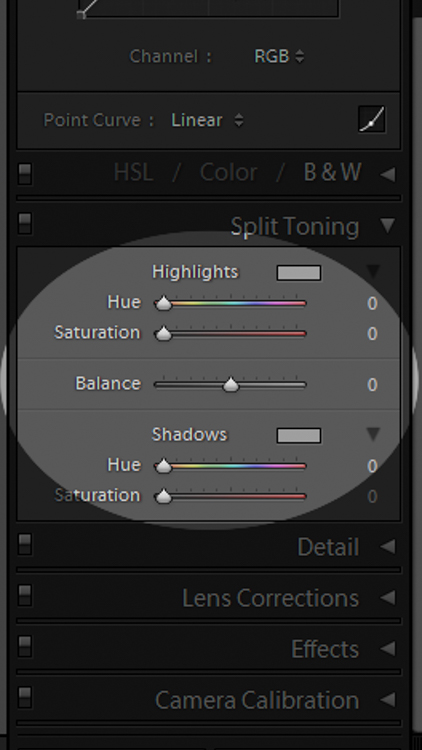
You’ll see a few options for controlling the highlight and shadow tonality, along with a hue and saturation slider for each. There is also a balance slider. The balance slider controls how the color tones are applied in relation to one another.

Split Tone Panel 2

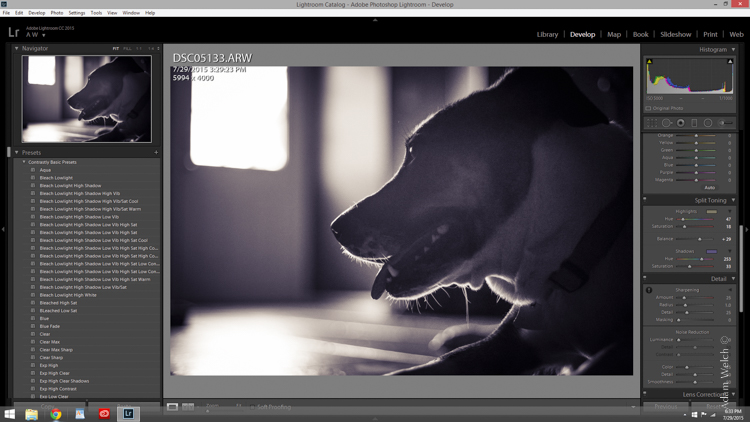
I adjusted the tones to make the highlights into a yellow hue, while the shadows I changed to a bluish-purple. I simply kept adjusting each slider until I achieved the look I wanted for the image.

Split Highlights

Here is the edit with the balance slider favoring the highlights.

Split Shadows

Here we see it balanced to favor the shadows.

Leia Split Tone

Here is the finished image after split toning. From beginning to end the processing took less than five minutes.

Applying split toning to your black and white photographs can be an easy way to move beyond merely converting your photo to black and white. It adds interest to your shot, and helps to make it stand out from the ordinary. Luckily, digital photography has given us enormous range to experiment with our images, apply edits, and see the effects in real-time.

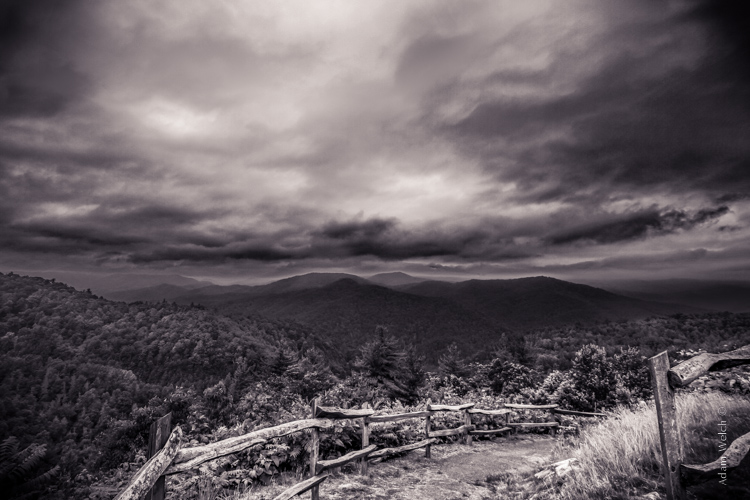
Here is another example of an image which has been processed using split toning (see others throughout the article as well). Try some split tone processing techniques for yourself and see what your black and white photos can become!

Cataloochee Valley Overlook

Editor’s Note: This is one of a series of articles this week featuring black and white photography tips. Look for earlier ones below and more daily over the next few days.

  • 5 Simple Ways to Create Expressive Photos in Black and White
  • Tips for Black and White Wildlife Photography
  • 7 Tips for Black and White Portrait Photography
  • 28 Images with Strong Black and White Compositions
  • Weekly Photography Challenge – Black and White Techniques
  • Tips for Black and White Wildlife Photography
  • How to Convert Images to Black and White and Add a Color Tint in Photoshop
  • Shooting all Black and White for a Day to Improve Your Photographic Eye

googletag.cmd.push(function() {
tablet_slots.push( googletag.defineSlot( “/1005424/_dPSv4_tab-all-article-bottom_(300×250)”, [300, 250], “pb-ad-78623” ).addService( googletag.pubads() ) ); } );

googletag.cmd.push(function() {
mobile_slots.push( googletag.defineSlot( “/1005424/_dPSv4_mob-all-article-bottom_(300×250)”, [300, 250], “pb-ad-78158” ).addService( googletag.pubads() ) ); } );

The post Split Toning Black and White Images in Lightroom by Adam Welch appeared first on Digital Photography School.

Digital Photography School

 
Comments Off on Split Toning Black and White Images in Lightroom

Posted in Photography


How to Convert Images to Black and White and Add a Color Tint in Photoshop

17 Aug
Split-tone-ACR

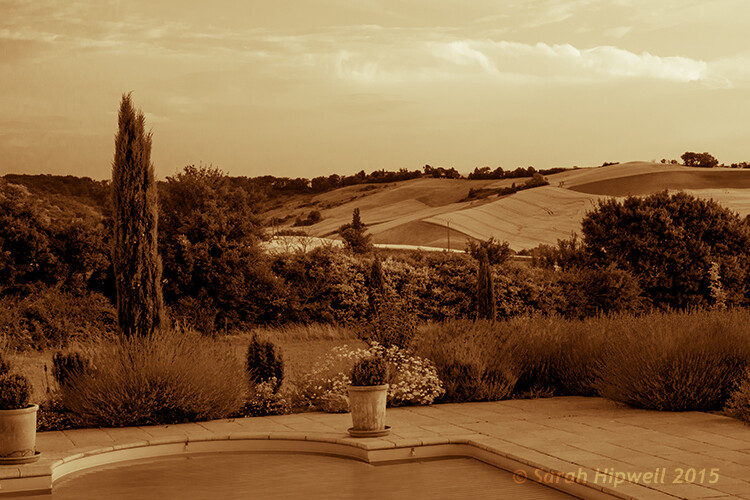
Landscape scene in south of France using split-tone effect in ACR

So why would you bother with black and white imagery when we live in a world full of color? There are many reasons why, but a simple answer is that a black and white image can be quite powerful.

A close up of a man’s or woman’s face, heavily lined from age, photographed in black and white may elicit a stronger emotion than the same image in color. The viewer focuses in on the texture and contrast of the image.

A heavy fog or mist over a landscape is much spookier in monochrome than in color. That’s why those old black and white movies are so good.

Converting to Black and White in Photoshop

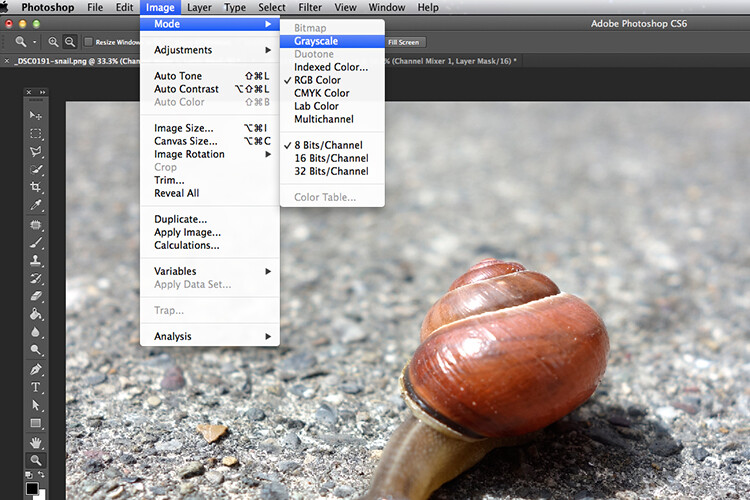
Converting a color to black and white in Photoshop is a relatively easy task. Open the image that you want to convert to black and white. Choose from the Image Menu>Mode>Grayscale. A dialog box appears, asking you if you want to, “Discard color information?”. Click Discard, but I would not recommend this method. All the color information has now been lost.

Snail-grayscale

A simple way to converting a colour image to black and white in Photoshop, but not the recommended way.

Channel Mixer

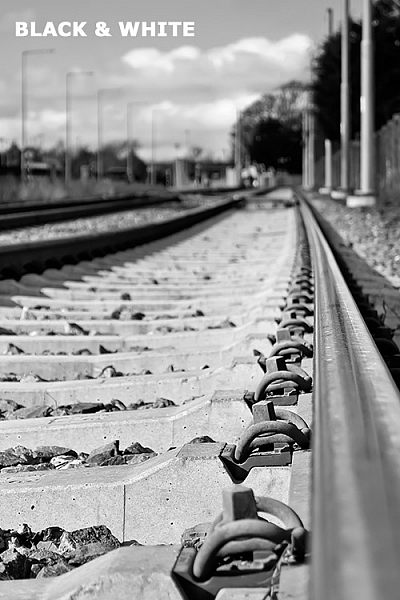
Instead, I’m going to show you a more effective way for converting your images to black and white in Photoshop. I like to use the Channel Mixer method. In Photoshop, choose the Channel Mixer icon from the adjustments palette or you can choose Layer>New Adjustments>Channel Mixer and click OK.

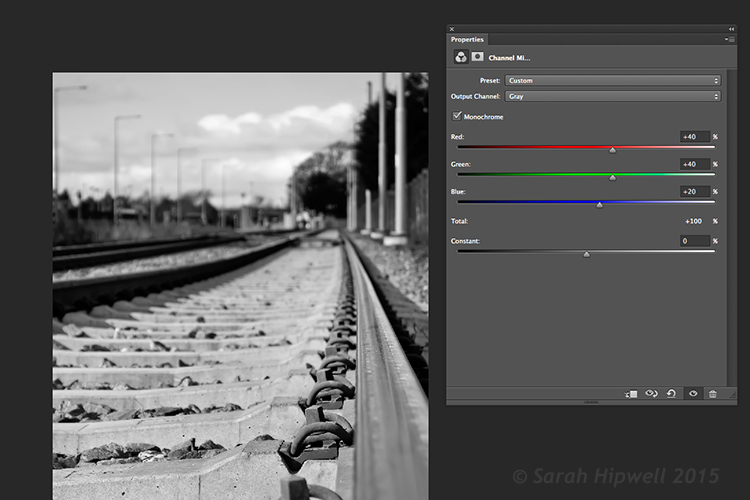
There is a check box next to the word Monochrome, on the lower left side in the Channel Mixer box. When you click on that, your image will turn to grayscale. The default settings are Red 40%, Green 40% and Blue 20%. See screenshot below. However, this is where I like to make my own changes.

Channel-mixer-default-settings

Using the Channel Mixer to convert a color image to black and white. The default settings when you click on the Monochrome box are Red 40%, Green 40% and Blue 20%.

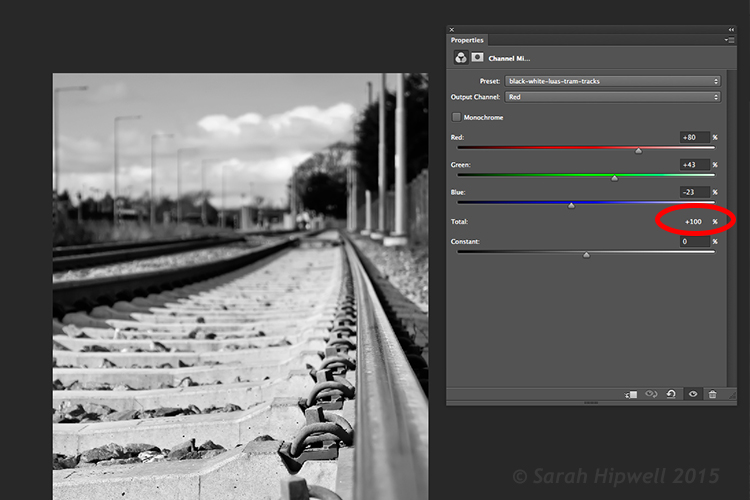
The Red channel holds the most detail. The blue channel holds the most noise. The look that you’re after will depend on your choice. For this image, I moved the red slider to +80%, the green slider to +43% and the blue to -23%. The general rule of thumb is that the percentages should total to 100% (80+43-23=100).

Channel-mixer-custom-settings

The ability to adjust each of the Red, Green and Blue sliders gives you more control over how you want your grayscale image to look. Try and keep the percentage totals equal to 100%.

Adding a Color Tint

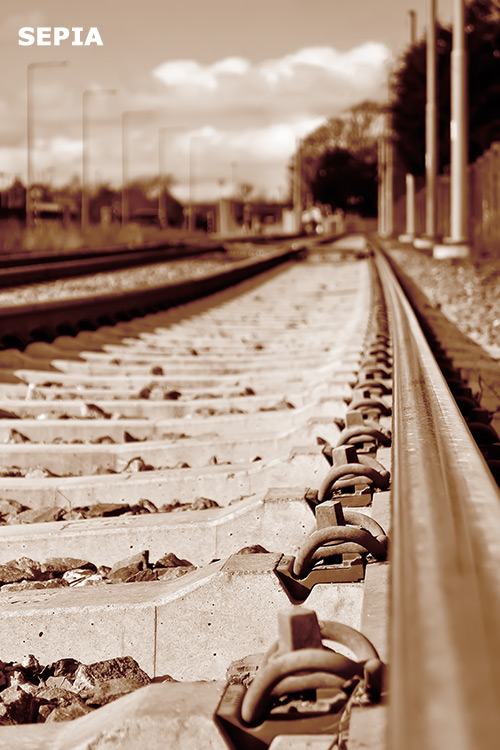
Next, let’s add some color to a black and white image, or rather a tint. Let’s start with a sepia tone, which is a reddish-brown color that gives those old vintage photos that classical look.

Sepia

Using the same image that you have just converted to black and white using the Channel Mixer – add another new adjustment layer, Color Balance. Similar to the Channel Mixer, choose Layer>New Adjustments>Color Balance

Name this layer, Shadows. In the properties panel, click to the right where it says Tone, it defaults to Midtones but you have the option of two others, choose Shadows, as you only want the color to effect the shadows. Move the red slider over to 55%, then move the yellow slider to the left -40% to give the image that classic reddish brown look. See the animated gif below.

Black-and-white sepia-tone

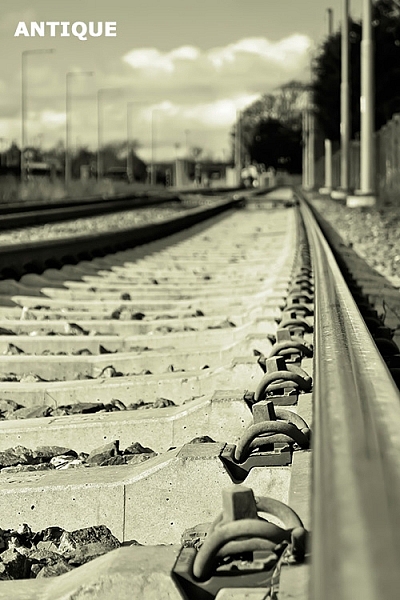
Antique

Now if you want the color to affect only the highlights. First, turn off the layer visibility on the Shadows layer. Add another Color Balance layer, choose Layer>New Adjustments>Color Balance and name this one Highlights. Same as above, click to the right of Tone where it says Midtones and choose Highlights. Move the yellow slider to the left -55%. This gives the image an Antique look. See image below left.

Antique tone split-tone

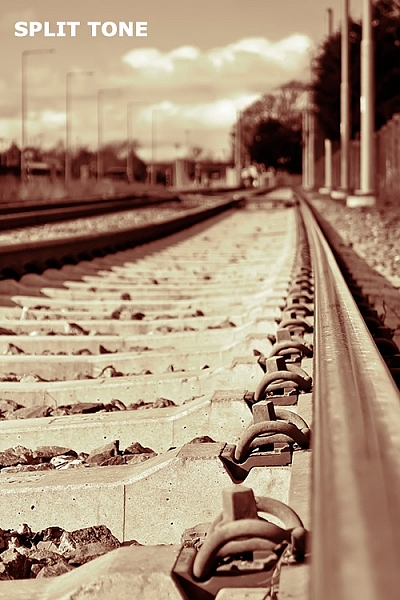
Split toning

Turn the visibility for the Shadows layer back on and you now have a split-tone look, as you have just added two different hues to the highlights and shadows. See image above right.

Split toning in ACR

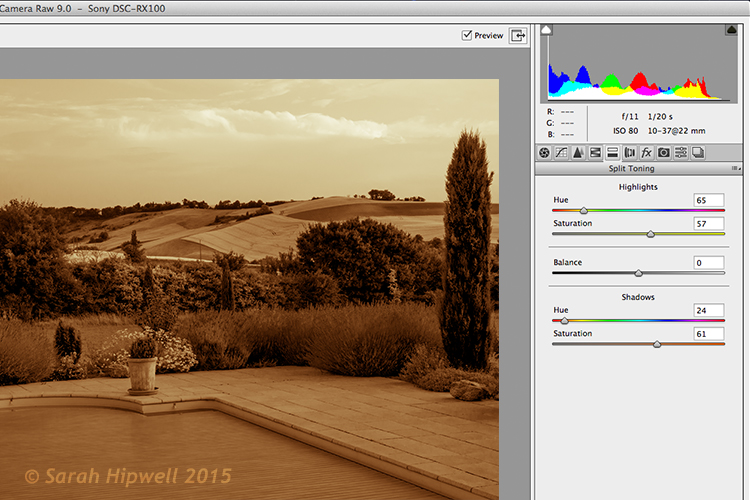
To achieve this same effect in Adobe Camera Raw (ACR) it’s even easier. With your image open in ACR, having done the basic edits. Click the HSL/Grayscale tab, then check on the Convert to Grayscale box. Similar to the Channel Mixer adjustment layer in Photoshop the color sliders can be adjusted to make your own custom changes.

Click the Split Toning tab. Move the Highlights Hue to yellow and the Saturation over to the middle to start. Move the Shadows Hue to a red tone, and the Saturation to the middle as well. Then adjust the Saturation for the Shadows (I used 61) and the Highlights (I used 57).

Split-tone-ACR

Editing an image using the Split Toning tab in ACR

Gradient Map

As with most techniques in Photoshop, there are many ways of achieving the same results. It comes down to preference, and most importantly, time. So here’s a really quick, and very effective way, to convert your color photo to black and white and add a sepia tone, or even a duotone.

Normally, I don’t bother or rave about the presets that come bundled with Photoshop. But in the Gradient Editor, I beg to differ. There is a set called Photographic Toning, which consists of 38 presets in total, and I think these do an amazing job! Here’s how I applied this duotone effect to this image.

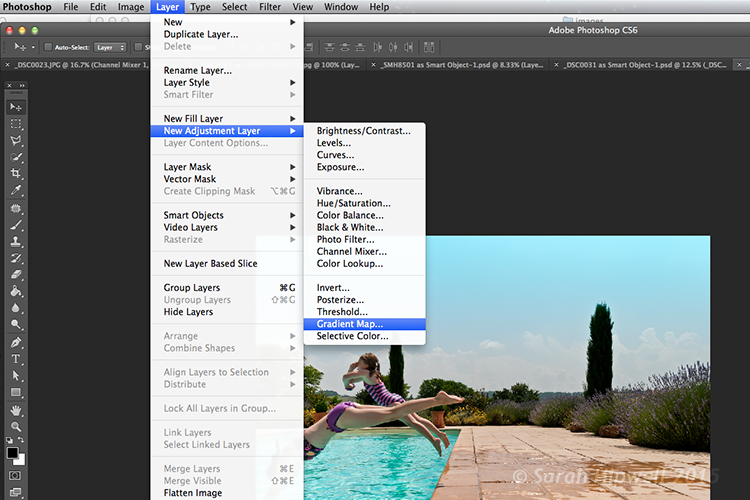
Go to Layer>New Adjustment Layer>Gradient Map or you can click on the last icon in the bottom row of the Adjustments panel. Ensure your Foreground and Background colors are set to Black and White. This will apply the default gradient, which is foreground to background and turn your image to black and white.

Layer-new-adjustment-layer-gradient-map

How to add a Gradient Map as an adjustment layer in Photoshop

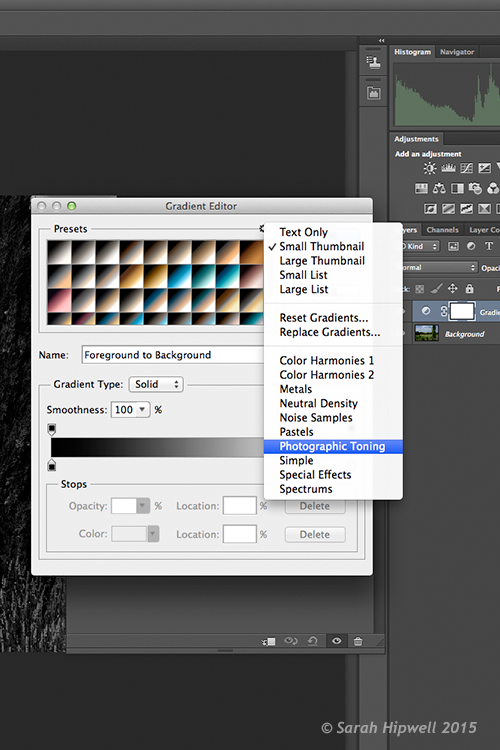
Click on the gradient and the Gradient Editor menu appears. Click on the gear icon at the top right corner of the Presets section, and another pop-up menu appears. Photographic Toning is down near the bottom of the list. When you click on it, a dialog box appears asking you to replace the current default gradients with the ones that you are loading. Just click Ok.

Gradient-editor-photographic-toning

How to find the Photographic Toning presets in the Gradient Editor in Photoshop

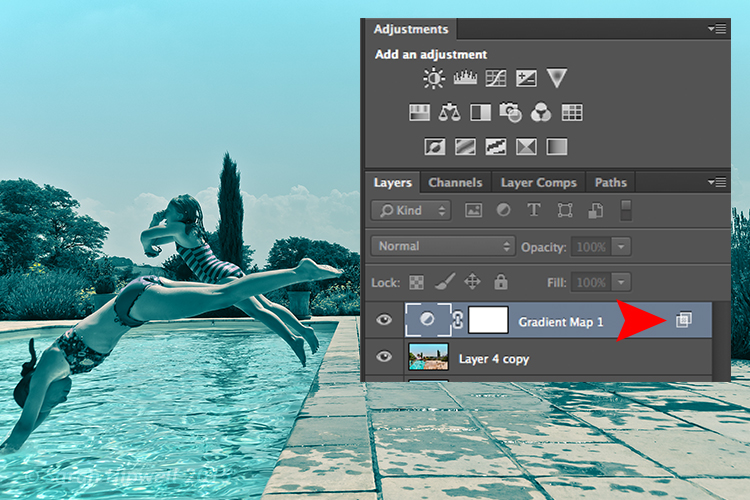
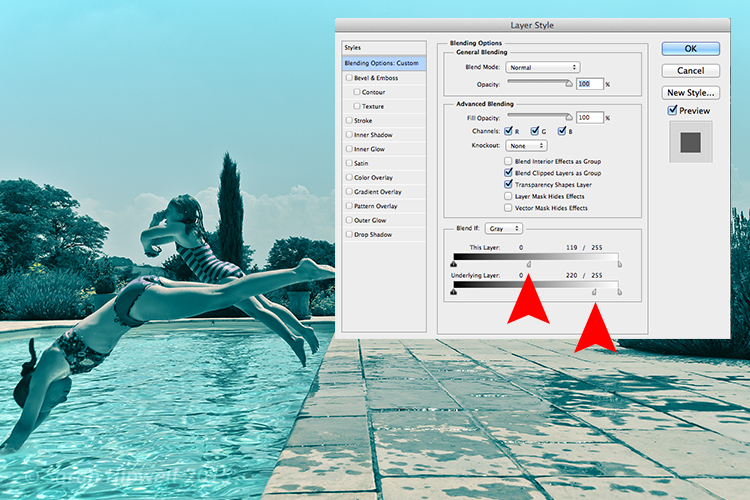
I chose Blue2 (the sixteenth one) to give it this greenish, turquoise color. As with any adjustment layer, you can lower the opacity or change the blend mode, but in this case, I did a slight Blend-if on both layers. By right-clicking on the layer, this brings up the Layer Style pop-up menu with the different blending options.

Layer-with-blending-options

Blending-options-Blend-if

Go down to the Blend-if section. You will see ‘This Layer’ and the ‘Underlying Layer’ . Both of these options have a white slider. Hold down the Alt key, which splits it into halves, and slide the left portion to the left (as shown above). This brings back some of the highlights to give the image a more cross-processed look. See image below.

There is a great range of Sepia presets to choose from which are worth trying out too.

Original-before-duotone

Color image before I applied a duotone effect from one of the presets in the Gradient Editor in Photoshop

Duotone

‘Blue2′ one of the presets in the Gradient Editor in Photoshop to give that ‘Duotone’ effect

Have you converted your color photos to black and white? What techniques did you use? If so please share in the comments below.

Editor’s Note: This is one of a series of articles this week featuring black and white photography tips. Look for earlier ones below and more daily over the next few days.

  • 5 Simple Ways to Create Expressive Photos in Black and White
  • Tips for Black and White Wildlife Photography
  • 7 Tips for Black and White Portrait Photography
  • 28 Images with Strong Black and White Compositions
  • Weekly Photography Challenge – Black and White Techniques
  • Tips for Black and White Wildlife Photography

googletag.cmd.push(function() {
tablet_slots.push( googletag.defineSlot( “/1005424/_dPSv4_tab-all-article-bottom_(300×250)”, [300, 250], “pb-ad-78623” ).addService( googletag.pubads() ) ); } );

googletag.cmd.push(function() {
mobile_slots.push( googletag.defineSlot( “/1005424/_dPSv4_mob-all-article-bottom_(300×250)”, [300, 250], “pb-ad-78158” ).addService( googletag.pubads() ) ); } );

The post How to Convert Images to Black and White and Add a Color Tint in Photoshop by Sarah Hipwell appeared first on Digital Photography School.


Digital Photography School

 
Comments Off on How to Convert Images to Black and White and Add a Color Tint in Photoshop

Posted in Photography


28 Images with Strong Black and White Compositions

16 Aug

This week on dPS it’s all about black and white photography. We are featuring a series of tips and articles around that topic. You can earlier ones below and more daily over the next few days.

  • 5 Simple Ways to Create Expressive Photos in Black and White
  • Tips for Black and White Wildlife Photography
  • 7 Tips for Black and White Portrait Photography

Now, let’s take a look at some images that use this medium to their advantage in strong black and white compositions:

Photograph The great migration by Nicole Cambré on 500px

The great migration by Nicole Cambré on 500px

Photograph Awoken Despair by Alexandre Deschaumes on 500px

Awoken Despair by Alexandre Deschaumes on 500px

Photograph Snowy Owl by Kevin Pepper on 500px

Snowy Owl by Kevin Pepper on 500px

Photograph Biorhythms (2011) by Nik Barte on 500px

Biorhythms (2011) by Nik Barte on 500px

Photograph Farewell, dear friend! by Victoria Ivanova on 500px

Farewell, dear friend! by Victoria Ivanova on 500px

Photograph Story_IV by ? DrakSpirit ?  on 500px

Story_IV by ? DrakSpirit ? on 500px

Photograph Silhouette by mahmood Al-jazea on 500px

Silhouette by mahmood Al-jazea on 500px

Photograph Magical forest by Damian Cyfka on 500px

Magical forest by Damian Cyfka on 500px

Photograph Hide by  PortraitsBySam on 500px

Hide by PortraitsBySam on 500px

Photograph Art of road surface 2 by Junichi Hakoyama on 500px

Art of road surface 2 by Junichi Hakoyama on 500px

Photograph Six Steps by Dave MacVicar on 500px

Six Steps by Dave MacVicar on 500px

Photograph Lone Tree by Phil Buckle on 500px

Lone Tree by Phil Buckle on 500px

Photograph K. by pkfruen  on 500px

K. by pkfruen on 500px

Photograph pray by Muhammad Berkati on 500px

pray by Muhammad Berkati on 500px

Photograph Street Noir by András Sümegi on 500px

Street Noir by András Sümegi on 500px

Photograph Cold morning by Junichi Hakoyama on 500px

Cold morning by Junichi Hakoyama on 500px

Photograph Parisian Morn by Cubz Cubbon on 500px

Parisian Morn by Cubz Cubbon on 500px

Photograph Onwards and upwards by Lex Schulte on 500px

Onwards and upwards by Lex Schulte on 500px

Photograph *** by Turgut Kirkgoz on 500px

*** by Turgut Kirkgoz on 500px

Photograph LoaD IN # by Guillaume Rio on 500px

LoaD IN # by Guillaume Rio on 500px

Photograph Blues by Pascal-Ludovic Saissi on 500px

Blues by Pascal-Ludovic Saissi on 500px

Photograph Glass B&W by jenrygraphy on 500px

Glass B&W by jenrygraphy on 500px

Photograph Capitolio by Liban Yusuf B&W on 500px

Capitolio by Liban Yusuf B&W on 500px

Photograph I won't forget my roots by Cimone  on 500px

I won't forget my roots by Cimone on 500px

Photograph The Eye by John Steven Fernandez on 500px

The Eye by John Steven Fernandez on 500px

Photograph La batalla by alfonso maseda varela on 500px

La batalla by alfonso maseda varela on 500px

Photograph HERBAL TEA by Acken Li on 500px

HERBAL TEA by Acken Li on 500px

Photograph Taj Mahal - India by Christophe Paquignon on 500px

Taj Mahal – India by Christophe Paquignon on 500px

googletag.cmd.push(function() {
tablet_slots.push( googletag.defineSlot( “/1005424/_dPSv4_tab-all-article-bottom_(300×250)”, [300, 250], “pb-ad-78623” ).addService( googletag.pubads() ) ); } );

googletag.cmd.push(function() {
mobile_slots.push( googletag.defineSlot( “/1005424/_dPSv4_mob-all-article-bottom_(300×250)”, [300, 250], “pb-ad-78158” ).addService( googletag.pubads() ) ); } );

The post 28 Images with Strong Black and White Compositions by Darlene Hildebrandt appeared first on Digital Photography School.

Digital Photography School

 
Comments Off on 28 Images with Strong Black and White Compositions

Posted in Photography