RSS
 

Posts Tagged ‘Images’

How much do you process your images? – a dPS POLL

05 Jun

This week on dPS it’s all about things that are debatable and open for discussion. One thing that’s always a hot item is post-processing. Do you do it or not? If so how much? If you want to get in on that discussion head over to:  To Process or Not To Process? Let’s Discuss

How much do youprocess your images_

Then fill in this poll and tell us – how much do you process? Are you a minimalist or do you take your time and make art with each image?

Note: There is a poll embedded within this post, please visit the site to participate in this post’s poll.


Editor’s Note: This is one of a series of articles this week that are Open for Discussion. We want to get the conversation going, hear your voice and opinions, and talk about some possibly controversial topics in photography.

Give us your thoughts below, and watch for more discussion topics each day this week.

See all the recent discussion topics here:

  • 7 Commonly Accepted Photography Beliefs Debunked
  • Is HDR dead? Some dPS Writer’s Thoughts on this Controversial Topic
  • How to Find your Personal Photographic Style
  • Why You May be Failing to Reach Your Potential as a Photographer
  • To Process or Not To Process? Let’s Discuss

googletag.cmd.push(function() {
tablet_slots.push( googletag.defineSlot( “/1005424/_dPSv4_tab-all-article-bottom_(300×250)”, [300, 250], “pb-ad-78623” ).addService( googletag.pubads() ) ); } );

googletag.cmd.push(function() {
mobile_slots.push( googletag.defineSlot( “/1005424/_dPSv4_mob-all-article-bottom_(300×250)”, [300, 250], “pb-ad-78158” ).addService( googletag.pubads() ) ); } );

The post How much do you process your images? – a dPS POLL by Darlene Hildebrandt appeared first on Digital Photography School.


Digital Photography School

 
Comments Off on How much do you process your images? – a dPS POLL

Posted in Photography


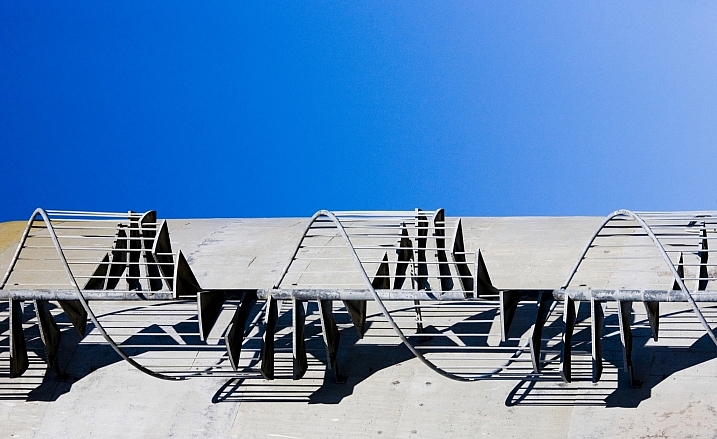
25 Stunning Images that Show Next to Nothing – Minimalism

04 Jun

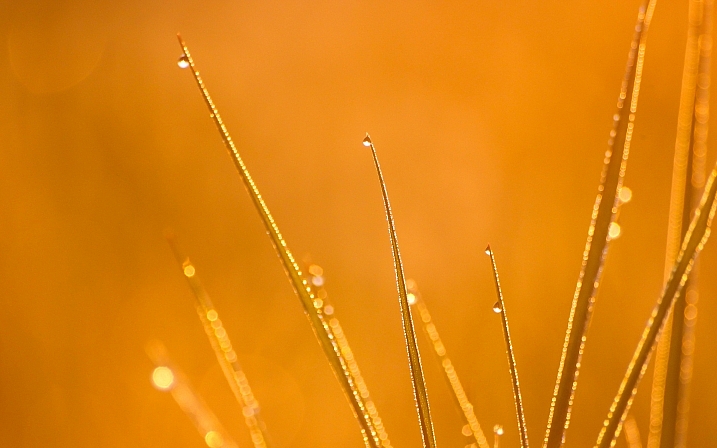
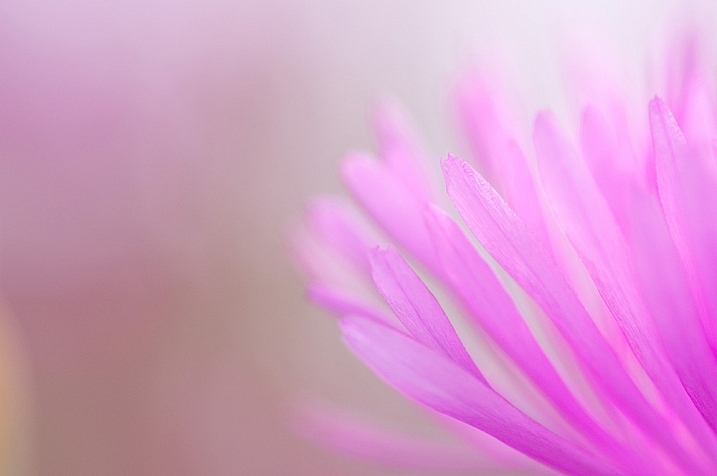
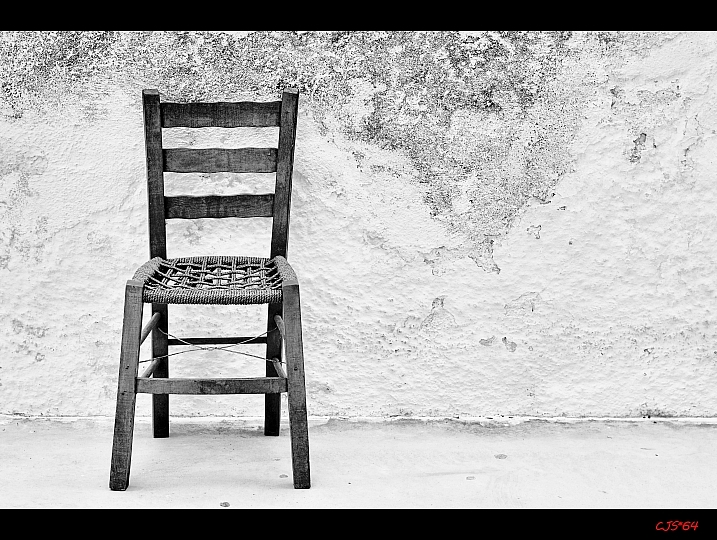
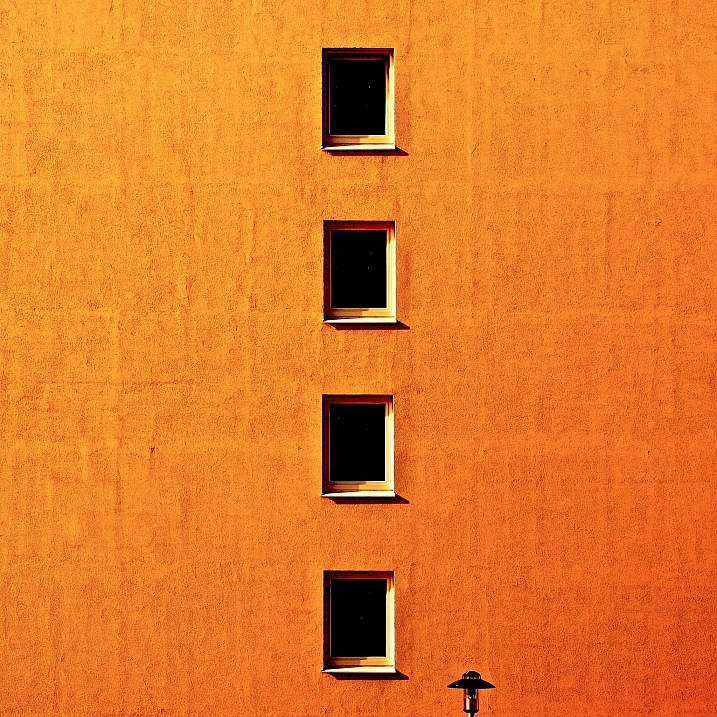
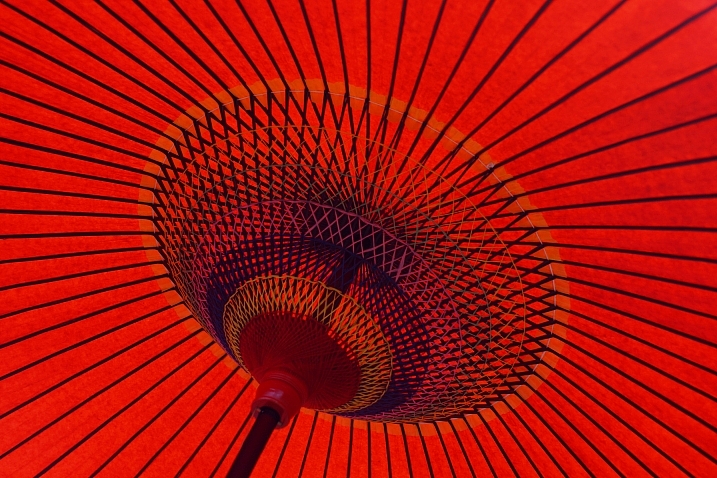
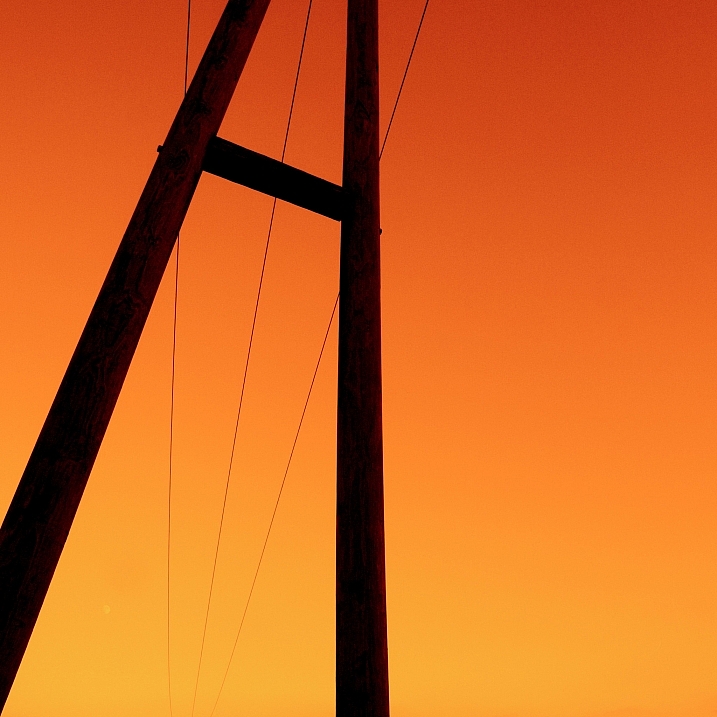
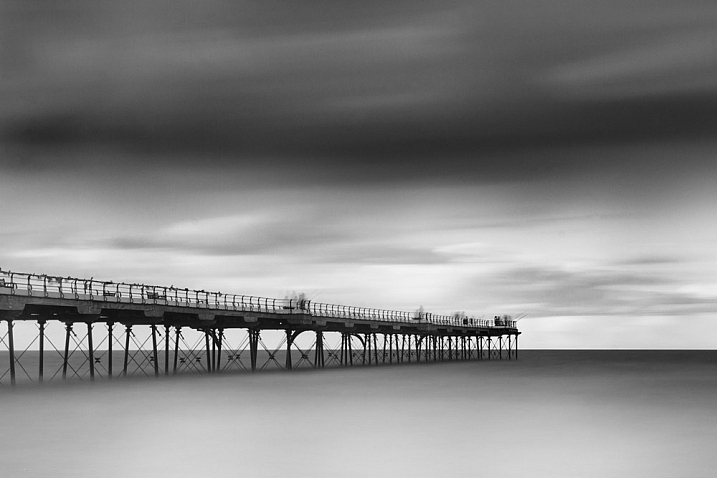
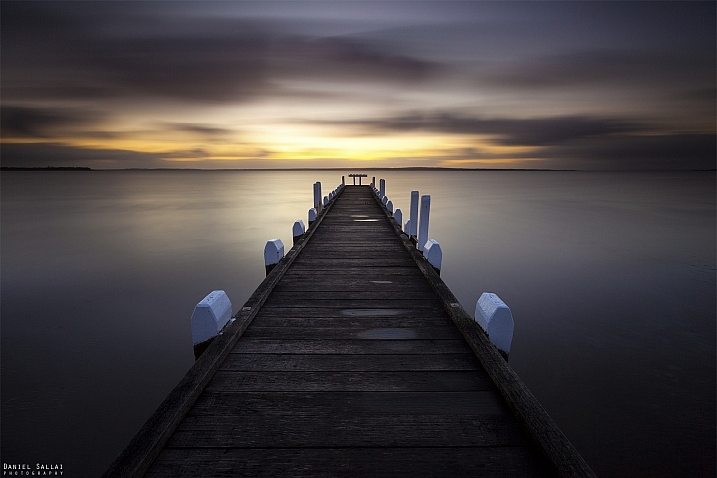
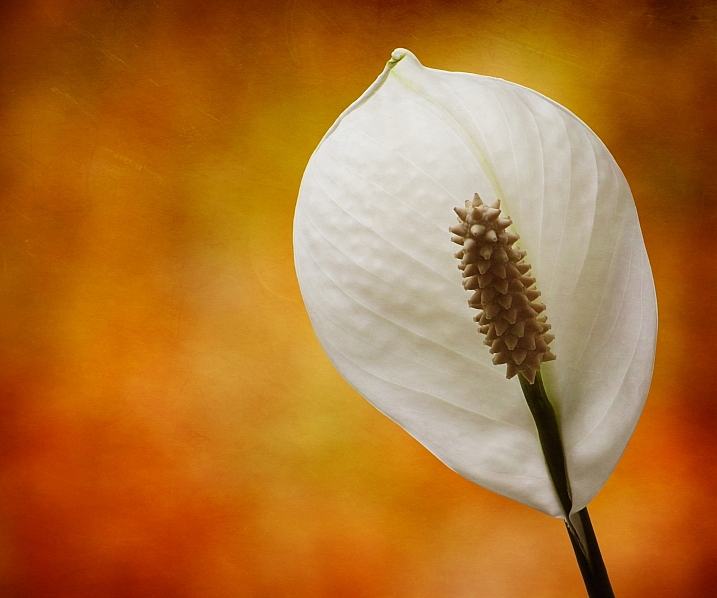
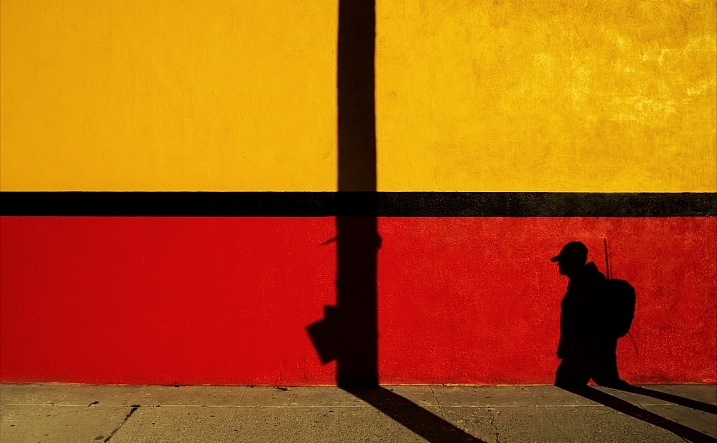
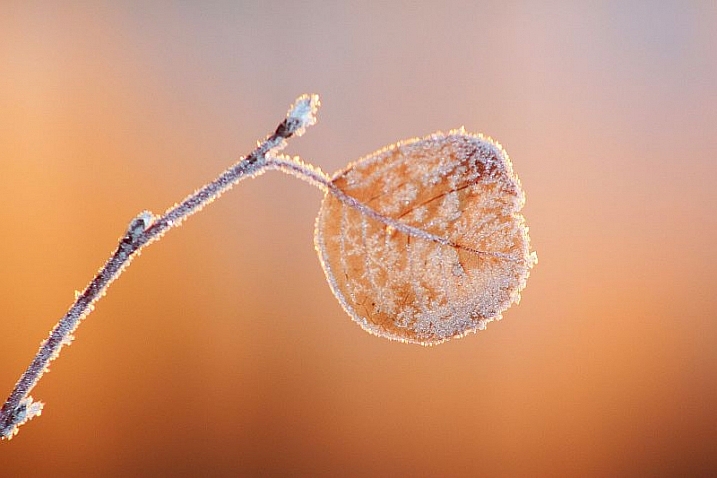
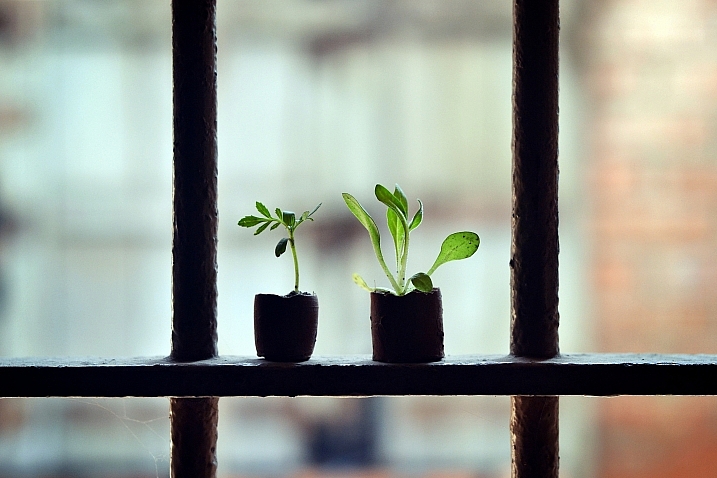
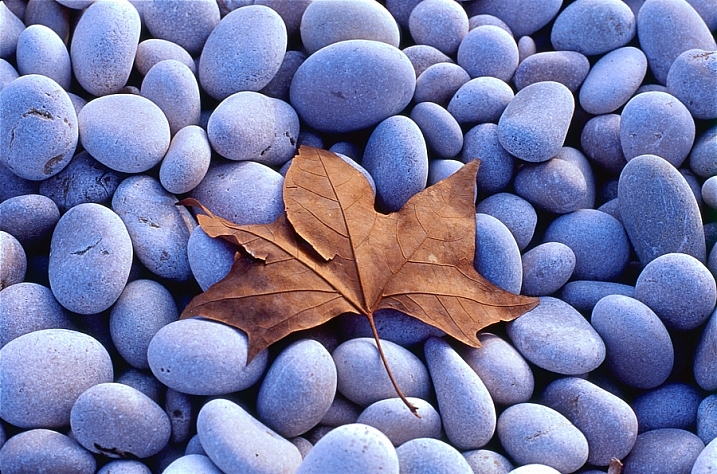
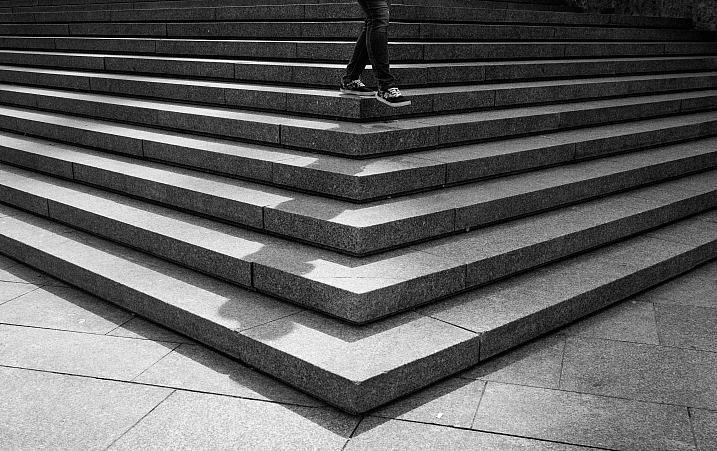
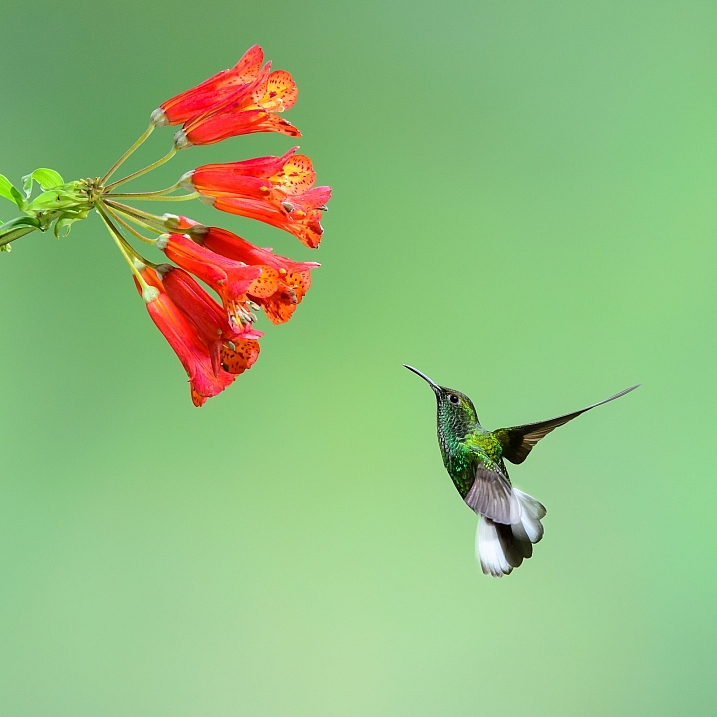
Just like the TV show Seinfeld that was a show about nothing, putting next to nothing in your images can produce some good results.

min·i·mal·ism – a style or technique (as in music, literature, or design) that is characterized by extreme spareness and simplicity

Sometimes in an image less is more, and many beginners try to put too much into their images which makes them busy and unfocused. Look at these images that use minimalism well:

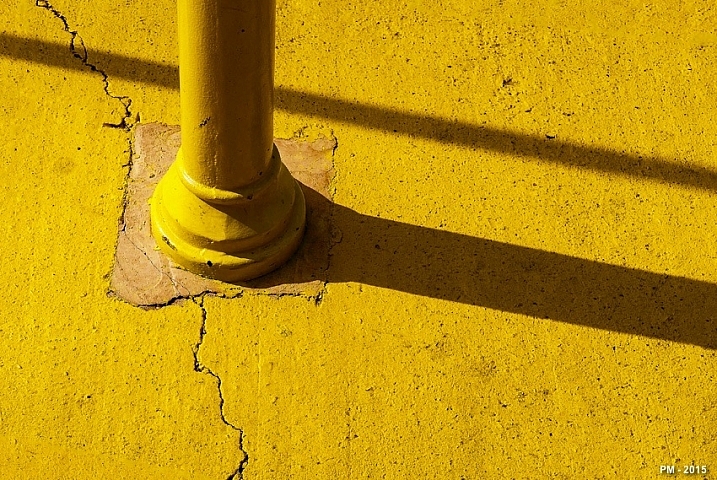
Patrick Marioné - Thanks For > 2M

By Patrick Marioné – thanks for > 2M

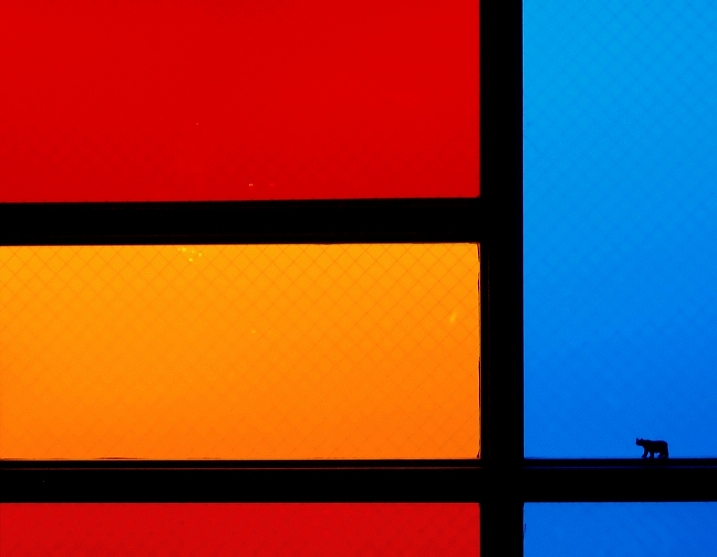
Darwin Bell

By darwin Bell

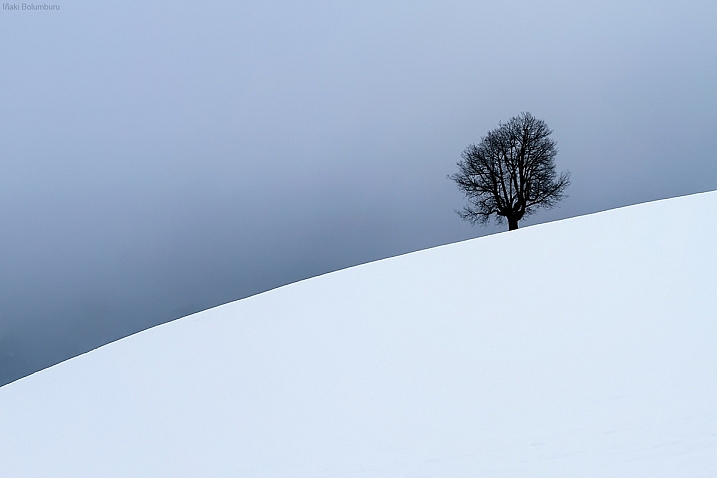
Iñaki Bolumburu

By Iñaki Bolumburu

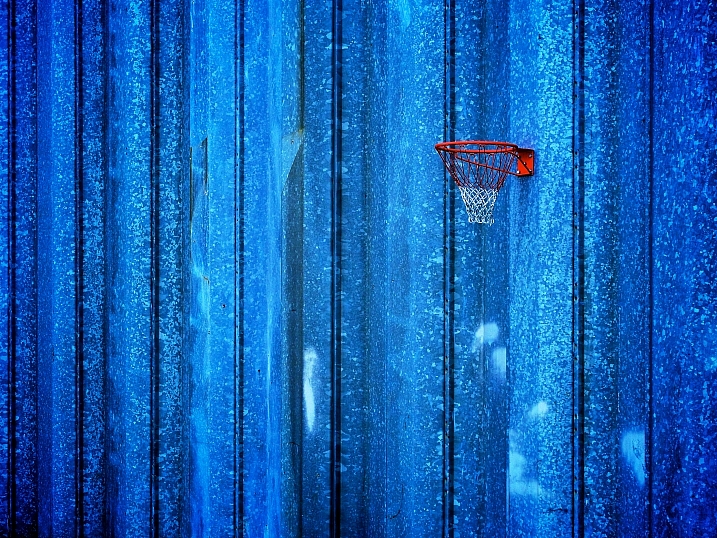
Kai C. Schwarzer

By Kai C. Schwarzer

Susanne Nilsson

By Susanne Nilsson

Maf04

By maf04

Craig Sunter

By Craig Sunter

LadyDragonflyCC - >;

By LadyDragonflyCC – >;<

Kai C. Schwarzer

By Kai C. Schwarzer

Daniel Sjöström

By Daniel Sjöström

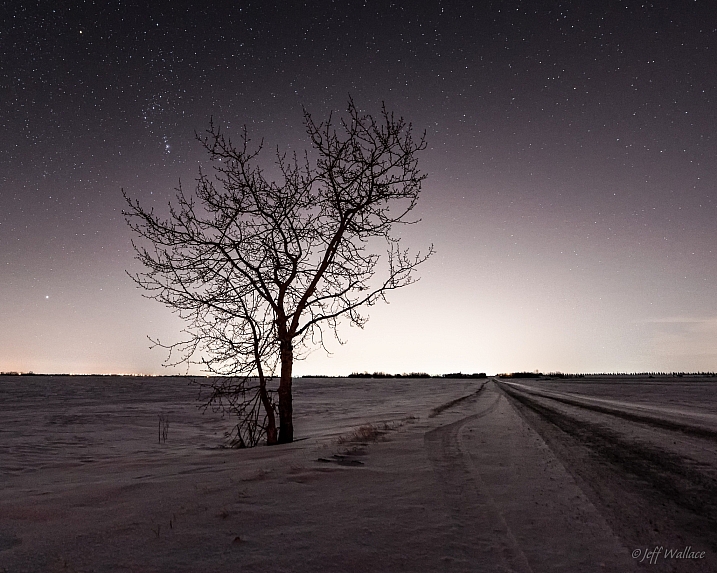
Jeff Wallace

By Jeff Wallace

Takashi .M

By Takashi .M

Kai C. Schwarzer

By Kai C. Schwarzer

Stewart Ayrey

By Stewart Ayrey

Daniel Sallai

By Daniel Sallai

Michael Taggart Photography

By Michael Taggart Photography

Jonathan Kos-Read

By Jonathan Kos-Read

Marilylle Soveran

By Marilylle Soveran

Soumyadeep Paul

By Soumyadeep Paul

Danipuntocom

By Danipuntocom

Georgie Pauwels

By Georgie Pauwels

Howard Ignatius

By Howard Ignatius

Md. Al Amin

By Md. Al Amin

Steve Corey

By Steve Corey

Kristina Alexanderson

By Kristina Alexanderson

googletag.cmd.push(function() {
tablet_slots.push( googletag.defineSlot( “/1005424/_dPSv4_tab-all-article-bottom_(300×250)”, [300, 250], “pb-ad-78623” ).addService( googletag.pubads() ) ); } );

googletag.cmd.push(function() {
mobile_slots.push( googletag.defineSlot( “/1005424/_dPSv4_mob-all-article-bottom_(300×250)”, [300, 250], “pb-ad-78158” ).addService( googletag.pubads() ) ); } );

The post 25 Stunning Images that Show Next to Nothing – Minimalism by Darlene Hildebrandt appeared first on Digital Photography School.


Digital Photography School

 
Comments Off on 25 Stunning Images that Show Next to Nothing – Minimalism

Posted in Photography


How to Create Gorgeous Flower Images using a Flashlight and a Reflector

31 May

1-Light-painting-flowers-orchid

In this tutorial, I’m going to share with you some simple and inexpensive ways to create beautiful flower images. You will learn to add light by using a flashlight and a reflector. If you add in some imagination and patience, you will soon be creating gorgeous flower images of your own.

In addition, you will gain insight about seeing light, and how and recreate it on your own.

The techniques I am going to share are reminiscent of light painting and burning (from film days printing negatives), but in this tutorial we are going to take advantage of the ambient light, combined with light from flashlights to create some great effects.

Setting up

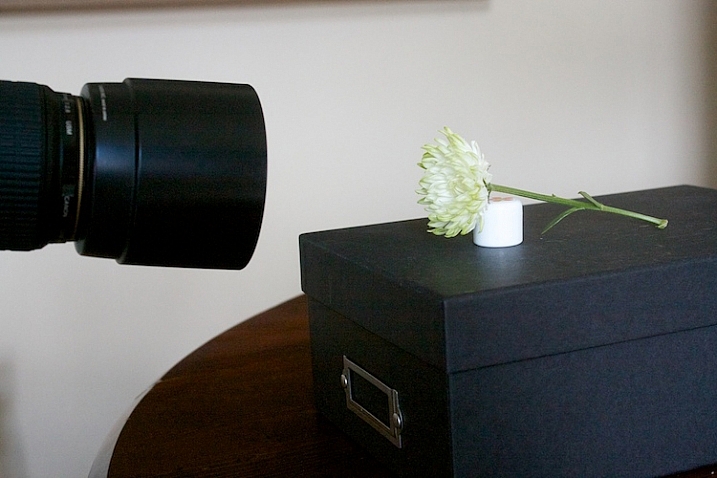
You will need to put your camera on a tripod, and find a nice surface near some window light to photograph your flower. Set up to shoot using a shutter speed slower than 1/15th of a second, and it’s much easier if you use a cable release or use your camera’s self-timer feature.

1s-Light-Painting-Flowers-2016-05-19at13-10-21-behind-scene

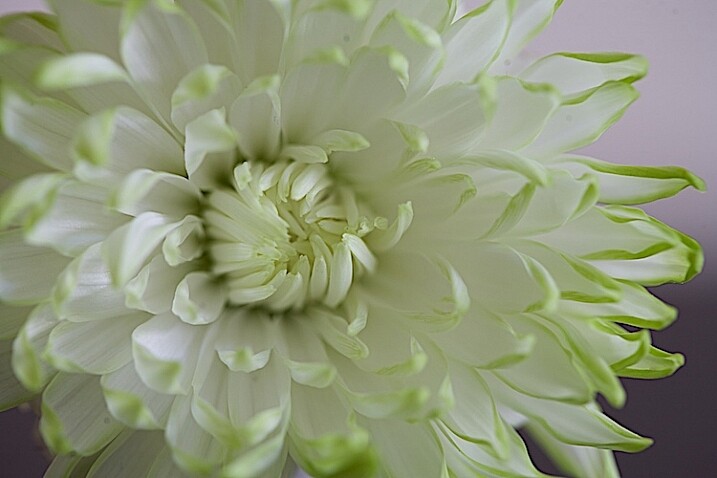
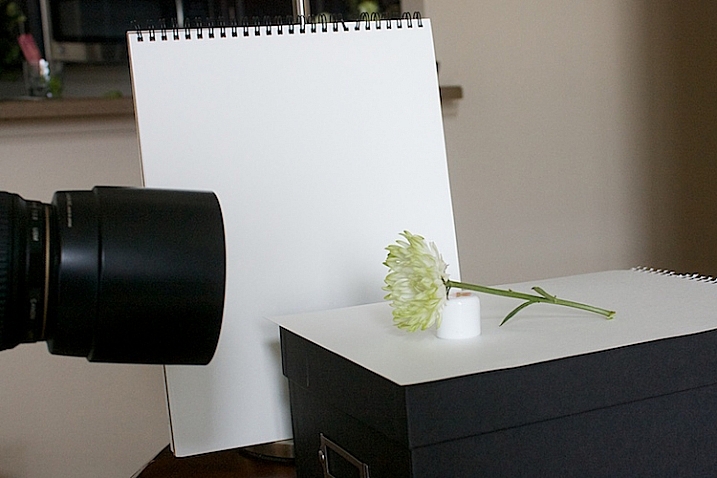
Here’s my set up, above. I chose an easy location, perpendicular to a window, providing some nice light. I used a prop to hold the flower up.

2s-Light-Painting-Flowers-2016-05-19at13-30-24

Window light only. Exposure was f/4 at 1/4.

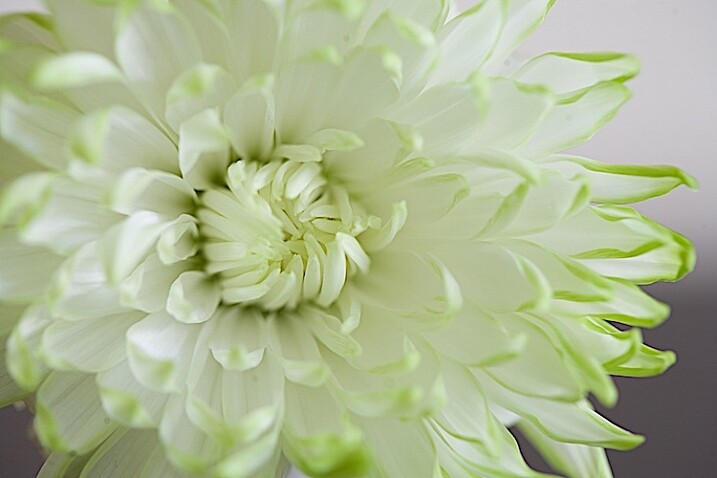
I did a test shot, above, to determine my exposure using just ambient light. I slowed the shutter speed down just a little bit to see what results I would get.

2.s-Light-Painting-Flowers-2016-05-19at13-29-53

Window light only. Exposure f/4 at 0.40 seconds.

Add a reflector

It’s a little brighter at this exposure, but notice that the shadows are still quite strong.

3s-Light-Painting-Flowers-2016-05-19at13-15-39-behind-scene

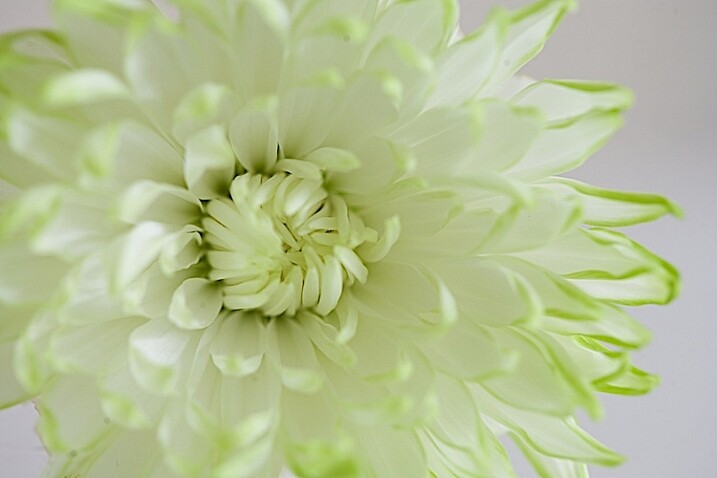
To soften the light, I added a white fill card below, and to the side of the flower. It’s also called a reflector. Almost anything white can be used as a reflector. The idea is to fill in the shadows, and to make the light feel softer.

4s-Light-Painting-Flowers-2016-05-19at13-36-59

Window light with fill card. Exposure f/4 at 1/4.

This exposure above was taken with the fill cards in place. Compare it with the two above, and notice that the lightness/darkness is similar to the longer exposure. It’s pretty amazing how much light can be added to a photo just by using reflectors.

More importantly, note the quality of light. By that I mean, notice how the shadows are still present to the left of the center of the flower but are not as prominent. Also be aware of how  nicely the shadows are filled in from the bottom.

Create a feeling that matches your subject

Flowers are soft. They are feminine. When we tell stories about our subject, we want to convey that feeling. One of the ways we convey feelings in photographs is in how we use light. Notice how the feel is different in the photos with the fill card and without. The second exposure feels softer and more feminine, and thus, supports the story of a feminine flower.

Add light from a flashlight for more drama

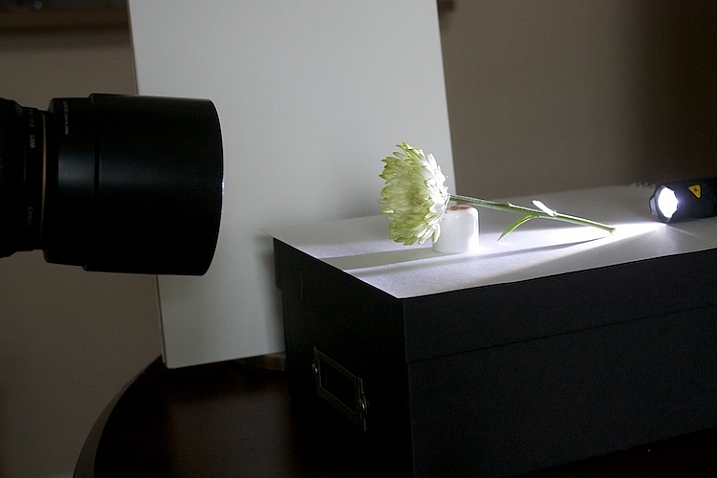
Now, to add a backlight with a flashlight. Make sure to position the flashlight in such a way that it doesn’t cause lens flare (the light isn’t hitting the lens directly). Make sure the light is pointing entirely at the flower, and not reaching your camera lens.

5s-Light-Painting-Flowers-2016-05-19at13-18-08-behind-scene

5bs-Light-Painting-Flowers-2016-05-19at13-51-46

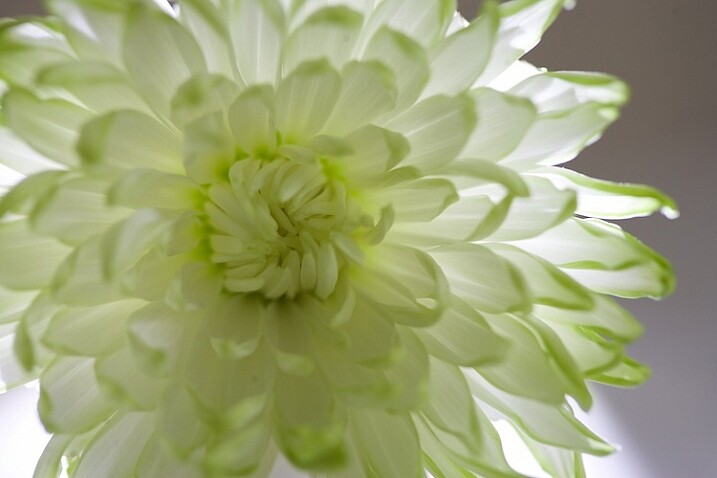
Flashlight with backlight, no fill cards or reflectors. Exposure f/4 at 1/4.

This is with a strong backlight. Notice how dark the center of the flower seems.

6s-Light-Painting-Flowers-2016-05-19at13-41-23-behind-scene

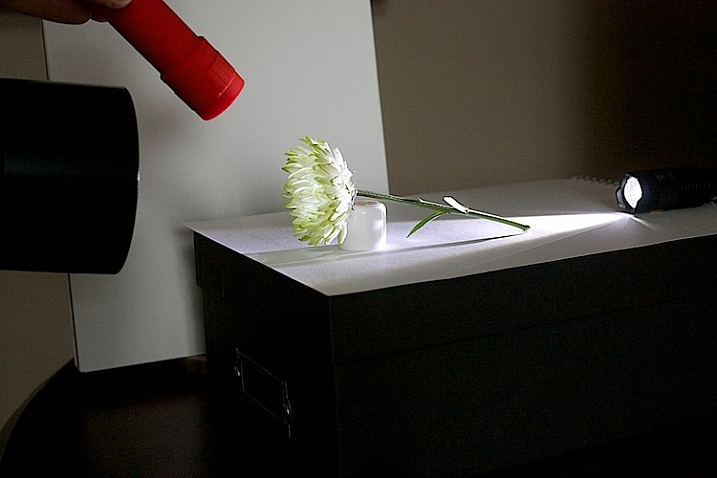
We can use a second light to fill in the center of the flower. I recommend using a slower shutter speed, 1/15th or less, and moving the flashlight while the exposure is made. If you don’t move the light, it will appear too strong and create harsh shadows.

7s-Light-Painting-Flowers-2016-05-19at13-41-03-behind-scene

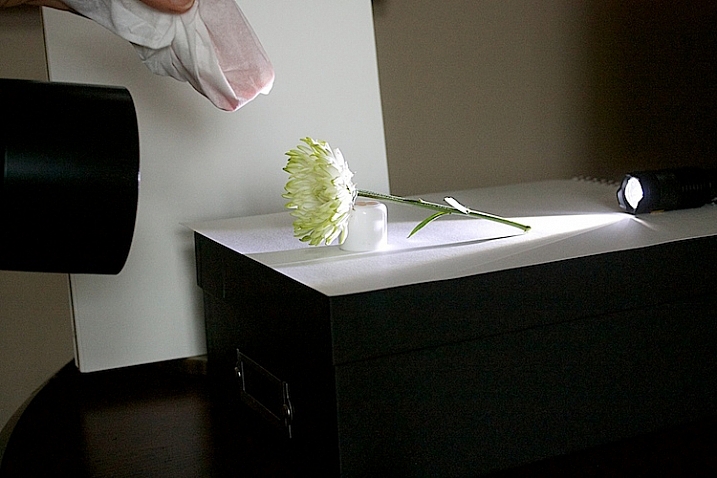
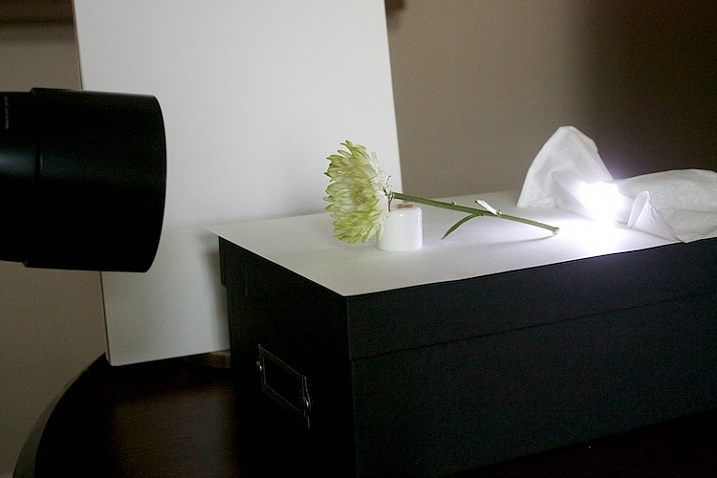
If the light appears too strong and too direct, use a diffuser over your flashlight. I used a kleenex to soften the light.

8s-Light-Painting-Flowers-2016-05-19at13-38-27

Flashlight as a backlight, with a second flashlight as a fill light in the front. Exposure f/4 at 1/4.

How does this feel to you now? Notice how I brought the exposure of center of the flower up, just by doing a little light painting. If you ever worked in a darkroom, you will notice this is similar to manipulating an image in an enlarger called, burning, but we are doing it live at the capture stage.

9s-Light-Painting-Flowers-2016-05-19at13-20-12-behind-scene

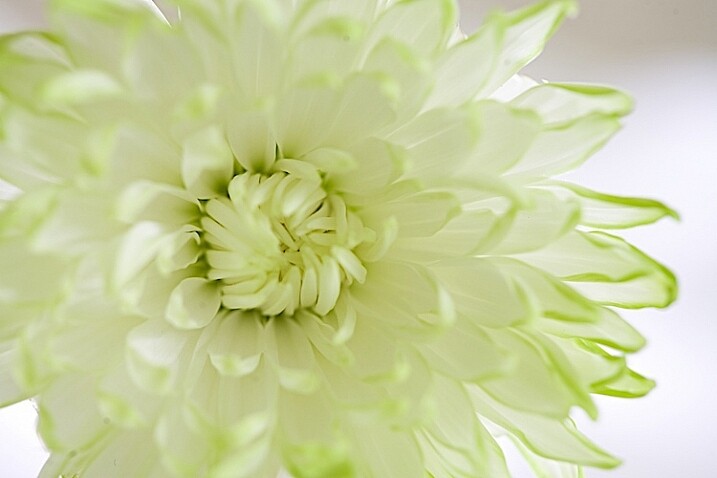
Let’s see what our flower looks like with a backlight that isn’t as strong. I used a kleenex diffuser on the flashlight in the back.

10s-Light-Painting-Flowers-2016-05-19at13-41-36

Using a softer backlight by diffusing with tissue.

Can you see how much softer the backlight is?

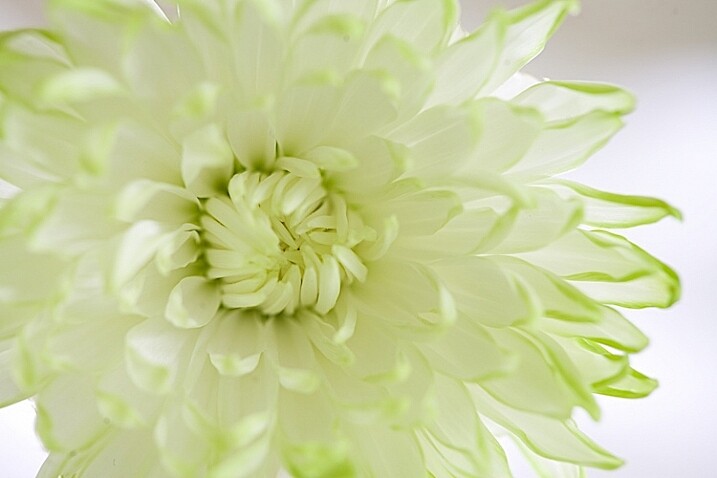
11sLight-Painting-Flowers-2016-05-19at13-42-54

In this image, I added a little bit of fill with a flashlight and kleenex diffuser.

This is very, very subtle. But move your eye back and forth between the two. Can you see the one directly above is a little bit softer? The difference isn’t huge on a computer screen, but makes a big difference in a large print.

Get creative with light and composition

11s-Light-Painting-Flowers-2016-05-19at14-07-29

At this point, it’s time to get creative with your framing and play with light.

In composition, you want to decide what your center of interest is in the photograph, and draw the eye to that point. Notice how dark the center of the flower is in the top image, so let’s add some fill.

12s-Light-Painting-Flowers-2016-05-19at14-06-32

The center of the flower is lighter now (above). Which image do you like better?

20.s-Light-Painting-Flowers-2016-05-19at16-10-27

Notice the stamen of the flower above. Can you see it’s just a black blob? What happens when we add just a little bit of fill with a flashlight?

21.s-Light-Painting-Flowers-2016-05-19at16-11-21

The center of interest becomes more pronounced.

Let’s try another one.

22.s-Light-Painting-Flowers-2016-05-19at16-30-03

Dark stamen.

23.s-Light-Painting-Flowers-2016-05-19at16-29-04

A little bit of fill.

25.s-Light-Painting-Flowers-2016-05-19at16-33-56

A new angle with no fill.

26.s-Light-Painting-Flowers-2016-05-19at16-36-40

A little bit of fill light, highlighting the center of interest.

A few more examples

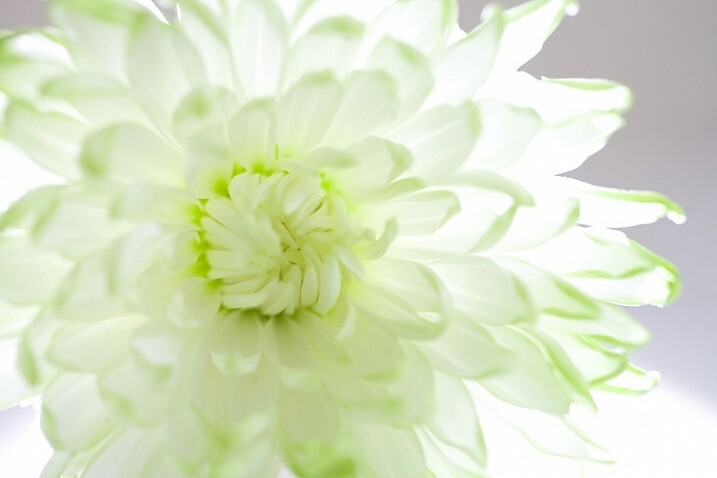
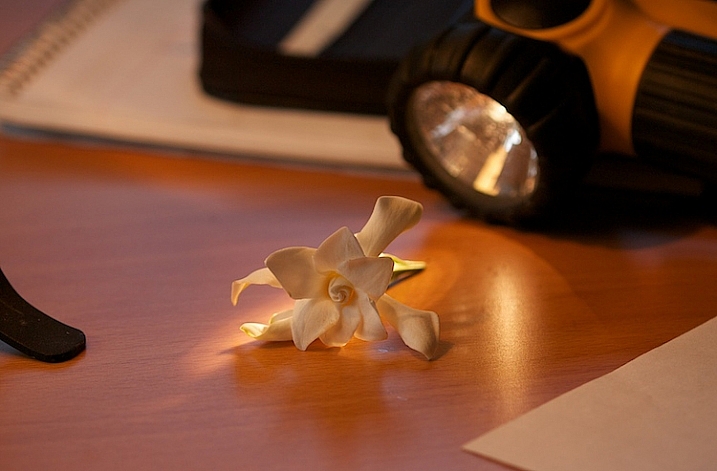
Let’s go back to this simple lighting setup.

2-Light-painting-flowers-gardenia-1

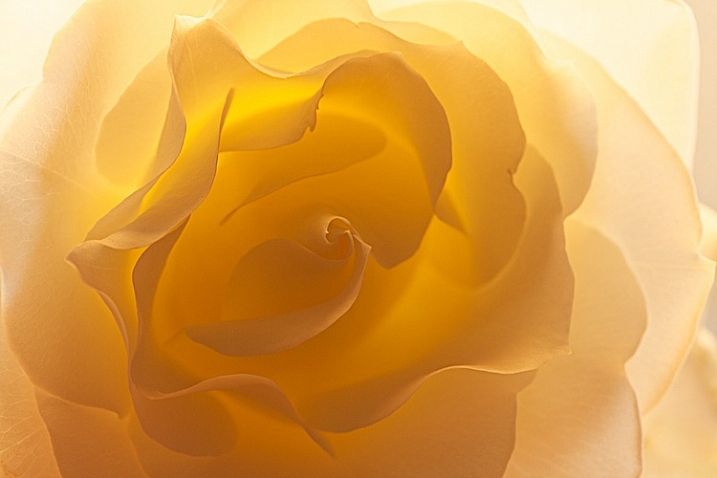
I used this setup on several different kinds of flower and I likde this white rose the best.

3-Light-painting-flowers-White-Rose-no-fill

Can you see the beautiful light and how translucent the rose looks?

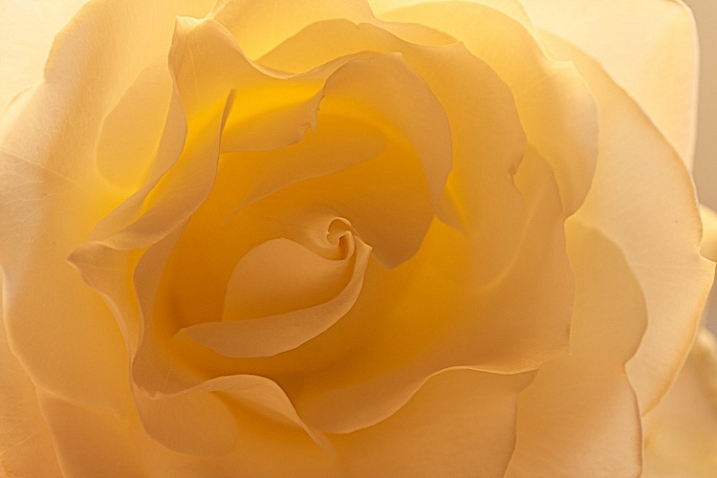
I like the overall feel to the image, however, there is a lot of contrast between the center of the flower and the outer petals. You want your viewer’s eye to go toward the center of interest, which is the middle of the flower, so I placed a reflector right in front of the flower.

4-Light-painting-flowers-White-Rose-fill

You can see how the light reflects back in, and brightens up center of the flower. I also like this frame better because it feels softer.

This technique can work outdoors, too. Just use your reflector and your flashlight, and see what works.

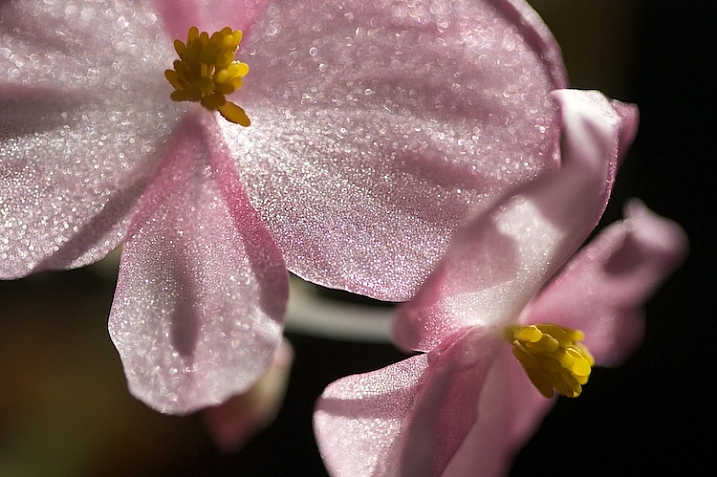
7-Light-painting-flowers-no-fill-pink-3

There is no right or wrong when deciding where to put your light, but it’s usually best not to shine your main light from the camera angle. In this photo, the light is to the right and it feels to harsh to me. There are strong shadows on the flower that don’t add to the feel of the photograph. I moved myself in order to move the position of the light source, the sun.

8-Light-painting-flowers-fill-pink-3

I added a fill card, and see how the stamen starts to stand out. This is much better, but I decided to play with camera angles to see what that would look like.

11-Light-painting-flowers-no-fill-pink-2

I liked this better, especially how the light created patterns on the petals of the flower, but I wanted my interest in the center of the flower. It still just seemed to dark.

10-Light-painting-flowers-fill-pink-2

In the photo above, I used a reflector to fill in the shadows and used my flashlight to add a little bit of light.

5-Light-painting-flowers-no-fill-pink

Then, I changed the angle just a little bit. This is with no fill (above).

6-Light-painting-flowers-fill-pink

Here is the same flower with a reflector and flashlight filling in the dark areas.

There is no science to this. It’s all about playing to see what works. Here are a few more example that I shot, these images have no corrections. They are straight from the camera to help you see my process better.

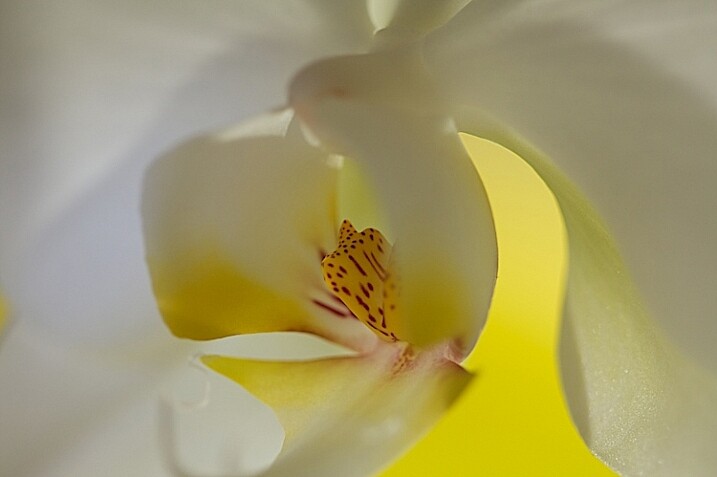
16Light-painting-flowers-no-fill-orchid

Without a fill.

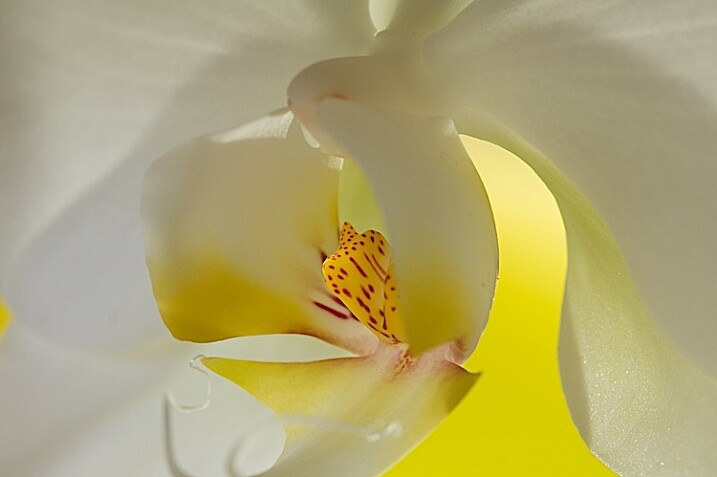
17-Light-painting-flowers-fill-orchid

With a fill.

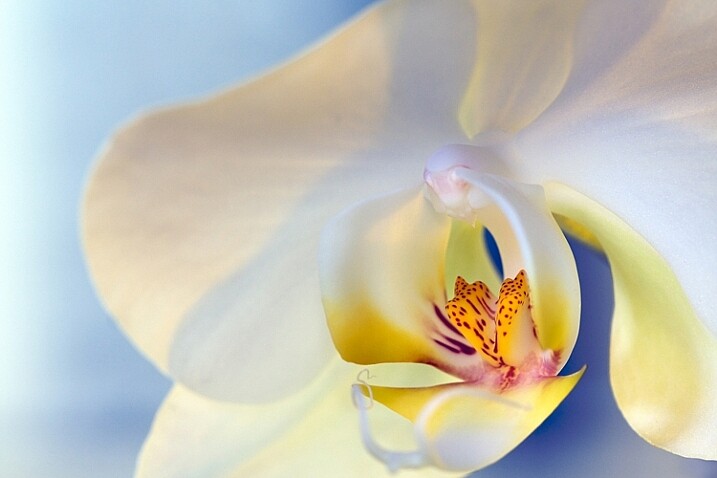
1-Light-painting-flowers-orchid

This final photo used several reflectors, as well as using a flashlight in the center of the flower.

Now you have some great tips, and inspiration to create a gorgeous floral photo of your own. You’ve seen how you can use simple fill cards to add light and soften an image. You’ve learned how light impacts the story you are telling, and you’ve learned how a simple flashlight or two, plus a kleenex, can take your photos to a new level.

Let’s see your floral photos, please share in the comments below.

googletag.cmd.push(function() {
tablet_slots.push( googletag.defineSlot( “/1005424/_dPSv4_tab-all-article-bottom_(300×250)”, [300, 250], “pb-ad-78623” ).addService( googletag.pubads() ) ); } );

googletag.cmd.push(function() {
mobile_slots.push( googletag.defineSlot( “/1005424/_dPSv4_mob-all-article-bottom_(300×250)”, [300, 250], “pb-ad-78158” ).addService( googletag.pubads() ) ); } );

The post How to Create Gorgeous Flower Images using a Flashlight and a Reflector by Vickie Lewis appeared first on Digital Photography School.


Digital Photography School

 
Comments Off on How to Create Gorgeous Flower Images using a Flashlight and a Reflector

Posted in Photography


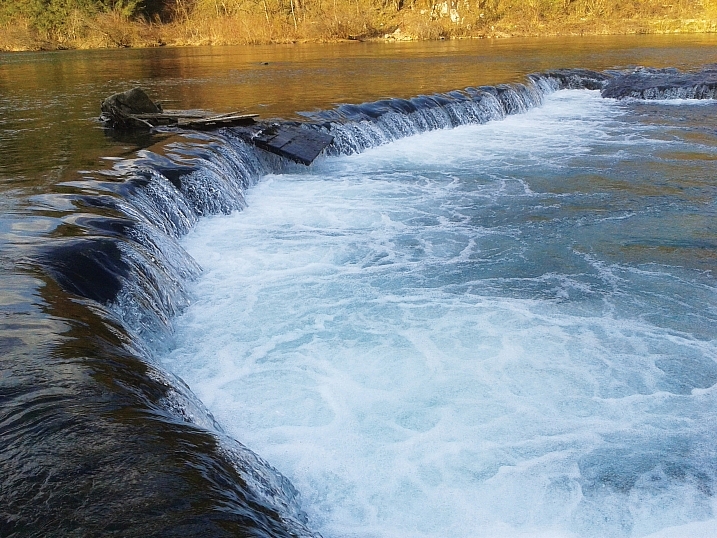
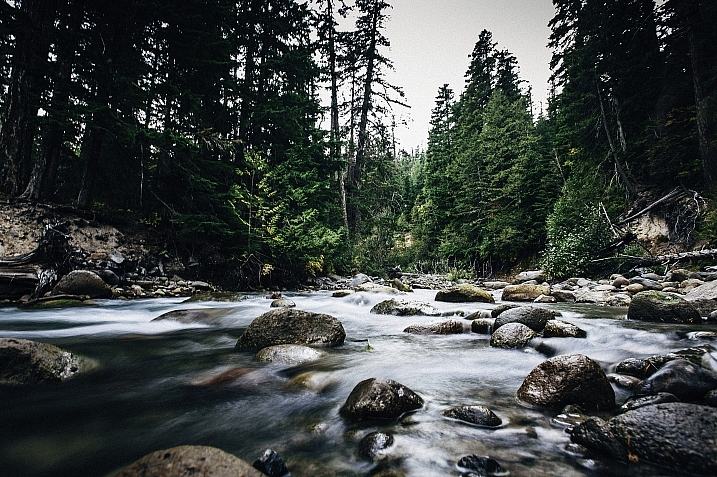
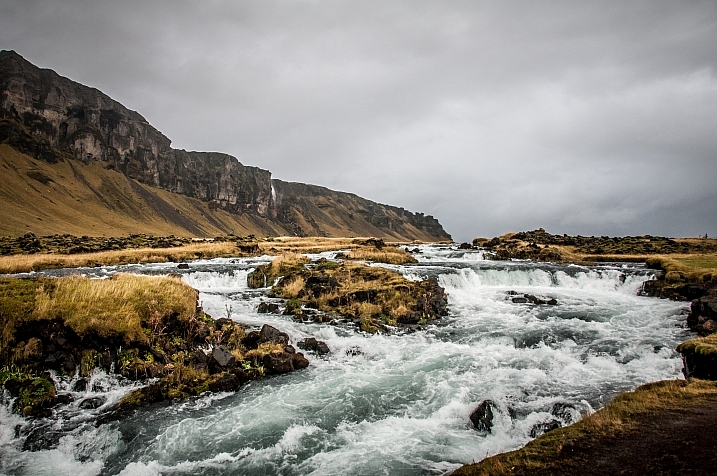
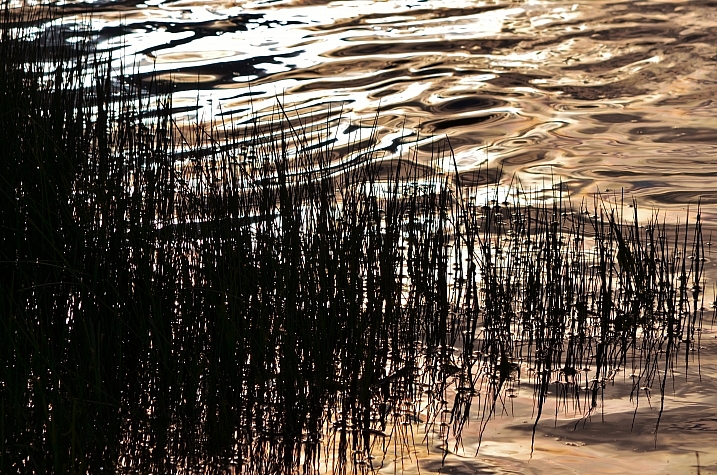
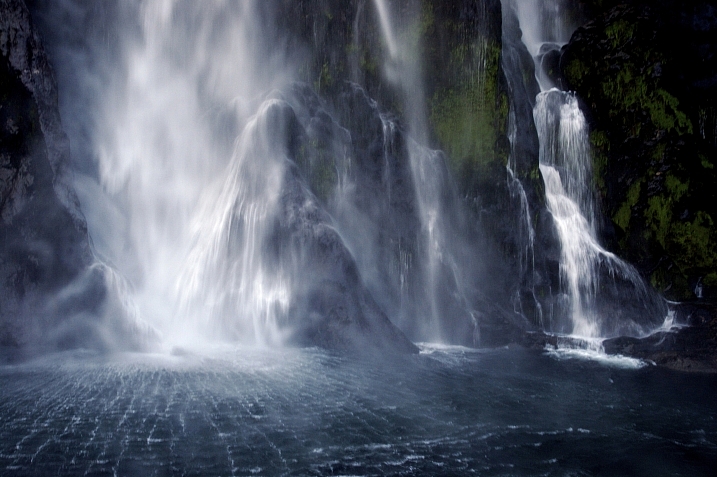
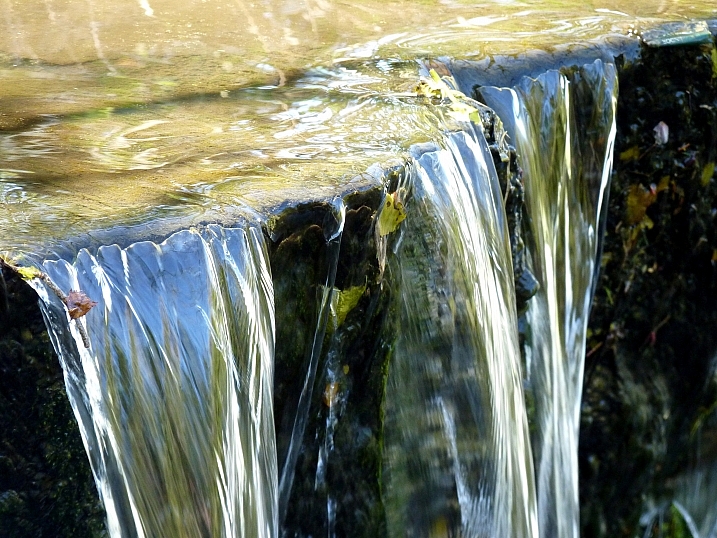
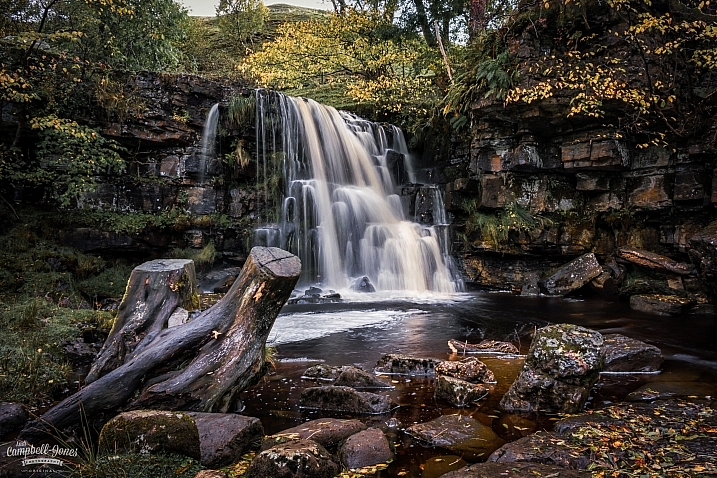
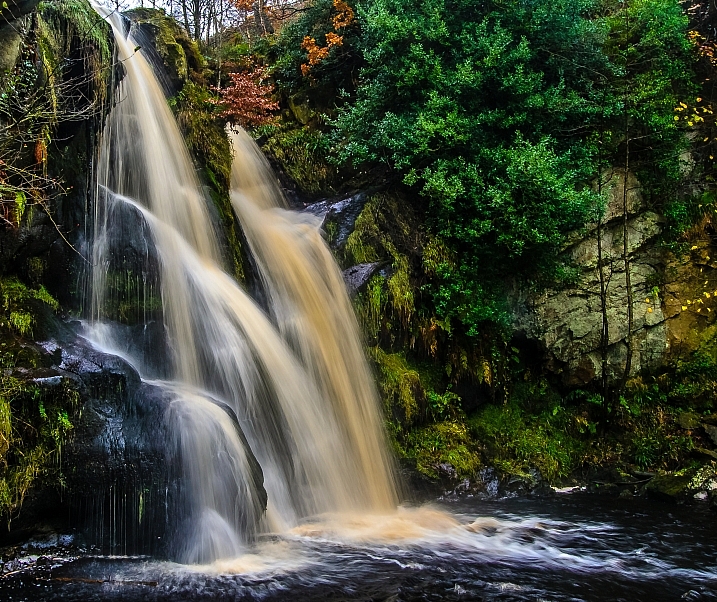
23 Moving Images of Flowing Water

28 May

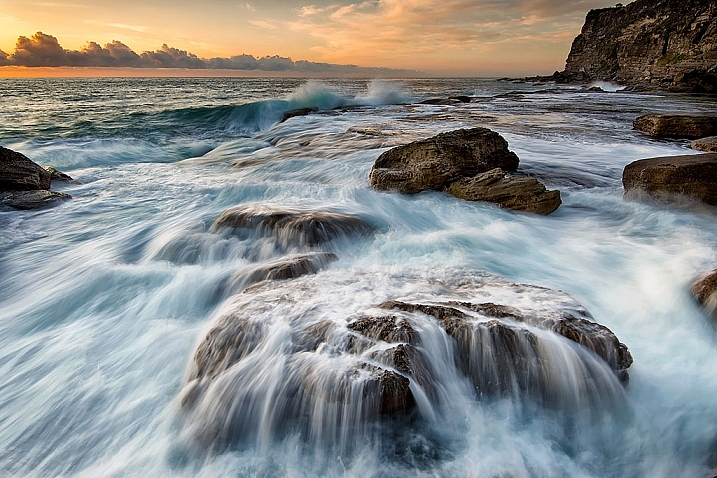
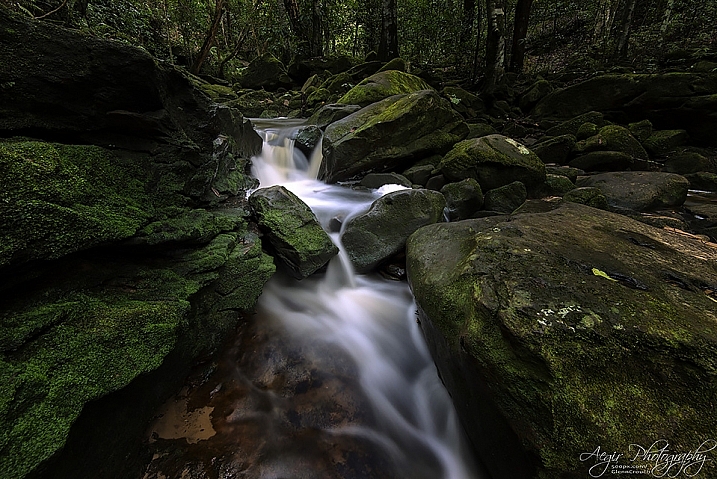
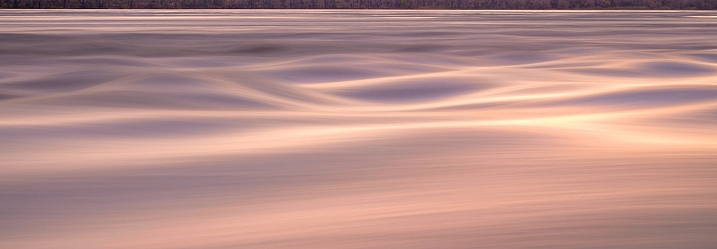
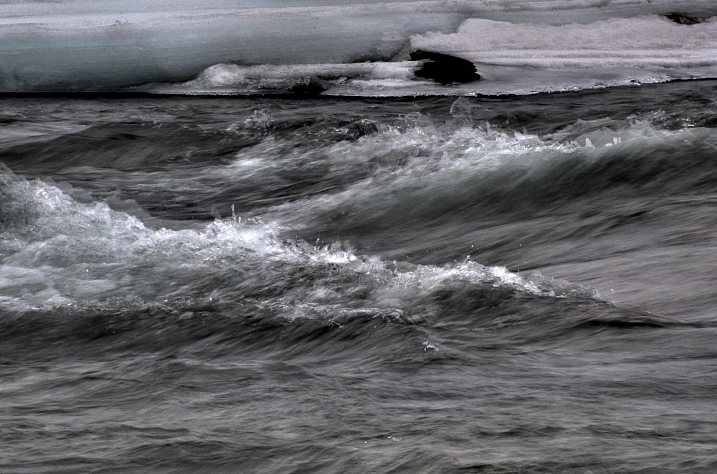
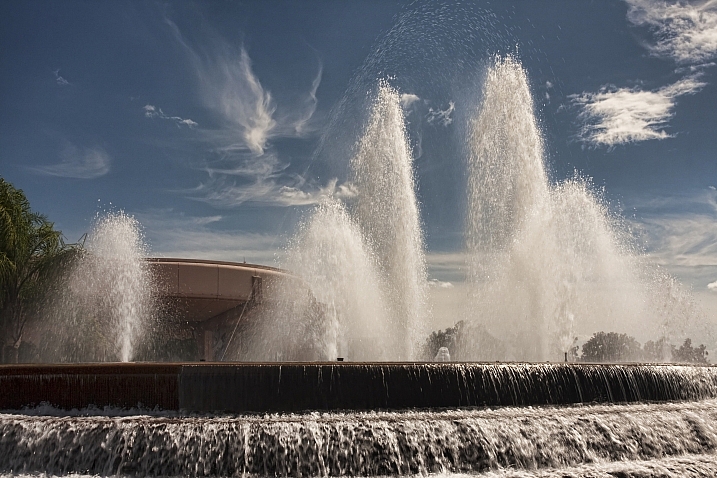
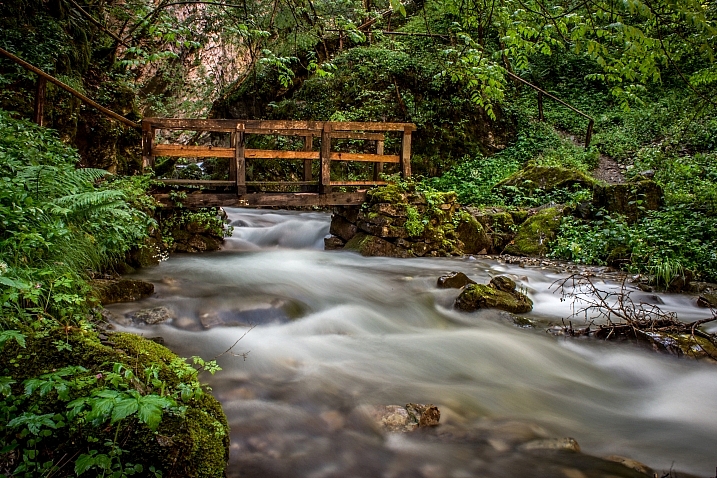
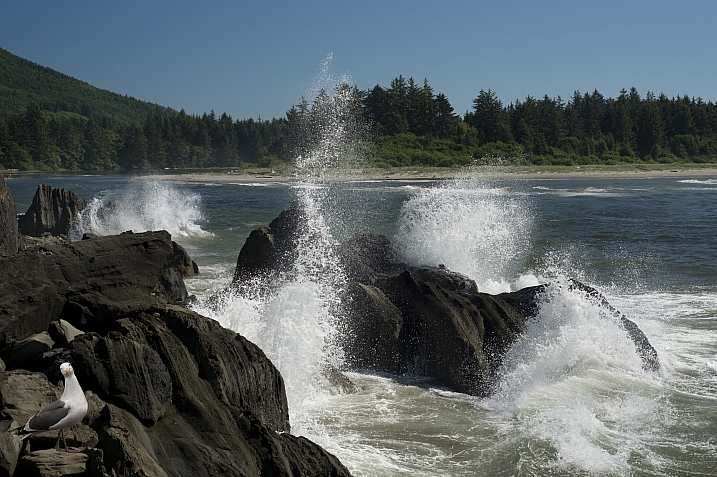
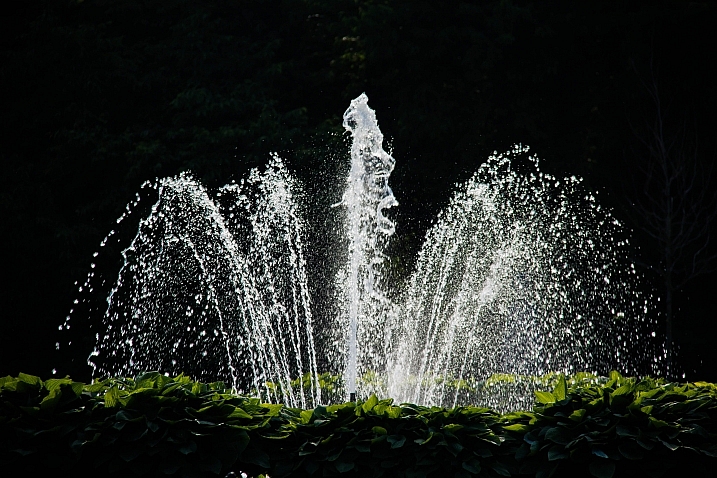
Water, especially that which is flowing, is a popular subject for photographers. You get to make artistic choices about whether to freeze or blur the water, and to what degree. That will affect how the final image looks.

Take a look at these images of flowing water and see how the photographers chose to capture the scene.

David Kingham

By David Kingham

Darlene Hildebrandt

By Darlene Hildebrandt

Little Shiva

By little shiva

Christopher

By Christopher

Kamil Porembi?ski

By Kamil Porembi?ski

~ Lzee. . . Mostly Out

By ~ lzee. . . mostly out

James Bremner

By James Bremner

Nick Kenrick

By Nick Kenrick

Andi Campbell-Jones

By Andi Campbell-Jones

Andy Rothwell

By Andy Rothwell

Crouchy69

By Crouchy69

Crouchy69

By Crouchy69

Christian Barrette

By Christian Barrette

Billy Wilson

By Billy Wilson

Neil Howard

By Neil Howard

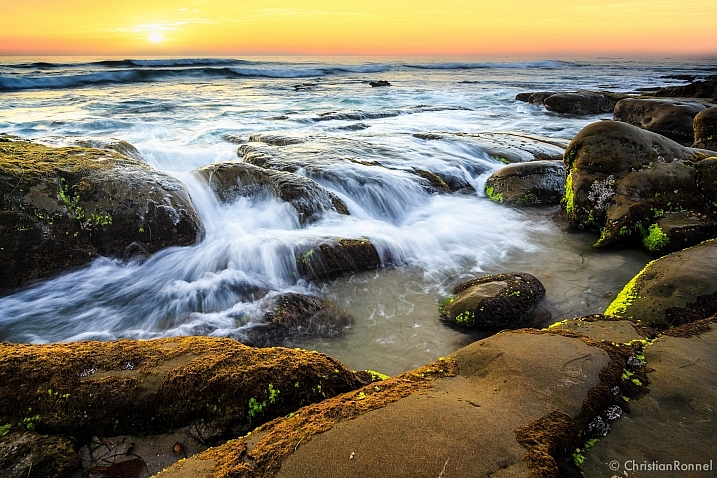
Christian Ronnel

By Christian Ronnel

Dirk Dittmar

By Dirk Dittmar

Nicole Quevillon

By Nicole Quevillon

Jonathan

By Jonathan

Marjan Lazarevski

By Marjan Lazarevski

John Fowler

By John Fowler

Susanne Nilsson

By Susanne Nilsson

Louis Du Mont

By Louis du Mont

googletag.cmd.push(function() {
tablet_slots.push( googletag.defineSlot( “/1005424/_dPSv4_tab-all-article-bottom_(300×250)”, [300, 250], “pb-ad-78623” ).addService( googletag.pubads() ) ); } );

googletag.cmd.push(function() {
mobile_slots.push( googletag.defineSlot( “/1005424/_dPSv4_mob-all-article-bottom_(300×250)”, [300, 250], “pb-ad-78158” ).addService( googletag.pubads() ) ); } );

The post 23 Moving Images of Flowing Water by Darlene Hildebrandt appeared first on Digital Photography School.


Digital Photography School

 
Comments Off on 23 Moving Images of Flowing Water

Posted in Photography


How to Improve the Impact of Your Urban Images Using Lines

27 May

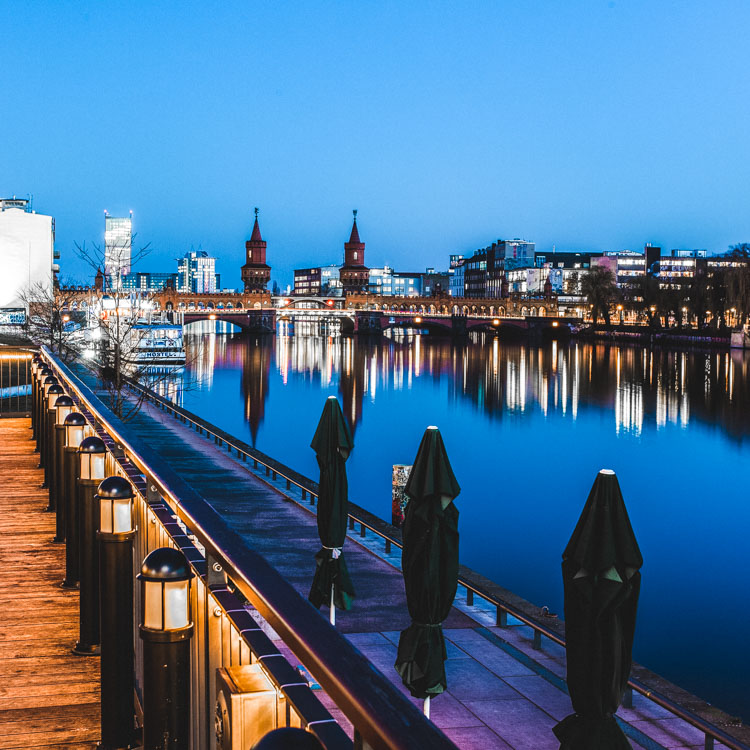
If you are struggling with getting your photos of cities and architecture to pop out, chances are that you are underestimating the power of lines in your images. Lines help you structure your images in ways that lead your viewers to look at different parts of the picture, and create interest in both your main objects and the surroundings.

using lines for more impact in your images

The image above shows an example of how you can use lines to create a visual guidance within your city and architecture images, that will help your viewers find multiple points of interest and take a closer look.

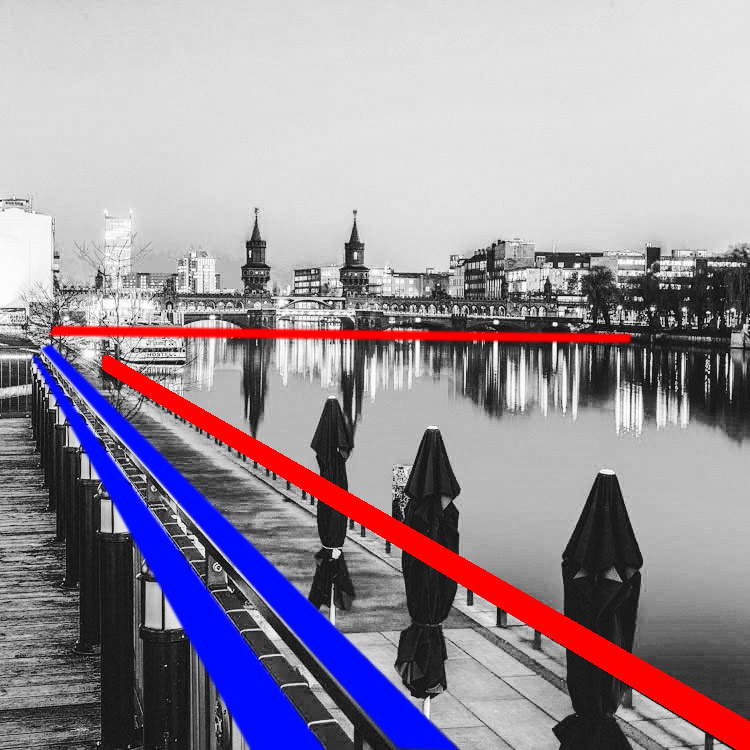
using lines for more impact in your images

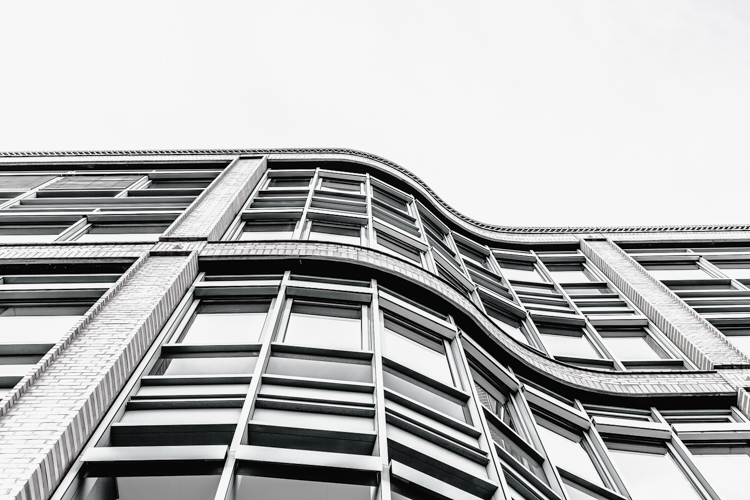
To help you understand how the lines work in a rather complex image like this, reducing the image to a black and white version with high contrast, can help visualize the structures of the image without getting distracted by the color elements.

Why lines are important especially for urban images

While in many areas of photography, using depth of field and blurred backgrounds is a good way to lead the viewers’ eyes to the most important element, and add a sense of perspective, as city photographers we rarely have this choice. In architecture images, you want most elements to be in focus.

When taking pictures of city scenes, you need to structure your images in different ways to provide perspective and a feel of scale. The conscious use of lines in your images can divide a photo into smaller pieces, separate elements from each other, provide a sense of perspective and lead your viewers’ eyes to where you want them to focus.

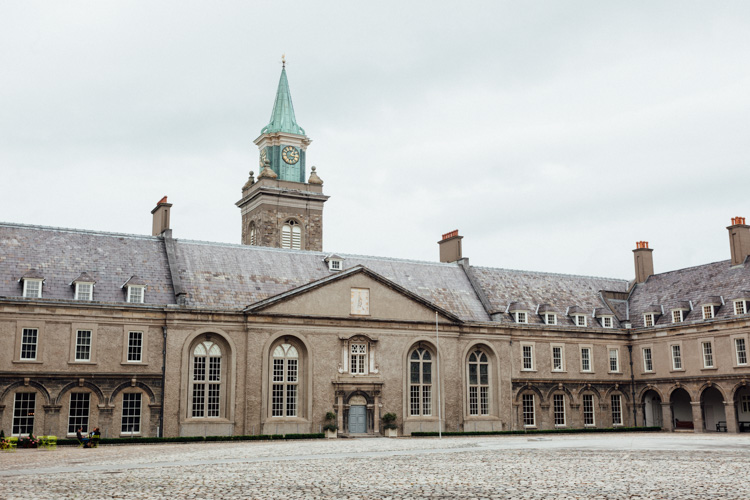
using lines for more impact in your images

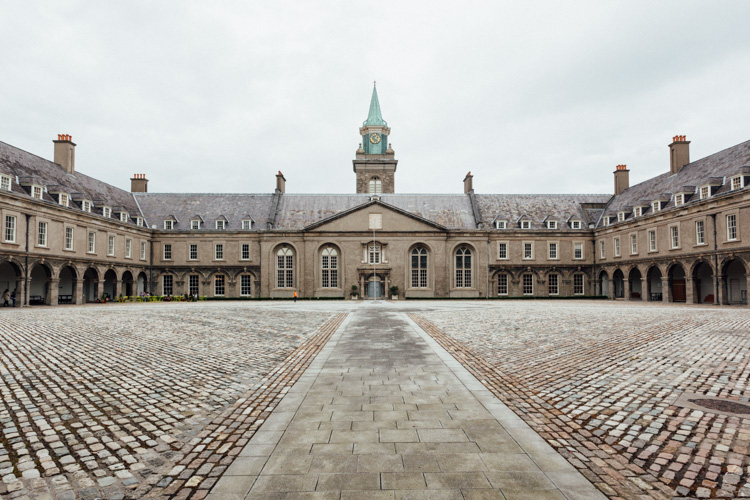
The image above shows an example of a random shot without considerations for the use of lines. With its grey stones, the National Museum of Ireland in Dublin on a cloudy day, doesn’t offer much to work with when trying to create an interesting image. This is merely a documentation of the place, but probably wouldn’t make it as a header image.

using lines for more impact in your images

However, beyond the documentary aspect, the use of lines to create perspective, orientation and symmetry can increase the impact, even of an otherwise dull looking image.

Which lines can you use to increase impact?

You can separate the lines in three categories which I call:

  • Dividing lines
  • Leading lines
  • Symmetrical lines

A dividing line structures your images into separate areas of interest. It can be horizontal, vertical, or diagonal. You can use it to make a clear difference between bottom and top of an image, but also make sure to use dividing lines to show near and far. In many outdoor images, the horizon line is a natural dividing line.

using lines for more impact in your images

In this image, I am using a major dividing line to clearly separate the floor and the wall. Less noticeable, the additional line in the wall serves as another separation in the photo. Without the addition of this line, the right half of the image would be rather boring. By adding a simple line into the frame, it helps dividing the image into a left and right.

Make sure that your dividing lines are in the right place. With very few exceptions, make sure to place your lines outside of the center of the image (both horizontally or vertically) but also not too close to the borders. The well known Rule of Thirds is good guidance, in many cases dividing images into a two-thirds and a one-third part works best.

Leading lines are an important way to provide your viewers with an idea of perspective. They will lead the eyes into, and around the image. Leading lines often come in pairs, slowly merging into the distant part of the picture. But in fact, you can use multiple leading lines, even one can help the viewer find orientation. Leading lines don’t even have to be straight, you can use curves and angles just as well.

using lines for more impact in your images

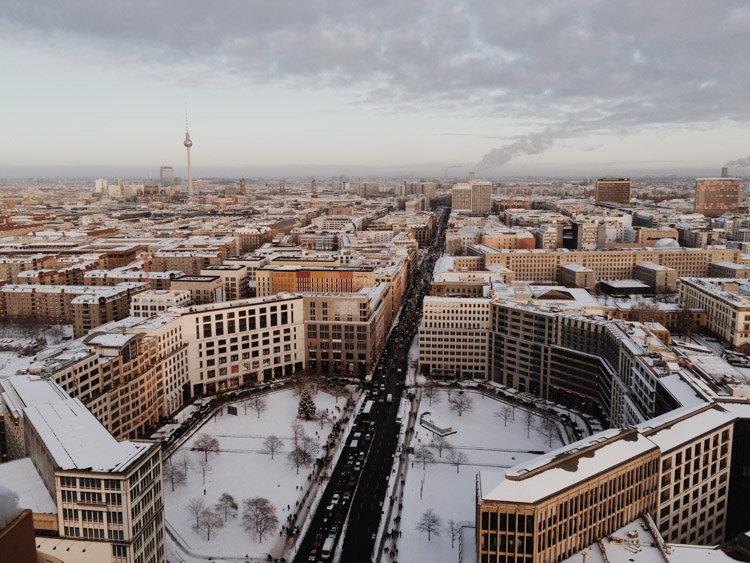
The main street in this image serves as a single leading line, it helps the eye find orientation from the interesting space in the foreground, and puts it into the context of the big city.

The third way of using lines to increase impact, is the use of symmetries. When looking for interesting images to capture in a city, try to find symmetrical lines in the architecture around you. Thankfully, architects also know the visual impacts of symmetries, and use them to create the buildings around us.


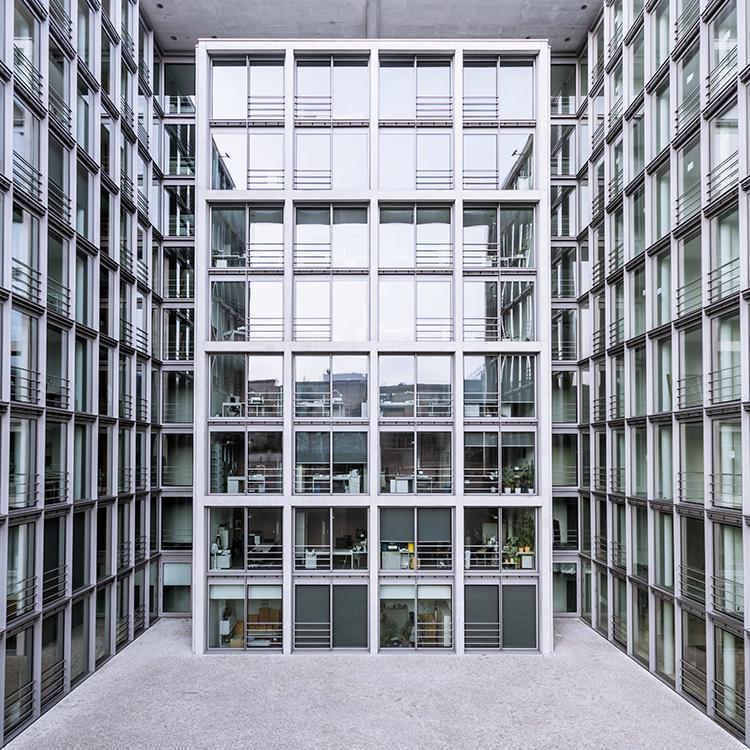
Bürogebäude des Deutschen Bundestages in Berlin,, Deutschland.

Buildings like this lend themselves to be taken in symmetries. While the content is not perfectly symmetrical due to the individual office decorations on the inside, the structure of the building makes an interesting frame for these individual elements. The symmetry helps to create interest, as you subconsciously start looking for the differences between the halves.

Learn to focus on lines

If you are shooting with a camera capable of RAW images, there is an easy way to train yourself to look out for lines: Use your camera settings, and change your camera to shoot in black and white!

When shooting RAW, the camera will still capture and store all the data from the sensor, including the color information. So when you are back at your computer to edit images, you will find all the options to create color images as well. But while shooting, you can look at your images at the screen in black and white, which will eliminate distractions from the forms in your image.

using lines for more impact in your images

Going a step further, in most cameras you can set up your own image processing profile in camera: Increase the contrast and sharpness of the image as far as possible, and you will end up with a preview image on the camera screen that is mostly reduced to the lines.

Additional ways to use lines

using lines for more impact in your images

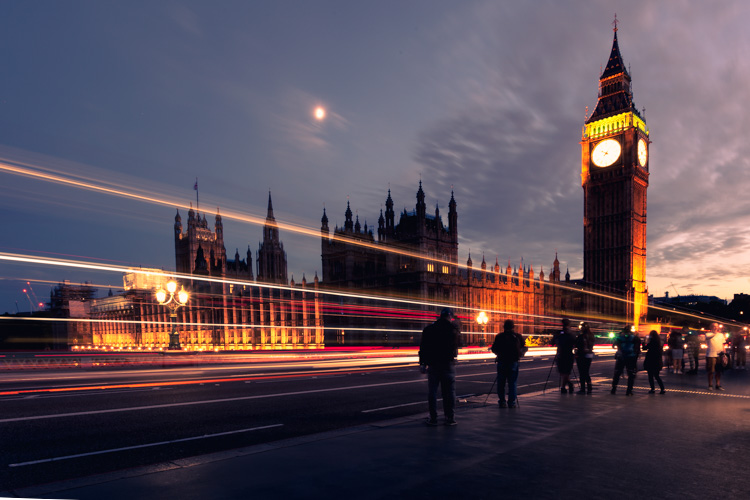
Probably one of the most photographed objects in the world, the houses of parliament and the tower with Big Ben in London, UK, it is hard to come up with a unique version. In this image above, I added the light trails created by the passing traffic to add an interesting element. The light trails serve both a dividing lines between the other photographers in the foreground and the architecture in the background, as well as leading lines providing perspective from the left to the right part of the picture.

using lines for more impact in your images

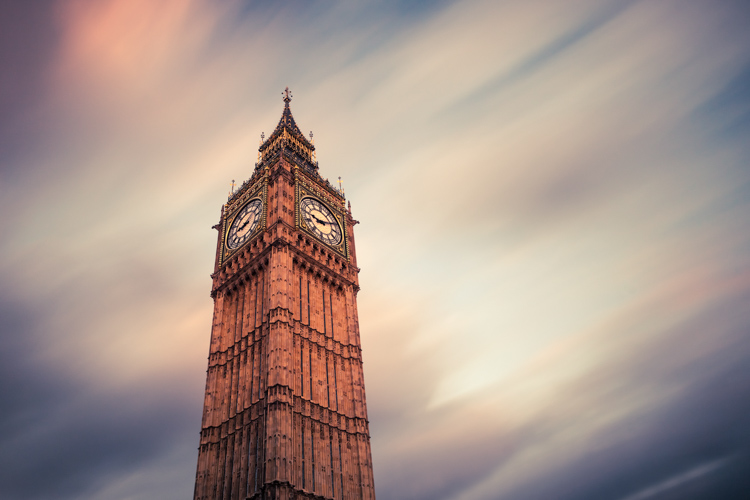
When taking images of tall buildings, like in this case the tower of Westminster, the borders of the building will typically provide leading lines from the bottom (near) to the top (far). To generate an additional element of interest, I used a long exposure image to create another set of lines, through the moving clouds in the sky above the building. This helps add a dynamic element and interest, to an otherwise static and often boring background.

curved leading lines

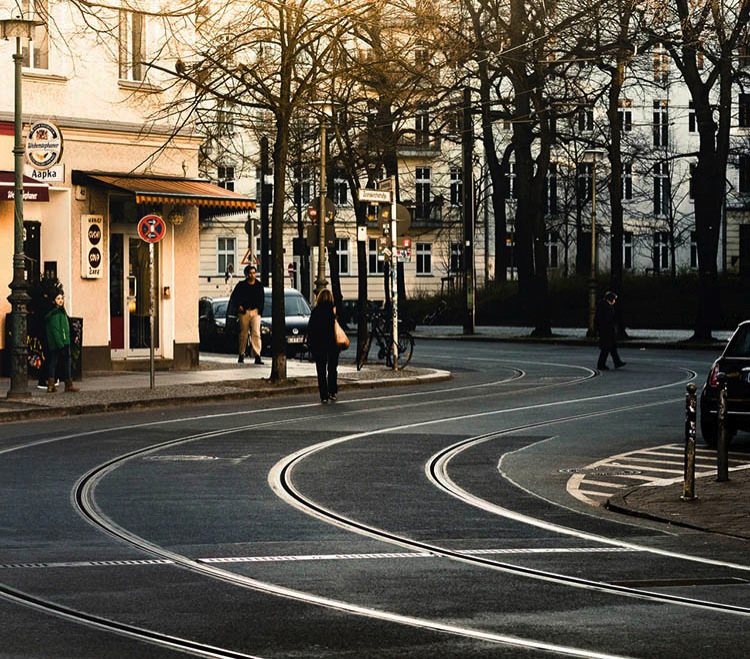
Do not limit yourself to using only straight lines. While a horizon should always be straight and strictly horizontal, others, especially leading lines, can also be curved. In this image above, the cable car tracks take two turns that lead the viewer’s eyes from the bottom (near) to the center (far) part of the image.

Even complex scenes win from the use of lines

Once you become aware of the lines in your images, you can use them to structure even more complex scenes.

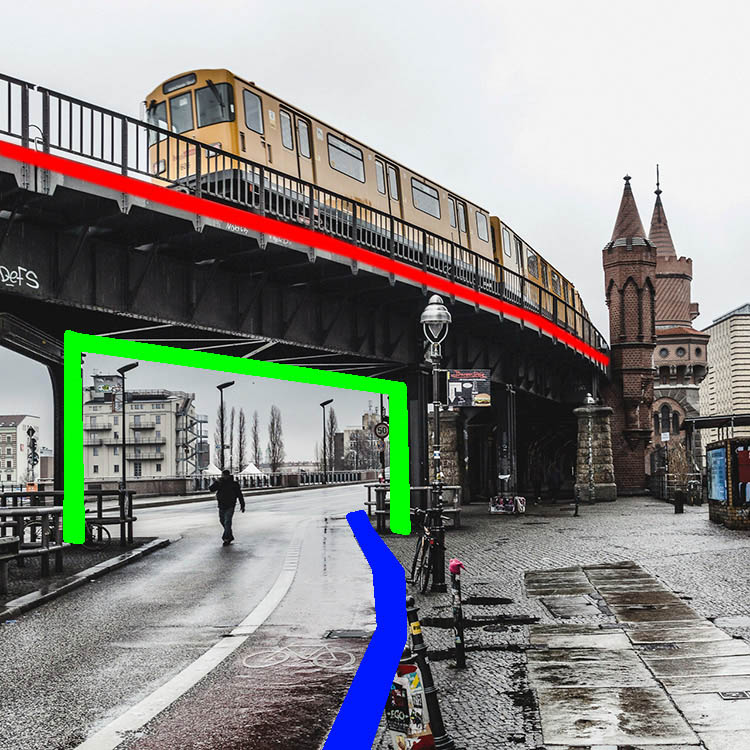
using lines for more impact in your images

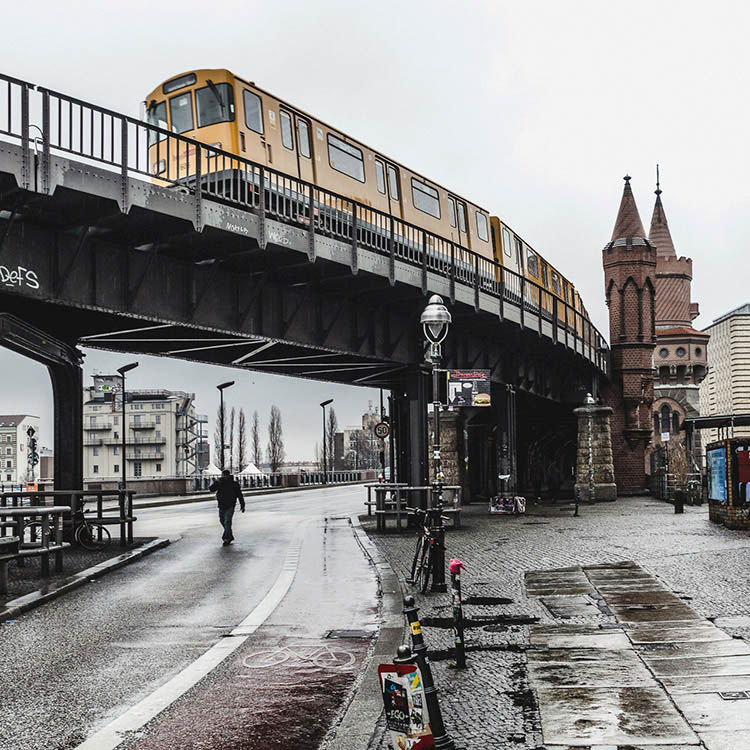
While the above example might show the lines all that obvious, you will most likely see the curb of the street easily as a (curved) leading line into the image.

using lines for more impact in your images

However, upon a closer look, you can also note the use of a dividing line separating the photo into a top and bottom part to provide additional perspective and scale. Finally, a use of lines as a frame puts more emphasis on the silhouetted person crossing the scene, adding further scale to the size of the elements contained.

These lines help the viewers structure the image into separate parts and make it easier for the brain to digest all the elements contained.

How do you use lines in your compositions? Please share in the comments below.

googletag.cmd.push(function() {
tablet_slots.push( googletag.defineSlot( “/1005424/_dPSv4_tab-all-article-bottom_(300×250)”, [300, 250], “pb-ad-78623” ).addService( googletag.pubads() ) ); } );

googletag.cmd.push(function() {
mobile_slots.push( googletag.defineSlot( “/1005424/_dPSv4_mob-all-article-bottom_(300×250)”, [300, 250], “pb-ad-78158” ).addService( googletag.pubads() ) ); } );

The post How to Improve the Impact of Your Urban Images Using Lines by Michael Zwahlen appeared first on Digital Photography School.


Digital Photography School

 
Comments Off on How to Improve the Impact of Your Urban Images Using Lines

Posted in Photography


The 5 Best Google Nik Color Efex Pro 4 Filters and How They Can Amplify Your Images

21 May

The Google Nik collection has been considered one of the top photographic effect plugin suites for a few years now, and it just got better in a big way – as of March 24th, 2016, it’s available free of charge.

This move has been applauded by many, yet accompanied by caution with by some, since a few analysts see this as the beginning of the end for the software suite. This is all speculation of course, and regardless of what the future holds for the Nik collection, it is a highly useful set of tools that can benefit any photographer, of any skill level.

Nik color efex pro

Color Efex Pro

The highlight of this set has always been the all-around workhorse, Color Efex Pro. The current version, Color Efex Pro 4, is a complete package in itself, featuring a variety of effects of the highest quality. Although you can sort the list of effects by photo type (landscape, portrait, etc.), there is a lot to explore.

Let’s go through five of the most useful and effective tools available in this package, and see how they can boost the appearance and effectiveness of your images.

Foreword

As with all of the tools within this suite, the filters described below include a Control Points feature within the panel of individual filter controls. This feature is invaluable, and allows you to add positive or negative points anywhere in the image, adding or reducing the effect of the filter in targeted areas. Each point can be individually controlled to modify range of effect and opacity. Combining these points with the filters gives you almost unlimited control of how the filters will effect your final photograph. I encourage you to play around with the control points, and you’ll quickly see how they can help you turn your image into the picture you initially envisioned.

1 – Bi-Color Filters

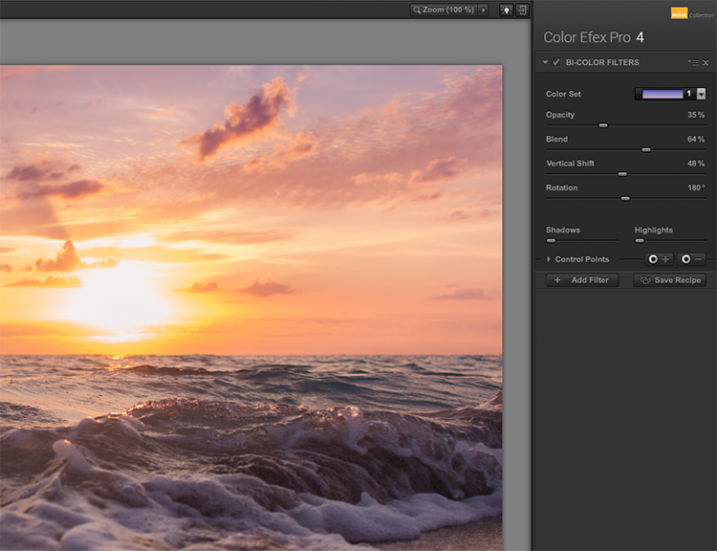
This filter is meant to simulate standard bi-color filters that would normally be affixed to your camera lens. Two preselected colors are blended together along a plane and mixed with your original image, creating a very customizable look that can completely change the tone of the photograph.

Although another bi-color filter is available that allows you to choose the two colors to be blended, the original filter has already selected many color combinations divided into five shade groups, such as browns, cool/warm, violet/pinks, and so on.

Nik color efex pro

Once you have selected a color set, you can further modify the appearance of the filter by adjusting several sliders, including Opacity which allows you to increase or decrease the intensity of the overall effect, and Blend slider, which softens or sharpens the line between the two colors. The entire effect can be rotated around the image using the Rotation slider.

article_cep4_screen6

Once you have mastered the controls for adjusting the bi-color filter effect, you can then move on to the User Defined Bi-Color Filter, which has similar controls, and allows you pick any two colors to blend with your image.

2 – Contrast Color Range

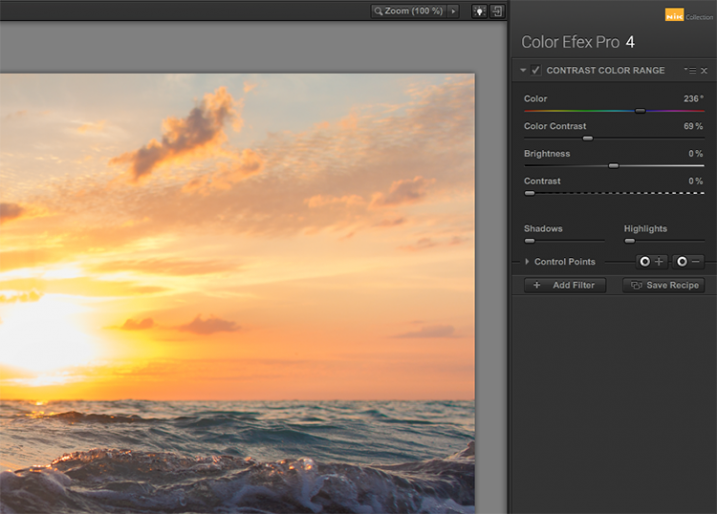
The Contrast Color Range filter allows you to selectively modify contrast within certain colors of a photo. Selecting a color will cause that color range to become lighter or less saturated, and colors opposite of it to become darker or more saturated. For example, selecting a blue or purple color range in an image featuring a sunset (with a lot of orange within the photo) will intensify the red and orange colors, making the sunset much more dramatic.

Nik color efex pro

The two main tools to understand here are the Color, and Color Contrast sliders. The Color slider will select the color range, while the Color Contrast slider will adjust the intensity of the effect by increasing or decreasing the contrast between the color selected and its reciprocal.

Nik color efex pro

Below these are controls for Brightness and Contrast, which behave similarly to their counterparts in Photoshop or Lightroom.

3 – Detail Extractor

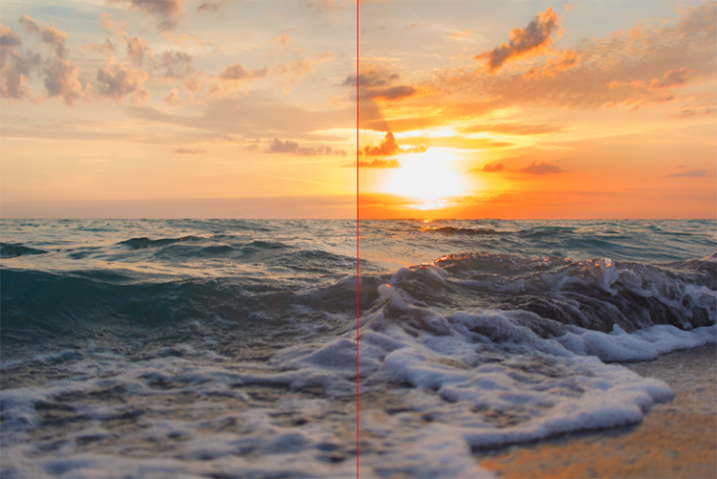
While most users might argue in favor of using the excellent Pro Contrast filter (discussed below) over the Detail Extractor, I’d argue that it depends on what look you’re going for. For a smoother, less enhanced result, Pro Contrast would definitely be the way to go, but to add insane levels of drama to your image, the Detail Extractor is just what the doctor ordered.

Nik color efex pro

This tool adds that drama by disrupting the balance of shadow and light within the photo, to pull much more detail, giving you a dark and gritty stylized result that can really grab the viewer’s eye.

Nik color efex pro

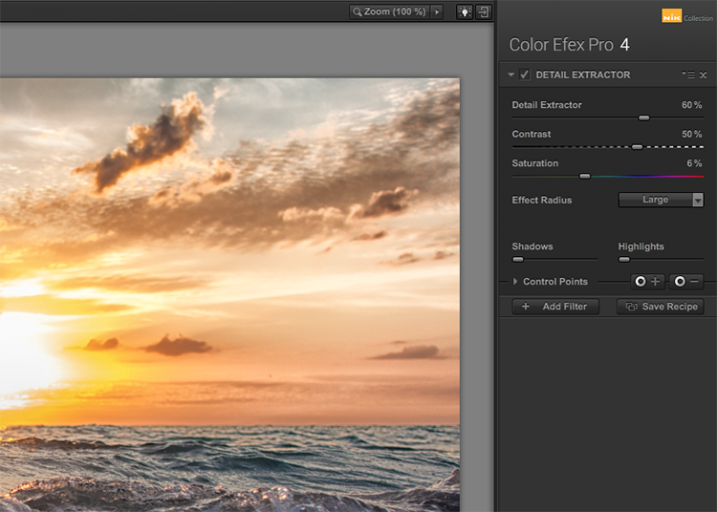
The main control used to create the effect here, is the Detail Extractor slider. Moving it to the right increases the amount of details highlighted. In addition to Contrast and Saturation adjustments, there is also an Effect Radius adjustment available, which allows you to target whether fine or large elements within the image are modified.

4 – Pro Contrast

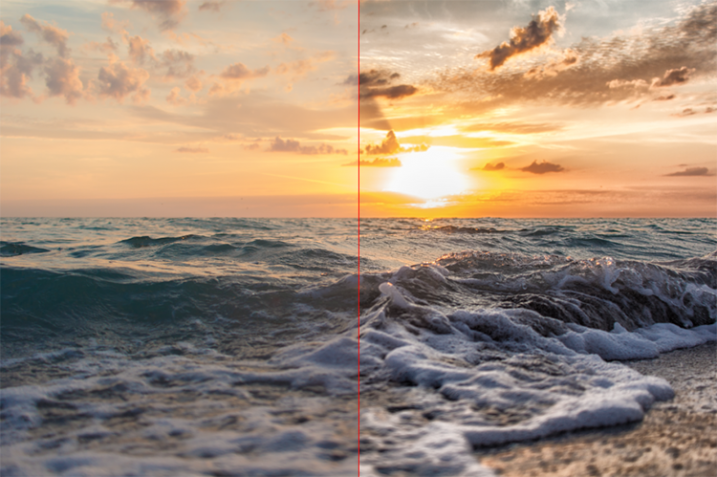
Without a doubt, the Pro Contrast module in Color Efex 4 is my favorite filter by far. Admittedly, half of my interactions with the Nik Filters involve me making all of my adjustments in Lightroom, and using Color Efex 4’s phenomenal Pro Contrast to add the bit of drama and flair I’m looking for, without going over the top and getting an overcooked result.

The tool analyzes the image to determine how the contrast adjustment will affect the loss in detail inevitable in this type of correction, and minimizes it. The filter can turn a flat, lifeless, image into a colorful and vibrant photo with almost perfect levels of contrast.

Nik color efex pro

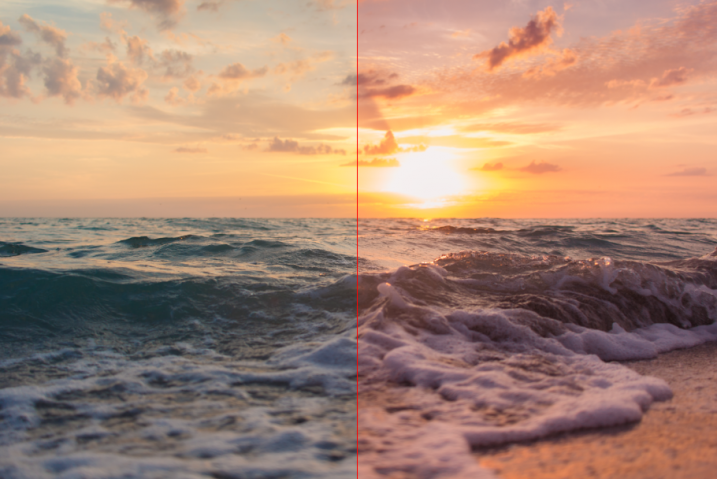
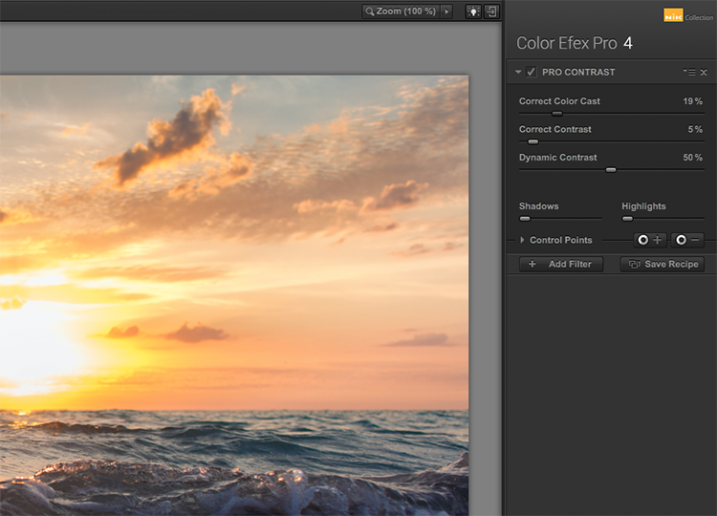
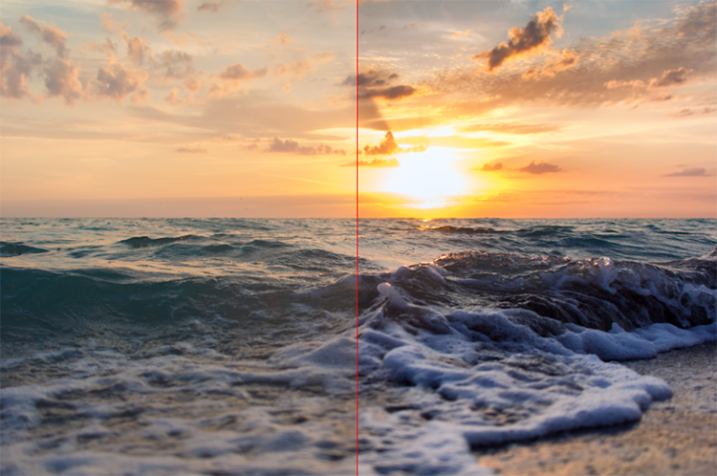
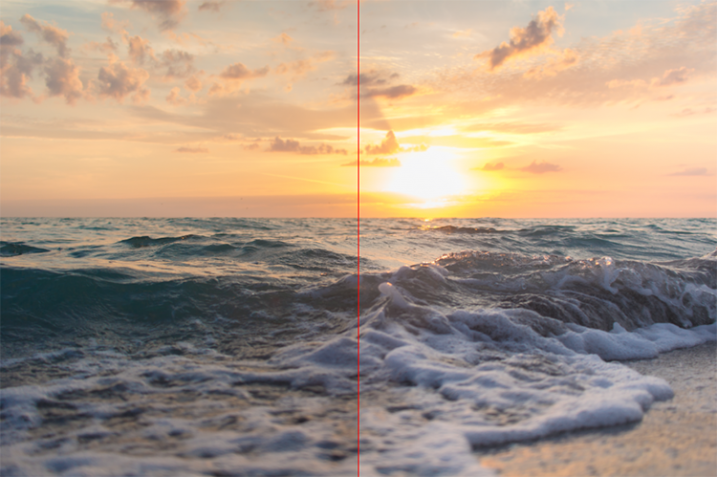
Pro Contrast features three sliders, each one of them important to the final result. Correct Color Cast analyzes the photo, and produces an algorithm to remove any inherent color cast it finds. Moving the slider to the right will reduce this cast and smooth out the tonal scheme of the image. In the ocean sunset image shown here, applying Correct Color Cast removes the orange hue cast upon the waves in the foreground, and returns them to their proper blue.

Nik color efex pro

Correct Contrast applies a general contrast adjustment based on the tonality of the image, as analyzed by the software. Finally, Dynamic Contrast introduces the real magic; areas of the photo that are flat are boosted in contrast, while areas already featuring high contrast are not. This allows for a rich, beautiful enhancement, without muddy tonal structures and details that might normally be lost.

5 – Reflector Efex

We all understand the need for a reflector when creating portraits; whether it be a natural-light or studio situation, certain areas of our subject (usually a person’s face) are befallen with shadows due to the interaction of the subject with the light being used. Reflectors allow us to bounce light onto our subject, and target it to fill in these areas of shadow, producing an even layer of light.

Nik color efex pro

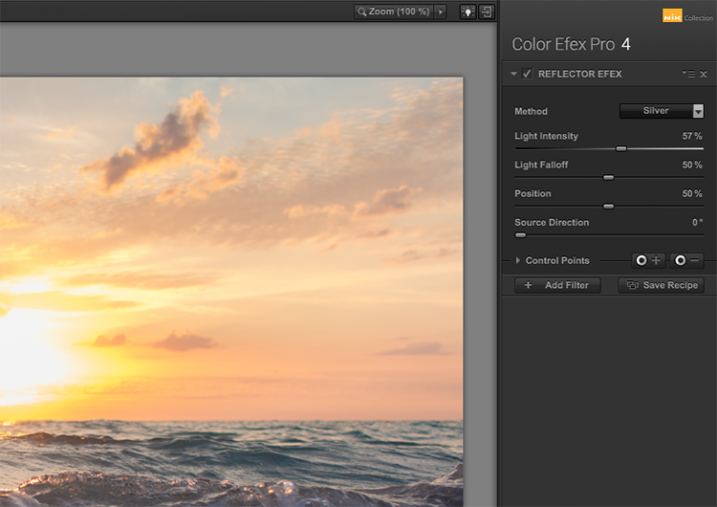
The Reflector Efex filter takes that concept and turns it up to 11, by simulating a silver or gold reflector’s use within your image, and allowing you to modify it in a number of ways to illuminate the photo exactly as you envision it.

First, you select a Method, which is effectively picking which color of reflector to use; gold, soft gold, or silver. You’ll then use the Intensity slider to select how much light will be bounced onto the image. This is equivalent to adjusting power output of a studio light, or the harshness of sunlight in an outdoor situation.

Nik color efex pro

The Light Falloff and Position sliders allow you to adjust how softly or sharply the effect of the bounced light trails off, as well as the position of this falloff. Finally, the Source Direction adjustment lets you change the position of the reflector; if you need light directed to your subject’s left side, you would position the Source Direction between 270° and 360°, which is the bottom, to bottom right corner of the frame.

Conclusion

We don’t know what the future holds for the Nik collection, as a price reduction to zero doesn’t bode well for continued enhancements or updates of any kind. But, for users of the software this may not matter, as it is already an integral part of many photographer’s toolkits, amateurs and professionals alike. The entire collection is of incredible value. But, Color Efect Pro 4 in particular, features these, and many more tools that can be incorporated into your everyday photographic workflow from Lightroom or Photoshop, and give your images a competitive edge!

What about you? Do you already use Google’s Nik Collection? If not, will you try it now after it has been changed to a free product? Are there other filters within the collection you find just as useful for your own workflow? Sound off below please, ladies and gents!

googletag.cmd.push(function() {
tablet_slots.push( googletag.defineSlot( “/1005424/_dPSv4_tab-all-article-bottom_(300×250)”, [300, 250], “pb-ad-78623” ).addService( googletag.pubads() ) ); } );

googletag.cmd.push(function() {
mobile_slots.push( googletag.defineSlot( “/1005424/_dPSv4_mob-all-article-bottom_(300×250)”, [300, 250], “pb-ad-78158” ).addService( googletag.pubads() ) ); } );

The post The 5 Best Google Nik Color Efex Pro 4 Filters and How They Can Amplify Your Images by Tim Gilbreath appeared first on Digital Photography School.


Digital Photography School

 
Comments Off on The 5 Best Google Nik Color Efex Pro 4 Filters and How They Can Amplify Your Images

Posted in Photography


Sign of the Times – 27 Significant Images of Signage

21 May

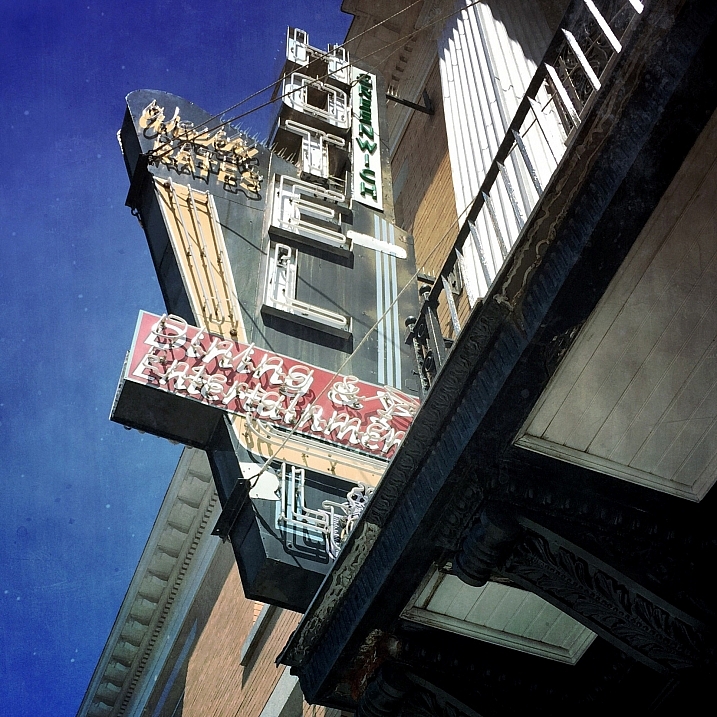
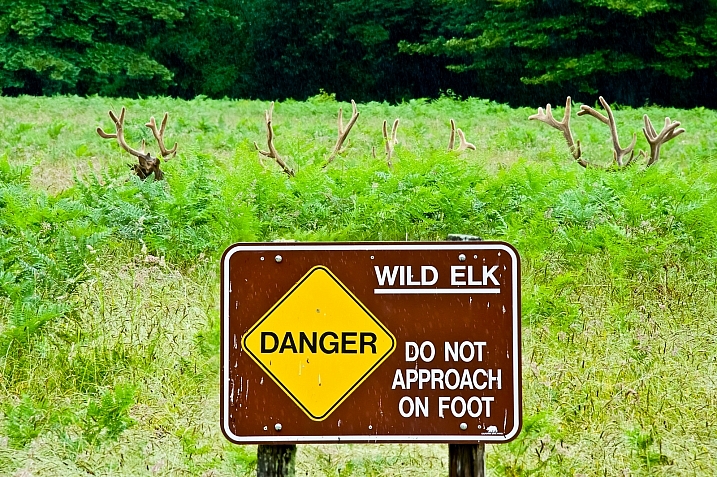
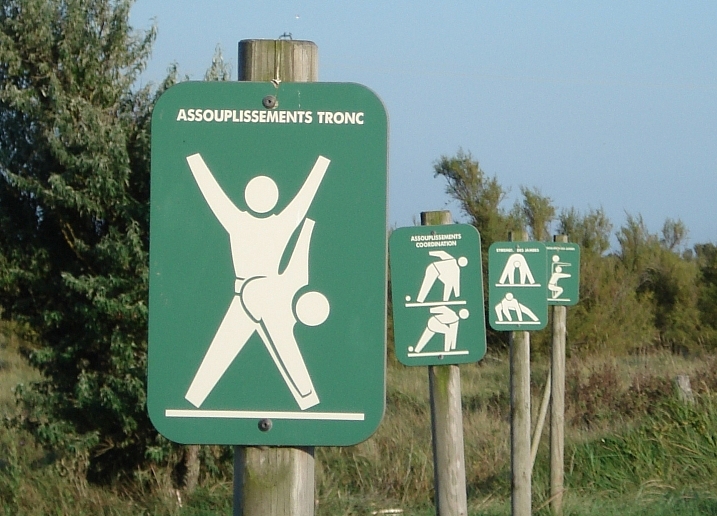
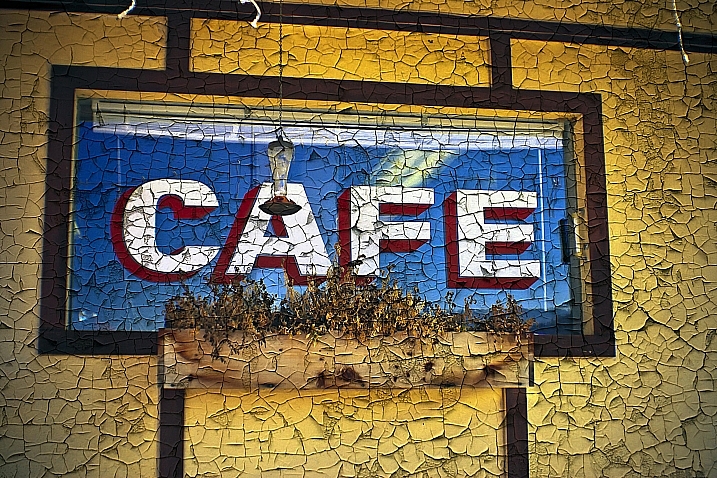
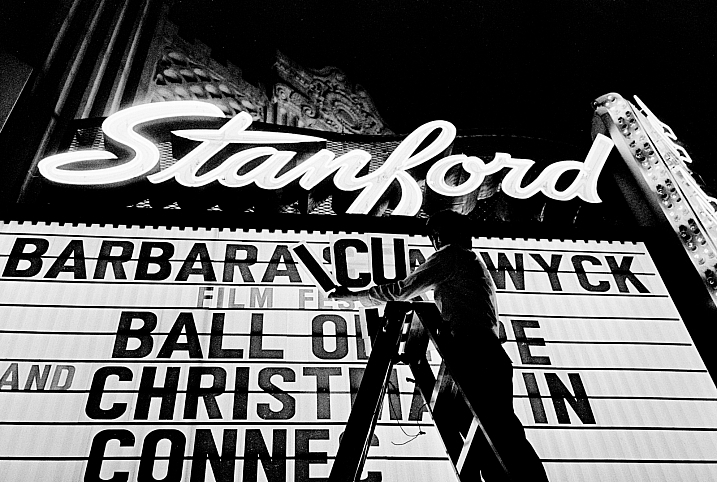
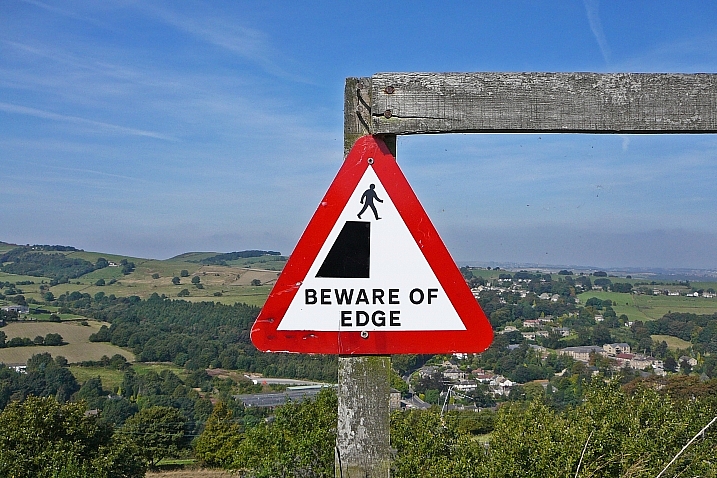
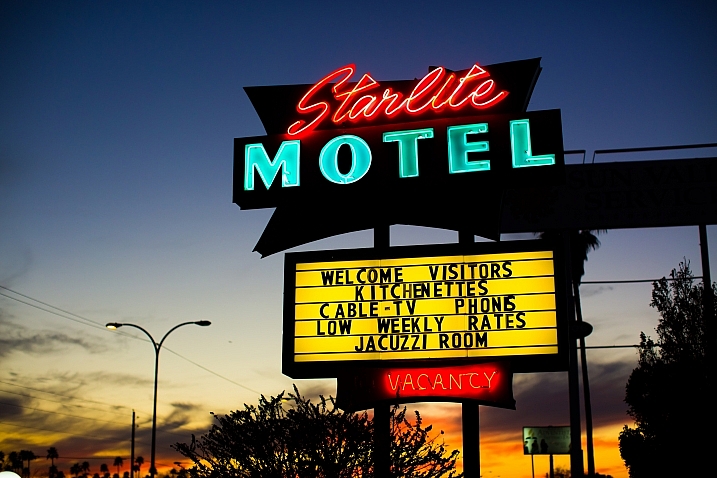
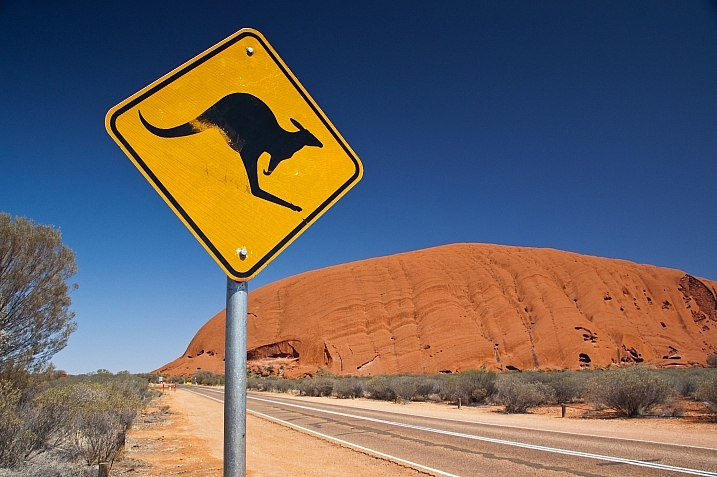
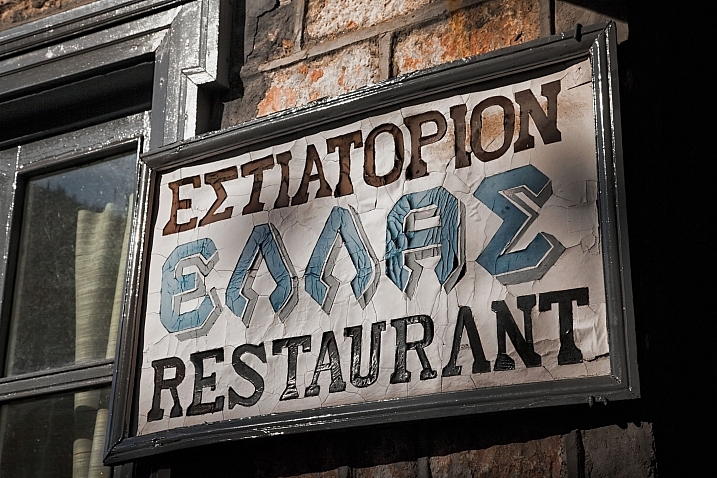
Images of signs can help date a photograph and give viewers clues about the location, culture, even the period of history. Street photography often incorporates signage.

What other ways can we use signs? Literal or more subtle? Let’s see how these photographers use signs:

Andrea Koerner

By Andrea Koerner

Scott Smith

By Scott Smith

Vicki  DeLoach

By Vicki DeLoach

Bob Jagendorf

By Bob Jagendorf

These * Are * My * Photons

By These * Are * My * Photons

Darlene Hildebrandt

By Darlene Hildebrandt

Howard Ignatius

By Howard Ignatius

Sancho McCann

By Sancho McCann

Carol Von Canon

By Carol Von Canon

Pete Zarria

By Pete Zarria

Hernan Seoane

By Hernan Seoane

Mark Nye

By Mark Nye

Tim Green

By Tim Green

Thomas Hawk

By Thomas Hawk

Thomas Hawk

By Thomas Hawk

Brent Disney

By Brent Disney

Bluedeviation

By bluedeviation

Yiannis Chatzitheodorou

By Yiannis Chatzitheodorou

Steve Parkinson

By Steve Parkinson

Wendy Berry

By Wendy Berry

TJ Gehling

By TJ Gehling

Gilda

By Gilda

Jeremy Brooks

By Jeremy Brooks

Davidag

By Davidag

Jeremy Brooks

By Jeremy Brooks

Chuddlesworth

By chuddlesworth

A McLin

By A McLin

googletag.cmd.push(function() {
tablet_slots.push( googletag.defineSlot( “/1005424/_dPSv4_tab-all-article-bottom_(300×250)”, [300, 250], “pb-ad-78623” ).addService( googletag.pubads() ) ); } );

googletag.cmd.push(function() {
mobile_slots.push( googletag.defineSlot( “/1005424/_dPSv4_mob-all-article-bottom_(300×250)”, [300, 250], “pb-ad-78158” ).addService( googletag.pubads() ) ); } );

The post Sign of the Times – 27 Significant Images of Signage by Darlene Hildebrandt appeared first on Digital Photography School.


Digital Photography School

 
Comments Off on Sign of the Times – 27 Significant Images of Signage

Posted in Photography


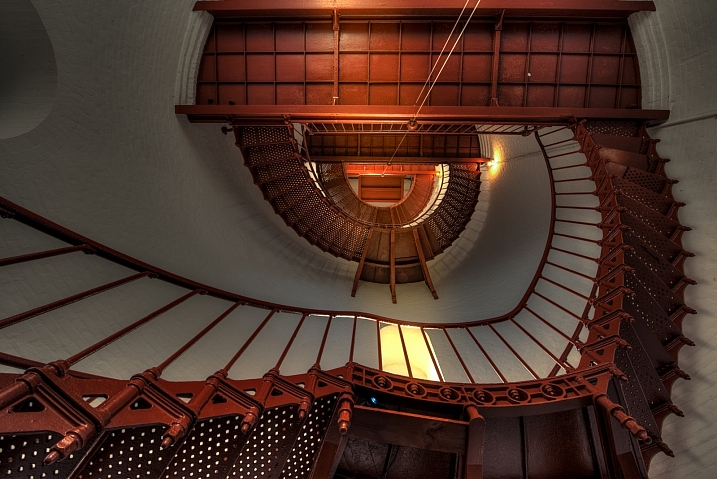
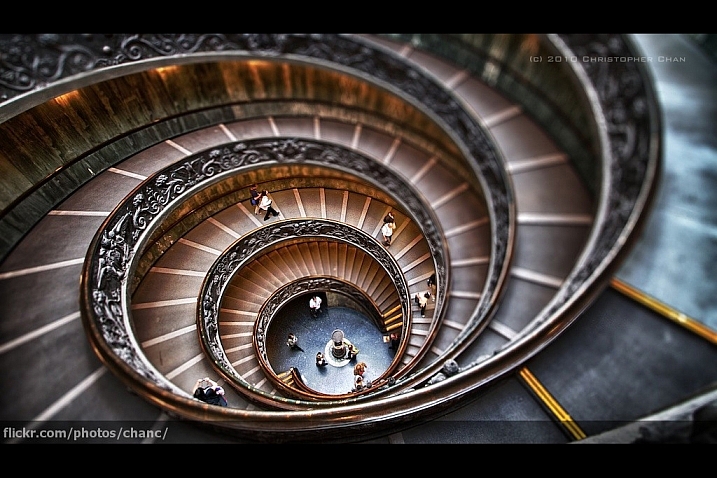
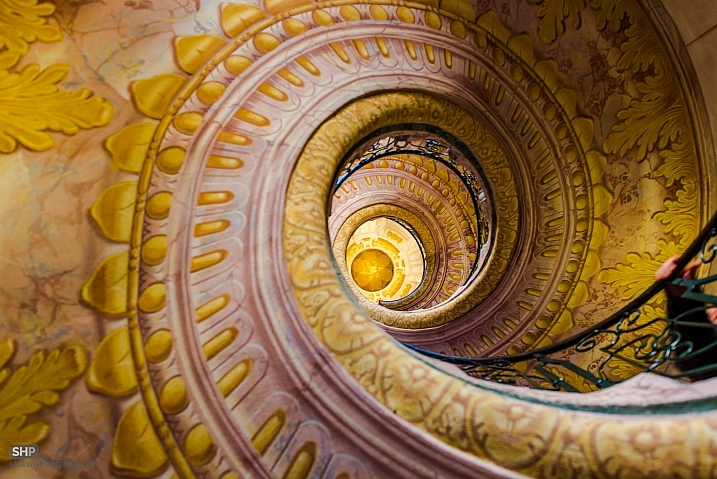
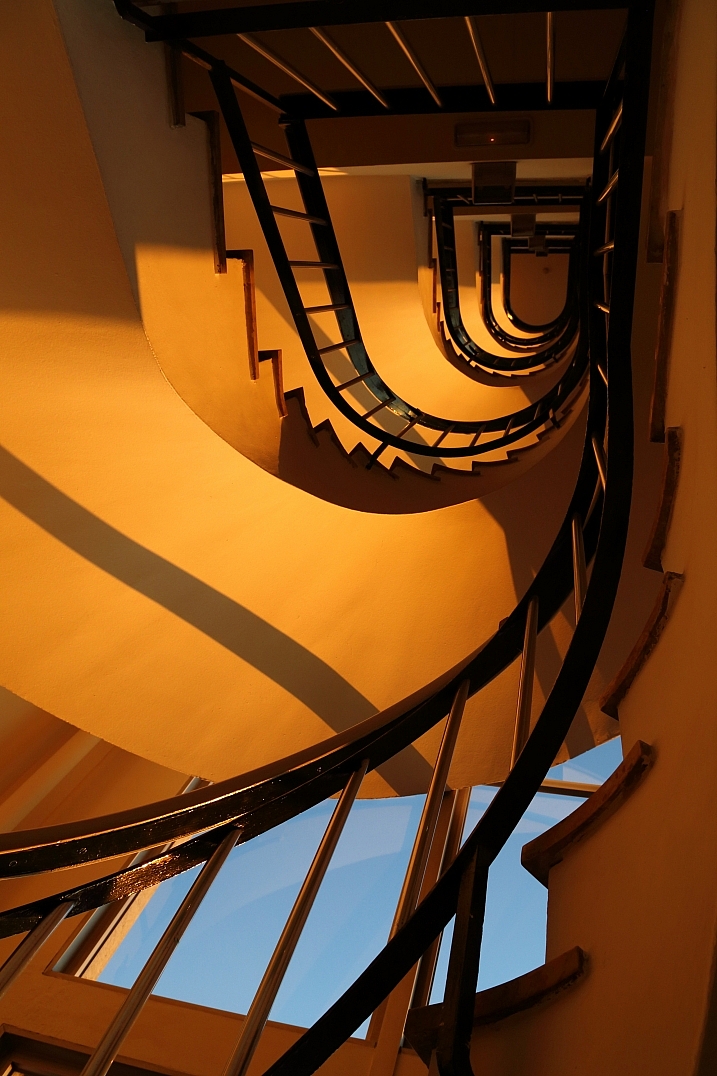
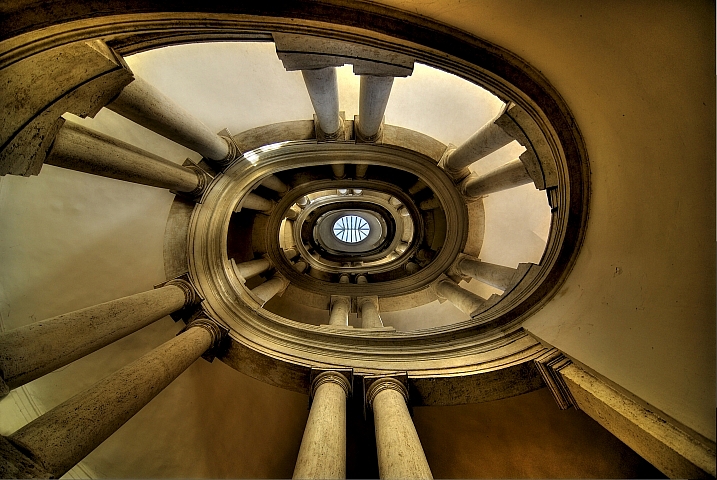
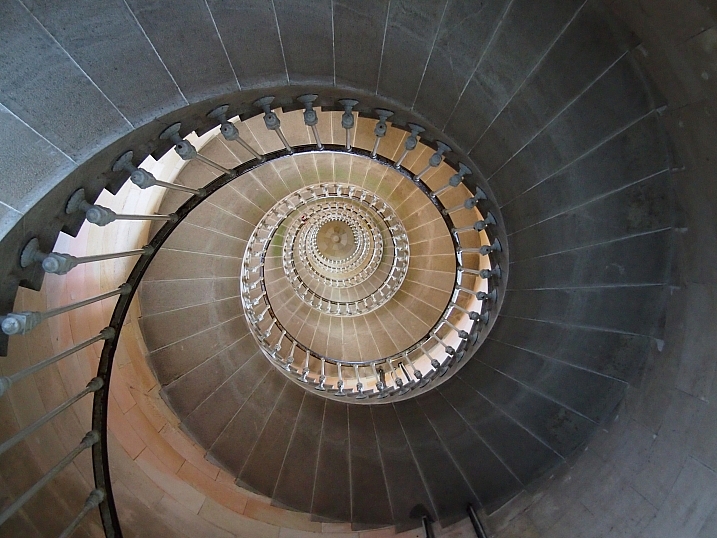
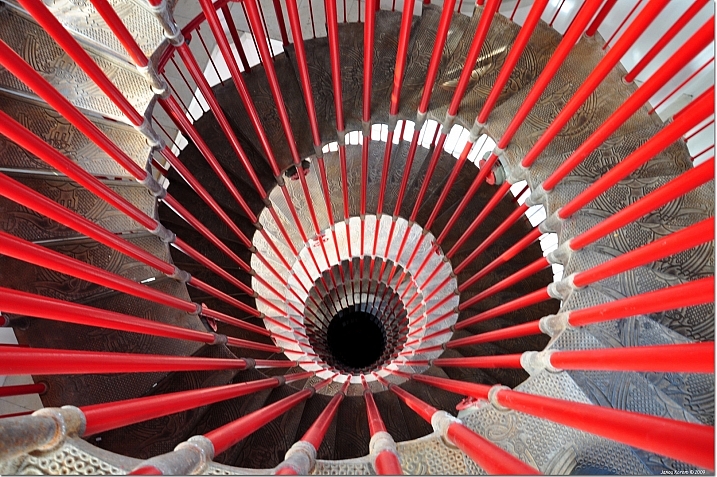
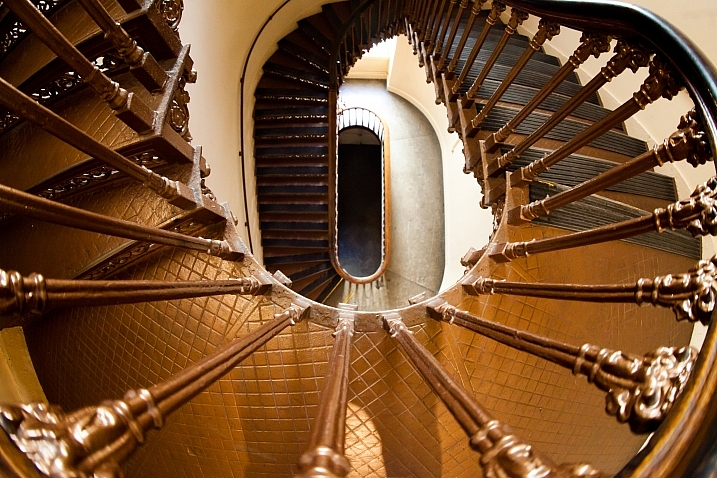
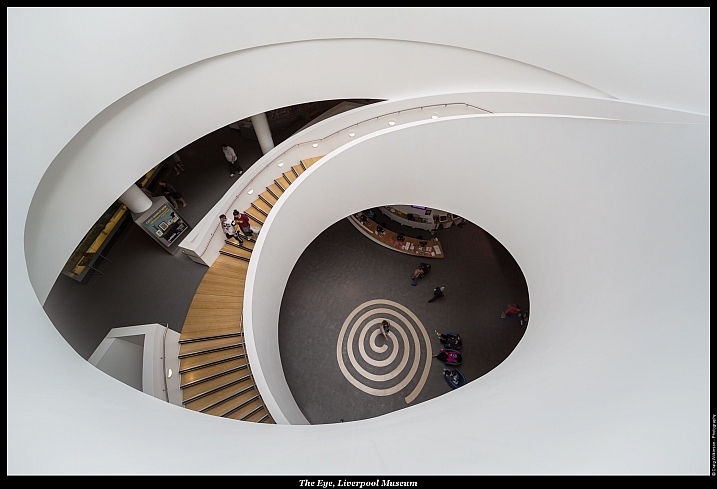
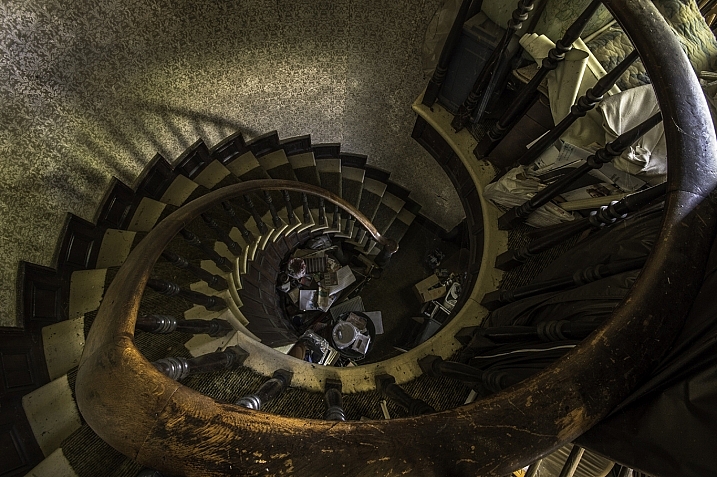
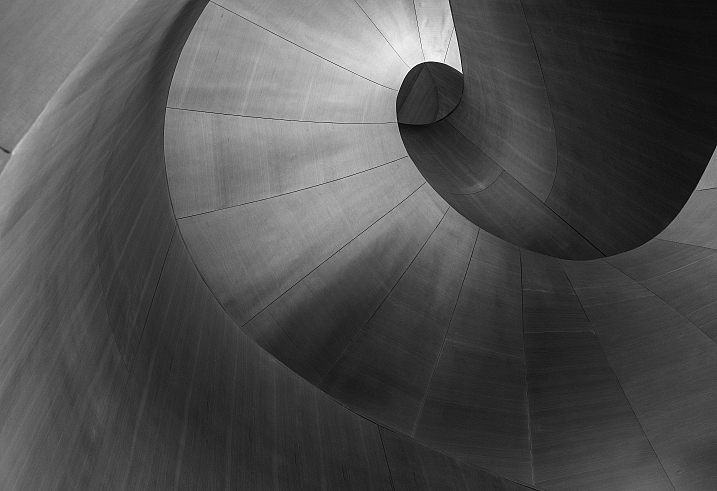
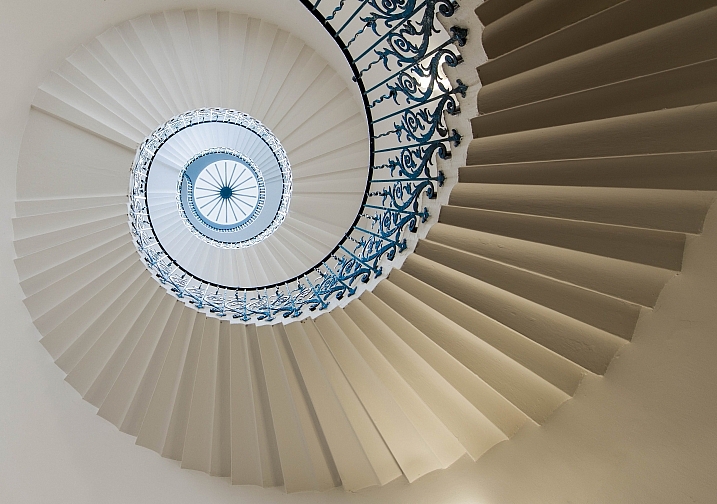
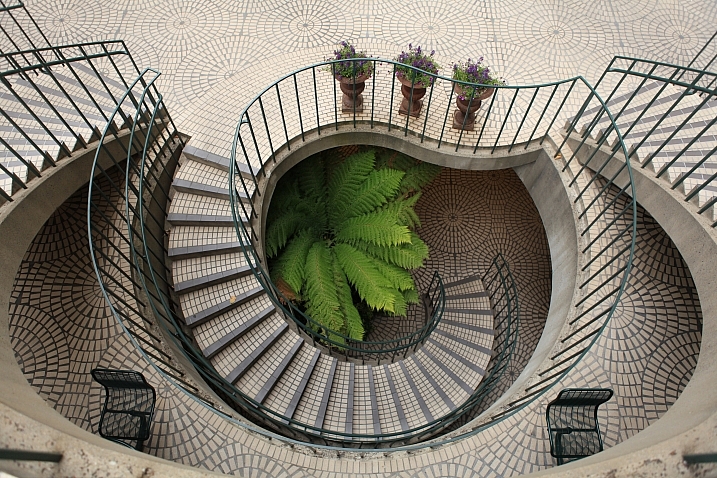
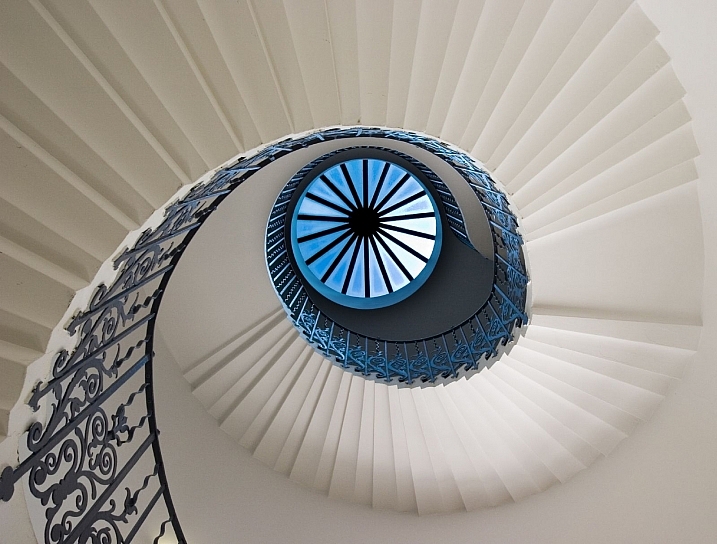
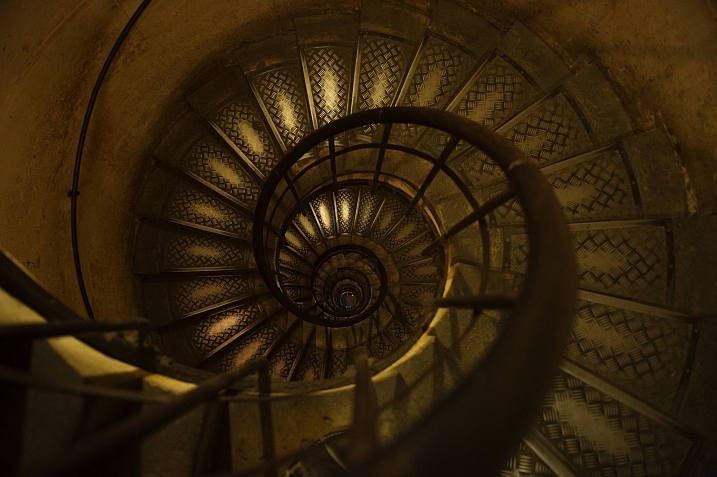
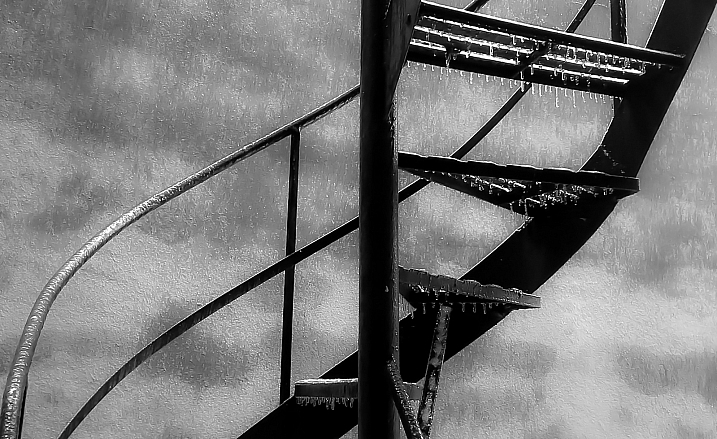
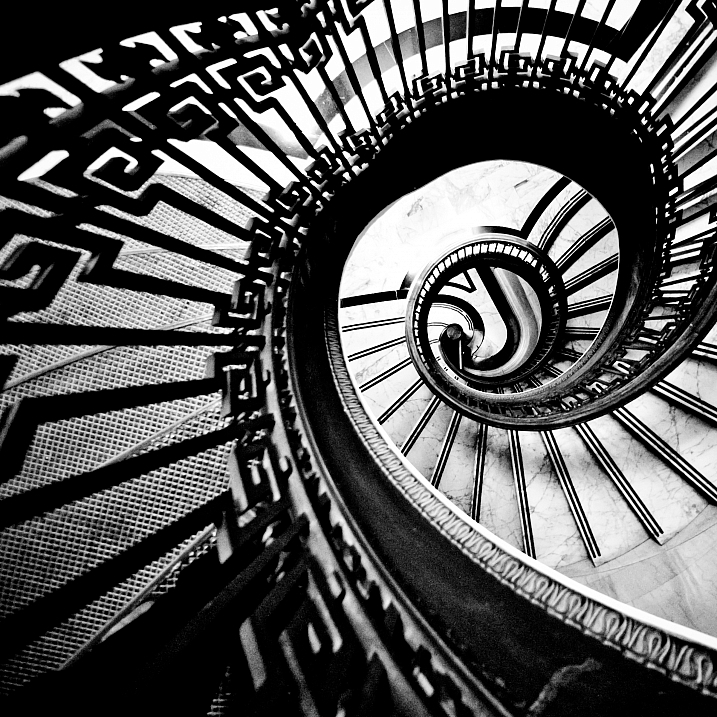
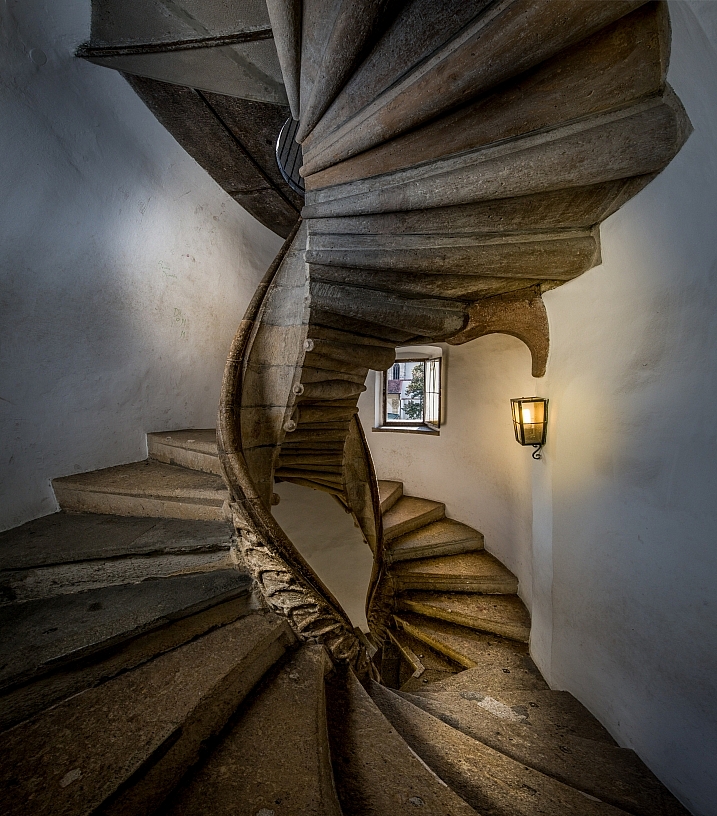
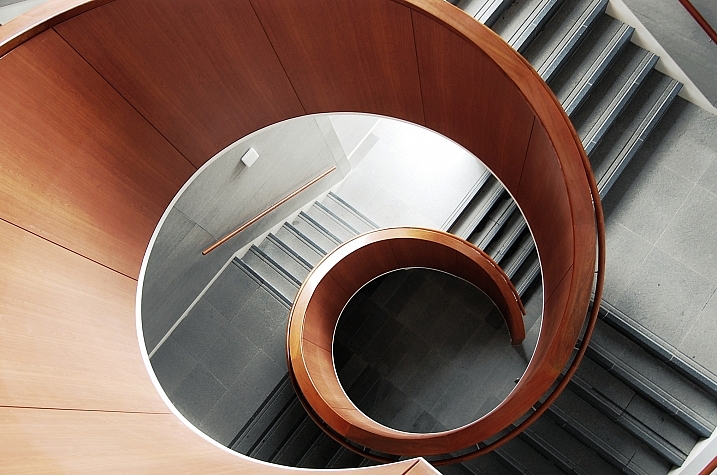
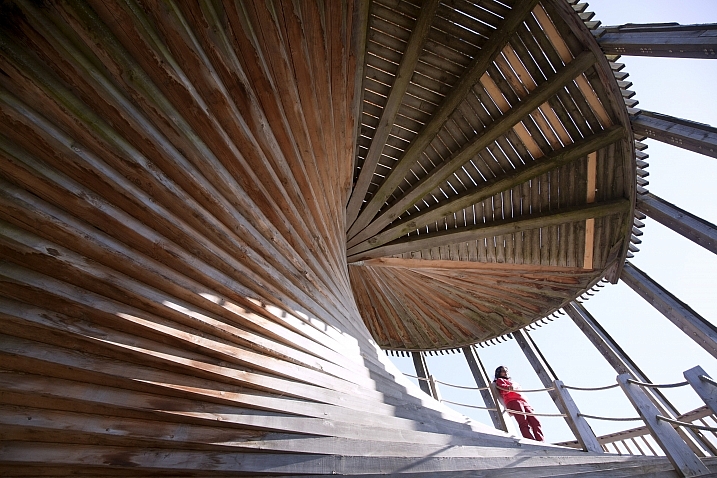
32 Dizzying Images of Spiral Staircases

13 May

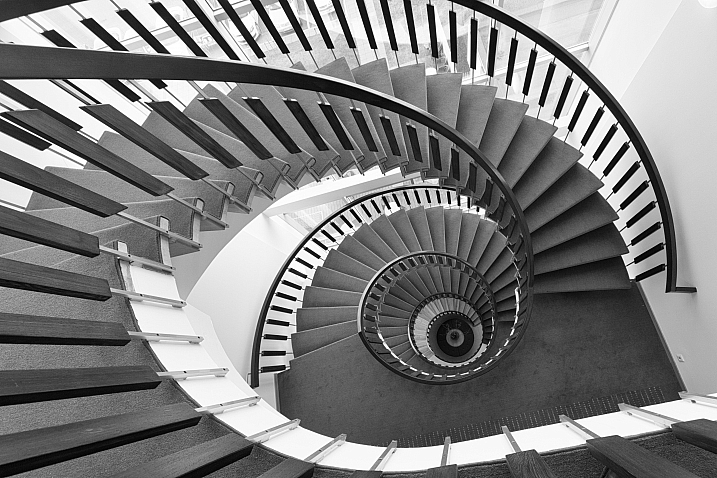
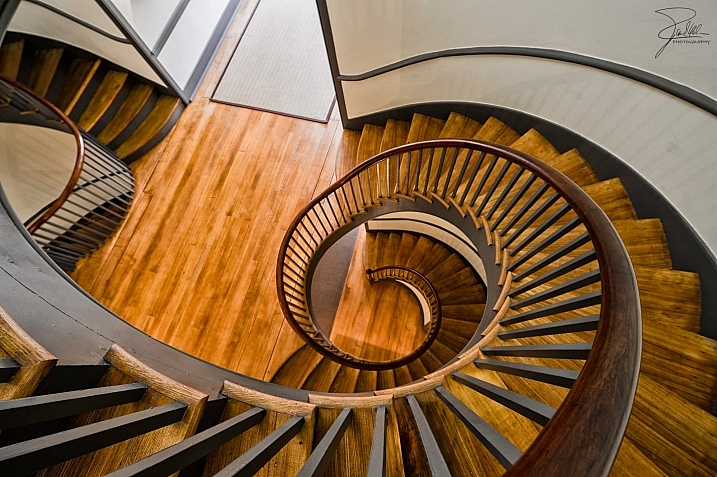
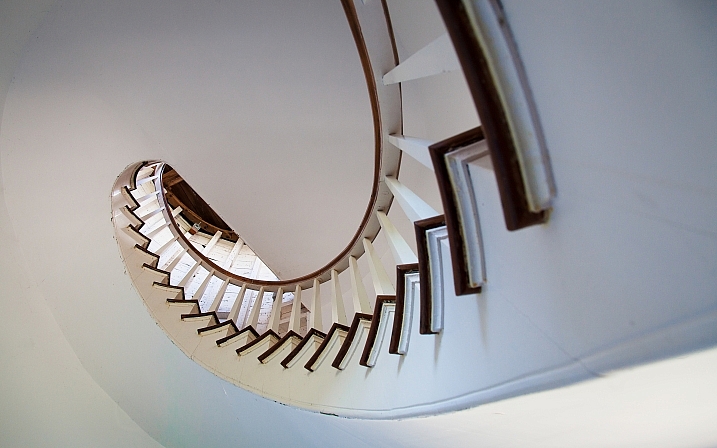
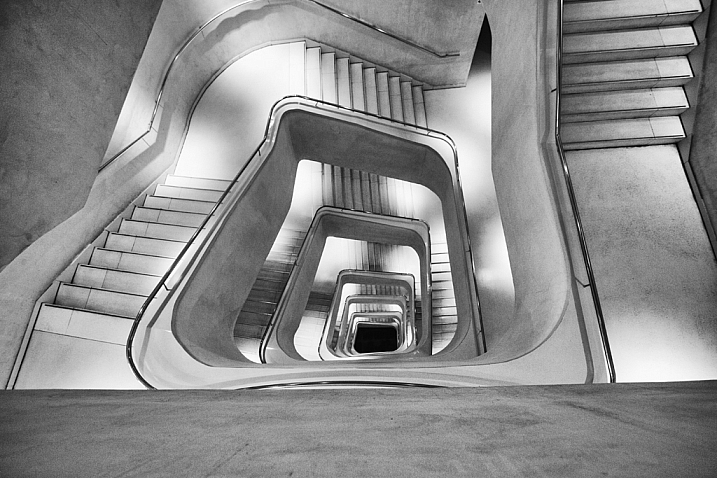
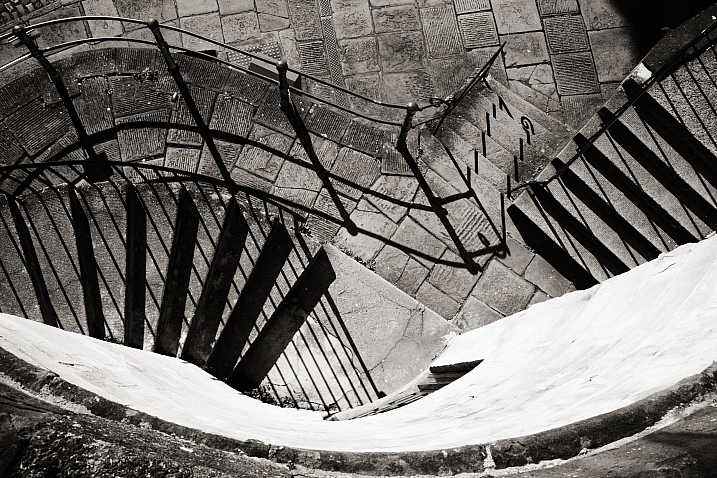
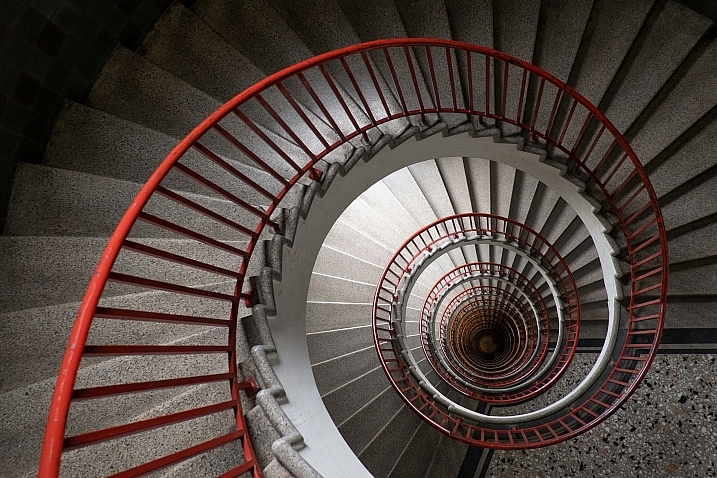
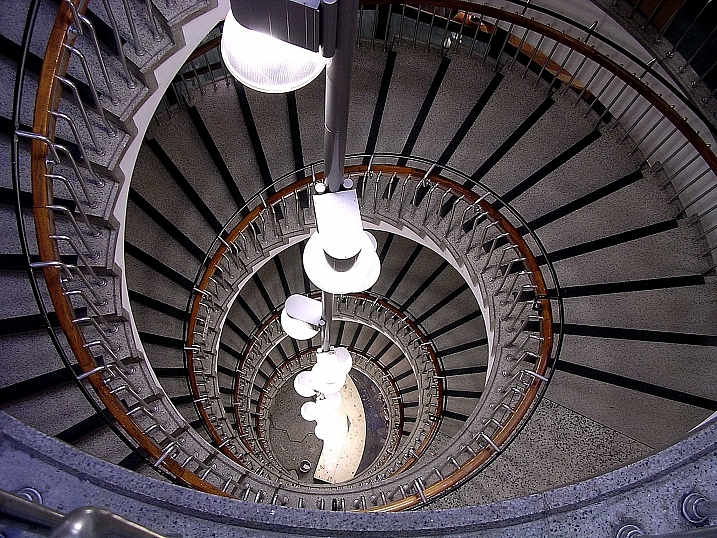
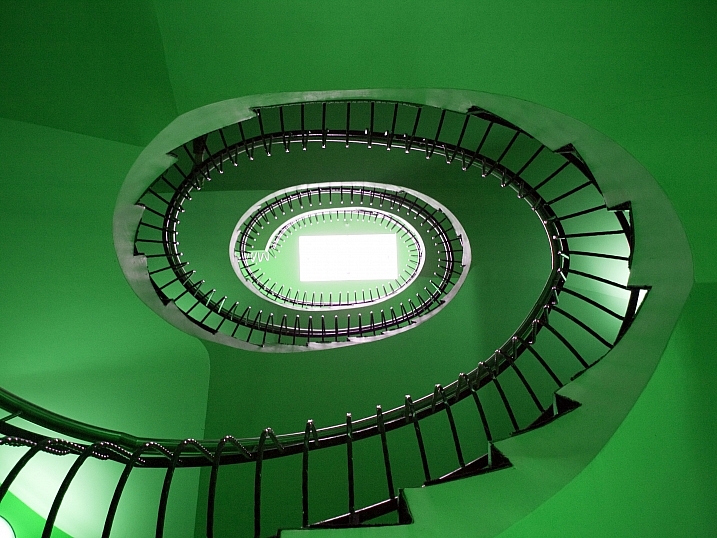
Composition is an important part of photography. You may have heard of the Rule of Thirds, or even the Fibonacci sequence (aka the golden mean). It is something that appears in nature often (think spiral sea shells) and which man imitates almost instinctively.

Check out some of these images of grand spiral staircases and see if you can’t see similarities. The symmetry, and unique properties, the math!

Howard Ignatius

By Howard Ignatius

Christopher Chan

By Christopher Chan

Shawn Harquail

By Shawn Harquail

Don McCullough

By Don McCullough

Riccardo Cuppini

By Riccardo Cuppini

Capture99

By Capture99

János Korom Dr.

By János Korom Dr.

Thomas Hawk

By Thomas Hawk

Jeremy Brooks

By Jeremy Brooks

Roger Jones

By Roger Jones

Frank Kehren

By Frank Kehren

Robin Jaffray

By Robin Jaffray

Artur Salisz

By Artur Salisz

Simon Holliday

By Simon Holliday

Gert Swillens

By Gert Swillens

VanessaC (EY)

By VanessaC (EY)

ReflectedSerendipity

By ReflectedSerendipity

Craig Wilkinson

By Craig Wilkinson

Freaktography

By Freaktography

Timothy Neesam

By Timothy Neesam

Garen M.

By Garen M.

Scott Schiller

By Scott Schiller

Jeff Oliver

By Jeff Oliver

Dustin Gaffke

By Dustin Gaffke

Gabriel Caparó

By Gabriel Caparó

Thomas Hawk

By Thomas Hawk

Bernd Thaller

By Bernd Thaller

Lhongchou's Photography

By lhongchou’s photography

Jeremy Brooks

By Jeremy Brooks

Kosala Bandara

By Kosala Bandara

Pim Stouten

By Pim Stouten

Thomas Hawk

By Thomas Hawk

googletag.cmd.push(function() {
tablet_slots.push( googletag.defineSlot( “/1005424/_dPSv4_tab-all-article-bottom_(300×250)”, [300, 250], “pb-ad-78623” ).addService( googletag.pubads() ) ); } );

googletag.cmd.push(function() {
mobile_slots.push( googletag.defineSlot( “/1005424/_dPSv4_mob-all-article-bottom_(300×250)”, [300, 250], “pb-ad-78158” ).addService( googletag.pubads() ) ); } );

The post 32 Dizzying Images of Spiral Staircases by Darlene Hildebrandt appeared first on Digital Photography School.


Digital Photography School

 
Comments Off on 32 Dizzying Images of Spiral Staircases

Posted in Photography


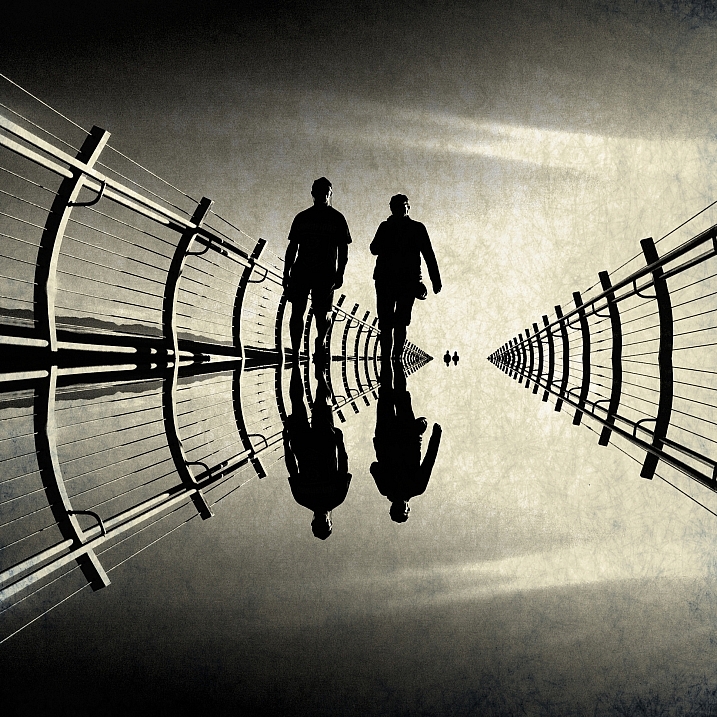
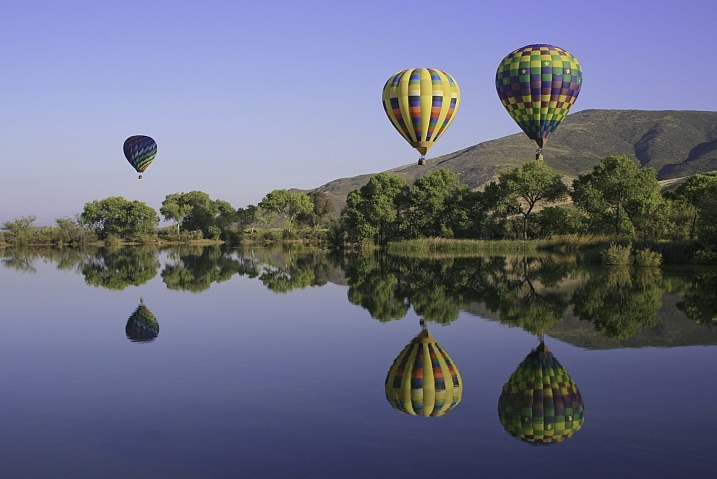
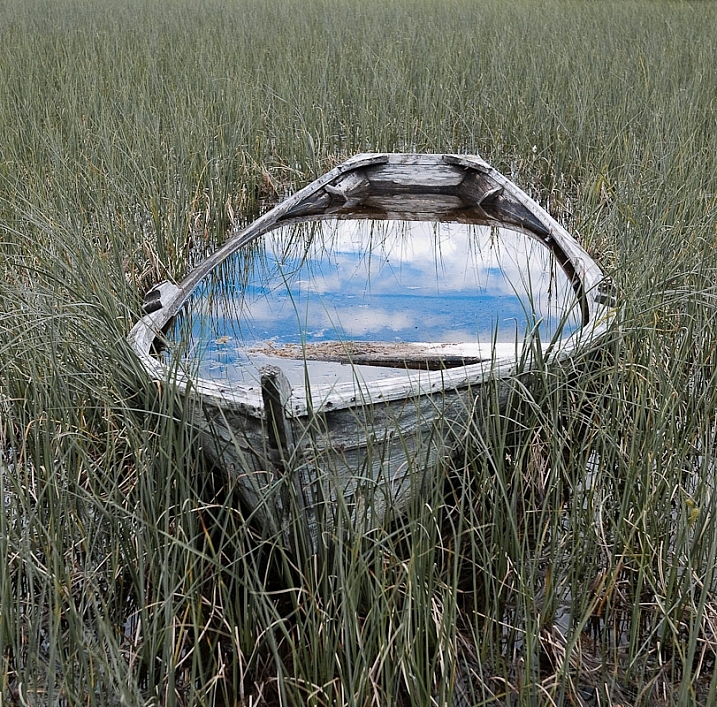
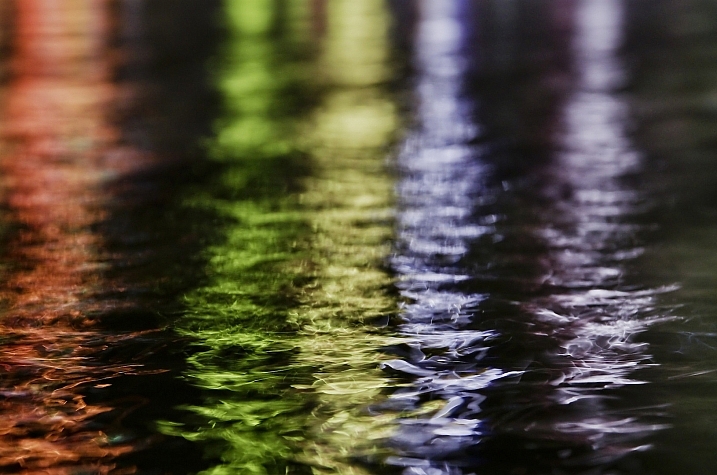
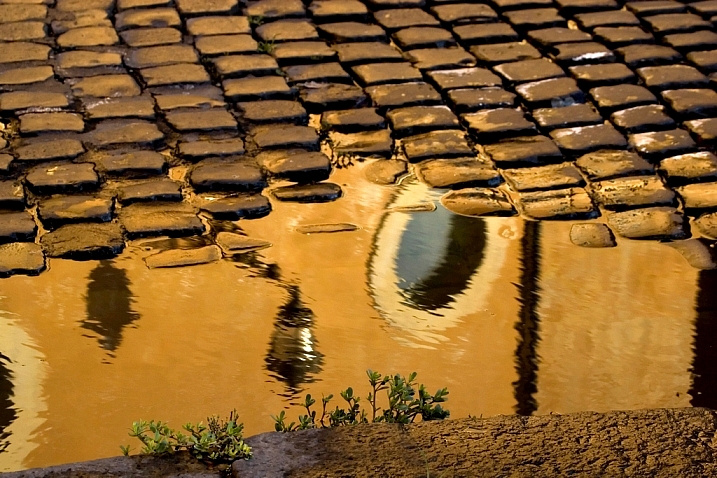
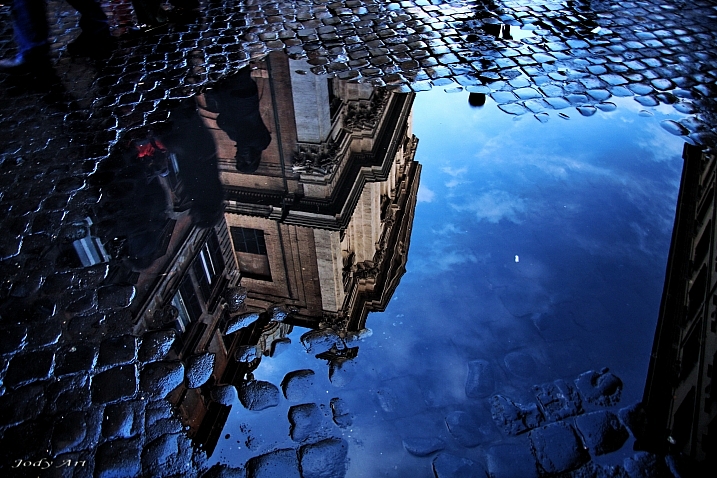
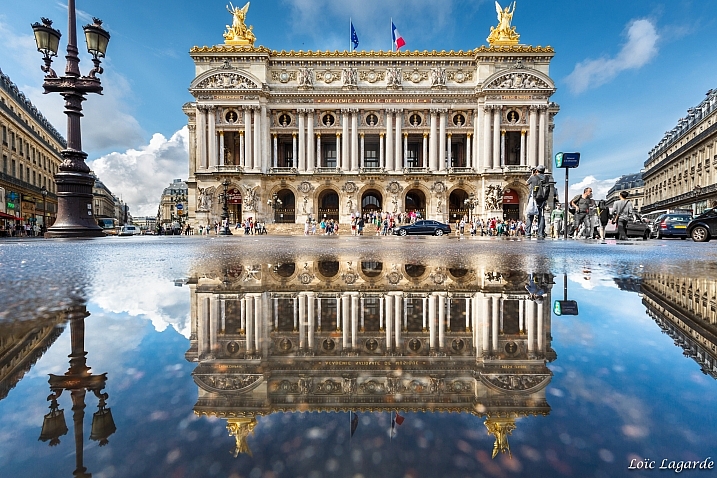
24 Reflective Mirror Images to Make You Look Twice

06 May

Kids love a good puddle to splash in – photographers love them for a different reason – reflections.

In this collection of images have a look at how these photographers captured reflective surfaces in creative ways:

Darlene Hildebrandt

By Darlene Hildebrandt

Nick Kenrick

By Nick Kenrick

Theophilos Papadopoulos

By Theophilos Papadopoulos

Karol Franks

By Karol Franks

Jos Van Wunnik

By Jos van Wunnik

Highlights6

By highlights6

ANDY ARCIGA ( Www.arcigaandy.com )

By ANDY ARCIGA ( www.arcigaandy.com )

Jon Wallach

By Jon Wallach

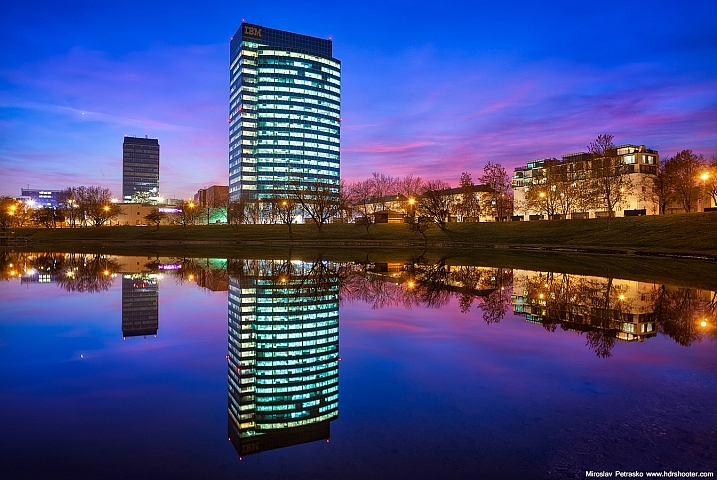
Miroslav Petrasko

By Miroslav Petrasko

?Jin Mikami?

By ?Jin Mikami?

Mario

By Mario

Darlene Hildebrandt

By Darlene Hildebrandt

Stefano Corso

By Stefano Corso

Jody Sticca

By Jody Sticca

Loïc Lagarde

By Loïc Lagarde

Neil Howard

By Neil Howard

Davide D'Amico

By Davide D’Amico

Thomas Hawk

By Thomas Hawk

?ethan

By ?ethan

Brett Kiger

By Brett Kiger

Phil Whitehouse

By Phil Whitehouse

Thomas Hawk

By Thomas Hawk

Roman Kruglov

By Roman Kruglov

Moniek Van Rijbroek

By Moniek van Rijbroek

googletag.cmd.push(function() {
tablet_slots.push( googletag.defineSlot( “/1005424/_dPSv4_tab-all-article-bottom_(300×250)”, [300, 250], “pb-ad-78623” ).addService( googletag.pubads() ) ); } );

googletag.cmd.push(function() {
mobile_slots.push( googletag.defineSlot( “/1005424/_dPSv4_mob-all-article-bottom_(300×250)”, [300, 250], “pb-ad-78158” ).addService( googletag.pubads() ) ); } );

The post 24 Reflective Mirror Images to Make You Look Twice by Darlene Hildebrandt appeared first on Digital Photography School.


Digital Photography School

 
Comments Off on 24 Reflective Mirror Images to Make You Look Twice

Posted in Photography


4 Steps to Make Your Images Pop in Lightroom

03 May

In this article, I share with you the start of my post-processing workflow for pretty much all of the photos I take. I’m mostly using Lightroom for 90% of my post-processing and very rarely do I go into Photoshop for some extra stuff.

Before we begin I must confess that I’m no post-processing master, nor do I know Lightroom inside and out, and I definitely don’t know Photoshop inside and out. But, as I learned, and I hope you will too, it turns out you don’t have to be a master in order to be able to bring your Raw photos to life. It can be done by just about anyone with just a few simple steps as I’m going to show you.
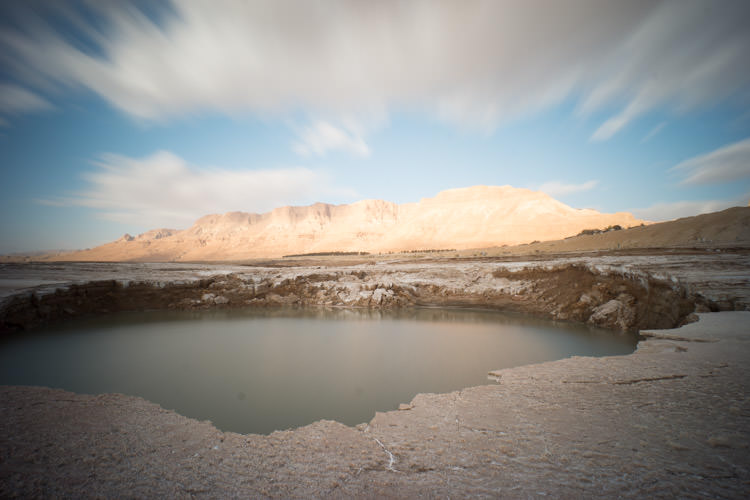
8 Photobek Before
Before we start, here is the image as taken straight out of camera.

The photo I’m going to use (above) for this tutorial is one that I took while on a Dead Sea Night and Sunrise Workshop. I didn’t really plan for this photo ahead of time, but it’s probably the best image I took during that workshop. It’s a photo of one of the biggest sinkholes in the Dead Sea area (one out of more than 5,000 and counting) and it’s an 89 second exposure, done with a 10 stop neutral density filter that allowed me to smooth the water inside the sinkhole, and stretch the clouds moving above.

Now let’s make it POP!

1. Lens Corrections
1 Photobek Lens Corrections

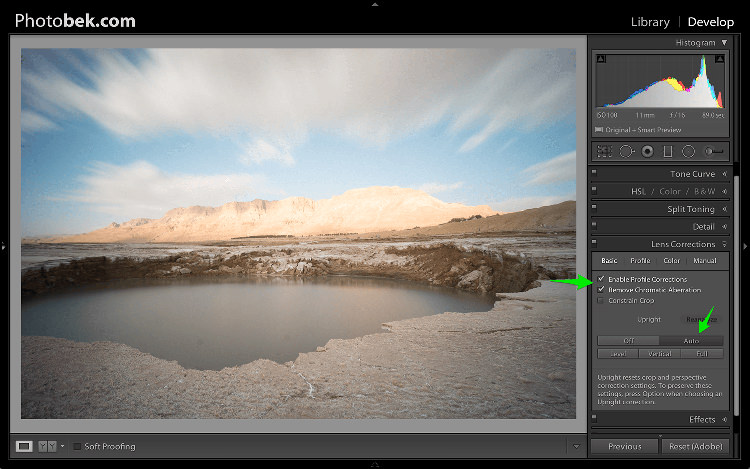
The first thing I do is apply Lens Corrections. This specific photo was taken with a wide angle lens, and if you’re into landscape photography then a wide angle lens would be your go to lens 80% of the time, so fixing the distortion it creates is important.

just go to the Lens Corrections Panel and mark the Enable Profile Corrections. Lightroom has profiles for plenty of lenses, and chances are that it will have one for the lens you are using. If not, make sure you update to the latest version of Lightroom as they keep adding support for new lenses as they are being released to the world.

In some cases I decide to leave the photo as it is without doing the lens correction. It is just a matter of what seems or feels right for each specific photo.

Under the Lens Corrections panel you can also correct perspective in your photo, so I always click on Auto and see how that affects the image. If it’s good, I keep it. If it’s off I undo it and align in manually, or rotate using the crop tool if necessary.

2. White Balance
2 Photobek White Balance

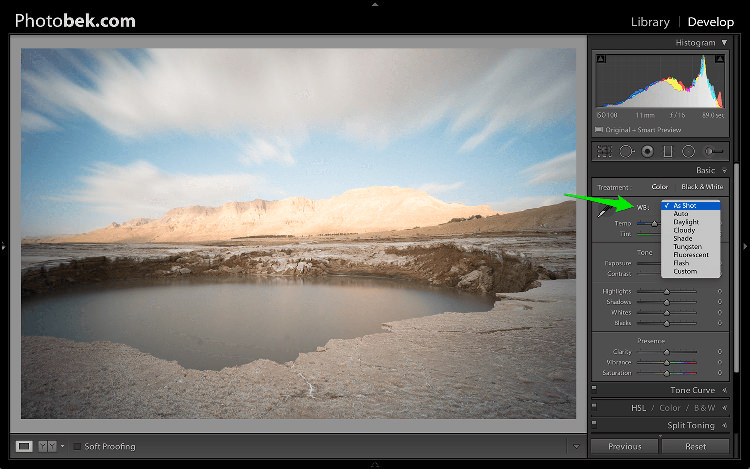
Adjusting the White Balance comes second. Since I’m always shooting Raw (and if you’re not, then please start) I don’t really mess with White Balance while I’m shooting. Again, this is a matter of playing with the options in Lightroom to see what looks the best, and what makes the image as close to how it looked when I was out shooting.

80% of the time I’m using either the Auto or As Shot options, and for this photo I kept it at As Shot.

3. Spot Removal
3 Photobek Spot Removal 01

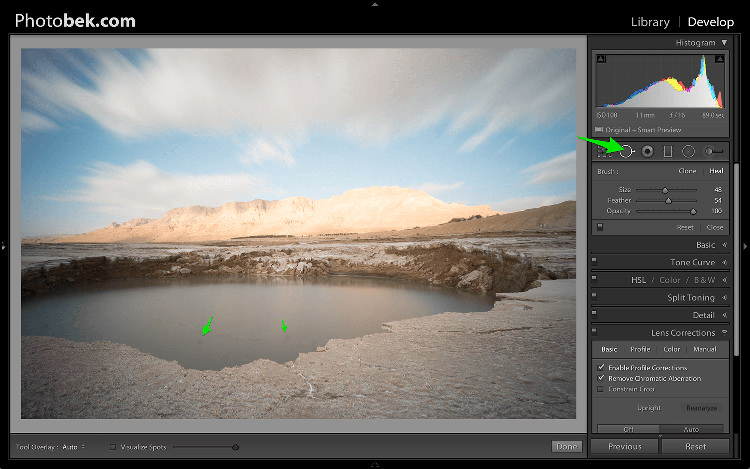
Spot Removal is a MUST. Not removing the spots from your photos is a really bad habit. It’s hard to avoid having these spots, as the lens or sensor will get some dirt and dust on them, and having them cleaned on a consistent basis is not really something most photographers do. I know I don’t.

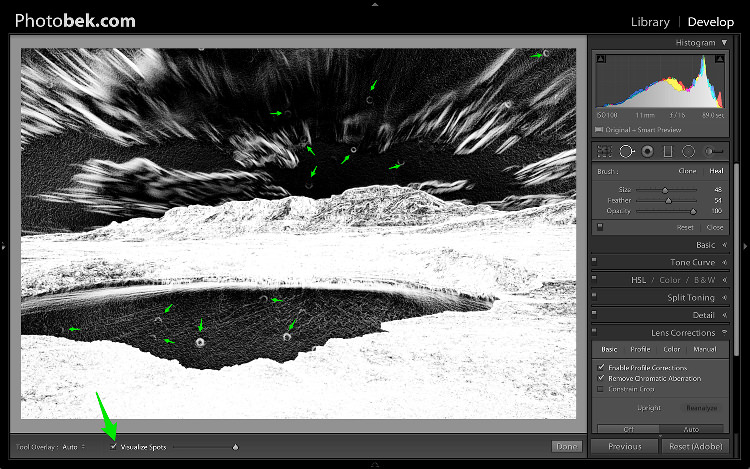
Spots can ruin a photo in my opinion, I simply hate them, but I love getting rid of them and Lightroom makes it super easy to do. As you can see in the screenshot above I marked two very obvious spots with arrows but after using the Visualize Spots feature look what happens.
4 Photobek Spot Removal 02

BOOM!

I know I shouldn’t be so happy since my lens (or sensor) is pretty filthy, but thanks to this great feature in Lightroom I can see pretty much all the spots and get rid of them.

You can choose between Clone or Heal in the Spot Removal tool. I usually use Heal as it does a better job of removing the spots and picking the best places to copy over from.

4. Basic Panel
5 Photobek Basic 01

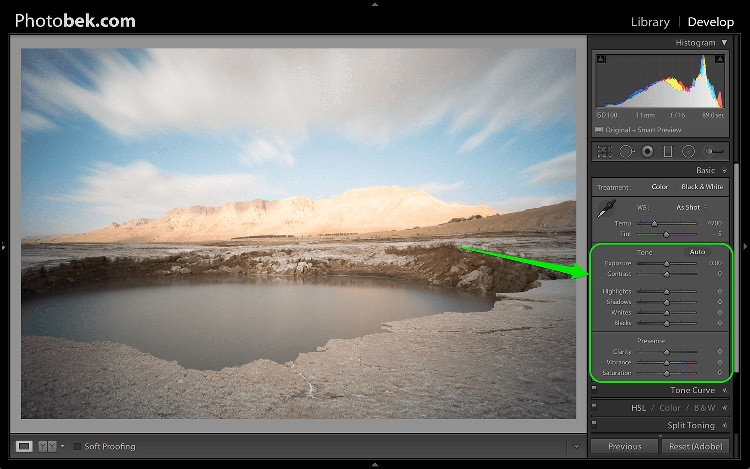
This is where most of the magic happens, and this part makes the biggest impact on the photo. It has nine sliders (besides the two sliders for White Balance which we already took care of in step 2) and the most important thing for you to know, is that every photo needs its own adjustments as each image is different.

The adjustments I’m going to make on this specific photo might not work so good on a different shot, so keep in mind that the overall process is similar and I’ll use all these sliders for every photo, but not necessary move them to the same locations.

Let’s begin:

4.1 Exposure
6 Photobek Histogram

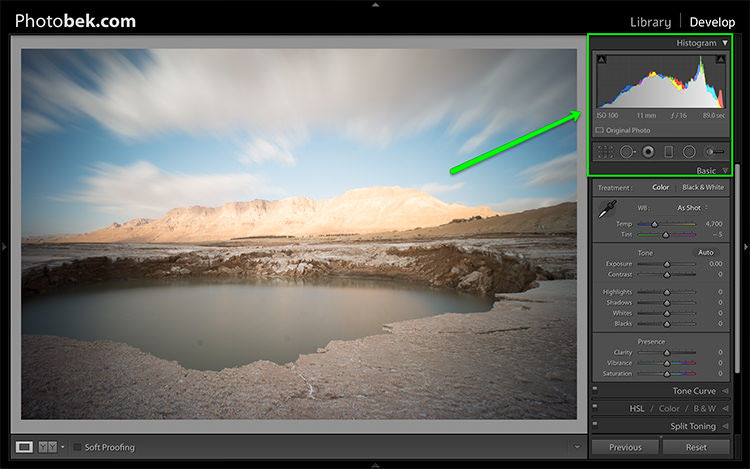
Since the photo was exposed well, and there is no clipping as you can see in the histogram above, I didn’t need to make any adjustments to the Exposure slider, so I left it at 0.

The histogram is a great tool that you should keep your eyes on at all times during your post-processing work on an image. It will provide you with valuable information about the clipped areas in a photo (in case it has any).

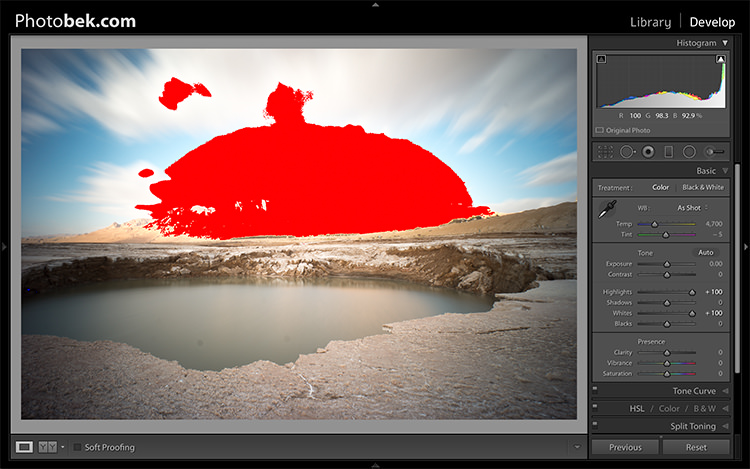
Here is what it would like if the highlights were clipped (press J or click/hover on the arrows that are shown at the top of the histogram to activate the clipping indicators).
6 1 Photobek Histogram Clipped Highlights

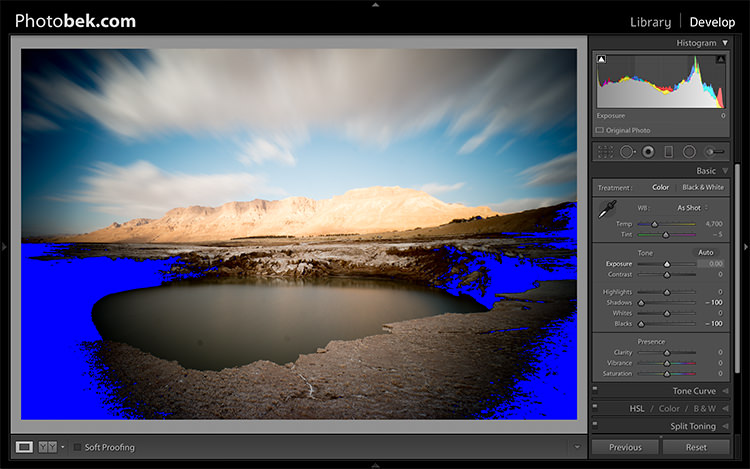
Here is what it would like if the shadows were clipped.
6 1 Photobek Histogram Clipped Shadows

Keep in mind that some clipping is perfectly acceptable, and might even be desired at some occasions. The trick is to find out where the clipping is occurring, and deciding whether a loss of detail in that area is acceptable or not, and that is entirely up to you to decide.

4.2 Contrast

I usually don’t mess around with the contrast slider much, as making the adjustments to the following sliders also has a big impact on the contrast of the photo, so I don’t find it necessary. I kept Contrast at 0 for this photo.

4.3 Highlights

The highlights slider is designed to bring back detail (moving slider to the left) in the brightest areas of an image, or to brighten (moving slider to the right) highlights while protecting against clipping.

What you should do is drop the highlights slider all the way down to -100 while watching your histogram, and move it back up if needed. In the case of this photo I dropped it to -100 and kept it there, and you can clearly see that it brings back plenty of detail in the clouds and the mountain in the background.
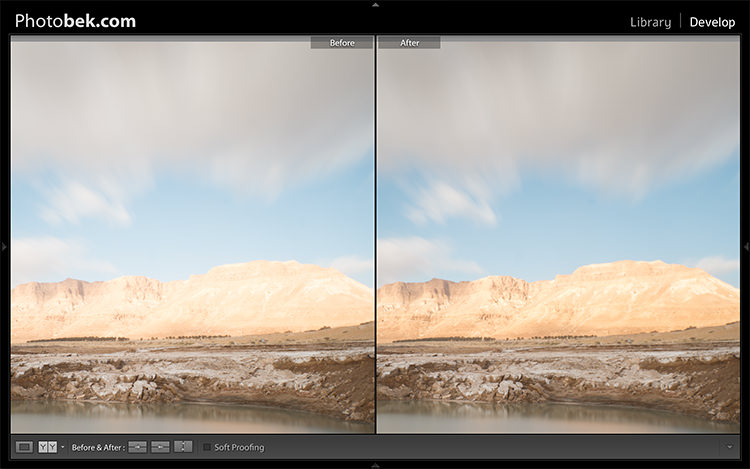
7 Photobek Highlights

4.4 Shadows

The Shadows slider will affect the midtone shadows, to the lower end of the deeper shadows. To brighten up the shadows, simply pull the slider to the right. To darken the shadows, move the slider to the left. For this photo I actually kept it at 0.

4.5 Whites

The Whites slider sets the White Point (brightness) or extreme tonal range of an image, by either lowering or raising this white value. The difference between Highlights and Whites is that the whites slider help you to define the true white in a photo, and the hightlights slider helps you recover lost detail in the highlights of your photo.

While clicking on the option (MAC) or ALT key (PC) move the Whites slider to the right until you just start to see parts being highlighted in the photo (this indicates which parts are being clipped) then drop it back a little and stop there. For this photo I moved it to +17.

4.6 Blacks

The Blacks slider deals with the darkest areas of the image. While clicking on the option (MAC) or ALT key (PC) move the Blacks slider to the left until you see black areas appear (those areas are clipping in the shadows) than move it back a little and stop there. For this photo I moved it to -14.
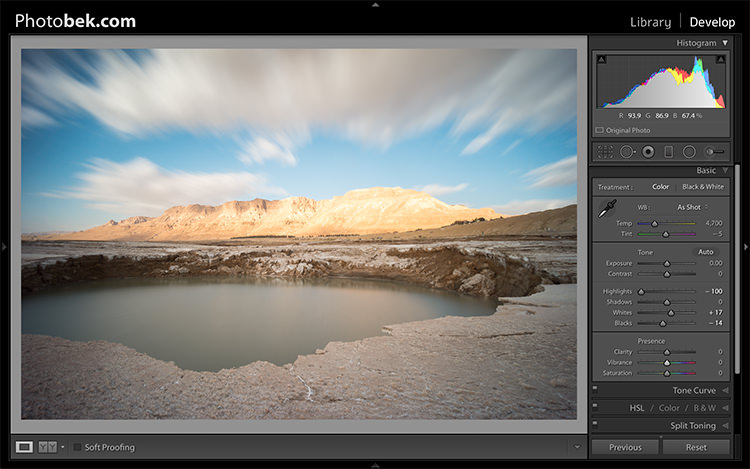
7.1 - Photobek - Shadows, Whites & Blacks

Shadows, Whites and Blacks adjusted

4.7 Clarity

Clarity is, in effect, a contrast tool. However, rather than boost contrast across the entire range of the image, it affects it only in areas of the image where it finds edge contrast. This makes it a more subtle tool than the contrast slider and it’s excellent for adding punch to your images, without making them look unnatural.

Raise it up until you think it made the impact you want on the photo, but don’t over do it. For this photo I took it up to +52.

4.8 Vibrance

Vibrance is the close cousin of Saturation, and at first they may seem to be almost the same, but Vibrance is different. The Saturation control moves all the colors in the spectrum up or down in saturation, more or less together. Vibrance on the other hand, is a lot more selective about the way it saturates colors as it only saturates colors that need it, which means it doesn’t oversaturate colors that are already very saturated or colors of very low saturation.

Raise it up until you think it made the impact you want on the photo, and again don’t over do it. For this photo I took it up to +32 to add more blue to the sky and more earth colors to the mountain.
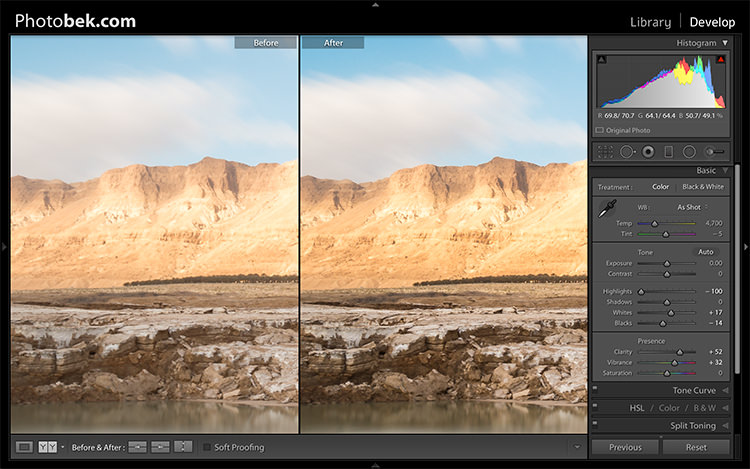
Clarity and Vibrance adjusted

Clarity and Vibrance adjusted

Before and After

As you can see, not much was done to the image and this entire process shouldn’t take more than a few minutes (depending on how many spots you have). I think it makes a world of difference to this specific image, and to any image for that matter.

Here is the image as taken straight out of camera:
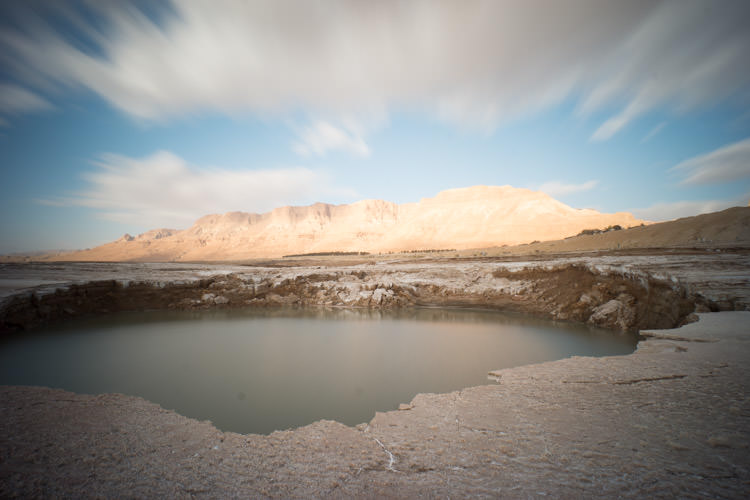
8 Photobek Before

Here is the image after the adjustments were made:
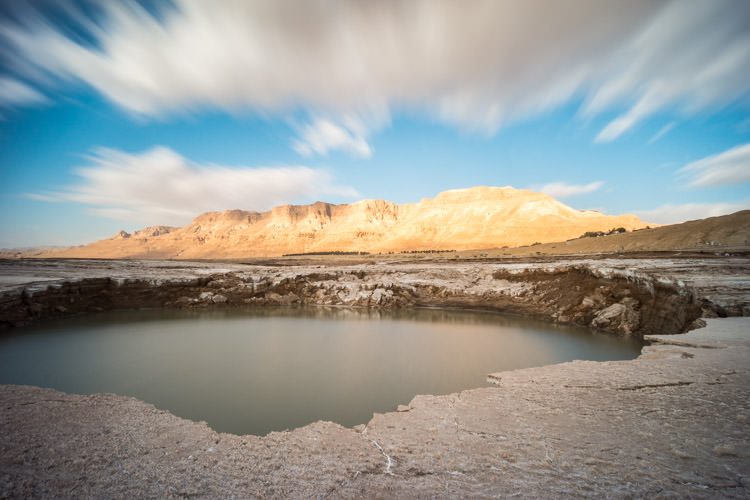
9 Photobek After

Finally, here are the before and after one next to the other:
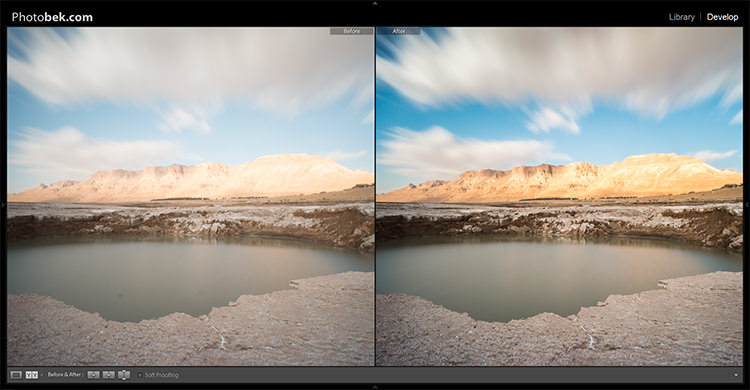
10 Photobek Before After

I hope you enjoyed this tutorial, and more importantly, I hope you’ve learned something that you can actually implement on your own photos to make them POP.

googletag.cmd.push(function() {
tablet_slots.push( googletag.defineSlot( “/1005424/_dPSv4_tab-all-article-bottom_(300×250)”, [300, 250], “pb-ad-78623” ).addService( googletag.pubads() ) ); } );

googletag.cmd.push(function() {
mobile_slots.push( googletag.defineSlot( “/1005424/_dPSv4_mob-all-article-bottom_(300×250)”, [300, 250], “pb-ad-78158” ).addService( googletag.pubads() ) ); } );

The post 4 Steps to Make Your Images Pop in Lightroom by Dror Bekerman appeared first on Digital Photography School.


Digital Photography School

 
Comments Off on 4 Steps to Make Your Images Pop in Lightroom

Posted in Photography