RSS
 

Posts Tagged ‘Images’

Use Photoshop to Correct Perspective Distortion of Buildings in Your Images

25 Jun

Shooting buildings can be tricky. The main reason is that they are tall, and you need to get far away from them if you want to fit them into the frame. If you are shooting in the city, you don’t have the luxury of getting really far away, the best you may be able to do is get farther down the street. What you have to do then, is tilt your camera upwards to get the whole building in, and that’s when it happens – perspective distortion.
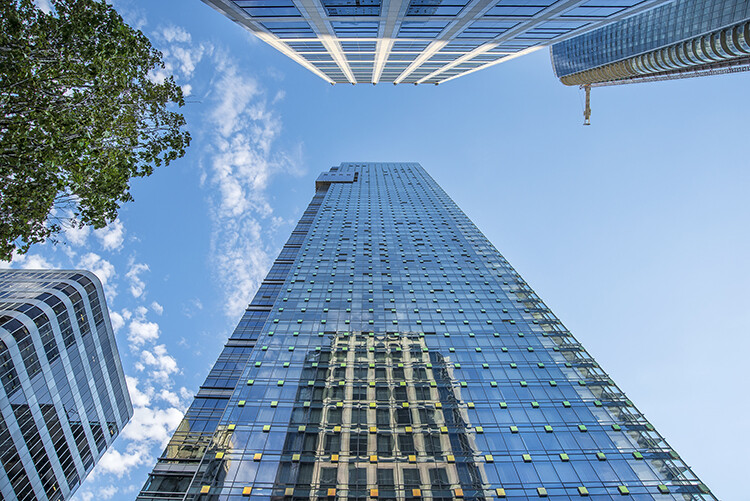
City Scenes can be difficult to photograph

City scenes can be difficult to photograph because of the risk of distortion

When you are using a wide angle lens (which you probably will be when shooting architecture) and you tilt your lens up or down, your image will distort. Architectural photographers would use a tilt-shift lens to counteract this distortion, which can make a really big difference in your image. The only problem is that it is a specialist lens, and it is expensive.

Until a few years ago, that was the only solution for fixing perspective distortion, but in the latest versions of Photoshop, there are a few truly amazing tools that can fix it painlessly. Sometimes the distortion may work well in the image, but if you need to fix it, these techniques can help. To learn more about getting better architectural photos read: Tips for Different Approaches to Architecture Photography

1. Working with distortion

The definition of distortion is: when the straight lines of a subject are either curved in a particular direction, or they converge or diverge. This happens when the focal plane of your camera is pointed upward or downward. This is called perspective distortion. The second most common type of warping is barrel distortion, this type is dependent on the type of lens you are using. Barrel distortion make the image look like it has been inflated in the middle of the scene so it looks like a barrel – wider in the middle, and narrower at the top and bottom. Wide angle lenses tend to distort a fair amount when pointing up or down, and in some cases, you may get barrel distortion in the image too. So, how do we fix this?
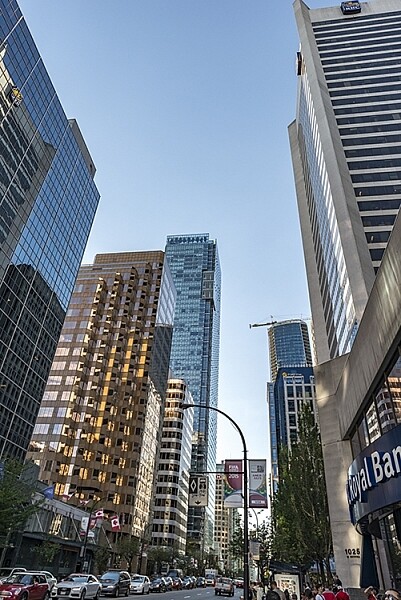
Tall buildings distort easily with a wide angle lens

Tall buildings distort easily with a wide angle lens.

2. Fixing distortion in camera

If you want to avoid perspective distortion, then you will need to keep your focal plane at 90 degrees to your subject. In other words, don’t tilt your camera up or down when you are shooting. This may work well for landscape photography, but when you are shooting tall buildings, it may be very difficult to get that right. Sometimes there is no way to avoid perspective distortion in camera.

Thankfully Photoshop can help you out here. Barrel distortion is a function of the lens you are using, wide angle lenses can make the middle of the image seem bloated or inflated. You can try and fix this by zooming in a little, as wide angles tend to suffer from barrel distortion when they are at their widest focal length. Zooming in is not always possible, so we will fix the bulk of the issues in Photoshop.

3. Fixing distortion in Photoshop

Photoshop has a few functions that can help you fix both perspective and barrel distortion. One of the best tools that has been included with recent versions is the Adaptive Wide Angle Tool. This tool is intuitive and easy to use, but takes a little practice initially. In the past, I would use the transform tools (i.e., Distort, Skew, Perspective and Warp). While these worked really well, it took a fair amount of time to get the corrections to look realistic.

In the examples below, you can see that the building looks shorter and more squat. Some further adjustments would need to be made to correct this, but overall, the buildings are vertical and look correct architecturally.  With the Adaptive Wide Angle tool, this process is easily done, in some cases with only three or four mouse clicks.
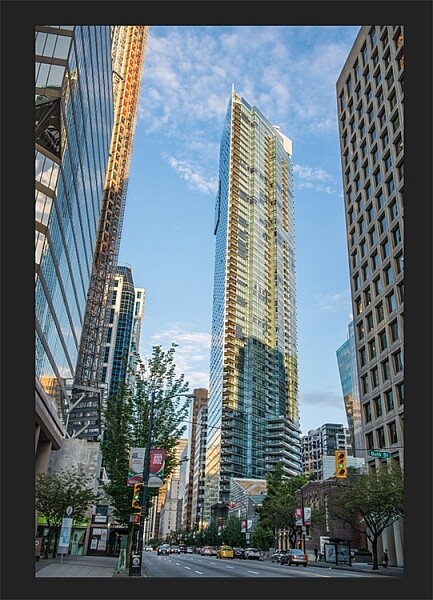
Image of a building before the distortion tool was applied in Photoshop
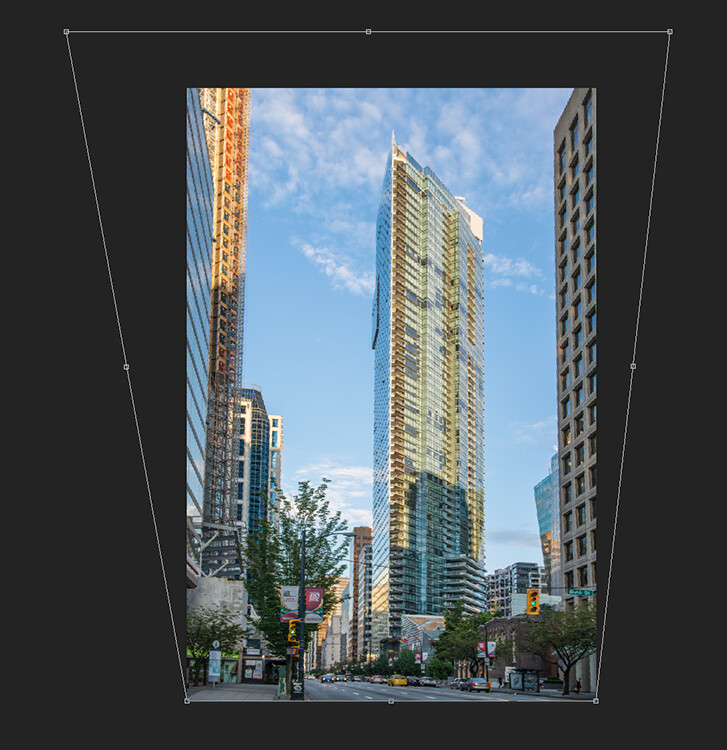
Image of a building before the distortion tool was applied in Photoshop

Same image after the distortion tool was applied

Same image after the distortion tool was applied

4. Adaptive Wide Angle tool

The Adaptive Wide Angle tool sits under the filter menu. Open the image you want to correct (with skew buildings or walls) click on FILTER>ADAPTIVE WIDE ANGLE, and a new box will open up with your image inside it.
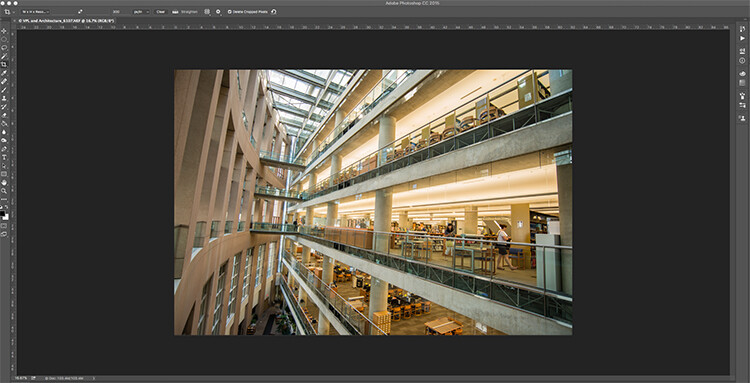
Adaptive Wide Angle tool screen

Image to be corrected, you can see the vertical lines are pretty skew

Depending on how your image is displayed in the box, you may need to scale it to see the whole thing. On the right hand side you will see a box that says Correction. Underneath that you will see a scale slider, adjust it until you can see your whole image in the box. There is a dropdown box in there with other options such as perspective, fisheye, etc., – I find leaving it on Auto seems to work best. The other functions within that box may work in some cases, but by leaving it on Auto and making specific adjustments to the verticals and horizontals in your image, you will get the best results.
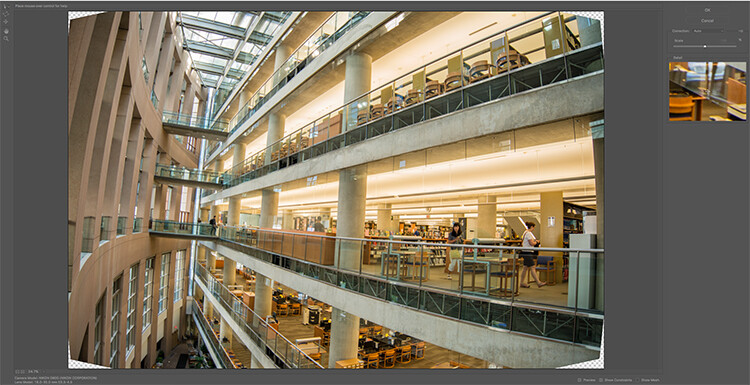
Adaptive Wide angle tool screen

Adaptive Wide angle tool screen

You will then need to identify the walls of the building that are converging or diverging. On the left hand side of the dialogue box, you will see some constraint tools. The tool that is first in the row is simply called the Constraint Tool, this is the one I use most often.

Click on that and move your mouse over to one of the vertical lines of the building, and draw a line down the wall. Start at the top of the building and drag the line down to the bottom, along a vertical wall that should be straight. Click at the bottom of the line when you are done and Photoshop will drop a line down exactly where you dragged. As you click, Photoshop will correct any barrel distortion, but the line will still be skew.

At the bottom of the line you will see a square, right click on the square and three options will pop up: Horizontal, Vertical, and Arbitrary. These are the three ways you have to correct that line. If it is a vertical wall, then click on Vertical. Immediately, Photoshop will bring that wall into a perfect upright position. What you will notice is that it may distort other lines now. That’s okay, find a second vertical that is not correct and repeat this process, once you have done three or four verticals, your building should be perfectly straight, as should the rest of the building. Sometimes what may happen is that the horizontal alignment may shift with all these vertical changes. You can then select a horizontal line in the image and repeat the same process you did for the verticals, just use a line that you know should be horizontal. Also, when you right click, select the Horizontal option in the popup box.

To make sure you are making a precise selection when you draw your line, there is a 100% zoom window on the right hand side. This is really useful, as it can be difficult to be zoomed in to the image, and drag the line down at the same time. This box really helps make sure that you start and finish at the right places on the building.
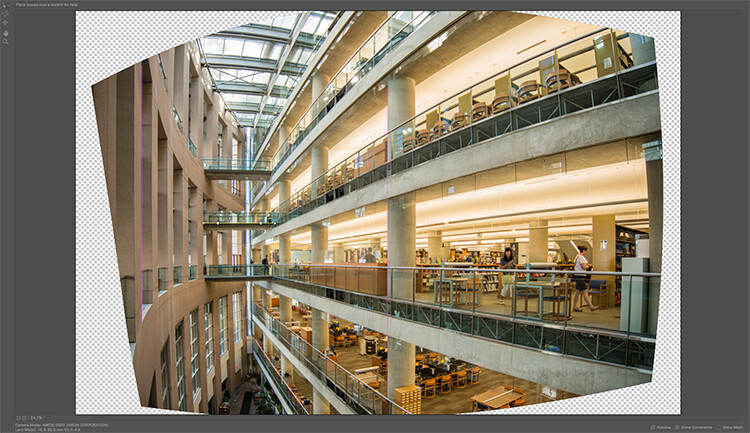
Adaptive Wide Angle tool and image after 3 adjustments have been made

Adaptive Wide Angle tool and image after 3 adjustments have been made

Once you have straightened some of the more skewed verticals, and one or two horizontals, your image should be looking pretty close to perfect. Once you are done, click ok and your image will open up in Photoshop. From there you can edit the rest of the image with all the lines being straight and aligned.

A new tool has recently been launched by Adobe Photoshop for CC users called Guided Upright and you can find it in Camera RAW of the latest version.
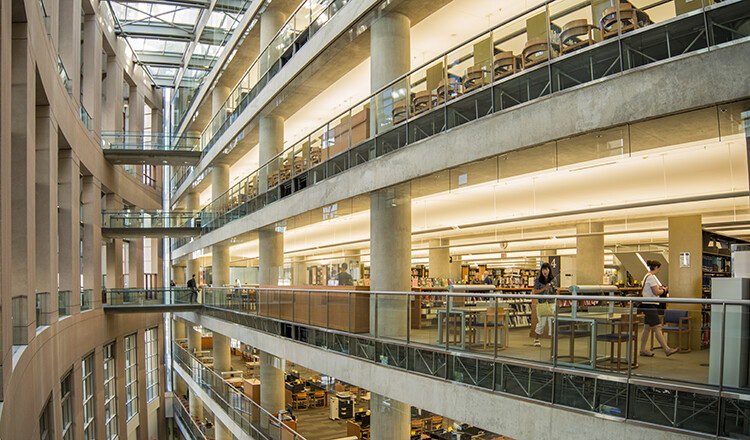
Final image after being edited in the Adaptive Wide Angle tool

Final image after being edited in the Adaptive Wide Angle tool and cropped.

Here is a great short minute video that Adobe has released, take a look, this could also be a useful tool to use.

What’s your go-to method of correcting perspective distortion? Please share in the comments below.

googletag.cmd.push(function() {
tablet_slots.push( googletag.defineSlot( “/1005424/_dPSv4_tab-all-article-bottom_(300×250)”, [300, 250], “pb-ad-78623” ).addService( googletag.pubads() ) ); } );

googletag.cmd.push(function() {
mobile_slots.push( googletag.defineSlot( “/1005424/_dPSv4_mob-all-article-bottom_(300×250)”, [300, 250], “pb-ad-78158” ).addService( googletag.pubads() ) ); } );

The post Use Photoshop to Correct Perspective Distortion of Buildings in Your Images by Barry J Brady appeared first on Digital Photography School.
Digital Photography School

 
Comments Off on Use Photoshop to Correct Perspective Distortion of Buildings in Your Images

Posted in Photography


MIT Museum exhibition ‘Images of Discovery’ highlights science photography

25 Jun

$ (document).ready(function() { SampleGalleryV2({“containerId”:”embeddedSampleGallery_3889188396″,”galleryId”:”3889188396″,”isEmbeddedWidget”:true,”standalone”:false,”selectedImageIndex”:0,”startInCommentsView”:false,”isMobile”:false}) });

MIT Museum has opened a photography exhibition called ‘Images of Discovery: Communicating Science through Photography,’ running through January 2017. The exhibition showcases photographs from Berenice Abbott, Felice Frankel and Harold ‘Doc’ Edgerton, all three of whom ‘explored a range of scientific questions’ through their photography while working at the university.

All three aforementioned photographers spent time working at MIT; Frankel is a research scientist and science photographer in the MIT Center for Materials Science and Engineering; Edgerton was an MIT Professor of Electrical Engineering and is known, among other things, for his Milk Drop photograph; and Abbot worked for MIT in the late 1950s, contributing images for a physics curriculum.

Speaking about the exhibition, MIT Museum Director John Durant said:

“Wherever you look in science, you see the historical importance of finding new ways of visualizing things, leading to greater understanding of the world. From Galileo’s use of his own hand-built telescope to explain the movements of the earth and other planets, to the latest imaging technologies in everything from nanotechnology to neuroscience, the making of images remains central to our ability to make new discoveries.”

The exhibition includes half a dozen ‘Image Making Stations’ that give visitors the opportunity to better understand and make their own similar science photographs. Image Making Stations including ‘Water Drop,’ ‘Capture Movement,’ ‘A Bouncing Ball,’ ‘Water Waves in a Ripple Tank,’ ‘Photographing Ferrofluid,’ and ‘Zoom Scanner.’

The MIT Museum is located at 265 Massachusetts Ave, Building N51, Cambridge, MA 02139.

Via: wbur

Articles: Digital Photography Review (dpreview.com)

 
Comments Off on MIT Museum exhibition ‘Images of Discovery’ highlights science photography

Posted in Uncategorized


26 Sublime Images of Bridges and Connection

24 Jun

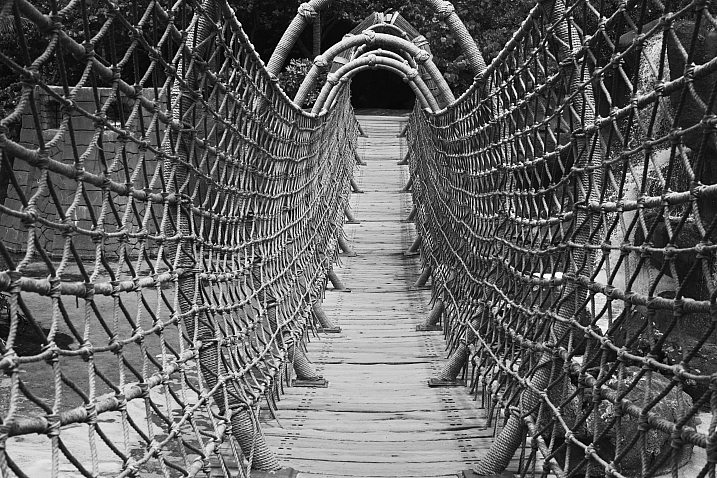
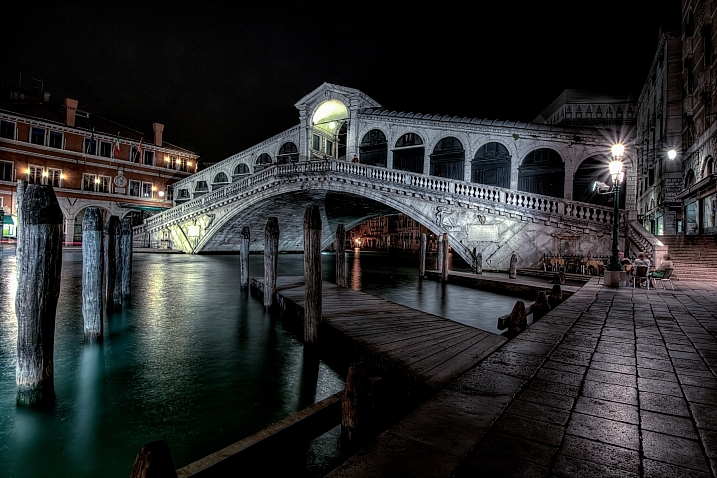
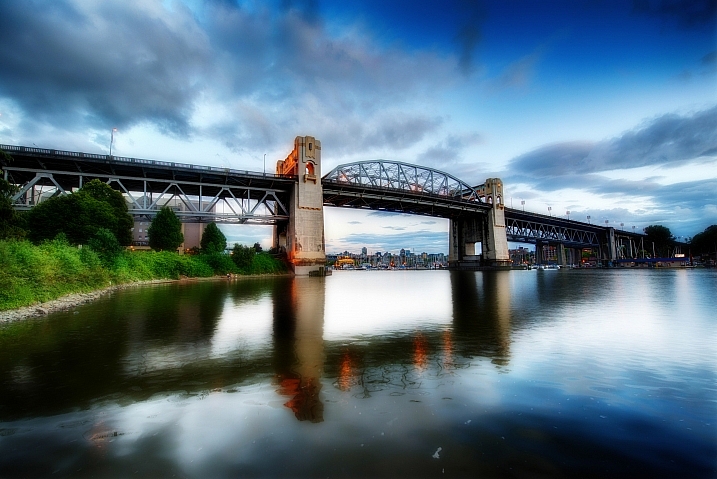
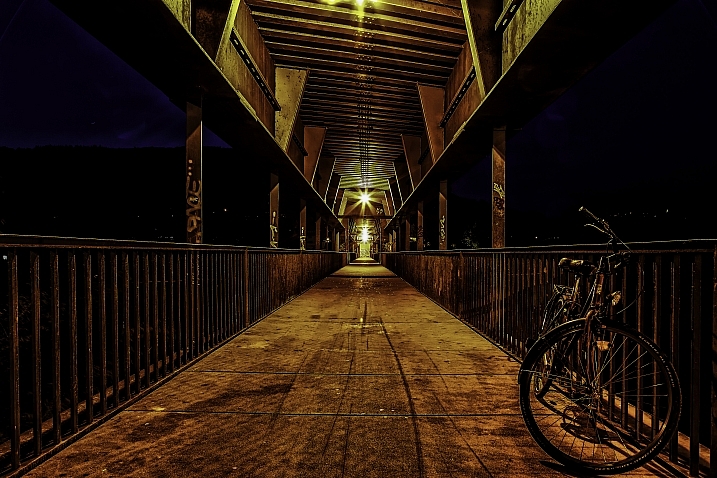
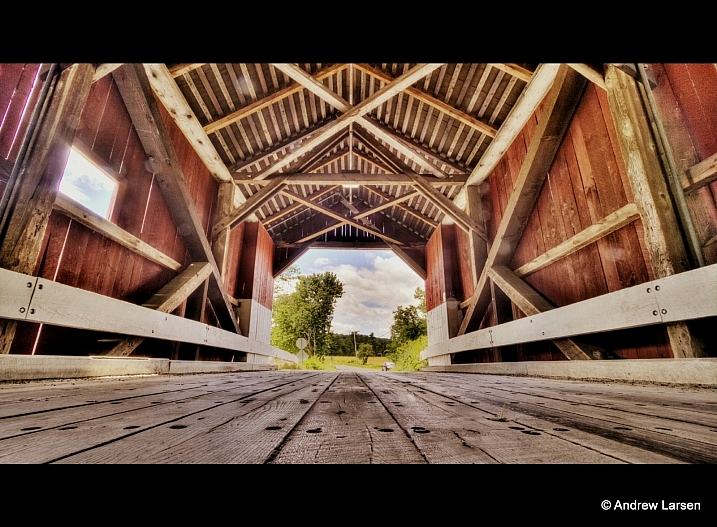
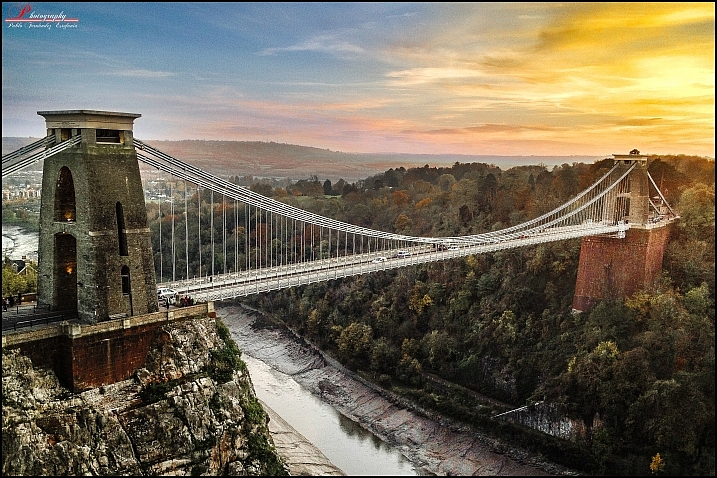
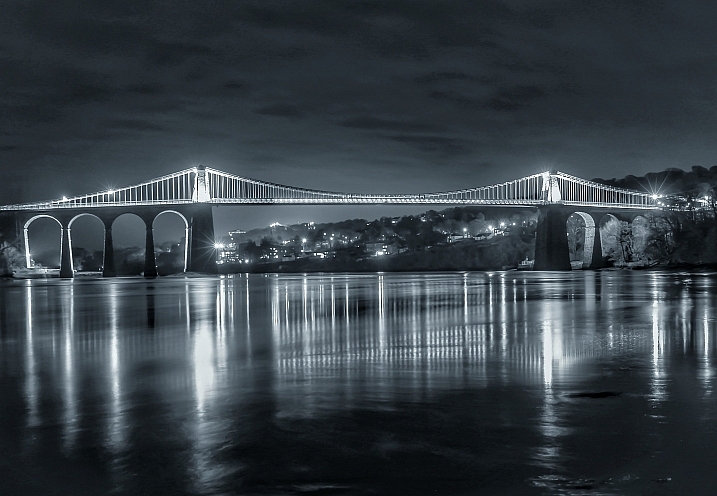
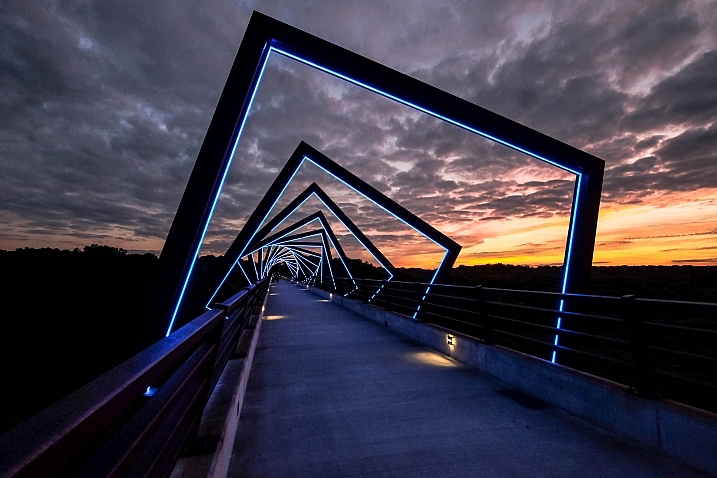
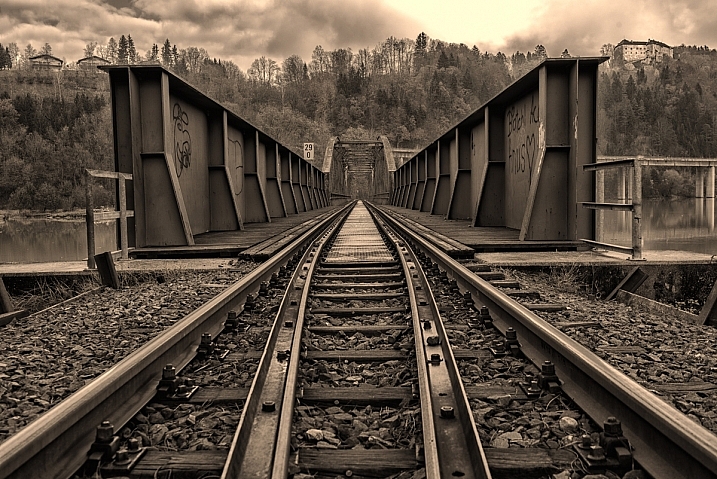
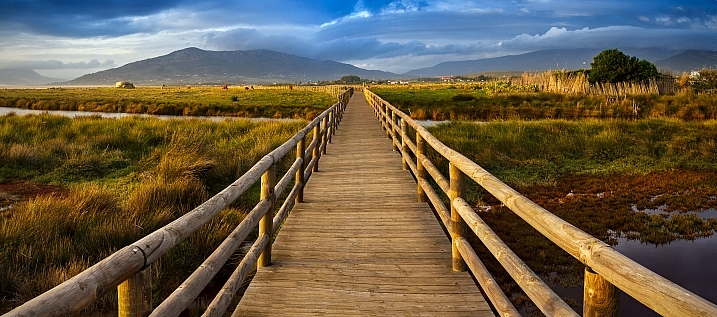
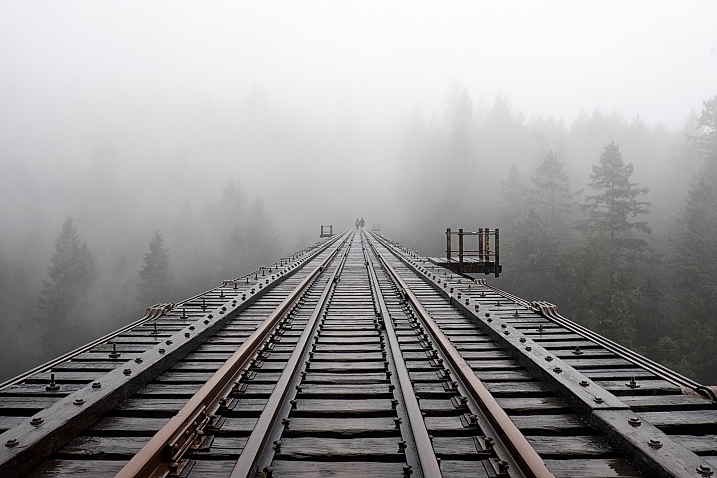
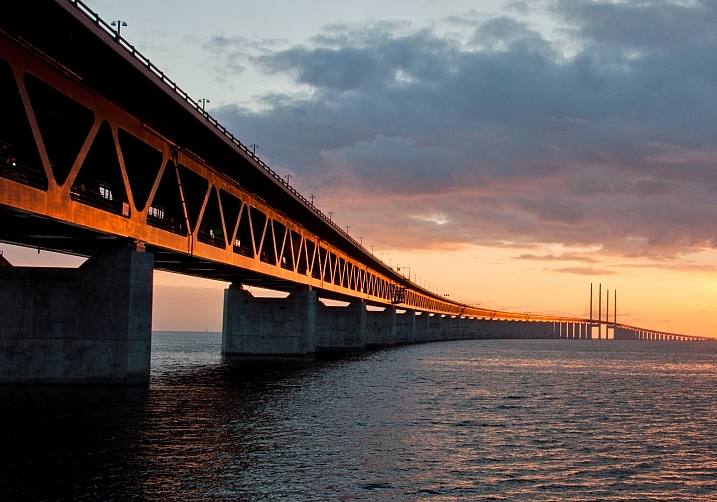
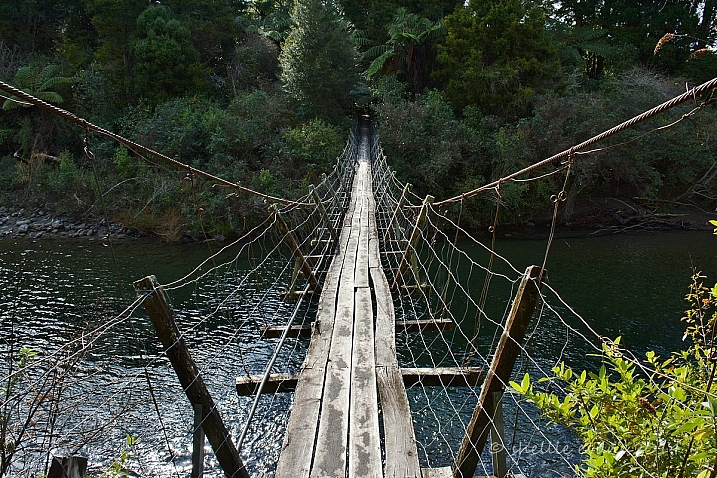
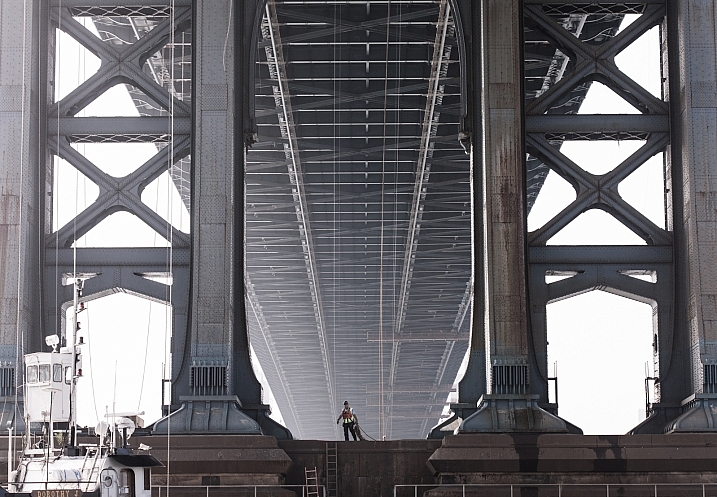
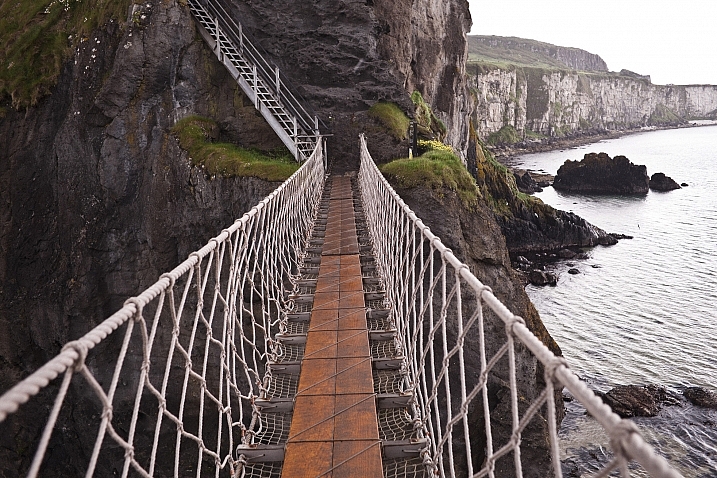
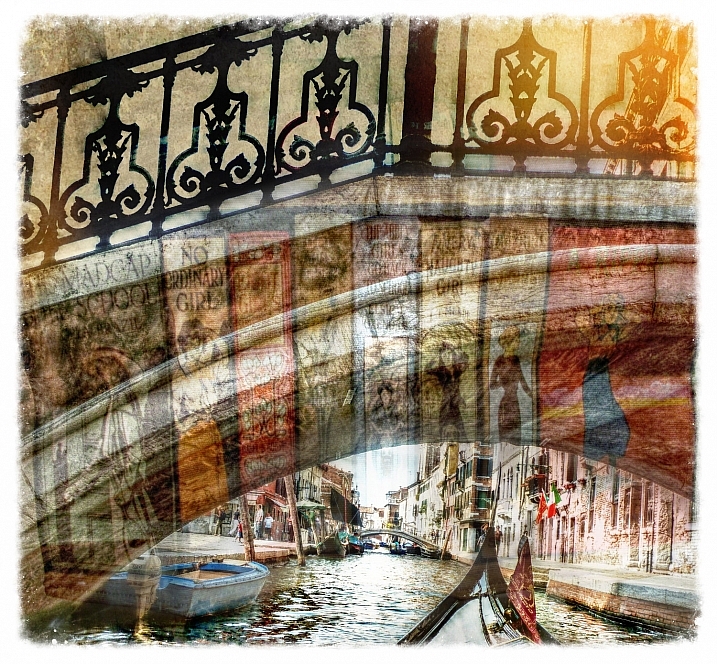
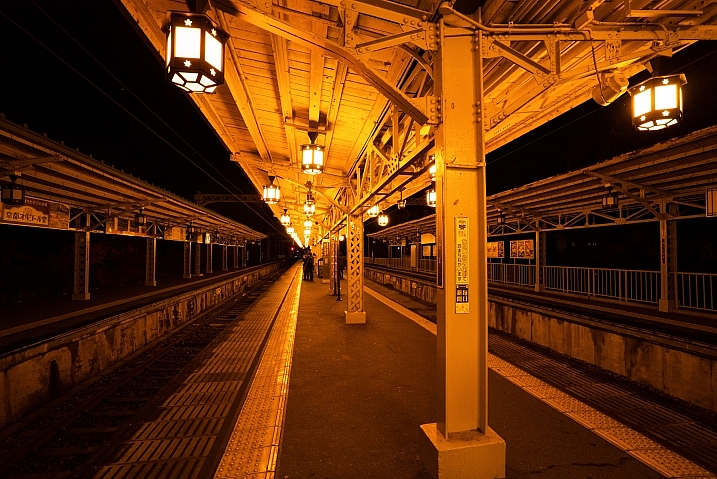
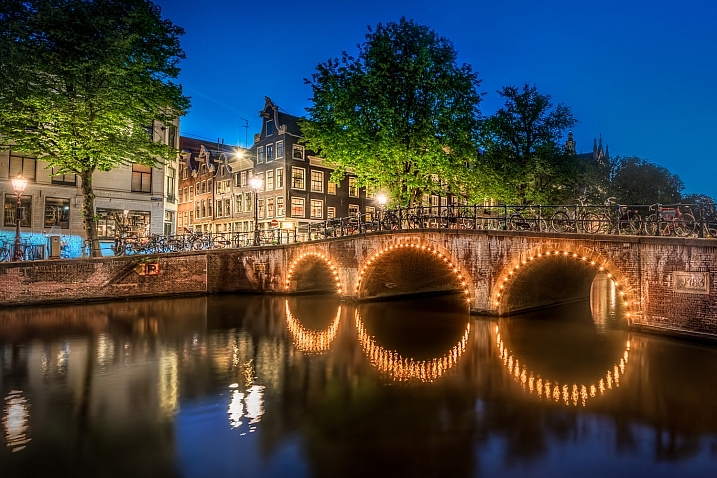
The term bridge has several meanings. The literal one which is a structure that spans across something, usually over a waterway. The other is of a connection between two things, or a transition from one to the other. Of course there is also the bridge of a ship where the captain takes the helm, bridge of your nose, and a bridge or passage in a musical composition.

Here are several images that interpret that term – bridge:

Shellie

By Shellie

Several Seconds

By Several seconds

Styrovor

By styrovor

Julie Anne Johnson

By Julie anne Johnson

Yusuke Umezawa

By Yusuke Umezawa

Jon Matthies

By Jon Matthies

Jacob Surland

By Jacob Surland

Thomas Hawk

By Thomas Hawk

Omar Bariffi

By Omar Bariffi

Rick Schwartz

By Rick Schwartz

Raul Lieberwirth

By Raul Lieberwirth

Andrew E. Larsen

By Andrew E. Larsen

Pablo Fernández

By Pablo Fernández

Sian Monument

By sian monument

Jason Mrachina

By Jason Mrachina

Daniel Mennerich

By Daniel Mennerich

Andi Campbell-Jones

By Andi Campbell-Jones

David Merrett

By David Merrett

JP Freethinker

By JP Freethinker

Bernhard Latzko

By Bernhard Latzko

Francisco Manuel Esteban

By Francisco Manuel Esteban

Timothy Neesam

By Timothy Neesam

L.E Daniel Larsson

By L.E Daniel Larsson

Sudheer G

By Sudheer G

MaxGag

By MaxGag

Andrea Moroni

By Andrea Moroni

googletag.cmd.push(function() {
tablet_slots.push( googletag.defineSlot( “/1005424/_dPSv4_tab-all-article-bottom_(300×250)”, [300, 250], “pb-ad-78623” ).addService( googletag.pubads() ) ); } );

googletag.cmd.push(function() {
mobile_slots.push( googletag.defineSlot( “/1005424/_dPSv4_mob-all-article-bottom_(300×250)”, [300, 250], “pb-ad-78158” ).addService( googletag.pubads() ) ); } );

The post 26 Sublime Images of Bridges and Connection by Darlene Hildebrandt appeared first on Digital Photography School.

Digital Photography School

 
Comments Off on 26 Sublime Images of Bridges and Connection

Posted in Photography


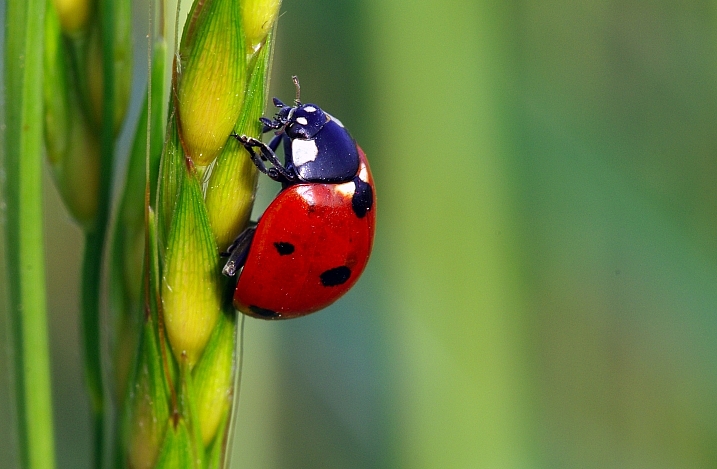
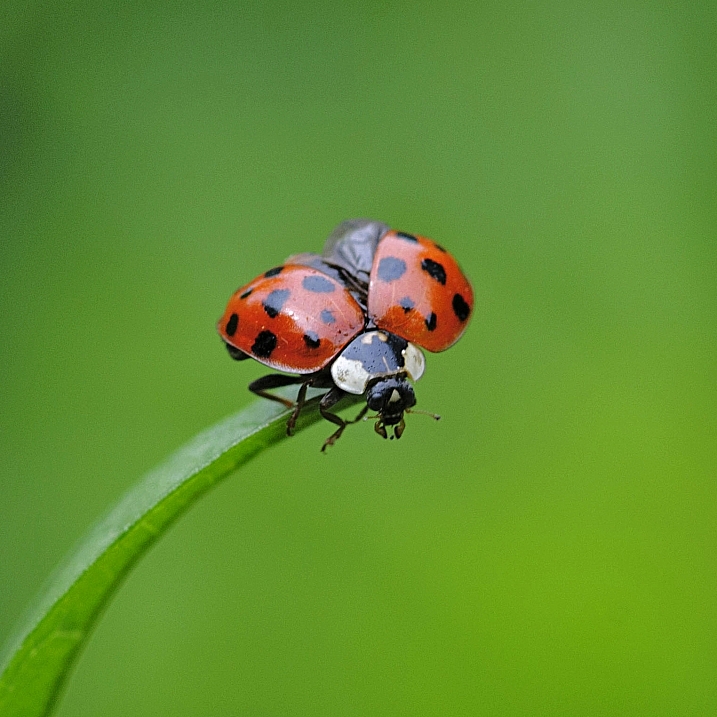
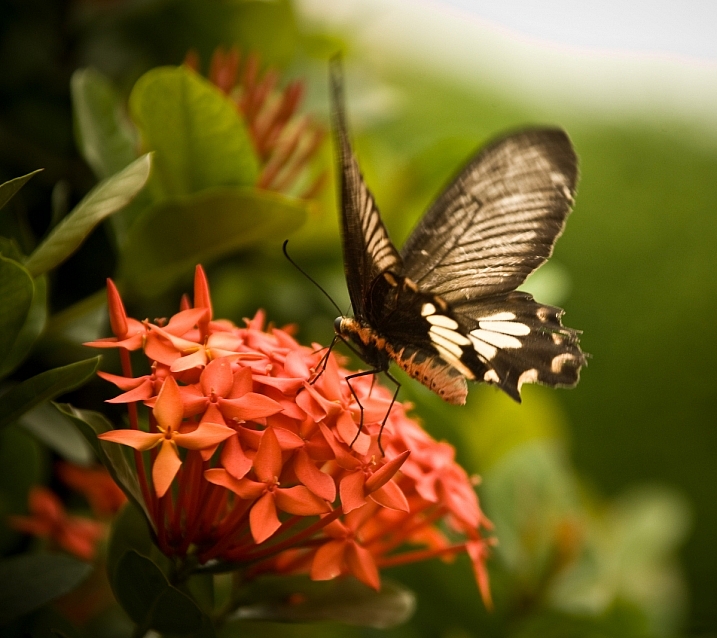
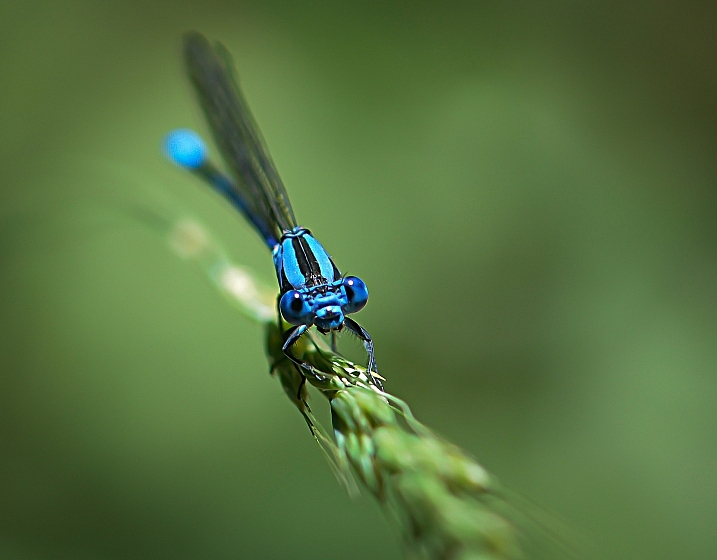
27 Beautiful Images of Butterflies and Bugs

18 Jun

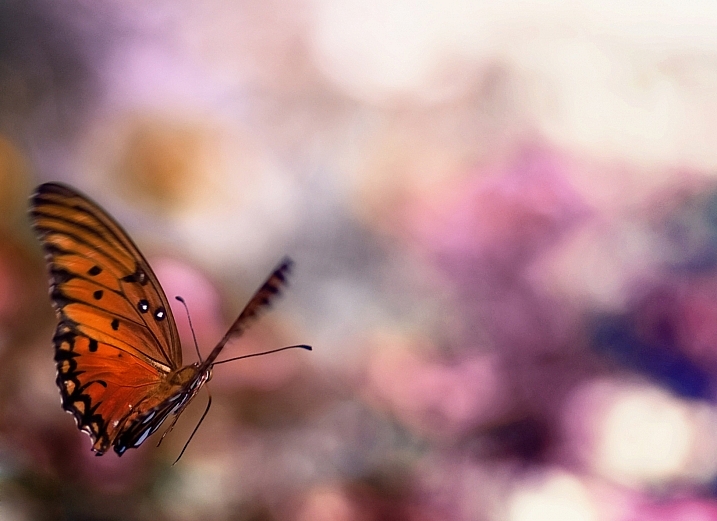
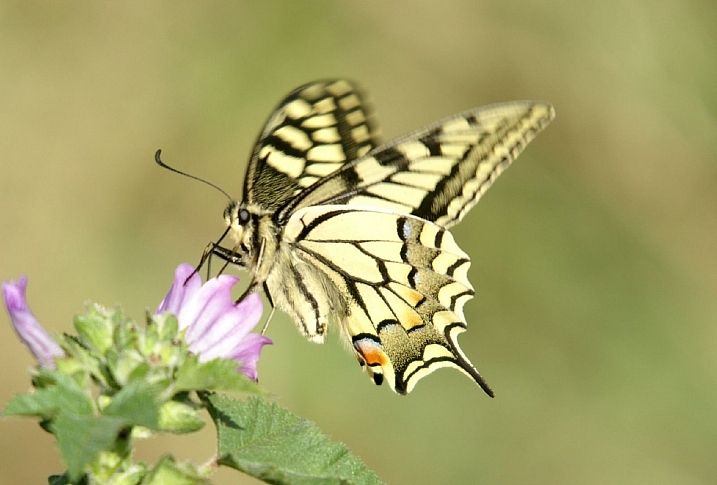
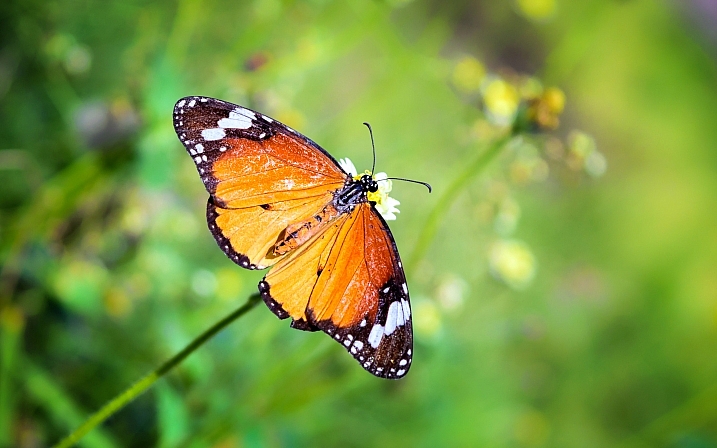
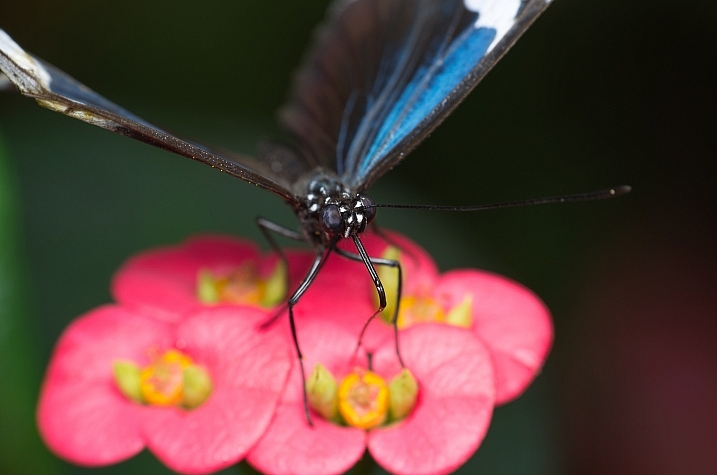
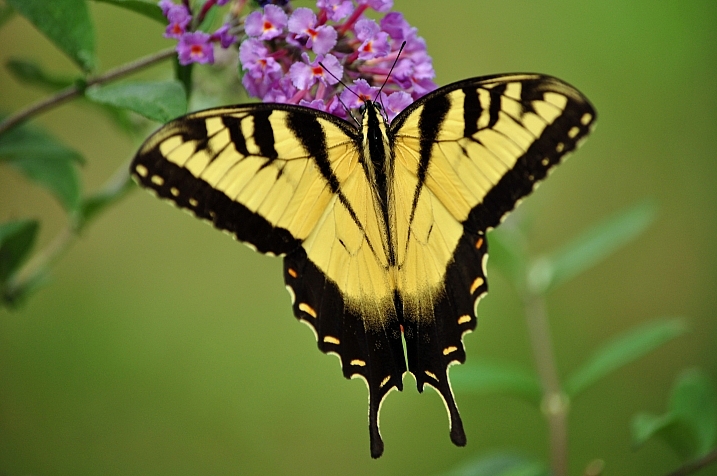
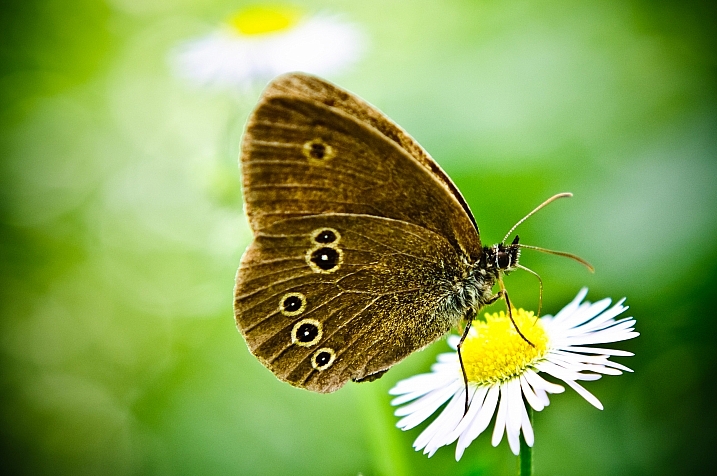
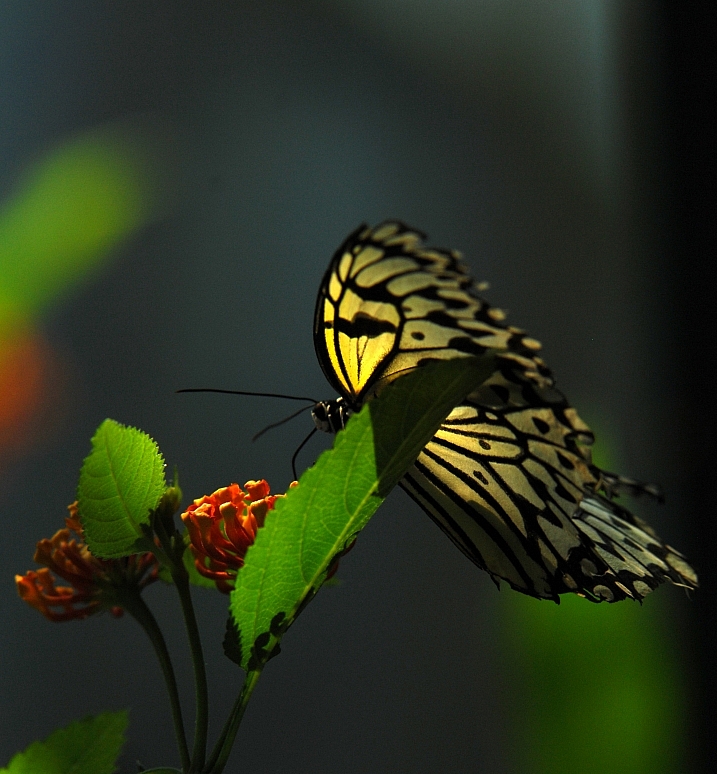
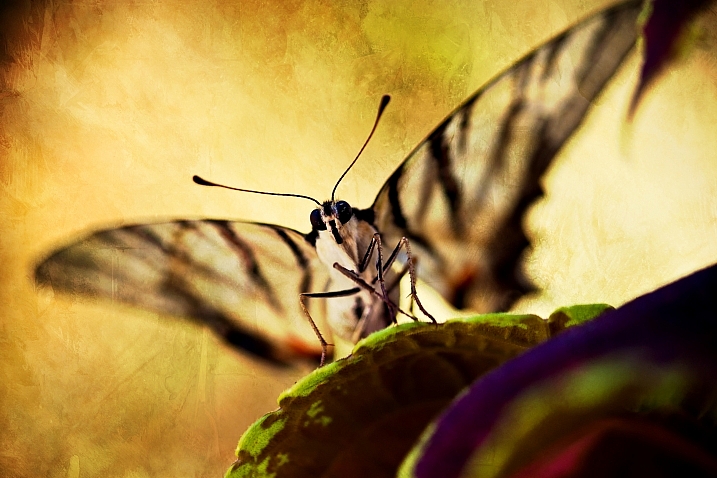
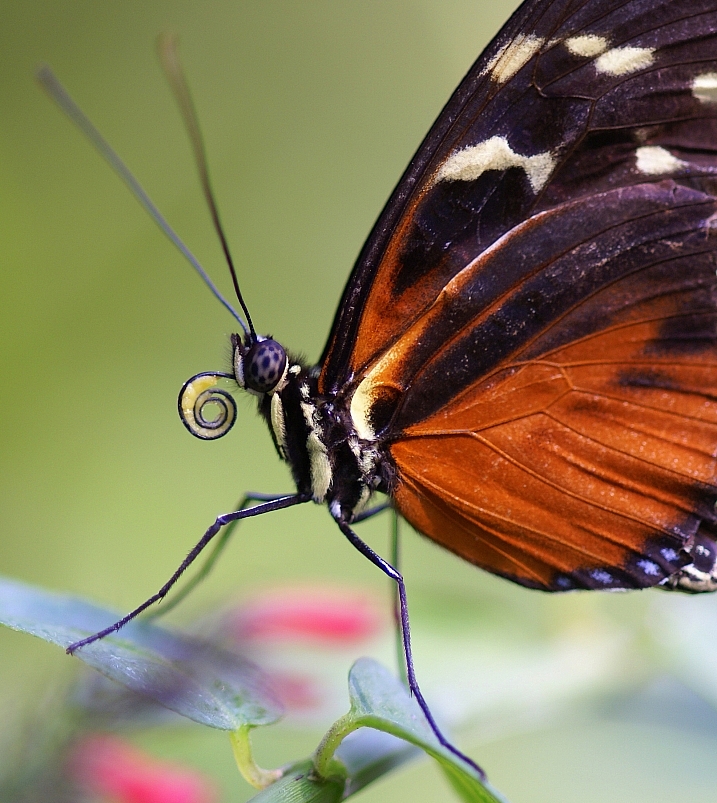
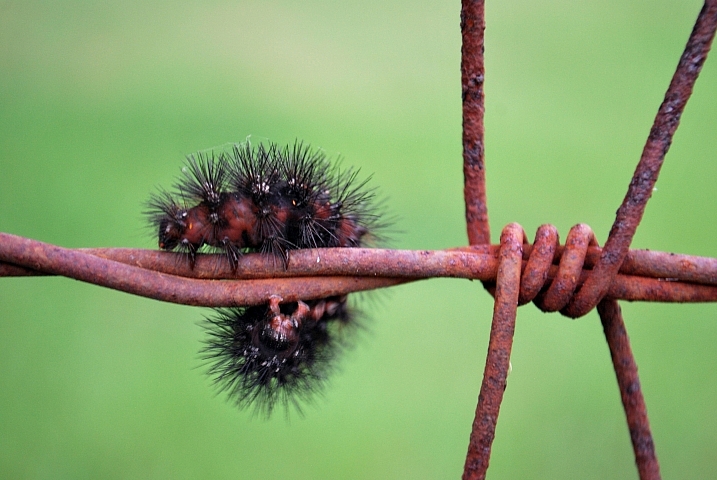
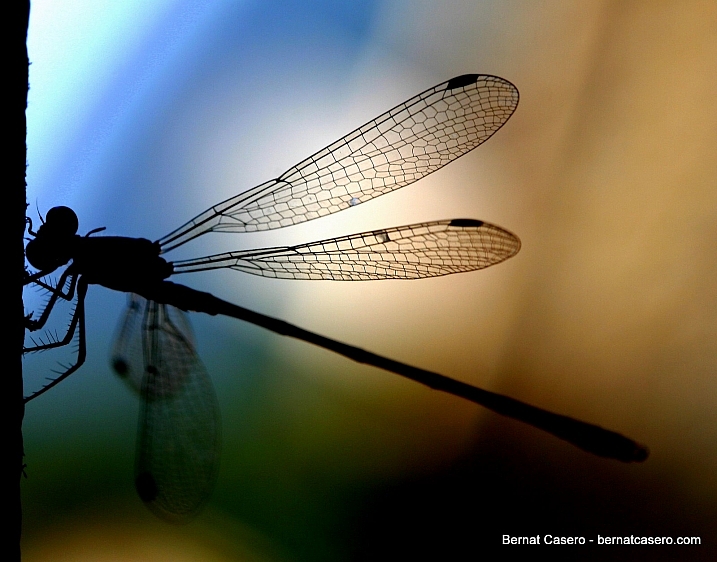
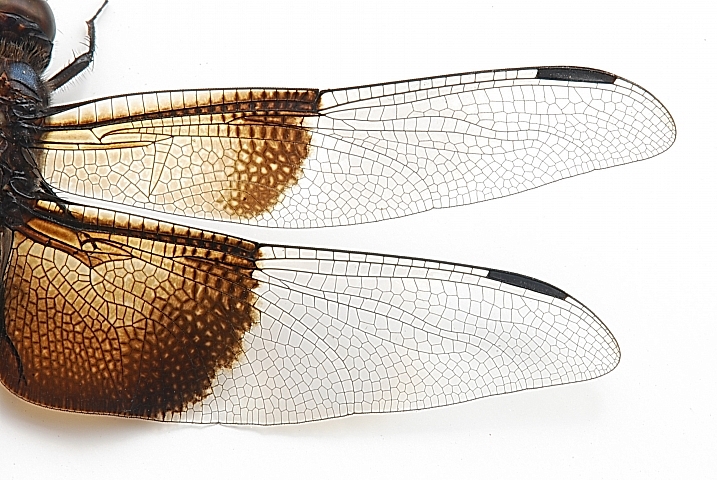
Spring has sprung in the northern part of the world and the creep crawly things are out and about. But they aren’t all bad or ugly. Many of the world’s smallest creatures are quite attractive – beautiful even.

So here is how some photographers chose to capture them in butterflies and bugs:

Bob Peterson

By Bob Peterson

Philippe Rouzet

By Philippe Rouzet

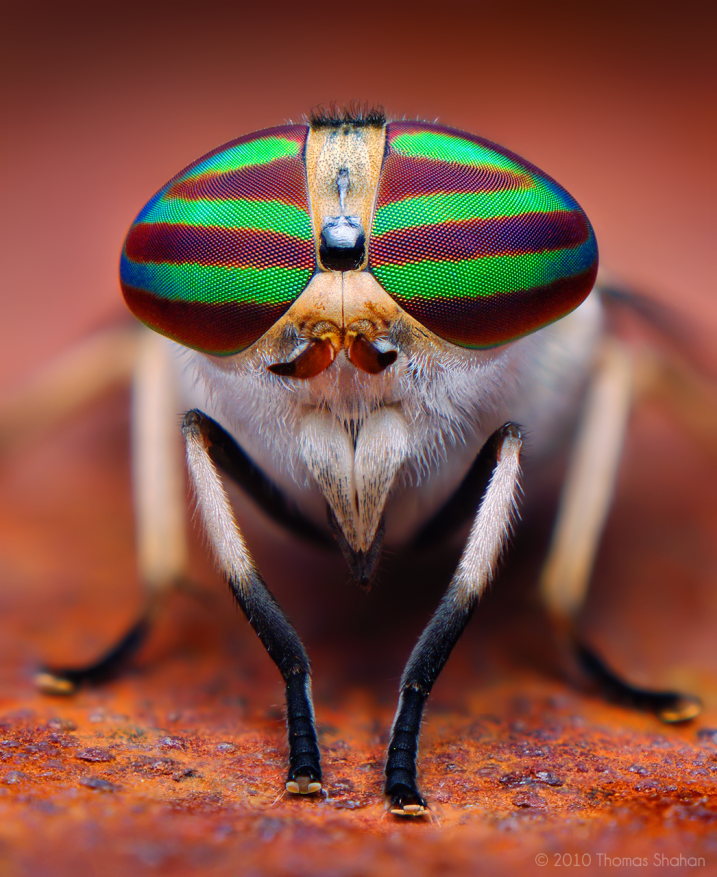
Thomas Shahan

By Thomas Shahan

Ziva

By Ziva & Amir

Bernie  Lampert

By Bernie Lampert

Darlene Hildebrandt

By Darlene Hildebrandt

Joel Olives

By Joel Olives

Ferran Pestaña

By Ferran Pestaña

Sunny_mjx

By Sunny_mjx

Salvatore D'Oro

By Salvatore D’Oro

Peter Miller

By Peter Miller

Sergiu Bacioiu

By Sergiu Bacioiu

Photosbyflick

By photosbyflick

Theophilos Papadopoulos

By Theophilos Papadopoulos

Peter Miller

By Peter Miller

Sinead Fenton

By Sinead Fenton

M.shattock

By m.shattock

Christina  VanMeter

By Christina VanMeter

MrClean1982

By MrClean1982

LHG Creative Photography

By LHG Creative Photography

Anne Worner

By Anne Worner

AmberBrooke.

By AmberBrooke.

Bernat Casero

By Bernat Casero

Mike Keeling

By Mike Keeling

Josef Wells

By Josef Wells

Thomas

By Thomas

Karen McQuilkin

By Karen McQuilkin

googletag.cmd.push(function() {
tablet_slots.push( googletag.defineSlot( “/1005424/_dPSv4_tab-all-article-bottom_(300×250)”, [300, 250], “pb-ad-78623” ).addService( googletag.pubads() ) ); } );

googletag.cmd.push(function() {
mobile_slots.push( googletag.defineSlot( “/1005424/_dPSv4_mob-all-article-bottom_(300×250)”, [300, 250], “pb-ad-78158” ).addService( googletag.pubads() ) ); } );

The post 27 Beautiful Images of Butterflies and Bugs by Darlene Hildebrandt appeared first on Digital Photography School.

Digital Photography School

 
Comments Off on 27 Beautiful Images of Butterflies and Bugs

Posted in Photography


Bolt-on 21: Fujifilm WCL-X70 sample images

12 Jun

The Fujifilm WCL-X70 is a wideangle converter that fastens to the front of the 28mm equivalent F2.8 lens of the Fujifilm X70. Its approximately 0.8X focal length multiplier results in a 14mm focal length, or 21mm in 35mm format equivalent. Check out our sample images to see how it performs.

Articles: Digital Photography Review (dpreview.com)

 
Comments Off on Bolt-on 21: Fujifilm WCL-X70 sample images

Posted in Uncategorized


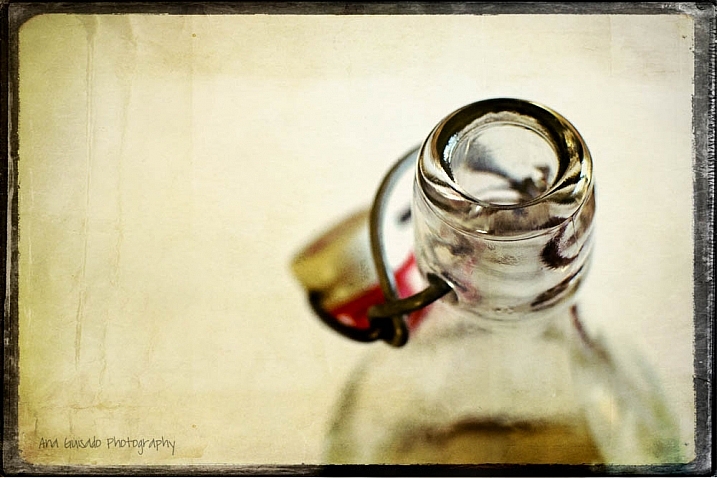
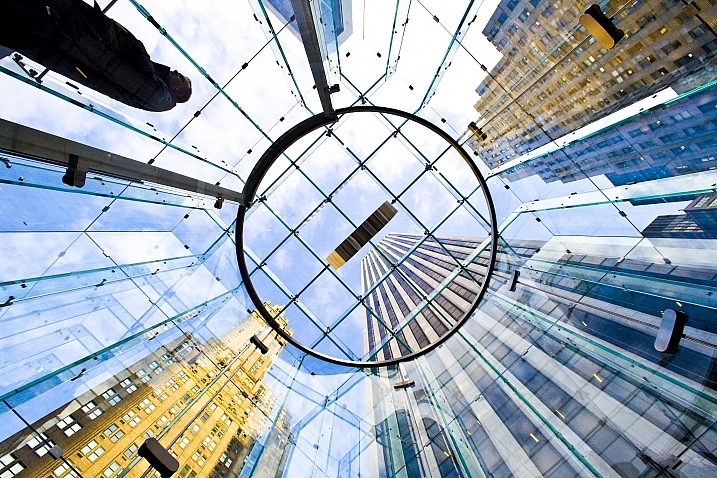
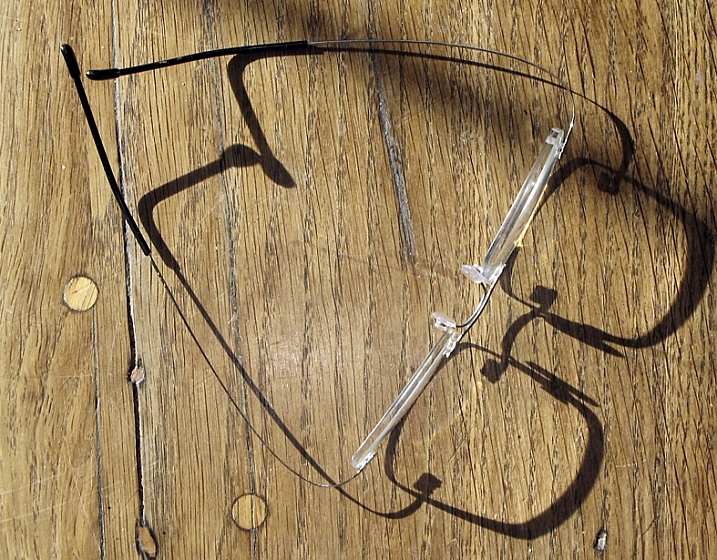
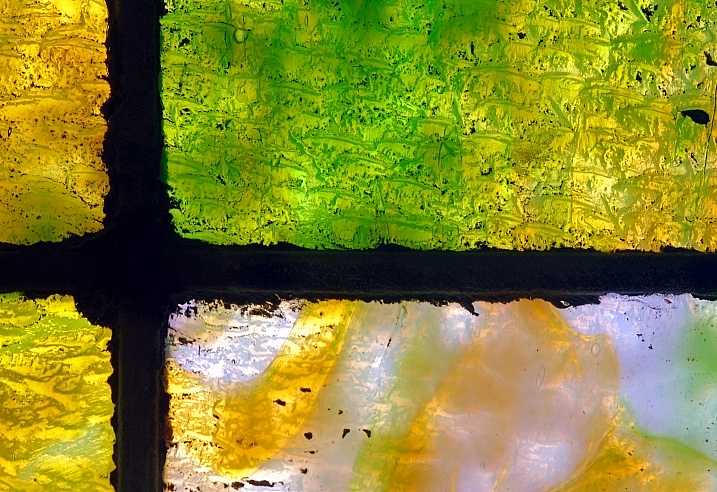
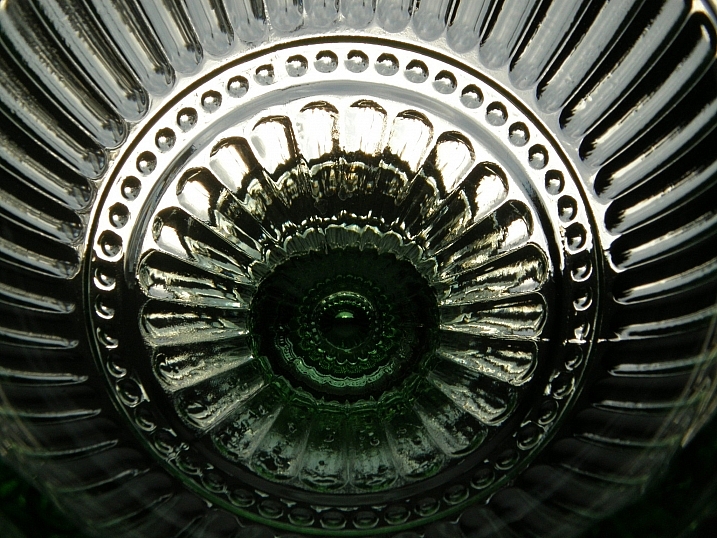
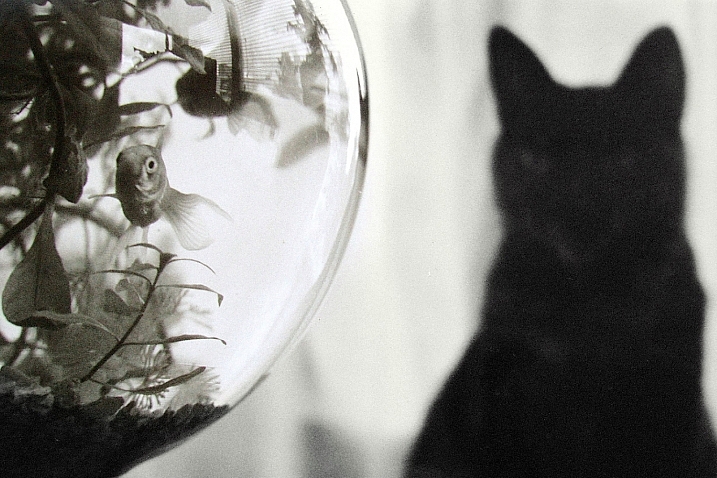
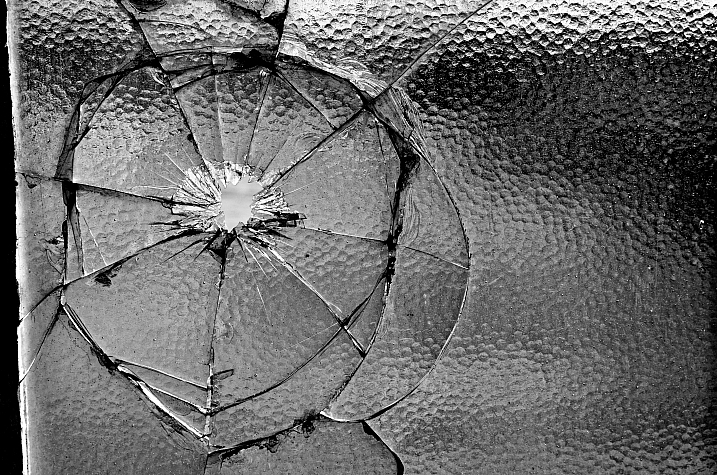
28 Ethereal Images of a Transparent Subject – Glass

10 Jun

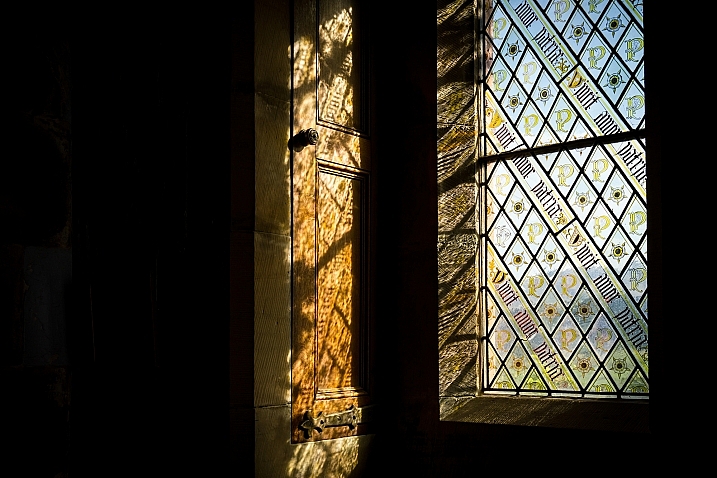
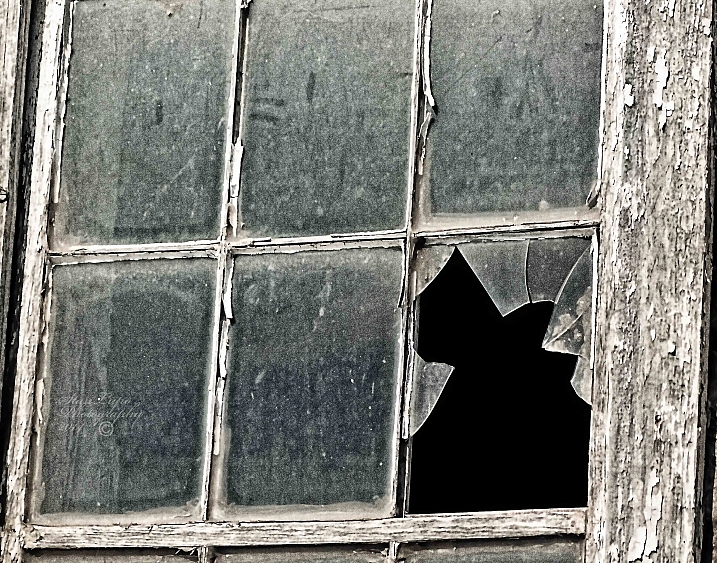
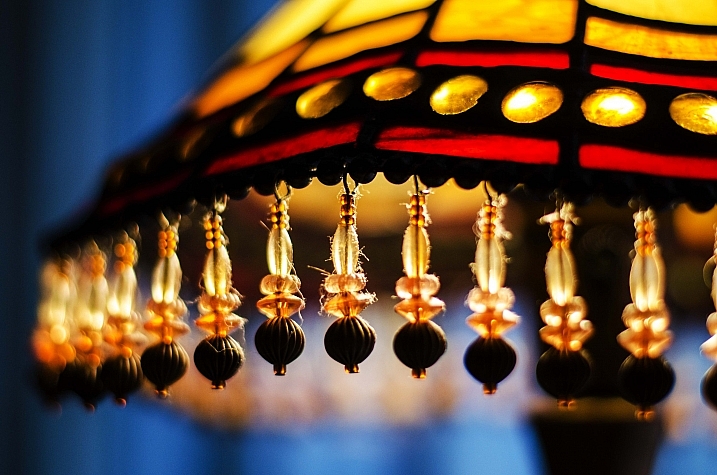
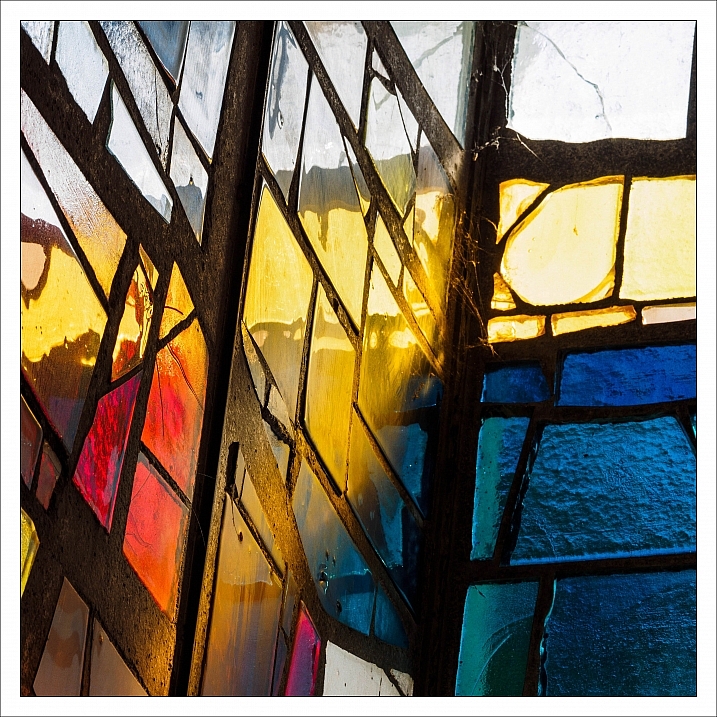
Glass is one of the trickiest subjects to photograph. Trying to avoid reflections, seeing through it, and distortion it causes. It can also help create some dramatic and stunning images.

In this image collection we see how several photographers have handled different kinds of glass subjects:

Ana

By Ana

?aura Tou

By ?aura Tou

Thomas Hawk

By Thomas Hawk

Maurits Verbiest

By Maurits Verbiest

Hellsgeriatric ?

By Hellsgeriatric ?

Martin Brigden

By Martin Brigden

Dean Hochman

By Dean Hochman

Tim

By Tim

Sparkleice

By sparkleice

Jurek D.

By jurek d.

Heike Giesler

By Heike Giesler

Broterham

By broterham

Michael

By michael

Sandy/Chuck Harris

By Sandy/Chuck Harris

Hehaden

By hehaden

Stan Lupo

By Stan Lupo

Chechi Peinado

By Chechi Peinado

Carl R Jr.

By Carl R Jr.

Iahan 13:20

By Iahan 13:20

Andreas Manessinger

By Andreas Manessinger

Neil Tackaberry

By Neil Tackaberry

Chechi Peinado

By Chechi Peinado

Justin Kern

By Justin Kern

R.e. Kittson

By r.e. Kittson

Mister G.C.

By Mister G.C.

Tim

By Tim

Billy Wilson

By Billy Wilson

Jonathan Cohen

By Jonathan Cohen

googletag.cmd.push(function() {
tablet_slots.push( googletag.defineSlot( “/1005424/_dPSv4_tab-all-article-bottom_(300×250)”, [300, 250], “pb-ad-78623” ).addService( googletag.pubads() ) ); } );

googletag.cmd.push(function() {
mobile_slots.push( googletag.defineSlot( “/1005424/_dPSv4_mob-all-article-bottom_(300×250)”, [300, 250], “pb-ad-78158” ).addService( googletag.pubads() ) ); } );

The post 28 Ethereal Images of a Transparent Subject – Glass by Darlene Hildebrandt appeared first on Digital Photography School.

Digital Photography School

 
Comments Off on 28 Ethereal Images of a Transparent Subject – Glass

Posted in Photography


Fast telezoom: Sigma 50-100mm F1.8 sample images

10 Jun

The Sigma 50-100mm F1.8 DC HSM Art is a fast telezoom lens designed for APS-C format cameras, on which it provides an equivalant focal length range of approximately 75-150mm. Its fast F1.8 maximum aperture makes it the brightest lens of its type on the market. But is it any good? Take a look at our sample images to find out.

Articles: Digital Photography Review (dpreview.com)

 
Comments Off on Fast telezoom: Sigma 50-100mm F1.8 sample images

Posted in Uncategorized


Getty Images launches ‘Virtual Reality Group’, adds 12,000 360° images

10 Jun

Getty Images has announced the launch of the Getty Images Virtual Reality Group – a new business division ‘dedicated to the creation and global distribution’ of VR content. At launch, the new group offers a library of more than 12,000 360-degree VR images, as well as ultra high-resolution ‘Gigapixel’ imagery from major events. 

Getty Images has announced the creation of a dedicated Virtual Reality Group, which will offer more than 12,000 360-degree and ‘Gigapixel’ images at launch.

According to Dawn Airey, CEO of Getty Images: ‘The technology is still in its infancy – as are the business models addressing how to use it – but […] we are only on the cusp of what will be a tectonic plate shift in VR’.

Although Getty Images started adding VR and Gigapixel imagery to its collection several years ago, the launch of a dedicated business division is the latest sign that the photography industry is taking VR very seriously indeed. What do you think? Let us know. 


Press Release:

The launch of the Getty Images Virtual Reality Group brings high quality VR and 360 content to everyone, satisfying the growing appetite for immersive content

Getty Images, the world leader in visual communication, has today announced the launch of the Getty Images Virtual Reality Group, a new business dedicated to the creation and global distribution of virtual reality (VR) content.

The Getty Images Virtual Reality Group brings the very latest in photographic and video technology together with Getty Images’ 21 years of experience in visual storytelling, to offer exceptional content for existing and future VR platforms. The Group provides a comprehensive offering of over 12,000 premium 360 images with new content added daily, as well as high res gigapixel content from key events and venues. High quality VR production is also being offered through Getty Images Assignments.

Quick to adapt to new image technologies, Getty images began building its collection of 360 and gigapixel imagery four years ago, pioneering the use of these techniques in its role as the Official Photographic Agency for the International Olympic Committee at the 2012 London Olympics. Fast track to today, and every Getty Images photographer at the upcoming Rio Olympic Games, will be equipped with a 360 camera. This is just one example of how Getty Images is utilizing its expertise, its access to over 130,000 annual news, sport and entertainment events and its unique relationships to generate high-end VR content, and feed the growing demand for a more immersive visual experience.

“The technology is still in its infancy – as are the business models addressing how to use it – but we can expect to see VR become a leading tool for visual storytelling. It is anticipated that over 14 million consoles will sell this year alone (TrendForce), and we are only on the cusp of what will be a tectonic plate shift in VR” said Dawn Airey, Chief Executive Officer of Getty Images.

Airey continues: “With the launch of the Getty Images Virtual Reality Group, we are embedding VR content technologies into the core of our business and ensuring that, as use of VR continues to grow, its users are further enhancing their experience with access to the world’s best imagery.”

“The diverse range of 360 degree content that we produce – from the red carpet to the stadiums of the world’s biggest sporting events and the frontline of conflict – allows people to access information and experiences that were previously off limits,” said Hugh Pinney, Vice President of Editorial Content at Getty Images. “Virtual Reality is completely transforming the way we view and experience world events.”

The Group will continue to build on Getty Images existing VR content offering, which includes 360 content captured by its award-winning news, sport and entertainment photographers as well as geo-located, interactive panoramic images from its content partner 360cities.net.

Last month, Getty Images and Google announced their latest partnership, which sees Getty Images supplying hi-res VR content from current events around the world for Google Expeditions. Getty Images partnered with Oculus Rift in June 2015 to make its 360 imagery available for users of the Oculus platform via its 360° View by Getty Images collection.

For more information, visit http://wherewestand.gettyimages.com/virtualrealitygroup.

Articles: Digital Photography Review (dpreview.com)

 
Comments Off on Getty Images launches ‘Virtual Reality Group’, adds 12,000 360° images

Posted in Uncategorized


The Secret to Getting Tack Sharp Images for the Web

07 Jun

Do your images end up looking soft when you resize them and export them for the web? When you resize an image, it loses some sharpness. With a 24 MP image measuring 6000 px you need to resize quite a lot to downsize it for optimal web use which is often around 800 px wide. That is why a set-once-and-forget Continue Reading

The post The Secret to Getting Tack Sharp Images for the Web appeared first on Photodoto.


Photodoto

 
Comments Off on The Secret to Getting Tack Sharp Images for the Web

Posted in Photography


How to Straighten Crooked Images Fast Using Lightroom

06 Jun

If you’re like me, it’s so easy to get focused on trying to take great shots that you forgot to make sure your images are straight, and not crooked. Not some crazy tilt, mind you – just a slight tilt. So slight that when you notice it in your images, it just looks weird. A more dramatic tilt and we’ll just call it art. But this slight tilt is just enough to drive you crazy and cost us a lot of extra time editing your images.

Well I am here to report that I have found a quick and easy way to fix this tilt fast using Lightroom. So easy, that you can even automate it so that Lightroom fixes it for you.

So if this tip interests you, keep reading to find out how:

Image01

Take a look at the image above. Good shot, right? Photographically I think I did well with the image, but it’s crooked! I can’t give this image to my client like this, it needs to be straightened first.

Lens Corrections Panel

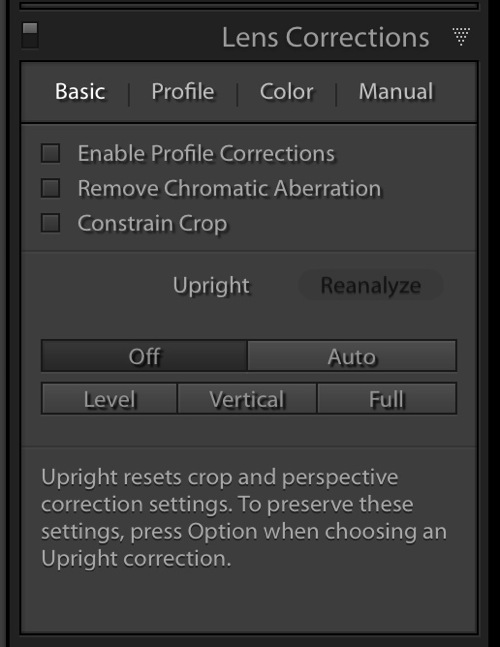
Beginning with Lightroom version 5 the Basic tab was introduced inside of the Lens Corrections panel. This tab gives you the easy to use Upright Mode buttons, which are powerful tools used to fix perspective issues with your images. The perspective issue that I always seem to be dealing with is crooked images.

Image02

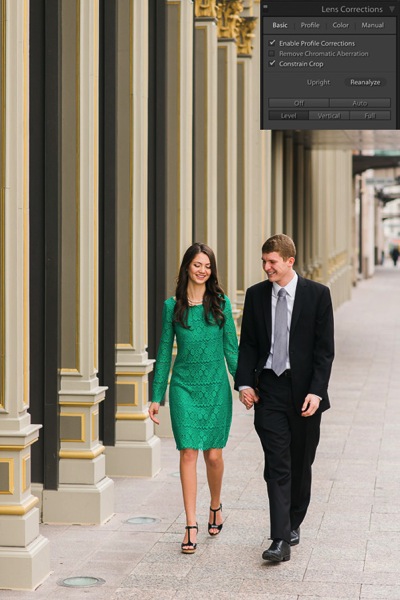
There are several Upright Mode buttons, but the one I want to show you in this article is the Level button. When clicked, this button works to straighten your images based on the lines present inside them. Obviously if there are no strong vertical or horizontal lines in the image, this button won’t work. But if there aren’t strong lines, who’s to say it’s crooked in the first place, right?

Images appear crooked to our eyes because of the strong lines within an image, therefore the Level button works great at straightening those images quickly, without much difficulty. Instead of going into the crop tool and manually rotating the image slightly to straighten it, I can go to the Lens Corrections Panel instead and click the level button to straighten this image very quickly.

I also like to have the Enable Profile Corrections check box checked as well as the Constrain Crop check box. These make sure Lightroom is straightening with as much information as possible.

Image03

Automating Your Upright Adjustments

Now here is the trick. When done properly, you can create a Lightroom preset, or sync your Level adjustment across any number of images, and have Lightroom analyze and adjust each image independently based on each image’s needs and requirements.

What this means is you can have Lightroom straighten all of your crooked images with the click of a couple of buttons!

Syncing

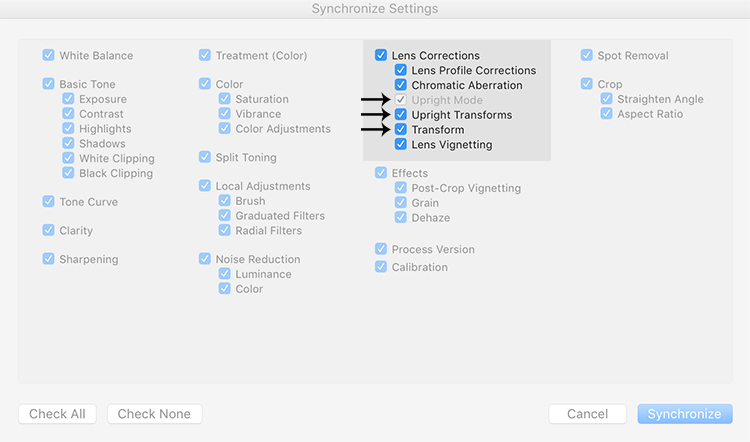
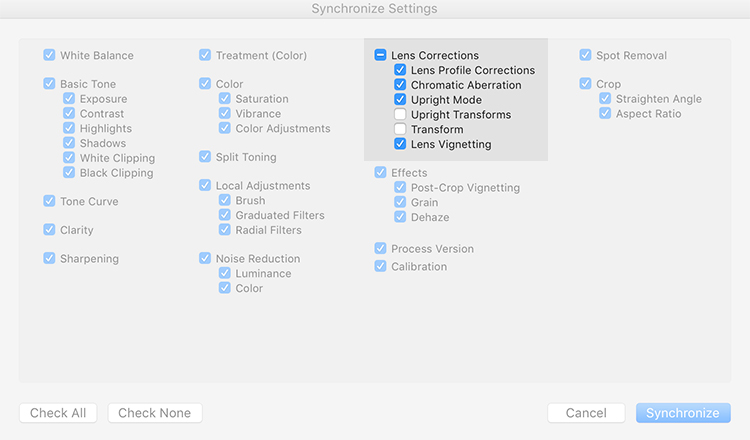
In the Sync dialog box under Lens Corrections check box, there are three check boxes you want to be concerned with: Upright Mode, Upright Transforms and Transform.

Image04

These three boxes determine how Lightroom is going to handle your straightening – whether to analyze each image independently or simply copy the same settings from one image to the next.

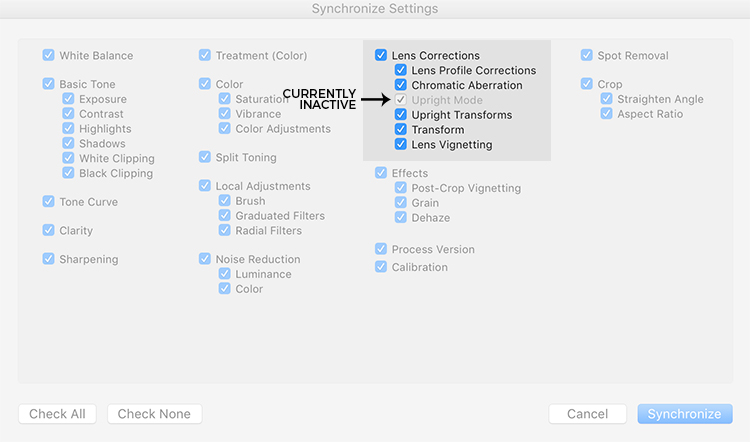
If all three are checked, Lightroom will simply apply the same setting to all of the images, something you do not want because each image requires specific straightening based on its own lines. You’ll notice that Upright Mode is grayed out, telling you that it isn’t active.

Image05

To do what you want, which is to have Lightroom analyze each image independently and straighten it based in its own needs, you want to ONLY have a check mark in the Upright Mode box. The other two are left blank (see below).

Image06

By doing it this way, Lightroom will fix your crooked images, according to the amount of straightening that each image specifically needs.

How cool is that?

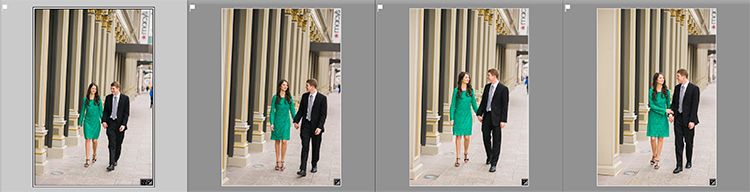
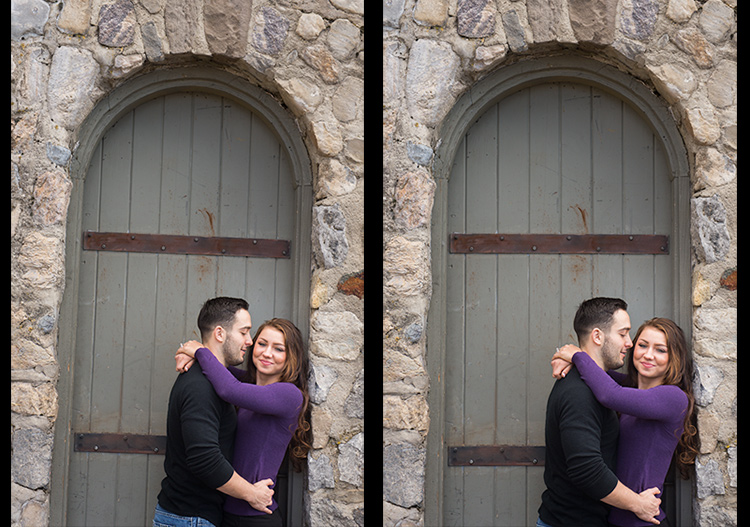
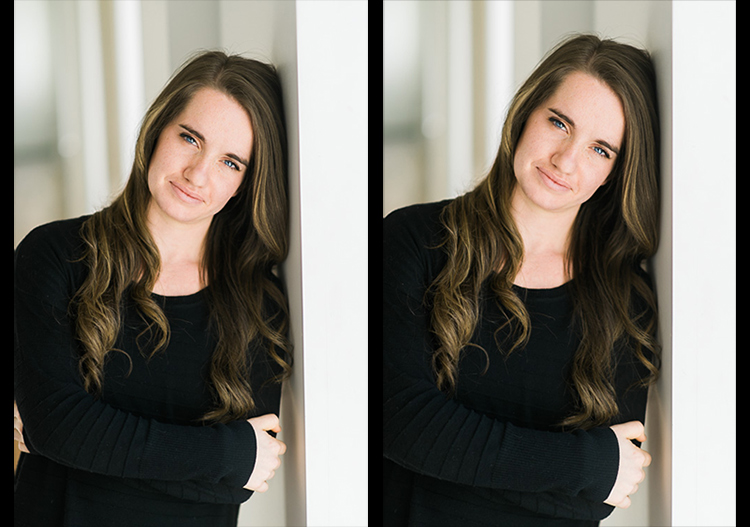
Take a look at the images below. I took many shots in a sequence of the couple walking, and I want to straighten each one individually. Before learning this technique, I had to straighten each image individually – but not anymore.

Image07

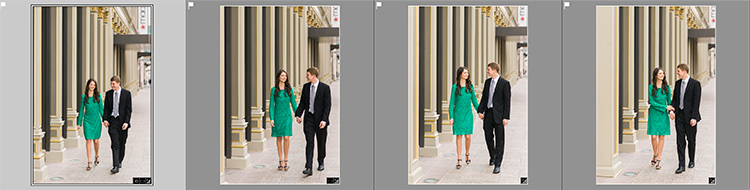
Once I fix the first image using the Level button in the Lens Corrections panel, I can then sync the Upright Mode across all of the other crooked images, and each will be analyzed and fixed according to what it needs (even if they are all different amounts).

Image08

Look at that. All of my images were fixed with a few clicks. I don’t want to belabor the point here, but I constantly shoot crooked and this little trick saves me hours of tedious straightening over the course of a year.

Making a LR Preset

You can also automate this process by creating preset. You do this by first straightening an image with the Level button found in the Lens Corrections panel of the Develop Module.

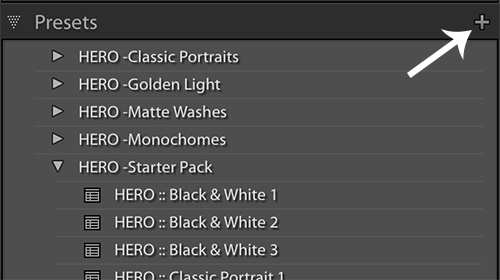
Then, at the top of Presets panel clicking the (+) plus button to create a new LR preset.

Image09

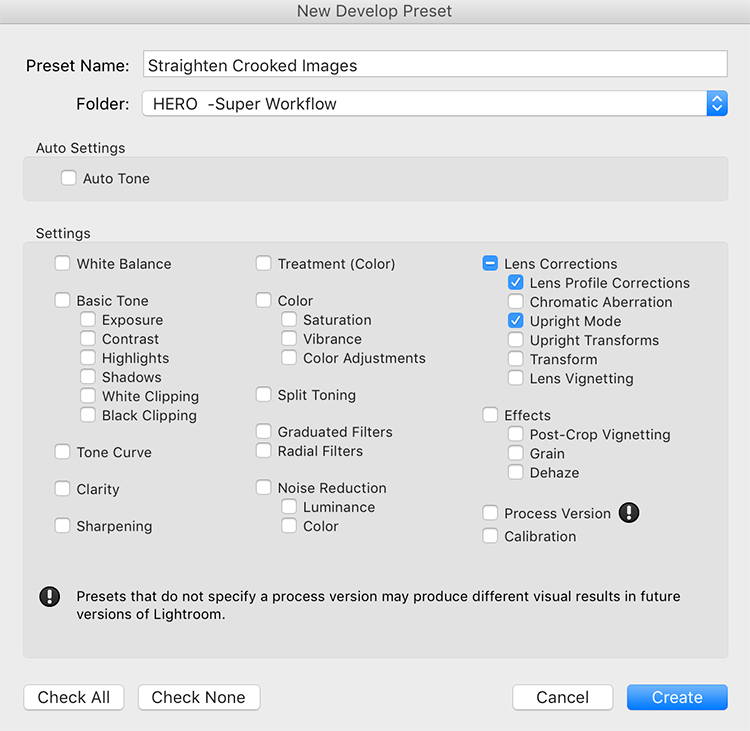
This will bring up the New Develop Preset dialog box where you choose which settings you want in your preset, the folder you want to store it in, and what name you want to give it. Name your preset something that you will remember, put checkmarks in the Upright Mode checkbox and the Lens Profile Corrections checkbox and hit Create.

Image10

Now, when you have crooked images you can hit this preset and almost magically, your images will be straightened compared to the strong lines in the image.

Image11

Give it a shot, I think you will find yourself using this technique quite often to straighten your images quickly.

Image012

Image013

googletag.cmd.push(function() {
tablet_slots.push( googletag.defineSlot( “/1005424/_dPSv4_tab-all-article-bottom_(300×250)”, [300, 250], “pb-ad-78623” ).addService( googletag.pubads() ) ); } );

googletag.cmd.push(function() {
mobile_slots.push( googletag.defineSlot( “/1005424/_dPSv4_mob-all-article-bottom_(300×250)”, [300, 250], “pb-ad-78158” ).addService( googletag.pubads() ) ); } );

The post How to Straighten Crooked Images Fast Using Lightroom by Kelly David Sansom appeared first on Digital Photography School.

Digital Photography School

 
Comments Off on How to Straighten Crooked Images Fast Using Lightroom

Posted in Photography